You can use Amazon Security Lake to simplify log data collection and retention for Amazon Web Services (AWS) and non-AWS data sources. To make sure that you get the most out of your implementation requires proper planning.
In this post, we will show you how to plan and implement a proof of concept (POC) for Security Lake to help you determine the functionality and value of Security Lake in your environment, so that your team can confidently design and implement in production. We will walk you through the following steps:
Understand the functionality and value of Security Lake
Determine success criteria for the POC
Define your Security Lake configuration
Prepare for deployment
Enable Security Lake
Validate deployment
Understand the functionality of Security Lake
Figure 1 summarizes the main features of Security Lake and the context of how to use it:
Figure 1: Overview of Security Lake functionality
As shown in the figure, Security Lake ingests and normalizes logs from data sources such as AWS services, AWS Partner sources, and custom sources. Security Lake also manages the lifecycle, orchestration, and subscribers. Subscribers can be AWS services, such as Amazon Athena, or AWS Partner subscribers.
There are four primary functions that Security Lake provides:
Centralize visibility to your data from AWS environments, SaaS providers, on-premises, and other cloud data sources — You can collect log sources from AWS services such as AWS CloudTrail management events, Amazon Simple Storage Service (Amazon S3) data events, AWS Lambda data events, Amazon Route 53 Resolver logs, VPC Flow Logs, and AWS Security Hub findings, in addition to log sources from on-premises, other cloud services, SaaS applications, and custom sources. Security Lake automatically aggregates the security data across AWS Regions and accounts.
Normalize your security data to an open standard — Security Lake normalizes log sources in a common schema, the Open Security Schema Framework (OCSF), and stores them in compressed parquet files.
Use your preferred analytics tools to analyze your security data — You can use AWS tools, such as Athena and Amazon OpenSearch Service, or you can utilize external security tools to analyze the data in Security Lake.
Optimize and manage your security data for more efficient storage and query — Security Lake manages the lifecycle of your data with customizable retention settings with automated storage tiering to help provide more cost-effective storage.
Determine success criteria
By establishing success criteria, you can assess whether Security Lake has helped address the challenges that you are facing. Some example success criteria include:
I need to centrally set up and store AWS logs across my organization in AWS Organizations for multiple log sources.
I need to more efficiently collect VPC Flow Logs in my organization and analyze them in my security information and event management (SIEM) solution.
I want to use OpenSearch Service to replace my on-premises SIEM.
I want to collect AWS log sources and custom sources for machine learning with Amazon Sagemaker.
I need to establish a dashboard in Amazon QuickSight to visualize my Security Hub findings and a custom log source data.
Review your success criteria to make sure that your goals are realistic given your timeframe and potential constraints that are specific to your organization. For example, do you have full control over the creation of AWS services that are deployed in an organization? Do you have resources that can dedicate time to implement and test? Is this time convenient for relevant stakeholders to evaluate the service?
The timeframe of your POC will depend on your answers to these questions.
Important: Security Lake has a 15-day free trial per account that you use from the time that you enable Security Lake. This is the best way to estimate the costs for each Region throughout the trial, which is an important consideration when you configure your POC.
Define your Security Lake configuration
After you establish your success criteria, you should define your desired Security Lake configuration. Some important decisions include the following:
Determine AWS log sources — Decide which AWS log sources to collect. For information about the available options, see Collecting data from AWS services.
Determine third-party log sources — Decide if you want to include non-AWS service logs as sources in your POC. For more information about your options, see Third-party integrations with Security Lake; the integrations listed as “Source” can send logs to Security Lake.
Note: You can add third-party integrations after the POC or in a second phase of the POC. Pre-planning will be required to make sure that you can get these set up during the 15-day free trial. Third-party integrations usually take more time to set up than AWS service logs.
Select a delegated administrator – Identify which account will serve as the delegated administrator. Make sure that you have the appropriate permissions from the organization admin account to identify and enable the account that will be your Security Lake delegated administrator. This account will be the location for the S3 buckets with your security data and where you centrally configure Security Lake. The AWS Security Reference Architecture (AWS SRA) recommends that you use the AWS logging account for this purpose. In addition, make sure to review Important considerations for delegated Security Lake administrators.
Select accounts in scope — Define which accounts to collect data from. To get the most realistic estimate of the cost of Security Lake, enable all accounts across your organization during the free trial.
Determine analytics tool — Determine if you want to use native AWS analytics tools, such as Athena and OpenSearch Service, or an existing SIEM, where the SIEM is a subscriber to Security Lake.
Define log retention and Regions — Define your log retention requirements and Regional restrictions or considerations.
Prepare for deployment
After you determine your success criteria and your Security Lake configuration, you should have an idea of your stakeholders, desired state, and timeframe. Now you need to prepare for deployment. In this step, you should complete as much as possible before you deploy Security Lake. The following are some steps to take:
Create a project plan and timeline so that everyone involved understands what success look like and what the scope and timeline is.
Define the relevant stakeholders and consumers of the Security Lake data. Some common stakeholders include security operations center (SOC) analysts, incident responders, security engineers, cloud engineers, finance, and others.
Define who is responsible, accountable, consulted, and informed during the deployment. Make sure that team members understand their roles.
Consider other technical prerequisites that you need to accomplish. For example, if you need roles in addition to what Security Lake creates for custom extract, transform, and load (ETL) pipelines for custom sources, can you work with the team in charge of that process before the POC?
Enable Security Lake
The next step is to enable Security Lake in your environment and configure your sources and subscribers.
Deploy Security Lake across the Regions, accounts, and AWS log sources that you previously defined.
Configure custom sources that are in scope for your POC.
Configure analytics tools in scope for your POC.
Validate deployment
The final step is to confirm that you have configured Security Lake and additional components, validate that everything is working as intended, and evaluate the solution against your success criteria.
Validate log collection — Verify that you are collecting the log sources that you configured. To do this, check the S3 buckets in the delegated administrator account for the logs.
Validate analytics tool — Verify that you can analyze the log sources in your analytics tool of choice. If you don’t want to configure additional analytics tooling, you can use Athena, which is configured when you set up Security Lake. For sample Athena queries, see Amazon Security Lake Example Queries on GitHub and Security Lake queries in the documentation.
Obtain a cost estimate — In the Security Lake console, you can review a usage page to verify that the cost of Security Lake in your environment aligns with your expectations and budgets.
Assess success criteria — Determine if you achieved the success criteria that you defined at the beginning of the project.
Next steps
Next steps will largely depend on whether you decide to move forward with Security Lake.
Determine if you have the approval and budget to use Security Lake.
Expand to other data sources that can help you provide more security outcomes for your business.
Configure S3 lifecycle policies to efficiently store logs long term based on your requirements.
Let other teams know that they can subscribe to Security Lake to use the log data for their own purposes. For example, a development team that gets access to CloudTrail through Security Lake can analyze the logs to understand the permissions needed for an application.
Conclusion
In this blog post, we showed you how to plan and implement a Security Lake POC. You learned how to do so through phases, including defining success criteria, configuring Security Lake, and validating that Security Lake meets your business needs.
As a customer, this guide will help you run a successful proof of value (POV) with Security Lake. It guides you in assessing the value and factors to consider when deciding to implement the current features.
Amazon OpenSearch Serverless is an on-demand auto scaling configuration for Amazon OpenSearch Service. Since its release, the interest for OpenSearch Serverless had been steadily growing. Customers prefer to let the service manage its capacity automatically rather than having to manually provision capacity. Until now, customers have had to rely on using custom code or third-party solutions to move the data between provisioned OpenSearch Service domains and OpenSearch Serverless.
We recently introduced a feature with Amazon OpenSearch Ingestion (OSI) to make this migration even more effortless. OSI is a fully managed, serverless data collector that delivers real-time log, metric, and trace data to OpenSearch Service domains and OpenSearch Serverless collections.
In this post, we outline the steps to make migrate the data between provisioned OpenSearch Service domains and OpenSearch Serverless. Migration of metadata such as security roles and dashboard objects will be covered in another subsequent post.
Solution overview
The following diagram shows the necessary components for moving data between OpenSearch Service provisioned domains and OpenSearch Serverless using OSI. You will use OSI with OpenSearch Service as source and an OpenSearch Serverless collection as sink.
Prerequisites
Before getting started, complete the following steps to create the necessary resources:
Create an AWS Identity and Access Management (IAM) role that the OpenSearch Ingestion pipeline will assume to write to the OpenSearch Serverless collection. This role needs to be specified in the sts_role_arn parameter of the pipeline configuration.
Attach a permissions policy to the role to allow it to read data from the OpenSearch Service domain. The following is a sample policy with least privileges:
Map the OpenSearch Ingestion domain role ARN as a backend user (as an all_access user) to the domain user. We show a simplified example to use the all_access role. For production scenarios, make sure to use a role with just enough permissions to read and write.
If the collection is defined as a VPC collection, you need to create a network policy and configure it in the ingestion pipeline.
Now you’re ready to move data from your provisioned domain to OpenSearch Serverless.
Move data from provisioned domains to Serverless
Setup Amazon OpenSearch Ingestion To get started, you must have an active OpenSearch Service domain (source) and OpenSearch Serverless collection (sink). Complete the following steps to set up an OpenSearch Ingestion pipeline for migration:
On the OpenSearch Service console, choose Pipeline under Ingestion in the navigation pane.
Choose Create a pipeline.
For Pipeline name, enter a name (for example, octank-migration).
For Pipeline capacity, you can define the minimum and maximum capacity to scale up the resources. For now, you can leave the default minimum as 1 and maximum as 4.
For Configuration Blueprint, select AWS-OpenSearchDataMigrationPipeline.
Update the following information for the source:
Uncomment hosts and specify the endpoint of the existing OpenSearch Service endpoint.
Uncomment distribution_version if your source cluster is an OpenSearch Service cluster with compatibility mode enabled; otherwise, leave it commented.
Uncomment indices,include,index_name_regex, and add an index name or pattern that you want to migrate (for example, octank-iot-logs-2023.11.0*).
Update regionunderawswhere your source domain is (for example, us-west-2).
Update sts_role_arnunderaws to the role that has permission to read data from the OpenSearch Service domain (for example, arn:aws:iam::111122223333:role/osis-pipeline). This role should be added as a backend role within the OpenSearch Service security roles.
Update the following information for the sink:
Uncomment hosts and specify the endpoint of the existing OpenSearch Serverless endpoint.
Update sts_role_arnunderaws to the role that has permission to write data into the OpenSearch Serverless collection (for example, arn:aws:iam::111122223333:role/osis-pipeline). This role should be added as part of the data access policy in the OpenSearch Serverless collection.
Update the serverless flag to be true.
For index, you can leave it as default, which will get the metadata from the source index and write to the same name in the destination as of the sources. Alternatively, if you want to have a different index name at the destination, modify this value with your desired name.
For document_id, you can get the ID from the document metadata in the source and use the same in the target. Note that custom document IDs are supported only for the SEARCH type of collection; if you have your collection as TIMESERIES or VECTORSEARCH, you should comment this line.
Next, you can validate your pipeline to check the connectivity of source and sink to make sure the endpoint exists and is accessible.
For Network settings, choose your preferred setting:
Choose VPC access and select your VPC, subnet, and security group to set up the access privately.
Choose Public to use public access. AWS recommends that you use a VPC endpoint for all production workloads, but this walkthrough, select Public.
For Log Publishing Option, you can either create a new Amazon CloudWatch group or use an existing CloudWatch group to write the ingestion logs. This provides access to information about errors and warnings raised during the operation, which can help during troubleshooting. For this walkthrough, choose Create new group.
Choose Next, and verify the details you specified for your pipeline settings.
Choose Create pipeline.
It should take a couple of minutes to create the ingestion pipeline. The following graphic gives a quick demonstration of creating the OpenSearch Ingestion pipeline via the preceding steps.
Verify ingested data in the target OpenSearch Serverless collection
After the pipeline is created and active, log in to OpenSearch Dashboards for your OpenSearch Serverless collection and run the following command to list the indexes:
GET _cat/indices?v
The following graphic gives a quick demonstration of listing the indexes before and after the pipeline becomes active.
Conclusion
In this post, we saw how OpenSearch Ingestion can ingest data into an OpenSearch Serverless collection without the need to use the third-party solutions. With minimal data producer configuration, it automatically ingested data to the collection. OSI also allows you to transform or reindex the data from ES7.x version before ingestion to an OpenSearch Service domain or OpenSearch Serverless collection. OSI eliminates the need to provision, scale, or manage servers. AWS offers various resources for you to quickly start building pipelines using OpenSearch Ingestion. You can use various built-in pipeline integrations to quickly ingest data from Amazon DynamoDB, Amazon Managed Streaming for Apache Kafka (Amazon MSK), Amazon Security Lake, Fluent Bit, and many more. The following OpenSearch Ingestion blueprints enable you to build data pipelines with minimal configuration changes.
About the Authors
Muthu Pitchaimani is a Search Specialist with Amazon OpenSearch Service. He builds large-scale search applications and solutions. Muthu is interested in the topics of networking and security, and is based out of Austin, Texas.
Prashant Agrawal is a Sr. Search Specialist Solutions Architect with Amazon OpenSearch Service. He works closely with customers to help them migrate their workloads to the cloud and helps existing customers fine-tune their clusters to achieve better performance and save on cost. Before joining AWS, he helped various customers use OpenSearch and Elasticsearch for their search and log analytics use cases. When not working, you can find him traveling and exploring new places. In short, he likes doing Eat → Travel → Repeat.
Rahul Sharma is a Technical Account Manager at Amazon Web Services. He is passionate about the data technologies that help leverage data as a strategic asset and is based out of New York city, New York.
The management of security services across organizations has evolved over the years, and can vary depending on the size of your organization, the type of industry, the number of services to be administered, and compliance regulations and legislation. When compliance standards require you to set up scoped administrative control of event monitoring and auditing, we find that single administrator support on management consoles can present several challenges for large enterprises. In this blog post, I’ll dive deep into these security policy management challenges and show how you can optimize your security operations at scale by using AWS Firewall Manager to support multiple administrators.
These are some of the use cases and challenges faced by large enterprise organizations when scaling their security operations:
Policy enforcement across complex organizational boundaries
Large organizations tend to be divided into multiple organizational units, each of which represents a function within the organization. Risk appetite, and therefore security policy, can vary dramatically between organizational units. For example, organizations may support two types of users: central administrators and app developers, both of whom can administer security policy but might do so at different levels of granularity. The central admin applies a baseline and relatively generic policy for all accounts, while the app developer can be made an admin for specific accounts and be allowed to create custom rules for the overall policy. A single administrator interface limits the ability for multiple administrators to enforce differing policies for the organizational unit to which they are assigned.
Lack of adequate separation across services
The benefit of centralized management is that you can enforce a centralized policy across multiple services that the management console supports. However, organizations might have different administrators for each service. For example, the team that manages the firewall could be different than the team that manages a web application firewall solution. Aggregating administrative access that is confined to a single administrator might not adequately conform to the way organizations have services mapped to administrators.
Auditing and compliance
Most security frameworks call for auditing procedures, to gain visibility into user access, types of modifications to configurations, timestamps of incremental changes, and logs for periods of downtime. An organization might want only specific administrators to have access to certain functions. For example, each administrator might have specific compliance scope boundaries based on their knowledge of a particular compliance standard, thereby distributing the responsibility for implementation of compliance measures. Single administrator access greatly reduces the ability to discern the actions of different administrators in that single account, making auditing unnecessarily complex.
Availability
Redundancy and resiliency are regarded as baseline requirements for security operations. Organizations want to ensure that if a primary administrator is locked out of a single account for any reason, other legitimate users are not affected in the same way. Single administrator access, in contrast, can lock out legitimate users from performing critical and time-sensitive actions on the management console.
Security risks
In a single administrator setting, the ability to enforce the policy of least privilege is not possible. This is because there are multiple operators who might share the same levels of access to the administrator account. This means that there are certain administrators who could be granted broader access than what is required for their function in the organization.
What is multi-admin support?
Multi-admin support for Firewall Manager allows customers with multiple organizational units (OUs) and accounts to create up to 10 Firewall Manager administrator accounts from AWS Organizations to manage their firewall policies. You can delegate responsibility for firewall administration at a granular scope by restricting access based on OU, account, policy type, and AWS Region, thereby enabling policy management tasks to be implemented more effectively.
Multi-admin support provides you the ability to use different administrator accounts to create administrative scopes for different parameters. Examples of these administrative scopes are included in the following table.
Administrator
Scope
Default Administrator
Full Scope (Default)
Administrator 1
OU = “Test 1”
Administrator 2
Account IDs = “123456789, 987654321”
Administrator 3
Policy-Type = “Security Group”
Administrator 4
Region = “us-east-2”
Benefits of multi-admin support
Multi-admin support helps alleviate many of the challenges just discussed by allowing administrators the flexibility to implement custom configurations based on job functions, while enforcing the principle of least privilege to help ensure that corporate policy and compliance requirements are followed. The following are some of the key benefits of multi-admin support:
Improved security
Security is enhanced, given that the principle of least privilege can be enforced in a multi-administrator access environment. This is because the different administrators using Firewall Manager will be using delegated privileges that are appropriate for the level of access they are permitted. The result is that the scope for user errors, intentional errors, and unauthorized changes can be significantly reduced. Additionally, you attain an added level of accountability for administrators.
Autonomy of job functions
Companies with organizational units that have separate administrators are afforded greater levels of autonomy within their AWS Organizations accounts. The result is an increase in flexibility, where concurrent users can perform very different security functions.
Compliance benefits
It is easier to meet auditing requirements based on compliance standards in multi-admin accounts, because there is a greater level of visibility into user access and the functions performed on the services when compared to a multi-eyes approval workflow and approval of all policies by one omnipotent admin. This can simplify routine audits through the generation of reports that detail the chronology of security changes that are implemented by specific admins over time.
Administrator Availability
Multi-admin management support helps avoid the limitations of having a single point of access and enhances availability by providing multiple administrators with their own levels of access. This can result in fewer disruptions, especially during periods that require time-sensitive changes to be made to security configurations.
Integration with AWS Organizations
You can enable trusted access using either the Firewall Manager console or the AWS Organizations console. To do this, you sign in with your AWS Organizations management account and configure an account allocated for security tooling within the organization as the Firewall Manager administrator account. After this is done, subsequent multi-admin Firewall Manager operations can also be performed using AWS APIs. With accounts in an organization, you can quickly allocate resources, group multiple accounts, and apply governance policies to accounts or groups. This simplifies operational overhead for services that require cross-account management.
Key use cases
Multi-admin support in Firewall Manager unlocks several use cases pertaining to admin role-based access. The key use cases are summarized here.
Role-based access
Multi-admin support allows for different admin roles to be defined based on the job function of the administrator, relative to the service being managed. For example, an administrator could be tasked to manage network firewalls to protect their VPCs, and a different administrator could be tasked to manage web application firewalls (AWS WAF), both using Firewall Manager.
User tracking and accountability
In a multi-admin configuration environment, each Firewall Manager administrator’s activities are logged and recorded according to corporate compliance standards. This is useful when dealing with the troubleshooting of security incidents, and for compliance with auditing standards.
Compliance with security frameworks
Regulations specific to a particular industry, such as Payment Card Industry (PCI), and industry-specific legislation, such as HIPAA, require restricted access, control, and separation of tasks for different job functions. Failure to adhere to such standards could result in penalties. With administrative scope extending to policy types, customers can assign responsibility for managing particular firewall policies according to user role guidelines, as specified in compliance frameworks.
Region-based privileges
Many state or federal frameworks, such as the California Consumer Privacy Act (CCPA), require that admins adhere to customized regional requirements, such as data sovereignty or privacy requirements. Multi-admin Firewall Manager support helps organizations to adopt these frameworks by making it easier to assign admins who are familiar with the regulations of a particular region to that region.
Figure 1: Use cases for multi-admin support on AWS Firewall Manager
How to implement multi-admin support with Firewall Manager
To configure multi-admin support on Firewall Manager, use the following steps:
In the AWS Organizations console of the organization’s managed account, expand the Root folder to view the various accounts in the organization. Select the Default Administrator account that is allocated to delegate Firewall Manager administrators. The Default Administrator account should be a dedicated security account separate from the AWS Organizations management account, such as a Security Tooling account.
Figure 2: Overview of the AWS Organizations console
Navigate to Firewall Manager and in the left navigation menu, select Settings.
Figure 3: AWS Firewall Manager settings to update policy types
In Settings, choose an account. Under Policy types, select AWS Network Firewall to allow an admin to manage a specific firewall across accounts and across Regions. Select Edit to show the Details menu in Figure 4.
Figure 4: Select AWS Network Firewall as a policy type that can be managed by this administration account
The results of your selection are shown in Figure 5. The admin has been granted privileges to set AWS Network Firewall policy across all Regions and all accounts.
Figure 5: The admin has been granted privileges to set Network Firewall policy across all Regions and all accounts
In this second use case, you will identify a number of sub-accounts that the admin should be restricted to. As shown in Figure 6, there are no sub-accounts or OUs that the admin is restricted to by default until you choose Edit and select them.
Figure 6: The administrative scope details for the admin
In order to achieve this second use case, you choose Edit, and then add multiple sub-accounts or an OU that you need the admin restricted to, as shown in Figure 7.
Figure 7: Add multiple sub-accounts or an OU that you need the admin restricted to
The third use case pertains to granting the admin privileges to a particular AWS Region. In this case, you go into the Edit administrator account page once more, but this time, for Regions, select US West (N California) in order to restrict admin privileges only to this selected Region.
Figure 8: Restricting admin privileges only to the US West (N California) Region
Conclusion
Large enterprises need strategies for operationalizing security policy management so that they can enforce policy across organizational boundaries, deal with policy changes across security services, and adhere to auditing and compliance requirements. Multi-admin support in Firewall Manager provides a framework that admins can use to organize their workflow across job roles, to help maintain appropriate levels of security while providing the autonomy that admins desire.
You can get started using the multi-admin feature with Firewall Manager using the AWS Management Console. To learn more, refer to the service documentation.
If you have feedback about this post, submit comments in the Comments section below. If you have questions about this post, contact AWS Support.
This blog post provides recommendations that you can use to help improve resiliency in the unlikely event of disrupted availability of the global (now legacy) AWS Security Token Service (AWS STS) endpoint. Although the global (legacy) AWS STS endpoint https://sts.amazonaws.com is highly available, it’s hosted in a single AWS Region—US East (N. Virginia)—and like other endpoints, it doesn’t provide automatic failover to endpoints in other Regions. In this post I will show you how to use Regional AWS STS endpoints in your configurations to improve the performance and resiliency of your workloads.
For authentication, it’s best to use temporary credentials instead of long-term credentials to help reduce risks, such as inadvertent disclosure, sharing, or theft of credentials. With AWS STS, trusted users can request temporary, limited-privilege credentials to access AWS resources.
Temporary credentials include an access key pair and a session token. The access key pair consists of an access key ID and a secret key. AWS STS generates temporary security credentials dynamically and provides them to the user when requested, which eliminates the need for long-term storage. Temporary security credentials have a limited lifetime so you don’t have to manage or rotate them.
To get these credentials, you can use several different methods:
An AWS principal, such as a role, user, or service
A web token, such as those provided by an OAuth 2.0 or OpenID Connect (OIDC) application
Figure 1: Methods to request credentials from AWS STS
Global (legacy) and Regional AWS STS endpoints
To connect programmatically to an AWS service, you use an endpoint. An endpoint is the URL of the entry point for AWS STS.
AWS STS provides Regional endpoints in every Region. AWS initially built AWS STS with a global endpoint (now legacy) https://sts.amazonaws.com, which is hosted in the US East (N. Virginia) Region (us-east-1). Regional AWS STS endpoints are activated by default for Regions that are enabled by default in your AWS account. For example, https://sts.us-east-2.amazonaws.com is the US East (Ohio) Regional endpoint. By default, AWS services use Regional AWS STS endpoints. For example, IAM Roles Anywhere uses the Regional STS endpoint that corresponds to the trust anchor. For a complete list of AWS STS endpoints for each Region, see AWS Security Token Service endpoints and quotas. You can’t activate an AWS STS endpoint in a Region that is disabled. For more information on which AWS STS endpoints are activated by default and which endpoints you can activate or deactivate, see Regions and endpoints.
As noted previously, the global (legacy) AWS STS endpoint https://sts.amazonaws.com is hosted in a single Region — US East (N. Virginia) — and like other endpoints, it doesn’t provide automatic failover to endpoints in other Regions. If your workloads on AWS or outside of AWS are configured to use the global (legacy) AWS STS endpoint https://sts.amazonaws.com, you introduce a dependency on a single Region: US East (N. Virginia). In the unlikely event that the endpoint becomes unavailable in that Region or connectivity between your resources and that Region is lost, your workloads won’t be able to use AWS STS to retrieve temporary credentials, which poses an availability risk to your workloads.
AWS recommends that you use Regional AWS STS endpoints (https://sts.<region-name>.amazonaws.com) instead of the global (legacy) AWS STS endpoint.
In addition to improved resiliency, Regional endpoints have other benefits:
Isolation and containment — By making requests to an AWS STS endpoint in the same Region as your workloads, you can minimize cross-Region dependencies and align the scope of your resources with the scope of your temporary security credentials to help address availability and security concerns. For example, if your workloads are running in the US East (Ohio) Region, you can target the Regional AWS STS endpoint in the US East (Ohio) Region (us-east-2) to remove dependencies on other Regions.
Performance — By making your AWS STS requests to an endpoint that is closer to your services and applications, you can access AWS STS with lower latency and shorter response times.
Figure 2: Assume an IAM role by using an API call to a Regional AWS STS endpoint
Calls to AWS STS within the same Region
You should configure your workloads within a specific Region to use only the Regional AWS STS endpoint for that Region. By using a Regional endpoint, you can use AWS STS in the same Region as your workloads, removing cross-Region dependency. For example, workloads in the US East (Ohio) Region should use only the Regional endpoint https://sts.us-east-2.amazonaws.com to call AWS STS. If a Regional AWS STS endpoint becomes unreachable, your workloads shouldn’t call AWS STS endpoints outside of the operating Region. If your workload has a multi-Region resiliency requirement, your other active or standby Region should use a Regional AWS STS endpoint for that Region and should be deployed such that the application can function despite a Regional failure. You should direct STS traffic to the STS endpoint within the same Region, isolated and independent from other Regions, and remove dependencies on the global (legacy) endpoint.
Calls to AWS STS from outside AWS
You should configure your workloads outside of AWS to call the appropriate Regional AWS STS endpoints that offer the lowest latency to your workload located outside of AWS. If your workload has a multi-Region resiliency requirement, build failover logic for AWS STS calls to other Regions in the event that Regional AWS STS endpoints become unreachable. Temporary security credentials obtained from Regional AWS STS endpoints are valid globally for the default session duration or duration that you specify.
How to configure Regional AWS STS endpoints for your tools and SDKs
By default, the AWS CLI version 2 sends AWS STS API requests to the Regional AWS STS endpoint for the currently configured Region. If you are using AWS CLI v2, you don’t need to make additional changes.
By default, the AWS CLI v1 sends AWS STS requests to the global (legacy) AWS STS endpoint. To check the version of the AWS CLI that you are using, run the following command: $ aws –version.
When you run AWS CLI commands, the AWS CLI looks for credential configuration in a specific order—first in shell environment variables and then in the local AWS configuration file (~/.aws/config).
AWS SDK
AWS SDKs are available for a variety of programming languages and environments. Since July 2022, major new versions of the AWS SDK default to Regional AWS STS endpoints and use the endpoint corresponding to the currently configured Region. If you use a major version of the AWS SDK that was released after July 2022, you don’t need to make additional changes.
An AWS SDK looks at various configuration locations until it finds credential configuration values. For example, the AWS SDK for Python (Boto3) adheres to the following lookup order when it searches through sources for configuration values:
A configuration object created and passed as the AWS configuration parameter when creating a client
Environment variables
The AWS configuration file ~/.aws/config
If you still use AWS CLI v1, or your AWS SDK version doesn’t default to a Regional AWS STS endpoint, you have the following options to set the Regional AWS STS endpoint:
Option 1 — Use a shared AWS configuration file setting
The configuration file is located at ~/.aws/config on Linux or macOS, and at C:\Users\USERNAME\.aws\config on Windows. To use the Regional endpoint, add the sts_regional_endpoints parameter.
The following example shows how you can set the value for the Regional AWS STS endpoint in the US East (Ohio) Region (us-east-2), by using the default profile in the AWS configuration file:
[default]
region = us-east-2
sts_regional_endpoints = regional
The valid values for the AWS STS endpoint parameter (sts_regional_endpoints) are:
legacy (default) — Uses the global (legacy) AWS STS endpoint, sts.amazonaws.com.
regional — Uses the AWS STS endpoint for the currently configured Region.
Note: Since July 2022, major new versions of the AWS SDK default to Regional AWS STS endpoints and use the endpoint corresponding to the currently configured Region. If you are using AWS CLI v1, you must use version 1.16.266 or later to use the AWS STS endpoint parameter.
You can use the --debug option with the AWS CLI command to receive the debug log and validate which AWS STS endpoint was used.
If you search for UseGlobalEndpoint in your debug log, you’ll find that the UseGlobalEndpoint parameter is set to False, and you’ll see the Regional endpoint provider fully qualified domain name (FQDN) when the Regional AWS STS endpoint is configured in a shared AWS configuration file or environment variables:
For a list of AWS SDKs that support shared AWS configuration file settings for Regional AWS STS endpoints, see Compatibility with AWS SDKS.
Option 2 — Use environment variables
Environment variables provide another way to specify configuration options. They are global and affect calls to AWS services. Most SDKs support environment variables. When you set the environment variable, the SDK uses that value until the end of your shell session or until you set the variable to a different value. To make the variables persist across future sessions, set them in your shell’s startup script.
The following example shows how you can set the value for the Regional AWS STS endpoint in the US East (Ohio) Region (us-east-2) by using environment variables:
You can run the command $ (echo $AWS_DEFAULT_REGION; echo $AWS_STS_REGIONAL_ENDPOINTS) to validate the variables. The output should look similar to the following:
us-east-2
regional
Windows
C:\> set AWS_DEFAULT_REGION=us-east-2
C:\> set AWS_STS_REGIONAL_ENDPOINTS=regional
The following example shows how you can configure an STS client with the AWS SDK for Python (Boto3) to use a Regional AWS STS endpoint by setting the environment variable:
import boto3
import os
os.environ["AWS_DEFAULT_REGION"] = "us-east-2"
os.environ["AWS_STS_REGIONAL_ENDPOINTS"] = "regional"
You can use the metadata attribute sts_client.meta.endpoint_url to inspect and validate how an STS client is configured. The output should look similar to the following:
For a list of AWS SDKs that support environment variable settings for Regional AWS STS endpoints, see Compatibility with AWS SDKs.
Option 3 — Construct an endpoint URL
You can also manually construct an endpoint URL for a specific Regional AWS STS endpoint.
The following example shows how you can configure the STS client with AWS SDK for Python (Boto3) to use a Regional AWS STS endpoint by setting a specific endpoint URL:
You can create a private connection to AWS STS from the resources that you deployed in your Amazon VPCs. AWS STS integrates with AWS PrivateLink by using interface VPC endpoints. The network traffic on AWS PrivateLink stays on the global AWS network backbone and doesn’t traverse the public internet. When you configure a VPC endpoint for AWS STS, the traffic for the Regional AWS STS endpoint traverses to that endpoint.
By default, the DNS in your VPC will update the entry for the Regional AWS STS endpoint to resolve to the private IP address of the VPC endpoint for AWS STS in your VPC. The following output from an Amazon Elastic Compute Cloud (Amazon EC2) instance shows the DNS name for the AWS STS endpoint resolving to the private IP address of the VPC endpoint for AWS STS:
After you create an interface VPC endpoint for AWS STS in your Region, set the value for the respective Regional AWS STS endpoint by using environment variables to access AWS STS in the same Region.
The output of the following log shows that an AWS STS call was made to the Regional AWS STS endpoint:
POST
/

content-type:application/x-www-form-urlencoded; charset=utf-8
host:sts.us-east-2.amazonaws.com
Log AWS STS requests
You can use AWS CloudTrail events to get information about the request and endpoint that was used for AWS STS. This information can help you identify AWS STS request patterns and validate if you are still using the global (legacy) STS endpoint.
An event in CloudTrail is the record of an activity in an AWS account. CloudTrail events provide a history of both API and non-API account activity made through the AWS Management Console, AWS SDKs, command line tools, and other AWS services.
Log locations
Requests to Regional AWS STS endpoints sts.<region-name>.amazonaws.com are logged in CloudTrail within their respective Region.
Requests to the global (legacy) STS endpoint sts.amazonaws.com are logged within the US East (N. Virginia) Region (us-east-1).
Log fields
Requests to Regional AWS STS endpoints and global endpoint are logged in the tlsDetails field in CloudTrail. You can use this field to determine if the request was made to a Regional or global (legacy) endpoint.
Requests made from a VPC endpoint are logged in the vpcEndpointId field in CloudTrail.
The following example shows a CloudTrail event for an STS request to a Regional AWS STS endpoint with a VPC endpoint.
The following example shows how to run a CloudWatch Logs Insights query to look for API calls made to the global (legacy) AWS STS endpoint. Before you can query CloudTrail events, you must configure a CloudTrail trail to send events to CloudWatch Logs.
The query output shows event details for an AWS STS call made to the global (legacy) AWS STS endpoint https://sts.amazonaws.com.
Figure 3: Use a CloudWatch Log Insights query to look for STS API calls
Amazon Athena
The following example shows how to query CloudTrail events with Amazon Athena and search for API calls made to the global (legacy) AWS STS endpoint.
SELECT
    eventtime,
    recipientaccountid,
    eventname,
    tlsdetails.clientProvidedHostHeader,
    sourceipaddress,
    eventid,
    useridentity.arn
FROM "cloudtrail_logs"
WHERE
    eventsource = 'sts.amazonaws.com' AND
    tlsdetails.clientProvidedHostHeader = 'sts.amazonaws.com'
ORDER BY eventtime DESC
The query output shows STS calls made to the global (legacy) AWS STS endpoint https://sts.amazonaws.com.
Figure 4: Use Athena to search for STS API calls and identify STS endpoints
Conclusion
In this post, you learned how to use Regional AWS STS endpoints to help improve resiliency, reduce latency, and increase session token usage for the operating Regions in your AWS environment.
AWS recommends that you check the configuration and usage of AWS STS endpoints in your environment, validate AWS STS activity in your CloudTrail logs, and confirm that Regional AWS STS endpoints are used.
Network Firewall offers three deployment models: Distributed, centralized, and combined. Many customers opt for a centralized model to reduce costs. In this model, customers allocate the responsibility for managing the rulesets to the owners of the VPC infrastructure (spoke accounts) being protected, thereby shifting accountability and providing flexibility to the spoke accounts. Managing rulesets in a shared firewall policy generated from distributed input configurations of protected VPCs (spoke accounts) is challenging without proper input validation, state-management, and request throttling controls.
In this post, we show you how to automate firewall rule management within the central firewall using distributed firewall configurations spread across multiple AWS accounts. The anfw-automate solution provides input-validation, state-management, and throttling controls, reducing the update time for firewall rule changes from minutes to seconds. Additionally, the solution reduces operational costs, including rule management overhead while integrating seamlessly with the existing continuous integration and continuous delivery (CI/CD) processes.
Prerequisites
For this walkthrough, the following prerequisites must be met:
Basic knowledge of networking concepts such as routing and Classless Inter-Domain Routing (CIDR) range allocations.
Basic knowledge of YAML and JSON configuration formats, definitions, and schema.
The firewall VPC in the central account must be reachable from a spoke account (see centralized deployment model). For this solution, you need two AWS accounts from the centralized deployment model:
The spoke account is the consumer account the defines firewall rules for the account and uses central firewall endpoints for traffic filtering. At least one spoke account is required to simulate the user workflow in validation phase.
The central account is an account that contains the firewall endpoints. This account is used by application and the Network Firewall.
StackSets deployment with service-managed permissions must be enabled in AWS Organizations (Activate trusted access with AWS Organizations). A delegated administrator account is required to deploy AWS CloudFormation stacks in any account in an organization. The CloudFormation StackSets in this account deploy the necessary CloudFormation stacks in the spoke accounts. If you don’t have a delegated administrator account, you must manually deploy the resources in the spoke account. Manual deployment isn’t recommended in production environments.
A resource account is the CI/CD account used to deploy necessary AWS CodePipeline stacks. The pipelines deploy relevant cross-account cross-AWS Region stacks to the preceding AWS accounts.
IAM permissions to deploy CDK stacks in the resource account.
Solution description
In Network Firewall, each firewall endpoint connects to one firewall policy, which defines network traffic monitoring and filtering behavior. The details of the behavior are defined in rule groups — a reusable set of rules — for inspecting and handling network traffic. The rules in the rule groups provide the details for packet inspection and specify the actions to take when a packet matches the inspection criteria. Network Firewall uses a Suricata rules engine to process all stateful rules. Currently, you can create Suricata compatible or basic rules (such as domain list) in Network Firewall. We use Suricata compatible rule strings within this post to maintain maximum compatibility with most use cases.
Figure 1 describes how the anfw-automate solution uses the distributed firewall rule configurations to simplify rule management for multiple teams. The rules are validated, transformed, and stored in the central AWS Network Firewall policy. This solution isolates the rule generation to the spoke AWS accounts, but still uses a shared firewall policy and a central ANFW for traffic filtering. This approach grants the AWS spoke account owners the flexibility to manage their own firewall rules while maintaining the accountability for their rules in the firewall policy. The solution enables the central security team to validate and override user defined firewall rules before pushing them to the production firewall policy. The security team operating the central firewall can also define additional rules that are applied to all spoke accounts, thereby enforcing organization-wide security policies. The firewall rules are then compiled and applied to Network Firewall in seconds, providing near real-time response in scenarios involving critical security incidents.
Figure 1: Workflow launched by uploading a configuration file to the configuration (config) bucket
The Network Firewall firewall endpoints and anfw-automate solution are both deployed in the central account. The spoke accounts use the application for rule automation and the Network Firewall for traffic inspection.
As shown in Figure 1, each spoke account contains the following:
An Amazon Simple Storage Service (Amazon S3) bucket to store multiple configuration files, one per Region. The rules defined in the configuration files are applicable to the VPC traffic in the spoke account. The configuration files must comply with the defined naming convention ($Region-config.yaml) and be validated to make sure that only one configuration file exists per Region per account. The S3 bucket has event notifications enabled that publish all changes to configuration files to a local default bus in Amazon EventBridge.
EventBridge rules to monitor the default bus and forward relevant events to the custom event bus in the central account. The EventBridge rules specifically monitor VPCDelete events published by Amazon CloudTrail and S3 event notifications. When a VPC is deleted from the spoke account, the VPCDelete events lead to the removal of corresponding rules from the firewall policy. Additionally, all create, update, and delete events from Amazon S3 event notifications invoke corresponding actions on the firewall policy.
Two AWS Identity and Access Manager (IAM) roles with keywords xaccount.lmb.rc and xaccount.lmb.re are assumed by RuleCollect and RuleExecute functions in the central account, respectively.
A CloudWatch Logs log group to store event processing logs published by the central AWS Lambda application.
In the central account:
EventBridge rules monitor the custom event bus and invoke a Lambda function called RuleCollect. A dead-letter queue is attached to the EventBridge rules to store events that failed to invoke the Lambda function.
The RuleCollect function retrieves the config file from the spoke account by assuming a cross-account role. This role is deployed by the same stack that created the other spoke account resources. The Lambda function validates the request, transforms the request to the Suricata rule syntax, and publishes the rules to an Amazon Simple Queue Service (Amazon SQS) first-in-first-out (FIFO) queue. Input validation controls are paramount to make sure that users don’t abuse the functionality of the solution and bypass central governance controls. The Lambda function has input validation controls to verify the following:
The VPC ID in the configuration file exists in the configured Region and the same AWS account as the S3 bucket.
The Amazon S3 object version ID received in the event matches the latest version ID to mitigate race conditions.
Users don’t have only top-level domains (for example, .com, .de) in the rules.
The custom Suricata rules don’t have any as the destination IP address or domain.
The VPC identifier matches the required format, that is, a+(AWS Account ID)+(VPC ID without vpc- prefix) in custom rules. This is important to have unique rule variables in rule groups.
The rules don’t use security sensitive keywords such as sid, priority, or metadata. These keywords are reserved for firewall administrators and the Lambda application.
CIDR ranges for a VPC are mapped appropriately using IP set variables.
The input validations make sure that rules defined by one spoke account don’t impact the rules from other spoke accounts. The validations applied to the firewall rules can be updated and managed as needed based on your requirements. The rules created must follow a strict format, and deviation from the preceding rules will lead to the rejection of the request.
The Amazon SQS FIFO queue preserves the order of create, update, and delete operations run in the configuration bucket of the spoke account. These state-management controls maintain consistency between the firewall rules in the configuration file within the S3 bucket and the rules in the firewall policy. If the sequence of updates provided by the distributed configurations isn’t honored, the rules in a firewall policy might not match the expected ruleset.
Rules not processed beyond the maxReceiveCount threshold are moved to a dead-letter SQS queue for troubleshooting.
The Amazon SQS messages are subsequently consumed by another Lambda function called RuleExecute. Multiple changes to one configuration are batched together in one message. The RuleExecute function parses the messages and generates the required rule groups, IP set variables, and rules within the Network Firewall. Additionally, the Lambda function establishes a reserved rule group, which can be administered by the solution’s administrators and used to define global rules. The global rules, applicable to participating AWS accounts, can be managed in the data/defaultdeny.yaml file by the central security team.
The RuleExecute function also implements throttling controls to make sure that rules are applied to the firewall policy without reaching the ThrottlingException from Network Firewall (see common errors). The function also implements back-off logic to handle this exception. This throttling effect can happen if there are too many requests issued to the Network Firewall API.
The function makes cross-Region calls to Network Firewall based on the Region provided in the user configuration. There is no need to deploy the RuleExecute and RuleCollect Lambda functions in multiple Regions unless a use case warrants it.
Walkthrough
The following section guides you through the deployment of the rules management engine.
Deployment: Outlines the steps to deploy the solution into the target AWS accounts.
Validation: Describes the steps to validate the deployment and ensure the functionality of the solution.
Cleaning up: Provides instructions for cleaning up the deployment.
Deployment
In this phase, you deploy the application pipeline in the resource account. The pipeline is responsible for deploying multi-Region cross-account CDK stacks in both the central account and the delegated administrator account.
If you don’t have a functioning Network Firewall firewall using the centralized deployment model in the central account, see the README for instructions on deploying Amazon VPC and Network Firewall stacks before proceeding. You need to deploy the Network Firewall in centralized deployment in each Region and Availability Zone used by spoke account VPC infrastructure.
The application pipeline stack deploys three stacks in all configured Regions: LambdaStack and ServerlessStack in the central account and StacksetStack in the delegated administrator account. It’s recommended to deploy these stacks solely in the primary Region, given that the solution can effectively manage firewall policies across all supported Regions.
LambdaStack deploys the RuleCollect and RuleExecute Lambda functions, Amazon SQS FIFO queue, and SQS FIFO dead-letter queue.
ServerlessStack deploys EventBridge bus, EventBridge rules, and EventBridge Dead-letter queue.
StacksetStack deploys a service-managed stack set in the delegated administrator account. The stack set includes the deployment of IAM roles, EventBridge rules, an S3 Bucket, and a CloudWatch log group in the spoke account. If you’re manually deploying the CloudFormation template (templates/spoke-serverless-stack.yaml) in the spoke account, you have the option to disable this stack in the application configuration.
Figure 2: CloudFormation stacks deployed by the application pipeline
Follow the README and cdk bootstrapping guide to bootstrap the resource account. Then, bootstrap the central account and delegated administrator account (optional if StacksetStack is deployed manually in the spoke account) to trust the resource account. The spoke accounts don’t need to be bootstrapped.
Create a folder to be referred to as <STAGE>, where STAGE is the name of your deployment stage — for example, local, dev, int, and so on — in the conf folder of the cloned repository. The deployment stage is set as the STAGE parameter later and used in the AWS resource names.
Create global.json in the <STAGE> folder. Follow the README to update the parameter values. A sample JSON file is provided in conf/sample folder.
Run the following commands to configure the local environment:
Create a file named app.json in the <STAGE> folder and populate the parameters in accordance with the README section and defined schema.
If you choose to manage the deployment of spoke account stacks using the delegated administrator account and have set the deploy_stacksets parameter to true, create a file named stackset.json in the <STAGE> folder. Follow the README section to align with the requirements of the defined schema.
You can also deploy the spoke account stack manually for testing using the AWS CloudFormation template in templates/spoke-serverless-stack.yaml. This will create and configure the needed spoke account resources.
Run the following commands to deploy the application pipeline stack:
export STACKNAME=app && make deploy
Figure 3: Example output of application pipeline deployment
After deploying the solution, each spoke account is required to configure stateful rules for every VPC in the configuration file and upload it to the S3 bucket. Each spoke account owner must verify the VPC’s connection to the firewall using the centralized deployment model. The configuration, presented in the YAML configuration language, might encompass multiple rule definitions. Each account must furnish one configuration file per VPC to establish accountability and non-repudiation.
Validation
Now that you’ve deployed the solution, follow the next steps to verify that it’s completed as expected, and then test the application.
To validate deployment
Sign in to the AWS Management Console using the resource account and go to CodePipeline.
Verify the existence of a pipeline named cpp-app-<aws_ organization_scope>-<project_name>-<module_name>-<STAGE> in the configured Region.
Verify that stages exist in each pipeline for all configured Regions.
Confirm that all pipeline stages exist. The LambdaStack and ServerlessStack stages must exist in the cpp-app-<aws_organization_scope>-<project_name>-<module_name>-<STAGE> stack. The StacksetStack stage must exist if you set the deploy_stacksets parameter to true in global.json.
To validate the application
Sign in and open the Amazon S3 console using the spoke account.
Follow the schema defined in app/RuleCollect/schema.json and create a file with naming convention ${Region}-config.yaml. Note that the Region in the config file is the destination Region for the firewall rules. Verify that the file has valid VPC data and rules.
Figure 4: Example configuration file for eu-west-1 Region
Upload the newly created config file to the S3 bucket named anfw-allowlist-<AWS_REGION for application stack>-<Spoke Account ID>-<STAGE>.
If the data in the config file is invalid, you will see ERROR and WARN logs in the CloudWatch log group named cw-<aws_organization_scope>-<project_name>-<module_name>-CustomerLog-<STAGE>.
If all the data in the config file is valid, you will see INFO logs in the same CloudWatch log group.
Figure 5: Example of logs generated by the anfw-automate in a spoke account
After the successful processing of the rules, sign in to the Network Firewall console using the central account.
Navigate to the Network Firewall rule groups and search for a rule group with a randomly assigned numeric name. This rule group will contain your Suricata rules after the transformation process.
Figure 6: Rules created in Network Firewall rule group based on the configuration file in Figure 4
Access the Network Firewall rule group identified by the suffix reserved. This rule group is designated for administrators and global rules. Confirm that the rules specified in app/data/defaultdeny.yaml have been transformed into Suricata rules and are correctly placed within this rule group.
Instantiate an EC2 instance in the VPC specified in the configuration file and try to access both the destinations allowed in the file and any destination not listed. Note that requests to destinations not defined in the configuration file are blocked.
Cleaning up
To avoid incurring future charges, remove all stacks and instances used in this walkthrough.
Sign in to both the central account and the delegated admin account. Manually delete the stacks in the Regions configured for the app parameter in global.json. Ensure that the stacks are deleted for all Regions specified for the app parameter. You can filter the stack names using the keyword <aws_organization_scope>-<project_name>-<module_name> as defined in global.json.
After deleting the stacks, remove the pipeline stacks using the same command as during deployment, replacing cdk deploy with cdk destroy.
Terminate or stop the EC2 instance used to test the application.
Conclusion
This solution simplifies network security by combining distributed ANFW firewall configurations in a centralized policy. Automated rule management can help reduce operational overhead, reduces firewall change request completion times from minutes to seconds, offloads security and operational mechanisms such as input validation, state-management, and request throttling, and enables central security teams to enforce global firewall rules without compromising on the flexibility of user-defined rulesets.
In addition to using this application through S3 bucket configuration management, you can integrate this tool with GitHub Actions into your CI/CD pipeline to upload the firewall rule configuration to an S3 bucket. By combining GitHub actions, you can automate configuration file updates with automated release pipeline checks, such as schema validation and manual approvals. This enables your team to maintain and change firewall rule definitions within your existing CI/CD processes and tools. You can go further by allowing access to the S3 bucket only through the CI/CD pipeline.
Finally, you can ingest the AWS Network Firewall logs into one of our partner solutions for security information and event management (SIEM), security monitoring, threat intelligence, and managed detection and response (MDR). You can launch automatic rule updates based on security events detected by these solutions, which can help reduce the response time for security events.
If you have feedback about this post, submit comments in the Comments section below. If you have questions about this post, contact AWS Support.
Monitoring data pipelines in real time is critical for catching issues early and minimizing disruptions. AWS Glue has made this more straightforward with the launch of AWS Glue job observability metrics, which provide valuable insights into your data integration pipelines built on AWS Glue. However, you might need to track key performance indicators across multiple jobs. In this case, a dashboard that can visualize the same metrics with the ability to drill down into individual issues is an effective solution to monitor at scale.
This post, walks through how to integrate AWS Glue job observability metrics with Grafana using Amazon Managed Grafana. We discuss the types of metrics and charts available to surface key insights along with two use cases on monitoring error classes and throughput of your AWS Glue jobs.
Solution overview
Grafana is an open source visualization tool that allows you to query, visualize, alert on, and understand your metrics no matter where they are stored. With Grafana, you can create, explore, and share visually rich, data-driven dashboards. The new AWS Glue job observability metrics can be effortlessly integrated with Grafana for real-time monitoring purpose. Metrics like worker utilization, skewness, I/O rate, and errors are captured and visualized in easy-to-read Grafana dashboards. The integration with Grafana provides a flexible way to build custom views of pipeline health tailored to your needs. Observability metrics open up monitoring capabilities that weren’t possible before for AWS Glue. Companies relying on AWS Glue for critical data integration pipelines can have greater confidence that their pipelines are running efficiently.
AWS Glue job observability metrics are emitted as Amazon CloudWatch metrics. You can provision and manage Amazon Managed Grafana, and configure the CloudWatch plugin for the given metrics. The following diagram illustrates the solution architecture.
Replace <data-source-id> in the JSON file with your Grafana data source ID.
Lastly, configure the dashboard.
On the Grafana console, choose Dashboards.
Choose Import on the New menu.
Upload your JSON file, and choose Import.
The Grafana dashboard visualizes AWS Glue observability metrics, as shown in the following screenshots.
The sample dashboard has the following charts:
[Reliability] Job Run Errors Breakdown
[Throughput] Bytes Read & Write
[Throughput] Records Read & Write
[Resource Utilization] Worker Utilization
[Job Performance] Skewness
[Resource Utilization] Disk Used (%)
[Resource Utilization] Disk Available (GB)
[Executor OOM] OOM Error Count
[Executor OOM] Heap Memory Used (%)
[Driver OOM] OOM Error Count
[Driver OOM] Heap Memory Used (%)
Analyze the causes of job failures
Let’s try analyzing the causes of job run failures of the job iot_data_processing.
First, look at the pie chart [Reliability] Job Run Errors Breakdown. This pie chart quickly identifies which errors are most common.
Then filter with the job name iot_data_processing to see the common errors for this job.
We can observe that the majority (75%) of failures were due to glue.error.DISK_NO_SPACE_ERROR.
Next, look at the line chart [Resource Utilization] Disk Used (%) to understand the driver’s used disk space during the job runs. For this job, the green line shows the driver’s disk usage, and the yellow line shows the average of the executors’ disk usage.
We can observe that there were three times when 100% of disk was used in executors.
Next, look at the line chart [Throughput] Records Read & Write to see whether the data volume was changed and whether it impacted disk usage.
The chart shows that around four billion records were read at the beginning of this range; however, around 63 billion records were read at the peak. This means that the incoming data volume has significantly increased, and caused local disk space shortage in the worker nodes. For such cases, you can increase the number of workers, enable auto scaling, or choose larger worker types.
After implementing those suggestions, we can see lower disk usage and a successful job run.
(Optional) Configure cross-account setup
We can optionally configure a cross-account setup. Cross-account metrics depend on CloudWatch cross-account observability. In this setup, we expect the following environment:
You have two accounts: one account is used as the monitoring account where Grafana is located, another account is used as the source account where the AWS Glue-based data integration pipeline is located
To configure a cross-account setup for this environment, complete the following steps for each account.
Monitoring account
Complete the following steps to configure your monitoring account:
On the CloudWatch console, choose Settings in the navigation pane.
Under Monitoring account configuration, choose Configure.
For Select data, choose Metrics.
For List source accounts, enter the AWS account ID of the source account that this monitoring account will view.
For Define a label to identify your source account, choose Account name.
Choose Configure.
Now the account is successfully configured as a monitoring account.
Under Monitoring account configuration, choose Resources to link accounts.
Choose Any account to get a URL for setting up individual accounts as source accounts.
Choose Copy URL.
You will use the copied URL from the source account in the next steps.
Source account
Complete the following steps to configure your source account:
Sign in to the console using your source account.
Enter the URL that you copied from the monitoring account.
You can see the CloudWatch settings page, with some information filled in.
For Select data, choose Metrics.
Do not change the ARN in Enter monitoring account configuration ARN.
The Define a label to identify your source account section is pre-filled with the label choice from the monitoring account. Optionally, choose Edit to change it.
Choose Link.
Enter Confirm in the box and choose Confirm.
Now your source account has been configured to link to the monitoring account. The metrics emitted in the source account will show on the Grafana dashboard in the monitoring account.
The following are some considerations when using this solution:
Grafana integration is defined for real-time monitoring. If you have a basic understanding of your jobs, it will be straightforward for you to monitor performance, errors, and more on the Grafana dashboard.
Amazon Managed Grafana depends on AWS IAM Identify Center. This means you need to manage single sign-on (SSO) users separately, not just AWS Identity and Access Management (IAM) users and roles. It also requires another sign-in step from the AWS console. The Amazon Managed Grafana pricing model depends on an active user license per workspace. More users can cause more charges.
Graph lines are visualized per job. If you want to see the lines across all the jobs, you can choose ALL in the control.
Conclusion
AWS Glue job observability metrics offer a powerful new capability for monitoring data pipeline performance in real time. By streaming key metrics to CloudWatch and visualizing them in Grafana, you gain more fine-grained visibility that wasn’t possible before. This post showed how straightforward it is to enable observability metrics and integrate the data with Grafana using Amazon Managed Grafana. We explored the different metrics available and how to build customized Grafana dashboards to surface actionable insights.
Observability is now an essential part of robust data orchestration on AWS. With the ability to monitor data integration trends in real time, you can optimize costs, performance, and reliability.
About the Authors
Noritaka Sekiyama is a Principal Big Data Architect on the AWS Glue team. He is responsible for building software artifacts to help customers. In his spare time, he enjoys cycling with his new road bike.
Xiaoxi Liu is a Software Development Engineer on the AWS Glue team. Her passion is building scalable distributed systems for efficiently managing big data on the cloud, and her concentrations are distributed system, big data, and cloud computing.
Akira Ajisaka is a Senior Software Development Engineer on the AWS Glue team. He likes open source software and distributed systems. In his spare time, he enjoys playing arcade games.
Shenoda Guirguis is a Senior Software Development Engineer on the AWS Glue team. His passion is in building scalable and distributed data infrastructure and processing systems. When he gets a chance, Shenoda enjoys reading and playing soccer.
Sean Ma is a Principal Product Manager on the AWS Glue team. He has an 18-year track record of innovating and delivering enterprise products that unlock the power of data for users. Outside of work, Sean enjoys scuba diving and college football.
Mohit Saxena is a Senior Software Development Manager on the AWS Glue team. His team focuses on building distributed systems to enable customers with interactive and simple to use interfaces to efficiently manage and transform petabytes of data seamlessly across data lakes on Amazon S3, databases and data-warehouses on cloud.
Public health organizations need access to data insights that they can quickly act upon, especially in times of health emergencies, when data needs to be updated multiple times daily. For example, during the COVID-19 pandemic, access to timely data insights was critically important for public health agencies worldwide as they coordinated emergency response efforts. Up-to-date information and analysis empowered organizations to monitor the rapidly changing situation and direct resources accordingly.
This is the second post in this series; we recommend that you read this first post before diving deep into this solution. In our first post, Enable data collaboration among public health agencies with AWS Clean Rooms – Part 1 , we showed how public health agencies can create AWS Clean Room collaborations, invite other stakeholders to join the collaboration, and run queries on their collective data without either party having to share or copy underlying data with each other. As mentioned in the previous blog, AWS Clean Rooms enables multiple organizations to analyze their data and unlock insights they can act upon, without having to share sensitive, restricted, or proprietary records.
However, public health organizations leaders and decision-making officials don’t directly access data collaboration outputs from their Amazon Simple Storage Service (Amazon S3) buckets. Instead, they rely on up-to-date dashboards that help them visualize data insights to make informed decisions quickly.
To ensure these dashboards showcase the most updated insights, the organization builders and data architects need to catalog and update AWS Clean Rooms collaboration outputs on an ongoing basis, which often involves repetitive and manual processes that, if not done well, could delay your organization’s access to the latest data insights.
Manually handling repetitive daily tasks at scale poses risks like delayed insights, miscataloged outputs, or broken dashboards. At a large volume, it would require around-the-clock staffing, straining budgets. This manual approach could expose decision-makers to inaccurate or outdated information.
Automating repetitive workflows, validation checks, and programmatic dashboard refreshes removes human bottlenecks and help decrease inaccuracies. Automation helps ensure continuous, reliable processes that deliver the most current data insights to leaders without delays, all while streamlining resources.
In this post, we explain an automated workflow using AWS Step Functions and Amazon QuickSight to help organizations access the most current results and analyses, without delays from manual data handling steps. This workflow implementation will empower decision-makers with real-time visibility into the evolving collaborative analysis outputs, ensuring they have up-to-date, relevant insights that they can act upon quickly
Solution overview
The following reference architecture illustrates some of the foundational components of clean rooms query automation and publishing dashboards using AWS services. We automate running queries using Step Functions with Amazon EventBridge schedules, build an AWS Glue Data Catalog on query outputs, and publish dashboards using QuickSight so they automatically refresh with new data. This allows public health teams to monitor the most recent insights without manual updates.
The architecture consists of the following components, as numbered in the preceding figure:
A scheduled event rule on EventBridge triggers a Step Functions workflow.
The Step Functions workflow initiates the run of a query using the StartProtectedQueryAWS Clean Rooms API. The submitted query runs securely within the AWS Clean Rooms environment, ensuring data privacy and compliance. The results of the query are then stored in a designated S3 bucket, with a unique protected query ID serving as the prefix for the stored data. This unique identifier is generated by AWS Clean Rooms for each query run, maintaining clear segregation of results.
When the AWS Clean Rooms query is successfully complete, the Step Functions workflow calls the AWS Glue API to update the location of the table in the AWS Glue Data Catalog with the Amazon S3 location where the query results were uploaded in Step 2.
Amazon Athena uses the catalog from the Data Catalog to query the information using standard SQL.
QuickSight is used to query, build visualizations, and publish dashboards using the data from the query results.
An AWS Clean rooms collaboration. For this post, we use the membership ID for the collaboration created in Part 1 of this series. You can locate this on the AWS Clean Rooms console, on your collaboration Details tab.
Launch the CloudFormation stack
In this post, we provide a CloudFormation template to create the following resources:
An EventBridge rule that triggers the Step Functions state machine on a schedule
An AWS Glue database and a catalog table
An Athena workgroup
Three S3 buckets:
For AWS Clean Rooms to upload the results of query runs
For Athena to upload the results for the queries
For storing access logs of other buckets
A Step Functions workflow designed to run the AWS Clean Rooms query, upload the results to an S3 bucket, and update the table location with the S3 path in the AWS Glue Data Catalog
To create the necessary resources, complete the following steps:
Choose Launch Stack:
Enter cleanrooms-query-automation-blog for Stack name.
Enter the membership ID from the AWS Clean Rooms collaboration you created in Part 1 of this series.
Choose Next.
Choose Next again.
On the Review page, select I acknowledge that AWS CloudFormation might create IAM resources.
Choose Create stack.
After you run the CloudFormation template and create the resources, you can find the following information on the stack Outputs tab on the AWS CloudFormation console:
AthenaWorkGroup – The Athena workgroup
EventBridgeRule – The EventBridge rule triggering the Step Functions state machine
GlueDatabase – The AWS Glue database
GlueTable – The AWS Glue table storing metadata for AWS Clean Rooms query results
S3Bucket – The S3 bucket where AWS Clean Rooms uploads query results
StepFunctionsStateMachine – The Step Functions state machine
Test the solution
The EventBridge rule named cleanrooms_query_execution_Stepfunctions_trigger is scheduled to trigger every 1 hour. When this rule is triggered, it initiates the run of the CleanRoomsBlogStateMachine-XXXXXXX Step Functions state machine. Complete the following steps to test the end-to-end flow of this solution:
On the Step Functions console, navigate to the state machine you created.
On the state machine details page, locate the latest query run.
The details page lists the completed steps:
The state machine submits a query to AWS Clean Rooms using the startProtectedQuery API. The output of the API includes the query run ID and its status.
The state machine waits for 30 seconds before checking the status of the query run.
After 30 seconds, the state machine checks the query status using the getProtectedQuery API. When the status changes to SUCCESS, it proceeds to the next step to retrieve the AWS Glue table metadata information. The output of this step contains the S3 location to which the query run results are uploaded.
The state machine retrieves the metadata of the AWS Glue table named patientimmunization, which was created via the CloudFormation stack.
The state machine updates the S3 location (the location to which AWS Clean Rooms uploaded the results) in the metadata of the AWS Glue table.
After a successful update of the AWS Glue table metadata, the state machine is complete.
“SELECT * FROM "cleanrooms_patientdb "."patientimmunization" limit 10;"
Visualize the data with QuickSight
Now that you can query your data in Athena, you can use QuickSight to visualize the results. Let’s start by granting QuickSight access to the S3 bucket where your AWS Clean Rooms query results are stored.
Grant QuickSight access to Athena and your S3 bucket
First, grant QuickSight access to the S3 bucket:
Sign in to the QuickSight console.
Choose your user name, then choose Manage QuickSight.
Choose Security and permissions.
For QuickSight access to AWS services, choose Manage.
For Amazon S3, choose Select S3 buckets, and choose the S3 bucket named cleanrooms-query-execution-results -XX-XXXX-XXXXXXXXXXXX (XXXXX represents the AWS Region and account number where the solution is deployed).
Choose Save.
Create your datasets and publish visuals
Before you can analyze and visualize the data in QuickSight, you must create datasets for your Athena tables.
On the QuickSight console, choose Datasets in the navigation pane.
Choose New dataset.
Select Athena.
Enter a name for your dataset.
Choose Create data source.
Choose the AWS Glue database cleanrooms_patientdb and select the table PatientImmunization.
Select Directly query your data.
Choose Visualize.
On the Analysis tab, choose the visual type of your choice and add visuals.
Clean up
Complete the following steps to clean up your resources when you no longer need this solution:
Manually delete the S3 buckets and the data stored in the bucket.
In this post, we demonstrated how to automate running AWS Clean Rooms queries using an API call from Step Functions. We also showed how to update the query results information on the existing AWS Glue table, query the information using Athena, and create visuals using QuickSight.
The automated workflow solution delivers real-time insights from AWS Clean Rooms collaborations to decision makers through automated checks for new outputs, processing, and Amazon QuickSight dashboard refreshes. This eliminates manual handling tasks, enabling faster data-driven decisions based on latest analyses. Additionally, automation frees up staff resources to focus on more strategic initiatives rather than repetitive updates.
AWS Clean Rooms helps companies and their partners more easily and securely analyze and collaborate on their collective datasets—without sharing or copying one another’s underlying data. With AWS Clean Rooms, you can create a secure data clean room in minutes, and collaborate with any other company on the AWS Cloud to generate unique insights about advertising campaigns, investment decisions, and research and development.
The AWS Clean Rooms team is continually building new features to help you collaborate. Watch this video to learn more about privacy-enhanced collaboration with AWS Clean Rooms.
Venkata Kampana is a Senior Solutions Architect in the AWS Health and Human Services team and is based in Sacramento, CA. In that role, he helps public sector customers achieve their mission objectives with well-architected solutions on AWS.
Jim Daniel is the Public Health lead at Amazon Web Services. Previously, he held positions with the United States Department of Health and Human Services for nearly a decade, including Director of Public Health Innovation and Public Health Coordinator. Before his government service, Jim served as the Chief Information Officer for the Massachusetts Department of Public Health.
Java archive files (JAR, WAR, and EAR) are widely used for packaging Java applications and libraries. These files can contain various dependencies that are required for the proper functioning of the application. In some cases, a JAR file might include other JAR files within its structure, leading to nested dependencies. To help maintain the security and stability of Java applications, you must identify and manage nested dependencies.
In this post, I will show you how to navigate the challenges of uncovering nested Java dependencies, guiding you through the process of analyzing JAR files and uncovering these dependencies. We will focus on the vulnerabilities that Amazon Inspector identifies using the Amazon Inspector SBOM Generator.
The challenge of uncovering nested Java dependencies
Nested dependencies in Java applications can be outdated or contain known vulnerabilities linked to Common Vulnerabilities and Exposures (CVEs). A crucial issue that customers face is the tendency to overlook nested dependencies during analysis and triage. This oversight can lead to the misclassification of vulnerabilities as false positives, posing a security risk.
This challenge arises from several factors:
Volume of vulnerabilities — When customers encounter a high volume of vulnerabilities, the sheer number can be overwhelming, making it challenging to dedicate sufficient time and resources to thoroughly analyze each one.
Lack of tools or insufficient tooling — There is often a gap in the available tools to effectively identify nested dependencies (for example, mvn dependency:tree, OWASP Dependency-Check). Without the right tools, customers can miss critical dependencies hidden deep within their applications.
Understanding the complexity — Understanding the intricate web of nested dependencies requires a specific skill set and knowledge base. Deficits in this area can hinder effective analysis and risk mitigation.
Overview of nested dependencies
Nested dependencies occur when a library or module that is required by your application relies on additional libraries or modules. This is a common scenario in modern software development because developers often use third-party libraries to build upon existing solutions and to benefit from the collective knowledge of the open-source community.
In the context of JAR files, nested dependencies can arise when a JAR file includes other JAR files as part of its structure. These nested files can have their own dependencies, which might further depend on other libraries, creating a chain of dependencies. Nested dependencies help to modularize code and promote code reuse, but they can introduce complexity and increase the potential for security vulnerabilities if they aren’t managed properly.
Why it’s important to know what dependencies are consumed in a JAR file
Consider the following examples, which depict a typical file structure of a Java application to illustrate how nested dependencies are organized:
This structure includes the following files and dependencies:
mywebapp-1.0-SNAPSHOT.jar is the main application JAR file.
Within mywebapp-1.0-SNAPSHOT.jar, there’s spring-boot-3.0.2.jar, which is a dependency of the main application.
Nested within spring-boot-3.0.2.jar, there’s spring-boot-autoconfigure-3.0.2.jar, a transitive dependency.
Within spring-boot-autoconfigure-3.0.2.jar, there’s log4j-to-slf4j.jar, which is our nested Log4J dependency.
This structure illustrates how a Java application might include nested dependencies, with Log4J nested within other libraries. The actual nesting and dependencies will vary based on the specific libraries and versions that you use in your project.
This structure includes the following files and dependencies:
myfinanceapp-2.5.jar is the primary application JAR file.
Within myfinanceapp-2.5.jar, there is jackson-databind-2.9.10.1.jar, which is a library that the main application relies on for JSON processing.
Nested within jackson-databind-2.9.10.1.jar, there are other Jackson components such as jackson-core-2.9.10.jar and jackson-annotations-2.9.10.jar. These are dependencies that jackson-databind itself requires to function.
This structure is an example for Java applications that use Jackson for JSON operations. Because Jackson libraries are frequently updated to address various issues, including performance optimizations and security fixes, developers need to be aware of these nested dependencies to keep their applications up-to-date and secure. If you have detailed knowledge of where these components are nested within your application, it will be easier to maintain and upgrade them.
This structure includes the following files and dependencies:
myerpsystem-3.1.jar as the primary JAR file of the application.
Within myerpsystem-3.1.jar, hibernate-core-5.4.18.Final.jar serves as a dependency for object-relational mapping (ORM) capabilities.
Nested dependencies such as hibernate-validator-6.1.5.Final.jar and hibernate-entitymanager-5.4.18.Final.jar are crucial for the validation and entity management functionalities that Hibernate provides.
In instances where MyERPSystem encounters operational issues due to a mismatch between the Hibernate versions and another library (that is, a newer version of Spring expecting a different version of Hibernate), developers can use the detailed insights that Amazon Inspector SBOM Generator provides. This tool helps quickly pinpoint the exact versions of Hibernate and its nested dependencies, facilitating a faster resolution to compatibility problems.
Here are some reasons why it’s important to understand the dependencies that are consumed within a JAR file:
Security — Nested dependencies can introduce vulnerabilities if they are outdated or have known security issues. A prime example is the Log4J vulnerability discovered in late 2021 (CVE-2021-44228). This vulnerability was critical because Log4J is a widely used logging framework, and threat actors could have exploited the flaw remotely, leading to serious consequences. What exacerbated the issue was the fact that Log4J often existed as a nested dependency in various Java applications (see Example 1), making it difficult for organizations to identify and patch each instance.
Compliance — Many organizations must adhere to strict policies about third-party libraries for licensing, regulatory, or security reasons. Not knowing the dependencies, especially nested ones such as in the Log4J case, can lead to non-compliance with these policies.
Maintainability — It’s crucial that you stay informed about the dependencies within your project for timely updates or replacements. Consider the Jackson library (Example 2), which is often updated to introduce new features or to patch security vulnerabilities. Managing these updates can be complex, especially when the library is a nested dependency.
Troubleshooting — Identifying dependencies plays a critical role in resolving operational issues swiftly. An example of this is addressing compatibility issues between Hibernate and other Java libraries or frameworks within your application due to version mismatches (Example 3). Such problems often manifest as unexpected exceptions or degraded performance, so you need to have a precise understanding of the libraries involved.
These examples underscore that you need to have deep visibility into JAR file contents to help protect against immediate threats and help ensure long-term application health and compliance.
Existing tooling limitations
When analyzing Java applications for nested dependencies, one of the main challenges is that existing tools can’t efficiently narrow down the exact location of these dependencies. This issue is particularly evident with tools such as mvn dependency:tree, OWASP Dependency-Check, and similar dependency analysis solutions.
Although tools are available to analyze Java applications for nested dependencies, they often fall short in several key areas. The following points highlight common limitations of these tools:
Inadequate depth in dependency trees — Although other tools provide a hierarchical view of project dependencies, they often fail to delve deep enough to reveal nested dependencies, particularly those that are embedded within other JAR files as nested dependencies. Nested dependencies are repackaged within a library and aren’t immediately visible in the standard dependency tree.
Lack of specific location details — These tools typically don’t offer the granularity needed to pinpoint the exact location of a nested dependency within a JAR file. For large and complex Java applications, it may be challenging to identify and address specific dependencies, especially when they are deeply embedded.
Complexity in large projects — In projects with a vast and intricate network of dependencies, these tools can struggle to provide clear and actionable insights. The output can be complicated and difficult to navigate, leaving customers without a clear path to identifying critical dependencies.
Address tooling limitations with Amazon Inspector SBOM Generator
The Amazon Inspector SBOM Generator (Sbomgen) introduces a significant advancement in the identification of nested dependencies in Java applications. Although the concept of monitoring dependencies is well-established in software development, AWS has tailored this tool to enhance visibility into the complexities of software compositions. By generating a software bill of materials (SBOM) for a container image, Sbomgen provides a detailed inventory of the software installed on a system, including hidden nested dependencies that traditional tools can overlook. This capability enriches the existing toolkit, offering a more granular and actionable understanding of the dependency structure of your applications.
Sbomgen works by scanning for files that contain information about installed packages. Upon finding such files, it extracts essential data such as package names, versions, and other metadata. Then it transforms this metadata into a CycloneDX SBOM, providing a structured and detailed view of the dependencies.
In this output, the amazon:inspector:sbom_collector:path property is particularly significant. It provides a clear and complete path to the location of the specific dependency (in this case, log4j-to-slf4j) within the application’s structure. This level of detail is crucial for several reasons:
Precise location identification — It helps you quickly and accurately identify the exact location of each dependency, which is especially useful for nested dependencies that are otherwise hard to locate.
Effective risk management — When you know the exact path of dependencies, you can more efficiently assess and address security risks associated with these dependencies.
Time and resource efficiency — It reduces the time and resources needed to manually trace and analyze dependencies, streamlining the vulnerability management process.
Enhanced visibility and transparency — It provides a clearer understanding of the application’s dependency structure, contributing to better overall management and maintenance.
Comprehensive package information — The detailed package information, including name, version, hashes, and package URL, of Sbomgen equips you with a thorough understanding of each dependency’s specifics, aiding in precise vulnerability tracking and software integrity verification.
Mitigate vulnerable dependencies
After you identify the nested dependencies in your Java JAR files, you should verify whether these dependencies are outdated or vulnerable. Amazon Inspector can help you achieve this by doing the following:
Comparing the discovered dependencies against a database of known vulnerabilities.
Providing a list of potentially vulnerable dependencies, along with detailed information about the associated CVEs.
Offering recommendations on how to mitigate the risks, such as updating the dependencies to a newer, more secure version.
By integrating Amazon Inspector into your software development lifecycle, you can continuously monitor your Java applications for vulnerable nested dependencies and take the necessary steps to help ensure that your application remains secure and compliant.
Conclusion
To help secure your Java applications, you must manage nested dependencies. Amazon Inspector provides an automated and efficient way to discover and mitigate potentially vulnerable dependencies in JAR files. By using the capabilities of Amazon Inspector, you can help improve the security posture of your Java applications and help ensure that they adhere to best practices.
If you have feedback about this post, submit comments in the Comments section below. If you have questions about this post, contact AWS Support.
An AWS Identity and Access Management (IAM) role is an IAM identity that you create in your AWS account that has specific permissions. An IAM role is similar to an IAM user because it’s an AWS identity with permission policies that determine what the identity can and cannot do on AWS. However, as outlined in security best practices in IAM, AWS recommends that you use IAM roles instead of IAM users. An IAM user is uniquely associated with one person, while a role is intended to be assumable by anyone who needs it. An IAM role doesn’t have standard long-term credentials such as a password or access keys associated with it. Instead, when you assume a role, it provides you with temporary security credentials for your role session that are only valid for certain period of time.
This blog post explores the effective implementation of security controls within IAM roles, placing a specific focus on the IAM role’s path feature. By organizing IAM roles hierarchically using paths, you can address key challenges and achieve practical solutions to enhance IAM role management.
Benefits of using IAM paths
A fundamental benefit of using paths is the establishment of a clear and organized organizational structure. By using paths, you can handle diverse use cases while creating a well-defined framework for organizing roles on AWS. This organizational clarity can help you navigate complex IAM setups and establish a cohesive structure that’s aligned with your organizational needs.
Furthermore, by enforcing a specific structure, you can gain precise control over the scope of permissions assigned to roles, helping to reduce the risk of accidental assignment of overly permissive policies. By assisting in preventing inadvertent policy misconfigurations and assisting in coordinating permissions with the planned organizational structure, this proactive solution improves security. This approach is highly effective when you consistently apply established naming conventions to paths, role names, and policies. Enforcing a uniform approach to role naming enhances the standardization and efficiency of IAM role management. This practice fosters smooth collaboration and reduces the risk of naming conflicts.
Path example
In IAM, a role path is a way to organize and group IAM roles within your AWS account. You specify the role path as part of the role’s Amazon Resource Name (ARN).
As an example, imagine that you have a group of IAM roles related to development teams, and you want to organize them under a path. You might structure it like this:
Role name: Dev App1 admin Role path: /D1/app1/admin/ Full ARN: arn:aws:iam::123456789012:role/D1/app1/admin/DevApp1admin
Role name: Dev App2 admin Role path: /D2/app2/admin/ Full ARN: arn:aws:iam::123456789012:role/D2/app2/admin/DevApp2admin
In this example, the IAM roles DevApp1admin and DevApp2admin are organized under two different development team paths: D1/app1/admin and D2/app2/admin, respectively. The role path provides a way to group roles logically, making it simpler to manage and understand their purpose within the context of your organization.
Solution overview
Figure 1: Sample architecture
The sample architecture in Figure 1 shows how you can separate and categorize the enterprise roles and development team roles into a hierarchy model by using a path in an IAM role. Using this hierarchy model, you can enable several security controls at the level of the service control policy (SCP), IAM policy, permissions boundary, or the pipeline. I recommend that you avoid incorporating business unit names in paths because they could change over time.
Here is what the IAM role path looks like as an ARN:
In this example, in the resource name, /EnT/iam/adm/ is the role path, and IAMAdmin is the role name.
You can now use the role path as part of a policy, such as the following:
arn:aws:iam::123456789012:role/EnT/iam/adm/*
In this example, in the resource name, /EnT/iam/adm/ is the role path, and * indicates any IAM role inside this path.
Walkthrough of examples for preventative controls
Now let’s walk through some example use cases and SCPs for a preventative control that you can use based on the path of an IAM role.
PassRole preventative control example
The following SCP denies passing a role for enterprise roles, except for roles that are part of the IAM admin hierarchy within the overall enterprise hierarchy.
With just a couple of statements in the SCP, this preventative control helps provide protection to your high-privilege roles for enterprise roles, regardless of the role’s name or current status.
This example uses the following paths:
/EnT/ — enterprise roles (roles owned by the central teams, such as cloud center of excellence, central security, and networking teams)
/fed/ — federated roles, which have interactive access
/iam/ — roles that are allowed to perform IAM actions, such as CreateRole, AttachPolicy, or DeleteRole
IAM actions preventative control example
The following SCP restricts IAM actions, including CreateRole, DeleteRole, AttachRolePolicy, and DetachRolePolicy, on the enterprise path.
This preventative control denies an IAM role that is outside of the enterprise hierarchy from performing the actions CreateRole, DeleteRole, DetachRolePolicy, and AttachRolePolicy in this hierarchy. Every IAM role will be denied those API actions except the one with the path as arn:aws:iam::*:role/EnT/fed/iam/*
The example uses the following paths:
/EnT/ — enterprise roles (roles owned by the central teams, such as cloud center of excellence, central security, or network automation teams)
/fed/ — federated roles, which have interactive access
/iam/ — roles that are allowed to perform IAM actions (in this case, CreateRole, DeteleRole, DetachRolePolicy, and AttachRolePolicy)
IAM policies preventative control example
The following SCP policy denies attaching certain high-privilege AWS managed policies such as AdministratorAccess outside of certain IAM admin roles. This is especially important in an environment where business units have self-service capabilities.
The following SCP doesn’t allow non-production roles to assume a role in production accounts. Make sure to replace <Your production OU ID> and <your org ID> with your own information.
This example uses the /np/ path, which specifies non-production roles. The SCP denies non-production IAM roles from assuming a role in the production organizational unit (OU) (in our example, this is represented by “<your org ID>/r-xxxx/<Your production OU ID>/*”). Depending on the structure of your organization, the ResourceOrgPaths will have one of the following formats:
Walkthrough of examples for monitoring IAM roles (detective control)
Now let’s walk through two examples of detective controls.
AssumeRole in CloudTrail Lake
The following is an example of a detective control to monitor IAM roles in AWS CloudTrail Lake.
SELECT
    userIdentity.arn as "Username", eventTime, eventSource, eventName, sourceIPAddress, errorCode, errorMessage
FROM
    <Event data store ID>
WHERE
    userIdentity.arn IS NOT NULL
    AND eventName = 'AssumeRole'
    AND userIdentity.arn LIKE '%/np/%'
    AND errorCode = 'AccessDenied'
    AND eventTime > '2023-07-01 14:00:00'
    AND eventTime < '2023-11-08 18:00:00';
This query lists out AssumeRole events for non-production roles in the organization for AccessDenied errors. The output is stored in an Amazon Simple Storage Service (Amazon S3) bucket from CloudTrail Lake, from which the csv file can be downloaded. The following shows some example output:
Username,eventTime,eventSource,eventName,sourceIPAddress,errorCode,errorMessage arn:aws:sts::123456789012:assumed-role/np/test,2023-12-09 10:35:45.000,iam.amazonaws.com,AssumeRole,11.11.113.113,AccessDenied,User: arn:aws:sts::123456789012:assumed-role/np/test is not authorized to perform: sts:AssumeRole on resource: arn:aws:iam::123456789012:role/hello because no identity-based policy allows the sts:AssumeRole action
You can modify the query to audit production roles as well.
CreateRole in CloudTrail Lake
Another example of a CloudTrail Lake query for a detective control is as follows:
SELECT
    userIdentity.arn as "Username", eventTime, eventSource, eventName, sourceIPAddress, errorCode, errorMessage
FROM
    <Event data store ID>
WHERE
    userIdentity.arn IS NOT NULL
    AND eventName = 'CreateRole'
    AND userIdentity.arn LIKE '%/EnT/fed/iam/%'
    AND eventTime > '2023-07-01 14:00:00'
    AND eventTime < '2023-11-08 18:00:00';
This query lists out CreateRole events for roles in the /EnT/fed/iam/ hierarchy. The following are some example outputs:
arn:aws:sts::123456789012:assumed-role/EnT/fed/iam/security/test,2023-12-09 16:31:11.000,iam.amazonaws.com,CreateRole,10.10.10.10,AccessDenied,User: arn:aws:sts::123456789012:assumed-role/EnT/fed/iam/security/test is not authorized to perform: iam:CreateRole on resource: arn:aws:iam::123456789012:role/EnT/fed/iam/security because no identity-based policy allows the iam:CreateRole action
arn:aws:sts::123456789012:assumed-role/EnT/fed/iam/security/test,2023-12-09 16:33:10.000,iam.amazonaws.com,CreateRole,10.10.10.10,AccessDenied,User: arn:aws:sts::123456789012:assumed-role/EnT/fed/iam/security/test is not authorized to perform: iam:CreateRole on resource: arn:aws:iam::123456789012:role/EnT/fed/iam/security because no identity-based policy allows the iam:CreateRole action
Because these roles can create additional enterprise roles, you should audit roles created in this hierarchy.
Important considerations
When you implement specific paths for IAM roles, make sure to consider the following:
The path of an IAM role is part of the ARN. After you define the ARN, you can’t change it later. Therefore, just like the name of the role, consider what the path should be during the early discussions of design.
IAM roles can’t have the same name, even on different paths.
When you switch roles through the console, you need to include the path because it’s part of the role’s ARN.
The role name can’t exceed 64 characters. If you intend to use a role with the Switch Role feature in the AWS Management Console, then the combined path and role name can’t exceed 64 characters.
When you create a role through the console, you can’t set an IAM role path. To set a path for the role, you need to use automation, such as AWS Command Line Interface (AWS CLI) commands or SDKs. For example, you might use an AWS CloudFormation template or a script that interacts with AWS APIs to create the role with the desired path.
Conclusion
By adopting the path strategy, you can structure IAM roles within a hierarchical model, facilitating the implementation of security controls on a scalable level. You can make these controls effective for IAM roles by applying them to a path rather than specific roles, which sets this approach apart.
This strategy can help you elevate your overall security posture within IAM, offering a forward-looking solution for enterprises. By establishing a scalable IAM hierarchy, you can help your organization navigate dynamic changes through a robust identity management structure. A well-crafted hierarchy reduces operational overhead by providing a versatile framework that makes it simpler to add or modify roles and policies. This scalability can help streamline the administration of IAM and help your organization manage access control in evolving environments.
If you have feedback about this post, submit comments in the Comments section below. If you have questions about this post, start a new thread on the AWS Security, Identity, & Compliance re:Post or contact AWS Support.
Want more AWS Security news? Follow us on Twitter.
AWS Glue is a serverless data integrating service that you can use to catalog data and prepare for analytics. With AWS Glue, you can discover your data, develop scripts to transform sources into targets, and schedule and run extract, transform, and load (ETL) jobs in a serverless environment. AWS Glue jobs are responsible for running the data processing logic.
One important feature of AWS Glue jobs is the ability to use bookmark keys to process data incrementally. When an AWS Glue job is run, it reads data from a data source and processes it. One or more columns from the source table can be specified as bookmark keys. The column should have sequentially increasing or decreasing values without gaps. These values are used to mark the last processed record in a batch. The next run of the job resumes from that point. This allows you to process large amounts of data incrementally. Without job bookmark keys, AWS Glue jobs would have to reprocess all the data during every run. This can be time-consuming and costly. By using bookmark keys, AWS Glue jobs can resume processing from where they left off, saving time and reducing costs.
This post explains how to use multiple columns as job bookmark keys in an AWS Glue job with a JDBC connection to the source data store. It also demonstrates how to parameterize the bookmark key columns and table names in the AWS Glue job connection options.
Create and run an AWS Glue job to extract data from the RDS for PostgreSQL DB instance using multiple job bookmark keys.
Create and run a parameterized AWS Glue job to extract data from different tables with separate bookmark keys
The following diagram illustrates the components of this solution.
Deploy the solution
For this solution, we provide an AWS CloudFormation template that sets up the services included in the architecture, to enable repeatable deployments. This template creates the following resources:
An RDS for PostgreSQL instance
An Amazon Simple Storage Service (Amazon S3) bucket to store the data extracted from the RDS for PostgreSQL instance
In this section, we connect to the RDS for PostgreSQL instance via AWS Lambda and create two tables. We also insert sample data into both the tables.
On the Lambda console, choose Functions in the navigation pane.
Choose the function LambdaRDSDDLExecute.
Choose Test and choose Invoke for the Lambda function to insert the data.
The two tables product and address will be created with sample data, as shown in the following screenshot.
Run the multiple_job_bookmark_keys AWS Glue job
We run the multiple_job_bookmark_keys AWS Glue job twice to extract data from the product table of the RDS for PostgreSQL instance. In the first run, all the existing records will be extracted. Then we insert new records and run the job again. The job should extract only the newly inserted records in the second run.
On the AWS Glue console, choose Jobs in the navigation pane.
Choose the job multiple_job_bookmark_keys.
Choose Run to run the job and choose the Runs tab to monitor the job progress.
Choose the Output logs hyperlink under CloudWatch logs after the job is complete.
Choose the log stream in the next window to see the output logs printed. The AWS Glue job extracted all records from the source table product. It keeps track of the last combination of values in the columns product_id and version.Next, we run another Lambda function to insert a new record. The product_id 45 already exists, but the inserted record will have a new version as 2, making the combination sequentially increasing.
Run the LambdaRDSDDLExecute_incremental Lambda function to insert the new record in the product table.
Run the AWS Glue job multiple_job_bookmark_keys again after you insert the record and wait for it to succeed.
Choose the Output logs hyperlink under CloudWatch logs.
Choose the log stream in the next window to see only the newly inserted record printed.
The job extracts only those records that have a combination greater than the previously extracted records.
Run the parameterised_job_bookmark_keys AWS Glue job
We now run the parameterized AWS Glue job that takes the table name and bookmark key column as parameters. We run this job to extract data from different tables maintaining separate bookmarks.
The first run will be for the address table with bookmarkkey as address_id. These are already populated with the job parameters.
On the AWS Glue console, choose Jobs in the navigation pane.
Choose the job parameterised_job_bookmark_keys.
Choose Run to run the job and choose the Runs tab to monitor the job progress.
Choose the Output logs hyperlink under CloudWatch logs after the job is complete.
Choose the log stream in the next window to see all records from the address table printed.
On the Actions menu, choose Run with parameters.
Expand the Job parameters section.
Change the job parameter values as follows:
Key --bookmarkkey with value product_id
Key --table_name with value product
The S3 bucket name is unchanged (job-bookmark-keys-demo-<accountnumber>)
Choose Run job to run the job and choose the Runs tab to monitor the job progress.
Choose the Output logs hyperlink under CloudWatch logs after the job is complete.
Choose the log stream to see all the records from the product table printed.
The job maintains separate bookmarks for each of the tables when extracting the data from the source data store. This is achieved by adding the table name to the job name and transformation contexts in the AWS Glue job script.
Clean up
To avoid incurring future charges, complete the following steps:
On the Amazon S3 console, choose Buckets in the navigation pane.
Select the bucket with job-bookmark-keys in its name.
Choose Empty to delete all the files and folders in it.
On the CloudFormation console, choose Stacks in the navigation pane.
Select the stack you created to deploy the solution and choose Delete.
Conclusion
This post demonstrated passing more than one column of a table as jobBookmarkKeys in a JDBC connection to an AWS Glue job. It also explained how you can a parameterized AWS Glue job to extract data from multiple tables while keeping their respective bookmarks. As a next step, you can test the incremental data extract by changing data in the source tables.
About the Authors
Durga Prasad is a Sr Lead Consultant enabling customers build their Data Analytics solutions on AWS. He is a coffee lover and enjoys playing badminton.
Murali Reddy is a Lead Consultant at Amazon Web Services (AWS), helping customers build and implement data analytics solution. When he’s not working, Murali is an avid bike rider and loves exploring new places.
Financial services customers are using data from different sources that originate at different frequencies, which includes real time, batch, and archived datasets. Additionally, they need streaming architectures to handle growing trade volumes, market volatility, and regulatory demands. The following are some of the key business use cases that highlight this need:
Trade reporting – Since the global financial crisis of 2007–2008, regulators have increased their demands and scrutiny on regulatory reporting. Regulators have placed an increased focus to both protect the consumer through transaction reporting (typically T+1, meaning 1 business day after the trade date) and increase transparency into markets via near-real-time trade reporting requirements.
Risk management – As capital markets become more complex and regulators launch new risk frameworks, such as Fundamental Review of the Trading Book (FRTB) and Basel III, financial institutions are looking to increase the frequency of calculations for overall market risk, liquidity risk, counter-party risk, and other risk measurements, and want to get as close to real-time calculations as possible.
Trade quality and optimization – In order to monitor and optimize trade quality, you need to continually evaluate market characteristics such as volume, direction, market depth, fill rate, and other benchmarks related to the completion of trades. Trade quality is not only related to broker performance, but is also a requirement from regulators, starting with MIFID II.
The challenge is to come up with a solution that can handle these disparate sources, varied frequencies, and low-latency consumption requirements. The solution should be scalable, cost-efficient, and straightforward to adopt and operate. Amazon Redshift features like streaming ingestion, Amazon Aurorazero-ETL integration, and data sharing with AWS Data Exchange enable near-real-time processing for trade reporting, risk management, and trade optimization.
In this post, we provide a solution architecture that describes how you can process data from three different types of sources—streaming, transactional, and third-party reference data—and aggregate them in Amazon Redshift for business intelligence (BI) reporting.
Solution overview
This solution architecture is created prioritizing a low-code/no-code approach with the following guiding principles:
Ease of use – It should be less complex to implement and operate with intuitive user interfaces
Scalable – You should be able to seamlessly increase and decrease capacity on demand
Native integration – Components should integrate without additional connectors or software
Cost-efficient – It should deliver balanced price/performance
Low maintenance – It should require less management and operational overhead
The following diagram illustrates the solution architecture and how these guiding principles were applied to the ingestion, aggregation, and reporting components.
Deploy the solution
You can use the following AWS CloudFormation template to deploy the solution.
This stack creates the following resources and necessary permissions to integrate the services:
Redshift cluster – This stack creates an Amazon Redshift Serverless workgroup and associated namespace. It also deploys a provisioned Redshift cluster. If you would like to work with Redshift Serverless, you can remove the provisioned cluster from the template and vice versa.
Network components – This includes a VPC, subnets, route table, and associations. You can customize these resources as per your organization’s rules.
Ingestion
To ingest data, you use Amazon Redshift Streaming Ingestion to load streaming data from the Kinesis data stream. For transactional data, you use the Redshift zero-ETL integration with Amazon Aurora MySQL. For third-party reference data, you take advantage of AWS Data Exchange data shares. These capabilities allow you to quickly build scalable data pipelines because you can increase the capacity of Kinesis Data Streams shards, compute for zero-ETL sources and targets, and Redshift compute for data shares when your data grows. Redshift streaming ingestion and zero-ETL integration are low-code/no-code solutions that you can build with simple SQLs without investing significant time and money into developing complex custom code.
For the data used to create this solution, we partnered with FactSet, a leading financial data, analytics, and open technology provider. FactSet has several datasets available in the AWS Data Exchange marketplace, which we used for reference data. We also used FactSet’s market data solutions for historical and streaming market quotes and trades.
Processing
Data is processed in Amazon Redshift adhering to an extract, load, and transform (ELT) methodology. With virtually unlimited scale and workload isolation, ELT is more suited for cloud data warehouse solutions.
You use Redshift streaming ingestion for real-time ingestion of streaming quotes (bid/ask) from the Kinesis data stream directly into a streaming materialized view and process the data in the next step using PartiQL for parsing the data stream inputs. Note that streaming materialized views differs from regular materialized views in terms of how auto refresh works and the data management SQL commands used. Refer to Streaming ingestion considerations for details.
You use the zero-ETL Aurora integration for ingesting transactional data (trades) from OLTP sources. Refer to Working with zero-ETL integrations for currently supported sources. You can combine data from all these sources using views, and use stored procedures to implement business transformation rules like calculating weighted averages across sectors and exchanges.
Historical trade and quote data volumes are huge and often not queried frequently. You can use Amazon Redshift Spectrum to access this data in place without loading it into Amazon Redshift. You create external tables pointing to data in Amazon Simple Storage Service (Amazon S3) and query similarly to how you query any other local table in Amazon Redshift. Multiple Redshift data warehouses can concurrently query the same datasets in Amazon S3 without the need to make copies of the data for each data warehouse. This feature simplifies accessing external data without writing complex ETL processes and enhances the ease of use of the overall solution.
Let’s review a few sample queries used for analyzing quotes and trades. We use the following tables in the sample queries:
dt_hist_quote – Historical quotes data containing bid price and volume, ask price and volume, and exchanges and sectors. You should use relevant datasets in your organization that contain these data attributes.
dt_hist_trades – Historical trades data containing traded price, volume, sector, and exchange details. You should use relevant datasets in your organization that contain these data attributes.
You can use the following query to find weighted average spreads on quotes:
select
date_dt :: date,
case
when exchange_name like 'Cboe%' then 'CBOE'
when (exchange_name) like 'NYSE%' then 'NYSE'
when (exchange_name) like 'New York Stock Exchange' then 'NYSE'
when (exchange_name) like 'Nasdaq%' then 'NASDAQ'
end as parent_exchange_name,
sector_name,
sum(spread * weight)/sum(weight) :: decimal (30,5) as weighted_average_spread
from
(
select date_dt,exchange_name,
factset_sector_desc sector_name,
((bid_price*bid_volume) + (ask_price*ask_volume))as weight,
((ask_price - bid_price)/ask_price) as spread
from
dt_hist_quotes a
join
fds_adx_fundamentals_db.ref_v2.factset_sector_map b
on(a.sector_code = b.factset_sector_code)
where ask_price <> 0 and bid_price <> 0
)
group by 1,2,3
Sample query for analyzing historical trades
You can use the following query to find $-volume on trades by detailed exchange, by sector, and by major exchange (NYSE and Nasdaq):
select
cast(date_dt as date) as date_dt,
case
when exchange_name like 'Cboe%' then 'CBOE'
when (exchange_name) like 'NYSE%' then 'NYSE'
when (exchange_name) like 'New York Stock Exchange' then 'NYSE'
when (exchange_name) like 'Nasdaq%' then 'NASDAQ'
end as parent_exchange_name,
factset_sector_desc sector_name,
sum((price * volume):: decimal(30,4)) total_transaction_amt
from
dt_hist_trades a
join
fds_adx_fundamentals_db.ref_v2.factset_sector_map b
on(a.sector_code = b.factset_sector_code)
group by 1,2,3
Reporting
You can use Amazon QuickSight and Amazon Managed Grafana for BI and real-time reporting, respectively. These services natively integrate with Amazon Redshift without the need to use additional connectors or software in between.
You can run a direct query from QuickSight for BI reporting and dashboards. With QuickSight, you can also locally store data in the SPICE cache with auto refresh for low latency. Refer to Authorizing connections from Amazon QuickSight to Amazon Redshift clusters for comprehensive details on how to integrate QuickSight with Amazon Redshift.
You can use Amazon Managed Grafana for near-real-time trade dashboards that are refreshed every few seconds. The real-time dashboards for monitoring the trade ingestion latencies are created using Grafana and the data is sourced from system views in Amazon Redshift. Refer to Using the Amazon Redshift data source to learn about how to configure Amazon Redshift as a data source for Grafana.
The users who interact with regulatory reporting systems include analysts, risk managers, operators, and other personas that support business and technology operations. Apart from generating regulatory reports, these teams require visibility into the health of the reporting systems.
Historical quotes analysis
In this section, we explore some examples of historical quotes analysis from the Amazon QuickSight dashboard.
Weighted average spread by sectors
The following chart shows the daily aggregation by sector of the weighted average bid-ask spreads of all the individual trades on NASDAQ and NYSE for 3 months. To calculate the average daily spread, each spread is weighted by the sum of the bid and the ask dollar volume. The query to generate this chart processes 103 billion of data points in total, joins each trade with the sector reference table, and runs in less than 10 seconds.
Weighted average spread by exchanges
The following chart shows the daily aggregation of the weighted average bid-ask spreads of all the individual trades on NASDAQ and NYSE for 3 months. The calculation methodology and query performance metrics are similar to those of the preceding chart.
Historical trades analysis
In this section, we explore some examples of historical trades analysis from the Amazon QuickSight dashboard.
Trade volumes by sector
The following chart shows the daily aggregation by sector of all the individual trades on NASDAQ and NYSE for 3 months. The query to generate this chart processes 3.6 billion of trades in total, joins each trade with the sector reference table, and runs in under 5 seconds.
Trade volumes for major exchanges
The following chart shows the daily aggregation by exchange group of all the individual trades for 3 months. The query to generate this chart has similar performance metrics as the preceding chart.
Real-time dashboards
Monitoring and observability is an important requirement for any critical business application such as trade reporting, risk management, and trade management systems. Apart from system-level metrics, it’s also important to monitor key performance indicators in real time so that operators can be alerted and respond as soon as possible to business-impacting events. For this demonstration, we have built dashboards in Grafana that monitor the delay of quote and trade data from the Kinesis data stream and Aurora, respectively.
The quote ingestion delay dashboard shows the amount of time it takes for each quote record to be ingested from the data stream and be available for querying in Amazon Redshift.
The trade ingestion delay dashboard shows the amount of time it takes for a transaction in Aurora to become available in Amazon Redshift for querying.
Increasing volumes of trading activity, more complex risk management, and enhanced regulatory requirements are leading capital markets firms to embrace real-time and near-real-time data processing, even in mid- and back-office platforms where end of day and overnight processing was the standard. In this post, we demonstrated how you can use Amazon Redshift capabilities for ease of use, low maintenance, and cost-efficiency. We also discussed cross-service integrations to ingest streaming market data, process updates from OLTP databases, and use third-party reference data without having to perform complex and expensive ETL or ELT processing before making the data available for analysis and reporting.
Satesh Sonti is a Sr. Analytics Specialist Solutions Architect based out of Atlanta, specialized in building enterprise data platforms, data warehousing, and analytics solutions. He has over 18 years of experience in building data assets and leading complex data platform programs for banking and insurance clients across the globe.
Alket Memushaj works as a Principal Architect in the Financial Services Market Development team at AWS. Alket is responsible for technical strategy for capital markets, working with partners and customers to deploy applications across the trade lifecycle to the AWS Cloud, including market connectivity, trading systems, and pre- and post-trade analytics and research platforms.
Ruben Falk is a Capital Markets Specialist focused on AI and data & analytics. Ruben consults with capital markets participants on modern data architecture and systematic investment processes. He joined AWS from S&P Global Market Intelligence where he was Global Head of Investment Management Solutions.
Jeff Wilson is a World-wide Go-to-market Specialist with 15 years of experience working with analytic platforms. His current focus is sharing the benefits of using Amazon Redshift, Amazon’s native cloud data warehouse. Jeff is based in Florida and has been with AWS since 2019.
Amazon Inspector is an automated vulnerability management service that continually scans Amazon Web Services (AWS) workloads for software vulnerabilities and unintended network exposure. Amazon Inspector has expanded capability that allows customers to export a consolidated Software Bill of Materials (SBOM) for supported Amazon Inspector monitored resources, excluding Windows EC2 instances.
Customers have asked us to provide additional software application inventory collected from Amazon Inspector monitored resources. This makes it possible to precisely track the software supply chain and security threats that might be connected to the results of the current Amazon Inspector. Generating an SBOM gives you critical security information that offers you visibility into specifics about your software supply chain, including the packages you use the most frequently and the related vulnerabilities that might affect your whole company.
This blog post includes steps that you can follow to export a consolidated SBOM for the resources monitored by Amazon Inspector across your organization in industry standard formats, including CycloneDx and SPDX. It also shares insights and approaches for analyzing SBOM artifacts using Amazon Athena.
Overview
An SBOM is defined as a nested inventory with a list of ingredients that make up software components. Security teams can export a consolidated SBOM to Amazon Simple Storage Service (Amazon S3) for an entire organization from the resource coverage page in the AWS Management Console for Amazon Inspector.
Using CycloneDx and SPDX industry standard formats, you can use insights gained from an SBOM to make decisions such as which software packages need to be updated across your organization or deprecated, if there’s no other option. Individual application or security engineers can also export an SBOM for a single resource or group of resources by applying filters for a specific account, resource type, resource ID, tags, or a combination of these as a part of the SBOM export workflow in the console or application programming interfaces.
Exporting SBOMs
To export Amazon Inspector SBOM reports to an S3 bucket, you must create and configure a bucket in the AWS Region where the SBOM reports are to be exported. You must configure your bucket permissions to allow only Amazon Inspector to put new objects into the bucket. This prevents other AWS services and users from adding objects to the bucket.
Each SBOM report is stored in an S3 bucket and has the name Cyclonedx_1_4 (Json) or Spdx_2_3-compatible (Json), depending on the export format that you specify. You can also use S3 event notifications to alert different operational teams that new SBOM reports have been exported.
Amazon Inspector requires that you use an AWS Key Management Service (AWS KMS) key to encrypt the SBOM report. The key must be a customer managed, symmetric KMS encryption key and must be in the same Region as the S3 bucket that you configured to store the SBOM report. The new KMS key for the SBOM report requires a key policy to be configured to grant permissions for Amazon Inspector to use the key. (Shown in Figure 1.)
Figure 1: Amazon Inspector SBOM export
Deploy prerequisites
The AWS CloudFormation template provided creates an S3 bucket with an associated bucket policy to enable Amazon Inspector to export SBOM report objects into the bucket. The template also creates a new KMS key to be used for SBOM report exports and grants the Amazon Inspector service permissions to use the key.
The export can be initiated from the AWS Inspector delegated administrator account or the AWS Inspector administrator account itself. This way, the S3 bucket contains reports for the AWS Inspector member accounts. To export the SBOM reports from Amazon Inspector deployed in the same Region, make sure the CloudFormation template is deployed within the AWS account and Region. If you enabled AWS Inspector in multiple accounts, the CloudFormation stack must be deployed in each Region where AWS Inspector is enabled.
To deploy the CloudFormation template
Choose the following Launch Stack button to launch a CloudFormation stack in your account.
Review the stack name and the parameters (MyKMSKeyName and MyS3BucketName) for the template. Note that the S3 bucket name must be unique.
Choose Next and confirm the stack options.
Go to the next page and choose Submit. The deployment of the CloudFormation stack will take 1–2 minutes.
After the CloudFormation stack has deployed successfully, you can use the S3 bucket and KMS key created by the stack to export SBOM reports.
Export SBOM reports
After setup is complete, you can export SBOM reports to an S3 bucket.
To export SBOM reports from the console
Navigate to the AWS Inspector console in the same Region where the S3 bucket and KMS key were created.
Select Export SBOMs from the navigation pane.
Add filters to create reports for specific subsets of resources. The SBOMs for all active, supported resources are exported if you don’t supply a filter.
Select the export file type you want. Options are Cyclonedx_1_4 (Json) or Spdx_2_3-compatible (Json).
Enter the S3 bucket URI from the output section of the CloudFormation template and enter the KMS key that was created.
Choose Export. It can take 3–5 minutes to complete depending on the number of artifacts to be exported.
Figure 2: SBOM export configuration
When complete, all SBOM artifacts will be in the S3 bucket. This gives you the flexibility to download the SBOM artifacts from the S3 bucket, or you can use Amazon S3 Select to retrieve a subset of data from an object using standard SQL queries.
Figure 3: Amazon S3 Select
You can also run advanced queries using Amazon Athena or create dashboards using Amazon QuickSight to gain insights and map trends.
Querying and visualization
With Athena, you can run SQL queries on raw data that’s stored in S3 buckets. The Amazon Inspector reports are exported to an S3 bucket, and you can query the data and create tables by following the Adding an AWS Glue crawler tutorial.
To enable AWS Glue to crawl the S3 data, you must add the role as described in the AWS Glue crawler tutorial to the AWS KMS key permissions so that AWS Glue can decrypt the S3 data.
The following is an example policy JSON that you can update for your use case. Make sure to replace the AWS account ID <111122223333> and S3 bucket name <DOC-EXAMPLE-BUCKET-111122223333> with your own information.
{
    "Sid": "Allow the AWS Glue crawler usage of the KMS key",
    "Effect": "Allow",
    "Principal": {
        "AWS": "arn:aws:iam::<111122223333>:role/service-role/AWSGlueServiceRole-S3InspectorSBOMReports"
    },
    "Action": [
        "kms:Decrypt",
        "kms:GenerateDataKey*"
    ],
    "Resource": "arn:aws:s3:::<DOC-EXAMPLE-BUCKET-111122223333>"
},
Note: The role created for AWS Glue also needs permission to read the S3 bucket where the reports are exported for creating the crawlers. The AWS Glue AWS Identity and Access Management (IAM) role allows the crawler to run and access your Amazon S3 data stores.
After an AWS Glue Data Catalog has been built, you can run the crawler on a scheduled basis to help ensure that it’s kept up to date with the latest Amazon Inspector SBOM manifests as they’re exported into the S3 bucket.
You can further navigate to the added table using the crawler and view the data in Athena. Using Athena, you can run queries against the Amazon Inspector reports to generate output data relevant to your environment. The schema for the generated SBOM report is different depending on the specific resources (Amazon Elastic Compute Cloud (Amazon EC2), AWS Lambda, Amazon Elastic Container Registry (Amazon ECR)) in the reports. So, depending on the schema, you can create a SQL Athena query to fetch information from the reports.
The following is an Athena example query that identifies the top 10 vulnerabilities for resources in an SBOM report. You can use the common vulnerability and exposures (CVE) IDs from the report to list the individual components affected by the CVEs.
SELECT
   account,
   vuln.id as vuln_id,
   count(*) as vuln_count
FROM
   <Insert_table_name>,
   UNNEST(Inset_table_name.vulnerabilities)as t(vuln)
GROUP BY
   account,
   vuln.id
ORDER BY
vuln_count DESC
LIMIT 10;
The following Athena example query can be used to identify the top 10 operating systems (OS) along with the resource types and their count.
SELECT
   resource,
   metadata.component.name as os_name,
   count(*) as os_count
FROM
   <Insert_table_name>
WHERE
   resource = 'AWS_LAMBDA_FUNCTION'
GROUP BY
   resource,
   metadata.component.name
ORDER BY
   os_count DESC
LIMIT 10;
If you have a package that has a critical vulnerability and you need to know if the package is used as a primary package or adds a dependency, you can use the following Athena sample query to check for the package in your application. In this example, I’m searching for a Log4j package. The result returns account ID, resource type, package_name, and package_count.
SELECT
   account,
   resource,
   comp.name as package_name,
   count(*) as package_count
FROM
   <Insert_Table _name>,
   UNNEST(<Insert_Table_name>.components) as t(comp)
WHERE
   comp.name = 'Log4j'
GROUP BY
   account,
   comp.name,
   resource
ORDER BY
   package_count DESC
LIMIT 10 ;
Note: The sample Athena queries must be customized depending on the schema of the SBOM export report.
To further extend this solution, you can use Amazon QuickSight to produce dashboards to visualize the data by connecting to the AWS Glue table.
Conclusion
The new SBOM generation capabilities in Amazon Inspector improve visibility into the software supply chain by providing a comprehensive list of software packages across multiple levels of dependencies. You can also use SBOMs to monitor the licensing information for each of the software packages and identify potential licensing violations in your organization, helping you avoid potential legal risks.
The most important benefit of SBOM export is to help you comply with industry regulations and standards. By providing an industry-standard format (SPDX and CycloneDX) and enabling easy integration with other tools, systems, or services (such as Nexus IQ and WhiteSource), you can streamline the incident response processes, improve the accuracy and speed of security assessments, and adhere to compliance with regulatory requirements.
In addition to these benefits, the SBOM export feature provides a comprehensive and accurate understanding of the OS packages and software libraries found in their resources, further enhancing your ability to adhere to industry regulations and standards.
If you have feedback about this post, submit comments in the Comments section below. If you have any question/query in regard to information shared in this post, start a new thread on the AWS IAM Identity Center re:Post or contact AWS Support.
Want more AWS Security news? Follow us on Twitter.
In the dynamic world of cloud computing, ensuring the resilience and availability of critical applications is paramount. Disaster recovery (DR) is the process by which an organization anticipates and addresses technology-related disasters. For organizations implementing critical workload orchestration using Amazon Managed Workflows for Apache Airflow (Amazon MWAA), it is crucial to have a DR plan in place to ensure business continuity.
In this series, we explore the need for Amazon MWAA disaster recovery and prescribe solutions that will sustain Amazon MWAA environments against unintended disruptions. This lets you to define, avoid, and handle disruption risks as part of your business continuity plan. This post focuses on designing the overall DR architecture. A future post in this series will focus on implementing the individual components using AWS services.
The need for Amazon MWAA disaster recovery
Amazon MWAA, a fully managed service for Apache Airflow, brings immense value to organizations by automating workflow orchestration for extract, transform, and load (ETL), DevOps, and machine learning (ML) workloads. Amazon MWAA has a distributed architecture with multiple components such as scheduler, worker, web server, queue, and database. This makes it difficult to implement a comprehensive DR strategy.
An active Amazon MWAA environment continuously parses Airflow Directed Acyclic Graphs (DAGs), reading them from a configured Amazon Simple Storage Service (Amazon S3) bucket. DAG source unavailability due to network unreachability, unintended corruption, or deletes leads to extended downtime and service disruption.
Within Airflow, the metadata database is a core component storing configuration variables, roles, permissions, and DAG run histories. A healthy metadata database is therefore critical for your Airflow environment. As with any core Airflow component, having a backup and disaster recovery plan in place for the metadata database is essential.
Amazon MWAA deploys Airflow components to multiple Availability Zones within your VPC in your preferred AWS Region. This provides fault tolerance and automatic recovery against a single Availability Zone failure. For mission-critical workloads, being resilient to the impairments of a unitary Region through multi-Region deployments is additionally important to ensure high availability and business continuity.
Balancing between costs to maintain redundant infrastructures, complexity, and recovery time is essential for Amazon MWAA environments. Organizations aim for cost-effective solutions that minimize their Recovery Time Objective (RTO) and Recovery Point Objective (RPO) to meet their service level agreements, be economically viable, and meet their customers’ demands.
Detect disasters in the primary environment: Proactive monitoring through metrics and alarms
Prompt detection of disasters in the primary environment is crucial for timely disaster recovery. Monitoring the Amazon CloudWatchSchedulerHeartbeat metric provides insights into Airflow health of an active Amazon MWAA environment. You can add other health check metrics to the evaluation criteria, such as checking the availability of upstream or downstream systems and network reachability. Combined with CloudWatch alarms, you can send notifications when these thresholds over a number of time periods are not met. You can add alarms to dashboards to monitor and receive alerts about your AWS resources and applications across multiple Regions.
AWS publishes our most up-to-the-minute information on service availability on the Service Health Dashboard. You can check at any time to get current status information, or subscribe to an RSS feed to be notified of interruptions to each individual service in your operating Region. The AWS Health Dashboard provides information about AWS Health events that can affect your account.
By combining metric monitoring, available dashboards, and automatic alarming, you can promptly detect unavailability of your primary environment, enabling proactive measures to transition to your DR plan. It is critical to factor in incident detection, notification, escalation, discovery, and declaration into your DR planning and implementation to provide realistic and achievable objectives that provide business value.
In the following sections, we discuss two Amazon MWAA DR strategy solutions and their architecture.
DR strategy solution 1: Backup and restore
The backup and restore strategy involves generating Airflow component backups in the same or different Region as your primary Amazon MWAA environment. To ensure continuity, you can asynchronously replicate these to your DR Region, with minimal performance impact on your primary Amazon MWAA environment. In the event of a rare primary Regional impairment or service disruption, this strategy will create a new Amazon MWAA environment and recover historical data to it from existing backups. However, it’s important to note that during the recovery process, there will be a period where no Airflow environments are operational to process workflows until the new environment is fully provisioned and marked as available.
This strategy provides a low-cost and low-complexity solution that is also suitable for mitigating against data loss or corruption within your primary Region. The amount of data being backed up and the time to create a new Amazon MWAA environment (typically 20–30 minutes) affects how quickly restoration can happen. To enable infrastructure to be redeployed quickly without errors, deploy using infrastructure as code (IaC). Without IaC, it may be complex to restore an analogous DR environment, which will lead to increased recovery times and possibly exceed your RTO.
Let’s explore the setup required when your primary Amazon MWAA environment is actively running, as shown in the following figure.
The solution comprises three key components. The first component is the primary environment, where the Airflow workflows are initially deployed and actively running. The second component is the disaster monitoring component, comprised of CloudWatch and a combination of an AWS Step Functions state machine and a AWS Lambda function. The third component is for creating and storing backups of all configurations and metadata that is required to restore. This can be in the same Region as your primary or replicated to your DR Region using S3 Cross-Region Replication (CRR). For CRR, you also pay for inter-Region data transfer out from Amazon S3 to each destination Region.
The first three steps in the workflow are as follows:
As part of your backup creation process, Airflow metadata is replicated to an S3 bucket using an export DAG utility, run periodically based on your RPO interval.
Your existing primary Amazon MWAA environment automatically emits the status of its scheduler’s health to the CloudWatch SchedulerHeartbeat metric.
A multi-step Step Functions state machine is triggered from a periodic Amazon EventBridgeschedule to monitor the scheduler’s health status. As the primary step of the state machine, a Lambda function evaluates the status of the SchedulerHeartbeat metric. If the metric is deemed healthy, no action is taken.
The following figure illustrates the additional steps in the solution workflow.
When the heartbeat count deviates from the normal count for a period of time, a series of actions are initiated to recover to a new Amazon MWAA environment in the DR Region. These actions include starting creation of a new Amazon MWAA environment, replicating the primary environment configurations, and then waiting for the new environment to become available.
When the environment is available, an import DAG utility is run to restore the metadata contents from the backups. Any DAG runs that were interrupted during the impairment of the primary environment need to be manually rerun to maintain service level agreements. Future DAG runs are queued to run as per their next configured schedule.
DR strategy solution 2: Active-passive environments with periodic data synchronization
The active-passive environments with periodic data synchronization strategy focuses on maintaining recurrent data synchronization between an active primary and a passive Amazon MWAA DR environment. By periodically updating and synchronizing DAG stores and metadata databases, this strategy ensures that the DR environment remains current or nearly current with the primary. The DR Region can be the same or a different Region than your primary Amazon MWAA environment. In the event of a disaster, backups are available to revert to a previous known good state to minimize data loss or corruption.
This strategy provides low RTO and RPO with frequent synchronization, allowing quick recovery with minimal data loss. The infrastructure costs and code deployments are compounded to maintain both the primary and DR Amazon MWAA environments. Your DR environment is available immediately to run DAGs on.
The following figure illustrates the setup required when your primary Amazon MWAA environment is actively running.
The solution comprises four key components. Similar to the backup and restore solution, the first component is the primary environment, where the workflow is initially deployed and is actively running. The second component is the disaster monitoring component, consisting of CloudWatch and a combination of a Step Functions state machine and Lambda function. The third component creates and stores backups for all configurations and metadata required for the database synchronization. This can be in the same Region as your primary or replicated to your DR Region using Amazon S3 Cross-Region Replication. As mentioned earlier, for CRR, you also pay for inter-Region data transfer out from Amazon S3 to each destination Region. The last component is a passive Amazon MWAA environment that has the same Airflow code and environment configurations as the primary. The DAGs are deployed in the DR environment using the same continuous integration and continuous delivery (CI/CD) pipeline as the primary. Unlike the primary, DAGs are kept in a paused state to not cause duplicate runs.
The first steps of the workflow are similar to the backup and restore strategy:
As part of your backup creation process, Airflow metadata is replicated to an S3 bucket using an export DAG utility, run periodically based on your RPO interval.
Your existing primary Amazon MWAA environment automatically emits the status of its scheduler’s health to CloudWatch SchedulerHeartbeat metric.
A multi-step Step Functions state machine is triggered from a periodic Amazon EventBridge schedule to monitor scheduler health status. As the primary step of the state machine, a Lambda function evaluates the status of the SchedulerHeartbeat metric. If the metric is deemed healthy, no action is taken.
The following figure illustrates the final steps of the workflow.
When the heartbeat count deviates from the normal count for a period of time, DR actions are initiated.
As a first step, a Lambda function triggers an import DAG utility to restore the metadata contents from the backups to the passive Amazon MWAA DR environment. When the imports are complete, the same DAG can un-pause the other Airflow DAGs, making them active for future runs. Any DAG runs that were interrupted during the impairment of the primary environment need to be manually rerun to maintain service level agreements. Future DAG runs are queued to run as per their next configured schedule.
Best practices to improve resiliency of Amazon MWAA
To enhance the resiliency of your Amazon MWAA environment and ensure smooth disaster recovery, consider implementing the following best practices:
Robust backup and restore mechanisms – Implementing comprehensive backup and restore mechanisms for Amazon MWAA data is essential. Regularly deleting existing metadata based on your organization’s retention policies reduces backup times and makes your Amazon MWAA environment more performant.
Automation using IaC – Using automation and orchestration tools such as AWS CloudFormation, the AWS Cloud Development Kit (AWS CDK), or Terraform can streamline the deployment and configuration management of Amazon MWAA environments. This ensures consistency, reproducibility, and faster recovery during DR scenarios.
Idempotent DAGs and tasks – In Airflow, a DAG is considered idempotent if rerunning the same DAG with the same inputs multiple times has the same effect as running it only once. Designing idempotent DAGs and keeping tasks atomic decreases recovery time from failures when you have to manually rerun an interrupted DAG in your recovered environment.
Regular testing and validation – A robust Amazon MWAA DR strategy should include regular testing and validation exercises. By simulating disaster scenarios, you can identify any gaps in your DR plans, fine-tune processes, and ensure your Amazon MWAA environments are fully recoverable.
Conclusion
In this post, we explored the challenges for Amazon MWAA disaster recovery and discussed best practices to improve resiliency. We examined two DR strategy solutions: backup and restore and active-passive environments with periodic data synchronization. By implementing these solutions and following best practices, you can protect your Amazon MWAA environments, minimize downtime, and mitigate the impact of disasters. Regular testing, validation, and adaptation to evolving requirements are crucial for an effective Amazon MWAA DR strategy. By continuously evaluating and refining your disaster recovery plans, you can ensure the resilience and uninterrupted operation of your Amazon MWAA environments, even in the face of unforeseen events.
Parnab Basak is a Senior Solutions Architect and a Serverless Specialist at AWS. He specializes in creating new solutions that are cloud native using modern software development practices like serverless, DevOps, and analytics. Parnab works closely in the analytics and integration services space helping customers adopt AWS services for their workflow orchestration needs.
Chandan Rupakheti is a Solutions Architect and a Serverless Specialist at AWS. He is a passionate technical leader, researcher, and mentor with a knack for building innovative solutions in the cloud and bringing stakeholders together in their cloud journey. Outside his professional life, he loves spending time with his family and friends besides listening and playing music.
Vinod Jayendra is a Enterprise Support Lead in ISV accounts at Amazon Web Services, where he helps customers in solving their architectural, operational, and cost optimization challenges. With a particular focus on Serverless technologies, he draws from his extensive background in application development to deliver top-tier solutions. Beyond work, he finds joy in quality family time, embarking on biking adventures, and coaching youth sports team.
Rupesh Tiwari is a Senior Solutions Architect at AWS in New York City, with a focus on Financial Services. He has over 18 years of IT experience in the finance, insurance, and education domains, and specializes in architecting large-scale applications and cloud-native big data workloads. In his spare time, Rupesh enjoys singing karaoke, watching comedy TV series, and creating joyful moments with his family.
Many organizations, small and large, are working to migrate and modernize their analytics workloads on Amazon Web Services (AWS). There are many reasons for customers to migrate to AWS, but one of the main reasons is the ability to use fully managed services rather than spending time maintaining infrastructure, patching, monitoring, backups, and more. Leadership and development teams can spend more time optimizing current solutions and even experimenting with new use cases, rather than maintaining the current infrastructure.
With the ability to move fast on AWS, you also need to be responsible with the data you’re receiving and processing as you continue to scale. These responsibilities include being compliant with data privacy laws and regulations and not storing or exposing sensitive data like personally identifiable information (PII) or protected health information (PHI) from upstream sources.
In this post, we walk through a high-level architecture and a specific use case that demonstrates how you can continue to scale your organization’s data platform without needing to spend large amounts of development time to address data privacy concerns. We use AWS Glue to detect, mask, and redact PII data before loading it into Amazon OpenSearch Service.
The architecture is comprised of a number of components:
Source data
Data may be coming from many tens to hundreds of sources, including databases, file transfers, logs, software as a service (SaaS) applications, and more. Organizations may not always have control over what data comes through these channels and into their downstream storage and applications.
Ingestion: Data lake batch, micro-batch, and streaming
Many organizations land their source data into their data lake in various ways, including batch, micro-batch, and streaming jobs. For example, Amazon EMR, AWS Glue, and AWS Database Migration Service (AWS DMS) can all be used to perform batch and or streaming operations that sink to a data lake on Amazon Simple Storage Service (Amazon S3). Amazon AppFlow can be used to transfer data from different SaaS applications to a data lake. AWS DataSync and AWS Transfer Family can help with moving files to and from a data lake over a number of different protocols. Amazon Kinesis and Amazon MSK also have capabilities to stream data directly to a data lake on Amazon S3.
S3 data lake
Using Amazon S3 for your data lake is in line with the modern data strategy. It provides low-cost storage without sacrificing performance, reliability, or availability. With this approach, you can bring compute to your data as needed and only pay for capacity it needs to run.
In this architecture, raw data can come from a variety of sources (internal and external), which may contain sensitive data.
Using AWS Glue crawlers, we can discover and catalog the data, which will build the table schemas for us, and ultimately make it straightforward to use AWS Glue ETL with the PII transform to detect and mask or and redact any sensitive data that may have landed in the data lake.
Business context and datasets
To demonstrate the value of our approach, let’s imagine you’re part of a data engineering team for a financial services organization. Your requirements are to detect and mask sensitive data as it is ingested into your organization’s cloud environment. The data will be consumed by downstream analytical processes. In the future, your users will be able to safely search historical payment transactions based on data streams collected from internal banking systems. Search results from operation teams, customers, and interfacing applications must be masked in sensitive fields.
The following table shows the data structure used for the solution. For clarity, we have mapped raw to curated column names. You’ll notice that multiple fields within this schema are considered sensitive data, such as first name, last name, Social Security number (SSN), address, credit card number, phone number, email, and IPv4 address.
Raw Column Name
Curated Column Name
Type
c0
first_name
string
c1
last_name
string
c2
ssn
string
c3
address
string
c4
postcode
string
c5
country
string
c6
purchase_site
string
c7
credit_card_number
string
c8
credit_card_provider
string
c9
currency
string
c10
purchase_value
integer
c11
transaction_date
date
c12
phone_number
string
c13
email
string
c14
ipv4
string
Use case: PII batch detection before loading to OpenSearch Service
Customers who implement the following architecture have built their data lake on Amazon S3 to run different types of analytics at scale. This solution is suitable for customers who don’t require real-time ingestion to OpenSearch Service and plan to use data integration tools that run on a schedule or are triggered through events.
Before data records land on Amazon S3, we implement an ingestion layer to bring all data streams reliably and securely to the data lake. Kinesis Data Streams is deployed as an ingestion layer for accelerated intake of structured and semi-structured data streams. Examples of these are relational database changes, applications, system logs, or clickstreams. For change data capture (CDC) use cases, you can use Kinesis Data Streams as a target for AWS DMS. Applications or systems generating streams containing sensitive data are sent to the Kinesis data stream via one of the three supported methods: the Amazon Kinesis Agent, the AWS SDK for Java, or the Kinesis Producer Library. As a last step, Amazon Kinesis Data Firehose helps us reliably load near-real-time batches of data into our S3 data lake destination.
The following screenshot shows how data flows through Kinesis Data Streams via the Data Viewer and retrieves sample data that lands on the raw S3 prefix. For this architecture, we followed the data lifecycle for S3 prefixes as recommended in Data lake foundation.
As you can see from the details of the first record in the following screenshot, the JSON payload follows the same schema as in the previous section. You can see the unredacted data flowing into the Kinesis data stream, which will be obfuscated later in subsequent stages.
After the data is collected and ingested into Kinesis Data Streams and delivered to the S3 bucket using Kinesis Data Firehose, the processing layer of the architecture takes over. We use the AWS Glue PII transform to automate detection and masking of sensitive data in our pipeline. As shown in the following workflow diagram, we took a no-code, visual ETL approach to implement our transformation job in AWS Glue Studio.
First, we access the source Data Catalog table raw from the pii_data_db database. The table has the schema structure presented in the previous section. To keep track of the raw processed data, we used job bookmarks.
We use the Detect PII action to identify sensitive columns. We let AWS Glue determine this based on selected patterns, detection threshold, and sample portion of rows from the dataset. In our example, we used patterns that apply specifically to the United States (such as SSNs) and may not detect sensitive data from other countries. You may look for available categories and locations applicable to your use case or use regular expressions (regex) in AWS Glue to create detection entities for sensitive data from other countries.
It’s important to select the correct sampling method that AWS Glue offers. In this example, it’s known that the data coming in from the stream has sensitive data in every row, so it’s not necessary to sample 100% of the rows in the dataset. If you have a requirement where no sensitive data is allowed to downstream sources, consider sampling 100% of the data for the patterns you chose, or scan the entire dataset and act on each individual cell to ensure all sensitive data is detected. The benefit you get from sampling is reduced costs because you don’t have to scan as much data.
The Detect PII action allows you to select a default string when masking sensitive data. In our example, we use the string **********.
We use the apply mapping operation to rename and remove unnecessary columns such as ingestion_year, ingestion_month, and ingestion_day. This step also allows us to change the data type of one of the columns (purchase_value) from string to integer.
From this point on, the job splits into two output destinations: OpenSearch Service and Amazon S3.
Our provisioned OpenSearch Service cluster is connected via the OpenSearch built-in connector for Glue. We specify the OpenSearch Index we’d like to write to and the connector handles the credentials, domain and port. In the screen shot below, we write to the specified index index_os_pii.
We store the masked dataset in the curated S3 prefix. There, we have data normalized to a specific use case and safe consumption by data scientists or for ad hoc reporting needs.
For unified governance, access control, and audit trails of all datasets and Data Catalog tables, you can use AWS Lake Formation. This helps you restrict access to the AWS Glue Data Catalog tables and underlying data to only those users and roles who have been granted necessary permissions to do so.
After the batch job runs successfully, you can use OpenSearch Service to run search queries or reports. As shown in the following screenshot, the pipeline masked sensitive fields automatically with no code development efforts.
You can identify trends from the operational data, such as the amount of transactions per day filtered by credit card provider, as shown in the preceding screenshot. You can also determine the locations and domains where users make purchases. The transaction_date attribute helps us see these trends over time. The following screenshot shows a record with all of the transaction’s information redacted appropriately.
This post discussed the importance of handling sensitive data within your environment and various methods and architectures to remain compliant while also allowing your organization to scale quickly. You should now have a good understanding of how to detect, mask, or redact and load your data into Amazon OpenSearch Service.
About the authors
Michael Hamilton is a Sr Analytics Solutions Architect focusing on helping enterprise customers modernize and simplify their analytics workloads on AWS. He enjoys mountain biking and spending time with his wife and three children when not working.
Daniel Rozo is a Senior Solutions Architect with AWS supporting customers in the Netherlands. His passion is engineering simple data and analytics solutions and helping customers move to modern data architectures. Outside of work, he enjoys playing tennis and biking.
With Amazon Cognito, you can implement customer identity and access management (CIAM) into your web and mobile applications. You can add user authentication and access control to your applications in minutes.
In this post, I introduce you to the new access token customization feature for Amazon Cognito user pools and show you how to use it. Access token customization is included in the advanced security features (ASF) of Amazon Cognito. Note that ASF is subject to additional pricing as described on the Amazon Cognito pricing page.
What is access token customization?
When a user signs in to your app, Amazon Cognito verifies their sign-in information, and if the user is authenticated successfully, returns the ID, access, and refresh tokens. The access token, which uses the JSON Web Token (JWT) format following the RFC7519 standard, contains claims in the token payload that identify the principal being authenticated, and session attributes such as authentication time and token expiration time. More importantly, the access token also contains authorization attributes in the form of user group memberships and OAuth scopes. Your applications or API resource servers can evaluate the token claims to authorize specific actions on behalf of users.
With access token customization, you can add application-specific claims to the standard access token and then make fine-grained authorization decisions to provide a differentiated end-user experience. You can refine the original scope claims to further restrict access to your resources and enforce the least privileged access. You can also enrich access tokens with claims from other sources, such as user subscription information stored in an Amazon DynamoDB table. Your application can use this enriched claim to determine the level of access and content available to the user. This reduces the need to build a custom solution to look up attributes in your application’s code, thereby reducing application complexity, improving performance, and smoothing the integration experience with downstream applications.
How do I use the access token customization feature?
Amazon Cognito works with AWS Lambda functions to modify your user pool’s authentication behavior and end-user experience. In this section, you’ll learn how to configure a pre token generation Lambda trigger function and invoke it during the Amazon Cognito authentication process. I’ll also show you an example function to help you write your own Lambda function.
Lambda trigger flow
During a user authentication, you can choose to have Amazon Cognito invoke a pre token generation trigger to enrich and customize your tokens.
Figure 1: Pre token generation trigger flow
Figure 1 illustrates the pre token generation trigger flow. This flow has the following steps:
An end user signs in to your app and authenticates with an Amazon Cognito user pool.
After the user completes the authentication, Amazon Cognito invokes the pre token generation Lambda trigger, and sends event data to your Lambda function, such as userAttributes and scopes, in a pre token generation trigger event.
Your Lambda function code processes token enrichment logic, and returns a response event to Amazon Cognito to indicate the claims that you want to add or suppress.
Amazon Cognito vends a customized JWT to your application.
The pre token generation trigger flow supports OAuth 2.0 grant types, such as the authorization code grant flow and implicit grant flow, and also supports user authentication through the AWS SDK.
Enable access token customization
Your Amazon Cognito user pool delivers two different versions of the pre token generation trigger event to your Lambda function. Trigger event version 1 includes userAttributes, groupConfiguration, and clientMetadata in the event request, which you can use to customize ID token claims. Trigger event version 2 adds scope in the event request, which you can use to customize scopes in the access token in addition to customizing other claims.
In this section, I’ll show you how to update your user pool to trigger event version 2 and enable access token customization.
Choose the target user pool for token customization.
On the User pool properties tab, in the Lambda triggers section, choose Add Lambda trigger.
Figure 2: Add Lambda trigger
In the Lambda triggers section, do the following:
For Trigger type, select Authentication.
For Authentication, select Pre token generation trigger.
For Trigger event version, select Basic features + access token customization – Recommended. If this option isn’t available to you, make sure that you have enabled advanced security features. You must have advanced security features enabled to access this option.
Figure 3: Select Lambda trigger
Select your Lambda function and assign it as the pre token generation trigger. Then choose Add Lambda trigger.
Figure 4: Add Lambda trigger
Example pre token generation trigger
Now that you have enabled access token customization, I’ll walk you through a code example of the pre token generation Lambda trigger, and the version 2 trigger event. This code example examines the trigger event request, and adds a new custom claim and a custom OAuth scope in the response for Amazon Cognito to customize the access token to suit various authorization scheme.
Here is an example version 2 trigger event. The event request contains the user attributes from the Amazon Cognito user pool, the original scope claims, and the original group configurations. It has two custom attributes—membership and location—which are collected during the user registration process and stored in the Cognito user pool.
In the following code example, I transformed the user’s location attribute and membership attribute to add a custom claim and a custom scope. I used the claimsToAddOrOverride field to create a new custom claim called demo:membershipLevel with a membership value of Premium from the event request. I also constructed a new scope with the value of membership:USA.Premium through the scopesToAdd claim, and added the new claim and scope in the event response.
With the preceding code, the Lambda trigger sends the following response back to Amazon Cognito to indicate the customization that was needed for the access tokens.
Your application can then use the newly-minted, custom scope and claim to authorize users and provide them with a personalized experience.
Considerations and best practices
There are four general considerations and best practices that you can follow:
Some claims and scopes aren’t customizable. For example, you can’t customize claims such as auth_time, iss, and sub, or scopes such as aws.cognito.signin.user.admin. For the full list of excluded claims and scopes, see the Excluded claims and scopes.
Work backwards from authorization. When you customize access tokens, you should start with your existing authorization schema and then decide whether to customize the scopes or claims, or both. Standard OAuth based authorization scenarios, such as Amazon API Gateway authorizers, typically use custom scopes to provide access. However, if you have complex or fine-grained authorization requirements, then you should consider using both scopes and custom claims to pass additional contextual data to the application or to a policy-based access control service such as Amazon Verified Permission.
Establish governance in token customization. You should have a consistent company engineering policy to provide nomenclature guidance for scopes and claims. A syntax standard promotes globally unique variables and avoids a name collision across different application teams. For example, Application X at AnyCompany can choose to name their scope as ac.appx.claim_name, where ac represents AnyCompany as a global identifier and appx.claim_name represents Application X’s custom claim.
Be aware of limits. Because tokens are passed through various networks and systems, you need to be aware of potential token size limitations in your systems. You should keep scope and claim names as short as possible, while still being descriptive.
Conclusion
In this post, you learned how to integrate a pre token generation Lambda trigger with your Amazon Cognito user pool to customize access tokens. You can use the access token customization feature to provide differentiated services to your end users based on claims and OAuth scopes. For more information, see pre token generation Lambda trigger in the Amazon Cognito Developer Guide.
If you have feedback about this post, submit comments in the Comments section below. If you have questions about this post, contact AWS Support.
Want more AWS Security news? Follow us on Twitter.
It’s common to manage numerous workloads in an EKS cluster, each necessitating access to a distinct set of secrets. You can verify adherence to the principle of least privilege by creating separate permission policies for each workload to restrict their access. To scale and reduce overhead, Amazon Web Services (AWS) recommends using ABAC to manage workloads’ access to secrets. ABAC helps reduce the number of permission policies needed to scale with your environment.
What is ABAC?
In IAM, a traditional authorization approach is known as role-based access control (RBAC). RBAC sets permissions based on a person’s job function, commonly known as IAM roles. To enforce RBAC in IAM, distinct policies for various job roles are created. As a best practice, only the minimum permissions required for a specific role are granted (principle of least privilege), which is achieved by specifying the resources that the role can access. A limitation of the RBAC model is its lack of flexibility. Whenever new resources are introduced, you must modify policies to permit access to the newly added resources.
Attribute-based access control (ABAC) is an approach to authorization that assigns permissions in accordance with attributes, which in the context of AWS are referred to as tags. You create and add tags to your IAM resources. You then create and configure ABAC policies to permit operations requested by a principal when there’s a match between the tags of the principal and the resource. When a principal uses temporary credentials to make a request, its associated tags come from session tags, incoming transitive sessions tags, and IAM tags. The principal’s IAM tags are persistent, but session tags, and incoming transitive session tags are temporary and set when the principal assumes an IAM role. Note that AWS tags are attached to AWS resources, whereas session tags are only valid for the current session and expire with the session.
How External Secrets Operator works
External Secrets Operator (ESO) is a Kubernetes operator that integrates external secret management systems including Secrets Manager with Kubernetes. ESO provides Kubernetes custom resources to extend Kubernetes and integrate it with Secrets Manager. It fetches secrets and makes them available to other Kubernetes resources by creating Kubernetes Secrets. At a basic level, you need to create an ESO SecretStore resource and one or more ESO ExternalSecret resources. The SecretStore resource specifies how to access the external secret management system (Secrets Manager) and allows you to define ABAC related properties (for example, session tags and transitive tags).
You declare what data (secret) to fetch and how the data should be transformed and saved as a Kubernetes Secret in the ExternalSecret resource. The following figure shows an overview of the process for creating Kubernetes Secrets. Later in this post, we review the steps in more detail.
Figure 1: ESO process
How to use ESO for ABAC
Before creating any ESO resources, you must make sure that the operator has sufficient permissions to access Secrets Manager. ESO offers multiple ways to authenticate to AWS. For the purpose of this solution, you will use the controller’s pod identity. To implement this method, you configure the ESO service account to assume an IAM role for service accounts (IRSA), which is used by ESO to make requests to AWS.
To adhere to the principle of least privilege and verify that each Kubernetes workload can access only its designated secrets, you will use ABAC policies. As we mentioned, tags are the attributes used for ABAC in the context of AWS. For example, principal and secret tags can be compared to create ABAC policies to deny or allow access to secrets. Secret tags are static tags assigned to secrets symbolizing the workload consuming the secret. On the other hand, principal (requester) tags are dynamically modified, incorporating workload specific tags. The only viable option to dynamically modifying principal tags is to use session tags and incoming transitive session tags. However, as of this writing, there is no way to add session and transitive tags when assuming an IRSA. The workaround for this issue is role chaining and passing session tags when assuming downstream roles. ESO offers role chaining, meaning that you can refer to one or more IAM roles with access to Secrets Manager in the SecretStore resource definition, and ESO will chain them with its IRSA to access secrets. It also allows you to define session tags and transitive tags to be passed when ESO assumes the IAM roles with its primary IRSA. The ability to pass session tags allows you to implement ABAC and compare principal tags (including session tags) with secret tags every time ESO sends a request to Secrets Manager to fetch a secret. The following figure shows ESO authentication process with role chaining in one Kubernetes namespace.
Figure 2: ESO AWS authentication process with role chaining (single namespace)
Architecture overview
Let’s review implementing ABAC with a real-world example. When you have multiple workloads and services in your Amazon EKS cluster, each service is deployed in its own unique namespace, and service secrets are stored in Secrets Manager and tagged with a service name (key=service, value=service name). The following figure shows the required resources to implement ABAC with EKS and Secrets Manager.
Create an IAM role to access Secrets Manager secrets
You must create an IAM role with access to Secrets Manager secrets. Start by creating a customer managed policy to attach to your role. Your policy should allow reading secrets from Secrets Manager. The following example shows a policy that you can create for your role:
Secrets Manager uses an AWS managed key for Secrets Manager by default to encrypt your secrets. It’s recommended to specify another encryption key during secret creation and have separate keys for separate workloads. Modify the resource element of the second policy statement and replace <KMS Key ARN> with the KMS key ARNs used to encrypt your secrets. If you use the default key to encrypt your secrets, you can remove this statement.
The policy statement conditionally allows access to all secrets. The condition element permits access only when the value of the principal tag, identified by the key service, matches the value of the secret tag with the same key. You can include multiple conditions (in separate statements) to match multiple tags.
After you create your policy, follow the guide for Creating IAM roles to create your role, attaching the policy you created. Use the default value for your role’s trust relationship for now, you will update the trust relationship in the next step. Note the role’s ARN after creation.
Create an IAM role for the ESO service account
Use eksctl to create the IAM role for the ESO service account (IRSA). Before creating the role, you must create an IAM policy. ESO IRSA only needs permission to assume the Secrets Manager access role that you created in the previous step.
Use the following example of an IAM policy that you can create. Replace <Secrets Manager Access Role ARN> with the ARN of the role you created in the previous step and follow creating a customer managed policy to create the policy. After creating the policy, note the policy ARN.
Next, run the following command to get the account name of the ESO service. You will see a list of service accounts, pick the one that has the same name as your helm release, in this example, the service account is external-secrets.
kubectl get serviceaccounts -n external-secrets
Next, create an IRSA and configure an ESO service account to assume the role. Run the following command to create a new role and associate it with the ESO service account. Replace the variables in brackets (<example>) with your specific information:
eksctl create iamserviceaccount --name <ESO service account> \
--namespace <ESO namespace> --cluster <cluster name> \
--role-name <IRSA name> --override-existing-serviceaccounts \
--attach-policy-arn <policy arn you created earlier> --approve
You can validate the operation by following the steps listed in Configuring a Kubernetes service account to assume an IAM role. Note that you had to pass the ‑‑override-existing-serviceaccounts argument because the ESO service account was already created.
After you’ve validated the operation, run the following command to retrieve the IRSA ARN (replace <IRSA name> with the name you used in the previous step):
aws iam get-role --role-name <IRSA name> --query Role.Arn
Modify the trust relationship of the role you created previously and limit it to your newly created IRSA. The following should resemble your trust relationship. Replace <IRSA Arn> with the IRSA ARN returned in the previous step:
Note that you will be using session tags to implement ABAC. When using session tags, trust policies for all roles connected to the identity provider (IdP) passing the tags must have the sts:TagSession permission. For roles without this permission in the trust policy, the AssumeRole operation fails.
Moreover, the condition block of the second statement limits ESO’s ability to pass session tags with the key name ekssecret. We’re using this condition to verify that the ESO role can only create session tags used for accessing secrets manager, and doesn’t gain the ability to set principal tags that might be used for any other purpose. This way, you’re creating a namespace to help prevent further privilege escalations or escapes.
Create secrets in Secrets Manager
You can create two secrets in Secrets Manager and tag them.
Follow the steps in Create an AWS Secrets Manager secret to create two secrets named service1_secret and service2_secret. Add the following tags to your secrets:
service1_secret:
key=ekssecret, value=service1
service2_secret:
key=ekssecret, value=service2
Run the following command to verify both secrets are created and tagged properly:
Assume that service1-ns hosts service1 and service2-ns hosts service2. After creating the namespaces for your services, verify that each service is restricted to accessing secrets that are tagged with a specific key-value pair. In this example the key should be ekssecret and the value should match the name of the corresponding service. This means that service1 should only have access to service1_secret, while service2 should only have access to service2_secret. Next, declare session tags in SecretStore object definitions.
Edit the following command snippet using the text editor of your choice and replace every instance of <Secrets Manager Access Role ARN> with the ARN of the IAM role you created earlier to access Secrets Manager secrets. Copy and paste the edited command in your terminal and run it to create a .yaml file in your working directory that contains the SecretStore definitions. Make sure to change the AWS Region to reflect the Region of your Secrets Manager.
Create SecretStore objects by running the following command:
kubectl apply -f secretstore.yml
Validate object creation by running the following command:
kubectl describe secretstores.external-secrets.io -A
Check the status and events section for each object and make sure the store is validated.
Next, create two ExternalSecret objects requesting service1_secret and service2_secret. Copy and paste the following command in your terminal and run it. The command will create a .yaml file in your working directory that contains ExternalSecret definitions.
Verify the objects are created by running following command:
kubectl get externalsecrets.external-secrets.io -A
Each ExternalSecret object should create a Kubernetes secret in the same namespace it was created in. Kubernetes secrets are accessible to services in the same namespace. To demonstrate that both Service A and Service B has access to their secrets, run the following command.
kubectl get secrets -A
You should see service1-ns-secret1 created in service1-ns namespace which is accessible to Service 1, and service1-ns-secret2 created in service2-ns which is accessible to Service2.
Try creating an ExternalSecrets object in service1-ns referencing service2_secret. Notice that your object shows SecretSyncedError status. This is the expected behavior, because ESO passes different session tags for ExternalSecret objects in each namespace, and when the tag where key is ekssecret doesn’t match the secret tag with the same key, the request will be rejected.
What about AWS Secrets and Configuration Provider (ASCP)?
Today, customers who use AWS Fargate with Amazon EKS can’t use the ASCP method due to the incompatibility of daemonsets on Fargate. Kubernetes also doesn’t provide a mechanism to add specific claims to JSON web tokens (JWT) used to assume IAM roles. Today, when using ASCP in Kubernetes, which assumes IAM roles through IAM roles for service accounts (IRSA), there’s a constraint in appending session tags during the IRSA assumption due to JWT claim restrictions, limiting the ability to implement ABAC.
With ESO, you can create Kubernetes Secrets and have your pods retrieve secrets from them instead of directly mounting secrets as volumes in your pods. ESO is also capable of using its controller pod’s IRSA to retrieve secrets, so you don’t need to set up IRSA for each pod. You can also role chain and specify secondary roles to be assumed by ESO IRSA and pass session tags to be used with ABAC policies. ESO’s role chaining and ABAC capabilities help decrease the number of IAM roles required for secrets retrieval. See Leverage AWS secrets stores from EKS Fargate with External Secrets Operator on the AWS Containers blog to learn how to use ESO on an EKS Fargate cluster to consume secrets stored in Secrets Manager.
Conclusion
In this blog post, we walked you through how to implement ABAC with Amazon EKS and Secrets Manager using External Secrets Operator. Implementing ABAC allows you to create a single IAM role for accessing Secrets Manager secrets while implementing granular permissions. ABAC also decreases your team’s overhead and reduces the risk of misconfigurations. With ABAC, you require fewer policies and don’t need to update existing policies to allow access to new services and workloads.
If you have feedback about this post, submit comments in the Comments section below.
What users expect from search engines has evolved over the years. Just returning lexically relevant results quickly is no longer enough for most users. Now users seek methods that allow them to get even more relevant results through semantic understanding or even search through image visual similarities instead of textual search of metadata. Amazon OpenSearch Service includes many features that allow you to enhance your search experience. We are excited about the OpenSearch Service features and enhancements we’ve added to that toolkit in 2023.
2023 was a year of rapid innovation within the artificial intelligence (AI) and machine learning (ML) space, and search has been a significant beneficiary of that progress. Throughout 2023, Amazon OpenSearch Service invested in enabling search teams to use the latest AI/ML technologies to improve and augment your existing search experiences, without having to rewrite your applications or build bespoke orchestrations, resulting in unlocking rapid development, iteration, and productization. These investments include the introduction of new search methods as well as functionality to simplify implementation of the methods available, which we review in this post.
Background: Lexical and semantic search
Before we get started, let’s review lexical and semantic search.
Lexical search
In lexical search, the search engine compares the words in the search query to the words in the documents, matching word for word. Only items that have words the user typed match the query. Traditional lexical search, based on term frequency models like BM25, is widely used and effective for many search applications. However, lexical search techniques struggle to go beyond the words included in the user’s query, resulting in highly relevant potential results not always being returned.
Semantic search
In semantic search, the search engine uses an ML model to encode text or other media (such as images and videos) from the source documents as a dense vector in a high-dimensional vector space. This is also called embedding the text into the vector space. It similarly codes the query as a vector and then uses a distance metric to find nearby vectors in the multi-dimensional space to find matches. The algorithm for finding nearby vectors is called k-nearest neighbors (k-NN). Semantic search doesn’t match individual query terms—it finds documents whose vector embedding is near the query’s embedding in the vector space and therefore semantically similar to the query. This allows you to return highly relevant items even if they don’t contain any of the words that were in the query.
OpenSearch has provided vector similarity search (k-NN and approximate k-NN) for several years, which has been valuable for customers who adopted it. However, not all customers who have the opportunity to benefit from k-NN have adopted it, due to the significant engineering effort and resources required to do so.
2023 releases: Fundamentals
In 2023 several features and improvements were launched on OpenSearch Service, including new features which are fundamental building blocks for continued search enhancements.
The OpenSearch Compare Search Results tool
The Compare Search Results tool, generally available in OpenSearch Service version 2.11, allows you to compare search results from two ranking techniques side by side, in OpenSearch Dashboards, to determine whether one query produces better results than the other. For customers who are interested in experimenting with the latest search methods powered by ML-assisted models, the ability to compare search results is critical. This can include comparing lexical search, semantic search, and hybrid search techniques to understand the benefits of each technique against your corpus, or adjustments such as field weighting and different stemming or lemmatization strategies.
The following screenshot shows an example of using the Compare Search Results tool.
Search practitioners are looking to introduce new ways to enhance search queries as well as results. With the general availability of search pipelines, starting in OpenSearch Service version 2.9, you can build search query and result processing as a composition of modular processing steps, without complicating your application software. By integrating processors for functions such as filters, and with the ability to add a script to run on newly indexed documents, you can make your search applications more accurate and efficient and reduce the need for custom development.
Search pipelines incorporate three built-in processors: filter_query, rename_field, and script request, as well as new developer-focused APIs to enable developers who want to build their own processors to do so. OpenSearch will continue adding additional built-in processors to further expand on this functionality in the coming releases.
The following diagram illustrates the search pipelines architecture.
Byte-sized vectors in Lucene
Until now, the k-NN plugin in OpenSearch has supported indexing and querying vectors of type float, with each vector element occupying 4 bytes. This can be expensive in memory and storage, especially for large-scale use cases. With the new byte vector feature in OpenSearch Service version 2.9, you can reduce memory requirements by a factor of 4 and significantly reduce search latency, with minimal loss in quality (recall). To learn more, refer to Byte-quantized vectors in OpenSearch.
Support for new language analyzers
OpenSearch Service previously supported language analyzer plugins such as IK (Chinese), Kuromoji (Japanese), and Seunjeon (Korean), among several others. We added support for Nori (Korean), Sudachi (Japanese), Pinyin (Chinese), and STConvert Analysis (Chinese). These new plugins are available as a new package type, ZIP-PLUGIN, along with the previously supported TXT-DICTIONARY package type. You can navigate to the Packages page of the OpenSearch Service console to associate these plugins to your cluster, or use the AssociatePackage API.
2023 releases: Ease-of-use enhancements
The OpenSearch Service also made improvements in 2023 to enhance ease of use within key search features.
Semantic search with neural search
Previously, implementing semantic search meant that your application was responsible for the middleware to integrate text embedding models into search and ingest, orchestrating the encoding the corpus, and then using a k-NN search at query time.
OpenSearch Service introduced neural search in version 2.9, enabling builders to create and operationalize semantic search applications with significantly reduced undifferentiated heavy lifting. Your application no longer needs to deal with the vectorization of documents and queries; semantic search does that, and invokes k-NN during query time. Semantic search via the neural search feature transforms documents or other media into vector embeddings and indexes both the text and its vector embeddings in a vector index. When you use a neural query during search, neural search converts the query text into a vector embedding, uses vector search to compare the query and document embeddings, and returns the closest results. This functionality was initially released as experimental in OpenSearch Service version 2.4, and is now generally available with version 2.9.
AI/ML connectors to enable AI-powered search features
With OpenSearch Service 2.9, you can use out-of-the-box AI connectors to AWS AI and ML services and third-party alternatives to power features like neural search. For instance, you can connect to external ML models hosted on Amazon SageMaker, which provides comprehensive capabilities to manage models successfully in production. If you want to use the latest foundation models via a fully managed experience, you can use connectors for Amazon Bedrock to power use cases like multimodal search. Our initial release includes a connector to Cohere Embed, and through SageMaker and Amazon Bedrock, you have access to more third-party options. You can configure some of these integrations on your domains through the OpenSearch Service console integrations (see the following screenshot), and even automate model deployment to SageMaker.
Integrated models are cataloged in your OpenSearch Service domain, so that your team can discover the variety of models that are integrated and readily available for use. You even have the option to enable granular security controls on your model and connector resources to govern model and connector level access.
To foster an open ecosystem, we created a framework to empower partners to easily build and publish AI connectors. Technology providers can simply create a blueprint, which is a JSON document that describes secure RESTful communication between OpenSearch and your service. Technology partners can publish their connectors on our community site, and you can immediately use these AI connectors—whether for a self-managed cluster or on OpenSearch Service. You can find blueprints for each connector in the ML Commons GitHub repository.
Hybrid search supported by score combination
Semantic technologies such as vector embeddings for neural search and generative AI large language models (LLMs) for natural language processing have revolutionized search, reducing the need for manual synonym list management and fine-tuning. On the other hand, text-based (lexical) search outperforms semantic search in some important cases, such as part numbers or brand names. Hybrid search, the combination of the two methods, gives 14% higher search relevancy (as measured by NDCG@10—a measure of ranking quality) than BM25 alone, so customers want to use hybrid search to get the best of both. For more information about detailed benchmarking score accuracy and performance, refer to Improve search relevance with hybrid search, generally available in OpenSearch 2.10.
Until now, combining them has been challenging given the different relevancy scales for each method. Previously, to implement a hybrid approach, you had to run multiple queries independently, then normalize and combine scores outside of OpenSearch. With the launch of the new hybrid score combination and normalization query type in OpenSearch Service 2.11, OpenSearch handles score normalization and combination in one query, making hybrid search easier to implement and a more efficient way to improve search relevance.
New search methods
Lastly, OpenSearch Service now features new search methods.
Neural sparse retrieval
OpenSearch Service 2.11 introduced neural sparse search, a new kind of sparse embedding method that is similar in many ways to classic term-based indexing, but with low-frequency words and phrases better represented. Sparse semantic retrieval uses transformer models (such as BERT) to build information-rich embeddings that solve for the vocabulary mismatch problem in a scalable way, while having similar computational cost and latency to lexical search. This new sparse retrieval functionality with OpenSearch offers two modes with different advantages: a document-only mode and a bi-encoder mode. The document-only mode can deliver low-latency performance more comparable to BM25 search, with limitations for advanced syntax as compared to dense methods. The bi-encoder mode can maximize search relevance while performing at higher latencies. With this update, you can now choose the method that works best for your performance, accuracy, and cost requirements.
Multi-modal search
OpenSearch Service 2.11 introduces text and image multimodal search using neural search. This functionality allows you to search image and text pairs, like product catalog items (product image and description), based on visual and semantic similarity. This enables new search experiences that can deliver more relevant results. For instance, you can search for “white blouse” to retrieve products with images that match that description, even if the product title is “cream colored shirt.” The ML model that powers this experience is able to associate semantics and visual characteristics. You can also search by image to retrieve visually similar products or search by both text and image to find the products most similar to a particular product catalog item.
You can now build these capabilities into your application to connect directly to multimodal models and run multimodal search queries without having to build custom middleware. The Amazon Titan Multimodal Embeddings model can be integrated with OpenSearch Service to support this method. Refer to Multimodal search for guidance on how to get started with multimodal semantic search, and look out for more input types to be added in future releases. You can also try out the demo of cross-modal textual and image search, which shows searching for images using textual descriptions.
Summary
OpenSearch Service offers an array of different tools to build your search application, but the best implementation will depend on your corpus and your business needs and goals. We encourage search practitioners to begin testing the search methods available in order to find the right fit for your use case. In 2024 and beyond, you can expect to continue to see this fast pace of search innovation in order to keep the latest and greatest search technologies at the fingertips of OpenSearch search practitioners.
About the Authors
Dagney Braun is a Senior Manager of Product at Amazon Web Services OpenSearch Team. She is passionate about improving the ease of use of OpenSearch, and expanding the tools available to better support all customer use-cases.
Stavros Macrakis is a Senior Technical Product Manager on the OpenSearch project of Amazon Web Services. He is passionate about giving customers the tools to improve the quality of their search results.
Dylan Tong is a Senior Product Manager at Amazon Web Services. He leads the product initiatives for AI and machine learning (ML) on OpenSearch including OpenSearch’s vector database capabilities. Dylan has decades of experience working directly with customers and creating products and solutions in the database, analytics and AI/ML domain. Dylan holds a BSc and MEng degree in Computer Science from Cornell University.
We’re living in the age of real-time data and insights, driven by low-latency data streaming applications. Today, everyone expects a personalized experience in any application, and organizations are constantly innovating to increase their speed of business operation and decision making. The volume of time-sensitive data produced is increasing rapidly, with different formats of data being introduced across new businesses and customer use cases. Therefore, it is critical for organizations to embrace a low-latency, scalable, and reliable data streaming infrastructure to deliver real-time business applications and better customer experiences.
This is the first post to a blog series that offers common architectural patterns in building real-time data streaming infrastructures using Kinesis Data Streams for a wide range of use cases. It aims to provide a framework to create low-latency streaming applications on the AWS Cloud using Amazon Kinesis Data Streams and AWS purpose-built data analytics services.
In this post, we will review the common architectural patterns of two use cases: Time Series Data Analysis and Event Driven Microservices. In the subsequent post in our series, we will explore the architectural patterns in building streaming pipelines for real-time BI dashboards, contact center agent, ledger data, personalized real-time recommendation, log analytics, IoT data, Change Data Capture, and real-time marketing data. All these architecture patterns are integrated with Amazon Kinesis Data Streams.
Real-time streaming with Kinesis Data Streams
Amazon Kinesis Data Streams is a cloud-native, serverless streaming data service that makes it easy to capture, process, and store real-time data at any scale. With Kinesis Data Streams, you can collect and process hundreds of gigabytes of data per second from hundreds of thousands of sources, allowing you to easily write applications that process information in real-time. The collected data is available in milliseconds to allow real-time analytics use cases, such as real-time dashboards, real-time anomaly detection, and dynamic pricing. By default, the data within the Kinesis Data Stream is stored for 24 hours with an option to increase the data retention to 365 days. If customers want to process the same data in real-time with multiple applications, then they can use the Enhanced Fan-Out (EFO) feature. Prior to this feature, every application consuming data from the stream shared the 2MB/second/shard output. By configuring stream consumers to use enhanced fan-out, each data consumer receives dedicated 2MB/second pipe of read throughput per shard to further reduce the latency in data retrieval.
For high availability and durability, Kinesis Data Streams achieves high durability by synchronously replicating the streamed data across three Availability Zones in an AWS Region and gives you the option to retain data for up to 365 days. For security, Kinesis Data Streams provide server-side encryption so you can meet strict data management requirements by encrypting your data at rest and Amazon Virtual Private Cloud (VPC) interface endpoints to keep traffic between your Amazon VPC and Kinesis Data Streams private.
Kinesis Data Streams has native integrations with other AWS services such as AWS Glue and Amazon EventBridge to build real-time streaming applications on AWS. Refer to Amazon Kinesis Data Streams integrations for additional details.
Modern data streaming architecture with Kinesis Data Streams
A modern streaming data architecture with Kinesis Data Streams can be designed as a stack of five logical layers; each layer is composed of multiple purpose-built components that address specific requirements, as illustrated in the following diagram:
The architecture consists of the following key components:
Streaming sources – Your source of streaming data includes data sources like clickstream data, sensors, social media, Internet of Things (IoT) devices, log files generated by using your web and mobile applications, and mobile devices that generate semi-structured and unstructured data as continuous streams at high velocity.
Stream ingestion – The stream ingestion layer is responsible for ingesting data into the stream storage layer. It provides the ability to collect data from tens of thousands of data sources and ingest in real time. You can use the Kinesis SDK for ingesting streaming data through APIs, the Kinesis Producer Library for building high-performance and long-running streaming producers, or a Kinesis agent for collecting a set of files and ingesting them into Kinesis Data Streams. In addition, you can use many pre-build integrations such as AWS Database Migration Service (AWS DMS), Amazon DynamoDB, and AWS IoT Core to ingest data in a no-code fashion. You can also ingest data from third-party platforms such as Apache Spark and Apache Kafka Connect
Stream storage – Kinesis Data Streams offer two modes to support the data throughput: On-Demand and Provisioned. On-Demand mode, now the default choice, can elastically scale to absorb variable throughputs, so that customers do not need to worry about capacity management and pay by data throughput. The On-Demand mode automatically scales up 2x the stream capacity over its historic maximum data ingestion to provide sufficient capacity for unexpected spikes in data ingestion. Alternatively, customers who want granular control over stream resources can use the Provisioned mode and proactively scale up and down the number of Shards to meet their throughput requirements. Additionally, Kinesis Data Streams can store streaming data up to 24 hours by default, but can extend to 7 days or 365 days depending upon use cases. Multiple applications can consume the same stream.
Stream processing – The stream processing layer is responsible for transforming data into a consumable state through data validation, cleanup, normalization, transformation, and enrichment. The streaming records are read in the order they are produced, allowing for real-time analytics, building event-driven applications or streaming ETL (extract, transform, and load). You can use Amazon Managed Service for Apache Flink for complex stream data processing, AWS Lambda for stateless stream data processing, and AWS Glue & Amazon EMR for near-real-time compute. You can also build customized consumer applications with Kinesis Consumer Library, which will take care of many complex tasks associated with distributed computing.
Destination – The destination layer is like a purpose-built destination depending on your use case. You can stream data directly to Amazon Redshift for data warehousing and Amazon EventBridge for building event-driven applications. You can also use Amazon Kinesis Data Firehose for streaming integration where you can light stream processing with AWS Lambda, and then deliver processed streaming into destinations like Amazon S3 data lake, OpenSearch Service for operational analytics, a Redshift data warehouse, No-SQL databases like Amazon DynamoDB, and relational databases like Amazon RDS to consume real-time streams into business applications. The destination can be an event-driven application for real-time dashboards, automatic decisions based on processed streaming data, real-time altering, and more.
Real-time analytics architecture for time series
Time series data is a sequence of data points recorded over a time interval for measuring events that change over time. Examples are stock prices over time, webpage clickstreams, and device logs over time. Customers can use time series data to monitor changes over time, so that they can detect anomalies, identify patterns, and analyze how certain variables are influenced over time. Time series data is typically generated from multiple sources in high volumes, and it needs to be cost-effectively collected in near real time.
Typically, there are three primary goals that customers want to achieve in processing time-series data:
Gain insights real-time into system performance and detect anomalies
Understand end-user behavior to track trends and query/build visualizations from these insights
Have a durable storage solution to ingest and store both archival and frequently accessed data.
With Kinesis Data Streams, customers can continuously capture terabytes of time series data from thousands of sources for cleaning, enrichment, storage, analysis, and visualization.
The following architecture pattern illustrates how real time analytics can be achieved for Time Series data with Kinesis Data Streams:
The workflow steps are as follows:
Data Ingestion & Storage – Kinesis Data Streams can continuously capture and store terabytes of data from thousands of sources.
Stream Processing – An application created with Amazon Managed Service for Apache Flink can read the records from the data stream to detect and clean any errors in the time series data and enrich the data with specific metadata to optimize operational analytics. Using a data stream in the middle provides the advantage of using the time series data in other processes and solutions at the same time. A Lambda function is then invoked with these events, and can perform time series calculations in memory.
Destinations – After cleaning and enrichment, the processed time series data can be streamed to Amazon Timestream database for real-time dashboarding and analysis, or stored in databases such as DynamoDB for end-user query. The raw data can be streamed to Amazon S3 for archiving.
Visualization & Gain insights – Customers can query, visualize, and create alerts using Amazon Managed Service for Grafana. Grafana supports data sources that are storage backends for time series data. To access your data from Timestream, you need to install the Timestream plugin for Grafana. End-users can query data from the DynamoDB table with Amazon API Gateway acting as a proxy.
Enriching & replaying data in real time for event-sourcing microservices
Microservices are an architectural and organizational approach to software development where software is composed of small independent services that communicate over well-defined APIs. When building event-driven microservices, customers want to achieve 1. high scalability to handle the volume of incoming events and 2. reliability of event processing and maintain system functionality in the face of failures.
Customers utilize microservice architecture patterns to accelerate innovation and time-to-market for new features, because it makes applications easier to scale and faster to develop. However, it is challenging to enrich and replay the data in a network call to another microservice because it can impact the reliability of the application and make it difficult to debug and trace errors. To solve this problem, event-sourcing is an effective design pattern that centralizes historic records of all state changes for enrichment and replay, and decouples read from write workloads. Customers can use Kinesis Data Streams as the centralized event store for event-sourcing microservices, because KDS can 1/ handle gigabytes of data throughput per second per stream and stream the data in milliseconds, to meet the requirement on high scalability and near real-time latency, 2/ integrate with Flink and S3 for data enrichment and achieving while being completely decoupled from the microservices, and 3/ allow retry and asynchronous read in a later time, because KDS retains the data record for a default of 24 hours, and optionally up to 365 days.
The following architectural pattern is a generic illustration of how Kinesis Data Streams can be used for Event-Sourcing Microservices:
The steps in the workflow are as follows:
Data Ingestion and Storage – You can aggregate the input from your microservices to your Kinesis Data Streams for storage.
Stream processing – Apache Flink Stateful Functions simplifies building distributed stateful event-driven applications. It can receive the events from an input Kinesis data stream and route the resulting stream to an output data stream. You can create a stateful functions cluster with Apache Flink based on your application business logic.
State snapshot in Amazon S3 – You can store the state snapshot in Amazon S3 for tracking.
Output streams – The output streams can be consumed through Lambda remote functions through HTTP/gRPC protocol through API Gateway.
Lambda remote functions – Lambda functions can act as microservices for various application and business logic to serve business applications and mobile apps.
To learn how other customers built their event-based microservices with Kinesis Data Streams, refer to the following:
The following are considerations and best practices to keep in mind:
Data discovery should be your first step in building modern data streaming applications. You must define the business value and then identify your streaming data sources and user personas to achieve the desired business outcomes.
Choose your streaming data ingestion tool based on your steaming data source. For example, you can use the Kinesis SDK for ingesting streaming data through APIs, the Kinesis Producer Library for building high-performance and long-running streaming producers, a Kinesis agent for collecting a set of files and ingesting them into Kinesis Data Streams, AWS DMS for CDC streaming use cases, and AWS IoT Core for ingesting IoT device data into Kinesis Data Streams. You can ingest streaming data directly into Amazon Redshift to build low-latency streaming applications. You can also use third-party libraries like Apache Spark and Apache Kafka to ingest streaming data into Kinesis Data Streams.
You need to choose your streaming data processing services based on your specific use case and business requirements. For example, you can use Amazon Kinesis Managed Service for Apache Flink for advanced streaming use cases with multiple streaming destinations and complex stateful stream processing or if you want to monitor business metrics in real time (such as every hour). Lambda is good for event-based and stateless processing. You can use Amazon EMR for streaming data processing to use your favorite open source big data frameworks. AWS Glue is good for near-real-time streaming data processing for use cases such as streaming ETL.
Kinesis Data Streams on-demand mode charges by usage and automatically scales up resource capacity, so it’s good for spiky streaming workloads and hands-free maintenance. Provisioned mode charges by capacity and requires proactive capacity management, so it’s good for predictable streaming workloads.
You can use the Kinesis Shared Calculator to calculate the number of shards needed for provisioned mode. You don’t need to be concerned about shards with on-demand mode.
When granting permissions, you decide who is getting what permissions to which Kinesis Data Streams resources. You enable specific actions that you want to allow on those resources. Therefore, you should grant only the permissions that are required to perform a task. You can also encrypt the data at rest by using a KMS customer managed key (CMK).
Kinesis Data Streams supports resharding. The recommended API for this function is UpdateShardCount, which allows you to modify the number of shards in your stream to adapt to changes in the rate of data flow through the stream. The resharding APIs (Split and Merge) are typically used to handle hot shards.
Conclusion
This post demonstrated various architectural patterns for building low-latency streaming applications with Kinesis Data Streams. You can build your own low-latency steaming applications with Kinesis Data Streams using the information in this post.
For detailed architectural patterns, refer to the following resources:
If you want to build a data vision and strategy, check out the AWS Data-Driven Everything (D2E) program.
About the Authors
Raghavarao Sodabathina is a Principal Solutions Architect at AWS, focusing on Data Analytics, AI/ML, and cloud security. He engages with customers to create innovative solutions that address customer business problems and to accelerate the adoption of AWS services. In his spare time, Raghavarao enjoys spending time with his family, reading books, and watching movies.
Hang Zuo is a Senior Product Manager on the Amazon Kinesis Data Streams team at Amazon Web Services. He is passionate about developing intuitive product experiences that solve complex customer problems and enable customers to achieve their business goals.
Shwetha Radhakrishnan is a Solutions Architect for AWS with a focus in Data Analytics. She has been building solutions that drive cloud adoption and help organizations make data-driven decisions within the public sector. Outside of work, she loves dancing, spending time with friends and family, and traveling.
Brittany Ly is a Solutions Architect at AWS. She is focused on helping enterprise customers with their cloud adoption and modernization journey and has an interest in the security and analytics field. Outside of work, she loves to spend time with her dog and play pickleball.
Containerization technologies such as Docker and orchestration solutions such as Amazon Elastic Container Service (Amazon ECS) are popular with customers due to their portability and scalability advantages. Container runtime monitoring is essential for customers to monitor the health, performance, and security of containers. AWS services such as Amazon GuardDuty, Amazon Inspector, and AWS Security Hub play a crucial role in enhancing container security by providing threat detection, vulnerability assessment, centralized security management, and native Amazon Web Services (AWS) container runtime monitoring.
GuardDuty is a threat detection service that continuously monitors your AWS accounts and workloads for malicious activity and delivers detailed security findings for visibility and remediation. GuardDuty analyzes tens of billions of events per minute across multiple AWS data sources and provides runtime monitoring using a GuardDuty security agent for Amazon Elastic Kubernetes Service (Amazon EKS), Amazon ECS and Amazon Elastic Compute Cloud (Amazon EC2) workloads. Findings are available in the GuardDuty console, and by using APIs, a copy of every GuardDuty finding is sent to Amazon EventBridge so that you can incorporate these findings into your operational workflows. GuardDuty findings are also sent to Security Hub helping you to aggregate and corelate GuardDuty findings across accounts and AWS Regions in addition to findings from other security services.
In this blog post, we provide an overview of the AWS Shared Responsibility Model and how it’s related to securing your container workloads running on AWS. We look at the steps to configure and use the new GuardDuty Runtime Monitoring for ECS, EC2, and EKS features. If you’re already using GuardDuty EKS Runtime Monitoring, this post provides the steps to migrate to GuardDuty Runtime Monitoring.
AWS Shared Responsibility Model and containers
Understanding the AWS Shared Responsibility Model is important in relation to Amazon ECS workloads. For Amazon ECS, AWS is responsible for the ECS control plane and the underlying infrastructure data plane. When using Amazon ECS on an EC2 instance, you have a greater share of security responsibilities compared to using ECS on Fargate. Specifically, you’re responsible for overseeing the ECS agent and worker node configuration on the EC2 instances.
Figure 1: AWS Shared Responsibility Model – Amazon ECS on EC2
In Fargate, each task operates within its dedicated virtual machine (VM), and there’s no sharing of the operating system or kernel resources between tasks. With Fargate, AWS is responsible for the security of the underlying instance in the cloud and the runtime used to run your tasks.
Figure 2: AWS Shared Responsibility Model – Amazon ECS on Fargate
When deploying container runtime images, your responsibilities include configuring applications, ensuring container security, and applying best practices for task runtime security. These best practices help to limit adversaries from expanding their influence beyond the confines of the local container process.
Amazon GuardDuty Runtime Monitoring consolidation
With the new feature launch, EKS Runtime Monitoring has now been consolidated into GuardDuty Runtime Monitoring. With this consolidation, you can manage the configuration for your AWS accounts one time instead of having to manage the Runtime Monitoring configuration separately for each resource type (EC2 instance, ECS cluster, or EKS cluster). A view of each Region is provided so you can enable Runtime Monitoring and manage GuardDuty security agents across each resource type because they now share a common value of either enabled or disabled.
Note: The GuardDuty security agent still must be configured for each supported resource type.
Figure 3: GuardDuty Runtime Monitoring overview
In the following sections, we walk you through how to enable GuardDuty Runtime Monitoring and how you can reconfigure your existing EKS Runtime Monitoring deployment. We also cover how you can enable monitoring for ECS Fargate and EC2 resource types.
If you were using EKS Runtime Monitoring prior to this feature release, you will notice some configuration options in the updated AWS Management Console for GuardDuty. It’s recommended that you enable Runtime Monitoring for each AWS account; to do this, follow these steps:
In the GuardDuty console, in the navigation pane under Protection plans, select Runtime Monitoring.
Select the Configuration tab and then choose Edit.
Under Runtime Monitoring, select Enable for all accounts.
Under Automated agent configuration – Amazon EKS, ensure Enable for all accounts is selected.
Amazon GuardDuty ECS Runtime Monitoring for Fargate
For ECS using a Fargate capacity provider, GuardDuty deploys the security agent as a sidecar container alongside the essential task container. This doesn’t require you to make changes to the deployment of your Fargate tasks and verifies that new tasks will have GuardDuty Runtime Monitoring. If the GuardDuty security agent sidecar container is unable to launch in a healthy state, the ECS Fargate task will not be prevented from running.
When using GuardDuty ECS Runtime Monitoring for Fargate, you can install the agent on Amazon ECS Fargate clusters within an AWS account or only on selected clusters. In the following sections, we show you how to enable the service and provision the agents.
If your AWS account is managed within AWS Organizations and you’re running ECS Fargate clusters in multiple AWS accounts, only the GuardDuty delegated administrator account can enable or disable GuardDuty ECS Runtime Monitoring for the member accounts. GuardDuty is a regional service and must be enabled within each desired Region. If you’re using multiple accounts and want to centrally manage GuardDuty see Managing multiple accounts in Amazon GuardDuty.
You can use the same process to enable GuardDuty ECS Runtime Monitoring and manage the GuardDuty security agent. It’s recommended to enable GuardDuty ECS Runtime Monitoring automatically for member accounts within your organization.
To automatically enable GuardDuty Runtime Monitoring for ECS Fargate new accounts:
In the GuardDuty console, in the navigation pane under Protection plans, select Runtime Monitoring.
Select the Configuration tab, and then choose Edit.
Under Runtime Monitoring, ensure Enable for all accounts is selected.
Under Automated agent configuration – AWS Fargate (ECS only), select Enable for all accounts, then choose Save.
Figure 6: Enable ECS GuardDuty Runtime Monitoring for AWS accounts
After you enable GuardDuty ECS Runtime Monitoring for Fargate, GuardDuty can start monitoring and analyzing the runtime activity events for ECS tasks in your account. GuardDuty automatically creates a virtual private cloud (VPC) endpoint in your AWS account in the VPCs where you’re deploying your Fargate tasks. The VPC endpoint is used by the GuardDuty agent to send telemetry and configuration data back to the GuardDuty service API. For GuardDuty to receive the runtime events for your ECS Fargate clusters, you can choose one of three approaches to deploy the fully managed security agent:
Monitor existing and new ECS Fargate clusters
Monitor existing and new ECS Fargate clusters and exclude selective ECS Fargate clusters
Use this method when you want GuardDuty to automatically deploy and manage the security agent across each ECS Fargate cluster within your account. GuardDuty will automatically install the security agent when new ECS Fargate clusters are created.
To enable GuardDuty Runtime Monitoring for ECS Fargate across each ECS cluster:
In the GuardDuty console, in the navigation pane under Protection plans, select Runtime Monitoring.
Select the Configuration tab.
Under the Automated agent configuration for AWS Fargate (ECS only), select Enable.
Figure 7: Enable GuardDuty Runtime Monitoring for ECS clusters
Monitor all ECS Fargate clusters and exclude selected ECS Fargate clusters
GuardDuty automatically installs the security agent on each ECS Fargate cluster. To exclude an ECS Fargate cluster from GuardDuty Runtime Monitoring, you can use the key-value pair GuardDutyManaged:false as a tag. Add this exclusion tag to your ECS Fargate cluster either before enabling Runtime Monitoring or during cluster creation to prevent automatic GuardDuty monitoring.
To add an exclusion tag to an ECS cluster:
In the Amazon ECS console, in the navigation pane under Clusters, select the cluster name.
Select the Tags tab.
Select Manage Tags and enter the key GuardDutyManaged and value false, then choose Save.
You can monitor selected ECS Fargate clusters when you want GuardDuty to handle the deployment and updates of the security agent exclusively for specific ECS Fargate clusters within your account. This could be a use case where you want to evaluate GuardDuty ECS Runtime Monitoring for Fargate. By using inclusion tags, GuardDuty automatically deploys and manages the security agent only for the ECS Fargate clusters that are tagged with the key-value pair GuardDutyManaged:true. To use inclusion tags, verify that the automated agent configuration for AWS Fargate (ECS) hasn’t been enabled.
To add an inclusion tag to an ECS cluster:
In the Amazon ECS console, in the navigation pane under Clusters, select the cluster name.
Select the Tags tab.
Select Manage Tags and enter the key GuardDutyManaged and value true, then choose Save.
After you’re enabled GuardDuty ECS Runtime Monitoring for Fargate, newly launched tasks will include the GuardDuty agent sidecar container. For pre-existing long running tasks, you might want to consider a targeted deployment for task refresh to activate the GuardDuty sidecar security container. This can be achieved using either a rolling update (ECS deployment type) or a blue/green deployment with AWS CodeDeploy.
To verify the GuardDuty agent is running for a task, you can check for an additional container prefixed with aws-guardduty-agent-. Successful deployment will change the container’s status to Running.
To view the GuardDuty agent container running as part of your ECS task:
In the Amazon ECS console, in the navigation pane under Clusters, select the cluster name.
Select the Tasks tab.
Select the Task GUID you want to review.
Under the Containers section, you can view the GuardDuty agent container.
Figure 10: View status of the GuardDuty sidecar container
GuardDuty ECS on Fargate coverage monitoring
Coverage status of your ECS Fargate clusters is evaluated regularly and can be classified as either healthy or unhealthy. An unhealthy cluster signals a configuration issue, and you can find more details in the GuardDuty Runtime Monitoring notifications section. When you enable GuardDuty ECS Runtime Monitoring and deploy the security agent in your clusters, you can view the coverage status of new ECS Fargate clusters and tasks in the GuardDuty console.
To view coverage status:
In the GuardDuty console, in the navigation pane under Protection plans, select Runtime Monitoring.
Select the Runtime coverage tab, and then select ECS clusters runtime coverage.
Figure 11: GuardDuty Runtime ECS coverage status overview
Troubleshooting steps for cluster coverage issues such as clusters reporting as unhealthyand a sample notification schema are available at Coverage for Fargate (Amazon ECS only) resource. More information regarding monitoring can be found in the next section.
Amazon GuardDuty Runtime Monitoring for EC2
Amazon EC2 Runtime Monitoring in GuardDuty helps you provide threat detection for Amazon EC2 instances and supports Amazon ECS managed EC2 instances. The GuardDuty security agent, which GuardDuty uses to send telemetry and configuration data back to the GuardDuty service API, is required to be installed onto each EC2 instance.
Prerequisites
If you haven’t activated Amazon GuardDuty, learn more about the free trial and pricing and follow the steps in Getting started with GuardDuty to set up the service and start monitoring your account. Alternatively, you can activate GuardDuty by using the AWS CLI.
If you plan to deploy the agent to Amazon EC2 instances using AWS Systems Manager, an Amazon owned Systems Manager document named AmazonGuardDuty-ConfigureRuntimeMonitoringSsmPlugin is available for use. Alternatively, you can use RPM installation scripts whether or not your Amazon ECS instances are managed by AWS Systems Manager.
Enable GuardDuty Runtime Monitoring for EC2
GuardDuty Runtime Monitoring for EC2 is automatically enabled when you enable GuardDuty Runtime Monitoring.
To enable GuardDuty Runtime Monitoring:
In the GuardDuty console, in the navigation pane under Protection plans, select Runtime Monitoring.
Select the Configuration tab, and then in the Runtime Monitoring section, choose Enable.
Figure 12: Enable GuardDuty runtime monitoring
After the prerequisites have been met and you enable GuardDuty Runtime Monitoring, GuardDuty starts monitoring and analyzing the runtime activity events for the EC2 instances.
If your AWS account is managed within AWS Organizations and you’re running ECS on EC2 clusters in multiple AWS accounts, only the GuardDuty delegated administrator can enable or disable GuardDuty ECS Runtime Monitoring for the member accounts. If you’re using multiple accounts and want to centrally manage GuardDuty, see Managing multiple accounts in Amazon GuardDuty.
GuardDuty EC2 coverage monitoring
When you enable GuardDuty Runtime Monitoring and deploy the security agent on your Amazon EC2 instances, you can view the coverage status of the instances.
To view EC2 instance coverage status:
In the GuardDuty console, in the navigation pane under Protection plans, select Runtime Monitoring.
Select the Runtime coverage tab, and then select EC2 instance runtime coverage.
Figure 13: GuardDuty Runtime Monitoring coverage for EC2 overview
Cluster coverage status notifications can be configured using the notification schema available under Configuring coverage status change notifications. More information regarding monitoring can be found in the following section.
To stay informed about changes in the coverage status of an ECS cluster or EC2 instance, it’s recommended that you set up status change notifications. Because GuardDuty publishes these status changes on the EventBridge bus associated with your AWS account, you can do this by setting up an Amazon EventBridge rule to receive notifications.
AWSTemplateFormatVersion: "2010-09-09"
Description: CloudFormation template for Amazon EventBridge rules to monitor Healthy/Unhealthy status of GuardDuty Runtime Monitoring coverage status. This template creates the EventBridge and Amazon SNS topics to be notified via email on state change of security agents
Parameters:
  namePrefix:
    Description: a simple naming convention for the SNS & EventBridge rules
    Type: String
    Default: GuardDuty-Runtime-Agent-Status
    MinLength: 1
    MaxLength: 50
    AllowedPattern: ^[a-zA-Z0-9\-_]*$
    ConstraintDescription: Maximum 50 characters of numbers, lower/upper case letters, -,_.
  operatorEmail:
    Type: String
    Description: Email address to notify if there are security agent status state changes
    AllowedPattern: "([a-zA-Z0-9_\\-\\.]+)@((\\[[0-9]{1,3}\\.[0-9]{1,3}\\.[0-9]{1,3}\\.)|(([a-zA-Z0-9\\-]+\\.)+))([a-zA-Z]{2,4}|[0-9]{1,3})(\\]?)"
    ConstraintDescription: must be a valid email address.
Resources:
  eventRuleUnhealthy:
    Type: AWS::Events::Rule
    Properties:
      EventBusName: default
      EventPattern:
        source:
          - aws.guardduty
        detail-type:
          - GuardDuty Runtime Protection Unhealthy
      Name: !Join [ '-', [ 'Rule', !Ref namePrefix, 'Unhealthy' ] ]
      State: ENABLED
      Targets:
        - Id: "GDUnhealthyTopic"
          Arn: !Ref notificationTopicUnhealthy
  eventRuleHealthy:
    Type: AWS::Events::Rule
    Properties:
      EventBusName: default
      EventPattern:
        source:
          - aws.guardduty
        detail-type:
          - GuardDuty Runtime Protection Healthy
      Name: !Join [ '-', [ 'Rule', !Ref namePrefix, 'Healthy' ] ]
      State: ENABLED
      Targets:
        - Id: "GDHealthyTopic"
          Arn: !Ref notificationTopicHealthy
  eventTopicPolicy:
    Type: 'AWS::SNS::TopicPolicy'
    Properties:
      PolicyDocument:
        Statement:
          - Effect: Allow
            Principal:
              Service: events.amazonaws.com
            Action: 'sns:Publish'
            Resource: '*'
      Topics:
        - !Ref notificationTopicHealthy
        - !Ref notificationTopicUnhealthy
  notificationTopicHealthy:
    Type: AWS::SNS::Topic
    Properties:
      TopicName: !Join [ '-', [ 'Topic', !Ref namePrefix, 'Healthy' ] ]
      DisplayName: GD-Healthy-State
      Subscription:
      - Endpoint:
          Ref: operatorEmail
        Protocol: email
  notificationTopicUnhealthy:
    Type: AWS::SNS::Topic
    Properties:
      TopicName: !Join [ '-', [ 'Topic', !Ref namePrefix, 'Unhealthy' ] ]
      DisplayName: GD-Unhealthy-State
      Subscription:
      - Endpoint:
          Ref: operatorEmail
        Protocol: email
GuardDuty findings
When GuardDuty detects a potential threat and generates a security finding, you can view the details of the corresponding finding. The GuardDuty agent collects kernel-space and user-space events from the hosts and the containers. See Finding types for detailed information and recommended remediation activities regarding each finding type. You can generate sample GuardDuty Runtime Monitoring findings using the GuardDuty console or you can use this GitHub script to generate some basic detections within GuardDuty.
Example ECS findings
GuardDuty security findings can indicate either a compromised container workload or ECS cluster or a set of compromised credentials in your AWS environment.
To view a full description and remediation recommendations regarding a finding:
Select a finding in the navigation pane, and then choose the Info hyperlink.
Figure 14: GuardDuty example finding
The ResourceType for an ECS Fargate finding could be an ECS cluster or container. If the resource type in the finding details is ECSCluster, it indicates that either a task or a container inside an ECS Fargate cluster is potentially compromised. You can identify the Name and Amazon Resource Name (ARN) of the ECS cluster paired with the task ARN and task Definition ARN details in the cluster.
To view affected resources, ECS cluster details, task details and instance details regarding a finding:
Select a finding related to an ECS cluster in the navigation pane and then scroll down in the right-hand pane to view the different section headings.
Figure 15: GuardDuty finding details for Fargate
The Action and Runtime details provide information about the potentially suspicious activity. The example finding in Figure 16 tells you that the listed ECS container in your environment is querying a domain that is associated with Bitcoin or other cryptocurrency-related activity. This can lead to threat actors attempting to take control over the compute resource to repurpose it for unauthorized cryptocurrency mining.
Figure 16: GuardDuty ECS example finding with action and process details
Example ECS on EC2 findings
When a finding is generated from EC2, additional information is shown including the instance details, IAM profile details, and instance tags (as shown in Figure 17), which can be used to help identify the affected EC2 instance.
Figure 17: GuardDuty EC2 instance details for a finding
This additional instance-level information can help you focus your remediation efforts.
GuardDuty finding remediation
When you’re actively monitoring the runtime behavior of containers within your tasks and GuardDuty identifies potential security issues within your AWS environment, you should consider taking the following suggested remediation actions. This helps to address potential security issues and to contain the potential threat in your AWS account.
Identify the potentially impacted Amazon ECS Cluster – The runtime monitoring finding provides the potentially impacted Amazon ECS cluster details in the finding details panel.
Evaluate the source of potential compromise – Evaluate if the detected finding was in the container’s image. If the resource was in the container image, identify all other tasks that are using this image and evaluate the source of the image.
Isolate the impacted tasks – To isolate the affected tasks, restrict both incoming and outgoing traffic to the tasks by implementing VPC network rules that deny all traffic. This approach can be effective in halting an ongoing attack by cutting off all connections to the affected tasks. Be aware that terminating the tasks could eliminate crucial evidence related to the finding that you might need for further analysis.If the task’s container has accessed the underlying Amazon EC2 host, its associated instance credentials might have been compromised. For more information, see Remediating compromised AWS credentials.
Each GuardDuty Runtime Monitoring finding provides specific prescriptive guidance regarding finding remediation. Within each finding, you can choose the Remediating Runtime Monitoring findings link for more information.
Select a finding in the navigation pane and then choose the Info hyperlink and scroll down in the right-hand pane to view the remediation recommendations section.
You can now use Amazon GuardDuty for ECS Runtime Monitoring to monitor your Fargate and EC2 workloads. For a full list of Regions where ECS Runtime Monitoring is available, see Region-specific feature availability.
It’s recommended that you asses your container application using the AWS Well-Architected Tool to ensure adherence to best practices. The recently launched AWS Well-Architected Amazon ECS Lens offers a specialized assessment for container-based operations and troubleshooting of Amazon ECS applications, aligning with the ECS best practices guide. You can integrate this lens into the AWS Well-Architected Tool available in the console.
For more information regarding security monitoring and threat detection, visit the AWS Online Tech Talks. For hands-on experience and learn more regarding AWS security services, visit our AWS Activation Days website to find a workshop in your Region.
If you have feedback about this post, submit comments in the Comments section below. If you have questions about this post, contact AWS Support.
Want more AWS Security news? Follow us on Twitter.
Organizations undergoing cloud migrations and business transformations often find themselves managing IT operations in hybrid or multicloud environments. This can make it more complex to safeguard workloads, applications, and data, and to securely handle identities and permissions across Amazon Web Services (AWS), hybrid, and multicloud setups.
In this post, we show you how to assume an AWS Identity and Access Management (IAM) role in your AWS accounts to securely issue temporary credentials for applications that run on the Google Cloud Platform (GCP). We also present best practices and key considerations in this authentication flow. Furthermore, this post provides references to supplementary GCP documentation that offer additional context and provide steps relevant to setup on GCP.
Access control across security realms
As your multicloud environment grows, managing access controls across providers becomes more complex. By implementing the right access controls from the beginning, you can help scale your cloud operations effectively without compromising security. When you deploy apps across multiple cloud providers, you should implement a homogenous and consistent authentication and authorization mechanism across both cloud environments, to help maintain a secure and cost-effective environment. In the following sections, you’ll learn how to enforce such objectives across AWS and workloads hosted on GCP, as shown in Figure 1.
Figure 1: Authentication flow between GCP and AWS
Prerequisites
To follow along with this walkthrough, complete the following prerequisites.
Create a service account in GCP. Resources in GCP use service accounts to make API calls. When you create a GCP resource, such as a compute engine instance in GCP, a default service account gets created automatically. Although you can use this default service account in the solution described in this post, we recommend that you create a dedicated user-managed service account, because you can control what permissions to assign to the service account within GCP.
To learn more about best practices for service accounts, see Best practices for using service accounts in the Google documentation. In this post, we use a GCP virtual machine (VM) instance for demonstration purposes. To attach service accounts to other GCP resources, see Attach service accounts to resources.
Obtaining temporary AWS credentials for workloads that run on GCP is a multi-step process. In this flow, you use the identity token from the GCP compute engine metadata server to call the AssumeRoleWithWebIdentity API to request AWS temporary credentials. This flow gives your application greater flexibility to request credentials for an IAM role that you have configured with a sufficient trust policy, and the corresponding Amazon Resource Name (ARN) for the IAM role must be known to the application.
Make sure to replace the <placeholder values> with your values from the Google ID Token. The ID token issued for the service accounts has the azp (AUTHORIZED_PARTY) field set, so condition keys are mapped to the Google ID Token fields as follows:
accounts.google.com:oaud condition key matches the aud (AUDIENCE) field on the Google ID token.
accounts.google.com:aud condition key matches the azp (AUTHORIZED_PARTY) field on the Google ID token.
accounts.google.com:sub condition key matches the sub (SUBJECT) field on the Google ID token.
The authentication flow for the scenario is shown in Figure 2.
Figure 2: Detailed authentication flow with AssumeRoleWithWebIdentity API
The authentication flow has the following steps:
On AWS, you can source external credentials by configuring the credential_process setting in the config file. For the syntax and operating system requirements, see Source credentials with an external process. For this post, we have created a custom profile TeamA-S3ReadOnlyAccess as follows in the config file:
Specify a program or a script that credential_process will invoke. For this post, credential_process invokes the script /opt/bin/credentials.sh which has the following code. Make sure to replace <111122223333> with your own account ID.
The IAM trust policy uses the aud (AUDIENCE), azp (AUTHORIZED_PARTY) and sub (SUBJECT) values from the JWT token to help ensure that the IAM role defined in the section Define an IAM role in AWS can be assumed only by the intended GCP service account.
The script invokes the AssumeRoleWithWebIdentity API call, passing in the identity token from the previous step and specifying which IAM role to assume. The script uses the Identity subject claim as the session name, which can facilitate auditing or forensic operations on this AssumeRoleWithWebIdentity API call. AWS verifies the authenticity of the token before returning temporary credentials. In addition, you can verify the token in your credential program by using the process described at Obtaining the instance identity token.
The script then returns the temporary credentials to the credential_process as the JSON output on STDOUT; we used jq to parse the output in the desired JSON format.
Note that AWS SDKs store the returned AWS credentials in memory when they call credential_process. AWS SDKs keep track of the credential expiration and generate new AWS session credentials through the credential process. In contrast, the AWS CLI doesn’t cache external process credentials; instead, the AWS CLI calls the credential_process for every CLI request, which creates a new role session and could result in slight delays when you run commands.
Test access in the AWS CLI
After you configure the config file for the credential_process, verify your setup by running the following command.
Amazon CloudTrail logs the AssumeRoleWithWebIdentity API call, as shown in Figure 3. The log captures the audience in the identity token as well as the IAM role that is being assumed. It also captures the session name with a reference to the Identity subject claim, which can help simplify auditing or forensic operations on this AssumeRoleWithWebIdentity API call.
Figure 3: CloudTrail event for AssumeRoleWithWebIdentity API call from GCP VM
Test access in the AWS SDK
The next step is to test access in the AWS SDK. The following Python program shows how you can refer to the custom profile configured for the credential process.
import boto3

session = boto3.Session(profile_name='TeamA-S3ReadOnlyAccess')
client = session.client('s3')

response = client.list_buckets()
for _bucket in response['Buckets']:
    print(_bucket['Name'])
Before you run this program, run pip install boto3. Create an IAM role that has the AmazonS3ReadOnlyAccess policy attached to it. This program prints the names of the existing S3 buckets in your account. For example, if your AWS account has two S3 buckets named DOC-EXAMPLE-BUCKET1 and DOC-EXAMPLE-BUCKET2, then the output of the preceding program shows the following:
DOC-EXAMPLE-BUCKET1
DOC-EXAMPLE-BUCKET2
If you don’t have an existing S3 bucket, then create an S3 bucket before you run the preceding program.
The list_bucket API call is also logged in CloudTrail, capturing the identity and source of the calling application, as shown in Figure 4.
Figure 4: CloudTrail event for S3 API call made with federated identity session
Clean up
If you don’t need to further use the resources that you created for this walkthrough, delete them to avoid future charges for the deployed resources:
Delete the VM instance and service account created in GCP.
Delete the resources that you provisioned on AWS to test the solution.
Conclusion
In this post, you learned how to exchange the identity token of a virtual machine running on a GCP compute engine to assume a role on AWS, so that you can seamlessly and securely access AWS resources from GCP hosted workloads.
We walked you through the steps required to set up the credential process and shared best practices to consider in this authentication flow. You can also apply the same pattern to workloads deployed on GCP functions or Google Kubernetes Engine (GKE) when they request access to AWS resources.
If you have feedback about this post, submit comments in the Comments section below. If you have questions about this post, contact AWS Support.
Want more AWS Security news? Follow us on Twitter.
The collective thoughts of the interwebz
Manage Consent
To provide the best experiences, we use technologies like cookies to store and/or access device information. Consenting to these technologies will allow us to process data such as browsing behavior or unique IDs on this site. Not consenting or withdrawing consent, may adversely affect certain features and functions.
Functional
Always active
The technical storage or access is strictly necessary for the legitimate purpose of enabling the use of a specific service explicitly requested by the subscriber or user, or for the sole purpose of carrying out the transmission of a communication over an electronic communications network.
Preferences
The technical storage or access is necessary for the legitimate purpose of storing preferences that are not requested by the subscriber or user.
Statistics
The technical storage or access that is used exclusively for statistical purposes.The technical storage or access that is used exclusively for anonymous statistical purposes. Without a subpoena, voluntary compliance on the part of your Internet Service Provider, or additional records from a third party, information stored or retrieved for this purpose alone cannot usually be used to identify you.
Marketing
The technical storage or access is required to create user profiles to send advertising, or to track the user on a website or across several websites for similar marketing purposes.


 Muthu Pitchaimani is a Search Specialist with Amazon OpenSearch Service. He builds large-scale search applications and solutions. Muthu is interested in the topics of networking and security, and is based out of Austin, Texas.
 Prashant Agrawal is a Sr. Search Specialist Solutions Architect with Amazon OpenSearch Service. He works closely with customers to help them migrate their workloads to the cloud and helps existing customers fine-tune their clusters to achieve better performance and save on cost. Before joining AWS, he helped various customers use OpenSearch and Elasticsearch for their search and log analytics use cases. When not working, you can find him traveling and exploring new places. In short, he likes doing Eat → Travel → Repeat.
 Rahul Sharma is a Technical Account Manager at Amazon Web Services. He is passionate about the data technologies that help leverage data as a strategic asset and is based out of New York city, New York.


 Noritaka Sekiyama is a Principal Big Data Architect on the AWS Glue team. He is responsible for building software artifacts to help customers. In his spare time, he enjoys cycling with his new road bike.
 Xiaoxi Liu is a Software Development Engineer on the AWS Glue team. Her passion is building scalable distributed systems for efficiently managing big data on the cloud, and her concentrations are distributed system, big data, and cloud computing.
 Akira Ajisaka is a Senior Software Development Engineer on the AWS Glue team. He likes open source software and distributed systems. In his spare time, he enjoys playing arcade games.
 Shenoda Guirguis is a Senior Software Development Engineer on the AWS Glue team. His passion is in building scalable and distributed data infrastructure and processing systems. When he gets a chance, Shenoda enjoys reading and playing soccer.
 Sean Ma is a Principal Product Manager on the AWS Glue team. He has an 18-year track record of innovating and delivering enterprise products that unlock the power of data for users. Outside of work, Sean enjoys scuba diving and college football.
 Mohit Saxena is a Senior Software Development Manager on the AWS Glue team. His team focuses on building distributed systems to enable customers with interactive and simple to use interfaces to efficiently manage and transform petabytes of data seamlessly across data lakes on Amazon S3, databases and data-warehouses on cloud.


 Venkata Kampana is a Senior Solutions Architect in the AWS Health and Human Services team and is based in Sacramento, CA. In that role, he helps public sector customers achieve their mission objectives with well-architected solutions on AWS.
 Jim Daniel is the Public Health lead at Amazon Web Services. Previously, he held positions with the United States Department of Health and Human Services for nearly a decade, including Director of Public Health Innovation and Public Health Coordinator. Before his government service, Jim served as the Chief Information Officer for the Massachusetts Department of Public Health.


 Durga Prasad is a Sr Lead Consultant enabling customers build their Data Analytics solutions on AWS. He is a coffee lover and enjoys playing badminton.
 Murali Reddy is a Lead Consultant at Amazon Web Services (AWS), helping customers build and implement data analytics solution. When he’s not working, Murali is an avid bike rider and loves exploring new places.


 Satesh Sonti is a Sr. Analytics Specialist Solutions Architect based out of Atlanta, specialized in building enterprise data platforms, data warehousing, and analytics solutions. He has over 18 years of experience in building data assets and leading complex data platform programs for banking and insurance clients across the globe.
 Alket Memushaj works as a Principal Architect in the Financial Services Market Development team at AWS. Alket is responsible for technical strategy for capital markets, working with partners and customers to deploy applications across the trade lifecycle to the AWS Cloud, including market connectivity, trading systems, and pre- and post-trade analytics and research platforms.
 Ruben Falk is a Capital Markets Specialist focused on AI and data & analytics. Ruben consults with capital markets participants on modern data architecture and systematic investment processes. He joined AWS from S&P Global Market Intelligence where he was Global Head of Investment Management Solutions.
 Jeff Wilson is a World-wide Go-to-market Specialist with 15 years of experience working with analytic platforms. His current focus is sharing the benefits of using Amazon Redshift, Amazon’s native cloud data warehouse. Jeff is based in Florida and has been with AWS since 2019.

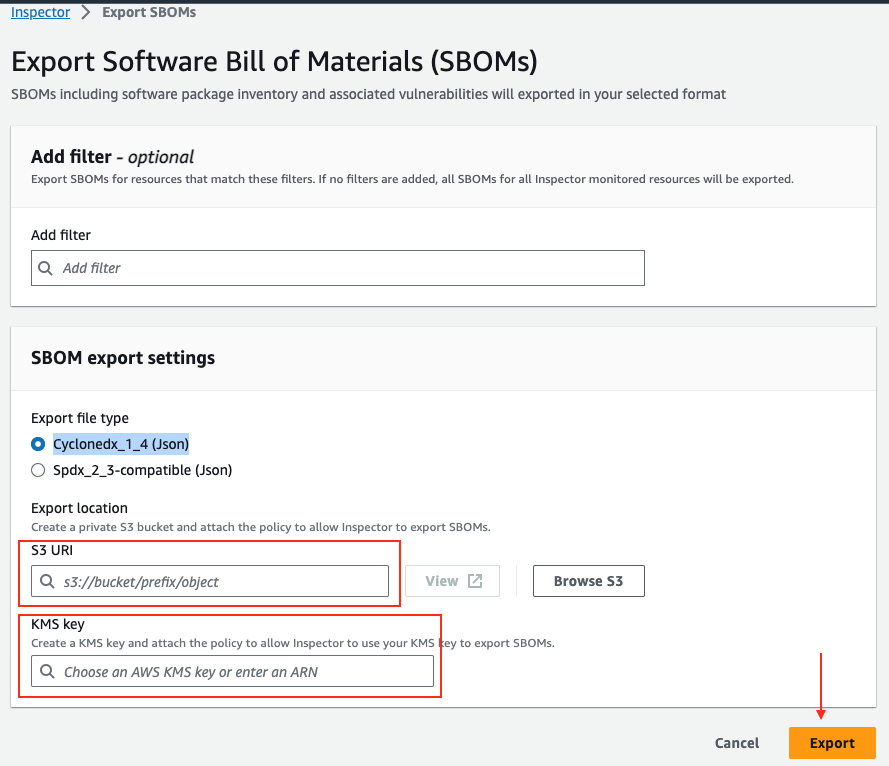
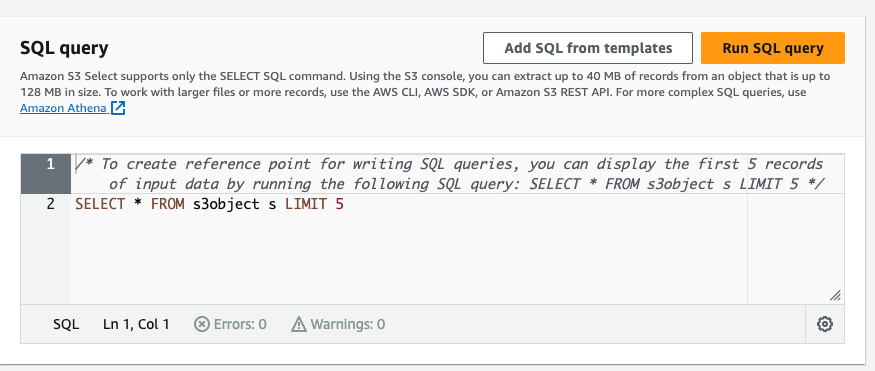


 Parnab Basak is a Senior Solutions Architect and a Serverless Specialist at AWS. He specializes in creating new solutions that are cloud native using modern software development practices like serverless, DevOps, and analytics. Parnab works closely in the analytics and integration services space helping customers adopt AWS services for their workflow orchestration needs.
 Chandan Rupakheti is a Solutions Architect and a Serverless Specialist at AWS. He is a passionate technical leader, researcher, and mentor with a knack for building innovative solutions in the cloud and bringing stakeholders together in their cloud journey. Outside his professional life, he loves spending time with his family and friends besides listening and playing music.
 Vinod Jayendra is a Enterprise Support Lead in ISV accounts at Amazon Web Services, where he helps customers in solving their architectural, operational, and cost optimization challenges. With a particular focus on Serverless technologies, he draws from his extensive background in application development to deliver top-tier solutions. Beyond work, he finds joy in quality family time, embarking on biking adventures, and coaching youth sports team.
 Rupesh Tiwari is a Senior Solutions Architect at AWS in New York City, with a focus on Financial Services. He has over 18 years of IT experience in the finance, insurance, and education domains, and specializes in architecting large-scale applications and cloud-native big data workloads. In his spare time, Rupesh enjoys singing karaoke, watching comedy TV series, and creating joyful moments with his family.


 Michael Hamilton is a Sr Analytics Solutions Architect focusing on helping enterprise customers modernize and simplify their analytics workloads on AWS. He enjoys mountain biking and spending time with his wife and three children when not working.
 Daniel Rozo is a Senior Solutions Architect with AWS supporting customers in the Netherlands. His passion is engineering simple data and analytics solutions and helping customers move to modern data architectures. Outside of work, he enjoys playing tennis and biking.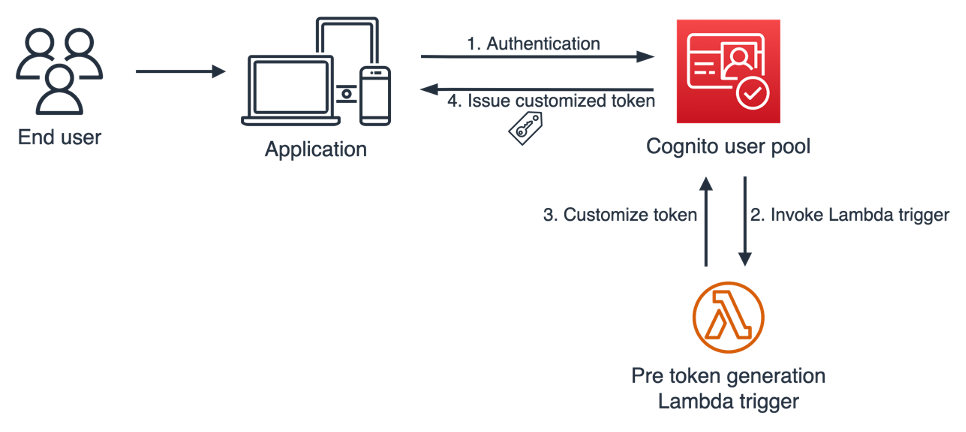
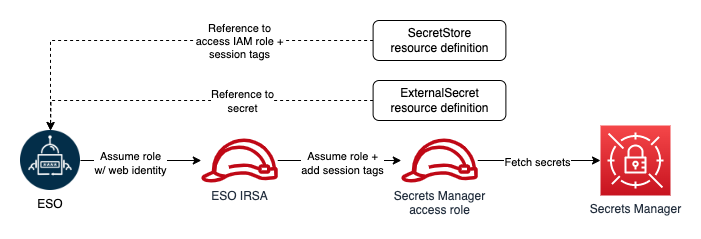
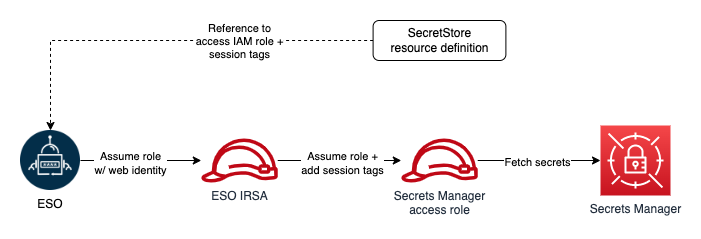
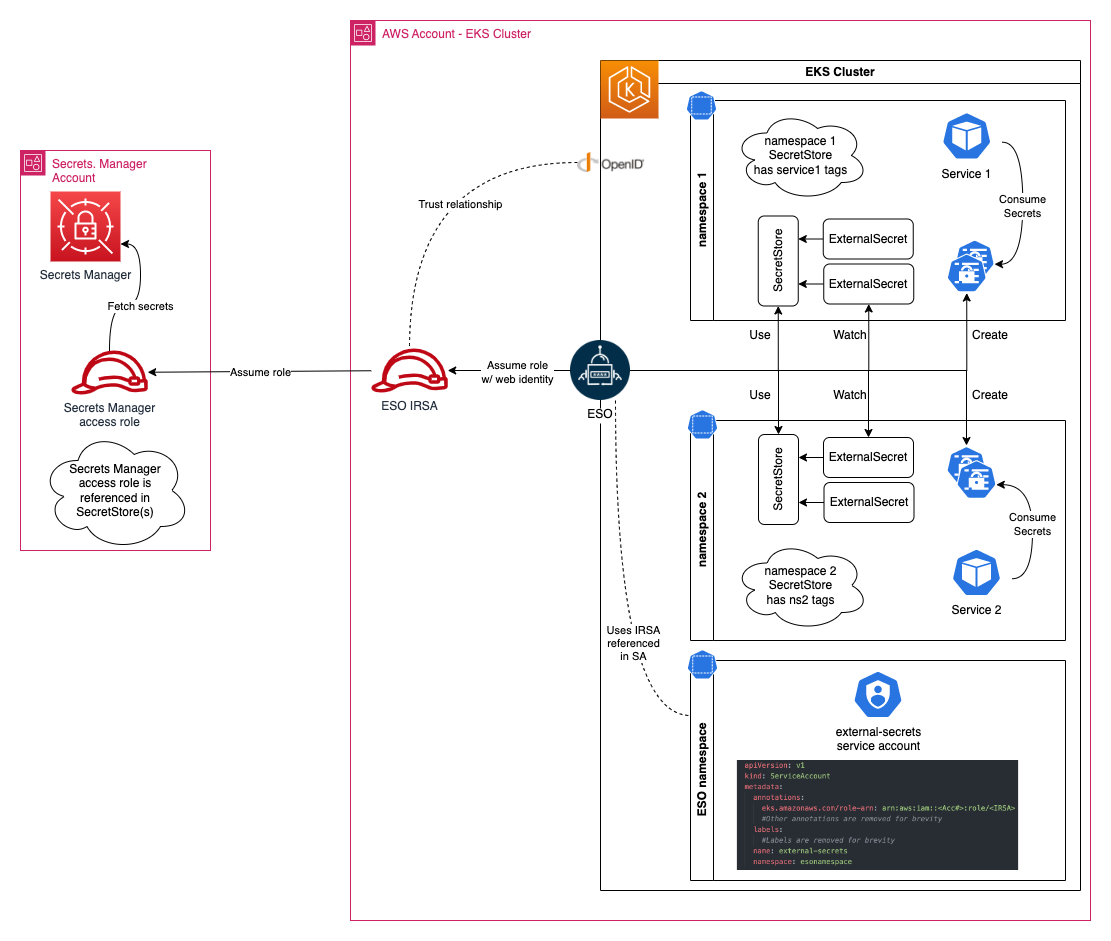


 Dagney Braun is a Senior Manager of Product at Amazon Web Services OpenSearch Team. She is passionate about improving the ease of use of OpenSearch, and expanding the tools available to better support all customer use-cases.
 Stavros Macrakis is a Senior Technical Product Manager on the OpenSearch project of Amazon Web Services. He is passionate about giving customers the tools to improve the quality of their search results.
 Dylan Tong is a Senior Product Manager at Amazon Web Services. He leads the product initiatives for AI and machine learning (ML) on OpenSearch including OpenSearch’s vector database capabilities. Dylan has decades of experience working directly with customers and creating products and solutions in the database, analytics and AI/ML domain. Dylan holds a BSc and MEng degree in Computer Science from Cornell University.


 Raghavarao Sodabathina is a Principal Solutions Architect at AWS, focusing on Data Analytics, AI/ML, and cloud security. He engages with customers to create innovative solutions that address customer business problems and to accelerate the adoption of AWS services. In his spare time, Raghavarao enjoys spending time with his family, reading books, and watching movies.
 Hang Zuo is a Senior Product Manager on the Amazon Kinesis Data Streams team at Amazon Web Services. He is passionate about developing intuitive product experiences that solve complex customer problems and enable customers to achieve their business goals.
 Shwetha Radhakrishnan is a Solutions Architect for AWS with a focus in Data Analytics. She has been building solutions that drive cloud adoption and help organizations make data-driven decisions within the public sector. Outside of work, she loves dancing, spending time with friends and family, and traveling.
 Brittany Ly is a Solutions Architect at AWS. She is focused on helping enterprise customers with their cloud adoption and modernization journey and has an interest in the security and analytics field. Outside of work, she loves to spend time with her dog and play pickleball.