Tag Archives: User Experience

Design system annotations, part 2: Advanced methods of annotating components

Post Syndicated from Jan Maarten original https://github.blog/engineering/user-experience/design-system-annotations-part-2-advanced-methods-of-annotating-components/


In part one of our design system annotation series, we discussed the ways in which accessibility can get left out of design system components from one instance to another. Our solution? Using a set of “Preset annotations” for each component with Primer. This allows designers to include specific pre-set details that aren’t already built into the component and visually communicated in the design itself. 

That being said, Preset annotations are unique to each design system — and while ours may be a helpful reference for how to build them — they’re not something other organizations can utilize if you’re not also using the Primer design system. 

Luckily, you can build your own. Here’s how. 

How to make Preset annotations for your design system

Start by assessing components to understand which ones would need Preset annotations—not all of them will. Prioritize components that would benefit most from having a Preset annotation, and build that key information into each one. Next, determine what properties should be included. Only include key information that isn’t conveyed visually, isn’t in the component properties, and isn’t already baked into a coded component. 

The start of a list of Primer components with notes for those which need Preset annotations. There are notes pointing to ActionBar, ActionMenu, and Autocomplete with details about what information should be documented in their Preset.

Prioritizing components

When a design system has 60+ components, knowing where to start can be a challenge. Which components need these annotations the most? Which ones would have the highest impact for both design teams and our users? 

When we set out to create a new set of Preset annotations based on our proof of concept, we decided to use ten Primer components that would benefit the most. To help pick them, we used an internal tool called Primer Query that tracks all component implementations across the GitHub codebase as well as any audit issues connected to them. Here is a video breakdown of how it works, if you’re curious. 

We then prioritized new Preset annotations based on the following criteria:

  1. Components that align to organization priorities (i.e. high value products and/or those that receive a lot of traffic).
  2. Components that appear frequently in accessibility audit issues.
  3. Components with React implementations (as our preferred development framework).
  4. Most frequently implemented components. 

Mapping out the properties

For each component, we cross-referenced multiple sources to figure out what component properties and attributes would need to be added in each Preset annotation. The things we were looking for may only exist in one or two of those places, and thus are less likely to be accounted for all the way through the design and development lifecycle. The sources include:

Component documentation on Primer.style

Design system docs should contain usage guidance for designers and developers, and accessibility requirements should be a part of this guidance as well. Some of the guidance and requirements get built into the component’s Figma asset, while some only end up in the coded component. 

Look for any accessibility requirements that are not built into either Figma or code. If it’s built in, putting the same info in the Preset annotation may be redundant or irrelevant.

Coded demos in Storybook 

Our component sandbox helped us see how each component is built in React or Rails, as well as what the HTML output is. We looked for any code structure or accessibility attributes that are not included in the component documentation or the Figma asset itself—especially when they may vary from one implementation to another. 

Component properties in the Figma asset library

Library assets provide a lot of flexibility through text layers, image fills, variants, and elaborate sets of component properties. We paid close attention to these options to understand what designers can and can’t change. Worthwhile additions to a Preset Annotation are accessibility attributes, requirements, and usage guidance in other sources that aren’t built into the Figma component. 

Other potential sources 

  • Experiences from team members: The designers, developers, and accessibility specialists you work with may have insight into things that the docs and design tools may have missed. If your team and design system have been around for a while, their insights may be more valuable than those you’ll find in the docs, component demos, or asset libraries. Take some time to ask which components have had challenging bugs and which get intentionally broken when implemented.
  • Findings from recent audits: Design system components themselves may have unresolved audit issues and remediation recommendations. If that’s the case, those issues are likely present in Storybook demos and may be unaccounted for in the component documentation. Design system audit issues may have details that both help create a Preset annotation and offer insights about what should not be carried over from existing resources.

What we learned from creating Preset annotations

Preset annotations may not be for every team or organization. However, they are especially well suited for younger design systems and those that aren’t well adopted. 

Mature design systems like Primer have frequent updates. This means that without close monitoring, the design system components themselves may fall out of sync with how a Preset annotation is built. This can end up causing confusion and rework after development starts, so it may be wise to make sure there’s some capacity to maintain these annotations after they’ve been created. 

For newer teams at GitHub, new members of existing teams, and team members who were less familiar with the design system, the built-in guidance and links to documentation and component demos proved very useful. Those who are more experienced are also able to fine-tune the Presets and how they’re used.

If you don’t already have extensive experience with the design system components (or peers to help build them), it can take a lot of time to assess and map out the properties needed to build a Preset. It can also be challenging to name a component property succinctly enough that it doesn’t get truncated in Figma’s properties panel. If the context is not self-evident, some training or additional documentation may help.

It’s not always clear that you need a Preset annotation

There may be enough overlap between the Preset annotation for a component and types of annotations that aren’t specific to the design system. 
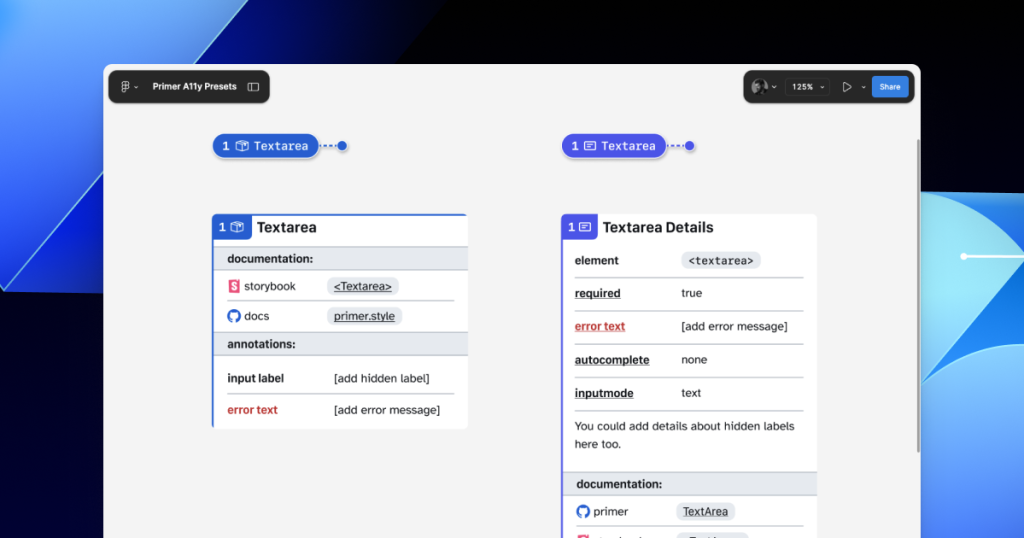
For example, the GitHub Annotation Toolkit has components to annotate basic <textarea> form elements in addition to a Preset annotation for our <TextArea> Primer component:

Comparison between a Form Element annotation for the textarea HTML element and a Preset annotation for the TextArea Primer component.

In many instances, this flexibility may be confusing because you could use either annotation. For example, the Primer <TextArea> Preset has built-in links to specific Primer docs, and while the non-Preset version doesn’t, you could always add the links manually. While there’s some overlap between the two, using either one is better than none. 

One way around this confusion is to add Primer-specific properties to the default set of annotations. This would allow you to do things like toggle a boolean property on a normal Button annotation and have it show links and properties specific to your design system’s button component. 

Our Preset creation process may unlock automation

There are currently a number of existing Figma plugins that advertise the ability to scan a design file to help with annotations. That being said, the results are often mixed and contain an unmanageable amount of noise and false positives. One of the reasons these issues happen is that these public plugins are design system agnostic.

Current automated annotation tools aren’t able to understand that any design system components are being used without bespoke programming or thorough training of AI models. For plugins like this to be able to label design elements accurately, they first need to understand how to identify the components on the canvas, the variants used, and the set properties. 

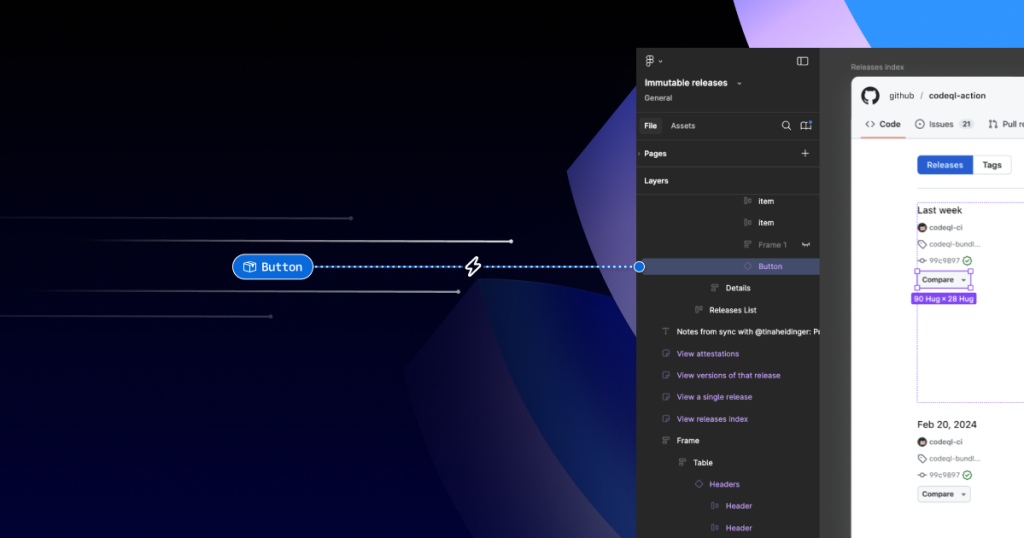
A Figma file showing an open design for Releases with an expanded layer tree highlighting a Primer Button component in the design. To the left of the screenshot are several git-lines and a Preset annotation for a Primer Button with a zap icon intersecting it. The git-line trails and the direction of the annotation give the feeling of flying toward the layer tree, which visually suggests this Primer Button layer can be automatically identified and annotated.

With that in mind, perhaps the most exciting insight is that the process of mapping out component properties for a Preset annotation—the things that don’t get conveyed in the visual design or in the code—is also something that would need to be done in any attempt to automate more usable annotations. 

In other words, if a team uses a design system and wants to automate adding annotations, the tool they use would need to understand their components. In order for it to understand their components well enough to automate accurately, these hidden component properties would need to be mapped out. The task of creating a set of Preset annotations may be a vital stepping stone to something even more streamlined. 

A promising new method: Figma’s Code Connect 

While building our new set of Preset annotations, we experimented with other ways to enhance Primer with annotations. Though not all of those experiments worked out, one of them did: adding accessibility attributes through Code Connect. 

Primer was one of the early adopters of Figma’s new Code Connect feature in Dev Mode. Says Lukas Oppermann, our staff systems designer, “With Code Connect, we can actually move the design and the code a little bit further apart again. We can concentrate on creating the best UX for the designers working in Figma with design libraries and, on the code side, we can have the best developer experience.” 

To that end, Code Connect allows us to bypass much of our Preset annotations, as well as the downsides of some of our other experiments. It does this by adding key accessibility details directly into the code that developers can export from Figma.

GitHub’s Octicons are used in many of our Primer components. They are decorative by default, but they sometimes need alt text or aria-label attributes depending on how they’re used. In the IconButton component, that button uses an Octicon and needs an accessible name to describe its function. 

When using a basic annotation kit, this may mean adding stamps for a Button and Decorative Image as well as a note in the margins that specifies what the aria-label should be. When using Preset annotations, there are fewer things to add to the canvas and the annotation process takes less time.

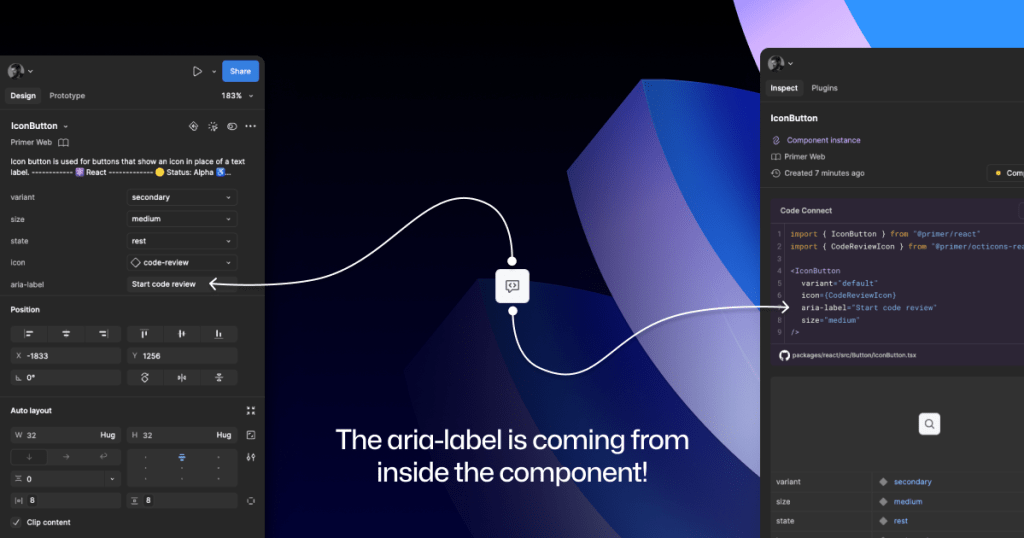
With Code Connect set up, Lukas added a hidden layer in the IconButton Figma component. It has a text property for aria-label which lets designers add the value directly from the component properties panel. No annotations needed. The hidden layer doesn’t disrupt any of the visuals, and the aria-label property gets exported directly with the rest of the component’s code.

An IconButton component with a code-review icon. On the left is a screenshot of the component’s properties panel, with an aria-label value of: Start code review. On the right is the Code Connect output showing usable React code for an IconButton that includes the parameter: aria-label=Start code review.

It takes time to set up Code Connect with each of your design system components. Here are a few tips to help:

  • Consistency is key. Make sure that the properties you create and how you place hidden layers is consistent across components. This helps set clear expectations so your teams can understand how these hidden layers and properties function. 
  • Use a branch of your design system library to experiment. Hiding attributes like aria-label is quite simple compared to other complex information that Preset annotations are capable of handling. 
  • Use visual regression testing (VRT). Adding complexity directly to a component comes with increased risk of things breaking in the future, especially for those with many variants. Figma’s merge conflict UI is helpful, but may not catch everything.

We’ve made the GitHub Annotation Toolkit open source, so you can see first-hand how we’ve implemented our Primer A11y Preset annotations and visual regression tests. Check it out and start annotating today!

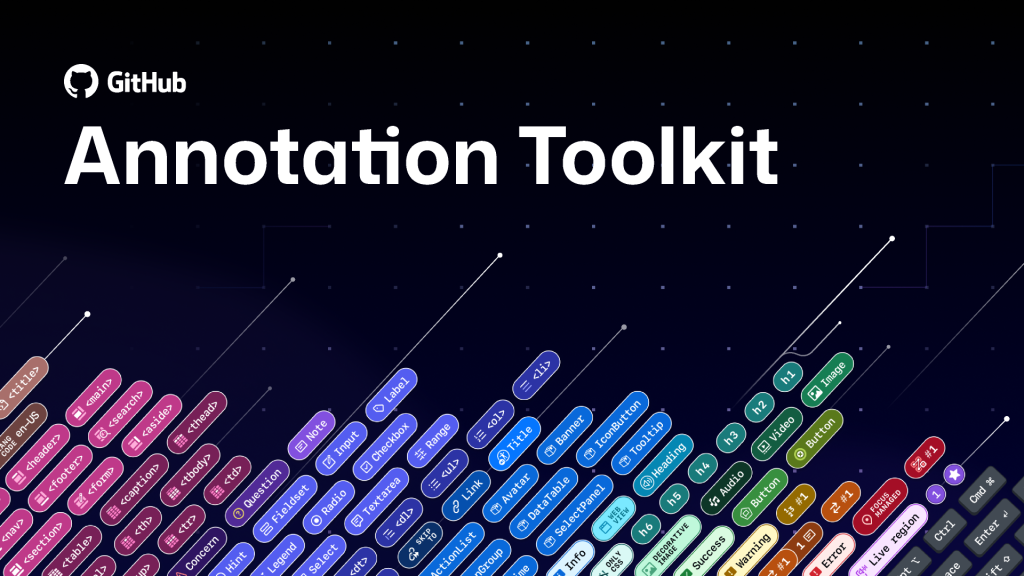
Figma library cover for the GitHub Annotation Toolkit with a grid background that looks like a starry night sky. There's an armada of little annotation stamp labels covering the bottom two thirds of the image, all at an angle. There's a series of angled git lines above them. Both look like they're launching from the ground and through into the sky grid.

Further reading

Accessibility annotation kits are a great resource, provided they’re used responsibly. Eric Bailey, one of the contributors to our forthcoming GitHub Annotation Toolkit, has written extensively about how annotations can highlight and amplify deeply structural issues when you’re building digital products.

The post Design system annotations, part 2: Advanced methods of annotating components appeared first on The GitHub Blog.

Design system annotations, part 1: How accessibility gets left out of components

Post Syndicated from Jan Maarten original https://github.blog/engineering/user-experience/design-system-annotations-part-1-how-accessibility-gets-left-out-of-components/


When it comes to design systems, every organization tends to be at a different place in their accessibility journey. Some have put a great deal of work into making their design system accessible while others have a long way to go before getting there. To help on this journey, many organizations rely on accessibility annotations to make sure there are no access barriers when a design is ready to be built. 

However, it’s a common misconception (especially for organizations with mature design systems) that accessible components will result in accessible designs. While design systems are fantastic for scaling standards and consistency, they can’t prevent every issue with our designs or how we build them. Access barriers can still slip through the cracks and make it into production.

This is the root of the problem our Accessibility Design team set out to solve. 

In this two-part series, we’ll show you exactly how accessible design system components can produce inaccessible designs. Then we’ll demonstrate our solution: integrating annotations with our Primer components. This allows us to spend less time annotating, increases design system adoption, and reaches teams who may not have accessibility support. And in our next post, we’ll walk you through how you can do the same for your own components.

Let’s dig in.

What are annotations and their benefits? 

Annotations are notes included in design projects that help make the unseen explicit by conveying design intent that isn’t shown visually. They improve the usability of digital experiences by providing a holistic picture for developers of how an experience should function. Integrating annotations into our design process helps our teams work better together by closing communication gaps and preventing quality issues, accessibility audit issues, and expensive re-work. 

Some of the questions annotations help us answer include:

  • How is assistive technology meant to navigate a page from one element to another?
  • What’s the alternative text for informative images and buttons without labels?
  • How does content shift depending on viewport size, screen orientation, or zoom level?
  • Which virtual keyboard should be used for a form input on mobile?
  • How should focus be managed for complex interactions?

Our answers to questions like this—or the lack thereof—can make or break the experience of the web for a lot of people, especially users with disabilities. Some annotation tools are built specifically to help with this by guiding designers to include key details about web standards, platform functionality, and accessibility (a11y). 

Most public annotation kits are well suited for teams who are creating new design system components, teams who aren’t already using a design system, or teams who don’t have specialized accessibility knowledge. They usually help annotate things like:

  • Controls such as buttons and links
  • Structural elements such as headings and landmarks
  • Decorative images and informative descriptions 
  • Forms and other elements that require labels and semantic roles 
  • Focus order for assistive technology and keyboard navigation

GitHub’s annotation’s toolkit

One of our top priorities is to meet our colleagues where they’re at. We wanted all our designers to be able to use annotations out of the box because we believe they shouldn’t need to be a certified accessibility specialist in order to get things built in an accessible way. 

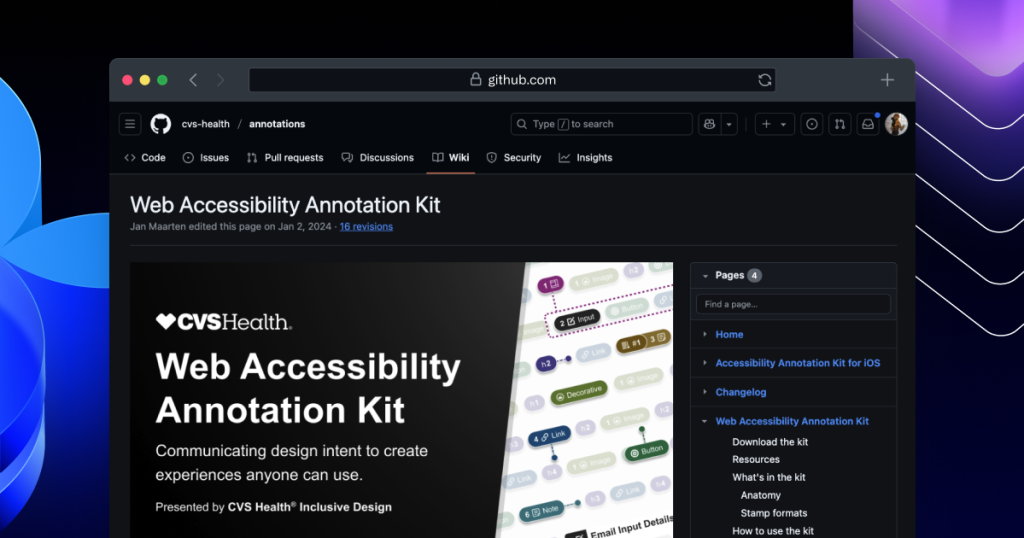
 A browser window showing the Web Accessibility Annotation Kit in the cvs-health/annotations repository.

To this end, last year we began creating an internal Figma library—the GitHub Annotation Toolkit—which is now open source! Our toolkit builds on the legacy of the former Inclusive Design team at CVS Health. Their two open source annotation kits help make documentation that’s easy to create and consume, and are among the most widely used annotation libraries in the Figma Community. 

While they add clarity, annotations can also add overhead. If teams are only relying on specialists to interpret designs and technical specifications for developers, the hand-off process can take longer than it needs to. To create our annotation toolkit, we rebuilt its predecessor from the ground up to avoid that overhead, making extensive improvements and adding inline documentation to make it more intuitive and helpful for all of our designers—not just accessibility specialists. 

Design systems can also help reduce that overhead. When you audit your design systems for accessibility, there’s less need for specialist attention on every product feature, since you’re using annotations to add technical semantics and specialist knowledge into every component. This means that designers and developers only need to adhere to the usage guidelines consistently, right?

The problems with annotations and design system components

Unfortunately, it’s not that simple. 

Accessibility is not binary

While design systems can help drive more accessible design at scale, they are constantly evolving and the work on them is never done. The accessibility of any component isn’t binary. Some may have a few severe issues that create access barriers, such as being inoperable with a keyboard or missing alt text. Others may have a few trivial issues, such as generic control labels. 

Most of the time, it will be a misnomer to claim that your design system is “fully accessible.” There’s always more work to do—it’s just a question of how much. The Web Content Accessibility Guidelines (WCAG) are a great starting point, but their “Success Criteria” isn’t tailored for the unique context that is your website or product or audience. 

While the WCAG should be used as a foundation to build from, it’s important to understand that it can’t capture every nuance of disabled users’ needs because your users’ needs are not every user’s needs. It would be very easy to believe that your design system is “fully accessible” if you never look past WCAG to talk to your users. If Primer has accessible components, it’s because we feel that direct participation and input from daily assistive technology users is the most important aspect of our work. Testing plans with real users—with and without disabilities—is where you really find what matters most. 

Accessible components do not guarantee accessible designs

Arranging a series of accessible components on a page does not automatically create an accurate and informative heading hierarchy. There’s a good chance that without additional documentation, the heading structure won’t make sense visually—nor as a medium for navigating with assistive technology.

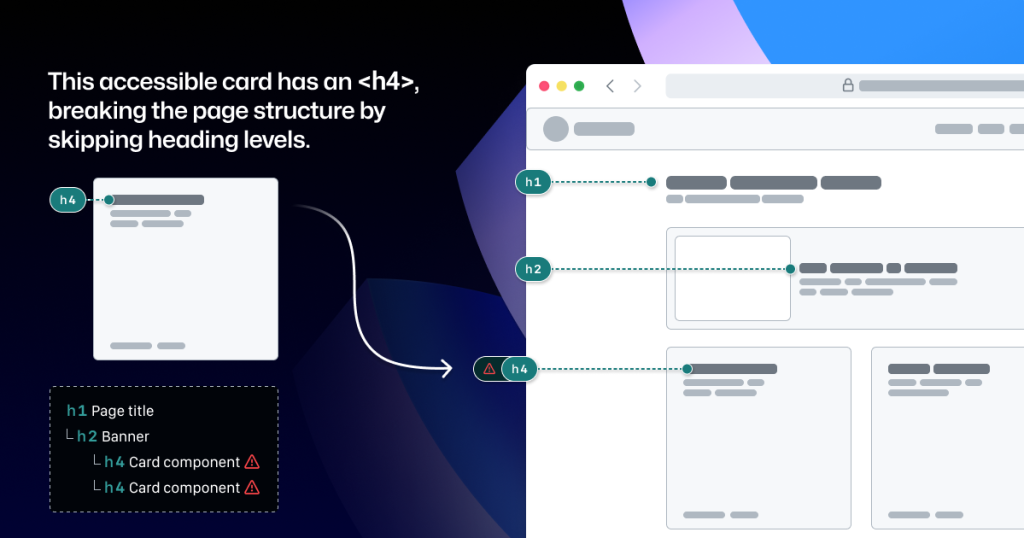
A page wireframe showing a linear layout of an H1 title, an H2 in a banner below it, and a row of several cards below with headings of H4. The caption reads: this accessible card has an H4, breaking the page structure by skipping heading levels. Next to the wireframe is a diagram showing the page structure as a tree view, highlighting the level skipping from H2 to H4.

It’s great when accessible components are flexible and responsive, but what about when they’re placed in a layout that the component guidance doesn’t account for? Do they adapt to different zoom levels, viewport sizes, and screen orientations? Do they lose any functionality or context when any of those things change?

Component usage is contextual. You can add an image or icon to your design, but the design system docs can’t write descriptive text for you. You can use the same image in multiple places, but the image description may need to change depending on context. 

Similarly, forms built using the same input components may do different things and require different error validation messages. It’s no wonder that adopting design system components doesn’t get rid of all audit issues.

Design system components in Figma don’t include all the details

Annotation kits don’t include components for specific design systems because almost every organization is using their own. When annotation kits are adopted, teams often add ways to label their design system components. 

This labeling lets developers know they can use something that’s already been built, and that they don’t need to build something from scratch. It also helps identify any design system components that get ‘detached’ in Figma. And it reduces the number of things that need to be annotated. 

Let’s look at an example:

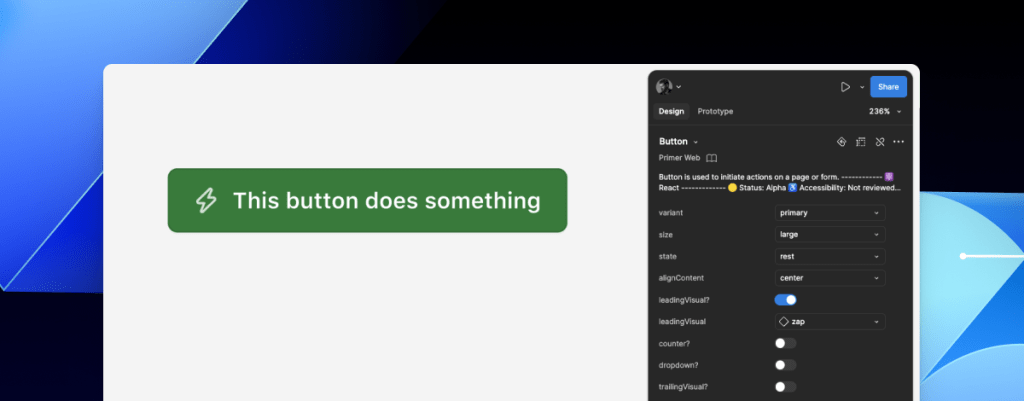
A green Primer button with a lightning bolt icon and a label that says: this button does something. To the right is a set of Figma component properties that control the button’s visual appearance.

If we’re using this Primer Button component from the Primer Web Figma library, there are a few important things that we won’t know just by looking at the design or the component properties:

  • Functional differences when components are implemented. Is this a link that just looks visually like a button? If so, a developer would use the <LinkButton> React component instead of <Button>.
  • Accessible labels for folks using assistive technology. The icon may need alt text. In some cases, the button text might need some visually-hidden text to differentiate it from similar buttons. How would we know what that text is? Without annotations, the Figma component doesn’t have a place to display this.
  • Whether user data is submitted. When a design doesn’t include an obvious form with input fields, how do we convey that the button needs specific attributes to submit data? 

It’s risky to leave questions like this unanswered, hoping someone notices and guesses the correct answer. 

A solution that streamlines the annotation process while minimizing risk

When creating new components, a set of detailed annotations can be a huge factor in how robust and accessible they are. Once the component is built, design teams can start to add instances of that component in their designs. When those designs are ready to be annotated, those new components shouldn’t need to be annotated again. In most cases, it would be redundant and unnecessary—but not in every case. 

There are some important details in many Primer components that may change from one instance to another. If we use the CVS Health annotation kit out of the box, we should be able to capture those variations, but we wouldn’t be able to avoid those redundant and unnecessary annotations. As we built our own annotation toolkit, we built a set of annotations for each Primer component to do both of those things at once. 

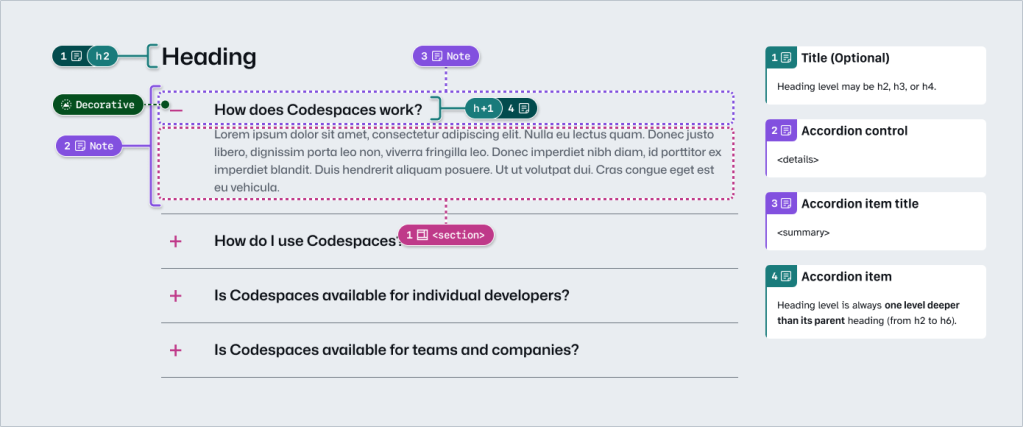
An annotated Primer Brand accordion with six Stamps and four Detail notes in the margins.

This accordion component has been thoroughly annotated so that an engineer has everything they need to build it the first time. These include heading levels, semantics for <detail> and <summary> elements, landmarks, and decorative icons. All of this is built into the component so we don’t need to annotate most of this when adding the accordion to our new designs.

However, there are two important things we need to annotate, as they can change from one instance to another:

  1. The optional title at the top.
  2. The heading level of each item within the accordion.

If we don’t specify these things, we’re leaving it to chance that the page’s heading structure will break or that the experience will be confusing for people to understand and navigate the page. The risks may be low for a single button or basic accordion, but they grow with pattern complexity, component nesting, interaction states, duplicated instances, and so on. 

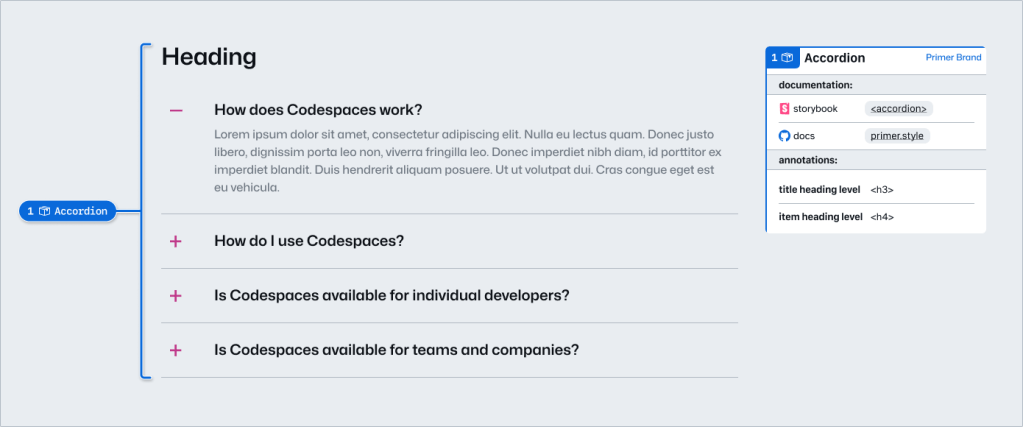
An annotated Primer Brand accordion with one Stamp and one Detail note in the margins.

Instead of annotating what’s already built into the component or leaving these details to chance, we can add two quick annotations. One Stamp to point to the component, and one Details annotation where we fill in some blanks to make the heading levels clear. 

Because the prompts for specific component details are pre-set in the annotation, we call them Preset annotations.

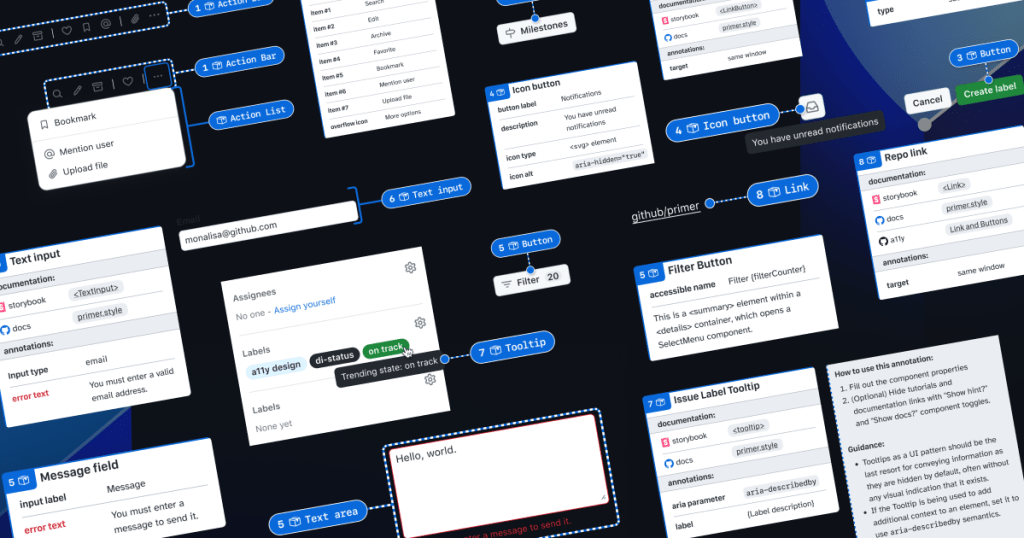
A mosaic of preset annotation for various Primer components.

Introducing our Primer A11y Preset annotations

With this proof of concept, we selected ten frequently used Primer components for the same treatment and built a new set of Preset annotations to document these easily missed accessibility details—our Primer A11y Presets. 

Those Primer components tend to contribute to more accessibility audit issues when key details are missing on implementation. Issues for these components relate to things like lack of proper labels, error validation messages, or missing HTML or ARIA attributes

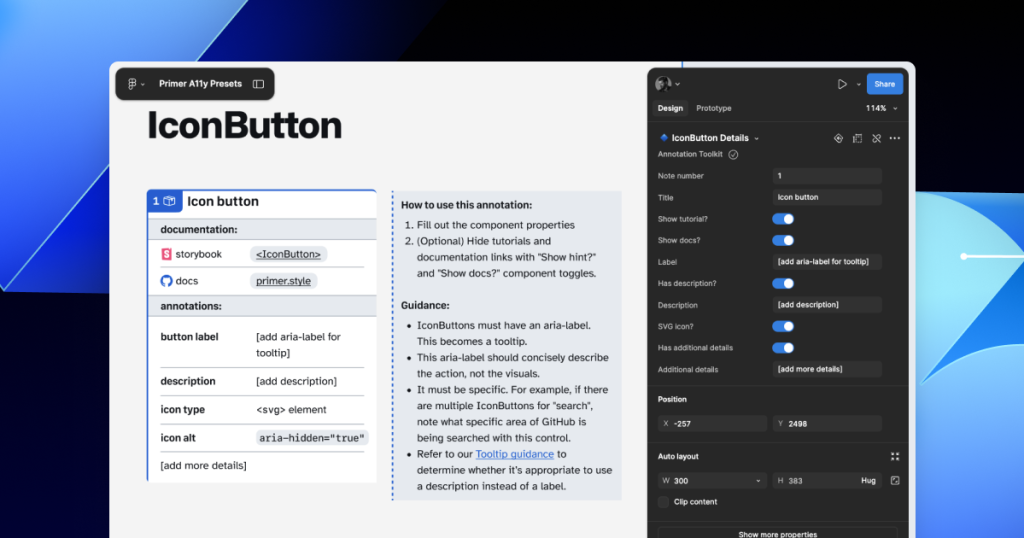
IconButton Preset annotation, with guidance toggled on.

Each of our Preset annotations is linked to component docs and Storybook demos. This will hopefully help developers get straight to the technical info they need without designers having to find and add links manually. We also included guidance for how to fill out each Preset, as well as how to use the component in an accessible way. This helps designers get support inline without leaving their Figma canvas. 

Want to create your own? Check out Design system annotations, part 2

Button components in Google’s Material Design and Shopify’s Polaris, IBM’s Carbon, or our Primer design system are all very different from one another. Because Preset annotations are based on specific components, they only work if you’re also using the design system they’re made for. 

In part 2 of this series, we’ll walk you through how you can build your own set of Preset annotations for your design system, as well as some different ways to document important accessibility details before development starts.

You may also like: 

If you’re more of a visual learner, you can watch Alexis Lucio explore Preset annotations during GitHub’s Dev Community Event to kick off Figma’s Config 2024. 

Get the guide to GitHub’s Annotation Toolkit >

The post Design system annotations, part 1: How accessibility gets left out of components appeared first on The GitHub Blog.

Building a more accessible GitHub CLI

Post Syndicated from Ryan Hecht original https://github.blog/engineering/user-experience/building-a-more-accessible-github-cli/


At GitHub, we’re committed to making our tools truly accessible for every developer, regardless of ability or toolset. The command line interface (CLI) is a vital part of the developer experience, and the GitHub CLI is our product that brings the power of GitHub to your terminal.

When it comes to accessibility, the terminal is fundamentally different from a web browser or a graphical user interface, with a lineage that predates the web itself. While standards like the Web Content Accessibility Guidelines (WCAG) provide a clear path for making web and graphical applications accessible, there is no equivalent, comprehensive standard for the terminal and CLIs. The W3C offers some high-level guidance for non-web software, but it stops short of prescribing concrete techniques, leaving much open to interpretation and innovation.

This gap has challenged us to think creatively and purposefully about what accessibility should look like in the terminal. Our recent Public Preview is focused on addressing the needs of three key groups: users who rely on screen readers, users who need high contrast between background and text, and users who require customizable color options. Our work aims to make the GitHub CLI more inclusive for all, regardless of how you interact with your terminal. Run gh a11y in the latest version of the GitHub CLI to enable these features, or read on to learn about our path to designing and implementing them.

Understanding the terminal landscape

Text-based and command-line applications differ fundamentally from graphical or web applications. On a web page, assistive technologies like screen readers make use of the document object model (DOM) to infer structure and context of the page. Web pages can be designed such that the DOM’s structure is friendly to these technologies without impacting the visual design of the page.  By contrast, CLI’s primary output is plain text, without hidden markup. A terminal emulator acts as the “user agent” for text apps, rendering characters as directed by the server application. Assistive technologies access this matrix of characters, analyze its layout, and try to infer structure. As the WCAG2ICT guidance notes, accessibility in this space means ensuring that all text output is available to assistive technologies, and that structural information is conveyed in a way that’s programmatically determinable—even if no explicit markup is present.

In our quest to improve the GitHub CLI’s usability for blind, low-vision, and colorblind users, we found ourselves navigating a landscape with lots of guidance, but few concrete techniques for implementing accessible experiences. We studied how assistive technology interacts with terminals: how screen readers review output, how color and contrast can be customized, and how structural cues can be inferred from plain text. Our recent Public Preview contains explorations into various use cases in these spaces. 

Rethinking prompts and progress for screen readers

One of the GitHub CLI’s strengths as a command-line application is its rich prompting experience, which gives our users an interactive interface to enter command options. However, this rich interactive experience poses a hurdle for speech synthesis screen readers: Non-alphanumeric visual cues and uses of constant screen redraws for visual or other effects can be tricky to correctly interpret as speech.


A demo video with sound of screen reader reading legacy prompter.

To reduce confusion and make it easier for blind and low vision users to confidently answer questions and navigate choices, we’re introducing a prompting experience that allows speech synthesis screen readers to accurately convey prompts to users. Our new prompter is built using Charm’s open source charmbracelet/huh prompting library.

A demo of a screenreader correctly reading a prompt.

Another use case where the terminal is redrawn for visual effect is when showing progress bars. Our existing implementation uses a “spinner” made by redrawing the screen to display different braille characters (yes, we appreciate the irony) to give the user the indication that their command is executing. Speech synthesis screen readers do not handle this well:

A demo of a screenreader and an old spinner.

This has been replaced with a static text progress indicator (with a relevant message to the action being taken where possible, falling back to a general “Working…” message). We’re working on identifying other areas we can further improve the contextual text.

A demo video of the new progress indicator experience.

Color, contrast, and customization

Color is more than decoration in the terminal: It’s a vital tool for highlighting information, signaling errors, and guiding workflows. But color can also be a barrier—if contrast between the color of the terminal background and the text displayed on it is too low, some users will have difficulty discerning the displayed information. Unlike in a web browser, a terminal’s background color is not set by the application. That task is handled by the user’s terminal emulator. In order to maintain contrast, it is important that a command line application takes into account this variable.

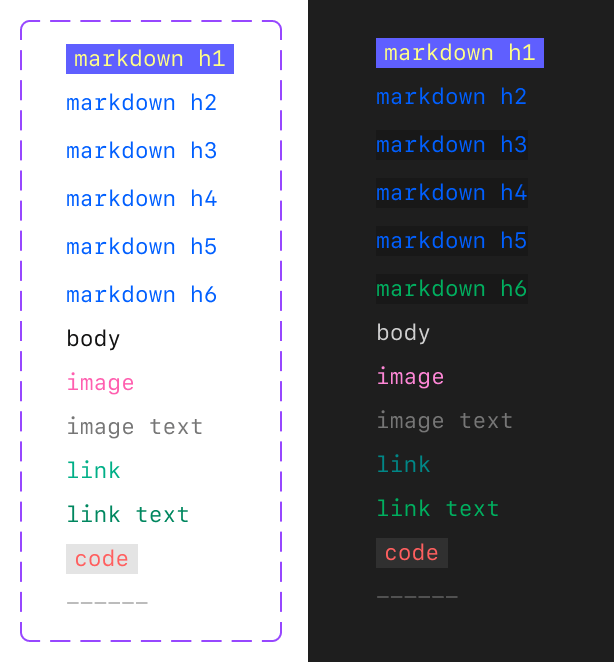
Our legacy color palette used for rendering Markdown did not take the terminal’s background color into account, leading to low contrast in some cases.

A screenshot of the legacy Markdown palette.

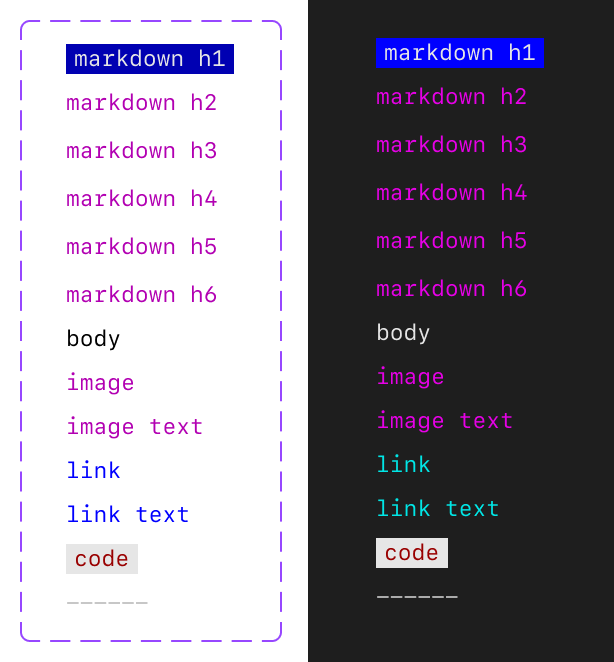
The colors themselves also matter. Different terminal environments have varied color capabilities (some support 4-bit, some 8-bit, some 24-bit, etc). No matter the capability, terminals enable users to customize their color preferences, choosing how different hues are displayed. However, most terminals only support changing a limited subset of colors: namely, the sixteen colors in the ANSI 4-bit color table. The GitHub CLI has made extensive efforts to align our color palettes to 4-bit colors so our users can completely customize their experience using their terminal preferences. We built on top of the accessibility foundations pioneered by Primer when deciding which 4-bit colors to use.

A screenshot showing the improved Markdown palette.

Building for the CLI community

Our improvements aim to support a wide range of developer needs, from blind users who need screen readers, to low vision users who need high contrast, to colorblind users who require customizable color options. But this Public Preview does not mark the end of our team’s commitment to enabling all developers to use the GitHub CLI. We intend to make it easier for our extension authors to implement the same accessibility improvements that we’ve made to the core CLI. This will allow users to have a cohesive experience across all GitHub CLI commands, official or community-maintained, and so that more workflows can be made accessible by default. We’re also looking into experiences to customize the formatting of tables output by commands to be more easily read/interpreted by screen readers. We’re excited to continue our accessibility journey.

We couldn’t have come this far without collaboration with our friends at Charm and our colleagues on the GitHub Accessibility team. 

A call for feedback

We invite you to help us in our goal to make the GitHub CLI an experience for all developers:

  • Try it out: Update the GitHub CLI to v2.72.0 and run gh a11y in your terminal to learn more about enabling these new accessible features.
  • Share your experience: Join our GitHub CLI accessibility discussion to provide feedback or suggestions.
  • Connect with us: If you have a lived experience relevant to our accessibility personas, reach out to the accessibility team or get involved in our discussion panel.

Looking forward

Adapting accessibility standards for the command line is a challenge—and an opportunity. We’re committed to sharing our approach, learning from the community, and helping set a new standard for accessible CLI tools.

Thank you for building a more accessible GitHub with us.

Want to help us make GitHub the home for all developers? Learn more about GitHub’s accessibility efforts.

The post Building a more accessible GitHub CLI appeared first on The GitHub Blog.

Considerations for making a tree view component accessible

Post Syndicated from Eric Bailey original https://github.blog/engineering/user-experience/considerations-for-making-a-tree-view-component-accessible/


Tree views are a core part of the GitHub experience. You’ve encountered one if you’ve ever navigated through a repository’s file structure or reviewed a pull request.

Browsing files on Primer's design repository. A tree view showing the repositories directory structure occupies a quarter of the screen. The other three quarters are taken up by the content of the content subdirectory. The tree view shows expanded and collapsed directories, as well as files nested at multiple levels of depth.

On GitHub, a tree view is the list of folders and the files they contain. It is analogous to the directory structure your operating system uses as a way of organizing things.

Tree views are notoriously difficult to implement in an accessible way. This post is a deep dive into some of the major considerations that went into how we made GitHub’s tree view component accessible. We hope that it can be used as a reference and help others.

Start with Windows

It’s important to have components with complex interaction requirements map to something people are already familiar with using. This allows for responsiveness to the keypresses they will try to navigate and take action on our tree view instances.

We elected to adopt Windows File Explorer’s tree view implementation, given the prominence of Windows’ usage for desktop screen reader users.

A Windows 11 File Explorer window showing a tree view and a list of subdirectories that one of its folders contains. The tree view demonstrates how the C drive contains multiple nested folders to organize its content.

Navigating and taking actions on items in Windows’ tree view using NVDA and JAWS helped us get a better understanding of how things worked, including factors such as focus management, keyboard shortcuts, and expected assistive technology announcements.

Then maybe reference the APG

The ARIA Authoring Practices Guide (APG) is a bit of an odd artifact. It looks official but is no longer recognized by the W3C as a formal document.

This is to say that the APG can serve as a helpful high-level resource for things to consider for your overall approach, but its suggestions for code necessitate deeper scrutiny.

Build from a solid, semantic foundation

At its core, a tree view is a list of lists. Because of this, we used ul and li elements for parent and child nodes:

<ul>
  <li>
    <ul>
      <li>.github/</li>
      <li>source/</li>
      <li>test/</li>
    </ul>
  </li>
  <li>.gitignore</li>
  <li>README.md</li>
</ul>

There are a few reasons for doing this, but the main considerations are:

  • Better assurance that a meaningful accessibility tree is generated,
  • Lessening the work we need for future maintenance, and consequential re-verification that our updates continue to work properly, and
  • Better guaranteed interoperability between different browsers, apps, and other technologies.

NOTE: GitHub currently does not virtualize its file trees. We would need to revisit this architectural decision if this ever changes.

Better broad assistive technology support

The more complicated an interactive pattern is, the greater the risk that there are bugs or gaps with assistive technology support.

Given the size of the audience GitHub serves, it’s important that we consider more than just majority share assistive technology considerations.

We found that utilizing semantic HTML elements also performed better for some less-common assistive technologies. This was especially relevant with some lower-power devices, like an entry-level Android smartphone from 2021.

Better Forced Color Mode support

Semantic HTML elements also map to native operating system UI patterns, meaning that Forced Color Mode’s heuristics will recognize them without any additional effort. This is helpful for people who rely on the mode to see screen content.

The heuristic mapping behavior does not occur if we used semantically neutral div or span elements, and would have to be manually recreated and maintained.

Use a composite widget

A composite widget allows a component that contains multiple interactive elements to only require one tab stop unless someone chooses to interact with it further.

Consider a file tree for a repository that contains 500+ files in 20+ directories. Without a composite widget treatment, someone may have to press Tab far too many times to bypass the file tree component and get what they need.

Think about wrapping it in a landmark

Like using a composite widget, landmark regions help some people quickly and efficiently navigate through larger overall sections of the page. Because of this, we wrapped the entire file tree in a nav landmark element.

This does not mean every tree view component should be a landmark, however! We made this decision for the file tree because it is frequently interacted with as a way to navigate through a repository’s content.

Go with a roving tabindex approach

A roving tabindex is a technique that uses tabindex="-1" applied to each element in a series, and then updates the tabindex value to use 0 instead in response to user keyboard input. This allows someone to traverse the series of elements, as focus “roves” to follow their keypresses.

<li tabindex="-1">File 1</li>
<li tabindex="-1">File 2</li>
<li tabindex="0">File 3</li>
<li tabindex="-1">File 4</li>

The roving tabindex approach performed better than utilizing aria-activedescendant, which had issues with VoiceOver on macOS and iOS.

Enhance with ARIA

We use a considered set of ARIA declarations to build off our semantic foundation.

Note that while we intentionally started with semantic HTML, there are certain ARIA declarations that are needed. The use of ARIA here is necessary and intentional, as it expands the capabilities of HTML to describe something that HTML alone cannot describe—a tree view construct.

Our overall approach follows what the APG suggests, in that we use the following:

  • role="tree" is placed on the parent ul element, to communicate that it is a tree view construct.
  • role="treeitem" is placed on the child li elements, to communicate that they are tree view nodes.
  • role="group" is declared on child ul elements, to communicate that they contain branch and leaf nodes.
  • aria-expanded is declared on directories, with a value of true to communicate that the branch node is in an opened state and a value of false to communicate that it is in a collapsed state instead.
  • aria-selected is used to indicate if branch or leaf nodes have been chosen by user navigation, and can therefore have user actions applied to them.

We also made the following additions:

  • aria-hidden="true" is applied to SVG icons (folders, files, etc.) to ensure its content is not announced.
  • aria-current="true" is placed on the selected node to better support when a node is deep linked to via URL.

NOTE: We use “branch node” and “leaf node” as broad terms that can apply to all tree view components we use on GitHub. For the file tree, branch nodes would correspond to directories and subdirectories, and leaf nodes would correspond to files.

Support expected navigation techniques

The following behaviors are what people will try when operating a tree view construct, so we support them:

Keyboard keypresses

  • Tab: Places focus on the entire tree view component, then moves focus to the next focusable item on the view.
  • Enter:
    • If a branch node is selected: Displays the directory’s contents.
    • If a leaf node is selected: Displays the leaf node’s contents.
  • Down: Moves selection to the next node that can be selected without opening or closing a node.
  • Up: Moves selection to the previous node that can be selected without opening or closing a node.
  • Right:
    • If a branch node is selected and in a collapsed state: Expands the selected collapsed branch node and does not move selection.
    • If a branch node is selected and in an expanded state: Moves selection to the directory’s first child node.
  • Left:
    • If a branch node is selected and in an expanded state: Collapses the selected collapsed directory node and does not move selection.
    • If a branch node is selected and in a collapsed state: Moves selection to the node’s parent directory.
    • If a leaf node is selected: Moves selection to the leaf node’s parent directory.
  • End: Moves selection to the last node that can be selected.
  • Home: Moves selection to the first node that can be selected.

We also support typeahead selection, as we are modeling Windows File Explorer’s tree view behaviors. Here, we move selection to the node closest to the currently selected node whose name matches what the user types.

Middle clicking

Nodes on tree view constructs are tree items, not links. Because of this, tree view nodes do not support the behaviors you get with using an anchor element, such as opening its URL in a new tab or window.

We use JavaScript to listen for middle clicks and Control+Enter keypresses to replicate this behavior.

Consider states

Loading

Tree views on GitHub can take time to retrieve their content, and we may not always know how much content a branch node contains.

A directory called, 'src' that is selected and in an expanded that. It contains a single leaf node that contains a loading spinner with a label of 'Loading…".

Live region announcements are tricky to get right, but integral to creating an equivalent experience. We use the following announcements:

  • If there is a known amount of nodes that load, we enumerate the incoming content with an announcement that reads, “Loading {x} items.”
  • If there is an unknown number of nodes that load, we instead use a more generic announcement of, “Loading…”
  • If there are no nodes that load we use an announcement message that reads, “{branch node name} is empty.”

Additionally, we manage focus for loading content:

  • If focus is placed on a placeholder loading node when the content loads in: Move focus from the placeholder node to the first child node in the branch node.
  • If focus is on a placeholder loading node but the branch node does not contain content: Move focus back to the branch node. Additionally, we remove the branch node’s aria-expanded declaration.

Errors

Circumstances can conspire to interfere with a tree view component’s intended behavior. Examples of this could be a branch node failing to retrieve content or a partial system outage.

In these scenarios, the tree view component will use a straightforward dialog component to communicate the error.

Fix interoperability issues

As previously touched on, complicated interaction patterns run the risk of compatibility issues. Because of this, it’s essential to test your efforts with actual assistive technology to ensure it actually works.

We made the following adjustments to provide better assistive technology support:

Use aria-level

Screen readers can report on the depth of a nested list item. For example, a li element placed inside of a ul element nested three levels deep can announce itself as such.

We found that we needed to explicitly declare the level on each li element to recreate this behavior for a tree view. For our example, we’d also need to set aria-level="3" on the li element.

This fix addressed multiple forms of assistive technology we tested with.

Explicitly set the node’s accessible name on the li element

A node’s accessible name is typically set by the text string placed inside the li element:

<li>README.md</li>

However, we found that VoiceOver on macOS and iOS did not support this. This may be because of the relative complexity of each node’s inner DOM structure.

We used aria-labelledby to get around this problem, with a value that pointed to the id set on the text portion of each node:

<li aria-labelledby="readme-md">
  <div>
   <!-- Icon -->
  </div>
  <div id="readme-md">
    README.md
  </div>
</li>

This guarantees that:

  • the node’s accessible name is announced when focus is placed on the li element,
  • and that the announcement matches what is shown visually.

Where we’d like to go from here

There’s a couple areas we’re prototyping and iterating on to better serve our users:

Browsers apply a lot of behaviors to anchor elements, such as the ability to copy the URL.

We’d like to replace the JavaScript that listens for middle clicks with a more robust native solution, only without sacrificing interoperability and assistive technology support.

Supporting multiple actions per node

Tree views constructs were designed assuming a user will only ever navigate to a node and activate it.

GitHub has use cases that require actions other than activating the node, and we’re exploring how to accomplish that. This is exciting, as it represents an opportunity to evolve the tree view construct on the web.

Always learning

An accessible tree view is a complicated component to make, and it requires a lot of effort and testing to get right. However, this work helps to ensure that everyone can use a core part of GitHub, regardless of device, circumstance, or ability.

We hope that highlighting the considerations that went into our work can help you on your accessibility journey.

Share your experience: We’d love to hear from you if you’ve run into issues using our tree view component with assistive technology. This feedback is invaluable to helping us continue to make GitHub more accessible.

The post Considerations for making a tree view component accessible appeared first on The GitHub Blog.

How to make Storybook Interactions respect user motion preferences

Post Syndicated from Kendall Gassner original https://github.blog/engineering/user-experience/how-to-make-storybook-interactions-respect-user-motion-preferences/


Recently, while browsing my company’s Storybook, I came across something that seemed broken: a flickering component that appeared to be re-rendering repeatedly. The open source tool that helps designers, developers, and others build and use reusable components was behaving weirdly. As I dug in, I realized I was seeing the unintended effects of the Storybook Interactions addon, which allows developers to simulate user interactions within a story, in action.

Storybook Interactions can be a powerful tool, enabling developers to simulate and test user behaviors quickly. But if you’re unfamiliar with Interactions—especially if you’re just looking to explore available components—the simulated tests jumping around on the screen can feel disorienting.

This can be especially jarring for users who have the prefers-reduced-motion setting enabled in their operating system. When these users encounter a story that includes an interaction, their preferences are ignored and they have no option to disable or enable it. Instead, the Storybook Interaction immediately plays on page load, regardless. These rapid screen movements can cause disorientation for users or in some cases can even trigger a seizure.

At this time, Storybook does not have built-in capabilities to toggle interactions on or off. Until this feature can be baked in I am hoping this blog will provide you with an alternative way to make your work environment more inclusive. Now, let’s get into building an addon that respects user’s motion preferences and allows users to toggle interactions on and off.

Goals

  1. Users with prefers-reduced-motion enabled MUST have interactions off by default.
  2. Users with prefers-reduced-motion enabled MUST have a way to toggle the feature on or off without altering their operating system user preferences.
  3. All users SHOULD have a way to toggle the feature on or off without altering their user preferences.

Let’s get started

Step 1: Build a Storybook addon

Storybook allows developers to create custom addons. In this case, we will create one that will allow users to toggle Interactions on or off, while respecting the prefers-reduced-motion setting.

Add the following code to a file in your project’s .storybook folder:

import React, {useCallback, useEffect} from 'react'

import {IconButton} from '@storybook/components'
import {PlayIcon, StopIcon} from '@storybook/icons'

export const ADDON_ID = 'toggle-interaction'
export const TOOL_ID = `${ADDON_ID}/tool`

export const INTERACTION_STORAGE_KEY = 'disableInteractions'

export const InteractionToggle = () => {
  const [disableInteractions, setDisableInteractions] = React.useState(
       window?.localStorage.getItem(INTERACTION_STORAGE_KEY) === 'true',
  )

  useEffect(() => {
    const reducedMotion = matchMedia('(prefers-reduced-motion)')

    if (window?.localStorage.getItem(INTERACTION_STORAGE_KEY) === null && reducedMotion.matches) {
      window?.localStorage?.setItem(INTERACTION_STORAGE_KEY, 'true')
      setDisableInteractions(true)
    }
  }, [])

  const toggleMyTool = useCallback(() => {
    window?.localStorage?.setItem(INTERACTION_STORAGE_KEY, `${!disableInteractions}`)
    setDisableInteractions(!disableInteractions)
      // Refreshes the page to cause the interaction to stop/start
      window.location.reload()
}, [disableInteractions, setDisableInteractions])

  return (
    <IconButton
      key={TOOL_ID}
      aria-label="Disable Interactions"
      onClick={toggleMyTool}
      defaultChecked={disableInteractions}
      aria-pressed={disableInteractions}
    >
      {disableInteractions ? <PlayIcon /> : <StopIcon />}
      Interactions
    </IconButton>
  )
}

Code breakdown

This addon stores user preferences for Interactions using window.localStorage. When the addon first loads, it checks whether the preference is already set and, if so, it defaults to the user’s preference.

const [disableInteractions, setDisableInteractions] = React.useState(
       window?.localStorage.getItem(INTERACTION_STORAGE_KEY) === 'true',
  )

This useEffect hook checks if a user has their motion preferences set to prefers-reduced-motion and ensures that Interactions are turned off if the user hasn’t already set a preference in Storybook.

useEffect(() => {
    const reducedMotion = matchMedia('(prefers-reduced-motion)')

    if (window?.localStorage.getItem(INTERACTION_STORAGE_KEY) === null && reducedMotion.matches) {
      window?.localStorage?.setItem(INTERACTION_STORAGE_KEY, 'true')
      setDisableInteractions(true)
    }
  }, [])

When a user clicks the toggle button, preferences are updated and the page is refreshed to reflect the changes.

const toggleMyTool = useCallback(() => {
    window?.localStorage?.setItem(INTERACTION_STORAGE_KEY, `${!disableInteractions}`)
    setDisableInteractions(!disableInteractions)
      // Refreshes the page to cause the interaction to stop/start
      window.location.reload()
  }, [disableInteractions, setDisableInteractions])

Step 2: Register your new addon with Storybook

In your .storybook/manager file, register your new addon:

addons.register(ADDON_ID, () => {
  addons.add(TOOL_ID, {
    title: 'toggle interaction',
    type: types.TOOL as any,
    match: ({ viewMode, tabId }) => viewMode === 'story' && !tabId,
    render: () => <InteractionToggle />,
  })
})

This adds the toggle button to the Storybook toolbar, which will allow users to change their Storybook Interaction preferences.

Step 3: Add functionality to check user preferences

Finally, create a function that checks whether Interactions should be played and add it to your interaction stories:

import {INTERACTION_STORAGE_KEY} from './.storybook/src/InteractionToggle'

export const shouldInteractionPlay = () => {
  const disableInteractions = window?.localStorage?.getItem(INTERACTION_STORAGE_KEY)
  return disableInteractions === 'false' || disableInteractions === null
}


 export const SomeComponentStory = {
  render: SomeComponent,
  play: async ({context}) => {
    if (shouldInteractionPlay()) {
...
    }
  })
 }

Wrap-up

With this custom addon, you can ensure your workplace remains accessible to users with motion sensitivities while benefiting from Storybook’s Interactions. For those with prefers-reduced-motion enabled, motion will be turned off by default and all users will be able to toggle interactions on or off.

The post How to make Storybook Interactions respect user motion preferences appeared first on The GitHub Blog.

Exploring the challenges in creating an accessible sortable list (drag-and-drop)

Post Syndicated from Kendall Gassner original https://github.blog/engineering/user-experience/exploring-the-challenges-in-creating-an-accessible-sortable-list-drag-and-drop/

Drag-and-drop is a highly interactive and visual interface. We often use drag-and-drop to perform tasks like uploading files, reordering browser bookmarks, or even moving a card in solitaire. It can be hard to imagine completing most of these tasks without a mouse and even harder without using a screen or visual aid. This is why the Accessibility team at GitHub considers drag-and-drop a “high-risk pattern,” often leading to accessibility barriers and a lack of effective solutions in the industry.

Recently, our team worked to develop a solution for a more accessible sortable list, which we refer to as ‘one-dimensional drag-and-drop.’ In our first step toward making drag-and-drop more accessible, we scoped our efforts to explore moving items along a single axis.

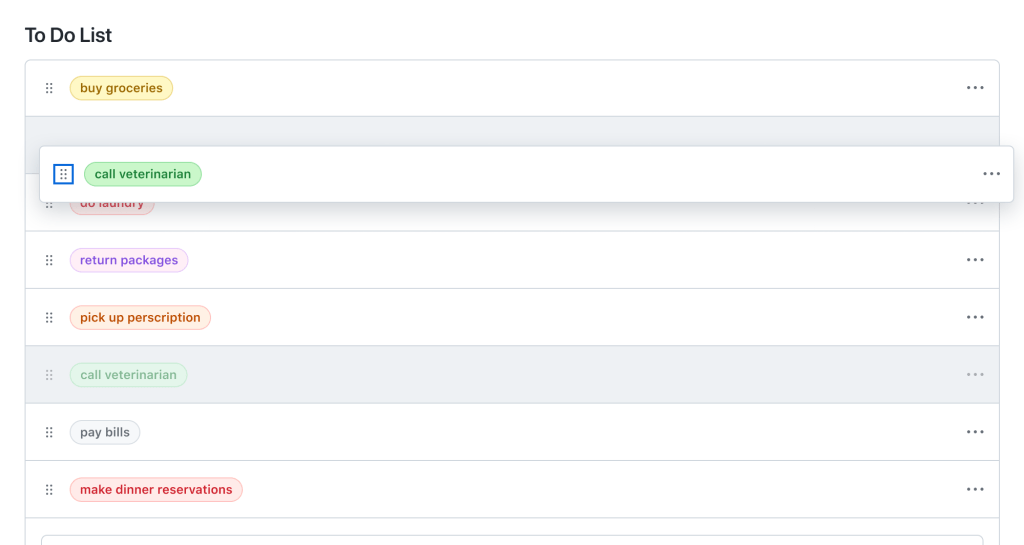
An example of a sortable to do list. This list has  7 items all of which are in a single column. One of the the items is hovering over the list to indicate it is being dragged to another position.

Based on our findings, here are some of the challenges we faced and how we solved them:

Challenge: Screen readers use arrow keys to navigate through content

One of the very first challenges we faced involved setting up an interaction model for moving an item through keyboard navigation. We chose to use arrow keys as we wanted keyboard operation to feel natural for a visual keyboard user. However, this choice posed a problem for users who relied on screen readers to navigate throughout a webpage.

To note: Arrow keys are commonly used by screen readers to help users navigate through content, like reading text or navigating between cells in a table. Consequently, when we tested drag-and-drop with screen reader users, the users were unable to use the arrow keys to move the item as intended. The arrow keys ignored drag-and-drop actions and performed typical screen reader navigation instead.

In order to override these key bindings we used role='application'.

Take note: I cannot talk about using role='application' without also providing a warning. role='application' should almost never be used. It is important to use role='application' sparingly and to scope it to the smallest possible element. The role='application' attribute alters how a screen reader operates, making it treat the element and its contents as a single application.

Considering the mentioned caution, we applied the role to the drag-and-drop trigger to restrict the scope of the DOM impacted by role='application'. Additionally, we exclusively added role='application' to the DOM when a user activates drag-and-drop. We remove role='application' when the user completes or cancels out of drag-and-drop. By employing role='application', we are able to override or reassign the screen reader’s arrow commands to correspond with our drag-and-drop commands.

Remember, even if implemented thoughtfully, it’s crucial to rely on feedback from daily screen reader users to ensure you have implemented role='application' correctly. Their feedback and experience should be the determining factor in assessing whether or not using role='application' is truly accessible and necessary.

Challenge: NVDA simulates mouse events when a user presses Enter or Space

Another challenge we faced was determining whether a mouse or keyboard event was triggered when an NVDA screen reader user activated drag-and-drop.

When a user uses a mouse to drag-and-drop items, the expectation is that releasing the mouse button (triggering an onMouseUp event) will finalize the drag-and-drop operation. Whereas, when operating drag-and-drop via the keyboard, Enter or Escape is used to finalize the drag-and-drop operation.

To note: When a user activates a button with the Enter or Space key while using NVDA, the screen reader simulates an onMouseDown and onMouseUp event rather than an onKeyDown event.

Because most NVDA users rely on keyboard operations to operate drag-and-drop instead of a mouse, we had to find a way to make sure our code ignored the onMouseUp event triggered by an NVDA Enter or Space key press.

We accomplished this by using two HTML elements to separate keyboard and mouse functionality:
1. A Primer Icon button to handle keyboard interactions.
2. An invisible overlay to capture mouse interactions.

A screenshot of the drag-and-drop trigger. Added to the screenshot are two informational text boxes the first explains the purpose of the invisible overlay, stating:  "An empty <div> overlays the iconButton to handle mouse events. This is neither focusable nor visible to keyboard users. Associated event handlers: onMouseDown". The second text box explains the purpose of the visible iconButton, stating: "The iconButton can only be activated by keyboard users. This is not clickable for mouse users. Associated event handlers: onMouseDown, onKeyDown.

Challenge: Announcing movements in rapid succession

Once we had our keyboard operations working, our next big obstacle was announcing movements to users, in particular announcing rapid movements of a selected item.

To prepare for external user testing we tested our announcements ourselves with screen readers. Because we are not native screen reader users, we moved items slowly throughout the page and the announcements sounded great. However, users typically move items rapidly to complete tasks quickly, so our screen reader testing did not reflect how users would actually interact with our feature.

To note: It was not until user testing that we discovered that when a user moved an item in rapid succession the aria-live announcements would lag or sometimes announce movements that were no longer relevant. This would disorient users, leading to confusion about the item’s current position.

To solve this problem, we added a small debounce to our move announcements. We tested various debounce speeds with users and landed on 100ms to ensure that we did not slow down a user’s ability to interact with drag-and-drop. Additionally, we used aria-live='assertive' to ensure that stale positional announcements are interrupted by the new positional announcement.

export const debounceAnnouncement = debounce((announcement: string) => {
  announce(announcement, {assertive: true})
}, 100)

Take note: aria-live='assertive' is reserved for time-sensitive or critical notifications. aria-live='assertive' interrupts any ongoing announcements the screen reader is making and can be disruptive for users. Use aria-live='assertive' sparingly and test with screen reader users to ensure your feature implores it correctly.

Challenge: First-time user experience of a new pattern

To note: During user testing we discovered that some of our users found it difficult to operate drag-and-drop with a keyboard. Oftentimes, drag-and-drop is not keyboard accessible or screen reader accessible. As a result, users with disabilities might not have had the opportunity to use drag-and-drop before, making the operations unfamiliar to them.

This problem was particularly challenging to solve because we wanted to make sure our instruction set was easy to find but not a constant distraction for users who frequently use the drag-and-drop functionality.

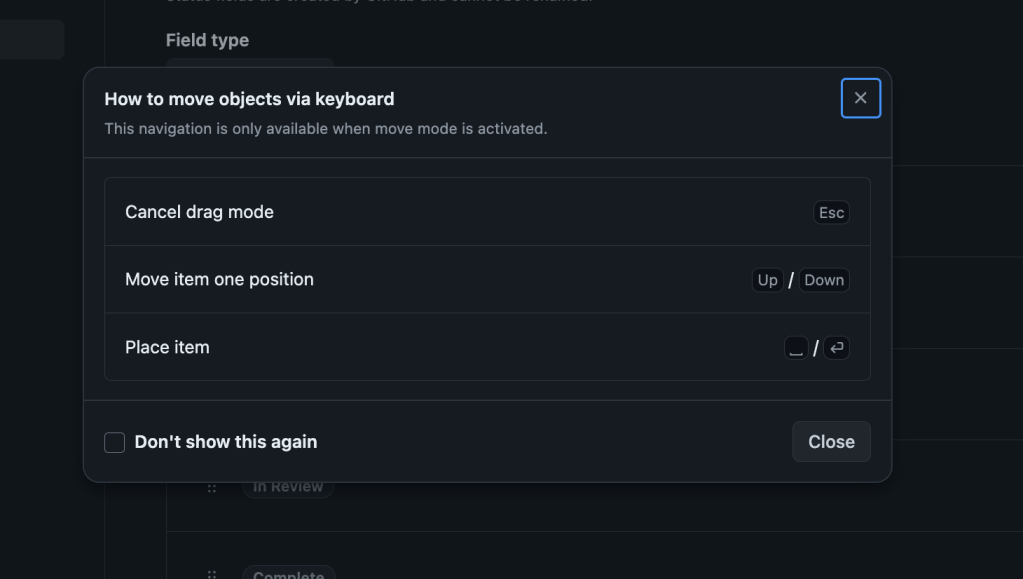
To address this, we added a dialog with a set of instructions that would open when a user activated drag-and-drop via the keyboard. This dialog has a “don’t show this again” checkbox preference for users who feel like they have a good grasp on the interaction and no longer want a reminder.

A screenshot of the instruction dialog. The dialog contains a table with three rows. Each row contains two columns the first column is the movement and the second column is the keyboard command. At the bottom is the

Challenge: Moving items with voice control in a scrollable container

One of the final big challenges we faced was operating drag-and-drop using voice control assistive technology. We found that using voice control to drag-and-drop items in a non-scrollable list was straightforward, but when the list became scrollable it was nearly impossible to move an item from the top of the list to the bottom.

To note: Voice control displays an overlay of numbers next to interactive items on the screen when requested. These numbers are references to items a user can interact with. For example, if a user says, “Click item 5” and item 5 is a button on a web page the assistive technology will then click the button. These number references dynamically update as the user scrolls through the webpage. Because references are updated as a user scrolls, scrolling the page while dragging an item via a numerical reference will cause the item to be dropped.

We found it critical to support two modes of operation in order to ensure that voice control users are able to sort items in a list. The first mode of operation, traditional drag-and-drop, has been discussed previously. The second mode is a move dialog.

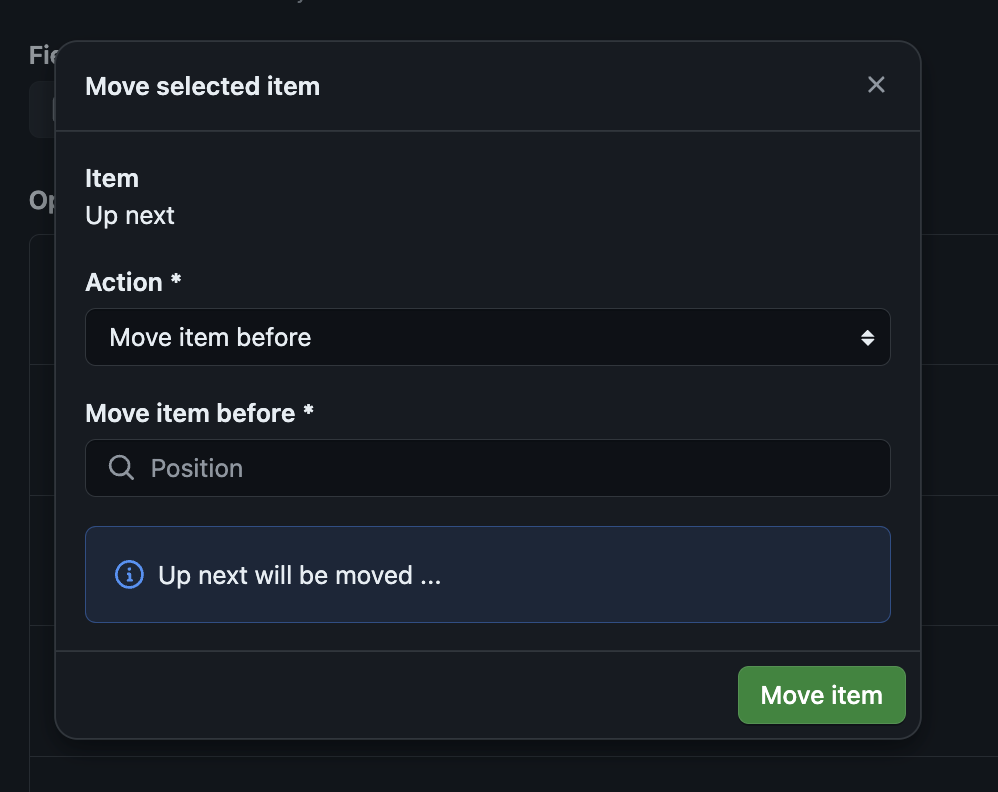
The move dialog is a form that allows users to move items in a list without having to use traditional drag-and-drop:

A screenshot of the Move Dialog. At the top of the dialog is a span specifying  the item being moved. Followed by a form to move items then a preview of the movement.

The form includes two input fields: action and position.
The action field specifies the movement or direction of the operation, for example, “move item before” or “move item after.” And the position specifies the location of where the item should be moved.

Below the input fields we show a preview of where an item will be moved based on the input values. This preview is announced using aria-live and provides a way for users to preview their movements before finalizing them.

During our testing we found that the move dialog was the preferred mode of operation for several of our users who do not use voice control assistive technology. Our users felt more confident when using the move dialog to move items and we were delighted to find that our accessibility feature provided unexpected benefits to a wide range of users.

In Summary, creating an accessible drag-and-drop pattern is challenging and it is important to leverage feedback and consider a diverse range of user needs. If you are working to create an accessible drag-and-drop, we hope our journey helps you understand the nuances and pitfalls of this complex pattern.

A big thanks to my colleagues, Alexis Lucio, Matt Pence, Hussam Ghazzi, and Aarya BC, for their hard work in making drag-and-drop more accessible. Your dedication and expertise have been invaluable. I am excited about the progress we made and what we will achieve in the future!

Lastly, if you are interested in testing the future of drag-and-drop with us, consider joining our Customer Research Panel.

The post Exploring the challenges in creating an accessible sortable list (drag-and-drop) appeared first on The GitHub Blog.
How we’re building more inclusive and accessible components at GitHub

Post Syndicated from Eric Bailey original https://github.blog/engineering/user-experience/how-were-building-more-inclusive-and-accessible-components-at-github/

One of GitHub’s core values is Diverse and Inclusive. It is a guiding thought for how we operate, reminding us that GitHub serves a developer community that spans a wide range of geography and ability.

Putting diversity and inclusivity into practice means incorporating a wide range of perspectives into our work. To that point, disability and accessibility are an integral part of our efforts.

This consideration has been instrumental in crafting resilient, accessible components at GitHub. These components, in turn, help to guarantee that our experiences work regardless how they are interacted with.

Using GitHub should be efficient and intuitive, regardless of your device, circumstance, or ability. To that point, we have been working on improving the accessibility of our lists of issues and pull requests, as well as our information tables.

Our list of issues and pull requests are some of the most high-traffic experiences we have on GitHub. For many, it is the “homepage” of their open source projects, a jumping off point for conducting and managing work.

Our tables help to communicate, and facilitate taking action with confidence on complicated information relationships. These experiences are workhorses, helping to communicate information about branches, repositories, secrets, attestations, configurations, internal documentation, etc.

Nothing about us without us

Before we discuss the particulars of these updates, I would like to call attention to the most important aspect of the work: direct participation of, and input from daily assistive technology users.

Disabled people’s direct involvement in the inception, design, and development stages is indispensable. It’s crucial for us to go beyond compliance and weave these practices into the core of our organization. Only by doing so can we create genuinely inclusive experiences.

With this context established, we can now talk about how this process manifests in component work.

Improvements we’re making to lists of issues and pull requests

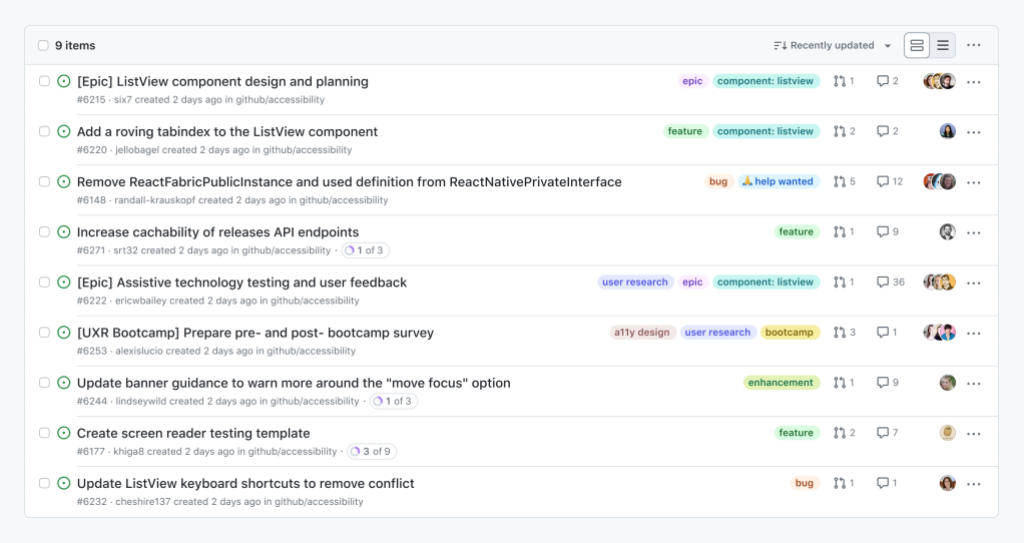
A list of nine GitHub issues. The issues topics are a blend of list component work and general maintenance tasks. Each issue has a checkbox for selecting it, a status icon indicating that it is an open issue, a title, metadata about its issue number, author, creation date, and source repository. These issues also have secondary information including labels, tallies for linked pull requests and comments, avatars for issue assignees, and overflow actions. Additionally, some issues have a small badge that indicates the number of tasks the issue contains, as well as how many of them are completed. Above the list of issues is an area that lists the total number of issues, allows you to select them all, control how they are sorted, change the information display density, and additional overflow actions.

Lists of issues and pull requests will continue to support methods of navigation via assistive technology that you may already be familiar with—making experiences consistent and predictable is a huge and often overlooked aspect of the work.

In addition, these lists will soon be updated to also have:

  • A dedicated subheading for quickly navigating to the list itself.
  • A dedicated subheading per issue or pull request.
  • List and list item screen reader keyboard shortcut support.
  • Arrow keys and Home/End to quickly move through each list item.
  • Focus management that allows using Tab to explore individual list item content.
  • Support for Space keypresses for selecting list items, and Enter for navigating to the issue or pull request the list item links to.

This allows a wide range of assistive technologies to efficiently navigate, and act on these experiences.

Improvements we’re making to tables

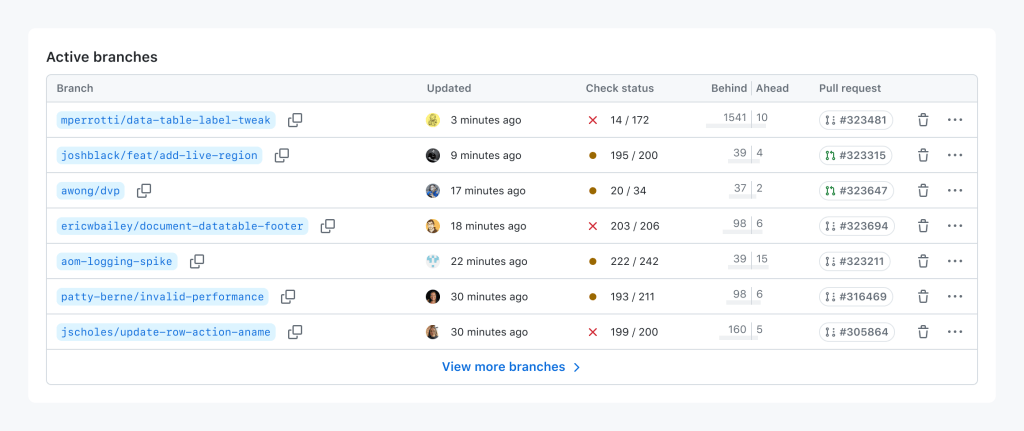
A table titled, ‘Active branches’. It has five columns and 7 rows. The columns are titled ‘branches’, ‘updated’, ‘check status’, ‘behind/ahead’, ‘pull request’, and ‘actions’. Each row lists a branch name and its associated metadata. The branch names use a GitHub user name/feature name pattern. The user names include people who worked on the table component, including Mike Perrotti, Josh Black, Eric Bailey, and James Scholes. They also include couple of subtle references to disability advocates Alice Wong and Patty Berne. The branches are sorted by last updated order, and after the table is a link titled, ‘View more branches’.

We are in the process of replacing one-off table implementations with a dedicated Primer component.

Primer-derived tables help provide consistency and predictability. This is important for expected table navigation, but also applies for other table-related experiences, such as loading content, sorting and pagination requests, and bulk and row-level actions.

At the time of this blog post’s publishing, there are 75 bespoke tables that have been replaced with the Primer component, spread across all of GitHub.

The reason for this quiet success has been due entirely to close collaboration with both our disabled partners and our design system experts. This collaboration helped to ensure:

  1. The new table experiences were seamlessly integrated.
  2. Doing so, improved and enhanced the underlying assistive technology experience.

Progress over perfection

Meryl K. Evans’ Progress Over Perfection philosophy heavily influenced how we approached this work.

Accessibility is never done. Part of our dedication to this work is understanding that it will grow and change to meet the needs of the people who rely on it. This means making positive, iterative change based on feedback from the community GitHub serves.

More to come

Tables will continue to be updated, and the lists should be released publicly soon. Beyond that, we’re excited about the changes we’re making to improve GitHub’s accessibility. This includes both our services and also our internal culture.

We hope that these components, and the process that led to their creation, help you as both part of our developer community and as people who build the world’s software.

Please visit accessibility.github.com to learn more and share feedback on our accessibility community discussion page.

The post How we’re building more inclusive and accessible components at GitHub appeared first on The GitHub Blog.
Project A11Y: how we upgraded Cloudflare’s dashboard to adhere to industry accessibility standards

Post Syndicated from Emily Flannery original https://blog.cloudflare.com/project-a11y/

Project A11Y: how we upgraded Cloudflare’s dashboard to adhere to industry accessibility standards

Project A11Y: how we upgraded Cloudflare’s dashboard to adhere to industry accessibility standards

At Cloudflare, we believe the Internet should be accessible to everyone. And today, we’re happy to announce a more inclusive Cloudflare dashboard experience for our users with disabilities. Recent improvements mean our dashboard now adheres to industry accessibility standards, including Web Content Accessibility Guidelines (WCAG) 2.1 AA and Section 508 of the Rehabilitation Act.

Over the past several months, the Cloudflare team and our partners have been hard at work to make the Cloudflare dashboard1 as accessible as possible for every single one of our current and potential customers. This means incorporating accessibility features that comply with the latest Web Content Accessibility Guidelines (WCAG) and Section 508 of the US’s federal Rehabilitation Act. We are invested in working to meet or exceed these standards; to demonstrate that commitment and share openly about the state of accessibility on the Cloudflare dashboard, we have completed the Voluntary Product Accessibility Template (VPAT), a document used to evaluate our level of conformance today.

Conformance with a technical and legal spec is a bit abstract–but for us, accessibility simply means that as many people as possible can be successful users of the Cloudflare dashboard. This is important because each day, more and more individuals and businesses rely upon Cloudflare to administer and protect their websites.

For individuals with disabilities who work on technology, we believe that an accessible Cloudflare dashboard could mean improved economic and technical opportunities, safer websites, and equal access to tools that are shaping how we work and build on the Internet.

For designers and developers at Cloudflare, our accessibility remediation project has resulted in an overhaul of our component library. Our newly WCAG-compliant components expedite and simplify our work building accessible products. They make it possible for us to deliver on our commitment to an accessible dashboard going forward.

Our Journey to an Accessible Cloudflare Dashboard

In 2021, we initiated an audit with third party experts to identify accessibility challenges in the Cloudflare dashboard. This audit came back with a daunting 213-page document—a very, very long list of compliance gaps.

We learned from the audit that there were many users we had unintentionally failed to design and build for in Cloudflare dashboard user interfaces. Most especially, we had not done well accommodating keyboard users and screen reader users, who often rely upon these technologies because of a physical impairment. Those impairments include low vision or blindness, motor disabilities (examples include tremors and repetitive strain injury), or cognitive disabilities (examples include dyslexia and dyscalculia).

As a product and engineering organization, we had spent more than a decade in cycles of rapid growth and product development. While we’re proud of what we have built, the audit made clear to us that there was a great need to address the design and technical debt we had accrued along the way.

One year, four hundred Jira tickets, and over 25 new, accessible web components later, we’re ready to celebrate our progress with you. Major categories of work included:

  1. Forms: We re-wrote our internal form components with accessibility and developer experience top of mind. We improved form validation and error handling, labels, required field annotations, and made use of persistent input descriptions instead of placeholders. Then, we deployed those component upgrades across the dashboard.
  2. Data visualizations: After conducting a rigorous re-evaluation of their design, we re-engineered charts and graphs to be accessible to keyboard and screen reader users. See below for a brief case study.
  3. Heading tags: We corrected page structure throughout the dashboard by replacing all our heading tags (<h1>, <h2>, etc.) with a technique we borrowed from Heydon Pickering. This technique is an approach to heading level management that uses React Context and basic arithmetic.

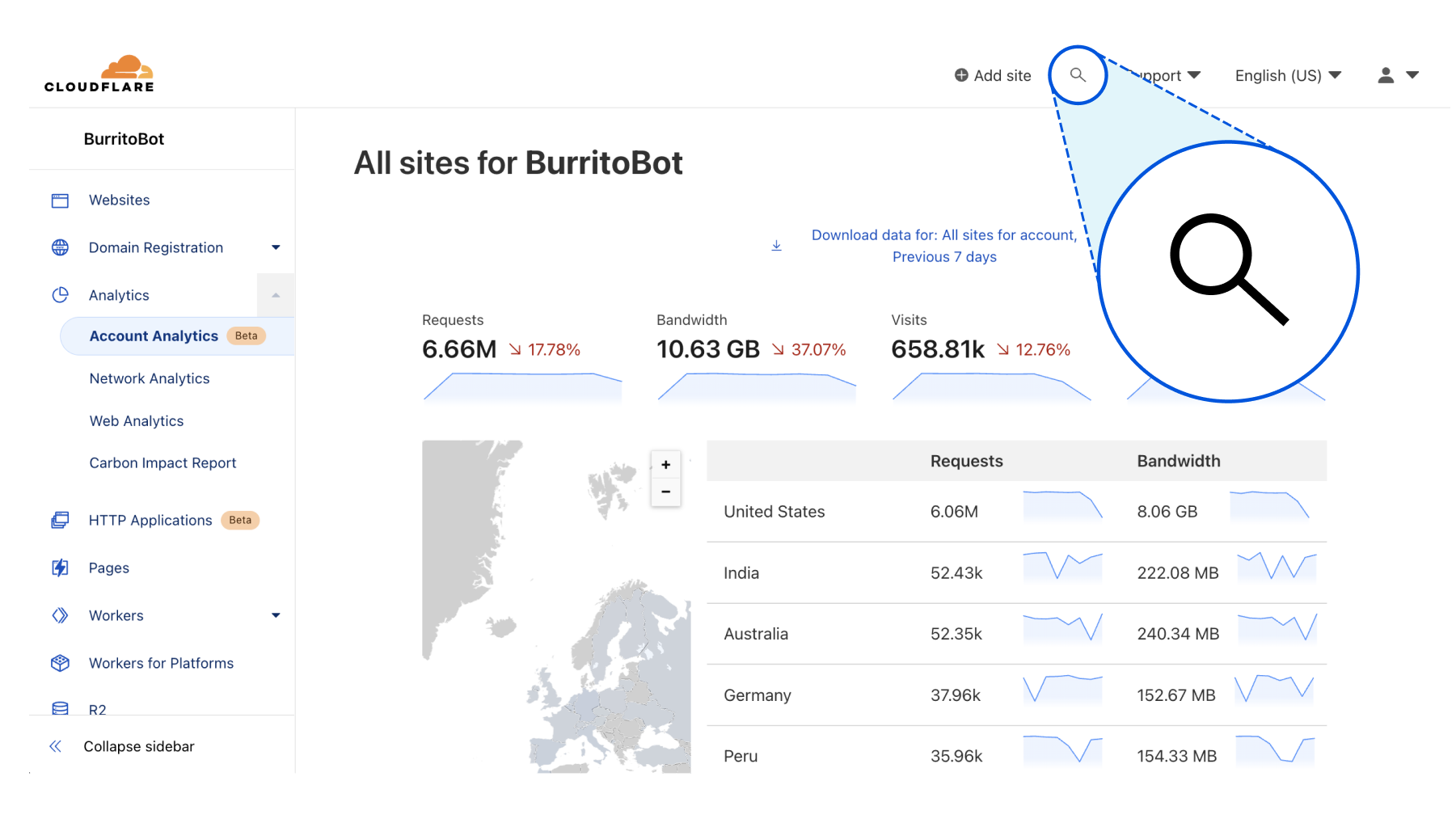
  4. SVGs: We reworked how we create SVGs (Scalable Vector Graphics), so that they are labeled properly and only exposed to assistive technology when useful.
  5. Node modules: We jumped several major versions of old, inaccessible node modules that our UI components depend upon (and we broke many things along the way).
  6. Color: We overhauled our use of color, and contributed a new volume of accessible sequential colors to our design system.
  7. Bugs: We squashed a lot of bugs that had made their way into the dashboard over the years. The most common type of bug we encountered related to incorrect or unsemantic use of HTML elements—for example, using a <div> where we should have used a <td> (table data) or <tr> (table row) element within a table.

Case Study: Accessibility Work On Cloudflare Dashboard Data & Analytics

The Cloudflare dashboard is replete with analytics and data visualizations designed to offer deep insight into users’ websites’ performance, traffic, security, and more. Making those data visualizations accessible proved to be among the most complex and interdisciplinary issues we faced in the remediation work.

An example of a problem we needed to solve related to WCAG success criterion 1.4.1, which pertains to the use of color. 1.4.1 specifies that color cannot be the only means by which to convey information, such as the differentiation between two items compared in a chart or graph.

Our charts were clearly nonconforming with this standard, using color alone to represent different data being compared. For example, a typical graph might have used the color blue to show the number of requests to a website that were 200 OK, and the color orange to show 403 Forbidden, but failed to offer users another way to discern between the two status codes.

Our UI team went to work on the problem, and chose to focus our effort first on the Cloudflare dashboard time series graphs.

Interestingly, we found that design patterns recommended even by accessibility experts created wholly unusable visualizations when placed into the context of real world data. Examples of such recommended patterns include using different line weights, patterns (dashed, dotted or other line styles), and terminal glyphs (symbols set at the beginning and end of the lines) to differentiate items being compared.

We tried, and failed, to apply a number of these patterns; you can see the evolution of this work on our time series graph component in the three different images below.

v.1

Project A11Y: how we upgraded Cloudflare’s dashboard to adhere to industry accessibility standards
Here is an early attempt at using both terminal glyphs and patterns to differentiate data in a time series graph. You can see that the terminal glyphs pile up and become indistinguishable; the differences among the line patterns are very hard to discern. This code never made it into production.

v.2

Project A11Y: how we upgraded Cloudflare’s dashboard to adhere to industry accessibility standards
In this version, we eliminated terminal glyphs but kept line patterns. Additionally, we faded the unfocused items in the graph to help bring highlighted data to the forefront. This latter technique made it into our final solution.

v.3

Project A11Y: how we upgraded Cloudflare’s dashboard to adhere to industry accessibility standards
Here we eliminated patterns altogether, simplified the user interface to only use the fading technique on unfocused items, and put our new, sequentially accessible colors to use. Finally, a visual design solution approved by accessibility and data visualization experts, as well as our design and engineering teams.

After arriving at our design solution, we had some engineering work to do.

In order to meet WCAG success criterion 2.1.1, we rewrote our time series graphs to be fully keyboard accessible by adding focus handling to every data point, and enabling the traversal of data using arrow keys.

Navigating time series data points by keyboard on the Cloudflare dashboard.

We did some fine-tuning, specifically to support screen readers: we eliminated auditory “chartjunk” (unnecessary clutter or information in a chart or graph) and cleaned up decontextualized data (a scenario in which numbers are exposed to and read by a screen reader, but contextualizing information, like x- and y-axis labels, is not).

And lastly, to meet WCAG 1.1.1, we engineered new UI component wrappers to make chart and graph data downloadable in CSV format. We deployed this part of the solution across all charts and graphs, not just the time series charts like those shown above. No matter how you browse and interact with the web, we hope you’ll notice this functionality around the Cloudflare dashboard and find value in it.

Making all of this data available to low vision, keyboard, and assistive technology users was an interesting challenge for us, and a true team effort. It necessitated a separate data visualization report conducted by another, more specialized team of third party experts, deep collaboration between engineering and design, and many weeks of development.

Applying this thorough treatment to all data visualizations on the Cloudflare dashboard is our goal, but still work in progress. Please stay tuned for more accessible updates to our chart and graph components.

Conclusion

There’s a lot of nuance to accessibility work, and we were novices at the beginning: researching and learning as we were doing. We also broke a lot of things in the process, which (as any engineering team knows!) can be stressful.

Overall, our team’s biggest challenge was figuring out how to complete a high volume of cross-functional work in the shortest time possible, while also setting a foundation for these improvements to persist over time.

As a frontend engineering and design team, we are very grateful for having had the opportunity to focus on this problem space and to learn from truly world-class accessibility experts along the way.

Accessibility matters to us, and we know it does to you. We’re proud of our progress, and there’s always more to do to make Cloudflare more usable for all of our customers. This is a critical piece of our foundation at Cloudflare, where we are building the most secure, performant and reliable solutions for the Internet. Stay tuned for what’s next!

Not using Cloudflare yet? Get started today and join us on our mission to build a better Internet.

1All references to “dashboard” in this post are specific to the primary user authenticated Cloudflare web platform. This does not include Cloudflare’s product-specific dashboards, marketing, support, educational materials, or third party integrations.

We’ve shipped so many products the Cloudflare dashboard needed its own search engine

Post Syndicated from Emily Flannery original https://blog.cloudflare.com/quick-search-beta/

We've shipped so many products the Cloudflare dashboard needed its own search engine

We've shipped so many products the Cloudflare dashboard needed its own search engine

Today we’re proud to announce our first release of quick search for the Cloudflare dashboard, a beta version of our first ever cross-dashboard search tool to help you navigate our products and features. This first release is now available to a small percentage of our customers. Want to request early access? Let us know by filling out this form.

What we’re launching

We’re launching quick search to speed up common interactions with the Cloudflare dashboard. Our dashboard allows you to configure Cloudflare’s full suite of products and features, and quick search gives you a shortcut.

To get started, you can access the quick search tool from anywhere within the Cloudflare dashboard by clicking the magnifying glass button in the top navigation, or hitting Ctrl + K on Linux and Windows or ⌘ + K on Mac. (If you find yourself forgetting which key combination it is just remember that it’s or Ctrl-K-wik.) From there, enter a search term and then select from the results shown below.

We've shipped so many products the Cloudflare dashboard needed its own search engine
Access quick search from the top navigation bar, or use keyboard shortcuts Ctrl + K on Linux and Windows or ⌘ + K on Mac.

Current supported functionality

What functionality will you have access to? Below you’ll learn about the three core capabilities of quick search that are included in this release, as well as helpful tips for using the tool.

Search for a page in the dashboard

Start typing in the name of the product you’re looking for, and we’ll load matching terms after each key press. You will see results for any dashboard page that currently exists in your sidebar navigation. Then, just click the desired result to navigate directly there.

We've shipped so many products the Cloudflare dashboard needed its own search engine
Search for “page” and you’ll see results categorized into “website-only products” and “account-wide products.”
We've shipped so many products the Cloudflare dashboard needed its own search engine
Search for “ddos” and you’ll see results categorized into “websites,” “website-only products” and “account-wide products.”

Search for website-only products

For our customers who manage a website or domain in Cloudflare, you have access to a multitude of Cloudflare products and features to enhance your website’s security, performance and reliability. Quick search can be used to easily find those products and features, regardless of where you currently are in the dashboard (even from within another website!).

You may easily search for your website by name to navigate to your website’s Overview page:

We've shipped so many products the Cloudflare dashboard needed its own search engine

You may also navigate to the products and feature pages within your specific website(s). Note that you can perform a website-specific search from anywhere in your core dashboard using one of two different approaches, which are explained below.

First, you may search first for your website by name, then navigate search results from there:

We've shipped so many products the Cloudflare dashboard needed its own search engine

Alternatively, you may search first for the product or feature you’re looking for, then filter down by your website:

We've shipped so many products the Cloudflare dashboard needed its own search engine

Search for account-wide products

Many Cloudflare products and features are not tied directly to a website or domain that you have set up in Cloudflare, like Workers, R2, Magic Transit—not to mention their related sub-pages. Now, you may use quick search to more easily navigate to those sections of the dashboard.

We've shipped so many products the Cloudflare dashboard needed its own search engine

Here’s an overview of what’s next on our quick search roadmap (and not yet supported today):

  • Search results do not currently return results of product- and feature-specific names or configurations, such as Worker names, specific DNS records, IP addresses, Firewall Rules.
  • Search results do not currently return results from within the Zero Trust dashboard.
  • Search results do not currently return results for Cloudflare content living outside the dashboard, like Support or Developer documentation.

We’d love to hear what you think. What would you like to see added next? Let us know using the feedback link found at the bottom of the search window.

We've shipped so many products the Cloudflare dashboard needed its own search engine

Our vision for the future of the dashboard

We’re excited to launch quick search and to continue improving our dashboard experience for all customers. Over time, we’ll mature our search functionality to index any and all content you might be looking for — including search results for all product content, Support and Developer docs, extending search across accounts, caching your recent searches, and more.

Quick search is one of many important user experience improvements we are planning to tackle over the coming weeks, months and years. The dashboard is central to your Cloudflare experience, and we’re fully committed to making your experience delightful, useful, and easy. Stay tuned for an upcoming blog post outlining the vision for the Cloudflare dashboard, from our in-app home experience to our global navigation and beyond.

For now, keep your eye out for the little search icon that will help you in your day-to-day responsibilities in Cloudflare, and if you don’t see it yet, don’t worry—we can’t wait to ship it to you soon.

If you don’t yet see quick search in your Cloudflare dashboard, you can request early access by filling out this form.