Post Syndicated from evgenii.gordymov original https://blog.zabbix.com/understanding-http-template-authorization-in-aws/30856/
Authorization in Amazon Web Services (AWS) determines what actions a user, service, or system can perform on resources. It answers the question: “Does this identity have permission to do this action on that resource?”
In AWS, authorization is primarily handled through:
- IAM (Identity and Access Management) policies
- Resource-based policies (like S3 bucket policies)
- Session-based permissions (like STS AssumeRole)
What authorization types are available in Zabbix AWS templates?
- Access key authorization
- Role-based authorization
- Assume role authorization
Let’s look briefly at each of them.
Table of Contents
Before using the template, you need to create an IAM policy that grants the necessary permissions for the AWS services the template will interact with.
This policy defines what actions are allowed, on which resources, and optionally, under which conditions. Once created, the policy should be attached to the IAM role or user that will run the template.
IAM policy for Zabbix
Add the following required permissions to your Zabbix IAM policy in order to collect metrics. The policy can change when new metrics and services are added in Zabbix templates.
{
    "Version": "2012-10-17",
    "Statement": [
        {
            "Action": [
                "cloudwatch:DescribeAlarms",
                "cloudwatch:GetMetricData",
                "ec2:DescribeInstances",
                "ec2:DescribeVolumes",
                "ec2:DescribeRegions",
                "rds:DescribeEvents",
                "rds:DescribeDBInstances",
                "ecs:DescribeClusters",
                "ecs:ListServices",
                "ecs:ListTasks",
                "ecs:ListClusters",
                "s3:ListAllMyBuckets",
                "s3:GetBucketLocation",
                "s3:GetMetricsConfiguration",
                "elasticloadbalancing:DescribeLoadBalancers",
                "elasticloadbalancing:DescribeTargetGroups",
                "ec2:DescribeSecurityGroups",
                "lambda:ListFunctions"
            ],
            "Effect": "Allow",
            "Resource": "*"
        }
    ]
}
To create and attach the policy:
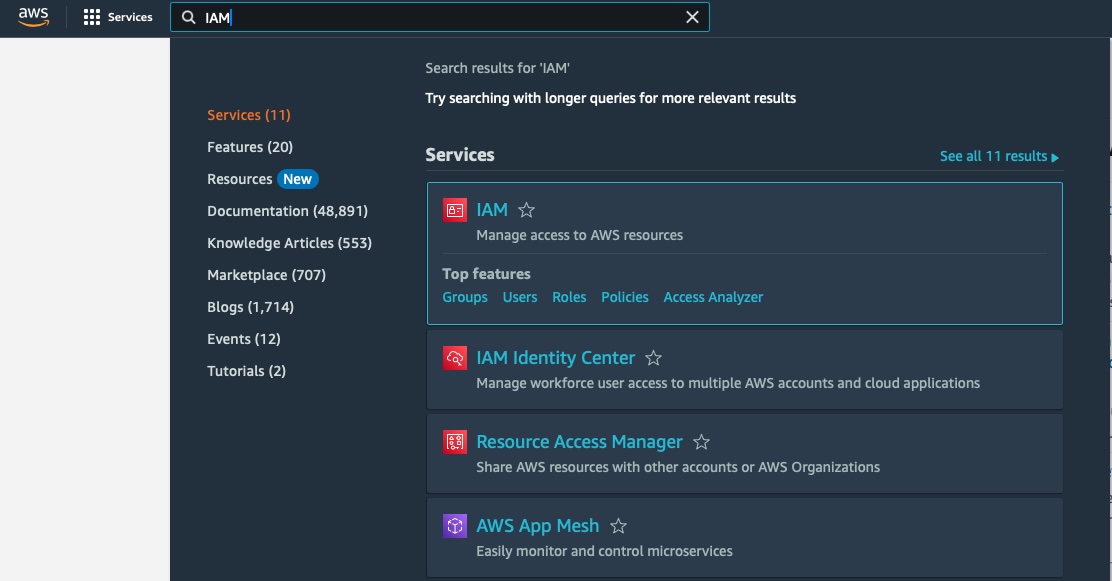
- Go to IAM → Policies → Create policy
- Choose JSON and paste your policy
- Review and create the policy
Access key authorization
1. Attach the required policy to the IAM user
- Go to IAM → Users → Select a user → Permissions tab
- Click Attach policies
- Select the policy you created before (IAM Policy for Zabbix)
- Click Attach policy
2. Get your access key and secret access key
In the AWS console:
-
Go to IAM → Users → Select a user → Security credentials tab
-
Click Create access key
-
Copy:
Access key IDSecret access key
Never expose your keys publicly!
 Never expose your keys publicly!
3. Configure AWS CLI
Open your terminal and run:
configure aws cli
aws configure --profile zabbix_user
You’ll be prompted to enter:
AWS Access Key ID [None]: AKIAXXXXXXXXXXXEXAMPLE
AWS Secret Access Key [None]: asdkjhUSADWDskhjdasd/EXAMPLEKEY
Default region name [None]: eu-central-1
Default output format [None]: json
4. Test it
List all S3 buckets:
aws s3 ls --profile zabbix_user
Get EC2 tags:
Use region where you create instance
aws ec2 describe-instances --region eu-central-1 --query 'Reservations[*].Instances[*].Tags' --profile zabbix_user
If you get this error…
An error occurred (AccessDenied) when calling the DescribeInstances operation: User: arn:aws:iam::123456789010:user/zabbix_user is not authorized to perform: ec2:DescribeInstances on resource: arn:aws:ec2:eu-central-1:123456789010:instance/*
…you need to check the following permission to the role you are using (IAM Policy for Zabbix).
5. Set the following macros in Zabbix:
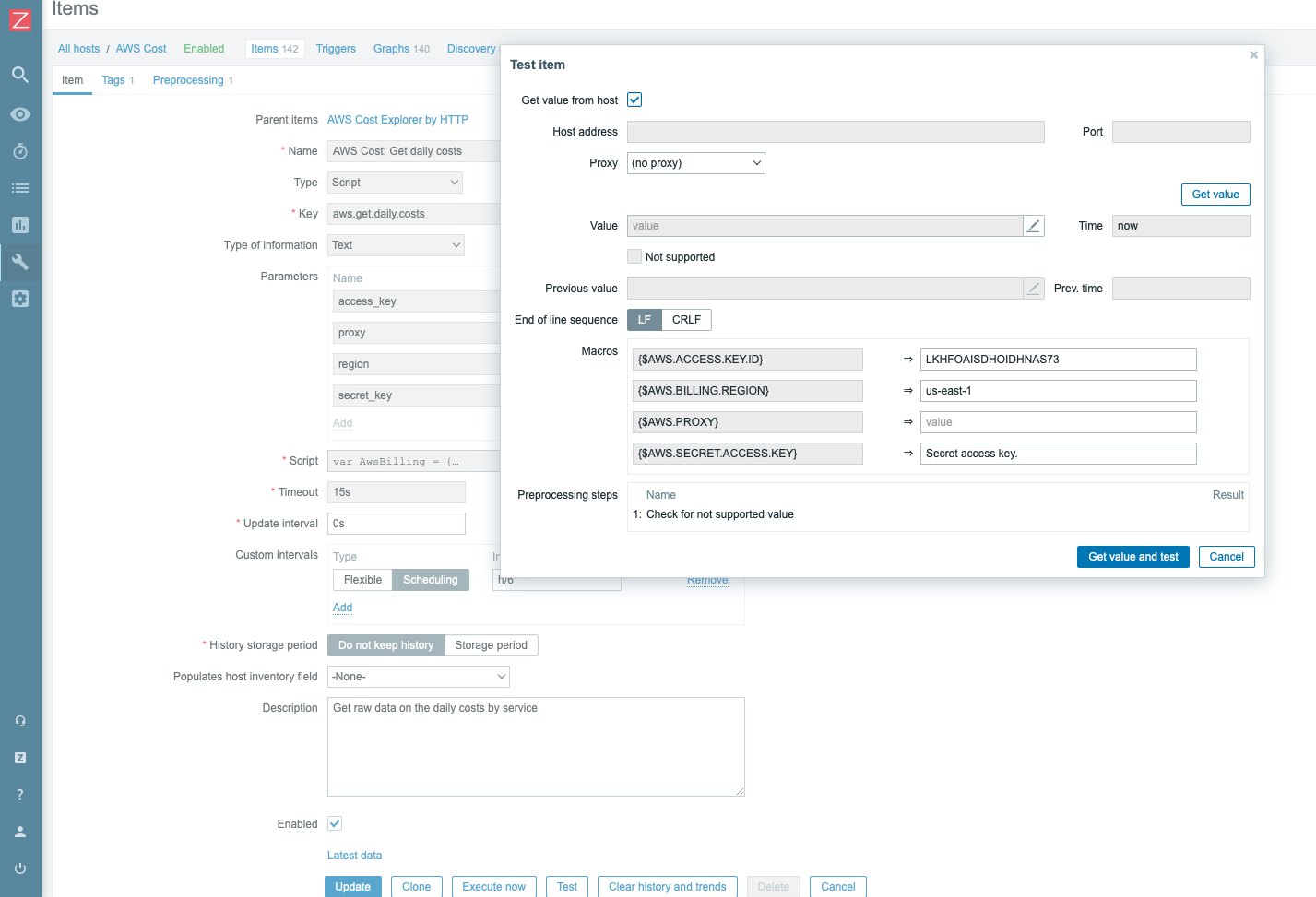
{$AWS.AUTH_TYPE}– set toaccess_key{$AWS.ACCESS.KEY.ID}– set to your access key ID{$AWS.SECRET.ACCESS.KEY}– set to your secret access key
Security tips
- Never hardcode access keys in scripts or code.
- Store them in
~/.aws/credentials, which is protected by file system permissions. - Apply least privilege with IAM policies.
Role-based authorization
1. Add the appropriate permission to the role you are using:
{
    "Version": "2012-10-17",
    "Statement": [
        {
            "Effect": "Allow",
            "Action": "iam:PassRole",
            "Resource": "arn:aws:iam::{Account}:role/{RoleNameWithPath}"
        },
        {
            "Effect": "Allow",
            "Action": [
                "theSameAsIAMPolicyForZabbix",
            ],
            "Resource": "*"
        }
    ]
}
2. Add a principal to the trust relationships of the role you are using:
- Go to IAM → Roles → Select a role → Trust relationships tab
- Click Edit trust relationship
- Add a principal to the trust relationships of the role you are using:
{
    "Version": "2012-10-17",
    "Statement": [
        {
            "Effect": "Allow",
            "Principal": {
                "Service": [
                    "ec2.amazonaws.com"
                ]
            },
            "Action": [
                "sts:AssumeRole"
            ]
        }
    ]
}
3. Attach the role to the instance
- Go to EC2 → Instances → Select an instance → Actions → Security → Modify IAM role
- Select the role you created before which has the policy attached (IAM Policy for Zabbix)
- Click Apply
4. Test it
Connect to ES2 ssh terminal in instance and run:
- Go to EC2 → Instances → Select an instance → Connect → SSH client
Example:
ssh -i "zabbix_user.pem" [email protected]
Get caller identity:
aws sts get-caller-identity
Get token for metadata service:
export TOKEN=$(curl -X PUT "http://169.254.169.254/latest/api/token" -H "X-aws-ec2-metadata-token-ttl-seconds: 21600")
Get IAM role from metadata service:
curl -H "X-aws-ec2-metadata-token: $TOKEN" http://169.254.169.254/latest/meta-data/iam/security-credentials
Get IAM role credentials from metadata service using role name from instance metadata service (see Get IAM role from metadata service):
curl -H "X-aws-ec2-metadata-token: $TOKEN" http://169.254.169.254/latest/meta-data/iam/security-credentials/<<--role_name-->>
6. Set the following macros in Zabbix:
{$AWS.AUTH_TYPE}– set torole_base{$AWS.ASSUME.ROLE.ARN}– set to your role ARN
Assume role authorization
This method has two options:
- Using access key authorization for getting creds for assume role
- Using role-based authorization for getting creds for assume role
Lets look first at using access key authorization for getting creds for assume role.
Using access key authorization for getting creds for assume role
1. Create access key for user (see Access Key Authorization)
2. Add the appropriate permission in role you are using:
{
    "Version": "2012-10-17",
    "Statement": [
        {
            "Effect": "Allow",
            "Action": "sts:AssumeRole",
            "Resource": "arn:aws:iam::{Account}:user/{UserName}"
        },
        {
            "Effect": "Allow",
            "Action": [
                "theSameAsIAMPolicyForZabbix",
            ],
            "Resource": "*"
        }
    ]
}
3. Add principal to the trust relationships of the role you are using:
{
  "Version": "2012-10-17",
  "Statement": [
    {
      "Effect": "Allow",
      "Principal": {
        "AWS": "arn:aws:iam::{Account}:user/{UserName}"
      },
      "Action": "sts:AssumeRole"
    }
  ]
}
4. Test It
Get assume role credentials using access key authorization
aws sts assume-role --role-arn arn:aws:iam::123456789010:role/Zabbix_Role --role-session-name test-session --profile zabbix_user
An example of response:
{
    "Credentials": {
        "AccessKeyId": "ASDFGHJKLEXAMPLE",
        "SecretAccessKey": "QowihdwoieuoinflksnliooEXAMPLE",
        "Expiration": "2029-09-09T22:22:22+00:00"
    },
    "AssumedRoleUser": {
        "AssumedRoleId": "ASDFGHJKLEXAMPLE:test-session",
        "Arn": "arn:aws:sts::123456789010:assumed-role/Zabbix_Role/test-session"
    }
}
5. Set the following macros in Zabbix:
{$AWS.AUTH_TYPE}– set toassume_role{$AWS.ACCESS.KEY.ID}– set to your access key ID{$AWS.SECRET.ACCESS.KEY}– set to your secret access key{$AWS.ASSUME.ROLE.ARN}– set to your role ARN{$AWS.ASSUME.ROLE.AUTH.METADATA}– set tofalse
Getting credentials for assume role using cross-account role (best practice)
1. Create role (see Role-Based Authorization)
2. Add the appropriate permission to the role you are using:
{
    "Version": "2012-10-17",
    "Statement": [
        {
            "Effect": "Allow",
            "Action": "sts:AssumeRole",
            "Resource": "arn:aws:iam::{Account}:role/{RoleNameWithPath}"
        },
        {
            "Effect": "Allow",
            "Action": [
                "theSameAsIAMPolicyForZabbix",
            ],
            "Resource": "*"
        }
    ]
}
3. Add the principal to the trust relationships of the role you are using:
{
  "Version": "2012-10-17",
  "Statement": [
    {
      "Effect": "Allow",
      "Principal": {
        "AWS": "arn:aws:iam::{Account}:role/{RoleNameWithPath}"
      },
      "Action": "sts:AssumeRole"
    }
  ]
}
4. Test it
Connect to ES2 ssh terminal in the instance and run:
- Go to EC2 → Instances → Select an instance → Connect → SSH client
Get assume role credentials using role name from instance metadata service:
aws sts assume-role --role-arn arn:aws:iam::123456789010:role/NewRole --role-session-name test-session
An example of response:
{
    "Credentials": {
        "AccessKeyId": "ACCESS_KEY_ID",
        "SecretAccessKey": "SECRET_ACCESS_KEY",
        "SessionToken": "SESSION_TOKEN",
        "Expiration": "EXPIRATION_DATE"
    },
    "AssumedRoleUser": {
        "AssumedRoleId": "ASSUMED_ROLE_ID",
        "Arn": "arn:aws:sts::ACCOUNT_ID:assumed-role/ROLE_NAME/SESSION_NAME"
    }
}
5. Set the following macros in Zabbix:
{$AWS.AUTH_TYPE}– set toassume_role{$AWS.ASSUME.ROLE.ARN}– set to your role ARN{$AWS.ASSUME.ROLE.AUTH.METADATA}– set totrue
Well done! You have successfully configured AWS authorization in Zabbix AWS templates.
Now you can use the template to collect metrics from AWS.
The post Understanding HTTP Template Authorization in AWS appeared first on Zabbix Blog.