All posts by Jeremy Ber

In-place version upgrades for applications on Amazon Managed Service for Apache Flink now supported

Post Syndicated from Jeremy Ber original https://aws.amazon.com/blogs/big-data/in-place-version-upgrades-for-applications-on-amazon-managed-service-for-apache-flink-now-supported/

For existing users of Amazon Managed Service for Apache Flink who are excited about the recent announcement of support for Apache Flink runtime version 1.18, you can now statefully migrate your existing applications that use older versions of Apache Flink to a more recent version, including Apache Flink version 1.18. With in-place version upgrades, upgrading your application runtime version can be achieved simply, statefully, and without incurring data loss or adding additional orchestration to your workload.

Apache Flink is an open source distributed processing engine, offering powerful programming interfaces for both stream and batch processing, with first-class support for stateful processing and event time semantics. Apache Flink supports multiple programming languages, Java, Python, Scala, SQL, and multiple APIs with different level of abstraction, which can be used interchangeably in the same application.

Managed Service for Apache Flink is a fully managed, serverless experience in running Apache Flink applications, and now supports Apache Flink 1.18.1, the latest released version of Apache Flink at the time of writing.

In this post, we explore in-place version upgrades, a new feature offered by Managed Service for Apache Flink. We provide guidance on getting started and offer detailed insights into the feature. Later, we deep dive into how the feature works and some sample use cases.

This post is complemented by an accompanying video on in-place version upgrades, and code samples to follow along.

Use the latest features within Apache Flink without losing state

With each new release of Apache Flink, we observe continuous improvements across all aspects of the stateful processing engine, from connector support to API enhancements, language support, checkpoint and fault tolerance mechanisms, data format compatibility, state storage optimization, and various other enhancements. To learn more about the features supported in each Apache Flink version, you can consult the Apache Flink blog, which discusses at length each of the Flink Improvement Proposals (FLIPs) incorporated into each of the versioned releases. For the most recent version of Apache Flink supported on Managed Service for Apache Flink, we have curated some notable additions to the framework you can now use.

With the release of in-place version upgrades, you can now upgrade to any version of Apache Flink within the same application, retaining state in between upgrades. This feature is also useful for applications that don’t require retaining state, because it makes the runtime upgrade process seamless. You don’t need to create a new application in order to upgrade in-place. In addition, logs, metrics, application tags, application configurations, VPCs, and other settings are retained between version upgrades. Any existing automation or continuous integration and continuous delivery (CI/CD) pipelines built around your existing applications don’t require changes post-upgrade.

In the following sections, we share best practices and considerations while upgrading your applications.

Make sure your application code runs successfully in the latest version

Before upgrading to a newer runtime version of Apache Flink on Managed Service for Apache Flink, you need to update your application code, version dependencies, and client configurations to match the target runtime version due to potential inconsistencies between application versions for certain Apache Flink APIs or connectors. Additionally, there may have been changes within the existing Apache Flink interface between versions that will require updating. Refer to Upgrading Applications and Flink Versions for more information about how to avoid any unexpected inconsistencies.

The next recommended step is to test your application locally with the newly upgraded Apache Flink runtime. Make sure the correct version is specified in your build file for each of your dependencies. This includes the Apache Flink runtime and API and recommended connectors for the new Apache Flink runtime. Running your application with realistic data and throughput profiles can prevent issues with code compatibility and API changes prior to deploying onto Managed Service for Apache Flink.

After you have sufficiently tested your application with the new runtime version, you can begin the upgrade process. Refer to General best practices and recommendations for more details on how to test the upgrade process itself.

It is strongly recommended to test your upgrade path on a non-production environment to avoid service interruptions to your end-users.

Build your application JAR and upload to Amazon S3

You can build your Maven projects by following the instructions in How to use Maven to configure your project. If you’re using Gradle, refer to How to use Gradle to configure your project. For Python applications, refer to the GitHub repo for packaging instructions.

Next, you can upload this newly created artifact to Amazon Simple Storage Service (Amazon S3). It is strongly recommended to upload this artifact with a different name or different location than the existing running application artifact to allow for rolling back the application should issues arise. Use the following code:

aws s3 cp <<artifact>> s3://<<bucket-name>>/path/to/file.extension

The following is an example:

aws s3 cp target/my-upgraded-application.jar s3://my-managed-flink-bucket/1_18/my-upgraded-application.jar

Take a snapshot of the current running application

It is recommended to take a snapshot of your current running application state prior to starting the upgrade process. This enables you to roll back your application statefully if issues occur during or after your upgrade. Even if your applications don’t use state directly in the case of windows, process functions, or similar, they may still use Apache Flink state in the case of a source like Apache Kafka or Amazon Kinesis, remembering the position in the topic or shard it last left off before restarting. This helps prevent duplicate data entering the stream processing application.

Some things to keep in mind:

  • Stateful downgrades are not compatible and will not be accepted due to snapshot incompatibility.
  • Validation of the state snapshot compatibility happens when the application attempts to start in the new runtime version. This will happen automatically for applications in RUNNING mode, but for applications that are upgraded in READY state, the compatibility check will only happen when the application starts by calling the RunApplication action.
  • Stateful upgrades from an older version of Apache Flink to a newer version are generally compatible with rare exceptions. Make sure your current Flink version is snapshot-compatible with the target Flink version by consulting the Apache Flink state compatibility table.

Begin the upgrade of a running application

After you have tested your new application, uploaded the artifacts to Amazon S3, and taken a snapshot of the current application, you are now ready to begin upgrading your application. You can upgrade your applications using the UpdateApplication action:

aws kinesisanalyticsv2 update-application \ --region ${region} \ --application-name ${appName} \ --current-application-version-id 1 \ --runtime-environment-update "FLINK-1_18" \ --application-configuration-update '{ "ApplicationCodeConfigurationUpdate": { "CodeContentTypeUpdate": "ZIPFILE", "CodeContentUpdate": { "S3ContentLocationUpdate": { "BucketARNUpdate": "'${bucketArn}'", "FileKeyUpdate": "1_18/amazon-msf-java-stream-app-1.0.jar" } } } }'

This command invokes several processes to perform the upgrade:

  • Compatibility check – The API will check if your existing snapshot is compatible with the target runtime version. If compatible, your application will transition into UPDATING status, otherwise your upgrade will be rejected and resume processing data with unaffected application.
  • Restore from latest snapshot with new code – The application will then attempt to start using the most recent snapshot. If the application starts running and behavior appears in-line with expectations, no further action is needed.
  • Manual intervention may be required – Keep a close watch on your application throughout the upgrade process. If there are unexpected restarts, failures, or issues of any kind, it is recommended to roll back to the previous version of your application.

When the application is in RUNNING status in the new application version, it is still recommended to closely monitor the application for any unexpected behavior, state incompatibility, restarts, or anything else related to performance.

Unexpected issues while upgrading

In the event of encountering any issues with your application following the upgrade, you retain the ability to roll back your running application to the previous application version. This is the recommended approach if your application is unhealthy or unable to take checkpoints or snapshots while upgrading. Additionally, it’s recommended to roll back if you observe unexpected behavior out of the application.

There are several scenarios to be aware of when upgrading that may require a rollback:

  • An app stuck in UPDATING state for any reason can use the RollbackApplication action to trigger a rollback to the original runtime
  • If an application successfully upgrades to a newer Apache Flink runtime and switches to RUNNING status, but exhibits unexpected behavior, it can use the RollbackApplication function to revert back to the prior application version
  • An application fails via the UpgradeApplication command, which will result in the upgrade not taking place to begin with

Edge cases

There are several known issues you may face when upgrading your Apache Flink versions on Managed Service for Apache Flink. Refer to Precautions and known issues for more details to see if they apply to your specific applications. In this section, we walk through one such use case of state incompatibility.

Consider a scenario where you have an Apache Flink application currently running on runtime version 1.11, using the Amazon Kinesis Data Streams connector for data retrieval. Due to notable alterations made to the Kinesis Data Streams connector across various Apache Flink runtime versions, transitioning directly from 1.11 to 1.13 or higher while preserving state may pose difficulties. Notably, there are disparities in the software packages employed: Amazon Kinesis Connector vs. Apache Kinesis Connector. Consequently, this difference will lead to complications when attempting to restore state from older snapshots.

For this specific scenario, it’s recommended to use the Amazon Kinesis Connector Flink State Migrator, a tool to help migrate Kinesis Data Streams connectors to Apache Kinesis Data Stream connectors without losing state in the source operator.

For illustrative purposes, let’s walk through the code to upgrade the application:

aws kinesisanalyticsv2 update-application \ --region ${region} \ --application-name ${appName} \ --current-application-version-id 1 \ --runtime-environment-update "FLINK-1_13" \ --application-configuration-update '{ "ApplicationCodeConfigurationUpdate": { "CodeContentTypeUpdate": "ZIPFILE", "CodeContentUpdate": { "S3ContentLocationUpdate": { "BucketARNUpdate": "'${bucketArn}'", "FileKeyUpdate": "1_13/new-kinesis-application-1-13.jar" } } } }'

This command will issue an update command and run all compatibility checks. Additionally, the application may even start, displaying the RUNNING status on the Managed Service for Apache Flink console and API.

However, with a closer inspection into your Apache Flink Dashboard to view the fullRestart metrics and application behavior, you may find that the application has failed to start due to the state from the 1.11 version of the application’s state being incompatible with the new application due changing the connector as described previously.

You can roll back to the previous running version, restoring from the successfully taken snapshot, as shown in the following code. If the application has no snapshots, Managed Service for Apache Flink will reject the rollback request.

aws kinesisanalyticsv2 rollback-application --application-name ${appName} --current-application-version-id 2 --region ${region}

After issuing this command, your application should be running again in the original runtime without any data loss, thanks to the application snapshot that was taken previously.

This scenario is meant as a precaution, and a recommendation that you should test your application upgrades in a lower environment prior to production. For more details about the upgrade process, along with general best practices and recommendations, refer to In-place version upgrades for Apache Flink.

Conclusion

In this post, we covered the upgrade path for existing Apache Flink applications running on Managed Service for Apache Flink and how you should make modifications to your application code, dependencies, and application JAR prior to upgrading. We also recommended taking snapshots of your application prior to the upgrade process, along with testing your upgrade path in a lower environment. We hope you found this post helpful and that it provides valuable insights into upgrading your applications seamlessly.

To learn more about the new in-place version upgrade feature from Managed Service for Apache Flink, refer to In-place version upgrades for Apache Flink, the how-to video, the GitHub repo, and Upgrading Applications and Flink Versions.


About the Authors

Jeremy Ber

Jeremy Ber boasts over a decade of expertise in stream processing, with the last four years dedicated to AWS as a Streaming Specialist Solutions Architect. With a robust ten-year career background, Jeremy’s commitment to stream processing, notably Apache Flink, underscores his professional endeavors. Transitioning from Software Engineer to his current role, Jeremy prioritizes assisting customers in resolving complex challenges with precision. Whether elucidating Amazon Managed Streaming for Apache Kafka (Amazon MSK) or navigating AWS’s Managed Service for Apache Flink, Jeremy’s proficiency and dedication ensure efficient problem-solving. In his professional approach, excellence is maintained through collaboration and innovation.

Krzysztof Dziolak is Sr. Software Engineer on Amazon Managed Service for Apache Flink. He works with product team and customers to make streaming solutions more accessible to engineering community.

Real-time cost savings for Amazon Managed Service for Apache Flink

Post Syndicated from Jeremy Ber original https://aws.amazon.com/blogs/big-data/real-time-cost-savings-for-amazon-managed-service-for-apache-flink/

When running Apache Flink applications on Amazon Managed Service for Apache Flink, you have the unique benefit of taking advantage of its serverless nature. This means that cost-optimization exercises can happen at any time—they no longer need to happen in the planning phase. With Managed Service for Apache Flink, you can add and remove compute with the click of a button.

Apache Flink is an open source stream processing framework used by hundreds of companies in critical business applications, and by thousands of developers who have stream-processing needs for their workloads. It is highly available and scalable, offering high throughput and low latency for the most demanding stream-processing applications. These scalable properties of Apache Flink can be key to optimizing your cost in the cloud.

Managed Service for Apache Flink is a fully managed service that reduces the complexity of building and managing Apache Flink applications. Managed Service for Apache Flink manages the underlying infrastructure and Apache Flink components that provide durable application state, metrics, logs, and more.

In this post, you can learn about the Managed Service for Apache Flink cost model, areas to save on cost in your Apache Flink applications, and overall gain a better understanding of your data processing pipelines. We dive deep into understanding your costs, understanding whether your application is overprovisioned, how to think about scaling automatically, and ways to optimize your Apache Flink applications to save on cost. Lastly, we ask important questions about your workload to determine if Apache Flink is the right technology for your use case.

How costs are calculated on Managed Service for Apache Flink

To optimize for costs with regards to your Managed Service for Apache Flink application, it can help to have a good idea of what goes into the pricing for the managed service.

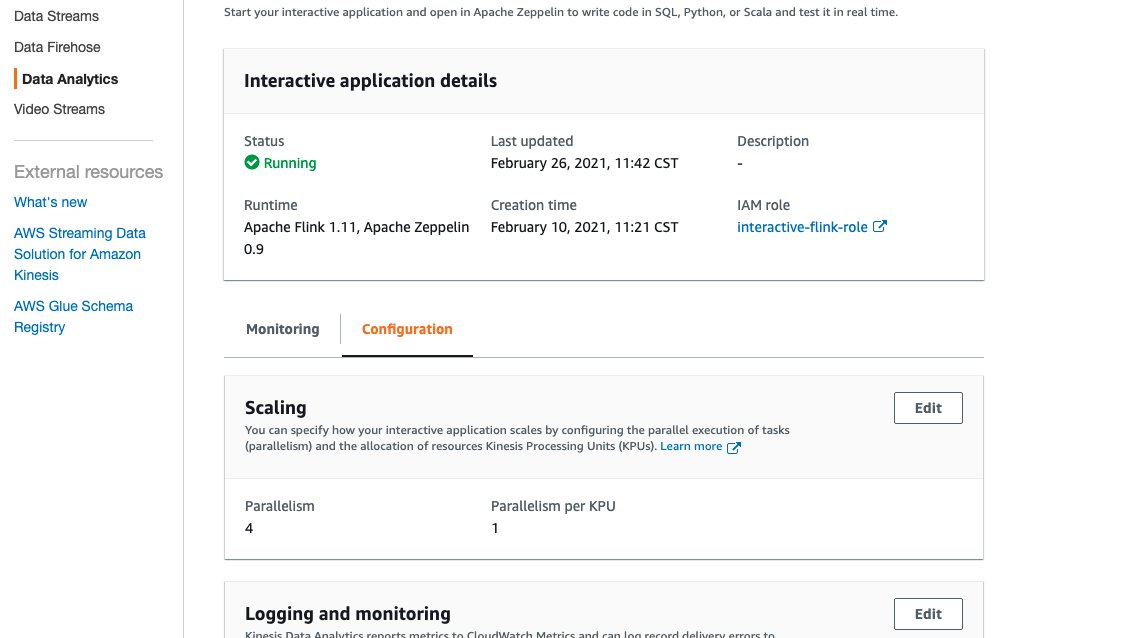
Managed Service for Apache Flink applications are comprised of Kinesis Processing Units (KPUs), which are compute instances composed of 1 virtual CPU and 4 GB of memory. The total number of KPUs assigned to the application is determined by multiplying two parameters that you control directly:

  • Parallelism – The level of parallel processing in the Apache Flink application
  • Parallelism per KPU – The number of resources dedicated to each parallelism

The number of KPUs is determined by the simple formula: KPU = Parallelism / ParallelismPerKPU, rounded up to the next integer.

An additional KPU per application is also charged for orchestration and not directly used for data processing.

The total number of KPUs determines the number of resources, CPU, memory, and application storage allocated to the application. For each KPU, the application receives 1 vCPU and 4 GB of memory, of which 3 GB are allocated by default to the running application and the remaining 1 GB is used for application state store management. Each KPU also comes with 50 GB of storage attached to the application. Apache Flink retains application state in-memory to a configurable limit, and spillover to the attached storage.

The third cost component is durable application backups, or snapshots. This is entirely optional and its impact on the overall cost is small, unless you retain a very large number of snapshots.

At the time of writing, each KPU in the US East (Ohio) AWS Region costs $0.11 per hour, and attached application storage costs $0.10 per GB per month. The cost of durable application backup (snapshots) is $0.023 per GB per month. Refer to Amazon Managed Service for Apache Flink Pricing for up-to-date pricing and different Regions.

The following diagram illustrates the relative proportions of cost components for a running application on Managed Service for Apache Flink. You control the number of KPUs via the parallelism and parallelism per KPU parameters. Durable application backup storage is not represented.

pricing model

In the following sections, we examine how to monitor your costs, optimize the usage of application resources, and find the required number of KPUs to handle your throughput profile.

AWS Cost Explorer and understanding your bill

To see what your current Managed Service for Apache Flink spend is, you can use AWS Cost Explorer.

On the Cost Explorer console, you can filter by date range, usage type, and service to isolate your spend for Managed Service for Apache Flink applications. The following screenshot shows the past 12 months of cost broken down into the price categories described in the previous section. The majority of spend in many of these months was from interactive KPUs from Amazon Managed Service for Apache Flink Studio.

Analyse the cost of your Apache Flink application with AWS Cost Explorer

Using Cost Explorer can not only help you understand your bill, but help further optimize particular applications that may have scaled beyond expectations automatically or due to throughput requirements. With proper application tagging, you could also break this spend down by application to see which applications account for the cost.

Signs of overprovisioning or inefficient use of resources

To minimize costs associated with Managed Service for Apache Flink applications, a straightforward approach involves reducing the number of KPUs your applications use. However, it’s crucial to recognize that this reduction could adversely affect performance if not thoroughly assessed and tested. To quickly gauge whether your applications might be overprovisioned, examine key indicators such as CPU and memory usage, application functionality, and data distribution. However, although these indicators can suggest potential overprovisioning, it’s essential to conduct performance testing and validate your scaling patterns before making any adjustments to the number of KPUs.

Metrics

Analyzing metrics for your application on Amazon CloudWatch can reveal clear signals of overprovisioning. If the containerCPUUtilization and containerMemoryUtilization metrics consistently remain below 20% over a statistically significant period for your application’s traffic patterns, it might be viable to scale down and allocate more data to fewer machines. Generally, we consider applications appropriately sized when containerCPUUtilization hovers between 50–75%. Although containerMemoryUtilization can fluctuate throughout the day and be influenced by code optimization, a consistently low value for a substantial duration could indicate potential overprovisioning.

Parallelism per KPU underutilized

Another subtle sign that your application is overprovisioned is if your application is purely I/O bound, or only does simple call-outs to databases and non-CPU intensive operations. If this is the case, you can use the parallelism per KPU parameter within Managed Service for Apache Flink to load more tasks onto a single processing unit.

You can view the parallelism per KPU parameter as a measure of density of workload per unit of compute and memory resources (the KPU). Increasing parallelism per KPU above the default value of 1 makes the processing more dense, allocating more parallel processes on a single KPU.

The following diagram illustrates how, by keeping the application parallelism constant (for example, 4) and increasing parallelism per KPU (for example, from 1 to 2), your application uses fewer resources with the same level of parallel runs.

How KPUs are calculated

The decision of increasing parallelism per KPU, like all recommendations in this post, should be taken with great care. Increasing the parallelism per KPU value can put more load on a single KPU, and it must be willing to tolerate that load. I/O-bound operations will not increase CPU or memory utilization in any meaningful way, but a process function that calculates many complex operations against the data would not be an ideal operation to collate onto a single KPU, because it could overwhelm the resources. Performance test and evaluate if this is a good option for your applications.

How to approach sizing

Before you stand up a Managed Service for Apache Flink application, it can be difficult to estimate the number of KPUs you should allocate for your application. In general, you should have a good sense of your traffic patterns before estimating. Understanding your traffic patterns on a megabyte-per-second ingestion rate basis can help you approximate a starting point.

As a general rule, you can start with one KPU per 1 MB/s that your application will process. For example, if your application processes 10 MB/s (on average), you would allocate 10 KPUs as a starting point for your application. Keep in mind that this is a very high-level approximation that we have seen effective for a general estimate. However, you also need to performance test and evaluate whether or not this is an appropriate sizing in the long term based on metrics (CPU, memory, latency, overall job performance) over a long period of time.

To find the appropriate sizing for your application, you need to scale up and down the Apache Flink application. As mentioned, in Managed Service for Apache Flink you have two separate controls: parallelism and parallelism per KPU. Together, these parameters determine the level of parallel processing within the application and the overall compute, memory, and storage resources available.

The recommended testing methodology is to change parallelism or parallelism per KPU separately, while experimenting to find the right sizing. In general, only change parallelism per KPU to increase the number of parallel I/O-bound operations, without increasing the overall resources. For all other cases, only change parallelism—KPU will change consequentially—to find the right sizing for your workload.

You can also set parallelism at the operator level to restrict sources, sinks, or any other operator that might need to be restricted and independent of scaling mechanisms. You could use this for an Apache Flink application that reads from an Apache Kafka topic that has 10 partitions. With the setParallelism() method, you could restrict the KafkaSource to 10, but scale the Managed Service for Apache Flink application to a parallelism higher than 10 without creating idle tasks for the Kafka source. It is recommended for other data processing cases to not statically set operator parallelism to a static value, but rather a function of the application parallelism so that it scales when the overall application scales.

Scaling and auto scaling

In Managed Service for Apache Flink, modifying parallelism or parallelism per KPU is an update of the application configuration. It causes the application to automatically take a snapshot (unless disabled), stop the application, and restart it with the new sizing, restoring the state from the snapshot. Scaling operations don’t cause data loss or inconsistencies, but it does pause data processing for a short period of time while infrastructure is added or removed. This is something you need to consider when rescaling in a production environment.

During the testing and optimization process, we recommend disabling automatic scaling and modifying parallelism and parallelism per KPU to find the optimal values. As mentioned, manual scaling is just an update of the application configuration, and can be run via the AWS Management Console or API with the UpdateApplication action.

When you have found the optimal sizing, if you expect your ingested throughput to vary considerably, you may decide to enable auto scaling.

In Managed Service for Apache Flink, you can use multiple types of automatic scaling:

  • Out-of-the-box automatic scaling – You can enable this to adjust the application parallelism automatically based on the containerCPUUtilization metric. Automatic scaling is enabled by default on new applications. For details about the automatic scaling algorithm, refer to Automatic Scaling.
  • Fine-grained, metric-based automatic scaling – This is straightforward to implement. The automation can be based on virtually any metrics, including custom metrics your application exposes.
  • Scheduled scaling – This may be useful if you expect peaks of workload at given times of the day or days of the week.

Out-of-the-box automatic scaling and fine-grained metric-based scaling are mutually exclusive. For more details about fine-grained metric-based auto scaling and scheduled scaling, and a fully working code example, refer to Enable metric-based and scheduled scaling for Amazon Managed Service for Apache Flink.

Code optimizations

Another way to approach cost savings for your Managed Service for Apache Flink applications is through code optimization. Un-optimized code will require more machines to perform the same computations. Optimizing the code could allow for lower overall resource utilization, which in turn could allow for scaling down and cost savings accordingly.

The first step to understanding your code performance is through the built-in utility within Apache Flink called Flame Graphs.

Flame graph

Flame Graphs, which are accessible via the Apache Flink dashboard, give you a visual representation of your stack trace. Each time a method is called, the bar that represents that method call in the stack trace gets larger proportional to the total sample count. This means that if you have an inefficient piece of code with a very long bar in the flame graph, this could be cause for investigation as to how to make this code more efficient. Additionally, you can use Amazon CodeGuru Profiler to monitor and optimize your Apache Flink applications running on Managed Service for Apache Flink.

When designing your applications, it is recommended to use the highest-level API that is required for a particular operation at a given time. Apache Flink offers four levels of API support: Flink SQL, Table API, Datastream API, and ProcessFunction APIs, with increasing levels of complexity and responsibility. If your application can be written entirely in the Flink SQL or Table API, using this can help take advantage of the Apache Flink framework rather than managing state and computations manually.

Data skew

On the Apache Flink dashboard, you can gather other useful information about your Managed Service for Apache Flink jobs.

Open the Flink Dashboard

On the dashboard, you can inspect individual tasks within your job application graph. Each blue box represents a task, and each task is composed of subtasks, or distributed units of work for that task. You can identify data skew among subtasks this way.

Flink dashboard

Data skew is an indicator that more data is being sent to one subtask than another, and that a subtask receiving more data is doing more work than the other. If you have such symptoms of data skew, you can work to eliminate it by identifying the source. For example, a GroupBy or KeyedStream could have a skew in the key. This would mean that data is not evenly spread among keys, resulting in an uneven distribution of work across Apache Flink compute instances. Imagine a scenario where you are grouping by userId, but your application receives data from one user significantly more than the rest. This can result in data skew. To eliminate this, you can choose a different grouping key to evenly distribute the data across subtasks. Keep in mind that this will require code modification to choose a different key.

When the data skew is eliminated, you can return to the containerCPUUtilization and containerMemoryUtilization metrics to reduce the number of KPUs.

Other areas for code optimization include making sure that you’re accessing external systems via the Async I/O API or via a data stream join, because a synchronous query out to a data store can create slowdowns and issues in checkpointing. Additionally, refer to Troubleshooting Performance for issues you might experience with slow checkpoints or logging, which can cause application backpressure.

How to determine if Apache Flink is the right technology

If your application doesn’t use any of the powerful capabilities behind the Apache Flink framework and Managed Service for Apache Flink, you could potentially save on cost by using something simpler.

Apache Flink’s tagline is “Stateful Computations over Data Streams.” Stateful, in this context, means that you are using the Apache Flink state construct. State, in Apache Flink, allows you to remember messages you have seen in the past for longer periods of time, making things like streaming joins, deduplication, exactly-once processing, windowing, and late-data handling possible. It does so by using an in-memory state store. On Managed Service for Apache Flink, it uses RocksDB to maintain its state.

If your application doesn’t involve stateful operations, you may consider alternatives such as AWS Lambda, containerized applications, or an Amazon Elastic Compute Cloud (Amazon EC2) instance running your application. The complexity of Apache Flink may not be necessary in such cases. Stateful computations, including cached data or enrichment procedures requiring independent stream position memory, may warrant Apache Flink’s stateful capabilities. If there’s a potential for your application to become stateful in the future, whether through prolonged data retention or other stateful requirements, continuing to use Apache Flink could be more straightforward. Organizations emphasizing Apache Flink for stream processing capabilities may prefer to stick with Apache Flink for stateful and stateless applications so all their applications process data in the same way. You should also factor in its orchestration features like exactly-once processing, fan-out capabilities, and distributed computation before transitioning from Apache Flink to alternatives.

Another consideration is your latency requirements. Because Apache Flink excels at real-time data processing, using it for an application with a 6-hour or 1-day latency requirement does not make sense. The cost savings by switching to a temporal batch process out of Amazon Simple Storage Service (Amazon S3), for example, would be significant.

Conclusion

In this post, we covered some aspects to consider when attempting cost-savings measures for Managed Service for Apache Flink. We discussed how to identify your overall spend on the managed service, some useful metrics to monitor when scaling down your KPUs, how to optimize your code for scaling down, and how to determine if Apache Flink is right for your use case.

Implementing these cost-saving strategies not only enhances your cost efficiency but also provides a streamlined and well-optimized Apache Flink deployment. By staying mindful of your overall spend, using key metrics, and making informed decisions about scaling down resources, you can achieve a cost-effective operation without compromising performance. As you navigate the landscape of Apache Flink, constantly evaluating whether it aligns with your specific use case becomes pivotal, so you can achieve a tailored and efficient solution for your data processing needs.

If any of the recommendations discussed in this post resonate with your workloads, we encourage you to try them out. With the metrics specified, and the tips on how to understand your workloads better, you should now have what you need to efficiently optimize your Apache Flink workloads on Managed Service for Apache Flink. The following are some helpful resources you can use to supplement this post:


About the Authors

Jeremy BerJeremy Ber has been working in the telemetry data space for the past 10 years as a Software Engineer, Machine Learning Engineer, and most recently a Data Engineer. At AWS, he is a Streaming Specialist Solutions Architect, supporting both Amazon Managed Streaming for Apache Kafka (Amazon MSK) and Amazon Managed Service for Apache Flink.

Lorenzo NicoraLorenzo Nicora works as Senior Streaming Solution Architect at AWS, helping customers across EMEA. He has been building cloud-native, data-intensive systems for over 25 years, working in the finance industry both through consultancies and for FinTech product companies. He has leveraged open-source technologies extensively and contributed to several projects, including Apache Flink.
Real-time inference using deep learning within Amazon Kinesis Data Analytics for Apache Flink

Post Syndicated from Jeremy Ber original https://aws.amazon.com/blogs/big-data/real-time-inference-using-deep-learning-within-amazon-kinesis-data-analytics-for-apache-flink/

Apache Flink is a framework and distributed processing engine for stateful computations over data streams. Amazon Kinesis Data Analytics for Apache Flink is a fully managed service that enables you to use an Apache Flink application to process streaming data. The Deep Java Library (DJL) is an open-source, high-level, engine-agnostic Java framework for deep learning.

In this blog post, we demonstrate how you can use DJL within Kinesis Data Analytics for Apache Flink for real-time machine learning inference. Real-time inference can be valuable in a variety of applications and industries where it is essential to make predictions or take actions based on new data as quickly as possible with low latencies. We show how to load a pre-trained deep learning model from the DJL model zoo into a Flink job and apply the model to classify data objects in a continuous data stream. The DJL model zoo includes a wide variety of pre-trained models for image classification, semantic segmentation, speech recognition, text embedding generation, question answering, and more. It supports HuggingFace, Pytorch, MXNet, and TensorFlow model frameworks and also helps developers create and publish their own models. We will focus on image classification and use a popular classifier called ResNet-18 to produce predictions in real time. The model has been pre-trained on ImageNet with 1.2 million images belonging to 1,000 class labels.

We provide sample code, architecture diagrams, and an AWS CloudFormation template so you can follow along and employ ResNet-18 as your classifier to make real-time predictions. The solution we provide here is a powerful design pattern for continuously producing ML-based predictions on streaming data within Kinesis Data Analytics for Apache Flink. You can adapt the provided solution for your use case and choose an alternative model from the model zoo or even provide your own model.

Image classification is a classic problem that takes an image and selects the best-fitting class, such as whether the image from an autonomous driving system is that of a bicycle or a pedestrian. Common use cases for real-time inference on streams of images include classifying images from vehicle cameras and license plate recognition systems, and classifying images uploaded to social media and ecommerce websites. The use cases typically need low latency while handling high throughput and potentially bursty streams. For example, in ecommerce websites, real-time classification of uploaded images can help in marking pictures of banned goods or hazardous materials that have been supplied by sellers. Immediate determination through streaming inference is needed to trigger alerts and follow-up actions to prevent these images from being part of the catalog. This enables faster decision-making compared to batch jobs that run on a periodic basis. The data stream pipeline can involve multiple models for different purposes, such as classifying uploaded images into ecommerce categories of electronics, toys, fashion, and so on.

Solution overview

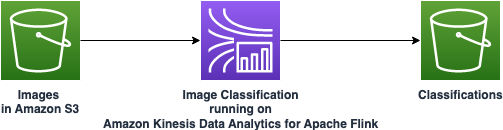
The following diagram illustrates the workflow of our solution.

architecture showcasing a kinesis data analytics for apache flink application reading from Images in an Amazon S3 bucket, classifying those images and then writing out to another S3 bucket called "classifications"

The application performs the following steps:

  1. Read in images from Amazon Simple Storage Service (Amazon S3) using the Apache Flink Filesystem File Source connector.
  2. Window the images into a collection of records.
  3. Classify the batches of images using the DJL image classification class.
  4. Write inference results to Amazon S3 at the path specified.

Images are recommended to be of reasonable size so that they may fit into a Kinesis Processing Unit. Images larger than 50MB in size may result in latency in processing and classification.

The main class for this Apache Flink job is located at src/main/java/com.amazon.embeddedmodelinference/EMI.java. Here you can find the main() method and entry point to our Flink job.

Prerequisites

To get started, configure the following prerequisites on your local machine:

Once this is set up, you can clone the code base to access the source code for this solution. The Java application code for this example is available on GitHub. To download the application code, clone the remote repository using the following command:

git clone https://github.com/aws-samples/amazon-kinesis-data-analytics-examples

Find and navigate to the folder of the image classification example, called image-classification.

An example set of images to stream and test the code is available in the imagenet-sample-images folder.

Let’s walk through the code step by step.

Test on your local machine

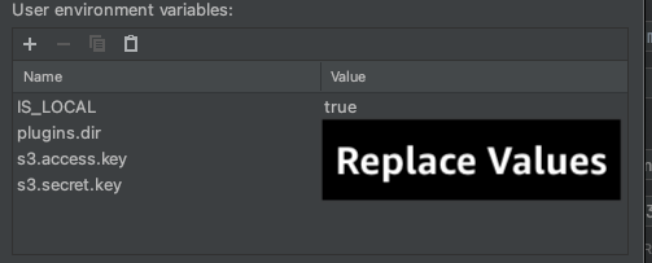
If you would like to test this application locally on your machine, ensure you have AWS credentials set up locally on your machine. Additionally, download the Flink S3 Filesystem Hadoop JAR to use with your Apache Flink installation and place it in a folder named plugins/s3 in the root of your project. Then configure the following environment variables either on your IDE or in your machine’s local variable scope:

IS_LOCAL=true;
plugins.dir=<<path-to-flink-s3-fs-hadoop jar>>
s3.access.key=<<aws access key>>
s3.secret.key=<<aws secret key>>

Replace these values with your own.showcasing the environment properties to replace on IntelliJ

After configuring the environment variables and downloading the necessary plugin JAR, let’s look at the code.

In the main method, after setting up our StreamExecutionEnvironment, we define our FileSource to read files from Amazon S3. By default, this source operator reads from a sample bucket. You can replace this bucket name with your own by changing the variable called bucket, or setting the application property on Kinesis Data Analytics for Apache Flink once deployed.

final FileSource<StreamedImage> source =
FileSource.forRecordStreamFormat(new ImageReaderFormat(), new Path(s3SourcePath))
               .monitorContinuously(Duration.ofSeconds(10))
               .build();

The FileSource is configured to read in files in the ImageReaderFormat, and will check Amazon S3 for new images every 10 seconds. This can be configured as well.

After we have read in our images, we convert our FileSource into a stream that can be processed:

DataStream<StreamedImage> stream =
env.fromSource(source, WatermarkStrategy.noWatermarks(), "file-source");

Next, we create a tumbling window of a variable time window duration, specified in the configuration, defaulting to 60 seconds. Every window close creates a batch (list) of images to be classified using a ProcessWindowFunction.

This ProcessWindowFunction calls the classifier predict function on the list of images and returns the best probability of classification from each image. This result is then sent back to the Flink operator, where it’s promptly written out to the S3 bucket path of your configuration.

.process(new ProcessWindowFunction<StreamedImage, String, String, TimeWindow>() {
                    @Override
                    public void process(String s,
                                        ProcessWindowFunction<StreamedImage, String, String, TimeWindow>.Context context,
                                        Iterable<StreamedImage> iterableImages,
                                        Collector<String> out) throws Exception {


                            List<Image> listOfImages = new ArrayList<Image>();
                            iterableImages.forEach(x -> {
                                listOfImages.add(x.getImage());
                            });
                        try
                        {
                            // batch classify images
                            List<Classifications> list = classifier.predict(listOfImages);
                            for (Classifications classifications : list) {
                                Classifications.Classification cl = classifications.best();
                                String ret = cl.getClassName() + ": " + cl.getProbability();
                                out.collect(ret);
                            }
                        } catch (ModelException | IOException | TranslateException e) {
                            logger.error("Failed predict", e);
                        }
                        }
                    });

In Classifier.java, we read the image and apply crop, transpose, reshape, and finally convert to an N-dimensional array that can be processed by the deep learning model. Then we feed the array to the model and apply a forward pass. During the forward pass, the model computes the neural network layer by layer. At last, the output object contains the probabilities for each image object that the model is being trained on. We map the probabilities with the object name and return to the map function.

Deploy the solution with AWS CloudFormation

To run this code base on Kinesis Data Analytics for Apache Flink, we have a helpful CloudFormation template that will spin up the necessary resources. Simply open AWS CloudShell or your local machine’s terminal and enter the following commands. Complete the following steps to deploy the solution:

  1. If you don’t have the AWS Cloud Development Kit (AWS CDK) bootstrapped in your account, run the following command, providing your account number and current Region:
cdk bootstrap aws://ACCOUNT-NUMBER/REGION

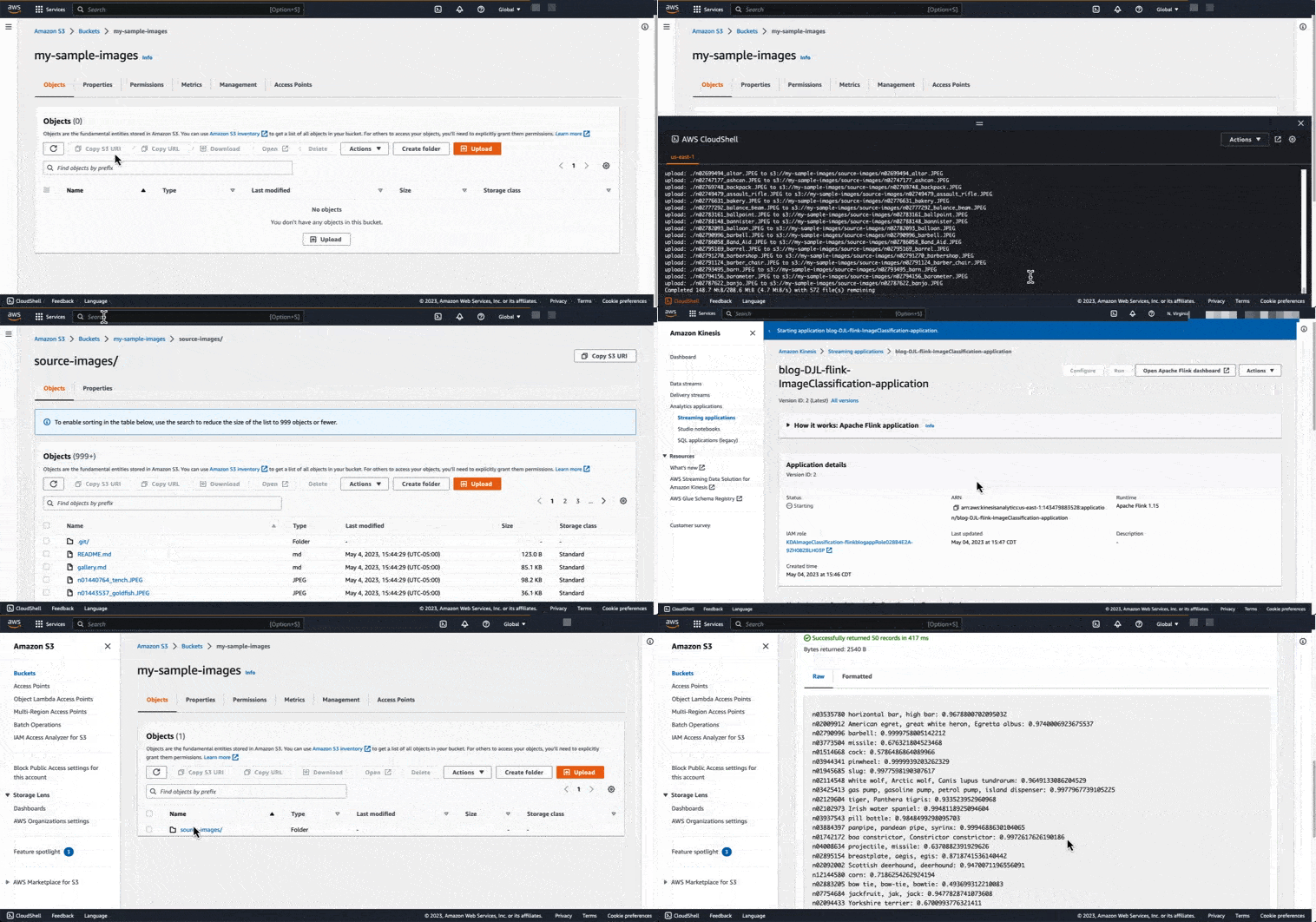
The script will clone a GitHub repo of images to classify and upload them to your source S3 bucket. Then it will launch the CloudFormation stack given your input parameters. video walking through the setup of the cloudformation template. Described in text later

  1. Enter the following code and replace the BUCKET variables with your own source bucket and sink bucket, which will contain the source images and the classifications, respectively:
export SOURCE_BUCKET=s3://SAMPLE-BUCKET/PATH;
export SINK_BUCKET=s3://SAMPLE_BUCKET/PATH;
git clone https://github.com/EliSchwartz/imagenet-sample-images; cd imagenet-sample-images;
aws s3 cp . $SOURCE_BUCKET --recursive --exclude "*/";
aws cloudformation create-stack --stack-name KDAImageClassification --template-url https://aws-blogs-artifacts-public.s3.amazonaws.com/artifacts/BDB-3098/BlogStack.template.json --parameters ParameterKey=inputBucketPath,ParameterValue=$SOURCE_BUCKET ParameterKey=outputBucketPath,ParameterValue=$SINK_BUCKET --capabilities CAPABILITY_IAM;

This CloudFormation stack creates the following resources:

    • A Kinesis Data Analytics application with 1 Kinesis Processing Unit (KPU) preconfigured with some application properties
    • An S3 bucket for your output results
  1. When the stack is complete, navigate to the Kinesis Data Analytics for Apache Flink console.
  2. Find the application called blog-DJL-flink-ImageClassification-application and choose Run.
  3. On the Amazon S3 console, navigate to the bucket you specified in the outputBucketPath variable.

If you have readable images in the source bucket listed, you should see classifications of those images within the checkpoint interval of the running application.

Deploy the solution manually

If you prefer to use your own code base, you can follow the manual steps in this section:

  • After you clone the application locally, create your application JAR by navigating to the directory that contains your pom.xml and running the following command:
mvn clean package

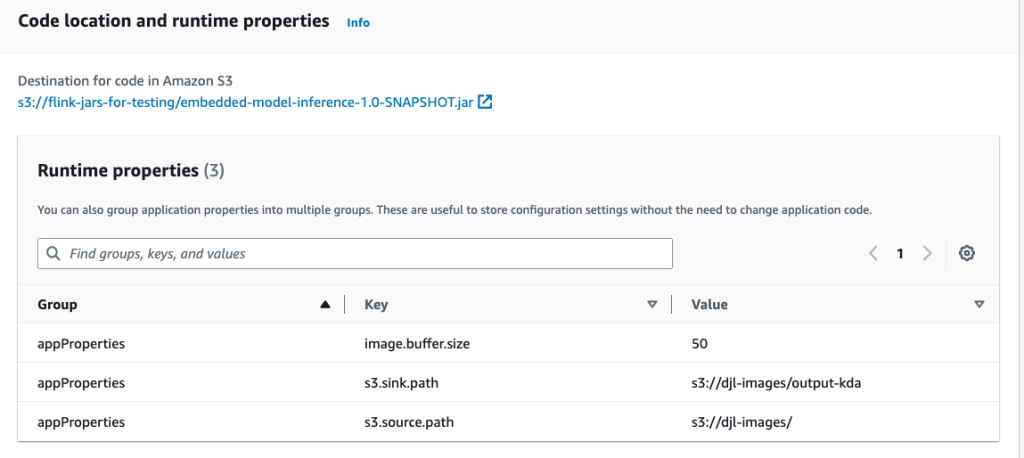
This builds your application JAR in the target/ directory called embedded-model-inference-1.0-SNAPSHOT.jar.

application properties on KDA console

  1. Upload this application JAR to an S3 bucket, either the one created from the CloudFormation template, or another one to store code artifacts.
  2. You can then configure your Kinesis Data Analytics application to point to this newly uploaded S3 JAR file.
  3. This is also a great opportunity to configure your runtime properties, as shown in the following screenshot.
  4. Choose Run to start your application.

You can open the Apache Flink Dashboard to check for application exceptions or to see data flowing through the tasks defined in the code.

image of flink dashboard showing successful running of the application

Validate the results

To validate our results, let’s check the results in Amazon S3 by navigating to the Amazon S3 console and finding our S3 bucket. We can find the output in a folder called output-kda.

image showing folders within amazon s3 partitioned by datetime

When we choose one of the data-partitioned folders, we can see partition files. Ensure that there is no underscore in front of your part file, because this indicates that the results are still being finalized according to the rollover interval defined in Apache Flink’s FileSink connector. After the underscores have disappeared, we can use Amazon S3 Select to view our data.

partition files as they land in Amazon S3

We now have a solution that continuously performs classification on incoming images in real time using Kinesis Data Analytics for Apache Flink. It extracts a pre-trained classification model (ResNet-18) from the DJL model zoo, applies some preprocessing, loads the model into a Flink operator’s memory, and continuously applies the model for online predictions on streaming images.

Although we used ResNet-18 in this post, you can choose another model by modifying the classifier. The DJL model zoo provides many other models, both for classification and other applications, that can be used out of the box. You can also load your custom model by providing an S3 link or URL to the criteria. DJL supports models in a large number of engines such as PyTorch, ONNX, TensorFlow, and MXNet. Using a model in the solution is relatively simple. All of the preprocessing and postprocessing code is encapsulated in the (built-in) translator, so all we have to do is load the model, create a predictor, and call predict(). This is done within the data source operator, which processes the stream of input data and sends the links to the data to the inference operator where the model you selected produces the prediction. Then the sink operator writes the results.

The CloudFormation template in this example focused on a simple 1 KPU application. You could extend the solution to further scale out to large models and high-throughput streams, and support multiple models within the pipeline.

Clean up

To clean up the CloudFormation script you launched, complete the following steps:

  1. Empty the source bucket you specified in the bash script.
  2. On the AWS CloudFormation console, locate the CloudFormation template called KDAImageClassification.
  3. Delete the stack, which will remove all of the remaining resources created for this post.
  4. You may optionally delete the bootstrapping CloudFormation template, CDKToolkit, which you launched earlier as well.

Conclusion

In this post, we presented a solution for real-time classification using the Deep Java Library within Kinesis Data Analytics for Apache Flink. We shared a working example and discussed how you can adapt the solution for your specific ML use case. If you have any feedback or questions, please leave them in the comments section.


About the Authors

Jeremy Ber has been working in the telemetry data space for the past 9 years as a Software Engineer, Machine Learning Engineer, and most recently a Data Engineer. At AWS, he is a Streaming Specialist Solutions Architect, supporting both Amazon Managed Streaming for Apache Kafka (Amazon MSK) and AWS’s managed offering for Apache Flink.

Deepthi Mohan is a Principal Product Manager for Amazon Kinesis Data Analytics, AWS’s managed offering for Apache Flink.

Gaurav Rele is a Data Scientist at the Amazon ML Solution Lab, where he works with AWS customers across different verticals to accelerate their use of machine learning and AWS Cloud services to solve their business challenges.

Build highly available streams with Amazon Kinesis Data Streams

Post Syndicated from Jeremy Ber original https://aws.amazon.com/blogs/big-data/build-highly-available-streams-with-amazon-kinesis-data-streams/

Many use cases are moving towards a real-time data strategy due to demand for real-time insights, low-latency response times, and the ability to adapt to the changing needs of end-users. For this type of workload, you can use Amazon Kinesis Data Streams to seamlessly provision, store, write, and read data in a streaming fashion. With Kinesis Data Streams, there are no servers to manage, and you can scale your stream to handle any additional throughput as it comes in.

Kinesis Data Streams offers 99.9% availability in a single AWS Region. For even higher availability, there are several strategies to explore within the streaming layer. This post compares and contrasts different strategies for creating a highly available Kinesis data stream in case of service interruptions, delays, or outages in the primary Region of operation.

Considerations for high availability

Before we dive into our example use case, there are several considerations to keep in mind when designing a highly available Kinesis Data Streams workload that relate to the business need for a particular pipeline:

  • Recovery Time Objective (RTO) is defined by the organization. RTO is the maximum acceptable delay between the interruption of service and restoration of service. This determines what is considered an acceptable time window when service is unavailable.
  • Recovery Point Objective (RPO) is defined by the organization. RPO is the maximum acceptable amount of time since the last data recovery point. This determines what is considered an acceptable loss of data between the last recovery point and the interruption of service.

In a general sense, the lower your values for RPO and RTO, the more expensive the overall solution becomes. This is because the solution needs to account for minimizing both data loss and service unavailability by having multiple instances of the service up and running in multiple Regions. This is why a big piece of high availability is the replication of data flowing through a workload. In our case, the data is replicated across Regions of Kinesis Data Streams. Conversely, the higher the RPO and RTO values are, the more complexity you introduce into your failover mechanism. This is due to the fact that the cost savings you realize by not standing up multiple instances across multiple Regions are offset by the orchestration needed to spin up these instances in the event of an outage.

In this post, we are only covering failover of a Kinesis data stream. In use cases where higher availability is required across the entire data pipeline, having failover architectures for every component (Amazon API Gateway, AWS Lambda, Amazon DynamoDB) is strongly encouraged.

The simplest approach to high availability is to start a new instance of producers, consumers, and data streams in a new Region upon service unavailability detection. The benefit here is primarily cost, but your RPO and RTO values will be higher as a result.

We cover the following strategies for highly available Kinesis Data Streams:

  • Warm standy – An architecture in which there is active replication of data from the Kinesis data stream in Region A to Region B. Consumers of the data stream are running in both Regions at all times. Recommended for use cases that can’t withstand extended downtime past their replication lag.
  • Cold standby – Active replication of data from the data stream in Region A to Region B, but consumers of the data stream in Region B are spun up when an outage in Region A is detected. Recommended for use cases that can afford some downtime as infrastructure is spun up in secondary Region. In this scenario, RPO will be similar to the warm standby strategy; however, RTO will increase.

For high availability purposes, these use cases need to replicate the data across Regions in a way that allows consumers and producers of the data stream to fail over quickly upon detection of a service unavailability and utilize the secondary Region’s stream. Let’s take an example architecture to further explain these DR strategies. We use API Gateway and Lambda to publish stock ticker information to a Kinesis data stream. The data is then retrieved by another Lambda consumer to save durably into DynamoDB for querying, alerting, and reporting. The following diagram illustrates this architecture.

the primary architecture for the post--showcasing data coming from a mobile phone to API Gateway, then AWS Lambda, then Kinesis Data Streams, Lambda again and finally publishing to a DynamoDB Table

We use this architecture with an example use case requiring the streaming workload to be highly available in the event of a Region outage. The customer can withstand an RTO of 15 minutes during an outage, because they refresh end-users’ dashboards on a 15-minute interval. The customer is sensitive to downtime and data loss, because their data will be used for historical auditing purposes, operational metrics, and dashboards for end-users. Downtime for this customer means that data isn’t able to be persisted in their database from their streaming layer, and therefore unavailable to any consuming application. For this use case, data can be retried up to 5 minutes from our Lambda function before failing over to the new Region. Consumers are considered unavailable when the stream is unavailable, and can scale up in the secondary Region to account for any backlog of events.

How might we approach making a Kinesis data stream highly available for this use case?

Warm standby pattern

The following architecture diagram illustrates the warm standby high availability pattern for Kinesis Data Streams.

warm standby pattern showcasing data being replicated between a kinesis data stream in one region to another

image showcasing the warm standby failover--where data from first lambda begins replicating to secondary region KDA

The warm standby architectural pattern involves running a Kinesis data stream both in the primary and secondary Region, along with consumers and downstream destinations of the primary Region’s streaming layer being replicated as well. Sources are configured to automatically fail over to the secondary Region in the case of service unavailability in the first Region. We dive into details of how to achieve this in the client failover section of this post. Data is replicated across Regions from the data stream in the primary Region to the secondary Region. This is done instead of having the sources publish to both Regions to avoid any consistency issues between the streams in the two Regions.

Although this architectural pattern gives very high availability, it’s also the most expensive option because we’re duplicating virtually the entire streaming layer across two Regions. For business use cases that can’t withstand extended data loss or withstand downtime, this may be the best option for them. From an RTO perspective, this architectural pattern ensures there will be no downtime. There is some nuance in the RPO metric in that it depends heavily on the replication lag. In the event of the primary stream becoming unavailable, whatever data hasn’t yet been replicated may be unavailable in the secondary Region. This data won’t be considered lost, but may be unavailable for consumption until the primary stream becomes available again. This method also can result in events being out of order.

For business needs that can’t tolerate this level of record unavailability, consider retaining data on the producer for the purposes of publishing to an available stream when available, or rewinding against the source for the producer if possible so that data stuck in the primary Region can be resent to the secondary stream upon failover. We cover this consideration in the client failover section of this post.

Cold standby pattern

The following architecture diagram illustrates the cold standby high availability pattern for Kinesis Data Streams.

active passive pattern for kinesis data streams

The cold standby architectural pattern involves running a data stream both in the primary and secondary Region, and spinning up the downstream resources like a stream consumer and destination for streams when a service interruption is detected—passive mode. Just like the warm standby pattern, sources are configured to automatically fail over to the secondary Region in the case of service unavailability in the first Region. Likewise, data is replicated across Regions from the data stream in the primary Region to the secondary Region.

The primary benefit this architectural pattern provides is cost efficiency. By not running consumers at all times, this effectively reduces your costs significantly compared to the warm standby pattern. However, this pattern may introduce some data unavailability for downstream systems while the secondary Region infrastructure is provisioned. Additionally, depending on replication lag, some records may be unavailable, as discussed in the warm standby pattern. It should be noted that depending on how long it takes to spin up resources, it may take some time for consumers to reprocess the data in the secondary Region, and latency can be introduced when failing over. Our implementation assumes a minimal replication lag and that downstream systems have the ability to reprocess a configurable amount of data to catch up to the tip of the stream. We discuss approaches to spinning these resources up in the client failover section, but one possible approach to this would be using an AWS CloudFormation template that spins these resources up on service unavailability detection.

For business needs that can tolerate some level of data unavailability and can accept interruptions while the new infrastructure in the secondary Region is spun up, this is an option to consider both from a cost perspective and an RPO/RTO perspective. The complexity of spinning up resources upon detecting service unavailability is offset by the lower cost of the overall solution.

Which pattern makes sense for our use case?

Let’s revisit the use case described earlier to identify which of the strategies best meets our needs. We can extract the pieces of information from the customer’s problem statement to identify that they need a high availability architecture that:

  • Can’t withstand extended amounts of data loss
  • Must resume operations within 15 minutes of service interruption identification

This criterion tells us that their RPO is close to zero, and their RTO is 15 minutes. From here, we can determine that the cold standby architecture with data replication provides us limited data loss, and the maximum downtime will be determined by the time it takes to provision consumers and downstream destinations in the secondary Region.

Let’s dive deeper into the implementation details of each of the core phases of high availability, including an implementation guide for our use case.

Launch AWS CloudFormation resources

If you want to follow along with our code samples, you can launch the following CloudFormation stack and follow the instructions in order to simulate the cold standby architecture referenced in this post.

Launch Stack

For purposes of the Kinesis Data Streams high availability setup demo, we use us-west-2 as the primary Region and us-east-2 as the failover Region. While deploying this solution in your own account, you can choose your own primary and failover Regions.

  1. Deploy the supplied CloudFormation template in failover Region us-east-2.

Make sure you specify us-east-2 as the value for the FailoverRegion parameter in the CloudFormation template.

  1. Deploy the supplied CloudFormation template in primary Region us-west-2.

Make sure you specify us-east-2 as the value for the FailoverRegion parameter in the CloudFormation template.

In steps 1 and 2, we deployed the following resources in the primary and failover Regions:

  1. KDS-HA-Stream – AWS::Kinesis::Stream (primary and failover Region)
  2. KDS-HA-ProducerLambda – AWS::Lambda::Function (primary Region)
  3. KDS-HA-ConsumerLambda – AWS::Lambda::Function (primary and failover Region)
  4. KDS-HA-ReplicationAgentLambda – AWS::Lambda::Function (primary Region)
  5. KDS-HA-FailoverLambda – AWS::Lambda::Function (primary Region)
  6. ticker-prices – AWS::DynamoDB::GlobalTable (primary and failover Region)

The KDS-HA-Stream Kinesis data stream is deployed in both Regions. An enhanced fan-out consumer of the KDS-HA-Stream stream KDS-HA-ReplicationAgentLambda in the primary Region is responsible for replicating messages to the data stream in the failover Region.

KDS-HA-ConsumerLambda is a Lambda function consuming messages out of the KDS-HA-Stream stream and persisting data into a DynamoDB table after preprocessing.

You can inspect the content of the ticker-prices DynamoDB table in the primary and failover Region. Note that last_updated_region attribute shows us-west-2 as its value because it’s the primary Region.

Replication

When deciding how to replicate data from a data stream in Region A to a data stream in Region B, there are several strategies that involve a consumer reading data off of the primary stream and sending that data cross-Region to the secondary data stream. This would act as a replicator service, responsible for copying the data between the two streams, maintaining a relatively low latency to replicate and ensuring data isn’t lost during this replication.

Because replication off of a shared throughput data stream could impact the flow of data in a production workload, we recommend using the enhanced fan-out feature of Kinesis Data Streams consumers to ensure replication doesn’t have an impact on consumption latency.

The replication strategy implemented in this post features asynchronous replication, meaning that the replication process doesn’t block any standard data flow in the primary stream. Synchronous replication would be a safer approach to guarantee replication and avoid data loss; however, this isn’t possible without a service-side implementation.

The following image shows a timeline of data flow for the cold standby architecture, with data being replicated as soon as it’s published.

Lambda replication

Lambda can treat a Kinesis data stream as an event source, which will funnel events from your data stream into a Lambda function. This Lambda function then receives and forwards these events across Regions to your data stream in a secondary Region. Lambda functions allow you to utilize best streaming practices such as retries of records that encounter errors, bisect on error functionality, and using the Lambda parallelization factor; using more instances of your Lambda function than you have available shards can help process records faster.

This Lambda function is at the crux of the architecture for high availability; it’s responsible solely for sending data across Regions, and it also has the best capability to monitor the replication progress. Important metrics to monitor for Lambda replication include IteratorAge, which indicates how old the last record in the batch was when it finished processing. A high IteratorAge value indicates that the Lambda function is falling behind and therefore is not keeping up with data ingestion for replication purposes. A high IteratorAge can lead to a higher RPO and the higher likelihood of data unavailability when a passive failover happens.

We use the following sample Lambda function in our CloudFormation template to replicate data across Regions:

import json
import boto3
import random
import os
import base64


def lambda_handler(event, context):
    client = boto3.client("kinesis", region_name=os.environ["FAILOVER_REGION"])
    records = []

    for record in event["Records"]:
        records.append(
            {
                "PartitionKey": record["kinesis"]["partitionKey"],
                "Data": base64.b64decode(record["kinesis"]["data"]).decode("utf-8"),
            }
        )
    response = client.put_records(Records=records, StreamName="KDS-HA-Stream")
    if response["FailedRecordCount"] > 0:
        print("Failed replicating data: " + json.dumps(response))
        raise Exception("Failed replicating data!")

The Lambda replicator in the CloudFormation template is configured to read from the data stream in the primary Region.

The following code contains the necessary AWS Identity and Access Management (IAM) permissions for Lambda, giving access for the Lambda function to assume this role. All actions are permitted on data streams and DynamoDB. In the principal of least privilege, it’s recommended to restrict this to the necessary streams in a production environment.

      AssumeRolePolicyDocument:
        Version: 2012-10-17
        Statement:
          - Effect: Allow
            Principal:
              Service:
                - lambda.amazonaws.com
            Action:
              - 'sts:AssumeRole'
      Path: /
      Policies:
        - PolicyName: root
          PolicyDocument:
            Version: 2012-10-17
            Statement:
              - Effect: Allow
                Action:
                  - 'kinesis:DescribeStream'
                  - 'kinesis:DescribeStreamSummary'
                  - 'kinesis:GetRecords'
                  - 'kinesis:GetShardIterator'
                  - 'kinesis:ListShards'
                  - 'kinesis:ListStreams'
                  - 'kinesis:SubscribeToShard'
                  - 'kinesis:PutRecords'
                Resource:
                  - 'arn:aws:kinesis:*:*:stream/KDS-HA-Stream'
                  - 'arn:aws:kinesis:*:*:stream/KDS-HA-Stream/consumer/KDS-HA-Stream-EFO-Consumer:*'
      ManagedPolicyArns:
        - 'arn:aws:iam::aws:policy/CloudWatchLogsFullAccess'
 

Health check

A generalized strategy for determining when to consider our data stream unavailable involves the use of Amazon CloudWatch metrics. We use the metrics coming off of our Lambda producer and consumer in order to assess the availability of our data stream. While producing to a data stream, an error might appear as one of the following responses back from the data stream: PutRecord or PutRecords returns an AmazonKinesisException 500 or AmazonKinesisException 503 error. When consuming from a data stream, an error might appear as one of the following responses back from the data stream: SubscribeToShard.Success or GetRecords returns an AmazonKinesisException 500 or AmazonKinesisException 503.

We can calculate our effective error rate based on PutRecord.Success and GetRecord.Success. An average error rate of 1% or higher over a time window of 5 minutes, for example, could indicate that there is an issue with the data stream, and we may want to fail over. In our CloudFormation template, this error rate threshold as well as time window are configurable, but by default we check for an error rate of 1% in the last 5 minutes to trigger a failover of our clients.

Client failover

When a data stream is deemed to be unreachable, we must now take action to keep our system available and reachable for clients on both ends of the interaction. This means for producers following the cold standby high availability architecture, we change the destination stream where the producer was writing. If high availability and failover of data producers and consumers isn’t a requirement of a given use case, a different architecture would be a better fit.

Prior to failover, the producer may have been delivering data to a stream in Region A, but we now automatically update the destination to be the stream in Region B. For different clients, the methodology of updating the producer will be different, but for ours, we store the active destination for producers in the Lambda environment variables from AWS CloudFormation and update our Lambda functions dynamically on health check failure scenarios.

For our use case, we use the maximum consumer lag time (iteratorAge) plus some buffer to influence the starting position of the failover consumer. This allows us to ensure that the consumer in the secondary Region doesn’t skip records that haven’t been processed in the originating Region, but some data overlap may occur. Note that some duplicates in the downstream system may be introduced, and having an idempotent sink or some method of handling duplicates must be implemented in order to avoid duplicate-related isssues.

In the case where data is successfully written to a data stream but is unable to be consumed from the stream, the data will not be replicated and therefore be unavailable in the second Region. The data will be durably stored in the primary data stream until it comes back online and can be read from. Note that if the stream is unavailable for a longer period of time than your total data retention period on the data stream, this data will be lost. Data retention for Kinesis Data Streams can be retrospectively increased up to 1 year.

For consumers in a cold standby architecture, upon failure detection, the consumer will be disabled or shut down, and the same consumer instance will be spun up in the secondary Region to consume from the secondary data stream. On the consumer side, we assume that the consumer application is stateless in our provided solution. If your application requires state, you can migrate or preload the application state via Amazon Simple Storage Service (Amazon S3) or a database. For a stateless application, the most important aspect of failover is the starting position.

In the following timeline, we can see that at some point, the stream in Region A was deemed unreachable.

The consumer application in Region A was reading data at time t10, and when it fails over to the secondary Region (B), it reads starting at t5 (5 minutes before the current iteratorAgeMilliseconds). This ensures that data isn’t skipped by the consumer application. Keep in mind that there may be some overlap in records in the downstream destinations.

In the provided cold standby AWS CloudFormation example, we can manually trigger a failover with the AWS Command Line Interface (AWS CLI). In the following code, we manually fail over to us-east-2:

aws lambda invoke --function-name KDS-HA-FailoverLambda --cli-binary-format raw-in-base64-out --payload '{}' response.json --region us-west-2

After a few minutes, you can inspect the content of the ticker-prices DynamoDB table in the primary and failover Region. Note that the last_updated_region attribute shows us-east-2 as its value because it’s failed over to the us-east-2 Region.

Failback

After an outage or service unavailability is deemed to be resolved, the next logical step is to reorient your clients back to their original operating Regions. Although it may be tempting to automate this procedure, a manual failback approach during off-business hours when minimal production disruption will take place makes more sense.

In the following images, we can visualize the timeline with which consumer applications are failed back to the original Region.

The producer switches back to the original Region, and we wait for the consumer in Region B to reach 0 lag. At this point, the consumer application in Region B is disabled, and replication to Region B is resumed. We have now returned to our normal state of processing messages as shown in the replication section of this post.

In our AWS CloudFormation setup, we perform a failback with the following steps:

  1. Re-enable the event source mapping and start consuming messages from the primary Region at the latest position:
aws lambda create-event-source-mapping --function-name KDS-HA-ConsumerLambda --batch-size 100 --event-source-arn arn:aws:kinesis:us-west-2:{{accountId}}:stream/KDS-HA-Stream --starting-position LATEST --region us-west-2
  1. Switch the producer back to the primary Region:
aws lambda update-function-configuration --function-name KDS-HA-ProducerLambda --environment "Variables={INPUT_STREAM=KDS-HA-Stream,PRODUCING_TO_REGION=us-west-2}" --region us-west-2
  1. In the failover Region (us-east-2), wait for your data stream’s GetRecords max iterator age (in milliseconds) CloudWatch metric to report 0 as a value. We’re waiting for the consumer Lambda function to catch up with all produced messages.
  2. Stop consuming messages from the failover Region.
  3. Run the following AWS CLI command and grab the UUID from the response, which we use to delete the existing event source mapping. Make sure you’re picking event source mapping for the Lambda function KDS-HA-ConsumerLambda.
aws lambda list-event-source-mappings --region us-east-2
aws lambda delete-event-source-mapping --uuid {{UUID}} --region us-east-2
  1. Restart the replication agent in the primary Region.
  2. Run following AWS CLI command, and capture ConsumerARN from the response:
aws kinesis list-stream-consumers --stream-arn arn:aws:kinesis:us-west-2:{{accountId}}:stream/KDS-HA-Stream --region us-west-2
aws lambda create-event-source-mapping --function-name KDS-HA-ReplicationAgentLambda --batch-size 100 --event-source-arn {{ConsumerARN}} --starting-position LATEST --region us-west-2

When this is complete, you can observe the same data stream metrics—the number of records in and out per second, consumer lag metrics, and number of errors as described in the health check section of this post—to ensure that each of the components has resumed processing data in the original Region. We can also take note of the data landing in DynamoDB, which displays which Region data is being updated from in order to determine the success of our failback procedure.

We recommend for any streaming workload that can’t withstand extended data loss or downtime to implement some form of cross-Region high availability in the unlikely event of service unavailability. These recommendations can help you determine which pattern is right for your use case.

Clean up

To avoid incurring future charges, complete the following steps:

  1. Delete the CloudFormation stack from primary Region us-west-2.
  2. Delete the CloudFormation stack from failover Region us-east-2.
  3. List all event source mappings in primary Region us-west-2 using the aws lambda list-event-source-mappings --region us-west-2 command and note the UUIDs of the event source mappings tied to the KDS-HA-ConsumerLambda and KDS-HA-ReplicationAgentLambda Lambda functions.
  4. Delete event source mappings in primary Region us-west-2 tied to the KDS-HA-ConsumerLambda and KDS-HA-ReplicationAgentLambda Lambda functions using the aws lambda delete-event-source-mapping --uuid {{UUID}} --region us-west-2 command and UUIDs noted in the previous step.

Conclusion

Building highly available Kinesis data streams across multiple Regions is multi-faceted, and all aspects of your RPO, RTO, and operational costs need to be carefully considered. The code and architecture discussed in this post is one of many different architectural patterns you can choose for your workloads, so make sure to choose the appropriate architecture based on the criteria for your specific requirements.

To learn more about Kinesis Data Streams, we have a getting started guide as well as a workshop to walk through all the integrations with Kinesis Data Streams. You can also contact your AWS Solutions Architects, who can be of assistance alongside your high availability journey.


About the Authors

Jeremy Ber has been working in the telemetry data space for the past 7 years as a Software Engineer, Machine Learning Engineer, and most recently a Data Engineer. In the past, Jeremy has supported and built systems that stream in terabytes of data per day, and process complex machine learning algorithms in real time. At AWS, he is a Senior Streaming Specialist Solutions Architect supporting both Amazon MSK and Amazon Kinesis.

Pratik Patel is a Sr Technical Account Manager and streaming analytics specialist. He works with AWS customers and provides ongoing support and technical guidance to help plan and build solutions using best practices, and proactively helps keep customer’s AWS environments operationally healthy.
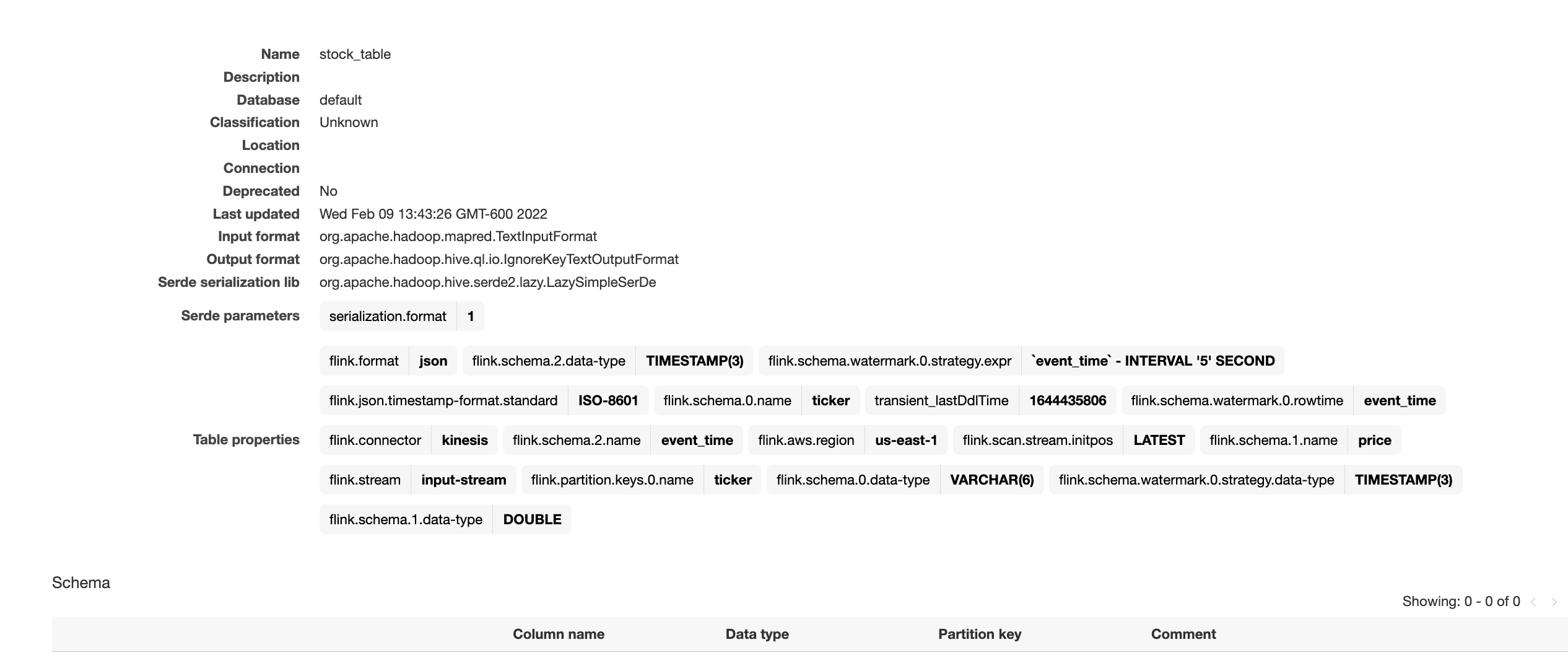
Query your data streams interactively using Kinesis Data Analytics Studio and Python

Post Syndicated from Jeremy Ber original https://aws.amazon.com/blogs/big-data/query-your-data-streams-interactively-using-kinesis-data-analytics-studio-and-python/

Amazon Kinesis Data Analytics Studio makes it easy for customers to analyze streaming data in real time, as well as build stream processing applications powered by Apache Flink using standard SQL, Python, and Scala. Just a few clicks in the AWS Management console lets customers launch a serverless notebook to query data streams and get results in seconds. Kinesis Data Analytics reduces the complexity of building and managing Apache Flink applications. Apache Flink is an open-source framework and engine for processing data streams. It’s highly available and scalable, and it delivers high throughput and low latency for stream processing applications.

Customers running Apache Flink workloads face the non-trivial challenge of developing their distributed stream processing applications without having true visibility into the steps conducted by their application for data processing. Kinesis Data Analytics Studio combines the ease-of-use of Apache Zeppelin notebooks, with the power of the Apache Flink processing engine, to provide advanced streaming analytics capabilities in a fully-managed offering. Furthermore, it accelerates developing and running stream processing applications that continuously generate real-time insights.

In this post, we will introduce you to Kinesis Data Analytics Studio and get started querying data interactively from an Amazon Kinesis Data Stream using the Python API for Apache Flink (Pyflink). We will use a Kinesis Data Stream for this example, as it is the quickest way to begin. Kinesis Data Analytics Studio is also compatible with Amazon Managed Streaming for Apache Kafka (Amazon MSK), Amazon Simple Storage Service (Amazon S3), and various other data sources supported by Apache Flink.

Prerequisites

  • Kinesis Data Stream
  • Data Generator

To follow this guide and interact with your streaming data, you will need a data stream with data flowing through.

Create a Kinesis Data Stream

You can create these streams using either the Amazon Kinesis console or the following AWS Command Line Interface (AWS CLI) command. For console instructions, see Creating and Updating Data Streams in the Kinesis Data Streams Developer Guide.

To create the data stream, use the following Kinesis create-stream AWS CLI command. Your data stream will be named input-stream.

$ aws kinesis create-stream \
--stream-name input-stream \
--shard-count 1 \
--region us-east-1

Creating a Kinesis Data Analytics Studio notebook

You can start interacting with your data stream by following these steps:

  1. Open the AWS Management Console and navigate to Amazon Kinesis Data Analytics for Apache Flink
  2. Select the Studio tab on the main page, and select Create Studio Notebook.
  3. Enter the name of your Studio notebook, and let Kinesis Data Analytics Studio create an AWS Identity and Access Management (IAM) role for this. You can create a custom role for specific use cases using the IAM Console.
  4. Choose an AWS Glue Database to store the metadata around your sources and destinations used by Kinesis Data Analytics Studio.
  5. Select Create Studio Notebook.

We will keep the default settings for the application, and we can scale up as needed.

Once the application has been created, select Start to start the Apache Flink application. This will take a few minutes to complete, at which point you can Open in Apache Zeppelin.

Write Sample Records to the Data Stream

In this section, you can create a Python script within the Apache Zeppelin notebook to write sample records to the stream for the application to process.

Select Create a new note in Apache Zeppelin, and name the new notebook stock-producer with the following contents:

%ipyflink
import datetime
import json
import random
import boto3

STREAM_NAME = "input-stream"
REGION = "us-east-1"


def get_data():
    return {
        'event_time': datetime.datetime.now().isoformat(),
        'ticker': random.choice(["BTC","ETH","BNB", "XRP", "DOGE"]),
        'price': round(random.random() * 100, 2)}


def generate(stream_name, kinesis_client):
    while True:
        data = get_data()
        print(data)
        kinesis_client.put_record(
            StreamName=stream_name,
            Data=json.dumps(data),
            PartitionKey="partitionkey")


if __name__ == '__main__':
    generate(STREAM_NAME, boto3.client('kinesis', region_name=REGION))

You can run the stock-producer paragraph to begin publishing messages to your Kinesis Data Stream either by pressing SHIFT + ENTER on the paragraph, or by selecting the Play button in the top-right of the paragraph.

Feel free to close or navigate away from this notebook for now, as it will continue publishing events indefinitely.

Note that this will continue publishing events until the notebook is paused or the Apache Flink cluster is shut down.

Example Applications

Apache Zeppelin supports the Apache Flink interpreter and allows for the direct use of Apache Flink within a notebook for interactive data analysis. Within the Flink Interpreter, three languages are supported at this time—Scala, Python (PyFlink), and SQL. The notebook requires a specification to one of these languages at the top of each paragraph to interpret the language properly.

%flink          - Scala environment 
%flink.pyflink  - Python Environment
%flink.ipyflink - ipython Environment
%flink.ssql     - Streaming SQL Environment
%flink.bsql     - Batch SQL Environment 

There are several other predefined variables per interpreter, such as the senv variable in Scala for a StreamExecutionEnvironment, and st_env in python for the same. A full list of these entry point variables can be found here. Now we will showcase the capabilities of Apache Flink in Python (Pyflink) by providing code samples for the most common use cases.

How to follow along

If you would like to follow along with this walkthrough, we have provided the Kinesis Data Analytics Studio notebook here with comments and context. Once you have created your Kinesis Data Analytics application, you can download the file and upload it to Kinesis Data Analytics studio.

Once you have imported the notebook, you should be able to follow along with the remainder of the post as you try it out!

Create a source table for Kinesis

Using the %flink.pyflink header to signify that this code block will be interpreted via the Python Flink interpreter, we’re creating a table called stock_table with a ticker, price, and event_time column that signifies the time at which the price was recorded for the ticker. The WATERMARK clause defines the watermark strategy for generating watermarks according to the event_time (row_time) column. The event_time column must be defined as Timestamp(3) and be a top-level column to be used in conjunction with watermarks. The syntax following the WATERMARK definition—FOR event_time AS event_time - INTERVAL '5' SECOND declares that watermarks will be emitted according to a bounded out of orderness watermark strategy that allows for a five second delay in event_time data.

To learn more about event time and watermarks, read about the techniques implemented by Apache Flink here.

The table defined below uses the Kinesis connector to read from a kinesis data stream called input-stream in the us-east-1 region from the latest stream position.

In this example, we are utilizing the Python interpreter’s built-in streaming table environment variable, st_env, to execute a SQL DDL statement. The streaming table environment provides access to the Table API within pyflink and uses the blink planner to optimize the job graph. This planner translates queries into a DataStream program regardless of whether the input is batch or streaming.

If the table already exists in the AWS Glue Data Catalog, then this statement will issue an error stating that the table already exists.

%flink.pyflink
st_env.execute_sql("""
CREATE TABLE stock_table (
                ticker VARCHAR(6),
                price DOUBLE,
                event_time TIMESTAMP(3),
                WATERMARK FOR event_time AS event_time - INTERVAL '5' SECOND

              )
              PARTITIONED BY (ticker)
              WITH (
                'connector' = 'kinesis',
                'stream' = 'input-stream',
                'aws.region' = 'us-east-1',
                'scan.stream.initpos' = 'LATEST',
                'format' = 'json',
                'json.timestamp-format.standard' = 'ISO-8601'
              ) """)

The screenshot above showcases the successful execution of this paragraph. We can verify the results by checking in the AWS Glue Data Catalog for the accompanying table.

To find this, navigate back to the AWS Management Console, and then search for Glue. Once here, locate the Glue database that you chose for our Kinesis Data Analytics application, and select it. You should see a link toward the bottom of the Databases view that lets you view the Tables in your database. Furthermore, you can directly select Tables in the left-hand side. Locate the table that we created in the previous step, called stock_table.

Here we can see that the table was not only created in Kinesis Data Analytics studio, but also durably persisted in a Glue Data Catalog table for reference from other applications or between runs of your application.

Tumbling windows

Performing a tumbling window in the Python Table API first requires the definition of an in-memory reference to the table created in Step 1. We use the st_env variable to define this table using the from_path function and referencing the table name. Once this is created, then we can create a windowed aggregation over one minute of data, according to the event_time column.

Note that you could also perform this transformation entirely in Flink SQL, as described in this blog post. We’re simply showcasing the features of the Pyflink API. The blog post linked above also showcases many different window operators that you might perform, such as sliding windows, group windows, over windows, session windows, etc. The windowing choice is entirely use-case dependent.

%flink.pyflink
from pyflink.table.expressions import col, lit

stock_table = st_env.from_path("stock_table")

 # tumble over 1 minute, then group by that window and sum the number of trades over that time
count_table = stock_table.window(
                     Tumble.over(lit(1).minute).on(stock_table.event_time).alias("one_minute_window")) \
                           .group_by(col("one_minute_window"), col("ticker")) \
                           .select(col("ticker"), col("price").sum.alias("sum_price"), col("one_minute_window").end.alias("minute_window"))

Use the ZeppelinContext to visualize the Python Table aggregation within the notebook.

%flink.pyflink

z.show(count_table, stream_type="update")

This image shows the count_table we defined previously displayed as a pie chart within the Apache Zeppelin notebook.

User-defined functions

To use and reuse common business logic into an operator, it can be useful to reference a User-defined function to transform your Data stream. This can be done either within the Kinesis Data Analytics notebook, or as an externally referenced application jar file. Utilizing User-defined functions can simplify the transformations or data enrichments that you might perform over streaming data.

In our notebook, we will be referencing a simple Java application jar that computes an integer hash of our ticker symbol. You can also write Python or Scala UDFs for use within the notebook. We chose a Java application jar to highlight the functionality of importing an application jar into a Pyflink notebook.

package com.aws.kda.udf;

import org.apache.flink.table.functions.ScalarFunction;

// The Java class must have a public no-argument constructor and can be founded in current Java classloader.
public class HashFunction extends ScalarFunction {
    private int factor = 12;

    public int eval(String s) {
        return s.hashCode() * factor;
    }
    
}

You can find the application jar here.

  1. Create and package this jar, or download the link above.
  2. Next, upload this application jar to an Amazon S3 bucket to be referenced by our Kinesis Data Analytics Studio notebook.
  3. Head back to the Kinesis Data Analytics studio notebook, and under Configuration locate the User-defined functions box. From here, select Add user-defined function, and use the add wizard to locate your uploaded Java jar to reference it.

Once you save changes, the application will take a few minutes to update before you can open it again.

Open the notebook once it has been restarted so that we can reference our UDF.

%flink.pyflink
st_env.create_java_temporary_function("hash", "com.aws.kda.udf.HashFunction")

hash_ticker = stock_table.select("ticker, hash(ticker) as secret_ticker_key, event_time")

Now we can view this newly transformed data from the hash_ticker table context.

%flink.pyflink
st_env.create_java_temporary_function("hash", "com.aws.kda.udf.HashFunction")

hash_ticker = stock_table.select("ticker, hash(ticker) as secret_ticker_key, event_time")

The screenshot above showcases data being displayed in a tabular format from our hashed results set.

The screenshot above showcases data being displayed in a tabular format from our hashed results set.

Enable checkpointing

To utilize the fault-tolerant features of the Streaming File Sink (writing data to Amazon S3), we must enable checkpointing within our Apache Flink application. This setting isn’t enabled by default on any Kinesis Data Analytics Studio notebook. However, it can be enabled by simply accessing the streaming environment variable’s configuration and setting the proper string accordingly:

%flink.pyflink
z.show(hash_ticker, stream_type="update")

Writing results out to Amazon S3

In the same way that we ingested data into Kinesis Data Analytics Studio, we will create another table, called a sink, that will be responsible for taking data within Kinesis Data Analytics Studio and writing it out to Amazon S3 using the Apache Flink Filesystem connector. This connector does require checkpoints to commit data to a Filesystem, hence the previous step.

First, let’s create the table.

%flink.pyflink

table_name = "output_table"
bucket_name = "kda-python-sink-bucket"

st_env.execute_sql("""CREATE TABLE {0} (
                ticker VARCHAR(6),
                price DOUBLE,
                event_time TIMESTAMP(3)
              )
              PARTITIONED BY (ticker)
              WITH (
                  'connector'='filesystem',
                  'path'='s3a://{1}/',
                  'format'='csv',
                  'sink.partition-commit.policy.kind'='success-file',
                  'sink.partition-commit.delay' = '1 min'
              )""".format(
        table_name, bucket_name))

Next, we can perform the insert by calling the streaming table environment’s execute_sql function.

%flink.pyflink
table_result = st_env.execute_sql("INSERT INTO {0} SELECT * FROM {1}".format("output_table", "hash_ticker"))

The return value table_result is a pyflink table TableResult object. This lets you query and interact with the Flink job that is operating in the background.

Since we’ve set our checkpointing interval to one minute, wait at least one minute with data flowing to see data in your Amazon S3 bucket.

To stop the Amazon S3 sink process, run the following cell:

%flink.pyflink
print(table_result.get_job_client().cancel())

Scaling

A Studio notebook application consists of one or more tasks. You can split an application task into several parallel instances for execution, where each parallel instance processes a subset of the task’s data. The number of parallel instances of a task is called its parallelism, and adjusting that helps execute your tasks more efficiently.

Upon creation, Studio notebooks are given four parallel Kinesis Processing Units (KPU) which make up the application parallelism. To increase that parallelism, navigate to the Kinesis Data Analytics Studio Management Console, select your application name, and select the Configuration tab.

The screenshot above shows the Kinesis Data Analytics Studio console configuration page, where we can note the runtime environment, IAM Role, and modify things like the number of KPU’s the application is allocated.

  1. From this page, under the Scaling section, select Edit and modify the Parallelism entry. We don’t recommend increasing the Parallelism Per KPU setting higher than 1 unless your application is I/O bound.
  2. Select Save Changes to increase/decrease your application’s parallelism.

Promotion

When you have thoroughly tested and iterated on your application code within a Kinesis Data Analytics Studio notebook, you may choose to promote your notebook to a Kinesis Data Analytics for Apache Flink application with durable state. The benefits of doing this include having full fault tolerance with stateful operations, such as checkpointing, snapshotting, and autoscaling based on CPU usage.

To promote your Kinesis Data Analytics Studio notebook to a Kinesis Data Analytics for Apache Flink application:

  1. Navigate to the top-right of your notebook and select Actions for <<notebook name>>.
  2. First, select Build <<notebook name>> and export to Amazon S3.
  3. Once this process finishes, select Deploy <<notebook name>> as Kinesis Analytics Application. This will open a modal.
  4. Then, select Deploy using AWS Console.
  5. On the next screen, you can enter the following
    1. An optional description
    2. The same IAM role that you used for your Kinesis Data Analytics Studio notebooks.
  6. Then, select Create streaming application. Once the process finishes, you will see a Streaming Application preconfigured with the code supplied by your Kinesis Data Analytics studio notebook.
  7. Select Run to start your application.

Make sure that you have stopped all paragraphs in your Kinesis Data Analytics studio notebook so as not to contend for resources with your Kinesis Data Stream.

When the application has started, you should begin to see new data flowing into your Amazon S3 bucket in an entirely fault-tolerant and stateful manner.

Congratulations! You’ve just promoted a Kinesis Data Analytics studio notebook to Kinesis Data Analytics for Apache Flink!

Summary

Kinesis Data Analytics Studio makes developing stream processing applications using Apache Flink much faster. Moreover, all of this is done with rich visualizations, a scalable and user-friendly interface to develop and collaborate on pipelines, and the flexibility of language choice to make any streaming workload performant and powerful. Users can run paragraphs from within the notebook as described in this post, or choose to promote their Studio notebook to a Kinesis Data Analytics for Apache Flink application with durable state.

For more information, please see the following documentation:


About the Author

Jeremy Ber has been working in the telemetry data space for the past five years as a Software Engineer, Machine Learning Engineer, and most recently a Data Engineer. In the past, Jeremy has supported and built systems that stream in terabytes of data-per-day, and process complex Machine Learning Algorithms in real-time. At AWS, he is a Solutions Architect Streaming Specialist supporting both Managed Streaming for Kafka (Amazon MSK) and Amazon Kinesis services.

Kinesis Data Firehose now supports dynamic partitioning to Amazon S3

Post Syndicated from Jeremy Ber original https://aws.amazon.com/blogs/big-data/kinesis-data-firehose-now-supports-dynamic-partitioning-to-amazon-s3/

Amazon Kinesis Data Firehose provides a convenient way to reliably load streaming data into data lakes, data stores, and analytics services. It can capture, transform, and deliver streaming data to Amazon Simple Storage Service (Amazon S3), Amazon Redshift, Amazon Elasticsearch Service, generic HTTP endpoints, and service providers like Datadog, New Relic, MongoDB, and Splunk. It is a fully managed service that automatically scales to match the throughput of your data and requires no ongoing administration. It can also batch, compress, transform, and encrypt your data streams before loading, which minimizes the amount of storage used and increases security.

Customers who use Amazon Kinesis Data Firehose often want to partition their incoming data dynamically based on information that is contained within each record, before sending the data to a destination for analysis. An example of this would be segmenting incoming Internet of Things (IoT) data based on what type of device generated it: Android, iOS, FireTV, and so on. Previously, customers would need to run an entirely separate job to repartition their data after it lands in Amazon S3 to achieve this functionality.

Kinesis Data Firehose data partitioning simplifies the ingestion of streaming data into Amazon S3 data lakes, by automatically partitioning data in transit before it’s delivered to Amazon S3. This makes the datasets immediately available for analytics tools to run their queries efficiently and enhances fine-grained access control for data. For example, marketing automation customers can partition data on the fly by customer ID, which allows customer-specific queries to query smaller datasets and deliver results faster. IT operations or security monitoring customers can create groupings based on event timestamps that are embedded in logs, so they can query smaller datasets and get results faster.

In this post, we’ll discuss the new Kinesis Data Firehose dynamic partitioning feature, how to create a dynamic partitioning delivery stream, and walk through a real-world scenario where dynamically partitioning data that is delivered into Amazon S3 could improve the performance and scalability of the overall system. We’ll then discuss some best practices around what makes a good partition key, how to handle nested fields, and integrating with Lambda for preprocessing and error handling. Finally, we’ll cover the limits and quotas of Kinesis Data Firehose dynamic partitioning, and some pricing scenarios.

Data partitioning with Kinesis Data Firehose

First, let’s discuss why you might want to use dynamic partitioning instead of Kinesis Data Firehose’s standard timestamp-based data partitioning. Consider a scenario where your analytical data lake in Amazon S3 needs to be filtered according to a specific field, such as a customer identification—customer_id. Using the standard timestamp-based strategy, your data will look something like this, where <DOC-EXAMPLE-BUCKET> stands for your bucket name.

s3://<DOC-EXAMPLE-BUCKET>/year=2021/month=06/day=01/part-0000.parquet
s3://<DOC-EXAMPLE-BUCKET>/year=2021/month=06/day=01/part-0001.parquet
s3://<DOC-EXAMPLE-BUCKET>/year=2021/month=06/day=02/part-0002.parquet
s3://<DOC-EXAMPLE-BUCKET>/year=2021/month=06/day=02/part-0003.parquet
s3://<DOC-EXAMPLE-BUCKET>/year=2021/month=06/day=03/part-0004.parquet
s3://<DOC-EXAMPLE-BUCKET>/year=2021/month=06/day=03/part-0005.parquet
s3://<DOC-EXAMPLE-BUCKET>/year=2021/month=06/day=04/part-0006.parquet
s3://<DOC-EXAMPLE-BUCKET>/year=2021/month=06/day=04/part-0007.parquet
s3://<DOC-EXAMPLE-BUCKET>/year=2021/month=06/day=05/part-0008.parquet
s3://<DOC-EXAMPLE-BUCKET>/year=2021/month=06/day=05/part-0009.parquet
s3://<DOC-EXAMPLE-BUCKET>/year=2021/month=06/day=06/part-0010.parquet

The difficulty in identifying particular customers within this array of data is that a full file scan will be required to locate any individual customer. Now consider the data partitioned by the identifying field, customer_id.

s3://<DOC-EXAMPLE-BUCKET>/customer_id=customer-000/part-0000.parquet
s3://<DOC-EXAMPLE-BUCKET>/customer_id=customer-001/part-0001.parquet
s3://<DOC-EXAMPLE-BUCKET>/customer_id=customer-002/part-0002.parquet
s3://<DOC-EXAMPLE-BUCKET>/customer_id=customer-003/part-0003.parquet
s3://<DOC-EXAMPLE-BUCKET>/customer_id=customer-004/part-0004.parquet
s3://<DOC-EXAMPLE-BUCKET>/customer_id=customer-005/part-0005.parquet
s3://<DOC-EXAMPLE-BUCKET>/customer_id=customer-006/part-0006.parquet
s3://<DOC-EXAMPLE-BUCKET>/customer_id=customer-007/part-0007.parquet
s3://<DOC-EXAMPLE-BUCKET>/customer_id=customer-008/part-0008.parquet
s3://<DOC-EXAMPLE-BUCKET>/customer_id=customer-009/part-0009.parquet
s3://<DOC-EXAMPLE-BUCKET>/customer_id=customer-010/part-0010.parquet

In this data partitioning scheme, you only need to scan one folder to find data related to a particular customer. This is how analytics query engines like Amazon Athena, Amazon Redshift Spectrum, or Presto are designed to work—they prune unneeded partitioning during query execution, thereby reducing the amount of data that is scanned and transferred. Partitioning data like this will result in less data scanned overall.

Key features

With the launch of Kinesis Data Firehose Dynamic Partitioning, you can now enable data partitioning to be dynamic, based on data content within the AWS Management Console, AWS Command Line Interface (AWS CLI), or AWS SDK when you create or update an existing Kinesis Data Firehose delivery stream.

At a high level, Kinesis Data Firehose Dynamic Partitioning allows for easy extraction of keys from incoming records into your delivery stream by allowing you to select and extract JSON data fields in an easy-to-use query engine.

Kinesis Data Firehose Dynamic Partitioning and key extraction will result in larger file sizes landing in Amazon S3, in addition to allowing for columnar data formats, like Apache Parquet, that query engines prefer.

With Kinesis Data Firehose Dynamic Partitioning, you have the ability to specify delimiters to detect or add on to your incoming records. This makes it possible to clean and organize data in a way that a query engine like Amazon Athena or AWS Glue would expect. This not only saves time but also cuts down on additional processes after the fact, potentially reducing costs in the process.

Kinesis Data Firehose has built-in support for extracting the keys for partitioning records that are in JSON format. You can select and extract the JSON data fields to be used in partitioning by using JSONPath syntax. These fields will then dictate how the data is partitioned when it’s delivered to Amazon S3. As we’ll discuss in the walkthrough later in this post, extracting a well-distributed set of partition keys is critical to optimizing your Kinesis Data Firehose delivery stream that uses  dynamic partitioning.

If the incoming data is compressed, encrypted, or in any other file format, you can include in the PutRecord or PutRecords API calls the data fields for partitioning. You can also use the integrated Lambda function with your own custom code to decompress, decrypt, or transform the records to extract and return the data fields that are needed for partitioning. This is an expansion of the existing transform Lambda function that is available today with Kinesis Data Firehose. You can transform, parse, and return the data fields by using the same Lambda function.

In order to achieve larger file sizes when it sinks data to Amazon S3, Kinesis Data Firehose buffers incoming streaming data to a specified size or time period before it delivers to Amazon S3. Buffer sizes range from 1 MB to 4 GB when data is delivered to Amazon S3, and the buffering interval ranges from 1 minute to 1 hour.

Example of a partitioning structure

Consider the following clickstream event.

{
    "type": {
        "device": "mobile",
        "event": "user_clicked_submit_button"
    },
    "customer_id": "1234",
    "event_timestamp":1630442383,
    "geo": "US"
}

You can now partition your data by customer_id, so Kinesis Data Firehose will automatically group all events with the same customer_id and deliver them to separate folders in your S3 destination bucket. The new folders will be created dynamically—you only specify which JSON field will act as dynamic partition key.

Assume that you want to have the following folder structure in your S3 data lake.

s3://<DOC-EXAMPLE-BUCKET>/customer_id=1234/part-0000.parquet
s3://<DOC-EXAMPLE-BUCKET>/customer_id=1234/part-0001.parquet

s3://<DOC-EXAMPLE-BUCKET>/customer_id=4567/part-0000.parquet
s3://<DOC-EXAMPLE-BUCKET>/customer_id=4567/part-0001.parquet 

The Kinesis Data Firehose configuration for the preceding example will look like the one shown in the following screenshot.

Kinesis Data Firehose evaluates the prefix expression at runtime. It groups records that match the same evaluated S3 prefix expression into a single dataset. Kinesis Data Firehose then delivers each dataset to the evaluated S3 prefix. The frequency of dataset delivery to S3 is determined by the delivery stream buffer setting.

You can do even more with the jq JSON processor, including accessing nested fields and create complex queries to identify specific keys among the data.

In the following example, I decide to store events in a way that will allow me to scan events from the mobile devices of a particular customer.

{
    "type": {
        "device": "mobile",
        "event": "user_clicked_submit_button"
    },
    "customer_id": "1234",
    "event_timestamp": 1630442383
    "geo": "US"
}

Given the same event, I’ll use both the device and customer_id fields in the Kinesis Data Firehose prefix expression, as shown in the following screenshot. Notice that the device is a nested JSON field.

The generated S3 folder structure will be as follows, where <DOC-EXAMPLE-BUCKET> is your bucket name.

s3://<DOC-EXAMPLE-BUCKET>/customer_id=1234/device=mobile/part-0000.parquet
s3://<DOC-EXAMPLE-BUCKET>/customer_id=1234/device=mobile/part-0001.parquet

s3://<DOC-EXAMPLE-BUCKET>/customer_id=1234/device=desktop/part-0000.parquet
s3://<DOC-EXAMPLE-BUCKET>/customer_id=1234/device=desktop/part-0001.parquet

Now assume that you want to partition your data based on the time when the event actually was sent, as opposed to using Kinesis Data Firehose native support for ApproximateArrivalTimestamp, which represents the time in UTC when the record was successfully received and stored in the stream. The time in the event_timestamp field might be in a different time zone.

With Kinesis Data Firehose Dynamic Partitioning, you can extract and transform field values on the fly. I’ll use the event_timestamp field to partition the events by year, month, and day, as shown in the following screenshot.

The preceding expression will produce the following S3 folder structure, where <DOC-EXAMPLE-BUCKET> is your bucket name.

s3://<DOC-EXAMPLE-BUCKET>/customer_id=1234/year=2021/month=05/day=21/part-0000.parquet
s3://<DOC-EXAMPLE-BUCKET>/customer_id=1234/year=2021/month=05/day=21/part-0001.parquet

s3://<DOC-EXAMPLE-BUCKET>/customer_id=1234/year=2021/month=05/day=22/part-0000.parquet
s3://<DOC-EXAMPLE-BUCKET>/customer_id=1234/year=2021/month=05/day=22/part-0001.parquet

Create a dynamically partitioned delivery stream

To begin delivering dynamically partitioned data into Amazon S3, navigate to the Amazon Kinesis console page by searching for or selecting Kinesis.

From there, choose Create Delivery Stream, and then select your source and sink.

For this example, you will receive data from a Kinesis Data Stream, but you can also choose Direct PUT or other sources as the source of your delivery stream.

For the destination, choose Amazon S3.

Next, choose the Kinesis Data Stream source to read from. If you have a Kinesis Data Stream previously created, simply choose Browse and select from the list. If not, follow this guide on how to create a Kinesis Data Stream.

Give your delivery stream a name and continue on to the Transform and convert records section of the create wizard.

In order to transform your source records with AWS Lambda, you can enable data transformation. This process will be covered in the next section, and we’ll leave both the AWS Lambda transformation as well as the record format conversion disabled for simplicity.

For your S3 destination, select or create an S3 bucket that your delivery stream has permissions to.

Below that setting, you can now enable dynamic partitioning on the incoming data in order to deliver data to different S3 bucket prefixes based on your specified JSONPath query.

You now have the option to enable the following features, shown in the screenshot below:

  • Multi record deaggregation – Separate records that enter your delivery stream based on valid JSON criteria or a new line delimiter such as \n. This can be useful for data that comes in to your delivery stream in a specific format, but needs to be reformatted according to the downstream analysis engine.
  • New line delimiter – Configure your delivery stream to add a new line delimiter between records within objects delivered to Amazon S3, such as \n.
  • Inline parsing for JSON – Specify data record parameters to be used as dynamic partitioning keys, and provide a value for each key.

You can simply add your key/value pairs, then choose Apply dynamic partitioning keys to apply the partitioning scheme to your S3 bucket prefix. Keep in mind that you will also need to supply an error prefix for your S3 bucket before continuing.

Set your S3 buffering conditions appropriately for your use case. In my example, I’ve lowered the buffering to the minimum of 1 MiB of data delivered, or 60 seconds before delivering data to Amazon S3.

Keep the defaults for the remaining settings, and then choose Create delivery stream.

After data begins flowing through your pipeline, within the buffer interval you will see data appear in S3, partitioned according to the configurations within your Kinesis Data Firehose.

For delivery streams without the dynamic partitioning feature enabled, there will be one buffer across all incoming data. When data partitioning is enabled, Kinesis Data Firehose will have a buffer per partition, based on incoming records. The delivery stream will deliver each buffer of data as a single object when the size or interval limit has been reached, independent of other data partitions.

Lambda transformation of non-JSON records

If the data flowing through a Kinesis Data Firehose is compressed, encrypted, or in any non-JSON file format, the dynamic partitioning feature won’t be able to parse individual fields by using the JSONPath syntax specified previously. To use the dynamic partitioning feature with non-JSON records, use the integrated Lambda function with Kinesis Data Firehose to transform and extract the fields needed to properly partition the data by using JSONPath.

The following Lambda function will decode a user payload, extract the necessary fields for the Kinesis Data Firehose dynamic partitioning keys, and return a proper Kinesis Data Firehose file, with the partition keys encapsulated in the outer payload.

# This is an Amazon Kinesis Data Firehose stream processing Lambda function that  
# replays every read record from input to output  
# and extracts partition keys from the records.  
  
from __future__ import print_function  
import base64  
import json  
import datetime  
  
# Signature for all Lambda functions that user must implement  
def lambda_handler(firehose_records_input, context):  
      
    # Create return value.  
    firehose_records_output = {}  
    # Create result object.  
    firehose_records_output['records'] = []  
  
    print("\n")  
    # Go through records and process them.  
    for firehose_record_input in firehose_records_input['records']:  
  
        # Get user payload.  
        payload = base64.b64decode(firehose_record_input['data'])  
        jsonVal = json.loads(payload)  
          
        print("Record that was received")  
        print(jsonVal)  
        print("\n")  
        # Create output Firehose record and add modified payload and record ID to it.  
        firehose_record_output = {}  
        eventTimestamp = datetime.datetime.fromtimestamp(jsonVal['eventTimestamp'])  
        partitionKeys = {}  
        partitionKeys["customerId"] = jsonVal['customerId']  
        partitionKeys["year"] = eventTimestamp.strftime('%Y')  
        partitionKeys["month"] = eventTimestamp.strftime('%m')  
        partitionKeys["date"] = eventTimestamp.strftime('%d')  
        partitionKeys["hour"] = eventTimestamp.strftime('%H')  
        partitionKeys["minute"] = eventTimestamp.strftime('%M')  
  
          
        # Must set proper record ID.  
        firehose_record_output['recordId'] = firehose_record_input['recordId']  
        firehose_record_output['data'] = firehose_record_input['data']  
        firehose_record_output['result'] =  'Ok'  
        firehose_record_output['partitionKeys'] =  partitionKeys  
  
        # Add the record to the list of output records.  
        firehose_records_output['records'].append(firehose_record_output)  
  
    # At the end return processed records.  
    return firehose_records_output  

Using Lambda to extract the necessary fields for dynamic partitioning provides both the benefit of encrypted and compressed data and the benefit of dynamically partitioning data based on record fields.

Limits and quotas

Kinesis Data Firehose Dynamic Partitioning has a limit of 500 active partitions per delivery stream while it is actively buffering data—in other words, how many active partitions exist in the delivery stream during the configured buffering hints. This limit is adjustable, and if you want to increase it, you’ll need to submit a support ticket for a limit increase.

Each new value that is determined by the JSONPath select query will result in a new partition in the Kinesis Data Firehose delivery stream. The partition has an associated buffer of data that will be delivered to Amazon S3 in the evaluated partition prefix. Upon delivery to Amazon S3, the buffer that previously held that data and the associated partition will be deleted and deducted from the active partitions count in Kinesis Data Firehose.

Consider the following records that were ingested to my delivery stream.

{"customer_id": "123"}
{"customer_id": "124"}
{"customer_id": "125"}

If I decide to use customer_id for my dynamic data partitioning and deliver records to different prefixes, I’ll have three active partitions if the records keep ingesting for all of my customers. When there are no more records for "customer_id": "123", Kinesis Data Firehose will delete the buffer and will keep only two active partitions.

If you exceed the maximum number of active partitions, the rest of the records in the delivery stream will be delivered to the S3 error prefix. For more information, see the Error Handling section of this blog post.

A maximum throughput of 25 MB per second is supported for each active partition. This limit is not adjustable. You can monitor the throughput with the new metric called PerPartitionThroughput.

Best practices

The right partitioning can help you to save costs related to the amount of data that is scanned by analytics services like Amazon Athena. On the other hand, over-partitioning may lead to the creation of smaller objects and wipe out the initial benefit of cost and performance. See Top 10 Performance Tuning Tips for Amazon Athena.

We advise you to align your partitioning keys with your analysis queries downstream to promote compatibility between the two systems. At the same time, take into consideration how high cardinality can impact the dynamic partitioning active partition limit.

When you decide which fields to use for the dynamic data partitioning, it’s a fine balance between picking fields that match your business case and taking into consideration the partition count limits. You can monitor the number of active partitions with the new metric PartitionCount, as well as the number of partitions that have exceeded the limit with the metric PartitionCountExceeded.

Another way to optimize cost is to aggregate your events into a single PutRecord and PutRecordBatch API call. Because Kinesis Data Firehose is billed per GB of data ingested, which is calculated as the number of data records you send to the service, times the size of each record rounded up to the nearest 5 KB, you can put more data per each ingestion call.

Data partition functionality is run after data is de-aggregated, so each event will be sent to the corresponding Amazon S3 prefix based on the partitionKey field within each event.

Error handling

Imagine that the following record enters your Kinesis Data Firehose delivery stream.

{“customerID”: 1000}

When your dynamic partition query scans over this record, it will be unable to locate the specified key of customer_id, and therefore will result in an error. In this scenario, we suggest using S3 error prefix when you create or modify your Kinesis Data Firehose stream.

All failed records will be delivered to the error prefix. The records you might find there are the events without the field you specified as your partition key.

Cost and pricing examples

Kinesis Data Firehose Dynamic Partitioning is billed per GB of partitioned data delivered to S3, per object, and optionally per jq processing hour for data parsing. The cost can vary based on the AWS Region where you decide to create your stream.

For more information, see our pricing page.

Summary

In this post, we discussed the Kinesis Data Firehose Dynamic Partitioning feature, and explored the use cases where this feature can help improve pipeline performance. We also covered how to develop and optimize a Kinesis Data Firehose pipeline by using dynamic partitioning and the best practices around building a reliable delivery stream.

Kinesis Data Firehose dynamic partitioning will be available in all Regions at launch, and we urge you to try the new feature to see how it can simplify your delivery stream and query engine performance. Be sure to provide us with any feedback you have about the new feature.


About the Authors

Jeremy Ber has been working in the telemetry data space for the past 5 years as a Software Engineer, Machine Learning Engineer, and most recently a Data Engineer. In the past, Jeremy has supported and built systems that stream in terabytes of data per day and process complex machine learning algorithms in real time. At AWS, he is a Solutions Architect Streaming Specialist, supporting both Amazon Managed Streaming for Apache Kafka (Amazon MSK) and Amazon Kinesis.

Michael Greenshtein’s career started in software development and shifted to DevOps. Michael worked with AWS services to build complex data projects involving real-time, ETLs, and batch processing. Now he works in AWS as Solutions Architect in the Europe, Middle East, and Africa (EMEA) region, supporting a variety of customer use cases.

Top 10 Flink SQL queries to try in Amazon Kinesis Data Analytics Studio

Post Syndicated from Jeremy Ber original https://aws.amazon.com/blogs/big-data/top-10-flink-sql-queries-to-try-in-amazon-kinesis-data-analytics-studio/

Amazon Kinesis Data Analytics Studio makes it easy to analyze streaming data in real time and build stream processing applications using standard SQL, Python, and Scala. With a few clicks on the AWS Management Console, you can launch a serverless notebook to query data streams and get results in seconds. Kinesis Data Analytics reduces the complexity of building and managing Apache Flink applications. Apache Flink is an open-source framework and engine for processing data streams. It’s highly available and scalable, delivering high throughput and low latency for stream processing applications.

Apache Flink’s SQL support uses Apache Calcite, which implements the SQL standard, allowing you to write simple SQL statements to create, transform, and insert data into streaming tables defined in Apache Flink. In this post, we discuss some of the Flink SQL queries you can run in Kinesis Data Analytics Studio.

The Flink SQL interface works seamlessly with both the Apache Flink Table API and the Apache Flink DataStream and Dataset APIs. Often, a streaming workload interchanges these levels of abstraction in order to process streaming data in a way that works best for the current operation. A simple filter pattern might call for a Flink SQL statement, whereas a more complex aggregation involving object-oriented state control could require the DataStream API. A workload could extract patterns from a data stream using the DataStream API, then later use the Flink SQL API to analyze, scan, filter, and aggregate them.

For more information about the Flink SQL and Table APIs, see Concepts & Common API, specifically the sections about the different planners that the interpreters use and how to structure an Apache Flink SQL or Table API program.

Write an Apache Flink SQL application in Kinesis Data Analytics Studio

With Kinesis Data Analytics Studio, you can query streams of millions of records per second, scaling the notebook accordingly. With the power of Kinesis Data Analytics for Apache Flink, with a few simple SQL statements, you can have a truly powerful Apache Flink application or analytical dashboard.

Need help getting started? It’s easy to get started with Amazon Kinesis Data Analytics Studio. In the next sections, we cover a variety of ways to interact with your incoming data stream—querying, aggregating, sinking, and processing data in a Kinesis Data Analytics Studio notebook. First, let’s create an in-memory table for our data stream.

Create an in-memory table for incoming data

Start by registering your in-memory table using a CREATE statement. You can configure these statements to connect to Amazon Kinesis Data Streams, Amazon Managed Streaming for Apache Kafka (Amazon MSK) clusters, or any other currently supported connector within Apache Flink, such as Amazon Simple Storage Service (Amazon S3).

You need to specify at the top of your paragraph that you’re using the Flink SQL interpreter denoted by the Zeppelin magic % followed by flink.ssql and the type of paragraph. In most cases, this is an update paragraph, in which the output is updated continuously. You can also use type=single if the result of a query is one row, or type=append if the output of the query is appended to the existing results. See the following code:

%flink.ssql(type=update)

CREATE TABLE stock_table (
ticker VARCHAR(6),
price DOUBLE,
event_time TIMESTAMP(3),
WATERMARK FOR event_time AS event_time - INTERVAL '5' SECOND
)
PARTITIONED BY (ticker)
WITH (
'connector' = 'kinesis',
'stream' = 'input-stream',
'aws.region' = 'us-east-1',
'scan.stream.initpos' = 'LATEST',
'format' = 'json',
'json.timestamp-format.standard' = 'ISO-8601')

This example showcases creating a table called stock_table with a ticker, price, and event_time column, which signifies the time at which the price is recorded for the ticker. The WATERMARK clause defines the watermark strategy for generating watermarks according to the event_time (row_time) column. The event_time column is defined as Timestamp(3) and is a top-level column used in conjunction with watermarks. The syntax following the WATERMARK definition—FOR event_time AS event_time - INTERVAL '5' SECOND—declares that watermarks are emitted according to a bounded-out-of-orderness watermark strategy, allowing for a 5-second delay in event_time data. The table uses the Kinesis connector to read from a Kinesis data stream called input-stream in the us-east-1 Region from the latest stream position.

As soon as this statement runs within a Zeppelin notebook, an AWS Glue Data Catalog table is created according to the declaration specified in the CREATE statement, and the table is available immediately for queries from Kinesis Data Streams.

You don’t need to complete this step if your Data Catalog already contains the table. You can either create a table as described, or use an existing Data Catalog table.

The following screenshots shows the table created in the Glue Data Catalog.

Query your data stream with live updates

After you create the table, you can perform simple queries of the data stream by writing a SELECT statement, which allows the visualization of data in tabular form, as well as bar charts, pie charts, and more:

%flink.ssql(type=update)
SELECT * FROM stock_table;

Choosing a different visualization amongst the different charts is as simple as selecting the option from the top left of the result set.

To drop or recreate this table, you can delete it manually from the Data Catalog by navigating to the table on the AWS Glue console, but you can also explicitly drop the table from the Kinesis Data Analytics Studio notebook:

%flink.ssql(type=update)
DROP TABLE stock_table;

Filter functions

You can perform simple FILTER operations on the data stream using the keyword WHERE. In the following code example, the stream is filtered for all stock ticker records starting with AM:

%flink.ssql(type=update)

SELECT * FROM stock_table WHERE ticker LIKE 'AM%'

The following screenshot shows our results.

User-defined functions

You can register user-defined functions (UDFs) within the notebook to be used within our Flink SQL queries. These must be registered in the table environment to be used by Flink SQL within the Kinesis Data Analytics Studio application. UDFs are functions that can be defined outside of the scope of Flink SQL that use custom logic or frequent transformations that would otherwise be impossible to express in SQL.

UDFs are implemented in Scala within the Kinesis Data Analytics Studio, with Python UDF support coming soon. UDFs can use arbitrary libraries to act upon the data.

Let’s define a UDF that converts the ticker symbol to lowercase, and another that converts the event_time into epoch seconds:

%flink

import java.time.LocalDateTime
import java.time.format.DateTimeFormatter._
import java.time.ZoneOffset

class DateTimeToEpoch extends ScalarFunction {
def eval(datetime: LocalDateTime) = datetime.toEpochSecond(ZoneOffset.UTC)
}
stenv.registerFunction("dt_to_epoch", new DateTimeToEpoch())


class ScalaLowerCase extends ScalarFunction {
def eval(str: String) = str.toLowerCase
}
stenv.registerFunction("to_lower", new ScalaLowerCase())

At the bottom of each UDF definition, the stenv (StreamingTableEnvironment) within Scala is used to register the function with a given name.

After it’s registered, you can simply call the UDF within the Flink SQL paragraph to transform our data:

%flink.ssql(type=update)
SELECT to_lower(ticker) as lowercase_ticker, price, dt_to_epoch(event_time) as epoch_time from stock_table;

The following screenshot shows our results.

Enrichment from an external data source (joins)

You may need to enrich streaming data with static or reference data stored outside of the data stream. For example, a company address and metadata might be stored external to the stock transactions flowing into a data stream in a relational database or flat file on Amazon S3. To enrich a data stream with this, Flink SQL allows you to join reference data to a streaming source. This enrichment static data may or may not have a time element associated with it. If it doesn’t have time elements associated, you may need to add a processing time element to the data read in from externally in order to join it up with the time-based stream. This is to avoid getting stale data, and is something to take note of in your enrichments.

Let’s define an enrichment file to source our data from, which is located in Amazon S3. The bucket contains a single CSV file containing the stock ticker and the associated company metadata—full name, city, and state:

%flink.ssql(type=update)

CREATE TABLE company_details_table (
  ticker_symbol VARCHAR(6),
  company_name VARCHAR,
  company_city VARCHAR,
  company_state_abbrev VARCHAR
)  WITH (
  'connector' = 'filesystem',          
  'path' = 's3a://interactive-applications/data-mapping-stock-enrichment.csv', 
  'format' = 'csv'                   
)

This CSV file is read in at once and the task is marked as finished. You can now join this with the existing stock_table:

%flink.ssql(type=update)
SELECT ticker, price, company_name, event_time, company_city, company_state_abbrev FROM (SELECT CAST(event_time AS TIMESTAMP) as event_time, ticker, price from stock_table)
JOIN company_details_table cd
ON ticker=ticker_symbol;

As of this writing, Flink has a limitation in which it can’t distinguish between interval joins (requiring timestamps in both tables) and regular joins. Because of this, you need to explicitly cast the rowtime column (event_time) to a regular timestamp so that it’s not incorporated into the regular join. If both tables have a timestamp, the ideal case is to include them in the WHERE clause of a join statement. The following screenshot shows our results.

Tumbling windows

Tumbling windows can be thought of as mini-batches of aggregations over a non-overlapping window of time. For example, computing the max price over 30 seconds, or the ticker count over 10 seconds. To perform this functionality with Apache Flink SQL, use the following code:

%flink.ssql(type=update)

SELECT ticker_symbol, COUNT(ticker_symbol) AS ticker_symbol_count
FROM stock_ticker_table
GROUP BY TUMBLE(processing_time, INTERVAL '10' second), ticker_symbol;

The following screenshot shows our output.

Sliding windows

Sliding windows (also called hopping windows) are virtually identical to tumbling windows, save for the fact that these windows can be overlapping. Data can be emitted from a sliding window every X seconds over a Y-second window. For example, with the preceding use case, you can have a 10-second count of data that is emitted every 5 seconds:

%flink.ssql(type=update)

SELECT ticker_symbol, COUNT(ticker_symbol) AS ticker_symbol_count
FROM stock_ticker_table
GROUP BY HOP(processing_time, INTERVAL '5' second, INTERVAL '10' second), ticker_symbol;

The following screenshot shows our results.

Sliding window with a filtered alarm

To filter records from a data stream to trigger some sort of alarm or use them downstream, the following example shows a filtered sliding window being inserted into an aggregated count table that is configured to write out to a data stream. This could later be actioned upon to alert of a high transaction rate or other metric by using Amazon CloudWatch or another triggering mechanism.

The following CREATE TABLE statement is connected to a Kinesis data stream, and the insert statement directly after it filters all ticker records starting with AM, where there are 750 records in a 1-minute interval:

%flink.ssql(type=update)

CREATE TABLE stock_ticker_count_table (
    ticker_symbol VARCHAR(4),
    ticker_symbol_count INTEGER
)
WITH (
'connector' = 'kinesis',
'stream' = 'output-stream',
'aws.region' = 'us-east-1',
'scan.stream.initpos' = 'LATEST',
'format' = 'json',
'json.timestamp-format.standard' = 'ISO-8601');


INSERT INTO  stock_ticker_count_table
SELECT * FROM 
    (SELECT ticker_symbol, CAST(COUNT(ticker_symbol) AS INTEGER) AS ticker_symbol_count
    FROM stock_ticker_table
    WHERE ticker_symbol like 'AM%'
    GROUP BY HOP(processing_time, INTERVAL '30' second, INTERVAL '1' minute), ticker_symbol)
WHERE ticker_symbol_count > 750;

Event time

If the incoming data contains timestamp information, your data pipeline will better reflect reality by using event time instead of processing time. The difference is that event time reflects the time the record was generated rather than the time Kinesis Data Analytics for Apache Flink received the record.

To specify event time in your Flink SQL create statement, the element being used for event time must be of type TIMESTAMP(3), and must be accompanied by a watermark strategy expression. The event time column can also be computed if it’s not of type TIMESTAMP(3). Defining the watermark strategy expression marks the event time field as the event time attribute, and explains how to handle late-arriving data.

The watermark strategy expression defines the watermark strategy. The watermark generation is computed for every record, and handles the order of data accordingly.

Late data in streaming workloads is quite common and for the most part unavoidable. This late-arriving data could be a result of network lag, data buffering or slow processing, and anything in-between. For ascending timestamp workloads that may introduce late data, you can use the following watermark strategy:

WATERMARK FOR rowtime_column AS rowtime_column - INTERVAL '0.001' SECOND

This code emits a watermark of the max observed timestamp minus one record. Rows with timestamps earlier or equal to the max timestamp aren’t considered late.

Bounded-out-of-orderness timestamps

To emit watermarks that are the maximum observed timestamp minus a specified delay, the bounded-of-orderness definition lets you define the allowed lateness of records in a data stream:

WATERMARK FOR rowtime_column AS rowtime_column - INTERVAL '3' SECOND

The preceding code emits a 3-second delayed watermark. The example can be found in the intro of this post. The watermark instructs the stream as to how to handle late-arriving data. Consider the scenario where a stock ticker updates a real-time dashboard every 5 seconds with real-time data. If data arrives to the stream 10 seconds late (according to event time), we want to discard that data so that it’s not reflected onto the dashboard. The watermark tells Apache Flink how to handle that late-arriving data.

MATCH_RECOGNIZE

A common pattern in streaming data is the ability to detect patterns. Apache Flink features a complex event processing library to detect patterns in data, and the Flink SQL API allows this detection in a relational query syntax.

A MATCH_RECOGNIZE query in Flink SQL allows for the logical partitioning and identification of patterns within a streaming table. The following example manipulates our stock table:

%flink.ssql(type=update)

SELECT *
FROM stock_table
    MATCH_RECOGNIZE(
        PARTITION BY ticker
        ORDER BY event_time
        MEASURES
            A.event_time AS initialPriceTime,
            C.event_time AS dropTime,
            A.price - C.price AS dropDiff,
            A.price as initialPrice,
            C.price as lastPrice
        ONE ROW PER MATCH
        AFTER MATCH SKIP PAST LAST ROW
        PATTERN (A B* C) WITHIN INTERVAL '10' MINUTES
        DEFINE
            B AS B.price > A.price - 500
    )

In this query, we’re identifying a drop-in price for a particular stock of $500 over 10 minutes. Let’s break down the MATCH_RECOGNIZE query into its components.

The following code queries our already existing stock_table:

SELECT * FROM stock_table

The MATCH_RECOGNIZE keyword begins the pattern matching clause of the query. This signifies that we’re identifying a pattern within the table.

The following code defines the logical partitioning of the table, similar to a GROUP BY expression:

PARTITION BY ticker

The following code defines how the incoming data should be ordered. All MATCH_RECOGNIZE patterns require both a partitioning and an ordering scheme in order to identify patterns.

ORDER BY event_time

MEASURES defines the output of the query. You can think of this as the SELECT statement, because this is what ultimately comes out of the pattern.

In the following code, we select the rows out of the pattern identification to output:

A.event_time AS initialPriceTime,
C.event_time AS dropTime,
A.price - C.price AS dropDiff,
A.price as initialPrice,
C.price as lastPrice

We use the following parameters:

  • A.event_time – The first time recorded in the pattern, from which there was a decrease in price of $500
  • C.event_time – The last time recorded in the pattern, which was at least $500 less than A.price
  • A.price – C.price – The difference in price between the first and last record in the pattern
  • A.price – The first price recorded in the pattern, from which there was a decrease in price of $500
  • C.price – The last price recorded in the pattern, which was at least $500 less than A.price

ONE ROW PER MATCH defines the output mode—how many rows should be emitted for every found match. As of Apache Flink 1.12, this is the only supported output mode. For alternatives that aren’t currently supported, see Output Mode.

The following code defines the after match strategy:

AFTER MATCH SKIP PAST LAST ROW

This code tells Flink SQL how to start a new matching procedure after the match was found. This particular definition skips all rows in the current pattern and goes to the next row in the stream. This makes sure there are no overlaps in pattern events. For alternative AFTER MATCH SKIP strategies, see After Match Strategy. This strategy can be thought of as a tumbling window type aggregation, because the results of the pattern don’t overlap with each other.

In the following code, we define the pattern A B* C, which states that we will have a sequence of concatenated records:

PATTERN (A B* C) WITHIN INTERVAL '10' MINUTES

We use the following sequence:

  • A – The first record in the sequence
  • B* – zero or more records matching the constraint defined in the DEFINE clause
  • C – The last record in the sequence

The names of these variables are defined within the PATTERN clause, and follow a regex-like syntax. For more information, see Defining a Pattern.

In the following code, we define the B pattern variable as a record’s price, so long as that price is greater than the first record in the pattern minus 500:

DEFINE
    B AS B.price > A.price - 500

For example, suppose we had the following pattern.

row ticker price event_time
1 AMZN 800 10:00 am
2 AMZN 400 10:01 am
3 AMZN 500 10:02 am
4 AMZN 350 10:03 am
5 AMZN 200 10:04 am

We define the following:

  • A – Row 1
  • B – Rows 2–4, which all match the condition in the DEFINE clause
  • C – Row 5, which breaks the pattern of matching the B condition, so it’s the last row in the pattern

The following screenshot shows our full example.

Top-N

Top-N queries identify the N smallest or largest values ordered by columns. This query is useful in cases in which you need to identify the top 10 items in a stream, or the bottom 10 items in a stream, for example.

Flink can use the combination of an OVER window clause and a filter expression to generate a Top-N query. An OVER / PARTITION BY clause can also support a per-group Top-N. See the following code:

 SELECT * FROM (
    SELECT *, ROW_NUMBER() OVER (PARTITION BY ticker_symbol ORDER BY price DESC) as row_num
    FROM stock_table)
WHERE row_num <= 10;

Deduplication

If the data being generated into your data stream can incur duplicate entries, you have several strategies for eliminating these. The simplest way to achieve this is through deduplication, in which you remove rows in a window, keeping only the first or last element according to the timestamp.

Flink can use ROW_NUMBER to remove duplicates in the same way it does in the Top-N example. Simply write your OVER / PARTITION BY query, and in the WHERE clause, specify the first row number:

SELECT * FROM (
    SELECT *, ROW_NUMBER OVER (PARTITION BY ticker_symbol ORDER BY price DESC) as row_num
    FROM stock_table)
WHERE row_num = 1;

Best practices

As with any streaming workload, you need both a testing and a monitoring strategy in order to understand how your workloads are progressing.

The following are key areas to monitor:

  • Sources – Ensure that your source stream has enough throughput and that you aren’t receiving ThroughputExceededExceptions in the case of Kinesis, or any sort of high memory or CPU utilization on the source system.
  • Sinks – Like sources, make sure the output of your Flink SQL application doesn’t overwhelm the downstream system. Ensure you’re not receiving any ThroughputExceededExceptions in the case of Kinesis. If this is the case, you should either add shards or more evenly distribute your data. Otherwise, this can cause backpressure on your pipeline.
  • Scaling – Make sure that your data pipeline has enough Kinesis Processing Units when allocating and scaling your Kinesis Data Analytics Studio application. You can enable autoscaling, which is a CPU-based autoscaling feature, or implement a custom autoscaler to scale your application with the influx of data flowing in.
  • Testing – Test things out on a small scale before deploying your new data pipeline on your production scale data. If possible, use real production data to test out your pipeline, or data that mimics the production data to see how your application reacts before deploying it to a production-facing environment.
  • Notebook memory – Because the Zeppelin notebook running your application is limited by the amount of memory available within your browser, don’t emit too many rows to the console—this causes memory in the browser to freeze the notebook. Data and calculations aren’t lost, but the presentation layer becomes unreachable. Instead, try aggregating your data before bringing it to the presentation layer, grabbing a representative sample, or in general limiting the amount of records returned to mitigate the notebook running out of memory.

Summary

Within minutes, you can get started querying your data stream and creating data pipelines using Kinesis Data Analytics Studio using Flink SQL. In this post, we discussed many different ways to query your data stream, but there are countless other examples listed in the Apache Flink SQL documentation.

You can take these samples into your own Kinesis Data Analytics Studio notebook to try them on your own streaming data! Be sure to let AWS know your experience with this new feature, and we look forward to seeing users use Kinesis Data Analytics Studio to generate insights from their data.


About the authors

Jeremy Ber has been working in the telemetry data space for the past 5 years as a Software Engineer, Machine Learning Engineer, and most recently a Data Engineer. In the past, Jeremy has supported and built systems that stream in terabytes of data per day, and process complex machine learning algorithms in real time. At AWS, he is a Solutions Architect Streaming Specialist supporting both Managed Streaming for Kafka (Amazon MSK) and Amazon Kinesis.