All posts by Shubham Purwar

Visualize data lineage using Amazon SageMaker Catalog for Amazon EMR, AWS Glue, and Amazon Redshift

Post Syndicated from Shubham Purwar original https://aws.amazon.com/blogs/big-data/visualize-data-lineage-using-amazon-sagemaker-catalog-for-amazon-emr-aws-glue-and-amazon-redshift/

Amazon SageMaker offers a comprehensive hub that integrates data, analytics, and AI capabilities, providing a unified experience for users to access and work with their data. Through Amazon SageMaker Unified Studio, a single and unified environment, you can use a wide range of tools and features to support your data and AI development needs, including data processing, SQL analytics, model development, training, inference, and generative AI development. This offering is further enhanced by the integration of Amazon Q and Amazon SageMaker Catalog, which provide an embedded generative AI and governance experience, helping users work efficiently and effectively across the entire data and AI lifecycle, from data preparation to model deployment and monitoring.

With the SageMaker Catalog data lineage feature, you can visually track and understand the flow of your data across different systems and teams, gaining a complete picture of your data assets and how they’re connected. As an OpenLineage-compatible feature, it helps you trace data origins, track transformations, and view cross-organizational data consumption, giving you insights into cataloged assets, subscribers, and external activities. By capturing lineage events from OpenLineage-enabled systems or through APIs, you can gain a deeper understanding of your data’s journey, including activities within SageMaker Catalog and beyond, ultimately driving better data governance, quality, and collaboration across your organization.

Additionally, the SageMaker Catalog data lineage feature versions each event, so you can track changes, visualize historical lineage, and compare transformations over time. This provides valuable insights into data evolution, facilitating troubleshooting, auditing, and data integrity by showing exactly how data assets have evolved, and generates trust in data.

In this post, we discuss the visualization of data lineage in SageMaker Catalog and how capture lineage from different AWS analytics services such as AWS Glue, Amazon Redshift, and Amazon EMR Serverless automatically, and visualize it with SageMaker Unified Studio.

Solution overview

The generation of data lineage in SageMaker Catalog operates through an automated system that captures metadata and relationships between different data artifacts for AWS Glue, Amazon EMR, and Amazon Redshift. When data moves through various AWS services, SageMaker automatically tracks these movements, transformations, and dependencies, creating a detailed map of the data’s journey. This tracking includes information about data sources, transformations, processing steps, and final outputs, providing a complete audit trail of data movement and transformation.

The implementation of data lineage in SageMaker Catalog offers several key benefits:

  • Compliance and audit support – Organizations can demonstrate compliance with regulatory requirements by showing complete data provenance and transformation history
  • Impact analysis – Teams can assess the potential impact of changes to data sources or transformations by understanding dependencies and relationships in the data pipeline
  • Troubleshooting and debugging – When issues arise, the lineage system helps identify the root cause by showing the complete path of data transformation and processing
  • Data quality management – By tracking transformations and dependencies, organizations can better maintain data quality and understand how data quality issues might propagate through their systems

Lineage capture is automated using several tools in SageMaker Unified Studio. To learn more, refer to Data lineage support matrix.

In the following sections, we show you how to configure your resources and implement the solution. For this post, we create the solution resources in the us-west-2 AWS Region using an AWS CloudFormation template.

Prerequisites

Before getting started, make sure you have the following:

Configure SageMaker Unified Studio with AWS CloudFormation

The vpc-analytics-lineage-sus.yaml stack creates a VPC, subnet, security group, IAM roles, NAT gateway, internet gateway, Amazon Elastic Compute Cloud (Amazon EC2) client, S3 buckets, SageMaker Unified Studio domain, and SageMaker Unified Studio project. To create the solution resources, complete the following steps:

  1. Launch the stack vpc-analytics-lineage-sus using the CloudFormation template:
  2. Provide the parameter values as listed in the following table.

    Parameters Sample value
    DatazoneS3Bucket s3://datazone-{account_id}/
    DomainName dz-studio
    EnvironmentName sm-unifiedstudio
    PrivateSubnet1CIDR 10.192.20.0/24
    PrivateSubnet2CIDR 10.192.21.0/24
    PrivateSubnet3CIDR 10.192.22.0/24
    ProjectName sidproject
    PublicSubnet1CIDR 10.192.10.0/24
    PublicSubnet2CIDR 10.192.11.0/24
    PublicSubnet3CIDR 10.192.12.0/24
    UsersList analyst
    VpcCIDR 10.192.0.0/16

The stack creation process can take approximately 20 minutes to complete. You can check the Outputs tab for the stack after the stack is created.

Next, we prepare source data, setup the AWS Glue ETL Job, Amazon EMR Serverless Spark Job and Amazon Redshift Job to generate the lineage and capture lineage from Amazon SageMaker Unified Studio

Prepare data

The following is example data from our CSV files:

attendance.csv

EmployeeID,Date,ShiftStart,ShiftEnd,Absent,OvertimeHours
E1000,2024-01-01,2024-01-01 08:00:00,2024-01-01 16:22:00,False,3
E1001,2024-01-08,2024-01-08 08:00:00,2024-01-08 16:38:00,False,2
E1002,2024-01-23,2024-01-23 08:00:00,2024-01-23 16:24:00,False,3
E1003,2024-01-09,2024-01-09 10:00:00,2024-01-09 18:31:00,False,0
E1004,2024-01-15,2024-01-15 09:00:00,2024-01-15 17:48:00,False,1

employees.csv

EmployeeID,Name,Department,Role,HireDate,Salary,PerformanceRating,Shift,Location
E1000,Employee_0,Quality Control,Operator,2021-08-08,33002.0,1,Night,Plant C
E1001,Employee_1,Maintenance,Supervisor,2015-12-31,69813.76,5,Evening,Plant B
E1002,Employee_2,Production,Technician,2015-06-18,46753.32,1,Evening,Plant A
E1003,Employee_3,Admin,Supervisor,2020-10-13,52853.4,5,Night,Plant A
E1004,Employee_4,Quality Control,Manager,2023-09-21,55645.27,5,Evening,Plant A

Upload the sample data from attendance.csv and employees.csv to the S3 bucket specified in the previous CloudFormation stack (s3://datazone-{account_id}/csv/).

Ingest employee data in Amazon Relational Database Dervice (Amazon RDS) for MySQL table

On the CloudFormation console, open the stack vpc-analytics-lineage-sus and collect the Amazon RDS for MySQL database endpoint to use in the following commands to create a default employeedb database.

  1. Connect to Amazon EC2 instance with mysql package installation
  2. Run the following command to connect to the database
    >MySQL -u admin -h database-1.cuqd06l5efvw.us-west-2.rds.amazonaws.com -p

  3. Run the following command to create an employee table
    Use employeedb;
    
    CREATE TABLE employee (
      EmployeeID longtext,
      Name longtext,
      Department longtext,
      Role longtext,
      HireDate longtext,
      Salary longtext,
      PerformanceRating longtext,
      Shift longtext,
      Location longtext
    );

  4. Running the following command to insert rows.
    INSERT INTO employee (EmployeeID, Name, Department, Role, HireDate, Salary, PerformanceRating, Shift, Location) VALUES ('E1000', 'Employee_0', 'Quality Control', 'Operator', '2021-08-08', 33002.00, 1, 'Night', 'Plant C'), ('E1001', 'Employee_1', 'Maintenance', 'Supervisor', '2015-12-31', 69813.76, 5, 'Evening', 'Plant B'), ('E1002', 'Employee_2', 'Production', 'Technician', '2015-06-18', 46753.32, 1, 'Evening', 'Plant A'), ('E1003', 'Employee_3', 'Admin', 'Supervisor', '2020-10-13', 52853.40, 5, 'Night', 'Plant A'), ('E1004', 'Employee_4', 'Quality Control', 'Manager', '2023-09-21', 55645.27, 5, 'Evening', 'Plant A');

Capture lineage from AWS Glue ETL job and notebook

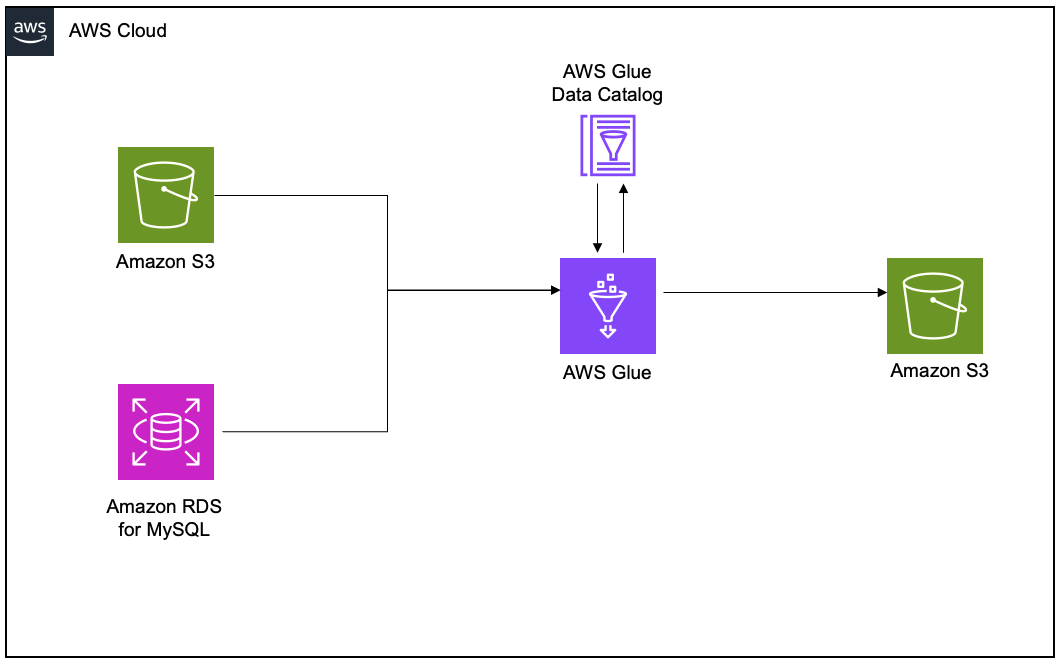
To demonstrate the lineage, we set up an AWS Glue extract, transform, and load (ETL) job to read the employee data from an Amazon RDS for MySQL table and the employee attendance data from Amazon S3, and join both datasets. Finally, we write the data to Amazon S3 and create the attendance_with_emp1 table in the AWS Glue Data Catalog.

Create and configure AWS Glue job for lineage generation

Complete the following steps to create your AWS Glue ETL job:

  1. On the AWS Glue console, create a new ETL job with AWS Glue version 5.0.
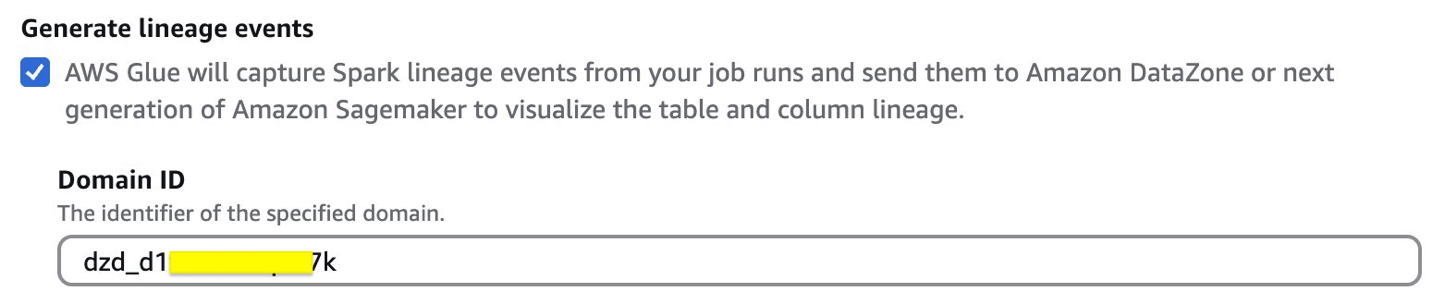
  2. Enable Generate lineage events and provide the domain ID (retrieve from the CloudFormation template output for DataZoneDomainid; it will have the format dzd_xxxxxxxx)
  3. Use the following code snippet in the AWS Glue ETL job script. Provide the S3 bucket (bucketname-{account_id}) used in the preceding CloudFormation stack.
    from pyspark.sql import SparkSession
    from pyspark.sql import SparkSession, DataFrame
    from pyspark.sql.functions import *
    from pyspark.sql.types import *
    from pyspark import SparkContext
    from pyspark.sql import SparkSession
    import sys
    import logging
    
    
    spark = SparkSession.builder.appName("lineageglue").enableHiveSupport().getOrCreate()
     
    connection_details = glueContext.extract_jdbc_conf(connection_name="connectionname")
    
    employee_df = spark.read.format("jdbc").option("url", "jdbc:MySQL://dbhost:3306/database_name").option("dbtable", "employee").option("user", connection_details['user']).option("password", connection_details['password']).load()
    
    s3_paths = {
    'absent_data': 's3://bucketname-{account_id}/csv/attendance.csv'
    }
    absent_df = spark.read.csv(s3_paths['absent_data'], header=True, inferSchema=True)
    
    joined_df = employee_df.join(absent_df, on="EmployeeID", how="inner")
    
    joined_df.write.mode("overwrite").format("parquet").option("path", "s3://datazone-{account_id}/attendanceparquet/").saveAsTable("gluedbname.tablename")

  4. Choose Run to start the job.
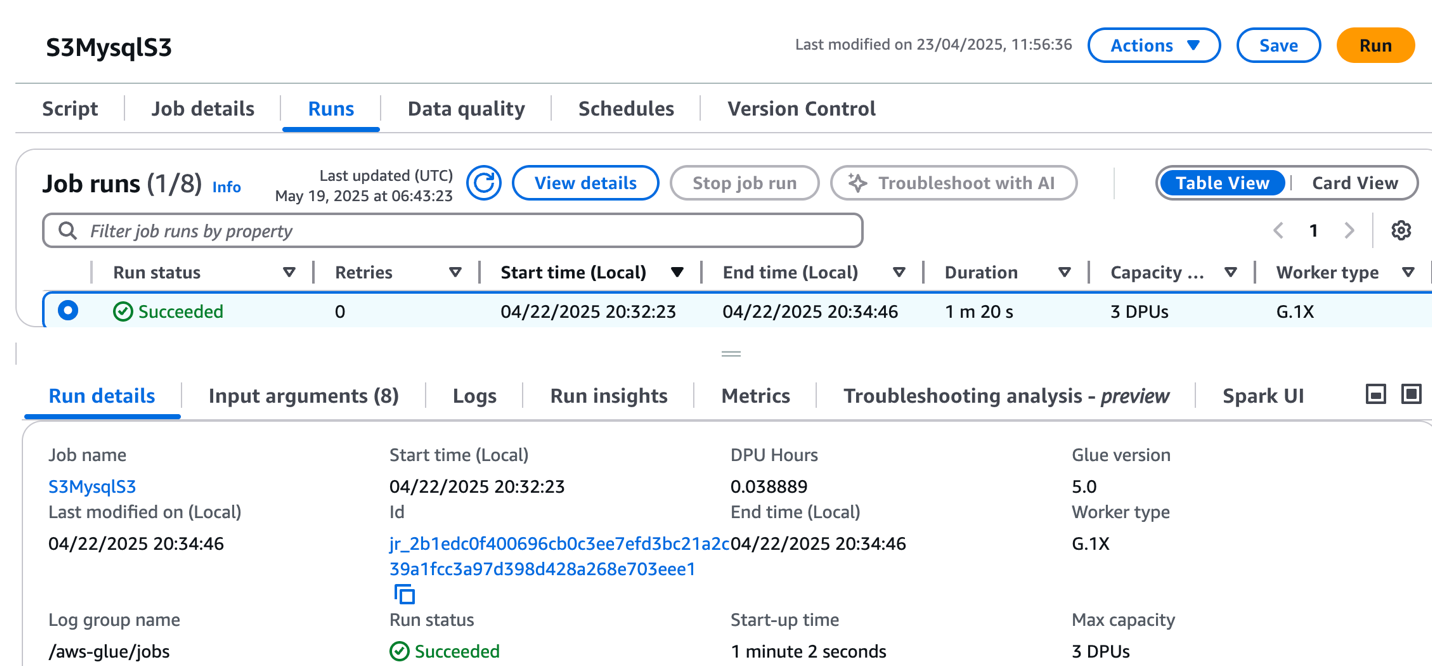
  5. On the Runs tab, confirm the job ran without failure.
  6. After the job has executed successfully, navigate to the SageMaker Unified Studio domain.
  7. Choose Project and under Overview, choose Data Sources.
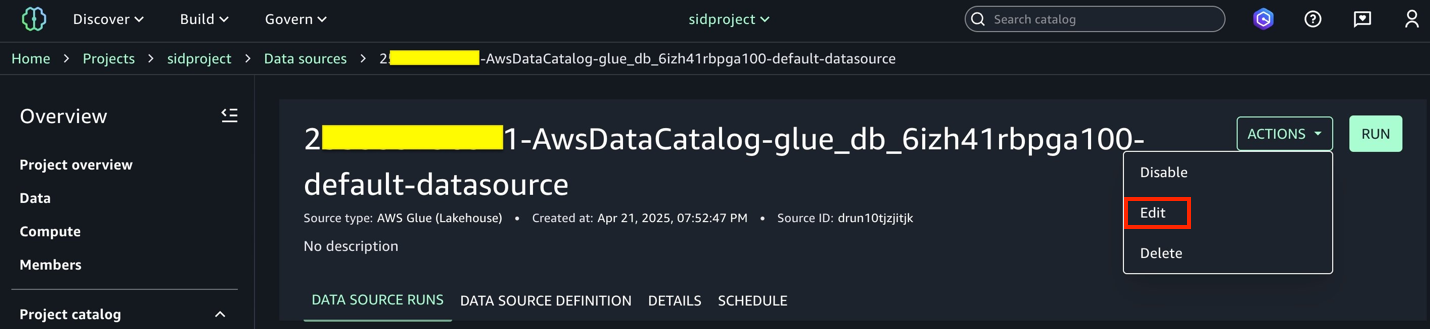
  8. Select the Data Catalog source (accountid-AwsDataCatalog-glue_db_suffix-default-datasource).
  9. On the Actions dropdown menu, choose Edit.
  10. Under Connection, enable Import data lineage.
  11. In the Data Selection section, under Table Selection Criteria, provide a table name or use * to generate lineage.
  12. Update the data source and choose Run to create an asset called attendance_with_emp1 in SageMaker Catalog.
  13. Navigate to Assets, choose the attendance_with_emp1 asset, and navigate to the LINEAGE section.

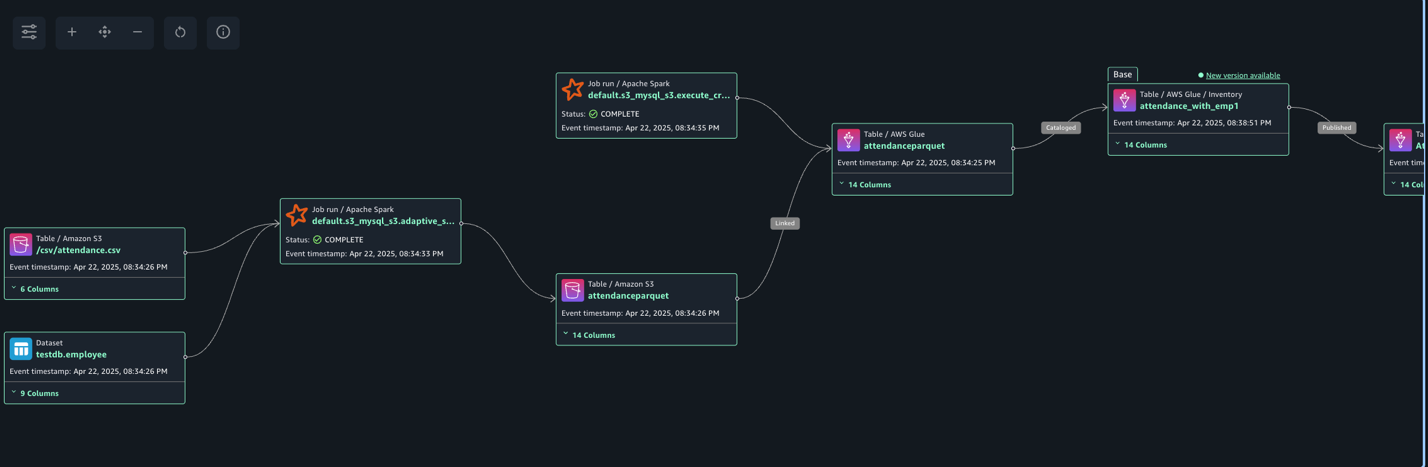
The following lineage diagram shows an AWS Glue job that integrates data from two sources: employee information stored in Amazon RDS for MySQL and employee absence records stored in Amazon S3. The AWS Glue job combines these datasets through a join operation, then creates a table in the Data Catalog and registers it as an asset in SageMaker Catalog, making the unified data available for further analysis or machine learning purposes.

Create and configure AWS Glue notebook for lineage generation

Complete the following steps to create the AWS Glue notebook:

  1. On the AWS Glue console, choose Author using an interactive code notebook.
  2. Under Options, choose Start fresh and choose Create notebook.
  3. In the notebook, use the following code to generate lineage.

    In the following code, we add the required Spark configuration to generate lineage and then read CSV data from Amazon S3 and write in Parquet format to the Data Catalog table. The Spark configuration includes the following parameters:

    • spark.extraListeners=io.openlineage.spark.agent.OpenLineageSparkListener – Registers the OpenLineage listener to capture Spark job execution events and metadata for lineage tracking
    • spark.openlineage.transport.type=amazon_datazone_api – Specifies Amazon DataZone as the destination service where the lineage data will be sent and stored
    • spark.openlineage.transport.domainId=dzd_xxxxxxx – Defines the unique identifier of your Amazon DataZone domain where the lineage data will be associated
    • spark.glue.accountId={account_id} – Specifies the AWS account ID where the AWS Glue job is running for proper resource identification and access
    • spark.openlineage.facets.custom_environment_variables – Lists the specific environment variables to capture in the lineage data for context about the AWS and AWS Glue environment
    • spark.glue.JOB_NAME=lineagenotebook – Sets a unique identifier name for the AWS Glue job that will appear in lineage tracking and logs

    See the following code:

    %%configure —name project.spark -f
    {
    "—conf":"spark.extraListeners=io.openlineage.spark.agent.OpenLineageSparkListener \
    --conf spark.openlineage.transport.type=amazon_datazone_api \
    --conf spark.openlineage.transport.domainId=dzd_xxxxxxxx \
    --conf spark.glue.accountId={account_id} \
    --conf spark.openlineage.facets.custom_environment_variables=[AWS_DEFAULT_REGION;GLUE_VERSION;GLUE_COMMAND_CRITERIA;GLUE_PYTHON_VERSION;] \
    --conf spark.glue.JOB_NAME=lineagenotebook"
    }
    
    from pyspark.sql import SparkSession
    from pyspark.sql import SparkSession, DataFrame
    from pyspark.sql.functions import *
    from pyspark.sql.types import *
    from pyspark import SparkContext
    from pyspark.sql import SparkSession
    import sys
    import logging
    
    
    spark = SparkSession.builder.appName("lineagegluenotebook").enableHiveSupport().getOrCreate()
    
    s3_paths = {
    'absent_data': 's3://datazone-{account_id}/csv/attendance.csv'
    }
    absent_df = spark.read.csv(s3_paths['absent_data'], header=True, inferSchema=True)
    
    absent_df.write.mode("overwrite").format("parquet").option("path", "s3://datazone-{account_id}/attendanceparquet2/").saveAsTable("gluedbname.tablename")

  4. After the notebook has executed successfully, navigate to the SageMaker Unified Studio domain.
  5. Choose Project and under Overview, choose Data Sources.
  6. Choose the Data Catalog source ({account_id}-AwsDataCatalog-glue_db_suffix-default-datasource).
  7. Choose Run to create the asset attendance_with_empnote in SageMaker Catalog.
  8. Navigate to Assets, choose the attendance_with_empnote asset, and navigate to the LINEAGE section.

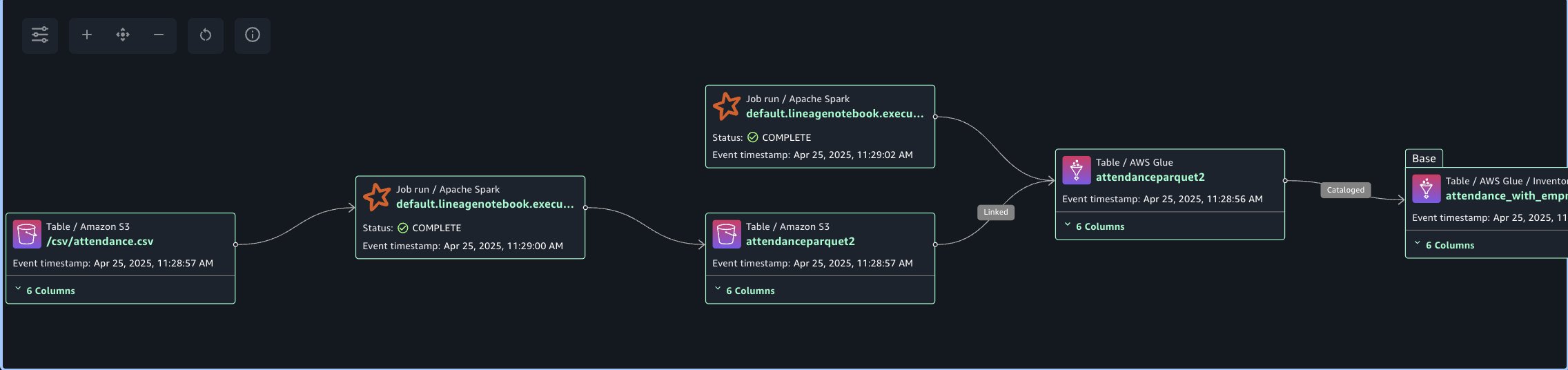
The following lineage diagram shows an AWS Glue job that reads data from the employee absence records stored in Amazon S3. The AWS Glue job transform CSV data into Parquet format, then creates a table in the Data Catalog and registers it as an asset in SageMaker Catalog.

Capture lineage from Amazon Redshift

To demonstrate the lineage, we are creating an employee table and an attendance table and join both datasets. Finally, we create a new table called employeewithabsent in Amazon Redshift. Complete the following steps to create and configure lineage for Amazon Redshift tables:

  1. In SageMaker Unified Studio, open your domain.
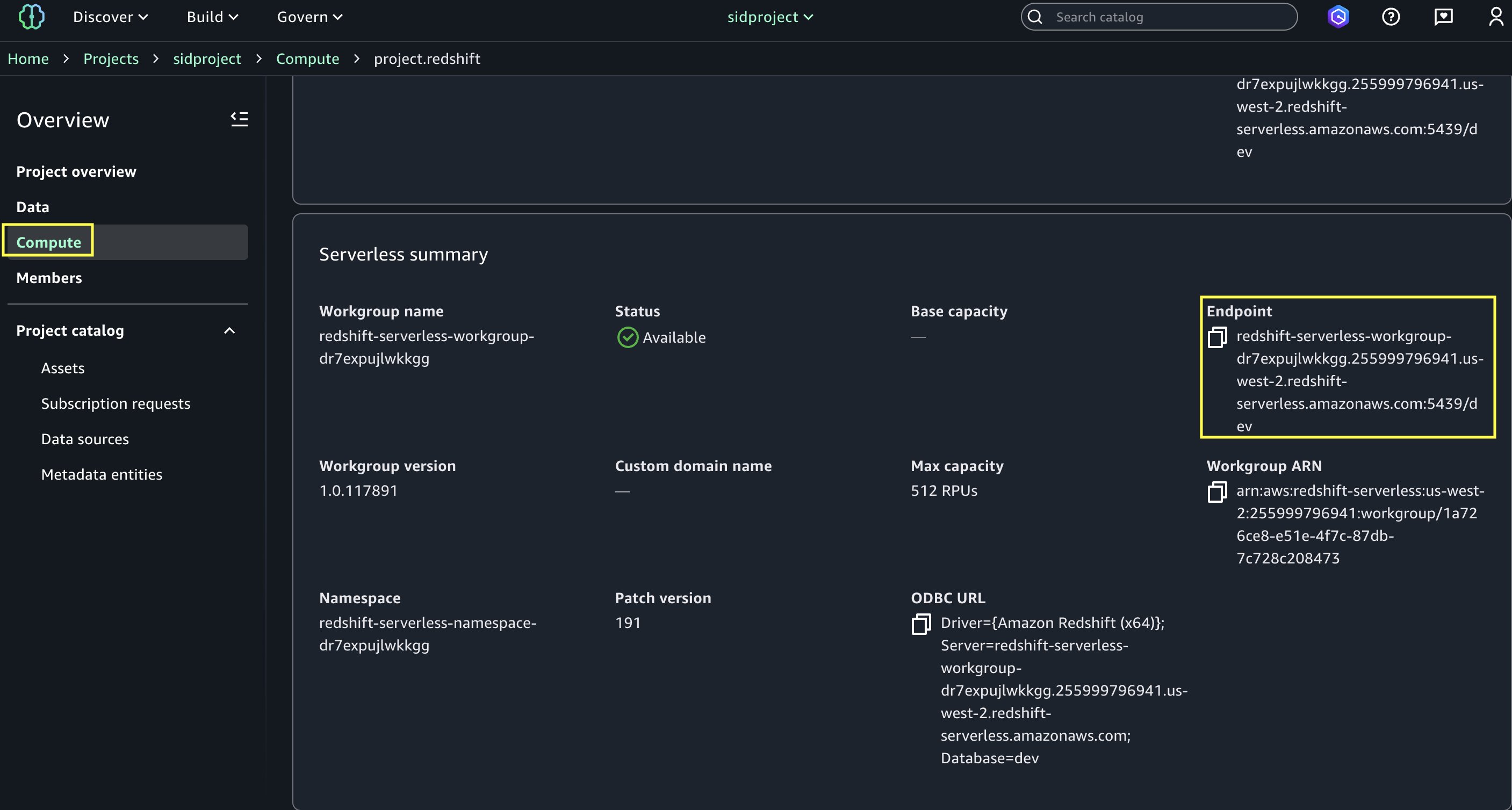
  2. Under Compute, choose Data warehouse.
  3. Open project.redshift and copy the endpoint name (redshift-serverless-workgroup-xxxxxxx).
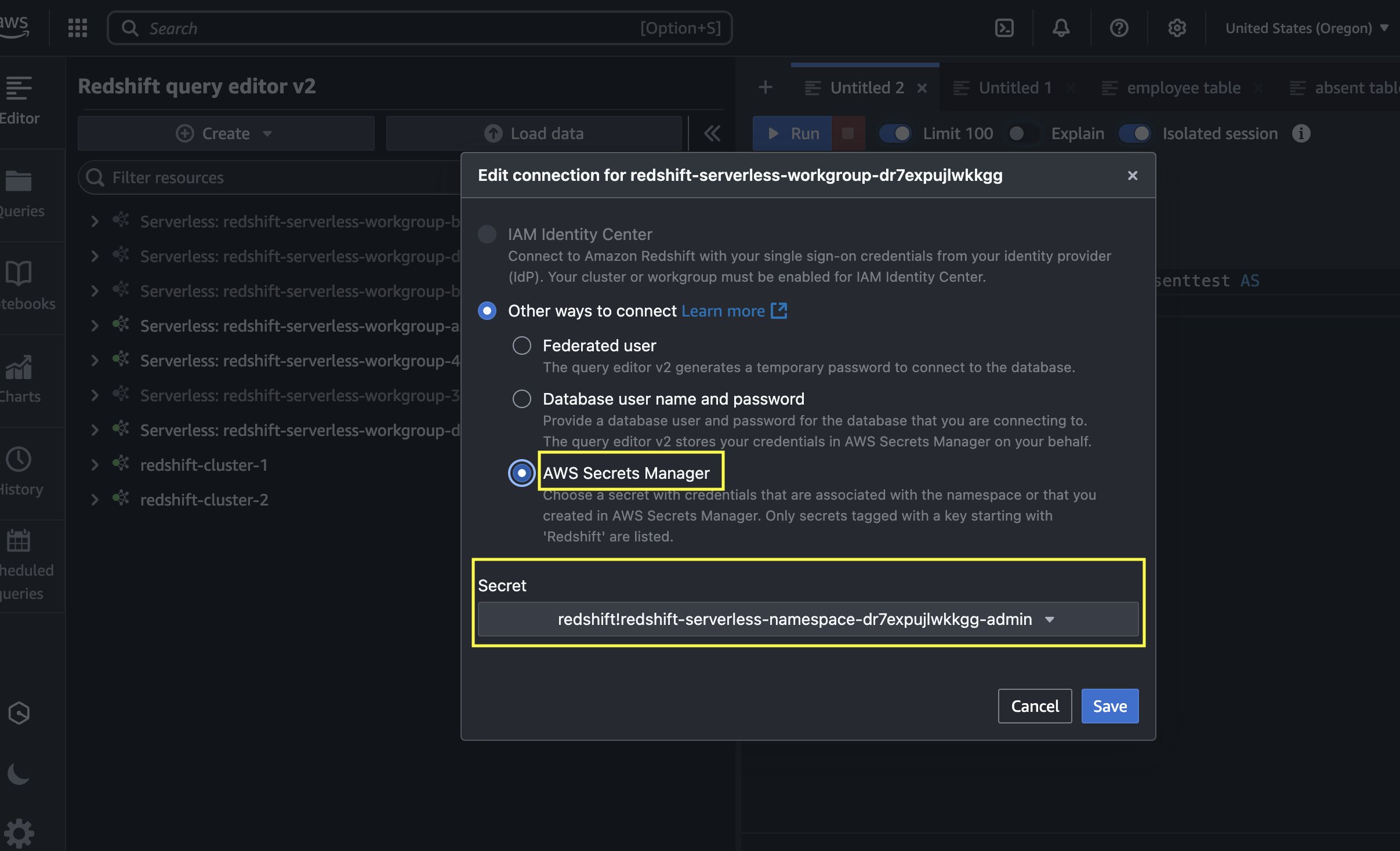
  4. On the Amazon Redshift console, open the Query Editor v2, and connect to the Redshift Serverless workgroup with a secret. Use the AWS Secrets Manager option and choose the secret redshift-serverless-namespace-xxxxxxxx.
  5. Use the following code to create tables in Amazon Redshift and load data from Amazon S3 using the COPY command. Make sure the IAM role has GetObject permission on the S3 files attendance.csv and employees.csv.

    Create Redshift table absent

    CREATE TABLE public.absent (
        employeeid character varying(65535),
        date date,
        shiftstart timestamp without time zone ,
        shiftend timestamp without time zone,
        absent boolean,
        overtimehours integer
    );

    Load data into absent table.

    COPY absent
    FROM 's3://datazone-{account_id}/csv/attendance.csv' 
    IAM_ROLE 'arn:aws:iam::accountid:role/RedshiftAdmin'
    csv
    IGNOREHEADER 1;

    Create Redshift table employee

    CREATE TABLE public.employee (
        employeeid character varying(65535),
        name character varying(65535),
        department character varying(65535),
        role character varying(65535),
        hiredate date,
        salary double precision,
        performancerating integer,
        shift character varying(65535),
        location character varying(65535)
    );

    Load data into employee table.

    COPY employee
    FROM 's3://datazone-{account_id}/csv/employees.csv' 
    IAM_ROLE 'arn:aws:iam::account-id:role/RedshiftAdmin'
    csv
    IGNOREHEADER 1;

  6. After the tables are created and the data is loaded, perform the join between the tables and create a new table with a CTAS query:
    CREATE TABLE public.employeewithabsent AS
    SELECT 
      e.*,
      a.absent,
      a.overtimehours
    FROM public.employee e
    INNER JOIN public.absent a
    ON e.EmployeeID = a.EmployeeID;

  7. Navigate to the SageMaker Unified Studio domain.
  8. Choose Project and under Overview, choose Data Sources.
  9. Select the Amazon Redshift source (RedshiftServerless-default-redshift-datasource).
  10. On the Actions dropdown menu, choose Edit.
  11. Under Connection, Enable Import data lineage.
  12. In the Data Selection section, under Table Selection Criteria, provide a table name or use * to generate lineage.
  13. Update the data source and choose Run to create an asset called employeewithabsent in SageMaker Catalog.
  14. Navigate to Assets, choose the employeewithabsent asset, and navigate to the LINEAGE section.

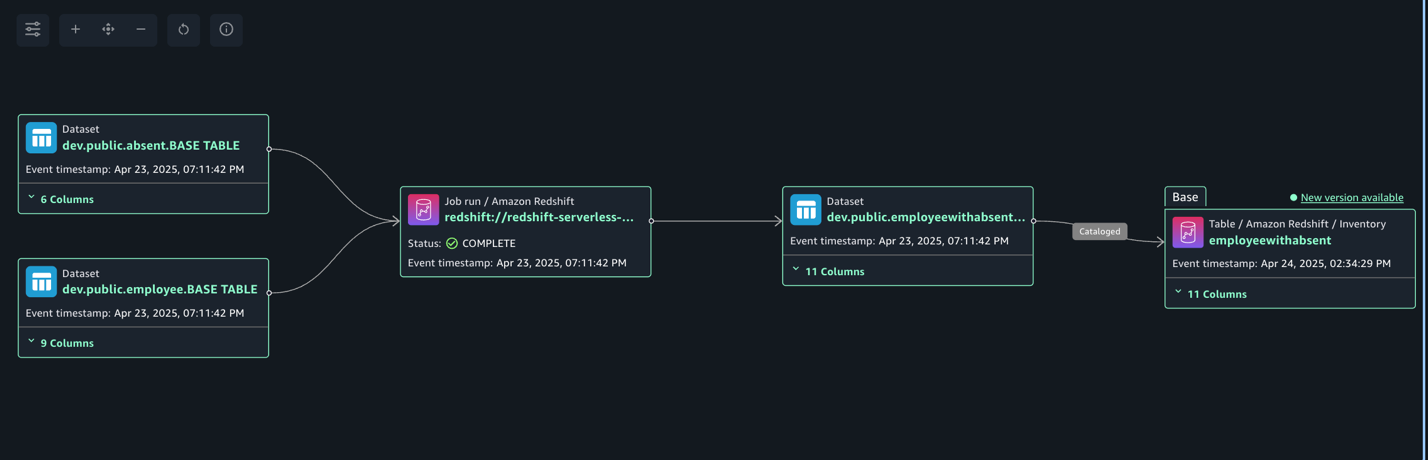
The following lineage diagram shows joining two redshift tables and creating a new redshift table and registers it as an asset in SageMaker Catalog.

Capture lineage from EMR Serverless job

To demonstrate the lineage, we read employee data from an RDS for MySQL table and an attendance dataset from Amazon Redshift, and join both datasets. Finally, we write the data to Amazon S3 and create the attendance_with_employee table in the Data Catalog. Complete the following steps:

  1. On the Amazon EMR console, choose EMR Serverless in the navigation pane.
  2. To create or manage EMR Serverless applications, you need the EMR Studio UI.
    1. If you already have an EMR Studio in the Region where you want to create an application, choose Manage applications to navigate to your EMR Studio, or select the EMR Studio that you want to use.
    2. If you don’t have an EMR Studio in the Region where you want to create an application, choose Get started and then choose Create and launch Studio. EMR Serverless creates an EMR Studio for you so you can create and manage applications.
  3. In the Create studio UI that opens in a new tab, enter the name, type, and release version for your application.
  4. Choose Create application.
  5. Create an EMR Spark serverless application with the following configuration:
    1. For Type, choose Spark.
    2. For Release version, choose emr-7.8.0.
    3. For Architecture, choose x86_64.
    4. For Application setup options, select Use custom settings.
    5. For Interactive endpoint, enable the endpoint for EMR Studio.
    6. For Application configuration, use the following configuration:
      [{
          "Classification": "iceberg-defaults",
          "Properties": {
              "iceberg.enabled": "true"
          }
      }]

  6. Choose Create and Start application.
  7. After application has started, submit the Spark application to generate lineage events. Copy the following script and upload it to the S3 bucket (s3://datazone-{account_id}/script/). Upload the MySQL-connector-java JAR file to the S3 bucket (s3://datazone-{account_id}/jars/) to read the data from MySQL.
    from pyspark.sql import SparkSession
    from pyspark.sql import SparkSession, DataFrame
    from pyspark.sql.functions import *
    from pyspark.sql.types import *
    from pyspark import SparkContext
    from pyspark.sql import SparkSession
    import sys
    import logging
    
    
    spark = SparkSession.builder.appName("lineageglue").enableHiveSupport().getOrCreate()
    
    employee_df = spark.read.format("jdbc").option("driver","com.MySQL.cj.jdbc.Driver").option("url", "jdbc:MySQL://dbhostname:3306/databasename").option("dbtable", "employee").option("user", "admin").option("password", "xxxxxxx").load()
    
    absent_df = spark.read.format("jdbc").option("url", "jdbc:redshift://redshiftserverlessendpoint:5439/dev").option("dbtable", "public.absent").option("user", "admin").option("password", "xxxxxxxxxx").load()
    
    joined_df = employee_df.join(absent_df, on="EmployeeID", how="inner")
    
    joined_df.write.mode("overwrite").format("parquet").option("path", "s3://datazone-{account_id}/emrparquetnew/").saveAsTable("gluedname.tablename")

  8. After you upload the script, use the following command to submit the Spark application. Change the following parameters according to your environment details:
    1. application-id: Provide the Spark application ID you generated.
    2. execution-role-arn: Provide the EMR execution role.
    3. entryPoint: Provide the Spark script S3 path.
    4. domainID: Provide the domain ID (from the CloudFormation template output for DataZoneDomainid: dzd_xxxxxxxx).
    5. accountID: Provide your AWS account ID.
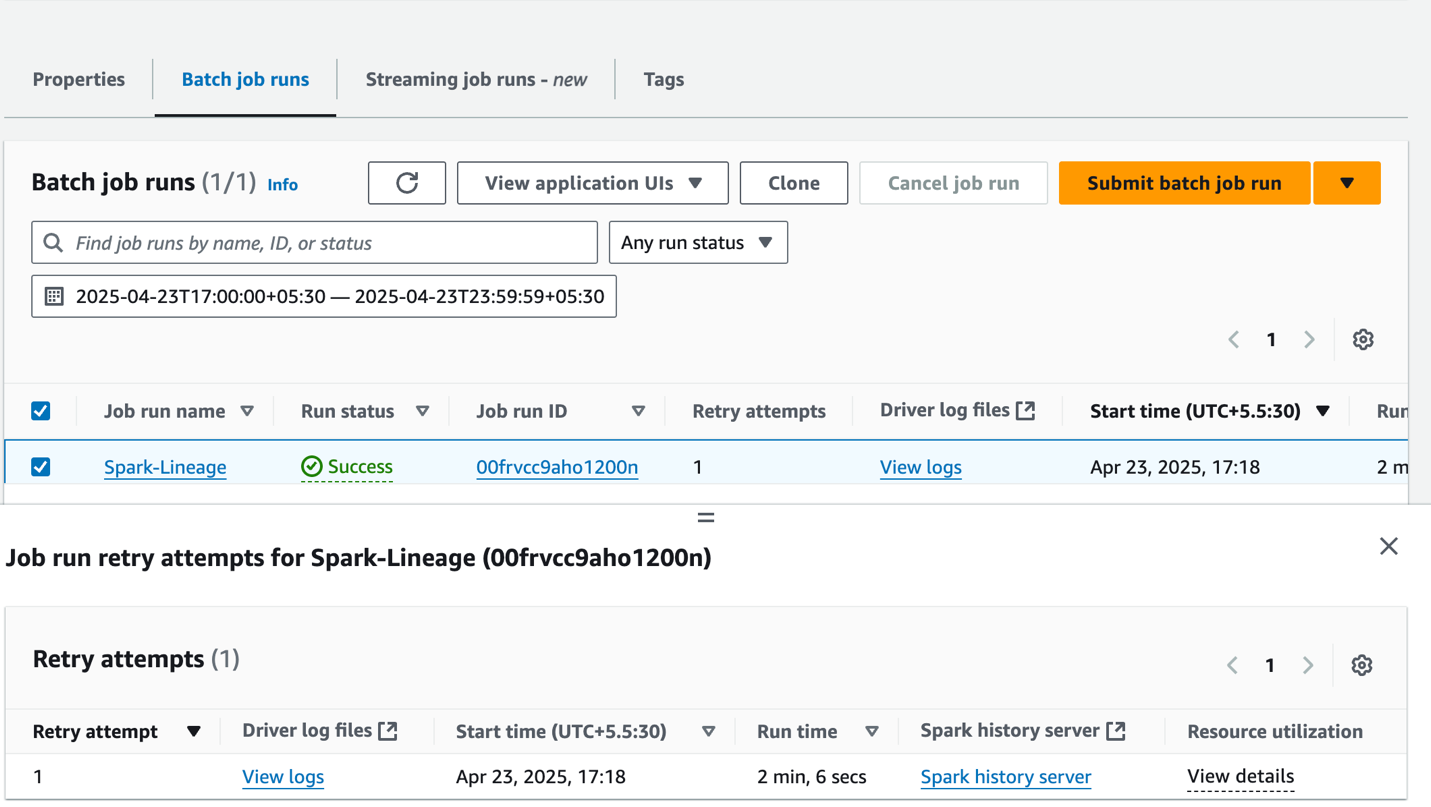
      aws emr-serverless start-job-run --application-id 00frv81tsqe0ok0l --execution-role-arn arn:aws:iam::{account_id}:role/service-role/AmazonEMR-ExecutionRole-1717662744320 --name "Spark-Lineage" --job-driver '{
              "sparkSubmit": {
                  "entryPoint": "s3://datazone-{account_id}/script/emrspark2.py",
                  "sparkSubmitParameters": "--conf spark.executor.cores=1 --conf spark.executor.memory=4g --conf spark.driver.cores=1 --conf spark.driver.memory=4g --conf spark.executor.instances=2 --conf spark.hadoop.hive.metastore.client.factory.class=com.amazonaws.glue.catalog.metastore.AWSGlueDataCatalogHiveClientFactory --conf spark.jars=/usr/share/aws/datazone-openlineage-spark/lib/DataZoneOpenLineageSpark-1.0.jar,s3://datazone-{account_id}/jars/MySQL-connector-java-8.0.20.jar --conf spark.extraListeners=io.openlineage.spark.agent.OpenLineageSparkListener --conf spark.openlineage.transport.type=amazon_datazone_api --conf spark.openlineage.transport.domainId=dzd_xxxxxxxx --conf spark.glue.accountId={account_id}"
              }
          }'

  9. After the job has executed successfully, navigate to the SageMaker Unified Studio domain.
  10. Choose Project and under Overview, choose Data Sources.
  11. Select the Data Catalog source ({account_id}-AwsDataCatalog-glue_db_xxxxxxxxxx-default-datasource).
  12. On the Actions dropdown menu, choose Edit.
  13. Under Connection, enable Import data lineage.
  14. In the Data Selection section, under Table Selection Criteria, provide a table name or use * to generate lineage.
  15. Update the data source and choose Run to create an asset called attendancewithempnew in SageMaker Catalog.
  16. Navigate to Assets, choose the attendancewithempnew asset, and navigate to the LINEAGE section.

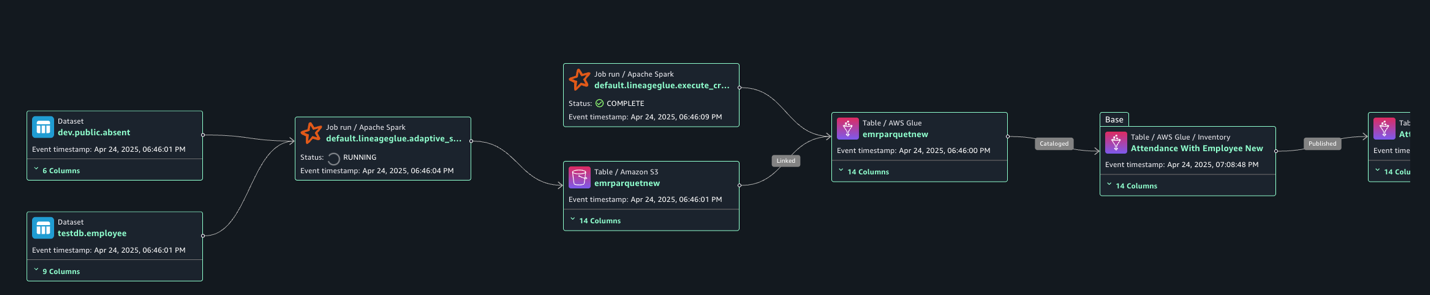
The following lineage diagram shows an AWS Glue job that integrates employee information stored in Amazon RDS for MySQL and employee absence records stored in Amazon Redshift. The AWS Glue job combines these datasets through a join operation, then creates a table in the Data Catalog and registers it as an asset in SageMaker Catalog.

Clean up

To clean up your resources, complete the following steps:

  1. On the AWS Glue console, delete the AWS Glue job.
  2. On the Amazon EMR console, delete the EMR Serverless Spark application and EMR Studio.
  3. On the AWS CloudFormation console, delete the CloudFormation stack vpc-analytics-lineage-sus.

Conclusion

In this post, we showed how data lineage in SageMaker Catalog helps you track and understand the complete lifecycle of your data across various AWS analytics services. This comprehensive tracking system provides visibility into how data flows through different processing stages, transformations, and analytical workflows, making it an essential tool for data governance, compliance, and operational efficiency.

Try out these lineage visualization methods for your own use cases, and share your questions and feedback in the comments section.


About the Authors

Shubham Purwar

Shubham Purwar

Shubham is an AWS Analytics Specialist Solution Architect. He helps organizations unlock the full potential of their data by designing and implementing scalable, secure, and high-performance analytics solutions on the AWS platform. With deep expertise in AWS analytics services, he collaborates with customers to uncover their distinct business requirements and create customized solutions that deliver actionable insights and drive business growth. In his free time, Shubham loves to spend time with his family and travel around the world.

Nitin Kumar

Nitin Kumar

Nitin is a Cloud Engineer (ETL) at Amazon Web Services, specialized in AWS Glue. With a decade of experience, he excels in aiding customers with their big data workloads, focusing on data processing and analytics. He is committed to helping customers overcome ETL challenges and develop scalable data processing and analytics pipelines on AWS. In his free time, he likes to watch movies and spend time with his family.

Prashanthi Chinthala

Prashanthi Chinthala

Prashanthi is a Cloud Engineer (DIST) at AWS. She helps customers overcome EMR challenges and develop scalable data processing and analytics pipelines on AWS.

Build a secure serverless streaming pipeline with Amazon MSK Serverless, Amazon EMR Serverless and IAM

Post Syndicated from Shubham Purwar original https://aws.amazon.com/blogs/big-data/build-a-secure-serverless-streaming-pipeline-with-amazon-msk-serverless-amazon-emr-serverless-and-iam/

The exponential growth and vast volume of streaming data have made it a vital resource for organizations worldwide. To unlock its full potential, real-time analytics are essential for extracting actionable insights. Derived from a wide range of sources, including social media, Internet of Things (IoT) sensors, and user interactions, streaming data empowers businesses to respond promptly to emerging trends and events, make informed decisions, and stay ahead of the competition.

Commonly streaming applications use Apache Kafka for data ingestion and Apache Spark Structured Streaming for processing. However, integrating and securing these components poses considerable challenges for users. The complexity of managing certificates, keystores, and TLS configurations to connect Spark Streaming to Kafka brokers demands specialized expertise. A managed, serverless framework would greatly simplify this process, alleviating the need for manual configuration and streamlining the integration of these critical components.

To simplify the management and security of traditional streaming architectures, you can use Amazon Managed Streaming for Apache Kafka (Amazon MSK). This fully managed service simplifies data ingestion and processing. Amazon MSK Serverless alleviates the need for cluster management and scaling, and further enhances security by integrating AWS Identity and Access Management (IAM) for authentication and authorization. This consolidated approach replaces complex certificate and key management require by TLS client authentication through AWS Certificate Manager, streamlining operations and bolstering data protection. For instance, when a client attempts to write data to the cluster, MSK Serverless verifies both the client’s identity and its permissions using IAM.

For efficient data processing, you can use Amazon EMR Serverless with a Spark application built on the Spark Structured Streaming framework, enabling near real-time data processing. This setup seamlessly handles large volumes of data from MSK Serverless, using IAM authentication for secure and swift data processing.

The post demonstrates a comprehensive, end-to-end solution for processing data from MSK Serverless using an EMR Serverless Spark Streaming job, secured with IAM authentication. Additionally, it demonstrates how to query the processed data using Amazon Athena, providing a seamless and integrated workflow for data processing and analysis. This solution enables near real-time querying of the latest data processed from MSK Serverless and EMR Serverless using Athena, providing instant insights and analytics.

Solution overview

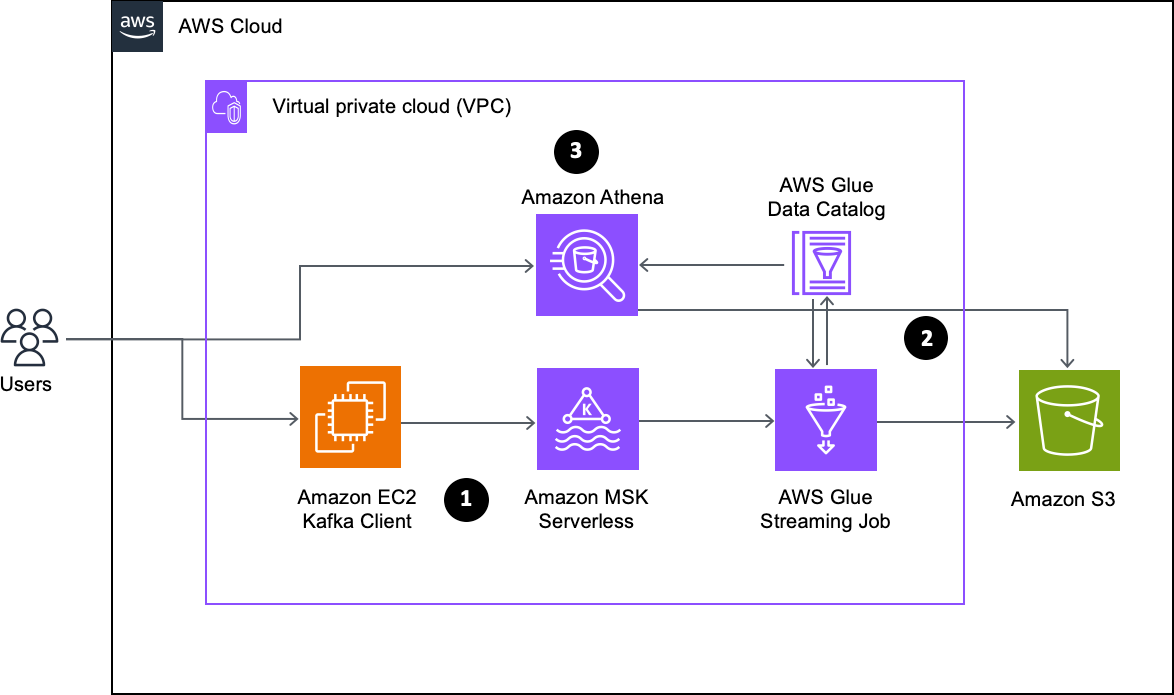
The following diagram illustrates the architecture that you implement through this post.

The workflow consists of the following steps:

  1. The architecture begins with an MSK Serverless cluster set up with IAM authentication. An Amazon Elastic Compute Cloud (Amazon EC2) instance runs a Python script producer.py that acts as a data producer, sending sample data to a Kafka topic within the cluster.
  2. The Spark Streaming job retrieves data from the Kafka topic, stores it in Amazon Simple Storage Service (Amazon S3), and creates a corresponding table in the AWS Glue Data Catalog. As it continuously consumes data from the Kafka topic, the job stays up-to-date with the latest streaming data. With checkpointing enabled, the job tracks processed records, allowing it to resume from where it left off in case of a failure, providing seamless data processing.
  3. To analyze this data, users can use Athena, a serverless query service. Athena enables interactive SQL-based exploration of data directly in Amazon S3 without the need for complex infrastructure management.

Prerequisites

Before getting started, make sure you have the following:

  • An active AWS account with billing enabled
  • An IAM user with administrator access (AdministratorAccess policy) or specific permissions to create and manage resources such as a virtual private cloud (VPC), subnet, security group, IAM roles, NAT gateway, internet gateway, EC2 client, MSK Serverless, EMR Serverless, Amazon EMR Studio, and S3 buckets
  • Sufficient VPC capacity in your chosen AWS Region

Although using an IAM user with administrator access will work, it’s recommended to follow the principle of least privilege in production environments by creating custom IAM policies with only the necessary permissions. The IAM user we create has the AdministrativeAccess policy attached to it. However, you might not need such elevated access.

For this post, we create the solution resources in the us-east-2 Region using AWS CloudFormation templates. In the following sections, we show you how to configure your resources and implement the solution.

Create MSK Serverless and EMR Serverless resources

The vpc-msk-emr-serverless-studio.yaml stack creates a VPC, subnet, security group, IAM roles, NAT gateway, internet gateway, EC2 client, MSK Serverless, EMR Serverless, EMR Studio, and S3 buckets. To create the solution resources, complete the following steps:

  1. Launch the stack vpc-msk-emr-serverless-studio using the CloudFormation template:

  1. Provide the parameter values as listed in the following table.
Parameters Description Sample value
EnvironmentName An environment name that is prefixed to resource names. msk-emr-serverless-pipeline
InstanceType Amazon MSK client EC2 instance type. t2.micro
LatestAmiId Latest AMI ID of Amazon Linux 2023 for ec2 instance. You can use the default value. /aws/service/ami-amazon-linux-latest/al2023-ami-kernel-6.1-x86_64
VpcCIDR IP range (CIDR notation) for this VPC. 10.192.0.0/16
PublicSubnet1CIDR IP range (CIDR notation) for the public subnet in the first Availability Zone. 10.192.10.0/24
PublicSubnet2CIDR IP range (CIDR notation) for the public subnet in the second Availability Zone. 10.192.11.0/24
PrivateSubnet1CIDR IP range (CIDR notation) for the private subnet in the first Availability Zone. 10.192.20.0/24
PrivateSubnet2CIDR IP range (CIDR notation) for the private subnet in the second Availability Zone. 10.192.21.0/24

The stack creation process can take approximately 10 minutes to complete. You can check the Outputs tab for the stack after the stack is created.

Next, you set up the data ingestion to the Kafka topic from the Kafka EC2 instance.

Produce records to Kafka topic

Complete the following steps to set up data ingestion:

  1. On the Amazon EC2 console, go to the EC2 instance that you created using the CloudFormation template.

  1. Log in to the EC2 instance using Session Manager, a capability of AWS Systems Manager.
  2. Choose the instance msk-emr-serverless-blog and then choose Connect.

  1. Create a Kafka topic in MSK Serverless from the EC2 instance.
    1. In the following export command, replace my-endpoint with the MSKBootstrapServers value from the CloudFormation stack output:
      $ sudo su - ec2-user
      $ BS=<your-msk-serverless-endpoint (e.g.) boot-xxxxxx.yy.kafka-serverless.us-east-2.amazonaws.com:9098>

    2. Run the following command on the EC2 instance to create a topic called sales_data_topic:

Kafka client already installed at ec2-user home directory (/home/ec2-user) with MSK IAM Authentication jar and client configuration also created (/home/ec2-user/kafka_2.12-2.8.1/bin/client.properties) with IAM authentication properties.

The following code shows the contents of client.properties:

security.protocol=SASL_SSL
sasl.mechanism=AWS_MSK_IAM
sasl.jaas.config=software.amazon.msk.auth.iam.IAMLoginModule required;
sasl.client.callback.handler.class=software.amazon.msk.auth.iam.IAMClientCallbackHandler

/home/ec2-user/kafka_2.12-2.8.1/bin/kafka-topics.sh \
--bootstrap-server $BS \
--command-config /home/ec2-user/kafka_2.12-2.8.1/bin/client.properties \
--create --topic sales_data_topic \
--partitions 10

Created topic sales_data_topic.
  1. Run the following command to produce records to the Kafka topic using the syntheticSalesDataProducer.py Python script present in EC2 instance. Update the Region accordingly.
nohup python3 -u syntheticSalesDataProducer.py --num_records 1000 \
--sales_data_topic sales_data_topic --bootstrap_server $BS \
--region=us-east-2 > syntheticSalesDataProducer.log &

Understanding Amazon MSK IAM authentication with EMR Serverless

Amazon MSK IAM authentication enables secure authentication and authorization for Kafka clusters (MSK Serverless) using IAM roles. When integrating with EMR Serverless Spark Streaming, Amazon MSK IAM authentication allows Spark jobs to access Kafka topics securely, using IAM roles for fine-grained access control. This provides secure data processing and streaming.

IAM policy configuration

To enable EMR Serverless jobs to authenticate with an MSK Serverless cluster using IAM, you need to attach specific Kafka-related IAM permissions to the EMR Serverless job execution role. These permissions allow the job to perform essential operations on the Kafka cluster, topics, and consumer groups.The following IAM policy must be attached to the EMR Serverless job execution role to enable necessary permissions:

{
    "Version": "2012-10-17",
    "Statement": [
        {
            "Action": [
                "kafka-cluster:Connect",
                "kafka-cluster:DescribeCluster"
            ],
            "Resource": [
                "arn:aws:kafka:<AWS-REGION>:<ACCOUNTID>:cluster/<SERVERLESS_CLUSTER_NAME>/<ID>"
            ],
            "Effect": "Allow"
        },
        {
            "Action": [
                "kafka-cluster:CreateTopic",
                "kafka-cluster:DescribeTopic",
                "kafka-cluster:WriteData",
                "kafka-cluster:ReadData"
            ],
            "Resource": [
                "arn:aws:kafka:<AWS-REGION>:<ACCOUNTID>:topic/<SERVERLESS_CLUSTER_NAME>/*/*"
            ],
            "Effect": "Allow"
        },
        {
            "Action": [
                "kafka-cluster:AlterGroup",
                "kafka-cluster:DescribeGroup"
            ],
            "Resource": [
                "arn:aws:kafka:<AWS-REGION>:<ACCOUNTID>:group/<SERVERLESS_CLUSTER_NAME>/*/*"
            ],
            "Effect": "Allow"
        }
    ]
}

This code refers to the following actions:

  • Connect, DescribeCluster – Required to initiate a secure connection and obtain metadata
  • DescribeTopic, ReadData, WriteData – Enables data consumption and production
  • CreateTopic (optional) – Allows dynamic topic creation
  • AlterGroup, DescribeGroup – Needed for consumer group management in streaming jobs

These permissions make sure that the Spark Streaming job can securely authenticate and interact with MSK Serverless resources using its IAM role.

Required dependencies

To enable Amazon MSK IAM authentication in Spark (especially on EMR Serverless), specific JAR dependencies must be included in your Spark Streaming job using sparkSubmitParameters:

  • spark-sql-kafka-0-10_2.12 – This is the Kafka connector for Spark Structured Streaming. It provides the DataFrame API to read from and write to Kafka.
  • aws-msk-iam-auth – This JAR provides the IAM authentication mechanism required to connect to MSK Serverless using the AWS_MSK_IAM SASL mechanism.

You can include these dependencies directly by specifying them in the --packages argument when submitting the EMR Serverless job. For example:

--packages org.apache.spark:spark-sql-kafka-0-10_2.12:3.5.1,software.amazon.msk:aws-msk-iam-auth:2.2.0

When the job is submitted, EMR Serverless will automatically download these JARs from Maven Central (or another configured repository) at runtime. You don’t need to bundle them manually unless offline usage or specific versions are required.

Spark Streaming job configuration for Amazon MSK IAM authentication

In your Spark Streaming application, configure the Kafka source with SASL properties to enable IAM based authentication. The following code shows the relevant configuration:

topic_df = (spark.readStream
    .format("kafka")
    .option("kafka.bootstrap.servers", kafka_bootstrap_servers)
    .option("subscribe", topic_input)
    .option("startingOffsets", "earliest")
    .option("kafka.security.protocol","SASL_SSL")
    option("kafka.sasl.mechanism","AWS_MSK_IAM")
    .option("kafka.sasl.jaas.config","software.amazon.msk.auth.iam.IAMLoginModule required;")
    .option("kafka.sasl.client.callback.handler.class","software.amazon.msk.auth.iam.IAMClientCallbackHandler")
    .load()
    .selectExpr("CAST(value AS STRING)")
    )

Key properties include:

  • kafka.security.protocol = SASL_SSL – Enables encrypted communication over SSL with SASL authentication
  • kafka.sasl.mechanism = AWS_MSK_IAM – Tells Kafka to use the IAM based SASL mechanism
  • kafka.sasl.jaas.config = software.amazon.msk.auth.iam.IAMLoginModule required; – Specifies the login module provided by AWS for IAM integration
  • kafka.sasl.client.callback.handler.class = software.amazon.msk.auth.iam.IAMClientCallbackHandler – Handles the actual signing and authentication using the IAM role

With these settings, Spark uses the IAM credentials attached to the EMR Serverless job execution role to authenticate to MSK Serverless without needing additional credentials, certificates, or secrets.

Data processing using an EMR Serverless streaming job with Amazon MSK IAM authentication

Complete the following steps to run a Spark Streaming job to process the data from MSK Serverless:

  1. Submit the Spark Streaming job to EMR Serverless using the AWS Command Line Interface (AWS CLI), which is already installed on the EC2 instance.
  2. Log in to the EC2 instance using Session Manager. Choose the instance msk-emr-serverless-blog and then choose Connect.
  3. Run the following command to submit the streaming job. Provide the parameters from the CloudFormation stack output.
sudo su - ec2-user

aws emr-serverless start-job-run \
--application-id <APPLICATION ID> \
--execution-role-arn <EXECUTION ROLE ARN> \
--mode 'STREAMING' \
--job-driver '{
"sparkSubmit": {
"entryPoint": "s3://<EMR BLOG SCRIPT BUCKET>/emr_pyspark_streaming_script/pysparkStreamingBlog.py",
"entryPointArguments":["--topic_input","sales_data_topic","--kafka_bootstrap_servers","<BOOTSTRAP URL WITH PORT>","--output_s3_path","s3://<EMR STREAMING OUTPUT BUCKET>/output/sales-order-data/","--checkpointLocation","s3://<EMR STREAMING OUTPUT BUCKET>/checkpointing/checkpoint-sales-order-data/","--database_name","emrblog","--table_name","sales_order_data"],
"sparkSubmitParameters": "--conf spark.hadoop.hive.metastore.client.factory.class=com.amazonaws.glue.catalog.metastore.AWSGlueDataCatalogHiveClientFactory --conf spark.executor.cores=2 --conf spark.executor.memory=5g --conf spark.driver.cores=2 --conf spark.driver.memory=5g --conf spark.executor.instances=5 --packages org.apache.spark:spark-sql-kafka-0-10_2.12:3.5.1,software.amazon.msk:aws-msk-iam-auth:2.2.0"
}}'
  1. After you submit the job, log in to EMR Studio using the URL in the EmrServerlessStudioURL value from the CloudFormation stack output.
  2. In the navigation pane, choose Applications under Serverless.
  3. Choose the application ID in the EmrServerlessSparkApplicationID value from the CloudFormation stack output.
  4. On the Streaming job runs tab, verify that the job has been submitted and wait for it to begin running.

Validate the data in Athena

After the EMR Serverless Spark Streaming job ran and created the table for the processed data in the Data Catalog, follow these steps to validate the data using Athena:

  1. On the Athena console, open the query editor.
  2. Choose the Data Catalog as the data source.
  3. Choose the database emrblog that the streaming job created.
  4. To validate the data, run the following query:
SELECT 
    DATE_TRUNC('minute', date) AS minute_window, 
    ROUND(SUM(total_amount), 2) AS total_amount
FROM 
    emrblog.sales_order_data
WHERE 
    DATE_TRUNC('day', date) = CURRENT_DATE
GROUP BY 
    DATE_TRUNC('minute', date)
ORDER BY 
    minute_window DESC;

Clean up

To clean up your resources, complete the following steps:

  1. Log in to EMR Studio using the URL from the EmrServerlessStudioURL value in the CloudFormation stack output.
  2. In the navigation pane, choose Applications under Serverless.
  3. Choose the application ID from the EmrServerlessSparkApplicationID value in the CloudFormation stack output.
  4. On the Streaming job runs tab, select the job that has been running and cancel the job run.
  5. On the AWS CloudFormation console, delete the CloudFormation stack vpc-msk-emr-serverless-studio.

Conclusion

In this post, we showcased a serverless pipeline for streaming data with IAM authentication, empowering you to focus on deriving insights from your analytics. You can customize the EMR Serverless Spark Streaming code to apply transformations and filters, so only valid data is loaded into Amazon S3. This solution combines the power of Amazon EMR Spark Serverless streaming with MSK Serverless, securely integrated through IAM authentication. Now you can streamline your streaming processes without the complexity of managing Amazon MSK and Amazon EMR Spark Streaming integrations.


About the Authors

Shubham Purwar is an AWS Analytics Specialist Solution Architect. He helps organizations unlock the full potential of their data by designing and implementing scalable, secure, and high-performance analytics solutions on the AWS platform. With deep expertise in AWS analytics services, he collaborates with customers to uncover their distinct business requirements and create customized solutions that deliver actionable insights and drive business growth. In his free time, Shubham loves to spend time with his family and travel around the world.

Nitin Kumar is a Cloud Engineer (ETL) at AWS, specialized in AWS Glue. With a decade of experience, he excels in aiding customers with their big data workloads, focusing on data processing and analytics. He is committed to helping customers overcome ETL challenges and develop scalable data processing and analytics pipelines on AWS. In his free time, he likes to watch movies and spend time with his family.

Prashanthi Chinthala is a Cloud Engineer (DIST) at AWS. She helps customers overcome EMR challenges and develop scalable data processing and analytics pipelines on AWS.

Synchronize data lakes with CDC-based UPSERT using open table format, AWS Glue, and Amazon MSK

Post Syndicated from Shubham Purwar original https://aws.amazon.com/blogs/big-data/synchronize-data-lakes-with-cdc-based-upsert-using-open-table-format-aws-glue-and-amazon-msk/

In the current industry landscape, data lakes have become a cornerstone of modern data architecture, serving as repositories for vast amounts of structured and unstructured data. Change data capture (CDC) refers to the process of identifying and capturing changes made to data in a database and then delivering those changes in a downstream system. Capturing every change from transactions in a source database and moving them to the target keeps the systems synchronized, and helps with analytics use cases and zero-downtime database migrations.

However, efficiently managing and synchronizing data within these lakes presents a significant challenge. Maintaining data consistency and integrity across distributed data lakes is crucial for decision-making and analytics. Inaccurate or outdated data can lead to flawed insights and business decisions. Businesses require synchronized data to gain actionable insights and respond swiftly to changing market conditions. Scalability is a critical concern for data lakes, because they need to accommodate growing volumes of data without compromising performance or incurring exorbitant costs.

To address these issues effectively, we propose using Amazon Managed Streaming for Apache Kafka (Amazon MSK), a fully managed Apache Kafka service that offers a seamless way to ingest and process streaming data. We use MSK connect—an AWS managed service to deploy and run Kafka Connect to build an end-to-end CDC application that uses Debezium MySQL connector to process, insert, update, and delete records from MySQL and a confluent Amazon Simple Storage Service (Amazon S3) sink connector to write to Amazon S3 as raw data that can be consumed by other downstream application for further use cases. To process batch data effectively, we use AWS Glue, a serverless data integration service that uses the Spark framework to process the data from S3 and copies the data to the open table format layer. Open table format manages large collections of files as tables and supports modern analytical data lake operations such as record-level insert, update, delete, and time travel queries. We chose Delta Lake as an example open table format, but you can achieve the same results using Apache Iceberg or Apache Hudi.

The post illustrates the construction of a comprehensive CDC system, enabling the processing of CDC data sourced from Amazon Relational Database Service (Amazon RDS) for MySQL. Initially, we’re creating a raw data lake of all modified records in the database in near real time using Amazon MSK and writing to Amazon S3 as raw data. This raw data can then be used to build a data warehouse or even a special type of data storage that’s optimized for analytics, such as a Delta Lake on S3. Later, we use an AWS Glue exchange, transform, and load (ETL) job for batch processing of CDC data from the S3 raw data lake. A key advantage of this setup is that you have complete control over the entire process, from capturing the changes in your database to transforming the data for your specific needs. This flexibility allows you to adapt the system to different use cases.

This is achieved through integration with MSK Connect using the Debezium MySQL connector, followed by writing data to Amazon S3 facilitated by the Confluent S3 Sink Connector. Subsequently, the data is processed from S3 using an AWS Glue ETL job, and then stored in the data lake layer. Finally, the Delta Lake table is queried using Amazon Athena.

Note: If you require real-time data processing of the CDC data, you can bypass the batch approach and use an AWS Glue streaming job instead. This job would directly connect to the Kafka topic in MSK, grabbing the data as soon as changes occur. It can then process and transform the data as needed, creating a Delta Lake on Amazon S3 that reflects the latest updates according to your business needs. This approach ensures you have the most up-to-date data available for real-time analytics.

Solution overview

The following diagram illustrates the architecture that you implement through this blog post. Each number represents a major component of the solution.

The workflow consists of the following:

  1. Near real-time data capture from MySQL and streaming to Amazon S3
    1. The process starts with data originating from Amazon RDS for
    2. A Debezium connector is used to capture changes to the data in the RDS instance in near real time. Debezium is a distributed platform that converts information from your existing databases into event streams, enabling applications to detect and immediately respond to row-level changes in the databases. Debezium is built on top of Apache Kafka and provides a set of Kafka Connect compatible connectors.
    3. The captured data changes are then streamed to an Amazon MSK topic. MSK is a managed service that simplifies running Apache Kafka on AWS.
    4. The processed data stream (topic) is streamed from MSK to Amazon S3 in JSON format. The Confluent S3 Sink Connector allows near real-time data transfer from an MSK cluster to an S3 bucket.
  2. Batch processing the CDC raw data and writing it into the data lake
    1. Set up an AWS Glue ETL job to process the raw CDC
    2. This job reads bookmarked data from an S3 raw bucket and writes into the data lake in open file format (Delta). The job also creates the Delta Lake table in AWS Glue Data Catalog.
    3. Delta Lake is an open-source storage layer built on top of existing data lakes. It adds functionalities like ACID transactions and versioning to improve data reliability and manageability.
  3. Analyze the data using serverless interactive query service
    1. Athena, a serverless interactive query service, can be used to query the Delta Lake table created in Glue Data Catalog. This allows for interactive data analysis without managing infrastructure.

For this post, we create the solution resources in the us-east-1 AWS Region using AWS CloudFormation templates. In the following sections, we show you how to configure your resources and implement the solution.

Configure resources with AWS CloudFormation

In this post, you use the following two CloudFormation templates. The advantage of using two different templates is that you can decouple the resource creation of the CDC pipeline and AWS Glue processing according to your use case, and if you have requirements to create specific process resources only.

  1. vpc-msk-mskconnect-rds-client.yaml – This template sets up the CDC pipeline resources such as a virtual private cloud (VPC), subnet, security group, AWS Identity and Access Management (IAM) roles, NAT, internet gateway, Amazon Elastic Compute Cloud (Amazon EC2) client, Amazon MSK, MSKConnect, RDS, and S3
  2. gluejob-setup.yaml – This template sets up the data processing resources such as the AWS Glue table, database and ETL

Configure MSK and MSK connect

To start, you’ll configure MKS and MSK connect using Debezium connector to capture incremental changes in table and write into Amazon S3 using an S3 sink connector. The vpc-msk-mskconnect-rds-client.yaml stack creates a VPC, private and public subnets, security groups, S3 buckets, Amazon MSK cluster, EC2 instance with Kafka client, RDS database, and MSK connectors, and its worker configurations.

  1. Launch the stack vpc-msk-mskconnect-rds-client using the CloudFormation template:
    BDB-4100-CFN-Launch-Stack
  2. Provide the parameter values as listed in the following
. A B C
1 Parameters Description Sample value
2 EnvironmentName An environment name that is prefixed to resource names. msk-delta-cdc-pipeline
3 DatabasePassword Database admin account password. S3cretPwd99
4 InstanceType MSK client EC2 instance type. t2.micro
5 LatestAmiId Latest AMI ID of Amazon Linux 2023 for EC2 instance. You can use the default value. /aws/service/ami-amazon-linux- latest/al2023-ami-kernel-6.1-x86_64
6 VpcCIDR IP range (CIDR notation) for this VPC. 10.192.0.0/16
7 PublicSubnet1CIDR IP range (CIDR notation) for the public subnet in the first Availability Zone. 10.192.10.0/24
8 PublicSubnet2CIDR IP range (CIDR notation) for the public subnet in the second Availability Zone. 10.192.11.0/24
9 PrivateSubnet1CIDR IP range (CIDR notation) for the private subnet in the first Availability Zone. 10.192.20.0/24
10 PrivateSubnet2CIDR IP range (CIDR notation) for the private subnet in the second Availability Zone. 10.192.21.0/24
11 PrivateSubnet3CIDR IP range (CIDR notation) for the private subnet in the third Availability Zone. 10.192.22.0/24
  1. The stack creation process can take approximately one hour to complete. Check the Outputs tab for the stack after the stack is created.

Next, you set up the AWS Glue data processing resources such as the AWS Glue database, table, and ETL job.

Implement UPSERT on an S3 data lake with Delta Lake using AWS Glue

The gluejob-setup.yaml CloudFormation template creates a database, IAM role, and AWS Glue ETL job. Retrieve the values for S3BucketNameForOutput, and S3BucketNameForScript from the vpc-msk-mskconnect-rds-client stack’s Outputs tab to use in this template. Complete the following steps:

  1. Launch the stack gluejob-setup.
    Launch Cloudformation Stack
  2. Provide parameter values as listed in the following
. A B C
1 Parameters Description Sample value
2 EnvironmentName Environment name that is prefixed to resource names. gluejob-setup
3 GlueDataBaseName Name of the Data Catalog database. glue_cdc_blog_db
4 GlueTableName Name of the Data Catalog table. blog_cdc_tbl
5 S3BucketForGlueScript Bucket name for the AWS Glue ETL script. Use the S3 bucket name from the previous stack. For example, aws- gluescript-${AWS::AccountId}-${AWS::Region}-${EnvironmentNam e
6 GlueWorkerType Worker type for AWS Glue job. For example, G.1X G.1X
7 NumberOfWorkers Number of workers in the AWS Glue job. 3
8 S3BucketForOutput Bucket name for writing data from the AWS Glue job. aws-glueoutput-${AWS::AccountId}-${AWS::Region}-${EnvironmentName}
9 S3ConnectorTargetBucketname Bucket name where the Amazon MSK S3 sink connector writes the data from the Kafka topic. msk-lab-${AWS::AccountId}- target-bucket
  1. The stack creation process can take approximately 2 minutes to complete. Check the Outputs tab for the stack after the stack is created.

In the gluejob-setup stack, we created an AWS Glue database and AWS Glue job. For further clarity, you can examine the AWS Glue database and job generated using the CloudFormation template.

After successfully creating the CloudFormation stack, you can proceed with processing data using the AWS Glue ETL job.

Run the AWS Glue ETL job

To process the data created in the S3 bucket from Amazon MSK using the AWS Glue ETL job that you set up in the previous section, complete the following steps:

  1. On the CloudFormation console, choose the stack gluejob-setup.
  2. On the Outputs tab, retrieve the name of the AWS Glue ETL job from the GlueJobName In the following screenshot, the name is GlueCDCJob-glue-delta-cdc.

  1. On the AWS Glue console, choose ETL jobs in the navigation pane.
  2. Search for the AWS Glue ETL job named GlueCDCJob-glue-delta-cdc.
  3. Choose the job name to open its details page.
  4. Choose Run to start the On the Runs tab, confirm if the job ran without failure.

  1. Retrieve the OutputBucketName from the gluejob-setup template output.
  2. On the Amazon S3 console, navigate to the S3 bucket to verify the data.

Note: We have enabled AWS Glue job bookmark, which will make sure job will process the new data in each job run.

Query the Delta Lake table using Athena

After the AWS Glue ETL job has successfully created the Delta Lake table for the processed data in the Data Catalog, follow these steps to validate the data using Athena:

  1. On the Athena console, navigate to the query editor.
  2. Choose the Data Catalog as the data source.
  3. Choose the database glue_cdc_blog_db created using gluejob-setup stack.
  4. To validate the data, run the following query to preview the data and find the total count.
SELECT * FROM "glue_cdc_blog_db"."blog_cdc_tbl" ORDER BY cust_id DESC LIMIT 40;
SELECT COUNT(*) FROM "glue_cdc_blog_db"."blog_cdc_tbl";

The following screenshot shows the output of our example query.

Upload incremental (CDC) data for further processing

After we process the initial full load, let’s perform insert, update, and delete records in MySQL, which will be processed by the Debezium mysql connector and written to Amazon S3 using a confluent S3 sink connector.

  1. On the Amazon EC2 console, go to the EC2 instance named KafkaClientInstance that you created using the CloudFormation template.

  1. Sign in to the EC2 instance using SSM. Select KafkaClientInstance and then choose Connect.

  1. Run the following commands to insert the data into the RDS table. Use the database password from the CloudFormation stack parameter tab.
sudo su - ec2-user
RDS_AURORA_ENDPOINT=`aws rds describe-db-instances --region us-east-1 | jq -r '.DBInstances[] | select(.DBName == "salesdb") | .Endpoint.Address'`
mysql -f -u master -h $RDS_AURORA_ENDPOINT  --password
  1. Now perform the insert into the CUSTOMER table.
use salesdb;
INSERT into CUSTOMER values(8887,'Customer Name 8887','Market segment 8887');
INSERT into CUSTOMER values(8888,'Customer Name 8888','Market segment 8888');
INSERT into CUSTOMER values(8889,'Customer Name 8889','Market segment 8889');

  1. Run the AWS Glue job again to update the Delta Lake table with new records.
  2. Use the Athena console to validate the data.
  3. Perform the insert, update, and delete in the CUSTOMER table.
    UPDATE CUSTOMER SET NAME='Customer Name update 8888',MKTSEGMENT='Market segment update 8888' where CUST_ID = 8888;
    UPDATE CUSTOMER SET NAME='Customer Name update 8889',MKTSEGMENT='Market segment update 8889' where CUST_ID = 8889;
    DELETE FROM CUSTOMER where CUST_ID = 8887;
    INSERT into CUSTOMER values(9000,'Customer Name 9000','Market segment 9000');
    

  4. Run the AWS Glue job again to update the Delta Lake table with the insert, update, and delete records.
  5. Use the Athena console to validate the data to verify the update and delete records in the Delta Lake table.

Clean up

To clean up your resources, complete the following steps:

  1. Delete the CloudFormation stack gluejob-setup.
  2. Delete the CloudFormation stack vpc-msk-mskconnect-rds-client.

Conclusion

Organizations continually seek high-performance, cost-effective, and scalable analytical solutions to extract value from their operational data sources in near real time. The analytical platform must be capable of receiving updates to operational data as they happen. Traditional data lake solutions often struggle with managing changes in source data, but the Delta Lake framework addresses this challenge. This post illustrates the process of constructing an end-to-end change data capture (CDC) application using Amazon MSK, MSK Connect, AWS Glue, and native Delta Lake tables, alongside guidance on querying Delta Lake tables from Amazon Athena. This architectural pattern can be adapted to other data sources employing various Kafka connectors, enabling the creation of data lakes supporting UPSERT operations using AWS Glue and native Delta Lake tables. For further insights, see the MSK Connect examples.


About the authors

Shubham Purwar is a Cloud Engineer (ETL) at AWS Bengaluru specializing in AWS Glue and Athena. He is passionate about helping customers solve issues related to their ETL workload and implement scalable data processing and analytics pipelines on AWS. In his free time, Shubham loves to spend time with his family and travel around the world.

Nitin Kumar is a Cloud Engineer (ETL) at AWS, specializing in AWS Glue. With a decade of experience, he excels in aiding customers with their big data workloads, focusing on data processing and analytics. He is committed to helping customers overcome ETL challenges and develop scalable data processing and analytics pipelines on AWS. In his free time, he likes to watch movies and spend time with his family.

Securely process near-real-time data from Amazon MSK Serverless using an AWS Glue streaming ETL job with IAM authentication

Post Syndicated from Shubham Purwar original https://aws.amazon.com/blogs/big-data/securely-process-near-real-time-data-from-amazon-msk-serverless-using-an-aws-glue-streaming-etl-job-with-iam-authentication/

Streaming data has become an indispensable resource for organizations worldwide because it offers real-time insights that are crucial for data analytics. The escalating velocity and magnitude of collected data has created a demand for real-time analytics. This data originates from diverse sources, including social media, sensors, logs, and clickstreams, among others. With streaming data, organizations gain a competitive edge by promptly responding to real-time events and making well-informed decisions.

In streaming applications, a prevalent approach involves ingesting data through Apache Kafka and processing it with Apache Spark Structured Streaming. However, managing, integrating, and authenticating the processing framework (Apache Spark Structured Streaming) with the ingesting framework (Kafka) poses significant challenges, necessitating a managed and serverless framework. For example, integrating and authenticating a client like Spark streaming with Kafka brokers and zookeepers using a manual TLS method requires certificate and keystore management, which is not an easy task and requires a good knowledge of TLS setup.

To address these issues effectively, we propose using Amazon Managed Streaming for Apache Kafka (Amazon MSK), a fully managed Apache Kafka service that offers a seamless way to ingest and process streaming data. In this post, we use Amazon MSK Serverless, a cluster type for Amazon MSK that makes it possible for you to run Apache Kafka without having to manage and scale cluster capacity. To further enhance security and streamline authentication and authorization processes, MSK Serverless enables you to handle both authentication and authorization using AWS Identity and Access Management (IAM) in your cluster. This integration eliminates the need for separate mechanisms for authentication and authorization, simplifying and strengthening data protection. For example, when a client tries to write to your cluster, MSK Serverless uses IAM to check whether that client is an authenticated identity and also whether it is authorized to produce to your cluster.

To process data effectively, we use AWS Glue, a serverless data integration service that uses the Spark Structured Streaming framework and enables near-real-time data processing. An AWS Glue streaming job can handle large volumes of incoming data from MSK Serverless with IAM authentication. This powerful combination ensures that data is processed securely and swiftly.

The post demonstrates how to build an end-to-end implementation to process data from MSK Serverless using an AWS Glue streaming extract, transform, and load (ETL) job with IAM authentication to connect MSK Serverless from the AWS Glue job and query the data using Amazon Athena.

Solution overview

The following diagram illustrates the architecture that you implement in this post.

The workflow consists of the following steps:

  1. Create an MSK Serverless cluster with IAM authentication and an EC2 Kafka client as the producer to ingest sample data into a Kafka topic. For this post, we use the kafka-console-producer.sh Kafka console producer client.
  2. Set up an AWS Glue streaming ETL job to process the incoming data. This job extracts data from the Kafka topic, loads it into Amazon Simple Storage Service (Amazon S3), and creates a table in the AWS Glue Data Catalog. By continuously consuming data from the Kafka topic, the ETL job ensures it remains synchronized with the latest streaming data. Moreover, the job incorporates the checkpointing functionality, which tracks the processed records, enabling it to resume processing seamlessly from the point of interruption in the event of a job run failure.
  3. Following the data processing, the streaming job stores data in Amazon S3 and generates a Data Catalog table. This table acts as a metadata layer for the data. To interact with the data stored in Amazon S3, you can use Athena, a serverless and interactive query service. Athena enables the run of SQL-like queries on the data, facilitating seamless exploration and analysis.

For this post, we create the solution resources in the us-east-1 Region using AWS CloudFormation templates. In the following sections, we show you how to configure your resources and implement the solution.

Configure resources with AWS CloudFormation

In this post, you use the following two CloudFormation templates. The advantage of using two different templates is that you can decouple the resource creation of ingestion and processing part according to your use case and if you have requirements to create specific process resources only.

  • vpc-mskserverless-client.yaml – This template sets up data the ingestion service resources such as a VPC, MSK Serverless cluster, and S3 bucket
  • gluejob-setup.yaml – This template sets up the data processing resources such as the AWS Glue table, database, connection, and streaming job

Create data ingestion resources

The vpc-mskserverless-client.yaml stack creates a VPC, private and public subnets, security groups, S3 VPC Endpoint, MSK Serverless cluster, EC2 instance with Kafka client, and S3 bucket. To create the solution resources for data ingestion, complete the following steps:

  1. Launch the stack vpc-mskserverless-client using the CloudFormation template:
  2. Provide the parameter values as listed in the following table.
Parameters Description Sample Value
EnvironmentName Environment name that is prefixed to resource names .
PrivateSubnet1CIDR IP range (CIDR notation) for the private subnet in the first Availability Zone .
PrivateSubnet2CIDR IP range (CIDR notation) for the private subnet in the second Availability Zone .
PublicSubnet1CIDR IP range (CIDR notation) for the public subnet in the first Availability Zone .
PublicSubnet2CIDR IP range (CIDR notation) for the public subnet in the second Availability Zone .
VpcCIDR IP range (CIDR notation) for this VPC .
InstanceType Instance type for the EC2 instance t2.micro
LatestAmiId AMI used for the EC2 instance /aws/service/ami-amazon-linux- latest/amzn2-ami-hvm-x86_64-gp2
  1. When the stack creation is complete, retrieve the EC2 instance PublicDNS from the vpc-mskserverless-client stack’s Outputs tab.

The stack creation process can take around 15 minutes to complete.

  1. On the Amazon EC2 console, access the EC2 instance that you created using the CloudFormation template.
  2. Choose the EC2 instance whose InstanceId is shown on the stack’s Outputs tab.

Next, you log in to the EC2 instance using Session Manager, a capability of AWS Systems Manager.

  1. On the Amazon EC2 console, select the instanceid and on the Session Manager tab, choose Connect.


After you log in to the EC2 instance, you create a Kafka topic in the MSK Serverless cluster from the EC2 instance.

  1. In the following export command, provide the MSKBootstrapServers value from the vpc-mskserverless- client stack output for your endpoint:
    $ sudo su – ec2-user
    $ BS=<your-msk-serverless-endpoint (e.g.) boot-xxxxxx.yy.kafka-serverless.us-east-1.a>

  2. Run the following command on the EC2 instance to create a topic called msk-serverless-blog. The Kafka client is already installed in the ec2-user home directory (/home/ec2-user).
    $ /home/ec2-user/kafka_2.12-2.8.1/bin/kafka-topics.sh \
    --bootstrap-server $BS \
    --command-config /home/ec2-user/kafka_2.12-2.8.1/bin/client.properties \
    --create –topic msk-serverless-blog \
    --partitions 1
    
    Created topic msk-serverless-blog

After you confirm the topic creation, you can push the data to the MSK Serverless.

  1. Run the following command on the EC2 instance to create a console producer to produce records to the Kafka topic. (For source data, we use nycflights.csv downloaded at the ec2-user home directory /home/ec2-user.)
$ /home/ec2-user/kafka_2.12-2.8.1/bin/kafka-console-producer.sh \
--broker-list $BS \
--producer.config /home/ec2-user/kafka_2.12-2.8.1/bin/client.properties \
--topic msk-serverless-blog < nycflights.csv

Next, you set up the data processing service resources, specifically AWS Glue components like the database, table, and streaming job to process the data.

Create data processing resources

The gluejob-setup.yaml CloudFormation template creates a database, table, AWS Glue connection, and AWS Glue streaming job. Retrieve the values for VpcId, GluePrivateSubnet, GlueconnectionSubnetAZ, SecurityGroup, S3BucketForOutput, and S3BucketForGlueScript from the vpc-mskserverless-client stack’s Outputs tab to use in this template. Complete the following steps:

  1. Launch the stack gluejob-setup:

  1. Provide parameter values as listed in the following table.
Parameters Description Sample value
EnvironmentName Environment name that is prefixed to resource names. Gluejob-setup
VpcId ID of the VPC for security group. Use the VPC ID created with the first stack. Refer to the first stack’s output.
GluePrivateSubnet Private subnet used for creating the AWS Glue connection. Refer to the first stack’s output.
SecurityGroupForGlueConnection Security group used by the AWS Glue connection. Refer to the first stack’s output.
GlueconnectionSubnetAZ Availability Zone for the first private subnet used for the AWS Glue connection. .
GlueDataBaseName Name of the AWS Glue Data Catalog database. glue_kafka_blog_db
GlueTableName Name of the AWS Glue Data Catalog table. blog_kafka_tbl
S3BucketNameForScript Bucket Name for Glue ETL script. Use the S3 bucket name from the previous stack. For example, aws-gluescript-${AWS::AccountId}-${AWS::Region}-${EnvironmentName}
GlueWorkerType Worker type for AWS Glue job. For example, G.1X. G.1X
NumberOfWorkers Number of workers in the AWS Glue job. 3
S3BucketNameForOutput Bucket name for writing data from the AWS Glue job. aws-glueoutput-${AWS::AccountId}-${AWS::Region}-${EnvironmentName}
TopicName MSK topic name that needs to be processed. msk-serverless-blog
MSKBootstrapServers Kafka bootstrap server. boot-30vvr5lg.c1.kafka-serverless.us- east-1.amazonaws.com:9098

The stack creation process can take around 1–2 minutes to complete. You can check the Outputs tab for the stack after the stack is created.

In the gluejob-setup stack, we created a Kafka type AWS Glue connection, which consists of broker information like the MSK bootstrap server, topic name, and VPC in which the MSK Serverless cluster is created. Most importantly, it specifies the IAM authentication option, which helps AWS Glue authenticate and authorize using IAM authentication while consuming the data from the MSK topic. For further clarity, you can examine the AWS Glue connection and the associated AWS Glue table generated through AWS CloudFormation.

After successfully creating the CloudFormation stack, you can now proceed with processing data using the AWS Glue streaming job with IAM authentication.

Run the AWS Glue streaming job

To process the data from the MSK topic using the AWS Glue streaming job that you set up in the previous section, complete the following steps:

  1. On the CloudFormation console, choose the stack gluejob-setup.
  2. On the Outputs tab, retrieve the name of the AWS Glue streaming job from the GlueJobName row. In the following screenshot, the name is GlueStreamingJob-glue-streaming-job.

  1. On the AWS Glue console, choose ETL jobs in the navigation pane.
  2. Search for the AWS Glue streaming job named GlueStreamingJob-glue-streaming-job.
  3. Choose the job name to open its details page.
  4. Choose Run to start the job.
  5. On the Runs tab, confirm if the job ran without failure.

  1. Retrieve the OutputBucketName from the gluejob-setup template outputs.
  2. On the Amazon S3 console, navigate to the S3 bucket to verify the data.

  1. On the AWS Glue console, choose the AWS Glue streaming job you ran, then choose Stop job run.

Because this is a streaming job, it will continue to run indefinitely until manually stopped. After you verify the data is present in the S3 output bucket, you can stop the job to save cost.

Validate the data in Athena

After the AWS Glue streaming job has successfully created the table for the processed data in the Data Catalog, follow these steps to validate the data using Athena:

  1. On the Athena console, navigate to the query editor.
  2. Choose the Data Catalog as the data source.
  3. Choose the database and table that the AWS Glue streaming job created.
  4. To validate the data, run the following query to find the flight number, origin, and destination that covered the highest distance in a year:
SELECT distinct(flight),distance,origin,dest,year from "glue_kafka_blog_db"."output" where distance= (select MAX(distance) from "glue_kafka_blog_db"."output")

The following screenshot shows the output of our example query.

Clean up

To clean up your resources, complete the following steps:

  1. Delete the CloudFormation stack gluejob-setup.
  2. Delete the CloudFormation stack vpc-mskserverless-client.

Conclusion

In this post, we demonstrated a use case for building a serverless ETL pipeline for streaming with IAM authentication, which allows you to focus on the outcomes of your analytics. You can also modify the AWS Glue streaming ETL code in this post with transformations and mappings to ensure that only valid data gets loaded to Amazon S3. This solution enables you to harness the prowess of AWS Glue streaming, seamlessly integrated with MSK Serverless through the IAM authentication method. It’s time to act and revolutionize your streaming processes.

Appendix

This section provides more information about how to create the AWS Glue connection on the AWS Glue console, which helps establish the connection to the MSK Serverless cluster and allow the AWS Glue streaming job to authenticate and authorize using IAM authentication while consuming the data from the MSK topic.

  1. On the AWS Glue console, in the navigation pane, under Data catalog, choose Connections.
  2. Choose Create connection.
  3. For Connection name, enter a unique name for your connection.
  4. For Connection type, choose Kafka.
  5. For Connection access, select Amazon managed streaming for Apache Kafka (MSK).
  6. For Kafka bootstrap server URLs, enter a comma-separated list of bootstrap server URLs. Include the port number. For example, boot-xxxxxxxx.c2.kafka-serverless.us-east- 1.amazonaws.com:9098.

  1. For Authentication, choose IAM Authentication.
  2. Select Require SSL connection.
  3. For VPC, choose the VPC that contains your data source.
  4. For Subnet, choose the private subnet within your VPC.
  5. For Security groups, choose a security group to allow access to the data store in your VPC subnet.

Security groups are associated to the ENI attached to your subnet. You must choose at least one security group with a self-referencing inbound rule for all TCP ports.

  1. Choose Save changes.

After you create the AWS Glue connection, you can use the AWS Glue streaming job to consume data from the MSK topic using IAM authentication.


About the authors

Shubham Purwar is a Cloud Engineer (ETL) at AWS Bengaluru specialized in AWS Glue and Amazon Athena. He is passionate about helping customers solve issues related to their ETL workload and implement scalable data processing and analytics pipelines on AWS. In his free time, Shubham loves to spend time with his family and travel around the world.

Nitin Kumar is a Cloud Engineer (ETL) at AWS with a specialization in AWS Glue. He is dedicated to assisting customers in resolving issues related to their ETL workloads and creating scalable data processing and analytics pipelines on AWS.