All posts by Swara Gandhi

Unlock new possibilities: AWS Organizations service control policy now supports full IAM language

Post Syndicated from Swara Gandhi original https://aws.amazon.com/blogs/security/unlock-new-possibilities-aws-organizations-service-control-policy-now-supports-full-iam-language/

Amazon Web Service (AWS) recently announced that AWS Organizations now offers full AWS Identity and Access Management (IAM) policy language support for service control policies (SCPs). With this feature, you can use conditions, individual resource Amazon Resource Names (ARNs), and the NotAction element with Allow statements. Additionally, you can now use wildcards at the beginning or middle of the Action element strings and implement the NotResource element in both Allow and Deny statements in SCPs. This feature is now available across AWS commercial and AWS GovCloud (US) Regions.

In this blog post, we walk through a set of newly supported SCP language capabilities that simplify permission management cases. These enhancements enable more intuitive and concise policy designs. We explore how these capabilities address past limitations to reduce operational overhead and improve policy readability. We also show what the previous implementation looked like and provide an example of how the new capability makes the intent clearer and implementation simpler.

Overview of the newly supported elements

The following table lists the supported SCP language elements along with their purpose and applicable effects. Elements and effects shown in bold indicate newly supported capabilities.

Element Purpose Supported effects
Version Specifies the language syntax rules to use for processing the policy. Allow, Deny
Statement Serves as the container for policy elements. You can have multiple statements in an SCP. Allow, Deny
Statement ID (Sid) (Optional) Provides a friendly name for the statement. Allow, Deny
Effect Defines whether the SCP statement allows or denies access to the IAM users and roles in an account. Allow, Deny
Action Specifies the AWS service and actions that the SCP allows or denies. Allow, Deny
NotAction Specifies the AWS service and actions that are exempt from the SCP. Used instead of the Action element. Allow, Deny
Resource Specifies the AWS resources that the SCP applies to. Allow, Deny
NotResource Specifies the AWS resources that are exempt from the SCP. Used instead of the Resource element. Allow, Deny
Condition Specifies the conditions for when the statement is in effect. Allow, Deny

Additionally, you can now use the wildcard characters * and ? anywhere in the Action or NotAction element. Previously, these wildcards were only allowed by themselves or at the end of an element. For example, all of the following are now valid:

  • "servicename:action*"
  • "servicename:*action"
  • "servicename:some*action"
  • "servicename:*"

Navigating new SCP language capabilities

Let’s explore recommended policy strategies and best practices by walking through some examples.

Using Deny with NotResource

You can use the NotResource element to apply a policy across resources except those explicitly listed. This is especially useful for implementing broad deny-by-default policies with scoped exceptions, simplifying policy structure while enforcing strong boundaries.

Example 1:

The goal of this example is to enforce a resource perimeter that blocks access to resources outside the organization, except for a defined set of service-owned resources.

  • Previous implementation: The policy used a tag-based approach to manage exceptions. It required tagging IAM principals with dp:exclude:resource:s3=true to grant access to external resources. This created operational overhead in tag management and introduced potential security risks if tags were incorrectly applied.
  • Improved implementation: With support for NotResource in Deny statements, the updated SCP uses a single, consolidated Deny statement denying the action except for a defined set of AWS-owned resources.
Policy structure before NotResource support Policy structure after NotResource support
{
  "Version": "2012-10-17",
  "Statement": [
    {
      "Sid": "EnforceResourcePerimeterAWSResourcesS3",
      "Effect": "Deny",
      "Action": "s3:GetObject",
      "Resource": "*",
      "Condition": {
        "StringNotEqualsIfExists": {
          "aws:ResourceOrgID": "<my-org-id>",
          "aws:PrincipalTag/dp:exclude:resource:s3": "true"
        }
      }
    }
  ]
}

{
  "Version": "2012-10-17",
  "Statement": [
    {
      "Sid": "EnforceResourcePerimeterAWSResources",
      "Effect": "Deny",
      "Action": "s3:GetObject",
      "NotResource": [
        "arn:aws:s3:::service-owned-bucket/*",
        "arn:aws:s3:::service-owned-bucket2/*"
      ],
      "Condition": {
        "StringNotEquals": {
          "aws:ResourceOrgID": "<org-id>"
        }      
       }
    }
  ]
}

Example 2:

This example denies access to Amazon Bedrock models except for one specific model.

  • Before this change: SCP relied on a broad permission baseline for AWS accounts within the organization by allowing access to Amazon Bedrock actions by default, while explicitly denying invocation of three specific models (examples: Deepseek, Anthropic, and meta). However, this approach requires continuous operational overhead to make sure policies are updated to deny access to newly added models to avoid exposure to potentially unwanted models.
  • Improved implementation: With support for NotResource in Deny statements, the updated SCP uses a single, consolidated Deny statement that denies actions except Amazon models.
Policy structure before NotResource support Policy structure after NotResource support
{
	"Version": "2012-10-17",
	"Statement": [
		{
			"Effect": "Allow",
			"Action": "bedrock:*",
			"Resource": "*"
		},
		{
			"Effect": "Deny",
			"Action": [
				"bedrock:InvokeModel",
				"bedrock:InvokeModelWithResponseStream",
				"bedrock:PutFoundationModelEntitlement"
			],
			"Resource": [
				"arn:aws:bedrock:*::foundation-model/deepseek.*",
				"arn:aws:bedrock:*::foundation-model/anthropic.*",
				"arn:aws:bedrock:*::foundation-model/meta.*"
			]
		}
	]
}

{
	"Version": "2012-10-17",
	"Statement": [
		{
			"Effect": "Allow",
			"Action": "bedrock:*",
			"Resource": "*"
		},
		{
			"Sid": "Statement1",
			"Effect": "Deny",
			"Action": [
				"bedrock:InvokeModel",
				"bedrock:InvokeModelWithResponseStream",
				"bedrock:PutFoundationModelEntitlement"
			],
			"NotResource": [
				"arn:aws:bedrock:*::foundation-model/amazon.*"
			]
		}
	]
}

Using Allow with conditions

By using the Condition element, you can specify the circumstances under which a policy statement is in effect. While optional, this element is now supported in Allow statements within SCPs, enabling more precise and scalable access control.

Note: We recommend using explicit Deny statements when authoring SCPs in most cases. Using Deny statements help make sure that each control works independently and remains enforceable. Relying solely on allow statements and the implicit deny-by-default model can lead to unintended access, because broader or overlapping Allow statements can override more restrictive ones.

The following example allows access to specific AWS services in certain AWS Regions.

  • Before this change: The policy uses a single Allow statement under the Sid: AllowSpecificServices. It lists broad service-level actions (for example, "ec2:", "s3:", and so on) in the Action element and applies them across resources ("Resource": "*"). Because AWS SCPs operate under a deny-by-default model, this setup effectively permits actions across the listed services while implicitly denying access to other services not included. For example, an explicit Deny restricts actions outside us-east-1, us-west-2, and eu-central-1 using a Region condition.
  • Improved implementation: In the updated example, the policy allows the same services, but only when they are requested in specific Regions (for example, "us-east-1", "us-west-2", and "eu-central-1"). This is achieved using the aws:RequestedRegion condition key in the Allow statement. This enhancement allows organizations to retain basic Allow logic while introducing contextual boundaries—such as limiting access by Region, account, or resource tag—previously only possible with Deny conditions.

Note: We recommend using one broad Allow statement and multiple targeted Deny statements in your policies. Avoid writing additional Allow statements that might overlap, because doing so could lead to unintended access. The recommended approach is to start with a broad Allow statement and then use Deny statements to refine and restrict access as needed.

Policy structure before support for Allow with conditions Policy structure after support for Allow with conditions
{
   "Version":"2012-10-17",
   "Statement":[
      {
         "Sid":"AllowSpecificServices",
         "Effect":"Allow",
         "Action":[
            "ec2:*",
            "s3:*",
            "rds:*",
            "lambda:*",
            "cloudformation:*",
            "iam:*",
            "cloudwatch:*"
         ],
         "Resource":"*"
      },
      {
         "Sid":"AllowAccessOnlyTo3Regions",
         "Effect":"Deny",
         "Action":"*",
         "Resource":"*",
         "Condition":{
            "StringNotEquals":{
               "aws:RequestedRegion":[
                  "us-east-1",
                  "us-west-2",
                  "eu-central-1"
               ]
            }
         }
      }
   ]
}

{
  "Version": "2012-10-17",
  "Statement": [
    {
      "Sid": "AllowServicesBasedOnRegion",
      "Effect": "Allow",
      "Action": [
        "ec2:*",
        "s3:*",
        "rds:*",
        "lambda:*",
        "cloudformation:*",
        "iam:*",
        "cloudwatch:*"
      ],
      "Resource": "*",
      "Condition": {
        "StringEquals": {
          "aws:RequestedRegion": [
            "us-east-1",
            "us-west-2",
            "eu-central-1"
          ]
        }
      }
    }
  ]
}

Other newly supported elements

To bring SCPs to full IAM policy language support, additional elements are now supported. While technically valid, some of these constructs require additional considerations and testing in practice because of their potential for unintended access if not carefully managed.

Newly supported feature Important considerations
Action with wildcards (*, ?) Can help shorten policies but use with caution—new actions added by AWS will match existing wildcard patterns as designed, potentially granting unintended permissions.
NotAction with wildcards (*, ?) We recommend using NotAction with a Deny statement if you want to deny all actions except those listed, which helps future-proof your controls (for example, denying everything in Amazon EC2 except actions that don’t match “*vpn*”.
Allow with NotResource Limited use cases. While supported, Allow with NotResource can default to including all resources—potentially allowing access to new resources added later. Use with caution and prefer explicit Deny statements when possible.
Allow with NotAction Limited use cases. While supported, Allow with NotAction can unintentionally permit access to new actions added by AWS. Use with caution and prefer explicit Deny statements to maintain control as services evolve.
Allow with Resource other than wildcard “*”. When using Allow with specific resources (not "*"), make sure your policy design avoids conflicting or overlapping Allow statements. Start with a broad Allow, then use targeted Deny statements to restrict access—this helps prevent unintended access from overlapping Allow statements.

Validate your policies with IAM Access Analyzer

You can use AWS IAM Access Analyzer to validate your SCPs before applying them, using both policy validation and custom policy checks.

IAM Access Analyzer validates your policy against IAM policy grammar and best practices. You can view policy validation check findings that include security warnings, errors, general warnings, and suggestions. These findings provide actionable recommendations to help you author policies that are both functional and aligned with security best practices.

Custom policy checks are an IAM Access Analyzer capability that security teams can use to help them accurately and proactively identify critical permissions in their policies. Custom policy checks can determine whether a new version of a policy is more permissive than the previous version. They use automated reasoning—a form of static analysis—to provide a higher level of security assurance in the cloud.

Custom policy checks can be embedded into continuous integration and continuous delivery (CI/CD) pipelines, so that policies can be checked without being deployed. Developers can also run custom policy checks from their local development environments and receive fast feedback on whether the policies they are authoring comply with your organization’s security standards. For more information refer to introducing IAM Access Analyzer custom policy checks.

Conclusion

The latest enhancements to AWS service control policies improve policy expressiveness and precision while reducing operational effort. By enabling constructs like Allow with conditions and specific resource ARNs, supporting NotResource in Deny statements, and expanding wildcard flexibility, you can simplify your policies and avoid layered or complex policies to achieve your goals. These updates bring SCPs in parity with IAM policy capabilities and empower organizations to implement cleaner, more intuitive access controls. As a best practice, it’s important to use these capabilities carefully—especially wildcard use—to avoid unintended permissions as AWS services evolve. We also encourage the implementation of explicit Deny statements as a best practice and using Allow statements when needed.


If you have feedback about this post, submit comments in the Comments section below. If you have questions about this post, contact AWS Support.

Swara Gandhi

Swara Gandhi

Swara is a Senior Solutions Architect on the AWS Identity Solutions team. She works on building secure and scalable end-to-end identity solutions. She is passionate about everything identity, security, and cloud.

Niti Prasad

Niti Prasad

Niti is a Senior Security Solutions Architect supporting Strategic Accounts. She supports customers as they look to secure and govern their AWS environment. Her enthusiasm for security drives her to continuously explore innovative ways to help customers protect their cloud workloads.

How to import existing AWS Organizations SCPs and RCPs to CloudFormation

Post Syndicated from Swara Gandhi original https://aws.amazon.com/blogs/security/how-to-import-existing-aws-organizations-scps-and-rcps-to-cloudformation/

Many AWS Organizations customers begin by creating and manually applying service control policies (SCPs) and resource control policies (RCPs) through the AWS Management Console or AWS Command Line Interface (AWS CLI) when they first set up their environments. However, as the organization grows and the number of policies increases, this manual approach can become cumbersome. It can result in limited visibility into all implemented SCPs and RCPs, the targets they’re attached to (such as accounts, organizational units (OUs), or nested OUs), and the ability to manage updates effectively. Without clear visibility and proper access controls, it becomes challenging to track who’s making changes and how they are being made.

Importing existing SCPs and RCPs into AWS CloudFormation can help streamline the management of your policies by enabling history tracking, policy validation through CloudFormation Hooks, and rollback capabilities. You can also sync stacks with source code stored in a Git repository with Git sync. With Git sync, you can use pull requests and version tracking to configure, deploy, and update your CloudFormation stacks from a centralized location. When you commit changes to the template or the deployment file, CloudFormation automatically updates the stack.

In this post, I provide a solution to import existing SCPs and RCPs into AWS CloudFormation templates using the CloudFormation infrastructure as code generator (IaC generator). By using the IaC generator, you can automate the management of your SCPs and RCPs at scale.

Important: Only existing policies are brought into CloudFormation; policies are not recreated.

Solution overview

The solution in this post includes a command line tool for discovering SCPs and RCPs in your organization and automating policy import into CloudFormation templates. The following figure shows the end-to-end flow:

Figure 1: Solution overview

Figure 1: Solution overview

The end-to-end flow shown in the preceding figure includes:

  1. Run the tool: The tool automates the following steps and can be run in the management account or delegated administrator account.
    1. Identify SCPs and RCPs in the organization: The tool begins by making API calls to the Organizations service to retrieve the policies in your environment. It then provides a count of the total number of SCPs and RCPs present.
    2. Identify AWS Control Tower SCPs and RCPs and policies without targets:
      1. AWS Control Tower SCPs and RCPs: The tool checks for SCPs and RCPs created by AWS Control Tower and lists them in the output for your review.
        • SCPs are identified by the aws-guardrails- prefix in their policy names.
        • RCPs are identified by the AWSControlTower-Controls- prefix in their policy names.
      2. Policies with no targets: The tool also identifies SCPs and RCPs that aren’t attached to an organizational unit (OU), account, or root and lists them. These policies might be redundant or need reassignment.
    3. CloudFormation IaC generator scan: At this stage, you will be prompted to confirm whether you want to import the policies to the CloudFormation templates using CloudFormation resource scan. If you select yes, the tool will initiate a CloudFormation resource scan using IaC generator to get details about the policies including policy name, targets, policy tags, and so on.
    4. Create template from scanned policy resources: The tool generates CloudFormation template with the policy resources. The template will include the policies without targets (if any).
  2. Review process: After the template is generated, it’s recommended that you preview the template using IaC generator from the CloudFormation console. We recommend viewing the template resource section to verify and adjust the generated templates as needed (step 11 of the solution deployment).
  3. Create CloudFormation stacks with the generated templates: After reviewing the templates, import them into CloudFormation stacks for deployment. It’s important to note that only existing policies are brought into CloudFormation—policies aren’t recreated. The templates reflect the current policies and policy attributes.

Consideration before implementing the solution

There are some considerations that you need to keep in mind before implementing the solution.

  • If you have enabled the AWS Organizations policy management delegation, you should run this solution from the delegated administrator account. Otherwise, you can run the solution using the management account.

    Note: Delegating management of organizations policies to a delegated administrator member account is recommended best practice.

  • AWS Control Tower SCPs and RCPs (with or without targets) won’t be imported to the CloudFormation templates because they should be managed using AWS Control Tower. Changes made to AWS Control Tower resources outside of AWS Control Tower can cause drift and affect AWS Control Tower functionality in unpredictable ways.
  • FullAWSAccess SCP and RCPFullAWSAccess RCP are AWS managed policies that won’t be imported to CloudFormation because CloudFormation stacks do not allow importing AWS managed resources.
  • You might see multiple CloudFormation templates created if you exceed the CloudFormation template size quotas. To help ensure smooth creation, the tool is designed to automatically split the content into multiple templates if necessary, allowing you to stay within the quotas while still accommodating the imported content.
  • Note that the generated templates have the following attributes set by default.
    • Deletion policy: Set to Retain. This enables persisting the policies even when their related stack is deleted.
    • Update Replace policy: Set to Delete. This enables deletion of the physical ID associated with the policy when the policy is updated.

Solution deployment

Now that you understand the solution and know the considerations to keep in mind, you’re ready to deploy the solution.

  1. Clone the solution repository.
    git clone https://github.com/aws-samples/sample-tool-for-importing-existing-AWS-SCPs-and-RCPs
    

  2. Navigate to the directory of the cloned repository.
    cd sample-tool-for-importing-existing-AWS-SCPs-and-RCPs/
    

  3. Install the solution (Python 3.10+ is supported)
    pip install .
    

  4. If you want to use a particular AWS Identity and Access Management (IAM) principal to run this tool, create a profile in ~./aws/config using an IAM principal from your AWS Organizations management account. If you have delegated policy management to a member account, make sure that you use the IAM principal from the delegated administrator account

    Note: The IAM principal will need to have the following permissions to be able to successfully run the tool.

    {
        "Version": "2012-10-17",
        "Statement": [
            {
                "Sid": "VisualEditor0",
                "Effect": "Allow",
                "Action": [
                    "organizations:Describe*",
                    "organizations:List*",
                    "cloudformation:Describe*",
                    "cloudformation:Detect*",
                    "cloudformation:Estimate*",
                    "cloudformation:Get*",
                    "cloudformation:List*",
                    "cloudformation:CreateGeneratedTemplate",
                    "cloudformation:StartResourceScan",
                    "cloudformation:UpdateGeneratedTemplate",
                    "cloudformation:CreateStack",
                    "cloudformation:DeleteStack",
                    "cloudformation:UpdateStack",
                    "cloudformation:DeleteGeneratedTemplate"
                ],
                "Resource": "*"
            }
        ]
    }
    

  5. You can run the tool specifying a profile name as a command line argument. Use the following command, replacing <profile_name> with the name of the profile you created in step 4. If you do not specify a profile, the default profile from the file ~./aws/config will be used.
    policy-importer --profile <profile_name>
    

  6. After the preceding command is executed, you will see an output displaying the total number of SCPs and RCPs found in the organization. The output will also list AWS Control Tower managed policies as INFO, in addition to policies without targets as a WARNING. At this point, you can enter Yes to proceed with scanning to import the policies, or enter No if you want to exit.

    Note: If policies without targets are detected, we recommend stopping at this point. Either delete the policies without targets or assign appropriate targets to them. You can then rerun the tool from step 5. If you proceed without addressing the policies without targets, be aware that these policies will also be included in the CloudFormation template.

    Figure 2: Terminal view with policies identified in the organization

    Figure 2: Terminal view with policies identified in the organization

  7. If you enter Yes, the CloudFormation IaC resource scan will begin immediately. You will see the resource scan ID Amazon Resource Name (ARN) displayed.

    Note: A scan can take up to 10 minutes for every 1,000 resources.

    Figure 3: Terminal view with AWS CloudFormation resource scan details

    Figure 3: Terminal view with AWS CloudFormation resource scan details

  8. You can also review the scan progress from the IaC generator page of the CloudFormation console as shown in the following figure. To get to the IaC generator page, go to the CloudFormation console and choose IaC generator from the navigation pane.
    Figure 4: View the scan summary in the CloudFormation console to track progress

    Figure 4: View the scan summary in the CloudFormation console to track progress

  9. Upon completion of the scan, the template generation process will be initiated.
    Figure 5: Terminal view showing CloudFormation template being created

    Figure 5: Terminal view showing CloudFormation template being created

  10. After the template creation is finished, sign in to the AWS CloudFormation IaC console. Choose the Templates tab to review the generated templates and verify that they align with your requirements.
    Figure 6: View CloudFormation templates in the console

    Figure 6: View CloudFormation templates in the console

  11. You can review the policies added to a template by selecting a template name.
    Figure 7: Review policies included in the template

    Figure 7: Review policies included in the template

  12. When satisfied, you can proceed to import the templates into CloudFormation stacks for deployment by selecting Import to stack.
    Figure 8: Import a template into the CloudFormation stack

    Figure 8: Import a template into the CloudFormation stack

  13. Follow the prompts to create a stack.
    Figure 9: AWS CloudFormation stack example

    Figure 9: AWS CloudFormation stack example

  14. The tool automatically creates a folder named Policies in your current directory and downloads the generated templates.

    Note: If you encounter errors, check the recommended solutions for common issues.

As shown in the following figure, there are two recommended next steps.

Figure 10: Solution overview including recommended next steps

Figure 10: Solution overview including recommended next steps

After the existing policies are imported into a CloudFormation stack, we recommend storing your CloudFormation templates in a private Git repository. You can use the Policies folder that was automatically created by the tool in the current local directory with the generated templates downloaded and set up a continuous integration and delivery (CI/CD) pipeline to efficiently manage the imported policies.

By using a Git repository, you can use version control features like pull requests, branch management, and history tracking. This approach allows your team to efficiently review, update, and deploy policies with better collaboration and control. You can also create a CI/CD pipeline to automate the deployment of changes to your CloudFormation stacks, helping to ensure that updates are consistent and reliable.

We also recommend incorporating CloudFormation Hooks in your environment. CloudFormation Hooks can help validate policies (and other resources) against best practices, to help ensure that they adhere to the correct syntax, follow security best practices, and minimize potential vulnerabilities.

Related resources:

Conclusion

Importing existing AWS Organizations service control policies (SCPs) and resource control policies (RCPs) into CloudFormation provides an efficient and scalable approach to managing and automating your AWS governance. After they’ve been imported, you can manage and update policies directly in CloudFormation, to help ensure consistency and version control across your organization. The tool also creates a Policies folder in your current directory, storing downloaded templates for use as a central repository and integration with a CI/CD pipeline.

By using CloudFormation Hooks, you can further improve your policy management by validating SCPs and RCPs against best practices and policy grammar. This approach centralizes your policy updates, making governance more automated and efficient while reducing the risk of misconfiguration.

Swara Gandhi

Swara Gandhi

Swara is a Senior Solutions Architect on the AWS Identity Solutions team. She works on building secure and scalable end-to-end identity solutions. She is passionate about everything identity, security, and cloud.

How to prioritize IAM Access Analyzer findings

Post Syndicated from Swara Gandhi original https://aws.amazon.com/blogs/security/how-to-prioritize-iam-access-analyzer-findings/

AWS Identity and Access Management (IAM) Access Analyzer is an important tool in your journey towards least privilege access. You can use IAM Access Analyzer access previews to preview and validate public and cross-account access before deploying permissions changes in your environment.

For the permissions already in place, one of IAM Access Analyzer’s capabilities is that it helps you identify resources in your AWS Organizations organization and AWS accounts that are shared with an external entity.

For each external entity that has access to a resource in your account, IAM Access Analyzer generates a finding. Findings display information about the resource and the policy statement that generated the finding, with details such as the list of actions in the policy granting access, level of access, and conditions that allow the access. You can review the findings to determine if the access is intended or unintended.

As your use of AWS services grows and the number of accounts in your organization increases, the number of findings that you have might also increase. To help reduce noise and allow you to focus on unintended access findings, you can filter findings and create archive rules for intended access.

This blog post provides step-by-step guidance on how to get started with IAM Access Analyzer findings by using different filtering techniques that can help you filter approved use cases that result in access findings. For example, you might see a finding generated for an S3 bucket that hosts images for your website and thus allows public access, as approved by your organization, apply a filter so that you can concentrate on unintended access. IAM Access Analyzer offers a wide range of filters; for a complete list, see the IAM documentation.

In this post, we also share example archive rules for approved use cases that result in access findings. Archive rules automatically archive new findings that meet the criteria you define when you create the rule. You can also apply archive rules retroactively to archive existing findings that meet the archive rule criteria. Finally, we have included an example implementation of archive rules using an AWS CloudFormation template.

IAM Access Analyzer findings overview

To get started, create an analyzer for your entire organization or your account. The organization or account that you choose is known as the zone of trust for the analyzer. The zone of trust determines the type of access that IAM Access Analyzer considers to be trusted. IAM Access Analyzer continuously monitors to identify resource policies, access control lists, and other access controls that grant public or cross-account access from outside the zone of trust, and generates findings. For this blog post, we’ll demonstrate an organization as the zone of trust, showcasing findings from a large-scale, multi-account AWS deployment.

Prerequisites

This blog post assumes that you have the following in place:

  • IAM Access Analyzer is enabled in your organization or account in the AWS Regions where you operate. For more details on how to enable IAM Access Analyzer, see Enabling IAM Access Analyzer.
  • Access to the AWS Organizations management account or to a member account in the organization with delegated administrator access for creating and updating IAM Access Analyzer resources.

How to filter the findings

To start filtering your findings and create archive rules, you should complete the following steps:

  1. Review public access findings
  2. Filter by removing permissions errors
  3. Filter for known identity providers
  4. Filter cross-account access from trusted external accounts

We’ll walk you through each step.

1. Review public access findings

Some AWS resources allow public access on the resource by means of a resource-based policy—for example, an Amazon Simple Storage Service (Amazon S3) bucket policy that has the “Principal:*” permission added to its bucket policy. For resources such as Amazon Elastic Block Store (Amazon EBS) snapshots, you can share these by using a flag on the resource permission. IAM Access Analyzer looks for such sharing and reports it in the findings.

From the global report, you can generate a list of resources that allow public access by using the Public access: true query in the IAM console.

The following is an example of an AWS Command Line Interface (AWS CLI) command with public access as “true”. Replace <AccessAnalyzerARN> with the Amazon Resource Name (ARN) of your analyzer.

aws accessanalyzer list-findings --analyzer-arn <AccessAnalyzerARN> --filter isPublic={"eq"="true"}

Is the public access intended?

If the access is intended, you can archive the findings by creating an archive rule using the AWS Management Console, AWS CLI, or API. When you archive a security finding, IAM Access Analyzer removes it from the Active findings list and changes its status to Archived. For instructions on how to automatically archive expected findings, see How to automatically archive expected IAM Access Analyzer findings.

Example: Known S3 bucket that hosts public website images

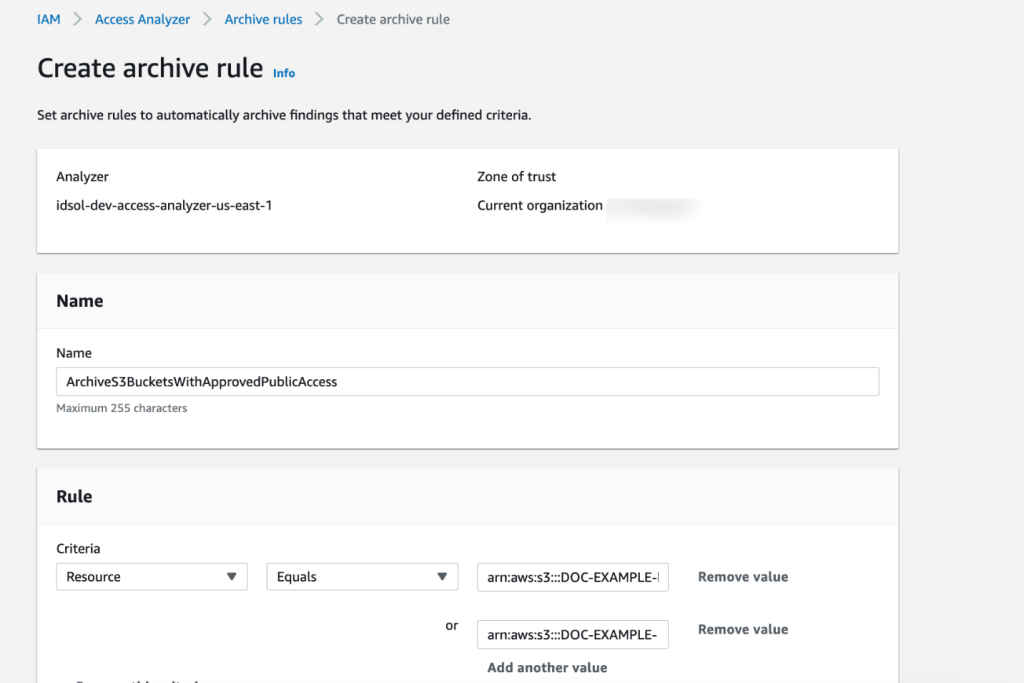
If you have resources for which public access is expected, such as an S3 bucket that hosts images for your website, you can add an archive rule with Resource criteria equal to the bucket name, as shown in Figure 1.

Figure 1: Create IAM Access Analyzer archive rule using the console

Figure 1: Create IAM Access Analyzer archive rule using the console

Is the public access unintended?

If the finding results from policies that were misconfigured to allow unintended public access, you can constrain the access by using AWS global condition context keys or a specific IAM principal ARN. The findings show the account and resource that contain the policy.

For example, if the finding shows a misconfigured S3 bucket, the following policy shows how you can modify the S3 bucket policy to only allow IAM principals from your organization to access the bucket by using the PrincipalOrgID condition key. Replace <DOC-EXAMPLE-BUCKET> with the name of your S3 bucket, and <ORGANIZATION_ID> with your organization ID.

{
   "Version":"2008-10-17",
   "Id":"Policy1335892530063",
   "Statement":[
      {
         "Sid":"AllowS3Access",
         "Effect":"Allow",
         "Principal":"*",
         "Action":"s3:*",
         "Resource":[
            "arn:aws:s3:::<DOC-EXAMPLE-BUCKET>",
            "arn:aws:s3:::<DOC-EXAMPLE-BUCKET>/*"
         ],
         "Condition":{
            "StringEquals":{
               "aws:PrincipalOrgID":"<ORGANIZATION_ID>"
            }
         }
      }
   ]
}

2. Filter by removing permissions errors

Before you further investigate the IAM Access Analyzer findings, you should make sure that IAM Access Analyzer has enough permissions to access the resources in your accounts to be able to provide the analysis.

IAM Access Analyzer uses an AWS service-linked role to call other AWS services on your behalf. When IAM Access Analyzer analyzes a resource, it reads resource metadata, such as a resource-based policy, access control lists, and other access controls that grant public or cross-account access. If the policies don’t allow an IAM Access Analyzer role to read the resource metadata, it generates an Access Denied error finding, as shown in Figure 2.

Figure 2: IAM Access Analyzer access denied error example

Figure 2: IAM Access Analyzer access denied error example

To view these error findings from the IAM Access Analyzer console, filter the findings by using the Error: Access Denied property.

Resolution

To resolve the access issue, make sure that the IAM Access Analyzer service-linked role is not denied access. Review the resource-based policy attached to the resource that IAM Access Analyzer isn’t able to access. For a list of services that support resource-based policies, see the IAM documentation.

For example, if the analyzer can’t access an AWS Key Management Service (AWS KMS) key because of an explicit deny, add an exception for the IAM Access Analyzer service-linked role to the policy statement, similar to the following. Make sure that you change the <ACCOUNT_ID> to your account id.

Before After
{
   "Sid":"Deny unintended access to KMS key",
   "Effect":"Deny",
   "Principal":"*",
   "Action":[
      "kms:DescribeKey",
      "kms:GetKeyPolicy",
      "kms:List*"
   ],
   "Resource":"*",
   "Condition":{
      "ArnNotLikeIfExists":{
         "aws:PrincipalArn":[
            "arn:aws:iam::*:role/<YOUR-ADMIN-ROLE>"
         ]
      }
   }
}

{
   "Sid":"Deny unintended access to KMS key",
   "Effect":"Deny",
   "Principal":"*",
   "Action":[
      "kms:DescribeKey",
      "kms:GetKeyPolicy",
      "kms:List*"
   ],
   "Resource":"*",
   "Condition":{
      "ArnNotLikeIfExists":{
         "aws:PrincipalArn":[
            "arn:aws:iam::<ACCOUNT_ID>:role/aws-service-role/access-analyzer.amazonaws.com/AWSServiceRoleForAccessAnalyzer",
"arn:aws:iam::*:role/<YOUR-ADMIN-ROLE>"
         ]
      }
   }
}

3. Filter for known identity providers

With SAML 2.0 or Open ID Connect (OIDC)—which are open federation standards that many identity providers (IdPs) use—users can log in to the console or call the AWS API operations without you having to create an IAM user for everyone in your organization.

To set up federation, you must perform a one-time configuration so that your organization’s IdP and your account trust each other. To configure this trust, you must register AWS as a service provider (SP) with the IdP of your organization and set up metadata and key exchange.

The role or roles that you create in IAM define what the federated users from your organization are allowed to use on AWS. When you create the trust policy for the role, you specify the SAML or OIDC provider as the Principal. To only allow users that match certain attributes to access the role, you can scope the trust policy with a Condition.

Example 1: Federation with Okta

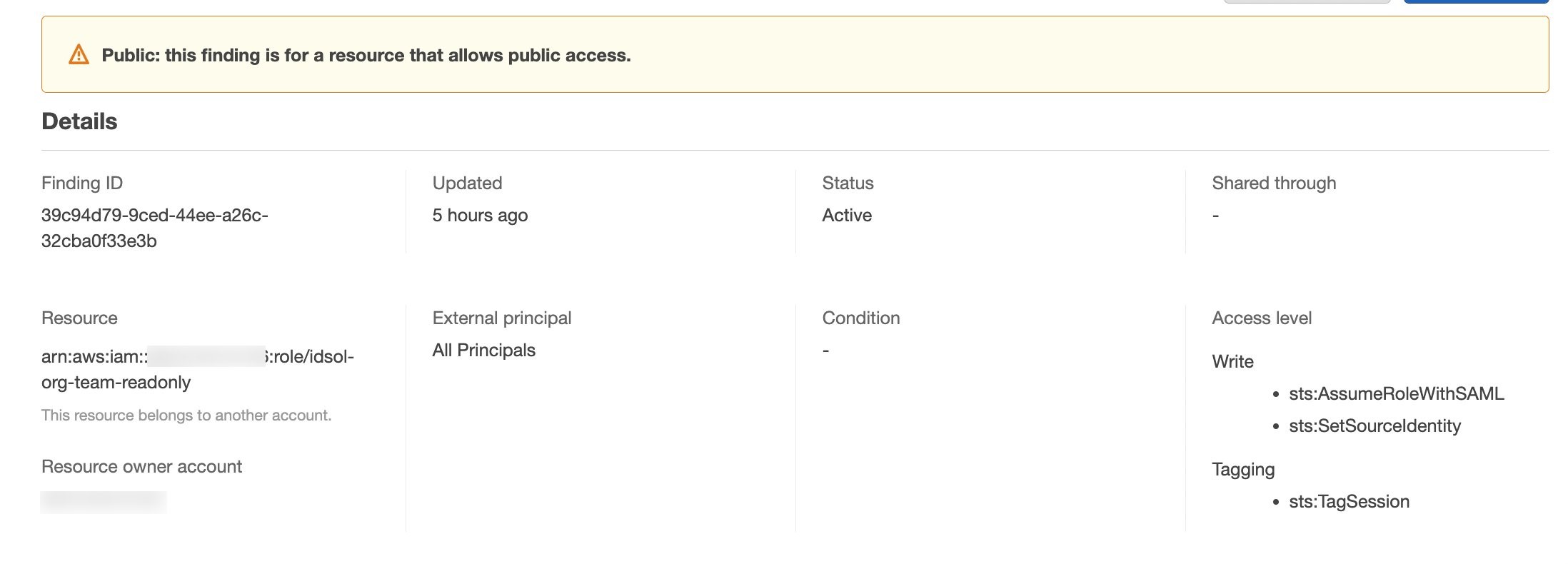
Let’s walk through an example that uses Okta as the IdP. Although access to a trusted IdP is intended, IAM Access Analyzer creates a finding for an IAM role that has trust policy granting access to a SAML provider because the trust policy allows access outside of the known zone of trust for the analyzer. You will see findings created for the IAM role granting access to Okta using the IAM trust policy, as shown in Figure 3.

Figure 3: IAM Access Analyzer identity provider finding example

Figure 3: IAM Access Analyzer identity provider finding example

Resolution 

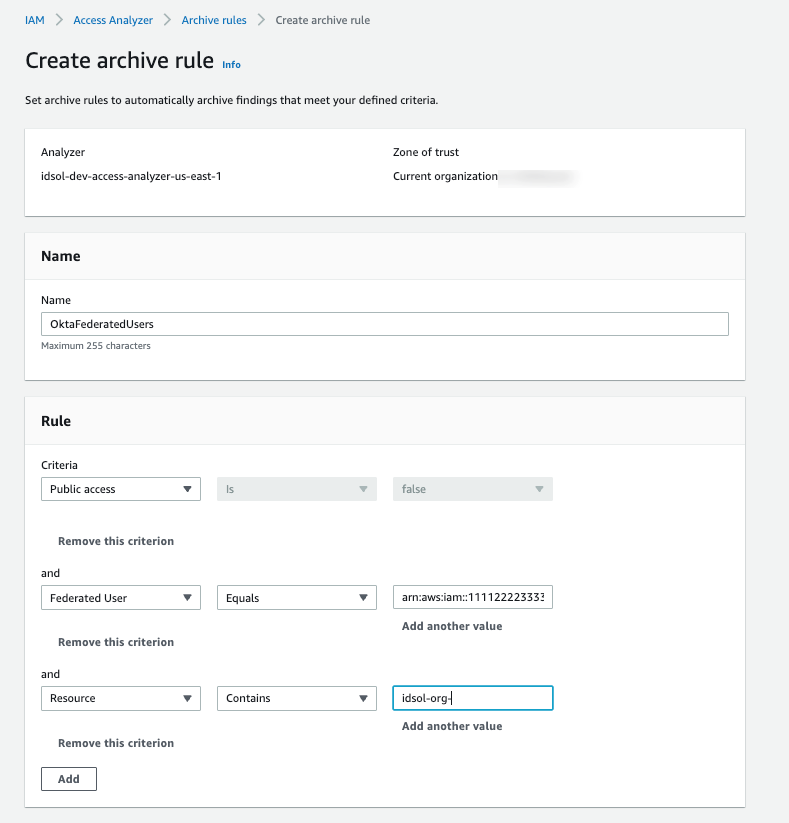
Setting access through SAML providers is a privileged operation, so we recommend that you analyze each finding to decide if an exception is acceptable. If you approve of the SAML-provided access setup, you can implement an archive rule to archive such findings with conditions for federation used in combination with your SAML provider. The filter for the Federated User rule depends on the name that you gave to the SAML IdP in your federation setup. For example, if your SAML IdP name is Okta, the rule should have a filter for arn:aws:iam::<ACCOUNT_ID>:saml-provider/Okta, where <ACCOUNT_ID> is your account number, as shown in Figure 4.

Figure 4: Archive rule example for using an IdP-related finding

Figure 4: Archive rule example for using an IdP-related finding

Note: To include additional values for a multi-account setup, use the Add another value filter.

Example 2: IAM Identity Center

With AWS IAM Identity Center (successor to AWS Single Sign-On), you can manage sign-in security for your workforce. IAM Identity Center provides a central place to define your permission sets, assign them to your users and groups, and give your users a portal where they can access their assigned accounts.

With IAM Identity Center, you manage access to accounts by creating and assigning permission sets. These are IAM role templates that define (among other things) which policies to include in a role. When you create a permission set in IAM Identity Center and associate it to an account, IAM Identity Center creates a role in that account with a trust policy that allows a federated IdP as a principal — in this case, IAM Identity Center.

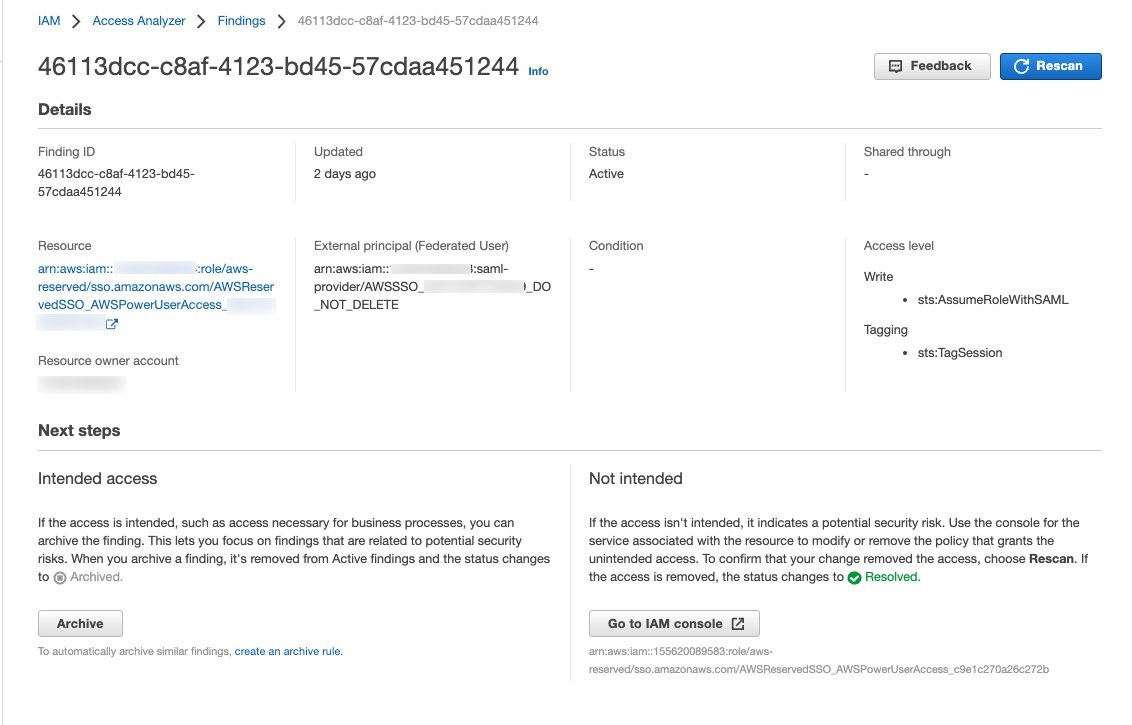
IAM Access Analyzer generates a finding for this setup because the allowed access is outside of the known zone of trust for the analyzer, as shown in Figure 5.

Figure 5: IAM Access Analyzer finding example for IAM Identity Center

Figure 5: IAM Access Analyzer finding example for IAM Identity Center

To filter this finding, you need to implement an archive rule.

Resolution

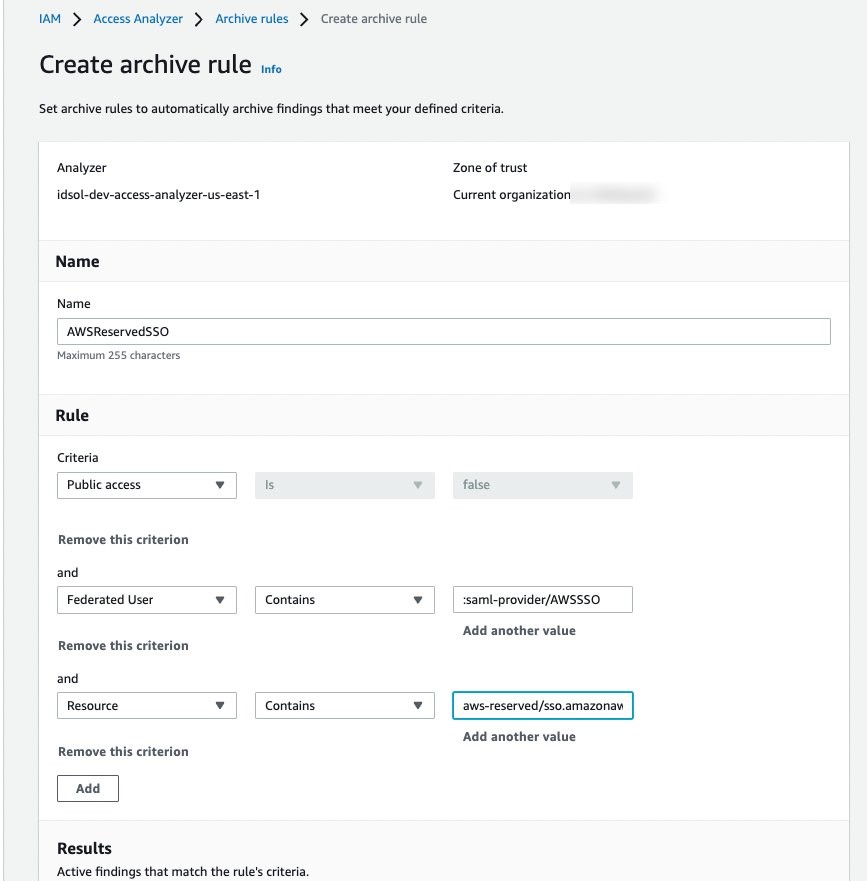
You can implement an archive rule with conditions for federation used in combination with IAM Identity Center as the SAML provider. The roles created by IAM Identity Center in member accounts use a reserved path on AWS: arn:aws:iam::<ACCOUNT_ID>:role/aws-reserved/sso.amazonaws.com/. Hence, you can create an archive rule with a filter that contains :saml-provider/AWSSSO in the Federated User name and aws-reserved/sso.amazonaws.com/ in the Resource, as shown in Figure 6.

Figure 6: Archive rule example for IAM Identity Center generated findings

Figure 6: Archive rule example for IAM Identity Center generated findings

4. Filter cross-account access findings from trusted external accounts

We recommend that you identify and document accounts and principals that should be allowed access outside of the zone of trust for IAM Access Analyzer.

When a resource-based policy attached to a resource allows cross-account access from outside the zone of trust, IAM Access Analyzer generates cross-account access findings.

Is the cross-account access intended?

When you review cross-account access findings, you need to determine whether the access is intended or not. For example, you might have access provided to your auditor’s account or a partner account for visibility and monitoring of your AWS applications.

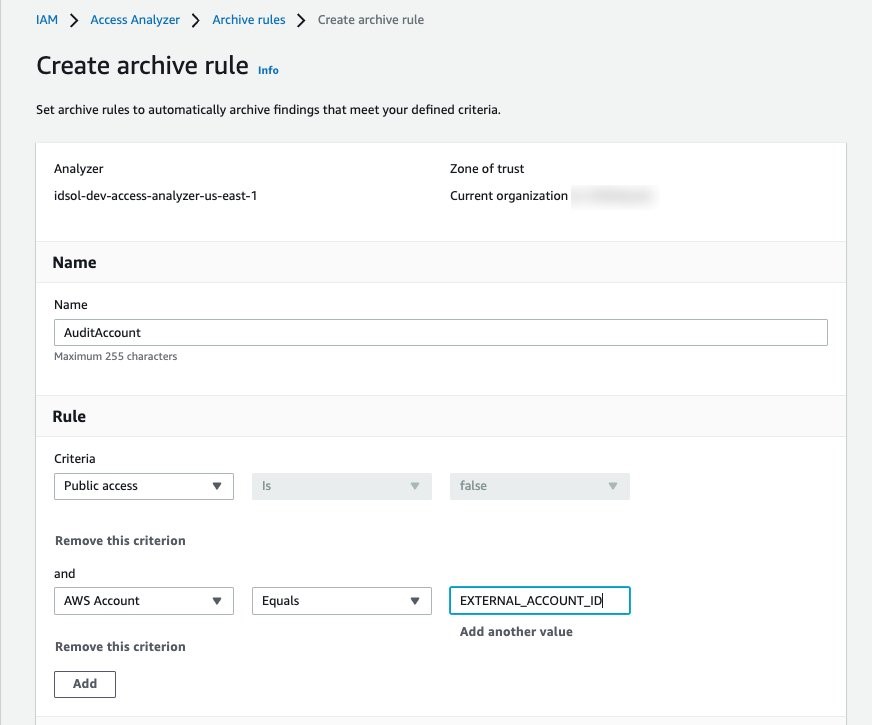
For trusted external accounts, you can create an archive rule that includes the AWS account in the criteria for the rule. Figure 7 shows an example of how to create the archive rule for a trusted external account (EXTERNAL_ACCOUNT_ID). In your own rule, replace EXTERNAL_ACCOUNT_ID with the trusted account id.

Figure 7: Archive rule example for trusted account findings

Figure 7: Archive rule example for trusted account findings

Is the cross-account access unintended?

After you have archived the intended access findings, you can start analyzing the findings initiated from unintended access. When you confirm that the findings show unintended access, you should take steps to remove the access by altering or deleting the policy or access control that granted access. You can expand the solution outlined in the blog post Automate resolution for IAM Access Analyzer cross-account access findings on IAM roles by adding an explicit deny statement.

You can also use AWS CloudTrail to track API calls that could have changed access configuration on your AWS resources.

Deploy IAM Access Analyzer and archive rules with a CloudFormation template

In this section, we demonstrate a sample CloudFormation template that creates an IAM access analyzer and archive rules for findings that are created for identified intended access to resources.

Important: When you create an archive rule using the AWS console, the existing findings and new findings that match criteria mentioned in the rules will be archived. However, archive rules created through CloudFormation or the AWS CLI will only archive the new findings that meet the criteria defined. You need to perform the access-analyzer:ApplyArchiveRule API after you create the archive rule to archive existing findings as well.

The sample CloudFormation template takes the following values as inputs and creates archive rules for findings that are created for identified intended access to resources shared outside of your zone of trust for the specified analyzer:

  • Analyzer name
  • Zone of trust
  • Known public S3 buckets, if you have any (for example, a bucket that hosts public website images).

    Note: We use S3 buckets as an example. You can edit the rule to include resource types that are supported by IAM Access Analyzer, if public access is intended.

  • Trusted accounts — AWS accounts that don’t belong to your organization, but you trust them to have access to resources in your organization
  • SAML provider — The SAML provider approved to have access to your resources

    Note: If you don’t use federation, you can remove the rule SAMLFederatedUsers.

AWSTemplateFormatVersion: 2010-09-09
Description: >+
  Sample CloudFormation template creates archive rules for findings
  created for resources shared outside of your zone of trust for specified
  analyzer. 
   
Metadata:
  AWS::CloudFormation::Interface:
    ParameterGroups:
      - Label:
          default: Define Configuration
        Parameters:
          - AccessAnalyzerName
          - ZoneOfTrust
          - KnownPublicS3Buckets
          - TrustedAccounts
          - SAMLProvider
Parameters:
  AccessAnalyzerName:
    Description: Provide name of the analyzer you would like to create archive rules for.
    Type: String
  ZoneOfTrust:
    Description: Select the zone of trust of AccessAnalyzer
    AllowedValues:
      - ACCOUNT
      - ORGANIZATION
    Type: String
  KnownPublicS3Buckets:
    Description: List of comma-separated known S3 bucket arns, that should allow
      public access Example -
      arn:aws:s3:::DOC-EXAMPLE-BUCKET,arn:aws:s3:::DOC-EXAMPLE-BUCKET2
    Type: CommaDelimitedList
  TrustedAccounts:
    Description: List of comma-separated account IDs, that do not belong to your
      organization but you trust them to have access to resources in your
      organization. [Example - Your auditor’s AWS account]
    Type: List<Number>
  TrustedFederationPrincipals:
    Description: List of comma-separated trusted federated principals that are able
      to assume roles in your accounts. [Example -
      arn:aws:iam::012345678901:saml-provider/Okta,
      arn:aws:iam::1111222233334444:saml-provider/Okta]
    Type: CommaDelimitedList
Resources:
  AccessAnalyzer:
    Type: AWS::AccessAnalyzer::Analyzer
    Properties:
      AnalyzerName: ${AccessAnalyzerName}-${AWS::Region}
      Type: ZoneOfTrust
      ArchiveRules:
        - RuleName: ArchivePublicS3BucketsAccess
          Filter:
            - Property: resource
              Eq: KnownPublicS3Buckets
        - RuleName: AccountAccessNecessaryForBusinessProcesses
          Filter:
            - Property: principal.AWS
              Eq: TrustedAccounts
            - Property: isPublic
              Eq:
                - "false"
        - RuleName: SAMLFederatedUsers
          Filter:
            - Property: principal.Federated
              Eq: TrustedFederationPrincipals

To download this sample template, download the file IAMAccessAnalyzer.yaml from Amazon S3.

Conclusion

In this blog post, you learned how to start with IAM Access Analyzer findings, filter them based on the level of access given outside of your zone of trust, and create archive rules for intended access findings. By using different filtering techniques to remediate intended access findings, you can concentrate on unintended access.

To take this solution further, we recommend that you consider automating the resolution of unintended cross-account IAM roles found by IAM Access Analyzer by adding a deny statement to the IAM role’s trust policy. You can also include capabilities like an approval workflow to resolve the finding to suit your organization’s process requirements.

Lastly, we suggest that you use IAM Access Analyzer access previews to preview and validate public and cross-account access before deploying permissions changes in your environment.

 
If you have feedback about this post, submit comments in the Comments section below. If you have questions about this post, contact AWS Support.

Want more AWS Security news? Follow us on Twitter.

Swara Gandhi

Swara Gandhi

Swara is a solutions architect on the AWS Identity Solutions team. She works on building secure and scalable end-to-end identity solutions. She is passionate about everything identity, security, and cloud.

Nitin Kulkarni

Nitin is a Solutions Architect on the AWS Identity Solutions team. He helps customers build secure and scalable solutions on the AWS platform. He also enjoys hiking, baseball and linguistics.