Tag Archives: metaflow

Supercharging the ML and AI Development Experience at Netflix

Post Syndicated from Netflix Technology Blog original https://netflixtechblog.com/supercharging-the-ml-and-ai-development-experience-at-netflix-b2d5b95c63eb

Supercharging the ML and AI Development Experience at Netflix with Metaflow

Shashank Srikanth, Romain Cledat

Metaflow — a framework we started and open-sourced in 2019 — now powers a wide range of ML and AI systems across Netflix and at many other companies. It is well loved by users for helping them take their ML/AI workflows from prototype to production, allowing them to focus on building cutting-edge systems that bring joy and entertainment to audiences worldwide.

Metaflow allows users to:

  1. Iterate and ship quickly by minimizing friction
  2. Operate systems reliably in production with minimal overhead, at Netflix scale.

Metaflow works with many battle-hardened tooling to address the second point — among them Maestro, our newly open-sourced workflow orchestrator that powers nearly every ML and AI system at Netflix and serves as a backbone for Metaflow itself.

In this post, we focus on the first point and introduce a new Metaflow functionality, Spin, that helps users accelerate their iterative development process. By the end, you’ll have a solid understanding of Spin’s capabilities and learn how to try it out yourself with Metaflow 2.19.

Iterative development in ML and AI workflows
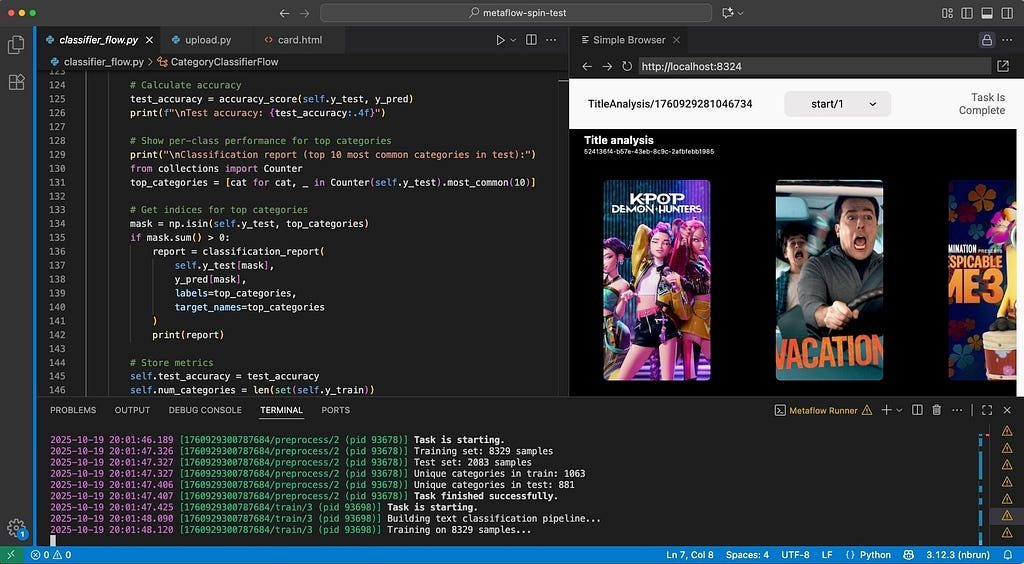
Developing a Metaflow flow with cards in VSCode

To understand our approach to improving the ML and AI development experience, it helps to consider how these workflows differ from traditional software engineering.

ML and AI development revolves not just around code but also around data and models, which are large, mutable, and computationally expensive to process. Iteration cycles can involve long-running data transformations, model training, and stochastic processes that yield slightly different results from run to run. These characteristics make fast, stateful iteration a critical part of productive development.

This is where notebooks — such as Jupyter, Observable, or Marimo — shine. Their ability to preserve state in memory allows developers to load a dataset once and iteratively explore, transform, and visualize it without reloading or recomputing from scratch. This persistent, interactive environment turns what would otherwise be a slow, rigid loop into a fluid, exploratory workflow — perfectly suited to the needs of ML and AI practitioners.

Because ML and AI development is computationally intensive, stochastic, and data- and model-centric, tools that optimize iteration speed must treat state management as a first-class design concern. Any system aiming to improve the development experience in this domain must therefore enable quick, incremental experimentation without losing continuity between iterations.

New: rapid, iterative development with spin

At first glance, Metaflow code looks like a workflow — similar to Airflow — but there’s another way to look at it: each Metaflow @step serves as a checkpoint boundary. At the end of every step, Metaflow automatically persists all instance variables as artifacts, allowing the execution to resume seamlessly from that point onward. The below animation shows this behavior in action:

An animated GIF showing how resume can be used in Metaflow. The GIF shows how using `flow.py resume join` makes Metaflow clone previously executed steps and resumes the computation from the `join` step and continues executing till the end of the flow.
Using resume in Metaflow

In a sense, we can consider a @step similar to a notebook cell: it is the smallest unit of execution that updates state upon completion. It does have a few differences that address the issues with notebook cells:

  • The execution order is explicit and deterministic: no surprises due to out-of-order cell execution;
  • The state is not hidden: state is explicitly stored as self. variables as shared state, which can be discovered and inspected;
  • The state is versioned and persisted making results more reproducible.

While Metaflow’s resume feature can approximate the incremental and iterative development approach of notebooks, it restarts execution from the selected step onward, introducing more latency between iterations. In contrast, a notebook allows near-instant feedback by letting users tweak and rerun individual cells while seamlessly reusing data from earlier cells held in memory.

The new spin command in Metaflow 2.19 addresses this gap. Similar to executing a single notebook cell, it quickly executes a single Metaflow @step — with all the state carried over from the parent step. As a result, users can develop and debug Metaflow steps as easily as a cell in a notebook.

The effect becomes clear when considering the three complementary execution modes — run, resume, and spin — side by side, mapping them to the corresponding notebook behavior:

Diagram showing the various modes of execution in Metaflow: Run, Resume and Spin
Run, Resume and Spin “modes”

Another major difference isn’t just what gets executed, but what gets recorded. Both run and resume create a full, versioned run with complete metadata and artifacts, while spin skips tracking altogether. It’s built for fast, throw-away iterations during development.

The one-minute clip below illustrates a typical iterative development workflow that alternates between run and spin. In this example, we are building a flow that reads a dataset from a Parquet file and trains a separate model for each product category, focusing on computer-related categories.

As shown in the video, we start by creating a flow from scratch and running a minimal version of it to persist test artifacts — in this case, a Parquet dataset. From there, we can use spin to iterate on one step at a time, incrementally building out the flow, for example, by adding the parallel training steps demonstrated in the clip.

Once the flow has been iterated on locally, it can be seamlessly deployed to production orchestrators like Maestro or Argo, and scaled up on compute platforms such as AWS Batch, Titus, Kubernetes and more. Thus, the experience is as smooth as developing in a notebook, but the outcome is a production-ready, scalable workflow, implemented as an idiomatic Python project!

Spin up smooth development in VSCode/Cursor

Instead of typing run and spin manually in the terminal, we can bind them to keyboard shortcuts. For example, the simple metaflow-dev VS Code extension (works with Cursor as well) maps Ctrl+Opt+R to run and Ctrl+Opt+S to spin. Just hack away, hit Ctrl+Opt+S, and the extension will save your file and spin the step you are currently editing.

One area where spin truly shines is in creating mini-dashboards and reports with Metaflow Cards. Visualization is another strong point of notebooks but the combination of spin and cards makes Metaflow a very compelling alternative for developing real-time and post-execution visualizations. Developing cards is inherently iterative and visual (much like building web pages) where you want to tweak code and see the results instantly. This workflow is readily available with the combination of VSCode/Cursor, which includes a built-in web-view, the local card viewer, and spin.

To see the trio of tools — along with the VS Code extension — in action, in this short clip we add observability to the train step that we built in the earlier example:

A major benefit of Metaflow Cards is that we don’t need to deploy any extra services, data streams, and databases for observability. Just develop visual outputs as above, deploy the flow, and wehave a complete system in production with reporting and visualizations included.

Spin to the next level: injecting inputs, inspecting outputs

Spin does more than just run code — it also lets us take full control of a spun @step’s inputs and outputs, enabling a range of advanced patterns.

In contrast to notebooks, we can spin any arbitrary @step in a flow using state from any past run, making it easy to test functions with different inputs. For example, if we have multiple models produced by separate runs, we could spin an inference step, supplying a different model run each time.

We can also override artifact values or inject arbitrary Python objects — similar to a notebook cell — for spin. Simply specify a Python module with an ARTIFACTS dictionary:

ARTIFACTS = {
"model": "kmeans",
"k": 15
}

and point spin at the module:

spin train --artifacts-module artifacts.py

By default spin doesn’t persist artifacts, but we can easily change this by adding –persist. Even in this case, artifacts are not persisted in the usual Metaflow datastore but to a directory-specific location which you can easily clean up after testing. We can access the results with the Client API as usual — just specify the directory you want to inspect with inspect_spin:

from metaflow import inspect_spin

inspect_spin(".")
Flow("TrainingFlow").latest_run["train"].task["model"].data

Being able to inspect and modify a step’s inputs and outputs on the fly unlocks a powerful use case: unit testing individual steps. We can use spin programmatically through the Runner API and assert the results:

from metaflow import Runner

with Runner("flow.py").spin("train", persist=True) as spin:
assert spin.task["model"].data == "kmeans"

Making AI agents spin

In addition to speeding up development for humans, spin turns out to be surprisingly handy for coding agents too. There are two major advantages to teaching AI how to spin:

  1. It accelerates the development loop. Agents don’t naturally understand what’s slow, or why speed matters, so they need to be nudged to favor faster tools over slower ones.
  2. It helps surface errors faster and contextualizes them to a specific piece of code, increasing the chance that the agent is able to fix errors by itself.

Metaflow users are already using Claude Code; spin makes this even easier. In the example below, we added the following section in a CLAUDE.md file:

## Developing Metaflow code
Follow this incremental development workflow that ensures quick iterations
and correct results. You must create a flow incrementally, step by step
following this process:
1. Create a flow skeleton with empty `@step`s.
2. Add a data loading step.
3. `run` the flow.
4. Populate the next step and use `spin` to test it with the correct inputs.
5. `run` the flow to record outputs from the new step.
5. Iterate on (4–5) until all steps have been implemented and work correctly.
6. `run` the whole flow to ensure final correctness.

To test a flow, run the flow as follows
```
python flow.py - environment=pypi run
```

Do this once before running `spin`.
As you are building the flow, you `spin` to test steps quickly.
For instance
```
python flow.py - environment=pypi spin train
```

Just based on these quick instructions, the agent is able to use spin effectively. Take a look at the following inspirational example that one-shots Claude to create a flow, along the lines of our earlier examples, which trains a classifier to predict product categories:

In the video, we can see Claude using spin around the 45-second mark to test a preprocess step. The step initially fails due to a classic data science pitfall: during testing, Claude samples only a small subset of data, causing some classes to be underrepresented. The first spin surfaces the issue, which Claude then fixes by switching to stratified sampling — and finally does another spin to confirm the fix, before proceeding to complete the task.

The inner loop of end-to-end ML/AI

To circle back to where we started, our motivation for adding spin — and for creating Metaflow in the first place — is to accelerate development cycles so we can deliver more joy to our subscribers, faster. Ultimately, we believe there’s no single magic feature that makes this possible. It takes all parts of an ML/AI platform working together coherently — spin included.

From this perspective, it’s useful to place spin in the context of other Metaflow features. It’s designed for the innermost loop of model and business-logic development, with the added benefit of supporting unit testing during deployment, as shown in the overall blueprint of the Metaflow toolchain below.

Metaflow tool-chain.
Metaflow tool-chain

In this diagram, the solid blue boxes represent different Metaflow commands, while the blue text denotes decorators and other features. In particular, note the Shared Functionality box — another key focus area for us over the past year — which includes configuration management and custom decorators. These capabilities let domain-specific teams and platform providers tailor Metaflow to their own use cases. Following our ethos of composability, all of these features integrate seamlessly with spin as well.

Another key design philosophy of Metaflow is to let projects start small and simple, adding complexity only when it becomes necessary. So don’t be overwhelmed by the diagram above. To get started, install Metaflow easily with

pip install metaflow

and take your first baby @steps for a spin! Check out the docs and for questions, support, and feedback, join the friendly Metaflow Community Slack.

Acknowledgments

We would like to thank our partners at Outerbounds, and particularly Ville Tuulos, Savin Goyal, and Madhur Tandon, for their collaboration on this feature, from initial ideation to review, testing and documentation. We would also like to acknowledge the rest of the Model Development and Management team (Maria Alder, David J. Berg, Shaojing Li, Rui Lin, Nissan Pow, Chaoying Wang, Regina Wang, Seth Yang, Darin Yu) for their input and comments.


Supercharging the ML and AI Development Experience at Netflix was originally published in Netflix TechBlog on Medium, where people are continuing the conversation by highlighting and responding to this story.
Introducing Configurable Metaflow

Post Syndicated from Netflix Technology Blog original https://netflixtechblog.com/introducing-configurable-metaflow-d2fb8e9ba1c6

David J. Berg*, David Casler^, Romain Cledat*, Qian Huang*, Rui Lin*, Nissan Pow*, Nurcan Sonmez*, Shashank Srikanth*, Chaoying Wang*, Regina Wang*, Darin Yu*
*: Model Development Team, Machine Learning Platform
^: Content Demand Modeling Team

A month ago at QConSF, we showcased how Netflix utilizes Metaflow to power a diverse set of ML and AI use cases, managing thousands of unique Metaflow flows. This followed a previous blog on the same topic. Many of these projects are under constant development by dedicated teams with their own business goals and development best practices, such as the system that supports our content decision makers, or the system that ranks which language subtitles are most valuable for a specific piece of content.

As a central ML and AI platform team, our role is to empower our partner teams with tools that maximize their productivity and effectiveness, while adapting to their specific needs (not the other way around). This has been a guiding design principle with Metaflow since its inception.

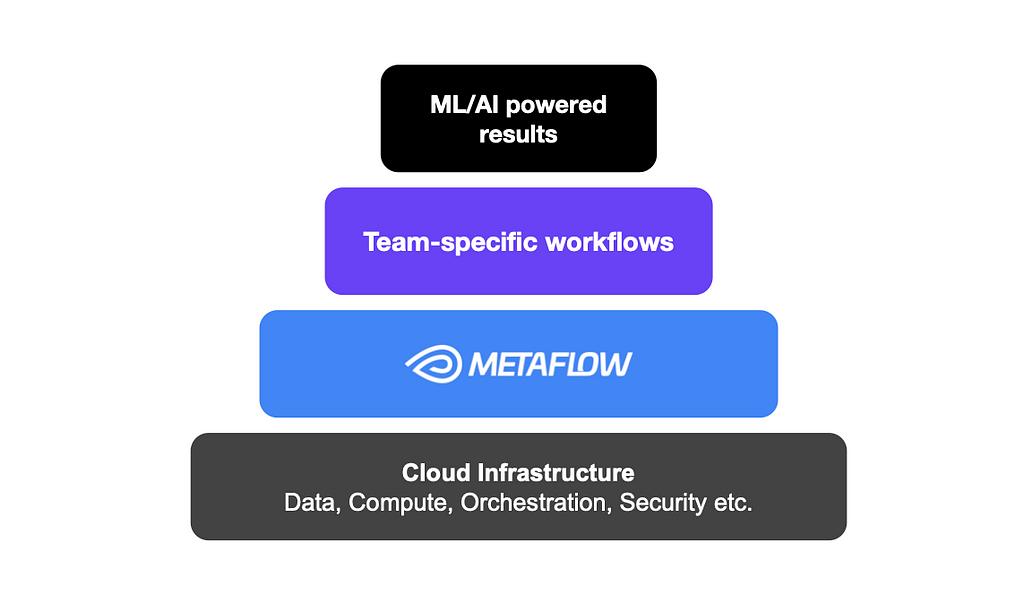
Metaflow infrastructure stack

Standing on the shoulders of our extensive cloud infrastructure, Metaflow facilitates easy access to data, compute, and production-grade workflow orchestration, as well as built-in best practices for common concerns such as collaboration, versioning, dependency management, and observability, which teams use to setup ML/AI experiments and systems that work for them. As a result, Metaflow users at Netflix have been able to run millions of experiments over the past few years without wasting time on low-level concerns.

A long standing FAQ: configurable flows

While Metaflow aims to be un-opinionated about some of the upper levels of the stack, some teams within Netflix have developed their own opinionated tooling. As part of Metaflow’s adaptation to their specific needs, we constantly try to understand what has been developed and, more importantly, what gaps these solutions are filling.

In some cases, we determine that the gap being addressed is very team specific, or too opinionated at too high a level in the stack, and we therefore decide to not develop it within Metaflow. In other cases, however, we realize that we can develop an underlying construct that aids in filling that gap. Note that even in that case, we do not always aim to completely fill the gap and instead focus on extracting a more general lower level concept that can be leveraged by that particular user but also by others. One such recurring pattern we noticed at Netflix is the need to deploy sets of closely related flows, often as part of a larger pipeline involving table creations, ETLs, and deployment jobs. Frequently, practitioners want to experiment with variants of these flows, testing new data, new parameterizations, or new algorithms, while keeping the overall structure of the flow or flows intact.

A natural solution is to make flows configurable using configuration files, so variants can be defined without changing the code. Thus far, there hasn’t been a built-in solution for configuring flows, so teams have built their bespoke solutions leveraging Metaflow’s JSON-typed Parameters, IncludeFile, and deploy-time Parameters or deploying their own home-grown solution (often with great pain). However, none of these solutions make it easy to configure all aspects of the flow’s behavior, decorators in particular.

Requests for a feature like Metaflow Config

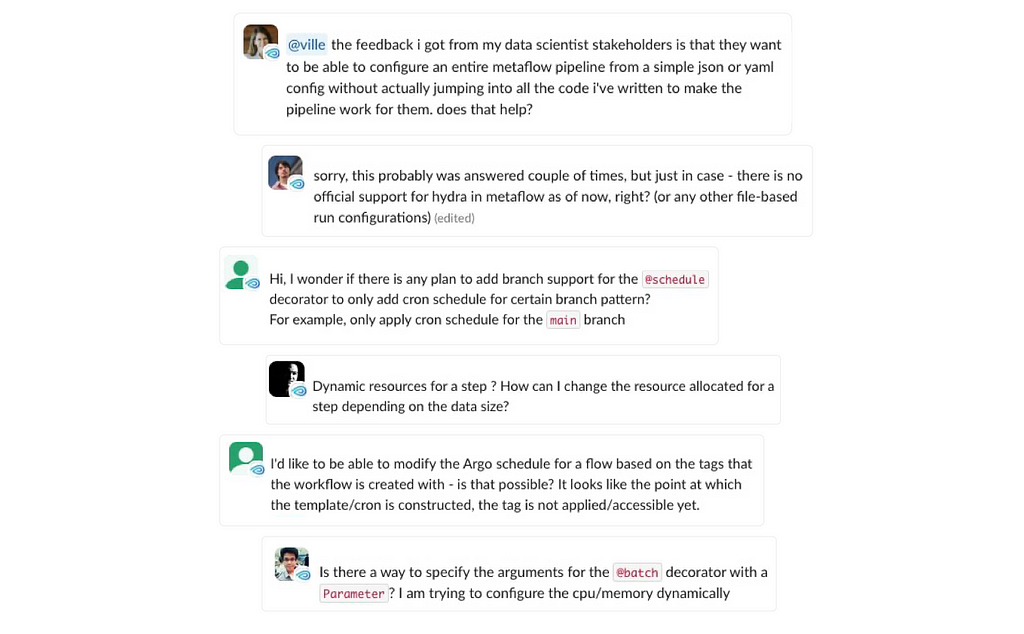
Outside Netflix, we have seen similar frequently asked questions on the Metaflow community Slack as shown in the user quotes above:

  • how can I adjust the @resource requirements, such as CPU or memory, without having to hardcode the values in my flows?
  • how to adjust the triggering @schedule programmatically, so our production and staging deployments can run at different cadences?

New in Metaflow: Configs!

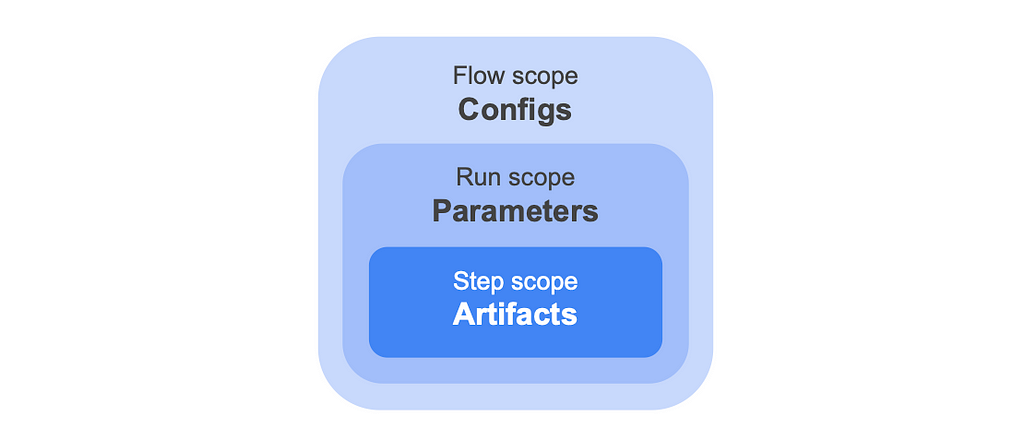
Today, to answer the FAQ, we introduce a new — small but mighty — feature in Metaflow: a Config object. Configs complement the existing Metaflow constructs of artifacts and Parameters, by allowing you to configure all aspects of the flow, decorators in particular, prior to any run starting. At the end of the day, artifacts, Parameters and Configs are all stored as artifacts by Metaflow but they differ in when they are persisted as shown in the diagram below:

Different data artifacts in Metaflow

Said another way:

  • An artifact is resolved and persisted to the datastore at the end of each task.
  • A parameter is resolved and persisted at the start of a run; it can therefore be modified up to that point. One common use case is to use triggers to pass values to a run right before executing. Parameters can only be used within your step code.
  • A config is resolved and persisted when the flow is deployed. When using a scheduler such as Argo Workflows, deployment happens when create’ing the flow. In the case of a local run, “deployment” happens just prior to the execution of the run — think of “deployment” as gathering all that is needed to run the flow. Unlike parameters, configs can be used more widely in your flow code, particularly, they can be used in step or flow level decorators as well as to set defaults for parameters. Configs can of course also be used within your flow.

As an example, you can specify a Config that reads a pleasantly human-readable configuration file, formatted as TOML. The Config specifies a triggering ‘@schedule’ and ‘@resource’ requirements, as well as application-specific parameters for this specific deployment:

[schedule]
cron = "0 * * * *"

[model]
optimizer = "adam"
learning_rate = 0.5

[resources]
cpu = 1

Using the newly released Metaflow 2.13, you can configure a flow with a Config like above, as demonstrated by this flow:

import pprint
from metaflow import FlowSpec, step, Config, resources, config_expr, schedule

@schedule(cron=config_expr("config.schedule.cron"))
class ConfigurableFlow(FlowSpec):
config = Config("config", default="myconfig.toml", parser="tomllib.loads")

@resources(cpu=config.resources.cpu)
@step
def start(self):
print("Config loaded:")
pprint.pp(self.config)
self.next(self.end)

@step
def end(self):
pass

if __name__ == "__main__":
ConfigurableFlow()

There is a lot going on in the code above, a few highlights:

  • you can refer to configs before they have been defined using ‘config_expr’.
  • you can define arbitrary parsers — using a string means the parser doesn’t even have to be present remotely!

From the developer’s point of view, Configs behave like dictionary-like artifacts. For convenience, they support the dot-syntax (when possible) for accessing keys, making it easy to access values in a nested configuration. You can also unpack the whole Config (or a subtree of it) with Python’s standard dictionary unpacking syntax, ‘**config’. The standard dictionary subscript notation is also available.

Since Configs turn into dictionary artifacts, they get versioned and persisted automatically as artifacts. You can access Configs of any past runs easily through the Client API. As a result, your data, models, code, Parameters, Configs, and execution environments are all stored as a consistent bundle — neatly organized in Metaflow namespaces — paving the way for easily reproducible, consistent, low-boilerplate, and now easily configurable experiments and robust production deployments.

More than a humble config file

While you can get far by accompanying your flow with a simple config file (stored in your favorite format, thanks to user-definable parsers), Configs unlock a number of advanced use cases. Consider these examples from the updated documentation:

A major benefit of Config over previous more hacky solutions for configuring flows is that they work seamlessly with other features of Metaflow: you can run steps remotely and deploy flows to production, even when relying on custom parsers, without having to worry about packaging Configs or parsers manually or keeping Configs consistent across tasks. Configs also work with the Runner and Deployer.

The Hollywood principle: don’t call us, we’ll call you

When used in conjunction with a configuration manager like Hydra, Configs enable a pattern that is highly relevant for ML and AI use cases: orchestrating experiments over multiple configurations or sweeping over parameter spaces. While Metaflow has always supported sweeping over parameter grids easily using foreaches, it hasn’t been easily possible to alter the flow itself, e.g. to change @resources or @pypi/@conda dependencies for every experiment.

In a typical case, you trigger a Metaflow flow that consumes a configuration file, changing how a run behaves. With Hydra, you can invert the control: it is Hydra that decides what gets run based on a configuration file. Thanks to Metaflow’s new Runner and Deployer APIs, you can create a Hydra app that operates Metaflow programmatically — for instance, to deploy and execute hundreds of variants of a flow in a large-scale experiment.

Take a look at two interesting examples of this pattern in the documentation. As a teaser, this video shows Hydra orchestrating deployment of tens of Metaflow flows, each of which benchmarks PyTorch using a varying number of CPU cores and tensor sizes, updating a visualization of the results in real-time as the experiment progresses:

Metaboosting Metaflow — based on a true story

To give a motivating example of what configurations look like at Netflix in practice, let’s consider Metaboost, an internal Netflix CLI tool that helps ML practitioners manage, develop and execute their cross-platform projects, somewhat similar to the open-source Hydra discussed above but with specific integrations to the Netflix ecosystem. Metaboost is an example of an opinionated framework developed by a team already using Metaflow. In fact, a part of the inspiration for introducing Configs in Metaflow came from this very use case.

Metaboost serves as a single interface to three different internal platforms at Netflix that manage ETL/Workflows (Maestro), Machine Learning Pipelines (Metaflow) and Data Warehouse Tables (Kragle). In this context, having a single configuration system to manage a ML project holistically gives users increased project coherence and decreased project risk.

Configuration in Metaboost

Ease of configuration and templatizing are core values of Metaboost. Templatizing in Metaboost is achieved through the concept of bindings, wherein we can bind a Metaflow pipeline to an arbitrary label, and then create a corresponding bespoke configuration for that label. The binding-connected configuration is then merged into a global set of configurations containing such information as GIT repository, branch, etc. Binding a Metaflow, will also signal to Metaboost that it should instantiate the Metaflow flow once per binding into our orchestration cluster.

Imagine a ML practitioner on the Netflix Content ML team, sourcing features from hundreds of columns in our data warehouse, and creating a multitude of models against a growing suite of metrics. When a brand new content metric comes along, with Metaboost, the first version of the metric’s predictive model can easily be created by simply swapping the target column against which the model is trained.

Subsequent versions of the model will result from experimenting with hyper parameters, tweaking feature engineering, or conducting feature diets. Metaboost’s bindings, and their integration with Metaflow Configs, can be leveraged to scale the number of experiments as fast as a scientist can create experiment based configurations.

Scaling experiments with Metaboost bindings — backed by Metaflow Config

Consider a Metaboost ML project named `demo` that creates and loads data to custom tables (ETL managed by Maestro), and then trains a simple model on this data (ML Pipeline managed by Metaflow). The project structure of this repository might look like the following:

├── metaflows
│ ├── custom -> custom python code, used by
| | | Metaflow
│ │ ├── data.py
│ │ └── model.py
│ └── training.py -> defines our Metaflow pipeline
├── schemas
│ ├── demo_features_f.tbl.yaml -> table DDL, stores our ETL
| | output, Metaflow input
│ └── demo_predictions_f.tbl.yaml -> table DDL,
| stores our Metaflow output
├── settings
│ ├── settings.configuration.EXP_01.yaml -> defines the additive
| | config for Experiment 1
│ ├── settings.configuration.EXP_02.yaml -> defines the additive
| | config for Experiment 2
│ ├── settings.configuration.yaml -> defines our global
| | configuration
│ └── settings.environment.yaml -> defines parameters based on
| git branch (e.g. READ_DB)
├── tests
├── workflows
│ ├── sql
│ ├── demo.demo_features_f.sch.yaml -> Maestro workflow, defines ETL
│ └── demo.main.sch.yaml -> Maestro workflow, orchestrates
| ETLs and Metaflow
└── metaboost.yaml -> defines our project for
Metaboost

The configuration files in the settings directory above contain the following YAML files:

# settings.configuration.yaml (global configuration)
model:
fit_intercept: True
conda:
numpy: '1.22.4'
"scikit-learn": '1.4.0'
# settings.configuration.EXP_01.yaml
target_column: metricA
features:
- runtime
- content_type
- top_billed_talent
# settings.configuration.EXP_02.yaml
target_column: metricA
features:
- runtime
- director
- box_office

Metaboost will merge each experiment configuration (*.EXP*.yaml) into the global configuration (settings.configuration.yaml) individually at Metaboost command initialization. Let’s take a look at how Metaboost combines these configurations with a Metaboost command:

(venv-demo) ~/projects/metaboost-demo [branch=demoX] 
$ metaboost metaflow settings show --yaml-path=configuration

binding=EXP_01:
model: -> defined in setting.configuration.yaml (global)
fit_intercept: true
conda: -> defined in setting.configuration.yaml (global)
numpy: 1.22.4
"scikit-learn": 1.4.0
target_column: metricA -> defined in setting.configuration.EXP_01.yaml
features: -> defined in setting.configuration.EXP_01.yaml
- runtime
- content_type
- top_billed_talent

binding=EXP_02:
model: -> defined in setting.configuration.yaml (global)
fit_intercept: true
conda: -> defined in setting.configuration.yaml (global)
numpy: 1.22.4
"scikit-learn": 1.4.0
target_column: metricA -> defined in setting.configuration.EXP_02.yaml
features: -> defined in setting.configuration.EXP_02.yaml
- runtime
- director
- box_office

Metaboost understands it should deploy/run two independent instances of training.py — one for the EXP_01 binding and one for the EXP_02 binding. You can also see that Metaboost is aware that the tables and ETL workflows are not bound, and should only be deployed once. These details of which artifacts to bind and which to leave unbound are encoded in the project’s top-level metaboost.yaml file.

(venv-demo) ~/projects/metaboost-demo [branch=demoX] 
$ metaboost project list

Tables (metaboost table list):
schemas/demo_predictions_f.tbl.yaml (binding=default):
table_path=prodhive/demo_db/demo_predictions_f
schemas/demo_features_f.tbl.yaml (binding=default):
table_path=prodhive/demo_db/demo_features_f

Workflows (metaboost workflow list):
workflows/demo.demo_features_f.sch.yaml (binding=default):
cluster=sandbox, workflow.id=demo.branch_demox.demo_features_f
workflows/demo.main.sch.yaml (binding=default):
cluster=sandbox, workflow.id=demo.branch_demox.main

Metaflows (metaboost metaflow list):
metaflows/training.py (binding=EXP_01): -> EXP_01 instance of training.py
cluster=sandbox, workflow.id=demo.branch_demox.EXP_01.training
metaflows/training.py (binding=EXP_02): -> EXP_02 instance of training.py
cluster=sandbox, workflow.id=demo.branch_demox.EXP_02.training

Below is a simple Metaflow pipeline that fetches data, executes feature engineering, and trains a LinearRegression model. The work to integrate Metaboost Settings into a user’s Metaflow pipeline (implemented using Metaflow Configs) is as easy as adding a single mix-in to the FlowSpec definition:

from metaflow import FlowSpec, Parameter, conda_base, step
from custom.data import feature_engineer, get_data
from metaflow.metaboost import MetaboostSettings

@conda_base(
libraries=MetaboostSettings.get_deploy_time_settings("configuration.conda")
)
class DemoTraining(FlowSpec, MetaboostSettings):
prediction_date = Parameter("prediction_date", type=int, default=-1)

@step
def start(self):
# get show_settings() for free with the mixin
# and get convenient debugging info
self.show_settings(exclude_patterns=["artifact*", "system*"])

self.next(self.get_features)

@step
def get_features(self):
# feature engineers on our extracted data
self.fe_df = feature_engineer(
# loads data from our ETL pipeline
data=get_data(prediction_date=self.prediction_date),
features=self.settings.configuration.features +
[self.settings.configuration.target_column]
)

self.next(self.train)

@step
def train(self):
from sklearn.linear_model import LinearRegression

# trains our model
self.model = LinearRegression(
fit_intercept=self.settings.configuration.model.fit_intercept
).fit(
X=self.fe_df[self.settings.configuration.features],
y=self.fe_df[self.settings.configuration.target_column]
)
print(f"Fit slope: {self.model.coef_[0]}")
print(f"Fit intercept: {self.model.intercept_}")

self.next(self.end)

@step
def end(self):
pass


if __name__ == "__main__":
DemoTraining()

The Metaflow Config is added to the FlowSpec by mixing in the MetaboostSettings class. Referencing a configuration value is as easy as using the dot syntax to drill into whichever parameter you’d like.

Finally let’s take a look at the output from our sample Metaflow above. We execute experiment EXP_01 with

metaboost metaflow run --binding=EXP_01

which upon execution will merge the configurations into a single settings file (shown previously) and serialize it as a yaml file to the .metaboost/settings/compiled/ directory.

You can see the actual command and args that were sub-processed in the Metaboost Execution section below. Please note the –config argument pointing to the serialized yaml file, and then subsequently accessible via self.settings. Also note the convenient printing of configuration values to stdout during the start step using a mixed in function named show_settings().

(venv-demo) ~/projects/metaboost-demo [branch=demoX] 
$ metaboost metaflow run --binding=EXP_01

Metaboost Execution:
- python3.10 /root/repos/cdm-metaboost-irl/metaflows/training.py
--no-pylint --package-suffixes=.py --environment=conda
--config settings
.metaboost/settings/compiled/settings.branch_demox.EXP_01.training.mP4eIStG.yaml
run --prediction_date20241006

Metaflow 2.12.39+nflxfastdata(2.13.5);nflx(2.13.5);metaboost(0.0.27)
executing DemoTraining for user:dcasler
Validating your flow...
The graph looks good!
Bootstrapping Conda environment... (this could take a few minutes)
All packages already cached in s3.
All environments already cached in s3.

Workflow starting (run-id 50), see it in the UI at
https://metaflowui.prod.netflix.net/DemoTraining/50

[50/start/251640833] Task is starting.
[50/start/251640833] Configuration Values:
[50/start/251640833] settings.configuration.conda.numpy = 1.22.4
[50/start/251640833] settings.configuration.features.0 = runtime
[50/start/251640833] settings.configuration.features.1 = content_type
[50/start/251640833] settings.configuration.features.2 = top_billed_talent
[50/start/251640833] settings.configuration.model.fit_intercept = True
[50/start/251640833] settings.configuration.target_column = metricA
[50/start/251640833] settings.environment.READ_DATABASE = data_warehouse_prod
[50/start/251640833] settings.environment.TARGET_DATABASE = demo_dev
[50/start/251640833] Task finished successfully.

[50/get_features/251640840] Task is starting.
[50/get_features/251640840] Task finished successfully.

[50/train/251640854] Task is starting.
[50/train/251640854] Fit slope: 0.4702672504331096
[50/train/251640854] Fit intercept: -6.247919678070083
[50/train/251640854] Task finished successfully.

[50/end/251640868] Task is starting.
[50/end/251640868] Task finished successfully.

Done! See the run in the UI at
https://metaflowui.prod.netflix.net/DemoTraining/50

Takeaways

Metaboost is an integration tool that aims to ease the project development, management and execution burden of ML projects at Netflix. It employs a configuration system that combines git based parameters, global configurations and arbitrarily bound configuration files for use during execution against internal Netflix platforms.

Integrating this configuration system with the new Config in Metaflow is incredibly simple (by design), only requiring users to add a mix-in class to their FlowSpec — similar to this example in Metaflow documentation — and then reference the configuration values in steps or decorators. The example above templatizes a training Metaflow for the sake of experimentation, but users could just as easily use bindings/configs to templatize their flows across target metrics, business initiatives or any other arbitrary lines of work.

Try it at home

It couldn’t be easier to get started with Configs! Just

pip install -U metaflow

to get the latest version and head to the updated documentation for examples. If you are impatient, you can find and execute all config-related examples in this repository as well.

If you have any questions or feedback about Config (or other Metaflow features), you can reach out to us at the Metaflow community Slack.

Acknowledgments

We would like to thank Outerbounds for their collaboration on this feature; for rigorously testing it and developing a repository of examples to showcase some of the possibilities offered by this feature.


Introducing Configurable Metaflow was originally published in Netflix TechBlog on Medium, where people are continuing the conversation by highlighting and responding to this story.
Open-Sourcing a Monitoring GUI for Metaflow

Post Syndicated from Netflix Technology Blog original https://netflixtechblog.com/open-sourcing-a-monitoring-gui-for-metaflow-75ff465f0d60

Open-Sourcing a Monitoring GUI for Metaflow, Netflix’s ML Platform

tl;dr Today, we are open-sourcing a long-awaited GUI for Metaflow. The Metaflow GUI allows data scientists to monitor their workflows in real-time, track experiments, and see detailed logs and results for every executed task. The GUI can be extended with plugins, allowing the community to build integrations to other systems, custom visualizations, and embed upcoming features of Metaflow directly into its views.

Metaflow is a full-stack framework for data science that we started developing at Netflix over four years ago and which we open-sourced in 2019. It allows data scientists to define ML workflows, test them locally, scale-out to the cloud, and deploy to production in idiomatic Python code. Since open-sourcing, the Metaflow community has been growing quickly: it is now the 7th most starred active project on Netflix’s GitHub account with nearly 4800 stars. Outside Netflix, Metaflow is used to power machine learning in production by hundreds of companies across industries from bioinformatics to real estate.

Since its inception, Metaflow has been a command-line-centric tool. It makes it easy for data scientists to express even complex machine learning applications in idiomatic Python, test them locally, or scale them out in the cloud — all using their favorite IDEs and terminals. Following our culture of freedom and responsibility, Metaflow grants data scientists the freedom to choose the right modeling approach, handle data and features flexibly, and construct workflows easily while ensuring that the resulting project executes responsibly and robustly on the production infrastructure.

As the number and criticality of projects running on Metaflow increased — some of which are very central to our business — our ML platform team started receiving an increasing number of support requests. Frequently, the questions were of the nature “can you help me understand why my flow takes so long to execute” or “how can I find the logs for a model that failed last night.” Technically, Metaflow provides a Python API that allows the user to inspect all details e.g., in a notebook, but writing code in a notebook to answer basic questions like this felt overkill and unnecessarily tedious. After observing the situation for months, we started forming an understanding of the kind of a new user interface that could address the growing needs of our users.

Requirements for a Metaflow GUI

Metaflow is a human-centered system by design. We consider our Python API and the CLI to be integral parts of the overall user interface and user experience, which singularly focuses on making it easier to build production-ready ML projects from scratch. In our approach, Python code provides a highly expressive and productive user interface for expressing complex business logic, such as ML models and workflows. At the same time, the CLI allows users to execute specific commands quickly and even automate common actions. When it comes to complex, real-life development work like this, it would be hard to achieve the same level of productivity on a graphical user interface.

However, textual UIs are quite lacking when it comes to discoverability and getting a holistic understanding of the system’s state. The questions we were hearing reflected this gap: we were lacking a user interface that would allow the users, quite simply, to figure out quickly what is happening in their Metaflow projects.

Netflix has a long history of developing innovative tools for observability, so when we began to specify requirements for the new GUI, we were able to leverage experiences from the previous GUIs built for other use cases, as well as real-life user stories from Metaflow users. We wanted to scope the GUI tightly, focusing on a specific gap in the Metaflow experience:

  1. The GUI should allow the users to see what flows and tasks are executing and what is happening inside them. Notably, we didn’t want to replace any of the functionality in the Metaflow APIs or CLI with the GUI — just to complement them. This meant that the GUI would be read-only: all actions like writing code and starting executions should happen on the users’ IDE and terminal as before. We also had no need to build a model-monitoring GUI yet, which is a wholly separate problem domain.
  2. The GUI would be targeted at professional data scientists. Instead of a fancy GUI for demos and presentations, we wanted a serious productivity tool with carefully thought-out user workflows that would fit seamlessly into our toolchain of data science. This requires attention to small details: for instance, users should be able to copy a link to any view in the GUI and share it e.g., on Slack, for easy collaboration and support (or to integrate with the Metaflow Slack bot). And, there should be natural affordances for navigating between the CLI, the GUI, and notebooks.
  3. The GUI should be scalable and snappy: it should handle our existing repository consisting of millions of runs, some of which contain tens of thousands of tasks without hiccups. Based on our experiences with other GUIs operating at Netflix-scale, this is not a trivial requirement: scalability needs to be baked into the design from the very beginning. Sluggish GUIs are hard to debug and fix afterwards, and they can have a significantly negative impact on productivity.
  4. The GUI should integrate well with other GUIs. A modern ML stack consists of many independent systems like data warehouses, compute layers, model serving systems, and, in particular, notebooks. It should be possible to find runs and tasks of interest in the Metaflow GUI and use a task-specific view to jump to other GUIs for further information. Our landscape of tools is constantly evolving, so we didn’t want to hardcode these links and views in the GUI itself. Instead, following the integration-friendly ethos of Metaflow, we want to embed relevant information in the GUI as plugins.
  5. Finally, we wanted to minimize the operational overhead of the GUI. In particular, under no circumstances should the GUI impact Metaflow executions. The GUI backend should be a simple service, optionally sitting alongside the existing Metaflow metadata service, providing a read-only, real-time view to the stored state. The frontend side should be easily extensible and maintainable, suggesting that we wanted a modern React app.

Monitoring GUI for Metaflow

As our ML Platform team had limited frontend resources, we reached out to Codemate to help with the implementation. As it often happens in software engineering projects, the project took longer than expected to finish, mostly because the problem of tracking and visualizing thousands of concurrent objects in real-time in a highly distributed environment is a surprisingly non-trivial problem (duh!). After countless iterations, we are finally very happy with the outcome, which we have now used in production for a few months.

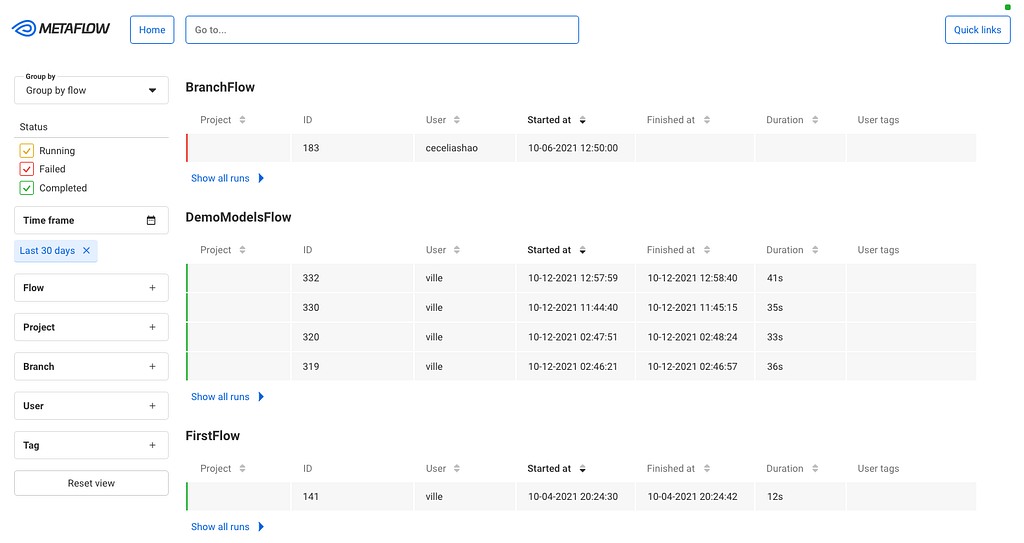
When you open the GUI, you see an overview of all flows and runs, both current and historical, which you can group and filter in various ways:

Runs Grouped by flows

We can use this view for experiment tracking: Metaflow records every execution automatically, so data scientists can track all their work using this view. Naturally, the view can be grouped by user. They can also tag their runs and filter the view by tags, allowing them to focus on particular subsets of experiments.

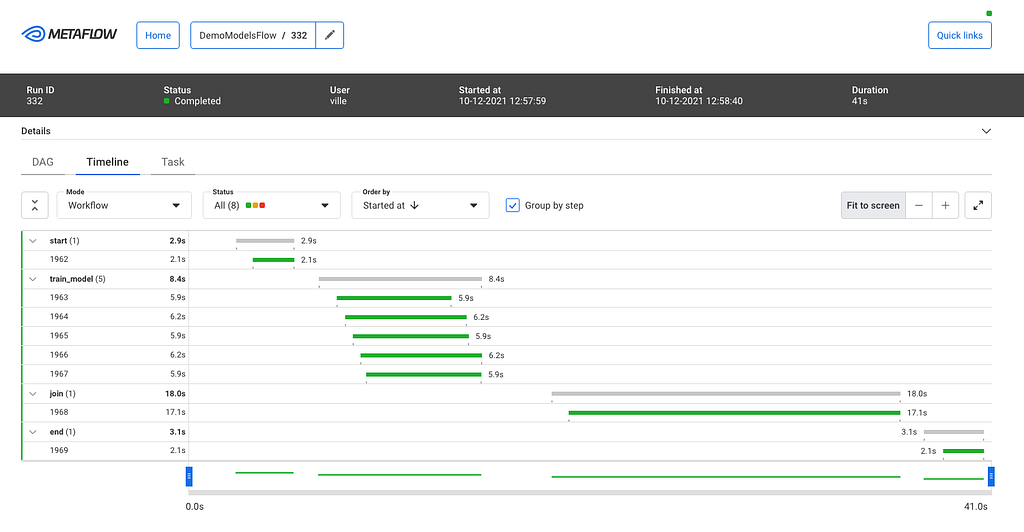
After you click a specific run, you see all its tasks on a timeline:

Timeline view for a run

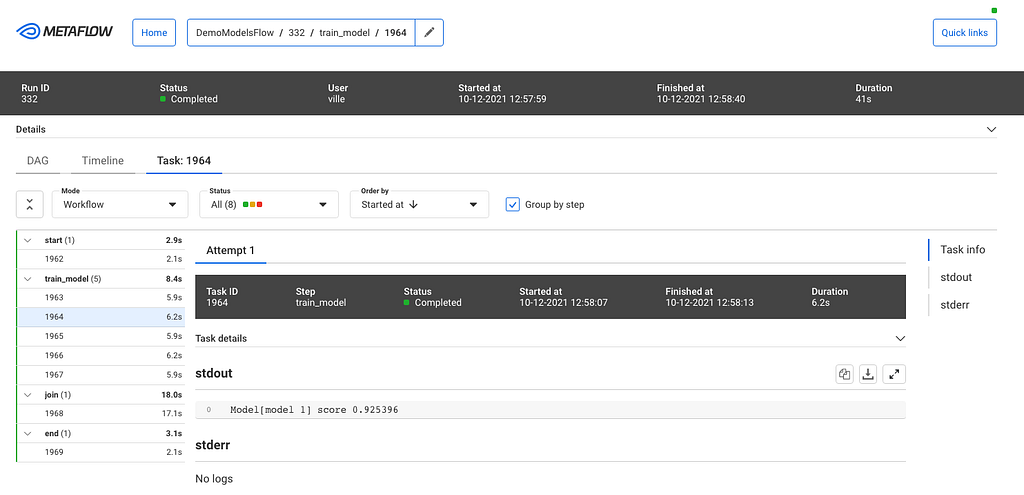
The timeline view is extremely useful in understanding performance bottlenecks, distribution of task runtimes, and finding failed tasks. At the top, you can see global attributes of the run, such as its status, start time, parameters etc. You can click a specific task to see more details:

Task view

This task view shows logs produced by a task, its results, and optionally links to other systems that are relevant to the task. For instance, if the task had deployed a model to a model serving platform, the view could include a link to a UI used for monitoring microservices.

As specified in our requirements, the GUI should work well with Metaflow CLI. To facilitate this, the top bar includes a navigation component where the user can copy-paste any pathspec, i.e., a path to any object in the Metaflow universe, which are prominently shown in the CLI output. This way, the user can easily move from the CLI to the GUI to observe runs and tasks in detail.

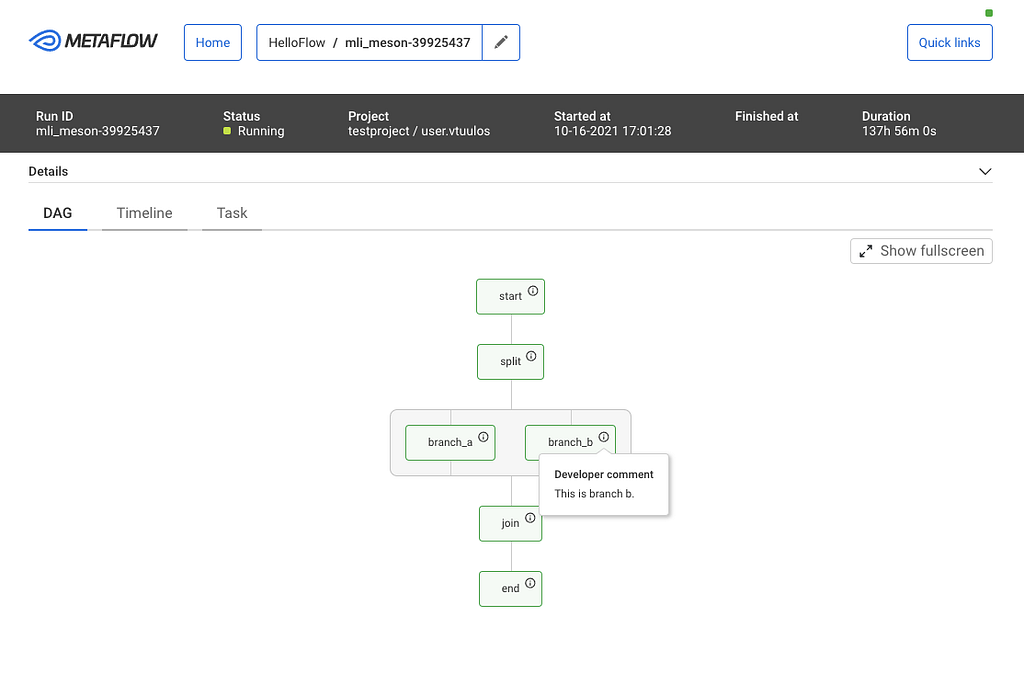
While the CLI is great, it is challenging to visualize flows. Each flow can be represented as a Directed Acyclic Graph (DAG), and so the GUI provides a much better way to visualize a flow. The DAG view presents all the steps of a flow and how they are related. Each step may have developer comments. They are colored to indicate the current state. Split steps are grouped by shaded boxes, while steps that participated in a foreach are grouped by a double shade box. Clicking on a step will take you to the Task view.

DAG View

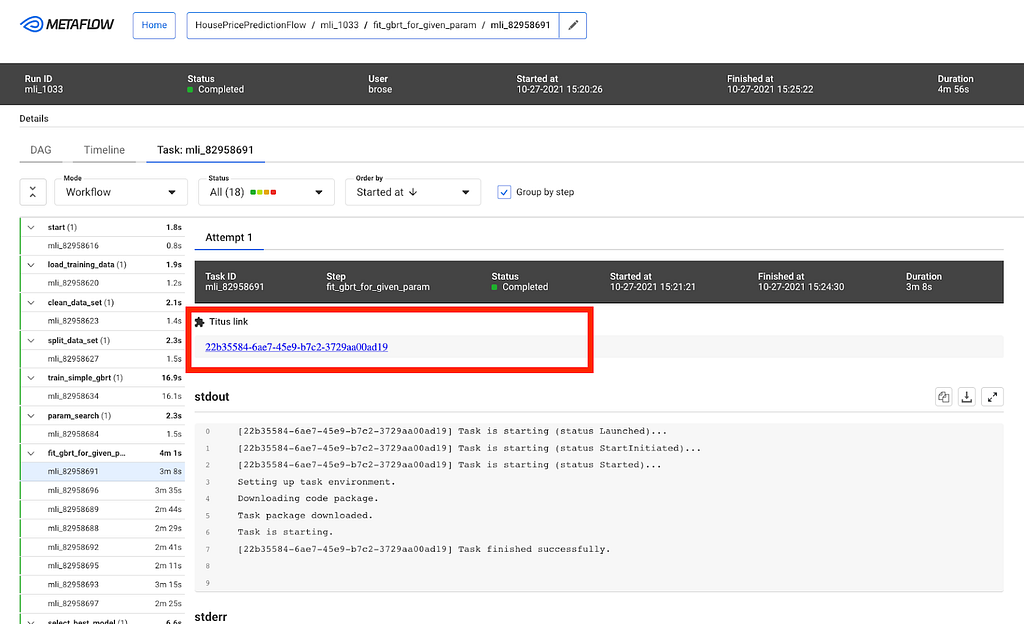
Users at different organizations will likely have some special use cases that are not directly supported. The Metaflow GUI is extensible through its plugin API. For example, Netflix has its container orchestration platform called Titus. Users can configure tasks to utilize Titus to scale up or out. When failures happen, users will need to access their Titus containers for more information, and within the task view, a simple plugin provides a link for further troubleshooting.

Example task-level plugin

Try it at home!

We know that our user stories and requirements for a Metaflow GUI are not unique to Netflix. A number of companies in the Metaflow community have requested GUI for Metaflow in the past. To support the thriving community and invite 3rd party contributions to the GUI, we are open-sourcing our Monitoring GUI for Metaflow today!

You can find detailed instructions for how to deploy the GUI here. If you want to see the GUI in action before deploying it, Outerbounds, a new startup founded by our ex-colleagues, has deployed a public demo instance of the GUI. Outerbounds also hosts an active Slack community of Metaflow users where you can find support for GUI-related issues and share feedback and ideas for improvement.

With the new GUI, data scientists don’t have to fly blind anymore. Instead of reaching out to a platform team for support, they can easily see the state of their workflows on their own. We hope that Metaflow users outside Netflix will find the GUI equally beneficial, and companies will find creative ways to improve the GUI with new plugins.

For more context on the development process and motivation for the GUI, you can watch this recording of the GUI launch meetup.


Open-Sourcing a Monitoring GUI for Metaflow was originally published in Netflix TechBlog on Medium, where people are continuing the conversation by highlighting and responding to this story.