Tag Archives: securityhub

Export historical Security Hub findings to an S3 bucket to enable complex analytics

Post Syndicated from Jonathan Nguyen original https://aws.amazon.com/blogs/security/export-historical-security-hub-findings-to-an-s3-bucket-to-enable-complex-analytics/

AWS Security Hub is a cloud security posture management service that you can use to perform security best practice checks, aggregate alerts, and automate remediation. Security Hub has out-of-the-box integrations with many AWS services and over 60 partner products. Security Hub centralizes findings across your AWS accounts and supported AWS Regions into a single delegated administrator account in your aggregation Region of choice, creating a single pane of glass to consolidate and view individual security findings.

Because there are a large number of possible integrations across accounts and Regions, your delegated administrator account in the aggregation Region might have hundreds of thousands of Security Hub findings. To perform complex analytics or machine learning across the existing (historical) findings that are maintained in Security Hub, you can export findings to an Amazon Simple Storage Service (Amazon S3) bucket. To export new findings that have recently been created, you can implement the solution in the aws-security-hub-findings-export GitHub repository. However, Security Hub has data export API rate quotas, which can make exporting a large number of findings challenging.

In this blog post, we provide an example solution to export your historical Security Hub findings to an S3 bucket in your account, even if you have a large number of findings. We walk you through the components of the solution and show you how to use the solution after deployment.

Prerequisites

To deploy the solution, complete the following prerequisites:

  1. Enable Security Hub.
  2. If you want to export Security Hub findings for multiple accounts, designate a Security Hub administrator account.
  3. If you want to export Security Hub findings across multiple Regions, enable cross-Region aggregation.

Solution overview and architecture

In this solution, you use the following AWS services and features:

  • Security Hub export orchestration
    • AWS Step Functions helps you orchestrate automation and long-running jobs, which are integral to this solution. You need the ability to run a workflow for hours due to the Security Hub API rate limits and number of findings and objects.
    • AWS Lambda functions handle the logic for exporting and storing findings in an efficient and cost-effective manner. You can customize Lambda functions to most use cases.
  • Storage of exported findings
  • Job status tracking
    • Amazon EventBridge tracks changes in the status of the Step Functions workflow. The solution can run for over 100 hours; by using EventBridge, you don’t have to manually check the status.
    • Amazon Simple Notification Service (Amazon SNS) sends you notifications when the long-running jobs are complete or when they might have issues.
    • AWS Systems Manager Parameter Store provides a quick way to track overall status by maintaining a numeric count of successfully exported findings that you can compare with the number of findings shown in the Security Hub dashboard.

Figure 1 shows the architecture for the solution, deployed in the Security Hub delegated administrator account in the aggregation Region. The figure shows multiple Security Hub member accounts to illustrate how you can export findings for an entire AWS Organizations organization from a single delegated administrator account.
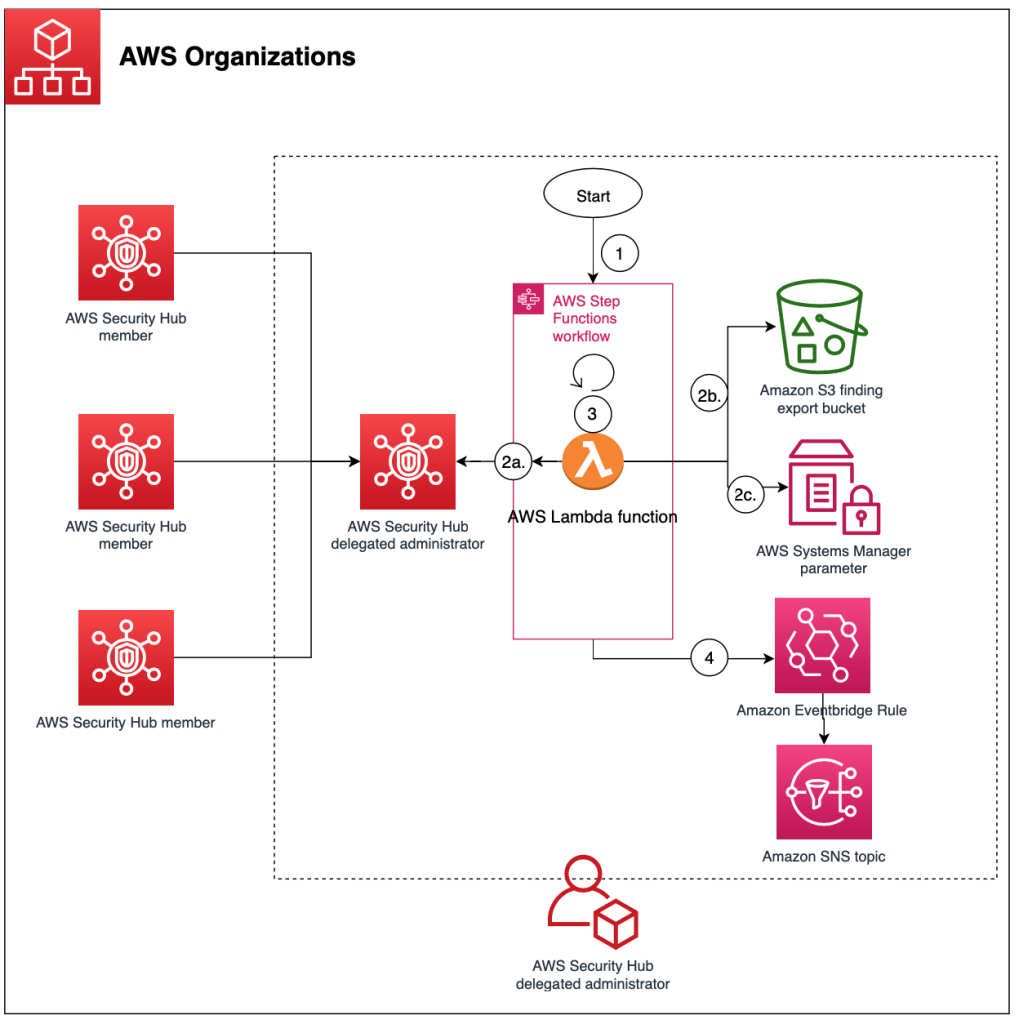
Figure 1: High-level overview of process and resources deployed in the Security Hub account

Figure 1: High-level overview of process and resources deployed in the Security Hub account

As shown in Figure 1, the workflow after deployment is as follows:

  1. The Step Functions workflow for the Security Hub export is invoked.
  2. The Step Functions workflow invokes a single Lambda function that does the following:
    1. Retrieves Security Hub findings that have an Active status and puts them in a temporary file.
    2. Pushes the file as an object to Amazon S3.
    3. Adds the global count of exported findings from the Step Functions workflow to a Systems Manager parameter for validation and tracking purposes.
    4. Repeats steps b–c for about 10 minutes to get the most findings while preventing the Lambda function from timing out.
    5. If a nextToken is present, pushes the nextToken to the output of the Step Functions.

      Note: If the number of items in the output is smaller than the number of items returned by the API call, then the return output includes a nextToken, which can be passed to a subsequent command to retrieve the next set of items.

  3. The Step Functions workflow goes through a Choice state as follows:
    • If a Security Hub nextToken is present, Step Functions invokes the Lambda function again.
    • If a Security Hub nextToken isn’t present, Step Functions ends the workflow successfully.
  4. An EventBridge rule tracks changes in the status of the Step Functions workflow and sends events to an SNS topic. Subscribers to the SNS topic receive a notification when the status of the Step Functions workflow changes.

Deploy the solution

You can deploy the solution through either the AWS Management Console or the AWS Cloud Development Kit (AWS CDK).

To deploy the solution (console)

  • In your delegated administrator Security Hub account, launch the AWS CloudFormation template by choosing the following Launch Stack button. It will take about 10 minutes for the CloudFormation stack to complete.

    Launch Stack

    Note: The stack will launch in the US East (N. Virginia) Region (us-east-1). If you are using cross-Region aggregation, deploy the solution into the Region where Security Hub findings are consolidated. You can download the CloudFormation template for the solution, modify it, and deploy it to your selected Region.

To deploy the solution (AWS CDK)

  1. Download the code from our aws-security-hub-findings-historical-export GitHub repository, where you can also contribute to the sample code. The CDK initializes your environment and uploads the Lambda assets to Amazon S3. Then, you deploy the solution to your account.
  2. While you are authenticated in the security tooling account, run the following commands in your terminal. Make sure to replace <AWS_ACCOUNT> with the account number, and replace <REGION> with the AWS Region where you want to deploy the solution.
    cdk bootstrap aws://<AWS_ACCOUNT>/<REGION>
    cdk deploy SechubHistoricalPullStack

Solution walkthrough and validation

Now that you’ve successfully deployed the solution, you can see each aspect of the automation workflow in action.

Before you start the workflow, you need to subscribe to the SNS topic so that you’re notified of status changes within the Step Functions workflow. For this example, you will use email notification.

To subscribe to the SNS topic

  1. Open the Amazon SNS console.
  2. Go to Topics and choose the Security_Hub_Export_Status topic.
  3. Choose Create subscription.
  4. For Protocol, choose Email.
  5. For Endpoint, enter the email address where you want to receive notifications.
  6. Choose Create subscription.
  7. After you create the subscription, go to your email and confirm the subscription.

You’re now subscribed to the SNS topic, so any time that the Step Functions status changes, you will receive a notification. Let’s walk through how to run the export solution.

To run the export solution

  1. Open the Amazon Step Functions console.
  2. In the left navigation pane, choose State machines.
  3. Choose the new state machine named sec_hub_finding_export.
  4. Choose Start execution.
  5. On the Start execution page, for Name – optional and Input – optional, leave the default values and then choose Start execution.
    Figure 2: Example input values for execution of the Step Functions workflow

    Figure 2: Example input values for execution of the Step Functions workflow

  6. This will start the Step Functions workflow and redirect you to the Graph view. If successful, you will see that the overall Execution status and each step have a status of Successful.
  7. For long-running jobs, you can view the CloudWatch log group associated with the Lambda function to view the logs.
  8. To track the number of Security Hub findings that have been exported, open the Systems Manager console, choose Parameter Store, and then select the /sechubexport/findingcount parameter. Under Value, you will see the total number of Security Hub findings that have been exported, as shown in Figure 3.
    Figure 3: Systems Manager Parameter Store value for the number of Security Hub findings exported

    Figure 3: Systems Manager Parameter Store value for the number of Security Hub findings exported

Depending on the number of Security Hub findings, this process can take some time. This is primarily due to the GetFindings quota of 3 requests per second. Each GetFindings request can return a maximum of 100 findings, so this means that you can get up to 300 findings per second. On average, the solution can export about 1 million findings per hour. If you have a large number of findings, you can start the finding export process and wait for the SNS topic to notify you when the process is complete.

How to customize the solution

The solution provides a general framework to help you export your historical Security Hub findings. There are many ways that you can customize this solution based on your needs. The following are some enhancements that you can consider.

Change the Security Hub finding filter

The solution currently pulls all findings with RecordState: ACTIVE, which pulls the active Security Hub findings in the AWS account. You can update the Lambda function code, specifically the finding_filter JSON value within the create_filter function, to pull findings for your use case. For example, to get all active Security Hub findings from the AWS Foundational Security Best Practices standard, update the Lambda function code as follows.

{
                 WorkflowState: [
                     {
                         "Value": "NEW ",
                         "Comparison": "EQUALS"
                     },
                 ],
                 "RecordState": [
                     {
                         "Value": "ACTIVE",
                         "Comparison": "EQUALS"
                     },
                 ]
            }

Export more than 100 million Security Hub findings

The example solution can export about 100 million Security Hub findings. This number is primarily determined by the speed at which findings can be exported, due to the following factors:

If you want to export more than 100 million Security Hub findings, do one of the following:

Note: If you implement either of these solutions, make sure that the nextToken also gets passed to the new Step Functions execution by updating the Lambda function code to parse and pass the nextToken received in the last request.

Speed up the export

One way to increase the export bandwidth, and reduce the overall execution time, is to run the export job in parallel across the individual Security Hub member accounts rather than from the single delegated administrator account.

You could use CloudFormation StackSets to deploy this solution in each Security Hub member account and send the findings to a centralized S3 bucket. You would need to modify the solution to allow an S3 bucket to be provided as an input, and all the Lambda function Identity and Access Management (IAM) roles would need cross-account access to the S3 bucket and corresponding AWS Key Management Service (AWS KMS) key. You would also need to make updates in each member account to iterate through the various Regions in which the Security Hub findings exist.

Next steps

The solution in this post is designed to assist in the retrieval and export of all existing findings currently in Security Hub. After you successfully run this solution to export historical findings, you can continuously export new Security Hub findings by using the sample solution in the aws-security-hub-findings-export GitHub repository.

Now that you’ve exported the Security Hub findings, you can set up and run custom complex reporting or queries against the S3 bucket by using Amazon Athena and AWS Glue. Additionally, you can run machine learning and analytics capabilities by using services like Amazon SageMaker or Amazon Lookout for Metrics.

Conclusion

In this post, you deployed a solution to export the existing Security Hub findings in your account to a central S3 bucket, so that you can apply complex analytics and machine learning to those findings. We walked you through how to use the solution and apply it to some example use cases after you successfully exported existing findings across your AWS environment. Now your security team can use the data in the S3 bucket for predictive analytics and determine if there are Security Hub findings and specific resources that might need to be prioritized for review due to a deviation from normal behavior. Additionally, you can use this solution to enable more complex analytics on multiple fields by querying large and complex datasets with AWS Athena.

If you have feedback about this post, submit comments in the Comments section below. If you have questions about this post, start a thread on AWS Security Hub re:Post.

 
Want more AWS Security news? Follow us on Twitter.
Jonathan Nguyen

Jonathan Nguyen

Jonathan is a Shared Delivery Team Senior Security Consultant at AWS. His background is in AWS Security with a focus on threat detection and incident response. Today, he helps enterprise customers develop a comprehensive security strategy and deploy security solutions at scale, and he trains customers on AWS Security best practices.

Best practices for cross-Region aggregation of security findings

Post Syndicated from Marshall Jones original https://aws.amazon.com/blogs/security/best-practices-for-cross-region-aggregation-of-security-findings/

AWS Security Hub enables customers to have a centralized view into the security posture across their AWS environment by aggregating your security alerts from various AWS services and partner products in a standardized format so that you can more easily take action on them. To facilitate that central view, Security Hub allows you to designate an aggregation Region, which links some or all Regions to a single aggregated Region in a delegated administrator AWS account. All your findings across all of your accounts and all of your linked Regions will be processed by Security Hub in this one Region. With this feature, you can take advantage of many configurations when ingesting findings into Security Hub, that will benefit you operationally and provide cost savings.

This blog post provides you with a set of best practices when using Security Hub across multiple Regions. After implementing the recommendations in this blog post, you’ll have an optimized and centralized view of Security Hub findings from all integrated AWS services and partner products across all Regions in a single AWS account and Region.

Enable cross-Region aggregation

To enable cross-Region aggregation in Security Hub, you must first enable finding aggregation in Security Hub from the Region that will become the aggregation Region. You cannot use a Region that is disabled by default as your aggregation Region. For a list of Regions that are disabled by default, see Enabling a Region in the AWS General Reference.

You can enable AWS Security Hub finding aggregation using either the console or CLI. You must enable finding aggregation from the Region that will be the aggregation Region.

To enable Security Hub finding aggregation from the console

To enable AWS Security Hub finding aggregation using the AWS console:

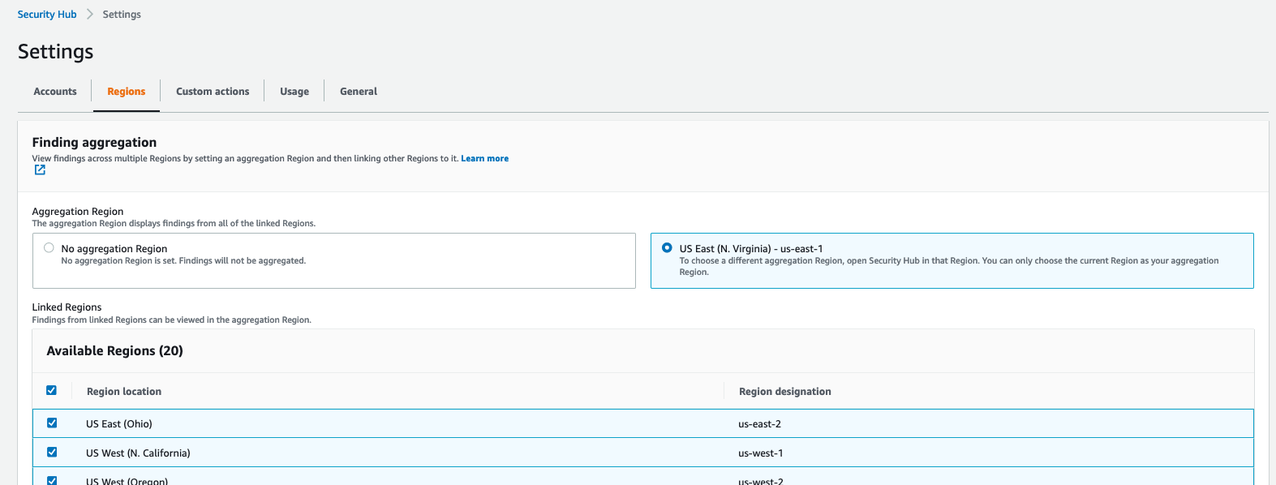
  1. Start by navigating to the AWS Security Hub console and select Settings on the left side of the screen. Once on the settings page, choose the Regions tab.
Figure 1. Enabling finding aggregation

Figure 1. Enabling finding aggregation

  1. Check the checkbox to Link future Regions. As AWS releases new Regions, their results will automatically be aggregated into your designated Region. If this checkbox is not checked, any new Region that is released will not aggregate Security Hub findings to the aggregation Region.

To enable Security Hub finding aggregation using the CLI

Alternatively, you can enable AWS Security Hub finding aggregation using the CLI by using the following command:

aws securityhub create-finding-aggregator –region <aggregation Region> –region-linking-mode ALL_REGIONS | ALL_REGIONS_EXCEPT_SPECIFIED | SPECIFIED_REGIONS –regions <Region list>

Here’s a sample CLI command to enable AWS Security Hub finding aggregation:

aws securityhub create-finding-aggregator –region us-east-1 –region-linking-mode SPECIFIED_REGIONS –regions us-west-1,us-west-2

For more details around AWS Security Hub cross-region aggregation, see Aggregating findings across regions.

Consolidating downstream SIEM and ticketing integrations

Security Hub findings for all AWS accounts in your environment should be integrated into a Security Information and Event Management (SIEM) solution, such as Amazon OpenSearch Service or an APN partner SIEM, or a standardized ticketing system such as JIRA or ServiceNow.

You should send all Security Hub findings to a SIEM or ticketing solution from a single aggregation point to simplify operational overhead. Although integration architectures vary, as an example, this might mean configuring an Amazon EventBridge rule to parse and send findings to AWS Lambda or Amazon Kinesis for a custom integration point with the SIEM or ticketing solution.

You should to configure this integration point in a single delegated administrator account across all member AWS accounts and aggregated Regions. You should avoid having multiple integration points between each Security Hub Region and your SIEM or ticketing solution to avoid unnecessary operational overhead and costs of managing multiple integration points and resources required to stream findings to your SIEM.

Collecting Security Hub findings in a SIEM or ticketing solution can help you correlate findings across many other logs sources. For example, you might use a SIEM solution to analyze operating system logs from an Amazon Elastic Compute Cloud (Amazon EC2) instance to correlate with GuardDuty findings collected by Security Hub to investigate suspicious activity. You could also use ServiceNow or JIRA to create an automated, bidirectional integration between these ticketing solutions that keeps your Security Hub findings and issues in sync.

Auto-archive GuardDuty findings associated with global resources

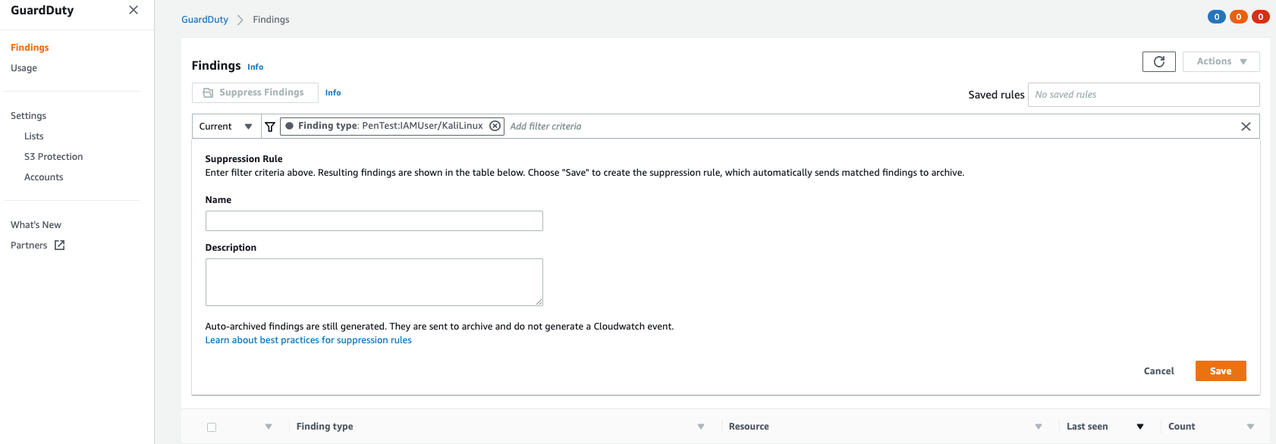
Amazon GuardDuty creates findings associated with AWS IAM resources. IAM resources are global resources, which means that they are not Region-specific. If GuardDuty generates a finding for an IAM API call that is not Region-specific, such as ListGroups (for example, PenTest:IAMUser/KaliLinux) that finding is created in all GuardDuty Regions and ingested into Security Hub in every Region. You want to implement suppression rules in GuardDuty so that you don’t have multiple copies of this finding in your Security Hub delegated administrator account finding aggregation Region.

To implement AWS GuardDuty suppression rules (Console)

To reduce the duplication of findings in Security Hub, suppress global GuardDuty findings in all Regions except the Security Hub aggregation Region. For example, if you are aggregating Security Hub findings in us-east-1 and your environment uses all commercial AWS Regions in the United States, you would add a suppression rule in GuardDuty in us-east-2, us-west-1, and us-west-2.

To create AWS GuardDuty suppression rules using the AWS console:

  1. Navigate to the GuardDuty console and select the Findings link on the left side of the screen.
Figure 2. Creating GuardDuty suppression rules

Figure 2. Creating GuardDuty suppression rules

  1. Filter to search for the findings you want to suppress, and click Save / edit in the search bar.
  2. Enter a name and description for the suppression rule and save it.

To implement AWS GuardDuty suppression rules (CLI)

Alternatively, you can create AWS GuardDuty suppression rules using the CreateFilter API via CLI.

  1. Create a JSON file with your desired suppression filter criteria for the suppression rule.
  2. The following CLI command will test your filter criteria for AWS GuardDuty findings that will be suppressed:
  3. aws guardduty list-findings –detector-id 12abc34d567e8fa901bc2d34e56789f0 –finding-criteria file://criteria.json

  4. The following CLI command will create a filter for AWS GuardDuty findings that will be suppressed:
  5. aws guardduty create-filter –action ARCHIVE –detector-id 12abc34d567e8fa901bc2d34e56789f0 –name yourfiltername –finding-criteria file://criteria.json

For more details for creating AWS GuardDuty suppression rules, see Creating AWS GuardDuty suppression rules.

Reduce AWS Config cost by recording global resources in one Region

Like GuardDuty, AWS Config also records supported types of global resources, which are not tied to a specific Region and can be used in all Regions. The global resource types that AWS Config supports are IAM users, groups, roles, and customer managed policies. The configuration details for a specific global resource are the same in all Regions. If you have AWS Security Hub AWS Foundational Best Practices enabled, the feature has certain checks for global resources in AWS Config that you need to disable in all Regions except the aggregated Region.

Customize AWS Config for global resources

If you customize AWS Config in multiple Regions to record global resources, AWS Config creates multiple configuration items each time a global resource changes, one configuration item for each Region. Costs for each configuration item can be found on AWS Config pricing. These configuration items will contain identical data. To prevent duplicate configuration items, consider customizing AWS Config in only one Region to record global resources, unless you want those configuration items to be available in multiple Regions. See this blog post for a comprehensive list of additional AWS Config best practices.

To customize AWS Config for global resources (Console)

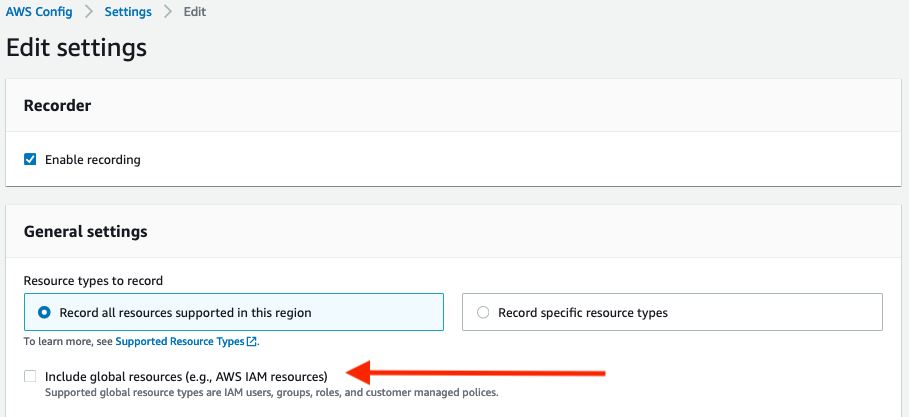
Follow the steps below to change the AWS Config global resource configuration in the AWS Console.

  1. Navigate to the AWS Config console and select Settings on the left side of the screen
  2. Click Edit in the top right corner
  3. Uncheck the Include global resources checkbox.
  4. Repeat these steps for each Region AWS Config is enabled, except the Region where you would like to track global resources.
Figure 3. AWS Config global resource setting

Figure 3. AWS Config global resource setting

To customize AWS Config for global resources (CLI)

Alternatively, you can disable the global resource tracking in AWS Config using the CLI.

aws configservice put-configuration-recorder –configuration-recorder name=default,roleARN=arn:aws:iam::123456789012:role/config-role –recording-group allSupported=true,includeGlobalResourceTypes=false

If you have deployed AWS Config using these CloudFormation templates, you would set the IncludeGlobalResourceTypes to False under the AWS::Config::ConfigurationRecorder for the Regions you do not want to track global resources, and set the value to True in the aggregated Region where you would like to use to track global resources. You can use the CloudFormation StackSets multiple AWS Region deployment feature to deploy the CloudFormation template in all AWS Regions where AWS Config is enabled.

For more details for AWS Config global resources, see Selecting AWS Config resources to record.

Disable AWS Security Hub AWS Foundational Best Practices periodic controls associated with global resources

AWS Security Hub AWS Foundational Best Practices perform checks against the resources in your AWS environment utilizing AWS Config rules. After you have disabled the AWS Config global resources in all Regions except for the Region that runs global recording, disable the Security Hub controls that deal with global resources as shown in Figure 5 below.

You can disable AWS Security Hub controls relating to global resources using the console or CLI.

To disable AWS Security Hub controls (Console)

Follow the steps below to disable Security Hub controls that deal with global resources in the AWS Console.

  1. Navigate to the Security Hub console and select Security Standards on the left side of the screen.
  2. Click on the AWS Foundation Security Best Practices v.1.0.0 security standard.
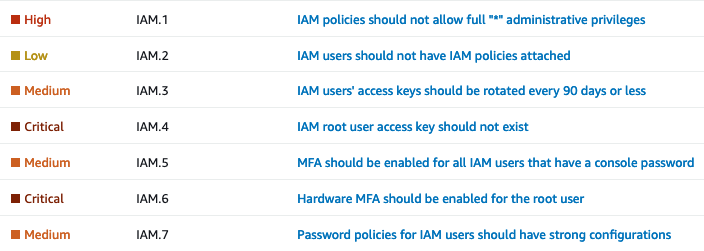
  3. Then use the filter box to search for IAM. Now you should be able to see security controls IAM.1-IAM.7, which are Security Hub global controls.
  4. Figure 4. Security Hub global controls

    Figure 4. Security Hub global controls

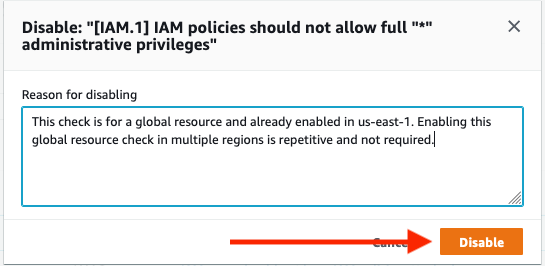
  5. Click on each control and select Disable in the top right corner
  6. After you have disabled resources, add a reason for disabling and choose Disable.
Figure 5. Disabling Security Hub control

Figure 5. Disabling Security Hub control

To disable AWS Security Hub controls (CLI)

Alternatively, you can disable Security Hub controls that deal with global resources using the CLI.

aws securityhub update-standards-control –standards-control-arn <control ARN> –control-status “DISABLED” –disabled-reason <description of reason to disable>

This sample CLI command disables Security Hub controls that deal with global resources:

aws securityhub update-standards-control –standards-control-arn “arn:aws:securityhub:us-east-1:123456789012:control/aws-foundational-security-best-practices/v/1.0.0/ACM.1” –control-status “DISABLED” –disabled-reason “Not applicable for my service”

You can also follow instructions to implement a solution to disable specific Security Hub controls for multiple AWS accounts.

Be sure to only disable the Security Hub controls in the Regions where global recording is also disabled. Verify the Security Hub controls associated with global resources are enabled in the same Region where AWS Config global resources are enabled.

After you have completed disabling these controls and recording of global resources, proceed to disable the [Config.1] AWS Config should be enabled control. This specific control requires recording of global resources in order to pass, which is not required to have enabled in multiple Regions.

For more details for AWS Security Hub controls, see Disabling and enabling individual AWS Security Hub controls .

Implement automatic remediation from a central Region

Once findings are consolidated and ingested into Security Hub across all your organization’s AWS accounts, you should implement auto-remediation where possible, including everything from resource misconfigurations to automated quarantine of infected EC2 instances. Security Hub provides multiple ways to achieve this through end-to-end automation with EventBridge or through human-triggered automation with Security Hub Custom Actions. You can deploy automatic remediation solutions in a single Region to perform cross-Region remediation. This helps you deploy fewer resources, saving money and operational overhead. For more information on how to enable the solution for Security Hub Automated Response and Remediation, see this blog post.

If you have automation currently in place, it’s important to understand how findings from multiple Regions triggering your automation might be affected. For example, you might have a Lambda function that remediates problems with S3 buckets, where it assumes it is being invoked in the same Region as the S3 bucket it needs to remediate. With cross-Region aggregation, your Lambda might need to make a cross-Region AWS SDK call. The Lambda function will run in the Region where the aggregation occurs, but the bucket could be in another Region, so you might have to adjust your function to handle that situation. Also, the role associated with the Lambda function could have its privileges limited to a single Region. If you intend the same function to work in all Regions, you might need change the IAM policy for the IAM role used by the Lambda. Make sure to check Service Control Policies in AWS Organizations, if you use them, because they can also deny actions in one Region while allowing them in another Region.

When enabling cross-Region finding aggregation, you’ll need to understand how any automatic remediation that might be in place today could be affected. Be sure to test your remediation functions on resources in various Regions, to be sure remediation works in all Regions you monitor.

Conclusion

This blog post highlights configurations you can take advantage of to reduce operational overhead and provide cost savings by using cross-Region finding aggregation in Security Hub. The examples given apply to the majority of AWS environments, and are meant to be action items you can use to improve the overall security and operational effectiveness of your AWS environment.

If you have feedback about this post, submit comments in the Comments section below. If you have any questions about this post, start a thread on the re:Post forum.

Want more AWS Security news? Follow us on Twitter.
Author

Marshall Jones

Marshall is a Worldwide Security Specialist Solutions Architect at AWS. His background is in AWS consulting and security architecture, focused on a variety of security domains including edge, threat detection, and compliance. Today, he is focused on helping enterprise AWS customers adopt and operationalize AWS security services to increase security effectiveness and reduce risk.

Author

Jonathan Nguyen

Jonathan is a Shared Delivery Team Senior Security Consultant at AWS. His background is in AWS Security with a focus on Threat Detection and Incident Response. Today, he helps enterprise customers develop a comprehensive AWS Security strategy, deploy security solutions at scale, and train customers on AWS Security best practices.