Tag Archives: Amazon Chime SDK

Building a voice interface for generative AI assistants

Post Syndicated from Reynaldo Hidalgo original https://aws.amazon.com/blogs/messaging-and-targeting/building-voice-interface-for-genai-assistant/

Generative AI is revolutionizing how businesses interact with their customers through natural conversational interfaces. While organizations can implement AI assistants across various channels, phone calls remain a preferred method for many customers seeking support or information.

We’ll demonstrate how to create a voice interface for your existing Amazon Bedrock generative AI assistant, enabling customers to engage in phone-based conversations with your AI implementation.

Solution overview

Using Workflow Studio for Amazon Web Services (AWS) Step Functions, we built a voice communication interface that connects with the Amazon Nova Micro model in Amazon Bedrock (Figure 1). The demo application uses the base model to enable open-ended questions. Organizations can implement either Amazon Bedrock Agents or Flows to address specific business requirements.

A Step Functions workflow diagram illustrating a voice communication system integrated with Amazon Bedrock. The workflow shows a sequential process starting with call handling, followed by parallel branches: one for managing hold music and another for processing voice input through Amazon Transcribe and Amazon Nova Micro model. The diagram demonstrates the complete call flow from initial welcome message through question-answer cycles to call completion.

Figure 1 – Step Functions workflow that enables voice communication to a generative AI assistant

How it works:

  1. Inbound call arrives
  2. System plays welcome message
  3. System asks caller for questions
  4. Voice recording starts, stopping when silence is detected
  5. Parallel flows begin:
    • First flow
      1. Plays some music while the caller is on-hold
    • Second flow
      1. Transcribes the recording using Amazon Transcribe
      2. Sends transcribed question to the Amazon Nova Micro model in Amazon Bedrock
      3. Upon receiving the response, stops the on-hold music
  6. Text-to-speech plays the model’s answer
  7. System asks for additional questions and loops to Step 4 or ends the call

 Expanded capabilities and optimizations

These are potential improvements, additional functionalities, and advanced features that can enhance the demo application:

  • The transcription component is interchangeable with any speech-to-text generative AI model (including Whisper Large V3 Turbo on Amazon Bedrock Marketplace)
  • The PSTN audio service RecordAudio Action can be tuned to adjust silence duration and background noise levels
  • Enabling the PSTN audio service VoiceFocus feature to improve call clarity by reducing background noise and enhancing voice quality
  • PSTN audio service Session Initiation Protocol (SIP) media applications can also handle calls through SIP trunking by using Amazon Chime SDK Voice Connector, streamlining integration with existing phone systems
  • The UpdateSipMediaApplicationCall API is a PSTN audio service feature that lets you regain call control and apply new actions during active calls
  • Parallel workflow states allow user-friendly handling of API service calls by playing music during processing
  • PSTN audio service provides pay-per-minute rates with serverless, scalable telephony infrastructure

Deploying the solution

 The following steps allow you to deploy the voice communication interface workflow (Figure 1) together with the supporting serverless architecture for Step Functions and PSTN audio service integration. In a previous blog, we demonstrated how combining Step Functions and Amazon Chime SDK PSTN audio service streamlines the development of reliable telephony applications through a visual workflow design.

 Prerequisites:

  1. AWS Management Console access
  2. Node.js and npm installed
  3. AWS Command Line Interface (AWS CLI) installed and configured
  4. Enable access to the Amazon Nova Micro model through the Amazon Bedrock console

 Walkthrough:

The AWS Cloud Development Kit (AWS CDK) project on the AWS GitHub repository will deploy the following resources:

  • phoneNumberBedrock – Provisioned phone number for the demo application
  • sipMediaApp – SIP media application that routes calls to lambdaProcessPSTNAudioServiceCalls
  • sipRule – SIP rule that directs calls from phoneNumberBedrock to sipMediaApp
  • lambdaProcessPSTNAudioServiceCallsAWS Lambda function for call processing
  • roleLambdaProcessPSTNAudioServiceCalls – AWS Identity and Access Management (IAM) Role for lambdaProcessPSTNAudioServiceCalls
  • stepfunctionBedrockWorkflow – Step Functions workflow for the telephony application
  • roleStepfuntionBedrockWorkflow – IAM Role for stepfunctionBedrockWorkflow
  • s3BucketApp – Amazon Simple Storage Service (Amazon S3) bucket for storing customer questions recordings
  • s3BucketPolicy IAM Policy granting PSTN audio service access to s3BucketApp
  • lambdaAudioTranscription – Lambda function for audio transcription
  • lambdaLayerForTranscription – Lambda layer required for lambdaAudioTranscription
  • roleLambdaAudioTranscription – IAM Role for lambdaAudioTranscription

Follow these steps to deploy the CDK stack:

  1. Clone the repository.
git clone https://github.com/aws-samples/sample-chime-sdk-bedrock-voice-interface
cd sample-chime-sdk-bedrock-voice-interface
npm install
  1. Bootstrap the stack.
#default AWS CLI credentials are used, otherwise use the –-profile parameter
#provide the <account-id> and <region> to deploy this stack
cdk bootstrap aws://<account-id>/<region>
  1. Deploy the stack.
#default AWS CLI credentials are used, otherwise use the –-profile parameter
#phoneAreaCode: the United States area code used to provision the phone number
cdk deploy –-context phoneAreaCode=NPA
  1. Call the provisioned phone number to test the sample application.

Cleaning up:

To clean up this demo, execute:

cdk destroy

Conclusion

We demonstrated how organizations can add voice capabilities to their existing generative AI implementations using Amazon Bedrock. The solution enables customers to interact with AI assistants through traditional phone calls, expanding accessibility and user engagement. The demo application showcases an architecture combining AWS Step Functions and Amazon Chime SDK PSTN audio service, delivering natural voice conversations with AI models through quick deployment using visual workflows.

Organizations benefit from cost optimization with pay-per-minute pricing, enterprise-ready telephony integration through PSTN or SIP trunking, and automatic scaling to match customer demand. This foundation enables businesses to build practical AI applications ranging from all day customer service agents, to multi-language support services, and knowledge base assistants. By following this solution, you can quickly extend your generative AI investments to voice channels, providing more value to your customers while maintaining operational efficiency.

Contact an AWS Representative to know how we can help accelerate your business.

Visually build telephony applications with AWS Step Functions

Post Syndicated from Reynaldo Hidalgo original https://aws.amazon.com/blogs/messaging-and-targeting/visually-build-telephony-applications-with-aws-step-functions/

Developers face numerous challenges when building telephony applications: managing unpredictable user responses, handling disconnections, processing incorrect inputs, and addressing errors. These challenges extend development cycles and create unstable applications that fail to meet user expectations.

This blog demonstrates how Amazon Web Services (AWS) Step Functions, combined with Amazon Chime SDK Public Switched Telephone Network (PSTN) audio service, offers a solution to overcome these challenges.

Overview of the solution

To demonstrate our solution, we built a sample telephony application that lets business owners manage customer calls through a dedicated business phone number. This solution helps small business owners separate personal and business communications, while managing all calls from their existing phone.

The beta version of this sample application delivers these six core call flows:

  1. During business hours: Routes incoming customer calls to the business owner
  2. After hours: Enables customers to leave voice messages
  3. Message retrieval: Allows owner to access customer voice messages
  4. Business caller ID: Enables owner to call customers using the business number
  5. Call scheduling: Permits owner to schedule customer calls for later in the day
  6. Automated calling: Initiates scheduled calls between owner and customer automatically

Using Workflow Studio, we built a Step Functions workflow (Figure 1) that processes all six call flows and handles unexpected scenarios.

Figure 1 – Visual diagram of a telephony workflow created in Workflow Studio for Step Functions, showing six interconnected call routing paths with decision points and error handling states. Each path represents a different customer interaction scenario, connected by arrows indicating the flow direction.

Figure 1 – Step Functions telephony workflow designed in Workflow Studio

How it works

AWS Step Functions enable agile visual workflow design, through pre-built components and error handling rules. This creates workflows composed of event-driven states that input, process, and output JavaScript Object Notation (JSON)-formatted messages. The PSTN audio service streamlines telephony applications through its serverless approach using a request/response programming model. It invokes AWS Lambda functions with Events and waits for Actions responses, both in predefined JSON formats. This shared JSON format enables seamless integration between the PSTN audio service and Step Functions, leading us to design a serverless architecture (Figure 2) that allows for bidirectional JSON message exchange between the two services.

Figure 2 – Architectural diagram showing the integration flow between AWS Step Functions and PSTN audio service. Arrows indicate JSON message exchange between services, with Lambda functions handling the communication. The diagram illustrates the serverless architecture components and their connections in a top-to-bottom layout.

Figure 2 – Serverless architecture for Step Functions and PSTN audio service integration

Main components:

  • eventRouter: Lambda function managing JSON message exchange
  • appWorkflow: Step Functions implementing call flow logic
  • actionsQueue: Amazon Simple Queue Service (Amazon SQS) queue storing response actions

Architecture flow:

  1. PSTN audio service receives inbound call
  2. Service sends NEW_INBOUND_CALL event to eventRouter
  3. eventRouter creates the actionsQueue
  4. eventRouter asynchronously executes appWorkflow with event data
  5. eventRouter begins long-polling from actionsQueue, waiting for next action(s) message
  6. appWorkflow processes JSON-formatted event data, computing next action(s)
  7. appWorkflow queues next action(s) using Amazon SQS SendMessage API with Wait for Callback with Task Token integration pattern to stop the workflow until the next event call is received
  8. eventRouter retrieves and removes action(s) from actionsQueue
  9. eventRouter returns action(s) to PSTN audio service

Observations:

  • eventRouter code logic is generic and agnostic from the calls and different Step Function workflows
  • eventRouter queries an environment variable to determine the workflow to call
  • Pairs of actionsQueue and appWorkflow instances lives for the duration of each call
  • eventRouter is responsible for the creation and deletion of each actionsQueue
  • appWorkflow instances are created by the eventRouter at the start of each call
  • appWorkflow instances complete its execution when all parties involved on the call hang up

Building your telephony application

Prerequisites:

Implementation Guidelines:

  • Create dedicated Step Functions workflows for each telephony application
  • Design and implement workflows using Workflow Studio
  • Use a Standard workflow type to accommodate extended call durations
  • Update the eventRouter Lambda function’s “CallFlowsDIDMap” environment variable to map phone numbers to their workflow Amazon Resource Name (ARN)
  • Set workflow variables in the “Init” state Variables tab (Figure 3). The eventRouter function automatically sets “QueueUrl”, and adding other variables here removes the need for external storage
Figure 3 – Screenshot of Workflow Studio's Variables tab showing an editable text box for JSON data entry. The interface displays a code editor with syntax highlighting for entering variable names and their values that persist throughout the workflow execution.

Figure 3 – Step Functions “Init” state Variables tab showing workflow data configuration

  • Configure Choice state rules to route calls based on conditions. Rules one through three (Figure 4) handle call routing based on inbound/outbound direction, owner/customer identification, while the default rule manages unexpected scenarios.
Figure 4 – Screenshot of Workflow Studio's Choice state configuration panel. The interface shows a rules editor where multiple condition blocks are displayed. Each block contains dropdown menus and input fields for setting call routing logic based on variable values. The rules appear in a vertical list with options to add, edit, or remove conditions.

Figure 4 – Step Functions Choice state defines rules for call routing decisions

  • Configure the SQS: SendMessage state (Figure 5) to instruct the next action to the PSTN audio service by:
    • Formatting the message content to match supported actions for the PSTN audio service
    • Setting TransactionAttributes to pass back and forth the values of the “WaitToken” and “QueueUrl” throughout the call duration
    • Enabling the Wait for Callback with a Task Token integration pattern
Figure 5 – Screenshot of the SQS: SendMessage state configuration in Step Functions Workflow Studio. The interface shows three main concepts: a message content formatter for PSTN audio service actions, transaction attribute fields for the WaitToken and QueueUrl values, and callback integration pattern settings. The message content input section displays input fields and options for setting up the message structure that enables communication between Step Functions and the PSTN audio service.

Figure 5 – SQS: SendMessage state configuration for PSTN audio service callback integration

  • Leverage AWS service integration states to interact with other AWS services directly from the workflow.
    • Example: Use a DynamoDB PutItem state (Figure 6) to store Amazon Simple Storage Service (Amazon S3) recording files, including bucket name and key, in Amazon DynamoDB.
Figure 6 – Screenshot of Step Functions Workflow Studio showing a DynamoDB PutItem state configuration. The interface displays fields for setting up direct interaction with DynamoDB to store S3 recording file information. The configuration panel includes input parameters for the DynamoDB table, item details, and S3 bucket and key values.

Figure 6 – AWS service integration states enable direct service connections without custom code

  • Utilize JSONata expressions (Figure 7) to minimize the number of Lambda functions.
    • Example: For Amazon EventBridge scheduling, compute time expressions using JSONata functions [$fromMillis(), $millis(), number()] and string concatenation to handle customer call scheduling.
Figure 7 – Screenshot of Step Functions Workflow Studio showing JSONata expression configuration. The interface displays a code editor with syntax highlighting where time calculation expressions are written using JSONata functions like $fromMillis(), $millis(), and number(). The panel demonstrates how to transform data directly within the workflow, eliminating the need for separate Lambda functions. Example expressions show date and time calculations for EventBridge scheduling.

Figure 7 – JSONata expressions for direct data transformation without Lambda functions

  • Use Step Functions error handling with success and fail states (Figure 8) to manage error paths and call termination results.
Figure 8 – Screenshot of Step Functions Workflow Studio showing the error handling configuration interface. The panel displays multiple state configurations: error catching paths for failed calls, success state definitions for completed calls, and termination handling settings. The interface includes dropdown menus and input fields for defining error types, retry attempts, and fallback actions. Visual connections between states illustrate the error handling flow from detection through resolution.

Figure 8 – Call error handling and termination setup

Key benefits

This approach for building telephony applications offers multiple advantages:

  1. Visual workflow-based designer
  2. Self-document call flow logic
  3. Managed versioning and publishing
  4. Native integration with AWS Services
  5. Visual log and inspection for each call
  6. Auto-scalable
  7. Pay-per-use pricing

Deploying the solution

 The following steps allows you to deploy the sample telephony application together with the serverless architecture (Figure 2).

 Prerequisites:

  1. AWS Management Console access
  2. Node.js and npm installed
  3. AWS Command Line Interface (AWS CLI) installed and configured

 Walkthrough:

The Cloud Development Kit (CDK) project on the AWS GitHub repository will deploy the following resources:

  • phoneNumberBusiness – Provisioned phone number for the sample application
  • sipMediaApp – SIP media application that routes calls to lambdaProcessPSTNAudioServiceCalls
  • sipRule – SIP rule that directs calls from phoneNumberBusiness to sipMediaApp.
  • stepfunctionBusinessProxyWorkflow – Step Functions workflow for the sample application
  • roleStepfuntionBusinessProxyWorkflowIAM Role for stepfunctionBusinessProxyWorkflow
  • lambdaProcessPSTNAudioServiceCalls – Lambda function for call processing
  • roleLambdaProcessPSTNAudioServiceCalls – IAM Role for lambdaProcessPSTNAudioServiceCalls
  • dynamoDBTableBusinessVoicemails – DynamoDB table to store customer voicemails
  • s3BucketApp –S3 bucket for storing system recordings and customer voicemails
  • s3BucketPolicy IAM Policy granting PSTN audio service access to s3BucketApp
  • lambdaOutboundCall – Lambda function for placing scheduled customer calls
  • roleLambdaOutboundCall – IAM Role for lambdaOutboundCall
  • roleEventBridgeLambdaCall – IAM Role to allow the EventBridge service to execute lambdaOutboundCall

Follow these steps to deploy the CDK stack:

  1. Clone the repository
git clone https://github.com/aws-samples/amazon-chime-sdk-visual-media-applications 

cd amazon-chime-sdk-visual-media-applications 

npm install
  1. Bootstrap the stack
#default AWS CLI credentials are used, otherwise use the –-profile parameter
#provide the <account-id> and <region> to deploy this stack 
cdk bootstrap aws://<account-id>/<region>
  1. Deploy the stack
#default AWS CLI credentials are used, otherwise use the –-profile parameter
#personalNumber: the personal phone number of the business owner in E.164 format 
#businessAreaCode: the United States area code used to provision the business number 
cdk deploy –-context personalNumber=+1NPAXXXXXXX –-context businessAreaCode=NPA

Call the provisioned phone number to test the sample application. Optionally, edit the workflow to update the business name and working hours on the “Init” Task state, in the Variables tab.

Cleaning up:

To clean up this demo, execute:

cdk destroy

Conclusion

This blog demonstrates how combining AWS Step Functions and Amazon Chime SDK PSTN audio service streamlines the development of reliable telephony applications through visual workflow design and managed error handling. We provided a sample application, implementing six core business phone features, showcasing how the solution effectively manages multiple conditional paths and edge cases like disconnections and invalid inputs.

The serverless architecture created enables seamless integration between the two services through JSON-based communication, while providing automatic scaling and pay-per-use pricing. Together, these components create a robust foundation for building sophisticated telephony applications that reduce maintenance costs and enhance reliability.

Contact an AWS Representative to know how we can help accelerate your business.

Amazon Chime SDK Call Analytics: Real-Time Voice Tone Analysis and Speaker Search

Post Syndicated from Sébastien Stormacq original https://aws.amazon.com/blogs/aws/amazon-chime-sdk-call-analytics-real-time-voice-tone-analysis-and-speaker-search/

Today, I am pleased to announce the availability of Amazon Chime SDK call analytics, a new set of capabilities that helps make it easier and cost effective to record and generate insights on real-time audio calls: transcription, voice tone analysis, and speaker search. We’ve also improved the Amazon Chime SDK section of the AWS Management Console to let you integrate machine learning (ML)-based services, such as these new call analytics capabilities or Amazon Transcribe into your audio applications in just a few steps.

Voice Analytics: Voice Tone Analysis and Speaker Search
Voice analytics delivers real-time insights into audio conversations. It helps detect and classify participants expressing a positive, neutral, or negative tone. Typically, enterprises working in regulated industries have obligations to record or want to analyze conversations between employees and their business partners, customers, or suppliers.

Voice tone analysis uses ML to extract sentiment from a speech signal based on a joint analysis of lexical and linguistic information as well as acoustic and tonal information. Voice tone analysis for live calls are delivered in the data lake of your choice, on top of which you can create your own dashboards to visualize the data.

Let’s take an example from the finance industry. Trading room supervisors are sometimes required to record all the trading conversations occurring on the floor. Voice tone analysis helps them meet their regulatory requirements. They can also deliver these insights to the traders to help to improve their productivity. But finance is not the only industry that needs to record and analyze calls. We have received similar requests from customers in Business Process Outsourcing (BPO), public sector, healthcare, telecom, and insurance industries.

Alongside with voice tone analysis, your applications can now benefit from speaker search to help match speakers to an existing database. It only requires a short sample to recognize a speaker based on their voice stored in a database of known voices. Speaker search helps your applications expedite caller lookup and enrich call records and transcripts with identity attribution. Speaker search delivers a suggested unique internal identifier for the speaker and a confidence score. The decision to match current the speaker with a known speaker from your organization is up to your application. Some of our customers plan to use speaker search for real-time speaker labeling on communication happening over trading turrets, which are shared devices.

Integration with AI Services in the AWS Management Console
We want to make it easier for developers to add these capabilities into existing telephony applications without requiring expertise in telephony, cloud infrastructure, or AI.

This is why we added a easier-to-use graphical configuration in the Amazon Chime SDK section of the console. On the console, you can choose the AWS AI service you want to use to analyze real-time audio data: voice analytics, Amazon Transcribe, or Amazon Transcribe Call Analytics. Whether you choose to use voice analytics or Amazon Transcribe to generate insights, you don’t have to write any integration code. We manage the integrations with AWS AI services and your voice-based or telephony applications. The console helps you define where you want to send the analytics data: an Amazon Kinesis stream or an Amazon Simple Storage Service (Amazon S3) bucket. Voice analytics can send real-time notifications to a function deployed on AWS Lambda, or an SQS queue or Amazon Simple Notification Service (Amazon SNS) topic.

To visualize insights, call analytics also delivers analyses to a data lake of your choice. You can then use Amazon QuickSight or Tableau to build dashboards and get insights from real-time media. These dashboards can be embedded in apps, wikis, and portals. Of course, we don’t leave you alone with your data. You can download prebuilt dashboards as AWS CloudFormation templates to deploy into your own AWS account. The link to download these templates is available on the console.

Finally, call analytics can generate real-time alerts by posting events to Amazon EventBridge. You can route these events to any destination of your choice, on your AWS account or supported third-party applications.

When using call analytics, you can reduce the initial project time to generate insights from real-time audio from months to days.

How It Works
I’d like to show you how it works.

On the Amazon Chime SDK section of the console, I open Configuration under Call Analytics on the left-side menu. Then, I select Create configuration.

Amazon Chime SDK - Create configuration

I give a name to my configuration. Optionally, I may also associate tags.

Amazon Chime SDK - Configuration first step

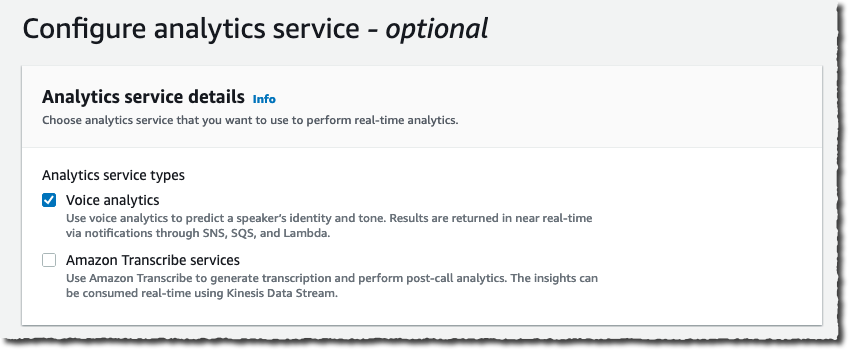
Under Configure analytics service, I can choose between Amazon Chime SDK voice analytics or Amazon Transcribe services to analyse calls. For this demo, I select Voice analytics.

Amazon Chime SDK - Configuration second step

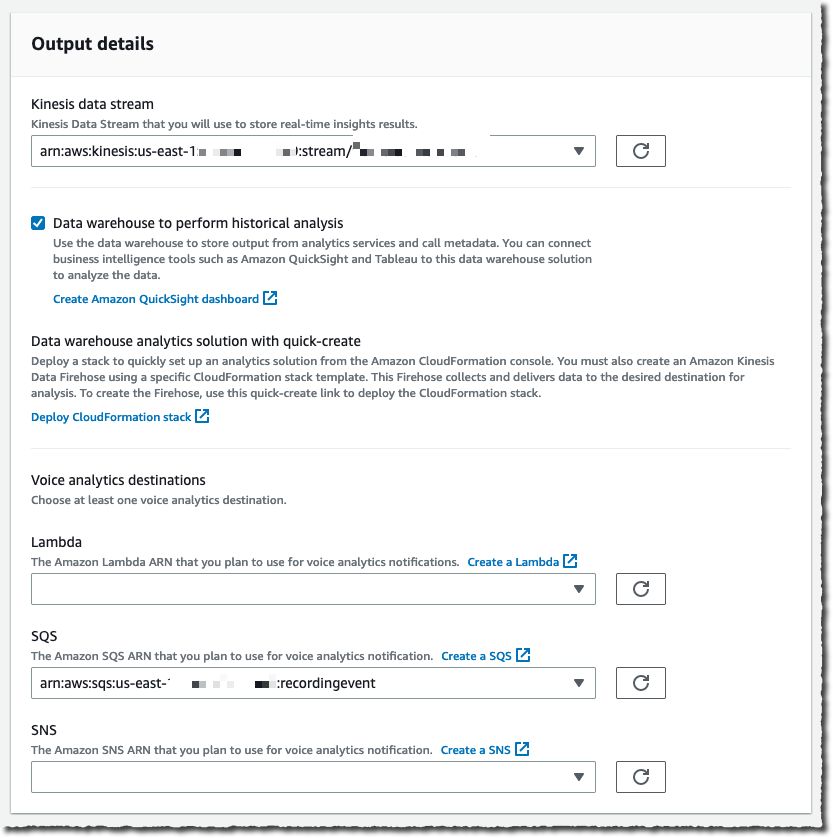
I configure where to send the analysis. Voice analytics results are always sent to Kinesis. I specify a Kinesis data stream I created previously. When I want to use a business intelligence tool such as Quicksight to create a dashboard with analytics results, I also specify an S3 bucket to receive the analysis.

The console also gives me the link to the CloudFormation templates I can use to create the voice analytics dashboards.

Finally, I choose a Lambda function, SQS queue, or SNS topic that will receive notifications of events such as when the analytics are available, a new voice enrollment occurs, or the result of a voice verification. In the later case, the payload looks as follow:

{
    ...common to all events...
    "detail-type": "SpeakerSearchStatus",
    "detail": {
        "taskId": "uuid",
        "detailStatus": "IdentificationSuccessful",
        "speakerSearchDetails" : {
            "results": [
                {
                    "voiceProfileId": "guid",
                    "confidenceScore": "0.94",
                },
                {
                    "voiceProfileId": "guid",
                    "confidenceScore": "0.92",
                },
                {
                    "voiceProfileId": "guid",
                    "confidenceScore": "0.91",
                },
                ... (up to 10)
            ]
        },
        "isCaller": false,
        "voiceConnectorId": "guid",
        "transactionId": "guid"

        ...details from Voice connector
    }
}

For this demo, I choose an existing SQS queue.

Amazon Chime SDK - Configuration third step

Under Consent acknowledgment, I select all the boxes and select Next.

Amazon Chime SDK - Configuration second step consent

The next step is only available when I didn’t specify any analytics service in the previous step. It allows us to configure voice recordings. Recordings are available when no analytics are selected.

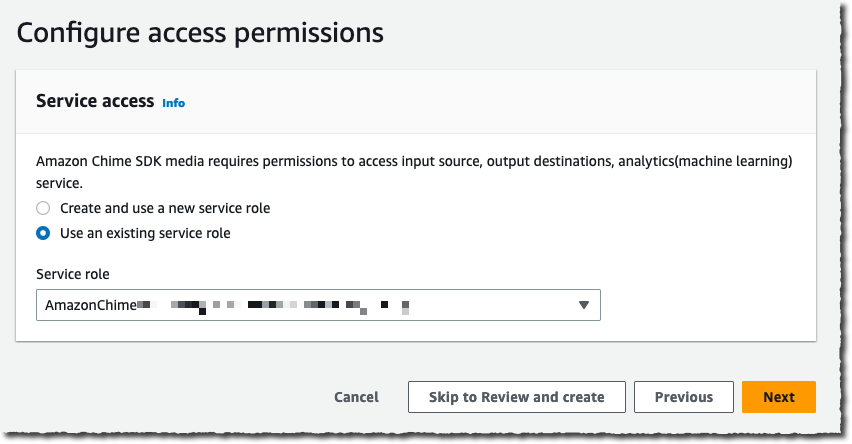
Under Configure access permissions, I choose a previously created AWS Identity and Access Management (IAM) role allowing the Amazon Chime SDK to access the other AWS services I configured: the Kinesis data stream, S3 bucket, and Lambda function, SQS queue, or SNS topic. The console may create an IAM role for me if I don’t have one already.

Amazon Chime SDK - Configuration four step

The next step is available if I selected Amazon Transcribe service under Configure analytics service. It allows me to configure real-time alerts through EventBridge. I may configure rules to send messages based on keyword match, sentiment detected, or issue detection.

The final step is Review and Create my configuration. I review the configuration details and then, I select Create configuration.

Finally, I link this configuration to a voice connector under the Voice Connector section, on the Streaming tab.

That’s it! As I mentioned earlier, no glue between AWS services or AI knowledge is required.

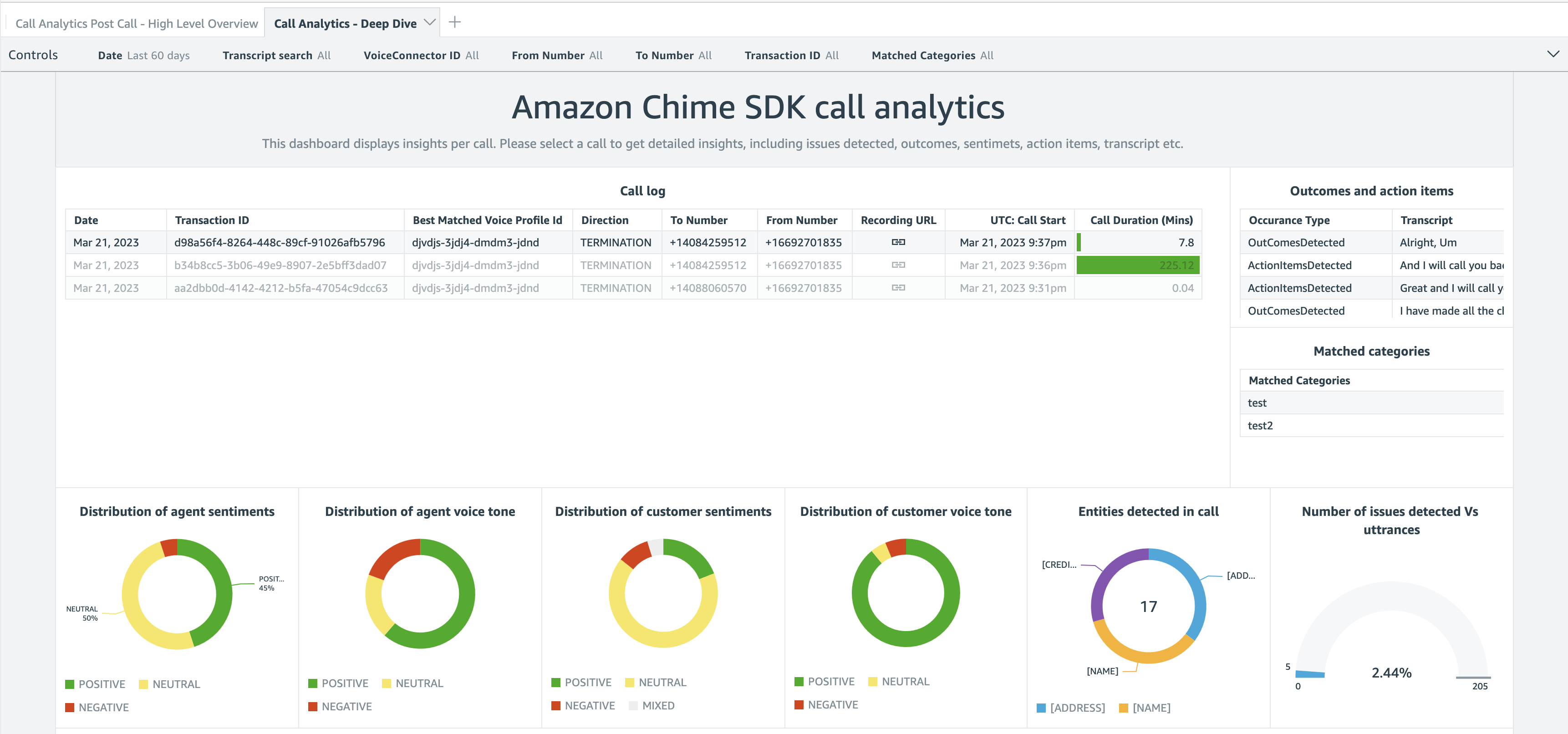
After the data arrives on Kinesis or your S3 bucket, you can point your preferred business reporting solution at it. When you use the QuickSight template we provide, you can get started in minutes with a high-level overview and a deep-dive view, as shown on the following screenshot.

Chime SDK Call Analytics - dashboard general

Chime SDK Call Analytics - dashboard deep dive

The deep-dive dashboard gives you graphical representations about the distribution of agent and customer sentiments and emotions. You also get a detailed analysis and transcript of the conversation.

Pricing and Availability
Adopting these capabilities in your audio applications requires no up-front infrastructure investment; you will be charged based only on your usage. Pricing is per minute of audio data analyzed. Visit Amazon Chime SDK pricing for details.

Call analytics is available in the following AWS Regions: US East (Ohio, N. Virginia), Asia Pacific (Singapore), and Europe (Frankfurt).

In this post, I discussed Amazon Chime SDK call analytics, a new set of capabilities that makes it easier and cost-effective to record and generate insights on real-time audio calls. With their focus on ease of use, these new capabilities are particularly well adapted to customers with minimal knowledge of cloud infrastructure, telephony, and ML.

Start today and configure your first dashboard!

— seb