Cellebrite announced that it can break Signal. (Note that the company has heavily edited its blog post, but the original — with lots of technical details — was saved by the Wayback Machine.)
The whole story is puzzling. Cellebrite’s details will make it easier for the Signal developers to patch the vulnerability. So either Cellebrite believes it is so good that it can break whatever Signal does, or the original blog post was a mistake.
EDITED TO ADD (12/22): Signal’s Moxie Marlinspike takes serious issue with Cellebrite’s announcement. I have urged him to write it up, and will link to it when he does.
EDITED TO ADD (12/23): I need to apologize for this post. I finally got the chance to read all of this more carefully, and it seems that all Cellebrite is doing is reading the texts off of a phone they can already access. To this has nothing to do with Signal at all. So: never mind. False alarm. Apologies, again.
The SF Chronicle is reporting (more details here), and the FBI is confirming, that a Melbourne mathematician and team has decrypted the 1969 message sent by the Zodiac Killer to the newspaper.
There’s no paper yet, but there are a bunch of details in the news articles.
Cryptologist David Oranchak, who has been trying to crack the notorious “340 cipher” (it contains 340 characters) for more than a decade, made a crucial breakthrough earlier this year when applied mathematician Sam Blake came up with about 650,000 different possible ways in which the code could be read. From there, using code-breaking software designed by Jarl Van Eycke, the team’s third member, they came up with a small number of valuable clues that helped them piece together a message in the cipher
Over the last ten years, Cloudflare has become an important part of Internet infrastructure, powering websites, APIs, and web services to help make them more secure and efficient. The Internet is growing in terms of its capacity and the number of people using it and evolving in terms of its design and functionality. As a player in the Internet ecosystem, Cloudflare has a responsibility to help the Internet grow in a way that respects and provides value for its users. Today, we’re making several announcements around improving Internet protocols with respect to something important to our customers and Internet users worldwide: privacy.
Developing a superior protocol forpasswordauthentication, OPAQUE, that makes password breaches less likely to occur
Each of these projects impacts an aspect of the Internet that influences our online lives and digital footprints. Whether we know it or not, there is a lot of private information about us and our lives floating around online. This is something we can help fix.
For over a year, we have been working through standards bodies like the IETF and partnering with the biggest names in Internet technology (including Mozilla, Google, Equinix, and more) to design, deploy, and test these new privacy-preserving protocols at Internet scale. Each of these three protocols touches on a critical aspect of our online lives, and we expect them to help make real improvements to privacy online as they gain adoption.
A continuing tradition at Cloudflare
One of Cloudflare’s core missions is to support and develop technology that helps build a better Internet. As an industry, we’ve made exceptional progress in making the Internet more secure and robust. Cloudflare is proud to have played a part in this progress through multiple initiatives over the years.
Here are a few highlights:
Universal SSL™. We’ve been one of the driving forces for encrypting the web. We launched Universal SSL in 2014 to give website encryption to our customers for free and have actively been working along with certificate authorities like Let’s Encrypt, web browsers, and website operators to help remove mixed content. Before Universal SSL launched to give all Cloudflare customers HTTPS for free, only 30% of connections to websites were encrypted. Through the industry’s efforts, that number is now 80% — and a much more significant proportion of overall Internet traffic. Along with doing our part to encrypt the web, we have supported the Certificate Transparency project via Nimbus and Merkle Town, which has improved accountability for the certificate ecosystem HTTPS relies on for trust.
TLS 1.3 and QUIC. We’ve also been a proponent of upgrading existing security protocols. Take Transport Layer Security (TLS), the underlying protocol that secures HTTPS. Cloudflare engineers helped contribute to the design of TLS 1.3, the latest version of the standard, and in 2016 we launched support for an early version of the protocol. This early deployment helped lead to improvements to the final version of the protocol. TLS 1.3 is now the most widely used encryption protocol on the web and a vital component of the emerging QUIC standard, of which we were also early adopters.
Securing Routing, Naming, and Time. We’ve made major efforts to help secure other critical components of the Internet. Our efforts to help secure Internet routing through our RPKI toolkit, measurement studies, and “Is BGP Safe Yet” tool have significantly improved the Internet’s resilience against disruptive route leaks. Our time service (time.cloudflare.com) has helped keep people’s clocks in sync with more secure protocols like NTS and Roughtime. We’ve also made DNS more secure by supporting DNS-over-HTTPS and DNS-over-TLS in 1.1.1.1 at launch, along with one-click DNSSEC in our authoritative DNS service and registrar.
Continuing to improve the security of the systems of trust online is critical to the Internet’s growth. However, there is a more fundamental principle at play: respect. The infrastructure underlying the Internet should be designed to respect its users.
Building an Internet that respects users
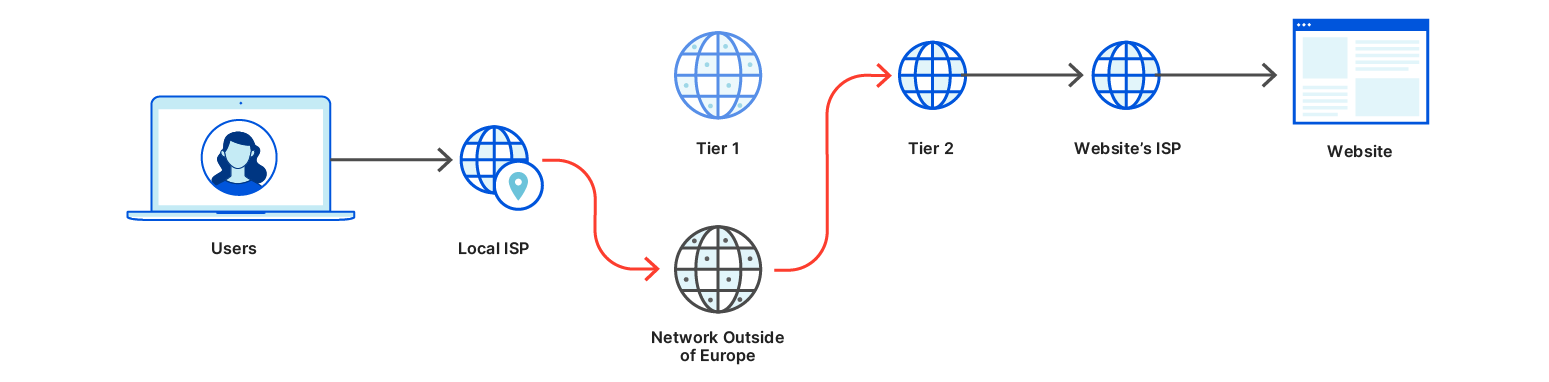
When you sign in to a specific website or service with a privacy policy, you know what that site is expected to do with your data. It’s explicit. There is no such visibility to the users when it comes to the operators of the Internet itself. You may have an agreement with your Internet Service Provider (ISP) and the site you’re visiting, but it’s doubtful that you even know which networks your data is traversing. Most people don’t have a concept of the Internet beyond what they see on their screen, so it’s hard to imagine that people would accept or even understand what a privacy policy from a transit wholesaler or an inspection middlebox would even mean.
Without encryption, Internet browsing information is implicitly shared with countless third parties online as information passes between networks. Without secure routing, users’ traffic can be hijacked and disrupted. Without privacy-preserving protocols, users’ online life is not as private as they would think or expect. The infrastructure of the Internet wasn’t built in a way that reflects their expectations.
Normal network flowNetwork flow with malicious route leak
The good news is that the Internet is continuously evolving. One of the groups that help guide that evolution is the Internet Architecture Board (IAB). The IAB provides architectural oversight to the Internet Engineering Task Force (IETF), the Internet’s main standard-setting body. The IAB recently published RFC 8890, which states that individual end-users should be prioritized when designing Internet protocols. It says that if there’s a conflict between the interests of end-users and the interest of service providers, corporations, or governments, IETF decisions should favor end users. One of the prime interests of end-users is the right to privacy, and the IAB published RFC 6973 to indicate how Internet protocols should take privacy into account.
Today’s technical blog posts are about improvements to the Internet designed to respect user privacy. Privacy is a complex topic that spans multiple disciplines, so it’s essential to clarify what we mean by “improving privacy.” We are specifically talking about changing the protocols that handle privacy-sensitive information exposed “on-the-wire” and modifying them so that this data is exposed to fewer parties. This data continues to exist. It’s just no longer available or visible to third parties without building a mechanism to collect it at a higher layer of the Internet stack, the application layer. These changes go beyond website encryption; they go deep into the design of the systems that are foundational to making the Internet what it is.
The toolbox: cryptography and secure proxies
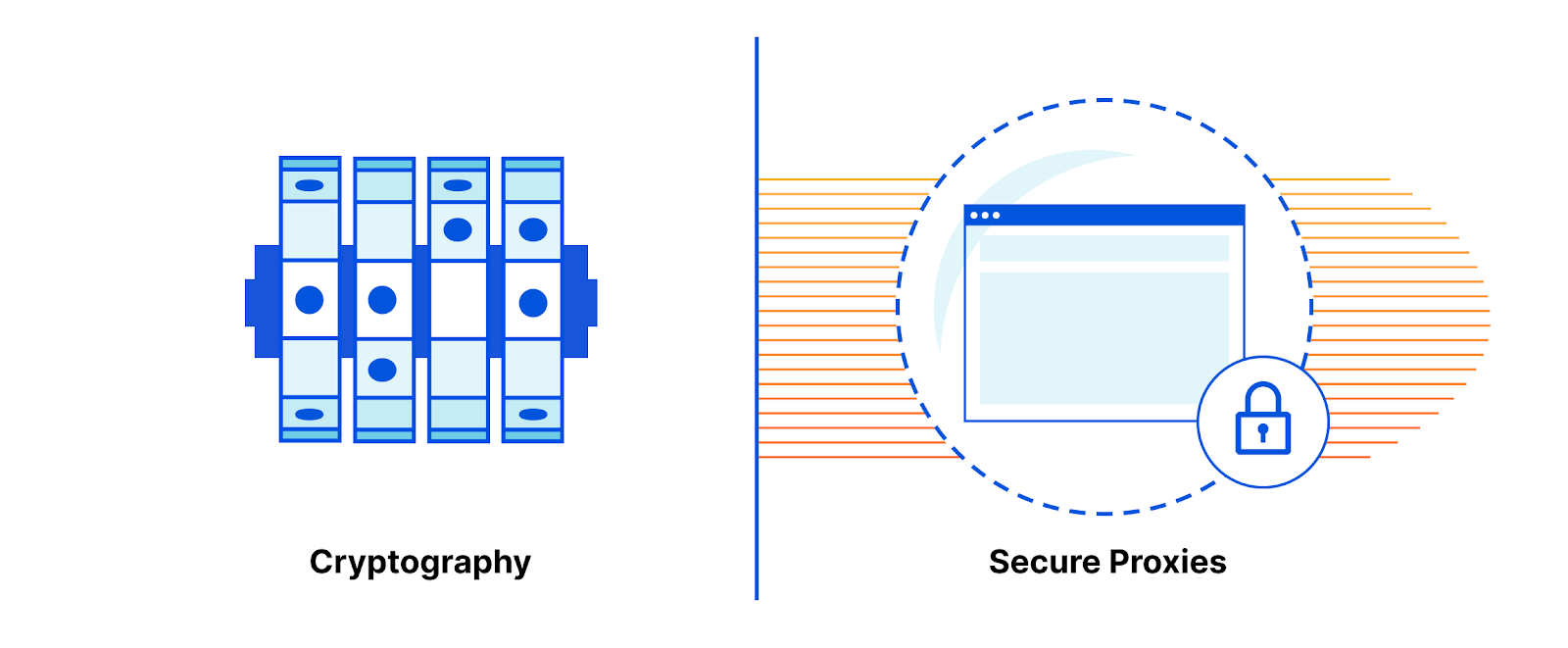
Two tools for making sure data can be used without being seen are cryptography and secureproxies.
Cryptography allows information to be transformed into a format that a very limited number of people (those with the key) can understand. Some describe cryptography as a tool that transforms data security problems into key management problems. This is a humorous but fair description. Cryptography makes it easier to reason about privacy because only key holders can view data.
Another tool for protecting access to data is isolation/segmentation. By physically limiting which parties have access to information, you effectively build privacy walls. A popular architecture is to rely on policy-aware proxies to pass data from one place to another. Such proxies can be configured to strip sensitive data or block data transfers between parties according to what the privacy policy says.
Both these tools are useful individually, but they can be even more effective if combined. Onion routing (the cryptographic technique underlying Tor) is one example of how proxies and encryption can be used in tandem to enforce strong privacy. Broadly, if party A wants to send data to party B, they can encrypt the data with party B’s key and encrypt the metadata with a proxy’s key and send it to the proxy.
Platforms and services built on top of the Internet can build in consent systems, like privacy policies presented through user interfaces. The infrastructure of the Internet relies on layers of underlying protocols. Because these layers of the Internet are so far below where the user interacts with them, it’s almost impossible to build a concept of user consent. In order to respect users and protect them from privacy issues, the protocols that glue the Internet together should be designed with privacy enabled by default.
Data vs. metadata
The transition from a mostly unencrypted web to an encrypted web has done a lot for end-user privacy. For example, the “coffeeshop stalker” is no longer an issue for most sites. When accessing the majority of sites online, users are no longer broadcasting every aspect of their web browsing experience (search queries, browser versions, authentication cookies, etc.) over the Internet for any participant on the path to see. Suppose a site is configured correctly to use HTTPS. In that case, users can be confident their data is secure from onlookers and reaches only the intended party because their connections are both encrypted and authenticated.
However, HTTPS only protects the content of web requests. Even if you only browse sites over HTTPS, that doesn’t mean that your browsingpatterns are private. This is because HTTPS fails to encrypt a critical aspect of the exchange: the metadata. When you make a phone call, the metadata is the phone number, not the call’s contents. Metadata is the data about the data.
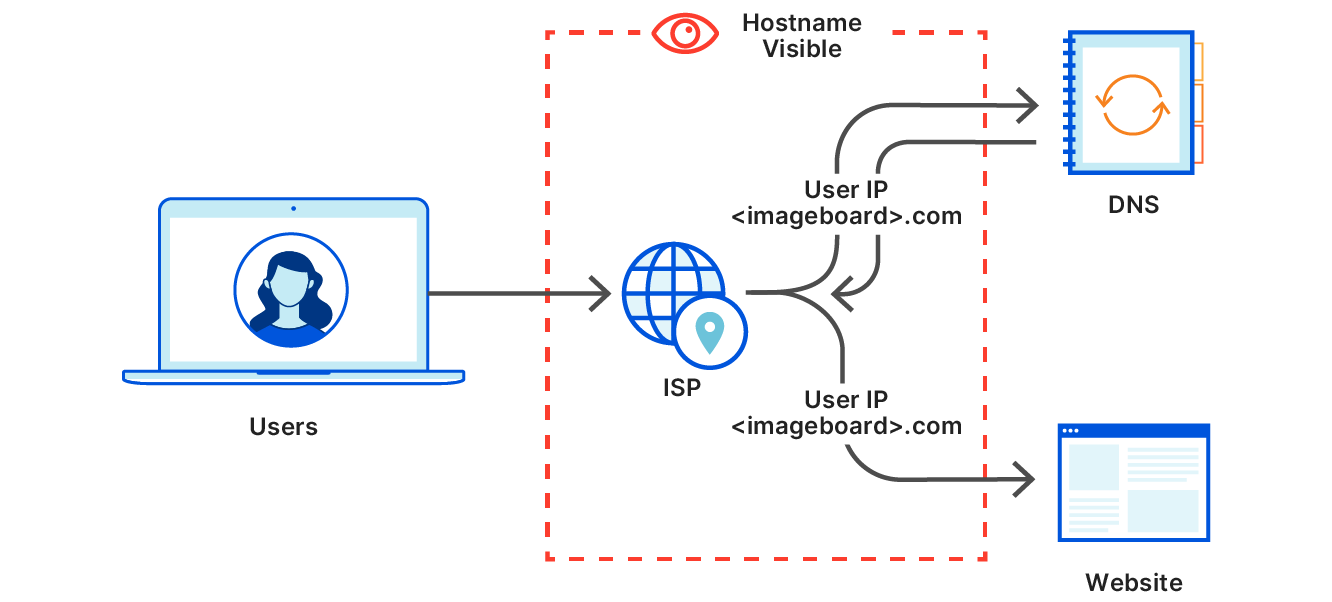
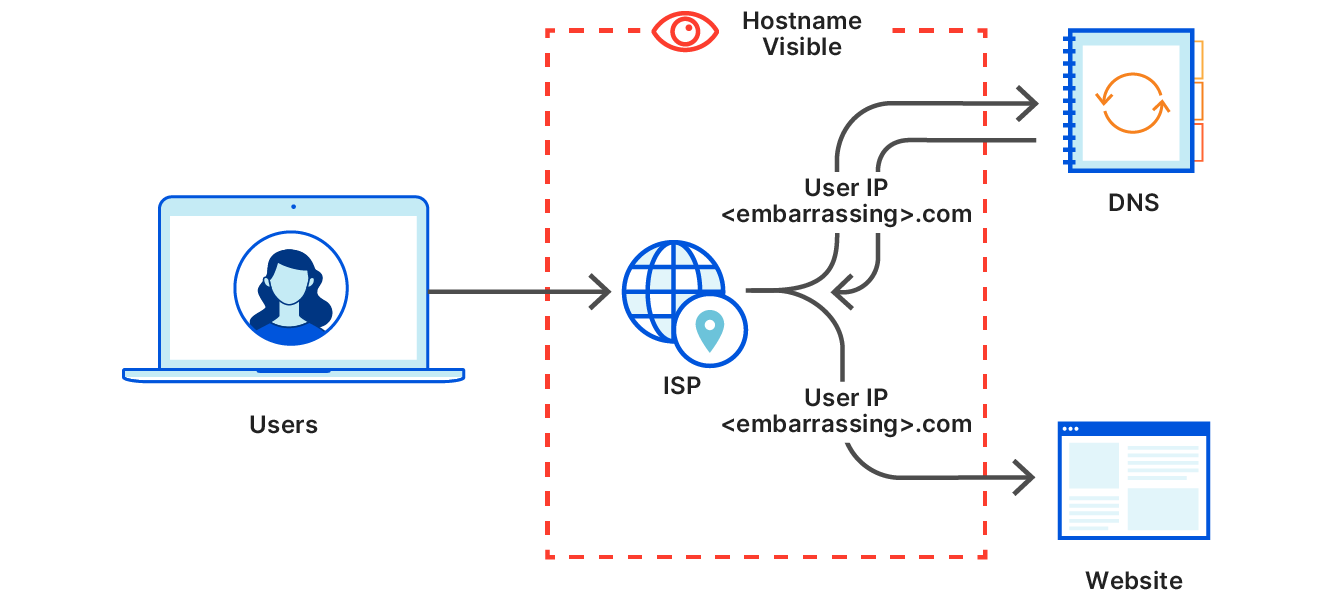
To illustrate the difference and why it matters, here’s a diagram of what happens when you visit a website like an imageboard. Say you’re going to a specific page on that board (https://<imageboard>.com/room101/) that has specific embedded images hosted on <embarassing>.com.
Page load for an imageboard, returning an HTML page with an image from an embarassing siteSubresource fetch for the image from an embarassing site
The space inside the dotted line here represents the part of the Internet that your data needs to transit. They include your local area network or coffee shop, your ISP, an Internet transit provider, and it could be the network portion of the cloud provider that hosts the server. Users often don’t have a relationship with these entities or a contract to prevent these parties from doing anything with the user’s data. And even if those entities don’t look at the data, a well-placed observer intercepting Internet traffic could see anything sent unencrypted. It would be best if they just didn’t see it at all. In this example, the fact that the user visited <imageboard>.com can be seen by an observer, which is expected. However, though page content is encrypted, it’s possible to learn which specific page you’ve visited can be seen since <embarassing>.com is also visible.
It’s a general rule that if data is available to on-path parties on the Internet, some of these on-path parties will use this data. It’s also true that these on-path parties need some metadata in order to facilitate the transport of this data. This balance is explored in RFC 8558, which explains how protocols should be designed thoughtfully with respect to the balance between too much metadata (bad for privacy) and too little metadata (bad for operations).
In an ideal world, Internet protocols would be designed with the principle of least privilege. They would provide the minimum amount of information needed for the on-path parties (the pipes) to do the job of transporting the data to the right place and keep everything else confidential by default. Current protocols, including TLS 1.3 and QUIC, are important steps towards this ideal but fall short with respect to metadata privacy.
Knowing both who you are and what you do online can lead to profiling
Today’s announcements reflect two metadata protection levels: the first involves limiting the amount of metadata available to third-party observers (like ISPs). The second involves restricting the amount of metadata that users share with service providers themselves.
Hostnames are an example of metadata that needs to be protected from third-party observers, which DoH and ECH intend to do. However, it doesn’t make sense to hide the hostname from the site you’re visiting. It also doesn’t make sense to hide it from a directory service like DNS. A DNS server needs to know which hostname you’re resolving to resolve it for you!
A privacy issue arises when a service provider knows about both what sites you’re visiting and who you are. Individual websites do not have this dangerous combination of information (except in the case of third party cookies, which are going away soon in browsers), but DNS providers do. Thankfully, it’s not actually necessary for a DNS resolver to know *both* the hostname of the service you’re going to and which IP you’re coming from. Disentangling the two, which is the goal of ODoH, is good for privacy.
The Internet is part of ‘our’ Infrastructure
Roads should be well-paved, well lit, have accurate signage, and be optimally connected. They aren’t designed to stop a car based on who’s inside it. Nor should they be! Like transportation infrastructure, Internet infrastructure is responsible for getting data where it needs to go, not looking inside packets, and making judgments. But the Internet is made of computers and software, and software tends to be written to make decisions based on the data it has available to it.
Privacy-preserving protocols attempt to eliminate the temptation for infrastructure providers and others to peek inside and make decisions based on personal data. A non-privacy preserving protocol like HTTP keeps data and metadata, like passwords, IP addresses, and hostnames, as explicit parts of the data sent over the wire. The fact that they are explicit means that they are available to any observer to collect and act on. A protocol like HTTPS improves upon this by making some of the data (such as passwords and site content) invisible on the wire using encryption.
The three protocols we are exploring today extend this concept.
ECH takes most of the unencrypted metadata in TLS (including the hostname) and encrypts it with a key that was fetched ahead of time.
ODoH (a new variant of DoH co-designed by Apple, Cloudflare, and Fastly engineers) uses proxies and onion-like encryption to make the source of a DNS query invisible to the DNS resolver. This protects the user’s IP address when resolving hostnames.
OPAQUE uses a new cryptographic technique to keep passwords hidden even from the server. Utilizing a construction called an Oblivious Pseudo-Random Function (as seen in Privacy Pass), the server does not learn the password; it only learns whether or not the user knows the password.
By making sure Internet infrastructure acts more like physical infrastructure, user privacy is more easily protected. The Internet is more private if private data can only be collected where the user has a chance to consent to its collection.
Doing it together
As much as we’re excited about working on new ways to make the Internet more private, innovation at a global scale doesn’t happen in a vacuum. Each of these projects is the output of a collaborative group of individuals working out in the open in organizations like the IETF and the IRTF. Protocols must come about through a consensus process that involves all the parties that make up the interconnected set of systems that power the Internet. From browser builders to cryptographers, from DNS operators to website administrators, this is truly a global team effort.
We also recognize that sweeping technical changes to the Internet will inevitably also impact the technical community. Adopting these new protocols may have legal and policy implications. We are actively working with governments and civil society groups to help educate them about the impact of these potential changes.
We’re looking forward to sharing our work today and hope that more interested parties join in developing these protocols. The projects we are announcing today were designed by experts from academia, industry, and hobbyists together and were built by engineers from Cloudflare Research (including the work of interns, which we will highlight) with everyone’s support Cloudflare.
If you’re interested in this type of work, we’re hiring!
At Amazon Web Services (AWS), we encourage our customers to take advantage of encryption to help secure their data. Encryption is a core component of a good data protection strategy, but people sometimes have questions about how to manage encryption in the cloud to meet the growth pace and complexity of today’s enterprises. Encryption can seem like a difficult task—people often think they need to master complicated systems to encrypt data—but the cloud can simplify it.
In response to frequently asked questions from executives and IT managers, this post provides an overview of how AWS makes encryption less difficult for everyone. In it, I describe the advantages to encryption in the cloud, common encryption questions, and some AWS services that can help.
Cloud encryption advantages
The most important thing to remember about encryption on AWS is that you always own and control your data. This is an extension of the AWS shared responsibility model, which makes the secure delivery and operation of your applications the responsibility of both you and AWS. You control security in the cloud, including encryption of content, applications, systems, and networks. AWS manages security of the cloud, meaning that we are responsible for protecting the infrastructure that runs all of the services offered in the AWS Cloud.
Encryption in the cloud offers a number of advantages in addition to the options available in on-premises environments. This includes on-demand access to managed services that enable you to more easily create and control the keys used for cryptographic operations, integrated identity and access management, and automating encryption in transit and at rest. With the cloud, you don’t manage physical security or the lifecycle of hardware. Instead of the need to procure, configure, deploy, and decommission hardware, AWS offers you a managed service backed by hardware that meets the security requirements of FIPS 140-2. If you need to use that key tens of thousands of times per second, the elastic capacity of AWS services can scale to meet your demands. Finally, you can use integrated encryption capabilities with the AWS services that you use to store and process your data. You pay only for what you use and can instead focus on configuring and monitoring logical security, and innovating on behalf of your business.
Addressing three common encryption questions
For many of the technology leaders I work with, agility and risk mitigation are top IT business goals. An enterprise-wide cloud encryption and data protection strategy helps define how to achieve fine-grained access controls while maintaining nearly continuous visibility into your risk posture. In combination with the wide range of AWS services that integrate directly with AWS Key Management Service (AWS KMS), AWS encryption services help you to achieve greater agility and additional control of your data as you move through the stages of cloud adoption.
The configuration of AWS encryption services is part of your portion of the shared responsibility model. You’re responsible for your data, AWS Identity and Access Management (IAM) configuration, operating systems and networks, and encryption on the client-side, server-side, and network. AWS is responsible for protecting the infrastructure that runs all of the services offered in AWS.
That still leaves you with responsibilities around encryption—which can seem complex, but AWS services can help. Three of the most common questions we get from customers about encryption in the cloud are:
How can I use encryption to prevent unauthorized access to my data in the cloud?
How can I use encryption to meet compliance requirements in the cloud?
How do I demonstrate compliance with company policies or other standards to my stakeholders in the cloud?
Let’s look closely at these three questions and some ways you can address them in AWS.
How can I use encryption to prevent unauthorized access to my data in the cloud?
Start with IAM
The primary way to protect access to your data is access control. On AWS, this often means using IAM to describe which users or roles can access resources like Amazon Simple Storage Service (Amazon S3) buckets. IAM allows you to tightly define the access for each user—whether human or system—and set the conditions in which that access is allowed. This could mean requiring the use of multi-factor authentication, or making the data accessible only from your Amazon Virtual Private Cloud (Amazon VPC).
Encryption allows you to introduce an additional authorization condition before granting access to data. When you use AWS KMS with other services, you can get further control over access to sensitive data. For example, with S3 objects that are encrypted by KMS, each IAM user must not only have access to the storage itself but also have authorization to use the KMS key that protects the data. This works similarly for Amazon Elastic Block Store (Amazon EBS). For example, you can allow an entire operations team to manage Amazon EBS volumes and snapshots, but, for certain Amazon EBS volumes that contain sensitive data, you can use a different KMS master key with different permissions that are granted only to the individuals you specify. This ability to define more granular access control through independent permission on encryption keys is supported by all AWS services that integrate with KMS.
When you configure IAM for your users to access your data and resources, it’s critical that you consider the principle of least privilege. This means you grant only the access necessary for each user to do their work and no more. For example, instead of granting users access to an entire S3 bucket, you can use IAM policy language to specify the particular Amazon S3 prefixes that are required and no others. This is important when thinking about the difference between using a service—data plane events—and managing a service—management plane events. An application might store and retrieve objects in an S3 bucket, but it’s rarely the case that the same application needs to list all of the buckets in an account or configure the bucket’s settings and permissions.
Making clear distinctions between who can use resources and who can manage resources is often referred to as the principle of separation of duties. Consider the circumstance of having a single application with two identities that are associated with it—an application identity that uses a key to encrypt and decrypt data and a manager identity that can make configuration changes to the key. By using AWS KMS together with services like Amazon EBS, Amazon S3, and many others, you can clearly define which actions can be used by each persona. This prevents the application identity from making configuration or permission changes while allowing the manager to make those changes but not use the services to actually access the data or use the encryption keys.
Use AWS KMS and key policies with IAM policies
AWS KMS provides you with visibility and granular permissions control of a specific key in the hierarchy of keys used to protect your data. Controlling access to the keys in KMS is done using IAM policy language. The customer master key (CMK) has its own policy document, known as a key policy. AWS KMS key policies can work together with IAM identity policies or you can manage the permissions for a KMS CMK exclusively with key policies. This gives you greater flexibility to separately assign permissions to use the key or manage the key, depending on your business use case.
Encryption everywhere
AWS recommends that you encrypt as much as possible. This means encrypting data while it’s in transit and while it’s at rest.
For customers seeking to encrypt data in transit for their public facing applications, our recommended best practice is to use AWS Certificate Manager (ACM). This service automates the creation, deployment, and renewal of public TLS certificates. If you’ve been using SSL/TLS for your websites and applications, then you’re familiar with some of the challenges related to dealing with certificates. ACM is designed to make certificate management easier and less expensive.
One way ACM does this is by generating a certificate for you. Because AWS operates a certificate authority that’s already trusted by industry-standard web browsers and operating systems, public certificates created by ACM can be used with public websites and mobile applications. ACM can create a publicly trusted certificate that you can then deploy into API Gateway, Elastic Load Balancing, or Amazon CloudFront (a globally distributed content delivery network). You don’t have to handle the private key material or figure out complicated tooling to deploy the certificates to your resources. ACM helps you to deploy your certificates either through the AWS Management Console or with automation that uses AWS Command Line Interface (AWS CLI) or AWS SDKs.
One of the challenges related to certificates is regularly rotating and renewing them so they don’t unexpectedly expire and prevent your users from using your website or application. Fortunately, ACM has a feature that updates the certificate before it expires and automatically deploys the new certificate to the resources associated with it. No more needing to make a calendar entry to remind your team to renew certificates and, most importantly, no more outages because of expired certificates.
Many customers want to secure data in transit for services by using privately trusted TLS certificates instead of publicly trusted TLS certificates. For this use case, you can use AWS Certificate Manager Private Certificate Authority (ACM PCA) to issue certificates for both clients and servers. ACM PCA provides an inexpensive solution for issuing internally trusted certificates and it can be integrated with ACM with all of the same integrative benefits that ACM provides for public certificates, including automated renewal.
For encrypting data at rest, I strongly encourage using AWS KMS. There is a broad range of AWS storage and database services that support KMS integration so you can implement robust encryption to protect your data at rest within AWS services. This lets you have the benefit of the KMS capabilities for encryption and access control to build complex solutions with a variety of AWS services without compromising on using encryption as part of your data protection strategy.
How can I use encryption to meet compliance requirements in the cloud?
The first step is to identify your compliance requirements. This can often be done by working with your company’s risk and compliance team to understand the frameworks and controls that your company must abide by. While the requirements vary by industry and region, the most common encryption compliance requirements are to encrypt your data and make sure that the access control for the encryption keys (for example by using AWS KMS CMK key policies) is separate from the access control to the encrypted data itself (for example through Amazon S3 bucket policies).
Another common requirement is to have separate encryption keys for different classes of data, or for different tenants or customers. This is directly supported by AWS KMS as you can have as many different keys as you need within a single account. If you need to use even more than the 10,000 keys AWS KMS allows by default, contact AWS Support about raising your quota.
For compliance-related concerns, there are a few capabilities that are worth exploring as options to increase your coverage of security controls.
Amazon S3 can automatically encrypt all new objects placed into a bucket, even when the user or software doesn’t specify encryption.
You can use batch operations in Amazon S3 to encrypt existing objects that weren’t originally stored with encryption.
You can use the Amazon S3 inventory report to generate a list of all S3 objects in a bucket, including their encryption status.
AWS services that track encryption configurations to comply with your requirements
Anyone who has pasted a screenshot of a configuration into a word processor at the end of the year to memorialize compliance knows how brittle traditional on-premises forms of compliance attestation can be. Everything looked right the day it was installed and still looked right at the end of the year—but how can you be certain that everything was correctly configured at all times?
AWS provides several different services to help you configure your environment correctly and monitor its configuration over time. AWS services can also be configured to perform automated remediation to correct any deviations from your desired configuration state. AWS helps automate the collection of compliance evidence and provides nearly continuous, rather than point in time, compliance snapshots.
AWS Config is a service that enables you to assess, audit, and evaluate the configurations of your AWS resources. AWS Config continuously monitors and records your AWS resource configurations and helps you to automate the evaluation of recorded configurations against desired configurations. One of the most powerful features of AWS Config is AWS Config Rules. While AWS Config continuously tracks the configuration changes that occur among your resources, it checks whether these changes violate any of the conditions in your rules. If a resource violates a rule, AWS Config flags the resource and the rule as noncompliant. AWS Config comes with a wide range of prewritten managed rules to help you maintain compliance for many different AWS services. The managed rules include checks for encryption status on a variety of resources, ACM certificate expiration, IAM policy configurations, and many more.
For additional monitoring capabilities, consider Amazon Macie and AWS Security Hub. Amazon Macie is a service that helps you understand the contents of your S3 buckets by analyzing and classifying the data contained within your S3 objects. It can also be used to report on the encryption status of your S3 buckets, giving you a central view into the configurations of all buckets in your account, including default encryption settings. Amazon Macie also integrates with AWS Security Hub, which can perform automated checks of your configurations, including several checks that focus on encryption settings.
Another critical service for compliance outcomes is AWS CloudTrail. CloudTrail enables governance, compliance, operational auditing, and risk auditing of your AWS account. With CloudTrail, you can log, continuously monitor, and retain account activity related to actions across your AWS infrastructure. AWS KMS records all of its activity in CloudTrail, allowing you to identify who used the encryption keys, in what context, and with which resources. This information is useful for operational purposes and to help you meet your compliance needs.
How do I demonstrate compliance with company policy to my stakeholders in the cloud?
You probably have internal and external stakeholders that care about compliance and require that you document your system’s compliance posture. These stakeholders include a range of possible entities and roles, including internal and external auditors, risk management departments, industry and government regulators, diligence teams related to funding or acquisition, and more.
Unfortunately, the relationship between technical staff and audit and compliance staff is sometimes contentious. AWS believes strongly that these two groups should work together—they want the same things. The same services and facilities that engineering teams use to support operational excellence can also provide output that answers stakeholders’ questions about security compliance.
You can provide access to the console for AWS Config and CloudTrail to your counterparts in audit and risk management roles. Use AWS Config to continuously monitor your configurations and produce periodic reports that can be delivered to the right stakeholders. The evolution towards continuous compliance makes compliance with your company policies on AWS not just possible, but often better than is possible in traditional on-premises environments. AWS Config includes several managed rules that check for encryption settings in your environment. CloudTrail contains an ongoing record of every time AWS KMS keys are used to either encrypt or decrypt your resources. The contents of the CloudTrail entry include the KMS key ID, letting your stakeholders review and connect the activity recorded in CloudTrail with the configurations and permissions set in your environment. You can also use the reports produced by Security Hub automated compliance checks to verify and validate your encryption settings and other controls.
Your stakeholders might have further requirements for compliance that are beyond your scope of control because AWS is operating those controls for you. AWS provides System and Organization Controls (SOC) Reports that are independent, third-party examination reports that demonstrate how AWS achieves key compliance controls and objectives. The purpose of these reports is to help you and your auditors understand the AWS controls established to support operations and compliance. You can consult the AWS SOC2 report, available through AWS Artifact, for more information about how AWS operates in the cloud and provides assurance around AWS security procedures. The SOC2 report includes several AWS KMS-specific controls that might be of interest to your audit-minded colleagues.
Summary
Encryption in the cloud is easier than encryption on-premises, powerful, and can help you meet the highest standards for controls and compliance. The cloud provides more comprehensive data protection capabilities for customers looking to rapidly scale and innovate than are available for on-premises systems. This post provides guidance for how to think about encryption in AWS. You can use IAM, AWS KMS, and ACM to provide granular access control to your most sensitive data, and support protection of your data in transit and at rest. Once you’ve identified your compliance requirements, you can use AWS Config and CloudTrail to review your compliance with company policy over time, rather than point-in-time snapshots obtained through traditional audit methods. AWS can provide on-demand compliance evidence, with tools such as reporting from CloudTrail and AWS Config, and attestations such as SOC reports.
I encourage you to review your current encryption approach against the steps I’ve outlined in this post. While every industry and company is different, I believe the core concepts presented here apply to all scenarios. I want to hear from you. If you have any comments or feedback on the approach discussed here, or how you’ve used it for your use case, leave a comment on this post.
And for more information on encryption in the cloud and on AWS, check out the following resources, in addition to our collection of encryption blog posts.
Quanta magazine recently published a breathless article on indistinguishability obfuscation — calling it the “‘crown jewel’ of cryptography” — and saying that it had finally been achieved, based on a recently published paper. I want to add some caveats to the discussion.
Basically, obfuscation makes a computer program “unintelligible” by performing its functionality. Indistinguishability obfuscation is more relaxed. It just means that two different programs that perform the same functionality can’t be distinguished from each other. A good definition is in this paper.
This is a pretty amazing theoretical result, and one to be excited about. We can now do obfuscation, and we can do it using assumptions that make real-world sense. The proofs are kind of ugly, but that’s okay — it’s a start. What it means in theory is that we have a fundamental theoretical result that we can use to derive a whole bunch of other cryptographic primitives.
But — and this is a big one — this result is not even remotely close to being practical. We’re talking multiple days to perform pretty simple calculations, using massively large blocks of computer code. And this is likely to remain true for a very long time. Unless researchers increase performance by many orders of magnitude, nothing in the real world will make use of this work anytime soon.
But but, consider fully homomorphic encryption. It, too, was initially theoretically interesting and completely impractical. And now, after decades of work, it seems to be almost just-barely maybe approaching practically useful. This could very well be on the same trajectory, and perhaps in twenty to thirty years we will be celebrating this early theoretical result as the beginning of a new theory of cryptography.
As a security company, we pride ourselves on finding innovative ways to protect our platform to, in turn, protect the data of our customers. Part of this approach is implementing progressive methods in protecting our hardware at scale. While we have blogged about how we address security threats from application to memory, the attacks on hardware, as well as firmware, have increased substantially. The data cataloged in the National Vulnerability Database (NVD) has shown the frequency of hardware and firmware-level vulnerabilities rising year after year.
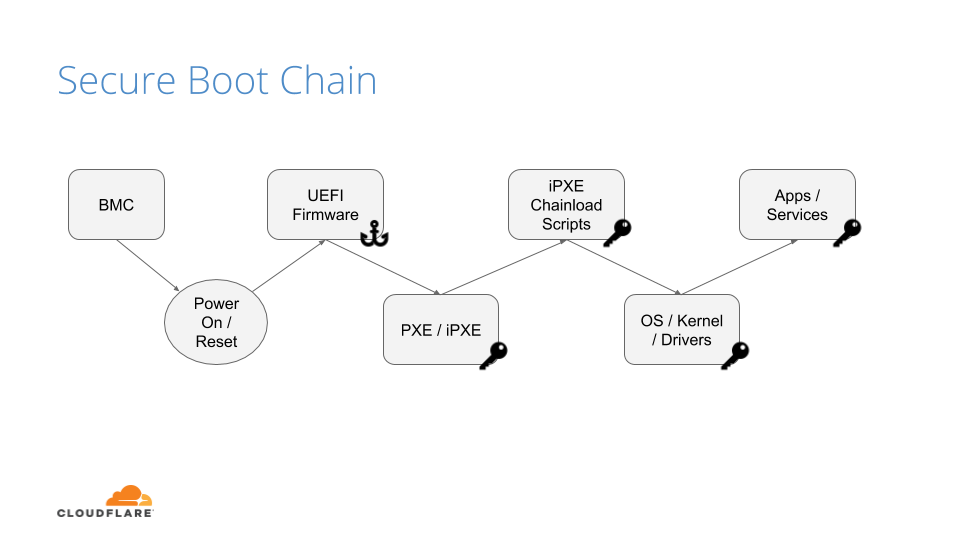
Technologies like secure boot, common in desktops and laptops, have been ported over to the server industry as a method to combat firmware-level attacks and protect a device’s boot integrity. These technologies require that you create a trust ‘anchor’, an authoritative entity for which trust is assumed and not derived. A common trust anchor is the system Basic Input/Output System (BIOS) or the Unified Extensible Firmware Interface (UEFI) firmware.
While this ensures that the device boots only signed firmware and operating system bootloaders, does it protect the entire boot process? What protects the BIOS/UEFI firmware from attacks?
The Boot Process
Before we discuss how we secure our boot process, we will first go over how we boot our machines.
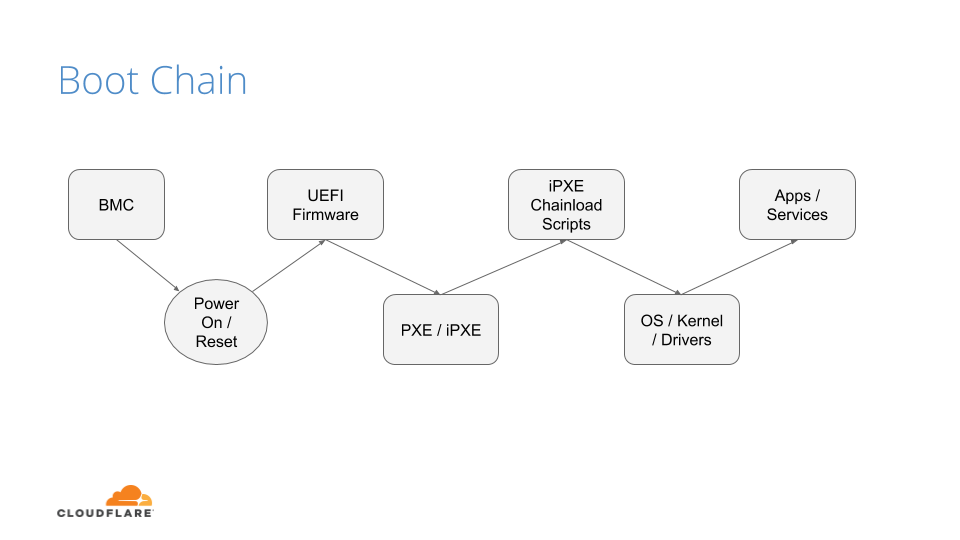
The above image shows the following sequence of events:
After powering on the system (through a baseboard management controller (BMC) or physically pushing a button on the system), the system unconditionally executes the UEFI firmware residing on a flash chip on the motherboard.
UEFI performs some hardware and peripheral initialization and executes the Preboot Execution Environment (PXE) code, which is a small program that boots an image over the network and usually resides on a flash chip on the network card.
PXE sets up the network card, and downloads and executes a small program bootloader through an open source boot firmware called iPXE.
iPXE loads a script that automates a sequence of commands for the bootloader to know how to boot a specific operating system (sometimes several of them). In our case, it loads our Linux kernel, initrd (this contains device drivers which are not directly compiled into the kernel), and a standard Linux root filesystem. After loading these components, the bootloader executes and hands off the control to the kernel.
Finally, the Linux kernel loads any additional drivers it needs and starts applications and services.
UEFI Secure Boot
Our UEFI secure boot process is fairly straightforward, albeit customized for our environments. After loading the UEFI firmware from the bootloader, an initialization script defines the following variables:
Platform Key (PK): It serves as the cryptographic root of trust for secure boot, giving capabilities to manipulate and/or validate the other components of the secure boot framework.
Trusted Database (DB): Contains a signed (by platform key) list of hashes of all PCI option ROMs, as well as a public key, which is used to verify the signature of the bootloader and the kernel on boot.
These variables are respectively the master platform public key, which is used to sign all other resources, and an allow list database, containing other certificates, binary file hashes, etc. In default secure boot scenarios, Microsoft keys are used by default. At Cloudflare we use our own, which makes us the root of trust for UEFI:
But, by setting our trust anchor in the UEFI firmware, what attack vectors still exist?
UEFI Attacks
As stated previously, firmware and hardware attacks are on the rise. It is clear from the figure below that firmware-related vulnerabilities have increased significantly over the last 10 years, especially since 2017, when the hacker community started attacking the firmware on different platforms:
This upward trend, coupled with recent malware findings in UEFI, shows that trusting firmware is becoming increasingly problematic.
By tainting the UEFI firmware image, you poison the entire boot trust chain. The ability to trust firmware integrity is important beyond secure boot. For example, if you can’t trust the firmware not to be compromised, you can’t trust things like trusted platform module (TPM) measurements to be accurate, because the firmware is itself responsible for doing these measurements (e.g a TPM is not an on-path security mechanism, but instead it requires firmware to interact and cooperate with). Firmware may be crafted to extend measurements that are accepted by a remote attestor, but that don’t represent what’s being locally loaded. This could cause firmware to have a questionable measured boot and remote attestation procedure.
If we can’t trust firmware, then hardware becomes our last line of defense.
Hardware Root of Trust
Early this year, we made a series of blog posts on why we chose AMD EPYC processors for our Gen X servers. With security in mind, we started turning on features that were available to us and set forth the plan of using AMD silicon as a Hardware Root of Trust (HRoT).
Platform Secure Boot (PSB) is AMD’s implementation of hardware-rooted boot integrity. Why is it better than UEFI firmware-based root of trust? Because it is intended to assert, by a root of trust anchored in the hardware, the integrity and authenticity of the System ROM image before it can execute. It does so by performing the following actions:
Authenticates the first block of BIOS/UEFI prior to releasing x86 CPUs from reset.
Authenticates the System Read-Only Memory (ROM) contents on each boot, not just during updates.
Moves the UEFI Secure Boot trust chain to immutable hardware.
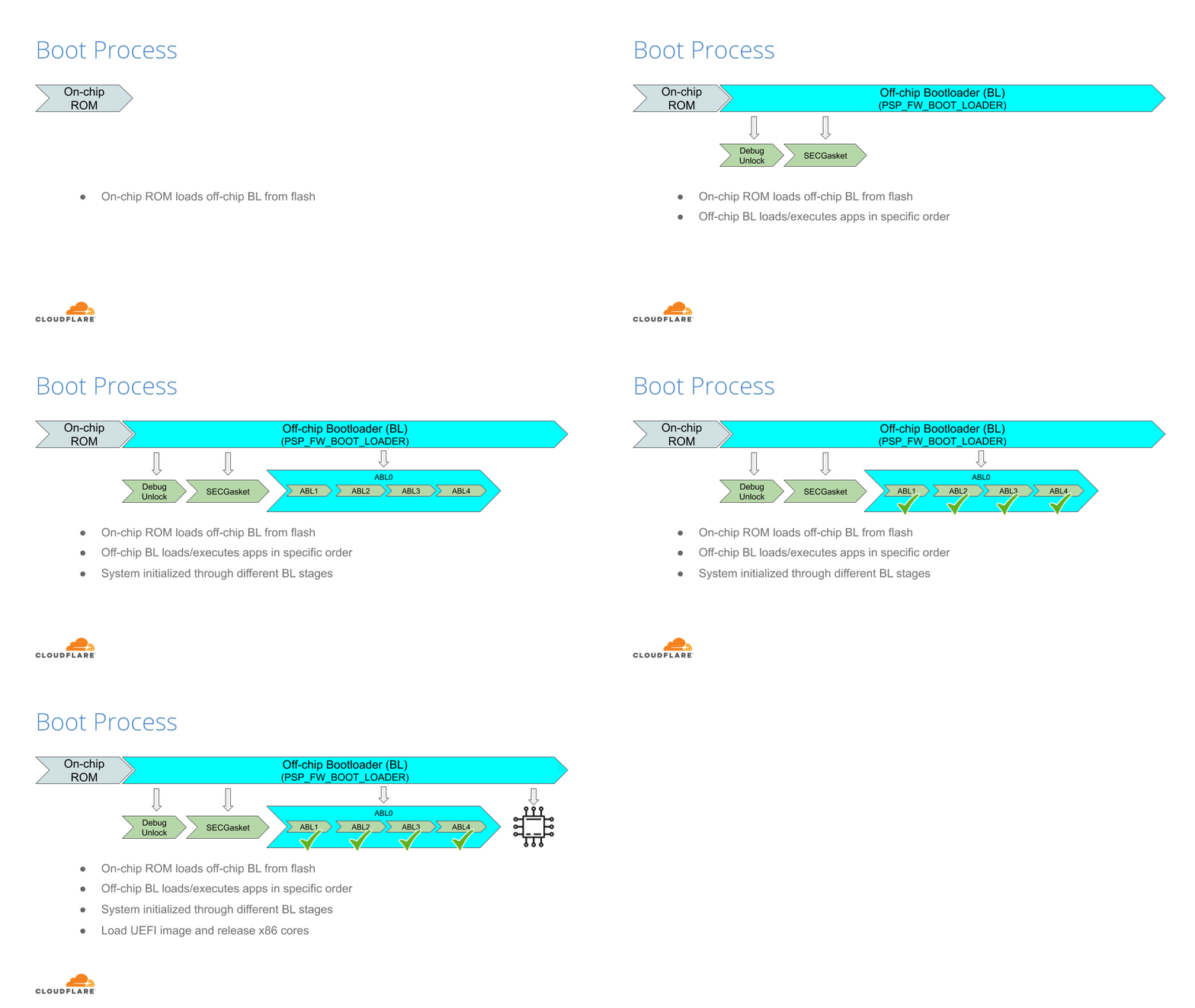
This is accomplished by the AMD Platform Security Processor (PSP), an ARM Cortex-A5 microcontroller that is an immutable part of the system on chip (SoC). The PSB consists of two components:
On-chip Boot ROM
Embeds a SHA384 hash of an AMD root signing key
Verifies and then loads the off-chip PSP bootloader located in the boot flash
Off-chip Bootloader
Locates the PSP directory table that allows the PSP to find and load various images
Authenticates first block of BIOS/UEFI code
Releases CPUs after successful authentication
The PSP secures the On-chip Boot ROM code, loads the off-chip PSP firmware into PSP static random access memory (SRAM) after authenticating the firmware, and passes control to it.
The Off-chip Bootloader (BL) loads and specifies applications in a specific order (whether or not the system goes into a debug state and then a secure EFI application binary interface to the BL)
The system continues initialization through each bootloader stage.
If each stage passes, then the UEFI image is loaded and the x86 cores are released.
Now that we know the booting steps, let’s build an image.
Build Process
Public Key Infrastructure
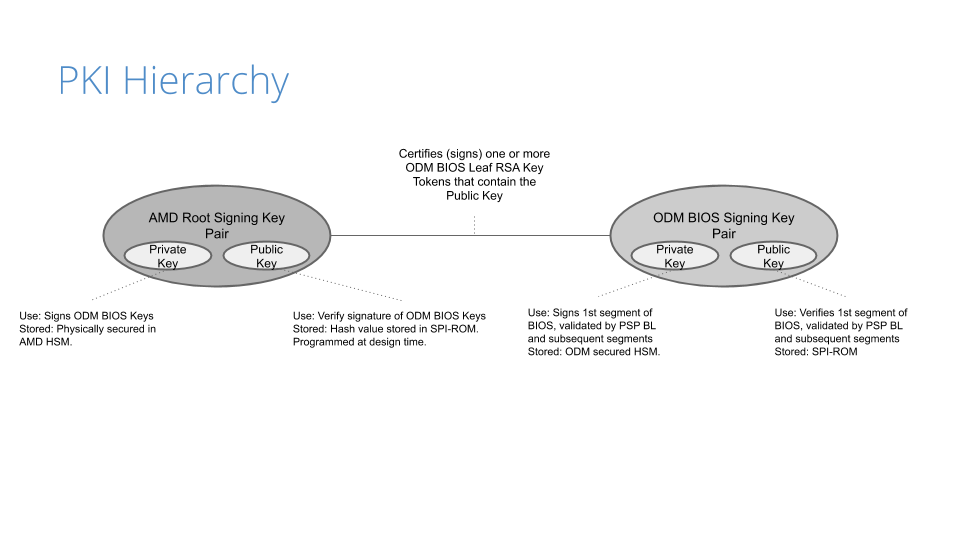
Before the image gets built, a public key infrastructure (PKI) is created to generate the key pairs involved for signing and validating signatures:
Our original device manufacturer (ODM), as a trust extension, creates a key pair (public and private) that is used to sign the first segment of the BIOS (private key) and validates that segment on boot (public key).
On AMD’s side, they have a key pair that is used to sign (the AMD root signing private key) and certify the public key created by the ODM. This is validated by AMD’s root signing public key, which is stored as a hash value (RSASSA-PSS: SHA-384 with 4096-bit key is used as the hashing algorithm for both message and mask generation) in SPI-ROM.
Because of the way the PKI mechanisms are built, the system cannot be compromised if only one of the keys is leaked. This is an important piece of the trust hierarchy that is used for image signing.
Certificate Signing Request
Once the PKI infrastructure is established, a BIOS signing key pair is created, together with a certificate signing request (CSR). Creating the CSR uses known common name (CN) fields that many are familiar with:
countryName
stateOrProvinceName
localityName
organizationName
In addition to the fields above, the CSR will contain a serialNumber field, a 32-bit integer value represented in ASCII HEX format that encodes the following values:
PLATFORM_VENDOR_ID: An 8-bit integer value assigned by AMD for each ODM.
PLATFORM_MODEL_ID: A 4-bit integer value assigned to a platform by the ODM.
BIOS_KEY_REVISION_ID: is set by the ODM encoding a 4-bit key revision as unary counter value.
DISABLE_SECURE_DEBUG: Fuse bit that controls whether secure debug unlock feature is disabled permanently.
DISABLE_AMD_BIOS_KEY_USE: Fuse bit that controls if the BIOS, signed by an AMD key, (with vendor ID == 0) is permitted to boot on a CPU with non-zero Vendor ID.
DISABLE_BIOS_KEY_ANTI_ROLLBACK: Fuse bit that controls whether BIOS key anti-rollback feature is enabled.
Remember these values, as we’ll show how we use them in a bit. Any of the DISABLE values are optional, but recommended based on your security posture/comfort level.
AMD, upon processing the CSR, provides the public part of the BIOS signing key signed and certified by the AMD signing root key as a RSA Public Key Token file (.stkn) format.
Putting It All Together
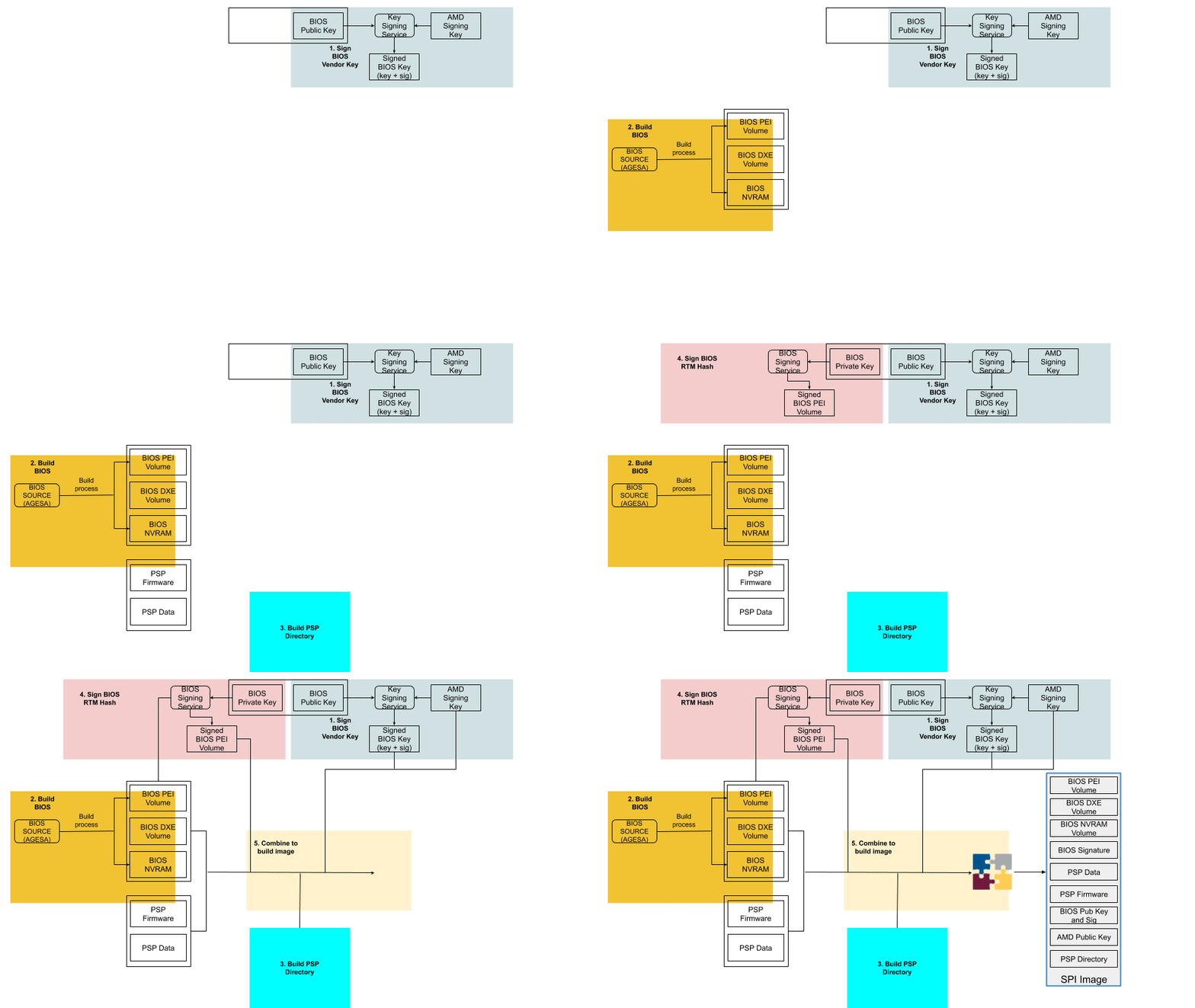
The following is a step-by-step illustration of how signed UEFI firmware is built:
The ODM submits their public key used for signing Cloudflare images to AMD.
AMD signs this key using their RSA private key and passes it back to ODM.
The AMD public key and the signed ODM public key are part of the final BIOS SPI image.
The BIOS source code is compiled and various BIOS components (PEI Volume, Driver eXecution Environment (DXE) volume, NVRAM storage, etc.) are built as usual.
The PSP directory and BIOS directory are built next. PSP directory and BIOS directory table points to the location of various firmware entities.
The ODM builds the signed BIOS Root of Trust Measurement (RTM) signature based on the blob of BIOS PEI volume concatenated with BIOS Directory header, and generates the digital signature of this using the private portion of ODM signing key. The SPI location for signed BIOS RTM code is finally updated with this signature blob.
Finally, the BIOS binaries, PSP directory, BIOS directory and various firmware binaries are combined to build the SPI BIOS image.
Enabling Platform Secure Boot
Platform Secure Boot is enabled at boot time with a PSB-ready firmware image. PSB is configured using a region of one-time programmable (OTP) fuses, specified for the customer. OTP fuses are on-chip non-volatile memory (NVM) that permits data to be written to memory only once. There is NO way to roll the fused CPU back to an unfused one.
Enabling PSB in the field will go through two steps: fusing and validating.
Fusing: Fuse the values assigned in the serialNumber field that was generated in the CSR
Validating: Validate the fused values and the status code registers
If validation is successful, the BIOS RTM signature is validated using the ODM BIOS signing key, PSB-specific registers (MP0_C2P_MSG_37 and MP0_C2P_MSG_38) are updated with the PSB status and fuse values, and the x86 cores are released
If validation fails, the registers above are updated with the PSB error status and fuse values, and the x86 cores stay in a locked state.
Let’s Boot!
With a signed image in hand, we are ready to enable PSB on a machine. We chose to deploy this on a few machines that had an updated, unsigned AMI UEFI firmware image, in this case version 2.16. We use a couple of different firmware updatetools, so, after a quick script, we ran an update to change the firmware version from 2.16 to 2.18C (the signed image):
. $sudo ./UpdateAll.sh
Bin file name is ****.218C

BEGIN

+---------------------------------------------------------------------------+
|                 AMI Firmware Update Utility v5.11.03.1778                 |
|                 Copyright (C)2018 American Megatrends Inc.                |
|                         All Rights Reserved.                              |
+---------------------------------------------------------------------------+
Reading flash ............... done
FFS checksums ......... ok
Check RomLayout ........ ok.
Erasing Boot Block .......... done
Updating Boot Block ......... done
Verifying Boot Block ........ done
Erasing Main Block .......... done
Updating Main Block ......... done
Verifying Main Block ........ done
Erasing NVRAM Block ......... done
Updating NVRAM Block ........ done
Verifying NVRAM Block ....... done
Erasing NCB Block ........... done
Updating NCB Block .......... done
Verifying NCB Block ......... done

Process completed.
After the update completed, we rebooted:
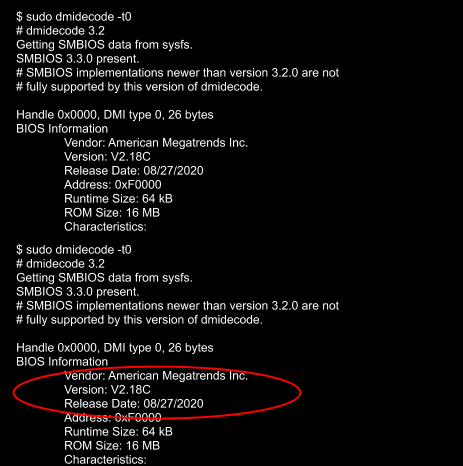
After a successful install, we validated that the image was correct via the sysfs information provided in the dmidecode output:
Testing
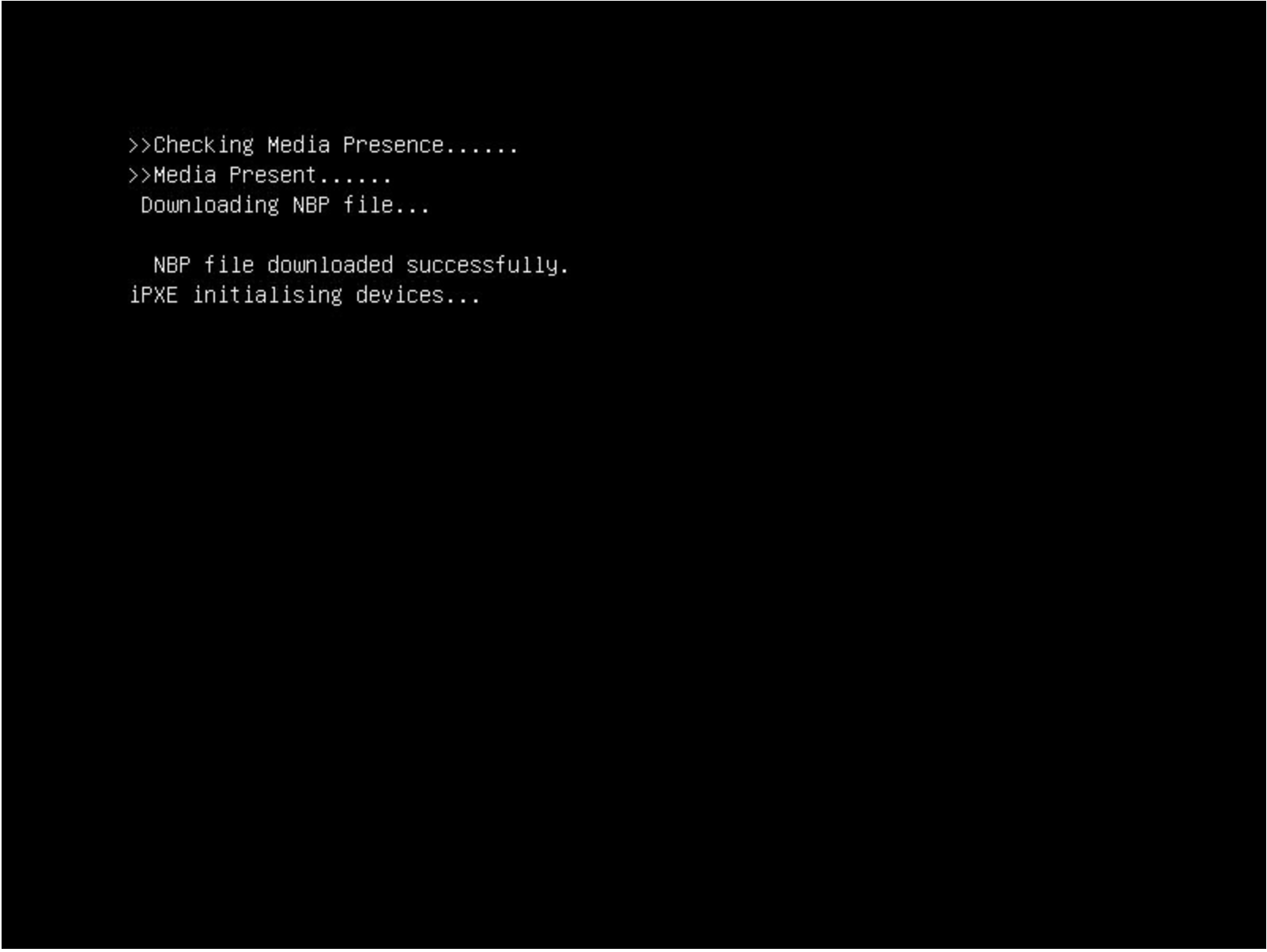
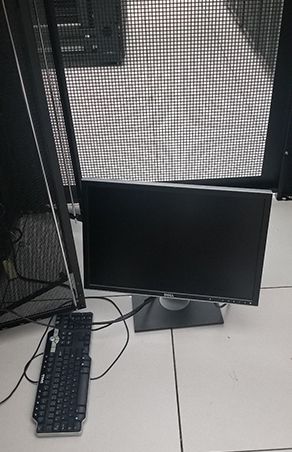
With a signed image installed, we wanted to test that it worked, meaning: what if an unauthorized user installed their own firmware image? We did this by downgrading the image back to an unsigned image, 2.16. In theory, the machine shouldn’t boot as the x86 cores should stay in a locked state. After downgrading, we rebooted and got the following:
This isn’t a powered down machine, but the result of booting with an unsigned image.
Flashing back to a signed image is done by running the same flashing utility through the BMC, so we weren’t bricked. Nonetheless, the results were successful.
Naming Convention
Our standard UEFI firmware images are alphanumeric, making it difficult to distinguish (by name) the difference between a signed and unsigned image (v2.16A vs v2.18C), for example. There isn’t a remote attestation capability (yet) to probe the PSB status registers or to store these values by means of a signature (e.g. TPM quote). As we transitioned to PSB, we wanted to make this easier to determine by adding a specific suffix: -sig that we could query in userspace. This would allow us to query this information via Prometheus. Changing the file name alone wouldn’t do it, so we had to make the following changes to reflect a new naming convention for signed images:
Update filename
Update BIOS version for setup menu
Update post message
Update SMBIOS type 0 (BIOS version string identifier)
Signed images now have a -sig suffix:
~$ sudo dmidecode -t0
# dmidecode 3.2
Getting SMBIOS data from sysfs.
SMBIOS 3.3.0 present.
# SMBIOS implementations newer than version 3.2.0 are not
# fully supported by this version of dmidecode.

Handle 0x0000, DMI type 0, 26 bytes
BIOS Information
	Vendor: American Megatrends Inc.
	Version: V2.20-sig
	Release Date: 09/29/2020
	Address: 0xF0000
	Runtime Size: 64 kB
	ROM Size: 16 MB
Conclusion
Finding weaknesses in firmware is a challenge that many attackers have taken on. Attacks that physically manipulate the firmware used for performing hardware initialization during the booting process can invalidate many of the common secure boot features that are considered industry standard. By implementing a hardware root of trust that is used for code signing critical boot entities, your hardware becomes a ‘first line of defense’ in ensuring that your server hardware and software integrity can derive trust through cryptographic means.
What’s Next?
While this post discussed our current, AMD-based hardware platform, how will this affect our future hardware generations? One of the benefits of working with diverse vendors like AMD and Ampere (ARM) is that we can ensure they are baking in our desired platform security by default (which we’ll speak about in a future post), making our hardware security outlook that much brighter 😀.
AWS Key Management Service (AWS KMS) now supports three new hybrid post-quantum key exchange algorithms for the Transport Layer Security (TLS) 1.2 encryption protocol that’s used when connecting to AWS KMS API endpoints. These new hybrid post-quantum algorithms combine the proven security of a classical key exchange with the potential quantum-safe properties of new post-quantum key exchanges undergoing evaluation for standardization. The fastest of these algorithms adds approximately 0.3 milliseconds of overheard compared to a classical TLS handshake. The new post-quantum key exchange algorithms added are Round 2 versions of Kyber, Bit Flipping Key Encapsulation (BIKE), and Supersingular Isogeny Key Encapsulation (SIKE). Each organization has submitted their algorithms to the National Institute of Standards and Technology (NIST) as part of NIST’s post-quantum cryptography standardization process. This process spans several rounds of evaluation over multiple years, and is likely to continue beyond 2021.
In our previous hybrid post-quantum TLS blog post, we announced that AWS KMS had launched hybrid post-quantum TLS 1.2 with Round 1 versions of BIKE and SIKE. The Round 1 post-quantum algorithms are still supported by AWS KMS, but at a lower priority than the Round 2 algorithms. You can choose to upgrade your client to enable negotiation of Round 2 algorithms.
Why post-quantum TLS is important
A large-scale quantum computer would be able to break the current public-key cryptography that’s used for key exchange in classical TLS connections. While a large-scale quantum computer isn’t available today, it’s still important to think about and plan for your long-term security needs. TLS traffic using classical algorithms recorded today could be decrypted by a large-scale quantum computer in the future. If you’re developing applications that rely on the long-term confidentiality of data passed over a TLS connection, you should consider a plan to migrate to post-quantum cryptography before the lifespan of the sensitivity of your data would be susceptible to an unauthorized user with a large-scale quantum computer. As an example, this means that if you believe that a large-scale quantum computer is 25 years away, and your data must be secure for 20 years, you should migrate to post-quantum schemes within the next 5 years. AWS is working to prepare for this future, and we want you to be prepared too.
We’re offering this feature now instead of waiting for standardization efforts to be complete so you have a way to measure the potential performance impact to your applications. Offering this feature now also gives you the protection afforded by the proposed post-quantum schemes today. While we believe that the use of this feature raises the already high security bar for connecting to AWS KMS endpoints, these new cipher suites will impact bandwidth utilization and latency. However, using these new algorithms could also create connection failures for intermediate systems that proxy TLS connections. We’d like to get feedback from you on the effectiveness of our implementation or any issues found so we can improve it over time.
Hybrid post-quantum TLS 1.2
Hybrid post-quantum TLS is a feature that provides the security protections of both the classical and post-quantum key exchange algorithms in a single TLS handshake. Figure 1 shows the differences in the connection secret derivation process between classical and hybrid post-quantum TLS 1.2. Hybrid post-quantum TLS 1.2 has three major differences from classical TLS 1.2:
The negotiated post-quantum key is appended to the ECDHE key before being used as the hash-based message authentication code (HMAC) key.
The text hybrid in its ASCII representation is prepended to the beginning of the HMAC message.
The entire client key exchange message from the TLS handshake is appended to the end of the HMAC message.
Figure 1: Differences in the connection secret derivation process between classical and hybrid post-quantum TLS 1.2
Some background on post-quantum TLS
Today, all requests to AWS KMS use TLS with key exchange algorithms that provide perfect forward secrecy and use one of the following classical schemes:
While existing FFDHE and ECDHE schemes use perfect forward secrecy to protect against the compromise of the server’s long-term secret key, these schemes don’t protect against large-scale quantum computers. In the future, a sufficiently capable large-scale quantum computer could run Shor’s Algorithm to recover the TLS session key of a recorded classical session, and thereby gain access to the data inside. Using a post-quantum key exchange algorithm during the TLS handshake protects against attacks from a large-scale quantum computer.
The possibility of large-scale quantum computing has spurred the development of new quantum-resistant cryptographic algorithms. NIST has started the process of standardizing post-quantum key encapsulation mechanisms (KEMs). A KEM is a type of key exchange that’s used to establish a shared symmetric key. AWS has chosen three NIST KEM submissions to adopt in our post-quantum efforts:
Hybrid mode ensures that the negotiated key is as strong as the weakest key agreement scheme. If one of the schemes is broken, the communications remain confidential. The Internet Engineering Task Force (IETF) Hybrid Post-Quantum Key Encapsulation Methods for Transport Layer Security 1.2 draft describes how to combine post-quantum KEMs with ECDHE to create new cipher suites for TLS 1.2.
These cipher suites use a hybrid key exchange that performs two independent key exchanges during the TLS handshake. The key exchange then cryptographically combines the keys from each into a single TLS session key. This strategy combines the proven security of a classical key exchange with the potential quantum-safe properties of new post-quantum key exchanges being analyzed by NIST.
The effect of hybrid post-quantum TLS on performance
Post-quantum cipher suites have a different performance profile and bandwidth usage from traditional cipher suites. AWS has measured bandwidth and latency across 2,000 TLS handshakes between an Amazon Elastic Compute Cloud (Amazon EC2) C5n.4xlarge client and the public AWS KMS endpoint, which were both in the us-west-2 Region. Your own performance characteristics might differ, and will depend on your environment, including your:
Hardware–CPU speed and number of cores.
Existing workloads–how often you call AWS KMS and what other work your application performs.
Network–location and capacity.
The following graphs and table show latency measurements performed by AWS for all newly supported Round 2 post-quantum algorithms, in addition to the classical ECDHE key exchange algorithm currently used by most customers.
Figure 2 shows the latency differences of all hybrid post-quantum algorithms compared with classical ECDHE alone, and shows that compared to ECDHE alone, SIKE adds approximately 101 milliseconds of overhead, BIKE adds approximately 9.5 milliseconds of overhead, and Kyber adds approximately 0.3 milliseconds of overhead.
Figure 2: TLS handshake latency at varying percentiles for four key exchange algorithms
Figure 3 shows the latency differences between ECDHE with Kyber, and ECDHE alone. The addition of Kyber adds approximately 0.3 milliseconds of overhead.
Figure 3: TLS handshake latency at varying percentiles, with only top two performing key exchange algorithms
The following table shows the total amount of data (in bytes) needed to complete the TLS handshake for each cipher suite, the average latency, and latency at varying percentiles. All measurements were gathered from 2,000 TLS handshakes. The time was measured on the client from the start of the handshake until the handshake was completed, and includes all network transfer time. All connections used RSA authentication with a 2048-bit key, and ECDHE used the secp256r1 curve. All hybrid post-quantum tests used the NIST Round 2 versions. The Kyber test used the Kyber-512 parameter, the BIKE test used the BIKE-1 Level 1 parameter, and the SIKE test used the SIKEp434 parameter.
Item
Bandwidth (bytes)
Total handshakes
Average (ms)
p0 (ms)
p50 (ms)
p90 (ms)
p99 (ms)
ECDHE (classic)
3,574
2,000
3.08
2.07
3.02
3.95
4.71
ECDHE + Kyber R2
5,898
2,000
3.36
2.38
3.17
4.28
5.35
ECDHE + BIKE R2
12,456
2,000
14.91
11.59
14.16
18.27
23.58
ECDHE + SIKE R2
4,628
2,000
112.40
103.22
108.87
126.80
146.56
By default, the AWS SDK client performs a TLS handshake once to set up a new TLS connection, and then reuses that TLS connection for multiple requests. This means that the increased cost of a hybrid post-quantum TLS handshake is amortized over multiple requests sent over the TLS connection. You should take the amortization into account when evaluating the overall additional cost of using post-quantum algorithms; otherwise performance data could be skewed.
AWS KMS has chosen Kyber Round 2 to be KMS’s highest prioritized post-quantum algorithm, with BIKE Round 2, and SIKE Round 2 next in priority order for post-quantum algorithms. This is because Kyber’s performance is closest to the classical ECDHE performance that most AWS KMS customers are using today and are accustomed to.
How to use hybrid post-quantum cipher suites
To use the post-quantum cipher suites with AWS KMS, you need the preview release of the AWS Common Runtime (CRT) HTTP client for the AWS SDK for Java 2.x. Also, you will need to configure the AWS CRT HTTP client to use the s2n post-quantum hybrid cipher suites. Post-quantum TLS for AWS KMS is available in all AWS Regions except for AWS GovCloud (US-East), AWS GovCloud (US-West), AWS China (Beijing) Region operated by Beijing Sinnet Technology Co. Ltd (“Sinnet”), and AWS China (Ningxia) Region operated by Ningxia Western Cloud Data Technology Co. Ltd. (“NWCD”). Since NIST has not yet standardized post-quantum cryptography, connections that require Federal Information Processing Standards (FIPS) compliance cannot use the hybrid key exchange. For example, kms.<region>.amazonaws.com supports the use of post-quantum cipher suites, while kms-fips.<region>.amazonaws.com does not.
If you’re using the AWS SDK for Java 2.x, you must add the preview release of the AWS Common Runtime client to your Maven dependencies.
You then must configure the new SDK and cipher suite in the existing initialization code of your application:
if(!TLS_CIPHER_PREF_KMS_PQ_TLSv1_0_2020_07.isSupported()){
    throw new RuntimeException("Post Quantum Ciphers not supported on this Platform");
}

SdkAsyncHttpClient awsCrtHttpClient = AwsCrtAsyncHttpClient.builder()
          .tlsCipherPreference(TLS_CIPHER_PREF_KMS_PQ_TLSv1_0_2020_07)
          .build();

KmsAsyncClient kms = KmsAsyncClient.builder()
         .httpClient(awsCrtHttpClient)
         .build();

ListKeysResponse response = kms.listKeys().get();
Now, all connections made to AWS KMS in supported Regions will use the new hybrid post-quantum cipher suites! To see a complete example of everything set up, check out the example application here.
Things to try
Here are some ideas about how to use this post-quantum-enabled client:
Run load tests and benchmarks. These new cipher suites perform differently than traditional key exchange algorithms. You might need to adjust your connection timeouts to allow for the longer handshake times or, if you’re running inside an AWS Lambda function, extend the execution timeout setting.
Try connecting from different locations. Depending on the network path your request takes, you might discover that intermediate hosts, proxies, or firewalls with deep packet inspection (DPI) block the request. This could be due to the new cipher suites in the ClientHello or the larger key exchange messages. If this is the case, you might need to work with your security team or IT administrators to update the relevant configuration to unblock the new TLS cipher suites. We’d like to hear from you about how your infrastructure interacts with this new variant of TLS traffic. If you have questions or feedback, please start a new thread on the AWS KMS discussion forum.
Conclusion
In this blog post, I announced support for Round 2 hybrid post-quantum algorithms in AWS KMS, and showed you how to begin experimenting with hybrid post-quantum key exchange algorithms for TLS when connecting to AWS KMS endpoints.
More info
If you’d like to learn more about post-quantum cryptography check out:
In this post, I discuss how to use AWS Key Management Service (KMS) to combine asymmetric digital signature and asymmetric encryption of the same data.
The addition of support for asymmetric keys in AWS KMS has exciting use cases for customers. The ability to create, manage, and use public and private key pairs with KMS enables you to perform digital signing operations using RSA and Elliptic Curve Cryptography (ECC) keys. AWS KMS asymmetric keys can also be used to perform digital encryption operations using RSA keys. You can use these features together to digitally sign and encrypt the same data.
Another notable property of AWS KMS asymmetric keys is that they enable disconnected use cases. For example AWS KMS asymmetric keys can be used to cryptographically verify a digital signature client-side without the need for a network connection. AWS KMS asymmetric keys also enable scenarios where customers can use KMS to securely manage decryption of data that has been encrypted by a partner’s system that does not integrate with AWS APIs or have access to AWS account credentials. For the sake of simplicity, however, the example that I discuss in this post describes a connected use case where all cryptographic actions are performed server-side in AWS KMS using AWS credentials. The use of AWS KMS asymmetric keys throughout this post allows the overall approach to be adapted to disconnected and/or non-AWS-integrated use cases.
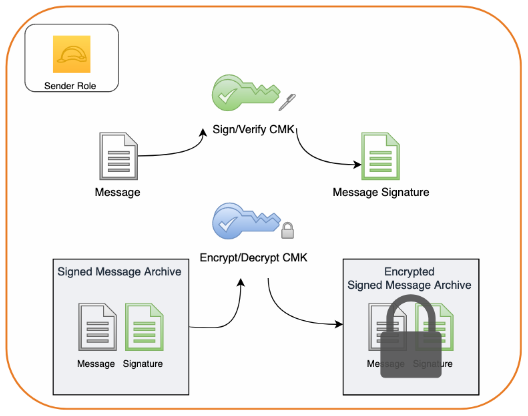
Use your asymmetric CMKs to encrypt and sign a sample message in the role of a sender.
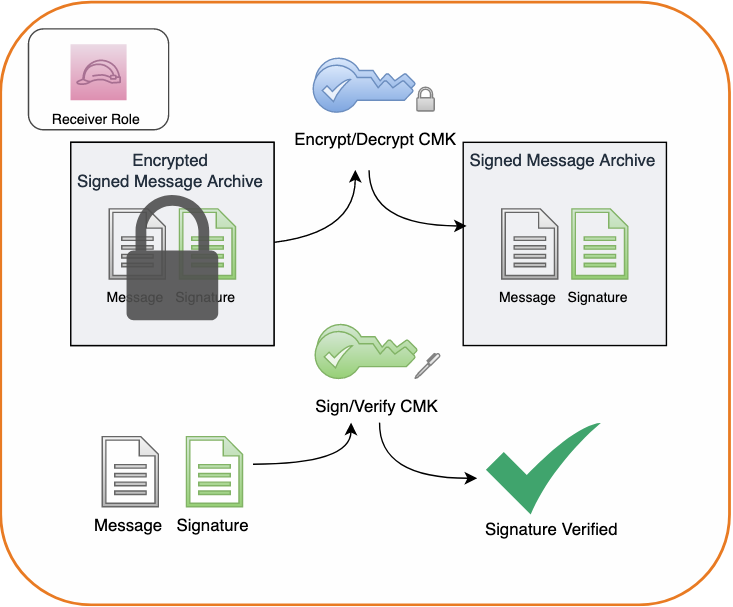
Use AWS KMS to decrypt and verify the message signature of the sample message archive you generated in the previous procedure using your asymmetric CMKs in the role of a receiver.
Prerequisites
The commands I use in this tutorial were tested using AWS Command Line Interface (AWS CLI) version 2.50 on Amazon Linux 2. In order to run these commands in your in your own local environment ensure that you have first installed and updated the AWS CLI.
I assume you have at least one administrator identity available to you that has broad rights for creating roles, assuming roles, as well as creating, managing and using KMS keys. This can be a federated identity (for example, from your corporate identity provider or from a social identity), or it can be an AWS IAM user. Where no AWS identity is mentioned, I assume that you will be accessing the AWS Management Console or the AWS CLI using this administrator identity.
For simplicity, I create the KMS keys in the same region as each other. You must specify an AWS Region when using the AWS CLI, either explicitly or by setting a default Region. Before beginning, you should select an AWS Region to work in such as US East (N. Virginia). If you have not configured the AWS CLI in your environment please review the Configuration basics section of the AWS Command Line Interface User Guide for instructions. You may revert this configuration once you have finished if you do not wish to continue using a default Region with your AWS CLI. Take note of your selected region. When working in the AWS Console, if you do not see resources, such as AWS KMS keys, that you expect you may want to confirm that you are viewing resources in your chosen Region. For more information on selecting your Region in the AWS Console see Choosing a Region in AWS Management Console Getting Started Guide.
Create and configure resources
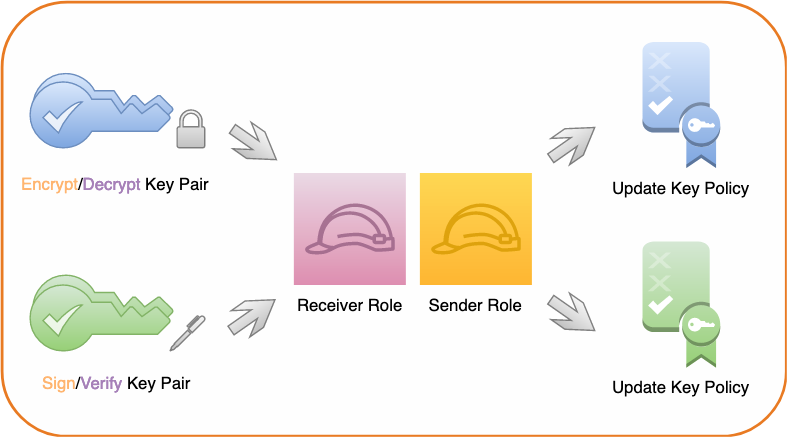
In the first phase of this tutorial you create and configure two asymmetric AWS KMS CMKs, two AWS IAM roles, and configure the key policies for both of your KMS CMKs to grant permissions to the roles. Shown in the following figure.
Figure 1: Create keys, roles, and key policies
Create asymmetric signing and encryption key pairs
In the first step, you create two asymmetric master keys (CMK). One is configured for signing and verifying digital signatures while the other is configured for encrypting and decrypting data.
Note: The CMKs configured for this post are examples. RSA and Elliptic curve CMKs key specs can differ in a variety of dimensions. The RSA or elliptic curve key spec that you choose might be determined by your security standards or the requirements of your task. Different CMK key specs are priced differently and are subject to different request quotas because they each have different performance profiles. In general, use RSA or ECC keys with the highest security level that is practical and affordable for your task. For more information on CMK configuration options, please review the How to choose your CMK configuration section of the KMS Developer Guide.
To create a CMK for encryption and decryption
Use the KMS CreateKey API. Pass RSA_4096 for the CustomerMasterKeySpec parameter and ENCRYPT_DECRYPT for the KeyUsage parameter in the AWS CLI example command below in order to generate a RSA 4096 key pair for signature creation and verification using AWS KMS.
Note: If successful, this command returns a KeyMetadata object. Take note of the KeyID value in this object.
As a best practice, assign an alias for your key. Use the following command to assign an alias of sample-encrypt-decrypt-key to your newly created CMK (replace the target-key-id value of 1234abcd-12ab-34cd-56ef-1234567890ab with your KeyID). Mapping a human-readable alias to the KeyID will make it easier to identify, use, and manage.
Use the KMS CreateKey API. Pass ECC_NIST_P521 for the CustomerMasterKeySpec parameter and SIGN_VERIFY for the KeyUsage parameter in the AWS CLI example command below in order to generate an elliptic curve (ECC) key pair for signature creation and verification using AWS KMS.
Note: If successful, this command returns a KeyMetadata object. Take note of the KeyID value.
Use the following command to assign an alias of sample-sign-verify-key to your newly created CMK (replace the target-key-id value of 1234abcd-12ab-34cd-56ef-1234567890ab with your KeyID).
For the next step of this tutorial, you create two AWS principals. Use the steps that follow to create two roles—a sender principal and a receiver principal. Later, you will grant permissions to perform private key operations (sign and decrypt) and public key operations (verify and encrypt) to these roles.
Figure 2: Enter your account ID to begin creating a role in AWS IAM
Select Next through the next two screens.
Note: By clicking next through these dialogues you do not attach an IAM permissions policy or a tag to this new role.
On the final screen, enter a Role name of SenderRole and a Role description of your choice, as shown in the following figure.
Figure 3: Create the sender role
Choose Create role to finish creating the sender role.
To create the receiver role, repeat the preceding role creation process. However, in step 3, substitute the name ReceiverRole for SenderRole.
Configure key policy permissions
Best practice is to adhere to the principle of least privilege and provide each AWS principal with the minimal permissions necessary to perform its tasks. The sender and receiver roles that you created in the previous step currently have no permissions in your account. For this scenario, the receiver principal must be granted permission to verify digital signatures and decrypt data in AWS KMS using your asymmetric CMKs and the sender principal must be granted permission to create digital signatures and encrypt data in KMS using your asymmetric CMKs.
To provide access control permissions for AWS KMS actions to your AWS principals, attach a key policy to each of your CMKs.
Modify the CMK key policy
For the sample-encrypt-decrypt-key CMK, grant the IAM role for the sender principal (SenderRole) kms:Encrypt permissions and the IAM role for the receiver principal (ReceiverRole) kms:Decrypt permissions in the CMK key policy.
To allow your receiver principal to use the CMK to decrypt data encrypted under that CMK, append the following statement to the key policy (replace the account ID value of 111122223333 with your own).
{
    "Sid": "Allow use of the CMK for decryption",
    "Effect": "Allow",
    "Principal": {"AWS":"arn:aws:iam::111122223333:role/ReceiverRole"},
    "Action": "kms:Decrypt",
    "Resource": "*"
}
To allow your sender principal to use the CMK to encrypt data, append the following statement to the key policy (replace the account ID value of 111122223333 with your own):
{
    "Sid": "Allow use of the CMK for encryption",
    "Effect": "Allow",
    "Principal": {"AWS":"arn:aws:iam::111122223333:role/SenderRole"},
    "Action": "kms:Encrypt",
    "Resource": "*"
}
Choose Save changes.
Note: The kms:Encrypt permission is sufficient to permit the sender principal to encrypt small amounts of arbitrary data using your CMK directly.
Grant sign and verify permissions to the CMK key policy
For the sample-sign-verify-key CMK, grant the IAM role for the sender principal (SenderRole) kms:Sign permissions in the CMK key policy and the IAM role for the receiver principal (ReceiverRole) kms:Verify permissions in the CMK key policy.
To grant sign and verify permissions
Using the same process as above, navigate to the key policy edit dialog for the sample-sign-verify-key CMK in the AWS console.
To allow your sender principal to use the CMK to create digital signatures, append the following statement to the key policy (replace the account ID value of 111122223333 with your own).
{
    "Sid": "Allow use of the CMK for digital signing",
    "Effect": "Allow",
    "Principal": {"AWS":"arn:aws:iam::111122223333:role/SenderRole"},
    "Action": "kms:Sign",
    "Resource": "*"
}
To allow your receiver principal to use the CMK to verify signatures created by that CMK, append the following statement to the key policy (replace the account ID value of 111122223333 with your own):
{
    "Sid": "Allow use of the CMK for digital signature verification",
    "Effect": "Allow",
    "Principal": {"AWS":"arn:aws:iam::111122223333:role/ReceiverRole"},
    "Action": "kms:Verify",
    "Resource": "*"
}
Choose Save changes.
Key permissions summary
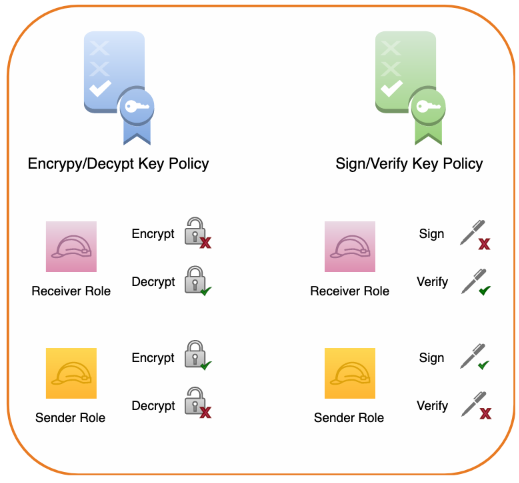
When these key policy edits have been completed the sender principal:
Will have permissions to encrypt data using the sample-encrypt-decrypt-key CMK and generate digital signatures using the sample-sign-verify-key CMK.
Will not have permissions to decrypt or to verify signatures using the CMKs.
The receiver principal:
Will have permissions to decrypt data which has been encrypted using the sample-encrypt-decrypt-key CMK and to verify signatures created using the sample-sign-verify-key CMK.
Will not have permissions to encrypt or to generate signatures using the CMKs.
Figure 4: Summary of key policy permissions
Signing and encrypting a sample message
So far, you’ve created two asymmetric CMKs, created a set of sender and receiver roles, and configured permissions for those roles in each of your CMK key policies. In the second phase of this tutorial, you assume the role of sender and use your asymmetric signature and verification CMK to sign a sample message. You then bundle the sample message and its corresponding digital signature together into an archive and use your encryption and decryption asymmetric CMK to encrypt the archive.
Figure 5: Creating a message signature and encrypting the message along with its signature
Note: The order of operations in this process is that the message is first signed and then the signature and the message are encrypted together. This order is intentional. When a message is signed and then encrypted, neither the contents nor the identity of the sender will be available to unauthorized 3rd parties. If the order of operations were reversed, however, and a message was first encrypted and then signed it could leak information about the sender’s identity to unauthorized 3rd parties. Moreover, when a message is encrypted and then signed, an unauthorized 3rd party with access to the files could discard the authentic signature created by the sender and replace it with a valid signature created by their own key. This creates the potential for a 3rd party to deceptively create the appearance that they are the legitimate sender of the message and exploit that misperception further.
Assume the sender role
Start by assuming the sender role. In order to successfully assume a role you must authenticate as an IAM principal which has permission to perform sts:AssumeRole. If the principal you are authenticated as lacks this permission you will not able to assume the sender role.
To assume the sender role
Run the following command, but be sure to replace the account ID value of 111122223333 with your account ID:
The return value for this command provides an access key ID, secret key, and session token. Substitute them into their respective places in the following commands and execute:
Confirm that you’ve successfully assumed the sender role by issuing:
aws sts get-caller-identity
Note: If the output of this command contains the text assumed-role/SenderRole, then you’ve successfully assumed the sender role.
Create a message
Now, create a sample message file called message.json.
To create a message
Run the following command to create a message with the following content:
echo "
{
    "message": "The Magic Words are Squeamish Ossifrage",
    "sender": "Sender Principal"
}
" > ./message.json
Create a digital signature
Creating and verifying a digital signature for the message provides confidence that the message contents haven’t been altered after being sent. This characteristic is known as integrity. Furthermore, when access to a signing key is scoped to a particular principal, creating and verifying a digital signature for the message provides confidence in the sender’s identity. This characteristic is known as authenticity. Finally, a high degree of confidence in both the integrity and authenticity of a message limits the plausible ability of a sender to fraudulently deny having signed a message. This characteristic is known a non-repudiation.
To create a digital signature
Run the following command to create a digital signature for message.json:
This generates an independent digital signature file, message.sig, for message.json. Any modification to the contents of message.json, such as changing the sender or message fields, will now cause signature validation of message.sig to fail for message.json.
Encrypt the message and signature
Even with the benefits of a digital signature, the message could still be viewed by any party with access to the file. In order to provide confidence that the message contents aren’t exposed to unauthorized parties, you can encrypt the message. This characteristic is known as confidentiality. In order to retain the benefits of your digital signature you can encrypt the message and corresponding signature together in a single package.
To encrypt the message and signature
Combine your message and signature into an archive. For example, with the GNU Tar utility you can issue the following:
tar -czvf message.tar.gz message.sig message.json
This will create a new archive file named message.tar.gz containing both your message and message signature.
Encrypt the archive using AWS KMS. To do so, issue the following command:
This will output a message.enc file containing an encrypted copy of the message.tar.gz archive.
Decrypting and verifying a sample message
Now that you’ve created, signed, and encrypted a message, let’s change gears and see what working with this message.enc file is like from the perspective of a receiving party. In the final phase of this tutorial you assume the role of receiver and use your asymmetric CMKs to decrypt the encrypted message archive and verify the digital signature that you created. Finally, you will view your message. The process is shown in the following figure.
Figure 6: Decrypting a message archive and verifying the message signature
Assume the receiver role
Assume the receiver role so that you can simulate receiving a signed and encrypted message. As before, in order to assume the receiver role you must authenticate as an IAM principal which has permission to perform sts:AssumeRole. If the principal you are authenticated as lacks this permission you will not able to assume the receiver role.
To assume the receiver role
Copy the message.enc file to a new directory to create a clean working space and navigate there in a terminal session.
Assume your receiver role. To do so, execute the following command, replacing the account ID value of 111122223333 with your own:
The return value for this command provides an access key ID, secret key, and session token. Substitute them into their respective places in the following commands and execute:
In the response you should see that SignatureValid is marked true indicating that the signature has been verified using the specified sample-sign-verify-key that you granted the sender principal permission to generate signatures with.
View the message
Finally, open message.json and view the file’s contents by issuing the following command:
less message.json
You will see that the contents of the file have not been modified and still read:
{
    "message": "The Magic Words are Squeamish Ossifrage",
    "sender": "Sender Principal"
}
Note: Be careful to avoid making any changes to the contents of this file. Even a minor modification of the message contents will compromise the integrity of the message and cause future attempts at signature validation using your message.sig file to fail.
Summary
In this tutorial, you signed and encrypted data using two AWS KMS asymmetric CMKs and later decrypted and verified your signature using those CMKs.
You first created two asymmetric CMKs in AWS KMS, one for creating and verifying digital signatures and the other for encrypting and decrypting data. You then configured key policy permissions for your sender and receiver principals. Acting as your sender principal, you digitally signed a message in AWS KMS, added the message and signature to an archive and then encrypted that archive in AWS KMS. Next you assumed your receiver role and decrypted the archive in AWS KMS, viewed your message, and verified its signature in AWS KMS.
To learn more about the asymmetric keys feature of AWS KMS, please read the AWS KMS Developer Guide. If you have questions about the asymmetric keys feature, please start a new thread on the AWS KMS forum. If you have feedback about this post, submit comments in the Comments section below.
Want more AWS Security how-to content, news, and feature announcements? Follow us on Twitter.
There is a new report on police decryption capabilities: specifically, mobile device forensic tools (MDFTs). Short summary: it’s not just the FBI that can do it.
This report documents the widespread adoption of MDFTs by law enforcement in the United States. Based on 110 public records requests to state and local law enforcement agencies across the country, our research documents more than 2,000 agencies that have purchased these tools, in all 50 states and the District of Columbia. We found that state and local law enforcement agencies have performed hundreds of thousands of cellphone extractions since 2015, often without a warrant. To our knowledge, this is the first time that such records have been widely disclosed.
Lots of details in the report. And in this news article:
At least 49 of the 50 largest U.S. police departments have the tools, according to the records, as do the police and sheriffs in small towns and counties across the country, including Buckeye, Ariz.; Shaker Heights, Ohio; and Walla Walla, Wash. And local law enforcement agencies that don’t have such tools can often send a locked phone to a state or federal crime lab that does.
[…]
The tools mostly come from Grayshift, an Atlanta company co-founded by a former Apple engineer, and Cellebrite, an Israeli unit of Japan’s Sun Corporation. Their flagship tools cost roughly $9,000 to $18,000, plus $3,500 to $15,000 in annual licensing fees, according to invoices obtained by Upturn.
I’m trying to get the Wazuh agent (a fork of OSSEC, one of the most popular open source security tools, used for intrusion detection) to talk to our custom backend (namely, our LogSentinel SIEM Collector) to allow us to reuse the powerful Wazuh/OSSEC functionalities for customers that want to install an agent on each endpoint rather than just one collector that “agentlessly” reaches out to multiple sources.
But even though there’s a good documentation on the message format and encryption, I couldn’t get to successfully decrypt the messages. (I’ll refer to both Wazuh and OSSEC, as the functionality is almost identical in both, with the distinction that Wazuh added AES support in addition to blowfish)
That lead me to a two-day investigation on possible reasons. The first side-discovery was the undocumented OpenSSL auto-padding of keys and IVs described in my previous article. Then it lead me to actually writing C code (an copying the relevant Wazuh/OSSEC pieces) in order to debug the issue. With Wazuh/OSSEC I was generating one ciphertext and with Java and openssl CLI – a different one.
I made sure the key, key size, IV and mode (CBC) are identical. That they are equally padded and that OpenSSL’s EVP API is correctly used. All of that was confirmed and yet there was a mismatch, and therefore I could not decrypt the Wazuh/OSSEC message on the other end.
After discovering the 0-padding, I also discovered a mistake in the documentation, which used a static IV of FEDCA9876543210 rather than the one found in the code, where the 0 preceded 9 – FEDCA0987654321. But that didn’t fix the issue either, only got me one step closer.
A side-note here on IVs – Wazuh/OSSEC is using a static IV, which is a bad practice. The issue is reported 5 years ago, but is minor, because they are using some additional randomness per message that remediates the use of a static IV; it’s just not idiomatic to do it that way and may have unexpected side-effects.
So, after debugging the C code, I got to a simple code that could be used to reproduce the issue and asked a question on Stackoverflow. 5 minutes after posting the question I found another, related question that had the answer – using hex strings like that in C doesn’t work. Instead, they should be encoded: char *iv = (char *)"\xFE\xDC\xBA\x09\x87\x65\x43\x21\x00\x00\x00\x00\x00\x00\x00\x00";. So, the value is not the bytes corresponding to the hex string, but the ASCII codes of each character in the hex string. I validated that in the receiving Java end with this code:
This has an implication on the documentation, as well as on the whole scheme as well. Because the Wazuh/OSSEC AES key is: MD5(password) + MD5(MD5(agentName) + MD5(agentID)){0, 15}, the 2nd part is practically discarded, because the MD5(password) is 32 characters (= 32 ASCII codes/bytes), which is the length of the AES key. This makes the key derived from a significantly smaller pool of options – the permutations of 16 bytes, rather than of 256 bytes.
I raised an issue with Wazuh. Although this can be seen as a vulnerability (due to the reduced key space), it’s rather minor from security point of view, and as communication is mostly happening within the corporate network, I don’t think it has to be privately reported and fixed immediately.
Yet, I made a recommendation for introducing an additional configuration option to allow to transition to the updated protocol without causing backward compatibility issues. In fact, I’d go further and recommend using TLS/DTLS rather than a home-grown, AES-based scheme. Mutual authentication can be achieved through TLS mutual authentication rather than through a shared secret.
It’s satisfying to discover issues in popular software, especially when they are not written in your “native” programming language. And as a rule of thumb – encodings often cause problems, so we should be extra careful with them.
I’m excited to announce the launch of two new features in the AWS Encryption SDK (ESDK): local KeyId filtering and key commitment. These features each enhance security for our customers, acting as additional layers of protection for your most critical data. In this post I’ll tell you how they work. Let’s dig in.
The ESDK is a client-side encryption library designed to make it easy for you to implement client-side encryption in your application using industry standards and best practices. Since the security of your encryption is only as strong as the security of your key management, the ESDK integrates with the AWS Key Management Service (AWS KMS), though the ESDK doesn’t require you to use any particular source of keys. When using AWS KMS, the ESDK wraps data keys to one or more customer master keys (CMKs) stored in AWS KMS on encrypt, and calls AWS KMS again on decrypt to unwrap the keys.
It’s important to use only CMKs you trust. If you encrypt to an untrusted CMK, someone with access to the message and that CMK could decrypt your message. It’s equally important to only use trusted CMKs on decrypt! Decrypting with an untrusted CMK could expose you to ciphertext substitution, where you could decrypt a message that was valid, but written by an untrusted actor. There are several controls you can use to prevent this. I recommend a belt-and-suspenders approach. (Technically, this post’s approach is more like a belt, suspenders, and an extra pair of pants.)
The first two controls aren’t new, but they’re important to consider. First, you should configure your application with an AWS Identity and Access Management (IAM) policy that only allows it to use specific CMKs. An IAM policy allowing Decrypt on “Resource”:”*” might be appropriate for a development or testing account, but production accounts should list out CMKs explicitly. Take a look at our best practices for IAM policies for use with AWS KMS for more detailed guidance. Using IAM policy to control access to specific CMKs is a powerful control, because you can programmatically audit that the policy is being used across all of your accounts. To help with this, AWS Config has added new rules and AWS Security Hub added new controls to detect existing IAM policies that might allow broader use of CMKs than you intended. We recommend that you enable Security Hub’s Foundational Security Best Practices standard in all of your accounts and regions. This standard includes a set of vetted automated security checks that can help you assess your security posture across your AWS environment. To help you when writing new policies, the IAM policy visual editor in the AWS Management Console warns you if you are about to create a new policy that would add the “Resource”:”*” condition in any policy.
The second control to consider is to make sure you’re passing the KeyId parameter to AWS KMS on Decrypt and ReEncrypt requests. KeyId is optional for symmetric CMKs on these requests, since the ciphertext blob that the Encrypt request returns includes the KeyId as metadata embedded in the blob. That’s quite useful—it’s easier to use, and means you can’t (permanently) lose track of the KeyId without also losing the ciphertext. That’s an important concern for data that you need to access over long periods of time. Data stores that would otherwise include the ciphertext and KeyId as separate objects get re-architected over time and the mapping between the two objects might be lost. If you explicitly pass the KeyId in a decrypt operation, AWS KMS will only use that KeyId to decrypt, and you won’t be surprised by using an untrusted CMK. As a best practice, pass KeyId whenever you know it. ESDK messages always include the KeyId; as part of this release, the ESDK will now always pass KeyId when making AWS KMS Decrypt requests.
A third control to protect you from using an unexpected CMK is called local KeyId filtering. If you explicitly pass the KeyId of an untrusted CMK, you would still be open to ciphertext substitution—so you need to be sure you’re only passing KeyIds that you trust. The ESDK will now filter KeyIds locally by using a list of trusted CMKs or AWS account IDs you configure. This enforcement happens client-side, before calling AWS KMS. Let’s walk through a code sample. I’ll use Java here, but this feature is available in all of the supported languages of the ESDK.
Let’s say your app is decrypting ESDK messages read out of an Amazon Simple Queue Service (Amazon SQS) queue. Somewhere you’ll likely have a function like this:
public byte[] decryptMessage(final byte[] messageBytes,
                             final Map<String, String> encryptionContext) {
    // The Amazon Resource Name (ARN) of your CMK.
    final String keyArn = "arn:aws:kms:us-west-2:111122223333:key/1234abcd-12ab-34cd-56ef-1234567890ab";

    // 1. Instantiate the SDK
    AwsCrypto crypto = AwsCrypto.builder().build();
Now, when you create a KmsMasterKeyProvider, you’ll configure it with one or more KeyIds you expect to use. I’m passing a single element here for simplicity.
	// 2. Instantiate a KMS master key provider in Strict Mode using buildStrict()
    final KmsMasterKeyProvider keyProvider = KmsMasterKeyProvider.builder().buildStrict(keyArn);
Decrypt the message as normal. The ESDK will check each encrypted data key against the list of KeyIds configured at creation: in the preceeding example, the single CMK in keyArn. The ESDK will only call AWS KMS for matching encrypted data keys; if none match, it will throw a CannotUnwrapDataKeyException.
	// 3. Decrypt the message.
    final CryptoResult<byte[], KmsMasterKey> decryptResult = crypto.decryptData(keyProvider, messageBytes);

    // 4. Validate the encryption context.
    //
(See our documentation for more information on how encryption context provides additional authentication features!)
We recommend that everyone using the ESDK with AWS KMS adopt local KeyId filtering. How you do this varies by language—the ESDK Developer Guide provides detailed instructions and example code.
I’m especially excited to announce the second new feature of the ESDK, key commitment, which addresses a non-obvious property of modern symmetric ciphers used in the industry (including the Advanced Encryption Standard (AES)). These ciphers have the property that decrypting a single ciphertext with two different keys could give different plaintexts! Picking a pair of keys that decrypt to two specific messages involves trying random keys until you get the message you want, making it too expensive for most messages. However, if you’re encrypting messages of a few bytes, it might be feasible. Most authenticated encryption schemes, such as AES-GCM, don’t solve for this issue. Instead, they prevent someone who doesn’t control the keys from tampering with the ciphertext. But someone who controls both keys can craft a ciphertext that will properly authenticate under each key by using AES-GCM.
All of this means that if a sender can get two parties to use different keys, those two parties could decrypt the exact same ciphertext and get different results. That could be problematic if the message reads, for example, as “sell 1000 shares” to one party, and “buy 1000 shares” to another.
The ESDK solves this problem for you with key commitment. Key commitment means that only a single data key can decrypt a given message, and that trying to use any other data key will result in a failed authentication check and a failure to decrypt. This property allows for senders and recipients of encrypted messages to know that everyone will see the same plaintext message after decryption.
Key commitment is on by default in version 2.0 of the ESDK. This is a breaking change from earlier versions. Existing customers should follow the ESDK migration guide for their language to upgrade from 1.x versions of the ESDK currently in their environment. I recommend a thoughtful and careful migration.
AWS is always looking for feedback on ways to improve our services and tools. Security-related concerns can be reported to AWS Security at [email protected]. We’re deeply grateful for security research, and we’d like to thank Thai Duong from Google’s security team for reaching out to us. I’d also like to thank my colleagues on the AWS Crypto Tools team for their collaboration, dedication, and commitment (pun intended) to continuously improving our libraries.
If you have feedback about this post, submit comments in the Comments section below. If you have questions about this post, start a new thread on the AWS Crypto Tools forum or contact AWS Support.
Want more AWS Security how-to content, news, and feature announcements? Follow us on Twitter.
In this blog post, we show you how to configure an LDAPS (LDAP over SSL or TLS) encrypted endpoint for Simple AD so that you can extend Simple AD over untrusted networks. Our solution uses Network Load Balancer (NLB) as SSL/TLS termination. The data is then decrypted and sent to Simple AD. Network Load Balancer offers integrated certificate management, SSL/TLS termination, and the ability to use a scalable Amazon Elastic Compute Cloud (Amazon EC2) backend to process decrypted traffic. Network Load Balancer also tightly integrates with Amazon Route 53, enabling you to use a custom domain for the LDAPS endpoint. To simplify testing and deployment, we have provided an AWS CloudFormation template to provision the network load balancer (NLB).
Simple AD, which is powered by Samba 4, supports basic Active Directory (AD) authentication features such as users, groups, and the ability to join domains. Simple AD also includes an integrated Lightweight Directory Access Protocol (LDAP) server. LDAP is a standard application protocol for accessing and managing directory information. You can use the BIND operation from Simple AD to authenticate LDAP client sessions. This makes LDAP a common choice for centralized authentication and authorization for services such as Secure Shell (SSH), client-based virtual private networks (VPNs), and many other applications. Authentication, the process of confirming the identity of a principal, typically involves the transmission of highly sensitive information such as user names and passwords. To protect this information in transit over untrusted networks, companies often require encryption as part of their information security strategy.
This post assumes that you understand concepts such as Amazon Virtual Private Cloud (Amazon VPC) and its components, including subnets, routing, internet and network address translation (NAT) gateways, DNS, and security groups. If needed, you should familiarize yourself with these concepts and review the solution overview and prerequisites in the next section before proceeding with the deployment.
Note: This solution is intended for use by clients who require only an LDAPS endpoint. If your requirements extend beyond this, you should consider accessing the Simple AD servers directly or by using AWS Directory Service for Microsoft AD.
Solution overview
The following description explains the Simple AD LDAPS environment. The AWS CloudFormation template creates the network-load-balancer object.
The LDAP client sends an LDAPS request to the NLB on TCP port 636.
The NLB terminates the SSL/TLS session and decrypts the traffic using a certificate. The NLB sends the decrypted LDAP traffic to Simple AD on TCP port 389.
The Simple AD servers send an LDAP response to the NLB. The NLB encrypts the response and sends it to the client.
The following diagram illustrates how the solution works and shows the prerequisites (listed in the following section).
Figure 1: LDAPS with Simple AD Architecture
Note: Amazon VPC prevents third parties from intercepting traffic within the VPC. Because of this, the VPC protects the decrypted traffic between the NLB and Simple AD. The NLB encryption provides an additional layer of security for client connections and protects traffic coming from hosts outside the VPC.
Prerequisites
Our approach requires an Amazon VPC with one public and two private subnets. If you don’t have an Amazon VPC that meets that requirement, use the following instructions to set up a sample environment:
Identify two Availability Zones in that Region to use with Simple AD. The Availability Zones are needed as parameters in the AWS CloudFormation template used later in this process.
Create or choose an Amazon VPC in the region you chose.
Enable DNS support within your VPC so you can use Route 53 to resolve the LDAPS endpoint.
Create two private subnets, one per Availability Zone. The Simple AD servers use the subnets that you create.
Create a public subnet in the same VPC.
The LDAP service requires a DNS domain that resolves within your VPC and from your LDAP clients. If you don’t have an existing DNS domain, create a private hosted zone and associate it with your VPC. To avoid encryption protocol errors, you must ensure that the DNS domain name is consistent across your Route 53 zone and in the SSL/TLS certificate.
You can use a certificate issued by your preferred certificate authority or a certificate issued by AWS Certificate Manager (ACM). If you don’t have a certificate authority, you can create a self-signed certificate by following the instructions in section 2 (Create a certificate).
Note: To prevent unauthorized direct connections to your Simple AD servers, you can modify the Simple AD security group on port 389 to block traffic from locations outside of the Simple AD VPC. You can find the security group in the Amazon EC2 console by creating a search filter for your Simple AD directory ID. It is also important to allow the Simple AD servers to communicate with each other as shown on Simple AD Prerequisites.
Solution deployment
This solution includes 5 main parts:
Create a Simple AD directory.
(Optional) Create a SSL/TLS certificate, if you don’t have already have one.
Create the NLB by using the supplied AWS CloudFormation template.
Create a Route 53 record.
Test LDAPS access using an Amazon Linux 2 client.
1. Create a Simple AD directory
With the prerequisites completed, your first step is to create a Simple AD directory in your private VPC subnets.
To create a Simple AD directory:
In the Directory Service console navigation pane, choose Directories and then choose Set up directory.
Choose Simple AD.
Figure 2: Select directory type
Provide the following information:
Directory Size: The size of the directory. The options are Small or Large. Which you should choose depends on the anticipated size of your directory.
Note: You will need the directory FQDN when you test your solution.
NetBIOS name: The short name for the directory, such as corp.
Administrator password: The password for the directory administrator. The directory creation process creates an administrator account with the user name Administrator and this password. Don’t lose this password, because it can’t be recovered. You also need this password for testing LDAPS access in a later step.
Description: An optional description for the directory.
Figure 3: Directory information
Select the VPC and subnets, and then choose Next:
VPC: Use the dropdown list to select the VPC to install the directory in.
Subnets: Use the dropdown lists to select two private subnets for the directory servers. The two subnets must be in different Availability Zones. Make a note of the VPC and subnet IDs to use as input parameters for the AWS CloudFormation template. In the following example, the subnets are in the us-east-1a and us-east-1c Availability Zones.
Figure 4: Choose VPC and subnets
Review the directory information and make any necessary changes. When the information is correct, choose Create directory.
Figure 5: Review and create the directory
It takes several minutes to create the directory. From the AWS Directory Service console, refresh the screen periodically and wait until the directory Status value changes to Active before continuing.
When the status has changed to Active, choose your Simple AD directory and note the two IP addresses in the DNS address section. You will enter them in a later step when you run the AWS CloudFormation template.
Now that you have a Simple AD directory, you need a SSL/TLS certificate. The certificate will be used with the NLB to secure the LDAPS endpoint. You then import the certificate into ACM, which is integrated with the NLB.
As mentioned earlier, you can use a certificate issued by your preferred certificate authority or a certificate issued by AWS Certificate Manager (ACM).
(Optional) Create a self-signed certificate
If you don’t already have a certificate authority, you can use the following instructions to generate a self-signed certificate using OpenSSL.
Note: OpenSSL is a standard, open source library that supports a wide range of cryptographic functions, including the creation and signing of x509 certificates.
Use the command line interface to create a certificate:
You must have a system with OpenSSL installed to complete this step. If you don’t have OpenSSL, you can install it on Amazon Linux by running the command sudo yum install openssl. If you don’t have access to an Amazon Linux instance you can create one with SSH access enabled to proceed with this step. Use the command line to run the command openssl version to see if you already have OpenSSL installed.
[ec2-user@ip-10-21-32-162 ~]$ openssl version
OpenSSL 1.0.1k-fips 8 Jan 2015
Create a private key using the openssl genrsa command.
[ec2-user@ip-10-21-32-162 tmp]$ openssl genrsa 2048 > privatekey.pem
Generating RSA private key, 2048 bit long modulus
......................................................................................................................................................................+++
..........................+++
e is 65537 (0x10001)
Generate a certificate signing request (CSR) using the openssl req command. Provide the requested information for each field. The Common Name is the FQDN for your LDAPS endpoint (for example, ldap.corp.example.com). The Common Name must use the domain name you will later register in Route 53. You will encounter certificate errors if the names do not match.
[ec2-user@ip-10-21-32-162 tmp]$ openssl req -new -key privatekey.pem -out server.csr
You are about to be asked to enter information that will be incorporated into your certificate request.
Use the openssl x509 command to sign the certificate. The following example uses the private key from the previous step (privatekey.pem) and the signing request (server.csr) to create a public certificate named server.crt that is valid for 365 days. This certificate must be updated within 365 days to avoid disruption of LDAPS functionality.
Note: Keep the private key and public certificate to use later. You can discard the signing request, because you are using a self-signed certificate and not using a certificate authority. Always store the private key in a secure location, and avoid adding it to your source code.
Import a certificate
For this step, you can either use a certificate obtained from a certificate authority, or a self-signed certificate that you created using the optional procedure above.
Using a Linux text editor, paste the contents of your certificate file (called server.crt if you followed the procedure above) file in the Certificate body box.
Using a Linux text editor, paste the contents of your privatekey.pem file in the Certificate private key box. (For a self-signed certificate, you can leave the Certificate chain box blank.)
Choose Review and import. Confirm the information and choose Import.
When the AWS CloudFormation stack is in CREATE_COMPLETE status, locate the value of the LDAPSURL on the Outputs tab of the stack. Copy this value for use in the next step.
On the Route 53 console, choose Hosted Zones and then choose the zone you used for the Common Name value for your self-signed certificate. Choose Create Record Set and enter the following information:
Name: A short name for the record set (remember that the FQDN has to match the Common Name of your certificate).
Type: Leave as A – IPv4 address.
Alias: Select Yes.
Alias Target: Paste the value of the LDAPSURL from the Outputs tab of the stack.
Leave the defaults for Routing Policy and Evaluate Target Health, and choose Create.
Figure 6: Create a Route 53 record
5. Test LDAPS access using an Amazon Linux 2 client
At this point, you’re ready to test your LDAPS endpoint from an Amazon Linux client.
Test LDAPS access:
Create an Amazon Linux 2 instance with SSH access enabled to test the solution. Launch the instance on one of the public subnets in your VPC. Make sure the IP assigned to the instance is in the trusted IP range you specified in the security group associated with the Simple AD.
Use SSH to sign in to the instance and complete the following steps to verify access.
Install the openldap-clients package and any required dependencies:
sudo yum install -y openldap-clients.
Add the server.crt file to the /etc/openldap/certs/ directory so that the LDAPS client will trust your SSL/TLS certificate. You can download the file directly from the NLB the certificate and save it in the proper format, or copy the file using Secure Copy or create it using a text editor:
Replace <LDAPSURL> with the FQDN of your NLB, the address can be found in the Outputs section of the stack created in CloudFormation.
Edit the /etc/openldap/ldap.conf file to define the environment variables:
BASE: The Simple AD directory name.
URI: Your DNS alias.
TLS_CACERT: The path to your public certificate.
TLSCACertificateFile: The path to your self-signed certificate authority. If you used the instructions in section 2 (Create a certificate) to create a certificate, the path will be /etc/ssl/certs/ca-bundle.crt.
Here’s an example of the file:
BASE dc=corp,dc=example,dc=com
URI ldaps://ldap.corp.example.com
TLS_CACERT /etc/openldap/certs/server.crt
TLSCACertificateFile /etc/ssl/certs/ca-bundle.crt
To test the solution, query the directory through the LDAPS endpoint, as shown in the following command. Replace corp.example.com with your domain name and use the Administrator password that you configured in step 3 of section 1 (Create a Simple AD directory).
The response will include the directory information in LDAP Data Interchange Format (LDIF) for the administrator distinguished name (DN) from your Simple AD LDAP server.
# extended LDIF
#
# LDAPv3
# base <dc=corp,dc=example,dc=com> (default) with scope subtree
# filter: sAMAccountName=Administrator
# requesting: ALL
#

# Administrator, Users, corp.example.com
dn: CN=Administrator,CN=Users,DC=corp,DC=example,DC=com
objectClass: top
objectClass: person
objectClass: organizationalPerson
objectClass: user
description: Built-in account for administering the computer/domain
instanceType: 4
whenCreated: 20170721123204.0Z
uSNCreated: 3223
name: Administrator
objectGUID:: l3h0HIiKO0a/ShL4yVK/vw==
userAccountControl: 512
…
You can now use the LDAPS endpoint for directory operations and authentication within your environment. Here are a few resources to learn more about how to interact with an LDAPS endpoint:
Verify that the parameters in ldap.conf match your configured LDAPS URI endpoint and that all parameters can be resolved by DNS. You can use the following dig command, substituting your configured endpoint DNS name.
$ dig ldap.corp.example.com
Confirm that the client instance you’re connecting from is in the trusted IP range you specified in the security associated with your Simple AD directory.
Confirm that the path to your public SSL/TLS certificate in ldap.conf as TLS_CAERT is correct. You configured this as part of step 2 in section 5 (Test LDAPS access using an Amazon Linux 2 client). You can check your SSL/TLS connection with the following command, replacing ldap.corp.example.com with the DNS name of your endpoint.
Verify that the status of your Simple AD IPs is Healthy in the Amazon EC2 console.
Open the EC2 console and choose Load Balancing and then Target Groups in the navigation pane.
Choose your LDAPS target and then choose Targets.
Conclusion
You can use NLB to provide an LDAPS endpoint for Simple AD and transport sensitive authentication information over untrusted networks. You can explore using LDAPS to authenticate SSH users or integrate with other software solutions that support LDAP authentication. The AWS CloudFormation template for this solution is available on GitHub.
If you have comments about this post, submit them in the Comments section below. If you have questions about or issues implementing this solution, start a new thread on the AWS Directory Service forum or contact AWS Support.
Want more AWS Security how-to content, news, and feature announcements? Follow us on Twitter.
The collective thoughts of the interwebz
Manage Consent
To provide the best experiences, we use technologies like cookies to store and/or access device information. Consenting to these technologies will allow us to process data such as browsing behavior or unique IDs on this site. Not consenting or withdrawing consent, may adversely affect certain features and functions.
Functional
Always active
The technical storage or access is strictly necessary for the legitimate purpose of enabling the use of a specific service explicitly requested by the subscriber or user, or for the sole purpose of carrying out the transmission of a communication over an electronic communications network.
Preferences
The technical storage or access is necessary for the legitimate purpose of storing preferences that are not requested by the subscriber or user.
Statistics
The technical storage or access that is used exclusively for statistical purposes.The technical storage or access that is used exclusively for anonymous statistical purposes. Without a subpoena, voluntary compliance on the part of your Internet Service Provider, or additional records from a third party, information stored or retrieved for this purpose alone cannot usually be used to identify you.
Marketing
The technical storage or access is required to create user profiles to send advertising, or to track the user on a website or across several websites for similar marketing purposes.