Tag Archives: GitHub Copilot CLI

How we make AI coding more cost efficient without sacrificing task quality

Post Syndicated from Erik Kristensen original https://github.blog/ai-and-ml/github-copilot/how-we-make-ai-coding-more-cost-efficient-without-sacrificing-task-quality/


Output quality is important when working with AI coding agents, but true efficiency comes from getting work done quickly, efficiently, and with the right context.

That’s why token count of individual interactions alone isn’t a meaningful measure of efficiency. The goal shouldn’t be to use fewer tokens, but to tap into the right amount of context to move a task forward. A concise tool response can sometimes require additional calls or work if it leaves out information the agent needs, ultimately making the task slower and more expensive.

That’s why we want to optimize for the outcome rather than the tool call. This post examines four changes in GitHub Copilot that put that principle into practice:

  • Preserve useful context while reducing repetitive output.
  • Remove formatting that adds no value to the task.
  • Shorten instructions without changing useful behavior.
  • Deliver completed background work without an extra retrieval step.

Possible changes were evaluated offline using agentic coding benchmarks. The most promising changes were then validated through controlled online experiments before shipping. The examples in this post come from GitHub Copilot CLI. Multiple other Copilot products, such as the GitHub Copilot app and Copilot code review, use the same underlying harness and also become more efficient through these improvements.
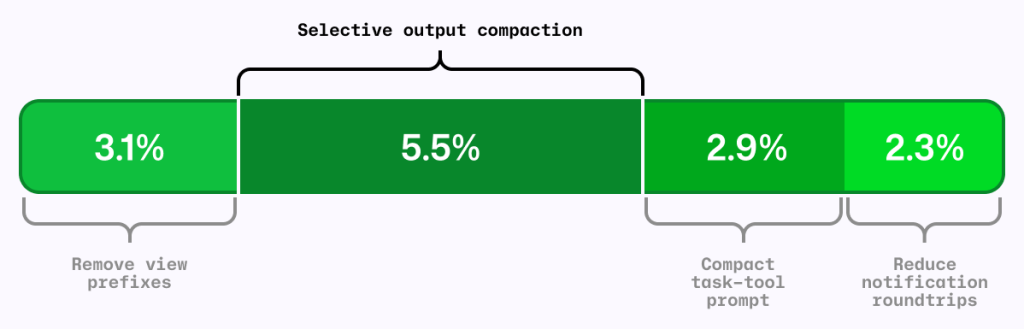
Chart showing 3.1% 'Remove view previxes', 5.5% 'Selective output compaction', 2.9% 'Compact task-tool prompt', and 2.3% 'Reduce notification roundtrips'.
Figure 1: Four independent A/B experiments using the same AI-credit metric. The segments are shown together for comparison; their effects are not necessarily strictly additive. 

The local metric trap

It’s common to shorten the output from each tool call as a way to reduce agent costs. RTK (Rust Token Killer) is a utility that shortens shell output before an agent reads it. We evaluated its effect on GitHub Copilot using our agentic coding benchmarks.

In our harness and benchmark configuration, RTK shortened some responses, but when the omitted text mattered, the model sometimes reopened the original output or reran the command to recover what it needed.

Those recovery steps added turns and carried more context forward. The individual tool response was shorter, but on average, the task used more tokens and took longer. We saved tokens locally and spent more globally.
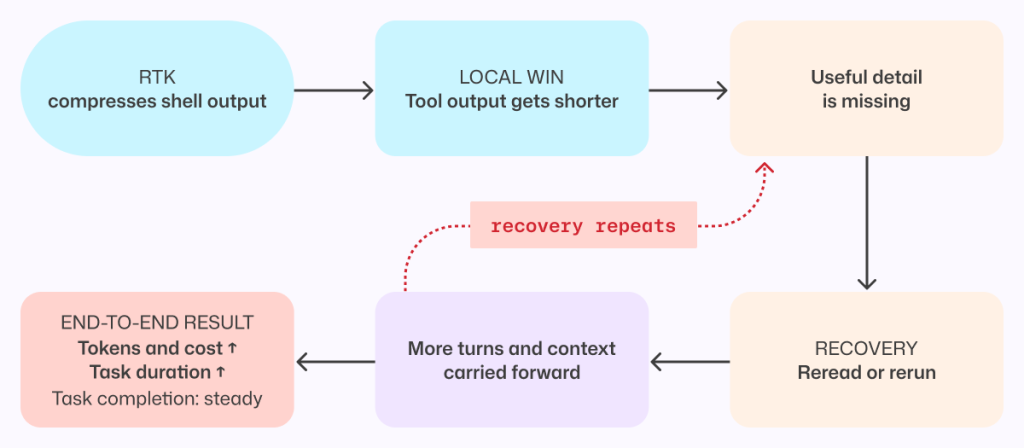
Flow chart showing: RTK, compresses shell output > Local win, tool output gets shorter > Useful detail is missing > Recovery, reread or rerun > More turns and context carried forward. Then the option of finishing at 'End-to-end result, Tokens and cost up, Task duration up, Task completion: steady,' or 'Recovery repeats' going back to 'useful detail is missing'.
Figure 2: A shorter tool response can make the completed task more expensive when missing details force the agent to reread output, rerun commands, and carry more context forward. 

This result applies to the integration and workloads we tested, not to every RTK configuration or to output compression in general. This meant that tokens per tool call is the wrong objective. An efficiency change has to be evaluated across the complete task, from the user’s request through the final result.

More useful was to look at what can we remove without making the model repeat work.

Compress noise, preserve useful information

The goal was to shorten repetitive output while preserving the context an agent needs to complete its task without retracing steps.

Analysis of benchmark runs showed that install, build, test, and lint output often contains repetitive noise, while source-like output and arbitrary command results are more likely to contain the information an agent needs. That analysis informed a selective output compressor, informed in part by RTK and similar approaches.

The prototype was evaluated on agentic coding benchmarks and a range of open source repositories, exercising their build, test, and lint systems.

Early versions were too aggressive. They made the model repeat work or read the full saved output, increasing end-to-end cost and reducing task success. For example, we initially compressed git diff but removed that filter after benchmark tasks showed agents reopening the original output to recover missing information.

Those early failures led to a three-part policy:

  1. Preserve source-like and arbitrary output. Commands such as cat, git diff, git show, and arbitrary scripts are returned unchanged.
  2. Reorganize search results without dropping content. Matches and file lists from tools such as grep can be grouped more efficiently while retaining every result.
  3. Compress repetitive noise selectively. Install, build, test, and progress output is compressed only when the savings are substantial.

The shipped version emerged through repeated evaluation and refinement. It is conservative not because the goal was to build a conservative compressor, but because that is what the evaluations supported.

When output is compressed, the agent can still retrieve the complete original through a direct recovery path.
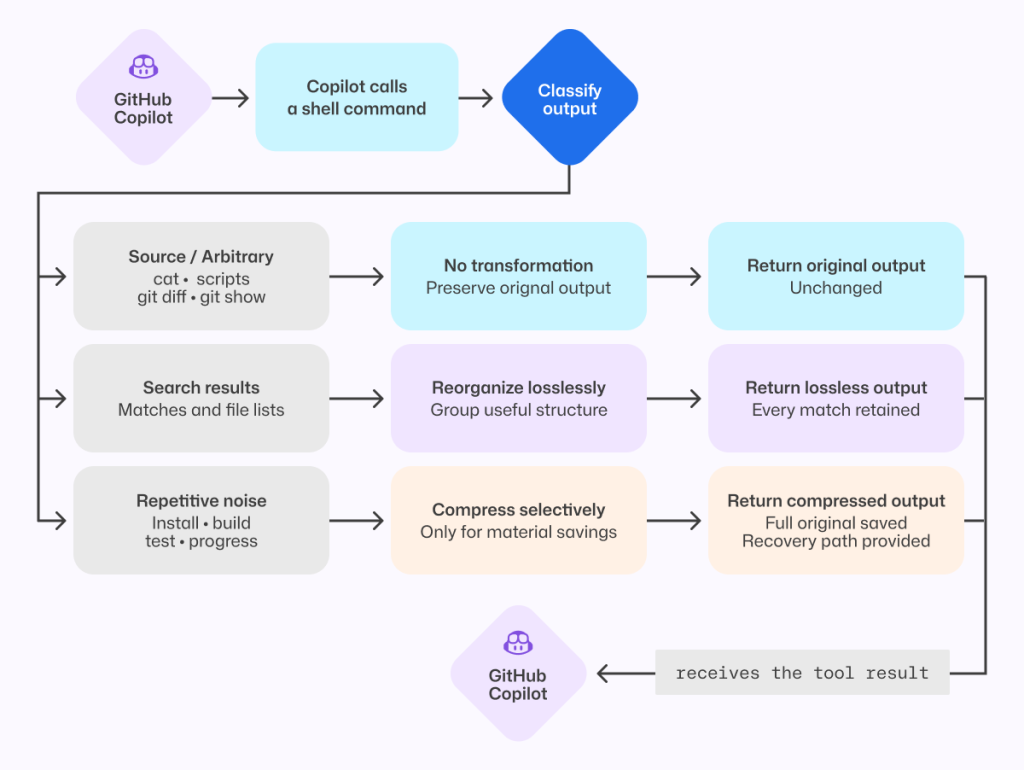
Flowchart showing how GitHub Copilot handles shell-command output. Copilot calls a shell command, classifies the output, then chooses one of three paths: keep arbitrary/source output unchanged, reorganize search results without losing any matches, or selectively compress repetitive noise (like install/build/test logs) while preserving full output and providing a recovery path. The processed result is returned to Copilot.
Figure 3: The shipped compressor preserves source-like output, reorganizes search results without loss, and compresses only predictable repetitive noise while retaining the full original.

That recovery path is both a safety mechanism and an evaluation signal. We tracked whether the agent opened the saved original, reran commands, repeated exploration, narrowed its searches, or took additional turns. Frequent recovery would indicate that the compressor had removed something valuable.

On offline tasks where output compression triggered, no statistically significant task-success regression was detected, and agents extremely rarely opened the saved originals. In the online experiment, average cost decreased slightly with no material regression detected in the tracked quality metrics.

Remove formatting before removing information

One clean token optimization came from the view tool, which agents use to read file contents into context.

Previously, view prefixed every line with a number before showing the contents to the model. Earlier file-editing tools used those numbers to target changes, but current tools instead match surrounding code and do not use line numbers. The line-number prefixes remained even though the normal workflow no longer used them.

Each prefix was small. Repeated across every line and every file read, however, that unused formatting accumulated throughout a session. So, we removed it.

Before-and-after image of code snippets. The line-number prefixes re removed from the 'After' image.
Figure 4: Removing line-number prefixes preserves the source exactly while eliminating formatting that was repeated across every file read.

Line numbers remain useful in diffs and short snippets. They were wasteful here because they were attached to every file read without serving the current editing workflow.

Removing them caused model-inference cost to fall by roughly 5% in offline agentic coding benchmarks. Success rates stayed within the expected run-to-run variance, and edit failures did not increase.

We then tested the change with Copilot CLI users. The online experiment reduced average daily model-inference cost per user by about 3%, with no material regression detected in the quality or satisfaction metrics we tracked.

For developers, that means more of the context window is available for the work itself rather than formatting the agent does not use.

This was the ideal change: no new instructions for the model, no source of information to recover, and no additional decision to make. The file contents reached the model unchanged.

Compress prompts without compressing intent

Prompts carry instructions that shape how an agent works, and they are sent to the model on every turn. Shortening them only improves efficiency if the agent keeps the behaviors developers depend on.

In GitHub Copilot, the task tool launches specialized agents for parallel work. Its guidance had accumulated across tool descriptions, schemas, agent definitions, system instructions, and companion tools.

A meta-prompting loop, in which Copilot iteratively wrote its own prompt, reduced that prompt by roughly half. Copilot produced and refined smaller candidates, and targeted behavioral tests checked the requirements we wanted to preserve.

The first online experiment found a regression that the initial offline evaluations had missed. The meta-prompting loop had rewritten cautious parallelism guidance into a hard scheduling policy, causing independent custom agents to run sequentially.

We stopped the experiment. Before changing the prompt again, we wrote a regression evaluation for the behavior users had exposed. The eventual fix replaced an explicit allowlist and denylist with one sentence:

Independent agents can run in parallel; consider side effects.

That sentence was shorter and less restrictive; it deferred the choice of whether to run sub-agents in parallel to the model instead of the previous explicit guidance. With it, our new behavior test passed without causing any existing behavioral tests to fail.

Prompt behavior needs tests. If a behavior is not tested, a shorter prompt can remove it without anyone noticing. 
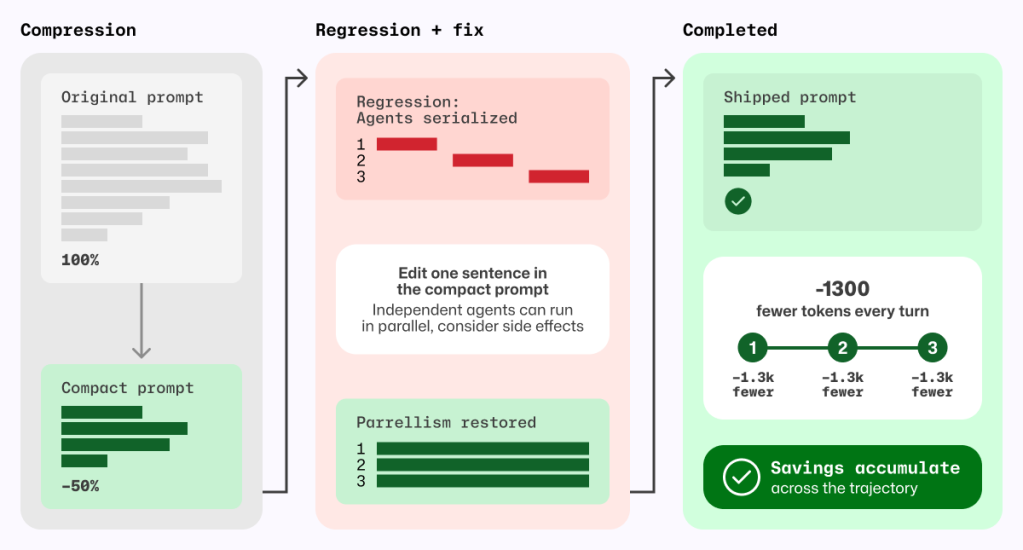
Three-stage diagram labeled Compression → Regression + fix → Completed. Left panel shows an original prompt compressed by about 50%. Middle panel highlights a regression where agents became serialized, then a fix by editing one sentence to restore parallelism. Right panel shows final shipped prompt with restored behavior and cumulative savings of about 1,300 fewer tokens per turn across steps.
Figure 5 Prompt compression became safe only after a regression test exposed serialized agents and a one-sentence fix restored parallelism; the resulting token savings recur on every model turn.

The shipped prompt removes about 1,300 task-tool prompt tokens per turn, corresponding to approximately 1.8% fewer total prompt tokens per session and 2.9% lower normalized cost per active hour, with no quality regression detected in the measured evaluations.

Deliver completed background work without an extra retrieval turn

Agents often run independent work in the background, such as a long-running shell command alongside a sub-agent investigation. Notifications let the agent continue until that work is ready without spending a tool call waiting.

If the agent does not explicitly wait for either task, the harness wakes the model and notifies it when the shell command or sub-agent finishes.

Previously, that notification did not include the completed result, so the agent had to spend another turn retrieving output Copilot had already received. When several tasks finished close together, that detour could repeat. Copilot now batches eligible completion notifications and delivers completed results directly in the existing tool-result format. The agent can continue with the information it needs, without spending an extra turn asking for it again. Explicit reads for work that is still running behave as before.
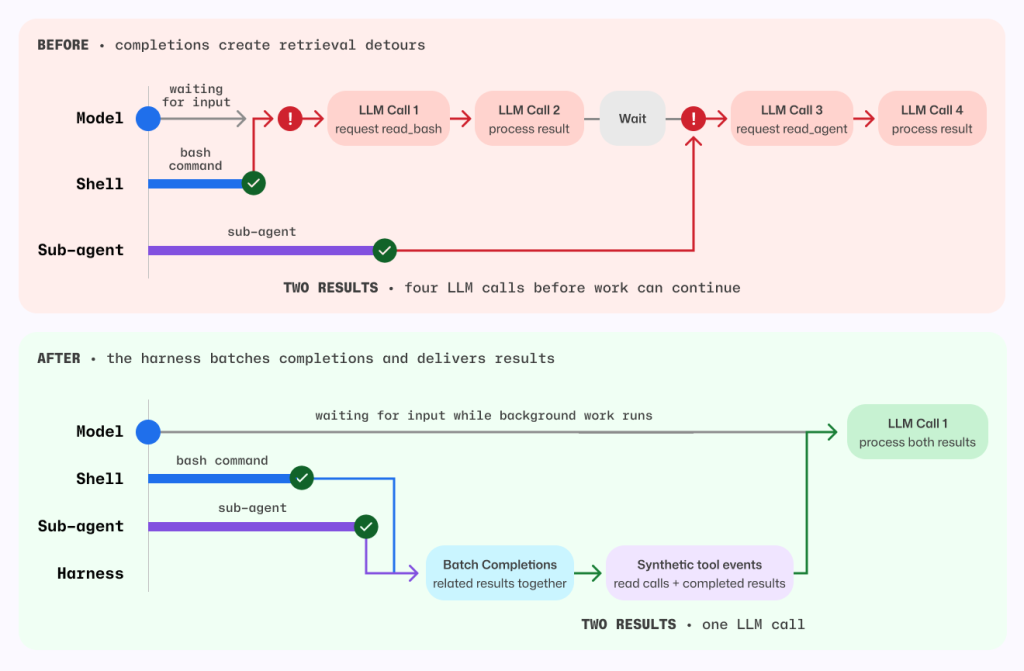
Before-and-after sequence diagram comparing orchestration behavior.

Before: model waits on separate shell and sub-agent completions, causing retrieval detours and four LLM calls to process two results.
After: a harness batches related completions and emits synthetic tool events so background work continues while waiting; both results are processed together in a single LLM call.
The visual emphasizes reduced latency and fewer model round trips.
Figure 6 Before, each background completion could wake a retrieval-only model turn. After, the harness batches eligible completions and delivers completed results in the existing tool-result format.

Before this change, each completed task required one model call to request its result and another to process it. For the shell command and sub-agent shown above, that meant four model calls before work could continue.

Now, the harness batches both completions and supplies their results together, so a single model call can process both. Removing those retrieval detours also avoids carrying the full session context through unnecessary calls.

By delivering completed results directly, without compressing, summarizing, or withholding anything, the harness reduced average token-related usage, as measured in AI Credits, by about 2.3%.

Measure changes in context

A change that saves tokens in one Copilot workflow can increase costs in another.

For example, a tighter set of file-tool instructions was inspired by positive results in Copilot code review. In a Copilot CLI online experiment, it increased cost, so we did not ship it.

By contrast, removing line-number prefixes and selectively compressing output each reduced average prompt tokens per review by roughly 5% in independent evaluations across a large set of Copilot code review tasks using the production model. We detected no material change in the tracked review-quality metrics.

These findings are separate from the earlier migration of Copilot code review to the shared file tools, which, together with review-instruction tuning, reduced code review cost by about 20%.

Each change needs to be measured in the workflow where it runs.

Five lessons for building efficient AI coding agents

  1. Optimize the completed task, not the tool call. Shorter output is not cheaper if the agent spends more turns recovering what was removed.
  2. Optimize orchestration, not just model output. Eliminate model turns that perform work the harness can complete deterministically.
  3. Compress by what the output represents. Preserve exact content, prefer lossless transformations, and measure how often agents use the recovery path.
  4. Prompt rewrites sometimes have unintended consequences. Validate that intended behavior is preserved.
  5. Evidence is local to the workload. Re-evaluate changes in offline benchmarks, online experiments, and every product surface where they ship.

None of these changes made the model smarter. They removed work the model never needed to do.

The changes described in this post are shipping across GitHub Copilot experiences that use the same underlying harness.

Bring agentic workflows to your terminal
with GitHub Copilot CLI >

The post How we make AI coding more cost efficient without sacrificing task quality appeared first on The GitHub Blog.
Agent-driven development in Copilot Applied Science

Post Syndicated from Tyler McGoffin original https://github.blog/ai-and-ml/github-copilot/agent-driven-development-in-copilot-applied-science/


I may have just automated myself into a completely different job…

This is a familiar pattern among software engineers, who often, through inspiration, frustration, or sometimes even laziness, build systems to remove toil and focus on more creative work. We then end up owning and maintaining those systems, unlocking that automated goodness for the rest of those around us.

As an AI researcher, I recently took this beyond what was previously possible and have automated away my intellectual toil. And now I find myself maintaining this tool to enable all my peers on the Copilot Applied Science team to do the same.

During this process, I learned a lot about how to effectively create and collaborate using GitHub Copilot. Applying these learnings has unlocked an incredibly fast development loop for myself as well as enabled my team mates to build solutions to fit their needs.

Before I get into explaining how I made this possible, let me set the stage for what spawned this project so you better understand the scope of what you can do with GitHub Copilot.

The impetus

A large part of my job involves analyzing coding agent performance as measured against standardized evaluation benchmarks, like TerminalBench2 or SWEBench-Pro. This often involves poring through tons of what are called trajectories, which are essentially lists of the thought processes and actions agents take while performing tasks.

Each task in an evaluation dataset produces its own trajectory, showing how the agent attempted to solve that task. These trajectories are often .json files with hundreds of lines of code. Multiply that over dozens of tasks in a benchmark set and again over the many benchmark runs needing analysis on any given day, and we’re talking hundreds of thousands of lines of code to analyze.

It’s an impossible task to do alone, so I would typically turn to AI to help. When analyzing new benchmark runs, I found that I kept repeating the same loop: I used GitHub Copilot to surface patterns in the trajectories then investigated them myself—reducing the number of lines of code I had to read from hundreds of thousands to a few hundred.

However, the engineer in me saw this repetitive task and said, “I want to automate that.” Agents provide us with the means to automate this kind of intellectual work, and thus eval-agents was born.

The plan

Engineering and science teams work better together. That was my guiding principle as I set about solving this new challenge.

Thus, I approached the design and implementation strategy of this project with a couple of goals in mind:

  1. Make these agents easy to share and use
  2. Make it easy to author new agents
  3. Make coding agents the primary vehicle for contributions

Bullets one and two are in GitHub’s lifeblood and are values and skills I’ve gained throughout my career, especially during my stint as an OSS maintainer on the GitHub CLI.

However, goal three shaped the project the most. I noticed that when I set GitHub Copilot up to help me build the tool effectively, it also made the project easier to use and collaborate on. That experience taught me a few key lessons, which ultimately helped push the first and second goals forward in ways I didn’t expect.

Making coding agents your primary contributor

I’ll start by describing my agentic coding setup:

  • Coding agent: Copilot CLI
  • Model used: Claude Opus 4.6
  • IDE: VSCode

It’s also noteworthy that I leveraged the Copilot SDK to accelerate agent creation, which is powered under the hood by the Copilot CLI. This gave me access to existing tools and MCP servers, a way to register new tools and skills, and a whole bunch of other agentic goodness out of the box that I didn’t have to reinvent myself.

With that out of the way, I could streamline the whole development process very quickly by following a few core principles:

  • Prompting strategies: agents work best when you’re conversational, verbose, and when you leverage planning modes before agent modes.
  • Architectural strategies: refactor often, update docs often, clean up often.
  • Iteration strategies: “trust but verify” is now “blame process, not agents.”

Uncovering and following these strategies led to an incredible phenomenon: adding new agents and features was fast and easy. We had five folks jump into the project for the first time, and we created a total of 11 new agents, four new skills, and the concept of eval-agent workflows (think scientist streams of reasoning) in less than three days. That amounted to a change of +28,858/-2,884 lines of code across 345 files.

Holy crap!

Below, I’ll go into detail about these three principles and how they enabled this amazing feat of collaboration and innovation.

Prompting strategies

We know that AI coding agents are really good at solving well-scoped problems but need handholding for the more complex problems you’d only entrust to your more senior engineers.

So, if you want your agent to act like an engineer, treat it like one. Guide its thinking, over-explain your assumptions, and leverage its research speed to plan before jumping into changes. I found it far more effective to put some stream-of-consciousness musings about a problem I was chewing on into a prompt and working with Copilot in planning mode than to give it a terse problem statement or solution.

Here’s an example of a prompt I wrote to add more robust regression tests to the tool:

> /plan I've recently observed Copilot happily updating tests to fit its new paradigms even though those tests shouldn't be updated. How can I create a reserved test space that Copilot can't touch or must reserve to protect against regressions?

This resulted in a back and forth that ultimately led to a series of guardrails akin to contract testing that can only be updated by humans. I had an idea of what I wanted, and through conversation, Copilot helped me get to the right solution.

It turns out that the things that make human engineers the most effective at doing their jobs are the same things that make these agents effective at doing theirs.

Architectural strategies

Engineers, rejoice! Remember all those refactors you wanted to do to make the codebase more readable, the tests you never had time to write, and the docs you wish had existed when you onboarded? They’re now the most important thing you can be working on when building an agent-first repository.

Gone are the days where deprioritizing this work over new feature work was necessary, because delivering features with Copilot becomes trivial when you have a well-maintained, agent-first project.

I’ve spent most of my time on this project refactoring names and file structures, documenting new features or patterns, and adding test cases for problems that I’ve uncovered as I go. I’ve even spent a few cycles cleaning up the dead code that the agents (like your junior engineers) may have missed while implementing all these new features and changes.

This work makes it easy for Copilot to navigate the codebase and understand the patterns, just like it would for any other engineer.

I can even ask, “Knowing what I know now, how would I design this differently?” And I can then justify actually going back and rearchitecting the whole project (with the help of Copilot, of course).

It’s a dream come true!

And this leads me to my last bit of guidance.

Iteration strategies

As agents and models have improved, I have moved from a “trust but verify” mindset to one that is more trusting than doubtful. This mirrors how the industry treats human teams: “blame process, not people.” It’s how the most effective teams operate, because people make mistakes, so we build systems around that reality.

This idea of blameless culture provides psychological safety for teams to iterate and innovate, knowing that they won’t be blamed if they make a mistake. The core principle is that we implement processes and guardrails to protect against mistakes, and if a mistake does happen, we learn from it and introduce new processes and guardrails so that our teams won’t make the same mistake again.

Applying this same philosophy to agent-driven development has been fundamental to unlocking this incredibly rapid iteration pipeline. That means we add processes and guardrails to help prevent the agent from making mistakes, but when it does make a mistake, we add additional guardrails and processes—like more robust tests and better prompts—so the agent can’t make the same mistake again. Taking this one step further means that practicing good CI/CD principles is a must.

Practices like strict typing ensure the agent conforms to interfaces. Robust linters impose implementation rules on the agent that keep it following good patterns and practices. And integration, end-to-end, and contract tests—which can be expensive to build manually—become much cheaper to implement with agent assistance, while giving you confidence that new changes don’t break existing features.

When Copilot has these tools available in its development loop, it can check its own work. You’re setting it up for success, much in the same way you’d set up a junior engineer for success in your project.

Putting it all together

Here’s what all this means for your development loop when you’ve got your codebase set up for agent-driven development:

  1. Plan a new feature with Copilot using /plan.
    • Iterate on the plan.
    • Ensure that testing is included in the plan.
    • Ensure that docs updates are included in the plan and done before code is implemented. These can serve as additional guidelines that live beside your plan.
  2. Let Copilot implement the feature on /autopilot.
  3. Prompt Copilot to initiate a review loop with the Copilot Code Review agent. For me, it’s often something like: request Copilot Code Review, wait for the review to finish, address any relevant comments, and then re-request review. Continue this loop until there are no more relevant comments.
  4. Human review. This is where I enforce the patterns I discussed in the previous sections.

Additionally, outside of your feature loop, be sure you’re prompting Copilot early and often with the following:

  • /plan Review the code for any missing tests, any tests that may be broken, and dead code
  • /plan Review the code for any duplication or opportunities for abstraction
  • /plan Review the documentation and code to identify any documentation gaps. Be sure to update the copilot-instructions.md to reflect any relevant changes

I have these run automatically once a week, but I often find myself running them throughout the week as new features and fixes go in to maintain my agent-driven development environment.

Take this with you

What started as a frustration with an impossibly repetitive analysis task turned into something far more interesting: a new way of thinking about how we build software, how we collaborate, and how we grow as engineers.

Building agents with a coding agent-first mindset has fundamentally changed how I work. It’s not just about the automation wins—though watching four scientists ship 11 agents, four skills, and a brand-new concept in under three days is nothing short of remarkable. It’s about what this style of development forces you to prioritize: clean architecture, thorough documentation, meaningful tests, and thoughtful design—the things we always knew mattered but never had time for.

The analogy to a junior engineer keeps proving itself out. You onboard them well, give them clear context, build guardrails so their mistakes don’t become disasters, and then trust them to grow. If something goes wrong, you blame the process. Not the agent. If there’s one thing I want you to take away from this, it’s that the skills that make you a great engineer and a great teammate are the same skills that make you great at building with Copilot. The technology is new. The principles aren’t.

So go clean up that codebase, write that documentation you’ve been putting off, and start treating your Copilot like the newest member of your team. You might just automate yourself into the most interesting work of your career.

Think I’m crazy? Well, try this:

  1. Download Copilot CLI
  2. Activate Copilot CLI in any repo: cd <repo_path> && copilot
  3. Paste in the following prompt: /plan Read <link to this blog post> and help me plan how I could best improve this repo for agent-first development

The post Agent-driven development in Copilot Applied Science appeared first on The GitHub Blog.

From pixels to characters: The engineering behind GitHub Copilot CLI’s animated ASCII banner

Post Syndicated from Aaron Winston original https://github.blog/engineering/from-pixels-to-characters-the-engineering-behind-github-copilot-clis-animated-ascii-banner/


Most people think ASCII art is simple, and a nostalgic remnant of the early internet. But when the GitHub Copilot CLI team asked for a small entrance banner for the new command-line experience, they discovered the opposite: An ASCII animation in a real-world terminal is one of the most constrained UI engineering problems you can take on.

Part of what makes this even more interesting is the moment we’re in. Over the past year, CLIs have seen a surge of investment as AI-assisted and agentic workflows move directly into the terminal. But unlike the web—where design systems, accessibility standards, and rendering models are well-established—the CLI world is still fragmented. Terminals behave differently, have few shared standards, and offer almost no consistent accessibility guidelines. That reality shaped every engineering decision in this project.

Different terminals interpret ANSI color codes differently. Screen readers treat fast-changing characters as noise. Layout engines vary. Buffers flicker. Some users override global colors for accessibility. Others throttle redraw speed. There is no canvas, no compositor, no consistent rendering model, and no standard animation framework.

So when an animated Copilot mascot flying into the terminal appeared, it looked playful. But behind it was serious engineering work, unexpected complexity, a custom design toolchain, and a tight pairing between a designer and a long-time CLI engineer.

That complexity only became fully visible once the system was built. In the end, animating a three-second ASCII banner required over 6,000 lines of TypeScript—most of it dedicated not to visuals, but to handling terminal inconsistencies, accessibility constraints, and maintainable rendering logic.

This is the technical story of how it came together.

Why animated ASCII is a hard engineering problem

Before diving into the build process, it’s worth calling out why this problem space is more advanced than it looks.

Terminals don’t have a canvas

Unlike browsers (DOM), native apps (views), or graphics frameworks (GPU surfaces), terminals treat output as a stream of characters. There’s no native concept of:

  • Frames
  • Sprites
  • Z-index
  • Rasterized pixels
  • Animation tick rates

Because of this, every “frame” has to be manually repainted using cursor movements and redraw commands. There’s no compositor smoothing anything over behind the scenes. Everything is stdout writes + ANSI control sequences.

ANSI escape codes are inconsistent, and terminal color is its own engineering challenge

ANSI escape codes like \x1b[35m (bright magenta) or \x1b[H (cursor home) behave differently across terminals—not just in how they render, but in whether they’re supported at all. Some environments (like Windows Command Prompt or older versions of PowerShell) have limited or no ANSI support without extra configuration.

But even in terminals that do support ANSI, the hardest part isn’t the cursor movement. It’s the colors.

When you’re building a CLI, you realistically have three approaches:

  1. Use no color at all. This guarantees broad compatibility, but makes it harder to highlight meaning or guide users’ attention—especially in dense CLI output.
  2. Use richer color modes (3-bit, 4-bit, 8-bit, or truecolor) that aren’t uniformly supported or customizable. This introduces a maintenance headache: Different terminals, themes, and accessibility profiles render the same color codes differently, and users often disagree about what “good” colors look like.
  3. Use a minimal, customizable palette (usually 4-bit colors) that most terminals allow users to override in their preferences. This is the safest path, but it limits how accurately you can represent a brand palette—and it forces you to design for environments with widely varying contrast and theme choices.

For the Copilot CLI animation, this meant treating color as a semantic system, not a literal one: Instead of committing specific RGB values, the team mapped high-level “roles” (eyes, goggles, shadow, border) to ANSI colors that degrade gracefully across different terminals and accessibility settings.

Accessibility is a first-class concern

Terminals are used by developers with a wide range of visual abilities—not just blind users with screen readers, but also low-vision users, color-blind users, and anyone working in high-contrast or customized themes.

That means:

  • Rapid re-renders can create auditory clutter for screen readers
  • Color-based meaning must degrade safely, since bold, dim, or subtle hues may not be perceivable
  • Low-vision users may not see contrast differences that designers expect
  • Animations must be opt-in, not automatic
  • Clearing sequences must avoid confusing assistive technologies

This is also why the Copilot CLI animation ended up behind an opt-in flag early on—accessibility constraints shaped the architecture from the start. 

These constraints guided every decision in the Copilot CLI animation. The banner had to work when colors were overridden, when contrast was limited, and even when the animation itself wasn’t visible.

Ink (React for the terminal) helps, but it’s not an animation engine

Ink lets you build terminal interfaces using React components, but:

  • It re-renders on every state change
  • It doesn’t manage frame deltas
  • It doesn’t synchronize with terminal paint cycles
  • It doesn’t solve flicker or cursor ghosting

Which meant animation logic had to be handcrafted.

Frame-based ASCII animation has no existing workflow for designers

There are tools for ASCII art, but virtually none for:

  • Frame-by-frame editing
  • Multi-color ANSI previews
  • Exporting color roles
  • Generating Ink-ready components
  • Testing contrast and accessibility

Even existing ANSI preview tools don’t simulate how different terminals remap colors or handle cursor updates, which makes accurate design iteration almost impossible without custom tooling. So the team had to build one.

Part 1: A request that didn’t fit any workflow

Cameron Foxly (@cameronfoxly), a brand designer at GitHub with a background in animation, was asked to create a banner for the Copilot CLI.

“Normally, I’d build something in After Effects and hand off assets,” Cameron said. “But engineers didn’t have the time to manually translate animation frames into a CLI. And honestly, I wanted something more fun.”

He’d seen the static ASCII intro in Claude Code and knew Copilot deserved more personality.

The 3D Copilot mascot flying in to reveal the CLI logo felt right. But after attempting to create just one frame manually, the idea quickly ran into reality.

“It was a nightmare,” Cameron said. “If this is going to exist, I need to build my own tool.”

Part 2: Building an ASCII animation editor from scratch

Cameron opened an empty repository in VS Code, and began asking GitHub Copilot for help scaffolding an animation MVP that could:

  • Read text files as frames
  • Render them sequentially
  • Control timing
  • Clear the screen without flicker
  • Add a primitive “UI”

Within an hour, he had a working prototype that was monochrome, but functional.

Simplified early animation loop

Below is a simplified example variation of the frame loop logic Cameron prototyped:

import fs from "fs";
import readline from "readline";

/**
 * Load ASCII frames from a directory.
 */
const frames = fs
  .readdirSync("./frames")
  .filter(f => f.endsWith(".txt"))
  .map(f => fs.readFileSync(`./frames/${f}`, "utf8"));

let current = 0;

function render() {
  // Move cursor to top-left of terminal
  readline.cursorTo(process.stdout, 0, 0);

  // Clear the screen below the cursor
  readline.clearScreenDown(process.stdout);

  // Write the current frame
  process.stdout.write(frames[current]);

  // Advance to next frame
  current = (current + 1) % frames.length;
}

// 75ms = ~13fps. Higher can cause flicker in some terminals.
setInterval(render, 75);

This introduced the first major obstacle: color. The prototype worked in monochrome, but the moment color was added, inconsistencies across terminals—and accessibility constraints—became the dominant engineering problem.

Part 3: ANSI color theory and the real-world limitations

The Copilot brand palette is vibrant and high-contrast, which is great for web but exceptionally challenging for terminals.

ANSI terminals support:

  • 16-color mode (standard)
  • 256-color mode (extended)
  • Sometimes truecolor (“24-bit”) but inconsistently

Even in 256-color mode, terminals remap colors based on:

  • User themes
  • Accessibility settings
  • High-contrast modes
  • Light/dark backgrounds
  • OS-level overrides

Which means you can’t rely on exact hues. You have to design with variability in mind.

Cameron needed a way to paint characters with ANSI color roles while previewing how they look in different terminals.

He took a screenshot of the Wikipedia ANSI table, handed it to Copilot, and asked it to scaffold a palette UI for his tool.

Adding a color “brush” tool

A simplified version:

function applyColor(char, color) {
  // Minimal example: real implementation needed support for roles,
  // contrast testing, and multiple ANSI modes.
  const codes = {
    magenta: "\x1b[35m",
    cyan: "\x1b[36m",
    white: "\x1b[37m"
  };

  return `${codes[color]}${char}\x1b[0m`; // Reset after each char
}

This enabled Cameron to paint ANSI-colored ASCII like you would in Photoshop, one character at a time.

But now he had to export it into the real Copilot CLI codebase.

Part 4: Exporting to Ink (React for the terminal)

Ink is a React renderer for building CLIs using JSX components. Instead of writing to the DOM, components render to stdout.

Cameron asked Copilot to help generate an Ink component that would:

  • Accept frames
  • Render them line-by-line
  • Animate them with state updates
  • Integrate cleanly into the CLI codebase

Simplified Ink frame renderer

import React from "react";
import { Box, Text } from "ink";

/**
 * Render a single ASCII frame.
 */
export const CopilotBanner = ({ frame }) => (
  <Box flexDirection="column">
    {frame.split("\n").map((line, i) => (
      <Text key={i}>{line}</Text>
    ))}
  </Box>
);

And a minimal animation wrapper:

export const AnimatedBanner = () => {
  const [i, setI] = React.useState(0);

  React.useEffect(() => {
    const id = setInterval(() => setI(x => (x + 1) % frames.length), 75);
    return () => clearInterval(id);
  }, []);

  return <CopilotBanner frame={frames[i]} />;
};

This gave Cameron the confidence to open a pull request (his first engineering pull request in nine years at GitHub).

“Copilot filled in syntax I didn’t know,” Cameron said. “But I still made all the architectural decisions.”

Now it was time for the engineering team to turn a prototype into something production-worthy.

Part 5: Terminal animation isn’t solved technology

Andy Feller (@andyfeller), a long-time GitHub engineer behind the GitHub CLI, partnered with Cameron to bring the animation into the Copilot CLI codebase.

Unlike browsers—which share rendering engines, accessibility APIs, and standards like WCAG—terminal environments are a patchwork of behaviors inherited from decades-old hardware like the VT100. There’s no DOM, no semantic structure, and only partial agreement on capabilities across terminals. This makes even “simple” UI design problems in the terminal uniquely challenging, especially as AI-driven workflows push CLIs into daily use for more developers.

“There’s no framework for terminal animations,” Andy explained. “We had to figure out how to do this without flickering, without breaking accessibility, and across wildly different terminals.”

Andy broke the engineering challenges into four broad categories:

Challenge 1: From banner to ready without flickering

Most terminals repaint the entire viewport when new content arrives. At the same time, CLIs come with a strict usability expectation: when developers run a command, they want to get to work immediately. Any animation that flickers, blocks input, or lingers too long actively degrades the experience.

This created a core tension the team had to resolve: how to introduce a brief, animated banner without slowing startup, stealing focus, or destabilizing the terminal render loop.

In practice, this was complicated by the fact that terminals behave differently under load. Some:

  • Throttle fast writes
  • Reveal cleared frames momentarily
  • Buffer output differently
  • Repaint the cursor region inconsistently

To avoid flicker while keeping the CLI responsive across popular terminals like iTerm2, Windows Terminal, and VS Code, the team had to carefully coordinate several interdependent concerns:

  • Keeping the animation under three seconds so it never delayed user interaction
  • Separating static and non-static components to minimize unnecessary redraws
  • Initializing MCP servers, custom agents, and user setup without blocking render
  • Working within Ink’s asynchronous re-rendering model

The result was an animation treated as a non-blocking, best-effort enhancement—visible when it could be rendered safely, but never at the expense of startup performance or usability.

Challenge 2: Brand color mapping in ANSI

“ANSI color consistency simply doesn’t exist,” Andy said. 

Most modern terminals support 8-bit color, allowing CLIs to choose from 256 colors. However, how those colors are actually rendered varies widely based on terminal themes, OS settings, and user accessibility overrides. In practice, CLIs can’t rely on exact hues—or even consistent contrast—across environments.

The Copilot banner introduced an additional complexity: although it’s rendered using text characters, the block-letter Copilot logo functions as a graphical object, not readable body text. Under accessibility guidelines, non-text graphical elements have different contrast requirements than text, and they must remain perceivable without relying on fine detail or precise color matching.

To account for this, the team deliberately chose a minimal 4-bit ANSI palette—one of the few color modes most terminals allow users to customize—to ensure the animation remained legible under high-contrast themes, low-vision settings, and color overrides.

This meant the team had to:

  • Treat the Copilot wordmark as non-text graphical content with appropriate contrast requirements
  • Select ANSI color codes that approximate the Copilot palette without relying on exact hues
  • Satisfy WCAG contrast guidance for both text and non-text elements
  • Ensure the animation remained legible in light and dark terminals
  • Degrade gracefully when users override terminal colors for accessibility
  • Test color combinations across multiple terminal emulators and theme configurations

Rather than encoding brand colors directly, the animation maps semantic roles—such as borders, eyes, highlights, and text—to ANSI color slots that terminals can reinterpret safely. This allows the banner to remain recognizable without assuming control over the user’s color environment.

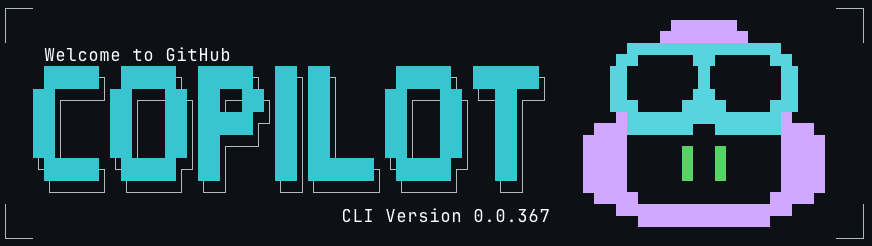
Dark mode version of the GitHub Copilot CLI banner.
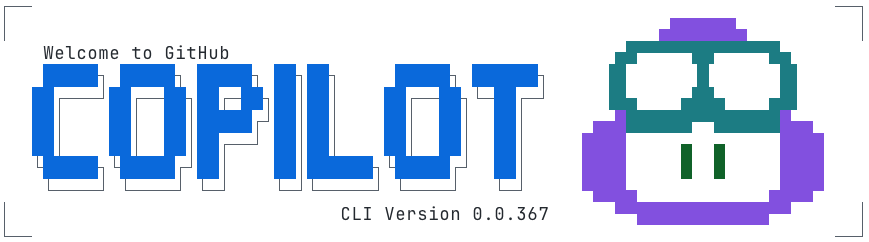
Light mode version of the GitHub Copilot CLI banner.

Challenge 3: Making the animation maintainable

Cameron’s prototype was a great starting point for Andy to incorporate into the Copilot CLI but it wasn’t without its challenges:

  • Banner consisted of ~20 animation frames covering an 11×78 area
  • There are ~10 animation elements to stylize in any given frame
  • Needed a way to separate the text of the frame from the colors involved
  • Each frame mapped hard coded colors to row and column coordinates
  • Each frame required precise timing to display Cameron’s vision

First, the animation was broken down into distinct animation elements that could be used to create separate light and dark themes:

type AnimationElements =
    | "block_text"
    | "block_shadow"
    | "border"
    | "eyes"
    | "head"
    | "goggles"
    | "shine"
    | "stars"
    | "text";

type AnimationTheme = Record<AnimationElements, ANSIColors>;

const ANIMATION_ANSI_DARK: AnimationTheme = {
    block_text: "cyan",
    block_shadow: "white",
    border: "white",
    eyes: "greenBright",
    head: "magentaBright",
    goggles: "cyanBright",
    shine: "whiteBright",
    stars: "yellowBright",
    text: "whiteBright",
};

const ANIMATION_ANSI_LIGHT: AnimationTheme = {
    block_text: "blue",
    block_shadow: "blackBright",
    border: "blackBright",
    eyes: "green",
    head: "magenta",
    goggles: "cyan",
    shine: "whiteBright",
    stars: "yellow",
    text: "black",
};

Next, the overall animation and subsequent frames would capture content, color, duration needed to animate the banner:

interface AnimationFrame {
    title: string;
    duration: number;
    content: string;
    colors?: Record<string, AnimationElements>; // Map of "row,col" positions to animation elements
}

interface Animation {
    metadata: {
        id: string;
        name: string;
        description: string;
    };
    frames: AnimationFrame[];
}

Then, each animation frame was captured to separate frame content from stylistic and animation details, resulting in over 6,000 lines of TypeScript to safely animate three seconds of the Copilot logo across terminals with wildly different rendering and accessibility behaviors:

    const frames: AnimationFrame[] = [
        {
            title: "Frame 1",
            duration: 80,
            content: `
┌┐
││


││
└┘`,
            colors: {
                "1,0": "border",
                "1,1": "border",
                "2,0": "border",
                "2,1": "border",
                "10,0": "border",
                "10,1": "border",
                "11,0": "border",
                "11,1": "border",
            },
        },
        {
            title: "Frame 2",
            duration: 80,
            content: `
┌──     ──┐
│         │
 █▄▄▄
 ███▀█
 ███ ▐▌
 ███ ▐▌
   ▀▀█▌
   ▐ ▌
    ▐
│█▄▄▌     │
└▀▀▀    ──┘`,
            colors: {
                "1,0": "border",
                "1,1": "border",
                "1,2": "border",
                "1,8": "border",
                "1,9": "border",
                "1,10": "border",
                "2,0": "border",
                "2,10": "border",
                "3,1": "head",
                "3,2": "head",
                "3,3": "head",
                "3,4": "head",
                "4,1": "head",
                "4,2": "head",
                "4,3": "goggles",
                "4,4": "goggles",
                "4,5": "goggles",
                "5,1": "head",
                "5,2": "goggles",
                "5,3": "goggles",
                "5,5": "goggles",
                "5,6": "goggles",
                "6,1": "head",
                "6,2": "goggles",
                "6,3": "goggles",
                "6,5": "goggles",
                "6,6": "goggles",
                "7,3": "goggles",
                "7,4": "goggles",
                "7,5": "goggles",
                "7,6": "goggles",
                "8,3": "eyes",
                "8,5": "head",
                "9,4": "head",
                "10,0": "border",
                "10,1": "head",
                "10,2": "head",
                "10,3": "head",
                "10,4": "head",
                "10,10": "border",
                "11,0": "border",
                "11,1": "head",
                "11,2": "head",
                "11,3": "head",
                "11,8": "border",
                "11,9": "border",
                "11,10": "border",
            },
        },

Finally, each animation frame is rendered building segments of text based on consecutive color usage with the necessary ANSI escape codes:

           {frameContent.map((line, rowIndex) => {
                const truncatedLine = line.length > 80 ? line.substring(0, 80) : line;
                const coloredChars = Array.from(truncatedLine).map((char, colIndex) => {
                    const color = getCharacterColor(rowIndex, colIndex, currentFrame, theme, hasDarkTerminalBackground);
                    return { char, color };
                });

                // Group consecutive characters with the same color
                const segments: Array<{ text: string; color: string }> = [];
                let currentSegment = { text: "", color: coloredChars[0]?.color || theme.COPILOT };

                coloredChars.forEach(({ char, color }) => {
                    if (color === currentSegment.color) {
                        currentSegment.text += char;
                    } else {
                        if (currentSegment.text) segments.push(currentSegment);
                        currentSegment = { text: char, color };
                    }
                });
                if (currentSegment.text) segments.push(currentSegment);

                return (
                    <Text key={rowIndex} wrap="truncate">
                        {segments.map((segment, segIndex) => (
                            <Text key={segIndex} color={segment.color}>
                                {segment.text}
                            </Text>
                        ))}
                    </Text>
                );
            })}

Challenge 4: Accessibility-first design

The engineering team approached the banner with the same philosophy as the GitHub CLI’s accessibility work:

  • Respect global color overrides both in terminal and system preferences
  • After the first use, avoid animations unless explicitly enabled via the Copilot CLI configuration file
  • Minimize ANSI instructions that can confuse assistive tech

“CLI accessibility is under researched,” Andy noted. “We’ve learned a lot from users who are blind as well as users with low vision, and those lessons shaped this project.”

Because of this, the animation is opt-in and gated behind its own flag—so it’s not something developers see by default. And when developers run the CLI in –screen-reader mode, the banner is automatically skipped so no decorative characters or motion are sent to assistive technologies.

Part 6: An architecture built to scale

By the end of the refactor, the team had:

  • Frames stored as plain text
  • Animation elements
  • Themes as simple mappings
  • A runtime colorization step
  • Ink-driven timing and rendering
  • A maintainable foundation for future animations

This pattern—storing frames as plain text, layering semantic roles, and applying themes at runtime—isn’t specific to Copilot. It’s a reusable approach for anyone building terminal UIs or animations.

Part 7: What this project reveals about building for the terminal

A “simple ASCII banner” turned into:

  • A frame-based animation tool that didn’t exist
  • A custom ANSI color palette strategy
  • A new Ink component
  • A maintainable rendering architecture
  • Accessibility-first CLI design choices
  • A designer’s first engineering contribution
  • Real-world testing across diverse terminals
  • Open source contributions from the community

“The most rewarding part was stepping into open source for the first time,” Cameron said. “With Copilot, I was able to build out  my MVP ASCII animation tool into a full open source app at ascii-motion.app,. Someone fixed a typo in my README, and it made my day.”

As Andy pointed out, building accessible experiences for CLIs is still largely unexplored territory and far behind the tooling and standards available for the web.

Today, developers are already contributing to Cameron’s ASCII Motion tool, and the Copilot CLI team can ship new animations without rebuilding the system.

This is what building for the terminal demands: deep understanding of constraints, discipline around accessibility, and the willingness to invent tooling where none exists.

Use GitHub Copilot in your terminal

The GitHub Copilot CLI brings AI-assisted workflows directly into your terminal — including commands for explaining code, generating files, refactoring, testing, and navigating unfamiliar projects.

Try GitHub Copilot CLI >

The post From pixels to characters: The engineering behind GitHub Copilot CLI’s animated ASCII banner appeared first on The GitHub Blog.