Tag Archives: IAM Identity Center

Important changes to CloudTrail events for AWS IAM Identity Center

Post Syndicated from Arthur Mnev original https://aws.amazon.com/blogs/security/modifications-to-aws-cloudtrail-event-data-of-iam-identity-center/

AWS IAM Identity Center is streamlining its AWS CloudTrail events by including only essential fields that are necessary for workflows like audit and incident response. This change simplifies user identification in CloudTrail, addressing customer feedback. It also enhances correlation between IAM Identity Center users and external directory services, such as Okta Universal Directory or Microsoft Active Directory.

Effective January 13, 2025, IAM Identity Center will stop emitting userName and principalId fields under the user identity element in CloudTrail events. These fields will be excluded from the CloudTrail events that are initiated when users sign in to IAM Identity Center, use the AWS access portal, and access AWS accounts through the AWS CLI. Instead, IAM Identity Center now emits user ID and Identity Store Amazon Resource Name (ARN) fields to replace the userName and principalId fields, simplifying user identification. IAM Identity Center CloudTrail events will also specify IdentityCenterUser as the identity type instead of Unknown, providing a clear identifier for users. Additionally, IAM Identity Center will omit the value of a group’s displayName in CloudTrail events when you create or update a group. You can access group attributes, such as displayName, by using the Identity Store DescribeGroup API operation for authorized workflows.

We recommend that you update your workflows that process the userName, principalId, userIdentity type, or group displayName fields in CloudTrail events for IAM Identity Center before these changes take effect on January 13, 2025. This blog post provides guidance for these updates.

How to prepare your workflows for the upcoming changes to IAM Identity Center user identification in CloudTrail

To simplify user identification, IAM Identity Center is making changes to the user identity element for its CloudTrail events. Based on these changes, you can update your workflows to link CloudTrail events to a specific user, associate users with their external directories, and track user activity within the same session. The updated user identity element for a sample CloudTrail event is shared at the end of this section.

IAM Identity Center will update the userIdentity type for CloudTrail events that are emitted when users sign in, use the AWS access portal, and access AWS accounts through the AWS CLI. For authenticated users, the userIdentity type will change from Unknown to IdentityCenterUser. For unauthenticated users, the userIdentity type will remain Unknown. We recommend that you update your workflows to accept both values.

To identify the user linked to a CloudTrail event, IAM Identity Center now emits userId and identityStoreArn fields to replace the userName and principalId fields. The userId is a unique and immutable user identifier that IAM Identity Center assigns to every user in the Identity Store, its native directory referenced by the identityStoreArn. These new fields enhance user identification and action tracking in CloudTrail and are present in the CloudTrail entries where the userIdentity type is IdentityCenterUser. For an example of the user identity element with the new fields and the describe-user CLI command to retrieve user attributes using the user ID and Identity Store ARN, see the Identifying the user and session in IAM Identity Center user-initiated CloudTrail events section of the IAM Identity Center User Guide.

Among other user attributes, you can use the describe-user CLI command to retrieve the external ID associated with a user in the Identity Store. You can use the external ID to associate Identity Store users with their external directories. The external ID maps the user to an immutable user identifier in their external directory, such as Microsoft Active Directory or Okta Universal Directory.

Note: IAM Identity Center doesn’t emit an external ID in CloudTrail. You need access to the Identity Store to retrieve an external ID based on the userId and identityStoreArn fields in CloudTrail.

If you have access to the CloudTrail events but not the Identity Store, you can use the UserName field emitted under the additionalEventData element to correlate your users with their external directories. This field represents the username that the user authenticates or federates with when signing in to IAM Identity Center. For more details, see the Correlating users between IAM Identity Center and external directories section of the IAM Identity Center User Guide.

Notes:

  • When the identity source is the AWS Directory Service, the UserName value logged in the additionalEventData element in CloudTrail is equal to the username that the user enters during authentication. For example, a user who has the username [email protected], can authenticate with anyuser, [email protected], or company.com\anyuser, and in each case the entered value is emitted in CloudTrail respectively.
  • For a sign-in failure caused by incorrect username input, IAM Identity Center emits the UserName field in its CloudTrail event as a fixed-text value of HIDDEN_DUE_TO_SECURITY_REASONS. This is because the username value input by the user in such a scenario could contain sensitive information, such as a user’s password.

To track user activity within the same session, IAM Identity Center now emits the credentialId field in CloudTrail events for user actions that take place in the AWS access portal or that use the AWS CLI. The credentialId field contains the AWS access portal session ID for a user, to help you track user actions during their session.

The following table shows a CloudTrail event example that illustrates the fields, highlighted in yellow, that will change on January 13, 2025. IAM Identity Center recently started emitting userId, identityStoreArn, credentialId, and UserName in the additional event data for its CloudTrail events. Therefore, this example considers them as existing fields.

Before the upcoming changes
"eventName": "CredentialChallenge",
"eventSource": "signin.amazonaws.com",
"userIdentity": {
  "type": "Unknown",
  "userName": "anyuser",
  "accountId": "123456789012",
  "principalId": "123456789012",
  "onBehalfOf": {
    "userId": "a11111-1111-1111-11a1-111aa111aa11",
    "identityStoreArn": "arn:aws:identitystore::111111111:identitystore/d-111111a1a"
  },
  "credentialId": "1111a111111111a1a11111a1a[…]"
},
"additionalEventData": {
    "CredentialType": "PASSWORD",
    "UserName": "anyuser"
}
After the upcoming changes
"eventName": "CredentialChallenge",
"eventSource": "signin.amazonaws.com",
"userIdentity": {
  "type": "IdentityCenterUser",
  "accountId": "123456789012",
  "onBehalfOf": {
    "userId": "a11111-1111-1111-11a1-111aa111aa11",
    "identityStoreArn": "arn:aws:identitystore::111111111:identitystore/d-111111a1a"
  },
  "credentialId": "1111a111111111a1a11111a1a[…]"
},
"additionalEventData": {
    "CredentialType": "PASSWORD",
    "UserName": "anyuser"
}

How to prepare your workflows for the upcoming changes to IAM Identity Center group management events in CloudTrail

Your workflows that require access to group attributes, such as displayName, can retrieve them by using the Identity Store DescribeGroup API operation. Beginning January 13, 2025, IAM Identity Center will replace the displayName value in the administrative CloudTrail events for CreateGroup and UpdateGroup with a fixed text value of HIDDEN_DUE_TO_SECURITY_REASONS. This update restricts access to the group displayName only to workflows that are authorized to access group attributes in the Identity Store.

The following table shows a CloudTrail event example that illustrates the upcoming change in the displayName field, which is highlighted in yellow.

Before the upcoming changes
"eventName": "CreateGroup",
"eventSource": "sso-directory.amazonaws.com",
"userIdentity": {
  "type": "AssumedRole",
  "userName": "GroupManagerRole",
  "accountId": "123456789012",
  "principalId": "123456789012"
}
…
"group": {
    "groupId": "11a1a111-1111-1010-aaa1-01111a1111a0",
    "displayName": "PowerUserGroup",
    "groupAttributes": {
        "description": {
            "stringValue": "HIDDEN_DUE_TO_SECURITY_REASONS"
        }
    }
}
After the upcoming changes
"eventName": "CreateGroup",
"eventSource": "sso-directory.amazonaws.com",
"userIdentity": {
  "type": "AssumedRole",
  "userName": "GroupManagerRole",
  "accountId": "123456789012",
  "principalId": "123456789012"
}
…
"group": {
    "groupId": "11a1a111-1111-1010-aaa1-01111a1111a0",
    "displayName": "HIDDEN_DUE_TO_SECURITY_REASONS",
    "groupAttributes": {
        "description": {
            "stringValue": "HIDDEN_DUE_TO_SECURITY_REASONS"
        }
    }
}

Gain a deeper understanding of the specific CloudTrail events impacted by the changes

Earlier in this post, we said that IAM Identity Center emits the relevant CloudTrail events when users sign in to IAM Identity Center, use the AWS access portal, and access AWS accounts through the AWS CLI, or when administrators create and update groups. These CloudTrail events belong to four event groups that the IAM Identity Center User Guide refers to as AWS access portal, OIDC, Sign-in, and Identity Store events. The following list provides more details about the use cases that lead to the emission of these CloudTrail events:

  1. The AWS access Portal events cover sign-in and sign-out from the AWS access portal, as well as the retrieval of a user’s account and application assignments, which are necessary to display the portal. IAM Identity Center also emits these events when configuring AWS CLI or IDE toolkits for access to AWS accounts as an IAM Identity Center user.
  2. The relevant OpenID Connect (OIDC) event is CreateToken. IAM Identity Center emits this event when starting a session for an authenticated user (for example, to access assigned AWS accounts through AWS CLI or IDE toolkits).
  3. The Sign-in events cover password-based and federated authentication, as well as multi-factor authentication (MFA).
  4. The relevant Identity Store events include the end-user management of MFA devices inside the AWS access portal and the two administrative Identity Store events, CreateGroup and UpdateGroup.

Note that some of the API operations behind the CloudTrail events in scope are also available as AWS CLI commands:

The two tables in this section provide a detailed record of the changes and their relation to CloudTrail events.

The following table lists the changes to fields emitted by IAM Identity Center and the relevant CloudTrail events.

Changes AWS access portal
(Use of the portal)
OIDC
(Sign-in to IAM Identity Center through AWS CLI and IDE toolkits)
Sign-in
(authentication, including MFA, federation)
Identity Store
(MFA device and group management)
Available as of January 13, 2025
Exclusion of userName from the userIdentity element for authenticated users Yes Yes, limited to the CreateToken event Yes Yes, limited to MFA management in the AWS access portal
Exclusion of principalId from the userIdentity element Yes Yes, limited to the CreateToken event Yes Yes, limited to MFA management in the AWS access portal
Modified userIdentity’s type value from Unknown to IdentityCenterUser Yes Yes, limited to the CreateToken event Yes, limited to successful authentications Yes, limited to MFA management in the AWS access portal
Exclusion of the group displayName value from the requestParameters and responseElements elements No No No Yes, limited to administrative CreateGroup and UpdateGroup events
Exclusion of the UserName (in the additionalEventData element) a user keys in on failed authentication attempts No No Yes, limited to the CredentialChallenge event No
Available as of October 2024
Addition of the onBehalfOf element with userId and identityStoreArn, and credentialId in the userIdentity element Yes Yes, limited to the CreateToken event Yes, limited to successful authentications Yes, limited to MFA management in the AWS access portal
Addition of UserName in additionalEventData element No No Yes, limited to CredentialChallenge and UserAuthentication events in specific cases No

The following table summarizes the relevant IAM Identity Center CloudTrail event groups, event sources, and event names.

Event group Source Event names
AWS access portal sso.amazonaws.com Authenticate
Federate
ListAccountRoles
ListAccounts
ListApplications
ListProfilesForApplication
GetRoleCredentials
Logout
OIDC sso.amazonaws.com CreateToken
Sign-in signin.amazon.com CredentialChallenge
CredentialVerification
UserAuthentication
Identity Store sso-directory.amazonaws.com or
identitystore.amazonaws.com
ListMfaDevicesForUser
DeleteMfaDeviceForUser
UpdateMfaDeviceForUser
StartWebAuthnDeviceRegistration
StartVirtualMfaDeviceRegistration
CompleteWebAuthnDeviceRegistration
CompleteVirtualMfaDeviceRegistration
CreateGroup
UpdateGroup

Conclusion

In this post, we reviewed several important upcoming and recently completed changes to CloudTrail events that IAM Identity Center emits. We recommend that you update your CloudTrail based workflows before January 13, 2025 if they rely on the userName, principalId, or type fields in the CloudTrail user identity element when users sign in to IAM Identity Center, use the AWS access portal, access AWS accounts through the AWS CLI, or set a group’s displayName field in group management administrative events. AWS has recently introduced the fields userId, identityStoreArn, and credentialId in the CloudTrail user identity element to help you complete your updates.

Please contact your AWS account team or AWS support if you need additional assistance.

Arthur Mnev
Arthur Mnev

Arthur is a Senior Specialist Security Architect for AWS Industries. He spends his day working with customers and designing innovative approaches to help customers move forward with their initiatives, improve their security posture, and reduce security risks in their cloud journeys. Outside of work, Arthur enjoys being a father, skiing, scuba diving, and Krav Maga.
Alex Milanovic
Alex Milanovic

Alex is a Senior Product Manager at AWS Identity, with over a decade of expertise in Identity and Access Management (IAM) and more than 25 years in the tech sector. His work centers on empowering organizations of all sizes, from large enterprises to small and medium-sized businesses, to effectively adopt and implement IAM cloud services.

How to use AWS managed applications with IAM Identity Center

Post Syndicated from Liam Wadman original https://aws.amazon.com/blogs/security/how-to-use-aws-managed-applications-with-iam-identity-center/

AWS IAM Identity Center is the preferred way to provide workforce access to Amazon Web Services (AWS) accounts, and enables you to provide workforce access to many AWS managed applications, such as Amazon Q Developer (Formerly known as Code Whisperer).

As we continue to release more AWS managed applications, customers have told us they want to onboard to IAM Identity Center to use AWS managed applications, but some aren’t ready to migrate their existing IAM federation for AWS account management to Identity Center.

In this blog post, I’ll show you how you can enable Identity Center and use AWS managed applications—such as Amazon Q Developer—without migrating existing IAM federation flows to Identity Center.

A recap on AWS managed applications and trusted identity propagation

Just before re:Invent 2023, AWS launched trusted identity propagation, a technology that allows you to use a user’s identity and groups when accessing AWS services. This allows you to assign permissions directly to users or groups, rather than model entitlements in AWS Identity and Access Management (IAM). This makes permissions management simpler for users. For example, with trusted identity propagation, you can grant users and groups access to specific Amazon Redshift clusters without modeling all possible unique combinations of permissions in IAM. Trusted identity propagation is available today for Redshift and Amazon Simple Storage Service (Amazon S3), with more services and features coming over time.

In 2023, we released Amazon Q Developer, which is integrated with IAM Identity Center, generally available as an AWS managed application. When you’re using Amazon Q Developer outside of AWS in integrated development environments (IDEs) such as Microsoft Visual Studio Code, Identity Center is used to sign in to Amazon Q Developer.

Amazon Q Developer is one of many AWS managed applications that are integrated with the OAuth 2.0 functionality of IAM Identity Center, and it doesn’t use IAM credentials to access the Q Developer service from within your IDEs. AWS managed applications and trusted identity propagation don’t require you to use the permission sets feature of Identity Center and instead use OpenID Connect to grant your workforce access to AWS applications and features.

IAM Identity Center for AWS application access only

In the following section, we use IAM Identity Center to sign in to Amazon Q Developer as an example of an AWS managed application.

Prerequisites

Step 1: Enable an organization instance of IAM Identity Center

To begin, you must enable an organization instance of IAM Identity Center. While it’s possible to use IAM Identity Center without an AWS Organizations organization, we generally recommend that customers operate with such an organization.

The IAM Identity Center documentation provides the steps to enable an organizational instance of IAM Identity Center, as well as prerequisites and considerations. One consideration I would emphasize here is the identity source. We recommend, wherever possible, that you integrate with an external identity provider (IdP), because this provides the most flexibility and allows you to take advantage of the advanced security features of modern identity platforms.

IAM Identity Center is available at no additional cost.

Note: In late 2023, AWS launched account instances for IAM Identity Center. Account instances allow you to create additional Identity Center instances within member accounts of your organization. Wherever possible, we recommend that customers use an organization instance of IAM Identity Center to give them a centralized place to manage their identities and permissions. AWS recommends account instances when you want to perform a proof of concept using Identity Center, when there isn’t a central IdP or directory that contains all the identities you want to use on AWS and you want to use AWS managed applications with distinct directories, or when your AWS account is a member of an organization in AWS Organizations that is managed by another party and you don’t have access to set up an organization instance.

Step 2: Set up your IdP and synchronize identities and groups

After you’ve enabled your IAM Identity Center instance, you need to set up your instance to work with your chosen IdP and synchronize your identities and groups. The IAM Identity Center documentation includes examples of how to do this with many popular IdPs.

After your identity source is connected, IAM Identity Center can act as the single source of identity and authentication for AWS managed applications, bridging your external identity source and AWS managed applications. You don’t have to create a bespoke relationship between each AWS application and your IdP, and you have a single place to manage user permissions.

Step 3: Set up delegated administration for IAM Identity Center

As a best practice, we recommend that you only access the management account of your AWS Organizations organization when absolutely necessary. IAM Identity Center supports delegated administration, which allows you to manage Identity Center from a member account of your organization.

To set up delegated administration

  1. Go to the AWS Management Console and navigate to IAM Identity Center.
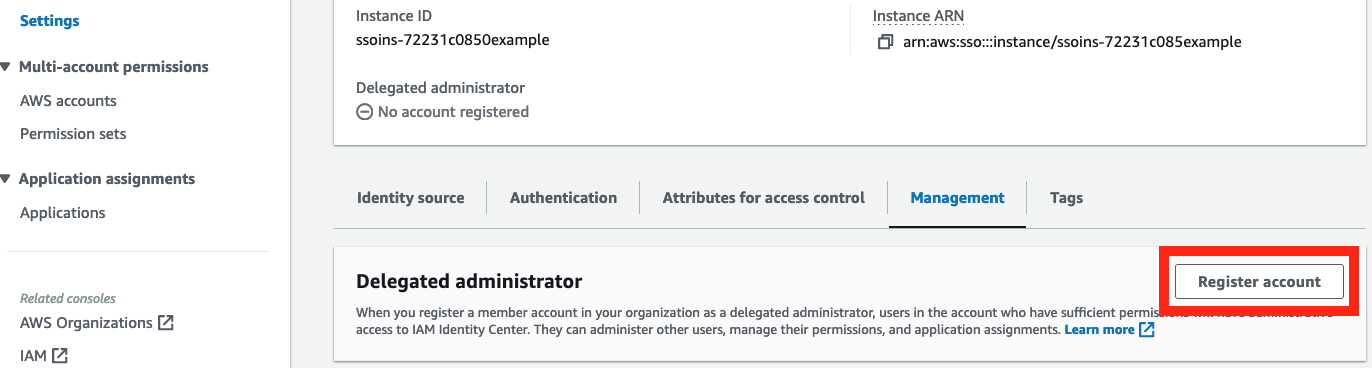
  2. In the left navigation pane, select Settings. Then select the Management tab and choose Register account.
  3. From the menu that follows, select the AWS account that will be used for delegated administration for IAM Identity Center. Ideally, this member account is dedicated solely to the purpose of administrating IAM Identity Center and is only accessible to users who are responsible for maintaining IAM Identity Center.

Figure 1: Set up delegated administration

Figure 1: Set up delegated administration

Step 4: Configure Amazon Q Developer

You now have IAM Identity Center set up with the users and groups from your directory, and you’re ready to configure AWS managed applications with IAM Identity Center. From a member account within your organization, you can now enable Amazon Q Developer. This can be any member account in your organization and should not be the one where you set up delegated administration of IAM Identity Center, or the management account.

Note: If you’re doing this step immediately after configuring IAM Identity Center with an external IdP with SCIM synchronization, be aware that the users and groups from your external IdP might not yet be synchronized to Identity Center by your external IdP. Identity Center updates user information and group membership as soon as the data is received from your external IdP. How long it takes to finish synchronizing after the data is received depends on the number of users and groups being synchronized to Identity Center.

To enable Amazon Q Developer

  1. Open the Amazon Q Developer console. This will take you to the setup for Amazon Q Developer.

    Figure 2: Open the Amazon Q Developer console

    Figure 2: Open the Amazon Q Developer console

  2. Choose Subscribe to Amazon Q.

    Figure 3: The Amazon Q developer console

    Figure 3: The Amazon Q developer console

  3. You’ll be taken to the Amazon Q console. Choose Subscribe to subscribe to Amazon Q Developer Pro.

    Figure 4: Subscribe to Amazon Q Developer Pro

    Figure 4: Subscribe to Amazon Q Developer Pro

  4. After choosing Subscribe, you will be prompted to select users and groups you want to enroll for Amazon Q Developer. Select the users and groups you want and then choose Assign.

    Figure 5: Assign user and group access to Amazon Q Developer

    Figure 5: Assign user and group access to Amazon Q Developer

After you perform these steps, the setup of Amazon Q Developer as an AWS managed application is complete, and you can now use Amazon Q Developer. No additional configuration is required within your external IdP or on-premises Microsoft Active Directory, and no additional user profiles have to be created or synchronized to Amazon Q Developer.

Note: There are charges associated with using the Amazon Q Developer service.

Step 5: Set up Amazon Q Developer in the IDE

Now that Amazon Q Developer is configured, users and groups that you have granted access to can use Amazon Q Developer from their supported IDE.

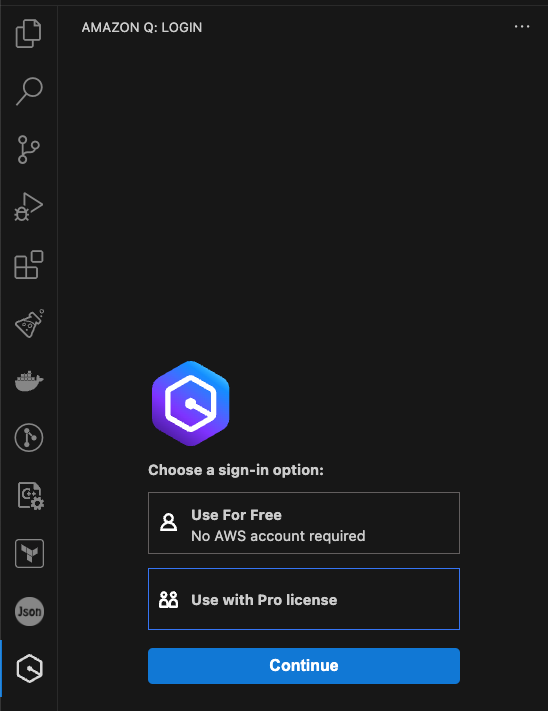
In their IDE, a user can sign in to Amazon Q Developer by entering the start URL and AWS Region and choosing Sign in. Figure 6 shows what this looks like in Visual Studio Code. The Amazon Q extension for Visual Studio Code is available to download within Visual Studio Code.

Figure 6: Signing in to the Amazon Q Developer extension in Visual Studio Code

Figure 6: Signing in to the Amazon Q Developer extension in Visual Studio Code

After choosing Use with Pro license, and entering their Identity Center’s start URL and Region, the user will be directed to authenticate with IAM Identity Center and grant the Amazon Q Developer application access to use the Amazon Q Developer service.

When this is successful, the user will have the Amazon Q Developer functionality available in their IDE. This was achieved without migrating existing federation or AWS account access patterns to IAM Identity Center.

Clean up

If you don’t wish to continue using IAM Identity Center or Amazon Q Developer, you can delete the Amazon Q Developer Profile and Identity Center instance within their respective consoles, within the AWS account they are deployed into. Deleting your Identity Center instance won’t make changes to existing federation or AWS account access that is not done through IAM Identity Center.

Conclusion

In this post, we talked about some recent significant launches of AWS managed applications and features that integrate with IAM Identity Center and discussed how you can use these features without migrating your AWS account management to permission sets. We also showed how you can set up Amazon Q Developer with IAM Identity Center. While the example in this post uses Amazon Q Developer, the same approach and guidance applies to Amazon Q Business and other AWS managed applications integrated with Identity Center.

To learn more about the benefits and use cases of IAM Identity Center, visit the product page, and to learn more about Amazon Q Developer, visit the Amazon Q Developer product page.

 
If you have feedback about this post, submit comments in the Comments section below. If you have questions about this post, contact AWS Support.

Want more AWS Security news? Follow us on X.

Liam Wadman

Liam Wadman

Liam is a Senior Solutions Architect with the Identity Solutions team. When he’s not building exciting solutions on AWS or helping customers, he’s often found in the mountains of British Columbia on his mountain bike. Liam points out that you cannot spell LIAM without IAM.

How to use customer managed policies in AWS IAM Identity Center for advanced use cases

Post Syndicated from Ron Cully original https://aws.amazon.com/blogs/security/how-to-use-customer-managed-policies-in-aws-single-sign-on-for-advanced-use-cases/

Are you looking for a simpler way to manage permissions across all your AWS accounts? Perhaps you federate your identity provider (IdP) to each account and divide permissions and authorization between cloud and identity teams, but want a simpler administrative model. Maybe you use AWS IAM Identity Center (successor to AWS Single Sign-On) but are running out of room in your permission set policies; or need a way to keep the role models you have while tailoring the policies in each account to reference their specific resources. Or perhaps you are considering IAM Identity Center as an alternative to per-account federation, but need a way to reuse the customer managed policies that you have already created. Great news! Now you can use customer managed policies (CMPs) and permissions boundaries (PBs) to help with these more advanced situations.

In this blog post, we explain how you can use CMPS and PBs with IAM Identity Center to address these considerations. We describe how IAM Identity Center works, how these types of policies work with IAM Identity Center, and how to best use CMPs and PBs with IAM Identity Center. We also show you how to configure and use CMPs in your IAM Identity Center deployment.

IAM Identity Center background

With IAM Identity Center, you can centrally manage access to multiple AWS accounts and business applications, while providing your workplace users a single sign-on experience with your choice of identity system. Rather than manage identity in each account individually, IAM Identity Center provides one place to connect an existing IdP, Microsoft Active Directory Domain Services (AD DS), or workforce users that you create directly in AWS. Because IAM Identity Center integrates with AWS Organizations, it also provides a central place to define your roles, assign them to your users and groups, and give your users a portal where they can access their assigned accounts.

With AWS Identity Center, you manage access to accounts by creating and assigning permission sets. These are AWS Identity and Access Management (IAM) role templates that define (among other things) which policies to include in a role. If you’re just getting started, you can attach AWS managed policies to the permission set. These policies, created by AWS service teams, enable you to get started without having to learn how to author IAM policies in JSON.

For more advanced cases, where you are unable to express policies sufficiently using inline policies, you can create a custom policy in the permission set. When you assign a permission set to users or groups in a specified account, IAM Identity Center creates a role from the template and then controls single sign-on access to the role. During role creation, IAM Identity Center attaches any specified AWS managed policies, and adds any custom policy to the role as an inline policy. These custom policies must be within the 10,240 character IAM quota of inline policies.

IAM provides two other types of custom policies that increase flexibility when managing access in AWS accounts. Customer managed policies (CMPs) are standalone policies that you create and can attach to roles in your AWS accounts to grant or deny access to AWS resources. Permissions boundaries (PBs) provide an advanced feature that specifies the maximum permissions that a role can have. For both CMPs and PBs, you create the custom policy in your account and then attach it to roles. IAM Identity Center now supports attaching both of these to permission sets so you can handle cases where AWS Managed Policies and inline policies may not be enough.

How CMPs and PBs work with IAM Identity Center

Although you can create IAM users to manage access to AWS accounts and resources, AWS recommends that you use roles instead of IAM users for this purpose. Roles act as an identity (sometimes called an IAM principal), and you assign permissions (identity-based policies) to the role. If you use the AWS Management Console or the AWS Command Line Interface to assume a role, you get the permissions of the role that you assumed. With its simpler way to maintain your users and groups in one AWS location and its ability to centrally manage and assign roles, AWS recommends that you use IAM Identity Center to manage access to your AWS accounts.

With this new IAM Identity Center release, you have the option to specify the names of CMPs and one PB in your permission set (role definition). Doing so modifies how IAM Identity Center provisions roles into accounts. When you assign a user or group to a permission set, IAM Identity Center checks the target account to verify that all specified CMPs and the PB are present. If they are all present, IAM Identity Center creates the role in the account and attaches the specified policies. If any of the specified CMPs or the PB are missing, IAM Identity Center fails the role creation.

This all sounds simple enough, but there are important implications to consider.

If you modify the permission set, IAM Identity Center updates the corresponding roles in all accounts to which you assigned the permission set. What is different when using CMPs and PBs is that IAM Identity Center is uninvolved in the creation or maintenance of the CMPs or PBs. It’s your responsibility to make sure that the CMPs and PBs are created and managed in all of the accounts to which you assign permission sets that use the CMPs and PBs. This means that you must be careful in how you name, create, and maintain these policies in your accounts, to avoid unintended consequences. For example, if you do not apply changes to CMPs consistently across all your accounts, the behavior of an IAM Identity Center created role will vary between accounts.

What CMPs do for you

By using CMPs with permission sets, you gain four main benefits:

  1. If you federate to your accounts directly and have CMPs already, you can reuse your CMPs with permission sets in IAM Identity Center. We describe exceptions later in this post.
  2. If you are running out of space in your permission set inline policies, you can add permission sets to increase the aggregate size of your policies.
  3. Policies often need to refer to account-specific resources by Amazon Resource Name (ARN). Designing an inline policy that does this correctly across all your accounts can be challenging and, in some cases, may not be possible. By specifying a CMP in a permission set, you can tailor the CMPs in each of your accounts to reference the resources of the account. When IAM Identity Center creates the role and attaches the CMPs of the account, the policies used by the IAM Identity Center–generated role are now specific to the account. We highlight this example later in this post.
  4. You get the benefit of a central location to define your roles, which gives you visibility of all the policies that are in use across the accounts where you assigned permission sets. This enables you to have a list of CMP and PB names that you should monitor for change across your accounts. This helps you ensure that you are maintaining your policies correctly.

Considerations and best practices

Start simple, avoid complex – If you’re just starting out, try using AWS managed policies first. With managed policies, you don’t need to know JSON policy to get started. If you need more advanced policies, start by creating identity-based inline custom policies in the permission set. These policies are provisioned as inline policies, and they will be identical in all your accounts. If you need larger policies or more advanced capabilities, use CMPs as your next option. In most cases, you can accomplish what you need with inline and customer managed policies. When you can’t achieve your objective using CMPs, use PBs. For information about intended use cases for PBs, see the blog post When and where to use IAM permissions boundaries.

Permissions boundaries don’t constrain IAM Identity Center admins who create permission sets – IAM Identity Center administrators (your staff) that you authorize to create permission sets can create inline policies and attach CMPs and PBs to permission sets, without restrictions. Permissions boundary policies set the maximum permissions of a role and the maximum permissions that the role can grant within an account through IAM only. For example, PBs can set the maximum permissions of a role that uses IAM to create other roles for use by code or services. However, a PB doesn’t set maximum permissions of the IAM Identity Center permission set creator. What does that mean? Suppose you created an IAM Identity Center Admin permission set that has a PB attached, and you assigned it to John Doe. John Doe can then sign in to IAM Identity Center and modify permission sets with any policy, regardless of what you put in the PB. The PB doesn’t restrict the policies that John Doe can put into a permission set.

In short, use PBs only for roles that need to create IAM roles for use by code or services. Don’t use PBs for permission sets that authorize IAM Identity Center admins who create permission sets.

Create and use a policy naming plan – IAM Identity Center doesn’t consider the content of a named policy that you attach to a permission set. If you assign a permission set in multiple accounts, make sure that all referenced policies have the same intent. Failure to do this will result in unexpected and inconsistent role behavior between different accounts. Imagine a CMP named “S3” that grants S3 read access in account A, and another CMP named “S3” that grants S3 administrative permissions over all S3 buckets in account B. A permission set that attaches the S3 policy and is assigned in accounts A and B will be confusing at best, because the level access is quite different in each of the accounts. It’s better to have more specific names, such as “S3Reader” and “S3Admin,” for your policies and ensure they are identical except for the account-specific resource ARNs.

Use automation to provision policies in accounts – Using tools such as AWS CloudFormation stacksets, or other infrastructure-as-code tools, can help ensure that naming and policies are consistent across your accounts. It also helps reduce the potential for administrators to modify policies in undesirable ways.

Policies must match the capabilities of IAM Identity Center – Although IAM Identity Center supports most IAM semantics, there are exceptions:

  1. If you use an identity provider as your identity source, IAM Identity Center passes only PrincipalTag attributes that come through SAML assertions to IAM. IAM Identity Center doesn’t process or forward other SAML assertions to IAM. If you have CMPs or PBs that rely on other information from SAML assertions, they won’t work. For example, IAM Identity Center doesn’t provide multi-factor authentication (MFA) context keys or SourceIdentity.
  2. Resource policies that reference role names or tags as part of trust policies don’t work with IAM Identity Center. You can use resource policies that use attribute-based access control (ABAC). IAM Identity Center role names are not static, and you can’t tag the roles that IAM Identity Center creates from its permission sets.

How to use CMPs with permission sets

Now that you understand permission sets and how they work with CMPs and PBs, let’s take a look at how you can configure a permission set to use CMPs.

In this example, we show you how to use one or more permission sets that attach a CMP that enables Amazon CloudWatch operations to the log group of specified accounts. Specifically, the AllowCloudWatch_permission set attaches a CMP named AllowCloudWatchForOperations. When we assign the permission set in two separate accounts, the assigned users can perform CloudWatch operations against the log groups of the assigned account only. Because the CloudWatch operations policies are in CMPs rather than inline policies, the log groups can be account specific, and you can reuse the CMPs in other permission sets if you want to have CloudWatch operations available through multiple permission sets.

Note: For this blog post, we demonstrate using CMPs by utilizing the IAM Management Console to create policies and assignments. We recommend that after you learn how to do this, you create your policies through automation for production environments. For example, use AWS CloudFormation. The intent of this example is to demonstrate how you can have a policy in two separate accounts that refer to different resources; something that is harder to accomplish using inline policies. The use case itself is not that advanced, but the use of CMPs to have different resources referenced in each account is a more advanced idea. We kept this simple to make it easier to focus on the feature than the use case.

Prerequisites

In this example, we assume that you know how to use the AWS Management Console, create accounts, navigate between accounts, and create customer managed policies. You also need administrative privileges to enable IAM Identity Center and to create policies in your accounts.

Before you begin, enable IAM Identity Center in your AWS Organizations management account in an AWS Region of your choice. You need to create at least two accounts within your AWS Organization. In this example, the account names are member-account and member-account-1. After you set up the accounts, you can optionally configure IAM Identity Center for administration in a delegated member account.

Configure an IAM Identity Center permission set to use a CMP

Follow these four procedures to use a CMP with a permission set:

  1. Create CMPs with consistent names in your target accounts
  2. Create a permission set that references the CMP that you created
  3. Assign groups or users to the permission set in accounts where you created CMPs
  4. Test your assignments

Step 1: Create CMPs with consistent names in your target accounts

In this step, you create a customer managed policy named AllowCloudWatchForOperations in two member accounts. The policy allows your cloud operations users to access a predefined CloudWatch log group in the account.

To create CMPs in your target accounts

  1. Sign into AWS.

    Note: You can sign in to IAM Identity Center if you have existing permission sets that enable you to create policies in member accounts. Alternatively, you can sign in using IAM federation or as an IAM user that has access to roles that enable you to navigate to other accounts where you can create policies. Your sign-in should also give you access to a role that can administer IAM Identity Center permission sets.

  2. Navigate to an AWS Organizations member account.

    Note: If you signed in through IAM Identity Center, use the user portal page to navigate to the account and role. If you signed in by using IAM federation or as an IAM user, choose your sign-in name that is displayed in the upper right corner of the AWS Management Console and then choose switch role, as shown in Figure 1.

    Figure 1: Switch role for IAM user or IAM federation

    Figure 1: Switch role for IAM user or IAM federation

  3. Open the IAM console.
  4. In the navigation pane, choose Policies.
  5. In the upper right of the page, choose Create policy.
  6. On the Create Policy page, choose the JSON tab.
  7. Paste the following policy into the JSON text box. Replace <account-id> with the ID of the account in which the policy is created.

    Tip: To copy your account number, choose your sign-in name that is displayed in the upper right corner of the AWS Management Console, and then choose the copy icon next to the account ID, as shown in Figure 2.

    Figure 2: Copy account number

    Figure 2: Copy account number

    {
        "Version": "2012-10-17",
        "Statement": [
            {
                "Action": [
                    "logs:CreateLogStream",
                    "logs:DescribeLogStreams",
                    "logs:PutLogEvents",
                    "logs:GetLogEvents"
                ],
                "Effect": "Allow",
                "Resource": "arn:aws:logs:us-east-1:<account-id>:log-group:OperationsLogGroup:*"
            },
            {
                "Action": [
                    "logs:DescribeLogGroups"
                ],
                "Effect": "Allow",
                "Resource": "arn:aws:logs:us-east-1:<account-id>:log-group::log-stream:*"
            }
        ]
    }

  8. Choose Next:Tags, and then choose Next:Review.
  9. On the Create Policy/Review Policy page, in the Name field, enter AllowCloudWatchForOperations. This is the name that you will use when you attach the CMP to the permission set in the next procedure (Step 2).
  10. Repeat steps 1 through 7 in at least one other member account. Be sure to replace the <account-id> element in the policy with the account ID of each account where you create the policy. The only difference between the policies in each account is the <account-id> in the policy.

Step 2: Create a permission set that references the CMP that you created

At this point, you have at least two member accounts containing the same policy with the same policy name. However, the ResourceARN in each policy refers to log groups that belong to the respective accounts. In this step, you create a permission set and attach the policy to the permission set. Importantly, you attach only the name of the policy to the permission set. The actual attachment of the policy to the role that IAM Identity Center creates, happens when you assign the permission set to a user or group in Step 3.

To create a permission set that references the CMP

  1. Sign in to the Organizations management account or the IAM Identity Center delegated administration account.
  2. Open the IAM Identity Center console.
  3. In the navigation pane, choose Permission Sets.
  4. On the Select Permission set type screen, select Custom permission Set and choose Next.
    Figure 3: Select custom permission set

    Figure 3: Select custom permission set

  5. On the Specify policies and permissions boundary page, expand the Customer managed policies option, and choose Attach policies.
    Figure 4: Specify policies and permissions boundary

    Figure 4: Specify policies and permissions boundary

  6. For Policy names, enter the name of the policy. This name must match the name of the policy that you created in Step 1. In our example, the name is AllowCloudWatchForOperations. Choose Next.
  7. On the Permission set details page, enter a name for your permission set. In this example, use AllowCloudWatch_PermissionSet. You can alspecify additional details for your permission sets, such as session duration and relay state (these are a link to a specific AWS Management Console page of your choice).
    Figure 5: Permission set details

    Figure 5: Permission set details

  8. Choose Next, and then choose Create.

Step 3: Assign groups or users to the permission set in accounts where you created your CMPs

In the preceding steps, you created a customer managed policy in two or more member accounts, and a permission set with the customer managed policy attached. In this step, you assign users to the permission set in your accounts.

To assign groups or users to the permission set

  1. Sign in to the Organizations management account or the IAM Identity Center delegated administration account.
  2. Open the IAM Identity Center console.
  3. In the navigation pane, choose AWS accounts.
    Figure 6: AWS account

    Figure 6: AWS account

  4. For testing purposes, in the AWS Organization section, select all the accounts where you created the customer managed policy. This means that any users or groups that you assign during the process will have access to the AllowCloudWatch_PermissionSet role in each account. Then, on the top right, choose Assign users or groups.
  5. Choose the Users or Groups tab and then select the users or groups that you want to assign to the permission set. You can select multiple users and multiple groups in this step. For this example, we recommend that you select a single user for which you have credentials, so that you can sign in as that user to test the setup later. After selecting the users or groups that you want to assign, choose Next.
    Figure 7: Assign users and groups to AWS accounts

    Figure 7: Assign users and groups to AWS accounts

  6. Select the permission set that you created in Step 2 and choose Next.
  7. Review the users and groups that you are assigning and choose Submit.
  8. You will see a message that IAM Identity Center is configuring the accounts. In this step, IAM Identity Center creates roles in each of the accounts that you selected. It does this for each account, so it looks in the account for the CMP that you specified in the permission set. If the name of the CMP that you specified in the permission set matches the name that you provided when creating the CMP, IAM Identity Center creates a role from the permission set. If the names don’t match or if the CMP isn’t present in the account to which you assigned the permission set, you see an error message associated with that account. After successful submission, you will see the following message: We reprovisioned your AWS accounts successfully and applied the updated permission set to the accounts.

Step 4: Test your assignments

Congratulations! You have successfully created CMPs in multiple AWS accounts, created a permission set and attached the CMPs by name, and assigned the permission set to users and groups in the accounts. Now it’s time to test the results.

To test your assignments

  1. Go to the IAM Identity Center console.
  2. Navigate to the Settings page.
  3. Copy the user portal URL, and then paste the user portal URL into your browser.
  4. At the sign-in prompt, sign in as one of the users that you assigned to the permission set.
  5. The IAM Identity Center user portal shows the accounts and roles that you can access. In the example shown in Figure 8, the user has access to the AllowCloudWatch_PermissionSet created in two accounts.
    Figure 8: User portal

    Figure 8: User portal

    If you choose AllowCloudWatch_PermissionSet in the member-account, you will have access to the CloudWatch log group in the member-account account. If you choose the role in member-account-1, you will have access to CloudWatch Log group in member-account-1.

  6. Test the access by choosing Management Console for the AllowCloudWatch_PermissionSet in the member-account.
  7. Open the CloudWatch console.
  8. In the navigation pane, choose Log groups. You should be able to access log groups, as shown in Figure 9.
    Figure 9: CloudWatch log groups

    Figure 9: CloudWatch log groups

  9. Open the IAM console. You shouldn’t have permissions to see the details on this console, as shown in figure 10. This is because AllowCloudWatch_PermissionSet only provided CloudWatch log access.
    Figure 10: Blocked access to the IAM console

    Figure 10: Blocked access to the IAM console

  10. Return to the IAM Identity Center user portal.
  11. Repeat steps 4 through 8 using member-account-1.

Answers to key questions

What happens if I delete a CMP or PB that is attached to a role that IAM Identity Center created?
IAM prevents you from deleting policies that are attached to IAM roles.

How can I delete a CMP or PB that is attached to a role that IAM Identity Center created?
Remove the CMP or PB reference from all your permission sets. Then re-provision the roles in your accounts. This detaches the CMP or PB from IAM Identity Center–created roles. If the policies are unused by other IAM roles in your account or by IAM users, you can delete the policy.

What happens if I modify a CMP or PB that is attached to an IAM Identity Center provisioned role?
The IAM Identity Center role picks up the policy change the next time that someone assumes the role.

Conclusion

In this post, you learned how IAM Identity Center works with customer managed policies and permissions boundaries that you create in your AWS accounts. You learned different ways that this capability can help you, and some of the key considerations and best practices to succeed in your deployments. That includes the principle of starting simple and avoiding unnecessarily complex configurations. Remember these four principles:

  1. In most cases, you can accomplish everything you need by starting with custom (inline) policies.
  2. Use customer managed policies for more advanced cases.
  3. Use permissions boundary policies only when necessary.
  4. Use CloudFormation to manage your customer managed policies and permissions boundaries rather than having administrators deploy them manually in accounts.

To learn more about this capability, see the IAM Identity Center User Guide. If you have feedback about this post, submit comments in the Comments section below. If you have questions about this post, start a new thread on the AWS IAM re:Post or contact AWS Support.
Want more AWS Security news? Follow us on Twitter.

Ron Cully

Ron s a Principal Product Manager at AWS where he leads feature and roadmap planning for workforce identity products at AWS. Ron has over 20 years of industry experience in product and program management of networking and directory related products. He is passionate about delivering secure, reliable solutions that help make it easier for customers to migrate directory aware applications and workloads to the cloud.

Nitin Kulkarni

Nitin Kulkarni

Nitin is a Solutions Architect on the AWS Identity Solutions team. He helps customers build secure and scalable solutions on the AWS platform. He also enjoys hiking, baseball and linguistics.