All posts by Alexander Petrov-Gavrilov

Monitoring a Starlink Dish with Zabbix

Post Syndicated from Alexander Petrov-Gavrilov original https://blog.zabbix.com/monitoring-a-starlink-dish-with-zabbix/31543/

Did you realize that you can monitor a Starlink dish using just Zabbix? The idea (or rather the need) to use Starlink came to me almost as soon as I moved to a fairly rural area. Local internet providers have not yet “provided” fiberoptic or stable mobile connectivity to places like this, and while searching for a solution I accidentally discovered that Starlink was already providing service to some local companies. As I later found out, they also offered service in my area for residential customers.

To make a long story short, since internet access is crucial in the IT field, I decided to acquire and then monitor my very own Starlink dish. At first, this proved challenging because regular user data access is quite limited. However, thanks to Zabbix browser monitoring, I managed to solve it fairly easily. In this post I will share my solution with you, including the template.

Monitoring configuration

First, you need to make sure you have Zabbix installed (either a Zabbix proxy or server) on the same network that the Starlink dish and router are on. The next step is to configure Zabbix for browser monitoring.

WebDriver installation
# podman run --name webdriver -d \
-p 4444:4444 \ 
-p 7900:7900 \
--shm-size="2g" \
--restart=always -d docker.io/selenium/standalone-chrome:latest

Port 4444 will be the port on which the WebDriver will be listening, and port 7900 will be used by NoVNC, which allows us to observe browser behavior in case a browser with a GUI is used.

Zabbix server/proxy configuration

After WebDriver is installed, we need to set up the communication between Zabbix and the driver. This can be done by editing the Zabbix server/proxy configuration file and updating the following parameters:

### Option: WebDriverURL 
# WebDriver interface HTTP[S] URL. For example http://localhost:4444 used with 
# Selenium WebDriver standalone server. 
# 
# WebDriverURL= 
WebDriverURL=http://localhost:4444 
### Option: StartBrowserPollers 
# Number of pre-forked instances of browser item pollers. 
# 
# Range: 0-1000 
# StartBrowserPollers=1 
StartBrowserPollers=5

With the configuration parameters in place, restart the Zabbix server/proxy to apply the changes:

systemctl restart zabbix-server
Creating a host

First, we need to navigate to the “Data collection” > “Hosts” section and create a host that represents our Starlink dish. The host in my example will look like this:
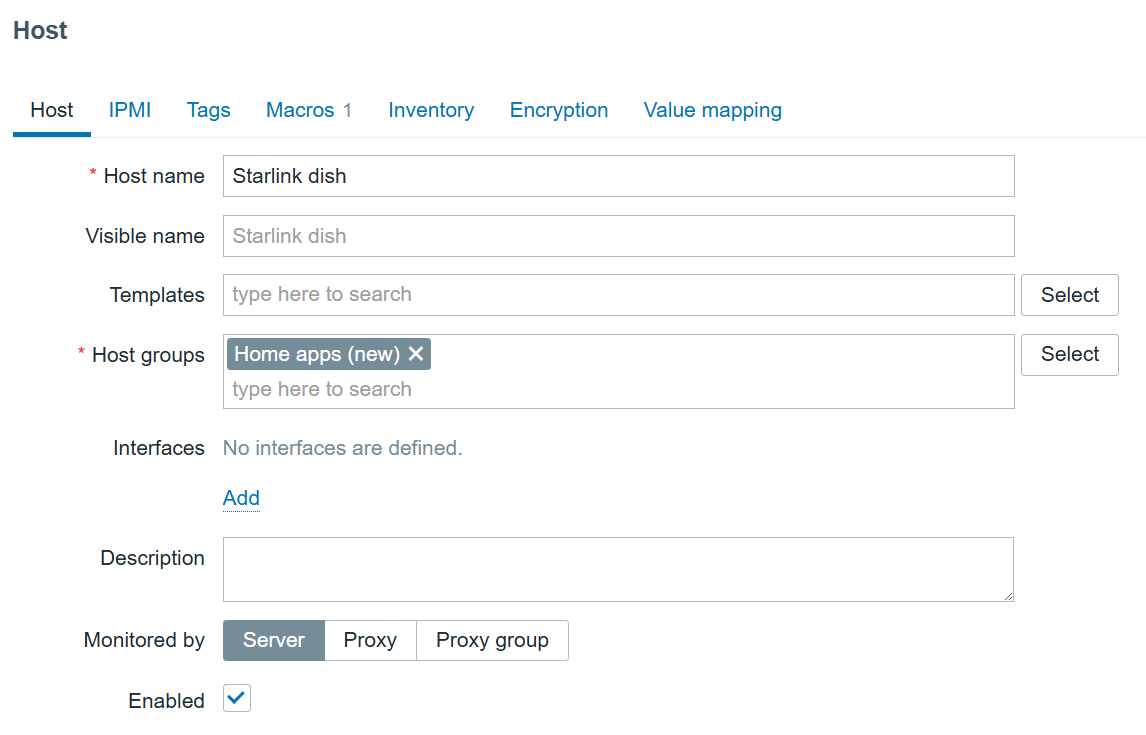
Starlink dish host
Starlink dish host

The host also has a user macro:

{$LINK} with value: http://webapp.starlink.com to point to the correct Starlink dish web app:
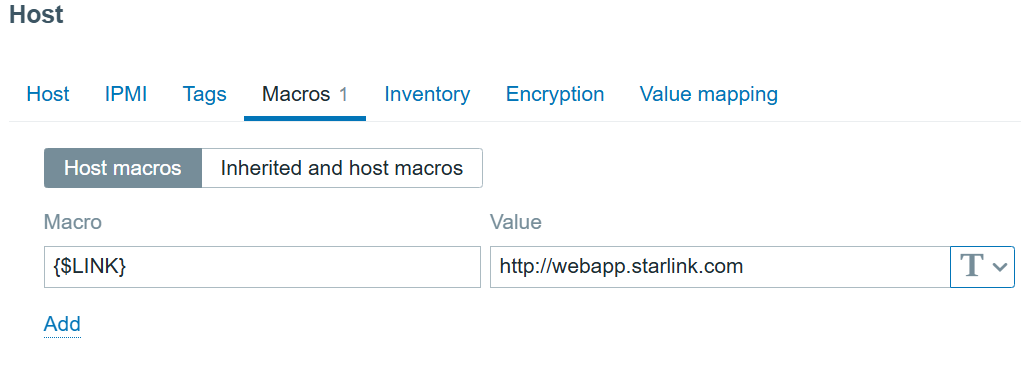
Link macro
Link macro
Creating a browser item

We will now configure our browser item to collect and monitor the list of metrics exposed in the Starlink browser app:
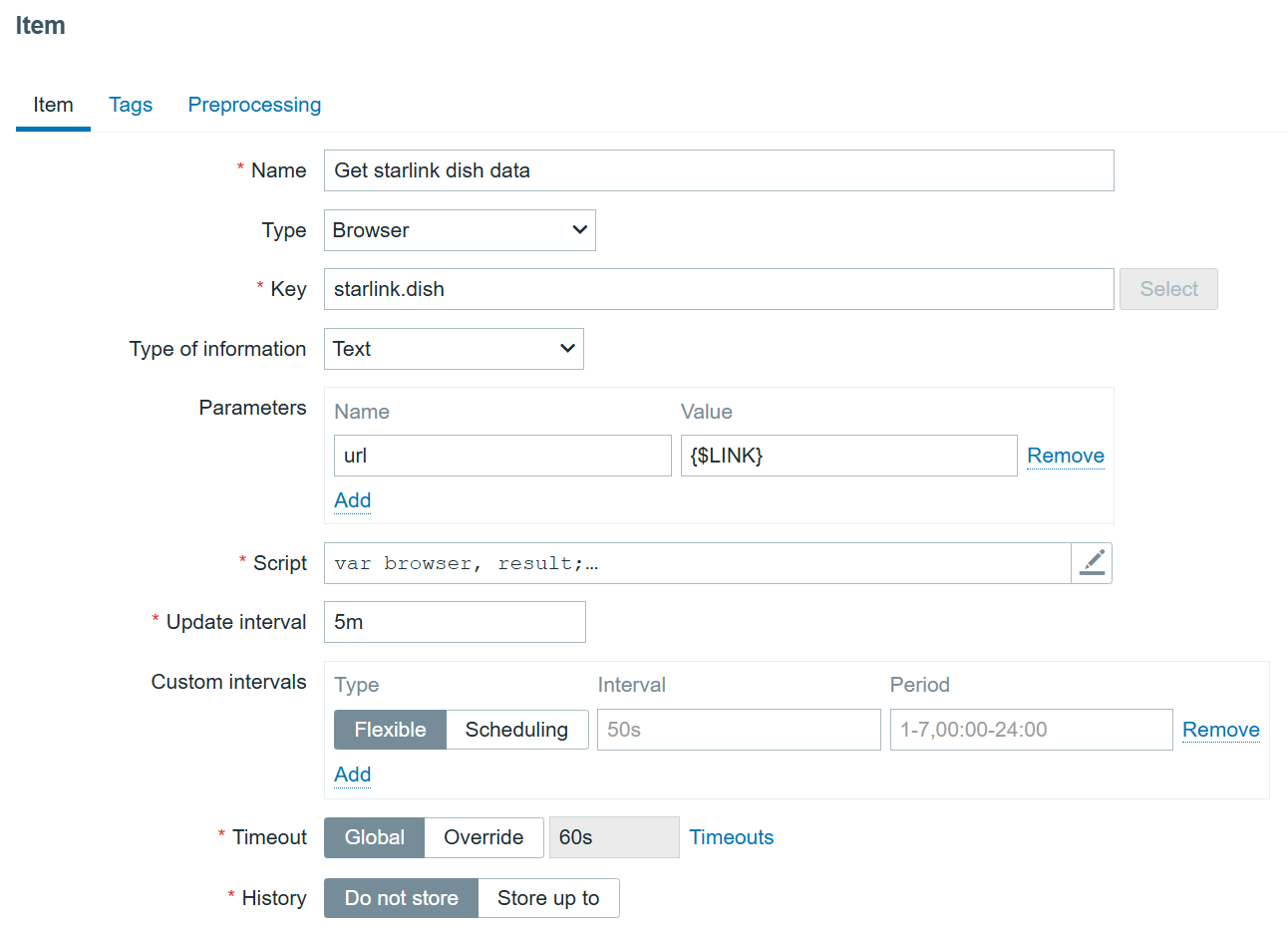
Starlink browser item

We are using the bare minimum here, so make sure the update intervals are as frequent as you need. However, I would not recommend updating it more frequently than every 5 minutes. It’s also not a good idea to store the history, since it is already stored trough dependent items.

The most important part of the item is the script itself:

var browser, result;
var opts = Browser.chromeOptions();

opts.capabilities.alwaysMatch['goog:chromeOptions'].args = [];
browser = new Browser(opts);
browser.setScreenSize(Number(1980), Number(1020));

try {
    var params = JSON.parse(value);
    browser.navigate(params.url);

 // Wait for the dish to report status
    Zabbix.sleep(2000);

    // Find the JSON text element(s)
    var jsonElements = browser.findElements("xpath", "//div[@id='root']/div[@class='App']/div[@class='Main']/div[2]/div[@class='Section'][2]/pre[@class='Json-Format']/div[@class='Json-Text']");
    var extractedData = [];

    for (var i = 0; i < jsonElements.length; i++) {
        var text = jsonElements[i].getText();

        // Try parsing JSON
        try {
            extractedData.push(JSON.parse(text));
        } catch (e) {
            // If not valid JSON, include raw text instead
            extractedData.push({ raw: text, error: "Invalid JSON format" });
        }
    }

    // Collect result 
    result = browser.getResult();

    // Replace with parsed JSON data
    result.extractedJsonData = extractedData.length === 1 ? extractedData[0] : extractedData;

}
catch (err) {
    if (!(err instanceof BrowserError)) {
        browser.setError(err.message);
    }
    result = browser.getResult();
}
finally {
    // Return a clean JSON object
    return JSON.stringify(result.extractedJsonData);
}

So what does this script do? It opens the Starlink web app, waits for the Starlink dish to output all the status data, and, after a bit of parsing, returns the data highlighted in the screenshot:
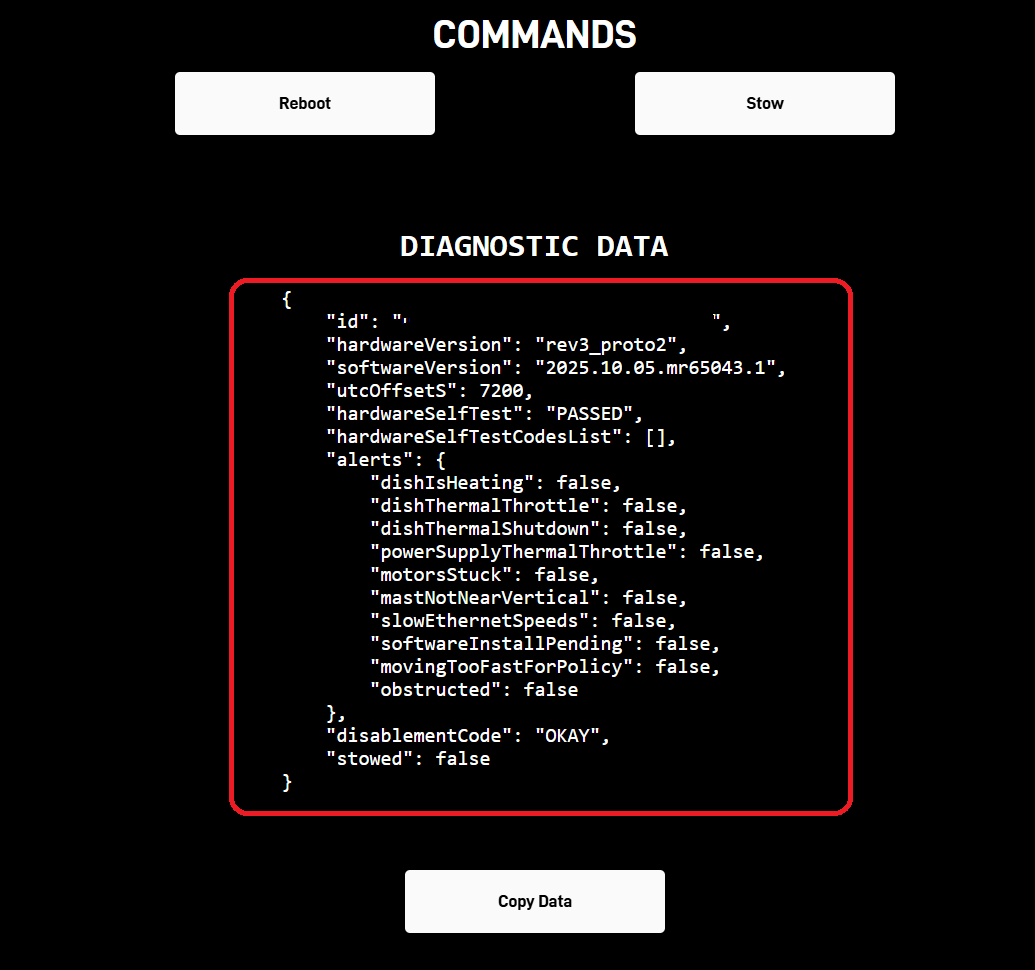
Starlink dish diagnostic data

Now we can click on the three dots on the left of our newly created item in the items page and proceed to create dependent items for each value we are interested in!

Creating dependent items

Now we just click here:
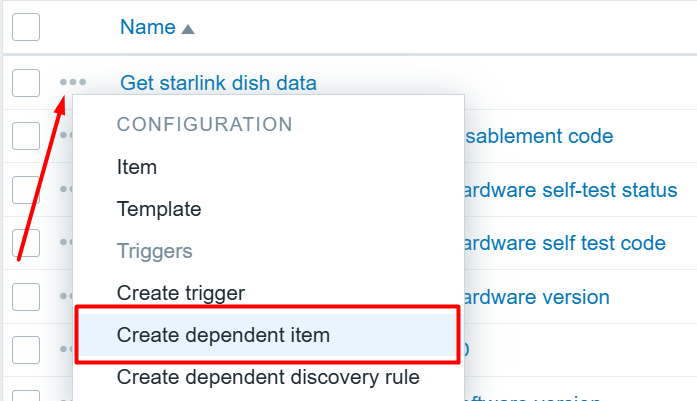
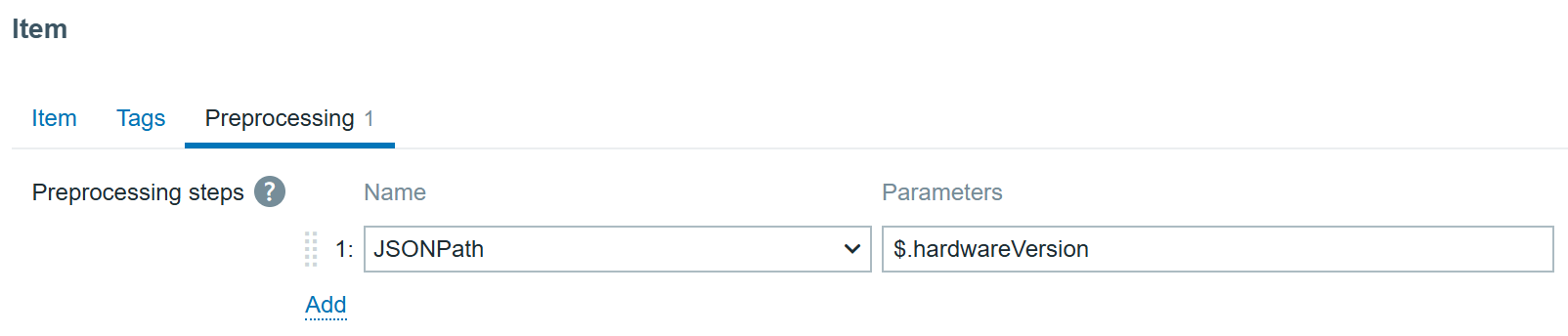
As an example, to create an item that monitors the hardware version we can create an item like this:
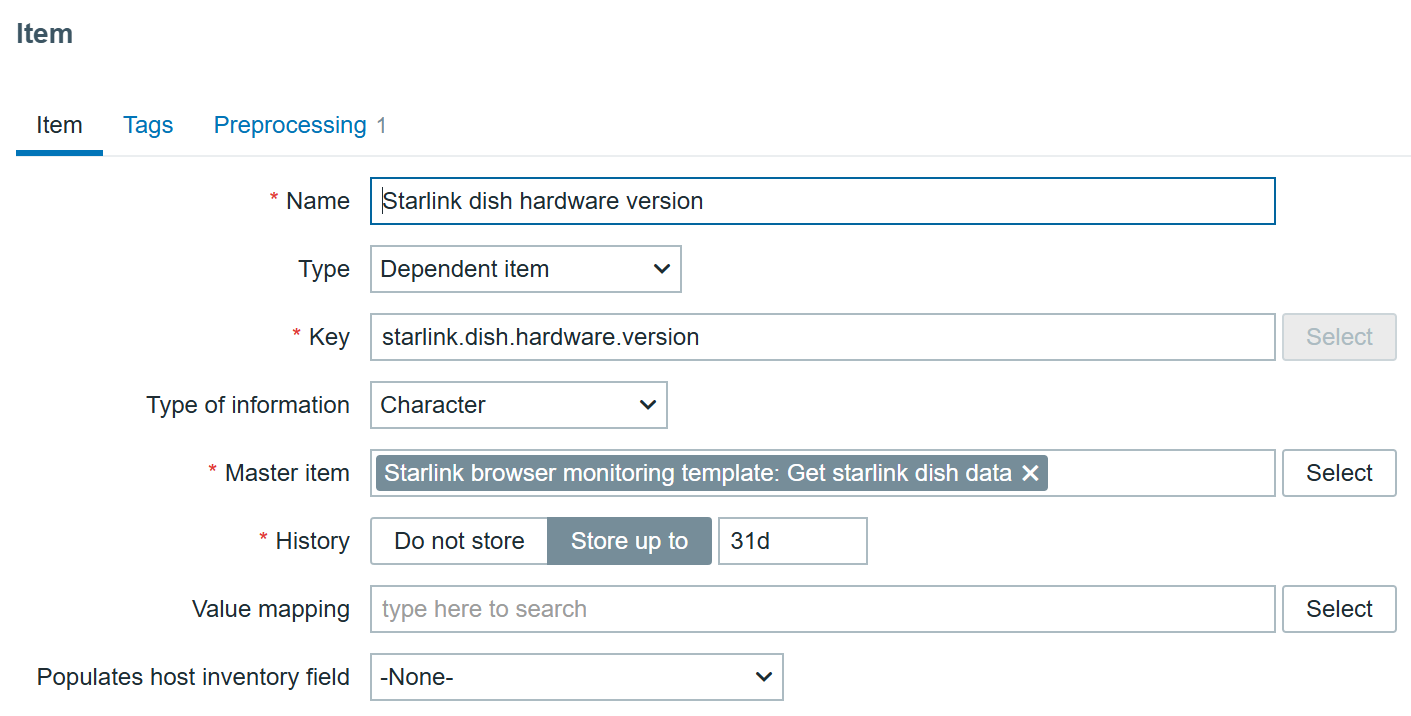
Hardware version dependent item

With JSONPath preprocessing:

Hardware version item preprocessing

In the end we get the data in Zabbix:

Starlink dish hardware version

All other items (except alerts) will follow the same logic – just update the item name, key, and JSONPath in preprocessing to extract the required values.

Creating dependent LLD item prototypes

To automate the alerts items creation, we can create a dependent discovery rule. In the “Discovery” section, create a new discovery rule:
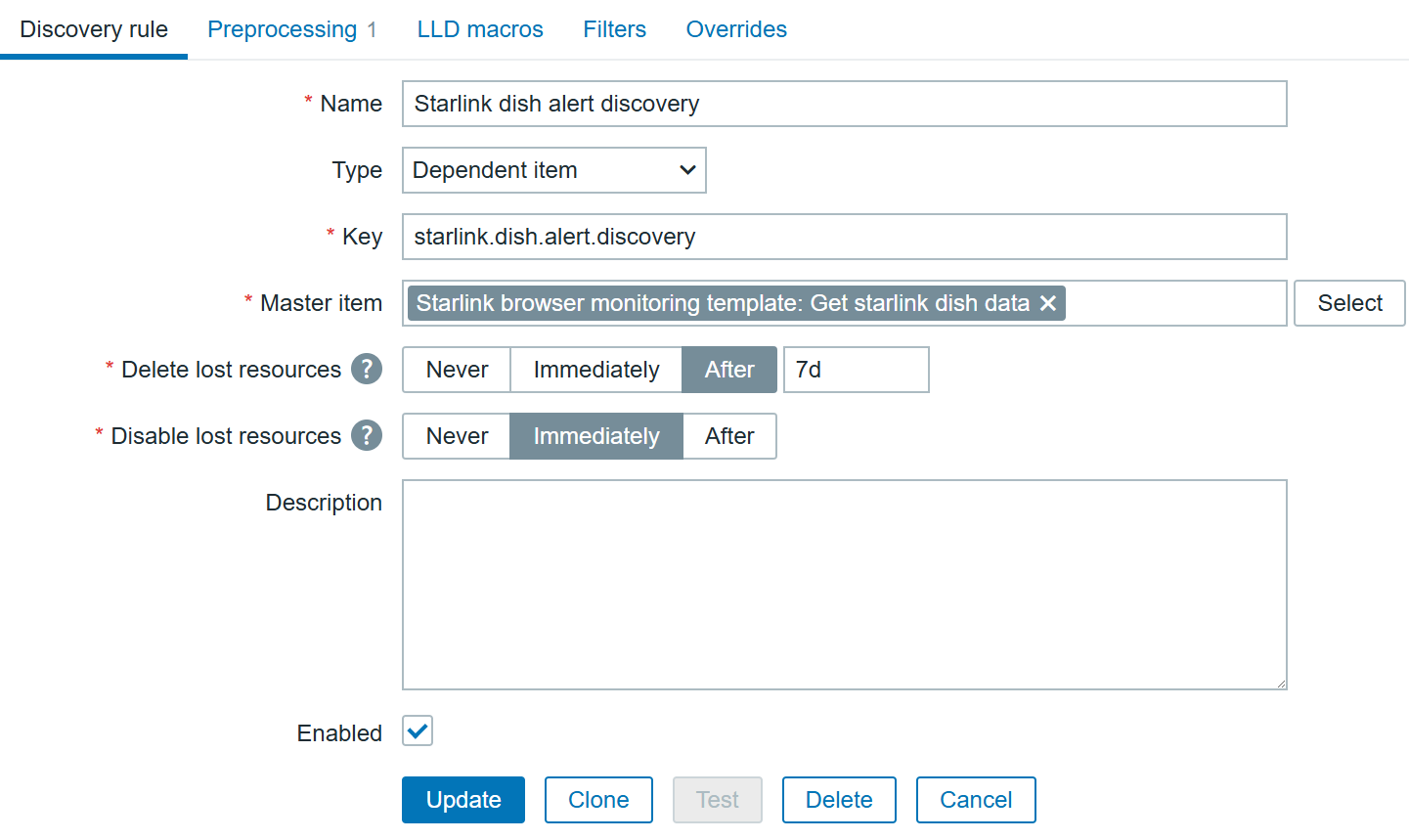
Starlink dish alerts discovery

With preprocessing using Java Script:

var data = JSON.parse(value);
var alerts = data.alerts;
var lld = [];

for (var key in alerts) {
    if (alerts.hasOwnProperty(key)) {
        lld.push({
            "{#ALERT}": key
        });
    }
}

return JSON.stringify({ data: lld });

This will provide us with following JSON data:

{
  "data": [
    {
      "{#ALERT}": "dishIsHeating"
    },
    {
      "{#ALERT}": "dishThermalThrottle"
    },
    {
      "{#ALERT}": "dishThermalShutdown"
    },
    {
      "{#ALERT}": "powerSupplyThermalThrottle"
    },
    {
      "{#ALERT}": "motorsStuck"
    },
    {
      "{#ALERT}": "mastNotNearVertical"
    },
    {
      "{#ALERT}": "slowEthernetSpeeds"
    },
    {
      "{#ALERT}": "softwareInstallPending"
    },
    {
      "{#ALERT}": "movingTooFastForPolicy"
    },
    {
      "{#ALERT}": "obstructed"
    }
  ]
}

All that’s left ‘to do is to create a dependent item prototype:
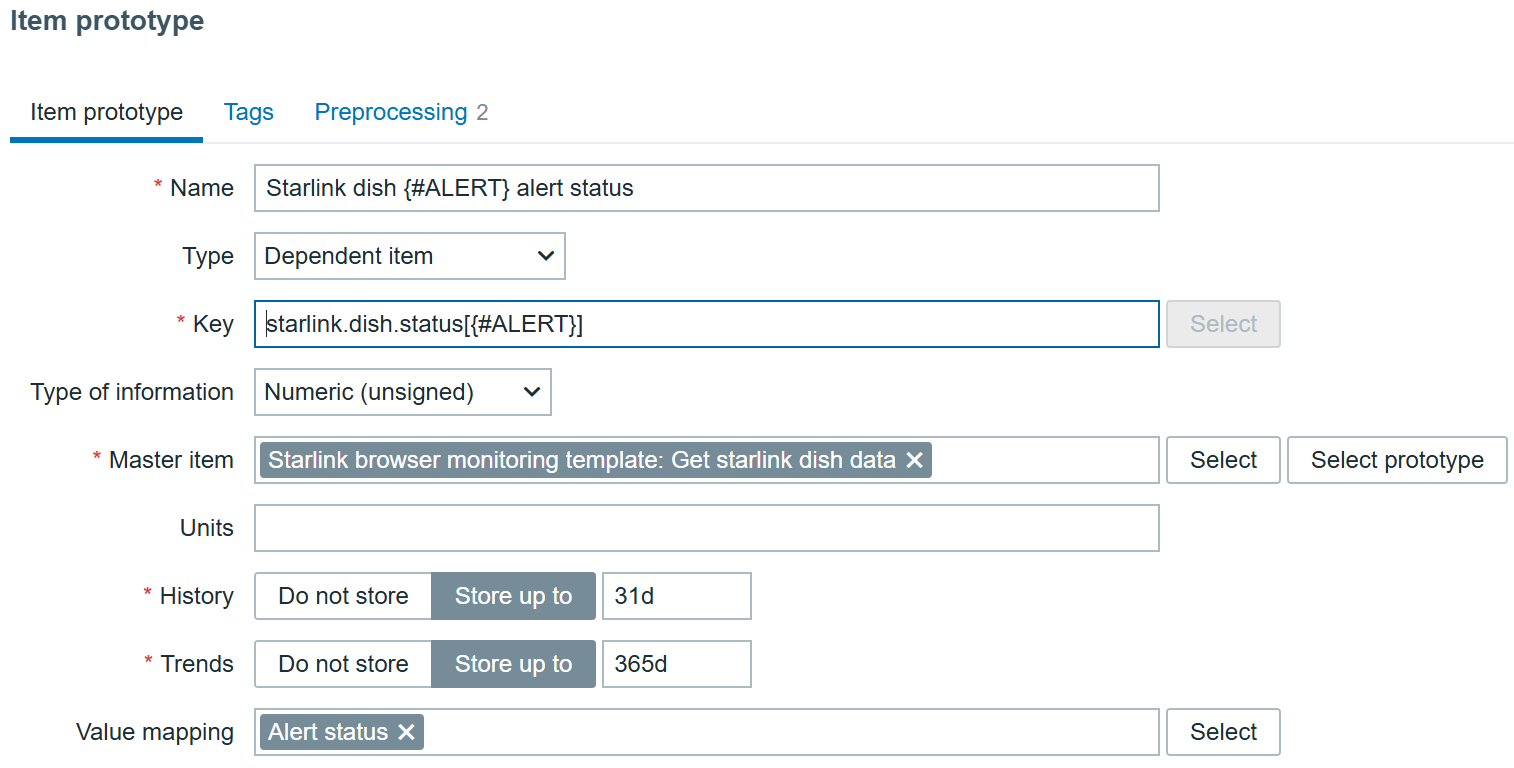
Starlink dish alert prototype

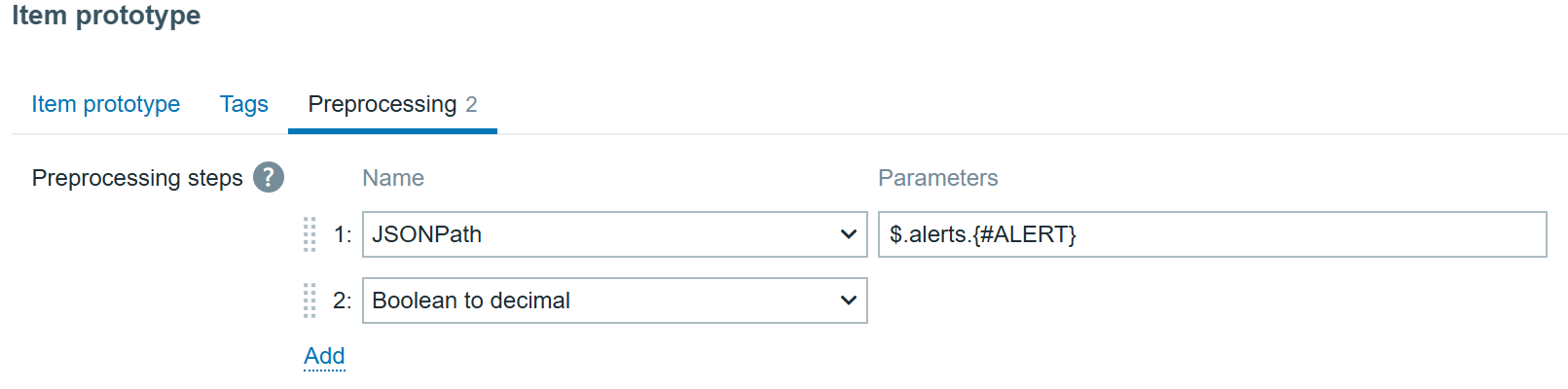
With preprocessing, of course:

JSONPath will transform to extract each specific alert and “Boolean to Decimal” will save us some space in the database by tranforming true/false booleans to digits.

Result

In the end, we can monitor all the data:
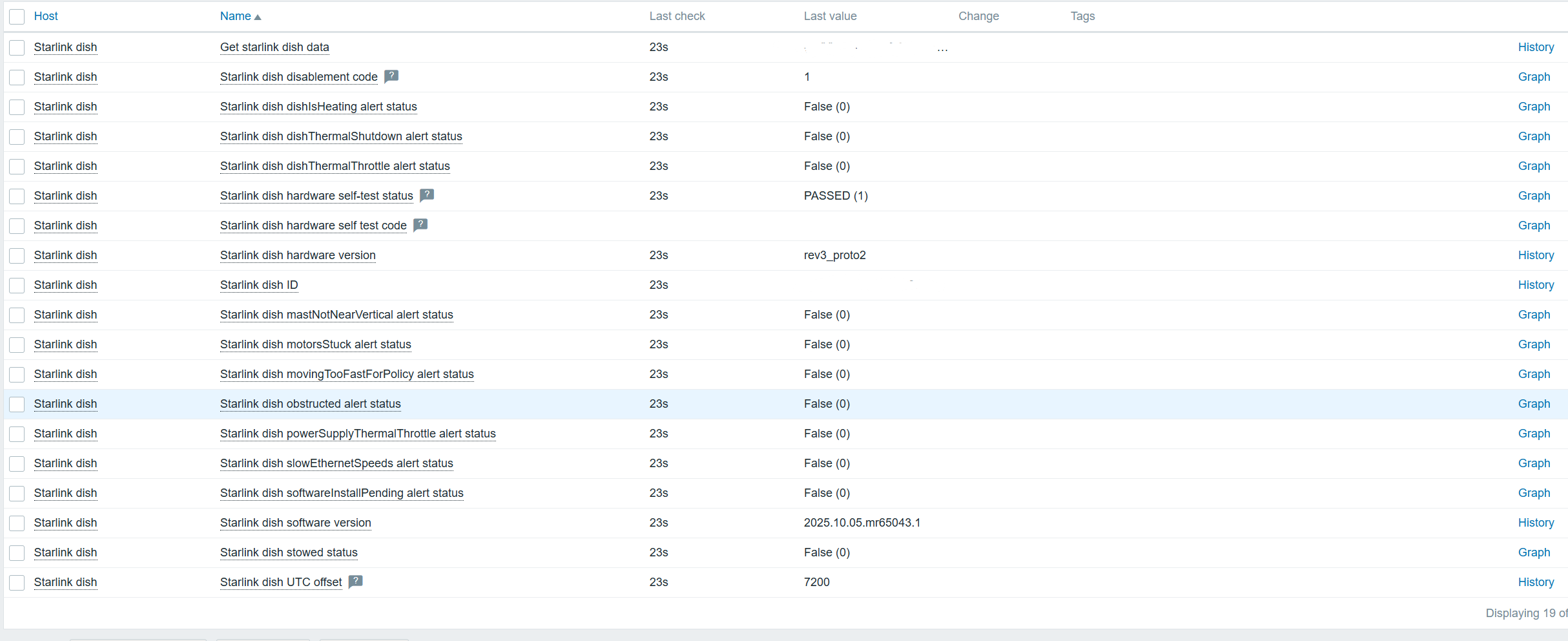
Starlink dish latest data

Even more data can be collected using exporters – if you are willing to do a bit of extra configuration, of course! Let me know if you are interested, and I will show you a completely different approach with a template.

Before I forget, the template used in this tutorial can be found  here.

The post Monitoring a Starlink Dish with Zabbix appeared first on Zabbix Blog.
How to Install Zabbix on Windows with a Linux Subsystem

Post Syndicated from Alexander Petrov-Gavrilov original https://blog.zabbix.com/how-to-install-zabbix-on-windows-with-a-linux-subsystem/30311/

It’s a very well known fact that Zabbix can only be installed on Linux. But what if you are in a Windows environment and getting a Linux machine is not so simple or even possible? This can obstruct the implementation of Zabbix, or at least significantly delay it. Not only that, building a POC outside of the future environment makes data procurement a lot more complicated. Is there a way to work around this and get Zabbix as close to Windows as we possibly can?

WSL

WSL/WSL 2 is a fast and easy solution for installing and using Zabbix in a smaller Windows-dominant environment, be that a POC or a small company office. WSL 2 runs a real Linux kernel in a lightweight VM while being optimized for Windows. This means a faster start, lower resource consumption, and the ability to share files with Windows directly, meaning you can use Windows File explorer to find and manage the VM files.

WSL 2 also allows you to use Linux CLI while working with Windows (i.e. running vim from a Windows terminal and editing Windows files directly). At this point, you may be asking yourself, “Why not Hyper-V and VirtualBox?” Those are definitely options too, but they are quite heavy on system resources. In addition, boot times are a bit longer and sharing files between a host and a guest OS is clunkier.

Maybe Docker Desktop then? It’s an absolutely valid option, but that would require a bit of Docker knowledge and you would still be using WSL, technically speaking. So, with that said, WSL is definitely the fastest and most reliable way to sprung a Zabbix instance in a Windows-focused environment.

We will use WSL 2, but as a note WSL 1 is also available. Here are the differences:

  • WSL 2 is usually the better performer overall, especially for dev environments. It also has better Linux compatibility.
  • WSL 1 Linux files aren’t isolated, which can make them more accessible. In WSL 2, Linux runs in a virtual disk (ext4), so Linux and Windows files are more separate. Integration is still pretty good, however.
  • WSL 2 has better Linux compatibility – systemd, iptables, etc.
  • WSL 1 shared the same IP as Windows, WSL 2 is a VM – some networking required.
  • With WSL 1 you can see Linux running processes in Task Manager. WSL 2 will have processes isolated.

Installing Zabbix using WSL

Install WSL

Open PowerShell as an Administrator and run:

PS C:\Windows\system32> wsl --install

If you’ve already have WSL 1 installed, update it:

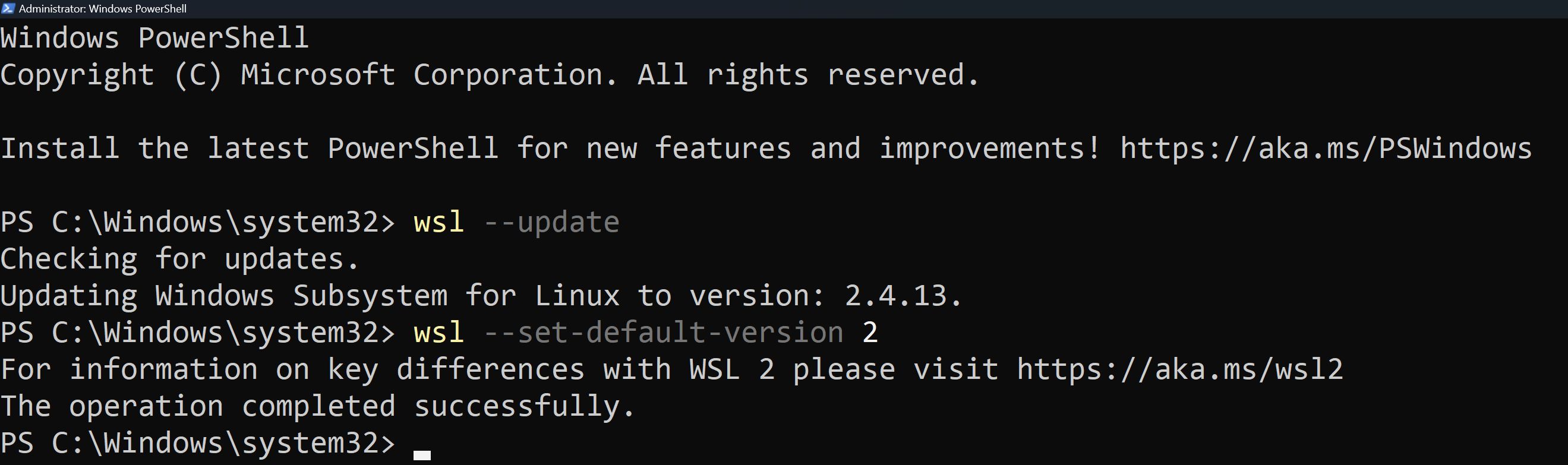
PS C:\Windows\system32> wsl --update

You can also set WSL 2 as default:

PS C:\Windows\system32> wsl --set-default-version 2
WSL installation
WSL installation


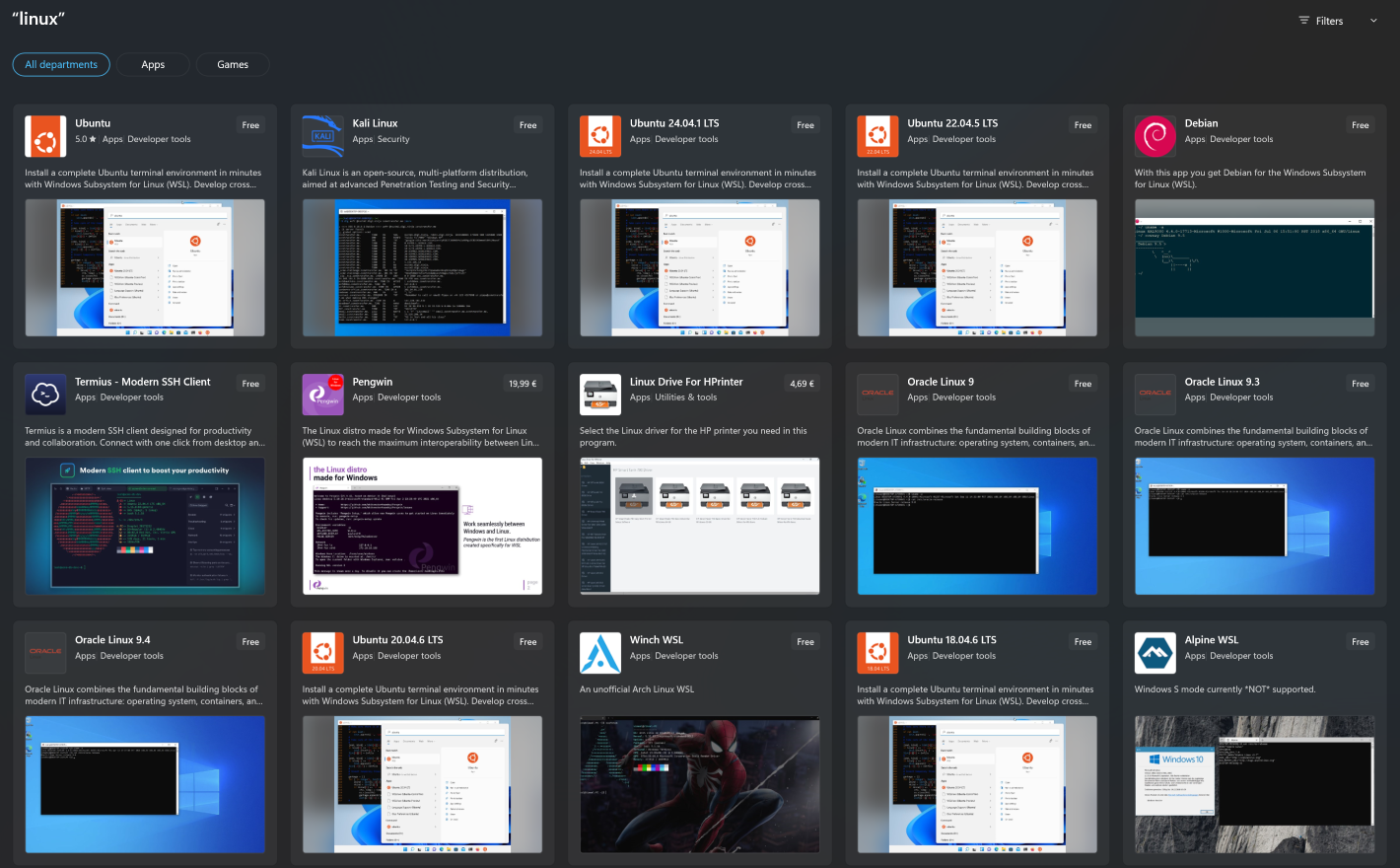
Install/Get preferred Linux Distribution using either Microsoft Store (i.e. Ubuntu, Debian, Oracle Linux) or just download directly. I will be using Oracle Linux 9.4.

Microsoft store WSL images


You can also download the RootFS tarball from the preferred distribution portal, but then the process will be a bit different. Create a folder using PowerShell:

PS C:\Windows\system32> mkdir C:\WSL\OracleLinux9

Copy the .tar.xz file to this folder, then run:

PS C:\Windows\system32> wsl --import OracleLinux9 C:\WSL\OracleLinux9 .\oraclelinux9-rootfs.tar.xz --version 2

After the image is installed or imported, start Oracle Linux using PowerShell:

PS C:\Windows\system32> oraclelinux94

When installation is finished, there is a prompt to create a default UNIX user account and password for the said user, as the username does not need to match your Windows username. I’ll set it to “zabbix” of course, but you can set it to any other.

PS C:\Windows\system32> Enter new UNIX username: 
PS C:\Windows\system32> zabbix
PS C:\Windows\system32> New password: <your-password>
PS C:\Windows\system32> passwd: all authentication tokens updated successfully.
PS C:\Windows\system32> Installation successful!

Now OracleLinux is ready for use!

Prepare the system

You will be immediately logged in to the new environment. If logged out, to log in again just execute in PowerShel:

PS C:\Windows\system32> oraclelinux94

Being logged in, first double check that your selected OS is indeed installed by executing in the PowerShell, which will now serve as your VM CLI access point:

[zabbix@PC-NAME ~]$ cat /etc/os-release
NAME="Oracle Linux Server"
VERSION="9.4"
ID="ol"
ID_LIKE="fedora"
VARIANT="Server"
VARIANT_ID="server"
VERSION_ID="9.4"
PLATFORM_ID="platform:el9"
PRETTY_NAME="Oracle Linux Server 9.4"
ANSI_COLOR="0;31"
CPE_NAME="cpe:/o:oracle:linux:9:4:server"
HOME_URL="https://linux.oracle.com/"
BUG_REPORT_URL=https://github.com/oracle/oracle-linux

Confirmation received, make sure all OS updates are installed:

[zabbix@PC-NAME ~]$ sudo dnf update -y

When the update process is finished, you will need to decide whether you would like to use systemd or not (this may increase booting time). I will enable systemd. To do this, edit the wsl.conf on the Linux subsystem:

vi /etc/wsl.conf

Add to the newly created file:

[boot]
systemd=true

Reboot the images (this command will reboot all of them):

PS C:\Windows\system32> wsl.exe --shutdown

Start back your Linux distribution:

PS C:\Windows\system32> oraclelinux94

Install Zabbix database

We will need to prepare the database engine. Again, any preferred database engine can be used, in this case I install and configure MariaDB:

[zabbix@PC-NAME ~]$ sudo dnf install -y mariadb-server mariadb
[zabbix@PC-NAME ~]$ sudo systemctl enable --now mariadb

Confirm MariaDB is running:

[zabbix@PC-NAME ~]$ Systemctl status mariadb

mariadb.service - MariaDB 10.5 database server
     Loaded: loaded (/usr/lib/systemd/system/mariadb.service; enabled; preset: disabled)
     Active: active (running) since Tue 2025-04-29 12:39:54 EEST; 3min 55s ago
       Docs: man:mariadbd(8)
             https://mariadb.com/kb/en/library/systemd/
   Main PID: 235 (mariadbd)
     Status: "Taking your SQL requests now..."
      Tasks: 9 (limit: 26213)
     Memory: 109.6M
     CGroup: /system.slice/mariadb.service
             └─235 /usr/libexec/mariadbd --basedir=/usr

After confirmation, secure it a bit by creating a root password and selecting the options in bold:

[zabbix@PC-NAME ~]$ sudo mysql_secure_installation 

Enter current password for root (enter for none):
OK, successfully used password, moving on...

Setting the root password or using the unix_socket ensures that nobody
can log into the MariaDB root user without the proper authorisation.

You already have your root account protected, so you can safely answer 'n'.

Switch to unix_socket authentication [Y/n] n
 ... skipping.

You already have your root account protected, so you can safely answer 'n'.

Change the root password? [Y/n] Y
New password:
Re-enter new password:
Password updated successfully!
Reloading privilege tables..
 ... Success!

Remove anonymous users? [Y/n] Y
 ... Success!

Disallow root login remotely? [Y/n] Y
 ... Success!

Remove test database and access to it? [Y/n] Y


Reload privilege tables now? [Y/n] Y

 ... Success!

Cleaning up...

All done!  If you've completed all of the above steps, your MariaDB
installation should now be secure.

Thanks for using MariaDB!

Now to create the Zabbix database. Log in to MariaDB:

[zabbix@PC-NAME ~]$ sudo mysql -u root -p 
[zabbix@PC-NAME ~]$ Enter password: <enter your password, won’t be visible>

Follow the steps from the Zabbix installation page:

MariaDB [(none)]> create database zabbix character set utf8mb4 collate utf8mb4_bin;
MariaDB [(none)]> create user zabbix@localhost identified by '<custom-password>';
MariaDB [(none)]> grant all privileges on zabbix.* to zabbix@localhost;
MariaDB [(none)]> set global log_bin_trust_function_creators = 1;

MariaDB [(none)]> quit;

Installing Zabbix

Install the Zabbix repository:

[zabbix@PC-NAME ~]$ sudo dnf install https://repo.zabbix.com/zabbix/7.0/centos/9/x86_64/zabbix-release-latest-7.0.el9.noarch.rpm
[zabbix@PC-NAME ~]$ dnf clean all

Proceed to install the Zabbix server, frontend, and agent:

[zabbix@PC-NAME ~]$ sudo dnf -y install zabbix-server-mysql zabbix-web-mysql zabbix-apache-conf zabbix-sql-scripts zabbix-selinux-policy zabbix-agent
...
[zabbix@PC-NAME ~]$zabbix-agent-7.0.12-release1.el9.x86_64 zabbix-apache-conf-7.0.12-release1.el9.noarch zabbix-selinux-policy-7.0.12-release1.el9.x86_64  zabbix-server-mysql-7.0.12-release1.el9.x86_64 zabbix-sql-scripts-7.0.12-release1.el9.noarch
 zabbix-web-7.0.12-release1.el9.noarch zabbix-web-deps-7.0.12-release1.el9.noarch zabbix-web-mysql-7.0.12-release1.el9.noarch

Complete!

Now import the initial database schema:

[zabbix@PC-NAME ~]$ zcat /usr/share/zabbix-sql-scripts/mysql/server.sql.gz | mysql -u zabbix -p zabbix
Enter password: <enter your DB user password and wait until you will see the next line appear>
[root@ZBX-5CD3221K14 zabbix]#

Disable the log_bin_trust_function_creators option after import has finished:

# mysql -uroot -p
password
MariaDB [(none)]>  set global log_bin_trust_function_creators = 0;
MariaDB [(none)]>  quit;

Add your Zabbix user database password to the Zabbix server configuration file:

[zabbix@PC-NAME ~]$ vi /etc/zabbix/zabbix_server.conf
### Option: DBPassword
#       Database password.
#       Comment this line if no password is used.
#
# Mandatory: no
# Default:
DBPassword=<your-DB-user-password>

Start the Zabbix server and frontend and add them to autorun:

[zabbix@PC-NAME ~]$  systemctl restart zabbix-server zabbix-agent httpd php-fpm
[zabbix@PC-NAME ~]$  systemctl enable zabbix-server zabbix-agent httpd php-fpm
Created symlink /etc/systemd/system/multi-user.target.wants/zabbix-server.service → /usr/lib/systemd/system/zabbix-server.service.
Created symlink /etc/systemd/system/multi-user.target.wants/zabbix-agent.service → /usr/lib/systemd/system/zabbix-agent.service.
Created symlink /etc/systemd/system/multi-user.target.wants/httpd.service → /usr/lib/systemd/system/httpd.service.
Created symlink /etc/systemd/system/multi-user.target.wants/php-fpm.service → /usr/lib/systemd/system/php-fpm.service.

Installation of the backend is now finished, but we still need the frontend.

Exposing and installing the Zabbix frontend for WSL

Since WSL2 does not expose services to localhost by default, you need to determine the WSL IP:

[zabbix@PC-NAME ~]$ ip addr show eth0
2: eth0: <BROADCAST,MULTICAST,UP,LOWER_UP> mtu 1500 qdisc mq state UP group default qlen 1000
    link/ether 00:15:5d:47:32:c6 brd ff:ff:ff:ff:ff:ff
    inet 172.29.128.155/20 brd 172.29.143.255 scope global eth0
       valid_lft forever preferred_lft forever
    inet6 fe80::215:5dff:fe47:32c6/64 scope link
       valid_lft forever preferred_lft forever

Look for an IP like 172.x.x.x, then using your browser go to:

http://<WSL_IP>/zabbix

In this example, that would be: 

http://172.29.128.155/zabbix

You can also port forward WSL to localhost with netsh in PowerShell:

PS C:\Windows\system32> netsh interface portproxy add v4tov4 listenport=8080 listenaddress=127.0.0.1 connectport=80 connectaddress=<WSL_IP>

Then you will be able to access Zabbix from http://localhost:8080/zabbix. Now, just finish the standard frontend setup and Zabbix is ready to use!

WSL advantages

Some extra advantages you get with this approach include clearer resource usage visibility:

WSL Task manager


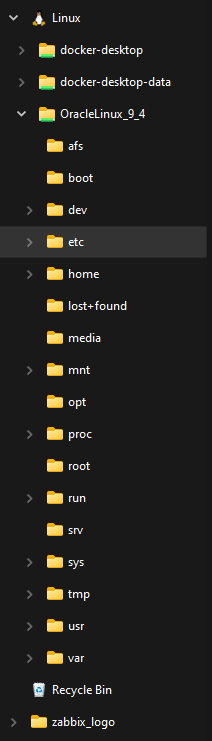
Direct access to the Linux subsystem files through File explorer with your favorite Windows tools:

Linux subsystem file explorer


As you can see, docker is here as well. System and configuration files are also visible and editable:

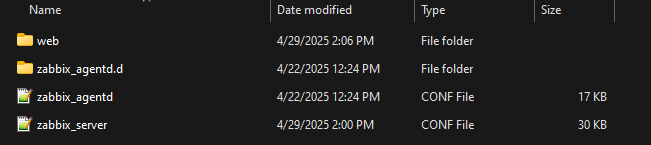
File explorer Zabbix config files


Now you can proceed with building your Zabbix or Zabbix POC, (almost) without needing to leave your regular Windows environment!

The post How to Install Zabbix on Windows with a Linux Subsystem appeared first on Zabbix Blog.
Database Monitoring using Zabbix agent 2 – Part 1, SQL

Post Syndicated from Alexander Petrov-Gavrilov original https://blog.zabbix.com/database-monitoring-using-zabbix-agent-2-part-1-sql/30381/

If you find yourself needing additional flexibility when it comes to database monitoring, Zabbix agent 2 may be exactly what you need. Keep reading to see which features make it ideal for database monitoring and find out how to best use them for your own purposes. 

What is a database?

If you’ve been using Zabbix for a while, you know that a database is an organized collection of data that is stored and accessed electronically.
That data can be historical, configuration, business, social media-related, etc. A database, or rather a database management system (DBMS) allows you to store, manage, and retrieve information efficiently.

Types of DBMS

We can separate DBMS into multiple types. Depending on how data is stored, retrieved, managed, there can be quite a few, but we will try to limit ourselves to the most common four:

  • Relational databases (or RDBMS) see tables and SQL.
    • MySQL
    • MariaDB
    • PostgreSQL
    • Oracle
  • NoSQL databases store data in formats like JSON, key-value pairs, or graphs.
    • MongoDB
    • Redis
    • InfluxDB
    • ElasticSearch
  • Cloud databases use cloud platforms for scalability.
    • Amazon RDS
    • Azure SQL
  • Time-series databases (or TSDB databases) are optimized for time-stamped data.
    • TimescaleDB
    • InfluxDB

But what unites all those database engines? They can all be monitored by Zabbix!

Database monitoring

Database monitoring is important for a variety of reasons, the most common of which are to get a precise overview of database and application performance. Since databases can be a vital part of multiple departments and applications,  poor performance may impact an entire company and its users, leading to unsatisfactory results on all sides.

To avoid such situations, the set of metrics we should monitor for database engines can include:

  • Database environment metrics
    • CPU performance
    • Memory usage
    • Drive capacity
    • Disk latency
  • Database performance metrics
    • Query performance
    • Transaction/operations/indexing
    • Connections
  • Application and/or business related data
    • Amount of users
    • Transactions
    • Inventory
    • Configuration      

Why Zabbix agent 2?

Zabbix Agent 2 includes multiple features that enhance its flexibility:

  • Task queue management with respect to both schedule and task concurrency.
  • Concurrent active checks with threads.
  • Multiple agent 2 unique metrics
  • Easier to extend using GO plugins.

Plugins in Zabbix Agent 2 are written in the Go programming language and provide a flexible, native way to extend the agent’s functionality. These plugins communicate directly with databases using their native APIs or libraries, which allows for correct and efficient performance monitoring.

But agent2 provides even more flexibility when focusing on database monitoring, allowing us to:

  • Limit query execution
  • Control the session time
  • Configure encryption between Zabbix agent and database
  • Control cache mode

All database data is collected using the best approach for the monitored database.

  • MySQL, monitoring relies on the Go-MySQL-Driver
  • PostgreSQL integration is managed through the pgx driver

The list goes on for supported database engines:

  • MySQL / MariaDB
  • PostgreSQL
  • ORACLE
  • MSSQL
  • MongoDB
  • Redis
  • Memcached

Monitoring SQL databases

Database environment

In this part we will focus on how to monitor and retrieve data from SQL databases and SQL database-related parameters. Monitoring SQL database environment metrics with Zabbix agent 2 is as straightforward as monitoring any virtual or physical machine with an OS. All we need to do is add the repo:

# dnf install https://repo.zabbix.com/zabbix/7.0/centos/9/x86_64/zabbix-release-latest-7.0.el9.noarch.rpm

Install the agent:

# dnf install zabbix-agent2

Then, make sure that connections from Zabbix server to Zabbix agent 2 are allowed using Server parameter:

### Option: Server
#       List of comma delimited IP addresses, optionally in CIDR notation, or DNS names of Zabbix servers and Zabbix proxies.
#       Incoming connections will be accepted only from the hosts listed here....
# Mandatory: no
# Default:
# Server=
Server=127.0.0.1,server-dns.example.com

Finally, link one of the many templates available out of the box:

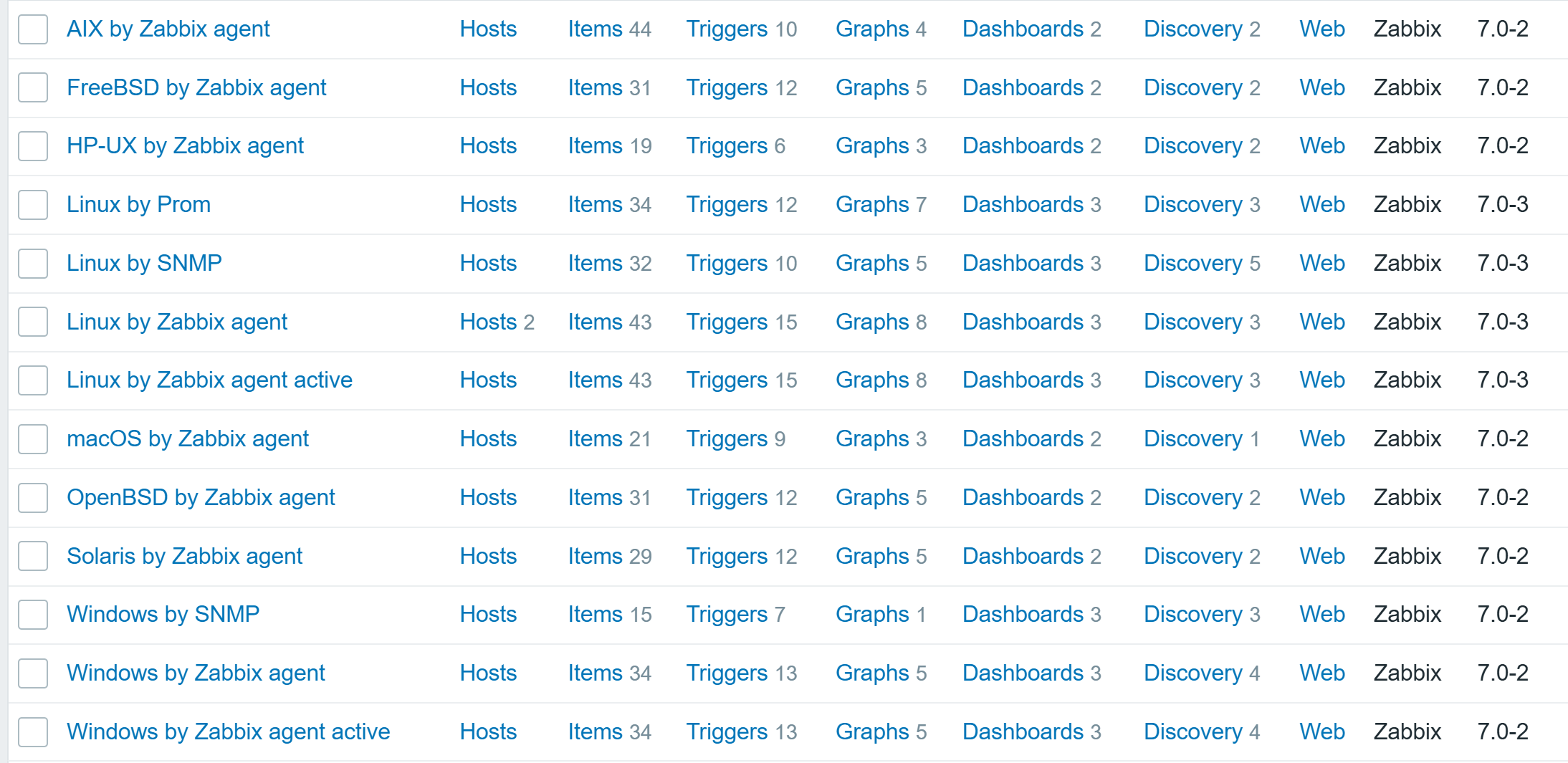
List of templates for OS monitoring

SQL database performance metrics

What about the actual DB performance metrics? There are plenty of approaches we can take using Zabbix agent 2.

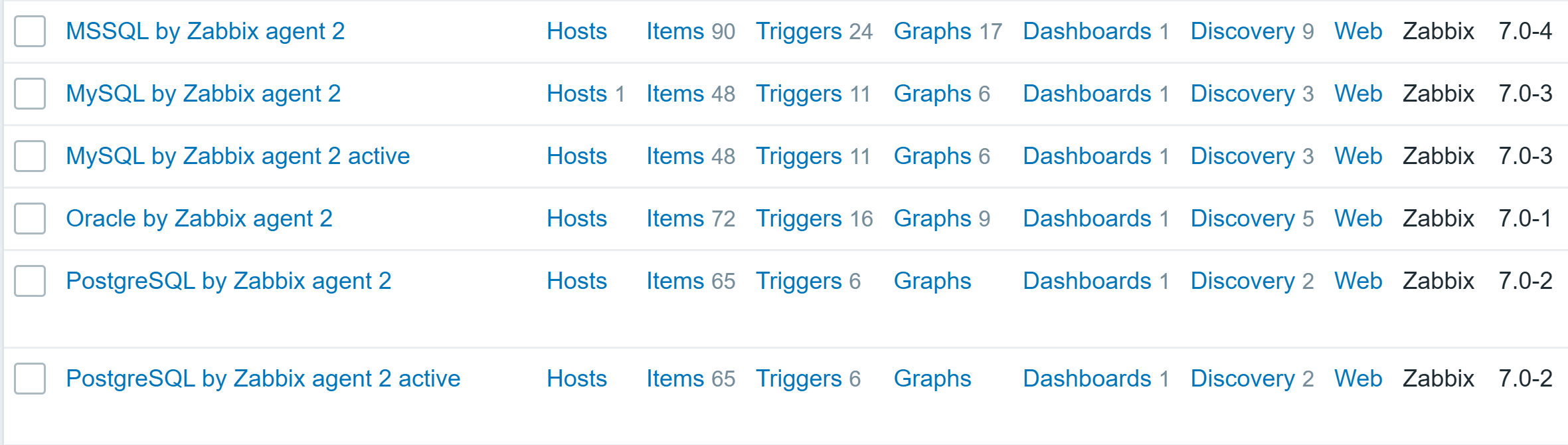
Out-of-the-box templates are available for multiple databases that can be monitored by Zabbix agent 2:

SQL database template list

Each of the templates uses a database native way to get precise performance data, such as SHOW GLOBAL STATUS for MySQL or dbStats for MongoDB. Also, template provides instructions on how to prepare the database for monitoring. Let’s take MySQL/MariaDB for example:

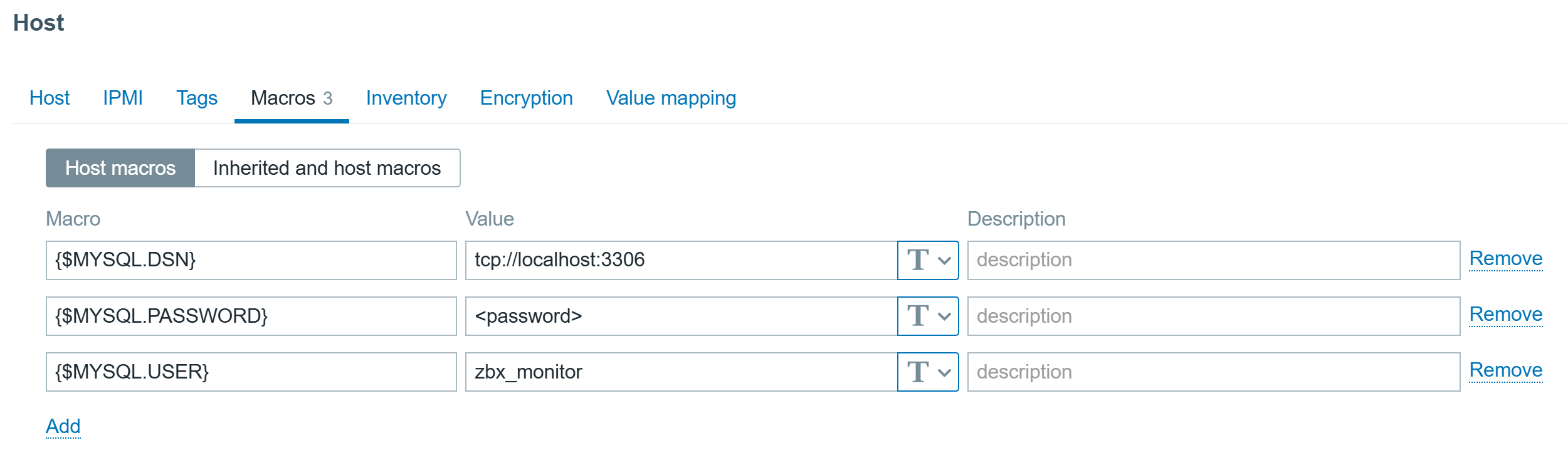
Create a MySQL user for monitoring (<password> at your discretion) and give this user enough permissions for monitoring:

mysql> CREATE USER 'zbx_monitor'@'%' IDENTIFIED BY '<password>';
mysql> GRANT REPLICATION CLIENT,PROCESS,SHOW DATABASES,SHOW VIEW ON *.* TO 'zbx_monitor'@'%';

In order to collect replication metrics, MariaDB Enterprise Server 10.5.8-5 and above and MariaDB Community Server 10.5.9 and above require the SLAVE MONITOR privilege to be set for the monitoring user. The command then looks like this:

mysql> GRANT REPLICATION CLIENT,PROCESS,SHOW DATABASES,SHOW VIEW,SLAVE MONITOR ON *.* TO 'zbx_monitor'@'%';

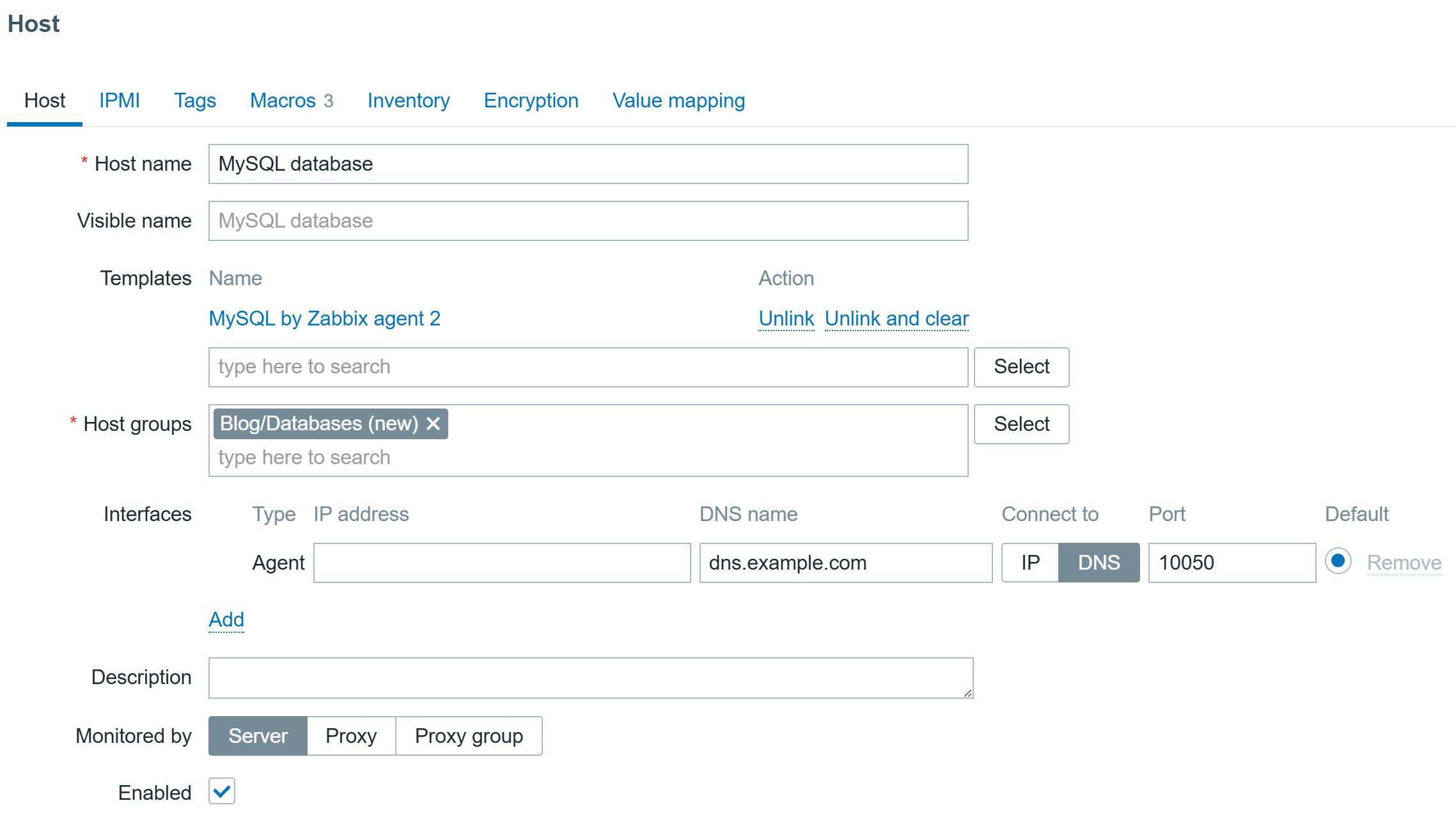
Then create a host to represent your MySQL/MariaDB and link the “MySQL by Zabbix agent 2” template:

MySQL database host
MySQL database host

Configure the Macros on the same host:

MySQL database host macros

And the data will start pouring in!

You can find instruction for other databases here.

SQL database internal data monitoring

A default template will tell us a lot about performance, but what if we also need application data? Something that is stored in the database, i.e.

  • Number of orders
  • Logged in users
  • Host count
  • List of failed transactions
  • Amount of media uploaded

Zabbix agent 2 lets users collect custom SQL query results with the help of configuration files and a specific item key:

<dbtype>.custom.query[connString,<user>,<password>,queryName,<args...>]:
• Dbtype – mysql, postgresql, oracle, mssql
• connString - URI or session name;
• user, password - Database login credentials;
• queryName - name of a custom query, matches SQL file name without .sql extension;
• args - one or several comma-separated arguments to pass to a query.

The main idea of this key is to construct efficient queries that can return multiple values. The values returned will be automatically transformed to JSON, which is both easier to preprocess and use for LLD creation.

I will add a simple query to find all hosts and their main interface availability in Zabbix:

SELECT hosts.host,interface.available FROM zabbix.hosts JOIN zabbix.interface ON hosts.hostid=interface.hostid WHERE hosts.status IN (0,1) AND hosts.flags IN (0,4) AND interface.main=1;

First I need to create a directory for custom queries:

# mkdir /etc/zabbix/zabbix_agent2.d/plugins.d/custom_queries

Now I will create an .sql file with a query and paste the mentioned query into the file:

# nano /etc/zabbix/zabbix_agent2.d/plugins.d/custom_queries/interfaces.sql    

Now I will edit the MySQL plugin .conf file and set a custom queries path:

# nano /etc/zabbix/zabbix_agent2.d/plugins.d/mysql.conf
### Option: Plugins.Mysql.CustomQueriesPath
#       Full pathname of a directory containing *.sql* files with custom queries.
#
# Mandatory: no
# Default:
# Plugins.Mysql.CustomQueriesPath=
Plugins.Mysql.CustomQueriesPath=/etc/zabbix/zabbix_agent2.d/plugins.d/custom_queries/

Save the changes and restart Zabbix agent 2 to apply them:

# systemctl restart zabbix-agent2

Before adding the item using the web interface, it is always a good idea to test it:

zabbix_agent2 -t mysql.custom.query["tcp://localhost:3306","zbx_monitor","<password>","interfaces"]

The output will is now a easy to work with JSON pattern (beautified here):

[
  {
    "available": "1",
    "host": "Zabbix server"
  },
  {
    "available": "1",
    "host": "Test environment"
  },
  {
    "available": "1",
    "host": "MySQL database"
  },
  {
    "available": "1",
    "host": "MongoDB database"
  },
  {
    "available": "1",
    "host": "PostgreSQL database"
  },
  {
    "available": "1",
    "host": "Customer portal"
  }
]

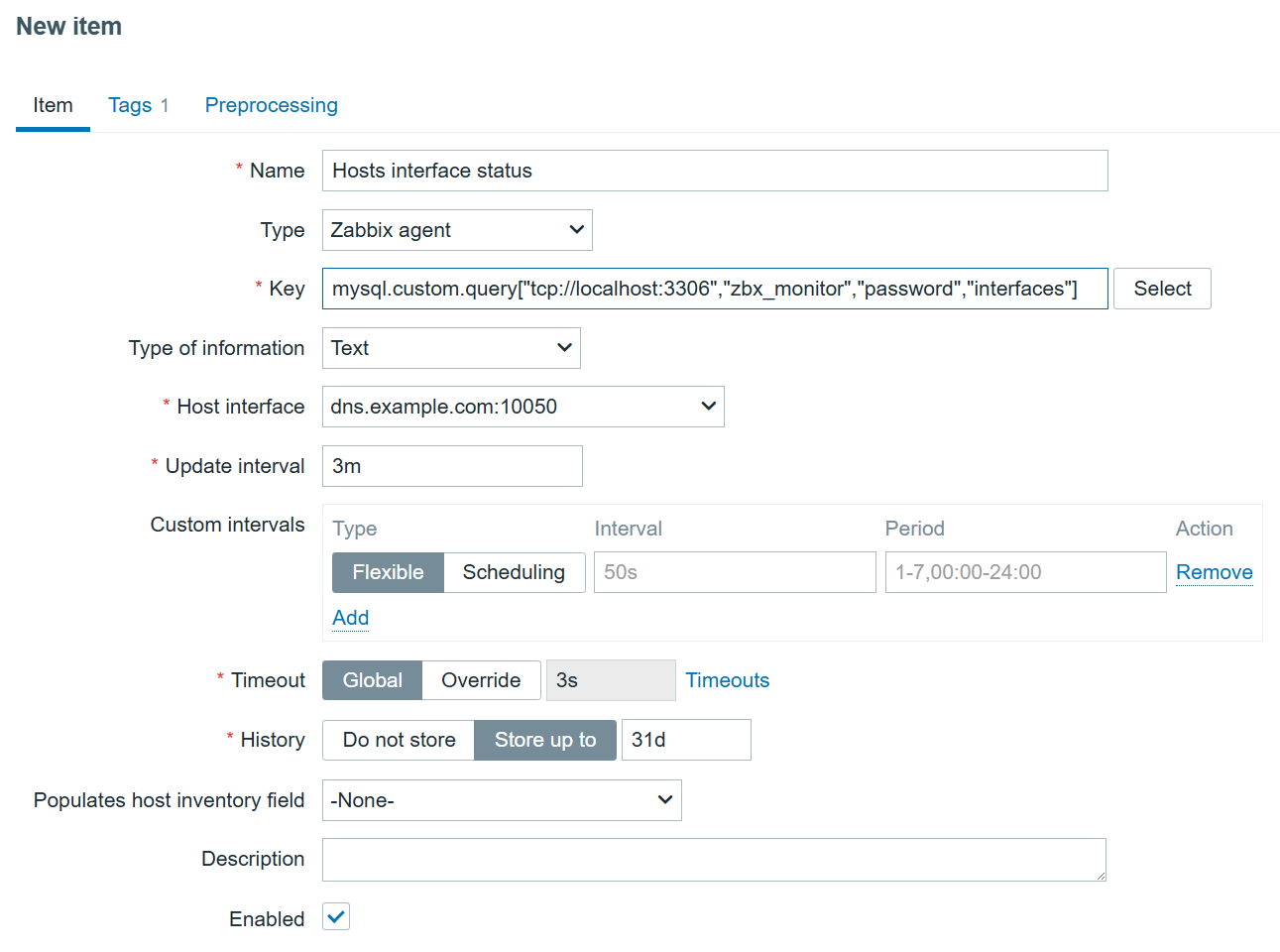
Now, I’m sure the data is collected and can be used for LLD. I can create a new item on the MySQL database host to collect this data:

Interface monitoring item

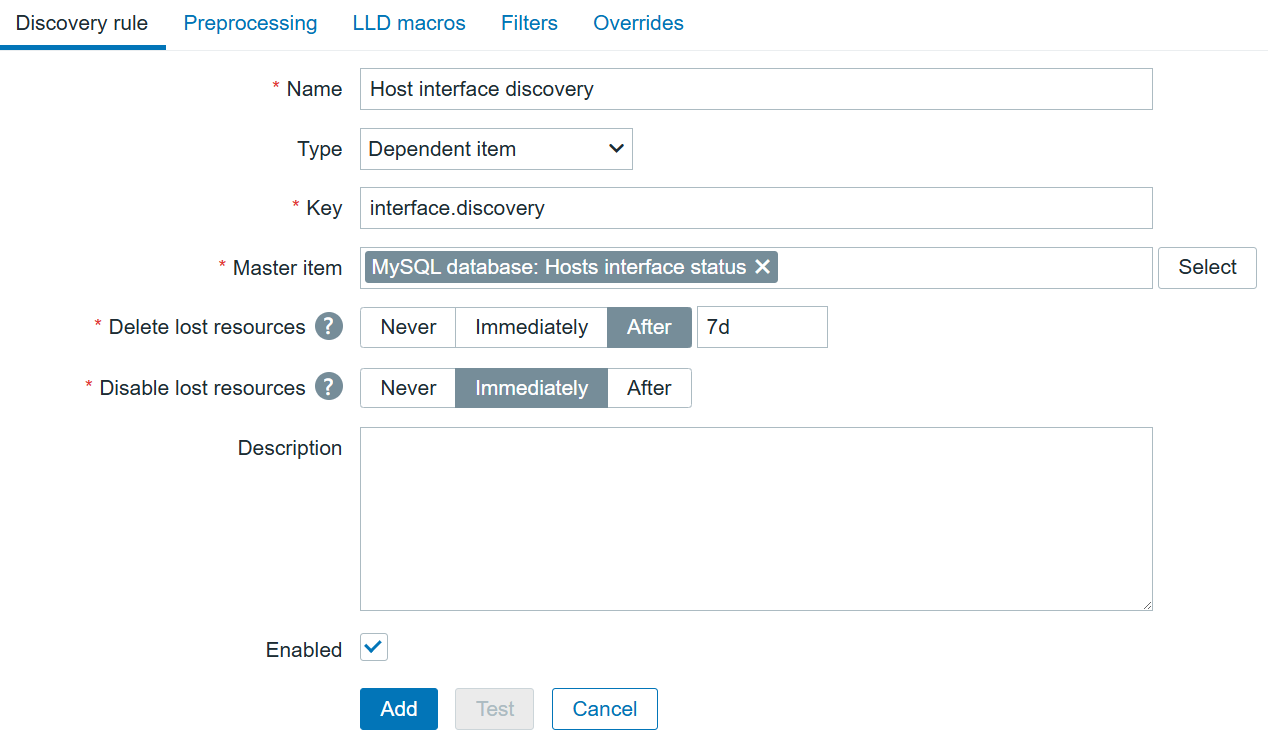
Since I know what kind of data will be returned, I can create a dependent Discovery rule on the same host:

Interface LLD item
Interface LLD item

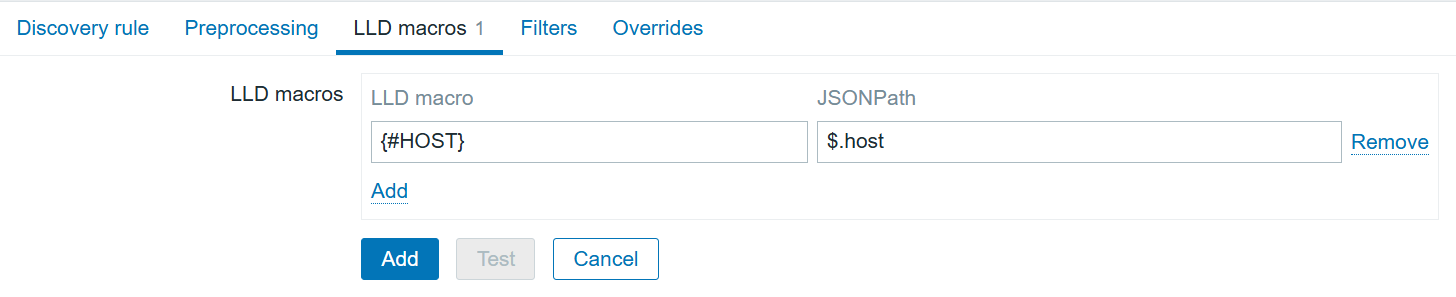
The LLD macros tab will help to transform the current JSON to the LLD-suitable JSON, replacing “host” with {#HOST}.

Interface LLD item mecros
Interface LLD item macros

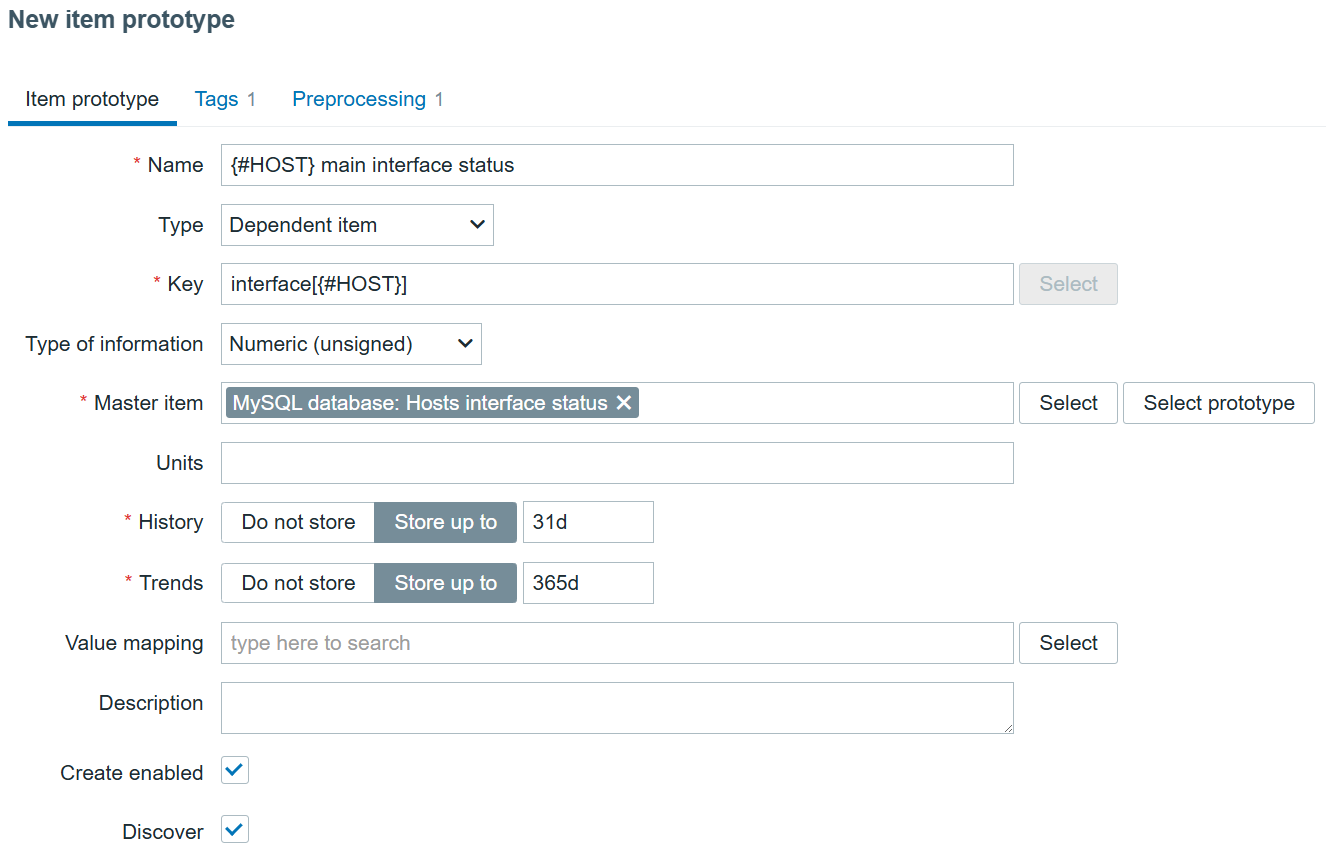
After adding the discovery itself, we can create the dependent item prototype, which will allow us to discover all hosts and their status:

Interface status item prototype

Preprocessing here is a must, and it needs to be flexible enough to extract each individual host interface status:

Interface status item prototype preprocessing

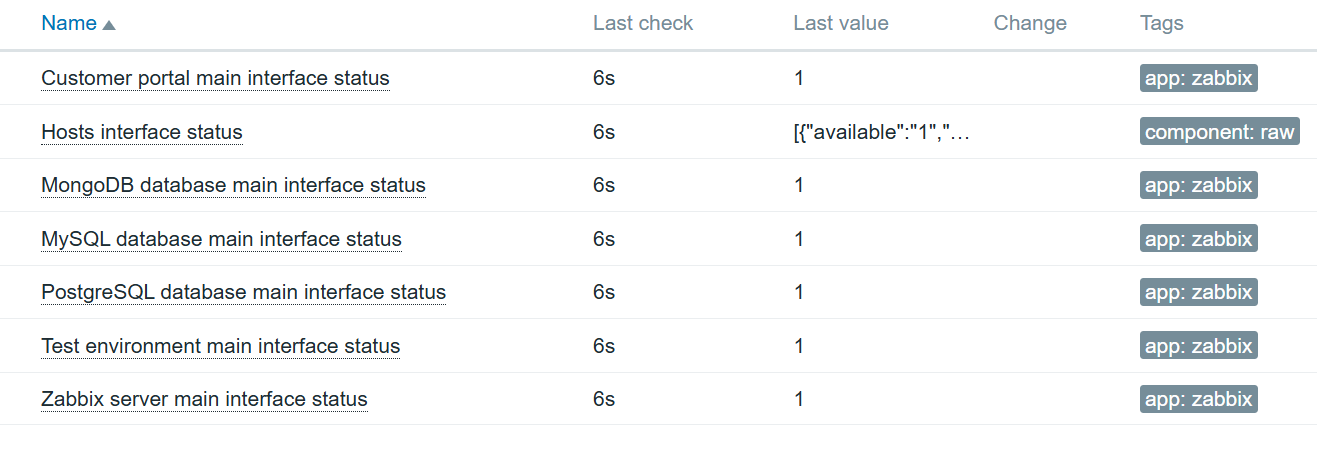
Now after adding the item prototype, we can check the results:

Interface status item data

An item cam be further enhanced using value mapping, to specify that 1 means available and 0 means not available.

With this approach, any internal database data can be extracted and monitored. In part 2 we will see how NoSQL databases can be monitored for both performance and internal data using Zabbix agent 2.

If you’d like more information on database monitoring, please don’t hesitate to sign up for our training course in Advanced Zabbix Database Monitoring, which covers multiple approaches to collecting database-related performance metrics and data using Zabbix Agent 2, ODBC, and API requests, as well as optimizing data collection by introducing dependent low-level discovery for minimal performance impact.

The post Database Monitoring using Zabbix agent 2 – Part 1, SQL appeared first on Zabbix Blog.
An Introduction to Browser Monitoring

Post Syndicated from Alexander Petrov-Gavrilov original https://blog.zabbix.com/an-introduction-to-browser-monitoring/29245/

Website and web application monitoring can vary from simple use cases to complex multi-step scenarios. To fully cover the scope of modern website monitoring requirements, Zabbix has introduced Browser item, a new item type that brings with it multiple accompanying improvements for simulating browser behavior and collecting website metrics.

What is browser monitoring?

Browser monitoring allows users to monitor complex websites and web applications using an actual browser. It involves the constant tracking and analysis of the performance, reliability, and functionality of a website or web application from a real user perspective. This process ensures that key pages, features, and user navigation work as expected. By monitoring critical pages and flows specific to different businesses, companies can ensure optimal user experience, resolve potential or ongoing issues, and proactively address any potential problems.

Browser monitoring can be split into two main approaches:

  • Browser real user monitoring – Monitors how your web page or web application is performing, using real user data to analyze overall performance and user experience.
  • Browser synthetic monitoring – Analyzes application availability and performance, using scheduled testing to analyze website availability and emulate real user experience.

Since Zabbix is not a real person (yet) but is fully capable of emulating real user behavior on a website very precisely, we will focus on browser synthetic monitoring.

What business goals can we achieve with browser monitoring?

There are a multitude of goals that can be achieved, depending on what business we are running or expect to monitor, but some examples include:

Improving user experience

Browser monitoring helps ensure that users have a fast, smooth, and reliable experience on a website or web application. A positive user experience leads to higher user satisfaction and a greater likelihood of repeated visits or purchases.

Ensuring cross-browser and cross-device compatibility

Users access websites from a host of browsers and devices. Browser monitoring helps to detect compatibility issues that could affect certain users (e.g., JavaScript errors on specific browsers or layout shifts on mobile). By monitoring these scenarios, we can deliver a consistent experience across platforms, which is essential as multi-device usage continues to grow.

E-commerce checkout monitoring

Retailers can ensure a smooth checkout process by monitoring page load times, form interactions, and payment processing to confirm that users can easily complete purchases.

Form performance

Browser monitoring makes it easy to detect any issues preventing form completion, such as slow response times or broken validation. It also ensures a smooth, error-free experience to improve lead capture and gain more conversions.

Subscription renewal page monitoring

Subscription-based businesses rely on customers regularly renewing or upgrading their plans. Monitoring the subscription renewal page for load speed, usability, and any payment processing issues is essential, as issues on this page can directly the amount of renewals and lead to customer loss. 

Supporting portal uptime

Many businesses provide a customer support portal where users can submit requests or use a knowledge database. Downtime or slow response times can lead to frustrated customers and an increased number of complaints.

How to set up browser monitoring

There are a lot of goals we can reach, but the question remains – how can we reach them with Zabbix?  The answer is that we can use the already mentioned and newly introduced browser item.

Browser item configuration window

Browser items gather information by running custom JavaScript code and fetching data via HTTP or HTTPS protocols. These items can mimic browser activities like clicking buttons, typing text, navigating across webpages, and performing other user interactions within websites or web applications.

Along with the script, users can specify optional parameters (name-value pairs) and set a timeout limit for the actions. But before we can actually use the item, we will need to configure Zabbix server or Zabbix proxy with a WebDriver, so that Zabbix can actually control browser trough scripts.

What is a WebDriver? A WebDriver controls a browser directly, mimicking user interactions through a local machine or on a remote server, enabling full browser automation. The term WebDriver includes both the language-specific bindings and the individual browser control implementations, often simply called WebDriver. WebDriver is designed to offer a straightforward and streamlined programming interface trough an object-oriented API which efficiently manages and drives browser actions.

In this guide, for instance, we’ll use a WebDriver with Chrome within a Docker container and make a script that includes actions like button clicks and text entry.

WebDriver installation

One of the simplest ways to install a WebDriver is to use containers. To install a chrome WebDriver on a local or remote machine, you can use Docker or any other preferred container engines:

# podman run --name webdriver -d \
-p 4444:4444 \
-p 7900:7900 \
--shm-size="2g" \
--restart=always -d docker.io/selenium/standalone-chrome:latest

Port 4444 will be the port on which the WebDriver will be listening and port 7900 will be used by NoVNC, which allows us to observe browser behavior in case a browser with a GUI is used.

Zabbix server/proxy configuration

After WebDriver is installed, we need to set up the communication between Zabbix and the driver. This can be done by editing the Zabbix server/proxy configuration file and updating the following parameters:

### Option: WebDriverURL
#       WebDriver interface HTTP[S] URL. For example http://localhost:4444 used with 
#       Selenium WebDriver standalone server.
#
# WebDriverURL=
WebDriverURL=http://localhost:4444

### Option: StartBrowserPollers
#       Number of pre-forked instances of browser item pollers.
#
# Range: 0-1000
# StartBrowserPollers=1
StartBrowserPollers=5

With the configuration parameters in place, we will now configure our Browser item to collect and monitor the list of upcoming Zabbix trainings from the training schedule page.

Creating a host

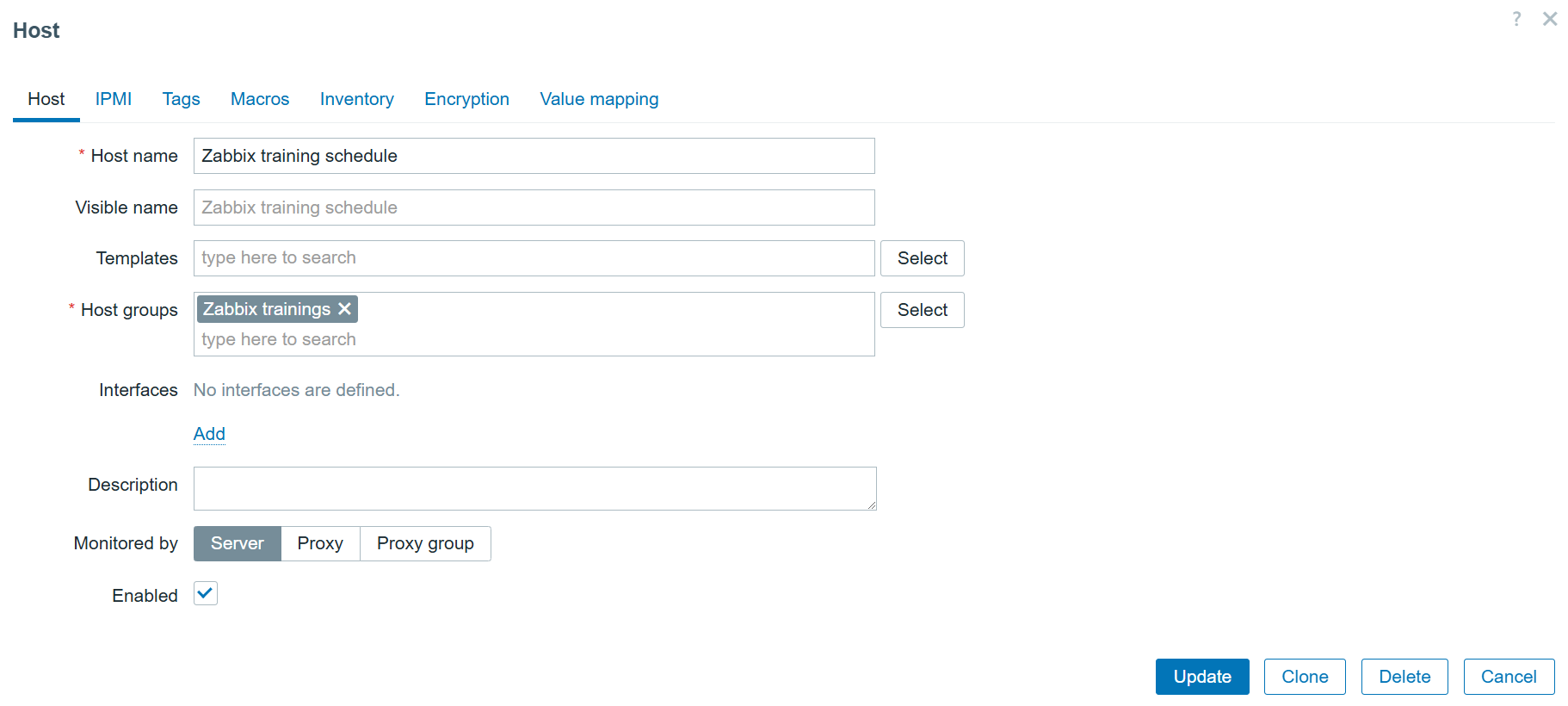
First, we need to navigate to the “Data collection” > “Hosts” section and create a host that represents our web page. This is more than anything – a logical representation. This means we don’t need any specific interfaces or additional configuration. The host in our example will look like this:

Training page monitoring host
Creating a browser item

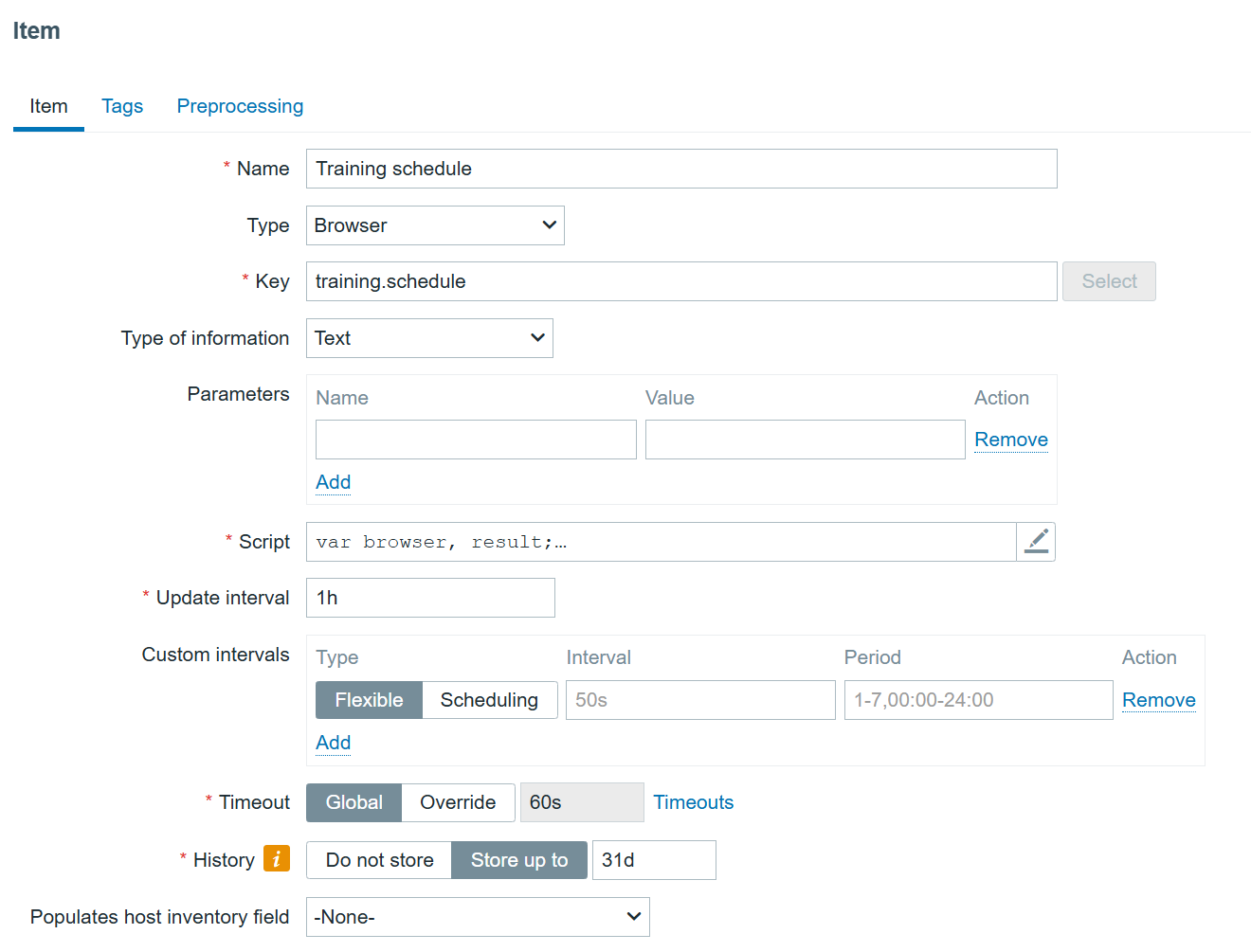
Since the data collection is done by items, we need to navigate to the “Items” section on the “Zabbix training schedule” host and create an item with the type “Browser.” It should look something like this:

Training schedule browser item

Now comes the most important part – creating the script to monitor the schedule. Click on the “Script” field.

First, we will need to define what browser we will use, and any extra options we might want to specify, like screen resolution or whether the browser should run in headless mode or not. This can be done using the Browser object. The Browser object manages WebDriver sessions and initializes a session upon creation, then terminates it upon destruction. A single script can support up to four Browser objects.

var browser, result;
var  opts = Browser.chromeOptions();
opts.capabilities.alwaysMatch['goog:chromeOptions'].args = []
browser = new Browser(opts);
browser.setScreenSize(Number(1980), Number(1020));

In this snippet, we defined that we will use the Chrome browser with a GUI. As you can see, the screen size is set to the pretty common 1980x1020p.

Now we will need to define what the browser will be doing. This can be done by using such Browser object methods as navigate – to point to the correct URL of the web page or application and (for example) findElement/findElements to return some element of the web page.

findElement/findElements methods allow us to define strategies to locate an element and selectors to provide what to look for. Strategies and selectors can be of multiple kinds:
strategy – (string, CSS selector/link text/partial link text/tag name/Xpath)
selector – (string) Element selector using the specified location strategy

Let’s take a look at the next snippet:

try {
    browser.navigate("https://www.zabbix.com/");
    browser.collectPerfEntries("open page");

    el = browser.findElement("xpath", "//span[text()='Training']");
    if (el === null) {
     throw Error("cannot find training");
    }
    el.click();

    el = browser.findElement("link text", "Schedule");
    if (el === null) {
        throw Error("cannot find application form");
    }
    el.click();

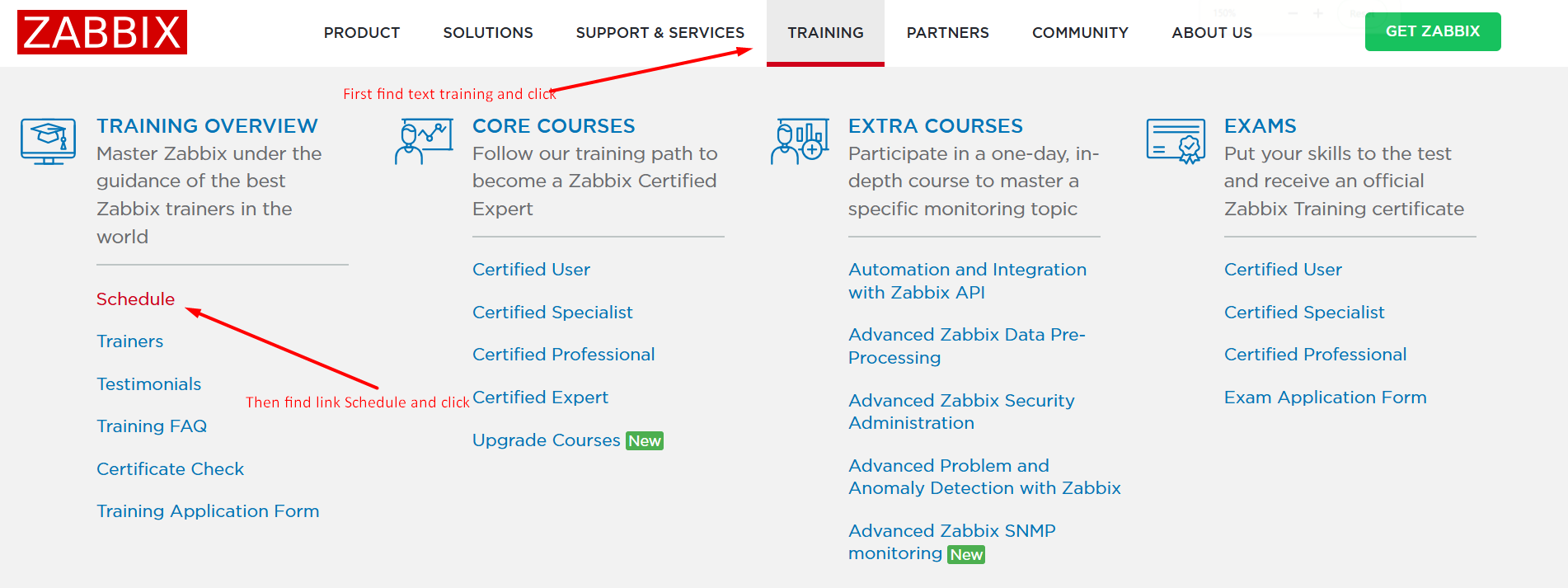
In this snippet,

  1. I am using a browser to navigate to the Zabbix page.
  2. I collect a range of performance entries related to opening the page (download speed, response time, etc.).
  3. I look for an element with the text “Training” using the XPath strategy, and the selector “Training.”
  4. I click on it, which is a method to interact with elements.
  5. In the next part, I use the strategy “link text” to find a link with the text selector “Schedule.”
  6. I click on it

A visual description would look like this:

Browser interaction with the zabbix.com website

Now, let’s do some more clicking to filter out all other trainings and leave only trainings in Korean and Dutch:

    el = browser.findElement("link text", "English");
    if (el === null) {
        throw Error("cannot find application form");
    }
    el.click();

    el = browser.findElement("xpath", "//span[text()='English']");
    if (el === null) {
        throw Error("cannot find application form");
    }
    el.click();

    el = browser.findElement("xpath", "//span[text()='Korean']");
    if (el === null) {
        throw Error("cannot find application form");
    }
    el.click();

    el = browser.findElement("xpath", "//span[text()='Dutch']");
    if (el === null) {
        throw Error("cannot find password input field");
    }
    el.click();

    Zabbix.sleep(2000);

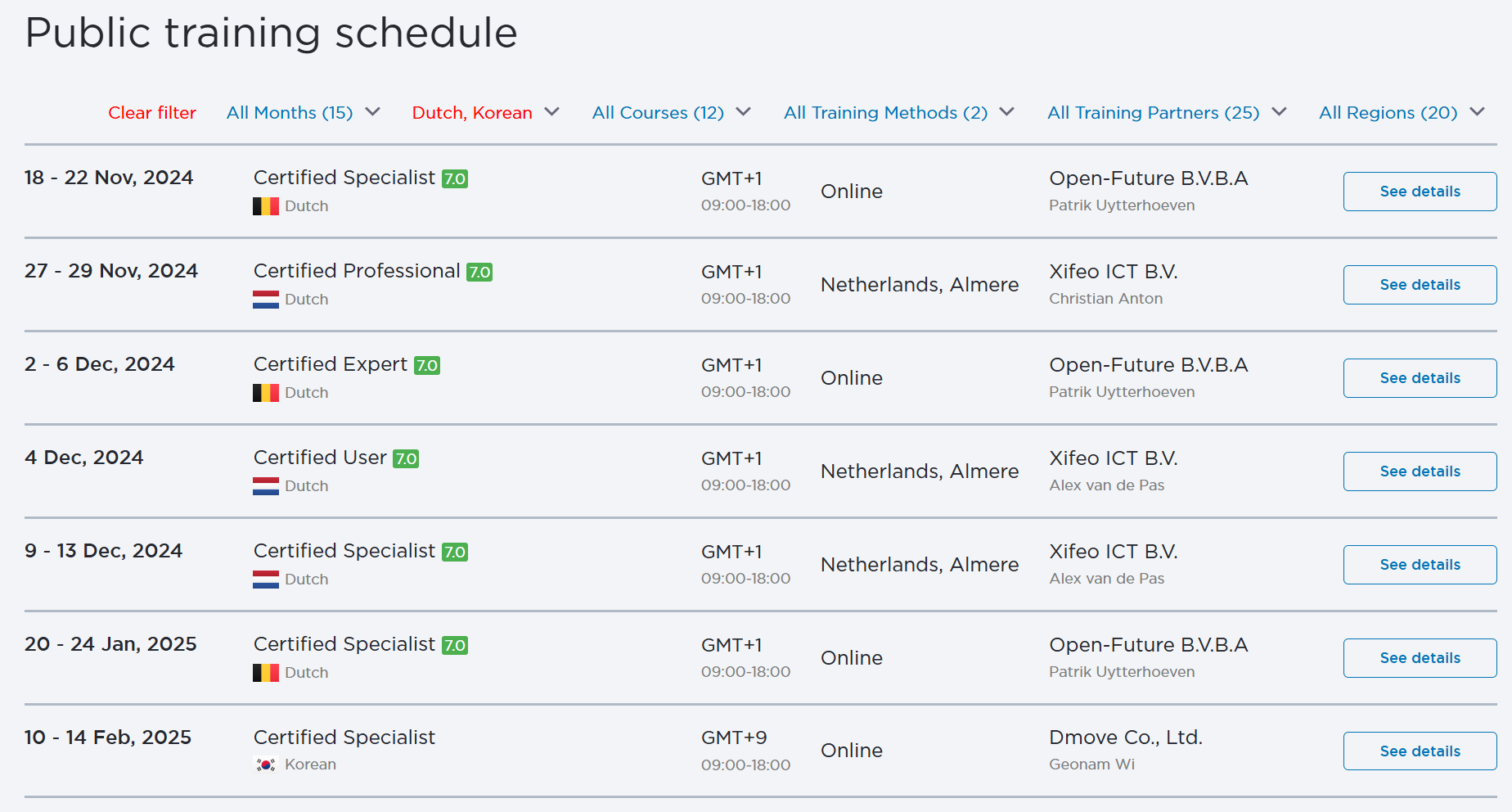
English is selected by default, so the script “unclicks” it. Then it selects Korean and Dutch and uses the sleep function to have some extra time for the page to load and make a screenshot of the currently opened page:

List of trainings with language filters applied on it

Now let’s get the list of dates so we can monitor which trainings we have left in 2024:

el = browser.findElements("xpath", "//*[contains(text(), ' 20')]");
var dates = [];
for (var n = 0; n < el.length; n++) { 
    dates.push(el[n].getText('2024')); 
}

// Remove entries that do not contain "2024"
dates = dates.filter(function(date) {
    return date.includes('2024');
});

dates = uniq(dates);

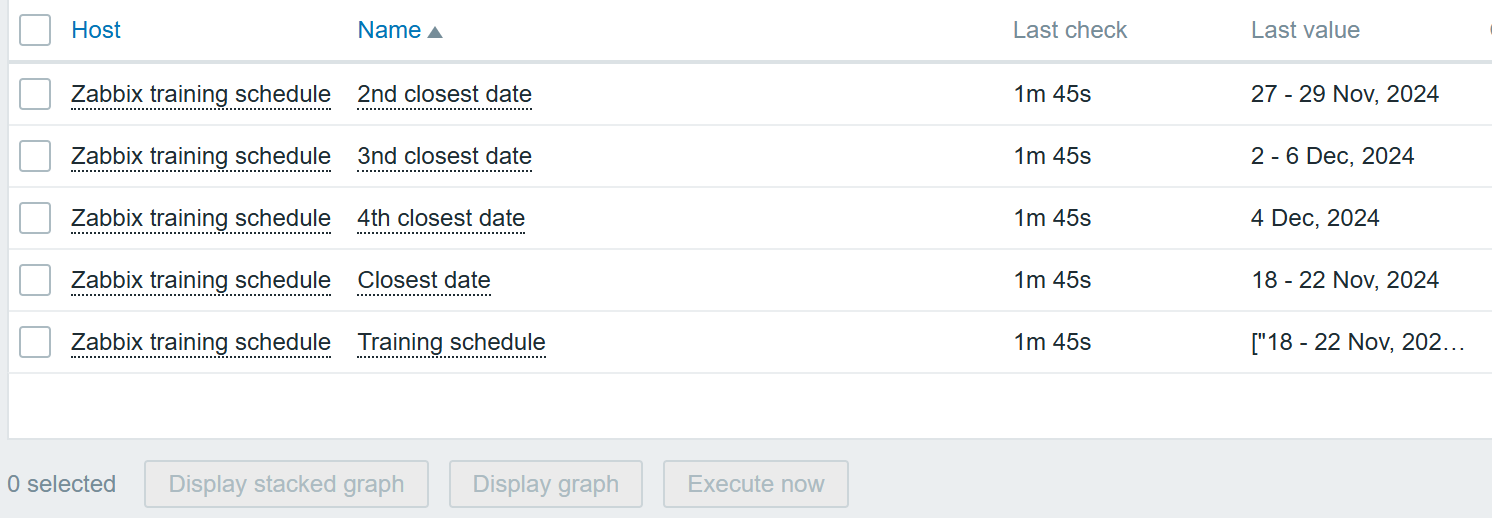
In this case we do a bit of a jump, and now search for all elements that contain text 20 (to include all years), but filter them out by year 2024 specifically, which later can be easily replaced with 2025. The end result contains all the upcoming training dates:

Items containing the upcoming training dates

The full host export with the script snippet can be found by following this link.

An additional example

But what if I want to fill in a form? Maybe to make a purchase, create an order, or just test a contact form? Good news – that’s an even simpler operation! Let’s take a look at this snippet:

// enter name
var el = browser.findElement("xpath", "//label[text()='First Name']/following::input");
if (el === null) {throw Error("cannot find name input field");}
el.sendKeys("Aleksandrs");

// enter last name
var el = browser.findElement("xpath", "//label[text()='Last name']/following::input");
if (el === null) {throw Error("cannot find name input field");}
el.sendKeys("Petrovs-Gavrilovs");

// enter cert number
var el = browser.findElement("xpath", "//label[text()='Certificate number']/following::input");
if (el === null) {throw Error("cannot find name input field");}
el.sendKeys("CT-2404-003");

// select version
var el = browser.findElement("css selector", "form#certificate_validation>fieldset>div:nth-of-type(5)>select");
if (el === null) {throw Error("cannot find name input field");}
el.sendKeys("7.0");

// check certificate
var el = browser.findElement("xpath", "//button[text()='Check Certificate']");
if (el === null) {throw Error("cannot find name input field");}
el.click();

This way, I can validate that my certificate is still valid! 

As you can see, there are multiple ways to make a browser emulate user behavior and allow us to validate whether our pages and businesses are performing the way we expect them to! You can find even more examples in Zabbix documentation and Zabbix Certified Training, which I welcome you to attend!

The post An Introduction to Browser Monitoring appeared first on Zabbix Blog.
Real Life Business Service Monitoring

Post Syndicated from Alexander Petrov-Gavrilov original https://blog.zabbix.com/real-life-business-service-monitoring/24915/

Learn more about Zabbix business service monitoring features and check out our real-life use cases. The article is based on a Zabbix Summit 2022 speech by Aleksandrs Petrovs-Gavrilovs.

Business service monitoring with Zabbix

Hello everyone, my name is Alex and today I am going to write about Advanced business service and SLA monitoring and the related use cases.

Some of you may already be familiar with business services and the core idea behind them. In the vast majority of organizations, we have services that we provide to our customers or/and for internal use. The availability of those services is usually based either on hardware, software or people’s presence and availability. 

But no matter how well our monitoring is configured, there are times when we can miss how each specific device affects our business and that is where business service monitoring can help us.

With the help of business service monitoring it is possible to see what exactly is going on with your business depending on the state of every single part of your infrastructure. This allows us, the admins and service owners, to understand what it really means when a piece of hardware breaks or a device becomes unreachable. With business service monitoring, we see what exactly impacts our business and how severe the situation is, including calculating SLA (Service Level Agreement) and evaluating it against the defined SLO (Service Level Objective).

Business service hierarchy example

So let’s check out some examples of what business real-life business services may look like.

An average service tree example

In this example, we have a service tree that is based on support services. It has phones and phones are plugged into PBX, while PBX is plugged into the switch. And this is just one example, in reality, we could have a more complex infrastructure consisting of containers, CRM services and so on. And we of course monitor all of them, but what if we are interested in the business perspective as well?

To see the business perspective we need to go to the new service section in the main menu, where we can create and view the service tree itself. In addition, in the same section, we can configure the actions, which enable us to react in cases when something happens with one of the services.
We can also specify the SLO we strive to achieve and see SLA reports on the current situation.

Basic service overview

The service view also lets us see if we have problems affecting our services and track their root cause.

Service with active problems

Defining which service is affected by what problem is done by utilizing problem tags, which essentially link them together. Services can also have their own tags, which we use to group services and understand how one service relates to another. We can also use service tags to build an SLA report or execute actions in case a service is affected by a problem. Permissions too are based on service tags, allowing to creation of different views for different users.

But those are just the basics – what’s more interesting are the actual use cases. Let’s take a look at how Zabbix users actually use business service monitoring to their advantage based on real business examples. 

Business service tree for a financial institution

Real business service use cases can be helpful examples that can help you design your own Zabbix business service trees. Maybe you already have a similar business of your own and you need that starting point for everything to “click” – that starting point can be a real-life example.

Example service tree of a bank

The first example will seem a bit convoluted while actually being very straightforward. Here we can see an actual financial institution business service tree. You can see they have quite a lot of different interconnected services. First look at the service tree raw schema may be a bit confusing, but in Zabbix it’s pretty straightforward.

The internal service is connected to emails and emails are related to customer services at the same since we do need to communicate with the customers, not only internally! In addition, we also have to define services representing the underlying systems and applications which support our email services. That is easy to do with Zabbix services.

Easy to read e-mail service state

Imagine now, if you don’t have the services functionality at all, how fast can you check the status of the email service when all you have is only a list of problems for multiple devices? How can you check the service statistics for an entire year? That was the question that the service owners and administrators had in this use case and they solved it by defining Zabbix business service trees.

The “root” service

We start by defining the root business service – Financial institution. It is linked to 15 main services. The 15 services are grouped into internal or external ones. The lower-level services also contain the sub-services that the main services are based on. I.e., we have an Accounting service based on specific VM availability, where the accounting software resides on.

Detailed service tree

The services are divided into specific categories so the service owners can read the situation a lot easier without spending a lot of time figuring out which problem causes which situation. With a single click, the service owners can immediately see which components or child services each service is based on and the actual service SLA. This also gives the benefit of displaying the root cause problem and being able to quickly identify which child services are causing issues with a particular business service.

Parent-Child service relationship

Don’t forget, that the business service trees can be multi-level –  child services can have their own child services and services can also be interconnected with each other. For example – in the Parent-Child service relationship screenshot, we can see that we have an Accounting service. Accounting uses Microsoft services. Microsoft services are also used internally. So what happens when Microsoft services stop working? We will know that accounting will be affected, the internal services will be affected and we will see the exact chain of events – what and how exactly went wrong in the organization and which components need fixing.

Service state configuration

Services can have a varying impact on your business. Some services are more critical than others. Additional rules enable Zabbix to take the potential service impact into account. The first two additional rules analyze the percentage of affected child services and set the severity of the service problem accordingly.
But if the two most critical services are affected, that will immediately become a disaster. For example, online banking – you can imagine that any bank now has an online banking service and if it goes down – all the customers will be affected; it could even hit the news, not only monitoring. So of course they want to immediately know about that kind of a disaster, and with Zabbix services – they will. By defining additional rules and service weights, you can react to problems preemptively and fix the issues before they cause downtime for your end users.

SLA reporting

In Zabbix, we can choose for what periods SLA should be calculated – daily, weekly, monthly, yearly, or a mixed selection of those. Based on our selection, we can see real-time reports for services and as an example, by the end of the year or a day, understand what needs the most attention and review the service performance. Or to put in a closer-to-reality example – find out by accounting reports if the licenses were renewed in time so that the software which is used by accounting is always available.  We can also build a dashboard that will contain the reports, showing what is the current summary for the service so they can plan, buy new software, buy a new license and get new hardware and always be ahead again of whatever might happen.

Service state dashboard

Service permissions in user roles can be used to create different service views. This can be used to hide sensitive service information or simply display the services at the required level of detail. For example, a more detailed view can be provided for internal support users since they will need as much information as possible to fix any service-related issues. Separate views can be provided for Accounting and Management teams, showing only the relevant data to ensure a quick and reliable decision-making process. 

What if we want to make things even more simple for our Accounting and Management teams? We can use actions and scheduled report functionality to deliver the required information to the user’s mailbox without having them periodically log into Zabbix.

Service permissions

Business service tree for an MSP

Another example is an MSP (managed service provider) service tree. This use case is encountered pretty frequently and the tree is always easy to read even in the raw schema view as this:

Manager Service Provider service tree

We use a hosting company for our example. The company provides a particular set of services for its users. There are also some internal services that can also be used by the customers – for example, Zabbix itself.

Zabbix can be a great tool in MSP scenarios since it’s straightforward to provide customers with access to Zabbix and build a dashboard view with the latest statistics related to a particular user.
In this example, we can see the main service which is hosting, divided across customers, where each customer is a branch of that tree, using the hosting services the company provides. We also see that monitoring is a service itself because in this case customers also have the advantage of using Zabbix to get detailed information about the services they use and their current state. Seeing the current level of SLA for the servers they use and does it match the expectations.

Customer overview

The MSP, of course, retains the full view of the customers and all customers are equally important and deserve a proper quality of service so of course each customer will have an equal weight assigned to them. As soon as any customer has a problem, the related service will be marked with a high-level severity on the service tree. This way, the MSP will immediately see which customer is affected, making it possible to assist them as quickly as possible.

If you have a bigger environment – maybe you have hundreds of customers, you may opt out of defining service weights in your configuration since the number of services changes very rapidly. How can we react to global issues then?
We can use percentage rules instead of reacting to just the static weight number. This way, we can check is the problem related to a single customer or is it something global and everyone is now affected.

Root cause view in the services will allow you to start fixing everything immediately. Meanwhile, each customer can be informed individually using the service actions and conditions. This should be easy to do if we have properly named or tagged the services.

Customer service configuration

Don’t forget to define the permissions so that any customer, as Mooyani here, can have access to their Services immediately after login, ensuring that information not only remains private but also relevant for the current user.

Customer view

All information for Customers can be placed on their personal dashboards where they can see all the details whenever they need to. Monitoring the traffic going through their VMs, resource usage, application statuses and any other monitored entities. Don’t forget that service SLA reports can also be placed on Zabbix dashboards. This way your customers can see that the MSP meets the terms defined in the agreement and everything is performing as expected. 

To summarize – monitoring your infrastructure is great from any perspective, including business monitoring. it’s always a good idea to provide this view as an MSP to your customers, so they can see we meet the standards we define for ourselves and course promise for our users.