In the cloud security landscape, organizations benefit from aligning their controls and practices with industry standard frameworks such as MITRE ATT&CK®, MITRE EngageTM, and MITRE D3FENDTM. MITRE frameworks are structured, openly accessible models that document threat actor behaviors to help organizations improve threat detection and response.
Figure 1: Interaction between the various MITRE frameworks
Figure 1 showcases how the frameworks interact with each other to identify threatening behavior and provide actionable defensive measures. MITRE ATT&CK provides insights into threat actor behavior while D3FEND translates insights from ATT&CK into actionable defensive measures. MITRE Engage uses both ATT&CK and D3FEND to plan proactive engagement strategies that disrupt threat actor activity. As organizations use AWS to enhance their operational capabilities, implementing comprehensive security strategies becomes an important part of cloud adoption.
This blog post explores how AWS security services align with the MITRE frameworks to provide a systematic approach for threat detection and mitigation. We’ll examine how organizations can use AWS security tools such as Amazon GuardDuty, Amazon Security Lake, and AWS Security Hub in conjunction with MITRE frameworks to implement security controls across different stages of their cloud security operations.
Understanding MITRE frameworks
Today’s security teams face increasingly sophisticated threats, with actors continuously evolving their tactics, techniques, and procedures (TTPs). To help organizations strengthen their security posture, industry frameworks such as MITRE ATT&CK, D3FEND, and Engage provide structured methodologies for understanding and responding to these threats.
Understanding these threats through a risk lifecycle approach is crucial for security teams. This structured methodology enables teams to detect anomalies early, map threats to known risk stages, and implement proactive defense mechanisms. By following a risk lifecycle approach, organizations can enhance threat intelligence, improve incident response, and minimize dwell time, ultimately strengthening their security posture against evolving cyber threats.
The integration of MITRE ATT&CK, D3FEND, and Engage frameworks offers organizations a comprehensive approach across the security operations lifecycle. At the foundation, MITRE ATT&CK provides a common language for describing threat actor TTPs. This knowledge base is invaluable during threat modeling and risk assessment, helping teams identify potential vulnerabilities and threat vectors.
Building upon ATT&CK, MITRE D3FEND complements the tactical knowledge with a framework for defensive countermeasures. It suggests proactive security controls, such as implementing least privilege access or securing system configurations. This allows organizations to align their defenses directly with known exploit patterns.
MITRE Engage then adds a layer of active defense capabilities. It guides security teams in planning and implementing strategies that can help in three different ways and potentially simultaneously. Defenders can expose threat actors by detecting them as they attempt to access or operate on infrastructure. Defenders can use Engage to help impose costs by causing threat actors to focus on fake infrastructure rather than legitimate assets. Finally, defenders can set up enticing fake targets to lure threat actors into exploiting them and thereby revealing tradecraft.
A MITRE operation that was run in conjunction with a partner might clarify how this is valuable. MITRE worked with a partner to set up a fake network to appear as a specific type of entity. The goal was to elicit TTPs from a specific advanced persistent threat (APT) for which MITRE and the partner had a recent malware sample. MITRE ran the sample on the fake network and observed the APT’s activities. From that operation, MITRE gathered a list of specific TTPs that were executed by a script in a particular order that helped the partner develop a novel analytic. Plus, in reviewing event traces, MITRE found a flaw in a well-known security tool that missed a specific type of process-tampering event. This was disclosed to the vendor, who fixed that in later versions. Finally, every minute of operating in this environment imposed a cost on the APT by diverting resources from real victims. Full details of the exercise were presented at Shmoocon 2022.
As we move through the security operations lifecycle, these three MITRE frameworks continue to work in concert:
During detection and monitoring, ATT&CK informs threat hunting and log analysis and correlation, D3FEND strengthens real-time detection and anomaly tracking, and Engage enables strategic detection through deception techniques.
When responding to incidents, ATT&CK helps map incident progression, D3FEND automates response actions, and Engage provides methods to gather additional intelligence about threat activities.
In the post-incident phase, ATT&CK helps map the incident chain for better detection tuning, D3FEND refines security controls, and Engage expands deception tactics based on lessons learned. By integrating these efforts, organizations can implement a systematic approach to security operations that combines tactical knowledge, defensive measures, and strategic engagement capabilities.
Aligning AWS to MITRE frameworks
AWS offers a broad set of cloud services with high security at global scale, and has proven experience helping businesses innovate faster. Customers use AWS services in various configurations to build solutions for their bespoke business needs. A fundamental aspect of using AWS is understanding the Shared Responsibility Model, shown in Figure 2 that follows.
Figure 2: AWS Shared Responsibility Model
AWS is responsible for security of the cloud, while customers are responsible for security in the cloud. This means that AWS is responsible for protecting the infrastructure that runs the services offered in the AWS Cloud, while customer responsibility is determined by the AWS Cloud services that a customer selects. As customers embark on their cloud security journey, we help them understand two important concepts of cloud-scale environments:
Interconnected resources and configurations: Cloud architectures consist of interconnected entities—ranging from virtual machines using Amazon Elastic Compute Cloud (Amazon EC2) to serverless functions using AWS Lambda. To help customers maintain visibility and control, AWS offers native tools designed for cloud-scale management.
Dynamic access management and least privilege: Cloud environments require robust authentication mechanisms and fine-grained permissions. AWS provides comprehensive identity and access management tools to implement least privilege access and manage dynamic workloads effectively.
To support our customers’ security needs, AWS offers native security services that align with industry-standard frameworks like MITRE ATT&CK, D3FEND, and Engage. Here’s how these services map across the security lifecycle:
For threat modeling and risk assessment, Security Lake aggregates logs for MITRE ATT&CK-based analytics, while Amazon Inspector scans for vulnerabilities mapped to threat actor techniques. Amazon Macie detects sensitive data exposure across AWS resources.
When implementing preventive controls, implementing least privilege for access is fundamental. AWS Identity and Access Management (IAM) and AWS Organizations provide capabilities to enforce least privilege across your AWS environment. You can use IAM permissions and service control policies (SCPs) to build an identity perimeter. AWS Web Application Firewall (AWS WAF) provides application-layer protections, while you can use AWS Secrets Manager to store honey tokens. Secrets Manager is an AWS service that you can use to centrally manage the lifecycle of secrets. Honey tokens act as digital decoys that simulate legitimate credentials or sensitive data, enticing threat actors to reveal their presence when they interact with them. When triggered, these tokens generate real-time alerts and detailed event logs, enabling swift investigation and deeper insights into threat actor tactics. Deploying honey tokens on AWS involves creating decoy credentials or sensitive data entries that serve no legitimate purpose yet are closely monitored for unauthorized access attempts. One common approach is to use Secrets Manager to store fake secrets that mimic real credentials. When such tokens, stored in Secrets Manager, are accessed, the service generates detailed event logs with AWS CloudTrail and Amazon CloudWatch. You can continuously monitor these logs and events and configure them to alert you if the decoys are ever accessed.
During the detection and monitoring phase, GuardDuty identifies unusual activity patterns across your AWS accounts and workloads, Amazon Detective helps investigate these anomalies by analyzing root causes and plotting out the incident scope in an interactive way, while Security Hub centralizes security alerts and enables automated responses across your environment.
For incident response, containment, and recovery, Lambda and Step Functions help automate responses when security events occur. AWS Shield and WAF work together to provide real-time threat mitigation against denial-of-service type threats like distributed denial of service (DDoS), while Security Lake and Detective provide the necessary data and tools for conducting thorough forensic analysis. In 2024, AWS announced the AWS Security Incident Response service that uses automated monitoring and investigation through the AWS Customer Incident Response Team to prepare for, respond to, and recover from security events. You can use the service to augment your cloud-based security response function aligned with AWS security best practices.
By blocking malicious traffic, Shield and WAF provide real-time DDoS mitigation. AWS deception tactics could include redirecting threat actors to honeypots or deploying decoy Amazon Simple Storage Service (Amazon S3) files to enhance engagement strategies, like the honey token deployment and storage using Secrets Manager explained earlier in this post. Post incident, Security Lake and Detective assist in forensic analysis, while Security Hub and IAM policies refine security controls based on past exploit trends. MITRE Engage tactics can further evolve by analyzing honeypot interactions. By integrating these AWS security services, you can detect, prevent, and deceive threat actors effectively, strengthening your organization’s overall security posture. The following table maps MITRE lifecycle stages to AWS services and tools.
Lifecycle stage
AWS tools for MITRE ATT&CK (detect and map)
AWS tools for MITRE D3FEND (prevent and contain)
AWS tools for MITRE Engage (deceive and disrupt)
Threat modeling and risk assessment
Security Lake, Amazon Inspector, Macie, and Security Hub
IAM policies and AWS WAF
Secrets Manager and honey tokens
Detection and monitoring
GuardDuty, CloudTrail, and Security Hub
Detective, auto-remediation using AWS services such as Amazon EventBridge, Lambda, and Step Functions.
You can use Table 1 as a guide to understand how AWS services map to the various lifecycle stages in the incident response lifecycle. We will now demonstrate how GuardDuty, an AWS security service that continuously monitors your AWS accounts and workloads to provide automated threat detection, works in line with the MITRE ATT&CK framework.
GuardDuty: MITRE framework integration in action
In 2024, AWS worked extensively with MITRE to create new techniques and sub-techniques, and to update some of the existing detection objects in the MITRE ATT&CK cloud matrix. The work that AWS did with MITRE drew from real-world threat actor techniques performed against AWS customers and helped to provide more detailed information and specific detections on how threat actors abuse AWS services. For example, AWS threat detection teams observed a new tactic in the cloud environment (T1485.001 | Data Destruction: Lifecycle-Triggered Deletion) where threat actors could modify lifecycle policies for S3 buckets to delete all objects stored in the bucket. This technique, along with associated mitigations, detection, and references was submitted back to the MITRE ATT&CK framework.
AWS security services such as AWS Security Incident Response and GuardDuty use MITRE ATT&CK to provide threat intelligence and detailed information on threats identified in an AWS account. You can examine how these AWS security services integrate with MITRE ATT&CK through a specific example. GuardDuty Extended Threat Detection helps customers with contextual threat detection in their AWS environment and aligns the signals with the MITRE ATT&CK lifecycle. GuardDuty automatically detects and correlates individual findings with connected resources to produce an attack sequence finding. Consider an attack sequence finding generated by GuardDuty detecting data compromise in your AWS account. We will use this as an example in this post.
To begin, the finding summary includes a textual description of the sequence of events and the TTPs detected, as shown in Figure 3. It also shows a summary of the observed TTP identifiers, AWS API calls, and IP addresses.
Figure 3: GuardDuty finding summary visible in the service console
As seen in Figure 4, every attack sequence finding highlights the signals and the MITRE tactic associated with the activity. The finding shown in Figure 4 shows the full lifecycle of the threat from discovery to impact.
Figure 4: Signals and MITRE tactics alignment
Diving deeper into each signal reveals the specific MITRE tactic associated with the activity and the technique identifier. Another interesting feature is that you can see the correlation between the AWS API call associated with the resources involved in the attack sequence and the user agent.
Figure 5 shows one of the signals associated with the attack sequence in the previous finding. A data exfiltration activity has been reported because of the nature of the AWS API call (s3:GetObject) and the user agent (Kali Linux) that was used to perform the activity. The level of detail for each signal is contextual based on the type of activity and tactic.
Figure 5: Details for a single signal within a GuardDuty attack sequence finding
Figure 6 shows another signal from the same finding, but in this case the level of detail includes the malicious IP lists and suspicious network activity detected in relation to the signal and associated resources.
Figure 6: Details of TTPs associated with an indicator within a GuardDuty attack sequence finding
This information can be downloaded in a JSON-formatted file. The information from the JSON document can be used to automate responses and remediations for the detections.
Conclusion
AWS security services work together to support the implementation of MITRE frameworks—ATT&CK for threat detection, D3FEND for preventative security, and Engage for threat actor engagement across the cybersecurity lifecycle. As demonstrated through the GuardDuty Extended Threat Detection example, these integrations provide customers with practical, actionable security capabilities across their AWS environment. The alignment of AWS security services with MITRE frameworks helps you build security operations using industry-standard methodologies, implement automated detection and response capabilities, maintain visibility across your AWS environment, and continuously enhance your security controls.
Through this integration of AWS security services with MITRE frameworks, you can implement comprehensive security operations that evolve with your organization’s business needs. To get started, visit the GuardDuty console to enable Extended Threat Detection, and explore our documentation to learn more about implementing these security capabilities in your AWS environment. Join us at AWS re:Inforce 2025 to learn more about AWS security services, including deep dives into the integration of Amazon GuardDuty with MITRE frameworks and hands-on workshops with AWS security experts.
If you have feedback about this post, submit comments in the Comments section below.
As security best practices have evolved over the years, so has the range of security telemetry options. Customers face the challenge of navigating through security-relevant telemetry and log data produced by multiple tools, technologies, and vendors while trying to monitor, detect, respond to, and mitigate new and existing security issues. In this post, we provide you with three patterns to centralize the ingestion of log data into Amazon Security Lake, regardless of the source. You can use the patterns in this post to help streamline the extract, transform and load (ETL) of security log data so you can focus on analyzing threats, detecting anomalies, and improving your overall security posture. We also provide the corresponding code and mapping for the patterns in the amazon-security-lake-transformation-library.
Security Lake automatically centralizes security data into a purpose-built data lake in your organization in AWS Organizations. You can use Security Lake to collect logs from multiple sources, including natively supported AWS services, Software-as-a-Service (SaaS) providers, on-premises systems, and cloud sources.
Centralized log collection in a distributed and hybrid IT environment can help streamline the process, but log sources generate logs in disparate formats. This leads to security teams spending time building custom queries based on the schemas of the logs and events before the logs can be correlated for effective incident response and investigation. You can use the patterns presented in this post to help build a scalable and flexible data pipeline to transform log data using Open Cybersecurity Schema Framework (OCSF) and stream the transformed data into Security Lake.
Security Lake custom sources
You can configure custom sources to bring your security data into Security Lake. Enterprise security teams spend a significant amount of time discovering log sources in various formats and correlating them for security analytics. Custom source configuration helps security teams centralize distributed and disparate log sources in the same format. Security data in Security Lake is centralized and normalized into OCSF and compressed in open source, columnar Apache Parquet format for storage optimization and query efficiency. Having log sources in a centralized location and in a single format can significantly improve your security team’s timelines when performing security analytics. With Security Lake, you retain full ownership of the security data stored in your account and have complete freedom of choice for analytics. Before discussing creating custom sources in detail, it’s important to understand the OCSF core schema, which will help you map attributes and build out the transformation functions for the custom sources of your choice.
Understanding the OCSF
OCSF is a vendor-agnostic and open source standard that you can use to address the complex and heterogeneous nature of security log collection and analysis. You can extend and adapt the OCSF core security schema for a range of use cases in your IT environment, application, or solution while complementing your existing security standards and processes. As of this writing, the most recent major version release of the schema is v1.2.0, which contains six categories: System Activity, Findings, Identity and Access Management, Network Activity, Discovery, and Application Activity. Each category consists of different classes based on the type of activity, and each class has a unique class UID. For example, File System Activity has a class UID of 1001.
As of this writing, Security Lake (version 1) supports OCSF v1.1.0. As Security Lake continues to support newer releases of OCSF, you can continue to use the patterns from this post. However, you should revisit the mappings in case there’s a change in the classes you’re using.
Prerequisites
You must have the following prerequisites for log ingestion into Amazon Security Lake. Each pattern has a sub-section of prerequisites that are relevant to the data pipeline for the custom log source.
AWS Organizations is configured your AWS environment. AWS Organizations is an AWS account management service that provides account management and consolidated billing capabilities that you can use to consolidate multiple AWS accounts and manage them centrally.
Open the AWS Management Console and navigate to AWS Organizations. Set up an organization with a Log Archive account. The Log Archive account should be used as the delegated Security Lake administrator account where you will configure Security Lake. For more information on deploying the full complement of AWS security services in a multi-account environment, see AWS Security Reference Architecture.
Configure permissions for the Security Lake administrator access by using an AWS Identity and Access Management (IAM) role. This role should be used by your security teams to administer Security Lake configuration, including managing custom sources.
Enable Security Lake in the AWS Region of your choice in the Log Archive account. When you configure Security Lake, you can define your collection objectives, including log sources, the Regions that you want to collect the log sources from, and the lifecycle policy you want to assign to the log sources. Security Lake uses Amazon Simple Storage Service (Amazon S3) as the underlying storage for the log data. Amazon S3 is an object storage service offering industry-leading scalability, data availability, security, and performance. S3 is built to store and retrieve data from practically anywhere. Security Lake creates and configures individual S3 buckets in each Region identified in the collection objectives in the Log Archive account.
To use the transformation library, you should understand how to build the mapping configuration file. The mapping configuration file holds mapping information from raw events to OCSF formatted logs. The transformation function builds the OCSF formatted logs based on the attributes mapped in the file and streams them to the Security Lake S3 buckets.
The mapping configuration file is a JSON-formatted file that’s used by the transformation function to evaluate the attributes of the raw logs and map them to the relevant OCSF class attributes. The configuration is based on the mapping identified in Table 3 (File System Activity class mapping) and extended to the Process Activity class. The file uses the $. notation to identify attributes that the transformation function should evaluate from the event.
Configuration in the mapping file is stored under the custom_source_events key. You must keep the value for the key source_name the same as the name of the custom source you add for Security Lake. The matched_field is the key that the transformation function uses to iterate over the log events. The iterator (1), in the preceding snippet, is the Sysmon event ID and the data structure that follows is the OCSF attribute mapping.
Some OCSF attributes are of an Object data type with a map of pre-defined values based on the event signature such as activity_id. You represent such attributes in the mapping configuration as shown in the following example:
In the preceding snippet, you can see the words enum and evaluate. These keywords tell the underlying mapping function that the result will be the value from the map defined in values and the key to evaluate is the EventId, which is listed as the value of the evaluate key. You can build your own transformation function based on your custom sources and mapping or you can extend the function provided in this post.
Pattern 1: Log collection in a hybrid environment using Kinesis Data Streams
The first pattern we discuss in this post is the collection of log data from hybrid sources such as operating system logs collected from Microsoft Windows operating systems using System Monitor (Sysmon). Sysmon is a service that monitors and logs system activity to the Windows event log. It’s one of the log collection tools used by customers in a Windows Operating System environment because it provides detailed information about process creations, network connections, and file modifications This host-level information can prove crucial during threat hunting scenarios and security analytics.
Solution overview
The solution for this pattern uses Amazon Kinesis Data Streams and Lambda to implement the schema transformation. Kinesis Data Streams is a serverless streaming service that makes it convenient to capture and process data at any scale. You can configure stream consumers—such as Lambda functions—to operate on the events in the stream and convert them into required formats—such as OCSF—for analysis without maintaining processing infrastructure. Lambda is a serverless, event-driven compute service that you can use to run code for a range of applications or backend services without provisioning or managing servers. This solution integrates Lambda with Kinesis Data Streams to launch transformation tasks on events in the stream.
To stream Sysmon logs from the host, you use Amazon Kinesis Agent for Microsoft Windows. You can run this agent on fleets of Windows servers hosted on-premises or in your cloud environment.
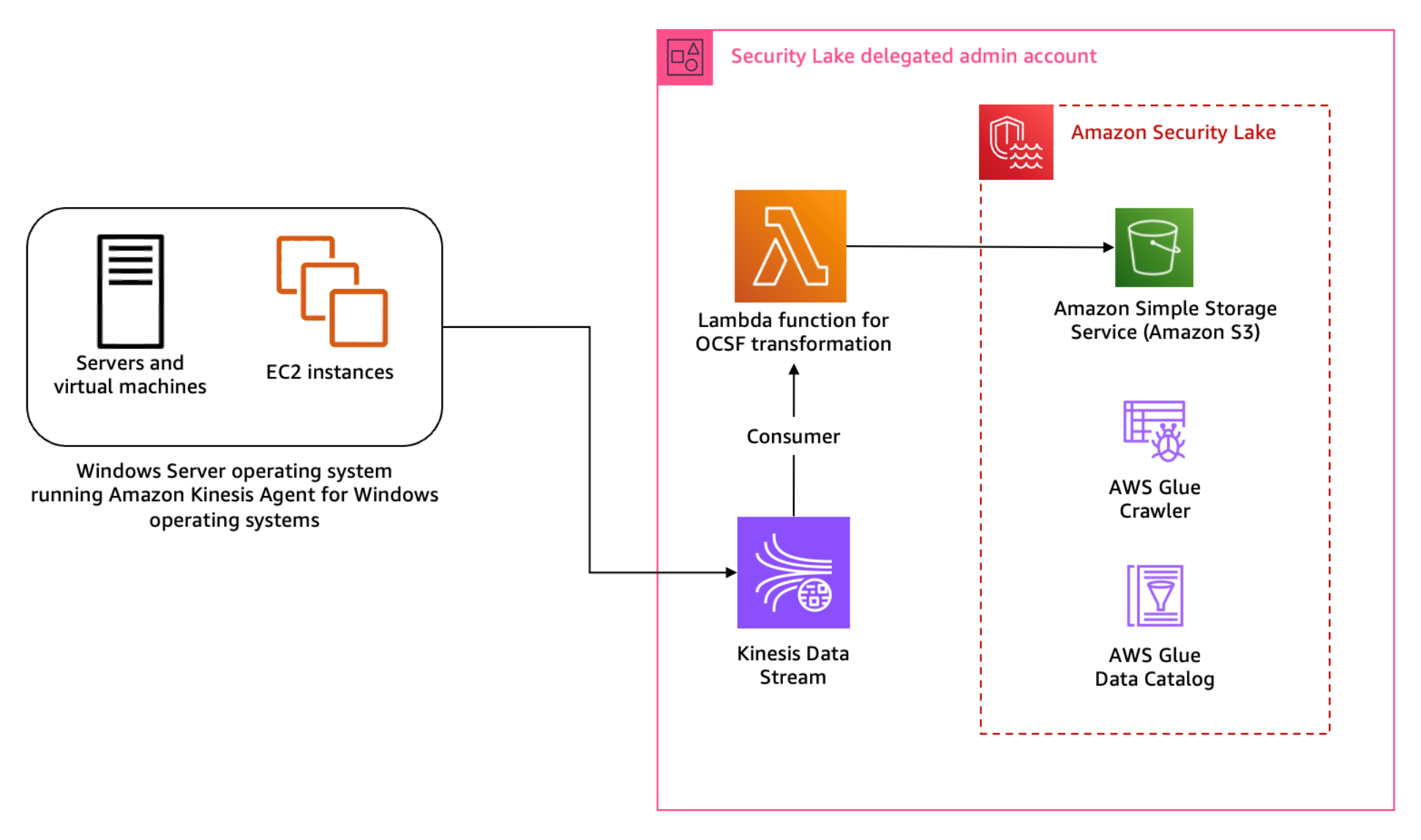
Figure 1: Architecture diagram for Sysmon event logs custom source
Figure 1 shows the interaction of services involved in building the custom source ingestion. The servers and instances generating logs run the Kinesis Agent for Windows to stream log data to the Kinesis Data Stream which invokes a consumer Lambda function. The Lambda function transforms the log data into OCSF based on the mapping provided in the configuration file and puts the transformed log data into Security Lake S3 buckets. We cover the solution implementation later in this post, but first let’s review how you can map Sysmon event streaming through Kinesis Data Streams into the relevant OCSF classes. You can deploy the infrastructure using the AWS Serverless Application Model (AWS SAM)template provided in the solution code. AWS SAM is an extension of the AWS Command Line Interface (AWS CLI), which adds functionality for building and testing applications using Lambda functions.
Mapping
Windows Sysmon events map to various OCSF classes. To build the transformation of the Sysmon events, work through the mapping of events with relevant OCSF classes. The latest version of Sysmon (v15.14) defines 30 events including a catch-all error event.
Table 1: Sysmon event mapping with OCSF (v1.1.0) classes
Start by mapping the Sysmon events to the relevant OCSF classes in plain text as shown in Table 1 before adding them to the mapping configuration file for the transformation library. This mapping is flexible; you can choose to map an event to a different event class depending on the standard defined within the security engineering function. Based on our mapping, Table 1 indicates that a majority of the events reported by Sysmon align with the File System Activity or the Process Activity class. Registry events map better with the Registry Key Activity and Registry Value Activity classes, but these classes are deprecated in OCSF v1.0.0, so we recommend using File System Activity instead of registry events for compatibility with future versions of OCSF. You can be selective about the events captured and reported by Sysmon by altering the Sysmon configuration file. For this post, we’re using the sysmonconfig.xml published in the sysmon-modular project. The project provides a modular configuration along with publishing tactics, techniques, and procedures (TTPs) with Sysmon events to help in TTP-based threat hunting use cases. If you have your own curated Sysmon configuration, you can use that. While this solution offers mapping advice, if you’re using your own Sysmon configuration, you should make sure that you’re mapping the relevant attributes using this solution as a guide. As a best practice, mapping should be non-destructive to keep your information after the OCSF transformation. If there are attributes in the log data that you cannot map to an available attribute in the OCSF class, then you should use the unmapped attribute to collect all such information. In this pattern, RuleName captures the TTPs associated with the Sysmon event, because TTPs don’t map to a specific attribute within OCSF.
Across all classes in OCSF, there are some common attributes that are mandatory. The common mandatory attributes are mapped shown in Table 2. You need to set these attributes regardless of the OCSF class you’re transforming the log data to.
OCSF
Raw
metadata.profiles
[host]
metadata.version
v1.1.0
metadata.product.name
System Monitor (Sysmon)
metadata.product.vendor_name
Microsoft Sysinternals
metadata.product.version
v15.14
severity
Informational
severity_id
1
Table 2: Mapping mandatory attributes
Each OCSF class has its own schema, which is extendable. After mapping the common attributes, you can map the attributes in the File System Activity class relevant to the log information. Some of the attribute values can be derived from a map of options standardised by the OCSF schema. One such attribute is Activity ID. Depending on the type of activity performed on the file, you can assign a value from the pre-defined set of values in the schema such as 0 if the event activity is unknown, 1 if a file was created, 2 if a file was read, and so on. You can find more information on standard attribute maps in File System Activity, System Activity Category.
File system activity mapping example
The following is a sample file creation event reported by Sysmon:
When the event is streamed to the Kinesis Data Streams stream, the Kinesis Agent can be used to enrich the event. We’re enriching the event with source_instance_id using ObjectDecoration configured in the agent configuration file.
Because the transformation Lambda function reads from a Kinesis Data Stream, we use the event information from the stream to map the attributes of the File System Activity class. The following mapping table has attributes mapped to the values based on OCSF requirements, the values enclosed in brackets (<>) will come from the event. In the solution implementation section for this pattern, you learn about the transformation Lambda function and mapping implementation for a sample set of events.
First update the mapping configuration, then add the custom source in Security Lake and deploy and configure the log streaming and transformation infrastructure, which includes the Kinesis Data Stream, transformation Lambda function and associated IAM roles.
Step 1: Update mapping configuration
Each supported custom source documentation contains the mapping configuration. Update the mapping configuration for the windows-sysmon custom source for the transformation function.
To add the custom source for Sysmon events, configure an IAM role for the AWS Glue crawler that will be associated with the custom source to update the schema in the Security Lake AWS Glue database. You can deploy the ASLCustomSourceGlueRole.yaml CloudFormation template to automate the creation of the IAM role associated with the custom source AWS Glue crawler.
Capture the Amazon Resource Name (ARN) for the IAM role, which is configured as an output of the infrastructure deployed in the previous step.
Add a custom source using the following AWS CLI command. Make sure you replace the <AWS_ACCOUNT_ID>, <SECURITY_LAKE_REGION> and the <GLUE_IAM_ROLE_ARN> placeholders with the AWS account ID you’re deploying into, the Security Lake deployment Region and the ARN of the IAM role created above, respectively. External ID is a unique identifier that is used to establish trust with the AWS identity. You can use External ID to add conditional access from third-party sources and to subscribers.
Note: When creating the custom log source, you only need to specify FILE_ACTIVITY and PROCESS_ACTIVITY event classes as these are the only classes mapped in the example configuration deployed in Step 1. If you extend your mapping configuration to handle additional classes, you would add them here.
Step 3: Deploy the transformation infrastructure
The solution uses the AWS SAM framework—an open source framework for building serverless applications—to deploy the OCSF transformation infrastructure. The infrastructure includes a transformation Lambda function, Kinesis data stream, IAM roles for the Lambda function and the hosts running the Kinesis Agent, and encryption keys for the Kinesis data stream. The Lambda function is configured to read events streamed into the Kinesis Data Stream and transform the data into OCSF based on the mapping configuration file. The transformed events are then written to an S3 bucket managed by Security Lake. A sample of the configuration file is provided in the solution repository capturing a subset of the events. You can extend the same for the remaining Sysmon events.
To deploy the infrastructure:
Clone the solution codebase into your choice of integrated development environment (IDE). You can also use AWS CloudShell or AWS Cloud9.
Sign in to the Security Lake delegated administrator account.
Review the prerequisites and detailed deployment steps in the project’s README file. Use the SAM CLI to build and deploy the streaming infrastructure by running the following commands:
sam build

sam deploy –guided
Step 4: Update the default AWS Glue crawler
Sysmon logs are a complex use case because a single source of logs contains events mapped to multiple schemas. The transformation library handles this by writing each schema to different prefixes (folders) within the target Security Lake bucket. The AWS Glue crawler deployed by Security Lake for the custom log source must be updated to handle prefixes that contain differing schemas.
To update the default AWS Glue crawler:
In the Security Lake delegated administrator account, navigate to the AWS Glue console.
Navigate to Crawlers in the Data Catalog section. Search for the crawler associated with the custom source. It will have the same name as the custom source name. For example, windows-sysmon. Select the check box next to the crawler name, then choose Action and select Edit Crawler.
Figure 2: Select and edit an AWS Glue crawler
Select Edit for the Step 2: Choose data sources and classifiers section on the Review and update page.
In the Choose data sources and classifiers section, make the following changes:
For Is your data already mapped to Glue tables?, change the selection to Not yet.
For Data sources, select Add a data source. In the selection prompt, select the Security Lake S3 bucket location as presented in the output of the create-custom-source command above. For example, s3://aws-security-data-lake-<region>–<exampleid>/ext/windows-sysmon/. Make sure you include the path all the way to the custom source name and replace the <region> and <exampleid> placeholders with the actual values. Then choose Add S3 data source.
Choose Next.
On the Configure security settings page, leave everything as is and choose Next.
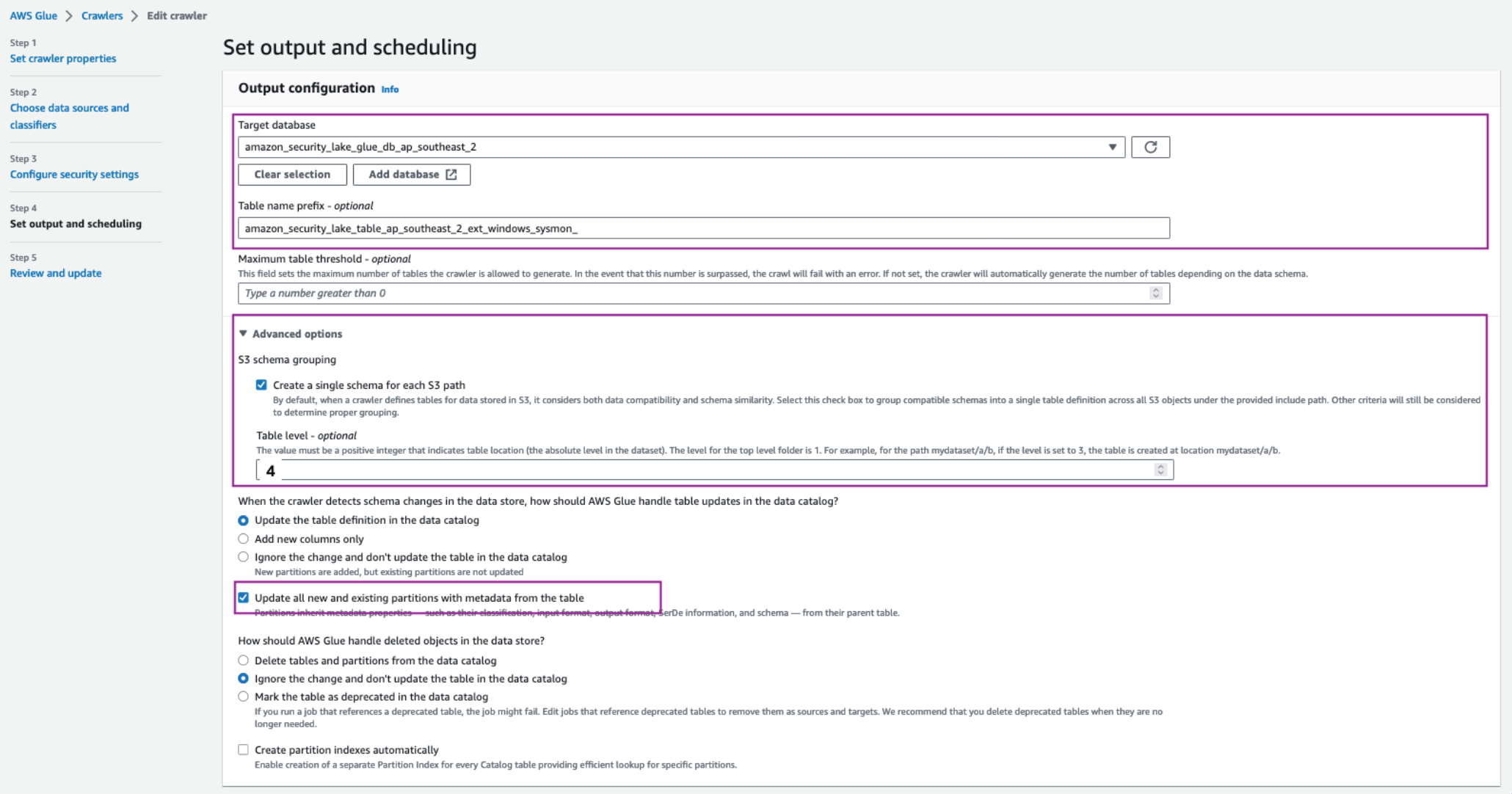
On the Set output and scheduling page, select the Target database as the Security Lake Glue database.
In a separate tab, navigate to AWS Glue > Tables. Copy the name of the custom source table created by Security Lake.
Navigate back to the AWS Glue crawler configuration tab, update the Table name prefix with the copied table name and add an underscore (_) at the end. For example, amazon_security_lake_table_ap_southeast_2_ext_windows_sysmon_.
Under Advanced options, select the checkbox for Create a single schema for each S3 path and for Table level enter 4.
Make sure you allow the crawler to enforce table schema to the partitions by selecting the Update all new and existing partitions with metadata from the table checkbox.
For the Crawler schedule section, select Monthly from the Frequency dropdown. For Minute, enter 0. This configuration will run the crawler every month.
Choose Next, then Update.
Figure 3: Set AWS Glue crawler output and scheduling
To configure hosts to stream log information:
As discussed in the Solution overview section, you use Kinesis Data Streams with a Lambda function to stream Sysmon logs and transform the information into OCSF.
Install Kinesis Agent for Microsoft Windows. There are three ways to install Kinesis Agent on Windows Operating Systems. Using AWS Systems Manager helps automate the deployment and upgrade process. You can also install Kinesis Agent by using a Windows installer package or PowerShell scripts.
After installation you must configure Kinesis Agent to stream log data to Kinesis Data Streams (you can use the following code for this). Kinesis Agent for Windows helps capture important metadata of the host system and enrich information streamed to the Kinesis Data Stream. The Kinesis Agent configuration file is located at %PROGRAMFILES%\Amazon\AWSKinesisTap\appsettings.json and includes three parts—sources, pipes, and sinks:
The preceding configuration shows the information flow through sources, pipes, and sinks using the Kinesis Agent for Windows. Use the sample configuration file provided in the solution repository. Observe the ObjectDecoration key in the Sink configuration; you can use this key to add key information to identify the generating system. For example, to identify whether the event is being generated by an Amazon Elastic Compute Cloud (Amazon EC2) instance or a hybrid server. This information can be used to map the Device attribute in the various OCSF classes such as File System Activity and Process Activity. The <KinesisAgentIAMRoleARN> is configured by the transformation library deployment unless you create your own IAM role and provide it as a parameter to the deployment.
Update the Kinesis agent configuration file %PROGRAMFILES%\Amazon\AWSKinesisTap\appsettings.json with the contents of the kinesis_agent_configuration.json file from this repository. Make sure you replace the <LogCollectionStreamName> and <KinesisAgentIAMRoleARN> placeholders with the value of the CloudFormation outputs, LogCollectionStreamName and KinesisAgentIAMRoleARN, that you captured in the Deploy transformation infrastructure step.
Start Kinesis Agent on the hosts to start streaming the logs to Security Lake buckets. Open an elevated PowerShell command prompt window, and start Kinesis Agent for Windows using the following PowerShell command:
Start-Service -Name AWSKinesisTap
Pattern 2: Log collection from services and products using AWS Glue
You can use Amazon VPC to launch resources in an isolated network. AWS Network Firewall provides the capability to filter network traffic at the perimeter of your VPCs and define stateful rules to configure fine-grained control over network flow. Common Network Firewall use cases include intrusion detection and protection, Transport Layer Security (TLS) inspection, and egress filtering. Network Firewall supports multiple destinations for log delivery, including Amazon S3.
In this pattern, you focus on adding a custom source in Security Lake where the product in use delivers raw logs to an S3 bucket.
Solution overview
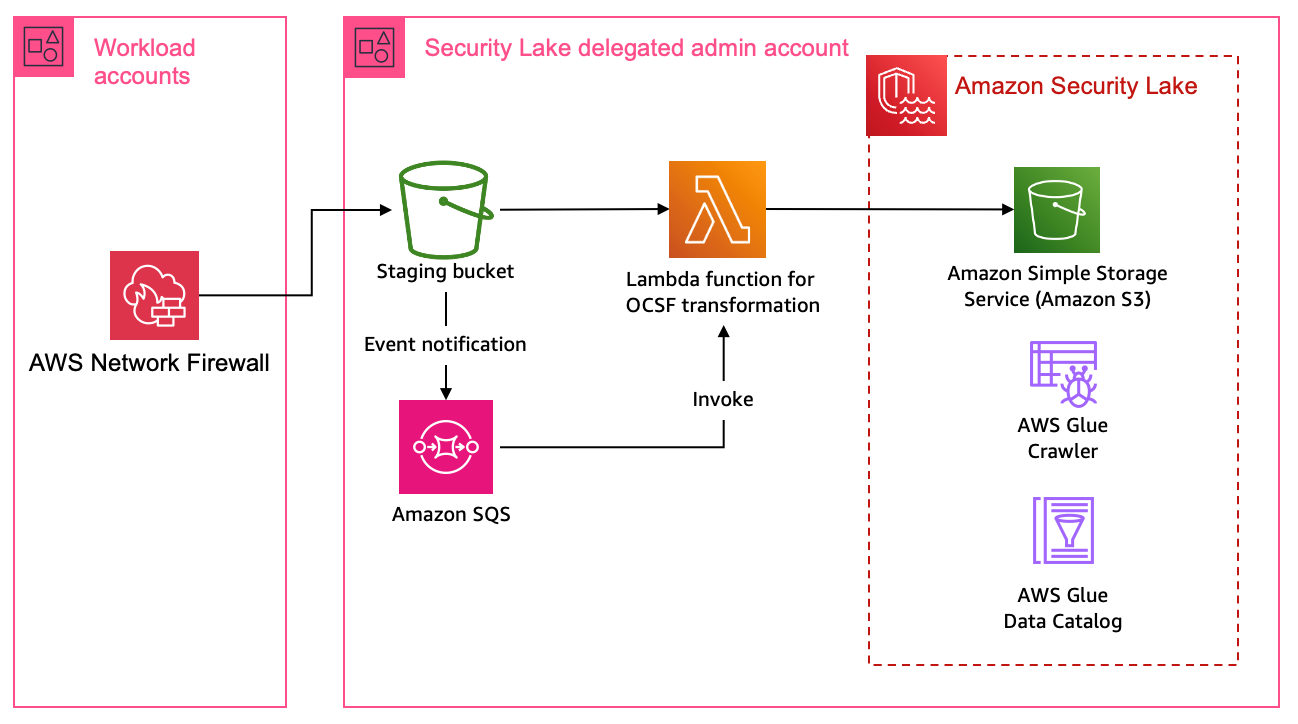
This solution uses an S3 bucket (the staging bucket) for raw log storage using the prerequisites defined earlier in this post. Use AWS Glue to configure the ETL and load the OCSF transformed logs into the Security Lake S3 bucket.
Figure 4: Architecture using AWS Glue for ETL
Figure 4 shows the architecture for this pattern. This pattern applies to AWS services or partner services that natively support log storage in S3 buckets. The solution starts by defining the OCSF mapping.
Mapping
Network firewall records two types of log information—alert logs and netflow logs. Alert logs report traffic that matches the stateful rules configured in your environment. Flow logs are network traffic flow logs that capture network traffic information for standard stateless rule groups. You can use stateful rules for use cases such as egress filtering to restrict the external domains that the resources deployed in a VPC in your AWS account have access to. In the Network Firewall use case, events can be mapped to various attributes in the Network Activity class in the Network Activity category.
Configure the log source to use Amazon S3 for log delivery
Add a custom source in Security Lake
Deploy the log staging and transformation infrastructure
Because Network Firewall logs can be mapped to a single OCSF class, you don’t need to update the AWS Glue crawler as in the previous pattern. However, you must update the AWS Glue crawler if you want to add a custom source with multiple OCSF classes.
Step 1: Update the mapping configuration
Each supported custom source documentation contains the mapping configuration. Update the mapping configuration for the Network Firewall custom source for the transformation function.
Step 2: Configure the log source to use S3 for log delivery
Configure Network Firewall to log to Amazon S3. The transformation function infrastructure deploys a staging S3 bucket for raw log storage. If you already have an S3 bucket configured for raw log delivery, you can update the value of the parameter RawLogS3BucketName during deployment. The deployment configures event notifications with Amazon Simple Queue Service (Amazon SQS). The transformation Lambda function is invoked by SQS event notifications when Network Firewall delivers log files in the staging S3 bucket.
Step 3: Add a custom source in Security Lake
As with the previous pattern, add a custom source for Network Firewall in Security Lake. In the previous pattern you used the AWS CLI to create and configure the custom source. In this pattern, we take you through the steps to do the same using the AWS console.
Under Custom source details enter a name for the custom log source such as network_firewall and choose Network Activity as the OCSF Event class
Figure 6: Data source name and OCSF Event class
Under Account details, enter your AWS account ID for the AWS account ID and External ID fields. Leave Create and use a new service role selected and choose Create.
Figure 7: Account details and service access
The custom log source will now be available.
Step 4: Deploy transformation infrastructure
As with the previous pattern, use AWS SAM CLI to deploy the transformation infrastructure.
To deploy the transformation infrastructure:
Clone the solution codebase into your choice of IDE.
Sign in to the Security Lake delegated administrator account.
The infrastructure is deployed using the AWS SAM, which is an open source framework for building serverless applications. Review the prerequisites and detailed deployment steps in the project’s README file. Use the SAM CLI to build and deploy the streaming infrastructure by running the following commands:
sam build

sam deploy --guided
Clean up
The resources created in the previous patterns can be cleaned up by running the following command:
sam delete
You also need to manually delete the custom source by following the instructions from the Security Lake User Guide.
Pattern 3: Log collection using integration with supported AWS services.
In a threat hunting and response use case, customers often use multiple sources of logs to correlate information to find more information on unauthorized third-party interactions originating from trusted software vendors. These interactions can be due to vulnerable components in the product or exposed credentials such as integration API keys. An operationally effective way to source logs from partner software and external vendors is to use the supported AWS services that natively integrate with Security Lake.
AWS Security Hub
AWS Security Hub is a cloud security posture measurement service that provides a comprehensive view of the security posture of your AWS environment. Security Hub supports integration with several AWS services including AWS Systems Manager Patch Manager, Amazon Macie, Amazon GuardDuty, and Amazon Inspector. For the full list, see AWS service integrations with AWS Security Hub. Security Hub also integrates with multiple third-party partner products that you can use. These products support sending findings to Security Hub seamlessly.
Security Lake natively supports ingestion of Security Hub findings, which centralizes the findings from the source integrations into Security Lake. Before you start building a custom source, we recommend you review whether the product is supported by Security Hub, which could remove the need for building manual mapping and transformation solutions.
AWS AppFabric
AWS AppFabric is a fully managed software as a service (SaaS) interoperability solution. Security Lake supports AppFabric output schema and format—OCSF and JSON respectively. Security Lake supports AppFabric as a custom source using Amazon Kinesis Data Firehose delivery stream. You can find step-by-step instructions in the AppFabric user guide.
Conclusion
Security Lake offers customers the capability to centralize disparate log sources in a single format, OCSF. Using OCSF improves correlation and enrichment activities because security teams no longer have to build queries based on the individual log source schema. Log data is normalized such that customers can use the same schema across the log data collected. Using the patterns and solution identified in this post, you can significantly reduce the effort involved in building custom sources to bring your own data into Security Lake.
You can extend the concepts and mapping function code provided in the amazon-security-lake-transformation-library to build out a log ingestion and ETL solution. You can use the flexibility offered by Security Lake and the custom source feature to ingest log data generated by all sources including third-party tools, log forwarding software, AWS services, and hybrid solutions.
In this post, we provided you with three patterns that you can use across multiple log sources. The most flexible being Pattern 1, where you can choose the OCSF mapped class and attributes that are in-line with your organizational mappings and custom source configuration with Security Lake. You can continue to use the mapping function code from the amazon-security-lake-transformation-library demonstrated through this post and update the mapping variable for the OCSF class you’re mapping to. This solution can be scaled to build a range of custom sources to enhance your threat detection and investigation workflow.
If you have feedback about this post, submit comments in the Comments section below. If you have questions about this post, contact AWS Support.
Customers using Amazon Web Services (AWS) can use a range of native and third-party tools to build workloads based on their specific use cases. Logs and metrics are foundational components in building effective insights into the health of your IT environment. In a distributed and agile AWS environment, customers need a centralized and holistic solution to visualize the health and security posture of their infrastructure.
You can effectively categorize the members of the teams involved using the following roles:
Executive stakeholder: Owns and operates with their support staff and has total financial and risk accountability.
Data custodian: Aggregates related data sources while managing cost, access, and compliance.
Operator or analyst: Uses security tooling to monitor, assess, and respond to related events such as service disruptions.
In this blog post, we focus on the data custodian role. We show you how you can visualize metrics and logs centrally with Amazon QuickSight irrespective of the service or tool generating them. We use Amazon Simple Storage Service (Amazon S3) for storage, AWS Glue for cataloguing, and Amazon Athena for querying the data and creating structured query language (SQL) views for QuickSight to consume.
Target architecture
This post guides you towards building a target architecture in line with the AWS Well-Architected Framework. The tiered and multi-account target architecture, shown in Figure 1, uses account-level isolation to separate responsibilities across the various roles identified above and makes access management more defined and specific to those roles. The workload accounts generate the telemetry around the applications and infrastructure. The data custodian account is where the data lake is deployed and collects the telemetry. The operator account is where the queries and visualizations are created.
Throughout the post, I mention AWS services that reduce the operational overhead in one or more stages of the architecture.
Figure 1: Data visualization architecture
Ingestion
Irrespective of the technology choices, applications and infrastructure configurations should generate metrics and logs that report on resource health and security. The format of the logs depends on which tool and which part of the stack is generating the logs. For example, the format of log data generated by application code can capture bespoke and additional metadata deemed useful from a workload perspective as compared to access logs generated by proxies or load balancers. For more information on types of logs and effective logging strategies, see Logging strategies for security incident response.
Amazon S3 is a scalable, highly available, durable, and secure object storage that you will use as the storage layer. To build a solution that captures events agnostic of the source, you must forward data as a stream to the S3 bucket. Based on the architecture, there are multiple tools you can use to capture and stream data into S3 buckets. Some tools support integration with S3 and directly stream data to S3. Resources like servers and virtual machines need forwarding agents such as Amazon Kinesis Agent, Amazon CloudWatch agent, or Fluent Bit.
Amazon Kinesis Data Streams provides a scalable data streaming environment. Using on-demand capacity mode eliminates the need for capacity provisioning and capacity management for streaming workloads. For log data and metric collection, you should use on-demand capacity mode, because log data generation can be unpredictable depending on the requests that are being handled by the environment. Amazon Kinesis Data Firehose can convert the format of your input data from JSON to Apache Parquet before storing the data in Amazon S3. Parquet is naturally compressed, and using Parquet native partitioning and compression allows for faster queries compared to JSON formatted objects.
Amazon Security Lake is a fully managed security data lake service. You can use Security Lake to automatically centralize security data from AWS environments, SaaS providers, on-premises, and third-party sources into a purpose-built data lake that’s stored in your AWS account. Using Security Lake reduces the operational effort involved in building a scalable data lake, as the service automates the configuration and orchestration for the data lake with Lake Formation. Security Lake automatically transforms logs into a standard schema—the Open Cybersecurity Schema Framework (OCSF) — and parses them into a standard directory structure, which allows for faster queries. For more information, see How to visualize Amazon Security Lake findings with Amazon QuickSight.
You can start with basic queries and visualizations as described in Query logs in S3 with Athena and Create a QuickSight visualization. Depending on the nature and origin of the logs and metrics that you want to query, you can use the examples published in Running SQL queries using Amazon Athena. To build custom analytics, you can create views with Athena. Views in Athena are logical tables that you can use to query a subset of data. Views help you to hide complexity and minimize maintenance when querying large tables. Use views as a source for new datasets to build specific health analytics and dashboards.
You can also use Amazon QuickSight Q to get started on your analytics journey. Powered by machine learning, Q uses natural language processing to provide insights into the datasets. After the dataset is configured, you can use Q to give you suggestions for questions to ask about the data. Q understands business language and generates results based on relevant phrases detected in the questions. For more information, see Working with Amazon QuickSight Q topics.
Conclusion
Logs and metrics offer insights into the health of your applications and infrastructure. It’s essential to build visibility into the health of your IT environment so that you can understand what good health looks like and identify outliers in your data. These outliers can be used to identify thresholds and feed into your incident response workflow to help identify security issues. This post helps you build out a scalable centralized visualization environment irrespective of the source of log and metric data.
This post is part 1 of a series that helps you dive deeper into the security analytics use case. In part 2, How to visualize Amazon Security Lake findings with Amazon QuickSight, you will learn how you can use Security Lake to reduce the operational overhead involved in building a scalable data lake and centralizing log data from SaaS providers, on-premises, AWS, and third-party sources into a purpose-built data lake. You will also learn how you can integrate Athena with Security Lake and create visualizations with QuickSight of the data and events captured by Security Lake.
If you have feedback about this post, submit comments in the Comments section below. If you have questions about this post, contact AWS Support.
Want more AWS Security news? Follow us on Twitter.
The collective thoughts of the interwebz
Manage Consent
To provide the best experiences, we use technologies like cookies to store and/or access device information. Consenting to these technologies will allow us to process data such as browsing behavior or unique IDs on this site. Not consenting or withdrawing consent, may adversely affect certain features and functions.
Functional
Always active
The technical storage or access is strictly necessary for the legitimate purpose of enabling the use of a specific service explicitly requested by the subscriber or user, or for the sole purpose of carrying out the transmission of a communication over an electronic communications network.
Preferences
The technical storage or access is necessary for the legitimate purpose of storing preferences that are not requested by the subscriber or user.
Statistics
The technical storage or access that is used exclusively for statistical purposes.The technical storage or access that is used exclusively for anonymous statistical purposes. Without a subpoena, voluntary compliance on the part of your Internet Service Provider, or additional records from a third party, information stored or retrieved for this purpose alone cannot usually be used to identify you.
Marketing
The technical storage or access is required to create user profiles to send advertising, or to track the user on a website or across several websites for similar marketing purposes.