All posts by Ritesh Sinha

Harnessing the Power of Nested Materialized Views and exploring Cascading Refresh

Post Syndicated from Ritesh Sinha original https://aws.amazon.com/blogs/big-data/harnessing-the-power-of-nested-materialized-views-and-exploring-cascading-refresh/

Amazon Redshift materialized views enables you to significantly improve performance of complex queries. Materialized views store precomputed query results that future similar queries can utilize, offering a powerful solution for data warehouse environments where applications often need to execute resource-intensive queries against large tables. This optimization technique enhances query speed and efficiency by allowing many computation steps to be skipped, with precomputed results returned directly. Materialized views are particularly useful for speeding up predictable and repeated queries, such as those used to populate dashboards or generate reports. Instead of repeatedly performing resource-intensive operations, applications can query a materialized view and retrieve precomputed results, leading to significant performance gains and improved user experience. Additionally, materialized views can be incrementally refreshed, applying logic only to changed data when data manipulation language (DML) changes are made to the underlying base tables, further optimizing performance and maintaining data consistency.

This post demonstrates how to maximize your Amazon Redshift query performance by effectively implementing materialized views. We’ll explore creating materialized views and implementing nested refresh strategies, where materialized views are defined in terms of other materialized views to expand their capabilities. This approach is particularly powerful for reusing precomputed joins with different aggregate options, significantly reducing processing time for complex ETL and BI workloads. Let’s explore how to implement this powerful feature in your data warehouse environment.

Introduction to Nested Materialized Views

Nested materialized views in Amazon Redshift allow you to create materialized views based on other materialized views. This capability enables a hierarchical structure of precomputed results, significantly enhancing query performance and data processing efficiency. With nested materialized views, you can build multi-layered data abstractions, creating increasingly complex and specialized views tailored to specific business needs.This layered approach offers several advantages:

  • Improved Query Performance: Each level of the nested materialized view hierarchy serves as a cache, allowing queries to quickly access pre-computed data without the need to traverse the underlying base tables.
  • Reduced Computational Load: By offloading the computational work to the materialized view refresh process, you can significantly reduce the runtime and resource utilization of your day-to-day queries.
  • Simplified Data Modeling: Nested materialized views enable you to create a more modular and extensible data model, where each layer represents a specific business concept or use case.
  • Incremental Refreshes: The Redshift materialized views support incremental refreshes, allowing you to update only the changed data within the nested hierarchy, further optimizing the refresh process.
  • Cascading Materialized Views: The Redshift materialized views support automatic handling of Extract, Load, and Transform (ELT) style workloads, minimizing the need for manual creation and management of these processes.

You can implement nested materialized views using the CREATE MATERIALIZED VIEW statement, which allows referencing other materialized views in the definition. Common use cases include:

  • Modular data transformation pipelines
  • Hierarchical aggregations for progressive analysis
  • Multi-level data validation pipelines
  • Historical data snapshot management
  • Optimized BI reporting with precomputed results

Architecture

architecture

Architectural diagram depicting Amazon Redshift’s nested materialized view structure. Shows multiple base tables (orange) connecting to materialized views (red), with connections to a nested view layer and data sharing table (green). Includes integration points for users and QuickSight visualization.

  1. Base Table(s): These are the underlying base tables that contain the raw data for your data warehouse. It can be local tables or data sharing tables.
  2. Base Materialized View(s): These are the first-level materialized views that are created directly on top of the base tables. These views encapsulate common data transformations and aggregations. This can serve as the base for the nested materialized view and also be accessed by users directly.
  3. Nested Materialized View(s): These are the second level (or higher) materialized views that are created based on the base materialized views. The nested materialized view can further aggregate, filter, or transform the data from the base materialized views.
  4. Application/Users/BI Reporting: The application or business intelligence (BI) tools interact with the nested materialized views to generate reports and dashboards. The nested views provide a more optimized and precomputed data structure for efficient querying and reporting.

Creating and using nested materialized views

To demonstrate how nested materialized views work in Amazon Redshift, we’ll use the TPC-DS dataset. We’ll create three queries using the STORE, STORE_SALES, CUSTOMER, and CUSTOMER_ADDRESS tables to simulate data warehouse reports. This example will illustrate how multiple reports can share result sets and how materialized views can improve both resource efficiency and query performance.Let’s consider the following queries as dashboard queries:

SELECT cust.c_customer_id,
cust.c_first_name, 
cust.c_last_name, 
sales.ss_item_sk, 
sales.ss_quantity, 
cust.c_current_addr_sk 
FROM store_sales sales INNER JOIN customer cust
ON sales.ss_customer_sk = cust.c_customer_sk;

SELECT cust.c_customer_id,
cust.c_first_name, 
cust.c_last_name, 
sales.ss_item_sk, 
sales.ss_quantity, 
cust.c_current_addr_sk, 
store.s_store_name
FROM store_sales sales INNER JOIN customer cust
ON sales.ss_customer_sk = cust.c_customer_sk
INNER JOIN store store
ON sales.ss_store_sk = store.s_store_sk;

SELECT cust.c_customer_id, 
cust.c_first_name, cust.c_last_name, 
sales.ss_item_sk, 
sales.ss_quantity, 
addr.ca_state
FROM store_sales sales INNER JOIN customer cust
ON sales.ss_customer_sk = cust.c_customer_sk
INNER JOIN store store
ON sales.ss_store_sk = store.s_store_sk
INNER JOIN customer_address addr
ON cust.c_current_addr_sk = addr.ca_address_sk;

Notice that the join between STORE_SALES and CUSTOMER tables is present at all 3 queries (dashboards).

The second query adds a join with STORE table and the third query is the second one with an extra join with CUSTOMER_ADDRESS table. This pattern is common in business intelligence scenarios. As mentioned earlier, using a materialized view can speed up queries because the result set is stored and ready to be delivered to the user, avoiding reprocessing of the same data. In cases like this, we can use nested materialized views to reuse already processed data.When transforming our queries into a set of nested materialized views, the result would be as below:

CREATE MATERIALIZED VIEW StoreSalesCust as
SELECT cust.c_customer_id, 
cust.c_first_name, 
cust.c_last_name, 
sales.ss_item_sk, 
sales.ss_store_sk, 
sales.ss_quantity, 
cust.c_current_addr_sk
FROM store_sales sales INNER JOIN customer cust
ON sales.ss_customer_sk = cust.c_customer_sk;

CREATE MATERIALIZED VIEW StoreSalesCustStore as
SELECT storesalescust.c_customer_id, 
storesalescust.c_first_name, 
storesalescust.c_last_name, 
storesalescust.ss_item_sk, 
storesalescust.ss_quantity, 
storesalescust.c_current_addr_sk, 
store.s_store_name
FROM StoreSalesCust storesalescust INNER JOIN store store
ON storesalescust.ss_store_sk = store.s_store_sk;

CREATE MATERIALIZED VIEW StoreSalesCustAddress as
SELECT storesalescuststore.c_customer_id, 
storesalescuststore.c_first_name, 
storesalescuststore.c_last_name, 
storesalescuststore.ss_item_sk, 
storesalescuststore.ss_quantity, 
addr.ca_state
FROM StoreSalesCustStore storesalescuststore INNER JOIN customer_address addr
ON storesalescuststore.c_current_addr_sk = addr.ca_address_sk;

Nested materialized views can improve performance and resource efficiency by reusing initial view results, minimizing redundant joins, and working with smaller result sets. This creates a hierarchical structure where materialized views depend on one another. Due to these dependencies, you must refresh the views in a specific order.

message

SQL query result indicating dependency issue for REFRESH MATERIALIZED VIEW StoreSalesCustAddress.

With the new option “REFRESH MATERIALIZED VIEW mv_name CASCADE” you will be able to refresh the entire chain of dependencies for the materialized views you have. Note that in this example we are using the third materialized view, StoreSalesCustAddress, and this will refresh all 3 materialized views because they are dependent on each other.

message

SQL query showing successful CASCADE refresh of StoreSalesCustAddress materialized view in Amazon Redshift.

If we use the second materialized view with the CASCADE option, we will refresh only the first and second materialized views, leaving the third unchanged. This may be useful when we need to keep some materialized views with less current data than others.

The SVL_MV_REFRESH_STATUS system view reveals the refresh sequence of materialized views. When triggering a cascade refresh on StoreSalesCustAddress, the system follows the dependency chain we established: StoreSalesCust refreshes first, followed by StoreSalesCustStore, and finally StoreSalesCustAddress. This demonstrates how the refresh operation respects the hierarchical structure of our materialized views.

result

SQL query result from SVL_MV_REFRESH_STATUS showing successful recomputation of three materialized views.

Considerations

Consider a dependency chain where StoreSalesCust (A) → StoreSalesCustStore (B) → StoreSalesCustAddress (C).

  • The CASCADE refresh behavior works as follows:
    • When refreshing C with CASCADE: A, B, and C will all be refreshed.
    • When refreshing B with CASCADE: Only A and B will be refreshed.
    • When refreshing A with CASCADE: Only A will be refreshed.
    • If you specifically need to refresh A and C but not B, you must perform separate refresh operations without using CASCADE—first refresh A, then refresh C directly.

Best Practices for Materialized View

  • Improve the source query: Start with a well-optimized SELECT statement for your materialized view. This is especially important for views that need full rebuilds during each refresh.
  • Plan refresh strategies: When creating materialized views that depend on other materialized views, you cannot use AUTO REFRESH YES. Instead, implement orchestrated refresh mechanisms using Redshift Data API with Amazon EventBridge for scheduling and AWS Step Functions for workflow management.
  • Leverage distribution and sort keys: Properly configure distribution and sort keys on materialized views based on their query patterns to optimize performance. Well-chosen keys improve query speed and reduce I/O operations.
  • Consider incremental refresh capability: When possible, design materialized views to support incremental refresh, which only updates changed data rather than rebuilding the entire view, greatly improving refresh performance.
  • To learn more about the Automated materialized view (auto-MV) feature to boost your workload performance, this intelligent system monitors your workload and automatically creates materialized views to enhance overall performance. For more detailed information on this feature, please refer to Automated materialized views.

Clean up

Complete the following steps to clean up your resources:

  • Delete the Redshift provisioned replica cluster or the Redshift serverless endpoints created for this exercise

or

  • Drop only the Materialized view which you have created for testing

Conclusion

This post showed how to create nested Amazon Redshift materialized views and refresh the child materialized views using the new REFRESH CASCADE option. You can quickly build and maintain efficient data processing pipelines and seamlessly extend the low latency query execution benefits of materialized views to data analysis.


About the authors

Ritesh Kumar Sinha is an Analytics Specialist Solutions Architect based out of San Francisco. He has helped customers build scalable data warehousing and big data solutions for over 16 years. He loves to design and build efficient end-to-end solutions on AWS. In his spare time, he loves reading, walking, and doing yoga.

Raza Hafeez is a Senior Product Manager at Amazon Redshift. He has over 13 years of professional experience building and optimizing enterprise data warehouses and is passionate about enabling customers to realize the power of their data. He specializes in migrating enterprise data warehouses to AWS Modern Data Architecture.

Ricardo Serafim is a Senior Analytics Specialist Solutions Architect at AWS. He has been helping companies with Data Warehouse solutions since 2007.

Ingest data from Google Analytics 4 and Google Sheets to Amazon Redshift using Amazon AppFlow

Post Syndicated from Ritesh Sinha original https://aws.amazon.com/blogs/big-data/ingest-data-from-google-analytics-4-and-google-sheets-to-amazon-redshift-using-amazon-appflow/

Google Analytics 4 (GA4) provides valuable insights into user behavior across websites and apps. But what if you need to combine GA4 data with other sources or perform deeper analysis? That’s where Amazon Redshift and Amazon AppFlow come in. Amazon AppFlow bridges the gap between Google applications and Amazon Redshift, empowering organizations to unlock deeper insights and drive data-informed decisions. In this post, we show you how to establish the data ingestion pipeline between Google Analytics 4, Google Sheets, and an Amazon Redshift Serverless workgroup.

Amazon AppFlow is a fully managed integration service that you can use to securely transfer data from software as a service (SaaS) applications, such as Google BigQuery, Salesforce, SAP, HubSpot, and ServiceNow, to Amazon Web Services (AWS) services such as Amazon Simple Storage Service (Amazon S3) and Amazon Redshift, in just a few clicks. With Amazon AppFlow, you can run data flows at nearly any scale and at the frequency you choose—on a schedule, in response to a business event, or on demand. You can configure data transformation capabilities such as filtering and validation to generate rich, ready-to-use data as part of the flow itself, without additional steps. Amazon AppFlow automatically encrypts data in motion, and allows you to restrict data from flowing over the public internet for SaaS applications that are integrated with AWS PrivateLink, reducing exposure to security threats.

Amazon Redshift is a fast, scalable, and fully managed cloud data warehouse that allows you to process and run your complex SQL analytics workloads on structured and semi-structured data. It also helps you securely access your data in operational databases, data lakes, or third-party datasets with minimal movement or copying of data. Tens of thousands of customers use Amazon Redshift to process large amounts of data, modernize their data analytics workloads, and provide insights for their business users.

Prerequisites

Before starting this walkthrough, you need to have the following prerequisites in place:

  • An AWS account.
  • In your Google Cloud project, you’ve enabled the following APIs:
    • Google Analytics API
    • Google Analytics Admin API
    • Google Analytics Data API
    • Google Sheets API
    • Google Drive API

For more information, refer to Amazon AppFlow support for Google Sheets.

For the steps to enable these APIs, see Enable and disable APIs on the API Console Help for Google Cloud Platform.

Architecture overview

The following architecture shows how Amazon AppFlow can transform and move data from SaaS applications to processing and storage destinations. Three sections appear from left to right in the diagram: Source, Move, Target. These sections are described in the following section.

  • Source – The leftmost section on the diagram represents different applications acting as a source, including Google Analytics, Google Sheets, and Google BigQuery.
  • Move – The middle section is labeled Amazon AppFlow. The section contains boxes that represent Amazon AppFlow operations such as Mask Fields, Map Fields, Merge Fields, Filter Data, and others. In this post, we focus on setting up the data movement using Amazon AppFlow and filtering data based on start date. The other transformation operations such as mapping, masking, and merging fields are not covered in this post.
  • Destination – The section on the right of the diagram is labeled Destination and represents targets such as Amazon Redshift and Amazon S3. In this psot, we primarily focus on Amazon Redshift as the destination.

This post has two parts. The first part covers integrating from Google Analytics. The second part focuses on connecting with Google Sheets.

Application configuration in Google Cloud Platform

Amazon AppFlow requires OAuth 2.0 for authentication. You need to create an OAuth 2.0 client ID, which Amazon AppFlow uses when requesting an OAuth 2.0 access token. To create an OAuth 2.0 client ID in the Google Cloud Platform console, follow these steps:

  1. On the Google Cloud Platform Console, from the projects list, select a project or create a new one.
  2. If the APIs & Services page isn’t already open, choose the menu icon on the upper left and select APIs & Services.
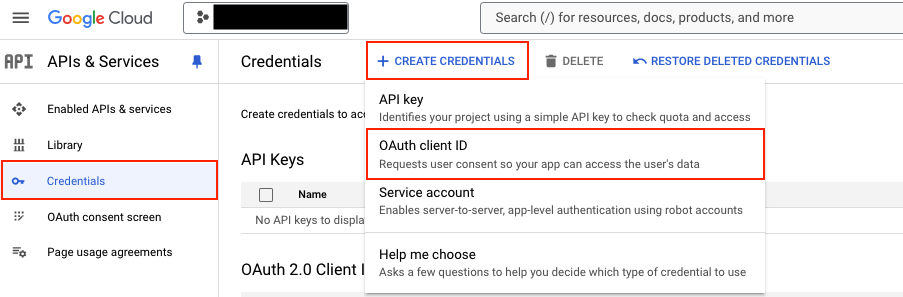
  3. In the navigation pane, choose Credentials.
  4. Choose CREATE CREDENTIALS, then choose OAuth client ID, as shown in the following screenshot.

  1. Select the application type Web application, enter the name demo-google-aws, and provide URIs for Authorized JavaScript origins https://console.aws.amazon.com. For Authorized redirect URIs, add https://us-east-1.console.aws.amazon.com/appflow/oauth. Choose SAVE, as shown in the following screenshot.

  1. The OAuth client ID is now created. Select demo-google-aws.

  1. Under Additional information, as shown in the following screenshot, note down the Client ID and Client secret.

Data ingestion from Google Analytics 4 to Amazon Redshift

In this section, you configure Amazon AppFlow to set up a connection between Google Analytics 4 and Amazon Redshift for data migration. This procedure can be classified into the following steps:

  1. Create a connection to Google Analytics 4 in Amazon AppFlow
  2. Create an IAM role for Amazon AppFlow integration with Amazon Redshift
  3. Set up Amazon AppFlow connection for Amazon Redshift
  4. Set up table and permission in Amazon Redshift
  5. Create data flow in Amazon AppFlow

Create a connection to Google Analytics 4 in Amazon AppFlow

To create a connection to Google Analytics 4 in Amazon AppFlow, follow these steps:

  1. Sign in to the AWS Management Console and open Amazon AppFlow.
  2. In the navigation pane on the left, choose Connections.
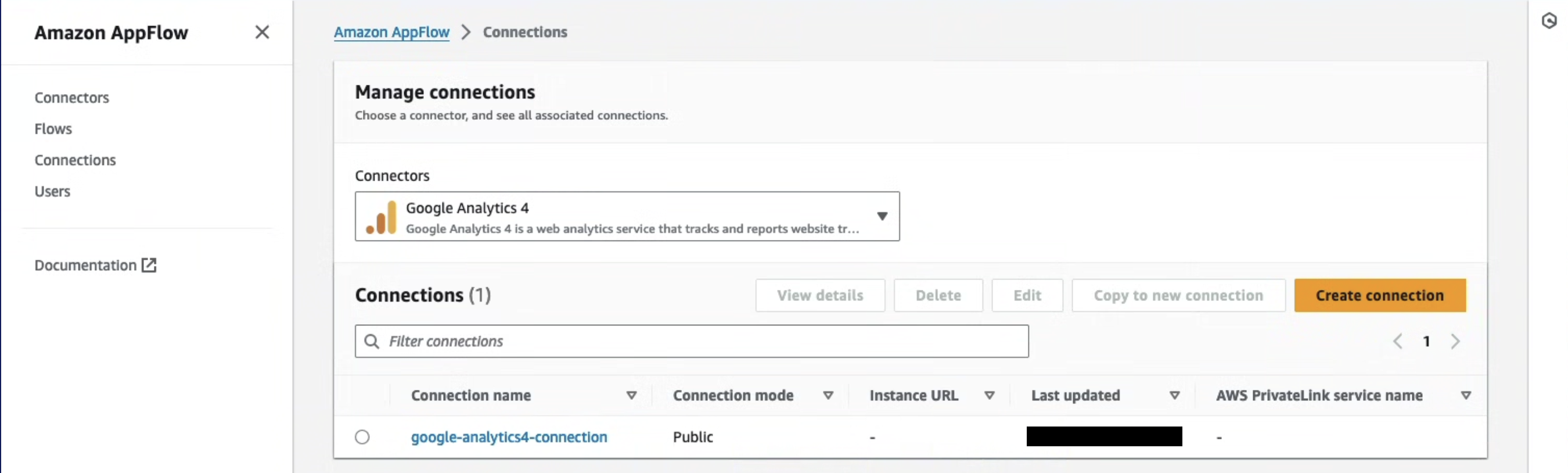
  3. On the Manage connections page, for Connectors, choose Google Analytics 4.
  4. Choose Create connection.
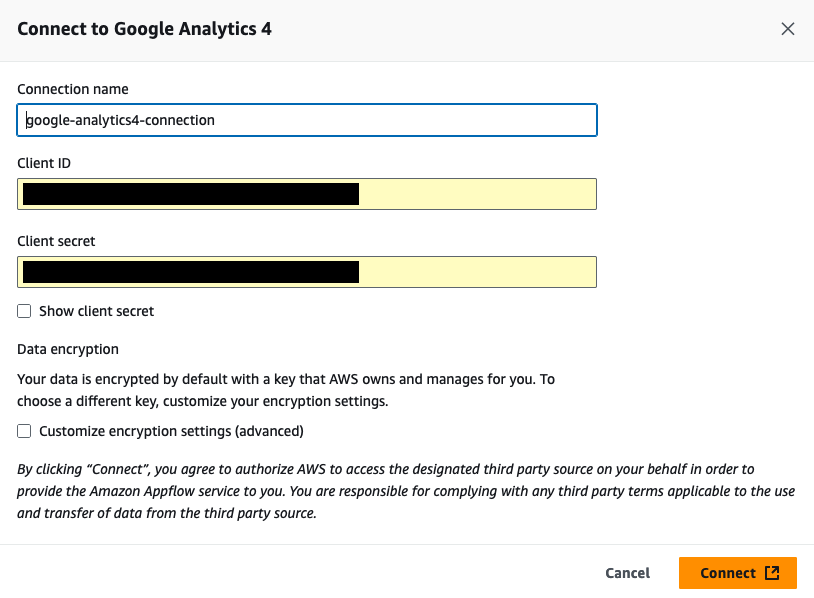
  5. In the Connect to Google Analytics 4 window, enter the following information. For Client ID, enter the client ID of the OAuth 2.0 client ID in your Google Cloud project created in the previous section. For Client secret, enter the client secret of the OAuth 2.0 client ID in your Google Cloud project created in the previous section.
  6. (Optional) under Data encryption, choose Customize encryption settings (advanced) if you want to encrypt your data with a customer managed key in AWS Key Management Service (AWS KMS). By default, Amazon AppFlow encrypts your data with an AWS KMS key that AWS creates, uses, and manages for you. Choose this option if you want to encrypt your data with your own AWS KMS key instead.

The following screenshot shows the Connect to Google Analytics 4 window.

Amazon AppFlow encrypts your data during transit and at rest. For more information, see Data protection in Amazon AppFlow.

If you want to use an AWS KMS key from the current AWS account, select this key under Choose an AWS KMS key. If you want to use an AWS KMS key from a different AWS account, enter the Amazon Resource Name (ARN) for that key:

  1. For Connection name, enter a name for your connection
  2. Choose Continue
  3. In the window that appears, sign in to your Google account and grant access to Amazon AppFlow

On the Manage connections page, your new connection appears in the Connections table. When you create a flow that uses Google Analytics 4 as the data source, you can select this connection.

Create an IAM role for Amazon AppFlow integration with Amazon Redshift

You can use Amazon AppFlow to transfer data from supported sources into your Amazon Redshift databases. You need an IAM role because Amazon AppFlow needs authorization to access Amazon Redshift using an Amazon Redshift Data API.

  1. Sign in to the AWS Management Console, preferably as admin user, and in the navigation pane of the IAM dashboard, choose Policies.
  2. Choose Create policy.
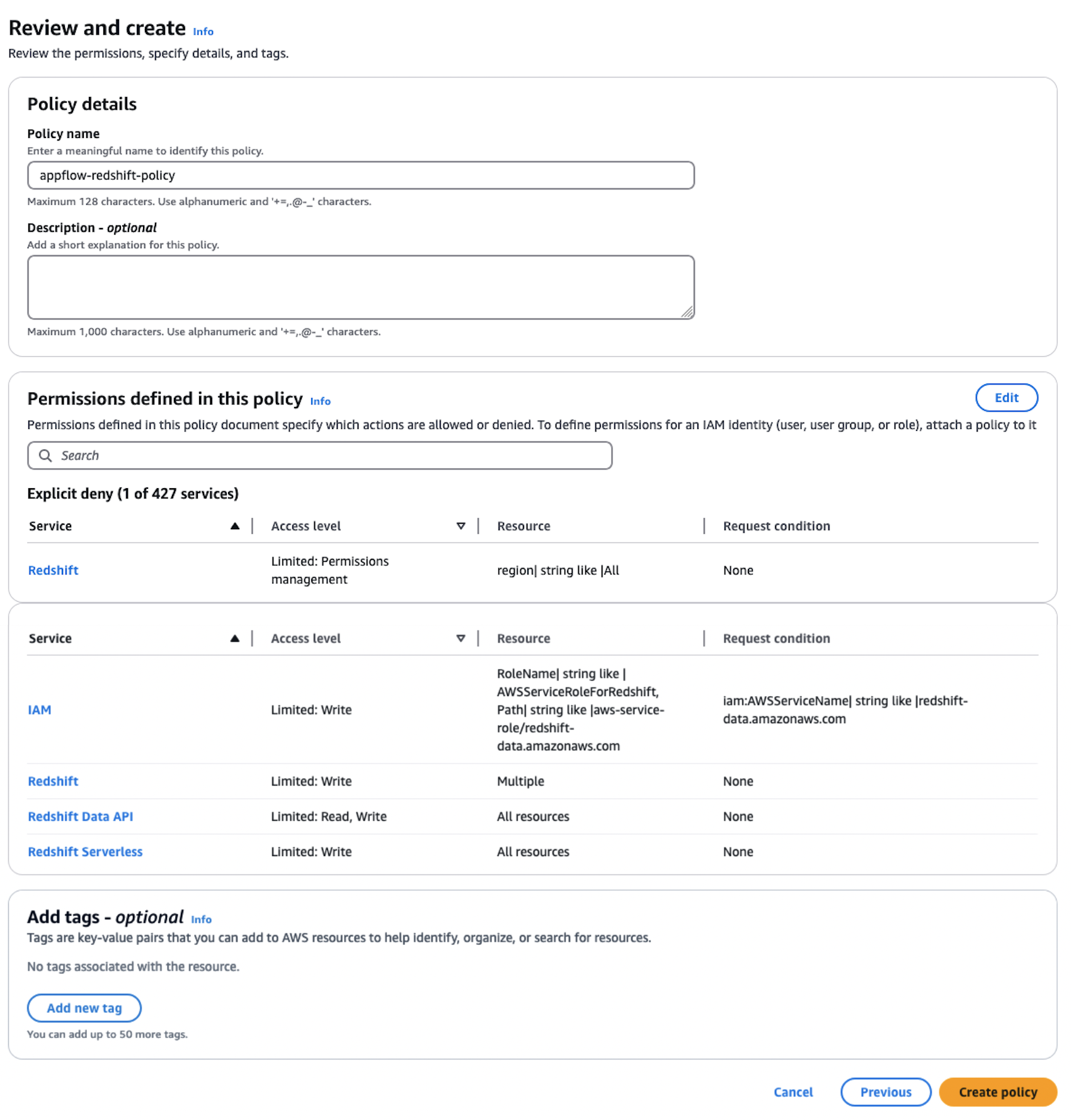
  3. Select the JSON tab and paste in the following policy. Amazon AppFlow needs the following permissions to gain access and run SQL statements with the Amazon Redshift database.
{
  "Version": "2012-10-17",
  "Statement": [
    {
      "Sid": "DataAPIPermissions",
      "Effect": "Allow",
      "Action": [
        "redshift-data:ExecuteStatement",
        "redshift-data:GetStatementResult",
        "redshift-data:DescribeStatement"
      ],
      "Resource": "*"
    },
    {
      "Sid": "GetCredentialsForAPIUser",
      "Effect": "Allow",
      "Action": "redshift:GetClusterCredentials",
      "Resource": [
        "arn:aws:redshift:*:*:dbname:*/*",
        "arn:aws:redshift:*:*:dbuser:*/*"
      ]
    },
    {
      "Sid": "GetCredentialsForServerless",
      "Effect": "Allow",
      "Action": "redshift-serverless:GetCredentials",
      "Resource": "*"
    },
    {
      "Sid": "DenyCreateAPIUser",
      "Effect": "Deny",
      "Action": "redshift:CreateClusterUser",
      "Resource": [
        "arn:aws:redshift:*:*:dbuser:*/*"
      ]
    },
    {
      "Sid": "ServiceLinkedRole",
      "Effect": "Allow",
      "Action": "iam:CreateServiceLinkedRole",
      "Resource": "arn:aws:iam::*:role/aws-service-role/redshift-data.amazonaws.com/AWSServiceRoleForRedshift",
      "Condition": {
        "StringLike": {
          "iam:AWSServiceName": "redshift-data.amazonaws.com"
        }
      }
    }
  ]
}
  1. Choose Next, provide the Policy name as appflow-redshift-policy, Description as appflow redshift policy, and choose Create policy.

  1. In the navigation pane, choose Roles and Create role. Choose Custom trust policy and paste in the following. Choose Next. This trust policy grants Amazon AppFlow the ability to assume the role for Amazon AppFlow to access and process data.
{
  "Version": "2012-10-17",
  "Statement": [
    {
      "Effect": "Allow",
      "Principal": {
        "Service": "appflow.amazonaws.com"
      },
      "Action": "sts:AssumeRole"
    }
  ]
}
  1. Search for policy appflow-redshift-policy, check the box next to it, and choose Next.

  1. Provide the role name appflow-redshift-access-role and Description and choose Create role.

Set up Amazon AppFlow connection for Amazon Redshift

To set up an Amazon AppFlow connection for Amazon Redshift, follow these steps:

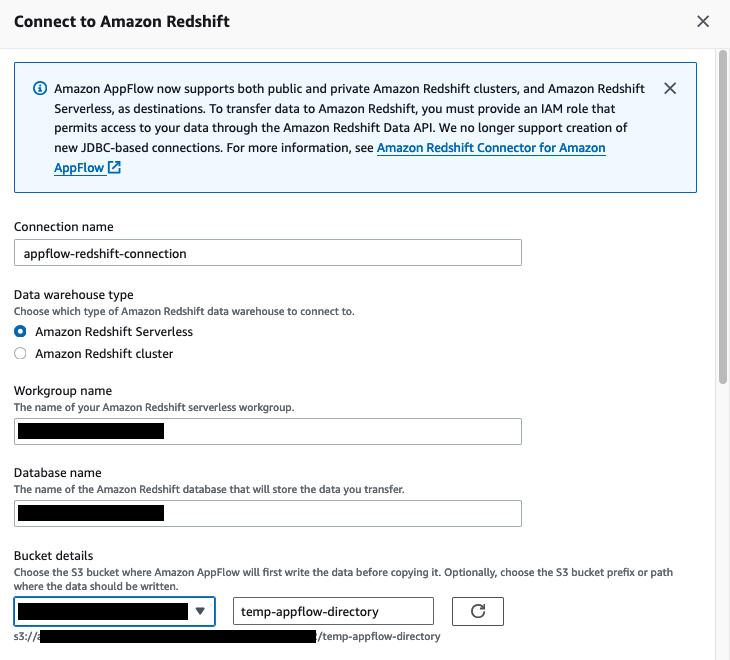
  1. On the Amazon AppFlow console, in the navigation pane, choose Connectors, select Amazon Redshift, and choose Create connection.

  1. Enter the connection name appflow-redshift-connection. You can either use Amazon Redshift provisioned or Amazon Redshift Serverless, but in this example we are using Amazon Redshift Serverless. Select Amazon Redshift Serverless and enter the workgroup name and database name.
  2. Choose the S3 bucket and enter the bucket prefix.

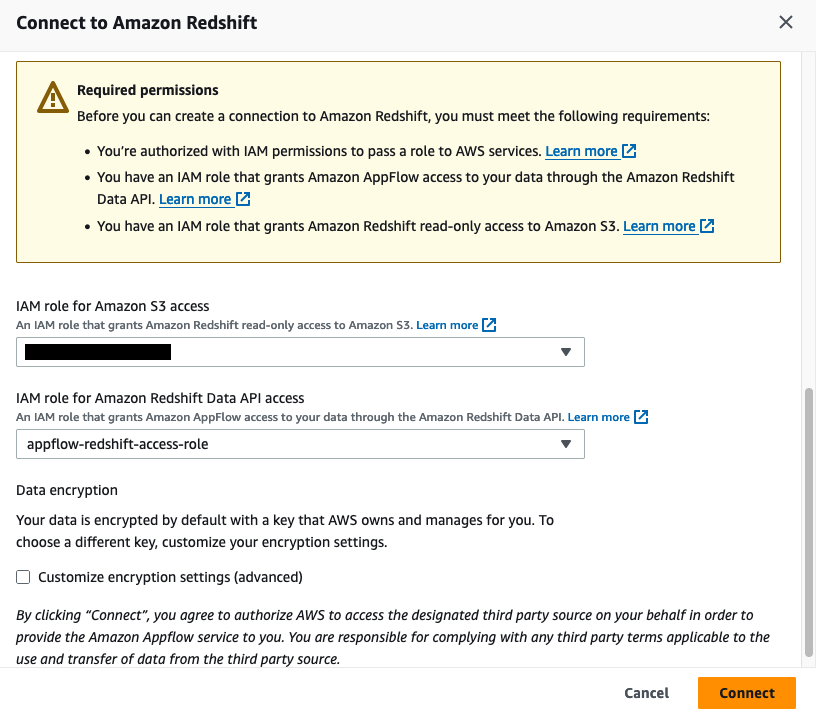
  1. For Amazon S3 access, select the IAM role attached to the Redshift cluster or namespace during the creation of the Redshift cluster. Additionally, for the Amazon Redshift Data API, choose the IAM role appflow-redshift-access-role created in the previous section and then choose

Set up a table and permission in Amazon Redshift

To set up table and permission in Amazon Redshift, follow these steps:

  1. On the Amazon Redshift console, choose Query editor v2 in Explorer.
  2. Connect to your existing Redshift cluster or Amazon Redshift Serverless workgroup.
  3. Create a table with the following Data Definition Language (DDL).
create table public.stg_ga4_daily_summary

(

event_date date,

region varchar(255),

country varchar(255),

city varchar(255),

deviceCategory varchar(255),

deviceModel varchar(255),

browser varchar(255),

active_users INTEGER,

new_users integer,

total_revenue  NUMERIC(18,2)

);

The following screenshot shows the successful creation of this table in Amazon Redshift:

The following step is only applicable to Amazon Redshift Serverless. If you are using a Redshift provisioned cluster, you can skip this step.

  1. Grant the permissions on the table to the IAM user used by Amazon AppFlow to load data into Amazon Redshift Serverless, for example, appflow-redshift-access-role.
GRANT INSERT ON TABLE public.stg_ga4_daily_summary TO "IAMR:appflow-redshift-access-role";

Create data flow in Amazon AppFlow

To create a data flow in Amazon AppFlow, follow these steps:

  1. On the Amazon AppFlow console, choose Flows and select Amazon Redshift. Choose Create flow and enter the flow name and the flow description, as shown in the following screenshot.

  1. In Source name, choose Google Analytics 4. Choose the Google Analytics 4 connection.
  2. Select the Google Analytics 4 object, then choose Amazon Redshift as the destination, selecting the public schema and stg_ga4_daily_summary table in your Redshift instance.

  1. For Flow trigger, choose Run on demand and choose Next, as shown in the following screenshot.

You can run the flow on schedule to pull either full or incremental data refresh. For more information, see Schedule-triggered flows.

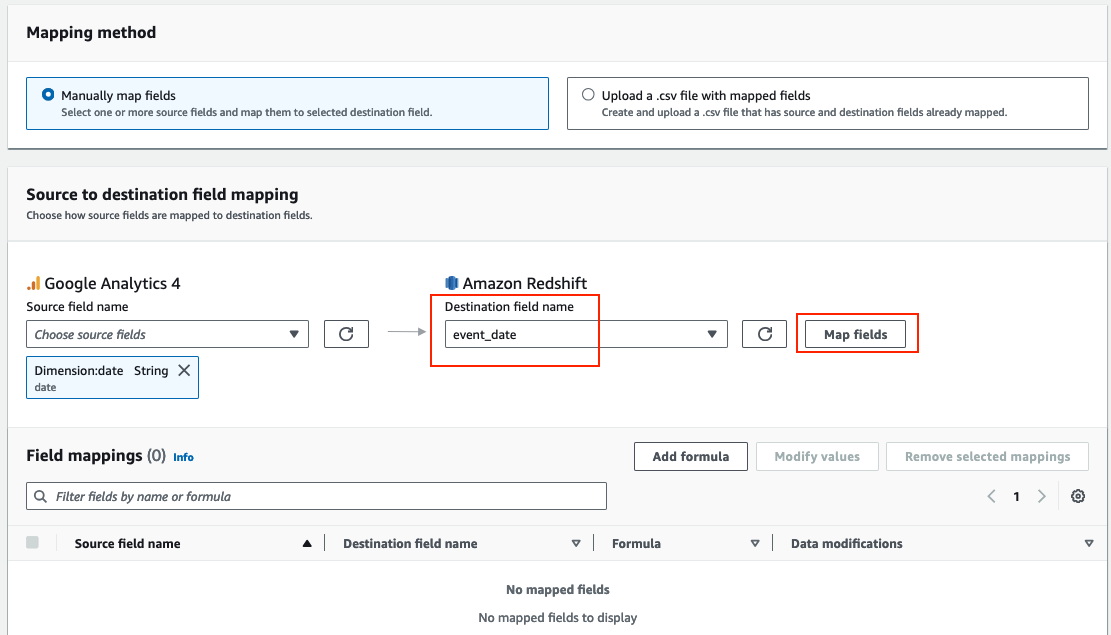
  1. Select Manually map fields. From the Source field name dropdown menu, select the attribute date, and from the Destination field name, select event_date and choose Map fields, as shown in the following screenshot.

  1. Repeat the previous step (step 5) for the following attributes and then choose Next. The following screenshot shows the mapping.
Dimension:browser --> browser
Dimension:region --> region
Dimension:country --> country
Dimension:city --> city
Dimension:deviceCategory --> devicecategory
Dimension:deviceModel --> devicemodel
Metric:activeUsers --> active_users
Metric:newUsers --> new_users
Metric: totalRevenue --> total_revenue
Dimension:date --> event_date

The Google Analytics API provides various dimensions and metrics for reporting purposes. Refer to API Dimensions & Metrics for details.

  1. In Field name, enter the filter start_end_date and choose Next, as shown in the following screenshot. The Amazon AppFlow date filter supports both a start date (criteria1) and an end date (criteria2) to define the desired date range for data transfer. We are using the date range because we have sample data created for this range.

  1. Review the configurations and choose Create flow.
  2. Choose Run flow, as shown in the following screenshot, and wait for the flow execution to be completed.

  1. On the Amazon Redshift console, choose Query editor v2 in Explorer.
  2. Connect to your existing Redshift cluster or Amazon Redshift Serverless workgroup.
  3. Enter the following SQL to verify the data in Amazon Redshift.
select * from public.stg_ga4_daily_summary

The screenshot below shows the results loaded into the stg_ga4_daily_summary table.

Data ingestion from Google Sheets to Amazon Redshift

Ingesting data from Google Sheets to Amazon Redshift using Amazon AppFlow streamlines analytics, enabling seamless transfer and deeper insights. In this section, we demonstrate how business users can maintain their business glossary in Google Sheets and integrate that using Amazon AppFlow with Amazon Redshift and get meaningful insights.

For this demo, you can upload the Nation Market segment file to your Google sheet before proceeding to the next steps. These steps show how to configure Amazon AppFlow to set up a connection between Google Sheets and Amazon Redshift for data migration. This procedure can be classified into the following steps:

  1. Create Google Sheets connection in Amazon AppFlow
  2. Set up table and permission in Amazon Redshift
  3. Create data flow in Amazon AppFlow

Create Google Sheets connection in Amazon AppFlow

To create a Google Sheets connection in Amazon AppFlow, follow these steps:

  1. On the Amazon AppFlow console, choose Connectors, select Google Sheets, then choose Create connection.
  2. In the Connect to Google Sheets window, enter the following information. For Client ID, enter the client ID of the OAuth 2.0 client ID in your Google Sheets project. For Client secret, enter the client secret of the OAuth 2.0 client ID in your Google Sheets project.
  3. For Connection name, enter a name for your connection.
  4. (Optional) Under Data encryption, choose Customize encryption settings (advanced) if you want to encrypt your data with a customer managed key in AWS KMS. By default, Amazon AppFlow encrypts your data with an AWS KMS key that AWS creates, uses, and manages for you. Choose this option if you want to encrypt your data with your own AWS KMS key instead.
  5. Choose Connect.
  6. In the window that appears, sign in to your Google account and grant access to Amazon AppFlow.

Set up table and permission in Amazon Redshift

To set up a table and permission in Amazon Redshift, follow these steps:

  1. On the Amazon Redshift console, choose Query editor v2 in Explorer
  2. Connect to your existing Redshift cluster or Amazon Redshift Serverless workgroup
  3. Create a table with the following DDL
create table public.stg_nation_market_segment(
n_nationkey int4 not null,
n_name char(25) not null ,
n_regionkey int4 not null,
n_comment varchar(152) not null,
n_marketsegment varchar(255),
Primary Key(N_NATIONKEY)
) distkey(n_nationkey) sortkey(n_nationkey);

he following steps are only applicable to Amazon Redshift Serverless. If you are using a Redshift provisioned cluster, you can skip this step.

  1. Grant the permissions on the table to the IAM user used by Amazon AppFlow to load data into Amazon Redshift Serverless, for example, appflow-redshift-access-role
GRANT INSERT ON TABLE public.stg_nation_market_segment TO "IAMR:appflow-redshift-access-role";

Create data flow in Amazon AppFlow

  1. On the Amazon AppFlow console, choose Flows and select Google Sheets. Choose Create flow, enter the flow name and flow description, and choose Next.
  2. Select Google Sheets in Source name and choose the Google Sheets connection.
  3. Select the Google Sheets object nation_market_segment#Sheet1.
  4. Choose the Destination name as Amazon Redshift, then select stg_nation_market_segment as your Amazon Redshift object, as shown in the following screenshot.

  1. For Flow trigger, select On demand and choose Next.

You can run the flow on schedule to pull full or incremental data refresh. Read more at Schedule-triggered flows.

  1. Select Manually map fields. From the Source field name dropdown menu, select Map all fields directly. When a dialog box pops up, choose the respective attribute values and choose Map fields, as shown in the following screenshot. Choose Next.

The following screenshot shows the mapping.

  1. On the Add Filters page, choose Next.
  2. On the Review and create page, choose Create flow.
  3. Choose Run flow and wait for the flow execution to finish.

The screenshot below shows the execution details of the flow job.

  1. On the Amazon Redshift console, choose Query editor v2 in Explorer.
  2. Connect to your existing Redshift cluster or Amazon Redshift Serverless workgroup.
  3. Run the following SQL to verify the data in Amazon Redshift.
select * from public.stg_nation_market_segment

The screenshot below shows the results loaded into the stg_nation_market_segment table.

  1. Run the following SQL to prepare a sample dataset in Amazon Redshift.
create table public.customer (
c_custkey int8 not null ,
c_name varchar(25) not null,
c_address varchar(40) not null,
c_nationkey int4 not null,
c_phone char(15) not null,
c_acctbal numeric(12,2) not null,
c_mktsegment char(10) not null,
c_comment varchar(117) not null,
Primary Key(C_CUSTKEY)
) distkey(c_custkey) sortkey(c_custkey);

create table public.lineitem (
l_orderkey int8 not null ,
l_partkey int8 not null,
l_suppkey int4 not null,
l_linenumber int4 not null,
l_quantity numeric(12,2) not null,
l_extendedprice numeric(12,2) not null,
l_discount numeric(12,2) not null,
l_tax numeric(12,2) not null,
l_returnflag char(1) not null,
l_linestatus char(1) not null,
l_shipdate date not null ,
l_commitdate date not null,
l_receiptdate date not null,
l_shipinstruct char(25) not null,
l_shipmode char(10) not null,
l_comment varchar(44) not null,
Primary Key(L_ORDERKEY, L_LINENUMBER)
) distkey(l_orderkey) sortkey(l_shipdate,l_orderkey)  ;

create table public.orders (
o_orderkey int8 not null,
o_custkey int8 not null,
o_orderstatus char(1) not null,
o_totalprice numeric(12,2) not null,
o_orderdate date not null,
o_orderpriority char(15) not null,
o_clerk char(15) not null,
o_shippriority int4 not null,
o_comment varchar(79) not null,
Primary Key(O_ORDERKEY)
) distkey(o_orderkey) sortkey(o_orderdate, o_orderkey) ;
copy lineitem from 's3://redshift-downloads/TPC-H/2.18/10GB/lineitem.tbl' iam_role default delimiter '|' region 'us-east-1';
copy orders from 's3://redshift-downloads/TPC-H/2.18/10GB/orders.tbl' iam_role default delimiter '|' region 'us-east-1';
copy customer from 's3://redshift-downloads/TPC-H/2.18/10GB/customer.tbl' iam_role default delimiter '|' region 'us-east-1';
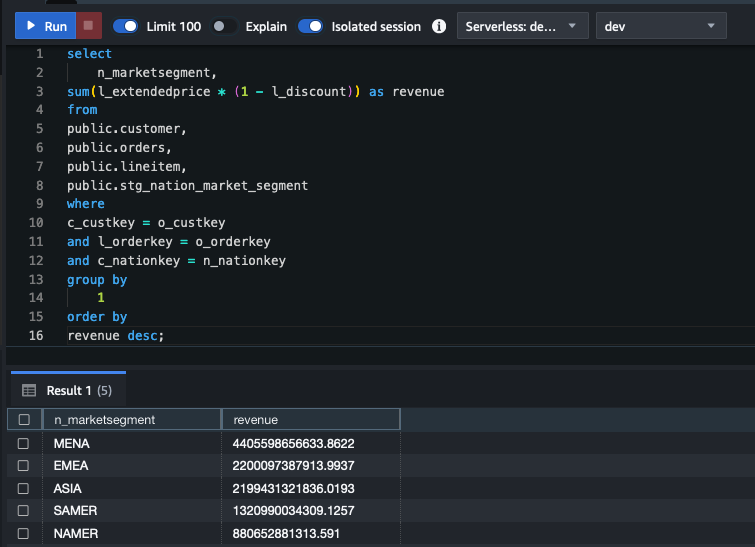
  1. Run the following SQL to do the data analytics using Google Sheets business data classification in the Amazon Redshift dataset.
select
n_marketsegment,
sum(l_extendedprice * (1 - l_discount)) as revenue
from
public.customer,
public.orders,
public.lineitem,
public.stg_nation_market_segment
where
c_custkey = o_custkey
and l_orderkey = o_orderkey
and c_nationkey = n_nationkey
group by
1
order by
revenue desc;

The screenshot below shows the results from the aggregated query in Amazon Redshift from data loaded using Amazon Appflow.

Clean up

To avoid incurring charges, clean up the resources in your AWS account by completing the following steps:

  1. On the Amazon AppFlow console, in the navigation pane, choose Flows.
  2. From the list of flows, select the flow name created and delete it.
  3. Enter “delete” to delete the flow.
  4. Delete the Amazon Redshift workgroup.
  5. Clean up resources in your Google account by deleting the project that contains the Google BigQuery resources. Follow the documentation to clean up the Google resources.

Conclusion

In this post, we walked you through the process of using Amazon AppFlow to integrate data from Google Ads and Google Sheets. We demonstrated how the complexities of data integration are minimized so you can focus on deriving actionable insights from your data. Whether you’re archiving historical data, performing complex analytics, or preparing data for machine learning, this connector streamlines the process, making it accessible to a broader range of data professionals.

For more information, refer to Amazon AppFlow support for Google Sheets and Google Ads.


About the authors

Ritesh Kumar Sinha is an Analytics Specialist Solutions Architect based out of San Francisco. He has helped customers build scalable data warehousing and big data solutions for over 16 years. He loves to design and build efficient end-to-end solutions on AWS. In his spare time, he loves reading, walking, and doing yoga.

Tahir Aziz is an Analytics Solution Architect at AWS. He has worked with building data warehouses and big data solutions for over 13 years. He loves to help customers design end-to-end analytics solutions on AWS. Outside of work, he enjoys traveling and cooking.

Raza Hafeez is a Senior Product Manager at Amazon Redshift. He has over 13 years of professional experience building and optimizing enterprise data warehouses and is passionate about enabling customers to realize the power of their data. He specializes in migrating enterprise data warehouses to AWS Modern Data Architecture.

Amit Ghodke is an Analytics Specialist Solutions Architect based out of Austin. He has worked with databases, data warehouses and analytical applications for the past 16 years. He loves to help customers implement analytical solutions at scale to derive maximum business value.

Accelerate SQL code migration from Google BigQuery to Amazon Redshift using BladeBridge

Post Syndicated from Ritesh Sinha original https://aws.amazon.com/blogs/big-data/accelerate-sql-code-migration-from-google-bigquery-to-amazon-redshift-using-bladebridge/

Accelerating SQL code migration from Google BigQuery to Amazon Redshift can be a complex and time-consuming task. Businesses often struggle to efficiently translate their existing BigQuery code to Amazon Redshift, which can delay critical data modernization initiatives. However, with the right tools and approach, this migration process can be significantly streamlined.

This post explores how you can use BladeBridge, a leading data environment modernization solution, to simplify and accelerate the migration of SQL code from BigQuery to Amazon Redshift. BladeBridge offers a comprehensive suite of tools that automate much of the complex conversion work, allowing organizations to quickly and reliably transition their data analytics capabilities to the scalable Amazon Redshift data warehouse. BladeBridge provides a configurable framework to seamlessly convert legacy metadata and code into more modern services such as Amazon Redshift.

Amazon Redshift is a fully managed data warehouse service offered by Amazon Web Services (AWS). Tens of thousands of customers use Amazon Redshift every day to run analytics, processing exabytes of data for business insights. Whether your growing data is stored in operational data stores, data lakes, streaming data services, or third-party datasets, Amazon Redshift helps you securely access, combine, and share data with minimal movement or copying. Amazon Redshift is built for scale and delivers up to 7.9 times better price performance than other cloud data warehouses.

By using the BladeBridge Analyzer and BladeBridge Converter tools, organizations can significantly reduce the time and effort required to migrate BigQuery code to Amazon Redshift. The Analyzer provides detailed assessments of the complexity and requirements for the migration, and the Converter automates the actual code conversion process, using pattern-based customizable rules to streamline the transition.

In this post, we walk through the step-by-step process of using BladeBridge to accelerate the migration of BigQuery SQL code to Amazon Redshift.

Solution overview

The BladeBridge solution is composed of two key components: the BladeBridge Analyzer and the BladeBridge Converter.

BladeBridge Analyzer

The Analyzer is designed to thoroughly assess the complexities of the existing data environment, in this case, Google BigQuery. After assessment of the source SQL files, it generates a comprehensive report that provides valuable insights into the migration effort. The Analyzer report includes the following:

  • Summary of the total number of SQL scripts, file scripts, data definition language (DDL) statements, and other key metrics
  • Categorization of the SQL code complexity into levels such as low, medium, complex, and very complex
  • Insights that help both the organizations and systems integrators prepare more accurate project estimates and migration plans

BladeBridge Converter

The Converter is a pattern-based automation tool that streamlines the actual code conversion process from BigQuery to Amazon Redshift. The Converter uses a set of predefined conversion rules and patterns to automatically translate 70–95% of the legacy SQL code. This significantly reduces the manual effort required by developers. The Converter works by doing the following:

  • Parsing the source SQL files and analyzing the code semantically
  • Applying the appropriate translation rules and patterns to convert source database code to the target, in this case, Google BigQuery to Amazon Redshift

The out-of-the-box code handles most conversions. The Converter allows developers to customize the conversion patterns for more complex transformations.

The following is the migration procedure:

  1. Prepare SQL files
  2. Using BladeBridge Analyzer, create an analyzer report
  3. Purchase license keys for converter
  4. Using BladeBridge Converter, convert SQL files

The following diagram illustrates these steps.

Prerequisites

You need the following prerequisites to implement the solution:

  • An AWS account
  • An Amazon Redshift provisioned cluster or Amazon Redshift serverless workgroup
  • An Amazon Elastic Compute Cloud (Amazon EC2) instance, on-premises server, or desktop or laptop with the following requirements:
    • MacOS, Windows 7 or higher with 32-bit or 64-bit, Linux Redhat, Ubuntu, or similar operating system
    • A minimum of 8 GB RAM is recommended
  • Visit the BladeBridge community portal and sign up to create your account. The portal gives you access to a comprehensive suite of resources, including the BladeBridge Analyzer, Converter, and other training materials. This post contains some links that are only accessible to registered members of the BladeBridge community portal.
  • Contact BladeBridge through Request demo and obtain an Analyzer key for your organization.

Solution walkthrough

Follow these solution steps:

Prepare SQL files

For SQL data warehouses such as BigQuery, code preparation starts by exporting the SQL files out of the data warehouse solution. If your BigQuery SQL code is stored in a single file containing multiple database objects, you need to split them into individual files before using the BladeBridge tools to convert the code to Amazon Redshift. To split into multiple files, you can use the BladeBridge SQL File Splitter utility. The BladeBridge conversion process is optimized to work with each database object (for example, tables, views, and materialized views) and code object (for example, stored procedures and functions) stored in its own separate SQL file. This allows the BladeBridge Analyzer to scan each file individually, gaining a comprehensive understanding of the code patterns, complexity, and structure. To use BladeBridge SQL File Splitter utility, follow these steps:

  1. Log in to BladeBridge portal and download the SQL file splitter utility for your operating system.
  2. Create an input file directory and place your BigQuery SQL code files in the directory.
  3. Create an empty output file directory. The files generated by the splitter will be stored here.
  4. Navigate to the directory where you downloaded the bbsqlsplit executable file and run the following command in your terminal (Mac or Linux) or command prompt (Windows), replacing the input and output file directory paths:

Syntax

bbsqlsplit

######## OPTIONS ########

-d <<input file directory path>>

-o <<output file directory path>>

-E sql

Example 

bbsqlsplit

-d C:\Users\XXXXX\Desktop\BladeBridge\SplitFilesUtility\source

-o C:\Users\XXXXX\Desktop\BladeBridge\SplitFilesUtility\splitFiles

-E sql

For more options of the bbsqlsplit command, refer to the SQL file split documentation in the BladeBridge community portal.

Using BladeBridge Analyzer, create an analyzer report

The Analyzer provides a detailed assessment of the existing BigQuery code, generating a comprehensive report that outlines the complexity and requirements for the migration to Amazon Redshift.

To run the BladeBridge Analyzer, follow these steps:

  1. Log in to the BladeBridge portal and navigate to the Analyzer Download
  2. Download the Analyzer executable file for your operating system (for example, bbanalyzer.exe for Windows, bbanalyzer.gz for Linux and macOS). For macOS and Linux users, you need to deflate the downloaded gzip file.
  3. Download the configuration file (general_sql_specs.json) from the BladeBridge community portal, as shown in the following screenshot.

  1. On the BladeBridge community portal, choose Assets. This page should display the Analyzer key for your organization.

  1. From the assets page, download the Analyzer key as shown in the following screenshot.

In the directory where you downloaded the bbanalyzer executable file, run the following command in your terminal (Mac or Linux) or command prompt (Windows), replacing the necessary paths.

Syntax

bbanalyzer

######## OPTIONS ########

-c <<path to your analyzer key>>

-t SQL

-d <<path to your source code directory>>

-r <<name for the output report>>.xlsx

Example

bbanalyzer

-c C:\Users\XXXXX\Desktop\BladeBridge\analyzer_key.txt

-t SQL

-d C:\Users\XXXXX\Desktop\BladeBridge\SplitFilesUtility\splitFiles

-r analyzer_report.xlsx

After running the command successfully, the Analyzer generates a report. Review the report thoroughly, because it provides a summary and in-depth explanations of the SQL analysis. The summary sheet, shown in the following image, provides an overview of the migration, including the number of total SQL scripts, file scripts, and DDLs. Each SQL script is categorized into LOW, MEDIUM, COMPLEX, or VERY_COMPLEX complexities, which are determined by the Analyzer Complexity Determination Algorithm. The summary will also help with understanding the overall complexity and migration effort before performing the actual conversion.

If you observe an error when running BladeBridge Analyzer, review following troubleshooting tips:

  • Configure the write permission – You may need to add necessary permission to the analyzer executable file. For Mac and Linux users, run chmod 755 ./bbanalyzer to modify the permission.
  • Allow running third party software – Because BladeBridge Analyzer is a third-party software, MacOS may raise a warning or an error when running Analyzer. If you’re using Mac, follow the instructions in Open a Mac app from an unidentified developer.
  • Use local drive – In some cases, you might encounter an error if the executable is located in a network drive. We recommend that you run the executable on the local drive.
  • Don’t include whitespace in the path – Make sure the path to the executable doesn’t contain a directory with spaces in the directory name.

For more details, refer to the BladeBridge Analyzer Demo.

Purchase license keys for convertor

To use the BladeBridge Converter and automate the code translation process, you need to purchase the necessary license keys. These license keys are tied to the specific SQL files you are converting, making sure that updates to the source code require the appropriate license.

To obtain the license keys, follow these steps:

  1. Share the output of the BladeBridge Analyzer report and the provided pricing calculator Excel sheet with BladeBridge.
  2. The BladeBridge team will review the information and provide you with the required license keys to run the Converter.

The license key is tied to the file hash of the SQL files you are converting. If you make updates to the source SQL files, you need to purchase new license keys to convert the modified code. Therefore, make sure to purchase the necessary license keys and manage your files with a version control system to have smooth transitions when converting your BigQuery SQL code to Amazon Redshift.

Using BladeBridge Converter, convert SQL files

The Converter uses the predefined conversion rules that are available in the out-of-the-box configuration files to automatically translate 70–95% of the legacy code, significantly reducing manual effort for your development team. The out-of-the-box configuration file handles conversion for common code patterns from Google BigQuery to Amazon Redshift. For those custom patterns that aren’t covered by an out-of-the-box configuration file, you can create custom conversion rules by creating additional configuration files.

Follow these steps to run the BladeBridge Converter:

  1. Log in to the BladeBridge portal and on the Convertor downloads page, download the Convertor executable file for your operating system (sqlconv.exe for Windows or sqlconv.gz for Mac or Linux)

  1. From the same page, download the configuration file (general_sql_specs.json)
  2. Create an output directory where the converted files will be saved
  3. In the folder where you downloaded the Convertor executable sqlconv, run the following command

Syntax

sqlconv

-c <<converter license file name obtained from BladeBridge>>

-d <<input folder for SQL files>>

-n <<output folder for converted files>>

-u <<path for the config files/s provide at least one file>>

Example

sqlconv

-c converter_license.txt

-d C:\Users\XXXXX\Desktop\BladeBridge\SplitFilesUtility\splitFiles

-n C:\Users\XXXXX\Desktop\BladeBridge\SplitFilesUtility\cnvrtdFiles

-u bq2redshift.json
  1. Run the generated SQL files in your Amazon Redshift data warehouse. If you encounter errors, analyze them and determine if custom conversion rules, not already covered in the out-of-the-box configuration files, need to be applied.
  2. If custom conversion rules are needed, create a new configuration file following the guidelines in the Customize Configuration File section. Provide the new config file name in the -u option and rerun the Converter.
  3. Repeat these steps until all files are converted successfully or manually modified.

Customize configuration file

Customizing a configuration file is an iterative process that can help automate the conversion for occurrences in your codebase. However, manual conversion may be required if the conversion is needed for only a few files and a few occurrences.

The configuration is defined in a JSON file. There is a general configuration file with common rules and custom configuration files for each client with client-specific rules. Rules can be added to the general configuration file if they are applicable for all clients. For client-specific rules, a separate JSON file should be created and referenced. This keeps the general rules clean and organized.

The conversion rules in BladeBridge’s configuration file fall into one of three categories:

  1. Line substitution
  2. Block substitution
  3. Function substitution

Every line ending with a ; is a statement. This line ending also can be replaced with other breakers. Refer to this BladeBridge documentation to get more details on SQL and expression conversion.

The following are considerations while using the customized configuration:

  • Nested functions in BigQuery allow for complex operations within a single SQL statement, which may need to be broken down into multiple steps in Amazon Redshift
  • Array functions in BigQuery provide capabilities for manipulating and transforming array data types, which may require alternative approaches in Amazon Redshift
  • You need to carefully analyze the requirements and implement workarounds or alternative solutions when migrating from BigQuery to Amazon Redshift, especially for advanced functionality not directly supported in Amazon Redshift

Line substitution

Line substitution applies regular expressions to each line of code. This has the from clause, which has the expression to be converted. The to section has the target mapping for which it’ll be converted. Statement_categories limit the application of line substitution to specific statements such as DDL or procedure. For example:

  • The first expression in the following code example replaces the regular expression pattern ROWNUM with the SQL expression row_number() over (order by 1)
  • The second expression in the following code example replaces the regular expression pattern SYSDATE with the SQL expression CURRENT_TIMESTAMP.
line_subst” : [
{“from” : “\bROWNUM\b”, “to” : “row_number() over (order by 1)”},
{“from” : “SYSDATE”, “to” : “CURRENT_TIMESTAMP”}
]

Block substitution

Block substitution applies regular expressions across multiple lines. This applies to statements that stretch over multiple lines, which are generally more complex than the line substitutions. The following expression in the example replaces the block. In this example, the procedure is created in the target database.

BEGIN

EXECUTE IMMEDIATE(‘SQL Statement’);

EXCEPTION WHEN OTHERS

THEN

NULL

END;

To

CALL SP_DYN_SQL(‘parameters’);

“block_subst” : [
{“from”: “BEGIN(.*?)execute immediate(.*);.*exception\s*when\s*others\s*then\s*null(.*?)end;(.*)”, “to”: “CALL sp_dyn_sql($2);”}
]

Function substitution

Function substitution allows replacing one function with an equivalent function in the target data warehouse. The configuration also allows for specifying custom functions.

Function substitution points to an array of instructions responsible for altering function calls. This section is used when function translations are required or function arguments (function signature) have to be altered. The following expression converts the NVL2 function to CASE function on Amazon Redshift.

“function_subst” : [
{“from”: “NVL2”, “output_template” : “CASE WHEN $1 IS NOT NULL THEN $2 ELSE $3 END”}
]

Conclusion

In this post, we demonstrated how to use the BladeBridge Analyzer and BladeBridge Converter to streamline the migration of SQL code from Google BigQuery to Amazon Redshift. By using BladeBridge, organizations can significantly reduce the time and effort required to translate their existing BigQuery code for migration to the Amazon Redshift data warehouse. The Analyzer provides a detailed assessment of the source SQL code, and the Converter automates the actual conversion process using a set of predefined, customizable rules and patterns.

We also covered the customization capabilities of the BladeBridge solution, showcasing how you can tailor the conversion rules to handle more complex transformations. By using the line substitution, block substitution, and function substitution features, you can have a seamless migration that addresses the unique requirements of your data analytics infrastructure.

We encourage you to try out BladeBridge’s GCP BigQuery to Amazon Redshift solution and explore the various configuration options. If you encounter any challenges or have additional requirements, refer to the BladeBridge community support portal or reach out to the BladeBridge team for further assistance.


About the authors

Ritesh Kumar Sinha is an Analytics Specialist Solutions Architect based out of San Francisco. He has helped customers build scalable data warehousing and big data solutions for over 16 years. He loves to design and build efficient end-to-end solutions on AWS. In his spare time, he loves reading, walking, and doing yoga.

Anusha Challa is a Senior Analytics Specialist Solutions Architect focused on Amazon Redshift. She has helped many customers build large-scale data warehouse solutions in the cloud and on premises. She is passionate about data analytics and data science.

Yota Hamaoka is an Analytics Solution Architect at Amazon Web Services. He is focused on driving customers to accelerate their analytics journey with Amazon Redshift.

Milind Oke is a Data Warehouse Specialist Solutions Architect based out of New York. He has been building data warehouse solutions for over 15 years and specializes in Amazon Redshift.

Raza Hafeez is a Senior Product Manager at Amazon Redshift. He has over 13 years of professional experience building and optimizing enterprise data warehouses and is passionate about enabling customers to realize the power of their data. He specializes in migrating enterprise data warehouses to AWS Modern Data Architecture.

Automate data loading from your database into Amazon Redshift using AWS Database Migration Service (DMS), AWS Step Functions, and the Redshift Data API

Post Syndicated from Ritesh Sinha original https://aws.amazon.com/blogs/big-data/automate-data-loading-from-your-database-into-amazon-redshift-using-aws-database-migration-service-dms-aws-step-functions-and-the-redshift-data-api/

Amazon Redshift is a fast, scalable, secure, and fully managed cloud data warehouse that makes it simple and cost-effective to analyze all your data using standard SQL and your existing ETL (extract, transform, and load), business intelligence (BI), and reporting tools. Tens of thousands of customers use Amazon Redshift to process exabytes of data per day and power analytics workloads such as BI, predictive analytics, and real-time streaming analytics.

As more and more data is being generated, collected, processed, and stored in many different systems, making the data available for end-users at the right place and right time is a very important aspect for data warehouse implementation. A fully automated and highly scalable ETL process helps minimize the operational effort that you must invest in managing the regular ETL pipelines. It also provides timely refreshes of data in your data warehouse.

You can approach the data integration process in two ways:

  • Full load – This method involves completely reloading all the data within a specific data warehouse table or dataset
  • Incremental load – This method focuses on updating or adding only the changed or new data to the existing dataset in a data warehouse

This post discusses how to automate ingestion of source data that changes completely and has no way to track the changes. This is useful for customers who want to use this data in Amazon Redshift; some examples of such data are products and bills of materials without tracking details at the source.

We show how to build an automatic extract and load process from various relational database systems into a data warehouse for full load only. A full load is performed from SQL Server to Amazon Redshift using AWS Database Migration Service (AWS DMS). When Amazon EventBridge receives a full load completion notification from AWS DMS, ETL processes are run on Amazon Redshift to process data. AWS Step Functions is used to orchestrate this ETL pipeline. Alternatively, you could use Amazon Managed Workflows for Apache Airflow (Amazon MWAA), a managed orchestration service for Apache Airflow that makes it straightforward to set up and operate end-to-end data pipelines in the cloud.

Solution overview

The workflow consists of the following steps:

  1. The solution uses an AWS DMS migration task that replicates the full load dataset from the configured SQL Server source to a target Redshift cluster in a staging area.
  2. AWS DMS publishes the replicationtaskstopped event to EventBridge when the replication task is complete, which invokes an EventBridge rule.
  3. EventBridge routes the event to a Step Functions state machine.
  4. The state machine calls a Redshift stored procedure through the Redshift Data API, which loads the dataset from the staging area to the target production tables. With this API, you can also access Redshift data with web-based service applications, including AWS Lambda.

The following architecture diagram highlights the end-to-end solution using AWS services.

In the following sections, we demonstrate how to create the full load AWS DMS task, configure the ETL orchestration on Amazon Redshift, create the EventBridge rule, and test the solution.

Prerequisites

To complete this walkthrough, you must have the following prerequisites:

  • An AWS account
  • A SQL Server database configured as a replication source for AWS DMS
  • A Redshift cluster to serve as the target database
  • An AWS DMS replication instance to migrate data from source to target
  • A source endpoint pointing to the SQL Server database
  • A target endpoint pointing to the Redshift cluster

Create the full load AWS DMS task

Complete the following steps to set up your migration task:

  1. On the AWS DMS console, choose Database migration tasks in the navigation pane.
  2. Choose Create task.
  3. For Task identifier, enter a name for your task, such as dms-full-dump-task.
  4. Choose your replication instance.
  5. Choose your source endpoint.
  6. Choose your target endpoint.
  7. For Migration type, choose Migrate existing data.

  1. In the Table mapping section, under Selection rules, choose Add new selection rule
  2. For Schema, choose Enter a schema.
  3. For Schema name, enter a name (for example, dms_sample).
  4. Keep the remaining settings as default and choose Create task.

The following screenshot shows your completed task on the AWS DMS console.

Create Redshift tables

Create the following tables on the Redshift cluster using the Redshift query editor:

  • dbo.dim_cust – Stores customer attributes:
CREATE TABLE dbo.dim_cust (
cust_key integer ENCODE az64,
cust_id character varying(10) ENCODE lzo,
cust_name character varying(100) ENCODE lzo,
cust_city character varying(50) ENCODE lzo,
cust_rev_flg character varying(1) ENCODE lzo
)

DISTSTYLE AUTO;
  • dbo.fact_sales – Stores customer sales transactions:
CREATE TABLE dbo.fact_sales (
order_number character varying(20) ENCODE lzo,
cust_key integer ENCODE az64,
order_amt numeric(18,2) ENCODE az64
)

DISTSTYLE AUTO;
  • dbo.fact_sales_stg – Stores daily customer incremental sales transactions:
CREATE TABLE dbo.fact_sales_stg (
order_number character varying(20) ENCODE lzo,
cust_id character varying(10) ENCODE lzo,
order_amt numeric(18,2) ENCODE az64
)

DISTSTYLE AUTO;

Use the following INSERT statements to load sample data into the sales staging table:

insert into dbo.fact_sales_stg(order_number,cust_id,order_amt) values (100,1,200);
insert into dbo.fact_sales_stg(order_number,cust_id,order_amt) values (101,1,300);
insert into dbo.fact_sales_stg(order_number,cust_id,order_amt) values (102,2,25);
insert into dbo.fact_sales_stg(order_number,cust_id,order_amt) values (103,2,35);
insert into dbo.fact_sales_stg(order_number,cust_id,order_amt) values (104,3,80);
insert into dbo.fact_sales_stg(order_number,cust_id,order_amt) values (105,3,45);

Create the stored procedures

In the Redshift query editor, create the following stored procedures to process customer and sales transaction data:

  • Sp_load_cust_dim() – This procedure compares the customer dimension with incremental customer data in staging and populates the customer dimension:
CREATE OR REPLACE PROCEDURE dbo.sp_load_cust_dim()
LANGUAGE plpgsql
AS $$
BEGIN
truncate table dbo.dim_cust;
insert into dbo.dim_cust(cust_key,cust_id,cust_name,cust_city) values (1,100,'abc','chicago');
insert into dbo.dim_cust(cust_key,cust_id,cust_name,cust_city) values (2,101,'xyz','dallas');
insert into dbo.dim_cust(cust_key,cust_id,cust_name,cust_city) values (3,102,'yrt','new york');
update dbo.dim_cust
set cust_rev_flg=case when cust_city='new york' then 'Y' else 'N' end
where cust_rev_flg is null;
END;
$$
  • sp_load_fact_sales() – This procedure does the transformation for incremental order data by joining with the date dimension and customer dimension and populates the primary keys from the respective dimension tables in the final sales fact table:
CREATE OR REPLACE PROCEDURE dbo.sp_load_fact_sales()
LANGUAGE plpgsql
AS $$
BEGIN
--Process Fact Sales
insert into dbo.fact_sales
select
sales_fct.order_number,
cust.cust_key as cust_key,
sales_fct.order_amt
from dbo.fact_sales_stg sales_fct
--join to customer dim
inner join (select * from dbo.dim_cust) cust on sales_fct.cust_id=cust.cust_id;
END;
$$

Create the Step Functions state machine

Complete the following steps to create the state machine redshift-elt-load-customer-sales. This state machine is invoked as soon as the AWS DMS full load task for the customer table is complete.

  1. On the Step Functions console, choose State machines in the navigation pane.
  2. Choose Create state machine.
  3. For Template, choose Blank.
  4. On the Actions dropdown menu, choose Import definition to import the workflow definition of the state machine.

  1. Open your preferred text editor and save the following code as an ASL file extension (for example, redshift-elt-load-customer-sales.ASL). Provide your Redshift cluster ID and the secret ARN for your Redshift cluster.
{
"Comment": "State Machine to process ETL for Customer Sales Transactions",
"StartAt": "Load_Customer_Dim",
"States": {
"Load_Customer_Dim": {
"Type": "Task",
"Parameters": {
"ClusterIdentifier": "redshiftcluster-abcd",
"Database": "dev",
"Sql": "call dbo.sp_load_cust_dim()",
"SecretArn": "arn:aws:secretsmanager:us-west-2:xxx:secret:rs-cluster-secret-abcd"
},
"Resource": "arn:aws:states:::aws-sdk:redshiftdata:executeStatement",
"Next": "Wait on Load_Customer_Dim"
},
"Wait on Load_Customer_Dim": {
"Type": "Wait",
"Seconds": 30,
"Next": "Check_Status_Load_Customer_Dim"
},

"Check_Status_Load_Customer_Dim": {
"Type": "Task",
"Next": "Choice",
"Parameters": {
"Id.$": "$.Id"
},

"Resource": "arn:aws:states:::aws-sdk:redshiftdata:describeStatement"
},

"Choice": {
"Type": "Choice",
"Choices": [
{
"Not": {
"Variable": "$.Status",
"StringEquals": "FINISHED"
},
"Next": "Wait on Load_Customer_Dim"
}
],
"Default": "Load_Sales_Fact"
},
"Load_Sales_Fact": {
"Type": "Task",
"End": true,
"Parameters": {
"ClusterIdentifier": "redshiftcluster-abcdef”,
"Database": "dev",
"Sql": "call dbo.sp_load_fact_sales()",
"SecretArn": "arn:aws:secretsmanager:us-west-2:xxx:secret:rs-cluster-secret-abcd"
},

"Resource": "arn:aws:states:::aws-sdk:redshiftdata:executeStatement"
}
}
}
  1. Choose Choose file and upload the ASL file to create a new state machine.

  1. For State machine name, enter a name for the state machine (for example, redshift-elt-load-customer-sales).
  2. Choose Create.

After the successful creation of the state machine, you can verify the details as shown in the following screenshot.

The following diagram illustrates the state machine workflow.

The state machine includes the following steps:

  • Load_Customer_Dim – Performs the following actions:
    • Passes the stored procedure sp_load_cust_dim to the execute-statement API to run in the Redshift cluster to load the incremental data for the customer dimension
    • Sends data back the identifier of the SQL statement to the state machine
  • Wait_on_Load_Customer_Dim – Waits for at least 15 seconds
  • Check_Status_Load_Customer_Dim – Invokes the Data API’s describeStatement to get the status of the API call
  • is_run_Load_Customer_Dim_complete – Routes the next step of the ETL workflow depending on its status:
    • FINISHED – Passes the stored procedure Load_Sales_Fact to the execute-statement API to run in the Redshift cluster, which loads the incremental data for fact sales and populates the corresponding keys from the customer and date dimensions
    • All other statuses – Goes back to the wait_on_load_customer_dim step to wait for the SQL statements to finish

The state machine redshift-elt-load-customer-sales loads the dim_cust, fact_sales_stg, and fact_sales tables when invoked by the EventBridge rule.

As an optional step, you can set up event-based notifications on completion of the state machine to invoke any downstream actions, such as Amazon Simple Notification Service (Amazon SNS) or further ETL processes.

Create an EventBridge rule

EventBridge sends event notifications to the Step Functions state machine when the full load is complete. You can also turn event notifications on or off in EventBridge.

Complete the following steps to create the EventBridge rule:

  1. On the EventBridge console, in the navigation pane, choose Rules.
  2. Choose Create rule.
  3. For Name, enter a name (for example, dms-test).
  4. Optionally, enter a description for the rule.
  5. For Event bus, choose the event bus to associate with this rule. If you want this rule to match events that come from your account, select AWS default event bus. When an AWS service in your account emits an event, it always goes to your account’s default event bus.
  6. For Rule type, choose Rule with an event pattern.
  7. Choose Next.
  8. For Event source, choose AWS events or EventBridge partner events.
  9. For Method, select Use pattern form.
  10. For Event source, choose AWS services.
  11. For AWS service, choose Database Migration Service.
  12. For Event type, choose All Events.
  13. For Event pattern, enter the following JSON expression, which looks for the REPLICATON_TASK_STOPPED status for the AWS DMS task:
{
"source": ["aws.dms"],
"detail": {
"eventId": ["DMS-EVENT-0079"],
"eventType": ["REPLICATION_TASK_STOPPED"],
"detailMessage": ["Stop Reason FULL_LOAD_ONLY_FINISHED"],
"type": ["REPLICATION_TASK"],
"category": ["StateChange"]
}
}

  1. For Target type, choose AWS service.
  2. For AWS service, choose Step Functions state machine.
  3. For State machine name, enter redshift-elt-load-customer-sales.
  4. Choose Create rule.

The following screenshot shows the details of the rule created for this post.

Test the solution

Run the task and wait for the workload to complete. This workflow moves the full volume data from the source database to the Redshift cluster.

The following screenshot shows the load statistics for the customer table full load.

AWS DMS provides notifications when an AWS DMS event occurs, for example the completion of a full load or if a replication task has stopped.

After the full load is complete, AWS DMS sends events to the default event bus for your account. The following screenshot shows an example of invoking the target Step Functions state machine using the rule you created.

We configured the Step Functions state machine as a target in EventBridge. This enables EventBridge to invoke the Step Functions workflow in response to the completion of an AWS DMS full load task.

Validate the state machine orchestration

When the entire customer sales data pipeline is complete, you may go through the entire event history for the Step Functions state machine, as shown in the following screenshots.

Limitations

The Data API and Step Functions AWS SDK integration offers a robust mechanism to build highly distributed ETL applications within minimal developer overhead. Consider the following limitations when using the Data API and Step Functions:

Clean up

To avoid incurring future charges, delete the Redshift cluster, AWS DMS full load task, AWS DMS replication instance, and Step Functions state machine that you created as part of this post.

Conclusion

In this post, we demonstrated how to build an ETL orchestration for full loads from operational data stores using the Redshift Data API, EventBridge, Step Functions with AWS SDK integration, and Redshift stored procedures.

To learn more about the Data API, see Using the Amazon Redshift Data API to interact with Amazon Redshift clusters and Using the Amazon Redshift Data API.


About the authors

Ritesh Kumar Sinha is an Analytics Specialist Solutions Architect based out of San Francisco. He has helped customers build scalable data warehousing and big data solutions for over 16 years. He loves to design and build efficient end-to-end solutions on AWS. In his spare time, he loves reading, walking, and doing yoga.

Praveen Kadipikonda is a Senior Analytics Specialist Solutions Architect at AWS based out of Dallas. He helps customers build efficient, performant, and scalable analytic solutions. He has worked with building databases and data warehouse solutions for over 15 years.

Jagadish Kumar (Jag) is a Senior Specialist Solutions Architect at AWS focused on Amazon OpenSearch Service. He is deeply passionate about Data Architecture and helps customers build analytics solutions at scale on AWS.

Apply fine-grained access and transformation on the SUPER data type in Amazon Redshift

Post Syndicated from Ritesh Sinha original https://aws.amazon.com/blogs/big-data/apply-fine-grained-access-and-transformation-on-the-super-data-type-in-amazon-redshift/

Amazon Redshift is a fast, scalable, secure, and fully managed cloud data warehouse that makes it simple and cost-effective to analyze all your data using standard SQL and your existing ETL (extract, transform, and load), business intelligence (BI), and reporting tools. Tens of thousands of customers use Amazon Redshift to process exabytes of data per day and power analytics workloads such as BI, predictive analytics, and real-time streaming analytics.

Amazon Redshift, a cloud data warehouse service, supports attaching dynamic data masking (DDM) policies to paths of SUPER data type columns, and uses the OBJECT_TRANSFORM function with the SUPER data type. SUPER data type columns in Amazon Redshift contain semi-structured data like JSON documents. Previously, data masking in Amazon Redshift only worked with regular table columns, but now you can apply masking policies specifically to elements within SUPER columns. For example, you could apply a masking policy to mask sensitive fields like credit card numbers within JSON documents stored in a SUPER column. This allows for more granular control over data masking in Amazon Redshift. Amazon Redshift gives you more flexibility in how you apply data masking to protect sensitive information stored in SUPER columns containing semi-structured data.

With DDM support in Amazon Redshift, you can do the following:

  • Define masking policies that apply custom obfuscation policies, such as masking policies to handle credit card, personally identifiable information (PII) entries, HIPAA or GDPR needs, and more
  • Transform the data at query time to apply masking policies
  • Attach masking policies to roles or users
  • Attach multiple masking policies with varying levels of obfuscation to the same column in a table and assign them to different roles with priorities to avoid conflicts
  • Implement cell-level masking by using conditional columns when creating your masking policy
  • Use masking policies to partially or completely redact data, or hash it by using user-defined functions (UDFs)

In this post, we demonstrate how a retail company can control the access of PII data stored in the SUPER data type to users based on their access privilege without duplicating the data.

Solution overview

For our use case, we have the following data access requirements:

  • Users from the Customer Service team should be able to view the order data but not PII information
  • Users from the Sales team should be able to view customer IDs and all order information
  • Users from the Executive team should be able to view all the data
  • Staff should not be able to view any data

The following diagram illustrates how DDM support in Amazon Redshift policies works with roles and users for our retail use case.

The solution encompasses creating masking policies with varying masking rules and attaching one or more to the same role and table with an assigned priority to remove potential conflicts. These policies may pseudonymize results or selectively nullify results to comply with retailers’ security requirements. We refer to multiple masking policies being attached to a table as a multi-modal masking policy. A multi-modal masking policy consists of three parts:

  • A data masking policy that defines the data obfuscation rules
  • Roles with different access levels depending on the business case
  • The ability to attach multiple masking policies on a user or role and table combination with priority for conflict resolution

Prerequisites

To implement this solution, you need the following prerequisites:

Prepare the data

To set up our use case, complete the following steps:

  1. On the Amazon Redshift console, choose Query editor v2 under Explorer in the navigation pane.

If you’re familiar with SQL Notebooks, you can download the SQL notebook for the demonstration and import it to quickly get started.

  1. Create the table and populate contents:
    -- 1- Create the orders table
    drop table if exists public.order_transaction;
    create table public.order_transaction (
     data_json super
    );
    
    -- 2- Populate the table with sample values
    INSERT INTO public.order_transaction
    VALUES
        (
            json_parse('
            {
            "c_custkey": 328558,
            "c_name": "Customer#000328558",
            "c_phone": "586-436-7415",
            "c_creditcard": "4596209611290987",
            "orders":{
              "o_orderkey": 8014018,
              "o_orderstatus": "F",
              "o_totalprice": 120857.71,
              "o_orderdate": "2024-01-01"
              }
            }'
            )
        ),
        (
            json_parse('
            {
            "c_custkey": 328559,
            "c_name": "Customer#000328559",
            "c_phone": "789-232-7421",
            "c_creditcard": "8709000219329924",
            "orders":{
              "o_orderkey": 8014019,
              "o_orderstatus": "S",
              "o_totalprice": 9015.98,
              "o_orderdate": "2024-01-01"
              }
            }'
            )
        ),
        (
            json_parse('
            {
            "c_custkey": 328560,
            "c_name": "Customer#000328560",
            "c_phone": "276-564-9023",
            "c_creditcard": "8765994378650090",
            "orders":{
              "o_orderkey": 8014020,
              "o_orderstatus": "C",
              "o_totalprice": 18765.56,
              "o_orderdate": "2024-01-01"
              }
            }
            ')
        );

Implement the solution

To satisfy the security requirements, we need to make sure that each user sees the same data in different ways based on their granted privileges. To do that, we use user roles combined with masking policies as follows:

  1. Create users and roles, and add users to their respective roles:
    --create four users
    set session authorization admin;
    CREATE USER Kate_cust WITH PASSWORD disable;
    CREATE USER Ken_sales WITH PASSWORD disable;
    CREATE USER Bob_exec WITH PASSWORD disable;
    CREATE USER Jane_staff WITH PASSWORD disable;
    
    -- 1. Create User Roles
    CREATE ROLE cust_srvc_role;
    CREATE ROLE sales_srvc_role;
    CREATE ROLE executives_role;
    CREATE ROLE staff_role;
    
    -- note that public role exists by default.
    -- Grant Roles to Users
    GRANT ROLE cust_srvc_role to Kate_cust;
    GRANT ROLE sales_srvc_role to Ken_sales;
    GRANT ROLE executives_role to Bob_exec;
    GRANT ROLE staff_role to Jane_staff;
    
    -- note that regualr_user is attached to public role by default.
    GRANT ALL ON ALL TABLES IN SCHEMA "public" TO ROLE cust_srvc_role;
    GRANT ALL ON ALL TABLES IN SCHEMA "public" TO ROLE sales_srvc_role;
    GRANT ALL ON ALL TABLES IN SCHEMA "public" TO ROLE executives_role;
    GRANT ALL ON ALL TABLES IN SCHEMA "public" TO ROLE staff_role;

  2. Create masking policies:
    -- Mask Full Data
    CREATE MASKING POLICY mask_full
    WITH(pii_data VARCHAR(256))
    USING ('000000XXXX0000'::TEXT);
    
    -- This policy rounds down the given price to the nearest 10.
    CREATE MASKING POLICY mask_price
    WITH(price INT)
    USING ( (FLOOR(price::FLOAT / 10) * 10)::INT );
    
    -- This policy converts the first 12 digits of the given credit card to 'XXXXXXXXXXXX'.
    CREATE MASKING POLICY mask_credit_card
    WITH(credit_card TEXT)
    USING ( 'XXXXXXXXXXXX'::TEXT || SUBSTRING(credit_card::TEXT FROM 13 FOR 4) );
    
    -- This policy mask the given date
    CREATE MASKING POLICY mask_date
    WITH(order_date TEXT)
    USING ( 'XXXX-XX-XX'::TEXT);
    
    -- This policy mask the given phone number
    CREATE MASKING POLICY mask_phone
    WITH(phone_number TEXT)
    USING ( 'XXX-XXX-'::TEXT || SUBSTRING(phone_number::TEXT FROM 9 FOR 4) );

  3. Attach the masking policies:
    • Attach the masking policy for the customer service use case:
      --customer_support (cannot see customer PHI/PII data but can see the order id , order details and status etc.)
      
      set session authorization admin;
      
      ATTACH MASKING POLICY mask_full
      ON public.order_transaction(data_json.c_custkey)
      TO ROLE cust_srvc_role;
      
      ATTACH MASKING POLICY mask_phone
      ON public.order_transaction(data_json.c_phone)
      TO ROLE cust_srvc_role;
      
      ATTACH MASKING POLICY mask_credit_card
      ON public.order_transaction(data_json.c_creditcard)
      TO ROLE cust_srvc_role;
      
      ATTACH MASKING POLICY mask_price
      ON public.order_transaction(data_json.orders.o_totalprice)
      TO ROLE cust_srvc_role;
      
      ATTACH MASKING POLICY mask_date
      ON public.order_transaction(data_json.orders.o_orderdate)
      TO ROLE cust_srvc_role;

    • Attach the masking policy for the sales use case:
      --sales —> can see the customer ID (non phi data) and all order info
      
      set session authorization admin;
      
      ATTACH MASKING POLICY mask_phone
      ON public.order_transaction(data_json.customer.c_phone)
      TO ROLE sales_srvc_role;

    • Attach the masking policy for the staff use case:
      --Staff — > cannot see any data about the order. all columns masked for them ( we can hand pick some columns) to show the functionality
      
      set session authorization admin;
      
      ATTACH MASKING POLICY mask_full
      ON public.order_transaction(data_json.orders.o_orderkey)
      TO ROLE staff_role;
      
      ATTACH MASKING POLICY mask_pii_full
      ON public.order_transaction(data_json.orders.o_orderstatus)
      TO ROLE staff_role;
      
      ATTACH MASKING POLICY mask_pii_price
      ON public.order_transaction(data_json.orders.o_totalprice)
      TO ROLE staff_role;
      
      ATTACH MASKING POLICY mask_date
      ON public.order_transaction(data_json.orders.o_orderdate)
      TO ROLE staff_role;

Test the solution

Let’s confirm that the masking policies are created and attached.

  1. Check that the masking policies are created with the following code:
    -- 1.1- Confirm the masking policies are created
    SELECT * FROM svv_masking_policy;

  2. Check that the masking policies are attached:
    -- 1.2- Verify attached masking policy on table/column to user/role.
    SELECT * FROM svv_attached_masking_policy;

Now you can test that different users can see the same data masked differently based on their roles.

  1. Test that the customer support can’t see customer PHI/PII data but can see the order ID, order details, and status:
    set session authorization Kate_cust;
    select * from order_transaction;

  2. Test that the sales team can see the customer ID (non PII data) and all order information:
    set session authorization Ken_sales;
    select * from order_transaction;

  3. Test that the executives can see all data:
    set session authorization Bob_exec;
    select * from order_transaction;

  4. Test that the staff can’t see any data about the order. All columns should masked for them.
    set session authorization Jane_staff;
    select * from order_transaction;

Object_Transform function

In this section, we dive into the capabilities and benefits of the OBJECT_TRANSFORM function and explore how it empowers you to efficiently reshape your data for analysis. The OBJECT_TRANSFORM function in Amazon Redshift is designed to facilitate data transformations by allowing you to manipulate JSON data directly within the database. With this function, you can apply transformations to semi-structured or SUPER data types, making it less complicated to work with complex data structures in a relational database environment.

Let’s look at some usage examples.

First, create a table and populate contents:

--1- Create the customer table 

DROP TABLE if exists customer_json;

CREATE TABLE customer_json (
    col_super super,
    col_text character varying(100) ENCODE lzo
) DISTSTYLE AUTO;

--2- Populate the table with sample data 

INSERT INTO customer_json
VALUES
    (
        
        json_parse('
            {
                "person": {
                    "name": "GREGORY HOUSE",
                    "salary": 120000,
                    "age": 17,
                    "state": "MA",
                    "ssn": ""
                }
            }
        ')
        ,'GREGORY HOUSE'
    ),
    (
        json_parse('
              {
                "person": {
                    "name": "LISA CUDDY",
                    "salary": 180000,
                    "age": 30,
                    "state": "CA",
                    "ssn": ""
                }
            }
        ')
        ,'LISA CUDDY'
    ),
     (
        json_parse('
              {
                "person": {
                    "name": "JAMES WILSON",
                    "salary": 150000,
                    "age": 35,
                    "state": "WA",
                    "ssn": ""
                }
            }
        ')
        ,'JAMES WILSON'
    )
;
-- 3 select the data 

SELECT * FROM customer_json;

Apply the transformations with the OBJECT_TRANSFORM function:

SELECT
    OBJECT_TRANSFORM(
        col_super
        KEEP
            '"person"."name"',
            '"person"."age"',
            '"person"."state"'
           
        SET
            '"person"."name"', LOWER(col_super.person.name::TEXT),
            '"person"."salary"',col_super.person.salary + col_super.person.salary*0.1
    ) AS col_super_transformed
FROM customer_json;

As you can see in the example, by applying the transformation with OBJECT_TRANSFORM, the person name is formatted in lowercase and the salary is increased by 10%. This demonstrates how the transformation makes is less complicated to work with semi-structured or nested data types.

Clean up

When you’re done with the solution, clean up your resources:

  1. Detach the masking policies from the table:
    -- Cleanup
    --reset session authorization to the default
    RESET SESSION AUTHORIZATION;

  2. Drop the masking policies:
    DROP MASKING POLICY mask_pii_data CASCADE;

  3. Revoke or drop the roles and users:
    REVOKE ROLE cust_srvc_role from Kate_cust;
    REVOKE ROLE sales_srvc_role from Ken_sales;
    REVOKE ROLE executives_role from Bob_exec;
    REVOKE ROLE staff_role from Jane_staff;
    DROP ROLE cust_srvc_role;
    DROP ROLE sales_srvc_role;
    DROP ROLE executives_role;
    DROP ROLE staff_role;
    DROP USER Kate_cust;
    DROP USER Ken_sales;
    DROP USER Bob_exec;
    DROP USER Jane_staff;

  4. Drop the table:
    DROP TABLE order_transaction CASCADE;
    DROP TABLE if exists customer_json;

Considerations and best practices

Consider the following when implementing this solution:

  • When attaching a masking policy to a path on a column, that column must be defined as the SUPER data type. You can only apply masking policies to scalar values on the SUPER path. You can’t apply masking policies to complex structures or arrays.
  • You can apply different masking policies to multiple scalar values on a single SUPER column as long as the SUPER paths don’t conflict. For example, the SUPER paths a.b and a.b.c conflict because they’re on the same path, with a.b being the parent of a.b.c. The SUPER paths a.b.c and a.b.d don’t conflict.

Refer to Using dynamic data masking with SUPER data type paths for more details on considerations.

Conclusion

In this post, we discussed how to use DDM support for the SUPER data type in Amazon Redshift to define configuration-driven, consistent, format-preserving, and irreversible masked data values. With DDM support in Amazon Redshift, you can control your data masking approach using familiar SQL language. You can take advantage of the Amazon Redshift role-based access control capability to implement different levels of data masking. You can create a masking policy to identify which column needs to be masked, and you have the flexibility of choosing how to show the masked data. For example, you can completely hide all the information of the data, replace partial real values with wildcard characters, or define your own way to mask the data using SQL expressions, Python, or Lambda UDFs. Additionally, you can apply conditional masking based on other columns, which selectively protects the column data in a table based on the values in one or more columns.

We encourage you to create your own user-defined functions for various use cases and achieve your desired security posture using dynamic data masking support in Amazon Redshift.


About the Authors

Ritesh Kumar Sinha is an Analytics Specialist Solutions Architect based out of San Francisco. He has helped customers build scalable data warehousing and big data solutions for over 16 years. He loves to design and build efficient end-to-end solutions on AWS. In his spare time, he loves reading, walking, and doing yoga.

Tahir Aziz is an Analytics Solution Architect at AWS. He has worked with building data warehouses and big data solutions for over 15+ years. He loves to help customers design end-to-end analytics solutions on AWS. Outside of work, he enjoys traveling and cooking.

Omama Khurshid is an Acceleration Lab Solutions Architect at Amazon Web Services. She focuses on helping customers across various industries build reliable, scalable, and efficient solutions. Outside of work, she enjoys spending time with her family, watching movies, listening to music, and learning new technologies.