Tag Archives: Amazon Detective

Simplify setup of Amazon Detective with AWS Organizations

Post Syndicated from Karthik Ram original https://aws.amazon.com/blogs/security/simplify-setup-of-amazon-detective-with-aws-organizations/

Amazon Detective makes it easy to analyze, investigate, and quickly identify the root cause of potential security issues or suspicious activities by collecting log data from your AWS resources. Amazon Detective simplifies the process of a deep dive into a security finding from other AWS security services, such as Amazon GuardDuty and AWS SecurityHub. Detective uses machine learning, statistical analysis, and graph theory to build a linked set of data that enables customers to easily conduct faster and more efficient security investigations.

In this post you will learn about the new AWS Organizations integration with Amazon Detective, where new and existing Detective customers can delegate any account in their organization to be the delegated Detective administrator account, and can centrally manage the Detective behavior graph database for an organization with up to 1,200 accounts.

Customers tell us that they want to manage security findings and investigations across multiple AWS Accounts. Depending on the customer this can be 100s or 1000s of accounts. AWS Organizations integration with security services, including GuardDuty, Security Hub and AWS IAM Access Analyzer comes in handy by helping customers centralize management and governance of their environments as they scale and grow their AWS accounts and resources. Adding to the list, Detective is now integrated with AWS Organizations to simplify security posture management across all existing and future AWS accounts across an organization. Organizations integration is available in all AWS Regions that Detective supports.

Detective is aware of your existing delegated administrator accounts for other AWS Security services such as GuardDuty or Security Hub. Using this awareness, Detective recommends that you choose the same account as the administrator account for Detective, as shown in Figure 1. For a more complete walk though of how to enable your accounts, visit the AWS Detective Documentation.

Figure 1. Setting delegated administrator

Figure 1. Setting delegated administrator

You can then use the same account to manage all of your security services. AWS recommends you align your Detective administrator account with your GuardDuty and SecurityHub administrator accounts, to enable seamless integration between Detective and those services.

  • In GuardDuty or Security Hub, when viewing details for a GuardDuty finding, you can pivot from the finding details to the Detective finding profile.
  • In Detective, when investigating a GuardDuty finding, you can choose the option to archive that finding.

Once designated, the chosen account becomes the administrator account for the organization behavior graph. They can enable any organization account as a member account in the organization behavior graph, and can configure Detective to automatically enable organization accounts when they join the organization.

Figure 2. Auto-enabling Organization accounts

Figure 2. Auto-enabling Organization accounts

The Detective administrator account can also manually invite other accounts to join the organization behavior graph.

Figure 3. Inviting accounts to join the Organization behavior graph

Figure 3. Inviting accounts to join the Organization behavior graph

From Detective, the administrator account can centrally conduct security investigations across the organization

Considerations for AWS Organizations support

Some considerations and recommendations around Organizations support for Detective:

  1. Detective allows up to 1,200 member accounts in each behavior graph.
  2. The Detective administrator account becomes the administrator account for the organization’s behavior graph.
  3. An account can be a member account of multiple behavior graphs in the same Region. An account can accept multiple invitations. An organization account can be enabled as a member account in the organization behavior graph, and can then also accept invitations to other behavior graphs.
  4. An account can only be the administrator account of one behavior graph per Region, but can be an administrator account in different Regions.
  5. Changes to an organization are not immediately reflected in Detective. For most changes, such as new and removed organization accounts, it can take up to an hour for Detective to be notified.

Other recent updates from Amazon Detective

Additional support for all GuardDuty findings

With the recent expansion of security investigation support for Amazon Simple Storage Service (S3) and DNS-related findings on Amazon GuardDuty, Amazon Detective now provides full coverage of all detections from GuardDuty. Security analysts can now easily investigate and analyze the root cause of all GuardDuty findings using Detective, using the Investigate in Detective option in GuardDuty and Security Hub for further investigation.

New resource focused view

In addition to these integrations with AWS Organization and GuardDuty, Detective now makes it even easier for a security analyst to investigate entities and behaviors using a revamped user experience as seen in Figure 4. Amazon Detective presents a unified view of user and resource interactions over time, with all the context and details in one place, to help you quickly analyze the root cause of a security finding.

Figure 4. New resource focused view

Figure 4. New resource focused view

New finding overview

The new finding overview provides an expanded set of details for each finding, and provides links to the profiles for each involved entity as seen in the right panel in Figure 4. With this unified view, you can visualize all of the details and context in one place, while identifying the underlying reasons for the findings. This resource-focused view helps you understand the connections between resources affected by a security finding, and further helps you drill down into relevant historical activity to quickly determine the root cause.

Integration with Splunk

Amazon Detective, in coordination with the Splunk Trumpet project, has released the ability to pivot from an Amazon GuardDuty finding in Splunk directly to an Amazon Detective entity profile. Customers can now quickly identify the root cause of potential security issues or suspicious activities. This setting can be enabled on the Splunk Trumpet project installation page by selecting Detective GuardDuty URLs from the AWS CloudWatch Events dropdown.

Amazon Detective’s interactive visualizations make it easy to investigate and analyze issues more thoroughly and effectively, with minimal effort. Using these visualizations, customers can easily filter large sets of event data into specific timelines, with all the details, context, and guidance needed to help you to investigate quickly. For example; Amazon Detective enables you to view login attempts on a geolocation map, drill down into relevant historical activity, quickly determine a root cause, and if necessary, take action to resolve the issue.

Amazon Detective makes it easy to analyze, investigate, and quickly identify the root cause of potential security issues. To get started, enable a 30-day free trial of Amazon Detective with just a few clicks in the AWS Management console. See the AWS Regions page for a list of all Regions where Detective is available. To learn more, visit the Amazon Detective product page.

 
If you have feedback about this post, submit comments in the Comments section below.

Want more AWS Security news? Follow us on Twitter.

Karthik Ram

Karthik Ram

Karthik is a Senior Solutions Architect with Amazon Web Services based in Columbus, Ohio. He has a background in Networking and Infrastructure architecture. At AWS, Karthik helps customers build secure and innovative cloud solutions, solving their business problems using data driven approaches. Karthik’s Area of Depth is Cloud Security with a focus on Threat Detection and Incident Response (TDIR).

Author

Ross Warren

Ross Warren is a Senior Solution Architect at AWS based in Northern Virginia. Prior to his work at AWS, Ross’ areas of focus included cyber threat hunting and security operations. Ross has worked at a handful of startups and has enjoyed the transition to AWS because he can continue to build solutions for customers on today’s most innovative platform.

Analyze and understand IAM role usage with Amazon Detective

Post Syndicated from Sheldon Sides original https://aws.amazon.com/blogs/security/analyze-and-understand-iam-role-usage-with-amazon-detective/

In this blog post, we’ll demonstrate how you can use Amazon Detective’s new role session analysis feature to investigate security findings that are tied to the usage of an AWS Identity and Access Management (IAM) role. You’ll learn about how you can use this new role session analysis feature to determine which Amazon Web Services (AWS) resource assumed the role that triggered a finding, and to understand the context of the activities that the resource performed when the finding was triggered. As a result of this walkthrough, you’ll gain an understanding of how to quickly ascertain anomalous identity and access behaviors. While this demonstration utilizes an Amazon GuardDuty finding as a starting point, the techniques demonstrated within this post highlight how Detective can be utilized to investigate any access behaviors that are tied to using IAM roles.

IAM roles provide a valuable mechanism that you can use to delegate access to users and services for managing and accessing your AWS resources, but using IAM roles can make it more complex to determine who performed an action. AWS CloudTrail logs do track all usage tied to IAM roles, but attributing activity to a specific resource that assumed a role requires storage of CloudTrail logs and analysis of this log telemetry. Understanding role usage through log analysis gets even more complex if cross-account role assumptions are involved, since that requires you to collate and analyze logs from multiple accounts. In some cases, permissions may allow a resource to sequentially assume a series of different roles (role chaining), further complicating the attribution of activity to a specific resource.

With its built-in, multi-account log analysis, Detective’s new role session analysis feature provides visibility into role usage, cross-account role assumptions and into any role chaining activities that may have been performed across the accounts. With this feature, you can quickly determine who or what assumed a role, regardless of whether this was a federated, IAM user or other resource. The feature shows you when roles were assumed and for how long, and helps you determine the activities that were performed during the assumption. Detective visualizes these results based upon its automatic analysis of CloudTrail logs and VPC flow log traffic that it continuously processes for enabled accounts, regardless of whether these log sources are enabled on each account.

To demonstrate this feature, we’ll investigate a “CloudTrail logging disabled” finding that is triggered by Amazon GuardDuty as a result of activity performed by a resource that has assumed an IAM role. Amazon GuardDuty is an AWS service that continuously monitors for malicious or unauthorized behavior to help protect your AWS resources, including your AWS accounts, access keys, and EC2 instances. GuardDuty identifies unusual or unauthorized activity, like crypto-currency mining, access to data stored in S3 from unusual locations, or infrastructure deployments in a region that has never been used.

Start the investigation in GuardDuty

GuardDuty issues a CloudTrailLoggingDisabled finding to alert you that CloudTrail logging has been disabled in one of your accounts. This is an important finding, because it could indicate that an attacker is attempting to hide their tracks. Since Detective receives a copy of CloudTrail traffic directly from the AWS infrastructure, Detective will continue to receive API calls that are made after CloudTrail logging is disabled.

In order to properly investigate this type of finding and determine if this is an issue that you need to be concerned about, you’ll need to answer a few specific questions:

  1. You’ll need to determine which user or resource disabled CloudTrail.
  2. You’ll need to see what other actions they performed after disabling logging.
  3. You’ll want to understand if their access pattern and behavior is consistent with their previous access patterns and behaviors.

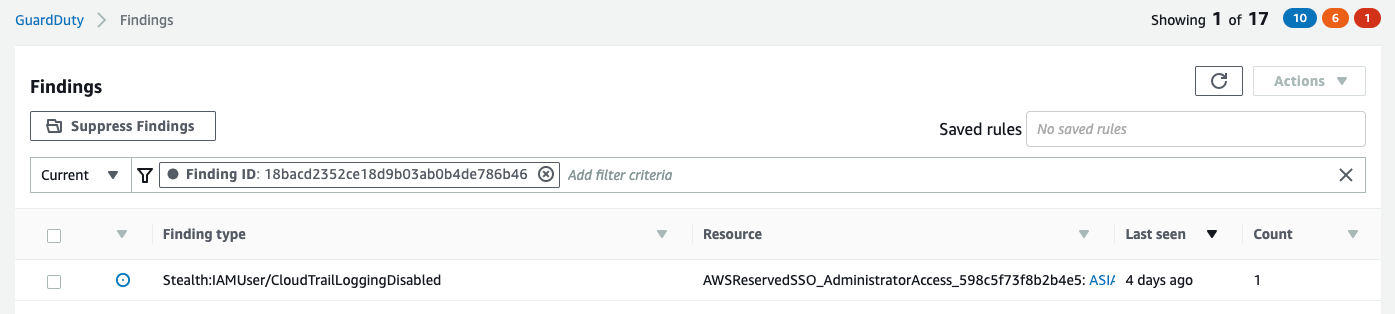
Let’s take a look at a CloudTrailLoggingDisabled finding in GuardDuty as we start trying to answer these questions. When you access the GuardDuty console, a list of your recent findings is displayed. In Figure 1, a filter has been applied to display the CloudTrailLoggingDisabled finding.

Figure 1: A GuardDuty finding showing that CloudTrail was disabled

Figure 1: A GuardDuty finding showing that CloudTrail was disabled

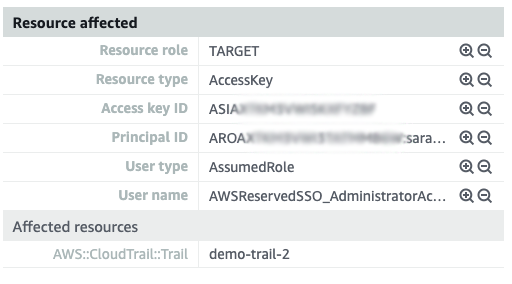
After you select the GuardDuty finding, you can see the finding details, including some of the user information related to the finding. Figure 2 shows the Resources affected section of the finding.

Figure 2: Viewing user data related to the GuardDuty finding

Figure 2: Viewing user data related to the GuardDuty finding

The Affected resources field indicates that the demo-trail-2 trail was where logging was disabled. You can also see that User type is set to AssumedRole and that User name contains the role AWSReservedSSO_AdministratorAccess_598c5f73f8b2b4e5. This was the role that was assumed and using which CloudTrail logging was disabled. This information can help you understand the resources this role delegates access to and the permissions it provides. You still need to identify who specifically assumed the role to disable CloudTrail logging and the activities they performed afterwards. You can use Amazon Detective to answer these questions.

Investigate the finding in Detective

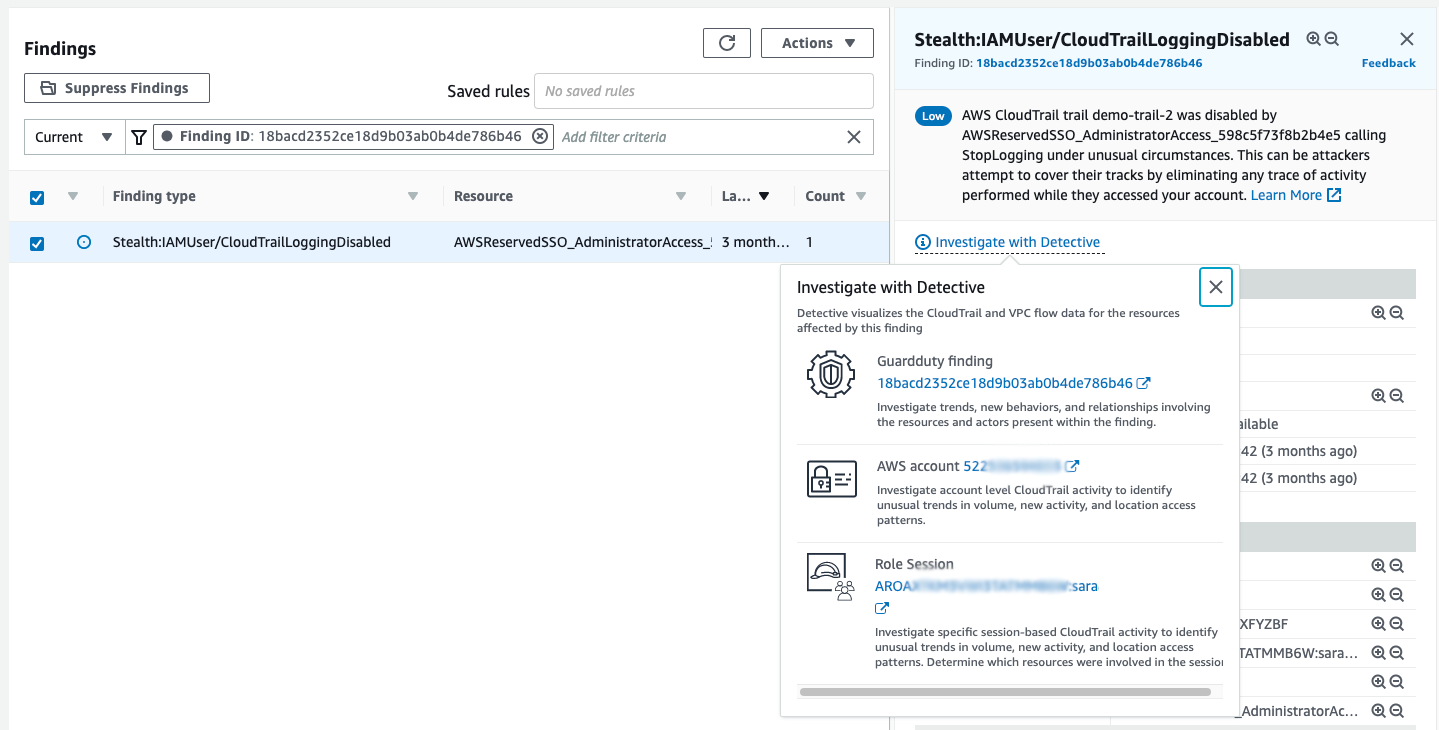
In order to investigate this GuardDuty finding in Detective, you select the finding and then select Investigate in the Actions menu, as shown in Figure 3.

Figure 3: Choose 'Investigate with Detective' and select the GuardDuty finding ID on the pop-up to investigate the finding

Figure 3: Choose ‘Investigate with Detective’ and select the GuardDuty finding ID on the pop-up to investigate the finding

View the finding profile page

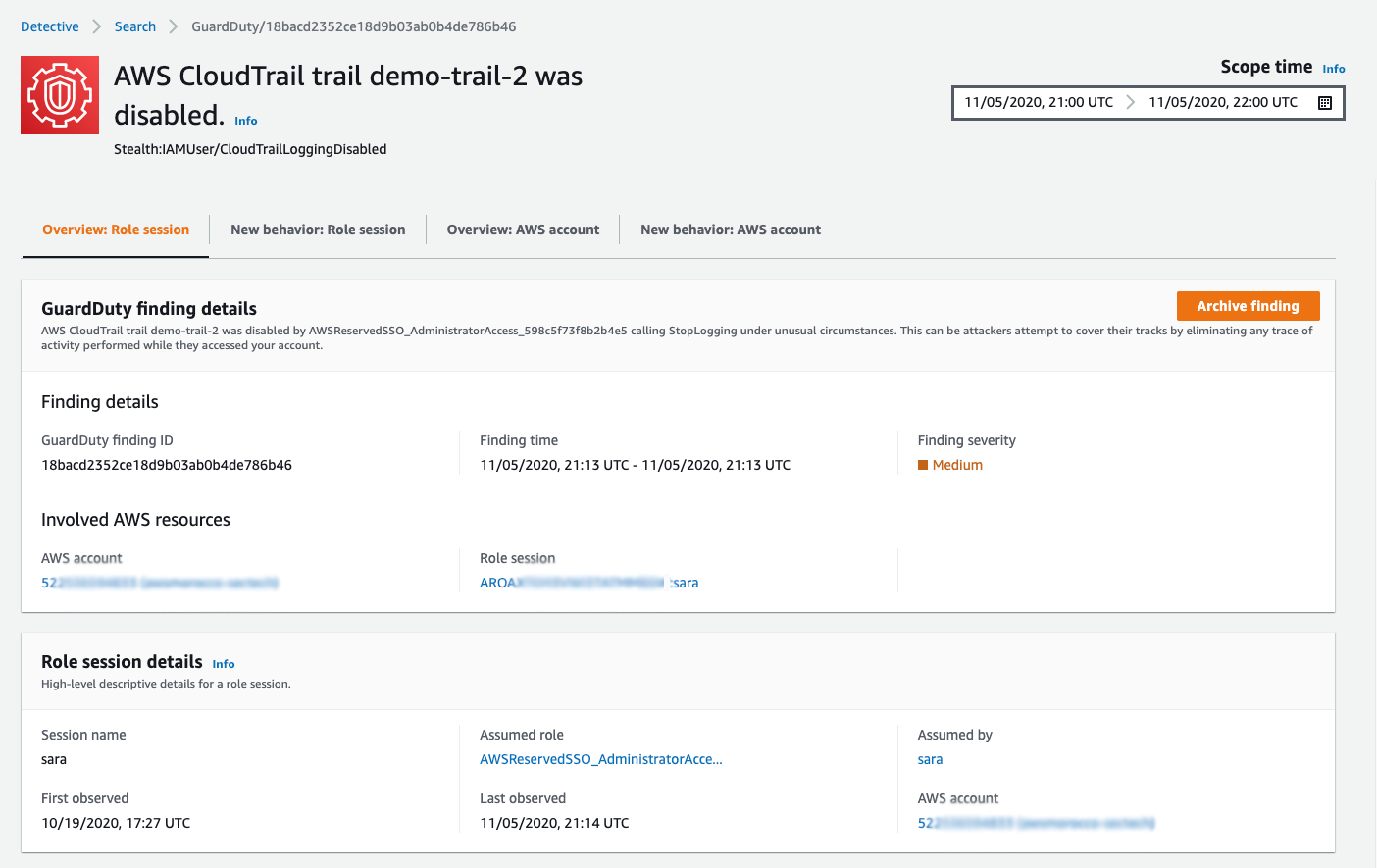
Choosing the Investigate action for this CloudTrailLoggingDisabled finding in GuardDuty opens the finding’s profile page in the Detective console, as shown in Figure 4. Detective has the concept of a profile page, which displays summaries and analytics gleaned from CloudTrail management logs, VPC flow traffic and GuardDuty findings for AWS resources, IP addresses, and user agents. Each profile page can display up to 12 months of information for the selected resource and is intended to help an investigator review and understand the behavior of a resource, or quickly triage and delve into potential issues. Detective doesn’t require a customer to enable CloudTrail or VPC Flog logging in order to retrieve this data and provides these 12 months of visibility regardless of the customers log retention or archiving policies.

Figure 4: Viewing a GuardDuty finding in Detective

Figure 4: Viewing a GuardDuty finding in Detective

Scope time

To help focus your investigation, Detective defaults the time range and thus the displayed information in a finding profile to cover the period of time from when the finding was created through when it was last updated. In the case of this finding, the scope time covers a 1-hour period of time. You can change the scope time by choosing the calendar icon at the top right of the page, if you want to examine additional information before or after the finding was created. The defaulted scope time is sufficient for this investigation, so we can leave it as-is.

Role session overview

Detective uses tabs to group information on profile pages, and for this finding it shows the role session overview tab by default. The role session represents the activities and behavior of the resource that assumed the role tied to our finding. In this case, the role was assumed by someone with the user name sara, as shown in the Assumed by field. (We’ll assume that the user’s first name is Sara.) By analyzing the role session information in the CloudTrail logs, Detective was able to immediately identify that sara was the user who disabled CloudTrail logging and caused the finding to be triggered. You now have an answer to the question of who did this action.

Before we move to answer our other questions about what Sara did after disabling logging and whether her behavior changed, let’s discuss role sessions in more detail. Every role session has a role session name, sara in this case, and a unique role session identifier. The role session identifier is the role ID of the role assumed and the role session name, concatenated together. Best practices dictate that for a specific role that’s assumed by a specific resource, the role session name represents the user name of the IAM or federated user, or includes other useful information about the resource that assumed the role (for more information, see the Naming of individual IAM role sessions blog post). In this case, because the best practices are being followed, Detective is able to track Sara’s activities and behavior each time she assumes the AWSReservedSSO_AdministratorAccess_598c5f73f8b2b4e5 role.

Detective tracks statistics such as when a role session was first observed (October in Sara’s case, for this role), as well as the actions performed and behavioral insights such as the geolocations where Sara initiated her role assumptions. Knowing that Sara has assumed this role before is useful, because you can now assess whether her usage of the role changed during the 1-hour window of the scope time that you’re looking at now, compared to all of her previous assumptions of this role.

Review changes in Sara’s access patterns and operations

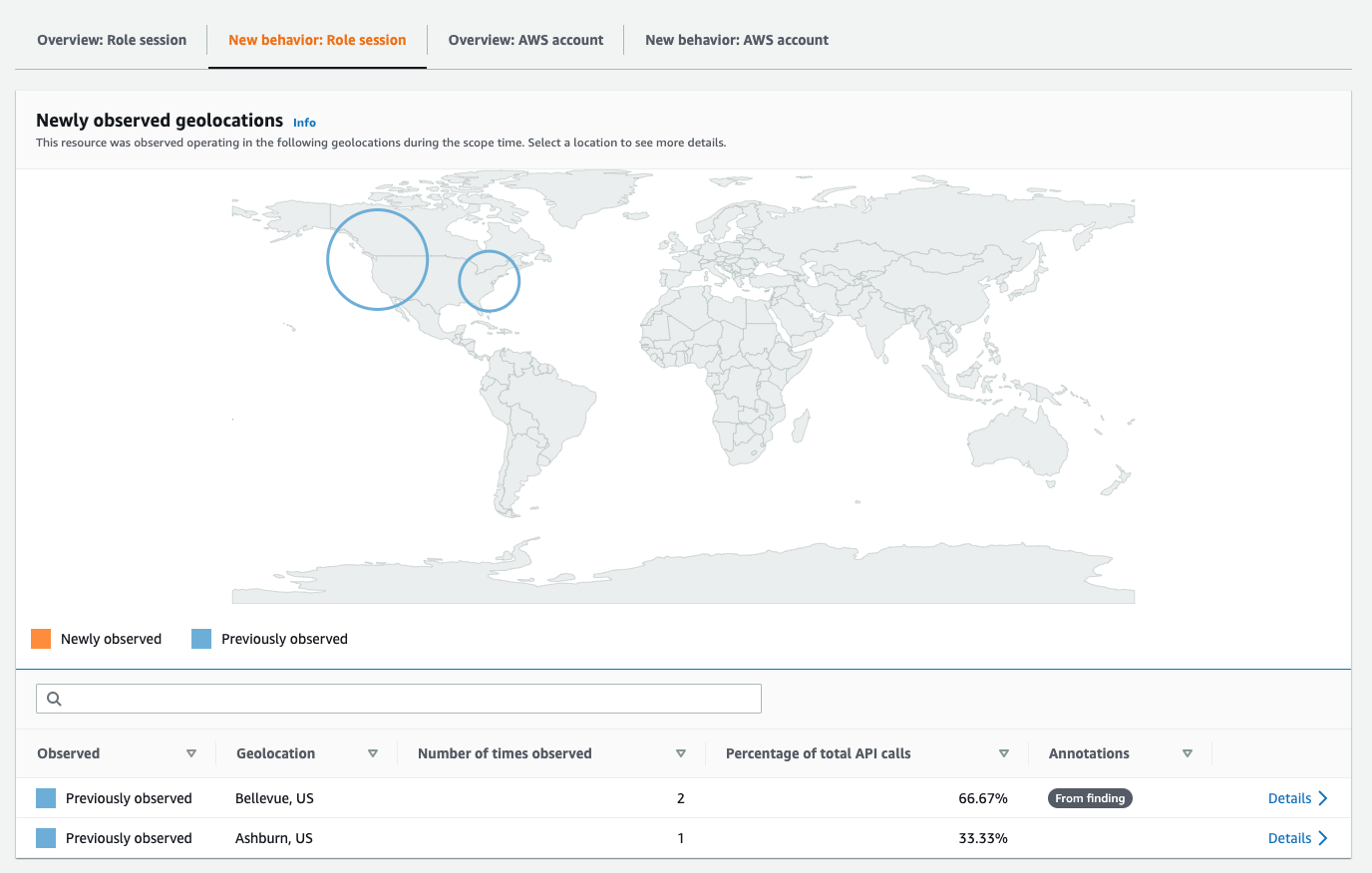
Detective tracks changes in geographical access and operations on the New behavior tab. Let’s choose the New behavior tab for the role session to see this information, as displayed in Figure 5.

Figure 5: Viewing new role session behavior

Figure 5: Viewing new role session behavior

During a security investigation, determining that access patterns have changed can be helpful in highlighting malicious activity. Since Detective tracks Sara’s assumptions of the AWSReservedSSO_AdministratorAccess_598c5f73f8b2b4e5 role, it can show the location where Sara assumed the role and whether the current assumption took place from the same location as her previous ones.

In Figure 5, you can see that Sara has a history of assuming the AWSReservedSSO_AdministratorAccess_598c5f73f8b2b4e5 role from Bellevue, WA and Ashburn, VA, since those geographies are shown in blue. If she had assumed this role from a new location, you would see the new location indicated on the map in orange. Since the API calls being made by this user are from a previously observed location, it’s very unlikely that the user’s credentials were compromised. Making this determination through a manual analysis of CloudTrail logs would have been much more time consuming.

Other information that you can gather from the New behavior role session tab includes newly observed API calls, API calls with increased volume, newly observed autonomous system organizations, and newly observed user agents. It’s useful to be able to validate that the operations Sara performed during the current scope time are relatively consistent with the operations she has performed in the past. This helps us be more certain that it was indeed Sara who was conducting this activity.

Investigate Sara’s API activity

Now that we’ve determined that Sara’s access pattern and activities are consistent with previous behavior, let’s use Detective to look further into Sara’s activity to determine if she accidentally disabled CloudTrail logging or if there was possible malicious intent behind her action.

To investigate the user’s actions

  1. On the finding profile page, in the dropdown list at the top of the screen, select Overview: Role Session to go back to the Overview tab for the role session.

    Figure 6: Navigating to the 'Overview: Role Session' page

    Figure 6: Navigating to the ‘Overview: Role Session’ page

  2. Once you’re on the Overview tab, navigate to the Overall API call volume panel.
    Figure 7: Navigating to the Overall API call volume panel

    Figure 7: Navigating to the ‘Overall API call volume’ panel

    This panel displays a chart of the successful and failed API calls that Sara has made while she assumes the AWSReservedSSO_AdministratorAccess_598c5f73f8b2b4e5 role. The chart shows a black rectangle around activities that were performed during the CloudTrail findings scope time. It also displays historical activities and shows a baseline across the chart so that you can understand how actively she uses the permissions granted to her by assuming this role.

  3. Choose the display details for scope time button to retrieve the details of the API calls that were invoked by Sara during the scope time, so that you can determine her actions after she disabled CloudTrail logging.
    Figure 8: Displaying details based on scope time

    Figure 8: Displaying details based on scope time

    You will now see the Overall API call volume panel expand to show you all the IP addresses, API calls, and access keys used by Sara during the scope time window of this finding.

  4. Choose the API method tab to see a list of all the API calls that were made.
    Figure 9: Viewing the API methods called

    Figure 9: Viewing the API methods called

    She invoked just two API calls during this scope time: the StopLogging and AssumeRole API calls. You were already aware that Sara disabled CloudTrail logging, but you weren’t aware that she assumed another role. When a user assumes a role while they have another one assumed, this is called role chaining. Although role chaining can be used because a user needs additional permissions, it can also be used to hide activities. Because we don’t know what other actions Sara performed after assuming this second role, let’s dig further. That may shed light on why she chose to disable CloudTrail logging.

Examine chained role assumptions

To find out more about Sara’s use of role chaining, let’s look at the other role that she assumed during this role session.

To view the user’s other role

  1. Navigate back to the top of the finding profile page. In the Role session details panel, choose AWSReservedSSO_AdministratorAccess_598c5f73f8b2b4e5.
    Figure 10: Locating the 'Assumed role' name

    Figure 10: Locating the ‘Assumed role’ name

    Detective displays the AWS Role profile page for this role, and you can now see the activity that has occurred across all resources that have assumed this role. In order to highlight information that’s relevant to the time frame of your investigation, Detective maintains your scope time as you move from the CloudTrailLoggingDisabled finding profile page to this role profile page.

  2. The goal for coming to this page is to determine which other role Sara assumed after assuming the AWSReservedSSO_AdministratorAccess_598c5f73f8b2b4e5 role, so choose the Resource interaction tab. On this tab, you will see the following three panels: Resources that assumed this role, Assumed roles, and Sessions involved.In Figure 11, you can see the Resources that assumed this role panel, which lists all the AWS resources that have assumed this role, their type (EC2 instance, federated or IAM user, IAM role), their account, and when they assumed the role for the first and last time. Sara is on this list, but Detective does not show an AWS account next to her because federated users aren’t tied to a specific account. The account field is populated for other resource types that are displayed on this panel and can be useful to understand cross-account role assumptions.

    Figure 11: Viewing resources that have assumed a role

    Figure 11: Viewing resources that have assumed a role

  3. On the same Resource Interaction tab, as you scroll down you will see the Assumed Roles panel, Figure 12, which helps you understand role chaining by listing the other roles that have been assumed by the AWSReservedSSO_AdministratorAccess_598c5f73f8b2b4e5 role. In this case, the role has assumed several other roles, including DemoRole1 during the same window of time when the CloudTrailLoggingDisabled finding occurred.

    Figure 12: Viewing the roles that have been assumed

    Figure 12: Viewing the roles that have been assumed

  4. In Figure 13, you can see the Sessions involved panel, which shows the role sessions for all the resources that have assumed this role, and role sessions where this role has assumed other roles within the current scope time. You see two role sessions with the session name sara, one where Sara assumed the AWSReservedSSO_AdministratorAccess_598c5f73f8b2b4e5 role and another where AWSReservedSSO_AdministratorAccess_598c5f73f8b2b4e5 assumed DemoRole1.

    Figure 13: Viewing the role sessions this role was involved with

    Figure 13: Viewing the role sessions this role was involved with

Now that you know that Sara also used the role DemoRole1 during her role session, let’s take a closer look at what actions she performed.

View API operations that were called within the chained role

In this step, we’ll view Sara’s activity within the DemoRole1 role, focusing on the API calls that were made.

To view the user’s activity in another role

  1. In the Sessions involved panel, in the Session name column, find the row where DemoRole1 is the Assumed Role value. Choose the session name in this row, sara, to go to the role session profile page.
  2. You will be most interested in the API methods that were called during this role session, and you can view those in the Overall API call volume panel. As shown in Figure 14, you can see that Sara has accessed DemoRole1 before, because there are calls graphed prior to the calls in our scope time.
  3. Choose the display details for scope time button on the Overall API call volume panel, and then choose the API method tab.

    Figure 14: Viewing the role session API method calls

    Figure 14: Viewing the role session API method calls

In Figure 14, you can see that calls were made to the DescribeInstances and RunInstances API methods. So you now know that Sara determined the type of Amazon Elastic Compute Cloud (Amazon EC2) instances that were running in your account and then successfully created an EC2 instance by calling the RunInstances API method. You can also see that successful and failed calls were made to the AttachRolePolicy API method as a part of the session. This could possibly be an attempt to elevate permissions in the account and would justify further investigation into the user’s actions.

As an investigator, you’ve determined that Sara was the user who disabled CloudTrail logging and that her access pattern was consistent with her past accesses. You’ve also determined the other actions she performed after she disabled logging and assumed a second role, but you can continue to investigate further by answering additional questions, such as:

  • What did Sara do with DemoRole1 when she assumed this role in the past? Are her current activities consistent with those past activities?
  • What activities are being performed across this account? Are those consistent with Sara’s activities?

By using Detective’s features that have been demonstrated in this post, you will be able to answer the questions like the ones listed above.

Summary

After you read this post, we hope you have a better understanding of the ways in which Amazon Detective collects, organizes, and presents log data to simplify your security investigations. All Detective service subscriptions include the new role session analysis capabilities. With these capabilities, you can quickly attribute activity performed under a role to a specific resource in your environment, understand cross-account role assumptions, determine role chaining behavior, and quickly see called APIs.

All customers receive a 30-day free trial when they enable Amazon Detective. See the AWS Regional Services page for all the Regions where Detective is available. To learn more, visit the Amazon Detective product page or see the additional resources at the end of this post to further expand your knowledge of Detective capabilities and features.

Additional resources

Amazon Detective features

Amazon Detective overview and demo

Amazon Detective FAQs

Amazon Detective Regions, endpoints, and quotas

Naming of individual IAM role sessions

If you have feedback about this post, submit comments in the Comments section below.

Want more AWS Security how-to content, news, and feature announcements? Follow us on Twitter.

Author

Sheldon Sides

Sheldon is a Senior Solutions Architect, focused on helping customers implement native AWS security services. He enjoys using his experience as a consultant and running a cloud security startup to help customers build secure AWS Cloud solutions. His interests include working out, software development, and learning about the latest technologies.

Author

Gagan Prakash

Gagan is a Product Manager on the Amazon Detective team and is passionate about ensuring that Detective’s new features and capabilities address the needs of our customers. He leverages his past experiences in cybersecurity startups and software companies to help drive product improvements. His interests include spending time with family, reading, and learning more about the world at large.

Investigate VPC flow with Amazon Detective

Post Syndicated from Ross Warren original https://aws.amazon.com/blogs/security/investigate-vpc-flow-with-amazon-detective/

Many Amazon Web Services (AWS) customers need enhanced insight into IP network flow. Traditionally, cost, the complexity of collection, and the time required for analysis has led to incomplete investigations of network flows. Having good telemetry is paramount, and VPC Flow Logs are a very important part of a robust centralized logging architecture. The information that VPC Flow Logs provide is frequently used by security analysts to determine the scope of security issues, to validate that network access rules are working as expected, and to help analysts investigate issues and diagnose network behaviors. Flow logs capture information about the IP traffic going to and from EC2 interfaces in a VPC. Each record describes aspects of the traffic flow, such as where it originated and where it was sent to, what network ports were used, and how many bytes were sent.

Amazon Detective now enables you to interactively examine the details of the virtual private cloud (VPC) network flows of your Amazon Elastic Compute Cloud (Amazon EC2) instances. Amazon Detective makes it easy to analyze, investigate, and quickly identify the root cause of potential security issues or suspicious activities. Detective automatically collects VPC flow logs from your monitored accounts, aggregates them by EC2 instance, and presents visual summaries and analytics about these network flows. Detective doesn’t require VPC Flow Logs to be configured and doesn’t impact existing flow log collection.

In this blog post, I describe how to use the new VPC flow feature in Detective to investigate an UnauthorizedAccess:EC2/TorClient finding from Amazon GuardDuty. Amazon GuardDuty is a threat detection service that continuously monitors for malicious activity and unauthorized behavior to protect your AWS accounts, workloads, and data stored in Amazon S3. GuardDuty documentation states that this alert can indicate unauthorized access to your AWS resources with the intent of hiding the unauthorized user’s true identity. I’ll demonstrate how to use Amazon Detective to investigate an instance that was flagged by Amazon GuardDuty to determine whether it is compromised or not.

Starting the investigation in GuardDuty

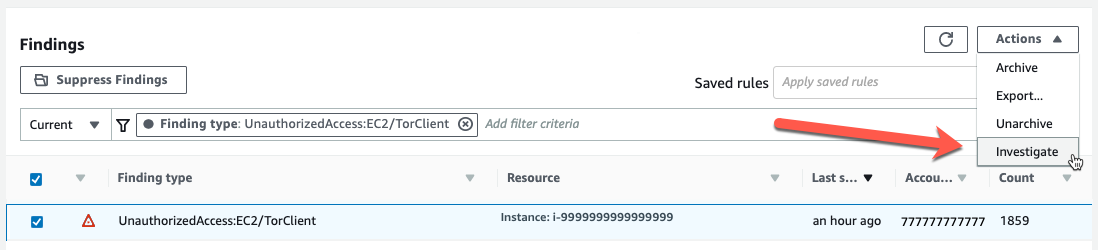
In my GuardDuty console, I’m going to select the UnauthorizedAccess:EC2/TorClient finding shown in Figure 1, choose the Actions menu, and select Investigate.
 

Figure 1: Investigating from the GuardDuty console

Figure 1: Investigating from the GuardDuty console

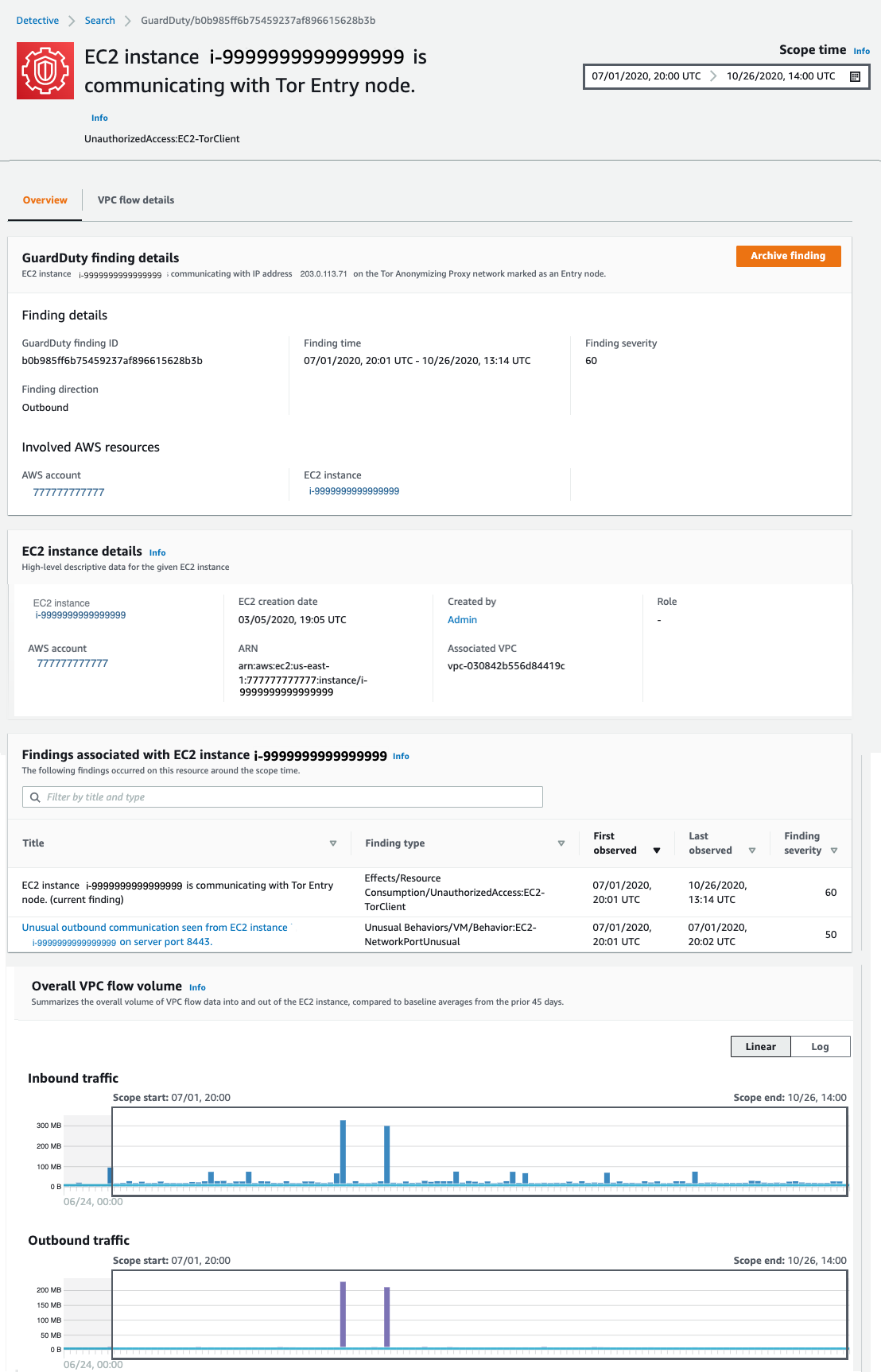
This opens a new browser tab and launches the Amazon Detective console, where I’m presented with the profile page for this finding, shown in Figure 2. You must have Detective enabled to pivot between a GuardDuty finding and Detective. Detective provides profile pages for supported GuardDuty findings and AWS resources (for example, IP address, EC2 instance, user, and role) that include information and data visualizations that summarize observed behaviors and give guidance for interpreting them. Profiles help analysts to determine whether the finding is of genuine concern or a false positive. For resources, profiles provide supporting details for an investigation into a finding or for a general hunt for suspicious activity.
 

Figure 2: Finding profile panel

Figure 2: Finding profile panel

In this case, the profile page for this GuardDuty UnauthorizedAccess:EC2/TorClient finding provides contextual and behavioral data about the EC2 instance on which GuardDuty has noted the issue. As I dive into this finding, I’m going to be asking questions that help assess whether the instance was in fact accessed unintentionally, such as, “What IP port or network service was in use at that time?,” “Were any large data transfers involved?,” “Was the traffic allowed by my security groups?” Profile pages in Detective organize content that helps security analysts investigate GuardDuty findings, examine unexpected network behavior, and identify other AWS resources that might be affected by a potential security issue.

I begin scrolling down the page and notice the Findings associated with EC2 instance i-9999999999999999 panel. Detective displays related findings to provide analysts with additional evidence and context about potentially related issues. The finding I’m investigating is listed there, as well as an Unusual Behaviors/VM/Behavior:EC2-NetworkPortUnusual finding. GuardDuty builds a baseline on your network traffic and will generate findings where there is traffic outside the calculated normal. While we might not investigate every instance of anomalous traffic, having these alerts correlated by Detective provides context for validating the issue. Keeping this in mind as I scroll down, at the bottom of this profile page, I find the Overall VPC flow volume panel. If you choose the Info link next to the panel title, you can see helpful tips that describe how to use the visualizations and provide ideas for questions to ask within your investigation. These info links are available throughout Detective. Check them out!

Investigating VPC flow in Detective

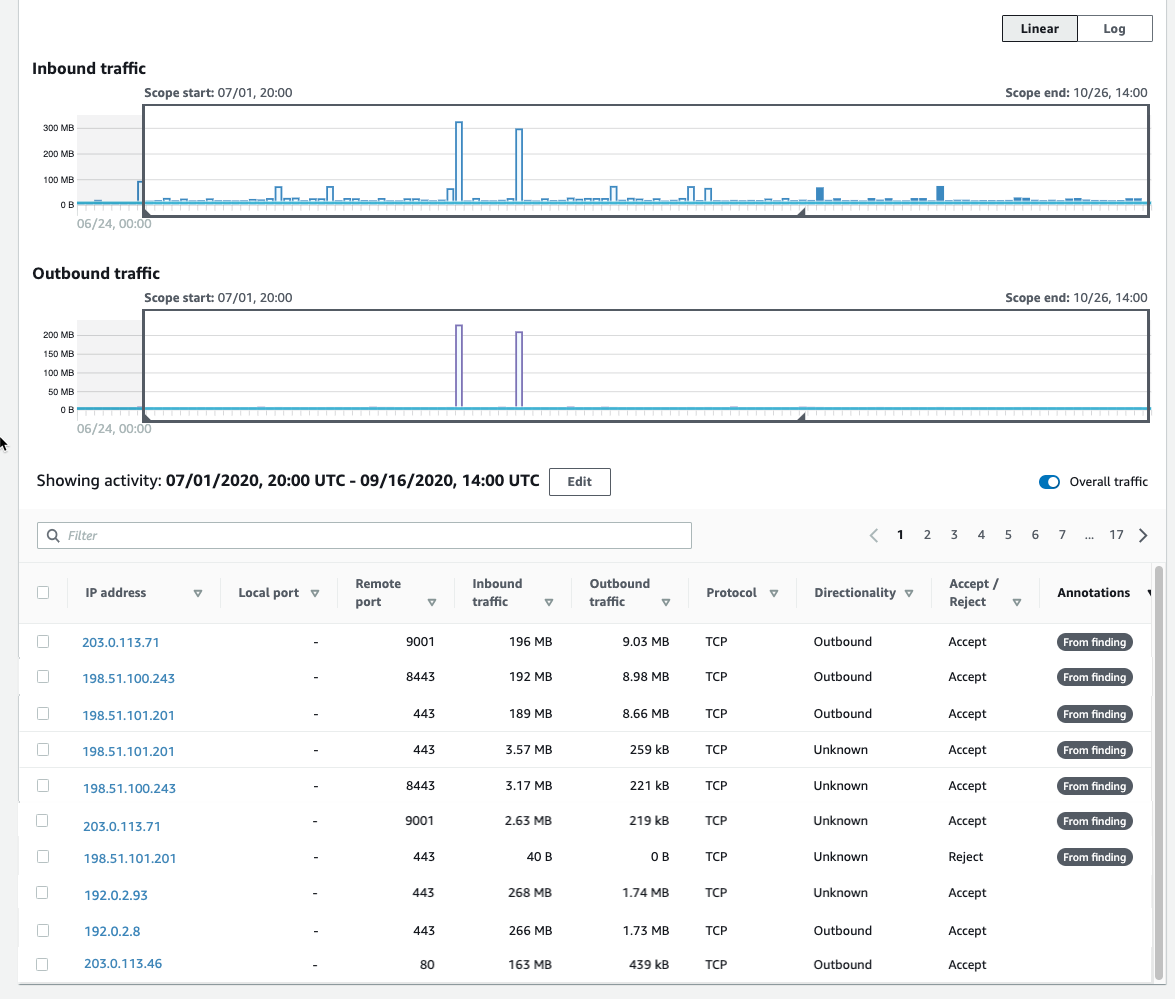
In this investigation, I’m very curious about the two large spikes in inbound traffic that I see in the Overall VPC flow volume panel, which seem to be visually associated with some unusual outbound traffic spikes. It’s most likely that these outbound spikes are related to the Unusual Behaviors/VM/Behavior:EC2-NetworkPortUnusual finding I mentioned earlier. To start the investigation, I choose the display details for scope time button, shown circled at the bottom of Figure 2. This expands the VPC Flow Details, shown in Figure 3.
 

Figure 3: Our first look at VPC Flow Details

Figure 3: Our first look at VPC Flow Details

We now can see that each entry displays the volume of inbound traffic, the volume of outbound traffic, and whether the access request was accepted or rejected. Detective provides annotations on the VPC flows to help guide your investigation. These From finding annotations make it clear which flows and resources were involved in the finding. In this case, we can easily see (in Figure 3) the three IP addresses at the top of the list that triggered this GuardDuty finding.

I’m first going to focus on the spikes in traffic that are above the baseline. When I click on one of the spikes in the graph, the time window for the VPC flow activity now matches the dates of these spikes I’m investigating.

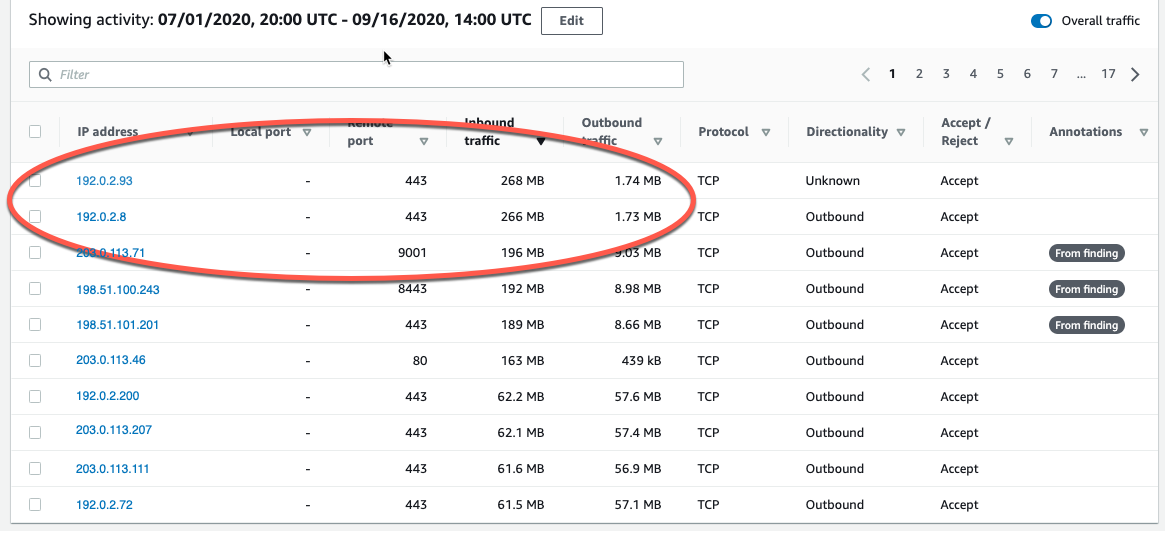
If I choose the Inbound Traffic column header, shown in Figure 4, I can find the flows that contributed to the spike during this time window.
 

Figure 4: Inbound traffic spikes

Figure 4: Inbound traffic spikes

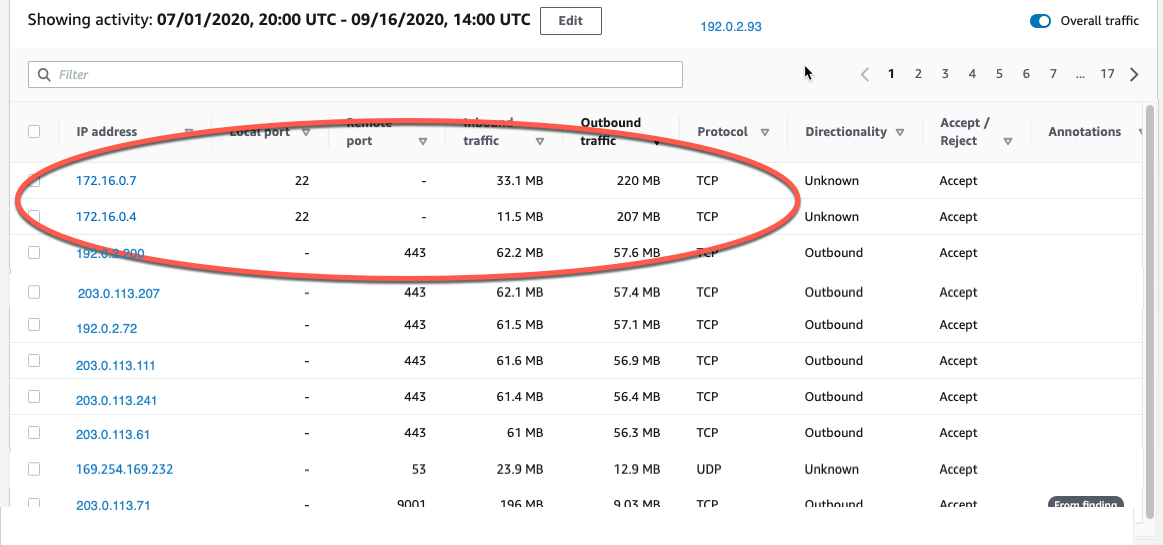
Note that the two large inbound spikes aren’t associated with the IP address from the UnauthorizedAccess:EC2/TorClient finding, based on the Detective annotation From finding. Let’s check the outbound traffic. If I do a quick sort of the table based on the outbound traffic column, as shown in Figure 5, we can also see the outbound spikes, and it isn’t immediately evident whether the spikes are associated with this finding. I could continue to investigate the spikes (because they are a visual anomaly), or focus just on the VPC flow traffic that GuardDuty and Detective have labeled as associated with this TOR finding.
 

Figure 5: Outbound traffic spikes

Figure 5: Outbound traffic spikes

Let’s focus on the outbound and inbound spikes and see if we can determine what’s happening. The inbound spikes are on port 443, typically an HTTPS port, or a secure web connection. The outbound spikes are on port 22 (ssh), but go to IP addresses that look to be internal based on their addresses of 172.16.x.x. The port 443 traffic might indicate a web server that’s open to the internet and receiving traffic. With further investigation, we can determine if this idea is valid, and continue hunting for potentially malicious traffic.

A good next step would be to investigate the two specific IP addresses to rule out their involvement in the finding. I can do this by right-clicking on either of the external IP addresses and opening a new tab, where I can focus on investigating these two specific IP addresses. I would take this line of investigation to possibly rule out the involvement of these IP addresses in this finding, determine if they regularly communicate with my resources, find out what instance(s) they’re related to, and see if there are other findings associated with these instances or IP addresses. This deeper investigation is outside the scope of this blog post, but it’s something you should be doing in your own environment.

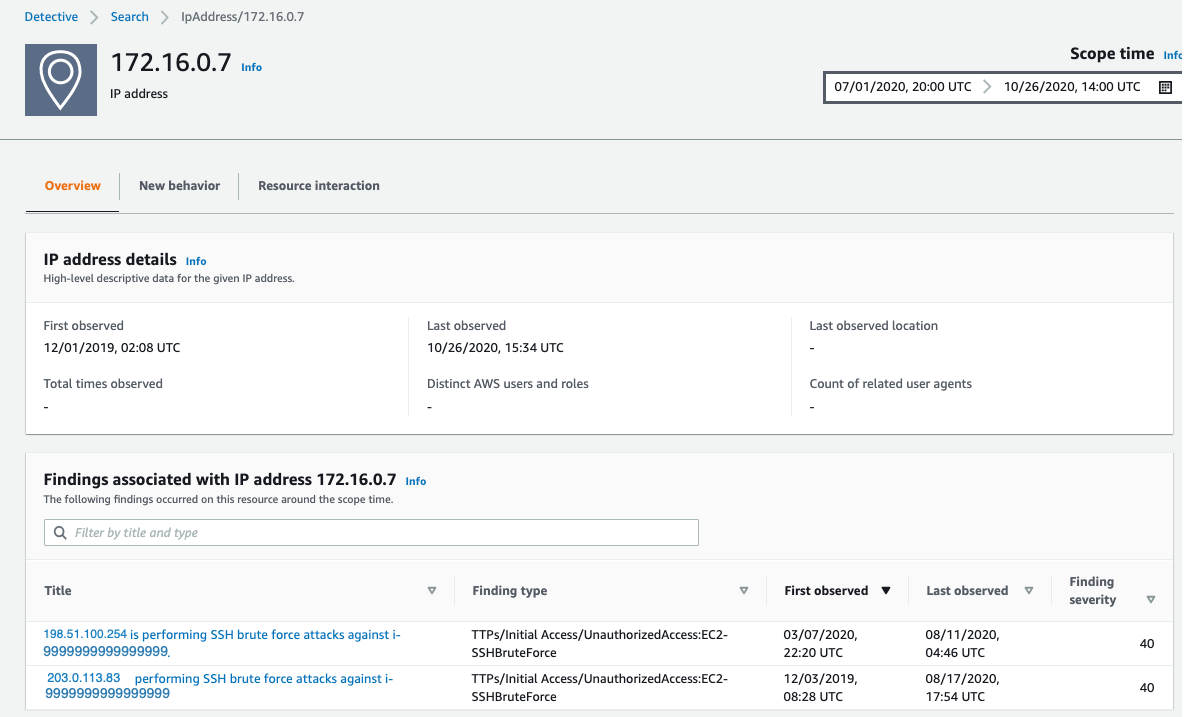
IP addresses in AWS are ephemeral in nature. The unique identifier in VPC flow logs is the Instance ID. At the time of this investigation, 172.16.0.7 is assigned to the instance related to this finding, so let’s continue to take a look at the internal 172.16.0.7 IP address with 218 MB outbound traffic on port 22. I choose 172.16.0.7, and Detective opens up the profile page for this specific IP address, as shown in Figure 6. Here we see some interesting correlations: two other GuardDuty findings related to SSH brute-force attacks. These could be related to our outbound port 22 spikes, because they’re certainly in the window of time we’re investigating.
 

Figure 6: IP address profile panel

Figure 6: IP address profile panel

As part of a deeper investigation, you would investigate the SSH brute-force findings for 198.51.100.254 and 203.0.113.83 but for now I’m interested what this IP is involved in. Detective easily associates this 172.16.0.7 IP address with the instance that was assigned the IP during the scope time. I scroll down to the bottom of the profile page for 172.16.0.7 and investigate the i-9999999999999999 instance by choosing the instance name.

Filtering VPC flow activity

In Detective, as the investigator we are looking at an instance profile panel, similar to the one in Figure 2, and since we’re interested in VPC flow details, I’m going to scroll down and select display details for scope time.

To focus on specific activity, I can filter the activity details by the following values:

  • IP address
  • Local or remote port
  • Direction
  • Protocol
  • Whether the request was accepted or rejected

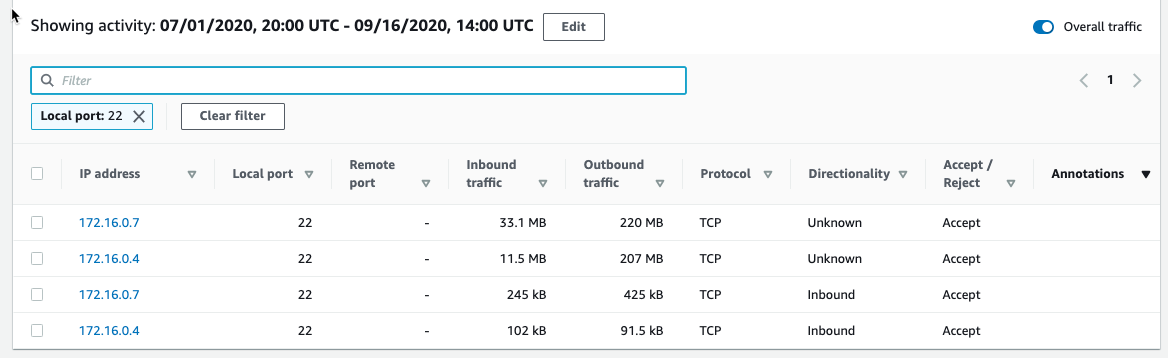
I’m going to filter these VPC flow details and just look at port 22 (sshd) inbound traffic. I select the Filter check box and select Local Port and 22, as shown in Figure 7. Detective fills in all the available ports for you, making it easy to complete this filter.
 

Figure 7: Port 22 traffic

Figure 7: Port 22 traffic

The activity details show a few IP addresses related to port 22, and we’re still following the large outbound spikes of traffic. It’s outside the scope of this blog post, but now it would be time to start looking at your security groups and network access control lists (ACLs) and determine why port 22 is open to the internet and sending all this traffic.

Understanding traffic behavior

As an investigator, I now have a good picture of the traffic related to the initial finding, and by diving deeper we’re able to discover other interesting traffic during the same timeframe. While we may not always determine “who has done it,” the goal should be to improve our understanding of the behavior of our environment and gather important technical evidence. Detective helps you identify and investigate anomalies to give you insight into your environment. If we were to continue our investigation into the finding, here are some actions we can take within Detective.

Investigate VPC findings with Detective:

  • Perform ports and utilization analysis
    • Identify service and ephemeral ports
    • Determine whether traffic was accepted or rejected based on security groups and NACL configurations
    • Investigate possible reconnaissance traffic by exploring the significant amount of rejected traffic
  • Correlate EC2 instances to TCP/IP ports and IPs
  • Analyze traffic spikes and anomalies
  • Discover traffic patterns and make behavioral correlations

Explore EC2 instance behavior with Detective:

  • Directional Traffic Analysis
  • Investigate possible data exfiltration events by digging into large transfers
  • Enumerate distinct IP connections and sort and filter by protocol, amount of traffic, and traffic direction
  • Gather data related to a spike in port count from a single IP address (potential brute force) or multiple IP addresses (distributed denial of service (DDoS))

Additional forensics steps to consider

  • Snapshot EC2 Volumes
  • Memory dump of EC2 instance
  • Isolate EC2 instance
  • Review your authentication strategy and assess whether the chosen authentication method is sufficient to protect your asset

Summary

Without requiring you to set up infrastructure or spend time configuring log ingestion, Detective collects, organizes, and presents relevant data for your threat analysis and investigations. Security and operations teams will find this new capability helpful for simplifying EC2 traffic analysis, validating security group permissions, and diagnosing EC2 instance behavior. Detective does the heavy lifting of storing, and analyzing VPC flow data so you can focus on quickly answering your investigative questions. VPC network flow details are available now in all Detective supported Regions and are included as part of your service subscription.

To get started, you can enable a 30-day free trial of Amazon Detective. See the AWS Regional Services page for all the regions where Detective is available. To learn more, visit the Amazon Detective product page.

Are you a visual learner? Check out Amazon Detective Overview and Demonstration. This video helps you learn how and when to use Amazon Detective to improve the security of your AWS resources.

If you have feedback about this post, submit comments in the Comments section below.

Want more AWS Security how-to content, news, and feature announcements? Follow us on Twitter.

Author

Ross Warren

Ross Warren is a Solution Architect at AWS based in Northern Virginia. Prior to his work at AWS, Ross’ areas of focus included cyber threat hunting and security operations. Ross has worked at a handful of startups and has enjoyed the transition to AWS because he can continue to build solutions for customers on today’s most innovative platform.

Author

Jim Miller

Jim is a Solution Architect at AWS based in Connecticut. Jim has worked within cyber security his entire career with areas of focus including cyber security architecture and incident response. At AWS he loves building secure solutions for customers to enable teams to build and innovate with confidence.