Tag Archives: Amazon FSx for Windows

Field Notes: SQL Server Deployment Options on AWS Using Amazon EC2

Post Syndicated from Saqlain Tahir original https://aws.amazon.com/blogs/architecture/field-notes-sql-server-deployment-options-on-aws-using-amazon-ec2/

Many enterprise applications run Microsoft SQL Server as their backend relational database.  There are various options for customers to benefit from deploying their SQL Server on AWS. This blog will help you choose the right architecture for your SQL Server Deployment with high availability options, using Amazon EC2 for mission-critical applications.

SQL Server on Amazon EC2 offers more efficient control of deployment options and enables customers to fine-tune their Microsoft workload performance with full control. Most importantly you can bring your own licenses (BYOL) on AWS. You can re-host, aka “lift and shift”, your SQL Server to Amazon Elastic Compute Cloud (Amazon EC2) for large scale Enterprise applications. If you are re-hosting, you can still use your existing SQL Server license on AWS. Lifting and shifting your on-premises MS SQL Server environment to AWS using Amazon EC2 is recommended to migrate your SQL Server workloads to the cloud.

First, it is important to understand the considerations for deploying a SQL Server using Amazon EC2. For example, when would you want to use Failover Cluster over Availability Groups?

The following table will help you to choose the right architecture for SQL Server architecture based on the type of workload and availability requirements:
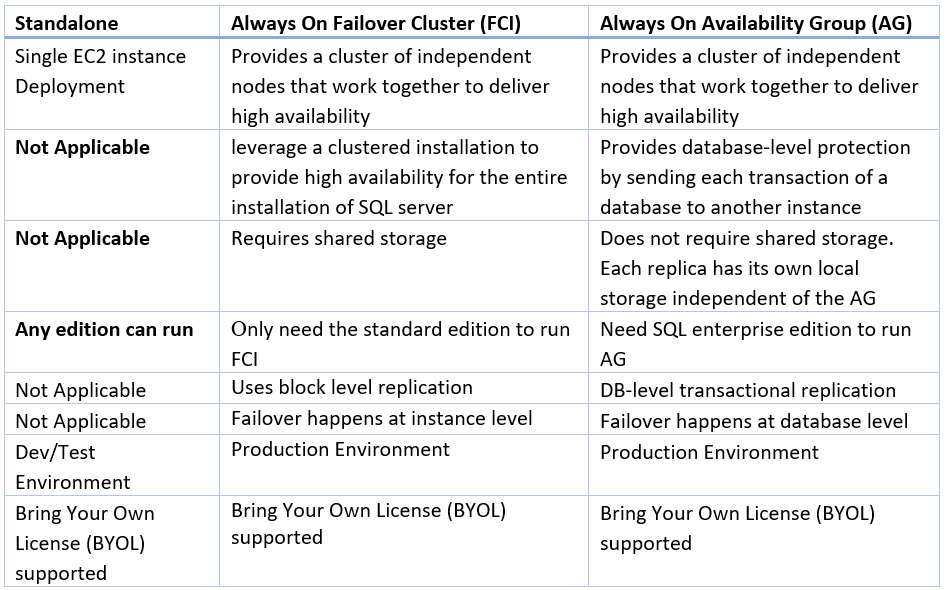
Following table will help you to choose the right architecture for SQL Server architecture based on the type of workload and high availability requirements:

Self-managed MS SQL Server on EC2 usually means hosting MS SQL on EC2 backed by Amazon Elastic Block Store (EBS) or Amazon FSx for Windows File Server. Persistent storage from Amazon EBS and Amazon FSx delivers speed, security, and durability for your business-critical relational databases such as Microsoft SQL Server.

  • Amazon EBS delivers highly available and performant block storage for your most demanding SQL Server deployments to achieve maximum performance.
  • Amazon FSx delivers fully managed Windows native shared file storage (SMB) with a multi-Availability Zone (AZ) design for highly available (HA) SQL environments.

Previously, if you wanted to migrate your Failover Cluster SQL databases to AWS, there was no native shared storage option. You would need to implement third party solutions that added a cost and complexity to install, set up, and maintain the storage configuration.

Amazon FSx for Windows File Server provides shared storage that multiple SQL databases can connect to across multiple AZs for a DR and HA solution. It is also helpful to achieve throughput and certain IOPS without scaling up the instance types to get the same IOPS from EBS volumes.

Overview of solution

Most customers need High Availability (HA) for their SQL Server production environment to ensure uptime and availability. This is important to minimize changes to the SQL Server applications while migrating. Customers may want to protect their investment in Microsoft SQL Server licenses by taking a Bring your own license (BYOL) approach to cloud migration.

There are some scenarios where applications running on Microsoft SQL Server need full control of the infrastructure and software. If customers require it, they can deploy their SQL Server to AWS on Amazon EC2. Currently, there are three ways to deploy SQL Server workloads on AWS as shown in the following diagram:
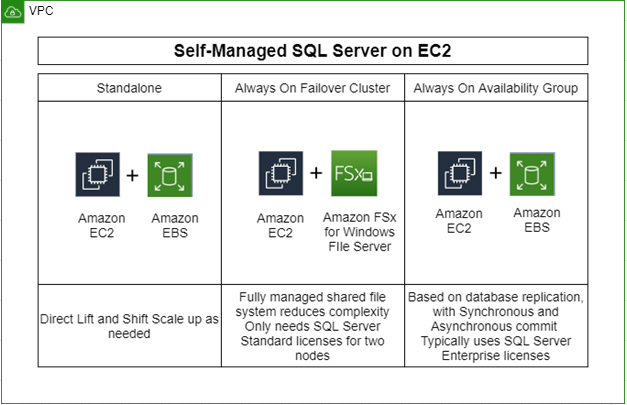
There are some scenarios where applications running on Microsoft SQL Server need full control of the infrastructure and software. If customers require it, they can deploy their SQL Server to AWS on Amazon EC2. Currently, there are various ways to deploy SQL Server workloads on AWS as shown in the following diagram:

Walkthrough

Now the question comes, how do you deploy the preceding SQL Server architectures?

First, let’s discuss the high-level breakdown of deployment options including the two types of SQL HA modes:

  • Standalone
    • Single SQL Server Node without HA
    • Provision Amazon EC2 instance with EBS volume
    • Single Availability Zone deployment
  • Always On Failover Cluster Instance (FCI): EC2 and FSx for Windows File Server
    • Protects the whole instance, including system databases
    • Failovers over at the instance level
    • Requires Shared Storage, Amazon FSx for Windows File Server is a great option
    • Can be used in conjunction with Availability Groups to provide read-replicas and DR copies (dependent upon SQL Server Edition)
    • Can be implemented at the Enterprise or Standard Edition level (with limitations)
    • Multi Availability Zone Deployment
  • Always On Availability Groups (AG): EC2 and EBS
    • Protects one or more user databases (Standard Edition is limited to a single user database per AG)
    • Failover is at the Availability Group level, meaning potentially only a subset of user databases can failover versus the whole instance
    • System databases are not replicated, meaning users, jobs etc. will not automatically appear on passive nodes, manual creation is needed on all nodes
    • Natively provides access to read-replicas and DR copies (dependent upon Edition)
    • Can be implemented at the Enterprise or Standard
    • Multi Availability Zone Deployment

Prerequisites

For this walkthrough, you should have the following prerequisites:

  • An AWS account
  • SQL Server Licenses in case of BYOL Deployment
  • Identify Software and Hardware requirements for SQL Server Environment
  • Identify SQL Server application requirements based on best practices in this deployment guide

Deployment options on AWS

Here are some tools and services provided by AWS to deploy the SQL Server production ready environment by following best practices.

SQL Server on the AWS Cloud: Quick Start Reference Deployment

Use Case:

You want to deploy SQL Server on AWS for a Proof of Concept (PoC) or Pilot deployment using CloudFormation templates within hours by following these best practices.

Overview:

The Quick Start deployment guide provides step-by-step instructions for deploying SQL Server on the Amazon Web Services (AWS) Cloud, using AWS CloudFormation templates and AWS Systems Manager Automation documents that automate the deployment.

SQL Server on the AWS Cloud: Quick Start Reference Deployment

Implementation:

Quick Start Link: SQL Server with WSFC Quick Start

Source Code: GitHub

SQL Server Always On Deployments with AWS Launch Wizard

Use Case:

You intend to deploy SQL Server on AWS for your production workloads to benefit from automation, time and cost savings, and most importantly by leveraging proven deployment best practices from AWS.

Overview:

AWS Launch Wizard is a service that guides you through the sizing, configuration, and deployment of Microsoft SQL Server applications on AWS, following the AWS Well-Architected Framework. AWS Launch Wizard supports both single instance and high availability (HA) application deployments.

AWS Launch Wizard reduces the time it takes to deploy SQL Server solutions to the cloud. You input your application requirements, including performance, number of nodes, and connectivity, on the service console. AWS Launch Wizard identifies the right AWS resources to deploy and run your SQL Server application. You can also receive an estimated cost of deployment, modify your resources and instantly view the updated cost assessment.

When you approve, AWS Launch Wizard provisions and configures the selected resources in a few hours to create a fully-functioning production-ready SQL Server application. It also creates custom AWS CloudFormation templates, which can be reused and customized for subsequent deployments.

Once deployed, your SQL Server application is ready to use and can be accessed from the EC2 console. You can manage your SQL Server application with AWS Systems Manager.

SQL Server Always On Deployments with AWS Launch Wizard

Implementation:

AWS Launch Wizard Link: AWS Launch Wizard for SQL Server

Simplify your Microsoft SQL Server high availability deployments using Amazon FSx for Windows File Server

Use Case:

You need SQL enterprise edition to run an Always on Availability Group (AG), whereas you only need the standard edition to run Failover Cluster Instance (FCI). You want to use standard licensing to save costs but want to achieve HA. SQL Server Standard is typically 40–50% less expensive than the Enterprise Edition.

Overview:

Always On Failover Cluster (FCI) uses block level replication rather than database-level transactional replication. You can migrate to AWS without re-architecting. As the shared storage handles replication you don’t need to use SQL nodes for it, and frees up CPU/Memory for primary compute jobs. With FCI, the entire instance is protected – if the primary node becomes unavailable, the entire instance is moved to the standby node. This takes care of the SQL Server logins, SQL Server Agent jobs, and certificates that are stored in the system databases. These are physically stored in shared storage.
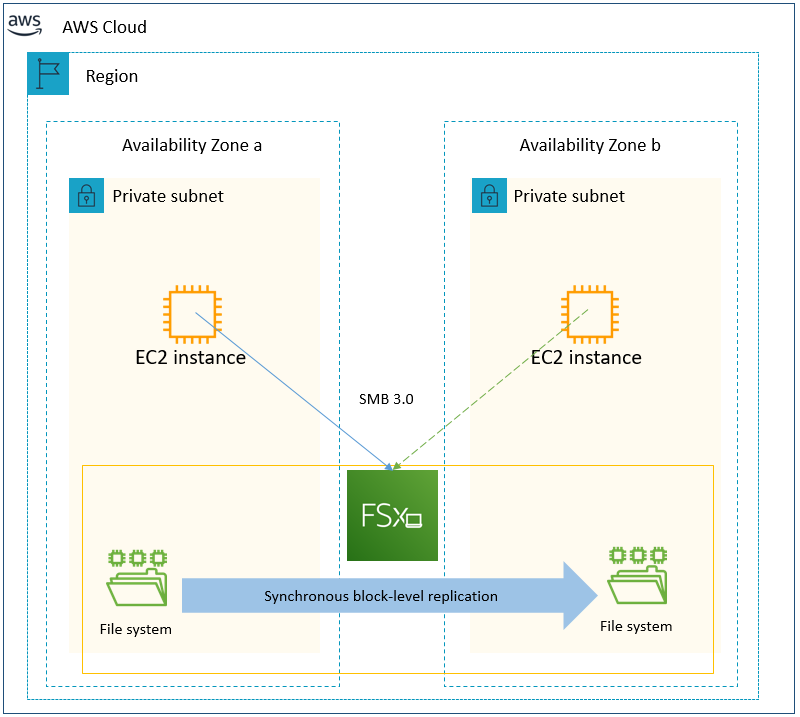
Simplify your Microsoft SQL Server high availability deployments using Amazon FSx for Windows File Server

Implementation:

FCI implementation: SQL Server Deployment using FCI, FSx QuickStart.

Clustering for SQL Server High Availability using SIOS Data Keeper

Use Case:

Windows Server Failover Clustering is a requirement if you are using SQL Server Enterprise or the SQL Server Standard edition and it might appear to be the perfect HA solution for applications running on Windows Server. But like FCIs, it requires the use of shared storage. If you want to use software SAN across multiple instances, then SIOS Data Keeper can be an option.

Overview:

WSFC has a potential role to play in many HA configurations, including for SQL Server FCIs, but its use requires separate data replication provisions in a SANless environment, whether in an enterprise datacenter or in the cloud.  SIOS data keeper is a partner solution software SAN across multiple instances. Instead of FSx, you deploy another cluster for SIOS data keeper to host the shared volumes or use a hyper-converged model to deploy SQL Server on the same server as the SIOS data keeper. You can also use SIOS DataKeeper Cluster Edition, a highly optimized, host-based replication solution.

Clustering for SQL Server High Availability using SIOS Data Keeper

Implementation:

QuickStart: SIOS DataKeeper Cluster Edition on the AWS Cloud

Conclusion

In this blog post, we covered the different options of SQL Server Deployment on AWS using EC2. The options presented showed how you can have the exact same experience from an administration point of view, as well as full control over your EC2 environment, including sysadmin and root-level access.

We also showed various ways to achieve High Availability, by deploying SQL Server on AWS as a new environment using AWS QuickStart and AWS Launch Wizard. We  also showed how you can deploy SQL Server using AWS managed windows storage Amazon FSx to handle shared storage constraint, cost and IOPS requirement scenarios. If you need shared storage in the cloud outside the Windows FSx option, AWS supports a partner solution using SIOS DataKeeper Cluster Edition.

We hope you found this blog post useful and welcome your feedback in the comments!
Field Notes provides hands-on technical guidance from AWS Solutions Architects, consultants, and technical account managers, based on their experiences in the field solving real-world business problems for customers.

File Access Auditing Is Now Available for Amazon FSx for Windows File Server

Post Syndicated from Martin Beeby original https://aws.amazon.com/blogs/aws/file-access-auditing-is-now-available-for-amazon-fsx-for-windows-file-server/

Amazon FSx for Windows File Server provides fully managed file storage that is accessible over the industry-standard Server Message Block (SMB) protocol. It is built on Windows Server and offers a rich set of enterprise storage capabilities with the scalability, reliability, and low cost that you have come to expect from AWS.

In addition to key features such as user quotas, end-user file restore, and Microsoft Active Directory integration, the team has now added support for the auditing of end-user access on files, folders, and file shares using Windows event logs.

Introducing File Access Auditing
File access auditing allows you to send logs to a rich set of other AWS services so that you can query, process, and store your logs. By using file access auditing, enterprise storage administrators and compliance auditors can meet security and compliance requirements while eliminating the need to manage storage as logs grow over time. File access auditing will be particularly important to regulated customers such as those in the financial services and healthcare industries.

You can choose a destination for publishing audit events in the Windows event log format. The destination options are logging to Amazon CloudWatch Logs or streaming to Amazon Kinesis Data Firehose. From there, you can view and query logs in CloudWatch Logs, archive logs to Amazon Simple Storage Service (Amazon S3), or use AWS Partner solutions, such as Splunk and Datadog, to monitor your logs.

You can also set up Lambda functions that are triggered by new audit events. For example, you can configure AWS Lambda and Amazon CloudWatch alarms to send a notification to data security personnel when unauthorized access occurs.

Using File Access Auditing on a New File System
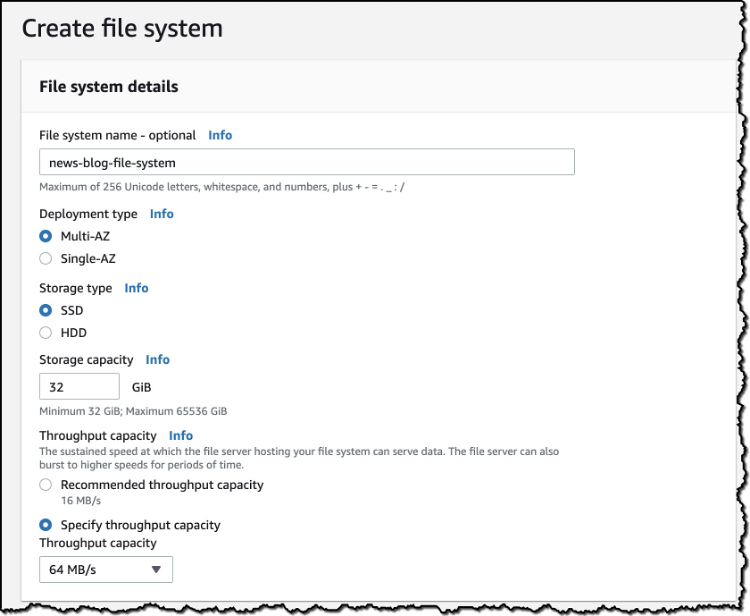
To enable file access auditing on a new file system, I head over to the Amazon FSx console and choose Create file system. On the Select file system type page, I choose Amazon FSx for Windows File Server, and then configure other settings for the file system. To use the auditing feature, Throughput capacity must be at least 32 MB/s, as shown here:

Screenshot of creating a file system

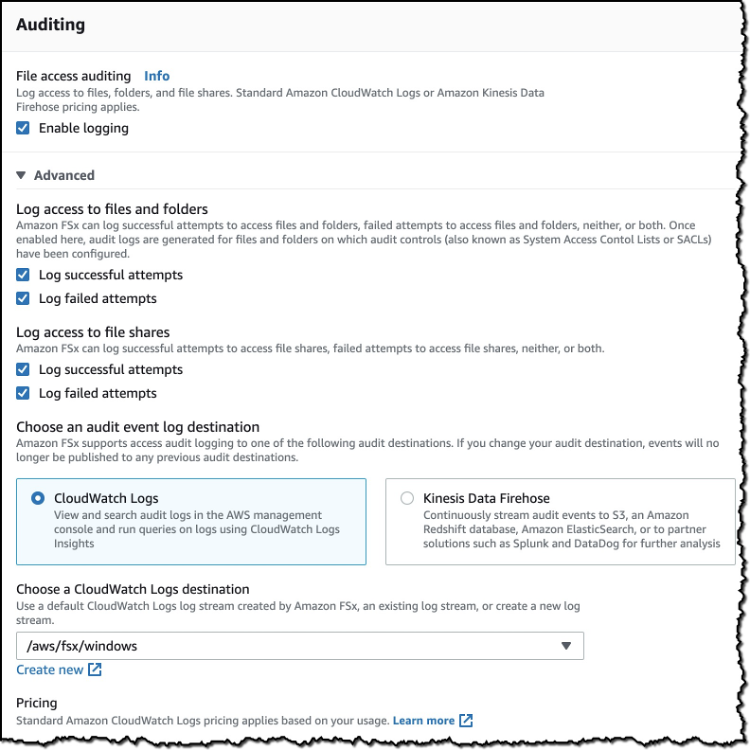
In Auditing, I see that File access auditing is turned on by default. In Advanced, for Choose an event log destination, I can change the destination for publishing user access events. I choose CloudWatch Logs and then choose a CloudWatch Logs log group in my account.

Screenshot of the Auditing options

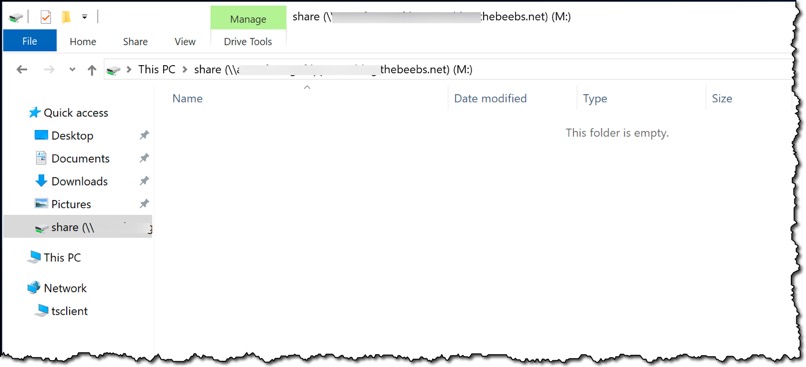
After my file system has been created, I launch a new Amazon Elastic Compute Cloud (Amazon EC2) Instance and join it to my Active directory. When the instance is available, I connect to it using a remote desktop client. I open File Explorer and follow the documentation to map my new file system.

Screenshot of the file system once mapped

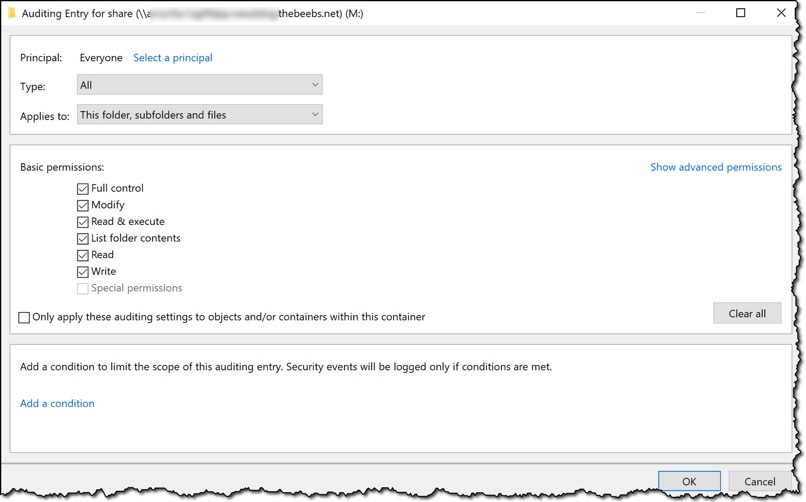
I open the file system in Windows Explorer and then right-click and select Properties. I choose Security, Advanced, and Auditing and then choose Add to add a new auditing entry. On the page for the auditing entry, in Principal, I click Select a principal. This is who I will be auditing. I choose Everyone. Next, for Type, I select the type of auditing I want (Success/Fail/All). Under Basic permissions, I select Full control for the permissions I want to audit for.

Screenshot of auditing options on a file share

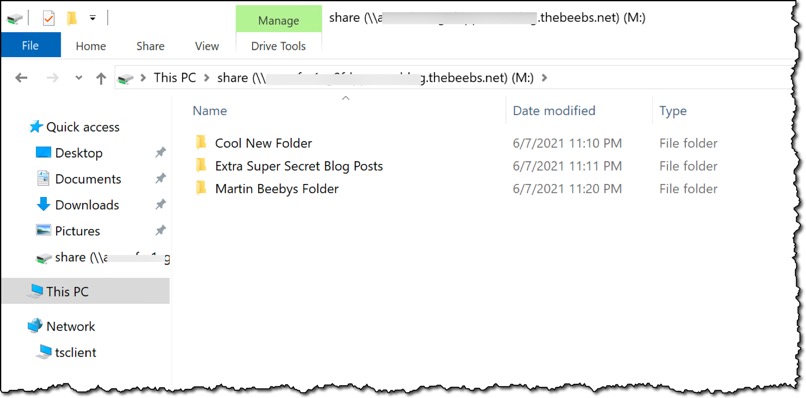
Now that auditing is set up, I create some folders and create and modify some files. All this activity is now being audited, and the logs are being sent to CloudWatch Logs.

Screenshot of a file share, where some files and folders have been created

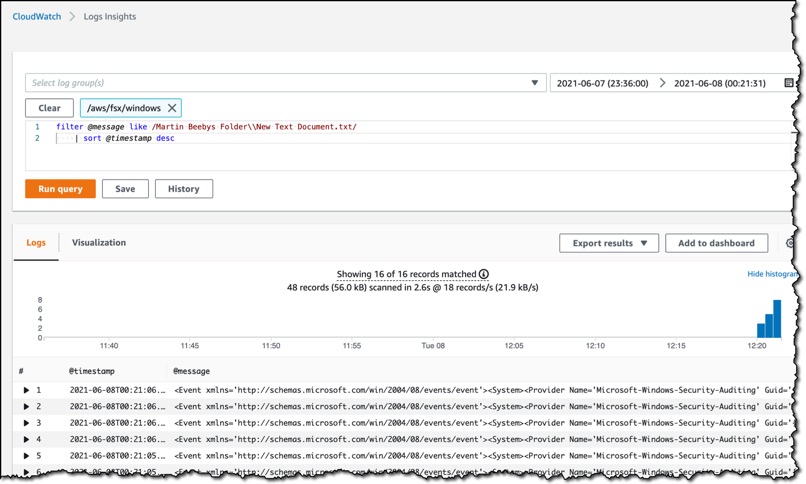
In the CloudWatch Logs Insights console, I can start to query the audit logs. Below you can see how I ran a simple query that finds all the logs associated with a specific file.

Screenshot of AWS CloudWatch Logs Insights

Continued Momentum
File access auditing is one of many features the team has launched in recent years, including: Self-Managed Directories, Native Multi-AZ File Systems, Support for SQL Server, Fine-Grained File Restoration, On-Premises Access, a Remote Management CLI, Data Deduplication, Programmatic File Share Configuration, Enforcement of In-Transit Encryption, Storage Size and Throughput Capacity Scaling, and Storage Quotas.

Pricing
File access auditing is free on Amazon FSx for Windows File Server. Standard pricing applies for the use of Amazon CloudWatch Logs, Amazon Kinesis Data Firehose, any downstream AWS services such as Amazon Redshift, S3, or AWS Lambda, and any AWS Partner solutions like Splunk and Datadog.

Available Today
File access auditing is available today for all new file systems in all AWS Regions where Amazon FSx for Windows File Server is available. Check our documentation for more details.

— Martin

Field Notes: Migrating File Servers to Amazon FSx and Integrating with AWS Managed Microsoft AD

Post Syndicated from Kyaw Soe Hlaing original https://aws.amazon.com/blogs/architecture/field-notes-migrating-file-servers-to-amazon-fsx-and-integrating-with-aws-managed-microsoft-ad/

Amazon FSx provides AWS customers with the native compatibility of third-party file systems with feature sets for workloads such as Windows-based storage, high performance computing (HPC), machine learning, and electronic design automation (EDA).  Amazon FSx automates the time-consuming administration tasks such as hardware provisioning, software configuration, patching, and backups. Since Amazon FSx integrates the file systems with cloud-native AWS services, this makes them even more useful for a broader set of workloads.

Amazon FSx for Windows File Server provides fully managed file storage that is accessible over the industry-standard Server Message Block (SMB) protocol. Built on Windows Server, Amazon FSx delivers a wide range of administrative features such as data deduplication, end-user file restore, and Microsoft Active Directory (AD) integration.

In this post, I explain how to migrate files and file shares from on-premises servers to Amazon FSx with AWS DataSync in a domain migration scenario. Customers are migrating their file servers to Amazon FSx as part of their migration from an on-premises Active Directory to AWS managed Active Directory. Their plan is to replace their file servers with Amazon FSx during Active Directory migration to AWS Managed AD.

Arhictecture diagram

Prerequisites

Before you begin, perform the steps outlined in this blog to migrate the user accounts and groups to the managed Active Directory.

Walkthrough

There are numerous ways to perform the Active Directory migration. Generally, the following five steps are taken:

  1. Establish two-way forest trust between on-premises AD and AWS Managed AD
  2. Migrate user accounts and group with the ADMT tool
  3. Duplicate Access Control List (ACL) permissions in the file server
  4. Migrate files and folders with existing ACL to Amazon FSx using AWS DataSync
  5. Migrate User Computers

In this post, I focus on duplication of ACL permissions and migration of files and folders using Amazon FSx and AWS DataSync. In order to perform duplication of ACL permission in file servers, I use SubInACL tool, which is available from the Microsoft website.

Duplication of the ACL is required because users want to seamlessly access file shares once their computers are migrated to AWS Managed AD. Thus all migrated files and folders have permission with Managed AD users and group objects. For enterprises, the migration of user computers does not happen overnight. Normally, migration takes place in batches or phases. With ACL duplication, both migrated and non-migrated users can access their respective file shares seamlessly during and after migration.

Duplication of Access Control List (ACL)

Before we proceed with ACL duplication, we must ensure that the migration of user accounts and groups was completed. In my demo environment, I have already migrated on-premises users to the Managed Active Directory. In the meantime, we presume that we are migrating identical users to the Managed Active Directory. There might be a scenario where migrated user accounts have different naming such as samAccount name. In this case, we will need to handle this during ACL duplication with SubInACL. For more information about syntax, refer to the SubInACL documentation.

As indicated in following screenshots, I have two users created in the on-premises Active Directory (onprem.local) and those two identical users have been created in the Managed Active Directory too (corp.example.com).

Screenshot of on-premises Active Directory (onprem.local)


Screenshot of Active Directory

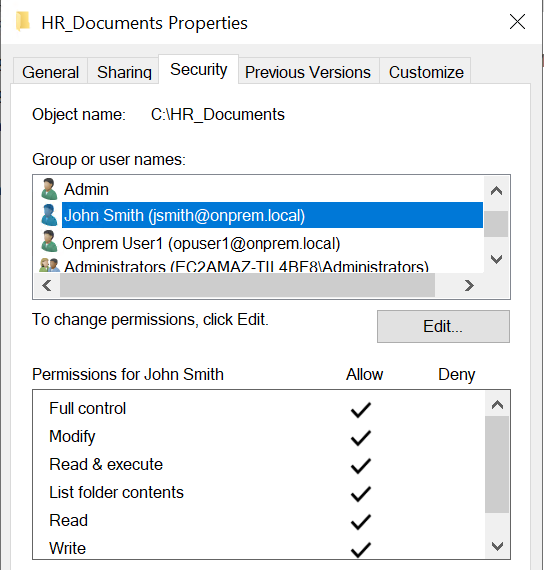
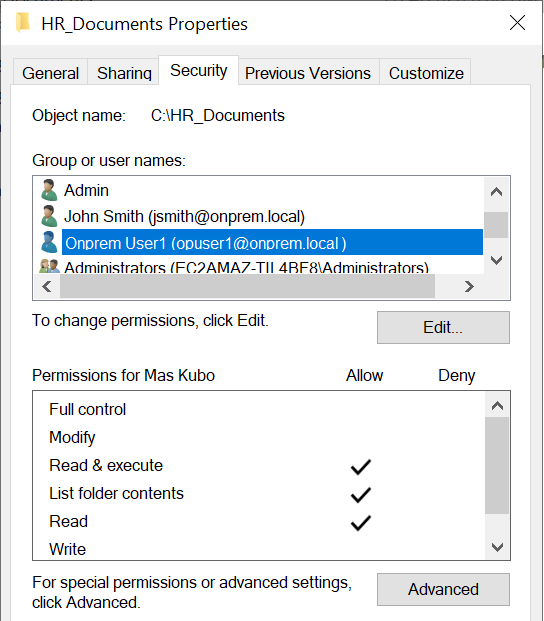
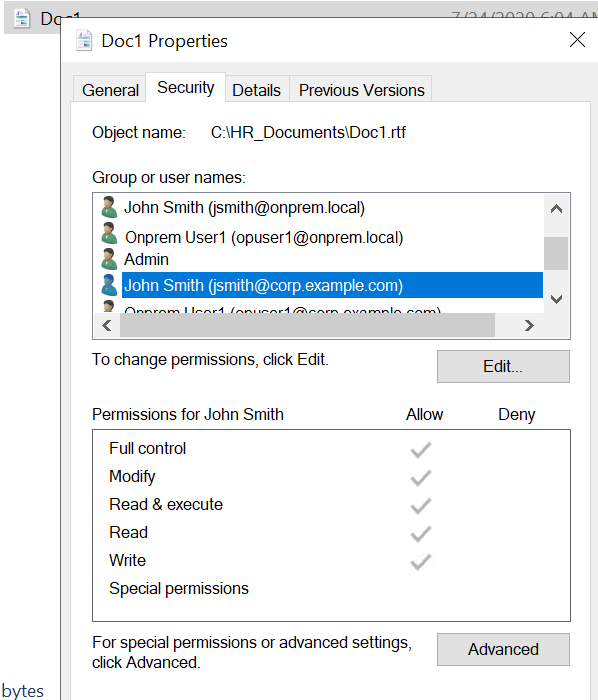
In the following screenshot, I have a shared folder called “HR_Documents” in an on-premises file server. Different users have different access rights to that folder. For example, John Smith has “Full Control” but Onprem User1 only have “Read & Execute”. Our plan is to add same access right to identical users from the Managed Active Directory, here corp.example.com, so that once John Smith is migrated to managed AD, he can access to shared folders in Amazon FSx using his Managed Active Directory credential.

Let’s verify the existing permission in the “HR_Documents” folder. Two users from onprem.local are found with different access rights.

Screenshot of HR docs

Screenshot of HR docs

Now it’s time to install SubInACL.

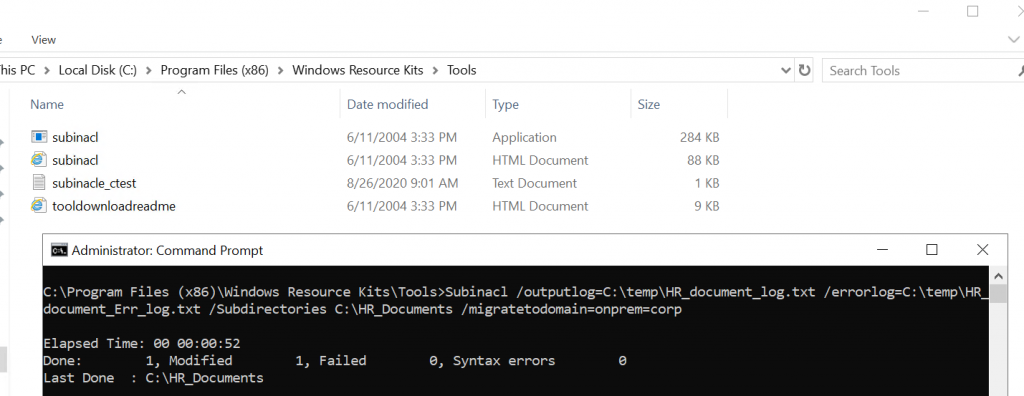
We install it in our on-premises file server. After the SubInACL tool is installed, it can be found under “C:\Program Files (x86)\Windows Resource Kits\Tools” folder by default. To perform an ACL duplication, run command prompt as administrator and run the following command;

Subinacl /outputlog=C:\temp\HR_document_log.txt /errorlog=C:\temp\HR_document_Err_log.txt /Subdirectories C:\HR_Documents\* /migratetodomain=onprem=corp

There are several parameters that I am using in the command:

  • Outputlog = where log file is saved
  • ErrorLog = where error log file is saved
  • Subdirectories = to apply permissions including subfolders and files
  • Migratetodomain= NetBIOS name of source domain and destination domain

Screenshot windows resources kits

screenshot of windows resources kit

If the command is run successfully, you should able to see a summary of the results. If there is no error or failure, you can verify whether ACL permissions are duplicated as expected by looking at the folders and files. In our case, we can see that there is one ACL entry of identical account from corp.example.com is added.

Note: you will always see two ACL entries, one from onprem.local and another one from corp.example.com domain in all the files and folders that you used during migration.  Permissions are now applied to both at the folder and file level.

screenshot of payroll properties

screenshot of doc 1 properties

Migrate files and folders using AWS DataSync

AWS DataSync is an online data transfer service that simplifies, automates, and accelerates moving data between on-premises storage systems and AWS Storage services such as Amazon S3, Amazon Elastic File System (Amazon EFS), or Amazon FSx for Windows File Server. Manual tasks related to data transfers can slow down migrations and burden IT operations. AWS DataSync reduces or automatically handles many of these tasks, including scripting copy jobs, scheduling and monitoring transfers, validating data, and optimizing network utilization.

Create an AWS DataSync agent

An AWS DataSync agent deploys as a virtual machine in an on-premises data center. An AWS DataSync agent can be run on ESXi, KVM, and Microsoft Hyper-V hypervisors. The AWS DataSync agent is used to access on-premises storage systems and transfer data to the AWS DataSync managed service running on AWS. AWS DataSync always performs incremental copies by comparing from a source to a destination and only copying files that are new or have changed.

AWS DataSync supports the following SMB (Server Message Block) locations to migrate data from:

  • Network File System (NFS)
  • Server Message Block (SMB)

In this blog, I use SMB as the source location, since I am migrating from an on-premises Windows File server. AWS DataSync supports SMB 2.1 and SMB 3.0 protocols.

AWS DataSync saves metadata and special files when copying to and from file systems. When files are copied from a SMB file share and Amazon FSx for Windows File Server, AWS DataSync copies the following metadata:

  • File timestamps: access time, modification time, and creation time
  • File owner and file group security identifiers (SIDs)
  • Standard file attributes
  • NTFS discretionary access lists (DACLs): access control entries (ACEs) that determine whether to grant access to an object

Data Synchronization with AWS DataSync

When a task starts, AWS DataSyc goes through different stages. It begins with examining file system follows by data transfer to destination. Once data transfer is completed, it performs verification for consistency between source and destination file systems. You can review detailed information about the data synchronization stages.

DataSync Endpoints

You can activate your agent by using one of the following endpoint types:

  • Public endpoints – If you use public endpoints, all communication from your DataSync agent to AWS occurs over the public internet.
  • Federal Information Processing Standard (FIPS) endpoints – If you need to use FIPS 140-2 validated cryptographic modules when accessing the AWS GovCloud (US-East) or AWS GovCloud (US-West) Region, use this endpoint to activate your agent. You use the AWS CLI or API to access this endpoint.
  • Virtual private cloud (VPC) endpoints – If you use a VPC endpoint, all communication from AWS DataSync to AWS services occurs through the VPC endpoint in your VPC in AWS. This approach provides a private connection between your self-managed data center, your VPC, and AWS services. It increases the security of your data as it is copied over the network.

In my demo environment, I have implemented AWS DataSync as indicated in following diagram. The DataSync Agent can be run either on VMware or Hyper-V and KVM platform in a customer on-premises data center.

Datasync Agent Arhictecture

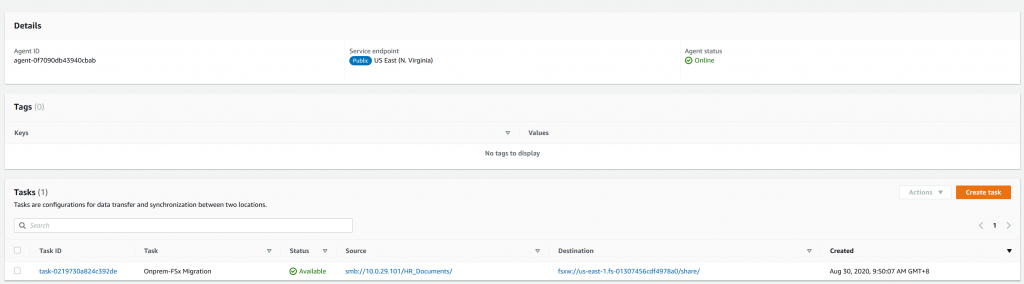
Once the AWS DataSync Agent setup is completed and the task that defined the source file servers and destination Amazon FSx server is added, you can verify agent status in the AWS Management Console.

Console screenshot

Select Task and then choose Start to start copying files and folders. This will start the replication task (or you can wait until the task runs hourly). You can check the History tab to see a history of the replication task executions.

Console screenshot

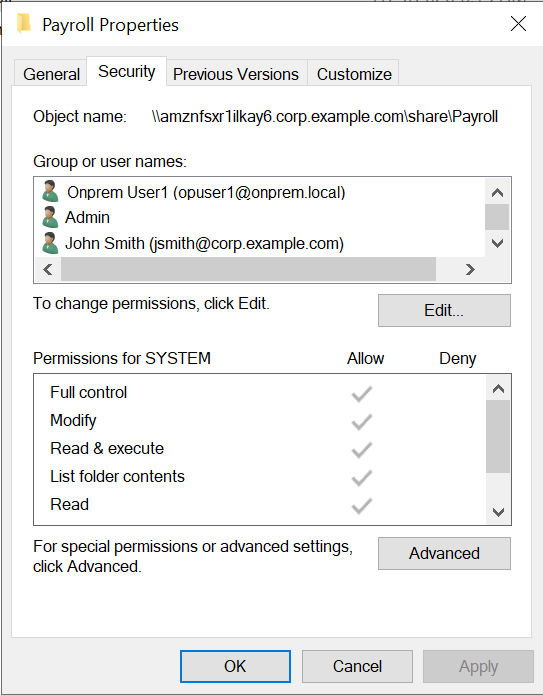
Congratulations! You have replicated the contents of an on-premises file server to Amazon FSx. Let’s look and make sure the ACL permissions are still intact in their destination after migration. As shown in the following screenshots, the ACL permissions in the Payroll folder still remains as is, both on-premises users and Managed AD users are inside. Once the user’s computers are migrated to the Managed AD, they can access the same file share in Amazon FSx server using Managed AD credentials.

Payroll properties screenshot

Payroll properties screenshot

Cleaning up

If you are performing testing by following the preceding steps in your own account, delete the following resources, to avoid incurring future charges:

  • EC2 instances
  • Managed AD
  • Amazon FSx file system
  • AWS Datasync

Conclusion

You have learned how to duplicate ACL permissions and shared folder permissions during migration of file servers to Amazon FSx. This process provides a seamless migration experience for users. Once the user’s computers are migrated to the Managed AD, they only need to remap shared folders from Amazon FSx. This can be automated by pushing down shared folders mapping with a Group Policy. If new files or folders are created in the source file server, AWS Datasync will synchronize to Amazon FSx server.

For customers who are planning to do a domain migration from on-premises to AWS Managed Microsoft AD, migration of resources like file servers are common. Handling ACL permissions plays a vital role in providing a seamless migration experience. The duplication of ACL can be an option, otherwise, the ADMT tool can be used to migrate SID information from the source Domain to destination Domain. To migrate SID history, SID filtering needs to be disabled during migration.

If you want to provide feedback about this post, you are welcome to submit in the comments section below.

Field Notes provides hands-on technical guidance from AWS Solutions Architects, consultants, and technical account managers, based on their experiences in the field solving real-world business problems for customers.

Learn why AWS is the best cloud to run Microsoft Windows Server and SQL Server workloads

Post Syndicated from Fred Wurden original https://aws.amazon.com/blogs/compute/learn-why-aws-is-the-best-cloud-to-run-microsoft-windows-server-and-sql-server-workloads/

Fred Wurden, General Manager, AWS Enterprise Engineering (Windows, VMware, RedHat, SAP, Benchmarking)

For companies that rely on Windows Server but find it daunting to move those workloads to the cloud, there is no easier way to run Windows in the cloud than AWS. Customers as diverse as Expedia, Pearson, Seven West Media, and RepricerExpress have chosen AWS over other cloud providers to unlock the Microsoft products they currently rely on, including Windows Server and SQL Server. The reasons are several: by embracing AWS, they’ve achieved cost savings through forthright pricing options and expanded breadth and depth of capabilities. In this blog, we break down these advantages to understand why AWS is the simplest, most popular and secure cloud to run your business-critical Windows Server and SQL Server workloads.

AWS lowers costs and increases choice with flexible pricing options

Customers expect accurate and transparent pricing so you can make the best decisions for your business. When assessing which cloud to run your Windows workloads, customers look at the total cost of ownership (TCO) of workloads.

Not only does AWS provide cost-effective ways to run Windows and SQL Server workloads, we also regularly lower prices to make it even more affordable. Since launching in 2006, AWS has reduced prices 85 times. In fact, we recently dropped pricing by and average of 25% for Amazon RDS for SQL Server Enterprise Edition database instances in the Multi-AZ configuration, for both On-Demand Instance and Reserved Instance types on the latest generation hardware.

The AWS pricing approach makes it simple to understand your costs, even as we actively help you pay AWS less now and in the future. For example, AWS Trusted Advisor provides real-time guidance to provision your resources more efficiently. This means that you spend less money with us. We do this because we know that if we aren’t creating more and more value for you each year, you’ll go elsewhere.

In addition, we have several other industry-leading initiatives to help lower customer costs, including AWS Compute Optimizer, Amazon CodeGuru, and AWS Windows Optimization and Licensing Assessments (AWS OLA). AWS Compute Optimizer recommends optimal AWS Compute resources for your workloads by using machine learning (ML) to analyze historical utilization metrics. Customers who use Compute Optimizer can save up to 25% on applications running on Amazon Elastic Compute Cloud (Amazon EC2). Machine learning also plays a key role in Amazon CodeGuru, which provides intelligent recommendations for improving code quality and identifying an application’s most expensive lines of code. Finally, AWS OLA helps customers to optimize licensing and infrastructure provisioning based on actual resource consumption (ARC) to offer cost-effective Windows deployment options.

Cloud pricing shouldn’t be complicated

Other cloud providers bury key pricing information when making comparisons to other vendors, thereby incorrectly touting pricing advantages. Often those online “pricing calculators” that purport to clarify pricing neglect to include hidden fees, complicating costs through licensing rules (e.g., you can run this workload “for free” if you pay us elsewhere for “Software Assurance”). At AWS, we believe such pricing and licensing tricks are contrary to the fundamental promise of transparent pricing for cloud computing.

By contrast, AWS makes it straightforward for you to run Windows Server applications where you want. With our End-of-Support Migration Program (EMP) for Windows Server, you can easily move your legacy Windows Server applications—without needing any code changes. The EMP technology decouples the applications from the underlying OS. This enables AWS Partners or AWS Professional Services to migrate critical applications from legacy Windows Server 2003, 2008, and 2008 R2 to newer, supported versions of Windows Server on AWS. This allows you to avoid extra charges for extended support that other cloud providers charge.

Other cloud providers also may limit your ability to Bring-Your-Own-License (BYOL) for SQL Server to your preferred cloud provider. Meanwhile, AWS improves the BYOL experience using EC2 Dedicated Hosts and AWS License Manager. With EC2 Dedicated Hosts, you can save costs by moving existing Windows Server and SQL Server licenses do not have Software Assurance to AWS. AWS License Manager simplifies how you manage your software licenses from software vendors such as Microsoft, SAP, Oracle, and IBM across AWS and on-premises environments. We also work hard to help our customers spend less.

How AWS helps customers save money on Windows Server and SQL Server workloads

The first way AWS helps customers save money is by delivering the most reliable global cloud infrastructure for your Windows workloads. Any downtime costs customers in terms of lost revenue, diminished customer goodwill, and reduced employee productivity.

With respect to pricing, AWS offers multiple pricing options to help our customers save. First, we offer AWS Savings Plans that provide you with a flexible pricing model to save up to 72 percent on your AWS compute usage. You can sign up for Savings Plans for a 1- or 3-year term. Our Savings Plans help you easily manage your plans by taking advantage of recommendations, performance reporting and budget alerts in AWS Cost Explorer, which is a unique benefit only AWS provides. Not only that, but we also offer Amazon EC2 Spot Instances that help you save up to 90 percent on your compute costs vs. On-Demand Instance pricing.

Customers don’t need to walk this migration path alone. In fact, AWS customers often make the most efficient use of cloud resources by working with assessment partners like Cloudamize, CloudChomp, or Migration Evaluator (formerly TSO Logic), which is now part of AWS. By running detailed assessments of their environments with Migration Evaluator before migration, customers can achieve an average of 36 percent savings using AWS over three years. So how do you get from an on-premises Windows deployment to the cloud? AWS makes it simple.

AWS has support programs and tools to help you migrate to the cloud

Though AWS Migration Acceleration Program (MAP) for Windows is a great way to reduce the cost of migrating Windows Server and SQL Server workloads, MAP is more than a cost savings tool. As part of MAP, AWS offers a number of resources to support and sustain your migration efforts. This includes an experienced APN Partner ecosystem to execute migrations, our AWS Professional Services team to provide best practices and prescriptive advice, and a training program to help IT professionals understand and carry out migrations successfully. We help you figure out which workloads to move first, then leverage the combined experience of our Professional Services and partner teams to guide you through the process. For customers who want to save even more (up to 72% in some cases) we are the leaders in helping customers transform legacy systems to modernized managed services.

Again, we are always available to help guide you in your Windows journey to the cloud. We guide you through our technologies like AWS Launch Wizard, which provides a guided way of sizing, configuring, and deploying AWS resources for Microsoft applications like Microsoft SQL Server Always On, or through our comprehensive ecosystem of tens of thousands of partners and third-party solutions, including many with deep expertise with Windows technologies.

Why run Windows Server and SQL Server anywhere else but AWS?

Not only does AWS offer significantly more services than any other cloud, with over 48 services without comparable equivalents on other clouds, but AWS also provides better ways to use Microsoft products than any other cloud. This includes Active Directory as a managed service and FSx for Windows File Server, the only fully managed file storage service for Windows. If you’re interested in learning more about how AWS improves the Windows experience, please visit this article on our Modernizing with AWS blog.

Bring your Windows Server and SQL Server workloads to AWS for the most secure, reliable, and performant cloud, providing you with the depth and breadth of capabilities at the lowest cost. To learn more, visit Windows on AWS. Contact us today to learn more on how we can help you move your Windows to AWS or innovate on open source solutions.

About the Author
Fred Wurden is the GM of Enterprise Engineering (Windows, VMware, Red Hat, SAP, benchmarking) working to make AWS the most customer-centric cloud platform on Earth. Prior to AWS, Fred worked at Microsoft for 17 years and held positions, including: EU/DOJ engineering compliance for Windows and Azure, interoperability principles and partner engagements, and open source engineering. He lives with his wife and a few four-legged friends since his kids are all in college now.