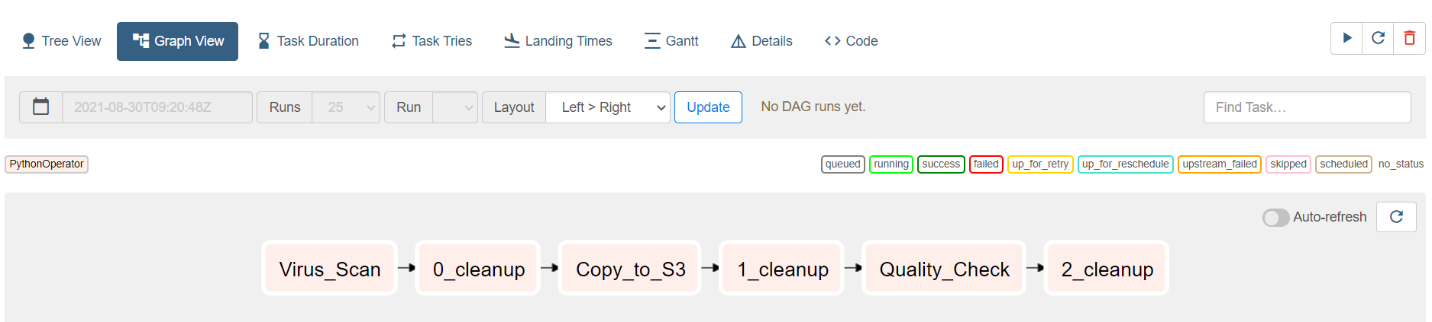
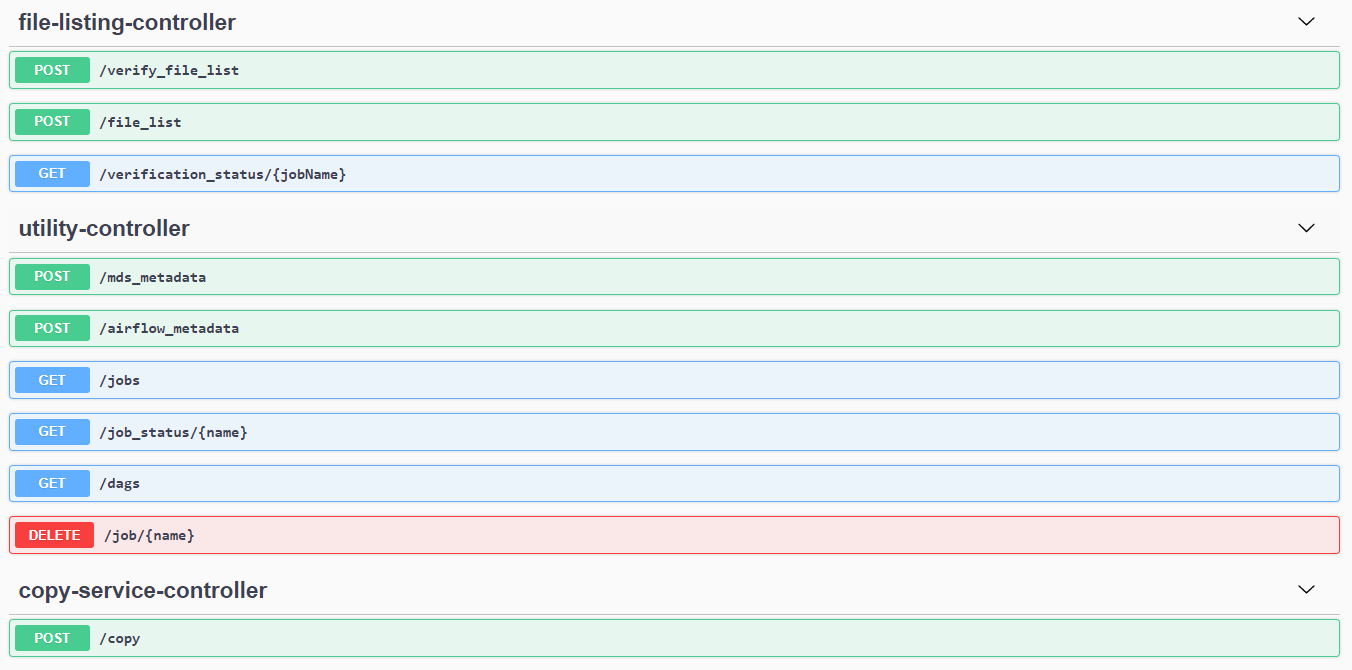
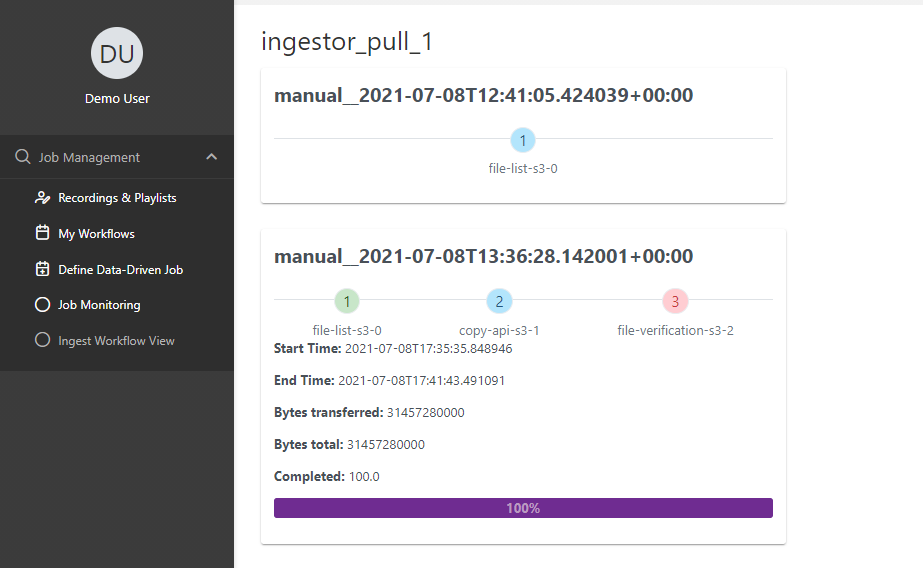
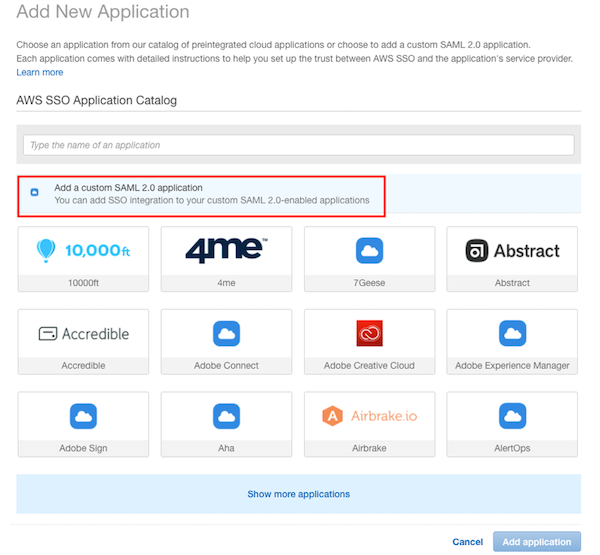
Tag Archives: Amazon Managed Workflows for Apache Airflow (Amazon MWAA)

Bolster security with role-based access control in Amazon MWAA

Post Syndicated from Virendhar Sivaraman original https://aws.amazon.com/blogs/big-data/bolster-security-with-role-based-access-control-in-amazon-mwaa/

Amazon Studios invests in content that drives global growth of Amazon Prime Video and IMDb TV. Amazon Studios has a number of internal-facing applications that aim to streamline end-to-end business processes and information workflows for the entire content creation lifecycle. The Amazon Studios Data Infrastructure (ASDI) is a centralized, curated, and secure data lake that stores data, both in its original form and processed for analysis and machine learning (ML). The centralized ASDI is essential to break down data silos and combine different types of analytics, thereby allowing Amazon Studios to gain valuable insights, guide better business decisions, and innovate using the latest ML concepts.

What are the primary goals for Amazon MWAA adoption?

Amazon Managed Workflows for Apache Airflow (MWAA) is a fully managed service that makes it easier to run open-source versions of Apache Airflow on AWS. Builders at Amazon.com are engineering Amazon MWAA Directed Acyclic Graphs (DAGs) with prerequisites for provisioning the least privilege access model to the underlying services and resources, and restricting the blast radius of a given task.

Apache Airflow connections provide mechanisms for securely accessing the resources during DAG execution and are intended for coarse-grained access. Incorporating fine-grained access requires different mechanisms for implementation and code review prior to deployment. The additional challenge of codifying the infrastructure and stitching multiple systems together can also inject redundant activities when implementing fine-grained access patterns in Airflow.

How did Amazon achieve this goal?

The objective to enforce security for DAGs at its lowest possible granularity is done at the DAG’s task level. The solution aligns with integration of Amazon MWAA task security with AWS Identity and Access Management (IAM) service and AWS Security Token Service (AWS STS). The engineers customized the existing Airflow PythonOperators to tightly couple task access requirements to separately deployed IAM roles. The customized Airflow operator takes advantage of AWS STS to assume the associated IAM role. The temporary session created from AWS STS is used within PythonOperator to access the underlying resources required to run the task.

In this post, we discuss how to strengthen security in Amazon MWAA with role-based access control.

Prerequisites

To implement this solution, complete the following prerequisites:

  1. Create an AWS account with admin access.
  2. Create an Amazon MWAA environment.
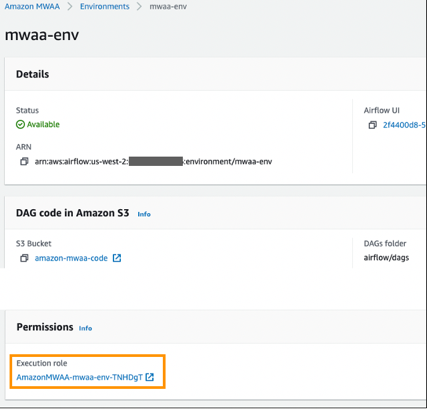
    1. Note down the execution role ARN associated with the Amazon MWAA environment. This is available in the Permissions section of the environment.

  1. Create two Amazon Simple Storage Service (Amazon S3) buckets:
    1. s3://<AWS_ACCOUNT_ID>-<AWS_REGION>-mwaa-processed/
    2. s3://<AWS_ACCOUNT_ID>-<AWS_REGION>-mwaa-published/
  2. Create two IAM roles; one for each of the buckets:
    1. write_access_processed_bucket with the following policy:
{
    "Version": "2012-10-17",
    "Statement": [
        {
            "Sid": "VisualEditor0",
            "Effect": "Allow",
            "Action": [
                "s3:PutObject",
                "s3:DeleteObject"
            ],
            "Resource": "arn:aws:s3:::<AWS_ACCOUNT_ID>-<AWS_REGION>-mwaa-processed/*"
        }
    ]
}
    1. write_access_published_bucket with the following policy:
{
    "Version": "2012-10-17",
    "Statement": [
        {
            "Sid": "VisualEditor0",
            "Effect": "Allow",
            "Action": [
                "s3:PutObject",
                "s3:DeleteObject"
            ],
            "Resource": "arn:aws:s3:::<AWS_ACCOUNT_ID>-<AWS_REGION>-mwaa-published/*"
        }
    ]
}
  1. Update the trust relationship for the preceding two roles with the Amazon MWAA execution role obtained from Amazon MWAA environment page:
{
  "Version": "2012-10-17",
  "Statement": [
    {
      "Effect": "Allow",
      "Principal": {
        "AWS": [
          "arn:aws:iam::<AWS_ACCOUNT_ID>:assumed-role/<MWAA-EXECUTION_ROLE>/AmazonMWAA-airflow"
        ],
        "Service": "s3.amazonaws.com"
      },
      "Action": "sts:AssumeRole"
    }
  ]
}

In the preceding policy, replace AWS_ACCOUNT_ID and MWAA-EXECUTION_ROLE with the respective account number, region and Amazon MWAA execution role.

Run the DAG

The proposed DAG has two tasks that access each of the preceding buckets created:

  • Process task – Performs a task in the processed S3 bucket, which mocks a transformation using the Python sleep() function. The last step in this task adds a control file with the current timestamp.
  • Publish task – Performs a similar transformation in the published S3 bucket, which again mocks a transformation using the Python sleep() function. The last step in this task adds a control file with the current timestamp.

The fine-grained access restriction is enforced by a custom implementation of a widely used Airflow operator: PythonOperator. The custom PythonOperator negotiates with AWS STS to trade a session using the IAM role. The session is exclusively used by the tasks’ callable to access the underlying AWS resources. The following diagram shows the sequence of events.

The source code for the preceding implementation is available in the mwaa-rbac-task GitHub repository.

The code base is set up in the following location in Amazon S3, as seen from the Amazon MWAA environment on the Amazon MWAA console.

Run the DAG and monitor its progress, as shown in the following screenshot.

After you run the DAG, the following files are created with timestamps updated:

  • s3://<AWS_ACCOUNT_ID>-<AWS_REGION>-mwaa-processed/control_file/processed.json 
    	{
    		"processed_dt": "03/05/2021 01:03:58"
    	}

  • s3://<AWS_ACCOUNT_ID>-<AWS_REGION>-mwaa-published/control_file/published.json
    	{
    		"published_dt": "03/05/2021 01:04:12"
    	}

The change in the preceding control files reflects that the tasks in the DAGs enforced the policies defined for these tasks.

Create custom Airflow Operators to support least privilege access

You can extend the demonstrated methodology for enabling fine-grained access using a customized PythonOperator to other Airflow operators and sensors as needed. For more information about how to customize operators, see Creating a custom Operator.

Conclusion

In this post, we presented a solution to bolster security in Amazon MWAA with role-based access controls. You can extend the concept to other Airflow operators in order enhance the workflow security at the task level. In addition, using the AWS Cloud Development Kit (AWS CDK) can make provisioning the Amazon MWAA environment and fine-grained IAM task roles seamless. We look forward to sharing more about fine-grained access patterns for Airflow tasks in a future post.


About the Author

Kishan Desai is a Data Engineer at Amazon Studios building a data platform to support the content creation process. He is passionate about building flexible and modular systems on AWS using serverless paradigms. Outside of work, Kishan enjoys learning new technologies, watching sports, experiencing SoCal’s great food, and spending quality time with friends and family.


Virendhar (Viru) Sivaraman is a strategic Big Data & Analytics Architect with Amazon Web Services. He is passionate about building scalable big data and analytics solutions in the cloud. Besides work, he enjoys spending time with family, hiking & mountain biking.

Field Notes: Deploying Autonomous Driving and ADAS Workloads at Scale with Amazon Managed Workflows for Apache Airflow

Post Syndicated from Hendrik Schoeneberg original https://aws.amazon.com/blogs/architecture/field-notes-deploying-autonomous-driving-and-adas-workloads-at-scale-with-amazon-managed-workflows-for-apache-airflow/

Cloud Architects developing autonomous driving and ADAS workflows are challenged by loosely distributed process steps along the tool chain in hybrid environments. This is accelerated by the need to create a holistic view of all running pipelines and jobs. Common challenges include:

  • finding and getting access to the data sources specific to your use case, understanding the data, moving and storing it,
  • cleaning and transforming it and,
  • preparing it for downstream consumption.

Verifying that your data pipeline works correctly and ensuring you provide a certain data quality while your application is being developed adds to the complexity. Furthermore, the fact that the data itself constantly changes poses more challenges. In this blog post, we show you the steps to follow from a workflow run in an Amazon Managed Workflows for Apache Airflow (MWAA) environment. All required infrastructure is created leveraging the AWS Cloud Development Kit (CDK).

We illustrate how image data collected during field operational tests (FOTs) of vehicles can be processed by:

  • detecting objects within the video stream
  • adding the bounding boxes of all detected objects to the image data
  • providing visual and metadata information for data cataloguing as well as potential applications on the bounding boxes.

We define a workflow that processes ROS bag files on Amazon S3, and extracts individual PNGs from a video stream using AWS Fargate on Amazon Elastic Container Service (Amazon ECS). Then we show how to use Amazon Rekognition to detect objects within the exported images and draw bounding boxes for the detected objects within the images. Finally, we demonstrate how users’ interface with MWAA to develop and publish their workflows. We also show methods to keep track of the performance and costs of your workflows.

Overview of the solution

Deploying Autonomous Driving & ADAS workloads at scale

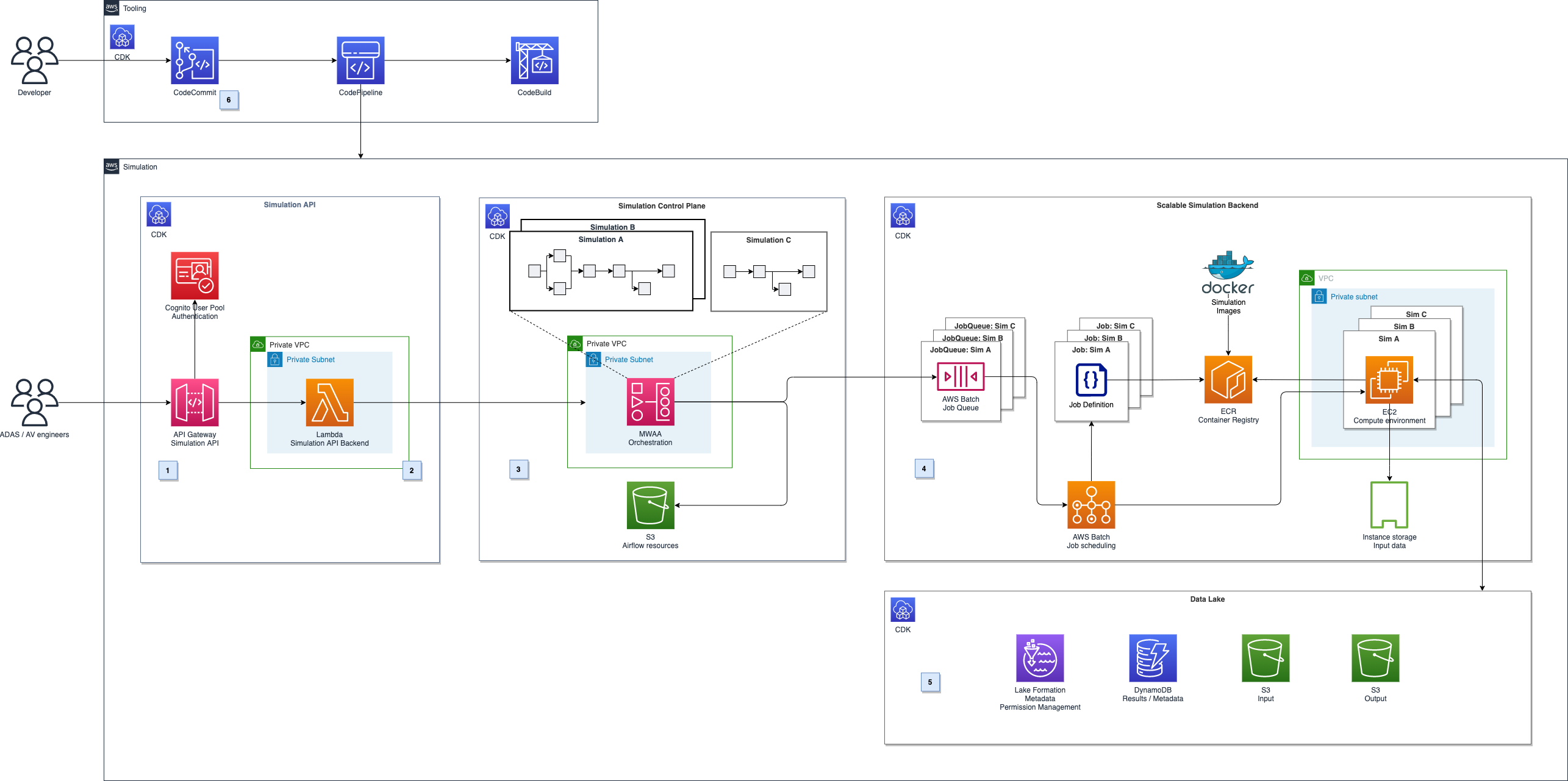
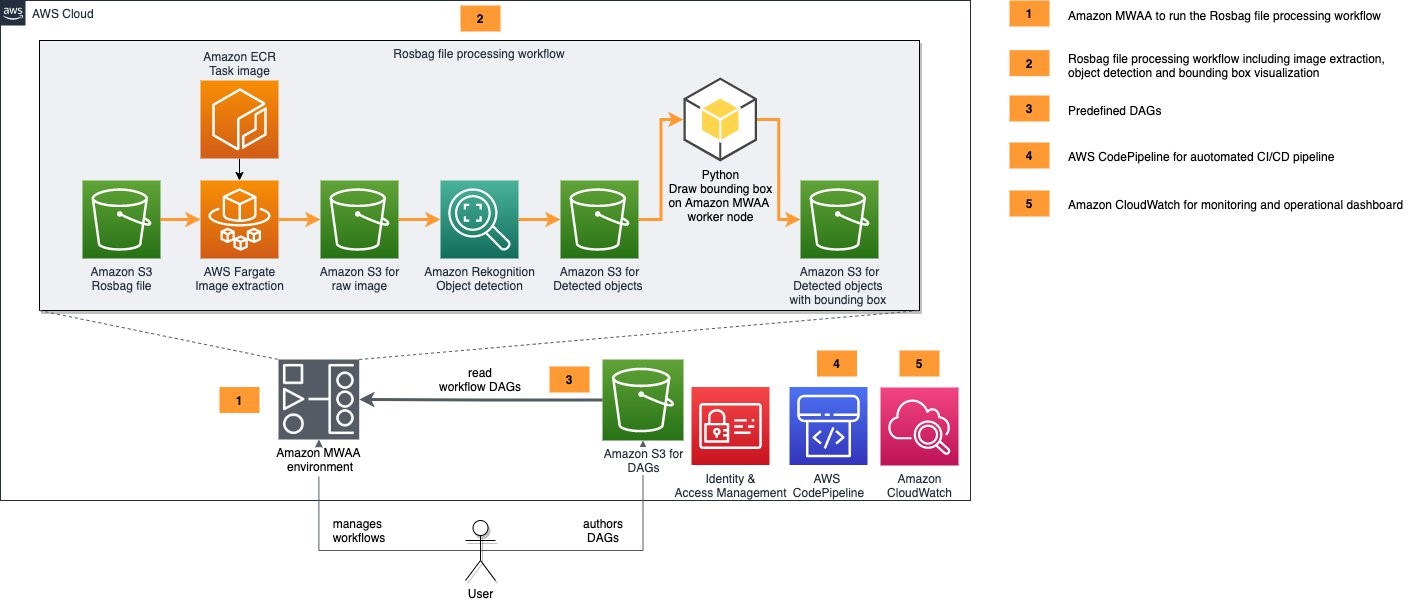
Figure 1 – Architecture for deploying Autonomous Driving & ADAS workloads at scale

The preceding diagram shows our target solution architecture. It includes five components:

  • Amazon MWAA environment: we use Amazon MWAA to orchestrate our image processing workflow’s tasks. A workflow, or DAG (directed acyclic graph), is a set of task definitions and dependencies written in Python. We create a MWAA environment using CDK and define our image processing pipeline as a DAG which MWAA can orchestrate.
  • ROS bag file processing workflow: this is a workflow run on Managed Workflows for Apache Airflow. This detects and highlights objects within the camera stream of a ROS bag file. The workflow is as follows:
    • Monitors the location in Amazon S3 for the new ROS bag files.
    • If a new file gets uploaded, we extract video data from the ROS bag file’s topic that holds the video stream, extract individual PNGs from the video stream and store them on S3.
    • We use AWS Fargate on Amazon ECS  to run a containerized image extraction workload.
    • Once the extracted images are stored on S3, they are passed to Amazon Rekognition for object detection. We then provide an image or video to the Amazon Rekognition API, and the service can identify objects, people, text, scenes, and activities. Amazon Rekognition Image can return the bounding box for many object labels.
    • We use the information to highlight the detected objects within the image by drawing the bounding box.
    • The bounding boxes of the objects Amazon Rekognition detects within the extracted PNGs are rendered directly into the image using Pillow, a fork of the Python Imaging Library (PIL).
    • The resulting images are then stored in Amazon S3 and our workflow is complete.
  • Predefined DAGs: Our solution comes with a pre-defined ROS bag image processing DAG that will be copied into the Amazon MWAA environment with CDK.
  • AWS CodePipeline for automated CI/CD pipeline: CodePipeline automates the build, test, and deploy phases of your release process every time there is a code change, based on the release model you define
  • Amazon CloudWatch for monitoring and operational dashboard: With Amazon CloudWatch we can monitor important metrics of the ROS bag image processing workflow, for example. to verify the compute load, number of running workflows or tasks or to monitor and alert on processing errors.

Prerequisites

Deployment

To deploy and run the solution, we follow these steps:

  1. Configure and create an MWAA environment in AWS using CDK
  2. Copy the ROS bag file to S3
  3. Manage the ROS bag processing DAG from the Airflow UI
  4. Inspect the results
  5. Monitor the operations dashboard

Each component illustrated in the solution architecture diagram, as well as all required IAM roles and configuration parameters are created from an AWS CDK application. This is included in these example sources.

1. Configure and create an MWAA environment in AWS using CDK

  • Download the deployment templates
  • Extract the zip file to a directory
  • Open a shell and go to the extracted directory
  • Start the deployment by typing the following code:
./deploy.sh <named-profile> deploy true <region>
  • Replace <named-profile> with the named profile which you configured for your AWS CLI to point to your target AWS account.
  • Replace <region> with the Region that is associated with your named profile, for example, us-east-1.
  • As an example: if your named profile for the AWS CLI is called rosbag-processing and your associated Region is us-east-1 the resulting command would be:
./deploy.sh rosbag-processing deploy true us-east-1

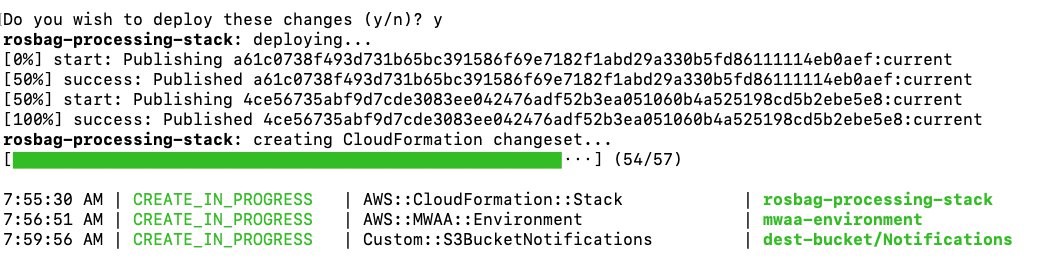
After confirming the deployment, the CDK will take several minutes to synthesize the CloudFormation templates, build the Docker image and deploy the solution to the target AWS account.

Figure 2 - Screenshot of Rosbag processing stack

Figure 2 – Screenshot of Rosbag processing stack

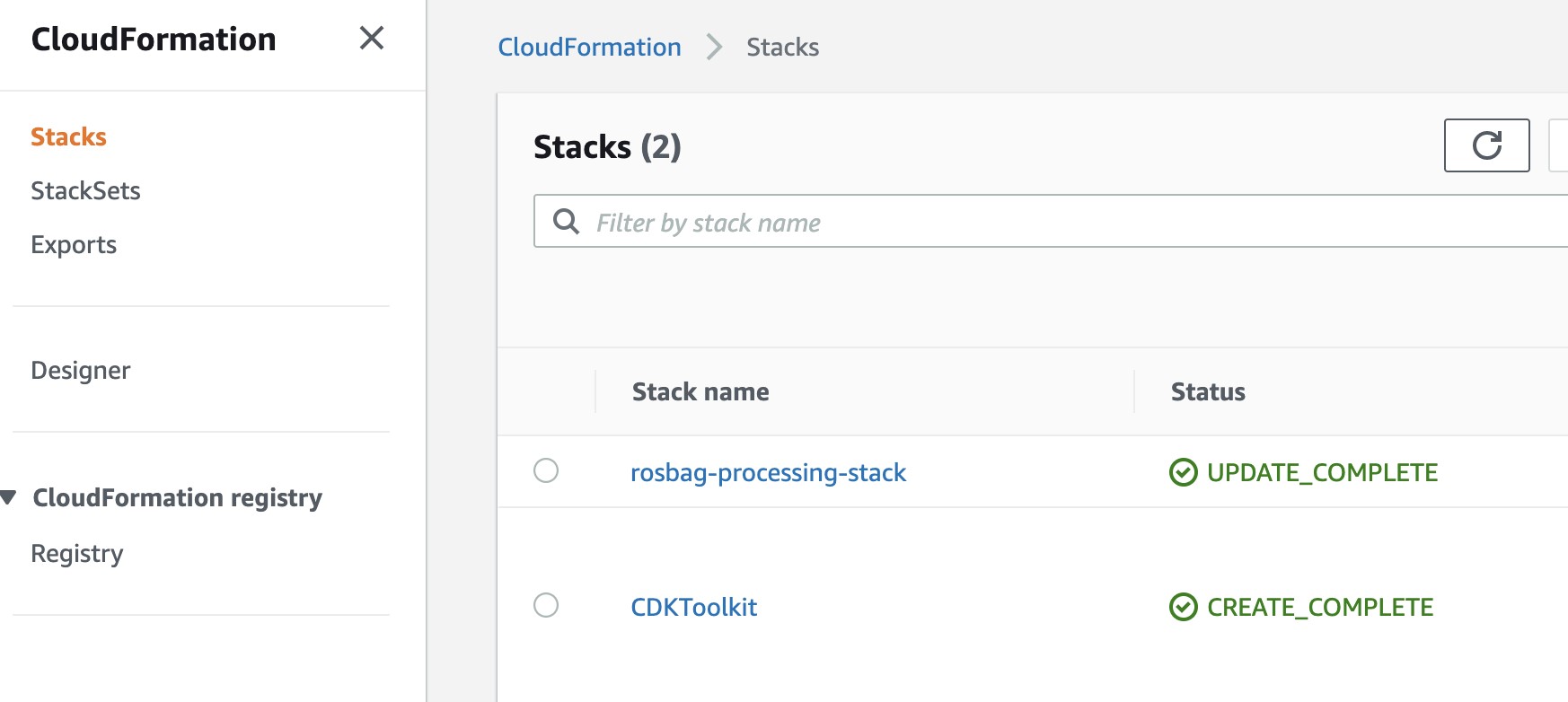
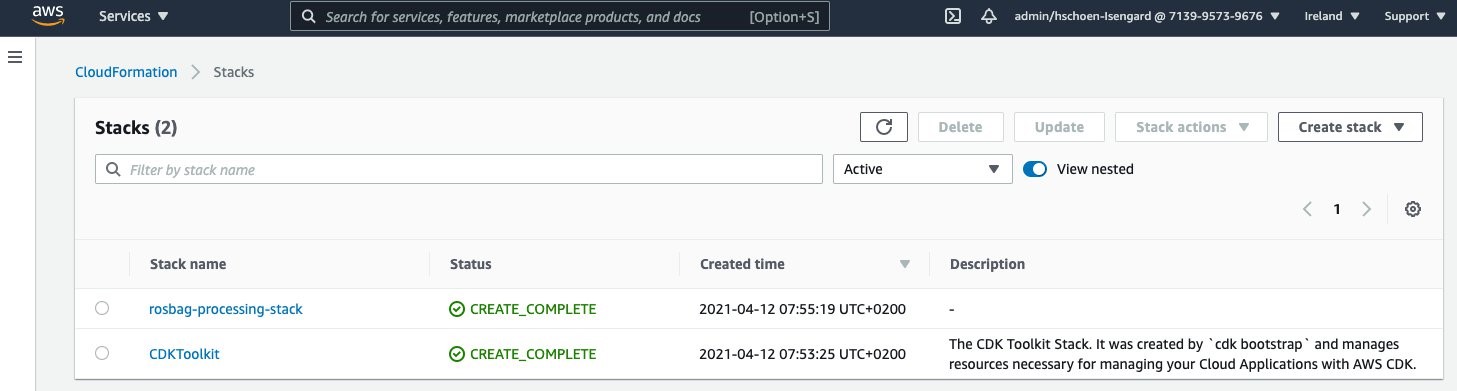
Inspect the CloudFormation stacks being created in the AWS console. Sign into your AWS console and select the service CloudFormation in the AWS Region that you chose for your named profile (for exmaple, us-east-After the installation script has run, the CloudFormation stack overview in the console should show the following stacks:

Figure 3 - Screenshot of CloudFormation stack overview

Figure 3 – Screenshot of CloudFormation stack overview

2. Copy the ROS bag file to S3

  • You can download the ROS bag file here. After downloading you need to copy the file to the input bucket that was created during the CDK deployment in the previous step.
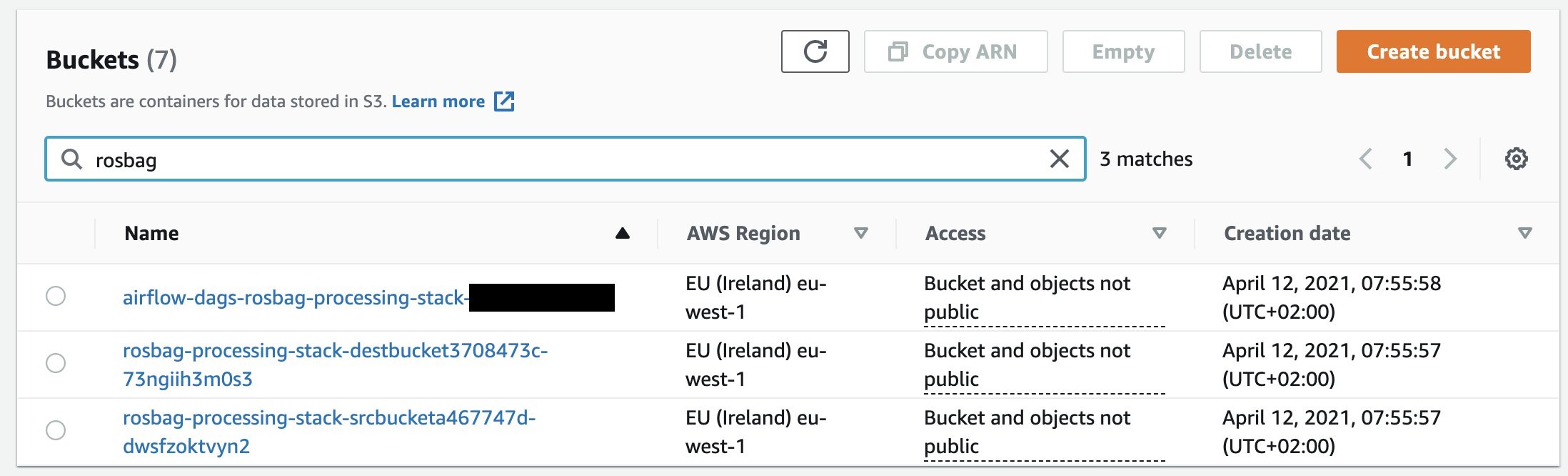
  • Open the AWS management console and navigate to the service S3. You should find a list of your buckets including the buckets for input data, output data and DAG definitions that were created during the CDK deployment.
Figure 4 - Screenshot showing S3 buckets created

Figure 4 – Screenshot showing S3 buckets created

  • Select the bucket with prefix rosbag-processing-stack-srcbucket and copy the ROS bag file into the bucket.
  • Now that the ROS bag file is in S3, we need to enable the image processing workflow in MWAA.

3. Manage the ROS bag processing DAG from the Airflow UI

  • In order to access the Airflow web server, open the AWS management console and navigate to the MWAA service.
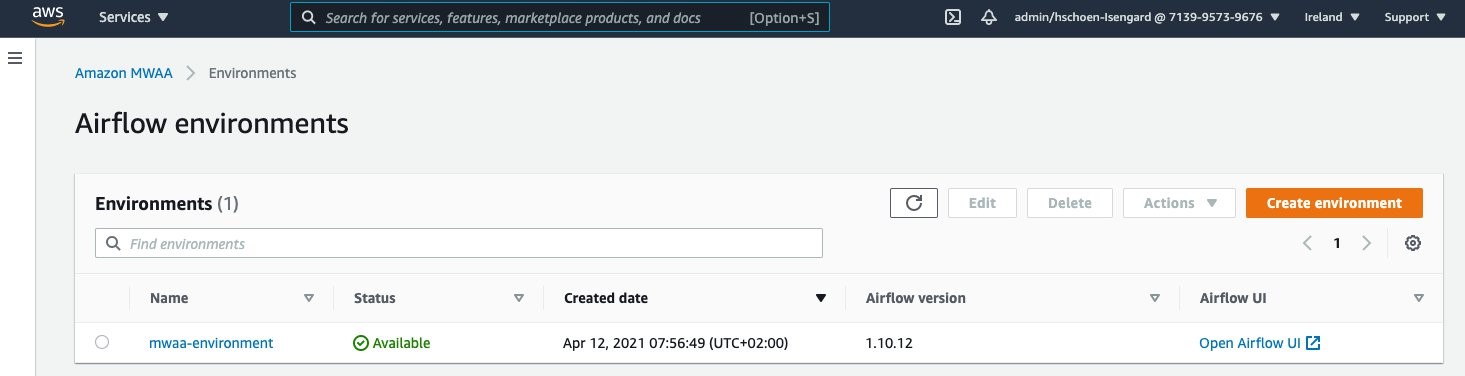
  • From the overview, select the MWAA environment that was created and select Open Airflow UI as shown in the following screenshot:
Figure 5 - Screenshot showing Airflow Environments

Figure 5 – Screenshot showing Airflow Environments

The Airflow UI and the ROS bag image processing DAG should appear as in the following screenshot:

  • We can now enable the DAG by flipping the switch (1) from “Off” to “On” position. Amazon MWAA will now schedule the launch for the workflow.
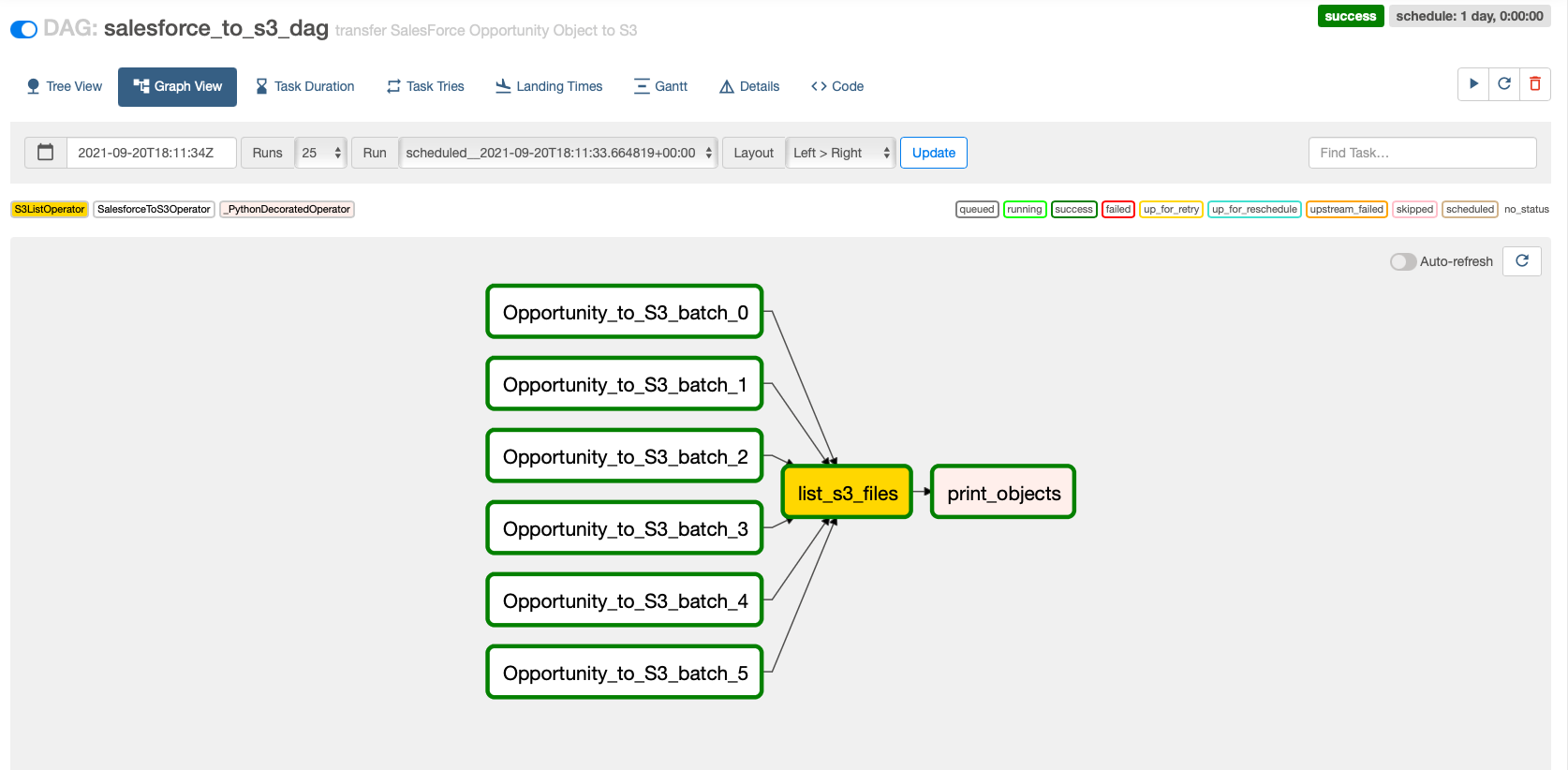
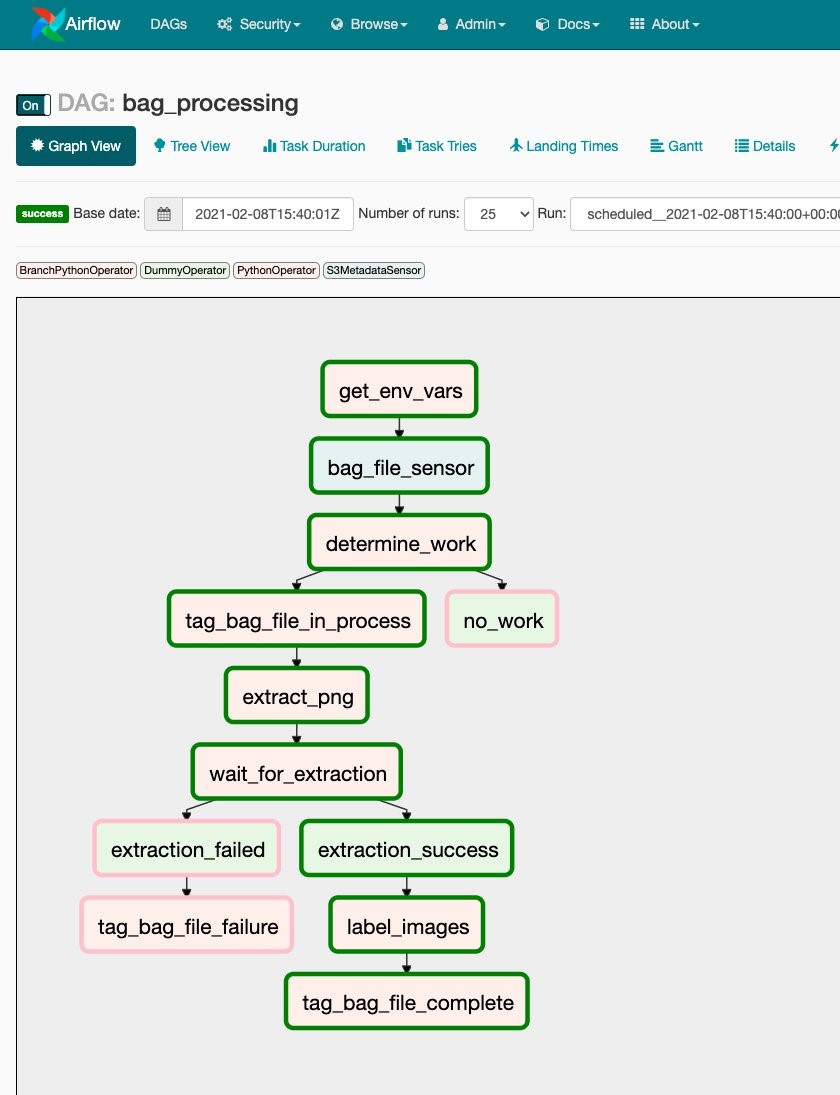
  • By selecting the DAG’s name (rosbag_processing) and selecting the Graph View, you can review the workflow’s individual tasks:
Figure 6 - The Airflow UI and the ROS bag image processing DAG

Figure 6 – The Airflow UI and the ROS bag image processing DAG

Figure 7 - Dag Workflow

Figure 7 – Dag Workflow

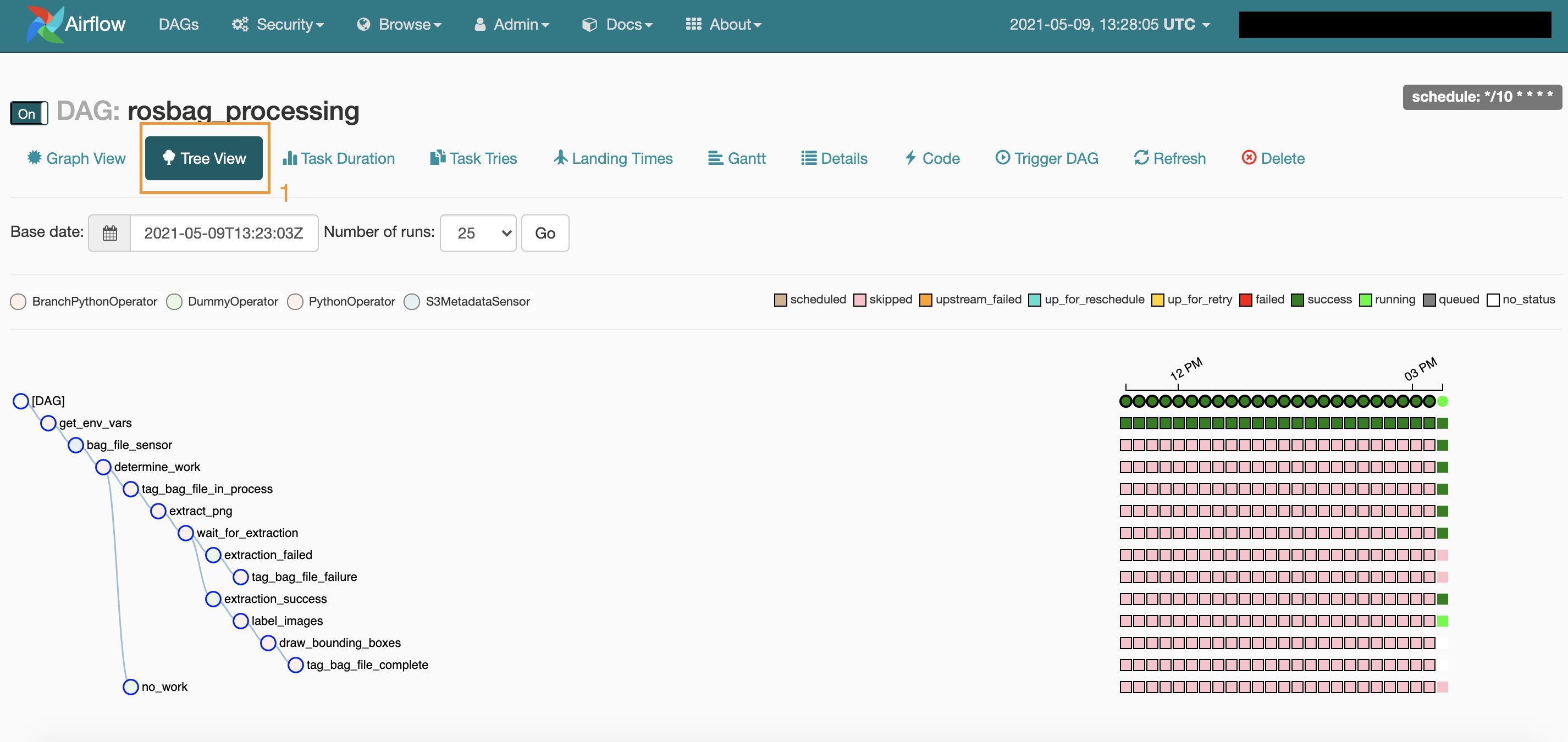
After enabling the image processing DAG by flipping the switch to “on” in the previous step, Airflow will detect the newly uploaded ROS bag file in S3 and start processing it. You can monitor the progress from the DAG’s tree view (1), as shown in the following screenshot:

Figure 8 - Monitor progress in the DAG's tree view

Figure 8 – Monitor progress in the DAG’s tree view

Re-running the image processing pipeline

Our solution uses S3 metadata to keep track of the processing status of each ROS bag file in the input bucket in S3. If you want to re-process a ROS bag file:

  • open the AWS management console,
  • navigate to S3, click on the ROS bag file you want to re-process,
  • remove the file’s metadata tag processing.status from the properties tab:
Figure 9 - Metadata tag

Figure 9 – Metadata tag

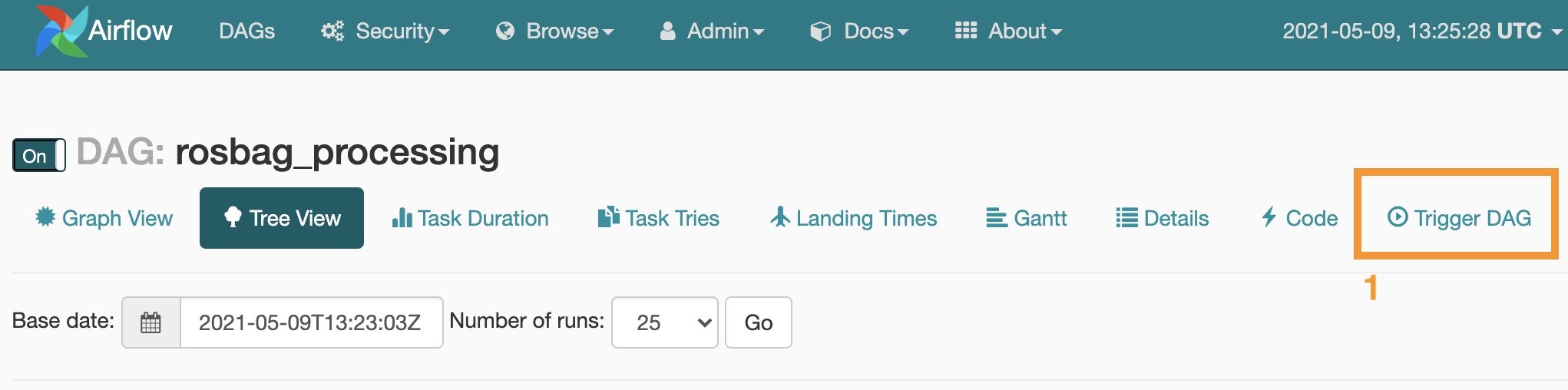
With the metadata tag processing.status removed, Amazon MWAA picks up the file the next time the image processing workflow is launched. You can manually start the workflow by choosing Trigger DAG (1) from the Airflow web server UI.

Figure 10 - Manually start the workflow by choosing Trigger DAG

Figure 10 – Manually start the workflow by choosing Trigger DAG

4. Inspect the results

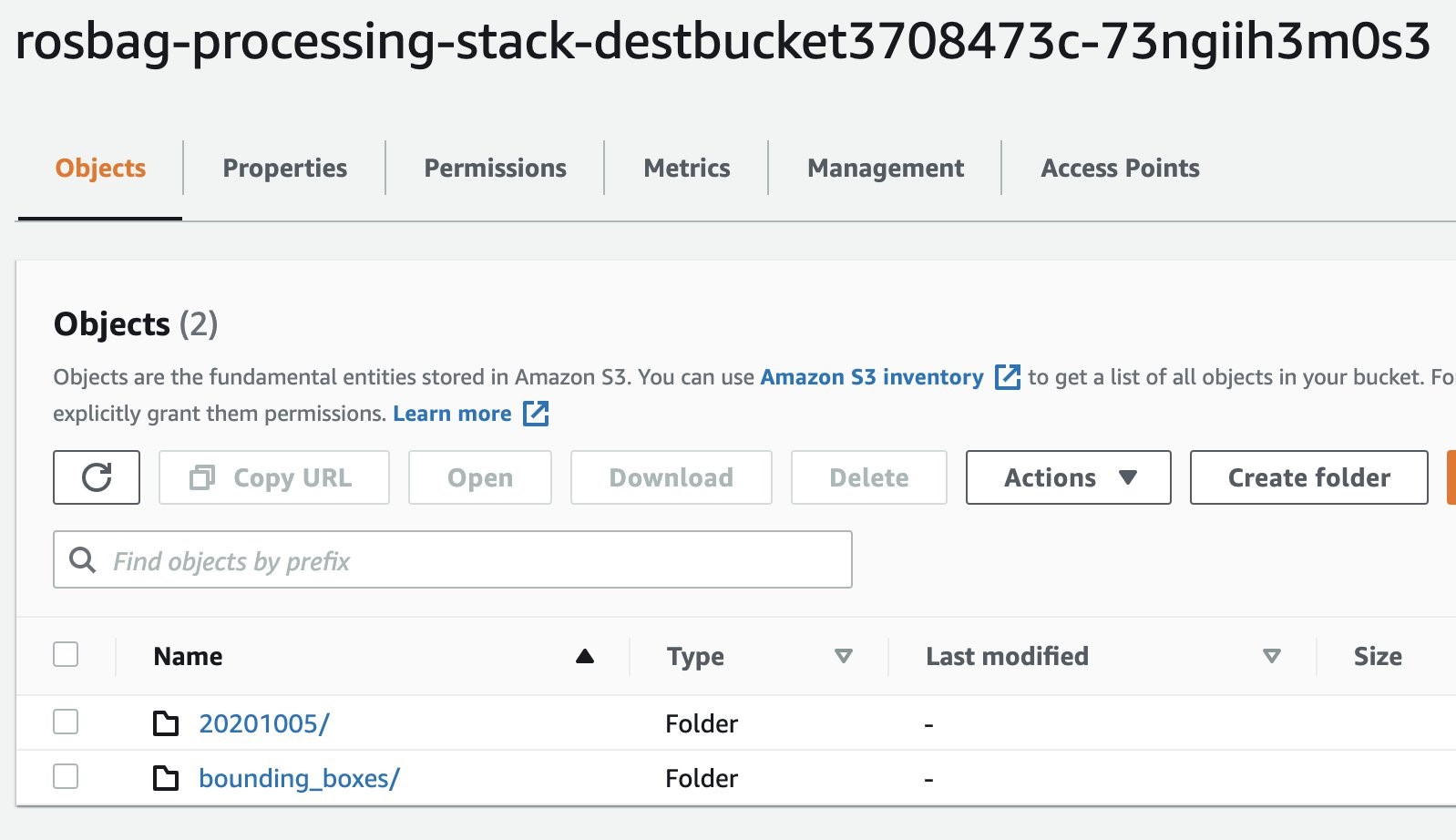
In the AWS management console navigate to S3, and select the output bucket with prefix rosbag-processing-stack-destbucket. The bucket holds both the extracted images from the ROS bag’s topic containing the video data (1) and the images with highlighted bounding boxes for the objects detected by Amazon Rekognition (2).

Figure 11 - Output S3 buckets

Figure 11 – Output S3 buckets

  • Navigate to the folder 20201005 and select an image,
  • Navigate to the folder bounding_boxes
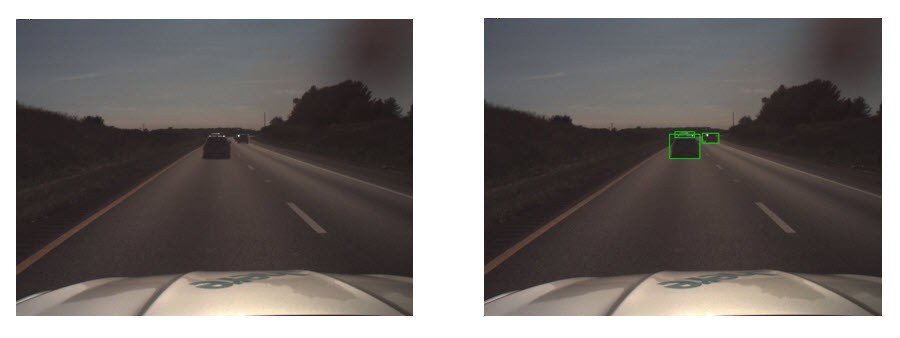
  • Select the corresponding image. You should receive an output similar to the following two examples:
Left: Image extracted from ROS bag camera feed topic. Right: Same image with highlighted objects that Amazon Rekognition detected.

Figure 12 – Left: Image extracted from ROS bag camera feed topic. Right: Same image with highlighted objects that Amazon Rekognition detected.

Amazon CloudWatch for monitoring and creating operational dashboard

Amazon MWAA comes with CloudWatch metrics to monitor your MWAA environment. You can create dashboards for quick and intuitive operational insights. To do so:

  • Open the AWS management console and navigate to the service CloudWatch.
  • Select the menu “Dashboards” from the navigation pane and click on “Create dashboard”.
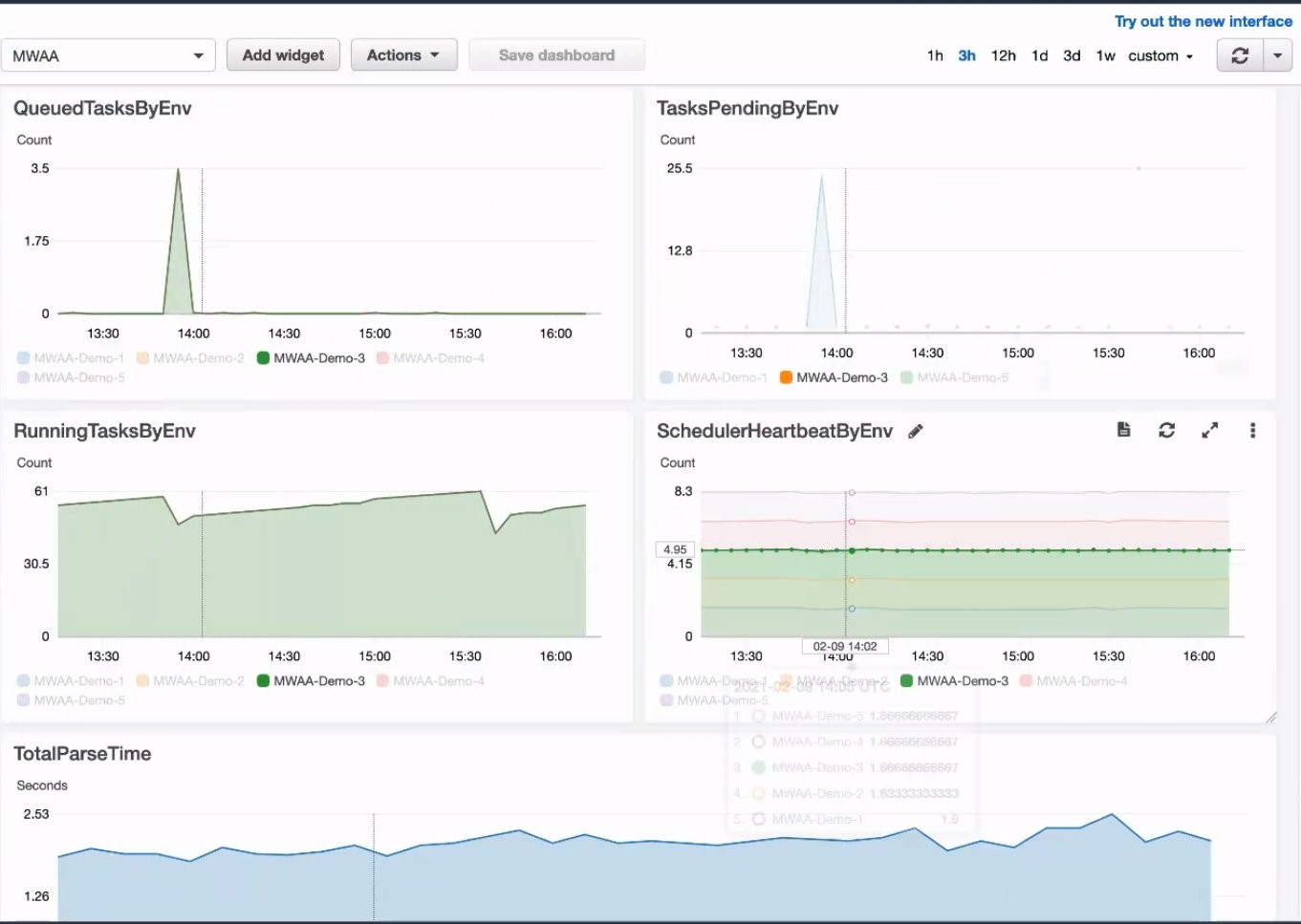
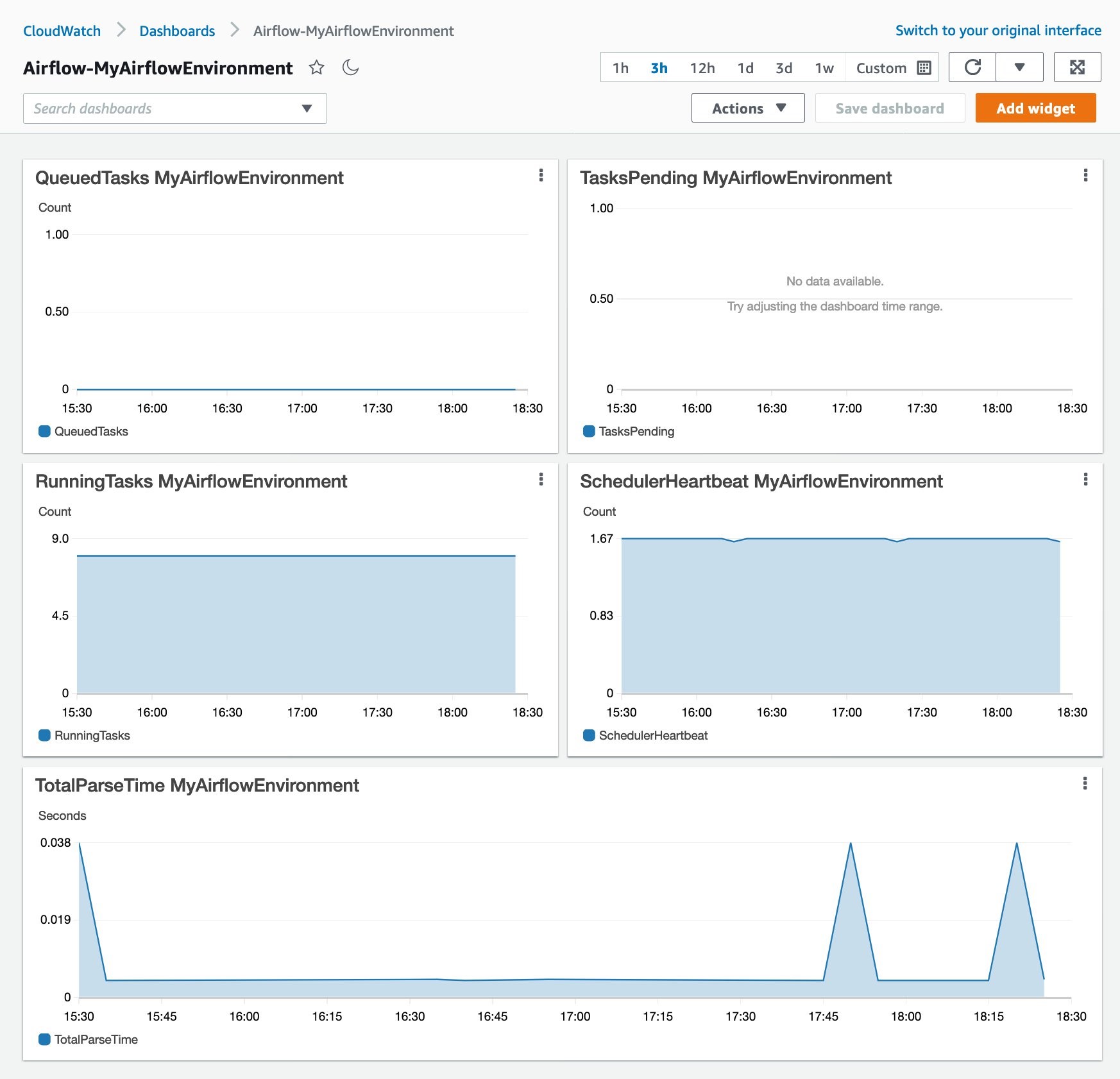
  • After providing a name for your dashboard and selecting a widget type, you can choose from a variety of metrics that MWAA provides.  This is shown in the following picture.

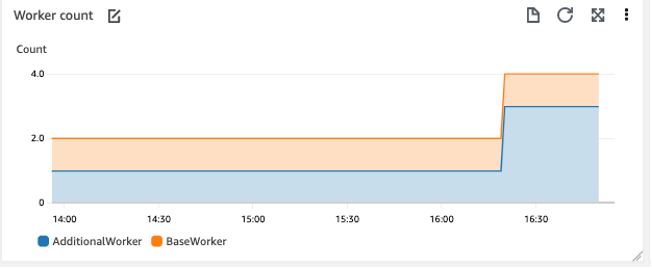
MWAA comes with a range of pre-defined metrics that allow you to monitor failed tasks, the health of your managed Airflow environment and helps you right-size your environment.

Figure 13 - CloudWatch metrics in a dashboard help to monitor your MWAA environment.

Figure 13 – CloudWatch metrics in a dashboard help to monitor your MWAA environment.

Clean Up

In order to delete the deployed solution from your AWS account, you must:

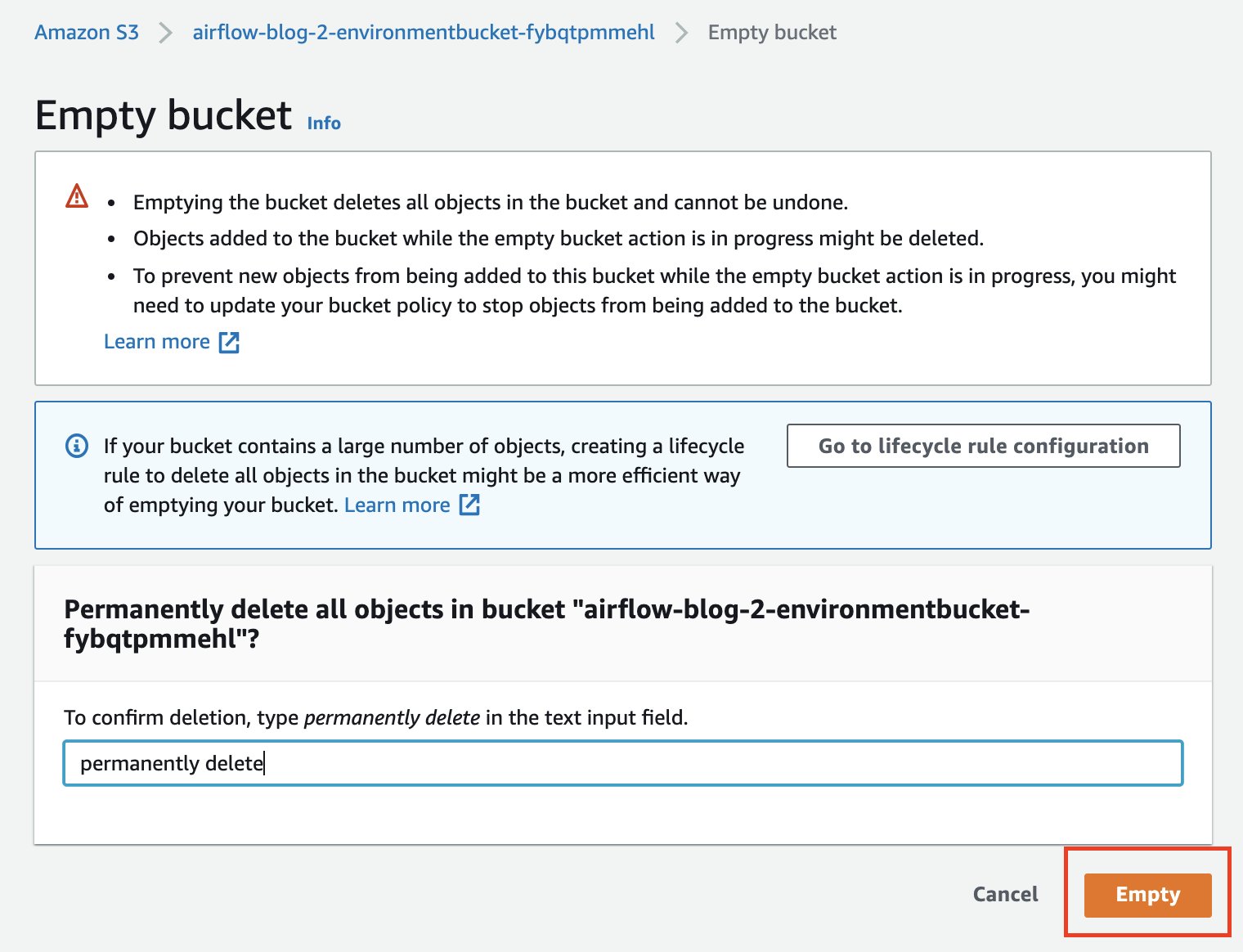
1. Delete all data in your S3 buckets

  • In the management console navigate to the service S3. You should see three buckets containing rosbag-processing-stack that were created during the deployment.
  • Select each bucket and delete its contents. Note: Do not delete the bucket itself.

2. Delete the solution’s CloudFormation stack

You can delete the deployed solution from your AWS account either from the management console or the command line interface.

Using the management console:

  • Open the management console and navigate to the CloudFormation service. Make sure to select the same region you deployed your solution to (for exmaple,. us-east-1).
  • Select stacks from the side menu. The solution’s CloudFormation stack is shown in the following screenshot:
Figure 14 - Cleaning up the CloudFormation Stack

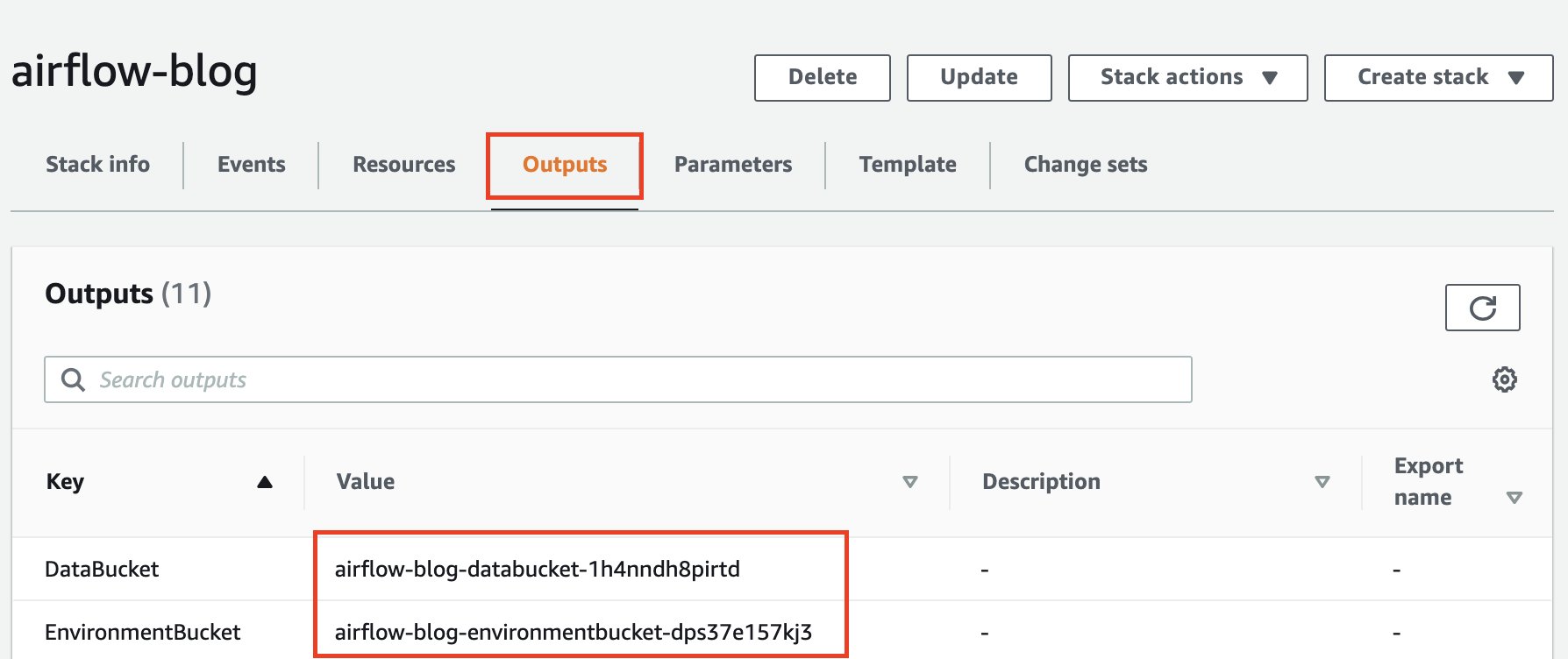
Figure 14 – Cleaning up the CloudFormation Stack

Select the rosbag-processing-stack and select Delete. CloudFormation will now destroy all resources related to the ROS bag image processing pipeline.

Using the Command Line Interface (CLI):

Open a shell and navigate to the directory from which you started the deployment, then type the following:

cdk destroy --profile <named-profile>

Replace <named-profile> with the named profile which you configured for your AWS CLI to point to your target AWS account.

As an example: if your named profile for the AWS CLI is called rosbag-processing and your associated Region is us-east-1 the resulting command would be:

cdk destroy --profile rosbag-processing

After confirming that you want to destroy the CloudFormation stack, the solution’s resources will be deleted from your AWS account.

Conclusion

This blog post illustrated how to deploy and leverage workflows for running Autonomous Driving & ADAS workloads at scale. This solution was designed using fully managed AWS services. The solution was deployed on AWS using AWS CDK templates. Using MWAA we were able to set up a centralized, transparent, intuitive workflow orchestration across multiple systems. Even though the pipeline involved several steps in multiple AWS services, MWAA helped us understand and visualize the workflow, its individual tasks and dependencies.

Usually, distributed systems are hard to debug in case of errors or unexpected outcomes. However, building the ROS bag processing pipelines on MWAA allowed us to inspect the log files involved centrally from the Airflow UI, for debugging or auditing. Furthermore, with MWAA the ROS bag processing workflow is part of the code base and can be tested, refactored, versioned just like any other software artifact. By providing the CDK templates, we were able to architect a fully automated solution which you can adapt to your use case.

We hope you found this interesting and helpful and invite your comments on the solution!

Field Notes provides hands-on technical guidance from AWS Solutions Architects, consultants, and technical account managers, based on their experiences in the field solving real-world business problems for customers.

Automating Amazon CloudWatch dashboards and alarms for Amazon Managed Workflows for Apache Airflow

Post Syndicated from James Beswick original https://aws.amazon.com/blogs/compute/automating-amazon-cloudwatch-dashboards-and-alarms-for-amazon-managed-workflows-for-apache-airflow/

This post is written by Mark Richman, Senior Solutions Architect.

Amazon Managed Workflows for Apache Airflow (MWAA) is a fully managed service that makes it easier to run open-source versions of Apache Airflow on AWS. It allows you to build workflows to run your extract-transform-load (ETL) jobs and data pipelines.

When working with MWAA, you often need to know more about the performance of your Airflow environment to achieve full insight and observability of your system. Airflow emits a number of useful metrics to Amazon CloudWatch, which are described in the product documentation. MWAA allows customers to define CloudWatch dashboards and alarms based upon the metrics and logs that Apache Airflow emits.

Airflow exposes metrics such as number of Directed Acyclic Graph (DAG) processes, DAG bag size, number of currently running tasks, task failures, and successes. Airflow is already set up to send metrics for an MWAA environment to CloudWatch.

This blog demonstrates a solution that automatically detects any deployed Airflow environments associated with the AWS account. It builds a CloudWatch dashboard and some useful alarms for each. All source code for this blog post is available on GitHub.

You automate the creation of a CloudWatch dashboard, which displays several of these key metrics together with CloudWatch alarms. These alarms receive notifications when the metrics fall outside of the thresholds that you configure, and allow you to perform actions in response.

Prerequisites

Deploying this solution requires:

Overview

Based on AWS serverless services, this solution includes:

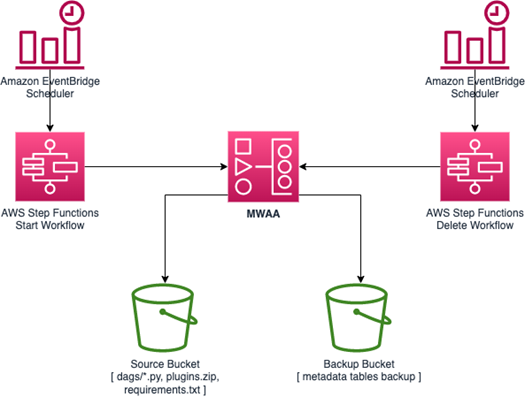
  1. An Amazon EventBridge rule that runs on a schedule to invoke an AWS Step Functions workflow.
  2. Step Function orchestrates several AWS Lambda functions to query the existing MWAA environments.
  3. Lambda functions will update the CloudWatch dashboard definition to include metrics such as QueuedTasks, RunningTasks, SchedulerHeartbeat, TasksPending, and TotalParseTime.
  4. CloudWatch alarms are created for unhealthy workers and heartbeat failure across all MWAA environments. These alarms are removed for any nonexistent environments.
  5. Any MWAA environments that no longer exist have their respective CW dashboards removed.

Reference architecture

EventBridge, a serverless event service, is configured to invoke a Step Functions workflow every 10 minutes. You can configure this for your preferred interval. Step Functions invokes a number of Lambda functions in parallel. If a function throws an error, the failed step in the state machine transitions to its respective failed state and the entire workflow ends.

Each of the Lambda functions performs a single task, orchestrated by Step Functions. Each function has a descriptive name for the task it performs in the workflow.

Understanding the CreateDashboardFunction function

When you deploy the AWS SAM template, the SeedDynamoDBFunction Lambda function is invoked. The function populates a DynamoDB table called DashboardTemplateTable with a CloudWatch dashboard definition. This definition is a template for any new CloudWatch dashboard created by CreateDashboardFunction.

You can see this definition in the GitHub repo:

{
  "widgets": [{
      "type": "metric",
      "x": 0,
      "y": 0,
      "width": 12,
      "height": 6,
      "properties": {
        "view": "timeSeries",
        "stacked": true,
        "metrics": [
          [
            "AmazonMWAA",
            "QueuedTasks",
            "Function",
            "Executor",
            "Environment",
            "${EnvironmentName}"
          ]
        ],
        "region": "${AWS::Region}",
        "title": "QueuedTasks ${EnvironmentName}",
        "period": 300
      }
    },
    ...
}

When this Step Functions workflow runs, it runs CreateDashboardFunction. This iterates through all the MWAA environments in the account, creating or updating its corresponding CloudWatch dashboard. You can see the code in /functions/create_dashboard/app.py:

for env in mwaa_environments:
        dashboard_name = f"Airflow-{env}"

        dashboard_body = dashboard_template.replace(
            "${AWS::Region}", os.getenv("AWS_REGION", "us-east-1")
        ).replace("${EnvironmentName}", env)

        logger.info(f"Creating/updating dashboard: {dashboard_name}")
        logger.debug(dashboard_body)

        response = cloudwatch.put_dashboard(
            DashboardName=dashboard_name, DashboardBody=dashboard_body
        )

        logger.info(json.dumps(response, indent=2))

Step Functions state machine

Here is a visualization of the Step Functions state machine:

State machine visualization

Step Functions is based on state machines and tasks. A state machine is a workflow. A task is a state in a workflow that represents a single unit of work that another AWS service performs. Each step in a workflow is a state. The state machine in this solution is defined in JSON format in the repo.

Building and deploying the example application

To build and deploy this solution:

  1. Clone the repo from GitHub:
    git clone https://github.com/aws-samples/mwaa-dashboard
    cd mwaa-dashboard
    
  2. Build the application. Since Lambda functions may depend on packages that have natively compiled programs, use the --use-container flag. This flag compiles your functions locally in a Docker container that behaves like the Lambda environment:
    sam build --use-container
  3. Deploy the application to your AWS account:
    sam deploy --guided

This command packages and deploys the application to your AWS account. It provides a series of prompts:

  • Stack Name: The name of the stack to deploy to AWS CloudFormation. This should be unique to your account and Region. This walkthrough uses mwaa-dashboard throughout this project.
  • AWS Region: The AWS Region you want to deploy your app to.
  • Confirm changes before deploy: If set to yes, any change sets will be shown to you for manual review. If set to no, the AWS SAM CLI automatically deploys application changes.
  • Respond to the remaining prompts per the SAM CLI command reference.

Updating the CloudWatch dashboard template definition in DynamoDB

The CloudWatch dashboard template definition is stored in DynamoDB. This is a one-time setup step, performed by the functions/seed_dynamodb Lambda custom resource at stack deployment time.

To override the template, you can edit the data directly in DynamoDB using the AWS Management Console. Alternatively, modify the scripts/dashboard-template.json file and update DynamoDB using the scripts/seed.py script.

cd scripts
./seed.py -t <dynamodb-table-name>
cd ..

Here, <dynamodb-table-name> is the name of the DynamoDB table created during deployment. For example:

./seed.py -t mwaa-dashboard-DashboardTemplateTable-VA2M5945RCF1

Viewing the CloudWatch dashboards and alarms

If you have any existing MWAA environments, or create new ones, a dashboard for each appears with the Airflow- prefix. If you delete an MWAA environment, the corresponding dashboard is also deleted. No CloudWatch metrics are deleted.

Upon successful completion of the Step Functions workflow, you see a list of custom dashboards. There is one for each of your MWAA environments:

Custom dashboards view

Choosing the dashboard name displays the widgets defined in the JSON described previously. Each widget corresponds to an Airflow key performance indicator (KPI). The dashboards can be customized through the AWS Management Console without any code changes.

Example dashboard

These are the metrics:

  • QueuedTasks: The number of tasks with queued state. Corresponds to the executor.queued_tasks Airflow metric.
  • TasksPending: The number of tasks pending in executor. Corresponds to the scheduler.tasks.pending Airflow metric.
  • RunningTasks: The number of tasks running in executor. Corresponds to the executor.running_tasks Airflow metric.
  • SchedulerHeartbeat: The number of check-ins Airflow performs on the scheduler job. Corresponds to the scheduler_heartbeat Airflow metrics.
  • TotalParseTime: Number of seconds taken to scan and import all DAG files once. Corresponds to the dag_processing.total_parse_time Airflow metric.

More information on all MWAA metrics available in CloudWatch can be found in the documentation. CloudWatch alarms are also created for each MWAA environment:

CloudWatch alarms list

By default, you create two alarms:

  • {environment name}-UnhealthyWorker: This alarm triggers if the number of QueuedTasks is greater than the number of RunningTasks, and the number of RunningTasks is zero, for a period of 15 minutes.
  • {environment name}-HeartbeatFail: This alarm triggers if SchedulerHeartbeat is zero for a period of five minutes.

You can configure actions in response to these alarms, such as an Amazon SNS notification to email or a Slack message.

Cleaning up

After testing this application, delete the resources created to avoid ongoing charges. You can use the AWS CLI, AWS Management Console, or the AWS APIs to delete the CloudFormation stack deployed by AWS SAM.

To delete the stack via the AWS CLI, run the following command:

aws cloudformation delete-stack --stack-name mwaa-dashboard

The log groups all share the prefix /aws/lambda/mwaa-dashboard. Delete these with the command:

aws logs delete-log-group --log-group-name <log group>

Conclusion

With Amazon MWAA, you can spend more time building workflows and less time managing and scaling infrastructure. This article shows a serverless example that automatically creates CloudWatch dashboards and alarms for all existing and new MWAA environments. With this example, you can achieve better observability for your MWAA environments.

To get started with MWAA, visit the user guide. To deploy this solution in your own AWS account, visit the GitHub repo for this article.

For more serverless learning resources, visit Serverless Land.

Orchestrating analytics jobs on Amazon EMR Notebooks using Amazon MWAA

Post Syndicated from Fei Lang original https://aws.amazon.com/blogs/big-data/orchestrating-analytics-jobs-on-amazon-emr-notebooks-using-amazon-mwaa/

In a previous post, we introduced the Amazon EMR notebook APIs, which allow you to programmatically run a notebook on both Amazon EMR Notebooks and Amazon EMR Studio (preview) without accessing the AWS web console. With the APIs, you can schedule running EMR notebooks with cron scripts, chain multiple EMR notebooks, and use orchestration services such as AWS Step Functions triggered by AWS CloudWatch Events.

In this post, we show how to use Amazon Managed Workflows for Apache Airflow (Amazon MWAA) to orchestrate analytics jobs on EMR Notebooks. We will start by walking you through the process of using AWS CloudFormation to set up an Amazon MWAA environment, which allows you to programmatically author, schedule, and monitor different sorts of workflows on Amazon EMR. We will then use this environment to run an EMR notebook example which does data analysis with Hive.

The data source for the example in this post is from the public Amazon Customer Reviews Dataset. We use the Parquet formatted dataset as the input dataset for our EMR notebook.

Apache Airflow and Amazon MWAA

Apache Airflow is an open-source platform for authoring, scheduling, and monitoring workflows. With Apache Airflow, we can define direct acyclic graphs (DAGs). DAGs describe how to run a workflow and are written in Python. For additional details on Apache Airflow, see Concepts. Many organizations build, manage, and maintain Apache Airflow on AWS using services such as Amazon Elastic Compute Cloud (Amazon EC2) or Amazon Elastic Kubernetes Service (Amazon EKS). Amazon MWAA is a fully managed service that makes it easy to run open-source versions of Apache Airflow on AWS, and to build workflows to run your extract, transform, and load (ETL) jobs and data pipelines.

Prerequisites

Before getting started, you must have the following prerequisites:

  • An AWS account that provides access to AWS services.
  • AWS Command Line Interface (AWS CLI) version 1.18.128 or later installed on your workstation.
  • An Amazon Simple Storage Service (Amazon S3) bucket that meets the following Amazon MWAA requirements:
    • The bucket must be in the same AWS Region where you create the MWAA environment.
    • The bucket name must start with airflow- and should be globally unique.
    • Bucket versioning is enabled.
    • A folder named dags must be created in the same bucket to store DAGs and associated support files.
  • An AWS Identity and Access Management (IAM) user with an access key and secret access key to configure the AWS CLI.
    • The IAM user has permissions to create an IAM role and policies, launch an EMR cluster, create an Amazon MWAA environment, and create stacks in AWS CloudFormation.
  • A possible limit increase for your account. (Usually a limit increase isn’t necessary. See AWS service quotas if you encounter a limit error while building the solution.)
  • An EMR notebook created through the Amazon EMR console, using the notebook file find_best_sellers.ipynb. See Creating a Notebook for instructions on creating an EMR notebook. Record the ID of the EMR notebook (for example, <e-*************************>); you will use this later in this post.

Architecture overview

At a high level, this solution uses Amazon MWAA with Amazon EMR to build pipelines for ETL workflow orchestration. The following diagram illustrates the solution architecture.

The following diagram illustrates the solution architecture.

We use the following services and configurations in this solution:

  • Amazon S3
  • VPC network configurations
  • VPC endpoints

Amazon S3

Amazon MWAA uses an S3 bucket to store DAGs and associated support files. You must create an S3 bucket before you can create the environment, with requirements as mentioned in the Prerequisites section. To use a bucket with an Amazon MWAA environment, you must create the bucket in the same Region where you create the environment. Refer to Create an Amazon S3 bucket for Amazon MWAA for further details.

VPC network configurations

Amazon MWAA requires a VPC network that meets the following requirements:

  • Includes two private subnets that are in two different Availability Zones within the same Region
  • Includes public subnets that are configured to route the private subnet data to the internet (via NAT gateways)

For more information, see Create the VPC network using a AWS CloudFormation template.

The Airflow UI in the Amazon MWAA environment is accessible over the internet by users granted access in the IAM policy. Amazon MWAA attaches an Application Load Balancer with an HTTPS endpoint for your web server as part of the Amazon MWAA managed service. For more information, see How it works.

VPC endpoints

VPC endpoints are highly available VPC components that enable private connections between your VPC and supported AWS services. Traffic between your VPC and the other services remains in your AWS network. For our example, we use the following VPC endpoints to ensure extra security, availability, and Amazon S3 data transfer performance:

  • An Amazon S3 gateway VPC endpoint to establish a private connection between the Amazon MWAA VPC and Amazon S3
  • An EMR interface VPC endpoint to securely route traffic directly to Amazon EMR from Amazon MWAA, instead of connecting over the internet

Setting up an Amazon MWAA environment

To make it easier to get started, we created a CloudFormation template that automatically configures and deploys the Amazon MWAA environment. The template takes care of the following tasks for you:

  • Create an Amazon MWAA execution IAM role.
  • Set up the VPC network for the Amazon MWAA environment, deploying the following resources:
    • A VPC with a pair of public and private subnets spread across two Availability Zones.
    • An internet gateway, with a default route on the public subnets.
    • A pair of NAT gateways (one in each Availability Zone), and default routes for them in the private subnets.
    • Amazon S3 gateway VPC endpoints and EMR interface VPC endpoints in the private subnets in two Availability Zones.
    • A security group to be used by the Amazon MWAA environment that only allows local inbound traffic and all outbound traffic.
  • Create an Amazon MWAA environment. For this post, we select mw1.small for the environment class and choose maximum worker count as 1. For monitoring, we choose to publish environment performance to CloudWatch Metrics. For Airflow logging configuration, we choose to send only the task logs and use log level INFO.

If you want to manually create, configure, and deploy the Amazon MWAA environment without using AWS CloudFormation, see Get started with Amazon Managed Workflows for Apache Airflow (MWAA).

Launching the CloudFormation template

To launch your stack and provision your resources, complete the following steps:

  1. Choose Launch Stack:

This automatically launches AWS CloudFormation in your AWS account with a template. It prompts you to sign in as needed. You can view the template on the AWS CloudFormation console as required. The Amazon MWAA environment is created in the same Region as you launched the CloudFormation stack. Make sure that you create the stack in your intended Region.

The CloudFormation stack requires a few parameters, as shown in the following screenshot.

The CloudFormation stack requires a few parameters, as shown in the following screenshot.

The following table describes the parameters.

Parameter Description Default Value
Stack name Enter a meaningful name for the stack. We use MWAAEmrNBDemo for this example. Replace it with your own value. None
AirflowBucketName Name of the S3 bucket to store DAGs and support files. The S3 bucket must be in the same Region where you create the environment. The name must start with airflow-. Enter the S3 bucket created as a prerequisite. We use the S3 bucket airflow-emr-demo-us-west-2 for this post. You must replace it with your own value for this field. None
EnvironmentName An MWAA environment name that is prefixed to resource names. All the resources created by this templated are named after the value saved for this field. We name our environment mwaa-emr-blog-demo for this post. Replace it with your own value for this field. mwaa-
PrivateSubnet1CIDR The IP range (CIDR notation) for the private subnet in the first Availability Zone. For more information, see AWS CloudFormation VPC stack specifications. 10.192.20.0/24
PrivateSubnet2CIDR The IP range (CIDR notation) for the private subnet in the second Availability Zone. For more information, see AWS CloudFormation VPC stack specifications.. 10.192.21.0/24
PublicSubnet1CIDR The IP range (CIDR notation) for the public subnet in the first Availability Zone. For more information, see AWS CloudFormation VPC stack specifications. 10.192.10.0/24
PublicSubnet2CIDR The IP range (CIDR notation) for the public subnet in the second Availability Zone. For more information, see AWS CloudFormation VPC stack specifications. 10.192.11.0/24
VpcCIDR The IP range (CIDR notation) for this VPC being created. For more information, see AWS CloudFormation VPC stack specifications. 10.192.0.0/16

The default values for the IP range (CIDR notation) fields refer to the AWS CloudFormation VPC stack specifications. You can make changes based on the requirements of your own network settings.

  1. Enter the parameter values from the preceding table.
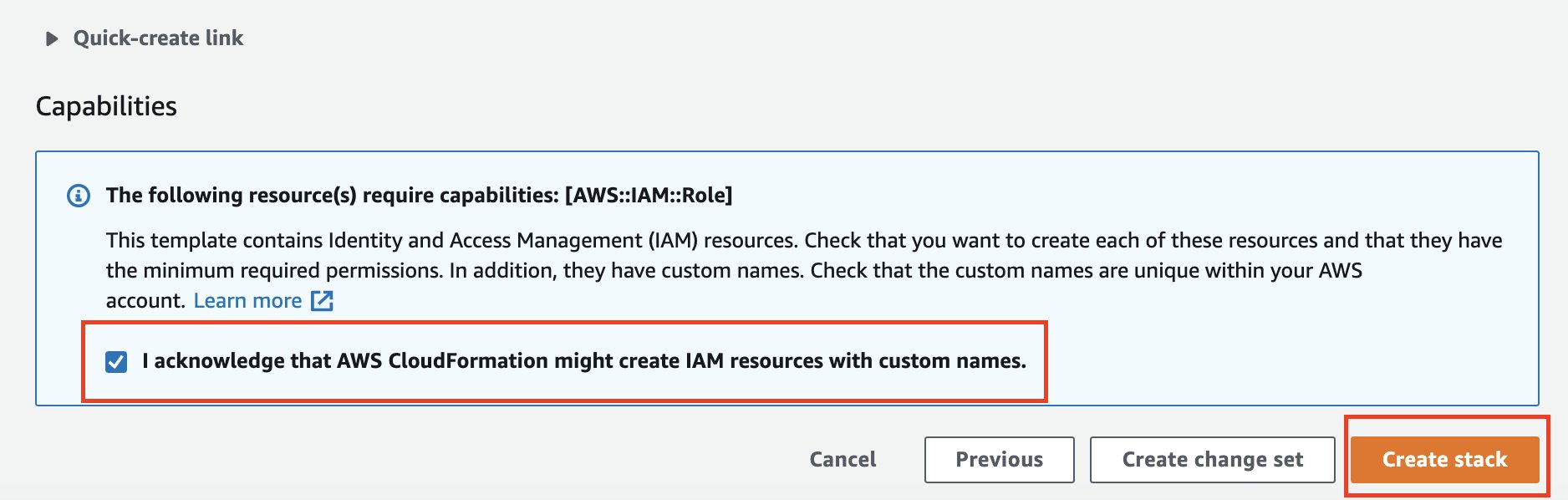
  2. Review the details on the Capabilities section and select the check boxes confirming AWS CloudFormation might create IAM resources with custom names.
  3. Choose Create Stack.

Stack creation takes a few minutes. After the CloudFormation stack is complete, on the Resources tab, you can find the resources being created in this CloudFormation stack. Now, we’re ready to run our example.

Orchestrating Hive analytics jobs on EMR Notebooks using Apache Airflow

The following diagram illustrates the workflow: As a user, you first need to create the DAG file that describes how to run the analytics jobs and upload it to the dags folder under the S3 bucket specified. The DAG can be triggered in Apache Airflow UI to orchestrate the job workflow, which includes creating an EMR cluster, waiting for the cluster to be ready, running Hive analytics jobs on EMR notebooks, uploading the results to Amazon S3, and cleaning up the cluster after the job is complete.

The following diagram illustrates the workflow.

Input notebook file

Let’s take a look at the following input notebook file find_best_sellers.ipynb, which we use for our example.

Let’s take a look at the following input notebook file find_best_sellers.ipynb, which we use for our example.

find_best_sellers.ipynb is a Python script that does analysis on the public Amazon Customer Reviews Dataset. It generates the top 20 best sellers in a given list of categories over a given period of time and saves the results to the given S3 output location. For demonstration purpose only, we rank the seller simply by the sum of review star ratings from verified purchases.

The explanations of the default parameters in the first cell and each code block are included in the notebook itself.

The last line in the first cell, we have OUTPUT_LOCATION = "s3://airflow-emr-demo-us-west-2/query_output/” as a default value for the input parameter. Replace it with your own value for the output location. You can also supply a different value for this for this parameter in the Airflow Variables later.

DAG file

The DAG file test_dag.py is used to orchestrate our job flow via Apache Airflow. It performs the following tasks:

  1. Create an EMR cluster with one m5.xlarge primary and two m5.xlarge core nodes on release version 6.2.0 with Spark, Hive, Livy and JupyterEnterpriseGateway installed as applications.
  2. Wait until the cluster is up and ready.
  3. Run the notebook find_best_sellers.ipynb on the EMR cluster created in Step 1.
  4. Wait until the notebook run is complete.
  5. Clean up the EMR cluster.

Here is the full source code of the DAG:

# Copyright Amazon.com, Inc. or its affiliates. All Rights Reserved.
# SPDX-License-Identifier: MIT-0
from airflow import DAG
from airflow.operators.python_operator import PythonOperator
from time import sleep
from datetime import datetime
import boto3, time
from builtins import range
from pprint import pprint
from airflow.operators.sensors import BaseSensorOperator
from airflow.contrib.operators.emr_create_job_flow_operator import EmrCreateJobFlowOperator
from airflow.contrib.operators.emr_terminate_job_flow_operator import EmrTerminateJobFlowOperator
from airflow.contrib.sensors.emr_job_flow_sensor import EmrJobFlowSensor
from airflow.contrib.sensors.emr_step_sensor import EmrStepSensor
from airflow.contrib.hooks.emr_hook import EmrHook
from airflow.contrib.sensors.emr_base_sensor import EmrBaseSensor
from airflow.models import Variable
from airflow.utils import apply_defaults
from airflow.utils.dates import days_ago

# Available categories:
#
# Apparel,Automotive,Baby,Beauty,Books,Camera,Digital_Ebook_Purchase,Digital_Music_Purchase,
# Digital_Software,Digital_Video_Download,Digital_Video_Games,Electronics,Furniture,Gift_Card,
# Grocery,Health_&_Personal_Care,Home,Home_Entertainment,Home_Improvement,Jewelry,Kitchen,
# Lawn_and_Garden,Luggage,Major_Appliances,Mobile_Apps,Mobile_Electronics,Music,Musical_Instruments,
# Office_Products,Outdoors,PC,Personal_Care_Appliances,Pet_Products,Shoes,Software,Sports,Tools,
# Toys,Video,Video_DVD,Video_Games,Watches,Wireless

# =============== VARIABLES ===============
NOTEBOOK_ID = Variable.get('NOTEBOOK_ID')
NOTEBOOK_FILE_NAME = Variable.get('NOTEBOOK_FILE_NAME')
CATEGORIES_CSV = Variable.get('CATEGORIES_CSV')
REGION = Variable.get('REGION')
SUBNET_ID = Variable.get('SUBNET_ID')
EMR_LOG_URI = Variable.get('EMR_LOG_URI')
OUTPUT_LOCATION = Variable.get('OUTPUT_LOCATION')
FROM_DATE = Variable.get('FROM_DATE')
TO_DATE = Variable.get('TO_DATE')
# =========================================

JOB_FLOW_OVERRIDES = {
    'Name': 'Test-Cluster',
    'ReleaseLabel': 'emr-6.2.0',
    'Applications': [{'Name':'Spark'}, {'Name':'Hive'}, {'Name':'Livy'}, {'Name':'JupyterEnterpriseGateway'}],
    'Configurations': [
          {
            "Classification": "hive-site",
            "Properties": {
                "hive.execution.engine": "spark"
            }
        }
    ],
    'Instances': {
        'Ec2SubnetId': SUBNET_ID,
        'InstanceGroups': [
            {
                'Name': 'Master node',
                'Market': 'ON_DEMAND',
                'InstanceRole': 'MASTER',
                'InstanceType': 'm5.xlarge',
                'InstanceCount': 1,
            },
            {
                'Name': 'Core node',
                'Market': 'ON_DEMAND',
                'InstanceRole': 'CORE',
                'InstanceType': 'm5.xlarge',
                'InstanceCount': 2,
            }
        ],
        'KeepJobFlowAliveWhenNoSteps': True,
        'TerminationProtected': False,
    },
    'JobFlowRole': 'EMR_EC2_DefaultRole',
    'ServiceRole': 'EMR_DefaultRole',
    'LogUri': EMR_LOG_URI
}


class CustomEmrJobFlowSensor(EmrJobFlowSensor):
    NON_TERMINAL_STATES = ['STARTING', 'BOOTSTRAPPING', 'TERMINATING']

class NotebookExecutionSensor(EmrBaseSensor):
    NON_TERMINAL_STATES = ['START_PENDING', 'STARTING', 'RUNNING', 'FINISHING', 'STOP_PENDING', 'STOPPING']
    FAILED_STATE = ['FAILING', 'FAILED']
    template_fields = ['notebook_execution_id']
    template_ext = ()
    @apply_defaults
    def __init__(self, notebook_execution_id, *args, **kwargs):
        super(NotebookExecutionSensor, self).__init__(*args, **kwargs)
        self.notebook_execution_id = notebook_execution_id
    def get_emr_response(self):
        emr = EmrHook(aws_conn_id=self.aws_conn_id).get_conn()
        self.log.info('Poking notebook execution %s', self.notebook_execution_id)
        return emr.describe_notebook_execution(NotebookExecutionId=self.notebook_execution_id)
    @staticmethod
    def state_from_response(response):
        return response['NotebookExecution']['Status']
    @staticmethod
    def failure_message_from_response(response):
        state_change_reason = response['NotebookExecution']['LastStateChangeReason']
        if state_change_reason:
            return 'Execution failed with reason: ' + state_change_reason
        return None

def start_execution(**context):
    ti = context['task_instance']
    cluster_id = ti.xcom_pull(key='return_value', task_ids='create_cluster_task')
    print("Starting an execution using cluster: " + cluster_id)
    # generate a JSON key-pair of <String : String Array>, e.g. 
    # "\"CATEGORIES\": [\"Apparel\", \"Automotive\", \"Baby\", \"Books\"]"
    categories_escaped_quotes = ""
    for category in CATEGORIES_CSV.split(','):
        categories_escaped_quotes = categories_escaped_quotes + "\"" + category + "\","
    categories_escaped_quotes = categories_escaped_quotes[:-1]
    categories_parameter = "\"CATEGORIES\" : [" + categories_escaped_quotes + "]"

    output_location_parameter = "\"OUTPUT_LOCATION\": \"" + OUTPUT_LOCATION + "\""
    from_date_parameter = "\"FROM_DATE\": \"" + FROM_DATE + "\""
    to_date_parameter = "\"TO_DATE\": \"" + TO_DATE + "\""
    parameters = f"{{ {categories_parameter}, {output_location_parameter}, {from_date_parameter}, {to_date_parameter} }}"
    emr = boto3.client('emr', region_name=REGION)
    start_resp = emr.start_notebook_execution(
        EditorId=NOTEBOOK_ID,
        RelativePath=NOTEBOOK_FILE_NAME,
        ExecutionEngine={'Id': cluster_id, 'Type': 'EMR'},
        NotebookParams=parameters,
        ServiceRole='EMR_Notebooks_DefaultRole'
    )
    execution_id = start_resp['NotebookExecutionId']
    print("Started an execution: " + execution_id)
    return execution_id


with DAG('test_dag', description='test dag', schedule_interval='0 * * * *', start_date=datetime(2020,3,30), catchup=False) as dag:
    create_cluster = EmrCreateJobFlowOperator(
        task_id='create_cluster_task',
        job_flow_overrides=JOB_FLOW_OVERRIDES,
        aws_conn_id='aws_default',
        emr_conn_id='emr_default',
    )
    cluster_sensor = CustomEmrJobFlowSensor(
        task_id='check_cluster_task',
        job_flow_id="{{ task_instance.xcom_pull(task_ids='create_cluster_task', key='return_value') }}",
        aws_conn_id='aws_default',
    )
    start_execution = PythonOperator(
        task_id='start_execution_task', 
        python_callable=start_execution,
        provide_context=True
    )
    execution_sensor = NotebookExecutionSensor(
        task_id='check_execution_task',
        notebook_execution_id="{{ task_instance.xcom_pull(task_ids='start_execution_task', key='return_value') }}",
        aws_conn_id='aws_default',
    )

    cluster_remover = EmrTerminateJobFlowOperator(
        task_id='terminate_cluster',
        job_flow_id="{{ task_instance.xcom_pull(task_ids='create_cluster_task', key='return_value') }}",
        aws_conn_id='aws_default',
    )
    
    create_cluster >> cluster_sensor >> start_execution >> execution_sensor >> cluster_remover

The very last line of the DAG code explains how the tasks are linked in the orchestration workflow. It’s overloading the right shift >> operator to create a dependency, meaning that the task on the left should be run first, and the output passed to the task on the right.

Instead of hard-coding the variables in the DAG code, we choose to supply these variables by importing a JSON file in the Airflow UI before actually running the DAG. This way, we can also update the variables without having to update the DAG code, which requires updating the DAG file in Amazon S3. We walk you through how to do so in the later steps. You can see the lines for VARIABLES that we repeated:

# =============== VARIABLES ===============
NOTEBOOK_ID = Variable.get('NOTEBOOK_ID')
NOTEBOOK_FILE_NAME = Variable.get('NOTEBOOK_FILE_NAME')
CATEGORIES_CSV = Variable.get('CATEGORIES_CSV')
REGION = Variable.get('REGION')
SUBNET_ID = Variable.get('SUBNET_ID')
EMR_LOG_URI = Variable.get('EMR_LOG_URI')
OUTPUT_LOCATION = Variable.get('OUTPUT_LOCATION')
FROM_DATE = Variable.get('FROM_DATE')
TO_DATE = Variable.get('TO_DATE')

We create a JSON formatted file named variables.json for our example. See the following code:

{
    "REGION": "us-west-2",
    "SUBNET_ID": "<subnet-********>",
    "EMR_LOG_URI": "s3://<S3 path for EMR logs>/",
    "NOTEBOOK_ID": "<e-*************************>",
    "NOTEBOOK_FILE_NAME": "find_best_sellers.ipynb",
    "CATEGORIES_CSV": "Apparel,Automotive,Baby,Beauty,Books",
    "FROM_DATE": "2015-08-25",
    "TO_DATE": "2015-08-31",
    "OUTPUT_LOCATION": "s3://<S3 path for query output>/"
}

To use this JSON code, you need to replace all the variable values (subnet and S3 paths) with the actual values.

Accessing Apache Airflow UI and running the workflow

To run the workflow, complete the following steps:

  1. On the Amazon MWAA console, find the new environment mwaa-emr-blog-demo we created earlier with the CloudFormation template.

On the Amazon MWAA console, find the new environment mwaa-emr-blog-demo we created earlier with the CloudFormation template.

  1. Choose Open Airflow UI.
  2. Log in as an authenticated user.

Log in as an authenticated user.

Next, we import the JSON file for the variables into Airflow UI.

As we mentioned earlier, we want to supply the variable values for our DAG definition later upon triggering the DAG in Airflow UI instead of hard-coding the values.

  1. On the Admin menu, choose Variables.
  2. Choose Browse.
  3. Choose json.
  4. Choose Import Variables.

For more information about importing variables, see Variables.

  1. Run the following command in the same directory as where file test_dag.py is to upload the DAG file to the dags folder under the S3 bucket specified for the Airflow environment. Replace <your_airflow_bucket_name> with the S3 bucket name that you created as a prerequisite:
    aws s3 cp test_dag.py s3://<your_airflow_bucket_name>/dags/

test_dag.py should automatically appear in the Airflow UI.

  1. Trigger the DAG by turning it to On

Trigger the DAG by turning it to On

  1. Choose test_dag to go to the detail page for the DAG.

On the Graph View tab, we can see the whole workflow of our pipeline and each individual task as defined in our DAG code.

On the Graph View tab, we can see the whole workflow of our pipeline and each individual task as defined in our DAG code.

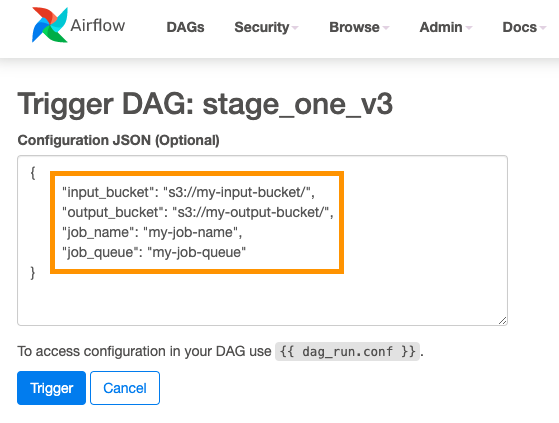
  1. Optionally, to trigger the DAG, choose Trigger DAG and add the following JSON formatted configuration before activate the DAG.

Optionally, to trigger the DAG, choose Trigger DAG and add the following JSON formatted configuration before activate the DAG.

You now get an email when failure happens on any of the tasks. You can also configure to get email notification when retry happens as well.

  1. On the Amazon EMR console, find the EMR cluster created by the create_cluster_task definition.

On the Amazon EMR console, find the EMR cluster created by the create_cluster_task definition.

  1. On the Airflow UI, you can switch tabs to check the status of the workflow tasks.

After a few minutes, we can see on the Tree View tab that the workflow is complete and all the tasks are successful.

After a few minutes, we can see on the Tree View tab that the workflow is complete and all the tasks are successful.

On the Gantt tab, we can see the time distribution of all the tasks of our workflow.

On the Gantt tab, we can see the time distribution of all the tasks of our workflow.

As specified in our DAG definition, the EMR cluster is stopped when the workflow is complete.

Because we use the cron expression 0 * * * * as the scheduled running interval for our workflow, if the triggered status of the DAG is ON, it runs every hour. You need to switch the status to OFF if you don’t want it to run again.

  1. On the Amazon S3 console, view the result of our notebook job in the S3 folder.

On the Amazon S3 console, view the result of our notebook job in the S3 folder.

For example, the following screenshot is the output for the Books category that we provided as a value in the CATEGORIES parameter. As we can see, Go Set a Watchman: A Novel is the best Books seller from the week of 8-25-2015 to 8-31-2015.

As we can see, Go Set a Watchman: A Novel is the best Books seller from the week of 8-25-2015 to 8-31-2015.

Cleaning up

To avoid ongoing charges, delete the CloudFormation stack and any files in Amazon S3 that were created by running the examples in this post.

Conclusion

This post showed how to use the Amazon EMR Notebooks API and use orchestration services such as Amazon MWAA to build ETL pipelines. It demonstrated how set up a secured Amazon MWAA environment using a CloudFormation template and run a sample workflow with Apache Airflow.

If you want to learn how to run Amazon EMR applications such as PySpark with Amazon MWAA, see Running Spark Jobs on Amazon EMR with Apache Airflow.


About the Authors

Fei Lang is a senior big data architect at Amazon Web Services. She is passionate about building the right big data solution for customers. In her spare time, she enjoys the scenery of the Pacific Northwest, going for a swim, and spending time with her family.


Ray Liu is a software development engineer at AWS. Besides work, he enjoys traveling and spending time with family.

Building complex workflows with Amazon MWAA, AWS Step Functions, AWS Glue, and Amazon EMR

Post Syndicated from Dipankar Ghosal original https://aws.amazon.com/blogs/big-data/building-complex-workflows-with-amazon-mwaa-aws-step-functions-aws-glue-and-amazon-emr/

Amazon Managed Workflows for Apache Airflow (Amazon MWAA) is a fully managed service that makes it easy to run open-source versions of Apache Airflow on AWS and build workflows to run your extract, transform, and load (ETL) jobs and data pipelines.

You can use AWS Step Functions as a serverless function orchestrator to build scalable big data pipelines using services such as Amazon EMR to run Apache Spark and other open-source applications on AWS in a cost-effective manner, and use AWS Glue for a serverless environment to prepare (extract and transform) and load large amounts of datasets from a variety of sources for analytics and data processing with Apache Spark ETL jobs

For production pipelines, a common use case is to read data originating from a variety of sources. This data requires transformation to extract business value and generate insights before sending to downstream applications, such as machine learning algorithms, analytics dashboards, and business reports.

This post demonstrates how to use Amazon MWAA as a primary workflow management service to create and run complex workflows and extend the directed acyclic graph (DAG) to start and monitor a state machine created using Step Functions. In Airflow, a DAG is a collection of all the tasks you want to run, organized in a way that reflects their relationships and dependencies.

Architectural overview

The following diagram illustrates the architectural overview of the components involved in the orchestration of the workflow. This workflow uses Amazon EMR to preprocess data and starts a Step Functions state machine. The state machine transforms data using AWS Glue.

The state machine transforms data using AWS Glue.

The workflow includes the following core components:

  1. Airflow Scheduler triggers the DAG based on a schedule or manually.
  2. DAG uses PythonOperator to create an EMR cluster and waits for the cluster creation process to complete.
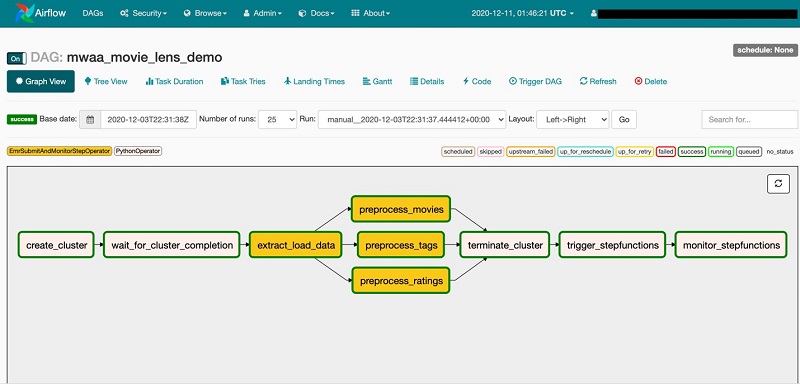
  3. DAG uses a custom operator EmrSubmitAndMonitorStepOperator to submit and monitor the Amazon EMR step.
  4. DAG uses PythonOperator to stop the EMR cluster when the preprocessing tasks are complete.
  5. DAG starts a Step Functions state machine and monitors it for completion using PythonOperator.

You can build complex ETL pipelines with Step Functions separately and trigger them from an Airflow DAG.

Prerequisites

Before starting, create an Amazon MWAA environment. If this is your first time using Amazon MWAA, see Introducing Amazon Managed Workflows for Apache Airflow (MWAA).

Take a note of the Amazon Simple Storage Service (Amazon S3) bucket that stores the DAGs. It’s located on the environment details page on the Amazon MWAA console.

Take a note of the Amazon Simple Storage Service (Amazon S3) bucket that stores the DAGs.

Also note the AWS Identity and Access Management (IAM) execution role. This role should be modified to allow MWAA to read and write from your S3 bucket, submit an Amazon EMR step, start a Step Functions state machine, and read from the AWS Systems Manager Parameter Store. The IAM role is available in the Permissions section of the environment details.

The IAM role is available in the Permissions section of the environment details.

The solution references Systems Manager parameters in an AWS CloudFormation template and scripts. For information on adding and removing IAM identity permissions, see Adding and removing IAM identity permissions. A sample IAM policy is also provided in the GitHub repository amazon-mwaa-complex-workflow-using-step-functions.

For this post, we use the MovieLens dataset. We concurrently convert the MovieLens CSV files to Parquet format and save them to Amazon S3 as part of preprocessing.

Setting up the state machine using Step Functions

Our solution extends the ETL pipeline to run a Step Functions state machine from the Airflow DAG. Step Functions lets you build visual workflows that enable fast translation of business requirements into technical requirements. With Step Functions, you can set up dependency management and failure handling using a JSON-based template. A workflow is a series of steps, such as tasks, choices, parallel runs, and timeouts with the output of one step acting as input into the next. For more information about other use cases, see AWS Step Functions Use Cases.

The following diagram shows the ETL process set up through a Step Functions state machine.

The following diagram shows the ETL process set up through a Step Functions state machine.

In the workflow, the Process Data step runs an AWS Glue job, and the Get Job Status step periodically checks for the job completion. The AWS Glue job reads the input datasets and creates output data for the most popular movies and top-rated movies. After the job is complete, the Run Glue Crawler step runs an AWS Glue crawler to catalog the data. The workflow also allows you to monitor and respond to failures at any stage.

Creating resources

Create your resources by following the installation instructions provided in the amazon-mwaa-complex-workflow-using-step-functions README.md.

Running the ETL workflow

To run your ETL workflow, complete the following steps:

  1. On the Amazon MWAA console, choose Open Airflow UI.
  2. Locate the mwaa_movielens_demo DAG.
  3. Turn on the DAG.

Turn on the DAG.

  1. Select the mwaa_movielens_demo DAG and choose Graph View.

This displays the overall ETL pipeline managed by Airflow.

This displays the overall ETL pipeline managed by Airflow.

  1. To view the DAG code, choose Code.

To view the DAG code, choose Code.

The code for the custom operator can be found in the amazon-mwaa-complex-workflow-using-step-functions GitHub repo. 

  1. From the Airflow UI, select the mwaa_movielens_demo DAG and choose Trigger DAG.
  2. Leave the Optional Configuration JSON box blank.

Leave the Optional Configuration JSON box blank.

When the Airflow DAG runs, the first task calls the PythonOperator to create an EMR cluster using Boto3. Boto is the AWS SDK for Python. It enables Python developers to create, configure, and manage AWS services, such as Amazon Elastic Compute Cloud (Amazon EC2) and Amazon S3. Boto provides object-oriented API, as well as low-level access to AWS services.
The second task waits until the EMR cluster is ready and in the Waiting state. As soon as the cluster is ready, the data load task runs, followed by the data preprocessing tasks, which are started in parallel using EmrSubmitAndMonitorStepOperator. Concurrency in the current Airflow DAG is set to 3, which runs three tasks in parallel. You can change the concurrency of Amazon EMR to run multiple Amazon EMR steps in parallel.

When the data preprocessing tasks are complete, the EMR cluster is stopped and the DAG starts the Step Functions state machine to initiate data transformation.

The final task in the DAG monitors the completion of the Step Functions state machine.

The DAG run should complete in approximately 10 minutes.

Verifying the DAG run

While the DAG is running, you can view the task logs.

  1. From Graph View, select any task and choose View Log.

From Graph View, select any task and choose View Log.

  1. When the DAG starts the Step Functions state machine, verify the status on the Step Functions console.

When the DAG starts the Step Functions state machine, verify the status on the Step Functions console.

  1. You can also monitor ETL process completion from the Airflow UI.

You can also monitor ETL process completion from the Airflow UI.

  1. On the Airflow UI, verify the completion from the log entries.

On the Airflow UI, verify the completion from the log entries.

Querying the data

After the successful completion of the Airflow DAG, two tables are created in the AWS Glue Data Catalog. To query the data with Amazon Athena, complete the following steps:

  1. On the Athena console, choose Databases.
  2. Select the mwaa-movielens-demo-db database.

You should see the two tables. If the tables aren’t listed, verify that the AWS Glue crawler run is complete and that the console is showing the correct Region.
  1. Run the following query:
    SELECT * FROM "mwaa-movielens-demo-db"."most_popular_movies" limit 10;

The following screenshot shows the output.

The following screenshot shows the output.

Cleaning up

To clean up the resources created as part of our CloudFormation template, delete the mwaa-demo-foundations stack. You can either use the AWS CloudFormation console or the AWS Command Line Interface (AWS CLI).

Conclusion

In this post, we used Amazon MWAA to orchestrate an ETL pipeline on Amazon EMR and AWS Glue with Step Functions. We created an Airflow DAG to demonstrate how to run data processing jobs concurrently and extended the DAG to start a Step Functions state machine to build a complex ETL pipeline. A custom Airflow operator submitted and then monitored the Amazon EMR steps synchronously.

If you have comments or feedback, please leave them in the comments section.

About the Author

Dipankar GhosalDipankar Ghosal is a Sr Data Architect at Amazon Web Services and is based out of Minneapolis, MN. He has a focus in analytics and enjoys helping customers solve their unique use cases. When he’s not working, he loves going hiking with his wife and daughter.

Introducing Amazon Managed Workflows for Apache Airflow (MWAA)

Post Syndicated from Danilo Poccia original https://aws.amazon.com/blogs/aws/introducing-amazon-managed-workflows-for-apache-airflow-mwaa/

As the volume and complexity of your data processing pipelines increase, you can simplify the overall process by decomposing it into a series of smaller tasks and coordinate the execution of these tasks as part of a workflow. To do so, many developers and data engineers use Apache Airflow, a platform created by the community to programmatically author, schedule, and monitor workflows. With Airflow you can manage workflows as scripts, monitor them via the user interface (UI), and extend their functionality through a set of powerful plugins. However, manually installing, maintaining, and scaling Airflow, and at the same time handling security, authentication, and authorization for its users takes much of the time you’d rather use to focus on solving actual business problems.

For these reasons, I am happy to announce the availability of Amazon Managed Workflows for Apache Airflow (MWAA), a fully managed service that makes it easy to run open-source versions of Apache Airflow on AWS, and to build workflows to execute your extract-transform-load (ETL) jobs and data pipelines.

Airflow workflows retrieve input from sources like Amazon Simple Storage Service (S3) using Amazon Athena queries, perform transformations on Amazon EMR clusters, and can use the resulting data to train machine learning models on Amazon SageMaker. Workflows in Airflow are authored as Directed Acyclic Graphs (DAGs) using the Python programming language.

A key benefit of Airflow is its open extensibility through plugins which allows you to create tasks that interact with AWS or on-premise resources required for your workflows including AWS Batch, Amazon CloudWatch, Amazon DynamoDB, AWS DataSync, Amazon ECS and AWS Fargate, Amazon Elastic Kubernetes Service (EKS), Amazon Kinesis Firehose, AWS Glue, AWS Lambda, Amazon Redshift, Amazon Simple Queue Service (SQS), and Amazon Simple Notification Service (SNS).

To improve observability, Airflow metrics can be published as CloudWatch Metrics, and logs can be sent to CloudWatch Logs. Amazon MWAA provides automatic minor version upgrades and patches by default, with an option to designate a maintenance window in which these upgrades are performed.

You can use Amazon MWAA with these three steps:

  1. Create an environment – Each environment contains your Airflow cluster, including your scheduler, workers, and web server.
  2. Upload your DAGs and plugins to S3 – Amazon MWAA loads the code into Airflow automatically.
  3. Run your DAGs in Airflow – Run your DAGs from the Airflow UI or command line interface (CLI) and monitor your environment with CloudWatch.

Let’s see how this works in practice!

How to Create an Airflow Environment Using Amazon MWAA
In the Amazon MWAA console, I click on Create environment. I give the environment a name and select the Airflow version to use.

Then, I select the S3 bucket and the folder to load my DAG code. The bucket name must start with airflow-.

Optionally, I can specify a plugins file and a requirements file:

  • The plugins file is a ZIP file containing the plugins used by my DAGs.
  • The requirements file describes the Python dependencies to run my DAGs.

For plugins and requirements, I can select the S3 object version to use. In case the plugins or the requirements I use create a non-recoverable error in my environment, Amazon MWAA will automatically roll back to the previous working version.

I click Next to configure the advanced settings, starting with networking. Each environment runs in a Amazon Virtual Private Cloud using private subnets in two availability zones. Web server access to the Airflow UI is always protected by a secure login using AWS Identity and Access Management (IAM). However, you can choose to have web server access on a public network so that you can login over the Internet, or on a private network in your VPC. For simplicity, I select a Public network. I let Amazon MWAA create a new security group with the correct inbound and outbound rules. Optionally, I can add one or more existing security groups to fine-tune control of inbound and outbound traffic for your environment.
Now, I configure my environment class. Each environment includes a scheduler, a web server, and a worker. Workers automatically scale up and down according to my workload. We provide you a suggestion on which class to use based on the number of DAGs, but you can monitor the load on your environment and modify its class at any time.

Encryption is always enabled for data at rest, and while I can select a customized key managed by AWS Key Management Service (KMS) I will instead keep the default key that AWS owns and manages on my behalf.

For monitoring, I publish environment performance to CloudWatch Metrics. This is enabled by default, but I can disable CloudWatch Metrics after launch. For the logs, I can specify the log level and which Airflow components should send their logs to CloudWatch Logs. I leave the default to send only the task logs and use log level INFO.

I can modify the default settings for Airflow configuration options, such as default_task_retries or worker_concurrency. For now, I am not changing these values.

Finally, but most importantly, I configure the permissions that will be used by my environment to access my DAGs, write logs, and run DAGs accessing other AWS resources. I select Create a new role and click on Create environment. After a few minutes, the new Airflow environment is ready to be used.

Using the Airflow UI
In the Amazon MWAA console, I look for the new environment I just created and click on Open Airflow UI. A new browser window is created and I am authenticated with a secure login via AWS IAM.

There, I look for a DAG that I put on S3 in the movie_list_dag.py file. The DAG is downloading the MovieLens dataset, processing the files on S3 using Amazon Athena, and loading the result to a Redshift cluster, creating the table if missing.

Here’s the full source code of the DAG:

from airflow import DAG
from airflow.operators.python_operator import PythonOperator
from airflow.operators import HttpSensor, S3KeySensor
from airflow.contrib.operators.aws_athena_operator import AWSAthenaOperator
from airflow.utils.dates import days_ago
from datetime import datetime, timedelta
from io import StringIO
from io import BytesIO
from time import sleep
import csv
import requests
import json
import boto3
import zipfile
import io
s3_bucket_name = 'my-bucket'
s3_key='files/'
redshift_cluster='redshift-cluster-1'
redshift_db='dev'
redshift_dbuser='awsuser'
redshift_table_name='movie_demo'
test_http='https://grouplens.org/datasets/movielens/latest/'
download_http='http://files.grouplens.org/datasets/movielens/ml-latest-small.zip'
athena_db='demo_athena_db'
athena_results='athena-results/'
create_athena_movie_table_query="""
CREATE EXTERNAL TABLE IF NOT EXISTS Demo_Athena_DB.ML_Latest_Small_Movies (
  `movieId` int,
  `title` string,
  `genres` string 
)
ROW FORMAT SERDE 'org.apache.hadoop.hive.serde2.lazy.LazySimpleSerDe'
WITH SERDEPROPERTIES (
  'serialization.format' = ',',
  'field.delim' = ','
) LOCATION 's3://pinwheeldemo1-pinwheeldagsbucketfeed0594-1bks69fq0utz/files/ml-latest-small/movies.csv/ml-latest-small/'
TBLPROPERTIES (
  'has_encrypted_data'='false',
  'skip.header.line.count'='1'
); 
"""
create_athena_ratings_table_query="""
CREATE EXTERNAL TABLE IF NOT EXISTS Demo_Athena_DB.ML_Latest_Small_Ratings (
  `userId` int,
  `movieId` int,
  `rating` int,
  `timestamp` bigint 
)
ROW FORMAT SERDE 'org.apache.hadoop.hive.serde2.lazy.LazySimpleSerDe'
WITH SERDEPROPERTIES (
  'serialization.format' = ',',
  'field.delim' = ','
) LOCATION 's3://pinwheeldemo1-pinwheeldagsbucketfeed0594-1bks69fq0utz/files/ml-latest-small/ratings.csv/ml-latest-small/'
TBLPROPERTIES (
  'has_encrypted_data'='false',
  'skip.header.line.count'='1'
); 
"""
create_athena_tags_table_query="""
CREATE EXTERNAL TABLE IF NOT EXISTS Demo_Athena_DB.ML_Latest_Small_Tags (
  `userId` int,
  `movieId` int,
  `tag` int,
  `timestamp` bigint 
)
ROW FORMAT SERDE 'org.apache.hadoop.hive.serde2.lazy.LazySimpleSerDe'
WITH SERDEPROPERTIES (
  'serialization.format' = ',',
  'field.delim' = ','
) LOCATION 's3://pinwheeldemo1-pinwheeldagsbucketfeed0594-1bks69fq0utz/files/ml-latest-small/tags.csv/ml-latest-small/'
TBLPROPERTIES (
  'has_encrypted_data'='false',
  'skip.header.line.count'='1'
); 
"""
join_tables_athena_query="""
SELECT REPLACE ( m.title , '"' , '' ) as title, r.rating
FROM demo_athena_db.ML_Latest_Small_Movies m
INNER JOIN (SELECT rating, movieId FROM demo_athena_db.ML_Latest_Small_Ratings WHERE rating > 4) r on m.movieId = r.movieId
"""
def download_zip():
    s3c = boto3.client('s3')
    indata = requests.get(download_http)
    n=0
    with zipfile.ZipFile(io.BytesIO(indata.content)) as z:       
        zList=z.namelist()
        print(zList)
        for i in zList: 
            print(i) 
            zfiledata = BytesIO(z.read(i))
            n += 1
            s3c.put_object(Bucket=s3_bucket_name, Key=s3_key+i+'/'+i, Body=zfiledata)
def clean_up_csv_fn(**kwargs):    
    ti = kwargs['task_instance']
    queryId = ti.xcom_pull(key='return_value', task_ids='join_athena_tables' )
    print(queryId)
    athenaKey=athena_results+"join_athena_tables/"+queryId+".csv"
    print(athenaKey)
    cleanKey=athena_results+"join_athena_tables/"+queryId+"_clean.csv"
    s3c = boto3.client('s3')
    obj = s3c.get_object(Bucket=s3_bucket_name, Key=athenaKey)
    infileStr=obj['Body'].read().decode('utf-8')
    outfileStr=infileStr.replace('"e"', '') 
    outfile = StringIO(outfileStr)
    s3c.put_object(Bucket=s3_bucket_name, Key=cleanKey, Body=outfile.getvalue())
def s3_to_redshift(**kwargs):    
    ti = kwargs['task_instance']
    queryId = ti.xcom_pull(key='return_value', task_ids='join_athena_tables' )
    print(queryId)
    athenaKey='s3://'+s3_bucket_name+"/"+athena_results+"join_athena_tables/"+queryId+"_clean.csv"
    print(athenaKey)
    sqlQuery="copy "+redshift_table_name+" from '"+athenaKey+"' iam_role 'arn:aws:iam::163919838948:role/myRedshiftRole' CSV IGNOREHEADER 1;"
    print(sqlQuery)
    rsd = boto3.client('redshift-data')
    resp = rsd.execute_statement(
        ClusterIdentifier=redshift_cluster,
        Database=redshift_db,
        DbUser=redshift_dbuser,
        Sql=sqlQuery
    )
    print(resp)
    return "OK"
def create_redshift_table():
    rsd = boto3.client('redshift-data')
    resp = rsd.execute_statement(
        ClusterIdentifier=redshift_cluster,
        Database=redshift_db,
        DbUser=redshift_dbuser,
        Sql="CREATE TABLE IF NOT EXISTS "+redshift_table_name+" (title	character varying, rating	int);"
    )
    print(resp)
    return "OK"
DEFAULT_ARGS = {
    'owner': 'airflow',
    'depends_on_past': False,
    'email': ['[email protected]'],
    'email_on_failure': False,
    'email_on_retry': False 
}
with DAG(
    dag_id='movie-list-dag',
    default_args=DEFAULT_ARGS,
    dagrun_timeout=timedelta(hours=2),
    start_date=days_ago(2),
    schedule_interval='*/10 * * * *',
    tags=['athena','redshift'],
) as dag:
    check_s3_for_key = S3KeySensor(
        task_id='check_s3_for_key',
        bucket_key=s3_key,
        wildcard_match=True,
        bucket_name=s3_bucket_name,
        s3_conn_id='aws_default',
        timeout=20,
        poke_interval=5,
        dag=dag
    )
    files_to_s3 = PythonOperator(
        task_id="files_to_s3",
        python_callable=download_zip
    )
    create_athena_movie_table = AWSAthenaOperator(task_id="create_athena_movie_table",query=create_athena_movie_table_query, database=athena_db, output_location='s3://'+s3_bucket_name+"/"+athena_results+'create_athena_movie_table')
    create_athena_ratings_table = AWSAthenaOperator(task_id="create_athena_ratings_table",query=create_athena_ratings_table_query, database=athena_db, output_location='s3://'+s3_bucket_name+"/"+athena_results+'create_athena_ratings_table')
    create_athena_tags_table = AWSAthenaOperator(task_id="create_athena_tags_table",query=create_athena_tags_table_query, database=athena_db, output_location='s3://'+s3_bucket_name+"/"+athena_results+'create_athena_tags_table')
    join_athena_tables = AWSAthenaOperator(task_id="join_athena_tables",query=join_tables_athena_query, database=athena_db, output_location='s3://'+s3_bucket_name+"/"+athena_results+'join_athena_tables')
    create_redshift_table_if_not_exists = PythonOperator(
        task_id="create_redshift_table_if_not_exists",
        python_callable=create_redshift_table
    )
    clean_up_csv = PythonOperator(
        task_id="clean_up_csv",
        python_callable=clean_up_csv_fn,
        provide_context=True     
    )
    transfer_to_redshift = PythonOperator(
        task_id="transfer_to_redshift",
        python_callable=s3_to_redshift,
        provide_context=True     
    )
    check_s3_for_key >> files_to_s3 >> create_athena_movie_table >> join_athena_tables >> clean_up_csv >> transfer_to_redshift
    files_to_s3 >> create_athena_ratings_table >> join_athena_tables
    files_to_s3 >> create_athena_tags_table >> join_athena_tables
    files_to_s3 >> create_redshift_table_if_not_exists >> transfer_to_redshift

In the code, different tasks are created using operators like PythonOperator, for generic Python code, or AWSAthenaOperator, to use the integration with Amazon Athena. To see how those tasks are connected in the workflow, you can see the latest few lines, that I repeat here (without indentation) for simplicity:

check_s3_for_key >> files_to_s3 >> create_athena_movie_table >> join_athena_tables >> clean_up_csv >> transfer_to_redshift
files_to_s3 >> create_athena_ratings_table >> join_athena_tables
files_to_s3 >> create_athena_tags_table >> join_athena_tables
files_to_s3 >> create_redshift_table_if_not_exists >> transfer_to_redshift

The Airflow code is overloading the right shift >> operator in Python to create a dependency, meaning that the task on the left should be executed first, and the output passed to the task on the right. Looking at the code, this is quite easy to read. Each of the four lines above is adding dependencies, and they are all evaluated together to execute the tasks in the right order.

In the Airflow console, I can see a graph view of the DAG to have a clear representation of how tasks are executed:

Available Now
Amazon Managed Workflows for Apache Airflow (MWAA) is available today in US East (Northern Virginia), US West (Oregon), US East (Ohio), Asia Pacific (Singapore), Asia Pacific (Toyko), Asia Pacific (Sydney), Europe (Ireland), Europe (Frankfurt), and Europe (Stockholm). You can launch a new Amazon MWAA environment from the console, AWS Command Line Interface (CLI), or AWS SDKs. Then, you can develop workflows in Python using Airflow’s ecosystem of integrations.

With Amazon MWAA, you pay based on the environment class and the workers you use. For more information, see the pricing page.

Upstream compatibility is a core tenet of Amazon MWAA. Our code changes to the AirFlow platform are released back to open source.

With Amazon MWAA you can spend more time building workflows for your engineering and data science tasks, and less time managing and scaling the infrastructure of your Airflow platform.

Learn more about Amazon MWAA and get started today!

Danilo