Tag Archives: messaging

Introducing Amazon SNS FIFO – First-In-First-Out Pub/Sub Messaging

Post Syndicated from Danilo Poccia original https://aws.amazon.com/blogs/aws/introducing-amazon-sns-fifo-first-in-first-out-pub-sub-messaging/

When designing a distributed software architecture, it is important to define how services exchange information. For example, the use of asynchronous communication decouples components and simplifies scaling, reducing the impact of changes and making it easier to release new features.

The two most common forms of asynchronous service-to-service communication are message queues and publish/subscribe messaging:

  • With message queues, messages are stored on the queue until they are processed and deleted by a consumer. On AWS, Amazon Simple Queue Service (SQS) provides a fully managed message queuing service with no administrative overhead.
  • With pub/sub messaging, a message published to a topic is delivered to all subscribers to the topic. On AWS, Amazon Simple Notification Service (SNS) is a fully managed pub/sub messaging service that enables message delivery to a large number of subscribers. Each subscriber can also set a filter policy to receive only the messages that it cares about.

You can use topics when you want to fan out messages to multiple applications, and queues when you want to send messages to one application. Using topics and queues together, you can decouple microservices, distributed systems, and serverless applications.

With SQS, you can use FIFO (First-In-First-Out) queues to preserve the order in which messages are sent and received, and to avoid that a message is processed more than once.

Introducing SNS FIFO Topics
Today, we are adding similar capabilities for pub/sub messaging with the introduction of SNS FIFO topics, providing strict message ordering and deduplicated message delivery to one or more subscribers.

FIFO topics manage ordering and deduplication similar to FIFO queues:

Ordering – You configure a message group by including a message group ID when publishing a message to a FIFO topic. For each message group ID, all messages are sent and delivered in order of their arrival. For example, to ensure the delivery of messages related to the same customer in order, you can publish these messages to the topic using the customer’s account number as the message group ID. There is no limit in the number of message groups with FIFO topics and queues. You don’t need to declare in advance the message group ID, any value will work. If you don’t have a logical distinction between messages, you can simply use the same message group ID for all and have a single group of ordered messages. The message group ID is passed to any subscribed FIFO queue.

Deduplication – Distributed systems (like SNS) and client applications sometimes generate duplicate messages. You can avoid duplicated message deliveries from the topic in two ways: either by enabling content-based deduplication on the topic, or by adding a deduplication ID to the messages that you publish. With message content-based deduplication, SNS uses a SHA-256 hash to generate the message deduplication ID using the body of the message. After a message with a specific deduplication ID is published successfully, there is a 5-minute interval during which any message with the same deduplication ID is accepted but not delivered. If you subscribe a FIFO queue to a FIFO topic, the deduplication ID is passed to the queue and it is used by SQS to avoid duplicate messages being received.

You can use FIFO topics and queues together to simplify the implementation of applications where the order of operations and events is critical, or when you cannot tolerate duplicates. For example, to process financial operations and inventory updates, or to asynchronously apply commands that you receive from a client device. FIFO queues can use message filtering in FIFO topics to selectively receive only a subset of messages rather than every message published to the topic.

How to Use SNS FIFO Topics
A common scenario where FIFO topics can help is when you receive updates that need to be processed in order. For example, I can use a FIFO topic to receive updates from an application where my customers edit their account profiles. Then, I subscribe an SQS FIFO queue to the FIFO topic, and use the queue as trigger for a Lambda function that applies the account updates to an Amazon DynamoDB table used by my Customer management system that needs to be kept in sync.

The decoupling introduced by the FIFO topic makes it easier to add new functionality with minimal impact to existing applications. For example, to reward my loyal customers with additional promotions, I add a new Loyalty application that is storing information in a relational database managed by Amazon Aurora. To keep the customer’s information stored in the Loyalty database in sync with my other applications, I can subscribe a new FIFO queue to the same FIFO topic, and add a new Lambda function that receives customer updates in the same order as they are generated, and applies them to the Loyalty database. In this way, I don’t need to change code and configuration of other applications to integrate the new Loyalty app.

First, I create two FIFO queues in the SQS console, leaving all options to their defaults:

  • The customer.fifo queue to process updates in my Customer management system.
  • The loyalty.fifo queue to help me collect and store customer updates for the Loyalty application.

In the SNS console, I create the updates.fifo topic. I select FIFO as type, and enable Content-based message deduplication.

Then,  I subscribe the customer.fifo and loyalty.fifo queues to the topic.

To be able to receive messages, I add a statement to the access policy of both queues granting the updates.fifo topic permissions to send messages to the queues. For example, for the customer.fifo queue the statement is:

{
  "Effect": "Allow",
  "Principal": {
    "Service": "sns.amazonaws.com"
  },
  "Action": "SQS:SendMessage",
  "Resource": "arn:aws:sqs:us-east-2:123412341234:customer.fifo",
  "Condition": {
    "ArnLike": {
      "aws:SourceArn": "arn:aws:sns:us-east-2:123412341234:updates.fifo"
    }
  }
}

Now, I use the SNS console to publish 4 messages in sequence. For all messages, I use the same message group ID. In this way, they are all in the same message group. The only part that is different is the message body, where I use in order:

  • Update One
  • Update Two
  • Update Three
  • Update One

In the SQS console, I see that only 3 messages have been delivered to the FIFO queues:

Why is that? When I created the FIFO topics, I enabled content-based deduplication. The 4 messages were sent within the 5-minute deduplication window. The last message has been recognized as a duplicate of the first one and has not been delivered to the subscribed queues.

Let’s see the actual messages in the queues. I use the AWS Command Line Interface (CLI) to receive the messages from SQS, and the jq command-line JSON processor to format the output and get only the Message in the Body.

Here are the messages in the customer.fifo queue:

$ aws sqs receive-message --queue-url https://sqs.us-east-2.amazonaws.com/123412341234/customer.fifo --max-number-of-messages 10 | jq '.Messages[].Body | fromjson | .Message'

"Update One"
"Update Two"
"Update Three"

And these are the messages in the loyalty.fifo queue:

$ aws sqs receive-message --queue-url https://sqs.us-east-2.amazonaws.com/123412341234/loyalty.fifo --max-number-of-messages 10 | jq '.Messages[].Body | fromjson | .Message'

"Update One"
"Update Two"
"Update Three"

As expected, the 3 messages with unique content have been delivered to both queues in the same order as they were sent.

Available Now
You can use SNS FIFO topics in all commercial regions. You can process up to 300 transactions per second (TPS) per FIFO topic or FIFO queue. With SNS, you pay only for what you use, you can find more information in the pricing page.

To learn more, please see the documentation.

Danilo

Analyze and improve email campaigns with Amazon Simple Email Service and Amazon QuickSight

Post Syndicated from Apoorv Gakhar original https://aws.amazon.com/blogs/messaging-and-targeting/analyze-and-improve-email-campaigns-with-amazon-simple-email-service-and-amazon-quicksight/

Email is a popular channel for applications, used in both marketing campaigns and other outbound customer communications. The challenge with email is that it can become increasingly complex to manage for companies that must send large quantities of messages per month. This complexity is especially true when companies need to measure detailed email engagement metrics to track campaign success.

As a marketer, you want to monitor several metrics, including open rates, click-through rates, bounce rates, and delivery rates. If you do not track your email results, you could potentially be wasting your campaign resources. Monitoring and interpreting your sending results can help you deliver the best content possible to your subscribers’ inboxes, and it can also ensure that your IP reputation stays high. Mailbox providers prioritize inbox placement for senders that deliver relevant content. As a business professional, tracking your emails can also help you stay on top of hot leads and important clients. For example, if someone has opened your email multiple times in one day, it might be a good idea to send out another follow-up email to touch base.

Building a large-scale email solution is a complex and expensive challenge for any business. You would need to build infrastructure, assemble your network, and warm up your IP addresses. Alternatively, working with some third-party email solutions require contract negotiations and upfront costs.

Fortunately, Amazon Simple Email Service (SES) has a highly scalable and reliable backend infrastructure to reduce the preceding challenges. It has improved content filtering techniques, reputation management features, and a vast array of analytics and reporting functions. These features help email senders reach their audiences and make it easier to manage email channels across applications. Amazon SES also provides API operations to monitor your sending activities through simple API calls. You can publish these events to Amazon CloudWatch, Amazon Kinesis Data Firehose, or by using Amazon Simple Notification Service (SNS).

In this post, you learn how to build and automate a serverless architecture that analyzes email events. We explore how to track important metrics such as open and click rate of the emails.

Solution overview


The metrics that you can measure using Amazon SES are referred to as email sending events. You can use Amazon CloudWatch to retrieve Amazon SES event data. You can also use Amazon SNS to interpret Amazon SES event data. However, in this post, we are going to use Amazon Kinesis Data Firehose to monitor our user sending activity.

Enable Amazon SES configuration sets with open and click metrics and publish email sending events to Amazon Kinesis Data Firehose as JSON records. A Lambda function is used to parse the JSON records and publish the content in the Amazon S3 bucket.

Ingested data lands in an Amazon S3 bucket that we refer to as the raw zone. To make that data available, you have to catalog its schema in the AWS Glue data catalog. You create and run the AWS Glue crawler that crawls your data sources and construct your Data Catalog. The Data Catalog uses pre-built classifiers for many popular source formats and data types, including JSON, CSV, and Parquet.

When the crawler is finished creating the table definition and schema, you analyze the data using Amazon Athena. It is an interactive query service that makes it easy to analyze data in Amazon S3 using SQL. Point to your data in Amazon S3, define the schema, and start querying using standard SQL, with most results delivered in seconds.

Now you can build visualizations, perform ad hoc analysis, and quickly get business insights from the Amazon SES event data using Amazon QuickSight. You can easily run SQL queries using Amazon Athena on data stored in Amazon S3, and build business dashboards within Amazon QuickSight.


Deploying the architecture:

Configuring Amazon Kinesis Data Firehose to write to Amazon S3:

  1. Navigate to the Amazon Kinesis in the AWS Management Console. Choose Kinesis Data Firehose and create a delivery stream.
  2. Enter delivery stream name as “SES_Firehose_Demo”.
  3. Under the source category, select “Direct Put or other sources”.
  4. On the next page, make sure to enable Data Transformation of source records with AWS Lambda. We use AWS Lambda to parse the notification contents that we only process the required information as per the use case.
  5. Click the “Create New” Lambda function.
  6. Click on “General Kinesis Data FirehoseProcessing” Lambda blueprint and this opens up the Lambda console. Enter following values in Lambda
    • Name: SES-Firehose-Json-Parser
    • Execution role: Create a new role with basic Lambda permissions.
  7. Click “Create Function”. Now replace the Lambda code with the following provided code and save the function.
    • 'use strict';
      console.log('Loading function');
      exports.handler = (event, context, callback) => {
         /* Process the list of records and transform them */
          const output = event.records.map((record) => {
              console.log(record.recordId);
              const payload =JSON.parse((Buffer.from(record.data, 'base64').toString()))
              console.log("payload : " + payload);
              
              if (payload.eventType == "Click") {
              const resultPayLoadClick = {
                      eventType : payload.eventType,
                      destinationEmailId : payload.mail.destination[0],
                      sourceIp : payload.click.ipAddress,
                  };
              console.log("resultPayLoad : " + resultPayLoadClick.eventType + resultPayLoadClick.destinationEmailId + resultPayLoadClick.sourceIp);
              
              //const parsed = resultPayLoad[0];
              //console.log("parsed : " + (Buffer.from(JSON.stringify(resultPayLoad))).toString('base64'));
              
              
              return{
                  recordId: record.recordId,
                  result: 'Ok',
                  data: (Buffer.from(JSON.stringify(resultPayLoadClick))).toString('base64'),
              };
              }
              else {
                  const resultPayLoadOpen = {
                      eventType : payload.eventType,
                      destinationEmailId : payload.mail.destination[0],
                      sourceIp : payload.open.ipAddress,
                  };
              console.log("resultPayLoad : " + resultPayLoadOpen.eventType + resultPayLoadOpen.destinationEmailId + resultPayLoadOpen.sourceIp);
              
              //const parsed = resultPayLoad[0];
              //console.log("parsed : " + (Buffer.from(JSON.stringify(resultPayLoad))).toString('base64'));
              
              
              return{
                  recordId: record.recordId,
                  result: 'Ok',
                  data: (Buffer.from(JSON.stringify(resultPayLoadOpen))).toString('base64'),
              };
              }
          });
          console.log("Output : " + output.data);
          console.log(`Processing completed.  Successful records ${output.length}.`);
          callback(null, { records: output });
      };

      Please note:

      For this blog, we are only filtering out three fields i.e. Eventname, destination_Email, and SourceIP. If you want to store other parameters you can modify your code accordingly. For the list of information that we receive in notifications, you may check out the following document.

      https://docs.aws.amazon.com/ses/latest/DeveloperGuide/event-publishing-retrieving-firehose-examples.html

  8. Now, navigate back to your Amazon Kinesis Data Firehose console and choose the newly created Lambda function.
  9. Keep the convert record format disabled and click “Next”.
  10. In the destination, choose Amazon S3 and select a target Amazon S3 bucket. Create a new bucket if you do not want to use the existing bucket.
  11. Enter the following values for Amazon S3 Prefix and Error Prefix. When event data is published.
    • Prefix:
      fhbase/year=!{timestamp:yyyy}/month=!{timestamp:MM}/day=!{timestamp:dd}/hour=!{timestamp:HH}/
    • Error Prefix:
      fherroroutputbase/!{firehose:random-string}/!{firehose:error-output-type}/!{timestamp:yyyy/MM/dd}/
  12. You may utilize the above values in the Amazon S3 prefix and error prefix. If you use your own prefixes make sure to accordingly update the target values in AWS Glue which you will see in further process.
  13. Keep the Amazon S3 backup option disabled and click “Next”.
  14. On the next page, under the Permissions section, select create a new role. This opens up a new tab and then click “Allow” to create the role.
  15. Navigate back to the Amazon Kinesis Data Firehose console and click “Next”.
  16. Review the changes and click on “Create delivery stream”.

Configure Amazon SES to publish event data to Kinesis Data Firehose:

  1. Navigate to Amazon SES console and select “Email Addresses” from the left side.
  2. Click on “Verify a New Email Address” on the top. Enter your email address to which you send a test email.
  3. Go to your email inbox and click on the verify link. Navigate back to the Amazon SES console and you will see verified status on the email address provided.
  4. Open the Amazon SES console and select Configuration set from the left side.
  5. Create a new configuration set. Enter “SES_Firehose_Demo”  as the configuration set name and click “Create”.
  6. Choose Kinesis Data Firehose as the destination and provide the following details.
    • Name: OpenClick
    • Event Types: Open and Click
  7. In the IAM Role field, select ‘Let SES make a new role’. This allows SES to create a new role and add sufficient permissions for this use case in that role.
  8. Click “Save”.

Sending a Test email:

  1. Navigate to Amazon SES console, click on “Email Addresses” on the left side.
  2. Select your verified email address and click on “Send a Test email”.
  3. Make sure you select the raw email format. You may use the following format to send out a test email from the console. Make sure you send out this email to a recipient inbox to which you have the access.
    • X-SES-CONFIGURATION-SET: SES_Firehose_Demo
      X-SES-MESSAGE-TAGS: Email=NULL
      From: [email protected]
      To: [email protected]
      Subject: Test email
      Content-Type: multipart/alternative;
          		boundary="----=_boundary"
      
      ------=_boundary
      Content-Type: text/html; charset=UTF-8
      Content-Transfer-Encoding: 7bit
      This is a test email.
      
      <a href="https://aws.amazon.com/">Amazon Web Services</a>
      ------=_boundary
  4. Once the email is received in the recipient’s inbox, open the email and click the link present in the same. This generates a click and open event and send the response back to SES.

Creating Glue Crawler:

  1. Navigate to the AWS Glue console, select “crawler” from the left side, and then click on “Add crawler” on the top.
  2. Enter the crawler name as “SES_Firehose_Crawler” and click “Next”.
  3. Under Crawler source type, select “Data stores” and click “Next”.
  4. Select Amazon S3 as the data source and prove the required path. Include the path until the “fhbase” folder.
  5. Select “no” under Add another data source section.
  6. In the IAM role, select the option to ‘Create an IAM role’. Enter the name as “SES_Firehose-Crawler”. This provides the necessary permissions automatically to the newly created role.
  7. In the frequency section, select run on demand and click “Next”. You may choose this value as per your use case.
  8. Click on add Database and provide the name as “ses_firehose_glue_db”. Click on create and then click “Next”.
  9. Review your Glue crawler setting and click on “Finish”.
  10. Run the above-created crawler. This crawls the data from the specified Amazon S3 bucket and create a catalog and table definition.
  11. Now navigate to “tables” on the left, and verify a “fhbase” table is created after you run the crawler.

If you want to analyze the data stored until now, you can use Amazon Athena and test the queries. If not, you can move to the Amazon Quicksight directly.

Analyzing the data using Amazon Athena:

  1. Open Athena console and select the database, which is created using AWS Glue
  2. Click on “setup a query result location in Amazon S3” as shown in the following screenshot.
  3. Navigate to the Amazon S3 bucket created in earlier steps and create a folder called “AthenaQueryResult”. We store our Athena query result in this bucket.
  4. Now navigate back to Amazon Athena and select the Amazon S3 bucket with the folder location as shown in the following screenshot and click “Save”.
  5. Run the following query to test the sample output and accordingly modify your SQL query to get the desired output.
    • Select * from “ses_firehose_glue_db”.”fhbase”

Note: If you want to track the opened emails by unique Ip addresses then you can modify your SQL query accordingly. This is because every time an email gets opened, you will receive a notification even if the same email was previously opened.


Visualizing the data in Amazon QuickSight dashboards:

  1. Now, let’s analyze this data using Amazon Athena via Amazon Quicksight.
  2. Log into Amazon Quicksight and choose Manage data, New dataset. Choose Amazon Athena as a new data source.
  3. Enter the data source name as “SES-Demo” and click on “Create the data source”.
  4. Select your database from the drop-down as “ses_firehose_glue_db” and table “fhbase” that you have created in AWS Glue.
  5. And add a custom SQL based on your use case and click on “Confirm query”. Refer to the example below.
  6. You can perform ad hoc analysis and modify your query according to your business needs as shown in the following image. Click “Save & Visualize”.
  7. You can now visualize your event data on Amazon Quicksight dashboard. You can use various graphs to represent your data. For this demo, the default graph is used and two fields are selected to populate on the graph, as shown below.


Conclusion:

This architecture shows how to track your email sending activity at a granular level. You set up Amazon SES to publish event data to Amazon Kinesis Data Firehose based on fine-grained email characteristics that you define. You can also track several types of email sending events, including sends, deliveries, bounces, complaints, rejections, rendering failures, and delivery delays. This information can be useful for operational and analytical purposes.
To get started with Amazon SES, follow this quick start guide and you can learn more about monitoring sending activity here.

About the Authors

Chirag Oswal is a solutions architect and AR/VR specialist working with the public sector India. He works with AWS customers to help them adopt the cloud operating model on a large scale.

Apoorv Gakhar is a Cloud Support Engineer and an Amazon SES Expert. He is working with AWS to help the customers integrate their applications with various AWS Services.


Additional Resources:

Amazon SES Dedicated IP Pools

Amazon Personalize optimizer using Amazon Pinpoint events

Template Personalization using Amazon Pinpoint


Building resilient serverless patterns by combining messaging services

Post Syndicated from James Beswick original https://aws.amazon.com/blogs/compute/building-resilient-no-code-serverless-patterns-by-combining-messaging-services/

In “Choosing between messaging services for serverless applications”, I explain the features and differences between the core AWS messaging services. Amazon SQS, Amazon SNS, and Amazon EventBridge provide queues, publish/subscribe, and event bus functionality for your applications. Individually, these are robust, scalable services that are fundamental building blocks of serverless architectures.

However, you can also combine these services to solve specific challenges in distributed architectures. By doing this, you can use specific features of each service to build sophisticated patterns with little code. These combinations can make your applications more resilient and scalable, and reduce the amount of custom logic and architecture in your workload.

In this blog post, I highlight several important patterns for serverless developers. I also show how you use and deploy these integrations with the AWS Serverless Application Model (AWS SAM).

Examples in this post refer to code that can be downloaded from this GitHub repo. The README.md file explains how to deploy and run each example.

SNS to SQS: Adding resilience and throttling to message throughput

SNS has a robust retry policy that results in up to 100,010 delivery attempts over 23 days. If a downstream service is unavailable, it may be overwhelmed by retries when it comes back online. You can solve this issue by adding an SQS queue.

Adding an SQS queue between the SNS topic and its subscriber has two benefits. First, it adds resilience to message delivery, since the messages are durably stored in a queue. Second, it throttles the rate of messages to the consumer, helping smooth out traffic bursts caused by the service catching up with missed messages.

To build this in an AWS SAM template, you first define the two resources, and the SNS subscription:

  MySqsQueue:
    Type: AWS::SQS::Queue

  MySnsTopic:
    Type: AWS::SNS::Topic
    Properties:
      Subscription:
        - Protocol: sqs
          Endpoint: !GetAtt MySqsQueue.Arn

Finally, you provide permission to the SNS topic to publish to the queue, using the AWS::SQS::QueuePolicy resource:

  SnsToSqsPolicy:
    Type: AWS::SQS::QueuePolicy
    Properties:
      PolicyDocument:
        Version: "2012-10-17"
        Statement:
          - Sid: "Allow SNS publish to SQS"
            Effect: Allow
            Principal: "*"
            Resource: !GetAtt MySqsQueue.Arn
            Action: SQS:SendMessage
            Condition:
              ArnEquals:
                aws:SourceArn: !Ref MySnsTopic
      Queues:
        - Ref: MySqsQueue

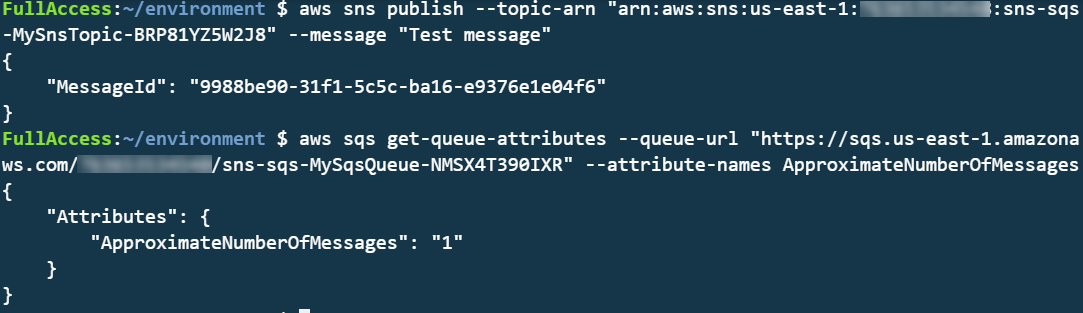
To test this, you can publish a message to the SNS topic and then inspect the SQS queue length using the AWS CLI:

aws sns publish --topic-arn "arn:aws:sns:us-east-1:123456789012:sns-sqs-MySnsTopic-ABC123ABC" --message "Test message"
aws sqs get-queue-attributes --queue-url "https://sqs.us-east-1.amazonaws.com/123456789012/sns-sqs-MySqsQueue- ABC123ABC " --attribute-names ApproximateNumberOfMessages

This results in the following output:

CLI output

Another usage of this pattern is when you want to filter messages in architectures using an SQS queue. By placing the SNS topic in front of the queue, you can use the message filtering capabilities of SNS. This ensures that only the messages you need are published to the queue. To use message filtering in AWS SAM, use the AWS:SNS:Subcription resource:

  QueueSubcription:
    Type: 'AWS::SNS::Subscription'
    Properties:
      TopicArn: !Ref MySnsTopic
      Endpoint: !GetAtt MySqsQueue.Arn
      Protocol: sqs
      FilterPolicy:
        type:
        - orders
        - payments 
      RawMessageDelivery: 'true'

EventBridge to SNS: combining features of both services

Both SNS and EventBridge have different characteristics in terms of targets, and integration with broader features. This table compares the major differences between the two services:

Amazon SNS Amazon EventBridge
Number of targets 10 million (soft) 5
Limits 100,000 topics. 12,500,000 subscriptions per topic. 100 event buses. 300 rules per event bus.
Input transformation No Yes – see details.
Message filtering Yes – see details. Yes, including IP address matching – see details.
Format Raw or JSON JSON
Receive events from AWS CloudTrail No Yes
Targets HTTP(S), SMS, SNS Mobile Push, Email/Email-JSON, SQS, Lambda functions 15 targets including AWS LambdaAmazon SQSAmazon SNSAWS Step FunctionsAmazon Kinesis Data StreamsAmazon Kinesis Data Firehose.
SaaS integration No Yes – see integration partners.
Schema Registry integration No Yes – see details.
Dead-letter queues supported Yes No
Public visibility Can create public topics Cannot create public buses
Cross-Region You can subscribe your AWS Lambda functions to an Amazon SNS topic in any Region. Targets must be same Region. You can publish across Region to another event bus.

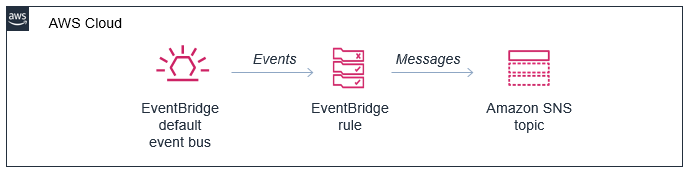
In this pattern, you configure an SNS topic as a target of an EventBridge rule:

SNS topic as a target for an EventBridge rule

In the AWS SAM template, you declare the resources in the preceding diagram as follows:

Resources:
  MySnsTopic:
    Type: AWS::SNS::Topic

  EventRule: 
    Type: AWS::Events::Rule
    Properties: 
      Description: "EventRule"
      EventPattern: 
        account: 
          - !Sub '${AWS::AccountId}'
        source:
          - "demo.cli"
      Targets: 
        - Arn: !Ref MySnsTopic
          Id: "SNStopic"

The default bus already exists in every AWS account, so there is no need to declare it. For the event bus to publish matching events to the SNS topic, you define permissions using the AWS::SNS::TopicPolicy resource:

  EventBridgeToToSnsPolicy:
    Type: AWS::SNS::TopicPolicy
    Properties: 
      PolicyDocument:
        Statement:
        - Effect: Allow
          Principal:
            Service: events.amazonaws.com
          Action: sns:Publish
          Resource: !Ref MySnsTopic
      Topics: 
        - !Ref MySnsTopic       

EventBridge has a limit of five targets per rule. In cases where you must send events to hundreds or thousands of targets, publishing to SNS first and then subscribing those targets to the topic works around this limit. Both services have different targets, and this pattern allows you to deliver EventBridge events to SMS, HTTP(s), email and SNS mobile push.

You can transform and filter the message using these services, often without needing an AWS Lambda function. SNS does not support input transformation but you can do this in an EventBridge rule. Message filtering is possible in both services but EventBridge provides richer content filtering capabilities.

AWS CloudTrail can log and monitor activity across services in your AWS account. It can be a useful source for events, allowing you to respond dynamically to objects in Amazon S3 or react to changes in your environment, for example. This natively integrates with EventBridge, allowing you to ingest events at scale from dozens of services.

Using EventBridge enables you to source events from outside your AWS account, offering integrations with a list of software as a service (SaaS) providers. This capability allows you to receive events from your accounts with SaaS providers like Zendesk, PagerDuty, and Auth0. These events are delivered to a partner event bus in your account, and can then be filtered and routed to an SNS topic.

Additionally, this pattern allows you to deliver events to Lambda functions in other AWS accounts and in other AWS Regions. You can invoke Lambda from SNS topics in other Regions and accounts. It’s also possible to make SNS topics publicly read-only, making them extensible endpoints that other third parties can consume from. SNS has comprehensive access control, which you can incorporate into this pattern.

Cross-account publishing

EventBridge to SQS: Building fault-tolerant microservices

EventBridge can route events to targets such as microservices. In the case of downstream failures, the service retries events for up to 24 hours. For workloads where you need a longer period of time to store and retry messages, you can deliver the events to an SQS queue in each microservice. This durably stores those events until the downstream service recovers. Additionally, this pattern protects the microservice from large bursts of traffic by throttling the delivery of messages.

Fault-tolerant microservices architecture

The resources declared in the AWS SAM template are similar to the previous examples, but it uses the AWS::SQS::QueuePolicy resource to grant the appropriate permission to EventBridge:

  EventBridgeToToSqsPolicy:
    Type: AWS::SQS::QueuePolicy
    Properties:
      PolicyDocument:
        Statement:
        - Effect: Allow
          Principal:
            Service: events.amazonaws.com
          Action: SQS:SendMessage
          Resource:  !GetAtt MySqsQueue.Arn
      Queues:
        - Ref: MySqsQueue

Conclusion

You can combine these services in your architectures to implement patterns that solve complex challenges, often with little code required. This blog post shows three examples that implement message throttling and queueing, integrating SNS and EventBridge, and building fault tolerant microservices.

To learn more building decoupled architectures, see this Learning Path series on EventBridge. For more serverless learning resources, visit https://serverlessland.com.

Choosing between messaging services for serverless applications

Post Syndicated from James Beswick original https://aws.amazon.com/blogs/compute/choosing-between-messaging-services-for-serverless-applications/

Most serverless application architectures use a combination of different AWS services, microservices, and AWS Lambda functions. Messaging services are important in allowing distributed applications to communicate with each other, and are fundamental to most production serverless workloads.

Messaging services can improve the resilience, availability, and scalability of applications, when used appropriately. They can also enable your applications to communicate beyond your workload or even the AWS Cloud, and provide extensibility for future service features and versions.

In this blog post, I compare the primary messaging services offered by AWS and how you can use these in your serverless application architectures. I also show how you use and deploy these integrations with the AWS Serverless Application Model (AWS SAM).

Examples in this post refer to code that can be downloaded from this GitHub repository. The README.md file explains how to deploy and run each example.

Overview

Three of the most useful messaging patterns for serverless developers are queues, publish/subscribe, and event buses. In AWS, these are provided by Amazon SQS, Amazon SNS, and Amazon EventBridge respectively. All of these services are fully managed and highly available, so there is no infrastructure to manage. All three integrate with Lambda, allowing you to publish messages via the AWS SDK and invoke functions as targets. Each of these services has an important role to play in serverless architectures.

SNS enables you to send messages reliably between parts of your infrastructure. It uses a robust retry mechanism for when downstream targets are unavailable. When the delivery policy is exhausted, it can optionally send those messages to a dead-letter queue for further processing. SNS uses topics to logically separate messages into channels, and your Lambda functions interact with these topics.

SQS provides queues for your serverless applications. You can use a queue to send, store, and receive messages between different services in your workload. Queues are an important mechanism for providing fault tolerance in distributed systems, and help decouple different parts of your application. SQS scales elastically, and there is no limit to the number of messages per queue. The service durably persists messages until they are processed by a downstream consumer.

EventBridge is a serverless event bus service, simplifying routing events between AWS services, software as a service (SaaS) providers, and your own applications. It logically separates routing using event buses, and you implement the routing logic using rules. You can filter and transform incoming messages at the service level, and route events to multiple targets, including Lambda functions.

Integrating an SQS queue with AWS SAM

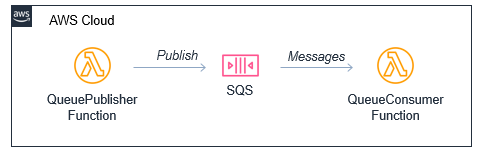
The first example shows an AWS SAM template defining a serverless application with two Lambda functions and an SQS queue:

Producer-consumer example

You can declare an SQS queue in an AWS SAM template with the AWS::SQS::Queue resource:

  MySqsQueue:
    Type: AWS::SQS::Queue

To publish to the queue, the publisher function must have permission to send messages. Using an AWS SAM policy template, you can apply policy that enables send messaging to one specific queue:

      Policies:
        - SQSSendMessagePolicy:
            QueueName: !GetAtt MySqsQueue.QueueName

The AWS SAM template passes the queue name into the Lambda function as an environment variable. The function uses the sendMessage method of the AWS.SQS class to publish the message:

const AWS = require('aws-sdk')
AWS.config.region = process.env.AWS_REGION 
const sqs = new AWS.SQS({apiVersion: '2012-11-05'})

// The Lambda handler
exports.handler = async (event) => {
  // Params object for SQS
  const params = {
    MessageBody: `Message at ${Date()}`,
    QueueUrl: process.env.SQSqueueName
  }
  
  // Send to SQS
  const result = await sqs.sendMessage(params).promise()
  console.log(result)
}

When the SQS queue receives the message, it publishes to the consuming Lambda function. To configure this integration in AWS SAM, the consumer function is granted the SQSPollerPolicy policy. The function’s event source is set to receive messages from the queue in batches of 10:

  QueueConsumerFunction:
    Type: AWS::Serverless::Function 
    Properties:
      CodeUri: code/
      Handler: consumer.handler
      Runtime: nodejs12.x
      Timeout: 3
      MemorySize: 128
      Policies:  
        - SQSPollerPolicy:
            QueueName: !GetAtt MySqsQueue.QueueName
      Events:
        MySQSEvent:
          Type: SQS
          Properties:
            Queue: !GetAtt MySqsQueue.Arn
            BatchSize: 10

The payload for the consumer function is the message from SQS. This is an array of messages up to the batch size, containing a body attribute with the publishing function’s MessageBody. You can see this in the CloudWatch log for the function:

CloudWatch log result

Integrating an SNS topic with AWS SAM

The second example shows an AWS SAM template defining a serverless application with three Lambda functions and an SNS topic:

SNS fanout to Lambda functions

You declare an SNS topic and the subscribing Lambda functions with the AWS::SNS:Topic resource:

  MySnsTopic:
    Type: AWS::SNS::Topic
    Properties:
      Subscription:
        - Protocol: lambda
          Endpoint: !GetAtt TopicConsumerFunction1.Arn    
        - Protocol: lambda
          Endpoint: !GetAtt TopicConsumerFunction2.Arn

You provide the SNS service with permission to invoke the Lambda functions but defining an AWS::Lambda::Permission for each:

  TopicConsumerFunction1Permission:
    Type: 'AWS::Lambda::Permission'
    Properties:
      Action: 'lambda:InvokeFunction'
      FunctionName: !Ref TopicConsumerFunction1
      Principal: sns.amazonaws.com

The SNSPublishMessagePolicy policy template grants permission to the publishing function to send messages to the topic. In the function, the publish method of the AWS.SNS class handles publishing:

const AWS = require('aws-sdk')
AWS.config.region = process.env.AWS_REGION 
const sns = new AWS.SNS({apiVersion: '2012-11-05'})

// The Lambda handler
exports.handler = async (event) => {
  // Params object for SNS
  const params = {
    Message: `Message at ${Date()}`,
    Subject: 'New message from publisher',
    TopicArn: process.env.SNStopic
  }
  
  // Send to SQS
  const result = await sns.publish(params).promise()
  console.log(result)
}

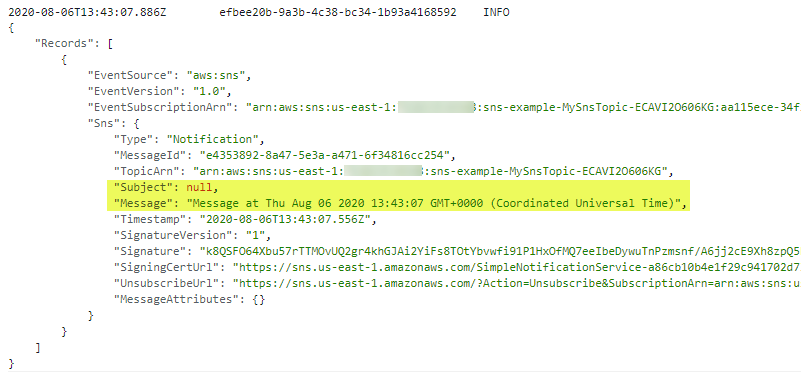
The payload for the consumer functions is the message from SNS. This is an array of messages, containing subject and message attributes from the publishing function. You can see this in the CloudWatch log for the function:

CloudWatch log result

Differences between SQS and SNS configurations

SQS queues and SNS topics offer different functionality, though both can publish to downstream Lambda functions.

An SQS message is stored on the queue for up to 14 days until it is successfully processed by a subscriber. SNS does not retain messages so if there are no subscribers for a topic, the message is discarded.

SNS topics may broadcast to multiple targets. This behavior is called fan-out. It can be used to parallelize work across Lambda functions or send messages to multiple environments (such as test or development). An SNS topic can have up to 12,500,000 subscribers, providing highly scalable fan-out capabilities. The targets may include HTTP/S endpoints, SMS text messaging, SNS mobile push, email, SQS, and Lambda functions.

In AWS SAM templates, you can retrieve properties such as ARNs and names of queues and topics, using the following intrinsic functions:

Amazon SQS Amazon SNS
Channel type Queue Topic
Get ARN !GetAtt MySqsQueue.Arn !Ref MySnsTopic
Get name !GetAtt MySqsQueue.QueueName !GetAtt MySnsTopic.TopicName

Integrating with EventBridge in AWS SAM

The third example shows the AWS SAM template defining a serverless application with two Lambda functions and an EventBridge rule:

EventBridge integration with AWS SAM

The default event bus already exists in every AWS account. You declare a rule that filters events in the event bus using the AWS::Events::Rule resource:

  EventRule: 
    Type: AWS::Events::Rule
    Properties: 
      Description: "EventRule"
      EventPattern: 
        source: 
          - "demo.event"
        detail: 
          state: 
            - "new"
      State: "ENABLED"
      Targets: 
        - Arn: !GetAtt EventConsumerFunction.Arn
          Id: "ConsumerTarget"

The rule describes an event pattern specifying matching JSON attributes. Events that match this pattern are routed to the list of targets. You provide the EventBridge service with permission to invoke the Lambda functions in the target list:

  PermissionForEventsToInvokeLambda: 
    Type: AWS::Lambda::Permission
    Properties: 
      FunctionName: 
        Ref: "EventConsumerFunction"
      Action: "lambda:InvokeFunction"
      Principal: "events.amazonaws.com"
      SourceArn: !GetAtt EventRule.Arn

The AWS SAM template uses an IAM policy statement to grant permission to the publishing function to put events on the event bus:

  EventPublisherFunction:
    Type: AWS::Serverless::Function
    Properties:
      CodeUri: code/
      Handler: publisher.handler
      Timeout: 3
      Runtime: nodejs12.x
      Policies:
        - Statement:
          - Effect: Allow
            Resource: '*'
            Action:
              - events:PutEvents      

The publishing function then uses the putEvents method of the AWS.EventBridge class, which returns after the events have been durably stored in EventBridge:

const AWS = require('aws-sdk')
AWS.config.update({region: 'us-east-1'})
const eventbridge = new AWS.EventBridge()

exports.handler = async (event) => {
  const params = {
    Entries: [ 
      {
        Detail: JSON.stringify({
          "message": "Hello from publisher",
          "state": "new"
        }),
        DetailType: 'Message',
        EventBusName: 'default',
        Source: 'demo.event',
        Time: new Date 
      }
    ]
  }
  const result = await eventbridge.putEvents(params).promise()
  console.log(result)
}

The payload for the consumer function is the message from EventBridge. This is an array of messages, containing subject and message attributes from the publishing function. You can see this in the CloudWatch log for the function:

CloudWatch log result

Comparing SNS with EventBridge

SNS and EventBridge have many similarities. Both can be used to decouple publishers and subscribers, filter messages or events, and provide fan-in or fan-out capabilities. However, there are differences in the list of targets and features for each service, and your choice of service depends on the needs of your use-case.

EventBridge offers two newer capabilities that are not available in SNS. The first is software as a service (SaaS) integration. This enables you to authorize supported SaaS providers to send events directly from their EventBridge event bus to partner event buses in your account. This replaces the need for polling or webhook configuration, and creates a highly scalable way to ingest SaaS events directly into your AWS account.

The second feature is the Schema Registry, which makes it easier to discover and manage OpenAPI schemas for events. EventBridge can infer schemas based on events routed through an event bus by using schema discovery. This can be used to generate code bindings directly to your IDE for type-safe languages like Python, Java, and TypeScript. This can help accelerate development by automating the generation of classes and code directly from events.

This table compares the major features of both services:

Amazon SNS Amazon EventBridge
Number of targets 10 million (soft) 5
Availability SLA 99.9% 99.99%
Limits 100,000 topics. 12,500,000 subscriptions per topic. 100 event buses. 300 rules per event bus.
Publish throughput Varies by Region. Soft limits. Varies by Region. Soft limits.
Input transformation No Yes – see details.
Message filtering Yes – see details. Yes, including IP address matching – see details.
Message size maximum 256 KB 256 KB
Billing Per 64 KB
Format Raw or JSON JSON
Receive events from AWS CloudTrail No Yes
Targets HTTP(S), SMS, SNS Mobile Push, Email/Email-JSON, SQS, Lambda functions. 15 targets including AWS LambdaAmazon SQSAmazon SNSAWS Step FunctionsAmazon Kinesis Data StreamsAmazon Kinesis Data Firehose.
SaaS integration No Yes – see integrations.
Schema Registry integration No Yes – see details.
Dead-letter queues supported Yes No
FIFO ordering available No No
Public visibility Can create public topics Cannot create public buses
Pricing $0.50/million requests + variable delivery cost + data transfer out cost. SMS varies. $1.00/million events. Free for AWS events. No charge for delivery.
Billable request size 1 request = 64 KB 1 event = 64 KB
AWS Free Tier eligible Yes No
Cross-Region You can subscribe your AWS Lambda functions to an Amazon SNS topic in any Region. Targets must be in the same Region. You can publish across Regions to another event bus.
Retry policy
  • For SQS/Lambda, exponential backoff over 23 days.
  • For SMTP, SMS and Mobile push, exponential backoff over 6 hours.
At-least-once event delivery to targets, including retry with exponential backoff for up to 24 hours.

Conclusion

Messaging is an important part of serverless applications and AWS services provide queues, publish/subscribe, and event routing capabilities. This post reviews the main features of SNS, SQS, and EventBridge and how they provide different capabilities for your workloads.

I show three example applications that publish and consume events from the three services. I walk through AWS SAM syntax for deploying these resources in your applications. Finally, I compare differences between the services.

To learn more building decoupled architectures, see this Learning Path series on EventBridge. For more serverless learning resources, visit https://serverlessland.com.