Tag Archives: New stuff

Combining Snyk’s Insight with Amazon Q Developer’s Assistance to Streamline Secure Development

Post Syndicated from Omar Faruk original https://aws.amazon.com/blogs/devops/combining-snyks-insight-with-amazon-q-developers-assistance-to-streamline-secure-development/

Developers today face a constant balancing act – building new features and functionality while also ensuring the security and reliability of their codebase. Two powerful tools, Snyk and Amazon Q Developer, can work in tandem to help developers navigate this challenge with greater efficiency and efficacy.

Snyk is a leading developer security platform that empowers developers to seamlessly secure their code, open-source dependencies, container images, and cloud infrastructure all from a single, unified platform. Amazon Q Developer is a generative AI-powered assistant designed to accelerate a variety of tasks across the software development lifecycle. By combining the security insights from Snyk with the assistive capabilities of Amazon Q Developer, developers can streamline their workflows and focus on delivery.

Getting started with Amazon Q Developer and Snyk IDE Plugins

To get started with Amazon Q Developer, you need to have an AWS Builder ID or be part of an organization with an AWS IAM Identity Center instance that allows you to use Amazon Q. To use Amazon Q Developer agents for software development in Visual Studio Code, start by installing the Amazon Q extension. Find the latest version of the extension on the Amazon Q Developer page. The extension is also available for JetBrains, Eclipse (Preview), and Visual Studio IDEs. For a detailed list of supported IDEs and the features available in each, refer to the Amazon Q Developer documentation.

To get started with Snyk, sign up for a free Snyk account or log in with your existing account. To use Snyk in your IDE to automatically find security issues, review the IDE documentation and install Snyk using your IDE extension marketplace. After Snyk is installed, navigate to the Snyk panel in your IDE and follow the on-screen instructions to authenticate with your Snyk account.

After authenticating, Snyk will automatically scan your entire codebase for security issues. Snyk will continue scanning periodically as you write code or generate code with Amazon Q Developer.

Walkthrough

Let’s explore how Snyk and Amazon Q Developer can be used together through a few examples. Imagine that you maintain an open-source project. As a new Snyk user, you would like to find and fix the security issues in the project. In this first and simple scenario, Snyk has identified many cases of security vulnerabilities in specific lines of code. Among the vulnerabilities, we’ll focus on the Information Exposure vulnerability.

Snyk's IDE plugin shares a list of vulnerabilities and an overview, such as the line of code with the vulnerability and detail, of the vulnerability when it is selected.

Figure 1 – Snyk IDE Plugin displaying vulnerability analysis of an Information Exposure issue, showing severity, affected code, and prevention tips.

Rather than manually researching and implementing the fix, you can simply highlight the flagged line, invoke Amazon Q Developer’s inline chat by pressing ⌘+I (Mac) or Ctrl+I (Windows), and request assistance. Amazon Q Developer will analyze the issue, propose the necessary code changes, and provide you with an inline diff to review and accept. This allows for rapid remediation of security flaws saving time while improving the code.

Activating inline Q Developer and making a prompt for the agent to resolve the information exposure vulnerability identified by Snyk.

Figure 2 – Activating Amazon Q Developer inline code generation to fix the detected information exposure vulnerability.

We are happy with the change Amazon Q Developer proposed, so we’ll simply hit enter to accept the suggestions. Of course, we could always hit escape to reject the suggestion if needed.

Q Developer makes an inline code suggestion to resolve the information exposure vulnerability.

Figure 3 – Amazon Q Developer displaying an inline code generation to fix the detected information exposure vulnerability.

In addition to the inline chat, you can pass the vulnerability details directly from the Snyk plugin’s Problems view into the Amazon Q Developer /dev agentic capability.

In the chat interface of Q Developer, the /dev agentic capability allows longer conversation, broader workspace context, and handle changes within multiple files and topics. When this workflow is invoked, the Amazon Q Developer Agent will generate code based on the description and existing code in the workspace, provide a list of suggestions to review and add to the workspace, and if needed, iterate on the code based on feedback.

Copying the information of the information exposure vulnerability from Snyk plugin and requesting a fix using /dev agent capability.

Figure 4 – Using Amazon Q’s /dev agent to implement project-wide fixes for Snyk-detected vulnerabilities across multiple files.

Not all issues are trivial as the prior example. In a more complex case, Snyk may surface a vulnerability that requires a deeper understanding of the code and the potential risk. Let’s look at another issue that Snyk identified in the project we have been discussing.

Snyk identified cross-site scripting vulnerability and explains the line of code, details, and prevention tips of the vulnerability.

Figure 5 – Snyk Plugin highlighting a cross-site scripting (XSS) vulnerability, showing the affected code line and prevention recommendations.

Here, you can switch to Amazon Q Developer’s chat interface, provide the details of the issue, and ask for a more thorough explanation. Amazon Q Developer can then dive into the codebase, explain the problem in detail, and walk you through the appropriate fixes. This collaborative approach empowers developers to make informed decisions and gain broader knowledge, rather than simply implementing a suggestion.

Chat interface that takes a prompt from user to explain why Snyk flagged an cross-site scripting vulnerability and its impact.

Figure 6 – Amazon Q Developer’s chat interface explaining an XSS vulnerability and its security implications through natural language dialogue.

Note that Amazon Q Developer provides links to documentation and other sources for further reading. In addition, you can continue discussing the issue to learn more. For example, imagine that you want to understand real world breaches that have occurred as a result of the issues that Synk has identified. Q provides a few examples for me to learn more.

A natural language query in the chat interface if there has been any major breaches caused by the issue of cross-site scripting. Q responds with popular and impactful incidents.

Figure 7 – Amazon Q Developer discussing notable real-world XSS breach examples and their security impacts.

Beyond fixing issues, Amazon Q Developer can also assist with other development tasks identified by Snyk, such as updating dependencies, refactoring code, or optimizing cloud infrastructure. By integrating these two tools, developers can streamline security scanning, issue investigation, and remediation, dramatically increasing their overall productivity.

Conclusion

In this blog, we took a look at how Snyk and Amazon Q Developer are a powerful duo in the modern developer’s toolkit. Integrating Snyk’s leading security insights with the generative AI capabilities of Amazon Q Developer empowers developers to more efficiently identify, comprehend, and address security vulnerabilities. This combination enables developers to upskill and enhance their own abilities as they work to resolve security issues. Get started with installing the Amazon Q Developer in the IDE and Snyk plugin.


Connect with AWS Partner Snyk.

Snyk – AWS Partner Spotlight

Snyk empowers the world’s developers to build secure applications and equip security teams to meet the demands of the digital world. Used by 1,200 customers worldwide, Snyk’s Developer Security Platform automatically integrates with a developer’s workflow and is purpose-built for security teams to collaborate with their development teams.

Snyk on AWS Marketplace

About the authors:

Omar Faruk

Omar Faruk is a DevOps Partner Solutions Architect at Amazon Web Services. He helps DevSecOps partners to design, build and operate their and shared customers’ workloads in AWS. He is passionate about CI/CD, Infrastructure as Code, and next-generation developer experience. Outside work, he enjoys family time and travel.

David Schott

David is a seasoned DevSecOps Solutions Engineer with 15+ years of experience helping Fortune 100 companies optimize their software delivery security and efficiency. After driving DevOps adoption and CI development at CloudBees, he now focuses on DevSecOps at Snyk, where he collaborates with strategic partners to enable secure innovation at scale.

Introducing a managed hook for Guard

Post Syndicated from Brian Terry original https://aws.amazon.com/blogs/devops/introducing-a-managed-hook-for-guard/

In today’s cloud-driven world, maintaining compliance and enforcing organizational policies across your infrastructure is more critical than ever. AWS CloudFormation, a service that enables you to model, provision, and manage AWS and third-party resources through Infrastructure as Code (IaC), has been a cornerstone for automating cloud deployments. While CloudFormation simplifies resource management, ensuring compliance with internal and external standards requires robust tools and strategies to align with organizational and regulatory requirements.

Enter the new managed hook for Guard, a new hook designed to seamlessly integrate compliance into your AWS CloudFormation workflows. AWS CloudFormation Hooks are a powerful tool that allow you to validate and enforce policies during the provisioning and management of resources in your CloudFormation stacks. With a Guard hook, you can now bring your AWS CloudFormation Guard rules directly into your CloudFormation stacks, change sets, and individual resources. This feature eliminates the need to incorporate the Guard runtime into custom hooks, simplifying compliance enforcement and enhancing your security posture.

What is a Guard hook?

A Guard hook is a service-managed CloudFormation Hook that integrates AWS CloudFormation Guard—a policy-as-code tool—directly into your CloudFormation deployment process. AWS CloudFormation Guard uses a domain-specific language (DSL) to define compliance rules in an easily readable and reusable format, enabling you to codify and enforce organizational policies. This hook allows you to automatically validate your CloudFormation templates against these established compliance rules, enforcing policies seamlessly without the need to manage custom Lambda functions or Guard runtimes. By identifying non-compliant resources early, it helps streamline deployments and ensures that your infrastructure aligns with organizational standards right from the start.

Benefits of Using a Guard hook

Guard hooks provide unique advantages by combining the flexibility of CloudFormation Hooks with the expressiveness of the Guard Domain Specific Language (DSL), giving you a powerful tool for infrastructure compliance and security. As a fully managed CloudFormation hook, Guard hooks eliminate the need for a custom hook implementation and management, allowing you to leverage AWS’s service-driven infrastructure to streamline policy enforcement.With a Guard hook, you can express compliance rules and configurations directly in the Guard DSL.

Guard hooks specifically add value by enabling these Guard-based compliance policies to be applied automatically during stack operations. This helps validate that your infrastructure consistently aligns with security and compliance standards, reducing the risks of misconfiguration and non-compliance. Additionally, Guard hooks allow you to take advantage of CloudFormation’s native stack-level and resource-level hooks, adding depth to your compliance by enforcing policies across entire stacks and individual resources alike.

Use Cases

Guard hooks can be applied in various scenarios to enhance compliance and security. In security compliance, for instance, it can ensure that all databases and storage services have encryption enabled or prevent security groups from allowing unrestricted inbound traffic. Regarding resource configuration, it can enforce the use of approved EC2 instance types or require specific tags on all resources for cost tracking and management.

For operational governance, Guard hooks can validate that resources do not exceed predefined thresholds, such as storage size, ensuring that resources are provisioned within acceptable limits. It can also enforce network policies by ensuring the use of approved VPCs and subnets, maintaining network security and compliance with organizational standards.

A resource hook in CloudFormation targets individual resources within a template, such as EC2 instances, S3 buckets, or IAM roles. It is particularly useful for enforcing specific standards or compliance requirements on individual resources, thereby helping customers ensure each one meets defined criteria. For instance, you could use a resource-level hook to enforce that every S3 bucket created through CloudFormation has server-side encryption enabled. In contrast, a stack or change set hook targets the entire CloudFormation stack as a single entity, allowing for the application of guardrails or validation requirements across all resources within the stack collectively. This helps to ensure that the entire stack, not just individual resources, aligns with set policies before the stack is created or updated. For example, a stack-level hook could be used to prevent a stack from containing certain types of resources or to ensure that a specific number of resources are created in each stack. Together, these hooks provide different layers of validation to enforce compliance and configuration standards at both the resource and stack levels.

Getting Started

Getting started with a Guard hook involves configuring the hook, uploading your Guard rules to Amazon S3, activating the hook, and enabling it to run against your CloudFormation stacks. Below are the detailed steps to help you set up and start using Guard Hook effectively.

Pre-requisites Create an Amazon S3 Bucket

If you do not have one already, you will need to create an S3 bucket in your region. This bucket will hold your Guard policy files and optionally the full Guard evaluation output if so desired.

Configuring a Guard hook Create your rule

In this section, you will provide an example of AWS CloudFormation Guard rules that help enforce best practices for Amazon S3 buckets. Please create a file called safebucket.guard and include the following rules:

# Rule Identifier:
#    S3_BUCKET_PUBLIC_WRITE_PROHIBITED
#
# Select all S3 resources from the incoming template (payload)
#
let s3_buckets_public_write_prohibited = Resources.*[ Type == 'AWS::S3::Bucket' ]

rule S3_BUCKET_PUBLIC_WRITE_PROHIBITED when %s3_buckets_public_write_prohibited !empty {
  %s3_buckets_public_write_prohibited.Properties.PublicAccessBlockConfiguration exists
  %s3_buckets_public_write_prohibited.Properties.PublicAccessBlockConfiguration.BlockPublicAcls == true
  %s3_buckets_public_write_prohibited.Properties.PublicAccessBlockConfiguration.BlockPublicPolicy == true
  %s3_buckets_public_write_prohibited.Properties.PublicAccessBlockConfiguration.IgnorePublicAcls == true
  %s3_buckets_public_write_prohibited.Properties.PublicAccessBlockConfiguration.RestrictPublicBuckets == true
  <<
    Violation: S3 Bucket public write access must be restricted.
    Fix: Set the S3 Bucket PublicAccessBlockConfiguration properties—BlockPublicAcls, BlockPublicPolicy, IgnorePublicAcls, RestrictPublicBuckets—to true.
  >>
}

# Rule Identifier:
#    S3_BUCKET_VERSIONING_ENABLED
#
# Select all S3 resources from the incoming template (payload)
#
let s3_buckets_versioning_enabled = Resources.*[ Type == 'AWS::S3::Bucket' ]

rule S3_BUCKET_VERSIONING_ENABLED when %s3_buckets_versioning_enabled !empty {
  %s3_buckets_versioning_enabled.Properties.VersioningConfiguration exists
  %s3_buckets_versioning_enabled.Properties.VersioningConfiguration.Status == 'Enabled'
  <<
    Violation: S3 Bucket versioning must be enabled.
    Fix: Set the S3 Bucket property VersioningConfiguration.Status to 'Enabled'.
  >>
}

In this file, you can define rules to prevent public write access and require versioning on all S3 buckets. Here’s what the two rules in this example do:

  • S3_BUCKET_PUBLIC_WRITE_PROHIBITED:
    • This rule identifies S3 buckets within a CloudFormation template and checks if the public write access is restricted. It ensures that each S3 bucket has PublicAccessBlockConfiguration properties enabled to block public ACLs, block public policies, ignore public ACLs, and restrict public buckets. If a bucket does not meet these criteria, a violation message is triggered, instructing the user to set these properties to true.
  • S3_BUCKET_VERSIONING_ENABLED:
    • This rule targets S3 buckets and verifies that versioning is enabled. The rule checks if the VersioningConfiguration property exists and has its Status set to 'Enabled'. If this configuration is missing or set incorrectly, it alerts the user to enable versioning on the S3 bucket, providing an additional layer of data protection.

These rules help you maintain strict security and operational best practices by ensuring that S3 buckets are configured according to compliance requirements. Place these rules in safebucket.guard, and you’re ready to start applying them to your CloudFormation templates using Guard Hook to enforce policies without any manual intervention.

Upload your rules to S3

The Guard hook expects your policy files to be uploaded to an S3 bucket to then be pulled down during hook execution time. The hook expects your rules to be either a single .guard file, or multiple .guard files uploaded as a .zip or .tar.gz

Once you have uploaded your Guard rule or Guard rules bundle to S3, take note of the S3 URI of the uploaded object, as you will need this later to configure the Guard hook. Example: s3://your-bucket-name/safebucket.guard

You can also get the S3 URI by copy-pasting it from the console

Screenshot of an Amazon S3 object properties page displaying details for the file safebucket.guard in the safes3rules bucket.

Authoring the Hook

You can author and activate a Guard hook from the console, CLI, and using the AWS::CloudFormation::GuardHook CloudFormation resource.

Console

You can use the new console flow to define and activate your hook. Click on Create a Hook and choose With Guard.

  1. You can type in your Guard rules S3 URI from the step before, or you can browse your S3 bucket using the console button.Screenshot of the AWS CloudFormation interface showing the 'Provide your Guard rules' step in the 'Create a Hook with Guard' workflow.
  2. You can configure the hook by performing the following steps:
    1. In the Hook Name field, enter My::Company::GuardHook.
    2. Under Hook Targets, select both Stacks and Resources. By selecting both Stacks and Resources under Hook Targets, you’re instructing CloudFormation to apply your hook validations at both levels. This ensures that individual resources and the overall stack comply with your defined policies, providing a comprehensive safeguard across deployments.
    3. For Hook Mode, choose Fail.
    4. In Execution Role, select New execution role and enter my-guard-hook-role for the name if you want CloudFormation to create the necessary role and permissions. Alternatively, an IAM role ARN you created manually (learn more here).Screenshot of the AWS CloudFormation interface showing the 'Hook details and settings' step in the 'Create a Hook with Guard' workflow.
  3. While we didn’t include a filter in this example, you can limit the executions of the hook to the intended resource types by using a filter. For more information about filters view our documentation page. You can skip to the next step if you do not have anything to filter.Screenshot of the AWS CloudFormation interface showing the 'Apply Hook filters (optional)' step in the 'Create a Hook with Guard' workflow.
  4. Review the hook details and then click the Activate Hook button.

Screenshot of the AWS CloudFormation interface showing the 'Hook details and settings' step in the 'Create a Hook with Guard' workflow.

CLI

export AWS_ACCOUNT_ID=<Your_Account_Id>

aws cloudformation activate-type --type HOOK \
--type-name AWS::Hooks::GuardHook \
--publisher-id aws-hooks \
--type-name-alias MyCompany::Hooks::GuardHook \
--execution-role arn:aws:iam::${AWS_ACCOUNT_ID}:role/<Your_ExecutionRole_Name> \
--region eu-central-1

Note: You can create your own type-name-alias → MyCompany::Hooks::GuardHook is just an example

Using the CloudFormation resource

Using the AWS::CloudFormation::GuardHook resource in a CloudFormation template allows you to enforce compliance checks and validations on your AWS resources before creating, modifying, or deleting them within a stack. By specifying Guard rules using the Guard domain-specific language (DSL), you can define policies to assess resource configurations and security standards. When integrated into a CloudFormation template, AWS::CloudFormation::GuardHook evaluates the resources during stack operations and can either block non-compliant actions or provide warnings, depending on the configuration. This tool benefits organizations by automating governance, enhancing security, and reducing manual intervention, which help ensure that deployments adhere to best practices and compliance requirements consistently across environments.

Here is an example of how to create a Guard hook with the AWS::CloudFormation::GuardHook resource in a YAML file.

AWSTemplateFormatVersion: '2010-09-09'
Resources:
  GuardHookRole:
    Type: AWS::IAM::Role
    Properties:
      RoleName: GuardHookExecutionRole
      AssumeRolePolicyDocument:
        Version: '2012-10-17'
        Statement:
          - Effect: Allow
            Principal:
              Service: hooks.cloudformation.amazonaws.com
            Action: sts:AssumeRole
      Policies:
        - PolicyName: S3AccessPolicy
          PolicyDocument:
            Version: '2012-10-17'
            Statement:
              - Effect: Allow
                Action:
                  - s3:GetObject
                  - s3:GetObjectVersion
                  - s3:PutObject
                  - s3:ListBucket
                Resource: 
                  - arn:aws:s3:::<YourBucket>/*
                  - arn:aws:s3:::<YourBucket>

  MyGuardHook:
    Type: AWS::CloudFormation::GuardHook
    Properties:
      Alias: "my::guard::hook"
      ExecutionRole: !GetAtt GuardHookRole.Arn
      FailureMode: FAIL
      HookStatus: ENABLED
      LogBucket: "mysafebucket"
      RuleLocation:
        Uri: "s3://<YourBucket>/safebucket.guard"
      TargetOperations:
        - STACK
        - RESOURCE

For more about AWS::CloudFormation::GuardHook , see our docs.

Testing your hook (non-compliant stack)

Now at this point, the Guard Hook should be running against all S3 buckets deployed via CloudFormation stacks in your account. We can confirm this by creating a new stack, from the CLI.

To do so, create a file named s3-fail.yaml and add the following content:

AWSTemplateFormatVersion: "2010-09-09"
Description: This template creates a simple s3 bucket
   
Resources:
  DemoBucket:
   Type: AWS::S3::Bucket

Create a stack, and specify your template in the AWS Command Line Interface (AWS CLI). In the following example, specify the stack name as my-fail-stack and the template name as s3-fail.yaml.

aws cloudformation create-stack --stack-name my-fail-stack --template-body file://s3-fail.yaml

View Hook Invocations

Console

  1. From Stack Events tab, enable Hook Invocations field
    Screenshot of an AWS CloudFormation interface showing how to enable Hook invocations output.
  2. You can see the completed assessment and the result in summarized view (how many rules compliant vs. not) and Stack status based on your hook mode:Screenshot of the 'Hook invocation details' dialog in AWS CloudFormation. The dialog displays the Hook name as 'My::Company::GuardHook,' shown as a clickable link. The Hook status is 'HOOK_COMPLETE_FAILED,' highlighted in red with an error icon. The failure mode is set to 'Fail,' and the invocation point is 'PRE_PROVISION.' The status reason explains that the Hook failed validation due to the following rules being violated: 'S3_BUCKET_PUBLIC_WRITE_PROHIBITED' and 'S3_BUCKET_VERSIONING_ENABLED.

CLI

  1. View stack events by running below command:
    aws cloudformation describe-stack-events --stack-name my-fail-stack
  2. You can see the completed assessment and the result (how many rules compliant vs. not compliant as part of describe-stack-events. As the Hook Failure Mode is set to Fail, you can see the stack status: CREATE_FAILED due to Hook failure.
                ...
                "EventId": "my-fail-stack-d7943992-9366-4d3a-8bad-9695a5f6b310",
                "StackName": "my-fail-stack",
                "LogicalResourceId": "my-fail-stack",
                "PhysicalResourceId": "",
                "ResourceType": "STACK",
                "Timestamp": "2024-11-12T15:54:29.582000+00:00",
                "ResourceStatus": "CREATE_IN_PROGRESS",
                "HookType": "My::Company::GuardHook",
                "HookStatus": "HOOK_COMPLETE_FAILED",
                "HookStatusReason": "Hook failed with message: Template failed validation, the following rule(s) failed: S3_BUCKET_PUBLIC_WRITE_PROHIBITED, S3_BUCKET_VERSIONING_ENABLED.",
                "HookInvocationPoint": "PRE_PROVISION",
                "HookFailureMode": "FAIL"
            }

Viewing Guard hooks output from Log Bucket

If you specified the logging bucket, now you can view the Guard hook invocation json and evaluate the output stored in your S3 bucket.

Console

Screenshot of an Amazon S3 interface showing the list of Guard Hook log files.

CLI

You can download the log file by running the command below:

aws s3api get-object --bucket <Your log bucket> --key <insert_the-cfn-guard-validate-report-key.json> <Your_Outfile_DirectoryandName>

For more information about downloading S3 Object, see our docs.

Testing your hook (compliant stack)

To do so, create a file named s3-pass.yaml and add the following content:

AWSTemplateFormatVersion: "2010-09-09"
Description: This template creates a simple S3 bucket with versioning enabled and public write access disabled

Resources:
  DemoBucket:
   Type: AWS::S3::Bucket
   Properties:
      VersioningConfiguration:
        Status: Enabled
      PublicAccessBlockConfiguration:
        BlockPublicAcls: true
        IgnorePublicAcls: true
        BlockPublicPolicy: true
        RestrictPublicBuckets: true

Notice in the template, our bucket now does not allow public write access and enables versioning.

Create a stack, and specify your template in the AWS Command Line Interface (AWS CLI). In the following example, specify the stack name as my-pass-stack and the template name as s3-pass.yaml.

aws cloudformation create-stack --stack-name my-pass-stack --template-body file://s3-pass.yaml

View Hook Invocations

Console

  1. You can see the completed assessment and the the bucket was created.Screenshot of the 'Hook invocation details' dialog in AWS CloudFormation. The dialog displays the Hook name as 'My::Company::GuardHook,' shown as a clickable link. The Hook status is 'HOOK_COMPLETE_SUCCEEDED,' highlighted in green with a success icon. The failure mode is set to 'Fail,' and the invocation point is 'PRE_PROVISION.' The status reason indicates success with the message: 'Hook succeeded with message: Successful validation.
    Screenshot of the AWS CloudFormation 'Events' tab for a stack named "my-pass-stack." The CloudFormation stack shows successful deployment.

CLI

  1. View stack events by running below command:
    aws cloudformation describe-stack-events --stack-name my-pass-stack
  2. You can see the completed assessment and the result (how many rules compliant vs. not compliant as part of describe-stack-event
               ...
                "StackName": "my-pass-stack",
                "LogicalResourceId": "DemoBucket",
                "PhysicalResourceId": "my-pass-stack-demobucket-rmm9cngo70xq",
                "ResourceType": "AWS::S3::Bucket",
                "Timestamp": "2024-11-12T17:01:41.898000+00:00",
                "ResourceStatus": "CREATE_COMPLETE",
                "ResourceProperties": "{\"PublicAccessBlockConfiguration\":{\"RestrictPublicBuckets\":\"true\",\"BlockPublicPolicy\":\"true\",\"BlockPublicAcls\":\"true\",\"IgnorePublicAcls\":\"true\"},\"VersioningConfiguration\":{\"Status\":\"Enabled\"}}",
                "ClientRequestToken": "Console-CreateStack-46ec0d77-5d2b-3e2a-9c82-fcce5e60a2f5"
            },

Guard hooks revolutionize the way you enforce compliance and security policies within your AWS infrastructure. By leveraging a service-managed hook, you can seamlessly integrate policy validation into your CloudFormation deployments without additional operational overhead.

Take advantage of Guard hooks today to:

  • Simplify compliance enforcement.
  • Enhance your security posture.
  • Streamline your deployment workflows.
  • Focus on innovation rather than infrastructure management.

Ready to enhance your cloud compliance and security? Start integrating Guard hooks into your CloudFormation templates and experience a new level of simplicity and efficiency in policy enforcement.

Additional Resources

Brian Terry

Brian Terry, Senior WW Data & AI PSA, is an innovation leader with 20+ years of experience in technology and engineering. Pursuing a Ph.D. in Computer Science at the University of North Dakota. Brian has spearheaded generative AI projects, optimized infrastructure scalability, and driven partner integration strategies. He is passionate about leveraging technology to deliver scalable, resilient solutions that foster business growth and innovation

Delon Crammer

Delon Crammer

Delon Crammer is a Cloud Architect with expertise in Infrastructure and DevOps. He specializes in designing scalable, secure cloud architectures and delivering innovative, high-performing solutions tailored to complex technical needs.

Integrating AWS CloudFormation Guard into CI/CD pipelines

Post Syndicated from Sergey Voinich original https://aws.amazon.com/blogs/devops/integrating-aws-cloudformation-guard/

In this post, we discuss and build a managed continuous integration and continuous deployment (CI/CD) pipeline that uses AWS CloudFormation Guard to automate and simplify pre-deployment compliance checks of your AWS CloudFormation templates. This enables your teams to define a single source of truth for what constitutes valid infrastructure definitions, to be compliant with your company guidelines and streamline AWS resources’ deployment lifecycle.

We use the following AWS services and open-source tools to set up the pipeline:

Solution overview

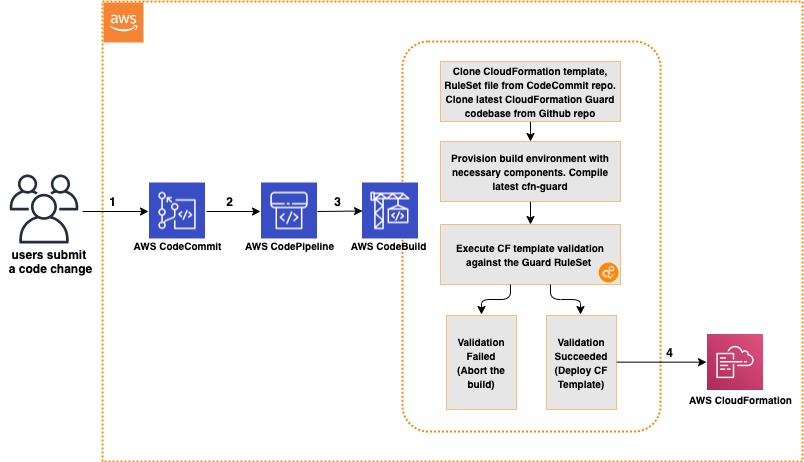
The CI/CD workflow includes the following steps:

  1. A code change is committed and pushed to the CodeCommit repository.
  2. CodePipeline automatically triggers a CodeBuild job.
  3. CodeBuild spins up a compute environment and runs the phases specified in the buildspec.yml file:
  4. Clone the code from the CodeCommit repository (CloudFormation template, rule set for CloudFormation Guard, buildspec.yml file).
  5. Clone the code from the CloudFormation Guard repository on GitHub.
  6. Provision the build environment with necessary components (rust, cargo, git, build-essential).
  7. Download CloudFormation Guard release from GitHub.
  8. Run a validation check of the CloudFormation template.
  9. If the validation is successful, pass the control over to CloudFormation and deploy the stack. If the validation fails, stop the build job and print a summary to the build job log.

The following diagram illustrates this workflow.

Architecture Diagram

Architecture Diagram of CI/CD Pipeline with CloudFormation Guard

Prerequisites

For this walkthrough, complete the following prerequisites:

Creating your CodeCommit repository

Create your CodeCommit repository by running a create-repository command in the AWS CLI:

aws codecommit create-repository --repository-name cfn-guard-demo --repository-description "CloudFormation Guard Demo"

The following screenshot indicates that the repository has been created.

CodeCommit Repository

CodeCommit Repository has been created

Populating the CodeCommit repository

Populate your repository with the following artifacts:

  1. A buildspec.yml file. Modify the following code as per your requirements:
version: 0.2
env:
  variables:
    # Definining CloudFormation Teamplate and Ruleset as variables - part of the code repo
    CF_TEMPLATE: "cfn_template_file_example.yaml"
    CF_ORG_RULESET:  "cfn_guard_ruleset_example"
phases:
  install:
    commands:
      - apt-get update
      - apt-get install build-essential -y
      - apt-get install cargo -y
      - apt-get install git -y
  pre_build:
    commands:
      - echo "Setting up the environment for AWS CloudFormation Guard"
      - echo "More info https://github.com/aws-cloudformation/cloudformation-guard"
      - echo "Install Rust"
      - curl https://sh.rustup.rs -sSf | sh -s -- -y
  build:
    commands:
       - echo "Pull GA release from github"
       - echo "More info https://github.com/aws-cloudformation/cloudformation-guard/releases"
       - wget https://github.com/aws-cloudformation/cloudformation-guard/releases/download/1.0.0/cfn-guard-linux-1.0.0.tar.gz
       - echo "Extract cfn-guard"
       - tar xvf cfn-guard-linux-1.0.0.tar.gz .
  post_build:
    commands:
       - echo "Validate CloudFormation template with cfn-guard tool"
       - echo "More information https://github.com/aws-cloudformation/cloudformation-guard/blob/master/cfn-guard/README.md"
       - cfn-guard-linux/cfn-guard check --rule_set $CF_ORG_RULESET --template $CF_TEMPLATE --strict-checks
artifacts:
  files:
    - cfn_template_file_example.yaml
  name: guard_templates
  1. An example of a rule set file (cfn_guard_ruleset_example) for CloudFormation Guard. Modify the following code as per your requirements:
#CFN Guard rules set example

#List of multiple references
let allowed_azs = [us-east-1a,us-east-1b]
let allowed_ec2_instance_types = [t2.micro,t3.nano,t3.micro]
let allowed_security_groups = [sg-08bbcxxc21e9ba8e6,sg-07b8bx98795dcab2]

#EC2 Policies
AWS::EC2::Instance AvailabilityZone IN %allowed_azs
AWS::EC2::Instance ImageId == ami-0323c3dd2da7fb37d
AWS::EC2::Instance InstanceType IN %allowed_ec2_instance_types
AWS::EC2::Instance SecurityGroupIds == ["sg-07b8xxxsscab2"]
AWS::EC2::Instance SubnetId == subnet-0407a7casssse558

#EBS Policies
AWS::EC2::Volume AvailabilityZone == us-east-1a
AWS::EC2::Volume Encrypted == true
AWS::EC2::Volume Size == 50 |OR| AWS::EC2::Volume Size == 100
AWS::EC2::Volume VolumeType == gp2
  1. An example of a CloudFormation template file (.yaml). Modify the following code as per your requirements:
AWSTemplateFormatVersion: "2010-09-09"
Description: "EC2 instance with encrypted EBS volume for AWS CloudFormation Guard Testing"

Resources:

 EC2Instance:
    Type: AWS::EC2::Instance
    Properties:
      ImageId: 'ami-0323c3dd2da7fb37d'
      AvailabilityZone: 'us-east-1a'
      KeyName: "your-ssh-key"
      InstanceType: 't3.micro'
      SubnetId: 'subnet-0407a7xx68410e558'
      SecurityGroupIds:
        - 'sg-07b8b339xx95dcab2'
      Volumes:
         - 
          Device: '/dev/sdf'
          VolumeId: !Ref EBSVolume
      Tags:
       - Key: Name
         Value: cfn-guard-ec2

 EBSVolume:
   Type: AWS::EC2::Volume
   Properties:
     Size: 100
     AvailabilityZone: 'us-east-1a'
     Encrypted: true
     VolumeType: gp2
     Tags:
       - Key: Name
         Value: cfn-guard-ebs
   DeletionPolicy: Snapshot

Outputs:
  InstanceID:
    Description: The Instance ID
    Value: !Ref EC2Instance
  Volume:
    Description: The Volume ID
    Value: !Ref  EBSVolume
AWS CodeCommit

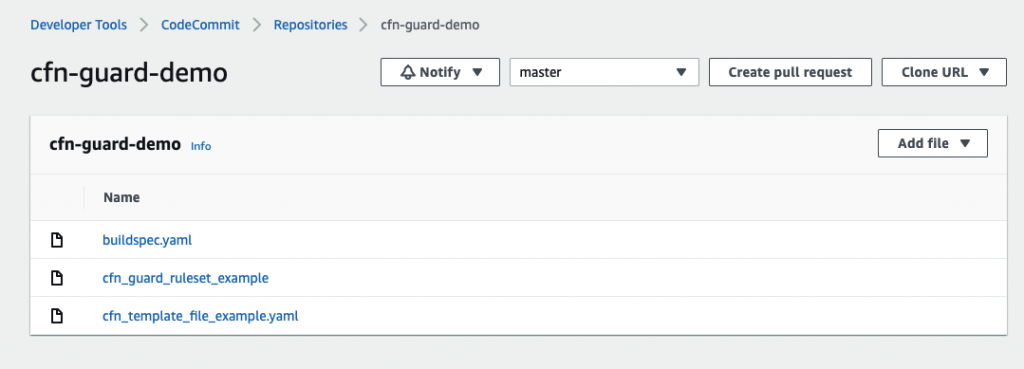
Optional CodeCommit Repository Structure

The following screenshot shows a potential CodeCommit repository structure.

Creating a CodeBuild project

Our CodeBuild project orchestrates around CloudFormation Guard and runs validation checks of our CloudFormation templates as a phase of the CI process.

  1. On the CodeBuild console, choose Build projects.
  2. Choose Create build projects.
  3. For Project name, enter your project name.
  4. For Description, enter a description.
AWS CodeBuild

Create CodeBuild Project

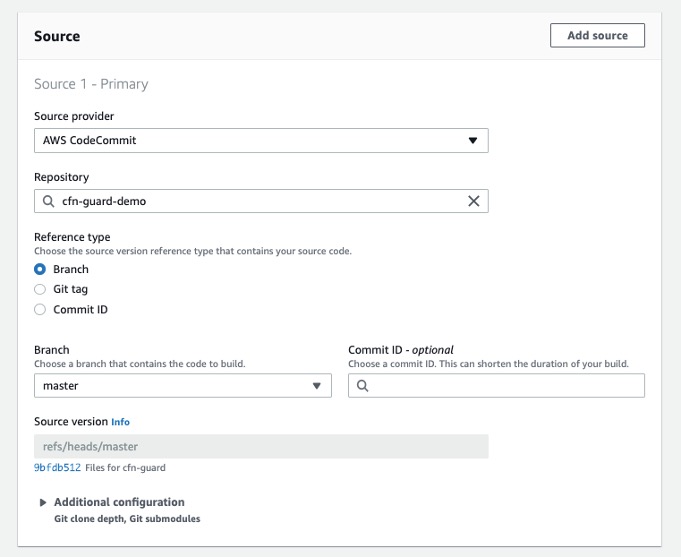
  1. For Source provider, choose AWS CodeCommit.
  2. For Repository, choose the CodeCommit repository you created in the previous step.
AWS CodeBuild

Define the source for your CodeBuild Project

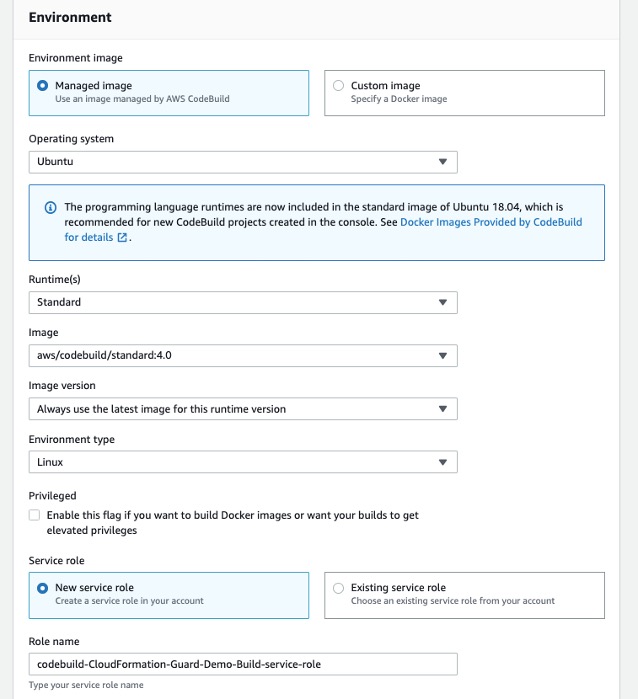
To setup CodeBuild environment we will use managed image based on Ubuntu 18.04

  1. For Environment Image, select Managed image.
  2. For Operating system, choose Ubuntu.
  3. For Service role¸ select New service role.
  4. For Role name, enter your service role name.
CodeBuild Environment

Setup the environment, the OS image and other settings for the CodeBuild

  1. Leave the default settings for additional configuration, buildspec, batch configuration, artifacts, and logs.

You can also use CodeBuild with custom build environments to help you optimize billing and improve the build time.

Creating IAM roles and policies

Our CI/CD pipeline needs two AWS Identity and Access Management (IAM) roles to run properly: one role for CodePipeline to work with other resources and services, and one role for AWS CloudFormation to run the deployments that passed the validation check in the CodeBuild phase.

Creating permission policies

Create your permission policies first. The following code is the policy in JSON format for CodePipeline:

{
    "Version": "2012-10-17",
    "Statement": [
        {
            "Sid": "VisualEditor0",
            "Effect": "Allow",
            "Action": [
                "codecommit:UploadArchive",
                "codecommit:CancelUploadArchive",
                "codecommit:GetCommit",
                "codecommit:GetUploadArchiveStatus",
                "codecommit:GetBranch",
                "codestar-connections:UseConnection",
                "codebuild:BatchGetBuilds",
                "codedeploy:CreateDeployment",
                "codedeploy:GetApplicationRevision",
                "codedeploy:RegisterApplicationRevision",
                "codedeploy:GetDeploymentConfig",
                "codedeploy:GetDeployment",
                "codebuild:StartBuild",
                "codedeploy:GetApplication",
                "s3:*",
                "cloudformation:*",
                "ec2:*"
            ],
            "Resource": "*"
        },
        {
            "Sid": "VisualEditor1",
            "Effect": "Allow",
            "Action": "iam:PassRole",
            "Resource": "*",
            "Condition": {
                "StringEqualsIfExists": {
                    "iam:PassedToService": [
                        "cloudformation.amazonaws.com",
                        "ec2.amazonaws.com"
                    ]
                }
            }
        }
    ]
}

To create your policy for CodePipeline, run the following CLI command:

aws iam create-policy --policy-name CodePipeline-Cfn-Guard-Demo --policy-document file://CodePipelineServiceRolePolicy_example.json

Capture the policy ARN that you get in the output to use in the next steps.

The following code is the policy in JSON format for AWS CloudFormation:

{
    "Version": "2012-10-17",
    "Statement": [
        {
            "Sid": "VisualEditor0",
            "Effect": "Allow",
            "Action": "iam:CreateServiceLinkedRole",
            "Resource": "*",
            "Condition": {
                "StringEquals": {
                    "iam:AWSServiceName": [
                        "autoscaling.amazonaws.com",
                        "ec2scheduled.amazonaws.com",
                        "elasticloadbalancing.amazonaws.com"
                    ]
                }
            }
        },
        {
            "Sid": "VisualEditor1",
            "Effect": "Allow",
            "Action": [
                "s3:GetObjectAcl",
                "s3:GetObject",
                "cloudwatch:*",
                "ec2:*",
                "autoscaling:*",
                "s3:List*",
                "s3:HeadBucket"
            ],
            "Resource": "*"
        }
    ]
}

Create the policy for AWS CloudFormation by running the following CLI command:

aws iam create-policy --policy-name CloudFormation-Cfn-Guard-Demo --policy-document file://CloudFormationRolePolicy_example.json

Capture the policy ARN that you get in the output to use in the next steps.

Creating roles and trust policies

The following code is the trust policy for CodePipeline in JSON format:

{
  "Version": "2012-10-17",
  "Statement": [
    {
      "Effect": "Allow",
      "Principal": {
        "Service": "codepipeline.amazonaws.com"
      },
      "Action": "sts:AssumeRole"
    }
  ]
}

Create your role for CodePipeline with the following CLI command:

aws iam create-role --role-name CodePipeline-Cfn-Guard-Demo-Role --assume-role-policy-document file://RoleTrustPolicy_CodePipeline.json

Capture the role name for the next step.

The following code is the trust policy for AWS CloudFormation in JSON format:

{
  "Version": "2012-10-17",
  "Statement": [
    {
      "Sid": "",
      "Effect": "Allow",
      "Principal": {
        "Service": "cloudformation.amazonaws.com"
      },
      "Action": "sts:AssumeRole"
    }
  ]
}

Create your role for AWS CloudFormation with the following CLI command:

aws iam create-role --role-name CF-Cfn-Guard-Demo-Role --assume-role-policy-document file://RoleTrustPolicy_CloudFormation.json

Capture the role name for the next step.


Finally, attach the permissions policies created in the previous step to the IAM roles you created:

aws iam attach-role-policy --role-name CodePipeline-Cfn-Guard-Demo-Role  --policy-arn "arn:aws:iam::<AWS Account Id >:policy/CodePipeline-Cfn-Guard-Demo"

aws iam attach-role-policy --role-name CF-Cfn-Guard-Demo-Role  --policy-arn "arn:aws:iam::<AWS Account Id>:policy/CloudFormation-Cfn-Guard-Demo"

Creating a pipeline

We can now create our pipeline to assemble all the components into one managed, continuous mechanism.

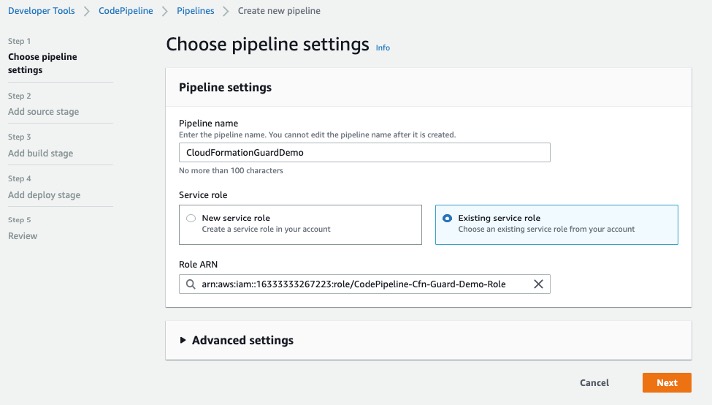
  1. On the CodePipeline console, choose Pipelines.
  2. Choose Create new pipeline.
  3. For Pipeline name, enter a name.
  4. For Service role, select Existing service role.
  5. For Role ARN, choose the service role you created in the previous step.
  6. Choose Next.
CodePipeline Setup

Setting Up CodePipeline environment

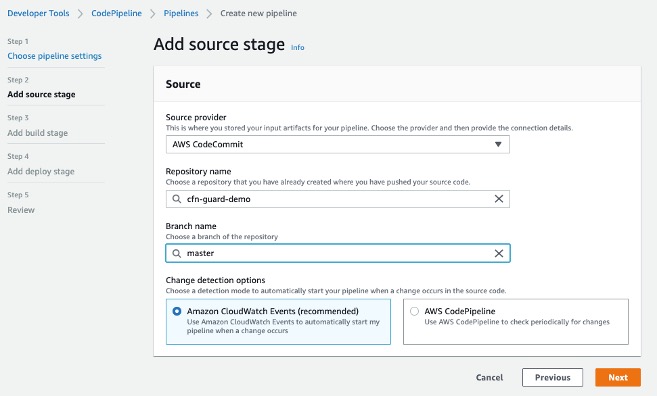
  1. In the Source section, for Source provider, choose AWS CodeCommit.
  2. For Repository name¸ enter your repository name.
  3. For Branch name, choose master.
  4. For Change detection options, select Amazon CloudWatch Events.
  5. Choose Next.
AWS CodePipeline Source

Adding CodeCommit to CodePipeline

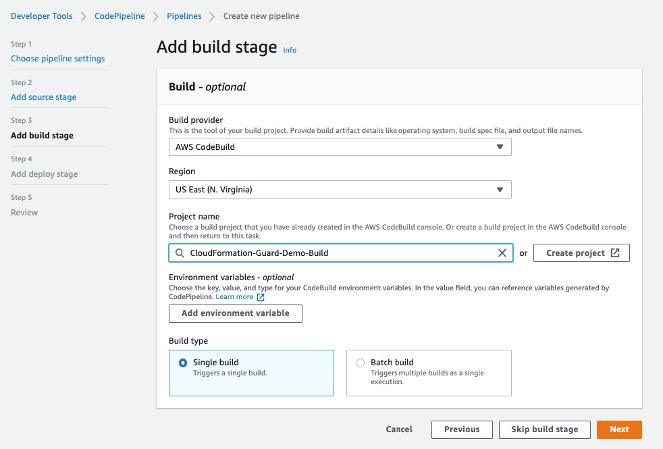
  1. In the Build section, for Build provider, choose AWS CodeBuild.
  2. For Project name, choose the CodeBuild project you created.
  3. For Build type, select Single build.
  4. Choose Next.
CodePipeline Build Stage

Adding Build Project to Pipeline Stage

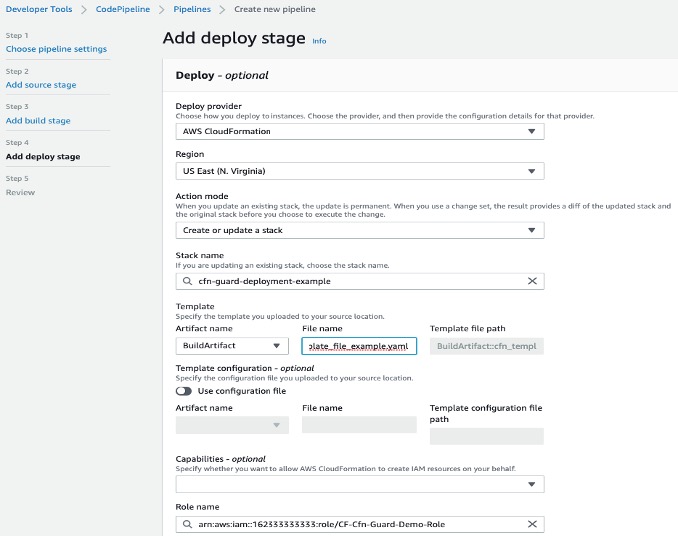
Now we will create a deploy stage in our CodePipeline to deploy CloudFormation templates that passed the CloudFormation Guard inspection in the CI stage.

  1. In the Deploy section, for Deploy provider, choose AWS CloudFormation.
  2. For Action mode¸ choose Create or update stack.
  3. For Stack name, choose any stack name.
  4. For Artifact name, choose BuildArtifact.
  5. For File name, enter the CloudFormation template name in your CodeCommit repository (In case of our demo it is cfn_template_file_example.yaml).
  6. For Role name, choose the role you created earlier for CloudFormation.
CodePipeline - Deploy Stage

Adding deploy stage to CodePipeline

22. In the next step review your selections for the pipeline to be created. The stages and action providers in each stage are shown in the order that they will be created. Click Create pipeline. Our CodePipeline is ready.

Validating the CI/CD pipeline operation

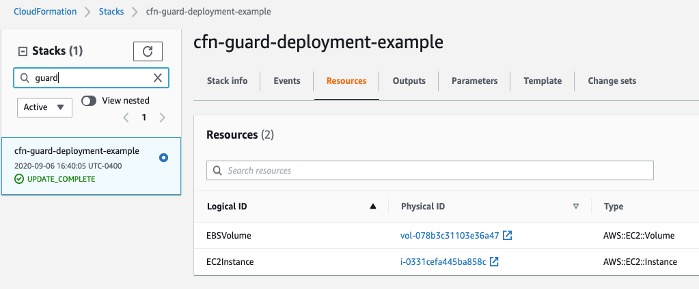
Our CodePipeline has two basic flows and outcomes. If the CloudFormation template complies with our CloudFormation Guard rule set file, the resources in the template deploy successfully (in our use case, we deploy an EC2 instance with an encrypted EBS volume).

CloudFormation Deployed

CloudFormation Console

If our CloudFormation template doesn’t comply with the policies specified in our CloudFormation Guard rule set file, our CodePipeline stops at the CodeBuild step and you see an error in the build job log indicating the resources that are non-compliant:

[EBSVolume] failed because [Encrypted] is [false] and the permitted value is [true]
[EC2Instance] failed because [t3.2xlarge] is not in [t2.micro,t3.nano,t3.micro] for [InstanceType]
Number of failures: 2

Note: To demonstrate the above functionality I changed my CloudFormation template to use unencrypted EBS volume and switched the EC2 instance type to t3.2xlarge which do not adhere to the rules that we specified in the Guard rule set file

Cleaning up

To avoid incurring future charges, delete the resources that we have created during the walkthrough:

  • CloudFormation stack resources that were deployed by the CodePipeline
  • CodePipeline that we have created
  • CodeBuild project
  • CodeCommit repository

Conclusion

In this post, we covered how to integrate CloudFormation Guard into CodePipeline and fully automate pre-deployment compliance checks of your CloudFormation templates. This allows your teams to have an end-to-end automated CI/CD pipeline with minimal operational overhead and stay compliant with your organizational infrastructure policies.