Post Syndicated from Anshu Bathla original https://aws.amazon.com/blogs/security/propagate-user-authorization-context-in-ai-agents-with-amazon-bedrock-agentcore/
Many teams now deploy AI agents that pull from Amazon DynamoDB tables, document repositories, software as a service (SaaS) platforms, and internal knowledge bases to answer questions and automate workflows. A key risk in these deployments is that the agent has no awareness of who’s asking, so it might return data the user shouldn’t see.
If you’re using Amazon Bedrock AgentCore to build AI agents that access multiple data sources, you need each user to see only the data they’re authorized to access. In this post, you learn patterns for propagating user authorization context through your agents so access control is enforced by infrastructure and downstream services, not by agent code. In this post, we show you how to deploy agents that enforce least privilege access without writing authorization logic in the agent itself. This approach follows AGENTSEC03 best practice in the AWS Well-Architected Agentic AI Lens.
Use case
Consider an example of a customer relationship management (CRM) chat application where employees from Sales and Finance departments interact with an AI agent to access customer information. Employees use the same chat interface and the same agent, but each department needs isolated access to their respective data:
- Sales needs access to customer contracts, pricing strategies, and sales pipeline data
- Finance needs access to customer invoices, payment records, and financial reports
The AI agent accesses three types of data sources on behalf of users:
- Customer records in Amazon DynamoDB, partitioned by department
- Department-specific documents in Amazon Bedrock Knowledge Bases (stored in Amazon Simple Storage Service (Amazon S3))
- External CRM data in Salesforce
When a Sales employee asks, “Show me customer contracts,” the agent must retrieve only Sales department contracts, not Finance invoices. This enforcement must happen outside the agent so that even if the agent is compromised through prompt injection or application bugs, it can’t access unauthorized data.
Note: Although we use department-based scoping in this example, the pattern generalizes to any custom claim you define, whether it represents a role, business unit, geographic region, or project assignment.
Architecture overview
The following diagram shows the architecture used in this demonstration.
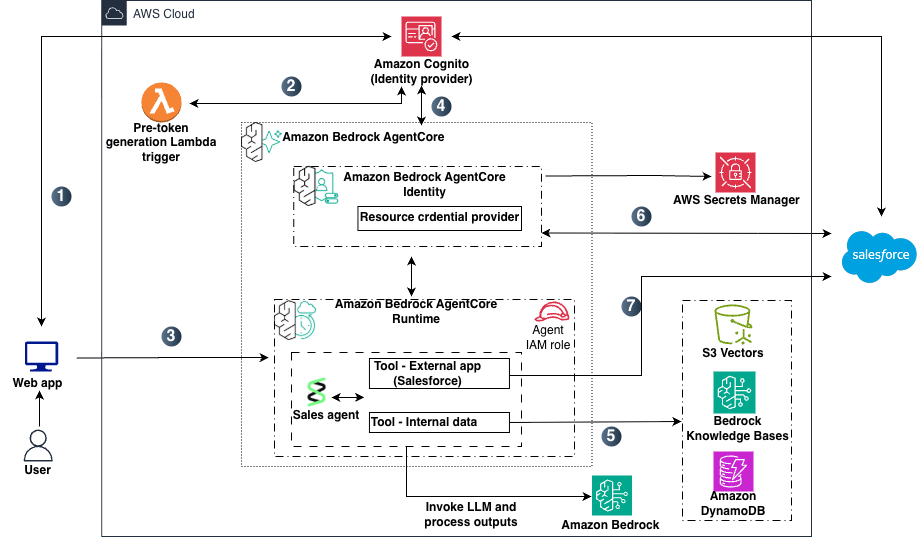
Figure 1: Target architecture
The data flow shown in Figure 1 includes:
- A user opens the chat application and authenticates with Amazon Cognito user pool , which acts as the identity provider (IdP).
- A pre token generation Lambda trigger (V2) enriches the JSON Web Tokens (JWTs) with a custom claim and AWS session tag metadata before returning them to the user.
- The web app routes the user’s request along with the access token to the agent deployed on Amazon Bedrock AgentCore Runtime.
- Bedrock AgentCore Runtime validates the inbound JWT and, through Bedrock AgentCore Identity, issues a workload access token that binds the user and agent identities, and then invokes the agent.
- For queries requiring internal documents, the agent uses its AWS Identity and Access Management (IAM) role to query Amazon Bedrock Knowledge Bases (backed by an Amazon S3 vector store) with metadata filtering, and DynamoDB with user-scoped session-tagged credentials.
- For queries requiring external data, Bedrock AgentCore Identity retrieves credentials from AWS Secrets Manager and performs an on-behalf-of token exchange (RFC 8693) with Salesforce, returning a user-scoped access token.
- The agent calls the Salesforce REST API using the user-scoped token. Salesforce applies sharing rules and returns only records the user is authorized to access.
This architecture follows two key principles.
- The agent acts as an orchestrator, not a gatekeeper; it coordinates tool calls and reasoning but doesn’t control access to data. Authorization is enforced by downstream services.
- The agent doesn’t store credentials to data stores; instead, each request gets temporary, user-bound access tokens.
In the following sections, we dive deep into each data source to show how these principles are achieved in practice.
Initial user authentication with IdP
When an employee opens the chat application, they authenticate using their corporate credentials. For this example, you use Amazon Cognito user pools as the IdP. You can also achieve this with other IdPs such as Entra ID or Okta.
The pre token generation Lambda trigger (V2) captures the user’s custom department context and adds it to the tokens to both the identity (ID) token and access token that Bedrock AgentCore Runtime uses for authorization decisions each serving a distinct purpose. The access token is used by the Bedrock AgentCore Runtime custom JWT authorizer for inbound authorization. The ID token also receive the https://aws.amazon.com/tags claim (used by AWS Security Token Service (AWS STS)) for session tags). The https://aws.amazon.com/tags claim is the specific format required by AWS STS to extract session tags during AssumeRoleWithWebIdentity. For more information and step-by-step guidance see How to customize access tokens in Amazon Cognito user pools.
The following example shows the key logic within a pre token generation Lambda handler function configured as a trigger on your Amazon Cognito user pool. This code runs automatically when a user authenticates, extracting their department attribute and adding it as a custom claim to both ID Token and access token.
Inbound authorization by AgentCore Runtime
When the user request reaches AgentCore Runtime, the Inbound JWT authorizer performs two checks as shown in Figure 2. It validates the JWT token with Amazon Cognito (the configured IdP) by cryptographically verifying the token’s signature, confirming it is non-expired, and checking it was issued by the trusted IdP. It then extracts the department claim from the validated token and compares it against the expected value configured in the authorizer, any token without a matching claim is rejected before the agent code is invoked.
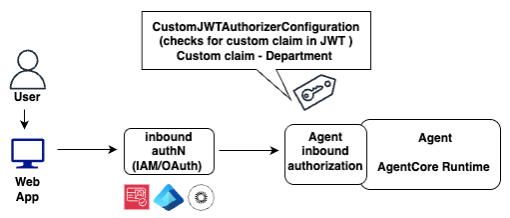
Figure 2: Inbound JWT authorization
The following example shows the inbound JWT authorizer configuration that you pass when deploying your agent to AgentCore Runtime. This configuration tells AgentCore which IdP to validate against and which custom claim value to enforce for this agent. In this example, inboundTokenClaimName is department, inboundTokenClaimValueType declares the claim type as STRING_ARRAY, and authorizingClaimMatchValue specifies the allowed values ([“Sales”, “Finance”]) with the CONTAINS_ANY operator. The authorizer validates that the department claim is present in the token and matches one of these values, ensuring only authenticated users from the Sales or Finance department can invoke the agent.
Note: AgentCore Runtime automatically creates a workload identity for each deployed agent. A workload identity represents the digital identity of your agents within the AWS environment. It allows agents to maintain consistent identity whether they’re using IAM roles for AWS resource access, OAuth 2.0 tokens for external service integration, or API keys for third-party tool access.
Passing the user context for agent outbound authorization
After the inbound JWT token is validated and the user’s authorization context is confirmed, the agent must propagate this context to downstream resources. The fundamental security challenge here is how to design a system so that an agent acting on behalf of a user can only access data that user is authorized to see, even if the agent itself is compromised.
The traditional approach of granting the agent broad credentials and relying on application-level filtering (such as adding WHERE clauses to queries) creates a single point of failure. If an attacker manipulates the agent through prompt injection or exploits a bug in the filtering logic, the full dataset becomes accessible. A more resilient design moves authorization enforcement out of the agent’s application code and into the infrastructure layer wherever possible. Instead of trusting the agent to filter results correctly, you configure the underlying services—IAM policies, database access controls, SaaS sharing rules—to reject unauthorized requests regardless of what the agent asks for. This way, the agent’s credentials are inherently limited to the requesting user’s permissions, and no amount of prompt manipulation can bypass those boundaries. Where infrastructure-level enforcement isn’t yet available, such as metadata filtering in Amazon Bedrock Knowledge Bases, the agent applies application-layer controls as a complementary measure. The following sections demonstrate how this principle applies to each data source in our architecture.
Pattern 1: Scoping DynamoDB access to the requesting user
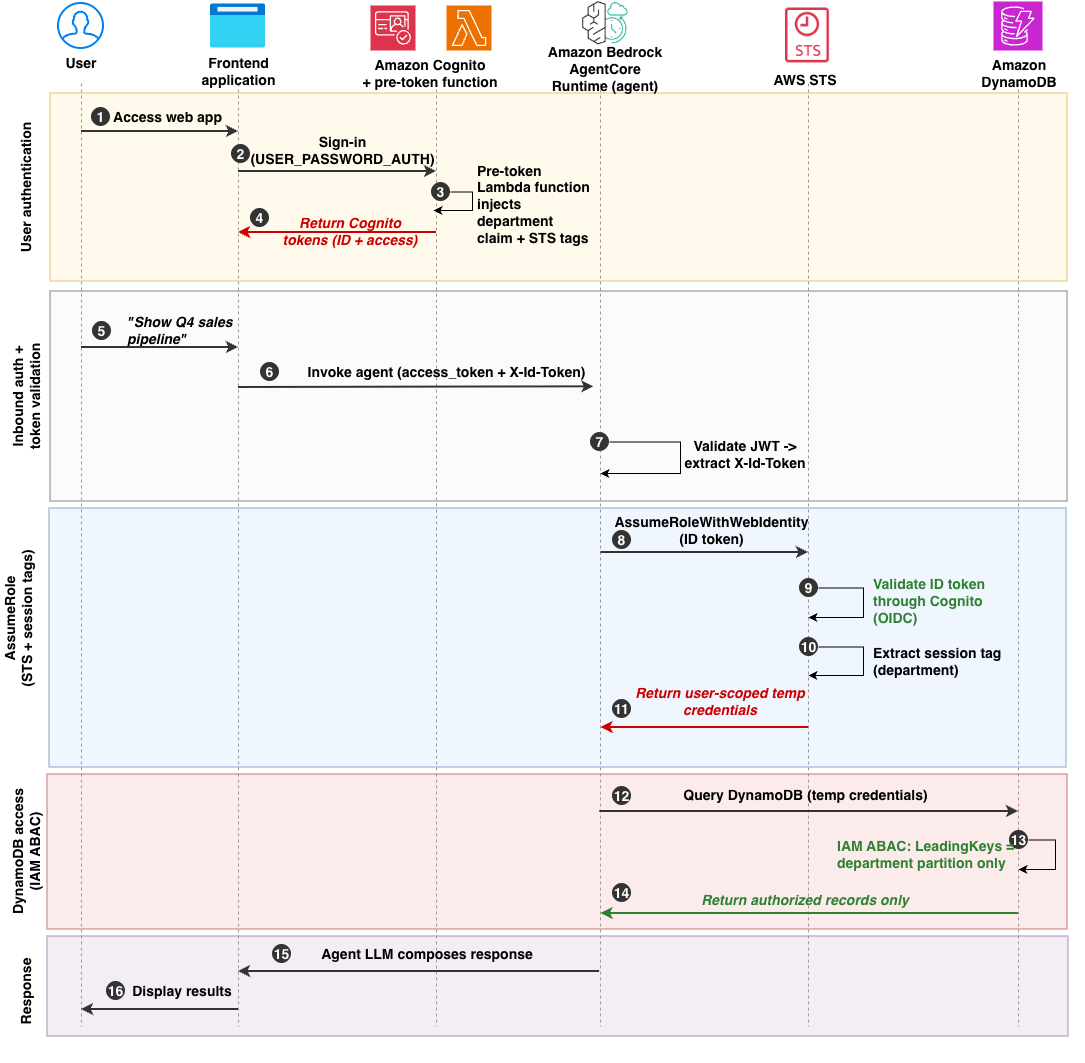
For DynamoDB access, you can use AssumeRoleWithWebIdentity with session tags to create per-request, user-scoped credentials rather than granting the agent a static IAM role with direct table access. The agent passes the user’s signed ID token to AWS STS, which extracts the department tag from the token’s https://aws.amazon.com/tags claim and returns temporary credentials constrained to that department’s data partition. This moves access control from agent code to IAM policy evaluation. STS additionally validates the token’s audience (aud) claim against the IAM OIDC provider configuration, preventing tokens issued for other app clients from being used to assume the role. The following diagram shows this flow (Figure 3).
Prerequisites (one-time setup):
Before this runtime flow can execute, complete the following configuration:
- Register Amazon Cognito as an IAM OIDC provider. Although the user authenticates using the Cognito API (
USER_PASSWORD_AUTH), STS requires Cognito to be registered as an OIDC provider so it can discover and validate ID tokens. Configure the allowed client IDs (audiences) on the provider to match your application’s app client ID.
- Configure the
UserScopedDynamoDBRoletrust policy to include bothsts:AssumeRoleWithWebIdentityandsts:TagSessionpermissions, with the Amazon Cognito OIDC provider as the federated principal.
- By default, AgentCore Runtime drops custom headers as a security measure. To allow the
X-Id-Tokenheader through to the agent container, configure it in the agent runtime’s requestHeaderAllowlist so the ID token is forwarded to agent code. The following configuration tells AgentCore Runtime to forward only theX-Id-Tokenheader to agent code, dropping other non-standard headers:
How it works:
- The user navigates the web application.
- The user authenticates with Amazon Cognito using
USER_PASSWORD_AUTH. - The JWT is issued with a custom department claim and the
https://aws.amazon.com/tagsclaim for STS session tagging (covered in the preceding Initial user authentication with IdP section). - Amazon Cognito returns the enriched tokens to the frontend. The access token carries the department claim for inbound authorization. The ID token carries both the department claim and the https://aws.amazon.com/tags claim for downstream STS calls.
- The user asks the agent a question (for example, “Show Q4 sales pipeline”).
- The frontend calls AgentCore Runtime, passing two tokens: the Amazon Cognito access token in the Authorization header (for inbound authorization), and the user’s ID token as a custom
X-Id-Tokenheader (for downstream STS calls). - AgentCore Runtime validates the JWT and verifies the department claim matches the allowed values configured in the inbound authorizer. If validation fails, the request is rejected with HTTP 401 before agent code executes. After validation, AgentCore forwards the request to the agent container along with the allowed
X-Id-Tokenheader. - The agent calls
sts:AssumeRoleWithWebIdentitywith the ID token. This call targets a single sharedUserScopedDynamoDBRole. The following is the agent code for this step: - AWS STS validates the token against the Amazon Cognito OIDC provider registered in IAM. STS verifies the token’s cryptographic signature, expiration, issuer, and audience (
aud). Theaudclaim in the ID token must match one of the client IDs configured on the IAM OIDC provider resource. This prevents a valid token issued by the same Cognito user pool but for a different app client from being accepted. Note that the agent’s own execution role has no DynamoDB access and only permitssts:AssumeRoleWithWebIdentity, so even a compromised agent can’t bypass this flow.
Note: Amazon Cognito user pools expose a standard OpenID Connect discovery endpoint, which is what you register as the trusted OIDC provider in IAM, even though the user signs in through the Cognito authentication APIs. When STS validates the token, it checks that the
audclaim matches the client ID configured in the IAM OIDC provider. Tokens whose audience doesn’t match are rejected, adding a second control alongside signature and issuer validation. - AWS STS extracts the
https://aws.amazon.com/tagsclaim and creates a session withaws:PrincipalTag/departmentset. The trust policy’ssts:TagSessionpermission (configured in the prerequisites) enables this. Without it, STS silently drops the session tags and subsequent access is denied. - AWS STS returns temporary credentials. These credentials are user-scoped and tamper-proof because the session tags are derived from the cryptographically signed JWT, not from agent code.
- The agent queries DynamoDB using these credentials.
- IAM evaluates the
dynamodb:LeadingKeyscondition against${aws:PrincipalTag/department}. Only the user’s department partition is accessible. Because IAM evaluates this condition at the policy level, even if agent code is manipulated using prompt injection, cross-department access is denied. The following is an example of the permission policy on the role: - DynamoDB returns only the records from the user’s authorized department partition. Cross-department data is never returned because the IAM policy blocks the API call itself. It doesn’t rely on post-query filtering.
- The agent receives the authorized results and passes them to the LLM for natural language response composition.
- The composed response is returned to the frontend application and displayed to the user.
Pattern 2: User-scoped authorization to Amazon Bedrock Knowledge Bases
For documents stored in Amazon Bedrock Knowledge Bases, the agent applies metadata filtering at query time. Each document is tagged with a Department metadata attribute during ingestion. Amazon Bedrock Knowledge Bases using metadata filtering to implement the data authorization. You need to provide metadata files alongside the source data files with the same name as the source data file and .metadata.json suffix while uploading data in Amazon S3. Amazon Bedrock Knowledge Bases ingests these documents along with corresponding metadata file. The metadata attributes are stored alongside the vectors as filterable fields in the index.
Each metadata file contains a simple JSON structure with the department attribute. The following example shows the complete content of a metadata file for Sales department documents:
{"metadataAttributes": {"Department": “Sales"}}
When the agent queries Amazon Bedrock Knowledge Bases, it calls the bedrock:Retrieve action and appends the retrievalConfiguration filter scoped to the user’s department. The department value is extracted from the JWT access token that the agent received during inbound authorization.
Note: Metadata filtering is application-layer enforcement. The
bedrock:RetrieveAPI doesn’t expose metadata filter content as an IAM condition key. For stricter isolation, consider separate knowledge bases per department with IAM resource-level policies.
Pattern 3: User-scoped access to external services using on-behalf-of token exchange
We use Salesforce as an example of an external service integration. The same on-behalf-of (OBO) token exchange pattern applies to external service that supports RFC 8693 or a compatible token exchange mechanism. External services like Salesforce don’t support IAM-based access control, so you need a different mechanism to propagate user identity. The AgentCore Identity OBO token exchange (RFC 8693) provides this by exchanging the user’s authenticated identity for a user-scoped token that the external service will recognize and enforce natively.
AgentCore Identity supports three OAuth patterns for external service access. With client credentials—Two-Legged OAuth (2LO) or machine-to-machine (M2M)—the agent authenticates as a service account and receives a token with broad access. The agent is then responsible for filtering data in queries, which makes this pattern suitable when accessing organization-wide data that isn’t scoped to an individual user. A variation of this pattern embeds user context as custom claims within the agent’s M2M token itself, see Empower AI agents with user context using Amazon Cognito. With Authorization Code (3LO), the user explicitly consents through a browser redirect and the external service enforces per-user access. This works when per-service consent is required, but it demands user interaction during the flow, making it impractical for background agent operations. Learn more about this in Secure AI agents with Amazon Bedrock AgentCore Identity on Amazon ECS. With OBO token exchange, the user’s already-authenticated identity is exchanged for a service-scoped token without any additional user interaction, and the external service enforces access.
For this use case, OBO is the most appropriate pattern. The user has already authenticated at the entry point (through the IdP), and the agent needs to act on their behalf across multiple services without prompting for additional consent. OBO propagates user identity end-to-end without the agent holding credentials, scales automatically with no per-user token storage, and allows downstream services to enforce their own authorization (sharing rules, role-based access control (RBAC)). Because no browser redirect is needed, OBO works seamlessly for background tool calls where the user isn’t present in a browser session. Figure 4 demonstrates the complete flow when using OBO token exchange.
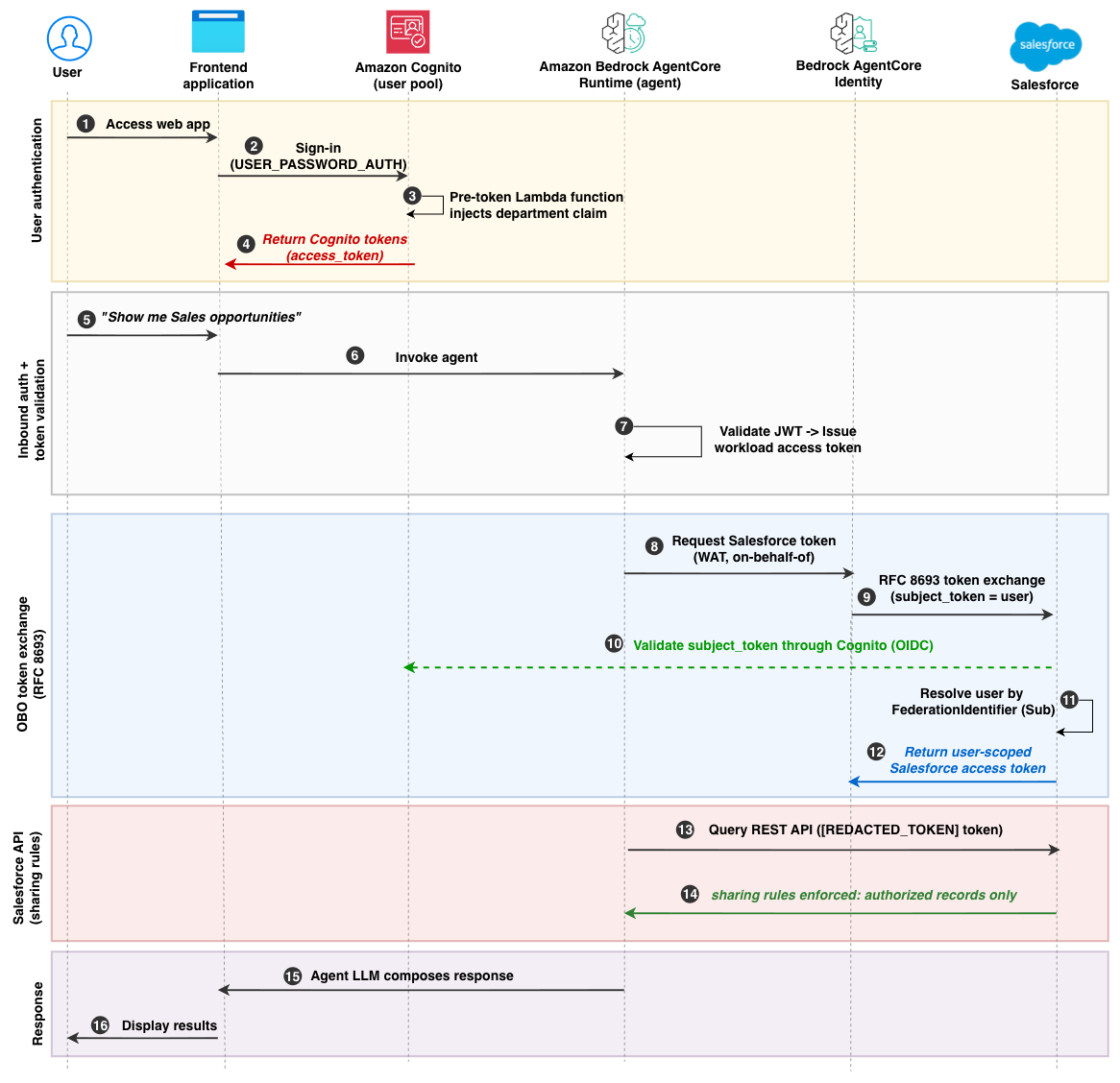
How it works:
- The user navigates to the web application.
- The user authenticates with Amazon Cognito using
USER_PASSWORD_AUTH. - A pre token generation Lambda function injects the custom department claim into the token (covered in the preceding Initial user authentication with IdP section).
- Amazon Cognito returns the tokens to the frontend. The access token is issued with the department claim.
- The user asks the agent a question (for example, “Show me Sales opportunities”).
- The frontend calls AgentCore Runtime with a single agent Amazon Resource Name (ARN), passing the Amazon Cognito access token:
POST /invocations, Authorization: Bearer {access_token}. - AgentCore Runtime validates the inbound JWT (signature, expiration, issuer, and custom claims including the department claim). After successful validation, AgentCore Runtime extracts the user identity from the JWT and calls the GetWorkloadAccessTokenForJWT API to exchange it for a workload access token. The agent code receives the workload access token through the invocation payload header. Workload access tokens are exclusively for accessing Amazon Bedrock AgentCore services and can’t be used directly for external services.
- The agent calls AgentCore Identity (
GetResourceOauth2Token) with the workload access token, requesting a Salesforce token through the configured OBO (on-behalf-of) credential provider. AgentCore Identity validates the caller identity and agent identity, then accesses the stored client credentials from Secrets Manager. If a previously stored OAuth access token has expired, AgentCore Identity automatically obtains a new one using the client credentials, reducing the need for manual token lifecycle management in agent code. The agent code uses the@requires_access_tokendecorator to invoke this flow:On the AWS side, this requires an AgentCore Identity OAuth Client configured with
Grant type: Token Exchange,Actor token: None, pointing to the Salesforce token endpoint. The Salesforce Connected App consumer secret is stored in Secrets Manager (the agent doesn’t access it directly). - AgentCore Identity performs RFC 8693 token exchange with the Salesforce token endpoint, sending the user identity as the
subject_token. AgentCore Identity performs this secure token exchange for user-delegated access based on the configured OAuth 2.0 credential provider. The agent can’t request tokens for arbitrary users because the workload access token cryptographically binds the request to the authenticated user. - Salesforce validates the token against the registered Amazon Cognito auth provider configured in Salesforce Setup.
- Salesforce resolves the user using
FederationIdentifier. On the Salesforce side, this requires:- Amazon Cognito registered as an OpenID Connect auth provider
- A token exchange handler (Apex class extending
Auth.Oauth2TokenExchangeHandler) that resolves users byFederationIdentifier - Token exchange flow enabled on the connect app or external client app
- Each user’s
FederationIdentifierset to their Amazon Cognito subject’s (sub) unique user identifier (UUID). - Sharing rules configured to enforce department-scoped record access
The federation ID (
sub) is immutable and can’t be spoofed by the agent, because it originates from the cryptographically signed identity token. - Salesforce returns a user-scoped access token to AgentCore Identity, which passes it back to the agent.
- Agent calls the Salesforce REST API using the user-scoped token. No department filtering is needed in the Salesforce Object Query Language (SOQL) query because Salesforce enforces access through sharing rules:
- Salesforce applies sharing rules and returns only records the user is authorized to access. The agent doesn’t hold Salesforce credentials (refresh tokens, client secrets), these remain with AgentCore Identity.
- The agent’s LLM composes a response from the returned records.
- The frontend displays the results to the user.
Conclusion
In this post, you learned how to enforce consistent, end-to-end authorization in agentic AI applications by propagating user context from Amazon Cognito through Amazon Bedrock AgentCore to downstream resources. We showed you three patterns:
- Per-request user-scoped credentials using
AssumeRoleWithWebIdentitywith session tags, evaluated by IAM attribute-based access control (ABAC) policies to access Amazon DynamoDB - Department-scoped metadata filtering at the application layer to access Amazon Bedrock Knowledge Bases.
- On-behalf-of token exchange (RFC 8693) using AgentCore Identity, with Salesforce-native sharing rules governing access to external CRM data.
The key takeaway is that the agent coordinates work but doesn’t decide who can access what. Access decisions are made by infrastructure-level controls and the downstream service’s authorization model. This layered approach means that even if the agent behaves unexpectedly, unauthorized data access is still blocked.
You can use this as a reference implementation and adapt it to your requirements by choosing authorization attributes relevant to your organization (such as department, role, business unit, or region), integrating additional data sources, or extending the token exchange patterns to other external services.
Next steps
- Explore the sample code sample-authorization-context-with-agentcore for the complete reference implementation
- For a deeper overview of workload identities and credential management, see Securing AI agents with Amazon Bedrock AgentCore Identity
- For the Authorization Code (3LO) pattern on self-hosted compute, see Secure AI agents with Amazon Bedrock AgentCore Identity on Amazon ECS
- For M2M token customization with embedded user context, see Empower AI agents with user context using Amazon Cognito
- For IAM scoping patterns in Model Context Protocol (MCP)-based agent architectures, see Secure AI agent access patterns to AWS resources using MCP.
- For agent identity and permission management best practices, see AGENTSEC03 in the AWS Well-Architected Agentic AI Lens
If you have feedback about this post, submit comments in the Comments section below.


