Amazon Web Services (AWS) provides service reference information in JSON format to help you automate policy management workflows. With the service reference information, you can access available actions across AWS services from machine-readable files. The service reference information helps to address a key customer need: keeping up with the ever-growing list of services and actions in AWS. As new services launch and existing services expand their capabilities, you can now conveniently identify and incorporate available actions, resources, and condition keys for each AWS service into your policy authoring and validation workflows. As your business expands and your AWS footprint grows, you might decide to automate your policy management workflows. With the service authorization reference, you can build custom tools to make it easier to evaluate and use new actions, resources, and condition keys that AWS services introduce.
Getting started with service reference information
The service reference information is static information about the actions, resources, and condition keys available for each service in AWS. To obtain the list of AWS services for which reference information is available, go to the following URL: https://servicereference.us-east-1.amazonaws.com/v1/service-list.json
This URL endpoint provides a JSON file that contains an up-to-date catalog of AWS services with available reference information. By querying this endpoint, you can retrieve the most current list of services supported by the AWS Service Reference Information feature.
To retrieve the list of actions, resources, and condition keys for a specific AWS service, go to the following URL: https://servicereference.us-east-1.amazonaws.com/v1/<service-name>/<service-name>.json
Replace <service-name> with the name of the desired AWS service (for example, “s3” for Amazon Simple Storage service (Amazon S3) or “ec2” for Amazon Elastic Compute Cloud (Amazon EC2)). This URL endpoint provides a JSON file that contains the comprehensive list of actions, resources, and condition keys that are available for that particular service.
The following example shows the format of the output from the service-list.json file, which contains the service names and URLs for each service’s reference information:
You can navigate to the service information page by using the url field to view the list of permissions for the service. You can also download the JSON file to use in your policy authoring workflows. For example, you can download the permissions for Amazon S3 by following this URL: https://servicereference.us-east-1.amazonaws.com/v1/s3/s3.json
The following example shows a partial output of the permissions for Amazon S3. The AWS Identity and Access Management (IAM) actions are available in JSON format, and each action is its own JSON object. The Name field for those objects provides the name of the IAM action, the ActionConditionKeys field provides the available condition keys for this action, and the Resources field provides the available resources for this action.
What can you build with the service reference information?
Let’s explore how you can make use of the service reference information through practical examples. To help you get started, here are two custom tools that use the service reference information. You can find these tools in our GitHub repository, ready for you to use and adapt to your specific needs. You can download the source code for these tools by visiting the following links:
The SCP pre-processor provides a convenient way to write SCPs. You run the SCP pre-processor as a command-line tool. The tool takes a single, monolithic JSON file and runs a series of transformations and optimizations, then outputs a collection of valid service control policies that fit within policy size quotas. The tool uses AWS service reference information data in order to optimize lists of IAM actions.
Notification tool for new or removed IAM actions
You might find yourself needing to update various policies throughout your AWS environment when new IAM actions or services are released. You can use this tool to notify you when new services or new actions are added or removed. It works by downloading the service reference information and comparing it to the previous version of the file when the tool last ran. You can use these notifications to perform actions like automatically updating IAM policies when new actions are added or manually reviewing the notifications for new, sensitive actions.
The AWS service reference information makes it easier for you to create automation for policy authoring and validation. By providing the AWS service actions reference in JSON format, this feature enables you to create custom tools for policy authoring and management.
We’re excited to know what kind of policy authoring tools you can think up.
If you have feedback about this post, submit comments in the Comments section below. If you have questions about this post, contact AWS Support.
As your Amazon Web Services (AWS) environment grows, you might develop a need to grant cross-account access to resources. This could be for various reasons, such as enabling centralized operations across multiple AWS accounts, sharing resources across teams or projects within your organization, or integrating with third-party services. However, granting cross-account access requires careful consideration of your security, availability, and manageability requirements.
In this blog post, we explore four different ways to grant cross-account access using resource-based policies. Each method has its own unique tradeoffs, and the best choice depends on your specific requirements and use case.
Evaluating different techniques for granting cross-account access
Your choice of how to specify the principal in a resource-based policy impacts some aspects of both the confidentiality and the availability of your solution. Understanding this impact and making the right tradeoffs for your use case is the focus of this post.
An example scenario
Imagine that you have an S3 bucket in your AWS account (Account A) that needs to be accessed by different principals in another AWS account (Account B). For this scenario, we assume that the principals in Account B have the necessary access to S3 in their identity-based policies, and we will focus on authoring the resource-based policies in Account A. While the methods explained here use Amazon S3, the concepts discussed apply to all AWS services that support resource-based policies. In the following sections, we walk through four different ways to grant cross-account access in this scenario and discuss the tradeoffs of each.
Method 1: Grant access to a specific IAM role using the Principal element of the resource-based policy
In this example, you use an S3 bucket policy to grant access to a specific IAM role (RoleFromAccountB) in Account B by specifying the IAM role’s Amazon Resource Name (ARN) in the Principal element of the policy in Account A.
Using this bucket policy, if someone in Account B deletes or recreates the role (RoleFromAccountB), then that role can no longer access the amzn-s3-demo-bucket-account-a bucket, even if that role is recreated with the same name. The reason is that when you save this policy, the role ARN is mapped to the unique ID of the role, which looks something like this: AROADBQP57FF2AEXAMPLE. You will see a role identifier in the Principal element of your resource-based policies if you view them after you delete the role that they referenced.
This behavior is intentional. The resource-based policy only allows the specific instance of the role that you set as principal at the time of policy creation. This helps prevent unintended access to your resources if you delete a role, but forget to update your resource-based policy to remove that role. This behavior can also cause an availability risk because the role (RoleFromAccountB) will have a new unique ID when it is recreated and will no longer have access to the bucket. Roles can be recreated for a number of reasons, including accidentally when you use tools such as infrastructure as code.
You might consider choosing this method if:
You own the roles in both Account A and Account B and can control the creation and deletion of these roles.
You want your resource-based policy in Account A to stop granting access when the specified role (RoleFromAccountB) is deleted.
You prioritize granular access control over potential availability concerns if the role (RoleFromAccountB) is deleted.
Method 2: Grant access to an account using the Principal element of the resource-based policy
In this example, you grant access to a specific account in the Principal element of the resource-based policy. This resource-based policy of Account A allows any user or role from Account B that also has an identity-based policy that grants them access to read the objects.
Note: You can use either "Principal": {"AWS": "111122223333"} or "Principal": {"AWS": "arn:aws:iam::111122223333:root"} in the Principal element. They are equivalent, and the long-form ARN does not represent the root user.
This resource-based policy helps avoid the potential availability issue discussed for Method 1. If a role in Account B that needs to have access to the bucket is recreated, it will still have access after the recreation of that role. This is because you don’t specify a role in the Principal element—instead, you specify an account. If you use Method 2, you must be comfortable delegating access control decisions to the owner of that account.
This approach explicitly delegates access control decisions to IAM in the other account (Account B). Principals in Account B have access to this bucket if allowed by their identity-based policies.
You might consider choosing this method if:
You need to grant access to many principals in Account B.
You want to delegate the access decision in the account where the principal exists (Account B).
You prioritize ease of management and availability over granular access control.
Method 3: Grant access to a specific IAM role using the aws:PrincipalArn condition
This method expands on Method 2 and adds a condition that grants access only to a specific IAM role. Similar to Method 2, you use the account number as the value of the Principal element, but also use the aws:PrincipalArn condition key to limit access to a specific principal in Account B.
The aws:PrincipalArn condition key is a global condition key that compares the ARN of the principal that made the request with the ARN that you specify in the policy. For IAM roles, the request context returns the ARN of the role, not the ARN of the user that assumed the role.
This policy comes with the same availability benefits as the policy in Method 2: access to this resource will survive role recreation. This is because the role is translated to its unique identifier only when it is used in the Principal element. It is not translated to a unique identifier when it is used in a condition. If the role (RoleFromAccountB) in Account B is recreated, accidentally or intentionally, the policy will continue to grant access because the role matches the role ARN specified in the condition key of the resource-based policy in Account A. As a result, Method 3 provides a balanced approach to availability and security.
You might consider choosing this method if:
You are comfortable that this policy will continue to grant access to the role specified in the aws:PrincipalArn condition key if that role (RoleFromAccountB) is recreated.
You don’t own the Account B you are granting access to and don’t control when that role may be recreated.
You want a balance of availability and confidentiality.
Method 4: Grant access to an entire AWS Organizations organization
This method is focused on a different use case and is not an alternative to the methods listed earlier. Use this method if you have a resource (an S3 bucket, in this example) that you want to share with your entire organization, but not share with anyone outside of it.
There is no way to specify an organization by using the Principal element of a resource-based policy, so you must use the aws:PrincipalOrgId condition key to restrict access to a specific organization. In this policy, you specify a wildcard in the Principal element, which says that anyone can access the bucket. Then the condition reduces “anyone” to just those AWS account principals that belong to the specified organization and have an identity-based policy that allows them access.
You then add an additional conditional block that compares the aws:PrincipalAccount condition key to the aws:ResourceAccount condition key by using a policy variable. This extra conditional block is optional and excludes the account that owns the bucket (Account A) from the allow statement. The reason for using this extra conditional block is so that principals in Account A still require an allow statement in their identity-based policy to access this bucket. If you choose to exclude this aws:PrincipalAccount comparison, principals in Account A are granted access to the bucket without an explicit allow statement in their identity-based policy. Policy evaluation logic only requires either the identity-based policy or the resource-based policy (but not both) to allow a request when the principal and resource are in the same account.
You might consider choosing this method if:
You have a shared resource that should be accessible to your entire organization.
Conclusion
Choosing a method to grant cross-account access requires careful consideration of your requirements and use case. Each of the four methods discussed in this blog post has its own advantages and tradeoffs. By understanding these methods and their implications, you can decide on the most appropriate approach to grant cross-account access to your AWS resources. Remember to regularly review and audit your resource-based policies to verify that they align with your security and access requirements.
In this blog post, we show how you can integrate IAM Access Analyzer custom policy check capability into VS Code, so you can identify overly permissive IAM policies and fine-tune access controls early in the development process. This proactive approach to security and compliance helps to ensure that your IAM policies are validated before they are deployed, reducing the risk of introducing misconfigurations or granting unintended access. It also saves developer time by providing fast feedback to developers when they write a policy that does not meet organizational standards.
What is the problem?
Although security teams oversee an organization’s overall security posture, developers create applications that require specific permissions. To enable developers to work efficiently while maintaining high security standards, organizations often seek ways to safely delegate the authoring of AWS Identity and Access Management (IAM) policies to developers. Many AWS customers manually review developer-authored IAM policies before deploying them to production environments to help prevent granting excessive or unintended permissions. However, depending on the volume and complexity of policies, these manual reviews can be time-consuming, leading to development delays and potential bottlenecks in the deployment of applications and services. Organizations need to balance secure access management with the agility required for rapid application development and deployment.
How to use IAM Access Analyzer custom policy checks in VS Code
Custom policy checks are a feature in IAM Access Analyzer that are designed to help security teams proactively identify and analyze critical permissions within their IAM policies. In this section, we provide step-by-step instructions for using custom policy checks directly in VS Code.
Prerequisites
To complete the examples in our walkthrough, you first need to do the following:
Install Python version 3.6 or later.
Assuming you are already using the VS Code Integrated Development Environment (IDE), search for and install the AWS Toolkit extension.
So that you can open IAM Access Analyzer policy checks in the VS Code editor, open the VS Code Command Palette by pressing Ctrl+Shift+P, search for IAM Policy Checks, and then choose AWS: Open IAM Policy Checks as shown in Figure 1.
Figure 1: Search for the AWS: Open IAM Policy Checks option
By using the IAM policy checks option in VS Code, you can perform four types of checks:
We’ll walk through examples of each of these checks in the sections that follow.
Example 1: ValidatePolicy
In this example, we use the ValidatePolicy option provided by the IAM policy check plugin to validate IAM policies against IAM policy grammar and AWS best practices. When you run this check, you can view policy validation check findings that include security warnings, errors, general warnings, and suggestions for your policy. These actionable recommendations help you author policies that are aligned with AWS best practices.
To run the ValidatePolicy check
Let’s use the following IAM policy for illustration purposes. You can see that resource * (a wildcard) is being used in the first statement, which indicates that the iam:PassRole action is allowed for all resources.
In the VS Code editor, navigate to the IAM Policy Checks pane. Choose the document type JSON Policy Language and policy type Identity. Then choose Run Policy Validation.
Figure 2: IAM Access Analyzer ValidatePolicy check results
You can see that Access Analyzer has detected an issue, which is shown in the PROBLEMS pane.
Figure 3: Problems pane with finding details for the ValidatePolicy check
The security warning shown in Figure 3 states that the iam:PassRole action with a wildcard (*) in the resource can be overly permissive because it allows the ability to pass any IAM role in that account.
Now, let’s modify the IAM policy by replacing the wildcard (*) with a specific role Amazon Resource Name (ARN).
Verify the policy again by running the ValidatePolicy check to make sure that it doesn’t generate findings after you updated the IAM policy.
Figure 4: Results of the ValidatePolicy check after IAM policy correction
Example 2: CheckNoPublicAccess
With the CheckNoPublicAccess option, you can verify whether your resource policy grants public access for supported resource types.
To run the CheckNoPublicAccess check
To test whether a policy does not allow public access, create a new bucket using a CloudFormation template and attach a resource policy that grants access to any principal to see the objects in this bucket.
WARNING: This sample bucket policy should not be used in production. Using a wildcard in the principal element of a bucket policy would allow any IAM principal to view the contents of the bucket.
Select the document type CloudFormation template and then choose Run Custom Policy Check to see whether this resource policy passes the CheckNoPublicAccess check.
Figure 5: IAM Access Analyzer CheckNoPublicAccess check results
The policy check returns a failed result because this bucket does allow public access.
Figure 6: Problems pane finding details for CheckNoPublicAccess check
Next, fix this policy to allow access from a role within the same account by restricting the policy to a specific role ARN.
Re-run the CheckNoPublicAccess check. The resource policy no longer grants public access and the status of the policy check is PASS.
Example 3: CheckAccessNotGranted
The CheckAccessNotGranted option allows you to check whether a policy allows access to a list of IAM actions and resource ARNs. You can use this check to give developers fast feedback that certain permissions or access to certain resources are not allowed.
To run the CheckAccessNotGranted check
Identify sensitive actions and resources.
In the VS Code editor, under Custom Policy Checks, choose the check type CheckAccessNotGranted. Using a comma-separated list, create a list of actions and resource ARNs that you don’t want to allow in your IAM policy. You can also create a JSON file with your actions and resources by using the syntax shown in Figure 7. For this example, set the s3:PutBucketPolicy and dynamodb:DeleteTable IAM actions to “not allowed” in the IAM policy.
Figure 7: Configure the CheckAccessNotGranted check
Create a sample CloudFormation template that contains an IAM policy attached to an IAM role, as follows. This policy grants access to some of the actions that you deemed sensitive in Figure 7.
In the VS Code editor, choose Run Custom Policy Check to identify whether one of the sensitive actions or resources is allowed in the IAM policy. The policy check returns FAIL because the policy has the actions s3:PutBucketPolicy and dynamodb:DeleteTable, which you marked as actions that you don’t want developers to grant access to. Remove the restricted actions from the policy and run the check again to see a PASS result for the policy check.
Example 4: CheckNoNewAccess
The CheckNoNewAccess option is a custom policy check that verifies whether your policy grants new access compared to a reference policy.
You use a reference policy to check whether a candidate policy allows more access than the reference policy does. In other words, the check passes if the candidate policy is a subset of the reference policy. A reference policy typically starts by allowing all access. You then add a statement or statements that deny the access that you want the reference policy to check for. For more details and examples of reference policies, see the iam-access-analyzer-custom-policy-check-samples repository on GitHub.
The ability to use a reference policy provides you with the flexibility to look for almost anything in an IAM policy. This is useful when you have custom requirements for your organization that may not be met with some of the other custom policy checks.
To run the CheckNoNewAccess check
Create a reference policy: In your project, create a new JSON policy document that will serve as your reference policy.
The following reference policy checks that an IAM role trust policy only grants access to an allowlisted set of AWS services. This enables you to allow builders to create roles, but constrain the use of those roles to the set of AWS services specified.
In this reference policy, only the specified AWS service principals ec2.amazonaws.com, lambda.amazonaws.com, and ecs-tasks.amazonaws.com are allowed to assume the role.
Enter the reference policy in the VS Code editor. In the IAM Policy Checks pane, select the check type CheckNoNewAccess. Then set the reference policy type to Resource, because this is a trust policy that defines which principals can assume the role. In addition, provide the path of the reference policy that you created in Step 1. You can also directly enter the reference policy as a JSON policy document, as shown in Figure 8.
Figure 8: Enter the reference policy for the CheckNoNewAccess check
Create a CloudFormation template, as follows. This template creates an IAM role that allows the AWS service principals lambda.amazonaws.com and glue.amazonaws.com to assume the sample-application-role IAM role.
In the VS Code editor, choose Run Custom Policy Check to check your CloudFormation template against the reference policy you configured in Step 1. The check will return FAIL and you will see a security warning in the editor in the PROBLEMS pane.
Figure 9: Problems pane finding details for the CheckNoNewAccess check
The issue is that glue.amazonaws.com was not listed as a service principal that was allowed to assume a role in your reference policy. You can remove glue.amazonaws.com from the CloudFormation template and re-run the check to receive a PASS result.
Conclusion
In this post, we explored how you can use the integration of VS Code with IAM Access Analyzer in your development workflow to make sure that your IAM policies align with best practices and adhere to your organization’s security requirements. The four critical checks provided by IAM Access Analyzer can be summarized as follows:
The ValidatePolicy check provides actionable recommendations that help you author policies that are aligned with AWS best practices.
The CheckNoPublicAccess check helps protect resources from being exposed publicly and mitigates the risk of unauthorized public access.
The CheckAccesNotGranted check looks for specific IAM actions and resource ARNs to help enforce access restrictions and help prevent unauthorized access to critical data or services.
The CheckNoNewAccess check validates that the permissions granted in your IAM policies remain within the intended scope, as defined by your organization’s requirements.
AWS Identity and Access Management Access Analyzer simplifies inspecting unused access to guide you towards least privilege. You can use unused access findings to identify over-permissive access granted to AWS Identity and Access Management (IAM) roles and users in your accounts or organization. From a delegated administrator account for IAM Access Analyzer, you can use the dashboard to review unused access findings across your organization and prioritize the accounts to inspect based on the volume and type of findings. The findings highlight unused roles, unused access keys for IAM users, and unused passwords for IAM users. For active IAM users and roles, the findings provide visibility into unused services and actions. Recently, IAM Access Analyzer launched new configuration capabilities that you can use to customize the analysis. You can select accounts, roles, and users to exclude, and focus on the areas that matter the most to you. You can use identifiers such as account ID or scale configuration using tags. By scoping the IAM Access Analyzer to monitor a subset of accounts and roles, you can reduce noise from unwanted findings. You can update the configuration when needed to change the scope of analysis. With this new offering, IAM Access Analyzer provides enhanced controls to help you tailor the analysis more closely to your organization’s security needs.
In this post, we walk you through an example scenario. Imagine that you’re a cloud administrator in a company that uses Amazon Web Services (AWS). You use AWS Organizations to organize your workload into several organizational units (OUs) and accounts. You have dedicated accounts for testing and experimenting with new AWS features called sandbox accounts across your organization. The sandbox accounts can be created by anyone in your company and are centrally recorded. You’re using tags on IAM resources and have followed AWS best practices and strategies when tagging your AWS resources. Tags are applied to the IAM roles created by your teams.
To make sure that your teams are following the principle of least privilege and are working with only the required permissions to access the AWS accounts, you use IAM Access Analyzer. You created an unused access analyzer at the organization level so it will monitor the AWS accounts in your organization. You noticed that you have multiple unused access findings. After analysis, your security team suggests the exclusion of some AWS accounts, IAM roles, and users so they can focus on the relevant findings. They want the sandbox accounts and the IAM roles they use for security purposes (such as auditing, incident response) to be excluded from the unused access analysis.
You can select accounts and roles to exclude when you create a new analyzer or update the analyzer later. In this post, we show you how to configure IAM Access Analyzer unused access finding to exclude specific accounts across your organization and specific principals (IAM roles and IAM users) once you have set up an analyzer. There is no additional pricing for using the prescriptive recommendations after you have enabled unused access findings.
Prerequisites
The following are the prerequisites to configure IAM Access Analyzer for unused access analysis:
An unused access analyzer created at the organization level
Administrative level access to the IAM Access Analyzer delegated administrator account
A list of account IDs that you want to exclude
IAM roles with tags
In the following sections, you will learn how to customize your IAM Access Analyzer to better suit your organization’s needs. This includes the following:
Explore how to exclude specific AWS accounts from the analyzer’s unused access findings.
See how to exclude tagged IAM roles from the analysis, allowing you to focus on the most relevant security insights and you see how to review exclusions on your analyzer to modify them as needed.
By the end, you will have a tailored unused access analyzer that provides more meaningful and actionable results for your organization.
Exclude specific accounts across your organization
In this section, you will see how to update your existing unused access analyzer at the organization level through the AWS Management Console and AWS Command Line Interface (AWS CLI) to exclude specific AWS account IDs from its analysis.
If you don’t have an unused access analyzer in the organization, see this post for instructions on how to create one.
Use the console to update your unused access analyzer:
Connect to your IAM Access Analyzer delegated administrator account (by default, your organization management account).
Open the IAM Access Analyzer console in your management account. You will see the dashboard with your active finding by selecting the analyzer of your choice on the top right. In this example, the analyzer has 251 active findings.
Figure 1: Unused access findings dashboard without exclusions
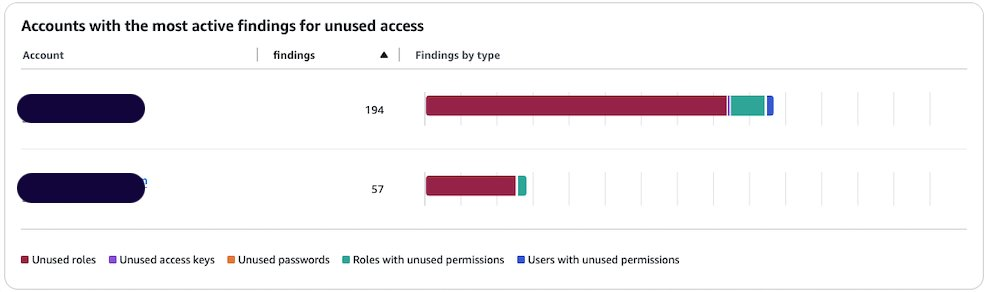
You can see the split of active findings per account. The example account has 57 active findings that you want to exclude from it.
Figure 2: Unused access findings per account
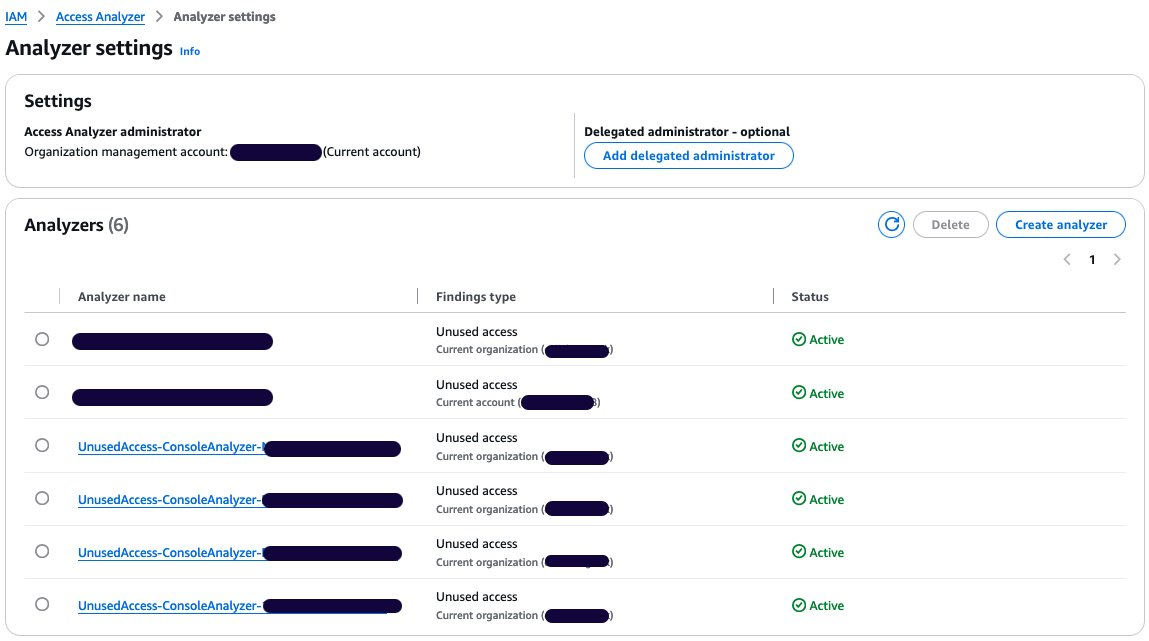
Select Analyzer settings under Access Analyzer in that navigation pane.
The analyzer settings page presents the analyzers in your AWS Region and their status.
Select your unused access analyzer in the list based on its name.
Figure 3: Active access analyzers
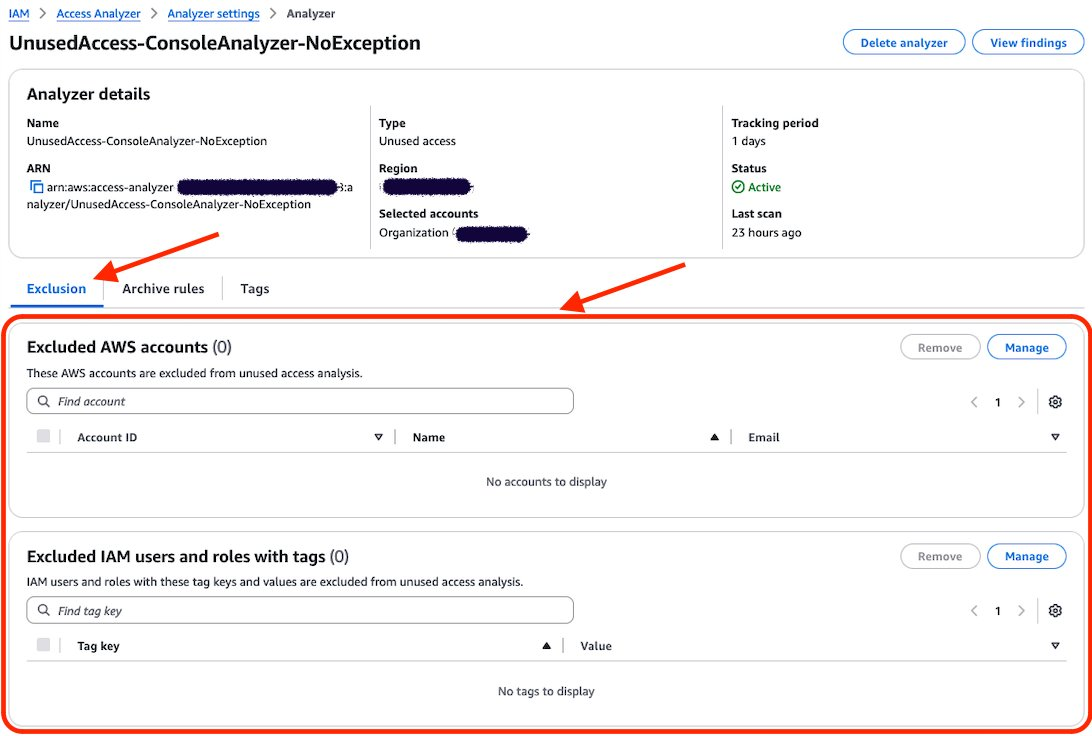
On the Analyzer page, you can see the analyzer settings and a new tab called Exclusion. Because you have no excluded AWS accounts, the count of Excluded AWS accounts is 0 and there are no accounts displayed.
Figure 4: Unused access analyzer exclusion tab
Choose Manage in the Excluded AWS accounts section.
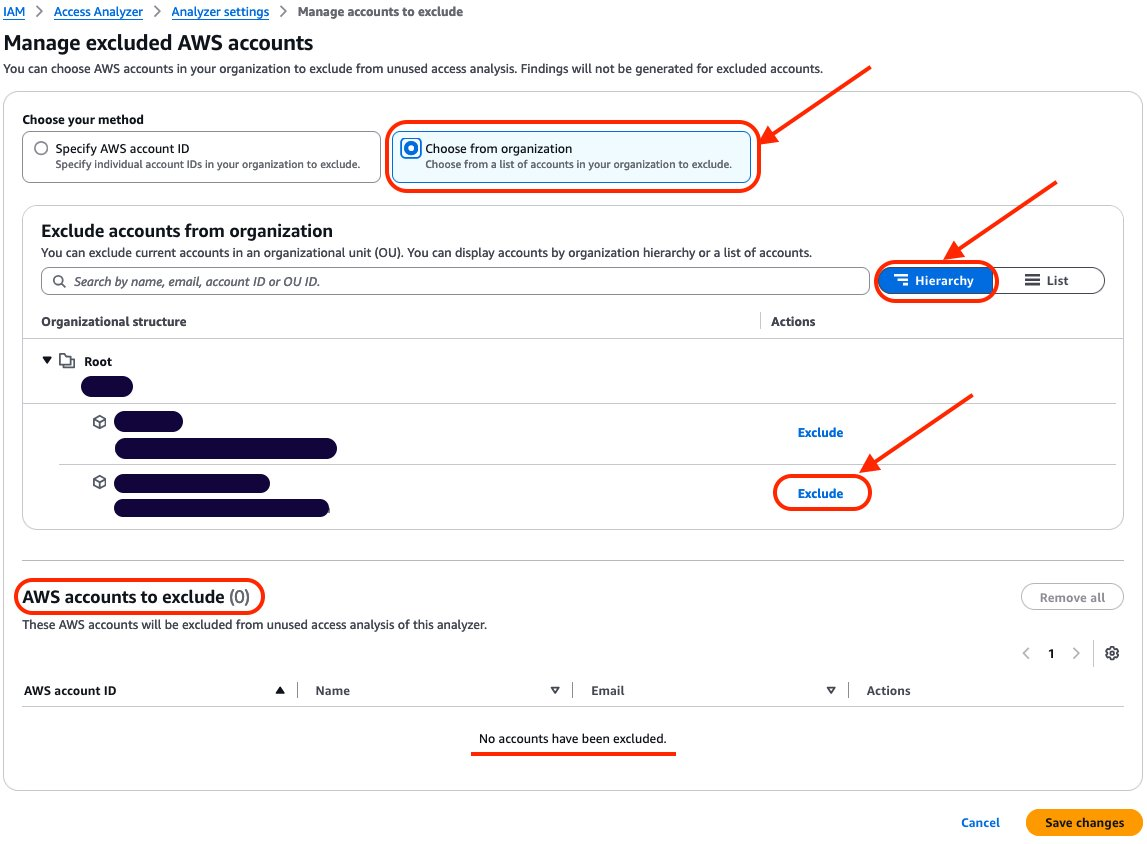
Select Choose from organization and Hierarchy and choose Exclude next to the sandbox account that you want to exclude.
Figure 5: Exclude sandbox account
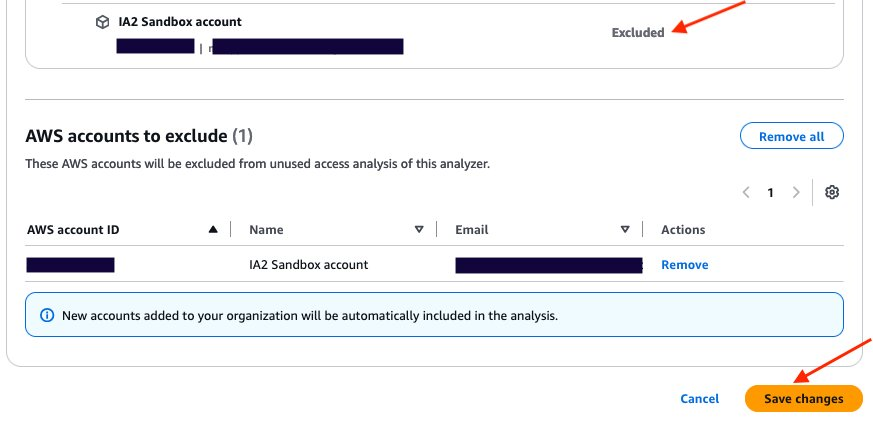
After you select Exclude for the sandbox account, the account will be deselected and will appear in AWS accounts to exclude. The count of accounts to exclude has changed from 0 to 1. After you have finished, choose Save changes.
Figure 6: Verify that the account is excluded and save changes
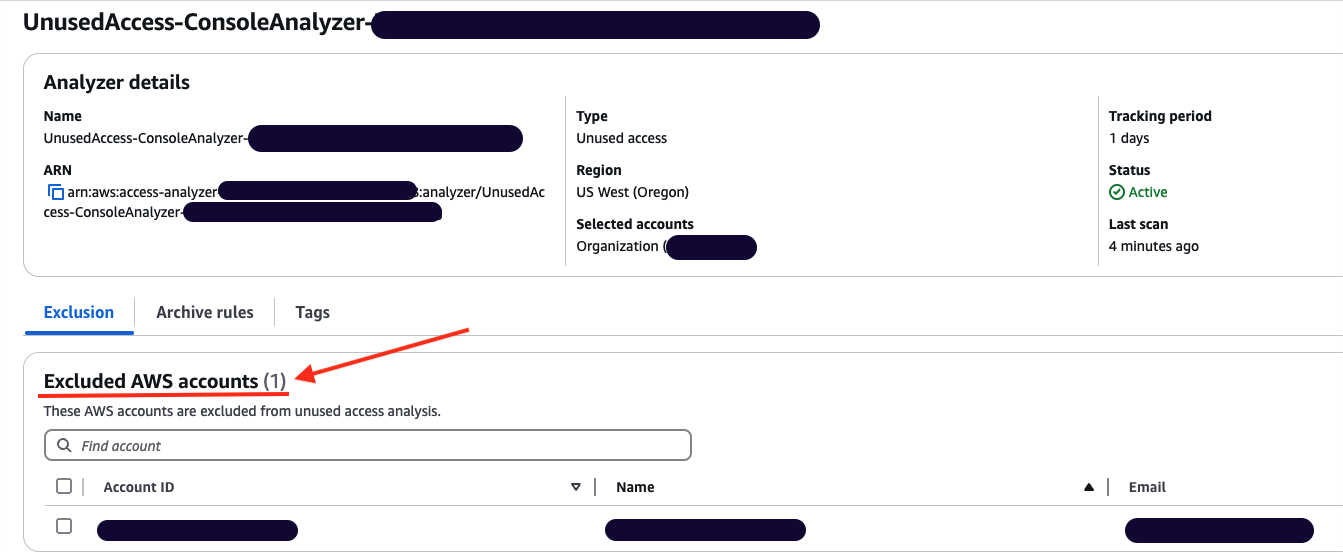
The page will be automatically updated with your changes. You can then review the Excluded AWS accounts and verify that your excluded account is correctly configured.
Figure 7: Analyzer configuration updated with excluded account
You can go back to the console dashboard and see the results. In this example, the exclusion of the sandbox account has caused the total number of active findings to go down from 251 to 194.
Figure 8: Dashboard showing a reduction in active findings
Use AWS CLI to update your unused access analyzer:
You can update your existing analyzer using the AWS CLI command aws accessanalyzer update-analyzer. Use the following command, replacing <YOUR-ANALYZER-NAME> with the name of your analyzer.
You have successfully excluded a sandbox account from the unused access analysis. Now you will exclude the IAM roles used by the security team to audit your accounts based on tags.
Excluding specific principals in your organization using tags
In this section, you will see how to update an existing unused access analyzer by excluding tagged IAM roles in your organization using the console and then AWS CLI.
Use the console to update your unused access analyzer:
Open the IAM Access Analyzer console.
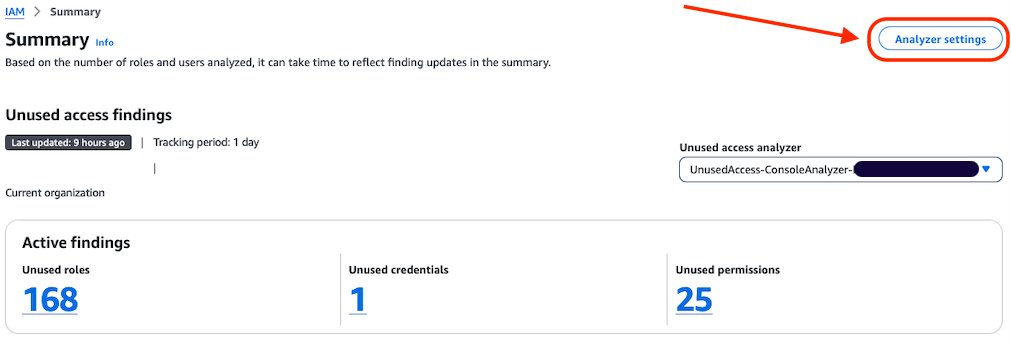
Review the summary dashboard containing your unused findings. Choose Analyzer settings at the top of the screen.
Figure 9: IAM Access Analyzer summary dashboard
You will see a list of analyzers created in your account in that Region. Select the analyzer that you want to update.
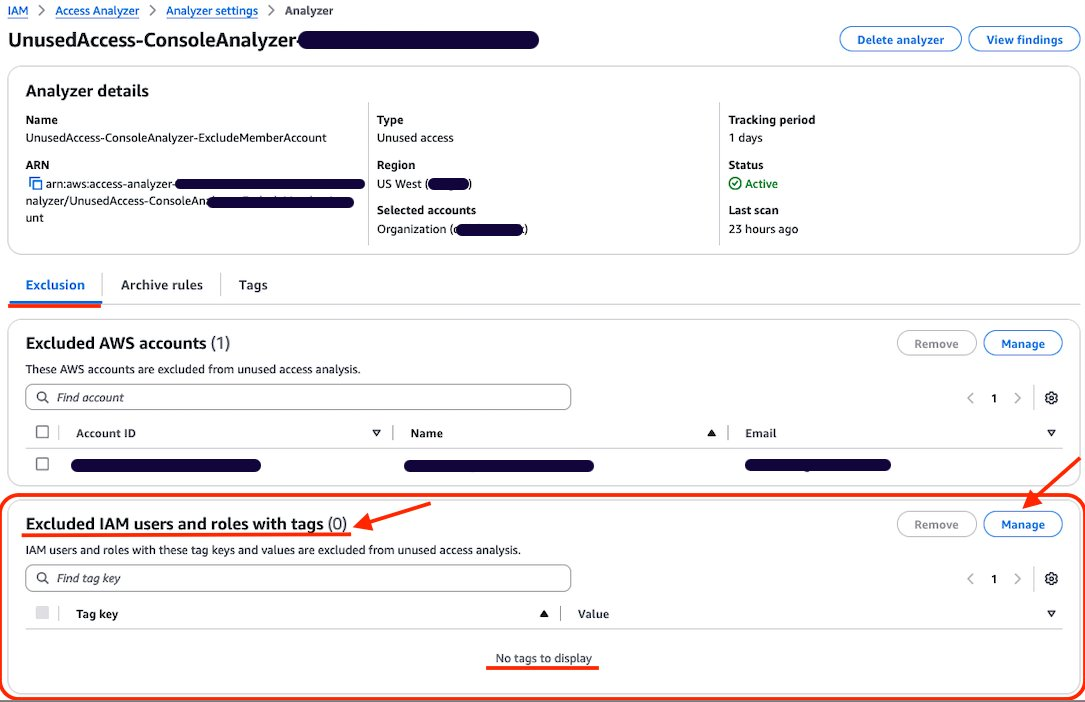
Review the analyzer page. On the Exclusion tab, you will see Exclude IAM users and roles with tags with a count of 0.
Figure 10: Configure exclusion of IAM roles using tag
Choose Manage in the Excluded IAM users and roles with tags section.
Add the tags attached to the roles that you want to exclude from the analysis and choose Save changes.
Figure 11: Add tag to exclude
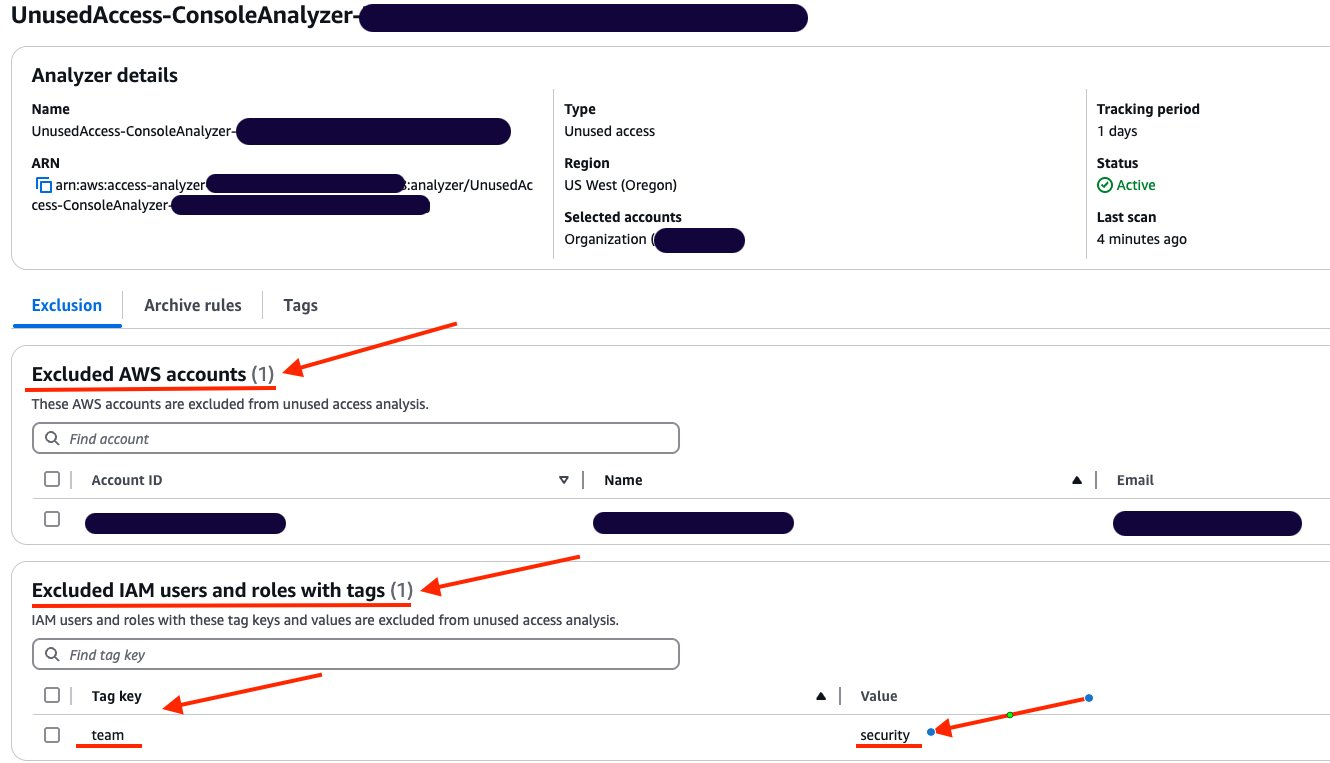
You can now see that Excluded IAM users and roles with tags now has a count of 1, and you can see the tags in the list.
Figure 12: List of exclusion tags
Use AWS CLI to update your unused access analyzer:
You can also update your existing analyzer using the AWS CLI command aws accessanalyzer update-analyzer. Using the following command, replace <YOUR-ANALYZER-NAME> with the name of your analyzer.
You can review, remove, or update the exclusions configured on your analyzer by using the console or AWS CLI. For example, as a security administrator managing multiple accounts, you might initially exclude IAM roles that have the tag security from analysis. However, you might need to review these exclusions if your policies change, requiring analysis of certain security roles or removing the exclusion entirely. By adjusting your exclusions, you can make sure that your analyzer’s results remain relevant to your organization’s needs and account structure.
Review the exclusion on unused access analyzer using the console:
In this section, review the tags that have been excluded from an analyzer.
Open the IAM console.
Select Access Analyzer, under Access reports, you will see a summary dashboard of findings from an analyzer.
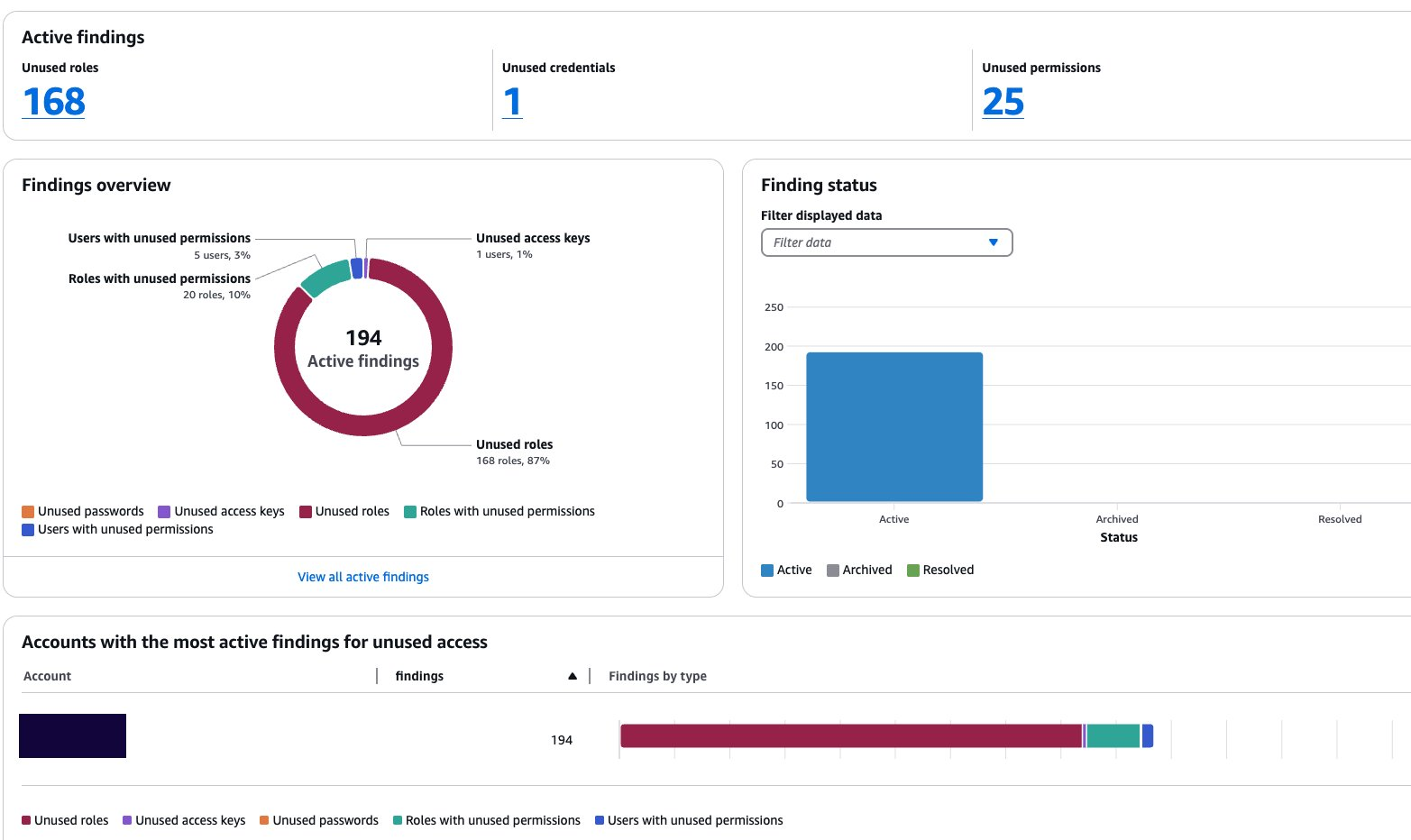
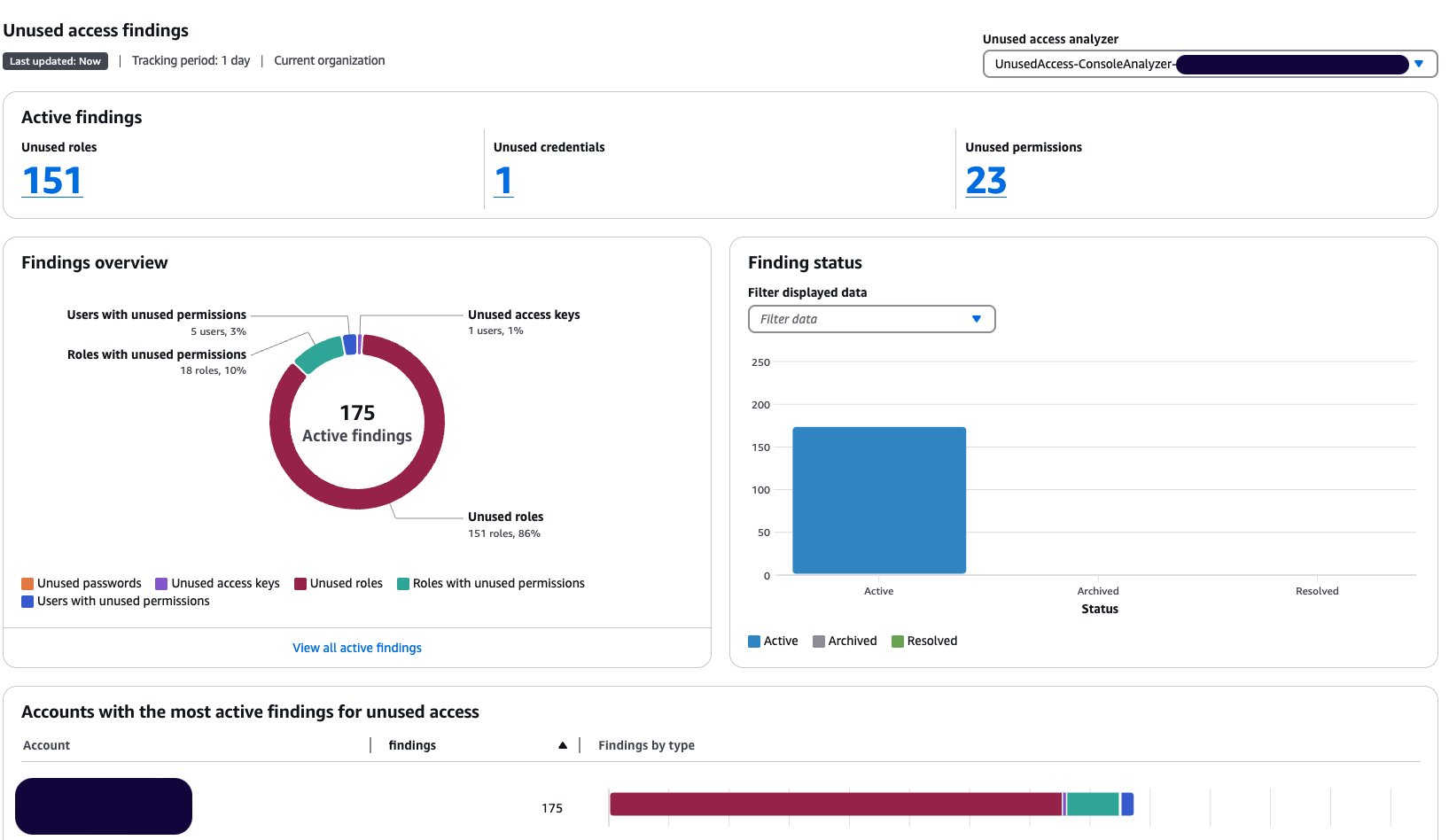
The Active findings section shows the number of active findings for unused roles, the number of active findings for unused credentials and the number of active findings for unused permissions.
The Findings overview section includes a breakdown of the active findings.
The Findings status section shows the status of findings (whether active, archived or resolved).
Figure 13: Unused access analyzer dashboard
Select the Analyzer settings at the top of the screen.
Select the analyzer that you want to review to see the exclusion tags.
After applying the tags, the updated dashboard is shown after the next scan.
Figure 15: Dashboard showing reduction of findings after exclusions
Review the exclusion on an unused access analyzer using AWS CLI:
Using the name of your analyzer, you can run the command get-analyzer to see the configured exclusion. Using the following command, replace <YOUR-ANALYZER-NAME> with the name of your analyzer:
In this post, you learned how to tailor your unused access analyzer to your needs by excluding specific accounts and IAM roles. To exclude the accounts in your organization from being monitored by IAM Access Analyzer, you can use a list of account IDs or select them from a hierarchical view of your organization structure. You can exclude IAM roles and IAM users based on tags. By customizing the exclusion on the unused access analyzer, you saw that the number of active findings went down, helping you focus on the findings that matter most. With this new offering, IAM Access Analyzer provides enhanced controls to help you tailor the analysis more closely to your organization’s security needs.
As a security team lead, your goal is to manage security for your organization at scale and ensure that your team follows AWS Identity and Access Management (IAM)security best practices, such as the principle of least privilege. As your developers build on AWS, you need visibility across your organization to make sure that teams are working with only the required privileges. Now, AWS Identity and Access Management Analyzer offers prescriptive recommendations with actionable guidance that you can share with your developers to quickly refine unused access.
In this post, we show you how to use IAM Access Analyzer recommendations to refine unused access. To do this, we start by focusing on the recommendations to refine unused permissions and show you how to generate the recommendations and the actions you can take. For example, we show you how to filter unused permissions findings, generate recommendations, and remediate issues. Now, with IAM Access Analyzer, you can include step-by-step recommendations to help developers refine unused permissions quickly.
Unused access recommendations
IAM Access Analyzer continuously analyzes your accounts to identify unused access and consolidates findings in a centralized dashboard. The dashboard helps review findings and prioritize accounts based on the volume of findings. The findings highlight unused IAM roles and unused access keys and passwords for IAM users. For active IAM roles and users, the findings provide visibility into unused services and actions. You can learn more about unused access analysis through the IAM Access Analyzer documentation.
For unused IAM roles, access keys, and passwords, IAM Access Analyzer provides quick links in the console to help you delete them. You can use the quick links to act on the recommendations or use export to share the details with the AWS account owner. For overly permissive IAM roles and users, IAM Access Analyzer provides policy recommendations with actionable steps that guide you to refine unused permissions. The recommended policies retain resource and condition context from existing policies, helping you update your policies iteratively.
Throughout this post, we use an IAM role in an AWS account and configure the permissions by doing the following:
We use an inline policy to demonstrate that IAM Access Analyzer unused access recommendations are applicable for that use case. The recommendations are also applicable when using AWS managed policies and customer managed policies.
In your AWS account, after you have configured an unused access analyzer, you can select an IAM role that you have used recently and see if there are unused access permissions findings and recommendations.
In this post we explore three options for generating recommendations for IAM Access Analyzer unused permissions findings: the console, AWS CLI, and AWS API.
Generate recommendations for unused permissions using the console
After you have created an unused access analyzer as described in the prerequisites, wait a few minutes to see the analysis results. Then use the AWS Management Console to view the proposed recommendations for the unused permissions.
To list unused permissions findings
Go to the IAM console and under Access Analyzer, choose Unused access from the navigation pane.
Search for active findings with the type Unused permissions in the search box.
Select Active from the Status drop-down list.
In the search box, select Findings type under Properties.
Select Equals as Operators.
Select Findings Type = Unused permissions.
This list shows the active findings for IAM resources with unused permissions.
Figure 1: Filter on unused permissions in the IAM console
Select a finding to learn more about the unused permissions granted to a given role or user.
To obtain recommendations for unused permissions
On the findings detail page, you will see a list of the unused permissions under Unused permissions.
Following that, there is a new section called Recommendations. The Recommendations section presents two steps to remediate the finding:
Review the existing permissions on the resource.
Create new policies with the suggested refined permissions and detach the existing policies.
Figure 2: Recommendations section
The generation of recommendations is on-demand and is done in the background when you’re using the console. The message Analysis in progress indicates that recommendations are being generated. The recommendations exclude the unused actions from the recommended policies.
When an IAM principal, such as an IAM role or user, has multiple permissions policies attached, an analysis of unused permissions is made for each of permissions policies:
If no permissions have been used, the recommended action is to detach the existing permissions policy.
If some permissions have been used, only the used permissions are kept in the recommended policy, helping you apply the principle of least privilege.
The recommendations are presented for each existing policy in the column Recommended policy. In this example, the existing policies are:
AmazonBedrockReadOnly
AmazonS3ReadOnlyAccess
InlinePolicyListLambda
And the recommended policies are:
None
AmazonS3ReadOnlyAccess-recommended
InlinePolicyListLambda-recommended
Figure 3: Recommended policies
There is no recommended policy for AmazonBedrockReadOnly because the recommended action is to detach it. When hovering over None, the following message is displayed: There are no recommended policies to create for the existing permissions policy.
AmazonS3ReadOnlyAccess and InlinePolicyListLambda and their associated recommended policy can be previewed by choosing Preview policy.
To preview a recommended policy
IAM Access Analyzer has proposed two recommended policies based on the unused actions.
To preview each recommended policy, choose Preview policy for that policy to see a comparison between the existing and recommended permissions.
Choose Preview policy for AmazonS3ReadOnlyAccess-recommended.
The existing policy has been analyzed and the broad permissions—s3:Get* and s3:List*—have been scoped down to detailed permissions in the recommended policy.
The permissions s3:Describe*, s3-object-lambda:Get*, and s3-object-lambda:List* can be removed because they weren’t used.
Figure 4: Preview of the recommended policy for AmazonS3ReadOnlyAccess
Choose Preview policy for InlinePolicyListLambda-recommended to see a comparison between the existing inline policy InlinePolicyListLambda and its recommended version.
The existing permissions, lambda:ListFunctions and lambda:ListLayers, are kept in the recommended policy, as well as the existing condition.
The permissions in lambda:ListAliases and lambda:ListFunctionUrlConfigs can be removed because they weren’t used.
Figure 5: Preview the recommended policy for the existing inline policy InlinePolicyListLambda
To download the recommended policies file
Choose Download JSON to download the suggested recommendations locally.
Figure 6: Download the recommended policies
A .zip file that contains the recommended policies in JSON format will be downloaded.
Figure 7: Downloaded recommended policies as JSON files
The content of the AmazonS3ReadOnlyAccess-recommended-1-2024-07-22T20/08/44.793Z.json file the same as the recommended policy shown in Figure 4.
Generate recommendations for unused permissions using AWS CLI
Use the following code to refine the results by filtering on the type UnusedPermission and selecting only the active findings. Copy the Amazon Resource Name (ARN) of your unused access analyzer and use it to replace the ARN in the following code:
This command provides the following results. For more information about the meaning and structure of the recommendations, see Anatomy of a recommendation later in this post.
Note: The recommendations consider AWS managed policies, customer managed policies, and inline policies. The IAM conditions in the initial policy are maintained in the recommendations if the actions they’re related to are used.
The remediations suggested are to do the following:
Detach AmazonBedrockReadOnly policy because it is unused: DETACH_POLICY
Create a new recommended policy with scoped down permissions from the managed policy AmazonS3ReadOnlyAccess: CREATE_POLICY
Detach AmazonS3ReadOnlyAccess: DETACH_POLICY
Embed a new recommended policy with scoped down permissions from the inline policy: CREATE_POLICY
To generate recommendations for unused permissions using the IAM Access Analyzer API
The findings are generated on-demand. For that purpose, IAM Access Analyzer API GenerateFindingRecommendation can be called with two parameters: the ARN of the analyzer and the finding ID.
After the recommendations are generated, they can be obtained by calling the API GetFindingRecommendation with the same parameters: the ARN of the analyzer and the finding ID.
Use AWS SDK for Python (boto3) for the API call as follows:
The recommendations are generated as actionable guidance that you can follow. They propose new IAM policies that exclude the unused actions, helping you rightsize your permissions.
Anatomy of a recommendation
The recommendations are usually presented in the following way:
Date and time: startedAt, completedAt. Respectively when the API call was made and when the analysis was completed and the results were provided.
Resource ARN: The ARN of the resource being analyzed.
Recommended steps: The recommended steps, such as creating a new policy based on the actions used and detaching the existing policy.
Status: The status of retrieving the finding recommendation. The status values include SUCCEEDED, FAILED, and IN_PROGRESS.
For more information about the structure of recommendations, see the output section of get-finding-recommendation.
Recommended policy review
You must review the recommended policy. The recommended actions depend on the original policy. The original policy will be one of the following:
An AWS managed policy: You need to create a new IAM policy using recommendedPolicy. Attach this newly created policy to your IAM role. Then detach the former policy.
A customer managed policy or an inline policy: Review the policy, verify its scope, consider how often it’s attached to other principals (customer managed policy only), and when you are confident to proceed, use the recommended policy to create a new policy and detach the former policy.
Use cases to consider when reviewing recommendations
During your review process, keep in mind that the unused actions are determined based on the time defined in your tracking period. The following are some use cases you might have where a necessary role or action might be identified as unused (this is not an exhaustive list of use cases). It’s important to review the recommendations based on your business needs. You can also archive some findings related to the use cases such as the ones that follow:
Backup activities: If your tracking period is 28 days and you have a specific role for your backup activities running at the end of each month, you might discover that after 29 days some of the permissions for that backup role are identified as unused.
IAM permissions associated to an infrastructure as code deployment pipeline: You should also consider the permissions associated to specific IAM roles such an IAM for infrastructure as code (IaC) deployment pipeline. Your pipeline can be used to deploy Amazon Simple Storage Service (Amazon S3) buckets based on your internal guidelines. After deployment is complete, the pipeline permissions can become unused after your tracking period, but removing those unused permissions can prevent you from updating your S3 buckets configuration or from deleting it.
IAM roles associated with disaster recovery activities: While it’s recommended to have a disaster recovery plan, the IAM roles used to perform those activities might be flagged by IAM Access Analyzer for having unused permissions or being unused roles.
To apply the suggested recommendations
Of the three original policies attached to IAMRole_IA2_Blog_EC2Role, AmazonBedrockReadOnly can be detached and AmazonS3ReadOnlyAccess and InlinePolicyListLambda can be refined.
DetachAmazonBedrockReadOnly
No permissions are used in this policy, and the recommended action is to detach it from your IAM role. To detach it, you can use the IAM console, the AWS CLI, or the AWS API.
Create a new policy called AmazonS3ReadOnlyAccess-recommended and detach AmazonS3ReadOnlyAccess.
The unused access analyzer has identified unused permissions in the managed policy AmazonS3ReadOnlyAccess and proposed a new policy AmazonS3ReadOnlyAccess-recommended that contains only the used actions. This is a step towards least privilege because the unused actions can be removed by using the recommended policy.
Create a new IAM policy named AmazonS3ReadOnlyAccess-recommended that contains only the following recommended policy or one based on the downloaded JSON file.
Embed a new inline policy InlinePolicyListLambda-recommended and delete InlinePolicyListLambda. This inline policy lists AWS Lambda aliases, functions, layers, and function URLs only when coming from a specific source IP address.
After updating the policies based on the Recommended policy proposed, the finding Status will change from Active to Resolved.
Figure 9: The finding is resolved
Pricing
There is no additional pricing for using the prescriptive recommendations after you have enabled unused access findings.
Conclusion
As a developer writing policies, you can use the actionable guidance provided in recommendations to continually rightsize your policies to include only the roles and actions you need. You can export the recommendations through the console or set up automated workflows to notify your developers about new IAM Access Analyzer findings.
This new IAM Access Analyzer unused access recommendations feature streamlines the process towards least privilege by selecting the permissions that are used and retaining the resource and condition context from existing policies. It saves an impressive amount of time by the actions used by your principals and guiding you to refine them.
By using the IAM Access Analyzer findings and access recommendations, you can quickly see how to refine the permissions granted. We have shown in this blog post how to generate prescriptive recommendations with actionable guidance for unused permissions using AWS CLI, API calls, and the console.
If you have feedback about this post, submit comments in the Comments section below. If you have questions about this post, contact AWS Support.
The collective thoughts of the interwebz
Manage Consent
To provide the best experiences, we use technologies like cookies to store and/or access device information. Consenting to these technologies will allow us to process data such as browsing behavior or unique IDs on this site. Not consenting or withdrawing consent, may adversely affect certain features and functions.
Functional
Always active
The technical storage or access is strictly necessary for the legitimate purpose of enabling the use of a specific service explicitly requested by the subscriber or user, or for the sole purpose of carrying out the transmission of a communication over an electronic communications network.
Preferences
The technical storage or access is necessary for the legitimate purpose of storing preferences that are not requested by the subscriber or user.
Statistics
The technical storage or access that is used exclusively for statistical purposes.The technical storage or access that is used exclusively for anonymous statistical purposes. Without a subpoena, voluntary compliance on the part of your Internet Service Provider, or additional records from a third party, information stored or retrieved for this purpose alone cannot usually be used to identify you.
Marketing
The technical storage or access is required to create user profiles to send advertising, or to track the user on a website or across several websites for similar marketing purposes.