All posts by MJ Kubba

Monitoring Amazon DevOps Guru insights using Amazon Managed Grafana

Post Syndicated from MJ Kubba original https://aws.amazon.com/blogs/devops/monitoring-amazon-devops-guru-insights-using-amazon-managed-grafana/

As organizations operate day-to-day, having insights into their cloud infrastructure state can be crucial for the durability and availability of their systems. Industry research estimates[1] that downtime costs small businesses around $427 per minute of downtime, and medium to large businesses an average of $9,000 per minute of downtime. Amazon DevOps Guru customers want to monitor and generate alerts using a single dashboard. This allows them to reduce context switching between applications, providing them an opportunity to respond to operational issues faster.

DevOps Guru can integrate with Amazon Managed Grafana to create and display operational insights. Alerts can be created and communicated for any critical events captured by DevOps Guru and notifications can be sent to operation teams to respond to these events. The key telemetry data types of logs and metrics are parsed and filtered to provide the necessary insights into observability.

Furthermore, it provides plug-ins to popular open-source databases, third-party ISV monitoring tools, and other cloud services. With Amazon Managed Grafana, you can easily visualize information from multiple AWS services, AWS accounts, and Regions in a single Grafana dashboard.

In this post, we will walk you through integrating the insights generated from DevOps Guru with Amazon Managed Grafana.

Solution Overview:

This architecture diagram shows the flow of the logs and metrics that will be utilized by Amazon Managed Grafana. Insights originate from DevOps Guru, each insight generating an event. These events are captured by Amazon EventBridge, and then saved as logs to Amazon CloudWatch Log Group DevOps Guru service metrics, and then parsed by Amazon Managed Grafana to create new dashboards.

This architecture diagram shows the flow of the logs and metrics that will be utilized by Amazon Managed Grafana, starting with DevOps Guru and then using Amazon EventBridge to save the insight event logs to Amazon CloudWatch Log Group DevOps Guru service metrics to be parsed by Amazon Managed Grafana and create new dashboards in Grafana from these logs and Metrics.

Now we will walk you through how to do this and set up notifications to your operations team.

Prerequisites:

The following prerequisites are required for this walkthrough:

  • An AWS Account
  • Enabled DevOps Guru on your account with CloudFormation stack, or tagged resources monitored.

Using Amazon CloudWatch Metrics


DevOps Guru sends service metrics to CloudWatch Metrics. We will use these to      track metrics for insights and metrics for your DevOps Guru usage; the DevOps Guru service reports the metrics to the AWS/DevOps-Guru namespace in CloudWatch by default.

First, we will provision an Amazon Managed Grafana workspace and then create a Dashboard in the workspace that uses Amazon CloudWatch as a data source.

Setting up Amazon CloudWatch Metrics

  1. Create Grafana Workspace
    Navigate to Amazon Managed Grafana from AWS console, then click Create workspace

a. Select the Authentication mechanism

i. AWS IAM Identity Center (AWS SSO) or SAML v2 based Identity Providers

ii. Service Managed Permission or Customer Managed

iii. Choose Next

b. Under “Data sources and notification channels”, choose Amazon CloudWatch

c. Create the Service.

You can use this post for more information on how to create and configure the Grafana workspace with SAML based authentication.

Next, we will show you how to create a dashboard and parse the Logs and Metrics to display the DevOps Guru insights and recommendations.

2. Configure Amazon Managed Grafana

a. Add CloudWatch as a data source:
From the left bar navigation menu, hover over AWS and select Data sources.

b. From the Services dropdown select and configure CloudWatch.

3. Create a Dashboard

a. From the left navigation bar, click on add a new Panel.

b. You will see a demo panel.

c. In the demo panel – Click on Data source and select Amazon CloudWatch.

The Amazon Grafana Workspace dashboard with the Grafana data source dropdown menu open. The drop down has 'Amazon CloudWatch (region name)' highlighted, other options include 'Mixed, 'Dashboard', and 'Grafana'.

d. For this panel we will use CloudWatch metrics to display the number of insights.

e. From Namespace select the AWS/DevOps-Guru name space, Insights as Metric name and Average for Statistics.

In the Amazon Grafana Workspace dashboard the user has entered values in three fields. "Grafana Query with Namespace" has the chosen value: AWS/DevOps-Guru. "Metric name" has the chosen value: Insights. "Statistic" has the chosen value: Average.

click apply

Time series graph contains a single new data point, indicting a recent event.

f. This is our first panel. We can change the panel name from the right-side bar under Title. We will name this panel “Insights

g. From the top right menu, click save dashboard and give your new dashboard a name

Using Amazon CloudWatch Logs via Amazon EventBridge

For other insights outside of the service metrics, such as a number of insights per specific service or the average for a region or for a specific AWS account, we will need to parse the event logs. These logs first need to be sent to Amazon CloudWatch Logs. We will go over the details on how to set this up and how we can parse these logs in Amazon Managed Grafana using CloudWatch Logs Query Syntax. In this post, we will show a couple of examples. For more details, please check out this User Guide documentation. This is not done by default and we will need to use Amazon EventBridge to pass these logs to CloudWatch.

DevOps Guru logs include other details that can be helpful when building Dashboards, such as region, Insight Severity (High, Medium, or Low), associated resources, and DevOps guru dashboard URL, among other things.  For more information, please check out this User Guide documentation.

EventBridge offers a serverless event bus that helps you receive, filter, transform, route, and deliver events. It provides one to many messaging solutions to support decoupled architectures, and it is easy to integrate with AWS Services and 3rd-party tools. Using Amazon EventBridge with DevOps Guru provides a solution that is easy to extend to create a ticketing system through integrations with ServiceNow, Jira, and other tools. It also makes it easy to set up alert systems through integrations with PagerDuty, Slack, and more.


Setting up Amazon CloudWatch Logs

  1. Let’s dive in to creating the EventBridge rule and enhance our Grafana dashboard:

a. First head to Amazon EventBridge in the AWS console.

b. Click Create rule.

     Type in rule Name and Description. You can leave the Event bus to default and Rule type to Rule with an event pattern.

c. Select AWS events or EventBridge partner events.

    For event Pattern change to Customer patterns (JSON editor) and use:

{"source": ["aws.devops-guru"]}

This filters for all events generated from DevOps Guru. You can use the same mechanism to filter out specific messages such as new insights, or insights closed to a different channel. For this demonstration, let’s consider extracting all events.

As the user configures their EventBridge Rule, for the Creation method they have chosen "Custom pattern (JSON editor) write an event pattern in JSON." For the Event pattern editor just below they have entered {"source":["aws.devops-guru"]}

d. Next, for Target, select AWS service.

    Then use CloudWatch log Group.

    For the Log Group, give your group a name, such as “devops-guru”.

In the prompt for the new Target's configurations, the user has chosen AWS service as the Target type. For the Select a target drop down, they chose CloudWatch log Group. For the log group, they selected the /aws/events radio option, and then filled in the following input text box with the kebab case group name devops-guru.

e. Click Create rule.

f. Navigate back to Amazon Managed Grafana.
It’s time to add a couple more additional Panels to our dashboard.  Click Add panel.
    Then Select Amazon CloudWatch, and change from metrics to CloudWatch Logs and select the Log Group we created previously.

In the Grafana Workspace, the user has "Data source" selected as Amazon CloudWatch us-east-1. Underneath that they have chosen to use the default region and CloudWatch Logs. Below that, for the Log Groups they have entered /aws/events/DevOpsGuru

g. For the query use the following to get the number of closed insights:

fields @detail.messageType
| filter detail.messageType="CLOSED_INSIGHT"
| count(detail.messageType)

You’ll see the new dashboard get updated with “Data is missing a time field”.

New panel suggestion with switch to table or open visualization suggestions

You can either open the suggestions and select a gauge that makes sense;

New Suggestions display a dial graph, a bar graph, and a count numerical tracker

Or choose from multiple visualization options.

Now we have 2 panels:

Two panels are shown, one is the new dial graph, and the other is the time series graph that was created earlier.

h. You can repeat the same process. To create 3rd panel for the new insights using this query:

fields @detail.messageType 
| filter detail.messageType="NEW_INSIGHT" 
| count(detail.messageType)

Now we have 3 panels:

Grafana now shows three 3 panels. Two dial graphs, and the time series graph.

Next, depending on the visualizations, you can work with the Logs and metrics data types to parse and filter the data.

Setting up a 4th panel as table. Under the Query tab, in the query editor, the user has entered the text: fields detail.messageType, detail.insightSeverity, detail.insightUrlfilter | filter detail.messageType="CLOSED_INSIGHT" or detail.messageType="NEW_INSIGHT"

i. For our fourth panel, we will add DevOps Guru dashboard direct link to the AWS Console.

Repeat the same process as demonstrated previously one more time with this query:

fields detail.messageType, detail.insightSeverity, detail.insightUrlfilter 
| filter detail.messageType="CLOSED_INSIGHT" or detail.messageType="NEW_INSIGHT"                       

                        Switch to table when prompted on the panel.

Grafana now shows 4 panels. The new panel displays a data table that contains information about the most recent DevOps Guru insights. There are also the two dial graphs, and the time series graph from before.

This will give us a direct link to the DevOps Guru dashboard and help us get to the insight details and Recommendations.

Grafana now shows 4 panels. The new panel displays a data table that contains information about the most recent DevOps Guru insights. There are also the two dial graphs, and the time series graph from before.

Save your dashboard.

  1. You can extend observability by sending notifications through alerts on dashboards of panels providing metrics. The alerts will be triggered when a condition is met. The Alerts are communicated with Amazon SNS notification mechanism. This is our SNS notification channel setup.

Screenshot: notification settings show Name: DevopsGuruAlertsFromGrafana and Type: SNS

A previously created notification is used next to communicate any alerts when the condition is met across the metrics being observed.

Screenshot: notification setting with condition when count of query is above 5, a notification is sent to DevopsGuruAlertsFromGrafana with message, "More than 5 insights in the past 1 hour"

Cleanup

To avoid incurring future charges, delete the resources.

  • Navigate to EventBridge in AWS console and delete the rule created in step 4 (a-e) “devops-guru”.
  • Navigate to CloudWatch logs in AWS console and delete the log group created as results of step 4 (a-e) named “devops-guru”.
  • Amazon Managed Grafana: Navigate to Amazon Managed Grafana service and delete the Grafana services you created in step 1.

Conclusion

In this post, we have demonstrated how to successfully incorporate Amazon DevOps Guru insights into Amazon Managed Grafana and use Grafana as the observability tool. This will allow Operations team to successfully observe the state of their AWS resources and notify them through Alarms on any preset thresholds on DevOps Guru metrics and logs. You can expand on this to create other panels and dashboards specific to your needs. If you don’t have DevOps Guru, you can start monitoring your AWS applications with AWS DevOps Guru today using this link.

[1] https://www.atlassian.com/incident-management/kpis/cost-of-downtime

About the authors:
MJ Kubba

MJ Kubba is a Solutions Architect who enjoys working with public sector customers to build solutions that meet their business needs. MJ has over 15 years of experience designing and implementing software solutions. He has a keen passion for DevOps and cultural transformation.

David Ernst

David is a Sr. Specialist Solution Architect – DevOps, with 20+ years of experience in designing and implementing software solutions for various industries. David is an automation enthusiast and works with AWS customers to design, deploy, and manage their AWS workloads/architectures.

Sofia Kendall

Sofia Kendall is a Solutions Architect who helps small and medium businesses achieve their goals as they utilize the cloud. Sofia has a background in Software Engineering and enjoys working to make systems reliable, efficient, and scalable.

Setting up a secure CI/CD pipeline in a private Amazon Virtual Private Cloud with no public internet access

Post Syndicated from MJ Kubba original https://aws.amazon.com/blogs/devops/setting-up-a-secure-ci-cd-pipeline-in-a-private-amazon-virtual-private-cloud-with-no-public-internet-access/

With the rise of the cloud and increased security awareness, the use of private Amazon VPCs with no public internet access also expanded rapidly. This setup is recommended to make sure of proper security through isolation. The isolation requirement also applies to code pipelines, in which developers deploy their application modules, software packages, and other dependencies and bundles throughout the development lifecycle. This is done without having to push larger bundles from the developer space to the staging space or the target environment. Furthermore, AWS CodeArtifact is used as an artifact management service that will help organizations of any size to securely store, publish, and share software packages used in their software development process.

We’ll walk through the steps required to build a secure, private continuous integration/continuous development (CI/CD) pipeline with no public internet access while maintaining log retention in Amazon CloudWatch. We’ll utilize AWS CodeCommit for source, CodeArtifact for the Modules and software packages, and Amazon Simple Storage Service (Amazon S3) as artifact storage.

Prerequisites

The prerequisites for following along with this post include:

  • An AWS Account
  • A Virtual Private Cloud (Amazon VPC)
  • A CI/CD pipeline – This can be CodePipeline, Jenkins or any CI/CD tool you want to integrate CodeArtifact with, we will use CodePipeline in our walkthrough here.

Solution walkthrough

The main service we’ll focus on is CodeArtifact, a fully managed artifact repository service that makes it easy for organizations of any size to securely store, publish, and share software packages used in their software development process. CodeArtifact works with commonly used package managers and build tools, such as Maven and Gradle (Java), npm and yarn (JavaScript), pip and twine (Python), or NuGet (.NET).

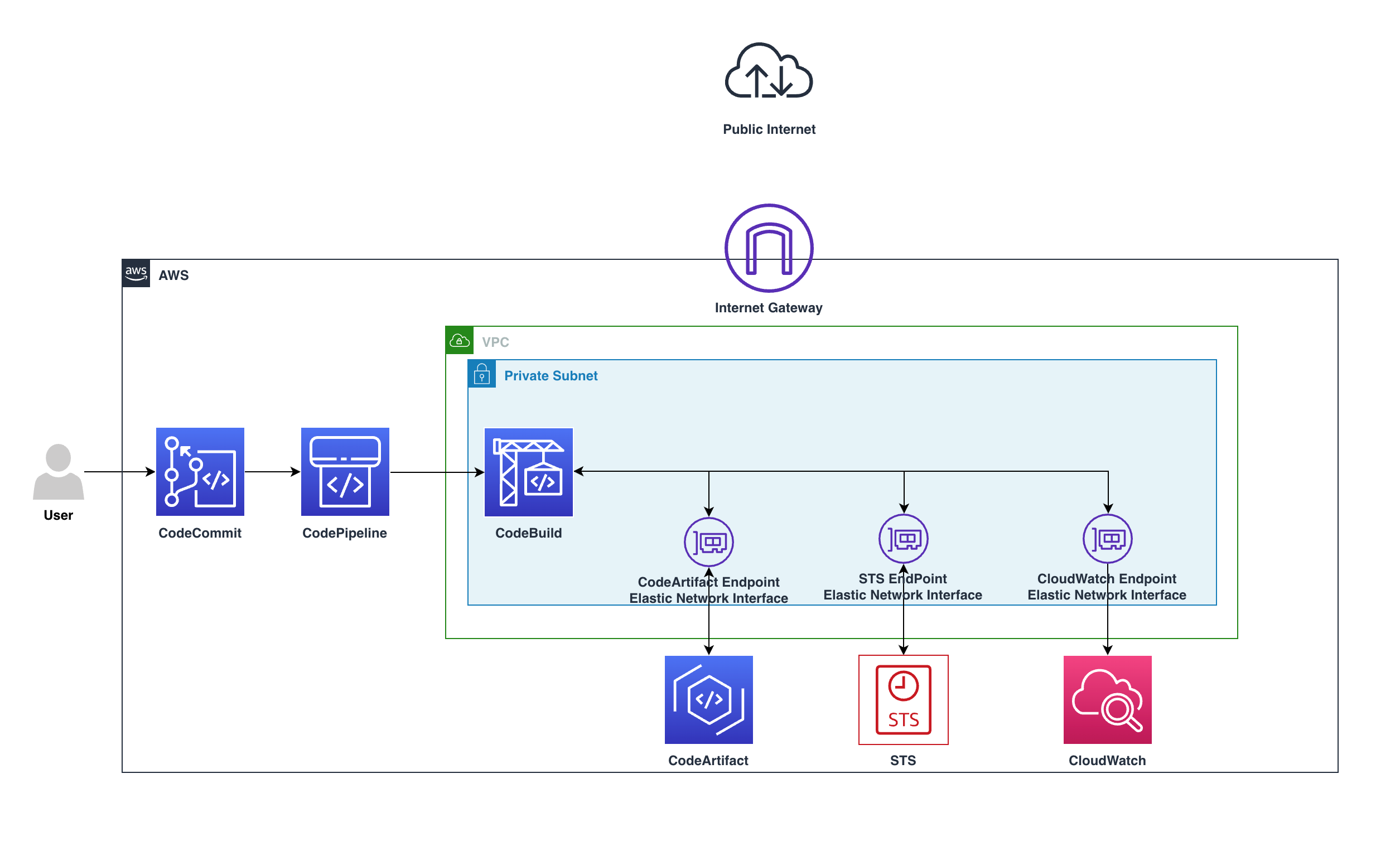
user checkin code to CodeCommit, CodePipeline will detect the change and start the pipeline, in CodeBuild the build stage will utilize the private endpoints and download the software packages needed without the need to go over the internet.

Users push code to CodeCommit, CodePipeline will detect the change and start the pipeline, in CodeBuild the build stage will utilize the private endpoints and download the software packages needed without the need to go over the internet.

The preceding diagram shows how the requests remain private within the VPC and won’t go through the Internet gateway, by going from CodeBuild over the private endpoint to CodeArtifact service, all within the private subnet.

The requests will use the following VPC endpoints to connect to these AWS services:
  • CloudWatch Logs endpoint (for CodeBuild to put logs in CloudWatch)
  • CodeArtifact endpoints
  • AWS Security Token Service (AWS STS) endpoint
  • Amazon Simple Storage Service (Amazon S3) endpoint

Walkthrough

  1. Create a CodeCommit Repository:
    1. Navigate to your CodeCommit Console then click on Create repository
Screenshot: Create repository button

Figure 2. Screenshot: Create repository button.

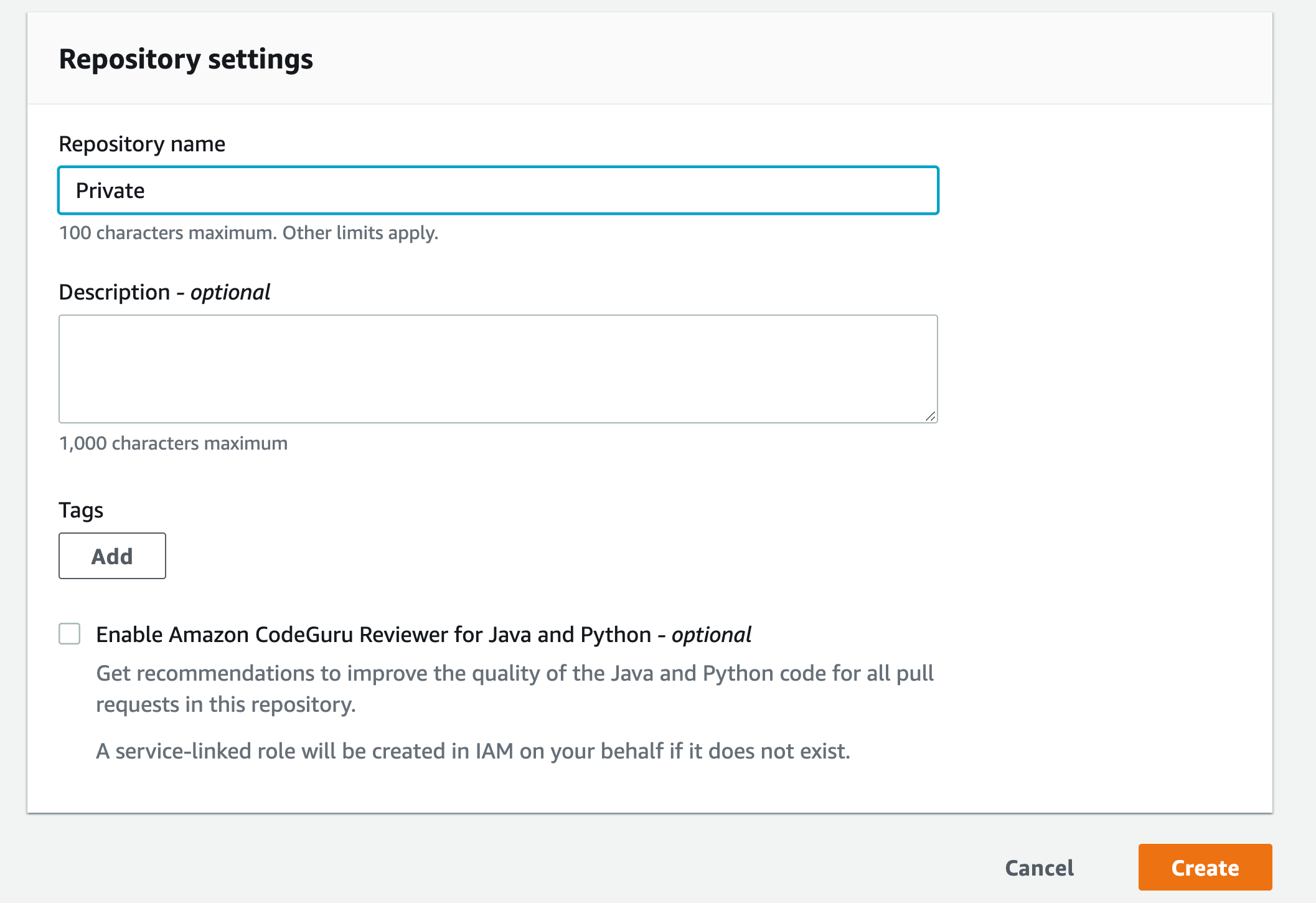
    1. Type in name for the repository then click Create
Screenshot: Repository setting with name shown as "Private" and empty Description

Figure 3. Screenshot: Repository setting with name shown as “Private” and empty Description.

    1. Scroll down and click Create file
Figure 4. Create file button.

Figure 4. Create file button.

    1. Copy the example buildspec.yml file and paste it to the editor

Example buildspec.yml file:

version: 0.2
phases:
  install:
    runtime-versions:
        nodejs: 16
    
commands:
      - export AWS_STS_REGIONAL_ENDPOINTS=regional
      - ACCT=`aws sts get-caller-identity --region ${AWS_REGION} --query Account --output text`
      - aws codeartifact login --tool npm --repository Private --domain private --domain-owner ${ACCT}
      - npm install
  build:
    commands:
      - node index.js
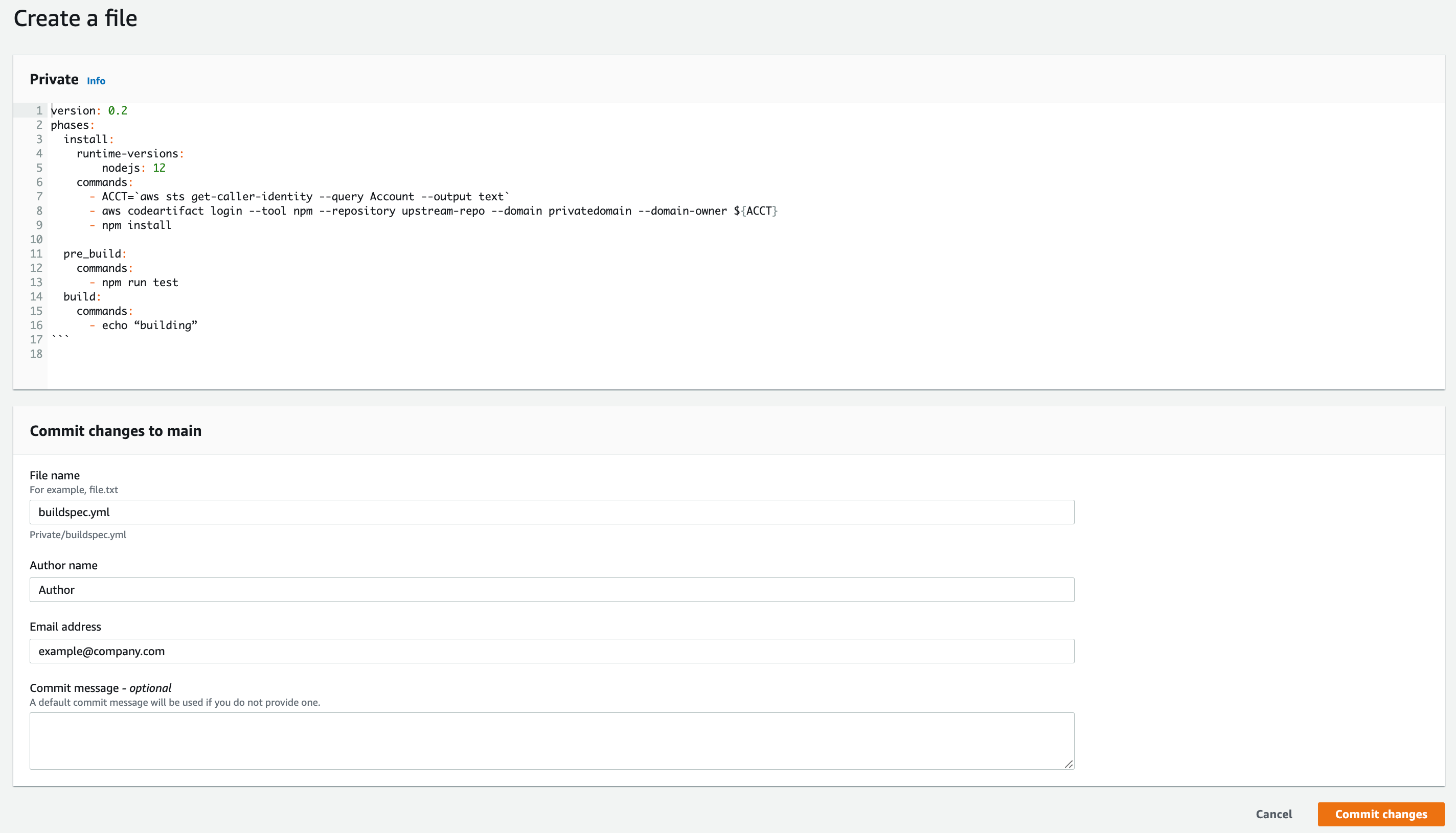
    1. Name the file buildspec.yml, type in your name and your email address then Commit changes
Figure 5. Screenshot: Create file page.

Figure 5. Screenshot: Create file page.

  1. Create CodeArtifact
    1. Navigate to your CodeArtifact Console then click on Create repository
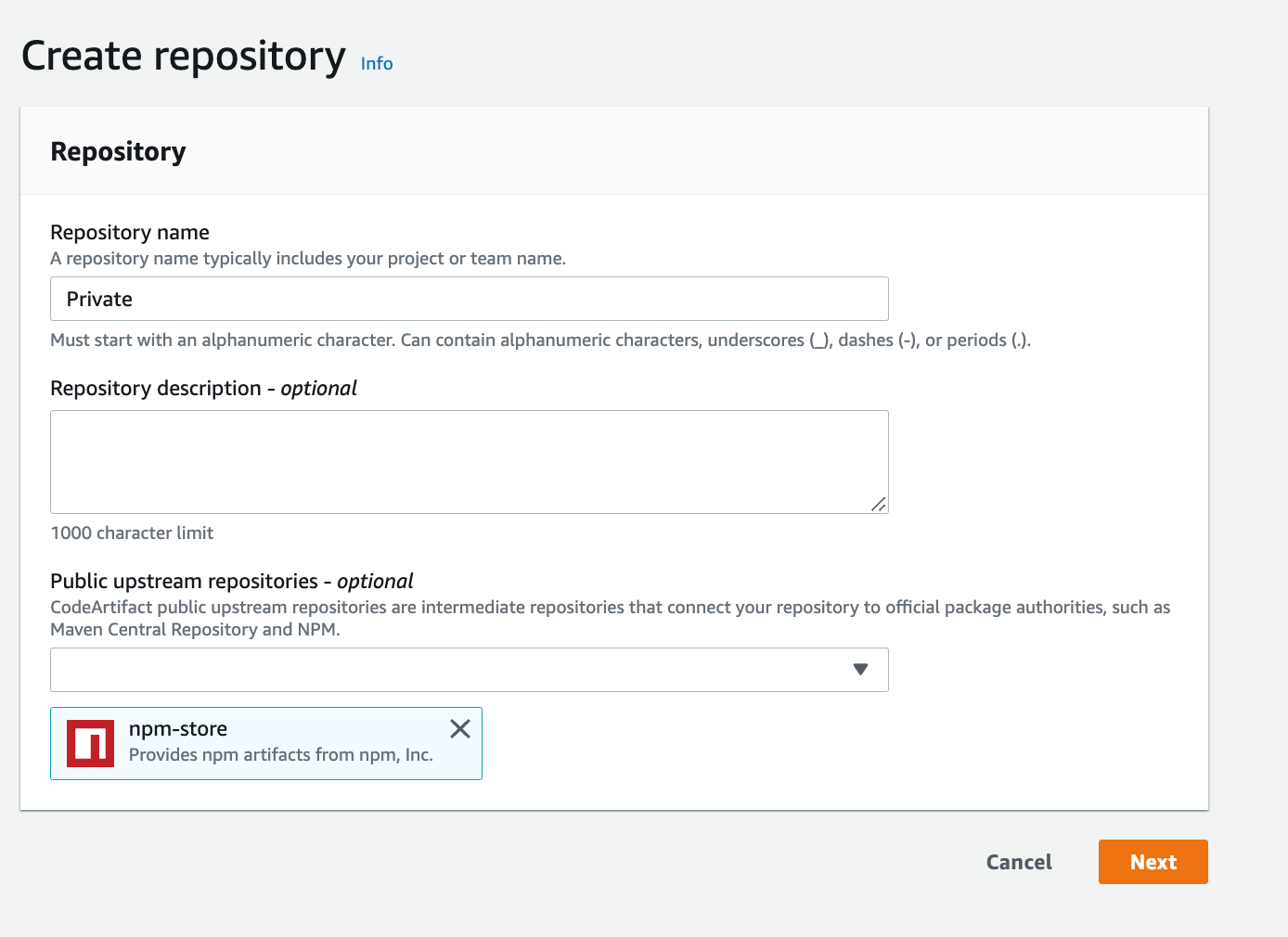
    2. Give it a name and select npm-store as public upsteam repository
Figure 6. Screenshot: Create repository page with Repository name "Private".

Figure 6. Screenshot: Create repository page with Repository name “Private”.

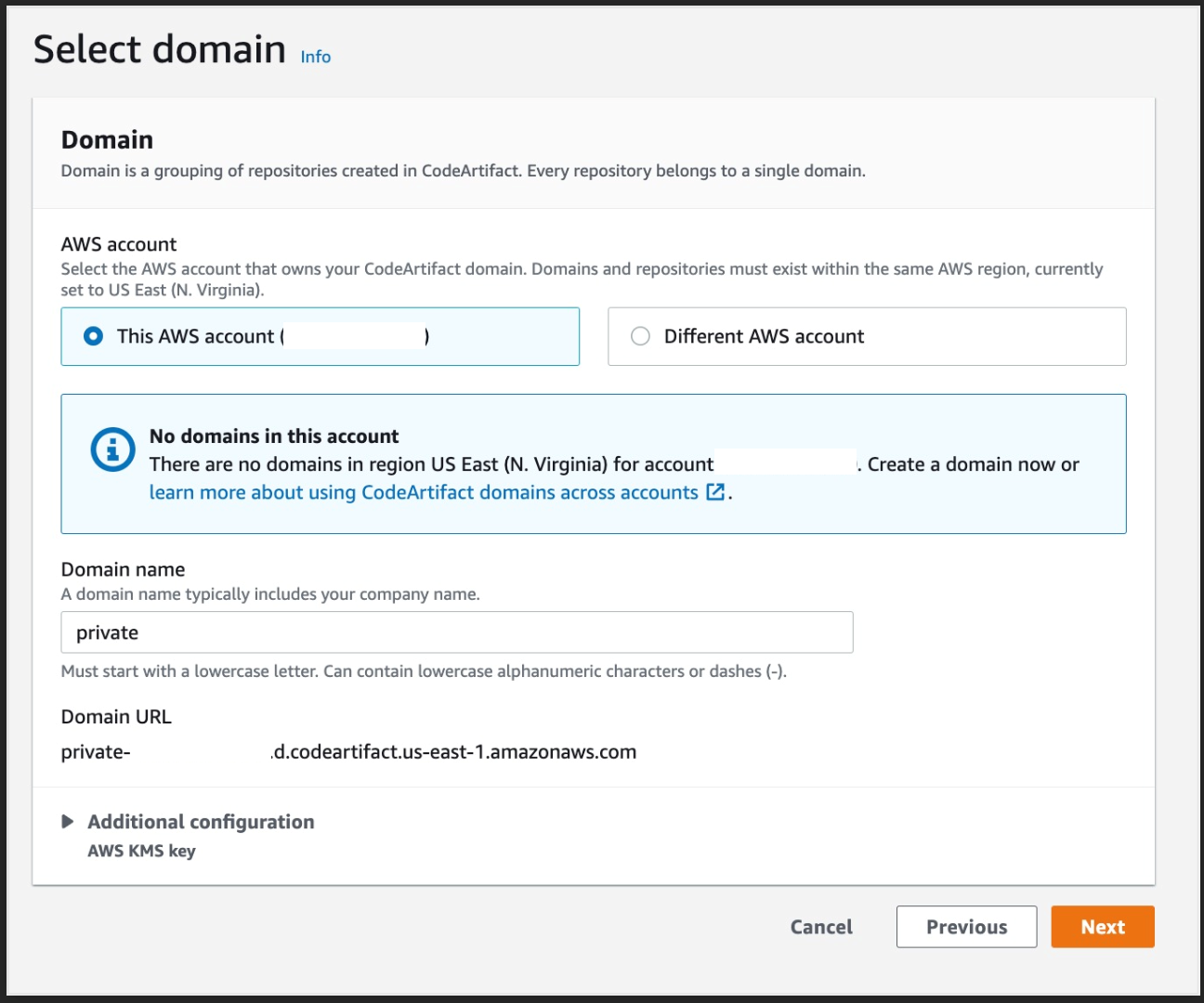
    1. For the Domain Select this AWS account and enter a domain name
Figure 7. Screenshot: Select domain page.

Figure 7. Screenshot: Select domain page.

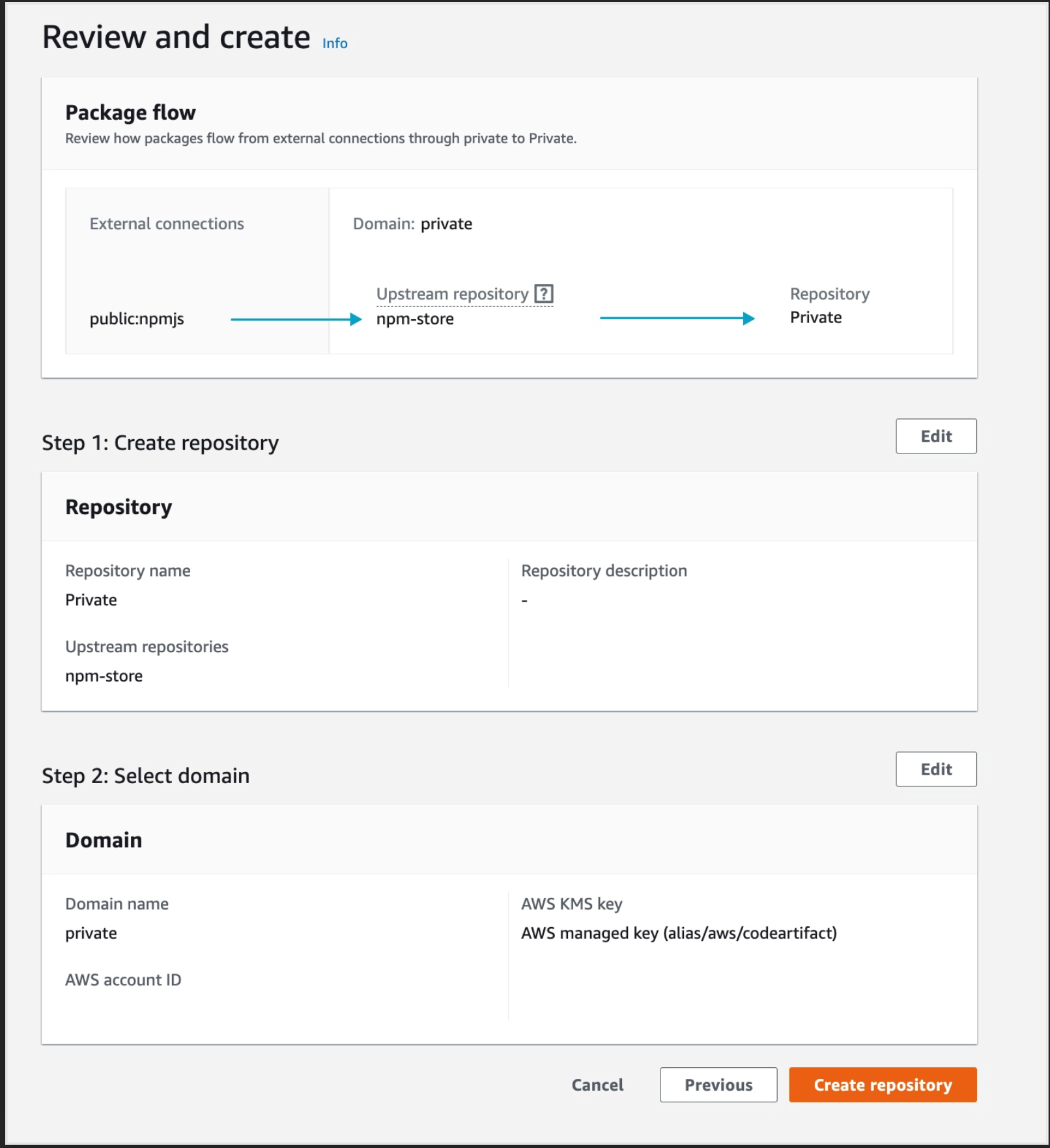
    1. Click Next then Create repository
Figure 8. Screenshot: Create repository review page.

Figure 8. Screenshot: Create repository review page.

  1. Create a CI/CD using CodePipeline
    1. Navigate to your CodePipeline Console then click on Create pipeline
Figure 9. Screenshot: Create pipeline button.

Figure 9. Screenshot: Create pipeline button.

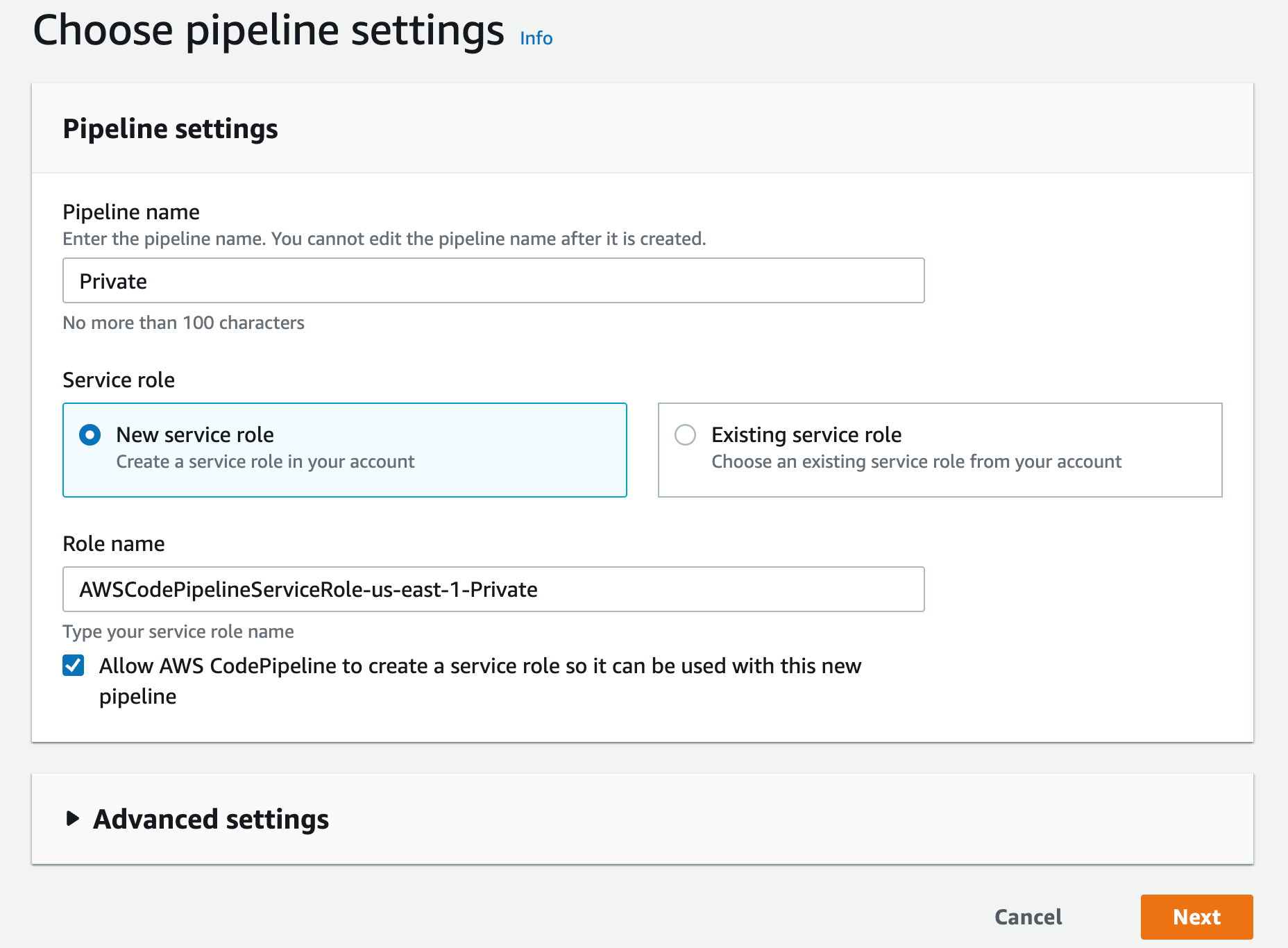
    1. Type a name, leave the Service role as “New service role” and click next
Figure 10. Screenshot: Choose pipeline setting page with pipeline name "Private".

Figure 10. Screenshot: Choose pipeline setting page with pipeline name “Private”.

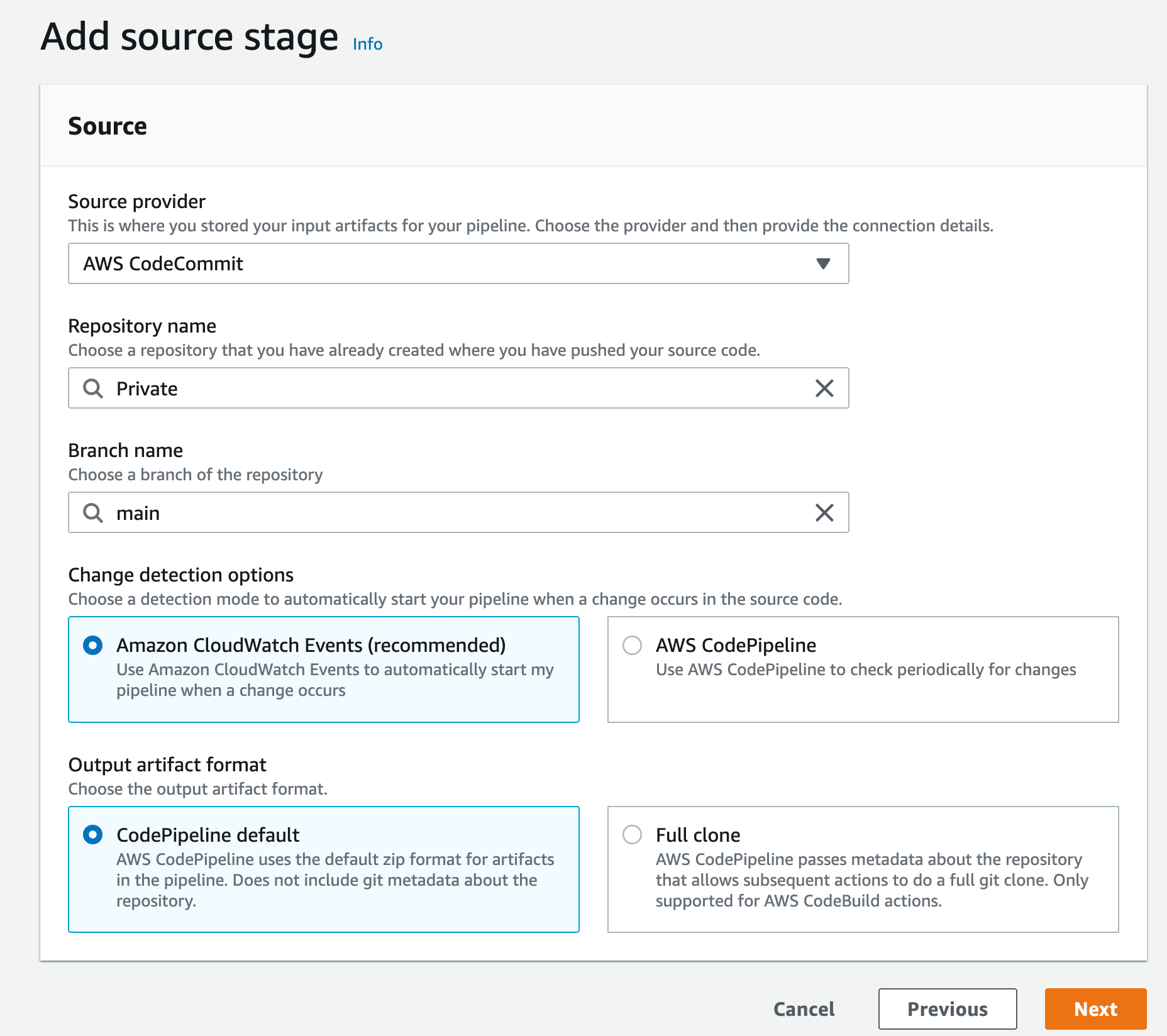
    1. Select AWS CodeCommit as your Source provider
    2. Then choose the CodeCommit repository you created earlier and for branch select main then click Next
Figure 11. Screenshot: Create pipeline add source stage.

Figure 11. Screenshot: Create pipeline add source stage.

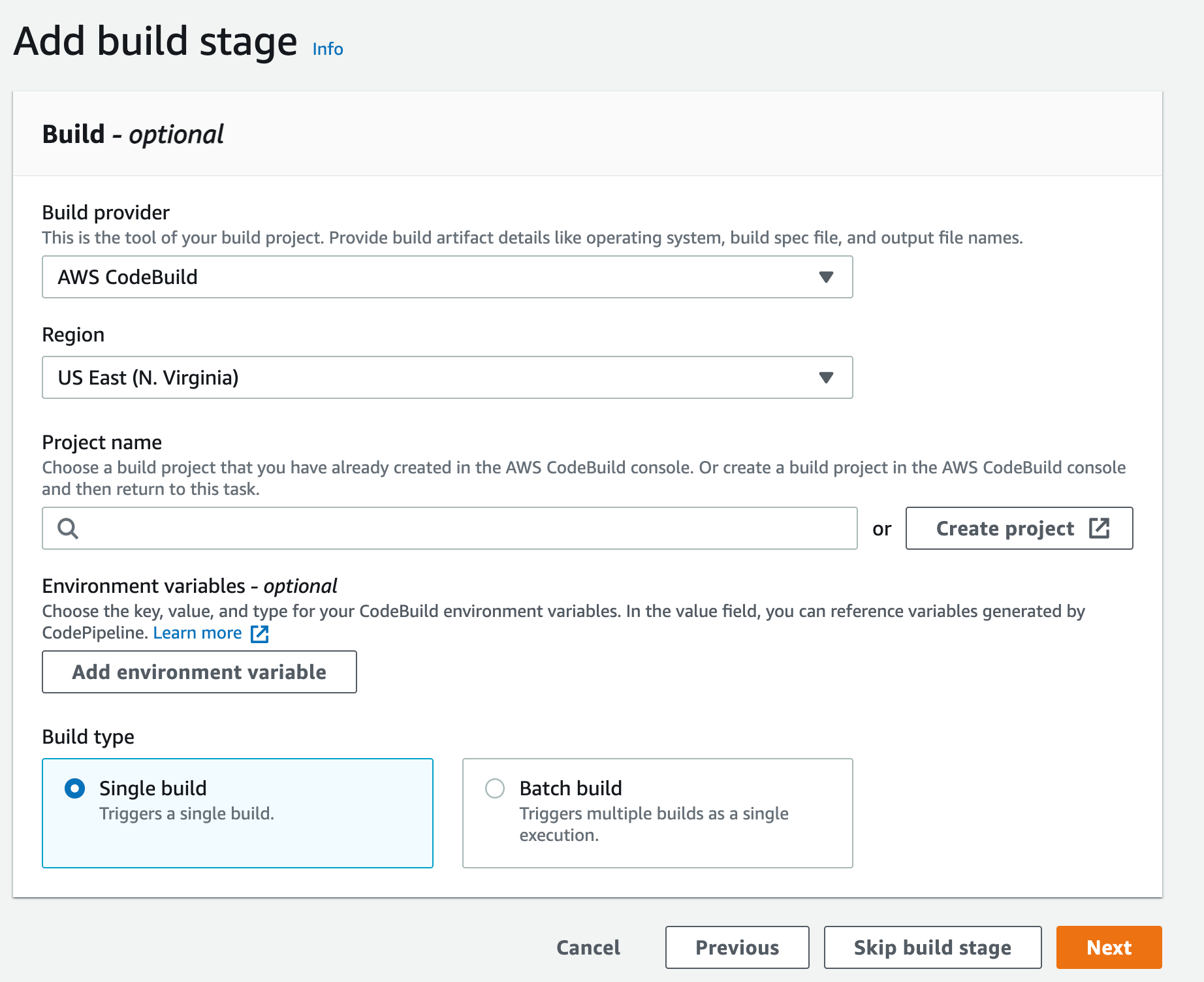
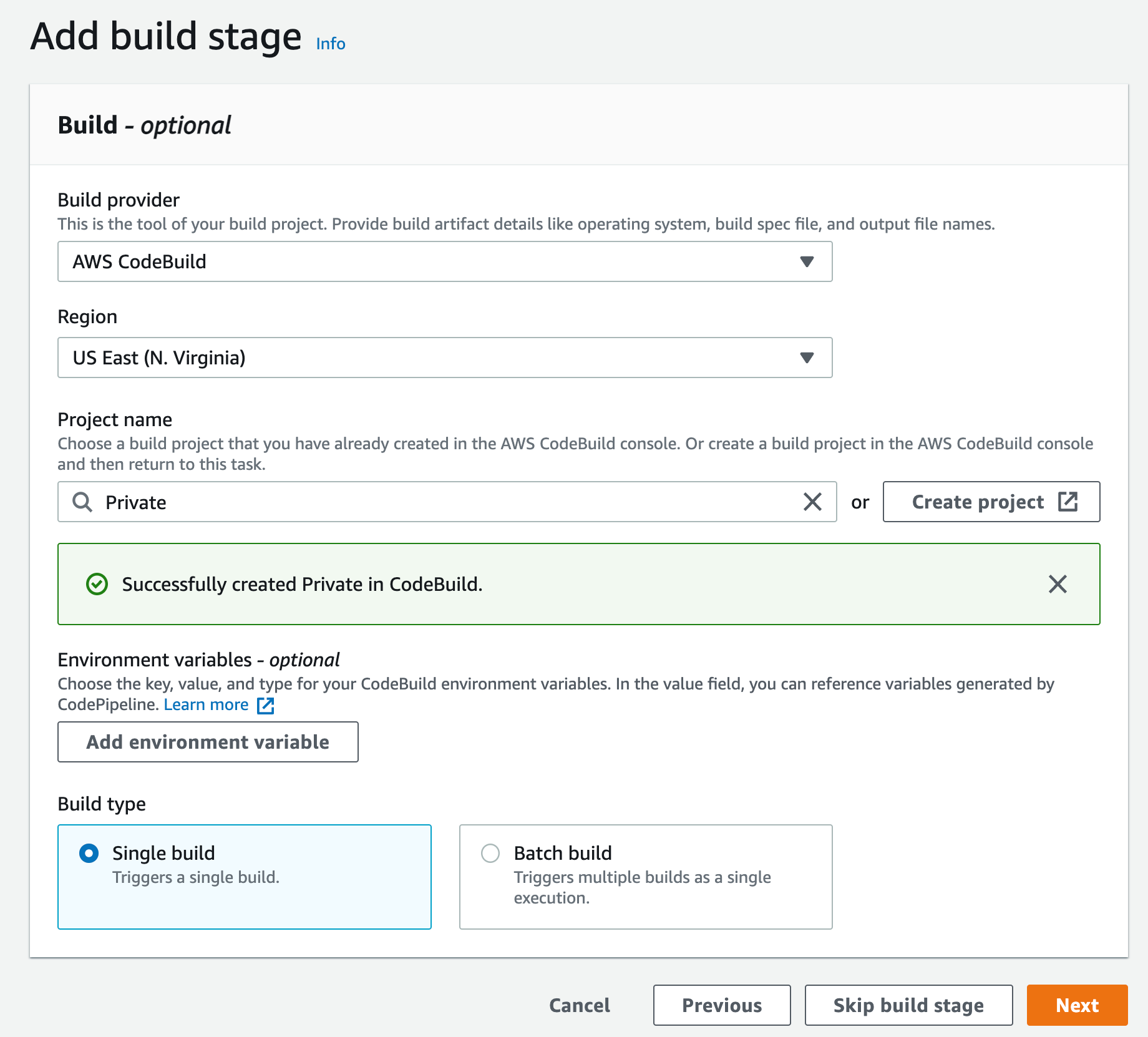
    1. For the Build Stage, Choose AWS CodeBuild as the build provider, then click Create Project
Figure 12. Screenshot: Create pipeline add build stage.

Figure 12. Screenshot: Create pipeline add build stage.

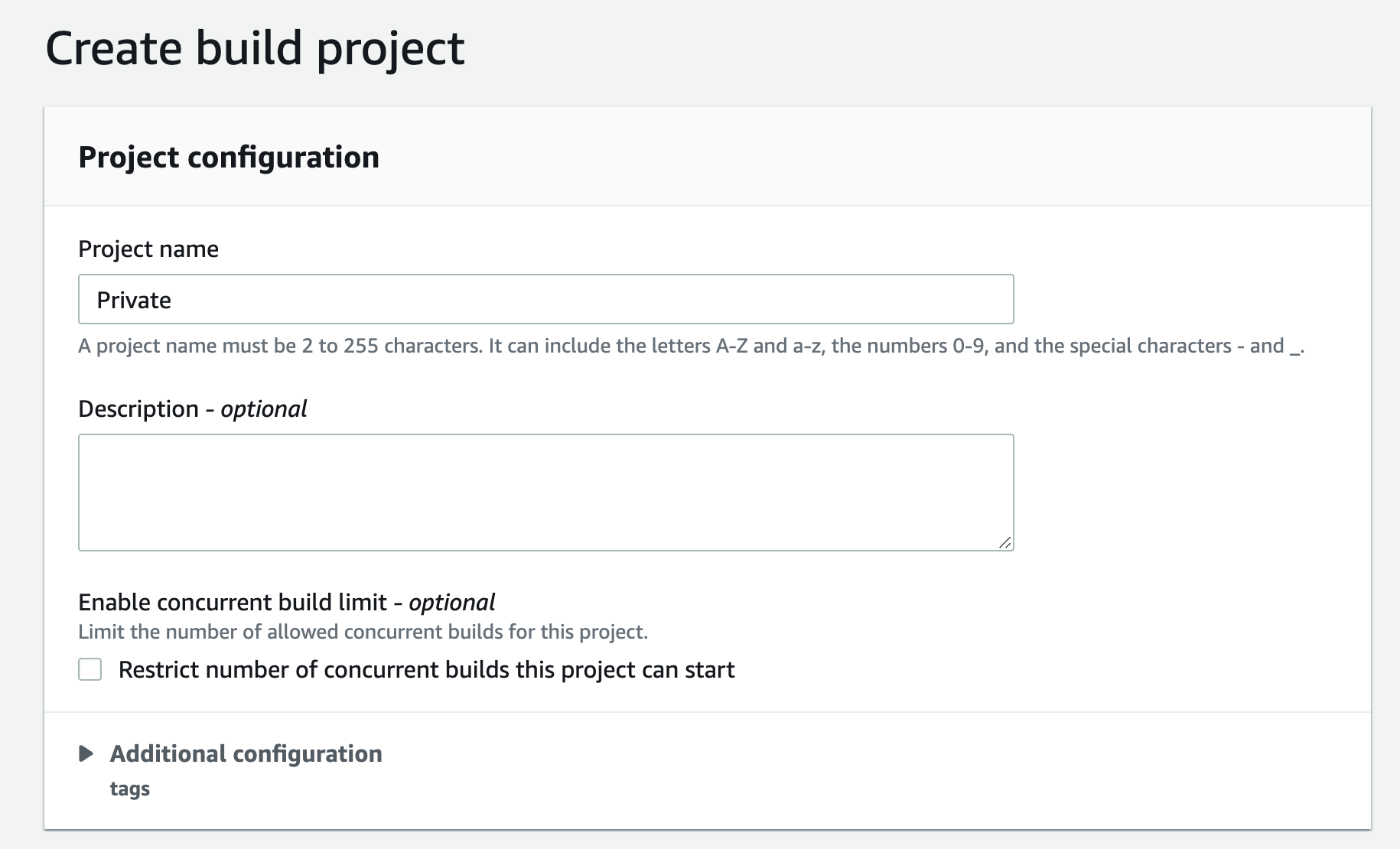
    1. This will open new window to create the new Project, Give this project a name
Figure 13. Screenshot: Create pipeline create build project window.

Figure 13. Screenshot: Create pipeline create build project window.

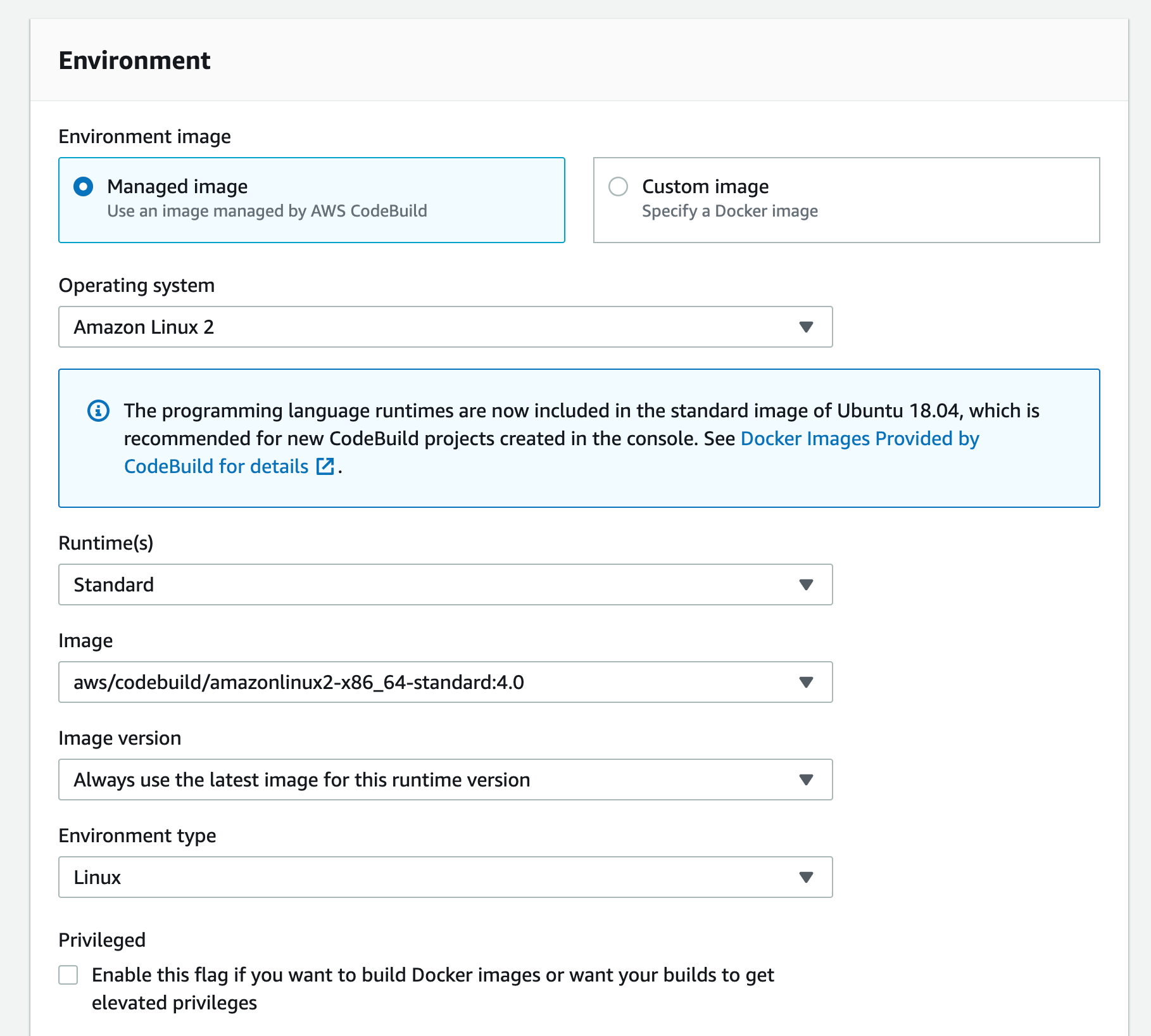
    1.  Scroll down to the Environment section: select pick Managed image,
    2. For Operating system select “Amazon Linux 2”,
    3. Runtime “Standard” and
    4. For Image select the aws/codebuild/amazonlinux2-x86+64-standard:4.0
      For the Image version: Always use the latest image for this runtime version
    5. Select Linux for the Environment type
    6. Leave the Privileged option unchecked and set Service Role to “New service role”
Figure 14. Screenshot: Create pipeline create build project, setting up environment window.

Figure 14. Screenshot: Create pipeline create build project, setting up environment window.

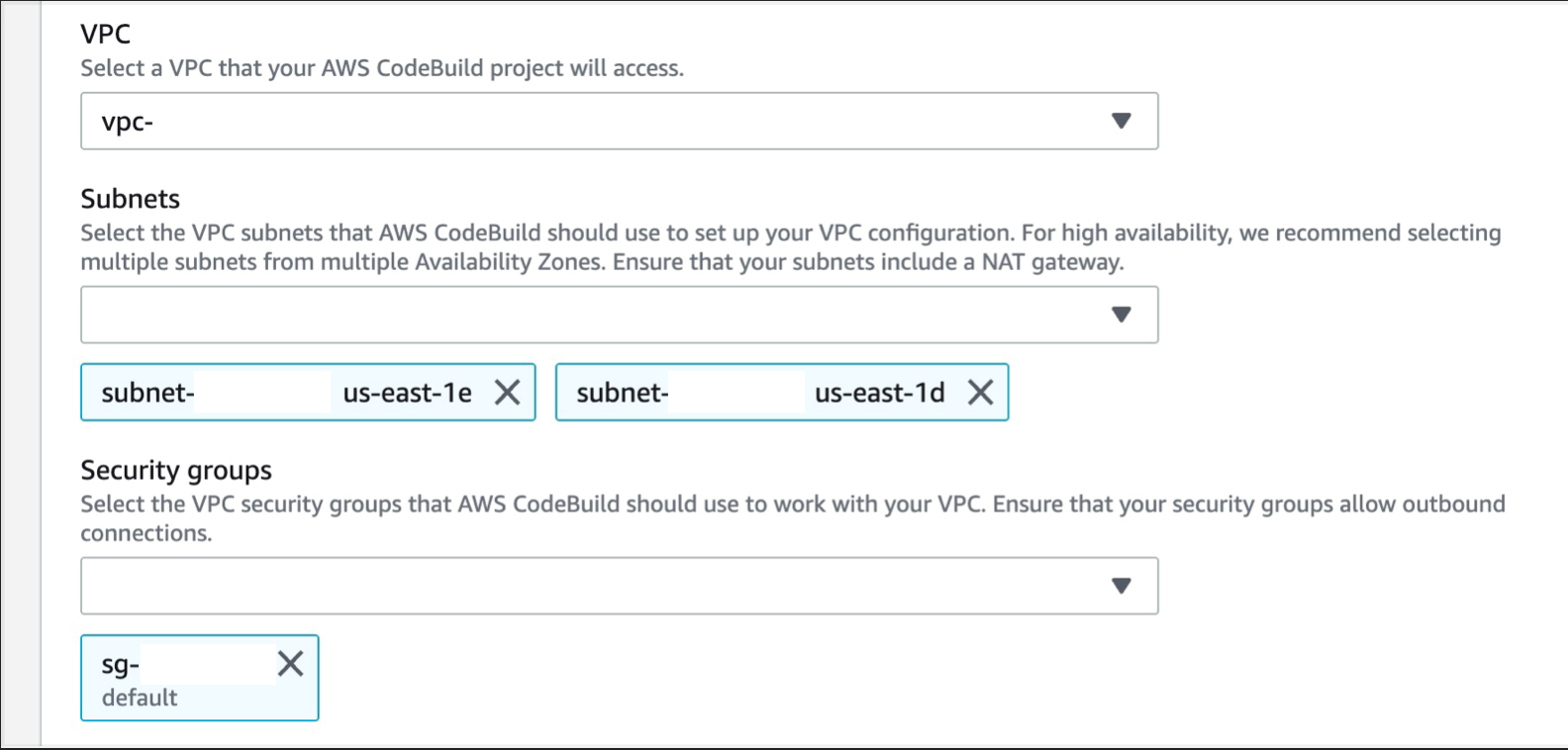
    1. Expand Additional configurations and scroll down to the VPC section, select the desired VPC, your Subnets (we recommend selecting multiple AZs, to ensure high availability), and Security Group (the security group rules must allow resources that will use the VPC endpoint to communicate with the AWS service to communicate with the endpoint network interface, default VPC security group will be used here as an example)
Figure 15. Screenshot: Create pipeline create build project networking window.

Figure 15. Screenshot: Create pipeline create build project networking window.

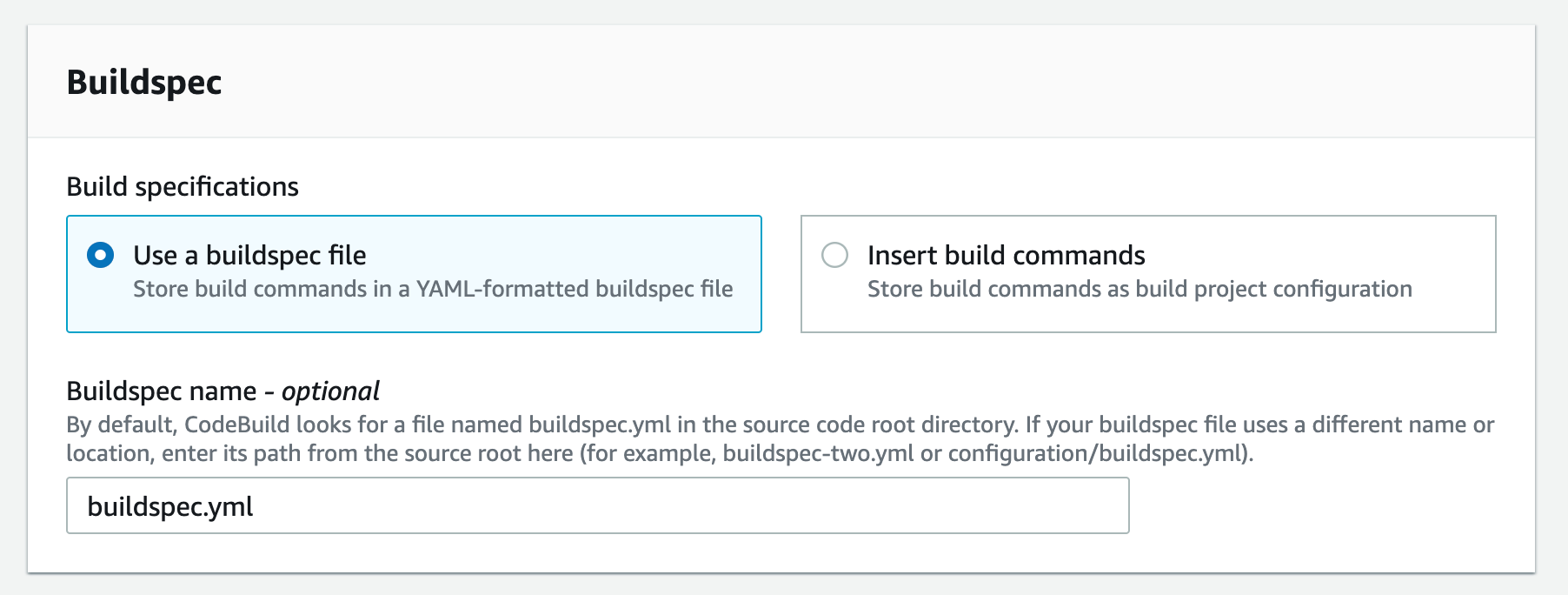
    1. Scroll down to the Buildspec and select “Use a buildspec file” and type “buildspec.yml” for the Buildspec name
Figure 16. Screenshot: Create pipeline create build project buildspec window.

Figure 16. Screenshot: Create pipeline create build project buildspec window.

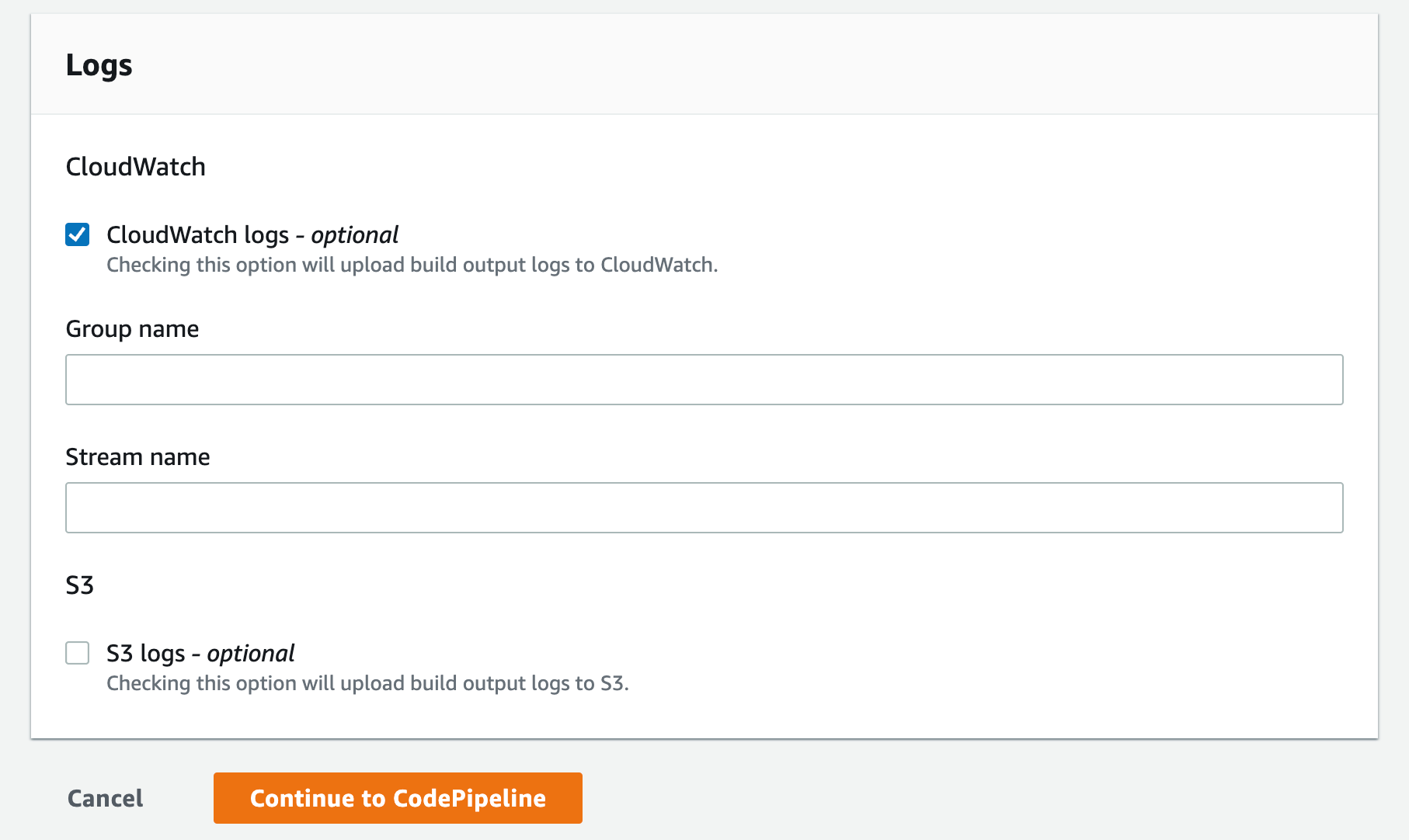
    1. Select the CloudWatch logs option you can leave the group name and stream empty this will let the service use the default values and click Continue to CodePipeline
Figure 17. Screenshot: Create pipeline create build project logs window.

Figure 17. Screenshot: Create pipeline create build project logs window.

    1. This will create the new CodeBuild Project, update the CodePipeline page, now you can click Next
Figure 18. Screenshot: Create pipeline add build stage window.

Figure 18. Screenshot: Create pipeline add build stage window.

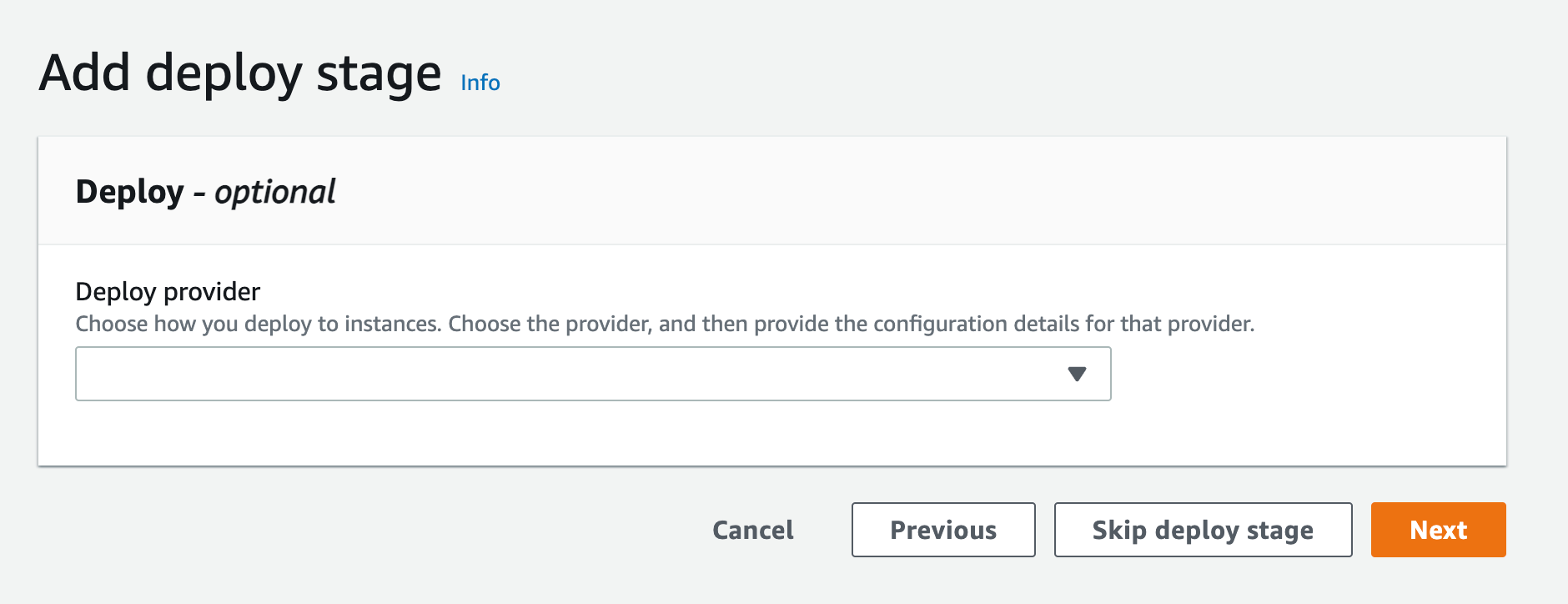
    1.  Since we are not deploying this to any environment, you can skip the deploy stage and click “Skip deploy stage”

Figure 19. Screenshot: Create pipeline add deploy stage.

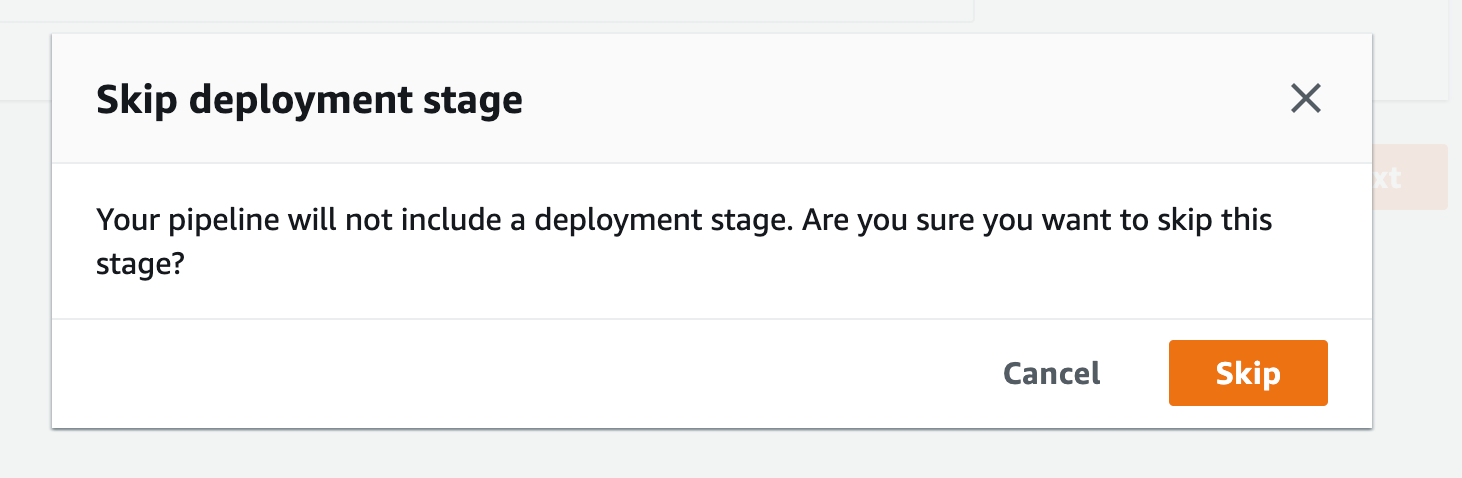
Figure 20. Screenshot: Create pipeline skip deployment stage confirmation.

Figure 20. Screenshot: Create pipeline skip deployment stage confirmation.

    1. After you get the popup click skip again you’ll see the review page, scroll all the way down and click Create Pipeline
  1. Create a VPC endpoint for Amazon CloudWatch Logs. This will enable CodeBuild to send execution logs to CloudWatch:
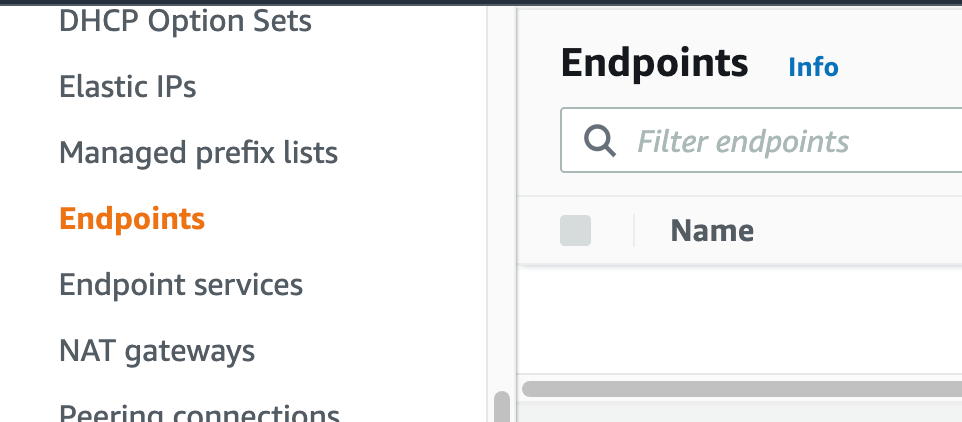
    1. Navigate to your VPC console, and from the navigation menu on the left select “Endpoints”.
Figure 21. Screenshot: VPC endpoint.

Figure 21. Screenshot: VPC endpoint.

    1.  click Create endpoint Button.
Figure 22. Screenshot: Create endpoint.

Figure 22. Screenshot: Create endpoint.

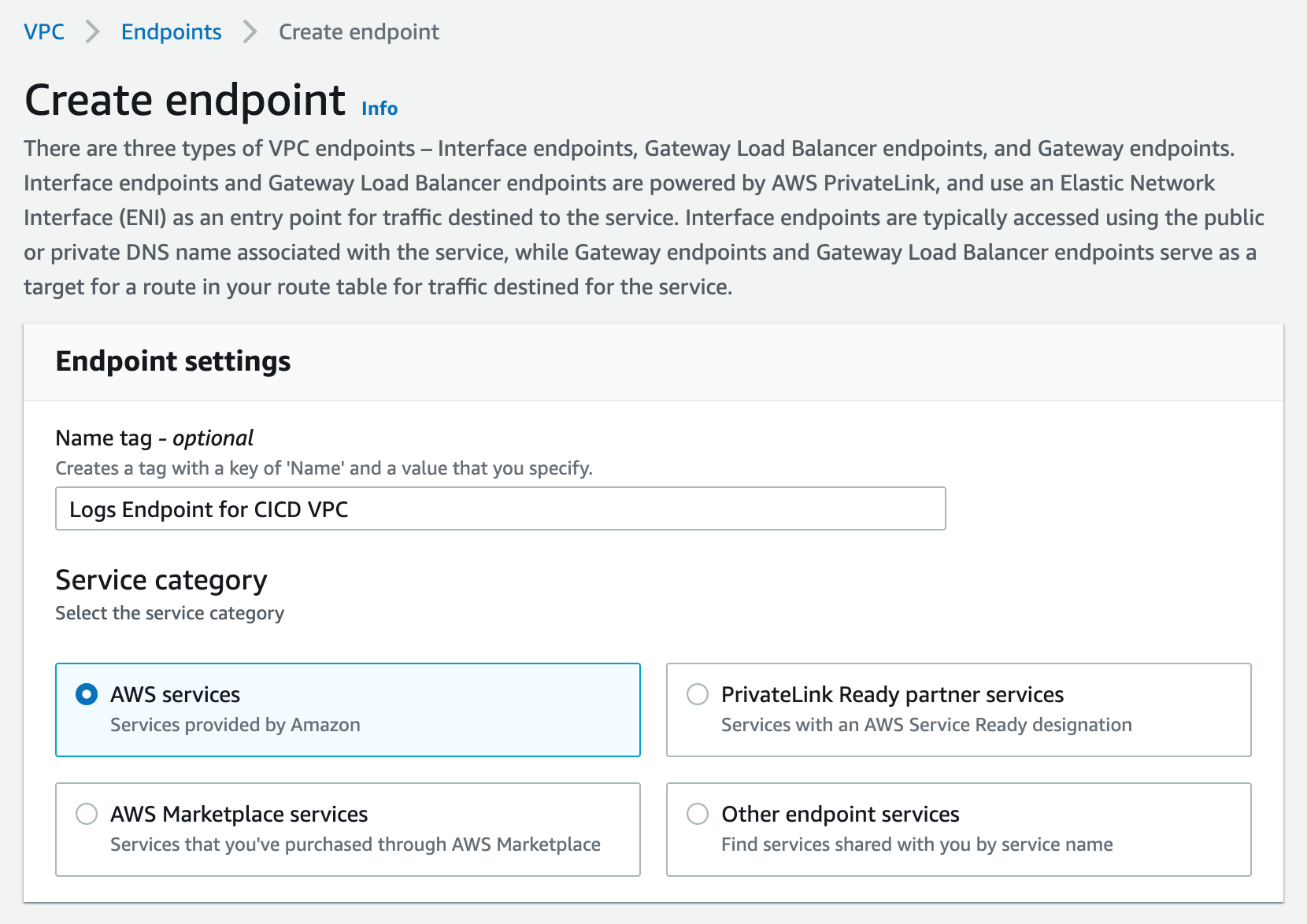
    1. For service Category, select “AWS Services”. You can set a name for the new endpoint, and make sure to use something descriptive.
Figure 23. Screenshot: Create endpoint page.

Figure 23. Screenshot: Create endpoint page.

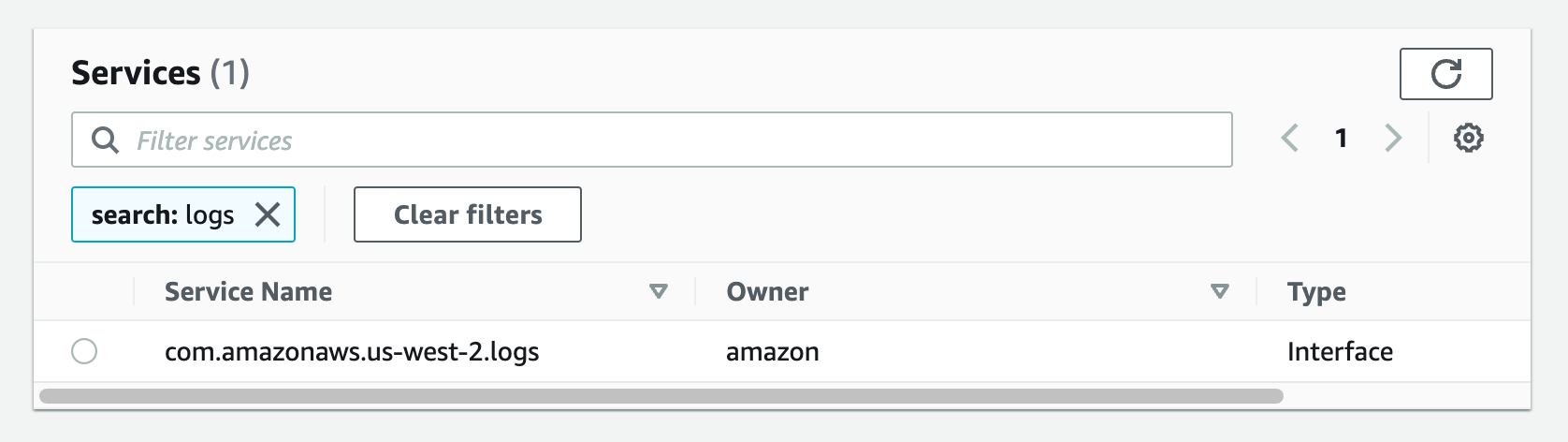
    1. From the list of services, search for the endpoint by typing logs in the search bar and selecting the one with com.amazonaws.us-west-2.logs.
      This walkthrough can be done in any region that supports the services. I am going to be using us-west-2, please select the appropriate region for your workload.
Figure 24. Screenshot: create endpoint select services with com.amazonaws.us-west-2.logs selected.

Figure 24. Screenshot: create endpoint select services with com.amazonaws.us-west-2.logs selected.

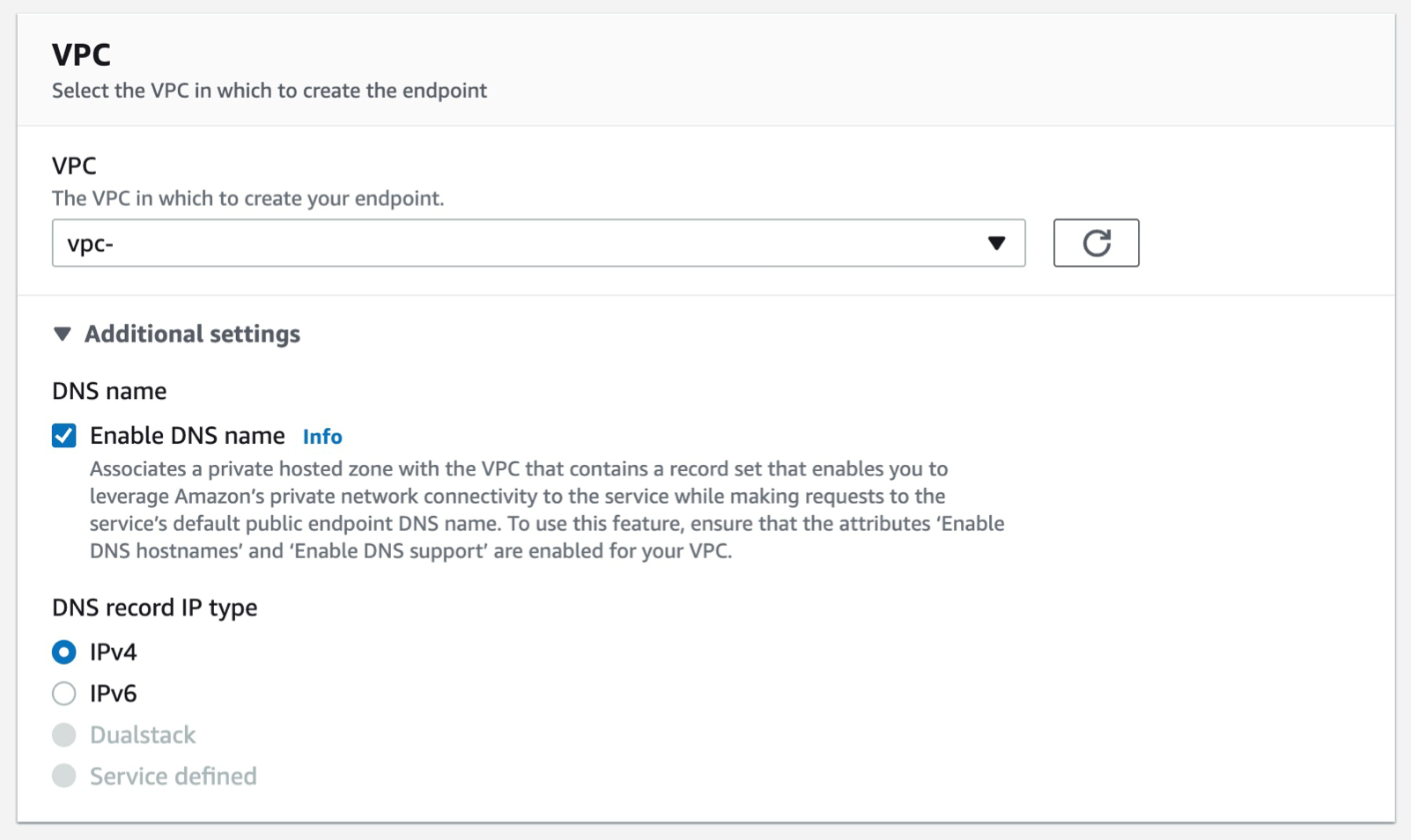
    1. Select the VPC that you want the endpoint to be associated with, and make sure that the Enable DNS name option is checked under additional settings.
Figure 25. Screenshot: create endpoint VPC setting shows VPC selected.

Figure 25. Screenshot: create endpoint VPC setting shows VPC selected.

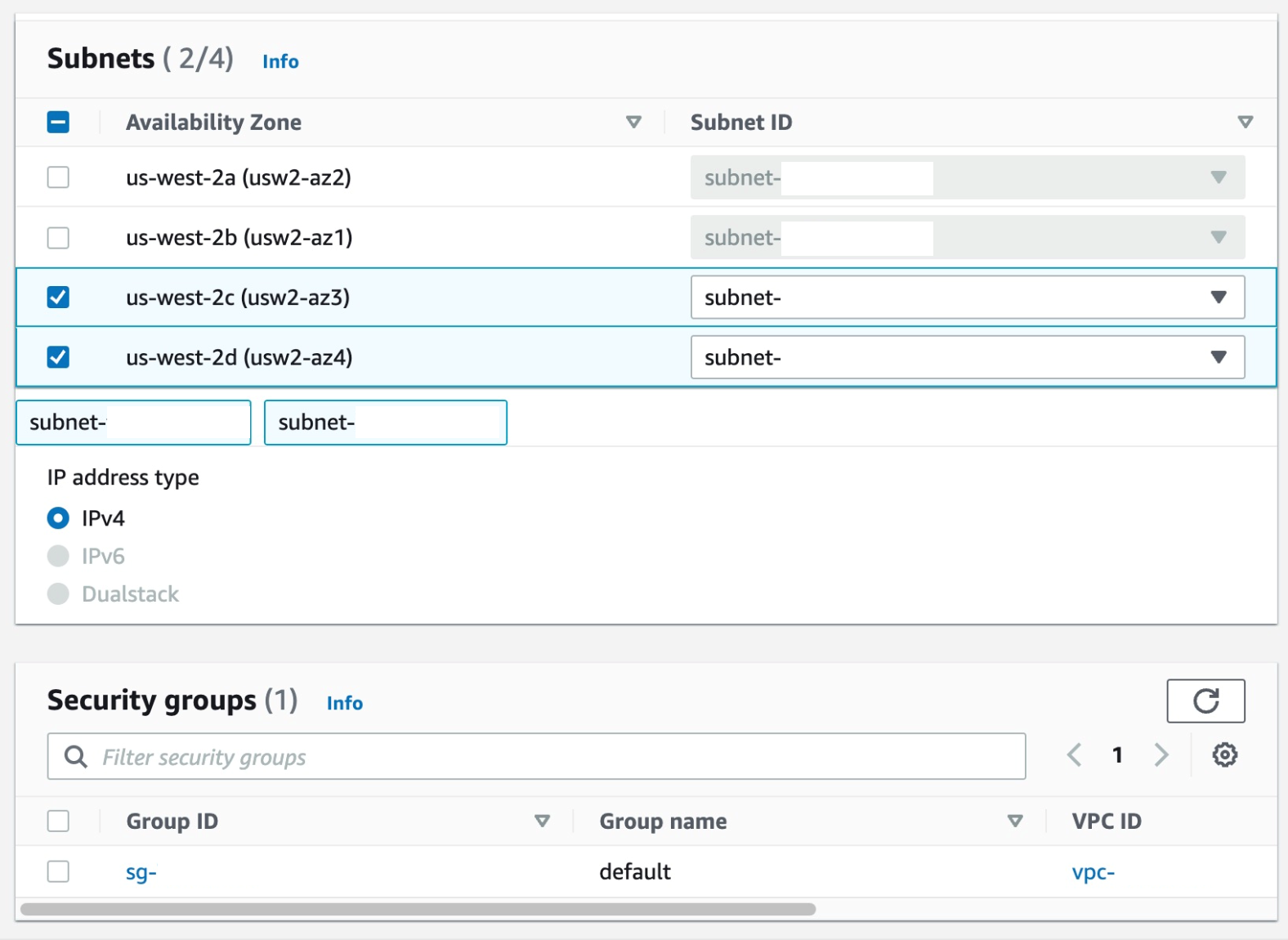
    1. Select the Subnets where you want the endpoint to be associated, and you can leave the security group as default and the policy as empty.
Figure 26. Screenshot: create endpoint subnet setting shows 2 subnet selected and default security group selected.

Figure 26. Screenshot: create endpoint subnet setting shows 2 subnet selected and default security group selected.

    1. Select Create Endpoint.
Figure 27. Screenshot: create endpoint button.

Figure 27. Screenshot: create endpoint button.

  1. Create a VPC endpoint for CodeArtifact. At the time of writing this article, CodeArifact has two endpoints: one is for API operations like service level operations and authentication, and the other is for using the service such as getting modules for our code. We’ll need both endpoints to automate working with CodeArtifact. Therefore, we’ll create both endpoints with DNS enabled.

In addition, we’ll need AWS Security Token Service (AWS STS) endpoint for get-caller-identity API call:

Follow steps a-c from the steps that were used from the creating the Logs endpoint above.

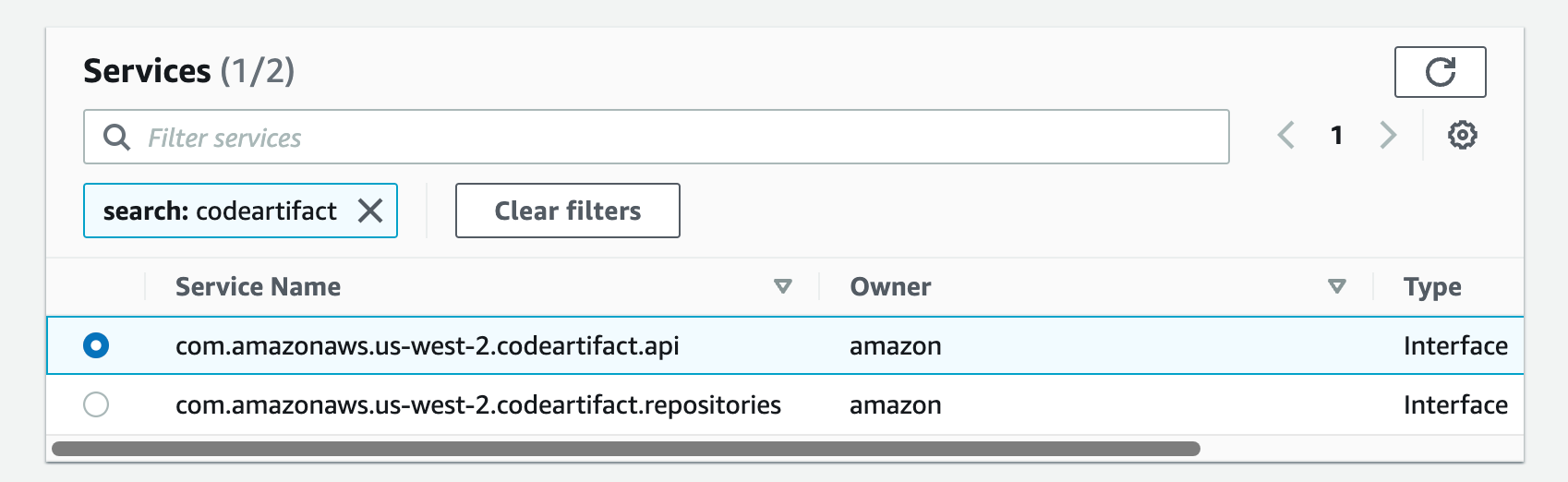
a. From the list of services, you can search for the endpoint by typing codeartifact in the search bar and selecting the one with com.amazonaws.us-west-2.codeartifact.api.

Figure 28. Screenshot: create endpoint select services with com.amazonaws.us-west-2.codeartifact.api selected.

Figure 28. Screenshot: create endpoint select services with com.amazonaws.us-west-2.codeartifact.api selected.

Follow steps e-g from Part 4.

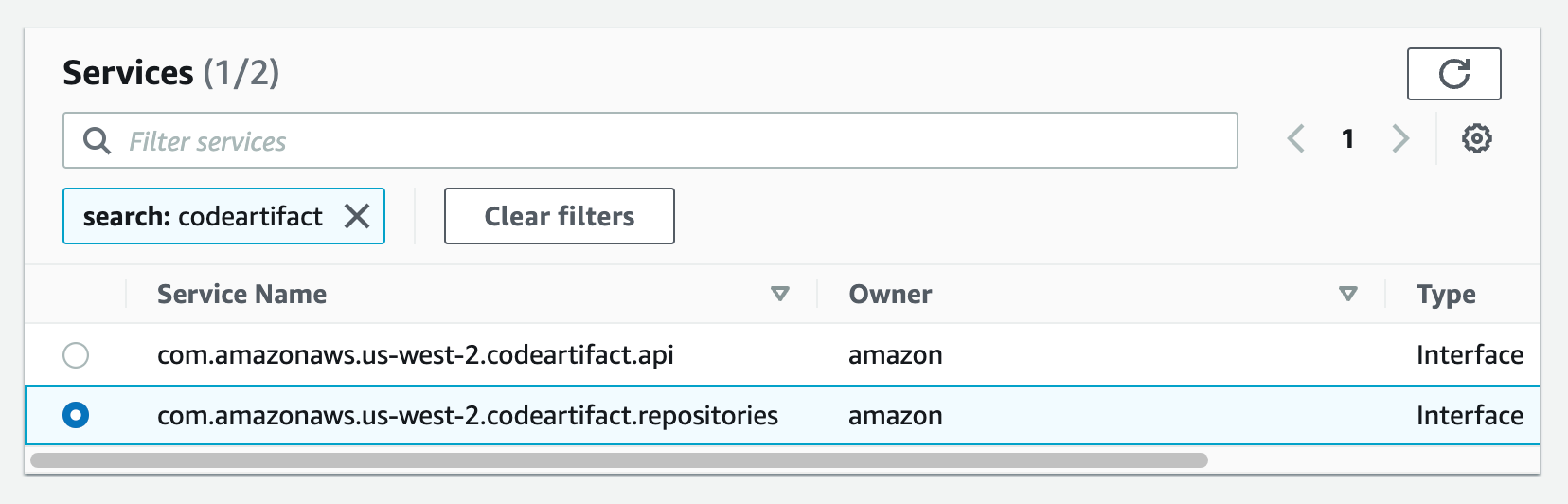
Then, repeat the same for com.amazon.aws.us-west-2.codeartifact.repositories service.

Figure 29. Screenshot: create endpoint select services with com.amazonaws.us-west-2.codeartifact.api selected.

Figure 29. Screenshot: create endpoint select services with com.amazonaws.us-west-2.codeartifact.api selected.

  1. Enable a VPC endpoint for AWS STS:

Follow steps a-c from Part 4

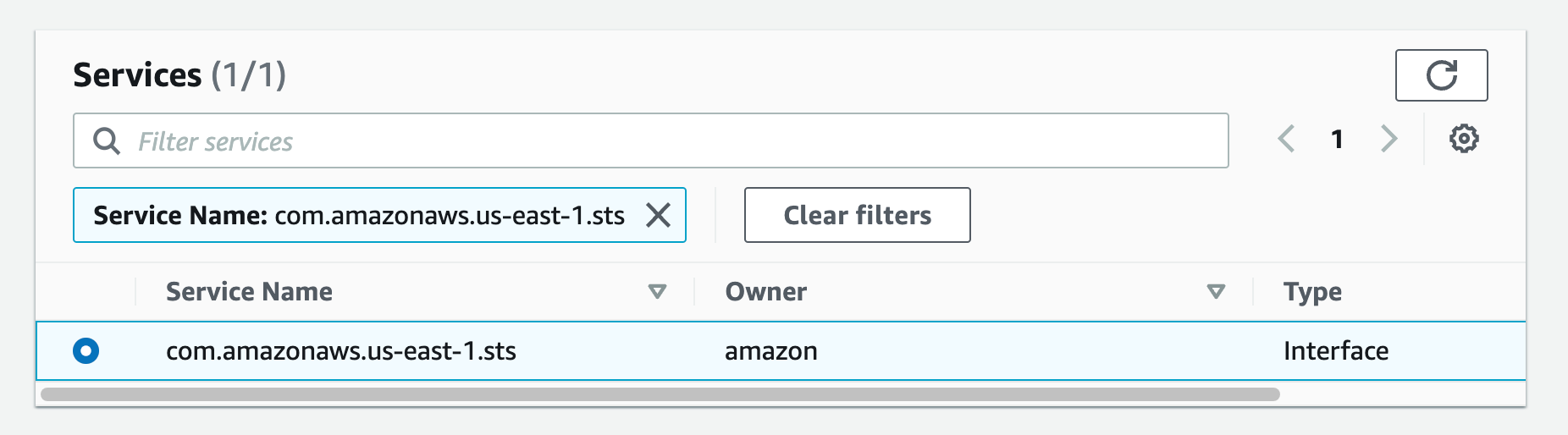
a. From the list of services you can search for the endpoint by typing sts in the search bar and selecting the one with com.amazonaws.us-west-2.sts.

Figure 30.Screenshot: create endpoint select services with com.amazon.aws.us-west-2.codeartifact.repositories selected.

Figure 30.Screenshot: create endpoint select services with com.amazon.aws.us-west-2.codeartifact.repositories selected.

Then follow steps e-g from Part 4.

  1. Create a VPC endpoint for S3:

Follow steps a-c from Part 4

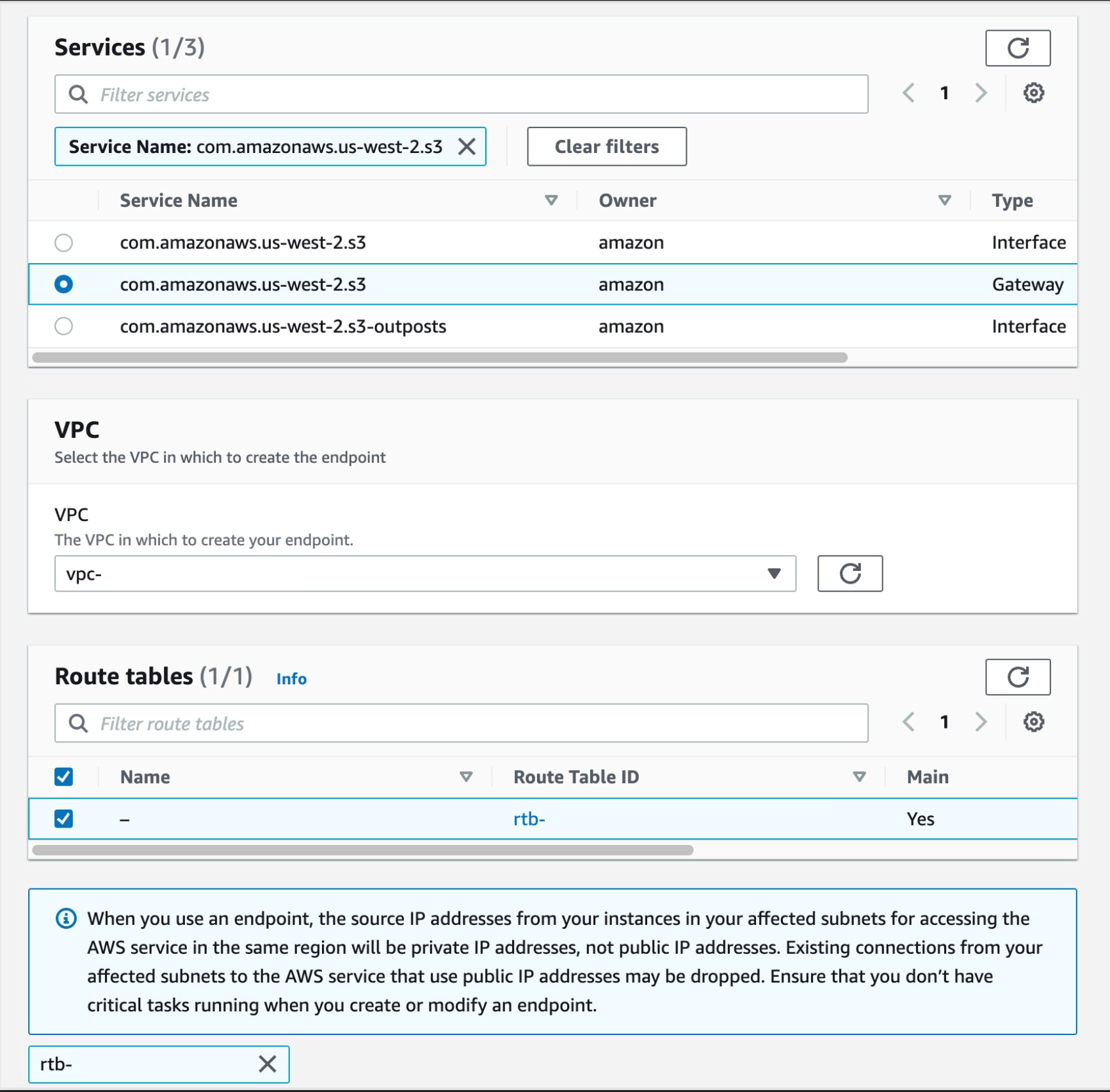
a. From the list of services you can search for the endpoint by typing sts in the search bar and selecting the one with com.amazonaws.us-west-2.s3, select the one with type of Gateway

Then select your VPC, and select the route tables for your subnets, this will auto update the route table with the new S3 endpoint.

Figure 31. Screenshot: create endpoint select services with com.amazonaws.us-west-2.s3 selected.

Figure 31. Screenshot: create endpoint select services with com.amazonaws.us-west-2.s3 selected.

  1. Now we have all of the endpoints set. The last step is to update your pipeline to point at the CodeArtifact repository when pulling your code dependencies. I’ll use CodeBuild buildspec.yml as an example here.

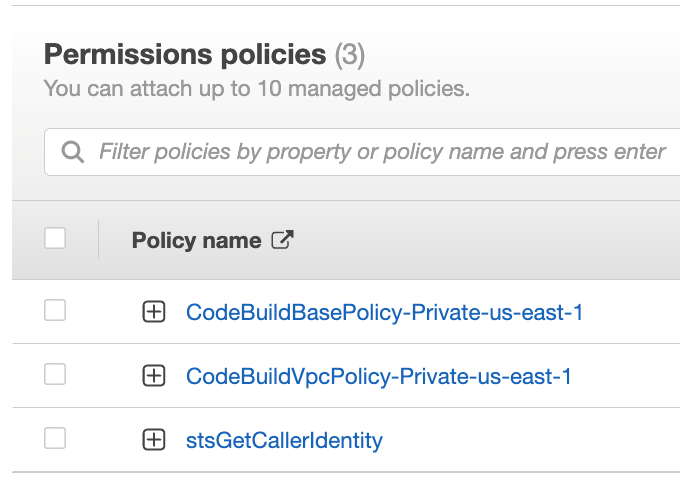
Make sure that your CodeBuild AWS Identity and Access Management (IAM) role has the permissions to perform STS and CodeArtifact actions.

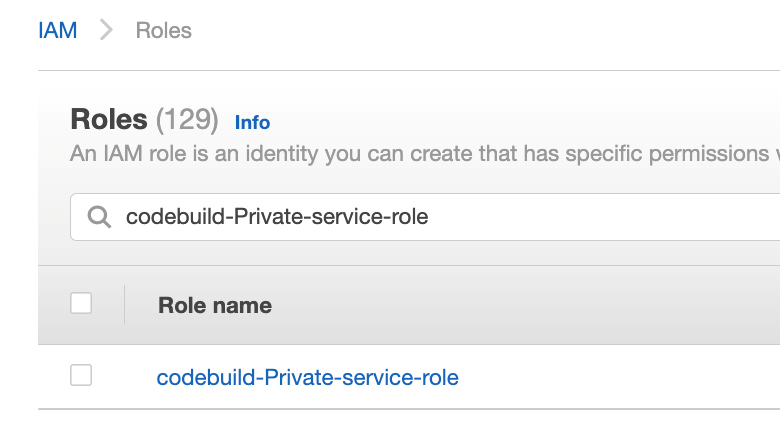
Navigate to IAM console and click Roles from the left navigation menu, then search for your IAM role name, in our case since we selected “New service role” option in step 2.k was created with the name “codebuild-Private-service-role” (codebuild-<BUILD PROJECT NAME>-service-role)

Figure 32. Screenshot: IAM roles with codebuild-Private-service-role role shown in search.

Figure 32. Screenshot: IAM roles with codebuild-Private-service-role role shown in search.

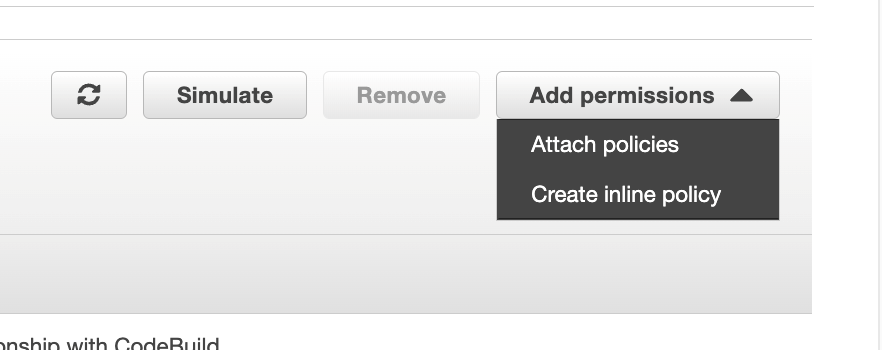
From the Add permissions menu, click on Create inline policy

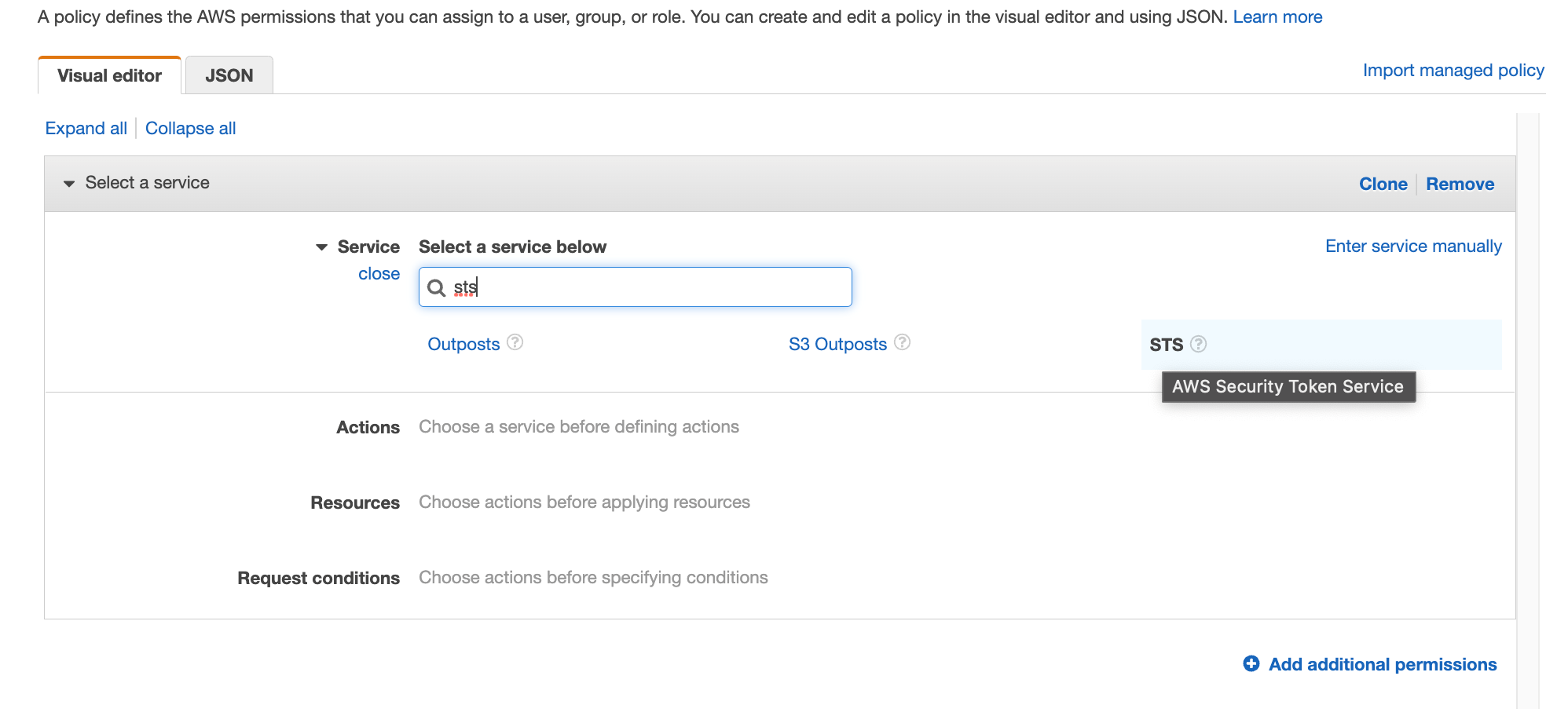
Search for STS in the services then select STS

Figure 34. Screenshot: IAM visual editor with sts shown in search.

Figure 34. Screenshot: IAM visual editor with sts shown in search.

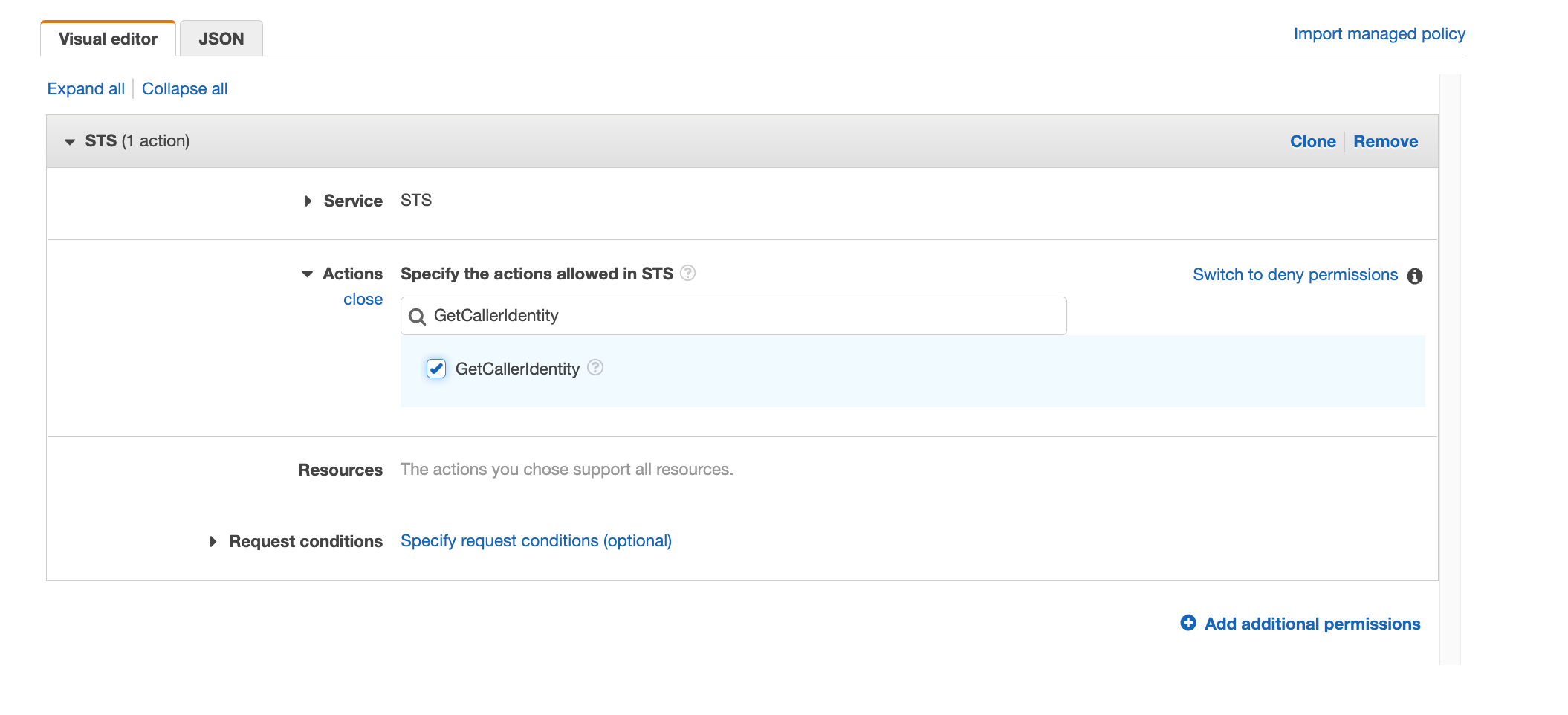
Search for “GetCallerIdentity” and select the action

Figure 35. Screenshot: IAM visual editor with GetCallerIdentity in search and action selected.

Figure 35. Screenshot: IAM visual editor with GetCallerIdentity in search and action selected.

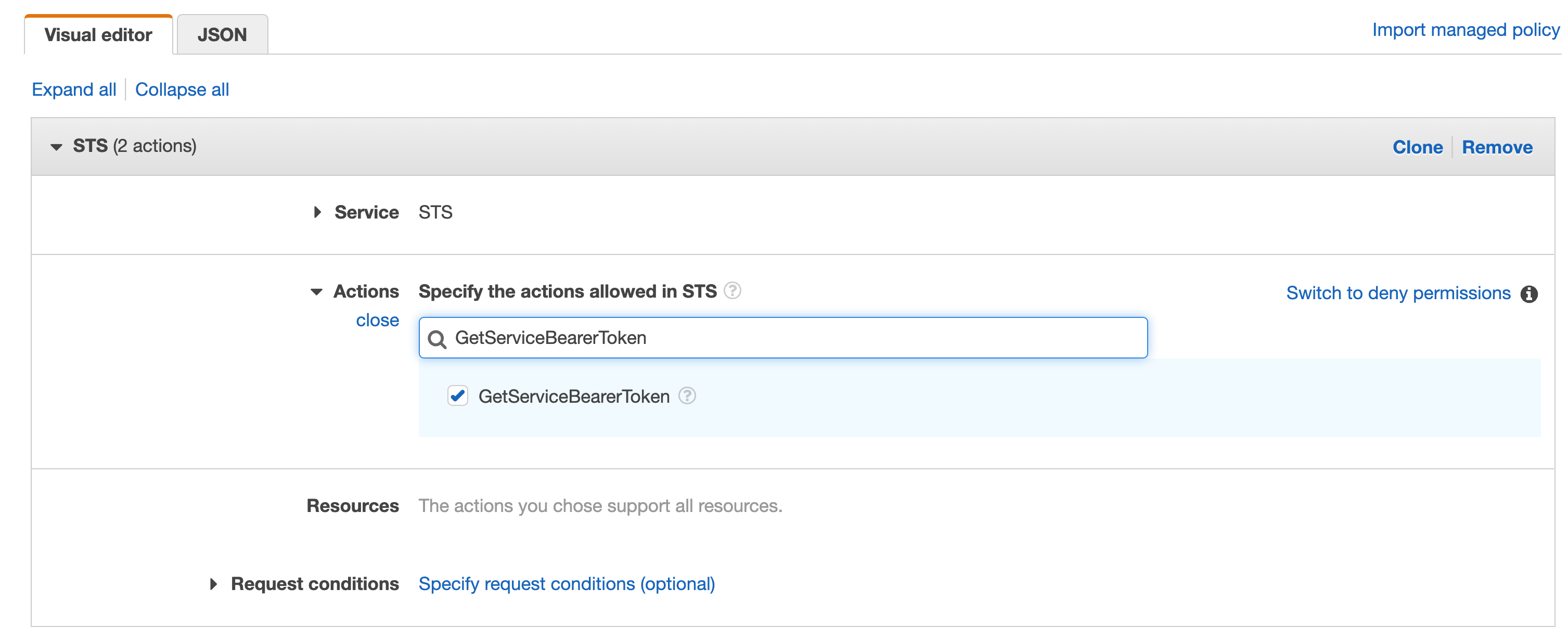
Repeat the same with “GetServiceBearerToken”

Figure 36. Screenshot: IAM visual editor with GetServiceBearerToken in search and action selected.

Figure 36. Screenshot: IAM visual editor with GetServiceBearerToken in search and action selected.

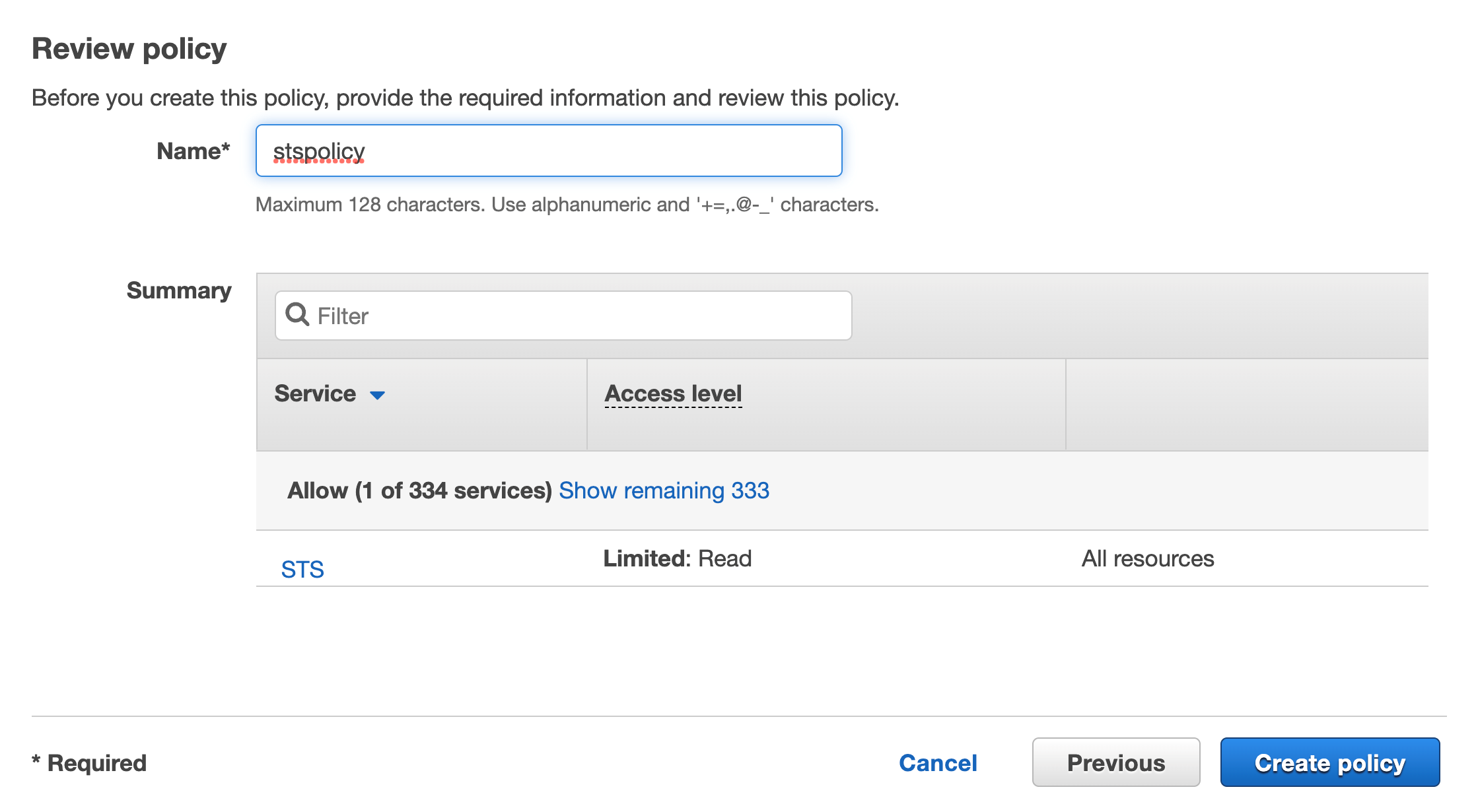
Click on Review, add a name then click on Create policy

Figure 37. Screenshot: Review page and Create policy button.

Figure 37. Screenshot: Review page and Create policy button.

You should see the new inline policy added to the list

Figure 38. Screenshot: shows the new in-line policy in the list.

Figure 38. Screenshot: shows the new in-line policy in the list.

For CodeArtifact actions we will do the same on that role, click on Create inline policy

Figure 39. Screenshot: attach policies.

Figure 39. Screenshot: attach policies.

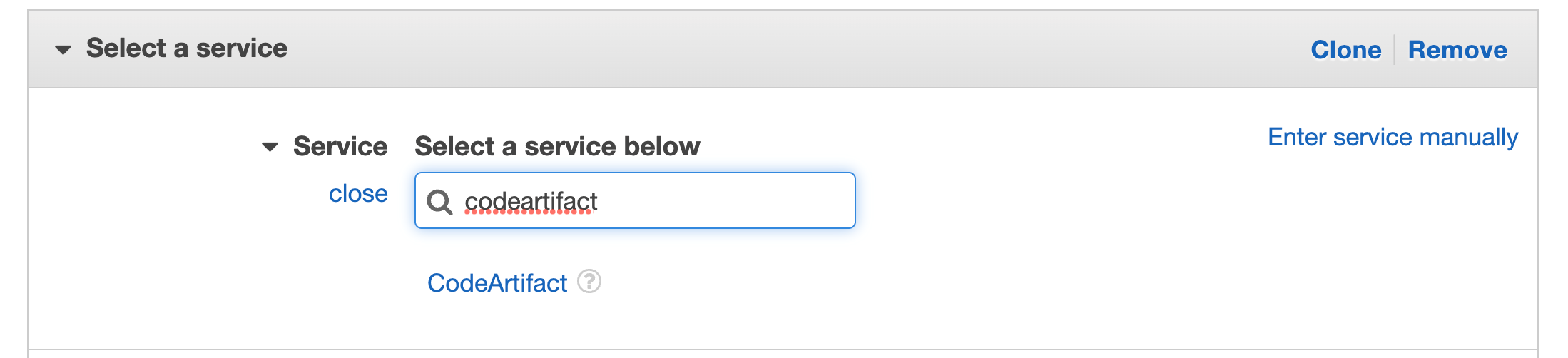
Search for CodeArtifact in the services then select CodeArtifact

Figure 40. Screenshot: select service with CodeArtifact in search.

Figure 40. Screenshot: select service with CodeArtifact in search.

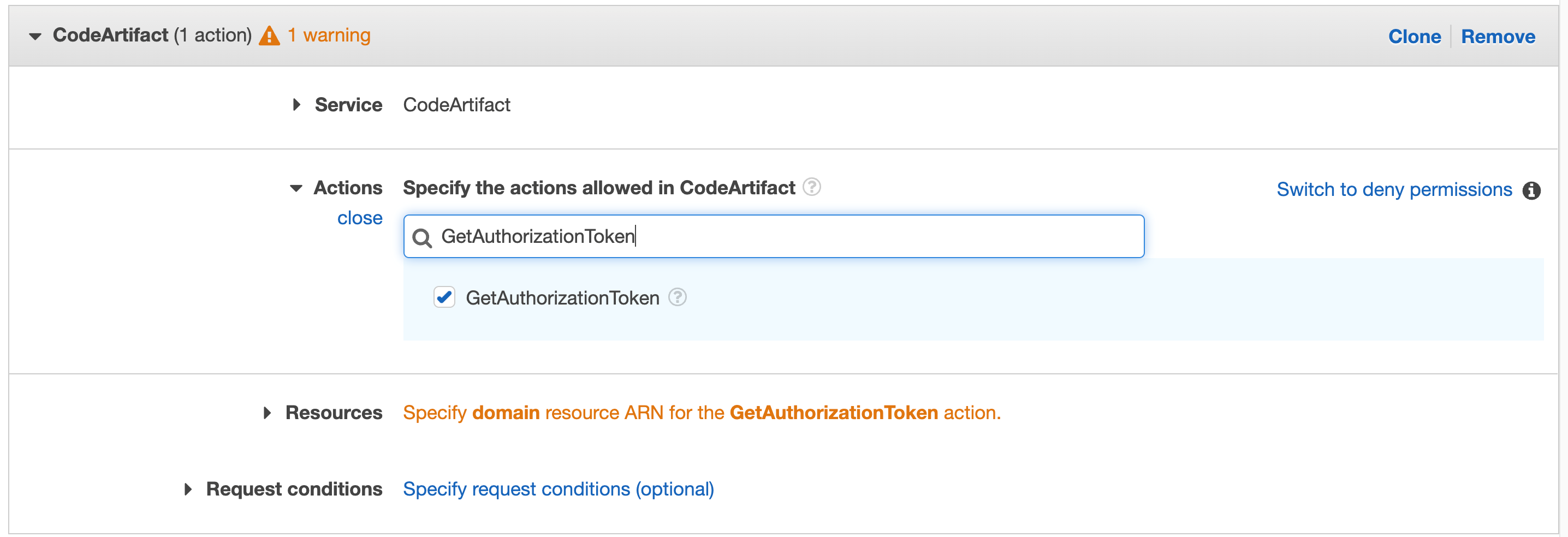
Search for “GetAuthorizationToken” in actions and select that action in the check box

Figure 41. CodeArtifact: with GetAuthorizationToken in search.

Figure 41. CodeArtifact: with GetAuthorizationToken in search.

Repeat for “GetRepositoryEndpoint” and “ReadFromRepository”

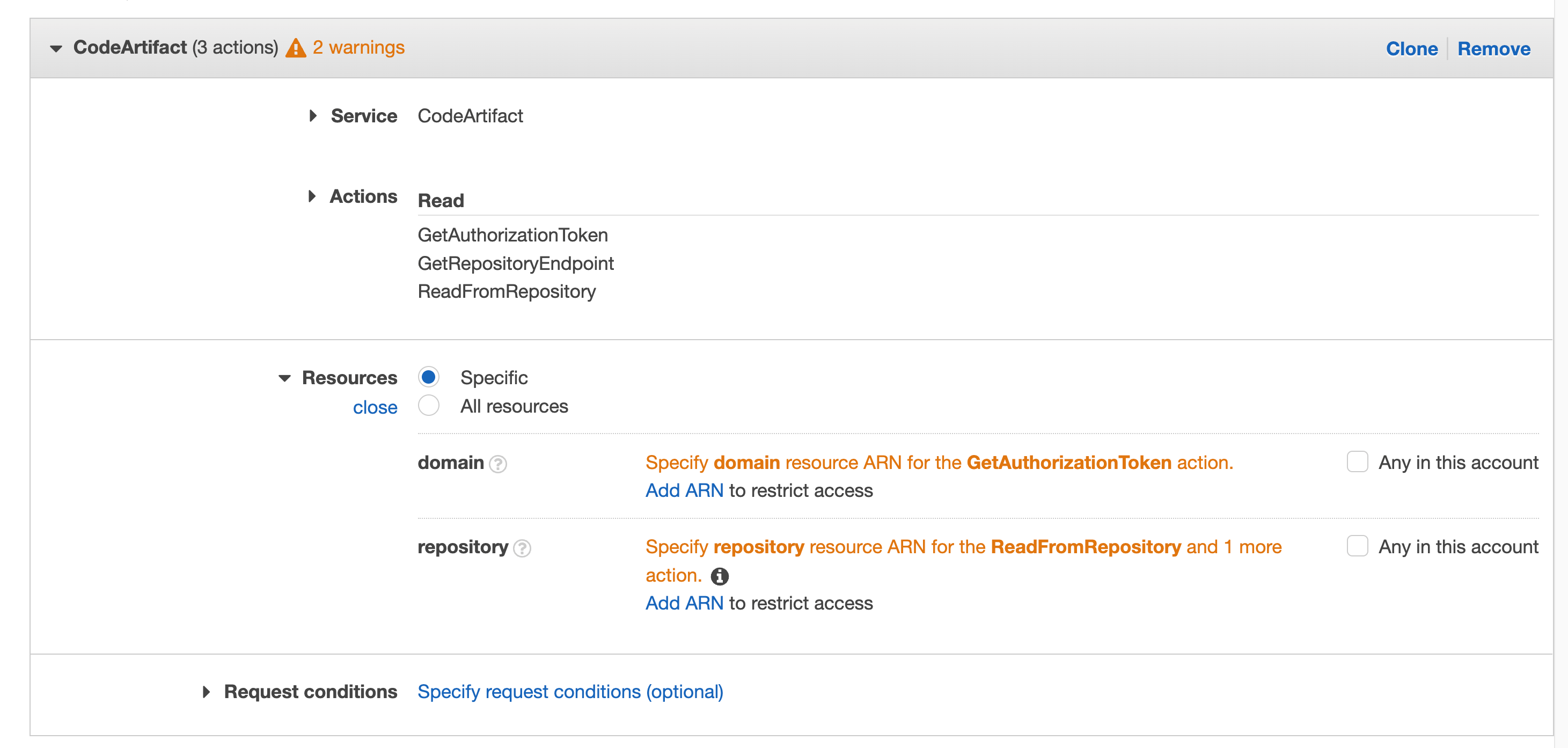
Click on Resources to fix the 2 warnings, then click on Add ARN on the first one “Specify domain resource ARN for the GetAuthorizationToken action.”

Figure 42. Screenshot: with all selected filed and 2 warnings.

Figure 42. Screenshot: with all selected filed and 2 warnings.

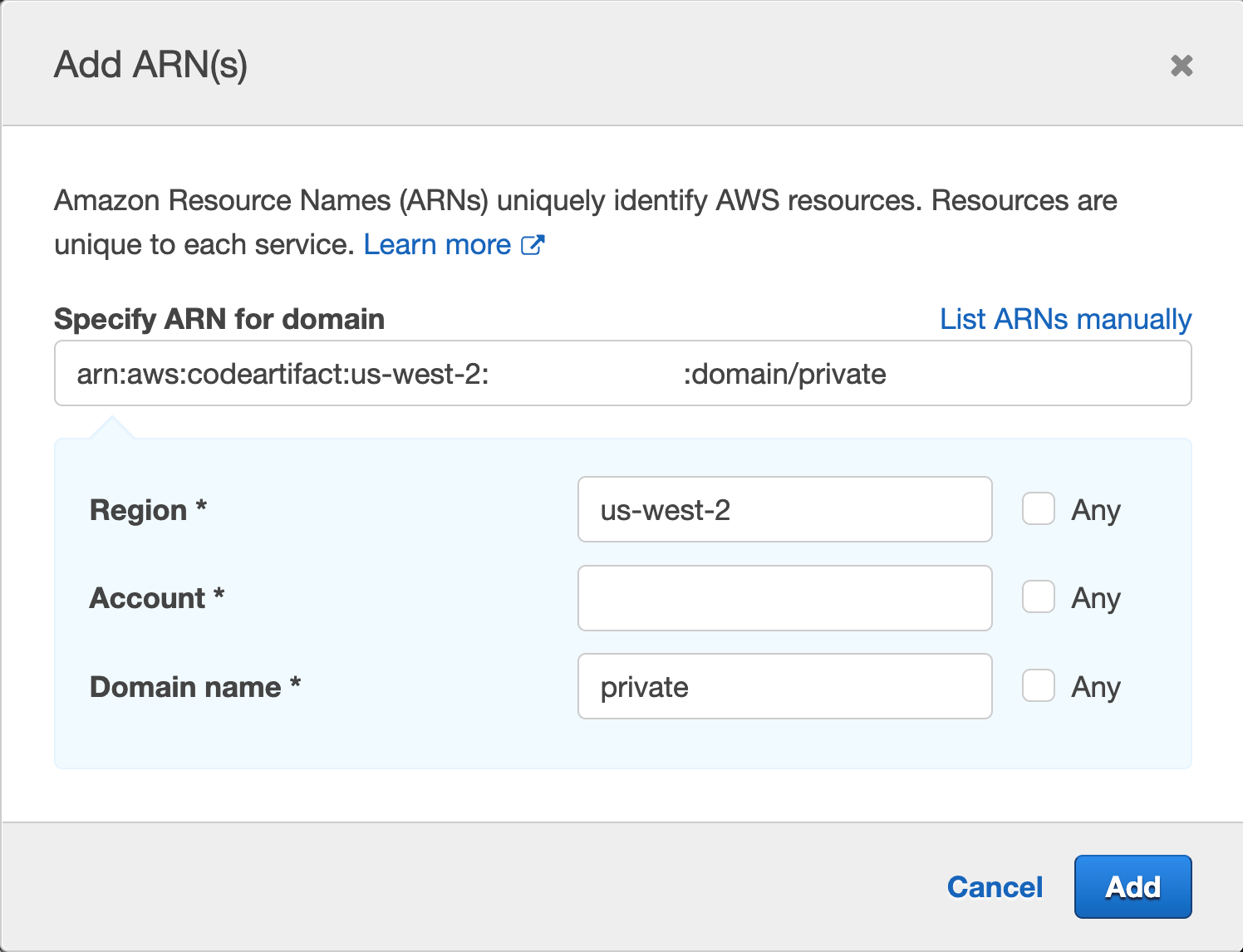
You’ll get a pop up with fields for Region, Account and Domain name, enter your region, your account number, and the domain name, we used “private” when we created our domain earlier.

Figure 43. Screenshot: Add ARN page.

Figure 43. Screenshot: Add ARN page.

Then click Add

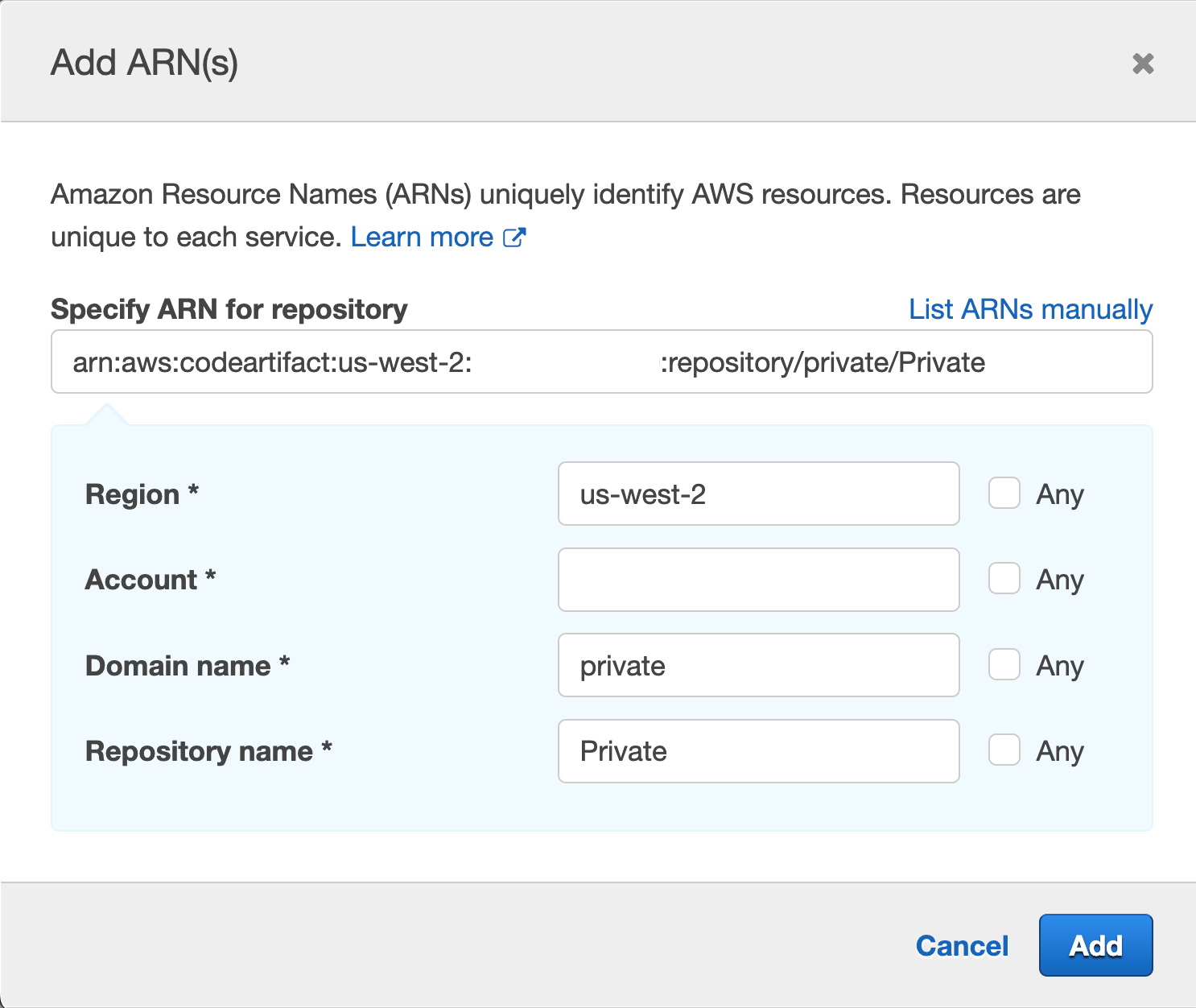
Repeat the same process for “Specify repository resource ARN for the ReadFromRepository and 1 more”, and this time we will provide Region, Account ID, Domain name and Repository name, we used “Private” for the repository we created earlier and “private” for domain

Figure 44. Screenshot: add ARN page.

Figure 44. Screenshot: add ARN page.

Note it is best practice to specify the resource we are targeting, we can use the checkbox for “Any” but we want to narrow the scope of our IAM role best we can.

  1. Navigate to CodeCommit then click on the repo you created earlier in step1
Figure 45. Screenshot: CodeCommit repo.

Figure 45. Screenshot: CodeCommit repo.

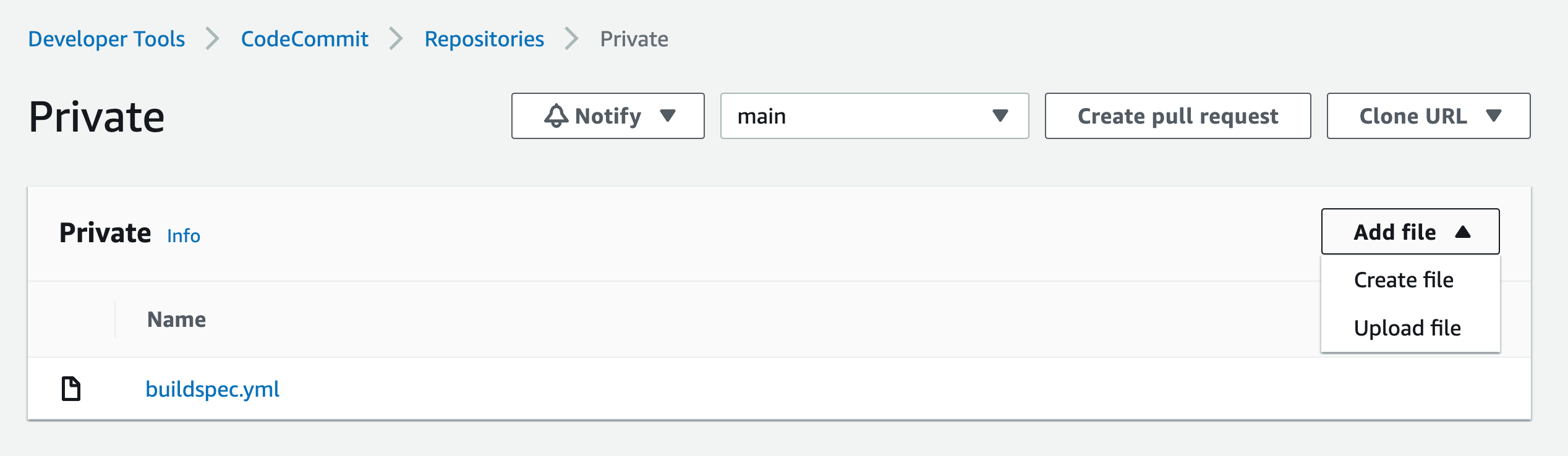
Click on Add file dropdown, then Create file button

Paste the following in the editor space:

{
  "dependencies": {
    "mathjs": "^11.2.0"
  }
}

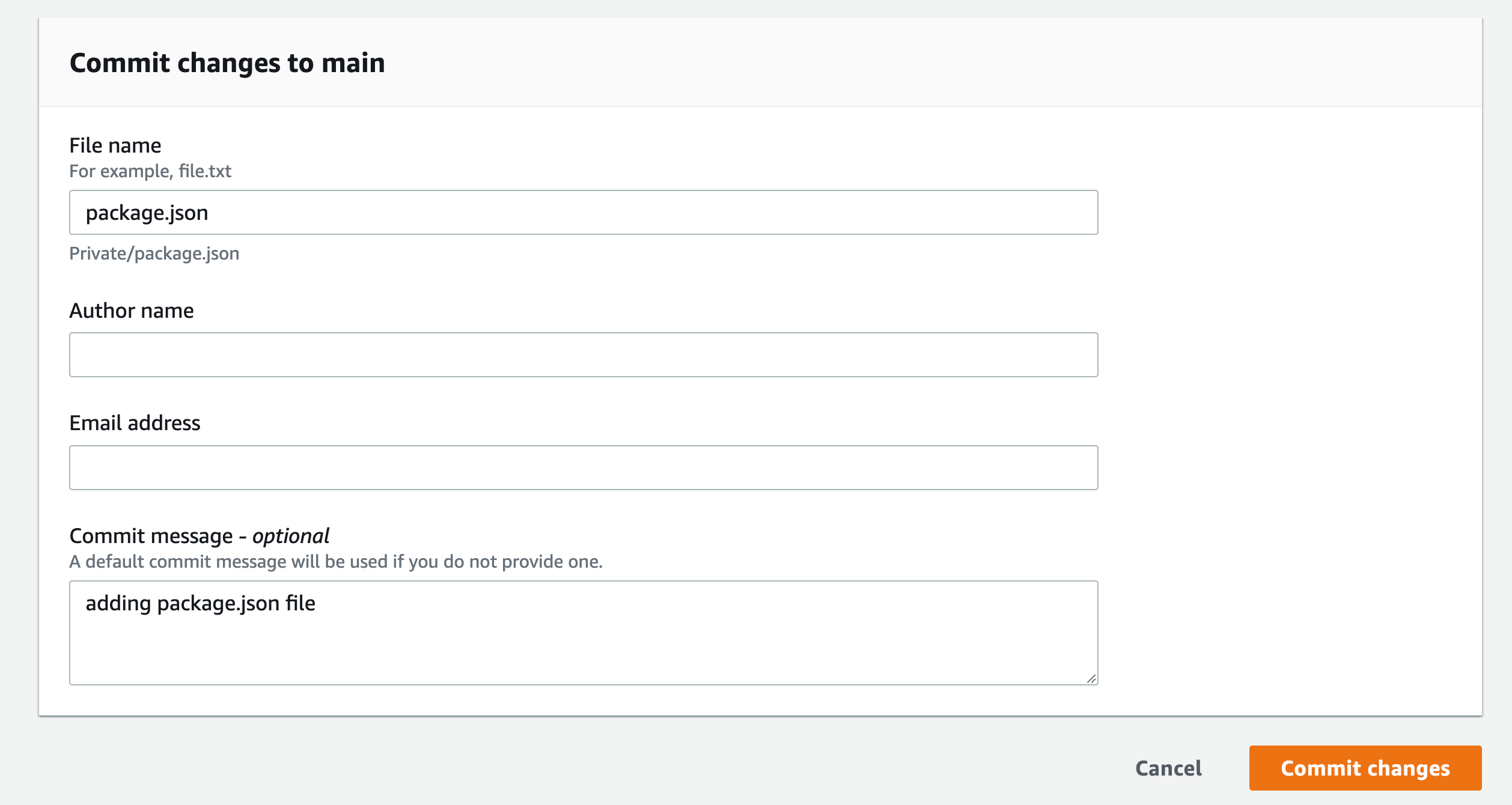
Name the file “package.json”

Add your name and email, and optional commit message

Repeat this process for “index.js” and paste the following in the editor space:

const { sqrt } = require('mathjs')
console.log(sqrt(49).toString())

Figure 46. Screenshot: CodeCommit Commit changes button.

Figure 46. Screenshot: CodeCommit Commit changes button.


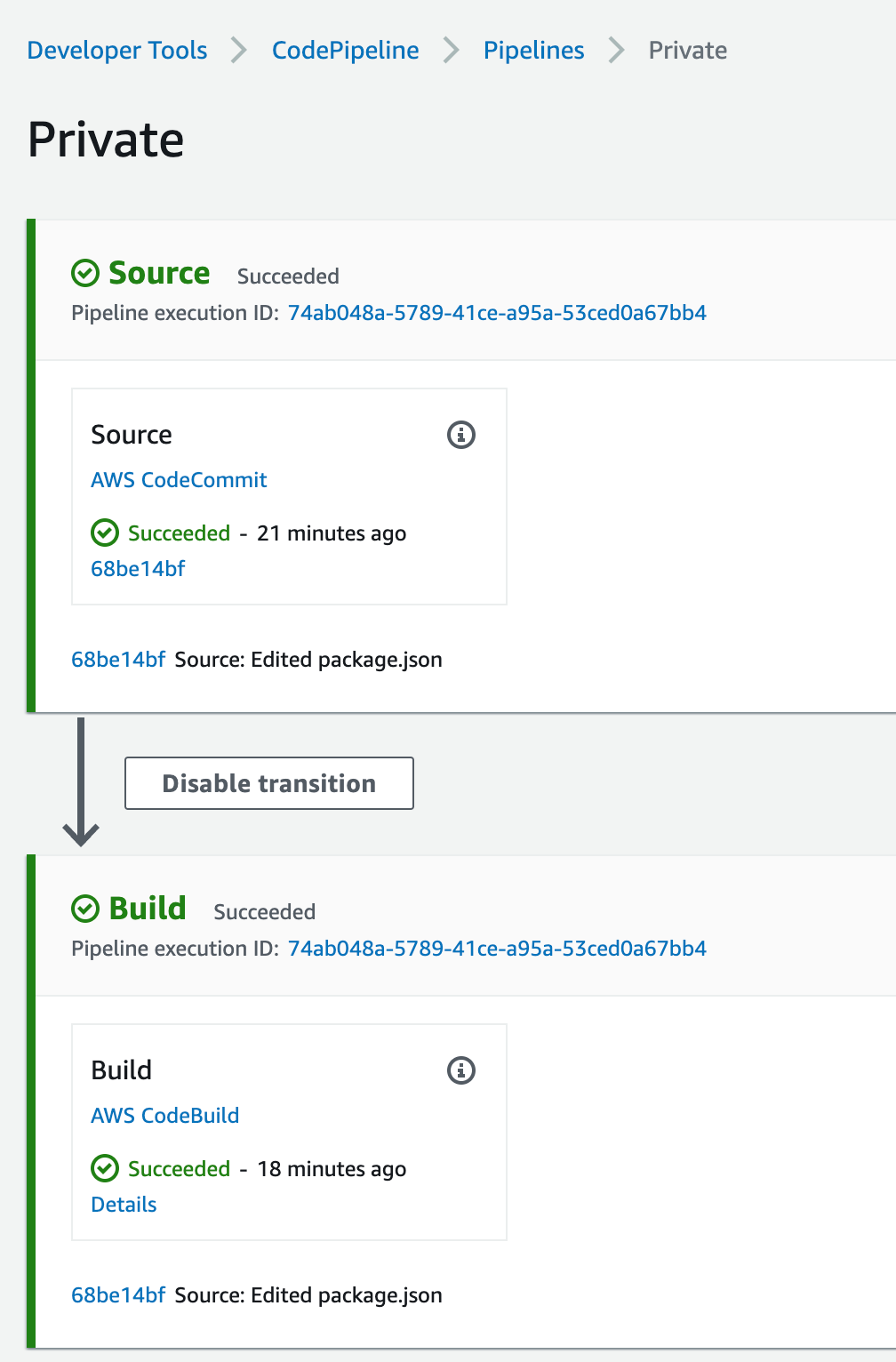
This will force the pipeline to kick off and start building the application

Figure 47. Screenshot: CodePipeline.

Figure 47. Screenshot: CodePipeline.

This is a very simple application that gets the square root of 49 and log it to the screen, if you click on the Details link from the pipeline build stage, you’ll see the output of running the NodeJS application, the logs are stored in CloudWatch and you can navigate there by clicking on the link the View entire log “Showing the last xx lines of the build log. View entire log”

Figure 48. Screenshot: Showing the last 54 lines of the build log. View entire log.

Figure 48. Screenshot: Showing the last 54 lines of the build log. View entire log.

We used npm example in the buildspec.yml above, Similar setup will be used for pip and twine,

For Maven, Gradle, and NuGet, you must set Environment variables and change your settings.xml and build.gradle, as well as install the plugin for your IDE. For more information, see here.

Cleanup

Navigate to VPC endpoint from the AWS console and delete the endpoints that you created.

Navigate to CodePipeline and delete the Pipeline you created.

Navigate to CodeBuild and delete the Build Project created.

Navigate to CodeCommit and delete the Repository you created.

Navigate to CodeArtifact and delete the Repository and the domain you created.

Navigate to IAM and delete the Roles created:

For CodeBuild: codebuild-<Build Project Name>-service-role

For CodePipeline: AWSCodePipelineServiceRole-<Region>-<Project Name>

Conclusion

In this post, we deployed a full CI/CD pipeline with CodePipeline orchestrating CodeBuild to build and test a small NodeJS application, using CodeArtifact to download the application code dependencies. All without going to the public internet and maintaining the logs in CloudWatch.

About the author:

MJ Kubba

MJ Kubba is a Solutions Architect who enjoys working with public sector customers to build solutions that meet their business needs. MJ has over 15 years of experience designing and implementing software solutions. He has a keen passion for DevOps and cultural transformation.