All posts by Sandeep Adwankar

The Amazon SageMaker Lakehouse Architecture now supports Tag-Based Access Control for federated catalogs

Post Syndicated from Sandeep Adwankar original https://aws.amazon.com/blogs/big-data/the-amazon-sagemaker-lakehouse-architecture-now-supports-tag-based-access-control-for-federated-catalogs/

The Amazon SageMaker lakehouse architecture has expanded its tag-based access control (TBAC) capabilities to include federated catalogs. This enhancement extends beyond the default AWS Glue Data Catalog resources to encompass Amazon S3 Tables, Amazon Redshift data warehouses. TBAC is also supported on federated catalogs from data sources Amazon DynamoDB, MySQL, PostgreSQL, SQL Server, Oracle, Amazon DocumentDB, Google BigQuery, and Snowflake. TBAC provides you a sophisticated permission management that uses tags to create logical groupings of catalog resources, enabling administrators to implement fine-grained access controls across their entire data landscape without managing individual resource-level permissions.

Traditional data access management often requires manual assignment of permissions at the resource level, creating significant administrative overhead. TBAC solves this by introducing an automated, inheritance-based permission model. When administrators apply tags to data resources, access permissions are automatically inherited, eliminating the need for manual policy modifications when new tables are added. This streamlined approach not only reduces administrative burden but also enhances security consistency across the data ecosystem.

TBAC can be set up through the AWS Lake Formation console, and accessible using Amazon Redshift, Amazon Athena, Amazon EMR, AWS Glue, and Amazon SageMaker Unified Studio. This makes it valuable for organizations managing complex data landscapes with multiple data sources and large datasets. TBAC is especially beneficial for enterprises implementing data mesh architectures, maintaining regulatory compliance, or scaling their data operations across multiple departments. Furthermore, TBAC enables efficient data sharing across different accounts, making it easier to maintain secure collaboration.

In this post, we illustrate how to get started with fine-grained access control of S3 Tables and Redshift tables in the lakehouse using TBAC. We also show how to access these lakehouse tables using your choice of analytics services, such as Athena, Redshift, and Apache Spark in Amazon EMR Serverless in Amazon SageMaker Unified Studio.

Solution overview

For illustration, we consider a fictional company called Example Retail Corp, as covered in the blog post Accelerate your analytics with Amazon S3 Tables and Amazon SageMaker Lakehouse. Example Retail’s leadership has decided to use the SageMaker lakehouse architecture to unify data across S3 Tables and their Redshift data warehouse. With this lakehouse architecture, they can now conduct analyses across their data to identify at-risk customers, understand the impact of personalized marketing campaigns on customer churn, and develop targeted retention and sales strategies.

Alice is a data administrator with the AWS Identity and Access Management (IAM) role LHAdmin in Example Retail Corp, and she wants to implement tag-based access control to scale permissions across their data lake and data warehouse resources. She is using S3 Tables with Iceberg transactional capability to achieve scalability as updates are streamed across billions of customer interactions, while providing the same durability, availability, and performance characteristics that S3 is known for. She already has a Redshift namespace, which contains historical and current data about sales, customers prospects, and churn information. Alice supports an extended team of developers, engineers, and data scientists who require access to the data environment to develop business insights, dashboards, ML models, and knowledge bases. This team includes:

  • Bob, a data steward with IAM role DataSteward, is the domain owner and manages access to the S3 Tables and warehouse data. He enables other teams who build reports to be shared with leadership.
  • Charlie, a data analyst with IAM role DataAnalyst, builds ML forecasting models for sales growth using the pipeline or customer conversion across multiple touchpoints, and makes those available to finance and planning teams.
  • Doug, a BI engineer with IAM role BIEngineer, builds interactive dashboards to funnel customer prospects and their conversions across multiple touchpoints, and makes those available to thousands of sales team members.

Alice decides to use the SageMaker lakehouse architecture to unify data across S3 Tables and Redshift data warehouse. Bob can now bring his domain data into one place and manage access to multiple teams requesting access to his data. Charlie can quickly build Amazon QuickSight dashboards and use his Redshift and Athena expertise to provide quick query results. Doug can build Spark-based processing with AWS Glue or Amazon EMR to build ML forecasting models.

Alice’s goal is to use TBAC to make fine-grained access much more scalable, because they can grant permissions on many resources at once and permissions are updated accordingly when tags for resources are added, changed, or removed.The following diagram illustrates the solution architecture.
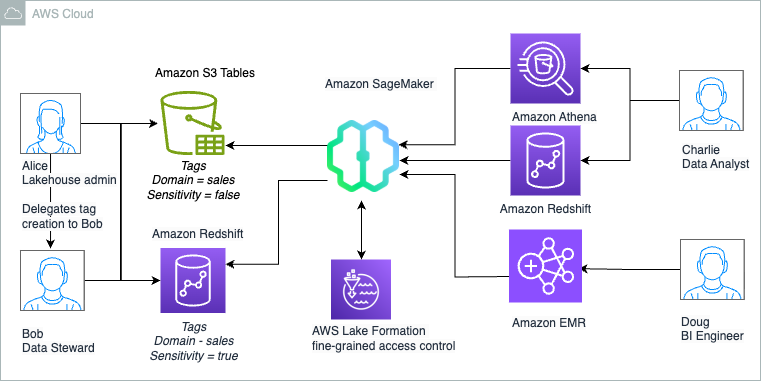
Alice as Lakehouse admin and Bob as Data Steward determines that following high-level steps are needed to deploy the solution:

  1. Create an S3 Tables bucket and enable integration with the Data Catalog. This will make the resources available under the federated catalog s3tablescatalog in the lakehouse architecture with Lake Formation for access control. Create a namespace and a table under the table bucket where the data will be stored.
  2. Create a Redshift cluster with tables, publish your data warehouse to the Data Catalog, and create a catalog registering the namespace. This will make the resources available under a federated catalog in the lakehouse architecture with Lake Formation for access control.
  3. Delegate permissions to create tags and grant permissions on Data Catalog resources to DataSteward.
  4. As DataSteward, define tag ontology based on the use case and create Tags. Assign these LF-Tags to the resources (database or table) to logically group lakehouse resources for sharing based on access patterns.
  5. Share the S3 Tables catalog table and Redshift table using tag-based access control to DataAnalyst, who uses Athena for analysis and Redshift Spectrum for generating the report.
  6. Share the S3 Tables catalog table and Redshift table using tag-based access control to BIEngineer, who uses Spark in EMR Serverless to further process the datasets.

Data steward defines the tags and assignment to resources as shown:

Tags Data Resources

Domain = sales

Sensitivity = false

S3 Table:

customer(

c_salutation,              c_preferred_cust_flag,c_first_sales_date_sk,
c_customer_sk ,
c_login ,
c_current_cdemo_sk ,
c_current_hdemo_sk ,
c_current_addr_sk ,
c_customer_id ,
c_last_review_date_sk ,
c_birth_month ,
c_birth_country ,
c_birth_day ,
c_first_shipto_date_sk
)

Domain = sales

Sensitivity = true

S3 Table:

customer(

c_first_name,

c_last_name,

c_email_address,

c_birth_year)

Domain = sales

Sensitivity = false

Redshift Table:

sales.store_sales

The following table summarizes the tag expression that is granted to roles for resource access:

User Persona Permission Granted Access
Bob DataSteward SUPER_USER on catalogs Admin access on customer and store_sales.
Charlie DataAnalyst

Domain = sales

Sensitivity = false

Access to non -sensitive data that is aligned to sales domain: customer(non-sensitive columns) and store_sales.
Doug BIEngineer Domain = sales Access to all datasets that is aligned to sales domain: customer and store_sales.

Prerequisites

To follow along with this post, complete the following prerequisite steps:

  1. Have an AWS account and admin user with access to the following AWS services:
    1. Athena
    2. Amazon EMR
    3. IAM
    4. Lake Formation and the Data Catalog
    5. Amazon Redshift
    6. Amazon S3
    7. IAM Identity Center
    8. Amazon SageMaker Unified Studio
  2. Create a data lake admin (LHAdmin). For instructions, see Create a data lake administrator.
  3. Create an IAM role named DataSteward and attach permissions for AWS Glue and Lake Formation access. For instructions, refer to Data lake administrator permissions.
  4. Create an IAM role named DataAnalyst and attach permissions for Amazon Redshift and Athena access. For instructions, refer to Data analyst permissions.
  5. Create an IAM role named BIEngineer and attach permissions for Amazon EMR access. This is also the EMR runtime role that the Spark job will use to access the tables. For instructions on the role permissions, refer to Job runtime roles for EMR serverless.
  6. Create an IAM role named RedshiftS3DataTransferRole following the instructions in Prerequisites for managing Amazon Redshift namespaces in the AWS Glue Data Catalog.
  7. Create an EMR Studio and attach an EMR Serverless namespace in a private subnet to it, following the instructions in Run interactive workloads on Amazon EMR Serverless from Amazon EMR Studio.

Create data lake tables using an S3 Tables bucket and integrate with the lakehouse architecture

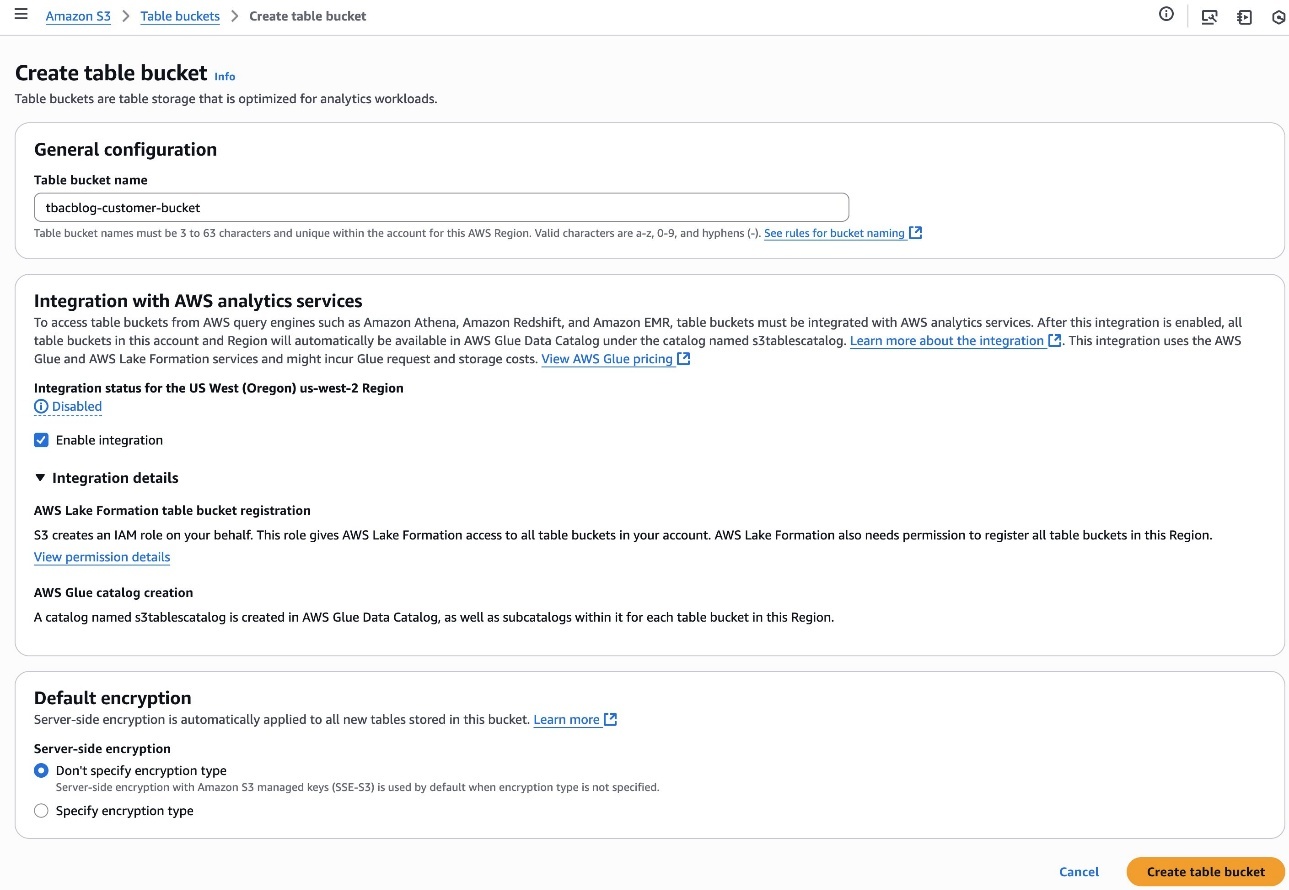
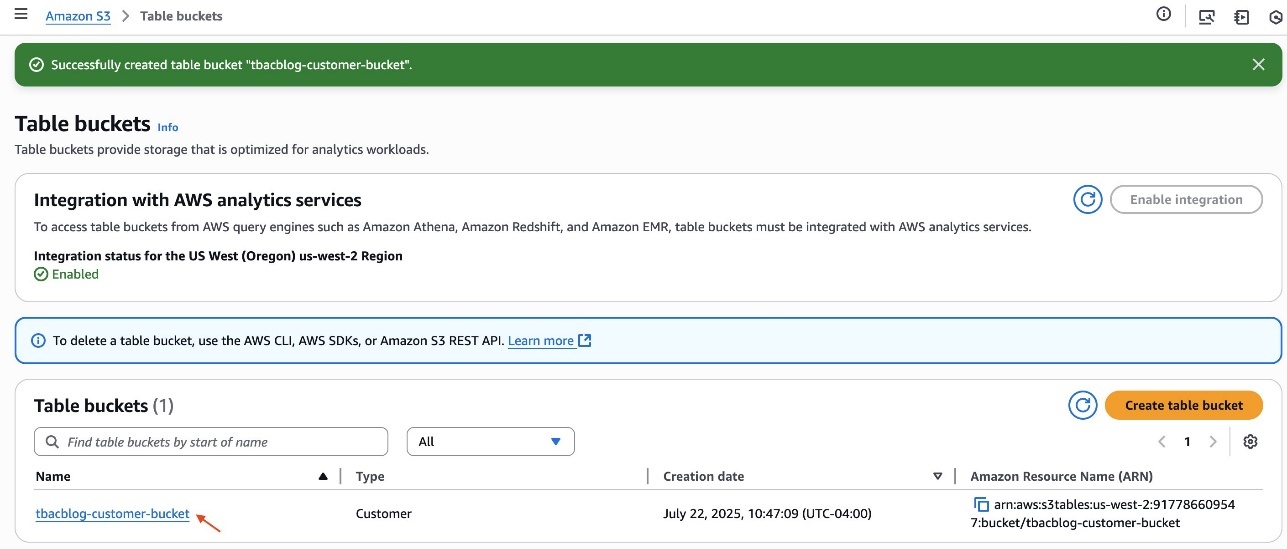
Alice completes the following steps to create a table bucket and enable integration with analytics services:

  1. Sign in to the Amazon S3 console as LHAdmin.
  2. Choose Table buckets in the navigation pane and create a table bucket.
  3. For Table bucket name, enter a name, such as tbacblog-customer-bucket.
  4. For Integration with AWS analytics services, choose Enable integration.
  5. Choose Create table bucket.
  6. After you create the table, click the hyperlink of the table bucket name.
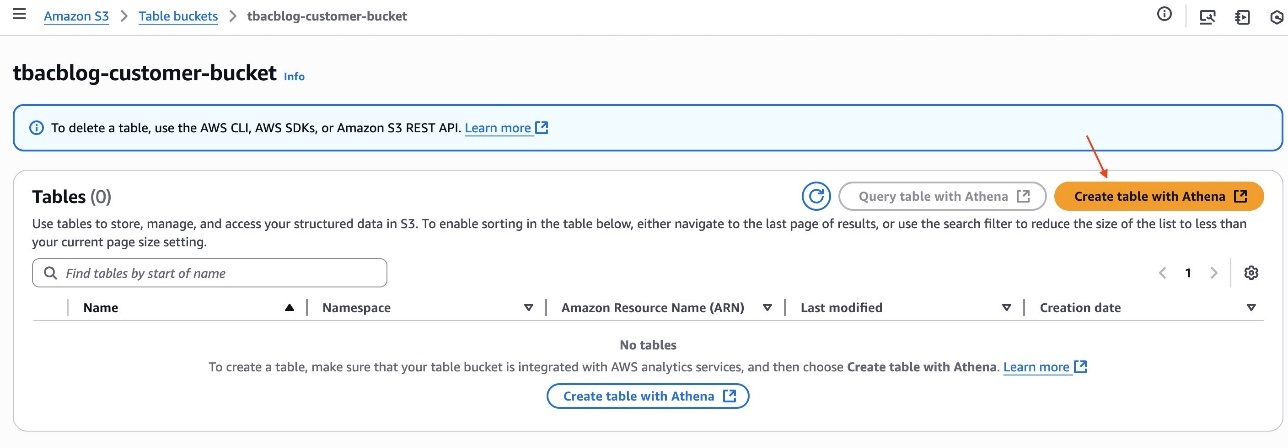
  7. Choose Create table with Athena.
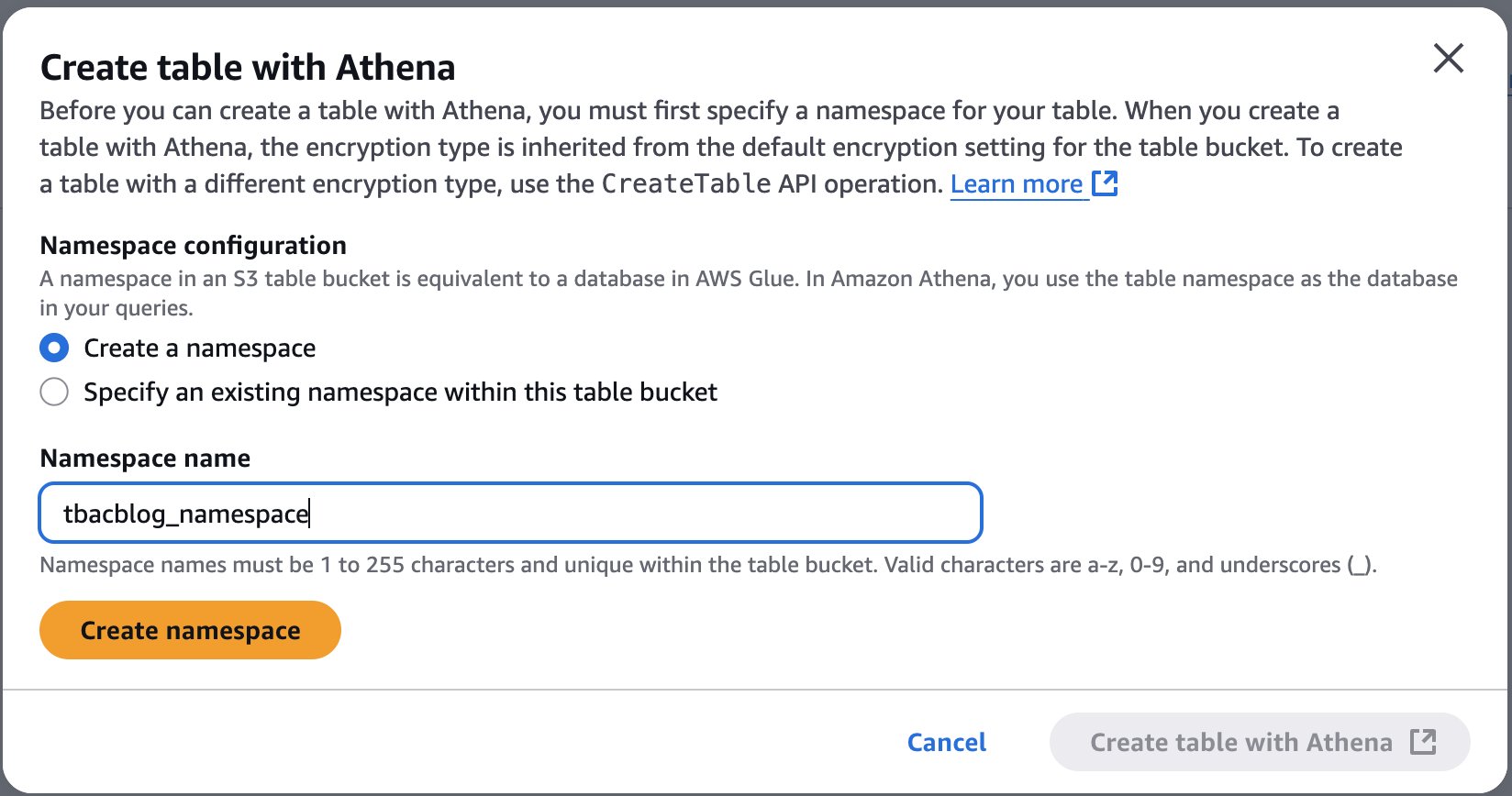
  8. Create a namespace and provide a namespace name. For example, tbacblog_namespace.
  9. Choose Create namespace.
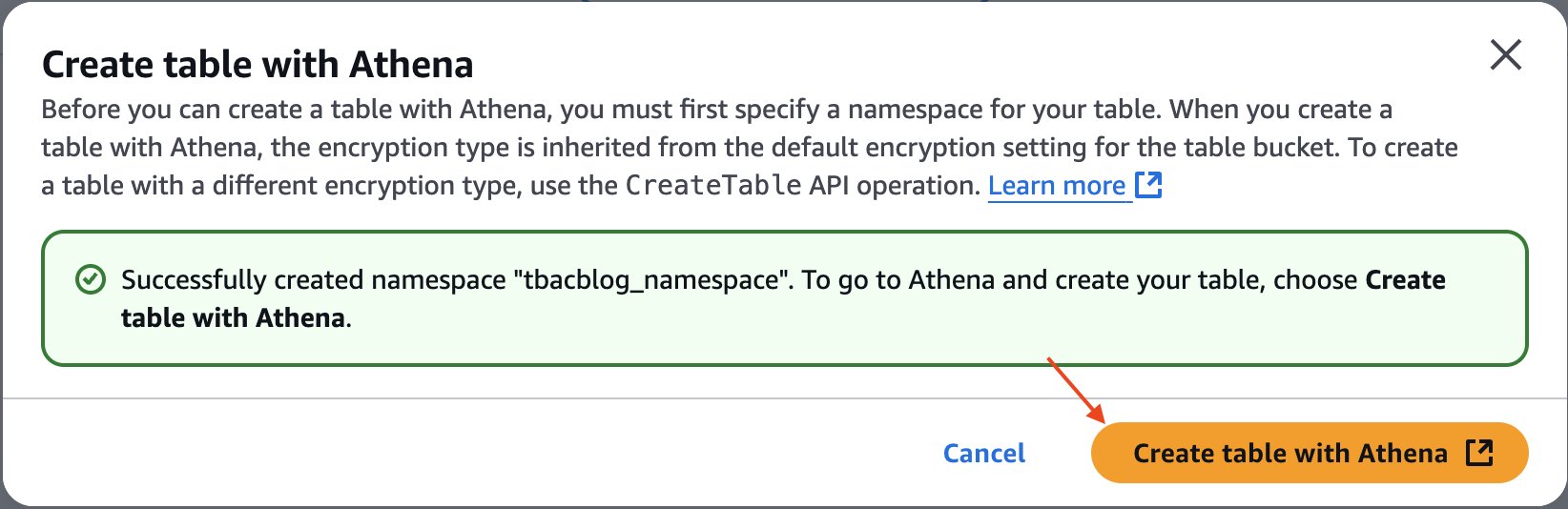
  10. Now proceed to creating table schema and populating it by choosing Create table with Athena.
  11. On the Athena console, run the following SQL script to create a table:
    CREATE TABLE `tbacblog_namespace`.customer (
      c_salutation string, 
      c_preferred_cust_flag string, 
      c_first_sales_date_sk int, 
      c_customer_sk int, 
      c_login string, 
      c_current_cdemo_sk int, 
      c_first_name string, 
      c_current_hdemo_sk int, 
      c_current_addr_sk int, 
      c_last_name string, 
      c_customer_id string, 
      c_last_review_date_sk int, 
      c_birth_month int, 
      c_birth_country string, 
      c_birth_year int, 
      c_birth_day int, 
      c_first_shipto_date_sk int, 
      c_email_address string)
    TBLPROPERTIES ('table_type' = 'iceberg');
    
    
    INSERT INTO tbacblog_namespace.customer
    VALUES('Dr.','N',2452077,13251813,'Y',1381546,'Joyce',2645,2255449,'Deaton','AAAAAAAAFOEDKMAA',2452543,1,'GREECE',1987,29,2250667,'[email protected]'),
    ('Dr.','N',2450637,12755125,'Y',1581546,'Daniel',9745,4922716,'Dow','AAAAAAAAFLAKCMAA',2432545,1,'INDIA',1952,3,2450667,'[email protected]'),
    ('Dr.','N',2452342,26009249,'Y',1581536,'Marie',8734,1331639,'Lange','AAAAAAAABKONMIBA',2455549,1,'CANADA',1934,5,2472372,'[email protected]'),
    ('Dr.','N',2452342,3270685,'Y',1827661,'Wesley',1548,11108235,'Harris','AAAAAAAANBIOBDAA',2452548,1,'ROME',1986,13,2450667,'[email protected]'),
    ('Dr.','N',2452342,29033279,'Y',1581536,'Alexandar',8262,8059919,'Salyer','AAAAAAAAPDDALLBA',2952543,1,'SWISS',1980,6,2650667,'[email protected]'),
    ('Miss','N',2452342,6520539,'Y',3581536,'Jerry',1874,36370,'Tracy','AAAAAAAALNOHDGAA',2452385,1,'ITALY',1957,8,2450667,'[email protected]');
    
    SELECT * FROM tbacblog_namespace.customer;

You have now created the S3 Tables table customer, populated it with data, and integrated it with the lakehouse architecture.

Set up data warehouse tables using Amazon Redshift and integrate them with the lakehouse architecture

In this section, Alice sets up data warehouse tables using Amazon Redshift and integrates them with the lakehouse architecture.

Create a Redshift cluster and publish it to the Data Catalog

Alice completes the following steps to create a Redshift cluster and publish it to the Data Catalog:

  1. Create a Redshift Serverless namespace called salescluster. For instructions, refer to Get started with Amazon Redshift Serverless data warehouses.
  2. Sign in to the Redshift endpoint salescluster as an admin user.
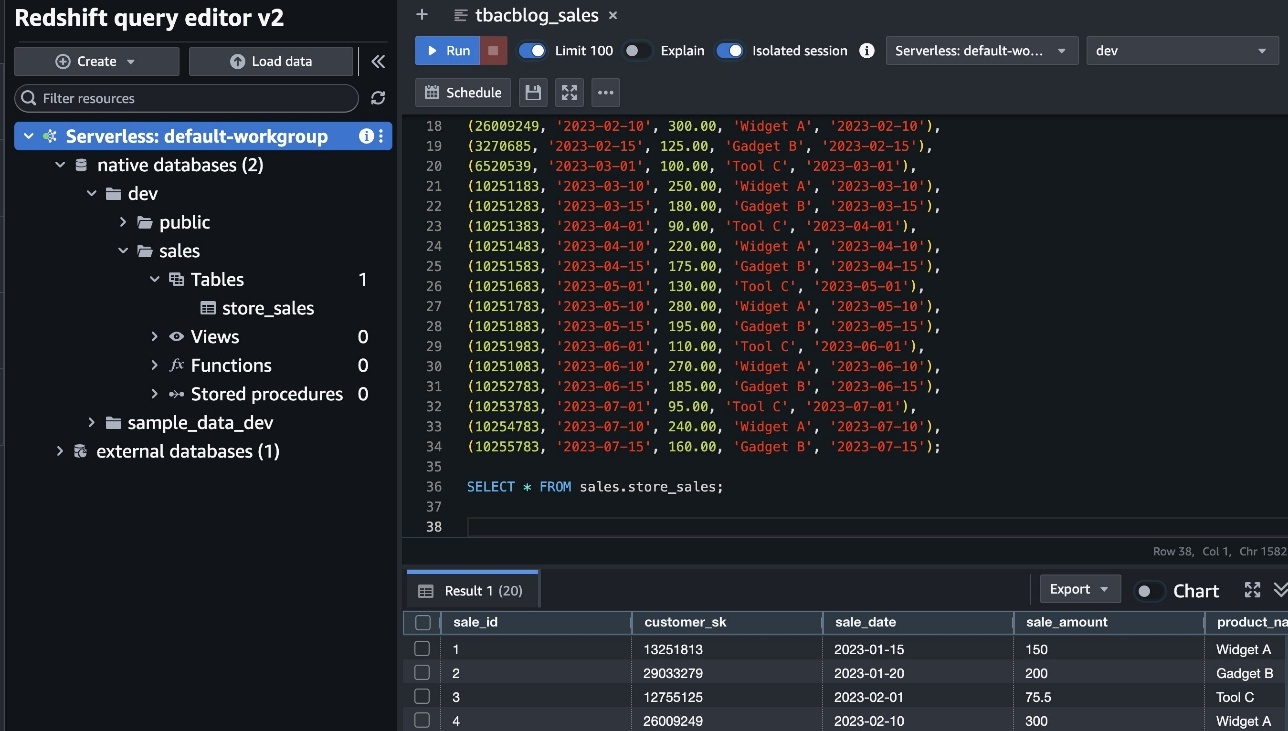
  3. Run the following script to create a table under the dev database under the public schema:
    CREATE SCHEMA sales;
    CREATE TABLE sales.store_sales (
    sale_id INTEGER IDENTITY(1,1) PRIMARY KEY,
    customer_sk INTEGER NOT NULL,
    sale_date DATE NOT NULL,
    sale_amount DECIMAL(10, 2) NOT NULL,
    product_name VARCHAR(100) NOT NULL,
    last_purchase_date DATE
    );
    
    INSERT INTO sales.store_sales (customer_sk, sale_date, sale_amount, product_name, last_purchase_date)
    VALUES
    (13251813, '2023-01-15', 150.00, 'Widget A', '2023-01-15'),
    (29033279, '2023-01-20', 200.00, 'Gadget B', '2023-01-20'),
    (12755125, '2023-02-01', 75.50, 'Tool C', '2023-02-01'),
    (26009249, '2023-02-10', 300.00, 'Widget A', '2023-02-10'),
    (3270685, '2023-02-15', 125.00, 'Gadget B', '2023-02-15'),
    (6520539, '2023-03-01', 100.00, 'Tool C', '2023-03-01'),
    (10251183, '2023-03-10', 250.00, 'Widget A', '2023-03-10'),
    (10251283, '2023-03-15', 180.00, 'Gadget B', '2023-03-15'),
    (10251383, '2023-04-01', 90.00, 'Tool C', '2023-04-01'),
    (10251483, '2023-04-10', 220.00, 'Widget A', '2023-04-10'),
    (10251583, '2023-04-15', 175.00, 'Gadget B', '2023-04-15'),
    (10251683, '2023-05-01', 130.00, 'Tool C', '2023-05-01'),
    (10251783, '2023-05-10', 280.00, 'Widget A', '2023-05-10'),
    (10251883, '2023-05-15', 195.00, 'Gadget B', '2023-05-15'),
    (10251983, '2023-06-01', 110.00, 'Tool C', '2023-06-01'),
    (10251083, '2023-06-10', 270.00, 'Widget A', '2023-06-10'),
    (10252783, '2023-06-15', 185.00, 'Gadget B', '2023-06-15'),
    (10253783, '2023-07-01', 95.00, 'Tool C', '2023-07-01'),
    (10254783, '2023-07-10', 240.00, 'Widget A', '2023-07-10'),
    (10255783, '2023-07-15', 160.00, 'Gadget B', '2023-07-15');
    
    SELECT * FROM sales.store_sales;

  4. On the Redshift Serverless console, open the namespace.
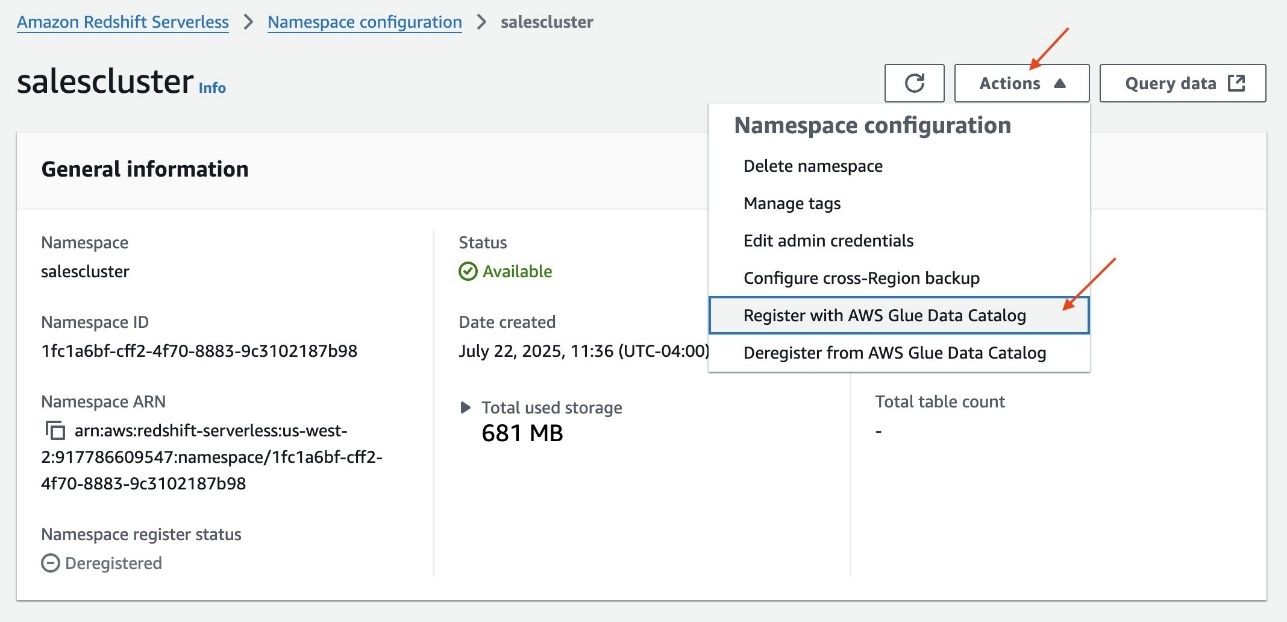
  5. On the Actions dropdown menu, choose Register with AWS Glue Data Catalog to integrate with the lakehouse architecture.
  6. Select the same AWS account and choose Register.

Create a catalog for Amazon Redshift

Alice completes the following steps to create a catalog for Amazon Redshift:

  1. Sign in to the Lake Formation console as the data lake administrator LHAdmin.
  2. In the navigation pane, under Data Catalog, choose Catalogs.
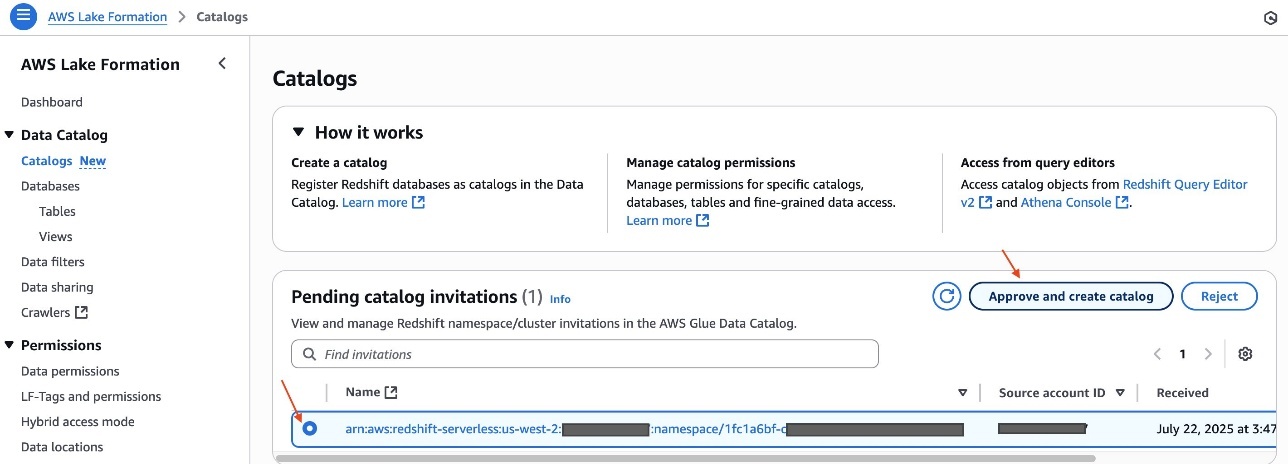
    Under Pending catalog invitations, you will see the invitation initiated from the Redshift Serverless namespace salescluster.
  3. Select the pending invitation and choose Approve and create catalog.
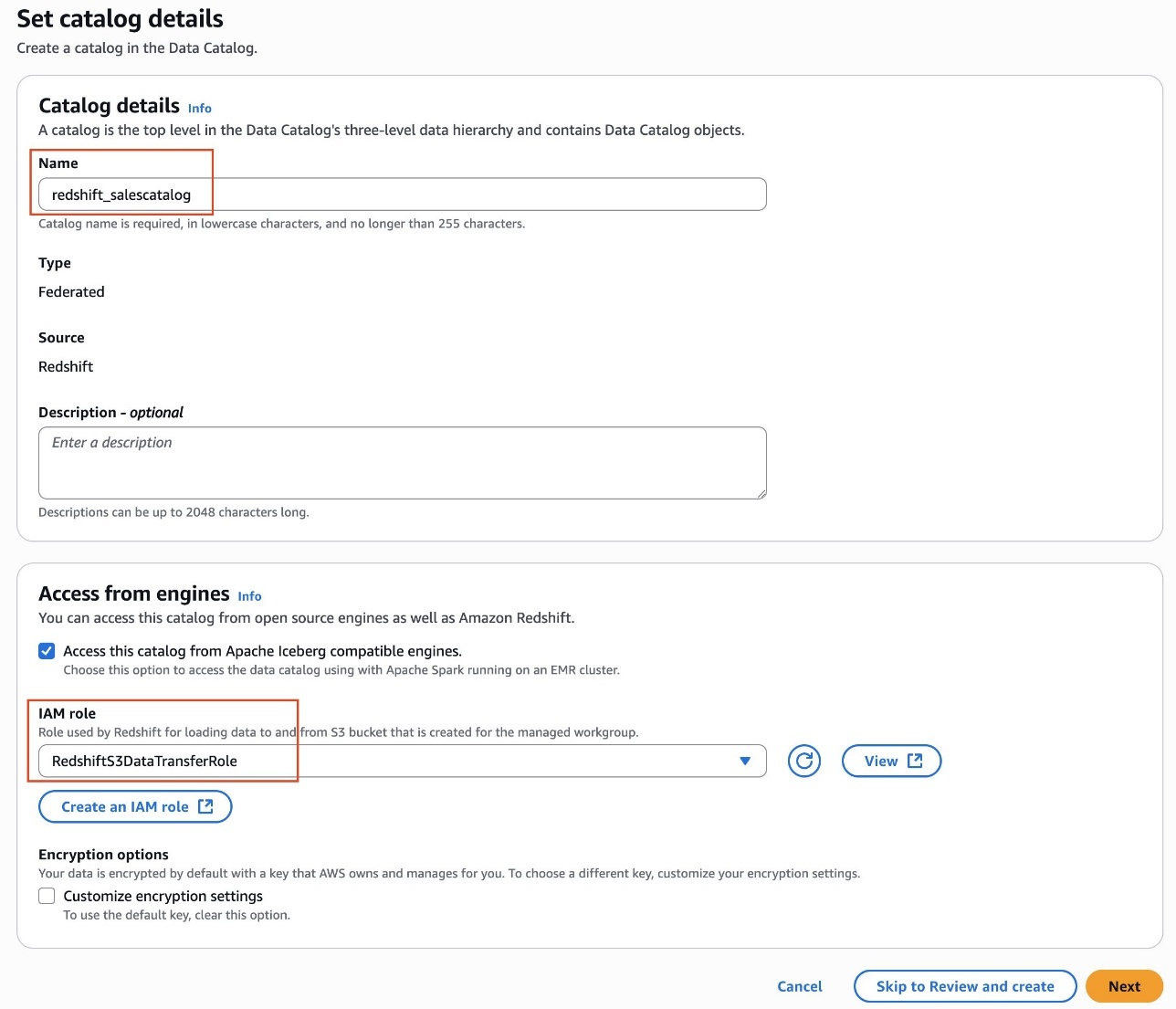
  4. Provide a name for the catalog. For example, redshift_salescatalog.
  5. Under Access from engines, select Access this catalog from Iceberg-compatible engines and choose RedshiftS3DataTransferRole for IAM role.
  6. Choose Next.
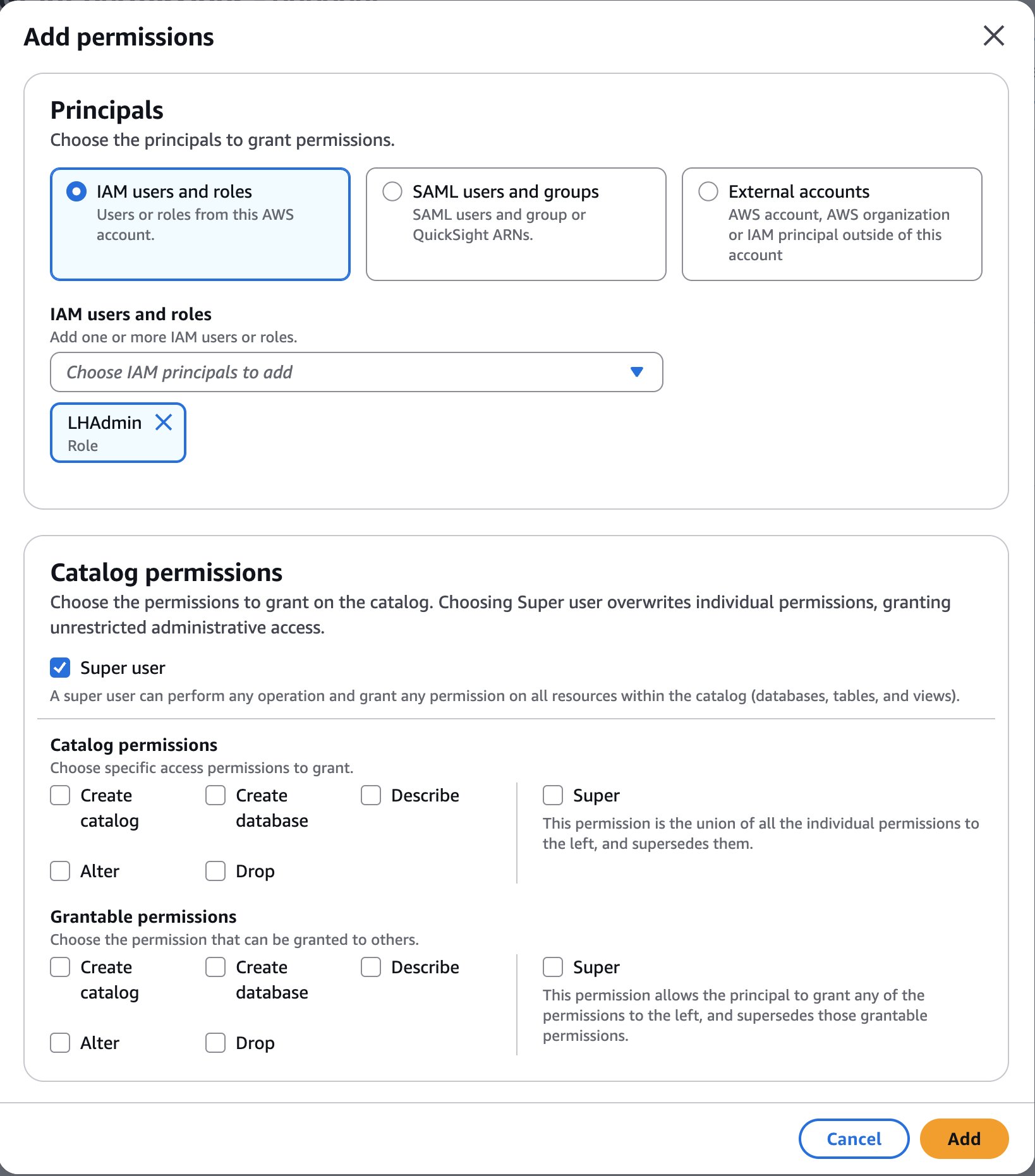
  7. Choose Add permissions.
  8. Under Principals, choose the LHAdmin role for IAM users and roles, choose Super user for Catalog permissions, and choose Add.
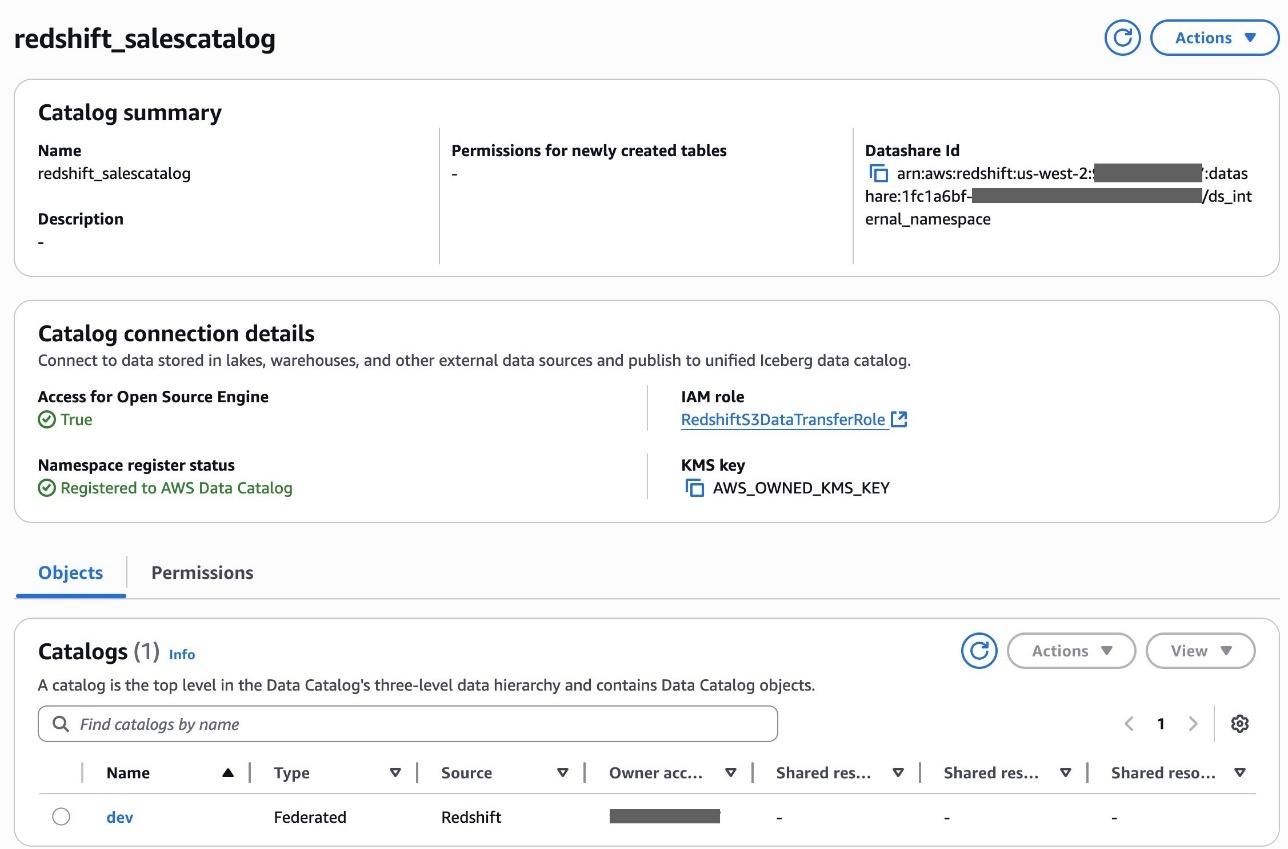
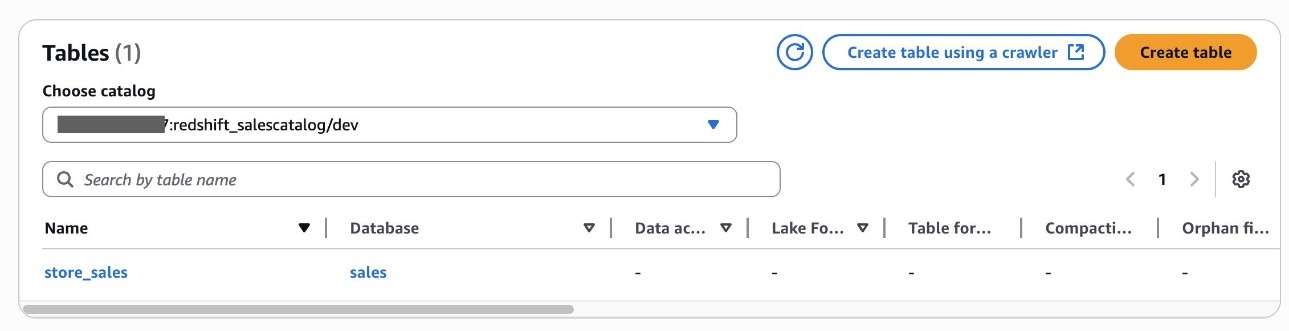
  9. Choose Create catalog.After you create the catalog redshift_salescatalog, you can inspect the sub-catalog dev, namespace and database sales, and table store_sales underneath it.

Alice has now completed creating an S3table catalog table and Redshift federated catalog table in the Data Catalog.

Delegate LF-Tags creation and resource permission to the DataSteward role

Alice completes the following steps to delegate LF-Tags creation and resource permission to Bob as DataSteward:

  1. Sign in to the Lake Formation console as the data lake administrator LHAdmin.
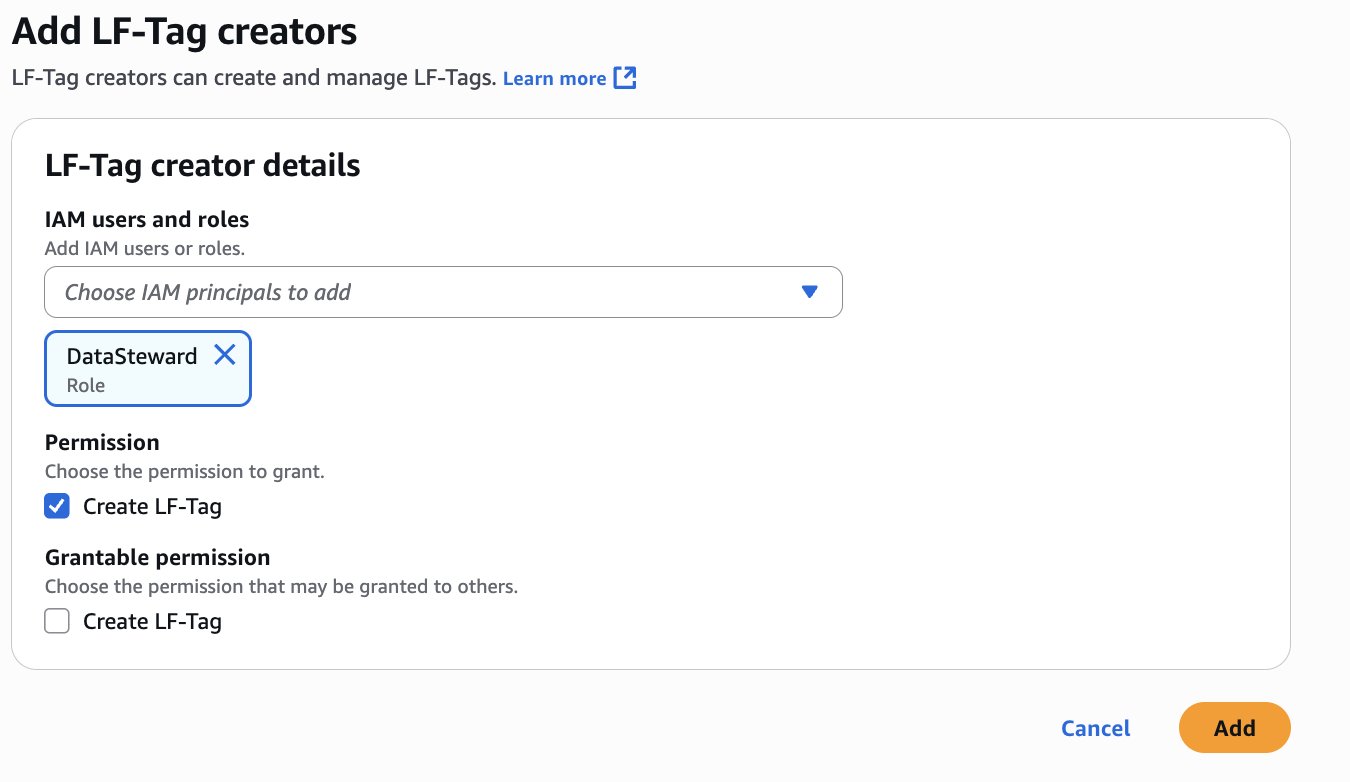
  2. In the navigation pane, choose LF Tags and permissions, then choose the LF-Tag creators tab.
  3. Choose Add LF-Tag creators.
  4. Choose DataSteward for IAM users and roles.
  5. Under Permission, select Create LF-Tag and choose Add.
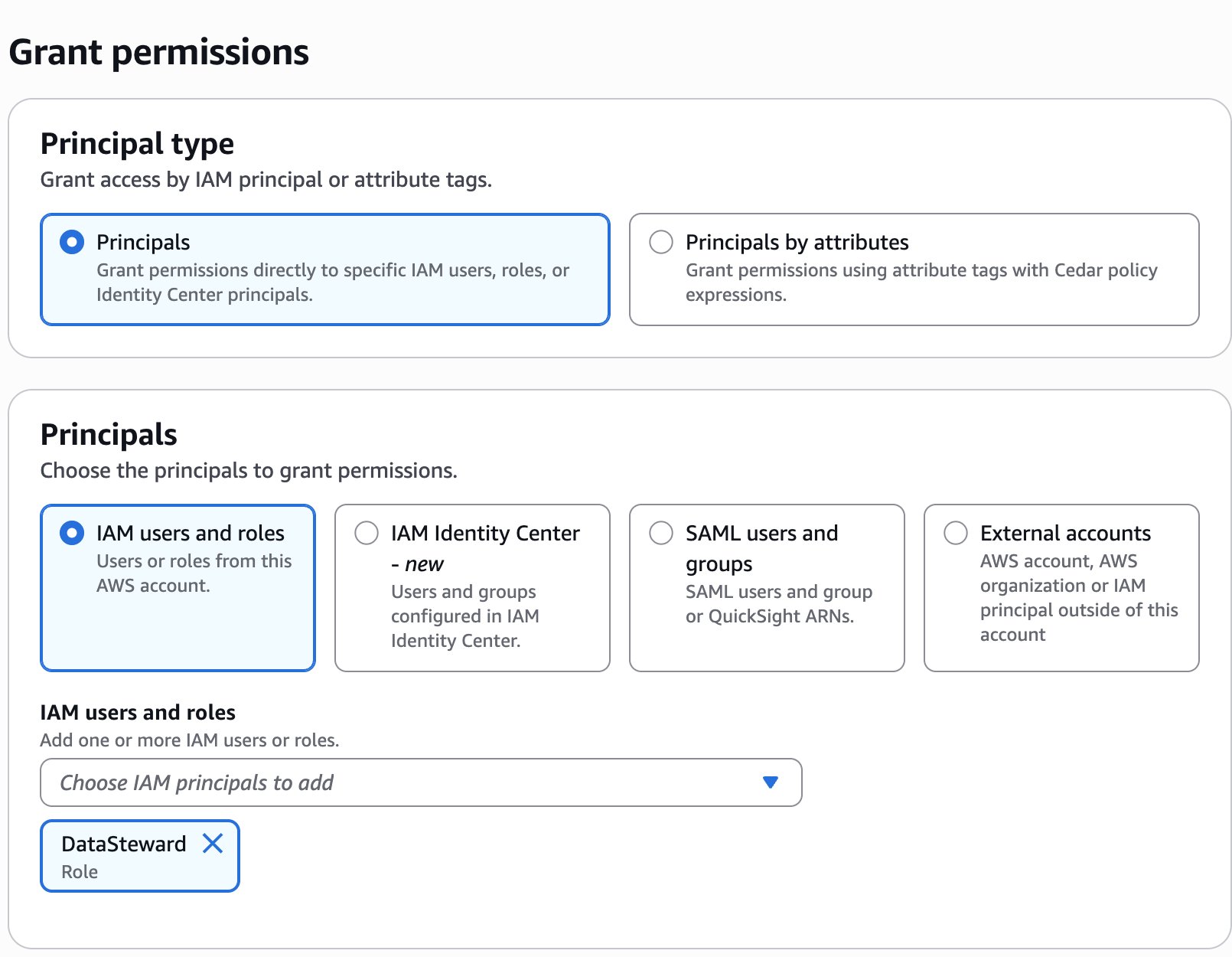
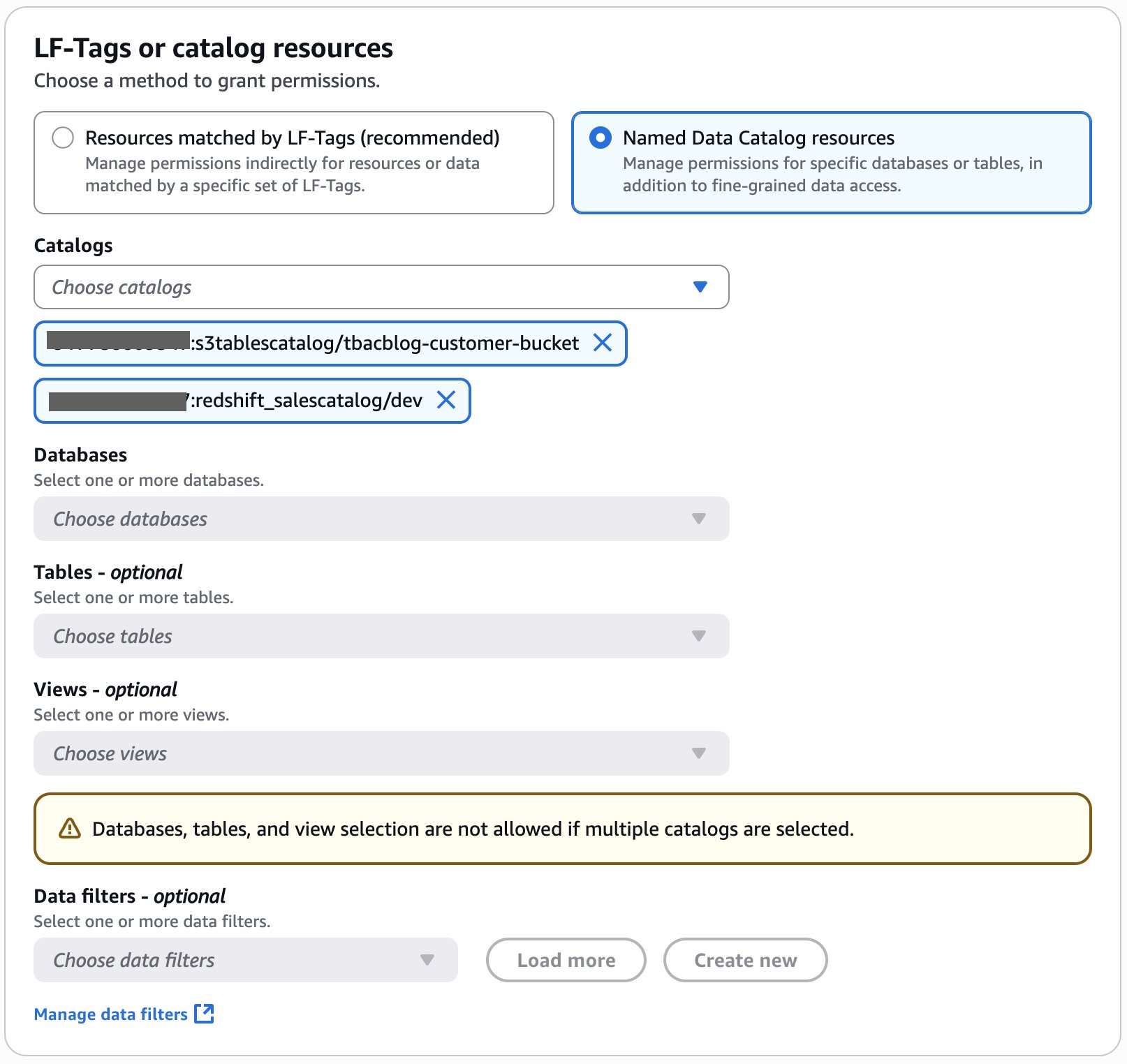
  6. In the navigation pane, choose Data permissions, then choose Grant.
  7. In the Principals section, for IAM users and roles, choose the DataSteward role.
  8. In the LF-Tags or catalog resources section, select Named Data Catalog resources.
  9. Choose <account_id>:s3tablescatalog/tbacblog-customer-bucket and <account_id>:redshift_salescatalog/dev for Catalogs.
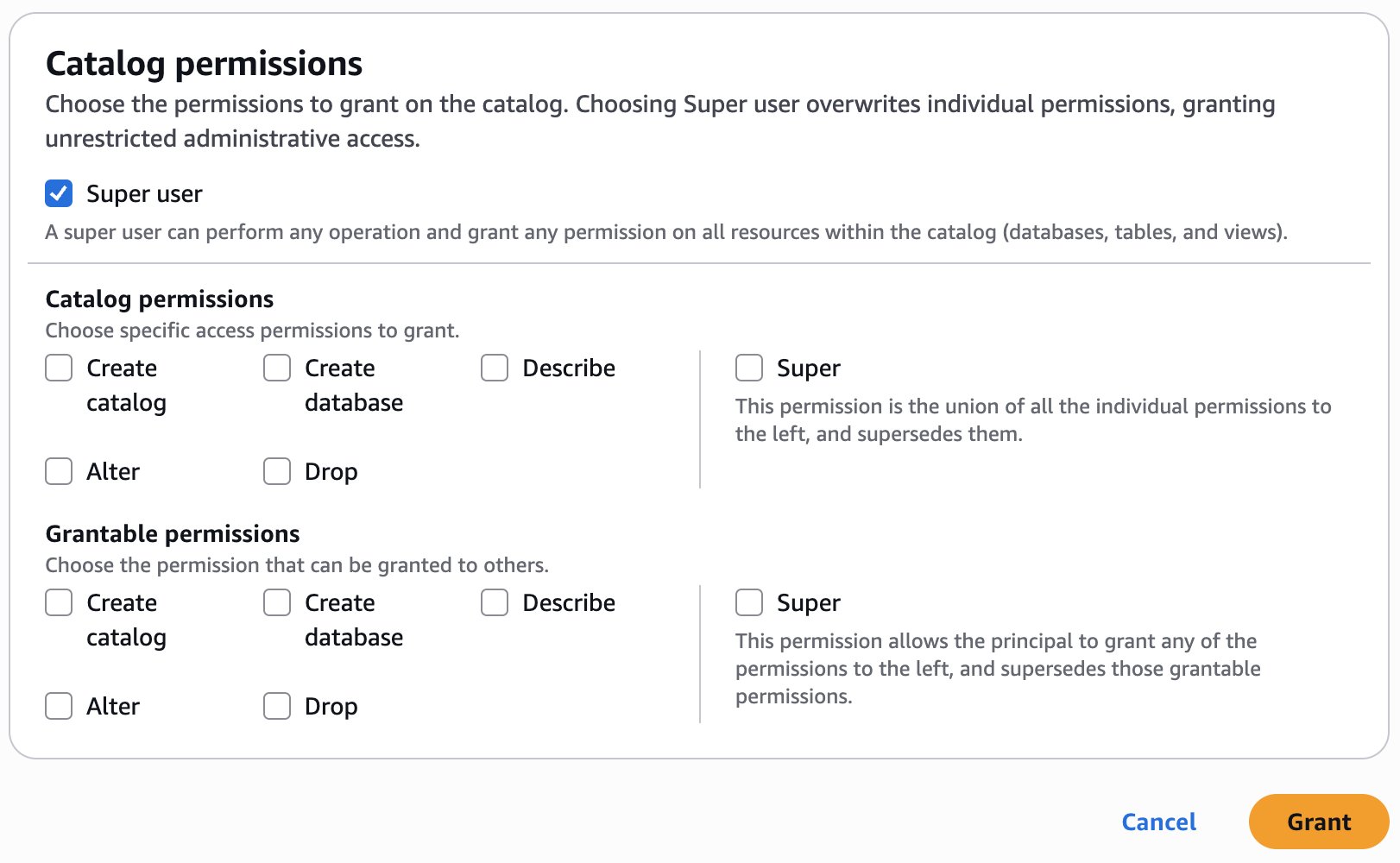
  10. In the Catalog permissions section, select Super user for permissions.
  11. Choose Grant.

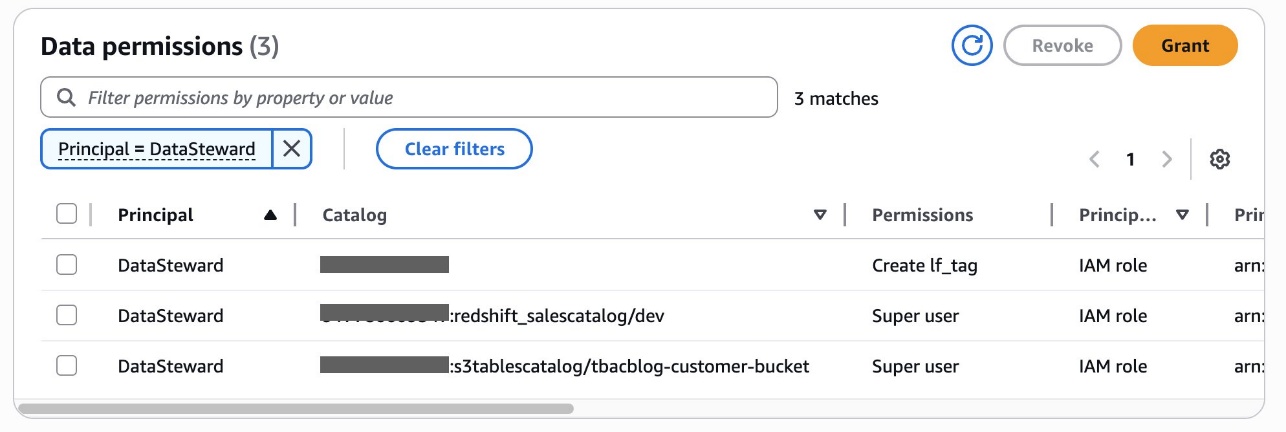
You can verify permissions for DataSteward on the Data permissions page.

Alice has now completed delegating LF-tags creation and assignment permissions to Bob, the DataSteward. She had also granted catalog level permissions to Bob.

Create LF-Tags

Bob as DataSteward completes the following steps to create LF-Tags:

  1. Sign in to the Lake Formation console as DataSteward.
  2. In the navigation pane, choose LF Tags and permissions, then choose the LF-tags tab.
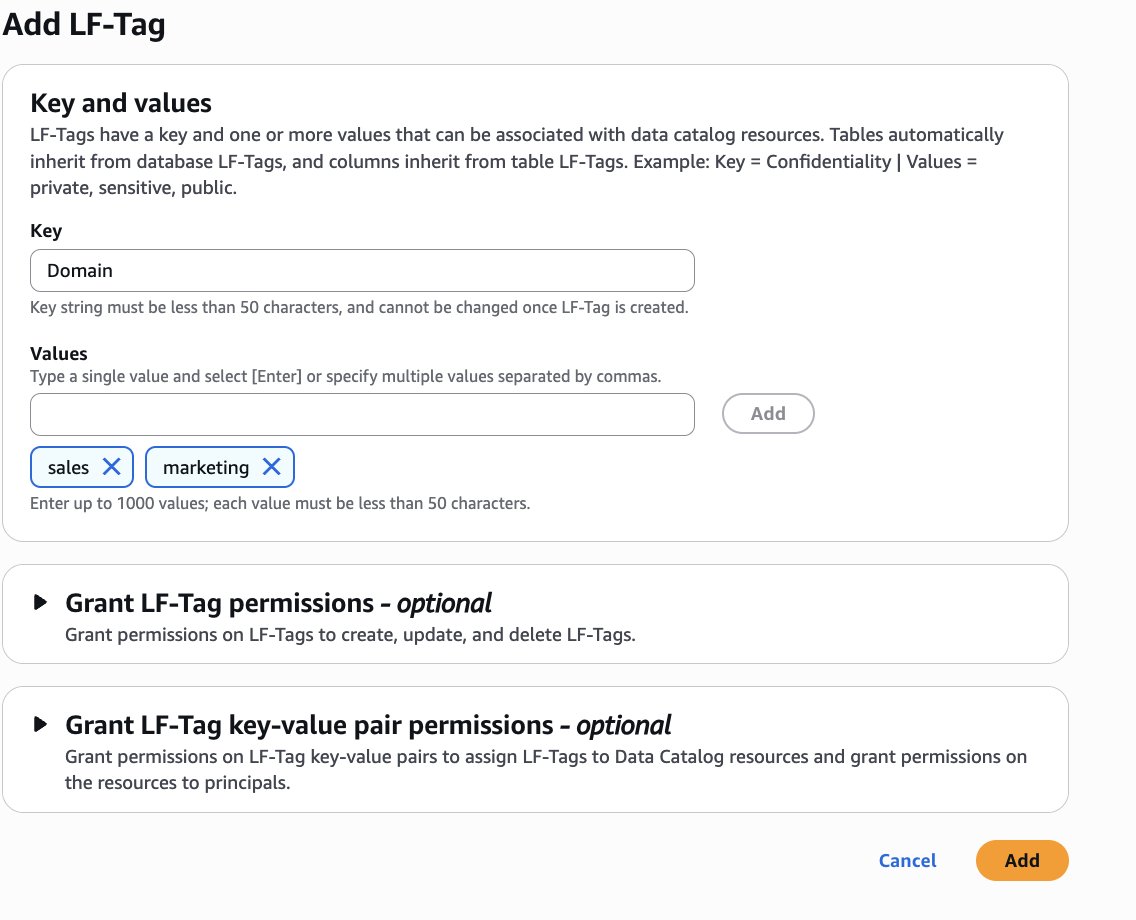
  3. Choose Add-LF-Tag.
  4. Create LF tags as follows:
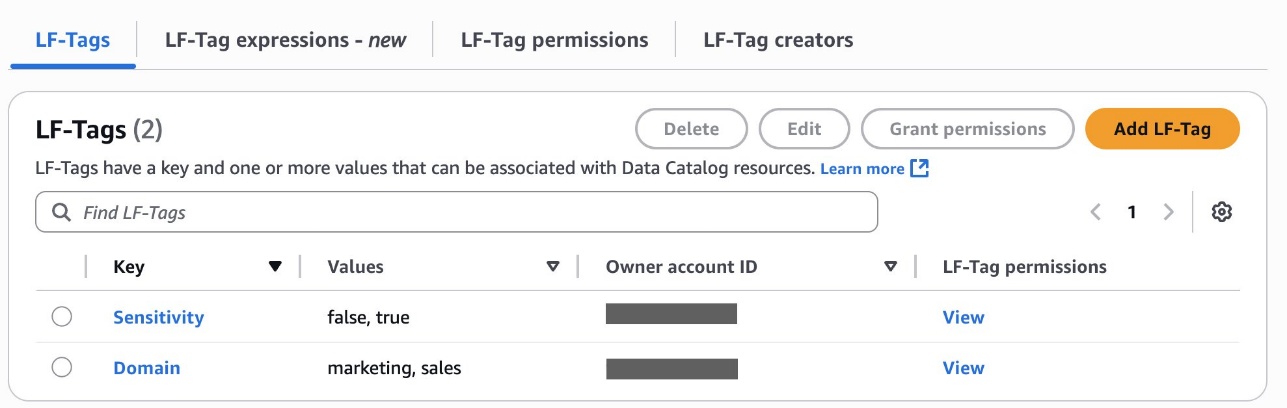
    1. Key: Domain and Values: sales, marketing
    2. Key: Sensitivity and Values: true, false

Assign LF-Tags to the S3 Tables database and table

Bob as DataSteward completes the following steps to assign LF-Tags to the S3 Tables database and table:

  1. In the navigation pane, choose Catalogs and choose s3tablescatalog.
  2. Choose tbacblog-customer-bucket and choose tbacblog_namespace.
  3. Choose Edit LF-Tags.
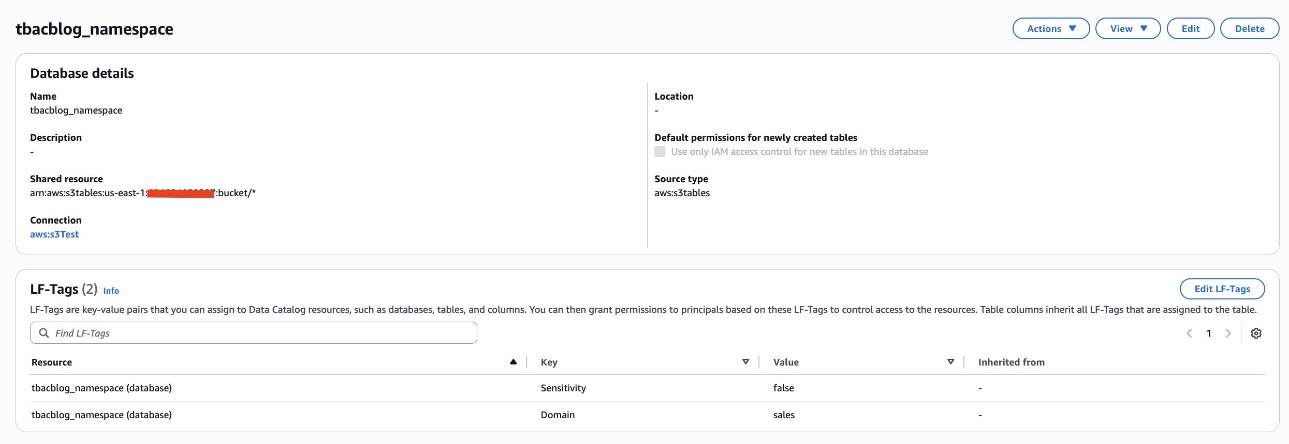
  4. Assign the following tags:
    1. Key: Domain and Value: sales
    2. Key: Sensitivity and Value: false
  5. Choose Save.
  6. On the View dropdown menu, choose Tables.
  7. Choose the customer table and choose the Schema tab.
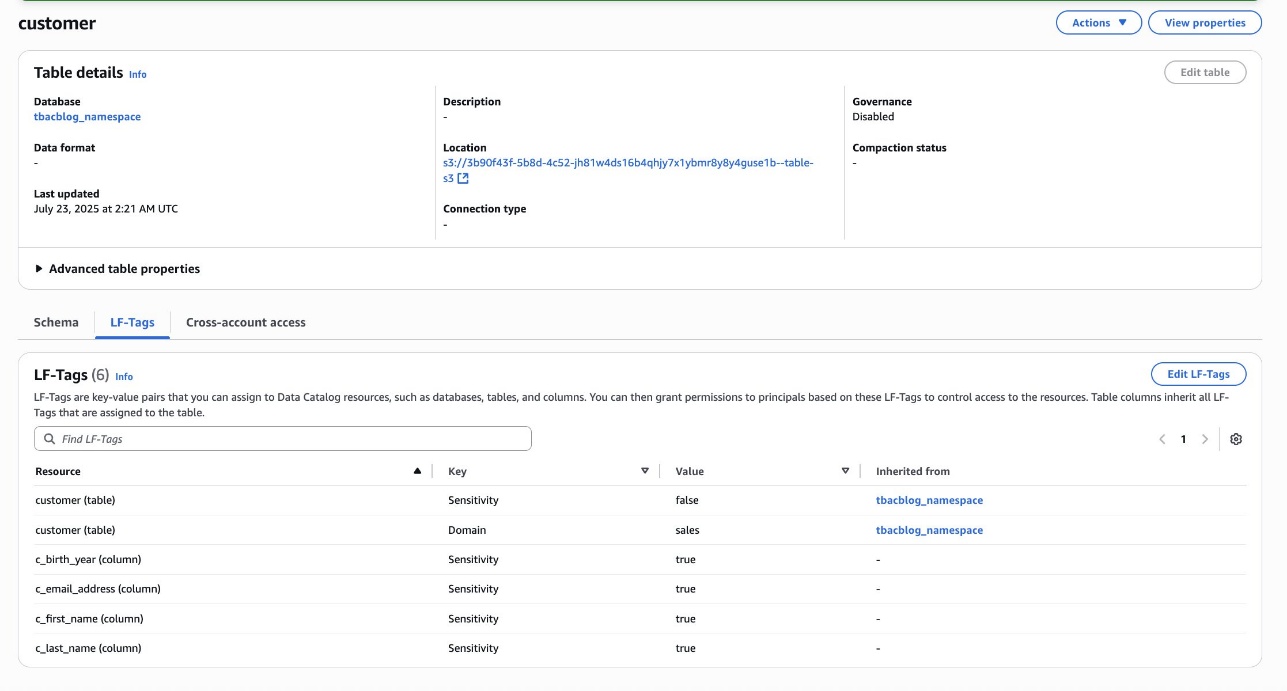
  8. Choose Edit schema and select the columns c_first_name, c_last_name, c_email_address, and c_birth_year.
  9. Choose Edit LF-Tags and modify the tag value:
    1. Key: Sensitivity and Value: true
  10. Choose Save.

Assign LF-Tags to the Redshift database and table

Bob as DataSteward completes the following steps to assign LF-Tags to the Redshift database and table:

  1. In the navigation pane, choose Catalogs and choose salescatalog.
  2. Choose dev and select sales.
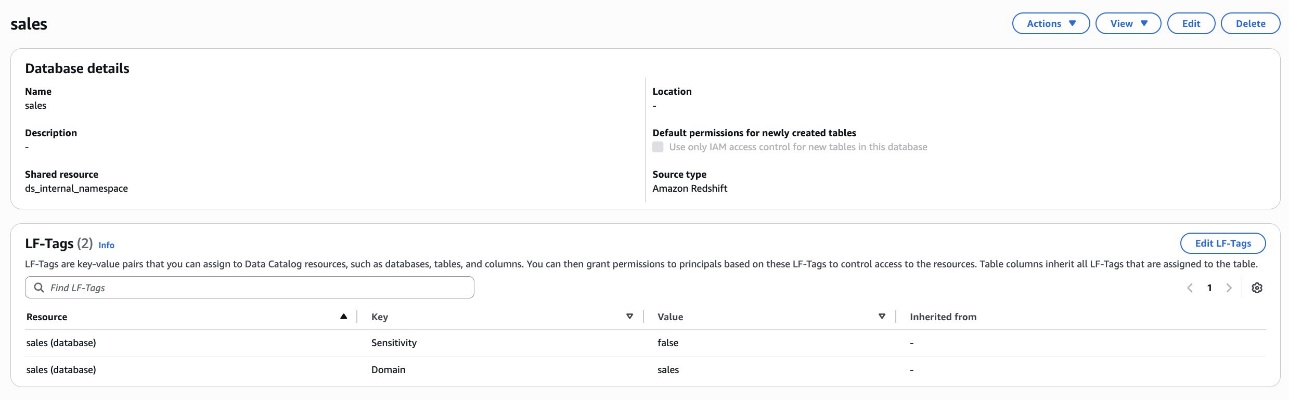
  3. Choose Edit LF-Tags and assign the following tags:
    1. Key: Domain and Value: sales
    2. Key: Sensitivity and Value: false
  4. Choose Save.

Grant catalog permission to the DataAnalyst and BIEngineer roles

Bob as DataSteward completes the following steps to grant catalog permission to the DataAnalyst and BIEngineer roles (Charlie and Doug, respectively):

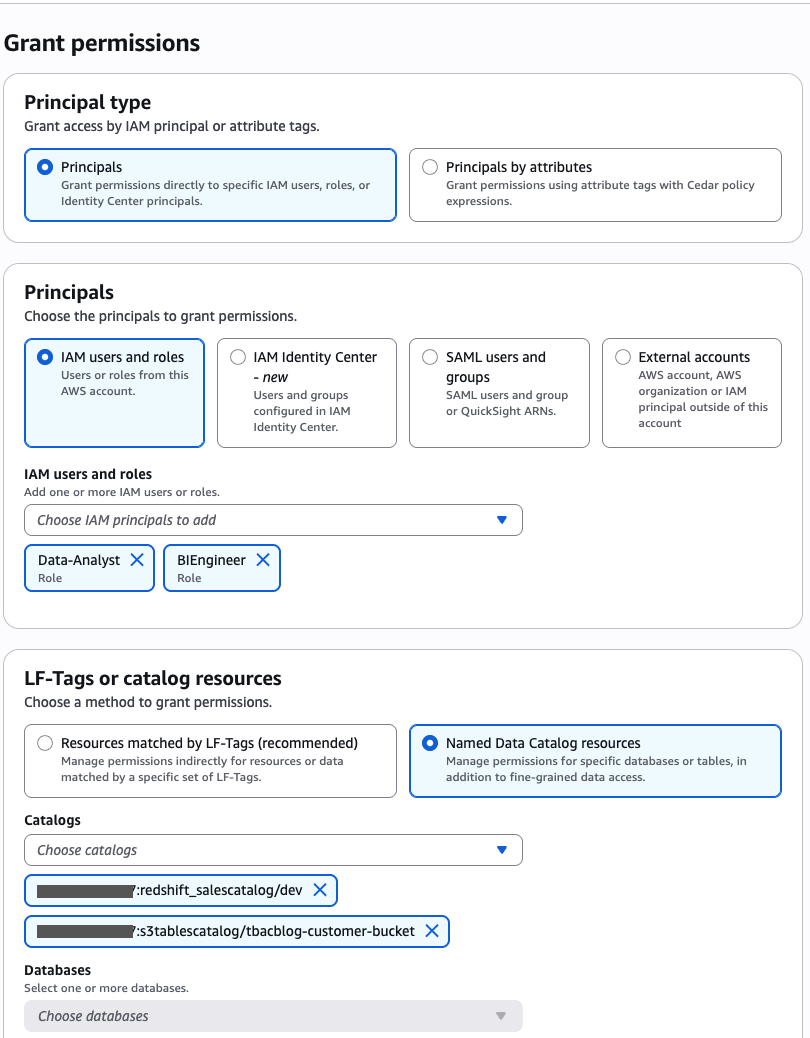
  1. In the navigation pane, choose Datalake permissions, then choose Grant.
  2. In the Principals section, for IAM users and roles, choose the DataAnalyst and BIEngineer roles.
  3. In the LF-Tags or catalog resources section, select Named Data Catalog resources.
  4. For Catalogs, choose <account_id>:s3tablescatalog/tbacblog-customer-bucket and <account_id>:salescatalog/dev.
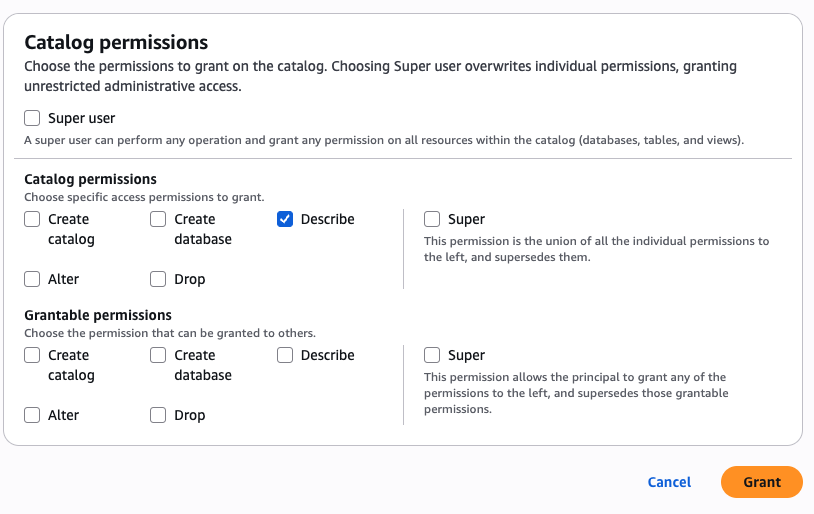
  5. In the Catalog permissions section, choose Describe for permissions.
  6. Choose Grant.

Grant permission to the DataAnalyst role for the sales domain and non-sensitive data

Bob as DataSteward completes the following steps to grant permission to the DataAnalyst role (Charlie) for the sales domain for non-sensitive data:

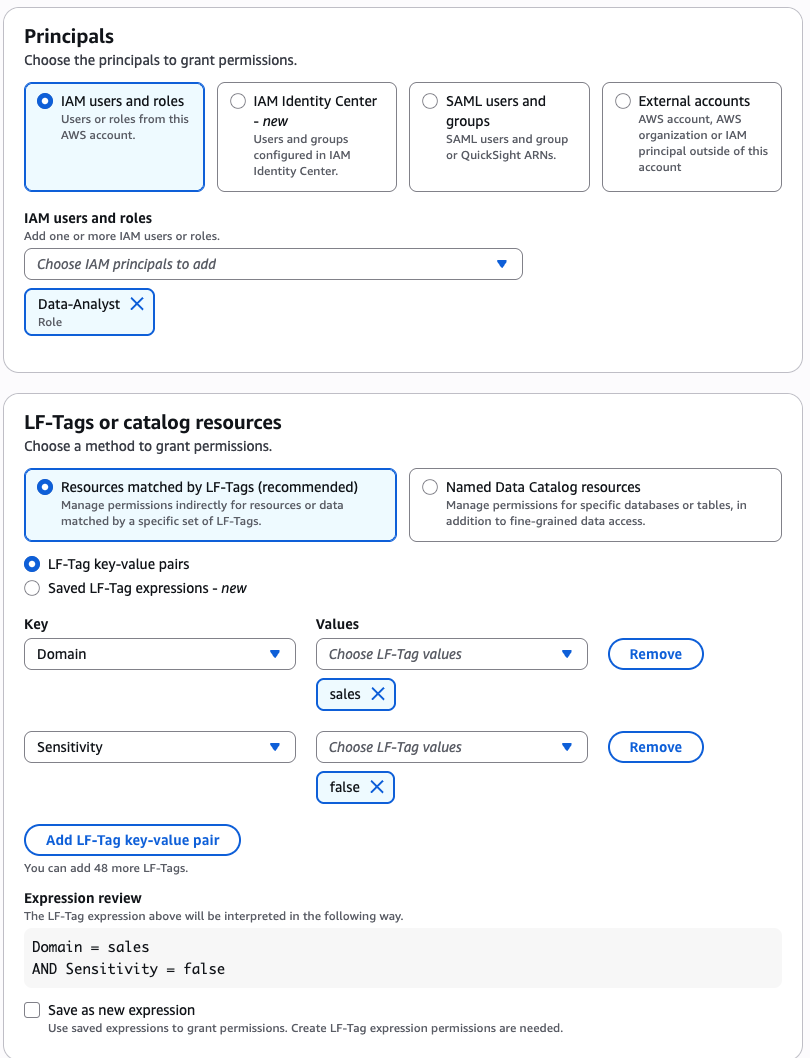
  1. In the navigation pane, choose Datalake permissions, then choose Grant.
  2. In the Principals section, for IAM users and roles, choose the DataAnalyst role.
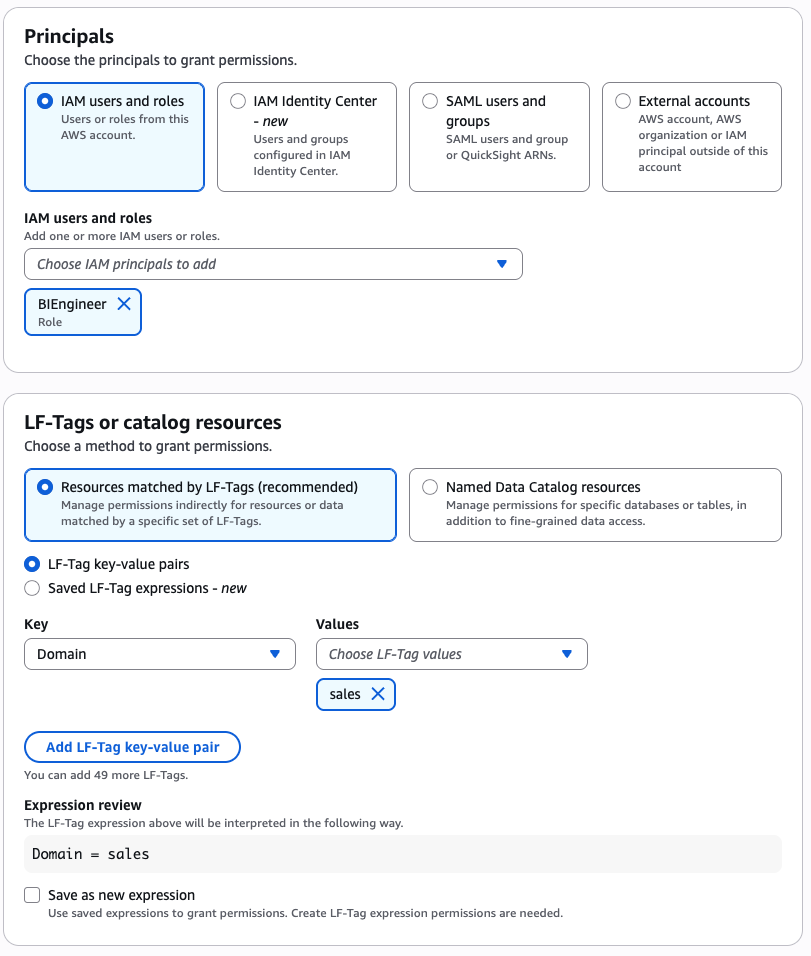
  3. In the LF-Tags or catalog resources section, select Resources matched by LF-Tags and provide the following values:
    1. Key: Domain and Value: sales
    2. Key: Sensitivity and Value: false

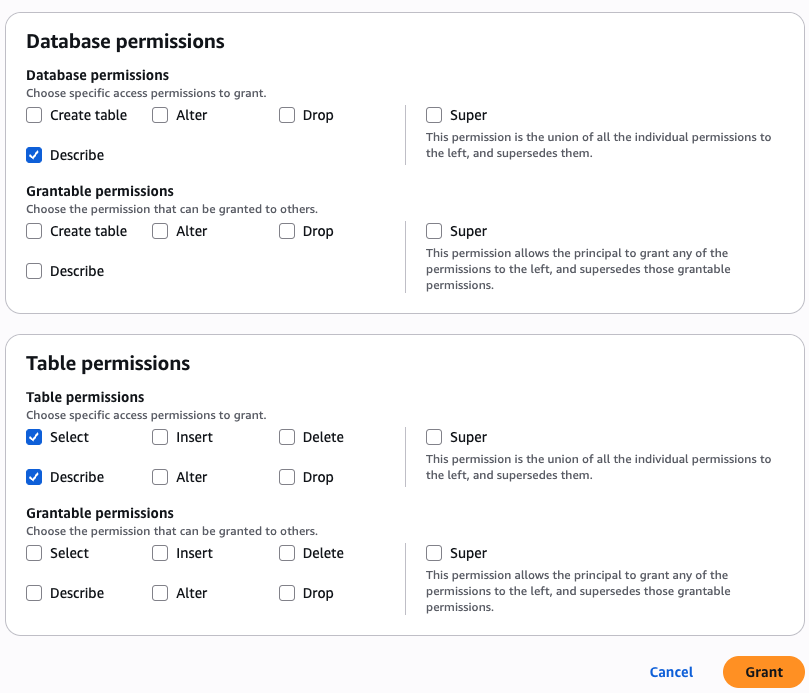
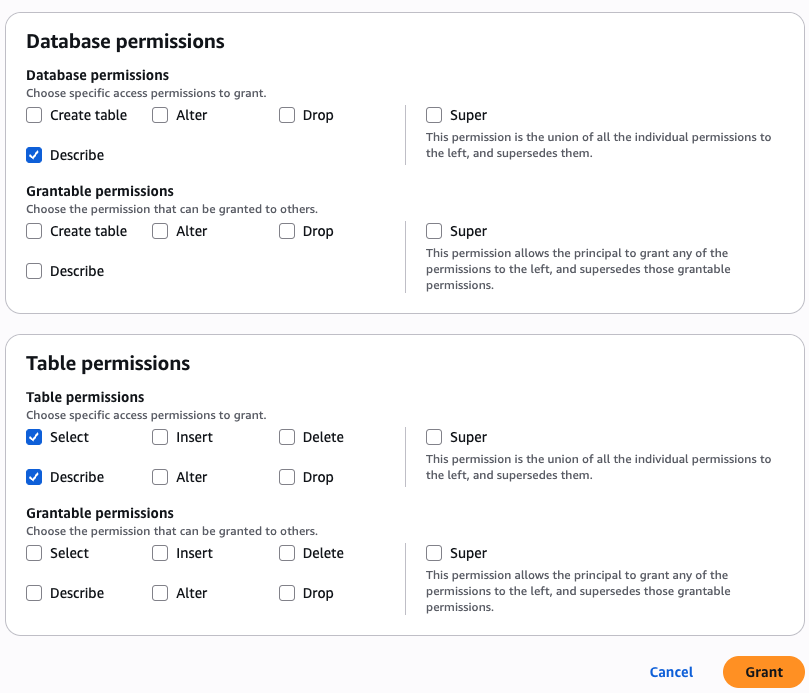
  4. In the Database permissions section, choose Describe for permissions.
  5. In the Table permissions section, select Select and Describe for permissions.
  6. Choose Grant.

Grant permission to the BIEngineer role for sales domain data

Bob as DataSteward completes the following steps to grant permission to the BIEngineer role (Doug) for all sales domain data:

  1. In the navigation pane, choose Datalake permissions, then choose Grant.
  2. In the Principals section, for IAM users and roles, choose the BIEngineer role.
  3. In the LF-Tags or catalog resources section, select Resources matched by LF-Tags and provide the following values:
    1. Key: Domain and Value: sales
  4. In the Database permissions section, choose Describe for permissions.
  5. In the Table permissions section, select Select and Describe for permissions.
  6. Choose Grant.

This completes the steps to grant S3 Tables and Redshift federated tables permissions to various data personas using LF-TBAC.

Verify data access

In this step, we log in as individual data personas and query the lakehouse tables that are available to each persona.

Use Athena to analyze customer information as the DataAnalyst role

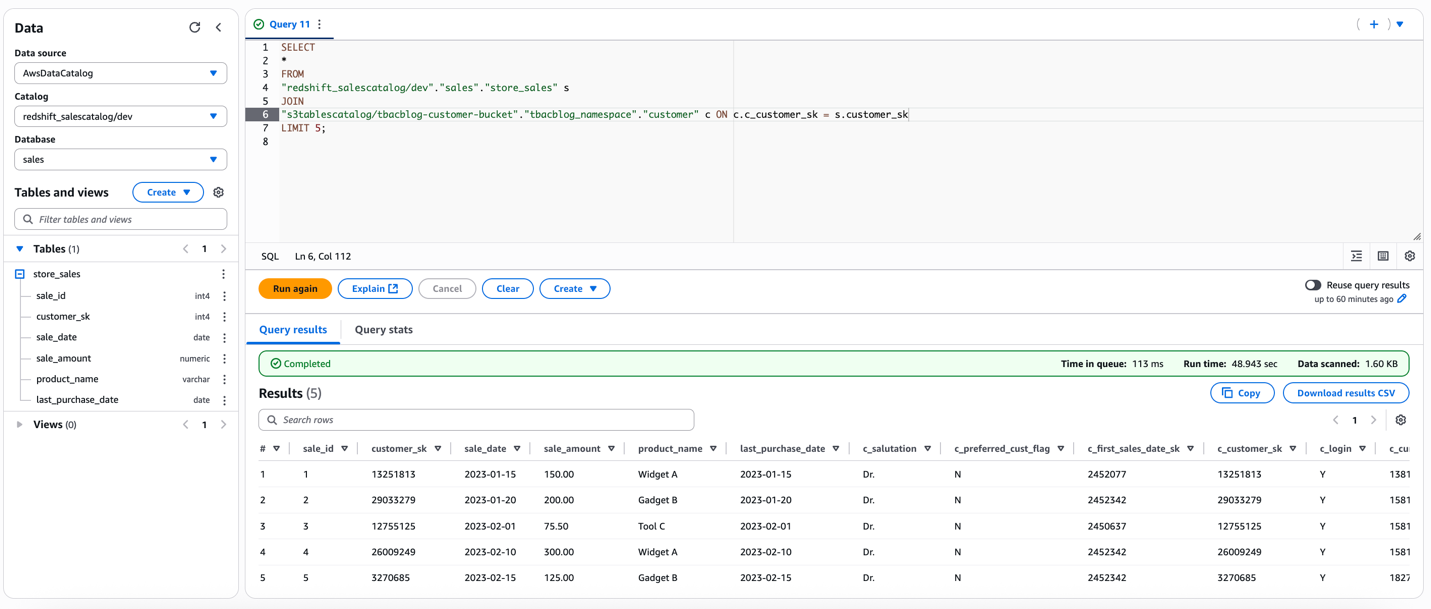
Charlie signs in to the Athena console as the DataAnalyst role. He runs the following sample SQL query:

SELECT * FROM
"redshift_salescatalog/dev"."sales"."store_sales" s
JOIN
"s3tablescatalog/tbacblog-customer-bucket"."tbacblog_namespace"."customer" c 
ON c.c_customer_sk = s.customer_sk
LIMIT 5;

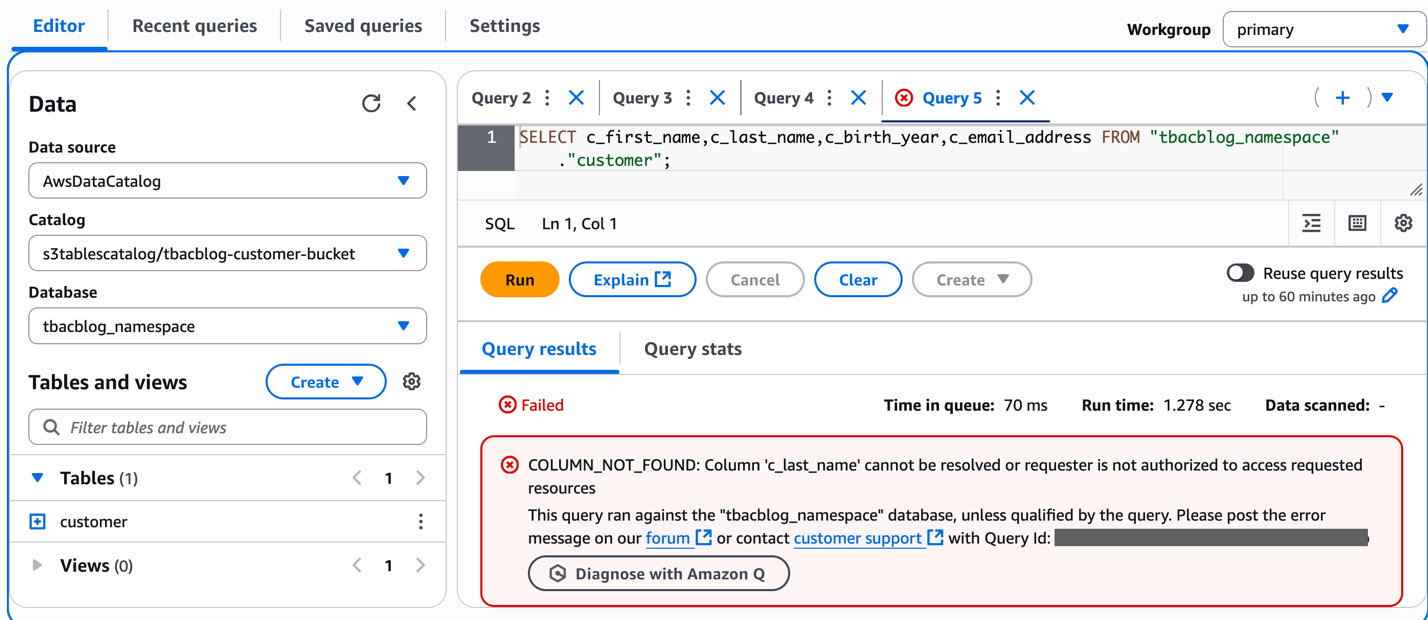
Run a sample query to access the 4 columns in the S3table customer that DataAnalyst does not have access to. You should receive an error as shown in the screenshot. This verifies column level fine grained access using LF-tags on the lakehouse tables.

Use the Redshift query editor to analyze customer data as the DataAnalyst role

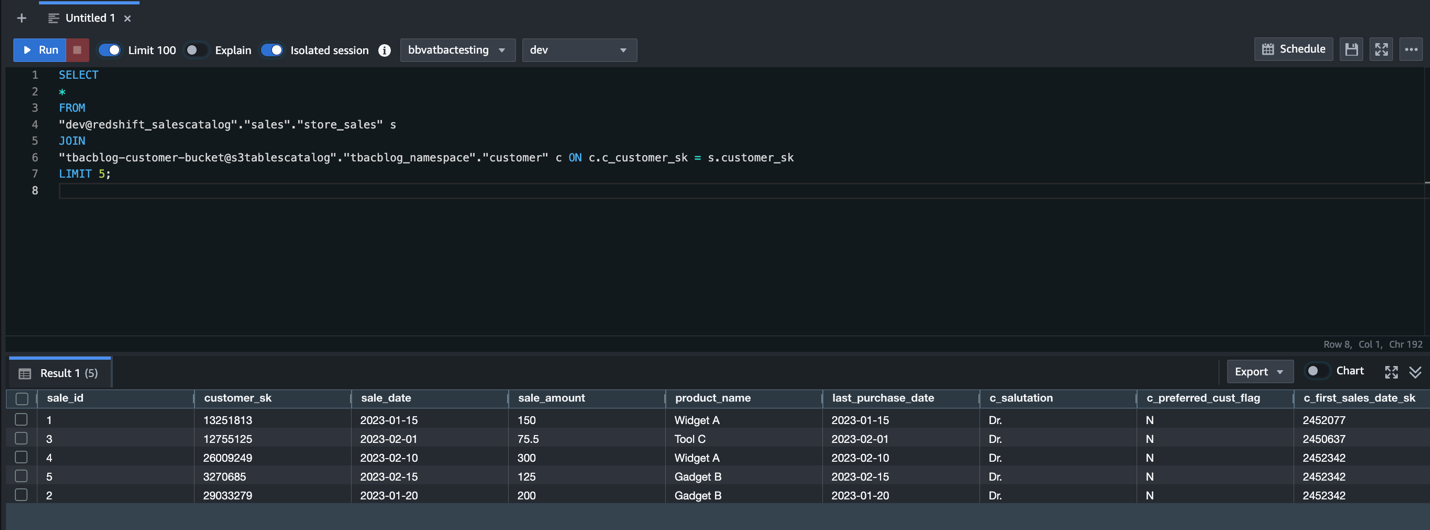
Charlie signs in to the Redshift query editor v2 as the DataAnalyst role and runs the following sample SQL query:

SELECT * FROM
"dev@redshift_salescatalog"."sales"."store_sales" s
JOIN
"tbacblog-customer-bucket@s3tablescatalog"."tbacblog_namespace"."customer" c 
ON c.c_customer_sk = s.customer_sk
LIMIT 5;

This verifies the DataAnalyst access to the lakehouse tables with LF-tags based permissions, using Redshift Spectrum

Use Amazon EMR to process customer data as the BIEngineer role

Doug uses Amazon EMR to process customer data with the BIEngineer role:

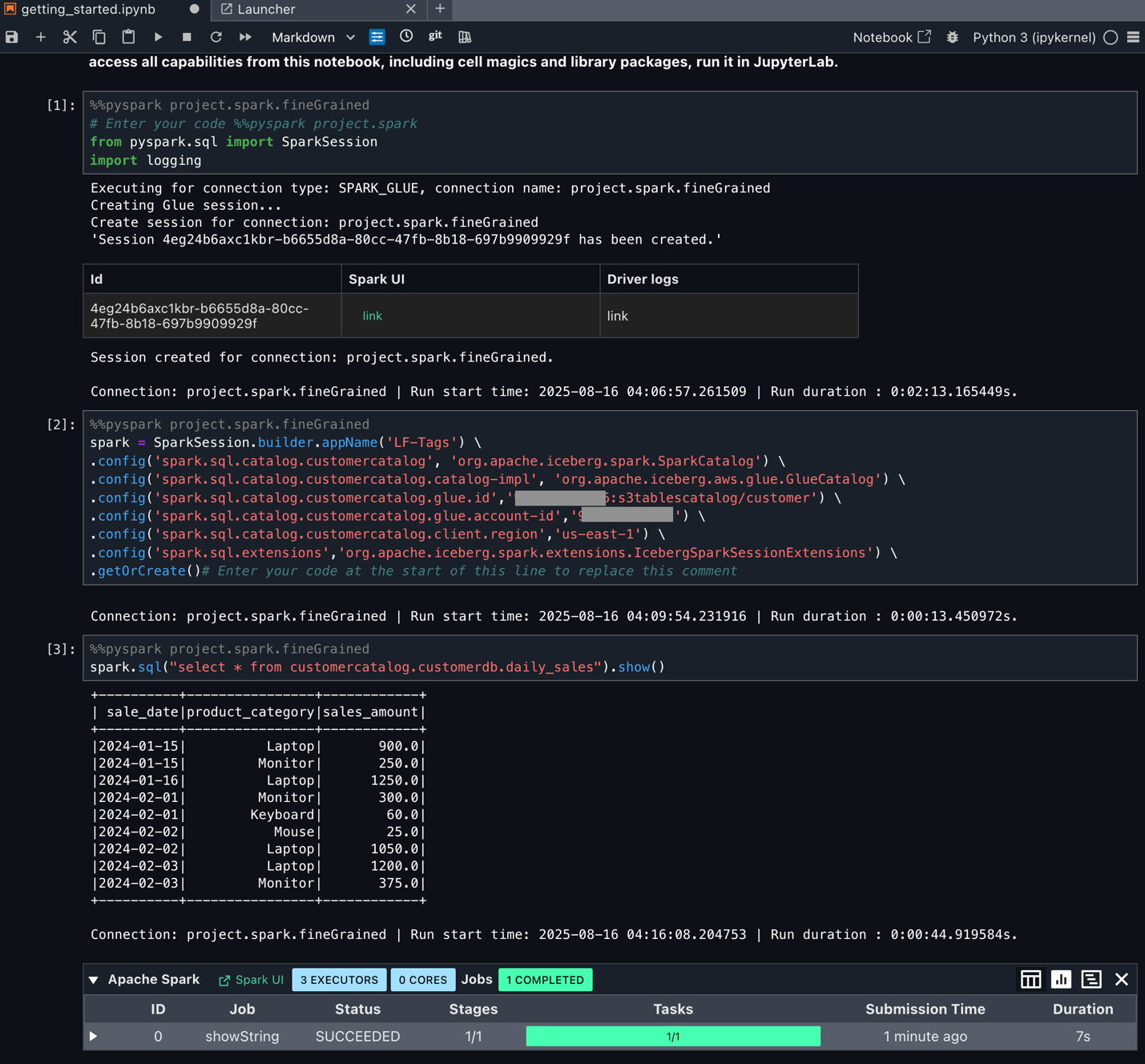
  1. Sign-in to the EMR Studio as Doug, with BIEngineer role. Ensure EMR Serverless application is attached to the workspace with BIEngineer as the EMR runtime role.
    Download the PySpark notebook tbacblog_emrs.ipynb. Upload to your studio environment.
  2. Change the account id, AWS Region and resource names as per your setup. Restart kernel and clear output.
  3. Once your pySpark kernel is ready, run the cells and verify access.This verifies access using LF-tags to the lakehouse tables as the EMR runtime role. For demonstration, we are also providing the pySpark script tbacblog_sparkscript.py that you can run as EMR batch job and Glue 5.0 ETL.

Doug has also set up Amazon SageMaker Unified Studio as covered in the blog post Accelerate your analytics with Amazon S3 Tables and Amazon SageMaker Lakehouse. Doug logs in to SageMaker Unified Studio and select previously created project to perform his analysis. He navigates to the Build options and choose JupyterLab under IDE & Applications. He uses the downloaded pyspark notebook and updates it as per his Spark query requirements. He then runs the cells by selecting compute as project.spark.fineGrained.

Doug can now start using Spark SQL and start processing data as per fine grained access controlled by the Tags.

Clean up

Complete the following steps to delete the resources you created to avoid unexpected costs:

  1. Delete the Redshift Serverless workgroups.
  2. Delete the Redshift Serverless associated namespace.
  3. Delete the EMR Studio and EMR Serverless instance.
  4. Delete the AWS Glue catalogs, databases, and tables and Lake Formation permissions.
  5. Delete the S3 Tables bucket.
  6. Empty and delete the S3 bucket.
  7. Delete the IAM roles created for this post.

Conclusion

In this post, we demonstrated how you can use Lake Formation tag-based access control with the SageMaker lakehouse architecture to achieve unified and scalable permissions to your data warehouse and data lake. Now administrators can add access permissions to federated catalogs using attributes and tags, creating automated policy enforcement that scales naturally as new assets are added to the system. This eliminates the operational overhead of manual policy updates. You can use this model for sharing resources across accounts and Regions to facilitate data sharing within and across enterprises.

We encourage AWS data lake customers to try this feature and share your feedback in the comments. To learn more about tag-based access control, visit the Lake Formation documentation.

Acknowledgment: A special thanks to everyone who contributed to the development and launch of TBAC: Joey Ghirardelli, Xinchi Li, Keshav Murthy Ramachandra, Noella Jiang, Purvaja Narayanaswamy, Sandya Krishnanand.


About the Authors

Sandeep Adwankar is a Senior Product Manager with Amazon SageMaker Lakehouse . Based in the California Bay Area, he works with customers around the globe to translate business and technical requirements into products that help customers improve how they manage, secure, and access data.

Srividya Parthasarathy is a Senior Big Data Architect with Amazon SageMaker Lakehouse. She works with the product team and customers to build robust features and solutions for their analytical data platform. She enjoys building data mesh solutions and sharing them with the community.

Aarthi Srinivasan is a Senior Big Data Architect with Amazon SageMaker Lakehouse. She works with AWS customers and partners to architect lakehouse solutions, enhance product features, and establish best practices for data governance.

Amazon SageMaker Lakehouse now supports attribute-based access control

Post Syndicated from Sandeep Adwankar original https://aws.amazon.com/blogs/big-data/amazon-sagemaker-lakehouse-now-supports-attribute-based-access-control/

Amazon SageMaker Lakehouse now supports attribute-based access control (ABAC) with AWS Lake Formation, using AWS Identity and Access Management (IAM) principals and session tags to simplify data access, grant creation, and maintenance. With ABAC, you can manage business attributes associated with user identities and enable organizations to create dynamic access control policies that adapt to the specific context.

SageMaker Lakehouse is a unified, open, and secure data lakehouse that now supports ABAC to provide unified access to general purpose Amazon S3 buckets, Amazon S3 Tables, Amazon Redshift data warehouses, and data sources such as Amazon DynamoDB or PostgreSQL. You can then query, analyze, and join the data using Redshift, Amazon AthenaAmazon EMR, and AWS Glue. You can secure and centrally manage your data in the lakehouse by defining fine-grained permissions with Lake Formation that are consistently applied across all analytics and machine learning(ML) tools and engines. In addition to its support for role-based and tag-based access control, Lake Formation extends support to attribute-based access to simplify data access management for SageMaker Lakehouse, with the following benefits:

  • Flexibility – ABAC policies are flexible and can be updated to meet changing business needs. Instead of creating new rigid roles, ABAC systems allow access rules to be modified by simply changing user or resource attributes.
  • Efficiency – Managing a smaller number of roles and policies is more straightforward than managing a large number of roles, reducing administrative overhead.
  • Scalability – ABAC systems are more scalable for larger enterprises because they can handle a large number of users and resources without requiring a large number of roles.

Attribute-based access control overview

Previously, within SageMaker Lakehouse, Lake Formation granted access to resources based on the identity of a requesting user. Our customers were requesting the capability to express the full complexity required for access control rules in organizations. ABAC allows for more flexible and nuanced access policies that can better reflect real-world needs. Organizations can now grant permissions on a resource based on user attribute and is context-driven. This allows administrators to grant permissions on a resource with conditions that specify user attribute keys and values. IAM principals with matching IAM or session tag key-value pairs will gain access to the resource.

Instead of creating a separate role for each team member’s access to a specific project, you can set up ABAC policies to grant access based on attributes like membership and user role, reducing the number of roles required. For instance, without ABAC, a company with an account manager role that covers five different geographical territories needs to create five different IAM roles and grant data access for only the specific territory for which the IAM role is meant. With ABAC, they can simply add those territory attributes as keys/values to the principal tag and provide data access grants based on those attributes. If the value of the attribute for a user changes, access to the dataset will automatically be invalidated.

With ABAC, you can use attributes such as department or country and use IAM or sessions tags to determine access to data, making it more straightforward to create and maintain data access grants. Administrators can define fine-grained access permissions with ABAC to limit access to databases, tables, rows, columns, or table cells.

In this post, we demonstrate how to get started with ABAC in SageMaker Lakehouse and use with various analytics services.

Solution overview

To illustrate the solution, we are going to consider a fictional company called Example Retail Corp. Example Retail’s leadership is interested in analyzing sales data in Amazon S3 to determine in-demand products, understand customer behavior, and identify trends, for better decision-making and increased profitability. The sales department sets up a team for sales analysis with the following data access requirements:

  • All data analysts in the Sales department in the US get access to only sales-specific data in only US regions
  • All BI analysts in the Sales department have full access to data in only US regions
  • All scientists in the Sales department get access to only sales-specific data across all regions
  • Anyone outside of Sales department have no access to sales data

For this post, we consider the database salesdb, which contains the store_sales table that has store sales details. The table store_sales has the following schema.

To demonstrate the product sales analysis use case, we will consider the following personas from the Example Retail Corp:

  • Ava is a data administrator in Example Retail Corp who is responsible for supporting team members with specific data permission policies
  • Alice is a data analyst who should be able to access sales specific US store data to perform product sales analysis
  • Bob is a BI analyst who should be able to access all data from US store sales to generate reports
  • Charlie is a data scientist who should be able to access sales specific across all regions to explore and find patterns for trend analysis

Ava decides to use SageMaker Lakehouse to unify data across various data sources while setting up fine-grained access control using ABAC. Alice is excited about this decision as she can now build daily reports using her expertise with Athena. Bob now knows that he can quickly build Amazon QuickSight dashboards with queries that are optimized using Redshift’s cost-based optimizer. Charlie, being an open source Apache Spark contributor, is excited that he can build Spark based processing with Amazon EMR to build ML forecasting models.

Ava defines the user attributes as static IAM tags that could also include attributes stored in the identity provider (IdP) or as session tags dynamically to represent the user metadata. These tags are assigned to IAM users or roles and can be used to define or restrict access to specific resources or data. For more details, refer to Tags for AWS Identity and Access Management resources and Pass session tags in AWS STS.

For this post, Ava assigns users with static IAM tags to represent the user attributes, including their department membership, Region assignment, and current role relationship. The following table summarizes the tags that represent user attributes and user assignment.

User Persona Attributes Access
Alice Data Analyst Department=sales
Region=US
Role=Analyst
Sales specific data in US and no access to customer data
Bob BI Analyst Department=sales
Region=US
Role=BIAnalyst
All data in US
Charlie Data Scientist Department=sales
Region=ALL
Role=Scientist
Sales specific data in All regions and no access to customer data

Ava then defines access control policies in Lake Formation that grant or restrict access to certain resources based on predefined criteria (user attributes defined using IAM tags) being satisfied. This allows for flexible and context-aware security policies where access privileges can be adjusted dynamically by modifying the user attribute assignment without changing the policy rules. The following table summarizes the policies in the Sales department.

Access User Attributes Policy
All analysts (including Alice) in US get access to sales specific data in US regions Department=sales
Region=US
Role=Analyst
Table: store_sales (store_id, transaction_date, product_name, country, sales_price, quantity columns)
Row filter: country='US'
All BI analysts (including Bob) in US get access to all data in US regions Department=sales
Region=US
Role=BIAnalyst
Table: store_sales (all columns)
Row filter: country='US'
All scientists (including Charlie) get access to sales-specific data from all regions Department=sales
Region=ALL
Role=Scientist
Table: store_sales (all rows)
Column filter: store_id, transaction_date, product_name, country, sales_price,quantity

The following diagram illustrates the solution architecture.

Implementing this solution consists of the following high-level steps. For Example Retail, Ava as a data Administrator performs these steps:

  1. Define the user attributes and assign them to the principal.
  2. Grant permission on the resources (database and table) to the principal based on user attributes.
  3. Verify the permissions by querying the data using various analytics services.

Prerequisites

To follow the steps in this post, you must complete the following prerequisites:

  1. AWS account with access to the following AWS services:
    • Amazon S3
    • AWS Lake Formation and AWS Glue Data Catalog
    • Amazon Redshift
    • Amazon Athena
    • Amazon EMR
    • AWS Identity and Access Management (IAM)
  1. Set up an admin user for Ava. For instructions, see Create a user with administrative access.
  2. Setup S3 bucket for uploading script.
  3. Set up a data lake admin. For instructions, see Create a data lake administrator.
  4. Create IAM user named Alice and attach permissions for Athena access. For instructions, refer to Data analyst permissions.
  5. Create IAM user Bob and attach permissions for Redshift access.
  6. Create IAM user Charlie and attach permissions for EMR Serverless access.
  7. Create job runtime role: scientist_role and that will be used by Charlie. For instruction refer to: Job runtime roles for Amazon EMR Serverless
  8. Setup EMR Serverless application with Lake Formation enabled. For instruction refer to: Using EMR Serverless with AWS Lake Formation for fine-grained access control
  9. Have an existing AWS Glue database or table and Amazon Simple Storage Service (Amazon) S3 bucket that holds the table data. For this post, we use salesdb as our database, store_sales as our table, and data is stored in an S3 bucket.

Define attributes for the IAM principals Alice, Bob, Charlie

Ava completes the following steps to define the attributes for the IAM principal:

  1. Log in as an admin user and navigate to the IAM console.
  2. Choose Users under Access management in the navigation pane and search for the user Alice.
  3. Choose the user and choose the Tags tab.
  4. Choose Add new tag and provide the following key pairs:
    • Key: Department and value: sales
    • Key: Region and value: US
    • Key: Role and value: Analyst
  5. Choose Save changes.
  6. Repeat the process for the user Bob and provide the following key pairs:
    • Key: Department and value: sales
    • Key: Region and value: US
    • Key: Role and value: BIAnalyst
  7. Repeat the process for the user Charlie and IAM role scientist_role and provide the following key pairs:
    • Key: Department and value: sales
    • Key: Region and value: ALL
    • Key: Role and value: Scientist

Grant permissions to Alice, Bob, Charlie using ABAC

Ava now grants database and table permissions to users with ABAC.

Grant database permissions

Complete the following steps:

  1. Ava logs in as data lake admin and navigate to the Lake Formation console.
  2. In the navigation pane, under Permissions, choose Data lake permissions.
  3. Choose Grant.
  4. On the Grant permissions page, choose Principals by attribute.
  5. Specify the following attributes:
    • Key: Department  and value: sales
    • Key: Role and value: Analyst,Scientist
  6. Review the resulting policy expression.
  7. For Permission scope, select This account.
  8. Next, choose the catalog resources to grant access:
    • For Catalogs, enter the account ID.
    • For Databases, enter salesdb.
  9. For Database permissions, select Describe.
  10. Choose Grant.

Ava now verifies the database permission by navigating to the Databases tab under the Data Catalog and searching for salesdb. Select salesdb and choose View under Actions.

Grant table permissions to Alice

Complete the following steps to create a data filter to view sales specific columns in store_sales records whose country=US:

  1. On the Lake Formation console, choose Data filters under Data Catalog in the navigation pane.
  2. Choose Create new filter.
  3. Provide the data filter name as us_sales_salesonlydata.
  4. For Target catalog, enter the account ID.
  5. For Target database, choose salesdb.
  6. For Target table, choose store_sales.
  7. For column-level access, choose Include columns: store_id, item_code, transaction_date, product_name, country, sales_price, and quantity.
  8. For Row-level access, choose Filter rows and enter the row filter country='US'.
  9. Choose Create data filter.
  1. On the Grant permissions page, choose Principals by attribute.
  2. Specify the attributes:
    • Key: Department and value: sales
    • Key: Role as value: Analyst
    • Key: Region and value: US
  3. Review the resulting policy expression.
  4. For Permission scope, select This account.
  5. Choose the catalog resources to grant access:
    • Catalogs: Account ID
    • Databases: salesdb
    • Table: store_sales
    • Data filters: us_sales
  6. For Data filter permissions, select Select.
  7. Choose Grant.

Grant table permissions to Bob

Complete the following steps to create a data filter to view only store_sales records whose country=US:

  1. On the Lake Formation console, choose Data filters under Data Catalog in the navigation pane.
  2. Choose Create new filter.
  3. Provide the data filter name as us_sales.
  4. For Target catalog, enter the account ID.
  5. For Target database, choose salesdb.
  6. For Target table, choose store_sales.
  7. Leave Column-level access as Access to all columns.
  8. For Row-level access, enter the row filter country='US'.
  9. Choose Create data filter.

Complete the following steps to grant table permissions to Bob:

  1. On the Grant permissions page, choose Principals by attribute.
  2. Specify the attributes:
    • Key: Department and value: sales
    • Key: Role as value: BIAnalyst
    • Key: Region and value: US
  3. Review the resulting policy expression.
  4. For Permission scope, select This account.
  5. Choose the catalog resources to grant access:
    • Catalogs: Account ID
    • Databases: salesdb
    • Table: store_sales
  6. For Data filter permissions, select Select.
  7. Choose Grant.

Grant table permissions to Charlie

Complete the following steps to grant table permissions to Charlie:

  1. On the Grant permissions page, choose Principals by attribute.
  2. Specify the attributes:
    1. Key: Department and value: sales
    2. Key: Role as value: Scientist
    3. Key: Region and value: ALL
  3. Review the resulting policy expression.
  4. For Permission scope, select This account
  5. Choose the catalog resources to grant access:
    1. Catalogs: Account ID
    2. Databases: salesdb
    3. Table: store_sales
  6. For Table permissions, select Select.
  7. For Data permissions, specify the following columns: store_id, transaction_date, product_name, country, sales_price, and quantity.
  8. Choose Grant.

Alice now verifies the table permission by navigating to the Tables tab under the Data Catalog and searching for store_sales. Select store_sales and choose View under Actions. The following screenshots show the details for both sets of permissions.

Data Analyst uses Athena for building daily sales reports

Alice, the data analyst logs in to the Athena console and run the following query:

select * from "salesdb"."store_sales" limit 5

Alice has the user attributes as Department=sales, Role=Analyst, Region=US, and this attribute combination allows her access to US sales data to specific sales only column, without access to customer data as shown in the following screenshot.

BI Analyst uses Redshift for building sales dashboards

Bob, the BI Analyst, logs in to the Redshift console and run the following query:

select * from "salesdb"."store_sales" limit 10

Bob has the user attributes Department=sales, Role=BIAnalyst, Region=US, and this attribute combination allows him access to all columns including customer data for US sales data.

Data Scientist uses Amazon EMR to process sales data

Finally, Charlie logs in to the EMR console and submit the EMR job with runtime role as scientist_role. Charlie uses  the script sales_analysis.py that is uploaded to s3 bucket created for the script. He chooses the EMR Serverless application created with Lake Formation enabled.

Charlie submits batch job runs by choosing the following values:

  • Name: sales_analysis_Charlie
  • Runtime_role: scientist_role
  • Script location: <s3_script_path>/sales_analysis.py
  • For spark properties, provide key as spark.emr-serverless.lakeformation.enabled and value as true.
  • Additional configurations: Under Metastore configuration select Use AWS Glue Data Catalog as metastore. Charlie keeps rest of the configuration as default.

Once the job run is completed, Charlie can view the output by selecting stdout under Driver log files.

Charlie uses scientist_role as job runtime role with the attributes Department=sales, Role=Scientist, Region=ALL, and this attribute combination allows him access to select columns of all sales data.

Clean up

Complete the following steps to delete the resources you created to avoid unexpected costs:

  1. Delete the IAM users created.
  2. Delete the AWS Glue database and table resources created for the post, if any.
  3. Delete the Athena, Redshift and EMR resources created for the post.

Conclusion

In this post, we showcased how you can use SageMaker Lakehouse attribute-based access control, using IAM principals and session tags to simplify data access, grant creation, and maintenance. With attribute-based access control, you can manage permissions using dynamic business attributes associated with user identities and secure your data in the lakehouse by defining fine-grained permissions in the Lake Formation that are enforced across analytics and ML tools and engines.

For more information, refer to documentation. We encourage you to try out the SageMaker Lakehouse with ABAC and share your feedback with us.


About the authors

Sandeep Adwankar is a Senior Product Manager at AWS. Based in the California Bay Area, he works with customers around the globe to translate business and technical requirements into products that enable customers to improve how they manage, secure, and access data.

Srividya Parthasarathy is a Senior Big Data Architect on the AWS Lake Formation team. She enjoys building data mesh solutions and sharing them with the community.

Accelerate your analytics with Amazon S3 Tables and Amazon SageMaker Lakehouse

Post Syndicated from Sandeep Adwankar original https://aws.amazon.com/blogs/big-data/accelerate-your-analytics-with-amazon-s3-tables-and-amazon-sagemaker-lakehouse/

Amazon SageMaker Lakehouse is a unified, open, and secure data lakehouse that now seamlessly integrates with Amazon S3 Tables, the first cloud object store with built-in Apache Iceberg support. With this integration, SageMaker Lakehouse provides unified access to S3 Tables, general purpose Amazon S3 buckets, Amazon Redshift data warehouses, and data sources such as Amazon DynamoDB or PostgreSQL. You can then query, analyze, and join the data using Redshift, Amazon Athena, Amazon EMR, and AWS Glue. In addition to your familiar AWS services, you can access and query your data in-place with your choice of Iceberg-compatible tools and engines, providing you the flexibility to use SQL or Spark-based tools and collaborate on this data the way you like. You can secure and centrally manage your data in the lakehouse by defining fine-grained permissions with AWS Lake Formation that are consistently applied across all analytics and machine learning(ML) tools and engines.

Organizations are becoming increasingly data driven, and as data becomes a differentiator in business, organizations need faster access to all their data in all locations, using preferred engines to support rapidly expanding analytics and AI/ML use cases. Let’s take an example of a retail company that started by storing their customer sales and churn data in their data warehouse for business intelligence reports. With massive growth in business, they need to manage a variety of data sources as well as exponential growth in data volume. The company builds a data lake using Apache Iceberg to store new data such as customer reviews and social media interactions.

This enables them to cater to their end customers with new personalized marketing campaigns and understand its impact on sales and churn. However, data distributed across data lakes and warehouses limits their ability to move quickly, as it may require them to set up specialized connectors, manage multiple access policies, and often resort to copying data, that can increase cost in both managing the separate datasets as well as redundant data stored. SageMaker Lakehouse addresses these challenges by providing secure and centralized management of data in data lakes, data warehouses, and data sources such as MySQL, and SQL Server by defining fine-grained permissions that are consistently applied across data in all analytics engines.

In this post, we guide you how to use various analytics services using the integration of SageMaker Lakehouse with S3 Tables. We begin by enabling integration of S3 Tables with AWS analytics services. We create S3 Tables and Redshift tables and populate them with data. We then set up SageMaker Unified Studio by creating a company specific domain, new project with users, and fine-grained permissions. This lets us unify data lakes and data warehouses and use them with analytics services such as Athena, Redshift, Glue, and EMR.

Solution overview

To illustrate the solution, we are going to consider a fictional company called Example Retail Corp. Example Retail’s leadership is interested in understanding customer and business insights across thousands of customer touchpoints for millions of their customers that will help them build sales, marketing, and investment plans. Leadership wants to conduct an analysis across all their data to identify at-risk customers, understand impact of personalized marketing campaigns on customer churn, and develop targeted retention and sales strategies.

Alice is a data administrator in Example Retail Corp who has embarked on an initiative to consolidate customer information from multiple touchpoints, including social media, sales, and support requests. She decides to use S3 Tables with Iceberg transactional capability to achieve scalability as updates are streamed across billions of customer interactions, while providing same durability, availability, and performance characteristics that S3 is known for. Alice already has built a large warehouse with Redshift, which contains historical and current data about sales, customers prospects, and churn information.

Alice supports an extended team of developers, engineers, and data scientists who require access to the data environment to develop business insights, dashboards, ML models, and knowledge bases. This team includes:

Bob, a data analyst who needs to access to S3 Tables and warehouse data to automate building customer interactions growth and churn across various customer touchpoints for daily reports sent to leadership.

Charlie, a Business Intelligence analyst who is tasked to build interactive dashboards for funnel of customer prospects and their conversions across multiple touchpoints and make those available to thousands of Sales team members.

Doug, a data engineer responsible for building ML forecasting models for sales growth using the pipeline and/or customer conversion across multiple touchpoints and make those available to finance and planning teams.

Alice decides to use SageMaker Lakehouse to unify data across S3 Tables and Redshift data warehouse. Bob is excited about this decision as he can now build daily reports using his expertise with Athena. Charlie now knows that he can quickly build Amazon QuickSight dashboards with queries that are optimized using Redshift’s cost-based optimizer. Doug, being an open source Apache Spark contributor, is excited that he can build Spark based processing with AWS Glue or Amazon EMR to build ML forecasting models.

The following diagram illustrates the solution architecture.

Implementing this solution consists of the following high-level steps. For Example Retail, Alice as a data Administrator performs these steps:

  1. Create a table bucket. S3 Tables stores Apache Iceberg tables as S3 resources, and customer details are managed in S3 Tables. You can then enable integration with AWS analytics services, which automatically sets up the SageMaker Lakehouse integration so that the tables bucket is shown as a child catalog under the federated s3tablescatalog in the AWS Glue Data Catalog and is registered with AWS Lake Formation for access control. Next, you create a table namespace or database which is a logical construct that you group tables under and create a table using Athena SQL CREATE TABLE statement.
  2. Publish your data warehouse to Glue Data Catalog. Churn data is managed in a Redshift data warehouse, which is published to the Data Catalog as a federated catalog and is available in SageMaker Lakehouse.
  3. Create a SageMaker Unified Studio project. SageMaker Unified Studio integrates with SageMaker Lakehouse and simplifies analytics and AI with a unified experience. Start by creating a domain and adding all users (Bob, Charlie, Doug). Then create a project in the domain, choosing project profile that provisions various resources and the project AWS Identity and Access Management (IAM) role that manages resource access. Alice adds Bob, Charlie, and Doug to the project as members.
  4. Onboard S3 Tables and Redshift tables to SageMaker Unified Studio. To onboard the S3 Tables to the project, in Lake Formation, you grant permission on the resource to the SageMaker Unified Studio project role. This enables the catalog to be discoverable within the lakehouse data explorer for users (Bob, Charlie, and Doug) to start querying tables .SageMaker Lakehouse resources can now be accessed from computes like Athena, Redshift, and Apache Spark based computes like Glue to derive churn analysis insights, with Lake Formation managing the data permissions.

Prerequisites

To follow the steps in this post, you must complete the following prerequisites:

Alice completes the following steps to create the S3 Table bucket for the new data she plans to add/import into an S3 Table.

  1. AWS account with access to the following AWS services:
    • Amazon S3 including S3 Tables
    • Amazon Redshift
    • AWS Identity and Access Management (IAM)
    • Amazon SageMaker Unified Studio
    • AWS Lake Formation and AWS Glue Data Catalog
    • AWS Glue
  2. Create a user with administrative access.
  3. Have access to an IAM role that is a Lake Formation data lake administrator. For instructions, refer to Create a data lake administrator.
  4. Enable AWS IAM Identity Center in the same AWS Region where you want to create your SageMaker Unified Studio domain. Set up your identity provider (IdP) and synchronize identities and groups with AWS IAM Identity Center. For more information, refer to IAM Identity Center Identity source tutorials.
  5. Create a read-only administrator role to discover the Amazon Redshift federated catalogs in the Data Catalog. For instructions, refer to Prerequisites for managing Amazon Redshift namespaces in the AWS Glue Data Catalog.
  6. Create an IAM role named DataTransferRole. For instructions, refer to Prerequisites for managing Amazon Redshift namespaces in the AWS Glue Data Catalog.
  7. Create an Amazon Redshift Serverless namespace called churnwg. For more information, see Get started with Amazon Redshift Serverless data warehouses.

Create a table bucket and enable integration with analytics services

Alice completes the following steps to create the S3 Table bucket for the new data she plans to add/import into an S3 Tables.

Follow the below steps to create a table bucket to enable integration with SageMaker Lakehouse:

  1. Sign in to the S3 console as user created in prerequisite step 2.
  2. Choose Table buckets in the navigation pane and choose Enable integration.
  3. Choose Table buckets in the navigation pane and choose Create table bucket.
  4. For Table bucket name, enter a name such as blog-customer-bucket.
  5. Choose Create table bucket.
  6. Choose Create table with Athena.
  7. Select Create a namespace and provide a namespace (for example, customernamespace).
  8. Choose Create namespace.
  9. Choose Create table with Athena.
  10. On the Athena console, run the following SQL script to create a table:
    CREATE TABLE customer (
      `c_salutation` string, 
      `c_preferred_cust_flag` string, 
      `c_first_sales_date_sk` int, 
      `c_customer_sk` int, 
      `c_login` string, 
      `c_current_cdemo_sk` int, 
      `c_first_name` string, 
      `c_current_hdemo_sk` int, 
      `c_current_addr_sk` int, 
      `c_last_name` string, 
      `c_customer_id` string, 
      `c_last_review_date_sk` int, 
      `c_birth_month` int, 
      `c_birth_country` string, 
      `c_birth_year` int, 
      `c_birth_day` int, 
      `c_first_shipto_date_sk` int, 
      `c_email_address` string)
      TBLPROPERTIES ('table_type' = 'iceberg')
      
    
    INSERT INTO customer VALUES
    ('Dr.','N',2452077,13251813,'Y',1381546,'Joyce',2645,2255449,'Deaton','AAAAAAAAFOEDKMAA',2452543,1,'GREECE',1987,29,2250667,'[email protected]'),
    ('Dr.','N',2450637,12755125,'Y',1581546,'Daniel',9745,4922716,'Dow','AAAAAAAAFLAKCMAA',2432545,1,'INDIA',1952,3,2450667,'[email protected]'),
    ('Dr.','N',2452342,26009249,'Y',1581536,'Marie',8734,1331639,'Lange','AAAAAAAABKONMIBA',2455549,1,'CANADA',1934,5,2472372,'[email protected]'),
    ('Dr.','N',2452342,3270685,'Y',1827661,'Wesley',1548,11108235,'Harris','AAAAAAAANBIOBDAA',2452548,1,'ROME',1986,13,2450667,'[email protected]'),
    ('Dr.','N',2452342,29033279,'Y',1581536,'Alexandar',8262,8059919,'Salyer','AAAAAAAAPDDALLBA',2952543,1,'SWISS',1980,6,2650667,'[email protected]'),
    ('Miss','N',2452342,6520539,'Y',3581536,'Jerry',1874,36370,'Tracy','AAAAAAAALNOHDGAA',2452385,1,'ITALY',1957,8,2450667,'[email protected]')

This is just an example of adding a few rows to the table, but generally for production use cases, customers use engines such as Spark to add data to the table.

S3 Tables customer is now created, populated with data and integrated with SageMaker Lakehouse.

Set up Redshift tables and publish to the Data Catalog

Alice completes the following steps to connect the data in Redshift to be published into the data catalog. We’ll also demonstrate how the Redshift table is created and populated, but in Alice’s case Redshift table already exists with all the historic data on sales revenue.

  1. Sign in to the Redshift endpoint churnwg as an admin user.
  2. Run the following script to create a table under the dev database under the public schema:
    CREATE TABLE customer_churn (
    customer_id BIGINT,
    tenure INT,
    monthly_charges DECIMAL(5,1),
    total_charges DECIMAL(5,1),
    contract_type VARCHAR(100),
    payment_method VARCHAR(100),
    internet_service VARCHAR(100),
    has_phone_service BOOLEAN,
    is_churned BOOLEAN
    );
    
    INSERT INTO customer_churn VALUES
    (10251783, 12, 70.5, 850.0, 'Month-to-Month', 'Credit Card', 'Fiber Optic', true, true),
    (13251813, 36, 55.0, 1980.0, 'One Year', 'Bank Transfer', 'DSL', true, false),
    (12755125, 6, 90.0, 540.0, 'Month-to-Month', 'Mailed Check', 'Fiber Optic', false, true),
    (26009249, 12, 70.5, 850.0, 'One Year', 'Credit Card', 'DSL', true, false),
    (3270685, 36, 55.0, 1980.0, 'One Year', 'Bank Transfer', 'DSL', true, false),
    (29033279, 6, 90.0, 540.0, 'Month-to-Month', 'Mailed Check', 'Fiber Optic', false, true),
    (6520539, 24, 60.0, 1440.0, 'Two Year', 'Electronic Check', 'DSL', true, false);

    This is just an example of adding a few rows to the table, but generally for production use cases, customers use several ways to add data to the table as documented in Loading data in Amazon Redshift.

  3. On the Redshift Serverless console, navigate to the namespace.
  4. On the Action dropdown menu, choose Register with AWS Glue Data Catalog to integrate with SageMaker Lakehouse.
  5. Choose Register.
  6. Sign in to the Lake Formation console as the data lake administrator.
  7. Under Data Catalog in the navigation pane, choose Catalogs and Pending catalog invitations.
  8. Select the pending invitation and choose Approve and create catalog.
  9. Provide a name for the catalog (for example, churn_lakehouse).
  10. Under Access from engines, select Access this catalog from Iceberg-compatible engines and choose DataTransferRole for the IAM role.
  11. Choose Next.
  12. Choose Add permissions.
  13. Under Principals, choose the datalakeadmin role for IAM users and roles, Super user for Catalog permissions, and choose Add.
  14. Choose Create catalog.

Redshift Table customer_churn is now created, populated with data and integrated with SageMaker Lakehouse.

Create a SageMaker Unified Studio domain and project

Alice now sets up SageMaker Unified Studio domain and projects so that she can bring users (Bob, Charlie and Doug) together in the new project.

Complete the following steps to create a SageMaker domain and project using SageMaker Unified Studio:

  1. On the SageMaker Unified Studio console, create a SageMaker Unified Studio domain and project using the All Capabilities profile template. For more details, refer to Setting up Amazon SageMaker Unified Studio. For this post, we create a project named churn_analysis.
  2. Setup AWS Identity center with users Bob, Charlie and Doug, Add them to domain and project.
  3. From SageMaker Unified Studio, navigate to the project overview and on the Project details tab, note the project role Amazon Resource Name (ARN).
  4. Sign in to the IAM console as an admin user.
  5. In the navigation pane, choose Roles.
  6. Search for the project role and add AmazonS3TablesReadOnlyAccess by choosing Add permissions.

SageMaker Unified Studio is now setup with domain, project and users.

Onboard S3 Tables and Redshift tables to the SageMaker Unified Studio project

Alice now configures SageMaker Unified Studio project role for fine-grained access control to determine who on her team gets to access what data sets.

Grant the project role full table access on customer dataset. For that, complete the following steps:

  1. Sign in to the Lake Formation console as the data lake administrator.
  2. In the navigation pane, choose Data lake permissions, then choose Grant.
  3. In the Principals section, for IAM users and roles, choose the project role ARN noted earlier.
  4. In the LF-Tags or catalog resources section, select Named Data Catalog resources:
    • Choose <account_id>:s3tablescatalog/blog-customer-bucket for Catalogs.
    • Choose customernamespace for Databases.
    • Choose customer for Tables.
  5. In the Table permissions section, select Select and Describe for permissions.
  6. Choose Grant.

Now grant the project role access to subset of columns  from customer_churn dataset.

  1. In the navigation pane, choose Data lake permissions, then choose Grant.
  2. In the Principals section, for IAM users and roles, choose the project role ARN noted earlier.
  3. In the LF-Tags or catalog resources section, select Named Data Catalog resources:
    • Choose <account_id>:churn_lakehouse/dev for Catalogs.
    • Choose public for Databases.
    • Choose customer_churn for Tables.
  4. In the Table Permissions section, select Select.
  5. In the Data Permissions section, select Column-based access.
  6. For Choose permission filter, select Include columns and choose customer_id, internet_service, and is_churned.
  7. Choose Grant.

All users in the project churn_analysis in SageMaker Unified Studio are now setup. They have access to all columns in the table and fine-grained access permissions for Redshift table where they have access to only three columns.

Verify data access in SageMaker Unified Studio

Alice can now do a final verification if the data is all available to ensure that each of her team members are set up to access the datasets.

Now you can verify data access for different users in SageMaker Unified Studio.

  1. Sign in to SageMaker Unified Studio as Bob and choose the churn_analysis
  2. Navigate to the Data explorer to view s3tablescatalog and churn_lakehouse under Lakehouse.

Data Analyst uses Athena for analyzing customer churn

Bob, the data analyst can now logs into to the SageMaker Unified Studio, chooses the churn_analysis project and navigates to the Build options and choose Query Editor under Data Analysis & Integration.

Bob chooses the connection as Athena (Lakehouse), the catalog as s3tablescatalog/blog-customer-bucket, and the database as customernamespace. And runs the following SQL to analyze the data for customer churn:

select * from "churn_lakehouse/dev"."public"."customer_churn" a, 
"s3tablescatalog/blog-customer-bucket"."customernamespace"."customer" b
where a.customer_id=b.c_customer_sk limit 10;

Bob can now join the data across S3 Tables and Redshift in Athena and now can proceed to build full SQL analytics capability to automate building customer growth and churn leadership daily reports.

BI Analyst uses Redshift engine for analyzing customer data

Charlie, the BI Analyst can now logs into the SageMaker Unified Studio and chooses the churn_analysis project. He navigates to the Build options and choose Query Editor under Data Analysis & Integration. He chooses the connection as Redshift (Lakehouse), Databases as dev, Schemas as public.

He then runs the follow SQL to perform his specific analysis.

select * from "dev@churn_lakehouse"."public"."customer_churn" a, 
"blog-customer-bucket@s3tablescatalog"."customernamespace"."customer" b
where a.customer_id=b.c_customer_sk limit 10;

Charlie can now further update the SQL query and use it to power QuickSight dashboards that can be shared with Sales team members.

Data engineer uses AWS Glue Spark engine to process customer data

Finally, Doug logs in to SageMaker Unified Studio as Doug and chooses the churn_analysis project to perform his analysis. He navigates to the Build options and choose JupyterLab under IDE & Applications. He downloads the churn_analysis.ipynb notebook and upload it into the explorer. He then runs the cells by selecting compute as project.spark.compatibility.

He runs the following SQL to analyze the data for customer churn:

Doug, now can use Spark SQL and start processing data from both S3 tables and Redshift tables and start  building forecasting models for customer growth and churn

Cleaning up

If you implemented the example and want to remove the resources, complete the following steps:

  1. Clean up S3 Tables resources:
    1. Delete the table.
    2. Delete the namespace in the table bucket.
    3. Delete the table bucket.
  2. Clean up the Redshift data resources:
    1. On the Lake Formation console, choose Catalogs in the navigation pane.
    2. Delete the churn_lakehouse catalog.
  3. Delete SageMaker project, IAM roles, Glue resources, Athena workgroup, S3 buckets created for domain.
  4. Delete SageMaker domain and VPC created for the setup.

Conclusion

In this post, we showed how you can use SageMaker Lakehouse to unify data across S3 Tables and Redshift data warehouses, which can help you build powerful analytics and AI/ML applications on a single copy of data. SageMaker Lakehouse gives you the flexibility to access and query your data in-place with Iceberg-compatible tools and engines. You can secure your data in the lakehouse by defining fine-grained permissions that are enforced across analytics and ML tools and engines.

For more information, refer to Tutorial: Getting started with S3 Tables, S3 Tables integration, and Connecting to the Data Catalog using AWS Glue Iceberg REST endpoint. We encourage you to try out the S3 Tables integration with SageMaker Lakehouse integration and share your feedback with us.


About the authors

Sandeep Adwankar is a Senior Technical Product Manager at AWS. Based in the California Bay Area, he works with customers around the globe to translate business and technical requirements into products that enable customers to improve how they manage, secure, and access data.

Srividya Parthasarathy is a Senior Big Data Architect on the AWS Lake Formation team. She works with the product team and customers to build robust features and solutions for their analytical data platform. She enjoys building data mesh solutions and sharing them with the community.

Aditya Kalyanakrishnan is a Senior Product Manager on the Amazon S3 team at AWS. He enjoys learning from customers about how they use Amazon S3 and helping them scale performance. Adi’s based in Seattle, and in his spare time enjoys hiking and occasionally brewing beer.

Catalog and govern Amazon Athena federated queries with Amazon SageMaker Lakehouse

Post Syndicated from Sandeep Adwankar original https://aws.amazon.com/blogs/big-data/catalog-and-govern-amazon-athena-federated-queries-with-amazon-sagemaker-lakehouse/

Yesterday, we announced Amazon SageMaker Unified Studio (Preview), an integrated experience for all your data and AI and Amazon SageMaker Lakehouse to unify data – from Amazon Simple Storage Service (S3) to third-party sources such as Snowflake. We’re excited by how SageMaker Lakehouse helps break down data silos, but we also know customers don’t want to compromise on data governance or introduce security and compliance risks as they expand data access.

With this new capability, data analysts can now securely access and query data stored outside S3 data lakes, including Amazon Redshift data warehouses and Amazon DynamoDB databases, all through a single, unified experience. Administrators can now apply access controls at different levels of granularity to ensure sensitive data remains protected while expanding data access. This allows organizations to accelerate data initiatives while maintaining security and compliance, leading to faster, data-driven decision-making.

In this post, we show how to connect to, govern, and run federated queries on data stored in Redshift, DynamoDB (Preview), and Snowflake (Preview). To query our data, we use Athena, which is seamlessly integrated with SageMaker Unified Studio. We use SageMaker Lakehouse to present data to end-users as federated catalogs, a new type of catalog object. Finally, we demonstrate how to use column-level security permissions in AWS Lake Formation to give analysts access to the data they need while restricting access to sensitive information.

Background

As data volumes grow, organizations often employ specialized storage systems to achieve optimal performance and cost-efficiency with different use cases. However, this approach can result in data silos, and makes it challenging to gain insights from data for several reasons. First, end-users often have to set up connections to data sources on their own. This is challenging because of configuration details that vary by source and technical connectivity properties they may not have access to. Second, data sources often have their own built-in access controls, which fragments data governance. Lastly, copying data from one storage system to another for the purposes of analysis adds cost and creates duplication risks.

SageMaker Lakehouse streamlines connecting to, cataloging, and managing permissions on data from multiple sources. It integrates with SageMaker Unified Studio, Athena, and other popular tools to give flexibility to end-users to work with data from their preferred tools.

As you create connections to data, SageMaker Lakehouse creates the underlying catalogs, databases, and tables, and integrates these resources with Lake Formation. Administrators can then define and centrally manage fine-grained access controls on these resources, without having to learn different access management concepts for each data source.

With the right access permissions in place, data discovery and analytics workflows are streamlined. Data analysts no longer need to connect to data sources on their own, saving time and frustration from setting up connectors with configurations that vary by source. Instead, analysts can simply run SQL queries on federated data catalogs, seamlessly accessing diverse data for various needs, which accelerates insights and enhances productivity.

Solution overview

This post presents a solution where a company is using multiple data sources containing customer data. Analysts want to query this data for analytics and AI and machine learning (ML) workloads. However, regulations require personally identifiable information (PII) data to be secured. The following diagram illustrates the solution architecture.

In our use case, an administrator is responsible for data governance and has administrator-level access to data sources – including Redshift, DynamoDB, and Snowflake. Existing regulations require administrators to safeguard sensitive PII data, such as customer mobile phone number, which is stored in multiple places. At the same time, there are business stakeholders in data analyst job functions who need access to these databases because they contain valuable business data that they need access to in order to gain insight on business health.

We will use an administrator account to create connections to Redshift, DynamoDB, and Snowflake, register these as catalogs in SageMaker Lakehouse, and then set up fine-grained access controls using Lake Formation. When complete, we use a data analyst account to query the data with Athena but we will be unable to access the data the role is not entitled to.

Prerequisites

Make sure you have the following prerequisites:

  • An AWS account with permission to create IAM roles and IAM policies
  • An AWS Identity and Access Management (IAM) user with an access key and secret key to configure the AWS Command Line Interface (AWS CLI)
  • Administrator access to SageMaker Lakehouse and the following roles:
  • A SageMaker Unified Studio domain and two projects using the SQL Analytics profile. To learn more, refer to the Amazon SageMaker Unified Studio Administrator Guide.
    • An Admin project will be used to create connections
    • A Data Analyst project will be used to analyze data and will include both administrator and analysts as members. Take note of the IAM role in the Data Analyst project from the Project Overview page. This IAM role will be referenced when granting access later on.
  • Administrator access to one or more of the following data sources, and data sources set up as shown in the appendix A and B:
    • Redshift
    • DynamoDB
    • Snowflake

Set up federated catalogs

The first step is to set up federated catalogs for our data sources using an administrator account. The section below walks you through the end-to-end process with DynamoDB and demonstrates how to query the data when setup is complete. When you are done setting up and exploring the DynamoDB data, repeat these steps for Redshift and Snowflake.

  1. On the SageMaker Unified Studio console, open your project.
  2. Choose Data in the navigation pane.
  3. In the data explorer, choose the plus icon to add a data source.
  4. Under Add a data source, choose Add connection, then choose Amazon DynamoDB.
  5. Enter your connection details, and choose Add data source.

Next, SageMaker Unified Studio connects to your data source, registers the data source as a federated catalog with SageMaker Lakehouse, and displays it in your data explorer.

To explore and query your data, click any SageMaker Lakehouse catalog to view its contents. Use the data explorer to drill down to a table and use the Actions menu to select Query with Athena.

This brings you to the query editor where your sample query is executed. Here, try different SQL statements to better understand your data and to gain familiarity with query development features in SageMaker Unified Studio. To learn more, see SQL analytics in the Amazon SageMaker Unified Studio User Guide.

Similarly, you can setup data source connection for Redshift and Snowflake and query the data. Please refer to Appendix B which contains screenshots capturing the details needed to create the connection and data catalog for Redshift and Snowflake sources.

Set up fine-grained access permissions on federated catalogs

Our next step is to set up access permissions on our federated catalogs. As mentioned in the prerequisites, you have already set up an IAM role with data analyst permissions and a SageMaker Studio data analyst project. We will grant permissions to the data analyst role and SageMaker studio data analyst project role to ensure that access controls you specify are enforced when the data is queried. The following steps show how to set up permissions on a Redshift federated catalog, but the steps are the same for each data source.

  1. Navigate to Lake Formation in the AWS management console as an administrator.
  2. In the Lake Formation console, under Data Catalog in the navigation pane, choose Catalogs. Here, you will see the federated catalogs that were set up previously in SageMaker Unified Studio.
  3. Choose the federated catalog that you wish to set up permissions for. Here, you can see details for the catalog and any associated databases and tables, and manage permissions.
  4. From the Actions menu, choose Grant to grant permissions to the data analyst role and SageMaker studio data analyst project role.
  5. In Catalogs, choose the federated catalog name for the source you wish to grant permissions on.
  6. In Databases, choose your Redshift schema, Snowflake schema, or default for DynamoDB.
  7. In Database permissions, select Describe.
  8. Choose Grant.

The next step is to grant the permission on the tables to the data analyst role and SageMaker studio data analyst project role. For this solution, assume you wish to restrict access to a sensitive column containing the mobile phone number for each customer.

  1. In the Actions menu, choose Grant.
  2. In Catalogs, choose your federated catalog.
  3. In Databases, choose your Redshift schema, Snowflake schema, or default for DynamoDB.
  4. In Tables, choose your tables.
  5. In Table permissions, choose Select.
  6. In Data permissions, choose Column-based access.
  7. In Choose permission filter, choose Include columns.
  8. In Select columns, choose one or more columns.
  9. Choose Grant.

You have successfully set up fine-grained access permissions on your Redshift federated catalog. Repeat these steps to add permissions on your DynamoDB and Snowflake federated catalogs.

Validate fine-grained access permissions on federated catalogs

Now that you have set up federated catalogs with fine-grained access permissions, it’s time to run queries to confirm access permissions are working as expected.

First, access SageMaker Unified Studio using the data analyst role and navigate to your project, select Query Editor from the Build menu, and click on the DynamoDB catalog in the Data explorer. Next, drill down to a table and click Query with Athena to run a sample query. Note how permissions are working as expected because the query result does not include the mobile phone number column that was visible before.

Next, query the Redshift data source and note how the mobile phone number is not included in the query result.

Lastly, query the Snowflake data source and, like the previous examples, note how the result does not include the mobile phone number column.

In this example, we demonstrated how to set up a basic column-level filter to restrict access to sensitive data. However, SageMaker Lakehouse supports a broad range of fine-grained access control scenarios beyond column filters that allow you to meet complex security and compliance requirements across diverse data sources. To learn more, see Managing Permissions.

Clean up

Make sure you remove the SageMaker Lakehouse resources to mitigate any unexpected costs. Start by deleting the connections, catalogs, underlying data sources, projects, and domain that you created for this blog. For additional details, refer to the Amazon SageMaker Unified Studio Administrator Guide.

Conclusion

In this blog post, we utilized fine-grained access controls with federated queries in Athena. We demonstrated how this feature allows flexibility in choosing the right data storage solutions for your needs while securely expanding access to data. We showed how to create federated catalogs and set up access policies with Lake Formation, and then queried data with Athena where we saw permissions enforced on different sources. This approach unified data access controls and streamlined data discovery, saving end-users valuable time. To learn more about federated queries in Athena and the data sources that support fine-grained access controls today, see Register your connection as a Glue Data Catalog in the Athena User Guide.

We encourage you to try fine-grained access controls on federated queries today in SageMaker Unified Studio, and to share your feedback with us. To learn more, see Getting started in the Amazon SageMaker Unified Studio User Guide.


Appendix A: Set up data sources

In this section, we provide the steps to set up your data sources.

Redshift

You can create a new table customer_rs in your current database with columns cust_id, mobile, and zipcode and populate with sample data using the following SQL command:

CREATE TABLE "customer_rs" AS
SELECT 6 AS "cust_id",  66666666 AS "mobile", 6000 as "zipcode"
UNION ALL SELECT 7, 77777777, 7000
UNION ALL SELECT 8,  88888888, 8000
UNION ALL SELECT 9,  99999999, 9000
UNION ALL SELECT 10, 11112222, 1100

DynamoDB

You can create a new table in DynamoDB with the partition key cust_id and the sort key zipcode through AWS CloudShell with the following command:

aws dynamodb create-table \
    --table-name customer_ddb \
    --attribute-definitions \
        AttributeName=cust_id,AttributeType=N \
        AttributeName=zipcode,AttributeType=N \
    --key-schema \
        AttributeName=cust_id,KeyType=HASH \
        AttributeName=zipcode,KeyType=RANGE \
    --provisioned-throughput \
        ReadCapacityUnits=5,WriteCapacityUnits=5 \
    --table-class STANDARD

You can populate the DynamoDB table with the following commands:

aws dynamodb put-item \
    --table-name customer_ddb  \
    --item \
        ‘{“cust_id”: {“N”: “11”}, “zipcode”: {“N”: “2000”}, “mobile”: {“N”: “11113333”}}’

aws dynamodb put-item \
    --table-name customer_ddb  \
    --item \
              ‘{“cust_id”: {“N”: “12”}, “zipcode”: {“N”: “2000”}, “mobile”: {“N”: “22224444”}}’

aws dynamodb put-item \
    --table-name customer_ddb \
    --item \
               ‘{“cust_id”: {“N”: “13”}, “zipcode”: {“N”: “3000”}, “mobile”: {“N”: “33335555”}}’
                            
aws dynamodb put-item \
    --table-name customer_ddb \
    --item \
               ‘{“cust_id”: {“N”: “14”}, “zipcode”: {“N”: “4000”}, “mobile”: {“N”: “55556666”}}’

Snowflake

You can create your database, schema, and tables in Snowflake with the following SQL queries:

use database tasty_bytes_sample_data
create schema "sf_schema"

CREATE TABLE "customer_sf" AS
SELECT 1 AS "cust_id",  11111111 AS "mobile", 1000 as "zipcode" 
UNION ALL SELECT 2, 22222222 , 2000
UNION ALL SELECT 3,  33333333, 3000
UNION ALL SELECT 4,  44444444, 4000
UNION ALL SELECT 5, 55555555, 5000
UNION ALL SELECT 21, 12341234, 1234

Appendix B: Connection Properties for Redshift and Snowflake

Redshift Connection Properties:

Snowflake Connection Properties:


About the Authors

Sandeep Adwankar is a Senior Product Manager at AWS. Based in the California Bay Area, he works with customers around the globe to translate business and technical requirements into products that enable customers to improve how they manage, secure, and access data.

Praveen Kumar is a Principal Analytics Solution Architect at AWS with expertise in designing, building, and implementing modern data and analytics platforms using cloud-centered services. His areas of interests are serverless technology, modern cloud data warehouses, streaming, and generative AI applications.

Stuti Deshpande is a Big Data Specialist Solutions Architect at AWS. She works with customers around the globe, providing them strategic and architectural guidance on implementing analytics solutions using AWS. She has extensive experience in big data, ETL, and analytics. In her free time, Stuti likes to travel, learn new dance forms, and enjoy quality time with family and friends.

Noritaka Sekiyama is a Principal Big Data Architect on the AWS Glue team. He is responsible for building software artifacts to help customers. In his spare time, he enjoys cycling with his road bike.

Scott Rigney is a Senior Technical Product Manager with AWS and has expertise in analytics, data science, and machine learning. He is passionate about building software products that enable enterprises to make data-driven decisions and drive innovation.

The AWS Glue Data Catalog now supports storage optimization of Apache Iceberg tables

Post Syndicated from Sandeep Adwankar original https://aws.amazon.com/blogs/big-data/the-aws-glue-data-catalog-now-supports-storage-optimization-of-apache-iceberg-tables/

The AWS Glue Data Catalog now enhances managed table optimization of Apache Iceberg tables by automatically removing data files that are no longer needed. Along with the Glue Data Catalog’s automated compaction feature, these storage optimizations can help you reduce metadata overhead, control storage costs, and improve query performance.

Iceberg creates a new version called a snapshot for every change to the data in the table. Iceberg has features like time travel and rollback that allow you to query data lake snapshots or roll back to previous versions. As more table changes are made, more data files are created. In addition, any failures during writing to Iceberg tables will create data files that aren’t referenced in snapshots, also known as orphan files. Time travel features, though useful, may conflict with regulations like GDPR that require permanent data deletion. Because time travel allows accessing data through historical snapshots, additional safeguards are needed to maintain compliance with data privacy laws. To control storage costs and comply with regulations, many organizations have created custom data pipelines that periodically expire snapshots in a table that are no longer needed and remove orphan files. However, building these custom pipelines is time-consuming and expensive.

With this launch, you can enable Glue Data Catalog table optimization to include snapshot and orphan data management along with compaction. You can enable this by providing configurations such as a default retention period and maximum days to keep orphan files. The Glue Data Catalog monitors tables daily, removes snapshots from table metadata, and removes the data files and orphan files that are no longer needed. The Glue Data Catalog honors retention policies for Iceberg branches and tags referencing snapshots. You can now get an always-optimized Amazon Simple Storage Service (Amazon S3) layout by automatically removing expired snapshots and orphan files. You can view the history of data, manifest, manifest lists, and orphan files deleted from the table optimization tab on the AWS Glue Data Catalog console.

In this post, we show how to enable managed retention and orphan file deletion on an Apache Iceberg table for storage optimization.

Solution overview

For this post, we use a table called customer in the iceberg_blog_db database, where data is added continuously by a streaming application—around 10,000 records (file size less than 100 KB) every 10 minutes, which includes change data capture (CDC) as well. The customer table data and metadata are stored in the S3 bucket. Because the data is updated and deleted as part of CDC, new snapshots are created for every change to the data in the table.

Managed compaction is enabled on this table for query optimization, which results in new snapshots being created when compaction rewrites several small files into a few compacted files, leaving the old small files in storage. This results in data and metadata in Amazon S3 growing at a rapid pace, which can become cost-prohibitive.

Snapshots are timestamped versions of an iceberg table. Snapshot retention configurations allow customers to enforce how long to retain snapshots and how many snapshots to retain. Configuring a snapshot retention optimizer can help manage storage overhead by removing older, unnecessary snapshots and their underlying files.

Orphan files are files that are no longer referenced by the Iceberg table metadata. These files can accumulate over time, especially after operations like table deletions or failed ETL jobs. Enabling orphan file deletion allows AWS Glue to periodically identify and remove these unnecessary files, freeing up storage.

The following diagram illustrates the architecture.

architecture

In the following sections, we demonstrate how to enable managed retention and orphan file deletion on the AWS Glue managed Iceberg table.

Prerequisite

Have an AWS account. If you don’t have an account, you can create one.

Set up resources with AWS CloudFormation

This post includes a CloudFormation template for a quick setup. You can review and customize it to suit your needs. The template generates the following resources:

  • An S3 bucket to store the dataset, Glue job scripts, and so on
  • Data Catalog database
  • An AWS Glue job that creates and modifies sample customer data in your S3 bucket with a Trigger every 10 mins
  • AWS Identity and Access Management (AWS IAM) roles and policies – glueroleoutput

To launch the CloudFormation stack, complete the following steps:

  1. Sign in to the AWS CloudFormation console.
  2. Choose Launch Stack.
    Launch Cloudformation Stack
  3. Choose Next.
  4. Leave the parameters as default or make appropriate changes based on your requirements, then choose Next.
  5. Review the details on the final page and select I acknowledge that AWS CloudFormation might create IAM resources.
  6. Choose Create.

This stack can take around 5-10 minutes to complete, after which you can view the deployed stack on the AWS CloudFormation console.

CFN

Note down the role glueroleouput value that will be used when enabling optimization setup.

From the Amazon S3 console, note the Amazon S3 bucket and you can monitor how the data will be continuously updated every 10 mins with the AWS Glue Job.

S3 buckets

Enable snapshot retention

We want to remove metadata and data files of snapshots older than 1 day and the number of snapshots to retain a maximum of 1. To enable snapshot expiry, you enable snapshot retention on the customer table by setting the retention configuration as shown in the following steps, and AWS Glue will run background operations to perform these table maintenance operations, enforcing these settings one time per day.

  1. Sign in to the AWS Glue console as an administrator.
  2. Under Data Catalog in the navigation pane, choose Tables.
  3. Search for and select the customer table.
  4. On the Actions menu, choose Enable under Optimization.
    GDC table
  5. Specify your optimization settings by selecting Snapshot retention.
  6. Under Optimization configuration, select Customize settings and provide the following:
    1. For IAM role, choose role created as CloudFormation resource.
    2. Set Snapshot retention period as 1 day.
    3. Set Minimum snapshots to retain as 1.
    4. Choose Yes for Delete expire files.
  7. Select the acknowledgement check box and choose Enable.

optimization enable

Alternatively, you can install or update the latest AWS Command Line Interface (AWS CLI) version to run the AWS CLI to enable snapshot retention. For instructions, refer to Installing or updating the latest version of the AWS CLI. Use the following code to enable snapshot retention:

aws glue create-table-optimizer
--catalog-id 112233445566
--database-name iceberg_blog_db
--table-name customer
--table-optimizer-configuration
'{
"roleArn": "arn:aws:iam::112233445566:role/<glueroleoutput>",
"enabled": true,
"retentionConfiguration": {
"icebergConfiguration": {
"snapshotRetentionPeriodInDays": 1,
"numberOfSnapshotsToRetain": 1,
"cleanExpiredFiles": true
}
}
}'
--type retention
--region us-east-1

Enable orphan file deletion

We want to remove metadata and data files that aren’t referenced of snapshots older than 1 day and the number of snapshots to retain a maximum of 1. Complete the steps to enable orphan file deletion on the customer table, and AWS Glue will run background operations to perform these table maintenance operations enforcing these settings one time per day.

  1. Under Optimization configuration, select Customize settings and provide the following:
    1. For IAM role, choose role created as CloudFormation resource.
    2. Set Delete orphan file period as 1 day.
  2. Select the acknowledgement check box and choose Enable.

Alternatively, you can use the AWS CLI to enable orphan file deletion:

aws glue create-table-optimizer
--catalog-id 112233445566
--database-name iceberg_blog_db
--table-name customer
--table-optimizer-configuration
'{
"roleArn": "arn:aws:iam::112233445566:role/<glueroleoutput>",
"enabled": true,
"orphanFileDeletionConfiguration": {
"icebergConfiguration": {
"orphanFileRetentionPeriodInDays": 1
}
}
}'
--type orphan_file_deletion
--region us-east-1

Based on the optimizer configuration, you will start seeing the optimization history in the AWS Glue Data Catalog

runs

Validate the solution

To validate the snapshot retention and orphan file deletion configuration, complete the following steps:

  1. Sign in to the AWS Glue console as an administrator.
  2. Under Data Catalog in the navigation pane, choose Tables.
  3. Search for and choose the customer table.
  4. Choose the Table optimization tab to view the optimization job run history.

runs

Alternatively, you can use the AWS CLI to verify snapshot retention:

aws glue get-table-optimizer --catalog-id 112233445566 --database-name iceberg_blog_db --table-name customer --type retention

You can also use the AWS CLI to verify orphan file deletion:

aws glue get-table-optimizer --catalog-id 112233445566 --database-name iceberg_blog_db --table-name customer --type orphan_file_deletion

Monitor CloudWatch metrics for Amazon S3

The following metrics show a steep increase in the bucket size as streaming of customer data happens along with CDC, leading to an increase in the metadata and data objects as snapshots are created. When snapshot retention (“snapshotRetentionPeriodInDays“: 1, “numberOfSnapshotsToRetain“: 50) and orphan file deletion (“orphanFileRetentionPeriodInDays“: 1) enabled, there is drop in the total bucket size for the customer prefix and the total number of objects as the maintenance takes place, eventually leading to optimized storage.

metrics

Clean up

To avoid incurring future charges, delete the resources you created in the Glue, Data Catalog, and S3 bucket used for storage.

Conclusion

Two of the key features of Iceberg are time travel and rollbacks, allowing you to query data at previous points in time and roll back unwanted changes to your tables. This is facilitated through the concept of Iceberg snapshots, which are a complete set of data files in the table at a point in time. With these new releases, the Data Catalog now provides storage optimizations that can help you reduce metadata overhead, control storage costs, and improve query performance.

To learn more about using the AWS Glue Data Catalog, refer to Optimizing Iceberg Tables.

A special thanks to everyone who contributed to the launch: Sangeet Lohariwala, Arvin Mohanty, Juan Santillan, Sandya Krishnanand, Mert Hocanin, Yanting Zhang and Shyam Rathi.


About the Authors

Sandeep Adwankar is a Senior Product Manager at AWS. Based in the California Bay Area, he works with customers around the globe to translate business and technical requirements into products that enable customers to improve how they manage, secure, and access data.

Srividya Parthasarathy is a Senior Big Data Architect on the AWS Lake Formation team. She enjoys building data mesh solutions and sharing them with the community.
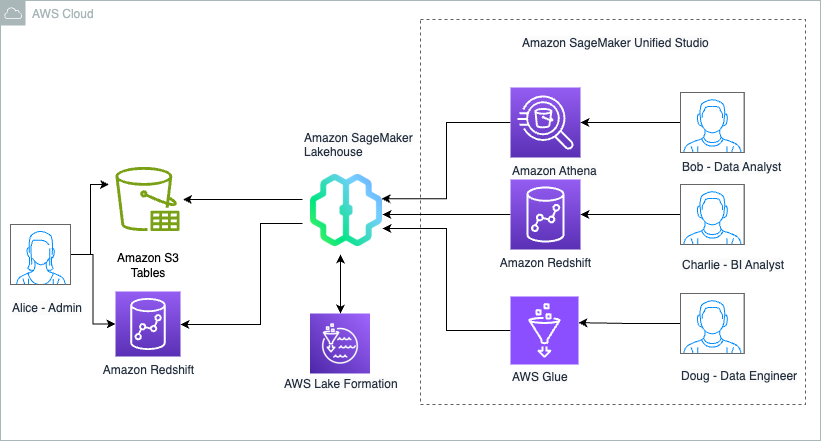
Paul Villena is a Senior Analytics Solutions Architect in AWS with expertise in building modern data and analytics solutions to drive business value. He works with customers to help them harness the power of the cloud. His areas of interests are infrastructure as code, serverless technologies, and coding in Python.

Enhance query performance using AWS Glue Data Catalog column-level statistics

Post Syndicated from Sandeep Adwankar original https://aws.amazon.com/blogs/big-data/enhance-query-performance-using-aws-glue-data-catalog-column-level-statistics/

Today, we’re making available a new capability of AWS Glue Data Catalog that allows generating column-level statistics for AWS Glue tables. These statistics are now integrated with the cost-based optimizers (CBO) of Amazon Athena and Amazon Redshift Spectrum, resulting in improved query performance and potential cost savings.

Data lakes are designed for storing vast amounts of raw, unstructured, or semi-structured data at a low cost, and organizations share those datasets across multiple departments and teams. The queries on these large datasets read vast amounts of data and can perform complex join operations on multiple datasets. When talking with our customers, we learned that one the challenging aspect of data lake performance is how to optimize these analytics queries to execute faster.

The data lake performance optimization is especially important for queries with multiple joins and that is where cost-based optimizers helps the most. In order for CBO to work, column statistics need to be collected and updated based on changes in the data. We’re launching capability of generating column-level statistics such as number of distinct, number of nulls, max, and min on files such as Parquet, ORC, JSON, Amazon ION, CSV, XML on AWS Glue tables. With this launch, customers now have integrated end-to-end experience where statistics on Glue tables are collected and stored in the AWS Glue Catalog, and made available to analytics services for improved query planning and execution.

Using these statistics, cost-based optimizers improves query run plans and boosts the performance of queries run in Amazon Athena and Amazon Redshift Spectrum. For example, CBO can use column statistics such as number of distinct values and number of nulls to improve row prediction. Row prediction is the number of rows from a table that will be returned by a certain step during the query planning stage. The more accurate the row predictions are, the more efficient query execution steps are. This leads to faster query execution and potentially reduced cost. Some of the specific optimizations that CBO can employ include join reordering and push-down of aggregations based on the statistics available for each table and column.

For customers using data mesh with AWS Lake Formation permissions, tables from different data producers are cataloged in the centralized governance accounts. As they generate statistics on tables on centralized catalog and share those tables with consumers, queries on those tables in consumer accounts will see query performance improvements automatically. In this post, we’ll demonstrate the capability of AWS Glue Data Catalog to generate column statistics for our sample tables.

Solution overview

To demonstrate the effectiveness of this capability, we employ the industry-standard TPC-DS 3 TB dataset stored in an Amazon Simple Storage Service (Amazon S3) public bucket. We’ll compare the query performance before and after generating column statistics for the tables, by running queries in Amazon Athena and Amazon Redshift Spectrum. We are providing queries that we used in this post and we encourage to try out your own queries following workflow as illustrated in the following details.

The workflow consists of the following high level steps:

  1. Cataloging the Amazon S3 Bucket: Utilize AWS Glue Crawler to crawl the designated Amazon S3 bucket, extracting metadata, and seamlessly storing it in the AWS Glue data catalog. We’ll query these tables using Amazon Athena and Amazon Redshift Spectrum.
  2. Generating column statistics: Employ the enhanced capabilities of AWS Glue Data Catalog to generate comprehensive column statistics for the crawled data, thereby providing valuable insights into the dataset.
  3. Querying with Amazon Athena and Amazon Redshift Spectrum: Evaluate the impact of column statistics on query performance by utilizing Amazon Athena and Amazon Redshift Spectrum to execute queries on the dataset.

The following diagram illustrates the solution architecture.

Walkthrough

To implement the solution, we complete the following steps:

  1. Set up resources with AWS CloudFormation.
  2. Run AWS Glue Crawler on Public Amazon S3 bucket to list the 3TB TPC-DS dataset.
  3. Run queries on Amazon Athena and Amazon Redshift and note down query duration
  4. Generate statistics for AWS Glue Data Catalog tables
  5. Run queries on Amazon Athena and Amazon Redshift and compare query duration with previous run
  6. Optional: Schedule AWS Glue column statistics jobs using AWS Lambda and the Amazon EventBridge Scheduler

Set up resources with AWS CloudFormation

This post includes an AWS CloudFormation template for a quick setup. You can review and customize it to suit your needs. The template generates the following resources:

  • An Amazon Virtual Private Cloud (Amazon VPC), public subnet, private subnets and route tables.
  • An Amazon Redshift Serverless workgroup and namespace.
  • An AWS Glue crawler to crawl the public Amazon S3 bucket and create a table for the Glue Data Catalog for TPC-DS dataset
  • AWS Glue catalog databases and tables
  • An Amazon S3 bucket to store athena result.
  • AWS Identity and Access Management (AWS IAM) users and policies.
  • AWS Lambda and Amazon Event Bridge scheduler to schedule the AWS Glue Column statistics

To launch the AWS CloudFormation stack, complete the following steps:

Note: The AWS Glue data catalog tables are generated using the public bucket s3://blogpost-sparkoneks-us-east-1/blog/BLOG_TPCDS-TEST-3T-partitioned/, hosted in the us-east-1 region. If you intend to deploy this AWS CloudFormation template in a different region, it is necessary to either copy the data to the corresponding region or share the data within your deployed region for it to be accessible from Amazon Redshift.

  1. Log in to the AWS Management Console as AWS Identity and Access Management (AWS IAM) administrator.
  2. Choose Launch Stack to deploy a AWS CloudFormation template.
  3. Choose Next.
  4. On the next page, keep all the option as default or make appropriate changes based on your requirement choose Next.
  5. Review the details on the final page and select I acknowledge that AWS CloudFormation might create IAM resources.
  6. Choose Create.

This stack can take around 10 minutes to complete, after which you can view the deployed stack on the AWS CloudFormation console.

Run the AWS Glue Crawlers created by the AWS CloudFormation stack

To run your crawlers, complete the following steps:

  1. On the AWS Glue console to AWS Glue Console, choose Crawlers under Data Catalog in the navigation pane.
  2. Locate and run two crawlers tpcdsdb-without-stats and tpcdsdb-with-stats. It may take few mins to complete.

Once the crawler completes successfully, it would create two identical databases tpcdsdbnostats and tpcdsdbwithstats. The tables in tpcdsdbnostats will have No Stats and we’ll use them as reference. We generate statistics on tables in tpcdsdbwithstats. Please verify that you have those two databases and underlying tables from the AWS Glue Console. The tpcdsdbnostats database will look like below. At this time there are no statistics generated on these tables.

Run provided query using Amazon Athena on no-stats tables

To run your query in Amazon Athena on tables without statistics, complete the following steps:

  1. Download the athena queries from here.
  2. On the Amazon Athena Console, choose the provided query one at a time for tables in database tpcdsdbnostats.
  3. Run the query and note down the Run time for each query.

Run provided query using Amazon Redshift Spectrum on no-stats tables

To run your query in Amazon Redshift, complete the following steps:

  1. Download the Amazon Redshift queries from here.
  2. On the Redshift query editor v2, execute the Redshift Query for tables without stats section from downloaded query.
  3. Run the query and note down the query execution of each query.

Generate statistics on AWS Glue Catalog tables

To generate statistics on AWS Glue Catalog tables, complete the following steps:

  1. Navigate to the AWS Glue Console and choose the databases under Data Catalog.
  2. Click on tpcdsdbwithstats database and it will list all the available tables.
  3. Select any of these tables (e.g., call_center).
  4. Go to Column statistics – new tab and choose Generate statistics.
  5. Keep the default option. Under Choose columns keep Table (All columns) and Under Row sampling options Keep All rows, Under IAM role choose AWSGluestats-blog and select Generate statistics.

You’ll be able to see status of the statistics generation run as shown in the following illustration:

After generate statistics on AWS Glue Catalog tables, you should be able to see detailed column statistics for that table:

Reiterate steps 2–5 to generate statistics for all necessary tables, such as catalog_sales, catalog_returns, warehouse, item, date_dim, store_sales, customer, customer_address, web_sales, time_dim, ship_mode, web_site, web_returns. Alternatively, you can follow the “Schedule AWS Glue Statistics Runs” section near the end of this blog to generate statistics for all tables. Once done, assess query performance for each query.

Run provided query using Athena Console on stats tables

  1. On the Amazon Athena console, execute the Athena Query for tables with stats section from downloaded query.
  2. Run and note down the query execution of each query.

In our sample run of the queries on the tables, we observed the query execution time as per the below table. We saw clear improvement in the query performance, ranging from 13 to 55%.

Athena query time improvement

TPC-DS 3T Queries without glue stats (sec) with glue stats (sec) performance improvement (%)
Query 2 33.62 15.17 55%
Query 4 132.11 72.94 45%
Query 14 134.77 91.48 32%
Query 28 55.99 39.36 30%
Query 38 29.32 25.58 13%

Run the provided query using Amazon Redshift Spectrum on statistics tables

  1. On the Amazon Redshift query editor v2, execute the Redshift Query for tables with stats section from downloaded query.
  2. Run the query and note down the query execution of each query.

In our sample run of the queries on the tables, we observed the query execution time as per the below table. We saw clear improvement in the query performance, ranging from 13 to 89%.

Amazon Redshift Spectrum query time improvement

TPC-DS 3T Queries without glue stats (sec) with glue stats (sec) performance improvement (%)
Query 40 124.156 13.12 89%
Query 60 29.52 16.97 42%
Query 66 18.914 16.39 13%
Query 95 308.806 200 35%
Query 99 20.064 16 20%

Schedule AWS Glue statistics Runs

In this segment of the post, we’ll guide you through the steps of scheduling AWS Glue column statistics runs using AWS Lambda and the Amazon EventBridge Scheduler. To streamline this process, a AWS Lambda function and an Amazon EventBridge scheduler were created as part of the CloudFormation stack deployment.

  1. AWS Lambda function setup:

To begin, we utilize an AWS Lambda function to trigger the execution of the AWS Glue column statistics job. The AWS Lambda function invokes the start_column_statistics_task_run API through the boto3 (AWS SDK for Python) library. This sets the groundwork for automating the column statistics update.

Let’s explore the AWS Lambda function:

    • Go to the AWS Glue Lambda Console.
    • Select Functions and locate the GlueTableStatisticsFunctionv1.
    • For a clearer understanding of the AWS Lambda function, we recommend reviewing the code in the Code section and examining the environment variables under Configuration.
  1. Amazon EventBridge scheduler configuration

The next step involves scheduling the AWS Lambda function invocation using the Amazon EventBridge Scheduler. The scheduler is configured to trigger the AWS Lambda function daily at a specific time – in this case, 08:00 PM. This ensures that the AWS Glue column statistics job runs on a regular and predictable basis.

Now, let’s explore how you can update the schedule:

Cleaning up

To avoid unwanted charges to your AWS account, delete the AWS resources:

  1. Sign into the AWS CloudFormation console as the AWS IAM administrator used for creating the AWS CloudFormation stack.
  2. Delete the AWS CloudFormation stack you created.

Conclusion

In this post, we showed you how you can use AWS Glue Data Catalog to generate column-level statistics for AWS Glue tables. These statistics are now integrated with cost-based optimizer from Amazon Athena and Amazon Redshift Spectrum, resulting in improved query performance and potential costs savings. Refer to Docs for support for Glue Catalog Statistics across various AWS analytical services.

If you have questions or suggestions, submit them in the comments section.


About the Authors

Sandeep Adwankar is a Senior Technical Product Manager at AWS. Based in the California Bay Area, he works with customers around the globe to translate business and technical requirements into products that enable customers to improve how they manage, secure, and access data.

Navnit Shukla serves as an AWS Specialist Solution Architect with a focus on Analytics. He possesses a strong enthusiasm for assisting clients in discovering valuable insights from their data. Through his expertise, he constructs innovative solutions that empower businesses to arrive at informed, data-driven choices. Notably, Navnit Shukla is the accomplished author of the book titled Data Wrangling on AWS. He can be reached via LinkedIn.

Introducing AWS Glue crawler and create table support for Apache Iceberg format

Post Syndicated from Sandeep Adwankar original https://aws.amazon.com/blogs/big-data/introducing-aws-glue-crawler-and-create-table-support-for-apache-iceberg-format/

Apache Iceberg is an open table format for large datasets in Amazon Simple Storage Service (Amazon S3) and provides fast query performance over large tables, atomic commits, concurrent writes, and SQL-compatible table evolution. Iceberg has become very popular for its support for ACID transactions in data lakes and features like schema and partition evolution, time travel, and rollback. Iceberg captures metadata information on the state of datasets as they evolve and change over time.

AWS Glue crawlers now support Iceberg tables, enabling you to use the AWS Glue Data Catalog and migrate from other Iceberg catalogs easier. AWS Glue crawlers will extract schema information and update the location of Iceberg metadata and schema updates in the Data Catalog. You can then query the Data Catalog Iceberg tables across all analytics engines and apply AWS Lake Formation fine-grained permissions.

The Iceberg catalog helps you manage a collection of Iceberg tables and tracks the table’s current metadata. Iceberg provides several implementation options for the Iceberg catalog, including the AWS Glue Data Catalog, Hive Metastore, and JDBC catalogs. Customers prefer using or migrating to the AWS Glue Data Catalog because of its integrations with AWS analytical services such as Amazon Athena, AWS Glue, Amazon EMR, and Lake Formation.

With today’s launch, you can create and schedule an AWS Glue crawler to existing Iceberg tables into in the Data Catalog. You can then provide one or multiple S3 paths where the Iceberg tables are located. You have the option to provide the maximum depth of S3 paths that the crawler can traverse. With each crawler run, the crawler inspects each of the S3 paths and catalogs the schema information, such as new tables, deletes, and updates to schemas in the Data Catalog. Crawlers support schema merging across all snapshots and update the latest metadata file location in the Data Catalog that AWS analytical engines can directly use.

Additionally, AWS Glue is launching support for creating new (empty) Iceberg tables in the Data Catalog using the AWS Glue console or AWS Glue CreateTable API. Before the launch, customers who wanted to adopt Iceberg table format were required to generate Iceberg’s metadata.json file on Amazon S3 using PutObject separately in addition to CreateTable. Often, customers have used the create table statement on analytics engines such as Athena, AWS Glue, and so on. The new CreateTable API eliminates the need to create the metadata.json file separately, and automates generating metadata.json based on the given API input. Also, customers who manage deployments using AWS CloudFormation templates can now create Iceberg tables using the CreateTable API. For more details, refer to Creating Apache Iceberg tables.

For accessing the data using Athena, you can also use Lake Formation to secure your Iceberg table using fine-grained access control permissions when you register the Amazon S3 data location with Lake Formation. For source data in Amazon S3 and metadata that is not registered with Lake Formation, access is determined by AWS Identity and Access Management (IAM) permissions policies for Amazon S3 and AWS Glue actions.

Solution overview

For our example use case, a customer uses Amazon EMR for data processing and Iceberg format for the transactional data. They store their product data in Iceberg format on Amazon S3 and host the metadata of their datasets in Hive Metastore on the EMR primary node. The customer wants to make product data accessible to analyst personas for interactive analysis using Athena. Many AWS analytics services don’t integrate natively with Hive Metastore, so we use an AWS Glue crawler to populate the metadata in the AWS Glue Data Catalog. Athena supports Lake Formation permissions on Iceberg tables, so we apply fine-grained access for data access.

We configure the crawler to onboard the Iceberg schema to the Data Catalog and use Lake Formation access control for crawling. We apply Lake Formation grants on the database and crawled table to enable analyst users to query the data and verify using Athena.

After we populate the schema of the existing Iceberg dataset to the Data Catalog, we onboard new Iceberg tables to the Data Catalog and load data into the newly created data using Athena. We apply Lake Formation grants on the database and newly created table to enable analyst users to query the data and verify using Athena.

The following diagram illustrates the solution architecture.

Set up resources with AWS CloudFormation

To set up the solution resources using AWS CloudFormation, complete the following steps:

  1. Log in to the AWS Management Console as IAM administrator.
  2. Choose Launch Stack to deploy a CloudFormation template.
  3. Choose Next.
  4. On the next page, choose Next.
  5. Review the details on the final page and select I acknowledge that AWS CloudFormation might create IAM resources.
  6. Choose Create.

The CloudFormation template generates the following resources:

  • VPC, subnet, and security group for the EMR cluster
  • Data lake bucket to store Iceberg table data and metadata
  • IAM roles for the crawler and Lake Formation registration
  • EMR cluster and steps to create an Iceberg table with Hive Metastore
  • Analyst role for data access
  • Athena bucket path for results

  1. When the stack is complete, on the AWS CloudFormation console, navigate to the Resources tab of the stack.
  2. Note down the values of EmrClusterId, DataLakeBucketName, LFRegisterLocationServiceRole, AWSGlueServiceRole, AthenaBucketName, and LFBusinessAnalystRole.
  3. Navigate to the Amazon EMR console and choose the EMR cluster you created.
  4. Navigate to the Steps tab and verify that the steps were run.

This script run creates the database icebergcrawlerblodb using Hive and the Iceberg table product. It uses the Hive Metastore server on Amazon EMR as the metastore and stores the data on Amazon S3.

  1. Navigate to the S3 bucket you created and verify if the data and metadata are created for the Iceberg table.

Some of the resources that this stack deploys incur costs when in use.

Now that the data is on Amazon S3, we can register the bucket with Lake Formation to implement access control and centralize the data governance.

Set up Lake Formation permissions

To use the AWS Glue Data Catalog in Lake Formation, complete the following steps to update the Data Catalog settings to use Lake Formation permissions to control Data Catalog resources instead of IAM-based access control:

  1. Sign in to the Lake Formation console as admin.
    • If this is the first time accessing the Lake Formation console, add yourself as the data lake administrator.
  2. In the navigation pane, under Data catalog, choose Settings.
  3. Deselect Use only IAM access control for new databases.
  4. Deselect Use only IAM access control for new tables in new databases.
  5. Choose Version 3 for Cross account version settings.
  6. Choose Save.

Now you can set up Lake Formation permissions.

Register the data lake S3 bucket with Lake Formation

To register the data lake S3 bucket, complete the following steps:

  1. On the Lake Formation console, in the navigation pane, choose Data lake locations.
  2. Choose Register location.
  3. For Amazon S3 path, enter the data lake bucket path.
  4. For IAM role, choose the role noted from the CloudFormation template for LFRegisterLocationServiceRole.
  5. Choose Register location.

Grant crawler role access to the data location

To grant access to the crawler, complete the following steps:

  1. On the Lake Formation console, in the navigation pane, choose Data locations.
  2. Choose Grant.
  3. For IAM users and roles, choose the role for the crawler.
  4. For Storage locations, enter the data lake bucket path.
  5. Choose Grant.

Create database and grant access to the crawler role

Complete the following steps to create your database and grant access to the crawler role:

  1. On the Lake Formation console, in the navigation pane, choose Databases.
  2. Choose Create database.
  3. Provide the name icebergcrawlerblogdb for the database.
  4. Make sure Use only IAM access control for new tables in this database option is not selected.
  5. Choose Create database.
  6. On the Action menu, choose Grant.
  7. For IAM users and roles, choose the role for the crawler.
  8. Leave the database specified as icebergcrawlerblogdb.
  9. Select Create table, Describe, and Alter for Database permissions.
  10. Choose Grant.

Configure the crawler for Iceberg

To configure your crawler for Iceberg, complete the following steps:

  1. On the AWS Glue console, in the navigation pane, choose Crawlers.
  2. Choose Create crawler.
  3. Enter a name for the crawler. For this post, we use icebergcrawler.
  4. Under Data source configuration, choose Add data source.
  5. For Data source, choose Iceberg.
  6. For S3 path, enter s3://<datalakebucket>/icebergcrawlerblogdb.db/.
  7. Choose Add a Iceberg data source.

Support for Iceberg tables is available through CreateCrawler and UpdateCrawler APIs and adding the additional IcebergTarget as a target, with the following properties:

  • connectionId – If your Iceberg tables are stored in buckets that require VPC authorization, you can set your connection properties here
  • icebergTables – This is an array of icebergPaths strings, each indicating the folder with which the metadata files for an Iceberg table resides

See the following code:

{
    "IcebergTarget": {
        "connectionId": "iceberg-connection-123",
        "icebergMetaDataPaths": [
            "s3://bucketA/",
            "s3://bucketB/",
            "s3://bucket3/financedb/financetable/"
        ]
        "exclusions": ["departments/**", "employees/folder/**"]
        "maximumDepth": 5
    }
}
  1. Choose Next.
  2. For Existing IAM role, enter the crawler role created by the stack.
  3. Under Lake Formation configuration, select Use Lake Formation credentials for crawling S3 data source.
  4. Choose Next.
  5. Under Set output and scheduling, specify the target database as icebergcrawlerblogdb.
  6. Choose Next.
  7. Choose Create crawler.
  8. Run the crawler.

During each crawl, for each icebergTable path provided, the crawler calls the Amazon S3 List API to find the most recent metadata file under that Iceberg table metadata folder and updates the metadata_location parameter to the latest manifest file.

The following screenshot shows the details after a successful run.

The crawler was able to crawl the S3 data source and successfully populate the schema for Iceberg data in the Data Catalog.

You can now start using the Data Catalog as your primary metastore and create new Iceberg tables directly in the Data Catalog or using the createtable API.

Create a new Iceberg table

To create an Iceberg table in the Data Catalog using the console, complete the steps in this section. Alternatively, you can use a CloudFormation template to create an Iceberg table using the following code:

Type: AWS::Glue::Table
Properties: 
  CatalogId:"<account_id>"
  DatabaseName:"icebergcrawlerblogdb"
  TableInput:
    Name: "product_details"
    StorageDescriptor:
       Columns:
         - Name: "product_id"
           Type: "string"
         - Name: "manufacture_name"
           Type: "string"
         - Name: "product_rating"
           Type: "int"
       Location: "s3://<datalakebucket>/icebergcrawlerblogdb.db/"
    TableType: "EXTERNAL_TABLE"
  OpenTableFormatInput:
    IcebergInput:
      MetadataOperation: "CREATE"
      Version: "2"

Grant the IAM role access to the data location

First, grant the IAM role access to the data location:

  1. On the Lake Formation console, in the navigation pane, choose Data locations.
  2. Choose Grant.
  3. Select Admin IAM role for IAM users and roles.
  4. For Storage location, enter the data lake bucket path.
  5. Choose Grant.

Create the Iceberg table

Complete the following steps to create the Iceberg table:

  1. On the Lake Formation console, in the navigation pane, choose Tables.
  2. Choose Create table.
  3. For Name, enter product_details.
  4. Choose icebergcrawlerblogdb for Database.
  5. Select Apache Iceberg table for Table format.
  6. Provide the path for <datalakebucket>/icebergcrawlerblogdb.db/ for Table location.
  7. Provide the following schema and choose Upload schema:
    [
         {
             "Name": "product_id",
             "Type": "string"
         },
         {
             "Name": "manufacture_name",
             "Type": "string"
         },
         {
             "Name": "product_rating",
             "Type": "int"
         }
     ]

  8. Choose Submit to create the table.

Add a record to the new Iceberg table

Complete the following steps to add a record to the Iceberg table:

  1. On the Athena console, navigate to the query editor.
  2. Choose Edit settings to configure the Athena query results bucket using the value noted from the CloudFormation output for AthenaBucketName.
  3. Choose Save.
  4. Run the following query to add a record to the table:
    insert into icebergcrawlerblogdb.product_details values('00001','ABC Company',10)

Configure Lake Formation permissions on the Iceberg table in the Data Catalog

Athena supports Lake Formation permission on Iceberg tables, so for this post, we show you how to set up fine-grained access on the tables and query them using Athena.

Now the data lake admin can delegate permissions on the database and table to the LFBusinessAnalystRole-IcebergBlogIAM role via the Lake Formation console.

Grant the role access to the database and describe permissions

To grant the LFBusinessAnalystRole-IcebergBlogIAM role access to the database with describe permissions, complete the following steps:

  1. On the Lake Formation console, under Permissions in the navigation pane, choose Data lake permissions.
  2. Choose Grant
  3. Under Principals, select IAM users and roles.
  4. Choose the IAM role LFBusinessAnalystRole-IcebergBlog.
  5. Under LF-Tags or catalog resources, choose icebergcrawlerblogdb for Databases.
  6. Select Describe for Database permissions.
  7. Choose Grant to apply the permissions.

Grant column access to the role

Next, grant column access to the LFBusinessAnalystRole-IcebergBlogIAM role:

  1. On the Lake Formation console, under Permissions in the navigation pane, choose Data lake permissions.
  2. Choose Grant.
  3. Under Principals, select IAM users and roles.
  4. Choose the IAM role LFBusinessAnalystRole-IcebergBlog.
  5. Under LF-Tags or catalog resources, choose icebergcrawlerblogdb for Databases and product for Tables.
  6. Choose Select for Table permissions.
  7. Under Data permissions, select Column-based access.
  8. Select Include columns and choose product_name and price.
  9. Choose Grant to apply the permissions.

Grant table access to the role

Lastly, grant table access to the LFBusinessAnalystRole-IcebergBlogIAM role:

  1. On the Lake Formation console, under Permissions in the navigation pane, choose Data lake permissions.
  2. Choose Grant.
  3. Under Principals, select IAM users and roles.
  4. Choose the IAM role LFBusinessAnalystRole-IcebergBlog.
  5. Under LF-Tags or catalog resources, choose icebergcrawlerblogdb for Databases and product_details for Tables.
  6. Choose Select and Describe for Table permissions.
  7. Choose Grant to apply the permissions.

Verify the tables using Athena

To verify the tables using Athena, switch to LFBusinessAnalystRole-IcebergBlogrole and complete the following steps:

  1. On the Athena console, navigate to the query editor.
  2. Choose Edit settings to configure the Athena query results bucket using the value noted from the CloudFormation output for AthenaBucketName.
  3. Choose Save.
  4. Run the queries on product and product_details to validate access.

The following screenshot shows column permissions on product.

The following screenshot shows table permissions on product_details.

We have successfully crawled the Iceberg dataset created from Hive Metastore with data on Amazon S3 and created an AWS Glue Data Catalog table with the schema populated. We registered the data lake bucket with Lake Formation and enabled crawling access to the data lake using Lake Formation permissions. We granted Lake Formation permissions on the database and table to the analyst user and validated access to the data using Athena.

Clean up

To avoid unwanted charges to your AWS account, delete the AWS resources:

  1. Sign in to the CloudFormation console as the IAM admin used for creating the CloudFormation stack.
  2. Delete the CloudFormation stack you created.

Conclusion

With the support for Iceberg crawlers, you can quickly move to using the AWS Glue Data Catalog as your primary Iceberg table catalog. You can automatically register Iceberg tables into the Data Catalog by running an AWS Glue crawler, which doesn’t require any DDL or manual schema definition. You can start building your serverless transactional data lake on AWS using the AWS Glue crawler, create a new table using the Data Catalog, and utilize Lake Formation fine-grained access controls for querying Iceberg tables formats by Athena.

Refer to Working with other AWS services for Lake Formation support for Iceberg tables across various AWS analytical services.

Special thanks to everyone who contributed to this crawler and createtable feature launch: Theo Xu, Kyle Duong, Anshuman Sharma, Atreya Srivathsan, Eric Wu, Jack Ye, Himani Desai, Atreya Srivathsan, Masoud Shahamiri and Sachet Saurabh.

If you have questions or suggestions, submit them in the comments section.


About the authors

Sandeep Adwankar is a Senior Technical Product Manager at AWS. Based in the California Bay Area, he works with customers around the globe to translate business and technical requirements into products that enable customers to improve how they manage, secure, and access data.

Srividya Parthasarathy is a Senior Big Data Architect on the AWS Lake Formation team. She enjoys building data mesh solutions and sharing them with the community.

Mahesh Mishra is a Principal Product Manager with AWS Lake Formation team. He works with many of AWS largest customers on emerging technology needs, and leads several data and analytics initiatives within AWS including strong support for Transactional Data Lakes.

AWS Glue crawlers support cross-account crawling to support data mesh architecture

Post Syndicated from Sandeep Adwankar original https://aws.amazon.com/blogs/big-data/aws-glue-crawlers-support-cross-account-crawling-to-support-data-mesh-architecture/

Data lakes have come a long way, and there’s been tremendous innovation in this space. Today’s modern data lakes are cloud native, work with multiple data types, and make this data easily available to diverse stakeholders across the business. As time has gone by, data lakes have grown significantly and have evolved to data meshes as a way to scale. Thoughtworks defines a data mesh as “a shift in a modern distributed architecture that applies platform thinking to create self-serve data infrastructure, treating data as the product.”

Data mesh advocates for decentralized ownership and delivery of enterprise data management systems that benefit several personas. Data producers can use the data mesh platform to create datasets and share them across business teams to ensure data availability, reliability, and interoperability across functions and data subject areas. Data consumers now have better data sharing with data mesh and federation across business units without compromising data security. The data governance team can support distributed data, where all data is accessible to those with the proper authority to access it. With data mesh, data doesn’t have to be consolidated into a single data lake or account and can remain within different databases and data lakes. An essential capability needed in such a data lake architecture is the ability to continuously understand changes in the data lakes in various other domains and make those available to data consumers. Without such a capability, manual work is needed to understand producers’ updates and make them available to consumers and governance.

AWS customers use a modern data architecture to facilitate governance and data sharing across logical or physical governance boundaries to create data domains aligned to lines of business. Each line of business creates and manages their dataset on Amazon Simple Storage Service (Amazon S3) and uses AWS Glue crawlers to discover new datasets and register them to the AWS Glue Data Catalog, add new tables and partitions, and detect schema changes. These datasets are shared with data consumers that access the data using services like Amazon Athena, Amazon Redshift, Amazon EMR, and more.

In the post Introducing AWS Glue crawlers using AWS Lake Formation permission management, we introduced a new set of capabilities in AWS Glue crawlers and AWS Lake Formation that simplifies crawler setup and supports centralized permissions for in-account and cross-account crawling of S3 data lakes. In this post, we demonstrate the same capability for a data mesh architecture in which we establish a central governance layer to catalog the data owned by the data producer and share it with the data consumer for ease of discovery. The AWS Glue crawler cross-account capability allows you to crawl data sources in different producer accounts while still having those changes cataloged in a centralized governance account. Customers prefer the central governance experience over writing bucket policies separately in each bucket owning the account of a data mesh producer. To build a data mesh architecture, now you can author permissions in a single Lake Formation governance to manage access to data locations and crawlers spanning multiple accounts in the data mesh.

According to the Allstate Corporation:

“By leveraging the power of AWS Lake Formation in our modern data architecture, we will be able to further unlock the potential of our data and empower our analytics community to drive innovation and build data-driven applications. The granular data access and collaboration provided by this architecture will enable us to build a truly unified data and analytics experience, bringing us one step closer to realizing our vision of becoming a fully data-driven enterprise.”

– Prashant Mehrotra, Director – Machine Learning and R&D, Allstate

In this post, we walk through the creation of a simplified data mesh architecture that shows how to use an AWS Glue crawler with Lake Formation to automate bringing changes from data producer domains to data consumers while maintaining centralized governance.

Solution overview

In a data mesh architecture, you have several producer accounts that own S3 buckets, several consumer accounts who wants to access shared datasets, and a central governance account to manage data shares between producers and consumers. This central governance account doesn’t own any S3 bucket or actual tables.

The following figure shows a simplified data mesh architecture with a single producer account, a centralized governance account, and a single consumer account. The data mesh producer account hosts the encrypted S3 bucket, which is shared with the central governance account. The central governance account registers the S3 bucket with Lake Formation using an AWS Identity and Access Management (IAM) role, which has permissions to the S3 bucket and AWS Key Management Service (AWS KMS). The central account creates the database for storing the dataset schema and shares it with the producer account. The producer account, as the S3 bucket owner, runs a crawler to crawl the buckets registered with the central account using Lake Formation permissions and populates the database. Now the shared database with new datasets are available to share with consumers in the data mesh. The central governance account can now share the database with a consumer admin, who can delegate access to other personas (such as data analysts) in the consumer account for data access.

shows a simplified data mesh architecture with a single producer account, a centralized governance account, and a single consumer account

In the following sections, we provide AWS CloudFormation templates to set up the resources in each account. Then we provide the steps to configure the crawler, manage permissions and sharing, and validate the solution by running queries with Athena.

Prerequisites

Complete the following steps in each account (producer, central governance, and consumer) to update the Data Catalog settings to use Lake Formation permissions to control catalog resources instead of IAM-based access control:

  1. Sign in to the Lake Formation console as admin.
  2. If this is the first time accessing the Lake Formation console, add yourself as the data lake administrator.
    add yourself as the data lake administrator.
  3. In the navigation pane, under Data catalog, choose Settings.
  4. Uncheck Use only IAM access control for new databases.
  5. Uncheck Use only IAM access control for new tables in new databases.
  6. Keep Version 3 as the current cross-account version.
  7. Choose Save.

Set up resources in the central governance account

The CloudFormation template for the central account creates a CentralDataMeshOwner user assigned as Lake Formation admin. The CentralDataMeshOwner user in the central governance account performs the necessary steps to share the central catalogs with the producer and consumer accounts. The CentralDataMeshOwner user also sets up a custom Lake Formation service role to register the S3 data lake location. Complete the following steps:

  1. Log in to the central governance account console as IAM administrator.
  2. Choose Launch Stack to deploy the CloudFormation template:
  3. For DataMeshOwnerUserName, keep the default (CentralDataMeshOwner).
  4. For ProducerAWSAccount, enter the producer account ID.
  5. Create the stack.
  6. After the stack launches, on the AWS CloudFormation console, navigate to the Resources tab of the stack.
  7. Note down the value of RegisterLocationServiceRole.
  8. Choose the LFUsersPassword value to navigate to the AWS Secrets Manager console.
  9. In the Secret value section, choose Retrieve secret value.
  10. Note down the secret value for the password for IAM user CentralDataMeshOwner.

Set up resources in the producer account

The CloudFormation template for the producer account creates the following resources:

  • IAM user LOBProducerSteward
  • S3 bucket retail-datalake-<producer account id >-<producer region>
  • KMS key used for bucket encryption
  • Required S3 bucket policies to provide access to the central governance account
  • AWS Glue crawler and crawler IAM role with necessary permissions

Complete the following steps:

  1. Log in to the producer account console as IAM administrator.
  2. Choose Launch Stack to deploy the CloudFormation template:
  3. For CentralAccountID, enter the central account ID.
  4. For CentralAccountLFServiceRole, enter the value of RegisterLocationServiceRole from CloudFormation noted earlier.
  5. Create the stack.
  6. When the stack is complete, on the AWS CloudFormation console, navigate to the Resources tab of the stack.
  7. Note down the AWSGlueServiceRole value.
  8. Choose the ProducerStewardUserCredentials value to navigate to the Secrets Manager console.
  9. In the Secret value section, choose Retrieve secret value.
  10. Note down the secret value for the password for IAM user LOBProducerSteward.
  11. On the Amazon S3 console, check the bucket policies for retail-datalake-<producer account id >-<producer region> and make sure it is shared with the central governance account IAM role.

This is required for registering the bucket with Lake Formation in the central account so that the account can manage the data sharing.

  1. On the AWS KMS console, check that the bucket is encrypted with the customer managed key and the key is shared with the central governance account.

Set up resources in the consumer account

The CloudFormation template for the consumer account creates the following resources:

  • IAM user ConsumerAdminUser assigned to the data lake admin
  • IAM user LFBusinessAnalyst1
  • S3 bucket for Athena output
  • Athena workgroup

Complete the following steps:

  1. Log in to the consumer account console as IAM administrator.
  2. Choose Launch Stack to deploy the CloudFormation template:
  3. Create the stack.
  4. When the stack is complete, on the AWS CloudFormation console, navigate to the Resources tab of the stack.
  5. Choose the AllConsumerUsersCredentials value to navigate to the Secrets Manager console.
  6. In the Secret value section, choose Retrieve secret value.
  7. Note down the secret value for the password for the IAM user ConsumerAdminUser.

Now that all the accounts have been set up, we set up cross-account sharing on AWS with a central governance account to manage sharing of permissions across producers and consumers.

Configure the central governance account to manage sharing with the producer account

Sign in to the central governance account as CentralDataMeshOwner using the password noted earlier through the central governance account CloudFormation stack. Then complete the following steps:

  1. On Lake Formation console, choose Data lake locations under Register and ingest in the navigation pane.
  2. For Amazon S3 path, provide the path retail-datalake-<producer account id >-<region>.
  3. For IAM role, choose the IAM role created using the CloudFormation stack.

This role has permissions for the accessing the encrypted S3 bucket and its key. Do not choose the role AWSServiceRoleForLakeFormationDataAccess.

  1. Choose Register location.
  2. In the navigation pane, choose Databases.
  3. Choose Create database.
  4. For Database name¸ enter datameshtestdatabase.
  5. Choose Create database.
  6. In the navigation pane, choose Data locations and choose Grant.
  7. Select External account and provide the producer account for AWS account ID, AWS organization ID, or IAM principal ARN.
  8. For Storage location, provide the data lake bucket path.
  9. Select Grantable, then choose Grant.
  10. Choose Data lake permissions, then choose Grant.
  11. Select External accounts and provide the producer account number.
  12. For Databases, choose datameshtestdatabase.
  13. For Database permissions and Grantable permissions, select Create table, Alter, and Describe.
  14. Choose Grant.

Configure the crawler in the producer account to populate the schema

Sign in to producer account as LOBProducerSteward with the password noted earlier through the producer account CloudFormation stack, then complete the following steps:

  1. On the AWS RAM console, accept the pending resource share from the central account.
  2. On the Lake Formation console, choose Databases under Data catalog in the navigation pane.
  3. Choose datameshtestdatabase, and on the Action menu, choose Create resource link.
  4. For Resource link name, enter datameshtestdatabaselink.
  5. Choose Create.
  6. On the AWS Glue console, choose Crawlers in the navigation pane.
  7. Choose the crawler CrossAccountCrawler-<accountid>.
  8. Choose Edit, then choose Configure security settings.
  9. Select Use Lake Formation credentials for crawling S3 data source.
  10. Select In a different account and provide the account ID of the central governance account.
  11. Choose Next.
  12. Choose datameshtestdatabaselink as the database and choose Update.
  13. In the navigation pane, choose Data locations and choose Grant.
  14. Select My account, and choose the crawler IAM role for IAM users and roles.
  15. For Storage locations, choose the bucket retail-datalake-<accountid>-<region>.
  16. For Registered account location, enter the central account ID.
  17. Choose Grant.
    Alternatively, you can also use the AWS CLI to grant data location permission on bucket registered in central account to the crawler role using below command:

    aws lakeformation grant-permissions 
    --principal DataLakePrincipalIdentifier="<Crawler Role ARN>" 
    --permissions "DATA_LOCATION_ACCESS” 
    --resource ‘{ "DataLocation": {"ResourceArn":"<S3 bucket arn>", "CatalogId": "<Central Account id>"}}'

    For using CLI, refer to Installing or updating the latest version of the AWS CLI.

  18. In the navigation pane, choose Data lake permissions.
  19. Choose the crawler IAM role for the principal account.
  20. Choose datameshtestdatabase for the database.
  21. For Database permissions, select Create, Describe, and Alter.
  22. Choose Grant.
  23. Choose the crawler IAM role for the principal account.
  24. Choose datameshtestdatabaselink for the database.
  25. For Resource link permissions, select Describe.
  26. Choose Grant.
  27. Run the crawler.

The following screenshot shows the details after a successful run.

When the crawler is complete, you can validate the table created under the database datameshtestdatabaselink.

This table is owned by the producer account and available in the central governance account under the shared database datameshtestdatabase. Now the data lake admin in the central governance account can share the database and populated table with the consumer account.

Configure the central governance account to manage sharing of read-only access with the consumer account

Sign in to the central governance account as CentralDataMeshOwner with the password noted earlier through the central governance account CloudFormation stack, then complete the following steps:

  1. Grant database permissions to the consumer account.
  2. For Principals, choose external account and provide <consumer accountID>
  3. For Databases, select datameshtestdatabase.
  4. For Database permissions, select Describe.
  5. For Grantable permissions¸ select Describe.
  6. Choose Grant.

  7. Grant table permissions to the consumer account.
  8. For Principals, choose external account and provide <consumer accountID>.
  9. For Databases, select datameshtestdatabase.
  10. For Tables, select retail_datalake_<accountID>_<region>.
  11. For Table permissions, select Select and Describe.
  12. For Grantable permissions¸ select Select and Describe.
  13. Choose Grant.

Configure the consumer account as the consumer account data lake admin

Sign to the consumer account as ConsumerAdminUser with the password noted earlier through the consumer account CloudFormation stack. (Note that in the consumer account Lake Formation configuration, both ConsumerAdminUser and LFBusinessAnalyst1 have the same password.)

  1. On the AWS RAM console, accept the resource share from the central account.
  2. On the Lake Formation console, validate that the shared database datameshtestdatabase is available and create the resource link datameshtestdatabaselink using the shared database.

The following screenshot shows the details after the resource link is created.

  1. On the Lake Formation console, choose Grant.
  2. Choose LFBusinessAnalyst1 for IAM users and roles.
  3. Choose datameshtestdatabase for the database under Named data catalog resources.
  4. Select Describe for Database permissions.
  5. On the Lake Formation console, choose Grant.
  6. Choose LFBusinessAnalyst1 for IAM users and roles.
  7. Choose datameshtestdatabaselink for the database under Named data catalog resources.
  8. Select Describe for Resource link permissions.
  9. On the Lake Formation console, choose Grant.
  10. Choose LFBusinessAnalyst1 for IAM users and roles.
  11. Choose retail_datalake_<accountid>_<region> for the table under Named data catalog resources.
  12. Select Select and Describe for Table permissions.

Run queries in the consumer account

Sign to the consumer account console as LFBusinessAnalyst1 with the password noted earlier through the consumer account CloudFormation stack, then complete the following steps:

  1. On the Athena console, and choose lfconsumer-workgroup as the Athena workgroup.
  2. Run the following query to validate access:
select * from datameshtestdatabaselink.retail_datalake_<accountid>_<region>

We have successfully registered the dataset and created a Data Catalog in the central governance account. We crawled the data lake that was registered with the central governance account using Lake Formation permissions from the producer account and populated the schema. We granted Lake Formation permission on the database and table from the central account to the consumer user and validated consumer user access to the data using Athena.

Clean up

To avoid unwanted charges to your AWS account, delete the AWS resources:

  1. Sign in to the CloudFormation console as the IAM admin used for creating the CloudFormation stack in all three accounts.
  2. Delete the stacks you created.

Conclusion

In this post, we showed how to set up cross-account crawling using a central governance account with the new AWS Glue crawler capability of Lake Formation integration. This capability allows data producers to set up crawling capabilities in their own domain so that changes are seamlessly available to data governance and data consumers. Implementing a data mesh with AWS Glue crawlers, Lake Formation, Athena, and other analytical services provide a well-understood, performant, scalable, and cost-effective solution to integrate, prepare, and serve data.

If you have questions or suggestions, submit them in the comments section.

For more resources, refer to the following:


About the authors

Sandeep Adwankar is a Senior Technical Product Manager at AWS. Based in the California Bay Area, he works with customers around the globe to translate business and technical requirements into products that enable customers to improve how they manage, secure, and access data.

Srividya Parthasarathy is a Senior Big Data Architect on the AWS Lake Formation team. She enjoys building data mesh solutions and sharing them with the community.
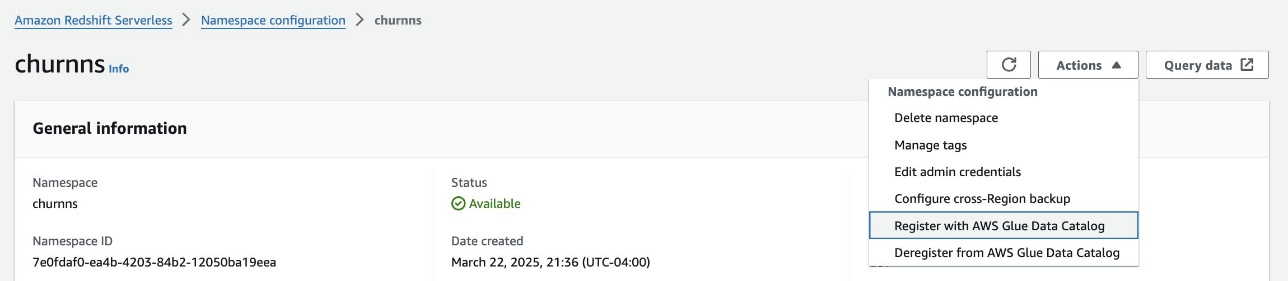
Piyali Kamra is a seasoned enterprise architect and a hands-on technologist who believes that building large scale enterprise systems is not an exact science but more like an art, in which tools and technologies must be carefully selected based on the team’s culture , strengths , weaknesses and risks , in tandem with having a futuristic vision as to how you want to shape your product a few years down the road.

Introducing AWS Glue crawlers using AWS Lake Formation permission management

Post Syndicated from Sandeep Adwankar original https://aws.amazon.com/blogs/big-data/introducing-aws-glue-crawlers-using-aws-lake-formation-permission-management/

Data lakes provide a centralized repository that consolidates your data at scale and makes it available for different kinds of analytics. AWS Glue crawlers are a popular way to scan data in a data lake, classify it, extract schema information from it, and store the metadata automatically in the AWS Glue Data Catalog. AWS Lake Formation enables you to centrally govern, secure, and share your data, and lets you scale permissions easily.

We are pleased to announce AWS Glue crawler and Lake Formation integration. You can now use Lake Formation permissions for the crawler’s access to your Lake Formation managed data lakes, whether those are in your account or in other accounts. Before this release, you had to set up AWS Glue crawler IAM role with Amazon Simple Storage Service (Amazon S3) permissions to crawl data source on Amazon S3. And also establish Amazon S3 bucket policies on the source bucket for the crawler role to access S3 data source. Now you can use AWS Lake Formation permission defined on data lake for crawling the data and you no longer need to configure dedicated Amazon S3 permissions for crawlers. AWS Lake Formation manages crawler IAM role access to various Amazon S3 buckets and/or its prefix using data locations permissions to simplify security management. Further you can apply the same security model for crawlers in addition to AWS Glue jobs, Amazon Athena for centralized governance.

When you configure an AWS Glue crawler to use Lake Formation, by default, the crawler uses Lake Formation in the same account to obtain data access credentials. However, you can also configure the crawler to use Lake Formation of a different account by providing an account ID during creation. The cross-account capability allows you to perform permissions management from a central governance account. Customers prefer the central governance experience over writing bucket policies separately in each bucket-owning account. To build a data mesh architecture, you can author permissions in a single Lake Formation governance to manage access to data locations and crawlers spanning multiple accounts in your data lake. You can refer to How to configure a crawler to use Lake Formation credentials for more information.

In this post, we walk through a single in-account architecture that shows how to enable Lake Formation permissions on the data lake, configure an AWS Glue crawler with Lake Formation permission to scan and populate schema from an S3 data lake into the AWS Glue Data Catalog, and then use an analytical engine like Amazon Athena to query the data.

Solution overview

The AWS Glue crawler and Lake Formation integration supports in-account crawling as well as cross-account crawling. You can configure a crawler to use Lake Formation permissions to access an S3 data store or a Data Catalog table with an underlying S3 location within the same AWS account or another AWS account. You can configure an existing Data Catalog table as a crawler’s target if the crawler and the Data Catalog table reside in the same account. The following figure shows the in-account crawling architecture.

Prerequisites

Complete the following prerequisite steps:

  1. Sign in to the Lake Formation console as admin.
  2. If this is the first time accessing the Lake Formation console, add yourself as the data lake administrator.
  3. In the navigation pane, under Data catalog, choose Settings.
  4. Deselect Use only IAM access control for new databases.
  5. Deselect Use only IAM access control for new tables in new databases.
  6. Keep Version 3 as the current cross-account version.
  7. Choose Save.

Set up your solution resources

We set up the solution resources using AWS CloudFormation. Complete the following steps:

  1. Log in to the AWS Management Console as IAM administrator.
  2. Choose Launch Stack to deploy a CloudFormation template:
  3. For LFBusinessAnalystUserName, keep as the default LFBusinessAnalyst.
  4. Create your stack.
  5. When the stack is complete, on the AWS CloudFormation console, navigate to the Resources tab of the stack.
  6. Note down value of Databasename, DataLakeBucket, and GlueCrawlerName.
  7. Choose the LFBusinessAnalystUserCredentials value to navigate to the AWS Secrets Manager console.
  8. In the Secret value section, choose Retrieve secret value.
  9. Note down the secret value for the password for IAM user LFBusinessAnalyst.

Validate resources

In your account, validate the following resources created by template:

  • AWS Glue database – The Databasename value noted from the CloudFormation template.
  • S3 bucket for the data lake with sample data – The DataLakeBucketvalue value noted from the CloudFormation template.
  • AWS Glue crawler and IAM role with required permission – The GlueCrawlerName value noted from the CloudFormation template.

The template registers the S3 bucket with Lake Formation as the data location. On Lake Formation console left navigation choose Data lake locations under Register and ingest.

The template also grants data location permission on the S3 bucket to the crawler role. On Lake Formation console left navigation choose Data locations under Permissions.

Lastly, the template grants database permission to the crawler role. On Lake Formation console left navigation choose Data lake permissions under Permissions.

Edit and run the AWS Glue crawler

To configure and run the AWS Glue crawler, complete the following steps:

  1. On the AWS Glue console, choose Crawlers in the navigation pane.
  2. Locate the crawler lfcrawler-<your-account-id> and edit it.
  3. Under Lake Formation configuration, select Use Lake Formation credentials for crawling S3 data source.
  4. Choose Next.
  5. Review and update the crawler settings.

Note that the crawler IAM role uses Lake Formation permission to access the data and doesn’t have any S3 policies.

  1. Run the crawler and verify that the crawler run is complete.
  2. In the AWS Glue database lfcrawlerdb<your-account-id>, verify that the table is created and the schema matches with what you have in the S3 bucket.

The crawler was able to crawl the S3 data source and successfully populate the schema using Lake Formation permissions.

Grant access to the data analyst using Lake Formation

Now the data lake admin can delegate permissions on the database and table to the LFBusinessAnalyst user via the Lake Formation console.

Grant the LFBusinessAnalyst IAM user access to the database with Describe permissions.

  1. On the Lake Formation console, under Permissions in the navigation pane, choose Data lake permission .
  2. Choose Grant
  3. Under Principals, select IAM users and roles.
  4. Choose the IAM users LFBusinessAnalyst
  5. Under LF-Tags or catalog resources, choose lfcrawlerdb<your-accountid> for Databases.
  6. Select Describe for Database permissions.
  7. Choose Grant to apply the permissions.

Grant the LFBusinessAnalyst IAM user Select and Describe access to the table.

  1. On the Lake Formation console, under Permissions in the navigation pane, choose Data lake permission.
  2. Choose Grant.
  3. Under Principals, select IAM users and roles.
  4. Choose the IAM users LFBusinessAnalyst.
  5. Under LF-Tags or catalog resources, choose lfcrawlerdb<your-accountid> for Databases and lf_datalake_<your-accountid>_<region> for Tables
  6. Choose Select, Describe for Table permissions.
  7. Choose Grant to apply the permissions.

Verify the tables using Athena

To verify the tables using Athena, complete the following steps:

  1. Log in as LFBusinessAnalyst using the password noted earlier through the CloudFormation stack.
  2. On the Athena console, choose lfconsumer-primary-workgroup as the Athena workgroup.
  3. Run the query to validate access as shown in the following screenshot.

We have successfully crawled Amazon S3 data store using the crawler with Lake Formation permission and populated the metadata in AWS Glue Data Catalog. We have granted Lake Formation permission on database and table to consumer user and validated user access to the data using Athena.

Clean up

To avoid unwanted charges to your AWS account, you can delete the AWS resources:

  1. Sign in to the CloudFormation console as the IAM admin used for creating the CloudFormation stack.
  2. Delete the stack you created.

Summary

In this post, we showed how to use the new AWS Glue crawler integration with Lake Formation. Data lake admins can now share crawled tables with data analysts using Lake Formation, allowing analysts to use analytical services such as Athena. You can centrally manage all permissions in Lake Formation, making it easier to administer and protect data lakes.

Special thanks to everyone who contributed to this crawler feature launch: Anshuman Sharma, Jessica Cheng, Aditya K, Sandya Krishnanand

If you have questions or suggestions, submit them in the comments section.


About the authors

Sandeep Adwankar is a Senior Technical Product Manager at AWS. Based in the California Bay Area, he works with customers around the globe to translate business and technical requirements into products that enable customers to improve how they manage, secure, and access data.

Srividya Parthasarathy is a Senior Big Data Architect on the AWS Lake Formation team. She enjoys building data mesh solutions and sharing them with the community.