Building SAML federation for Amazon OpenSearch Dashboards with Auth0

Post Syndicated from Raghavarao Sodabathina original https://aws.amazon.com/blogs/architecture/building-saml-federation-for-amazon-opensearch-dashboards-with-auth0/

Amazon OpenSearch is a fully managed, distributed, open search, and analytics service that is powered by the Apache Lucene search library. OpenSearch is derived from Elasticsearch 7.10.2, and is used for real-time application monitoring, log analytics, and website search. It’s ideal for use cases that require fast access and response for large volumes of data. OpenSearch Dashboards is derived from Kibana 7.10.2, and used for visual data exploration. With Security Assertion Markup Language (SAML)-based federation for OpenSearch, Dashboards lets you use your existing identity provider (IdP) like Auth0. You can use Auth0 to provide single sign-on (SSO) for OpenSearch Dashboards on Amazon OpenSearch search domains. It also gives you fine-grained access control, and the ability to search your data and build visualizations. Amazon OpenSearch supports providers that use the SAML 2.0 standard, such as Auth0, Okta, Keycloak, Active Directory Federation Services (AD FS), and Ping Identity (PingID).

In this post, we provide step-by-step guidance to show you how to set up a trial Auth0 account. We’ll demonstrate how to build users and groups within your organization’s directory, and enable SP-initiated single sign-on (SSO) into OpenSearch Dashboards.

To use this feature, you must enable fine-grained access control. Rather than authenticating through Amazon Cognito or an internal user database, SAML authentication for OpenSearch Dashboards lets you use third-party identity providers to log in to the OpenSearch Dashboards. SAML authentication for OpenSearch Dashboards is only for accessing the OpenSearch Dashboards through a web browser. Your SAML credentials do not let you make direct HTTP requests to OpenSearch or OpenSearch Dashboards APIs.

Auth0 is an AWS Competency Partner and popular Identity-as-a-Service (IDaaS) solution. It supports both service provider (SP)-initiated and identity provider (IdP)-initiated SSO. For SP-initiated SSO, when you sign into the OpenSearch Dashboards login page it sends an authorization request to Auth0. Once it authenticates your identity, you are redirected to OpenSearch Dashboards. In IdP-initiated SSO, you log in to the Auth0 SSO page, and choose OpenSearch Dashboards to open the application.

Overview of AuthO SAML authenticated solution

Figure 1 depicts a sample architecture of a generic, integrated solution between Auth0 and OpenSearch Dashboards over SAML authentication.

High level flow of SAML transactions between Amazon OpenSearch and Auth0

Figure 1. A high-level view of a SAML transaction between Amazon OpenSearch and Auth0

The sign-in flow is as follows:

  1. User opens browser window and navigates to Amazon OpenSearch Dashboards
  2. Amazon OpenSearch generates SAML authentication request
  3. Amazon OpenSearch redirects request back to browser
  4. Browser redirects to Auth0 URL
  5. Auth0 parses SAML request, authenticates user, and generates SAML response
  6. Auth0 returns encoded SAML response to browser
  7. Browser sends SAML response back to Amazon OpenSearch Assertion Consumer Service (ACS) URL
  8. ACS verifies SAML response
  9. User logs into Amazon OpenSearch domain

Prerequisites

For this walkthrough, you should have the following prerequisites:

  1. An AWS account
  2. A virtual private cloud (VPC) based Amazon OpenSearch domain with fine-grained access control enabled
  3. An Auth0 account with user and a group
  4. A browser with network connectivity to Auth0, Amazon OpenSearch domain, and Amazon OpenSearch Dashboards.

The steps in this post are structured into the following sections:

  1. Identity provider (Auth0) setup
  2. Prepare Amazon OpenSearch for SAML configuration
  3. Identity provider (Auth0) SAML configuration
  4. Finish Amazon OpenSearch for SAML configuration
  5. Validation
  6. Cleanup

Identity provider (Auth0) setup

Step 1: Sign up for an Auth0 account

  • Sign up for an Auth0 account, then click on the Sign up button to complete your account setup.
  • If you already have an account with Auth0, log in to your Auth0 account.

Step 2: Create Groups in Auth0

  • Choose User Management in the left menu and click Users, then click on the +Create User button.
  • Provide an email, password, and connection to your users. Click on the Create button to create your user.
  • Add more users to your Auth0 account.

Step 3: Install Auth0 Extension to create a group and assign users to the group

  • Click on Extensions in the left menu and search for “Auth0 Authorization”. Click on Auth0 Authorization to install the extension, shown in Figure 2.
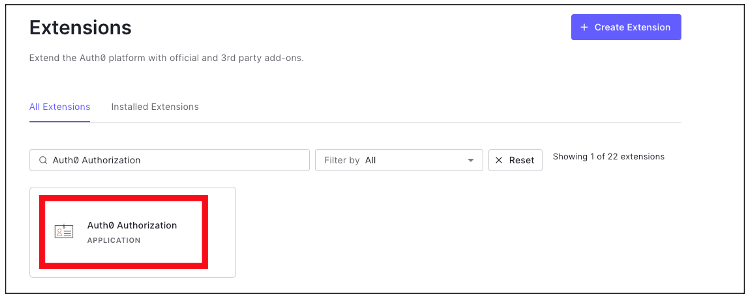
The diagram depicts the Installing of Auth0 Authorization extension

Figure 2. Installing Auth0 Authorization extension

  • Use all default options and click on the Install button to install the extension.
  • Click on the Auth0 Authorization extension and choose the Accept button to provide access to your Auth0 account.
  • The Auth0 Authorization extension must be configured. Click on Go to Configuration (Figure 3).

The diagram depicts the configuration of Auth0 Authorization extension

Figure 3. Configuring the Auth0 Authorization extension

  • Rotate your API keys and check Groups, Roles, and Permissions to provide authorization to the extension and then click on PUBLISH RULE to complete the configuration, see Figure 4.
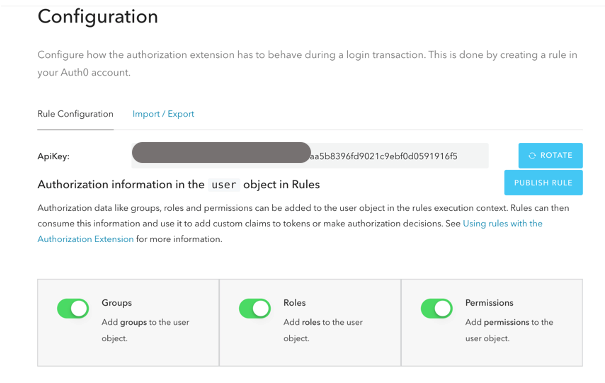
The diagram depicts the providing permissions to Auth0 Authorization extension

Figure 4. Providing the permissions to Auth0 Authorization extension

Step 4: Create a group in Auth0

  • Choose Groups from the left menu and click on the Create your first Group button. For this example, we will create a group called opensearch for OpenSearch Dashboards access.
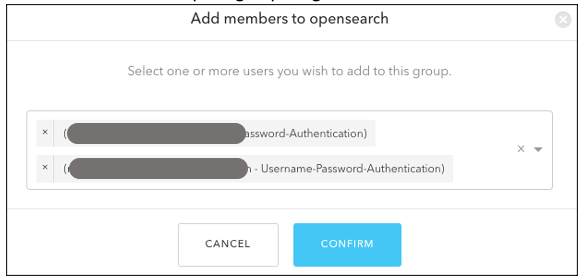
  • Add your users to opensearch by clicking on ADD MEMBERS BUTTON, then click on the CONFIRM button to complete your group assignment (Figure 5).
The diagram depicts the adding users to Auth0 Group

Figure 5. Adding users to Auth0 Group

Step 5: Create an Auth0 Application

  • Choose Applications from the left menu. Click on the +Create Application button.
  • For this example, we are creating an application called “opensearch”.
  • Select Single Page Web Applications, then click on the CREATE button to proceed.
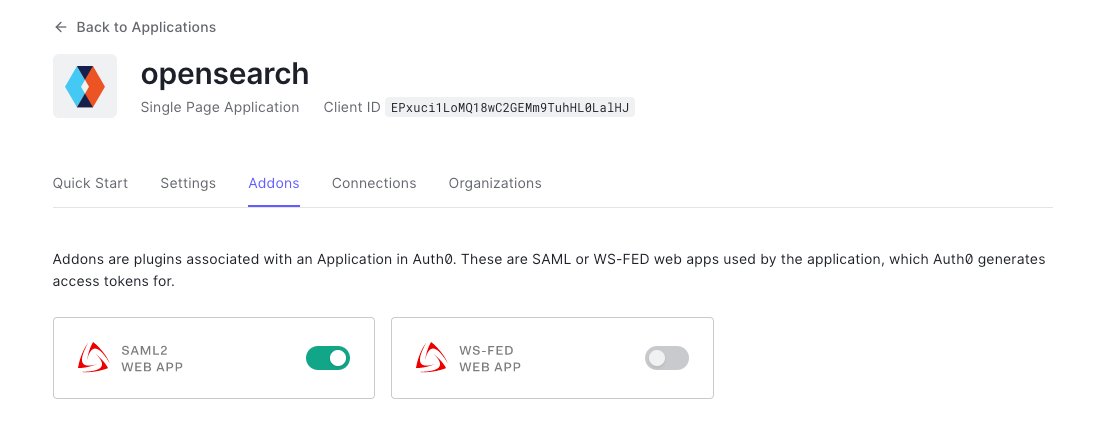
  • Click on the Addons tab on the application Kibana (Figure 6).
The diagram depicts the creation of Auth0 SAML application

Figure 6. Creating an Auth0 SAML application

  • Click on the SAML2 WEB APP, then select settings to provide SAML URLs from Amazon OpenSearch. We will configure these details after preparing the Amazon OpenSearch cluster for SAML.

Prepare Amazon OpenSearch for SAML configuration

Once the Amazon OpenSearch domain is up and running, we can proceed with configuration.

  • Under Actions, choose Edit security configuration (Figure 7).

The diagram depicts the enablement of OpenSearch security configuration for SAML

Figure 7. Enabling Amazon OpenSearch security configuration for SAML

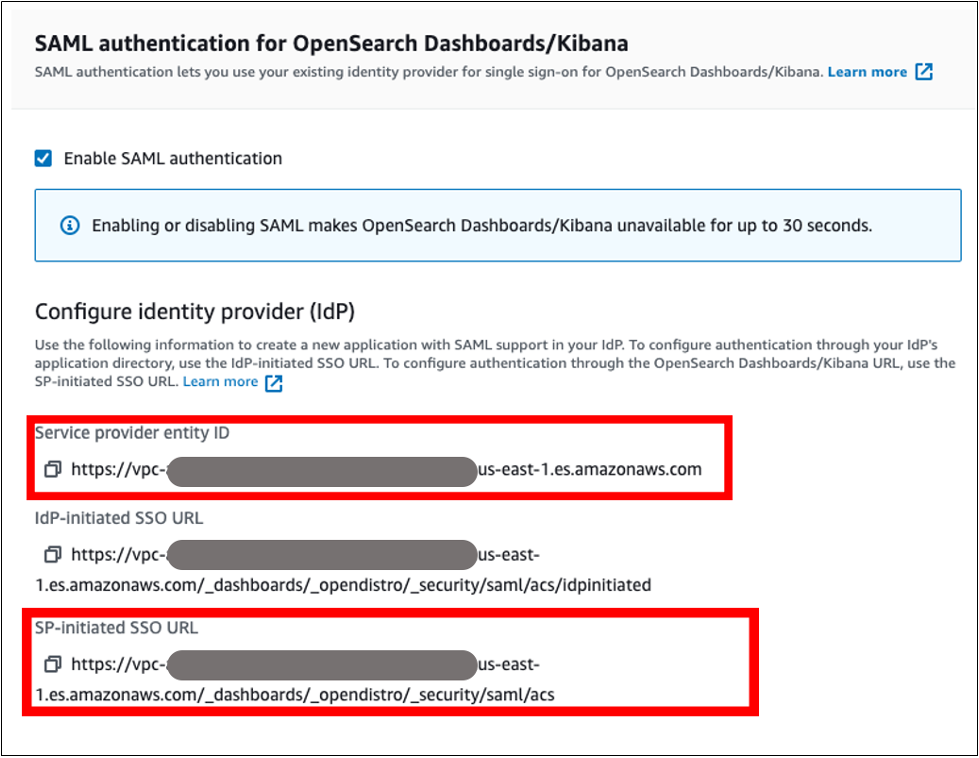
  • Under SAML authentication for OpenSearch Dashboards/Kibana, select the Enable SAML authentication check box (Figure 8). When we enable SAML, it will create different URLs required for configuring SAML with your identity provider.
The diagram depicts the Amazon OpenSearch URLs for SAML configuration

Figure 8. Amazon OpenSearch URLs for SAML configuration

We will be using the Service Provider entity ID and SP-initiated SSO URL (highlighted in Figure 8) for Auth0 SAML configuration. We will complete the rest of the Amazon OpenSearch SAML configuration after the Auth0 SAML configuration.

Auth0 SAML configuration

Go back to Auth0.com, and navigate to Applications from the left menu. Then select the opensearch application that you created as a part of the Auth0 setup.

  • Click on the Addons tab on the application opensearch.
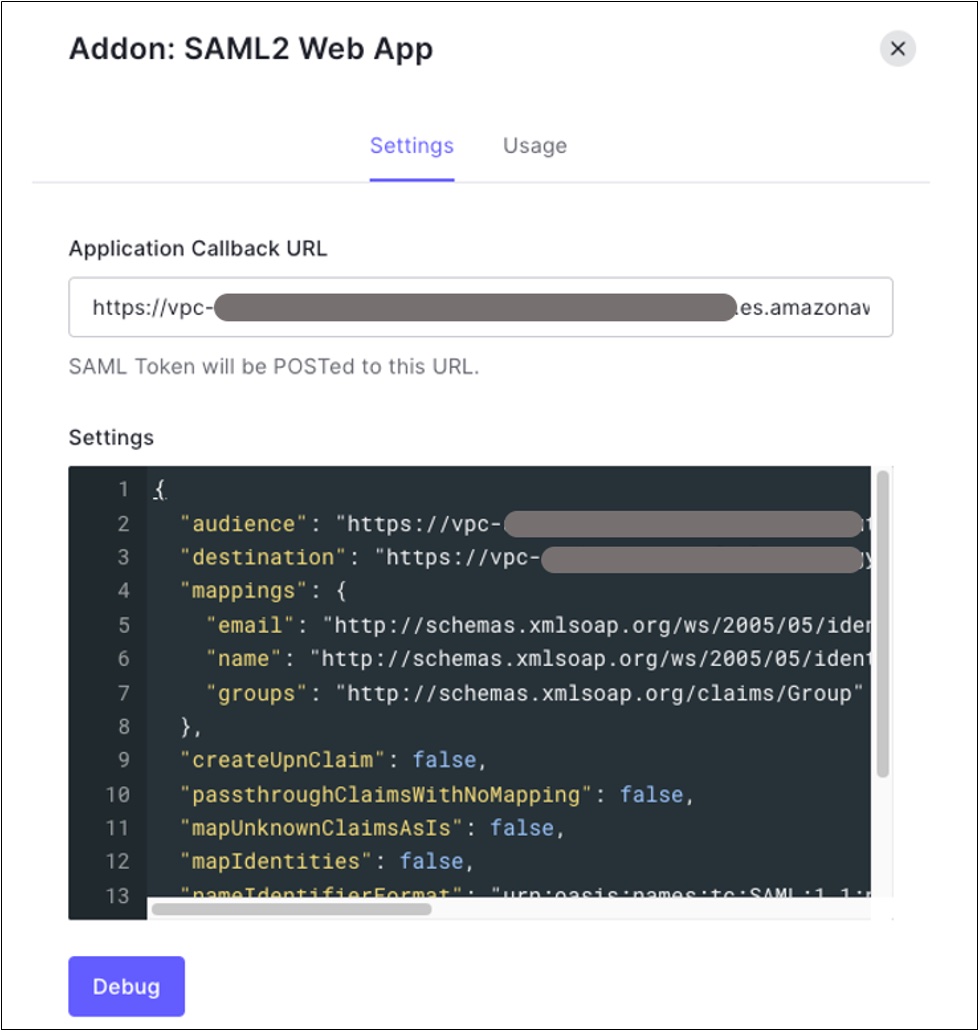
  • Click on the SAML2 WEB APP, then select Settings to provide SAML URLs from Amazon OpenSearch, as shown in Figure 9:
    • Application Callback URL = https://vpc-XXXXX-XXXXX.us-east-1.es.amazonaws.com/_dashboards/_opendistro/_security/saml/acs (SP-initiated SSO URL)
    • audience”: “https://vpc-XXXXX-XXXXX.us-east-1.es.amazonaws.com” (Service provider entity ID)
    • destination”: “ https://vpc-XXXXX-XXXXX.us-east-1.es.amazonaws.com/_plugin/kibana/_opendistro/_security/saml/acs” (SP-initiated SSO URL)
    • Mappings and other configurations shown in Figure 9

{
  "audience": "https://vpc-XXXXX-XXXXX.us-east-1.es.amazonaws.com",
  "destination": "https://vpc-XXXXX-XXXXX.us-east-1.es.amazonaws.com/_plugin/kibana/_opendistro/_security/saml/acs",
  "mappings":
  {
    "email":
    "http://schemas.xmlsoap.org/ws/2005/05/identity/claims/emailaddress",
    "name": "http://schemas.xmlsoap.org/ws/2005/05/identity/claims/name",
    "groups": "http://schemas.xmlsoap.org/claims/Group"
  },
  "createUpnClaim": false,
  "passthroughClaimsWithNoMapping": false,
  "mapUnknownClaimsAsIs": false,
  "mapIdentities": false,
  "nameIdentifierFormat":
  "urn:oasis:names:tc:SAML:1.1:nameid-format:emailAddress", "nameIdentifierProbes": [
"http://schemas.xmlsoap.org/ws/2005/05/identity/claims/emailaddress" ]
}
The diagram depicts the configuration of Auth0 SAML parameters

Figure 9. Configuring Auth0 SAML parameters

  • Click on Enable to save the SAML configurations.
  • Go to the Usage tab, and click on the Download button to download Identity Provider Metadata, see Figure 10.
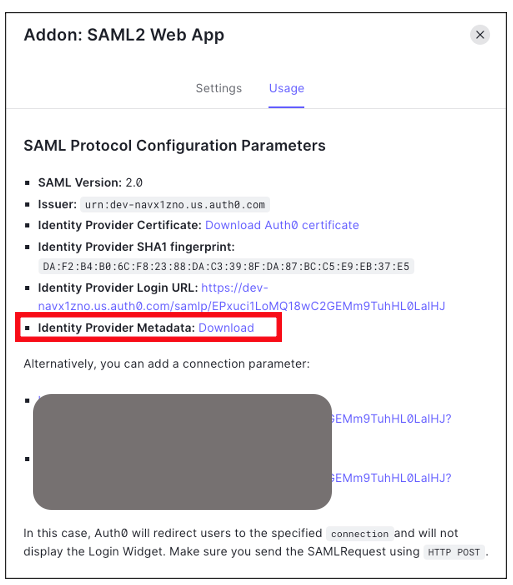
The diagram depicts the downloading of Auth0 identity provider meta data for SAML configuration

Figure 10. Downloading Auth0 identity provider metadata for SAML configuration

Amazon OpenSearch SAML configuration

  • Switch back to Amazon OpenSearch domain:
    • Navigate to Amazon OpenSearch console
    • Click on Actions, then click on Modify Security configuration
    • Select Enable SAML authentication check box
  • Under Import IdP metadata section (Figure 11):
    • Metadata from IdP: Import the Auth0 identity provider metadata from downloaded XML file
    • SAML master backend role: opensearch (Auth0 group). Provide a SAML backend role/group SAML assertion key for group SSO into Kibana
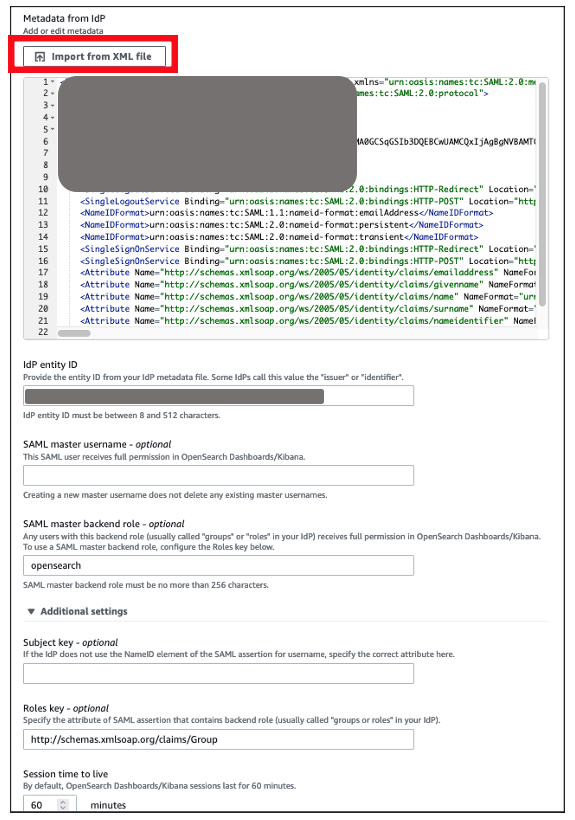
The diagram depicts the configuration of Amazon OpenSearch SAML parameters

Figure 11. Configuring Amazon OpenSearch SAML parameters

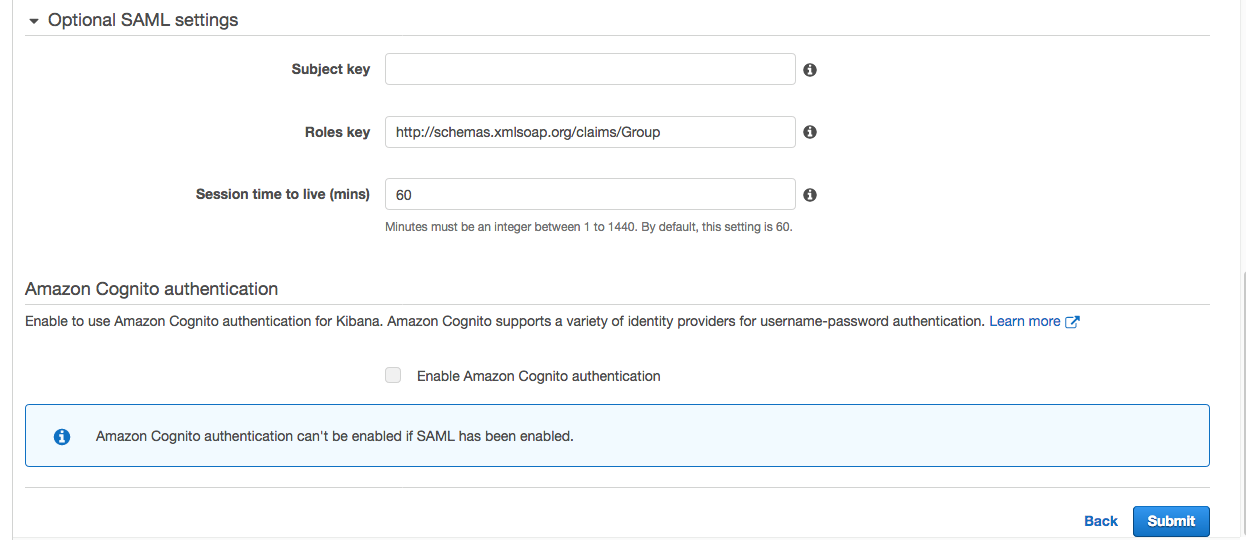
  • Under Optional SAML settings (Figure 12):
    • Leave Subject Key as blank, as Auth0 provides NameIdentifier
    • Role key should be http://schemas.xmlsoap.org/claims/Group. Auth0 lets you view a sample assertion during the configuration process by clicking on the DEBUG button on SAML2 WebApp. Tools like SAML-tracer can help you examine and troubleshoot the contents of real assertions.
    • Session time to live (mins): 60
The diagram depicts the configuration of Amazon OpenSearch optional SAML parameters

Figure 12. Configuring Amazon OpenSearch optional SAML parameters

Click on the Save changes button to complete Amazon OpenSearch SAML configuration for Kibana. We have successfully completed SAML configuration and are now ready for testing.

Validating access with Auth0 users

  • Access OpenSearch Dashboards from the previously created OpenSearch cluster. The OpenSearch Dashboards URL can be found as shown in Figure 13. The first access to the OpenSearch Dashboards URL redirects you to the Auth0 login screen.
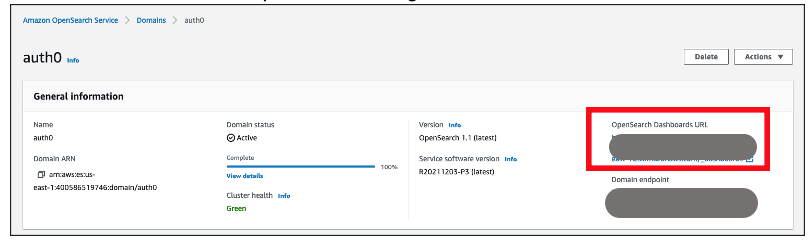
The diagram depicts the validation of Auth0 users access with Amazon OpenSearch

Figure 13. Validating Auth0 users access with Amazon OpenSearch

  • Now copy and paste the OpenSearch Dashboards URL in your browser, and enter the user credentials.
  • If your OpenSearch domain is hosted within a private VPC, you will not be able to access your OpenSearch Dashboard over the public internet. But you can still use SAML as long as your browser can communicate with both your OpenSearch cluster and your identity provider.
  • You can create a Mac or Windows EC2 instance within the same VPC. This way you can access Amazon OpenSearch Dashboards from your EC2 instance’s web browser to validate your SAML configuration. You can also access Amazon OpenSearch Dashboards through Site-to-Site VPN from an on-premises environment.
  • After successful login, you will be redirected into the OpenSearch Dashboards home page. Explore our sample data and visualizations in OpenSearch Dashboards, as shown in Figure 14.
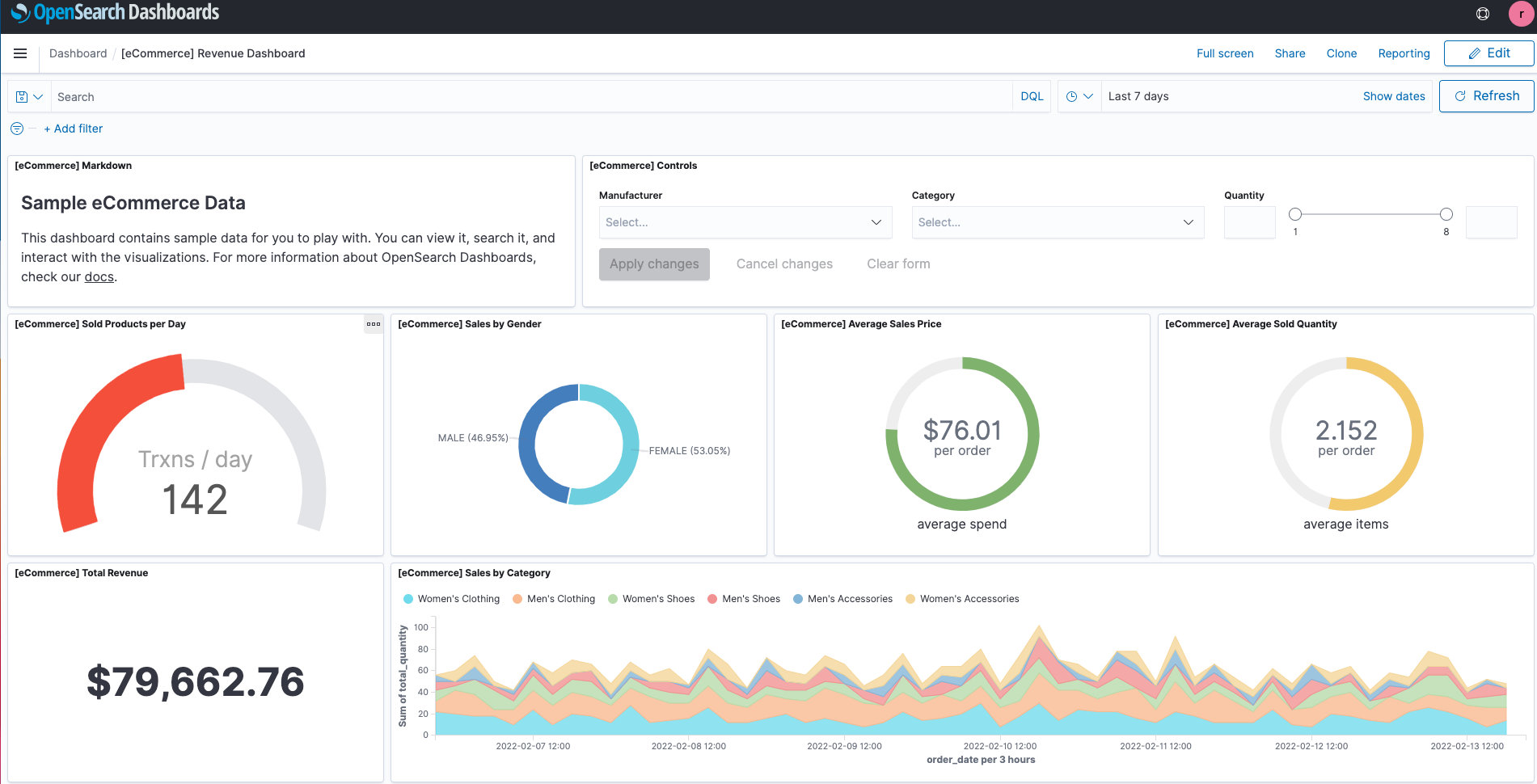
SAML authenticated Amazon OpenSearch Dashboards

Figure 14. SAML authenticated Amazon OpenSearch Dashboards

  • You now have successfully federated Amazon OpenSearch Dashboards with Auth0 as an identity provider. You can connect OpenSearch Dashboards by using your Auth0 credentials.

Cleaning up

After you test out this solution, remember to delete all the resources you created to avoid incurring future charges. Refer to these links:

Conclusion

In this blog post, we have demonstrated how to set up Auth0 as an identity provider over SAML authentication for Amazon OpenSearch Dashboards access. With this solution, you now have an OpenSearch Dashboard that uses Auth0 as the custom identity provider for your users. This reduces the customer login process to one set of credentials and improves employee productivity.

Get started by checking the Amazon OpenSearch Developer Guide, which provides guidance on how to build applications using Amazon OpenSearch for your operational analytics.

[$] Negative dentries, 20 years later

Post Syndicated from original https://lwn.net/Articles/890025/

Filesystems and the virtual filesystem layer are in the business of
managing files that actually exist, but the Linux “dentry cache”, which
remembers the results of file-name lookups, also keeps track of files that
don’t exist. This cache of “negative dentries” plays an important
role in the overall performance of the system but, if it is allowed to grow
too large, its role can become negative in its own right. As the 2022 Linux Storage, Filesystem,
and Memory-Management Summit
(LSFMM) approaches, the subject of negative
dentries has come up yet again; whether one can be positive about the
prospects for a resolution this time around remains unclear.

Integrate Amazon Redshift native IdP federation with Microsoft Azure AD using a SQL client

Post Syndicated from Maneesh Sharma original https://aws.amazon.com/blogs/big-data/integrate-amazon-redshift-native-idp-federation-with-microsoft-azure-ad-using-a-sql-client/

Amazon Redshift accelerates your time to insights with fast, easy, and secure cloud data warehousing at scale. Tens of thousands of customers rely on Amazon Redshift to analyze exabytes of data and run complex analytical queries.

The new Amazon Redshift native identity provider authentication simplifies administration by sharing identity and group membership information to Amazon Redshift from a third-party identity provider (IdP) service, such as Microsoft Azure Active Directory (Azure AD), and enabling Amazon Redshift to natively process third-party tokens, identities, and group permissions. This process is very easy to set up, provides a secure and smoother customer experience for managing identities and groups at a centralized external IdP, and integrates natively with Amazon Redshift.

In this post, we focus on Microsoft Azure AD as the IdP and provide step-by-step guidance to connect SQL clients like SQL Workbench/J and DBeaver with Amazon Redshift using a native IdP process. Azure AD manages the users and provides federated access to Amazon Redshift. You don’t need to create separate Amazon Redshift database users, AWS Identity and Access Management (IAM) roles, or IAM policies with this setup.

Solution overview

Using an Amazon Redshift native IdP has the following benefits:

  • Enables your users to be automatically signed in to Amazon Redshift with their Azure AD accounts
  • You can manage users and groups from a centralized IdP
  • External users can securely access Amazon Redshift without manually creating new user names or roles using their existing corporate directory credentials
  • External user group memberships are natively mirrored with Amazon Redshift roles and users

The following diagram illustrates the architecture of a native IdP for Amazon Redshift:

The workflow contains the following steps:

  1. You configure a JDBC or ODBC driver in your SQL client to use Azure AD federation and use Azure AD login credentials to sign in.
  2. Upon a successful authentication, Azure AD issues an authentication token (OAuth token) back to the Amazon Redshift driver.
  3. The driver forwards the authentication token to the Amazon Redshift cluster to initiate a new database session.
  4. Amazon Redshift verifies and validates the authentication token.
  5. Amazon Redshift calls the Azure Graph API to obtain the user’s group membership.
  6. Amazon Redshift maps the logged-in Azure AD user to the Amazon Redshift user and maps the Azure AD groups to Amazon Redshift roles. If the user and groups don’t exist, Amazon Redshift automatically creates those identities within the IdP namespace.

To implement the solution, you complete the following high-level steps:

  1. Set up your Azure application.
    1. Create OAuth Application
    2. Create Redshift Client application
    3. Create Azure AD Group
  2. Collect Azure AD information for the Amazon Redshift IdP.
  3. Set up the IdP on Amazon Redshift.
  4. Set up Amazon Redshift permissions to external identities.
  5. Configure the SQL client (for this post, we use SQL Workbench/J and DBeaver).

Prerequisites

You need the following prerequisites to set up this solution:

Set up your Azure application

For integrating with any SQL client/BI tool except Microsoft Power BI, we would be creating two applications. First application will be used to authenticate the user and provide a login token.  Second application will be used by Redshift to retrieve user and group information.

Step 1: Create OAuth Application

  1. Sign in to the Azure portal with your Microsoft account.
  2. Navigate to the Azure Active Directory application.
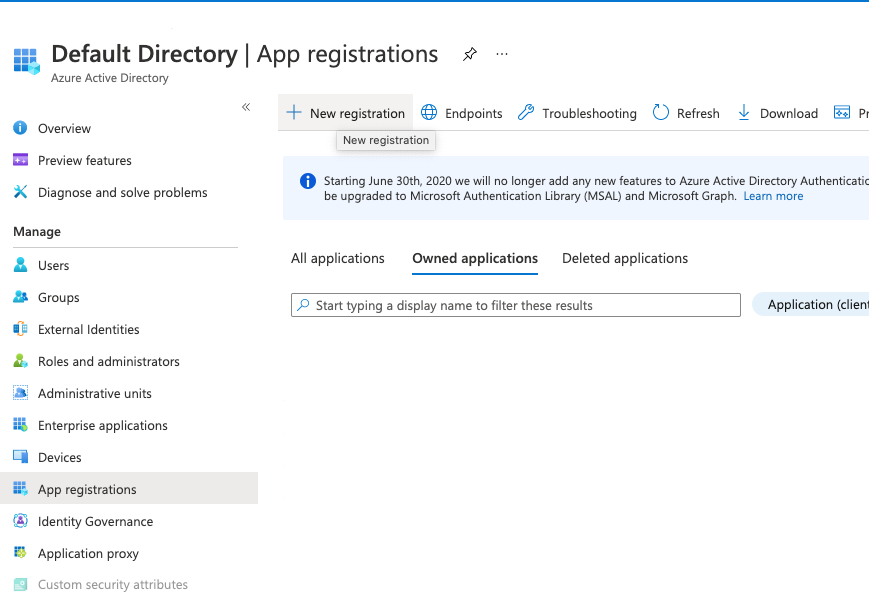
  3. Under Manage in the navigation pane, choose App registrations and then choose New registration.
  4. For Name, enter a name (for example, oauth_application).
  5. For Redirect URI, choose Public client/native (mobile and desktop) and enter the redirect URL http://localhost:7890/redshift/. For this post, we are keeping the default settings for the rest of the fields.
  6. Choose Register.
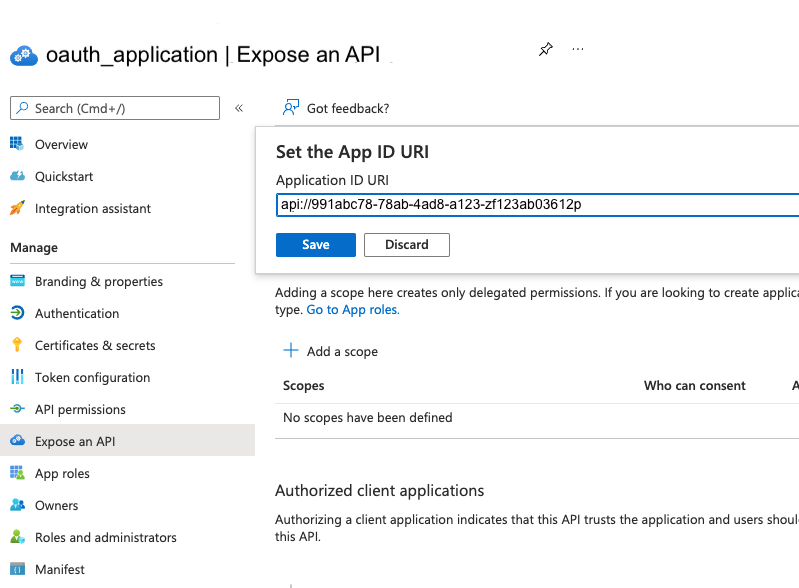
  7. In the navigation pane, under Manage, choose Expose an API.

If you’re setting up for the first time, you can see Set to the right of Application ID URI.

  1. Choose Set and then choose Save.
  2. After the application ID URI is set up, choose Add a scope.
  3. For Scope name, enter a name (for example, jdbc_login).
  4. For Admin consent display name, enter a display name (for example, JDBC login).
  5. For Admin consent description, enter a description of the scope.
  6. Choose Add scope.

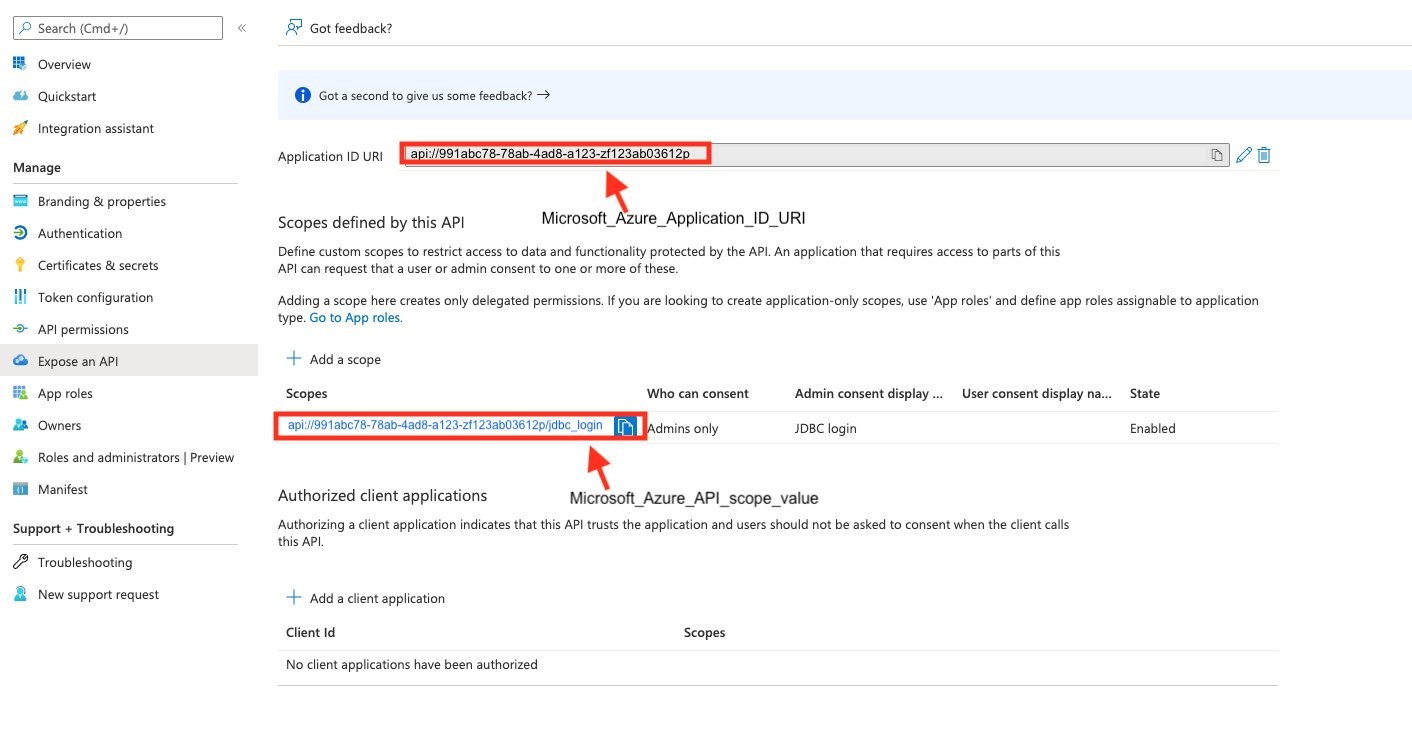
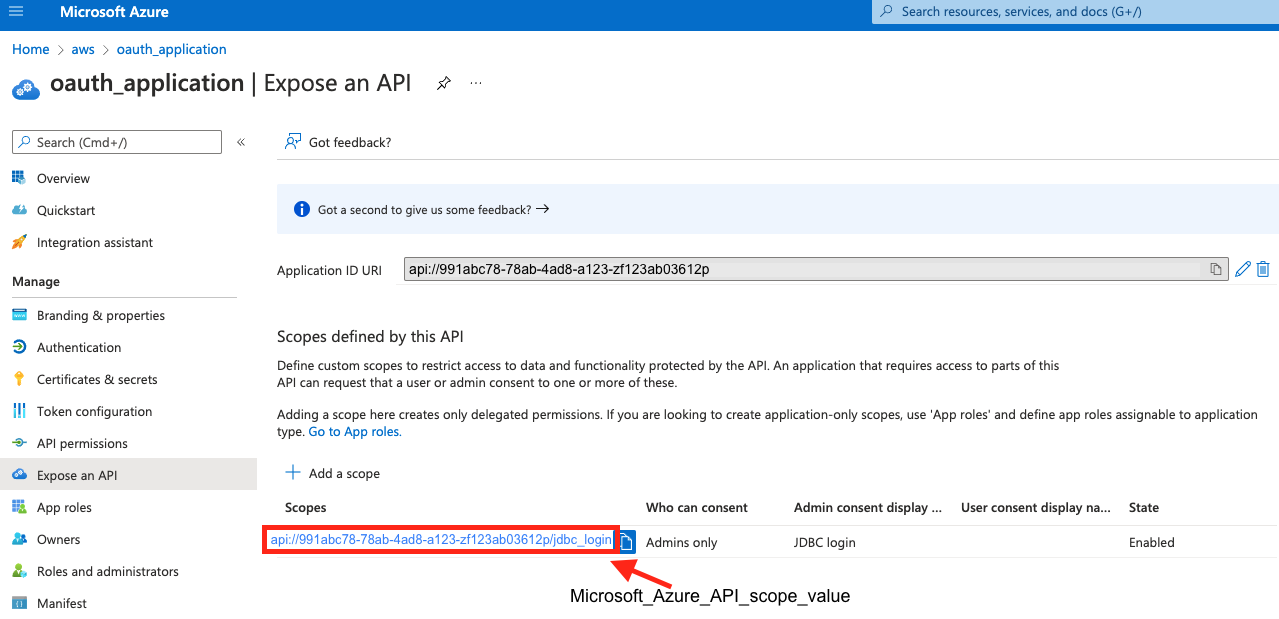
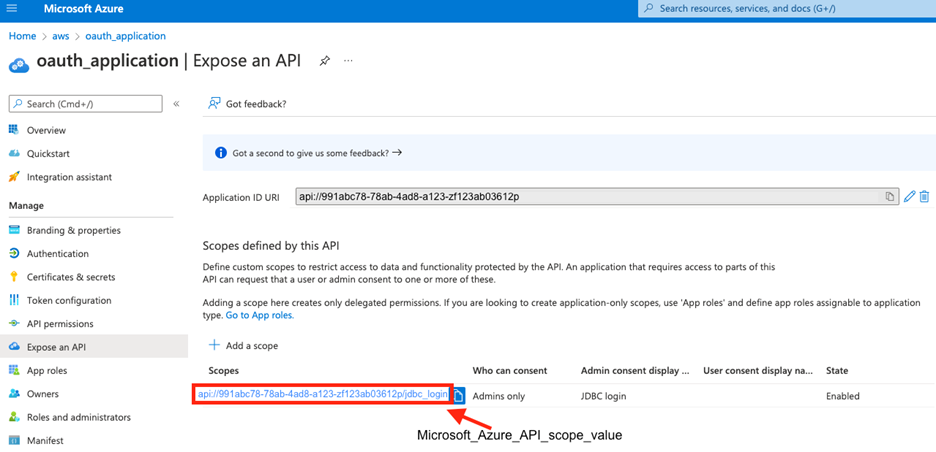
  7. After the scope is added, note down the application ID URI (for example, api://991abc78-78ab-4ad8-a123-zf123ab03612p) and API scope (api://991abc78-78ab-4ad8-a123-zf123ab03612p/jdbc_login) in order to register the IdP in Amazon Redshift later.

The application ID URI is known as <Microsoft_Azure_Application_ID_URI> in the following section.

The API scope is known as <Microsoft_Azure_API_scope_value> when setting up the SQL client such as DBeaver and SQL Workbench/J.

Step 2. Create Redshift Client Application

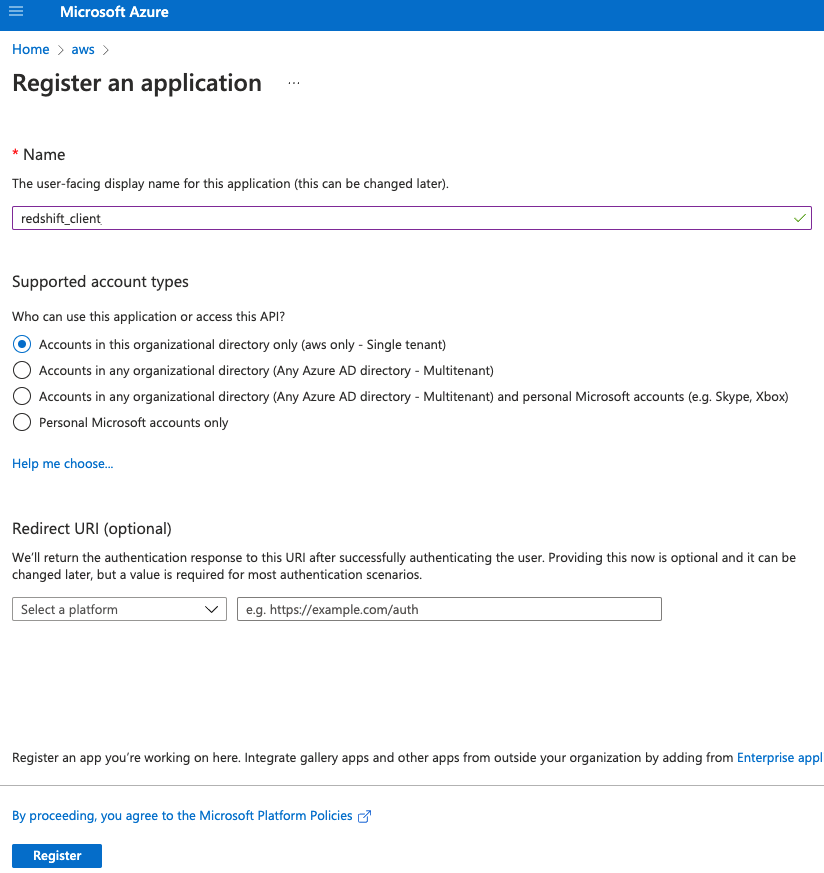
  1. Navigate to the Azure Active Directory application.
  2. Under Manage in the navigation pane, choose App registrations and then choose New registration.
  3. For Name, enter a name (for example, redshift_client). For this post, we are keeping the default settings for the rest of the fields.
  4. Choose Register.
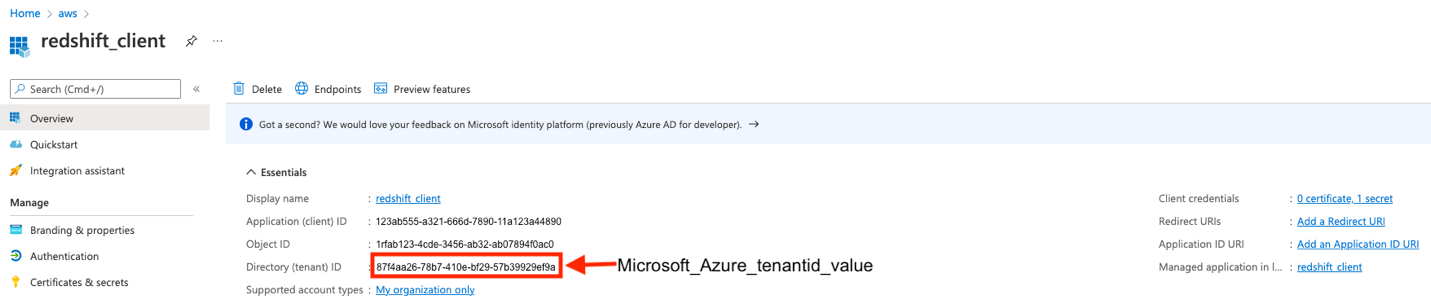
  5. On the newly created application Overview page, locate the client ID and tenant ID and note down these IDs in order to register the IdP in Amazon Redshift later.
  6. In the navigation pane, choose Certificates & secrets.
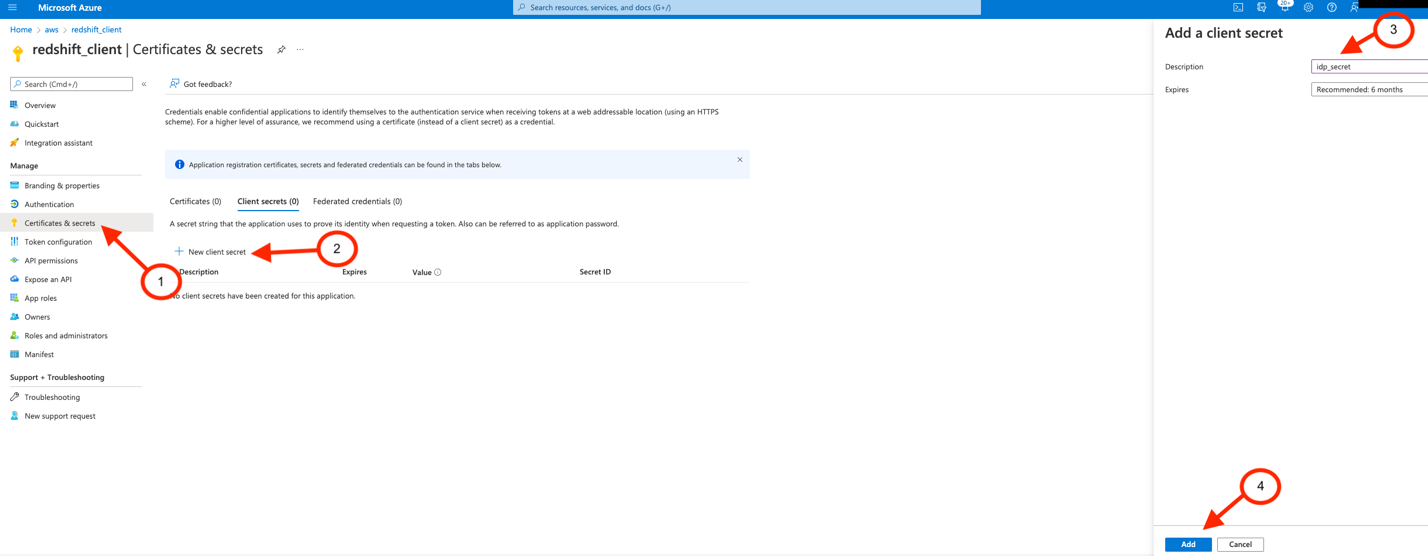
  7. Choose New client secret.
  8. Enter a Description, select an expiration for the secret or specify a custom lifetime. We are keeping Microsoft recommended default expiration value of 6 months. Choose Add.
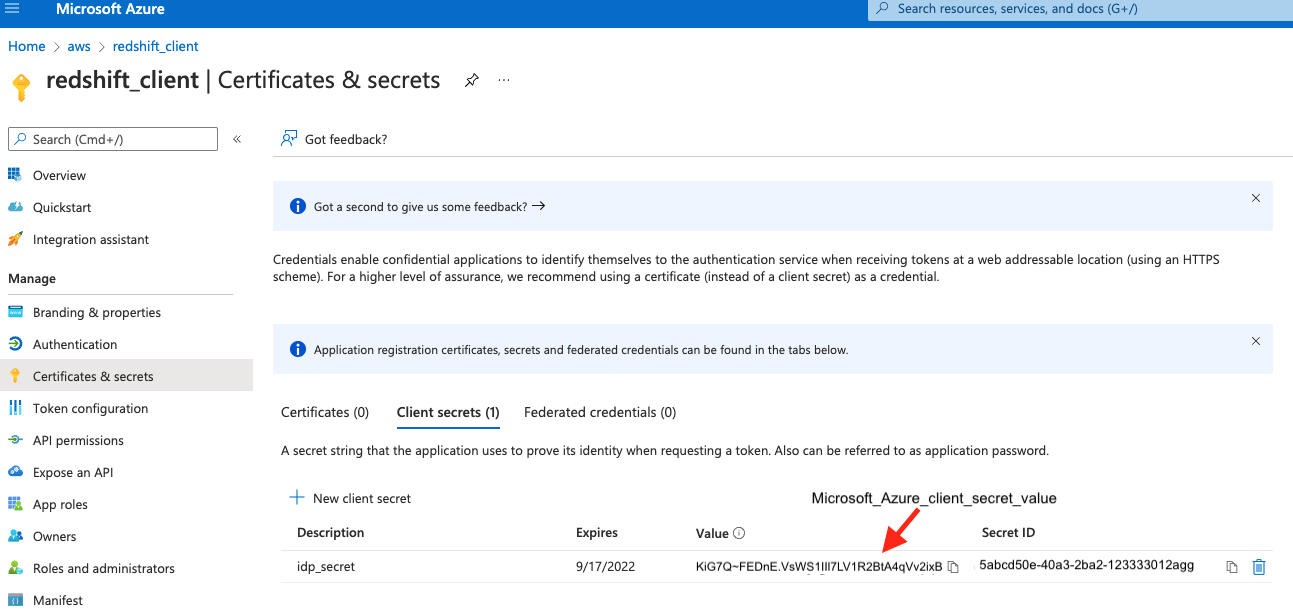
  9. Copy the secret value.

It would only be present one time and after that you cannot read it.

  1. In the navigation pane, choose API permissions.
  2. Choose Add a permission and choose Microsoft Graph.
  3. Choose Application permissions.
  4. Search the directory and select the Directory.Read.All permission.
  5. Choose Add permissions.
  6. After the permission is created, choose Grant admin consent.
  7. In the pop-up box, choose Yes to grant the admin consent.

The status for the permission shows as Granted for with a green check mark.

Step 3. Create Azure AD Group

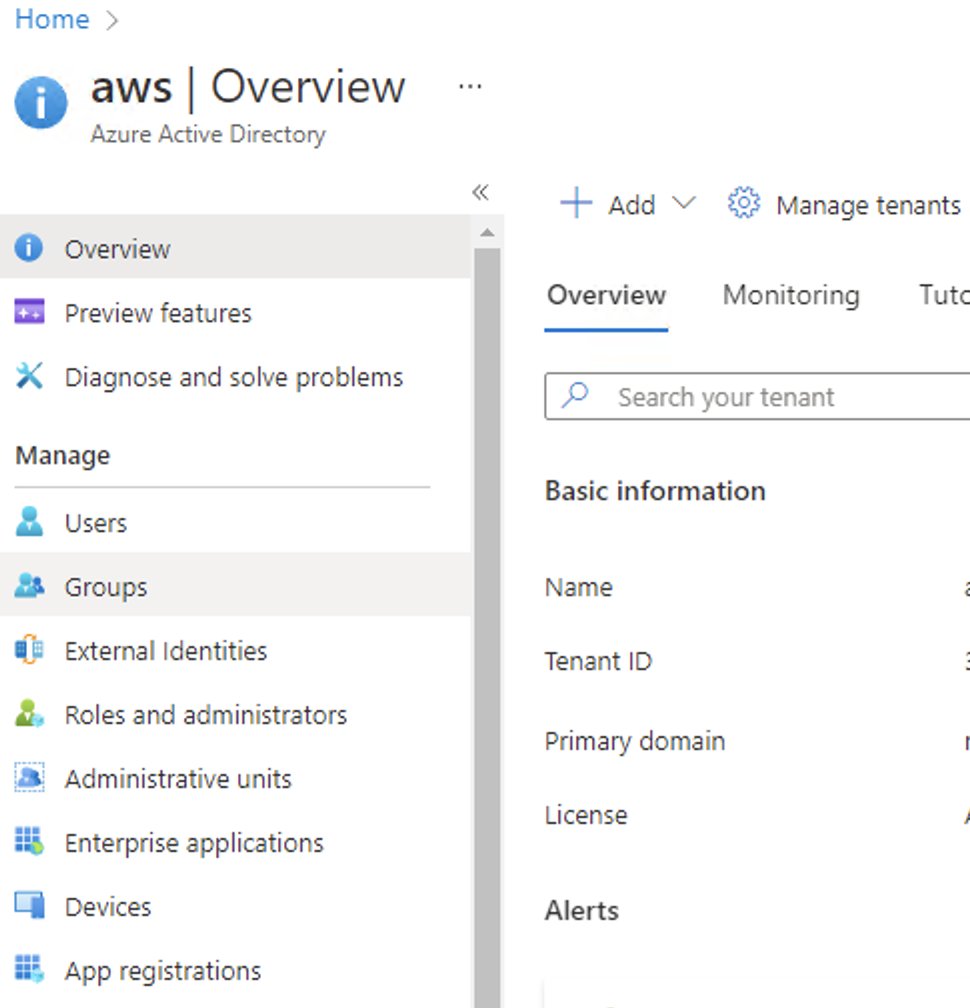
  1. On the Azure AD home page, under Manage, choose Groups.
  2. Choose New group.
  3. In the New Group section, provide the required information.
  4. Choose No members selected and then search for the members.
  5. Select the members and choose Select. For this example, you can search your username and click select.

You can see the number of members in the Members section.

  1. Choose Create.

Collect Azure AD information

Before we collect the Azure AD information, we need to identify the access token version from the application which you have created earlier on the Azure portal under Step 1. Create OAuth Application. In the navigation pane, under Manage, choose Manifest section, then view the accessTokenAcceptedVersion parameter: null and 1 indicate v1.0 tokens, and 2 indicates v2.0 tokens.

To configure your IdP in Amazon Redshift, collect the following parameters from Azure AD. If you don’t have these parameters, contact your Azure admin.

  1. issuer – This is known as <Microsoft_Azure_issuer_value> in the following sections. If you’re using the v1.0 token, use https://sts.windows.net/<Microsoft_Azure_tenantid_value>/. If you’re using the v2.0 token, use https://login.microsoftonline.com/<Microsoft_Azure_tenantid_value>/v2.0. To find your Azure tenant ID, complete the following steps:
    • Sign in to the Azure portal with your Microsoft account.
    • Under Manage, choose App registrations.
    • Choose any application which you have created in previous sections.
    • Click on the Overview (left panel) page and it’s listed in the Essentials section as Directory (tenant) ID.

  2. client_id – This is known as <Microsoft_Azure_clientid_value> in the following sections. An example of a client ID is 123ab555-a321-666d-7890-11a123a44890). To get your client ID value, locate the application you created earlier on the Azure portal under Step 2. Create Redshift Client Application. Click on the Overview (left panel) page and it’s listed in the Essentials section.
  3. client_secret – This is known as <Microsoft_Azure_client_secret_value> in the following sections. An example of a client secret value is KiG7Q~FEDnE.VsWS1IIl7LV1R2BtA4qVv2ixB). To create your client secret value, refer to the section under Step 2. Create Redshift Client Application.
  4. audience – This is known as <Microsoft_Azure_token_audience_value> in the following sections. If you’re using a v1.0 token, the audience value is the application ID URI (for example, api://991abc78-78ab-4ad8-a123-zf123ab03612p). If you’re using a v2.0 token, the audience value is the client ID value (for example, 991abc78-78ab-4ad8-a123-zf123ab03612p). To get these values, please refer to the application which you have created in Step 1: Create OAuth Application. Click on the Overview (left panel) page and it’s listed in the Essentials section.

Set up the IdP on Amazon Redshift

To set up the IdP on Amazon Redshift, complete the following steps:

  1. Log in to Amazon Redshift with a superuser user name and password using query editor v2 or any SQL client.
  2. Run the following SQL:
    CREATE IDENTITY PROVIDER <idp_name> TYPE azure 
    NAMESPACE '<namespace_name>' 
    PARAMETERS '{ 
    "issuer":"<Microsoft_Azure_issuer_value>", 
    "audience":["<Microsoft_Azure_token_audience_value>"],
    "client_id":"<Microsoft_Azure_clientid_value>", 
    "client_secret":"<Microsoft_Azure_client_secret_value>"
    }';

For example, the following code uses a v1.0 access token:

CREATE IDENTITY PROVIDER test_idp TYPE 
azure NAMESPACE 'oauth_aad' 
PARAMETERS '{
"issuer":"https://sts.windows.net/87f4aa26-78b7-410e-bf29-57b39929ef9a/", 
"audience":["api://991abc78-78ab-4ad8-a123-zf123ab03612p"],
"client_id":"123ab555-a321-666d-7890-11a123a44890", 
"client_secret":"KiG7Q~FEDnE.VsWS1IIl7LV1R2BtA4qVv2ixB"
}';

The following code uses a v2.0 access token:

CREATE IDENTITY PROVIDER test_idp TYPE 
azure NAMESPACE 'oauth_aad' 
PARAMETERS '{
"issuer":
"https://login.microsoftonline.com/87f4aa26-78b7-410e-bf29-57b39929ef9a/v2.0",
"audience":["991abc78-78ab-4ad8-a123-zf123ab03612p"], 
"client_id":"123ab555-a321-666d-7890-11a123a44890", 
"client_secret":"KiG7Q~FEDnE.VsWS1IIl7LV1R2BtA4qVv2ixB" 
}';
  1. To alter the IdP, use the following command (this new set of parameter values completely replaces the current values):
    ALTER IDENTITY PROVIDER <idp_name> PARAMETERS 
    '{
    "issuer":"<Microsoft_Azure_issuer_value>/",
    "audience":["<Microsoft_Azure_token_audience_value>"], 
    "client_id":"<Microsoft_Azure_clientid_value>", 
    "client_secret":"<Microsoft_Azure_client_secret_value>"
    }';

  2. To view a single registered IdP in the cluster, use the following code:
    DESC IDENTITY PROVIDER <idp_name>;

  3. To view all registered IdPs in the cluster, use the following code:
    select * from svv_identity_providers;

  4. To drop the IdP, use the following command:
    DROP IDENTITY PROVIDER <idp_name> [CASCADE];

Set up Amazon Redshift permissions to external identities

The users, roles, and role assignments are automatically created in your Amazon Redshift cluster during the first login using your native IdP unless they were manually created earlier.

Create and assign permission to Amazon Redshift roles

In this step, we create a role in the Amazon Redshift cluster based on the groups that you created on the Azure AD portal. This helps us avoid creating multiple user names manually on the Amazon Redshift side and assign permissions for multiple users individually.

The role name in the Amazon Redshift cluster looks like <namespace>:<azure_ad_group_name>, where the namespace is the one we provided in the IdP creation command and the group name is the one we specified when we were setting up the Azure application. In our example, it’s oauth_aad:rsgroup.

Run the following command in the Amazon Redshift cluster to create a role:

create role "<namespace_name>:<Azure AD groupname>";

For example:

create role "oauth_aad:rsgroup";

To grant permission to the Amazon Redshift role, enter the following command:

GRANT { { SELECT | INSERT | UPDATE | DELETE | DROP | REFERENCES } [,...]
 | ALL [ PRIVILEGES ] }
ON { [ TABLE ] table_name [, ...] | ALL TABLES IN SCHEMA schema_name [, ...] }
TO role "<namespace_name>:<Azure AD groupname>";

Then grant relevant permission to the role as per your requirement. For example:

grant select on all tables in schema public to role "oauth_aad:rsgroup";

Create and assign permission to an Amazon Redshift user

This step is only required if you want to grant permission to an Amazon Redshift user instead of roles. We create an Amazon Redshift user that maps to a Azure AD user and then grant permission to it. If you don’t want to explicitly assign permission to an Amazon Redshift user, you can skip this step.

To create the user, use the following syntax:

CREATE USER "<namespace_name>:<Azure AD username>" PASSWORD DISABLE;

For example:

CREATE USER "oauth_aad:[email protected]" PASSWORD DISABLE;

We use the following syntax to grant permission to the Amazon Redshift user:

GRANT { { SELECT | INSERT | UPDATE | DELETE | DROP | REFERENCES } [,...]
 | ALL [ PRIVILEGES ] }
ON { [ TABLE ] table_name [, ...] | ALL TABLES IN SCHEMA schema_name [, ...] }
TO "<namespace_name>:<Azure AD username>";

For example:

grant select on all tables in schema public to "oauth_aad:[email protected]";

Configure the SQL client

In this section, we provide instructions to set up a SQL client using either DBeaver or SQL Workbench/J.

Set up DBeaver

To set up DBeaver, complete the following steps:

  1. Go to Database and choose Driver Manager.
  2. Search for Redshift, then choose it and choose Copy.
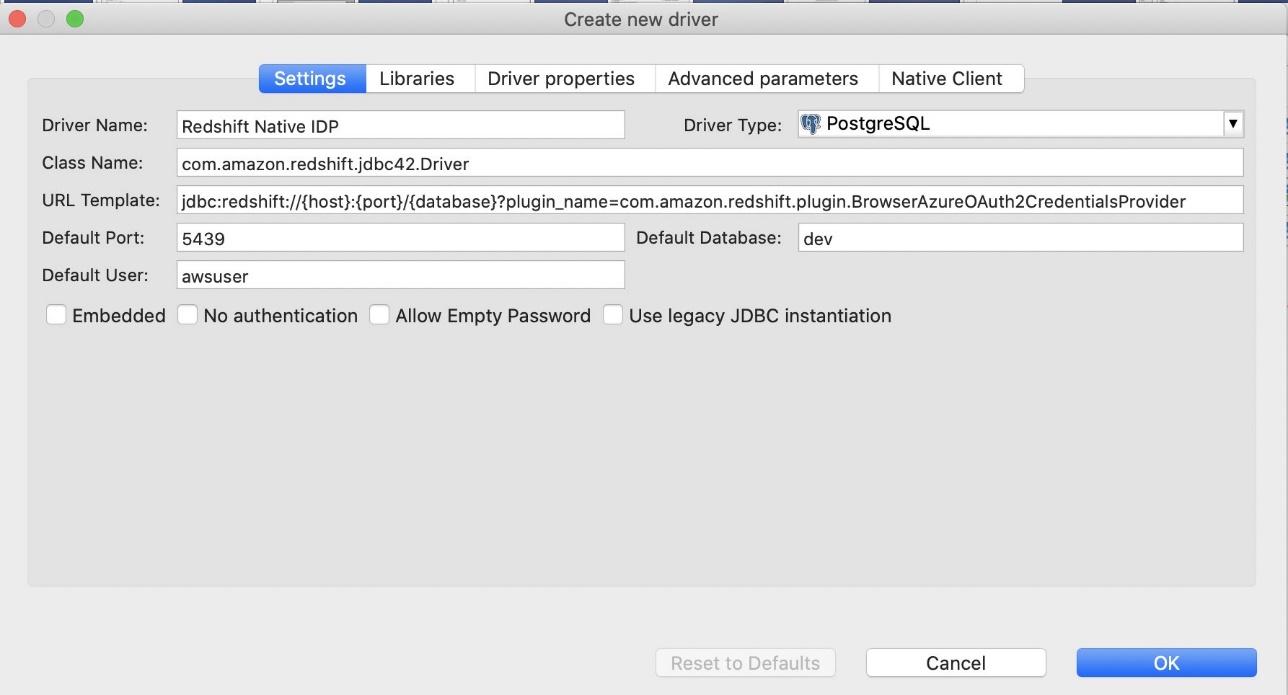
  3. On the Settings tab, for Driver name, enter a name, such as Redshift Native IDP.
  4. Update the URL template to jdbc:redshift://{host}:{port}/{database}?plugin_name=com.amazon.redshift.plugin.BrowserAzureOAuth2CredentialsProvider
    Note: In this URL template, do not replace the template parameters with the actual values. Please keep the value as shown in screenshot below.
  5. On the Libraries tab, choose Add files. Keep only one set of the latest driver version (2.1.0.4 and upwards) and if you see any older versions, delete those files.
  6. Add all the files from the downloaded AWS JDBC driver pack .zip file and choose OK (remember to unzip the .zip file).

Note: Use the Amazon Redshift driver 2.1.0.4 onwards, because all previous Amazon Redshift driver versions don’t support the Amazon Redshift native IdP feature.

  1. Close the Driver Manager.
  2. Go to Database and choose New Database Connection.
  3. Search for Redshift Native IDP, then choose it and choose Next.
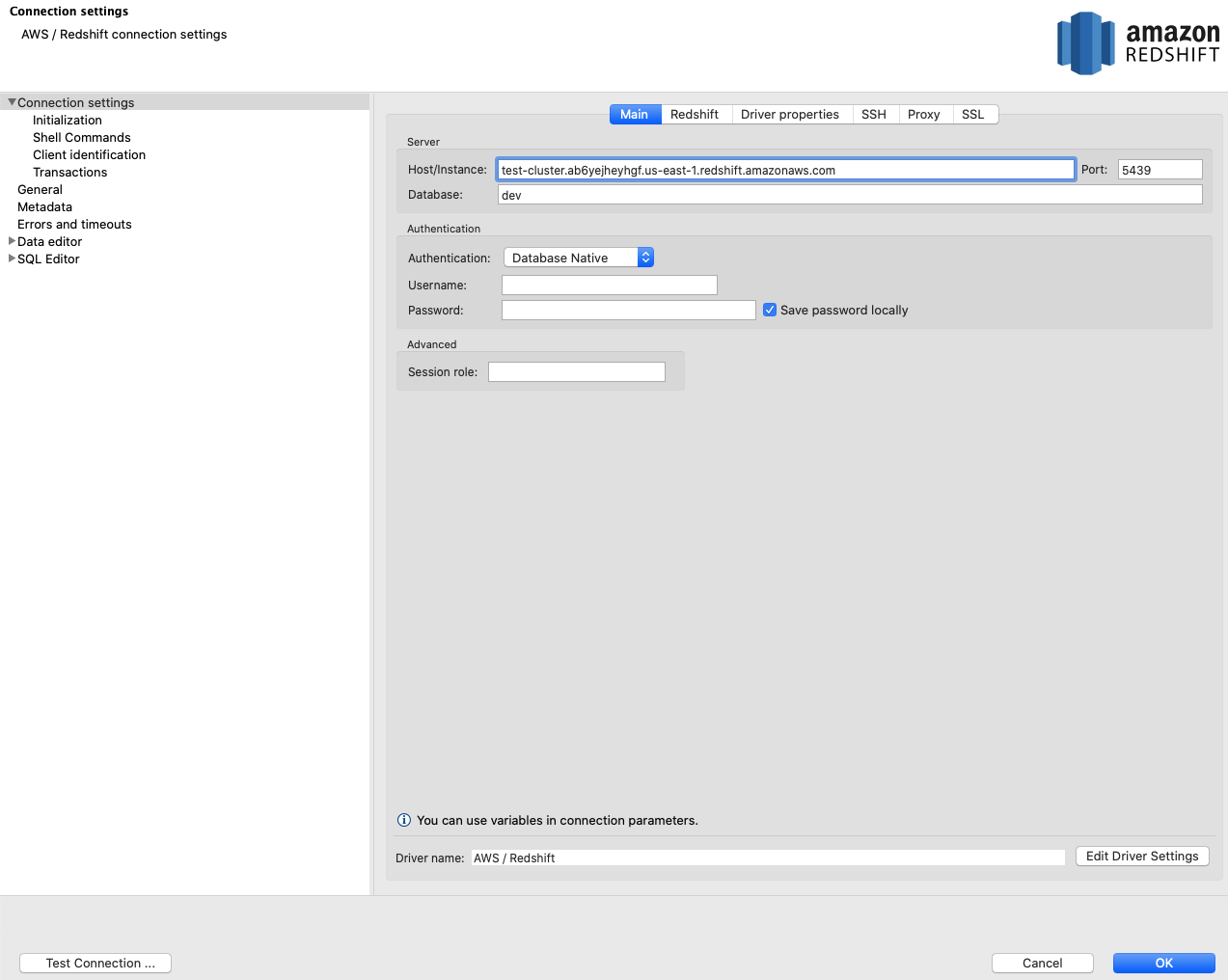
  4. For Host/Instance, enter your Amazon Redshift endpoint. For e.g. test-cluster.ab6yejheyhgf.us-east-1.redshift.amazonaws.com.
  5. For Database, enter the database name (for this post, we use dev).
  6. For Port, enter 5439.
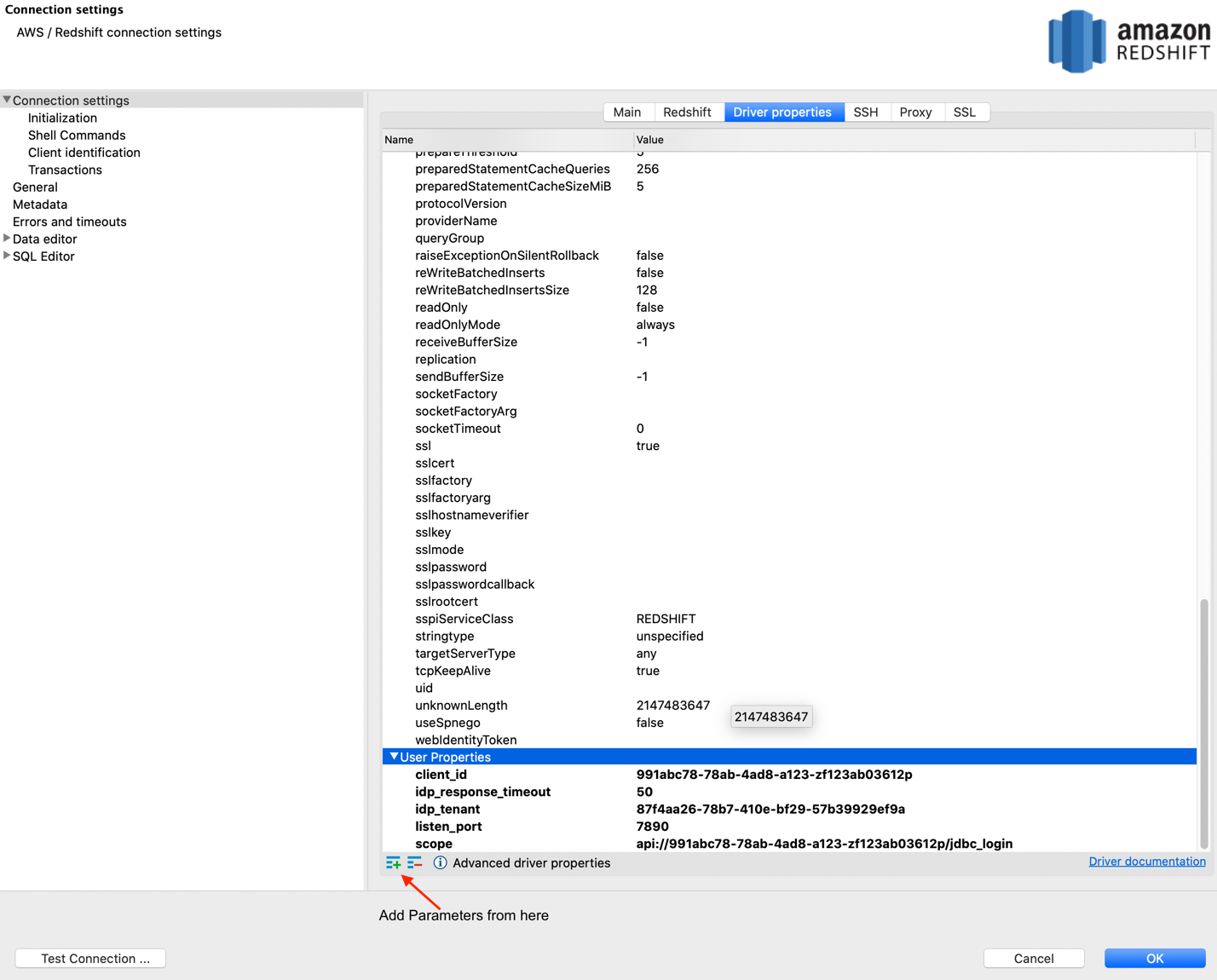
  7. Please get the below parameter values (scope, client_id and idp_tenant) from the application which you have created in Step 1: Create OAuth Application. On the Driver properties tab, add the following properties:
    1. listen_port – 7890
    2. idp_response_timeout – 50
    3. scope – Enter the value for <Microsoft_Azure_API_scope_value>.
      • If you’re using a v1.0 token, then use the scope value (for example, api://991abc78-78ab-4ad8-a123-zf123ab03612p/jdbc_login).
      • If you’re using a v2.0 token, the scope value is the client ID value (for example, 991abc78-78ab-4ad8-a123-zf123ab03612p).
    4. client_id – Enter the value for <Microsoft_Azure_clientid_value>. For example, 991abc78-78ab-4ad8-a123-zf123ab03612p.
    5. idp_tenant – Enter the value for <Microsoft_Azure_tenantid_value>. For example, 87f4aa26-78b7-410e-bf29-57b39929ef9a.
  8. You can verify the connection by choosing Test Connection.

You’re redirected to the browser to sign in with your Azure AD credentials. In case, you get SSL related error, then go to SSL tab and select Use SSL

  1. Log in to be redirected to a page showing the connection as successful.
  2. Choose Ok.

Congratulations! You have completed the Amazon Redshift native IdP setup with DBeaver.

Set up SQL Workbench/J

To set up SQL Workbench/J, complete the following steps:

  1. Create a new connection in SQL Workbench/J and choose Amazon Redshift as the driver.
  2. Choose Manage drivers and add all the files from the downloaded AWS JDBC driver pack .zip file (remember to unzip the .zip file).

Use the Amazon Redshift driver 2.1.0.4 onwards, because all previous Amazon Redshift driver versions don’t support the Amazon Redshift native IdP feature.

  1. For URL, enter jdbc:redshift://<cluster endpoint>:<port>:<databasename>. For e.g., jdbc:redshift://test-cluster.ab6yejheyhgf.us-east-1.redshift.amazonaws.com:5439/dev.
  2. Please get the below parameter values (scope, client_id and idp_tenant) from the application which you have created in Step 1: Create OAuth Application. On the Driver properties tab, add the following properties:
    1. plugin_namecom.amazon.redshift.plugin.BrowserAzureOAuth2CredentialsProvider
    2. listen_port – 7890
    3. idp_response_timeout – 50
    4. scope – Enter the value for <Microsoft_Azure_API_scope_value>.
      • If you’re using a v1.0 token, then use the scope value (for example, api://991abc78-78ab-4ad8-a123-zf123ab03612p/jdbc_login).
      • If you’re using a v2.0 token, the scope value is the client ID value (for example, 991abc78-78ab-4ad8-a123-zf123ab03612p).
    5. client_id – Enter the value for <Microsoft_Azure_clientid_value>. For example, 991abc78-78ab-4ad8-a123-zf123ab03612p.
    6. idp_tenant – Enter the value for <Microsoft_Azure_tenantid_value>. For example, 87f4aa26-78b7-410e-bf29-57b39929ef9a.
  3. Choose OK.
  4. Choose Test from SQL Workbench/J.

You’re redirected to the browser to sign in with your Azure AD credentials.

  1. Log in to be redirected to a page showing the connection as successful.
  2. Choose Finish.

    sqlworkbenchj-test-successful
  3. With this connection profile, run the following query to test Amazon Redshift native IdP authentication.
    sqlworkbenchj-current-user

Congratulations! You have completed the Amazon Redshift native IdP setup with SQL Workbench/J.

Best Practices with Redshift native IdP:

  • Pre-create the Amazon Redshift roles based upon the groups which you have created on the Azure AD portal.
  • Assign permissions to Redshift roles instead of assigning to each individual external user. This will provide smoother end user experience as user will have all the required permission when they login using native IdP.

Troubleshooting

If your connection didn’t work, consider the following:

  • Enable logging in the driver. For instructions, see Configure logging.
  • Make sure to use the latest Amazon Redshift JDBC driver version 2.1.0.4 onwards, which supports Amazon Redshift native IdP authentication.
  • If you’re getting errors while setting up the application on Azure AD, make sure you have admin access.
  • If you can authenticate via the SQL client but get a permission issue or can’t see objects, grant the relevant permission to the role, as detailed earlier in this post.
  • If you get the error “claim value does not match expected value,” make sure you provided the correct parameters during Amazon Redshift IdP registration.
  • Check stl_error or stl_connection_log views on the Amazon Redshift cluster for authentication failures.

Conclusion

In this post, we provided step-by-step instructions to integrate Amazon Redshift with Azure AD and SQL clients (SQL Workbench/J and DBeaver) using Amazon Redshift native IdP authentication. We also showed how Azure group membership is mapped automatically with Amazon Redshift roles and how to set up Amazon Redshift permissions.

For more information about Amazon Redshift native IdP federation, see:


About the Authors

Maneesh Sharma is a Senior Database Engineer at AWS with more than a decade of experience designing and implementing large-scale data warehouse and analytics solutions. He collaborates with various Amazon Redshift Partners and customers to drive better integration.

Debu-PandaDebu Panda is a Senior Manager, Product Management at AWS. He is an industry leader in analytics, application platform, and database technologies, and has more than 25 years of experience in the IT world.

Ilesh Garish is a Software Development Engineer at AWS. His role is to develop connectors for Amazon Redshift. Prior to AWS, he built database drivers for the Oracle RDBMS, TigerLogic XDMS, and OpenAccess SDK. He also worked in the database internal technologies at San Francisco Bay Area startups.

Dengfeng(Davis) Li is a Software Development Engineer at AWS. His passion is creating ease-of-use, secure and scalable applications. In the past few years, he worked on Redshift security, data sharing and catalog optimization.

Backblaze Partner API: The Details

Post Syndicated from Elton Carneiro original https://www.backblaze.com/blog/backblaze-partner-api-the-details/

Last week, we announced enhancements to our partner program that make working with Backblaze even easier for current and future partners. We shared a deep dive into the first new offering—Backblaze B2 Reserve—on Friday, and today, we’re digging into another key element: the Backblaze Partner API. The Backblaze Partner API enables independent software vendors (ISVs) participating in Backblaze’s Alliance Partner program to add Backblaze B2 Cloud Storage as a seamless backend extension within their own platform.

Read on to learn more about the Backblaze Partner API and what it means for existing and potential Alliance Partners.

What Is the Backblaze Partner API?

With the Backblaze Partner API, ISVs participating in Backblaze’s Alliance Partner program can programmatically provision accounts, run reports, and create a bundled solution or managed service which employs B2 Cloud Storage on the back end while delivering a unified experience to their users.

By unlocking an improved customer experience, the Partner API allows Alliance Partners to build additional cloud services into their product portfolio to generate new revenue streams and/or grow existing margin.

Why Develop the Backblaze Partner API?

We heard frequently from our existing partners that they wanted to provide a more seamless experience for their customers when it came to offering a cloud storage tier. Specifically, they wanted to keep customers on their site rather than requiring them to go elsewhere as part of the sign up experience. We built the Partner API to deliver this enhanced customer experience while also helping our partners extend their services and expand their offerings.

“Our customers produce thousands of hours of content daily, and, with the shift to leveraging cloud services like ours, they need a place to store both their original and transcoded files. The Backblaze Partner API allows us to expand our cloud services and eliminate complexity for our customers—giving them time to focus on their business needs, while we focus on innovations that drive more value.”
—Murad Mordukhay, CEO, Qencode

What Does the Partner API Do, Specifically?

To create the Backblaze Partner API, we exposed existing functionality to allow partners to automate tasks like creating and ejecting member accounts, managing Groups, and leveraging system-generated reports to get granular billing and usage information—outlining user tasks individually so users can be billed more accurately for what they’ve used.

The API calls are:

  • Account creation (adding Group members).
  • Organizing accounts in Groups.
  • Listing Groups.
  • Listing Group members.
  • Ejecting Group members.

Once the Partner API is configured, developers can use the Backblaze S3 Compatible API or the Backblaze B2 Native API to manage Group members’ Backblaze B2 accounts, including: uploading, downloading, and deleting files, as well as creating and managing the buckets that hold files.

How to Get Started With the Backblaze Partner API

If you’re familiar with Backblaze, getting started is straightforward:

  1. Create a Backblaze account.
  2. Enable Business Groups and B2 Cloud Storage.
  3. Contact Sales for access to the API.
  4. Create a Group.
  5. Create an Application Key and set up Partner API calls.

Check out our documentation for more detailed information on getting started with the Backblaze Partner API. You can also reach out to us via email at any time to schedule a meeting to discuss how the Backblaze Partner API can help you create an easier customer experience.

The post Backblaze Partner API: The Details appeared first on Backblaze Blog | Cloud Storage & Cloud Backup.

Security updates for Monday

Post Syndicated from original https://lwn.net/Articles/890936/

Security updates have been issued by Debian (gzip, libxml2, minidlna, openjpeg2, thunderbird, webkit2gtk, wpewebkit, xen, and xz-utils), Fedora (crun, unrealircd, and vim), Mageia (389-ds-base, busybox, flatpak, fribidi, gdal, python-paramiko, and usbredir), openSUSE (opera and seamonkey), Oracle (kernel and kernel-container), Red Hat (firefox), Scientific Linux (firefox), Slackware (libarchive), SUSE (389-ds, libsolv, libzypp, zypper, and python), and Ubuntu (python-django and tcpdump).

De-anonymizing Bitcoin

Post Syndicated from Bruce Schneier original https://www.schneier.com/blog/archives/2022/04/de-anonymizing-bitcoin.html

Andy Greenberg wrote a long article — an excerpt from his new book — on how law enforcement de-anonymized bitcoin transactions to take down a global child porn ring.

Within a few years of Bitcoin’s arrival, academic security researchers — and then companies like Chainalysis — began to tear gaping holes in the masks separating Bitcoin users’ addresses and their real-world identities. They could follow bitcoins on the blockchain as they moved from address to address until they reached one that could be tied to a known identity. In some cases, an investigator could learn someone’s Bitcoin addresses by transacting with them, the way an undercover narcotics agent might conduct a buy-and-bust. In other cases, they could trace a target’s coins to an account at a cryptocurrency exchange where financial regulations required users to prove their identity. A quick subpoena to the exchange from one of Chainalysis’ customers in law enforcement was then enough to strip away any illusion of Bitcoin’s anonymity.

Chainalysis had combined these techniques for de-anonymizing Bitcoin users with methods that allowed it to “cluster” addresses, showing that anywhere from dozens to millions of addresses sometimes belonged to a single person or organization. When coins from two or more addresses were spent in a single transaction, for instance, it revealed that whoever created that “multi-input” transaction must have control of both spender addresses, allowing Chainalysis to lump them into a single identity. In other cases, Chainalysis and its users could follow a “peel chain” — a process analogous to tracking a single wad of cash as a user repeatedly pulled it out, peeled off a few bills, and put it back in a different pocket. In those peel chains, bitcoins would be moved out of one address as a fraction was paid to a recipient and then the remainder returned to the spender at a “change” address. Distinguishing those change addresses could allow an investigator to follow a sum of money as it hopped from one address to the next, charting its path through the noise of Bitcoin’s blockchain.

Thanks to tricks like these, Bitcoin had turned out to be practically the opposite of untraceable: a kind of honeypot for crypto criminals that had, for years, dutifully and unerasably recorded evidence of their dirty deals. By 2017, agencies like the FBI, the Drug Enforcement Agency, and the IRS’s Criminal Investigation division (or IRS-CI) had traced Bitcoin transactions to carry out one investigative coup after another, very often with the help of Chainalysis.

Просто фотки

Post Syndicated from original https://bivol.bg/%D0%BF%D1%80%D0%BE%D1%81%D1%82%D0%BE-%D1%84%D0%BE%D1%82%D0%BA%D0%B8.html

понеделник 11 април 2022


Вижте, във всеки един друг момент щях да изригна срещу просто Наско с пълна сила и щях да му сипя с пълни черпаци. Абсолютно никога не съм имал каквото и…

Разследване на “Биволъ”, RISE Romania и OCCRP Откраднати евросредства за храна се наливат в имоти и луксозни покупки

Post Syndicated from Атанас Чобанов original https://bivol.bg/%D0%BE%D1%82%D0%BA%D1%80%D0%B0%D0%B4%D0%BD%D0%B0%D1%82%D0%B8-%D0%B5%D0%B2%D1%80%D0%BE%D1%81%D1%80%D0%B5%D0%B4%D1%81%D1%82%D0%B2%D0%B0-%D0%B7%D0%B0-%D1%85%D1%80%D0%B0%D0%BD%D0%B0-%D1%81%D0%B5-%D0%BD.html

понеделник 11 април 2022


Откраднатите евросредства са преминавали през сложна мрежа от офшорни фирми и сметки. След това част от тях са използвани за луксозни разходи като скъп хотелски престой, вечеря и дизайнерска чанта.…

Friday Squid Blogging: Do Squid Have Emotions?

Post Syndicated from Bruce Schneier original https://www.schneier.com/blog/archives/2022/04/friday-squid-blogging-do-squid-have-emotions.html

Scientists are now debating whether octopuses, squid, and crabs have emotions. Short answer: we don’t know, but can’t rule it out.

There may be a point when humans can no longer assume that crayfish, shrimp, and other invertebrates don’t feel pain and other emotions.

“If they can no longer be considered immune to felt pain, invertebrate experiences will need to become part of our species’ moral landscape,” she says. “But pain is just one morally relevant emotion. Invertebrates such as octopuses may experience other emotions such as curiosity in exploration, affection for individuals, or excitement in anticipation of a future reward.”

As usual, you can also use this squid post to talk about the security stories in the news that I haven’t covered.

Read my blog posting guidelines here.

The collective thoughts of the interwebz