Tag Archives: Featured

The True Cost of Ransomware

Post Syndicated from Molly Clancy original https://www.backblaze.com/blog/the-true-cost-of-ransomware/

The True Cost of Ransomware - Backblaze

Editor’s Note

This article has been updated since it was originally published in 2021.

When we first published this article, a $70 million ransom demand was unprecedented. Today, demands have reached as high as $240 million, a sum that the Hive ransomware group opened negotiations with in an attack on MediaMarkt, Europe’s largest consumer electronics retailer. 

But then, as now, the ransoms themselves are just a portion, and often a small portion, of the overall cost of ransomware. Ransomware attacks are crimes of opportunity, and there’s a lot more opportunity in the mid-market, where the odd $1 million demand doesn’t make headlines and the victims are less likely to be adequately prepared to recover. And, the cost of those recoveries is what we’ll get into today.

In this post, we’re breaking down the true cost of ransomware and the drivers of those costs.  

Read More About Ransomware

This post is a part of our ongoing series on ransomware. Take a look at our other posts for more information on how businesses can defend themselves against a ransomware attack, important industry trends, and more.

Read About Ransomware ➔ 

Ransom Payments Are the First Line Item

The Sophos State of Ransomware 2023 report, a survey of 3,000 IT decision makers from mid-sized organizations in 14 countries, found the average ransom payment was $1.54 million. This is almost double the 2022 figure of $812,380, and almost 10 times the 2020 average of $170,404, when we last published this article. Coveware, a security consulting firm, found that the average ransom payment for Q2 2023 was $740,144, also representing a big spike over previous quarters. While the specific numbers vary depending on sampling, both reports point to ransoms going up and up.

A graph showing the rising trend in the cost of ransomware payments.
Source.

But, Ransoms Are Far From the Only Cost

Sophos found that the mean recovery cost excluding the ransom payment was $2.6 million when the targeted organization paid the ransom and got their data back. And, that cost was still $1.6 million when businesses used backups to restore data.

The cost of recovery comes from a wide range of factors, including:

  • Downtime.
  • People hours.
  • Investment in stronger cybersecurity protections.
  • Repeat attacks.
  • Higher insurance premiums.
  • Legal defense and settlements.
  • Lost reputation.
  • Lost business.

Downtime

When a company’s systems and data are compromised and operations come to a halt, the consequences are felt across the organization. Financially, downtime results in immediate revenue loss. And, productivity takes a significant hit as employees are unable to access critical resources, leading to missed deadlines and disrupted workflows. According to Coveware, the average downtime in Q2 2022 (the last quarter they collected data on downtime) amounted to over three weeks (24 days). And according to Sophos, 53% of survey respondents took more than one month to recover from the attack. This time should be factored in when calculating the true cost of ransomware.

People Hours

In the aftermath of a ransomware attack, a significant portion, if not all, of a company’s resources will be channeled towards the recovery process. The IT department will be at the forefront, working around the clock to restore systems to full functionality. The marketing and communications teams will shoulder the responsibility of managing crisis communications, while the finance team may find themselves in negotiations with the ransomware perpetrators. Meanwhile, human resources will be addressing employee inquiries and concerns stemming from the incident. Calculating the total hours spent on recovery may not be possible, but it’s a factor to consider in planning.

After recovery, the long term effects of a cybersecurity breach can still be felt in the workforce. In a study of the mental health impacts of cybersecurity on employees, Northwave found that physical and mental health symptoms were still existent up to a year after the cybersecurity attack, and affected both employee morale and business goals. 

Investment in Stronger Cybersecurity Protections

It is highly probable that a company will allocate a greater portion of its budget towards bolstering its cybersecurity measures after being attacked by ransomware, and rightfully so. It’s a prudent and necessary response. As attacks continue to increase in frequency, cyber insurance providers will continue to tighten requirements for coverage. In order to maintain coverage, companies will need to bring systems up to speed.

man working on a laptop with a ransomware demand message

Repeat Attacks

One of the cruel realities of being attacked by ransomware is that it makes businesses a target for repeat attacks. Unsurprisingly, cybercriminals don’t always keep their promises when companies pay ransoms. In fact, paying ransoms lets cybercriminals know you’re an easy future mark. They know you’re willing to pay.

Repeat attacks happen when the vulnerability that allowed cybercriminals access to systems remained susceptible to exploitation. Copycat ransomware operators can easily exploit vulnerabilities that go unaddressed even for a few days. 

Higher Insurance Premiums

As more and more companies file claims for ransomware attacks and recoveries and ransom demands continue to increase, insurers are upping their premiums. In essence, insurers have been confronted with the stark reality that the financial toll exacted by ransomware incidents far exceeds what was once anticipated. In response to this growing financial strain, insurance providers are left with little choice but to raise their premiums. This uptick in premiums reflects the increasing risk landscape of the digital age, where the ever-evolving tactics and sophistication of cybercriminals necessitate a recalibration of risk assessment models and pricing structures within the insurance industry. 

Legal Defense and Settlements

When attacks affect consumers or customers, victims can expect to hear from the lawyers. After a 2021 ransomware attack, payroll services provider UKG agreed to a $6 million settlement. And, big box stores like Target and Home Depot both paid settlements in the tens of millions of dollars following breaches. Even if your information security practices would hold up in court, for most companies, it’s cheaper to settle than to suffer a protracted legal battle.

Lost Reputation and Lost Business

When ransomware attacks make headlines and draw public attention, they can erode trust among customers, partners, and stakeholders. The perception that a company’s cybersecurity measures were insufficient to protect sensitive data and systems can lead to a loss of credibility. Customers may question the safety of their personal information. 

Rebuilding a damaged reputation is a challenging and time-consuming process, requiring transparent communication, proactive security improvements, and a commitment to regaining trust. Ultimately, the impact of reputation loss goes beyond financial losses, as it can significantly affect an organization’s long-term viability and competitiveness in the market.

lock over an image of a woman working on a computer

What You Can Do About It: Defending Against Ransomware

The business of ransomware is booming with no signs of slowing down, and the cost of recovery is enough to put some ill-prepared companies out of business. If it feels like the cost of a ransomware recovery is out of reach, that’s all the more reason to invest in harder security protocols and disaster recovery planning sooner rather than later.

For more information on the ransomware economy, the threat small to mid-sized businesses (SMBs) are facing, and steps you can take to protect your business, download The Complete Guide to Ransomware.

Download the Ransomware Guide ➔ 

Cost of Ransomware FAQs

1. What is the highest ransomware ransom ever demanded?

Today, ransom demands have reached as high as $240 million, a sum demanded by the Hive ransomware group in an attack on MediaMarkt, Europe’s largest consumer electronics retailer.

2. What is the average ransom payment in 2023?

Average ransom payments vary depending on how reporting entities sample data. Some estimates put the average ransom payment in 2023 in the hundreds of thousands of dollars up to over half a million dollars.

3. How much does ransomware recovery cost?

Ransomware recovery can easily cost in the multiple millions of dollars. The cost of recovery comes from a wide range of factors, including downtime, people hours, investment in stronger cybersecurity protections, repeat attacks, higher insurance premiums, legal defense, lost reputation, and lost business.

4. How long does ransomware recovery take?

When a company’s systems and data are compromised, and operations come to a halt, the consequences are felt across the organization. Ransomware recovery can take anywhere from a few days, if you’re well prepared, or up to six months or longer. 

The post The True Cost of Ransomware appeared first on Backblaze Blog | Cloud Storage & Cloud Backup.
Getting Rid of Your PC? Here’s How to Wipe a Windows SSD or Hard Drive

Post Syndicated from Molly Clancy original https://www.backblaze.com/blog/how-to-wipe-pc-ssd-or-hard-drive/

A decorative image showing a PC and a hard drive over a cloud.

Do you have an old PC lying around that you’d love to throw away or donate? Before you take it to the recycling center, you definitely want to scrub it of all your data. And there’s a bit more to it than just deleting your files and emptying the recycle bin. 

This guide will help you make sure all of your personal data is wiped from the machine so you can be confident it’s all gone before you give it away or recycle it. 

First things first: Back up your computer

Before you do anything, make sure your data is backed up. You want to be able to load it all on to a new computer, or at least keep it in an archive, so you can access it after you dispose of your old machine. The best plan for backing anything up is the 3-2-1 backup strategy where you keep three copies of your data on two types of media with one copy off-site. Your first copy is the one on your computer. Your second copy can be kept on an external hard drive or other external media. And, your third copy should be kept in an off-site location like the cloud. If you’re not backing up an off-site copy, now is a great time to get started.

You can easily create a backup using Windows Backup on Windows 7, 8, 8.1, 10, and 11. If you save that to an external hard drive, you can then move your files to a new computer or just keep it as a local backup. Once you’re backed up, you’re ready to wipe your PC’s internal hard drive.

How to completely wipe a PC

In most cases, wiping a PC involves simply reformatting the disk and reinstalling Windows using the Reset function. If you are recycling, donating, or selling your PC, the Reset function makes data recovery sufficiently difficult, especially if your data is encrypted (more on that later). This process is straightforward in Windows versions 8, 8.1, 10, and 11, and works for both hard disk drives (HDDs) and solid state drives (SSDs).

How to reset Windows 10 and 11

Follow these instructions for different versions of Windows to reset your PC:

  1. Go to SettingsSystem (In Windows 10: Update & Security) → Recovery.
  2. Under Reset this PC, click Reset PC. (In Windows 10: Click Get Started.)
  3. Choose Remove everything. If you’re not getting rid of your PC, you can use Keep my files to give your computer a good cleaning to improve performance.
  4. You will be prompted to choose to reinstall Windows via Cloud download or Local reinstall. If you’re feeling generous and want to give your PC’s next owner a fresh version of Windows, choose Cloud download. This will use internet data. If you’re planning to recycle your PC, Local reinstall works just fine.
  5. In Additional settings, click Change settings and toggle Clean data to on. This takes longer, but it’s the most secure option.
  6. Click Reset to start the process.

How to reset Windows 8 and 8.1

  1. Go to SettingsChange PC SettingsUpdate and RecoveryRecovery.
  2. Under Remove everything and reinstall Windows, click Get started, then click Next.
  3. Select Fully clean the drive. This takes longer, but it’s the most secure option.
  4. Click Reset to start the process.

Secure erase using third-party tools

If the reset option doesn’t totally put your mind at ease, or if you have a PC running Windows 7 or older, you have another option—third-party tools. There are a number of good third-party tools you can use to securely erase your disk, which we’ll get into below. These are different depending on whether you have an internal HDD or an SSD.

How do I find out I have an HDD or SSD in my Windows laptop?

Most desktops and laptops sold in the last few years will have an SSD, but you can easily check to be sure:

  1. Open Settings.
  2. Type “Defragment” in the search bar.
  3. Click on Defragment and Optimize Your Drives.
  4. Check the media type of your drive.

How to securely erase your Windows drive using third-party tools

Now that you know what kind of drive you have, here are your options for wiping your Windows drive:

Securely erase an HDD

The process for erasing an HDD involves overwriting the data, and there are many utilities out there to do it yourself:

  1. DBAN: Short for Darik’s Boot and Nuke, DBAN has been around for years and is a well-known and trusted drive wipe utility for HDDs. It does multiple pass rewrites (binary ones and zeros) on the disk. You’ll need to download it to a USB drive and run it from there.
  2. Disk Wipe: Disk Wipe is another free utility that does multiple rewrites of binary data. You can choose from a number of different methods for overwriting your disk. Disk Wipe is also portable, so you don’t need to install it to use it.
  3. Eraser: Eraser is also free to use. It gives you the most control over how you erase your disk. Like Disk Wipe, you can choose from different methods that include varying numbers of rewrites, or you can define your own.

Keep in mind, any disk erase utility that does multiple rewrites is going to take quite a while to complete.

If you’re using Windows 7 or older and you’re just looking to recycle your PC, you can stop here. If you intend to sell or donate your PC, you’ll need the original installation discs (yes, that’s discs with a “c”…remember? Those round shiny things?) to reinstall a fresh version of Windows.

Don’t worry. You can still make use of those discs.

Securely erase an SSD

You have a few options for securely erasing an SSD. These third-party tools will do the trick:

  1. Parted Magic: Parted Magic is the most regularly recommended third-party erase tool for SSDs, but it does cost $11. It’s a bootable tool like some of the HDD erase tools—you have to download it to a USB drive and run it from there.
  2. ATA Secure Erase: ATA Secure Erase is a command that basically shocks your SSD. It uses a voltage spike to flush stored electrons. While this sounds damaging (and it does cause some wear), it’s perfectly safe. It doesn’t overwrite the data like other secure erase tools, so there’s actually less damage done to the SSD.

Encrypting data on a Windows PC

Even if you’re not getting rid of your computer, encrypting your data is a good idea. If your laptop falls into the wrong hands, encryption makes it that much harder for criminals to access your personal information. But, if you have an SSD, encrypting your data is even more important, both before you get rid of it and just in general. Why? The way SSDs store and retrieve data is different from HDDs.

HDDs store data at specific physical locations on the drive platter. In contrast, SSDs use electronic circuits and memory cells, which are organized into pages and blocks, to store data. Constant writing and rewriting to the same blocks can wear out an SSD over time. To mitigate this, SSDs employ a technique called “wear leveling,” which distributes data across the entire drive, preventing it from being stored in just one physical location.

When you tell an SSD to erase data, it doesn’t overwrite the existing data. Instead, it writes new data to a different block. Consequently, some of your old data may remain on the SSD until the wear leveling process eventually overwrites those cells. So, it’s smart to encrypt your data before erasing it from an SSD. This ensures that any residual data is protected. If any data is left lurking, at least no one will be able to read it without an encryption key.

Encrypting your data first isn’t necessarily a requirement, but if Windows Reset is not enough for you and you’ve come this far, we figure it’s a step you’d want to take. The process isn’t complicated, but not every Windows machine is the same. First, check to see if your device is encrypted by default:

  1. Open the Start menu.
  2. Scroll to the Windows Administrative Tools dropdown menu.
  3. Select System Information. You can also search for “system information” in the taskbar.
  4. If the Device Encryption Support value is “Meets prerequisites,” you’re good to go—encryption is enabled on your device.

If not, your next step is to check if your device has BitLocker built in:

  1. Open Settings.
  2. Type “BitLocker” in the search bar.
  3. Click Manage BitLocker.
  4. Click Turn on BitLocker and follow the prompts.

If neither of those options are available, you can use third-party software to encrypt your internal SSD. VeraCrypt and AxCrypt are both good options. Just remember to record the encryption passcode somewhere and also the operating system (OS), OS version, and the encryption tool you used so you can recover the files later on if desired.

The nuclear option

Encrypting, resetting, and/or wiping your drive with a third-party tool should be more than enough to make sure your data is protected and your laptop or desktop is clean before you donate or recycle it. But maybe you’re still feeling wary about it. In that case, you always have the option to destroy the drive yourself.

When nothing less than total destruction will do, just make sure you do it safely. The safest and most secure way to destroy an HDD, and the only way we’d recommend physically destroying an SSD, is to shred it. Check with your local electronics recycling center to see if they have a shredder you can use. (And, you absolutely want to ask if you can watch as giant metal gears chomp down on your drive. Metal.) Shredding it should be a last resort though. Drives typically last five to 10 years, and millions get shredded every year before the end of their useful life. 

If you have a megabot ready to go, you should first crush, then shred your drives.

Still have questions about how to securely erase or destroy your hard drives? Let us know in the comments. And if you’re curious about how to erase a Mac HDD or SSD, read our guide here.

FAQs

How do I wipe a PC?

In most cases, wiping a PC involves simply reformatting the disk and reinstalling Windows using the Reset function. If you are recycling, donating, or selling your PC, the Reset function makes data recovery sufficiently difficult, especially if your data is encrypted. You can also use third-party tools to securely wipe a PC drive.

How do I encrypt data on a PC drive?

First, check to see if your device is encrypted by default. You can search “system information” in the search bar. If the Device Encryption Support value is “Meets prerequisites,” you’re good to go—encryption is enabled on your device. If not, your next step is to check if your device has BitLocker built in. Type “BitLocker” in the search bar, click Manage BitLocker, then click Turn on BitLocker and follow the prompts. If neither of those options are available, you can use third-party software to encrypt your internal SSD. VeraCrypt and AxCrypt are both good options.

How do I safely dispose of an SSD or HDD myself?

The safest and most secure way to destroy an HDD, and the only way we’d recommend physically destroying an SSD, is to shred it. Check with your local electronics recycling center to see if they have a shredder you can use (or if they’ll at least let you watch as giant metal gears chomp down on your drive). Shredding it should be a last resort though. Drives typically last five to 10 years, and millions get shredded every year before the end of their useful life. 

The post Getting Rid of Your PC? Here’s How to Wipe a Windows SSD or Hard Drive appeared first on Backblaze Blog | Cloud Storage & Cloud Backup

Backblaze Mobile Update: iOS and Android Bucket Management

Post Syndicated from Jeremy Milk original https://www.backblaze.com/blog/backblaze-mobile-update-ios-mobile-uploads/

This post was originally published on February 18, 2021 and has been updated to reflect the newest functionality releases for Backblaze Mobile users on both iOS and Android.

Ready to update now? Go to Google Play or the App Store to run updates or download the Backblaze app.

December 20, 2022: Mobile 6.0 Is Available

Today, we’re announcing the arrival of Backblaze Mobile 6.0 featuring an enhanced visual experience, authentication improvements, bug fixes, and many design updates. Check out the specifics below.

What’s New in Backblaze Mobile 6.0?

Backblaze Mobile 6.0 features an overhauled visual experience (so fresh, so clean!).

Before: Android login screen
After: Android login screen

The update also features authentication enhancements for both iOS and Android. We’ve made it easier to log in and opt to see your password in plain text as you enter it. We’ve also optimized the stability of our mobile login flow.

Before: iOS login screen
After: iOS login screen

iOS Updates

  • Design updates: Redesigned login and settings screens, updated icons, and improved upload/download progress animations.
  • Login updates: Email and password now appear on the same screen when logging in, and you can choose to see your password in plain text as you enter it. 
  • Viewing and previewing files: You can now view downloaded files in full-screen mode on iPhones as well as iPads.
  • SwiftUI is here: Much of the iOS code has been migrated to use SwiftUI and The Composable Architecture. 
  • Bug fixes and performance improvements: A lot has been tightened up under the hood, including fixing a file download timeout issue and progress messaging display issues. 
Before
After

Android Updates

  • Design updates: A fresh UI and navigation experience comes courtesy of updated material libraries.
  • Navigation and controls: We’ve also advanced the Android navigation bar, scrollable header and footers, and updated gesture controls for a better Android experience. You can now also see the file path for any file uploaded to Computer Backup or B2 Cloud Storage files.
  • Edit mode and selection capabilities: Navigation and maneuvering inside of edit mode for files, buckets, folders, and downloads has also been improved. We’ve also added multiselection capabilities and swipe-to-delete functionality.
Before
After
Before
After

Backblaze Mobile 6.0 Available Now: Download Today

To get the latest and greatest Backblaze Mobile experience, update your apps or download them today on Google Play or the App Store.

March 28, 2022: Added Folder Creation

Backblaze Mobile users on iOS and Android devices can now create folders directly on their devices with our latest app update. The update is generally available the week of March 27, 2022 for both iOS and Android platforms.

The functionality expands on previous releases to allow users to more easily work from their mobile devices. 

November 30, 2021: Added Bucket Creation and Bucket, Folder, and File Deletion

With this update, Backblaze Mobile users on iOS and Android devices can create buckets and delete buckets, folders, and files directly on their devices.

If you routinely work from your mobile device, this means you’ll be able to better manage your cloud storage while you’re away from your workstation. For media and entertainment pros who regularly shoot images and footage on powerful smart devices, for example, this functionality allows you to create buckets for new projects from the field. And if you need to delete a bucket, file, or folder, you can do that on the go, too. With this functionality at your fingertips, you can focus on shooting, producing, and doing more with ease rather than waiting until you’re back at your desktop or laptop to handle organizational tasks.

The update also included bug fixes and an upgrade to Android 11.

Older Releases

In case you missed the last few releases, Backblaze Mobile allows iOS and Android users to preview and download content through the app and upload files directly to Backblaze B2 Cloud Storage buckets.

The post Backblaze Mobile Update: iOS and Android Bucket Management appeared first on Backblaze Blog | Cloud Storage & Cloud Backup.
NAS 101: A Buyer’s Guide to the Features and Capacity You Need

Post Syndicated from Skip Levens original https://backblaze.com/blog/nas-101-a-buyers-guide-to-the-features-and-capacity-you-need/

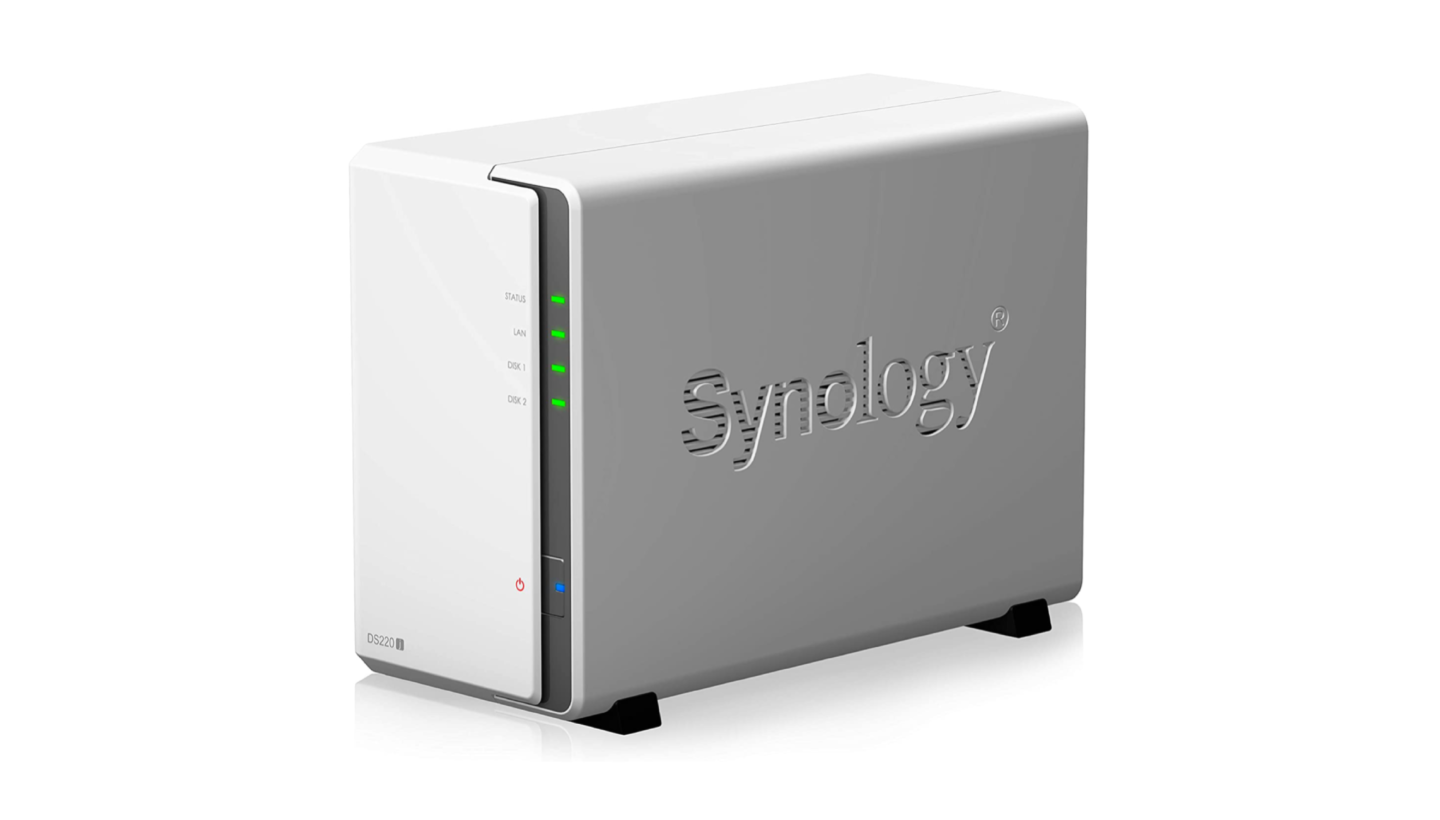
A decorative image showing a stylized NAS device.

As network attached storage (NAS) devices have become more advanced, NAS have large storage capacities, include advanced features for virtualization and application hosting, and are one of the more scalable and cost-effective storage options for businesses of all sizes and in a variety of industries.

NAS devices are popular for many types of workflows, including media, enterprise, and backup and archive. Whether you’re a long-time user or first-time buyer, the number of choices and features NAS systems offer today are overwhelming, especially when you’re trying to buy something that will work now and in the future.

This post aims to make your process a little easier. The following content will help you:

  • Review the benefits of a NAS system.
  • Navigate the options you’ll need to choose from.
  • Understand the reason to pair your NAS with cloud storage.

How Can NAS Benefit Your Business?

There are multiple benefits that a NAS system can provide to users on your network, but we’ll recap a few of the key advantages here.

  • More Storage: It’s a tad obvious, but the primary benefit of a NAS system is that it will provide a significant addition to your storage capacity if you’re relying on workstations and hard drives. NAS systems create a single storage volume from several drives (often arranged in a RAID scheme).
  • Data Redundancy: Many NAS systems are equipped with RAID (Redundant Array of Independent Disks) configurations, which provide redundancy. This means that even if one or more hard drives fail, the data remains accessible and the system continues to function. While RAID provides protection against physical disk failures, it does not protect against the broader range of events that could result in data loss, including natural disasters, theft, or ransomware attacks. Learn more about RAID configurations in our NAS RAID guide.
  • Security and Speed: Beyond protection from drive failure, NAS also provides security for your data from outside actors as it is only accessible on your local office network and to user accounts which you can control. Not only that, but it generally works as fast as your local office network speeds. And, there are several ways to optimize NAS performance over time, which gives them a longer shelf life than other types of hardware.
  • Better Data Management Tools. Fully automated backups, deduplication, compression, and encryption are just a handful of the functions you can put to work on a NAS system—all of which make your data storage more efficient and secure. You can also configure sync workflows to ease collaboration for your team, enable services to manage your users and groups with directory services, and even add services like photo or media management.

If this all sounds useful for your business, read on to learn more about bringing these benefits in-house.

The Network Attached Storage (NAS) Buyer’s Guide

How do you evaluate the differences between different NAS vendors? Or even within a single company’s product line? We’re here to help. This tour of the major components of a NAS system will help you to develop a list for the sizing and features of a system that will fit your needs.

Choosing a NAS: The Components

How your NAS performs is dictated by the components that make up the system, and capability of future upgrades. Let’s walk through the different options.

NAS Storage Capacity: How Many Bays Do You Need?

One of the first ways to distinguish between different NAS systems is the number of drive bays a given system offers, as this determines how many disks the system can hold. Generally speaking, the larger the number of drive bays, the more storage you can provide to your users and the more flexibility you have around protecting your data from disk failure.

In a NAS system, storage is defined by the number of drives, the shared volume they create, and their striping scheme (e.g. RAID 0, 1, 5, 6, etc.). For example, a single drive gives no additional performance or protection. 

Two (or more) drives allow the option of simple mirroring. Mirroring is also referred to as RAID 1, when one volume is built from two drives, allowing for the failure of one of those drives without data loss. 

More than two drives also allow for striping—referred to as RAID 0—when one volume is “stretched” across two drives, making a single, larger drive that also gives some performance improvement, but increases risk because the loss of one drive means that the entire volume will be unavailable.

Refresher: How Does RAID Work Again?

A redundant array of independent disks, or RAID, combines multiple hard drives into one or more storage volumes. RAID distributes data and parity (drive recovery information) across the drives in different ways, and each layout provides different degrees of data protection. Learn more about different RAID levels and how to choose the right RAID level in our NAS RAID guide.

Three drives are the minimum for RAID 5, which can survive the loss of one drive, though four drives are a more common NAS system configuration. Five drives allow for RAID 6, which can survive the loss of two drives. Six to eight drives are very common NAS configurations that allow more storage, space, performance, and even drive sparing—the ability to designate a stand-by drive to immediately rebuild a failed drive.

Many believe that, if you’re in the market for a NAS system with multiple bays, you should opt for capacity that allows for RAID 6 if possible. RAID 6 can survive the loss of two drives, and delivers performance nearly equal to RAID 5 with better protection.

It’s understandable to think, “Why do I need to prepare in case two drives fail?” Well, when a drive fails and you replace it with a fresh drive, the rebuilding process to restore that drive’s data and parity information can take a long time. Though it’s rare, it’s possible to have another drive fail during the rebuilding process. In that scenario, if you have RAID 6, you’re likely going to be okay. On the other hand, if you have RAID 5, you may have just lost data.

NAS Drives: Should I Buy a NAS that Includes Drives?

Buyer’s Note: Some systems are sold without drives. Should you buy NAS with or without drives? That decision usually boils down to the size and type of drives you’d like to have.

When buying a NAS system with drives provided:

  • The drives are usually covered by the manufacturer’s warranty as part of the complete system.
  • The drives are typically bought directly from the manufacturer’s supply chain and shipped directly from the hard drive manufacturer.

If you choose to buy drives separately from your NAS:

  • The drives may be a mix of drive production runs, and have been in the supply chain longer. Match the drive capacities and models for the most predictable performance across the RAID volume.
  • Choose drives rated for NAS systems—NAS vendors publish lists of supported drive types. Here’s a list from QNAP, for example.
  • Check the warranty and return procedures, and if you are moving a collection of older drives into your NAS, you may also consider how much of the warranty has already run out.

Buyer Takeaway: Choose a system that can support RAID 5 or RAID 6 to allow a combination of more storage space, performance, and drive failure protection. But be sure to check whether the NAS system is sold with or without drives.

Choosing the Right Drive for Your NAS: Hard Disk Drives (HDD) vs. Solid State Drives (SSD)

While most default to using HDDs in NAS drive bays, as NAS have gotten more advanced and the prices of SSDs have dropped, many NAS are compatible with SSDs as well. Some models, like the Synology DiskStation DS923+ can even support both HDDs and SSDs in the same NAS device, giving you maximum flexibility to manage your data.

There are benefits to each drive type, and which one you’d choose depends on your standard workflows. Here’s a breakdown of when you’d choose an HDD vs. an SSD for your NAS device:

Feature HDD SSD
Cost per Gigabyte Lower Higher
Capacity Higher (up to 20TB+ per drive) Lower (typically up to 8TB per drive)
Speed Slower read/write speeds Faster read/write speeds
Durability (Moving Parts) Less durable due to spinning disks More durable from a hardware perspective; however, limited write cycles can decrease longevity
Noise Level Can generate noticeable noise due to spinning disks Silent operation
Power Consumption (Idle) 2–5 watts
(Active) 2–6 watts
(Idle) 0.5–1 watt
(Active) 2–3 watts
Ideal Use Cases – Bulk data storage (e.g., media, library, backups)
– Archival storage
– Applications with frequent data access
– Performance-critical applications (e.g., video editing, databases)
– Frequently accessed files
– Applications requiring fast loading times

For cost-effective bulk storage and archival needs, HDDs are the clear choice. Their high capacity per gigabyte makes them ideal for storing large media files, backups, and infrequently accessed data. On the other hand, if you prioritize speed and performance for applications like video editing, databases, or frequently accessed files, SSDs are a better option. They offer significantly faster read/write speeds, resulting in quicker loading times and a smoother overall user experience. 

And, you can always have your cake and eat it, too. A hybrid approach lets you leverage the strengths of both technologies: HDDs for bulk storage and SSDs for performance-critical tasks. As we mentioned above, some devices support both drive types, or you can create separate storage and processing pools within your storage architecture. 

Buyer takeaway: Ultimately, choosing the right option comes down to budget and use case.

Selecting Drive Capacity for NAS: What Size of Drives Should You Buy?

You can quickly estimate how much storage you’ll need by adding up the hard drives and external drives of all the systems you’ll be backing up in your office, adding the amount of shared storage you’ll want to provide to your users, and factor in any growing demand you project for shared storage.

If you have any historical data under management from previous years, you can calculate a simple growth rate. Generally, plan for systems that are two to four times your current data capacity. For example, if your total storage needs (including hard drives, external drives, and shared storage) amount to 20TB, double that to 40TB to account for growth. Then, divide by a common hard drive size, such as 10TB, indicating that you’ll need at least a four-bay NAS system. With that in mind, you can start shopping for four bay systems and larger.

Formula 1:

((Number of NAS Users x Hard Drive Size ) + Shared Storage) * Growth Factor = NAS Storage Needed

Example: There are six users in an office that will each be backing up their 2TB workstations and laptops. The team will want to use another 6TB of shared storage for documents, images, and videos for everyone to use. Multiplied times a growth factor of two, you’d start shopping for NAS systems that offer at least 36TB of storage.

((Six users * 2TB each) + 6TB shared storage ) * growth factor of 2 = 36TB

Formula 2:

((NAS Storage Needed / Hard Drive Size) + 2 Parity Drives) = Drive Bays Needed

Example: Continuing the example above, when looking for a new NAS system using 12TB drives, accounting for two additional drives for RAID 6, you’d look for NAS systems that can support five or more drive bays of 12TB hard drives.

(( 36TB / 12TB ) + 2 additional drives ) = 5 drive bays and up

If your budget allows, opting for larger drives and more drive bays will give you more storage overhead that you’ll surely grow into over time. Factor in, however, that if you go too big, you’re paying for unused storage space for a longer period of time. And if you use GAAP accounting, you’ll need to capitalize that investment over the same time window as a smaller NAS system which will hit your bottom line on an annual basis. This is the classic CapEx vs. Opex dilemma you can learn more about here.

If your cash budget is tight you can always purchase a NAS system with more bays but smaller drives, which will significantly reduce your upfront pricing. You can then replace those drives in the future with larger ones when you need them. Hard drive prices generally fall over time, so they will likely be less expensive in the future. You’ll end up purchasing two sets of drives over time, which will be less cash-intensive at the outset, but likely more expensive in the long run.

Similarly, you can partially fill the drive bays. If you want to get an eight bay system, but only have the budget for six drives, just add the other drives later. One of the best parts of NAS systems is the flexibility they allow you for right-sizing your shared storage approach.

Buyer Takeaway: Estimate how much storage you’ll need, add the amount of shared storage you’ll want to provide to your users, and factor in growing demand for shared storage—then balance long term growth potential against cash flow.

Processor, Controllers, and Memory: What Performance Levels Do You Require?

Is it better to have big onboard processors or controllers? Smaller, embedded chips common in smaller NAS systems provide basic functionality, but might bog down when serving many users or crunching through deduplication and encryption tasks, which are options with many backup solutions. Larger NAS systems typically stored in IT data center racks usually offer multiple storage controllers that can deliver the fastest performance and even failover capability.

  • Processor: Provides compute power for the system operation, services, and applications.
  • Controller: Manages the storage volume presentation and health.
  • Memory: Improves speed of applications and file serving performance.

ARM and Intel Atom chips are suitable for basic systems. For more demanding tasks such as encryption, deduplication, and running on-board applications, processors such as the Intel Corei3 and Corei5 remain reliable options. Additionally, the latest intel Corei7 and i9 processors offer even greater performance for these tasks.  Many rack-mounted NAS systems feature Intel Xeon or AMD EPYC server-class processors, providing robust capabilities for enterprise level storage solutions. 

So if you’re just looking for basic storage expansion, the entry-level systems with more modest, basic chips will likely suit you just fine. If deduplication, encryption, sync, and other functions many NAS systems offer as optional tools are part of your future workflow, this is one area where you shouldn’t cut corners.

If you have the option to expand the system memory, this can be an easy performance upgrade. Generally, the higher the ratio of memory to drives will benefit the performance of reading and writing to disk and the speed of on-board applications.

Buyer Takeaway: Entry-level NAS systems provide good basic functionality, but you should ensure your components are up to the challenge if you plan to make heavy use of deduplication, encryption, compression, and other functions.

Network and Connections: What Capacity for Speed Do You Need?

A basic NAS typically includes a Gigabit Ethernet connection (1GigE), which provides a throughput of 1 Gb/s, equivalent to 125 MB/s from your storage system. This bandwidth is usually sufficient for serving a few users. However, with increasing data demands, many modern NAS systems now come with built-in 2.5GigE or even 10GigE connections, offering higher throughput to support more users and faster data access. Additionally, most systems include expansion ports, allowing you to upgrade to 10GigE or higher network cards as your needs grow.

While modern NAS systems offer 2.5 Gb/s, 5 Gb/s, or even 10Gb/s  connections on their systems for significantly better performance than 1GigE connections, you’d require a compatible network switch, and possibly, USB adapters or expansion cards for every system that will connect to that NAS via the switch. If your office is already wired for 10GigE, make sure your NAS is also 10GigE. Otherwise, the more network ports in the back of the system, the better. If you aren’t ready to get a 10GigE capable system now, but you think you might be in the future, select a system that has expansion capability.

Some systems provide another option of Thunderbolt connections in addition to Ethernet connections. These allow laptops and workstations with Thunderbolt ports to directly connect to the NAS and offer much higher bandwidth—up to 40GigE (5 GB/s)—and are good for systems that need to edit large files directly on the NAS, such as is often the case in video editing. If you’ll be directly connecting systems that need the fastest possible speeds, select a system with Thunderbolt ports, one per Thunderbolt-connected user.

Buyer Takeaway: It’s best to have more network ports in the back of your system. Or, select a system with network expansion card capability.

Caching and Hybrid Drive Features: How Fast Do You Need to Serve Files?

Many of the higher-end NAS systems can complement standard 3.5” hard drives with higher performing, smaller form factor SSD or M.2 drives. These smaller, faster drives can dramatically improve the NAS file serving performance by caching files in most recent, or most frequently requested files. By combining these different types of drives, the NAS can deliver both improved file serving performance, and large capacity.

As the number of users you support in each office grows, these capabilities will become more important as a relatively simple way to boost performance. Like we mentioned earlier, you can purchase a system with these slots unpopulated and add them in later.

Buyer Takeaway: Combine different types of drives, like smaller form factor SSD or M.2 storage with 3.5” hard drives to gain improved file serving performance.

Operating System: What Kind of Management Features Do You Require?

The NAS operating systems of the major vendors generally provide the same services in an operating system (OS)-like interface delivered via an on-board web server. By simply typing in your NAS’s IP address, you can sign in and manage your system’s settings, create and manage the storage volumes, set up groups of users on your network who have access, configure and monitor backup and sync tasks, and more.

If there are specific user management features in your IT environment that you need, or want to test how the NAS OS works, you can test them by spinning up a demonstration virtual machine offered by some NAS vendors. You can test service configuration and get a feel for the interface and tools, but obviously as a virtual environment you won’t be able to manage hardware directly. Here are some options:

Buyer Takeaway: The on-board NAS OS looks similar to a Mac or PC OS to make it easy to navigate system setup and maintenance and allows you to manage settings, storage, and tasks.

Solutions: What Added Services Do You Require?

While the onboard processor and memory on your NAS are primarily for file service, backup, and sync tasks, you can also install other solutions directly onto it. For instance, QNAP and Synology—two popular NAS providers—have app stores accessible from their management software where you can select applications to download and install on your NAS. You might be interested in a backup and sync solution such as Archiware, or integrating with CMS solutions like Joomla or WordPress.

However, beyond backup solutions, you’d benefit from installing mission-critical apps onto a dedicated system rather than on your NAS. For a small number of users, running applications directly on the NAS can be a good temporary use or a pathway to testing something out. But if the application becomes very busy, it could impact the other services of the NAS. Big picture, native apps on your NAS can be useful, but don’t overdo it.

Buyer Takeaway: The main backup and sync apps from the major NAS vendors are excellent—give them a good test drive, but know that there are many excellent backup and sync solutions available as well.

Why Adding Cloud Storage to Your NAS Offers Additional Benefits

When you pair cloud storage with your NAS, you gain access to features that complement the security of your data and your ability to share files both locally and remotely.

To start with, cloud storage provides off-site backup protection. This aligns your NAS setup with the industry standard for data protection: a 3-2-1 backup strategy—which ensures that you have three copies of your data, the source data and two backups. One backup copy is stored on your NAS, and the second backup copy is stored off-site, such as in the cloud. And in the event of data loss, you can restore your systems directly from the cloud even if all the systems in your office are knocked out or destroyed.

While data sent to the cloud is encrypted in-flight via SSL, you can also encrypt your backups so that they are only openable with your team’s encryption key. The cloud can also give you advanced storage options for your backup files like WORM (Write Once, Read Many) or immutability—making your data immutable for a defined period of time—or set custom data lifecycle rules at the bucket level to help match your ideal backup workflow.

Additionally, cloud storage provides valuable access to your data and documents from your NAS through sync capabilities. In case anyone on your team needs to access a file when they are away from the office, or as is more common now, in case your entire team is working from home, they’ll be able to access the files that have been synced to the cloud through your NAS’s secure sync program. You can even sync across multiple locations using the cloud as a two-way sync to quickly replicate data across locations. For employees collaborating across great distances, this helps to ensure they’re not waiting on the internet to deliver critical files—they’re already on-site. The only caveat: It’s important to remember that sync is not backup and to incorporate that into your overall data management strategy.

Refresher: What’s the Difference Between Cloud Sync, Cloud Backup, and Cloud Storage?

Sync services allow multiple users across multiple devices to access the same file. Backup stores a copy of those files somewhere remote from your work environment, oftentimes in an off-site server like cloud storage. While they serve different purposes, they can work well together when properly coordinated. You can read more about the differences in this blog post.

Ready to Set Up Your NAS with Cloud Storage?

To summarize, here are a few things to remember when shopping for a NAS system:

  • Consider how much storage you’ll need for both local backup and for shared user storage.
  • Look for a system with three to five drive bays at minimum.
  • Check that the NAS system is sold with drives—if not, you’ll have to source enough of the same size drives.
  • Opt for a system that lets you upgrade the memory and network options.
  • Choose a system that meets your needs today; you can always upgrade in the future.

Coupled with cloud storage like Backblaze B2 Cloud Storage, which works with a wide range of NAS systems including  Synology, QNAP, TrueNAS, OWC Jellyfish, and more, you gain necessary backup protection and restoration from the cloud, as well as the capability to sync across locations.

Have more questions about NAS features or how to implement a NAS system in your environment? Ask away in the comments.

The post NAS 101: A Buyer’s Guide to the Features and Capacity You Need appeared first on Backblaze Blog | Cloud Storage & Cloud Backup