Tag Archives: Featured-Backing Up

Holiday Gift Guide 2025

Post Syndicated from Yev original https://www.backblaze.com/blog/holiday-gift-guide-2025/

An illustration of a gift box.

It’s that time of year again where the holidays are barreling towards us at an incredible rate. With so many cyber sales and new things hitting the market, it’s the most wonderful time of year to read gift guides. To help, I’ve asked my fine companions at Backblaze to list out some of their favorite gift ideas for this year, and I’ve compiled them for you here. Enjoy the suggestions, and my rambling commentary!

Couch Cady

The couch outside of my office and the recliner are where I spend the majority of my at-home time. What better way to keep your drinks, snacks, and second screens handy than this caddy?

Cereal Cup

Have you ever put cereal and milk into a yeti mug and drank it after everything’s turned into a sugary mush? Me neither, but now you don’t have to—this cup allows you to maintain two great tastes that taste great together, but without them having to touch until you’re ready!

Slow Cooker Seasoning Blends

For the chef in your life—or for the aspiring chef that never quite understood what the word “seasoning” meant—this is a great seasoning blend. Let’s face it, if you’re eating their food, it’s a gift for you too!

Schmidt Brothers Stainless Steel 10-Piece Knife Block Set

Another one for the chef’s in your life. This knife block bundle looks good, by all accounts feels good, and also cuts good—which is great. By the way, does anyone in your life use pairing knives? It’s something I’m just now getting the hang of…fun!

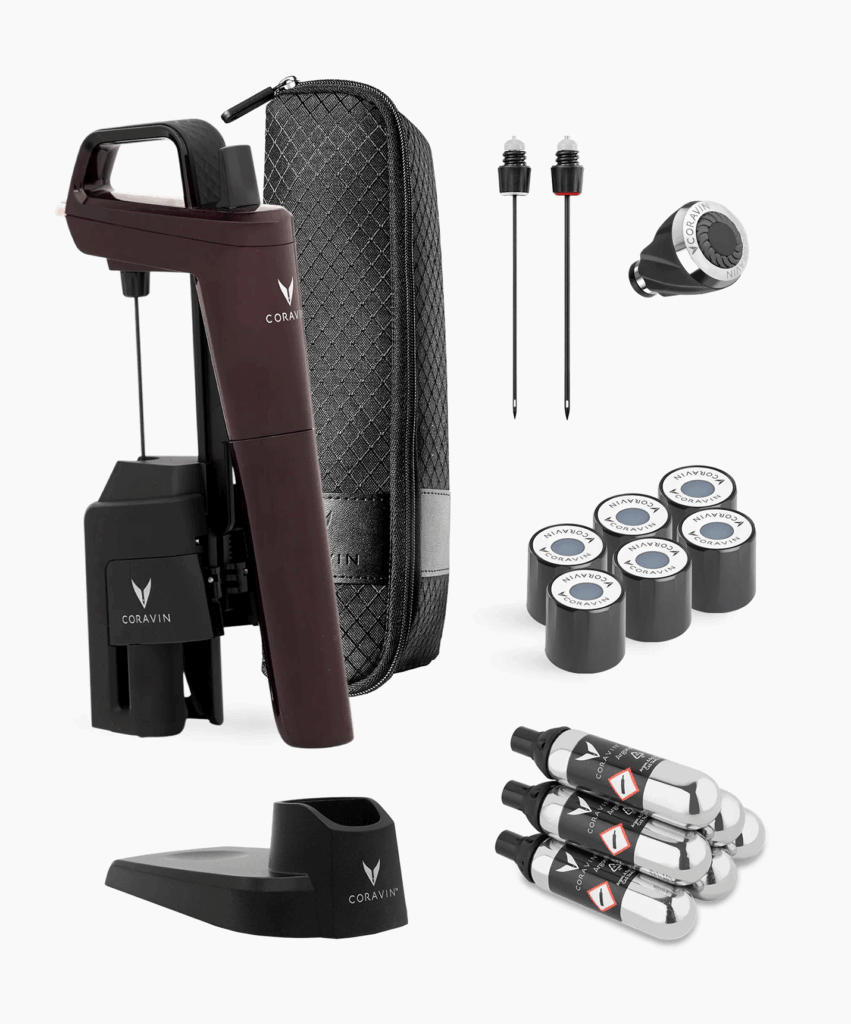
Timeless Six Wine Exploration Bundle

I have this, I use this, and I love this. It’s likely been in gift-guides of yesteryear but it’s just that good. Whether you’re a single human like me who doesn’t want to open a whole bottle and just wants a glass from time to time, or you’re an aficionado wanting to taste his bottles before opening them for a fancy dinner, this pumps inert argon gas into your wine bottles without having to open the cork. Great stuff.

Graze olive oil in glass bottles

Popularized by Tiktok videos, this olive oil stands up to the hype and adds a good amount of actual flavor to your dishes. Whether you’re drizzling or frying, it’s a good recommendation!

Sustainably Raised Meat (for cooks or people who BBQ)

And speaking of frying, Butcherbox allows you to order sustainability sourced meats and have them delivered right to your door. It might be too late if you’re looking for a Thanksgiving bird, but you might need a few steaks eventually!

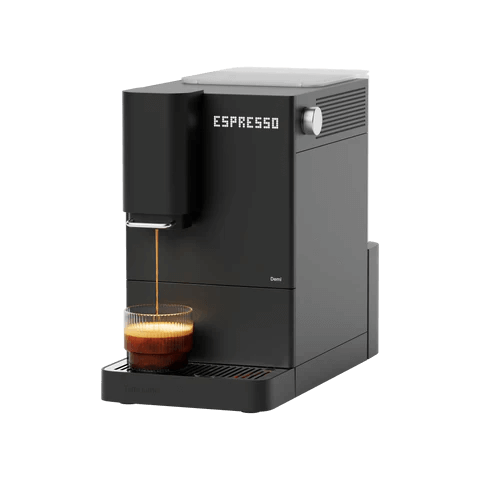
Terra Kaffe Demi automatic espresso machine

Espresso. Some pronounce it with an “x.” And while it does give you a caffeine boost in a hurry, there’s nothing express about it…except for getting a machine like this that can really speed up and boost your home coffee consumption.

Fancy Onsen Towels

Soft, cuddly, and rapidly drying—these towels are a treat. I got to use one a few months ago while visiting a friend of mine and I still think about them, seriously! It might actually be time to rotate my towels and these are at the top of the list.

Cordless Cleaning and Scrubbing Brush

Cleaning yourself with onsen towels is great, but what about cleaning the actual shower or bath? These allow you to get all the nooks and crannies between the tiles, and because they’re cordless you can also use them on your car rims. Do you ever wash those? You should!

Guardian Kids Bike and Guardian Adult Bike

What’s one of my top-10 favorite things? Assembling Ikea furniture while listening to music. But I also enjoy biking! This combines both as the adult and children bikes are shipped to you and you get to assemble them at home before taking them on the road! It keeps costs low, and satisfaction high!

Oura Ring 4

I have been wearing fitness trackers for a very long time, from smartwatches to fitbits to step-counters, and this is my favorite one so far! I love that I can quickly charge it every 4-5 days and it gives me great insights into activity and sleep, without having to wear something bulky to bed.

Patagonia Black Hole Duffel

I am often envious of people who travel with duffel bags because of all the stuff you can fit into them. I still use my old-timey rollaboard, but I do have one of these that I throw in the car with me when I hit the ski slopes. These are great, come with backpack straps, and also have a lot of clips where you can hook carabineers up to (which is a great way to bring shoes you don’t want to pack).

Bev Ledge

Airplanes have come a long way but unless you’re sitting in your own personal pod up front (must be nice), there never seems to be enough room for all your stuff! This ledge fits neatly onto your window sill and allows for you to get a little more utility out of your surroundings! Just…don’t get an aisle seat.

Trtl Travel Pillow

As the Wu-Tang Clan once sang, “protect ya neck.” This travel pillow helps do just that when you’re on the go. No one likes falling asleep on a plane and waking up to a stiff neck—this helps!

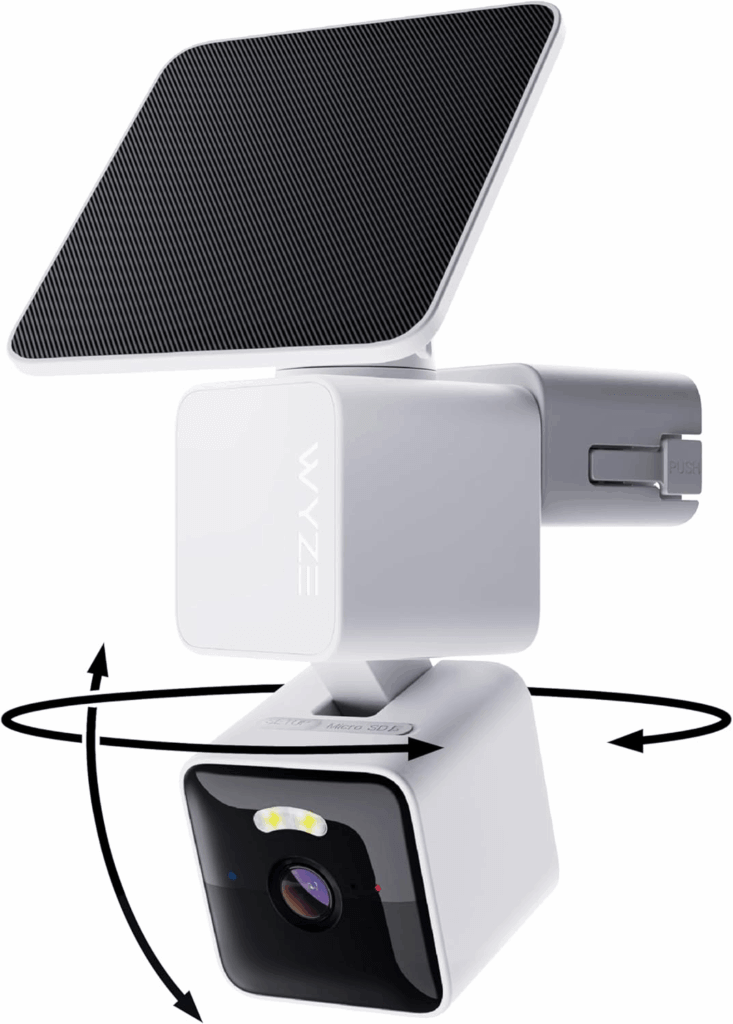
Wyze Solar Cam Pan

These are great for monitoring the outside of your home, but the real killer app comes from using the indoor ones as baby monitors. Seriously, my family has been using them for years in the kiddos’ rooms, and not only is the quality much better than a standard baby monitor, but the recording features make for some really cute videos, and there’s no range restrictions. It’s a win-win-win.

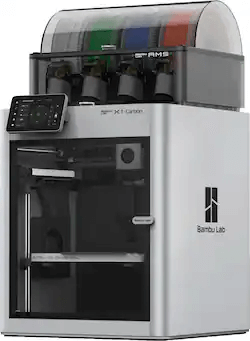
Bambu Lab X1C 3D Printer

3D printing has become very mainstream over the last few years, and this at-home unit with space for multiple filaments makes it incredibly easy to create your favorite designs.

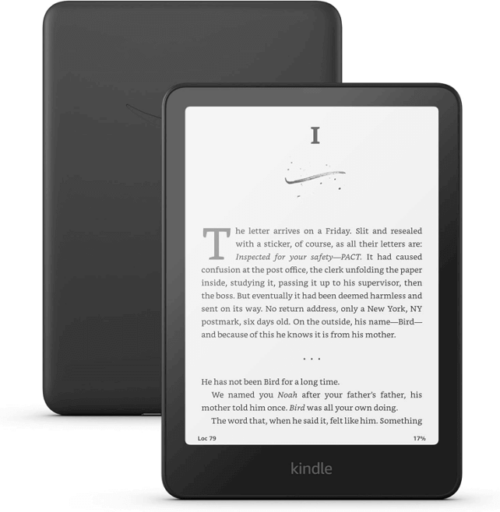
Kindle

Books. You know them, you love them, you should probably read one of my favorites from the last 10 years (The 7 ½ Deaths of Evelyn Hardcastle) and any of the Kindles should help you do just that! I’m a book on tape guy now because I tend to walk a lot (and if you have Audible I highly recommend the Dungeon Crawler Carl series), but if you enjoy holding something in your hands, the paper white Kindles are fantastic.

Classic Diablo (or any “good old game” from GOG”)

Classic games are classic for a reason! The recommendation from our org was for Diablo on Good Old Games, but there are a ton of classics there to choose from. One of my favorite series: Quest for Glory. Version 4 my favorite as it dives into Eastern European folktale lore!

Voice Activated Transformer Robots

Transformers have always been popular, and these voice-activated robots are what I dreamed of when I was a kiddo. Now that I’m no longer a kiddo, I still kind of want one, because watching toys “build themselves” gives me real Toy Story vibes.

K-pop Demon Hunters Wooble kit

K-Pop Demon Hunters took the world by storm, and now you can turn it into a crafting activity for you or your kiddos! Wobbles are little crochet kits, and come with everything you need to make something cute and squishy, right at home!

Retroid Pocket G2

This little gaming handheld allows you to emulate the games of your youth. Whether you liked playing the Sega Game Gear or the Game Boy, you can get all your favorites in one place with these on-the-go systems.

Moondrop Space Travel Headphones

On the go or on the couch, good headphones are paramount. These are relatively shallow and offer noise cancelling technology to keep the outside world out while you’re listening to tunes, audiobooks, or podcasts!

Give the gift of Backblaze

An image of a gift box with the words "Give Backblaze Backup" overlaid

Of course you can always give the gift of Computer Backup. It makes a great gift and helps keep the data of your family and friends safe and sound. Peace of mind is a great gift.

Something you’ve had on your mind didn’t make our list? Tell us in the comments—we love hearing what people are excited about!

The post Holiday Gift Guide 2025 appeared first on Backblaze Blog | Cloud Storage & Cloud Backup
How Backblaze Computer Backup and Jamf Pro Extension Attributes Enhance the Customer Experience

Post Syndicated from Mark McLaughlin original https://www.backblaze.com/blog/how-backblaze-computer-backup-and-jamf-pro-extension-attributes-enhance-the-customer-experience/

A decorative image showing computer and user icons.

At Backblaze, we’ve always believed that data protection should be easy, reliable, and seamless. Our Computer Backup product has long provided individuals and organizations with unlimited, automatic, and affordable cloud backup. But for IT admins managing fleets of devices, visibility and control are just as critical as the backup itself.

That’s where our integration with Jamf Pro comes in. By developing extension attributes that surface key information about Backblaze Computer Backup directly into Jamf Pro, we’ve made it simpler than ever for admins to monitor and manage backup health across their organization.

Why extension attributes matter

Jamf Pro is the industry standard for managing Apple devices, giving IT teams centralized oversight and policy enforcement across Macs, iPhones, and iPads. Extension attributes allow admins to collect custom data points beyond Jamf’s built-in inventory. By plugging Backblaze-specific attributes into Jamf, organizations gain real-time insight into the backup status of every managed Mac—without jumping between multiple dashboards.

This alignment reduces blind spots, helps meet compliance requirements, and, most importantly, gives peace of mind that critical company data is safe.

The four key extension attributes

We’ve developed four extension attributes that bring actionable backup insights into Jamf Pro:

1. Backup selected

This attribute shows whether Backblaze Computer Backup is enabled on a device. IT admins can quickly confirm if backups are actively running, ensuring no endpoint is left unprotected.

2. Backup size

Data size matters—not just for storage costs, but for understanding the scope of protection. This attribute reports the total size of the data being backed up, helping teams gauge usage and anticipate trends.

3. Last backup date

Knowing when a device last backed up is critical to risk management. This attribute ensures admins can spot machines that haven’t backed up recently and take proactive steps before a potential data loss occurs.

4. Safety frozen status

Backblaze’s Safety Freeze feature protects users from data loss by preventing accidental or malicious changes to a backup. By surfacing this status in Jamf, admins gain visibility into whether a device’s backup is frozen and can act accordingly.

Benefits for IT teams and end users

By combining Backblaze’s reliable backup with Jamf’s centralized management, organizations gain:

  • Proactive risk management: Spotting gaps in backup coverage before they become crises.
  • Streamlined compliance: Meeting audit requirements with centralized backup data reporting.
  • Operational efficiency: Saving IT teams from switching between tools and reducing the need for manual checks.
  • Automatic, seamless backups: Employees know their data is being protected without interruptions or extra effort.

Looking ahead

The development of these Jamf Pro extension attributes is part of our broader mission to empower IT teams with tools that reduce friction and strengthen resilience. As remote and hybrid work environments continue to expand, seamless integrations like these will only become more valuable.

At Backblaze, we’re proud to provide more than just a backup service—we’re delivering visibility, control, and confidence.

Want to try it yourself? Get started today and see how these Jamf Pro extension attributes can make managing backups as simple as possible.

The post How Backblaze Computer Backup and Jamf Pro Extension Attributes Enhance the Customer Experience appeared first on Backblaze Blog | Cloud Storage & Cloud Backup
Legal Hold Is Here: Protect Your Business When It Matters Most

Post Syndicated from Natasha Rabinov original https://www.backblaze.com/blog/legal-hold-is-here-protect-your-business-when-it-matters-most/

A decorative image showing several lock icons.

Whether you’re navigating HR issues, facing down litigation, or ensuring operational readiness in the face of uncertainty, you need to be ready to preserve your data. When the stakes are high, Legal Hold, a new feature in Backblaze Computer Backup with Enterprise Control, can help you stay ready.

Available today, Legal Hold gives administrators the power to preserve every version of a user’s backup with a single click. No extra hardware, no new software—all at the same flat-rate pricing of Backblaze Computer Backup with Enterprise Control.

Let’s dig into what Legal Hold is, its importance, and how Backblaze implements it to meet enterprise needs.

What is Legal Hold?

A legal hold, also known as a litigation hold, is a process that organizations use to preserve electronically stored information (ESI) when they face actual or anticipated litigation, audits, or investigations. It ensures that relevant data—such as emails, documents, and file backups—is not deleted, altered, or lost. Once enabled, Backblaze Computer Backup’s Legal Hold feature will preserve a user’s entire backup, including every historical version captured, with a single click. 

A legal hold is typically triggered when an organization becomes aware of a legal claim or regulatory inquiry. Once in place, normal data retention policies are suspended for any affected data, ensuring it remains available for legal review.

How Backblaze Legal Hold helps you stay protected

At Backblaze, we’ve designed our Legal Hold for Computer Backup feature to be powerful, simple, and reliable. Here’s how it works:

  • Instant activation: Instantly activate Legal Hold in the Enterprise Control console without additional hardware or software.
  • Automated data preservation: Apply a Legal Hold to any user’s backup directly from your admin console. The backups are preserved in a fixed state, meaning no files can be altered or deleted—even by retention policies.
  • Remote and silent enforcement: Legal Holds are applied remotely without disrupting the user’s work, alerting the users, or requiring their involvement. It runs silently in the background without downtime, throttling, or notifications.
  • Retention beyond the device: Even if the original device is lost, stolen, or wiped, all held data remains safely stored in Backblaze.
  • Secure by default: Encryption at rest and in transit with optional private key encryption available keeps data safe.

Why Legal Hold matters in 2025

In today’s landscape, Legal Hold isn’t just a “nice to have.” It’s a must-have for almost every organization:

  • Rising litigation and audits: Businesses face more legal scrutiny than ever—whether it’s an employee dispute, intellectual property (IP) protection, or a customer complaint.
  • Remote and hybrid workforces: With data scattered across devices and locations, you need a solution that protects endpoint backups no matter where the user is.
  • Cybersecurity incidents and data loss: Legal Hold ensures that even during a ransomware attack or internal breach, copies of critical data are preserved for investigation or recovery.
  • Cloud-first operations: Legal Hold needs to work where your data lives—securely in the cloud, always ready when you are.

Ready when you need it most

Now, any business using Backblaze Computer Backup with Enterprise Control can implement Legal Hold in just a few clicks—making it easier than ever to stay compliant, reduce legal risk, and prepare for the unexpected.

Already a customer? You can start using Legal Hold today. See our docs article or log in to your admin console. 

Not yet on Backblaze? Reach out to our Sales team to start a free 15-day trial.

The post Legal Hold Is Here: Protect Your Business When It Matters Most appeared first on Backblaze Blog | Cloud Storage & Cloud Backup
Backblaze + Kandji: Native Mac Backup with Integrated Endpoint Management 

Post Syndicated from Natasha Rabinov original https://www.backblaze.com/blog/backblaze-kandji-native-mac-backup-with-integrated-endpoint-management/

A decorative image showing the Backblaze and Kandji logos.

Mac admins have always understood the value of prioritizing Mac-native software to ensure performance and compatibility across their environments. With an integrated approach to data protection and device management from Backblaze and Kandji,  you can now eliminate manual installations and deploy Backblaze with zero-touch across your entire Mac fleet, ensuring critical data is protected.

Simplifying Mac backup for remote and on-site IT teams

Whether your team is in the office or scattered across the globe, Backblaze’s cloud-based solution ensures your data is accessible and easily managed from anywhere.  

Backblaze and Kandji’s solutions have already proven their value in Apple-focused IT environments. 

Companies like Foojee, a managed IT provider specializing in Apple devices, rely on Kandji to deploy and manage those devices and Backblaze to protect their data. “We are always looking at best-of-breed apps for our customers, and we have never felt more proud of our product offering,” said Lucas Acosta, CEO of Foojee. “The three biggest benefits we have realized from Backblaze and Kandji are our time savings on our Help Desk, the increased security, and the increased reliability.”

This partnership builds on that success, enabling organizations to:

  • Deploy Backblaze effortlessly with Kandji: Automate installation and configuration of Backblaze on managed devices with Kandji’s workflows.
  • Enhance data security: Keep critical data protected with Backblaze’s secure, cloud-based backup service.
  • Scale with ease: Both platforms support organizations of any size, from startups to enterprises.
  • Reduce IT overhead: Streamline both device management and data protection with a unified platform.

Join the conversation

Interested in learning more? Join us on LinkedIn Live! Tune in for an in-depth discussion on how Backblaze and Kandji are helping organizations simplify and secure their Mac device management and data protection. Don’t miss out—save your spot today.

Get started

Interested in getting started? Contact our Sales team today to explore how Backblaze and Kandji can streamline your device management and data protection.

The post Backblaze + Kandji: Native Mac Backup with Integrated Endpoint Management  appeared first on Backblaze Blog | Cloud Storage & Cloud Backup

Holiday Gift Guide 2024

Post Syndicated from Yev original https://www.backblaze.com/blog/holiday-gift-guide-2024/

A decorative image showing a gift floating in the ether, waiting to be given.

Ah, the holidays. They can be both fun and stressful for many of us—not least because we have to make so many decisions around gift giving. The plethora of cyber sales and new products on the market make this a great time to try out new products yourself or buy some for the loved people in your lives. To that end, I’ve followed tradition and asked some of my fellow Backblazers to submit their gift ideas for this year and we’ve compiled them into this 2024 gift giving list!

Reading, (w)righting, (a)rithmatic

Kindle Paperwhite

A product image of the Kindle Paperwhite.

For the reader in your life, the Kindle Paperwhite is a great way to keep reading regardless of the conditions. It uses e-ink technology to avoid glare and allows for reading in both high and low light conditions!

ReMarkable Paper Pro

A product image of the ReMarkable Paper Pro.

This is one of the coolest devices out there, and I can personally say that I desperately want someone to gift me one (although it’s a bit on the pricey side, so I get it). This uses similar e-ink technology as the Paperwhite and allows you to take notes using your own handwriting—which (at least in my case when I write in cursive) helps me remember things!

Tekfun LCD Writing and Doodle Tablet

A product image of a Tekfun LCD Writing and Doodle Tablet.

Mixing writing and artistry, this doodle tablet is great for kiddos that are with you in a restaurant or long-haul flight. In fact, I just bought one of these for my nephew!

Klein Bottle

A product image of a Klein bottle.

Some people are math people. I don’t get it, but this Klein Bottle is basically an inside joke to math nerds (something about Möbius loops) and can serve as a lovely table prop for the math lover in your life.

Sounds good!

HyperX Cloud Alpha Wireless Gaming Headset

A product image of the HyperX Cloud Alpha wireless gaming headset.

For the gamer in your life, these are some of the best headphones on the market. They’re wireless, they sound great, and the microphone picks up all of the positive (I’m sure) feedback for teammates.

Apple AirPods 4

A product image of the Apple AirPods 4.

The latest and greatest from Apple. These come with a new chip that helps with transparency mode so you can cross the street with confidence.

Google Pixel Buds Pro 2

A product image of the Pixel Buds Pro 2.

If you’re an Android user (raises hand) you may want something built for your phone and the latest Pro version of the Pixel Buds are here for you. These come with little nubs for snug fit, meaning you can run or lift or meander without worrying that your tiny buds will fall out.

Experiences

Sur La Table Cooking Classes

A screenshot form the Sur La Table website that features their holiday cooking classes.

Who doesn’t want to impress loved ones with delicious dishes? If you have a Sur La Table near you, these are great.

Airbnb Experiences

An image showing the AirBnB experiences logo as well as some images from destinations.

If you’re a fan of traveling you’ve likely stayed at an AirBnB. But even if you’re more of a homebase person, their Experiences tab is worth checking out. From cooking to glass blowing to cow cuddle therapy (yes, that’s a thing).

Odds and ends

theFube Fidget Cube

A product image of theFube Fidget Cube.

I have one of these in my car and, let me tell you, as a person who used to bite their nails out of boredom (gross, I know), it helps keep my mind and compulsions at bay! Highly recommend.

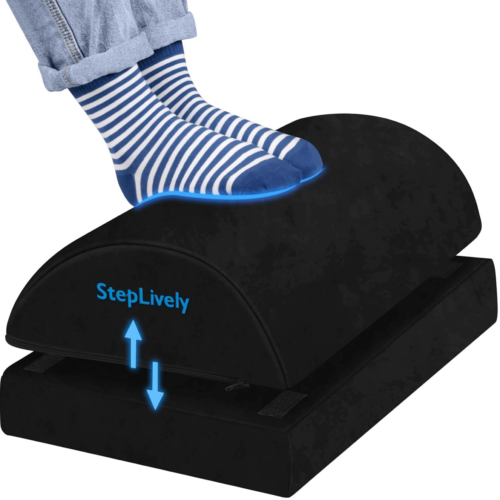
Under Desk Foot Rest

A product image of an under desk foot rest.

Many of us spend our day sitting, sometimes standing at a desk. Even when you’re sitting, though, ergonomics are a big deal and having an adjustable foot rest can help you get into a position that feels solid and sustainable for long stretches of time. I recommend getting up and stretching every now and again, but if you’re like me and have a bad back, these are great.

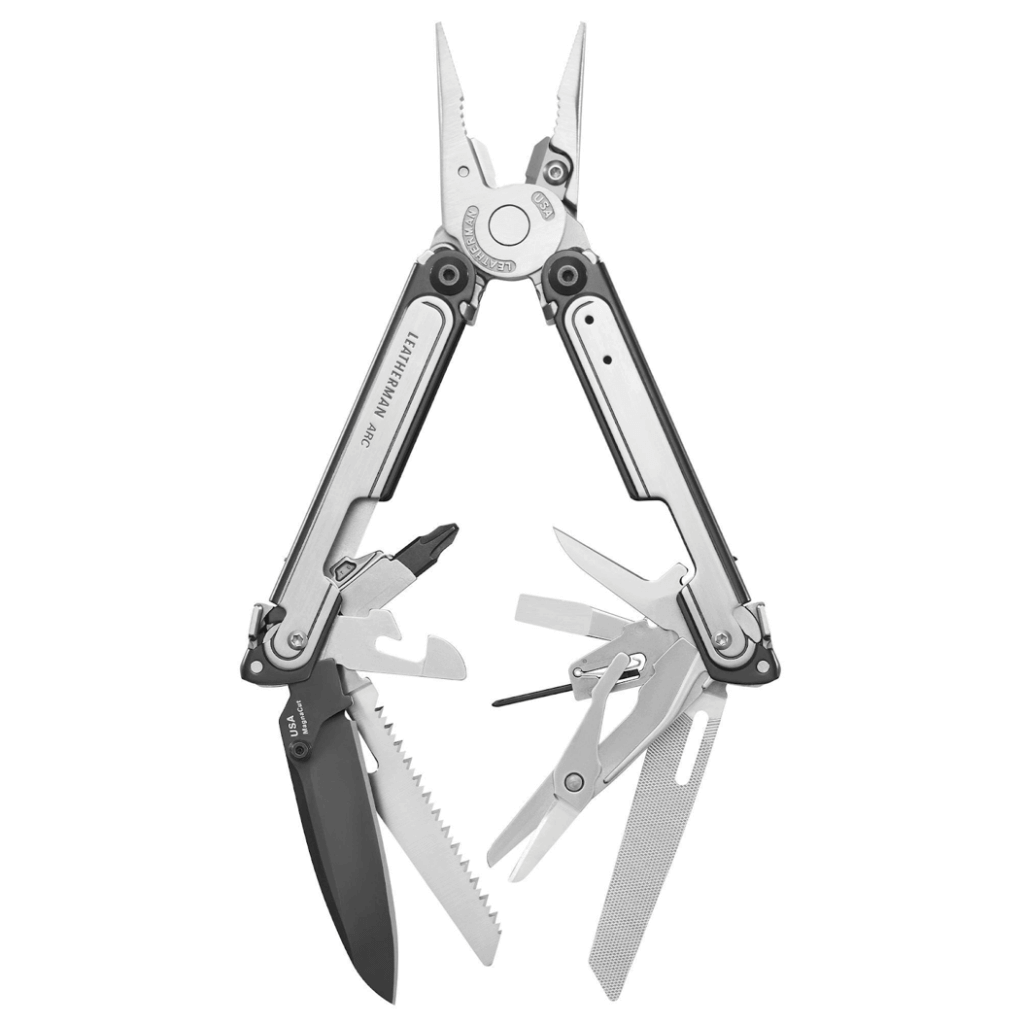
Leatherman ARC

A product image of a Leatherman Arc.

Whether you’re outdoors or indoors, sometimes you need to cut or saw or screw or open or pry or file something, and for that, these Leatherman tools cannot be beaten.

Give the gift of Backblaze

And, of course, we’d be remiss if we didn’t remind you that Backblaze Computer Backup makes a great gift. Help your family and friends experience the sweet, sweet peace of mind that comes from a good backup strategy and make sure they never lose a file again. Bonus: you don’t even have to go to the store to get it.

A decorative showing a gift covered in Backblaze logos.

Go forth and gift!

We hope this guide sparked some ideas and simplified some choices. We love hearing about what folks are excited about, so feel free to give us some more good options in the comments below.

The post Holiday Gift Guide 2024 appeared first on Backblaze Blog | Cloud Storage & Cloud Backup

Mastering Mac MDM: Best Practices for Managing Your macOS Fleet

Post Syndicated from Natasha Rabinov original https://www.backblaze.com/blog/mastering-mac-mdm-best-practices-for-managing-your-macos-fleet/

Mac usage has steadily increased in recent years, particularly in business. In the fourth quarter of 2023, Apple shipped 16.1 percent of all personal computer units in the United States, per Gartner. Moreover, IDC anticipates the number of Macs sold to business users worldwide will increase by 20% between 2023 and 2024. IDC also reports that 76% of IT decision makers believe Macs are more secure than other computers.

With this surge of Macs in the workplace and increased focus on security, IT administrators increasingly require mobile device management (MDM) to protect, secure, and manage these remote devices.

Today, we’re digging into all things Mac MDM, including best practices for implementing MDM in your enterprise and why it’s so important to seek out Mac-native tools to do so.

What is mobile device management (MDM)?

MDM enables you to securely manage and control Apple devices—such as iPhones, iPads, Macs, and Apple TVs—remotely. With MDM, IT administrators can configure devices, deploy apps, enforce security policies, manage updates, and track device inventory all from a centralized platform. For IT teams, the main purpose of MDM is to improve their management and control over their fleet of devices, especially devices that aren’t on-premises like those for remote workers.

How MDM works in practice

  1. Device enrollment: A device is enrolled via automated device enrollment (ADE), a third-party MDM tool like Jamf, Kandji, or Munki, manual setup, QR code, or a URL.
  2. Device configuration: MDM pushes settings (Wi-Fi, VPN, email), security policies (passcode, encryption), and apps to the device.
  3. Ongoing management: MDM continuously monitors the device’s compliance with organizational policies and can enforce restrictions or trigger actions (like updating software, changing user permissions, etc.) when needed.
  4. Device retirement: When a device is retired or a user leaves, the MDM can deprovision the device, sometimes wiping or restoring it to factory settings.

MDM solutions provide a centralized, scalable, and secure way to manage devices in an enterprise setting. This ensures consistency, enhances security, and simplifies IT administration.

What are some advantages of MDM for Macs?

Using MDM for Macs in an enterprise environment offers several advantages, particularly in terms of security, efficiency, and scalability. Here are some key benefits:

  1. Enhanced security: Mac MDM tools frequently make use of the built-in Apple management framework, and one of the most significant benefits of MDMs are their robust security features. With features such as location tracking, remote data wiping, encryption enforcement, and strong authentication methods, MDM solutions protect businesses from cyber threats and unauthorized access. They allow you to enforce security settings like passcodes, encryption (FileVault), and password complexity requirements across all Macs. They also allow you to implement web security policies, blocking access to harmful sites, restricting app installations, controlling software updates, and preventing malicious downloads.
  2. Centralized device management: You can automate enrollment and configure devices remotely, setting up Wi-Fi, VPN, email, and other necessary system preferences without user intervention. This functionality enables touchless deployment, allowing you to ship laptops directly to employees and enroll them remotely, without your IT team ever having to touch the machine. Mac admins can also assign custom configuration profiles to different user groups (e.g., for different departments), allowing flexible yet consistent policy enforcement.
  3. Self-service: As you scale, it becomes increasingly important to limit rights on employee machines, depending on the department and the level of access they need. With MDM, you can populate a self-service portal where employees can access the software they need to do their jobs, including licensed and paid apps. 
  4. Streamlined app deployment and management: You can easily deploy apps from the Mac App Store or distribute custom internal apps, and then centralize automatic updates for those applications.
  5. Efficient patch and update management: MDMs can schedule and enforce macOS updates, reducing vulnerabilities by ensuring all devices are running the latest versions. Automated and remote updates reduce the need for manual interventions and device downtime.
  6. Bring Your Own Device (BYOD) support: MDM supports BYOD environments by providing a separation between personal and work data on the same machine, making it flexible for both company-owned and personal devices.

Challenges with Mac MDM

One of the challenges of managing Apple devices at scale is keeping the Mac operating system (macOS) updated across your fleet of machines. Apple has made changes to how that works over the years. As a Mac admin in a corporate environment, you have to balance conflicting demands—you need to make sure your fleet of machines is up to date and in compliance, but you also need to do so in a way that isn’t disruptive to end users, minimizes downtime, and avoids sudden unexpected reboots. 

To answer this challenge, the open-source community has come together with solutions. Third-party, open source scripting can be leveraged within your MDM to allow you more flexibility and control over macOS updates, allowing you to expand user options for updates while at the same time setting deadlines for those updates to happen.

Another challenge of using MDM solutions is navigating the increasingly restrictive permissions introduced by Apple. Starting with macOS 10.14 and in updates since then, Apple added security to parts of the computer it considers sensitive or critical. While these restrictions enhance user privacy and security, they can limit IT administrators’ control over devices. Applications that require sensitive access to these parts of the system, like backup clients or anti-virus software, now require additional permissions. 

Silently installing these types of apps now requires an additional component, a custom policy configuration that grants full disk access. This will be different depending on the MDM you’re using, but Jamf, for example, offers the Privacy Preferences Policy Control (PPPC) Utility to help you create configuration profiles. 

Best practices for Mac MDM

Managing Macs in an enterprise environment can be a complex task that can have a big impact. One of the biggest benefits of MDM is reducing IT workload. Centralized and automated management reduces the time and effort needed to configure and manage each Mac manually, allowing you to focus on more strategic tasks. 

But, effective MDM requires some other building blocks to be in place before you can realize all of those advantages. Here are some best practices for Mac MDM:

  1. Choose the right MDM solution
  • Find the right partner: Integrate with an MDM solution like Jamf, Kandji, or Munki for streamlined device enrollment and management.
  • Update processes: Ensure that the MDM solution supports both Apple’s Device Enrollment Program (DEP) and Volume Purchase Program (VPP) to automate setup and app deployment, and ensure all devices are enrolled in the MDM system as soon as they are set up.
  1. Enforce security policies
  • Passcode and encryption: Ensure all devices require strong passcodes and are encrypted with FileVault (for Mac) and native iOS encryption.
  • Multi-factor authentication (MFA): Enforce MFA for accessing corporate services and apps.
  • Remote lock/wipe: Enable the ability to lock or wipe devices remotely in case of theft or loss.
  1. App management
  • Volume purchasing: Use Apple’s VPP to distribute apps and content centrally.
  • App whitelisting and blacklisting: Control which apps users can install on their devices, blocking potentially harmful or non-compliant apps.
  • App updates: Automate app updates to ensure security patches and features are deployed quickly.
  1. User and group profiles
  • User profiles: Use custom profiles to set different policies for various roles within the organization (e.g., executives, developers, sales).
  • Configuration profiles: Set up policies for Wi-Fi, VPN, email, and other settings automatically based on user or group membership.
  1. Data protection
  • Content filtering: Implement web content filtering and secure browsing rules.
  • Data loss prevention (DLP): Apply DLP policies to prevent sensitive corporate data from being shared through unapproved channels.
  • Backup solutions: Ensure regular, automated backups using a true backup solution like Backblaze Computer Backup versus a sync service.
  1. Patch management
  • Automatic updates: Automate macOS updates and ensure compliance with the latest patches and versions.
  • Version control: Use MDM to control which versions of macOS and iOS are allowed in the organization to prevent untested or unsupported versions from being installed.
  1. Monitor device compliance
  • Compliance uniformity: Set compliance rules for security (e.g., passcode policies, encryption) and regularly monitor devices for adherence.
  • Compliance monitoring: Use reporting and analytics tools built into your MDM solution to track compliance, app usage, and device health.

By following these best practices, you can efficiently manage and secure Mac devices within your organization while minimizing risks and ensuring a seamless experience for employees.

The importance of Mac-native apps

Mac-native apps provide a seamless and optimized experience that takes full advantage of the macOS ecosystem. Native apps are specifically designed to integrate with macOS, ensuring smoother performance, faster responsiveness, and a more intuitive user experience compared to non-native or cross-platform applications. 

This integration often means that the apps are more efficient, utilize fewer system resources, and can easily interface with built-in macOS features such as Spotlight, Siri, and Notification Center. For IT administrators managing multiple Macs, the consistency of Mac-native apps helps minimize compatibility issues and ensures a uniform experience across all devices.

In addition, Mac-native apps typically offer better security and reliability, which is crucial for IT administrators overseeing corporate environments. Apple has a strict set of guidelines for app development, especially for apps available through the App Store. These guidelines emphasize security practices such as sandboxing, code-signing, and integration with macOS security features like Gatekeeper and XProtect. 

This gives IT administrators confidence that Mac-native apps are less likely to pose security risks, reducing the chances of malware or vulnerabilities being introduced into the organization’s systems. Moreover, since native apps are built to work within Apple’s framework, they are generally more stable, reducing the risk of crashes or bugs that could disrupt workflows.

Furthermore, Mac-native apps support better integration with management and automation tools that are vital for IT administrators. These apps can be more easily deployed, managed, and updated through Apple MDMs. 

Finally, native apps can often integrate with Apple’s scripting languages and automation tools like AppleScript and Automator, providing IT teams with more powerful options for customizing workflows, optimizing processes, and enhancing productivity across the organization. This level of control is essential for IT administrators looking to streamline their management tasks and ensure a high level of efficiency.

Having MDMs built native for Macs is critical for the success of IT management. That holds true for all software running on Macs, including backup software like Backblaze Computer Backup—you have to update permissions less frequently, you have access to more robust build possibilities, and it runs seamlessly in the background.

Are you using a Mac MDM tool?

Do you have a favorite MDM tool? Let us know in the comments. We love to hear how they’re working for you.

The post Mastering Mac MDM: Best Practices for Managing Your macOS Fleet appeared first on Backblaze Blog | Cloud Storage & Cloud Backup
How to Future-Proof Your Archives: File Formats That Stand the Test of Time

Post Syndicated from Stephanie Doyle original https://www.backblaze.com/blog/how-to-future-proof-your-archives-file-formats-that-stand-the-test-of-time/

A decorative image showing a vault door with a series of 0s and 1s behind it.

You may have heard us talk about backup a time or two, and hopefully our love has been clear. So, when Wired gave us a shoutout in their recent, astute article about archiving, allow us to say we were flattered. 

As both a tribute and a collaboration, we’re happy to build on their article’s premise about choosing the correct file type for archiving purposes, and we’ll highlight a few tools to help you protect your files in the long term. 

Wired reports: Archived files are especially vulnerable to changing file types

Archives are distinct from backups and have their own demands. Backups are intended to give you the ability to restore files or your whole environment—they need to be both in step with your current environment and flexible enough to respond to both a point in time restore of your whole system or a single file, depending on what you need. Archiving, on the other hand, is about preservation when you can’t depend on the continuity of devices or digital tools—those tools might look quite different (or not exist at all!) down the line. That said, backups are also an essential building block of digital archives. 

Making something last long-term takes more work than you’d think. And, interestingly, digital archiving suffers from the opposite problem of “traditional” archiving. Whereas with books, magazines, and other paper-based media, you want to touch them as little as possible, with digital archives, you actually need to do some active maintenance to make sure you’re converting files to accessible formats that you can open well into the future. 

Here’s an expert from the Wired report telling us about just one part of the practical concerns of digital archiving: 

“Twenty years, in the digital realm, is ancient,” says Lance Stuchell, director of digital preservation services at the University of Michigan. His team is frequently tasked with recovering digital files from old computers and storage mediums. “We have a lab that can deal with old media—floppy drives, CDs, older computers. We can get that off of those types of media and move it into our preservation system while ensuring we don’t mess it up while we’re doing it.”

Wired goes on to report that the problem isn’t just having the correct device, but actually having the correct file type. Their biggest takeaways for making sure your files hold up over time? 

  1. Use open source file types. 
  2. If you’re storing media, store files uncompressed. 
  3. Back up absolutely everything. 

Check out the rest of the article for details—it’s worth a read. And, thanks for the shoutout as a good option for folks looking to back up, Wired. 

Some tools for converting files

So, now that you’re all geared up to get your archive in order, here are some free, open source tools that will help you convert your files. One note when you’re using open source (and we’re big fans) is to make sure you’re using a tool you trust. And, some tools, especially web-based tools, may collect user data or can expose sensitive information. 

With that in mind, here are a few to get you started: 

  • LibreOffice: The successor to OpenOffice, LibreOffice is a well-respected open source alternative to Microsoft Office and supports several open source and older document file formats.
  • Pandoc: Pandoc calls itself the Swiss army knife of file converters for markup formats, which includes documents, HTML formats, spreadsheets, and more. It’s got a very helpful list of file formats and indicates whether they can convert from/to each of them. 
  • ImageMagick: ImageMagick can certainly convert your files, and it’s also beloved because it can edit files, including support for scripting and automation. But, for our purposes, it converts image formats and has continuous support from the open source community. 
  • FFmpeg: FFmpeg is a community supported audio and video tool. 
  • VLC media player: Another audio and video tool that supports conversion.

Keep in mind that while we’re recommending many of these for conversion purposes, many are actually fully-fledged programs with some very cool features—and, some can even replace traditional paid tool options, if you’re the budget-conscious type.  

Archiving hardware of the future

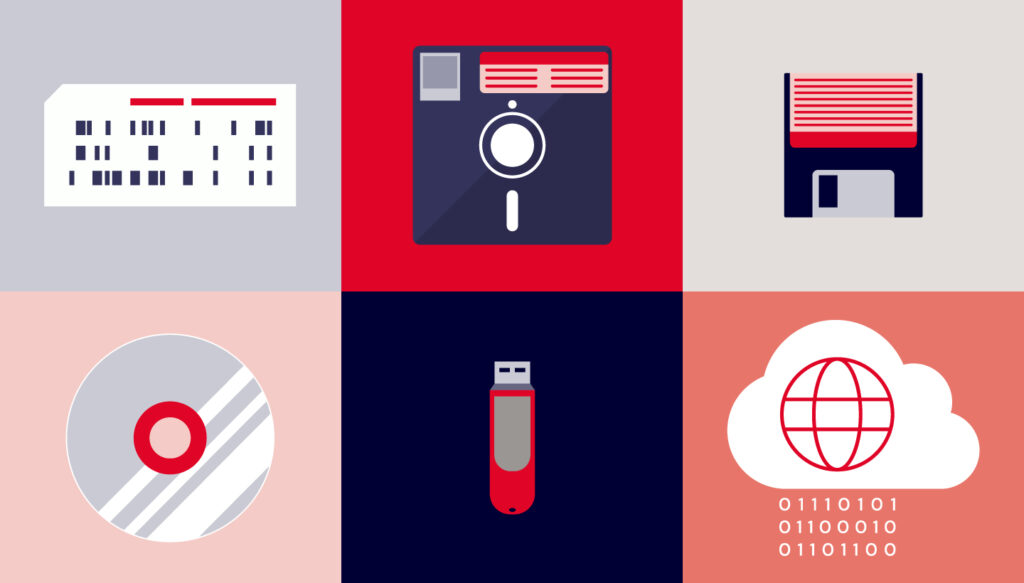
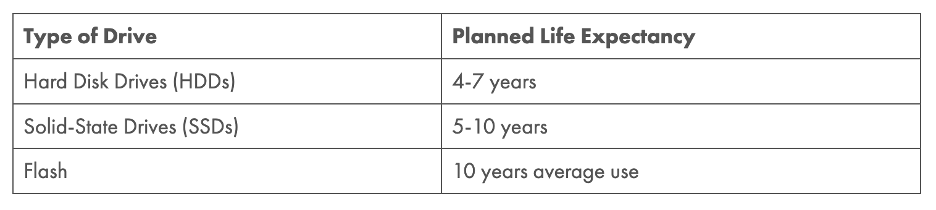
Standard tech right now for storing archived files is on hard disk drives (HDDs) or solid state drives (SSDs), and you’ll even find DVDs that can keep your data stored for 1,000 years or more. All storage media types are known to degrade over time—when you’re storing long-term, you can’t just leave your drive disconnected from power forever, for instance. 

That said, developing storage media types, while not as common, offer some interesting (if not yet widely practical) options. If you’re willing to drop some cash, DNA (yes, the biological kind) or ceramic might be for you. And, if you want to get super sci-fi with it, PhysicsWorld has reported on the “Superman memory crystal” that could keep data intact for millions of years. 

Build your archive for alien circumstances

When we ambitiously sent out messages to the (potential) sentient life in the universe almost 50 years ago, on golden records no less, we apparently thought it was enough to also include a phonograph needle and some symbolic instructions on how to play the record. In practice, we sent a message with no guarantees that someone could decode and play it. 

That may be fine for our space-age time capsule, but for our everyday archives, we do want to do our best to make sure we’re able to open them in the future. While we can’t anticipate where technology will be in 20, 40, or 100 years, we can follow digital archiving best practices to give future generations the best chance of opening files. At least they’ll likely share a language with us, as opposed to our alien friends.

The post How to Future-Proof Your Archives: File Formats That Stand the Test of Time appeared first on Backblaze Blog | Cloud Storage & Cloud Backup

What Do Teachers, Parents, and Students Have in Common? The Need to Back Up

Post Syndicated from Yev original https://www.backblaze.com/blog/what-do-teachers-parents-and-students-have-in-common-the-need-to-back-up/

Our world has moved more online, and blackboards have taken a backseat to laptops in classrooms and lecture halls alike. From homework to lesson planning and grading, to communicating with students and parents, educators and students rely heavily on their computers and sync drives like Google Drive, Dropbox, or OneDrive. And, when it comes to digital resources, there’s always a risk of data loss, which, when it strikes, can wipe out hours or days of work. 

This is where backup solutions come into play. In this blog post, we will explore the benefits of computer backup for both students and educators, highlight the importance of choosing an affordable and reliable backup solution, and give you some talking points to help others in your educational community understand the importance of backing up.

Risks of data loss

Data loss can happen for a variety of reasons, including hardware failure, accidental deletion, theft, or cyber attacks. 

Imagine this scenario: You’ve spent hours building a detailed lesson plan, preparing engaging multimedia presentations, and grading student assignments. Suddenly, your computer crashes, and you can’t get it to turn back on. Or, you lose your USB drive that has years of work, including lesson plans. Both situations are not great and the result is that all of your hard work is gone in an instant. 

Data loss is an issue for anyone, but for educators, the consequences can affect not only your work but also your students’ learning experience. And the same scenario is true for students—working on a research project last minute only to have a blue screen of death five minutes before the deadline can be a frustrating turn of events—and one that affects your grade long-term. 

The 3-2-1 backup rule

The good news about avoiding data loss is that there are some established best practices that can give you a great place to start. The most fundamental of these, the 3-2-1 backup rule, says you should have three copies of your data on two types of storage media with one copy stored off-site. 

Sync is not backup

Sync services like Google Drive, OneDrive, and Dropbox are great, but they are not the same thing as a true backup. Sync drives are designed to keep all versions consistent with each other, which makes them vulnerable to things like accidental deletion and ransomware attacks. While some may have limited version history or “backup,” those features are typically for a limited amount of time (i.e., 30 days), or are lacking in some of the key areas that schools need to maintain compliance with data protection standards. 

Cloud backup services are using a different tool for a different job—you want your synced files to change, whereas you want your backup to be a fixed point in time you can restore if you need to. That’s not to say that you won’t have your backup files constantly up-to-date, like you do with an automatic backup solution, just that you’ll be able to restore a file, or all of your files, to whatever time you choose. 

And, if you think the difference is just splitting hairs, studies show that 58% of organizations that experienced data loss last year had some amount of unrecovered data. And, in that same pool of survey takers, 84% of organizations were relying on cloud sync services. 

Benefits of backing up

  1. Protection against data loss: The primary benefit of a backup solution is the protection it offers against data loss. By regularly backing up your files, you can ensure that your important documents are safe and can be restored quickly in case of any mishap, or even if you forget your laptop at home.
  2. Enhanced productivity: With a reliable backup system in place, you can focus on what you’re working on without worrying about it getting lost. This peace of mind allows you to work more efficiently and creatively, knowing that your files are secure.
  3. Compliance and accountability: While not at the top of many student’s minds, many educators know that educational institutions have policies and regulations regarding data storage and protection. Having a robust backup solution helps teachers, professors, and the organizations they work for stay compliant with these regulations.
  4. Cost savings: Investing in a backup solution can save you money in the long run. Data recovery services can be expensive after the fact, and the time lost in trying to recreate lost work can be even more costly. An affordable backup solution provides a safety net that prevents these potential expenses.

Students: Back up your data regularly

Often, students are given space on cloud drives or required to submit assignments through learning management systems like Blackboard. But, even with cloud drives, many tools don’t account for adequate backups. When it comes down to it, students are responsible for turning in their work on time. 

Getting a backup in place protects you and all the effort you’re putting into your coursework, and you can try it for free to see if it’s right for you. 

Educators and faculty members often drive change

Collaboration is one of the hallmarks of an educational environment, and educators and students are often just as responsible for driving change as administrators are. Whatever role you take in your educational community, there are many ways you can make to help others understand why backup is so crucial, and how to choose the tool that’s right for you. 

Choosing an affordable and reliable backup solution

When selecting a backup solution, affordability and reliability are key factors to consider. Here are some decision criteria you can share with others to help in choosing a backup solution:

  • Assess your needs. Determine the amount of data you need to back up and how frequently it changes. This will help you choose a solution that meets your specific requirements without overpaying for unnecessary features.
  • Cloud vs. local backup. Cloud-based backups offer the advantage of remote access and easy storage to a geographically separate location, while local backups (such as external hard drives) can provide faster recovery times. Both methods have a place in a solid 3-2-1 backup strategy
  • Ease of use. Look for a backup solution that is user-friendly and doesn’t require extensive technical knowledge. The easier it is to use, the more likely you are to maintain regular backups.
  • Security features. Ensure that the backup solution you choose has robust security features, such as encryption, to protect your data from unauthorized access and cyber threats.
  • Cost-effective plans. Many backup service providers offer tiered pricing plans based on storage needs and features, or are based on the number of devices you need protected.  Backblaze Computer Backup, for example, starts at $9 per computer per month for unlimited backup, with discounts for one year or two year plans. 

Share resources to facilitate discussion

If you don’t have a robust backup strategy in place through your IT department or district, send them this article or this Texas A&M case study and recommend that they get started with a backup strategy.

Save your data (and yourself!): Think about backups ahead of time

Remember, regardless of how you’re creating data, the question isn’t if you will experience data loss, but when. Be prepared and make backup a priority—if not in your organization, then definitely in your personal tech choices.

The post What Do Teachers, Parents, and Students Have in Common? The Need to Back Up appeared first on Backblaze Blog | Cloud Storage & Cloud Backup

2024 State of the Backup: Survey Says Security Incidents and Data Loss on the Rise

Post Syndicated from Yev original https://backblaze.com/blog/2024-state-of-the-backup-security-incidents-and-data-loss-on-the-rise/

A decorative image showing several icons that represent graphs, charts, and stats.

June is Backup Awareness Month, and every year, we work with the Harris Poll to survey the state of computer backups in the U.S. It’s our 16th year running, and this year, we expanded our lens and created a new survey focused on analyzing the state of backups among businesses, providing critical insights into organizational backup strategies and challenges. 

And as in previous years, our consumer backup survey provides a comprehensive summary which reflects trends and changes over nearly two decades. The combination of these two audience surveys provides a more complete picture for the state of backups in the U.S. Let’s start with our new survey data.

Spotlight: Business Backup Is Coming Up Short

Our inaugural Business Backup Survey included 300 IT decision makers across the U.S. Part of what we wanted to learn was: 

With all of the different ways IT professionals have to protect their user’s data, how are they choosing to back up and are backup solutions even working? 

We can infer the answers to those questions by looking at the tools organizations use to back up their data, the frequency of data recoveries, and how successful or not those recoveries were.

What Tools Do Organizations Use to Back Up Their Data?

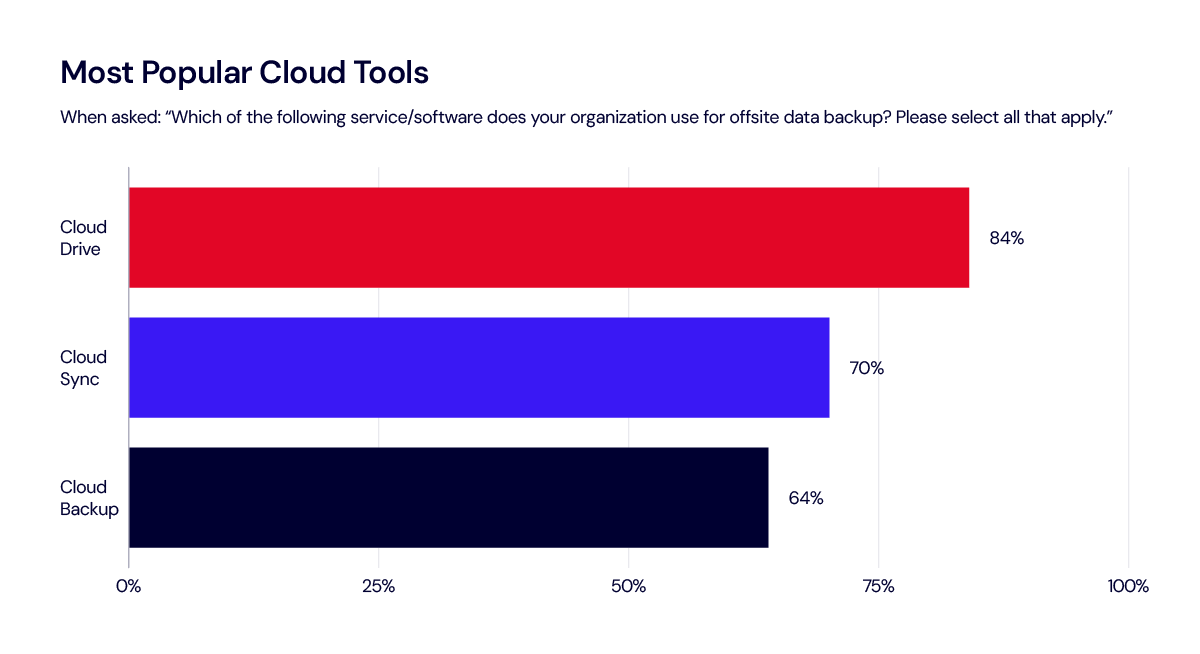
One of the most striking findings from the poll is that a significant majority (84%) of IT decision makers say their organizations utilize cloud drive services, which rely on syncing data to the cloud, for off-site data backup. You may have heard us say this before—sync is not backup

What’s Wrong with Cloud Drives and Sync Services?

Cloud drives allow for file storage and sharing but may not protect against file corruption or accidental deletion. Sync services automatically update files across multiple devices, meaning that any changes or deletions are replicated everywhere, which can lead to unintended data loss. While some cloud drives have added minimal backup capabilities (i.e., 30 days of version history or similar), they are often lacking in key areas that are necessary for business continuity or compliance standards. 

Cloud backup solutions, on the other hand, are designed to systematically and securely back up data, offering robust protection against loss, corruption, and security breaches. This makes cloud backup a better choice, particularly for addressing security concerns and ensuring the integrity and availability of critical data.

How Often Do Organizations Need to Restore Data?

39% of IT decision-makers report that their organizations need to restore data from backups at least once a month, with special requests for archived or deleted data (62%), backup software failure (54%), hard drive failure (52%), and cyber attacks (49%) reported as some of the top reasons. This frequent need for data recovery underscores the persistent vulnerabilities IT professionals face.

Are Data Recoveries Successful?

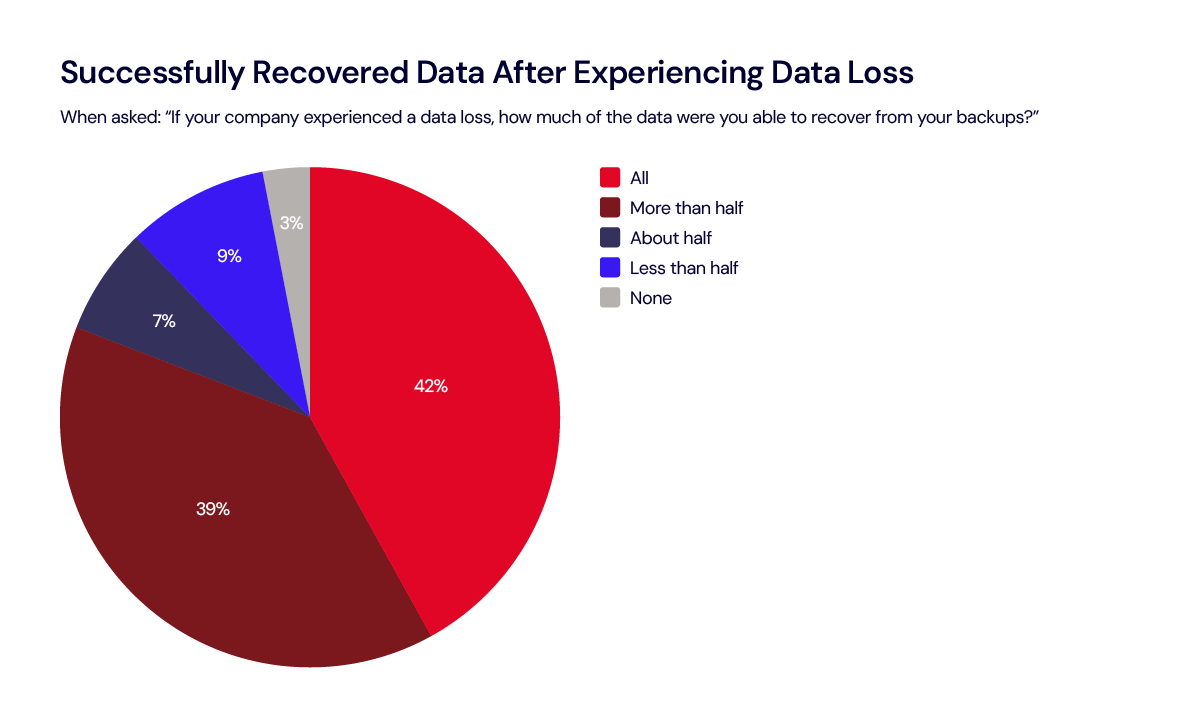
Not only do many organizations need to restore on a regular basis, but the survey also shows that among those that experienced data loss, only 42% were able to recover all of their data when they perform a restore. That leaves 58% with some amount of unrecovered data. 

Are Backups Working?

The data shows a sizable gap between the use of backup services and the effectiveness of data restoration. Although a significant percentage of organizations indicate they’re using what they would consider a cloud backup solution (the shortcomings of cloud drives and cloud sync services aside), only 42% of those that experienced data loss were able to restore all their data. This discrepancy highlights the risks associated with inadequate backup measures and the potential for data loss, which can have serious repercussions for businesses.

Only 42% of organizations that experienced data loss were able to restore all their data.

There are all sorts of ways businesses need to slice their data management strategy in order to make sure all data is backed up. This includes data type (e.g., files vs. system information), frequency with which the data is updated or changed, retention requirements for compliance, and more. There are often reasons that businesses will employ different backup frequency or strategies for different file types—file-based versus block-level incremental backups, for example. However, incomplete backups can lead to situations where only parts of the data can be restored, disrupting business operations and resulting in downtime as efforts are made to recover or reconstruct lost data. 

The importance of creating an end-to-end data backup plan, as well as choosing the right tools that provide comprehensive coverage, may be highlighted only at the moment of failure. As it stands, the Harris Poll data suggests that the limitations of cloud sync and cloud drive tools are leaving gaps in data protection and disaster recovery strategies.

This is further validated by the features IT decision makers report as being absolutely essential/very important in selecting backup tools, including security (97%), bandwidth and memory capacity (87%), a variety of features (79%), ease of operations and customizable elements (83% each). These rigorous requirements suggest that many existing solutions may fall short of meeting the comprehensive needs of modern businesses, and/or that the complex mix of tools may be contributing to blind spots in an overall data management strategy, only exposed at the point of recovery.  

How To Close the Gap?

These insights underscore the need for innovative and robust backup solutions that address evolving business requirements. As the volume of data continues to grow and cyber threats become increasingly sophisticated, the demand for reliable, secure, and user-friendly backup systems will only heighten. Given the challenges many businesses face in fully recovering their data, there’s an opportunity to promote education and awareness regarding the importance of refreshing backup strategies and utilizing suitable backup tools.

Consumer Backup Practices: Less Than 1 in 5 Are Certain of Their Backups

The consumer portion of the 2024 Backup Awareness Survey seeks to understand a simple question we’ve asked year after year: How often do you back up all of the data on your computer? We also look at who backs up the most and the reasons people cite for needing to restore data, and we compare those trends over time. Let’s dig in to the results. 

How Often Do People Back Up?

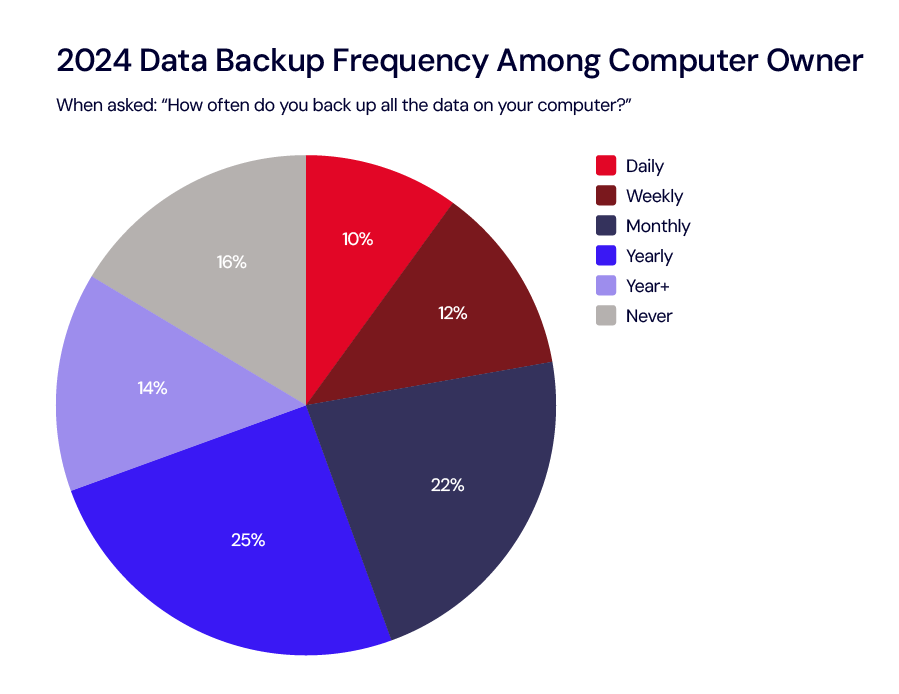
This year’s survey reveals that fewer than 1 in 5 Americans (15%) feel absolutely certain that their most important files are securely backed up. This is despite 84% of Americans who own a computer stating that they’ve backed up all their data and 45% performing backups at least once a month.

The survey also highlights the predominance of cloud solutions among backup methods. 63% of individuals who back up their data use a cloud-based system as their primary method. However, only 11% utilize dedicated cloud backup services, indicating a preference towards cloud drives (39%) and sync services (13%). As we noted above, cloud drives and sync services are fundamentally different from cloud backup solutions and can create gaps in a robust 3-2-1 backup strategy

Who Is Best at Backing Up?

Every year, we highlight which demographic is the best at backing up their data, and in 2024, men (73% vs. 66% of women) and younger adults ages 18–54 (76% vs. just 61% of those ages 55+) take the lead backing up at least once a year. 

The Reasons for Restores

The survey also found that 74% of Americans who own a computer have accidentally deleted important data (a 5.7% increase from 2023), and 57% have experienced a security incident on their computer.

Trends Over Time

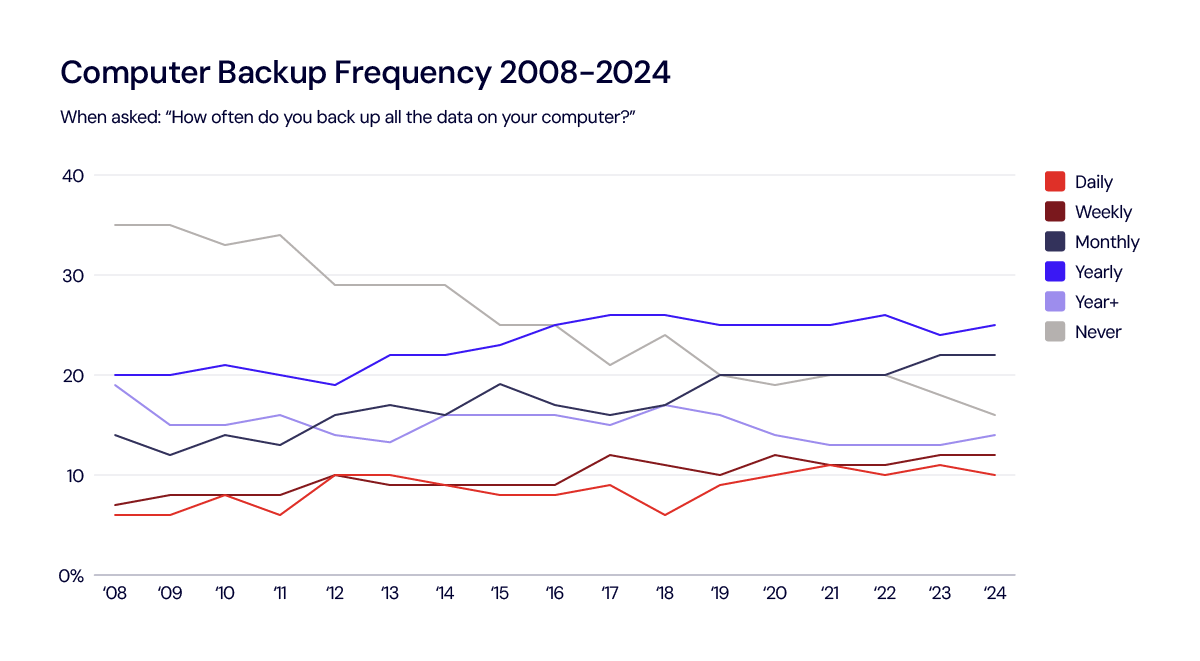
For those interested in the data over time, let’s travel back and see how this year’s data compares to previous years. The first graph is one of our favorites. Since 2023, daily backups have dipped by 1%, while weekly and monthly backups have remained steady, which is encouraging. Additionally, there is a slight, but not statistically significant, increase of 1% in yearly and more-than-yearly backups. Notably, the percentage of people who have never backed up their data has decreased by 2%. 

For all the table enthusiasts, you’ll appreciate this detailed view showcasing how 2024 compares with previous years. We love to see Never down to an all-time low, although Daily took a slight dip. 

If you’re a visual person who appreciates vibrant pie charts for easier data digestion, here are pie charts comparing data from 2008 to 2024:

Within each population (business and consumer), the most striking data points are around the differences between backup and sync. Both consumers and businesses are leveraging cloud drive and sync services for ease of use, but that has not translated to successful data recoveries. With ransomware attacks on the rise, now more than ever, it’s essential to have a strong backup strategy. 

Still, we’ve come a long way since 2008, and the consumer data shows positive change over time around backup awareness and tool adoption. Going forward, we’ll be interested to see how the business audience data changes over time. See below for our full testing methodology, and, as always, drop us a line in the comment section if you have any questions or insights.

Consumer Survey Method:

This survey was conducted online within the United States by The Harris Poll on behalf of Backblaze from April 25-29, 2024, among 2,058 adults ages 18 and older, among whom 1,877 own a computer. The sampling precision of Harris online polls is measured by using a Bayesian credible interval.  For this study, the sample data is accurate to within +/- 2.5 percentage points using a 95% confidence level.

Prior year’s surveys were conducted online by The Harris Poll on behalf of Backblaze among U.S. adults ages 18+ who own a computer in April 25–27, 2023 (n=1,857) May 19–23, 2022 (n=1,861); May 12–14, 2021 (n=1,870); June 1–3, 2020 (n=1,913); June 6–10, 2019 (n=1,858); June 5–7, 2018 (n=1,871); May 19–23, 2017 (n=1,954); May 13–17, 2016 (n=1,920); May 15–19, 2015 (n=2,009); June 2-4, 2014 (n=1,991); June 13–17, 2013 (n=1,952); May 31–June 4, 2012 (n=2,176); June 28–30, 2011 (n=2,209); June 3–7, 2010 (n=2,051); May 13–14, 2009 (n=2,154); and May 27–29, 2008 (n=2,723).

Business Backup Survey Method:

This survey was conducted online within the United States by The Harris Poll on behalf of Backblaze from April 30 – May 8, 2024, among 300 IT Decision Makers. The sampling precision of Harris online polls is measured by using a Bayesian credible interval.  For this study, the sample data is accurate to within +/- 5.7 percentage points using a 95% confidence level.

For complete survey methodologies, including weighting variables and subgroup sample sizes, please contact Backblaze.

The post 2024 State of the Backup: Survey Says Security Incidents and Data Loss on the Rise appeared first on Backblaze Blog | Cloud Storage & Cloud Backup

Do I Need a Continuous Backup Solution?

Post Syndicated from Stephanie Doyle original https://backblaze.com/blog/do-i-need-a-continuous-backup-solution/

A decorative image showing a calendar displaying a cloud with arrows in a circular pattern, plus several devices around the calendar.

Most IT administrators and businesses know that you need to employ a 3-2-1 backup solution to meet minimum backup durability requirements, though many folks are of the opinion that that methodology is just table stakes these days. Once you get into the variety of ways you can ensure reliable, robust backups, you learn about strategies like 3-2-1-1-0, bare metal recovery, cyber resilience, and more. 

Which method your business ultimately ascribes to depends on your risk tolerance—but no business wants to experience the costs associated with extended downtime. In a world where the threat of ransomware is not an “if”, but a “when,” and disaster recovery is front-of-mind for businesses of all sizes, getting granular with your backup and recovery options is key. That brings us to today’s topic: continuous backup solutions, aka continuous data protection (CDP).

What Is Continuous Data Protection (CDP)?

A continuous data protection solution is an automated data backup method that keeps track of changes to your files and backs them up constantly. This is different from traditional backups that copy your data at set intervals. While you can set the interval that you’d want to have your data backup (e.g., daily, weekly, monthly), you’d still be relying on a systemic approach, and would have data loss exposure correlating to the duration you set. What if you had a day of particularly high volume of new data? What if you’re dealing with sensitive customer information that your business needs to show an accurate audit trail for? 

Quick Refresher: The 3-2-1 Backup Strategy

The 3-2-1 backup solution calls for three copies of your data, to be stored on two different media types, with one copy off-site (and preferably geographically separate from your primary data storage region).

Continuous backup solutions work by tracking every change to your data in real time, then they asynchronously create a second copy of those changes. Compare this with traditional backups, where data is written to a destination, then a copy (often, a snapshot) of the data is made to be distributed to other backup locations. With a continuous backup solution, you can reduce your recovery point objection (RPO)—that is, the point in time from which you can recover your data—to near zero. And, because your continuous backups typically have to be stored in more accessible storage tiers, you can reduce your recovery time object (RTO) as well. 

Here are some of the key qualities of a continuous backup solution: 

  • Automatic backups. With continuous backup, you don’t need to remember to manually back up your data. The system continuously monitors your files for changes and backs them up automatically.
  • Real-time or frequent backups. Continuous backup solutions can back up your data in real-time, or at least very frequently. This means you’ll always have a very recent copy of your data available in case of data loss.
  • Restore to any point in time. Because continuous backups keep track of all the changes made to your files, you can restore your data to any point in time, not just the last time a full backup was run.

Benefits of Continuous Backup Solutions

There are several advantages to using a continuous backup solution:

  • Reduced risk of data loss. You’re less likely to lose data due to hardware failure, software corruption, ransomware attacks, or accidental deletion.
  • Faster recovery times. If you do lose data, you can restore it from a recent backup much faster than you could with a traditional backup system, especially those that rely on hardware (air gaps) or cold storage for archival storage. 
  • Improved business continuity. Continuous backup can help businesses keep running smoothly even if they experience a data loss event.
  • User-friendly for diverse levels of tech proficiency. Within a business, there are always going to be folks who are more or less proficient with technology. When you have an automatic backup utility that runs in the background—particularly one with advanced central administrative controls like Backblaze Business Backup with Enterprise Control—you aren’t relying on employees’ tech proficiency (or memory) to create backups.

Continuous Backup vs. Near Continuous Backup Solutions

True CDP solutions run at the level where you’re writing changes to your file—according to the patent, at the basic input/output system (BIOS) of the computer such that normal operations are unaffected. In a practical sense, that means you’re nearly always using virtual machines. 

There are several near-continuous backup solutions, however, that back up in intervals of one hour or less and leverage a high-availability system. For transparency’s sake, it’s worth noting that Backblaze Computer Backup is a near continuous backup using native code over Java to reduce impact on your computer’s operations—see our documentation for more.

Downsides of Continuous Backup Solutions

There are some challenges to consider when implementing a continuous backup solution:

  • Cost: Continuous backup solutions can be more expensive than traditional backup solutions. As time has gone on, there are more solutions available—which has led to more competitive pricing—but it is still a factor to consider. 
  • Storage requirements: Continuous backup can generate a lot of data. If you’re provisioning storage yourself, you’ll need to make sure you have enough to accommodate the backups. If you’re considering using a cloud backup utility, make sure you look into unlimited backups. Many common backup utilities create pricing tiers that take into account the volume of data a user generates and stores.
  • System resources and compatibility: Solutions can use up system resources, which could slow down your computer or server. For example, many utilities use Java instead of native code, which can noticeably slow down your devices. 

What’s the Diff: Continuous Backup vs. Synced Cloud Drive

Because a continuous backup solution updates backups in near real-time, it can be confused with cloud sync services. You may have heard us say it before—sync is not backup. The main difference between a continuous backup service and a synced cloud drive boils down to their purpose:

Continuous Backup Service: This prioritizes data protection and recovery. It constantly monitors your files for changes and backs them up frequently, often in real-time. You can restore your data to any specific point in time, making it ideal for disaster recovery or retrieving accidentally deleted files.

Synced Cloud Drive: This focuses on accessibility and collaboration. It keeps a mirrored copy of your designated folders across multiple devices. Any edits you make on one device are reflected in the cloud storage and on all other connected devices. This is great for working on the same files from different locations and keeping everyone, well, in sync.

While some cloud drives have introduced a backup or version history function, they are often limited in scope and subject to the shared responsibility model. Both undermine a true backup strategy, especially if your business has cyber insurance or compliance standards to meet.  

Here’s a table summarizing the key differences:

Feature Continuous Backup Service Synced Cloud Drive
Main Purpose Data protection and recovery Accessibility and collaboration
Backup Frequency Continuous or very frequent User-defined, automatic at intervals, often limited
Version Control Supports restoring to any point in time May or may not have version history
Focus Protecting against data loss Sharing and working on files across devices
Ideal Use Case Disaster recovery; accidental deletion recovery; ransomware protection Remote work; team collaboration

In short:

  • Use a continuous backup service if you’re worried about losing important data due to hardware failure, software corruption, or accidental deletion.
  • Use a synced cloud drive if you want to access and edit your files from anywhere and keep them updated across all your devices.

Some services might offer both features, but it’s important to understand which functionality takes priority. And, if in doubt—use both. 

Conclusion

Backups continue to be one of the cornerstones of any business’ ransomware protection strategy. As you’re considering what kind of backup you need, consider how much your business needs a granular, point-in-time recovery option to maintain business continuity. As always, you should balance functionality with costs, and the needs of your particular business. But, given the relative affordability of backup tools—and the amount they can save you in the event of a data disaster—solutions like continuous backup are worth considering for businesses of all sizes.

The post Do I Need a Continuous Backup Solution? appeared first on Backblaze Blog | Cloud Storage & Cloud Backup

In Honor of May the Fourth, Let’s Talk About the Internet in Space

Post Syndicated from Stephanie Doyle original https://backblaze.com/blog/in-honor-of-may-the-fourth-lets-talk-about-the-internet-in-space/

A decorative image showing a satellite and the Backblaze logo on a cloud in space.

It is time, once again, to celebrate the things that bring us together as tech and sci-fi lovers of the world. Today, to mark the upcoming high holiday, May the Fourth, we’re bridging our current reality to that time long ago in a galaxy far, far away by discussing the important issues: How in the world are we expected to survive in space without good internet? 

Maybe it’s just me, but it seems absurd that the Death Star blueprints had to be literally carried off a spaceship on what’s essentially an external hard drive when the Jedi Council (RIP) could make perfect holographic representations of themselves from across the galaxy. Sure, you can argue that making an off-site copy and sneaking it out was the most covert way to go about it, but didn’t some of those characters in Rogue One die next to a giant antenna? One powerful enough that it controlled traffic into and out of the planet? Why did they have to transmit the plans to the closest battleship when, in theory, they could have sent them anywhere? 

Never fear folks, we are here with what we think, based on a fair amount of research and our own humble opinions, are the answers. The truth is that current and future space internet still requires a good bit of hardware and networking. Let’s talk about where we’re at today, where we could be in the near future, and why the Rebel Scum may have, in fact, needed to run faster than Darth Vader, sacrificing all those lives, to get the Death Star schematics out of the sector.

How Do We Currently Move Data Through Space?

The internet, as we know and love it, is largely a function of hardware. To simplify things to their most base definition, the internet is a network of all the networks on the planet. Key word there, folks: planet. We use fiber optic cables to connect things on our terrestrial plane. What happens when we want to take things to space? 

We have a variety of telecommunications operations that allow us to move data through space, but they’re nowhere near as fast as our fiber-optic cables, especially with recent advancements in fiber transmission. To make our space communications that fast, we’d need analogous hardware and/or scientific advancements in some very cool research areas. 

For today’s conversation, here are the basics: when you transmit data (via any medium, not just through space), you convert it to a format computers can read, namely 0s and 1s. Typically we represent those values by moderating or fluctuating different types of electromagnetic waves. Currently the most prevalent form of data transmission in space is radio, and lasers are a developing, but usable technology.

An image from the European Southern Observatory showing lasers guiding a high-powered telescope.
Frickin’ lasers. Source. 

Our Earth-based organizations move data through space both near and far using different networks of satellites and listening technology. Both use a satellite system called the Tracking and Data Relay Satellite (TRDS), which orbits Earth at a far enough range that relay points are nearly always visible to spacecraft like the International Space Station (ISS).

As you get further out into deep space, you can beam your signal directly to Earth—you just have a smaller window of time where orbits are aligned to make that possible. In that case, rovers stationed on other planets might co-opt other orbiters to relay signals back to Earth. The only problem there is that those orbiters typically have a scientific mission of their own, which means that the relay orbiter has to make a choice about what traffic is prioritized. These things also signal what space internet could be in the future: a network of relay satellites that transfer data planet to planet.  

And, while networking on Earth is designed for and assumes real-time responses, scientists are working on Delay-Tolerant Networking (DTN) which is designed to handle significant delays and optimize routing based on that information. It’s not yet mainstream, but DTN has been successfully demonstrated on several missions, including on NASA’s Curiosity mission and the European Space Agency (ESA) Rosetta comet mission. 

Yeah, But What Does Star Wars Use?

We see a couple of types of communications networks in the Star Wars films, and more in the non-canonical expanded universe: 

  • Holonet: This is a galaxy-wide communication network mentioned in the films. It’s likely a complex system of satellites, relays, and subspace transceivers that facilitate rapid data transfer. This is similar to what we’re using and building today. 
  • Subspace: While primarily used for faster-than-light travel, subspace might also be used for transmitting information. Subspace is a fictional realm that allows hyperspace travel, and it’s possible that communication signals could piggyback on this network for faster travel times. 
  • Hyperspace Communication Droids: Legends lore (non-canon Star Wars material) mentions these specialized droids that could transmit messages via hyperspace, achieving near-instantaneous communication.

Since the last two depend on the fictional subspace zone, we’re really just considering the Holonet today. And, that works largely like our current technology, though they obviously have more satellites and relays to work with. That’s good news for our little thought experiment—we can look at file transmission times on our current Mars missions to get some analogous numbers.

Mars Transmission Times & File Sizes

Okay folks, now that the science is out of the way, let’s get down to brass tacks. Why was it possibly faster to move the Death Star plans via external storage than just transmitting them out once the planetary shields had been lifted? That answer depends on transmission times and file size. I’ll talk about transmission times first. 

The current technology we use to communicate with Mars has a few different transmission times we can work with: 

  • Radio, low-gain antenna: Up to a few kilobits per second (kbps)
  • Radio, high-gain antenna: Up to several megabits per second (Mpbs)
  • Laser, standard communications systems: Up to 10 gigabits per second (Gbps)
  • Laser, advanced systems under development: In development, but 10s of Gbps 

For our purposes, let’s go ahead and choose two and use a 10GB file as an example. The basic transmission time formula is: 

Transmission time = file size / data rate

Assuming radio waves and a high-gain antenna:

Transmission time = (10GB * 8 bits) / (1Mbps) = 80,000 seconds, or about 22 hours

Assuming laser communications with a standard system:

Transmission time = (10GB * 8 bits) / (10Gbps) = 8 seconds

So, How Big Were the Death Star Files?

We have two main canonical sources of truth we can use to infer the file size of the Death Star schematics: A New Hope and Rogue One: A Star Wars Story. (The plans were discussed in the Clone Wars, but not in detail.) Full disclosure: I used AI tools to assist with our file size estimations. 

A New Hope

In the OG, we get a glimpse of the plans the rebels have smuggled out as they plan to attack the Death Star, and we can use these to make some assumptions about file size. Interestingly, these plans were actually created for the movie by a few scientists at NASA’s Jet Propulsion Labs (JPL), and they were originally credited in the film.

As easy as shooting womp rats.

Factors to consider about file size:

  • Visual Complexity: The schematics we see on the holographic projectors show detailed technical diagrams with various sections, labels, and annotations.
  • Color Depth: While the movie doesn’t definitively show color, for the sake of estimation, let’s assume the plans are grayscale (requiring 1 byte per pixel).
  • Resolution: Estimating the exact resolution from the movie is difficult. However, considering the detail visible on screen and the technology of the time (1977), a conservative guess might be a resolution similar to standard definition video (around 480p).

Calculating File Size—A Conservative Estimate

The formula for calculating file size per image is:

File size per image = Width x Height x Color Depth

Let’s assume the Death Star plans are displayed on a holographic projector with a resolution of 640 x 480 pixels (a common standard definition resolution). If they are grayscale images, they would require 1 byte per pixel for color depth, so:

640 pixels * 480 pixels * 1 byte/pixel = 307,200 bytes per image

However, the plans likely consist of multiple schematics and blueprints. In the movie, we see various sections and scrolling text, suggesting a considerable amount of information.

The formula for calculating total file size is:

Total file size = File size per image * Number of images

Let’s assume the Death Star plans consist of a total of 100 grayscale images (a very rough estimate), so:

Total file size = 307,200 bytes/image * 100 images Total file size = 30,720,000 bytes

1MB is equal to 1,048,576 bytes, so that’s 29.3MB (30,720,000 bytes / 1,048,576 bytes/MB).

Remember, this is a very rough estimate.

The actual file size could be much larger or smaller depending on factors like:

  • Compression: The Death Star technology might utilize advanced data compression techniques, significantly reducing the file size.
  • Vector Graphics: If the plans are stored as vector graphics (scalable images), the file size would be smaller compared to bitmaps (storing pixel information).
  • Additional Data: The data card might contain additional information beyond visual schematics, like text descriptions, material specifications, etc., which could increase the file size.

Taking everything into account, a reasonable guess for the Death Star plans file size in Star Wars: A New Hope could be in the ballpark of 20 to 50 megabytes. This is enough to hold a significant amount of technical data but still fit on a reasonably sized data card for the time period the movie depicts (1977).

Rogue One

In Rogue One, we don’t actually see the plans in detail like we do in A New Hope, but we do have a short clip showing digital blueprints. Based on what we can glean from that and other newer, canonical sources, which employ 3D holograms, here’s a revised estimate for the Death Star schematics file size:

Factors to consider about file size:

  • Data Complexity: Rogue One reveals plans that include detailed schematics, technical readouts, and potentially 3D models. These elements significantly increase the file size compared to our previous estimate based on static images.
  • 3D Model Complexity: The size of 3D models depends on the level of detail. High-resolution models with intricate textures would require more data than simpler ones.
  • Data Hierarchy: The plans likely involve a layered structure, with overviews and deep dives into specific sections. This adds to the overall file size.
  • Compression: The presence of data compression is unknown. Compression algorithms can significantly reduce file size, but the effectiveness depends on the data type.
Gotta love a data center.

Estimated Range:

Given these factors, here’s a possible range for the Death Star schematics:

  • Low-End Estimate (100s of GB):
    • Moderately complex 3D models.
    • Some level of data compression.
    • Focus on essential schematics and technical data.
  • High-End Estimate (Low Single-Digit TB):
    • Highly detailed 3D models encompassing the entire Death Star.
    • Limited or no data compression.
    • Extensive data beyond core schematics, including maintenance procedures, weapon system details, etc.

Final Call?

Sure, we don’t know if data storage techniques are different in the Star Wars universe, and sure, the difference between technology in 1977 vs. 2016 gives sci-fi writers are a lot more to work with, but considering the complexity of the Death Star and the variety of data hinted at in Rogue One, the schematics file size likely falls somewhere between hundreds of gigabytes to a low single-digit terabyte. Frankly, despite the New Hope plans being our original introduction to the universe, this range is more realistic for a project of such immense scale. 

Of course, with a file size in the 100s of GBs or low TBs, it makes a lot more sense why the Rebels didn’t attempt to transmit the files much, much further away. We know from the movie that the Death Star plans were on a relatively isolated planet in an Imperial-controlled quadrant, and who knows how large quadrants are. 

For the sake of argument, let’s say the Death Star schematics were 1TB and there’s a safe planet at the equivalent distance of Mars. Transmitting the files via radio with a high-gain antenna would take about 2330 hours, and transmitting via laser would take 217 hours. 

With that in mind, even though it’s pretty old school, it was probably faster to put the files on a drive on a spaceship, and then have that spaceship get those files where they needed to go (you know, not accounting for misadventures). 

Always Have a Backup: Is a Droid the Safest Way to Transmit Files?

The most confusing part of this whole discussion is why, once they were past the “Darth Vader is attempting to murder us” part, they didn’t make several copies of the data and distribute it to various, separate entities. The urgency of the mad rush of Luke trying to reach the Rebels is compelling and all, but also an excellent reason you should always have a geographically separated backup. R2-D2’s badassery notwithstanding, the fate of the universe should have some redundancy.

If It Works, It Works

Hey, in the end, we really can’t complain. Luke got the files to Leia; Leia goes on to be instrumental in the Rebel victories against not one, but two Death Stars, and we all just had to endure the dark times of the prequels before we got the compelling story of Rogue One. Cheers, Star Wars fans, and May the Fourth be with you.

The post In Honor of May the Fourth, Let’s Talk About the Internet in Space appeared first on Backblaze Blog | Cloud Storage & Cloud Backup

7 Data Dilemmas + 5 Backup Strategies for World Backup Day 2024

Post Syndicated from Yev original https://backblazeprod.wpenginepowered.com/blog/7-data-dilemmas-5-backup-strategies-for-world-backup-day-2024/

A decorative image showing the World Backup Day logo and the Backblaze logo on the cloud.

Everyone’s favorite holiday is fast approaching. That’s right: World Backup Day is just around the corner on March 31 (if you’re new to celebrating). Many moons ago, we got together with some like-minded champions of the backup lifestyle to encourage people to protect their data, and World Backup Day was born. In the past we’ve shared internal metrics on backup trends, advice for talking to your family about backups, and learnings from our yearly backup poll (stay tuned in June for more of those!).

This year to mark the occasion, we’re revisiting some tales of bullets dodged and backup victories. You’ll find no scary monsters here—no, these tales end happily. We like to call them ReStories—heartwarming sagas of folks who found a data lifeline. And we’re throwing in some tips and tricks to help you protect your data, too. 

Let’s take a walk down ReStory lane.

Rising From the Ashes of the Marshall Fire Crisis

In 2021, the Marshall Fire left many in despair, but for Christopher G., it was a test of foresight. “A lifetime of memories were kept in my data, and years before this I decided to get a permanent backup solution,” Christopher shared. When disaster struck, Christopher lost his data—including his on-site backup copies—but he remembered he had an off-site backup stored in the cloud with Backblaze. He initiated a restore, and we sent hard drives with everything he needed to get his precious memories back. 

Tip 1: Mitigate Risks With 3-2-1 Backups

Christopher’s story is a powerful testament to being prepared with a 3-2-1 backup strategy, which means keeping three copies of your data on two different media with one stored off-site (and preferably in the cloud). When two copies of his data were wiped out by the Marshall fire, he could rely on his third copy to restore all of the data, including years of photos and important documents.

School District Protects Data for 23,000 Students

Bethel School District had 200 servers and 125TB of data backed up by Rubrik, a backup software provider, to Amazon S3, but high costs were straining their budget—so much so that they had to shorten needed retention periods. They moved their backup copies from Amazon S3 to Backblaze B2, resulting in savings of 75%, which allowed them the budget flexibility to reinstate longer retention times and better protect their data from the threat of ransomware.

It was really a couple clicks, about five minutes worth of work, and we were pointed to Backblaze.

—Patrick Emerick, Senior Systems Engineer, Bethel School District

Tip 2: Plan for a Ransomware Attack Before It Happens

Ransomware attacks specifically targeting school districts and universities are on the rise—79% of institutions reported they were hit with ransomware in the past year. A ransomware attack is not a matter of if, but when, and that’s true whether you’re a school, university, business, or just someone who has data they care about. Take a cue from Bethel School District and take proactive measures to protect your business data from ransomware, like establishing retention periods that allow you to recover adequately in the event of an attack.

Backing Up Years of Research

The Caesar Kleberg Wildlife Research Institute at Texas A&M–Kingsville needed an endpoint backup solution to protect data on researchers’ laptops in the field and on-site, knowing researchers in the field don’t always follow protocols to the letter when it comes to saving their data. The Institute’s IT manager implemented Backblaze Computer Backup which gave him the ability to remotely manage faculty and staff backups. And he knows that, with no added fees, recoveries won’t be cost prohibitive.

Tip 3: Manage Backups Centrally

Whether you’re a remote employee or managing them, it can help to have tools like silent install, fine-grained access permissions, and management controls (at Backblaze, you can access all of these via Enterprise Control for Computer Backup). That way you can stay focused on what matters most instead of updating backup clients and fiddling with settings. Plus, you don’t have to worry about backups being accidentally deleted or tampered with. 

Glenda B.’s Emotional Rescue: 20 Years of Memories Reclaimed

Losing decades of family photos can be devastating, a sentiment echoed by Glenda B.: “Several years ago my photos were all inexplicably deleted from my computer—20 years of family photos gone in an instant!” Some of them were on iCloud, but there were years of older photos that were only stored on her computer. Fortunately, she had very recently installed Backblaze Computer Backup, so all of her photos were safely backed up in the cloud. Glenda initiated a restore with Backblaze, restoring her files and her invaluable memories. 

Tip 4: Sync Is Not Backup

If you’re like Glenda, your digital life is probably scattered across your computer, external hard drives, and multiple sync services from iCloud to Google Drive. Glenda’s story is an important lesson that sync is not backup. Sync services are great for sharing data and accessing it on multiple devices, but that doesn’t help you when you lose data that’s only stored on your computer or when you accidentally delete a file and don’t realize it. One of the drawbacks of using sync services as a backup is that data outside those services is vulnerable. And the fix for that vulnerability is to use a true backup service to protect all of your data. 

What Happens When One-Third of Your Employees’ Machines Crash?

BELAY Solutions is a staffing company that connects organizations with virtual assistants, bookkeepers, website specialists, and social media managers. While performing scheduled system updates across BELAY’s fleet of Macs, nearly a third of the company’s machines crashed. After shipping out replacement laptops, the IT team empowered BELAY employees to use Backblaze Business Backup to recover their own data independently in a matter of minutes.

Our work is very time intensive, so our team can’t be offline for long—you always need reliable technical assets to support virtual assistants in the field.

—Cam Cox, IT Systems Administrator, BELAY Solutions

AJ’s Tech Misadventure: Averting a Digital Disaster

Upgrading your computer’s operating system is routine until it results in an accidental wipeout, as AJ found out. “In summer 2020, I accidentally wiped my external hard drive while downloading a copy of Windows 10,” he recounts. But thanks to Backblaze, AJ could redownload everything, salvaging irreplaceable files. 

Rob D.’s Professional Life: Recovering Years of Work

For Rob D., a graphic designer, losing years of work to a computer crash was catastrophic. He woke up to the “dreaded blue screen of death” and despite efforts, only scattered metadata could be salvaged. But, Backblaze came to the rescue. “As a graphic designer, YEARS of design projects were gone in a flash. Clients…were not too pleased…Enter Backblaze,” Rob said. With a new hard drive filled with his backed up data, he experienced immense relief. “Can’t quite describe the feeling of relief I felt at that moment knowing that I was going to be ok. THANK YOU Backblaze!! I’m a customer for life!”

Tip 5: Reduce Downtime With Self-Serve Backup Solutions

Even tech savvy folks like AJ, Rob D., and the staff at BELAY solutions can get flustered when they suddenly lose their data or ability to work, so an easy restore process everyone can use themselves no matter their level of IT knowledge is essential for those high-stress situations. BELAY initially chose Backblaze for its simplicity and ease of use. “I’ve been able to help someone get their data back within five minutes. I don’t think that ever would have happened using our previous tool,” said Cam Cox, IT Systems Administrator. And, Backblaze user AJ relayed that having Backblaze was “worth every penny for the rapid restore process.”

Take the World Backup Day Pledge This Year

As we celebrate World Backup Day, let’s take a moment to recognize the critical role that data backup plays in safeguarding our digital assets against unforeseen threats. Whether you’re a business owner, an IT director, or an individual user, investing in robust backup solutions is an investment in resilience and peace of mind. By embracing proactive measures and leveraging technology to fortify our defenses, we can navigate the complexities of the digital age with confidence and resilience. We encourage you to take the World Backup Day pledge, feel free to reach out to us on socials, and check back in June to see the newest results of our yearly backup survey.

The post 7 Data Dilemmas + 5 Backup Strategies for World Backup Day 2024 appeared first on Backblaze Blog | Cloud Storage & Cloud Backup.

Data Storage Beyond the Hardware: 4 Surprising Questions

Post Syndicated from Stephanie Doyle original https://www.backblaze.com/blog/data-storage-beyond-the-hardware-4-surprising-questions/

A decorative image showing a several types of data storage medium, like a floppy disk, a USB stick, a CD, and the cloud.

We’ve gathered you together here today to address some of weirdest questions (and answers) about everyone’s favorite topic: data storage. 

From the outside looking in, it’s easy to think it’s a subject that is as dry as Ben Stein in “Ferris Beuller’s Day Off”. But, given that everyday functions are increasingly moving to the internet, data storage is, in some ways, the secret backbone of modern society. 

Today it’s estimated that there are over 8,000 data centers (DCs) in the world, built on a variety of storage media, connected to various networks, consuming vast amounts of power, and taking up valuable real estate. Plus, the drive technology itself brings together engineering foci affected by (driving?) everything from clean room technology to DNA research. 

Fertile ground for strange, surprising questions, certainly. So, without further ado, here are some of our favorite questions about data storage. 

1. Does a Hard Drive Weigh More When It’s Full?

Short answer: for all practical purposes, no. Long answer: technically yes, but it’s such a miniscule amount that you wouldn’t be able to measure it. Shout out to David Zaslavsky for doing all the math, and here’s the summary. 

As Einstein famously hypothesized, e = mc2. If it’s been a while since you took physics, that formula defined is that energy is equal to mass multiplied by the speed of light squared. Since energy is defined by mass, then, we can infer that energy has a weight, even if it’s negligible. 

Now, hard drives record data by magnetizing a thin film of ferromagnetic material. Basically, you’re forcing the atoms in a magnetic field to align in a different direction. And, since magnetic fields have differing amounts of energy depending on whether they’re aligned or antialigned, technically the weight does change. According to David’s math, it’d be approximately 10-14 g for a 1TB hard drive. 

2. How Loud Is the Cloud?

In the past, we’ve talked about how heavy the Backblaze Storage Cloud is, and we’ve spent some ink on how loud a Backblaze DC is. All that noise comes from a combination of factors, largely cooling systems. Back in 2017, we measured our DCs at approximately 78dB, but other sources report that DCs can reach up to 96dB

When you’re talking about building your own storage, my favorite research data point was one Reddit user’s opinion:

A screenshot of a comment from Reddit user EpicEpyc that says:

I think a good rule of thumb will be "if you care about noise, don't get rackmount equipment" go a with a used workstation from your favorite brand and your ears will thank you

But, it’s still worth investing in ways to reduce the noise—if not for worker safety, then to reduce the environmental impact of DCs, including noise pollution. There are a wealth of studies out there connecting noise pollution to cardiovascular disease, hypertension, high stress levels, sleep disturbance, and good ol’ hearing loss in humans. In our animal friends, noise pollution can disrupt predator/prey detection and avoidance, echolocation, and interfere with reproduction and navigation. 

The good news is that there are technologies to keep data centers (relatively) quiet when they become disruptive to communities.  

3. How Long Does Data Stay Where You Stored It?

As much as we love old-school media here at Backblaze, we’re keeping this conversation to digital storage—so let’s chat about how long your data storage will retain your media, unplugged, in ideal environmental conditions. 

We like the way Enterprise Storage Forum put it: “Storage experts know that there are two kinds of drive in this world—those that have already failed, and those that will fail sooner or later.” Their article encompasses a pretty solid table of how long (traditional) storage media lasts.

A table that compares types of drive and how long they will last. 

Hard disk drives: 4-7 years 
Solid state drives: 5-10 years
Flash drives: 10 years average use

However, with new technologies—and their consumer applications—emerging, we might see a challenge to the data storage throne. The Institute of Physics reports that data written to a glass memory crystal could remain intact for a million years, a product they’ve dubbed the “Superman crystal.” So, look out for lasers altering the optical properties of quartz at the nanoscale. (That was just too cool not to say.)

4. What’s the Most Expensive Data Center Site?

And why? 

One thing we know from the Network Engineering team at Backblaze is that optimizing your connectivity (getting your data from point A to point B) to the strongest networks is no simple feat. Take this back to the real world: when you’re talking about what the internet truly is, you’re just connecting one computer to every other computer, and there are, in fact, cables involved

The hardware infrastructure combines with population dispersion in murky ways. We’ll go ahead and admit that’s out of scope for this article. But, working backwards from the below image, let’s just say that where there are more data centers, it’s likely there are more network exchanges. 

An infographic depicting data center concentration on a global map.
Source.

From an operational standpoint, you’d likely assume it’s a bad choice to have your data center in the middle of the most expensive real estate and power infrastructures in the world, but there are tangible benefits to joining up all those networks at a central hub and to putting them in or near population centers. We call those spaces carrier hotels

Here’s the best definition we found: 

There is no industry standard definition of a carrier hotel versus merely a data center with a meet-me room (MMR). But, generally, the term is reserved for the facilities where metro fiber carriers meet long-haul carriers—and the number of network providers numbers in the dozens.
Data Center Dynamics

Some sources go so far as to say that carrier hotels have to be in cities by definition. Either way, the result is that carrier hotels sit on some of the most expensive real estate in the world. Citing DGTL Infra from April 2023, here are the top 25 U.S. carrier hotels: 

A chart showing the top 25 carrier hotels in the United States and their locations.

Let’s take #12 on this list, the NYC listing. According to PropertyShark, it’s worth $1.15 billion. With a b. That’s before you even get to the tech inside the building. 

If you’re so inclined, flex those internet research skills and look up some of the other property values on the list. Some of them are a bit hard to find, and there are other interesting tidbits along the way. (And tell us what you find in the comments, of course.)

Bonus Question: Is It Over Already?

Look, do I want it to be over? No, never. But, the amount of weird and wonderful data storage questions that I could include in this article is infinite. Here’s a shortlist that other folks from Backblaze suggested: 

  • How broken is too broken when it comes to restoring files from a hard drive? (This is a whole article in and of itself.)
  • When I send an email, how does it get to where it goes? (Check out Backblaze CEO Gleb Budman’s Bookblaze recommendation if you’re curious.) 
  • What happens to storage drives when we’re done with them? What does recycling look like? 

So, the real question is, what do you want to know? Sound off in the comments—we’ll do our best to research and answer.

The post Data Storage Beyond the Hardware: 4 Surprising Questions appeared first on Backblaze Blog | Cloud Storage & Cloud Backup.

Now Available: Enterprise Control for Computer Backup

Post Syndicated from Yev original https://www.backblaze.com/blog/2024-enterprise-control-announcement/

A decorative image showing a person at two computers with the Backblaze logo on a cloud in the background.

If you’re responsible for protecting company data, you know that any number of things can jeopardize the data on workstations, be it human error or natural disaster. It’s your job to reduce risk, but to do that you need the ability to fine-tune your backup systems.

Backblaze Computer Backup gives you an easy, automatic, centrally-managed solution for backup. And, starting today IT administrators can take greater control of their endpoint backups—from how employees authenticate to what they can and cannot restore—with the introduction of our new Enterprise Control for Backblaze Computer Backup.   

Ready to Turn the Dials?

Enterprise Control is available for enterprises with more than 20 Computer Backup licenses at an additional $2 per license. To take advantage of greater administrative control, contact a Sales representative. Learn more about how to set up Enterprise Control by visiting our technical documentation on the subject.

What’s New in Enterprise Control?

Whether you’re an IT manager or an MSP responsible for protecting business data, Enterprise Control allows you to meet your full business continuity and data security standards for workstation data and better support a hybrid and remote workforce. Here’s what you can do with Enterprise Control:

  • Fine-Grained Access Permissions: Manage access to group member data on a granular level for enterprise operations. This includes control over members’ ability to delete their own backups, admin’s ability to delete member backups, and admin’s permissions for restoring data on a member’s behalf. 
  • Advanced Single Sign-On: Enable OpenID Connect (OIDC) single sign-on (SSO) and the ability to use tools like Okta and Azure Active Directory in addition to GSuite and Microsoft. This enhances security control, allowing you to ramp up authentication practices, verifying member identity and streamlining identity management.
  • Group Management Controls: Prevent members from leaving a group, taking data with them, or ordering restore hard drives or snapshot hard drives without permission. You also have the option to hide the ability to update the client through the desktop app, rename or purge end user backups from the web application, and prevent Group members from updating the client app on their own. 
  • Compliance Support: Benefits businesses who are mandated to apply greater controls given compliance, cyber insurance, or heightened recovery point objective (RPO) and recovery time objective (RTO) requirements.

We’ve been using Backblaze to reliably back up our 400 endpoints for years. We’re excited at the possibility of having even more control to meet our growing administration and data protection needs with this new Computer Backup with Enterprise Control solution.

—Sintya Pappagallo, IT Manager, North Point Ministries

Enterprise Control Gives You The Guardrails

Backblaze Computer Backup reduces IT burden with its simplicity, and consistently ranked as Wirecutter’s Best Online Cloud Backup Service. Now, we’ve wrapped that simplicity with the enterprise features larger organizations require so you can reduce risk, achieve compliance, and better support your cybersecurity and disaster recovery goals. 
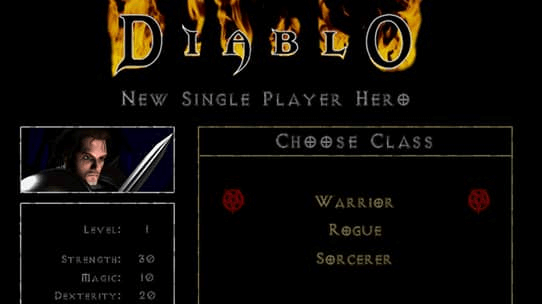
How to Upgrade to Enterprise Control

Enterprise Control is available for Groups with 20 or more Computer Backup licenses. To take advantage of Enterprise Control or to purchase Backblaze Computer Backup for your organization, contact your Sales representative. Or, learn more about how to implement Enterprise Control by visiting our technical documentation article.

If you have additional feature requests, please visit our Product Portal or let us know in the comments below.

The post Now Available: Enterprise Control for Computer Backup appeared first on Backblaze Blog | Cloud Storage & Cloud Backup.

The Backblaze Team Recommends: Tech That Saves the Day

Post Syndicated from Molly Clancy original https://www.backblaze.com/blog/the-backblaze-team-recommends-tech-that-saves-the-day/

A decorative image showing a superhero holding a computer with the Backblaze logo showing.

Everyone has their arsenal of indispensable gadgets and apps they absolutely couldn’t live without, and we had a feeling the folks here at Backblaze would have a lot to say about the subject. We tapped the smart, savvy minds that keep our storage cloud up and running, and discovered a treasure trove of insights into the tech essentials that power their daily lives.

From budgeting apps to text editors to humble charging jacks, our staff share the tools they can’t live without. So, without further ado, let’s dig into the gear that keeps our collective gears turning:

Tech for Staying Connected

Solutions Engineering Director, Troy Liljedahl

As a Mac guy, I love my Airpod Pros and the way they work seamlessly with my iPhone, Macbook Pro, and iPad. But things get a little wonky when you try to use them outside of the Apple ecosystem. I tried many different wireless earbuds and settled on the Anker Soundcore Space A40 Earbuds. I’m a big fan of The Wirecutter by the New York Times (and they’re big fans of us) and they had these at the top of their list. I love the sound quality, noise canceling, and excellent battery life. My Airpod Pros are still my go to when I’m out of the house, but when I need a good headset at home for my PC and other non-Apple devices, these have become my go to earbuds.

Senior Director, Marketing, Yev Pusin

You know what I hate? Getting my phone out at inopportune times. You know what I don’t mind so much? Glancing down at my Google Pixel Watch to see that the cold call I’m receiving is being answered by my phone’s call screening and I don’t have to pick it up. Whether it’s the first version or the second, I have grown accustomed to having something on my wrist that acts as an extension of my phone. True digital bliss. 

Chief Technical Evangelist, Pat Patterson

I use my webcam a LOT: Zoom and Google Meet with coworkers, FaceTime with family and friends, webinars with the Backblaze community of developers and admins, and quick-start videos for the Backblaze YouTube channel. Ever since I got my PlexiCam Pro mount about a year ago, it’s been my secret weapon in every one of those interactions. It’s a transparent plexiglass webcam mount that hangs from the top edge of my monitor, allowing me to position my webcam in my eyeline, just above my focus. To anyone on the call, I appear to be looking directly into the camera. 

At $85, it’s not cheap, but it’s well designed and constructed, and feels like it will last forever. Highly recommended for anyone who spends a lot of time flicking their eyes between the screen and the webcam!

Tech for Devs

Senior Site Reliability Engineer, nathaniel wagner

Ah, the age old debate of Emacs versus Vim: the two most widely used editors for Linux operating systems. I solidly planted my flag on team Vim once I learned how to save and exit the program. 😉

I do aspire to one day having a computer that only runs Emacs because byte compiled Emacs is cool to me. Until I graduate to that level of wizardry, I stick to Neovim when I need to quickly edit something from a terminal or want to appear cool in front of my coworkers. I mostly use the Vim extension in Intellij for day-to-day modifying of code and configs. If you would like to also learn Vim, I really enjoyed playing through Vim Adventures, which is a free game that teaches you a lot of the shortcuts and movements in Vim.

Lead Software Engineer, Application Security, Ola Nordstrom

Continuing the discussion in favor of Vim, specifically Neovim. You only have to learn the keybindings once. There is a fantastic set of plugins to customize it to your heart’s content—Visual Studio Code has VSCodeVim, Intellij has IdeaVim, for example. Then you don’t have to relearn keybindings while switching between languages, projects, and code. 

Tmux the terminal multiplexer: like Vim, it may have a steep learning curve but once you learn it you can’t live without it. The tmux wiki has some great getting started guides. I strongly recommend remapping the leader key (mine is Caps + A, or Caps Lock + A on Windows keyboards). You can set up customized tmux scripts to re-create all your environments (one session for server code, another for a different codebase, another for your notes, and so on). Each session then has multiple windows which you can create, split, and close quickly, no need to leave your keyboard.

For web technologies, learn the toolset available in the browser developer tools. Remember to preserve logs filter to specific responses so you won’t be overwhelmed looking at messages.

Stepping away from the browser and back into the terminal, learn Curl and ag or rg. For every “old” unix command there’s likely a modern replacement that’s 100s of times faster with much more customization available. 

But there’s always the middle ground for situations where you may need to initiate a complex series of browser–webapp interactions and you need to modify or test something quickly. To do this, learn how to use Burp. In the long run it’s well worth it. It makes it a breeze to modify data between the browser and your app.

Last tip: for native code, just learn how to use the debugger.

Tusen Tack!

Tech That Makes Home Homier

Principle Site Reliability Engineer, Elliott Sims

One power adapter to rule them all: the Anker 715 Charger (Nano II 65W). This one little power adapter can power my personal laptop, work laptop, headphones, and more. With one cable, one small charger cube, and a few small USB end adapters, I can charge everything.

Senior Product Marketing Manager, James Flores 

A Roku. I use it at home for streaming apps, but I also carry one in my travel bag. There’s nothing worse than flipping through basic cable channels in a hotel when you’re traveling. Wait, yes there is—signing in to Netflix on the hotel TV and forgetting to sign out. If I travel with it, I just plug it in and I’m already signed in to all my apps. 

Senior Technical Editing Manager, Alison McClelland

I got tired of locking myself out of my own house and forgetting who I gave spare keys to, so I really appreciate this Yale Lock with Nest Connect. It works with the Nest cameras that I mostly use to see whether the UPS or DoorDash delivery person has the nerve to ring my doorbell. (Drop it and run, people!) 

It’s secure and easy-to-use; no more locking myself out of my own house in the middle of winter. I can give a code to a friend so they can feed my cats while I’m away, or create temporary passcodes so I don’t have to wait around for the cable guy.

Senior Content Editor, Molly Clancy

I have a hard time turning my brain off at night, so I used to pop in earbuds to listen to something soothing (not comfortable at all!). Then I got this Cozyband as a gift and became 100% addicted to it. I CAN fall asleep without it, but I don’t do it willingly. It’s also good for working out if you hate sweaty earbuds slipping out all the time. 

Chief Executive Officer, Gleb Budman

It gets cold in my home, and I don’t necessarily want to heat the whole place when it’s just me. A good old fashioned heated blanket does the trick. All the tech in the world won’t help you when you’re shivering. 

The Apps Have Entered the Chat

Partner Marketing Director, Jen Newman

As a working mom with two boys, I am always on the go. Both of my boys are now playing for AAA travel teams. I try my best to keep up with all their games, and LiveBarn is how I stay connected to them. It allows me to pull up a live feed or on-demand video of the game. Last weekend was a great example: they were playing at two different rinks across town. I was able to pull up one game on LiveBarn on my phone, and watch both games literally at the same time. When my older son came home and asked me if I saw his goal, I was able to say, “I heard Coach yell, ‘Nice shot, Newy!’” 

Associate Editor and Writer, Stephanie Doyle

My life changed when I adopted a password manager years ago. Before I went back to full-time corporate life in 2020, I freelanced quite a bit—which means an endless series of logins and passwords, depending on how you’re engaging with your clients. And, while I enjoy making up 13–15 character passphrases with a mix of upper and lowercase letters, at least one symbol with some outlawed symbols (but different ones on each site), and then remembering which ones I’ve used for which accounts without reusing them… Oh wait, I actually really don’t like that. I’d rather have a password manager like Bitwarden that can generate passwords, follows me device to device, and allows me to enable biometric controls. And, spoiler alert for any of my family members who diligently read my work (I’m sure): This year the whole family is getting a subscription as a gift, and I can centrally manage it for my non-tech-inclined family members.

Senior Director of Publishing, Patrick Thomas

I’m not going into the story of how I got hooked on this app, but I will tell you that CENTR’s meal planning tool is a life saver. You can set a crazy variety of dietary needs, select your meals and portions for a week, and it spits out a perfectly organized shopping list. Then, when you want to make a meal, you just pop into the app and it tells you exactly how to look like you know what you’re doing in the kitchen. It’s sort of pricey, but the amount of money I save by not ordering in or wasting food that I bought without a plan more than makes up for it.

And, oh yeah, Chris Hemsworth is one of its founders.

Senior Product Marketing Manager, Kari Rivas

Hoping on the app train here. The one I can’t live without is definitely YNAB. I’m trying to get better at budgeting ahead (and get my husband and I on the same page—haha!) and I like their philosophical approach to a typically boring subject.

The “Tech Is a Tool” Answer

Principal Cloud Storage Storyteller, Andy Klein

I don’t have a favorite tech thing. I certainly use lots of them, but I would not be lost without them because I was raised without any of the current tech. I know how to tie my shoes without watching a Youtube video. Just sayin’.

But, you know, just in case.

Thanks, Andy

Leave it to Andy to send us off with a reminder to put the tech down sometimes, as we hope you all get a chance to do this holiday season. But, we also want to know: what’s the tech that you can’t live without? Let us know in the comments.

The post The Backblaze Team Recommends: Tech That Saves the Day appeared first on Backblaze Blog | Cloud Storage & Cloud Backup.

How to Download Your Google Drive and Back Up Your Files

Post Syndicated from Molly Clancy original https://www.backblaze.com/blog/download-backup-google-drive/

A decorative image showing a Google Drive logo and a storage bar filling up with different types of files.

Editor’s Note

What better time for a reminder to back up your data than after a serious data loss event? If you are concerned about the safety of your Google Drive data after the reports of unexplained data loss by Google Drive users last week, then read on to learn how to download and back up your Google Drive.

More than one billion businesses and individuals use Google Drive according to, well, a quick search on Google. If most of those one billion people are like me, they save pretty much everything there. 

Whether the data is professional or personal, the end result is a lot of important files that aren’t necessarily backed up anywhere. Maybe your school is closing your account and you need to move all of your data somewhere else. Maybe your account gets attacked by cybercriminals. Or maybe Google goes down or loses your data. In order to protect your important Google Drive files, you need to understand how to go about downloading and backing up your account. 

In this post, you’ll learn some simple steps to achieve that, including how to download your Google Drive, how to back up your computer, and how to back up your Google Drive.
We’ve gathered a handful of guides to help you protect social content across many different platforms. We’re working on developing this list—please comment below if you’d like to see another platform covered.

How to Download Your Google Drive

Most people have multiple email accounts, so first it is important to make sure you are logged in to the correct Google Account before you start this process. 

Once you’re signed in, you will want to go to Google Drive: drive.google.com. From there, you can download individual files if you don’t have that many or do a bulk download.

To download individual files:

  1. Hold shift while you select all of your files.
  2. Right click and select download.

To do a bulk download:

  1. Go to your account at myaccount.google.com.
  2. Go to Data & privacy.
  3. Scroll down to the section of the page titled “Download or delete your data” and click “Download your data.” This allows you to download all of the data in your Google account (not just Google Drive) via Google Takeout.
A screenshot of Google Drive settings showing where to download your data.
  1. Select Google Drive (and whatever other services you might want to download data from).
A screenshot of Google Drive settings showing how to select which Google suite data you want to download.
  1. You then have a few options to select:
    1. Multiple formats: Here you can tell Google the formats of the files you want to download. For example, if you want to download documents as .docx files or as PDFs.
    2. Advanced settings: Here you can tell Google to download additional data, including previous versions and the names of your folders. 
    3. All Drive data included: Here you can select all data, or deselect specific folders if you want to.
  2. Scroll down to the bottom and click on Next Step.
  3. You’ll be prompted to specify your delivery method. Select Send download link via email.
  4. You can then specify your frequency. You can select a single export or an export every two months for a year. For our purposes, you can select a single export. (We’ll talk about options for backing up your data more frequently later.)
  5. Specify the file type and the file size you want to export.
    1. You can choose to have these files sent as a .zip file or a .tgz (tar) file. The main difference between the two options is that a .zip file compresses every file independently in the archive, but a .tgz file compresses the archive as a whole.
    2. The file size tells Google when to split your data into a separate file. Depending on the size of your data, Google may send you multiple emails with different sizes of files.
A screenshot of Google Drive settings showing where to set the frequency and file types of data downloads.
  1. Click Create export.

When most people think about downloading the data they store in Google Drive, they’re thinking about the documents, photos, and other larger files they work with, but (as Google Takeout makes clear) you have a lot more data stored with Google outside of Drive.

Here’s why you might choose to export everything: 

  • To have a copy of bookmarked websites. 
  • To have a copy of emails that may contain files you’ve lost over time. 
  • To have a copy of important voicemails from loved ones in Google’s Voice product that you want to keep forever. 

Also, when you download all of your data it is a good reminder of what information Google has of yours.

After you click Create export, you’ll get an email in a few minutes, hours, or a couple of days, depending on the size of your data, informing you that your Google data is ready to download.

How to Back Up Your Computer

You now have your Google Drive data out of the Google Cloud and on your computer. Next, you’ll want to make sure it’s backed up. Your computer can fail just like Google, so simply downloading it isn’t enough. Protecting your newly downloaded Google data with a good cloud backup strategy should be the next thing you do.

Make sure to have at least three copies of your data: two local including one on your desktop and one on a different storage medium, like a hard drive. Then, you should have one off-site, and these days that means in the cloud.  

Note that when we’re using the word “cloud” here, we specifically mean that you’re backing up to the cloud. Often using a “cloud drive” means that you’re syncing, and, as the current data loss snafu at Google shows, there’s a big difference between sync and backup.

How to Back Up Google Drive

Downloading your data once and backing it all up is a good step. But, you’re adding documents to Google Drive all the time, and downloading your data manually can get tedious if you want to make sure your work is consistently and reliably backed up. 

Of course, as we noted above, you can set your Google Drive bulk download frequency to a regular cadence. You’d still have to manually download your data and add it to your computer’s local storage, then back it up using the same method you would for your computer data. If you’re using Backblaze Computer Backup, which automatically runs in the background on your computer, those files would be backed once they entered your local storage. 

Still, that means that you have the possibility of losing files if your cadence isn’t frequent enough, and if you forget to manually download and replace those files sent to you in email, then you might run into trouble. 

Alternatively, there are a few services that will back up your Google Drive data for you. With something like Movebot, you can set up your Google Drive to sync and back up to a cloud storage service like Backblaze B2. If you’re a little more tech savvy, you can also use rclone to do the same thing. 

These tools are a bit more complex than using your Backblaze Computer Backup account, but you can configure these tools to back up your Google Drive at a frequency that makes sense for you to make sure new data is getting backed up as you add it.

Do you have any techniques on how you download your data from Google Drive or other Google products? Share them in the comments section below!

FAQ

How do I download individual files from Google?

You can simply select the files you want to download, right click, and select Download.

How do I download my entire Google Drive?

You can use Google Takeout to download your entire Google Drive as well as any data you have in other Google services. Go to your account, click on Data & privacy, and click on Download your data to get started.

How do I back up my Google data once I download it?

You can back up your Google Data once you’ve downloaded it to your computer by using a trusted cloud computer backup service. Make sure to follow a 3-2-1 backup strategy by keeping at least two backups in addition to your data in Google drive: one local, on your desktop or on a hard drive, and one in the cloud.

How do I back up my Google Drive?

There are many backup software services available to help you back up your Google drive data. With something like Movebot, you can set up your Google Drive to sync and back up to a cloud storage service like Backblaze B2. If you’re a little more tech savvy, you can also use rclone to do the same thing. 

The post How to Download Your Google Drive and Back Up Your Files appeared first on Backblaze Blog | Cloud Storage & Cloud Backup.

How to Manage Your Family’s Backups

Post Syndicated from Yev original https://www.backblaze.com/blog/groups-speeds-family-backup/

A decorative image showing faces on laptop screens.

When it comes to navigating the treacherous landscape of a household’s digital ecosystem, from smartphones and laptops to smart homes and millions of subscriptions, there often emerges a silent hero—the ever-humble, quietly toiling, underappreciated Family IT Manager. This unsung role, typically filled by a tech-savvy-est member of the family, takes on the responsibility of keeping everyone’s digital lives running smoothly. Maybe you know one of these vaillant souls. Or maybe, just maybe, it’s you. 

As the Family IT Manager, having one more arrow in your quiver with which to slay the dreaded data loss dragon is always helpful. And that’s what Backblaze Groups is all about—making it easier for you to keep track of everyone’s data in one place. 

Today, we’re sharing some practical tips and tricks for using Groups to better manage your family’s backups.

Have You Checked Out v9.0?

Backblaze recently rolled out v9.0 to all Backblaze Computer Backup users. If you haven’t had a chance, you can read all about the latest version, including the new Restore App.

What Are Backblaze Groups?

Groups helps you manage the backups your family creates without having to log in and out of individual accounts. This makes it simple to keep track of everyone in one place. All the backup accounts are linked to the same credit card (they can Venmo you later), and you can even help someone else in your family create a backup or restore files easily with Groups. Need to help a family member with a computer emergency? Log in, access their most recent backup, and restore everything. Is your sibling unsure that you really added Backblaze to their computer? Log in, view their account, and get the screenshots to prove it to them (and everyone else). 

By the way, this would be a great time to give the new Restore App, included with Backblaze Computer Backup v9.0, a spin.

One point of clarification: You might see Backblaze Groups referred to as “Business Groups,” but you don’t have to be a business to use Groups. They work equally well for businesses and personal users alike, including Family IT Managers (and, truly, running family IT is kind of like running a business, isn’t it?).

Why Use Groups?

You can already manage multiple computers on a single Backblaze account. So why use Groups instead? Well, with Groups, each user has individual access to, and control of, their account. You—as Group administrator—manage billing and, as needed, data recovery. This is a more secure and safer method than sharing the same account credentials among several computers used by different people.

Have multiple households or groupings of folks in your life that you need to manage? You can have as many Groups as you like to help you keep track of everyone and everything, and each of those Groups can have separate billing. 

What Do I Need to Know About Setting Up Backblaze Groups for My Family?

The Groups feature streamlines the management of the accounts you need to monitor. As the Group administrator, you have total control over who’s included as part of your Group. You can send out email invitations, or alternatively, you can use a unique Group invitation link that allows anyone you share it with to easily join. 

A screenshot of a Backblaze account showing how to create a Group.
Here’s the visual of where you’d find everything in your account.

Being in a Group is entirely voluntary. Any member of a Group can leave any time they want, and Group administrators can also remove individuals from a Group at any time. 

If you dissolve your Group for some reason or if someone chooses to leave, the removed person can decide whether they want to keep using Backblaze by establishing their own payment method. Perfect for when it’s time to wean the kiddos off of your shared accounts—whether they like it or not.

One last note: while you can set up and administer more than one Group with separate billing, you can only be a member in one Group. 

Those are all the caveats, really. If you want to read more about the step-by-step instructions, check out our Help article about creating a Group.

Invite Members: The More the Merrier

Once you create a Group, you can invite members to join it. Copy the Group invite link Backblaze generates automatically for you. Give it to friends and family via email, chat, or any other means you’d like. 

A screenshot of a Backblaze account showing how to invite Group members.
We promise to send the emails. You may have to remind them to check their email.

When the person you’ve invited clicks on the link, they will be prompted to either create a Backblaze account (if they don’t have one) or log in to their existing account. After completing this step, they will be prompted to download Backblaze. If they are already using Backblaze, there is no need for a reinstallation; they will seamlessly become a part of your Group.

Once an existing user successfully joins your Group, they’ll be under your billing account. Their existing credit card will automatically receive a prorated refund for the remaining portion of their previous Backblaze license. There is no need to worry about re-uploading data—their backup remains securely stored in Backblaze.

Newcomers to Backblaze can download and install the client to initiate their initial backup process. As the Group administrator, you will have the capability to monitor their backup progress. Remember that the first backup of data may take some time, but after that, everything will run smoothly in the background. 

Go Forth and Conquer, Mighty IT Manager

We understand that being the go-to “tech person” for your family and friends can be challenging. We hope that Groups simplifies the process, making it easier for you to help keep your family’s data safe.

The post How to Manage Your Family’s Backups appeared first on Backblaze Blog | Cloud Storage & Cloud Backup.

A Beginner’s Guide to External Hard Drives

Post Syndicated from Nicole Gale original https://www.backblaze.com/blog/a-beginners-guide-to-external-hard-drives/

A while back, I received a frantic phone call from a long time friend who teaches ninth grade English. Now, don’t get me wrong, this friend, let’s call her Alex, is a tech-savvy person. She has more apps on her smartphone than I knew existed, but she had never used an external hard drive before. 

Her school district had given them out to help make remote learning easier on teachers, but she was nervous about using it incorrectly, breaking it, or even just being able to find it on her computer. And she was a little embarrassed because it seemed like something everyone else already knew how to use.

If you’ve ever felt a bit lost when it comes to hard drives, don’t worry—you’re not alone. If you’re one of many folks who’ve asked themselves, “What is this thing?” and “How will it be helpful to me?” and “What if I break it?” then I’m here to walk you through everything I walked Alex through. Lots of folks have the same questions, and we’ll answer them in this guide for setting up and protecting your new hard drive.

A Guide to Setting Up Your First External Hard Drive

Getting Started

While it might seem like a no-brainer, the first step for setting up your hard drive is to plug it into your computer. Small, external, portable hard drives typically have one cord that plugs into your computer so you can transfer data. It also powers the hard drive. Some models may have another cord for added power—if so, you’ll want to plug in both.

Finding Your Hard Drive on Your Computer

On a Mac, locating your connected external drive is straightforward. Open Finder, which you can access by clicking the default Finder icon in your applications Dock, using Command + Space bar to search for Finder, or pressing Shift + Command + C. Once in Finder, your drives should appear either immediately or in the left-hand navigation column under “Locations.” Click on the specific drive you want to access to view its contents.

For Windows computers, the steps may vary depending on your Windows version. In general, you can find your drives in File Explorer by clicking on Computer or This PC in the left-hand navigation bar of a File Explorer window. If you’re unsure how to open File Explorer, look for it in your Start Menu, or try clicking on your desktop and pressing Windows Key + E together. Once you’ve located your drives, simply click on the one you wish to explore to access its contents.

Saving Files to Your External Hard Drive

External hard drives are a breeze to use. Once you’ve plugged them in and found them on your computer, you can simply copy files onto the hard drive by clicking and dragging them into the Finder or File Explorer window. This creates a copy on your hard drive, while leaving the original on your computer or laptop. 

External Hard Drive Best Practices

Once you know how to use your external hard drive, there are a number of things you can do to maintain it and keep it organized. Your hard drive will fail eventually (more on that later), but there are things you can do to keep it working as long as possible. And there are things you can do to make sure you can easily find what you’re looking for. 

1. Keep Your Drive Clean

Maintaining the cleanliness of your external hard drive involves two essential steps: caring for the hard drive itself and keeping the surrounding computer area tidy. The biggest priority is to ensure that both your hard drive and its immediate environment remain free from dust. A dust-free environment contributes to unimpeded airflow within your device, reducing the risk of overheating. If your hard drive has already been exposed to a dusty environment, compressed air is the most effective cleaning tool to remove it.

To effectively use compressed air, first identify key areas for cleaning. Look for the fan vent, inspect the USB ports, and examine other spots on the external hard drive that may accumulate dust over time. Then, simply blast those areas with the compressed air to remove some of the built up dust. (Bonus: it’s super fun.)

Lastly, it’s crucial to maintain an uncluttered area around your external hard drive to facilitate optimal airflow. Take the time to relocate any objects that might obstruct the airflow, such as books, papers, and other potential obstructions. This simple step can significantly enhance the longevity and performance of your external hard drive.

2. Keep Your Operating System Up to Date

The second best practice has more to do with your computer or laptop than your hard drive, but that’s what your hard drive connects to—so it’s important to keep it working, too. 

We have all hit “remind me later” on an update dialog from our computer at some point in our lives, but updating your operating system (OS) will ensure that your computer is secure, that your system can run better, and that hard drives are able to properly connect to your files. Updating your OS can vary depending on what kind of computer you have. The best place to look for how to update your OS is in your system’s preferences.

Depending on the age of your computer, however, you should reach out to your local IT person before updating. Some older computers are not able to run, or run very poorly, on newer systems.

3. Know What’s On Your External Hard Drive

External hard drives are simple: you plug them in, they appear on your computer, and you can simply click and drag your files onto them to copy the files onto the hard drive. If you’re a more advanced user, you may have set up your external hard drive so that there are files that only exist on that device. Either way, it’s important to monitor what’s on your external hard drive and minimize digital clutter, just like you would with your computer or laptop. You can do this by periodically checking your drive to make sure your files are up to date and still needed.

4. Delete Duplicates

When you’re reviewing the contents of your external hard drive, keep in mind the significance of deleting duplicates. There are times when we unintentionally generate multiple copies of a project or document or save several versions of the same file, especially when finalizing edits. Removing redundant duplicates not only contributes to a speedier hard drive performance but also creates room for additional files. You can either manually inspect your files for duplications or use specialized applications designed to detect and delete duplicate files residing on your drive.

Protecting Your Data on an External Hard Drive

3-2-1 Backup

Implementing a 3-2-1 backup strategy means maintaining a minimum of three complete copies of your data. Two of these copies should reside locally but on distinct types of media, such as an external hard drive. The third copy must be stored offsite, away from your primary location. For instance, if you have your files on your computer and an external hard drive (which should be stored separately from your computer when not in use), you should maintain one additional copy stored independently, beyond the confines of your home. This is where the cloud comes in.

There are several cloud-based services that will back up your computer and your attached drives. We’re partial to our own, of course, and, here’s our guide to making sure your external hard drives are backed up. And, with Backblaze’s Forever Version History, you’ll always have a copy of your hard drive data, updated from the most recent time you plugged it in.

Prepare for a Drive Failure

The only truth about computer hardware is that it will fail eventually. We know a little bit about that. Most hard drive manufacturer warranties span only three to five years, and budget-friendly drives often have even shorter lifespans. These time frames don’t factor in variables like physical wear and tear, specific make or model, or storage conditions.

When using an external hard drive, you have to prepare for the day that it fails. Fortunately, there are several methods to monitor your external hard drive’s health, with telltale signs that it’s approaching the end of its service life. These signs may include unusual clicking or screeching sounds, sluggish performance, and frequent errors when attempting to access folders on the drive. You can also manually assess your drives’ status directly from your computer.

How to Find Out if Your Drive Is Failing

For a Windows computer, you’ll use a simple command prompt that will tell your computer where to look and what to check. Just right-click the Start menu on your computer, select Run, and type “cmd” or type “cmd” into the search bar. In the Command Line window that opens, copy and paste wmic diskdrive get status and hit enter. This command will run and it will return “Pred Fail” if your drive is not performing, or “OK” if the drive is performing well.

For a Mac computer, you can monitor the status of your external hard drive by opening Disk Utility. You can find it by going to Applications and then Utilities. Next, you will click on the drive you would like to test to see how it’s performing. Click the View button in the toolbar, then select Show SMART Status. This will display the SMART status of your hard drive as either “Verified” (healthy) or “Failing” (indicating a potential problem). Disk Utility will not detect or repair all problems that a disk may have, but it can give you a general picture.

Note: The process for running these diagnostics may vary slightly depending on your OS and the specific utility you use. 

How to Run SMART Diagnostics on Your Hard Drive

Running SMART (Self-Monitoring, Analysis, and Reporting Technology) diagnostics on your hard drive is a smart (see what we did there?) way to assess its health and predict potential issues. SMART diagnostics provide valuable insights into your drive’s performance and can help you detect problems before they lead to data loss. 
You can use third-party software utilities like CrystalDiskInfo or HDDScan to access more detailed SMART data and view drive health in a user-friendly interface. Download and install one of these tools, then launch it and select your hard drive to view its SMART attributes and health status.

In Conclusion

Starting out with an external hard drive is exactly like starting out with any piece of technology you might own. The more you educate yourself on the ins and outs of taking care of it, the better it will run for you. But if something bad were to happen, you should always have a backup plan (we suggest Backblaze, but you probably already know that) to protect your new piece of equipment.

External Hard Drive FAQs

1. How do I find a hard drive on my computer?

On a Mac, open Finder. Once in Finder, your drives should appear either immediately or in the left-hand navigation column under “Locations.” For Windows computers, the steps may vary depending on your Windows version. In general, you can find your drives in File Explorer by clicking on Computer or This PC in the left-hand navigation bar of a File Explorer window. 

2. How do I save files to a hard drive?

Once you’ve plugged in your hard drive and found it on your computer, you can simply copy files onto the hard drive by clicking and dragging them into the Finder or File Explorer window. This creates a copy on your hard drive, while leaving the original on your computer or laptop. 

3. How do I keep my hard drive maintained?

Keeping your drive clean and dust-free is the best way to maintain it. This involves two essential steps: caring for the hard drive itself and keeping the surrounding computer area tidy. The biggest priority is to ensure that both your hard drive and its immediate environment remain free from dust. A dust-free environment contributes to unimpeded airflow within your device, reducing the risk of overheating. If your hard drive has already been exposed to a dusty environment, compressed air is the most effective cleaning tool to remove it.

4. How do I know if my hard drive is failing?

There are several telltale signs that your hard drive is approaching the end of its service life. These signs may include unusual clicking or screeching sounds, sluggish performance, and frequent errors when attempting to access folders on the drive. You can also manually assess your drives’ status directly from your computer.

The post A Beginner’s Guide to External Hard Drives appeared first on Backblaze Blog | Cloud Storage & Cloud Backup.

Restore Like Never Before: Introducing Backblaze Computer Backup v9.0

Post Syndicated from Yev original https://www.backblaze.com/blog/restore-like-never-before-introducing-backblaze-computer-backup-v9-0/

A decorative image displaying the title Backblaze Computer Backup and v9.0.

Get ready. The release of Backblaze Computer Backup 9.0 is rolling out now through the end of September.

Backblaze Computer Backup 9.0 is available today in early access, and restoring your files is about to get a whole lot easier.

What’s New in Backblaze Computer Backup 9.0?

Whether you’re a longtime user or just getting started with Backblaze, version 9.0 provides you with an unparalleled backup and restore solution. With our latest release, you get our most requested feature: a dedicated restore app for both macOS and Windows clients that makes the process of restoring your data even more intuitive, seamless, and streamlined than before. The new version also comes with essential bug fixes and performance improvements to keep your back up experience ahead of the curve for both security and speed. 

Backblaze Restore App: macOS and Windows Highlights

Whether you’re using our macOS or Windows clients, you can now recover your important data with even more ease.

Here’s a peek into some of the new features we have in store with our new Restore Client App: 

  • Simplified restore initiation process. When you’ve lost important files, the last thing you want is a demanding process sitting between you and restoring your data. With the restore app, you authenticate your Backblaze account and initiate the restore directly from your desktop. Once authenticated, you can browse your file tree and kick off the restore process immediately.
  • No limits for restore size. There are no limits to restore sizes inside of the restore app. Conserving disk space is important and you shouldn’t have to worry about downloading a .zip and having enough additional space to unzip it as well. 

If you’re interested in a comprehensive tutorial on how to use the new restore app, we’re here to guide you. Let us walk you through the process.

We’re excited that our version 9.0 release compliments your already robust methods of accessing your data. To access your backup from anywhere, you can log in to www.backblaze.com to initiate a restore and use our iOS and Android apps to access your files on the go. 

Backblaze v9.0 Is Available in Early Access Today: September 13, 2023

We will be taking feedback and slowly auto-updating all users in the coming weeks, but if you can’t wait and want to download the early access release now on your Mac or PC:

  1. Go to: https://www.backblaze.com/status/backup-beta
  2. Select your operating system and download the v9.0 app.
  3. Install the early access release on your computer.

Please note, since this is in early access you might hit some bugs. Please reach out to our Support Team if you have any questions or if you want to give feedback—we always like to know how things are going.

The post Restore Like Never Before: Introducing Backblaze Computer Backup v9.0 appeared first on Backblaze Blog | Cloud Storage & Cloud Backup.

What’s the Diff: NAS vs. SAN

Post Syndicated from Vinodh Subramanian original https://www.backblaze.com/blog/whats-the-diff-nas-vs-san/

A diagram showing how NAS vs. SAN store data on a network.

The terms NAS and SAN can be confusing—the technology is similar and, making matters worse, the acronyms are the reverse of each other. NAS stands for network attached storage and SAN stands for storage area network. They were both developed to solve the problem of making stored data available to many users at once. But, they couldn’t be more different in how they achieve that goal.

The TL/DR:

  • NAS is a single storage device that serves files over ethernet and is relatively inexpensive. NAS devices are easier for a home user or small business to set up.
  • A SAN is a tightly coupled network of multiple devices that is more expensive and complex to set up and manage. A SAN is better suited for larger businesses and requires administration by IT staff. 

Read on and we’ll dissect the nuances of NAS and SANs to help you make informed decisions about which solution best suits your storage needs.

Check Out Our New Technical Documentation Portal

When you’re working on a storage project, you need to be able to find instructions about the tools you’re using quickly. And, it helps if those instructions are easy to use, easy to understand, and easy to share. Our Technical Documentation Portal has been completely overhauled to deliver on-demand content in a user-friendly way so you can find the information you need. Check out the NAS section, including all of our Integration Guides.

Basic Definitions: What Is NAS?

NAS is a device or devices with a large data storage capacity that provides file-based data storage services to other devices on a network. Usually, they also have a client or web portal interface that’s easy to navigate, as well as services like QNAP’s Hybrid Backup Sync or Synology’s Hyper Backup to help manage your files. In other words, NAS is synonymous with user-friendly file sharing. 
A photo of a Synology NAS device.
NAS with eight drive bays for 3.5″ disk drives.

At its core, NAS operates as a standalone device connected to a network, offering shared access to files and folders. NAS volumes appear to the user as network-mounted volumes. The files to be served are typically contained on one or more hard drives in the system, often arranged in RAID arrays. Generally, the more drive bays available within the NAS, the larger and more flexible storage options you have.

Key Characteristics of NAS:

  • File-Level Access: NAS provides file-level access, ideal for environments where collaborative work and content sharing are paramount.
  • Simplicity: NAS solutions offer straightforward setups and intuitive interfaces, making them accessible to users with varying levels of technical expertise.
  • Scalability: While NAS devices can be expanded by adding more drives, there may be limitations in terms of performance and scalability for large-scale enterprise use.

How NAS Works

The NAS device itself is a network node—much like computers and other TCP/IP devices, all of which maintain their own IP address—and the NAS file service uses the ethernet network to send and receive files. This system employs protocols like network file system (NFS) and server message block (SMB), enabling seamless data exchange between multiple users.

A diagram showing how a NAS stores information on a network. A NAS device is at the starting point, flowing into a network switch, then out to network connected clients (computers).
The NAS system and clients connect via your local network—all file service occurs via ethernet.

Benefits of NAS

NAS devices are designed to be easy to manage, making them a popular choice for home users, small businesses, and departments seeking straightforward centralized storage. They offer an easy way for multiple users in multiple locations to access data, which is valuable when users are collaborating on projects or need to share information. 

For individual home users, if you’re currently using external hard drives or direct attached storage, which can be vulnerable to drive failure, upgrading to a NAS ensures your data is better protected.  

For small business or departments, installing NAS is typically driven by the desire to share files locally and remotely, have files available 24/7, achieve data redundancy, have the ability to replace and upgrade hard drives in the system, and most importantly, support integrations with cloud storage that provide a location for necessary automatic data backups.

NAS offers robust access controls and security mechanisms to facilitate collaborative efforts. Moreover, it empowers non-technical individuals to oversee and manage data access through an embedded web server. Its built-in redundancy, often achieved through RAID configurations, ensures solid data resilience. This technology merges multiple drives into a cohesive unit, mimicking a single, expansive volume capable of withstanding the failure of a subset of its constituent drives.

Download Our Complete NAS Guide ➔ 

Summary of NAS Benefits:

  • Relatively inexpensive.
  • A self-contained solution.
  • Easy administration.
  • Remote data availability and 24/7 access.
  • Wide array of systems and sizes to choose from.
  • Drive failure-tolerant storage volumes.
  • Automatic backups to other devices and the cloud.

Limitations of NAS

The weaknesses of NAS primarily revolve around scalability and performance. If more users need access, the server might struggle to keep pace. If you overprovisioned your NAS, you may be able to add storage. But sooner or later you’ll need to upgrade to a more powerful system with a bigger on-board processor, more memory, and faster and larger network connections. 

Another drawback ties back to ethernet’s inherent nature. Ethernet divides data into packets, forwarding them to their destination. Yet, depending on network traffic or other issues, potential delays or disorder in packet transmission can hinder file availability until all packets arrive and are put back in order. 

Although minor latency (slowness) is not usually noticed by users for small files, in data-intensive domains like video production, where large files are at play, even milliseconds of latency can disrupt operations, particularly video editing workflows.

Basic Definitions: What Is a SAN?

On the other end of the spectrum, SANs are engineered for high-performance and mission-critical applications. They function by connecting multiple storage devices, such as disk arrays or tape libraries, to a dedicated network that is separate from the main local area network (LAN). This isolation ensures that storage traffic doesn’t interfere with regular network traffic, leading to optimized performance and data availability.

Unlike NAS, a SAN operates at the block level, allowing servers to access storage blocks directly. This architecture is optimized for data-intensive tasks like database management and virtualization or video editing, where low latency and consistent high-speed access are essential.

Key Characteristics of SANs:

  • Block-Level Access: SANs provide direct access to storage blocks, which is advantageous for applications requiring fast, low-latency data retrieval.
  • Performance: SANs are designed to meet the rigorous demands of enterprise-level applications, ensuring reliable and high-speed data access.
  • Scalability: SANs offer greater scalability by connecting multiple storage devices, making them suitable for businesses with expanding storage needs.

How Does a SAN Work?

A SAN is built from a combination of servers and storage over a high speed, low latency interconnect that allows direct Fibre Channel (FC) connections from the client to the storage volume to provide the fastest possible performance. The SAN may also require a separate, private ethernet network between the server and clients to keep the file request traffic out of the FC network for even more performance. 

By joining together the clients, SAN server, and storage on a FC network, the SAN volumes appear and perform as if it were a directly connected hard drive. Storage traffic over FC avoids the TCP/IP packetization and latency issues, as well as any LAN congestion, ensuring the highest access speed available for media and mission critical stored data.

A diagram showing how a SAN works. Several server endpoints, including a metadata server and storage arrays flow through a Fibre Channel switch, then to the network endpoints (computers).
The SAN management server, storage arrays, and clients all connect via a FC network—all file serving occurs over Fibre Channel.

Benefits of a SAN

Because it’s considerably more complex and expensive than NAS, a SAN is typically used by businesses versus individuals and typically requires administration by an IT staff. 

The primary strength of a SAN is that it allows simultaneous shared access to shared storage that becomes faster with the addition of storage controllers. SANs are optimized for data-intensive applications. For example, hundreds of video editors can simultaneously access tens of GB per second of storage simultaneously without straining the network. 

SANs can be easily expanded by adding more storage devices, making them suitable for growing storage needs. Storage resources can be efficiently managed and allocated from a central location. SANs also typically include redundancy and fault tolerance mechanisms to ensure data integrity and availability.

Summary of a SAN’s Benefits:

  • Extremely fast data access with low latency.
  • Relieves stress on a local area network.
  • Can be scaled up to the limits of the interconnect.
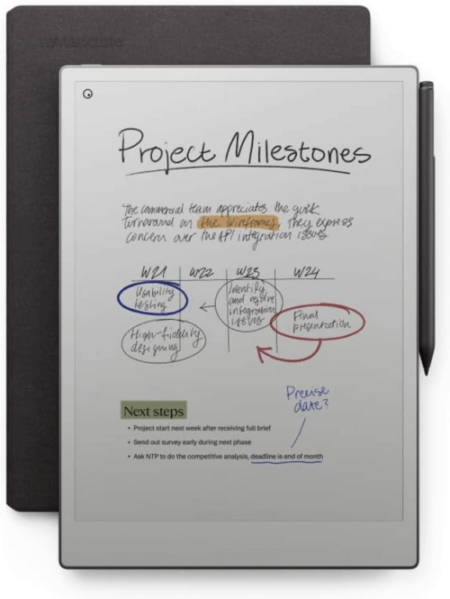
  • Operating system level (“native”) access to files.
  • Often the only solution for demanding applications requiring concurrent shared access.

Limitations of a SAN

The challenge of a SAN can be summed up in its cost and administration requirements—having to dedicate and maintain both a separate ethernet network for metadata file requests and implement a FC network can be a considerable investment. That being said, a SAN is often the only way to provide very fast data access for a large number of users that also can scale to supporting hundreds of users at the same time.
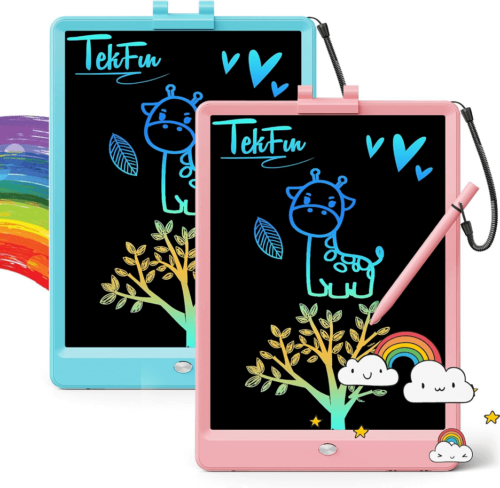
The Main Differences Between NAS and SANs

NAS SAN
Use case Often used in homes and small to medium sized businesses. Often used in professional and enterprise environments.
Cost Less expensive. More expensive.
Ease of administration Easier to manage. Requires more IT administration.
How data is accessed Data accessed as if it were a network-attached drive. Servers access data as if it were a local hard drive.
Speed Speed is dependent on local TCP/IP ethernet network, typically 1GbE to 10GbE but can be up to 25GbE or even 40GbE connections, and affected by the number of other users accessing the storage at the same time. Generally slower throughput and higher latency due to the nature of ethernet packetization, waiting for the file server, and latency in general. High speed using Fibre Channel, most commonly available in 16 Gb/s to 32 Gb/s however newer standards can go up to 128 Gb/s. FC can be delivered via high speed ethernet such as 10Gbit or 40Gbit+ networks using protocols such as FCoE and iSCSI.
Network connection SMB/CIFS, NFS, SFTP, and WebDAV. Fibre Channel, iSCSI, FCoE.
Scalability Lower-end not highly scalable; high-end NAS scale to petabytes using clusters or scale-out nodes. Can add more storage controllers, or expanded storage arrays allowing SAN admins to scale performance, storage, or both.
Networking method Simply connects to your existing ethernet network. Simply connects to your existing ethernet network.
Simply connects to your existing ethernet network. Entry level systems often have a single point of failure, e.g. power supply. Fault tolerant network and systems with redundant functionality.
Limitations Subject to general ethernet issues. Behavior is more predictable in controlled, dedicated environments.

Choosing the Right Solution

When considering a NAS device or a SAN, you might find it helpful to think of it this way: NAS is simple to set up, easy to administer, and great for general purpose applications. Meanwhile, a SAN can be more challenging to set up and administer, but it’s often the only way to make shared storage available for mission critical and high performance applications.

The choice between a NAS device and a SAN hinges on understanding your unique storage requirements and workloads. NAS is an excellent choice for environments prioritizing collaborative sharing and simple management. In contrast, a SAN shines when performance and scalability are top priorities, particularly for businesses dealing with data-heavy applications.

Ultimately, the decision should factor in aspects such as budget, anticipated growth, workload demands, and the expertise of your IT team. Striking the right balance between ease of use, performance, and scalability will help ensure your chosen storage solution aligns seamlessly with your goals.

Are You Using NAS, a SAN, or Both?

If you are using a NAS device or a SAN, we’d love to hear from you about what you’re using and how you’re using them in the comments.

The post What’s the Diff: NAS vs. SAN appeared first on Backblaze Blog | Cloud Storage & Cloud Backup.