All posts by Cheng Wang

Build a Two-Way Email-to-SMS Service with Amazon SES and Amazon End User Messaging

Post Syndicated from Cheng Wang original https://aws.amazon.com/blogs/messaging-and-targeting/build-a-two-way-email-to-sms-service-with-amazon-ses-and-amazon-end-user-messaging/

Introduction

Businesses and organizations today struggle to effectively communicate with their customers, employees, or other stakeholders across the diverse range of digital channels they now use. One common problem arises when the requirement to exchange information quickly and reliably extends beyond traditional email. This issue challenges organizations where recipients lack immediate access to email. This applies to field workers, remote teams, or customers who prefer to communicate via text messages. It is vital to bridge this gap between email and SMS communication for timely updates, urgent notifications, and seamless collaboration. However, separate management of these disparate channels independently proves cumbersome and leads to inefficiencies.

To address this challenge, one approach is to leverage Amazon Simple Email Service (SES) and Amazon End User Messaging services to create a robust, scalable, and cost-effective messaging system. This system seamlessly bridges the gap between email and SMS, enhances the reach and delivery of your messages and streamlines your communication workflows. Ultimately, this approach delivers a superior experience for your audience, ensuring that critical information reaches recipients through their preferred channels in a timely and efficient manner.

This blog post will delve into the step-by-step process of building a solution that enables both Email-to-SMS and SMS-to-Email communication. This solution allows you to send SMS messages using email and receive any SMS replies on the same email address you used to send the original message. Furthermore, you can continue the conversation by replying to the email you receive in response. By the end, you’ll have the knowledge and tools necessary to revolutionize your communication strategy and deliver a superior experience to your audience.

Here are some of the use cases for this solution:

  • Real estate agents can use this solution to send listing updates to clients via SMS, and then receive client inquiries and responses as emails.
  • Customer service team can leverage the Email to SMS functionality to proactively reach out to customers with important notifications. Customers are able to respond directly via SMS.
  • Retailers can use this solution to send order confirmations, shipping updates, and promotional offers to customers via SMS. Customers are able to respond with inquiries or feedback that are then received as emails.
  • Medical practices and hospitals can leverage the Email to SMS functionality to quickly notify patients of appointment reminders, prescription refills, or other time-sensitive information. Patients can then respond via SMS, which gets converted to an email that the healthcare staff can access.

Solution Overview

The following figure shows the high level architecture for this solution.

Figure 1: Two-Way Email-To-SMS architecture

  1. Email Users send an email to the email address formatted as “mobile-number@verified-domain”. Amazon SES email receiving receives the email and triggers a receipt rule.
  2. The email is published to Amazon Simple Notification Service (SNS) topic (EmailToSMS) based on the receipt rule action, which triggers an AWS Lambda function (ConvertEmailToSMS). The ConvertEmailToSMS Lambda function performs the following actions:
    1. Receives the event from SNS and constructs a text message using the email body content.
    2. The constructed message is then sent to the “mobile-number” in the destination email address using the “SendTextMessage” API from AWS End User Messaging SMS. This is achieved by using a phone number in AWS End User Messaging SMS as the origination identity.
    3. The SMS message ID and source email address are stored as items in the Amazon DynamoDB table (MessageTrackingTable). This tracks email addresses for replies from SMS users.
  3. Mobile Users receive the SMS, and they have the option to reply to the phone number with two-way SMS messaging
  4. AWS End User Messaging receives the incoming SMS message from the Mobile Users. It then publishes this message to a SNS topic (SMSToEmail) for two-way SMS integration, which triggers a Lambda function (ConvertSMSToEmail). The ConvertSMSToEmail Lambda function performs the following actions:
    1. Retrieves the item from “MessageTrackingTable” using “previousPublishedMessageId” (SMS message ID) from the SNS event, and locate the corresponding email address.
    2. Sends the SMS message body to the Email Users using SES. This step uses “mobile-number@verified-domain” as the source email address, and the email address retrieved from the previous step as the destination.
  5. Email Users receive the email, and they have the option to reply to the email to continue the conversation. Mobile Users will receive the latest reply from Email Users.

Walkthrough

This section will dive into the step-by step process for the deployment. There are 4 steps to deploy this solution:

  1. Configure SES verified identity for email receiving and sending.
  2. Deploy the CloudFormation stack for the Email to SMS functionality.
  3. Deploy the CloudFormation stack for the SMS to Email functionality.
  4. Set up two-way SMS messaging in AWS End User Messaging SMS.

Note: the Lambda code for this solution is developed based on phone numbers and long code as the supported origination identity in Australia. You need to adjust the Lambda code (“format_phone_number” function) accordingly for this to work in your country.

Refer to this GitHub repository for the solution source code.

Prerequisites

Prerequisites for this walkthrough:

  1. Administrator-level access to an AWS account
  2. A domain or subdomain that you own to create SES verified identity
  3. An origination identity that supports two-way messaging, following Choosing an origination identity for two-way messaging use cases. Simulator phone numbers are available if you are in the US
  4. A mobile phone to send and receive SMS
  5. An email address to send and receive emails

Step 1: Configure SES Verified Identity

Follow the steps outlined in Creating a domain identity to create a verified identity for your domain in your AWS account. Confirm your domain identity is in the “Verified” status before proceeding to the next step:

Figure 2: Verified Identity

Step 2: Deploy Email to SMS functionality

The following steps create a CloudFormation stack to deploy the required components for Email to SMS functionality:

  1. Sign in to your AWS account.
  2. Download the email-to-sms.yaml for creating the stack.
  3. Navigate to the AWS CloudFormation page.
  4. Choose Create stack, and then choose With new resources (standard).
  5. Choose Upload a template file and upload the CloudFormation template that you downloaded earlier: email-to-sms.yaml. Then choose Next.
  6. Enter the stack name Email-To-SMS.
  7. Enter the following values for the parameters:
    • RuleName: The name of your SES Rule Set and receipt rule.
    • Recipient1: Domain name used for recipient condition in the SES Rule Set.
    • Recipient2: Domain name used for recipient condition in the SES Rule Set if you need additional recipients.
    • PhoneNumberId: Phone number ID of the phone number to send SMS messages.
  8. Choose Next, and then optionally enter tags and choose Submit. Wait for the stack creation to finish.

Now you have the required components to convert email to text, and sending it as SMS to a phone number using AWS End User Messaging SMS.

Note: if required, modify the following code in email-to-sms.yaml to format your phone numbers accordingly:

def format_phone_number(email_address):

    # Extract the local part of the email address (before @)

    local_part = email_address.split('@')[0]   

    # Remove the leading '0' and add '+61' for phone number (Australia)

    if local_part.startswith('0'):

        formatted_number = '+61' + local_part[1:]

    return formatted_number

Step 3: Deploy SMS to Email functionality

The following steps create a CloudFormation stack to deploy the required components for SMS to Email functionality:

  1. Sign in to your AWS account.
  2. Download the sms-to-email.yaml for creating the stack.
  3. Navigate to the AWS CloudFormation page.
  4. Choose Create stack, and then choose With new resources (standard).
  5. Choose Upload a template file and upload the CloudFormation template that you downloaded earlier: sms-to-email.yaml. Then choose Next.
  6. Enter the stack name SMS-To-Email.
  7. Enter the following values for the parameters:
    • EmailDomain: The email domain to use for the SMS-to-Email function
  8. Choose Next, and then optionally enter tags and choose Submit. Wait for the stack creation to finish.

Note: if required, modify the following code in sms-to-email.yaml to format your phone numbers accordingly:

def format_phone_number(phone_number):

    # Replace the '+61' with '0' from the phone number (Australia)

    formatted_number = f"0{mobile_number[3:]}"

    return formatted_number

Step 4: Set up Two-Way Messaging in AWS End User Messaging SMS

Follow the steps 1 – 5 outlined in Set up two-way SMS messaging for a phone number in AWS End User Messaging SMS.

For step 6:

  • For Destination type, choose Amazon SNS.
  • Choose Existing SNS standard topic.
  • For Incoming messages destination, choose the SNS topic created from Step 3 (default topic name is SMSToEmailTopic).
  • For Two-way channel role, choose Use SNS topic policies.
  • Choose Save changes.

This allows your origination identity (phone number) to receive incoming messages, which is then published to an SNS topic and converted into emails by Lambda.

Testing

To test the solution, send an email with the destination address of “mobile-number@verified-domain”. You should receive a SMS on your mobile with the following information:

Note: AWS End User Messaging SMS has character limit for SMS messages depending on the type of characters the message contains. This solution takes the first 160 characters of the email body by default, you can adjust the EmailToSMS Lambda function as required.

Reply directly to the SMS, you should receive an email at the same email address that sent the original email, with the following information:

  • Subject: Re:mobile-number
  • Body: SMS message content
  • Source email address: mobile-number@verified-domain

If you are not receiving the email or SMS, check the Lambda CloudWatch logs for troubleshooting.

Cleaning up

To remove unneeded resources after testing the solution, follow these steps:

  1. In the CloudFormation console, delete the Email-To-SMS stack
  2. In the CloudFormation console, delete the SMS-To-Email stack
  3. If applicable, in Amazon SES, delete the verified identities
  4. If applicable, in AWS End User Messaging, release the unused phone numbers

Additional Consideration

Conclusion

This blog has explored how organizations can leverage AWS services to build a flexible, two-way communication solution bridging the gap between email and SMS channels. By integrating Amazon SES and Amazon End User Messaging, businesses can reach their audience through multiple channels, ensuring timely and effective delivery of critical messages.

The detailed guide provided the knowledge to create a scalable, cost-effective system tailored to evolving communication needs – whether facilitating email-to-SMS or SMS-to-email exchanges. This unified approach to email and SMS capabilities empowers companies to address the common challenge of managing disparate communication platforms, streamlining workflows and enhancing responsiveness.

If you run into issues or want to submit a feature request, use the New issue button under the issues tab in the GitHub repository.
Improve security incident response times by using AWS Service Catalog to decentralize security notifications

Post Syndicated from Cheng Wang original https://aws.amazon.com/blogs/security/improve-security-incident-response-times-by-using-aws-service-catalog-to-decentralize-security-notifications/

Many organizations continuously receive security-related findings that highlight resources that aren’t configured according to the organization’s security policies. The findings can come from threat detection services like Amazon GuardDuty, or from cloud security posture management (CSPM) services like AWS Security Hub, or other sources. An important question to ask is: How, and how soon, are your teams notified of these findings?

Often, security-related findings are streamed to a single centralized security team or Security Operations Center (SOC). Although it’s a best practice to capture logs, findings, and metrics in standardized locations, the centralized team might not be the best equipped to make configuration changes in response to an incident. Involving the owners or developers of the impacted applications and resources is key because they have the context required to respond appropriately. Security teams often have manual processes for locating and contacting workload owners, but they might not be up to date on the current owners of a workload. Delays in notifying workload owners can increase the time to resolve a security incident or a resource misconfiguration.

This post outlines a decentralized approach to security notifications, using a self-service mechanism powered by AWS Service Catalog to enhance response times. With this mechanism, workload owners can subscribe to receive near real-time Security Hub notifications for their AWS accounts or workloads through email. The notifications include those from Security Hub product integrations like GuardDuty, AWS Health, Amazon Inspector, and third-party products, as well as notifications of non-compliance with security standards. These notifications can better equip your teams to configure AWS resources properly and reduce the exposure time of unsecured resources.

End-user experience

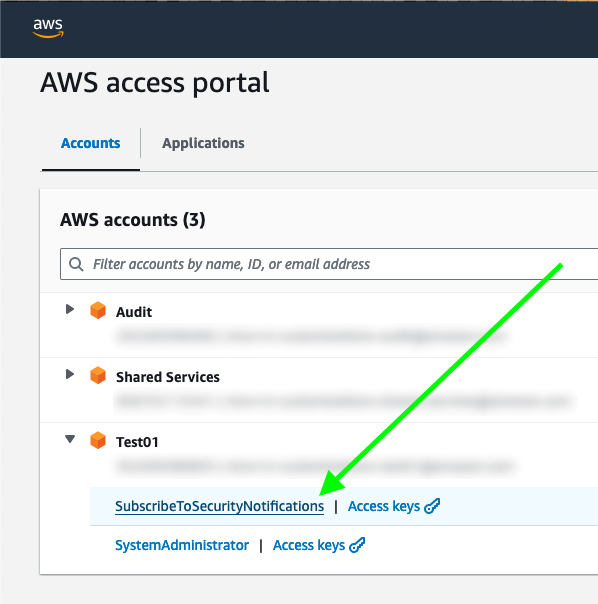
After you deploy the solution in this post, users in assigned groups can access a least-privilege AWS IAM Identity Center permission set, called SubscribeToSecurityNotifications, for their AWS accounts (Figure 1). The solution can also work with existing permission sets or federated IAM roles without IAM Identity Center.

Figure 1: IAM Identity Center portal with the permission set to subscribe to security notifications

Figure 1: IAM Identity Center portal with the permission set to subscribe to security notifications

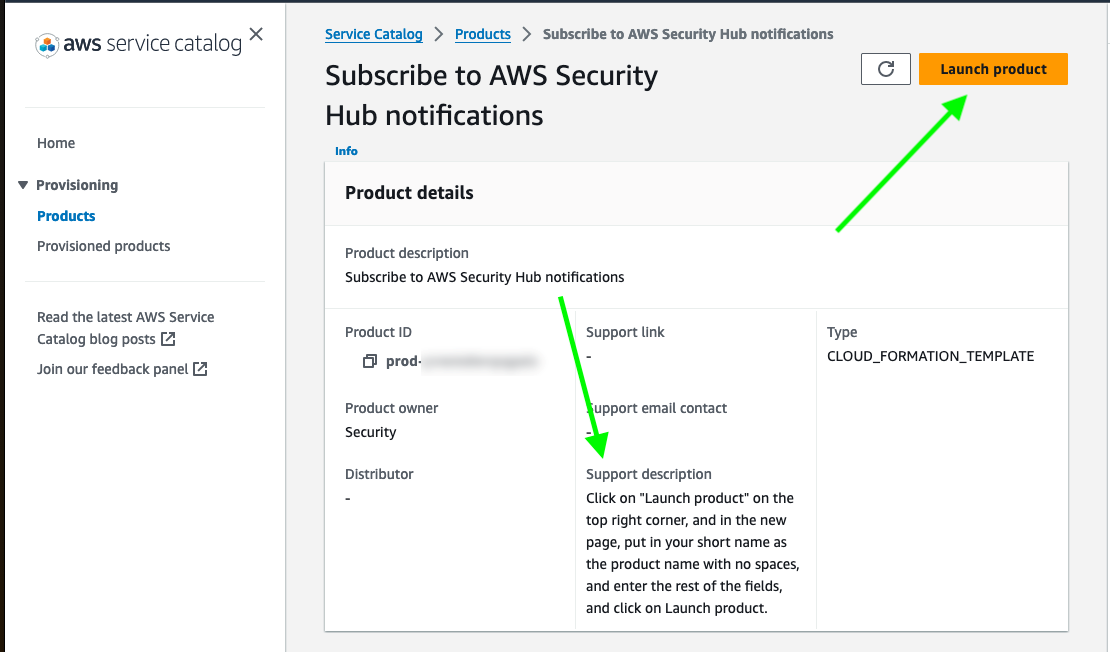
After the user chooses SubscribeToSecurityNotifications, they are redirected to an AWS Service Catalog product for subscribing to security notifications and can see instructions on how to proceed (Figure 2).

Figure 2: AWS Service Catalog product view

Figure 2: AWS Service Catalog product view

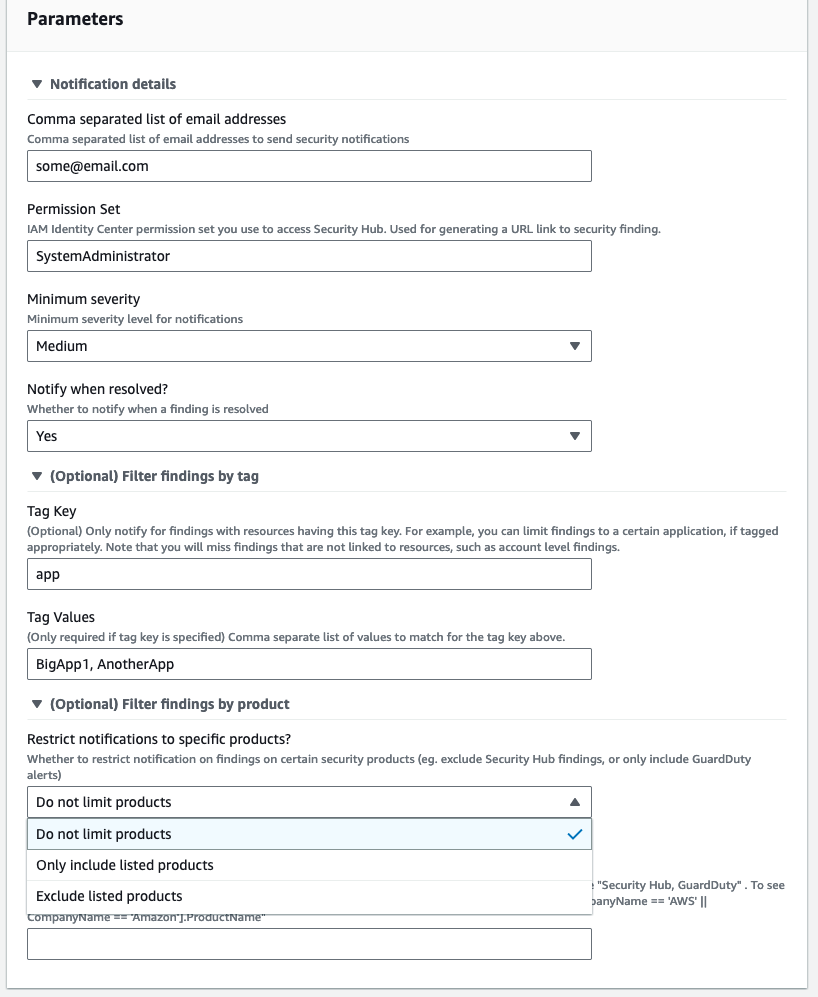
The user can then choose the Launch product utton and enter one or more email addresses and the minimum severity level for notifications (Critical, High, Medium, or Low). If the AWS account has multiple workloads, they can choose to receive only the notifications related to the applications they own by specifying the resource tags. They can also choose to restrict security notifications to include or exclude specific security products (Figure 3).

Figure 3: Service Catalog security notifications product parameters

Figure 3: Service Catalog security notifications product parameters

You can update the Service Catalog product configurations after provisioning by doing the following:

  1. In the Service Catalog console, in the left navigation menu, choose Provisioned products.
  2. Select the provisioned product, choose Actions, and then choose Update.
  3. Update the parameters you want to change.

For accounts that have multiple applications, each application owner can set up their own notifications by provisioning an additional Service Catalog product. You can use the Filter findings by tag parameters to receive notifications only for a specific application. The example shown in Figure 3 specifies that the user will receive notifications only from resources with the tag key app and the tag value BigApp1 or AnotherApp.

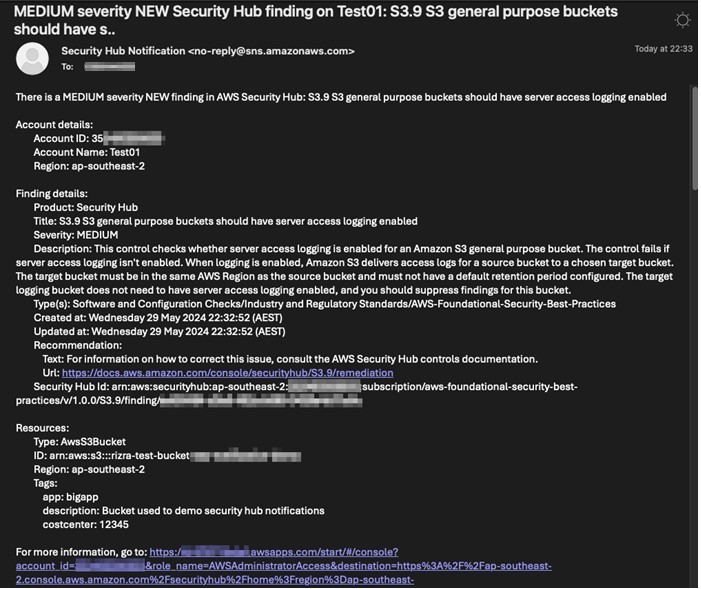
After confirming the subscription, the user starts to receive email notifications for new Security Hub findings in near real-time. Each email contains a summary of the finding in the subject line, the account details, the finding details, recommendations (if any), the list of resources affected with their tags, and an IAM Identity Center shortcut link to the Security Hub finding (Figure 4). The email ends with the raw JSON of the finding.

Figure 4: Sample email showing details of the security notification

Figure 4: Sample email showing details of the security notification

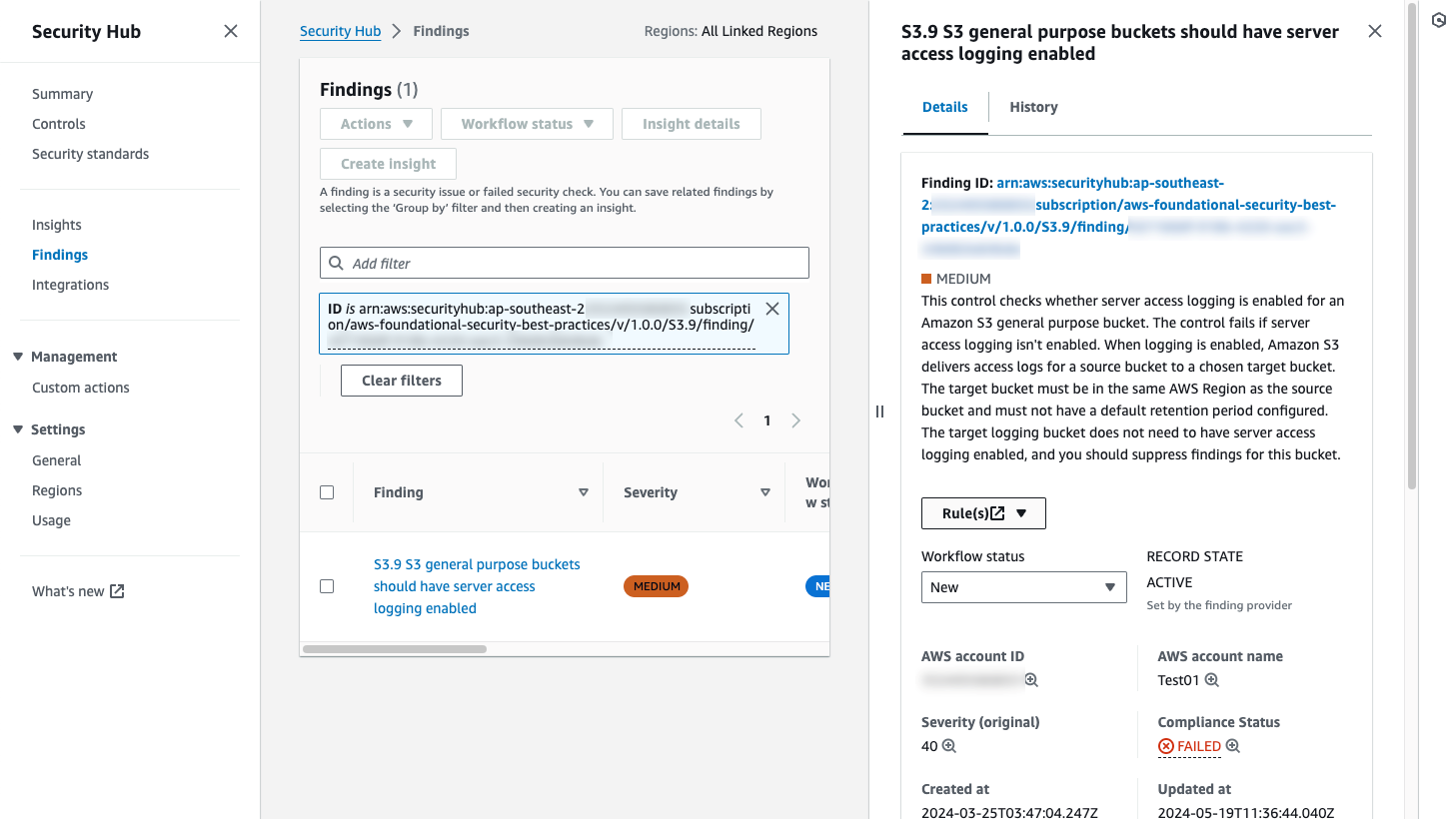
Choosing the link in the email takes the user directly to the AWS account and the finding in Security Hub, where they can see more details and search for related findings (Figure 5).

Figure 5: Security Hub finding detail page, linked from the notification email

Figure 5: Security Hub finding detail page, linked from the notification email

Solution overview

We’ve provided two deployment options for this solution; a simpler option and one that is more advanced.

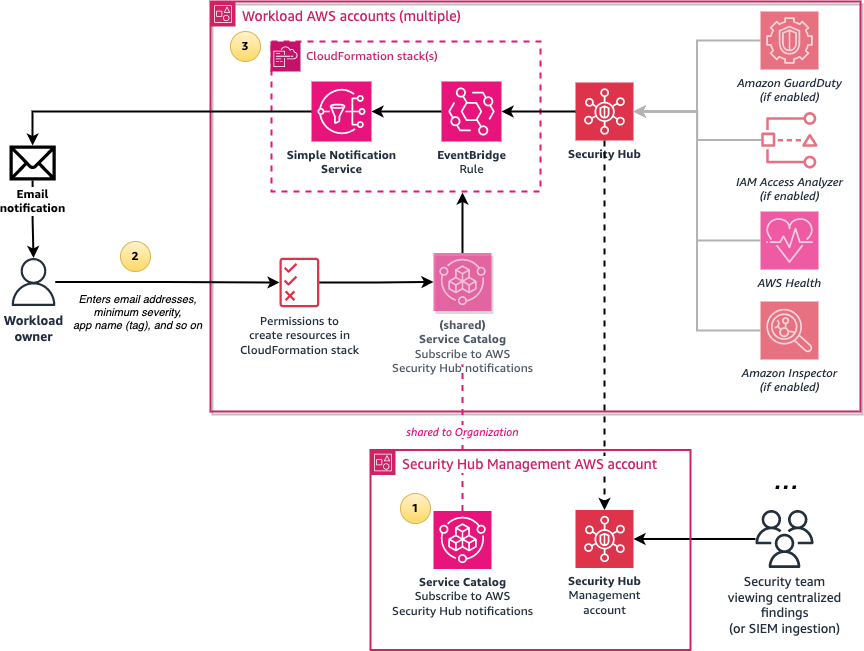
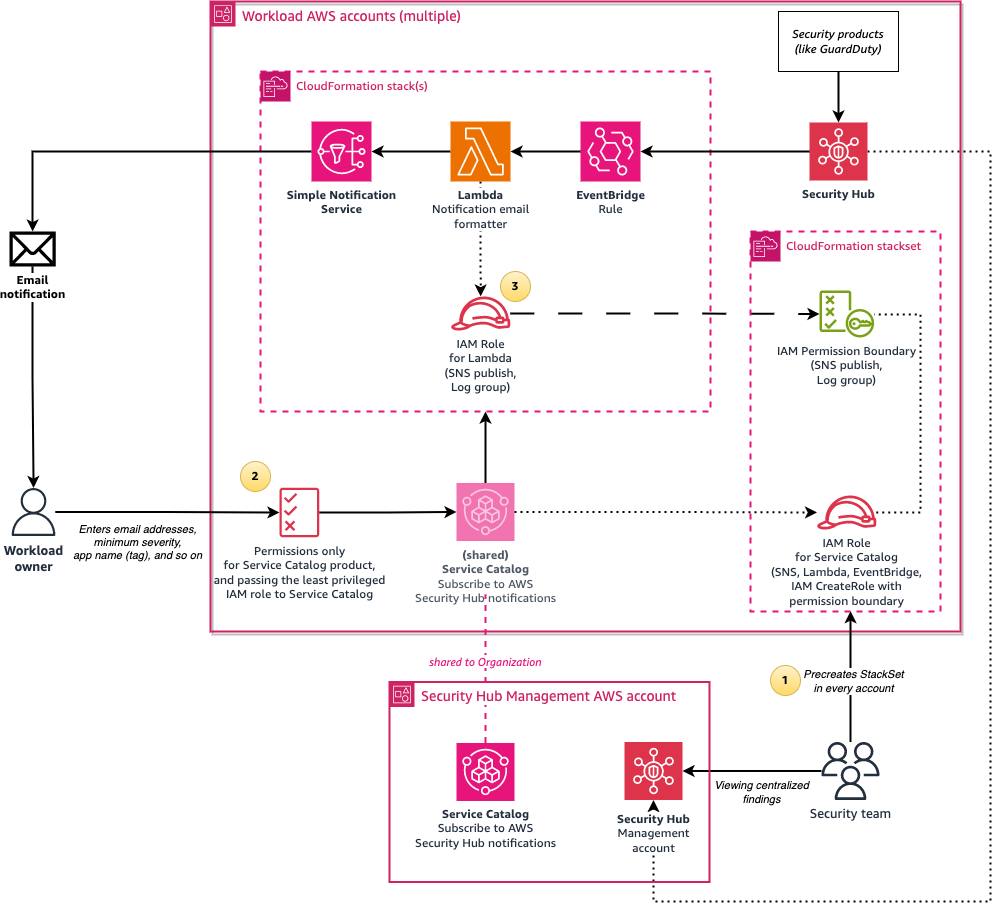
Figure 6 shows the simpler deployment option of using the requesting user’s IAM permissions to create the resources required for notifications.

Figure 6: Architecture diagram of the simpler configuration of the solution

Figure 6: Architecture diagram of the simpler configuration of the solution

The solution involves the following steps:

  1. Create a central Subscribe to AWS Security Hub notifications Service Catalog product in an AWS account which is shared with the entire organization in AWS Organizations or with specific organizational units (OUs). Configure the product with the names of IAM roles or IAM Identity Center permission sets that can launch the product.
  2. Users who sign in through the designated IAM roles or permission sets can access the shared Service Catalog product from the AWS Management Console and enter the required parameters such as their email address and the minimum severity level for notifications.
  3. The Service Catalog product creates an AWS CloudFormation stack, which creates an Amazon Simple Notification Service (Amazon SNS) topic and an Amazon EventBridge rule that filters new Security Hub finding events that match the user’s parameters, such as minimum severity level. The rule then formats the Security Hub JSON event message to make it human-readable by using native EventBridge input transformers. The formatted message is then sent to SNS, which emails the user.

We also provide a more advanced and recommended deployment option, shown in Figure 7. This option involves using an AWS Lambda function to enhance messages by doing conversions from UTC to your selected time zone, setting the email subject to the finding summary, and including an IAM Identity Center shortcut link to the finding. To not require your users to have permissions for creating Lambda functions and IAM roles, a Service Catalog launch role is used to create resources on behalf of the user, and this role is restricted by using IAM permissions boundaries.

Figure 7: Architecture diagram of the solution when using the calling user’s permissions

Figure 7: Architecture diagram of the solution when using the calling user’s permissions

The architecture is similar to the previous option, but with the following changes:

  1. Create a CloudFormation StackSet in advance to pre-create an IAM role and an IAM permissions boundary policy in every AWS account. The IAM role is used by the Service Catalog product as a launch role. It has permissions to create CloudFormation resources such as SNS topics, as well as to create IAM roles that are restricted by the IAM permissions boundary policy that allows only publishing SNS messages and writing to Amazon CloudWatch Logs.
  2. Users who want to subscribe to security notifications require only minimal permissions; just enough to access Service Catalog and to pass the pre-created role (from the preceding step) to Service Catalog. This solution provides a sample AWS Identity Center permission set with these minimal permissions.
  3. The Service Catalog product uses a Lambda function to format the message to make it human-readable. The stack creates an IAM role, limited by the permissions boundary, and the role is assumed by the Lambda function to publish the SNS message.

Prerequisites

The solution installation requires the following:

  1. Administrator-level access to AWS Organizations. AWS Organizations must have all features
  2. Security Hub enabled in the accounts you are monitoring.
  3. An AWS account to host this solution, for example the Security Hub administrator account or a shared services account. This cannot be the management account.
  4. One or more AWS accounts to consume the Service Catalog product.
  5. Authentication that uses AWS IAM Identity Center or federated IAM role names in every AWS account for users accessing the Service Catalog product.
  6. (Optional, only required when you opt to use Service Catalog launch roles) CloudFormation StackSet creation access to either the management account or a CloudFormation delegated administrator account.
  7. This solution supports notifications coming from multiple AWS Regions. If you are operating Security Hub in multiple Regions, for a simplified deployment evaluate the Security Hub cross-Region aggregation feature and enable it for the applicable Regions.

Walkthrough

There are four steps to deploy this solution:

  1. Configure AWS Organizations to allow Service Catalog product sharing.
  2. (Optional, recommended) Use CloudFormation StackSets to deploy the Service Catalog launch IAM role across accounts.
  3. Service Catalog product creation to allow users to subscribe to Security Hub notifications. This needs to be deployed in the specific Region you want to monitor your Security Hub findings in, or where you enabled cross-Region aggregation.
  4. (Optional, recommended) Provision least-privileged IAM Identity Center permission sets.

Step 1: Configure AWS Organizations

Service Catalog organizations sharing in AWS Organizations must be enabled, and the account that is hosting the solution must be one of the delegated administrators for Service Catalog. This allows the Service Catalog product to be shared to other AWS accounts in the organization.

To enable this configuration, sign in to the AWS Management Console in the management AWS account, launch the AWS CloudShell service, and enter the following commands. Replace the <Account ID> variable with the ID of the account that will host the Service Catalog product.

# Enable AWS Organizations integration in Service Catalog
aws servicecatalog enable-aws-organizations-access

# Nominate the account to be one of the delegated administrators for Service Catalog
aws organizations register-delegated-administrator --account-id <Account ID> --service-principal servicecatalog.amazonaws.com

Step 2: (Optional, recommended) Deploy IAM roles across accounts with CloudFormation StackSets

The following steps create a CloudFormation StackSet to deploy a Service Catalog launch role and permissions boundary across your accounts. This is highly recommended if you plan to enable Lambda formatting, because if you skip this step, only users who have permissions to create IAM roles will be able to subscribe to security notifications.

To deploy IAM roles with StackSets

  1. Sign in to the AWS Management Console from the management AWS account, or from a CloudFormation delegated administrator
  2. Download the CloudFormation template for creating the StackSet.
  3. Navigate to the AWS CloudFormation page.
  4. Choose Create stack, and then choose With new resources (standard).
  5. Choose Upload a template file and upload the CloudFormation template that you downloaded earlier:SecurityHub_notifications_IAM_role_stackset.yaml. Then choose Next.
  6. Enter the stack name SecurityNotifications-IAM-roles-StackSet.
  7. Enter the following values for the parameters:
    1. AWS Organization ID: Start AWS CloudShell and enter the command provided in the parameter description to get the organization ID.
    2. Organization root ID or OU ID(s): To deploy the IAM role and permissions boundary to every account, enter the organization root ID using CloudShell and the command in the parameter description. To deploy to specific OUs, enter a comma-separated list of OU IDs. Make sure that you include the OU of the account that is hosting the solution.
    3. Current Account Type: Choose either Management account or Delegated administrator account, as needed.
    4. Formatting method: Indicate whether you plan to use the Lambda formatter for Security Hub notifications, or native EventBridge formatting with no Lambda functions. If you’re unsure, choose Lambda.
  8. Choose Next, and then optionally enter tags and choose Submit. Wait for the stack creation to finish.

Step 3: Create Service Catalog product

Next, run the included installation script that creates the CloudFormation templates that are required to deploy the Service Catalog product and portfolio.

To run the installation script

  1. Sign in to the console of the AWS account and Region that will host the solution, and start the AWS CloudShell service.
  2. In the terminal, enter the following commands:
    git clone https://github.com/aws-samples/improving-security-incident-response-times-by-decentralizing-notifications.git
    
    cd improving-security-incident-response-times-by-decentralizing-notifications
    
    ./install.sh

The script will ask for the following information:

  • Whether you will be using the Lambda formatter (as opposed to the native EventBridge formatter).
  • The timezone to use for displaying dates and times in the email notifications, for example Australia/Melbourne. The default is UTC.
  • The Service Catalog provider display name, which can be your company, organization, or team name.
  • The Service Catalog product version, which defaults to v1. Increment this value if you make a change in the product CloudFormation template file.
  • Whether you deployed the IAM role StackSet in Step 2, earlier.
  • The principal type that will use the Service Catalog product. If you are using IAM Identity Center, enter IAM_Identity_Center_Permission_Set. If you have federated IAM roles configured, enter IAM role name.
  • If you entered IAM_Identity_Center_Permission_Set in the previous step, enter the IAM Identity Center URL subdomain. This is used for creating a shortcut URL link to Security Hub in the email. For example, if your URL looks like this: https://d-abcd1234.awsapps.com/start/#/, then enter d-abcd1234.
  • The principals that will have access to the Service Catalog product across the AWS accounts. If you’re using IAM Identity Center, this will be a permission set name. If you plan to deploy the provided permission set in the next step (Step 4), press enter to accept the default value SubscribeToSecurityNotifications. Otherwise, enter an appropriate permission set name (for example AWSPowerUserAccess) or IAM role name that users use.

The script creates the following CloudFormation stacks:

After the script finishes the installation, it outputs the Service Catalog Product ID, which you will need in the next step. The script then asks whether it should automatically share this Service Catalog portfolio with the entire organization or a specific account, or whether you will configure sharing to specific OUs manually.

(Optional) To manually configure sharing with an OU

  1. In the Service Catalog console, choose Portfolios.
  2. Choose Subscribe to AWS Security Hub notifications.
  3. On the Share tab, choose Add a share.
  4. Choose AWS Organization, and then select the OU. The product will be shared to the accounts and child OUs within the selected OU.
  5. Select Principal sharing, and then choose Share.

To expand this solution across Regions, enable Security Hub cross-Region aggregation. This results in the email notifications coming from the linked Regions that are configured in Security Hub, even though the Service Catalog product is instantiated in a single Region. If cross-Region aggregation isn’t enabled and you want to monitor multiple Regions, you must repeat the preceding steps in all the Regions you are monitoring.

Step 4: (Optional, recommended) Provision IAM Identity Center permission sets

This step requires you to have completed Step 2 (Deploy IAM roles across accounts with CloudFormation StackSets).

If you’re using IAM Identity Center, the following steps create a custom permission set, SubscribeToSecurityNotifications, that provides least-privileged access for users to subscribe to security notifications. The permission set redirects to the Service Catalog page to launch the product.

To provision Identity Center permission sets

  1. Sign in to the AWS Management Console from the management AWS account, or from an IAM Identity Center delegated administrator
  2. Download the CloudFormation template for creating the permission set.
  3. Navigate to the AWS CloudFormation page.
  4. Choose Create stack, and then choose With new resources (standard).
  5. Choose Upload a template file and upload the CloudFormation template you downloaded earlier: SecurityHub_notifications_PermissionSets.yaml. Then choose Next.
  6. Enter the stack name SecurityNotifications-PermissionSet.
  7. Enter the following values for the parameters:
    1. AWS IAM Identity Center Instance ARN: Use the AWS CloudShell command in the parameter description to get the IAM Identity Center ARN.
    2. Permission set name: Use the default value SubscribeToSecurityNotifications.
    3. Service Catalog product ID: Use the last output line of the install.sh script in Step 3, or alternatively get the product ID from the Service Catalog console for the product account.
  8. Choose Next. Then optionally enter tags and choose Next Wait for the stack creation to finish.

Next, go to the IAM Identity Center console, select your AWS accounts, and assign access to the SubscribeToSecurityNotifications permission set for your users or groups.

Testing

To test the solution, sign in to an AWS account, making sure to sign in with the designated IAM Identity Center permission set or IAM role. Launch the product in Service Catalog to subscribe to Security Hub security notifications.

Wait for a Security Hub notification. For example, if you have the AWS Foundational Security Best Practices (FSBP) standard enabled, creating an S3 bucket with no server access logging enabled should generate a notification within a few minutes.

Additional considerations

Keep in mind the following:

Cleanup

To remove unneeded resources after testing the solution, follow these steps:

  1. In the workload account or accounts where the product was launched:
    1. Go to the Service Catalog provisioned products page and terminate each associated provisioned product. This stops security notifications from being sent to the email address associated with the product.
  2. In the AWS account that is hosting the directory:
    1. In the Service Catalog console, choose Portfolios, and then choose Subscribe to AWS Security Hub notifications. On the Share tab, select the items in the list and choose Actions, then choose Unshare.
    2. In the CloudFormation console, delete the SecurityNotifications-Service-Catalog stack.
    3. In the Amazon S3 console, for the two buckets starting with securitynotifications-sc-bucket, select the bucket and choose Empty to empty the bucket.
    4. In the CloudFormation console, delete the SecurityNotifications-SC-Bucket stack.
  3. If applicable, go to the management account or the CloudFormation delegated administrator account and delete the SecurityNotifications-IAM-roles-StackSet stack.
  4. If applicable, go to the management account or the IAM Identity Center delegated administrator account and delete the SecurityNotifications-PermissionSet stack.

Conclusion

This solution described in this blog post enables you to set up a self-service standardized mechanism that application or workload owners can use to get security notifications within minutes through email, as opposed to being contacted by a security team later. This can help to improve your security posture by reducing the incident resolution time, which reduces the time that a security issue remains active.

 
If you have feedback about this post, submit comments in the Comments section below. If you have questions about this post, contact AWS Support.
 

Cheng Wang
Cheng Wang

Cheng is a Solutions Architect at AWS in Melbourne, Australia. With a strong consulting background, he leverages his cloud infrastructure expertise to support enterprise customers in designing and deploying cloud architectures that drive efficiency and innovation.
Karthikeyan KM
Karthikeyan KM

KM is a Senior Technical Account Manager who supports enterprise users at AWS. He has over 18 years of IT experience, and he enjoys building reliable, scalable, and efficient solutions.
Randy Patrick
Randy Patrick

Randy is a Senior Technical Account Manager who supports enterprise customers at AWS. He has 20 years of IT experience, which he uses to build secure, resilient, and optimized solutions. In his spare time, Randy enjoys tinkering in home theater, playing guitar, and hiking trails at the park.

Contributor

Special thanks to Rizvi Rahim, who made significant contributions to this post.