Post Syndicated from Harshvardhan Chunawala original https://aws.amazon.com/blogs/security/quantum-resistant-signing-on-aws-part-2-enforce-your-ml-dsa-algorithm-policy-with-scps-and-iam/
You want to set a cryptographic algorithm policy and stop non-compliant choices from being made in your Amazon Web Services (AWS) environment. This post shows you how. As you adopt post-quantum cryptography, one of the first decisions you face is which algorithms and parameter sets fit your business needs, balancing security against signature size, key size, and performance. Your cloud environment’s job is to let you express that decision and enforce it consistently, so an approved choice stays fully usable while an excluded one cannot be introduced. This post works through one concrete example on AWS: taking an organization’s cryptographic algorithm policy and turning it into preventive and detective controls. The same patterns apply to whatever your approved set is today and whatever it becomes as standards evolve.
This post is Part 2 of a two-part series on quantum-resistant signing on AWS. Part 1, Build a software supply chain with ML-DSA, is for builders and constructs an end-to-end ML-DSA signing pipeline for binaries, container images, and software bills of materials. This part is for the security, governance, and compliance teams who decide which algorithms that pipeline, and everything else in the organization, is permitted to use, and who need that decision enforced.
AWS Key Management Service (AWS KMS) supports the ML-DSA digital signature scheme (FIPS 204) through three parameter sets, ML-DSA-44, ML-DSA-65, and ML-DSA-87, targeting NIST security categories 2, 3, and 5. All three are strong, standardized choices. Each one trades signature size, key size, and speed against security margin, the amount of cryptographic strength a parameter set holds in reserve above its target security category. ML-DSA-44 is the most compact and fastest. ML-DSA-65 and ML-DSA-87 carry a larger security margin, which is what you want for signatures that must stay trustworthy over a long lifetime.
Throughout this post, the examples use the same example policy: an organization that has standardized on ML-DSA-65 and ML-DSA-87 and wants ML-DSA-44 kept out of its approved set. That is a standardization decision, not a judgment that ML-DSA-44 is insecure (see the following note). Wherever you see ML-DSA-44 in the controls that follow, read it as the variant your policy doesn’t include; the mechanics are identical for any allow/deny split you choose. The approved set here is also the one the Part 1 architecture deploys: ML-DSA-87 for the root certificate authority (CA) and ML-DSA-65 for the subordinate CA and the code-signing key. Part 1 makes the choice; this post makes it stick.
Note: ML-DSA-44 is a valid choice. ML-DSA-44 is a fully NIST-standardized parameter set (FIPS 204) at NIST security category 2, which targets roughly 128-bit-class classical security (category 2 is benchmarked against the collision resistance of SHA-256). It produces the smallest signatures and public keys of the three variants (a 1312-byte public key and 2420-byte signature) and is the fastest to sign and verify, which makes it a strong fit for constrained devices, high-volume signing, and bandwidth- or storage-sensitive workloads. You would choose ML-DSA-65 or ML-DSA-87 instead to gain extra security margin for long-lived signatures or to align with an internal standard, not because ML-DSA-44 is weak.
What success looks like
The approved variants (ML-DSA-65 and ML-DSA-87 in the example) remain fully usable throughout. What you want to rule out is the introduction of a variant outside the policy (here, ML-DSA-44). Concretely, within the AWS service surfaces in scope, principals shouldn’t be able to:
- Create ML-DSA-44 key material
- Use existing ML-DSA-44 keys for signing or verification
- Stand up private certificate authorities (CAs) that would introduce ML-DSA-44.
And any drift from those settings should be detected.
Scope and limitations
These controls operate on AWS service APIs, principally AWS KMS, AWS Private Certificate Authority (AWS Private CA), and AWS Certificate Manager (ACM). They don’t and can’t govern cryptography that runs on compute you control. For example, OpenSSL or an application might perform ML-DSA-44 signing on an Amazon Elastic Compute Cloud (Amazon EC2) instance, container, or AWS Lambda function. Protocol-level use, such as OpenSSH’s hybrid ssh-mldsa44-ed25519 public key authentication, is also outside the reach of Service control policies (SCPs) and AWS Identity and Access Management (IAM) and isn’t addressed in this post.
Certificate material brought in through acm:ImportCertificate or iam:UploadServerCertificate is also not algorithm-aware (see the Private CA section). Other TLS-terminating or signing services (for example Amazon CloudFront and Amazon API Gateway) and AWS IAM Roles Anywhere aren’t covered in this post and should be assessed separately. (Part 1 of this series uses IAM Roles Anywhere with ML-DSA certificates; controls for that service are out of scope here.)
These controls are intended to be applied as defense in depth. You can apply all of them or only a subset, depending on how prescriptive you want to be:
- A blanket SCP at the organization root prevents member accounts from creating or using ML-DSA-44 keys. (SCPs don’t apply to the management account, so workloads there aren’t restricted.)
- An SCP at a production organizational unit (OU) restricts keys only in production accounts.
- If you need flexibility inside an account, use IAM permission boundaries instead of account-wide settings enforced through an SCP.
Choose the combination that matches your operating model. The policy examples here are written to apply across all AWS Regions. If you need to scope a control to specific Regions, add an aws:RequestedRegion condition.
The policies in this post are illustrative starting points. Authoring, validating, and maintaining the specific SCPs, IAM policies, and permission boundaries for your environment is your responsibility. Test all policies in a non-production environment before deployment and adjust example values (such as policy names and key Amazon Resource Names (ARNs)) to match your organization’s approved standards.
A note on cryptographic agility
Your algorithm policy isn’t fixed forever, and these controls shouldn’t be either. The point of expressing the policy as AWS controls is that you can revise it as your needs and the relevant standards change, tightening, loosening, or swapping the approved set without re-architecting. Treat the examples here as a template you adjust to whatever your current policy is.
A deny-based control that names specific algorithms is, in effect, an allow-list of everything it does not name. The risk is default-allow: any parameter set you have not explicitly denied is permitted, so a newly introduced variant, including one you have not yet evaluated, becomes usable until you notice it and add it to the deny list. Deprecation of an already-approved variant is easy to handle in this model, because you simply add the deprecated variant to the deny list. What the model does not catch on its own is the arrival of something new. Review these controls periodically and pair the deny-list with detection so a variant outside your policy surfaces quickly rather than waiting to be discovered.
The alternative is to write the condition against the approved set rather than the excluded one. A Deny that uses StringNotEquals with a list of approved key specs fires when the request’s key spec matches none of them, so a new or not-yet-evaluated variant is blocked by default until you add it. That closes the default-allow gap, at the cost of a policy update before anyone can use a newly approved variant. The family-level SCP in Part 1 of this series takes this shape: it denies creation of any signing key whose key spec isn’t ML_DSA_*. The examples in this post take the other shape and name the excluded variant, so that approved variants stay usable without a policy change. Both are valid. Choose based on whether you would rather block something new first and approve it later, or notice it first and decide then.
The StringLike clause scopes the statement to ML-DSA key specs so it doesn’t affect other key types; the StringNotEquals clause denies any ML-DSA variant outside the approved list.
Just as algorithms and key sizes will be introduced over time, or move from approved to unapproved, so will AWS service operations. The set of operations through which an ML-DSA-44 key can be used today (AWS KMS Sign, Verify, and GetPublicKey) reflects current service capabilities and might expand as AWS releases new features. If your policy is to block use in addition to creation, you should periodically review the list of operations you restrict, because services evolve over time.
Background: Key spec compared to signing algorithm
AWS KMS support for ML-DSA introduces three key specs—ML_DSA_44, ML_DSA_65, and ML_DSA_87—that all use a single post-quantum signing algorithm: ML_DSA_SHAKE_256. This distinction drives which controls are effective.
kms:KeySpec: Reflects theKeySpecproperty of the key. It’s evaluated both onCreateKey(the requested key spec) and on AWS KMS key resource operations that act on a specific key, includingSign,Verify, andGetPublicKey. This makeskms:KeySpeca reliable lever for both preventing creation of ML-DSA-44 keys and restricting use of existing ones, because it can single outML_DSA_44fromML_DSA_65andML_DSA_87.kms:SigningAlgorithm: Reflects the signing algorithm supplied onSignandVerify, which isML_DSA_SHAKE_256for all three variants. It therefore can’t distinguish ML-DSA-44 from the approved variants and shouldn’t be used for this purpose.
The practical consequence: for keys held in AWS KMS, preventing ML-DSA-44 key material from being created is the most robust single control. If no ML-DSA-44 KMS keys exist, none can be used for signing through AWS KMS and none can become the subject key of a certificate. CA keys and TLS server keys are separate material: AWS Private CA generates and holds a CA’s key pair in its own HSMs, and ACM-issued, imported, or uploaded TLS certificates carry their own keys, so those surfaces are governed by the AWS Private CA and certificate controls later in this post. Where ML-DSA-44 KMS keys already exist, their use can additionally be restricted with kms:KeySpec.
Organization and account-level blocking using SCPs
SCPs can be applied at the organization root or to a specific OU to restrict ML-DSA-44. Placement determines the effective scope: it applies organization-wide when attached at the root; attached to an OU, it applies to the accounts within that OU. An SCP is the broadest-scope preventive control available.
Note that SCPs apply to member accounts and OUs but not to the organization’s management account, so avoid running ML-DSA-44-capable workloads in the management account, where an SCP will not restrict them.
The following example SCP denies both the creation of ML-DSA-44 keys (kms:CreateKey) and their use (kms:Sign, kms:Verify, kms:GetPublicKey), matching on the ML_DSA_44 key spec in each case. The creation deny stops new keys from being created; the usage deny covers keys that already exist, whether created before the SCP was attached or living in an account that later joins the OU, because kms:KeySpec is also evaluated at request time on those usage operations.SCPs are guardrails: a Deny in an SCP can’t be overridden by any IAM policy within member accounts.
Attach the following SCP at the organization root (or relevant OU):
Scope the usage deny to the three key-spec-aware actions. Limit the use of Deny to kms:Sign, kms:Verify, and kms:GetPublicKey (testing confirmed kms:KeySpec is evaluated on all three). Avoid a blanket kms:*: a wildcard that would also catch management operations such as DescribeKey, DisableKey, and ScheduleKeyDeletion, which you need to inspect or clean up those same keys, effectively locking you out of managing the keys you’re trying to remove. If you use multi-Region keys, also add kms:ReplicateKey to the creation deny: replicating an ML-DSA-44 primary key creates a new ML-DSA-44 key in another Region, and kms:KeySpec is evaluated on ReplicateKey as well.
Combining with a family-level guardrail. This SCP governs which ML-DSA parameter set is allowed; it says nothing about RSA or ECDSA. Part 1 of this series includes a complementary SCP that denies creation of any signing key whose key spec isn’t ML-DSA. Attached together, they require every new signing key to be ML-DSA and to be an approved variant.
Operational considerations. A blanket Deny at the organization root is the strongest control but has trade-offs: it removes any ability to create ML-DSA-44 keys anywhere in scope, with no exception path, which can block legitimate testing and might cause infrastructure as code (IaC) or pipeline runs that attempt ML-DSA-44 creation to fail. To preserve flexibility, consider scoping the Deny to a production OU and using IAM permission boundaries (see the following section) in build and non-production accounts.
What the caller sees. When an SCP denies a request, the caller receives an AccessDenied error indicating an explicit deny in a service control policy. For same-account and same-organization requests, the error includes the type of the denying policy and, as the enhanced error messages roll out across services, its ARN. The error doesn’t expose the SCP policy contents, and the user being blocked often can’t see the SCPs applied to their environment. Document the SCP ARN and its purpose internally so support teams can map an AccessDenied quickly.
Prevent ML-DSA-44 key creation in AWS KMS (principal-level)
The following IAM policy blocks ML-DSA-44 at the principal level. It is the identity-based counterpart to the SCP shown earlier, useful when you want per-account or per-role control rather than an organization-wide guardrail. Attach it to the IAM role or user you want to constrain.
Key points:
- The condition value is
ML_DSA_44(underscores, not hyphens). - This policy blocks
CreateKeyonly. To also block use of existing ML-DSA-44 keys at the principal level, add theSign,Verify, andGetPublicKeydeny shown in the Restricting use of existing ML-DSA-44 keys section. - For comprehensive, non-overridable coverage, deploy as an SCP rather than relying solely on principal-level policies.
IAM permission boundaries
IAM permission boundaries set the maximum permissions an identity-based policy can grant to an IAM role or user and can be used as an alternative or complement to using SCPs. The effective permissions are the intersection of the identity-based policy and the boundary, and a Deny in a boundary can’t be overridden by an attached policy. Boundaries are useful where you want per-account or per-role flexibility (for example, in build or non-production accounts) rather than a blanket, multi-account deny.
Operational consideration. A permission boundary only takes effect on principals that have it attached. To rely on boundaries as a control, you need a mechanism to enforce the boundary on all IAM principals programmatically. One example enforcement mechanism would be an SCP that denies iam:CreateRole, iam:CreateUser, iam:PutRolePermissionsBoundary, and iam:PutUserPermissionsBoundary unless the approved boundary is set (using the iam:PermissionsBoundary condition key), and denies iam:DeleteRolePermissionsBoundary and iam:DeleteUserPermissionsBoundary outright so the boundary can’t be removed after the fact. You would also want to probe for non-conforming principals periodically and respond, perhaps by automatically attaching the PermissionsBoundary. IAM users shouldn’t be used, but the enforcement should account for the possibility that they exist.
Because a boundary only sets a ceiling and does not itself grant anything, it opens with Allow on all actions, then denies ML-DSA-44 key creation specifically. The following permission boundary denies creation of ML-DSA-44 keys:
To also block use of existing ML-DSA-44 keys for the principals carrying this boundary, add the Sign, Verify, and GetPublicKey deny statement shown in the following section (which also uses kms:KeySpec).
Restricting use of existing ML-DSA-44 keys
As described in the Background section, kms:KeySpec is also evaluated on Sign, Verify, and GetPublicKey, reflecting the KeySpec of the key being used. You can therefore deny those operations when kms:KeySpec equals ML_DSA_44 while continuing to permit ML_DSA_65 and ML_DSA_87. The IAM policy below, attached to an IAM principal, does exactly that.
This deny can also live in an AWS KMS key policy. The same kms:KeySpec deny can be placed directly in the key policy of an AWS KMS key. A key policy is a resource policy, so the statement must include a Principal element. Identity policies and SCPs do not name principals to which they apply. A deny in the key policy is a resource-side backstop that protects a specific key, while an SCP gives non-overridable organization-wide coverage. To turn the previous example into an AWS KMS key policy, add a Principal element to the statement (for example "Principal": {"AWS": "*"}, or a more specific principal), and keep the rest of it the same.
Additional approaches
Depending on your goals you might also want to remove the key material itself rather than only deny its use. Remember that it is difficult to know what data has been signed by a specific key, unless you track that somehow. Deleting a key that was used will make signature verification impossible. Take great care to make sure keys are not used before deleting them.
- Disable or schedule deletion of the keys. Disabling stops key use immediately and is reversible. Key deletion is definitive but irreversible after the waiting period, so confirm before scheduling.
- Deny
Sign,Verify, andGetPublicKeyby specific key ARN. You can target named keys rather than the whole key spec. To do this, you would list the exact key ARNs in theResourceelement of the IAM policy (no condition key required). This is effective for targeting a single key specifically, but it is difficult to maintain lists of key ARNs. Use this strategy sparingly. If you’re considering using an IAM policy naming a key ARN, remember that aDenyin the key policy of the target key accomplishes the same goal and is attached to the key itself. - Finding existing keys (only needed if you disable or delete). A
Denyin an IAM policy or SCP, based onkms:KeySpec, doesn’t require you to know which keys exist – it applies by key spec at request time. If you want to disable or delete existing ML-DSA-44 keys, you need to locate them. AWS KMS has no server-side filter for key spec, so you must enumerate keys withListKeysand callDescribeKeyand inspect eachKeySpec. This client-side filtering pattern is common across AWS APIs and is well supported by pagination in the AWS SDKs. You can also use AWS Config to record and query KMS key resources.
Reference: Choosing a KMS key spec – kms:KeySpec condition key
Approved ML-DSA variants and control of AWS Private CA
AWS Private CA sets a certificate authority’s (CA’s) signing algorithm at creation time, in the CertificateAuthorityConfiguration parameter of CreateCertificateAuthority (valid values include ML_DSA_44, ML_DSA_65, and ML_DSA_87). There is currently no condition key for the algorithm, so an SCP cannot enforce signing algorithm. The approach in this section controls who can create CAs and pins the algorithm in that trusted path, backed by AWS CloudTrail-based detection.
Recommended approach
- Restrict who can create CAs. Deny
acm-pca:CreateCertificateAuthoritybroadly via SCP, and allow it only for a small set of trusted roles or an approved provisioning pipeline. This removes the ability for arbitrary principals to stand up a CA with an unapproved algorithm. - Pin the algorithm in the trusted path. Have that approved pipeline or infrastructure-as-code template hard-code
SigningAlgorithmtoML_DSA_65orML_DSA_87inCertificateAuthorityConfiguration. Because AWS Private CA exposes no algorithm condition key, this provisioning path is the enforcement point. Note that the CA’s algorithm pins the signature on the certificates it issues; the subject key in each certificate comes from the CSR, which AWS Private CA copies without validating its algorithm, so pin the CSR key algorithm in the same issuance pipeline. - Control the trust chain. On the PKI side, only add approved CAs to your trust stores and issuance hierarchies, and do not trust or subordinate CAs that could issue ML-DSA-44. This prevents an unapproved CA from being introduced into a trusted path.
- Detect drift. Use CloudTrail to capture
CreateCertificateAuthoritycalls and AWS Config to flag any CA whose configuration usesML_DSA_44, so an unapproved CA is caught quickly.
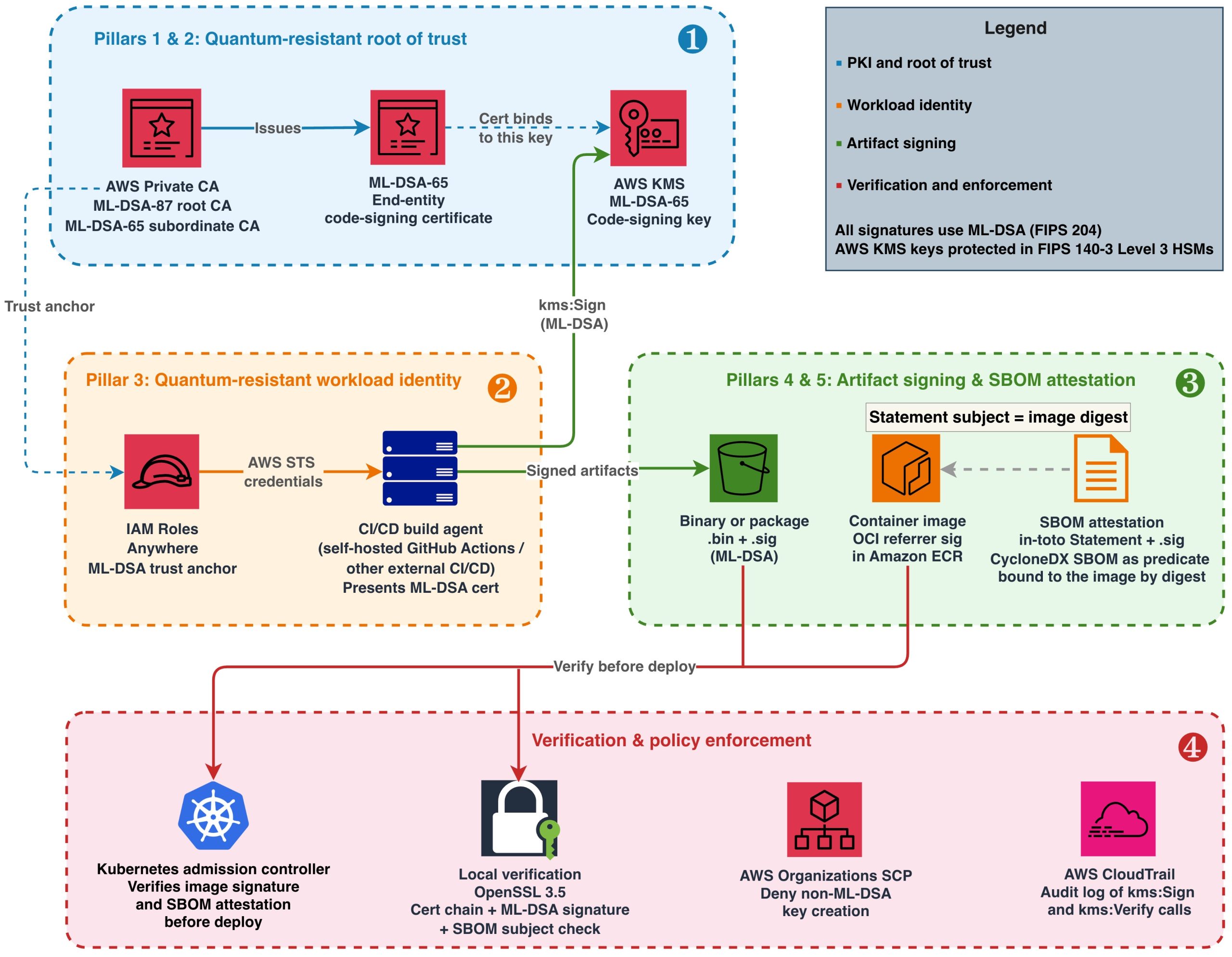
Part 1 of this series shows what this looks like in practice: it creates an ML-DSA-87 root CA and an ML-DSA-65 subordinate CA with CreateCertificateAuthority, activates them, and distributes the resulting chain to verifiers. In the model described here, those are the calls that only your approved provisioning pipeline is allowed to make.
Setting the ML-DSA value in CertificateAuthorityConfiguration. The same variant goes in both the KeyAlgorithm and SigningAlgorithm fields (for example, KeyAlgorithm=ML_DSA_65 with SigningAlgorithm=ML_DSA_65). Note a difference in signing algorithms between AWS KMS and AWS Private CA. With AWS Private CA, the SigningAlgorithm takes the variant value directly (ML_DSA_44, ML_DSA_65, and ML_DSA_87), and doesn’t accept ML_DSA_SHAKE_256. In contrast, AWS KMS uses ML_DSA_SHAKE_256 as its signing algorithm. Be aware that some older AWS Command Line Interface (AWS CLI) builds omitted descriptions of the ML-DSA variants from the built-in CLI help, so don’t rely on the help in the AWS CLI to determine valid values. For more information, see CertificateAuthorityConfiguration API Reference.
Known limitation. Some surfaces have no algorithm condition key, so you enforce them through provisioning and detection rather than policy. acm-pca:CreateCertificateAuthority has no condition key for the algorithm, and acm:ImportCertificate and iam:UploadServerCertificate are not algorithm-aware, so a disallowed signature setting on a created, imported, or uploaded certificate cannot be blocked by an IAM policy or SCP condition. Govern these through your provisioning process, restrict who can call them, and deny the import and upload actions entirely where they are not required. The controls above remain the available mitigation.
In particular, iam:UploadServerCertificate doesn’t support any method to prevent use of particular algorithms, and AWS doesn’t recommend using this API to generate and upload certificates. This API predates ACM and exists mainly to cover AWS Regions or partitions where ACM is not yet available. While a new Region or partition is being built out, workloads can still need a TLS server certificate before ACM support has shipped there, and uploading a certificate to IAM gives you a place to store and reference it in the meantime. Once ACM is available in that Region, you should use ACM instead. Outside that narrow case, deny iam:UploadServerCertificate unless it is genuinely required.
ACM-issued leaf certificates. A CA’s own key and signing algorithm are separate from the leaf certificates that ACM issues from it. If you use ACM to request leaf certificates, you can constrain the leaf’s key algorithm with the acm:KeyAlgorithm condition key on acm:RequestCertificate. This lets you allow-list approved algorithms for leaf certificates using SCPs or IAM policies, similar to the AWS KMS examples earlier in this post. Be aware that, at the time of writing, ACM doesn’t offer ML-DSA leaf certificates. So a policy like this is a forward-looking defense-in-depth control rather than an immediate ML-DSA-44 risk. The IAM example below is illustrative (using example approved algorithms). Since this is an evolving part of the service, be sure to validate this in your environment before relying on it.
This example uses StringNotEqualsIfExists so it denies only requests that specify a disallowed algorithm. With plain StringNotEquals, a request that omits acm:KeyAlgorithm would also be denied, because the missing key makes the condition evaluate true. Choose the operator that matches whether you want to block requests that leave the algorithm unspecified.
Prevent ML-DSA-44 usage in TLS for NLB and ALB
Elastic Load Balancing, for both network load balancers (NLB) and application load balancers (ALB), terminates TLS on behalf of your applications. The certificates used by these listeners are requested through or imported into ACM, or uploaded to IAM. A listener’s configured security policy and its certificate determine what’s offered during negotiation. At the time of writing, ACM requests and imports accept RSA and ECDSA keys only, and NLB and ALB listeners accept RSA and ECDSA certificates only, so no ML-DSA certificate can be bound to a listener today. As with the ACM leaf-certificate policy earlier, the controls in this section are forward-looking defense in depth rather than a mitigation of an immediate ML-DSA-44 risk.
Certificate controls (the effective mechanism for ML-DSA-44)
Because the listener API calls reference a certificate only by ARN, you can’t write an SCP on CreateListener, ModifyListener, or AddListenerCertificates that inspects the certificate’s algorithm. IAM conditions can’t reference attributes of a separately-referenced resource. Keeping ML-DSA-44 out of TLS therefore relies on there being no ML-DSA-44 certificate material to associate:
- Configure your private CA to issue only
ML_DSA_65orML_DSA_87certificates, and control who can create CAs. - Prevent ML-DSA-44 key creation in AWS KMS, so that no KMS-held ML-DSA-44 key can become the subject key of a certificate. TLS server keys for ACM-issued, imported, or uploaded certificates are not KMS keys; those are governed by items 1 and 3.
- Control imported and uploaded certificates through your provisioning process or deny the import and upload actions where not required, as described in the AWS Private CA section.
Detective controls
CloudTrail records the certificate and listener API calls in this section: certificate creation and import (acm-pca:CreateCertificateAuthority, acm:ImportCertificate, iam:UploadServerCertificate) and listener configuration (CreateListener, ModifyListener, AddListenerCertificates). Whether the algorithm shows up in the event depends on what the call itself carries. Creation calls that take the algorithm as an input record it: kms:CreateKey logs the KeySpec, and acm-pca:CreateCertificateAuthority logs the signing algorithm. That makes CloudTrail effective for catching the creation of ML-DSA-44 key material or a CA. A listener binding references its certificate only by ARN, so the certificate’s algorithm does not appear in that event. To evaluate the algorithm of a bound or imported certificate, use AWS Config resource evaluation as the detective backstop.
Summary for TLS
The primary preventive control is the certificate material itself: with no ML-DSA-44 CA, no ML-DSA-44 KMS key, and certificate import and upload controlled, no ML-DSA-44 certificate can be issued or bound. Where you also operate an allow-list of permitted TLS security policies, the elasticloadbalancing:SecurityPolicy condition key (on CreateListener and ModifyListener) can additionally constrain which TLS policies listeners can use.
Summary of controls
The following table maps the example policy (allow ML-DSA-65 or ML-DSA-87, exclude ML-DSA-44) to the available controls. Modify the controls to limit use to the approved set of algorithms your policies require.
| Area | Control | Status |
| Block ML-DSA-44 key creation (Organization-wide or for all accounts in an organization OU) | SCP on kms:CreateKey using kms:KeySpec |
Fully supported via condition key |
| Block ML-DSA-44 key creation (per account or per role) | IAM policy or permission boundary using kms:KeySpec |
Supported; requires programmatic enforcement of boundaries |
| Block use of existing ML-DSA-44 keys | Deny Sign, Verify, and GetPublicKey using kms:KeySpec (key policy, IAM, or SCP); optionally disable and delete keys |
Supported using kms:KeySpec (not kms:SigningAlgorithm) |
| Only allow approved variants in Private CA | Restrict who can create CAs; pin ML_DSA_65 or ML_DSA_87 in provisioning path |
No algorithm condition key; enforce using process and detection |
| Limit variants in imported or uploaded TLS certificates | Process controls, or deny import or upload APIs (prefer ACM over iam:UploadServerCertificate) |
APIs aren’t algorithm-aware |
| Block use of ML-DSA-44 in TLS with network load balancers (NLB) and application load balancers (ALB) | Restrict TLS policy using elasticloadbalancing:SecurityPolicy; control cert material |
TLS-policy restriction supported; no per-cert algorithm condition |
| Detect use of unapproved variants | CloudTrail (API-level) and AWS Config custom rules | Supported using custom AWS Config rules; not managed rules |
Conclusion
In this post, you learned how to use ML-DSA as an example of turning a cryptographic algorithm policy into enforceable AWS controls. The key lever is the kms:KeySpec condition key: it keeps your approved parameter sets (ML-DSA-65 and ML-DSA-87) fully usable while preventing the creation and use of a parameter set you’ve excluded (ML-DSA-44) on the CreateKey, in addition to the Sign, Verify, and GetPublicKey operations, where kms:SigningAlgorithm can’t tell the variants apart. Applied as defense in depth across SCPs, IAM policies, permission boundaries, and KMS key policies, and extended to the surfaces that have no algorithm condition key (AWS Private CA, certificate import, and Elastic Load Balancing TLS) through provisioning controls plus AWS CloudTrail and AWS Config drift detection, these controls give you a consistent way to keep an unapproved variant out of your accounts.
The pattern isn’t specific to ML-DSA-44. Because your algorithm policy will change as standards and your own requirements evolve, treat these controls as a reusable template and re-point the same condition keys and guardrails at whatever your approved set becomes. This adaptability is the practical meaning of cryptographic agility: changing what you allow without re-engineering how you enforce it.
To get started, review ML-DSA keys in AWS KMS and Choosing a KMS key spec, and test the example policies in a non-production environment before you deploy them.
To see the workloads these controls govern, read Part 1 of this series, which builds a complete ML-DSA signing pipeline, from key creation and PKI through artifact signing and verification, using the approved set enforced here.
Resources
- Quantum-resistant signing on AWS, Part 1: Build a software supply chain with ML-DSA
- AWS KMS adds support for post-quantum ML-DSA digital signatures
- ML-DSA keys in AWS KMS
- AWS KMS condition keys (kms:KeySpec evaluated on CreateKey and key resource operations)
- Choosing a KMS key spec (kms:KeySpec)
- Use condition keys with ACM (acm:KeyAlgorithm)
- Actions, resources, and condition keys for AWS Private Certificate Authority
- Private CA CertificateAuthorityConfiguration API
- Actions, resources, and condition keys for Elastic Load Balancing v2 (elasticloadbalancing:SecurityPolicy)
- Enhanced access denied error messages with policy ARNs
If you have feedback about this post, submit comments in the Comments section below.