At the risk of being called the stick in the mud of the tech world, we here at Backblaze have often bemoaned our industry’s love of making up new acronyms. The most recent culprit, hailing from the fast-moving artificial intelligence/machine learning (AI/ML) space, is truly memorable: RAG, aka retrieval-augmented generation. For the record, its creator has apologized for inflicting it upon the world.
Given how useful it is, we’re willing to forgive. (I’m sure he was holding his breath for that news.) Today, our AI 101 series is back to talk about what RAG is—and the big problem it solves.
Read more AI 101
This article is part of a series that attempts to understand the evolving world of AI/ML. Check out our previous articles for more context:
LLMs are the most recognizable expression of AI in our current zeitgeist. (Arguably, you could append that with “that we’re all paying attention to,” given that ML algorithms have been behind many tools for decades now.) LLMs underpin tools like ChatGPT, Google Gemini, and Claude, as well as things like service-oriented chatbots, natural language processing tasks, and so on. They’re trained on vast amounts of data with algorithmic guardrails known as parameters and hyperparameters guiding their training. Once trained, we query them through a process known as inference.
Fabulous! The possibilities are endless. However, one of the biggest challenges we’ve experienced (and laughed about on the internet) is that LLMs can return inaccurate results, while sounding very, very reasonable. Additionally, LLMs don’t know what they don’t know. Their answers can only be as good as the data they draw from—so, if their training dataset is outdated or contains a systematic bias, it will impact your results. As AI tools have become more widely adopted, we’ve seen LLM inaccuracies range from “funny and widely mocked” to “oh, that’s actually serious.”
Shoutout to Reddit users for finally getting this one into trusted sources.
Shoutout to Reddit users for finally getting this one into trusted sources.
Shoutout to Reddit users for finally getting this one into trusted sources.
Enter retrieval-augmented generation (Fine! RAG)
RAG is a solution to these problems. Instead of relying on only an LLM’s dataset, RAG queries external sources before returning a response. It’s more complicated than “let me google that for you,” as the process takes that external data, turns it into a vectored database, and then balances external data with an LLM’s “general knowledge” generated response and skill at responding to conversational queries.
This has several advantages. Users now have sources they can cite, and recent information is taken into account. From a development perspective, it means that you don’t have to re-train a model as frequently. And, it can be implemented in as few as five lines of code.
One important nuance is that when you’re building RAG into your product, you can set its sources. For industries like medicine and law, that means you can point them towards industry journals and trusted sources, outweighing the often misquoted or mis-cited examples you might see in a general database.
Another example: For a technical documentation portal, you can take an LLM, trained on general information and the nuts and bolts of conversational querying, and direct it to rely on your organization’s help articles as its most important sources. Your organization controls the authoritative data, and how often/when changes are made. Users can trust that they’re getting the most recent security patches and correct code. And, you can do so quickly, easily, and—most importantly—cost-effectively.
RAG is a great, straightforward method for keeping LLM tools updated with current, high-quality information and giving users more transparency around where their answers are coming from. However, as we mentioned above, AI is only ever as good as the data it uses. Keep in mind, that’s a deceptively simple thing to say. It’s an entire, specialized job to validate datasets, and that expertise is built into the research and monitoring that happens while training an LLM.
RAG gives a new source of data a privileged position—you’re saying “this data is more authoritative than that data” and, since the LLM doesn’t have anything in its general database, it may not have a counter argument. If you’re not paying attention to your RAG data source standards, and doing so on an ongoing basis, it’s possible, and even likely, that data bias, low quality data, etc. could creep into your model.
Think of it this way: If you’re pointing to a new feature in your tech docs and there’s an error, that impact is magnified because an LLM will give more weight to the RAG data. At least in that case, you’re the one who controls the source data. In our other examples of legal or medical AI tools pointing to journal updates, things can get, well, more complicated. If (when) you’re setting up an AI that uses RAG, it’s imperative to make sure you’re also setting yourself up with reliable sources that are regularly updated.
But, given its impact, and how low of a lift it is to integrate into existing products, we can see why RAG is all the RAGe—and, as always, we look forward to more to come in the AI landscape. For now, we can already see the impact it’s having on the market, with SaaS companies and startups alike exploring the possibilities.
Most IT administrators and businesses know that you need to employ a 3-2-1 backup solution to meet minimum backup durability requirements, though many folks are of the opinion that that methodology is just table stakes these days. Once you get into the variety of ways you can ensure reliable, robust backups, you learn about strategies like 3-2-1-1-0, bare metal recovery,cyber resilience, and more.
Which method your business ultimately ascribes to depends on your risk tolerance—but no business wants to experience the costs associated with extended downtime. In a world where the threat of ransomware is not an “if”, but a “when,” and disaster recovery is front-of-mind for businesses of all sizes, getting granular with your backup and recovery options is key. That brings us to today’s topic: continuous backup solutions, aka continuous data protection (CDP).
What Is Continuous Data Protection (CDP)?
A continuous data protection solution is an automated data backup method that keeps track of changes to your files and backs them up constantly. This is different from traditional backups that copy your data at set intervals. While you can set the interval that you’d want to have your data backup (e.g., daily, weekly, monthly), you’d still be relying on a systemic approach, and would have data loss exposure correlating to the duration you set. What if you had a day of particularly high volume of new data? What if you’re dealing with sensitive customer information that your business needs to show an accurate audit trail for?
Quick Refresher: The 3-2-1 Backup Strategy
The 3-2-1 backup solution calls for three copies of your data, to be stored on two different media types, with one copy off-site (and preferably geographically separate from your primary data storage region).
Continuous backup solutions work by tracking every change to your data in real time, then they asynchronously create a second copy of those changes. Compare this with traditional backups, where data is written to a destination, then a copy (often, a snapshot) of the data is made to be distributed to other backup locations. With a continuous backup solution, you can reduce your recovery point objection (RPO)—that is, the point in time from which you can recover your data—to near zero. And, because your continuous backups typically have to be stored in more accessible storage tiers, you can reduce your recovery time object (RTO) as well.
Here are some of the key qualities of a continuous backup solution:
Automatic backups. With continuous backup, you don’t need to remember to manually back up your data. The system continuously monitors your files for changes and backs them up automatically.
Real-time or frequent backups. Continuous backup solutions can back up your data in real-time, or at least very frequently. This means you’ll always have a very recent copy of your data available in case of data loss.
Restore to any point in time. Because continuous backups keep track of all the changes made to your files, you can restore your data to any point in time, not just the last time a full backup was run.
Benefits of Continuous Backup Solutions
There are several advantages to using a continuous backup solution:
Reduced risk of data loss. You’re less likely to lose data due to hardware failure, software corruption, ransomware attacks, or accidental deletion.
Faster recovery times. If you do lose data, you can restore it from a recent backup much faster than you could with a traditional backup system, especially those that rely on hardware (air gaps) or cold storage for archival storage.
Improved business continuity. Continuous backup can help businesses keep running smoothly even if they experience a data loss event.
User-friendly for diverse levels of tech proficiency. Within a business, there are always going to be folks who are more or less proficient with technology. When you have an automatic backup utility that runs in the background—particularly one with advanced central administrative controls like Backblaze Business Backup with Enterprise Control—you aren’t relying on employees’ tech proficiency (or memory) to create backups.
Continuous Backup vs. Near Continuous Backup Solutions
True CDP solutions run at the level where you’re writing changes to your file—according to the patent, at the basic input/output system (BIOS) of the computer such that normal operations are unaffected. In a practical sense, that means you’re nearly always using virtual machines.
There are several near-continuous backup solutions, however, that back up in intervals of one hour or less and leverage a high-availability system. For transparency’s sake, it’s worth noting that Backblaze Computer Backup is a near continuous backup using native code over Java to reduce impact on your computer’s operations—see our documentation for more.
Downsides of Continuous Backup Solutions
There are some challenges to consider when implementing a continuous backup solution:
Cost: Continuous backup solutions can be more expensive than traditional backup solutions. As time has gone on, there are more solutions available—which has led to more competitive pricing—but it is still a factor to consider.
Storage requirements: Continuous backup can generate a lot of data. If you’re provisioning storage yourself, you’ll need to make sure you have enough to accommodate the backups. If you’re considering using a cloud backup utility, make sure you look into unlimited backups. Many common backup utilities create pricing tiers that take into account the volume of data a user generates and stores.
System resources and compatibility: Solutions can use up system resources, which could slow down your computer or server. For example, many utilities use Java instead of native code, which can noticeably slow down your devices.
What’s the Diff: Continuous Backup vs. Synced Cloud Drive
Because a continuous backup solution updates backups in near real-time, it can be confused with cloud sync services. You may have heard us say it before—sync is not backup. The main difference between a continuous backup service and a synced cloud drive boils down to their purpose:
Continuous Backup Service: This prioritizes data protection and recovery. It constantly monitors your files for changes and backs them up frequently, often in real-time. You can restore your data to any specific point in time, making it ideal for disaster recovery or retrieving accidentally deleted files.
Synced Cloud Drive: This focuses on accessibility and collaboration. It keeps a mirrored copy of your designated folders across multiple devices. Any edits you make on one device are reflected in the cloud storage and on all other connected devices. This is great for working on the same files from different locations and keeping everyone, well, in sync.
Use a continuous backup service if you’re worried about losing important data due to hardware failure, software corruption, or accidental deletion.
Use a synced cloud drive if you want to access and edit your files from anywhere and keep them updated across all your devices.
Some services might offer both features, but it’s important to understand which functionality takes priority. And, if in doubt—use both.
Conclusion
Backups continue to be one of the cornerstones of any business’ ransomware protection strategy. As you’re considering what kind of backup you need, consider how much your business needs a granular, point-in-time recovery option to maintain business continuity. As always, you should balance functionality with costs, and the needs of your particular business. But, given the relative affordability of backup tools—and the amount they can save you in the event of a data disaster—solutions like continuous backup are worth considering for businesses of all sizes.
It is time, once again, to celebrate the things that bring us together as tech and sci-fi lovers of the world. Today, to mark the upcoming high holiday, May the Fourth, we’re bridging our current reality to that time long ago in a galaxy far, far away by discussing the important issues: How in the world are we expected to survive in space without good internet?
Maybe it’s just me, but it seems absurd that the Death Star blueprints had to be literally carried off a spaceship on what’s essentially an external hard drive when the Jedi Council (RIP) could make perfect holographic representations of themselves from across the galaxy. Sure, you can argue that making an off-site copy and sneaking it out was the most covert way to go about it, but didn’t some of those characters in Rogue One die next to a giant antenna? One powerful enough that it controlled traffic into and out of the planet? Why did they have to transmit the plans to the closest battleship when, in theory, they could have sent them anywhere?
Never fear folks, we are here with what we think, based on a fair amount of research and our own humble opinions, are the answers. The truth is that current and future space internet still requires a good bit of hardware and networking. Let’s talk about where we’re at today, where we could be in the near future, and why the Rebel Scum may have, in fact, needed to run faster than Darth Vader, sacrificing all those lives, to get the Death Star schematics out of the sector.
How Do We Currently Move Data Through Space?
The internet, as we know and love it, is largely a function of hardware. To simplify things to their most base definition, the internet is a network of all the networks on the planet. Key word there, folks: planet. We use fiber optic cables to connect things on our terrestrial plane. What happens when we want to take things to space?
We have a variety of telecommunications operations that allow us to move data through space, but they’re nowhere near as fast as our fiber-optic cables, especially with recent advancements in fiber transmission. To make our space communications that fast, we’d need analogous hardware and/or scientific advancements in some very cool research areas.
For today’s conversation, here are the basics: when you transmit data (via any medium, not just through space), you convert it to a format computers can read, namely 0s and 1s. Typically we represent those values by moderating or fluctuating different types of electromagnetic waves. Currently the most prevalent form of data transmission in space is radio, and lasers are a developing, but usable technology.
Our Earth-based organizations move data through space both near and far using different networks of satellites and listening technology. Both use a satellite system called the Tracking and Data Relay Satellite (TRDS), which orbits Earth at a far enough range that relay points are nearly always visible to spacecraft like the International Space Station (ISS).
As you get further out into deep space, you can beam your signal directly to Earth—you just have a smaller window of time where orbits are aligned to make that possible. In that case, rovers stationed on other planets might co-opt other orbiters to relay signals back to Earth. The only problem there is that those orbiters typically have a scientific mission of their own, which means that the relay orbiter has to make a choice about what traffic is prioritized. These things also signal what space internet could be in the future: a network of relay satellites that transfer data planet to planet.
And, while networking on Earth is designed for and assumes real-time responses, scientists are working on Delay-Tolerant Networking (DTN) which is designed to handle significant delays and optimize routing based on that information. It’s not yet mainstream, but DTN has been successfully demonstrated on several missions, including on NASA’s Curiosity mission and the European Space Agency (ESA) Rosetta comet mission.
We see a couple of types of communications networks in the Star Wars films, and more in the non-canonical expanded universe:
Holonet: This is a galaxy-wide communication network mentioned in the films. It’s likely a complex system of satellites, relays, and subspace transceivers that facilitate rapid data transfer. This is similar to what we’re using and building today.
Subspace: While primarily used for faster-than-light travel, subspace might also be used for transmitting information. Subspace is a fictional realm that allows hyperspace travel, and it’s possible that communication signals could piggyback on this network for faster travel times.
Hyperspace Communication Droids: Legends lore (non-canon Star Wars material) mentions these specialized droids that could transmit messages via hyperspace, achieving near-instantaneous communication.
Since the last two depend on the fictional subspace zone, we’re really just considering the Holonet today. And, that works largely like our current technology, though they obviously have more satellites and relays to work with. That’s good news for our little thought experiment—we can look at file transmission times on our current Mars missions to get some analogous numbers.
Mars Transmission Times & File Sizes
Okay folks, now that the science is out of the way, let’s get down to brass tacks. Why was it possibly faster to move the Death Star plans via external storage than just transmitting them out once the planetary shields had been lifted? That answer depends on transmission times and file size. I’ll talk about transmission times first.
The current technology we use to communicate with Mars has a few different transmission times we can work with:
Radio, low-gain antenna: Up to a few kilobits per second (kbps)
Radio, high-gain antenna: Up to several megabits per second (Mpbs)
Laser, standard communications systems: Up to 10 gigabits per second (Gbps)
Laser, advanced systems under development: In development, but 10s of Gbps
For our purposes, let’s go ahead and choose two and use a 10GB file as an example. The basic transmission time formula is:
Transmission time = file size / data rate
Assuming radio waves and a high-gain antenna:
Transmission time = (10GB * 8 bits) / (1Mbps) = 80,000 seconds, or about 22 hours
Assuming laser communications with a standard system:
We have two main canonical sources of truth we can use to infer the file size of the Death Star schematics: A New Hope and Rogue One: A Star Wars Story. (The plans were discussed in the Clone Wars, but not in detail.) Full disclosure: I used AI tools to assist with our file size estimations.
A New Hope
In the OG, we get a glimpse of the plans the rebels have smuggled out as they plan to attack the Death Star, and we can use these to make some assumptions about file size. Interestingly, these plans were actually created for the movie by a few scientists at NASA’s Jet Propulsion Labs (JPL), and they were originally credited in the film.
As easy as shooting womp rats.
Factors to consider about file size:
Visual Complexity: The schematics we see on the holographic projectors show detailed technical diagrams with various sections, labels, and annotations.
Color Depth: While the movie doesn’t definitively show color, for the sake of estimation, let’s assume the plans are grayscale (requiring 1 byte per pixel).
Resolution: Estimating the exact resolution from the movie is difficult. However, considering the detail visible on screen and the technology of the time (1977), a conservative guess might be a resolution similar to standard definition video (around 480p).
Calculating File Size—A Conservative Estimate
The formula for calculating file size per image is:
File size per image = Width x Height x Color Depth
Let’s assume the Death Star plans are displayed on a holographic projector with a resolution of 640 x 480 pixels (a common standard definition resolution). If they are grayscale images, they would require 1 byte per pixel for color depth, so:
However, the plans likely consist of multiple schematics and blueprints. In the movie, we see various sections and scrolling text, suggesting a considerable amount of information.
The formula for calculating total file size is:
Total file size = File size per image * Number of images
Let’s assume the Death Star plans consist of a total of 100 grayscale images (a very rough estimate), so:
Total file size = 307,200 bytes/image * 100 images Total file size = 30,720,000 bytes
1MB is equal to 1,048,576 bytes, so that’s 29.3MB (30,720,000 bytes / 1,048,576 bytes/MB).
Remember, this is a very rough estimate.
The actual file size could be much larger or smaller depending on factors like:
Compression: The Death Star technology might utilize advanced data compression techniques, significantly reducing the file size.
Vector Graphics: If the plans are stored as vector graphics (scalable images), the file size would be smaller compared to bitmaps (storing pixel information).
Additional Data: The data card might contain additional information beyond visual schematics, like text descriptions, material specifications, etc., which could increase the file size.
Taking everything into account, a reasonable guess for the Death Star plans file size in Star Wars: A New Hope could be in the ballpark of 20 to 50 megabytes. This is enough to hold a significant amount of technical data but still fit on a reasonably sized data card for the time period the movie depicts (1977).
Rogue One
In Rogue One, we don’t actually see the plans in detail like we do in A New Hope, but we do have a short clip showing digital blueprints. Based on what we can glean from that and other newer, canonical sources, which employ 3D holograms, here’s a revised estimate for the Death Star schematics file size:
Factors to consider about file size:
Data Complexity: Rogue One reveals plans that include detailed schematics, technical readouts, and potentially 3D models. These elements significantly increase the file size compared to our previous estimate based on static images.
3D Model Complexity: The size of 3D models depends on the level of detail. High-resolution models with intricate textures would require more data than simpler ones.
Data Hierarchy: The plans likely involve a layered structure, with overviews and deep dives into specific sections. This adds to the overall file size.
Compression: The presence of data compression is unknown. Compression algorithms can significantly reduce file size, but the effectiveness depends on the data type.
Gotta love a data center.
Estimated Range:
Given these factors, here’s a possible range for the Death Star schematics:
Low-End Estimate (100s of GB):
Moderately complex 3D models.
Some level of data compression.
Focus on essential schematics and technical data.
High-End Estimate (Low Single-Digit TB):
Highly detailed 3D models encompassing the entire Death Star.
Limited or no data compression.
Extensive data beyond core schematics, including maintenance procedures, weapon system details, etc.
Final Call?
Sure, we don’t know if data storage techniques are different in the Star Wars universe, and sure, the difference between technology in 1977 vs. 2016 gives sci-fi writers are a lot more to work with, but considering the complexity of the Death Star and the variety of data hinted at in Rogue One, the schematics file size likely falls somewhere between hundreds of gigabytes to a low single-digit terabyte. Frankly, despite the New Hope plans being our original introduction to the universe, this range is more realistic for a project of such immense scale.
Of course, with a file size in the 100s of GBs or low TBs, it makes a lot more sense why the Rebels didn’t attempt to transmit the files much, much further away. We know from the movie that the Death Star plans were on a relatively isolated planet in an Imperial-controlled quadrant, and who knows how large quadrants are.
For the sake of argument, let’s say the Death Star schematics were 1TB and there’s a safe planet at the equivalent distance of Mars. Transmitting the files via radio with a high-gain antenna would take about 2330 hours, and transmitting via laser would take 217 hours.
With that in mind, even though it’s pretty old school, it was probably faster to put the files on a drive on a spaceship, and then have that spaceship get those files where they needed to go (you know, not accounting for misadventures).
Always Have a Backup: Is a Droid the Safest Way to Transmit Files?
The most confusing part of this whole discussion is why, once they were past the “Darth Vader is attempting to murder us” part, they didn’t make several copies of the data and distribute it to various, separate entities. The urgency of the mad rush of Luke trying to reach the Rebels is compelling and all, but also an excellent reason you should always have a geographically separated backup. R2-D2’s badassery notwithstanding, the fate of the universe should have some redundancy.
If It Works, It Works
Hey, in the end, we really can’t complain. Luke got the files to Leia; Leia goes on to be instrumental in the Rebel victories against not one, but two Death Stars, and we all just had to endure the dark times of the prequels before we got the compelling story of Rogue One. Cheers, Star Wars fans, and May the Fourth be with you.
If you read a blog article that starts with “In today’s fast-paced business landscape…” you can be 99% sure that content is AI generated. While large language models (LLMs) like ChatGPT, Gemini, and Claude may be the shiniest of AI applications from a consumer standpoint, they still have a ways to go from a creativity standpoint.
That said, there are exciting possibilities for artificial intelligence and machine learning (AI/ML) algorithms to improve and create products now and in the future, many of which focus on replicated operations, split second database predictions, natural language processing, threat analysis, and more. As you might imagine, deployment of those algorithms comes with its own set of complexities.
To solve for those complexities, specialized operations platforms have sprung up—specifically, AI/ML model serving platforms. Let’s talk about AI/ML model serving and how it fits into “today’s fast-paced business landscape.” (Don’t worry—we wrote that one.)
What Is AI/ML Model Serving?
AI/ML model serving refers to the process of deploying machine learning models into production environments where they can be used to make predictions or perform tasks based on real-time or batch input data.
Trained machine learning models are made accessible via APIs or other interfaces, allowing external applications or systems to send real-world data to the models for inference. The served models process the incoming data and return predictions, classifications, or other outputs based on the learned patterns encoded in the model parameters.
Practically, you can compare building an application that uses an AI/ML algorithm to a car engine. The whole application (the engine) is built to solve a problem; in this case “transport me faster than walking.” There are various subtasks to help you solve that problem well. Let’s take the exhaust system as an example. The exhaust fundamentally does the same thing from car to car—it moves hot air off the engine—but once you upgrade your exhaust system (i.e. add an AI algorithm to your application), you can tell how your engine works differently by comparing your car’s performance to a base-level model of the same one.
Now let’s plug in our “smart” element, and it’s more like your exhaust has the ability to see that your car has terrible fuel efficiency, identifies that it’s because you’re not removing hot air off the engine well enough, and re-route the pathway it’s using through your pipes, mufflers, and catalytic converters to improve itself. (Saving you money on gas—wins all around.)
Model serving, in this example, would be a shop that specializes in installing and maintaining exhausts. They’re experts at plugging in your new exhaust and having it work well with the rest of the engine even if it’s a newer type of tech (so, interoperability via API), and they have thought through and created frameworks for how to make sure the exhaust is functioning once you’re driving around (i.e. metrics). They’ve got a ton of ready-made parts and exhaust systems to recommend (that’s your model registry). When they install your new system in your engine, they might have some tweaks that work specifically in your system, too (versioning over time to serve your specific product).
Ok, back to the technical details. From an architecture standpoint, model serving also lets you separate your production model from the base AI/ML model in addition to creating an accessible endpoint (read: an API or HTTPS access point, etc.). This separation has benefits—making tracking model drift and versioning simpler, for instance.
Like traditional software engineering, most AI/ML model serving platforms also have code libraries of fully or partially trained models—the model registry in the image above. For example, if you’re running a photo management application, you might grab an image recognition model and plug it into your larger application.
This is a tad more complex than other types of code deployment because you can’t really tell if an AI/ML model is functioning correctly until it’s working on real-world data. Certainly, that’s somewhat true of all code deployments—you always find more bugs when you’re live—but because AI/ML models are performing complex tasks like making predictions, natural language processing, etc., even a trained model has more room for “error” that becomes evident when it’s in a live environment. And, in many use cases—like fraud detection or network intrusion detection—models need to have very low latency to perform properly.
Because of that, deciding what kind of code deployment to use can have a high impact on your end users. For example, lots of experts recommend leveraging shadow deployment techniques, where your AI/ML model is ingesting live data, but running on a parallel environment invisible to end users, for phase one of your deployment.
Machine Learning Operations (MLOps) vs. AI/ML Model Serving
In reading about model serving, you’ll inevitably also come across folks talking about MLOps as well. (An Ops for every occasion, as they say. “They” being me.) You can think of MLOps as being responsible for the entire, end-to-end process, whereas AI/ML model serving focuses on one part of the process. Here’s a handy diagram that outlines the whole MLOps lifecycle:
And, of course, you’ll see one box on there that’s called “model serving”.
How to Choose a Model Serving Platform
AI model serving platforms typically provide features such as scalability to handle varying workloads, low latency for real-time predictions, monitoring capabilities to track model performance and health, versioning to manage multiple model versions, and integration with other software systems or frameworks.
Choosing the right one is not a one-size-fits-all approach. Model serving platforms give you a whole host of benefits, operationally speaking—they deliver better performance, scale easily with your business, integrate well with other applications, and give you valuable monitoring tools from both a performance and security perspective. But, there are a ton of other factors that can come into play that aren’t immediately apparent, such as preferred code languages (Python is right up there), the processing/hardware platform you’re using, budget, what level of control and fine-tuning you want over APIs, how much management you want to do in-house vs. outsourcing, how much support/engagement there is in the developer community, and so on.
Popular Model Serving Platforms
Now that you know what model serving is, you might be wondering how you can use it yourself. We rounded up some of the more popular platforms so you can get a sense of the diversity in the marketplace:
TensorFlow Serving: An open-source serving system for deploying machine learning models built with TensorFlow. It provides efficient and scalable serving of TensorFlow models for both online and batch predictions.
Amazon SageMaker: A fully managed service provided by Amazon Web Services (AWS) for building, training, and deploying machine learning models at scale. SageMaker includes built-in model serving capabilities for deploying models to production.
Google Cloud AI Platform: A suite of cloud-based machine learning services provided by Google Cloud Platform (GCP). It offers tools for training, evaluation, and deployment of machine learning models, including model serving features for deploying models in production environments.
Microsoft Azure Machine Learning: A cloud-based service offered by Microsoft Azure for building, training, and deploying machine learning models. Azure Machine Learning includes features for deploying models as web services for real-time scoring and batch inferencing.
Kubernetes (K8s): While not a model serving platform in itself, Kubernetes is a popular open-source container orchestration platform that is often used for deploying and managing machine learning models at scale. Several tools and frameworks, such as Kubeflow and KFServing, provide extensions for serving models on Kubernetes clusters.
Hugging Face: Known for its open-source libraries for natural language processing (NLP), Hugging Face also provides a model serving platform for deploying and managing natural language processing models in production environments.
The Practical Approach
In short, AI/ML model serving platforms make ML algorithms much more manageable and accessible for all kinds of applications. Choosing the right one (as always) comes down to your particular use case—so, test thoroughly, and let us know what’s working for you in the comments.
It’s easy to open a data center, right? All you have to do is connect a bunch of hard drives to power and the internet, find a building, and you’re off to the races.
Well, not exactly. Building and using one Storage Pod is quite a bit different than managing exabytes of data. As the world has grown more connected, the demand for data centers has grown—and then along comes artificial intelligence (AI), with processing and storage demands that amp up the need even more.
That, of course, has real-world impacts, and we’re here to chat about why. Today we’re going to talk about power, one of the single biggest costs to running a data center, how it has impacts far beyond a simple utility bill, and what role temperature plays in things.
How Much Power Does a Data Center Use?
There’s no “normal” when it comes to the total amount of power a data center will need, as data centers vary in size. Here are a few figures that can help us get us on the same page about scale:
The largest data center market in the world is in Northern Virginia in the United States and it has a 2,552 megawatt capacity. (By the way: 1MW = 1 million watts. For context, one megawatt is enough energy to power about 200 American homes for a year.)
The goal of a data center is to be always online. That means that there are redundant systems of power—so, what comes in from the grid as well as generators and high-tech battery systems like uninterruptible power supplies (UPS)—running 24 hours a day to keep servers storing and processing data and connected to networks. In order to keep all that equipment running well, they need to stay in a healthy temperature (and humidity) range, which sounds much, much simpler than it is.
Measuring Power Usage
One of the most popular metrics for tracking power efficiency in data centers is power usage effectiveness (PUE), which is the ratio of the total amount of energy used by a data center to the energy delivered to computing equipment.
Note that this metric divides power usage into two main categories: what you spend keeping devices online (which we’ll call “IT load” for shorthand purposes), and “overhead”, which is largely comprised of the power dedicated to cooling your data center down.
There are valid criticisms of the metric, including that improvements to IT load will actually make your metric worse: You’re being more efficient about IT power, but your overhead stays the same—so less efficiency even though you’re using less power overall. Still, it gives companies a repeatable way to measure against themselves and others over time, including directly comparing seasons year to year, so it’s a widely adopted metric.
Calculating your IT load is a relatively predictable number. Manufacturers tell you the wattage of your device (or you can calculate it based on your device’s specs), then you take that number and plan for it being always online. The sum of all your devices running 24 hours a day is your IT power spend.
Any time you’re using power, you’re creating heat. So the first thing you consider is always your IT load. You don’t want your servers overtaxed—most folks agree that you want to run at about 80% of capacity to keep things kosher—but you also don’t want to have a bunch of servers sitting around idle when you return to off-peak usage. Even at rest, they’re still consuming power.
So, the methodology around temperature mitigation always starts at power reduction—which means that growth, IT efficiencies, right-sizing for your capacity, and even device provisioning are an inextricable part of the conversation. And, you create more heat when you’re asking an electrical component to work harder—so, more processing for things like AI tasks means more power and more heat.
And, there are a number of other things that can compound or create heat: the types of drives or processors in the servers, the layout of the servers within the data center, people, lights, and the ambient temperature just on the other side of the data center walls.
Brief reminder that servers look like this:
Only most of them aren’t as beautifully red as ours.
When you’re building a server, fundamentally what you’re doing is shoving a bunch of electrical components in a box. Yes, there are design choices about those boxes that help mitigate temperature, but just like a smaller room heating up more quickly than a warehouse, you are containing and concentrating a heat source.
We humans generate heat and need lights to see, so the folks who work in data centers have to be taken into account when considering the overall temperature of the data center. Check out these formulas or this nifty calculator for rough numbers (with the caveat that you should always consult an expert and monitor your systems when you’re talking about real data centers):
Heat produced by people = maximum number of people in the facility at one time x 100
Heat output of lighting = 2.0 x floor area in square feet or 21.53 x floor area in square meters
Also, your data center exists in the real world, and we haven’t (yet) learned to control the weather—so you also have to factor in fighting the external temperature when you’re bringing things back to ideal conditions. That’s led to a movement towards building data centers in new locations. It’s important to note that there are other reasons you might not want to move, however, including network infrastructure.
Accounting for people and the real world also means that there will be peak usage times, which is to say that even in a global economy, there are times when more people are asking to use their data (and their dryers, so if you’re reliant on a consumer power grid, you’ll also see the price of power spike). Aside from the cost, more people using their data = more processing = more power.
How Is Temperature Mitigated in Data Centers?
Cooling down your data center with fans, air conditioners, and water also uses power (and generates heat). Different methods of cooling use different amounts of power—water cooling in server doors vs. traditional high-capacity air conditioners, for example.
Talking about real numbers here gets a bit tricky. Data centers aren’t a standard size. As data centers get larger, the environment gets more complex, expanding the potential types of problems, while also increasing the net benefit of changes that might not have a visible impact in smaller data centers. It’s like any economy of scale: The field of “what is possible” is wider; rewards are bigger, and the relationship between change vs. impact is not linear. Studies have shown that creating larger data centers creates all sorts of benefits (which is an article in and of itself), and one of those specific benefits is greater power efficiency.
Most folks talk about the impact of different cooling technologies in a comparative way, i.e., we saw a 30% reduction in heat. And, many of the methods of mitigating temperature are about preventing the need to use power in the first place. For that reason, it’s arguably more useful to think about the total power usage of the system. In that context, it’s useful to know that a single fan takes x amount of power and produces x amount of heat, but it’s more useful to think of them in relation to the net change on the overall temperature bottom line. With that in mind, let’s talk about some tactics data centers use to reduce temperature.
Customizing and Monitoring the Facility
One of the best ways to keep temperature regulated in your data center is to never let it get hotter than it needs to be in the first place, and every choice you make contributes to that overall total. For example, when you’re talking about adding or removing servers from your pool, that reduces your IT power consumption and affects temperature.
There are a whole host of things that come down to data centers being a purpose-built space, and most of them have to do with ensuring healthy airflow based on the system you’ve designed to move hot air out and cold air in.
No matter what tactics you’re using, monitoring your data center environment is essential to keeping your system healthy. Some devices in your environment will come with internal indicators, like SMART stats on drives, and, of course, folks also set up sensors that connect to a central monitoring system. Even if you’ve designed a “perfect” system in theory, things change over time, whether you’re accounting for adding new capacity or just dealing with good old entropy.
Here’s a non-inclusive list of some of ways data centers customize their environments:
Raised Floors: This allows airflow or liquid cooling under the server rack in addition to the top, bottom, and sides.
Containment, or Hot and Cold Rows: The strategy here is to keep the hot side of your servers facing each other and the cold parts facing outward. That means that you can create a cyclical air flow with the exhaust strategically pulling hot air out of hot space, cooling it, then pushing the cold air over the servers.
Calibrated Vector Cooling: Basically, concentrated active cooling measures in areas you know are going to be hotter. This allows you to use fewer resources by cooling at the source of the heat instead of generally cooling the room.
Cable Management: Keeping cords organized isn’t just pretty, it also makes sure you’re not restricting airflow.
Blanking Panels: This is a fancy way of saying that you should plug up the holes between devices.
Why not both? Most data centers end up using a combination of air and water based cooling at different points in the overall environment. And, other liquids have led to some very exciting innovations. Let’s go into a bit more detail.
Air-Based Cooling
Air based cooling is all about understanding air flow and using that knowledge to extract hot air and move cold air over your servers.
Air-based cooling is good up to a certain temperature threshold—about 20 kilowatts (kW) per rack. Newer hardware can easily reach 30kw or higher, and high processing workloads can take that even higher. That said, air-based cooling has benefitted by becoming more targeted, and people talk about building strategies based on room, row, or rack.
From here, it’s actually a pretty easy jump into water-based cooling. Water and other liquids are much better at transferring heat than air, about 50 to 1,000 times more, depending on the liquid you’re talking about. And, lots of traditional “air” cooling methods run warm air through a compressor (like in an air conditioner), which stores cold water and cools off the air, recirculating it into the data center. So, one fairly direct combination of this is the evaporative cooling tower:
Obviously water and electricity don’t naturally blend well, and one of the main concerns of using this method is leakage. Over time, folks have come up with some good, safe methods, designed around effectively containing the liquid. This increases the up-front cost, but has big payoffs for temperature mitigation. You find this methodology in rear door heat exchangers, which create a heat exchanger in—you guessed it—the rear door of a server, and direct-to-chip cooling, which contains the liquid into a plate, then embeds that plate directly in the hardware component.
So, we’ve got a piece of hardware, a server rack—the next step is the full data center turning itself into a heat exchange, and that’s when you get Nautilus—a data center built over a body of water.
(Other) Liquid-Based Cooling, or Immersion Cooling
With the same sort of daring thought process of the people who said, “I bet we can fly if we jump off this cliff with some wings,” somewhere along the way, someone said, “It would cool down a lot faster if we just dunked it in liquid.” Liquid-based cooling utilizes dielectric liquids, which can safely come in contact with electrical components. Single phase immersion uses fluids that don’t boil or undergo a phase change (think: similar to an oil), while two phase immersion uses liquids that boil at low temperatures, which releases heat by converting to a gas.
You’ll see components being cooled this way either in enclosed chassis, which can be used in rack-style environments, in open baths, which require specialized equipment, or a hybrid approach.
How Necessary Is This?
Let’s bring it back: we’re talking about all those technologies efficiently removing heat from a system because hotter environments break devices, which leads to downtime. And, we want to use efficient methods to remove heat because it means we can ask our devices to work harder without having to spend electricity to do it.
Recently, folks have started to question exactly how cool data centers need to be. Even allowing a few more degrees of tolerance can make a huge difference to how much time and money you spend on cooling. Whether it has longer term effects on the device performance is questionable—manufacturers are fairly opaque about data around how these standards are set, though exceeding recommended temperatures can have other impacts, like voiding device warranties.
Power, Infrastructure, Growth, and Sustainability
But the simple question of “Is it necessary?” is definitely answered “yes,” because power isn’t infinite. And, all this matters because improving power usage has a direct impact on both cost and long-term sustainability. According to a recent MIT article, the data centers now have a greater carbon footprint than the airline industry, and a single data center can consume the same amount of energy as 50,000 homes.
Let’s contextualize that last number, because it’s a tad controversial. The MIT research paper in question was published in 2022, and that last number is cited from “A Prehistory of the Cloud” by Tung-Hui Hu, published in 2006. Beyond just the sheer growth in the industry since 2006, data centers are notoriously reticent about publishing specific numbers when it comes to these metrics—Google didn’t release numbers until 2011, and they were founded in 1998.
Based on our 1MW = 200 homes metric the number from the MIT article number represents 250MW. One of the largest data centers in the world has a 650MW capacity. So, while you can take that MIT number with a grain of salt, you should also pay attention to market reports like this one—the aggregate numbers clearly show that power availability and consumption is one of the biggest concerns for future growth.
So, we have less-than-ideal reporting and numbers, and well-understood environmental impacts of creating electricity, and that brings us to the complicated relationship between the two factors. Costs of power have gone up significantly, and are fairly volatile when you’re talking about non-renewable energy sources. International agencies report that renewable energy sources are now the cheapest form of energy worldwide, but the challenge is integrating renewables into existing grids. While the U.S. power grid is reliable (and the U.S. accounts for half of the world’s hyperscale data center capacity), the Energy Department recently announced that the network of transmission lines may need to expand by more than two-thirds to carry that data nationwide—and invested $1.3 billion to make that happen.
What’s Next?
It’s easy to say, “It’s important that data centers stay online,” as we sort of glossed over above, but the true importance becomes clear when you consider what that data does—it keeps planes in the air, hospitals online, and so many other vital functions. Downtime is not an option, which leads us full circle to our introduction.
We (that is, we, humans) are only going to build more data centers. Incremental savings in power have high impact—just take a look at Google’s demand response initiative, which “shift[s] compute tasks and their associated energy consumption to the times and places where carbon-free energy is available on the grid.”
Which is all to say: this is an exciting time for innovation in the cloud, and many of the opportunities are happening below the surface, so to speak. Understanding how the fundamental principles of physics and compute work—now more than ever—is a great place to start thinking about what the future holds and how it will impact our world, technologically, environmentally, and otherwise. And, data centers sit at the center of that “hot” debate.
Folks, it’s an understatement to say that the explosion of AI has been a wild ride. And, like any new, high-impact technology, the market initially floods with new companies. The normal lifecycle, of course, is that money is invested, companies are built, and then there will be winners and losers as the market narrows. Exciting times.
That said, we thought it was a good time to take you back to the practical side of things. One of the most pressing questions these days is how businesses may want to use AI in their existing or future processes, what options exist, and which strategies and tools are likely to survive long term.
We can’t predict who will sink or swim in the AI race—we might be able to help folks predict drive failure, but the Backblaze Crystal Ball () is not on our roadmap—so let’s talk about what we know. Things will change over time, and some of the tools we’ve included on this list will likely go away. And, as we fully expect all of you to have strong opinions, let us know what you’re using, which tools we may have missed, and why we’re wrong in the comments section.
Tools Businesses Can Implement Today (and the Problems They Solve)
As AI has become more accessible, we’ve seen it touted as either standalone tools or incorporated into existing software. It’s probably easiest to think about them in terms of the problems they solve, so here is a non-inclusive list.
The Large Language Model (LLM) “Everything Bot”
LLMs are useful in generative AI tasks because they work largely on a model of association. They intake huge amounts of data, use that to learn associations between ideas and words, and then use those learnings to perform tasks like creating copy or natural language search. That makes them great for a generalized use case (an “everything bot”) but it’s important to note that it’s not the only—or best—model for all AI/ML tasks.
These generative AI models are designed to be talked to in whatever way suits the querier best, and are generally accessed via browser. That’s not to say that the models behind them aren’t being incorporated elsewhere in things like chat bots or search, but that they stand alone and can be identified easily.
ChatGPT
In many ways, ChatGPT is the tool that broke the dam. It’s a large language model (LLM) whose multi-faceted capabilities were easily apparent and translatable across both business and consumer markets. Never say it came from nowhere, however: OpenAI and Microsoft Azure have been in cahoots for years creating the tool that (ahem) broke the internet.
Google Gemini, née Google Bard
It’s undeniable that Google has been on the front lines of AI/ML for quite some time. Some experts even say that their networks are the best poised to build a sustainable AI architecture. So why is OpenAI’s ChatGPT the tool on everyone’s mind? Simply put, Google has had difficulty commercializing their AI product—until, that is, they announced Google Gemini, and folks took notice. Google Gemini represents a strong contender for the type of function that we all enjoy from ChatGPT, powered by all the infrastructure and research they’re already known for.
Machine Learning (ML)
ML tasks cover a wide range of possibilities. When you’re looking to build an algorithm yourself, however, you don’t have to start from ground zero. There are robust, open source communities that offer pre-trained models, community support, integration with cloud storage, access to large datasets, and more.
TensorFlow: TensorFlow was originally developed by Google for internal research and production. It supports various programming languages like C++, Python, and Java, and is designed to scale easily from research to development.
PyTorch: PyTorch, on the other hand, is built for rapid prototyping and experimentation, and is primarily built for Python. That makes the learning curve for most devs much shorter, and lots of folks will layer it with Keras for additional API support (without sacrificing the speed and lower-level control of PyTorch).
Given the amount of flexibility in having an open source library, you see all sorts of things being built. A photo management company might grab a facial recognition algorithm, for instance, or use another to help order the parameters and hyperparameters of the algorithm. Think of it like wanting to build a table, but making the hammer and nails instead of purchasing your own.
Building Products With AI
You may also want or need to invest more resources—maybe you want to add AI to your existing product. In that scenario, you might hire an AI consultant to help you design, build, and train the algorithm, buy processing power from CoreWeave or Google, and store your data on-premises or in cloud storage.
In reality, most companies will likely do a mix of things depending on how they operate and what they offer. The biggest thing I’m trying to get at by presenting these scenarios, however, is that most people likely won’t set up their own large scale infrastructure, instead relying on inference tools. And, there’s something of a distinction to be made between whether you’re using tools designed to create efficiencies in your business versus whether you’re creating or incorporating AI/ML into your products.
Data Analytics
Without being too contentions, data analytics is one of the most powerful applications of AI/ML. While we measly humans may still need to provide context to make sense of the identified patterns, computers are excellent at identifying them more quickly and accurately than we could ever dream. If you’re looking to crunch serious numbers, these two tools will come in handy.
Snowflake: Snowflake is a cloud-based data as a service (DaaS) company that specializes in data warehouses, data lakes, and data analytics. They provide a flexible, integration-friendly platform with options for both developing your own data tools or using built-out options. Loved by devs and business leaders alike, Snowflake is a powerhouse platform that supports big names and diverse customers such as AT&T, Netflix, Capital One, Canva, and Bumble.
Looker: Looker is a business intelligence (BI) platform powered by Google. It’s a good example of a platform that takes the core functionalities of a product we’re already used to and layering on AI to make them more powerful. So, while BI platforms have long had robust data management and visualization capabilities, they can now do things like use natural language search or get automated data insights.
Development and Security
It’s no secret that one of the biggest pain points in the world of tech is having enough developers and having enough high quality ones, at that. It’s pushed the tech industry to work internationally, driven the creation of coding schools that train folks within six months, and compelled people to come up with codeless or low-code platforms that users of different skill levels can use. This also makes it one of the prime opportunities for the assistance of AI.
GitHub Copilot: Even if you’re not in tech or working as a developer, you’ve likely heard of GitHub. Started in 2007 and officially launched in 2008, it’s a bit hard to imagine coding before it existed as the de facto center to find, share, and collaborate on code in a public forum. Now, they’re responsible for GitHub Copilot, which allows devs to generate code with a simple query. As with all generative tools, however, users should double check for accuracy and bias, and make sure to consider privacy, legal, and ethical concerns while using the tool.
Customer Experience and Marketing
Customer relationship management (CRM) tools assist businesses in effectively communicating with their customers and audiences. You use them to glean insights as broadly as trends in how you’re finding and converting leads to customers, or as granular as a single users’ interactions with marketing emails. A well-honed CRM means being able to serve your target and existing customers effectively.
Hubspot and Salesforce Einstein: Two of the largest CRM platforms on the market, these tools are designed to make everything from email to marketing emails to lead scoring to customer service interactions easy. AI has started popping up in almost every function offered, including social media post generation, support ticket routing, website personalization suggestions, and more.
Operations, Productivity, and Efficiency
These kinds of tools take onerous everyday tasks and make them easy. Internally, these kinds of tools can represent massive savings to your OpEx budget, letting you use your resources more effectively. And, given that some of them also make processes external to your org easier (like scheduling meetings with new leads), they can also contribute to new and ongoing revenue streams.
Loom: Loom is a specialized tool designed to make screen recording and subsequent video editing easy. Given how much time it takes to make video content, Loom’s targeting of this once-difficult task has certainly saved time and increased collaboration. Loom includes things like filler word and silence removal, auto-generating chapters with timestamps, summarizing the video, and so on. All features are designed for easy sharing and ingesting of data across video and text mediums.
Calendly: Speaking of collaboration, remember how many emails it used to take to schedule a meeting, particularly if the person was external to your company? How about when you were working a conference and wanted to give a new lead an easy way to get on your calendar? And, of course, there’s the joy of managing multiple inboxes. (Thanks, Calendly. You changed my life.) Moving into the AI future, Calendly is doing similar small but mighty things: predicting your availability, detecting time zones, automating meeting schedules based on team member availability or round robin scheduling, cancellation insights, and more.
Slack: Ah, Slack. Business experts have been trying for years to summarize the effect it’s had on workplace communication, and while it’s not the only tool on the market, it’s definitely a leader. Slack has been adding a variety of AI functions to its platform, including the ability to summarize channels, organize unreads, search and summarize messages—and then there’s all the work they’re doing with integrations rumored to be on the horizon, like creating meeting invite suggestions purely based on your mentioning “putting time on the calendar” in a message.
Creative and Design
Like coding and developer tools, creative of all kinds—image, video, copy—has long been a resource intensive task. These skills are not traditionally suited to corporate structures, and measuring whether one brand or another is better or worse is a complex process, though absolutely measurable and important. Generative AI, again like above, is giving teams the ability to create first drafts, or even train libraries, and then move the human oversight to a higher, more skilled, tier of work.
Adobe and Figma: Both Adobe and Figma are reputable design collaboration tools. Though a merger was recently called off by both sides, both are incorporating AI to make it much, much easier to create images and video for all sorts of purposes. Generative AI means that large swaths of canvas can be filled by a generative tool that predicts background, for instance, or add stock versions of things like buildings with enough believability to fool a discerning eye. Video tools are still in beta, but early releases are impressive, to say the least. With the preview of OpenAI’s text-to-video model Sora making waves to the tune of a 7% drop in Adobe’s stock, video is the space to watch at the moment.
Jasper and Copy.ai: Just like image generation above, these bots are also creating usable copy for tasks of all kinds. And, just like all generative tools, AI copywriters deliver a baseline level of quality best suited to some human oversight. As time goes on, how much oversight remains to be seen.
Tools for Today; Build for Tomorrow
At the end of this roundup, it’s worth noting that there are plenty of tools on the market, and we’ve just presented a few of the bigger names. Honestly, we had trouble narrowing the field of what to include so to speak—this very easily could have been a much longer article, or even a series of articles that delved into things we’re seeing within each use case. As we talked about in AI 101: Do the Dollars Make Sense? (and as you can clearly see here), there’s a great diversity of use cases, technological demands, and unexplored potential in the AI space—which means that companies have a variety of strategic options when deciding how to implement AI or machine learning.
Most businesses will find it easier and more in line with their business goals to adopt software as a service (SaaS) solutions that are either sold as a whole package or integrated into existing tools. These types of tools are great because they’re almost plug and play—you can skip training the model and go straight to using them for whatever task you need.
But, when you’re a hyperscaler and you’re talking about building infrastructure to support the processing and storage demands of the AI future, it’s a different scenario than when other types of businesses are talking about using or building an AI tool or algorithm specific to your business’ internal strategy or products. We’ve already seen that hyperscalers are going for broke in building data centers and processing hubs, investing in companies that are taking on different parts of the tech stack, and, of course, doing longer-term research and experimentation as well.
So, with a brave new world at our fingertips—being built as we’re interacting with it—the best thing for businesses to remember is that periods of rapid change offer opportunity, as long as you’re thoughtful about implementation. And, there are plenty of companies creating tools that make it easy to do just that.
We’ve gathered you together here today to address some of weirdest questions (and answers) about everyone’s favorite topic: data storage.
From the outside looking in, it’s easy to think it’s a subject that is as dry as Ben Stein in “Ferris Beuller’s Day Off”. But, given that everyday functions are increasingly moving to the internet, data storage is, in some ways, the secret backbone of modern society.
Today it’s estimated that there are over 8,000 data centers (DCs) in the world, built on a variety of storage media, connected to various networks, consuming vast amounts of power, and taking up valuable real estate. Plus, the drive technology itself brings together engineering foci affected by (driving?) everything from clean room technology to DNA research.
Fertile ground for strange, surprising questions, certainly. So, without further ado, here are some of our favorite questions about data storage.
1. Does a Hard Drive Weigh More When It’s Full?
Short answer: for all practical purposes, no. Long answer: technically yes, but it’s such a miniscule amount that you wouldn’t be able to measure it. Shout out to David Zaslavsky for doing all the math, and here’s the summary.
As Einstein famously hypothesized, e = mc2. If it’s been a while since you took physics, that formula defined is that energy is equal to mass multiplied by the speed of light squared. Since energy is defined by mass, then, we can infer that energy has a weight, even if it’s negligible.
Now, hard drives record data by magnetizing a thin film of ferromagnetic material. Basically, you’re forcing the atoms in a magnetic field to align in a different direction. And, since magnetic fields have differing amounts of energy depending on whether they’re aligned or antialigned, technically the weight does change. According to David’s math, it’d be approximately 10-14 g for a 1TB hard drive.
When you’re talking about building your own storage, my favorite research data point was one Reddit user’s opinion:
But, it’s still worth investing in ways to reduce the noise—if not for worker safety, then to reduce the environmental impact of DCs, including noise pollution. There are a wealth of studies out there connecting noise pollution to cardiovascular disease, hypertension, high stress levels, sleep disturbance, and good ol’ hearing loss in humans. In our animal friends, noise pollution can disrupt predator/prey detection and avoidance, echolocation, and interfere with reproduction and navigation.
The good news is that there are technologies to keep data centers (relatively) quiet when they become disruptive to communities.
3. How Long Does Data Stay Where You Stored It?
As much as we love old-school media here at Backblaze, we’re keeping this conversation to digital storage—so let’s chat about how long your data storage will retain your media, unplugged, in ideal environmental conditions.
We like the way Enterprise Storage Forum put it: “Storage experts know that there are two kinds of drive in this world—those that have already failed, and those that will fail sooner or later.” Their article encompasses a pretty solid table of how long (traditional) storage media lasts.
However, with new technologies—and their consumer applications—emerging, we might see a challenge to the data storage throne. The Institute of Physics reports that data written to a glass memory crystal could remain intact for a million years, a product they’ve dubbed the “Superman crystal.” So, look out for lasers altering the optical properties of quartz at the nanoscale. (That was just too cool not to say.)
4. What’s the Most Expensive Data Center Site?
And why?
One thing we know from the Network Engineering team at Backblaze is that optimizing your connectivity (getting your data from point A to point B) to the strongest networks is no simple feat. Take this back to the real world: when you’re talking about what the internet truly is, you’re just connecting one computer to every other computer, and there are, in fact, cables involved.
The hardware infrastructure combines with population dispersion in murky ways. We’ll go ahead and admit that’s out of scope for this article. But, working backwards from the below image, let’s just say that where there are more data centers, it’s likely there are more network exchanges.
From an operational standpoint, you’d likely assume it’s a bad choice to have your data center in the middle of the most expensive real estate and power infrastructures in the world, but there are tangible benefits to joining up all those networks at a central hub and to putting them in or near population centers. We call those spaces carrier hotels.
Here’s the best definition we found:
There is no industry standard definition of a carrier hotel versus merely a data center with a meet-me room (MMR). But, generally, the term is reserved for the facilities where metro fiber carriers meet long-haul carriers—and the number of network providers numbers in the dozens. —Data Center Dynamics
Some sources go so far as to say that carrier hotels have to be in cities by definition. Either way, the result is that carrier hotels sit on some of the most expensive real estate in the world. Citing DGTL Infra from April 2023, here are the top 25 U.S. carrier hotels:
Let’s take #12 on this list, the NYC listing. According to PropertyShark, it’s worth $1.15 billion. With a b. That’s before you even get to the tech inside the building.
If you’re so inclined, flex those internet research skills and look up some of the other property values on the list. Some of them are a bit hard to find, and there are other interesting tidbits along the way. (And tell us what you find in the comments, of course.)
Bonus Question: Is It Over Already?
Look, do I want it to be over? No, never. But, the amount of weird and wonderful data storage questions that I could include in this article is infinite. Here’s a shortlist that other folks from Backblaze suggested:
How broken is too broken when it comes to restoring files from a hard drive? (This is a whole article in and of itself.)
When I send an email, how does it get to where it goes? (Check out Backblaze CEO Gleb Budman’s Bookblaze recommendation if you’re curious.)
What happens to storage drives when we’re done with them? What does recycling look like?
So, the real question is, what do you want to know? Sound off in the comments—we’ll do our best to research and answer.
It’s that time again—cozy season is upon us and your Backblaze authors are eager to share some of their favorite reads. Feel free to use them as a gift guide (if you still have gifts to give, that is), as a list of recs to start your New Year’s resolutions off right, or just some excellent excuses to take some much-needed solo time away from the family.
So, whether the weather outside is frightful, or, like at our home office in San Mateo, weird and drizzly, we hope you enjoy! And, as always, feel free to let us know what you thought in the comments.
Tech Expertise and Whimsical Reads, All in One List
In 1979, a clutch of young, multiracial bands burst onto the music scene in the UK, each offering their own take on ska, the precursor to reggae that originated in 1950’s Jamaica. “Too Much Too Young”, named after The Specials’ 1980 UK number one hit, tells the fascinating story of how bands such as The Specials, The Selecter, and The Beat (ok, “The English Beat” in the U.S.) took punk’s do-it-yourself ethic, blended it with reggae rhythms, and, as the 70s turned into the 80s, released a string of singles and albums that dominated the pop charts.
Looking back from 2023, it’s astonishing to realize that this was the first time many audiences had seen black and white musicians on stage together, and musician-turned-author Daniel Rachel does a great job telling the 2 Tone story in the context of the casual racism, economic recession, and youth unemployment of the time. Highly recommended for any music fan, whether or not you remember moonstomping back in the day!
I picked up this book while waiting for a flight at an airport and it quickly became a source of inspiration. Authored by Tony Fadell, who played a significant role in building successful tech products like iPod, iPhone, and the Nest thermostat, the book provides insights and strategies on how to build yourself, build your career, and ultimately build products that users love. What I love about the book is how it creates a practical roadmap for building things in life and business, and it makes those things seem more possible and achievable regardless of what stage of career (or life) you’re in. I’d highly recommend this for anyone who loves to build things, but is not sure what to focus on in what order.
Backblaze has created several data intensive applications, and while normally I am not a fan of deeply technical books because I am a learn-by-doing type of person, I think this book does a fantastic job at explaining the strengths and weaknesses of various strategies to handling large amounts of data. It also helps that I am a big fan of the freedom/speed of NoSQL, and here at Backblaze we use Cassandra to keep our index of over 500 billion Backblaze B2 files. 🙂
It’s probably the shortest book I read this year, but the one that stuck with me the most. “Before the Coffee Gets Cold” is a new take (at least for me) on time traveling that dives into what would you do if you could go back in time, but it doesn’t change anything (or does it?). Each chapter is a short story following a different character’s journey to decide to sit in the chair and drink the coffee. You won’t regret picking up this book!
I reread “A Brief History of Time” by Stephen Hawking this past year. I read it years ago to understand the science. This time as I read it I felt an appreciation for the elegance that is the universe. The book is an approachable scientific read, but it does demand your full attention while reading, and if you slept through your high school and college physics classes, the book may not be for you.
“Demon Copperhead” is the book that brought me back to reading for pleasure after having a baby. Some perspective for new parents—he’s almost one and a half, so… go easy on yourselves. Anyway, about this book: you probably never thought you wanted to get inside the head of a teenage boy from the hollers of coal country, but you do. Trust me, you do. Barbara Kingsolver doesn’t hold back when it comes to, let’s say, the authenticity of what a teenage boy from the hollers of coal country thinks about, and she somehow manages to do it without being cringe. It’s a damning critique of social services, the foster care system, the school system to some extent, Big Pharma to a huge extent, and even Big City Liberals in a way that’s clarifying for this Big City Liberal who now lives …in the hollers of coal country.
The book that really stuck with me this year is “Radical Candor” by Kim Scott. This was the best book on leadership and management I’ve ever read, and I’ve been recommending it to my friends and colleagues who are looking for ways to improve in those skills. I love how Scott gives you actionable items to take with you into the workplace rather than generalized advice that’s less applicable to specific situations. I loved the book so much I started listening to the Radical Candor podcast, which has quickly become a favorite of mine as well.
For fans of “The Handmaid’s Tale”, “Hunger Games”, and any other books where women are badasses (can I say that?) fighting a dystopian empire, “The Grace Year” will not disappoint. This book examines the often fraught and complex relationships between women, with a magical bent. Think Lady of the Flies. Just like the mentioned references, this thrilling read will leave you feeling both hopeful and sad—exactly the mix of feelings we’re all looking for at the end of the year, amIright?
I do not feel like I need to sell this book too hard. Here’s the gist. Jim Butcher (of Dresden Files and Codex Alera fame) wrote this book. It’s about an airship-filled steampunk society that’s divided into living habitats they call spires. It has air ship battles. Magic. Snarky characters. And possibly most important of all: TALKING CATS AS A MAIN CHARACTER. Enjoy.
I don’t really have a book recommendation, but I have a few books that I’m reading at the moment: “To Shape a Dragon’s Breath” (a recommendation from a fellow Backblazer that I’m only a couple of chapters into) and Robert Jordan’s “The Eye of the World” (has been on my list for over a decade, so far I’m underwhelmed).
The idea that the internet is “a series of tubes” may have been widely mocked when former Senator Ted Stevens of Alaska famously described it. But he wasn’t entirely wrong. I love how Blum starts with a simple question: “Where does this cord that comes out of my modem actually go?” and then that takes him on a journey of exploration around the world.
Mary Roach presents a unique view of the challenges of space, investigating the comical side of planetary exploration, from zero-gravity hijinks to the surprisingly practical challenges of personal hygiene in orbit. Forget packing trendy outfits in your stylish carry-on; in the cosmos, it’s all about zero-gravity hairstyles and toothpaste that doesn’t float away mid-brush.
This book is a wonderful mashup of near-future sci fi, magical realism, strong character arcs, and so much more. It’s brilliant at taking things that seem familiar—urban San Francisco for example, or science as a concept—and inserting chaos and whimsy in ways that challenge our base assumptions and create a totally unexpected, but absolutely believable, universe. It’s so matter-of-fact in tone, that you may just question whether magic does exist. And, with all that, the book ends by delivering a poignant and thoughtful ending that turns all that quirkiness inside out, and forces you to wonder about the world you’re living in right now, and how you can change things. It’s one of my go-to recommendations for fans of all kinds of fiction.
So, full disclosure—I continue to struggle with being a toddler dad when it comes to reading. (Evidence: I’ve read “The Grinch”10 times in the last 24 hours and my heart is feeling three sizes too small). So this isn’t a new recommendation, but rather a recommendation I’m realizing not enough people in tech have received yet. “Mr. Penumbra’s 24-Hour Bookstore” brings together my two worlds: books and tech… and, well, fantasy and mystery sort of (not my worlds, but I like to dwell in the idea that there’s a near-real fantasy world at the edge of our experience). If you like data and narrative structure, or if you like a spooky adventure, or if you like dusty old bookshops, Robin Sloan has you covered with this one. And, once you’ve read this, get on his email lists, he writes about history, fiction, and technology (and olive oil) beautifully. P.S.: I don’t know why Picador insists on this terrible cover, it does little to convey the world inside the book—don’t make my mistake and judge this book by its cover).
Happy Reading From Backblaze
We hope this list piques your interest—we may be a tech company, but nothing beats a good, old fashioned book (or audiobook) to help you unwind, disconnect, and lose yourself in someone else’s story for a while. (Okay, we may be biased on the Publishing team.)
Any reading recommendations to give us? Let us know in the comments.
What do Sherlock Holmes and ChatGPT have in common? Inference, my dear Watson!
“We approached the case, you remember, with an absolutely blank mind, which is always an advantage. We had formed no theories. We were simply there to observe and to draw inferences from our observations.” —Sir Arthur Conan Doyle, The Adventures of the Cardboard Box
As we all continue to refine our thinking around artificial intelligence (AI), it’s useful to define terminology that describes the various stages of building and using AI algorithms—namely, the AI training stage and the AI inference stage. As we see in the quote above, these are not new concepts: they’re based on ideas and methodologies that have been around since before Sherlock Holmes’ time.
If you’re using AI, building AI, or just curious about AI, it’s important to understand the difference between these two stages so you understand how data moves through an AI workflow. That’s what I’ll explain today.
The TL:DR
The difference between these two terms can be summed up fairly simply: first you train an AI algorithm, then your algorithm uses that training to make inferences from data. To create a whimsical analogy, when an algorithm is training, you can think of it like Watson—still learning how to observe and draw conclusions through inference. Once it’s trained, it’s an inferring machine, a.k.a. Sherlock Holmes.
Whimsy aside, let’s dig a little deeper into the tech behind AI training and AI inference, the differences between them, and why the distinction is important.
Obligatory Neural Network Recap
Neural networks have emerged as the brainpower behind AI, and a basic understanding of how they work is foundational when it comes to understanding AI.
Complex decisions, in theory, can be broken down into a series of yeses and nos, which means that they can be encoded in binary. Neural networks have the ability to combine enough of those smaller decisions, weigh how they affect each other, and then use that information to solve complex problems. And, because more complex decisions require more points of information to come to a final decision, they require more processing power. Neural networks are one of the most widely used approaches to AI and machine learning (ML).
What Is AI Training?: Understanding Hyperparameters and Parameters
In simple terms, training an AI algorithm is the process through which you take a base algorithm and then teach it how to make the correct decision. This process requires large amounts of data, and can include various degrees of human oversight. How much data you need has a relationship to the number of parameters you set for your algorithm as well as the complexity of a problem.
We made this handy dandy diagram to show you how data moves through the training process:
As you can see in this diagram, the end result is model data, which then gets saved in your data store for later use.
And hey—we’re leaving out a lot of nuance in that conversation because dataset size, parameter choice, etc. is a graduate-level topic on its own, and usually is considered proprietary information by the companies who are training an AI algorithm. It suffices to say that dataset size and number of parameters are both significant and have a relationship to each other, though it’s not a direct cause/effect relationship. And, both the number of parameters and the size of the dataset affect things like processing resources—but that conversation is outside of scope for this article (not to mention a hot topic in research).
As with everything, your use case determines your execution. Some types of tasks actually see excellent results with smaller datasets and more parameters, whereas others require more data and fewer parameters. Bringing it back to the real world, here’s a very cool graph showing how many parameters different AI systems have. Note that they very helpfully identified what type of task each system is designed to solve:
So, let’s talk about what parameters are with an example. Back in our very first AI 101 post, we talked about ways to frame an algorithm in simple terms:
Machine learning does not specify how much knowledge the bot you’re training starts with—any task can have more or fewer instructions. You could ask your friend to order dinner, or you could ask your friend to order you pasta from your favorite Italian place to be delivered at 7:30 p.m.
Both of those tasks you just asked your friend to complete are algorithms. The first algorithm requires your friend to make more decisions to execute the task at hand to your satisfaction, and they’ll do that by relying on their past experience of ordering dinner with you—remembering your preferences about restaurants, dishes, cost, and so on.
The factors that help your friend make a decision about dinner are called hyperparameters and parameters. Hyperparameters are those that frame the algorithm—they are set outside the training process, but can influence the training of the algorithms. In the example above, a hyperparameter would be how you structure your dinner feedback. Do you thumbs up or down each dish? Do you write a short review? You get the idea.
Parameters are factors that the algorithm derives through training. In the example above, that’s what time you prefer to eat dinner, which restaurants you enjoy after eating, and so on.
When you’ve trained a neural network, there will be heavier weights between various nodes. That’s a shorthand of saying that an algorithm will prefer a path it knows is significant, and if you want to really get nerdy with it, thisarticle is well-researched, has a ton of math explainers for various training methods, and includes some fantastic visuals. For our purposes, here’s one way people visualize a “trained” algorithm:
The “dropout method” is essentially adding weight to the relationships an AI algorithm has found to be significant for the dataset it’s working on. It can then de-prioritize (or sometimes even eliminate) the other relationships.
Once you have a trained algorithm, then you can use it with a reasonable degree of certainty that it will give you good results, and that leads us to inference.
What Is AI Inference?
Once you’ve trained your algorithm, you can send it out in the world to do its job (and make yours easier). When you present a trained AI algorithm with a problem and it gives you an answer, that’s called inference. It’s using the way it was trained to draw conclusions or make predictions, depending on how it was built, and once an algorithm is in the “inference stage”, it’s no longer learning (usually).
Here’s our diagram for how data might move through an inference process:
As you can see, if we want to add more training data to the algorithm, we’d do so as a separate input/output flow. The goal of this process is to output data.
As we’ve seen in the real world, this does not mean that the AI model will give you a perfect answer every time—depending on, for example, the AI’s access to new or current information, the complexity of training, etc., the algorithm might give you a better or worse (more or less accurate) answer. But, it will be able to look at a new piece of information or dataset, and return a response.
When I asked our friend ChatGPT about this, it broke down inference and defined it in relation to the logical underpinnings of different types of algorithms. (As a mere human, how could I resist using inference while writing about inference?) Sure, ChatGPT may be merely mimicking human-like dialogue based on its ingestion of the whole internet, then giving me the most likely answer based on its specialized neural network that predicts the likelihood of the next word in response to my conversational query and without access to data after January 2022, but here’s what our AI friend had to say for itself:
Machine Learning Inference: In machine learning, after a model has been trained on a dataset, it is deployed to make predictions or classifications on new, unseen data. During inference, the model takes the input data, processes it, and produces an output or a prediction based on the patterns and relationships it learned during training. For example, a trained machine learning model might be used to classify images, predict stock prices, or identify spam emails.
Deep Learning Inference: Deep learning, a subfield of machine learning, involves neural networks with multiple layers. In deep learning, inference means feeding an input through a trained deep neural network and obtaining an output. This is commonly used in applications like image recognition, natural language processing, and speech recognition. Inference in deep learning can be computationally intensive, and specialized hardware, such as GPUs and TPUs, are often used to accelerate the process.
Rule-Based Systems Inference: In rule-based AI systems, inference is the process of applying logical rules to make decisions or draw conclusions. These systems use a set of predefined rules and facts to reason and infer new information. For example, in an expert system for medical diagnosis, inference involves applying a set of rules to patient symptoms and medical knowledge to arrive at a diagnosis.
Probabilistic Inference: In probabilistic AI, inference is used to estimate probabilities and uncertainty. Bayesian networks and Markov decision processes are examples of probabilistic models that perform inference to compute probabilities of events or make decisions based on probabilities.
You’ll notice that each of these are saying basically the same thing: the AI algorithm applies its decision-making paradigm to a problem.
Why Stop Learning During the Inference Stage?
In general, it’s important to keep these two stages—training and inference—of an AI algorithm separate for a few reasons:
Efficiency: Training is typically a computationally intensive process, whereas inference is usually faster and less resource-intensive. Separating them allows for efficient use of computational resources.
Generalization: The model’s ability to generalize from training data to unseen data is a key feature. It should not learn from every new piece of data it encounters during inference to maintain this generalization ability.
Reproducibility: When using trained models in production or applications, it’s important to have consistency and reproducibility in the results. If models were allowed to learn during inference, it would introduce variability and unpredictability in their behavior.
There are some specialized AI algorithms that want to continue learning during the inference stage—your Netflix algorithm is a good example, as are self-driving cars, or dynamic pricing models used to set airfare pricing. On the other hand, the majority of problems we’re trying to solve with AI algorithms deliver better decisions by separating these two phases—think of things like image recognition, language translation, or medical diagnosis, for example.
Training vs. Inference (But, Really: Training Then Inference)
To recap: the AI training stage is when you feed data into your learning algorithm to produce a model, and the AI inference stage is when your algorithm uses that training to make inferences from data. Here’s a chart for quick reference:
Training
Inference
Feed training data into a learning algorithm.
Apply the model to inference data.
Produces a model comprising code and data.
Produces output data.
One time(ish). Retraining is sometimes necessary.
Often continuous.
The difference may seem inconsequential at first glance, but defining these two stages helps to show implications for AI adoption particularly with businesses. That is, given that it’s much less resource intensive (and therefore, less expensive), it’s likely to be much easier for businesses to integrate already-trained AI algorithms with their existing systems.
And, as always, we’re big believers in demystifying terminology for discussion purposes. Let us know what you think in the comments, and feel free to let us know what you’re interested in learning about next.
Some real numbers about the cost of AI components.
The AI tech stack and some of the industry solutions that have been built to serve it.
And, uncertainty.
Defining AI: Complexity and Cost Implications
While ChatGPT, DALL-E, and the like may be the most buzz-worthy of recent advancements, AI has already been a part of our daily lives for several years now. In addition to generative AI models, examples include virtual assistants like Siri and Google Home, fraud detection algorithms in banks, facial recognition software, URL threat analysis services, and so on.
That brings us to the first challenge when it comes to understanding the cost of AI: The type of AI you’re training—and how complex a problem you want it to solve—has a huge impact on the computing resources needed and the cost, both in the training and in the implementation phases. AI tasks are hungry in all ways: they need a lot of processing power, storage capacity, and specialized hardware. As you scale up or down in the complexity of the task you’re doing, there’s a huge range in the types of tools you need and their costs.
To understand the cost of AI, several other factors come into play as well, including:
Latency requirements: How fast does the AI need to make decisions? (e.g. that split second before a self-driving car slams on the brakes.)
Scope: Is the AI solving broad-based or limited questions? (e.g. the best way to organize this library vs. how many times is the word “cat” in this article.)
Actual human labor: How much oversight does it need? (e.g. does a human identify the cat in cat photos, or does the AI algorithm identify them?)
Adding data: When, how, and what quantity new data will need to be ingested to update information over time?
This is by no means an exhaustive list, but it gives you an idea of the considerations that can affect the kind of AI you’re building and, thus, what it might cost.
The Big Three AI Cost Drivers: Hardware, Storage, and Processing Power
In simple terms, you can break down the cost of running an AI to a few main components: hardware, storage, and processing power. That’s a little bit simplistic, and you’ll see some of these lines blur and expand as we get into the details of each category. But, for our purposes today, this is a good place to start to understand how much it costs to ask a bot to create a squirrel holding a cool guitar.
Still not quite there on the guitar. Or the squirrel. How much could this really cost?
First Things First: Hardware Costs
Running an AI takes specialized processors that can handle complex processing queries. We’re early in the game when it comes to picking a “winner” for specialized processors, but these days, the most common processor is a graphical processing unit (GPU), with Nvidia’s hardware and platform as an industry favorite and front-runner.
Google offers folks the ability to rent their TPUs through the cloud starting at $1.20 per chip hour for on-demand service (less if you commit to a contract). Meanwhile, Intel released a sub-$100 USB stick with a full NPU that can plug into your personal laptop, and folks have created their own models at home with the help of open sourced developer toolkits. Here’s a guide to using them if you want to get in the game yourself.
Clearly, the spectrum for chips is vast—from under $100 to millions—and the landscape for chip producers is changing often, as is the strategy for monetizing those chips—which leads us to our next section.
Using Third Parties: Specialized Problems = Specialized Service Providers
Building AI is a challenge with so many moving parts that, in a business use case, you eventually confront the question of whether it’s more efficient to outsource it. It’s true of storage, and it’s definitely true of AI processing. You can already see one way Google answered that question above: create a network populated by their TPUs, then sell access.
Other companies specialize in broader or narrower parts of the AI creation and processing chain. Just to name a few, diverse companies: there’s Hugging Face, Inflection AI, CoreWeave, and Vultr. Those companies have a wide array of product offerings and resources from open source communities like Hugging Face that provide a menu of models, datasets, no-code tools, and (frankly) rad developer experiments to bare metal servers like Vultr that enhance your compute resources. How resources are offered also exist on a spectrum, including proprietary company resources (i.e. Nvidia’s platform), open source communities (looking at you, Hugging Face), or a mix of the two.
This means that, whichever piece of the AI tech stack you’re considering, you have a high degree of flexibility when you’re deciding where and how much you want to customize and where and how to implement an out-of-the box solution.
Ballparking an estimate of what any of that costs would be so dependent on the particular model you want to build and the third-party solutions you choose that it doesn’t make sense to do so here. But, it suffices to say that there’s a pretty narrow field of folks who have the infrastructure capacity, the datasets, and the business need to create their own network. Usually it comes back to any combination of the following: whether you have existing infrastructure to leverage or are building from scratch, if you’re going to sell the solution to others, what control over research or dataset you have or want, how important privacy is and how you’re incorporating it into your products, how fast you need the model to make decisions, and so on.
Welcome to the Spotlight, Storage
And, hey, with all that, let’s not forget storage. At the most basic level of consideration, AI uses a ton of data. How much? Going knowledge says at least an order of magnitude more examples than the problem presented to train an AI model. That means you want 10 times more examples than parameters.
Parameters and Hyperparameters
The easiest way to think of parameters is to think of them as factors that control how an AI makes a decision. More parameters = more accuracy. And, just like our other AI terms, the term can be somewhat inconsistently applied. Here’s what ChatGPT has to say for itself:
That 10x number is just the amount of data you store for the initial training model—clearly the thing learns and grows, because we’re talking about AI.
Preserving both your initial training algorithm and your datasets can be incredibly useful, too. As we talked about before, the more complex an AI, the higher the likelihood that your model will surprise you. And, as many folks have pointed out, deciding whether to leverage an already-trained model or to build your own doesn’t have to be an either/or—oftentimes the best option is to fine-tune an existing model to your narrower purpose. In both cases, having your original training model stored can help you roll back and identify the changes over time.
The size of the dataset absolutely affects costs and processing times. The best example is that ChatGPT, everyone’s favorite model, has been rocking GPT-3 (or 3.5) instead of GPT-4 on the general public release because GPT-4, which works from a much larger, updated dataset than GPT-3, is too expensive to release to the wider public. It also returns results much more slowly than GPT-3.5, which means that our current love of instantaneous search results and image generation would need an adjustment.
And all of that is true because GPT-4 was updated with more information (by volume), more up-to-date information, and the model was given more parameters to take into account for responses. So, it has to both access more data per query and use more complex reasoning to make decisions. That said, it also reportedly has much better results.
Storage and Cost
What are the real numbers to store, say, a primary copy of an AI dataset? Well, it’s hard to estimate, but we can ballpark that, if you’re training a large AI model, you’re going to have at a minimum tens of gigabytes of data and, at a maximum, petabytes. OpenAI considers the size of its training database proprietary information, and we’ve found sources that cite that number as anywhere from 17GB to 570GB to 45TB of text data.
That’s not actually a ton of data, and, even taking the highest number, it would only cost $225 per month to store that data in Backblaze B2 (45TB * $5/TB/mo), for argument’s sake. But let’s say you’re training an AI on video to, say, make a robot vacuum that can navigate your room or recognize and identify human movement. Your training dataset could easily reach into petabyte scale (for reference, one petabyte would cost $5,000 per month in Backblaze B2). Some research shows that dataset size is trending up over time, though other folks point out that bigger is not always better.
On the other hand, if you’re the guy with the Intel Neural Compute stick we mentioned above and a Raspberry Pi, you’re talking the cost of the ~$100 AI processor, ~$50 for the Raspberry Pi, and any incidentals. You can choose to add external hard drives, network attached storage (NAS) devices, or even servers as you scale up.
Storage and Speed
Keep in mind that, in the above example, we’re only considering the cost of storing the primary dataset, and that’s not very accurate when thinking about how you’d be using your dataset. You’d also have to consider temporary storage for when you’re actually training the AI as your primary dataset is transformed by your AI algorithm, and nearly always you’re splitting your primary dataset into discrete parts and feeding those to your AI algorithm in stages—so each of those subsets would also be stored separately. And, in addition to needing a lot of storage, where you physically locate that storage makes a huge difference to how quickly tasks can be accomplished. In many cases, the difference is a matter of seconds, but there are some tasks that just can’t handle that delay—think of tasks like self-driving cars.
For huge data ingest periods such as training, you’re often talking about a compute process that’s assisted by powerful, and often specialized, supercomputers, with repeated passes over the same dataset. Having your data physically close to those supercomputers saves you huge amounts of time, which is pretty incredible when you consider that it breaks down to as little as milliseconds per task.
One way this problem is being solved is via caching, or creating temporary storage on the same chips (or motherboards) as the processor completing the task. Another solution is to keep the whole processing and storage cluster on-premises (at least while training), as you can see in the Microsoft-OpenAI setup or as you’ll often see in universities. And, unsurprisingly, you’ll also see edge computing solutions which endeavor to locate data physically close to the end user.
While there can be benefits to on-premises or co-located storage, having a way to quickly add more storage (and release it if no longer needed), means cloud storage is a powerful tool for a holistic AI storage architecture—and can help control costs.
And, as always, effective backup strategies require at least one off-site storage copy, and the easiest way to achieve that is via cloud storage. So, any way you slice it, you’re likely going to have cloud storage touch some part of your AI tech stack.
What Hardware, Processing, and Storage Have in Common: You Have to Power Them
Here’s the short version: any time you add complex compute + large amounts of data, you’re talking about a ton of money and a ton of power to keep everything running.
Fortunately for us, other folks have done the work of figuring out how much this all costs. This excellent article from SemiAnalysis goes deep on the total cost of powering searches and running generative AI models. The Washington Post cites Dylan Patel (also of SemiAnalysis) as estimating that a single chat with ChatGPT could cost up to 1,000 times as much as a simple Google search. Those costs include everything we’ve talked about above—the capital expenditures, data storage, and processing.
Consider this: Google spent several years putting off publicizing a frank accounting of their power usage. When they released numbers in 2011, they said that they use enough electricity to power 200,000 homes. And that was in 2011. There are widely varying claims for how much a single search costs, but even the most conservative say .03 Wh of energy. There are approximately 8.5 billion Google searches per day. (That’s just an incremental cost by the way—as in, how much does a single search cost in extra resources on top of how much the system that powers it costs.)
Power is a huge cost in operating data centers, even when you’re only talking about pure storage. One of the biggest single expenses that affects power usage is cooling systems. With high-compute workloads, and particularly with GPUs, the amount of work the processor is doing generates a ton more heat—which means more money in cooling costs, and more power consumed.
So, to Sum Up
When we’re talking about how much an AI costs, it’s not just about any single line item cost. If you decide to build and run your own models on-premises, you’re talking about huge capital expenditure and ongoing costs in data centers with high compute loads. If you want to build and train a model on your own USB stick and personal computer, that’s a different set of cost concerns.
And, if you’re talking about querying a generative AI from the comfort of your own computer, you’re still using a comparatively high amount of power somewhere down the line. We may spread that power cost across our national and international infrastructures, but it’s important to remember that it’s coming from somewhere—and that the bill comes due, somewhere along the way.
It’s no secret that artificial intelligence (AI) is driving innovation, particularly when it comes to processing data at scale. Machine learning (ML) and deep learning (DL) algorithms, designed to solve complex problems and self-learn over time, are exploding the possibilities of what computers are capable of.
It’s no secret that artificial intelligence (AI) is driving innovation, particularly when it comes to processing data at scale. Machine learning (ML) and deep learning (DL) algorithms, designed to solve complex problems and self-learn over time, are exploding the possibilities of what computers are capable of.
As the problems we ask computers to solve get more complex, there’s also an unavoidable, explosive growth in the number of processes they run. This growth has led to the rise of specialized processors and a whole host of new acronyms.
Joining the ranks of central processing units (CPUs), which you may already be familiar with, are neural processing units (NPUs), graphics processing units (GPUs), and tensile processing units (TPUs).
So, let’s dig in to understand how some of these specialized processors work, and how they’re different from each other. If you’re still with me after that, stick around for an IT history lesson. I’ll get into some of the more technical concepts about the combination of hardware and software developments in the last 100 or so years.
Central Processing Unit (CPU): The OG
Think of the CPU as the general of your computer. There are two main parts of a CPU, an arithmetic-logic unit (ALU) and a control unit. An ALU allows arithmetic (add, subtract, etc.) and logic (AND, OR, NOT, etc.) operations to be carried out. The control unit controls the ALU, memory, and IO functions, which tells them how to respond to the program that’s just been read from the memory.
The best way to track what the CPU does is to think of it as an input/output flow. The CPU will take the request (input), access the memory of the computer for instructions on how to perform that task, delegate the execution to either its own ALUs or another specialized processor, take all that data back into its control unit, then take a single, unified action (output).
For a visual, this is the the circuitry map for an ALU from 1970:
From our good friends at Texas Instruments: the combinational logic circuitry of the 74181 integrated circuit, an early four-bit ALU. Image source.
But, more importantly, here’s a logic map about what a CPU does:
CPUs have gotten more powerful over the years as we’ve moved from single-core processors to multicore processors. Basically, there are several ALUs executing tasks that are being managed by the CPU’s control unit, and they perform tasks in parallel. That means that it works well in combination with specialized AI processors like GPUs.
The Rise of Specialized Processors
When a computer is given a task, the first thing the processor has to do is communicate with the memory, including program memory (ROM)—designed for more fixed tasks like startup—and data memory (RAM)—designed for things that change more often like loading applications, editing a document, and browsing the internet. The thing that allows these elements to talk is called the bus, and it can only access one of the two types of memory at one time.
In the past, processors ran more slowly than memory access, but that’s changed as processors have gotten more sophisticated. Now, when CPUs are asked to do a bunch of processes on large amounts of data, the CPU ends up waiting for memory access because of traffic on the bus. In addition to slower processing, it also uses a ton of energy. Folks in computing call this the Von Neumann bottleneck, and as compute tasks like those for AI have become more complex, we’ve had to work out ways to solve this problem.
One option is to create chips that are optimized to specific tasks. Specialized chips are designed to solve the processing difficulties machine learning algorithms present to CPUs. In the race to create the best AI processor, big players like Google, IBM, Microsoft, and Nvidia have solved this with specialized processors that can execute more logical queries (and thus more complex logic). They achieve this in a few different ways. So, let’s talk about what that looks like: What are GPUs, TPUs, and NPUs?
Graphics Processing Unit (GPU)
GPUs started out as specialized graphics processors and are often conflated with graphics cards (which have a bit more hardware to them). GPUs were designed to support massive amounts of parallel processing, and they work in tandem with CPUs, either fully integrated on the main motherboard, or, for heavier loads, on their own dedicated piece of hardware. They also use a ton of energy and thus generate heat.
GPUs have long been used in gaming, and it wasn’t until the 2000s that folks started using them for general computing—thanks to Nvidia. Nvidia certainly designs chips, of course, but they also introduced a proprietary platform called CUDA that allows programmers to have direct access to a GPU’s virtual instruction set and parallel computational elements. This means that you can set up compute kernels, or clusters of processors that work together and are ideally suited to specific tasks, without taxing the rest of your resources. Here’s a great diagram that shows the workflow:
This made GPUs wildly applicable for machine learning tasks, and they benefited from the fact that they leveraged existing, well-known processes. What we mean by that is: oftentimes when you’re researching solutions, the solution that wins is not always the “best” one based on pure execution. If you’re introducing something that has to (for example) fundamentally change consumer behavior, or that requires everyone to relearn a skill, you’re going to have resistance to adoption. So, GPUs playing nice with existing systems, programming languages, etc. aided wide adoption. They’re not quite plug-and-play, but you get the gist.
As time has gone on, there are now also open source platforms that support GPUs that are supported by heavy-hitting industry players (including Nvidia). The largest of these is OpenCL. And, folks have added tensor cores, which this article does a fabulous job of explaining.
Tensor Processing Unit (TPU)
Great news: the TL:DR of this acronym boils down to: It’s Google’s proprietary AI processor. They started using them in their own data centers in 2015, released them to the public in 2016, and there are some commercially available models. They run on ASICs (hard-etched chips I’ll talk more about later) and Google’s TensorFlow software.
Compared with GPUs, they’re specifically designed to have slightly lower precision, which makes sense given that this makes them more flexible to different types of workloads. I think Google themselves sum it up best:
If it’s raining outside, you probably don’t need to know exactly how many droplets of water are falling per second—you just wonder whether it’s raining lightly or heavily. Similarly, neural network predictions often don’t require the precision of floating point calculations with 32-bit or even 16-bit numbers. With some effort, you may be able to use 8-bit integers to calculate a neural network prediction and still maintain the appropriate level of accuracy.
GPUs, on the other hand, were originally designed for graphics processing and rendering, which relies on each point’s relationship to each other to create a readable image—if you have less accuracy in those points, you amplify that in their vectors, and then you end up with Playstation 2 Spyro instead of Playstation 4 Spyro.
Another important design choice that deviates from CPUs and GPUs is that TPUs are designed around a systolic array. Systolic arrays create a network of processors that are each computing a partial task, then sending it along to the next node until you reach the end of the line. Each node is usually fixed and identical, but the program that runs between them is programmable. It’s called a data processing unit (DPU).
Neural processing unit (NPU)
“NPU” is sometimes used as the category name for all specialized AI processors, but it’s more often specifically applied to those designed for mobile devices. Just for confusion’s sake, note that Samsung also refers to its proprietary chipsets as NPU.
NPUs contain all the necessary information to complete AI processing, and they run on a principle of synaptic weight. Synaptic weight is a term adapted from biology which describes the strength of connection between two neurons. Simply put, in our bodies if two neurons find themselves sharing information more often, the connection between them becomes literally stronger, making it easier for energy to pass between them. At the end of the day, that makes it easier for you to do something. (Wow, the science between habit forming makes a lot more sense now.) Many neural networks mimic this.
When we say AI algorithms learn, this is one of the ways—they track likely possibilities over time, and give more weight to that connected node. The impact is huge when it comes to power consumption. Parallel processing runs each task next to each other, but isn’t great at accounting for the completion of tasks, especially as your architecture scales and processing units might be more separate.
Quick Refresh: Neural Networks and Decision Making in Computers
As we discuss in AI 101, when you’re thinking about the process of making a decision, what you see is that you’re actually making many decisions in a series, and often the things you’re considering before you reach your final decision affect the eventual outcome. Since computers are designed on a strict binary, they’re not “naturally” suited to contextualizing information in order to make better decisions. Neural networks are the solution. They’re based on matrix math, and they look like this:
Basically, you’re asking a computer to have each potential decision check in with all the other possibilities, to weigh the outcome, and to learn from their own experience and sensory information. That all translates to more calculations being run at one time.
Recapping the Key Differences
That was a lot. Here’s a summary:
Functionality: GPUs were developed for graphics rendering, while TPUs and NPUs are purpose-built for AI/ML workloads.
Parallelism: GPUs are made for parallel processing, ideal for training complex neural networks. TPUs take this specialization further, focusing on tensor operations to achieve higher speeds and energy efficiencies.
Customization: TPUs and NPUs are more specialized and customized for AI tasks, while GPUs offer a more general-purpose approach suitable for various compute workloads.
Use Cases: GPUs are commonly used in data centers and workstations for AI research and training. TPUs are extensively utilized in Google’s cloud infrastructure, and NPUs are prevalent in AI-enabled devices like smartphones and Internet of Things (IoT) gadgets.
Availability: GPUs are widely available from various manufacturers and accessible to researchers, developers, and hobbyists. TPUs are exclusive to Google Cloud services, and NPUs are integrated into specific devices.
Do the Differences Matter?
The definitions of the different processors start to sound pretty similar after a while. A multicore processor combines multiple ALUs under a central control unit. A GPU combines more ALUs under a specialized processor. A TPU combines multiple compute nodes under a DPU, which is analogous to a CPU.
At the end of the day, there’s some nuance about the different design choices between processors, but their impact is truly seen at scale versus at the consumer level. Specialized processors can handle larger datasets more efficiently, which translates to faster processing using less electrical power (though our net power usage may go up as we use AI tools more).
It’s also important to note that these are new and changing terms in a new and changing landscape. Google’s TPU was announced in 2015, just eight years ago. I can’t count the amount of conversations I’ve had that end in a hyperbolic impression of what AI is going to do for/to the world, and that’s largely because people think that there’s no limit to what it is.
But, the innovations that make AI possible were created by real people. (Though, maybe AIs will start coding themselves, who knows.) And, chips that power AI are real things—a piece of silicon that comes from the ground and is processed in a lab. Wrapping our heads around what those physical realities are, what challenges we had to overcome, and how they were solved, can help us understand how we can use these tools more effectively—and do more cool stuff in the future.
Bonus Content: A Bit of a History of the Hardware
Which brings me to our history lesson. In order to more deeply understand our topic today, you have to know a little bit about how computers are physically built. The most fundamental language of computers is binary code, represented as a series of 0s and 1s. Those values correspond to whether a circuit is closed or open, respectively. When a circuit is closed, you cannot push power through it. When it’s open, you can. Transistors regulate current flow, generate electrical signals, and act as a switch or gate. You can connect lots of transistors with circuitry to create an integrated circuit chip.
The combination of open and closed patterns of transistors can be read by your computer. As you add more transistors, you’re able to express more and more numbers in binary code. You can see how this influences the basic foundations of computing in how we measure bits and bytes. Eight transistors store one byte of data: two possibilities for each of the eight transistors, and then every possible combination of those possibilities (2^8) = 256 possible combinations of open/closed gates (bits), so 8 bits = one byte, which can represent any number between 0 and 255.
Transistors combining to create logic. You need a bunch of these to run a program. Image source.
Improvements in reducing transistor size and increasing transistor density on a single chip has led to improvements in capacity, speed, and power consumption, largely due to our ability to purify semiconductor materials, leverage more sophisticated tools like chemical etching, and improve clean room technology. That all started with the integrated circuit chip.
Integrated circuit chips were invented around 1958, fueled by the discoveries of a few different people who solved different challenges nearly simultaneously. Jack Kilby of Texas Instruments created a hybrid integrated circuit measuring about 7/16” by 1/16” (11.1 mm by 1.6 mm). Robert Noyce (eventual co-founder of Intel) went on to create the first monolithic integrated circuit chip (so, all circuits held on the same chip) and it was around the same size. Here’s a blown-up version of it, held by Noyce:
Note those first chips only held about 60 transistors. Current chips can have billions of transistors etched onto the same microchip, and are even smaller. Here’s an example of what a integrated circuit looks like when it’s exposed:
And, that, folks, is one of the reasons you can now have a whole computer in your pocket in the guise of a smartphone. As you can imagine, something the size of a modern laptop or rack-mounted server can combine more of these elements more effectively. Hence, the rise of AI.
One More Acronym: What are FGPAs?
So far, I’ve described fixed, physical points on a chip, but chip performance is also affected by software. Software represents the logic and instructions for how all these things work together. So, when you create a chip, you have two options: you either know what software you’re going to run and create a customized chip that supports that, or you get a chip that acts like a blank slate and can be reprogrammed based on what you need.
The first method is called application-specific integrated circuits (ASIC). However, just like any proprietary build in manufacturing, you need to build them at scale for them to be profitable, and they’re slower to produce. Both CPUs and GPUs typically run on hard-etched chips like this.
Reprogrammable chips are known as field-programmable gate arrays (FPGA). They’re flexible and come with a variety of standard interfaces for developers. That means they’re incredibly valuable for AI applications, and particularly deep learning algorithms—as things rapidly advance, FPGAs can be continuously reprogrammed with multiple functions on the same chip, which lets developers test, iterate, and deliver them to market quickly. This flexibility is most notable in that you can also reprogram things like the input/output (IO) interface, so you can reduce latency and overcome bottlenecks. For that reason, folks will often compare the efficacy of the whole class of ASIC-based processors (CPUs, GPUs, NPUs, TPUs) to FPGAs, which, of course, has also led to hybrid solutions.
Summing It All Up: Chip Technology is Rad
Improvements in materials science and microchip construction laid the foundation for providing the processing capacity required by AI, and big players in the industry (Nvidia, Intel, Google, Microsoft, etc.) have leveraged those chips to create specialized processors.
Simultaneously, software has allowed many processing cores to be networked in order to control and distribute processing loads for increased speeds. All that has led us to the rise in specialized chips that enable the massive demands of AI.
Hopefully you have a better understanding of the different chipsets out there, how they work, and the difference between them. Still have questions? Let us know in the comments.
This post has been updated since it was originally published.
Your faithful Mac has served you well for years, but it’s time to upgrade. Whether you’re selling it, giving it to a friend, donating it, or recycling it, you first need to make sure all of your personal data is wiped clean.
In this guide, we’ll take you through the process step-by-step, from backing up your files to encrypting your data, so you can make sure your private information stays private.
Before you do anything else, back up
Once you wipe your Mac, you won’t be able to access the data from your drive. Before you get started, you’ll want to make sure any important data on your hard drive has been backed up. Apple has a built-in backup utility called Time Machine backup software.
While Time Machine is a good start, it doesn’t fulfill all of the requirements of a 3-2-1 backup strategy: When you set up Time Machine backups, you choose a backup disk (an external drive or network attached storage (NAS) device) that you can save your backups to. Under the 3-2-1 backup rule (three backups, on two media types, with one off-site), that means you’d still need an off-site copy of your data, preferably saved in the cloud. Ideally, you’d pair Time Machine with a product like Backblaze Computer Backup for maximum flexibility. Note that even though backups run nearly continuously with Backblaze Computer Backup, we recommend hitting the manual backup button before you wipe your Mac to ensure you’ve got the most recent information.
Mac operating systems (OSes) and processing chips: Figuring out what you have
The process for wiping your Mac depends on a couple things:
What OS version you’re rocking
What kind of processing chip you have
Fortunately, Apple has only made it easier to wipe your computer as the years and operating systems have rolled out. If you’re using macOS Monterey or later with an Apple-based processor chip, it’s very simple—you have the option to wipe your Mac from the System Settings.
What macOS do I have?
You can see your current OS in the About This Mac screen (from the Apple menu in the upper-left corner of your screen, choose About This Mac), and below is a list of all OS releases you can compare against. You can also check out the Apple Help article on the topic.
What kind of processing chip do I have in my Mac?
The second variable you need to know is what kind of processing chip you have in your Mac—an Apple-based chip (Apple M-series) or an Intel chip.
In November 2020, Apple launched its first Macs equipped with M1 chips, replacing the Intel-based processors of the past. The evolution of the M-series Apple chips has been notable largely for performance enhancements, but given that (at the time of publishing) this was four years ago, there’s a good chance that many users will have an Intel processor.
To see what kind of chip you have, follow the same instructions as above—go to your Apple menu and select About This Mac. If you have an M-series chip, you’ll see that listed as marked in the screenshot below.
If you have an Intel-based Mac, you will see Processor, followed by the name of an Intel processor.
How to wipe your Mac
Okay, so now that you know your operating system and processing chip, we can get to the actual how-to of how to wipe your Mac. The steps will be slightly different based on each of the above variables. Let’s dig in.
Wipe a Mac with an Apple chip and a recent macOS update
If you have macOS Monterey or later with an Apple chip, then you’re going to wipe your Mac using the Erase All Content and Settings function. (You might also see this called the Erase Assistant in Apple’s Help articles.) This will delete all your data, including iCloud and Apple logins, Apple wallet information, Bluetooth pairings, fingerprint sensor profiles, and Find My Mac settings, as well as resetting your Mac to factory settings. Here’s how you find it.
If you have macOS Ventura or Sonoma:
Select the Apple menu.
Choose System Settings.
Click General in the sidebar.
Click Transfer or Reset on the right.
If you have macOS Monterey:
Select the Apple Menu.
Choose System Preferences.
Once the System Preferences window is open, select the dropdown menu in your top navigation bar. Then, select Erase All Content and Settings.
Once you’ve reached this point, then the steps will be the same for each process. Here’s what to expect.
You’ll be prompted to log in with your administrator credentials.
Next, you will be reminded to back up via Time Machine. Remember that if you choose this option, you’ll want to back up to an external device—because, of course, you’re about to get rid of all the data stored on this computer.
Click Continue to allow all your settings, data, accounts, etc. to be removed.
If you’re asked to sign out of Apple ID, enter your Apple password and hit Continue.
Click Erase all Content & Settings to confirm.
Your Mac will automatically restart. If you have an accessory like a Bluetooth keyboard, you’ll be prompted to reconnect that device.
Select a WiFi network or attach a network cable.
After joining a network, your Mac activates. Click Restart.
After your device has restarted, a setup assistant will launch (just like when you first got your Mac).
It’ll be pretty clear if you don’t meet the conditions to erase your drive using this method because you won’t see Erase All Content and Settings on the System Settings we showed you above. So, here are instructions for the other methods.
How to wipe a Mac with an Apple chip using Disk Utility
Disk Utility is exactly what it sounds like: a Mac system application that helps you to manage your various storage volumes. You’d use it to manage storage if you have additional storage volumes, like a NAS or external hard drive; to set up a partition on your drive; to create a disk image (basically, a backup); or to simply give your disks a check up if they’re acting funky.
You can access Disk Utility at any time by selecting Finder > Go > Utilities, but you can also trigger Disk Utility on startup as outlined below.
Turn on your Mac and continue to press and hold the power button until the startup options window comes up. Click Options, then click Continue.
You may be prompted to log in with either your administrative password or your Apple ID.
When the Utilities window appears, select Disk Utility and hit Continue.
If you’d previously added other drives to your startup disk, click the delete volume button (–) to erase them.
Then, choose Macintosh HD in the sidebar.
Click the Erase button, then select a file system format and enter a name for it. For Macs with an M1 chip, your option for a file system format is only Apple File System (APFS).
Click Erase or, if it’s an option, Erase Volume Group. You may be asked for your Apple ID at this point.
You’ll be prompted to confirm your choice, then your computer will restart.
Just as in the other steps, when the computer restarts, it will attempt to activate by connecting to WiFi or asking you to attach a network cable.
After it activates, select Exit to Recovery Utilities.
Once it’s done, the Mac’s hard drive will be clean as a whistle and ready for its next adventure: a fresh installation of the macOS, being donated to a relative or a local charity, or just sent to an e-waste facility. Of course, you can still drill a hole in your disk or smash it with a sledgehammer if it makes you happy, but now you know how to wipe the data from your old computer with much less ruckus.
How to wipe a Mac with an Intel Processor using Disk Utility
Last but not least, let’s talk about how to wipe an Intel-based Mac.
Starting with your Mac turned off, press the power button, then immediately hold down the command (⌘) and R keys and wait until the Apple logo appears. This will launch macOS Recovery.
You may be prompted to log in with an administrator account password.
When the Recovery window appears, select Disk Utility.
In the sidebar, choose Macintosh HD.
Click the Erase button, then select a file system format and enter a name for it. Your options for a file system format include APFS, which is the file system used by macOS 10.13 or later, and macOS Extended, which is the file system used by macOS 10.12 or earlier.
Click Erase or Erase Volume Group. You may be prompted to provide your Apple ID.
If you previously used Disk Utility to add other storage volumes, you can erase them individually using the process above.
When you’ve deleted all your drives, quit Disk Utility to return to the utilities window. You may also choose to restart your computer at this point.
Do you still need to know what kind of drive you have?
Wiping your Mac used to depend on what kind of drive you had—a hard disk drive (HDD) or solid state drive (SSD). As we’ve outlined above, today, the process depends on your OS and the type of chip you have. But some of you may have very old Macs you want to get rid of. Here we’ll talk a bit about HDDs vs SSDs and the impact that has on how you erase your computer.
Around 2010, Apple started moving to only SSD storage in many of its devices. That said, some Mac desktop computers continued to offer the option of both SSD and HDD storage until 2020, a setup they called a Fusion Drive. The Fusion Drive is not to be confused with flash storage, a term that refers to the internal storage that holds your readily available and most accessed data at lower power settings.
Note that as of November 2021, Apple does not offer any Macs with a Fusion Drive. Basically, if you bought your device before 2010 or you have a desktop computer from 2021 or earlier, there’s a chance you may be using an HDD.
To determine what kind of drive your Mac uses, click on the Apple menu and select About This Mac.
Avoid the pitfall of selecting the Storage tab in the top menu. What you’ll find is that the default name of your drive is “Macintosh HD” which is confusing, given that they’re referring to the internal storage of the computer as a hard drive when (in most cases), your drive is an SSD. While you can find information about your drive on this screen, we prefer the method that provides maximum clarity.
So, on the Overview screen, click System Report. Bonus: You’ll also see what type of processor you have and your macOS version (which will be useful later).
Once there, select the Storage tab, then the volume name you want to identify. You should see a line called Medium Type, which will tell you what kind of drive you have.
Securely erasing drives: Questions and considerations
Some of you drive experts out there might remember that there is some nuance to security when it comes to erasing drives, and that there are differences in erasing HDDs versus SSDs. Without detouring into why and how that’s the case, just know that on Fusion Drives or Intel-based Macs, you may see additional security options you can enable when erasing HDDs.
There are four options in the “Security Options” slider. “Fastest” is quick but insecure—data could potentially be rebuilt using a file recovery app. Moving that slider to the right introduces progressively more secure erasing. Disk Utility’s most secure level erases the information used to access the files on your disk, then writes zeros across the disk surface seven times to help remove any trace of what was there. This setting conforms to the DoD 5220.22-M specification. Bear in mind that the more secure method you select, the longer it will take. The most secure methods can add hours to the process. For peace of mind, we suggest choosing the most secure option to erase your hard drive. You can always start the process in the evening and let it run overnight.
After the process is complete, restart your Mac and see if you can find any data. A quick inspection is not foolproof, but it can provide some peace of mind that the process finished without an interruption.
Securely erasing SSDs and why not to
If your Mac comes equipped with an SSD, Apple’s Disk Utility software won’t actually let you zero the drive. Sounds strange, right? Apple’s online Knowledge Base explains that secure erase options are not available in Disk Utility for SSDs.
Fortunately, you are not restricted to using the standard erasure option to protect yourself. Instead, you can use FileVault, a capability built into the operating system.
Encrypting your computer with FileVault
FileVault is an excellent option to protect all of the data on a Mac SSD with encryption. FileVault is whole-disk encryption for the Mac. With FileVault engaged, you need a password to access the information on your hard drive. Even without it, your data is encrypted and it would be very difficult for anybody else to access.
Before you use FileVault, there is a crucial downside. If you lose your password or the encryption key, your data may be gone for good!
When you first set up a new Mac, you’re given the option of turning FileVault on. If you don’t do it then, you can turn on FileVault at any time by clicking on your Mac’s System Preferences, clicking on Security & Privacy, and selecting the FileVault tab. Be warned, however, that the initial encryption process can take hours, as will decryption if you ever need to turn FileVault off.
With FileVault turned on, you can restart your Mac into its Recovery System following the directions above and erase your hard drive using Disk Utility, once you’ve unlocked it (by selecting the disk, clicking the File menu, and clicking Unlock). That deletes the FileVault key, which means any data on the drive is useless.
Nowadays, most Macs manage disk encryption through the T2 chip and its Secure Enclave, which is entirely separate from the main computer itself. This is why FileVault has no CPU overhead—it’s all handled by the T2 chip. Although FileVault doesn’t impact the performance of most modern Macs, we’d suggest only using it if your Mac has an SSD, not a conventional HDD.
Securely erasing free space on your SSD
If you don’t want to take Apple’s word for it, if you’re not using FileVault, or if you just want to, there is a way to securely erase free space on your SSD. It’s a little more involved, but it works. Before we get into the nitty-gritty, let me state for the record that this really isn’t necessary to do, which is why Apple’s made it so hard to do.
To delete all data from an SSD on an Apple computer, use Apple’s Terminal app. Terminal provides you with command line interface (CLI) access to the OS X operating system. Terminal lives in the Utilities folder, but you can access Terminal from the Mac’s Recovery System. Once your Mac has booted into the Recovery partition, click the Utilities menu and launch Terminal.
From a Terminal command line, type the following:
diskutil secureErase freespace VALUE /Volumes/DRIVE
That tells your Mac to securely erase the free space on your SSD. You’ll need to change value to a number between 0 and 4. Zero is a single-pass run of zeroes, 1 is a single-pass run of random numbers, 2 is a seven-pass erase, 3 is a 35-pass erase. Finally, level 4 is a three-pass erase with random fills plus a final zero fill. drive should be changed to the name of your hard drive. To run a seven-pass erase of your SSD drive in JohnB-MacBook, you would enter the following:
Note that while Mac’s Terminal typically uses forward slashes ( / ), if you have a space in the name of your hard drive, you’ll see a backslash ( \ ) to indicate that break in syntax. (So “Macintosh HD” becomes /Macintosh\ HD.) For example, to run a 35-pass erase on a hard drive called Macintosh HD, enter the following:
diskutil secureErase freespace 3 /Volumes/Macintosh\ HD
If you’re like the majority of computer users, you’ve never opened your Terminal application—and that’s probably a good thing. If you’re providing the proper instructions, a CLI lets you directly edit the guts of your computer. If you’re not providing the proper instructions, things will just error out, and likely you won’t know why.
In conclusion, in most cases, it’s simple to wipe your Mac hard drive
All this to say: Apple has made specific choices about designing products for folks who aren’t computer experts, and in most cases, you won’t need to break out the CLI knowledge to securely erase your hard drive. While Mac sometimes limits how customizable you can get on your device (i.e. it’s super hard to zero out an SSD), it’s usually for good reason—in this case, it’s to preserve the health of your drive in the long term. So, if you personally are planning to reuse the device you’re wiping, or if you’re not being targeted in a real-life James Bond movie, in most instances, it’s a less-than-ten step process to securely wipe your Mac and send it on to a new, shiny future.
FAQ
1. How do I wipe a Mac computer?
Wiping all data from your Mac depends on what macOS you’re using and what kind of processing chip you have. For Macs using macOS Monterey or later, you can use the Erase All Content and Settings function. This will delete all your data, including iCloud and Apple logins, Apple wallet information, Bluetooth pairings, fingerprint sensor profiles, and Find My Mac settings, as well as resetting your Mac to factory settings.
2. How do I wipe a Mac with an Intel processing chip?
To wipe a Mac with an Intel processing chip, you need to use Disk Utility, a Mac system application that helps you to manage your various storage volumes. You can access Disk Utility by selecting Finder > Go > Utilities. Choose Macintosh HD in the sidebar, click the Erase button, then select a file system format and enter a name for it. Your options for a file system format include Apple File System (APFS), which is the file system used by macOS 10.13 or later, and macOS Extended, which is the file system used by macOS 10.12 or earlier. Then click Erase or, if it’s an option, Erase Volume Group.
3. How do I encrypt data on my Mac?
FileVault is an excellent option to protect all of the data on a Mac SSD with encryption. FileVault is whole-disk encryption for the Mac. With FileVault engaged, you need a password to access the information on your hard drive. Even without it, your data is encrypted and it would be very difficult for anybody else to access.
Erasing data from old devices is important, but it doesn’t have to be boring. Sure, you could just encrypt the data, wipe your drive, and so on, but you can also physically destroy a drive in a myriad of exciting ways. In honor of the United State’s favorite day to celebrate with explosives, let’s talk about not-so-standard ways to get rid of old data (permanently).
Know Your Device
Effective data destruction starts with good planning. When you’re looking at how to securely erase your data, there are different options for hard disk drives (HDDs) and solid state drives (SSDs).
With an HDD, spinning disks are encased in a steel enclosure. In order to do sufficient levels of damage, it’s helpful to get through this steel layer first. Once you’re in, you can drill holes in it, wash it in acid, or shred it.
With an SSD, it’s not just recommended to get through that steel layer, it’s almost essential. SSDs are more resilient because data is stored magnetically. So, pull out that screwdriver, shuck that drive like an oyster, and expose your SSD. If you’re going the physical destruction route, make sure that you’re shredding with a narrow enough width that no forensic scientist can humpty-dumpty your data together again.
Have a Blast
We do have a Sr. Infrastructure Software Engineer who’s gone on record recommending explosives. Note that while we don’t doubt the efficacy, we can’t recommend this option. On the other hand, we’re big fans of bots that smash things.
Destroy Responsibly
We could be accused of overcomplicating things. It’s very effective to wipe your device, or just encrypt your data. Here’s a list of some more extensive articles on the subject that include those options:
Recently, artificial intelligence has been having a moment: It’s gone from an abstract idea in a sci-fi movie, to an experiment in a lab, to a tool that is impacting our everyday lives. With headlines from Bing’s AI confessing its love to a reporter to the struggles over who’s liable in an accident with a self-driving car, the existential reality of what it means to live in an era of rapid technological change is playing out in the news.
The headlines may seem fun, but it’s important to consider what this kind of tech means. In some ways, you can draw a parallel to the birth of the internet, with all the innovation, ethical dilemmas, legal challenges, excitement, and chaos that brought with it. (We’re totally happy to discuss in the comments section.)
So, let’s keep ourselves grounded in fact and do a quick rundown of some of the technical terms in the greater AI landscape. In this article, we’ll talk about three basic terms to help you define the playing field: artificial intelligence (AI), machine learning (ML), and deep learning (DL).
What Is Artificial Intelligence (AI)?
If you were to search “artificial intelligence,” you’d see varying definitions. Here are a few from good sources.
From Google, and not Google as in the search engine, but Google in their thought leadership library:
Artificial intelligence is a broad field, which refers to the use of technologies to build machines and computers that have the ability to mimic cognitive functions associated with human intelligence, such as being able to see, understand, and respond to spoken or written language, analyze data, make recommendations, and more.
Although artificial intelligence is often thought of as a system in itself, it is a set of technologies implemented in a system to enable it to reason, learn, and act to solve a complex problem.
From IBM, a company that has been pivotal in computer development since the early days:
At its simplest form, artificial intelligence is a field, which combines computer science and robust datasets, to enable problem-solving. It also encompasses sub-fields of machine learning and deep learning, which are frequently mentioned in conjunction with artificial intelligence. These disciplines are comprised of AI algorithms which seek to create expert systems which make predictions or classifications based on input data.
From Wikipedia, the crowdsourced and scholarly-sourced oversoul of us all:
Artificial intelligence is intelligence demonstrated by machines, as opposed to intelligence displayed by humans or by other animals. “Intelligence” encompasses the ability to learn and to reason, to generalize, and to infer meaning. Example tasks… include speech recognition, computer vision, translation between (natural) languages, as well as other mappings of inputs.
Allow us to give you the Backblaze summary: Each of these sources are saying that artificial intelligence is what happens when computers start thinking (or appearing to think) for themselves. It’s the what. You call a bot you’re training “an AI;” you also call the characteristic of a computer making decisions AI; you call the entire field of this type of problem solving and programming AI.
However, using the term “artificial intelligence” does not define how bots are solving problems. Terms like “machine learning” and “deep learning” are how that appearance of intelligence is created—the complexity of the algorithms and tasks to perform, whether the algorithm learns, what kind of theoretical math is used to make a decision, and so on. For the purposes of this article, you can think of artificial intelligence as the umbrella term for the processes of machine learning and deep learning.
What Is Machine Learning (ML)?
Machine learning (ML) is the study and implementation of computer algorithms that improve automatically through experience. In contrast with AI and in keeping with our earlier terms, AI is when a computer appears intelligent, and ML is when a computer can solve a complex, but defined, task. An algorithm is a set of instructions (the requirements) of a task.
We engage with algorithms all the time without realizing it—for instance, when you visit a site using a URL starting with “https:” your browser is using SSL (or, more accurately in 2023, TLS), a symmetric encryption algorithm that secures communication between your web browser and the site. Basically, when you click “play” on a cat video, your web browser and the site engage in a series of steps to ensure that the site is what it purports to be, and that a third-party can neither eavesdrop on nor modify any of the cuteness exchanged.
Machine learning does not specify how much knowledge the bot you’re training starts with—any task can have more or fewer instructions. You could ask your friend to order dinner, or you could ask your friend to order you pasta from your favorite Italian place to be delivered at 7:30 p.m.
Both of those tasks you just asked your friend to complete are algorithms. The first algorithm requires your friend to make more decisions to execute the task at hand to your satisfaction, and they’ll do that by relying on their past experience of ordering dinner with you—remembering your preferences about restaurants, dishes, cost, and so on.
By setting up more parameters in the second question, you’ve made your friend’s chances of a satisfactory outcome more probable, but there are a ton of things they would still have to determine or decide in order to succeed—finding the phone number of the restaurant, estimating how long food delivery takes, assuming your location for delivery, etc.
I’m framing this example as a discrete event, but you’ll probably eat dinner with your friend again. Maybe your friend doesn’t choose the best place this time, and you let them know you don’t want to eat there in the future. Or, your friend realizes that the restaurant is closed on Mondays, so you can’t eat there. Machine learning is analogous to the process through which your friend can incorporate feedback—yours or the environment’s—and arrive at a satisfactory dinner plan.
Machines Learning to Teach Machines
A real-world example that will help us tie this down is teaching robots to walk (and there are a ton of fun videos on the subject, if you want to lose yourself in YouTube). Many robotics AI experiments teach their robots to walk in simulated, virtual environments before the robot takes on the physical world.
The key is, though, that the robot updates its algorithm based on new information and predicts outcomes without being programmed to do so. With our walking robot friend, that would look like the robot avoiding an obstacle on its own instead of an operator moving a joystick to avoid the obstacle.
There’s an in-between step here, and that’s how much human oversight there is when training an AI. In our dinner example, it’s whether your friend is improving dinner plans from your feedback (“I didn’t like the food.”) or from the environment’s feedback (the restaurant is closed). With our robot friend, it’s whether their operator tells them there is an obstacle, or they sense it on their own. These options are defined as supervised learning and unsupervised learning.
Supervised Learning
An algorithm is trained with labeled input data and is attempting to get to a certain outcome. A good example is predictive maintenance. Here at Backblaze, we closely monitor our fleet of over 230,000 hard drives; every day, we record the SMART attributes for each drive, as well as which drives failed that day. We could feed a subset of that data into a machine learning algorithm, building a model that captures the relationships between those SMART attributes (the input data) and a drive failure (the label). After this training phase, we could test the algorithm and model on a separate subset of data to verify its accuracy at predicting failure, with the ultimate goal of preventing failure by flagging problematic drives based on unlabeled, real-time data.
Unsupervised Learning
An AI is given unlabeled data and asked to identify patterns and probable outcomes. In this case, you’re not asking the bot for an outcome (“Find me an article on AI.”), you’re asking what exists in the dataset (“What types of articles are in this library? What’s the best way to organize this library?”). For example, Google News uses unsupervised learning to categorize articles on the same story from various online news outlets. It recognizes clusters of contemporaneous articles that share key words, and groups them under a suitable heading.
Generative AI: ChatGPT and Bing, DALL-E and Lensa
Most folks’ exposure to AI has been in the form of generative AI. What generative AIs have done that’s revolutionary is to allow us to make a human-speak query to generate “new” material. You can almost think of a generative AI as a DJ with a huge song library—it’s rapidly pulling information from a huge dataset, remixing that information, and presenting you the result.
So, when you ask ChatGPT to write you a story about a spy, they’re going to go back to all the spy text they’ve seen and give you a story based on those patterns. If you ask it to write a story about James Bond, it’s got a more limited dataset with more predictable patterns. If you ask it to write a six sentence paragraph giving you a good spy plot based on James Bond with the main character Oogly Boogly, you might confuse it (or come up with something totally awesome) because “Oogly Boogly” doesn’t really sound like a name you’d see in spy novels.
Obviously We Had ChatGPT Write the Story
And here it is, for your amusement:
In the realm of espionage, Oogly Boogly, a suave and cunning agent, embarks on a high-stakes mission akin to James Bond’s daring escapades. Sent to retrieve a stolen prototype weapon, he finds himself entangled in a web of international intrigue. Posing as a debonair art collector, Oogly infiltrates an extravagant gala hosted by a nefarious arms dealer known only as “The Viper.” With his wit and charm, Oogly seduces the Viper’s right-hand woman, gaining access to the secret underground lair where the weapon is hidden. In a thrilling climax, Oogly engages in a heart-stopping duel with The Viper, narrowly escaping the clutches of death. With the weapon recovered, Oogly delivers a clever one-liner before vanishing into the night, leaving the world in awe of his daring exploits and longing for his next thrilling adventure.
I couldn’t live without knowing the clever one-liner, so I asked ChatGPT: “Based on the previous response, what was Oogly’s clever one-liner?”
As Oogly outwitted The Viper and secured the weapon, he flashed a sly smile and uttered his clever one-liner, “Looks like this snake’s venom has run dry.”
We can only assume that Oogly then put on sunglasses while the CSI: Miami theme started in the background.
As a tool, generative AI certainly has both possibilities and limitations. In order to train an AI, you need huge amounts of data, which can come from various sources—one example is when consumers share data in exchange for free or improved apps or services, as evidenced by some (ahem) surprising photos surfacing from a Roomba.
Also, just to confuse things before we’ve even gotten to defining deep learning: Some people are calling generative AI’s processes “deep machine learning” based on its use of metadata as well as tools like image recognition, and because the algorithms are designed to learn from themselves in order to give you better results in the future.
An important note for generative AI: It’s certainly not out of the question to make your own library of content—folks call that “training” an AI, though it’s usually done on a larger scale. Check out Backblaze Director of Solution Engineers Troy Liljedahl’s article on Stable Diffusion to see why and how you might want to do that.
What Is Deep Learning (DL)?
Deep learning is the process of training an AI for complex decision making. “Wait,” you say. “I thought ML was already solving complex tasks.” And you’re right, but the difference is in orders of magnitude, branching possibilities, assumptions, task parameters, and so on.
To understand the difference between machine learning and deep learning, we’re going to take a brief time-out to talk about programmable logic. And, we’ll start by using our robot friend to help us see how decision making works in a seemingly simple task, and what that means when we’re defining “complex tasks.”
The direction from the operator is something like, “Robot friend, get yourself from the lab to the front door of the building.” Here are some of the possible decisions the robot then has to make and inputs the robot might have to adjust for:
Now?
If yes, then take a step.
If no, then wait.
What are valid reasons to wait?
If you wait, when should you resume the command?
Take a step.
That step could land on solid ground.
Or, there could be a pencil on the floor.
If you step on the pencil, was it inconsequential or do you slip?
If you slip, do you fall?
If you fall, did you sustain damage?
If yes, do you need to call for help?
If not or if it’s minor, get back up.
If you sustained damage but you could get back up, do you proceed or take the time to repair?
If there’s no damage, then take the next step.
First, you’ll have to determine your new position in the room.
Take the next step. All of the first-step possibilities exist, and some new ones, too.
With the same foot or the other foot?
In a straight line or make a turn?
And so on and so forth. Now, take that direction that has parameters—where and how—and get rid of some of them. Your direction for a deep learning AI might be, “Robot, come to my house.” Or, it might be telling the robot to go about a normal day, which means it would have to decide when and how to walk for itself without a specific “walk” command from an operator.
Neural Networks: Logic, Math, and Processing Power
Thus far in the article, we’ve talked about intelligence as a function of decision making. Algorithms outline the decision we want made or the dataset we want the AI to engage with. But, when you think about the process of decision making, you’re actually talking about many decisions getting made in a series. With machine learning, you’re giving more parameters for how to make decisions. With deep learning, you’re asking open-ended questions.
You can certainly view these definitions as having a big ol’ swath of gray area and overlap in their definitions. But at a certain point, all those decisions a computer has to make starts to slow a computer down and require more processing power. There are processors for different kinds of AI by the way, all designed to increase processing power. Whatever that point is, you’ve reached a deep learning threshold.
If we’re looking at things as yes/nos, we assume there’s only one outcome to each choice. Ultimately, yes, our robot is either going to take a step or not. But all of those internal choices, as you can see from the above messy and incomplete list, create nested dependencies. When you’re solving a complex task, you need a structure that is not a strict binary, and that’s when you create a neural network.
Neural networks learn, just like other ML mechanisms. As its name suggests, a neural network is an interlinked network of artificial neurons based on the structure of biological brains. Each neuron processes data from its incoming connections, passing on results to its outgoing connections. As we train the network by feeding it data, the training algorithm adjusts those processes to optimize the output of the network as a whole. Our robot friend may slip the first few times it steps on a pencil, but, each time, it’s fine-tuning its processing with the goal of staying upright.
You’re Giving Me a Complex!
As you can probably tell, training is important, and the more complex the problem, the more time and data you need to train to consider all possibilities. All possibilities necessarily means providing as much data as possible so that an AI can learn what’s relevant to solving a problem and give you a good solution to your question. Frankly, if or when you’ve succeeded, often scientists have difficulty tracking how neural networks make decisions.
That’s not surprising, in some ways. Deep learning has to solve for shades of gray—for the moment when one user would choose one solution and another would use another solution and it’s hard to tell which was the “better” solution between the two. Take natural language models: You’re translating “I want to drive a car” from English to Spanish. Do you include the implied subject—”yo quiero” instead of “quiero”—when both are correct? Do you use “el coche” or “el carro” or “el auto” as your preferred translation of “car”? Great, now do all that for poetry, with its layers of implied meanings even down to using a single word, cultural and historical references, the importance of rhythm, pagination, lineation, etc.
And that’s before we even get to ethics. Just like in the trolley problem, you have to define how you define what’s “better,” and “better” might just change with context. The trolley problem presents you with a scenario: a train is on course to hit and kill people on the tracks. You can change the direction of the train, but you can’t stop the train. You have two choices:
You can do nothing, and the train will hit five people.
You can pull a lever and the train will move to a side track where it will kill one person.
The second scenario is better from a net-harm perspective, but it makes you directly responsible for killing someone. And, things become complicated when you start to add details. What if there are children on the track? Does it matter if the people are illegally on the track? What if pulling the lever also kills you—how much do you/should you value your own survival against other peoples’? These are just the sorts of scenarios that self-driving cars have to solve for.
Deep learning also leaves room for assumptions. In our walking example above, we start with challenging a simple assumption—Do I take the first step now or later? If I wait, how do I know when to resume? If my operator is clearly telling me to do something, under what circumstances can I reject the instruction?
Yeah, But Is AI (or ML or DL) Going to Take Over the World?
Okay, deep breaths. Here’s the summary:
Artificial intelligence is what we call it when a computer appears intelligent. It’s the umbrella term.
Machine learning and deep learning both describe processes through which the computer appears intelligent—what it does. As you move from machine learning to deep learning, the tasks get more complex, which means they take more processing power and have different logical underpinnings.
Our brains organically make decisions, adapt to change, process stimuli—and we don’t really know how—but the bottom line is: it’s incredibly difficult to replicate that process with inorganic materials, especially when you start to fall down the rabbit hole of the overlap between hardware and software when it comes to producing chipsets, and how that material can affect how much energy it takes to compute. And don’t get us started on quantum math.
AI is one of those areas where it’s easy to get lost in the sauce, so to speak. Not only does it play on our collective anxieties, but it also represents some seriously complicated engineering that brings together knowledge from various disciplines, some of which are unexpected to non-experts. (When you started this piece, did you think we’d touch on neuroscience?) Our discussions about AI—what it is, what it can do, and how we can use it—become infinitely more productive once we start defining things clearly. Jump into the comments to tell us what you think, and look out for more stories about AI, cloud storage, and beyond.
If you’ve been considering building a website, you’ve probably at least thought about using WordPress. It’s a free, open-source content management system (CMS) with a seemingly endless library of templates and plugins that allow you to easily customize your website, even if you’re not a savvy web designer—and it’s responsible for powering millions of websites.
Today, we’re digging into how to back up WordPress, including what you should be backing up, how you should be backing up, and where you should be storing those backups.
And, once you’ve gone through the trouble of building a website, all sorts of things can happen—accidental deletions, server errors, cyberattacks: the list goes on. No matter the size of your business or blog, you never want to be in the position where you lose data. Backups are an essential safeguard to protect one of your most important tools.
What’s the Diff: WordPress.org vs. WordPress.com
If you decide to build in WordPress, you might get confused by the fact that there are two related websites separated by a measly domain suffix. Once you jump into each website, you’ll even see that WordPress.com was created by a company with the same founder as WordPress.org. So, what gives? Which makes more sense for you to use?
This article will take you in-depth about all the differences between the two options, but here’s the short list of the most important info.
WordPress.org
Pro: Your site is more customizable, you can add your own analytics, and you can monetize your website.
Con: You’re responsible for your own hosting, backups, and, after you download WordPress, your own updates as well.
WordPress.com
Pro: It’s designed to be plug-and-play for less experienced users. You choose your pricing tier, and you don’t have to worry about backups and hosting.
Cons: You have far more limited options for customization (themes and plugins), and you can’t sell ads on your own site. You also can’t create e-commerce or membership sites.
Hosting and backups may sound intimidating, but they’re fairly easy to handle once you’ve got them set up—not to mention that many folks prefer not to outsource two things that are so central to website security concerns, continuity (you don’t want someone else to own your domain name!), and customer or community data, if you happen to store that. So, for the purposes of this article, when we say “WordPress,” we mean WordPress.org.
Now, let’s dive in to how to back up your site.
What to Back Up
There are two main components to your website: the files and the database.
Files are WordPress core files, plugins, theme files, uploaded images and files, code files, and static web pages.
The database contains everything else, like user information, posts, pages, links, comments, and other types of user-generated content.
Basically, the database contains your posts and lots of information created on your site, but it doesn’t include all the building blocks that create the look of your site or the backend information of your site. If you use restoring your computer as an analogy, your files are your photos, Word docs, etc., and your database includes things like your actual Word program, your login info, and so on.
Most of the services you use to host your website (like GoDaddy or Bluehost) will back up the entire server (read: both your files and your database), but it takes time to request a copy of your whole site. So, you’ll want to make sure you back up your data as well.
How to Back Up Your WordPress Files
Your hosting service may have programs or services you can use to back up, so make sure you check with them first. You’ll also want to make sure your site is syncing between your server and a second location, like a hard drive (HDD) or a network attached storage (NAS) device.
But, since syncing is not the same as back up, you’ll also want to periodically download and save your files. WordPress recommends using FTP Clients or UNIX Shell Skills to copy these files onto your computer. Unless you’re familiar with command line interface (CLI), you’ll probably find FTP Clients easier to deal with.
How to Back Up Your WordPress Database
The simplest way to backup your database is with phpMyAdmin. Once you find out how to access your site’s phpMyAdmin, just follow these steps to back up.
Click on Databases in your phpMyAdmin panel. (Sometimes you won’t have to do this, depending on your version of phpMyAdmin.)
You might have several databases, but click the database you created when you installed WordPress.
In the structure view, you’ll see something like this:
Click Export. You can choose Quick or Custom.
If you’re not familiar with SQL tables, select the Quick option. Then, choose SQL from the dropdown menu. (This is the default format used to import and export MySQL databases, and most systems support it.) Then, click Go.
If you want more control over the backup process, click Custom. Then, you’ll want to follow these steps:
In the Output section, choose Save output to a file. Then, decide if you want to compress your files or not.
Select SQL from the Format menu.
Choose Add DROP TABLE, which is useful for overwriting an existing database.
Choose IF NOT EXISTS, which prevents errors if the table is already in your back up or exported file.
Click Go.
With that, the data will be stored on your computer.
That Was a Lot. Is There an Easier Way?
Sure is. One of the reasons that people love WordPress so much is that there are a ton of plugins you can choose to handle tasks just like backing up. You can find those plugins in the Plugin Browser on the WordPress Admin screens or through the WordPress Plugin Directory.
Often, those plugins also allow you to automate your back ups—which is important when you’re thinking about how often to back up, and creating a redundant backup strategy. Make sure you’re backing up regularly, and you’ll want to do this at a time when there’s minimal activity on your site.
We’ll get into more detail about choosing the correct tool for your site, as well as some plugin recommendations, a little later. But first, let’s talk about backup best practices.
The 3-2-1 Backup Strategy
When you’re thinking about when and how to back up, you need to consider a few things: what types of files you want to store, where you want to store them, and when you want to back up. We’ve already talked about what you need to back up for your WordPress site, so let’s jump into the other details.
We at Backblaze recommend a 3-2-1 backup strategy, and we’ve talked about the specifics of that strategy for both consumers and businesses. The basics of the strategy are this: Keep three copies of your data in two separate local destinations with one copy of your data offsite.
So, if you’re backing up your WordPress site, you’d want to have one copy of your files on your computer and the second on a NAS device or hard drive (for example). Then, you’d want to keep one copy elsewhere. In the old days, that meant moving LTO tapes or servers from location to location, but, of course, now we have cloud storage.
So, to answer the question of where you want to store your backups, the answer is: on multiple devices and in multiple locations. Having your off-site backup be in the cloud is valuable for a few reasons. First, there is a minimal chance of losing data due to theft, disaster, or accident. Second, cloud services are flexible, and easy to integrate with your existing tech. You can easily add or remove access to your backup data, and if you’re running a business, most include features for things like access controls.
Now that you have selected a place to store your backup data, let’s talk about when you want to back up and different tools you can use to do so.
Choosing the Right WordPress Backup Plugin
When you’re trying to decide which tool to use, you should look at a few things to make sure that the plugin fits your needs and will continue to do so long-term.
So, one of the things that you want to look at is how much customization you can do to your backups. The most important part of this is to make sure that you can schedule your backups. It’s important to set your backup time for periods of low traffic to your site. Otherwise, you run the risk of affecting how the site is working for your users (creating slowdowns), or having incomplete backups (because new information is being added at the same time you’re creating the backups).
To ensure you’re picking a tool that will be with you for the long run, it helps to look at:
The number of active installations: If there are many installations of the plugin, this would suggest that the backup plugin is popular and more likely to stay in business for the long term.
Last updated: There are lots of reasons that tools are updated, but some of the most common are to fix bugs in usage or security vulnerabilities. Cyberattacks are constantly evolving, as are programming languages and programs. If the tool hasn’t been updated in the last 12 months, it’s likely they’re not responding to those changes.
Storage support: What we mean by this is that you can choose where to save your files. That makes it easy to set different endpoints for your backups—for instance, if you want the file to save in your cloud storage provider, you’d be able to choose that.
No Time to Research? Here Are Some of Our Favorite Plugins
While many choices are available, we recommend UpdraftPlus and XCloner for WordPress backups. These plugins have an excellent track record and work well in many environments.
With this plugin, you have several options for where to store your backups, which is always a plus. They have a free version as well as several different premium options with different prices (depending on if you need to manage more sites, want included cloud storage, etc.). That means you can pilot the tool and then upgrade if you need more capability. The premium version of UpdraftPlus supports scheduled backups, offers encryption for backup, and reporting so you can track each backup.
This WordPress backup plugin lets you schedule backups, apply retention policies, and save storage space by using file compression. The best thing about XCloner? It’s free, and not just bare-bones free: they include many features you’d find in paid backup tools. And, just like UpdraftPlus, you can store your backups to the cloud.
What’s Next?
All that’s left, then, is for you to back up your site. Check out the Backblaze blog for more useful content on backup—we’ve covered backing up your site, but it’s only one piece of your overall backup strategy. If you’re a home user running your site solo, you may want to start with Backblaze Personal Backup. If you’re a business looking for backup, check out Backblaze Business Backup and Backblaze B2 Cloud Storage. And, as always, feel free to comment below with your thoughts and suggestions about what content you’d like to see.
Quick! You have 10 minutes to get your most important documents out of your house. What do you need?
Here’s another scenario: you’re away from home and you find out there was a fire. Are you confident that you have all your important information somewhere you can access?
It’s never fun to imagine disaster scenarios, but that doesn’t mean you should avoid the necessary preparation. Building a good emergency kit checklist—and digitizing the things you can—is one of the easiest things you can do to give yourself peace of mind. Today, I’m covering all the things that can and should go into your digital go bag.
Editor’s Note
We’ve had this article on our calendar for a while now, and it’s part of our campaign to celebrate World Backup Day. But, we never want to be the ones shifting the focus from the victims of natural disasters. With the devastating storms that rolled through the U.S. South and beyond this weekend, we wanted to take a moment to say that our thoughts are with everyone affected, and if you have the ability to donate, this is a great boots-on-the-ground charity helping folks out right now.
Disaster Prep: Better Known as Recovery Planning
It may seem far-fetched that you’ll be in the position to get the essentials in only 10 minutes, but speaking from personal experience, that’s exactly what happened to me when the 2003 Cedar Fire struck in San Diego—there’s nothing like seeing your friends’ homes on the national news, let me tell you. And, having spent much of my adult life in hurricane-prone New Orleans, disaster readiness is just a way of life. It’s common to discuss the incoming storms with the old-timers in your neighborhood bar over a $2 afternoon High Life, and they are almost always right in predicting if a hurricane is going to turn and hit Florida.
And you always know it’s a serious weather event when Jim Cantore comes to town. Source.
One of the things these experiences have taught me is that disasters and recovery happen in stages. There’s the inciting event—a house fire, a hurricane, etc.—and then there’s the displacement and recovery. You’re trying to call an insurance company when the lines are all tied up, and when you finally get through, you need to give them information that they need when you’re far from home and in crisis. You may have renter’s insurance, but when you’re trying to re-buy your book collection, really, which ones did you have? And, there are some things that can’t be replaced—photos are a great example. Finding a way to organize and digitize these things means that you don’t have to worry about stuff when you should be worrying about people.
All that to say, the more you can do to be prepared ahead of time, the better. That means not only having your documents in a place you can access, but also knowing what documents you need in the first place. While this type of file organization started out in response to natural disasters, it’s actually helped in many other ways—I always know where my files are to give to my tax guy, and I’ve implemented a good 3-2-1 backup strategy, which means I’m confident my data is protected and accessible.
As it happens, there’s a name for this type of intentional preparation when you’re building an emergency kit: folks call those kits go bags. It makes sense right? You have a bag that holds the things you need to go. These days, though, many of the things that you’d traditionally include in that physical bag can also be digitized. So, with all that in mind, let’s talk about how to build your (digital) go bag.
What Documents Do I Need in My Emergency Kit?
A little caveat here: just because you can digitize something, doesn’t mean that should be your only copy. There are some things that you just flat-out need to have in person, like your driver’s license, though some states have experimented with digital wallets that contain official, legal copies of those things. Nevertheless, having a digital backup of your important physical documents means that you’ll have the information to replace them should you need to.
After that, you can break your go bag checklist into a few different categories.
These are all the things you need to prove you are who you say you are, and to prove that your kids, pets, and spouse are, in fact, your kids, pets, and spouse. It may seem like this isn’t important, but there were whole organizations dedicated to reuniting pets with their rightful owners after Hurricane Katrina—and it wasn’t easy. And, imagine if you’ve divorced and don’t have custody papers in an emergency. Sure, courts have records of those agreements, but sometimes those papers take weeks or months to get copies of.
The List
Vital Records: Birth certificates, marriage agreements, divorce decrees, adoption or custody papers.
Identity Records: Passports, driver’s license, i.d. card, Social Security card, green card, visa, military service i.d.
Pet Records: Pet ownership papers, identification tags, microchip information.
Your dog, blissfully unaware that your legal relationship to each other is documented.
Financial and Legal Information
If your home or income is affected during a disaster, you’ll need documentation to request assistance from your insurance company or government disaster assistance programs. Remember that even after you get assistance, all that comes with tax implications down the road (for better or worse). Both of those processes take time, so in addition to having your information organized and ready to go, try to keep some emergency cash on hand during high-risk time periods.
The List
Housing Documents: Lease or rental agreements, mortgage agreement, home equity line of credit, house or property deed, lists of/receipts for repairs.
Note: Don’t forget to document your property! Make a list of items covered by insurance with their estimated values, and take pictures of all that stuff.
Sources of Income: Pay stubs, government benefits, alimony, child support, rent payments, 1099 income.
Tax Statements: Federal/state income tax returns, property tax, vehicle tax.
Estates Planning: Wills, trusts, powers of attorney.
Medical Information
Even more so than the other sections on this list, it’s important to make sure you have thorough documentation for each member of your household. Remember that there are some items on this list that you’ll need sooner rather than later—think prescription refills. And, make sure that allergy information is front and center, especially life-threatening allergies (like to seafood or nuts).
The List
Insurance Information: Health and dental insurance, Medicare, Medicaid, Veterans Administration (VA) health benefits.
Medical Records: List of medications, illnesses/disabilities, immunizations, allergies, prescriptions, medical equipment and devices, pharmacy information.
Legal Documents: Living will, medical powers of attorney, Do Not Resuscitate (DNR) documents, caregiver agency contracts, disabilities documentations, Social Security (SSI) benefits information.
Contact Information: A list of doctors, specialists, dentists, pediatricians.
(Emergency) Contact Info
Finally, you’ll want all of the contact information you may need in one place—it’ll save you time and headaches when you’re trying to make calls, plus you may be able to delegate some phone calls to others. The exercise itself is useful to help you remember any miscellaneous items you may have forgotten in your other documents. Bonus: you can keep a list of extensions or direct phone lines and skip the automated phone tree.
Press one for more options.
The List
Employers
Schools
Houses of worship
Homeowners’ associations
Home repair services
Relatives/emergency contacts
Utility companies
Insurance companies
Lawyers
Local non-emergency services
Government agencies
Valuables and Priceless Personal Items
Most of the things that fit in this section aren’t able to be digitized—your wedding dress, heirlooms, jewelry, and the like. Still, don’t forget that those things may have a paper trail you want to keep in your records, especially if you have additional insurance on things like the jewelry.
And, you can never forget to mention photos in this section. While most of us are now in the habit of using our smartphones as cameras, so most of our new photos are already stored in the cloud, don’t forget to digitize all of your photos, including the ones passed down by relatives, taken by professionals, and so on. And, even though it seems like our phones are safer than other formats, you’ll want to back up your mobile devices as well.
Go Bag: Go for Backups
Here’s the short answer to the question of what to digitize: anything you can. Even if the digital copies aren’t legally acceptable, like in our i.d. example above, you’ll at least have the information to fill out online forms or re-order the documents as necessary.
Once you have digital copies of all of these documents, it’s also easy to backup your information. We recommend that you follow a 3-2-1 backup strategy: having three copies of your files in two separate locations with one of those locations off-site. That way, you can grab your documents and go if you’re at home, or if the worst happens and you can’t access that on-site information, you can access all that information in the cloud.
The 3-2-1 backup strategy: always a great idea.
Is My Go Bag Safe Online?
Good question. This is the most important information in your life, and we’re asking you to store it all online, the playground of cybercriminals. There’s a lot you can do to protect yourself, though. You’ve already achieved one of those things: setting up a backup strategy. You should also store your data in a secure location. Watch out for clever phishing attempts. And, make sure you follow password best practices, including setting up multi-factor authentication (MFA).
Make It a Holiday to Update Your Information Regularly
Remember that a lot of the information on this list will change over time. Maybe you’re the type of person who remembers to update their files continuously or when something big changes, but it’s a good idea to set one day per year (Around tax day? Maybe going into hurricane season? Groundhog’s Day?) that you intentionally set as Update Important Information Day. (We’re big fans of holidays that combine the whimsical and the practical here at Backblaze.) Feel free to workshop the holiday title and celebrate judiciously. Then, use a backup service like Backblaze Personal Backup that continuously and automatically backs up your data, and you’ll be pretty well prepared for whatever life throws at you.
Ah, football. A beautiful 18 weeks from September to January when we cheer for our favorite teams, eat an uncomfortable amount of dippable appetizers and hand-held foodstuffs, and generally have more exciting Mondays, Thursdays, and Sundays than the rest of the year. And of course, Super Bowl Sunday is the pinnacle of all that joy.
One of the things that we love about football is that it’s given us some incredible moments proving the importance of—you guessed it—backups. Sure, there are only 11 players on the field at any one time, but the team roster has 53 players total, and there’s a reason for that. At any time, the players toward the bottom of the roster could be called up to save the day. And we at Backblaze celebrate times when backups shine.
So, let’s talk about some of our favorite (football) backups of all time and relive those exciting moments.
The Highlight Reel
Brock Purdy, San Francisco 49ers, 2022
We’re based in San Mateo which means we’ve got a lot of Niners fans here at Backblaze. So, you can imagine the joy (and heartbreak) in our office this year. Brock Purdy was the final pick of the 2022 NFL Draft, therefore this season’s Mr. Irrelevant. (We know. It’s kind of mean, but we didn’t make up the name.)
As a third string QB in his rookie season, Purdy likely imagined he’d have little to no play time. Then, first string QB Trey Lance went out with an injury in week two, and Jimmy Garoppolo followed in week 13. Purdy started his first game against the Buccaneers and became the only quarterback in his first career start to beat a team led by Tom Brady.
Backup Steward Yev Pusin rocking his Purdy shirt in the Backblaze offices.
Backblaze’s Ryan Hopkins repping his love for the Chiefs.
After winning the Wild Card game, he suffered an injury to his right elbow, and then his replacement Josh Johnson got a concussion. Sadly, that meant the 49ers were out for the season, but there’s no argument that Purdy outperformed everyone’s expectations. What a backup! (And we hope everyone recovers well.)
We’d like to note here that part of the reason the Niners’ backups got to shine is that the offensive line was so strong this year, so shout out to all the players who put in that work.
The Backup Bottom Line: In our minds, the ability to protect your backups is the hallmark of any good backup strategy.
Max McGee, Green Bay Packers, 1966
This one is truly the stuff of legends, and we need to set the historical stage a bit to truly squeeze the juice, as they say.
The Super Bowl we know and love today pits the two conferences of the NFL against each other. But, back in the day, the Super Bowl was created because oil heir Lamar Hunt created an upstart league called the American Football League (AFL). After a contentious draft, player poaching, and so on, the AFL was looking to prove its legitimacy by challenging the established NFL teams—and so, in 1966, the first Super Bowl was held.
Backblazer Crystal Matina at a game.
Her daughter Chiara (right) showing Niners love from a young age.
The Green Bay Packers, helmed by the great Vince Lombardi, won the NFL Championship versus the Cowboys and earned the right to face the Kansas City Chiefs in Super Bowl I. Lombardi was reportedly extremely invested in defending the honor of the NFL, and he raised the penalties for breaking curfew to record-high levels. However, that didn’t stop Max McGee.
McGee had gone pro in 1954, and, at that point in 1962, was seemingly close to retirement. That season, he’d only caught four passes total and did not expect to play in the Super Bowl. So, he made plans with two flight attendants and spent the night before the big game drinking, eventually returning to the hotel at 6:30 a.m. game day. (We won’t speculate on what else happened, though Sports Illustrated wrote a fantastic article about McGee.)
In what now only seems fateful, starting receiver Boyd Dowler suffered a shoulder injury in the second drive and was out of the game. A few plays later, hungover and sleep deprived, McGee made a one-handed catch and ran 37 yards to score the first touchdown of the game—the first touchdown in Super Bowl history. By the end of it all, he had 138 receiving yards and two touchdowns, contributing to the Packers’ victory.
McGee went on to retire the following season, but he will never be forgotten.
The Backup Bottom Line: Just like a computer backup, McGee was there when the team most needed him and least suspected it.
Nick Foles, Philadelphia Eagles, 2012–2013
Nick Foles is a great example of someone who found himself bouncing between backup and starter. If you’re not familiar with the Eagles’ 2012 season, their overall record was a dismal four wins, 12 losses. Midseason, starting QB Michael Vick suffered a concussion and Foles got his chance. He started Week 14’s game against the Bucs, and delivered the Eagles’ first win since game four.
When the 2013 season rolled around, the Eagles weren’t quite ready to part ways with Vick. Vick won the starter spot with excellent preseason play, while Foles only gave an average performance. But, when Vick suffered a hamstring injury, Foles again stepped in. By weeks nine and 10, Foles was putting up extremely high passer ratings, and became the first quarterback in NFL history to post passer ratings above 149 in consecutive weeks. He led the team to the NFC East division title and the Wild Card playoffs, and then lost to the Saints who scored a last minute field goal to advance.
Ryan Ross bringing the Bills pride!
Backblaze Editor Molly Clancy showing up for the Steelers.
Still, the Eagles ended the 2013 season 10–6, a huge improvement from 2012. After an unsuccessful 2014 season, Foles was traded to the Rams. Since then, he’s repeated this same story with the Eagles in 2017 and 2018, but couldn’t seem to make the same magic with the Jaguars (due to injury), the Bears, or the Colts. Ultimately, Foles may be a backup, but he’s responsible for some insane stats—including the best touchdown-interception ratio in the season (2013) and putting up a perfect passer rating in a game (2013, Eagles vs. Raiders).
The Backup Bottom Line: You can never count out your backups. Just when you think they’re an artifact, they bring your best moments back to you.
Darren Sproles, San Diego Chargers, 2005–2011
Speaking of insane stats, let’s talk Darren Sproles. Calling out my bias here, I’m a huge Darren Sproles fan. Also, like Sproles, I spent my youth with the Chargers, then moved onwards and upwards to the Saints. (Yes, San Diego is still salty about the move to L.A. No, I didn’t randomly choose the Saints.)
If you’re unfamiliar with Darren Sproles, he has what is likely the least-probable body type for football, at just 5’6, 190 lbs. I can’t imagine how many times he was likely told to consider football an unrealistic dream by a well-meaning adult in his life. On the other hand, he’s incredibly fast, super powerful in the pocket, and can change directions on a dime. (Plus, it goes without saying he can take a hit.) When Sproles was on the Chargers, word on the street was that he benched more than any player on the O-line.
The author in her natural habitat, diligently writing this article for you.
Lily, a very gifted linebacker and roommate of Backblazer Nicole Gale.
At the time, first string running back LaDainian Tomlinson (LT) was—there’s no other word for it—crushing it. Widely regarded as one of the best receivers of all time, he has a career 624 receptions, with 100 of those in the Chargers’ 2001 season. He’s currently 7th place in overall rushing yards, with 13,684 career yards. When Sproles joined the team in 2005, he was third string behind LT and Michael Turner (also an incredible running back, and he almost made our list here).
As Sproles became a big part of the Chargers’ offensive strategy, things became more balanced. That’s not because Darren Sproles was in competition for the top spot; Sproles is a scat back and a specialist in conversions. When it’s third down and you need yards, you want Sproles to have the ball.
Sproles is also an incredible special teams player, so he was often doing double duty in games. When the Chargers played the Colts in 2007, Sproles made history by returning a kickoff and a punt for his first two NFL touchdowns. In 2008, he became the second player in NFL history with 50 rushing yards, 50 receiving yards, and 100 return yards in one game. In 2010, he appeared in all 16 games, with 59 receptions, 50 carries, 51 kick returns, and 24 punt returns.
Sproles went to the Saints in 2011, and in that season, he broke the NFL record for single-season all purpose yardage—2,696 yards. At this point, he’s ranked 6th in career all-purpose yards in NFL history, with 19,696 yards. LaDanian Tomlinson is ranked 10th, with 18,456 yards.
The Backup Bottom Line: Your backups fulfill a totally different purpose than your active data, and often they’re working better (by some measures).
The 49ers fans are back with Backblaze’s Nico Azizian.
Earl Morrall started his career in 1956 as a quarterback and occasional punter. To summarize the first decade or so of his NFL career, he played capably and suffered a few major injuries at key times.
In 1968, he found himself playing for the Baltimore Colts as second string to Hall-of-Famer Johnny Unitas. When Unitas was injured during preseason, Morrall was left to lead the offense, and the team went 13–1 in the regular season. Morrall led the league with 26 touchdowns, and threw for 2,909 yards. After a shutout in the NFL Championship (remember: this is in the days where the American Football League existed), the Colts advanced to Super Bowl III. Widely regarded as one of the greatest upsets in sports history, the Colts lost the Super Bowl after Morrall threw three interceptions, and Unitas came in late in the game and scored the only touchdown of the game. The Colts later won Super Bowl V—which was also the first year after the NFL bought the AFL, and thus the Super Bowl was the ultimate championship in the NFL.
Despite his success, backing up was as far as Morrall would get with the Colts, and in 1972, Morrall went to the Miami Dolphins. Football fans probably already know: In 1972, the Miami Dolphins achieved the first and only perfect season in NFL history. And in game five of that perfect season, starting quarterback Bob Griese broke his ankle—leaving Morrall to start the remaining nine games of the season. In the postseason, he started the Divisional playoff game and the AFC Championship, though Griese came back in the third quarter to finish that one out and then started in the Super Bowl. To make that math simple: That means that in the 1972 Dolphins perfect season, Morrall started 11 of the 17 total games.
Backblaze’s Juan Lopez-Nava shares another perfect thing in football: his pup and dedicated 49ers fan, Mila.
Morrall went on to retire from the Dolphins in 1977 with only sporadic playtime marking the time in between.
The Backup Bottom Line: It just goes to show: having a great backup means that you can rely on the system to work, even if key parts of your initial strategy go down.
Even Our Backup Stories Had Backups
When we first started talking about this article, we were sure there’d be great backup stories, but it’s incredible how many we found. We have a whole list of players whose moments didn’t get highlighted in this piece simply because we ran out of space, and, frankly, some of them are just as impressive (maybe even more so?) when compared to those above. If you want to do some further investigation, check out Geno Smith, Teddy Bridgewater, Michael Turner, Kurt Warner, Jeff Hofstetler, Trey McBride, Cordarrelle Patterson, Devin Hester—and then let us know who else you turn up in the comments section, because we’re sure we missed some good stories.
If you follow the Backblaze blog, you’ve likely come across some of our “How to Back Up Your Life” posts. We’re interested in helping you, our readers, design the best backup plan for your needs, regardless of what your setup is, what social networks you’re on, or if you’re on a Mac or a PC.
The guides in this series help you protect your content across many different platforms. We’re working on developing this list—please comment below if you’d like to see another platform covered.
Recently, we heard that Dropbox released a backup product and wrote an article comparing our two services. (We’re flattered that they consider Backblaze to be the gold standard to compare to!) We thought we’d take this opportunity to respond, mostly because we want our library of guides to include their new offering, and a little bit because, well, there were some interesting interpretations included in the article.
Without further ado, our thoughts on the differences between Backblaze and Dropbox backup.
Backup vs. Sync
Dropbox started out as a syncing service, which, as we’ve noted before, is not the same as a backup service. When you’re using a sync service, you can easily delete or change a file, save it, and then lose the one you actually wanted to keep. This is one of the big reasons you should back up, even if your files are synced.
Over the past several years, Dropbox has been expanding their offerings, including file transfer, document signing, and now backup. It makes a lot of sense if you want to be a leading file management system. But, does Dropbox Backup stack up as a functional, independent product—or is it more of an add-on they’re offering to their sync functionality?
A Quick Note on Citing Your Sources…
When I set out to write this article, I first wanted to see if the things Dropbox claims hold water—After all, innovation is about iteration, and you don’t change or get better if you believe your product is perfect. Maybe we could learn something.
I kept hearing about this product research they’d done:
You know we at Backblaze love data, so I was curious—How did they collect this data? Who were these users? I couldn’t find much more information about it in the article. But, after some digging, I found this on their product page:
It makes sense that people who already use Dropbox would like a product similar to the one they’re paying for. But, do the rest of the claims of the article hold true?
Let’s Talk Pricing
Hey, price is definitely a part of my decision when I purchase services, and I’m sure it’s part of yours too. So, let’s get the big argument out of the way first.
Backblaze Personal Backup is $7 per month. That license includes an automatic, set-it-and-forget-it backup service, unlimited data storage, 30-day version history, and you can add one-year version history for just $2 per month or forever version history for $2 per month plus $0.005 per GB for anything over 10GB.
For argument’s sake, let’s grant that Dropbox also built a backup product that runs smoothly in the background. I haven’t personally tried it, but I’ve used Dropbox for file management, and it’s a great service.
Dropbox Backup has several tiers of payment. It’s also included in many of their other paid plans—so, in other words, if you’re already paying $12–$90+ per month for Dropbox, you can take advantage of Dropbox Backup. But, if you’re trying to purchase just Dropbox Backup, there are several tiers of licensing, and (like most SaaS companies) there are discounts for paying monthly versus yearly.
So, let’s try to compare apples to apples here. Say you only have $10 per month budgeted for your backup plan. Here’s what you’d get with Dropbox:
Year-long commitment – so no flexibility to cancel
2,000GB data cap
30-day version history
For the same $10 per month, here’s what you’d get with Backblaze:
Monthly commitment – flexibility to cancel
No data cap
One-year version history
For reference, in 2020 most consumers were storing around 500GB of data in their personal storage clouds, but, unsurprisingly, we store more data every year. According to experts, data storage is doubling about every four years. So, you can certainly expect those “running out of space” notifications to be pushing you to upgrade your Dropbox service, and probably sooner than you’d expect.
Speaking of Flexibility
Once you check out Dropbox’s Help docs, there are a few other things to note. Essentially, if you want to use Dropbox Backup, you have to turn off other syncing and backup services (except for OneDrive).
In order for Dropbox Backup to work, you have to turn off iCloud and Google Backup/Sync services, both of which are super compatible with your mobile devices and which many many folks rely on (two billion Google customers can’t be wrong). And, what about business use cases? Say you’re an enterprise client who wants to work in G-Suite—Dropbox Backup is not your answer. To put it simply: Dropbox Backup works best if Dropbox is the product you also use to store your files in the cloud.
Backblaze, on the other hand, works with whatever other services you’re rocking. Many of the choices we’ve made are reflective of that, including our restoration process. Dropbox offers restoration in place—if you use Dropbox to manage your files already. Basically, when you restore in place, you’re making a change to the virtual environment of your files (their copy of your hard drive that lives in Dropbox), and then they send that back to your computer. If you use a different syncing service or are accessing a file from another device, well, you’re going through the same download/restore process as every other backup service.
Restores for All
Here’s another thing: It’s a main point in Dropbox’s article that we offer recovery via USB. They turn their noses up at delivering files via the mail—Why would you wait for that?
Well, if you’ve lived in areas with not-great internet, dealt with being the family IT hero, or have a ton of data that needs to be moved, you know that having many ways to restore is key. Sure, it’s easy to scoff at all things analog, “OMG a USB drive via the mail?!” But an external drive (in this example, a USB) comes in super handy when you’re not tech savvy or have a ton of data to move—anyone who’s had to migrate lots of files (at work or at home) knows that sometimes the internet is not as fast as moving data via external devices.
Sure, there are tech reasons rapid ingest devices matter. But these guys matter too.
And, of course, you can always restore files from the internet with your Backblaze Personal Backup account. That’s our front-line method in our Help docs, and we’ve built a Download Manager to make things more seamless for our customers. We’ve made updates to our mobile apps, and just as importantly, we offer Backblaze B2 Storage Cloud and Backblaze Business Backup products. That means that if you ever outgrow our Personal Backup services, we’ve got you covered.
To Sum Up
We’re always happy there are more backup options for consumers. A little Backblaze flame warms our hearts when we know peoples’ data is backed up. Of course, we’d love it if everyone used Backblaze, but we want people to back up their data, even if it’s with a competitor.
If you’re already a paying Dropbox user, this may be a great option for you. But, if you’re like the majority of people and need something that works, no matter where/how you store your files or what other services you use, Backblaze Personal Backup is still your easy, affordable, and proven option.
Mastodon: Have you heard of it? As a social media platform, it’s unique in that it’s free, open-source, and crowdfunded. It doesn’t have ads, and it’s not owned by a corporation. When you set up an account on Mastodon, you select a server (called an “instance”) where your account lives. All of that can sound confusing to your average computer user, though it also makes it a favorite amongst the more tech-savvy users in the world.
The truth of Mastodon’s distributed servers is that it doesn’t really matter which server you choose to set up on. Since each server talks to every other server (just like email), you’ll be able to use the social network just like you would Twitter or any other microblogging platform. You can publish text posts (adorably called “toots”) and attach media such as pictures, audio, video, or polls. Mastodon lets you follow friends and discover new ones, and also uses hashtags to find communities or topics you may be interested in.
Also just any other social media site, you’ll want to back up all your posts. That’s what we’re going to talk about today.
Stay tuned: We’re planning on writing about this in the future.
But, if you’re just using your account like you would on any other social media platform—that is, you’re posting, finding friends, sharing cute pictures of dogs, etc.—you’ll want to make sure that your posts and memories are protected. There’s the normal run of data loss dangers: natural disasters, computer crashes, and so on. But also, since anyone can bring up their own Mastodon server, they can just as easily take them down. In that case, having a backup means that you can easily move your account to another server on the Mastodon platform without losing your toots.
Like most services that prioritize open sourcing, Mastodon has a fantastic documentation center. If you ever have questions, start there first (that’s what we did). To get started with your Mastodon back up, you’ll want to download your account information. After you log into your account, navigate to Settings > Export. The screen should look like this:
As you can see, there are lots of lists you can download straight from this screen. These include your block lists and mute lists—an excellent feature which means you can maintain your privacy settings if you need to move your account, or open a new account on a different server.
To get your toots as well as any uploaded media, like photos or videos, you simply click the button to request your archive. You can request this archive once every seven days.
Once you have that file, you can either upload a copy of it to Backblaze B2 (which is free for your first 10GB of storage), or, Backblaze Personal Backup (we’ve got a free trial there too, of course). Backblaze Personal Backup is super easy—just save that file natively on your computer so that it’s included in your always-running backup service.
While You’re At It…
We’ve gathered a handful of guides to help you protect your content across many different platforms. We’re working on developing this list—please comment below if you’d like to see another platform covered.
It’s always smart to protect your data with a 3-2-1 backup strategy. This means that you’ll have three copies of your data stored in two different local destinations with one copy kept off-site.
Taking your Mastodon archive file as an example, let’s see where those files would live to make sure we satisfy the 3-2-1 backup strategy:
The downloaded copy of your Mastodon archive is saved to your personal computer.
You also back up that archive on your external hard drive.
You have a third copy of the file saved in your Backblaze account.
Especially if you’re using a sync service for the files on your computer, sometimes things get modified or deleted accidentally. When that happens, you can restore from the backup copy on your hard drive. If your hard drive crashes for some reason, then you also have another copy you can easily restore from your Backblaze account. Since it lives in the cloud, even if your computer and your hard drive are lost (say, in a natural disaster), you will still have another copy of your data you can use to get back online.
Even better: If you enable Extended Version History on your Backblaze Computer Backup account, you can see older versions of your file. That’s useful if you accidentally replace your Mastodon archive and there was something you needed, but got changed. They have the same name, right? It’d be an easy mistake to make and not notice until you need to restore. With Extended Version History, you’d just choose an earlier instance of the file, restore it, and then move that file back to your computer and hard drive.
Mastodon Users Are On Top of Back Up
Of course, you can always go above those minimum standards, as these folks were discussing in this Mastodon thread.
We’re not surprised that Mastodon users are talking about their intricate back up systems. Generally speaking, if you’re someone who is interested in or uses open-source tech, you know that it can be a double-edged sword. The community is constantly finding and fixing bugs, asking questions, and creating tech. It’s exciting and creative, but sometimes you have to do a bit more legwork to make things work well.
So, users on Mastodon know the risks when they choose to host their data on someone else’s server, and Mastodon gives you options for how to reconstitute your account if that happens. It’s one of the reasons we love Mastodon: they thought about how to back up when they built the platform.
And, because Mastodon is open source, “they” = users who are (often) also contributing to the code. Of course they’re having spirited debates about how to make their tech lives better and more secure—and we love to see it!
In Theory, It’s Easier to Lose Your Data on Mastodon
We said at the beginning of this article that it really doesn’t matter which server (“instance”) you choose to host your Mastodon account on—and it doesn’t, when you’re talking about interacting with the platform as a user.
The thing that is different about Mastodon is that because it runs on distributed servers, Mastodon is (in theory) more vulnerable than other networks to distributed denial of service (DDoS) attacks. If your server gets overloaded, it may result in you losing data.
A DDoS attack is like all these people shouting different questions at you at the same time and expecting answers—you’d crash and burn too.
Another thing to take note of is that Mastodon doesn’t have automatic updates. As a user, the onus is on you to check GitHub and to update accordingly. Since platform updates are often released to close security vulnerabilities, if you aren’t on top of this, you’re at risk of losing your data from a cyberattack.
This doesn’t mean that Mastodon as a social media site is less safe. In fact, because they automatically set up multi-factor authentication (MFA) and store less of your personal identifiable information, in some ways it’s safer than other platforms.
As long as you’re regularly backing up your Mastodon archive, you should be totally (“toot-ally”?) covered. Start your free trial with Backblaze Computer Backup, follow the steps we’ve set out above, and you’ll be all set.
Another one bites the dust. Amazon announced they’re putting Amazon Cloud Drive in the rearview to focus on Amazon Photos in a phased deprecation through December 2023. Today, we’ll dig into what this means for folks with data on Amazon Cloud Drive, especially those with files other than photos and videos.
Dear Amazon Drive User
When Amazon dropped the news, they explained the phased approach they would take to deprecating Amazon Drive. They’re not totally eliminating Drive—yet. Here’s what they’ve done so far, and what they plan to do moving forward:
October 31, 2022: Amazon removed the Drive app from iOS and Android app stores. The app doesn’t get bug fixes and security updates anymore.
January 31, 2023: Uploading to the Amazon Drive website will be cut off. You will have read-only access to your files.
December 31, 2023: Amazon Drive will no longer be supported and access to files will be cut off. Every file stored on Amazon Drive, except photo or video files, needs a new home. Users can access photo and video files on Amazon Photos.
Now, users face two options for what to do with files stored on Amazon Drive:
Follow instructions to download Amazon Photos for iOS and Android devices. And, use the Amazon Drive website to download and store all other files locally or with another service.
Transfer your entire library of photos, videos, and other data to another service.
Looking for an Amazon Cloud Drive Alternative?
Shameless plug: If you used Amazon Cloud Drive to store anything other than photos and you need a new place to keep your data, give Backblaze B2 Cloud Storage a try. The first 10GB are free, and our storage is priced at a flat rate of $5/TB/month ($0.005/GB/month) after that. And if you’re a business customer, we also offer the choice of capacity-based pricing with Backblaze B2 Reserve.
A Quick History of Amazon Cloud Drive
In 2014, Amazon offered free, unlimited photo storage on Amazon Cloud Drive as a loyalty perk for Prime members. The following year, they rolled out a subscription-based offering to store other types of files in addition to photos—video, documents, etc.—on Cloud Drive.
Then, in 2017, they capped the free tier at 5GB. This was just one of many in a string of cloud storage providers ending a free offering and forcing users to pay or move.
All Amazon account holders—regardless of whether they paid for Prime or not—got 5GB for photos and other file types free of charge. If you wanted or needed more storage than that, you had to sign up for the subscription-based offering starting at $11.99 per year for 100GB of storage, and prices went up from there.
You might consider this the beginning of the end for Amazon Cloud Drive.
Why Say Goodbye?
When tech companies deprecate a feature—as Amazon has done with Drive—it’s for any number of reasons:
To combine one feature with another.
To rectify naming inconsistencies.
When a newer version makes supporting the older one impossible or impractical.
To avoid flaws in a necessary feature.
When a better alternative replaced the feature.
To simplify the system as a whole.
Amazon’s reason for deprecating Drive? To provide a dedicated solution for photos and videos. The company stated, “We are taking the opportunity to more fully focus our efforts on Amazon Photos to provide customers a dedicated solution for photos and video storage.” Unfortunately, that leaves folks who store anything else high and dry.
Where Do We Go From Here?
The bottom line: Amazon Drive customers must park emails, documents, spreadsheets, PDFs, and text files somewhere else. If you’re an Amazon Drive customer looking to move your files out before you lose access, we invite you to try Backblaze B2. The first 10GB is on us.
Upload your data to Backblaze B2. Many customers choose to do so directly through the web interface, while others prefer to use integrated transfer solutions like Cyberduck, which is free and open-source, or Panic’s Transmit for Macs.
Sit back and relax knowing your data is safely stored in the Backblaze B2 Storage Cloud.
To provide the best experiences, we use technologies like cookies to store and/or access device information. Consenting to these technologies will allow us to process data such as browsing behavior or unique IDs on this site. Not consenting or withdrawing consent, may adversely affect certain features and functions.
Functional
Always active
The technical storage or access is strictly necessary for the legitimate purpose of enabling the use of a specific service explicitly requested by the subscriber or user, or for the sole purpose of carrying out the transmission of a communication over an electronic communications network.
Preferences
The technical storage or access is necessary for the legitimate purpose of storing preferences that are not requested by the subscriber or user.
Statistics
The technical storage or access that is used exclusively for statistical purposes.The technical storage or access that is used exclusively for anonymous statistical purposes. Without a subpoena, voluntary compliance on the part of your Internet Service Provider, or additional records from a third party, information stored or retrieved for this purpose alone cannot usually be used to identify you.
Marketing
The technical storage or access is required to create user profiles to send advertising, or to track the user on a website or across several websites for similar marketing purposes.




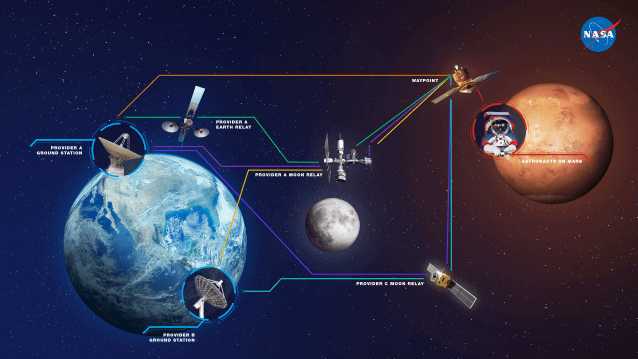




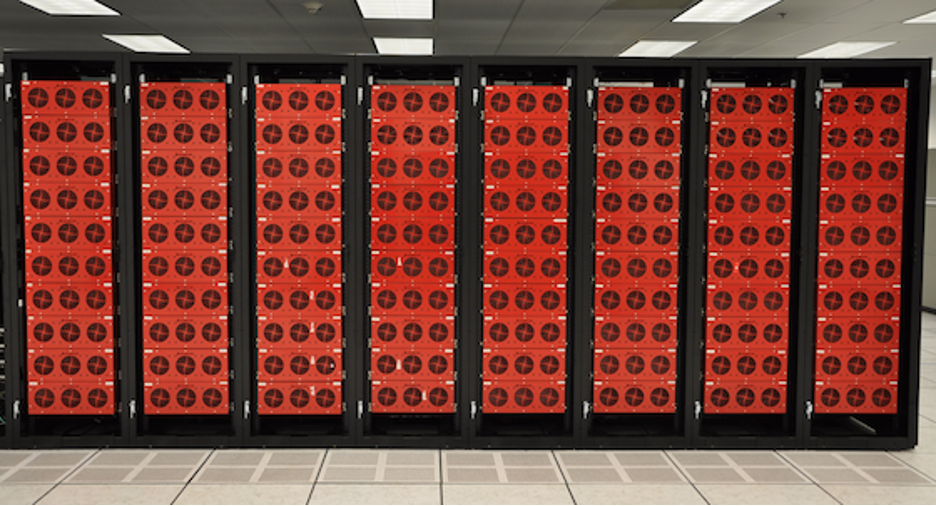
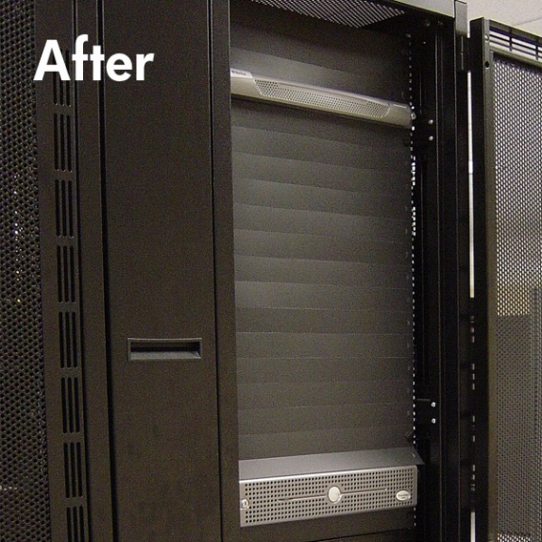


 ) is not on our roadmap—so let’s talk about what we know. Things will change over time, and some of the tools we’ve included on this list will likely go away. And, as we fully expect all of you to have strong opinions, let us know what you’re using, which tools we may have missed, and why we’re wrong in the comments section.


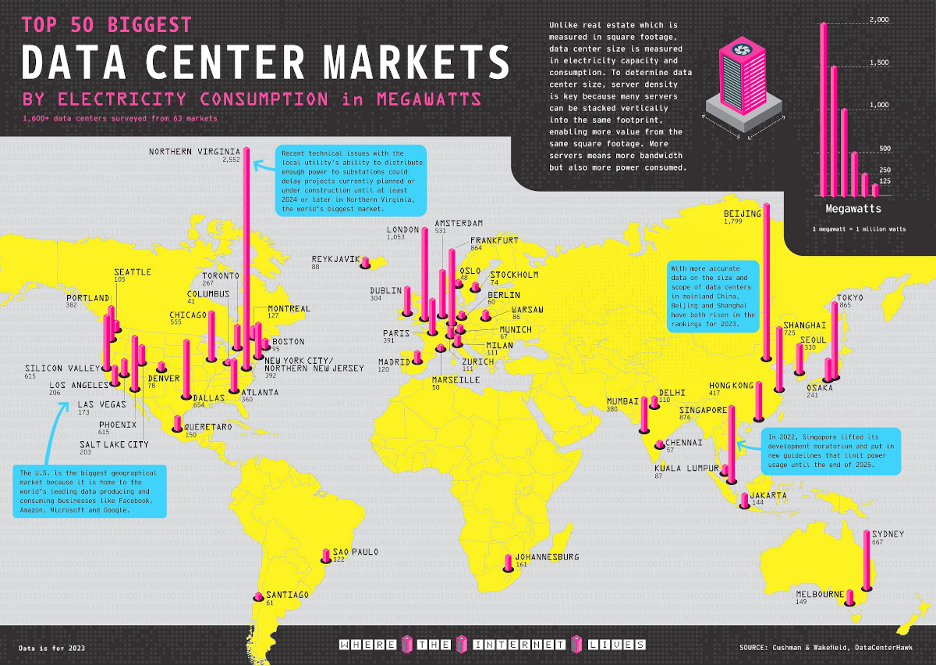





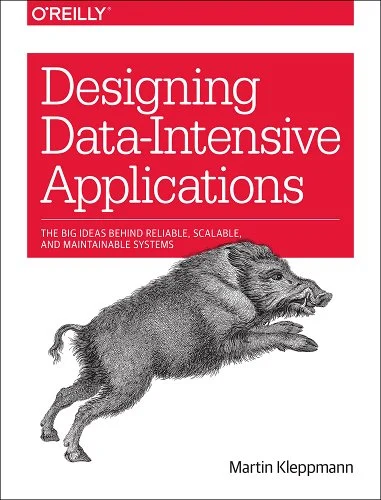



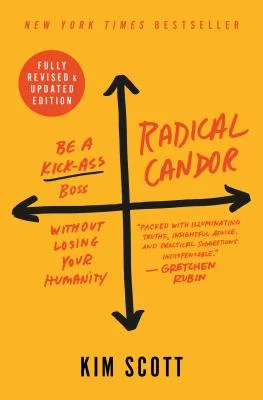










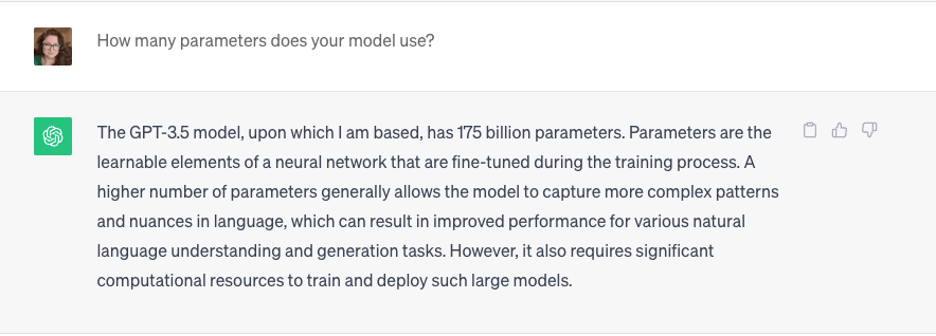


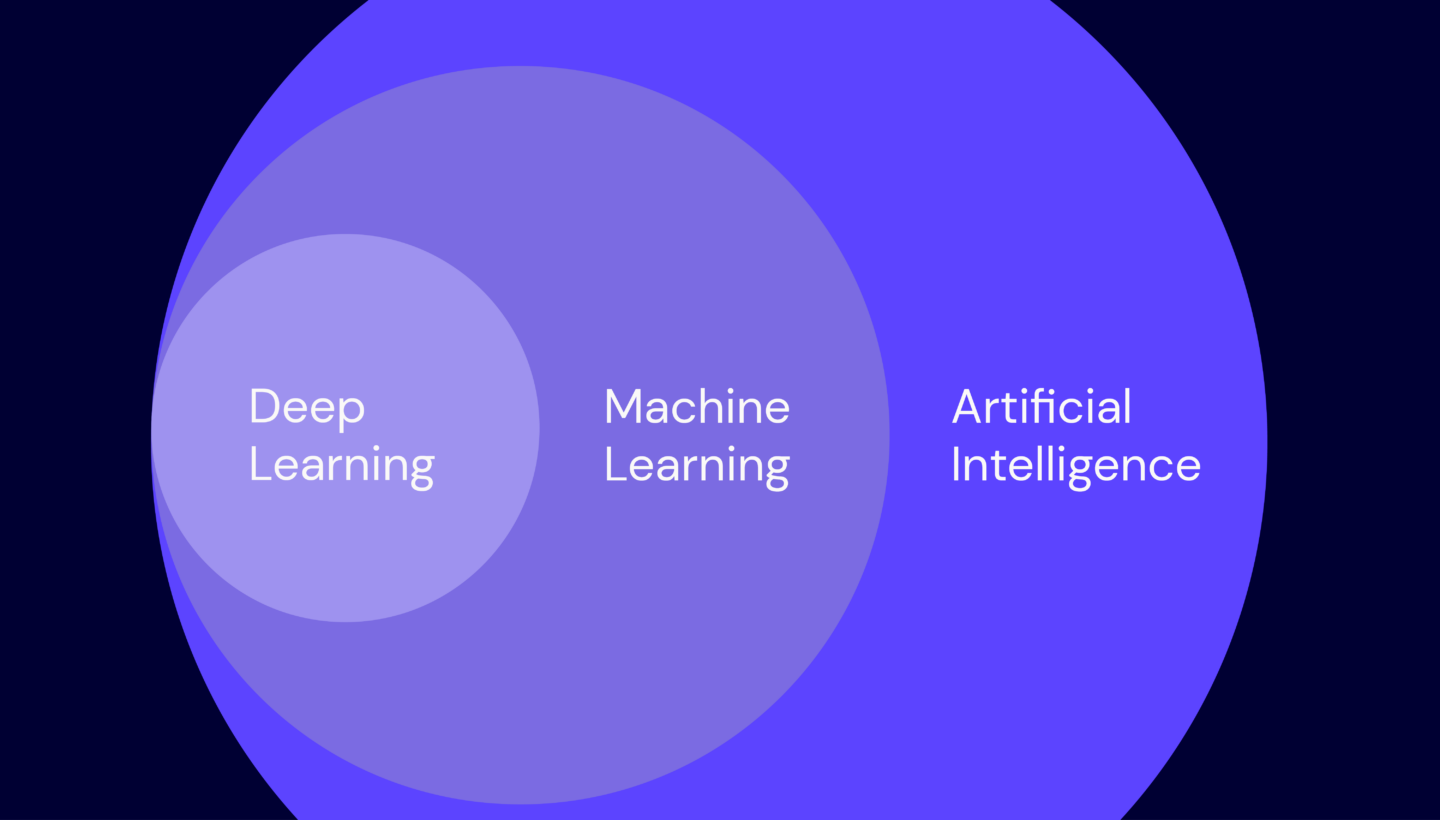
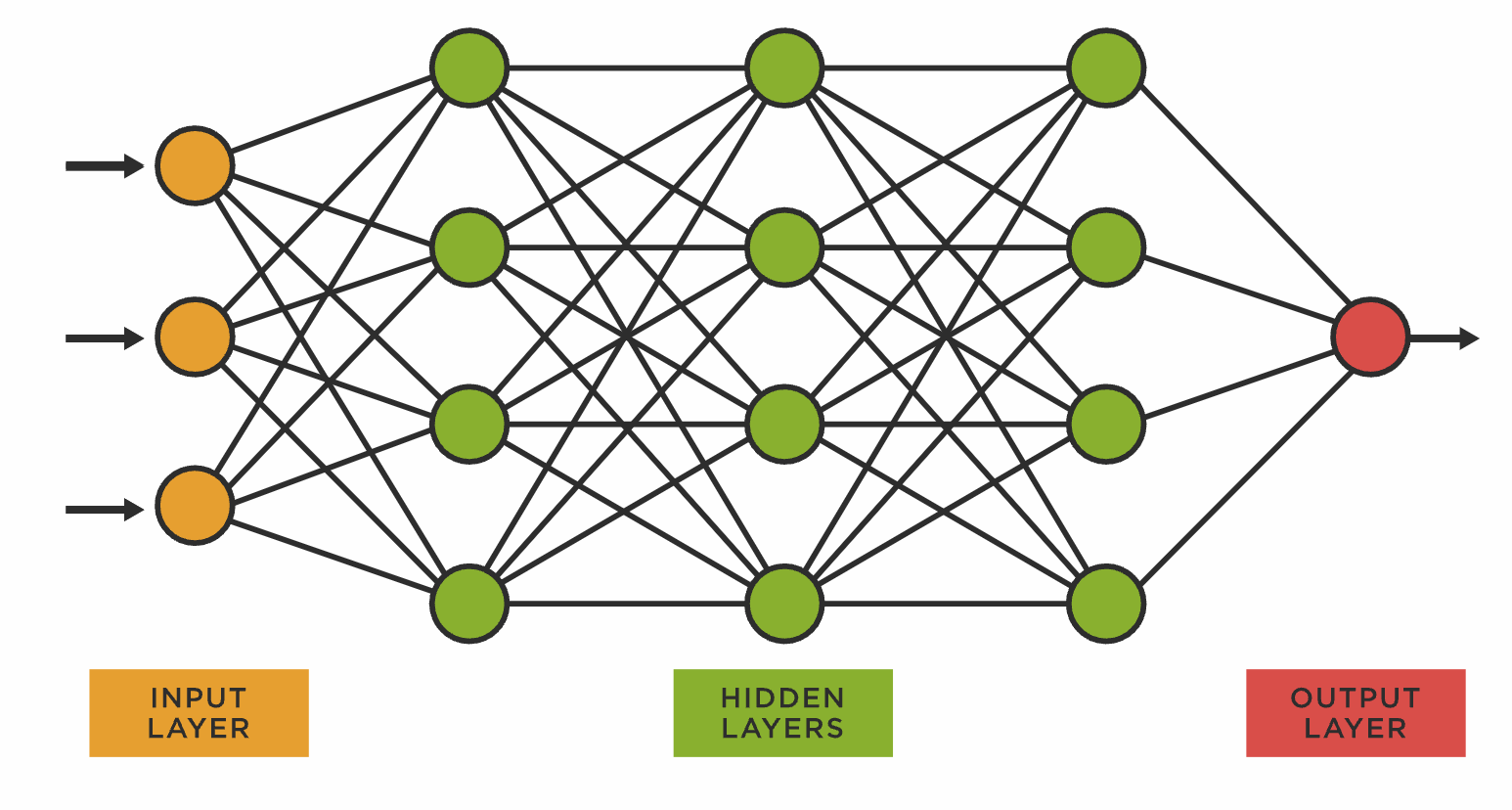





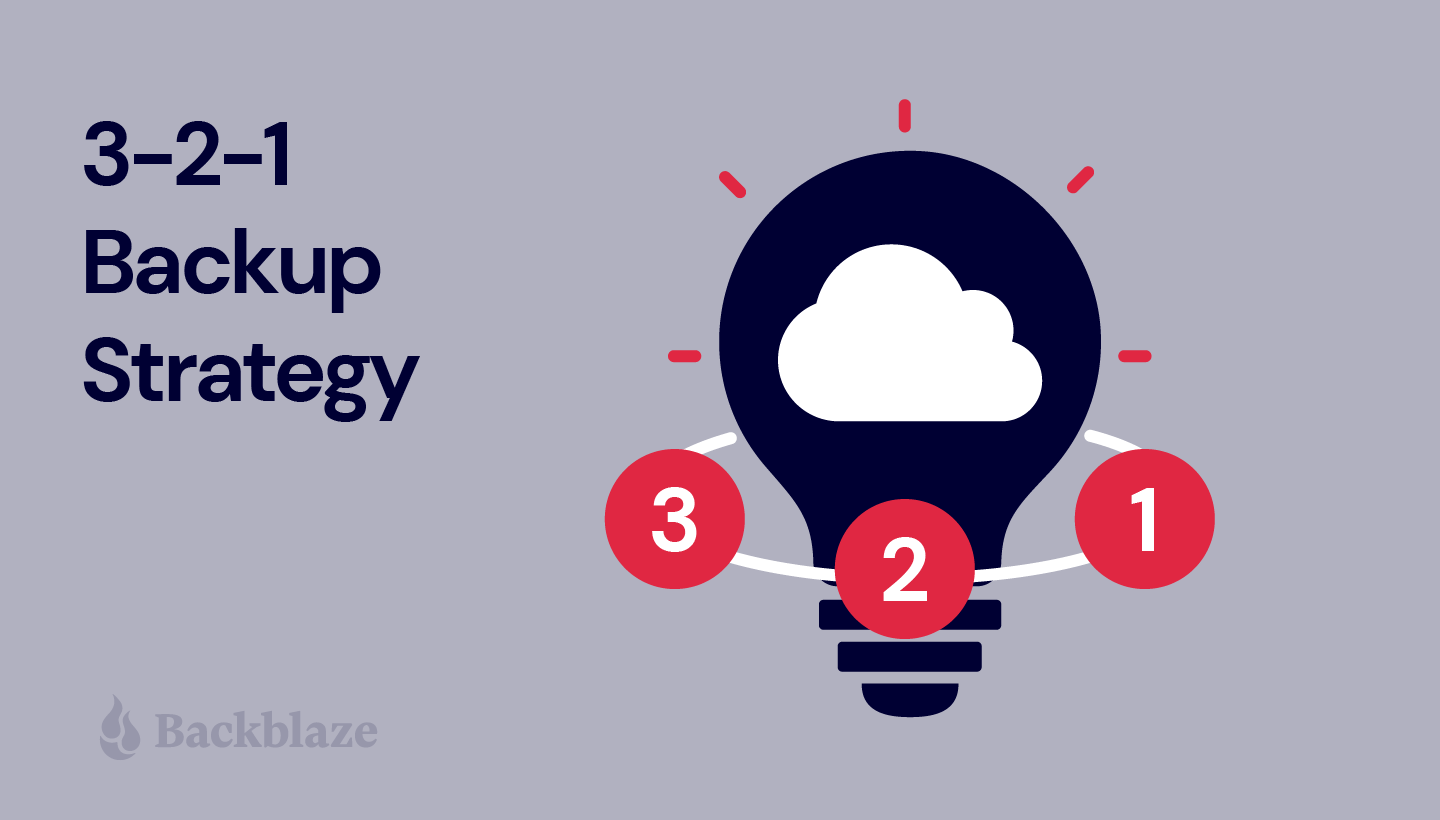













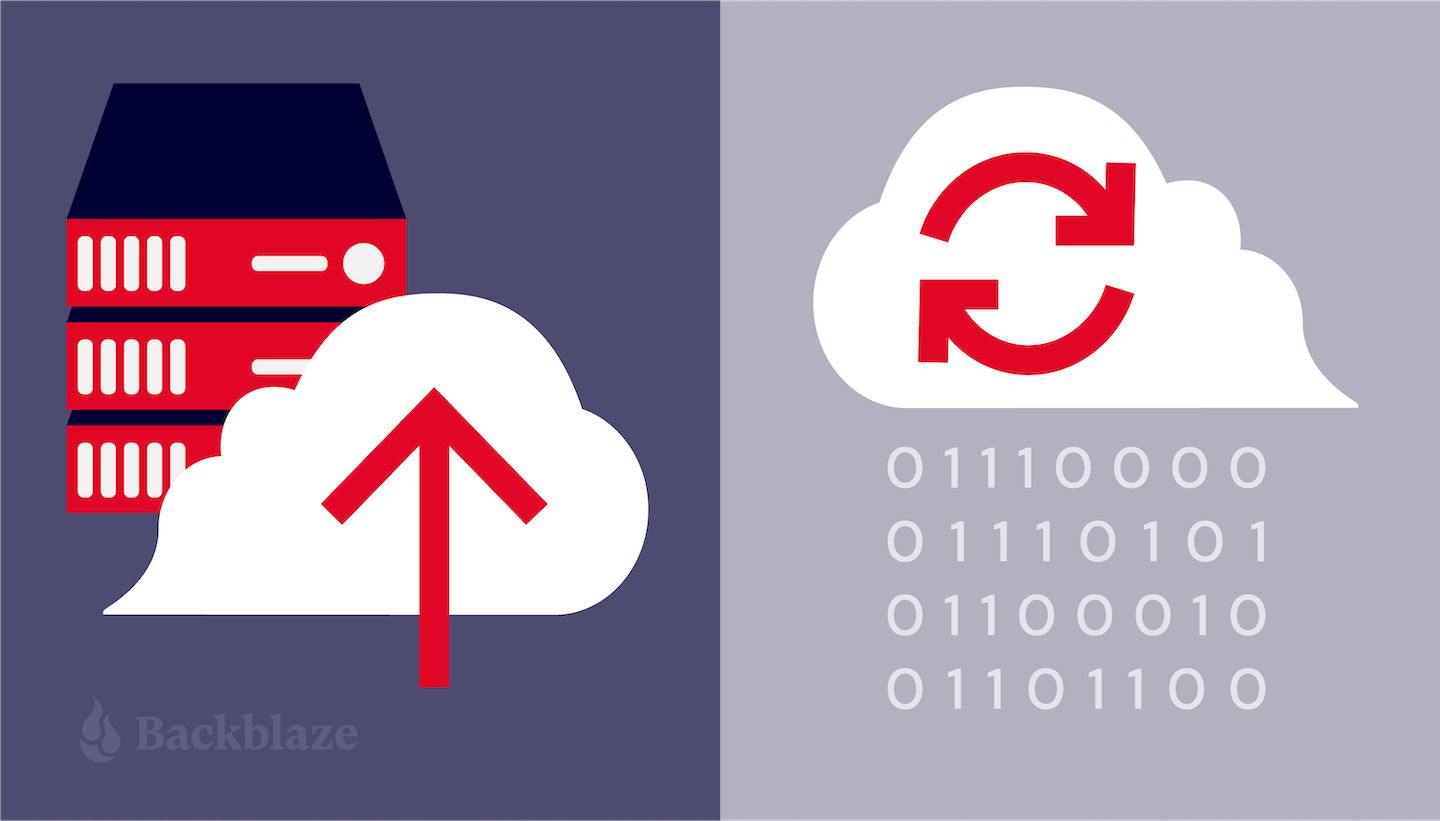

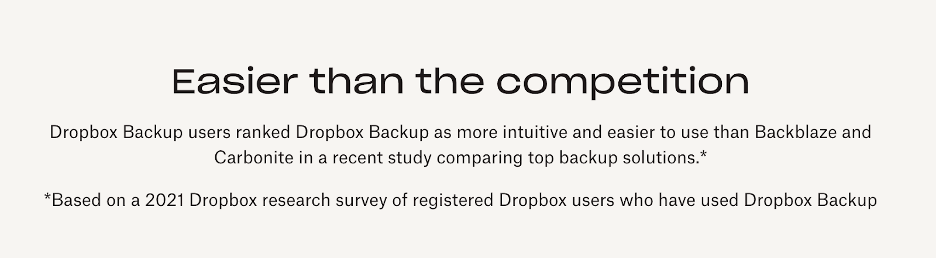
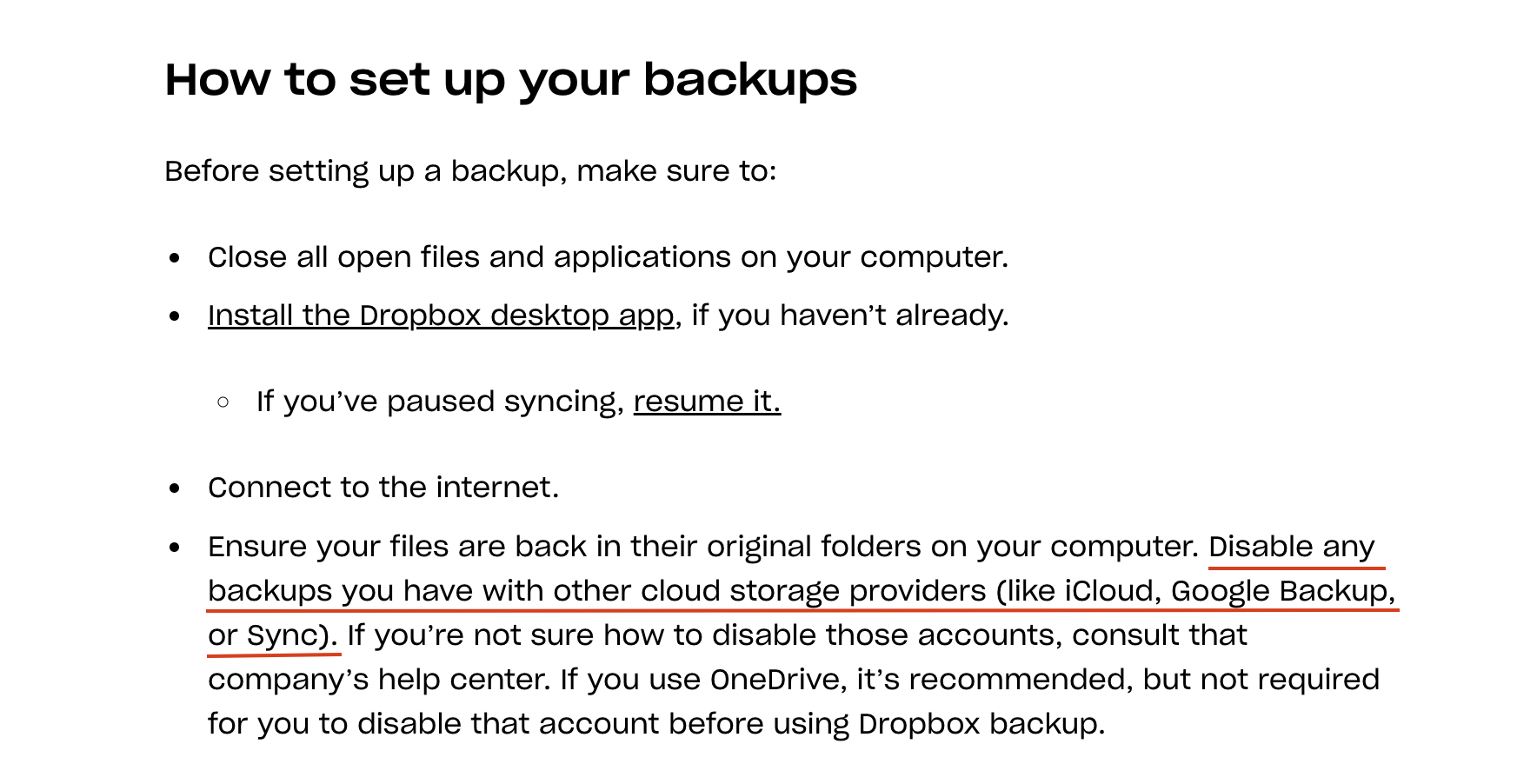


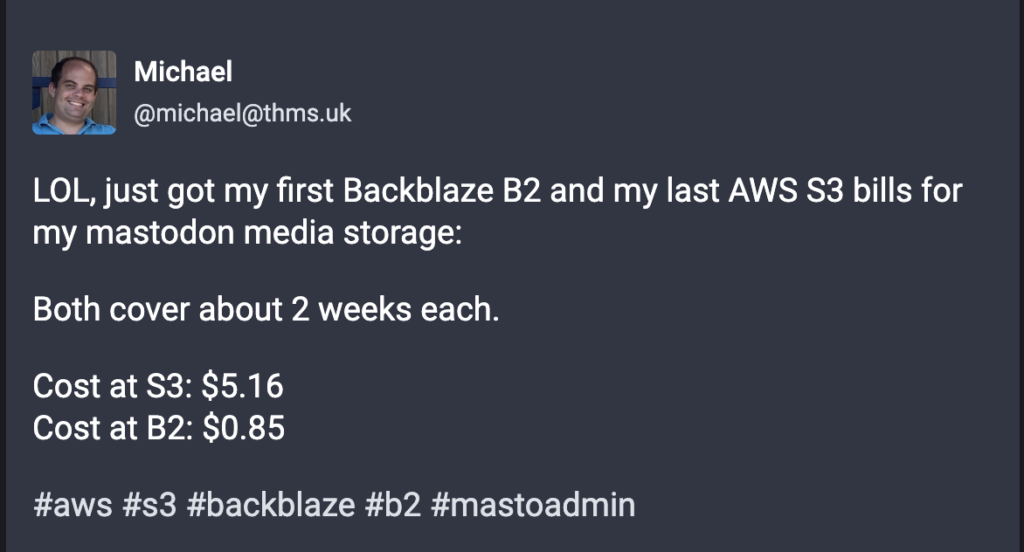
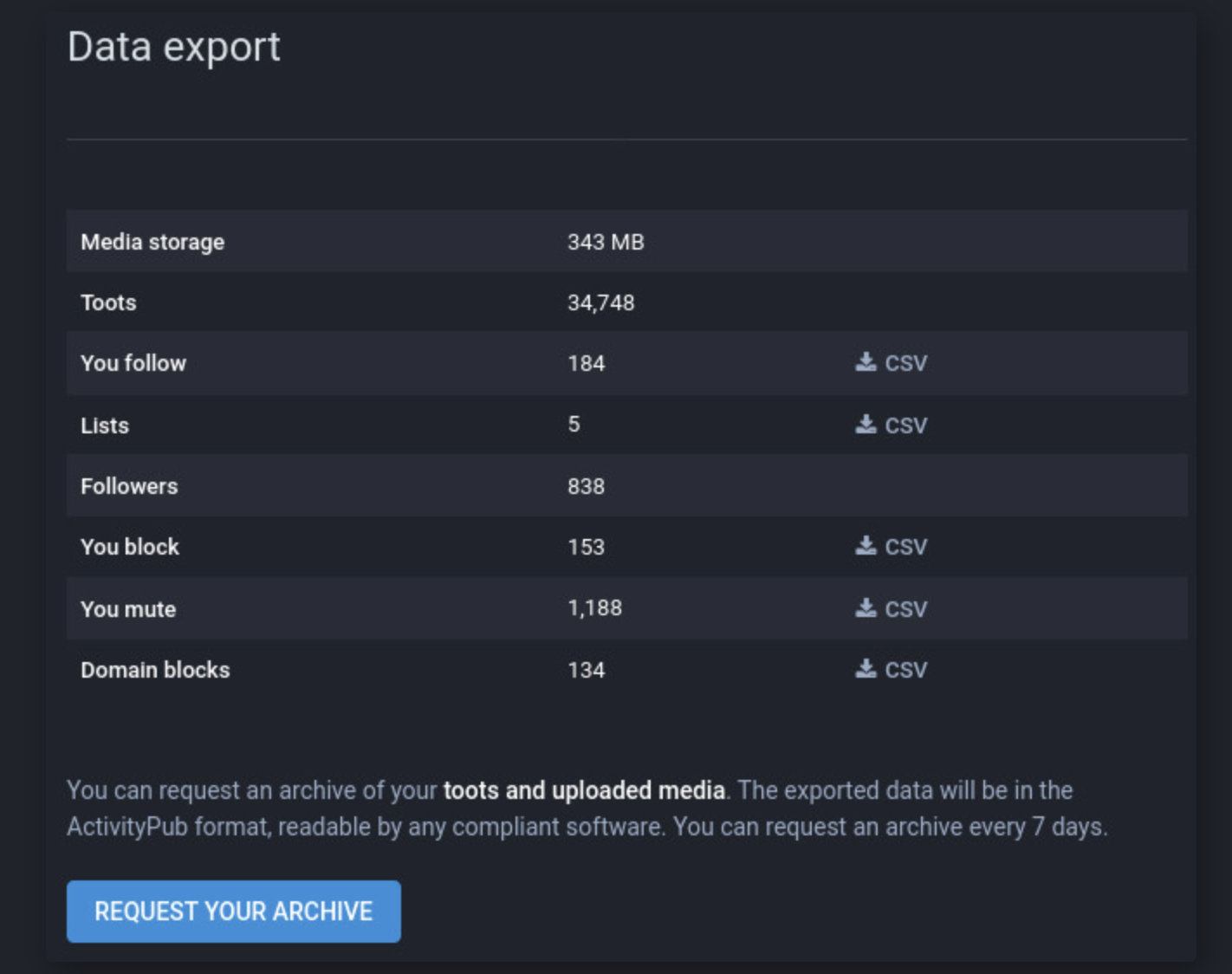
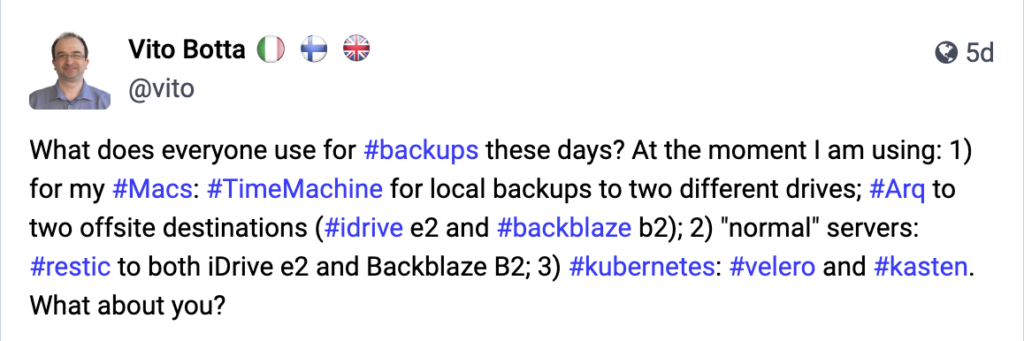

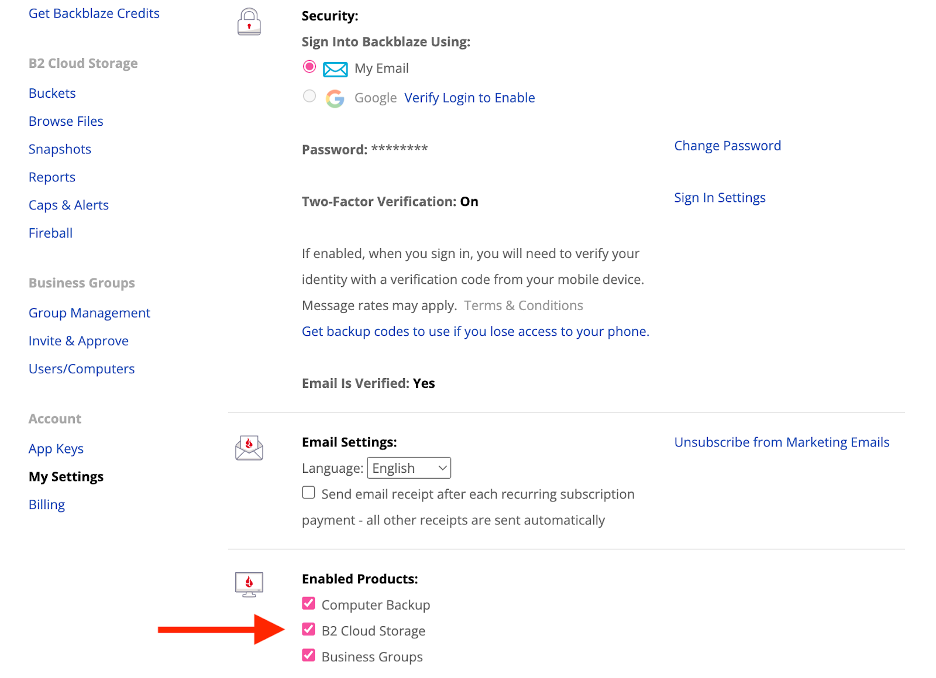
.jpg)

.PNG)
