All posts by Stéphanie Mbappe

Customize the scope of IAM Access Analyzer unused access analysis

Post Syndicated from Stéphanie Mbappe original https://aws.amazon.com/blogs/security/customize-the-scope-of-iam-access-analyzer-unused-access-analysis/

AWS Identity and Access Management Access Analyzer simplifies inspecting unused access to guide you towards least privilege. You can use unused access findings to identify over-permissive access granted to AWS Identity and Access Management (IAM) roles and users in your accounts or organization. From a delegated administrator account for IAM Access Analyzer, you can use the dashboard to review unused access findings across your organization and prioritize the accounts to inspect based on the volume and type of findings. The findings highlight unused roles, unused access keys for IAM users, and unused passwords for IAM users. For active IAM users and roles, the findings provide visibility into unused services and actions. Recently, IAM Access Analyzer launched new configuration capabilities that you can use to customize the analysis. You can select accounts, roles, and users to exclude, and focus on the areas that matter the most to you. You can use identifiers such as account ID or scale configuration using tags. By scoping the IAM Access Analyzer to monitor a subset of accounts and roles, you can reduce noise from unwanted findings. You can update the configuration when needed to change the scope of analysis. With this new offering, IAM Access Analyzer provides enhanced controls to help you tailor the analysis more closely to your organization’s security needs.

In this post, we walk you through an example scenario. Imagine that you’re a cloud administrator in a company that uses Amazon Web Services (AWS). You use AWS Organizations to organize your workload into several organizational units (OUs) and accounts. You have dedicated accounts for testing and experimenting with new AWS features called sandbox accounts across your organization. The sandbox accounts can be created by anyone in your company and are centrally recorded. You’re using tags on IAM resources and have followed AWS best practices and strategies when tagging your AWS resources. Tags are applied to the IAM roles created by your teams.

To make sure that your teams are following the principle of least privilege and are working with only the required permissions to access the AWS accounts, you use IAM Access Analyzer. You created an unused access analyzer at the organization level so it will monitor the AWS accounts in your organization. You noticed that you have multiple unused access findings. After analysis, your security team suggests the exclusion of some AWS accounts, IAM roles, and users so they can focus on the relevant findings. They want the sandbox accounts and the IAM roles they use for security purposes (such as auditing, incident response) to be excluded from the unused access analysis.

You can select accounts and roles to exclude when you create a new analyzer or update the analyzer later. In this post, we show you how to configure IAM Access Analyzer unused access finding to exclude specific accounts across your organization and specific principals (IAM roles and IAM users) once you have set up an analyzer. There is no additional pricing for using the prescriptive recommendations after you have enabled unused access findings.

Prerequisites

The following are the prerequisites to configure IAM Access Analyzer for unused access analysis:

  • An unused access analyzer created at the organization level
  • Administrative level access to the IAM Access Analyzer delegated administrator account
  • A list of account IDs that you want to exclude
  • IAM roles with tags

In the following sections, you will learn how to customize your IAM Access Analyzer to better suit your organization’s needs. This includes the following:

  1. Explore how to exclude specific AWS accounts from the analyzer’s unused access findings.
  2. See how to exclude tagged IAM roles from the analysis, allowing you to focus on the most relevant security insights and you see how to review exclusions on your analyzer to modify them as needed.
  3. By the end, you will have a tailored unused access analyzer that provides more meaningful and actionable results for your organization.

Exclude specific accounts across your organization

In this section, you will see how to update your existing unused access analyzer at the organization level through the AWS Management Console and AWS Command Line Interface (AWS CLI) to exclude specific AWS account IDs from its analysis.

If you don’t have an unused access analyzer in the organization, see this post for instructions on how to create one.

Use the console to update your unused access analyzer:

  1. Connect to your IAM Access Analyzer delegated administrator account (by default, your organization management account).
  2. Open the IAM Access Analyzer console in your management account. You will see the dashboard with your active finding by selecting the analyzer of your choice on the top right. In this example, the analyzer has 251 active findings.
    Figure 1: Unused access findings dashboard without exclusions

    Figure 1: Unused access findings dashboard without exclusions

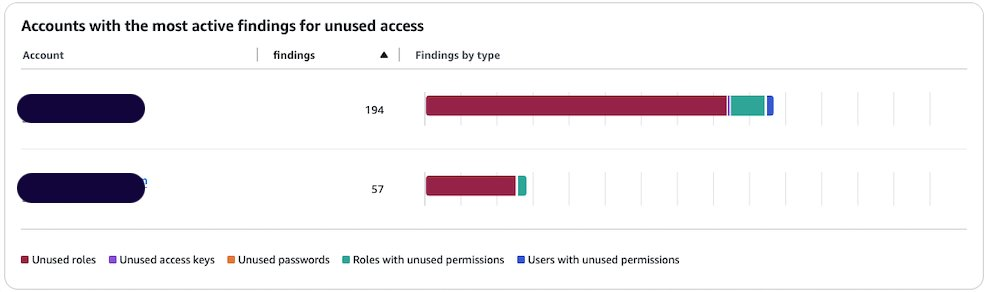
  3. You can see the split of active findings per account. The example account has 57 active findings that you want to exclude from it.
    Figure 2: Unused access findings per account

    Figure 2: Unused access findings per account

  4. Select Analyzer settings under Access Analyzer in that navigation pane.
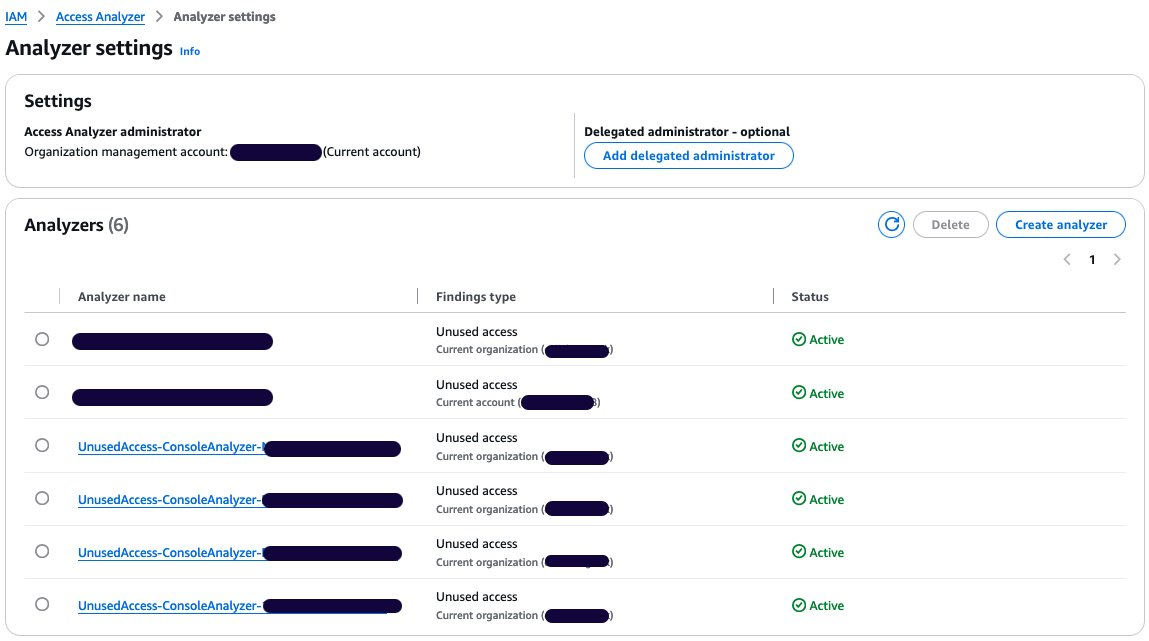
  5. The analyzer settings page presents the analyzers in your AWS Region and their status.
  6. Select your unused access analyzer in the list based on its name.
    Figure 3: Active access analyzers

    Figure 3: Active access analyzers

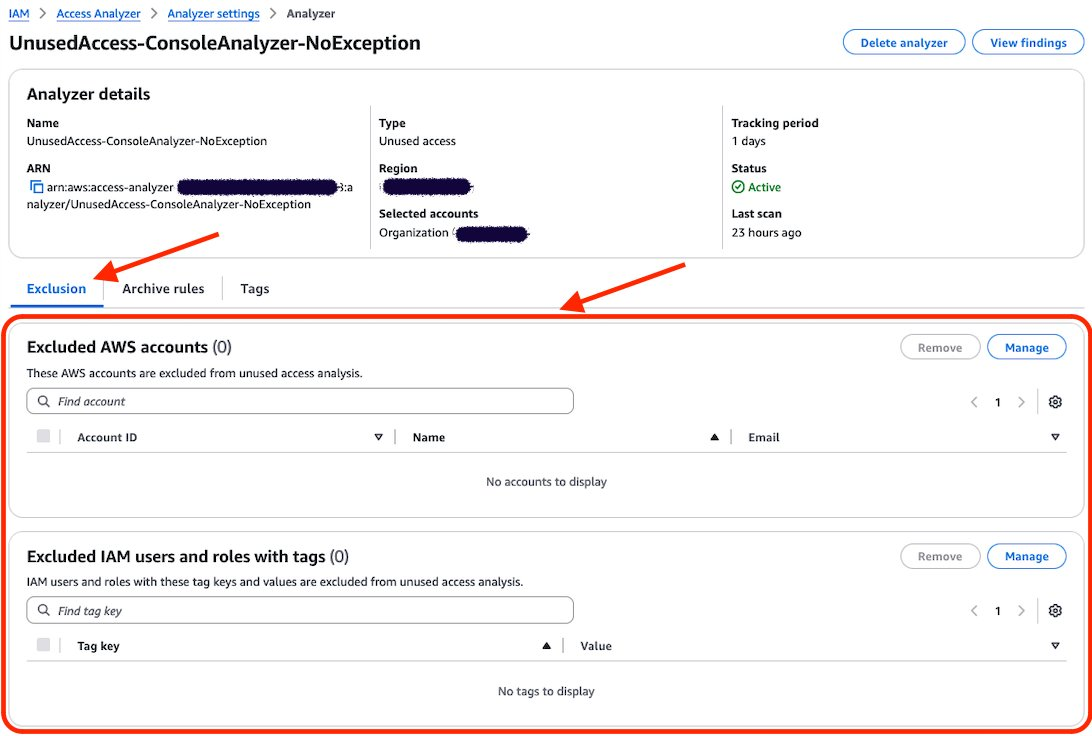
  7. On the Analyzer page, you can see the analyzer settings and a new tab called Exclusion. Because you have no excluded AWS accounts, the count of Excluded AWS accounts is 0 and there are no accounts displayed.
    Figure 4: Unused access analyzer exclusion tab

    Figure 4: Unused access analyzer exclusion tab

  8. Choose Manage in the Excluded AWS accounts section.
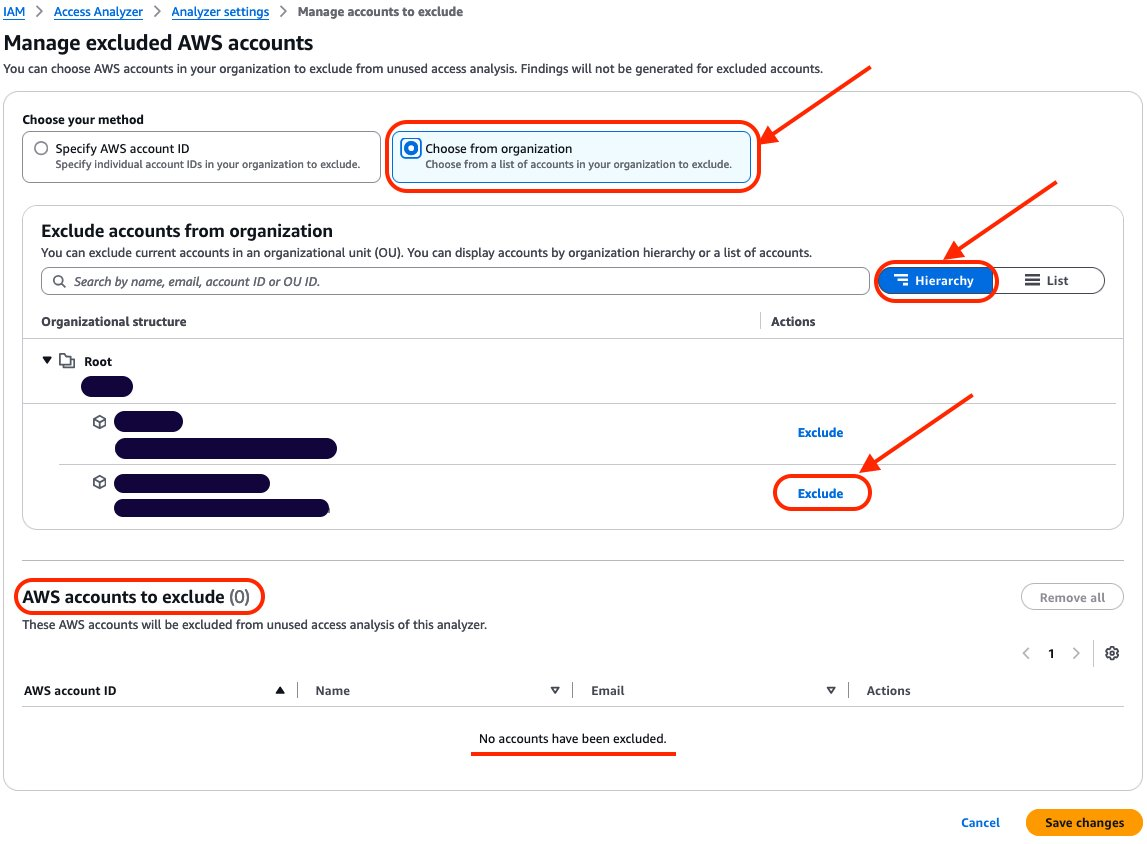
  9. Select Choose from organization and Hierarchy and choose Exclude next to the sandbox account that you want to exclude.
    Figure 5: Exclude sandbox account

    Figure 5: Exclude sandbox account

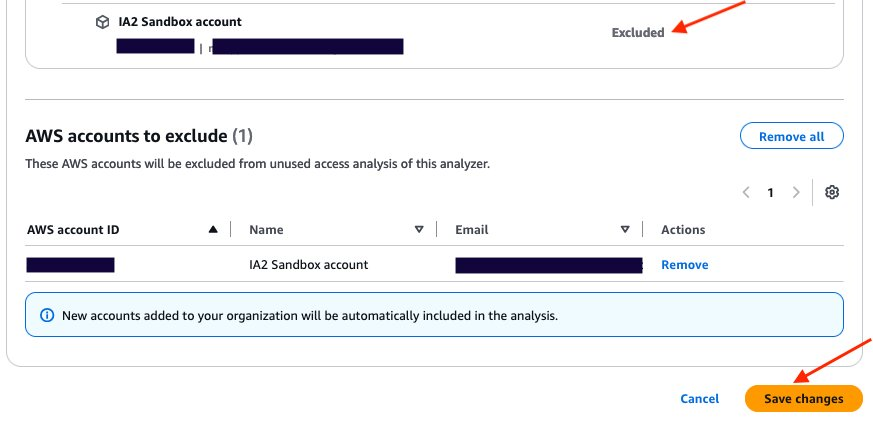
  10. After you select Exclude for the sandbox account, the account will be deselected and will appear in AWS accounts to exclude. The count of accounts to exclude has changed from 0 to 1. After you have finished, choose Save changes.
    Figure 6: Verify that the account is excluded and save changes

    Figure 6: Verify that the account is excluded and save changes

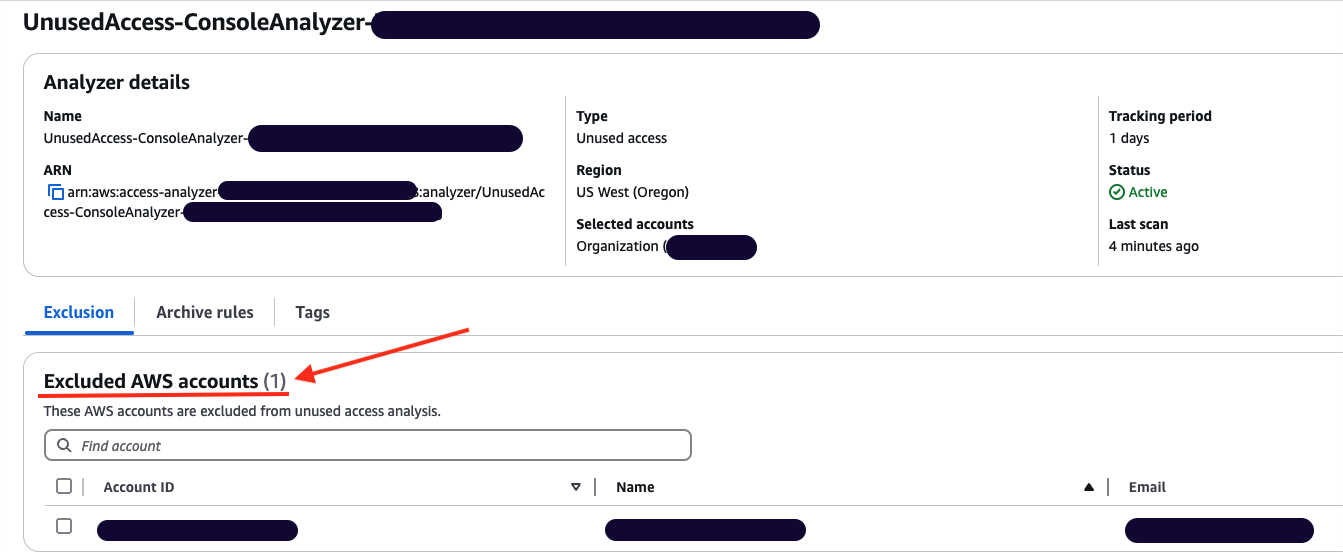
  11. The page will be automatically updated with your changes. You can then review the Excluded AWS accounts and verify that your excluded account is correctly configured.
    Figure 7: Analyzer configuration updated with excluded account

    Figure 7: Analyzer configuration updated with excluded account

  12. You can go back to the console dashboard and see the results. In this example, the exclusion of the sandbox account has caused the total number of active findings to go down from 251 to 194.
    Figure 8: Dashboard showing a reduction in active findings

    Figure 8: Dashboard showing a reduction in active findings

Use AWS CLI to update your unused access analyzer:

You can update your existing analyzer using the AWS CLI command aws accessanalyzer update-analyzer. Use the following command, replacing <YOUR-ANALYZER-NAME> with the name of your analyzer.

aws accessanalyzer update-analyzer 
--analyzer-name <YOUR-ANALYZER-NAME>
--configuration '{
  "unusedAccess": {
    "analysisRule": {
      "exclusions": [
        {
          "accountIds": [
            "222222222222"
          ]
        }
      ]
    }
  }
}'

You will obtain a result similar to the following:

{
    "revisionId": "<UNIQUE-REVISION-NUMBER>", 
    "configuration": {
        "unusedAccess": {
            "analysisRule": {
                "exclusions": [
                    {
                        "accountIds": [
                            "222222222222"
                        ]
                    }
                ]
            }, 
            "unusedAccessAge": 90
        }
    }

You have successfully excluded a sandbox account from the unused access analysis. Now you will exclude the IAM roles used by the security team to audit your accounts based on tags.

Excluding specific principals in your organization using tags

In this section, you will see how to update an existing unused access analyzer by excluding tagged IAM roles in your organization using the console and then AWS CLI.

Use the console to update your unused access analyzer:

  1. Open the IAM Access Analyzer console.
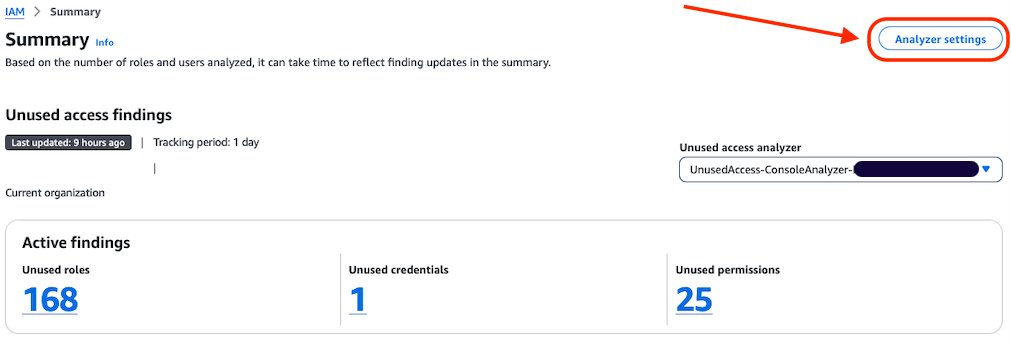
  2. Review the summary dashboard containing your unused findings. Choose Analyzer settings at the top of the screen.
    Figure 9: IAM Access Analyzer summary dashboard

    Figure 9: IAM Access Analyzer summary dashboard

  3. You will see a list of analyzers created in your account in that Region. Select the analyzer that you want to update.
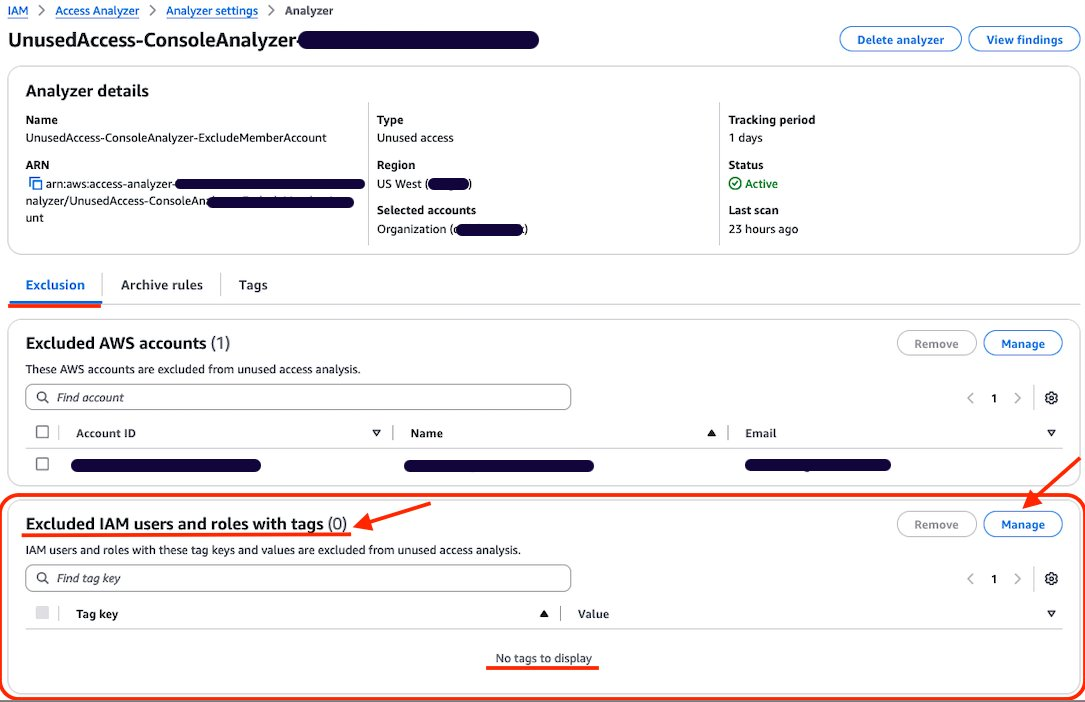
  4. Review the analyzer page. On the Exclusion tab, you will see Exclude IAM users and roles with tags with a count of 0.
    Figure 10: Configure exclusion of IAM roles using tag

    Figure 10: Configure exclusion of IAM roles using tag

  5. Choose Manage in the Excluded IAM users and roles with tags section.
  6. Add the tags attached to the roles that you want to exclude from the analysis and choose Save changes.
    Figure 11: Add tag to exclude

    Figure 11: Add tag to exclude

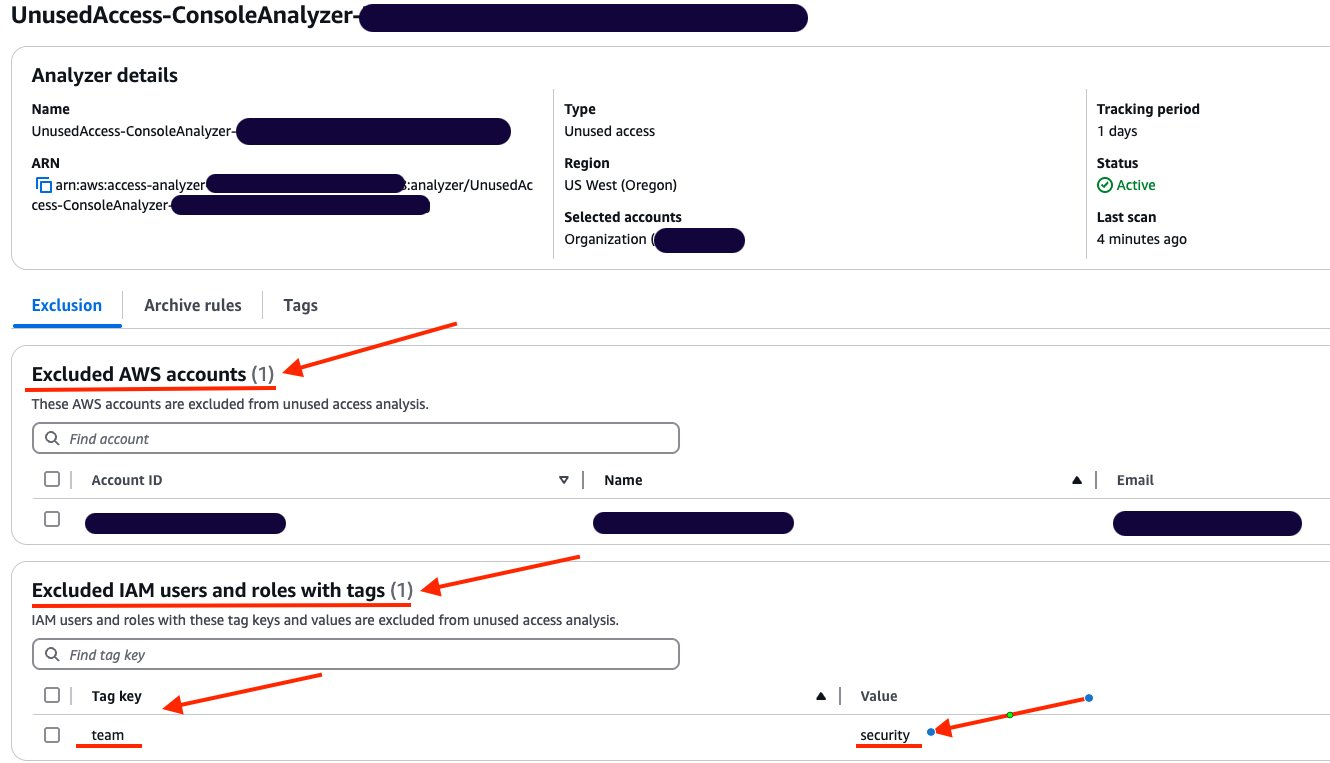
  7. You can now see that Excluded IAM users and roles with tags now has a count of 1, and you can see the tags in the list.
    Figure 12: List of exclusion tags

    Figure 12: List of exclusion tags

Use AWS CLI to update your unused access analyzer:

You can also update your existing analyzer using the AWS CLI command aws accessanalyzer update-analyzer. Using the following command, replace <YOUR-ANALYZER-NAME> with the name of your analyzer.

aws accessanalyzer update-analyzer 
--analyzer-name <YOUR-ANALYZER-NAME> 
--configuration '{
  "unusedAccess": {
    "analysisRule": {
      "exclusions": [
        {
          "accountIds": [
            "222222222222"
          ]
        },
        {
          "resourceTags": [
            {
              "team": "security"
            }
          ]
        }
      ]
    }
  }
}'

A successful response will look like the following:

{
    "revisionId": "<UNIQUE-REVISION-NUMBER>", 
    "configuration": {
        "unusedAccess": {
            "analysisRule": {
                "exclusions": [
                    {
                        "accountIds": [
                            "222222222222"
                        ]
                    }, 
                    {
                        "resourceTags": [
                            {
                                "team": "security"
                            }
                        ]
                    }
                ]
            }, 
            "unusedAccessAge": 90
        }
    }
}

Review the exclusion on your analyzer

You can review, remove, or update the exclusions configured on your analyzer by using the console or AWS CLI. For example, as a security administrator managing multiple accounts, you might initially exclude IAM roles that have the tag security from analysis. However, you might need to review these exclusions if your policies change, requiring analysis of certain security roles or removing the exclusion entirely. By adjusting your exclusions, you can make sure that your analyzer’s results remain relevant to your organization’s needs and account structure.

Review the exclusion on unused access analyzer using the console:

In this section, review the tags that have been excluded from an analyzer.

  1. Open the IAM console.
  2. Select Access Analyzer, under Access reports, you will see a summary dashboard of findings from an analyzer.
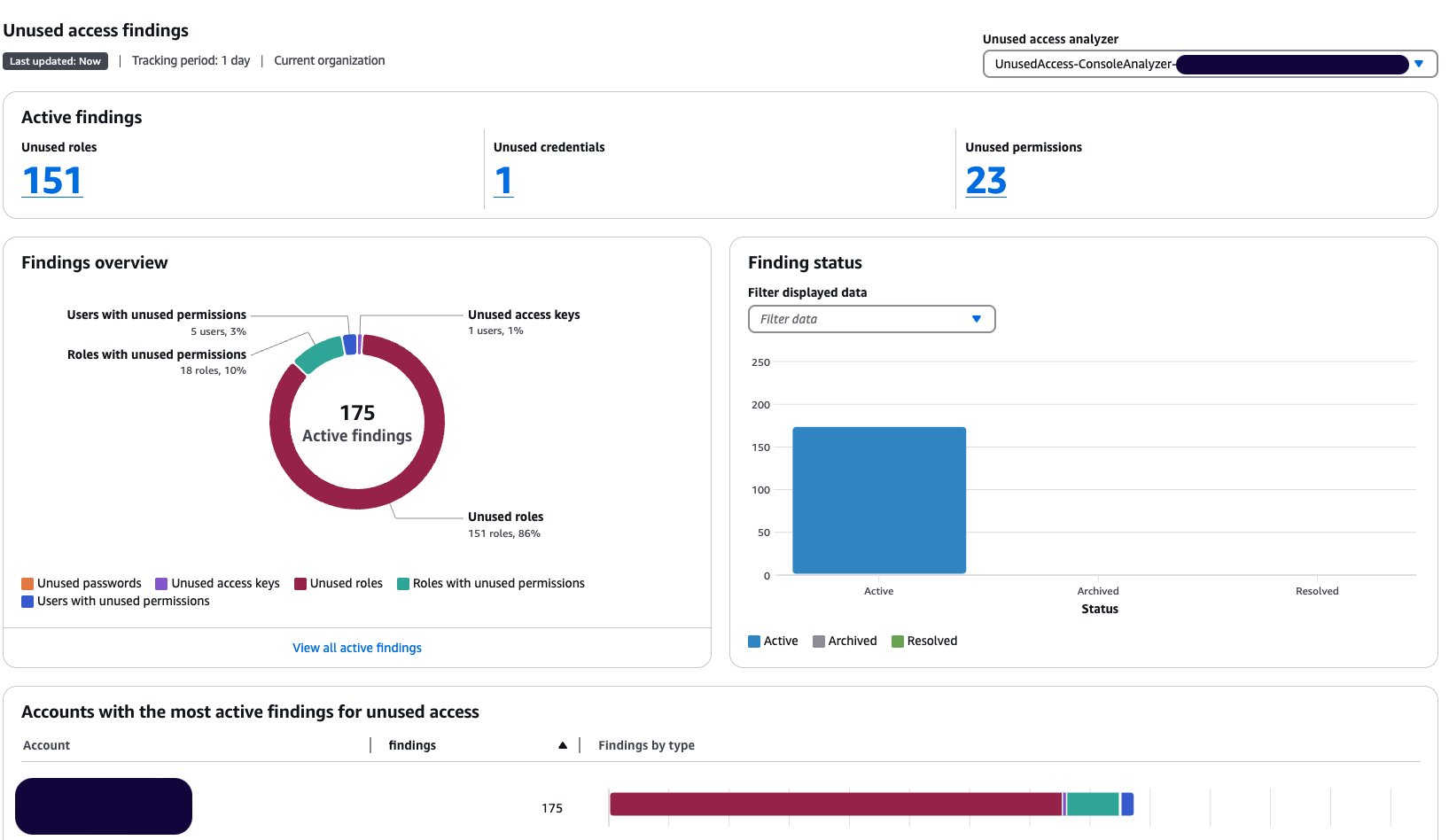
    1. The Active findings section shows the number of active findings for unused roles, the number of active findings for unused credentials and the number of active findings for unused permissions.
    2. The Findings overview section includes a breakdown of the active findings.
    3. The Findings status section shows the status of findings (whether active, archived or resolved).
      Figure 13: Unused access analyzer dashboard

      Figure 13: Unused access analyzer dashboard

  3. Select the Analyzer settings at the top of the screen.
  4. Select the analyzer that you want to review to see the exclusion tags.
    Figure 14: Review unused access analyzer exclusions

    Figure 14: Review unused access analyzer exclusions

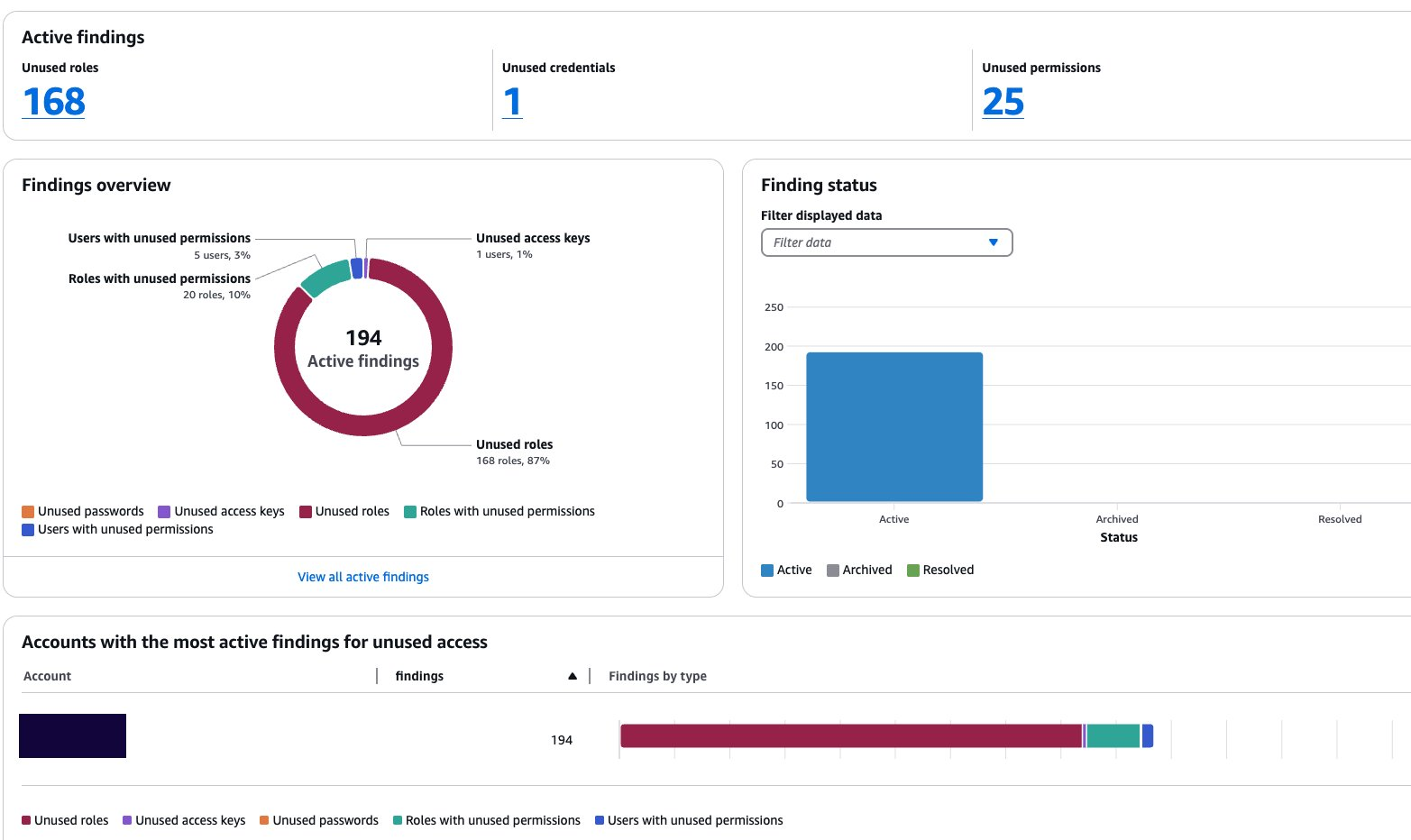
  1. After applying the tags, the updated dashboard is shown after the next scan.
    Figure 15: Dashboard showing reduction of findings after exclusions

    Figure 15: Dashboard showing reduction of findings after exclusions

Review the exclusion on an unused access analyzer using AWS CLI:

Using the name of your analyzer, you can run the command get-analyzer to see the configured exclusion. Using the following command, replace <YOUR-ANALYZER-NAME> with the name of your analyzer:

aws accessanalyzer get-analyzer --analyzer-name <YOUR-ANALYZER-NAME>

You will get a response similar to the following:

{
  "analyzer": {
    "status": "ACTIVE",
    "name": "<YOUR-ANALYZER-NAME>",
    "tags": {},
    "revisionId": "<UNIQUE-REVISION-NUMBER>",
    "arn": "arn:aws:access-analyzer:<REGION>:111111111111:analyzer/<YOUR-ANALYZER-NAME>",
    "configuration": {
      "unusedAccess": {
        "analysisRule": {
          "exclusions": [
            {
              "accountIds": [
                "222222222222"
              ]
            },
            {
              "resourceTags": [
                {
                  "team": "security"
                }
              ]
            }
          ]
        },
        "unusedAccessAge": 90
      }
    },
    "type": "ORGANIZATION_UNUSED_ACCESS",
    "createdAt": "2024-10-11T22:26:57Z"
  }
}

Conclusion

In this post, you learned how to tailor your unused access analyzer to your needs by excluding specific accounts and IAM roles. To exclude the accounts in your organization from being monitored by IAM Access Analyzer, you can use a list of account IDs or select them from a hierarchical view of your organization structure. You can exclude IAM roles and IAM users based on tags. By customizing the exclusion on the unused access analyzer, you saw that the number of active findings went down, helping you focus on the findings that matter most. With this new offering, IAM Access Analyzer provides enhanced controls to help you tailor the analysis more closely to your organization’s security needs.

If you have feedback about this post, submit comments in the Comments section below.

Stéphanie Mbappe

P. Stéphanie Mbappe

Stéphanie is a Security Consultant with Amazon Web Services. She delights in assisting her customers at any step of their security journey. Stéphanie enjoys learning, designing new solutions, and sharing her knowledge with others.

Mathangi Ramesh

Mathangi Ramesh

Mathangi is the product manager for AWS Identity and Access Management. She enjoys talking to customers and working with data to solve problems. Outside of work, Mathangi is a fitness enthusiast and a Bharatanatyam dancer. She holds an MBA degree from Carnegie Mellon University.

Reke Jarikre

Reke Jarikre

Reke is an Associate Security Consultant at Amazon Web Services. She is passionate about safeguarding client infrastructures and crafting robust security measures. Outside work, she enjoys exploring new technologies, public speaking and contributing to open-source projects.

Refine unused access using IAM Access Analyzer recommendations

Post Syndicated from Stéphanie Mbappe original https://aws.amazon.com/blogs/security/refine-unused-access-using-iam-access-analyzer-recommendations/

As a security team lead, your goal is to manage security for your organization at scale and ensure that your team follows AWS Identity and Access Management (IAM) security best practices, such as the principle of least privilege. As your developers build on AWS, you need visibility across your organization to make sure that teams are working with only the required privileges. Now, AWS Identity and Access Management Analyzer offers prescriptive recommendations with actionable guidance that you can share with your developers to quickly refine unused access.

In this post, we show you how to use IAM Access Analyzer recommendations to refine unused access. To do this, we start by focusing on the recommendations to refine unused permissions and show you how to generate the recommendations and the actions you can take. For example, we show you how to filter unused permissions findings, generate recommendations, and remediate issues. Now, with IAM Access Analyzer, you can include step-by-step recommendations to help developers refine unused permissions quickly.

Unused access recommendations

IAM Access Analyzer continuously analyzes your accounts to identify unused access and consolidates findings in a centralized dashboard. The dashboard helps review findings and prioritize accounts based on the volume of findings. The findings highlight unused IAM roles and unused access keys and passwords for IAM users. For active IAM roles and users, the findings provide visibility into unused services and actions. You can learn more about unused access analysis through the IAM Access Analyzer documentation.

For unused IAM roles, access keys, and passwords, IAM Access Analyzer provides quick links in the console to help you delete them. You can use the quick links to act on the recommendations or use export to share the details with the AWS account owner. For overly permissive IAM roles and users, IAM Access Analyzer provides policy recommendations with actionable steps that guide you to refine unused permissions. The recommended policies retain resource and condition context from existing policies, helping you update your policies iteratively.

Throughout this post, we use an IAM role in an AWS account and configure the permissions by doing the following:

  1. Attaching the AWS managed policy AmazonBedrockReadOnly.
  2. Attaching the AWS managed policy AmazonS3ReadOnlyAccess.
  3. Embedding an inline policy with the permissions described in the following code and named InlinePolicyListLambda.

Content of inline policy InlinePolicyListLambda:

{
    "Version": "2012-10-17",
    "Statement": [
        {
            "Sid": "InlinePolicyLambda",
            "Effect": "Allow",
            "Action": [
                "lambda:ListFunctions",
                "lambda:ListLayers",
                "lambda:ListAliases",
                "lambda:ListFunctionUrlConfigs"
            ],
            "Resource": "*",
            "Condition": {
                "NotIpAddress": {
                    "aws:SourceIp": "1.100.150.200/32"
                }
            }
        }
    ]
}

We use an inline policy to demonstrate that IAM Access Analyzer unused access recommendations are applicable for that use case. The recommendations are also applicable when using AWS managed policies and customer managed policies.

In your AWS account, after you have configured an unused access analyzer, you can select an IAM role that you have used recently and see if there are unused access permissions findings and recommendations.

Prerequisites

Before you get started, you must create an unused access analyzer for your organization or account. Follow the instructions in IAM Access Analyzer simplifies inspection of unused access in your organization to create an unused access analyzer.

Generate recommendations for unused permissions

In this post we explore three options for generating recommendations for IAM Access Analyzer unused permissions findings: the console, AWS CLI, and AWS API.

Generate recommendations for unused permissions using the console

After you have created an unused access analyzer as described in the prerequisites, wait a few minutes to see the analysis results. Then use the AWS Management Console to view the proposed recommendations for the unused permissions.

To list unused permissions findings

  1. Go to the IAM console and under Access Analyzer, choose Unused access from the navigation pane.
  2. Search for active findings with the type Unused permissions in the search box.
    1. Select Active from the Status drop-down list.
    2. In the search box, select Findings type under Properties.
    3. Select Equals as Operators.
    4. Select Findings Type = Unused permissions.
    5. This list shows the active findings for IAM resources with unused permissions.

    Figure 1: Filter on unused permissions in the IAM console

    Figure 1: Filter on unused permissions in the IAM console

  3. Select a finding to learn more about the unused permissions granted to a given role or user.

To obtain recommendations for unused permissions

  1. On the findings detail page, you will see a list of the unused permissions under Unused permissions.
  2. Following that, there is a new section called Recommendations. The Recommendations section presents two steps to remediate the finding:
    1. Review the existing permissions on the resource.
    2. Create new policies with the suggested refined permissions and detach the existing policies.

    Figure 2: Recommendations section

    Figure 2: Recommendations section

  3. The generation of recommendations is on-demand and is done in the background when you’re using the console. The message Analysis in progress indicates that recommendations are being generated. The recommendations exclude the unused actions from the recommended policies.
  4. When an IAM principal, such as an IAM role or user, has multiple permissions policies attached, an analysis of unused permissions is made for each of permissions policies:
    • If no permissions have been used, the recommended action is to detach the existing permissions policy.
    • If some permissions have been used, only the used permissions are kept in the recommended policy, helping you apply the principle of least privilege.
  5. The recommendations are presented for each existing policy in the column Recommended policy. In this example, the existing policies are:
    • AmazonBedrockReadOnly
    • AmazonS3ReadOnlyAccess
    • InlinePolicyListLambda

    And the recommended policies are:

    • None
    • AmazonS3ReadOnlyAccess-recommended
    • InlinePolicyListLambda-recommended

    Figure 3: Recommended policies

    Figure 3: Recommended policies

  6. There is no recommended policy for AmazonBedrockReadOnly because the recommended action is to detach it. When hovering over None, the following message is displayed: There are no recommended policies to create for the existing permissions policy.
  7. AmazonS3ReadOnlyAccess and InlinePolicyListLambda and their associated recommended policy can be previewed by choosing Preview policy.

To preview a recommended policy

IAM Access Analyzer has proposed two recommended policies based on the unused actions.

  1. To preview each recommended policy, choose Preview policy for that policy to see a comparison between the existing and recommended permissions.
    1. Choose Preview policy for AmazonS3ReadOnlyAccess-recommended.
      1. The existing policy has been analyzed and the broad permissions—s3:Get* and s3:List*—have been scoped down to detailed permissions in the recommended policy.
      2. The permissions s3:Describe*, s3-object-lambda:Get*, and s3-object-lambda:List* can be removed because they weren’t used.

      Figure 4: Preview of the recommended policy for AmazonS3ReadOnlyAccess

      Figure 4: Preview of the recommended policy for AmazonS3ReadOnlyAccess

    2. Choose Preview policy for InlinePolicyListLambda-recommended to see a comparison between the existing inline policy InlinePolicyListLambda and its recommended version.
      1. The existing permissions, lambda:ListFunctions and lambda:ListLayers, are kept in the recommended policy, as well as the existing condition.
      2. The permissions in lambda:ListAliases and lambda:ListFunctionUrlConfigs can be removed because they weren’t used.
      Figure 5: Preview the recommended policy for the existing inline policy InlinePolicyListLambda

      Figure 5: Preview the recommended policy for the existing inline policy InlinePolicyListLambda

To download the recommended policies file

  1. Choose Download JSON to download the suggested recommendations locally.

    Figure 6: Download the recommended policies

    Figure 6: Download the recommended policies

  2. A .zip file that contains the recommended policies in JSON format will be downloaded.

    Figure 7: Downloaded recommended policies as JSON files

    Figure 7: Downloaded recommended policies as JSON files

  3. The content of the AmazonS3ReadOnlyAccess-recommended-1-2024-07-22T20/08/44.793Z.json file the same as the recommended policy shown in Figure 4.

Generate recommendations for unused permissions using AWS CLI

In this section, you will see how to generate recommendations for unused permissions using AWS Command Line Interface (AWS CLI).

To list unused permissions findings

  1. Use the following code to refine the results by filtering on the type UnusedPermission and selecting only the active findings. Copy the Amazon Resource Name (ARN) of your unused access analyzer and use it to replace the ARN in the following code:
    aws accessanalyzer list-findings-v2 \
      --analyzer-arn "arn:aws:access-analyzer:<region>:<123456789012>:analyzer/<analyzer_name>" \
      --region <region> \
      --filter '{"findingType": {"eq": ["UnusedPermission"]}, "status": {"eq": ["ACTIVE"]}}'

  2. You will obtain results similar to the following.
    {
        "findings": [
            {
                "analyzedAt": "2024-05-29T07:25:34+00:00",
                "createdAt": "2024-05-23T19:20:59+00:00",
                "id": "0fa3f5a1-bd92-4193-8ca4-aba12cd91370",
                "resource": "arn:aws:iam::123456789012:user/demoIAMUser",
                "resourceType": "AWS::IAM::User",
                "resourceOwnerAccount": "123456789012",
                "status": "ACTIVE",
                "updatedAt": "2024-05-29T07:25:35+00:00",
                "findingType": "UnusedPermission"
            },
            {
                "analyzedAt": "2024-05-29T07:25:34+00:00",
                "createdAt": "2024-05-23T19:20:59+00:00",
                "id": "1e952245-bcf3-48ad-a708-afa460df794b",
                "resource": "arn:aws:iam::123456789012:role/demoIAMRole",
                "resourceType": "AWS::IAM::Role",
                "resourceOwnerAccount": "123456789012",
                "status": "ACTIVE",
                "updatedAt": "2024-05-29T07:25:37+00:00",
                "findingType": "UnusedPermission"
            },
            ...
        ]
    }

To generate unused permissions finding recommendations

After you have a list of findings for unused permissions, you can generate finding recommendations.

  1. Run the following, replacing the analyzer ARN and the finding ID to generate the suggested recommendations.
    aws accessanalyzer generate-finding-recommendation \
      --analyzer-arn "arn:aws:access-analyzer:<region>:<123456789012>:analyzer/<analyzer_name>" \
      --region <region> \
      --id "ab123456-bcd0-78ab-a012-afa460df794b"

  2. You will get an empty response if your command ran successfully. The process is running in the background.

To obtain the generated recommendations

After the recommendations are generated, you need to make a separate API call to view the recommendations details.

  1. The following command returns the recommended remediation.
    aws accessanalyzer get-finding-recommendation \
      --analyzer-arn "arn:aws:access-analyzer:<region>:<123456789012>:analyzer/<analyzer_name>" \
      --region <region> \
      --id "ab123456-bcd0-78ab-a012-afa460df794b"

  2. This command provides the following results. For more information about the meaning and structure of the recommendations, see Anatomy of a recommendation later in this post.

    Note: The recommendations consider AWS managed policies, customer managed policies, and inline policies. The IAM conditions in the initial policy are maintained in the recommendations if the actions they’re related to are used.

    The remediations suggested are to do the following:

    1. Detach AmazonBedrockReadOnly policy because it is unused: DETACH_POLICY
    2. Create a new recommended policy with scoped down permissions from the managed policy AmazonS3ReadOnlyAccess: CREATE_POLICY
    3. Detach AmazonS3ReadOnlyAccess: DETACH_POLICY
    4. Embed a new recommended policy with scoped down permissions from the inline policy: CREATE_POLICY
    5. Delete the inline policy.
    {
        "recommendedSteps": [
            {
                "unusedPermissionsRecommendedStep": {
                    "policyUpdatedAt": "2023-12-06T15:48:19+00:00",
                    "recommendedAction": "DETACH_POLICY",
                    "existingPolicyId": "arn:aws:iam::aws:policy/AmazonBedrockReadOnly"
                }
            },
            {
                "unusedPermissionsRecommendedStep": {
                    "policyUpdatedAt": "2023-08-10T21:31:39+00:00",
                    "recommendedAction": "CREATE_POLICY",
                    "recommendedPolicy": "{\"Version\":\"2012-10-17\",\"Statement\":[{\"Effect\":\"Allow\",\"Action\":[\"s3:GetBucketObjectLockConfiguration\",\"s3:GetBucketOwnershipControls\",\"s3:GetBucketTagging\",\"s3:GetBucketVersioning\",\"s3:GetJobTagging\",\"s3:GetObject\",\"s3:GetObjectAcl\",\"s3:GetObjectLegalHold\",\"s3:GetObjectRetention\",\"s3:GetObjectTagging\",\"s3:GetObjectTorrent\",\"s3:GetObjectVersion*\",\"s3:GetStorage*\",\"s3:ListAllMyBuckets\",\"s3:ListBucket\",\"s3:ListBucketVersions\",\"s3:ListMultipartUploadParts\",\"s3:ListStorageLensGroups\",\"s3:ListTagsForResource\"],\"Resource\":\"*\"}]}",
                    "existingPolicyId": "arn:aws:iam::aws:policy/AmazonS3ReadOnlyAccess"
                }
            },
            {
                "unusedPermissionsRecommendedStep": {
                    "policyUpdatedAt": "2023-08-10T21:31:39+00:00",
                    "recommendedAction": "DETACH_POLICY",
                    "existingPolicyId": "arn:aws:iam::aws:policy/AmazonS3ReadOnlyAccess"
                }
            },
            {
                "unusedPermissionsRecommendedStep": {
                    "recommendedAction": "CREATE_POLICY",
                    "recommendedPolicy": "{\"Version\":\"2012-10-17\",\"Statement\":[{\"Sid\":\"InlinePolicyLambda\",\"Effect\":\"Allow\",\"Action\":[\"lambda:ListFunctions\",\"lambda:ListLayers\"],\"Resource\":\"*\",\"Condition\":{\"NotIpAddress\":{\"aws:SourceIp\":\"1.100.150.200/32\"}}}]}",
                    "existingPolicyId": "InlinePolicyListLambda"
                }
            },
            {
                "unusedPermissionsRecommendedStep": {
                    "recommendedAction": "DETACH_POLICY",
                    "existingPolicyId": "InlinePolicyListLambda"
                }
            }
        ],
        "status": "SUCCEEDED",
        "error": null,
        "completedAt": "2024-07-22T20:40:58.413698+00:00",
        "recommendationType": "UNUSED_PERMISSION_RECOMMENDATION",
        "resourceArn": "arn:aws:iam::123456789012:role/IAMRole_IA2_Blog_EC2Role",
        "startedAt": "2024-07-22T20:40:54+00:00"
    }

Generate recommendations for unused permissions using EventBridge and AWS API

We have described how to use AWS CLI and the console to find unused permissions findings and to generate recommendations.

In this section, we show you how to use an Amazon EventBridge rule to find the active unused permissions findings from IAM Access Analyzer. Then we show you how to generate recommendations using two IAM Access Analyzer APIs to generate the finding recommendations and get the finding recommendations.

To create an EventBridge rule to detect unused permissions findings

Create an EventBridge rule to detect new unused permissions findings from IAM Access Analyzer.

  1. Go to the Amazon EventBridge console.
  2. Choose Rules, and then choose Create rule.
  3. Enter a name for your rule. Leave the Event bus value as the default.
  4. Under Rule type, select Rule with an event pattern.
  5. In the Event Source section, select AWS events or EventBridge partner events.
  6. For Creation method, select Use pattern form.
  7. Under Event pattern:
    1. For Event source, select AWS services.
    2. For AWS service, select Access Analyzer.
    3. For Event type, select Unused Access Finding for IAM entities.

    Note: There is no event for generated recommendations, only for unused access findings.

    Figure 8: Listing unused permissions by filtering events using an EventBridge rule

    Figure 8: Listing unused permissions by filtering events using an EventBridge rule

  8. Configure the Event pattern by changing the default values to the following:
    1. resources: Enter the ARN of your unused access analyzer.
    2. status: ACTIVE indicates that you are only looking for active findings.
    3. findingType: UnusedPermission.
  9. You can select a target Amazon Simple Notification Service (Amazon SNS) to be notified of new active findings for a specific analyzer for unused permissions.

To generate recommendations for unused permissions using the IAM Access Analyzer API

The findings are generated on-demand. For that purpose, IAM Access Analyzer API GenerateFindingRecommendation can be called with two parameters: the ARN of the analyzer and the finding ID.

  1. You can use AWS Software Development Kit (SDK) for Python(boto3) for the API call.
  2. Run the call as follows:
    ia2_client = boto3.client('accessanalyzer')
    response = ia2_client.generate_finding_recommendation(
        analyzerArn=analyzer,
        id=findingId
        )

To obtain the finding recommendations

  1. After the recommendations are generated, they can be obtained by calling the API GetFindingRecommendation with the same parameters: the ARN of the analyzer and the finding ID.
  2. Use AWS SDK for Python (boto3) for the API call as follows:
    ia2_client = boto3.client('accessanalyzer')
    response = ia2_client.get_finding_recommendation(
        analyzerArn=analyzer,
        id=findingId
    )

Remediate based on the generated recommendations

The recommendations are generated as actionable guidance that you can follow. They propose new IAM policies that exclude the unused actions, helping you rightsize your permissions.

Anatomy of a recommendation

The recommendations are usually presented in the following way:

  • Date and time: startedAt, completedAt. Respectively when the API call was made and when the analysis was completed and the results were provided.
  • Resource ARN: The ARN of the resource being analyzed.
  • Recommended steps: The recommended steps, such as creating a new policy based on the actions used and detaching the existing policy.
  • Recommendation type: UNUSED_PERMISSION_RECOMMENDATION.
  • Status: The status of retrieving the finding recommendation. The status values include SUCCEEDED, FAILED, and IN_PROGRESS.

For more information about the structure of recommendations, see the output section of get-finding-recommendation.

Recommended policy review

You must review the recommended policy. The recommended actions depend on the original policy. The original policy will be one of the following:

  • An AWS managed policy: You need to create a new IAM policy using recommendedPolicy. Attach this newly created policy to your IAM role. Then detach the former policy.
  • A customer managed policy or an inline policy: Review the policy, verify its scope, consider how often it’s attached to other principals (customer managed policy only), and when you are confident to proceed, use the recommended policy to create a new policy and detach the former policy.

Use cases to consider when reviewing recommendations

During your review process, keep in mind that the unused actions are determined based on the time defined in your tracking period. The following are some use cases you might have where a necessary role or action might be identified as unused (this is not an exhaustive list of use cases). It’s important to review the recommendations based on your business needs. You can also archive some findings related to the use cases such as the ones that follow:

  • Backup activities: If your tracking period is 28 days and you have a specific role for your backup activities running at the end of each month, you might discover that after 29 days some of the permissions for that backup role are identified as unused.
  • IAM permissions associated to an infrastructure as code deployment pipeline: You should also consider the permissions associated to specific IAM roles such an IAM for infrastructure as code (IaC) deployment pipeline. Your pipeline can be used to deploy Amazon Simple Storage Service (Amazon S3) buckets based on your internal guidelines. After deployment is complete, the pipeline permissions can become unused after your tracking period, but removing those unused permissions can prevent you from updating your S3 buckets configuration or from deleting it.
  • IAM roles associated with disaster recovery activities: While it’s recommended to have a disaster recovery plan, the IAM roles used to perform those activities might be flagged by IAM Access Analyzer for having unused permissions or being unused roles.

To apply the suggested recommendations

Of the three original policies attached to IAMRole_IA2_Blog_EC2Role, AmazonBedrockReadOnly can be detached and AmazonS3ReadOnlyAccess and InlinePolicyListLambda can be refined.

  1. Detach AmazonBedrockReadOnly

    No permissions are used in this policy, and the recommended action is to detach it from your IAM role. To detach it, you can use the IAM console, the AWS CLI, or the AWS API.

  2. Create a new policy called AmazonS3ReadOnlyAccess-recommended and detach AmazonS3ReadOnlyAccess.

    The unused access analyzer has identified unused permissions in the managed policy AmazonS3ReadOnlyAccess and proposed a new policy AmazonS3ReadOnlyAccess-recommended that contains only the used actions. This is a step towards least privilege because the unused actions can be removed by using the recommended policy.

    1. Create a new IAM policy named AmazonS3ReadOnlyAccess-recommended that contains only the following recommended policy or one based on the downloaded JSON file.
      {
        "Version": "2012-10-17",
        "Statement": [
          {
            "Effect": "Allow",
            "Action": [
              "s3:getbuckettagging",
              "s3:getjobtagging",
              "s3:getobject",
              "s3:getobjectacl",
              "s3:getobjectlegalhold",
              "s3:getobjectretention",
              "s3:getobjecttagging",
              "s3:getobjecttorrent",
              "s3:getobjectversion",
              "s3:getobjectversionacl",
              "s3:getobjectversionattributes",
              "s3:getobjectversionforreplication",
              "s3:getobjectversiontagging",
              "s3:getobjectversiontorrent",
              "s3:getstoragelensconfigurationtagging",
              "s3:getstoragelensgroup",
              "s3:listbucket",
              "s3:listbucketversions",
              "s3:listmultipartuploadparts",
              "s3:liststoragelensgroups",
              "s3:listtagsforresource"
            ],
            "Resource": "*"
          }
        ]
      }

    2. Detach the managed policy AmazonS3ReadOnlyAccess.
  3. Embed a new inline policy InlinePolicyListLambda-recommended and delete InlinePolicyListLambda. This inline policy lists AWS Lambda aliases, functions, layers, and function URLs only when coming from a specific source IP address.
    1. Embed the recommended inline policy.

      The recommended policy follows. You can embed an inline policy for the IAM role using the console, AWS CLI, or the AWS API PutRolePolicy.

      {
        "Version": "2012-10-17",
        "Statement": [
          {
            "Sid": "InlinePolicyLambda",
            "Effect": "Allow",
            "Action": [
              "lambda:ListFunctions",
              "lambda:ListLayers"
            ],
            "Resource": "*",
            "Condition": {
              "NotIpAddress": {
                "aws:SourceIp": "1.100.150.200/32"
              }
            }
          }
        ]
      }

    2. Delete the inline policy.
  4. After updating the policies based on the Recommended policy proposed, the finding Status will change from Active to Resolved.

    Figure 9: The finding is resolved

    Figure 9: The finding is resolved

Pricing

There is no additional pricing for using the prescriptive recommendations after you have enabled unused access findings.

Conclusion

As a developer writing policies, you can use the actionable guidance provided in recommendations to continually rightsize your policies to include only the roles and actions you need. You can export the recommendations through the console or set up automated workflows to notify your developers about new IAM Access Analyzer findings.

This new IAM Access Analyzer unused access recommendations feature streamlines the process towards least privilege by selecting the permissions that are used and retaining the resource and condition context from existing policies. It saves an impressive amount of time by the actions used by your principals and guiding you to refine them.

By using the IAM Access Analyzer findings and access recommendations, you can quickly see how to refine the permissions granted. We have shown in this blog post how to generate prescriptive recommendations with actionable guidance for unused permissions using AWS CLI, API calls, and the console.

 
If you have feedback about this post, submit comments in the Comments section below. If you have questions about this post, contact AWS Support.
P. Stéphanie Mbappe

P. Stéphanie Mbappe
Stéphanie is a Security Consultant with Amazon Web Services. She delights in assisting her customers at any step of their security journey. Stéphanie enjoys learning, designing new solutions, and sharing her knowledge with others.

Mathangi Ramesh

Mathangi Ramesh
Mathangi is the product manager for AWS Identity and Access Management. She enjoys talking to customers and working with data to solve problems. Outside of work, Mathangi is a fitness enthusiast and a Bharatanatyam dancer. She holds an MBA degree from Carnegie Mellon University.