Do you know where your data is? It’s a question more and more businesses have to ask themselves, and if you don’t have a definitive answer, you’re not alone. The average company manages over 100TB of data. By 2025, it’s estimated that 463 exabytes of data will be created each day globally. That’s a massive amount of data to keep tabs on.
But understanding where your data lives is just one part of the equation. Your next question is probably, “How much is it costing me?” A new partnership between Backblaze and DataIntell can help you get answers to both questions.
What Is DataIntell?
DataIntell is an application designed to help you better understand your data and
storage utilization. This analytic tool helps identify old and unused files and gives better
insights into data changes, file duplication, and used space over time. It is designed to
help you manage large amounts of data growth. It provides detailed, user friendly, and accurate analytics of your data use, storage, and cost, allowing you to optimize your storage and monitor its usage no matter where it lives—on-premises or in the cloud.
How Does Backblaze Integrate With DataIntell?
Together, DataIntell and Backblaze provide you with the best of both worlds. DataIntell allows you to identify and understand the costs and security of your data today, while Backblaze provides you with a simple, scalable, and reliable cloud storage option for the future.
“DataIntell offers a unique storage analysis and data management software which facilitates decision making while reducing costs and increasing efficiency, either for on-prem, cloud, or archives. With Backblaze and DataIntell, organizations can now manage their data growth and optimize their storage cost with these two simple and easy-to-use solutions.
—Olivier Rivard, President/CTO, DataIntell
How Does This Partnership Benefit Joint Customers?
This partnership delivers value to joint customers in three key areas:
It allows you to make the most of your data wherever it lives, at speed, and with a 99.9% uptime SLA—no cold delays or speed premiums.
You can easily migrate on-premises data and data stored on tape to scalable, affordable cloud storage.
You can stretch your budget (further) with S3-compatible storage predictably priced at a fraction of the cost of other cloud providers.
“Unlike legacy providers, Backblaze offers always-hot storage in one tier, so there’s no juggling between tiers to stay within budget. By partnering with DataIntell, we can offer a cost-effective solution to joint customers looking to simplify their storage spend and data management efforts.”
—Nilay Patel, Vice President of Sales and Partnerships, Backblaze
Getting Started With Backblaze B2 and DataIntell
Are you looking for more insight into your data landscape? Contact our Sales team today to get started.
You can store petabytes of audio and video assets in Backblaze B2 Cloud Storage, and lots of our customers do. While many customers archive their digital assets for long-term safekeeping, a growing number of customers use Backblaze B2 to deliver media assets to their end consumers, often embedded in web pages.
Embedding audio and video files in web pages for playback in the browser is nothing new, but there are a lot of ingredients in the mix, and it can be tricky to get right. Streaming media from Backblaze B2 simplifies sharing stored data. Whether you’re delivering content for web applications or supporting business workflows, Backblaze B2 offers a seamless way to store, protect, and share data.
After reading this blog post, you’ll be ready to deliver media assets from Backblaze B2 to website users reliably and affordably. I’ll cover:
A little bit of history on how streaming media came to be.
A primer on the various strands of technology and how they work.
A how-to guide for streaming media from your Backblaze B2 account.
The evolution of internet media streaming
Back in the early days of the web, audio and video content was a rarity. Most people connected to the internet via a dial-up link, and just didn’t have the bandwidth to stream audio, let alone video, content to their computer. Consequently, the early web standards specified how browsers should show images in web pages via the <img> tag, but made no mention of audio/visual resources. Digital storage media like floppy disks and magnetic disks were often used for storing and sharing multimedia content offline.
As bandwidth increased to the point where it was possible for more of us to stream large media files, Adobe’s Flash Player became the de facto standard for playing audio and video in the web browser. Flash allowed websites to embed and stream media files directly, revolutionizing the way content was consumed online. When YouTube launched, for example, in early 2005, it required the Flash Player plug-in to be installed in the browser to view the videos.
However, reliance on Flash presented limitations, including security vulnerabilities and compatibility issues across devices. As a result, web developers began exploring native solutions for streaming media. This resulted in a significant milestone in digital data delivery, as browsers and devices started incorporating built-in capabilities for playing media.
Meanwhile, the evolution of data storage media, including external hard drives, solid-state drives (SSDs), and cloud storage solutions, allowed users to store and access large media libraries more efficiently.
The HTML5 video element: Transforming online media playback
At around the same time, a consortium of the major browser vendors started work on a new version of HTML, the markup language that had been a part of the web since its inception. A major goal of HTML5 was to support multimedia content natively, and so, in its initial release in 2008, the specification introduced new <audio> and <video> tags to embed audiovisual content directly in web pages, without requiring additional plugins like Flash.
This development was a game-changer in digital storage media and content delivery, as it eliminated the need for third-party software and made streaming video and audio more accessible across devices. The shift also facilitated better cross-platform compatibility, a critical feature for supporting consumer devices such as smartphones, tablets, and smart TVs.
While web pages are written in HTML, they are delivered from the web server to the browser via the HTTP protocol. Web servers don’t just deliver web pages, of course—images, scripts, audio, and video files are also delivered via HTTP.
HTML5’s multimedia capabilities also introduced support for various codecs, enabling better compression and playback quality for formats like MP4. This innovation marked a significant step forward in how websites handled and delivered rich media experiences.
How streaming technology works
Understanding the key components of streaming technology will help you set up seamless digital data delivery on your site. Here, we’ll cover:
Streaming vs. progressive download.
HTTP 1.1 byte range serving.
Media file formats.
MIME types.
Streaming vs. progressive download
In common usage, the term, “streaming,” in the context of web media, can refer to any situation where the user can request content (for example, press a play button) and consume that content almost immediately, as opposed to downloading a media file, where the user has to wait to receive the entire file before they can watch or listen. This is particularly useful for media files stored on data storage media such as solid-state drives or cloud-based storage media.
Technically, however, the term, “streaming,” refers to a continuous delivery method, and uses transport protocols such as RTSP rather than HTTP. This form of streaming requires specialized software to handle data traffic in real time
Progressive download blends aspects of downloading and streaming. When the user presses play on a video on a web page, the browser starts to download the video file. However, the browser may begin playback before the download is complete. So, the user experience of progressive download is much the same as streaming, and I’ll use the term, “streaming” in its colloquial sense in this blog post. Progressive downloads rely on efficient data storage technology and protocols like HTTP to deliver content to consumer devices, such as laptops or smartphones.
Both streaming and progressive download are widely used in cloud environments today, and enable websites to serve media content directly from servers—whether local or in the cloud.
HTTP 1.1 byte range serving
HTTP enables progressive download through a feature known as range serving. Introduced to HTTP in version 1.1 back in 1997, byte range serving allows an HTTP client, such as your browser, to request a specific range of bytes from a resource, such as a video file, rather than the entire resource all at once.
Imagine you’re watching a video online and realize you’ve already seen the first half. You can click the video’s slider control, picking up the action at the appropriate point. Without byte range serving, your browser would be downloading the whole video, and you might have to wait several minutes for it to reach the halfway point and start playing. With byte range serving, the browser can specify a range of bytes in each request, so it’s easy for the browser to request data from the middle of the video file, skipping any amount of content almost instantly.
Byte range serving significantly enhances user experience and optimizes network bandwidth. It’s especially beneficial when serving large media files stored in cloud storage.
Backblaze B2 supports byte range serving in downloads via both the Backblaze B2 Native and S3 Compatible APIs. (Check out this post for an explainer of the differences between the two.)
Here’s an example range request for the first 10 bytes of a file in a Backblaze B2 bucket, using the cURL command line tool.
You can see the Range header in the request, specifying bytes zero to nine, and the Content-Range header indicating that the response indeed contains bytes zero to nine of a total of 555,214,865 bytes. Note also the HTTP status code: 206, signifying a successful retrieval of partial content, rather than the usual 200.
I recommend that you use S3-style URLs for media content, as shown in the above example, rather than Backblaze B2-style URLs of the form: https://f004.backblazeb2.com/file/metadaddy-public/example.mp4.
The B2 Native API responds to a range request that specifies the entire content, e.g., Range: 0-, with HTTP status 200, rather than 206. Safari interprets that response as indicating that Backblaze B2 does not support range requests, and thus will not start playing content until the entire file is downloaded.
The S3 Compatible API returns HTTP status 206 for all range requests, regardless of whether they specify the entire content, so Safari will allow you to play the video as soon as the page loads.
Media file formats for storage and streaming
The third ingredient in streaming media successfully is the file format. There are several container formats for audio and video data, with familiar file name extensions such as .mov, .mp4, and .avi. Within these containers, media data can be encoded in many different ways by software components known as codecs, an abbreviation of coder/decoder.
Codecs play a critical role in digital storage media. They compress and decompress the data to optimize storage capacity while preserving playback quality. Choosing the right codec ensures efficient long-term storage and seamless delivery of high-quality media.
We could write a whole series of blog articles on containers and codecs, but the important point is that the media’s metadata—information regarding how to play the media, such as its length, bit rate, dimensions, and frames per second—must be located at the beginning of the video file, so that this information is immediately available as download starts. This optimization is known as “Fast Start” and is supported by software such as ffmpeg and Premiere Pro. Without this, there might be playback delays, negatively impacting the user experience.
Understanding MIME types for reliable media playback
The final piece of the puzzle is the media file’s MIME type, which identifies the file format for the browser or media player. You can see a MIME type in the Content-Type header in the above example request: video/mp4. You must specify the MIME type when you upload a file to Backblaze B2. You can set it explicitly, or use the special value b2/x-auto to tell Backblaze B2 to set the MIME type according to the file name’s extension, if one is present. It is important to set the MIME type correctly for reliable playback.
For those managing high-capacity storage, getting MIME types right helps streamline delivery and maintain compatibility with newer software and streaming protocols.
Putting it all together
So, we’ve covered the ingredients for streaming media from Backblaze B2 directly to a web page:
The HTML5 <audio> and <video> elements.
HTTP 1.1 byte range serving.
Encoding media for Fast Start.
Storing media files in Backblaze B2 with the correct MIME type.
Here’s an HTML5 page with a minimal example of an embedded video file:
The controls attribute tells the browser to show the default set of controls for playback. Setting the width of the video element makes it a more manageable size than the default, which is the video’s dimensions. This short video shows the video element in action:
Managing download costs with efficient data storage solutions
When serving media files from your account, you need to consider download charges as part of your overall data management strategy. Backblaze offers a few ways to manage these charges. To start, the first 1GB of data downloaded from your Backblaze B2 account per day is free. After that, we charge $0.01/GB—notably less than AWS at $0.05+/GB, Azure at $0.04+, and Google Cloud Platform at $0.12.
We also cover the download fees between Backblaze B2 and many CDN partners like Cloudflare, Fastly, and Bunny.net, so you can serve content closer to your end users via their edge networks. You’ll want to make sure you understand if there are limits on your media downloads from those vendors by checking the terms of service for your CDN account. Some service levels do restrict downloads of media content.
Start streaming: Your media storage journey begins
Now you know everything you need to know to get started encoding, uploading, and serving audio/visual content from Backblaze B2 Cloud Storage. Backblaze B2 is a great way to experiment with multimedia—the first 10GB of storage is free, and Backblaze pricing includes free egress per month.
Sign up free, no credit card required, and start building your long-term backup and streaming infrastructure with Backblaze B2.
In any business, time is money. What may shock you is how much money that time is actually worth. According to Gartner, the average cost of one hour of downtime for a business is roughly $300,000. That’s $5,600 a minute. Multiply that out by the amount of time it takes to recover from data theft, sabotage, or a natural disaster, and you could easily be looking at millions of dollars in lost revenue. That is, unless you’ve planned ahead with an effective disaster recovery plan.
Even one hour of lost time due to a cyberattack or natural disaster could adversely affect your business operations. Read on to learn how to develop an effective disaster recovery plan so you can quickly rebound no matter what happens, including:
Knowing what a disaster recovery plan is and why you need it.
Developing an effective strategy.
Identifying key roles.
Prioritizing business operations and objectives.
Deploying backups.
Check out the other posts in our Server Backup 101 series:
A disaster recovery plan is made up of resources and processes that a business can use to restore apps, data, digital assets, equipment, and network operations in the event of any unplanned disruption.
Events such as natural disasters (floods, fires, earthquakes, etc.), theft, and cybercrime often interrupt business operations or restrict access to data. The goal of a disaster recovery plan is to get back up and running as quickly and smoothly as possible.
Some companies will choose to write their own disaster recovery plans, while others may contract with a managed service provider (MSP) specializing in disaster recovery as a service (DRaaS). Either way, crafting a disaster recovery plan that covers you for any contingency is crucial.
Why Do You Need a Disaster Recovery Plan?
A disaster recovery plan is not just a good idea, it is an essential component of your business. Cybercrime is on the rise, targeting small and medium-sized businesses just as often as large corporations. According to Cybersecurity Magazine, 43% of recent data breaches affected small and medium-sized businesses. Additionally, you could be cut off from your data by power outages, hardware failure, data corruption, and natural occurrences that restrict IT workflows. So, why do you need a disaster recovery plan? A few key benefits rise to the top:
Your disaster recovery plan will ensure business continuity in the case of a disaster. Imagine the confidence of knowing that no matter what happens, your business is prepared and can continue operations seamlessly.
An effective disaster recovery plan will help you get back up and running faster and more efficiently.
The plan also helps to communicate to your entire team, from top to bottom, what to do in the event of an emergency.
Writing a Disaster Recovery Plan: What Should Your Disaster Recovery Plan Include?
A solid disaster recovery plan should include five main elements, which we’ll detail below:
An effective strategy.
Key team members who can carry out the plan.
Clear objectives and priorities.
Solid backups.
Testing protocols.
An Effective Strategy
One of the most critical aspects of your disaster recovery plan should be your strategy. Typically, the details of a disaster recovery plan include steps for prevention, preparation, mitigation, and recovery. Think about both the big picture and fine details when putting together the pieces.
Disaster Recovery Planning Case Study: Santa Cruz Skateboards
Santa Cruz Skateboards safeguarded decades worth of data with a disaster recovery plan and backups to prevent loss from the threat of tsunamis on the California coast. Read more about how they did it.
Some tips for creating an effective strategy include:
Identify possible disasters. Consider the types of disasters your business may encounter and design your plan around those. Every business is susceptible to cybercrime, which should be a significant component of your plan. If your business is located in a disaster prone location, let that dictate your plan objectives.
Plan for “minor” disasters. A “major” disaster like an earthquake could take out the entire office and on-premises infrastructure, but “minor” disasters can also be disruptive. Good employees make mistakes and delete things, and bad employees sometimes make worse mistakes. A disaster recovery plan protects you from those “minor” disasters as well.
Create multiple disaster recovery plans. You may need to create different versions of your disaster recovery plan based on specific scenarios and the severity of the disaster. For example, you may need a plan that responds to a cyberattack and restores data quickly, while another plan may deal with hardware destruction and replacement rather than data restoration.
Plan from your recovery backward. Think about what you need to accomplish with your disaster recovery and plan your backup routine to support it. Then, after your plan is written, go back and ensure that your backup routine follows the plan initiatives and accomplishes the goals in an acceptable time frame.
Develop KPIs. Include critical key performance indicators (KPIs) in the plan, such as a recovery time objective (RTO) and recovery point objective (RPO). RTO refers to how quickly you intend to restore your systems after a disaster, and RPO is the maximum amount of data loss you can safely incur.
Establish the Key Team Members and Their Roles and Hierarchy
Another crucial component of your disaster recovery plan is identifying key team members to carry out the instructions. You must clearly define roles and hierarchy for effectiveness. Consider the following when building your disaster recovery team:
Communicate roles and hierarchy. Ensure that each team member knows their role in the plan and understands where they land in the hierarchy. Build in redundancy if a major player is unavailable.
Develop a master contact list. Create a master list with updated contact information for each team member and update it regularly as things change. Be sure the list includes everyone’s cell phone and landline numbers (if applicable) and emergency contacts for each person. Don’t assume you will have working internet and consider alternative ways to reach critical team members in the middle of the night.
Plan on how to manage your team. Think about how you will stay organized and manage your team to function 24/7 until you resolve the disaster.
Prioritize Business Operations and Objectives
Another important aspect of your disaster recovery plan is prioritizing business operations and objectives and crafting your plan around those.
Identify the most critical aspects of the business that need to be restored first. Then, focus on those and leave the less essential things until later. Understand that it is not feasible to restore everything at once. Instead, you must prioritize the most critical business areas and get those up and running and then, other, less crucial parts of the system. Detail these priorities in your plan so that no one wastes time on nonessential operations.
Know How to Deploy Your Backups
Backups should be a routine function for your organization, and you should know them inside and out. Be sure to familiarize yourself with every aspect of the backup process, including where data is stored, how recent it is, and how to restore it at a moment’s notice.
Having a reliable backup plan could save your business. You don’t want to waste precious time figuring out where the latest backup is, where it’s stored (whether that’s locally or on the cloud), or how to access it. Off-site cloud storage is a safe, reliable way to store and retrieve your data, especially in the event of a disaster.
Practice restoring your backups regularly to test their viability. Document the process for restoring in case you are unavailable and someone else has to take over. Data restoration should be a central part of your disaster recovery plan. Remember, backups are not your entire disaster recovery plan but only a piece of the overall system.
Foolproof Your Plan With Disaster Recovery Testing
The best-laid plans don’t always work out. Therefore, it’s essential that you foolproof your disaster recovery plan by testing it regularly (once a year, or every six months, whatever works for you). You don’t have to experience a real catastrophe; you can simulate what a disaster would look like and run through the entire process to ensure everything works as expected. Some disaster recovery testing best practices include:
Planning for the worst-case scenario. Think about things like access to a car, how you will get to the office, and how you will access your backups if they are stored online and you don’t have internet? Prepare by having multiple alternate plans (A, B, C, etc.). Remember, disasters come in all shapes and sizes so, be prepared to think outside the box. When the COVID-19 pandemic started, businesses had to scramble to adjust. Prepare for anything, even minor disruptions or cut-offs from resources you rely on.
Securing resources in advance. If you need resources to make it work, such as budgetary funds, software, hardware, or services, get those approved now so you’re not stuck provisioning necessary resources in the middle of a disaster.
Regularly reviewing and updating your disaster recovery plan as things change. Team members come and go, so schedule routine updates every three to six months to ensure that everything is up to date and viable.
Distributing copies of your disaster recovery plan. All staff members, including executives, should have a copy of your plan, and you should clearly communicate how it works and what everyone’s responsibility is.
Conducting post mortems after training and simulations (or a real disaster) to determine what works and what doesn’t. Make changes to your plan accordingly.
Don’t wait until a disaster occurs before writing your disaster recovery plan. A disaster recovery plan is an ever-evolving process you must maintain as the business changes and grows so you can face anything that the future brings.
Disaster Recovery, Done.
Ready to check disaster recovery off your list? Check out our Instant Recovery in Any Cloud solution that you can use as part of your disaster recovery plan. You can run a single command to instantly see your servers, data, firewalls, and network storage. Get back up and running as soon as possible with minimal disruption and expense to your business.
They say “the best things in life are free.” But when most cloud storage companies offer a free tier, what they really want is money. While free tiers do offer some early-stage technical founders the opportunity to test out a proof of concept or allow students to experiment without breaking the bank, their ultimate goal is to turn you into a paying customer. This isn’t always nefarious (we offer 10GB for free, so we’re playing the same game!), but some cloud vendors’ free tiers come with hidden surprises that can lead to scary bills with little warning.
The truth is that free isn’t always free. Today, we’re digging into a cautionary tale for developers and technical founders exploring cloud services to support their applications or SaaS products. Naturally, you want to know if a cloud vendor’s free tier will work for you. Understanding what to expect and how to navigate free tiers accordingly can help you avoid huge surprise bills later.
Free Tiers: A Quick Reference
Most large, diversified cloud providers offer a free tier—AWS, Google Cloud Platform, and Azure, to name a few—and each one structures theirs a bit differently:
AWS: AWS has 100+ products and services with free options ranging from “always free” to 12 months free, and each has different use limitations. For example, you get 5GB of object storage free with AWS S3 for the first 12 months, then you are billed at the respective rate.
Google Cloud Platform: Google offers a $300 credit good for 90 days so you can explore services “for free.” They also offer an “always free tier” for specific services like Cloud Storage, Compute Engine, and several others that are free to a certain limit. For example, you get 5GB of storage for free and 1GB of network egress for their Cloud Storage service.
Azure: Azure offers a free trial similar to Google’s but with a shorter time frame (30 days) and lower credit amount ($200). It gives you the option to move up to paid when you’ve used up your credits or your time expires. Azure also offers a range of services that are free for 12 months and have varying limits and thresholds as well as an “always free tier” option.
After even a quick review of the free tier offers from major cloud providers, you can glean some immediate takeaways:
You can’t rely on free tiers or promotional credits as a long-term solution. They work well for testing a proof of concept or a minimum viable product without making a big commitment, but they’re not going to serve you past the time or usage limits.
“Free” has different mileage depending on the platform and service. Keep that in mind before you spin up servers and resources, and read the fine print as it relates to limitations.
The end goal is to move you to paid. Obviously, the cloud providers want to move you from testing a proof of concept to paid, with your full production hosted and running on their platforms.
With Google Cloud Platform and Azure, you’re at least somewhat protected from being billed beyond the credits you receive since they require you to upgrade to the paid tier to continue. Thus, most of the horror stories you’ll see involve AWS. With AWS, once your trial expires or you exceed your allotted limits, you are billed the standard rate. For the purposes of this guide, we’ll look specifically at AWS.
The Problem With the AWS Free Tier
The internet is littered with cautionary tales of AWS bills run amok. A quick search for “AWS free tier bill” on Twitter or Reddit shows that it’s possible and pretty common to run up a bill on AWS’s so-called free tier…
The problem with the AWS free tier is threefold:
There are a number of ways a “free tier” instance can turn into a bill.
Safeguards against surprise bills are mediocre at best.
Surprise bills are scary, and next steps aren’t the most comforting.
Problem 1: It’s Really Easy to Go From Free to Not Free
There are a number of ways an unattended “free tier” instance turns into a bill, sometimes a catastrophically huge bill. Here are just a few:
You spin up Elastic Compute Cloud (EC2) instances for a project and forget about them until they exceed the free tier limits.
You sign up for several AWS accounts, and you can’t figure out which one is running up charges.
Your account gets hacked and used for mining crypto (yes, this definitely happens, and it results in some of the biggest surprise bills of them all).
Problem 2: Safeguards Against Surprise Bills Are Mediocre at Best
Confounding the problem is the fact that AWS keeps safeguards against surprise billing to a minimum. The free tier has limits and defined constraints, and the only way to keep your account in the free zone is to keep usage below those limits (and this is key) for each service you use.
AWS has hundreds of services, and each service comes with its own pricing structure and limits. While one AWS service might be free, it can be paired with another AWS service that’s not free or doesn’t have the same free threshold, for example, egress between services. Thus, managing your usage to keep it within the free tier can be somewhat straightforward or prohibitively complex depending on which services you use.
Wait, Shouldn’t I Get Alerts?
Yes, you can get alerted if you’re approaching the free limit, but that’s not foolproof either. First, billing alarms are not instantaneous. The notification might come after you’ve already exceeded the limit. And second, not every service has alerts or alerts that work in the same way.
You can also configure services so that they automatically shut down when they exceed a certain billing threshold, but this may pose more problems than it solves. First, navigating the AWS UI to set this up is complex. Your average free tier user may not be aware of or even interested in how to set that up. Second, you may not want to shut down services depending on how you’re using AWS.
Problem 3: Knowing What to Do Next
If it’s not your first rodeo, you might not default to panic mode when you get that surprise bill. You tracked your usage. You know you’re in the right. All you have to do is contact AWS support and dispute the charge. But imagine how a college student might react to a bill the size of their yearly tuition. While large five- to six-figure bills might be negotiable and completely waived, there are untold numbers of two- to three-figure bills that just end up getting paid because people weren’t aware of how to dispute the charges.
The first thing to recognize is that free isn’t always free. If you’re new to the platform, there are a few steps you can take to put yourself in a better position to avoid unexpected charges:
Read the fine print before spinning up servers or uploading test data.
Look for sandboxed environments that don’t let you exceed charges beyond a certain amount or that allow you to set limits that shut off services once limits are exceeded.
Proceed with caution and understand how alerts work before spinning up services.
Steer clear of free tiers completely, because the short-term savings aren’t huge and aren’t worth the added risk.
Final Thought: It Ain’t Free If They Have Your CC
AWS requires credit card information before you can do anything on the free tier—all the more reason to be extremely cautious.
Shameless plug here: Backblaze B2 Cloud Storage offers the first 10GB of storage free, and you don’t need to give us a credit card to create an account. You can also set billing alerts and caps easily in your dashboard. So, you’re unlikely to run up a surprise bill.
Ready to get started with Backblaze B2 Cloud Storage? Sign up here today to get started with 10GB and no CC.
It’s almost a guarantee that no data analyst, data manager, CIO, or CEO for that matter, ever uttered the words, “I wish we did less with our data.” You always want to do more—squeeze more value out of it, learn more from it, and make it work harder for you.
Aparavi helps customers do just that. The cloud-based platform is designed to unlock the value of data, no matter where it lives. Backblaze’s new partnership with Aparavi offers joint customers simple, scalable cloud storage services for unstructured data management. Read on to learn more about the partnership.
What Is Aparavi?
Aparavi is a cloud-based data intelligence and automation platform that helps customers identify, classify, optimize, and move unstructured data no matter where it resides. The platform finds, automates, governs, and consolidates distributed data easily using deep intelligence. It ensures secure access for modern data demands of analytics, machine learning, and collaboration, connecting business and IT to transform data into a competitive asset.
How Does Backblaze Integrate With Aparavi?
The Aparavi Data Intelligence and Automation Platform and Backblaze B2 Cloud Storage together provide data lifecycle management and universal data migration services. Joint customers can choose Backblaze B2 as a destination for their unstructured data.
“We are very excited about our partnership with Backblaze. This partnership will combine Aparavi’s automated and continuous data movement with Backblaze B2’s simple, scalable cloud storage services to help companies know and visualize their data, including the impact of risk, cost, and value they may or may not be aware of today.”
—Adrian Knapp, CEO and Founder, Aparavi
How Does This Partnership Benefit Joint Customers?
The partnership delivers in three key value areas:
It facilitates redundant, obsolete, trivial—commonly referred to as ROT—data cleanup, helping to reduce on-premises operational costs, redundancies, and complexities.
It recognizes personally identifiable information to deliver deeper insights into organizational data.
It enables data lifecycle management and automation to low-cost, secure, and highly available Backblaze B2 Cloud Storage.
“Backblaze helps organizations optimize their infrastructure in B2 Cloud Storage by eliminating their biggest barrier to choosing a new provider: excessive costs and complexity. By partnering with Aparavi, we can take that to the next level for our joint customers, providing cost-effective data management, storage, and access.”
—Nilay Patel, Vice President of Sales and Partnerships, Backblaze
Getting Started With Backblaze B2 and Aparavi
Ready to do more with your data affordably? Contact our Sales team today to get started.
When you’re responsible for protecting your company’s data from ransomware, you don’t need to be convinced of the risks an attack poses. Staying up to date on the latest ransomware trends is probably high on your radar. But sometimes it’s not as easy to convince others in your organization to take the necessary precautions. Protecting your data from ransomware might require operational changes and investments, and that can be hard to advance, especially when headlines report that dire predictions haven’t come true.
To help you stay up to date and inform others in your organization of the latest threats and what you can do about them, we put together five quick, timely, shareable takeaways from our monitoring over Q2 2022.
This post is a part of our ongoing series on ransomware. Take a look at our other posts for more information on how businesses can defend themselves against a ransomware attack, and more.
Things have been somewhat quieter on the ransomware front, and many security experts point out that the sanctions against Russia have made it harder for cybercriminals to ply their trade. The sanctions make it harder to receive payments, move money around, and provision infrastructure. As such, The Wall Street Journal reported that the ransomware economy in Russia is changing. Groups are reorganizing, splintering off into smaller gangs, and changing up the software they use to avoid detection.
Key Takeaway: Cybercriminals are working harder to avoid revealing their identities, making it challenging for victims to know whether they’re dealing with a sanctioned entity or not. Especially at a time when the federal government is cracking down on companies that violate sanctions, the best fix is to put an ironclad sanctions compliance program in place before you’re asked about it.
2. AI-powered Ransomware Is Coming
The idea of AI-powered ransomware is not new, but we’ve seen predictions in Q2 that it’s closer to reality than we might think. To date, the AI advantage in the ransomware wars has fallen squarely on the defense. Security firms employ top talent to automate ransomware detection and prevention.
Meanwhile, ransomware profits have escalated in recent years. Chainalysis, a firm that analyzes crypto payments, reported ransomware payments in excess of $692 million in 2020 and $602 million in 2021 (which they expect to continue to go up with further analysis), up from just $152 million in 2019. With business booming, some security experts warn that, while cybercrime syndicates haven’t been able to afford developer talent to build AI capabilities yet, that might not be the case for long.
They predict that, in the coming 12 to 24 months, ransomware groups could start employing AI capabilities to get more efficient in their ability to target a broader swath of companies and even individuals—small game for cybercriminals at the moment but not with the power of machine learning and automation on hand.
Key Takeaway: Small to medium-sized enterprises can take simple steps now to prevent future “spray and pray” style attacks. It may seem too easy, but fundamental steps like staying up to date on security patches and implementing multi-factor authentication can make a big difference in keeping your company safe.
3. Conti Ransomware Group Still In Business
In Q1, we reported that the ransomware group Conti suffered a data leak after pledging allegiance to Russia in the wake of the Ukraine invasion. Despite the leak, business seems to be trucking along over at Conti HQ. Despite suffering a leak of its own sensitive data, Conti doesn’t seem to have learned a lesson. The group continues threatening to publish stolen data in return for encryption keys—a hallmark of the group’s tactics.
Key Takeaway: As detailed in ZDnet, Conti tends to exploit unpatched vulnerabilities, so, again, staying up to date on security patches is advised, as is ramping up monitoring of your networks for suspicious activity.
4. Two-thirds of Victims Paid Ransoms Last Year
New analyses that came out in Q2 from CyberEdge group, covering the span of 2021 overall, found that two-thirds of ransomware victims paid ransoms in 2021. The firm surveyed 1,200 IT security professionals, and found three reasons why firms choose to make the payments:
Concerns about exfiltrated data getting out.
Increased confidence they’ll be able to recover their data.
Decreasing cost of recoveries.
When recoveries are easier, more firms are opting just to pay the attackers to go away, avoid downtime, and recover from some mix of backups and unencrypted data.
Key Takeaway: While we certainly don’t advocate for paying ransoms, having a robust disaster recovery plan in place can help you survive an attack and even avoid paying the ransom altogether.
5. Hacktivism Is on the Rise
With as much doom and gloom as we cover in the ransomware space, it seems hacking for a good cause is on the rise. CloudSEK, an AI firm, profiled the hacking group GoodWill’s efforts to force…well, some goodwill. Instead of astronomical payments in return for decryption keys, GoodWill simply asks that victims do some good in the world. One request: “Take any five less fortunate children to Pizza Hut or KFC for a treat, take pictures and videos, and post them on social media.”
Key Takeaway: While the hacktivists seem to have good intentions at heart, is it truly goodwill if it’s coerced with your company’s data held hostage? If you’ve been paying attention, you have a strong disaster recovery plan in place, and you can restore from backups in any situation. Then, consider their efforts a good reminder to revisit your corporate social responsibility program as well.
The Bottom Line: What This Means for You
Ransomware gangs are always changing tactics, and even more so in the wake of stricter sanctions. That, combined with the potential emergence of AI-powered ransomware means a wider range of businesses could be targets in the coming months and years. As noted above, applying good security practices and developing a disaster recovery plan are excellent steps towards becoming more resilient as tactics change. And the good news, at least for now, is that not all hackers are forces for evil even if some of their tactics to spread goodwill are a bit brutish.
In business, data loss is unavoidable unless you have good server backups. Files get deleted accidentally, servers crash, computers fail, and employees make mistakes.
However, those aren’t the only dangers. You could also lose your company data in a natural disaster or cybersecurity attack. Ransomware is a serious concern for small to medium-sized businesses as well as large enterprises. Smart companies plan ahead to avoid data loss.
This post will discuss server backup basics, the different types of server backup, why it’s critical to keep your data backed up, and how to create a solid backup strategy for your company. Read on to learn everything you ever wanted to know about server backups.
Check out the other posts in our Server Backup 101 series:
A server is a virtual or physical device that performs a function to support other computers and users. Sometimes servers are dedicated machines used for a single purpose, and sometimes they serve multiple functions. Other computers or devices that connect to the server are called “clients.” Typically, clients use special software to communicate with the server and reply to requests. This communication is referred to as the server/client model. Some common uses for this setup include:
Web Server: Hosts web pages and online applications.
Email Server: Manages email for a company.
Database Server: Hosts various databases and controls access.
Application Server: Allows users to share applications.
File Server: Used to host files shared on a network.
DNS Server: Used to decode web addresses and deliver the user to the correct address.
FTP Server: Used specifically for hosting files for shared use.
Proxy Server: Adds a layer of security between client and server.
Servers run on many operating systems (OS) such as Windows, Linux, Mac, Apache, Unix, NetWare, and FreeBSD. The OS handles access control, user connections, memory allocation, and network functions. Each OS offers varying degrees of control, security, flexibility, and scalability.
Why It’s Important to Back Up Your Server
Did you know that roughly 40% of small and medium-sized businesses (SMBs) will be attacked by cybercriminals within a year, and 61% of all SMBs have already been attacked? Additionally, statistics show that 93% of companies that lost data for more than 10 days were forced into bankruptcy within a year. More than half of them filed immediately, and most shut down.
Company data is vulnerable to fire, theft, natural disasters, hardware failure, and cybercrime. Backups are an essential prevention tool.
Types of Servers
Within the realm of servers, there are many different types for virtually any purpose and environment. However, the primary function of most servers is data storage and processing. Some examples of servers include:
Physical Servers: These are hardware devices (usually computers) that connect users, share resources, and control access.
Virtual Servers: Using special software (called a hypervisor), you can set up multiple virtual servers on one physical machine. Each server acts like a physical server while the hypervisor manages memory and allocates other system resources as needed.
Hybrid Servers: Hybrids are servers combining physical servers and virtual servers. They offer the speed and efficiency of a physical server combined with the flexibility of cloud-hosted resources.
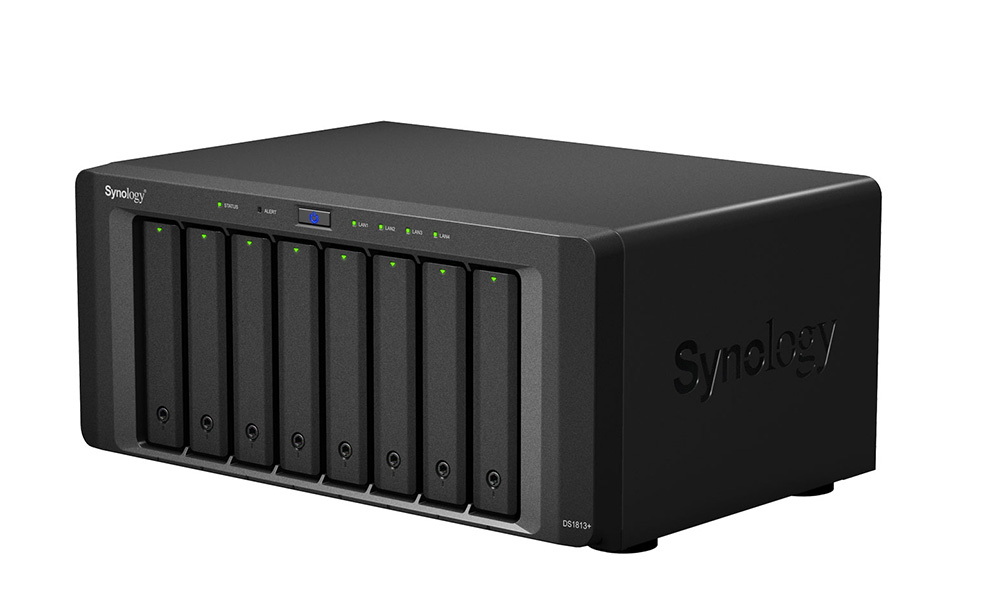
NAS Devices: Network-attached storage (NAS) devices store data and are accessed directly through the network without first connecting to a computer. These hardware devices contain a storage drive, processor, and OS, and can be accessed remotely.
SAN Server: Although not technically a server, a storage area network (SAN) connects multiple storage devices to multiple servers expanding the network and controlling connections.
Cloud Servers: Cloud servers exist in a virtual online environment, and you can access them through web portals, applications, and specialized software.
Regardless of how you save your data and where, backups are essential to protecting yourself from loss.
How to Back Up a Server
You have options for backing up data, and the methods vary. First, let’s talk about terminology.
Backup vs. Archive
Backing up is copying your data, whereas an archive is a historical copy that you keep for retention purposes, often for long periods. Archives are typically used to save old, inactive data for compliance reasons.
Here are two examples that illustrate backups vs. an archives. An example of a backup is when your mobile phone backs up to the cloud, and if you factory reset the phone, you can restore all your applications, settings, and data from the backup copy. An example of an archive is a tape backup of old HR files that have long since been deleted from the server.
Backup vs. Sync
Sometimes people confuse the word backup with sync. They are not the same thing. A backup is a copy of your data you can use to restore lost files. Syncing is the automatic updating and merging of two file sources. Cloud computing often uses syncing to keep files in one location identical to files in another.
To prevent data loss, backups are the process to use. Syncing overwrites files with the latest version; a backup can restore back to a single point in time, so you don’t lose anything valuable.
Backup Destinations
When selecting a backup destination, you have many mediums to choose from. There are pros and cons for each type. Some popular backup destinations and their pros and cons are as follows:
Destination
Pros
Cons
External Media (USB, CD, Removable Hard Drives, Flash Drives, etc.)
Quick, easy, affordable.
Fragile if dropped, crushed, or exposed to magnets; very small capacity.
NAS
Always available on the network, small size, and great for SMBs.
Vulnerable to on-premises threats and non-scalable due to limits.
Network or SAN Storage
High speed, view connected drives as local, good security, failover protection, excellent disk utilization, and high-end disaster recovery options.
Can be expensive, doesn’t work with all types of servers, and is vulnerable to attacks on the network.
Tape
Dependable (robust, not fragile), can be kept for years, low cost, and simple to replicate.
High initial setup costs, limited scalability, potential media corruption over time, and time consuming to manage.
FTP
Excellent for large files, copy multiple files at once, can resume if the connection is lost, schedule backups and recover lost data.
No security, vendors vary widely, not all solutions include encryption, and vulnerable to attacks.
Cloud backups are an altogether different type of backup; typically, you have two options available: all-in-one tools or integrated solutions.
All-in-one Tools
All-in-one tools like Carbonite Safe, Carbonite Server, Acronis, IDrive, CrashPlan, and SpiderOak combine both the backup software and the backend cloud storage in one offering. They have the ability to back up entire operating systems, files, images, videos, and sometimes even mobile device data. Depending on the tool you choose, you may be able to back up an unlimited number of devices, or you may have limits. However, most of these all-in-one solutions are expensive and can be complex to use. All those bells and whistles often come at a price—a steep learning curve.
Integrated Solutions (Backup Software Paired With Cloud Storage)
Pairing software and cloud storage is another option that combines the best of both worlds. It allows users to choose the software they want with the features they need and fast, reliable cloud storage. Cloud storage is scalable, so you will never run out of space as your business grows. Using your chosen software, it’s fast and easy to restore your files. Although it may seem counterintuitive, it’s often more affordable to use two integrated solutions versus an all-in-one tool. Another big bonus of using cloud storage is that it integrates with many popular software options. For example, Backblaze works seamlessly with:
An important factor to consider when choosing the right backup software and cloud storage is compatibility. Research which platforms your software will back up and what types of backups it offers (file, image, system, etc.). You also need to think about the restore process and your options (e.g., file, folder, bare metal/image, virtual, etc.). User-friendliness is important when deciding. Some programs like rClone require a working knowledge of command line. Choose a software program that is best for you.
Think about scalability and how much storage it can handle now and in the future as your business grows. A few other things to consider are pricing, security, and support. Your backup files are no good if they are vulnerable to attack. Compare prices and check out the support options before making your final decision.
Creating a Solid Backup Strategy
A solid backup strategy is the best way to protect your company against data loss. Again, you have options. The 3-2-1 strategy is the gold standard, but some companies are choosing options like a 3-2-1-1-0 option or even a 4-3-2 scheme. Learn more about how each plan works.
Before determining your strategy, you must consider what data you need to back up. For example, will you be backing up just servers or also workstations and dedicated servers, such as email servers or SaaS data devices?
Another concern is how you will get your data into the cloud. You need to figure out which method will work best for you. You have the option of direct transfer over internet bandwidth or using a rapid ingest device (e.g., the Backblaze Fireball rapid ingest device).
Universal Data Migration
Migrating your data can seem like an insurmountable task. We launched our Universal Data Migration service to make migrating to Backblaze just as easy as it is to use Backblaze. You can migrate from virtually any source to Backblaze B2 Cloud Storage, and it’s free to new customers who have 10TB of data or more to migrate with a one-year commitment.
How Often Should You Back Up Your Data?
Should you run full backups regularly? Or rely on incremental backups? The answer is that both have their place.
To fully protect yourself, performing regular full backups and keeping them safe is essential. Full backups can be scheduled for slow times or performed overnight when no one is using the data. Remember that full backups take the longest to complete and are the costliest but the easiest to restore.
A full backup backs up the entire server. An incremental backup only backs up files that have changed or been added since the last backup, saving storage space. The cadence of full versus incremental backups might look different for each organization. Learn more about full vs. incremental, differential, and full synthetic backups.
How Long Should You Keep Your Previous Backups?
You also must consider how long you want to keep your previous backups. Will you keep them for a specific amount of time and overwrite older backups?
By overwriting the files, you can save space, but you may not have an old enough backup when you need it. Also, keep in mind that many cloud storage vendors have minimum retention policies for deleted files. While “retention” sounds like a good thing, in this case it’s not. They might be charging you for data storage for 30, 60, or even 90 days even if you deleted it after storing it for just one day. That may also factor into your decision about how long you should keep your previous backup files. Some experts recommend three months, but that may not be enough in some situations.
You need to keep full backups for as long as you might need to recover from various issues. If, for example, you are infiltrated by a cybercriminal and don’t discover it for two months, will your oldest backup be enough to restore your system back to a clean state?
Another question to think about is if you’ll keep an archive. As a refresher, an archive is a backup of historical data that you keep long-term even if the files have already been deleted from the server. Most sources say you should plan to keep archives forever unless you have no use for the data in the future, but your company might have a different appetite for retention timeframes. Forever probably seems like…well, a long time, but keep in mind that the security of having those files available may be worth it.
How Will You Monitor Your Backup?
It’s not enough to just schedule your backups and walk away. You need to monitor them to ensure they are occurring on schedule. You should also test your ability to restore and fully understand the options you have for restoring your data. A backup is only as good as its ability to restore. You must test this out periodically to ensure you have a solid disaster recovery plan in place.
Special Considerations for Backing Up
When backing up servers with different operating systems, you need to consider the constraints of that system. For example, SQL servers can handle differential backups, whereas other servers cannot. Some backup software like Veeam integrates easily with all the major operating systems and therefore supports backups of multiple servers using different platforms.
If you are backing up a single server, things are easy. You have only one OS to worry about. However, if you are backing up multiple servers with different platforms and applications running on them, things could get more complex. Be sure to research all your options and use a vendor that can easily handle groups management and SaaS-managed backup services so that you can view all your data through a single pane of glass. You want consolidation and easy delineation if you need to pinpoint a single system to restore. You can use groups to easily manage different servers with similar operating systems to keep things organized and streamline your backup strategy.
As you can see, there are many facets to server backups, and you have options. If you have questions or want to learn more about Backblaze backup solutions, contact us today. Or, click here if you’re ready to get started backing up your server.
Between tech layoffs and recession fears, economic uncertainty is at a high. If you’re battening down the hatches for whatever comes next, you might be taking a closer look at your cloud spend. Even before the bear market, 59% of cloud decision makers named “optimizing existing use of cloud (cost savings)” as their top cloud initiative of 2022 according to the Flexera State of the Cloud report.
Cloud storage is one piece of your cloud infrastructure puzzle, but it’s one where some simple considerations can save you anywhere from 25% up to 80%. As such, understanding cloud storage pricing is critical when you are comparing different solutions. When you understand pricing, you can better decide which provider is right for your organization.
In this post, we won’t look at 1:1 comparisons of cloud storage pricing, but you can check out a price calculator here. Instead, you will learn tips to help you make a good cloud storage decision for your organization.
Evaluating Your Cloud Storage? Gather These Facts
Looking at the pricing options of different cloud providers only makes sense when you know your needs. Use the following considerations to clarify your storage needs to approach a cloud decision thoughtfully:
How do you plan to use cloud storage?
How much does cloud storage cost?
What features are offered?
1. How Do You Plan to Use Cloud Storage?
Some popular use cases for cloud storage include:
Backup and archive.
Origin storage.
Migrating away from LTO/tape.
Managing a media workflow.
Backup and Archive
Maintaining data backups helps make your company more resilient. You can more easily recover from a disaster and keep serving customers. The cloud provides a reliable, off-site place to keep backups of your company workstations, servers, NAS devices, and Kubernetes environments.
Case Study: Famed Photographer Stores a Lifetime of Work
Photographer Steve McCurry, renowned for his 1984 photo of the “Afghan Girl” which has been on the cover of National Geographic several times, backed up his life’s work in the cloud when his team didn’t want to take chances with his irreplaceable archives.
Origin Storage
If you run a website, video streaming service, or online gaming community, you can use the cloud to serve as your origin store where you keep content to be served out to your users.
Case Study: Serving 1M+ Websites From Cloud Storage
Big Cartel hosts more than one million e-commerce websites. To increase resilience, the company recently started using a second cloud provider. By adopting a multi-cloud infrastructure, the business now has lower costs and less risk of failure.
Migrating Away From LTO/Tape
Managing a tape library can be time-consuming and comes with high CapEx spending. With inflation, replacing tapes costs more, shipping tapes off-site costs more, and physical storage space costs more. The cloud provides an affordable alternative to storing data on tape where you pass the decreased margins off to a cloud provider—they have to worry about provisioning enough physical storage devices and space while you pay as you go.
Managing Media Workflow
Your department or organization may need to work with large media files to create movies or digital videos. Cloud storage provides an alternative to provisioning huge on-premises servers to handle large files.
Case Study: Using the Cloud to Store Media
Hagerty Insurance stored a huge library of video assets on an aging server that couldn’t keep up. They implemented a hybrid cloud solution for cloud backup and sync, saving the team over 200 hours per year searching for files and waiting for their slow server to respond.
2. How Much Does Cloud Storage Cost?
Cloud storage costs are calculated in a variety of different ways. Before considering any specific vendors, knowing the most common options, variables, and fees is helpful, including:
Flat or single-tier pricing vs. tiered pricing.
Hot vs. cold storage.
Storage location.
Minimum retention periods.
Egress fees.
Flat or Single-tier Pricing vs. Tiered Pricing
A flat or single-tier pricing approach charges the user based on the storage volume, and cost is typically expressed per gigabyte stored. There is only one tier, making budgeting and planning for cloud expenses simple.
On the other hand, some cloud storage services use a tiered storage pricing model. For example, a provider may have a small business pricing tier and an enterprise tier. Note that different pricing tiers may include different services and features. Today, your business might use an entry-level pricing tier but need to move to a higher-priced tier as you produce more data.
Hot vs. Cold Storage
Hot storage is helpful for data that needs to be accessible immediately (e.g., last month’s customer records). By contrast, cold storage is helpful for data that does not need to be accessed quickly (e.g., tax records from five years ago). For more insight on hot vs. cold storage, check out our post: “What’s the Diff: Hot and Cold Data Storage.” Generally speaking, cold storage is the cheapest, but that low price comes at the cost of speed. For data that needs to be accessed frequently or even for data where you’re not sure how often you need access, hot storage is better.
Storage Location
Some organizations need their cloud storage to be located in the same country or region due to regulations or just preference. But some storage vendors charge different prices to store data in different regions. Keeping data in a specific location may impact cloud storage prices.
Minimum Retention Periods
Most folks think of “retention” as a good thing, but some storage vendors enforce minimum retention periods that essentially impose penalties for deleting your data. Some vendors enforce minimum retention periods of 30, 60, or even 90 days. Deleting your data could cost you a lot, especially if you have a backup approach where you retire older backups before the retention period ends.
Egress Fees
Cloud companies charge egress fees when customers want to move their data out of the provider’s platform. These fees can be egregiously high, making it expensive for customers to use multi-cloud infrastructures and therefore locking customers into their services.
3. What Additional Features Are Offered?
While price is likely one of your biggest considerations, choosing a cloud storage provider solely based on price can lead to disappointment. There are specific cloud storage features that can make a big difference in your productivity, security, and convenience. Keep these features and capabilities in mind when comparing different cloud storage solutions.
Security Features
You may be placing highly sensitive data like financial records and customer service data in the cloud, so features like server-side encryption could be important. In addition, you might look for a provider that offers Object Lock so you can protect data using a Write Once, Read Many (WORM) model.
Data Speed
Find out how quickly the cloud storage provider can provide data regarding upload and download speed. Keep in mind that the speed of your internet connection also impacts how fast you can access data. Data speed is critically important in several industries, including media and live streaming.
Customer Support
If your company has a data storage problem outside of regular business hours, customer support becomes critically important. What level of support can you expect from the provider? Do they offer expanded support tiers?
Partner Integrations
Partner integrations make it easier to manage your data. Check if the cloud storage provider has integrations with services you already use.
The Next Step in Choosing Cloud Storage
Understanding cloud storage pricing requires a holistic view. First, you need to understand your organization’s data needs. Second, it is wise to understand the typical cloud storage pricing models commonly used in the industry. Finally, cloud storage pricing needs to be understood in the context of features like security, integrations, and customer service. Once you consider these steps, you can approach a decision to switch cloud providers or optimize your cloud spend more rigorously and methodically.
If you’re using Veritas’ Backup Exec, you’re already ahead of the game when it comes to your data backup and recovery approach. Now, you can power up your backup strength by adding Backblaze B2 Cloud Storage as a destination for your Backup Exec data.
The joint solution offers easy, affordable, S3-compatible object storage to customers who use Backup Exec to streamline their data backup and recovery approach. Read on to learn more about this partnership and how it can benefit your business.
Backblaze and Veritas: In Person at VMware Explore 2022
Want to learn more? Stop by booth 1501 at VMware Explore 2022, August 29–September 1. You can visit with our technical experts, see demos, and learn more about how Backblaze B2 Cloud Storage seamlessly integrates with Veritas Backup Exec. Or, schedule a meeting using this link to talk about solutions tailored to your business needs.
What Is Veritas Backup Exec?
The Veritas Backup Exec service helps businesses protect almost any data on any storage device—tape, servers, or in the cloud. By unifying backup management in one panel, it creates a simple, customizable approach to managing backups and orchestrating recovery that can benefit everyone from the local bakery, to a regional school district, to large government units.
How Does Backblaze Integrate With Backup Exec?
Customers have regularly asked for Backblaze to be accepted into the Veritas Technology Partner Program. Being able to seamlessly integrate Veritas with Backblaze B2 is a big win for these customers who’ve long been looking for an easy, affordable solution that helps them manage infrastructure costs.
Beginning today, any business or institution using Backup Exec can configure their data to back up to B2 Cloud Storage. IT teams can rest easy, knowing that remote offices, Linux and Unix workloads, virtual or Microsoft workloads, and more, are protected and immediately available if they need them—all configurable in a few clicks and at one-fifth the price of traditional storage vendors, with no data retention minimums or other lock-in fees.
“The Backup Exec service empowers small and medium-sized businesses to do more with less, and to minimize their daily lift around data management and protection. This aligns perfectly with our mission to make storing and using data astonishingly easy—especially for IT teams that already have a ton on their plate.”
—Nilay Patel, VP of Sales & Partnerships, Backblaze
How Does This Partnership Benefit Joint Customers?
The partnership delivers in three key value areas:
Simplification: Backup Exec provides a simple, unified user interface that removes complexity from data protection. Backblaze B2 is configurable in a few easy steps.
Hybrid-cloud adoption: The capital and personnel expense of purchasing and managing on-prem data storage can be challenging. Veritas and Backblaze put cloud adoption within reach—for backups, workloads, infrastructure, recovery, or everything together.
Cost reduction: Backup Exec makes configuring backups easy, which means that businesses can fine-tune their storage bill in line with their budgets. With B2 Cloud Storage priced at one-fifth of traditional cloud vendors—the combination offers a powerful tool to businesses that want to optimize their spend.
“Our goal with Backup Exec is to provide a simple, powerful solution that frees business owners from concerns about data loss. Backblaze is a natural partner in this effort and we’re excited to work with them to bring the value of cloud backup to a larger group of businesses and institutions.”
—Jason Von Eberstein, Senior Principal Product Manager of Veritas
Backblaze recently announced a partnership with Carahsoft to help public sector CIOs optimize their cloud spend. Carahsoft is the Master Government Aggregator for the IT industry. The partnership—which was enabled by our recent launch of a capacity-based pricing bundle, Backblaze B2 Reserve—solves both the budgeting and procurement challenges public sector CIOs are facing. And Carahsoft is a strategic distributor for Veritas, so public sector customers can take advantage of the joint solution as well.
About Veritas
Veritas enables organizations to harness the power of their information, with solutions designed to serve the world’s largest and most complex heterogeneous environments. Veritas’s industry-leading solutions cover all platforms with backup and recovery, business continuity, software-defined storage, and information governance.
Getting Started With Backblaze B2 and Veritas
Ready to take your backup game to the next level? Click here to get started today and check out our Knowledge Base article for detailed instructions.
As an IT leader or business owner, establishing a solid, working backup strategy is one of the most important tasks on your plate. Server backups are an essential part of a good security and disaster recovery stance. One decision you’re faced with as part of setting up that strategy is where and how you’ll store server backups: on-premises, in the cloud, or in some mix of the two.
As the cloud has become more secure, affordable, and accessible, more organizations are using a hybrid cloud strategy for their cloud computing needs, and server backups are particularly well suited to this strategy. It allows you to maintain existing on-premises infrastructure while taking advantage of the scalability, affordability, and geographic separation offered by the cloud.
If you’re confused about how to set up a hybrid cloud strategy for backups, you’re not alone. There are as many ways to approach it as there are companies backing up to the cloud. Today, we’re discussing different server backup approaches to help you architect a hybrid server backup strategy that fits your business.
Server Backup Destinations
Learning about different backup destinations can help administrators craft better backup policies and procedures to ensure the safety of your data for the long term. When structuring your server backup strategy, you essentially have three choices for where to store data: on-premises, in the cloud, or in a hybrid environment that uses both. First, though, let’s explain what a hybrid environment truly is.
Refresher: What Is Hybrid Cloud?
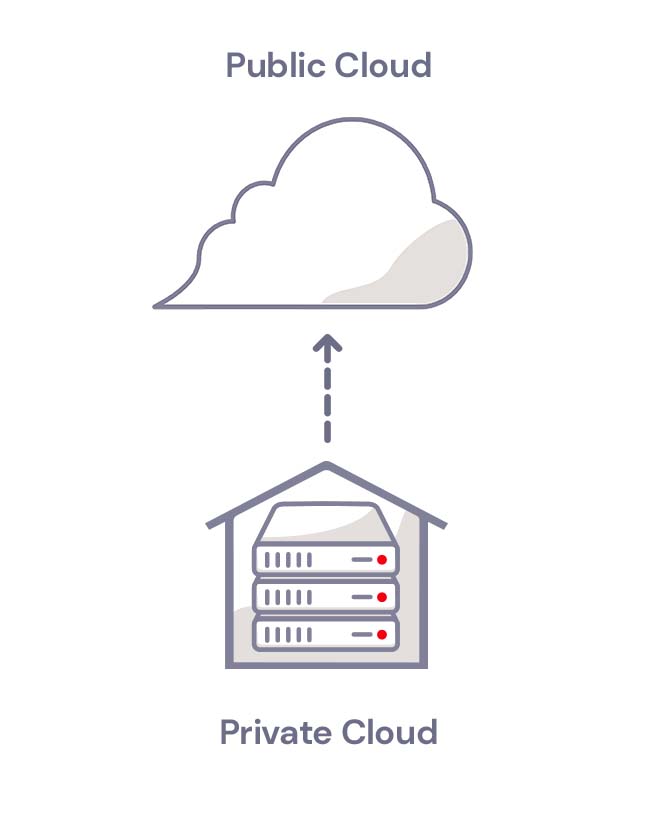
Hybrid cloud refers to a cloud environment made up of both private cloud resources (typically on-premises, although they don’t have to be) and public cloud resources with some kind of orchestration between them. Let’s define private and public clouds:
A public cloud essentially lives in a data center that’s used by many different tenants and maintained by a third-party company. Tenants share the same physical hardware, and their data is virtually separated so one tenant can’t access another tenant’s data.
A private cloud is dedicated to a single tenant. Private clouds are traditionally thought of as on-premises. Your company provisions and maintains the infrastructure needed to run the cloud at your office. Now, though, you can rent rackspace or even private, dedicated servers in a data center, so a private cloud can be off-premises, but it’s still dedicated only to your company.
Hybrid clouds are defined by a combined management approach, which means they have some type of orchestration between the public and private cloud that allows data to move between them as demands, needs, and costs change, giving businesses greater flexibility and more options for data deployment and use.
Here are some examples of different server backup destinations according to where your data is located:
Local backup destinations.
Cloud-only backups.
Hybrid cloud backups.
Local Backup Destinations
On-premises backup, also known as a local backup, is the process of backing up your system, applications, and other data to a local device. Tape and network-attached storage (NAS) are examples of common local backup solutions.
Tape: With tape backup, data is copied from its primary storage location to a tape cartridge using a tape drive. Tape creates a physical air gap, meaning there’s a literal gap of air between the data on the tape and the network—they are not connected in any way. This makes tape a highly secure option, but it comes at a cost. Tape requires physical storage space some businesses may not have. Tape maintenance and management can be very time consuming. And tapes can degrade, resulting in data loss.
NAS:NAS is a type of storage device that is connected to a network to allow data processing and storage through a secure, centralized location. With NAS, authorized users can access stored data from anywhere with a browser and a LAN connection. NAS is flexible, relatively easy to scale, and cost-effective.
Cloud-only Backups
Cloud-only backup strategies are becoming more commonplace as startups take a cloud-native approach and existing companies undergo digital transformations. A cloud-only backup strategy involves eliminating local, on-premises backups and sending files and databases to the cloud vendor for storage. It’s still a great idea to keep a local copy of your backup so you comply with a 3-2-1 backup strategy (more on that below). You could also utilize multiple cloud vendors or multiple regions with the same vendor to ensure redundancy. In the event of an outage, your data is stored safely in a separate cloud or a different cloud region and can easily be restored.
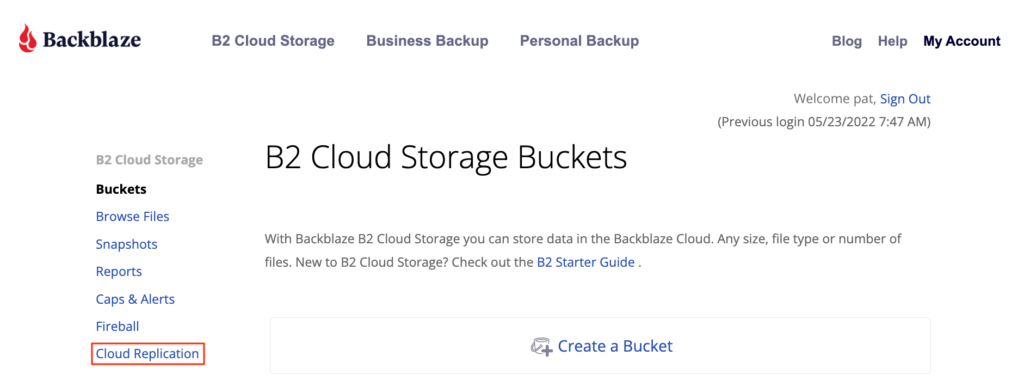
With services like Cloud Replication, companies can easily achieve a solid cloud-only server backup solution within the same cloud vendor’s infrastructure. It’s also possible to orchestrate redundancy between two different cloud vendors in a multi-cloud strategy.
Hybrid Cloud Backups
When you hear the term “hybrid” when it comes to servers, you might initially think about a combination of on-premises and cloud data. That’s typically what people think of when they imagine a hybrid cloud, but as we mentioned earlier, a hybrid cloud is a combination of a public cloud and a private cloud. Today, private clouds can live off-premises, but for our purposes, we’ll consider private clouds as being on-premises. A hybrid server backup strategy is an easy way to accomplish a 3-2-1 backup strategy, generally considered the gold standard when it comes to backups.
Refresher: What Is the 3-2-1 Backup Strategy?
The 3-2-1 backup strategy is a tried and tested way to keep your data accessible, yet safe. It includes:
3: Keep three copies of any important file—one primary and two backups.
2: Keep the files on two different media types to protect against different types of hazards.
1: Store one copy off-site.
A hybrid server backup strategy can be helpful for fulfilling this sage backup advice as it provides two backup locations, one in the private cloud and one in the public cloud.
Choosing a Backup Strategy
Choosing a backup strategy that is right for you involves carefully evaluating your existing systems and your future goals. Can you get there with your current backup strategy? What if a ransomware or distributed denial of service (DDoS) attack affected your organization tomorrow? Decide what gaps need to be filled and take into consideration a few more crucial points:
Evaluate your vulnerabilities. Is your location susceptible to a local data disaster? How often do you think you might need to access your backups? How quickly would you need them?
Price. Various backup strategies will incur costs for hardware, service, expansions, and more. Carefully evaluate your organization’s finances to decide on a budget. And keep in mind that monthly fees and service charges may go up over time as you add more storage or use enhanced backup tools.
Storage capacity. How much storage capacity do you have on-site? How much data does your business generate over a given period of time? Do you have IT personnel to manage on-premises systems?
Access to hardware. Provisioning a private cloud on-premises involves purchasing hardware. Increasing supply chain issues can slow down factories, so be mindful of shortages and increased delivery times.
Scalability. As your organization grows, it’s likely that your data backup needs will grow, too. If you’re projecting growth, choose a data backup strategy that can keep up with rapidly expanding backup needs.
Backup Strategy Pros and Cons
Local Backup Strategy
Pros: A major benefit to using a local backup strategy is that organizations have fast access to data backups in case of emergencies. Backing up to NAS can also be faster locally depending on the size of your data set.
Cons: Maintaining on-premises hardware can be costly, but more important, your data is at a higher risk of loss from local disasters like floods, fires, or theft.
Cloud Backup Strategy
Pros: With a cloud-only backup strategy, there is no need for on-site hardware, and backup and recovery can be initiated from any location. Cloud resources are inherently scalable, so the stress of budgeting for and provisioning hardware is gone.
Cons: A cloud-only strategy is susceptible to outages if your data is consolidated with one vendor, however this risk can be mitigated by diversifying vendors and regions within the same vendor. Similarly, if your network goes down, then you won’t have access to your data.
Hybrid Cloud Backup Strategy
Pros: Hybrid cloud server backup strategies combine the best features of public and private clouds: You have fast access to your data locally while protecting your data from disaster by adding an off-site location to your backup strategy.
Cons: Setting up and running a private cloud server can be very costly. Businesses also need to plan their backup strategy a bit more thoughtfully because they must decide what to keep in a public cloud versus a private cloud or on local storage.
Hybrid Server Backup Considerations
Once you’ve decided a hybrid server backup strategy is right for you, there are many ways you can structure it. Here are just a few examples:
Keep backups of active working files on-premises and move all archives to the cloud.
Choose a cutover date if your business is ready to move mostly to the cloud going forward. All backups and archives prior to the cutover date could remain on-premises and everything after the cutover date gets stored in cloud storage.
Store all incremental backups in cloud storage and keep all full backups and archives stored locally. Or, following the Grandfather-Father-Son (GFS) approach, put the father and son backups in the cloud and grandfather backups in local storage. (Or vice versa.)
As you’re structuring your server backup strategy, consider any GDPR, HIPAA, or cybersecurity requirements. Does it call for off-site, air-gapped backups? If so, you may want to move that data (like customer or patient records) to the cloud and keep other, non-regulated data local. Some industries, particularly government and heavily regulated industries, may require you to keep some data in a private cloud.
Leading business media brand, Fortune, has amassed hundreds of thousands of hours of footage capturing conference recordings, executive interviews, panel discussions, and more showcasing some of the world’s most high-profile business leaders over the years. It’s the jewel in their content crown, and there are no second chances when it comes to capturing those moments. If any of those videos were to be lost or damaged, they’d be gone forever, with potential financial consequences to boot.
At the same time, Fortune’s distributed team of video editors needs regular and reliable access to that footage for use on the company’s sites, social media channels, and third-party web properties. So when Fortune divested from their parent company Meredith Corporation in 2018, revising its tech infrastructure was a priority.
Becoming an independent enterprise gave Fortune the freedom to escape legacy limitations and pop the cork on bottlenecks that were slowing productivity and raking up expenses. But their first attempt at a solution was expensive, unreliable, and difficult to use—until they migrated to Backblaze B2 Cloud Storage. Jeff Billark, Head of IT Infrastructure for Fortune Media Group, shared how it all went down.
Not Quite Camera-ready: An Overly Complex Tech Stack
Working with systems integrator CHESA, Fortune used a physical storage device to seed data to the cloud. They then built a tech stack that included:
An on-premises server housing Primestream Xchange media asset management (MAM) software for editing, tagging, and categorization.
Archive management software to handle backups and long-term archiving.
Cold object storage from one of the diversified cloud providers to hold backups and archive data.
But it didn’t take long for the gears to gum up. The MAM system couldn’t process the huge quantity of data in the archive they’d seeded to the cloud, so unprocessed footage stayed buried in cold storage. To access a video, Fortune editors had to work with the IT department to find the file, thaw it, and save it somewhere accessible. And the archiving software wasn’t reliable or robust enough to handle Fortune’s file volume; it indicated that video files had been archived without ever actually writing them to the cloud.
Time for a Close-up: Simplifying the Archive Process
If they hadn’t identified the issue quickly, Fortune could have lost 100TB of active project data. That’s when CHESA suggested Fortune simplify its tech stack by migrating from the diversified cloud provider to Backblaze B2. Two key tools allowed Fortune to eliminate archiving middleware by making the move:
Thanks to Primestream’s new Backblaze data connector, Backblaze integrated seamlessly with the MAM system, allowing them to write files directly to the cloud.
They implemented Panic’s Transmit tool to allow editors to access the archives themselves.
Backblaze’s Universal Data Migration program sealed the deal by eliminating the transfer and egress fees typically associated with a major data migration. Fortune transferred over 300TB of data in less than a week with zero downtime, business disruption, or egress costs.
For Fortune, the most important benefits of migrating to Backblaze B2 were:
Increasing reliability around both archiving and downloading video files.
Minimizing need for IT support with a system that’s easy to use and manage.
Unlocking self-service options within a modern digital tech experience.
“Backblaze really speeds up the archive process because data no longer has to be broken up into virtual tape blocks and sequences. It can flow directly into Backblaze B2.”
—Jeff Billark, Head of IT Infrastructure, Fortune Media Group
Unlocking Hundreds of Thousands of Hours of Searchable, Accessible Footage
Fortune’s video editing team now has access to two Backblaze B2 buckets that they can access without any additional IT support:
Bucket #1: 100TB of active video projects.
When any of the team’s video editors needs to find and manipulate footage that’s already been ingested into Primestream, it’s easy to locate the right file and kick off a streamlined workflow that leads to polished, new video content.
Bucket #2: 300TB of historical video files.
Using Panic’s Transmit tool, editors sync data between their Mac laptops and Backblaze B2 and can easily search historical footage that has not yet been ingested into Primestream. Once files have been ingested and manipulated, editors can upload the results back to Bucket #1 for sharing, collaboration, and storage purposes.
With Backblaze B2, Fortune’s approach to file management is simple and reliable. The risk of archiving failures and lost files is greatly reduced, and self-service workflows empower editors to collaborate and be productive without IT interruptions. Fortune also reduced storage and egress costs by about two-thirds, all while accelerating its content pipeline and maximizing the potential of its huge and powerful video archive.
“Backblaze is so simple to use, our editors can manage the entire file transfer and archiving process themselves.”
—Jeff Billark, Head of IT Infrastructure, Fortune Media Group
If you’re in charge of IT for a public sector entity, you know the budgeting and procurement process doesn’t lend itself well to buying cloud services. But, today, the life of a public sector CIO just got a whole lot easier. Through a new partnership with Carahsoft, public sector customers can now leverage their existing state, local, and federal buying programs to access Backblaze B2 Cloud Storage.
We’re not the only cloud storage provider available through Carahsoft, the Master Government Aggregator for the IT industry, but we are the easy, affordable, trusted solution among providers in their ecosystem. Read on to learn more about the partnership.
The Right Cloud Solution at the Right Time
For state and local governments, federal agencies, healthcare providers, and higher education institutions, the pandemic introduced challenges that required cloud scalability—remote work and increased demand for public services, to name two. But due to procurement procedures and budgeting incompatibility, adopting the cloud isn’t always a smooth process for the public sector.
The public sector typically uses a CapEx model to budget for IT services. The cloud’s pay-as-you-go pricing model can be at odds with this budgeting method. Public sector CIOs are also typically required to use established buying programs to purchase services, which many cloud providers are not a part of.
Further, recent research shows that while public sector cloud adoption has increased, a “budget snapback” driven by return to office IT expenses is prompting CIOs in this field to optimize their cloud spend. Public sector institutions are seeking additional value in their cloud budgets, and clamoring for a way to purchase those services through existing programs and channels.
“Public sector decision-makers reference budget, pricing models, and transparency as their biggest barriers to cloud adoption. That’s why this partnership is so exciting: Our services come at a fraction of the price of other options, and we’ve long been known for our transparent, trusted approach to working with customers.” —Nilay Patel, VP of Sales, Backblaze
Bringing Capacity-based Cloud Services to the Public Sector
Backblaze, through the partnership with Carahsoft—which was enabled by our recent launch of a capacity-based pricing bundle, Backblaze B2 Reserve—solves both the budgeting and procurement challenges public sector CIOs are facing.
The partnership brings Backblaze services to state, local, and federal buying programs in a model they prefer at a fraction of the price of traditional cloud storage providers. It’s an affordable, easy solution for public sector CIOs seeking to optimize cloud spend in the wake of the pandemic.
“Backblaze’s ease of use, affordability, and transparency are just some of the major advantages of their robust cloud backup and storage services. We look forward to working with Backblaze and our reseller partners to help agencies better protect and secure their business data.” —Evan Slack, Director of Sales for Emerging Cloud and Virtualization Technologies, Carahsoft
About Carahsoft
Carahsoft Technology Corp. is The Trusted Government IT Solutions Provider®, supporting public sector organizations across federal, state, and local government agencies and education and healthcare markets. As the Master Government Aggregator® for vendor partners, Carahsoft delivers solutions for cybersecurity, multi-cloud, DevSecOps, big data, artificial intelligence, open-source, customer experience, and more. Working with resellers, systems integrators, and consultants, Carahsoft’s sales and marketing teams provide industry leading IT products, services, and training through hundreds of contract vehicles.
About Backblaze B2 Reserve
Backblaze B2 Reserve packages cloud storage in a capacity-based bundle with an annualized SKU which works seamlessly with channel billing models. The offering also provides seller incentives, Tera-grade support, and expanded migration services to empower the channel’s acceleration of cloud storage adoption and revenue growth. Customers can purchase Backblaze B2 through channel partners, starting at 20TB.
A Public Sector Case Study: Kings County Modernizes With Backblaze B2 Cloud Storage
With a looming bill to replace aging tapes and an out-of-warranty tape drive, the Kings County IT department modernized their IT infrastructure by moving to the cloud for backups. With help from Backblaze, Kings County natively tiered backups from their preferred backup software to Backblaze B2 Cloud Storage, enabling them to implement incremental backups, reduce their overall IT footprint and costs, and save about 150 hours of staff time per year.
How to Get Started With Backblaze B2 and Carahsoft
For resellers interested in offering Backblaze services, it is business as usual if you currently have an account with Carahsoft. Those with immediate quote requests should email partnerships@backblaze.com for further details. For any resellers who do not have an account with Carahsoft and would like the ability to sell Backblaze services, follow this link to create a Carahsoft account.
If you’re in charge of backups for your company, you know backing up your server is a critical task to protect important business data from data disasters like fires, floods, and ransomware attacks. You also likely know that digital transformation is pushing innovation forward with server backup solutions that live in the cloud.
Whether you operate in the cloud, on-premises, or with a hybrid environment, finding a server backup solution that meets your needs helps you keep your data and your business safe and secure.
This guide explains the various server backup solutions available both on-premises and in the cloud, and how to choose the right backup solution for you. Read on to learn more about choosing the right server backup solution for your needs.
On-premises Solutions for Server Backup
On-premises solutions store data on servers in an in-house data center managed and maintained internally. Although there has been a dramatic shift from on-premises to cloud server solutions, many organizations choose to operate their legacy systems on-premises alone or in conjunction with the cloud in a hybrid environment.
LTO/Tape
Linear tape-open (LTO) backup is the process of copying data from primary storage to a tape cartridge. If the hard disk crashes, the tapes will still hold a copy of the data.
Pros:
High capacity.
Tapes can last a long time.
Provides a physical air gap between backups and the network to protect against threats like ransomware.
Cons:
Up-front CapEx expense.
Tape drives must be monitored and maintained to ensure they are functioning properly.
Tapes take up lots of physical space.
Tape is susceptible to degradation over time.
The process of backing up to tape can be time consuming for high volumes of data.
NAS
Network-attached storage (NAS) enables multiple users and devices to store and back up data through a secure server. Anyone connected to a LAN can access the storage through a browser-based utility. It’s essentially an extra network strictly for storing data that users can access via its attached network device.
Pros:
Faster to restore files and access backups than tape backups.
More digitally intuitive and straightforward to navigate.
Comes with built-in backup and sync features.
Can connect and back up multiple computers and endpoints via the network.
Cons:
Requires physical maintenance and periodic drive replacement.
Each appliance has a limited storage capacity.
Because it’s connected to your network, it is also vulnerable to network attacks.
Local Server Backup
Putting your backup files on the same server or a storage server is not recommended for business applications. Still, many people choose to organize their backup storage on the same server the data runs on.
Pros:
Highly local.
Quick and easy to access.
Cons:
Generally less secure.
Capacity-limited.
Susceptible to malware, ransomware, and viruses.
Including these specific backup destinations, there are some pros to using on-premises backup solutions in general. For example, you might still be able to access backup files without an internet connection using on-premises solutions. And you can expect a fast restore if you have large amounts of data to recover.
However, all on-premises backup storage solutions are vulnerable to natural disasters, fires, and water damage despite your best efforts. While some methods like tape are naturally air-gapped, solutions like NAS are not. Even with a layered approach to data protection, NAS leaves a business susceptible to attacks.
Backing Up to Cloud Storage
Many organizations choose a cloud-based server for backup storage instead of or in addition to an on-premises solution (more on using both on-premises and cloud solutions together later) as they continue to integrate modern digital tools. While an on-premises system refers to data hardware and physical storage solutions, cloud storage lives “in the cloud.”
A cloud server is a virtual server that is hosted in a cloud provider’s data center. “The cloud” refers to the virtual servers users access through web browsers, APIs, CLIs, and SaaS applications and the databases that run on the servers themselves.
Because cloud providers manage the server’s physical location and hardware, organizations aren’t responsible for managing costly data centers. Even small businesses that can’t afford internal infrastructure can outsource data management, backup, and cloud storage from providers.
Pros
Highly scalable since companies can add as much storage as needed without ever running out of space.
Typically far less expensive than on-premises backup solutions because there’s no need to pay for dedicated IT staff, hardware upgrades or repair, or the space and electricity needed to run an on-premises system.
Builds resilience from natural disasters with off-site storage.
Virtual air-gapped protection may be available.
Fast recovery times in most cases.
Cons
Cloud storage fees can add up depending on the amount of storage your organization requires and the company you choose. Things like egress fees, minimum retention policies, and complicated pricing tiers can cause headaches later, so much so that there are companies dedicated to helping you decipher your AWS bill, for example.
Can require high bandwidth for initial deployment, however solutions like Universal Data Migration are making deployment and migrations easier.
Since backups can be accessed via API, they can be vulnerable to attacks without a feature like Object Lock.
It can be tough to choose between cloud storage vs. on-premises storage for backing up critical data. Many companies choose a hybrid cloud backup solution that involves both on-premises and cloud storage backup processes. Cloud backup providers often work with companies that want to build a hybrid cloud environment to run business applications and store data backups in case of a cyber attack, natural disaster, or hardware failure.
If you’re stuck between choosing an on-premises or cloud storage backup solution, a hybrid cloud option might be a good fit.
A hybrid cloud strategy combines a private, typically on-premises, cloud with a public cloud.
All-in-one vs. Integrated Solutions
When it comes to cloud backup solutions, there are two main types: all-in-one and integrated solutions.
Let’s talk about the differences between the two:
All-in-one Tools
All-in-one tools are cloud backup solutions that include both the backup application software and the cloud storage where backups will be stored. Instead of purchasing multiple products and deploying them separately, all-in-one tools allow users to deploy cloud storage with backup features together.
Pros:
No need for additional software.
Simple, out-of-the-box deployment.
Creates a seamless native environment.
Cons:
Some all-in-one tools sacrifice granularity for convenience, meaning they may not fit every use case.
They can be more costly than pairing cloud storage with backup software.
Integrated Solutions
Integrated solutions are pure cloud storage providers that offer cloud storage infrastructure without built-in backup software. An integrated solution means that organizations have to bring their own backup application that integrates with their chosen cloud provider.
Pros:
Mix and match your cloud storage and backup vendors to create a tailored server backup solution.
More control over your environment.
More control over your spending.
Cons:
Requires identifying and contracting with more than one provider.
Can require more technical expertise than with an all-in-one solution, but many cloud storage providers and backup software providers have existing integrations to make onboarding seamless.
How to Choose a Cloud Storage Solution
Choosing the best cloud storage solution for your organization involves careful consideration. There are several types of solutions available, each with unique capabilities. You don’t need the most expensive solution with bells and whistles. All you need to do is find the solution that fits your business model and future goals.
However, there are five main features that every organization seeking object storage in the cloud should look out for:
Cost
Cost is always a top concern for adopting new processes and tools in any business setting. Before choosing a cloud storage solution, take note of any fees or file size requirements for retention, egress, and data retrieval. Costs can vary significantly between storage providers, so be sure to check pricing details.
Ease-of-use and Onboarding Support
Adopting a new digital tool may also require a bit of a learning curve. Choosing a solution that supports your OS and is easy to use can help speed up the adoption rate. Check to see if there are data transfer options or services that can help you migrate more effectively. Not only should cloud storage be simple to use, but easy to deploy as well.
Security and Recovery Capabilities
Most object storage cloud solutions come with security and recovery capabilities. For example, you may be looking for a provider with Object Lock capabilities to protect data from ransomware or a simple way to implement disaster recovery protocols with a single command. Otherwise, you should check if the security specs meet your needs.
Integrations
All organizations seeking cloud storage solutions need to make sure that they choose a compatible solution with their existing systems and software. For example, if your applications speak the S3 API language, your storage systems must also speak the same language.
Many organizations use software-based backup tools to get things done. To take advantage of the benefits of cloud storage, these digital tools should also integrate with your storage solution. Popular backup solutions such as MSP360 and Veeam are built with native integrations for ease of use.
Support Models
The level of support you want and need should factor into your decision-making when choosing a cloud provider. If you know your team needs fast access to support personnel, make sure the cloud provider you choose offers a support SLA or the opportunity to purchase elevated levels of support.
Questions to Ask Before Deciding on a Cloud Storage Solution
Of course, there are other considerations to take into account. For example, managed service providers will likely need a cloud storage solution to manage multiple servers. Small business owners may only need a set amount of storage for now but with the ability to easily scale with pay-as-you-go pricing as the business grows. IT professionals might be looking for a simplified interface and centralized management to make monitoring and reporting more efficient.
When comparing different cloud solutions for object storage, there are a few more questions to ask before making a purchase:
Is there a web-based admin console? A web-based admin console makes it easy to view backups from multiple servers. You can manage all your storage from one single location and download or recover files from anywhere in the world with a network connection.
Are there multiple ways to interact with the storage? Does the provider offer different ways to access your data, for example, via a web console, APIs, CLI, etc.? If your infrastructure is configured to work with the S3 API, does the provider offer S3 compatibility?
Can you set retention? Some industries are more highly regulated than others. Consider whether your company needs a certain retention policy and ensure that your cloud storage provider doesn’t unnecessarily charge minimum file retention fees.
Is there native application support? A native environment can be helpful to back up an Exchange and SQL Server appropriately, especially for team members who are less experienced in cloud storage.
What types of restores does it offer? Another crucial factor to consider is how you can recover your data from cloud storage, if necessary.
Making a Buying Decision: The Intangibles
Lastly, don’t just consider the individual software and cloud storage solutions you’re buying. You should also consider the company you’re buying from. It’s worth doing your due diligence when vetting a cloud storage provider. Here are some areas to consider:
Stability
When it comes to crucial business data, you need to choose a company with a long-standing reputation for stability.
Data loss can happen if a not-so-well-known cloud provider suddenly goes down for good. And some lesser-known providers may not offer the same quality of uptime, storage, and other security and customer support options.
Find out how long the company has been providing cloud storage services, and do a little research to find out how popular its cloud services are.
Customers
Next, take a look at the organizations that use their cloud storage backup solutions. Do they work with companies similar to yours? Are there industry-specific features that can boost your business?
Choosing a cloud storage company that can provide the specs that your business requires plays an important role in the overall success of your organization. By looking at the other customers that a cloud storage company works with, you can better understand whether or not the solution will meet your needs.
Reviews
Online reviews are a great way to see how users respond to a cloud storage product’s features and benefits before trying it out yourself.
Many software review websites such as G2, Gartner Peer Insights, and Capterra offer a comprehensive overview of different cloud storage products and reviews from real customers. You can also take a look at the company’s website for case studies with companies like yours.
Values
Another area to investigate when choosing a cloud storage provider is the company values.
Organizations typically work with other companies that mirror their values and enhance their ability to put them into action. Choosing a cloud storage provider with the correct values can help you reach new clients. But choosing a provider with values that don’t align with your organization can turn customers away.
Many tech companies are proud of their values, so it’s easy to get a feel for what they stand for by checking out their social media feeds, about pages, and reviews from people who work there.
Continuous Improvement
An organization’s ability to improve over time shows resiliency, an eye for innovation, and the ability to deliver high-quality products to users like you. You can find out if a cloud storage provider has a good track record for improving and innovating their products by performing a search query for new products and features, new offerings, additional options, and industry recognition.
Keep each of the above factors in mind when choosing a server backup solution for your needs.
How Cloud Storage Can Protect Servers and Critical Business Data
Businesses have already made huge progress in moving to the cloud to enable digital transformations. Cloud-based solutions can help businesses modernize server backup solutions or adopt hybrid cloud strategies. To summarize, here are a few things to remember when considering a cloud storage solution for your server backup needs:
Understand the pros and cons of on-premises backup solutions and consider a hybrid cloud approach to storing backups.
Evaluate a provider’s cost, security offerings, integrations, and support structure.
Consider intangible factors like reputation, reviews, and values.
Have more questions about cloud storage or how to implement cloud backups for your server? Let us know in the comments. Ready to get started? Your first 10GB are free.
Cloning is a little bit creepy (Seriously, you can clone your pet now?), but having clones of your data is far from it—creating and storing redundant copies is essential when it comes to protecting your business, complying with regulations, or developing apps. With Backblaze Cloud Replication—now generally available—you can get set up in just a few clicks to automatically copy data across buckets, accounts, or regions.
Unbox Backblaze Cloud Replication
Join us for a webinar to unbox all the capabilities of Cloud Replication on July 13, 2022 at 10 a.m. PDT with Sam Lu, Product Manager at Backblaze.
Existing customers can start using Cloud Replication immediately by clicking on Cloud Replication within their Backblaze account or via the Backblaze B2 Native API.
Simply click on Cloud Replication in your account to get started.
Not a Backblaze customer yet? Sign up here. And read on for more details on how this feature can benefit you.
What Is Backblaze Cloud Replication?
Backblaze Cloud Replication is a new service that allows customers to automatically store to different locations—across regions, across accounts, or in different buckets within the same account. You can set replication rules in a few easy steps.
Once the rules are set on a given bucket, any data uploaded to that bucket will automatically be replicated into the destination bucket you choose.
What Is Cloud Replication Good For?
There are three main reasons you might want to use Cloud Replication:
Data Redundancy: Replicating data for security, compliance, and continuity purposes.
Data Proximity: Bringing data closer to distant teams or customers for faster access.
Replication Between Environments: Replicating data between testing, staging, and production environments when developing applications.
Data Redundancy
Keeping redundant copies of your data is the most common use case for Cloud Replication. Enterprises with comprehensive backup strategies, especially as they are increasingly cloud-based, will likely find Cloud Replication immediately applicable. It can help businesses:
Recover quickly from natural disasters and cybersecurity threats.
Support modern business continuity.
Reduce the risk of data loss and downtime.
Comply with industry or board regulations centered on concentration risk issues.
Meet data residency requirements stemming from regulations like GDPR.
Data redundancy has always been a best practice—the gold standard for backup strategies has long been a 3-2-1 approach. The core principles of 3-2-1—keeping at least three copies of your data, on two different media, with one copy off-site—were originally developed for an on-premises world. They still hold true, and today they are being applied in even more robust ways to an increasingly cloud-based world.
Backblaze’s Cloud Replication helps businesses apply the principles of 3-2-1 within a cloud-first or cloud-dominant infrastructure. By storing to multiple regions and/or multiple buckets in the same region, businesses virtually achieve an “off-site” backup—easily and automatically protecting data from natural disasters, political instability, or even run-of-the-mill compliance headaches.
Data Proximity
If you have teams, customers, or workflows spread around the world, bringing a copy of your data closer to where work gets done can minimize speed-of-light limitations. Especially for media-heavy teams in industries like game development and postproduction, seconds can make the difference in keeping creative teams operating smoothly. And because you can automate replication and use metadata to track accuracy and process, you can remove some manual steps from the process where errors and data loss tend to crop up.
Replication Between Environments
Version control and smoke testing are nothing new, but when you’re controlling versions of large applications or trying to keep track of what’s live and what’s in testing, you might need a tool with more horsepower and options for customization. Backblaze Cloud Replication can serve these needs.
You can easily replicate objects between buckets dedicated for production, testing, or staging if you need to use the same data and maintain the same metadata. This allows you to observe best practices and automate replication between environments.
Want to Learn More About Backblaze Cloud Replication?
Here’s a walk-through of Cloud Replication, including step-by-step instructions for using Cloud Replication via the web UI and the Backblaze B2 Native API.
In late April, thousands of professionals from all corners of the media, entertainment, and technology ecosystem assembled in Las Vegas for the National Association of Broadcasters trade show, better known as the NAB Show. We were delighted to sponsor NAB after its two year hiatus due to COVID-19. Our staff came in blazing hot and ready to hit the tradeshow floor.
One of the stars of the 2022 event was Backblaze partner LucidLink, named a Cloud Computing and Storage category winner in the NAB Show Product of the Year Awards. In this blog post, I’ll explain how to combine LucidLink’s Filespaces product with Backblaze B2 Cloud Storage and media asset management from iconik, another Backblaze partner, to optimize your media production workflow. But first, some context…
How iconik, LucidLink, and Backblaze B2 Fit in a Media Storage Architecture
The media and entertainment industry has always been a natural fit for Backblaze. Some of our first Backblaze Computer Backup customers were creative professionals looking to protect their work, and the launch of Backblaze B2 opened up new options for archiving, backing up, and distributing media assets.
As the media and entertainment industry moved to 4K Ultra HD for digital video recording over the past few years, file sizes ballooned. An hour of high quality 4K video shot at 60 frames per second can require up to one terabyte of storage. Backblaze B2 matches well with today’s media and entertainment storage demands, as customers such as Fortune Media, Complex Networks, and Alton Brown of “Good Eats” fame have discovered.
Alongside Backblaze B2, an ecosystem of tools has emerged to help professionals manage their media assets, including iconik and LucidLink. iconik’s cloud-native media management and collaboration solution gathers and organizes media securely from a wide range of locations, including Backblaze B2. iconik can scan and index content from a Backblaze B2 bucket, creating an asset for each file. An iconik asset can combine a lower resolution proxy with a link to the original full-resolution file in Backblaze B2. For a large part of the process, the production team can work quickly and easily with these proxy files, previewing and selecting clips and editing them into a sequence.
Complementing iconik and B2 Cloud Storage, LucidLink provides a high-performance, cloud-native, network-attached storage (NAS) solution that allows professionals to collaborate on files stored in the cloud almost as if the files were on their local machine. With LucidLink, a production team can work with multi-terabyte 4K resolution video files, making final edits and rendering the finished product at full resolution.
It’s important to understand that the video editing process is non-destructive. The original video files are immutable—they are never altered during the production process. As the production team “edits” a sequence, they are actually creating a series of transformations that are applied to the original videos as the final product is rendered.
You can think of B2 Cloud Storage and LucidLink as tiers in a media storage architecture. Backblaze B2 excels at cost-effective, durable storage of full-resolution video assets through their entire lifetime from acquisition to archive, while LucidLink shines during the later stages of the production process, from when the team transitions to working with the original full-resolution files to the final rendering of the sequence for release.
iconik brings B2 Cloud Storage and LucidLink together; not only can an iconik asset include a proxy and links to copies of the original video in both B2 Cloud Storage and LucidLink, iconik Storage Gateway can copy the original file from Backblaze B2 to LucidLink when full-resolution work commences, and later delete the LucidLink copy at the end of the production process, leaving the original archived in Backblaze B2. All that’s missing is a little orchestration.
The Backblaze B2 Storage Plugin for iconik
The Backblaze B2 Storage Plugin for iconik allows creative professionals to copy files from B2 Cloud Storage to LucidLink, and later delete them from LucidLink, in a couple of mouse clicks. The plugin adds a pair of custom actions to iconik: “Add to LucidLink” and “Remove from LucidLink,” applicable to one or many assets or collections, accessible from the Search page and the Asset/Collection page. You can see them on the lower right of this screenshot:
The user experience could hardly be simpler, but there is a lot going on under the covers.
There are several components involved:
The plugin, deployed as a serverless function. The initial version of the plugin is written in Python for deployment on Google Cloud Functions, but it could easily be adapted for other serverless cloud platforms.
A LucidLink Filespace.
A machine with both the LucidLink client and iconik Storage Gateway installed. The iconik Storage Gateway accesses the LucidLink Filespace as if it were local file storage.
iconik, accessed both by the user via its web interface and by the plugin via the iconik API. iconik is configured with two iconik “storages”, one for Backblaze B2 and one for the iconik Storage Gateway instance.
When the user selects the “Add to LucidLink” custom action, iconik sends an HTTP request, containing the list of selected entities, to the plugin. The plugin calls the iconik API with a request to copy those entities from Backblaze B2 to the iconik Storage Gateway. The gateway writes the files to the LucidLink Filespace, exactly as if it were writing to the local disk, and the LucidLink client sends the files to LucidLink. Now the full-resolution files are available for the production team to access in the Filespace, while the originals remain in B2 Cloud Storage.
Later, when the user selects the “Remove from LucidLink” custom action, iconik sends another HTTP request containing the list of selected entities to the plugin. This time, the plugin has more work to do. Collections can contain other collections as well as assets, so the plugin must access each collection in turn, calling the iconik API for each file in the collection to request that it be deleted from the iconik Storage Gateway. The gateway simply deletes each file from the Filespace, and the LucidLink client relays those operations to LucidLink. Now the files are no longer stored in the Filespace, but the originals remain in B2 Cloud Storage, safely archived for future use.
This short video shows the plugin in action, and walks through the flow in a little more detail:
Deploying the Backblaze B2 Storage Plugin for iconik
Don’t have a Backblaze B2 account? You can get started here, and the first 10GB are on us. We can also set up larger scale trials involving terabytes of storage—enter your details and we’ll get back to you right away.
Customize the Plugin to Your Requirements
You can use the plugin as is, or modify it to your requirements. For example, the plugin is written to be deployed on Google Cloud Functions, but you could adapt it to another serverless cloud platform. Please report any issues with the plugin via the issues tab in the GitHub repository, and feel free to submit contributions via pull requests.
Backblaze Cloud Replication—currently in private beta—enables Backblaze customers to store files in multiple regions, or create multiple copies of files in one region, across the Backblaze Storage Cloud. This capability, as we explained in an earlier blog post, allows you to create geographically separate copies of data for compliance and continuity, keep data closer to its consumers, or maintain a live copy of production data for testing and staging. Today we’ll look at how you can get started with Cloud Replication, so you’ll be ready for its release, likely early next month.
Backblaze Cloud Replication: The Basics
Backblaze B2 Cloud Storage organizes data into files (equivalent to Amazon S3’s objects) in buckets. Very simply, Cloud Replication allows you to create rules that control replication of files from a source bucket to a destination bucket. The source and destination buckets can be in the same or different accounts, or in the same or different regions.
Here’s a simple example: Suppose I want to replicate files from my-production-bucket to my-staging-bucket in the same account, so I can run acceptance tests on an application with real-life data. Using either the Backblaze web interface or the B2 Native API, I would simply create a Cloud Replication rule specifying the source and destination buckets in my account. Let’s walk through a couple of examples in each interface.
Cloud Replication via the Web Interface
Log in to the account containing the source bucket for your replication rule. Note that the account must have a payment method configured to participate in replication. Cloud Replication will be accessible via a new item in the B2 Cloud Storage menu on the left of the web interface:
Clicking Cloud Replication opens a new page in the web interface:
Click Replicate Your Data to create a new replication rule:
Configuring Replication Within the Same Account
To implement the simple rule, “replicate files from my-production-bucket to my-staging-bucket in the same account,” all you need to do is select the source bucket, set the destination region the same as the source region, and select or create the destination bucket:
Configuring Replication to a Different Account
To replicate data via the web interface to a different account, you must be able to log in to the destination account. Click Authenticate an existing account to log in. Note that the destination account must be enabled for Backblaze B2 and, again, must have a payment method configured:
After authenticating, you must select a bucket in the destination account. The process is the same whether the destination account is in the same or a different region:
Note that, currently, you may configure a bucket as a source in a maximum of two replication rules. A bucket can be configured as a destination in any number of rules.
Once you’ve created the rule, it is accessible via the web interface. You can pause a running rule, run a paused rule, or delete the rule altogether:
Replicating Data
Once you have created the replication rule, you can manipulate files in the source bucket as you normally would. By default, existing files in the source bucket will be copied to the destination bucket. New files, and new versions of existing files, in the source bucket will be replicated regardless of whether they are created via the Backblaze S3 Compatible API, the B2 Native API, or the Backblaze web interface. Note that the replication engine runs on a distributed system, so the time to complete replication is based on the number of other replication jobs scheduled, the number of files to replicate, and the size of the files to replicate.
Checking Replication Status
Click on a source or destination file in the web interface to see its details page. The file’s replication status is at the bottom of the list of attributes:
There are four possible values of replication status:
pending: The file is in the process of being replicated. If there are two rules, at least one of the rules is processing. (Reminder: Currently, you may configure a bucket as a source in a maximum of two replication rules.) Check again later to see if it has left this status.
completed: This status represents a successful replication. If two rules are configured, both rules have completed successfully.
failed: A non-recoverable error has occurred, such as insufficient permissions to write the file into the destination bucket. The system will not try again to process this file. If two rules are configured, at least one has failed.
replica: This file was created by the replication process. Note that replica files cannot be used as the source for further replication.
Cloud Replication and Application Keys
There’s one more detail to examine in the web interface before we move on to the API. Creating a replication rule creates up to two Application Keys; one with read permissions for the source bucket, if the source bucket is not already associated with an Application Key, and one with write permissions for the destination bucket.
The keys are visible in the App Keys page of the web interface:
You don’t need to worry about these keys if you are using the web interface, but it is useful to see how the pieces fit together if you are planning to go on to use the B2 Native API to configure Cloud Replication.
This short video walks you through setting up Cloud Replication in the web interface:
Cloud Replication via the B2 Native API
Configuring cloud replication in the web interface is quick and easy for a single rule, but quickly becomes burdensome if you have to set up multiple replication rules. The B2 Native API allows you to programmatically create replication rules, enabling automation and providing access to two features not currently accessible via the web interface: setting a prefix to constrain the set of files to be replicated and excluding existing files from the replication rule.
Configuring Replication
To create a replication rule, you must include replicationConfiguration when you call b2_create_bucket or b2_update_bucket. The source bucket’s replicationConfiguration must contain asReplicationSource, and the destination bucket’s replicationConfiguration must contain asReplicationDestination. Note that both can be present where a given bucket is the source in one replication rule and the destination in another.
Let’s illustrate the process with a concrete example. Let’s say you want to replicate newly created files with the prefix master_data/, and new versions of those files, from a bucket in the U.S. West region to one in the EU Central region so that you have geographically separate copies of that data. You don’t want to replicate any files that already exist in the source bucket.
Assuming the buckets already exist, you would first create a pair of Application Keys: one in the source account, with read permissions for the source bucket, and another in the destination account, with write permissions for the destination bucket.
Next, call b2_update_bucket with the following message body to configure the source bucket:
Note that the “file prefix” and “include existing buckets” configuration is not currently visible in the web interface.
Viewing Replication Rules
If you are planning to use the B2 Native API to set up replication rules, it’s a good idea to experiment with the web interface first and then call b2_list_buckets to examine the replicationConfiguration property.
Here’s an extract of the configuration of a bucket that is both a source and destination:
To see the replication status of a file, including whether the file is itself a replica, call b2_get_file_info and examine the replicationStatus field. For example, looking at the same file as in the web interface section above:
This short video runs through the various API calls:
How Much Will This Cost?
The majority of fees for Cloud Replication are identical to standard B2 Cloud Storage billing: You pay for the total data you store, replication (download) fees, and for any related transaction fees. For details regarding billing, click here.
The replication fee is only incurred between cross-regional accounts. For example, a source in the U.S. West and a destination in EU Central would incur replication fees, which are priced identically to our standard download fee. If the replication rule is created within a region—for example, both source and destination are located in our U.S. West region—there is no replication fee.
How to Start Replicating
Watch the Backblaze Blog for an announcement when we make Backblaze Cloud Replication generally available (GA), likely early next month. As mentioned above, you will need to set up a payment method on accounts included in replication rules. If you don’t yet have a Backblaze B2 account, or you need to set up a Backblaze B2 account in a different region from your existing account, sign up here and remember to select the region from the dropdown before hitting “Sign Up for Backblaze B2.”
Our team had some fun experimenting with Python 3.9-nogil, the results of which will be reported in an upcoming blog post. In the meantime, we saw an opportunity to dive deeper into the history of the global interpreter lock (GIL), including why it makes Python so easy to integrate with and the tradeoff between ease and performance.
We reached out to Barry Warsaw, a preeminent Python developer and contributor, because we could think of no one better to break down the evolution of the GIL for us. Barry is a longtime Python core developer, former release manager and steering council member, and PSF Fellow. He was project lead for the GNU Mailman mailing list manager. Barry, along with contributor Paweł Polewicz, a backend software developer and longtime Python user, went above and beyond anything we could have imagined, developing this comprehensive deep dive into the GIL and its evolution over the years. Thanks also go to Larry Hastings for his review and feedback.
If Python’s GIL is something you are curious about, we’d love to hear your thoughts in the comments. We’ll let Barry take it from here.
—The Editors
First Things First: What Is the GIL?
The Python GIL, or Global Interpreter Lock, is a mechanism in CPython (the most common implementation of Python) that serves to serialize operations involving the Python bytecode interpreter, and provides useful safety guarantees for internal object and interpreter state. While providing many benefits, as the discussion below will show, the GIL also prevents CPython from achieving full multicore performance.
In simplest terms, the GIL is a lock (or mutex) that allows only a single operating system thread to run the central Python bytecode interpreter loop. Normally, when multiple threads can access shared state, such as global interpreter or object internal state, a programmer would need to implement fine grained locks to prevent one thread from stomping on the state set by another thread. The GIL removes the need for these fine grained locks because it imposes a global lock that prevents multiple threads from mutating this state at the same time.
In this post, I’ll explore the pros and cons of the GIL, and the many efforts over the years to remove it, including some recent exciting developments.
Humble Beginnings
Back in November 1994, I was invited to a little gathering of programming language enthusiasts to meet the Dutch inventor of a relatively new and little known object-oriented language. This three day workshop was organized by my friends and former colleagues at the National Institute of Standards and Technology (NIST) in Gaithersburg, MD. I came with extensive experience in languages from C, C++, FORTH, LISP, Perl, TCL, and Objective-C and enjoyed learning and playing with new programming languages.
Of course, the Dutch inventor was Guido van Rossum and his little language was Python. I think most of us in attendance knew there was something special about Python and Guido, but it probably would have shocked us to know that Python would even be around almost 30 years later, let alone have the scope, impact, or popularity it enjoys today. For me personally, it was a life-changing moment.
A few years ago, I gave a talk at BayPiggies that took a retrospective look at the evolution of Python from version 1.1 in October 1994 (just before the abovementioned workshop), through the Python 2 series, and up to Python 3.7, the newest release of the language at the time. In many ways, Python 1.1 would be recognizable by today’s modern Python programmer. In other ways, you’d wonder how Python was ever usable without features that were introduced in the intervening years.
Can you imagine not having the tuple() or list() built-ins, or docstrings, or class exceptions, keyword arguments, *args, **kws, packages, or even different operators for assignment and equality tests? It was fun to go back through all those old changelogs and remember what it was like as each of the features we now take for granted were introduced, often in those early days with absolutely no regard for backward compatibility.
I managed to find the agenda for that first Python workshop, and one of the items to be discussed was “Improving the efficiency of Python (e.g., by using a different garbage collection scheme).” I don’t remember any of the details of that discussion, but even then, and from its start, Python employed a reference counting memory management scheme (the cyclic garbage detector being many years away yet). Reference counting is a simple way of managing your objects in a higher level language where you don’t directly allocate or free your memory. One of Guido’s early guiding principles for Python, and which has served Python well over the years, is to keep it as simple as possible while still being effective, useful, and fun.
The Basics of Reference Counting
Reference counting is simple; as it says on the tin, the interpreter keeps a counter that tracks every reference to an object. For example, binding an object to a variable (such as by an assignment) increases that object’s reference count by one. Appending an object to a list also increases its reference count by one. Removing an object from the list decreases that object’s reference count by one. When a variable goes out of scope, the reference count of the object the variable is bound to is decreased by one again. We call this reference count the object’s “refcount” and these two operations “incref” and “decref” respectively.
When an object’s refcount goes to zero it means there are no more live references to the object, so it can be safely freed (and finalized) because nothing in the program can reach that object anymore1. As these objects are deallocated, any references to objects they hold are also decref’d, and so on. Refcounting gives the Python interpreter a very simple mechanism for freeing garbage and more importantly, it allows for humans to reason about Python’s memory management, both from the point of view of the Python programmer, and from the vantage point of the C extension writer, who doesn’t have the luxury of all that reference counting happening automatically.
This is a crucial point: When we talk about “Python” we generally mean “CPython,” the implementation of the runtime written in C2. The C programmer working on the CPython runtime, and the module author writing extensions for Python in C (for performance or to integrate with some system library) does have to worry about all the nitty gritty details of when to incref or decref an object. Get this wrong and your extension can leak memory or double free an object, either way wreaking havoc on your system. Fortunately, Python has clear rules to follow and good documentation, but it can still be difficult to get refcounting right in complex situations, such as when proper error handling leads to multiple exit paths from a function.
Here’s Where the GIL Comes In: Reference Counting and Concurrency
One of the key simplifying rules is that the programmer doesn’t have to worry about concurrency when managing Python reference counting. Think about the situation where you have multiple threads, each inserting and removing a Python object from a collection such as a list or dictionary. Because those threads may run at any time and in any order, you would normally have to be extremely defensive in how you incref and decref those objects, and it would be way too easy to get this wrong. You could crash Python, or worse, if you didn’t implement the proper locks around your incref and decref operations. Having to worry about all that would make your C code very complicated and likely pretty error prone. The CPython implementation also has global and static variables which are vulnerable to race conditions3.
In keeping with Python’s principles, in 1992, when Guido first began to implement threading support in Python, he utilized a simple mechanism to keep this manageable for a wide range of Python programmers and extension authors: a Global Interpreter Lock—the infamous GIL!
Because the Python interpreter itself is not thread-safe, the GIL allows only one thread to execute Python bytecode at a time, and thus serializes all access to Python objects. So, barring bugs, it is impossible for multiple threads to stomp on each other’s reference count operations. There are C API functions to release and acquire the GIL around blocking I/O or compute intensive functions that don’t touch Python objects, and these provide boundaries for the interpreter to switch to other Python-executing threads.
Two threads incrementing an object reference counter.
Thus, we gain significant C implementation simplicity at the expense of some parallelism. Modern Python has many ways to work around this limitation, from asyncio to subprocesses and multiprocessing, which all work fine if they align with your requirements. Python also surfaces operating system threading primitives, but these can’t take full advantage of multicore operations because of the GIL.
Advantages of the GIL
Back in the early days of Python, we didn’t have the prevalence of multicore processors, so this all worked fine. These days, modern programming languages are more multicore friendly, and the GIL gets a bad rap. Before we explore the work to remove the GIL, it’s important to understand just how much benefit and mileage Python has gotten out of it.
One important aspect of the GIL is that it simplifies the programming model for extension module authors. When writing extension modules in C, C++, or any other low-level language with access to the internals of the Python interpreter, extension authors would normally have to ensure that there are no race conditions that could corrupt the internal state of Python objects. Concurrency is hard to get right, especially so in low-level languages, and one mistake can corrupt the entire state of the interpreter4. For an extension author, it can already be challenging to ensure all your increfs and decrefs are properly balanced, especially for any branches, early exits, or error conditions, and this would be monumentally more difficult if the author also had to contend with concurrent execution. The GIL provides an important simplifying model of object access (including refcount manipulation) because it ensures that only one thread of execution can mutate Python objects at a time5.
There are important performance benefits of the GIL for single-threaded operations as well. Without the GIL, Python would need some other way of ensuring that object refcounts are safe from corruption due to, for example, race conditions between threads, such as when adding or removing objects from any mutable collection (lists, dictionaries, sets) that are shared across threads. These techniques can be very expensive as some of the experiments described later showed. Ensuring that Python interpreter is safe for multithreaded use cases degrades its performance for the single-threaded use case. The GIL’s low performance overhead really shines for single-threaded operations, including I/O-multiplexed programs where libraries like asyncio are used, and this is still a predominant use of Python. Finer-grained locks also increase the chances of deadlocks, which isn’t possible with the GIL.
Also, one of the reasons Python is so popular today is that it had so many extensions written for it over the years. One of the reasons there are so many powerful extension modules, whether we like to admit it or not, is that the GIL makes those extensions easier to write.
And yet, Python programmers have long dreamed of being able to run multithreaded Python programs to take full advantage of all the cores available on modern computing platforms. Even today’s watches and phones have multiple cores, whereas in Python’s early days, multicore systems were rare. Here we are 30 or so years later, and while the GIL has served Python well, in order to take advantage of what clearly seems to be more than a passing fad, Python’s GIL often gets in the way of true high-performance multithreaded concurrency.
Attempting to Remove the GIL
Two threads incrementing object reference counter without GIL protection.
Over the years, many attempts have been made to remove the GIL.
1999: Greg Stein’s “Free Threading”
Circa 1999, Greg Stein’s “free threading” work was one of the first (successful!) attempts to remove the GIL. It made the locks much more fine-grained and moved global variables inside the interpreter into a structure, which we actually still use today. It had the unfortunate side effect however, of making your Python code multiple times slower. Thus, while the free threading work was a great experiment, it was far too impractical to adopt.
2015: Larry Hasting’s Gilectomy
Years later (circa 2015), Larry Hasting’s wonderfully named Gilectomy project tried a different approach to remove the GIL. In Larry’s PyCon 2016 talk, he discusses four technical considerations that must be addressed when removing the GIL:
Reference Counting: Race conditions on updating the refcount between multiple threads as described previously.
Globals and Statics: These include interpreter global housekeeping variables, and shared singleton objects. Much work has been done over the years to move these globals into per-thread structures. Eric Snow’s work on multiple interpreters (aka “subinterpreters”) has also made a lot of progress on isolating these variables into structures that represent an interpreter “instance” where theoretically each instance could run on a separate core. There are even proposals for making some of those shared singleton objects immortal, such that reference counting race conditions would have no effect on the lifetime of those objects. An interesting related proposal would move the GIL into a per-interpreter data structure, which could lead to the ability to run an isolated interpreter instance per core (with limitations).
C Extensions: Keep in mind that there is a huge ecosystem of C extension modules, and much of Python’s power comes from these extension modules, of which NumPy is a hugely popular example. These extensions have never had to worry about parallelism or re-entrancy because they’ve always relied on the GIL to serialize their operations. At a minimum, a GIL-less Python will require recompilation of extension modules, and some or all may require some level of source code modifications as well. These changes may include protecting internal (non-Python) data structures for concurrency, using functional APIs for refcount modification instead of accessing refcount fields directly, not assuming that Python collections are stable over iteration, etc.
Atomicity: Operations such as adding or deleting objects from Python collections such as lists and dictionaries actually involve a number of steps internally. To the Python developer, these all appear to be atomic operations, and in fact they are, thanks to the GIL.
Larry also identifies what he calls three “political” considerations, but which I think are more in the realm of the social contract between Python developers and Python users:
Removing the GIL should not hurt performance for single-threaded or I/O-bound multithreaded code.
We can’t break existing C extensions as described above6.
Don’t let GIL removal make the CPython interpreter too complicated or difficult to understand. One of Guido’s guiding principles, and a subtle reason for Python’s huge success, is that even with complicated features such as exception handling, asyncio, generators, etc. Python’s C core is still relatively easy to learn and understand. This makes it easy for new contributors to engage with Python core development, an absolutely essential quality if you want your language to thrive and grow for its next 30 years as much as it has for its previous 30.
Larry’s Gilectomy work is quite impressive, and I highly recommend watching any of his PyCon talks for deep technical dives, served with a healthy dose of humor. As Larry points out, removing the GIL isn’t actually the hard part. The hard part is doing so while adhering to the above mentioned technical and social constraints, retaining Python’s single-threaded performance, and building a mechanism that scales with the number of cores. This latter constraint is important because if we’re going to enable multicore operations, we want to ensure that Python’s performance doesn’t hit a plateau at four or eight cores.
So, why did the Gilectomy branch fail (measured in units of “didn’t get adopted by CPython”)? For the most part, the performance and complexity constraints couldn’t be met. One of the biggest hits on performance wasn’t actually lock contention on objects. The early Gilectomy work relied on atomic increment and decrement CPU instructions, which destroyed cache consistency, and caused a high overhead of communication on the intercore bus to ensure atomicity.
Intercore atomic incr/decr communication.
Later, Larry experimented with a technique borrowed from garbage collection research called “buffered reference counting,” essentially a transaction log for refcount changes. However, contention on transaction logs required further modifications to segregate logs by threads and by increment and decrement operations. This led to non-realtime garbage collection events on refcounts reaching zero, which broke features such as Python’s weakref objects.
Interestingly, another hotspot turned out to be what’s called “obmalloc,” which is a small block allocator that improves performance over just using system malloc for everything. We’ll touch on this again later. Solving all these knock-on effects (such as repairing the cyclic garbage collector) led to increased complexity of the implementation, making the chance that it would ever get merged into Python highly unlikely.
Before we leave this topic to look at some new and exciting work, let’s return briefly to Eric Snow’s work on multiple interpreters (aka subinterpreters). PEP 554 proposes to add a new standard library module called “interpreters” which would expose the underlying work that Eric has been doing to isolate interpreter state out of global variables internal to CPython. One such global state is, of course, the GIL. With or without Python-level access to these features, if the GIL could be moved from global state to per-interpreter state, each interpreter instance could theoretically run concurrently with the others. You could therefore attach a different interpreter instance to each thread, and these could run Python code in parallel. This is definitely a work in progress and it’s unclear whether multiple interpreters will deliver on its promises of this kind of limited concurrency. I say “limited” because without full GIL removal, there is significant complexity in sharing Python objects between interpreters, which would almost certainly be necessary. Issues such as ownership (which thread owns which object) and safe mutability would need to be resolved. PEP 554 proposes some solutions to these problems and more, so we’ll have to keep an eye on this work. But even multiple interpreters don’t provide the same true concurrency that full GIL removal promises.
The Future of the GIL: Where Do We Go From Here?
And now we come full-circle, because Python’s popularity, vast influence, and reach is also one of the reasons why it still seems impossible to remove the GIL while retaining single-threaded performance and not breaking the entire ecosystem of extension modules.
Yet here we are with PyCon 2022 just concluded, and there is renewed excitement for Sam Gross’ “nogil” work, which holds the promise of a performant, GIL-less CPython with minimal backward incompatibilities at both the Python and C layers. While some performance regressions are inevitable, Sam’s work also utilizes a number of clever techniques to claw these regressions back through other internal performance improvements.
Two threads incrementing object reference counter on Sam Gross’ “nogil” branch.
With these improvements as well as the work that Guido’s team at Microsoft is doing with its Faster CPython project, there is renewed hope and excitement that the GIL can be removed while retaining or even improving overall performance, and not giving up on backward compatibility. It will clearly be a multi-year effort.
Sam’s nogil project aims to support a concurrency sweet spot. It promises that data race conditions will never corrupt Python’s virtual machine, but it leaves the integrity of user-level data structures to the programmer. Concurrency is hard, and many Python programs and libraries benefit from the implicit GIL constraints, but solving this is a harder problem outside the scope of the nogil project. Data science applications are one big potential domain to benefit from true multiprocessor enabled concurrency in Python.
There are a number of techniques that the nogil project utilizes to remove the GIL bottleneck. As mentioned, the project also employs a number of other virtual machine improvements to regain some of the performance inevitably lost by removing the GIL. I won’t go into too much detail about these improvements, but it’s helpful to note that where these are independent of nogil, they can and are being investigated along with other work Guido’s team is doing to improve the overall performance of CPython.
Python 3.11 recently entered beta (and thus feature freeze), and with it we’ll see significant performance improvements, which no doubt will continue in future Python releases. When and if nogil is adopted, some of those performance gains may regress to support nogil. Whether and how this will be a good trade-off will be an interesting point of analysis and debate in the coming years. In Sam’s original paper, he proposes a runtime switch to choose between nogil and normal GIL operation, however this was discussed at the PyCon 2022 Language Summit, and the consensus was that this wouldn’t be practical. Thus, as the nogil experiment moves forward, it will be enabled by a compile-time switch.
At a high level, the removal of the GIL is afforded by changes in three areas: the memory allocator, reference counting, and concurrent collection protections. Each of these are deep topics on their own, so we’ll only be able to touch on them briefly.
nogil Part 1: Memory Allocators
Because everything in Python is an object, and most objects are dynamically allocated on the heap, the CPython interpreter implements several levels of memory allocators, and provides C API functions for allocating and freeing memory. This allows it to efficiently allocate blocks of raw memory from the operating system, and to subdivide and manage those blocks based on the type of objects being placed into them. For example, integers have different memory requirements than dictionaries, so having object-specific memory managers for these (and other) types of objects makes memory management inside the interpreter much more efficient.
CPython also employs a small object allocator, called pymalloc, which improves performance for allocating and freeing objects smaller than or equal to 512 bytes. This only touches on the complexities of memory management inside the interpreter. The point of all this complexity is to enable more efficient object creation and destruction, but it also allows for features like memory allocation debugging and custom memory allocators.
The nogil works takes advantage of this pluggability to utilize a general purpose, highly efficient, thread-safe memory allocator developed by Daan Leijen at Microsoft called mimalloc. mimalloc itself is worthy of an in-depth look, but for our purposes it’s enough to know that the mimalloc design is extremely well tuned to efficient and thread-safe allocation of memory blocks. The nogil project utilizes these structures for the implementation of dictionaries and other collection types which minimize the need for locks on non-mutating access, as well as managing garbage collected objects7 with minimal bookkeeping. mimalloc has also been highly tuned for performance and thread-safety.
nogil Part 2: Reference Counting
nogil also makes several changes to reference counting, although it does so in a clever way that minimizes changes to the Limited C API, but does not preserve the stable ABI. This means that while extension modules must be recompiled, their source code may not require modification, outside of a few known corner cases8.
One very promising idea is to make some objects effectively immortal, which I touched on earlier. True, False, None and some other objects in practice never actually see their refcounts go to zero, and so they stay alive for the entire lifetime of the Python process. By utilizing the least significant bits of the object’s reference count field for bookkeeping, nogil can make the refcounting macros no-op for these objects, thus avoiding all contention across threads for these fields.
nogil uses a form of biased reference counting to split an object’s refcount into two buckets. For refcount changes in the thread that owns the object, these “local” changes can be made by the more efficient conventional (non-atomic) forms. For changing the refcount of objects in a different thread, an atomic operation is necessary for safe concurrent modification of a “shared” refcount. The thread that owns the object can then combine this local and shared refcount for garbage collection purposes, and it can give up ownership when its local refcount goes to zero. This is performant when most object accesses are local to the owning thread, which is generally the case. nogil’s biased reference counting scheme can utilize mimalloc’s memory pools to efficiently keep track of the owning threads.
However, some objects are typically owned by multiple threads and are not immortal, and for these types of objects (e.g., functions, modules), a deferred reference counting scheme is employed. Incref and decref act as normal for these objects, but when the interpreter loads these objects onto its internal stack, the refcounts are not modified. The utility of this technique is limited to objects that are only deallocated during garbage collection because they are typically involved in reference cycles.
The garbage collector is also modified to ensure that it only runs at safe boundary points, such as a bytecode execution boundary. The current nogil implementation of garbage collection is single-threaded and stops the world, so it is thread-safe. It repurposes some of the existing C API functions to ensure that it doesn’t wait on threads that are blocked on I/O.
nogil Part 3: Concurrent Collection Protections
The third high-level technique that nogil uses to enable concurrency is to implement an efficient algorithm for locking container objects, such as dictionaries and lists, when mutating them. To maintain thread-safety, there’s just no way around employing locks for this. However, nogil optimizes for objects that are primarily modified in a single thread, and it admits that objects which are frequently and concurrently modified may need a different design.
Sam’s nogil paper goes into considerable detail about the locking algorithm, but at a high level it relies on container versioning (where every modification to a container bumps a “version” counter so the various read accesses can know whether the container has been modified between distinct reads or not), biased reference counting, and various mimalloc features to optimize for fast track, single-threaded, no modification reads while amortizing the cost of locking for writes against the other expensive operations a typical container write operation imposes.
The Last Word and Some Predictions
Sam Gross’ nogil project is impressive. He’s managed to satisfy most of the difficult constraints that have thwarted previous attempts at removing the GIL, including minimizing as much as possible the impact on single-threaded performance (and trading general interpreter performance improvements for the cost of removing the GIL), maintaining (mostly) Python’s C API backward compatibility to not force changes on the entire extension module ecosystem, and all the while (Despite the length of this article!) preserving the readability and comprehensibility of the CPython interpreter.
You’ve no doubt noticed that the rabbit hole goes pretty deep, and we’ve only explored some of the tunnels in this particular burrow. Fortunately, Python’s semantics and CPython’s implementation has been well documented over its 30 year life, so there are plenty of opportunities for self-exploration…and contributions! It will take sustained engagement through careful and incremental steps to bring these ideas to fruition. The future certainly is exciting.
If I had to guess, I would say that we’ll see features like multiple interpreters provide some concurrency value in the next release or so, with GIL removal five years (and thus five releases) or more away. However many of the techniques described here are already being experimented with and may show up earlier. Python 3.11 will have many noticeable performance improvements, with plenty of room for additional performance work in future releases. These will give the nogil work room to continue its experimentation at true multicore performance.
For a language and interpreter that has gone from a small group of lucky and prescient enthusiasts to a worldwide top-tier programming language, I think there is more excitement and optimism for Python’s future than ever. And that’s not even talking about game changers such as PyScript.
Stay tuned for a post that introduces the performance experiments the Backblaze team has done with Python 3.9-nogil and Backblaze B2 Cloud Storage. Have you experimented with Python 3.9-nogil? Let us know in the comments.
Barry Warsaw
Barry has been a Python core developer since 1994 and is listed as the first non-Dutch contributor to Python. He worked with Python’s inventor, Guido van Rossum, at CNRI when Guido, and Python development, moved from the Netherlands to the USA. He has been a Python release manager and steering council member, created and named the Python Enhancement (PEP) process, and is involved in Python development to this day. He was the project leader for GNU Mailman, and for a while maintained Jython, the implementation of Python built on the JVM. He is currently a senior staff engineer at LinkedIn, a semiprofessional bass player, and tai chi enthusiast. All opinions and commentary expressed in this article are his own.
Pawel has been a backend developer since 2002. He built the largest e-radio station on the planet in 2006-2007, worked as a QA manager for six years, and finally, started Reef Technologies, a software house highly specialized in building Python backends for startups.
Reference cycles are not only possible but surprisingly common, and these can keep graphs of unreachable objects alive indefinitely. Python 2.0 added a generational cyclic garbage collector to handle these cases. The details are tricky and worthy of an article in its own right.
CPython is also called the “reference implementation” because new features show up there first, even though they are defined for the generic “Python language.” It’s also the most popular implementation, and typically what people think of when they say “Python.”
Much work has been done over the years to reduce these as much as possible.
It’s even worse than this implies. Debugging concurrency problems is notoriously difficult because the conditions that lead to the bug are nearly impossible to reproduce, and few tools exist to help.
Instrumenting concurrent code to try to capture the behavior can introduce subtle timing differences that hide the problem. The industry has even coined the term, “Heisenbug,” to describe the complexity of this class of bug.
Some extension modules also use the GIL as a conveniently available mutex to protect concurrent access to their own, non-Python resources.
It doesn’t seem possible to completely satisfy this constraint in any attempt to remove the GIL.
I.e., the aforementioned cyclic reference garbage collector.
Such as when the extension module peeks and pokes inside CPython data structures directly or via various macros, instead of using the C API’s functional interfaces.
For a lot of us here at Backblaze, skateboarding culture permeated our most formative years. That’s why we were excited to hear from the folks at Santa Cruz Skateboards about how they use Backblaze B2 Cloud Storage to protect decades of skateboarding history. The company is the pinnacle of cool for millennials of a certain age, and, let’s face it, anyone not living under a rock since the mid-70s.
We got the chance to talk shop with Randall Vevea, Information Technology Specialist for Santa Cruz Skateboards, and he shared how they:
Implemented a cloud disaster recovery strategy to protect decades of data in a tsunami risk zone.
Created an automated production and VM backup solution using rclone.
Backed up more data affordably and efficiently in truly accessible storage.
Read on to learn how they did it.
Professional skater Fabiana Delfino.
Santa Cruz Skateboards: The Origin Story
It’s 1973 in sunny Santa Cruz, California. Three local guys—Richard Novak, Doug Haut, and Jay Shuirman—are selling raw fiberglass to the folks that make surfboards, boats, and race car parts. On a surf trip in Hawaii, the trio gets a request to throw together some skateboards. They make 500 and sell out immediately. Twice. Just like that, Santa Cruz Skateboards is born.
Fast forward to today, and Santa Cruz Skateboards is considered the backbone of skateboarding. For over five decades, the company has been putting out a steady stream of skateboards, apparel, accessories, and so much more, all emblazoned with the kinds of memorable art that have shaped skate culture.
Their video archives trace the evolution of skateboarding, following big name players, introducing rising stars, and documenting the events and competitions that connect the skate community all over the world, and it all needs to be protected, accessible, and organized.
A Little Storm Surge Can’t Stop Santa Cruz Skateboards
Randall estimates that the company stores about 40 terabytes of data just in art and media assets alone. Those files form an important historical archive, but the creative team is also constantly referencing and updating existing art—losing it isn’t an option. But potential data loss situations abound, particularly in the weather-prone area of Santa Cruz Harbor.
In January 2022, an underwater volcanic eruption off the coast of Tonga caused a tsunami that flooded Santa Cruz to the tune of $6 million in damage to the harbor. Businesses in the area are used to living with tsunami advisories (there was another scare just two years ago), but that doesn’t make dealing with the damage any easier. “The tsunami lit a fire under us to make sure that in the event that something were to go wrong here, we had our data somewhere else,” Randall said.
On top of weather threats, the pandemic forced Santa Cruz Skateboards to transition from a physical, on-premises setup to a more virtualized infrastructure that could support remote work. That transition was one of the main reasons Santa Cruz Skateboards started looking for a cloud data storage solution; it’s not just easier to back up that virtual machine data, but also to spin up those machines on a hypervisor in the event that something does go wrong.
Professional skater Justin Sommer.
Dropping in on a Major Bummer Called AWS Glacier
Before Randall joined Santa Cruz Skateboards, the company had been using AWS Glacier, a cold storage solution. “When I came on, Glacier was not in a working state,” Randall recalled. Data had been uploaded, but wasn’t syncing. “I’m not an AWS expert—I feel like you could go to school for four years and never learn all the inner workings of AWS. We needed a solution that we could implement quickly and without the hassle,” he said.
Glacier posed the problems above and beyond that heavy lift, including:
Changes to the AWS architecture made Santa Cruz Skateboards’ data inaccessible.
Requests to download data timed out due to cold storage delays.
Endless support emails failed to answer questions or give Randall access to the data trapped in AWS’ black box.
“We were in a situation where we were paying AWS for nothing, basically,” Randall remembered. “I started looking around for different solutions and everywhere I turned, Backblaze was the answer.” Assuming it would take a long time, Randall started small with an FTP server and a local file server. Within two days, all that data was fully backed up. Impressed with those results, he contacted Backblaze for a more thorough introduction. “We were super stoked on something that just worked. I was able to deliver that to our executives and say look, our data is in Backblaze now. We don’t have to worry about this anymore,” Randall said.
“I feel like you could go to school for four years and never learn all the inner workings of AWS. We were in a situation where we were paying AWS for nothing, basically.”
—Randall Vevea, Information Technology Specialist, Santa Cruz Skateboards
Backups Are Like Helmets—They Let You Do the Big Things Better
When a project that Randall had expected to take three or four months was completed in one, Randall started to ask, “What else can we put in Backblaze?” They ended up expanding their scope considerably, including:
Decades of art, image, and video files.
Mission critical business files.
Virtual machine backups.
OneDrive backups.
All told, that amounted to about 60TB of data all managed by a small IT team supporting about 150 employees company-wide. In order to return his valuable time and attention to critical everyday IT tasks—everything from fixing printers to preventing ransomware attacks—Randall needed to find a backup solution that could run reliably in the background without much manual input or upkeep, and Backblaze delivered.
Today, Santa Cruz Skateboards uses two network attached storage devices that clone each other and both back up to the cloud using rclone, an open-source command line program that people use to manage or migrate content. Rclone is also able to handle the company’s complex file names with characters in foreign scripts, like files with names written in Chinese, for example, which solved Randall’s worry about mismatched data as the creative team pulls down files to work with art and other visual assets. He set up a Linux box as a backup manager, which he uses to run rclone cronjobs weekly. By the time Randall shows up to work on Monday mornings, the sync is complete.
With Backups Out of the Way, Santa Cruz Lives to Shred Another Day
“I like the fact that I don’t have to think about backups on a day-to-day basis.”
—Randall Vevea, Information Technology Specialist, Santa Cruz Skateboards
Now, all Randall has to do is check the logs to make sure everything is working as it should. With the backup process automated, there’s a long list of projects that the IT team can devote their time to.
Since making the move to Backblaze B2, Santa Cruz Skateboards is spending less to back up more data. “We have a lot more data in Backblaze than we ever thought we would have in AWS,” Randall said. “As far as cost savings, I think we’re spending about the same amount to store more data that we can actually access.”
The company’s creative team relies on the art and media assets that are now stored and always available in Backblaze B2. Now it’s easy to find and download the specific files should they need to restore them. Meanwhile, the IT team is relieved not to have to navigate AWS’ giant dashboards and complex issues of hot and cold storage with the Glacier service.
Santa Cruz Skateboards had been feeling like a small fish in the huge AWS pond, using a product that amounted to a single cog in a complex machine. Instead of having to divert his attention to research every time questions arise, Randall feels confident that he can rely on Backblaze to get his questions answered right away. “Personally, it’s a big lift off my shoulders,” he said. “Our data’s safe and sound and is getting backed up regularly, and I’m happy with that. I think everybody else is pretty happy with that, too.”
The Santa Cruz Skateboards team.
Is disaster recovery on your to-do list? Learn about our backup and archive solutions to safeguard your data against threats like natural disasters and ransomware.
Since the early days of Backblaze B2 Cloud Storage, the advocacy that resellers and distributors have carried out in support of our products has been super important for us. Today, we can start to more fully return the favor: We are excited to announce the launch of our Channel Partner program.
In this program, we commit to delivering greater ease, transparency, and predictability to our Channel Partners through a suite of tools, resources, incentives, and benefits which will roll out over the balance of 2022. We’ve included the details below.
“When Backblaze expressed interest in working with CloudBlue Marketplace, we were excited to bring them into the fold. Their ease-of-use and affordable price point make them a great offering to our existing resellers, especially those in the traditional IT, MSP, and media & entertainment space.”
—Jess Warrington, General Manager, North America at CloudBlue
The Program’s Mission
This new program is designed to offer a simple and streamlined way for Channel Partners to do business with Backblaze. In this program, we are committed to three principles:
Ease
We’ll work consistently to simplify the way partners can do business with Backblaze, from recruitment to onboarding, and engagement to deal close. Work can be hard enough, we want work with us to feel easy.
Transparency
Openness and honesty are central to Backblaze’s business, and they will be in our dealings with partners as well. As we evolve the program, we’ll share our experiences and thoughts early and often, and we’ll encourage feedback and keep our doors open to your thoughts to inform how we can continue to improve the Channel Partner experience.
Predictability
Maintaining predictable pricing and a scalable capacity model for our resellers and distributors is central to this effort. We’ll also increasingly bundle additional features to answer all your customers’ cloud needs.
The Program’s Value
Making these new investments in our Channel Partner program is all about opening up the value of B2 Cloud Storage to more businesses. To achieve that, our team will help you to engage more customers, help those customers to build their businesses and accelerate their growth, and ultimately increase your profits.
Engage
Backblaze will drive joint marketing activities, provide co-branded collateral, and establish market development funds to drive demand.
Build
Any technology that supports S3-compatible storage can be paired with B2 Cloud Storage, and we continue to expand our Alliance Partner ecosystem—this means you can sell the industry-leading solutions your customers prefer paired with Backblaze B2.
Accelerate
Our products are differentiated by their ease of adoption and use, meaning they’ll be easy to serve to your customers for any use case: backup, archive or any object storage use case, and more—growing your topline revenue.
The Details
To deliver on the mission this program is aligned around, and the value it aims to deliver, our team has developed a collection of benefits, rewards, and resources. Many of these are available today, and some will come later this year (which we’ll clarify below). Importantly, we want to emphasize that this is just the beginning, and we will work to add to each of these lists over the coming months and years.
Partner sales manager to help with onboarding, engagement, and deal close.
Partner marketing manager to help with joint messaging, go-to-market, and collateral.
A password-protected partner portal (coming soon).
Automation of deal registration, lead passing, and seller incentive payments.
Join Us!
We can’t wait to join with our current and future Channel Partners to deliver tomorrow’s solutions to any customer who can use astonishingly easy cloud storage! (We think that’s pretty much everybody.)
If you’re a reseller or distributor, we’d love to hear from you. If you’re a customer interested in benefiting from any of the above, we’d love to connect you with the right Channel Partner team to serve your needs. Either way, the doors are open and we look forward to helping out.
Developing finished applications always requires coding custom functionality, but, as a developer, isn’t it great when you have pre-built, working code you can use as scaffolding for your applications? That way, you can get right to the custom components.
To help you finish building applications faster, we are launching our Developer Quick Start series. This series provides developers with free, open-source code available for download from GitHub. We also built pre-staged buckets with a browsable media application and sample data. For read-only API calls against those buckets, we are sharing API key pairs for programmatic access to these pre-staged buckets. That means you can download the code, run it, and see the results, all without even having to create a Backblaze account!
Today, we’re debuting the first Quick Start in the series—using Python with the Backblaze S3 Compatible API. Read on to get access to all of the resources, including the code on GitHub, sample data to run it against, a video walkthrough, and guided instructions.
Announcing Our Developer Quick Start for Using Python With the Backblaze S3 Compatible API
All of the resources you need to use Python with the Backblaze S3 Compatible API are linked below:
Sample Application: Get our open-source code on GitHub here.
Hosted Sample Data: Experiment with a media application with Application Keys shared for read-only access here.
Video Code Walk-throughs of Sample Application: Share and rewatch walk-throughs on demand here.
Guided Instructions: Get instructions that guide you through downloading the sample code, running it yourself, and then using the code as you see fit, including incorporating it into your own applications here.
Depending on your skill level, the open-source code may be all that you need. If you’re new to the cloud, or just want a deeper, guided walk-through on the source code, check out the written code walk-throughs and video-guided code walk-throughs, too. Whatever works best for you, please feel free to mix and match as you see fit.
Click to enlarge.
The Quick Start walks you through how to perform create and delete API operations inside your own account, all of which can be completed using Backblaze B2 Cloud Storage—and the first 10GB of storage per month are on us.
With the Quick Start code we are sharing, you can get basic functionality working and interacting with B2 Cloud Storage in minutes.
Share the Love
Know someone who might be interested in leveraging the power and ease of cloud storage? Feel free to share these resources at will. Also, we welcome your participation in the projects on GitHub via pull requests. If you are satisfied, feel free to star the project on GitHub or like the videos on YouTube.
The initial launch of the Developer Quick Start series logic is available in Python. We will be rolling out Developer Quick Starts for other languages in the months ahead.
Which programming languages (or scripting environments) are of most interest for you? Please let us know in the comments down below. We are continually adding more working examples in GitHub projects, both in Python and in additional languages. Your feedback in the comments below can help guide what gets priority.
We look forward to hearing from you about how these Developer Quick Starts work for you!
To provide the best experiences, we use technologies like cookies to store and/or access device information. Consenting to these technologies will allow us to process data such as browsing behavior or unique IDs on this site. Not consenting or withdrawing consent, may adversely affect certain features and functions.
Functional
Always active
The technical storage or access is strictly necessary for the legitimate purpose of enabling the use of a specific service explicitly requested by the subscriber or user, or for the sole purpose of carrying out the transmission of a communication over an electronic communications network.
Preferences
The technical storage or access is necessary for the legitimate purpose of storing preferences that are not requested by the subscriber or user.
Statistics
The technical storage or access that is used exclusively for statistical purposes.The technical storage or access that is used exclusively for anonymous statistical purposes. Without a subpoena, voluntary compliance on the part of your Internet Service Provider, or additional records from a third party, information stored or retrieved for this purpose alone cannot usually be used to identify you.
Marketing
The technical storage or access is required to create user profiles to send advertising, or to track the user on a website or across several websites for similar marketing purposes.
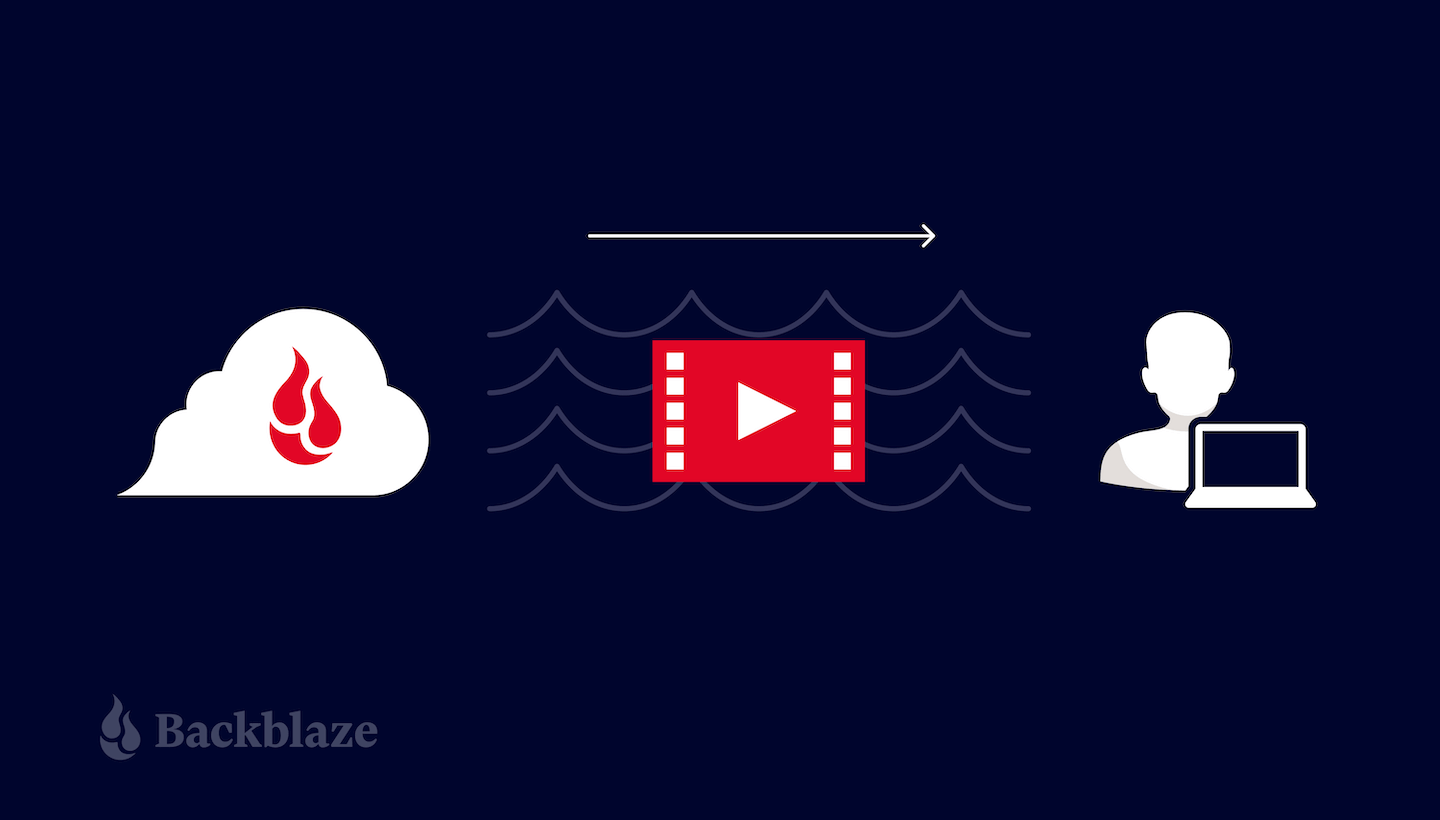

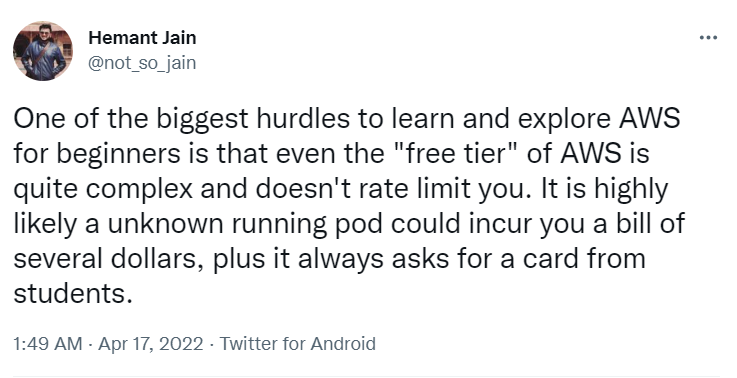
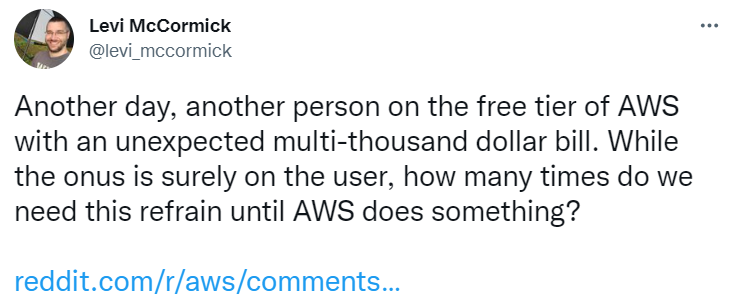
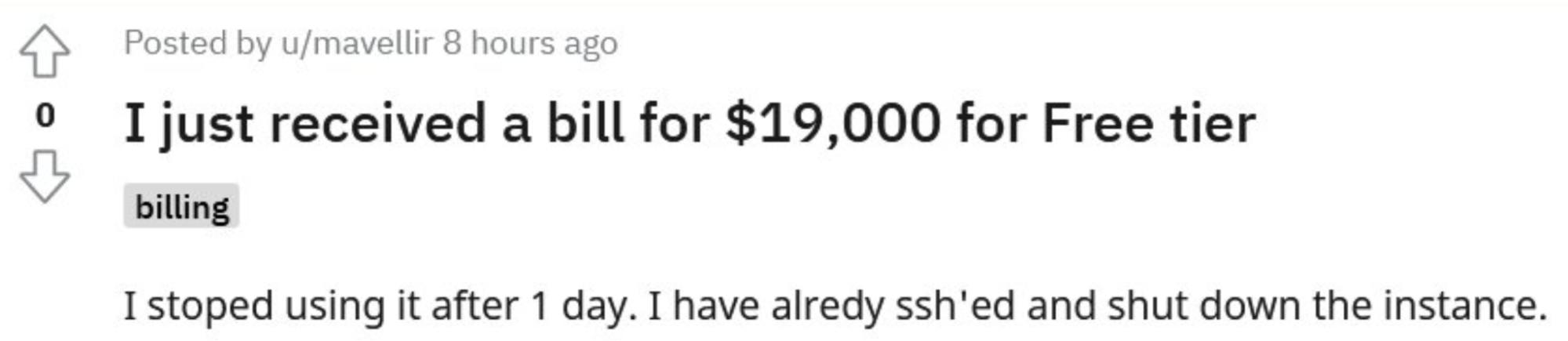




 for the IT industry. The partnership—which was enabled by our recent launch of a capacity-based pricing bundle, Backblaze B2 Reserve—solves both the budgeting and procurement challenges public sector CIOs are facing. And Carahsoft is a strategic distributor for Veritas, so public sector customers can take advantage of the joint solution as well.