Tag Archives: CloudHSM

How to migrate asymmetric keys from CloudHSM to AWS KMS

Post Syndicated from Mani Manasa Mylavarapu original https://aws.amazon.com/blogs/security/how-to-migrate-asymmetric-keys-from-cloudhsm-to-aws-kms/

In June 2023, Amazon Web Services (AWS) introduced a new capability to AWS Key Management Service (AWS KMS): you can now import asymmetric key materials such as RSA or elliptic-curve cryptography (ECC) private keys for your signing workflow into AWS KMS. This means that you can move your asymmetric keys that are managed outside of AWS KMS—such as a hybrid (on-premises) environment, multi-cloud environment, and even AWS CloudHSM—and make them available through AWS KMS. Combined with the announcement on AWS KMS HSMs achieving FIPS 140-2 Security Level 3, you can make sure that your keys are secured and used in a manner that aligns to the cryptographic standards laid out by the U.S. National Institute of Standards and Technology (NIST).

In this post, we will show you how to migrate your asymmetric keys from CloudHSM to AWS KMS. This can help you simplify your key management strategy and take advantage of the robust authorization control of AWS KMS key policies.

Benefits of importing key materials into AWS KMS

In general, we recommend that you use a native KMS key because it provides the best security, durability, and availability compared to other key store options. AWS KMS FIPS-validated hardware security modules (HSMs) generate the key materials for KMS keys, and these key materials never leave the HSMs unencrypted. Operations that require use of your KMS key (for example, decryption of a data key or digital signature signing) must occur within the HSM.

However, depending on your organization’s requirements, you might need to bring your own key (BYOK) from outside. Importing your own key gives you direct control over the generation, lifecycle management, and durability of your keys. In addition, you have full control over the availability of your imported keys because you can set an expiration period or delete and reimport the keys at any time. You have greater control over the durability of your imported keys because you can maintain the original version of the keys elsewhere. If you need to generate and store copies of keys outside of AWS, these additional controls can help you meet your compliance requirements.

Solution overview

At a high level, our solution involves downloading the wrapping key from AWS KMS, using the CloudHSM Command Line Interface (CLI) to import a wrapping key to CloudHSM, wrapping the private key by using the wrapping key in CloudHSM, and uploading the wrapped private key to AWS KMS by using an import token. You can perform the same procedures by using other supported libraries, such as the PKCS #11 library or a JCE provider.
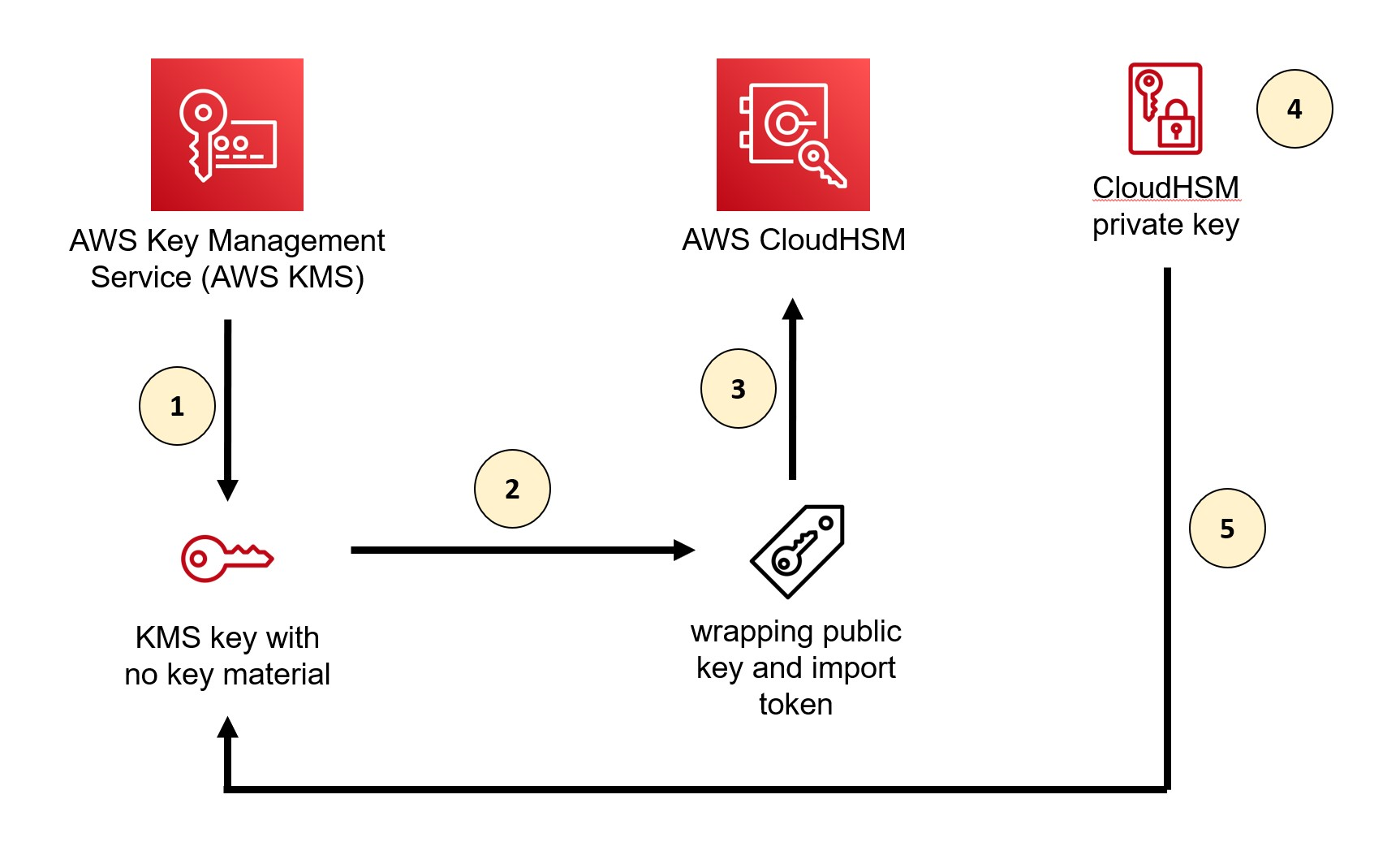
Figure 1: Overall architecture of the solution

Figure 1: Overall architecture of the solution

As shown in Figure 1, the solution involves the following steps:

  1. Create a KMS key without key material in AWS KMS
  2. Download the wrapping public key and import token from AWS KMS
  3. Import the wrapping key provided by AWS KMS into CloudHSM
  4. Wrap the private key inside CloudHSM with the imported wrapping public key from AWS KMS
  5. Import the wrapped private key to AWS KMS

For the walkthrough in this post, you will import into AWS KMS an ECC 256-bit private key (NIST P-256) that’s used for signing purpose from a CloudHSM cluster. When you import an asymmetric key into AWS KMS, you only need to import a private key. You don’t need to import a public key because AWS KMS can generate and retrieve a public key from the private key after the private key is imported.

Prerequisites

To follow along with this walkthrough, make sure that you have the following prerequisites in place:

  1. An active CloudHSM cluster with at least one active HSM and a valid crypto user credential.
  2. An Amazon Elastic Compute Cloud (Amazon EC2) instance with the CloudHSM Client SDK 5 installed and configured to connect to the CloudHSM cluster. For instructions on how to configure and connect the client instance, see Getting started with AWS CloudHSM.
  3. OpenSSL installed on your EC2 instance (we recommend version 3.0.0 or newer).

Step 1: Create a KMS key without key material in AWS KMS

The first step is to create a new KMS key. You can do this through the AWS KMS console or the AWS CLI, or by running the CreateKey API operation.

When you create your key, keep the following guidance in mind:

  • Set the key material origin to External so that no key material is created for this new key.
  • According to NIST SP 800-57 guidance and cryptography best practice, in general, you should use a single key for only one purpose (for example, if you use an RSA key for encryption, you shouldn’t also use that key for signing). Select the key usage that best suits your use case.
  • Make sure that the key spec match the algorithm specification of the key that you are trying to import from CloudHSM.
  • If you want to use the key in multiple AWS Regions (for example, to avoid the need for a cross-Region call to access the key), consider using a multi-Region key.

To create a KMS key using the AWS CLI

  • Run the following command:
    aws kms create-key --origin EXTERNAL --key-spec ECC_NIST_P256 --key-usage SIGN_VERIFY

Step 2: Download the wrapping public key and import token from AWS KMS

After you create the key, download the wrapping key and import token.

The wrapping key spec and the wrapping algorithm that you select depend on the key that you’re trying to import. AWS KMS supports several standard RSA wrapping algorithms and a two-step hybrid wrapping algorithm. CloudHSM supports both wrapping algorithms as well.

In general, an RSA wrapping algorithm (RSAES_OAEP_SHA_*) with a key spec of RSA_4096 should be sufficient for wrapping ECC private keys because it can wrap the key material completely. However, when importing RSA private keys, you will need to use the two-step hybrid wrapping algorithm (RSA_AES_KEY_WRAP_SHA_*) due to their large key size. The overall process is the same as what’s shown here, but the two-step hybrid wrapping algorithm requires that you encrypt your key material with an Advanced Encryption Standard (AES) symmetric key that you generate, and then encrypt the AES symmetric key with the RSA public wrapping key. Additionally, when you select the wrapping algorithm, you also have a choice between the SHA-1 or SHA-256 hashing algorithm. We recommend that you use the SHA-256 hashing algorithm whenever possible.

Note that each wrapping public key and import token set is valid for 24 hours. If you don’t use the set to import key material within 24 hours of downloading it, you must download a new set.

To download the wrapping public key and import token from AWS KMS

  1. Run the following command. Make sure to replace <KMS KeyID> with the key ID of the KMS key that you created in the previous step. The key ID is the last part of the key ARN after :key/ (for example, arn:aws:kms:us-east-1:<AWS Account ID>:key/<Key ID>). “ImportToken.b64” represents the wrapping token, and “WrappingPublicKey.b64” represents the import token.
    aws kms get-parameters-for-import \
    --key-id <KMS KeyID> \
    --wrapping-algorithm RSAES_OAEP_SHA_256 \
    --wrapping-key-spec RSA_4096 \
    --query "[ImportToken, PublicKey]" \
    --output text \
    | awk '{print $1 > "ImportToken.b64"; print $2 > "WrappingPublicKey.b64"}'

  2. Decode the base64 encoding.
    openssl enc -d -base64 -A -in WrappingPublicKey.b64 -out WrappingPublicKey.bin

To convert the wrapping public key from DER to PEM format

  • The key import pem command in CloudHSM CLI requires that the public key is in PEM format. AWS KMS outputs public keys in the DER format, so you must convert the wrapping public key to PEM format. To convert the public key to PEM format, run the following command:
    openssl rsa -pubin -in WrappingPublicKey.bin -inform DER -outform PEM -out WrappingPublicKey.pem

Step 3: Import the wrapping key provided by AWS KMS into CloudHSM

Now that you have created the KMS key and made the necessary preparations to import it, switch to CloudHSM to import the key.

To import the wrapping key

  1. Log in to your EC2 instance that has the CloudHSM CLI installed and run the following command to use it in an interactive mode:
    /opt/cloudhsm/bin/cloudhsm-cli interactive

  2. Log in with your crypto user credential. Make sure to replace <YourUserName> with your own information and supply your password when prompted.
    login --username <YourUserName> --role crypto-user

  3. Import the wrapping key and set the attribute allowing this key to be used for wrapping other keys.
    key import pem --path ./WrappingPublicKey.pem --label <kms-wrapping-key> --key-type-class rsa-public --attributes wrap=true

    You should see an output similar to the following:

    {
      "error_code": 0,
      "data": {
        "key": {
          "key-reference": "0x00000000002800c2",
          "key-info": {
            "key-owners": [
              {
                "username": "<YourUserName>",
                "key-coverage": "full"
              }
            ],
            "shared-users": [],
            "cluster-coverage": "full"
          },
          "attributes": {
            "key-type": "rsa",
            "label": "<kms-wrapping-key>",
            "id": "0x",
            "check-value": "0x5efd07",
            "class": "public-key",
            "encrypt": false,
            "decrypt": false,
            "token": true,
            "always-sensitive": false,
            "derive": false,
            "destroyable": true,
            "extractable": true,
            "local": false,
            "modifiable": true,
            "never-extractable": false,
            "private": true,
            "sensitive": false,
            "sign": false,
            "trusted": false,
            "unwrap": false,
            "verify": false,
            "wrap": true,
            "wrap-with-trusted": false,
            "key-length-bytes": 1024,
            "public-exponent": "0x010001",
            "modulus": "0xd7683010 … b6fc9df07",
            "modulus-size-bits": 4096
          }
        },
        "message": "Successfully imported key"
      }
    }

  4. From the output, note the value for the key label (<kms-wrapping-key> in this example) because you will need it for the next step.

Step 4: Wrap the private key inside CloudHSM with the imported wrapping public key from AWS KMS

Now that you have imported the wrapping key into CloudHSM, you can wrap the private key that you want to import to AWS KMS by using the wrapping key.

Important: Only the owner of a key—the crypto user who created the key—can wrap the key. In addition, the key that you want to wrap must have the extractable attribute set to true.

To wrap the private key

  1. Use the key wrap command in the CloudHSM CLI to wrap the private key that’s stored in CloudHSM. Make sure to replace the following placeholder values with your own information:
    • rsa-oaep specifies the wrapping algorithm.
    • --payload-filter is used to define the key that you want to wrap out of the HSM. You can use the key reference (for example, key-reference=0x00000000002800c2) or reference key attributes, such as the key label. In our example, we used the key label ec-priv-import-to-kms.
    • --wrapping-filter is used to define the key that you will use to wrap out the payload key. This should be the wrapping key that you imported previously from AWS KMS, which was labeled kms-wrapping-key in Step 3.3.
    • --hash-function defines the hash function used as part of the OAEP encryption. This should match the wrapping algorithm that you specified when you got the import parameters from AWS KMS. In our example, it should be SHA-256 because we selected RSAES_OAEP_SHA_256 as the wrapping algorithm previously.
    • --mgf defines the mask generation function used as part of the OAEP encryption. The mask hash function must match the signing mechanism hash function, which is SHA-256 in this example.
    • --path defines the path to the binary file where the wrapped key data will be saved. In this example, we name the file EncryptedECC_P256KeyMaterial.bin but you can specify a different name.
    key wrap rsa-oaep --payload-filter attr.label=ec-priv-import-to-kms --wrapping-filter attr.label=kms-wrapping-key --hash-function sha256 --mgf mgf1-sha256 --path EncryptedECC_P256KeyMaterial.bin

(Optional) To export the public key

  • You can also use the CloudHSM CLI to export the public key of your private key. You will use this key for testing later. Make sure to replace the placeholder values <ec-priv-import-to-kms> and <KeyName.pem> with your own information.
    key generate-file --encoding pem --path <KeyName.pem> --filter attr.label=<ec-priv-import-to-kms>

Step 5: Import the wrapped private key to AWS KMS

Now that you’ve wrapped the private key from CloudHSM, you can import it into AWS KMS.

Note that you have the option to set an expiration time for your imported key. After the expiration time passes, AWS KMS deletes your imported key automatically.

To import the wrapped private key to AWS KMS

  1. If you have been using the CLI or API, the import token is base64 encoded. You must decode the token from base64 to binary format before it can be used. You can use OpenSSL to do this.
    openssl enc -d -base64 -A -in ImportToken.b64 -out ImportToken.bin

  2. Run the following command to import the wrapped private key. Make sure to replace <KMS KeyID> with the key ID of the KMS key that you created in Step 1.
    aws kms import-key-material --key-id <KMS KeyID> \
    --encrypted-key-material fileb://EncryptedECC_P256KeyMaterial.bin \
    --import-token fileb://ImportToken.bin \
    --expiration-model KEY_MATERIAL_DOES_NOT_EXPIRE

Test whether your private key was imported successfully

The nature of asymmetric cryptography means that a digital signature produced by your private key should produce the same signature on the same message, regardless of the tool that you used to perform the signing operation. To verify that your imported private key functions the same in both CloudHSM and AWS KMS, you can perform a signing operation and compare the signature on CloudHSM and AWS KMS to make sure that they are the same.

Another way to check that your imported private key functions are the same in AWS KMS is to perform a signing operation and then verify the signature by using the corresponding public key that you exported from CloudHSM in Step 4. We will show you how to use this method to check that your private key was imported successfully.

To test that your private key was imported

  1. Create a simple message in a text file and encode it in base64.
    echo -n 'Testing My Imported Key!' | openssl base64 -out msg_base64.txt

  2. Perform the signing operation by using AWS KMS. Make sure to replace <YourImported KMS KeyID> with your own information.
    aws kms sign --key-id <YourImported KMS KeyID> --message fileb://msg_base64.txt --message-type RAW --signing-algorithm ECDSA_SHA_256

    The following shows the output of the signing operation.

    {
    "KeyId": "arn:aws:kms:us-east-1:111122223333:key/1234abcd-12ab-34cd-56ef-1234567890ab",
    "Signature": "EXAMPLEXsP11QVTkrSsab2CygcgtodDbSpd+j558B4qINpKIxwIhAMkKwd65mA3roo76ItuHiRsbwO9F0XMyuyKCKEXAMPLE",
    "SigningAlgorithm": "ECDSA_SHA_256"
    }

  3. Save the signature in a separate file called signature.sig and decode it from base64 to binary.
    openssl enc -d -base64 -in signature.sig -out signature.bin

  4. Verify the signature by using the public key that you exported from CloudHSM in Step 4.
    openssl dgst -sha256 -verify <KeyName.pem> -signature signature.bin msg_base64.txt

    If successful, you should see a message that says Verified OK.

Conclusion

In this post, you learned how to import an asymmetric key into AWS KMS from CloudHSM by using the CloudHSM CLI.

Although this post focused on migrating keys from CloudHSM, you can also follow the general directions to import your asymmetric key from elsewhere. When you import a private key, make sure that the imported key matches the key spec and the wrapping algorithm that you choose in AWS KMS.

 
If you have feedback about this post, submit comments in the Comments section below. If you have questions about this post, contact AWS Support.
Mani Manasa Mylavarapu

Mani Manasa Mylavarapu

Manasa is a Software Development Manager at AWS KMS. Manasa leads the development of custom key store features for both the CloudHSM Key Store and External Key Store. Beyond her professional role, Manasa enjoys playing board games and exploring the scenic hikes of Seattle.

Author

Kevin Lee

Kevin is a Senior Product Manager at AWS KMS. Kevin’s work interests include client-side encryption and key management strategy within a multi-tenant environment. Outside of work, Kevin enjoys occasional camping and snowboarding in the Pacific Northwest and playing video games.

Patrick Palmer

Patrick Palmer

Patrick is a Principal Security Specialist Solutions Architect. He helps customers around the world use AWS services in a secure manner, and specializes in cryptography. When not working, he enjoys spending time with his growing family and playing video games.

Automate the deployment of an NGINX web service using Amazon ECS with TLS offload in CloudHSM

Post Syndicated from Nikolas Nikravesh original https://aws.amazon.com/blogs/security/automate-the-deployment-of-an-nginx-web-service-using-amazon-ecs-with-tls-offload-in-cloudhsm/

Customers who require private keys for their TLS certificates to be stored in FIPS 140-2 Level 3 certified hardware security modules (HSMs) can use AWS CloudHSM to store their keys for websites hosted in the cloud. In this blog post, we will show you how to automate the deployment of a web application using NGINX in AWS Fargate, with full integration with CloudHSM. You will also use AWS CodeDeploy to manage the deployment of changes to your Amazon Elastic Container Service (Amazon ECS) service.

CloudHSM offers FIPS 140-2 Level 3 HSMs that you can integrate with NGINX or Apache HTTP Server through the OpenSSL Dynamic Engine. The CloudHSM Client SDK 5 includes the OpenSSL Dynamic Engine to allow your web server to use a private key stored in the HSM with TLS versions 1.2 and 1.3 to support applications that are required to use FIPS 140-2 Level 3 validated HSMs.

CloudHSM uses the private key in the HSM as part of the server verification step of the TLS handshake that occurs every time that a new HTTPS connection is established between the client and server. Using the exchanged symmetric key, OpenSSL software performs the key exchange and bulk encryption. For more information about this process and how CloudHSM fits in, see How SSL/TLS offload with AWS CloudHSM works.

Solution overview

This blog post uses the AWS Cloud Development Kit (AWS CDK) to deploy the solution infrastructure. The AWS CDK allows you to define your cloud application resources using familiar programming languages.

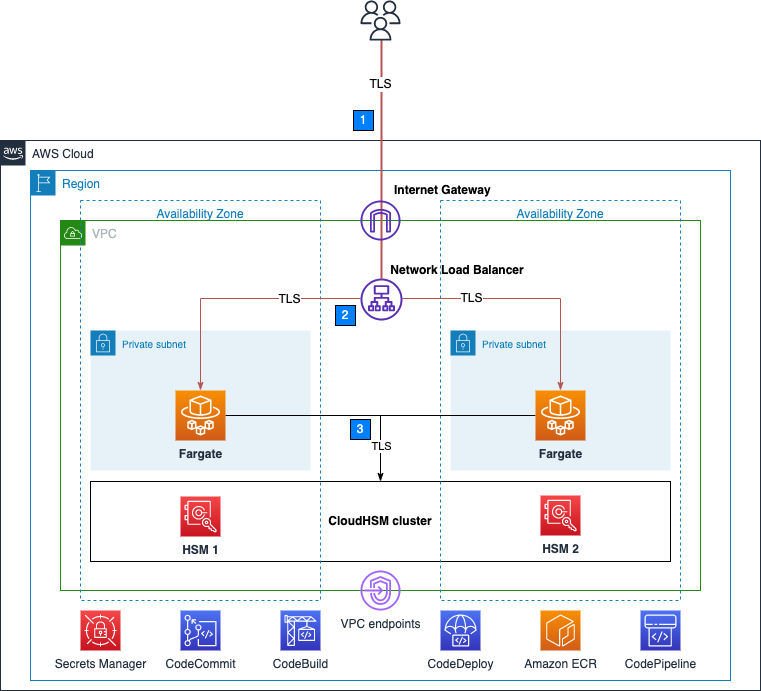
Figure 1 shows an overview of the overall architecture deployed in this blog. This solution contains three CDK stacks: The TlsOffloadContainerBuildStack CDK stack deploys the CodeCommit, CodeBuild, and AmazonECR resources. The TlsOffloadEcsServiceStack CDK stack deploys the ECS Fargate service along with the required VPC resources. The TlsOffloadPipelineStack CDK stack deploys the CodePipeline resources to automate deployments of changes to the service configuration.

Figure 1: Overall architecture

Figure 1: Overall architecture

At a high level, here’s how the solution in Figure 1 works:

  1. Clients make an HTTPS request to the public IP address exposed by Network Load Balancer to connect to the web server and establish a secure connection that uses TLS.
  2. Network Load Balancer routes the request to one of the ECS hosts running in private virtual private cloud (VPC) subnets, which are connected to the CloudHSM cluster.
  3. The NGINX web server that is running on ECS containers performs a TLS handshake by using the private key stored in the HSM to establish a secure connection with the requestor.

Note: Although we don’t focus on perimeter protection in this post, AWS has a number of services that help provide layered perimeter protection for your internet-facing applications, such as AWS Shield and AWS WAF.

Figure 2 shows an overview of the automation infrastructure that is deployed by the TlsOffloadContainerBuildStack and TlsOffloadPipelineStack CDK stacks.

Figure 2: Deployment pipeline

Figure 2: Deployment pipeline

At a high level, here’s how the solution in Figure 2 works:

  1. A developer makes changes to the service configuration and commits the changes to the AWS CodeCommit repository.
  2. AWS CodePipeline detects the changes and invokes AWS CodeBuild to build a new version of the Docker image that is used in Amazon ECS.
  3. CodeBuild builds a new Docker image and publishes it to the Amazon Elastic Container Registry (Amazon ECR) repository.
  4. AWS CodeDeploy creates a new revision of the ECS task definition for the Amazon ECS service and initiates a deployment of the new service.

Required services

To build this architecture in your account, you need to use a role within your account that can configure the following services and features:

Prerequisites

To follow this walkthrough, you need to have the following components in place:

Step 1: Store secrets in Secrets Manager

As with other container projects, you need to decide what to build statically into the container (for example, libraries, code, or packages) and what to set as runtime parameters, to be pulled from a parameter store. In this walkthrough, we use Secrets Manager to store sensitive parameters and use the integration of Amazon ECS with Secrets Manager to securely retrieve them when the container is launched.

Important: You need to store the following information in Secrets Manager as plaintext, not as key/value pairs.

To create a new secret

  1. Open the Secrets Manager console and choose Store a new secret.
  2. On the Choose secret type page, do the following:
    1. For Secret type, choose Other type of secret.
    2. In Key/value pairs, choose Plaintext and enter your secret just as you would need it in your application.

The following is a list of the required secrets for this solution and how they look in the Secrets Manager console.

  • Your cluster-issuing certificate – this is the certificate that corresponds to the private key that you used to sign the cluster’s certificate signing request. In this example, the name of the secret for the certificate is tls/clustercert.
    Figure 3: Store the cluster certificate

    Figure 3: Store the cluster certificate

  • The web server certificate – In this example, the name of the secret for the web server certificate is tls/servercert. It will look similar to the following:
    Figure 4: Store the web server certificate

    Figure 4: Store the web server certificate

  • The fake PEM file for the private key stored in the HSM that you generated in the Prerequisites section. In this example, the name of the secret for the fake PEM file is tls/fakepem.
    Figure 5: Store the fake PEM

    Figure 5: Store the fake PEM

  • The HSM pin used to authenticate with the HSMs in your cluster. In this example, the name of the secret for the HSM pin is tls/pin.
    Figure 6: Store the HSM pin

    Figure 6: Store the HSM pin

After you’ve stored your secrets, you should see output similar to the following:

Figure 7: List of required secrets

Figure 7: List of required secrets

Step 2: Download and configure the CDK app

This post uses the AWS CDK to deploy the solution infrastructure. In this section, you will download the CDK app and configure it.

To download and configure the CDK app

  1. In your CDK environment that you created in the Prerequisites section, check out the source code from the aws-cloudhsm-tls-offload-blog GitHub repository.
  2. Edit the app_config.json file and update the <placeholder values> with your target configuration:
    {
        "applicationAccount": "<AWS_ACCOUNT_ID>",
        "applicationRegion": "<REGION>",
        "networkConfig": {
            "vpcId": "<VPC_ID>",
            "publicSubnets": ["<PUBLIC_SUBNET_1>", "<PUBLIC_SUBNET_2>", ...],
            "privateSubnets": ["<PRIVATE_SUBNET_1>", "<PRIVATE_SUBNET_2>", ...]
        },
        "secrets": {
            "cloudHsmPin": "arn:aws:secretsmanager:<REGION>:<AWS_ACCOUNT_ID>:secret:<SECRET_ID>",
            "fakePem": "arn:aws:secretsmanager:<REGION>:<AWS_ACCOUNT_ID>:secret:<SECRET_ID>",
            "serverCert": "arn:aws:secretsmanager:<REGION>:<AWS_ACCOUNT_ID>:secret:<SECRET_ID>",
            "clusterCert": "arn:aws:secretsmanager:<REGION>:<AWS_ACCOUNT_ID>:secret:<SECRET_ID>"
        },
        "cloudhsm": {
            "clusterId": "<CLUSTER_ID>",
            "clusterSecurityGroup": "<CLUSTER_SECURITY_GROUP>"
        }
    }

  3. Run the following command to build the CDK stacks from the root of the project directory.
    npm run build

  4. To view the stacks that are available to deploy, run the following command from the root of the project directory.
    cdk ls

    You should see the following stacks available to deploy:

    • TlsOffloadContainerBuildStack — Deploys the CodeCommit, CodeBuild, and ECR repository that builds the ECS container image.
    • TlsOffloadEcsServiceStack — Deploys the ECS Fargate service along with the required VPC resources.
    • TlsOffloadPipelineStack — Deploys the CodePipeline that automates the deployment of updates to the service.

Step 3: Deploy the container build stack

In this step, you will deploy the container build stack, and then create a build and verify that the image was built successfully.

To deploy the container build stack

Deploy the TlsOffloadContainerBuildStack stack that we described in Figure 2 to your AWS account. In your CDK environment, run the following command:

cdk deploy TlsOffloadContainerBuildStack

The command line interface (CLI) will prompt you to approve the changes. After you approve them, you will see the following resources deployed to your newly created CodeCommit repository.

  • Dockerfile — This file provides a containerized environment for each of the Fargate containers to run. It downloads and installs necessary dependencies to run the NGINX web server with CloudHSM.
  • nginx.conf — This file provides NGINX with the configuration settings to run an HTTPS web server with CloudHSM configured as the SSL engine that performs the TLS handshake. The following nginx.conf values have already been configured in the file; if you want to make changes, update the file before deployment:
    • ssl_engine is set to cloudhsm
    • the environment variable is env CLOUDHSM_PIN
    • error_log is set to stderr so that the Fargate container can capture the logs in CloudWatch
    • the server section is set up to listen on port 443
    • ssl_ciphers are configured for a server with an RSA private key
  • run.sh — This script configures the CloudHSM OpenSSL Dynamic Engine on the Fargate task before the NGINX server is started.
  • nginx.service — This file specifies the configuration settings that systemd uses to run the NGINX service. Included in this file is a reference to the file that contains the environment variables for the NGINX service. This provides the HSM pin to the OpenSSL Engine.
  • index.html — This file is a sample HTML file that is displayed when you navigate to the HTTPS endpoint of the load balancer in your browser.
  • dhparam.pem — This file provides sample Diffie-Hellman parameters for demonstration purposes, but AWS recommends that you generate your own. You can generate your own Diffie-Hellman parameters by running the following command with the OpenSSL CLI. These parameters are not required for TLS but are recommended to provide perfect forward secrecy in your encrypted messages.
    openssl dhparam -out ./dhparam.pem 2048

Your repository should look like the following:

Figure 8: CodeCommit repository

Figure 8: CodeCommit repository

Before you deploy the Amazon ECS service, you need to build your first Docker image to populate the ECR repository. To successfully deploy the service, you need to have at least one image already present in the repository.

To create a build and verify the image was built successfully

  1. Open the AWS CodeBuild console.
  2. Find the CodeBuild project that was created by the CDK deployment and select it.
  3. Choose Start Build to initiate a new build.
  4. Wait for the build to complete successfully, and then open the Amazon ECR console.
  5. Select the repository that the CDK deployment created.

You should now see an image in your repository, similar to the following:

Figure 9: ECR repository

Figure 9: ECR repository

Step 4: Deploy the Amazon ECS service

Now that you have successfully built an ECR image, you can deploy the Amazon ECS service. This step deploys the following resources to your account:

  • VPC endpoints for the required AWS services that your ECS task needs to communicate with, including the following:
    • Amazon ECR
    • Secrets Manager
    • CloudWatch
    • CloudHSM
  • Network Load Balancer, which load balances HTTPS traffic to your ECS tasks.
  • A CloudWatch Logs log group to host the logs for the ECS tasks.
  • An ECS cluster with ECS tasks using your previously built Docker image that hosts the NGINX service.

To deploy the Amazon ECS service with the CDK

  • In your CDK environment, run the following command:
    cdk deploy TlsOffloadEcsServiceStack

The CLI will prompt you to approve the changes. After you approve them, you will see these resources deploy to your account.

Checkpoint

At this point, you should have a working service. To confirm that you do, in your browser, navigate using HTTPS to the public address associated with the Network Load Balancer. While not covered in this blog, you can additionally configure DNS routing using Amazon Route53 to setup a custom domain name for your web service. You should see a screen similar to the following.

Figure 10: The sample website

Figure 10: The sample website

Step 5: Use CodePipeline to automate the deployment of changes to the web server

Now that you have deployed a preliminary version of the application, you can take a few steps to automate further releases of the web server. As you maintain this application in production, you might need to update one or more of the following items:

  • Your website HTML source and other required libraries (for example, CSS or JavaScript)
  • Your Docker environment, such as the OpenSSL libraries, operating system and CloudHSM packages, and NGINX version.
  • Re-deploy the service after rotating your web server private key and certificate in Secrets Manager

Next, you will set up a CodePipeline project that orchestrates the end-to-end deployment of a change to the application—from an update to the code in our CodeCommit repo to the deployment of updated container images and the redirection of user traffic by the load balancer to the updated application.

This step deploys to your account a deployment pipeline that connects your CodeCommit, CodeBuild, and Amazon ECS services.

Deploy the CodePipeline stack with CDK

In your CDK environment, run the following command:

cdk deploy TlsOffloadPipelineStack

The CLI will prompt you to approve the changes. After you approve them, you will see the resources deploy to your account.

Start a deployment

To verify that your automation is working correctly, start a new deployment in your CodePipeline by making a change to your source repository. If everything works, the CodeBuild project will build the latest version of the Dockerfile located in your CodeCommit repository and push it to Amazon ECR. Then, the CodeDeploy application will create a new version of the ECS task definition and deploy new tasks while spinning down the existing tasks.

View your website

Now that the deployment is complete, you should again be able to view your website in your browser by navigating to the website for your application. If you made changes to the source code, such as changes to your index.html file, you should see these changes now.

Verify that the web server is properly configured by checking that the website’s certificate matches the one that you created in the Prerequisites section. Figure 11 shows an example of a certificate.

Figure 11: Certificate for the application

Figure 11: Certificate for the application

To verify that your NGINX service is using your CloudHSM cluster to offload the TLS handshake, you can view the CloudHSM client logs for this application in CloudWatch in the log group that you specified when you configured the ECS task definition.

To view your CloudHSM client logs in CloudWatch

  1. Open the CloudWatch console.
  2. In the navigation pane, select Log Groups.
  3. Select the log group that was created for you by the CDK deployment.
  4. Select a log stream entry. Each log stream corresponds to an ECS instance that is running the NGINX web server.
  5. You should see the client logs for this instance, which will look similar to the following:
    Figure 12: Fargate task logs

    Figure 12: Fargate task logs

You can also verify your HSM connectivity by viewing your HSM audit logs.

To view your HSM audit logs

  1. Open the CloudWatch console.
  2. In the navigation pane, select Log Groups.
  3. Select the log group corresponding to your CloudHSM cluster. The log group has the following format: /aws/cloudhsm/<cluster-id>.
  4. You can see entries similar to the following, which indicates that the NGINX application is connecting and logging in to the HSM to perform cryptographic operations.
    Time: 02/04/23 17:45:40.333033, usecs:1675532740333033
    Version No : 1.0
    Sequence No : 0x2
    Reboot counter : 0x8
    Opcode : CN_LOGIN (0xd)
    Command Type(hex) : CN_MGMT_CMD (0x0)
    User id : 3
    Session Handle : 0x15010002
    Response : 0x0:HSM Return: SUCCESS
    Log type : USER_AUTH_LOG (2)
    User Name : crypto_user
    User Type : CN_CRYPTO_USER (1) 

Conclusion

In this post, you learned how to set up a NGINX web server on Fargate in a secure, private subnet that offloads the TLS termination to a FIPS 140-2 Level 3 HSM environment that uses the CloudHSM OpenSSL Dynamic Engine. You also learned how to set up a deployment pipeline to automate the Fargate deployments when updates are made.

You can expand this solution to fit your individual use case. For example, you can use the NGINX web server as a reverse proxy for additional servers in your internal network, and set up mutual TLS between these internal servers.

Further reading

If you have feedback about this post, submit comments in the Comments section below. If you have questions about this post, start a new thread on the AWS CloudHSM re:Post or contact AWS Support.

Want more AWS Security news? Follow us on Twitter.

Alket Memushaj

Alket Memushaj

Alket Memushaj is a Principal Solutions Architect in the Market Development team for Capital Markets at AWS. In his role, Alket helps customers transform their business with the power of the AWS Cloud. His main focus is on helping customers deploy data and analytics, risk management, and electronic trading platforms in AWS. Alket previously led engineering teams at Morgan Stanley and consulted for global financial services at VMware.

Nikolas Nikravesh

Nikolas Nikravesh

Nikolas is a Software Development Engineer at AWS CloudHSM. He works with the SDK team to develop standards compliant SDKs and integrations to enable AWS customers to develop secure applications with CloudHSM.

Brad Woodward

Brad Woodward

Brad is a Senior Customer Delivery Architect with AWS Professional Services. Brad has presented at RSA and DefCon Skytalks, been an instructor at BlackHat and BlackHat Europe, presented tools at BlackHat Arsenal, and is the maintainer of several open source tools and platforms.

Signing executables with HSM-backed certificates using multiple Windows instances

Post Syndicated from Karim Hamdy Abdelmonsif Ibrahim original https://aws.amazon.com/blogs/security/signing-executables-with-hsm-backed-certificates-using-multiple-windows-instances/

Customers use code signing certificates to digitally sign software, documents, and other certificates. Signing is a cryptographic tool that lets users verify that the code hasn’t been altered and that the software, documents or other certificates can be trusted.

This blog post shows you how to configure your applications so you can use a key pair already on your hardware security module (HSM) to generate signatures using any Windows instance. Many customers use multiple Amazon Elastic Compute Cloud (Amazon EC2) instances to sign workloads using the same key pair. You must configure these instances to use a pre-existing key pair from the HSM. In this blog post, I show you how to create a key container on a new Windows instance from an existing key pair in AWS CloudHSM, and then update the certificate store to associate the newly imported certificate with the new container. I also show you how to use a common application to sign executables with this key pair.

Every certificate is associated with a key pair, which includes a private key and a public key. You can only trust a signature if you can be sure that the private key has remained confidential and can be used only by the owner of the certificate. You achieve this goal by generating the key pair on an HSM and securely storing the private key on the HSM. Enterprise certificate authority (CA) or public key infrastructure (PKI) applications are configured to use this private key in the HSM whenever they need to use the corresponding certificate to sign. This configuration is generally handled transparently between the application and the HSM on the Windows instance your application is running on. The process gets tricky when you want to use multiple Windows instances to sign using the same key pair. This is especially true if your current EC2 instance that acts as a Windows Server CA, which you used to issue the HSM-backed certificate, is deleted and you have a backup of the HSM-backed certificate.

Before we get into the details, you need to know about a library called the key storage provider (KSP). Windows systems use KSP libraries to connect applications to an HSM. For each HSM brand, such as CloudHSM, you need a corresponding KSP to run operations that involve cryptographic keys stored on that HSM. From your application, select the KSP that corresponds with the HSM you want to use to store (or use) your keys. All KSPs associate keys on their HSM with metadata in the Microsoft ecosystem using key containers. Key containers map the metadata in certificates with metadata on the HSM, which allows the application to properly address keys. The list of certificates available for Microsoft utilities to sign with is contained in a trust store. To use the same key pair across multiple Windows instances, you must copy the key containers to each instance—or create a new key container from an existing key pair in each instance—and import the corresponding certificate into the trust store for each instance.

Prerequisites

The solution in this post assumes that you’ve completed the steps in Signing executables with Microsoft SignTool.exe using AWS CloudHSM-backed certificates. You should already have your HSM-backed certificate on one Windows instance.

Before you implement the solution, you must:

  1. Install the AWS CloudHSM client on the new instance and make sure that you can interact with HSM in your CloudHSM cluster.
  2. Verify the CloudHSM KSP and CNG providers installation on your new instance.
  3. Set the login credentials for the HSM on your system. Set credentials through Windows Credentials Manager. I recommend that you reboot your instance after setting up the credentials.

Note: The login credentials identify a crypto user (CU) in the HSM that has access to the key pair in CloudHSM.

Architectural overview


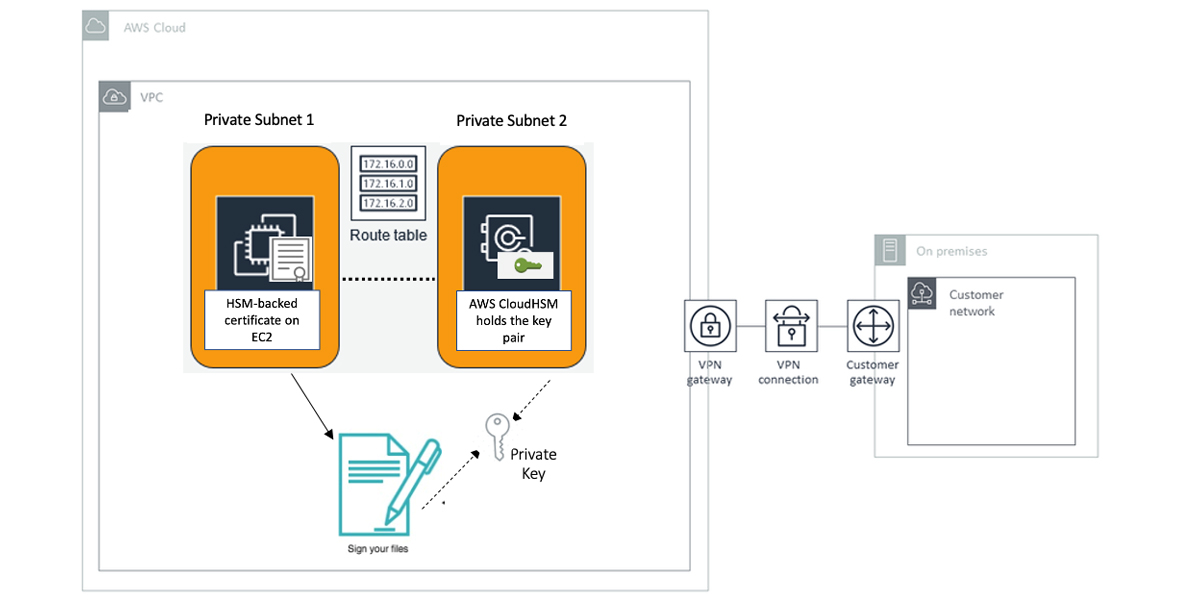
Figure 1: Architectural overview

Figure 1: Architectural overview

This diagram shows a virtual private cloud (VPC) that contains an EC2 instance running Windows Server 2016 that resides on private subnet 1. This instance will run the CloudHSM client software and will use your HSM-backed certificate with a key pair already on your HSM to sign executable files. The instance can be accessed through a VPN connection. It will also have security groups that enable RDP access for your on-premises network. Private subnet 2 hosts the elastic network interface for the CloudHSM cluster, which has a single HSM.

Out of scope

The focus of this blog post is how to use an HSM-backed certificate with a key pair already on your HSM to sign executable files from any Windows instance using Microsoft SignTool.exe. This post isn’t intended to represent any best practices for implementing code signing or Amazon EC2. For more information, see the NIST cybersecurity whitepaper Security Considerations for Code Signing and Best practices for Amazon EC2, respectively.

Deploy the solution

To deploy the solution, you use certutil, import_key, and SignTool. Certutil is a Microsoft tool that helps you examine your system for available certificates and key containers. Import_key—a tool provided by CloudHSM—generates a local key container for a key pair that’s on your HSM. To complete the process, use SignTool—a Microsoft tool that enables Windows users to digitally sign files, and verifies signatures in files and timestamps files.

You will need the following:

Certificates or key material Purpose
<my root certificate>.cer Root certificate
<my signed certificate>.cer HSM-backed signing certificate
<signed certificate in base64>.cer HSM-backed signing certificate in base64 format
<public key handle> Public key handle of the signing certificate
<private key handle> Private key handle of the signing certificate

Import the HSM-backed certificate and its RootCA chain certificate into the new instance

Before you can use third-party tools such as SignTool to generate signatures using the HSM-backed certificate, you must move the signing certificate file to the Personal certificate store in the new Windows instance.

To do that, you copy the HSM-backed certificate that your application uses for signing operations and its root certificate chain from the original instance to the new Windows instance.

If you issued your signing certificate through a private CA (like in my example), you must deploy a copy of the root CA certificate and any intermediate certificates from the private CA to any systems you want to use to verify the integrity of your signed file.

To import the HSM-backed certificate and root certificate

  1. Sign in to the Windows Server that has the private CA that you used to issue your signing certificate. Then, run the following certutil command to export the root CA to a new file. Replace <my root certificate> with a name that you can remember easily.
    C:\Users\Administrator\Desktop>certutil -ca.cert <my root certificate>.cer
    
    CA cert[0]: 3 -- Valid
    CA cert[0]:
    
    -----BEGIN CERTIFICATE-----
    MIICiTCCAfICCQD6m7oRw0uXOjANBgkqhkiG9w0BAQUFADCBiDELMAkGA1UEBhMC
    VVMxCzAJBgNVBAgTAldBMRAwDgYDVQQHEwdTZWF0dGxlMQ8wDQYDVQQKEwZBbWF6
    b24xFDASBgNVBAsTC0lBTSBDb25zb2xlMRIwEAYDVQQDEwlUZXN0Q2lsYWMxHzAd
    BgkqhkiG9w0BCQEWEG5vb25lQGFtYXpvbi5jb20wHhcNMTEwNDI1MjA0NTIxWhcN
    MTIwNDI0MjA0NTIxWjCBiDELMAkGA1UEBhMCVVMxCzAJBgNVBAgTAldBMRAwDgYD
    VQQHEwdTZWF0dGxlMQ8wDQYDVQQKEwZBbWF6b24xFDASBgNVBAsTC0lBTSBDb25z
    b2xlMRIwEAYDVQQDEwlUZXN0Q2lsYWMxHzAdBgkqhkiG9w0BCQEWEG5vb25lQGFt
    YXpvbi5jb20wgZ8wDQYJKoZIhvcNAQEBBQADgY0AMIGJAoGBAMaK0dn+a4GmWIWJ
    21uUSfwfEvySWtC2XADZ4nB+BLYgVIk60CpiwsZ3G93vUEIO3IyNoH/f0wYK8m9T
    rDHudUZg3qX4waLG5M43q7Wgc/MbQITxOUSQv7c7ugFFDzQGBzZswY6786m86gpE
    Ibb3OhjZnzcvQAaRHhdlQWIMm2nrAgMBAAEwDQYJKoZIhvcNAQEFBQADgYEAtCu4
    nUhVVxYUntneD9+h8Mg9q6q+auNKyExzyLwaxlAoo7TJHidbtS4J5iNmZgXL0Fkb
    FFBjvSfpJIlJ00zbhNYS5f6GuoEDmFJl0ZxBHjJnyp378OD8uTs7fLvjx79LjSTb
    NYiytVbZPQUQ5Yaxu2jXnimvw3rrszlaEXAMPLE=
    -----END CERTIFICATE-----
            
    CertUtil: -ca.cert command completed successfully.
    
    C:\Users\Administrator\Desktop>
    

  2. Copy the <my root certificate>.cer file to your new Windows instance and run the following certutil command. This moves the root certificate from the file into the Trusted Root Certification Authorities store in Windows. You can verify that it exists by running certlm.msc and viewing the Trusted Root Certification Authorities certificates.
    C:\Users\Administrator\Desktop>certutil -addstore "Root" <my root certificate>.cer
    
    Root "Trusted Root Certification Authorities"
    Signature matches Public Key
    Certificate "MYRootCA" added to store.
    CertUtil: -addstore command completed successfully.
    

  3. Copy the HSM-backed signing certificate from the original instance to the new one, and run the following certutil command. This moves the certificate from the file into the Personal certificate store in Windows.
    C:\Users\Administrator\Desktop>certutil -addstore "My" <my signed certificate>.cer
    
    My "Personal"
    Certificate "www.mydomain.com" added to store.
    CertUtil: -addstore command completed successfully.
    

  4. Verify that the certificate exists in your Personal certificate store by running the following certutil command. The following sample output from certutil shows the serial number. Take note of the certificate serial number to use later.
    C:\Users\Administrator\Desktop>certutil -store my
    
    my "Personal"
    ================ Certificate 0 ================
    Serial Number: <certificate serial number>
    Issuer: CN=MYRootCA
     NotBefore: 2/5/2020 1:38 PM
     NotAfter: 2/5/2021 1:48 PM
    Subject: CN=www.mydomain.com, OU=Certificate Management, O=Information Technology, L=Houston, S=Texas, C=US
    Non-root Certificate
    Cert Hash(sha1): 5aaef93e7e972b1187363d880cfa3f71507c2e24
    No key provider information
    Cannot find the certificate and private key for decryption.
    CertUtil: -store command completed successfully.
    

Retrieve the key handles of the RSA key pair on the HSM

In this step, you retrieve the key handles of the existing public and private key pair on your CloudHSM in order to use that key pair to create a key container on the new Windows instance.

One way to get the key handles of an existing key pair on the CloudHSM is to use the modulus value. Since the certificate and its public and private keys all must have the same modulus value and you have the signing certificate already, you view its modulus value using the OpenSSL tool. Then, you use the findKey command in key_mgmt_util to search for the public and private key handles on the HSM using the value of the certificate modulus.

To retrieve the key handles

  1. Download the OpenSSL for Windows installation package.

    Note: In my example, I downloaded Win64OpenSSL-1_1_1d.exe.

  2. Right-click on the downloaded file and choose Run as administrator.
  3. Follow the installation instructions, accepting all default settings. Then choose Install.
    1. If the error message “The Win64 Open SSL Installation Project setup has detected that the following critical component is missing…”—shown in Figure 2—appears, you need to install Microsoft Visual C++ Redistributables to complete this procedure.

      Figure 2: OpenSSL installation error message

      Figure 2: OpenSSL installation error message

    2. Choose Yes to download and install the required Microsoft Visual C++ package on your system.
    3. Run the OpenSSL installer again and follow the installation instructions, accepting all default settings. Then choose Install.
  4. Choose Finish when the installation is complete.

    With the installation complete, OpenSSL for Windows can be found as OpenSSL.exe in C:\Program Files\OpenSSL-Win64\bin. Always open the program as the administrator.

  5. On the new CloudHSM client instance, copy your certificate to C:\Program Files\OpenSSL-Win64\bin and run the command certutil -encode <my signed certificate>.cer <signed certificate in base64>.cer to export the certificate using base64 .cer format. This exports the certificate to a file with the name you enter in place of <signed certificate in base64>.
    C:\Program Files\OpenSSL-Win64\bin>certutil -encode <my signed certificate>.cer <signed certificate in base64>.cer
    
    Input Length = 1066
    Output Length = 1526
    CertUtil: -encode command completed successfully.
    

  6. Run the command openssl x509 -noout -modulus -in <signed certificate in base64>.cer to view the certificate modulus.
    C:\Program Files\OpenSSL-Win64\bin>openssl x509 -noout -modulus -in <signed certificate in base64>.cer
    
    Modulus=9D1D625C041F7FAF076780E486CA2DB2FB846982E88804030F9C84F6CF553925C287934C18B92606EE9A4438F80E47961D7B2CD28213EADE2078BE1A921E6D164CC07F99DA42CF6DD1767A6392FC4BC2B19592474782E1B8574F4A46A93626CD2A8D56405EA7DFCED8DA7042F6FC6D3716CC1649174E93C66F0A9EC7EEFEC9661D43FD2BC8E2E261C06A619E4AF3B5E13190215F72EE5BDE2090818031F8AAD0AA7E934894DC54DF5F1E7577645137637F400E10B9ECDC0870C78C99E8027A86807CD719AA05931D1A4326A5ED1C3687C8EA8E54DF62BFD1851A92473348C98973DEF850B8A88A443A56E93B997F3286A1DC274E6A8DD187D8C59BAB32A6919F
    

  7. Save the certificate modulus in a text file named modulus.txt.
  8. Run the key_mgmt_util command line tool, and log in as the CU, as described in Getting Started with key_mgmt_util. Replace <cu username> and <cu password> with the username and password of the CU.
    Command: loginHSM -u CU -s <CU username> -p <CU password>
    
         	Cfm3LoginHSM returned: 0x00 : HSM Return: SUCCESS
    
            Cluster Error Status
            Node id 13 and err state 0x00000000 : HSM Return: SUCCESS
            Node id 14 and err state 0x00000000 : HSM Return: SUCCESS
    

  9. Run the following findKey command to find the public key handle that has the same RSA modulus that you generated previously. Enter the path to the modulus.txt file that you created in step 7. Take note of the public key handle that’s returned so that you can use it in the following steps.
    Command: findKey -c 2 -m C:\\Users\\Administrator\\Desktop\\modulus.txt
    
            Total number of keys present: 1
    
            Number of matching keys from start index 0::0
    
            Handles of matching keys:
            <public key handle>
    
            Cluster Error Status
            Node id 13 and err state 0x00000000 : HSM Return: SUCCESS
            Node id 14 and err state 0x00000000 : HSM Return: SUCCESS
    
            Cfm3FindKey returned: 0x00 : HSM Return: SUCCESS
    

  10. Run the following findKey command to find the private key handle that has the same RSA modulus that you generated previously. Enter the path to the modulus.txt file that you created in step 7. Take note of the private key handle that’s returned so that you can use it in the following steps.
    Command: findKey -c 3 -m C:\\Users\\Administrator\\Desktop\\modulus.txt
    
            Total number of keys present: 1
    
            Number of matching keys from start index 0::0
    
            Handles of matching keys:
            <private key handle>
    
            Cluster Error Status
            Node id 13 and err state 0x00000000 : HSM Return: SUCCESS
            Node id 14 and err state 0x00000000 : HSM Return: SUCCESS
    
            Cfm3FindKey returned: 0x00 : HSM Return: SUCCESS
    

Create a new key container for the existing public and private key pair in the CloudHSM

To use the same key pair across new Windows instances, you must copy over the key containers to each instance, or create a new key container from an existing key pair in the key storage provider of each instance. In this step, you create a new key container to hold the public key of the certificate and its corresponding private key metadata. To create a new key container from an existing public and private key pair in the HSM, first make sure to start the CloudHSM client daemon. Then, use the import_key.exe utility, which is included in CloudHSM version 3.0 and later.

To create a new key container

  1. Run the following import_key.exe command, replacing <private key handle> and <public key handle> with the public and private key handles you created in the previous procedure. This creates the HSM key pair in a new key container in the key storage provider.
    C:\Program Files\Amazon\CloudHSM>import_key.exe -from HSM –privateKeyHandle <private key handle> -publicKeyHandle <public key handle>
    
    Represented 1 keypairs in Cavium Key Storage Provider.
    

    Note: If you get the error message n3fips_password is not set, make sure that you set the login credentials for the HSM on your system.

  2. You can verify the new key container by running the following certutil command to list the key containers in your key storage provider (KSP). Take note of the key container name to use in the following steps.
    C:\Program Files\Amazon\CloudHSM>certutil -key -csp "Cavium Key Storage provider"
    
    Cavium Key Storage provider:
      <key container name>
      RSA
    
    
    CertUtil: -key command completed successfully.
    

Update the certificate store

Now you have everything in place: the imported certificate in the Personal certificate store of the new Windows instance and the key container that represents the key pair in CloudHSM. In this step, you associate the certificate to the key container that you made a note of earlier.

To update the certificate store

  1. Create a file named repair.txt as shown following.

    Note: You must use the key container name of your certificate that you got in the previous step as the input for the repair.txt file.

    [Properties]
    11 = "" ; Add friendly name property
    2 = "{text}" ; Add Key Provider Information property
    _continue_="Container=<key container name>&"
    _continue_="Provider=Cavium Key Storage Provider&"
    _continue_="Flags=0&"
    _continue_="KeySpec=2"
    

  2. Make sure that the CloudHSM client daemon is still running. Then, use the certutil verb -repairstore to update the certificate serial number that you took note of earlier, as shown in the following command. The following sample shows the command and output. See the Microsoft documentation for information about the – repairstore verb.
    certutil -repairstore my <certificate serial number> repair.txt
    
    C:\Users\Administrator\Desktop>certutil -repairstore my <certificate serial number> repair.txt
    
    my "Personal"
    ================ Certificate 0 ================
    Serial Number: <certificate serial number>
    Issuer: CN=MYRootCA
     NotBefore: 2/5/2020 1:38 PM
     NotAfter: 2/5/2021 1:48 PM
    Subject: CN=www.mydomain.com, OU=Certificate Management, O=Information Technology, L=Houston, S=Texas, C=US
    Non-root Certificate
    Cert Hash(sha1): 5aaef93e7e972b1187363d880cfa3f71507c2e24
    CertUtil: -repairstore command completed successfully.
    

  3. Run the following certutil command to verify that your certificate has been associated with the new key container successfully.
    C:\Users\Administrator\Desktop>certutil -store my
    
    my "Personal"
    ================ Certificate 0 ================
    Serial Number: <certificate serial number>
    Issuer: CN=MYRootCA
     NotBefore: 2/5/2020 1:38 PM
     NotAfter: 2/5/2021 1:48 PM
    Subject: CN=www.mydomain.com, OU=Certificate Management, O=Information Technology, L=Houston, S=Texas, C=US
    Non-root Certificate
    Cert Hash(sha1): 5aaef93e7e972b1187363d880cfa3f71507c2e24
      Key Container = CNGRSAPriv-3145768-3407903-26dd1d
      Provider = Cavium Key Storage Provider
    Private key is NOT exportable
    Encryption test passed
    CertUtil: -store command completed successfully.
    

Now you can use this certificate and its corresponding private key with any third-party signing tool on Windows.

Use the certificate with Microsoft SignTool

Now that you have everything in place, you can use the certificate to sign a file using the Microsoft SignTool.

To use the certificate

  1. Get the thumbprint of your certificate. To do this, right-click PowerShell and choose Run as administrator. Enter the following command:
    PS C:\>Get-ChildItem -path cert:\LocalMachine\My
    

    If successful, you should see output similar to the following.

    PSParentPath: Microsoft.PowerShell.Security\Certificate::LocalMachine\My
    
    Thumbprint                                Subject
    ----------                                -------
    <thumbprint>   CN=www.mydomain.com, OU=Certificate Management, O=Information Technology, L=Ho...
    

  2. Copy the thumbprint. You need it to perform the actual signing operation on a file.
  3. Download and install one of the following versions of the Microsoft Windows SDK on your Windows EC2 instance:Microsoft Windows 10 SDK
    Microsoft Windows 8.1 SDK
    Microsoft Windows 7 SDK

    Install the latest applicable Windows SDK package for your operating system. For example, for Microsoft Windows 2012 R2 or later versions, you should install the Microsoft Windows 10 SDK.

  4. To open the SignTool application, navigate to the application directory within PowerShell. This is usually:
    C:\Program Files (x86)\Windows Kits\<SDK version>\bin\<version number>\<CPU architecture>\signtool.exe
    

  5. When you’ve located the directory, sign your file by running the following command. Remember to replace <thumbprint> and <test.exe> with your own values. <test.exe> can be any executable file in your directory.
    PS C:\>.\signtool.exe sign /v /fd sha256 /sha1 <thumbprint> /sm /as C:\Users\Administrator\Desktop\<test.exe>
    

    You should see a message like the following:

    Done Adding Additional Store
    Successfully signed: C:\Users\Administrator\Desktop\<test.exe>
    
    Number of files successfully Signed: 1
    Number of warnings: 0
    Number of errors: 0
    

  6. (Optional) To verify the signature on the file, you can use SignTool.exe with the verify option by using the following command.
    PS C:\>.\signtool.exe verify /v /pa C:\Users\Administrators\Desktop\<test.exe>
    

    If successful, you should see output similar to the following.

    Number of files successfully Verified: 1
    

Conclusion

In this post, I walked you through the process of using an HSM-backed certificate on a new Windows instance for signing operations. You used the import_key.exe utility to create a new key container from an existing private/public key pair in CloudHSM. Then, you updated the certificate store to associate your certificate with the key container. Finally, you saw how to use the HSM-backed certificate with the new key container to sign executable files. As you continue to use this solution, it’s important to keep Microsoft Windows SDK, CloudHSM client software, and any other installed software up-to-date.

If you have feedback about this post, submit comments in the Comments section below. If you have questions about this post, start a new thread on the AWS CloudHSM forum or contact AWS Support.

Want more AWS Security how-to content, news, and feature announcements? Follow us on Twitter.

Author

Karim Hamdy Abdelmonsif Ibrahim

Karim is a Cloud Support Engineer II at AWS and a subject matter expert for AWS Shield. He’s an avid pentester and security enthusiast who’s worked in IT for almost 11 years. He obtained OSCP, OSWP, CISSP, CEH, ECSA, CISM, and AWS Certified Security Specialist certifications. Outside of work, he enjoys jet skiing, hanging out with friends, and watching space documentaries.