Tag Archives: Featured-Cloud Storage

Fastly vs. AWS CloudFront: How Do the CDNs Stack Up?

Post Syndicated from Molly Clancy original https://www.backblaze.com/blog/fastly-vs-aws-cloudfront-how-do-the-cdns-stack-up/
As a leading specialized cloud platform for application storage, we work with a variety of content delivery network (CDN) providers. From this perch, we get to see the specifics on how each operates. Today, we’re sharing those learnings with you by comparing Fastly and AWS CloudFront to help you understand your options when it comes to choosing a CDN. 

A Guide to CDNs

This article is the first in a series on all things CDN. We’ll cover how to decide which CDN is best for you, how to decipher pricing, and how to use a video CDN with cloud storage.

If there’s anything you’d like to hear more about when it comes to CDNs, let us know in the comments.

What Is a CDN?

If you run a website or a digital app, you need to ensure that you are delivering your content to your audience as quickly and efficiently as possible to beat out the competition. One way to do this is by using a CDN. A CDN caches all your digital assets like videos, images, scripts, style sheets, apps, etc. Then, whenever a user accesses your content, the CDN connects them with the closest server so that your items load quickly and without any issues. Many CDNs have servers around the globe to offer low-latency data access and drastically improve the responsiveness of your app through caching.

Before you choose a CDN, you need to consider your options. There are dozens of CDNs to choose from, and they all have benefits and drawbacks. Let’s compare Fastly with AWS CloudFront to see which works best for you.

CDN Use Cases

Before we compare these two CDNs, it’s important to understand how they might fit into your overall tech stack. Here are some everyday use cases for a CDN:

  • Websites: If you have a video- or image-heavy website, you will want to use a CDN to deliver all your content without any delays for your visitors.
  • Web Applications: A CDN can help optimize your dynamic content and allow your web apps to run flawlessly, regardless of where your users access them.
  • Streaming Video: Customers expect more from companies these days and will not put up with buffering or intermittent video streaming issues. If you host a video streaming service like Hulu, Netflix, Kanopy, or Amazon, a CDN can solve these problems. You can host high-resolution (8K) video on your CDN and then stream it to your users, offering them a smooth, gapless streaming experience.
  • Gaming: If you are a “Call of Duty” or “Halo” fan, you know that most video games use high-resolution images and video to provide the most immersive gaming experience possible. Video game providers use CDNs to ensure responsive gameplay without any blips. You can also use a CDN to streamline rolling out critical patches or updates to all your customers without any limits.
  • E-Commerce Applications: Online retailers typically use dozens of images to showcase their products. If you want to use high-quality images, your website could suffer slow page loads unless you use a CDN to deliver all your photos instantly without any wait.

Need for Speed (Test)

Website developers and owners use speed tests to gauge page load speeds and other aspects affecting the user experience. A CDN is one way to improve your website metrics. You can use various online speed tests that show details like load time, time to first byte (TTFB), and the number of requests (how many times the browser must make the request before the page loads).

A CDN can help improve performance quite a bit, but speed tests are dependent on many factors outside of a CDN. To find out exactly how well your site performs, there are dozens of reputable speed test tools online that you can use to evaluate your site, and then you can make improvements from there. Some of the most popular tools are:

Comparing Fastly vs. AWS CloudFront

Fastly, founded in 2011, has rapidly grown to be a competitive global edge cloud platform and CDN offering international customers a wide variety of products and services. The company’s flagship product is its CDN which offers nearly instant content delivery for companies like The New York Times, Reddit, and Pinterest.

AWS CloudFront is Amazon Web Service’s (AWS) CDN offering. It’s tightly integrated with other AWS products.

To best understand how the two CDNs compare, we’ll look at different aspects of each one so you can decide which option works best for you, including:

  • Network
  • Caching
  • DDoS Protection
  • Log streaming
  • Integrations
  • TLS Protocols
  • Pricing

Network

CDN networks are made up of distribution points, which are network connections (servers) that allow a CDN to deliver content instantly to users anywhere.

Fastly

Fastly’s network is built fundamentally differently than a legacy CDN. Rather than a wide-ranging network populated with many points of presence (PoPs), Fastly built a stronger network based on fewer, more powerful, and strategically placed PoPs. Fastly promises 233Tbps of connected global capacity with its system of PoPs (as of 9/30/2022).

AWS CloudFront

AWS CloudFront doesn’t share specific capacity figures in terms of terabits per second (Tbps). They keep that claim somewhat vague, advertising “hundreds of terabits of deployed capacity.” But they do advertise that they have roughly 450 distribution points in 90 cities in 48 countries.

Our Take

At first glance, it might seem like more PoPs means a faster, more robust network. Fastly uses a useful metaphor to explain why that’s not true. They compare legacy PoPs to convenience stores—they’re everywhere, but they’re small, meaning that the content your users are requesting may not be there when they need it. Fastly’s PoPs are more like supermarkets—you have a better chance of getting everything you need (your cached content) in one place. It only takes a few milliseconds to get to one of Fastly’s PoPs nowadays (as opposed to when legacy providers like AWS CloudFront built their networks), and there’s much more likelihood that the content you need is going to be housed in that PoP already, instead of needing to be called up from origin storage.

Caching

Caching reduces the number of direct requests to your origin server. A CDN acts as a middleman responding to requests for content on your behalf and directing users to edge caches nearest to the user. When a user calls up your website, the CDN serves up a cached version located on the server closest to them. This feature drastically improves the speed and performance of your website.

Fastly

Fastly uses a process of calculating the Time to Live (TTL) with its caching feature. TTL is the maximum time Fastly will use the content to answer requests before returning to your origin server. You can set various cache settings like purging objects, conditional caching, and assigning different TTLs for cached content through Fastly’s API.

Fastly shows its average cache hit ratio live on its website, which is over 91% at the time of publication. This is the ratio of how many content requests the CDN is able to fill from the cache versus the total number of requests.

Fastly also allows you to automatically compress some file types in gzip and then cache them. You can modify these settings from inside Fastly’s web interface. The service also includes support for Brotli data compression via general availability as of February 7, 2023.

AWS CloudFront

AWS CloudFront routes requests for your content to servers holding a cached version, lessening the burden on your origin container. When users visit your site, the CDN directs them to the closest edge cache for instantaneous page loads. You can change your cache settings in AWS CloudFront’s backend. AWS CloudFront supports compressed files and allows you to store and access gzip and Brotli compressed objects.

Our Take

Fastly does not charge a fee no matter how many times content is purged from the cache, while AWS CloudFront does. And, Fastly can invalidate content in 150 milliseconds, while AWS CloudFront can be 60–120 times slower. Both of these aspects make Fastly better with dynamic content that changes quickly for customers, such as news outlets, social media sites, and e-commerce sites.

DDoS Protection

Distributed denial of service (DDoS) attacks are a serious concern for website and web app owners. A typical attack can interrupt website traffic or crash it completely, making it impossible for your customers to reach you.

Fastly

Fastly relies on its 233Tbps+ (as of 9/30/2022) of globally-distributed network capacity to absorb any DDoS attacks, so they don’t affect customers’ origin content. They also use sophisticated filtering technology to remove malicious requests at the edge before they get close to your origin.

AWS CloudFront

AWS CloudFront is backed by comprehensive security technology designed to prevent DDoS and other types of attacks. Amazon calls its DDoS protection service AWS Shield.

Our Take

Fastly’s next gen web application firewall (WAF) actively filters the correct traffic. More than 90% of their customers use the WAF in active full blocking mode whereas across the industry, only 57% of customers use their WAF in full blocking mode. This means the Fastly WAF works as it should out of the box. Other WAFs require more fine-tuning and advanced rule setting to be as efficient as Fastly’s. Fastly’s WAF can also be deployed anywhere—at the edge, on-premises, or both—whereas most AWS instances are cloud hosted.

Log Streaming

Log streaming enables you to collect logs from your CDN and forward them to specific destinations. They help customers stay on top of up-to-date information about what’s happening within the CDN, including detecting security anomalies.

Fastly

Fastly allows for near real-time visibility into delivery performance with real-time logs. Logs can be sent to 29 endpoints, including popular third-party services like Datadog, Sumo Logic, Splunk, and others where they can be monitored.

AWS CloudFront

AWS CloudFront real-time logs are integrated with Amazon Kinesis Data Streams to enable delivery using Amazon Kinesis Data Firehose. Kinesis Data Firehose can then deliver logs to Amazon S3, Amazon Redshift, Amazon Elasticsearch Service, as well as service providers like Datadog, New Relic, and Splunk. AWS charges for real-time logs in addition to charging for Kinesis Data Streams.

Our Take

More visibility into your data is always better, and Fastly’s free real-time log streaming is the clear winner here with more choice of endpoints, allowing customers to use the specialized third-party services they prefer. AWS encourages staying within the AWS ecosystem and penalizes customers for not using AWS services, namely their S3 object storage.

Integrations

Integrations allow you to extend a product or service’s functionality through add-ons. With your CDN, you might want to enhance it with a different interface or add on new features the original doesn’t include. One popular tool we’ll highlight here is Terraform, a tool that allows you to provision infrastructure as code (IaC).

Terraform

Both Fastly and AWS CloudFront support Terraform. Fastly has detailed instructions on its website about how to set this up and configure it to work seamlessly with the service.

Amazon’s AWS CloudFront allows you to integrate with Terraform by installing the program on your local machine and configuring it within AWS CloudFront’s configuration files.

The Drawbacks of a Closed Ecosystem

It’s important to note that AWS CloudFront, as an AWS product, works best with other AWS products, and doesn’t exactly play nice with competitor products. As an independent cloud services provider, Fastly is vendor agnostic and works with many other cloud providers, including AWS’s other products and Backblaze.

TLS (Transport Layer Security) Protocols

TLS or transport layer security (formerly known as secure sockets layer (SSL)) is an encryption device used to protect website data. Whenever you see the lock sign on your internet browser, you are using a website that is protected by an TLS (HTTPS).

Fastly assigns a shared domain name to your CDN content. You can use the associated TLS certificate for free or bring your own TLS certificate and install it. Fastly offers detailed instructions and help guides so you can securely configure your content.

Amazon’s AWS CloudFront also assigns a unique URL for your CDN content. You can use an Amazon-issued certificate, the default TLS certificate installed on the server or use your own TLS. If you use your own TLS, you must follow the explicit instructions for key length and install it correctly on the server.

Pricing

Fastly

Fastly offers a free trial which includes $50 of traffic with pay-as-you-go bandwidth pricing after that. Bandwidth pricing is based on geographic location and starts at, for example, $0.12 per GB for the first 10TB for North America. The next 10TB is $0.08 per GB, and they charge $0.0075 per 10,000 requests. Fastly also offers tiered capacity-based pricing for edge cloud services, starting with its Essential product for small businesses, which includes 3TB of global delivery per month. Their Professional tier includes 10TB of global delivery per month, and their Enterprise tier is unlimited. They also offer add-on products for security and distributed applications.

AWS CloudFront

AWS CloudFront offers a free plan including 1TB of data transfer out, 10,000,000 HTTP or HTTPS requests, and 2,000,000 functions invocations each month. However, customers needing more than the basic plan will have to consider the tiered pricing based on bandwidth usage. AWS CloudFront’s pricing starts at $0.085 per GB up to 10TB in North America. All told, there are seven pricing tiers from 10TB to >5PB.

Our Take

When it comes to content delivery, AWS CloudFront can’t compete on cost. Not only that, but Fastly’s pay-as-you-go pricing model with only two tiers is simpler than AWS CloudFront’s pricing with seven tiers. As with many AWS products, complexity demands configuration and management time. Customers tend to spend less time getting Fastly to work the way they want it to. With AWS CloudFront, customers also run the risk of getting locked in to the AWS ecosystem.

Our Final Take

Between the two CDNs, Fastly is the better choice for customers that rely on managing and serving dynamic content without paying high fees to create personalized experiences for their end users. Fastly wins over AWS CloudFront on a few key points:

  • More price competitive for content delivery
  • Simpler pricing tiers
  • Vendor agnostic
  • Better caching
  • Easier image optimization
  • Real-time log streaming
  • More expensive, but better performing out-of-the-box WAF

Using a CDN with Cloud Storage

A CDN can greatly speed up your website load times, but there will still be times when a request will call the origin store. Having reliable and affordable origin storage is key when the cache doesn’t have the content stored. When you pair a CDN with origin storage in the cloud, you get the benefit of both scalability and speed.

The post Fastly vs. AWS CloudFront: How Do the CDNs Stack Up? appeared first on Backblaze Blog | Cloud Storage & Cloud Backup.
Shooting for the Clouds: How One Photo Storage Service Moved Beyond Physical Devices

Post Syndicated from Barry Kaufman original https://www.backblaze.com/blog/shooting-for-the-clouds-how-one-photo-storage-service-moved-beyond-physical-devices/

The sheer number of creative and unique ways our customers and partners utilize Backblaze B2 Cloud Storage never ceases to amaze us. Whether it’s pairing our storage with a streaming platform to deliver seamless video or protecting research data that is saving lives, we applaud their ingenuity. From time to time, we like to put the spotlight on one of these inspired customers, which brings us to the company we’re highlighting today: Monument, a photo management service with a strong focus on security and privacy.

The TL;DR

Situation: The Monument story started with a physical device where customers could securely save photos, but they saw the winds shifting to the cloud. They wanted to offer users the flexibility and automation that the cloud provides while maintaining their focus on privacy and security.

Solution: Monument launched their cloud-based offering, Monument Cloud, with Backblaze as its storage backbone. User photos are encrypted and stored in Backblaze B2 Cloud Storage, and are accessible via the Monument Cloud app.

Result: Monument Cloud eliminates the need for users to maintain a physical device at their homes or offices. Users just install the Monument Cloud app on their devices and their photos and videos are automatically backed up, fully encrypted, organized, and shareable.

What Is Monument?

Monument was founded in 2016 by a group of engineers and designers who wanted an easy way to back up and organize their photos without giving up their privacy and security. Since smartphones saturated the market, the average person’s digital photo archive has grown exponentially. The average user has around 2,100 photos on their smartphone at any given time, and that’s not even counting the photos stashed away on various old laptops, hard drives, USBs, and devices.

Photo management services like Google Photos stepped in to help folks corral all of those memories. But, most photo management services are a black box—you don’t know how they’re using your data or your images. Monument wanted to give folks the same functionality as something like iCloud or Google Photos while also keeping their private data private.

“There are plenty of photo storage solutions right now, but they come with limitations and fail to offer transparency about their privacy policies—how photos are being used or processed” said Monument’s co-founder Ercan Erciyes. “At Monument, we reimagined how we store and access our photos and provided a clutter-free experience while keeping users in the center, not their personal data.”

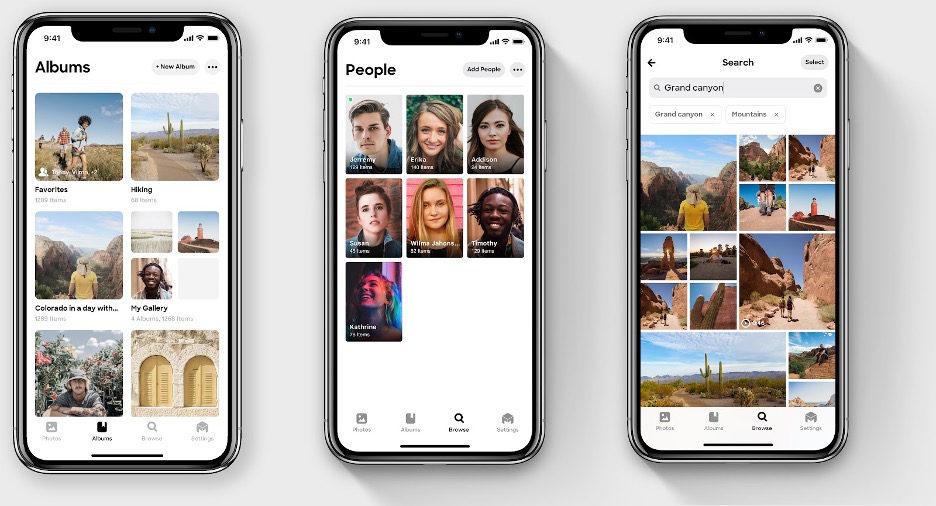
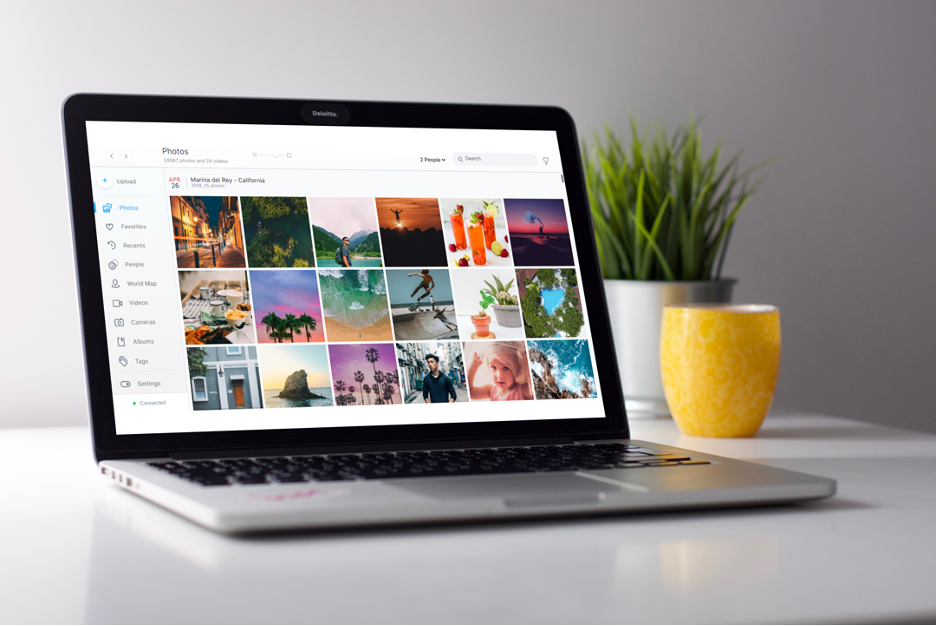
They launched their first generation product in 2017—a physical storage device with advanced AI software that helps users manage photo libraries between devices and organize photos by faces, scenery, and other properties. The hardware side was fueled by two rounds of Kickstarter funding, each helping create new versions of the company’s smart storage device powered by a neural processing unit (NPU) that lived on-device and allowed access from anywhere.

An Eye for Secure Photo Storage

That emphasis on privacy fueled the software side of Monument’s offering, an AI-driven approach that allows easy searchability of photos without processing any of the metadata on Monument’s end. Advanced image recognition couples with slick de-duplication features for an experience that catalogs photos without exposing photographers’ data to algorithms that influence their choices. No ads, no profiling, no creepy trackers, and Monument doesn’t use or sell customers’ personal data.

We were getting a lot of questions along the lines of, “What happens if my house catches fire?” or “What if there is physical damage to the device?” so we could see there was a lot of interest in a cloud solution.”

—Ercan Erciyes, Co-Founder, Monument Labs, Inc.

The Gathering Cloud

With the rise of cloud storage, Monument saw their typical consumer shifting away from on-prem solutions. “We were getting a lot of questions along the lines of, ‘What happens if my house catches fire?’ or ‘What if there is physical damage to the device?’ so we could see there was a lot of interest in a cloud solution,” said Ercan. “Plus there were a lot of users that didn’t want a physical device in their home.”

Their answer: Offer the same privacy-first service through a comprehensive cloud solution.

Using Free Credits Wisely

Launching a cloud-based storage service built around their philosophy of privacy and security was a clear necessity for the company’s future. To kick off their move to the cloud, Monument utilized free startup credits from AWS. But, they knew free credits wouldn’t last forever. Rather than using the credits to build a minimum viable product as fast as humanly possible, they took a very measured approach. “The credits are sweet,” Ercan said, “But you need to pay attention to your long-term vision. You need to have a backup plan, so to speak.” (We think so, too.)

Ercan ran the numbers with success in mind and realized they’d ultimately lose money if they built the infrastructure for Monument Cloud on AWS. He also didn’t want to accumulate tech debt and become locked in to AWS.

They ended up using the credits to develop the AI model, but not to build their infrastructure. For that they turned to specialized cloud providers.

Integrating Backblaze B2 Cloud Storage

Monument created a lean tech stack that incorporated Backblaze B2 for long-term encrypted storage. They run their AI software on Vultr, a Backblaze compute partner that offers free egress fees between the two services. And, they use another specialized cloud provider to store thumbnails that are displayed in the Monument Cloud app. The cloud service has quickly become the company’s flagship offering, drawing 25,000 active users.

Group Photos: Serving New Customers

With infrastructure that will scale without cutting into their margins, Monument is poised to serve an increasing number of customers who care about what happens to their personal data. More and more, customers are seeking out alternatives to big name cloud providers, using services like DuckDuckGo instead of Google Search or WhatsApp instead of garden variety text messaging apps. With a distributed, multi-cloud system, they can serve these types of customers with a cloud option while keeping data privacy front and center. And the customers that gravitate to this value proposition are wide-ranging.

Of course, the first ones you might think of would be prolific photo takers or even amateur photographers, but Ercan pointed out some surprising use cases for their technology. “We are seeing a lot of different use cases coming up from schools, real estate companies, and even elder care systems,” he said. With Monument’s new cloud solution, classrooms are exploring new online frontiers in education, and families scattered around the world are able to share photos with their elderly relatives.

A Monument to Security

Challenging monster brands like Google is no small task as a small team of just five people. Monument does it by keeping a laser focus on their core values and their customers’ needs. “If you keep the user’s needs in the center, building a solution doesn’t require an army of engineers,” Ercan said. Without having to worry about how to use customer data to build algorithms that keep advertisers happy, Monument can focus on serving their customers what they actually need—a photo management solution that just works.

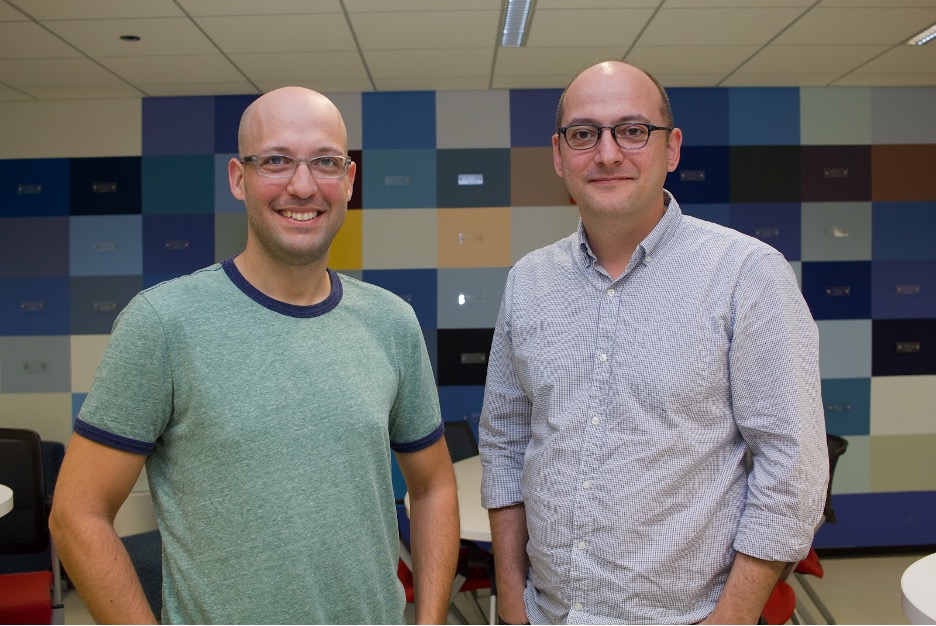
Monument Co-founders Semih Hazar (left) and Ercan Erciyes (right)

Monument and Backblaze

Whether you’re the family photographer, the office party chronicler, or you just have a convoluted system of hard drives stickered and slotted onto a shelf somewhere that you’d like to get rid of, first and foremost: Make sure you’re availing yourself of the very reasonable storage available from Backblaze for archiving or backing up your data.

After you’re done with that: Check out Monument.

The post Shooting for the Clouds: How One Photo Storage Service Moved Beyond Physical Devices appeared first on Backblaze Blog | Cloud Storage & Cloud Backup.
Backblaze Drive Stats for 2022

Post Syndicated from original https://www.backblaze.com/blog/backblaze-drive-stats-for-2022/

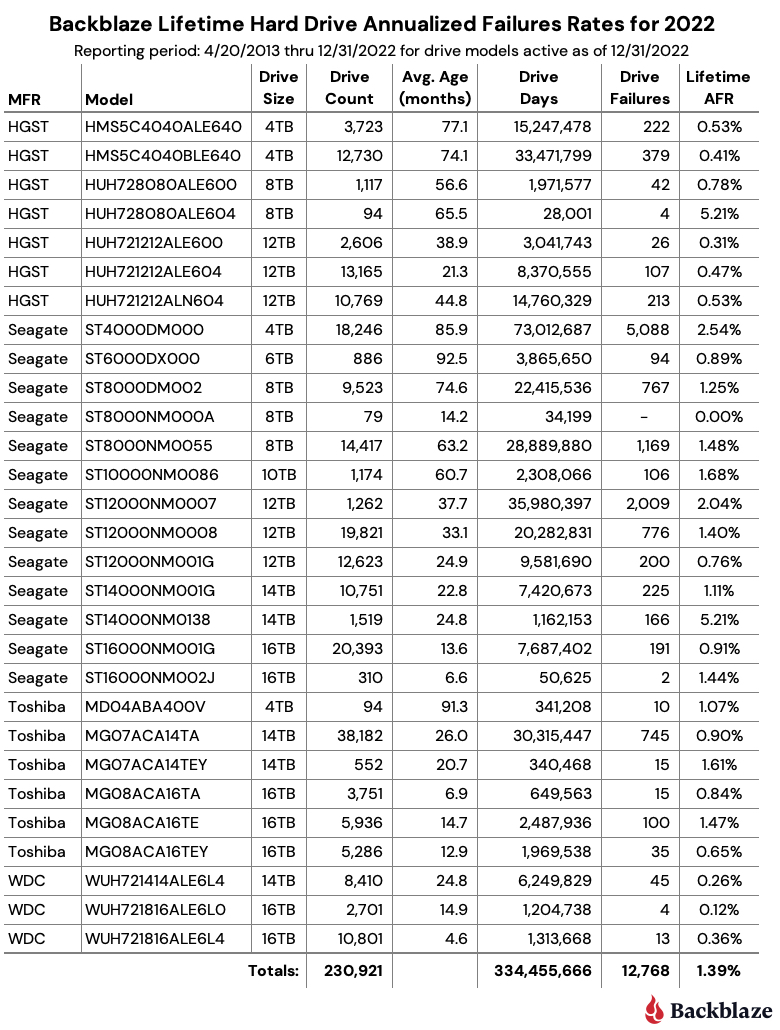
As of December 31, 2022, we had 235,608 drives under management. Of that number, there were 4,299 boot drives and 231,309 data drives. This report will focus on our data drives. We’ll review the hard drive failure rates for 2022, compare those rates to previous years, and present the lifetime failure statistics for all the hard drive models active in our data center as of the end of 2022. Along the way, we’ll share our observations and insights on the data presented and, as always, we look forward to you doing the same in the comments section at the end of the post.

2022 Hard Drive Failure Rates

At the end of 2022, Backblaze was monitoring 231,309 hard drives used to store data. For our evaluation, we removed 388 drives from consideration which were used for either testing purposes or drive models for which we did not have at least 60 drives. This leaves us with 230,921 hard drives to analyze for this report.

Observations and Notes

One Zero for the Year

In 2022, only one drive had zero failures, the 8TB Seagate (model: ST8000NM000A). That “zero” does come with some caveats: We have only 79 drives in service and the drive has a limited number of drive days—22,839. These drives are used as spares to replace 8TB drives that have failed.

What About the Old Guys?

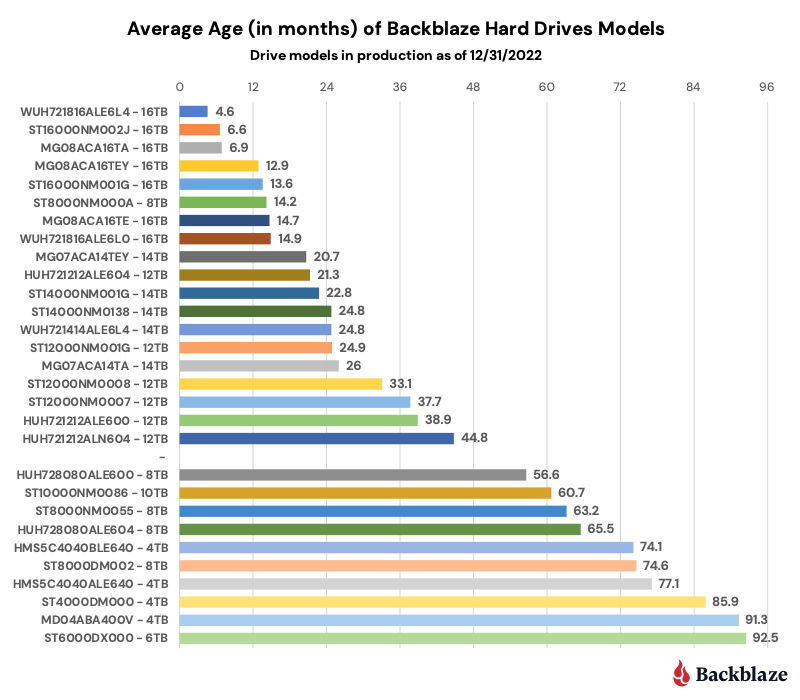
  • The 6TB Seagate (model: ST6000DX000) drive is the oldest in our fleet with an average age of 92.5 months. In 2021, it had an annualized failure rate (AFR) of just 0.11%, but has slipped a bit to 0.68% for 2022. A very respectable number any time, but especially after nearly eight years of duty.
  • The 4TB Toshiba (model: MD04ABA400V) drives have an average age of 91.3 months. In 2021, this drive has an AFR of 2.04% and that has jumped to 3.13% for 2022, which included three drive failures. Given the limited number of drives and drive days for this model, if there were only two drive failures in 2022, the AFR would be 2.08%, or nearly the same as 2021.
  • Both of these drive models have a relatively small number of drive days, so confidence in the AFR numbers is debatable. That said, both drives have performed well over their lifespan.

New Models

In 2021, we added five new models while retiring zero, giving us a total of 29 different models we are tracking. Here are the five new models:

  1. HUH728080ALE604–8TB
  2. ST8000NM000A–8TB
  3. ST16000NM002J–16TB
  4. MG08ACA16TA–16TB
  5. WUH721816ALE6L4–16TB

The two 8TB drive models are being used to replace failed 8TB drives. The three 16TB drive models are additive to the inventory.

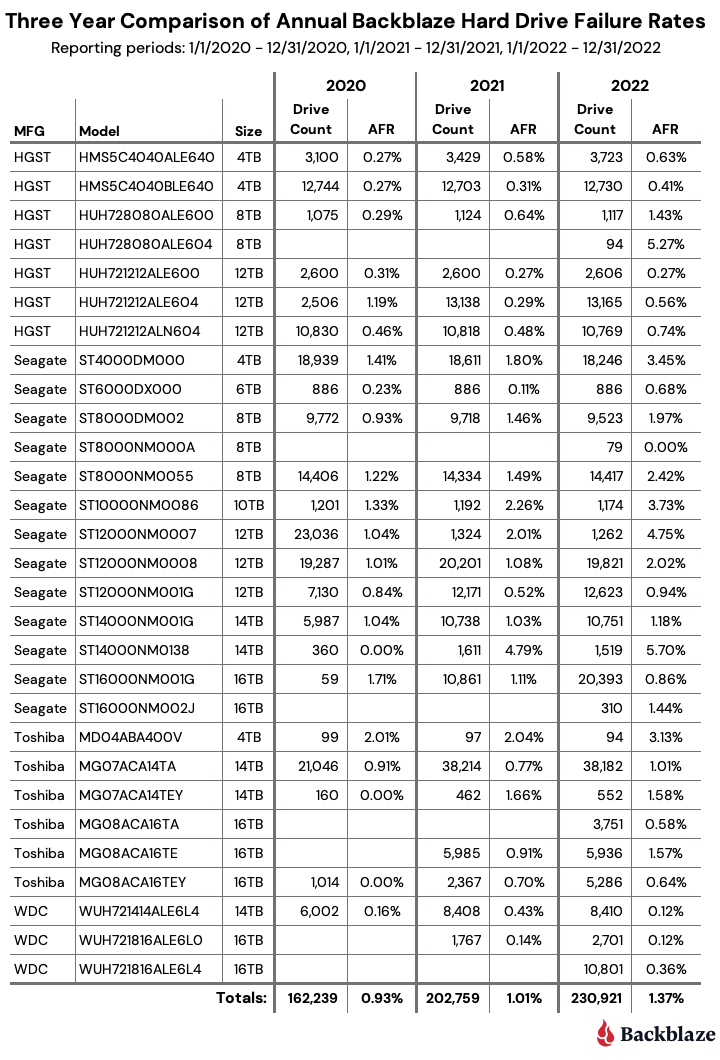
Comparing Drive Stats for 2020, 2021, and 2022

The chart below compares the AFR for each of the last three years. The data for each year is inclusive of that year only and the operational drive models present at the end of each year.

Drive Failure Was Up in 2022

After a slight increase in AFR from 2020 to 2021, there was a more notable increase in AFR in 2022 from 1.01% in 2021 to 1.37%. What happened? In our Q2 2022 and Q3 2022 quarterly Drive Stats reports, we noted an increase in the overall AFR from the previous quarter and attributed it to the aging fleet of drives. But, is that really the case? Let’s take a look at some of the factors at play that could cause the rise in AFR for 2022. We’ll start with drive size.

Drive Size and Drive Failure

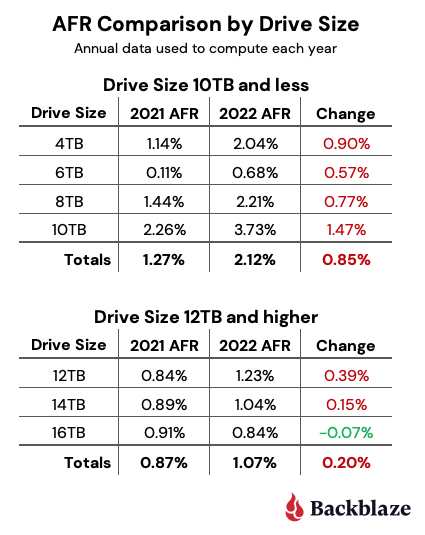
The chart below compares 2021 and 2022 AFR for our large drives (which we’ve defined as 12TB, 14TB, and 16TB drives) to our smaller drives (which we’ve defined as 4TB, 6TB , 8TB, and 10TB drives).

With the exception of the 16TB drives, every drive size had an increase in their AFR from 2021 to 2022. In the case of the small drives, the increase was pronounced, and at 2.12% is well above the 1.37% AFR for 2022 for all drives.

In addition, while the small drive cohort represents only 28.7% of the drive days in 2022, they account for 44.5% of the drive failures. Our smaller drives are failing more often, but they are also older, so let’s take a closer look at that.

Drive Age and Drive Failure

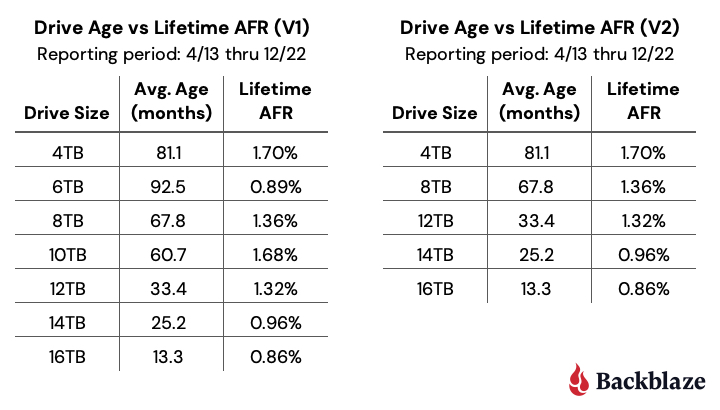
When examining the correlation of drive age to drive failure we should start with our previous look at the hard drive failure bathtub curve. There we concluded that drives generally fail more often as they age. To see if that matters here, we’ll start with the table below which shows the average age of each drive model of drives by size.

With the exception of the 8TB Seagate (model: ST8000NM000A), which we recently purchased as replacements for failed 8TB drives, the drives fall neatly into our two groups noted above—10TB and below and 12TB and up.

Now let’s group the individual drive models into cohorts defined by drive size. But before we do, we should remember that the 6TB and 10TB drive models have a relatively small number of drives and drive days in comparison to the remaining drive groups. In addition, the 6TB and 10TB drive cohorts consist of one drive model, while the other drive groups have at least four different drive models. Still, leaving them out seems incomplete, so we’ve included tables with and without the 6TB and 10TB drive cohorts.

Each table shows the relationship for each drive size, between the average age of the drives and their associated AFR. The chart on the right (V2) clearly shows that the older drives, when grouped by size, fail more often. This increase as a drive model ages follows the bathtub curve we spoke of earlier.

So, What Caused the Increase in Drive Failure and Does it Matter?

The aging of our fleet of hard drives does appear to be the most logical reason for the increased AFR in 2022. We could dig in further, but that is probably moot at this point. You see, we spent 2022 building out our presence in two new data centers, the Nautilus facility in Stockton, California and the CoreSite facility in Reston, Virginia. In 2023, our focus is expected to be on replacing our older drives with 16TB and larger hard drives. The 4TB drives and yes, even our O.G. 6TB Seagate drives could go. We’ll keep you posted.

Drive Failures by Manufacturer

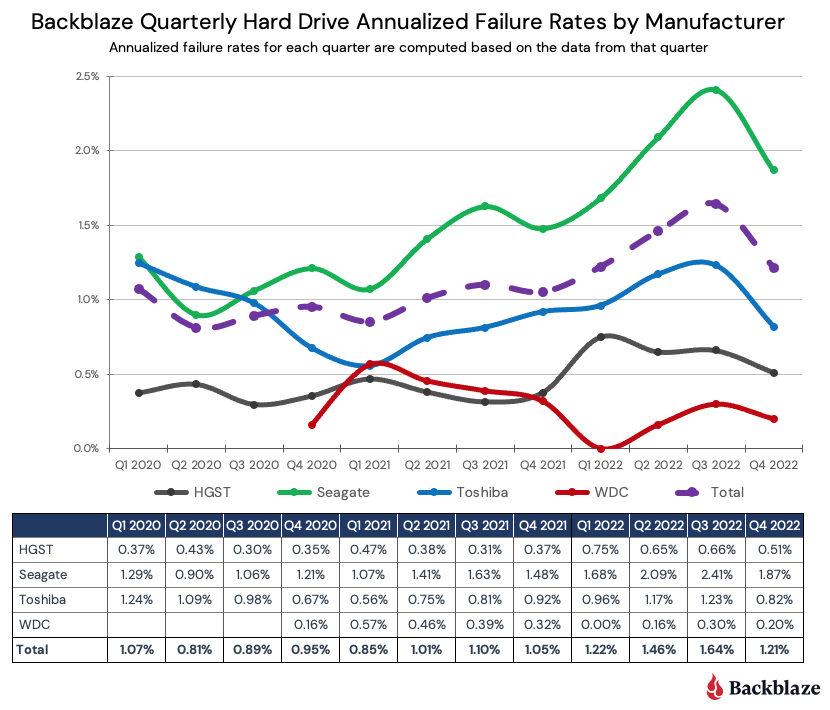
We’ve looked at drive failure by drive age and drive size, so it’s only right to look at drive failure by manufacturer. Below we have plotted the quarterly AFR over the last three years by manufacturer.

Starting in Q1 of 2021 and continuing to the end of 2022, we can see that the overall rise in the overall AFR over that time seems to be driven by Seagate and, to a lesser degree, Toshiba, although HGST contributes heavily to the Q1 2022 rise. In the case of Seagate, this makes sense as most of our Seagate drives are significantly older than any of the other manufacturers’ drives.

Before you throw your Seagate and Toshiba drives in the trash, you might want to consider the lifecycle cost of a given hard drive model versus its failure rate. We looked at this in our Q3 2022 Drive Stats report, and outlined the trade-offs between drive cost and failure rates. For example, in general, Seagate drives are less expensive and their failure rates are typically higher in our environment. But, their failure rates are typically not high enough to make them less cost effective over their lifetime. You could make a good case that for us, many Seagate drive models are just as cost effective as more expensive drives. It helps that our B2 Cloud Storage platform is built with drive failure in mind, but we’ll admit that fewer drive failures is never a bad thing.

Lifetime Hard Drive Stats

The table below is the lifetime AFR of all the drive models in production as of December 31, 2022.

The current lifetime AFR is 1.39%, which is down from a year ago (1.40%) and also down from last quarter (1.41%). The lifetime AFR is less prone to rapid changes due to temporary fluctuations in drive failures and is a good indicator of a drive model’s AFR. But it takes a fair amount of observations (in our case, drive days) to be confident in that number. To that end, the table below shows only those drive models which have accumulated one million drive days or more in their lifetime. We’ve ordered the list by drive days.

Finally, we are going to open up a bit here and share the results of the 388 drives we removed from our analysis because they were test drives or drive models with 60 or fewer drives. These drives are divided amongst 20 different drive models and the table below lists those drive models which were operational in our data centers as of December 31, 2022. Big caveat here: these are just test drives and so on, so be gentle. We usually ignore them in the reports, so this is their chance to shine, or not. We look forward to seeing your comments.

There are many reasons why these drives got to this point in their Backblaze career, but we’ll save those stories for another time. At this point, we’re just sharing to be forthright about the data, but there are certainly tales to be told. Stay tuned.

Our Annual Drive Stats Webinar

Join me on Tuesday, February 7 at 10 a.m. PT to review the results of the 2022 report. You’ll get a look behind the scenes at the data and the process we use to create the annual report.

Sign Up for the Webinar

The Hard Drive Stats Data

The complete data set used to create the tables and charts in this report is available on our Hard Drive Test Data page. You can download and use this data for free for your own purpose. All we ask are three things: 1) you cite Backblaze as the source if you use the data, 2) you accept that you are solely responsible for how you use the data, and 3) you do not sell this data itself to anyone; it is free.

If you just want the data used to create the tables and charts in this blog post you can download the ZIP file containing the CSV files for each chart.

Good luck and let us know if you find anything interesting.

Want More Insights?

Check out our take on Hard Drive Cost per Gigabyte and Hard Drive Life Expectancy.

Interested in the SSD Data?

Read the most recent SSD edition of our Drive Stats Report.

The post Backblaze Drive Stats for 2022 appeared first on Backblaze Blog | Cloud Storage & Cloud Backup.
Simplify Data Protection with Backblaze and Commvault

Post Syndicated from Jennifer Newman original https://www.backblaze.com/blog/simplify-data-protection-with-backblaze-and-commvault/

The most effective backups are the ones you never have to think about—It’s that simple. For anyone in charge of data protection—IT Admins, IT Directors, CTOs and CIOs, managed service providers, and others—driving to that level of simplicity is always the goal. A new partnership between Backblaze and Commvault brings you one step closer to achieving that goal.

Now, Commvault customers can select Backblaze B2 as a cloud storage destination for their Commvault backups and data management needs. Read on to learn more about the partnership.

What Is Commvault?

Commvault is a global leader in data management. Their Intelligent Data Services help organizations transform how they protect, store, and use data. They offer a simple, unified Data Management Platform that spans all of a company’s data, no matter where it lives—on-premises, or in a hybrid or multi-cloud environment—or how it’s structured—in legacy applications, databases, virtual machines, or in containers.

How Does This Partnership Benefit Joint Customers?

Joint customers gain access to easy, affordable cloud storage that integrates with Commvault’s software. The partnership benefits joint customers in a few key ways:

  • Quick setup: Get started with a seamless integration.
  • Easy administration: Manage data in one platform.
  • Better backups: Protect your data from ransomware risks, equipment failure, damage, theft, and human error.
  • Faster recoveries: Restore your environment quickly in the event of a disaster.
  • Affordable storage: Backblaze is ⅕ the cost of major cloud providers.

Take Advantage of Capacity-Based Pricing with Backblaze B2 Reserve

Joint customers who prefer predictable cloud spend rather than consumption-based pricing can take advantage of Backblaze B2 Reserve. The Backblaze B2 Reserve offering is capacity-based, starting at 20TB, with key features, including:

  • Free egress up to the amount of storage purchased per month.
  • Free transaction calls.
  • Enhanced migration services.
  • No delete penalties.
  • Upgraded Tera support.

Customers can purchase B2 Reserve through our channel partners. If you’re interested in participating or just want to learn more, contact our Sales team.

If you’re a channel partner and Commvault is in your suite of offerings, we’d love to engage with you. Register on our Partner Portal to get started with offering Backblaze B2 as a backup target.

Customer Spotlight: How Pittsburg State Protects Data in Tornado Alley

Pittsburg State University, located in the heart of Tornado Alley in Kansas, took steps to protect their data by deploying private cloud infrastructure via Commvault Distributed Storage. They established two nodes on-premises and a third across the state for geographic separation, but they wanted another layer of protection. They added Backblaze B2 Cloud Storage giving them peace of mind that their data would be better protected from threats like ransomware. Since Backblaze is integrated with Commvault, Commvault de-duplicates the data, then sends a copy to Backblaze nightly.

“Backblaze B2 had the capability we lacked. I bolted it onto our system, so now I have off-site backup that is safe and well-protected from a regional disaster in Kansas.”
—Tim Pearson, Director for IT Infrastructure and Security, Pittsburg State University

Getting Started with Backblaze B2 and Commvault

Ready to simplify your Commvault backup storage? Check out our Commvault Quickstart Guide for a walk through on how to set up Backblaze B2 as your Commvault cloud storage target.

The post Simplify Data Protection with Backblaze and Commvault appeared first on Backblaze Blog | Cloud Storage & Cloud Backup.
Build a Cloud Storage App in 30 Minutes

Post Syndicated from Pat Patterson original https://www.backblaze.com/blog/build-a-cloud-storage-app-in-30-minutes/

The working title for this developer tutorial was originally the “Polyglot Quickstart.” It made complete sense to me—it’s a “multilingual” guide that shows developers how to get started with Backblaze B2 using different programming languages—Java, Python, and the command line interface (CLI). But the folks on our publishing and technical documentation teams wisely advised against such an arcane moniker.

Editor’s Note

Full disclosure, I had to look up the word polyglot. Thanks, Merriam-Webster, for the assist.

Polyglot, adjective.
1a: speaking or writing several languages: multilingual
1b: composed of numerous linguistic groups; a polyglot population
2: containing matter in several languages; a polyglot sign
3: composed of elements from different languages
4: widely diverse (as in ethnic or cultural origins); a polyglot cuisine

Fortunately for you, readers, and you, Google algorithms, we landed on the much easier to understand Backblaze B2 Developer Quick-Start Guide, and we’re launching it today. Read on to learn all about it.

Start Building Applications on Backblaze B2 in 30 Minutes or Less

Yes, you heard that correctly. Whether or not you already have experience working with cloud object storage, this tutorial will get you started building applications that use Backblaze B2 Cloud Storage in 30 minutes or less. You’ll learn how scripts and applications can interact with Backblaze B2 via the AWS SDKs and CLI and the Backblaze S3-compatible API.

The tutorial covers how to:

  • Sign up for a Backblaze B2 account.
  • Create a public bucket, upload and view files, and create an application key using the Backblaze B2 web console.
  • Interact with the Backblaze B2 Storage Cloud using Java, Python, and the CLI: listing the contents of buckets, creating new buckets, and uploading files to buckets.

This first release of the tutorial covers Java, Python, and the CLI. We’ll add more programming languages in the future. Right now we’re looking at JavaScript, C#, and Go. Let us know in the comments if there’s another language we should cover!

➔ Check Out the Guide

What Else Can You Do?

If you already have experience with Amazon S3, the Quick-Start Guide shows how to use the tools and techniques you already know with Backblaze B2. You’ll be able to quickly build new applications and modify existing ones to interact with the Backblaze Storage Cloud. If you’re new to cloud object storage, on the other hand, this is the ideal way to get started.

Watch this space for future tutorials on topics such as:

  • Downloading files from a private bucket programmatically.
  • Uploading large files by splitting them into chunks.
  • Creating pre-signed URLs so that users can access private files securely.
  • Deleting versions, files and buckets.

Want More?

Have questions about any of the above? Curious about how to use Backblaze B2 with your specific application? Already a wiz at this and ready to do more? Here’s how you can get in touch and get involved:

  • Sign up for Backblaze’s virtual user group.
  • Find us at Developer Week.
  • Let us know in the comments which programming languages we should add to the Quick-Start Guide.

The post Build a Cloud Storage App in 30 Minutes appeared first on Backblaze Blog | Cloud Storage & Cloud Backup.

Ransomware Takeaways Q4 2022

Post Syndicated from Jeremy Milk original https://www.backblaze.com/blog/ransomware-takeaways-q4-2022/

It may seem like ransomware is not in the news as much as it was in 2021 and the first part of 2022. Back then, major attacks and record-breaking ransom demands dominated headlines, and governments took action to make life more difficult for cybercriminals. But the spotlight is never a good place to be when you’re trying to defraud companies to the tune of millions of dollars. So, while you might be hearing about it less, that doesn’t mean that the threat of cybercrime is negligible. Exactly the opposite—the lack of media attention makes potential victims lower their guard, leaving vulnerabilities that cybercriminals love to exploit.

Staying up-to-date on the latest ransomware news keeps you informed of potential threats. And, keeping the latest threats fresh in your mind means you’ll be ready if and when cybercriminals turn their sights in your direction. We all hope that never happens, but it’s wise to be prepared in case it does. To arm you with the latest, here are some of the biggest developments in ransomware that we observed in Q4 2022.

This post is a part of our ongoing series on ransomware. Take a look at our other posts for more information on how businesses can defend themselves against a ransomware attack, and more.

And, don’t forget that we offer a thorough walkthrough of ways to prepare yourself and your business for ransomware attacks—free to download below.

➔ Download The Complete Guide to Ransomware

1. Many Ransomware Attacks Go Unreported in the Media

One possible reason you don’t hear about ransomware attacks is that they simply don’t get reported in the news. A study released in late 2022 by Jumpsec found that 86% of ransomware attacks go unreported in typical media sources in the UK. The attacks that do get covered are typically ones where the victims are legally required to disclose the attacks due to personally identifiable information (PII) being compromised. While public disclosure is uncommon, keep in mind that reporting requirements—that is, the legal requirement to disclose to the authorities—in the UK, U.S., and elsewhere are becoming more stringent. For example, in 2022, President Biden signed a bill into law that requires operators of critical infrastructure to disclose cyber attacks to the government within 72 hours.

Key Takeaway

It may seem like there’s no real incentive to disclose a cyberattack publicly. Why serve the greater good at the expense of your reputation, right? But, some organizations have found that being open and honest positions them ahead of the game. Chip Daniels, head of government affairs at SolarWinds, shared the positive response the company has received about their transparency, “I meet with somebody for the first time, they’ll say, ‘I just want to tell you, you guys are the gold standard on how you should respond to a cyber incident.’” Being seen as the “gold standard” isn’t a bad place to land after an attack.

2. Hospitals and Schools Continued to Be Targeted

Sadly, it’s not the first time we reported on the threat to hospitals and schools. It was highlighted in our very first Ransomware Takeaways report. In Q4 2022, cybercriminals showed no sign of letting up as CommonSpirit Health, a Chicago-based health provider with more than 700 care sites and 142 hospitals in 21 states, suffered a major attack that made patient records vulnerable. And earlier in the year, over Labor Day weekend, one of the largest school districts in the country—the Los Angeles Unified School District—was attacked as well.

Key Takeaway

Nonprofit and public sector institutions need budget-friendly options for implementing ransomware protection that work with their existing purchasing programs. Through government IT aggregators like Carahsoft, public sector decision makers can purchase affordable, capacity-based cloud storage to support their recovery objectives.

3. Ransomware Attacks Take a Psychological Toll

In news that should come as a surprise to no one who’s been through a ransomware incident, cyberattacks take a psychological toll, and new research from cybersecurity company Northwave released in Q4 2022 quantifies it. They measured the mental impacts of ransomware attacks at three points in time, within the first week, month, and year after an attack. At a month out, 75% reported having negative thoughts, and at one year, 14% reported symptoms of trauma requiring professional help.

Key Takeaway

Companies involved in a ransomware attack can take action to minimize negative effects on employees’ mental health. Northwave recommends having regular check-ins and breaks during the first phase, making space for rest and recovery time in the second phase, and creating an open environment in the third phase, where employees can talk about what happened and decompress.

4. Some Ransomware Is Badly Made, and All the More Dangerous

Researchers analyzed the Cryptonite ransomware strain, which first appeared in October 2022, and found that its “barebones” functionality makes it even more of a threat—there’s no way to recover encrypted files. Researchers point out that it’s likely not an intentional feature, but simply poor design.

Key Takeaway

Since the software is broken to the point where decryption is impossible, there’s absolutely no reason to pay the ransom if you fall victim to a Cryptonite attack. Instead, it makes sense to spend some time creating a disaster recovery plan so you can resume normal business operations as soon as possible. Researchers also report that phishing seems to be the most common attack vector for this ransomware strain, so it’s a good idea to ramp up your cybersecurity training.

5. A Vast Majority of Ransomware Attacks Attempted to Infect Backups

In November, Veeam released their 2022 Ransomware Trends report, a study of more than 3,000 organizations across 28 countries. Among their key findings: 95% of ransomware attacks attempted to infect backups. Of those attacks that targeted backups, 38% of respondents had some backup repositories impacted, and 30% had all of their backup repositories impacted.

Key Takeaway

One word: immutability. Protecting backups with Object Lock costs nothing to implement and prevents backups from being modified or encrypted by ransomware. With backups that can’t be altered, recoveries are much easier and more reliable.

Closing Thoughts

While you may not be hearing about as many high profile ransomware attacks as you once were, make no mistake that they’re still happening. Just know that there are steps you can take to keep your company from becoming the next victim, including protecting data with Object Lock, applying security best practices, and creating a disaster recovery plan.

The post Ransomware Takeaways Q4 2022 appeared first on Backblaze Blog | Cloud Storage & Cloud Backup.
How to Serve Data From a Private Bucket with a Cloudflare Worker

Post Syndicated from Pat Patterson original https://www.backblaze.com/blog/how-to-serve-data-from-a-private-bucket-with-a-cloudflare-worker/

Customers storing data in Backblaze B2 Cloud Storage enjoy zero-cost downloads via our Content Delivery Network (CDN) partners: Cloudflare, Fastly, and Bunny.net. Configuring a CDN to proxy access to a Backblaze B2 Bucket is straightforward and improves the user experience, since the CDN caches data close to end-users. Ensuring that end-users can only access content via the CDN, and not directly from the bucket, requires a little more effort. A new technical article, Cloudflare Workers for Backblaze B2, provides the steps to serve content from Backblaze B2 via your own Cloudflare Worker.

In this blog post, I’ll explain why you might want to prevent direct downloads from your Backblaze B2 Bucket, and how you can use a Cloudflare Worker to do so.

Why Prevent Direct Downloads?

As mentioned above, Backblaze’s partnerships with CDN providers allow our customers to deliver content to end users with zero costs for data egress from Backblaze to the CDN. To illustrate why you might want to serve data to your end users exclusively through the CDN, let’s imagine you’re creating a website, storing your website’s images in a Backblaze B2 Bucket with public-read access, acme-images.

For the initial version, you build web pages with direct links to the images of the form https://acme-images.s3.us-west-001.backblazeb2.com/logos/acme.png. As users browse your site, their browsers will download images directly from Backblaze B2. Everything works just fine for users near the Backblaze data center hosting your bucket, but the further a user is from that data center, the longer it will take each image to appear on screen. No matter how fast the network connection, there’s no getting around the speed of light!

Aside from the degraded user experience, there are costs associated with end users downloading data directly from Backblaze. The first GB of data downloaded each day is free, then we charge $0.01 for each subsequent GB. Depending on your provider’s pricing plan, adding a CDN to your architecture can both reduce download costs and improve the user experience, as the CDN will transfer data through its own network and cache content close to end users. Another detail to note when comparing costs is that Backblaze and Cloudflare’s Bandwidth Alliance means that data flows from Backblaze to Cloudflare free of download charges, unlike data flowing from, for example, Amazon S3 to Cloudflare.

Typically, you need to set up a custom domain, say images.acme.com, that resolves to an IP address at the CDN. You then configure one or more origin servers or backends at the CDN with your Backblaze B2 Buckets’ S3 endpoints. In this example, we’ll use a single bucket, with endpoint acme-images.s3.us-west-001.backblazeb2.com, but you might use Cloud Replication to replicate content between buckets in multiple regions for greater resilience.

Now, after you update the image links in your web pages to the form https://images.acme.com/logos/acme.png, your users will enjoy an improved experience, and your operating costs will be reduced.

As you might have guessed, however, there is one chink in the armor. Clients can still download images directly from the Backblaze B2 Bucket, incurring charges on your Backblaze account. For example, users might have bookmarked or shared links to images in the bucket, or browsers or web crawlers might have cached those links.

The solution is to make the bucket private and create an edge function: a small piece of code running on the CDN infrastructure at the images.acme.com endpoint, with the ability to securely access the bucket.

Both Cloudflare and Fastly offer edge computing platforms; in this blog post, I’ll focus on Cloudflare Workers and cover Fastly Compute@Edge at a later date.

Proxying Backblaze B2 Downloads With a Cloudflare Worker

The blog post Use a Cloudflare Worker to Send Notifications on Backblaze B2 Events provides a brief introduction to Cloudflare Workers; here I’ll focus on how the Worker accesses the Backblaze B2 Bucket.

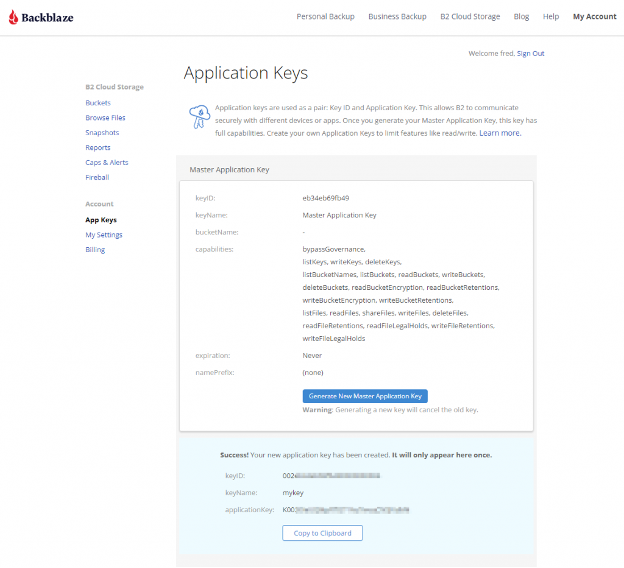
API clients, such as Workers, downloading data from a private Backblaze B2 Bucket via the Backblaze S3 Compatible API must digitally sign each request with a Backblaze Application Key ID (access key ID in AWS parlance) and Application Key (secret access key). On receiving a signed request, the Backblaze B2 service verifies the identity of the sender (authentication) and that the request was not changed in transit (integrity) before returning the requested data.

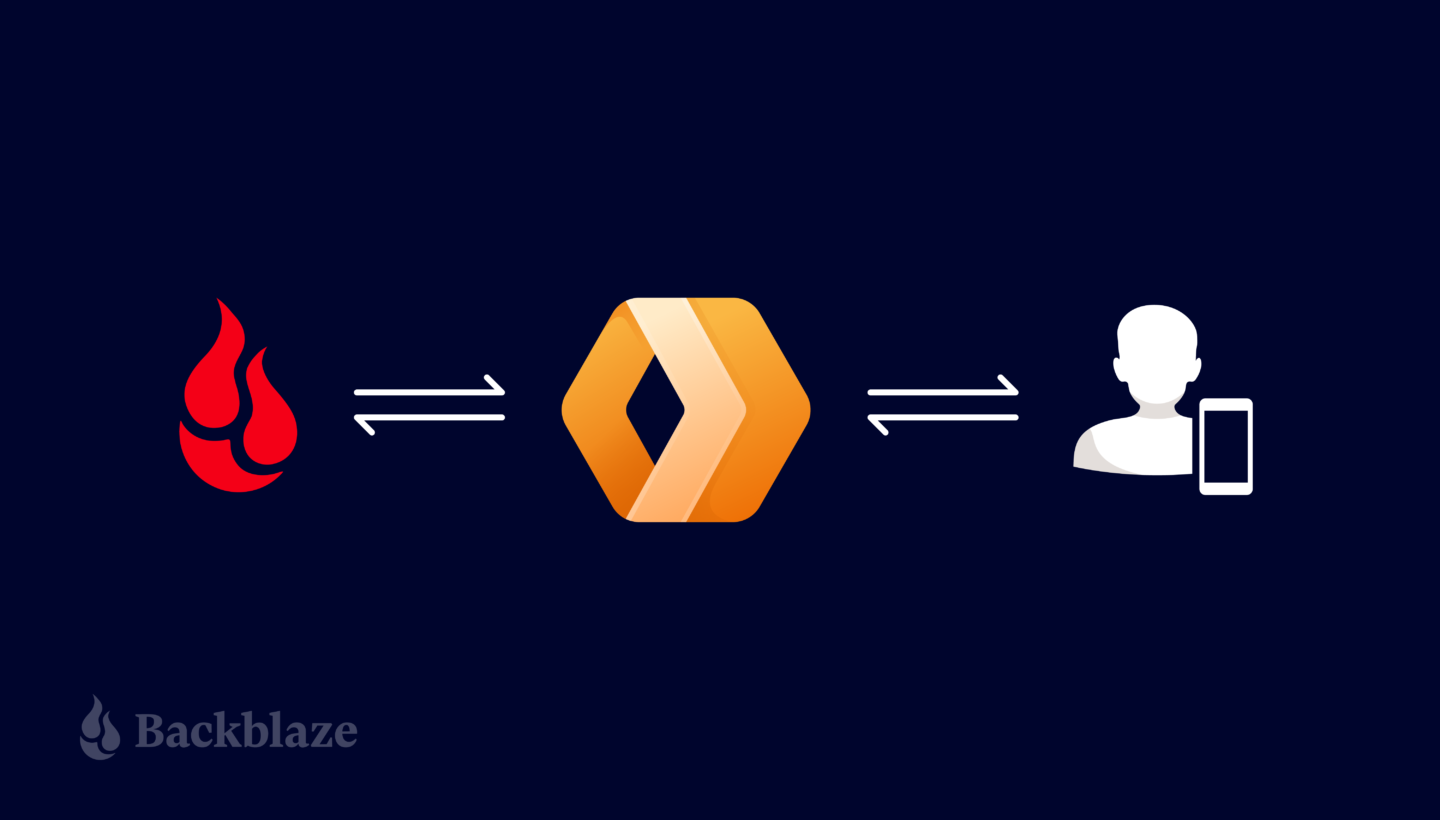
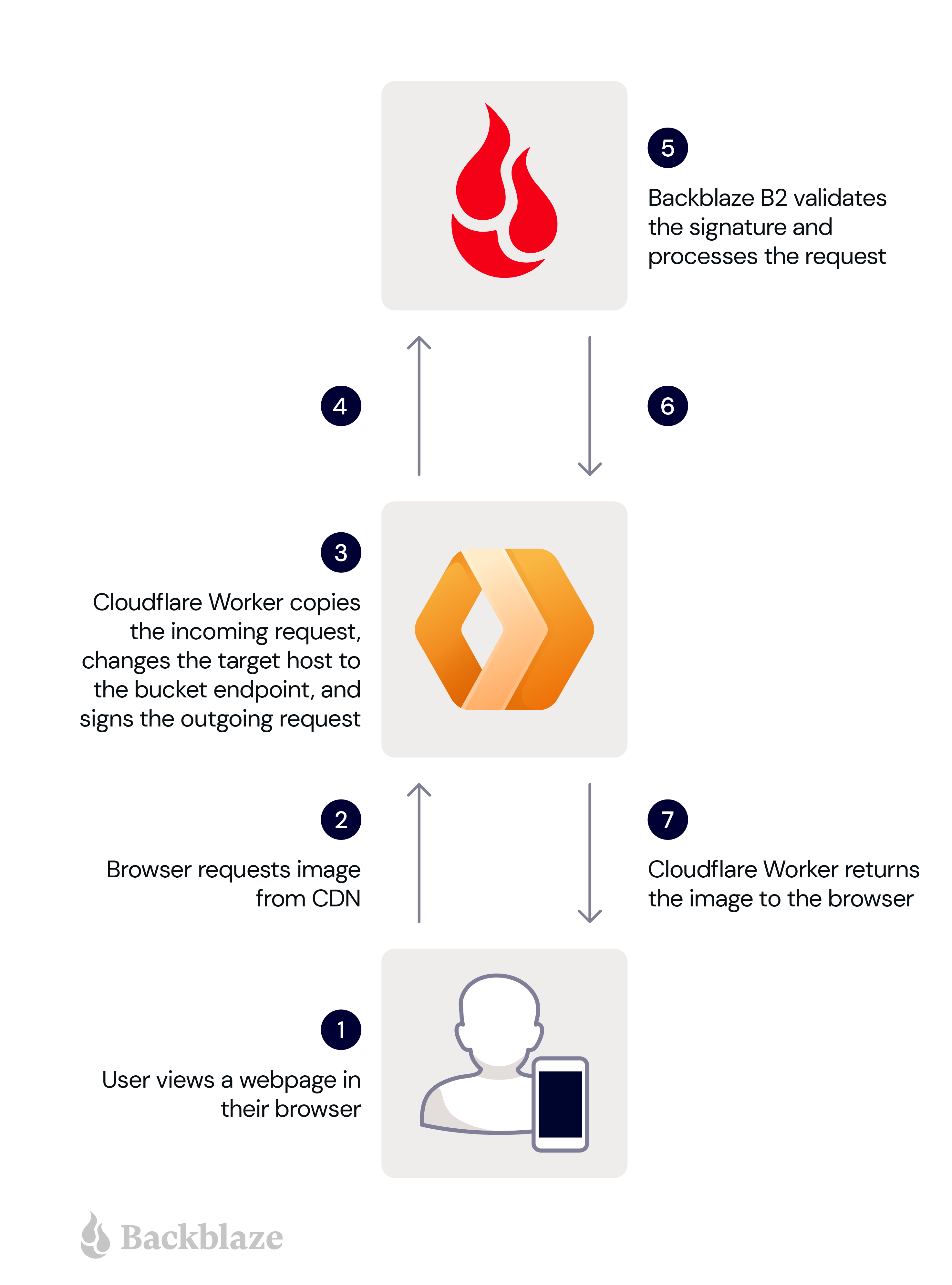
So when the Worker receives an unsigned HTTP request from an end user’s browser, it must sign it, forward it to Backblaze B2, and return the response to the browser. Here are the steps in more detail:

  1. A user views a web page in their browser.
  2. The user’s browser requests an image from the Cloudflare Worker.
  3. The Worker makes a copy of the incoming request, changing the target host in the copy to the bucket endpoint, and signs the copy with its application key and key ID.
  4. The Worker sends the signed request to Backblaze B2.
  5. Backblaze B2 validates the signature, and processes the request.
  6. Backblaze B2 returns the image to the Worker.
  7. The Worker forwards the image to the user’s browser.

These steps are illustrated in the diagram below.

The signing process imposes minimal overhead, since GET requests have no payload. The Worker need not even read the incoming response payload into memory, instead returning the response from Backblaze B2 to the Cloudflare Workers framework to be streamed directly to the user’s browser.

Now you understand the use case, head over to our newly published technical article, Cloudflare Workers for Backblaze B2, and follow the steps to serve content from Backblaze B2 via your own Cloudflare Worker.

Put the Proxy to Work!

The Cloudflare Worker for Backblaze B2 can be used as-is to ensure that clients download files from one or more Backblaze B2 Buckets via Cloudflare, rather than directly from Backblaze B2. At the same time, it can be readily adapted for different requirements. For example, the Worker could verify that clients pass a shared secret in an HTTP header, or route requests to buckets in different data centers depending on the location of the edge server. The possibilities are endless.

How will you put the Cloudflare Worker for Backblaze B2 to work? Sign up for a Backblaze B2 account and get started!

The post How to Serve Data From a Private Bucket with a Cloudflare Worker appeared first on Backblaze Blog | Cloud Storage & Cloud Backup.
Stable Diffusion and Backblaze: Create a Masterpiece from a Bucket of Your Own Images

Post Syndicated from Troy Liljedahl original https://www.backblaze.com/blog/stable-diffusion-and-backblaze-create-a-masterpiece-from-a-bucket-of-your-own-images/

AI is really having a moment. There’s DALL-E, Lensa, ChatGPT. Your social media feed is probably full of new avatars and AI-generated haiku. Naturally, we at Backblaze were intrigued by this brave new world of AI-generated content. The technology has been wildly popular, but is not without controversy, raising questions about intellectual property, copyright law, artist disenfranchisement, possible displacement of jobs, and general fear over the rise of the machines. On the other side of that coin, there’s definitely a place for AI in the future of work and life. So, I wanted to experiment with it.

Let’s start with Stable Diffusion.

Stable Diffusion is one of the new text-to-image technologies popping up all over the internet that allows users to input words and phrases and get back amazing pictures created by its deep learning model. What makes Stable Diffusion so interesting is that it has been open sourced to allow anyone to create their own models for text-to-image generation.

Today, I’ll walk through how you can do just that using Backblaze B2 Cloud Storage.

Kicking the Stable Diffusion Tires

After playing with an online instance of Stable Diffusion, I sought out content on some more ways to use the AI tool. I found several examples of how to use Stable Diffusion with your own images like this one and this one. The most common use case for this was taking advantage of AI to create art from a model based on your own face. Sounds cool, right? But what if I also had a bunch more pictures in Backblaze B2 Cloud Storage? Could I do the same thing to create art, graphics, branded images, and more, from my content in the cloud? The answer is a resounding YES.

Use Cases for Stable Diffusion

For me, this was a fun experiment, but we see a number of different ways this set up could be used both individually and for businesses. I started with about 20 images or so as fodder for Stable Diffusion’s algorithm. But, that’s just the beginning.

Let’s say you’re a marketing team at a small company. You could use Stable Diffusion’s paid version and get access to hundreds of thousands of random images from Google, but you really only care about analyzing and generating photos that are relevant to your business. So, you run Stable Diffusion in a cloud compute instance and have it analyze a Backblaze B2 Bucket where you store your own library of images, which you’ve probably been collecting for years. Set up that way, you have your own customized AI engine that analyzes and generates only images that are pertinent to your needs, rather than a bunch of images you don’t care about.

In this experiment, I used Google Colab, which worked well for my needs. But for a real implementation, you could use a Backblaze cloud compute partner like Vultr. Egress between Backblaze and Vultr is free, so the analysis won’t cost you anything beyond what it costs to use the two services.

This could be hugely useful for marketing teams, but we also see the value for individuals or businesses who want to keep their data private but still take advantage of AI technology. This way, you aren’t serving up images on public sites.

So, how does it all work? Let’s get into it.

Getting Started with Stable Diffusion and Backblaze B2

What you’ll need:

  • A Backblaze B2 account. You can sign up for free here.
  • A Google account.
  • A smartphone to take pictures if you don’t have 20 or so pictures of whatever subject you want to use lying around.
  • Whatever software tool you’d like to use to mount Backblaze B2 as a drive on your computer. I use Rclone in this example but any cloud drive software will work.

The first thing you’ll need to do is create an account at Hugging Face. Hugging Face is the home of the modern AI community and is where Stable Diffusion lives. In your Hugging Face account, navigate to your Account Settings and go to Access Tokens—we’ll need one of these to allow our environment to use the Stable Diffusion engines.

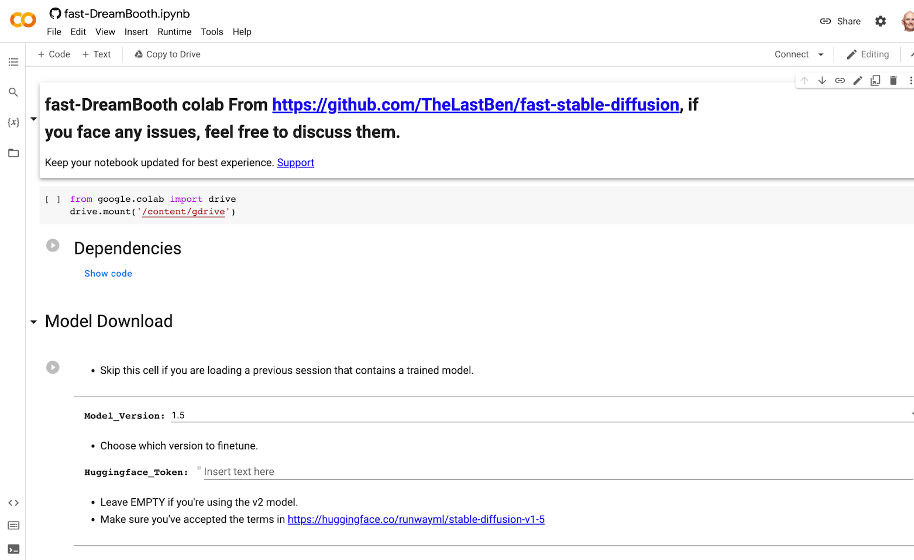
Now as to the environment, this can be on your own computer, in a virtual machine (VM), really wherever. My favorite (and free) method I found was a Google Colab notebook created by GitHub user TheLastBen that makes the process so incredibly simple that anyone can do this. The Colab notebook also takes advantage of DreamBooth, a Google Research project that provides for incredible detail on the art and images created by a diffusion model. In short, this is the easiest way to get really good looking AI art. You can get started with the Colab notebook here.

In the Colab notebook there are a ton of different options and a great step-by-step guide that explains them, but I’ll walk you through the basic settings to get going:

  1. First, hit the Play button next to Dependencies.
  2. Once that’s done, copy your User Access Token from your Hugging Face account.
  3. In the Model Download section, paste that User Access Token into the Huggingface_Token field.
  4. Click the Play button for Model Download.
  5. You’ll see the script run below all the fields here. You can proceed when you see “DONE!”
  6. Finally, in the Dreambooth section, provide a name in the Session_Name field. This will be the name of the session that gets saved in your Google Drive. That name can be reused later to skip these steps next time.

Training the Stable Diffusion Model

Now the pictures: You’ll want at least 20 pictures or so for your AI model to analyze in order to avoid creating a bunch of generic person art or nightmare fuel. So bust out your phone and take some selfies! If you have a friend to throw in two or three full body pictures this will help as well. A few optional tips:

  • Use different expressions and angles.
  • Use different backgrounds if you can.
  • Use a square or 1:1 ratio setting. By default, Stable Diffusion’s default image size is 512 x 512 pixels, so using square images makes your input more similar to your desired output.

If you’re an iPhone user, you will need to take one extra step here to save your files in JPEG format. You can find a guide for that in this article.

As you save your photos, make sure the file names include the name you’re going to use when generating your AI art. For example, my photos were all named troy (1).jpg, troy (2).jpg, troy (3).jpg, etc. This is important so that the AI understands what to call you (or your subject) when generating your images.

Once you have your photos, it’s time to upload them to a Bucket in Backblaze B2 Cloud Storage. You can easily do this in the Backblaze mobile app or on the Backblaze website.

With your selfies safely in Backblaze B2, make sure you make them accessible on your computer using a tool such as Rclone mount. If you don’t have an account yet, you can check out our guide on how to set up and configure Rclone mount.

You might be wondering why you should upload the photos to a Backblaze B2 Bucket and then mount the Bucket so that we can access it locally, rather than just saving the files to a local folder?

The answer is simple. In this example, we’re working with a few images representing a single subject, so you likely won’t have issues working from your local drive. As you further experiment with more subjects and more images of each subject, you’ll likely outgrow your local drive. Backblaze B2 Cloud Storage scales infinitely so you won’t have to worry about running out of space.

Now, back to the Colab notebook, hit the play button on Instance Images and click the button that shows up to Choose Files. In the pop up, choose your mounted instance of your B2 Bucket and select the photos.

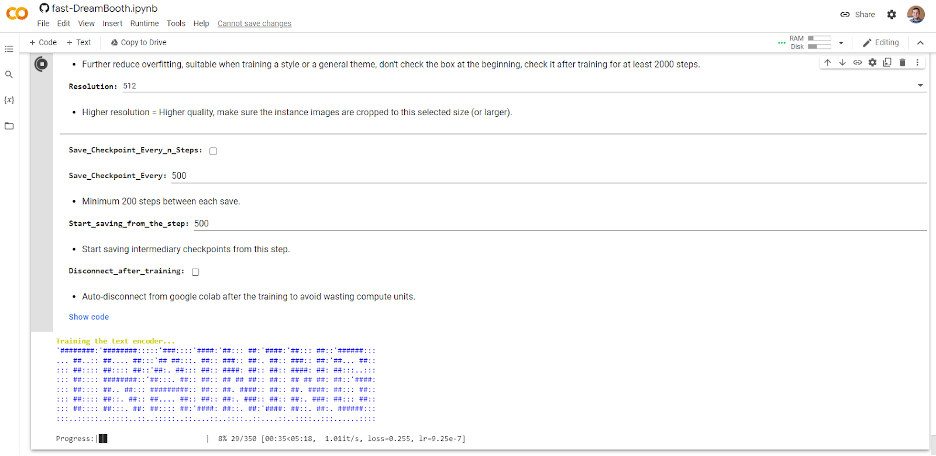
Once they are uploaded, skip the Concept Images section and click the play button for Training. If you’ve done everything right, you should see some ASCII art like this:

Depending on how many photos you selected, this can take some time. So grab a coffee, go for a walk, listen to a podcast, or perhaps all three.

Creating Your Own AI-Generated Masterpieces

Once complete, click the Play button under Test the Trained Model. This will launch a temporary instance of Stable Diffusion with your new custom model in Gradio, which is an open-source Python library for running machine learning apps. Click the Gradio link generated and we’re ready to start making some AI art.

Again, there are a ton of options and configurations but all you really need to do at this point is enter some text into the Prompt box and click the big Generate button.

Creating prompts for AI art is quickly becoming its own art form. There are tons of resources out there to inspire you, but here are a few prompts I used along with the resulting art.

Pro Tip: You may need to click the Generate button a few times if something looks off. This is totally normal—your new AI friend is learning over time, and it does this by repeating the generation process.

Prompt: “Photo of troy digital painting”

Prompt: “Photo of troy person digital painting”

Prompt: “Photo of troy person digital painting asymmetrical headshot smiling”

And finally for something fun…

Prompt: ”photo of troy person hand-drawn cartoon”

It even has an artist signature! Although I’m not sure who fRny Y is?

So, there you have it. Your very own AI engine, customized to generate versions of your face (or your library of images).

Good luck to all the budding AI artists out there. If you give this a try, we’d love to see your images on social media. You can find us @backblaze on Twitter, Facebook, and LinkedIn. I look forward to seeing what you all create!

The post Stable Diffusion and Backblaze: Create a Masterpiece from a Bucket of Your Own Images appeared first on Backblaze Blog | Cloud Storage & Cloud Backup.
Amazon Sunsets Cloud Drive

Post Syndicated from Stephanie Doyle original https://www.backblaze.com/blog/amazon-sunsets-cloud-drive/

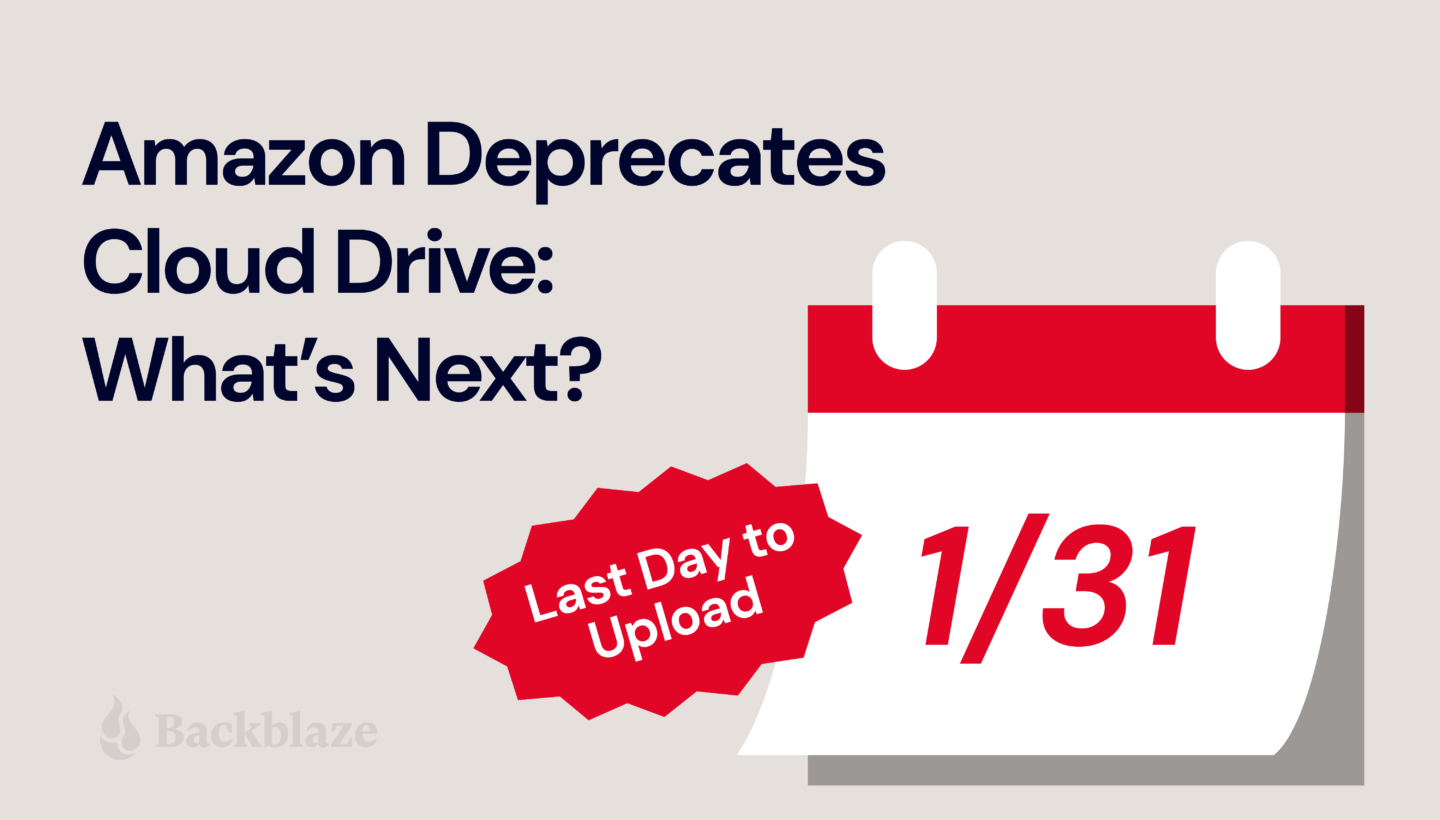
Another one bites the dust. Amazon announced they’re putting Amazon Cloud Drive in the rearview to focus on Amazon Photos in a phased deprecation through December 2023. Today, we’ll dig into what this means for folks with data on Amazon Cloud Drive, especially those with files other than photos and videos.

Dear Amazon Drive User

When Amazon dropped the news, they explained the phased approach they would take to deprecating Amazon Drive. They’re not totally eliminating Drive—yet. Here’s what they’ve done so far, and what they plan to do moving forward:

  • October 31, 2022: Amazon removed the Drive app from iOS and Android app stores. The app doesn’t get bug fixes and security updates anymore.
  • January 31, 2023: Uploading to the Amazon Drive website will be cut off. You will have read-only access to your files.
  • December 31, 2023: Amazon Drive will no longer be supported and access to files will be cut off. Every file stored on Amazon Drive, except photo or video files, needs a new home. Users can access photo and video files on Amazon Photos.

Now, users face two options for what to do with files stored on Amazon Drive:

  1. Follow instructions to download Amazon Photos for iOS and Android devices. And, use the Amazon Drive website to download and store all other files locally or with another service.
  2. Transfer your entire library of photos, videos, and other data to another service.

Looking for an Amazon Cloud Drive Alternative?

Shameless plug: If you used Amazon Cloud Drive to store anything other than photos and you need a new place to keep your data, give Backblaze B2 Cloud Storage a try. The first 10GB are free, and our storage is priced at a flat rate of $5/TB/month ($0.005/GB/month) after that. And if you’re a business customer, we also offer the choice of capacity-based pricing with Backblaze B2 Reserve.

A Quick History of Amazon Cloud Drive

In 2014, Amazon offered free, unlimited photo storage on Amazon Cloud Drive as a loyalty perk for Prime members. The following year, they rolled out a subscription-based offering to store other types of files in addition to photos—video, documents, etc.—on Cloud Drive.

Then, in 2017, they capped the free tier at 5GB. This was just one of many in a string of cloud storage providers ending a free offering and forcing users to pay or move.

All Amazon account holders—regardless of whether they paid for Prime or not—got 5GB for photos and other file types free of charge. If you wanted or needed more storage than that, you had to sign up for the subscription-based offering starting at $11.99 per year for 100GB of storage, and prices went up from there.

You might consider this the beginning of the end for Amazon Cloud Drive.

Why Say Goodbye?

When tech companies deprecate a feature—as Amazon has done with Drive—it’s for any number of reasons:

  1. To combine one feature with another.
  2. To rectify naming inconsistencies.
  3. When a newer version makes supporting the older one impossible or impractical.
  4. To avoid flaws in a necessary feature.
  5. When a better alternative replaced the feature.
  6. To simplify the system as a whole.

Amazon’s reason for deprecating Drive? To provide a dedicated solution for photos and videos. The company stated, “We are taking the opportunity to more fully focus our efforts on Amazon Photos to provide customers a dedicated solution for photos and video storage.” Unfortunately, that leaves folks who store anything else high and dry.

Where Do We Go From Here?

The bottom line: Amazon Drive customers must park emails, documents, spreadsheets, PDFs, and text files somewhere else. If you’re an Amazon Drive customer looking to move your files out before you lose access, we invite you to try Backblaze B2. The first 10GB is on us.

How to Get Started with Backblaze B2

  1. If you’re not a customer, first sign up for B2 Cloud Storage.
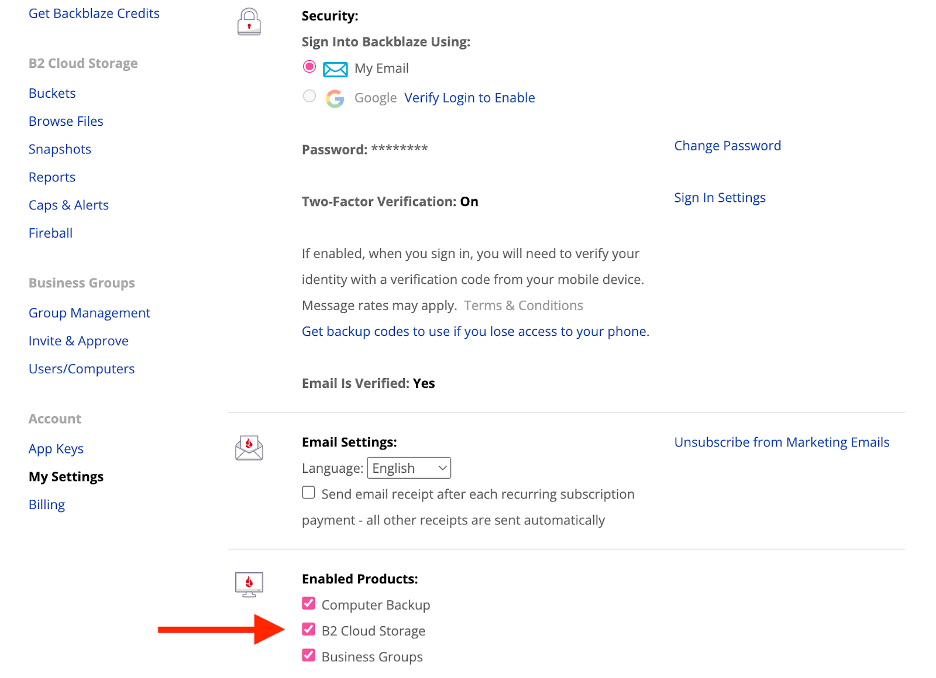
  2. If you’re already a customer, enable B2 Cloud Storage in your “My Settings” tab. You can follow our Quick Start Guide for more detailed instructions.
  3. Download your data from Amazon Drive.
  4. Upload your data to Backblaze B2. Many customers choose to do so directly through the web interface, while others prefer to use integrated transfer solutions like Cyberduck, which is free and open-source, or Panic’s Transmit for Macs.
  5. Sit back and relax knowing your data is safely stored in the Backblaze B2 Storage Cloud.

The post Amazon Sunsets Cloud Drive appeared first on Backblaze Blog | Cloud Storage & Cloud Backup.
Backblaze Adds US East Region, Expanding Location Choices and Cloud Replication Options

Post Syndicated from Tonya Comer original https://www.backblaze.com/blog/backblaze-adds-us-east-region-expanding-location-choices-and-cloud-replication-options/

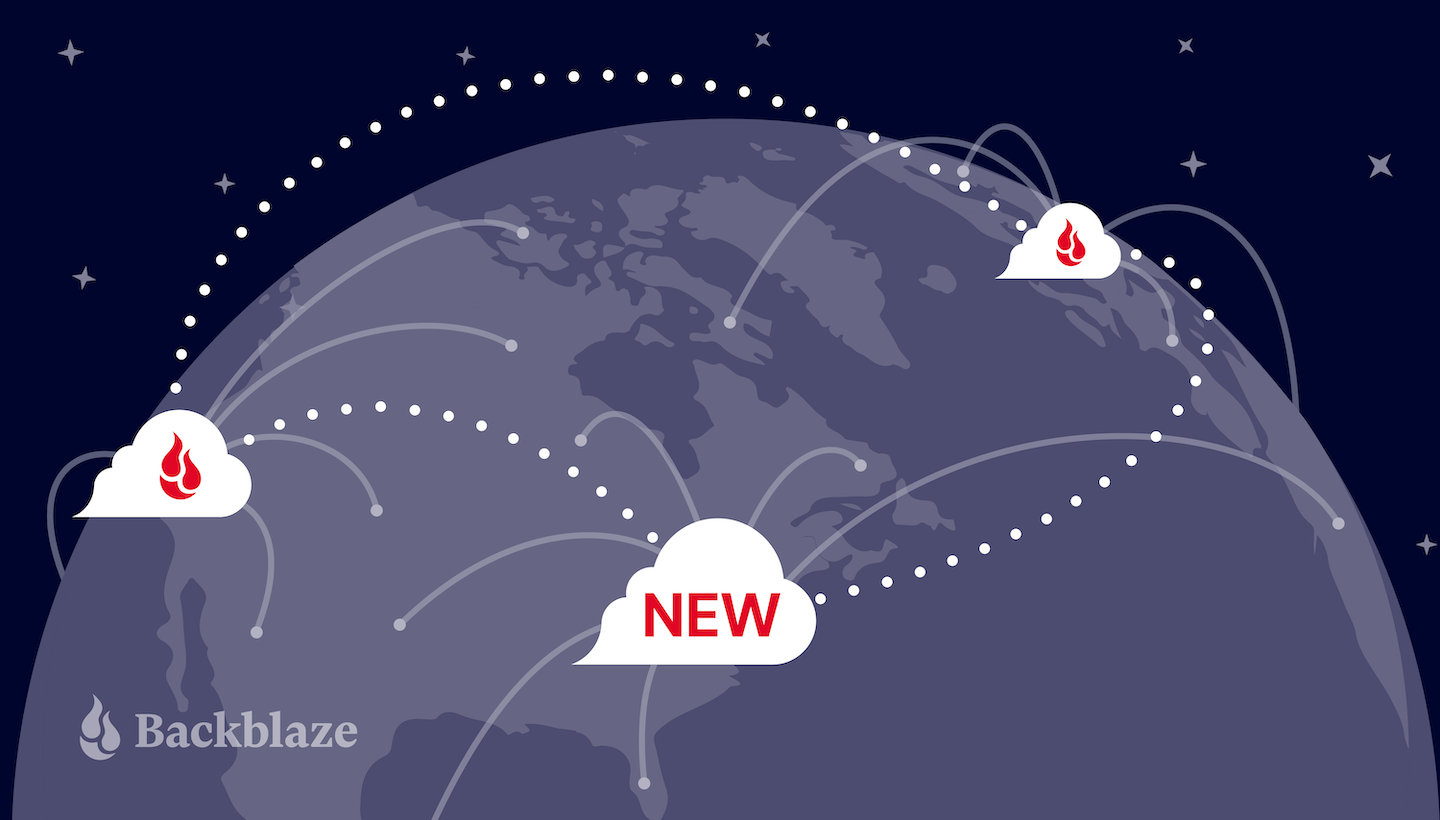
Customers looking for more local availability and data resilience can get both with the opening of the U.S. East data region, now available to current and future Backblaze users. With an expanded data center footprint, customers can easily store replicated datasets to two or more cloud locations for compliance and continuity. Plus, data egress for Cloud Replication is free, so you can copy data at no expense across the Backblaze platform.

Data Regions Deliver Speed, Security, and Scalability

You can now select the U.S. East data region when you’re storing with Backblaze B2 Cloud Storage to:

  • Achieve redundancy in the cloud. Automatically replicate datasets across North America, whether it’s for compliance, protection from cyberattacks, continuity needs, or to keep data closer to users or customers. (We love a redundant backup plan.)
  • Deliver your data faster. Store data closer to end users to improve latency for primary data sets—especially important if you’re an East Coast-based company.
  • Scale sustainably. Increase or decrease your storage requirements as your business expands—no need to invest in additional hardware. And minimize costs associated with managing a data center, including hardware, software, support, and other costs.

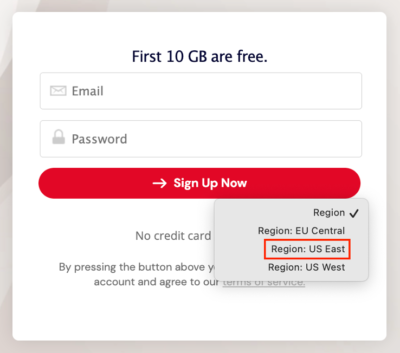
To start storing data in U.S. East today, you can choose “Region: US East” when you create a Backblaze account.

Astonishingly Easy Cloud Replication

Backblaze’s multi-region cloud infrastructure allows you to further take advantage of Cloud Replication to improve reliability, accessibility, and overall fault tolerance. Even better: While other cloud providers charge you to replicate your data, there are no egress fees across the Backblaze platform for Cloud Replication.

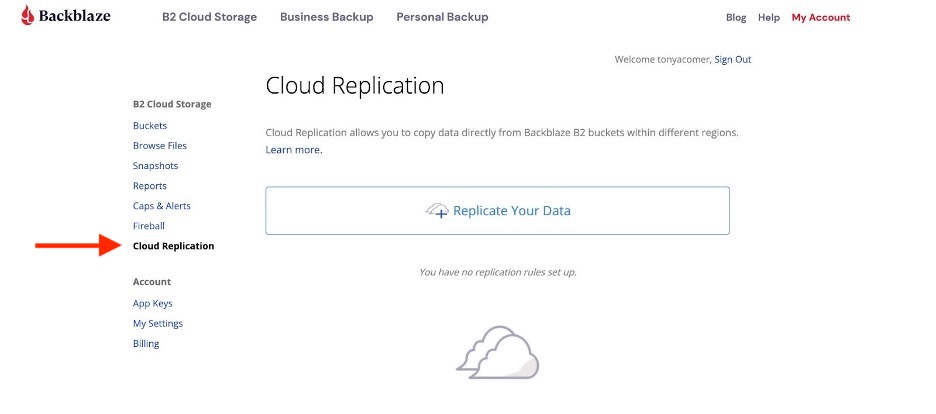
It’s easy to get started. If you’re an existing customer, all you have to do to implement Cloud Replication is to log in to your B2 Storage Cloud account and click on Cloud Replication in the right-hand column. Go to our website for more information, check out our FAQ, and feel free to contact our Support Team if you have any questions.

New Data Region; Same Data Center Standards

Data stored in U.S. East will reside in Backblaze’s newest data center, IAD 1, located in Reston, Virginia. Backblaze has a high standard for our data centers, and this new facility is best-in-class. All Backblaze data centers are SSAE-18/SOC-2 compliant, use biometric security, and have ID checks and area locks that require badge-level access to keep your data safe. In addition to SOC 2 Type 2, this latest data center is ISO 27001, NIST 800-53, and HIPAA compliant.

Cloud Storage That Meets Evolving Needs

The way businesses use and access cloud storage is changing. Rather than relying on local storage, companies are increasingly turning to the cloud to meet their data storage needs, including data protection and redundancy. Opening our U.S. East data region is the next logical step to better serve our customers, now and in the future, as they increasingly adopt cloud-only infrastructures. And for the many customers who continue to store data on-premises, the new region gives them more choices for their backup needs as well.

Look out for Backblaze Evangelist, Andy Klein, to fill you in all the details of our newest data center in an upcoming blog post, and feel free to comment below if you want to know more.

The post Backblaze Adds US East Region, Expanding Location Choices and Cloud Replication Options appeared first on Backblaze Blog | Cloud Storage & Cloud Backup.
Widening the Channel: Exertis Broadcast Adds Backblaze B2 Reserve

Post Syndicated from Elton Carneiro original https://www.backblaze.com/blog/widening-the-channel-exertis-broadcast-adds-backblaze-b2-reserve/

We launched our Channel Partner program about seven months ago. In the months since, we’ve rapidly onboarded some great strategic resellers, added new benefits, welcomed more staff to our team, and completed our initial launch of Backblaze B2 Reserve, our capacity-based cloud storage offering that includes download fees, premium support, and our Universal Data Migration service, exclusively for Backblaze resellers—but we’re still just getting started.

We’re very excited to announce another partner today.

Exertis Broadcast + Backblaze

Exertis Broadcast now offers resellers the full value and benefits of our Backblaze B2 Reserve program. This new partnership is doubly exciting to us because a number of our alliance partners already work with Exertis Broadcast—including Quantum, Studio Network Solutions (SNS), and SoDA—which means the world class Exertis engineers can package a suite of best-in-breed cloud workflow solutions in one seamless package for teams working in media and entertainment, modern data protection, and/or disaster recovery solutions industries.

If you’re a reseller looking for a distribution partner that can help your customers with their cloud storage needs, here are a few of the benefits Exertis offers:

  • Sales and Support dedicated to customer success.
  • Engineering Team available to consult on the best products and solutions to fit any needs.
  • Tools and Resources ranging from a state-of-the-art demo center to an innovative video solution builder.
  • Video Production to create cutting-edge content.
  • Marketing Professionals to design effective marketing content to keep you abreast of industry news and events.

To get started, resellers can contact us at [email protected] today.

The Backblaze Channel Partner Program

The Channel Partner program exists to provide easy, transparent, predictable cloud storage solutions to accelerate growth for resellers through the value of our Backblaze B2 Reserve offering.

The program provides benefits ranging from deal registration to joint marketing; rewards like seller incentives and market development funds (coming soon); as well as support including a Partner Portal and sales and marketing staff assistance.

Join Us!

We can’t wait to join with our current and future Channel Partners to deliver tomorrow’s solutions to any customer who can use astonishingly easy cloud storage. (We think that’s pretty much everybody.)

If you’re a reseller, we’d love to hear from you. If you’re a customer interested in benefiting from any of the above, we’d love to connect you with the right Channel Partner team to serve your needs. Either way, the doors are open and we look forward to helping out.

The post Widening the Channel: Exertis Broadcast Adds Backblaze B2 Reserve appeared first on Backblaze Blog | Cloud Storage & Cloud Backup.
10 Holiday Security Tips for Your Business

Post Syndicated from Stephanie Doyle original https://www.backblaze.com/blog/10-holiday-security-tips-for-your-business/

A decorative image showing a pig with an eyepatch hacking a computer and displaying the words 10 Business Security Tips to Use This Holiday Season.

’Tis the season—for ransomware attacks that is. The Federal Bureau of Investigation (FBI) and the Cybersecurity and Infrastructure Security Agency (CISA) observed increases in cyber attacks on weekends and holidays. Several of the largest ransomware attacks in 2021 happened over holiday weekends, including Mother’s Day, Memorial Day, and the Fourth of July. This tactic may be attractive because it gives cyber attackers a head start to map networks and propagate ransomware throughout networks when organizations are at limited capacity.  

The reason for this is simple: one of the easiest and most effective ways for bad actors to gain access to secure networks is by targeting the people who use them through phishing attacks and other social engineering techniques. Employees are already behind the eight ball so to speak, as email volume can increase up to 100x during the holiday season. Add to the equation that businesses often have increased workloads with fewer folks in office, or even office closures, and you have an ideal environment for a ransomware attack. 

Phew! Aren’t we supposed to be celebrating this time of year? Absolutely. So, let’s talk about ten things you can do to help protect your business from cyberattacks and organized crime during the holiday season. 

Get the Ransomware Ebook

There’s never been a better time to strengthen your ransomware defenses. Get our comprehensive guide to defending your business against ransomware this holiday season.

Read Up on Ransomware ➔ 

10 Security Tips for Your Business This Holiday Season

1. Update Your Tech

Teams should ensure that systems are up to date and that any new patches are tested and applied as soon as they are released, no matter how busy the company is at this time. This is, of course, important for your core applications, but don’t forget cell phones and web browsers. Additionally, personnel should be assigned to monitor alerts remotely when the business is closed or workers are out of the office so that critical patches aren’t delayed.

2. Review Your Company Security Policy With All of Your Employees

All businesses should review company security policies as the holiday season approaches. Ensure that all employees understand the importance of keeping access credentials private, know how to spot cybercrime, and know what to do if a crime happens. Whether your staff is in-office or remote, all employees should be up to date on security policies and special holiday circumstances.

3. Conduct Phishing Simulation Training

Another important step that organizations can take to ensure security over the holidays is to conduct phishing simulation training at the beginning of the season, and ideally on a monthly basis. This kind of training gives employees a chance to practice their ability to identify malicious links and attachments without a real threat looming. It’s a good opportunity to teach workers not to share login information with anyone over email and the importance of verifying emails.

4. Then, Make Sure Recommended Measures Are Set Up, Especially MFA

Multifactor authentication (MFA) fatigue happens when workers get tired of logging in and out with an authenticator app, push notification, or with a text message—but it’s one of the single best tools in your security arsenal. During the holidays, workers might be busier than usual, and therefore, more frustrated by MFA requirements. But, MFA is crucial for keeping your business safe from ransomware and domain denial of service (DDoS) attacks. 

5. Have an Offline Backup

It’s easy to forget, in our ever-more-connected world, that taking business data offline is one of the best protections you can offer. You still need to have a process to make sure those offline backups are regularly updated, so set a cadence. But, particularly with your business-critical data, offline backups represent a last line of defense that can make all the difference.  

6. Adjust Property Access Privileges

You might be surprised to know that physical security is a cybercrime prevention tool as well. Doors and devices should be the most highly protected areas of your space. Before the holidays, be sure to do a thorough review of your business’ access privileges so that no one has more access than is necessary to perform their duties. And, before shutting down for a much-needed break, check all exterior doors, windows, and other entry points to ensure they are fully secured. Don’t forget to update any automated systems to keep everything locked down before your return to work.

7. Don’t Advertise That You Will Be Closed

It’s common practice to alert customers when your business will be closed so that you can avoid any inconvenience. However, this practice could put your business at risk during times of the year when the crime rate is elevated, including the holiday season. Instead of posting signage or on social media declaring that no one will be in the building for a certain period, it’s better to use an automated voice or email response to alert customers of your closing. This way, crime opportunists will be less tempted.

8. Check In on Your Backup Strategy

For years, the industry standard was the 3-2-1 backup strategy. A 3-2-1 strategy means having at least three total copies of your data, two of which are local but on different media, and at least one off-site copy (in the cloud). These days, the 3-2-1 backup strategy is table stakes: still necessary, but there are now even more advanced approaches. Consider a cyber resilience stance for your company. 

9. Consider Cyber Insurance

Cyber insurance adoption rates are hard to track, but all data points to an increase in businesses getting coverage. Cyber insurance can cover everything from forensic post-breach reviews to litigation expenses. It also forces us all to review security policies and bring everything up to industry best practices. 

10. Test Your Disaster Recovery Strategy

If you don’t have a disaster recovery strategy, this is the time to create one. If you do have one, this is also a great time to put it to the test. You should know going into the holidays that you can respond quickly and effectively should your company suffer a security breach.

Protecting Business Data During the Holidays

Here’s the secret eleventh tip: The best thing you can do for your security is, ironically, the same thing that cyber criminals do—to treat your employees as humans. Studies have shown that one the long-term costs of ransomware is actually employee stress. We can’t expect humans to be perfect, and a learning-based (versus punitive) approach will help you in two ways: you’ll be setting up processes with the real world in mind, and your employees won’t feel disincentivized to report incidents early and improve when they make mistakes in training (or even in the real world). 

While it may be impossible to prevent all instances of data theft and cybercrime from happening, there are steps that companies can take to protect themselves. So, train, prepare, back up your data, and then celebrate knowing that you’ve done what you can. 

The post 10 Holiday Security Tips for Your Business appeared first on Backblaze Blog | Cloud Storage & Cloud Backup.
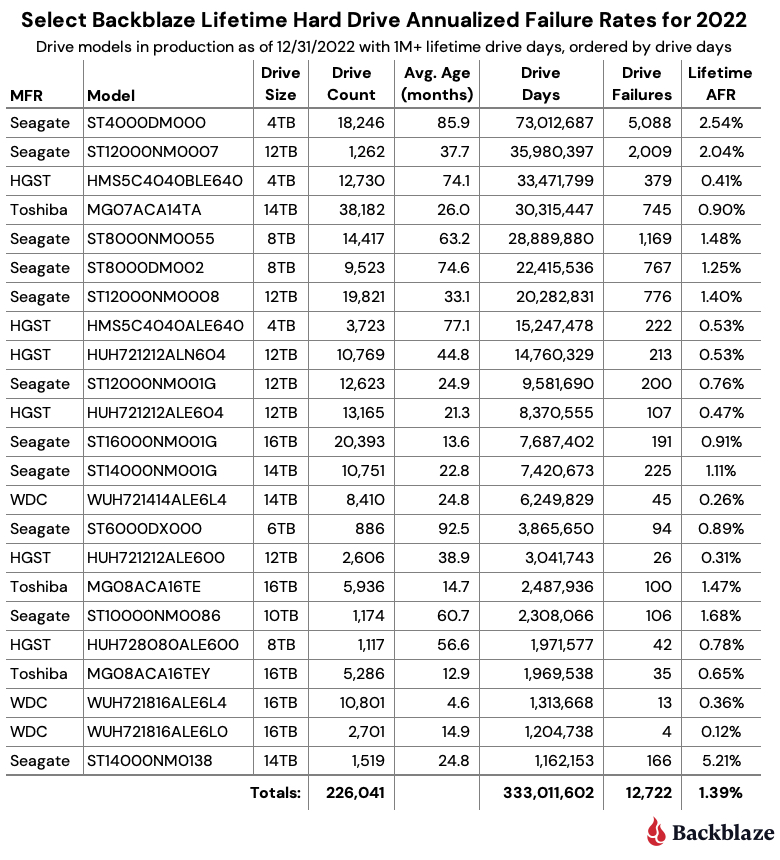
Object Lock 101: Protecting Data From Ransomware

Post Syndicated from Molly Clancy original https://backblaze.com/blog/object-lock-101-protecting-data-from-ransomware/

A decorative image showing a cloud with a computer monitor and a lock screen. A heading reads Ransomware Protection with Object Lock.

2023 was a record-breaking year for ransomware, with threat actors targeting higher ed institutions, schools, governments, and hospitals, amongst other targets. And, a study by cybersecurity firm Sophos found that 94% of organizations hit by ransomware in the past year said that the cybercriminals attempted to compromise their backups during the attack. 

If your backups are compromised, you lose one of the strongest cards in your hand when it comes to recovery. But with advances in backup protection like Object Lock, you can add one more layer of defense between cybercriminals and your business data.

In this post, we’ll explain:

  • What Object Lock is.
  • What Object Lock does.
  • Why you should use it.
  • When you should use it.

More On Protecting Your Business from Ransomware Attacks

This post is a part of our ongoing series on ransomware. Take a look at our other posts for more information on how businesses can defend themselves against a ransomware attack, the latest patterns in ransomware attacks, and more.

➔ Download the Complete Guide to Ransomware

What Is Object Lock?

Object Lock is a powerful backup protection tool that prevents a file from being altered or deleted until a given date. When you set the lock, you can specify the length of time an object should be locked. Any attempts to manipulate, copy, encrypt, change, or delete the file will be rejected during that time. (NOTE: At Backblaze, the Object Lock feature was previously referred to as “File Lock,” and you may see the term from time to time in documentation. They are one and the same.)

A decorative image showing a lock icon.

Reminder: What Is an Object?

An object is a discrete unit of data that includes both the information itself—a file, image, video, or any other digital content—and its metadata. Objects are typically stored in object storage systems (hey, that’s us!), where each object is uniquely identified and accessed via a unique address.

What Does Object Lock Do?

Object Lock allows you to store data using a write once, read many (WORM) model. You write the data to a storage medium, then it can only be read after that for a defined period of time. No one can change it, including the data owner, the cloud provider storing the data, or whoever set the Object Lock. 

Enabling Object Lock is a one-time operation. Once it is enabled on a bucket (either a new or existing bucket), you can assign Object Lock settings on specific files, but you can’t disable it. There are a two different Object Lock modes:

  • In compliance mode, not only can objects not be deleted or modified while the lock is in place, but the lock also cannot be removed, only extended. 
  • In governance mode, the lock can be removed or overwritten via an API call with the appropriate application key. 

What is Object Lock Legal Hold?

Object Lock Legal Hold is a feature that also prevents data from being changed or deleted, but the lock does not have a defined retention period—it can be turned on and off at any time. 

A Deeper Dive

For more information on how compliance mode, governance mode, and Object Lock Legal Hold work, check out Digging Deeper into Object Lock or our Tech Docs. They’re both required reading if you want to avoid accidentally locking your data for 100 years, a very safe but impractical way to store your data. Remember, once you set a lock in compliance mode, even the cloud provider is unable to unlock or delete data in response to a support request.

What Is an Air Gap, and How Does Object Lock Provide One?

Object Lock creates a virtual air gap for your data. The term comes from the world of LTO tape. When backups are written to tape, the tapes are then physically removed from the network, creating a physical gap of air between backups and production systems. In the event of a ransomware attack, you can just pull the tapes from the previous day to restore systems.

Object Lock does the same thing, but it all happens in the cloud. Instead of physically isolating data, Object Lock virtually isolates the data.

What Is Immutable Data? Is It the Same as Object Lock?

In object storage, immutability is a characteristic of an object that cannot be modified or changed. It is different from Object Lock in that Object Lock is a function that allows you to create immutable or unchangeable objects. Immutability is the characteristic you want to achieve, and Object Lock is the way you achieve it.

How Does Object Lock Work with Veeam Ransomware Protection?

Veeam, a backup software provider, offers immutability as a feature to protect your data. The immutability feature in Veeam works hand in hand with the Object Lock functionality offered by cloud providers like Backblaze. If you’re using a cloud storage provider to store your Veeam backups and they support Object Lock (which we think all providers should, not that we’re biased), you can configure Veeam to save your backups to a storage bucket with Object Lock enabled. As a certified Veeam Ready-Object and Veeam Ready-Object with Immutability partner, utilizing this feature with Backblaze is as simple as checking a box in your settings (and in your Veeam settings too, of course).

For a step-by-step guide on how to back up Veeam to Backblaze B2 Cloud Storage with Object Lock functionality, check out the video below.

Does Object Lock Work with Other Integrations?

Object Lock works with many Backblaze B2 integrations in addition to Veeam, including MSP360, Commvault, Rubrik, and more. You can also enable Object Lock using the Backblaze S3 Compatible API, the B2 Native API, the Backblaze B2 SDKs, and the CLI.

Why Should You Use Object Lock?

With cyber threats becoming increasingly sophisticated, the ability to store data with immutability provides an essential layer of protection. Even if your system falls victim to an attack, the original data remains recoverable, minimizing the impact on business operations and reputation. Even you can’t edit or delete your data. 

There’s no added cost to use Object Lock with Backblaze B2 beyond what you would pay to store the data anyway. (But other cloud providers charge for API calls related to Object Lock, so if you ever need to renew an Object Lock on a file, you may get charged for that call. Your Object Locks can renew fairly often based on the immutability settings in your software, so be sure to ask when comparing cloud storage providers).

Finally, data security experts strongly recommend using Object Lock to protect your critical backups. Not only is it recommended, but in some industries Object Lock is necessary to maintain data protection standards required by compliance agencies. One other thing to consider: Many companies are adopting cyber insurance, and often those companies require immutable backups for you to be fully covered.

The question really isn’t, “Why should you use Object Lock?” but rather “Why aren’t you using Object Lock?”

A decorative image showing a calendar icon with a red arrow circling it in counterclockwise.

When Should You Use Object Lock?

The immutability achieved by Object Lock is useful for protecting against ransomware, but there are some additional use cases that make it valuable to businesses as well.

  1. To Replace an LTO System: Most folks looking to migrate from tape are concerned about maintaining the security of the air gap that tape provides. With Object Lock you can create a backup that’s just as secure as air-gapped tape without the need for expensive physical infrastructure.
  2. For Compliance: If you work in an industry subject to HIPAA, GDPR, or SEC Rule 17a-4 regulations or if you need to retain and protect data for legal reasons, Object Lock allows you to easily set appropriate retention periods for regulatory compliance.
  3. For Data Governance and Auditability: Object Lock enables you to demonstrate data integrity and compliance with audit trails. This can be important for regulatory audits or internal investigations.
  4. For Long-Term Data Preservation: For archival purposes or long-term storage, Object Lock ensures that data remains accessible and unaltered for extended periods, mitigating the risk of data loss from accidental deletion. 
  5. For Disaster Recovery and Business Continuity: The last thing you want to worry about in the event you are attacked by ransomware is whether your backups are safe. Being able to restore systems from backups stored with Object Lock can help you minimize downtime and interruptions, comply with cybersecurity insurance requirements, and achieve recovery time objectives easier.

Protecting Your Data with Object Lock

To summarize, here are a few key points to remember about Object Lock:

  • Object Lock creates a virtual air gap using a WORM model.
  • Data that is protected using Object Lock is immutable, meaning it’s unchangeable.
  • With Object Lock enabled, your data can’t be modified or deleted for the length of the lock.
  • Object Lock can be used to replace tapes, protect sensitive data, and defend against ransomware.

Ransomware attacks can be disruptive, but your story doesn’t have to end with you feeling forced into a ransom payment against your better judgment or facing extended downtime. As cybercriminals become bolder and more advanced, creating immutable, air-gapped backups using Object Lock functionality puts a manageable recovery in closer reach.

Have questions about Object Lock functionality and ransomware? Let us know in the comments.

The post Object Lock 101: Protecting Data From Ransomware appeared first on Backblaze Blog | Cloud Storage & Cloud Backup

Why Cyberattacks Surge During the Holiday Season

Post Syndicated from Molly Clancy original https://www.backblaze.com/blog/why-cyberattacks-surge-during-the-holiday-season/

The holiday season should be all about spending some much-needed time off with friends and family, not dealing with cyberattacks at work. But the holiday season is the most wonderful time of year for cybercriminals, too. Cyberattacks surge between Thanksgiving and New Year’s. Many businesses and workers may be too busy or distracted to check every security alert or look over every email for suspicious content.

All businesses should be aware of cybersecurity risks during the holiday season, but small and medium sized businesses face different challenges when it comes to cyberattacks compared with large enterprises. Small businesses (with fewer than 500 employees) comprise 99.9% of all businesses in the United States. And microbusinesses, or businesses with four or fewer employees, comprise 91%. Due to their staffing and budget constraints, it is likely they are more vulnerable to cyberattacks than larger organizations.

Let’s take a closer look at why the holidays are so dangerous when it comes to digital security, and how you can prepare your business for a holiday cyberattack and retain your holiday cheer.

Download our Ransomware Guide

There’s never been a better time to strengthen your ransomware defenses. Get our comprehensive guide to defending your business against ransomware this holiday season.➔ Download The Complete Guide to Ransomware

The Most Vulnerable Time of the Year

So, why do cybercriminals choose the holiday season to perform their most damaging attacks? Here are a few reasons:

1. Companies Are Short-Staffed

Many companies find themselves short-staffed during the peak of the holiday season. Between holiday travel, events, and obligations, it’s easier for things to fall through the cracks. No matter how much you plan to have a full staff, there will always be times when you wish you had more personnel. End-of-year planning, increased order volumes, more time spent performing customer service duties, and technology hiccups keep staff more than busy at this time of year. Not to mention that there’s an added burden on IT professionals during the holidays, who are busy trying to keep office networks and remote access safe and secure, responding to help tickets, and keeping an eye on increased anomalous activity.

2. Workers Are Distracted

When employees are spread thin and juggling numerous duties and holiday obligations, office duties often take a back seat. Employees are looking forward to the holidays just as much as you are, so you can imagine that they might be more inattentive than at less festive times of the year. Workers that are distracted from their normal cybersecurity awareness might miss a clue that an email is coming from an illegitimate source.

Cybersecurity activities include scanning for vulnerabilities, mitigating risks, and looking for bad actors moving through systems. Among the hustle and bustle of the holidays, it might seem like there is no time for cybersecurity, or that it can wait till next year. That’s exactly why cybercriminals will be waiting to launch their attack when you least expect it.

Just a little office gift wrapping.

3. Email Activity Increases

With so many “happy holidays” emails from vendors, internal employees, and even outside addresses, there are plenty of opportunities for a fraudster to plant a malicious link that goes unnoticed. If a worker falls for a scam on a company device, the entire company could be at risk for a malware attack.

Cybersecurity Risks During the Holiday Season

Ransomware is one of the most damaging threats to businesses of all kinds. Last year there was a 30% increase in ransomware attacks targeting companies during the holiday season. When a worker unknowingly clicks on a malicious link or accesses a hijacked website on a company device, the business may become infected with ransomware. Attackers can then hold the organization for ransom by threatening to leak information. The advice is generally to refuse to pay.

Whether your company is in finance, retail, logistics, or any other industry, the first step to getting prepared for the holiday season is to reevaluate your cybersecurity. Ensure that you are ready in case one of these cybersecurity risks hits you this year.

Phishing

Phishing is a popular attack vector that cybercriminals use to gain access to a company’s system. Phishing emails can be very convincing when they impersonate another organization or legitimate person to trick the receiver into divulging crucial login information.

While many people think they would be able to recognize a phishing email, they’re the entry point for 90% of data breaches. Plus, busy workers may not have the time to focus on the minute details of every message they receive this holiday season. Attackers will use that to their advantage.

A phishing email recently received by the author that came from a false sender address.

Distributed Denial of Service (DDoS) Attacks

Another serious threat to business during the holidays is a DDoS attack. This is an especially popular route for cyberattacks at this time of year. Why? Simply put: Because businesses are busy, and attackers are keen to take advantage of that distraction to launch an attack. Cybercriminals use DDoS attacks to overload business systems with so much traffic that none of your applications can function.

Compromised Passwords

The best way for a cybercriminal to gain access to your business websites, accounts, and other mission-critical apps is to obtain compromised credentials. There are many ways that fraudsters can attempt to steal company login credentials with minimal effort. In fact, there have been several well-publicized password-related breaches that made passwords available to anyone who cares to search for that information—people have even created APIs so that you can easily see if you’re affected by those breaches. We humans are also prone to reusing passwords. According to a 2022 report, employees admitted to reusing passwords across an average of 16 different workplace accounts.

Protect Your Business This Holiday Season

So, what can you do to minimize your risks as cybercriminals ramp up their attacks? Here are some tips to help protect your business this holiday season:

  • Ensure your anti-virus and/or anti-phishing software scans for vulnerabilities regularly.
  • Discuss phishing email best practices with your staff year-round, but especially during the holiday season.
  • Never click on suspicious links or download email attachments from unknown senders.
  • Turn on safe browsing capabilities in your browser.
  • Backup business data locally and to the cloud.
  • Update your software and apply patches when they are released.
  • Use strong passwords, multi-factor authentication, and a secure password manager to generate and store secure passwords.

Even if you’ve done everything right, there is still a chance that you could be outsmarted by a cybercriminal this holiday season. Every business, no matter how big or small, needs to have an incident response plan in place to help staff identify the breach before it’s too late.

Don’t forget to include thorough training on the specific security protocols that workers need to follow in the event that a cyberattack does occur. If your business becomes the victim of a cyberattack, the sooner you can identify the breach, the better.

And just in case the worst happens, it’s smart to invest in a reliable backup solution. A decentralized approach to data security can help protect your business and safeguard your private information from anyone who wants to take advantage of your company. If your systems do go down and a cybercriminal locks you out of your business applications, you will still have your backup data, which means that you can restore your business data and resume business as usual with as little disruption as possible.

The holiday season is a money-maker for businesses and cybercriminals alike. Make sure that your company is protected so you can focus on the joy of the season instead of giving cybercriminals an easy payday.

The post Why Cyberattacks Surge During the Holiday Season appeared first on Backblaze Blog | Cloud Storage & Cloud Backup.
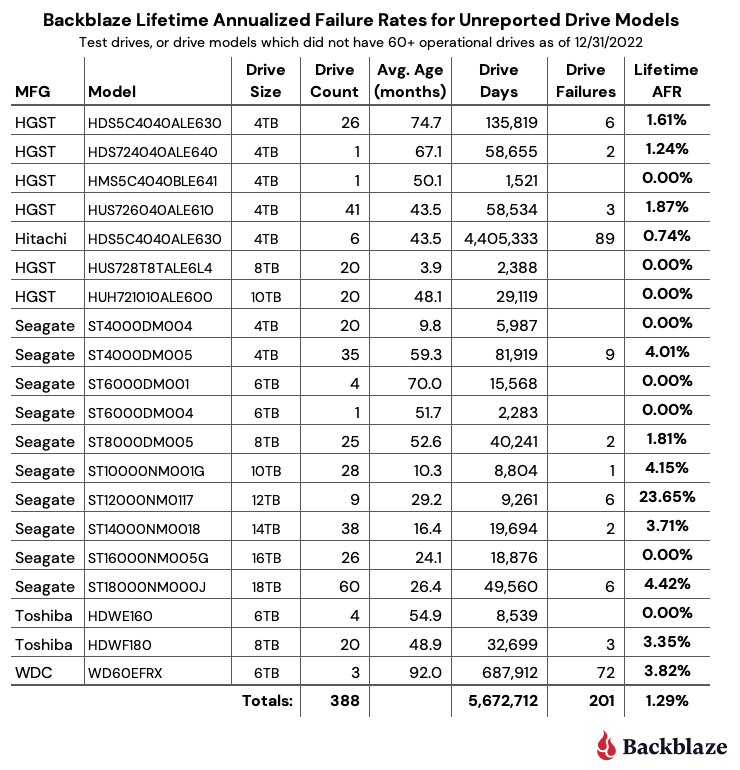
What’s the Diff: Programs, Processes, and Threads

Post Syndicated from Molly Clancy original https://www.backblaze.com/blog/whats-the-diff-programs-processes-and-threads/

A decorative image showing three computers with the words programs, processes, and threads displayed. In the center, there's a circle with the words what's the diff.

Editor’s Note

This post has been updated since it was originally published in 2017.

Programs, processes, and threads are all terms that relate to software execution, but you may not know what they really mean. Whether you’re a seasoned developer, an aspiring enthusiast, or you’re just wondering what you’re looking at when you open Task Manager on a PC or Activity Monitor on a Mac, learning these terms is essential for understanding how a computer works.

This post explains the technical concepts behind computer programs, processes, and threads to give you a better understanding of the functionality of your digital devices. With this knowledge, you can quickly diagnose problems and come up with solutions, like knowing if you need to install more memory for better performance. If you care about having a fast, efficient computer, it is worth taking the time to understand these key terms. 

What Is a Computer Program?

A program is a sequence of coded commands that tells a computer to perform a given task. There are many types of programs, including programs built into the operating system (OS) and ones to complete specific tasks. Generally, task-specific programs are called applications (or apps). For example, you are probably reading this post using a web browser application like Google Chrome, Mozilla Firefox, or Apple Safari. Other common applications include email clients, word processors, and games.

The process of creating a computer program involves designing algorithms, writing code in a programming language, and then compiling or interpreting that code to transform it into machine-readable instructions that the computer can execute.

What Are Programming Languages?

Programming languages are the way that humans and computers talk to each other. They are formalized sets of rules and syntax.

A decorative image showing stylized C# code.
C# example of program code.

Compiled vs. Interpreted Programs

Many programs are written in a compiled language and created using programming languages like C, C++, C#. The end result is a text file of code that is compiled into binary form in order to run on the computer (more on binary form in a few paragraphs). The text file speaks directly to your computer. While they’re typically fast, they are also fixed compared to interpreted programs. That has positives and negatives: you have more control over things like memory management, but you’re platform dependent and, if you have to change something in your code, it typically takes longer to build and test.

There is another kind of program called an interpreted program. They require an additional program to take your program instructions and translate that to code for your computer. Compared with compiled languages, these types of programs are platform-independent (you just have to find a different interpreter, instead of writing a whole new program) and they typically take up less space. Some of the most common interpreted programming languages are Python, PHP, JavaScript, and Ruby.

Ultimately, both kinds of programs are run and loaded into memory in binary form. Programs have to run in binary because your computer’s CPU understands only binary instructions.

What Is Binary Code?

Binary is the native language of computers. At their most basic level, computers use only two states of electrical current—on and off. The on state is represented by 1 and the off state is represented by 0. Binary is different from the number system—base 10—that we use in daily life. In base 10, each digit position can be anything from 0 to 9. In the binary system, also known as base 2, each position is either a 0 or a 1.

A chart showing the numerals zero through nine shown rendered in base 10 and base 2 numeral systems.

Perhaps you’ve heard the programmer’s joke, “There are only 10 types of people in the world, those who understand binary, and those who don’t.”

How Are Computer Programs Stored and Run?

Programs are typically stored on a disk or in nonvolatile memory in executable format. Let’s break that down to understand why.

In this context, we’ll talk about your computer having two types of memory: volatile and nonvolatile. Volatile memory is temporary and processes in real time. It’s faster, easily accessible, and increases the efficiency of your computer. However, it’s not permanent. When your computer turns off, this type of memory resets.

Nonvolatile memory, on the other hand, is permanent unless deleted. While it’s slower to access, it can store more information. So, that makes it a better place to store programs. A file in an executable format is simply one that runs a program. It can be run directly by your CPU (that’s your processor). Examples of these file types are .exe in Windows and .app in Mac.

What Resources Does a Program Need to Run?

Once a program has been loaded into memory in binary form, what happens next?

Your executing program needs resources from the OS and memory to run. Without these resources, you can’t use the program. Fortunately, your OS manages the work of allocating resources to your programs automatically. Whether you use Microsoft Windows, macOS, Linux, Android, or something else, your OS is always hard at work directing your computer’s resources needed to turn your program into a running process.

In addition to OS and memory resources, there are a few essential resources that every program needs.

  • Register. Think of a register as a holding pen that contains data that may be needed by a process like instructions, storage addresses, or other data.
  • Program counter. Also known as an instruction pointer, the program counter plays an organizational role. It keeps track of where a computer is in its program sequence.
  • Stack. A stack is a data structure that stores information about the active subroutines of a computer program. It is used as scratch space for the process. It is distinguished from dynamically allocated memory for the process that is known as the “heap.”
The main resources a program needs to run.

What Is a Computer Process?

When a program is loaded into memory along with all the resources it needs to operate, it is called a process. You might have multiple instances of a single program. In that situation, each instance of that running program is a process. 

Each process has a separate memory address space. That separate memory address is helpful because it means that a process runs independently and is isolated from other processes. However, processes cannot directly access shared data in other processes. Switching from one process to another requires some amount of time (relatively speaking) for saving and loading registers, memory maps, and other resources.

Having independent processes matters for users because it means one process won’t corrupt or wreak havoc on other processes. If a single process has a problem, you can close that program and keep using your computer. Practically, that means you can end a malfunctioning program and keep working with minimal disruptions.

What Are Threads?

The final piece of the puzzle is threads. A thread is the unit of execution within a process.

A process can have anywhere from one thread to many.

When a process starts, it receives an assignment of memory and other computing resources. Each thread in the process shares that memory and resources. With single-threaded processes, the process contains one thread.

The difference between single thread and multi-thread processes.

In multi-threaded processes, the process contains more than one thread, and the process is accomplishing a number of things at the same time (to be more accurate, we should say “virtually” the same time—you can read more about that in the section below on concurrency).

Earlier, we talked about the stack and the heap, the two kinds of memory available to a thread or process. Distinguishing between these kinds of memory matters because each thread will have its own stack. However, all the threads in a process will share the heap.

Some people call threads lightweight processes because they have their own stack but can access shared data. Since threads share the same address space as the process and other threads within the process, it is easy to communicate between the threads. The disadvantage is that one malfunctioning thread in a process can impact the viability of the process itself.

How Threads and Processes Work Step By Step

Here’s what happens when you open an application on your computer.

  • The program starts out as a text file of programming code.
  • The program is compiled or interpreted into binary form.
  • The program is loaded into memory.
  • The program becomes one or more running processes. Processes are typically independent of one another.
  • Threads exist as the subset of a process.
  • Threads can communicate with each other more easily than processes can.
  • Threads are more vulnerable to problems caused by other threads in the same process.

Computer Process vs. Threads

Aspect Processes Threads
Definition Independent programs with their own memory space. Lightweight, smaller units of a process, share memory.
Creation Overhead Higher overhead due to separate memory space. Lower overhead as they share the same memory space.
Isolation Processes are isolated from each other. Threads share the same memory space.
Resource Allocation Each process has its own set of system resources. Threads share resources within the same process.
Independence Processes are more independent of each other. Threads are dependent on each other within a process.
Failure Impact A failure in one process does not directly affect others. A failure in one thread can affect others in the same process.
Sychronization Less need from synchronization, as processes are isolated. Requires careful synchronization due to shared resources.
Example Use Cases Running multiple independent applications. Multithreading within a single application for parallelism.
Memory Usage Typically consumes more memory. Consumes less memory compared to processes.

What About Concurrency and Parallelism?

A question you might ask is whether processes or threads can run at the same time. The answer is: it depends. In environments with multiple processors or CPU cores, simultaneous execution of multiple processes or threads is feasible. However, on a single processor system, true simultaneous execution isn’t possible. In these cases, a process scheduling algorithm is employed to share the CPU among running processes or threads, creating the illusion of parallel execution. Each task is allocated a “time slice,” and the swift switching between tasks occurs seamlessly, typically imperceptible to users. The terms “parallelism” (denoting genuine simultaneous execution) and “concurrency” (indicating the interleaving of processes over time to simulate simultaneous execution) distinguish between the two modes of operation, whether truly simultaneous or approximated.

How Google Chrome Uses Processes and Threads

To illustrate the impact of processes and threads, let’s consider a real-world example with a program that many of us use, Google Chrome. 

When Google designed the Chrome browser, they faced several important decisions. For instance, how should Chrome handle the fact that many different tasks often happen at the same time when using a browser? Every browser window (or tab) may communicate with several servers on the internet to download audio, video, text, and other resources. In addition, many users have 10 to 20 browser tabs (or more…) open most of the time, and each of these tabs may perform multiple tasks.

Google had to decide how to handle all of these tasks. They chose to run each browser window in Chrome as a separate process rather than a thread or many threads. That approach brought several benefits.

  • Running each window as a process protects the overall application from bugs and glitches.
  • Isolating a JavaScript program in a process prevents it from using too much CPU time and memory and making the entire browser unresponsive.

That said, there is a trade-off cost to Google’s design decision. Starting a new process for each browser window has a higher fixed cost in memory and resources compared to using threads. They were betting that their approach would end up with less memory bloat overall.

Using processes instead of threads provides better memory usage when memory is low. In practice, an inactive browser window is treated as a lower priority. That means the operating system may swap it to disk when memory is needed for other processes. If the windows were threaded, it would be more difficult to allocate memory efficiently which ultimately leads to lost computer performance.

For more insights on Google’s design decisions for Chrome on Google’s Chromium Blog or on the Chrome Introduction Comic.

The screen capture below shows the Google Chrome processes running on a MacBook Air with many tabs open. You can see that some Chrome processes are using a fair amount of CPU time and resources (e.g., the one at the top is using 44 threads) while others are using fewer.

A screen capture of the Mac Activity Monitor.
Mac Activity Monitor displaying Google Chrome threads.

The Activity Monitor on the Mac (or Task Manager in Windows) on your system can be a valuable ally in fine-tuning your computer or troubleshooting problems. If your computer is running slowly or a program or browser window isn’t responding for a while, you can check its status using the system monitor.

In some cases, you’ll see a process marked as “Not Responding.” Try quitting that process and see if your system runs better. If an application is a memory hog, you might consider choosing a different application that will accomplish the same task.

Made It This Far?

We hope this Tron-like dive into the fascinating world of computer programs, processes, and threads has cleared up some questions.

At the start, we promised clarity on using these terms to improve performance. You can use Activity Monitor on the Mac or Task Manager on Windows to close applications and processes that are malfunctioning. That’s beneficial because it means you can end a malfunctioning program without the hassle of turning off your computer.

Still have questions? We’d love to hear from you in the comments.

FAQ

1. What are computer programs?

Computer programs are sets of coded instructions written in programming languages to direct computers in performing specific tasks or functions. Ranging from simple scripts to complex applications, computer programs enable users to interact with and leverage the capabilities of computing devices.

2. What are computer processes?

Computer processes are instances of executing computer programs. They represent the active state of a running application or task. Each process operates independently, with its own memory space and system resources, ensuring isolation from other processes. Processes are managed by the operating system, and they facilitate multitasking and parallel execution. 

3. What are computer threads?

Computer threads are smaller units within computer processes, enabling parallel execution of tasks. Threads share the same memory space and resources within a process, allowing for more efficient communication and coordination. Unlike processes, threads operate in a cooperative manner, sharing data and context, making them suitable for tasks requiring simultaneous execution.

4. What’s the difference between computer processes and threads?

Computer processes are independent program instances with their own memory space and resources, operating in isolation. In contrast, threads are smaller units within processes that share the same memory, making communication easier but requiring careful synchronization. Processes are more independent, while threads enable concurrent execution and resource sharing within a process. The choice depends on the application’s requirements, balancing isolation with the benefits of parallelism and resource efficiency.

5. What’s the difference between concurrency and parallel processing?

Concurrency involves the execution of multiple tasks during overlapping time periods, enhancing system responsiveness. It doesn’t necessarily imply true simultaneous execution but rather the interleaving of processes to create an appearance of parallelism. Parallel processing, on the other hand, refers to the simultaneous execution of multiple tasks using multiple processors or cores, achieving genuine parallelism. Concurrency emphasizes efficient task management, while parallel processing focuses on concurrent tasks executing simultaneously for improved performance in tasks that can be divided into independent subtasks.

The post What’s the Diff: Programs, Processes, and Threads appeared first on Backblaze Blog | Cloud Storage & Cloud Backup.

Education Unplugged: Google Ends Unlimited Storage for Schools

Post Syndicated from Barry Kaufman original https://www.backblaze.com/blog/education-unplugged-google-ends-unlimited-storage-for-schools/

For schools and universities, data storage is paramount. Staff, administrators, and educators, not to mention students, need a secure place to store files. Add to that the legacy accounts of alumni storing irreplaceable files from their education, and you have a massive need for storage.

For a long time, Google was happy to oblige. In 2006, the company launched Google Apps for Education (later G Suite for Education; now Google Workplace for Education), offering free unlimited storage for qualifying schools and districts. But when they’d reached market penetration—somewhere in the neighborhood of 83% of school districts according to EdWeek Research Center—they ended the unlimited storage policy many schools had come to rely on.

If you already know about Google’s policy change and are looking for a solution to save your data and your budget, getting started with Backblaze B2 is easy. Otherwise, read on to learn more about the change, what it may mean for you in the long-term, and a Backblaze partnership with Carahsoft that eases purchasing through local, state, and federal buying programs.

Office Hours Are Over—Google Ends Unlimited Storage for Educational Institutions

Google’s policy change took effect in July 2022, and many schools and universities had to find alternative storage solutions or change their internal storage policies to stay within the new limits. Under the terms of the new policy, Google offers a baseline of 100TB of pooled storage shared across all users.

The policy shift was spurred, Google says, because “as we’ve grown to serve more schools and universities each year, storage consumption has also rapidly accelerated. Storage is not being consumed equitably across—nor within—institutions, and school leaders often don’t have the tools they need to manage this.”

For some school districts, colleges, and universities, this policy shift meant having to reach out to alumni with the request that they back up all their own data. It also hit some already-strapped IT budgets particularly hard. Estimates vary, but depending on the size of the school and their data needs, they could be looking at anywhere up to an extra $70,000 a year in storage costs.

That’s a non-negligible fee for a service that has become increasingly vital for schools. We’ve written about how important cloud storage is for schools, but it’s worth reiterating here.

School is in Session

Not only will a secure cloud storage solution help protect school districts from threats of ransomware, it can also help maintain predictable operating expenses and create opportunities for collaboration through remote learning. In cases like Kansas’ Pittsburg State University, it helped keep data safe from natural disasters that abound in places like Tornado Alley. Pittsburg State implemented Backblaze B2 as their off-site backup in the event of disaster and used Object Lock functionality to safeguard data from ransomware.

Photo Credit: Pittsburg State University

The academic world is still adjusting to Google’s policy change. Stories have emerged of schools simply dropping Google and being forced to move data out of thousands of alumni accounts. A quick-fix solution to avoid Google’s new fee structure, this strategy is being undertaken without a clear answer to the question of how alumni can access their own data after the move. After all, how up to date are those alumni email lists?

A Google Alternative for Schools

School districts, colleges, and universities need to find a new, budget-friendly way forward. If you’re still struggling to find an alternative storage solution now that the bell has rung and Google has dismissed its free storage, Backblaze can help you find a new home on the cloud.

Backblaze B2 offers schools unlimited, pay-as-you-go storage at a fraction of the price of Google, enabling you to continue offering students and alumni the storage space they’ve come to expect. For colleges, universities, and school districts not buying through government purchasing programs, you can sign up for Backblaze B2 directly. We offer 10TB of storage free so that you can see if it works for you, but if you want to do a larger or customized proof of concept, reach out to our Sales team.

Accessing Backblaze Through Your Local, State, or Federal Buying Program

As we revealed during this year’s Educause conference, Backblaze has recently rolled out a partnership with Carahsoft aimed squarely at budget-conscious educational institutions. The partnership brings Backblaze services to educational institutions with a capacity-based pricing model that’s a fraction of the price of traditional cloud providers like Google. And it can be purchased through local, state, or federal buying programs. If you buy IT services for your district through a distributor, this solution could work for you. Visit the partnership announcement to learn more.

The post Education Unplugged: Google Ends Unlimited Storage for Schools appeared first on Backblaze Blog | Cloud Storage & Cloud Backup.
Querying a Decade of Drive Stats Data

Post Syndicated from Pat Patterson original https://www.backblaze.com/blog/querying-a-decade-of-drive-stats-data/

Last week, we published Backblaze Drive Stats for Q3 2022, sharing the metrics we’ve gathered on our fleet of over 230,000 hard drives. In this blog post, I’ll explain how we’re now using the Trino open source SQL query engine in ensuring the integrity of Drive Stats data, and how we plan to use Trino in future to generate the Drive Stats result set for publication.

Converting Zipped CSV Files into Parquet

In his blog post Storing and Querying Analytical Data in Backblaze B2, my colleague Greg Hamer explained how we started using Trino to analyze Drive Stats data earlier this year. We quickly discovered that formatting the data set as Apache Parquet minimized the amount of data that Trino needed to download from Backblaze B2 Cloud Storage to process queries, resulting in a dramatic improvement in query performance over the original CSV-formatted data.

As Greg mentioned in the earlier post, Drive Stats data is published quarterly to Backblaze B2 as a single .zip file containing a CSV file for each day of the quarter. Each CSV file contains a record for each drive that was operational on that day (see this list of the fields in each record).

When Greg and I started working with the Parquet-formatted Drive Stats data, we took a simple, but somewhat inefficient, approach to converting the data from zipped CSV to Parquet:

  • Download the existing zip files to local storage.
  • Unzip them.
  • Run a Python script to read the CSV files and write Parquet-formatted data back to local storage.
  • Upload the Parquet files to Backblaze B2.

We were keen to automate this process, so we reworked the script to use the Python ZipFile module to read the zipped CSV data directly from its Backblaze B2 Bucket and write Parquet back to another bucket. We’ve shared the script in this GitHub gist.

After running the script, the drivestats table now contains data up until the end of Q3 2022:

trino:ds> SELECT DISTINCT year, month, day 
FROM drivestats ORDER BY year DESC, month DESC, day DESC LIMIT 1;
year | month | day 
------+-------+-----
 2022 |     9 |  30 
(1 row)

In the last article, we were working with data running until the end of Q1 2022. On March 31, 2022, the Drive Stats dataset comprised 296 million records, and there were 211,732 drives in operation. Let’s see what the current situation is:

trino:ds> SELECT COUNT(*) FROM drivestats;
   _col0 
-----------
 346006813 
(1 row) 

trino:ds> SELECT COUNT(*) FROM drivestats 
    WHERE year = 2022 AND month = 9 AND day = 30;
   _col0 
--------
 230897 
(1 row)

So, since the end of March, we’ve added 50 million rows to the dataset, and Backblaze is now spinning nearly 231,000 drives—over 19,000 more than at the end of March 2022. Put another way, we’ve added more than 100 drives per day to the Backblaze Cloud Storage Platform in the past six months. Finally, how many exabytes of raw data storage does Backblaze now manage?

trino:ds> SELECT ROUND(SUM(CAST(capacity_bytes AS bigint))/1e+18, 2)
FROM drivestats WHERE year = 2022 AND month = 9 AND day = 30;
 _col0 
-------
  2.62 
(1 row)

Will we cross the three exabyte mark this year? Stay tuned to find out.

Ensuring the Integrity of Drive Stats Data

As Andy Klein, the Drive Stats supremo, collates each quarter’s data, he looks for instances of healthy drives being removed and then returned to service. This can happen for a variety of operational reasons, but it shows up in the data as the drive having failed, then later revived. This subset of data shows the phenomenon:

trino:ds> SELECT year, month, day, failure FROM drivestats WHERE 
serial_number = 'ZHZ4VLNV' AND year >= 2021 ORDER BY year, month, 
day;
 year | month | day | failure 
------+-------+-----+---------
...
 2021 |    12 |  26 |       0 
 2021 |    12 |  27 |       0 
 2021 |    12 |  28 |       0 
 2021 |    12 |  29 |       1 
 2022 |     1 |   3 |       0 
 2022 |     1 |   4 |       0 
 2022 |     1 |   5 |       0 
...

This drive appears to have failed on Dec 29, 2021, but was returned to service on Jan 3, 2022.

Since these spurious “failures” would skew the reliability statistics, Andy searches for and removes them from each quarter’s data. However, even Andy can’t see into the future, so, when a drive is taken offline at the end of one quarter and then returned to service in the next quarter, as in the above case, there is a bit of a manual process to find anomalies and clean up past data.

With the entire dataset in a single location, we can now write a SQL query to find drives that were removed, then returned to service, no matter when it occurred. Let’s build that query up in stages.

We start by finding the serial numbers and failure dates for each drive failure:

trino:ds> SELECT serial_number, DATE(FORMAT('%04d-%02d-%02d', year, 
month, day)) AS date 
FROM drivestats 
WHERE failure = 1;
  serial_number  |    date    
-----------------+------------
 ZHZ3KMX4        | 2021-04-01 
 ZA12RBBM        | 2021-04-01 
 S300Z52X        | 2017-03-01 
 Z3051FWK        | 2017-03-01 
 Z304JQAE        | 2017-03-02 
...
(17092 rows)

Now we find the most recent record for each drive:

trino:ds> SELECT serial_number, MAX(DATE(FORMAT('%04d-%02d-%02d', 
year, month, day))) AS date
    FROM drivestats 
    GROUP BY serial_number;
  serial_number   |    date    
------------------+------------
 ZHZ65F2W         | 2022-09-30 
 ZLW0GQ82         | 2022-09-30 
 ZLW0GQ86         | 2022-09-30 
 Z8A0A057F97G     | 2022-09-30 
 ZHZ62XAR         | 2022-09-30 
...
(329908 rows)

We then join the two result sets to find spurious failures; that is, failures where the drive was later returned to service. Note the join condition—we select records whose serial numbers match and where the most recent record is later than the failure:

trino:ds> SELECT f.serial_number, f.failure_date
FROM (
    SELECT serial_number, DATE(FORMAT('%04d-%02d-%02d', year, month, 
day)) AS failure_date
    FROM drivestats 
    WHERE failure = 1
) AS f
INNER JOIN (
    SELECT serial_number, MAX(DATE(FORMAT('%04d-%02d-%02d', year, 
month, day))) AS last_date
    FROM drivestats 
    GROUP BY serial_number
) AS l
ON f.serial_number = l.serial_number AND l.last_date > f.failure_date;
  serial_number  | failure_date 
-----------------+--------------
 2003261ED34D    | 2022-06-09 
 W300STQ5        | 2022-06-11 
 ZHZ61JMQ        | 2022-06-17 
 ZHZ4VL2P        | 2022-06-21 
 WD-WX31A2464044 | 2015-06-23 
(864 rows)

As you can see, the current schema makes date comparisons a little awkward, pointing the way to optimizing the schema by adding a DATE-typed column to the existing year, month, and day. This kind of denormalization is common in analytical data.

Calculating the Quarterly Failure Rates

In calculating failure rates per drive model for each quarter, Andy loads the quarter’s data into MySQL and defines a set of views. We additionally define the current_quarter view to restrict the failure rate calculation to data in July, August, and September 2022:

CREATE VIEW current_quarter AS 
    SELECT * FROM drivestats
    WHERE year = 2022 AND month in (7, 8, 9);

CREATE VIEW drive_days AS 
    SELECT model, COUNT(*) AS drive_days 
    FROM current_quarter
    GROUP BY model;

CREATE VIEW failures AS
    SELECT model, COUNT(*) AS failures
    FROM current_quarter
    WHERE failure = 1
    GROUP BY model
UNION
    SELECT DISTINCT(model), 0 AS failures
    FROM current_quarter
    WHERE model NOT IN
    (
        SELECT model
        FROM current_quarter
        WHERE failure = 1
        GROUP BY model
    );

CREATE VIEW failure_rates AS
    SELECT drive_days.model AS model,
           drive_days.drive_days AS drive_days,
           failures.failures AS failures, 
           100.0 * (1.0 * failures) / (drive_days / 365.0) AS 
annual_failure_rate
    FROM drive_days, failures
    WHERE drive_days.model = failures.model;

Running the above statements in Trino, then querying the failure_rates view, yields a superset of the data that we published in the Q3 2022 Drive Stats report. The difference is that this result set includes drives that Andy excludes from the Drive Stats report: SSD boot drives, drives that were used for testing purposes, and drive models which did not have at least 60 drives in service:

trino:ds> SELECT * FROM failure_rates ORDER BY model;
        model         | drive_days | failures | annual_failure_rate 
----------------------+------------+----------+---------------------
 CT250MX500SSD1       |      32171 |        2 |                2.27 
 DELLBOSS VD          |      33706 |        0 |                0.00 
 HGST HDS5C4040ALE630 |       2389 |        0 |                0.00 
 HGST HDS724040ALE640 |         92 |        0 |                0.00 
 HGST HMS5C4040ALE640 |     341509 |        3 |                0.32 
 ...
 WDC WD60EFRX         |        276 |        0 |                0.00 
 WDC WDS250G2B0A      |       3867 |        0 |                0.00 
 WDC WUH721414ALE6L4  |     765990 |        5 |                0.24 
 WDC WUH721816ALE6L0  |     242954 |        0 |                0.00 
 WDC WUH721816ALE6L4  |     308630 |        6 |                0.71 
(74 rows)

Query 20221102_010612_00022_qscbi, FINISHED, 1 node
Splits: 139 total, 139 done (100.00%)
8.63 [82.4M rows, 5.29MB] [9.54M rows/s, 628KB/s]

Optimizing the Drive Stats Production Process

Now that we have shown that we can derive the required statistics by querying the Parquet-formatted data with Trino, we can streamline the Drive Stats process. Starting with the Q4 2022 report, rather than wrangling each quarter’s data with a mixture of tools on his laptop, Andy will use Trino to both clean up the raw data and produce the Drive Stats result set for publication.

Accessing the Drive Stats Parquet Dataset

When Greg and I started experimenting with Trino, our starting point was Brian Olsen’s Trino Getting Started GitHub repository, in particular, the Hive connector over MinIO file storage tutorial. Since MinIO and Backblaze B2 both have S3-compatible APIs, it was easy to adapt the tutorial’s configuration to target the Drive Stats data in Backblaze B2, and Brian was kind enough to accept my contribution of a new tutorial showing how to use the Hive connector over Backblaze B2 Cloud Storage. This tutorial will get you started using Trino with data stored in Backblaze B2 Buckets, and includes a section on accessing the Drive Stats dataset.

You might be interested to know that Backblaze is sponsoring this year’s Trino Summit, taking place virtually and in person in San Francisco, on November 10. Registration is free; if you do attend, come say hi to Greg and me at the Backblaze booth and see Trino in action, querying data stored in Backblaze B2.

The post Querying a Decade of Drive Stats Data appeared first on Backblaze Blog | Cloud Storage & Cloud Backup.

How to Connect Your QNAP NAS to Backblaze B2 Cloud Storage

Post Syndicated from Troy Liljedahl original https://www.backblaze.com/blog/guide-qnap-backup-b2-cloud-storage/

Network attached storage (NAS) devices are a popular solution for data storage, sharing files for remote collaboration purposes, syncing files that are part of a workflow, and more. QNAP, one of the leading NAS manufacturers, makes it incredibly easy to backup and/or sync your business or personal data for these purposes with the inclusion of its application, Hybrid Backup Sync (HBS). HBS consolidates backup, restoration, and synchronization functions into a single application.

Protecting your data with a NAS is a great first step, but you shouldn’t stop there. NAS devices are still vulnerable to any kind of on-premises disaster like fires, floods, and tornados. They’re also not safe from ransomware attacks that might hit your network. To truly protect your data, it’s important to back up or sync to an off-site cloud storage destination like Backblaze B2 Cloud Storage. Backblaze B2 offers a geographically distanced location for your data for $5/TB per month, and you can also embed it into your NAS-based workflows to streamline access across multiple locations.

Read on for more information on whether you should use backup or sync for your purposes and how to connect your QNAP NAS to Backblaze B2 step-by-step. We’ve even provided videos that show you just how easy it is—it typically takes less than 15 minutes!

➔ Download Our Complete NAS Guide

Should I Back Up or Sync?

It’s easy to confuse backup and sync. They’re essentially both making a copy of your data, but they have different use cases. It’s important to understand the difference so you’re getting the right protection and accessibility for your data.

Check out the table below. You’ll see that backup is best for being able to recover from a data disaster, including the ability to access previous versions of data. However, if you’re just looking for a mirror copy of your data, sync functionality is all you need. Sync is also useful as part of remote workflows: you can sync your data between your QNAP and Backblaze B2, and then remote workers can pull down the most up-to-date files from the B2 cloud.

A table comparing Backup vs. Sync

A table comparing Backup vs. Sync.

Because Hybrid Backup Sync provides both functions in one application, you should first identify which feature you truly need. The setup process is similar, but you will need to take different steps to configure backup vs. sync in HBS.

How to Set Up Your Backblaze B2 Account

Now that you’ve determined whether you want to back up or sync your data, it’s time to create your Backblaze B2 Cloud Storage account to securely protect your on-premises data.

If you already have a B2 Cloud Storage account, feel free to skip ahead. Otherwise, you can sign up for an account and get started with 10GB of free storage to test it out.

Ready to get started? You can follow along with the directions in this blog or take a look at our video guides. Greg Hamer, Senior Technical Evangelist, demonstrates how to get your data into B2 Cloud Storage in under 15 minutes using HBS for either backup or sync.

Video: Back Up QNAP to Backblaze B2 Cloud Storage with QNAP Hybrid Backup Sync

Video: Sync QNAP to Backblaze B2 Cloud Storage with QNAP Hybrid Backup Sync

How to Set Up a Bucket, Application Key ID, and Application Key

Once you’ve signed up for a Backblaze B2 Account, you’ll need to create a bucket, Application Key ID, and Application Key. This may sound like a lot, but all you need are a few clicks, a couple names, and less than a minute!

  1. On the Buckets page of your account, click the Create a Bucket button.
  2. An screenshot of the B2 Cloud Storage Buckets page.

  3. Give your bucket a name and enable encryption for added security.
  4. An image showing the Create a Bucket page with security features to be enabled.

  5. Click the Create a Bucket button and you should see your new bucket on the Buckets page.
  6. An image showing a successfully created bucket.

  7. Navigate to the App Keys page of your account and click Add a New Application Key.
  8. Name your Application Key and click the Create New Key button. Make sure that your key has both read and write permissions (the default option).
  9. Your Application Key ID and Application Key will appear on your App Keys page. Important: Make sure to copy these somewhere secure as the Application Key will not appear again!

How to Set Up QNAP’s Hybrid Backup Sync to Work With B2 Cloud Storage

To set up your QNAP with Backblaze B2 sync support, you’ll need access to your B2 Cloud Storage account. You’ll also need your B2 Cloud Storage account ID, Application Key, and bucket name—all of which are available after you log in to your Backblaze account. Finally, you’ll need the Hybrid Backup Sync application installed in QTS. You’ll need QTS 4.3.3 or later and Hybrid Backup Sync v2.1.170615 or later.

To configure a backup or sync job, simply follow the rest of the steps in this integration guide or reference the videos posted above. Once you follow the rest of the configuration steps, you’ll have a set-it-and-forget-it solution in place.

What Can You Do With Backblaze B2 and QNAP Hybrid Backup Sync?

With QNAP’s Hybrid Backup Sync software, you can easily back up and sync data to the cloud. Here’s some more information on what you can do to make the most of your setup.

Hybrid Backup Sync 3.0

QNAP and Backblaze B2 users can take advantage of Hybrid Backup Sync, as explained above. Hybrid Backup Sync is a powerful tool that provides true backup capability with features like version control, client-side encryption, and block-level deduplication. QNAP’s operating system, QTS, continues to deliver innovation and add thrilling new features. The ability to preview backed up files using the QuDedup Extract Tool, a feature first released in QTS 4.4.1, allowed QNAP users to save on bandwidth costs.

You can download the latest QTS update here and Hybrid Backup Sync is available in the App Center on your QNAP device.

Hybrid Mount and VJBOD Cloud

The Hybrid Mount and VJBOD Cloud apps allow QNAP users to designate a drive in their system to function as a cache while accessing B2 Cloud Storage. This allows users to interact with Backblaze B2 just like you would a folder on your QNAP device while using Backblaze B2 as an active storage location.

Hybrid Mount and VJBOD Cloud are both included in the QTS 4.4.1 versions and higher, and function as a storage gateway on a file-based or block-based level, respectively. Hybrid Mount enables Backblaze B2 to be used as a file server and is ideal for online collaboration and file-level data analysis. VJBOD Cloud is ideal for a large number of small files or singular massively large files (think databases!) since it’s able to update and change files on a block-level basis. Both apps offer the ability to connect to B2 Cloud Storage via popular protocols to fit any environment, including server message block (SMB), Apple Filing Protocol (AFP), network file sharing (NFS), file transfer protocol (FTP), and WebDAV.

QuDedup

QuDedup introduces client-side deduplication to the QNAP ecosystem. This helps users at all levels save on space on their NAS by avoiding redundant copies in storage. Backblaze B2 users have something to look forward to as well since these savings carry over to cloud storage via the HBS 3.0 update.

Why Backblaze B2?

QNAP continues to innovate and unlock the potential of B2 Cloud Storage in the NAS ecosystem. If you haven’t given B2 Cloud Storage a try yet, now is the time. You can get started with Backblaze B2 and your QNAP NAS right now, and make sure your NAS is synced securely and automatically to the cloud.

The post How to Connect Your QNAP NAS to Backblaze B2 Cloud Storage appeared first on Backblaze Blog | Cloud Storage & Cloud Backup.

What Are Software Containers?

Post Syndicated from Molly Clancy original https://www.backblaze.com/blog/what-are-containers/

A decorative image showing shipping containers in a lightbox.

You’re probably familiar with containers if you’re even remotely involved in software development or systems administration. In their 2023 survey, the Cloud Native Computing Foundation found that over 90% organizations use containers in production. Additionally, more than 90% of organizations that rely on cloud native practices for most or all of their application development and deployment also depend on containers. 

But, whether orchestrating containers is a regular part of your day-to-day life, or you are just trying to understand what an operating system kernel is, it helps to have an understanding of some container basics.

Today, we’re explaining what containers are, how they’re used, and how cloud storage fits into the container picture—all in one neat and tidy containerized blog post package. (And, yes, the kernel is important, so we’ll get to that, too).

What are containers?

Containers are packaged units of software that contain all of the dependencies (e.g. binaries, libraries, programming language versions, etc.) they need to run no matter where they live—on a laptop, in the cloud, or in an on-premises data center. That’s a fairly technical definition, so you might be wondering, “OK, but what are they really?”

The generally accepted definition of the term applies almost exactly to what the technology does.

A container, generally = a receptacle for holding goods; a portable compartment in which freight is placed (as on a train or ship) for convenience of movement.

A container in software development = a figurative “receptacle” for holding software. The second part of the definition applies even better—shipping containers are often used as a metaphor to describe what containers do. In shipping, instead of stacking goods in a jumbled pile, goods are packed into standard-sized containers that fit on whatever is hauling them—a ship, a train, or a trailer.

Likewise, instead of “shipping” an unwieldy mess of code, including the required operating system, containers package software into lightweight units that share the same operating system (OS) kernel and can run anywhere—on a laptop, on a server, in the cloud, etc.

What’s an OS kernel?

As promised, here’s where the OS kernel becomes important. The kernel is the core programming at the center of the OS that controls all other parts of the OS. The term makes sense if you consider the definition of “kernel” as “the central or essential part” as in “a kernel of truth.” (It also begs the question, “Why didn’t they just call it a colonel?” especially because it’s in charge of so many things… But that’s neither here nor there.) And now you know what an OS kernel does.

Compared to older virtualization technology, namely virtual machines which are measured in gigabytes, containers are only megabytes in size. That means you can run quite a few of them on a given computer or server much like you can stack many containers onto a ship.

Indeed, the founders of Docker, the software that sparked widespread container adoption, looked to the port of Oakland, California for inspiration. Former Docker CEO, Ben Golub, explained in an interview with InfoWorld, “We could see all the container ships coming into the port of Oakland, and we were talking about the value of the container in the world of shipping. The fact it was easier to ship a car from one side of the world than to take an app from one server to another, that seemed like a problem ripe for solving.” In fact, it’s right there in their logo.

And that is exactly what containers, mainly via Docker’s popularity, did—they solved the problem of environment inconsistency for developers. Before containers became widely used, moving software between environments meant things broke, a lot. If a developer wrote an app on their laptop, then moved it into a testing environment on a server, for example, everything had to be the same—same versions of the programming language, same permissions, same database access, etc. If not, you had a very sad app.

Virtualization 101

Containers work their magic by way of virtualization. Virtualization is the process of creating a simulated computing environment that’s abstracted from the physical computing hardware—essentially a computer-generated computer, also referred to as a software-defined computer.

The first virtualization technology to really take off was the virtual machine (VM). A VM sits atop a hypervisor—a lightweight software layer that allows multiple operating systems to run in tandem on the same hardware. VMs allow developers and system administrators to make the most of computing hardware. Before VMs, each application had to run on its own server, and it probably didn’t use the server’s full capacity. After VMs, you could use the same server to run multiple applications, increasing efficiency and lowering costs.

Containers vs. virtual machines

While VMs increase hardware efficiency, each VM requires its own OS and a virtualized copy of the underlying hardware. Because of this, VMs can take up a lot of system resources, and they’re slow to start up.

Containers, on the other hand, do not virtualize the hardware. Instead, they share the host operating system’s kernel, making them much smaller and faster than VMs. Want to know more? Check out our deep dive into the differences between VMs and containers.

chart of how Containers stack on a server

The benefits of containers

Containers allow developers and system administrators to develop, test, and deploy software and applications faster and more efficiently than older virtualization technologies like VMs. The benefits of containers include:

  1. Portability: Containers include all of the dependencies they need to run in any environment, provided that environment includes the appropriate OS. This reduces the errors and bugs that arise when moving applications between different environments, increasing portability.
  2. Size: Containers share OS resources and don’t include their own OS image, making them lightweight—megabytes compared to VMs’ gigabytes. As such, one machine or server can support many containers.
  3. Speed: Again, because they share OS resources and don’t include their own OS image, containers can be spun up in seconds compared to VMs which can take minutes to spin up.
  4. Resource efficiency: Similar to VMs, containers allow developers to make the best use of hardware and software resources.
  5. Isolation: Also similar to VMs, with containers, different applications or even component parts of a singular application can be isolated such that issues like excessive load or bugs on one don’t impact others.

Container use cases

Containers are nothing if not versatile, so they can be used for a wide variety of use cases. However, there are a few instances where containers are especially useful:

  1. Enabling microservices architectures: Before containers, applications were typically built as all-in-one units or “monoliths.” With their portability and small size, containers changed that, ushering in the era of microservices architecture. Applications could be broken down into their component “services,” and each of those services could be built in its own container and run independently of the other parts of the application. For example, the code for your application’s search bar can be built separately from the code for your application’s shopping cart, then loosely coupled to work as one application.
  2. Supporting modern development practices: Containers and the microservices architectures they enable paved the way for modern software development practices. With the ability to split applications into their component parts, each part could be developed, tested, and deployed independently. Thus, developers can build and deploy applications using modern development approaches like DevOps, continuous integration/continuous deployment (CI/CD), and agile development.
  3. Facilitating hybrid cloud and multi-cloud approaches: Because of their portability, containers enable developers to utilize hybrid cloud and/or multi-cloud approaches. Containers allow applications to move easily between environments—from on-premises to the cloud or between different clouds.
  4. Accelerating cloud migration or cloud-native development: Existing applications can be refactored using containers to make them easier to migrate to modern cloud environments. Containers also enable cloud-native development and deployment.

The role of software containers in AI application development

In addition to enabling microservices architectures and supporting modern development practices, containers play a role in AI application development. Their ability to provide consistent, reproducible environments makes them ideal for AI, where managing complex dependencies and ensuring uniform performance across different platforms are essential. 

AI projects often rely on specific versions of libraries, drivers, and runtimes, which can lead to compatibility issues and errors. Containers solve this problem by encapsulating all necessary dependencies, libraries, and runtime environments to provide a consistent and reproducible platform for AI development. This encapsulation ensures that AI models and applications run the same way, regardless of the underlying infrastructure and provides consistency from development through production. 

The portability of containers also offers advantages for deploying AI workloads across diverse environments. They can be easily moved between local development machines, on-premises servers, and cloud platforms without requiring code or configuration changes. This flexibility supports easy scalability of AI applications to meet changing demands—such as increased user loads or the need for more intensive data processing. 

Additionally, containers enable organizations to leverage the most cost effective and powerful computing resources available, whether it’s local hardware for testing and development or cloud-based GPU clusters for training large-scale models. This ability moves workloads efficiently across different environments and also supports hybrid and multi-cloud strategies to provide organizations with greater agility, while reducing costs and avoiding vendor lock-in.

Container tools

The two most widely recognized container tools are Docker and Kubernetes. They’re not the only options out there, but in their 2023 developer survey, Stack Overflow found that nearly 52% out of 90,000+ respondents use Docker and 19% use Kubernetes. But what do they do?

1. What is Docker?

Container technology had been around for a while in the form of Linux containers or LXC, but the widespread adoption of containers happened only in the past decade with the introduction of Docker.

Docker was launched in 2013 as a project to build single-application LXC containers, introducing several changes to LXC that make containers more portable and flexible to use. It later morphed into its own container runtime environment. At a high level, Docker is a Linux utility that can efficiently create, ship, and run containers.

Docker introduced more standardization to containers than previous technologies and focused on developers, specifically, making it the de facto standard in the developer world for application development.

2. What is Kubernetes?

As containerization took off, many early adopters found themselves facing a new problem: how to manage a whole bunch of containers. Enter: Kubernetes. Kubernetes is an open-source container orchestrator. It was developed at Google (deploying billions of containers per week is no small task) as a “minimum viable product” version of their original cluster orchestrator, ominously named Borg. Today, it is managed by the Cloud Native Computing Foundation, and it helps automate management of containers including provisioning, load balancing, basic health checks, and scheduling.

Kubernetes allows developers to describe the desired state of a container deployment using YAML files (YAML stands for Yet Another Markup Language, which is yet another winning tech acronym.). The YAML file uses declarative language to tell Kubernetes “this is what this container deployment should look like” and Kubernetes does all the grunt work of creating and maintaining that state.

Containers + storage: What you need to know

Containers are inherently ephemeral or stateless. They get spun up, and they do their thing. When they get spun down, any data that was created while they were running is destroyed with them. But most applications are stateful, and need data to live on even after a given container goes away.

Object storage is inherently scalable. It enables the storage of massive amounts of unstructured data while still maintaining easy data accessibility. For containerized applications that depend on data scalability and accessibility, it’s an ideal solution for keeping stateful data stateful.

There are three essential use cases where object storage works hand in hand with containerized applications:

  1. Backup and disaster recovery: Tools like Docker and Kubernetes enable easy replication of containers, but replication doesn’t replace traditional backup and disaster recovery just as sync services aren’t a good replacement for backing up the data on your laptop, for example. With object storage, you can replicate your entire environment and back it up to the cloud. There’s just one catch: some object storage providers have retention minimums, sometimes up to 90 days. If you’re experimenting and iterating on your container architecture, or if you use CI/CD methods, your environment is constantly changing. With retention minimums, that means you might be paying for previous iterations much longer than you want to. (Shameless plug: Backblaze B2 Cloud Storage is calculated hourly, with no minimum retention requirement.)
  2. Primary storage: You can use a cloud object storage repository to store your container images, then when you want to deploy them, you can pull them into the compute service of your choice.
  3. Origin storage: If you’re serving out high volumes of media, or even if you’re just hosting a simple website, object storage can serve as your origin store coupled with a CDN for serving out content globally. For example, CloudSpot, a SaaS platform that serves professional photographers, moved to a Kubernetes cluster environment and connected it to their origin store in Backblaze B2, where they now keep 120+ million files readily accessible for their customers.

Need object storage for your containerized application?

Now that you have a handle on what containers are and what they can do, you can make decisions about how to build your applications or structure your internal systems. Whether you’re contemplating moving your application to the cloud, adopting a hybrid or multi-cloud approach, or going completely cloud native, containers can help you get there. And with object storage, you have a data repository that can keep up with your containerized workloads.

Ready to connect your application to scalable, S3-compatible object storage? You can get started today for free.

The post What Are Software Containers? appeared first on Backblaze Blog | Cloud Storage & Cloud Backup

What’s the Diff: SSD vs. NVMe vs. M.2 Drives

Post Syndicated from Lora Maslenitsyna original https://backblaze.com/blog/nvme-vs-m-2-drives/

What's the Diff? M.2 vs. NVMe vs. SSD

Storage technology has certainly changed over time, with new storage mediums taking aim at what’s become the industry standard: the hard disk drive (HDD). Of all the challengers, solid state drives (SSDs) are the most widely-adopted and likely to take the top spot—they’re fast, quiet, and retain information when they’re powered off (so you can just pop open your laptop and get back in the groove). 

Yes, they’re more expensive than traditional hard disk drives, but there’s value in their much faster read/write speeds, and they’re arguably more reliable depending on your use case in the long term. Even with those benefits, that’s not to say HDDs are obsolete, just that there is good reason to upgrade to SSDs in many cases. The decision from the judges: These two contenders get to share the spotlight, and you get to decide which drive works best for your needs. 

Once you’ve made the decision to invest in an SSD, you’ll have to choose the form factor  and possibly the interface. In this post we’ll cover some basics about SSDs that should help you choose which type of SSD is best for you, including:

  • What is an SSD?
  • What is a SATA SSD?
  • What is an M.2 SSD?
  • What is an MSATA SSD?
  • What is an U.2 SSD?
  • What is an NVMe SSD?
  • Which SSD is right for you?

A Brief Introduction to SSDs

SSDs are storage devices that use NAND-based flash memory to store data. They are now standard issue for most computers, as is the case across Apple’s line of Macs. Unlike traditional hard disk drives (HDDs), which store data on spinning disks, SSDs have no moving parts, which makes them faster, more reliable, and less prone to mechanical failures.

SSDs have become so common mainly because they are faster in terms of read/write speeds versus hard drives. This means that they can access and transfer data much more quickly. This makes them an ideal choice for use in high-performance computers, servers, and other devices that require fast data access and transfer speeds. They also use less power and are available at different form factors, such as 2.5” and M.2, so they can be used in a range of devices. You can read more about the difference between SSDs and HDDs in this post.

One downside of SSDs is that they tend to be more expensive than HDDs, especially when it comes to larger storage capacities. However, as the cost of flash memory continues to decrease, SSDs are becoming more affordable and accessible for everyday consumers. Comparatively speaking, they also have a more limited write cycle. While you usually don’t run into this limitation as a typical computer user, if you’re constantly saving large files like you would if you’re working with media files, for instance, it’s something to consider. 

Additionally, it can be harder to tell when an SSD is failing (no spinning disks to whir furiously at you), which means you’ll want to make sure you’re effectively monitoring your drives and backing up.  

What Is a SATA SSD?

A Serial Advanced Technology Attachment (SATA) is the standard storage interface used in many computers. A SATA SSD is an SSD equipped with a SATA interface to connect the storage device to a computer’s motherboard. The SATA SSD comes in the standard 2.5 inch form factor and has both power and data (SATA) connectors. If you buy an SSD external drive to connect to your PC, there will most likely be a SATA SSD inside. 

Generally, the SATA SSD is the least expensive type of SSD, all other factors being equal. This makes a great choice to get an instant performance boost out of your HDD-based computer, or add an external drive that can read and write data more quickly.

One thing to know about external SSD drives is that they should not be disconnected from your computer and stored away for long periods of time. Anything over a year is too long, and as the drive gets older it needs to be plugged in even more often. If you do want to use your SSD for long-term archival storage and have it disconnected from your main devices (air gap, anyone?), then it’s a good idea to either store them with about 50% charge, or power on the SSD every few months to refresh the charge. 

An image of a Western Digital 1TB SATA SSD.

What Is an NVMe?

Non-Volatile Memory Express (NVMe) is a storage protocol that offers high-speed and efficient communication between a computer’s CPU and SSDs. Drives that use NVMe were introduced in 2013 to attach to the Peripheral Component Interconnect Express (PCIe) slot directly on a motherboard instead of using the traditional SATA interface typically used by HDDs and older SSDs. Unlike SATA, which was originally designed for slower HDDs, NVMe takes advantage of the low-latency and high-speed capabilities of SSDs. NVMe drives can usually deliver a sustained read-write speed of 4.0 GB/s in contrast with SATA SSDs that limit at 600 MB/s. Since NVMe SSDs can reach higher speeds and handle multiple data transfers simultaneously, it makes them ideal for gaming, high-resolution video editing, and applications that require high-performance storage, such as enterprise databases, virtualization, and data analytics.

Their high speeds come at a high cost, however: NVMe drives are some of the more expensive drives on the market.

An image of a Kioxia NVMe SSD.

To sum up our analysis on storage protocols in SSDs, here’s a handy chart:

Feature SATA NVMe
Interface Serial Advancement Technology Attachment Non-Volatile Memory Express
Bus SATA bus PCIe bus
Data Transfer Speeds Slower (up to 600 MB/s) Faster (typically 3000 MB/s and up to 7,500 MB/s)
Latency Higher Lower
Scalability Limited Scalable

What Are M.2 Drives?

M.2 drives, also known as Next Generation Form Factor (NGFF) drives, are a type of SSD that uses the M.2 interface to connect directly into a computer’s motherboard without the need for cables. M.2 is a form factor, which refers to the standard size of a component. So, while we’re comparing NVMe to SATA in storage protocol above, a direct comparison for the M.2 SSD is a traditional, 2.5 inch SSD. 

M.2 SSDs are significantly smaller than traditional, 2.5 inch SSDs. Because they can use either SATA or NVMe to connect to the motherboard, they have the potential to be much faster when they’re utilizing the latter. They’re also more power-efficient than other types of SSDs, which improves battery life in portable devices. Because they take up less space while delivering all of the above, M.2 drives have become popular in gaming setups. (Game on, friends.)

Even at this smaller size, M.2 SSDs are able to hold as much data as other SSDs, ranging up to 8TB in storage size. But, while they can hold just as much data and are generally faster than other SSDs, they also come at a higher cost. As the old adage goes, you can only have two of the following things: cheap, fast, or good.

M.2 drives are easy to install, and they can be added to most modern motherboards that have an M.2 slot. If your motherboard does not have an M.2 slot, you may be able to use an M.2 drive by using an adapter card that fits into a PCIe slot. So, before you run out and buy an M.2 SSD, you’ll need to know which interface your computer will accept, M.2 SATA or M.2 PCIe.

A Samsung SATA M.2 SSD.

What Are mSATA Drives?

mSATA, or mini-SATA, is basically a smaller version of the full-size SATA SSD that is designed for smaller form factor systems where space is limited. The mSATA form factor is compact like M.2, but they are not interchangeable. Currently, mSATA drives only support the SATA interface.

A Rogob mSATA SSD.

What Are U.2 Drives?

U.2 drives look like a 2.5” drive but are a bit thicker, and they use a different connector that sends data through a PCIe interface. The U.2 SSD was developed to enable the newer and faster NVMe-based PCIe SSDs to plug into the same drive backplane as older SAS and SATA drives. This allows the drives to be hot-swappable, an especially useful feature in enterprise server and storage systems.

A Mircon U.2 SSD.

Which SSD Is Best to Use?

There are a few factors to consider in choosing which drive is best for you. As you compare the different components of your build, consider your technical constraints, budget, capacity needs, and speed priority.

Technical Constraints

Check the capability of your system before choosing a drive, as some older devices don’t have the components needed for NVMe connections. Also, check that you have enough PCIe connections to support multiple PCIe devices. Not enough lanes, or only specific lanes, means you may have to choose a different drive or that only one of your lanes will be able to connect to the NVMe drive at full speed.

The same advice holds if you’re adding an SSD to your NAS array. Most newer models will be compatible with adding an SSD, but you should always double check your NAS specs before you commit to a purchase. And remember: even though SSDs offer many benefits, especially when you’re looking to add caching or using your NAS for media workflows, there are several use cases where you’d see minimal advantage compared with an HDD, such as if you want a NAS to store large amounts of infrequently accessed files (i.e. in backup/archive scenarios).

Budget

If you plan to be making a lot of large file transfers or want to have the highest speeds for gaming, then an NVMe SSD is what you want. Until recently SATA SSDs were much more affordable options compared with NVMe drives, but that is changing rapidly. For example, at the time of publication, a Samsung 1TB SATA SSD (870 EVO) retails for $990 on Amazon, while a Samsung 1TB NVMe drive (970 EVO) is listed for $150only $98 on sale on Amazon. That said, those 8TB NVMe drives we talked about are running about $850+, depending on the manufacturer. 

Drive Capacity

SATA drives usually range from 500GB to 16TB in storage capacity. Most M.2 drives top out at 2TB, although some may be available at 4TB and 8TB models at much higher prices.

Drive Speed

When choosing the right drive for your setup, remember that SATA M.2 drives and 2.5 inch SSDs provide the same level of speed, so to gain a performance increase, you will have to opt for the NVMe-connected drives. While NVMe SSDs are going to be much faster than SATA drives, you may also need to upgrade your processor to keep up or you may experience worse performance. Finally, remember to check read and write speeds on a drive as some earlier generations of NVMe drives can have different speeds.

Whatever You Choose, Back It Up

Before choosing a new drive, remember to back up all of your data. Backing up is essential as every drive will eventually fail and need to be replaced. The basis of a solid backup plan requires three copies of your data: one on your device, one backup saved locally, and one stored off-site. Storing a copy of your data in the cloud ensures that you’re able to retrieve it if any data loss occurs on your device.

Interested in learning more about other drive types or best ways to optimize your setup? Let us know in the comments below.

FAQs about NVMe vs. M.2 drives

What is the difference between NVMe and M.2 drives?

NVMe and M.2 are often used interchangeably, but they refer to different aspects of storage technology. Non-Volatile Memory Express (NVMe) drives attach to the Peripheral Component Interconnect Express (PCIe) slot directly on a motherboard instead of using the traditional SATA interface, resulting in higher data transfer speeds. M.2, on the other hand, is a physical form factor or connector used for SSDs. M.2 drives can support various storage interfaces, including NVMe, SATA, and others, providing flexibility in terms of compatibility and speed.

Which is faster, NVMe or M.2 drives?

NVMe and M.2 drives are not directly comparable in terms of speed because they refer to different aspects of storage technology. NVMe (Non-Volatile Memory Express) is a storage protocol that provides high-speed communication between the computer’s CPU and SSDs. It is designed to take full advantage of the capabilities of SSDs and can offer significantly faster data transfer speeds compared to traditional interfaces like SATA.

M.2, on the other hand, refers to a physical form factor or connector used for storage devices, including SSDs. M.2 drives can support various interfaces, including NVMe, SATA, and others. The speed of an M.2 drive depends on the specific interface it uses. NVMe M.2 drives, which utilize the NVMe protocol, can provide faster speeds compared to M.2 drives that use the SATA interface.

In summary, NVMe is a storage protocol that can be implemented in various form factors, including M.2, and NVMe drives tend to offer faster speeds compared to M.2 drives that utilize the SATA interface.

Can NVMe be used in any M.2 slot?

NVMe drives can generally be used in M.2 slots, but it is important to ensure compatibility with the specific M.2 slot on your motherboard. M.2 slots can support different types of interfaces, including SATA and NVMe.

What are the advantages of NVMe in M.2 drives?

NVMe (Non-Volatile Memory Express) is a storage protocol that can be implemented through various form factors, one of which is M.2.

The main advantage of NVMe technology is its high-speed data transfer capabilities. Compared to traditional storage interfaces like SATA, NVMe provides significantly faster performance. It leverages the Peripheral Component Interconnect Express (PCIe) interface, allowing for direct communication between the CPU and the SSD. This results in reduced latency and improved overall system responsiveness.

M.2, on the other hand, is a physical form factor or connector that can support various interfaces, including SATA and NVMe. M.2 drives can accommodate NVMe SSDs, allowing them to take advantage of the faster speeds provided by the NVMe protocol. In addition to the ability to utilize a faster NVMe protocol, the advantages of an M.2 size are its small size and easy direct-to-motherboard installation.

Are NVMe drives more expensive than SATA drives?

Until recently SATA SSDs were much more affordable options compared with NVMe drives, but that is changing rapidly. For example, as of June 2023, a Samsung 1TB SATA SSD (870 EVO) retails for $90 on Amazon, while a Samsung 1TB NVMe drive (970 EVO) is listed for only $98 on sale on Amazon. Prices are now comparable.

The post What’s the Diff: SSD vs. NVMe vs. M.2 Drives appeared first on Backblaze Blog | Cloud Storage & Cloud Backup