Tag Archives: Featured

Media Workflowing in The Big Apple: NAB Show New York Preview

Post Syndicated from Jeremy Milk original https://www.backblaze.com/blog/media-workflowing-in-the-big-apple-nab-show-new-york-preview/


You can send media in milliseconds to just about every corner of the earth with an origin store at your favorite cloud storage company and a snappy CDN. Sadly, delivering people across continents is a touch more complicated and time intensive. Nevertheless, the Backblaze team is saddling up planes, trains, and automobiles to bring the latest on media workflows to the attendees of NAB Show New York. Whether you’re there in person or virtually, we’ll be discussing and demo-ing all the newest Backblaze B2 Cloud Storage solutions that will ensure your data can travel with ease—no mass transit needed—everywhere you need it to be.

Learn More LIVE in NYC

If you’re attending the NAB Show New York, join us in booth 1239 to learn about integrating B2 Cloud Storage into your workflow. Stop by anytime or you can schedule a meeting here. We’d love to see you.

NAB Show New York Preview: What’s New for Backblaze B2 Media Workflow Solutions

Our booth will have all the goodness you’d expect of us: partners, friendly faces, spots to take a load off and talk about making your data work harder, and, of course, some next-level SWAG. Let’s get into what you can expect.

New Pricing Models and Migration Tools

Our team is on hand to talk you through two new offerings that have been generating a lot of excitement among teams across media organizations:

  • Backblaze B2 Reserve: You can now purchase the Backblaze service many know and love in capacity-based bundles through resellers. If your team seeks 100% budget predictability with transaction fees and premium support included, you should check out this new offering. Check it out here.
  • Universal Data Migration: Recently an International Broadcasting Convention (IBC) 2022 Best of Show nominee, the service makes it easy and FREE to move data into Backblaze from legacy cloud, on-premises, and LTO/tape origins. If your current data storage is holding your team or your budget back, we’ll pay to free your media and move it to B2 Cloud Storage. Learn more here.

Six Flavors of Media Workflow Deep Dives

We’ve gathered materials and expertise to discuss or demo our six most asked about workflow improvements. We’re happy to talk about many other tools and improvements, but here are the six areas we expect to talk about the most:

  1. Moving more (or all) media production to the cloud. Ensuring everyone—clients, collaborators, employers, everyone—has easy real-time access to content is essential for the inevitable geographical distribution of modern media workflows.
  2. Reducing costs. Cloud workflows don’t need to come with costly gotchas, minimum retention penalties, and/or high costs when you actually want to use your content. We’ll explain how the right partners will unlock your budget so you can save on cloud services and spend more on creative projects.
  3. Streamlining delivery. Pairing cloud storage with the right CDN is essential to making sure your media is consumable and monetizable at the edge. From streaming services to ecommerce outlets to legacy media outlets, we’ve helped every type of media organization do more with their content.
  4. Freeing storage. Empty your expensive on-prem storage and stop adding HDs and tapes to the pile by moving finished projects to always-hot cloud storage. This doesn’t just free up space and money: Instantly accessible archives means you can work with and monetize older content with little friction in your creative process.
  5. Safeguarding content. All those tapes or HDs on a shelf, in the closet, or wherever you keep them are hard to manage and harder to access and use. Parking everything safely and securely in the cloud means all that data is centrally accessible, protected, and available for more use.
  6. Backing up (better!). Yes, we’ve got roots in backup going back >15 years—so when it comes to making sure your precious media is protected with easy access for speedy recovery, we’ve got a few thoughts (and solutions).

Partners, Partners, and More Partners…

“The more we get together, the happier we’ll be,” might as well be the theme lyric of cloud workflows. Combining best of breed platforms unlocks better value and functionality, and offers you the ability to build your cloud stack exactly how you need it for your business. We’ve got a large ecosystem of Alliance Partners, and we’re happy to get deep into your needs and demo how you can combine Backblaze B2 Cloud Storage with one or more partners including iconik, LucidLink, Synology (who will also be right next to us in the Javits Center!), and Fastly to best achieve your objectives.

Hoping to visit NAB Show New York but not yet registered? All good. You can register free on the NAB site with promo code NY4429.

Hoping We Can Help You Soon

Whether it’s in person at NAB Show New York or virtually when it works for you, we’d love to walk you through any of the solutions we can serve for hardworking media teams. If you will be in Manhattan, schedule a meeting to ensure you’ll get the right expert on our team, then stick around for the swag and good times. This invitation applies to you too, Channel Partners and Resellers—whether you have active projects or just want to learn more, let’s meet up and chat about ways to deliver more value together. If you’re not making the trip, not a problem. Just contact us here so we can arrange to help virtually.

The post Media Workflowing in The Big Apple: NAB Show New York Preview appeared first on Backblaze Blog | Cloud Storage & Cloud Backup.

Welcoming Chief Human Resources Officer Robert Fitt to Backblaze

Post Syndicated from Patrick Thomas original https://www.backblaze.com/blog/welcoming-chief-human-resources-officer-robert-fitt-to-backblaze/

Backblaze is happy to announce that Robert Fitt has joined our team as our first Chief Human Resources Officer (CHRO). Robert will lead the company’s strategic advancement for all aspects of human resources (HR), including hiring, people management and development, engagement, health and wellness initiatives, and outreach to the community.

We’re Growing—But We’re Still The Same Backblaze

Backblaze is recognized for talent retention and company culture—in the past few years we’ve received numerous awards for culture, diversity, and leadership from places like Comparably, Inc., Great Place to Work, and others. The addition of a seasoned CHRO will help us to continue this excellent trend as well as enabling our next phase of growth initiatives following our recent IPO in November 2021.

“Culture is critical in times of rapid growth and we want to continue scaling our world-class organization and great team alongside our growth as the leading independent storage cloud.” Gleb Budman, our CEO and Chairperson commented. “Robert is an experienced leader with the skills to help us do that. We are excited to welcome him to Backblaze.”

The Skills Robert Brings to Backblaze

Robert has a long track record of success in helping organizations scale rapidly while also championing healthy company culture. His executive experience includes leading HR functions at Turntide Technologies, 360 Behavioral Health, Mobilite, Broadcom Corporation and others. Additionally, Robert founded and managed Green Talent Co, an independent talent and HR advisory firm. Robert has scaled and led HR teams across the US, Canada, Asia, and Europe in software, hardware, telecomms, and healthcare industries. He brings a people first philosophy to everything he does, and is fiercely passionate about the employee and candidate experience.

“I’m proud to be joining a company that is committed to developing talent at all levels of the organization,” Robert said in reference to joining Backblaze. “I’m looking forward to working with leaders who have been recognized for promoting diversity, culture, and inclusion as we continue to focus on people and culture as a strategic priority.”

Robert earned his bachelor’s degree in Human Resources Management from Staffordshire University, and his Master’s degree in employment law from the University of East Anglia. He also volunteers as a pro bono HR consultant for Catchafire, a social good platform that matches professionals with nonprofits to volunteer their services.

Originally from the UK, Robert and his family hit the road 14 years ago and he is now based in Los Angeles, where he resides with wife, three boys, (ages 8, 17, 20) and two dogs. Taking advantage of the wonderful Southern California weather, Robert enjoys keeping fit, cycling, and sharing his eclectic music taste.

Backblaze Is Hiring

From day one, Backblaze has worked hard to bring our values to life, creating a transparent, sustainable, innovative (and dare we say flat-out good) place to work. Want to join the team? Check out our open opportunities.

The post Welcoming Chief Human Resources Officer Robert Fitt to Backblaze appeared first on Backblaze Blog | Cloud Storage & Cloud Backup.

Announcing Tech Day ‘22: Live Tech Talks, Demos, and Dialogues

Post Syndicated from Amrit Singh original https://www.backblaze.com/blog/announcing-tech-day-22-live-tech-talks-demos-and-dialogues/

For those looking to build and grow blazing applications and do more with their data, we’d like to welcome you to this year’s Tech Day ‘22. We have a great community that works with Backblaze B2 Cloud Storage, including our internal team, IT professionals, developers, tech decision makers, cloud partners and more—and we felt it was high time to bring you all together again to share ideas, discuss upcoming changes, win some swag, and network.

Join our Technical Evangelists in live interactive sessions, demos, and tech talks that help you unlock your cloud potential and put B2 Cloud Storage to work for you. Whatever your role in the tech world—or if you’re simply curious about leveraging the Backblaze B2 platform—we invite you to join us!

➔ Register Now

Here’s What to Expect at Tech Day ’22

Tech Day ’22 is happening October 31, 10 a.m. PT. Can’t make it? Sign up anyway and we’ll share the event recording straight to your inbox.

IaaS Unboxed

A live chat about leveraging the independent cloud ecosystem for storage, compute, delivery, and backup, along with a customer showcase.

Sneak Peek

An early look at the Q3 2022 Drive Stats data with Andy Klein as he walks through the latest learnings to inform your thinking and purchase decisions.

Hands-On Demos

Pat Patterson (Chief Technical Evangelist), and Greg Hamer (Senior Developer Evangelist) team up to facilitate an action-packed set of interactive sessions aimed at helping you do more in the cloud. If you don’t have an account already, you’ll definitely want to create a free Backblaze B2 account so you can follow along. All you need to do is sign up with your email and create a password—it’s really that easy.

  • Scaling a Social App with Appwrite: Appwrite is a self-hosted backend-as-a-service platform that provides developers with all the core APIs required to build any application. Appwrite’s storage abstraction allows developers to store project files in a range of devices, including Backblaze B2. In this session, you’ll learn how to get started with Appwrite, and quickly build a social app that stores user-generated content in a Backblaze B2 Bucket.
  • Go Serverless with Fastly Compute@Edge: Fastly has long been a Backblaze partner—mutual customers are able to serve assets stored in Backblaze B2 Buckets via Fastly’s global content delivery network with zero download charges from Backblaze B2. Compute@Edge leverages Fastly’s network to enable developers to create high-scale, globally-distributed applications, and execute code at the edge. Discover how to build a simple serverless application in JavaScript and deploy it globally with a single command.
  • Provisioning Resources with the Backblaze B2 Terraform Provider: Hashicorp Terraform is an open-source infrastructure-as-code software tool that enables you to safely and predictably create, change, and improve infrastructure. Learn how our Terraform Provider unlocks Backblaze B2’s capabilities for DevOps engineers, allowing you to create, list, and delete Buckets and application keys, as well as upload and download objects.
  • Storing and Querying Analytical Data with Trino: Trino is a SQL-compliant query engine that supports a wide range of business intelligence and analytical tools, allowing you to write queries against structured and semi-structured data in a variety of formats and storage locations. We’ll share how we optimized Backblaze’s Drive Stats data for queries and used Trino to gain new insights into nine years of real-world data.

And So Much More

Join the live Q&A and our user community of tech leaders, IT pros, and developers like you. Register for free to grab your spot (and swag) and we’ll see you on October 31.

➔ Register Now

The post Announcing Tech Day ‘22: Live Tech Talks, Demos, and Dialogues appeared first on Backblaze Blog | Cloud Storage & Cloud Backup.

The Storage Pod Story: Innovation to Commodity

Post Syndicated from original https://www.backblaze.com/blog/the-storage-pod-story-innovation-to-commodity/

It has been over six years since we released Storage Pod 6.0. Yes, we have improved that system since then, several times. We’ve added more memory, upgraded the CPU, and of course deployed larger disks. I suppose we could have written blog posts about those improvements, a Storage Pod 6.X post or two or three, but somehow that felt a bit hollow.

About 18 months ago, we talked about The Next Backblaze Storage Pod. We had started using Dell servers in our Amsterdam data center, although we were still building and deploying the version 6.X storage pods in our U.S. data centers. That changed about six months ago and we haven’t built or deployed a Backblaze Storage Pod since that time. Here’s what we’ve done instead.

A Backblaze-Worthy Storage Server

In September of 2019, we wrote a blog post to celebrate the 10 year anniversary of open sourcing our Storage Pod design. In that post we mused about the build/buy decision and stated the criteria we needed to consider if we were going to buy storage servers from someone else: cost, ease of maintenance, the use of commodity parts, ability to scale production, and so on. Also in that post, we compiled a list of storage servers on the market at the time which were similar to our Storage Pod design.

We then proceeded to test several different storage servers from the list and elsewhere. The testing was done over a period of about a year using the criteria noted earlier. The process progressed and one server, a 60-drive Supermicro server, was selected to move on to the next stage, production performance testing.

Here we would observe the server’s performance and test its compatibility with our operational architecture. We built a vault of 20 Supermicro servers and placed it into production, and at the same time we placed a standard Storage Pod vault into production. The two vaults ran the same software and we would track each vault’s performance throughout.

When a Backblaze Vault enters production, 60 tomes of storage come online at the same time joining thousands of other tomes ready to receive data. Each vault has the same opportunity to load data, but this will vary depending on the performance of the vault to process the requests received. In general, the more performant the vault, the more data it can upload each day.

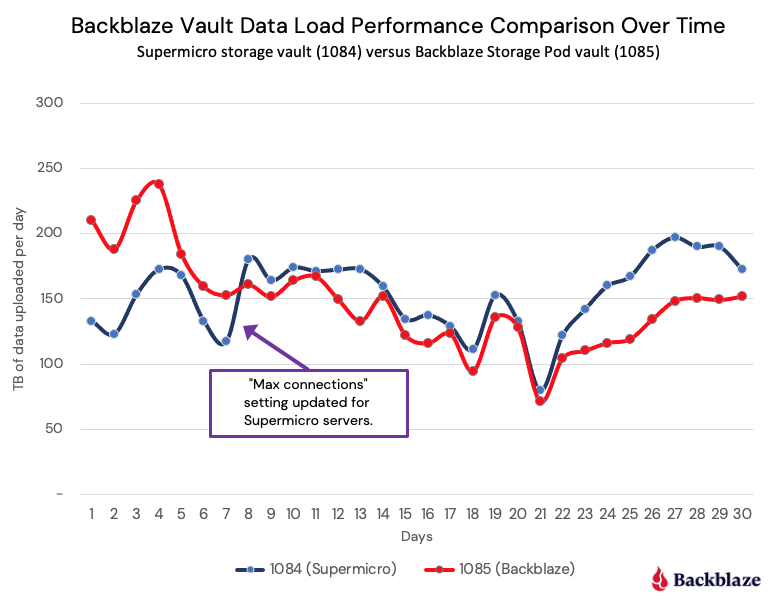
The comparison of how much data each vault uploaded each day is shown below. Vault 1084 is composed of 20 Supermicro servers and Vault 1085 is composed of 20 Backblaze Storage Pods.

The Supermicro vault (1084) started with a limit of 2,500 simultaneous connections allowed for the first seven days. Once that limit was lifted and both vaults were set to 5,000 simultaneous connections, the Supermicro vault generally outperformed the Backblaze vault over the remainder of the observation period.

What happened to the data once the test was over? It stayed in the Supermicro vault and that vault became a permanent part of our production environment. It is still in operation today, joined by over 1,100 additional Supermicro servers. Safe to say, we moved ahead with using the Supermicro servers in our environment in place of building new Storage Pods.

The Server Model We Use

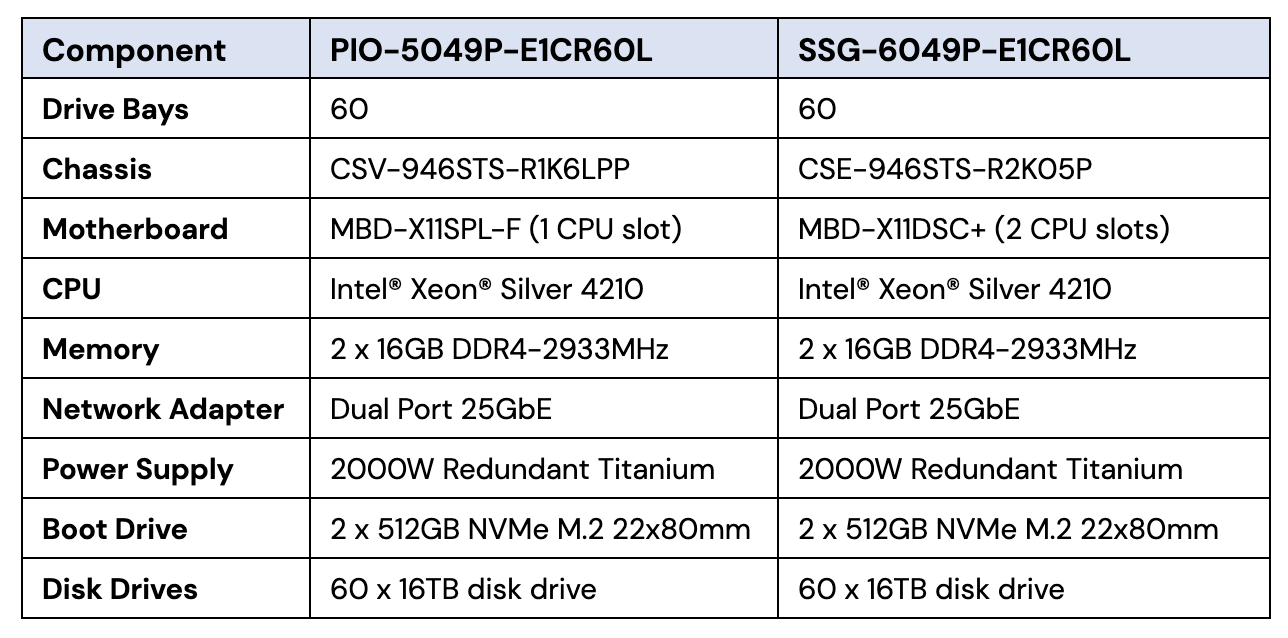
The Supermicro model we order from Supermicro is the PIO-5049P-E1CR60L (PIO-5049). That model is not sold via the Supermicro website. That said, model SSG-6049P-E1CR60L (SSG-6049) is similar and is widely available. Both models have 60 drives, but the chassis is slightly different, and the motherboards are different with the PIO-5049 model having a single CPU slot, and the SSG-6049 model having two CPU slots. Let’s compare the basics of the two models below.

In practice, the Supermicro SSG-6049 model supports newer components such as the latest CPUs and allows more memory versus the Supermicro PIO-5049 model, but the latter is more than capable of supporting our needs.

Can You Build It?

A little over 13 years ago, we wrote the Petabytes on a Budget blog post introducing Backblaze Storage Pods to the world and open sourcing the design. Since then, many individuals, organizations, and businesses have taken the various storage pod designs we published over the years and built their own storage servers. That’s awesome.

We know building a Storage Pod was not easy. Oh, the assembly was simple enough, but getting all the parts you needed was a challenge: searching endlessly for 5-port backplanes (minimum order quantity 1,000-ouch, sorry) or having to build your own power supply cables. While many of you enjoyed the challenge; many didn’t.
For the Supermicro system, let’s work with the Supermicro SSG-6049 model as it is available to everyone and see what it would take for you to acquire/assemble/build a single Supermicro storage server.

Option One: Go Standard

The easiest thing to do is to order a pre-configured SSG-6049 model from Supermicro or you can try one of their online reseller sites such as Canada Computers & Electronics or ComputerLink, which offer the same “complete system”. In these cases, the ability to customize the server is minimal and requires direct contact with the vendor for most changes. If that works for you, then you’re all set.

Option Two: Configure

If you want to design your own system you can try Supermicro resellers such as IT Creations (US) and Server Simply (EU) which have configurators that allow you to select your CPU, motherboard, network cards, memory, and various other components. This is a great option but given the number of different options and the possibility of incompatibilities between components, you need to be careful here. Don’t rely on the configurator to catch a component mismatch.

Option Three: Create

Here you might buy the most stripped-down server you can find and replace nearly everything inside—motherboard, CPU, fans, switches, cables and so on. You’ll probably void any warranty you had on the system, but we suspect you knew that already. Regardless, you can take the base system and stuff it full of smoking-fast everything so that your copy of “Ferris Buellers Day Off” downloads in picoseconds. That’s the fun part of building your own storage server, when you are done it is uniquely yours.

Which option you choose is, of course, your choice, and while ordering a standard system from Supermicro may not be as satisfying as soldering heat sinks to the motherboard or neatly tying off your SATA cable runs, it will give you more time to watch Ferris, so there’s that.

FYI, Supermicro has an extensive network of resellers around the world. While the options above fall neatly into three categories, each reseller has their own way of working with their clients. If you are going to buy or build your own Supermicro storage server or have already done so, share your experience with your colleagues in the comments below or on your favorite forum or community site.

What About Pricing

Supermicro does not publish prices and we are not going to out them here, but we wanted to see if we could determine the street price for the Supermicro SSG-6049 system by surveying reseller websites. It was not pretty. In our research, we saw prices for the Supermicro SSG-6049 model range from $6K to 40K on different reseller sites. On the website with the $6K price they started with a fictitious base system that you could not order, and then listed the various components you were required to add, such as CPU, memory, hard drives, etc. At the $40K website the reseller didn’t bother to list any of the components; it just had the model and the price—no specs or technical information. Classic buyer beware scenarios in both cases.

The other variable that made the street price hard to determine was that resellers often bundled other services into the price of the system such as installation, annual maintenance, and even shipping. All are reasonable services for a reseller to offer, but they cloud the picture when trying to determine the actual cost of the product you are trying to buy. At best, we can say that the street price is somewhere between $20K and $30K, but we are not very confident with that range.

Storage Server Pricing Over Time

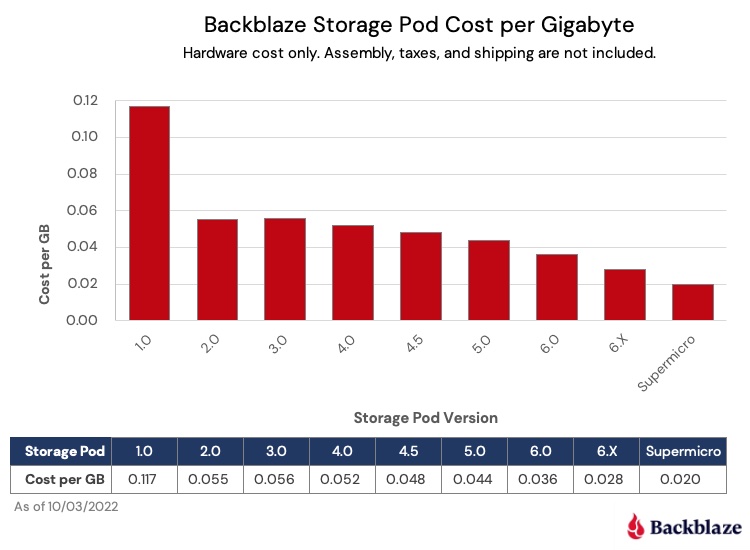
Since 2009 we have tracked the cost per GB of each Storage Pod version we have produced. We’ve updated the chart below to add both Storage Pod version 6.X, our most current Storage Pod configuration, and the Supermicro storage server we are buying, model PIO-5049.

The cost per GB is computed by taking the total hardware cost of a storage server, including the hard drives, and dividing by the total storage in the server at the time. When Storage Pod 1.0 was released in September 2009, the system cost was about $0.12/GB, and as you can see that has decreased over time to $0.02/GB in the Supermicro systems.

One point to note is that both the Storage Pod 6.X ($0.028/GB) and Supermicro ($0.020/GB) servers use the same 16TB hard drive models. We believe the difference between the cost per GB of the two cohorts ($0.008) is primarily based on the operational efficiency obtained by Supermicro in making and selling tens of thousands of units a month versus Backblaze assembling a hundred 6.X Storage Pods on our own. In other words, Supermicro’s scale of production has enabled us to get performant systems for less than if we continued to build them ourselves.

What’s Next for Storage Pods

No one here at Backblaze is ready to write the obituary for our beloved red Backblaze Storage Pods. Afterall, the innovation that was the Storage Pod created the opportunity for Backblaze to change the dynamics of the storage market. Now that the Storage Pod hardware has been commoditized, our cloud storage software platform is what enables us to continue to deliver value to businesses and individuals alike.

All that means is that our next Storage Pod probably won’t be an incremental change, but instead something completely new, at least for us. It may not even be a Storage Pod—who knows? That said, we will continue to upgrade our existing Storage Pods with new CPUs, memory, and such, and they’ll be around for years to come. At which point we may give them away or crush them (again). In the meantime, we’ll probably do another blog post or two so we can post a few pictures and tell a few stories. Or maybe we’ll just move on. Hard to say right now.

Thanks to all our Storage Pod readers for your comments and suggestions over the years. You’ve made us better along the way and we look forward to continuing to hear from you as our journey continues.

The post The Storage Pod Story: Innovation to Commodity appeared first on Backblaze Blog | Cloud Storage & Cloud Backup.
“An Ideal Solution”: Daltix’s Automated Data Lake Archive Saves $100K

Post Syndicated from Amrit Singh original https://www.backblaze.com/blog/an-ideal-solution-daltixs-automated-data-lake-archive-saves-100k/

In the fast-moving consumer goods space, Daltix is a pioneer in providing complete, transparent, and high-quality retail data. With global industry leaders like GFK and Unilever depending on their pricing, product, promotion, and location data to build go-to market strategies and make critical decisions, maintaining a reliable data ecosystem is an imperative for Daltix.

As the company has grown since its founding in 2016, the amount of data Daltix is processing has increased exponentially. They’re currently managing around 250TB, but that amount is spread across billions of files, which soon created a massive drag on time and resources. With an infrastructure built almost entirely around AWS and billions of miniscule files to manage, Daltix started to outgrow AWS’ storage options in both scalability and cost efficiency.

The Daltix team in Belgium.

We got to chat with Charlie Orford, Principal Software Engineer for Daltix, about how Datix switched to Backblaze B2 Cloud Storage and their takeaways from that process. Here are some highlights:

  • They used a custom engine to migrate billions of files from AWS S3 to Backblaze B2.
  • Monthly costs reduced by $2,500 while increasing data portability and reliability.
  • Daltix established the infrastructure to automatically back up 8.4 million data objects every day.

Read on to learn how they did it.

A Complex Data Pipeline Built Around AWS

Most of the S3-based infrastructure Daltix built in the company’s early days is still intact. Historically, the data pipeline started with web-scraped resources written directly to Amazon S3, which were then standardized by Lamba-based extractors before being sent back to S3. Then AWS Batch picked up the resources to be augmented and enriched using other data sources.

All those steps took place before the data was ready for Daltix’s team of analysts. In order to optimize the pipeline and increase efficiency, Orford started absorbing pieces of that process into Kubernetes. But there was still a data storage problem; Daltix generates about 300GB of compressed data per day, and that figure was growing rapidly. “As we’d scaled up our data collection, we’d had to sharpen our focus on cost control, data portability, and reliability,” said Orford. “They’re obvious, but at scale, they’re extremely important.”

Cost Concerns Inspire The Search For Warm Archival Storage

By 2020, Daltix had started to realize the limitations of building so much of their infrastructure in AWS. For example, heavy customization around S3 metadata made the ability to move objects entirely dependent on the target system’s compatibility with S3. Orford was also concerned about the costs of permanently storing such a huge data lake in S3. As he puts it, “It was clear that there was no need to have everything in S3 forever. If we didn’t do anything about it, our S3 costs were going to continue to rise and eventually dwarf virtually all of our other AWS costs.”

Side-by-side comparison of server costs.

Because Daltix works with billions of tiny files, using Glacier was out of the question as its pricing model is based around retrieval fees. Even using Glacier Instant Retrieval, the sheer number of files Daltix works with would have forced them to rack up an additional $200,000 in fees per year. So Daltix’s data collection team—which produces more than 85% of the company’s overall data—pushed for an alternative solution that could address a number of competing concerns:

  • The sheer size of the data lake.
  • The need to store raw resources as discrete files (which means that batching is not an option).
  • Limitations on the team’s ability to invest time and effort.
  • A desire for simplicity to guarantee the solution’s reliability.

Daltix settled on using Amazon S3 for hot storage and moving warm storage into a new archival solution, which would reduce costs while keeping priority data accessible—even if the intention is to keep files stored away. “It was important to find something that would be very easy to integrate, have a low development risk, and start meaningfully eating into our costs,” said Orford. “For us, Backblaze really ticked all the boxes.”

Initial Migration Unlocks Immediate Savings of $2,000 Per Month

Before launching into a full migration, Orford and his team tested a proof of concept (POC) to make sure the solution addressed his key priorities:

  • Making sure the huge volume of data was migrated successfully.
  • Avoiding data corruption and checking for errors with audit logs.
  • Preserving custom metadata on each individual object.

“Early on, Backblaze worked with us hand-in-hand to come up with a custom migration tool that fit all our requirements,” said Orford. “That’s what gave us the confidence to proceed.” In partnership with Flexify, Backblaze delivered a tailor-made engine to ensure that the migration process would transfer the entire data lake reliably and with object-level metadata intact. After the initial POC bucket was migrated successfully, Daltix had everything they needed to start modeling and forecasting future costs. “As soon as we started interacting with Backblaze, we stopped looking at other options,” Orford said.

In August 2021, Daltix moved a 120TB bucket of 2.2 billion objects from standard storage in S3 to Backblaze B2 cloud storage. That initial migration alone unlocked an immediate cost savings of $2,000 per month, or $24,000 per year.

A peaceful data lake.

Quadruple the Data, Direct S3 Compatibility, and $100,000 Cumulative Savings

Today, Daltix is migrating about 3.2 million data objects (approximately 70GB of data) from Amazon S3 into Backblaze B2 every day. They keep 18 months of hot data in S3, and as soon as an object reaches 18 months and one day, it becomes eligible for archiving in B2. On the rare occasions that Daltix receives requests for data outside that 18-month window, they can pull data directly from Backblaze B2 into Amazon S3 thanks to Backblaze’s S3-compatible API and ever-available data.

Daily audit logs summarize how much data has been transferred, and the entire migration process happens automatically every day. “It runs in the background, there’s nothing to manage, we have full visibility, and it’s cost effective,” Orford said. “Backblaze B2 is an ideal solution for us.”

As daily data collection increases and more data ages out of the hot storage window, Orford expects more cost reductions. Orford expects it will take about a year and a half for daily migrations to nearly triple their current levels: that means Daltix will be backing up 9 million objects (about 450GB of data) to Backblaze B2 every day. Taking that long-term view, we see incredible cost savings for Daltix by switching from Amazon S3 to Backblaze B2. “By 2023, we forecast we will have realized a cumulative saving in the region of $75,000-$100,000 on our storage spend thanks to leveraging Backblaze B2, with expected ongoing savings of at least $30,000 per year,” said Orford.

“It runs in the background, there’s nothing to manage, we have full visibility, and it’s cost effective. B2 is an ideal solution for us.” —Charlie Orford, Principal Software Engineer, Daltix

Crunch the Numbers and See for Yourself

Want to find out what your business could do with an extra $30,000 a year? Check out our Cloud Storage Pricing Calculator to see what you could save switching to Backblaze B2.

The post “An Ideal Solution”: Daltix’s Automated Data Lake Archive Saves $100K appeared first on Backblaze Blog | Cloud Storage & Cloud Backup.

How to Migrate From LTO to the Cloud

Post Syndicated from Jeremy Milk original https://www.backblaze.com/blog/how-to-migrate-from-lto-to-the-cloud/

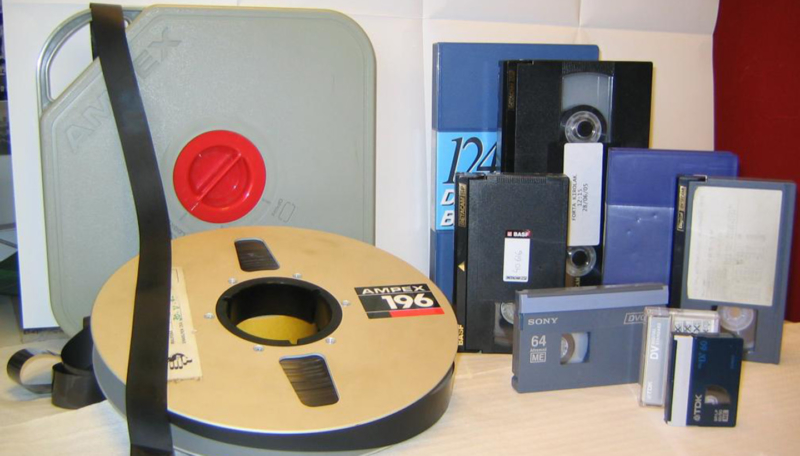
Using Linear-Tape Open (LTO) backups has been a solid strategy used by companies with robust media libraries for a long time. The downside of LTO is, of course, the sheer volume of space dedicated to storing these vast piles of tapes, the laboriously slow process of accessing the data on them, and the fact that they can only be accessed where they’re stored—so if there’s a natural disaster or a break-in, your data is at risk. Anyone staring down a shelf sagging under the weight of years of data and picturing the extra editing bay you could put in its place is probably thinking about making a move to the cloud.

Once you have decided to migrate your data, you need a plan to move forward. The following article will give you the basic tools for migrating from LTO to the Cloud. Before we dive in, let’s talk about some of the vast benefits of migration (other than reclaiming your storage closet).

Benefits of Moving Your Data to the Cloud

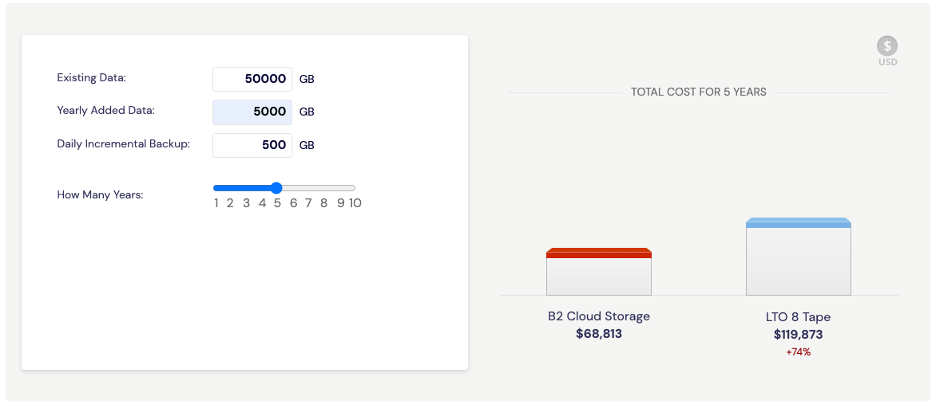
Some pretty convincing benefits come with moving away from tape to cloud storage. First is the cost. Some people might think cloud storage is more expensive, but a closer crunching of the numbers proves that it actually saves you money. We’ve created a handy LTO to Cloud Storage calculator to figure out individual savings. If you’re concerned about migration/egress fees, utilizing a Universal Data Migration (UDM) service can help eliminate those costs. In addition, tape players and tapes need maintenance and eventually replacement, adding another budgetary benefit to migrating things to the cloud.

Another benefit is easy access to files. Rather than being hidden among the files on one particular tape in one particular area of one particular stack, files can be accessed, viewed and downloaded immediately from cloud storage. With many industries moving towards remote work, being able to access your files or archives from afar is increasingly important.

So much tape; so little time.

Cloud storage is also more secure than people think. Many cloud services providers offer products like Object Lock to keep files immutable (a huge concern for compliance-heavy industries like healthcare). In the case of a ransomware attack, off-site cloud storage data means that you’re safe from the threat and restore your data quickly and get back to normal.

With all those benefits, the only concern left is that anytime you make a change to your data infrastructure, you want it to be as easy as possible. Let’s walk through a typical LTO to cloud migration so you can explore how it aligns with your process.

Six Steps to Migrate from LTO to Cloud Storage (or a Hybrid Solution)

Migrating can feel like a daunting task, but breaking it down into bite-sized pieces will help a lot. Fears about data loss and team bandwidth will obviously play a factor in migration. Don’t worry: it’s much easier than you think, and the long-term benefits will outweigh the short-term migration considerations.

Follow the steps below for a seamless, successful migration.

Step One: Take Stock of Your Content

The first concern of migration: how do you ensure that all the data you need to move is there and will be there at the end of the process? Well, now is the time to take a complete content inventory. It may have been a long time since you reviewed what is stored on tape, where it is located, and if you even want to continue keeping it. You may have old, archived data that is safe to get rid of now.

In addition to an inventory, if there was ever a good time to clean out unused/unneeded files, now is the time. It’s also a good opportunity to eliminate any duplicates—that will ensure that you’re not wasting money on storage costs or time and confusion ensuring that you’re looking at the correct file.

Does data fold?

Instead of looking at it as a pain point or chore you dread, consider a content inventory as an opportunity to clean out old files, eliminate waste, and streamline your data to only what you need and want to keep. It’s like inviting Marie Kondo over to ask whether your files spark joy. It’s also a great time to reorganize your files. Consider renaming files and folders to make it easy to retrieve items once they are stored in the cloud. Bonus: this walk down memory lane might spark ideas for refreshing or repurposing old content.

Step Two: Update Your Tracking System

LTO backups involve rotating many tapes on different days and sorting them by type of data (what is stored on them) and on varying schedules. You will need to update your tracking system for your tape strategy to how you will use tape going forward. You can also formulate a plan for tracking your cloud-based backup data as well. It may be as simple as cataloging where files are located, what type of data needs to be on tape, how often they will be backed up, when files move from hot storage to archive, and so on.

Step Three: Plan for Your Migration

To ensure a successful migration, spend some time planning exactly how to execute the move. Here are a few common questions that come up:

  • Are you moving the data in phases or all at once? If you’re moving data in phases, what needs to move first and why?
  • How many personnel are you dedicating to work on the project? And what kind of support will they need from other stakeholders?
  • Are you planning on keeping any information on tape long-term (a hybrid solution)? Some companies like healthcare, government contractors, education, and accounting firms are subject to data retention and storage laws, so that might come into play here.

Document how you want to proceed so that everyone involved has their needs met. Planning ahead will help you feel like you have a good handle on things before jumping into the deep water.

Also, it’s important to evaluate your internet bandwidth and speed to ensure you don’t experience any bottlenecks. If you have to upgrade your internet package, do so before you begin migrating. Migrate using an Ethernet-connected device with a stable connection. Wi-Fi is much slower and less reliable. If you’re moving a significant amount of data at once, you may even want to consider something like Backblaze’s Fireball service.

Backblaze’s Fireball, ready to help you transfer data.

Another thing to consider is that the cloud will let you categorize and interact with your data in different ways. For example, with Backblaze B2 storage, you can create up to 1,000 buckets per account to categorize your data your way and keep files separate—how is that different from how you’re currently interacting with your data? Who will have access to your cloud storage backups? Do you need to employ Extended Version History or Object Lock to make sure that your backups aren’t unintentionally changed?

Step Four: Back Up Both Ways

For a short while, you might want to back up to both LTO and the cloud, keeping them in tandem while you ensure a smooth and successful data migration. Once all your critical files have been moved over, you can stop backing up to tape. (Unless your organization has decided that a hybrid model works for you.)

Again, keep in mind that you may want to keep some files archived on tape and stored away. It depends on your industry, compliance issues, and data infrastructure preferences.

Step Five: Execute the Migration

Now it’s time to take the plunge. You can use the Universal Data Migration (UDM) service to move your data over and absorb any egress fees. You can move your data in days, not weeks, streamlining this chore.

All roads lead to cloud.

Step Six: Review and Compare Cloud and LTO Backups

Before you stop running your backup systems concurrently (LTO and cloud), be sure to test your backups thoroughly. When you run those tests, you don’t want to just look at the files; you actually want to restore several files, just as if you’d had them deleted from your system. Run tests restoring individual files and whole folders to ensure data integrity and master the restore process. Make sure to run those tests for your servers and with files in both Mac and PC environments.

Depending on which backup solution you use, restore procedures may differ. Sometimes, working with a company that provides end-to-end backup and restore services may work well for your organization. For example, many people prefer to back up with Veeam and integrate it with Backblaze B2 Cloud Storage.

At the end of the day, cloud storage offers many benefits like secure storage, easy access, and cost-efficient backups. Once you get past the hurdle of migration, you’ll be glad you made the switch.

Let’s Talk Solutions in Person

If you’re attending the 2022 NAB Show New York, stop by the Backblaze booth for an opportunity to see how making the move from tape to the cloud could help streamline your workflow. If nothing else, you’ll get some great swag out of it! Stop by our booth or schedule a meeting to talk to the team.

The post How to Migrate From LTO to the Cloud appeared first on Backblaze Blog | Cloud Storage & Cloud Backup.
The (New) Perks of Being A Backblaze Stock Owner

Post Syndicated from James Kisner original https://www.backblaze.com/blog/the-new-perks-of-being-a-backblaze-stock-owner/

At Backblaze, we’re deeply thankful to the communities that have helped us learn and grow over the past 15 years. From our customers, to our partners, to all of our blog readers and social followers—Backblaze wouldn’t be the same without these folks. Over the years we’ve been able to thank our community with giveaways, events, and even Storage Pods. Which is why we’re excited to announce a new perks program for one of our newest communities: shareholders.

Backblaze Launches Program to Reward Investors

Since our IPO on November 11 of 2021, we’ve been buoyed by the support and commitment of individual investors and today we’re launching a program to thank them by adding some additional perks to being a BLZE stockholder.

We’ve partnered with Stockperks to launch a program that offers the following benefits to investors:

    • For current holders of 1+ shares: You’ll receive a sticker pack to outfit your laptop, car, or any other flat surface with fresh branding from Backblaze.

  • For 10 shares or more, held for at least 1 month, investors can access one of the following discounted Backblaze products:
  • For 50 shares or more, held for at least one month: You’ll receive a hat with a custom leather patch of the Backblaze logo on the front and our wordmark on the back.

For details on signing up, redeeming your perks, and other terms and conditions (see the fine print), you can download the Stockperks app here. Once you’ve created a profile, you’ll be able to start exploring the $BLZE perks program and hearing from Backblaze management as we provide investor-related updates about the firm.

About Stockperks

Stockperks is reimagining and revolutionizing how retail investors and companies connect. It’s the first multi-channel marketplace where individual investors get the perks of company ownership, companies create a community of engaged, informed and loyal individual investors, and everyone is invested in the company’s success.

Why Stockperks, and What’s Next?

From day one as a public company, we’ve tried to engage our community as deeply as possible. From inviting customers to participate in our initial public offering, gathering investor questions through the SAY Connect platform prior to earnings calls, and now, this new partnership with Stockperks—our approach reflects our customer-centric approach as a business since we were founded. Growing a public company and investing in public companies can be best viewed as long-term commitments, and our engagement with the community is the same.

We’re also pleased to share that in Q4 of this year we plan to launch our “Stocks and Storage” video blog (vlog). In the tradition of our widely-read blog, our goal with Stocks and Storage vlog is to provide useful, relevant information to our viewership. But while our blog primarily focuses on storage topics, the Stocks and Storage vlog aims to demystify financial topics (what exactly is EBITDA, anyway?) from the perspective of a newly-public technology company in Silicon Valley.

We thank you for your support and interest, and look forward to continuing our journey together on our mission to make storing, using, and protecting that data astonishingly easy.

The post The (New) Perks of Being A Backblaze Stock Owner appeared first on Backblaze Blog | Cloud Storage & Cloud Backup.
How to Download and Back Up OneDrive Data

Post Syndicated from Lora Maslenitsyna original https://www.backblaze.com/blog/how-to-download-and-back-up-onedrive-data/

On the Backblaze blog, we’ve been sharing tips for backing up and doing more with your data, especially when it comes to data digitally scattered across social media platforms. We asked what you, our readers, wanted to know about protecting your data online and you responded with this question: How do you download and back up data on Microsoft OneDrive?

OneDrive is an online file hosting service that many users take advantage of to sync the data on their computer. Although it offers 5GB of storage space for free, users pay a fee to store data that exceeds tiers of 100GB, 1TB, and 6TB. OneDrive even notes on their website that to free up space on your OneDrive account, you should download that file or folder to a location outside of your OneDrive folders, and then delete the OneDrive copy of the file or folder to reduce your storage amount. Of course, this means that the document is no longer syncing. And by doing so, you’re forced to constantly juggle the amount of data saved in OneDrive to stay under the free limit. Worse yet, the data you remove from OneDrive is no longer protected using the 3-2-1 backup method.

This guide walks you through ensuring your data on OneDrive is safely backed up and how to keep your data safe using the 3-2-1 backup strategy. So, read on to learn how to save your OneDrive data, including:

  • A step-by-step guide to accessing and downloading your data.
  • What to do with your downloaded OneDrive data to ensure it stays protected.

Back Up Everything But the Kitchen Sync

If you’re reading this blog post, you probably already know that saving your data to a sync service is not the same as backing it up. Sync and backup services are complimentary, but only a backup will save a copy of your data and keep it safe against accidental deletion, updates, a ransomware attack, and more.

To help you save your synced computer data, we’re developing a series of guides to downloading and backing up your data across different sync services. Below is a list of our other guides, and comment below to let us know what other sync services you’d like to see us cover.

How to Download Data From Microsoft OneDrive

    1. Open your OneDrive account and select the files or folders you want to download. You can select individual items by clicking the circle check box next to each item. You can also select several files at once by clicking on one file, scrolling down the list, then left-clicking while holding down the Shift key on the last item in the list you want to select. To select all of the files in a folder, click the circle to the left of the top row, or simply press CTRL + A (or COMMAND + A on a Mac).
    2. In the top menu, select Download. You can also right-click an individual file and select Download. If you choose multiple files or folders and then select Download, your browser will download a ZIP file containing all the data you selected. If you’re in a folder and you select Download without selecting any files or folders, your browser will download everything saved in that folder.
    3. Save your OneDrive data on your computer. Your browser will download your files to the Downloads folder of your computer. Select the files and save them to a permanent location. For some users, your browser may prompt you to choose the location where you want to save the download.

    Now that you’ve downloaded your OneDrive data, keep reading to find out how to ensure that data is safely backed up.

    The 3-2-1 Method in a Nutshell

    Back up your data based on these principles:

    1. Redundancy. Have several copies of your data.
    2. Geographic Distance. Have those copies in different locations.
    3. Access. Have different types of access to your backup data. A good example here: you don’t want all of your data to be connected to the internet to reduce the risk of cyberattacks. You also don’t want all copies of your data stored in your home in case of disaster or theft.

    How to Back Up OneDrive Data

    Once you have all of your OneDrive data downloaded on your computer, you’ve fulfilled the first step of the 3-2-1 backup strategy by storing your data on your local device. Next, you should make sure to follow the next steps and save your data on a secondary, external device and in a third, off-site location. Cloud storage is the one of the best options for easily securing your data off-site.

    If you’re using Backblaze Personal Backup to protect all of the data on your computer and external drives, you’re all set! Backblaze automatically and continuously backs up a copy of all of your data to the cloud.

    Another option to consider when you want to securely store your data and offload some of it from your local device is to upload your data to Backblaze B2 Cloud Storage directly. As long as you are still keeping a copy of that data on other local drives or devices, you’re still fulfilling the 3-2-1 backup method. You can learn more about the difference between using Personal Backup and B2 Cloud Storage and how to save and organize your data in cloud storage by reading this blog post.

    Read On to Get the Most Out of Backblaze and OneDrive

    Our help section is filled with useful guides on maximizing the integration of Backblaze and OneDrive. Check out our guides for Windows or Mac to learn more.

    Don’t Rely on Sync Services to Secure Your Data

    Chances are, the data you have saved in your OneDrive folders is data you want to keep. Don’t wait until you accidentally get locked out of your account or a software update wreaks havoc on your synced data. Back up your data today, and comment below to let us know what else you’d like to know about to help you keep your data safe.

The post How to Download and Back Up OneDrive Data appeared first on Backblaze Blog | Cloud Storage & Cloud Backup.

Announcing: Backblaze Computer Backup v8.5

Post Syndicated from original https://www.backblaze.com/blog/announcing-backblaze-computer-backup-v8-5/

Announcing Backblaze Computer Backup 8.5! Our latest release builds on version 8.0’s speed boosts and brings with it not only a redesigned application for Mac and PC, but an improvement to our Safety Freeze feature, which prevents your backups from becoming corrupted. Here’s a brief overview of what’s new for this release:

macOS and Windows:

  • Safety Freeze enhancements: improved efficiency and reduced false-positives.
  • Visual refresh: We’ve completely refreshed both of our client apps.
  • Minor text, bug, and performance improvements: We’ve cleaned up some of the language to make things easier to understand and have tightened up some of the code.

macOS:

  • SwiftUI redesign: the macOS app has been completely redesigned from the ground up using SwiftUI.

In More Detail

Safety Freeze Enhancements

Our Safety Freeze feature is designed to protect your backups and prevent them from being corrupted if something goes wrong on your computer. Over the years we’ve updated the feature based on feedback and tried to make it more transparent to the end user. With the updates in version 8.5, we’ve added a self-healing component which attempts to fix some of the false positives that caused an erroneous Safety Freeze to occur, especially when a user is moving from one computer to another.

Visual Refresh

With the Swift redesign on macOS, we felt now would be the perfect time to also change some of the visuals in our apps. We’ve updated both of our client apps to make them better looking, simpler to use, less cluttered, and easier to understand.

SwiftUI Redesign

In preparation for macOS Ventura, we’ve rewritten the macOS app in SwiftUI. There’s nothing but good news here. This refresh helps future-proof our macOS app and also keeps the same system efficiency you know and love from Backblaze-built applications.

General Performance Improvements

Everyone’s favorite: “general bug fixes and performance improvements.” We’ve also updated and simplified a lot of our client text to go along with the visual refresh and deliver a better, easier-to-understand overall app.

Backblaze v8.5 Is Available Today: September 15, 2022

We hope you love this new release! We will be slowly auto-updating all users in the coming weeks, but if you can’t wait and want to update now on your Mac or PC:

  1. Right click on the Backblaze icon in your menu or taskbar.
  2. Select Check for Updates.
  3. Download v8.5 from the Backblaze Updates page.

Also, this version is now the default download on www.backblaze.com. Please reach out to support if you have any questions or if you want to give feedback—we always like to know how things are going.

The post Announcing: Backblaze Computer Backup v8.5 appeared first on Backblaze Blog | Cloud Storage & Cloud Backup.
Lights, Camera, Custom Action (Part Two): Inside Integrating Frame.io + Backblaze B2

Post Syndicated from Pat Patterson original https://www.backblaze.com/blog/lights-camera-custom-action-part-two-inside-integrating-frame-io-backblaze-b2/

Part 2 in a series covering the Frame.io/Backblaze B2 integration, covering the implementation. See Part 1 here, which covers the UI.

In Lights, Camera, Custom Action: Integrating Frame.io with Backblaze B2, we described a custom action for the Frame.io cloud-based media asset management (MAM) platform. The custom action allows users to export assets and projects from Frame.io to Backblaze B2 Cloud Storage and import them back from Backblaze B2 to Frame.io.

The custom action is implemented as a Node.js web service using the Express framework, and its complete source code is open-sourced under the MIT license in the backblaze-frameio GitHub repository. In this blog entry we’ll focus on how we secured the solution, how we made it deployable anywhere (including to options with free bandwidth), and how you can customize it to your needs.

What is a Custom Action?

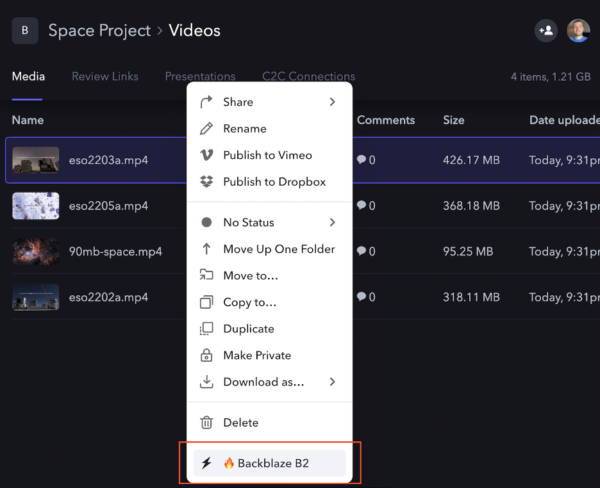
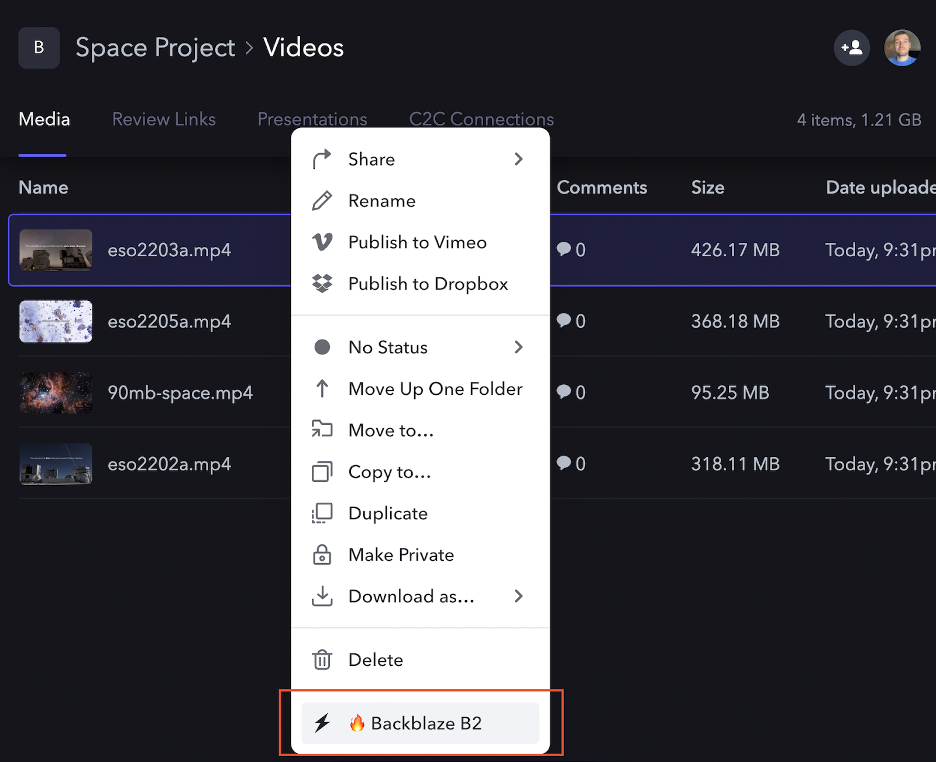
Custom Actions are a way for you to build integrations directly into Frame.io as programmable UI components. This enables event-based workflows that can be triggered by users within the app, but controlled by an external system. You create custom actions in the Frame.io Developer Site, specifying a name (shown as a menu item in the Frame.io UI), URL, and Frame.io team, among other properties. The user sees the custom action in the contextual/right-click dropdown menu available on each asset:

When the user selects the custom action menu item, Frame.io sends an HTTP POST request to the custom action URL, containing the asset’s id. For example:

{
  "action_id": "2444cccc-7777-4a11-8ddd-05aa45bb956b",
  "interaction_id": "aafa3qq2-c1f6-4111-92b2-4aa64277c33f",
  "resource": {
    "type": "asset",
    "id": "9q2e5555-3a22-44dd-888a-abbb72c3333b"
  },
  "type": "my.action"
}

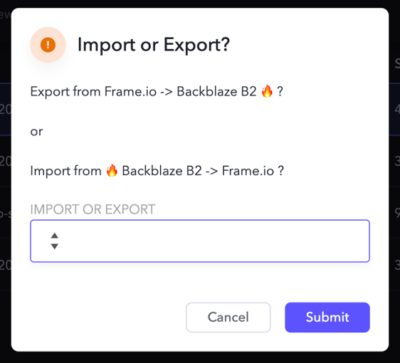
The custom action can optionally respond with a JSON description of a form to gather more information from the user. For example, our custom action needs to know whether the user wishes to export or import data, so its response is:

{
  "title": "Import or Export?",
  "description": "Import from Backblaze B2, or export to Backblaze B2?",
  "fields": [
    {
      "type": "select",
      "label": "Import or Export",
      "name": "copytype",
      "options": [
        {
          "name": "Export to Backblaze B2",
          "value": "export"
        },
        {
          "name": "Import from Backblaze B2",
          "value": "import"
        }
      ]
    }
  ]
}

When the user submits the form, Frame.io sends another HTTP POST request to the custom action URL, containing the data entered by the user. The custom action can respond with a form as many times as necessary to gather the data it needs, at which point it responds with a suitable message. For example, when it has all the information it needs to export data, our custom action indicates that an asynchronous job has been initiated:

{
  "title": "Job submitted!",
  "description": "Export job submitted for asset."
}

Securing the Custom Action

When you create a custom action in the Frame.io Developer Tools, a signing key is generated for it. The custom action code uses this key to verify that the request originates from Frame.io.

When Frame.io sends a POST request, it includes the following HTTP headers:

X-Frameio-Request-Timestamp The time the custom action was triggered, in Epoch Epoch timetime (seconds since midnight UTC, Jan 1, 1970).
X-Frameio-Signature The request signature.

The timestamp can be used to prevent replay attacks; Frame.io recommends that custom actions verify that this time is within five minutes of local time. The signature is an HMAC SHA-256 hash secured with the custom action’s signing key—a secret shared exclusively between Frame.io and the custom action. If the custom action is able to correctly verify the HMAC, then we know that the request came from Frame.io (message authentication) and it has not been changed in transit (message integrity).

The process for verifying the signature is:

    • Combine the signature version (currently “v0”), timestamp, and request body, separated by colons, into a string to be signed.
    • Compute the HMAC SHA256 signature using the signing key.
    • If the computed signature and signature header are not identical, then reject the request.

The custom action’s verify TimestampAndSignature() function implements the above logic, throwing an error if the timestamp is missing, outside the accepted range, or the signature is invalid. In all cases, 403 Forbidden is returned to the caller.

Custom Action Deployment Options

The root directory of the backblaze-frameio GitHub repository contains three directories, comprising two different deployment options and a directory containing common code:

  • node-docker—generic: Node.js deployment
  • node-risingcloud: Rising Cloud deployment
  • backblaze-frameio-common: common code

The node-docker directory contains a generic Node.js implementation suitable for deployment on any Internet-addressable machine–for example, an Optimized Cloud Compute VM on Vultr. The app comprises an Express web service that handles requests from Frame.io, providing form responses to gather information from the user, and a worker task that the web service executes as a separate process to actually copy files between Frame.io and Backblaze B2.

You might be wondering why the web service doesn’t just do the work itself, rather than spinning up a separate process to do so. Well, media projects can contain dozens or even hundreds of files, containing a terabyte or more of data. If the web service were to perform the import or export, it would tie up resources and ultimately be unable to respond to Frame.io. Spinning up a dedicated worker process frees the web service to respond to new requests while the work is being done.

The downside of this approach is that you have to deploy the custom action on a machine capable of handling the peak expected load. The node-risingcloud implementation works identically to the generic Node.js app, but takes advantage of Rising Cloud’s serverless platform to scale elastically. A web service handles the form responses, then starts a task to perform the work. The difference here is that the task isn’t a process on the same machine, but a separate job running in Rising Cloud’s infrastructure. Jobs can be queued and new task instances can be started dynamically in response to rising workloads.

Note that since both Vultr and Rising Cloud are Backblaze Compute Partners, apps deployed on those platforms enjoy zero-cost downloads from Backblaze B2.

Customizing the Custom Action

We published the source code for the custom action to GitHub under the permissive MIT license. You are free to “use, copy, modify, merge, publish, distribute, sublicense, and/or sell copies of the Software” as long as you include the copyright notice and MIT permission notice when you do so.

At present, the user must supply the name of a file when importing an asset from Backblaze B2, but it would be straightforward to add code to browse the bucket and allow the user to navigate the file tree. Similarly, it would be straightforward to extend the custom action to allow the user to import a whole tree of files based on a prefix such as raw_footage/2022-09-07. Feel free to adapt the custom action to your needs; we welcome pull requests for fixes and new features!

The post Lights, Camera, Custom Action (Part Two): Inside Integrating Frame.io + Backblaze B2 appeared first on Backblaze Blog | Cloud Storage & Cloud Backup.
The SSD Edition: 2022 Drive Stats Mid-year Review

Post Syndicated from original https://www.backblaze.com/blog/ssd-drive-stats-mid-2022-review/

Welcome to the midyear SSD edition of the Backblaze Drive Stats report. This report builds on the 2021 SSD report published previously and is based on data from the SSDs we use as storage server boot drives in our Backblaze Cloud Storage platform. We will review the quarterly and lifetime failure rates for these drives and, later in this report, we will also compare the performance of these SSDs to hard drives we also use as boot drives. Along the way, we’ll offer observations and insights to the data presented and, as always, we look forward to your questions and comments.

Overview

Boot drives in our environment do much more than boot the storage servers: they also store log files and temporary files produced by the storage server. Each day a boot drive will read, write, and delete files depending on the activity of the storage server itself. In our early storage servers, we used HDDs exclusively for boot drives. We began using SSDs in this capacity in Q4 2018. Since that time, all new storage servers, and any with failed HDD boot drives, have had SSDs installed.

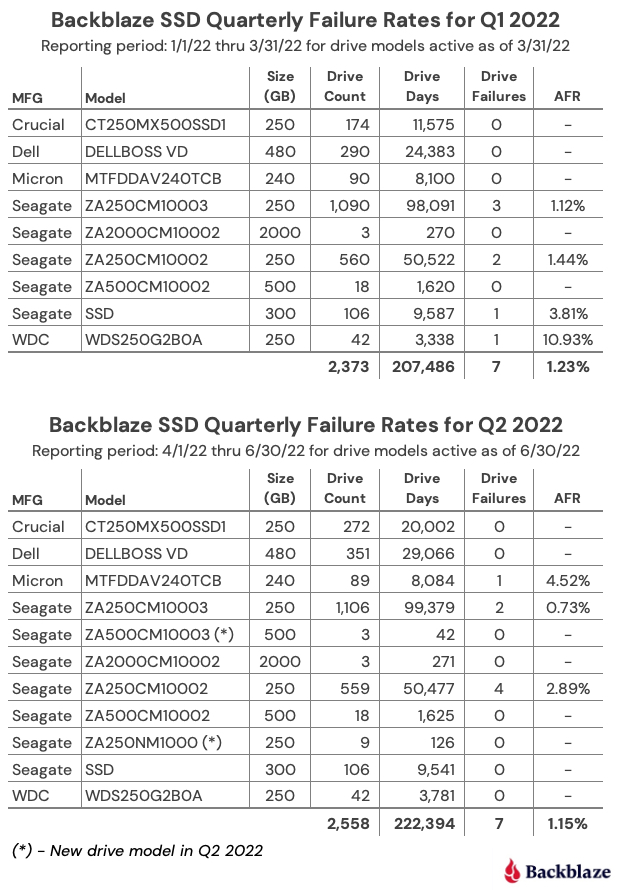
Midyear SSD Results by Quarter

As of June 30, 2022, there were 2,558 SSDs in our storage servers. This compares to 2,200 SSDs we reported in our 2021 SSD report. We’ll start by presenting and discussing the quarterly data from each of the last two quarters (Q1 2022 and Q2 2022).

Notes and Observations

Form factors: All of the drives listed above are the standard 2.5” form factor, except the Dell (DELLVOSS VD) and Micron (MTFDDAV240TCB) models each of which are the M.2 form factor.

Most drives added: Since our last SSD report, ending in Q4 2021, the Crucial (model: CT250MX500SSD1) lead the way with 192 new drives added, followed by 101 new DELL drives (model: DELLBOSS VD) and 42 WDC drives (model: WDS250G2B0A).

New drive models: In Q2 2022 we added two new SSD models, both from Seagate, the 500GB model: ZA500CM10003 (3 drives), and the 250 GB model: ZA250NM1000 (18 drives). Neither has enough drives or drive days to reach any conclusions, although they each had zero failures, so nice start.

Crucial is not critical: In our previous SSD report, a few readers took exception to the high failure rate we reported for the Crucial SSD (model: CT250MX500SSD1) although we observed that it was with a very limited amount of data. Now that our Crucial drives have settled in, we’ve had no failures in either Q1 or Q2. Please call off the dogs.

One strike and you’re out: Three drives had only one failure in a given quarter, but the AFR they posted was noticeable: WDC model WDS250G2B0A – 10.93%, Micron – Model MTFDDAV240TCB – 4.52%, and the Seagate model: SSD – 3.81%. Of course if any of these models had 1 less failure their AFR would be zero, zip, bupkus, nada – you get it.

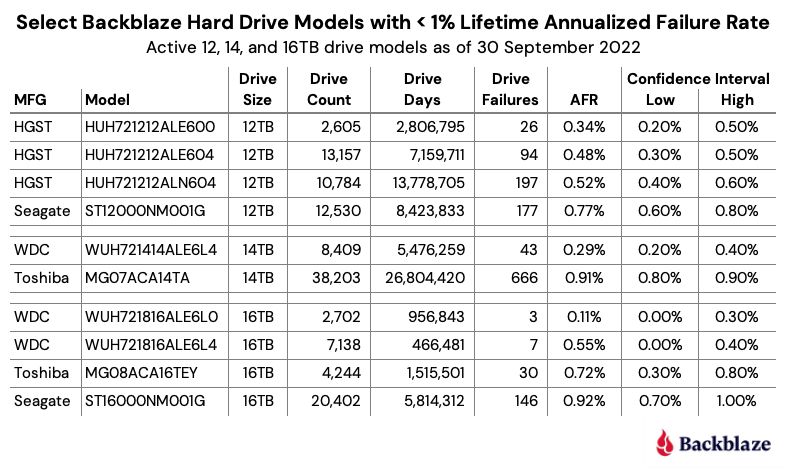
It’s all good man: For any given drive model in this cohort of SSDs, we like to see at least 100 drives and 10,000 drives-days in a given quarter as a minimum before we begin to consider the calculated AFR to be “reasonable”. That said, quarterly data can be volatile, so let’s next take a look at the data for each of these drives over their lifetime.

SSD Lifetime Annualized Failure Rates

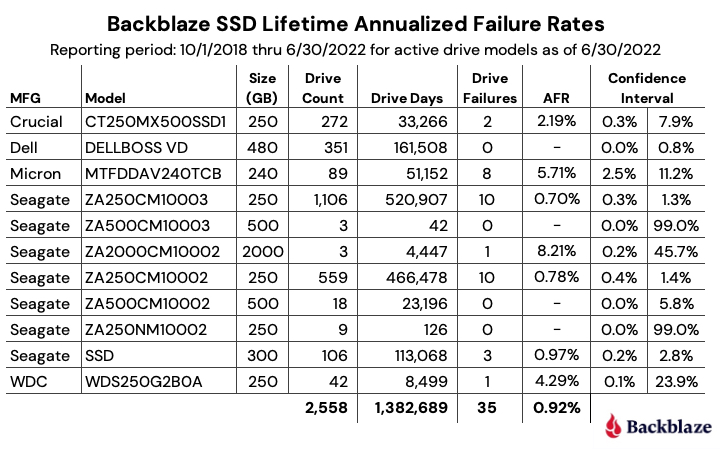
As of the end of Q2 2022 there were 2,558 SSDs in our storage servers. The table below is based on the lifetime data for the drive models which were active as of the end of Q2 2022.

Notes and Observations

Lifetime annualized failure rate (AFR): The lifetime data is cumulative over the period noted, in this case from Q4 2018 through Q2 2022. As SSDs age, lifetime failure rates can be used to see trends over time. We’ll see how this works in the next section when we compare SSD and HDD lifetime annualized failure rates over time.

Falling failure rate?: The lifetime AFR for all of the SSDs for Q2 2022 was 0.92%. That was down from 1.04% at the end of 2021, but exactly the same as the Q2 2021 AFR of 0.92%.

Confidence Intervals: In general, the more data you have, and the more consistent that data is, the more confident you are in your predictions based on that data. For SSDs we like to see a confidence interval of 1.0% or less between the low and the high values before we are comfortable with the calculated AFR. This doesn’t mean that drive models with a confidence interval greater than 1.0% are wrong, it just means we’d like to get more data to be sure.

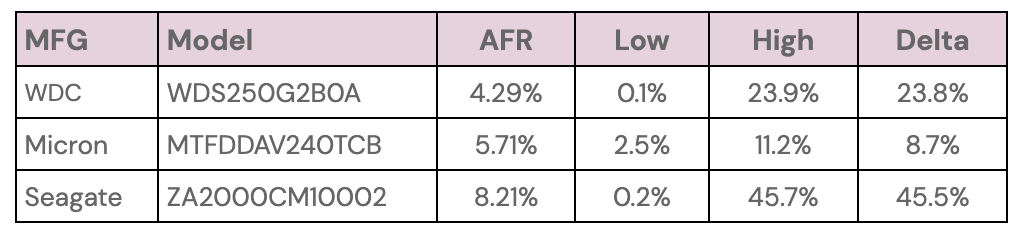
Speaking of Confidence Intervals: You’ll notice from the table above that the three drives with the highest lifetime annualized failure rates also have sizable confidence intervals.


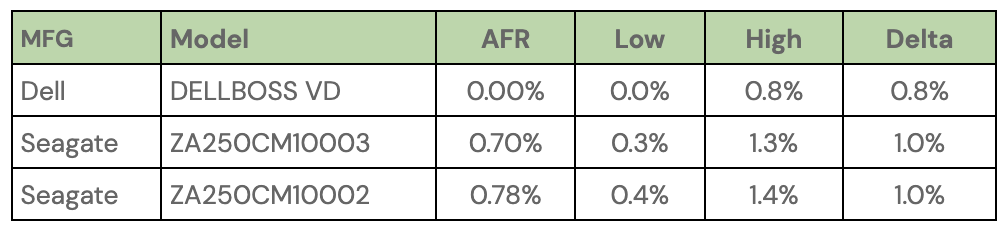
Conversely, there are three drives with a confidence interval of 1% or less, as shown below:


Of these three, the Dell drive seems the best. It is a server-class drive in an M.2 form factor, but it might be out of the price range for many of us as it currently sells from Dell for $468.65. The two remaining drives are decidedly consumer focused and have the traditional SSD form factor. The Seagate model ZA250CM10003 is no longer available new, only refurbished, and the Seagate model ZA250CM10002 is currently available on Amazon for $45.00.

SSD Versus HDD Annualized Failure Rates

Last year we compared SSD and HDD failure rates when we asked: Are SSDs really more reliable than Hard Drives? At that time the answer was maybe. We now have a year’s worth of data available to help answer that question, but first, a little background to catch everyone up.

The SSDs and HDDs we are reporting on are all boot drives. They perform the same functions: booting the storage servers, recording log files, acting as temporary storage for SMART stats, and so on. In other words they perform the same tasks. As noted earlier, we used HDDs until late 2018, then switched to SSDs. This creates a situation where the two cohorts are at different places in their respective life expectancy curves.

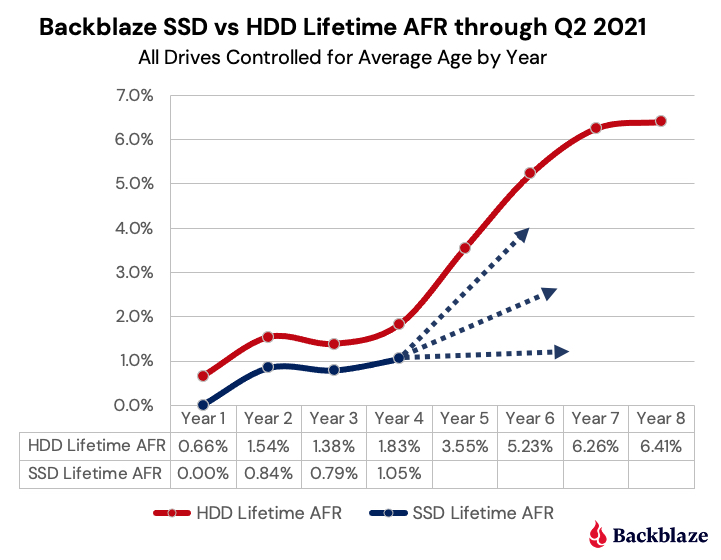
To fairly compare the SSDs and HDDs, we controlled for average age of the two cohorts, so that SSDs that were on average one year old, were compared to HDDs that were on average one year old, and so on. The chart below shows the results through Q2 2021 as we controlled for the average age of the two cohorts.


Through Q2 2021 (Year 4 in the chart for SSDs) the SSDs followed the failure rate of the HDDs over time, albeit with a slightly lower AFR. But, it was not clear whether the failure rate of the SSD cohort would continue to follow that of the HDDs, flatten out, or fall somewhere in between.

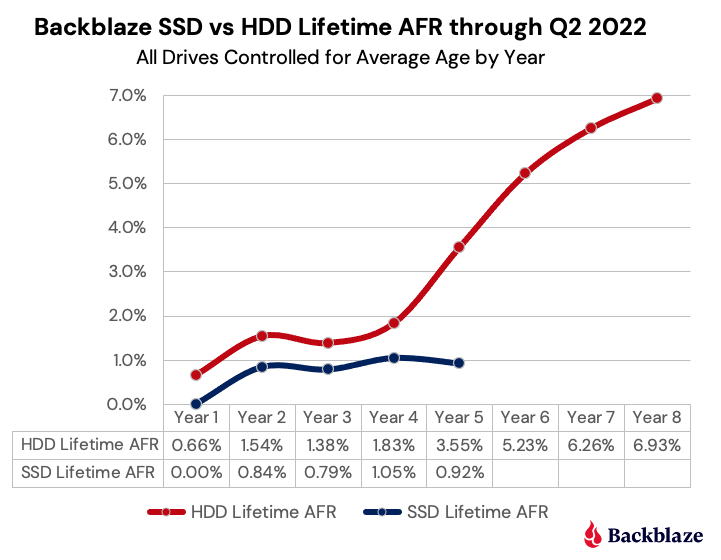
Now that we have another year of data, the answer appears to be obvious as seen in the chart below, which is based on data through Q2 2022 data and gives us the SSD data for Year 5.

And the Winner Is…

At this point we can reasonably claim that SSDs are more reliable than HDDs, at least when used as boot drives in our environment. This supports the anecdotal stories and educated guesses made by our readers over the past year or so. Well done.

We’ll continue to collect and present the SSD data on a regular basis to confirm these findings and see what’s next. It is highly certain that the failure rate of SSDs will eventually start to rise. It is also possible that at some point the SSDs could hit the wall, perhaps when they start to reach their media wearout limits. To that point, over the coming months we’ll take a look at the SMART stats for our SSDs and see how they relate to drive failure. We also have some anecdotal information of our own that we’ll try to confirm on how far past the media wearout limits you can push an SSD. Stay tuned.

The SSD Stats Data

The data collected and analyzed for this review is available on our Hard Drive Test Data page. You’ll find SSD and HDD data in the same files and you’ll have to use the model number to locate the drives you want, as there is no field to designate a drive as SSD or HDD. You can download and use this data for free for your own purpose. All we ask are three things: 1) you cite Backblaze as the source if you use the data, 2) you accept that you are solely responsible for how you use the data, and 3) you do not sell this data to anyone—it is free.

You can also download the Backblaze Drive Stats data via SNIA IOTTA Trace Repository if desired. Same data; you’ll just need to comply with the license terms listed. Thanks to Geoff Kuenning and Manjari Senthilkumar for volunteering their time and brainpower to make this happen. Awesome work.

Good luck and let us know if you find anything interesting.

The post The SSD Edition: 2022 Drive Stats Mid-year Review appeared first on Backblaze Blog | Cloud Storage & Cloud Backup.

Quest Integrates Backblaze into Rapid Recovery Version 6.7

Post Syndicated from Jennifer Newman original https://www.backblaze.com/blog/quest-integrates-backblaze-into-rapid-recovery-version-6-7/

It’s the classic “tree falls in the woods” scenario: if your company experiences data loss, but your users never feel it, did it even happen? That’s the value proposition our friends over at Quest—an IT platform that solves complex problems with simple software solutions—present with their popular Rapid Recovery tool:

Back up and quickly recover anything — systems, apps, and data — anywhere, whether it’s physical, virtual, or in the cloud. This data recovery software allows you to run without restore, with zero impact on your users, and as if the outage or data loss never happened.

Quest Rapid Recovery Version 6.7 Adds Backblaze B2 in Cloud Tier

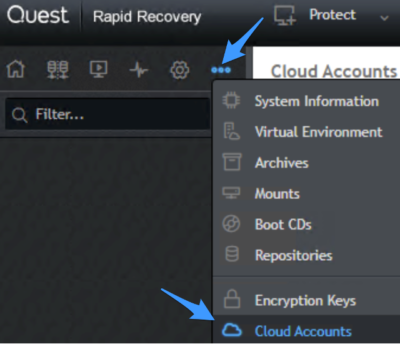
As of today—whether you’re a Quest customer or a Backblaze B2 Cloud Storage user—you can combine all this value with the astonishingly easy cloud storage we’re known for here at Backblaze. In Quest’s 6.7 release of Rapid Recovery, navigate to Cloud Accounts in the menu (see screenshot below for menu location), click Add New Account.


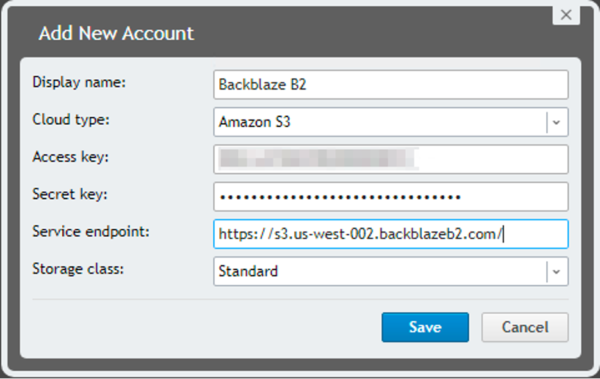
Enter a display name, select B2 Cloud Storage, and choose Amazon S3 as the cloud type. Then you just need to enter your Access key (keyID), Secret Key (applicationKey), and your service endpoint URL.


Your data will be safe, useful, and affordable at a quarter of the price of legacy cloud providers. Try it out today or contact our sales team to learn more.

So, What’s Changed?

If you’re already a Quest Rapid Recovery user, you may notice that setup hasn’t changed. What’s changed is actually in the code—Rapid Recovery will now work more seamlessly and more efficiently. Bug fixes have been baked into version 6.7 and their support will be more robust. We love a seamless partnership—and stay tuned for more integrations between Quest and Backblaze in the future!

More About Quest’s Rapid Recovery Tool

If you’re a Backblaze B2 Cloud Storage user who is in the market for a recovery solution for your business, you can dig into the details about Rapid Recovery here. Here’s a brief primer of the solutions capabilities:

  • Simplify backup and restore: One cloud-based management console allows you to restore lost or damaged systems and data with near-zero recovery time and no impact to users—an advanced, admin-friendly solution.
  • Address demanding recovery point objectives (RPO): Leverage image-based snapshots for RPOs and reduce risk of data loss and downtime with tracked change blocks to accelerate backups and reduce storage.
  • Wide application support: Lightning-fast recovery for file servers and applications on both Microsoft Windows and Linux systems gets business-critical applications online to keep your business rolling.
  • Cloud-based backup, archive, and disaster recovery: (This is where we come in…) Point-and-click cloud connectivity makes for easy replication of application backups for no-stress cloud backup.
  • Virtual environment protection: Agentless backup and recovery for Microsoft Exchange and SQL databases residing on your virtual machines and low-cost VM-only tiered licensing for on-premises and cloud virtual environments.
  • Data deduplication and replication: With B2 Cloud storage, you’ll already save upwards of 75% versus other cloud storage solutions, but you can reduce costs further by leveraging built-in compression and deduplication. Nice.

More about Backblaze B2 Cloud Storage

Backblaze B2 Cloud Storage is purpose-built for ease, instant access to files and data, and infinite scalability. Backblaze B2 is priced so users don’t have to choose between what matters and what doesn’t when it comes to backup, archive, data organization, workflow streamlining, and more. Signing up couldn’t be more simple: a few clicks and you’re storing data. The first 10GB is free, and if you need more capacity to run a proof of concept you can talk to our sales team. Otherwise, when you’re ready to store data, you can pay one of two ways:

  • Our per-byte consumption pricing: Only pay for what you store. It’s $5 TB/month, no hidden delete fees or gotchas. What you see is what you get.
  • Our B2 Reserve capacity pricing: If you’d like to by predictable blocks of storage, you can work with any of our reseller partners to unlock the following benefits:
    • Free egress up to the amount of storage purchased per month.
    • Free transaction calls.
    • Enhanced migration services.
    • No delete penalties.
    • Tera support.

The Answer to the Question

You all can debate the philosophical implications of trees falling in woods and the sound they make. But when it comes to Rapid Recovery, it seems like we can guarantee one thing: your users might not hear the data loss when it happens, but you can bet the sight of relief your IT team breathes when they rapidly recover will be audible.

The post Quest Integrates Backblaze into Rapid Recovery Version 6.7 appeared first on Backblaze Blog | Cloud Storage & Cloud Backup.
Backblaze Rides the Nautilus Data Center Wave

Post Syndicated from original https://www.backblaze.com/blog/backblaze-rides-the-nautilus-data-center-wave/

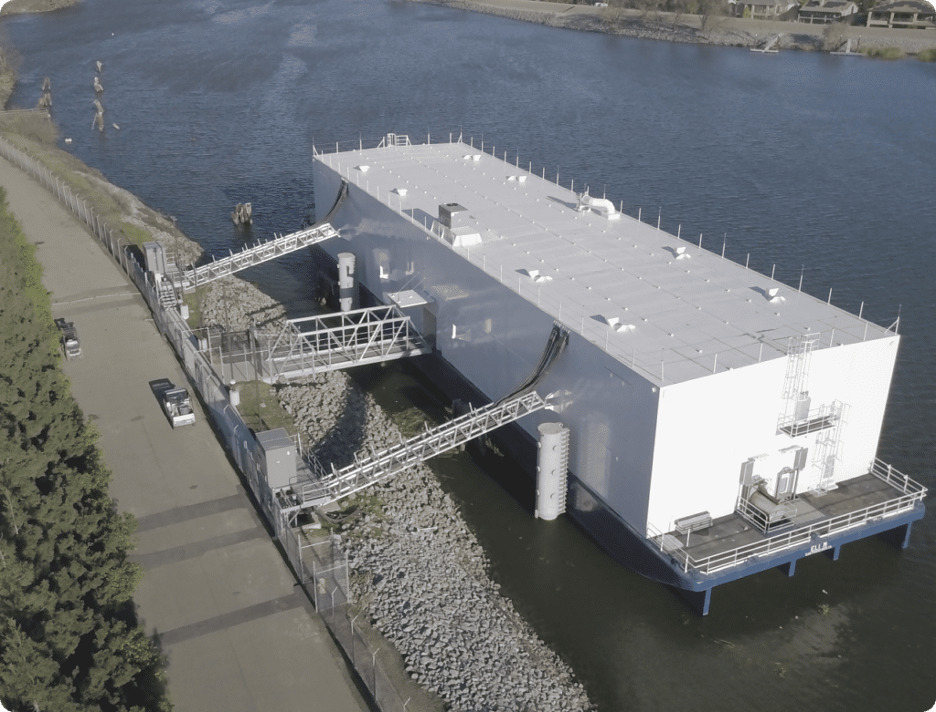
On the outside and on the inside, our newest data center (DC) is more than a little different: there are no cooling towers chugging on the roof, no chillers, or coolants at all. No, we’re not doing a drive stats experiment on how well data centers run at 54° Celsius. This data center, owned and developed by Nautilus Data Technologies, is nice and cool inside. Built with a unique mix of proven maritime and industrial water-cooling technologies that use river water to cool everything inside—racks, servers, switches, and people—this new DC is innovative, environmentally awesome, secure, fascinating, and other such words and phrases, all rolled into one. And it just happens to be located on a barge on a river in California.

It’s a unique setup, one that might raise a few eyebrows. It certainly did for us. But once our team dug in, we didn’t just find room for another exabyte of data, we found an extremely resilient data center that supports our durability requirements and decreases our environmental impact of providing you cloud storage. You can do a deep dive into the Nautilus technology on their website, but of course I needed to make my own visit to look into this shiny new tech on my own. What follows is an overview of what I learned: how the technology works and why we decided to make the Nautilus data center part of our cloud storage platform.


Source

Nautilus Data Center Overview

In the Port of Stockton in California, an odd looking barge is moored next to the shore of the San Joaquin River. If you were able to get close enough, you might notice the massive mooring poles the barge is attached to. And if you were a student of such things, you might recognize these mooring poles as having the same rating as the mooring poles whose attached boats and barges survived hurricane Katrina. The barge isn’t going anywhere.

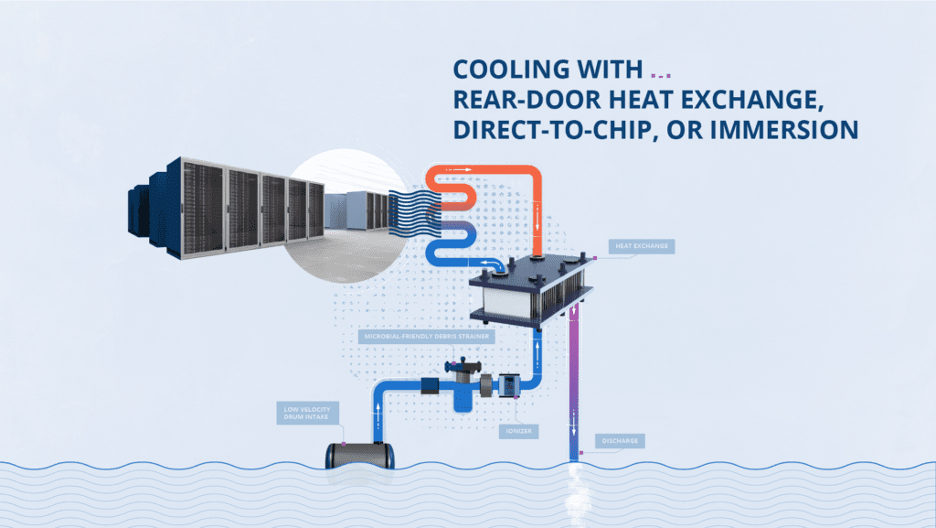
Above deck are the data center halls. Once inside, it feels like, well, a data center—almost. The power distribution units (PDUs) and other power-related equipment hum quietly and racks of servers and networking gear are lined up across the floor, but there are no hot and cold aisles, and no air conditioning grates or ductwork either. Instead the ceiling is lined with an orderly arrangement of pipes carrying water that’s been cooled by the river outside.

Upriver from the data center, water is collected from the river and filtered before running through the heat exchanger that cools water circulating in a closed loop inside the data center. River water never enters the data center hall.

The technology used to collect and filter the water has been used for decades in power plants, submarines, aircraft carriers, and so on. The entire collection system is marine wildlife-friendly and certified by multiple federal and state agencies, commissions, and water boards, including the California Department of Fish and Wildlife. One of the reasons Nautilus chose the Port of Stockton was the truism that, if you can get something certified for operation in the state of California, then you can typically get it certified pretty much anywhere.


Source

Inside the data center, at specific intervals, water supply and return lines run down to the rear door on each rack. The server fans expel hot air through the rear door and the water inside the door removes the heat to deliver cool air into the room. We use ColdLogik Rear Door Coolers to perform the heat exchange process. The closed loop water system is under vacuum—meaning that it’s leak proof, so water will never touch the servers. A nice bit of innovation by the Nautilus designers and engineers.

Downriver from the data center, the water is discharged. The water can be up to 4° Fahrenheit warmer than when it started upriver. As we mentioned before, the various federal and state authorities worked with Nautilus engineers to select a discharge location which was marine wildlife-friendly. Within seconds of being discharged the water is back to river temperature and continues its journey to the Sacramento Delta. The water spends less than 15 seconds end-to-end in the system which operates with no additional water, uses no chemicals, and adds zero pollutants to the river.

Why Nautilus

For Backblaze, the process of choosing a data center location is a bit more rigorous than throwing a dart at a map and putting some servers there. Our due diligence checklist is long and thorough, taking into consideration redundancy, capacity, scalability, cost, network providers, power providers, stability of the data center owner, and so on. The Nautilus facility passed all of our tests and will enable us to store over an exabyte of data on-site to optimize our operational scalability. In addition, the Nautilus relationship brings us a few additional benefits not traditionally heard of when talking about data centers.

Innovation

Storage Pods, Drive Farming, Drive Stats, and even Backblaze B2 Cloud Storage are all innovations in their own way as they changed market dynamics or defined a different way to do things. They all have in common the trait of putting together proven ideas and technologies in a new way that adds value to the marketplace. In this case, Nautilus marries proven maritime and industrial water cooling and distribution technologies with a new approach to data center infrastructure. The result is an innovative way to use a precious resource to help meet the ever-increasing demand for data storage. This is the kind of engineering and innovation we admire and respect.

Environmental Awesomeness

We can appreciate the environmental impact of the Nautilus data center from two perspectives. The first is obvious: taking a precious resource, river water, and using it to not only lower the carbon footprint of the data center (Nautilus projects by up to 30%), but to also do so without permanently affecting the resource and ecosystem. That’s awesome. The world has been harnessing the power of Mother Nature for thousands of years, yet doing so responsibly has not always been top-of-mind in the process. In the case of Nautilus, the environmental impact is at the top of their list.

The second reason this is awesome is that Nautilus chose to do this in California, coming face-to-face with probably the most stringent environmental requirements in the United States. Almost anywhere else would have been easier, but if you are looking to show your environmental credibility and commitment, then California is the place to start. We commend them for their effort.

Unique Security

Like any well-run data center site, Nautilus has a multitude of industry standard security practices in place: a 24x7x365 security staff, cameras, biometric access, and so on. But the security doesn’t stop there. Being a data center on a barge also means that divers regularly inspect the underwater systems and the barge itself for maintenance and security purposes. In addition, by nature of being a data center on a barge in the Port of Stockton, the data center has additional security: the port itself is protected by the U.S. Department of Homeland Security (DHS) and the waterways are patrolled by the U.S. Coast Guard. This enhanced collection of protective resources is unique for data centers in the U.S., except possibly the kind of data centers we are not supposed to know anything about.

The Manatee in the River

Let’s get to the elephant in the room here: is there risk in putting a data center on a barge in a river? Yes—but no more so than putting one in a desert, or near any body of water, or near a forest, or in an abandoned mine, or near a mountain, or in a city. You get the idea: they all have some level of risk. We’d argue that this new data center—with its decreased reliance on energy and air conditioning and its protection by DHS, among other positives—is quite a bit more reliable than most places the world stores its data. As always, though, we continue to encourage folks to have their data in multiple places.

Still, putting a data center on a river is novel. We’re sure some people will make jokes, and probably pretty funny ones—we’re happy to laugh at our own expense. (It’s certainly happened before.) We are also sure some competitors will use this as part of their sales and marketing—FUD (fear, uncertainty and doubt) as it is called behind your back. We don’t play that game, and, as with our past innovations, we’re used to people sniping a bit when we move out ahead on technology. As always, we encourage you to dig in, get the facts, and be comfortable with the choice you make. Here at Backblaze, we won’t sell you up the river, but we may put your data there.

The post Backblaze Rides the Nautilus Data Center Wave appeared first on Backblaze Blog | Cloud Storage & Cloud Backup.

Lights, Camera, Custom Action: Integrating Frame.io with Backblaze B2

Post Syndicated from Pat Patterson original https://www.backblaze.com/blog/lights-camera-custom-action-integrating-frame-io-with-backblaze-b2/

At Backblaze, we love hearing from our customers about their unique and varied storage needs. Our media and entertainment customers have some of the most interesting use cases and often tell us about their workflow needs moving assets at every stage of the process, from camera to post-production and everywhere in between.

The desire to have more flexibility controlling data movement in their media management systems is a consistent theme. In the interest of helping customers with not just storing their data, but using their data, today we are publishing a new open-source custom integration we have created for Frame.io. Read on to learn more about how to use Frame.io to streamline your media workflows.

What is Frame.io?

Frame.io, an Adobe company, has built a cloud-based media asset management (MAM) platform allowing creative professionals to collaborate at every step of the video production process. For example, videographers can upload footage from the set after each take; editors can work with proxy files transcoded by Frame.io to speed the editing process; and production staff can share sound reports, camera logs, and files like Color Decision Lists.

The Backblaze B2 Custom Action for Frame.io

Creative professionals who use Frame.io know that it can be a powerful tool for content collaboration. Many of those customers also leverage Backblaze B2 for long-term archive, and often already have large asset inventories in Backblaze B2 as well.

What our Backblaze B2 Custom Action for Frame.io does is quite simple: it allows you to quickly move data between Backblaze B2 and Frame.io. Media professionals can use the action to export selected assets or whole projects from Frame.io to B2 Cloud Storage, and then later import exported assets and projects from B2 Cloud Storage back to Frame.io.

How to Use the Backblaze B2 Custom Action for Frame.io

Let’s take a quick look at how to use the custom action:

As you can see, after enabling the Custom Action, a new option appears in the asset context dropdown. Once you select the action, you are presented with a dialog to select Import or Export of data:

After selecting Export, you can choose whether you want just the single selected asset, or the entire project sent to Backblaze B2.

Once you make a selection, that’s it! The custom action handles the movement for you behind the scenes. The export is a point-in-time snapshot of the data from Frame.io—which remains as it was—to Backblaze B2.

The Custom Action creates a new exports folder in your B2 bucket, and then uploads the asset(s) to the folder. If you opt to upload the entire Project, it will be structured the same way it is organized in Frame.io.

How to Get Started With Backblaze B2 and Frame.io

To get started using the Custom Action described above, you will need:

  • A Frame.io account.
  • Access to a compute resource to run the custom action code.
  • A Backblaze B2 account.

If you don’t have a Backblaze B2 account yet, you can sign up here and get 10GB free, or contact us here to run a proof of concept with more than 10GB.

What’s Next?

We’ve written previously about similar open-sourced custom integrations for other tools, and by releasing this one we are continuing in that same spirit. If you are interested in learning more about this integration, you can jump straight to the source code on GitHub.

Watch this space for a follow-up post diving into more of the technical details. We’ll discuss how we secured the solution, made it deployable anywhere (including to options with free bandwidth), and how you can customize it to your needs.

We would love to hear your feedback on this integration, and also any other integrations you would like to see from Backblaze. Feel free to reach out to us in the comments below or through our social channels. We’re particularly active on Twitter and Reddit—let’s chat!

The post Lights, Camera, Custom Action: Integrating Frame.io with Backblaze B2 appeared first on Backblaze Blog | Cloud Storage & Cloud Backup.
Five Misconceptions About Moving From Tape to Cloud

Post Syndicated from Jeremy Milk original https://www.backblaze.com/blog/five-misconceptions-about-moving-from-tape-to-cloud/

There are a lot of pros and cons that go along with using the old, reliable LTO system for your backups. And while the medium still has many adherents, there is a growing movement of folks looking to move beyond magnetic tape, a form of storage technology that has been around since 1928. Technically, it’s the same age as sliced bread.

Those working in IT already know the benefits of migrating from LTO to cloud storage, which include everything from nearly universal ease of access to reduced maintenance, but those who hold the company’s pursestrings might still need convincing. Some organizations delay making a move because of misconceptions about the cost, inconvenience, risk, and security, but they may not have all the details. Let’s explore five top misconceptions about migrating from tape so you can help your team make an informed decision.

Misconception #1 – Total Cost of Ownership is Higher in the Cloud

The first misconception is that moving from a tape-based backup solution to cloud storage is expensive. Using our LTO vs. B2 Cloud Storage calculator, you can enter the amount of existing data you have, the amount of data you add yearly, and your daily incremental data to determine the actual cost savings.

For example, say you have 50TB of existing data, you add 5TB more every year, and your daily incremental backup data is 500GB. If that were the case, you could expect to pay almost 75% less backing up with cloud storage versus tape. The calculator also includes details about the assumptions we used in the computations so you can adjust accordingly. These assumptions include the LTO Backup Model, Data Compression Ratio and Data Retention Policy, as well as a handful of others you can dig into on your own if you’d like to fine tune the math.

Misconception #2 – Migration Costs are Impossible to Manage

We have shown how much more affordable it is to store on the cloud vs. on tape, but what about the costs of moving all of your data? Everyone with a frequently accessed data archive and especially those serving data to end users live in fear of large egress fees. Understandably the idea of paying egress fees for ALL of their data at once can be paralyzing. There is one service available today that pays for your data migration—egress fees, transfer costs, administration, all of it.

The new Universal Data Migration (UDM) service covers data migration fees for customers in US, Canada, Europe storing more than 10TB—including any legacy provider egress fees. The service offers a suite of tools and resources to make moving your data over to cloud storage a breeze, including high speed processes for reading tape media (reel cassettes and cartridges) and transferring directly to Backblaze B2 via a high-speed data connection. This all comes with full solution engineer support throughout the process and beyond. Data is transferred quickly and securely within days, not weeks.

Short story: Even if it might feel like it some days, your data does not have to be held hostage by egress expenses. Migration can be the opposite of a “killer”–it can open your budget for other investments and free your teams to access the data they need whenever they need it.

Misconception #3 – Cloud Storage Is a Security Risk

A topic on everyone’s minds these days is security. It’s reasonable to worry about risks when transitioning from tapes stored on-premises or off-site to the cloud. You can see the tapes on site; they’re disconnected from the internet and locked in a storage space on your property. When it comes to cybercriminals accessing data, you’re breathing easy. Statistics on data breaches and ransomware show that businesses of every size are at risk when it comes to cyberattacks, so this is an understandable stance. But when you look at the big picture, the cloud can offer greater peace of mind across a wide range of risks:

  • Cut Risk by Tiering Data Off Site: Cybercrime is certainly a huge threat, so it’s wise to keep it front of mind in your planning. There are a number of other risk factors that deserve equal consideration, however. Whether you live in an area prone to natural disasters, are headquartered in an older building, or just have bad luck, getting a copy of your data offsite is essential to ensuring you can recover from most disasters.
  • Apply Object Lock for Virtual Air Gapping: Air gaps used to be the big divider between cloud and tape on the security front. But setting immutability through Object Lock means you can set a virtual air gap on all of your cloud data. This functionality is available through Veeam, MSP 360, and a number of other leading backup management software providers. You don’t have to rely on tape to attain object lock.
  • Boost Security without Burdening IT: Cloud storage providers’ full time job is maintaining the durability of the data they hold—they focus 24/7 on maintenance and upkeep so you don’t have to worry about whether your hardware and software are up to date and properly maintained. No need to sweat security updates, patches, or dealing with alerts. That’s your provider’s problem.

Misconception #4 – It’s All or Nothing with Data Migration

For certain industries, regulations require that certain data sets stay on-site. In the past, managing some data on-site and some in the cloud was just too much of a hassle. But hybrid services have come a long way toward making the process smoother and more efficient.

For all of your data that doesn’t have to stay on-site, you could start using cloud storage for daily incremental backups today, while keeping your tape system in place for older archived data. Not only would this save you time not worrying about as many tapes, but you can also restore the cloud-based files instantly if you need to.

Using software from StarWind VTL or Archiware P5, you can start backing up to the cloud instantly and make the job of migrating more manageable.

The Hybrid Approach

If you’re not able to go in on the all-in cloud approach right away, you may want to continue to keep some archived data on tape and move over any current data that is more critical. A hybrid system gives you options and allows you to make the transition on your schedule.

Some of the ways companies execute the hybrid model are:

  • Date Hybrid: Pick a cut-off date; everything after that date is stored in cloud storage and everything before stays on tape.
  • Classic Hybrid: Full backups remain on tape and incremental data is stored in the cloud.
  • Type Hybrid: You might store different data types on tape and other types in the cloud. For example, perhaps you store employee files on tape and customer data in cloud storage.

Regardless of how you choose to break it up, the hybrid model makes it faster and easier to migrate.

Misconception #5 – The Costs Outweigh the Benefits

If you’re going to go through the process of migrating your data from LTO to the cloud—even though we’ve shown it to be fairly painless—you want to make sure there’s an upside, right?

Let’s start with the simple ease of access. With tape storage, the nature of physical media means that access is limited by its nature. You have to be on premises to locate the data you need (no small feat if you have a catalog of tapes to sort through).

By putting all that data in the cloud, you enable instant access to anyone in your organization with the right provisions. This shifts hours of burden from your IT department, helping the organization get more out of the resources and infrastructure they already have.

Bonus Pro-Tip: Use a “Cheat Sheet” or Checklist to Convince Your CFO or COO

When you pitch the idea of migrating from tape to cloud storage to your CFO or COO, you can allay their fears by presenting them with a cheat sheet or checklist that proactively addresses any concerns they might have.

Some things to include in your cheat sheet are basically what we’ve outlined above: First, that cloud storage is not more expensive than tape; it actually saves you money. Second, using a hybrid model, you can move your data over conveniently on your own time. There is no cost to you to migrate your data using our UDM service, and your data is fully protected against loss and secured by Object Lock to keep it safe and sound in the cloud.

Migration Success Stories

Check out these tape migration success stories to help you decide if this solution is right for you.

Kings County, CA

Kings County, California, experienced a natural disaster destroying their tapes and tape drive, prompting an $80,000 price tag to continue backing up critical county data like HIPAA records and legal information. John Devlin, CIO of Kings County, decided it was time for a change. His plan was to move away from capital expenditures (tapes and tape drives) to operating expenses like cloud storage and backup software. After much debate, Kings County decided on Veeam Software paired with Backblaze B2 Cloud Storage for its backup solution, and it’s been smooth sailing ever since!

Austin City Limits

Austin City Limits is a public TV program that has stored more than 4,000 hours of priceless live music performances on tape. As those tapes were rapidly beginning to deteriorate, the company opted to transfer recordings to Backblaze B2 Cloud Storage for immediate and ongoing archiving with real-time, hot access. Utilizing a Backblaze Fireball rapid data ingest tool, they were able to securely back up hours of footage without tying up bandwidth. Thanks to their quick actions, irreplaceable performances from Johnny Cash, Stevie Ray Vaughan and The Foo Fighters are now preserved for posterity.

In Summary

So, we’ve covered that moving your backups to a storage cloud can save your organization time and money, is a fairly painless process to undertake, doesn’t present a higher security risk, and creates important geo-redundancies that represent best practices. Hopefully, we’ve helped clear up those misconceptions and we’ve helped you decide whether migrating from tape to cloud storage makes sense for your business.

The post Five Misconceptions About Moving From Tape to Cloud appeared first on Backblaze Blog | Cloud Storage & Cloud Backup.
Packing Up and Backing Up: It’s Time for School

Post Syndicated from Josephine Quock original https://www.backblaze.com/blog/packing-up-and-backing-up-its-time-for-school/

Note from the Editor: When students head off to college, they take their data and computers with them. We wanted to dig into what students and other young tech users are doing to save and protect their data, so we invited our intern, Josephine, to develop some resources for you before she heads off to college.

Apart from discovering the outside world and learning more about who you are as a person, the university experience is, at its core, about the pursuit of knowledge. In years past, students would store that knowledge in spiral-bound notebooks or scattered sheets of loose leaf, but today it’s all digital. While there’s no doubt that computers have changed everything from how we research to how assignments are turned in, technology comes with its own set of challenges. I wondered: how much are students taught about how to keep their data safe? My experience at Backblaze has taught me a lot about the importance of backing up your data, and I want to share that with other college students.

Lesson One: Syncing is Not Backing Up

If students do think about how to preserve their data, most are content to let services like iCloud or OneDrive handle it. What they may not realize (and I didn’t) is that these sync services are completely different from a true backup. Before interning at Backblaze, I didn’t even think about backing up, let alone understand the importance of it or the best strategies to back up my data. I couldn’t tell you the difference between backup and sync services. Because my photos and contacts were synced on my iPhone, iPad, and even my MacBook, I assumed all this data was saved and in good hands. However, working at Backblaze taught me the importance of backing up to prevent losing my data.

For example, if I were to delete a photo on my iPhone, syncing means that it would also delete on my other devices. Backing up gives you an additional copy of the data that doesn’t follow the same rules as your syncing services. If I accidentally delete something or get a virus, a backup with version history means that I could restore an earlier version of my files or library. This is why ensuring the safety of your data is proactive, as backing up can provide security in the event of hardware failure, cyber attack, natural disaster, or even a careless mistake.

Lesson Two: You Might Need Your Old Data

Let me provide an example that we college students have experienced at least once throughout our time in university: the frustration and annoyance of endlessly searching through the deepest corners of our devices to find an important document, only to not find it in the end.

A few months ago, I was given the option to select a prompt for an essay of my choosing from a couple of short stories. “The Tell-Tale Heart” by Edgar Allen Poe immediately caught my eye because I had read it and written a paper on it in high school. I enjoyed the story in high school and liked the idea of comparing my new paper with my old to see how much I’d grown as a writer. I browsed and inspected every possible drive on multiple email accounts—no luck.

Looking back, I wished that I had saved all the files and emails from middle and high school. But since I didn’t, I wasn’t able to review what I had written and couldn’t see the progress and improvement in my writing. Had I backed up all the data of my high school years, I could have read my essay on “The Tell-Tale Heart” and expanded on my original ideas. I was warned many times that all my documents from my account would be deleted. I knew this information and yet I still didn’t do anything about it.

Lesson Three: There Are Easy Answers

As a college student, I need a backup service that’s easy to use and affordable. Since Backblaze first started offering consumer backup, they’ve prioritized both of those things. According to an internal Backblaze’s Customer Survey in 2022, users love using the service because of the price, unlimited data backup, and most importantly ease of use. Backups are automatic, and 45% of Backblaze users spend less than $100 per year on all their backup services (including Backblaze).

Now that I will be going into my fourth year in college, I will have other important documents beyond my school work since I am going to be applying for more internships and jobs when I graduate. My resume, job applications, school projects, and essays are all things that I can’t risk losing. Additionally, lots of my photos are saved to social media accounts, and I want to save them somewhere besides my phone or on those platforms.

Lesson Learned!

After college, I plan on purchasing a new computer and will need to back everything up on my current computer to transfer over to my new laptop. Not only will that make sure that I don’t lose data when I change devices, but (rather than buying an external drive that I need to keep track of) I can use my Backblaze account. I will be using multiple devices to access my single Backblaze account. Once I have my new laptop, I just have to log in from my new device and restore all my files. I won’t have to worry about losing an external hard drive or making sure the files on a hard drive are updated.

With school back in session and the end of my university experience approaching, my social media, school work, and job search exist on all my devices. I can’t imagine losing any of it. After interning at Backblaze and hearing so many disaster stories, I will definitely be backing up my data, and I recommend that other students do too. That’s why services like Backblaze are really helpful.

The post Packing Up and Backing Up: It’s Time for School appeared first on Backblaze Blog | Cloud Storage & Cloud Backup.
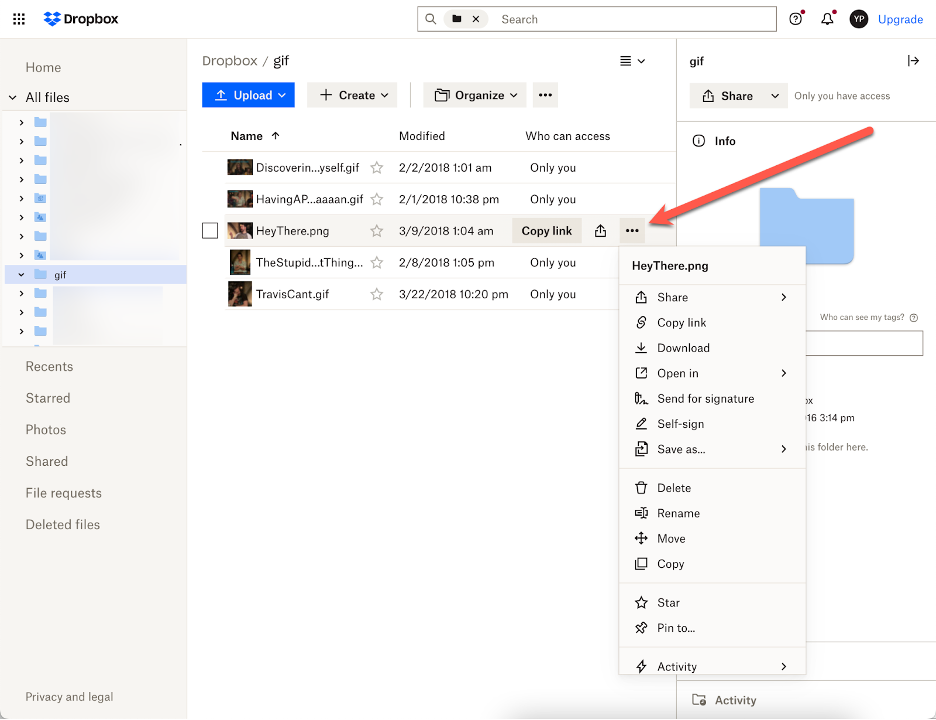
Media Workflowing to Europe: IBC 2022 in Amsterdam Preview

Post Syndicated from Jeremy Milk original https://www.backblaze.com/blog/media-workflowing-to-europe-ibc-2022-in-amsterdam-preview/

You can send media in milliseconds to just about every corner of the earth with an origin store at your favorite cloud storage company and a snappy content delivery network (CDN). Sadly, delivering people to Europe is a touch more complicated and time intensive. Nevertheless, the Backblaze team is saddling up planes, trains, and automobiles to bring the latest on media workflows to the attendees of IBC 2022. Whether you’re there in person or virtually, we’ll be discussing and demo-ing all the newest Backblaze B2 Cloud Storage solutions that will ensure your data can travel with ease—no mass transit needed—everywhere you need it to be.

Learn More LIVE in Amsterdam

If you’re attending the IBC 2022 conference in Amsterdam, join us at stand 7.B06 to learn about integrating B2 Cloud Storage into your workflow. Stop by anytime or you can schedule a meeting here. We’d love to see you.

IBC 2022 Preview: What’s New for Backblaze B2 Media Workflow Solutions

Our stand will have all the usual goodness: partners, friendly faces, spots to take a load off and talk about making your data work harder, and, of course, some next-level SWAG. Let’s get into what you can expect.

New Pricing Models and Migration Tools

Our team is on hand to talk you through two new offerings that have been generating a lot of excitement among teams across media organizations:

  • Backblaze B2 Reserve: You can now purchase the Backblaze service many know and love in capacity-based bundles through resellers. If your team needs 100% budget predictability and would like waived transaction fees and premium support included as well, you should check out this new pricing model. Check it out here.
  • Universal Data Migration: This IBC 2022 Best of Show nominee makes it easy and FREE to move data into Backblaze from legacy cloud, on-premises, and LTO/tape origins. If your current data storage is holding your team or your budget back, we’ll pay to free your media and move it to B2 Cloud Storage. Learn more here.

Six Flavors of Media Workflow Deep Dives

We’ve gathered materials and expertise to discuss or demo our six most asked about workflow improvements. We’re happy to talk about many other tools and improvements, but here are the six areas we expect to talk about the most:

  1. Moving more (or all) media production to the cloud. Ensuring everyone—clients, collaborators, employers, everyone—has easy real-time access to content is essential for the inevitable geographical distribution of modern media workflows.
  2. Reducing costs. Cloud workflows don’t need to come with costly gotchas, minimum retention penalties, and/or high costs when you actually want to use your content. We’ll explain how the right partners will unlock your budget so you can save on cloud services and spend more on creative projects.
  3. Streamlining delivery. Pairing cloud storage with the right CDN is essential to make sure your media is consumable and monetizable at the edge. From streaming services to ecommerce outlets to legacy media outlets, we’ve helped every type of media organization do more with their content.
  4. Freeing storage. Empty your expensive on-prem storage and stop adding HDs and tapes to the pile by moving finished projects to always-hot cloud storage. This doesn’t just free up space and money: Instantly accessible archives means you can work with and monetize older content with little friction in your creative process.
  5. Safeguarding content. All those tapes or HDs on a shelf, in the closet, or wherever you keep them are hard to manage and harder to access and use. Parking everything safely and securely in the cloud means all that data is centrally accessible, protected, and available for more use.
  6. Backing up (better!). Yes, we’ve got roots in backup going back >15 years—so when it comes to making sure your precious media is protected with easy access for speedy recovery, we’ve got a few thoughts (and solutions).

Partners, Partners, and More Partners…

“The more we get together, the happier we’ll be,” might as well be the theme lyric of cloud workflows. Combining best of breed platforms unlocks better value and functionality, and offers you the ability to build your cloud stack exactly how you need it for your business. We’ve got a massive ecosystem of integration partners to bring to bear on your challenges, and we’re happy to share our IBC 2022 stand with two incredible members of that group: media management and collaboration company iconik and the cloud NAS platform LucidLink.

We’ll be demoing a brand new, free Backblaze B2 Storage Plug-in for iconik which enables users of Backblaze, iconik, and LucidLink to move files between services in just a click–we’d love to walk you through it.

Hoping We Can Help You Soon

Whether it’s in person at IBC 2022 or virtually when it works for you, we’d love to walk you through any of the solutions we can serve for hardworking media teams. If you will be in Amsterdam, schedule a meeting to ensure you’ll get the right expert on our team, then stick around for the swag and good times. If you’re not making the trip, please reach out to to us here where we can share all of the same information.

The post Media Workflowing to Europe: IBC 2022 in Amsterdam Preview appeared first on Backblaze Blog | Cloud Storage & Cloud Backup.
ELEMENTS Media Platform Adds Backblaze B2 as Native Cloud Option

Post Syndicated from Jennifer Newman original https://www.backblaze.com/blog/elements-media-platform-adds-backblaze-b2-as-native-cloud-option/

Cloud workflows are rapidly becoming a driver of every modern media team’s day-to-day creative output. Whether it’s enabling remote shoots, distributed teams, or leveraging budgets more effectively, the cloud can deliver a ton of value to any team. But workflows, by their nature, are complex—and plenty of legacy cloud solutions only add to that complexity with tangled pricing models and limits to egress and collaboration.

ELEMENTS has been simplifying media workflows for more than a decade. Cloud storage has always been part of the ELEMENTS DNA, but they’ll be presenting revolutionary platform updates for cloud workflows in 2023 and beyond at IBC 2022. Part of this new focus on cloud solutions is their addition of an easy, transparent cloud storage option to their platform in Backblaze B2 Cloud Storage. Nimble post-production teams are always on the lookout for more straightforward and easy-to-understand cloud plans with transparent costs—this is a market that Backblaze serves more effectively than the other legacy providers accessible through the platform.

Learn More About This Solution Live in Amsterdam

If you’re attending the 2022 IBC Conference in Amsterdam, join us at stand 7.B06 to learn about integrating B2 Cloud Storage into your workflow. You can schedule a meeting here.

The Backblaze + ELEMENTS Integration

The ELEMENTS platform makes it simple to upload and download files straight from on-premises storage while also offering smart and fully customisable archiving workflows, cloud-based media asset management (MAM), and a number of other tools and features that remove the borders between cloud and on-premises storage. Once connected, ELEMENTS enables users to search, edit, or automate changes to media assets. This extends to team collaboration and setting rights to folders and data across the connected networks. ELEMENTS has provided an intuitive interface making this an easy-to-use solution that is designed for the M&E industry.

Connecting your Backblaze account with ELEMENTS is easy. Simply navigate to the System > Integrations menu and enter your Backblaze login credentials. After this, Backblaze B2 Buckets of the connected account can be mounted as a volume on ELEMENTS.

If you’d like to run a proof of concept with Backblaze, the first 10 GB is free and setting up a Backblaze account only takes a few clicks. Or you can contact sales for more information.

If you’re already a Backblaze B2 customer and would like to check out the ELEMENTS platform, contact ELEMENTS directly here.

Simplifying Your Workflow AND Your Budget

Backblaze focuses on end-to-end ease, including how it works in your budget. Businesses can select a pay-as-you go option or work with a reseller to access capacity plans.

B2 Cloud Storage – This is a general cloud plan for applications, backups and almost all of your business needs. The pricing is simple: $5 per TB per month + $0.01 per GB download fee. As with all plans, the files are located on one storage tier and can always be easily accessed.

B2 Reserve – This is the sweet spot for most media use cases. B2 Reserve is a cloud package starting from 20TB per month. This plan comes at a slightly higher cost than the standard B2 Cloud Storage plan but is free from egress fees up to the amount of storage purchased per month. B2 Reserve will quickly work in your favor if you plan on accessing your files regularly. NOTE: B2 Reserve is only available through resellers.

Top Benefits for Teams Using Backblaze and ELEMENTS Together

The ELEMENTS platform offers a set of robust tools that unlock time and budgets for creative teams to do more. We’ll underline how these different features can work with Backblaze B2.

Automation Engine

The ELEMENTS Automation Engine allows users to create workflows with any number of steps. This tool has a growing list of templates, two of which are Archive and Restore automations. These can be used to archive footage to Backblaze and delete it from the on-premises storage while keeping a lightweight preview proxy. If you need the original footage after previewing the proxy, triggering the Restore automation is all you need to do. The hi-res footage will automatically be downloaded from the Backblaze B2 bucket and placed onto the original location.

A huge benefit of using cloud storage through the ELEMENTS platform is that the individual users do not need to have cloud accounts or direct cloud access. Users will only be able to use the cloud features through the preset automation jobs and according to their permissions.

Media Library

Cloud technologies open up a number of new possibilities within the Media Library, our powerful, browser-based media asset management (MAM) platform.

For example, if your post-production facility has a locally-deployed media library which is running on your ELEMENTS storage and is connected to your Backblaze account, users can playback all of your footage at any time, no matter where it is stored—on-premises, in the cloud, or even in your LTO archive.

The Media Library adds a layer of functionality to the cloud and allows you to easily build a true cloud archive—one that can be accessed from anywhere, in which footage can easily be previewed and just as easily restored with a click of a button.

File Manager

The File Manager is a functionality of the ELEMENTS Web UI that allows you to browse and manage content on your storage on-premises and, very soon, in the cloud. It provides you with a clear overview of all your files, no matter how many file systems and cloud buckets you have. File Managers’ support for cloud storage means users will be able to manage all of their files in one place, without having to navigate through a host of different cloud providers’ interfaces.

ELEMENTS Client

The ELEMENTS Client is an intuitive connection manager that allows admins to decide who gets to mount what—providing a secure gatekeeper to your footage.
The latest function, coming soon to the ELEMENTS Client, will allow users to mount cloud workspaces. This means that users will be able to access the contents of the Backblaze B2 Bucket as if it were a local drive. With optional access logging, users will have the ability to access the cloud-stored content while admins can maintain a high level of security.

Bringing Independent Cloud Storage to the ELEMENTS Platform

Offering B2 Cloud Storage as a native option within the ELEMENTS platform brings a whole new type of cloud offering to Elements’ users. We’re eager to see how creatives use an easier, more affordable, independent option in their workflows.

Learn More About this Solution Live in Amsterdam

If you’re attending the 2022 IBC Conference in Amsterdam, join us at stand 7.B06 to learn about integrating B2 Cloud Storage into your workflow. You can schedule a meeting here.

The post ELEMENTS Media Platform Adds Backblaze B2 as Native Cloud Option appeared first on Backblaze Blog | Cloud Storage & Cloud Backup.
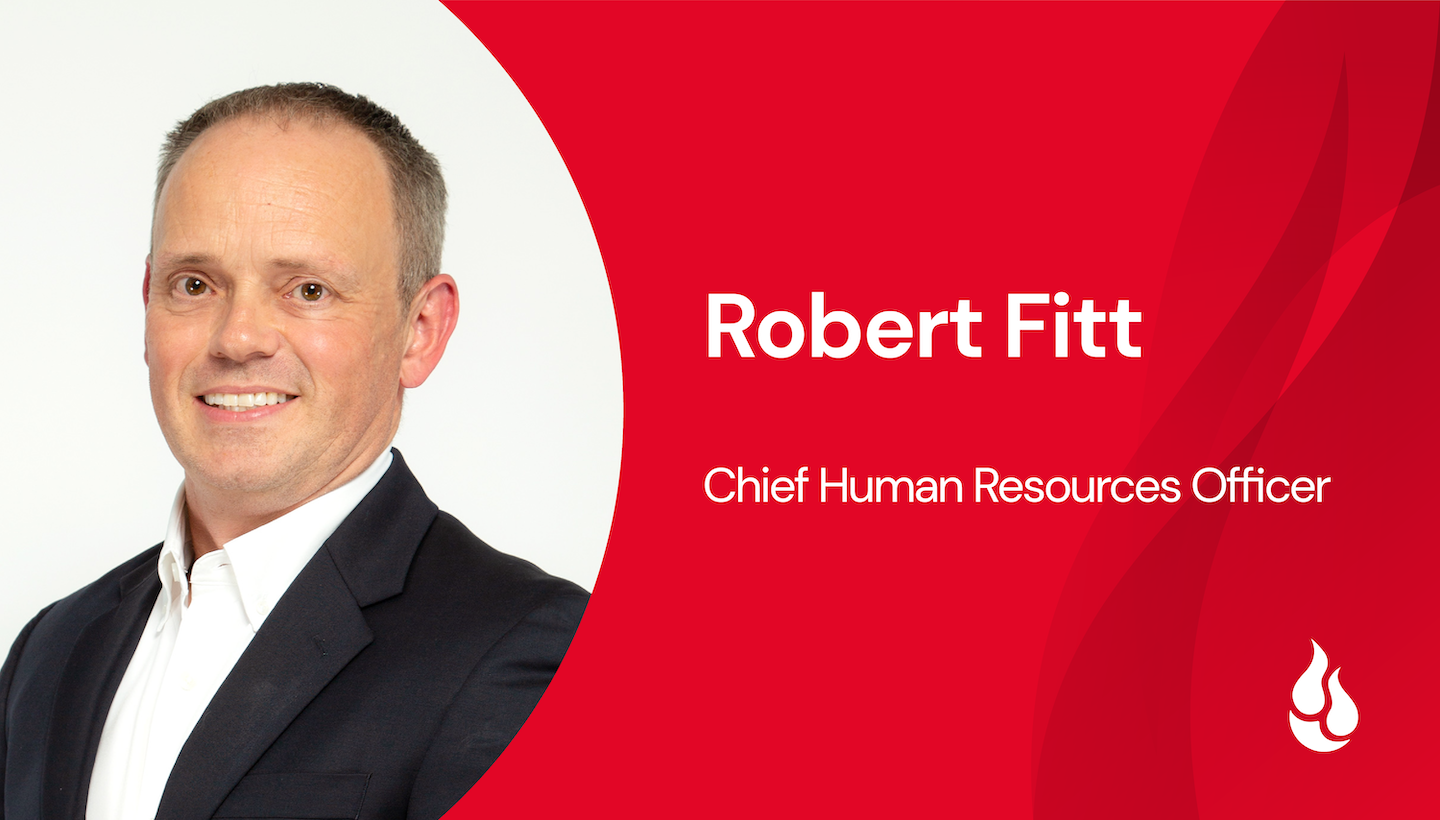
Announcing Backblaze B2 Object Lock for MSP360: Enhanced Ransomware Protection

Post Syndicated from Jennifer Newman original https://www.backblaze.com/blog/announcing-backblaze-b2-object-lock-for-msp360/

The potential threat of ransomware is something every modern business lives with. It’s a frightening prospect, but it’s a manageable risk with technology that’s readily available on many major platforms. Today, we’re adding one more tool to that list: we’re excited to announce that our long-time partners at MSP360 have now made Backblaze B2 Object Lock functionality available to customers that use B2 Cloud Storage as cloud tier for their backup data.

How Backblaze B2 Object Lock Works with MSP360 Data

Backups are the last line of defense against cyberattacks and accidental data loss. From ransomware attacks to hacking unattended devices, there are plenty of attack vectors available to cybercriminals, not to mention the very real risk of human error. But, when activated by an IT admin in MSP360 Managed Backup 6.0, Backblaze B2 Object Lock provides an additional layer of security to a business’ backups by blocking deletion or modification by anyone (including admins) during a user-defined retention period. Object Lock puts the data in an immutable state—it’s accessible and usable, but it can’t be changed or trashed. For anyone worried about attacks on their last line of defense, this is a huge relief. It’s also increasingly a requirement, as it’s becoming more common to request immutability as proof of compliance for many industries with strict standards.

“Our customers have clients operating in a range of IT environments. With whatever we do, we want to keep that in mind and ensure we provide our customers with options. Offering Backblaze B2 Object Lock to our customers provides them another tool in the fight against ransomware, arguably still cybersecurity’s biggest challenge.”—Brian Helwig, CEO, MSP360

How to Use Object Lock with MSP360 Today

If you’re already using Backblaze B2 as a cloud storage tier for MSP360 and you’re running the latest version, you can choose to enable Object Lock when you create a new bucket. If you’re interested in checking out the joint solution now that Object Lock is enabled, you can learn more here.

“MSP360 has been a long-time partner of Backblaze and continues to impress us with their commitment to delivering a well-rounded platform to customers. We’re very happy to extend Backblaze B2 Object Lock to MSP360’s customers to meet their security, disaster recovery, and cloud storage needs.”—Nilay Patel, Vice President, Sales & Partnerships, Backblaze

Want to Learn More About Object Lock?

Protecting data is one of our favorite things, so, appropriately, we’ve written about the value of Object Lock quite a bit. You can learn more about the basics in this general guide to Object Lock. If you’re interested in how this feature will integrate into your existing security policy, you can read about adding Object Lock to your IT security policy here.

And if you want to hear more from the experts on the subject, register for our webinar, Cybersecurity and the Public Cloud: Cloud Backup Best Practices on September 21. The webinar features John Hill, Cybersecurity Expert; Troy Liljedahl, Director of Solutions Engineering at Backblaze; and David Gugick, VP Product Management at MSP360, and you’ll learn about a few of the common security concerns facing you today as you back up data into the public cloud. If you can’t join us live, the webinar will be available on demand on the Backblaze BrightTALK channel.

We hope these guides can be useful for you, but drop a comment if there’s anything else we can cover.

The post Announcing Backblaze B2 Object Lock for MSP360: Enhanced Ransomware Protection appeared first on Backblaze Blog | Cloud Storage & Cloud Backup.
How to Back Up Veeam to the Cloud

Post Syndicated from Kari Rivas original https://www.backblaze.com/blog/how-to-back-up-veeam-to-the-cloud/

Backups are your best defense against ransomware and other types of data loss. Thankfully it is quick and easy to back up all your Veeam data to Backblaze B2 Cloud Storage within minutes—and we have the videos to prove it!

What is Veeam?

Veeam is well-respected backup and disaster recovery software that works across many platforms and hardware/software configurations. Founded in 2006, Veeam Software is a U.S.-based company that operates in over 180 countries and has 400,000 customers—many of them Fortune 500 companies.

The Veeam and Backblaze B2 Cloud Storage Integration

Backblaze has partnered with Veeam to deliver the most reliable, affordable, and secure data protection and cloud storage target for your data. Veeam Backup & Replication provides modern data protection for your cloud, virtual, and physical workloads to solve your challenges around backup, recovery, archive, disaster recovery, and ransomware.

With a transparent pricing model that is a fraction of the competitors’ cost, Backblaze B2 Cloud Storage helps you plan your budget effectively and store more than four times the restore points you could otherwise. With Backblaze B2 as your cloud tier storage destination in Veeam, you can store your data for $5/TB per month with no minimum retention requirement, tiers, or hidden fees.

Additionally, Backblaze is certified as Veeam Ready—Object and Veeam Ready—Object with Immutability. Immutability is an important part of protecting backups from threats such as ransomware or stolen credentials because it allows you to protect objects from being changed, deleted, manipulated, copied, or encrypted for a specified, user-defined time period. Even better, Backblaze does not charge an extra fee for the use of the object lock feature.

How Does Veeam Work with Backblaze B2 Cloud Storage?

Backblaze is a proud partner of Veeam and is fully compatible with Veeam Cloud Tier. Using Backblaze B2’s S3-compatible API, you can set B2 Cloud Storage as your Cloud Tier in Veeam’s Scale-Out Backup Repository.

In Veeam v11 and earlier versions, you must first establish the Performance Tier, or Local Repository, before you can set up the Cloud Tier.

If you’ve been using Veeam, you probably already know how to add a local storage repository to Veeam. However, if you are one of our B2 users who are exploring this partnership for the first time, we have a video to guide you through the process. Watch as Greg Hamer, Senior Developer Evangelist, demonstrates how to set up the Local Repository in just a few minutes. If your Local Repository is already configured, then you’re ready to proceed to cloud backup!

Steps to Back Up Your Data with Veeam and Cloud Storage

To make things easy, we have created a video about How to Back Up Veeam to the Cloud. In the video, Greg demonstrates how you can securely store your Veeam data in just 20 minutes.

If you’re not a visual learner, you can easily back up all of your Veeam data to Backblaze’s B2 Cloud Storage using the five easy steps below.

Step 1: Create a Backblaze Account

First, you need to set up a Backblaze account. If you already have a Backblaze account, you’re all set and can move on to step two. Otherwise, visit Backblaze’s Veeam page and click the Start Now button to create one.

The Start Now button will take you to a simple sign-up form where you only have to enter your email address and a password. Don’t worry about setting up billing just yet. You have 10GB of free space to test drive B2 Cloud Storage before you have to set up any billing information.

Once you successfully create a new account, you will create a bucket to store your data in, then collect and save some information from your Backblaze dashboard to use later.

Step 2: Create a Backblaze B2 Bucket and Set Up an Application Key

A “bucket” is a container that holds your files uploaded by your Veeam software to Backblaze B2 Cloud Storage. When configuring your bucket, you will give it a unique name, choose whether it’s private or public (most customers choose private buckets), and turn on Object Lock to secure your files and make them immutable. (This is an important security step you won’t want to miss.)

Each bucket is associated with a name and an S3 Endpoint. You should jot down this Endpoint to use later in Veeam to connect with Backblaze.

Before you exit the Backblaze console, you will set up an Application Key that allows Veeam to connect to and access your storage bucket securely. You give the Application Key a name and make some additional choices to finish setting it up. Finally, you will jot down some details for the Application Key, such as keyID, keyName, and applicationKey, which is essentially a passcode for the key. Be sure to write these down immediately after creating the key, or you won’t be able to access it in plaintext again.
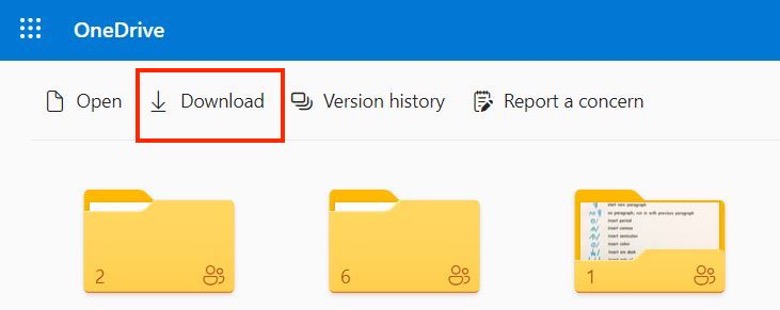
Step 3: Add Backblaze B2 Cloud Storage as a Cloud Tier Repository in Veeam

Switching over to the Veeam console, you will log into your software and create a Cloud Tier repository to interface with Backblaze B2 Cloud Storage.

Before you do that, however, you need to have a local repository created. The tutorial assumes that you have one already and have been using Veeam to backup locally.

To set up your cloud tier, you will follow a few simple steps:

  1. Choose your object storage type.
  2. Give it a name.
  3. Enter your Backblaze S3 Endpoint value.

You will also be prompted to enter your credentials, which is the Application Key information you’ve already set up when you created your Backblaze B2 Bucket. Before exiting that area, Veeam will test the connection to ensure it can reach your Bucket. The final stage in this step allows you to turn on Object Lock to keep your backup files safe.

Step 4: Create the Scale-Out Backup Repository in Veeam

Still working within the Veeam console, you will also set up a scale-out repository to handle backup data load. During this step, you will name your Veeam Scale-Out repository, choose a few options, select the Cloud Tier repository you just created in step three, and ensure that your files are backed up immediately.

Step 5: Create a Backup Job in Veeam

The final stage of our backup tutorial walks you through the process of setting up a backup job. You will continue working in Veeam to create a new backup job using cloud storage. In the video we show you a Virtual Machine backup, but you can create several other types of backup jobs as needed. You can then name your backup job, add the files you want to backup, and choose where you want to save them (in this case, the Scale-Out repository we just created).

You also have options to optimize storage and schedule your backup job to run as often as you like. Then, you can test it immediately to see how it goes.

We hope this video guide and brief explanation were useful in helping you get the most out of both Veeam and Backblaze. If you have thoughts for topics on future videos, sound off in the comments. And be sure to subscribe to our YouTube channel for more great content!

The post How to Back Up Veeam to the Cloud appeared first on Backblaze Blog | Cloud Storage & Cloud Backup.