All posts by Yu-Ting Su

Enhance Amazon EMR observability with automated incident mitigation using Amazon Bedrock and Amazon Managed Grafana

Post Syndicated from Yu-Ting Su original https://aws.amazon.com/blogs/big-data/enhance-amazon-emr-observability-with-automated-incident-mitigation-using-amazon-bedrock-and-amazon-managed-grafana/

Maintaining high availability and quick incident response for Amazon EMR clusters is important in data analytics environments. In this post, we show you how to build an automated observability system that combines Amazon Managed Grafana with Amazon Bedrock to detect and remediate EMR cluster issues. We demonstrate how to integrate real-time monitoring with AI-powered remediation suggestions, combining Amazon Managed Grafana for visualization, Amazon Bedrock for intelligent response recommendations, and AWS Systems Manager for automated remediation actions on Amazon Web Services (AWS).

Solution overview

This solution helps you improve EMR cluster observability through a comprehensive four-layer architecture—comprising monitoring, notification, remediation, and knowledge management—to provide the following features:

  • Real-time monitoring of EMR clusters using Amazon Managed Service for Prometheus and Amazon Managed Grafana
  • Automated first-aid remediation through Systems Manager
  • AI-powered incident response suggestions using Amazon Bedrock
  • Integration with the AWS Premium Support knowledge base
  • Historical incident data archival and analysis

The implementation of this architecture delivers the following key benefit:

  • Reduced Mean time to resolution (MTTR)
  • Proactive incident prevention
  • Automated first-response actions
  • Knowledge base enrichment through machine learning

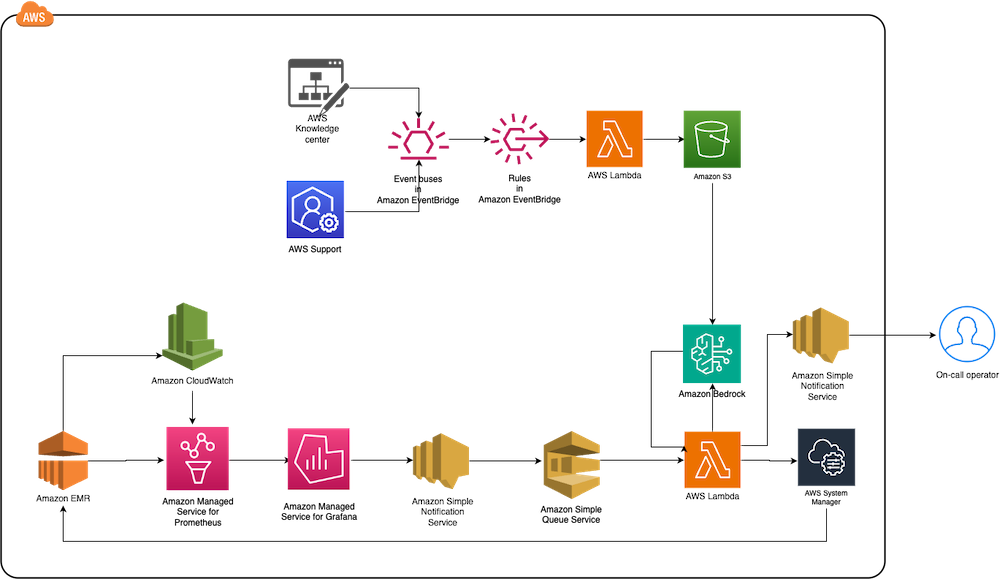
The following diagram illustrates the solution architecture.

End-to-end AWS monitoring solution diagram integrating Knowledge Center, Support, CloudWatch metrics with EventBridge rules and Lambda processing

The architecture comprises the following core components:

  • Monitoring layer – The monitoring layer uses Amazon Managed Service for Prometheus and Amazon CloudWatch to capture real-time metrics from EMR clusters. Amazon Managed Grafana serves as the visualization layer, offering comprehensive dashboards for Apache YARN, HDFS, Apache HBase, and Apache Hudi performance monitoring. Advanced alerting mechanisms trigger notifications based on predefined query results.
  • Notification layer – To provide timely and reliable alert delivery, the notification layer uses Amazon Simple Notification Service (Amazon SNS) for distribution and Amazon Simple Queue Service (Amazon SQS) for message queuing. This architecture prevents message delays and provides a robust trigger mechanism for AWS Lambda functions.
  • Remediation layer – The remediation layer enables automatic issue resolution through:
    • Lambda functions for orchestration
    • Systems Manager for script execution
    • Amazon Bedrock (amazon.nova-lite-v1:0) for generating intelligent response recommendations
  • Knowledge management layer – To maintain an up-to-date knowledge base, the solution:

We provide an AWS CloudFormation template to deploy the solution resources.

Prerequisites

Before starting this walkthrough, make sure you have access to the following AWS resources and configurations:

  • An AWS account
  • Access to the US East (N. Virginia) AWS Region
    • Add access to Amazon Bedrock foundation models (amazon.nova-lite-v1:0)

  • Amazon EMR version 6.15.0 (used in this demo)
  • Archived technical or troubleshooting articles
  • AWS IAM Identity Center enabled with at least one role that can become a Grafana administrator
  • (Optional) AWS Premium Support with a business support plan or higher for enhanced troubleshooting capabilities

Throughout this walkthrough, we provide detailed instructions to set up and configure these prerequisites if you haven’t already done so.

Configure resources using AWS CloudFormation

Complete the following steps to configure your resources:

  1. Launch the CloudFormation stack:

launch stack

  1. Provide emrobservability as the stack name.
  2. Select a virtual private cloud (VPC) and assign a public subnet.
  3. For EMRClusterName, enter a name for your cluster (default: emrObservability).
  4. Enter an existing Amazon S3 location as the Apache HBase root directory location (for example, s3://mybucket/my/hbase/rootdir/).
  5. For MasterInstanceType and CoreInstanceType, enter your instance types (default: m5.xlarge for both).
  6. For CoreInstanceCount, enter your instance count (default: 2).
  7. For SSHIPRange, use CheckIp and enter your IP (for example, 10.1.10/32).
  8. Choose the release label (default: 6.15.0).
  9. For KeyName, enter a key name to SSH to Amazon Elastic Compute Cloud (Amazon EC2) instances.
  10. For LatestAmiId, enter your AMI (default: /aws/service/ami-amazon-linux-latest/amzn2-ami-hvm-x86_64-gp2).
  11. For KBS3Bucket, enter a name for your S3 bucket (for example, mykbbucket).
  12. For SubscriptionEndpoint, enter an email address to receive notifications and responses (for example, [email protected]).

Accept subscription confirmation

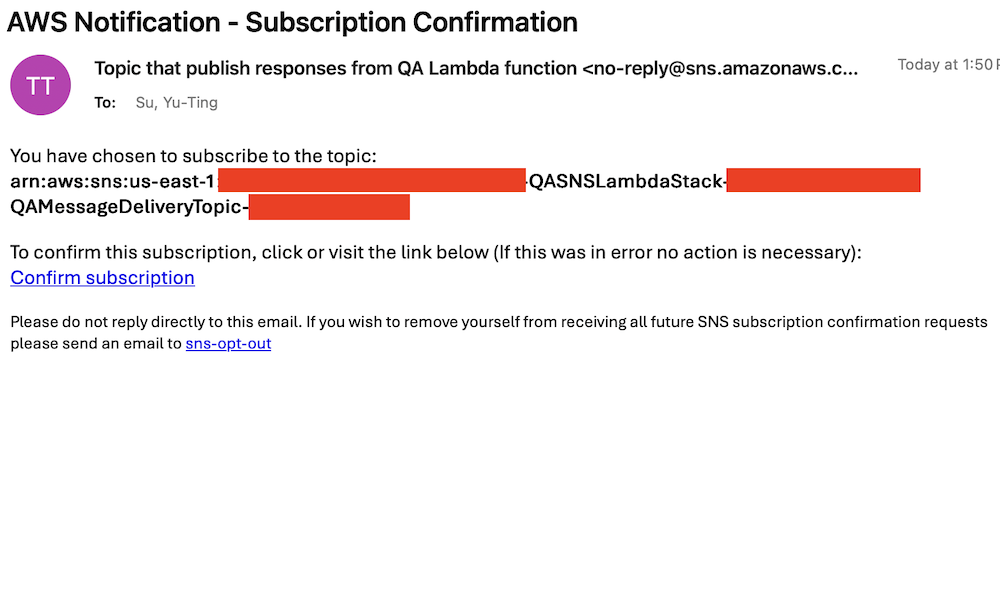
Accept the subscription confirmation sent to the email address you specified in the CloudFormation stack parameters. The following screenshot shows an example of the email you receive.

AWS email confirmation for SNS topic subscription to QA Lambda function responses with opt-out instructions

Prepare the knowledge base

Complete the following steps to populate the S3 bucket with archived technical articles and cases:

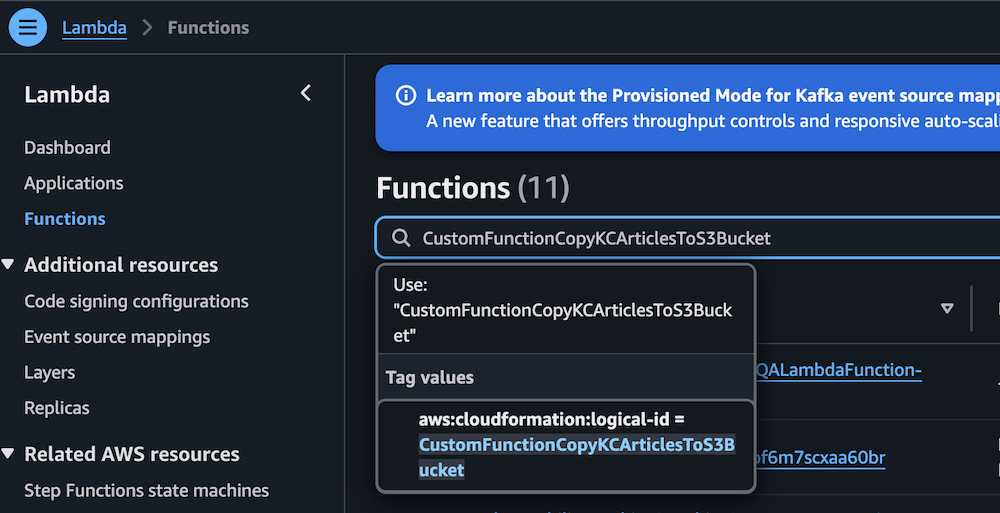
  1. On the Lambda console, choose Functions in the navigation pane.
  2. Choose the function CustomFunctionCopyKCArticlesToS3Bucket.

AWS Lambda console displaying Functions page with CustomFunctionCopyKCArticlesToS3Bucket function details

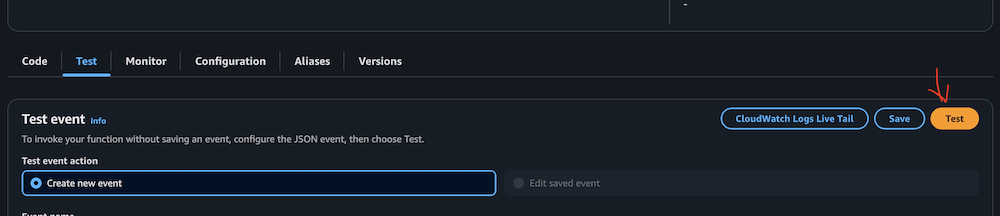
  1. Manually invoke the function by choosing Test on the Test tab.

AWS Lambda Test tab interface with event configuration options

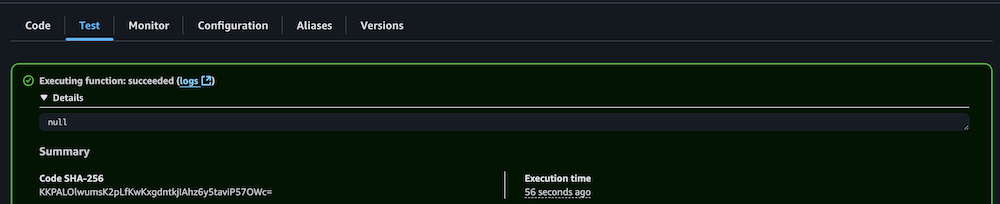
  1. Verify successful execution by checking the CloudWatch logs.

AWS Lambda successful function execution result with null output

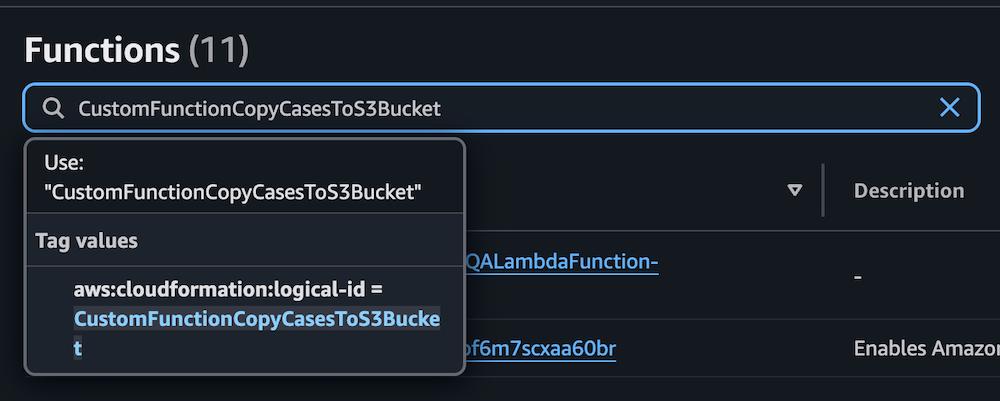
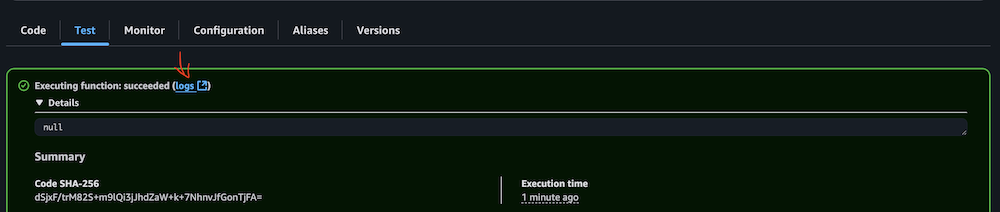
  1. Repeat the process for the Lambda function CustomFunctionCopyCasesToS3Bucket.

Lambda function interface displaying CustomFunctionCopyCasesToS3Bucket configuration with CloudFormation ID and description panel

AWS Lambda test interface showing Test event configuration options and action buttons

AWS Lambda function execution success message with null response and SHA-256 code

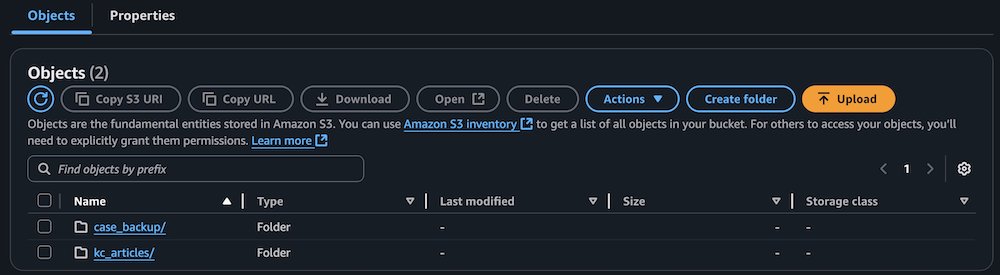
  1. Confirm the S3 bucket has been populated with archived technical articles and cases.

Amazon S3 bucket interface showing two folders with action buttons and search functionality

Sync data to the Amazon Bedrock knowledge base

Complete the following steps to sync the data to your knowledge base:

  1. On the Lambda console, choose Functions in the navigation pane.
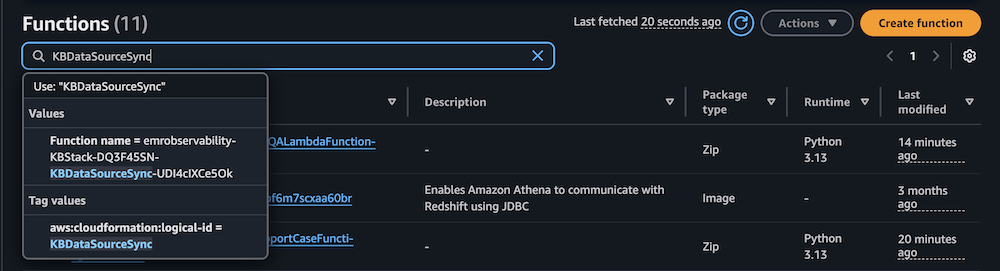
  2. Choose the function KBDataSourceSync.

AWS Lambda console displaying filtered functions with CloudFormation tags, Python runtime versions, and modification timestamps

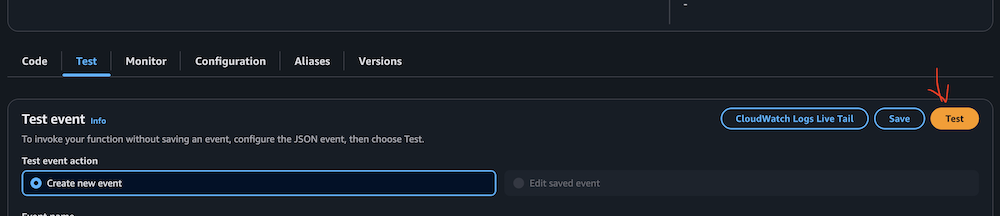
  1. Manually invoke the function by choosing Test on the Test tab.

This task might take 10–15 minutes to complete.

AWS Lambda console test configuration panel with CloudWatch integration and event creation controls

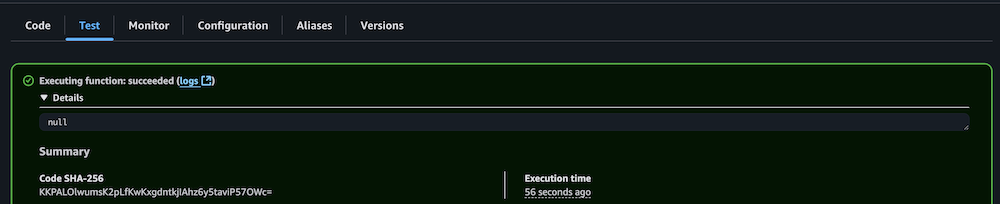
  1. Verify successful execution by checking the CloudWatch logs.

Lambda function execution results showing successful completion status and details

Configure your Amazon Managed Grafana workspace

Complete the following steps to configure your Amazon Managed Grafana workspace:

  1. On the Amazon Managed Grafana console, choose Workspaces in the navigation pane.
  2. Open your workspace.
  3. Choose Assign new user or group.

Amazon Grafana workspace showing IAM configuration notice and user assignment button

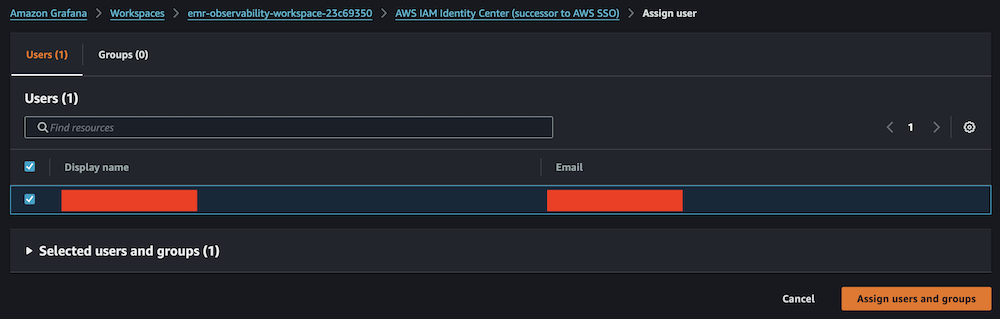
  1. Select your IAM Identity Center role and choose Assign users and groups.

Amazon Grafana IAM Identity Center user assignment panel with search and selection controls

  1. On the Admin dropdown menu, choose Make admin.

Amazon Grafana user list showing assigned viewer with admin action options

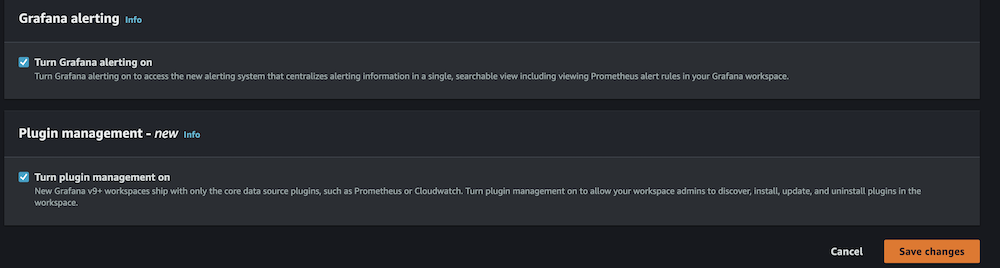
  1. Enable Grafana alerting, then choose Save changes.

Amazon Grafana alerting configuration panel showing disabled status with navigation tabs and edit button

Amazon Grafana configuration panel showing enabled alerting and plugin management settings

  1. Wait 10 minutes for the workspace to become active.
  2. When it’s active, sign in to the Grafana workspace. (For more information, refer to Connect to your workspace.)

Configure data sources

Add and configure the following data sources:

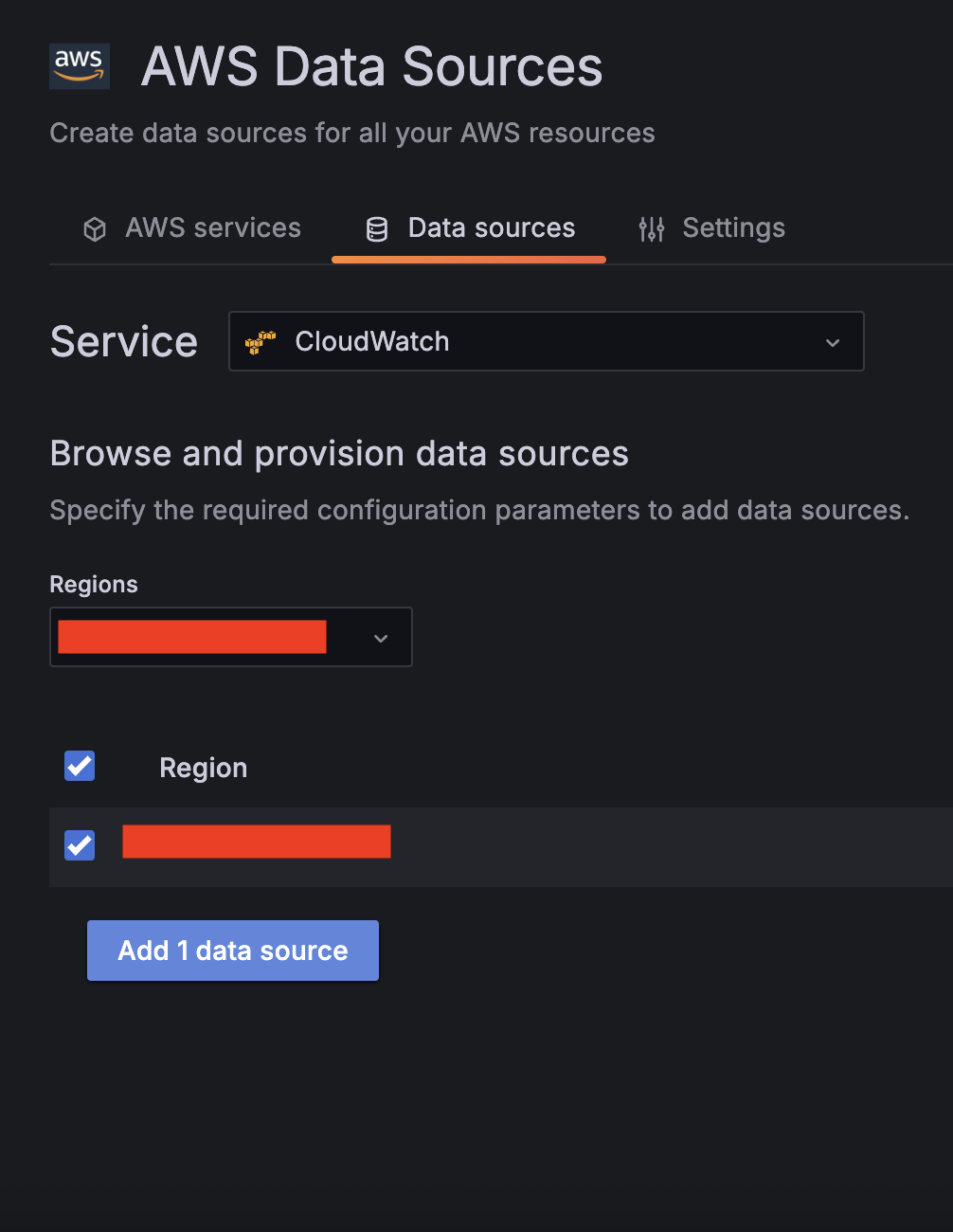
  1. For Service, choose CloudWatch, then select your Region and add CloudWatch as a data source.

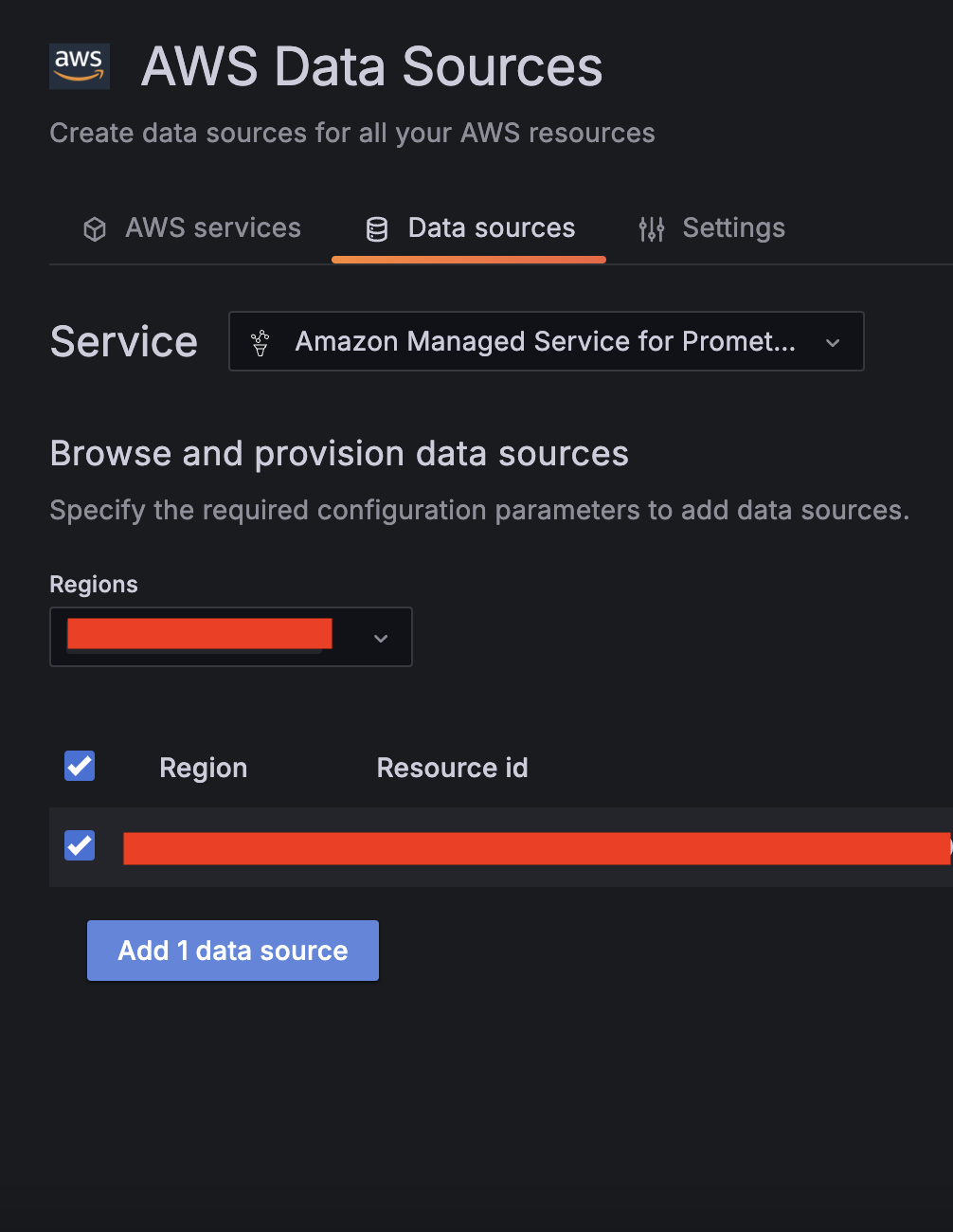
  1. Choose Amazon Managed Service for Prometheus as a second data source and select your Region.

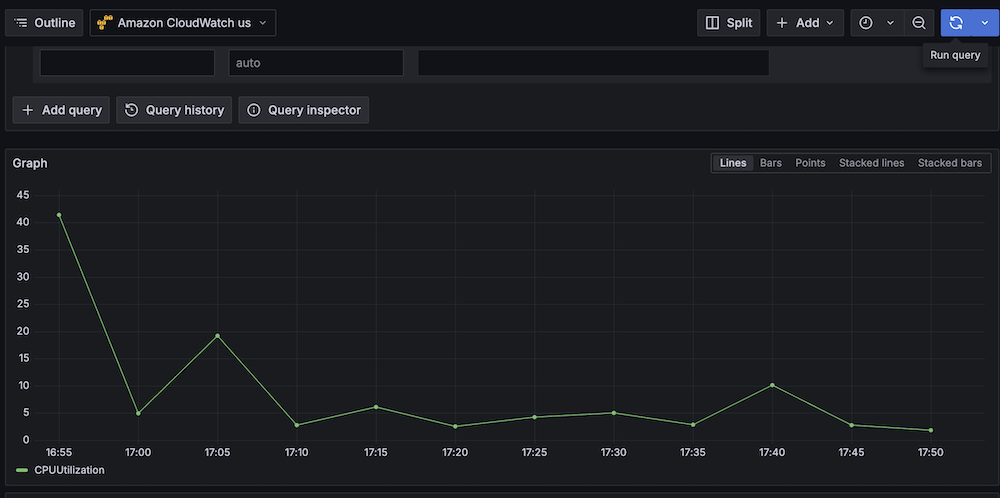
  1. Validate CloudWatch connectivity:
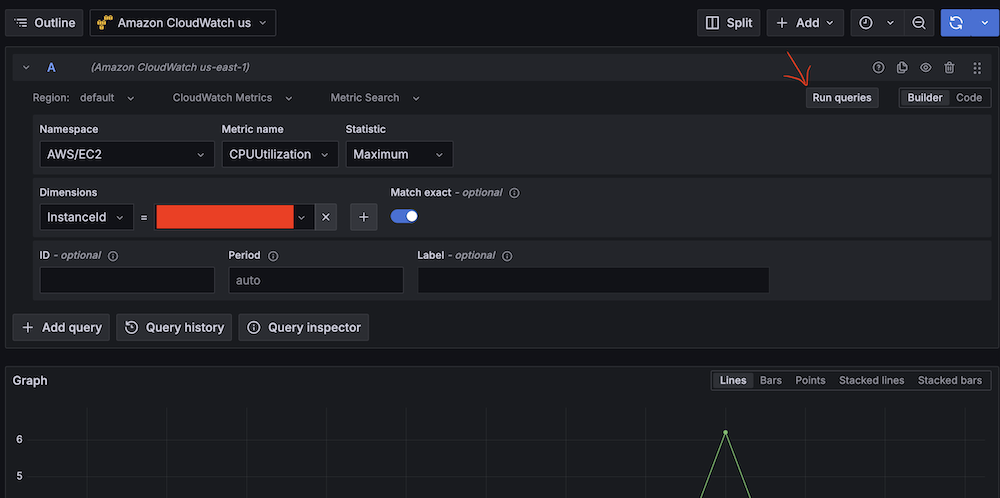
    1. Run test queries (for example, Namespace: AWS/EC2, Metric name: CPUUtilization, Statistic: Maximum).
      Amazon Managed Gragana interface showing CPU utilization query setup for EC2 instance.
    2. Verify CloudWatch metric retrieval.
      Line graph showing CPU utilization over time with peak at 40%.
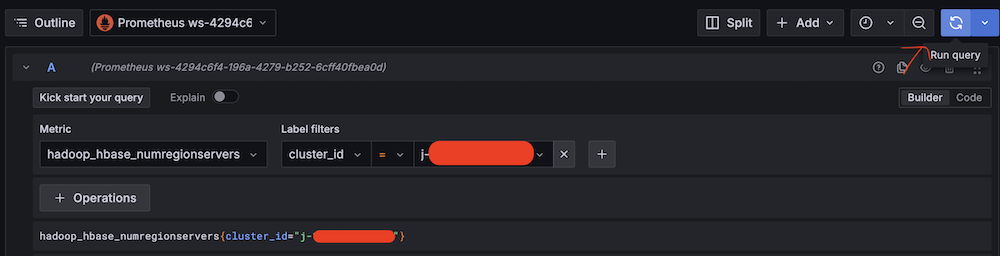
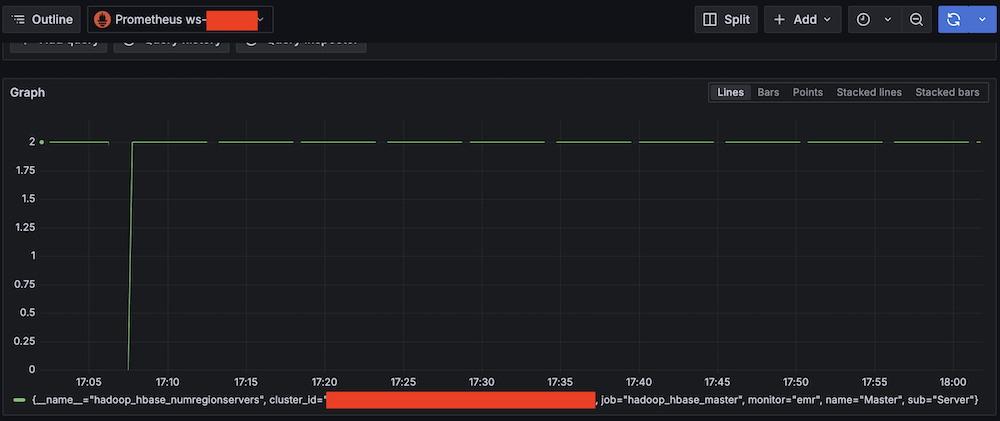
  1. Validate Amazon Managed Service for Prometheus connectivity:
    1. Run test queries (for example, Metric: hadoop_hbase_numregionservers, Label filters: cluster_id = <Amazon EMR cluster ID>).
      Amazon Managed Grafana query interface showing Hadoop HBase metric configuration.
    2. Verify Prometheus metric retrieval.
      Amazon Managed Grafana monitoring dashboard showing a graph with HBase Region Server amount from 0 to 2

Confirm SNS notification channels

Complete the following steps to confirm your SNS notification is set up:

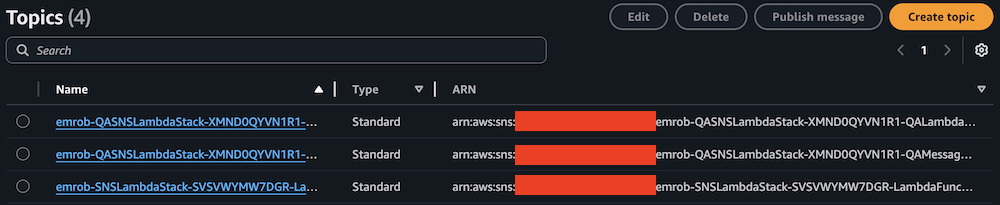
  1. On the Amazon SNS console, choose Topics in the navigation pane.
  2. Locate and note the ARNs for -LambdaFunctionTopic and -QALambdaFunctionTopic.

AWS SNS Topics list showing 4 topics with names, types, and ARNs

AWS SNS Topics console showing filtered search results for "LambdaFunctionTopic"

AWS SNS Topics console showing filtered search results for "QALambdaFunctionTopic"

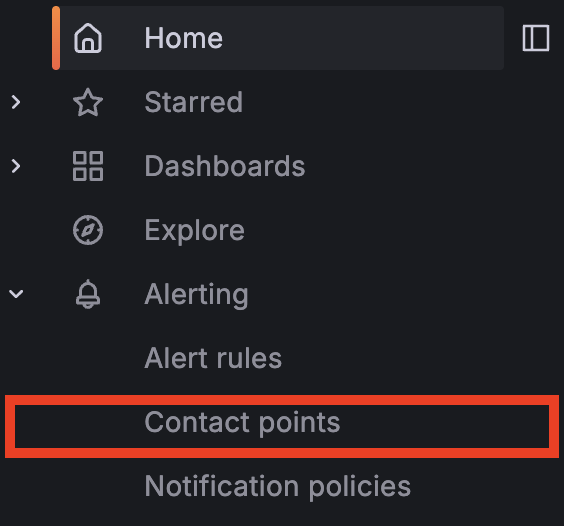
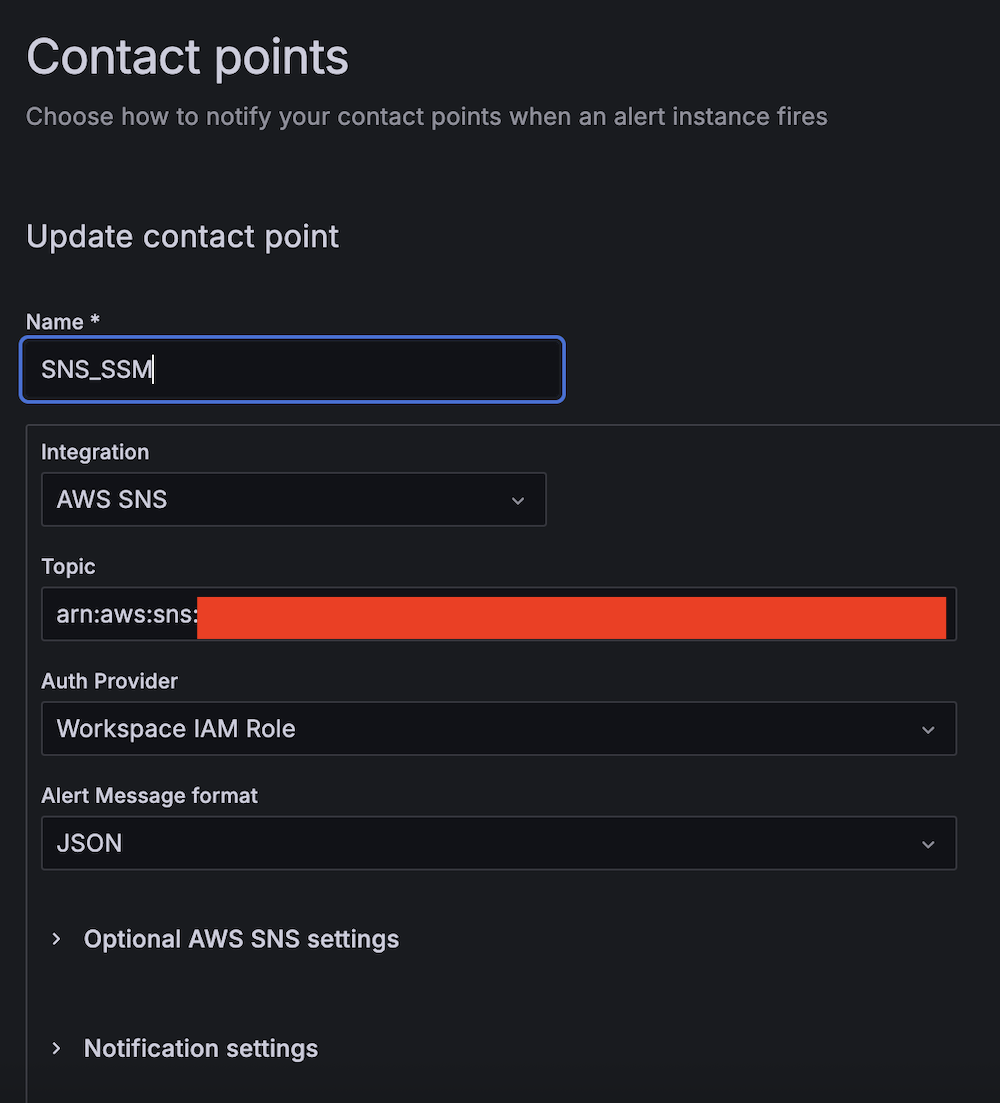
  1. Choose Contact points under Alerting.

  1. Create the first contact point:
    1. For Name, enter SNS_SSM.
    2. For Integration, choose AWS SNS.
    3. For Topic, enter the ARN for LambdaFunctionTopic.
    4. For Auth Provider, choose Workspace IAM role.
    5. For Alert Message format, choose JSON.

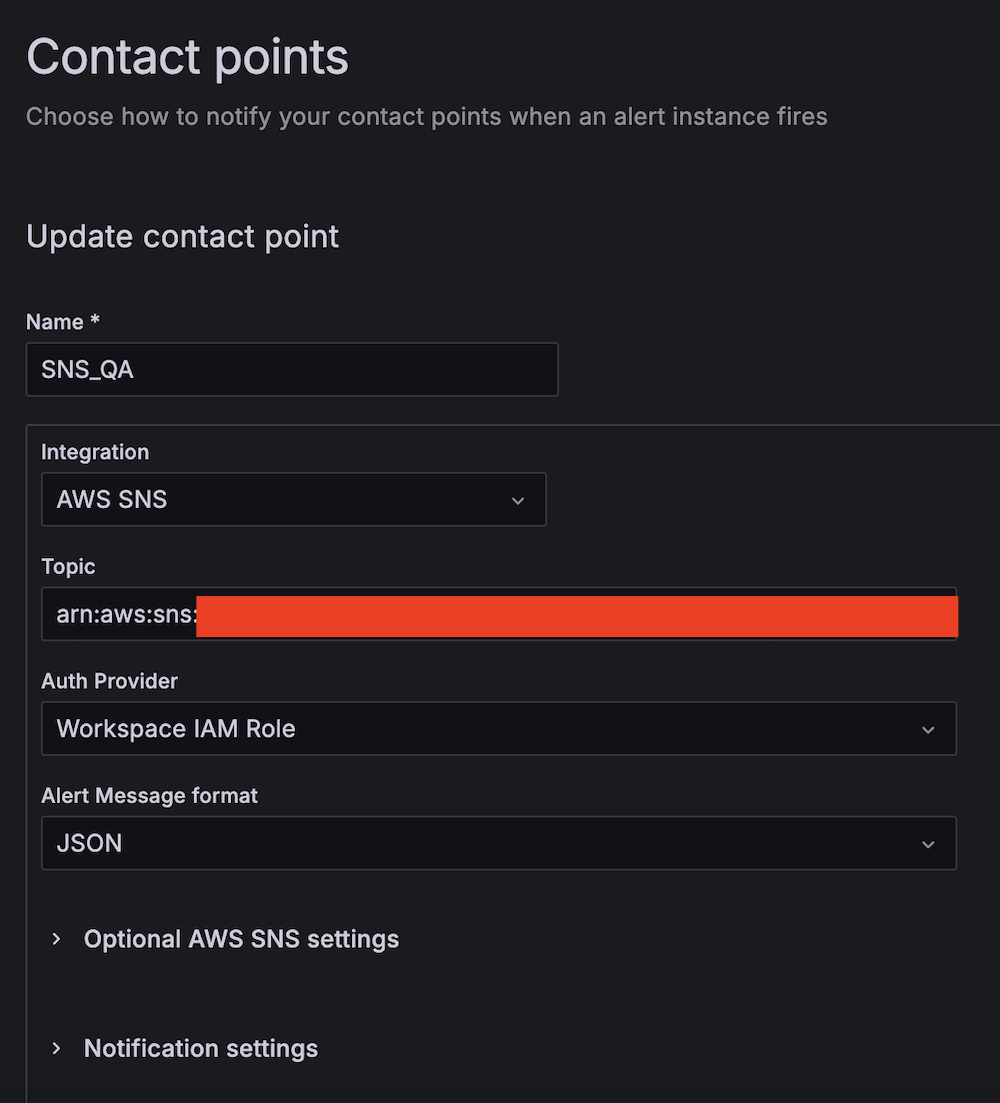
  1. Create the second contact point:
    1. For Name, enter SNS_QA.
    2. For Integration, choose AWS SNS.
    3. For Topic, enter the ARN for QALambdaFunctionTopic.
    4. For Auth Provider, choose Workspace IAM role.
    5. For Alert Message format, choose JSON.

Create alert rules

Complete the following steps to set up two critical alert rules:

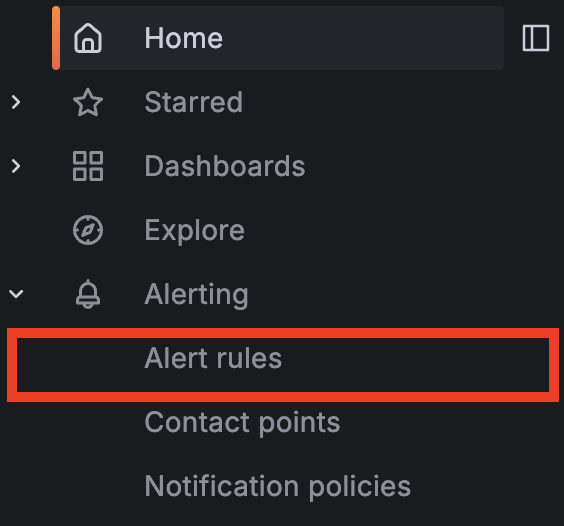
  1. Choose Alert rules under Alerting.

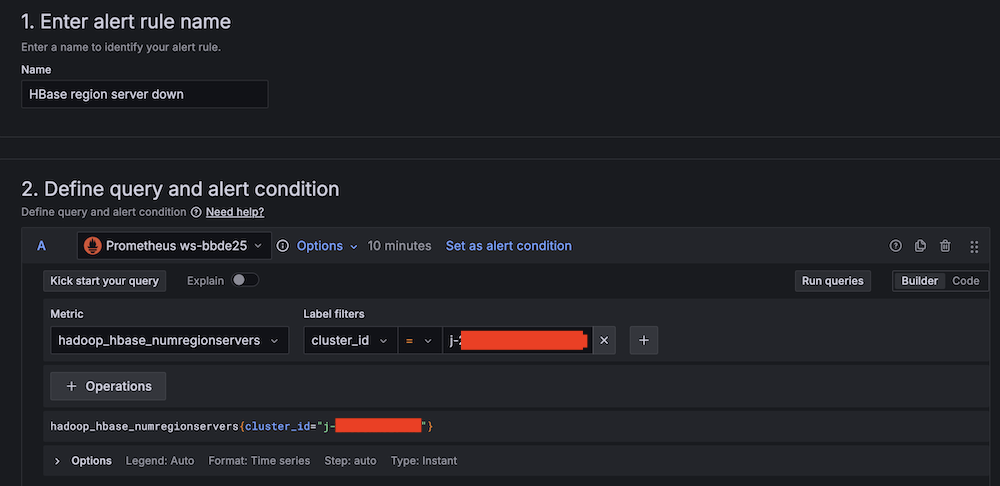
  1. Set up alerting if the Apache HBase region server status is abnormal:
    1. For Alert name, enter HBase region server down.
    2. For Data source, choose Amazon Managed Service for Prometheus.
    3. For Metric, choose hadoop_hbase_numregionservers.
      Alert rule configuration interface for HBase region server monitoring
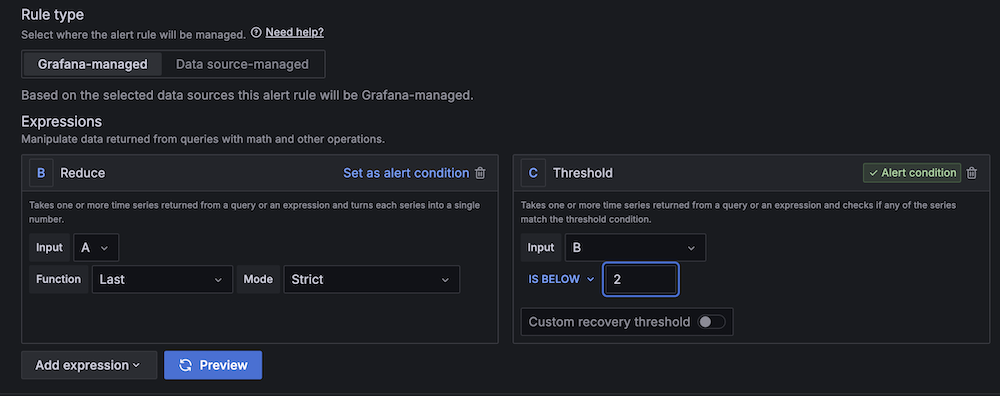
    4. For Threshold, configure to alert if the region server count is less than 2 for 3 minutes.
      Amazon Managed Grafana alert rule configuration interface with expressions setup
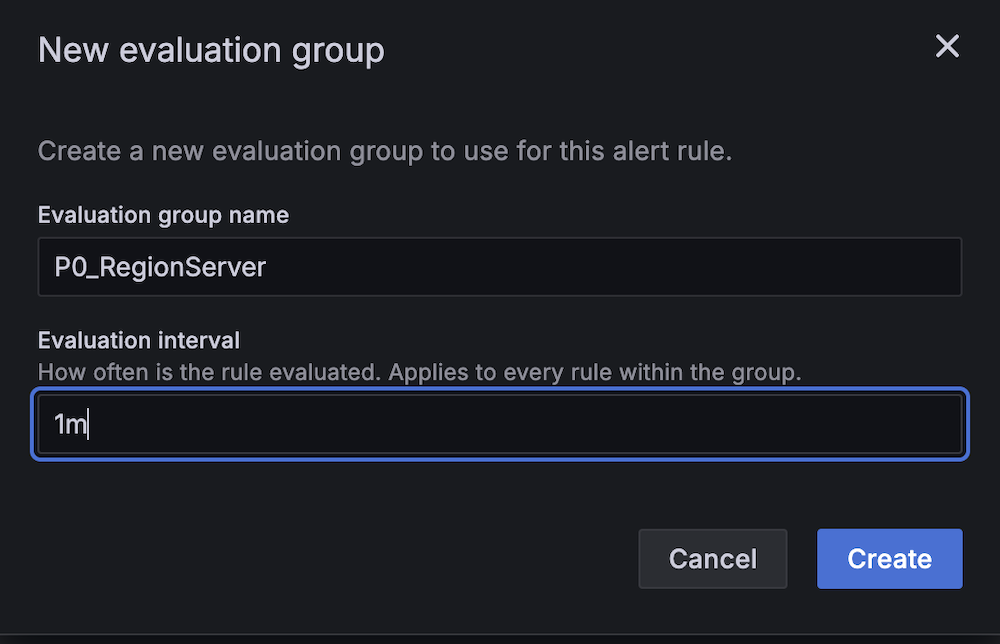
    5. For Evaluation interval, set to 1 minute.
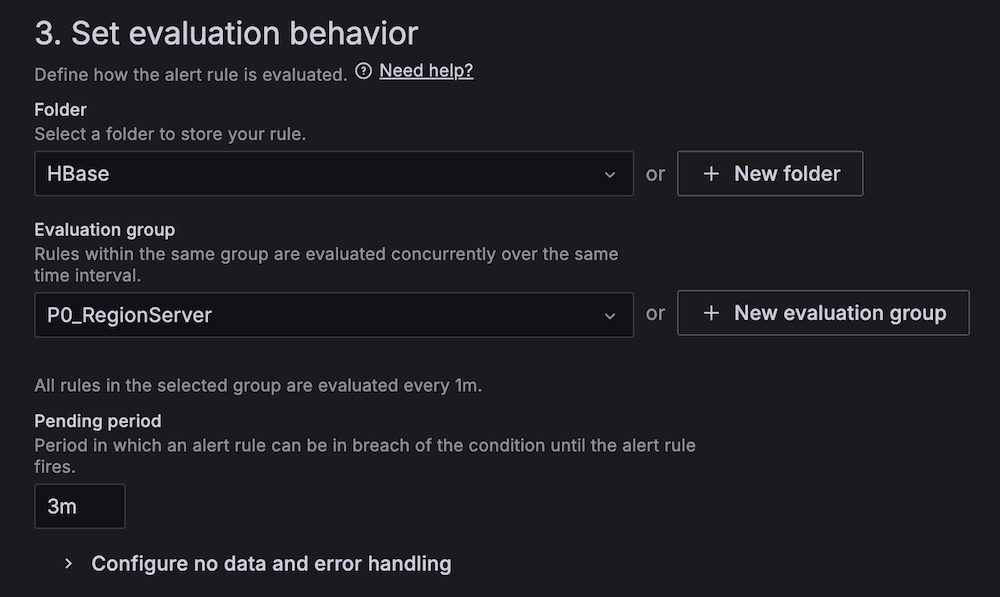
      New evaluation group creation modal showing P0_RegionServer name input and 1m interval settingHBase alert configuration panel showing P0_RegionServer group and 3m pending period
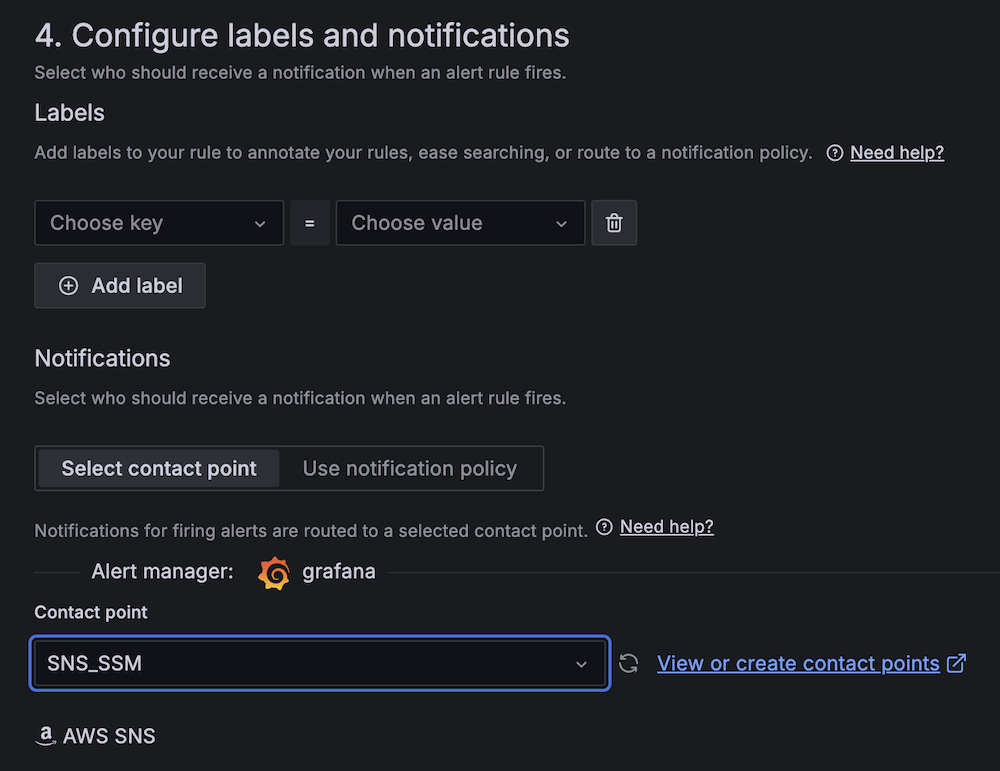
    6. For Contact point, choose SNS_SSM.
      Amazon Managed Grafana alert configuration interface showing labels and notifications setup with AWS SNS integration
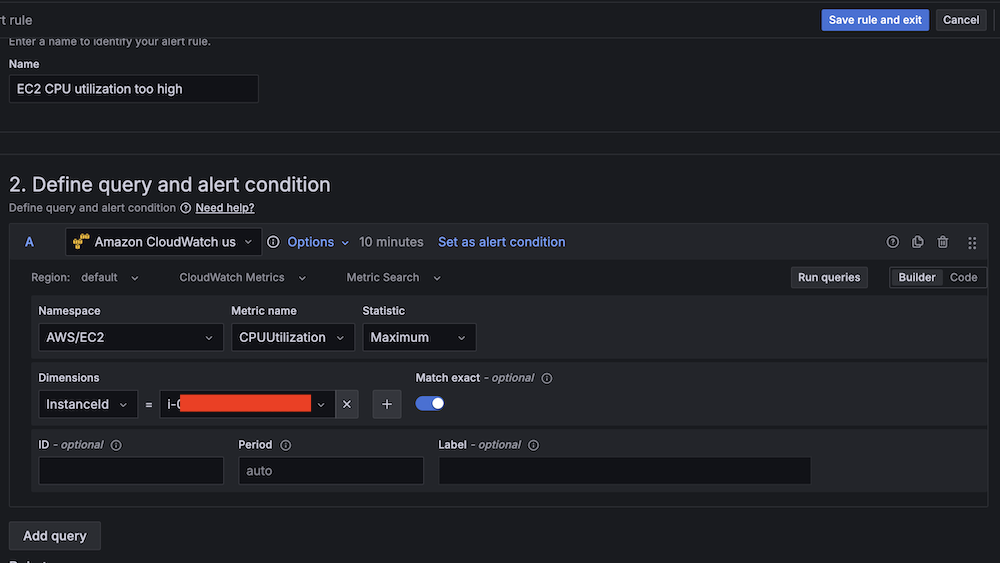
  1. Create a second alert for if Amazon EC2 CPU utilization is abnormal:
    1. For Alert name, enter EC2 CPU utilization too high.
    2. For Data source, choose Amazon CloudWatch.
    3. For Namespace, choose AWS/EC2.
    4. For Metric name, choose CPUUtilization
    5. For Statistic, choose Maximum.
      Amazon CloudWatch query interface for setting up EC2 CPU utilization alert conditions
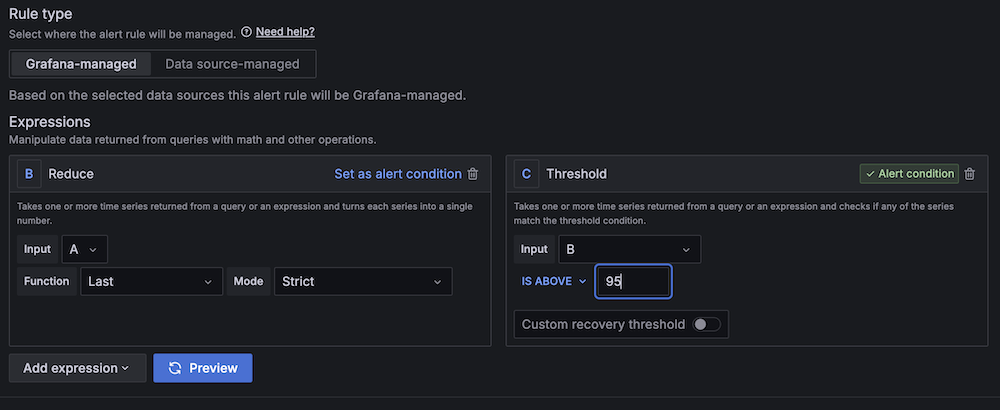
    6. For Threshold, configure to alert if CPU utilization is more than 95% for 3 minutes.
      Amazon Managed Grafana alert interface with Reduce and Threshold expressions for alert condition management
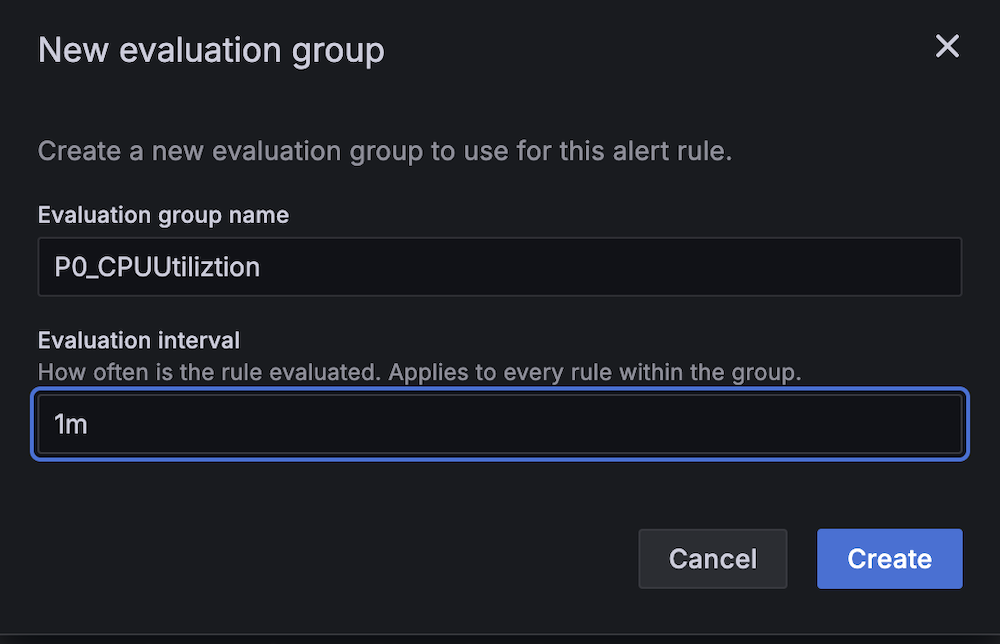
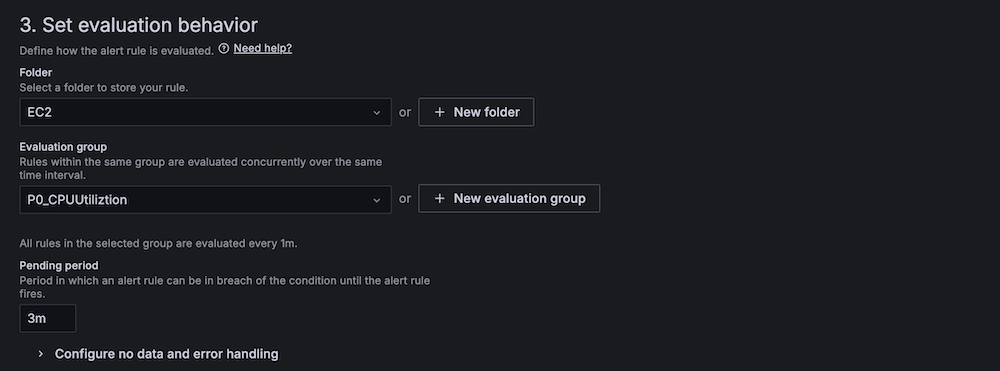
    7. For Evaluation interval, configure to 1 minute.
      New evaluation group configuration modal showing CPU utilization monitoring setup with 1-minute interval
      AWS Managed Grafana alert rule configuration screen showing evaluation behavior settings
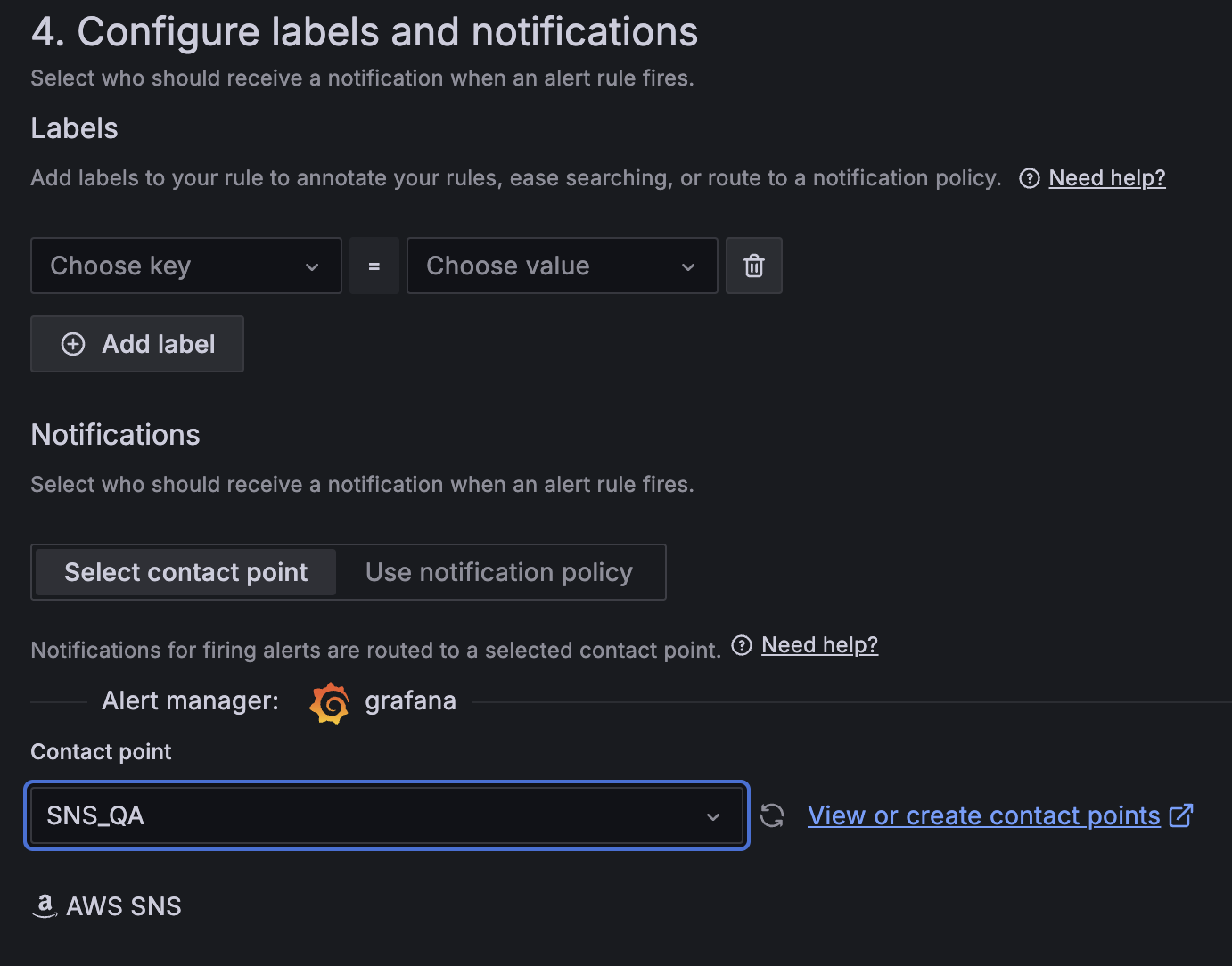
    8. For Contact point, choose SNS_QA.Amazon Managed Grafana alert configuration showing customizable labels, contact point selection for SNS_QA integration
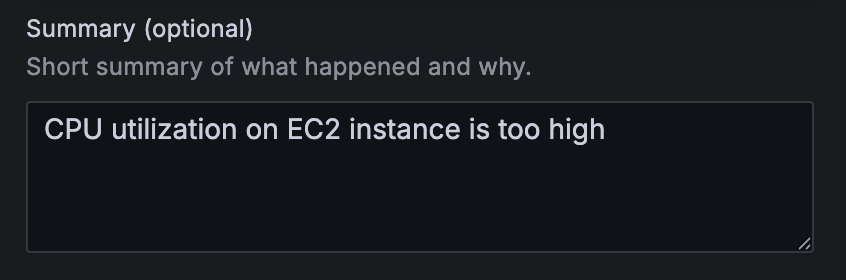
  1. On the alert rule creation page, scroll to 5. Add annotations and for Summary, add a clear description of the alert, for example, CPU utilization on EC2 instance is too high.

Alert configuration summary field with "CPU utilization on EC2 instance is too high" warning message

Apache HBase region server incident test

To confirm the system is working as expected, complete the following Apache HBase region server incident test:

  1. SSH into an EMR core instance.
  2. Stop the Apache HBase region server using systemctl:
 # Stop HBase region server service 
 sudo systemctl stop hbase-regionserver.service 

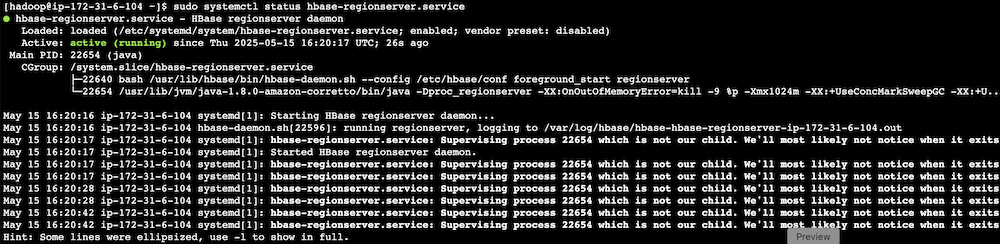
  1. Verify the service status:
 # Check the current state of HBase region server service 
 sudo systemctl status hbase-regionserver.service
  1. Observe Amazon Managed Grafana alert progression:
    1. Monitor alert status changes.
      Alert dashboard showing HBase region server alert status in pending state
      Alert dashboard showing HBase region server alert in firing state
    2. Verify SNS message generation.
    3. Confirm SQS message queuing.
    4. Track the Lambda function triggered for remediation.

Terminal output showing HBase RegionServer service status and daemon processes

HBase monitoring interface displaying region server status with health indicators and action buttons

CPU utilization stress test

Complete the following CPU utilization stress test:

  1. SSH into the EMR primary instance.
  2. Install stress testing tools:
 sudo amazon-linux-extras install epel -y
 sudo yum install stress -y 

  1. Verify the installation:
 stress --version 

  1. Generate high CPU load using the stress command and the following command structure:
 sudo stress [options] 

For our Amazon EMR test, use the following command:

 # For m5.xlarge instances (4 vCPUs) sudo stress --cpu 4 

-c 4 in the command creates 4 CPU-bound processes (one for each vCPU).The following are instance type vCPUs for your reference:

  • m5.xlarge: 4 vCPUs
  • m5.2xlarge: 8 vCPUs
  • m5.4xlarge: 16 vCPUs
  1. Monitor system response:
    1. Observe Amazon Managed Grafana alert status changes.
      Amazon Managed Grafana dashboard header showing rules status
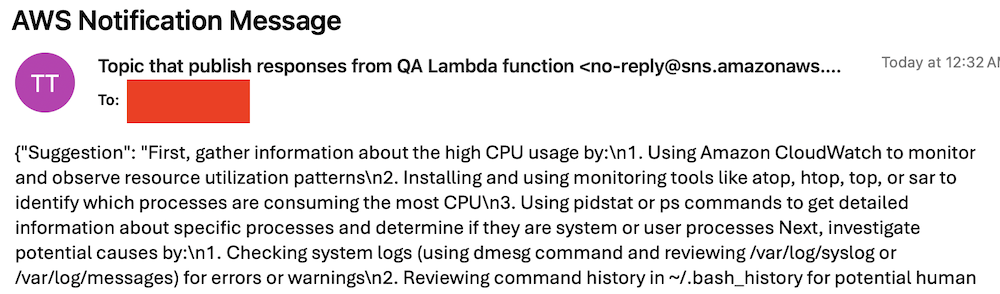
    2. Verify Amazon Bedrock recommendation generation.
    3. Check SNS email notification delivery.
      AWS SNS notification email showing troubleshooting steps for high CPU usageCode snippet showing CPU usage troubleshooting steps in red text

Best practices and considerations

Monitoring infrastructure requires precise alert prioritization and threshold configuration. Alert aggregation techniques prevent notification overload by consolidating event streams and reducing redundant alerts. Operational teams must maintain dashboards through consistent updates and metric integration, providing real-time visibility into system performance and health.

Security implementations focus on least-privilege AWS Identity and Access Management (IAM) roles, restricting access to critical resources and minimizing potential breach vectors. Data protection strategies involve encryption protocols for information at rest and in transit, using AES-256 standards. Automated security audit processes scan automation scripts, identifying potential vulnerabilities through code analysis and runtime inspection.

Performance optimization in serverless architectures uses Lambda extensions to cache knowledge base content, reducing latency and improving response times. Retry mechanisms for API calls implement exponential backoff strategies, mitigating transient network exceptions and enhancing system resilience. Execution time monitoring of Lambda functions enables detection of anomalies through statistical analysis, providing insights into potential system-wide incidents or performance degradations.

Clean up

To avoid incurring future charges, delete the resources by deleting the parent stack on the AWS CloudFormation console.

Conclusion

This solution provides a robust framework for automated EMR cluster monitoring and incident response. By combining real-time monitoring with AI-powered remediation suggestions and automated execution, organizations can significantly reduce MTTR for common Amazon EMR issues while building a knowledge base for future incident response.

Try out this solution for your own use case, and leave your feedback in the comments section.


About the authors

Author Yu-ting Su, Sr. Hadoop System Engineer, AWS Support Engineering. Yu-Ting is a Sr. Hadoop Systems Engineer at Amazon Web Services (AWS). Her expertise is in Amazon EMR and Amazon OpenSearch Service. She’s passionate about distributing computation and helping people to bring their ideas to life.

Implement Amazon EMR HBase Graceful Scaling

Post Syndicated from Yu-Ting Su original https://aws.amazon.com/blogs/big-data/implement-amazon-emr-hbase-graceful-scaling/

Apache HBase is a massively scalable, distributed big data store in the Apache Hadoop ecosystem. We can use Amazon EMR with HBase on top of Amazon Simple Storage Service (Amazon S3) for random, strictly consistent real-time access for tables with Apache Kylin. It ingests data through spark jobs and queries the HTables through Apache Kylin cubes. The HBase cluster uses HBase write-ahead logs (WAL) instead of Amazon EMR WAL.

A time goes by, companies may want to scale in long-running Amazon EMR HBase clusters because of issues such as Amazon Elastic Compute Cloud (Amazon EC2) scheduling events and budget concerns. Another issue is that companies may use Spot Instances and auto scaling for task nodes for short-term parallel computation power, like MapReduce tasks and spark executors. Amazon EMR also runs HBase region servers on task nodes for Amazon EMR on S3 clusters. Spot interruptions will lead to an unexpected shutdown on HBase region servers. For an Amazon EMR HBase cluster without enabling write-ahead logs (WAL) for Amazon EMR feature, an unexpected shutdown on HBase region servers will cause WAL splits with server recovery process, and it will bring extra load to the cluster and sometimes makes HTables inconsistent.

For these reasons, administrators look for a way to scale-in Amazon EMR HBase cluster gracefully and stop all HBase region servers on the task nodes.

This post demonstrates how to gracefully decommission target region servers programmatically. The scripts do the following tasks. The script also tests successfully in Amazon EMR 7.3.0, Amazon EMR 6.15.0, and 5.36.2.

  • Automatically move the HRegions through a script
  • Raise the decommission priority
  • Decommission HBase region servers gracefully
  • Prevent Amazon EMR provisioning region servers on task nodes by Amazon EMR software configurations
  • Prevent Amazon EMR provisioning region servers on task nodes by Amazon EMR steps

Overview of solution

For graceful scaling in, the script uses HBase built-in graceful_stop.sh to move regions to other region servers to avoid WAL splits when decommissioning nodes. The script uses HDFS CLI and web interface to make sure there are no missing and corrupted HDFS block during the scaling events. To prevent Amazon EMR provisions HBase region servers on task nodes, administrators need to specify software configurations per instance groups when launching a cluster. For existing clusters, administrators can either use a step to terminate HBase region servers on task nodes, or reconfigure the task instance group’s HBase storagerootdir.

Solution

For a running Amazon EMR cluster, administrators can use AWS Command Line Interface (AWS CLI) to issue a modify-instance-groups with EC2InstanceIdsToTerminate to terminate specified instances immediately. But terminating an instance in this way can cause a data loss and unpredictable cluster behavior when HDFS blocks have not enough copies or there are ongoing tasks on those decommissioned nodes. To avoid these risks, administrators can send a modify-instance-groups with a new instance request count without a specific instance ID that administrators want to terminate. This command triggers a graceful decommission process on the Amazon EMR side. However, Amazon EMR only supports graceful decommission for YARN and HDFS. Amazon EMR doesn’t support graceful decommission for HBase.

Hence, administrators can try method 1, as described later in this post, to raise the decommission priority of the decommission targets as the first step. In case tweaking the decommissions priority didn’t work, move forward to the second approach, method 2. Method 2 is to stop the resizing request, and move the HRegions manually before terminating the target core nodes. Note that Amazon EMR is a managed service. Amazon EMR service will terminate the EC2 instance after anyone stops it or detach its Amazon Elastic Block Store (Amazon EBS) volumes. Therefore, don’t try to detach EBS volumes on the decommission targets and attach them to new nodes.

Method 1: Decommission HBase region servers through resizing

To decommission Hadoop nodes, administrators can add decommission targets to HDFS’s and YARN’s exclude list, which were dfs.hosts.exclude and yarn.nodes.exclude.xml. However, Amazon EMR disallows manual update to these files. The reason is that the Amazon EMR service daemon, master instance controller, is the only valid process to update these two files on master nodes. Manual updates to these two files will be reset.

Thus, one of the most accessible ways to raise a core node’s decommission priority according to Amazon EMR is having less instance controller heartbeat.

As the first step, pass move_regions to the following script on Amazon S3, blog_HBase_graceful_decommission.sh, as an Amazon EMR step to move HRegions to other region servers and shutdown processes of region server and instance controller. Please also provide targetRS and S3Path to blog_HBase_graceful_decommission.sh. targetRS represents to the private DNS of the decommission target region server. S3Path represents the location of the region migration script.

This step needs to be run in off-peak hours. After all HRegions on the target region server are moved to other nodes, splitting WAL activities after stopping the HBase region server will generate a very low workload to the cluster because it serves 0 regions.

For more information , refer to blog_HBase_graceful_decommission.sh.

Taking a closer look at the move_regions option in blog_HBase_graceful_decommission.sh, this script disables the region balancer and moves the regions to other region servers. The script retrieves Secure Shell (SSH) credentials from AWS Secrets Manager to access worker nodes.

In addition, the script included some AWS CLI operations. Please make sure the instance profile, EMR_EC2_DefaultRole, can operate the following APIs and have SecretsManagaerReadWrite permission.

Amazon EMR APIs:

  • describe-cluster
  • list-instances
  • modify-instance-groups

Amazon S3 APIs:

  • cp

Secrets Manager APIs:

  • get-secret-value

In Amazon EMR 5.x, HBase on Amazon S3 will make the master node also work as a region server hosting hbase:meta regions. This script will get stuck when trying to move non-hbase:meta HRegions to the master. To automate the script, the parameter, maxthreads, is increased to move regions through multiple threads. By moving regions in a while loop, one of the threads got a runtime error because it tries to move non-hbase:meta HRegions to the master node. Other threads can keep on moving HRegions to other region servers. After the only stuck thread timed out after 300 seconds, it moves forward to the next run. After six retries, manual actions will be required, such as using a move action through the HBase shell for the remaining regions’ movement or resubmitting the step.
The following is the syntax to use the script to invoke the move_regions function through blog_HBase_graceful_decommission.sh as an Amazon EMR step:

Step type: Custom JAR
Name: Move HRegions
JAR location :s3://<region>.elasticmapreduce/libs/script-runner/script-runner.jar
Main class :None
Arguments :s3://yourbucket/your/step/location/blog_HBase_graceful_decommission.sh move_regions <your-secret-id> <targetRS: target_region_server_private_DNS> <S3Path: S3 location>
Action on failure:Continue

Here’s an Amazon EMR step example to move regions:

Step type: Custom JAR
Name: Move HRegions
JAR location :s3://us-west-2.elasticmapreduce/libs/script-runner/script-runner.jar
Main class :None
Arguments :s3://yourbucket/your/step/location/blog_HBase_graceful_decommission.sh move_regions your-secret-id ip-172-0-0-1.us-west-2.compute.internal s3://yourbucket/yourpath/
Action on failure:Continue

In the HBase web UI, the target region server will serve 0 regions after the evacuation, as shown in the following screenshot.

After that, the stop_RS_IC function in the script stopped the HBase region server and instance controller process on the decommission target after making sure that there is no running YARN container on that node.

Note that the script is for Amazon EMR 5.30.0 and later release versions. For Amazon EMR 4.x-5.29.0 release versions, stop_RS_IC in the script needs to be updated by referring to How do I restart a service in Amazon EMR? In the AWS Knowledge Center. Also, in Amazon EMR versions earlier than 5.30.0, Amazon EMR uses a service nanny to watch the status of other processes. If a service nanny automatically restarts the instance controller, please stop the service nanny using the stop_RS_IC function before stopping the instance controller on that node. Here’s an example:

if [ "\$runningContainers" -eq 0 ]; then
        echo "0 container is running on \${targetRS}" | tee -a /tmp/graceful_stop.log;
        echo "Shutdown IC" | tee -a /tmp/graceful_stop.log;
        sudo /etc/init.d/service-nanny stop | tee -a /tmp/graceful_stop.log;
        sudo /etc/init.d/instance-controller stop | tee -a /tmp/graceful_stop.log;
        sudo /etc/init.d/instance-controller status | tee -a /tmp/graceful_stop.log;
else
        echo "Still have \${runningContainers} containers running on \${targetRS}" | tee -a /tmp/graceful_stop.log;
     	echo "Not to shutdown IC" | tee -a /tmp/graceful_stop.log;
fi

After the step is successfully completed, scale in and define (current core node amount is −1) as the desired target node amount using the Amazon EMR console. Amazon EMR might pick up the target core node to decommission it because the instance controller isn’t running on that node. There can be a few minutes of delay for Amazon EMR to detect the heartbeat loss of that target node through polling the instance controller. Thus, make sure the workload is very low and there will be no container to the target node for a while.

Stopping the instance controller merely increases the decommissioning priority. But method 1 doesn’t guarantee that the target core node will be picked up as the decommissioning target by Amazon EMR. If Amazon EMR doesn’t pick up the decommission target as the decommissioning victim after using method 1, administrators can stop the resize activity using the AWS Management Console. Then, proceed to method 2.

Method 2: Manually decommission the target core nodes

Administrators can terminate the node using the EC2InstanceIdsToTerminate option in the modify-instance-groups API. But this action will directly terminate the EC2 instance and will risk losing HDFS blocks. To mitigate the risk of having a data loss, administrators can use the following steps in off-peak hours with zero or very few running jobs.

First, run the move_hregions function through blog_HBase_graceful_decommission.sh as an Amazon EMR step in method 1. The function moves HRegions to other region servers and stopped the HBase region server as well as the instance controller process.

Then, run the terminate_ec2 function in blog_HBase_graceful_decommission.sh as an Amazon EMR step. To run this function successfully, please provide the target instance group ID and target instance ID to the script. This function merely terminates one node at a time by specifying the EC2InstanceIdsToTerminate option in the modify-instance-groups API. This makes sure that the core nodes are not terminated back-to-back and lowered the risks of missing HDFS blocks. It inspects HDFS and makes sure all HDFS blocks had at least two copies. If an HDFS block have only one copy, the script will exit with an error message similar to, “Some HDFS blocks have only 1 copy. Please increase HDFS replication factor through the following command for existing HDFS blocks.”

$ hdfs dfs -setrep -R -w 2 <the-file-or-directory-you-want-to-modify>

To make sure all upcoming HDFS blocks have at least two copies, reconfigure the core instance group with the following software configuration:

[{
    "classification": "hdfs-site",
    "properties": {
        "dfs.replication": "2"
    },
    "configurations": []
}]

In addition, the terminateEC2 function compares the metadata of the replicating blocks before and after terminating the core node using hdfs dfsadmin -report. This makes sure no under-replicating, corrupted, or missing HDFS block increased.

The terminateEC2 function tracked decommission status. The script will complete after the decommission completes. It can take some time to recover HDFS blocks. The elapsed time depends on several factors such as the total number of blocks, I/O, bandwidth, HDFS handler amount, and name node resources. If there are many HDFS blocks to be recovered, it may take a few hours to complete. Before running the script, please make sure that the instance profile, EMR_EC2_DefaultRole, have permission of elasticmapreduce:ModifyInstanceGroups.

The following is the syntax to use the script to invoke the terminate_ec2 function through blog_HBase_graceful_decommission.sh as an Amazon EMR step:

Step type: Custom JAR
Name: Terminate EC2
JAR location :s3://<region>.elasticmapreduce/libs/script-runner/script-runner.jar
Main class :None
Arguments :s3://yourbucket/your/step/location/blog_HBase_graceful_decommission.sh terminate_ec2 <your-secret-id> <instance_groupID> <target_EC2_Instance_ID>
Action on failure:Continue

Here’s an Amazon EMR step example to move regions:

Step type: Custom JAR
Name: Terminate EC2
JAR location :s3://us-west-2.elasticmapreduce/libs/script-runner/script-runner.jar
Main class :None
Arguments :s3://yourbucket/your/step/location/blog_HBase_graceful_decommission.sh terminate_ec2 your-secret-id ig-ABCDEFGH12345 i-1234567890abcdef
Action on failure:Continue

While invoking terminate_ec2, the script checks HDFS Name Node Web UI for the decommission target to understand how many blocks need to be recovered on other nodes after submitting the decommission request. Here are the steps:

  1. On the Amazon EMR console, version 6.x, find HDFS NameNode web UI. For example, enter http://<master-node-public-DNS>:9870
  2. On the top menu bar, choose Datanodes
  3. In the In operation section, check the on-service data nodes and the total number of data blocks on the nodes, as shown in the following screenshot.
  4. To view the HDFS decommissioning progress, go to Overview, as shown in the following screenshot.

On the Datanodes page, the decommission target node will not have a green checkmark, and the node will be in the Decommissioning section, as shown in the following screenshot.

The step’s STDOUT also reveals the decommission status:

Hostname: ip-172-31-4-197.us-west-2.compute.internal
Decommission Status : Decommission in progress

The decommission target will transit from Decommissioning to Decommissioned in the HDFS NameNode web UI, as shown in the following screenshot.

The decommissioned target will appear in the Dead datanodes section in the step’s STDOUT after the process is completed:

Dead datanodes (1):
Name: 172.31.4.197:50010 (ip-172-31-4-197.us-west-2.compute.internal)
Hostname: ip-172-31-4-197.us-west-2.compute.internal
Decommission Status : Decommissioned
Configured Capacity: 62245027840 (57.97 GB)
DFS Used: 394412032 (376.14 MB)
Non DFS Used: 0 (0 B)
DFS Remaining: 61179640063 (56.98 GB)
DFS Used%: 0.63%
DFS Remaining%: 98.29%
Configured Cache Capacity: 0 (0 B)
Cache Used: 0 (0 B)
Cache Remaining: 0 (0 B)
Cache Used%: 100.00%
Cache Remaining%: 0.00%
Xceivers: 0
Last contact: Tue Jan 14 06:09:17 UTC 2025

After the target node is decommissioned, the hdfs dfsadmin report will be displayed in the last section in the step’s STDOUT . There should be no difference between rep_blocks_${beforeDate} and rep_blocks_${afterDate} as described in the script. It means no additional amount of under-replicated, missing, or corrupt blocks after the decommission. In HBase web UI, the decommissioned region server will be moved to dead region servers. The dead region server records will be reset after restarting HMaster during routine maintenance.

After the Amazon EMR step is completed without errors, please repeat the preceding steps to decommission the next target core node because administrators may have more than one core nodes to decommission.

After administrators complete all decommission tasks, administrators can manually enable the HBase balancer through the HBase shell again:

$ echo "balance_switch true" | sudo -u hbase hbase shell
## To make sure balance_switch is enabled, submit the same command again. The output should say it’s already in “true” status.
$ echo "balance_switch true" | sudo -u hbase hbase shell

Prevent Amazon EMR from provisioning HBase region servers on task nodes

For new clusters, configure HBase settings for master and core groups only and keep the HBase settings empty when launching an Amazon EMR HBase on an S3 cluster. This prevents provisioning HBase region servers on task nodes.

For example, define configurations for applications other than HBase settings in the software configuration textbox in the Software settings section on the Amazon EMR console, as shown in the following screenshot.

Image 007

Then, configure HBase settings in Node configuration – optional for each instance group in the Cluster configuration – required section, as shown in the following screenshot.

Image 008

For master and core instance groups, HBase configurations will be like the following screenshot.

Image 009

Here’s a json formatted example:

[
    {
        "Classification": "hbase",
        "Properties": {
            "hbase.emr.storageMode": "s3"
         }
    },
    {
        "Classification": "hbase-site",
        "Properties": {
            "hbase.rootdir": "s3://my/HBase/on/S3/RootDir/"
        }
    }
]

For task instance groups, there will be no HBase configuration, as shown in the following screenshot.

Image 010

Here’s a json formatted example:

[]

Here’s an example in AWS CLI:

$ aws emr create-cluster \
--applications Name=Hadoop Name=HBase Name=ZooKeeper \
... (skip) \
--instance-groups '[ {"InstanceCount":1,"EbsConfiguration":{"EbsBlockDeviceConfigs":[{"VolumeSpecification":{"SizeInGB":32,"VolumeType":"gp2"},"VolumesPerInstance":2}]},"InstanceGroupType":"MASTER","InstanceType":"m5.xlarge","Configurations":[{"Classification":"hbase","Properties":{"hbase.emr.storageMode":"s3"}},{"Classification":"hbase-site","Properties":{"hbase.rootdir":"s3://my/HBase/on/S3/RootDir/"}}],"Name":"Master - 1"},\
{"InstanceCount":1,"EbsConfiguration":{"EbsBlockDeviceConfigs":[{"VolumeSpecification":{"SizeInGB":32,"VolumeType":"gp2"},"VolumesPerInstance":2}]},"InstanceGroupType":"TASK","InstanceType":"m5.xlarge","Name":"Task - 3"},\
{"InstanceCount":2,"EbsConfiguration":{"EbsBlockDeviceConfigs":[{"VolumeSpecification":{"SizeInGB":64,"VolumeType":"gp2"},"VolumesPerInstance":1}],"EbsOptimized":true},"InstanceGroupType":"CORE","InstanceType":"m5.2xlarge","Configurations":[{"Classification":"hbase","Properties":{"hbase.emr.storageMode":"s3"}},{"Classification":"hbase-site","Properties":{"hbase.rootdir":"s3://my/HBase/on/S3/RootDir/"}}],"Name":"Core - 2"}]' --configurations '[{"Classification":"hdfs-site","Properties":{"dfs.replication":"2"}}]' \
--auto-scaling-role Amazon EMR_AutoScaling_DefaultRole \
... (skip) \
--scale-down-behavior TERMINATE_AT_TASK_COMPLETION --region us-west-2

Stop decommission the HBase region servers on task nodes

For an existing Amazon EMR HBase on an S3 cluster, pass stop_and_check_task_rs to blog_HBase_graceful_decommission.sh as an Amazon EMR step to stop HBase region servers on nodes in a task instance group. The script requirs a task instance group ID and an S3 location to place sharing scripts for task nodes.

The following is the syntax to pass stop_and_check_task_rs to blog_HBase_graceful_decommission.sh as an Amazon EMR step:

Step type: Custom JAR
Name: Stop Hbase Region servers on Task Nodes
JAR location: s3://<region>.elasticmapreduce/libs/script-runner/script-runner.jar
Arguments: s3://yourbucket/your/step/location/blog_HBase_graceful_decommission.sh stop_and_check_task_rs <your-secret-id> <instance_groupID> <S3Path: S3 location>
Action on failure:Continue

Here’s an Amazon EMR step example to stop HBase regions on nodes in a task group:

Step type: Custom JAR
Name: Stop Hbase Region servers on Task Nodes
JAR location :s3://us-west-2.elasticmapreduce/libs/script-runner/script-runner.jar
Main class :None
Arguments :s3://yourbucket/your/step/location/ blog_HBase_graceful_decommission.sh your-secret-id stop_and_check_task_rs ig-ABCDEFGH12345 s3://yourbucket/yourpath/
Action on failure:Continue

This step above not only stops HBase region servers on existing task nodes. To avoid provisioning HBase region servers on new task nodes, the script also reconfigures and scales in the task group. Here are the steps:

  1. Using the move_regions function, in blog_HBase_graceful_decommission.sh, move HRegions on the task group to other nodes and stop region servers on those task nodes.

After making sure that the HBase region servers are stopped at these task nodes, the script reconfigures the task instance group. The reconfiguration details are to let HBase rootdir point to a non-existing location. These settings only apply to the task group. Here’s an example:

[
    {
        "Classification": "hbase-site",
        "Properties": {
            "hbase.rootdir": "hdfs://non/existing/location"
        }
    },
    {
        "Classification": "hbase",
        "Properties": {
            "hbase.emr.storageMode": "hdfs"
        }
    }
]

When the task group’s state returns to RUNNING, the script scales in these task nodes to 0. New task nodes in the upcoming scaling out events will not run HBase region servers.

Conclusion

These scaling steps demonstrate how to handle Amazon EMR HBase scaling gracefully. The functions in the script can help administrators to resolve problems when companies want to gracefully scale the Amazon EMR HBase on S3 clusters without Amazon EMR WAL.

If you have a similar request to scale in an Amazon EMR HBase on an S3 cluster gracefully because the cluster doesn’t enable Amazon EMR WAL, you can refer to this post. Please test the steps in the testing environment for verifications first. After you confirm the steps can meet your production requirements, you can proceed and apply the steps to production environment.


About the Authors

Image 011Yu-Ting Su is a Sr. Hadoop Systems Engineer at Amazon Web Services (AWS). Her expertise is in Amazon EMR and Amazon OpenSearch Service. She’s passionate about distributing computation and helping people to bring their ideas to life.

Image 012Hsing-Han Wang is a Cloud Support Engineer at Amazon Web Services (AWS). He focuses on Amazon EMR and AWS Lambda. Outside of work, he enjoys hiking and jogging, and he is also an Eorzean.

Image 013Cheng Wang is a Technical Account Manager at AWS who has over 10 years of industry experience, focusing on enterprise service support, data analysis, and business intelligence solutions.

Chris Li is an Enterprise Support manager at AWS. He leads a team of Technical Account Managers to solve complex customer problems and implement well-structured solutions.