Tag Archives: Organizations

How to Receive Alerts When Your IAM Configuration Changes

Post Syndicated from Dylan Souvage original https://aws.amazon.com/blogs/security/how-to-receive-alerts-when-your-iam-configuration-changes/

July 27, 2023: This post was originally published February 5, 2015, and received a major update July 31, 2023.


As an Amazon Web Services (AWS) administrator, it’s crucial for you to implement robust protective controls to maintain your security configuration. Employing a detective control mechanism to monitor changes to the configuration serves as an additional safeguard in case the primary protective controls fail. Although some changes are expected, you might want to review unexpected changes or changes made by a privileged user. AWS Identity and Access Management (IAM) is a service that primarily helps manage access to AWS services and resources securely. It does provide detailed logs of its activity, but it doesn’t inherently provide real-time alerts or notifications. Fortunately, you can use a combination of AWS CloudTrail, Amazon EventBridge, and Amazon Simple Notification Service (Amazon SNS) to alert you when changes are made to your IAM configuration. In this blog post, we walk you through how to set up EventBridge to initiate SNS notifications for IAM configuration changes. You can also have SNS push messages directly to ticketing or tracking services, such as Jira, Service Now, or your preferred method of receiving notifications, but that is not discussed here.

In any AWS environment, many activities can take place at every moment. CloudTrail records IAM activities, EventBridge filters and routes event data, and Amazon SNS provides notification functionality. This post will guide you through identifying and setting alerts for IAM changes, modifications in authentication and authorization configurations, and more. The power is in your hands to make sure you’re notified of the events you deem most critical to your environment. Here’s a quick overview of how you can invoke a response, shown in Figure 1.

Figure 1: Simple architecture diagram of actors and resources in your account and the process for sending notifications through IAM, CloudTrail, EventBridge, and SNS.

Figure 1: Simple architecture diagram of actors and resources in your account and the process for sending notifications through IAM, CloudTrail, EventBridge, and SNS.

Log IAM changes with CloudTrail

Before we dive into implementation, let’s briefly understand the function of AWS CloudTrail. It records and logs activity within your AWS environment, tracking actions such as IAM role creation, deletion, or modification, thereby offering an audit trail of changes.

With this in mind, we’ll discuss the first step in tracking IAM changes: establishing a log for each modification. In this section, we’ll guide you through using CloudTrail to create these pivotal logs.

For an in-depth understanding of CloudTrail, refer to the AWS CloudTrail User Guide.

In this post, you’re going to start by creating a CloudTrail trail with the Management events type selected, and read and write API activity selected. If you already have a CloudTrail trail set up with those attributes, you can use that CloudTrail trail instead.

To create a CloudTrail log

  1. Open the AWS Management Console and select CloudTrail, and then choose Dashboard.
  2. In the CloudTrail dashboard, choose Create Trail.
    Figure 2: Use the CloudTrail dashboard to create a trail

    Figure 2: Use the CloudTrail dashboard to create a trail

  3. In the Trail name field, enter a display name for your trail and then select Create a new S3 bucket. Leave the default settings for the remaining trail attributes.
    Figure 3: Set the trail name and storage location

    Figure 3: Set the trail name and storage location

  4. Under Event type, select Management events. Under API activity, select Read and Write.
  5. Choose Next.
    Figure 4: Choose which events to log

    Figure 4: Choose which events to log

Set up notifications with Amazon SNS

Amazon SNS is a managed service that provides message delivery from publishers to subscribers. It works by allowing publishers to communicate asynchronously with subscribers by sending messages to a topic, a logical access point, and a communication channel. Subscribers can receive these messages using supported endpoint types, including email, which you will use in the blog example today.

For further reading on Amazon SNS, refer to the Amazon SNS Developer Guide.

Now that you’ve set up CloudTrail to log IAM changes, the next step is to establish a mechanism to notify you about these changes in real time.

To set up notifications

  1. Open the Amazon SNS console and choose Topics.
  2. Create a new topic. Under Type, select Standard and enter a name for your topic. Keep the defaults for the rest of the options, and then choose Create topic.
    Figure 5: Select Standard as the topic type

    Figure 5: Select Standard as the topic type

  3. Navigate to your topic in the topic dashboard, choose the Subscriptions tab, and then choose Create subscription.
    Figure 6: Choose Create subscription

    Figure 6: Choose Create subscription

  4. For Topic ARN, select the topic you created previously, then under Protocol, select Email and enter the email address you want the alerts to be sent to.
    Figure 7: Select the topic ARN and add an endpoint to send notifications to

    Figure 7: Select the topic ARN and add an endpoint to send notifications to

  5. After your subscription is created, go to the mailbox you designated to receive notifications and check for a verification email from the service. Open the email and select Confirm subscription to verify the email address and complete setup.

Initiate events with EventBridge

Amazon EventBridge is a serverless service that uses events to connect application components. EventBridge receives an event (an indicator of a change in environment) and applies a rule to route the event to a target. Rules match events to targets based on either the structure of the event, called an event pattern, or on a schedule.

Events that come to EventBridge are associated with an event bus. Rules are tied to a single event bus, so they can only be applied to events on that event bus. Your account has a default event bus that receives events from AWS services, and you can create custom event buses to send or receive events from a different account or AWS Region.

For a more comprehensive understanding of EventBridge, refer to the Amazon EventBridge User Guide.

In this part of our post, you’ll use EventBridge to devise a rule for initiating SNS notifications based on IAM configuration changes.

To create an EventBridge rule

  1. Go to the EventBridge console and select EventBridge Rule, and then choose Create rule.
    Figure 8: Use the EventBridge console to create a rule

    Figure 8: Use the EventBridge console to create a rule

  2. Enter a name for your rule, keep the defaults for the rest of rule details, and then choose Next.
    Figure 9: Rule detail screen

    Figure 9: Rule detail screen

  3. Under Target 1, select AWS service.
  4. In the dropdown list for Select a target, select SNS topic, select the topic you created previously, and then choose Next.
    Figure 10: Target with target type of AWS service and target topic of SNS topic selected

    Figure 10: Target with target type of AWS service and target topic of SNS topic selected

  5. Under Event source, select AWS events or EventBridge partner events.
    Figure 11: Event pattern with AWS events or EventBridge partner events selected

    Figure 11: Event pattern with AWS events or EventBridge partner events selected

  6. Under Event pattern, verify that you have the following selected.
    1. For Event source, select AWS services.
    2. For AWS service, select IAM.
    3. For Event type, select AWS API Call via CloudTrail.
    4. Select the radio button for Any operation.
    Figure 12: Event pattern details selected

    Figure 12: Event pattern details selected

Now that you’ve set up EventBridge to monitor IAM changes, test it by creating a new user or adding a new policy to an IAM role and see if you receive an email notification.

Centralize EventBridge alerts by using cross-account alerts

If you have multiple accounts, you should be evaluating using AWS Organizations. (For a deep dive into best practices for using AWS Organizations, we recommend reading this AWS blog post.)

By standardizing the implementation to channel alerts from across accounts to a primary AWS notification account, you can use a multi-account EventBridge architecture. This allows aggregation of notifications across your accounts through sender and receiver accounts. Figure 13 shows how this works. Separate member accounts within an AWS organizational unit (OU) have the same mechanism for monitoring changes and sending notifications as discussed earlier, but send notifications through an EventBridge instance in another account.
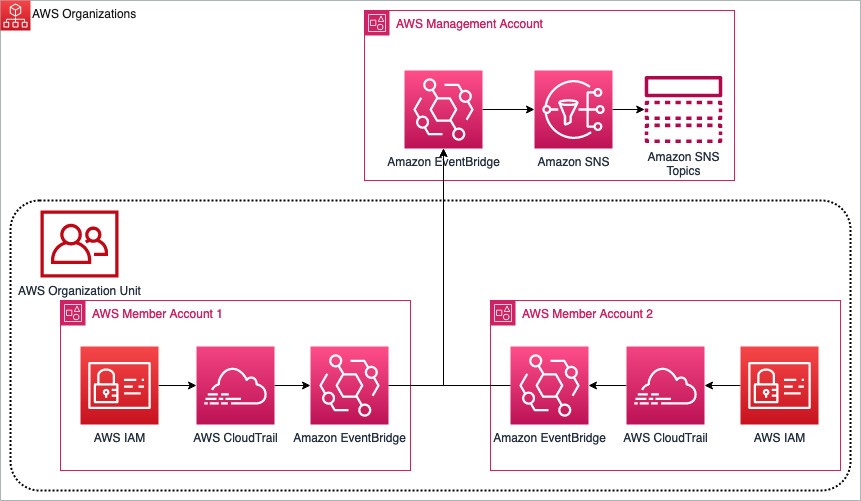
Figure 13: Multi-account EventBridge architecture aggregating notifications between two AWS member accounts to a primary management account

Figure 13: Multi-account EventBridge architecture aggregating notifications between two AWS member accounts to a primary management account

You can read more and see the implementation and deep dive of the multi-account EventBridge solution on the AWS samples GitHub, and you can also read more about sending and receiving Amazon EventBridge notifications between accounts.

Monitor calls to IAM

In this blog post example, you monitor calls to IAM.

The filter pattern you selected while setting up EventBridge matches CloudTrail events for calls to the IAM service. Calls to IAM have a CloudTrail eventSource of iam.amazonaws.com, so IAM API calls will match this pattern. You will find this simple default filter pattern useful if you have minimal IAM activity in your account or to test this example. However, as your account activity grows, you’ll likely receive more notifications than you need. This is when filtering only the relevant events becomes essential to prioritize your responses. Effectively managing your filter preferences allows you to focus on events of significance and maintain control as your AWS environment grows.

Monitor changes to IAM

If you’re interested only in changes to your IAM account, you can modify the event pattern inside EventBridge, the one you used to set up IAM notifications, with an eventName filter pattern, shown following.

"eventName": [
      "Add*",
      "Attach*",
      "Change*",
      "Create*",
      "Deactivate*",
      "Delete*",
      "Detach*",
      "Enable*",
      "Put*",
      "Remove*",
      "Set*",
      "Update*",
      "Upload*"
    ]

This filter pattern will only match events from the IAM service that begin with Add, Change, Create, Deactivate, Delete, Enable, Put, Remove, Update, or Upload. For more information about APIs matching these patterns, see the IAM API Reference.

To edit the filter pattern to monitor only changes to IAM

  1. Open the EventBridge console, navigate to the Event pattern, and choose Edit pattern.
    Figure 14: Modifying the event pattern

    Figure 14: Modifying the event pattern

  2. Add the eventName filter pattern from above to your event pattern.
    Figure 15: Use the JSON editor to add the eventName filter pattern

    Figure 15: Use the JSON editor to add the eventName filter pattern

Monitor changes to authentication and authorization configuration

Monitoring changes to authentication (security credentials) and authorization (policy) configurations is critical, because it can alert you to potential security vulnerabilities or breaches. For instance, unauthorized changes to security credentials or policies could indicate malicious activity, such as an attempt to gain unauthorized access to your AWS resources. If you’re only interested in these types of changes, use the preceding steps to implement the following filter pattern.

    "eventName": [
      "Put*Policy",
      "Attach*",
      "Detach*",
      "Create*",
      "Update*",
      "Upload*",
      "Delete*",
      "Remove*",
      "Set*"
    ]

This filter pattern matches calls to IAM that modify policy or create, update, upload, and delete IAM elements.

Conclusion

Monitoring IAM security configuration changes allows you another layer of defense against the unexpected. Balancing productivity and security, you might grant a user broad permissions in order to facilitate their work, such as exploring new AWS services. Although preventive measures are crucial, they can potentially restrict necessary actions. For example, a developer may need to modify an IAM role for their task, an alteration that could pose a security risk. This change, while essential for their work, may be undesirable from a security standpoint. Thus, it’s critical to have monitoring systems alongside preventive measures, allowing necessary actions while maintaining security.

Create an event rule for IAM events that are important to you and have a response plan ready. You can refer to Security best practices in IAM for further reading on this topic.

If you have questions or feedback about this or any other IAM topic, please visit the IAM re:Post forum. You can also read about the multi-account EventBridge solution on the AWS samples GitHub and learn more about sending and receiving Amazon EventBridge notifications between accounts.

If you have feedback about this post, submit comments in the Comments section below. If you have questions about this post, contact AWS Support.

Want more AWS Security news? Follow us on Twitter.

Dylan Souvage

Dylan Souvage

Dylan is a Solutions Architect based in Toronto, Canada. Dylan loves working with customers to understand their business and enable them in their cloud journey. In his spare time, he enjoys martial arts, sports, anime, and traveling to warm, sunny places to spend time with his friends and family.

Abhra Sinha

Abhra Sinha

Abhra is a Toronto-based Enterprise Solutions Architect at AWS. Abhra enjoys being a trusted advisor to customers, working closely with them to solve their technical challenges and help build a secure, scalable architecture on AWS. In his spare time, he enjoys Photography and exploring new restaurants.

How to use policies to restrict where EC2 instance credentials can be used from

Post Syndicated from Liam Wadman original https://aws.amazon.com/blogs/security/how-to-use-policies-to-restrict-where-ec2-instance-credentials-can-be-used-from/

Today AWS launched two new global condition context keys that make it simpler for you to write policies in which Amazon Elastic Compute Cloud (Amazon EC2) instance credentials work only when used on the instance to which they are issued. These new condition keys are available today in all AWS Regions, as well as AWS GovCloud and China partitions.

Using these new condition keys, you can write service control policies (SCPs) or AWS Identity and Access Management (IAM) policies that restrict the virtual private clouds (VPCs) and private IP addresses from which your EC2 instance credentials can be used, without hard-coding VPC IDs or IP addresses in the policy. Previously, you had to list specific VPC IDs and IP addresses in the policy if you wanted to use it to restrict where EC2 credentials were used. With this new approach, you can use less policy space and reduce the time spent on updates when your list of VPCs and network ranges changes.

In this blog post, we will show you how to use these new condition keys in an SCP and a resource policy to help ensure that the IAM role credentials assigned to your EC2 instances can only be used from the instances to which they were issued.

New global condition keys

The two new condition keys are as follows:

  • aws:EC2InstanceSourceVPC — This single-valued condition key contains the VPC ID to which an EC2 instance is deployed.
  • aws:EC2InstanceSourcePrivateIPv4 — This single-valued condition key contains the primary IPv4 address of an EC2 instance.

These new conditions are available only for use with credentials issued to an EC2 instance. You don’t have to make configuration changes to activate the new condition keys.

Let’s start by reviewing some existing IAM conditions and how to combine them with the new conditions. When requests are made to an AWS service over a VPC endpoint, the value of the aws:SourceVpc condition key is the ID of the VPC into which the endpoint is deployed. The value of the aws:VpcSourceIP condition key is the IP address from which the endpoint receives the request. The aws:SourceVpc and aws:VpcSourceIP keys are null when requests are made through AWS public service endpoints. These condition keys relate to dynamic properties of the network path by which your AWS Signature Version 4-signed request reached the API endpoint. For a list of AWS services that support VPC endpoints, see AWS services that integrate with AWS PrivateLink.

The two new condition keys relate to dynamic properties of the EC2 role credential itself. By using the two new credential-relative condition keys with the existing network path-relative aws:SourceVPC and aws:VpcSourceIP condition keys, you can create SCPs to help ensure that credentials for EC2 instances are only used from the EC2 instances to which they were issued. By writing policies that compare the two sets of dynamic values, you can configure your environment such that requests signed with an EC2 instance credential are denied if they are used anywhere other than the EC2 instance to which they were issued.

Policy examples

In the following SCP example, access is denied if the value of aws:SourceVpc is not equal to the value of aws:ec2InstanceSourceVPC, or if the value of aws:VpcSourceIp is not equal to the value of aws:ec2InstanceSourcePrivateIPv4. The policy uses aws:ViaAWSService to allow certain AWS services to take action on your behalf when they use your role’s identity to call services, such as when Amazon Athena queries Amazon Simple Storage Service (Amazon S3).

{
  "Version": "2012-10-17",
  "Statement": [
    {
      "Effect": "Deny",
      "Action": "*",
      "Resource": "*",
      "Condition": {
        "StringNotEquals": {
          "aws:ec2InstanceSourceVPC": "${aws:SourceVpc}"
        },
        "Null": {
          "ec2:SourceInstanceARN": "false"
        },
        "BoolIfExists": {
          "aws:ViaAWSService": "false"
        }
      }
    },
    {
      "Effect": "Deny",
      "Action": "*",
      "Resource": "*",
      "Condition": {
        "StringNotEquals": {
          "aws:ec2InstanceSourcePrivateIPv4": "${aws:VpcSourceIp}"
        },
        "Null": {
          "ec2:SourceInstanceARN": "false"
        },
        "BoolIfExists": {
          "aws:ViaAWSService": "false"
        }
      }
    }
  ]
}

Because we encase aws:SourceVpc and aws:VpcSourceIp in “${}” in these policies, they are treated as a variable using the value in the request being made. However, in the IAM policy language, the operator on the left side of a comparison is implicitly treated as a variable, while the operator on the right side must be explicitly declared as a variable. The “Null” operator on the ec2:SourceInstanceARN condition key is designed to ensure that this policy only applies to EC2 instance roles, and not roles used for other purposes, such as those used in AWS Lambda functions.

The two deny statements in this example form a logical “or” statement, such that either a request from a different VPC or a different IP address evaluates in a deny. But functionally, they act in an “and” fashion. To be allowed, a request must satisfy both the VPC-based and the IP-based conditions because failure of either denies the call. Because VPC IDs are globally unique values, it’s reasonable to use the VPC-based condition without the private IP condition. However, you should avoid evaluating only the private IP condition without also evaluating the VPC condition. Private IPs can be the same across different environments, so aws:ec2InstanceSourcePrivateIPv4 is safe to use only in conjunction with the VPC-based condition.

Note: SCPs do not grant IAM permissions; they only remove them. Thus, you must permit your EC2 instances to use AWS services by using IAM policies associated with their roles. For more information, see Determining whether a request is allowed or denied within an account.

If you have specific EC2 instance roles that you want to exclude from the statement, you can apply exception logic through tags or role names.

The following example applies to roles used as EC2 instance roles, except those with a tag of exception-to-vpc-ip where the value is equal to true by using the aws:PrincipalTag condition key. The three condition operators (StringNotEquals, Null, and BoolIfExists) in the same condition block are evaluated with a logical AND operation, and if either of the tests doesn’t evaluate, then the deny statement doesn’t apply. Hence, EC2 instance roles with a principal tag of exception-to-vpc-ip equal to true are not subject to this SCP.

{
  "Version": "2012-10-17",
  "Statement": [
    {
      "Effect": "Deny",
      "Action": "*",
      "Resource": "*",
      "Condition": {
        "StringNotEquals": {
          "aws:ec2InstanceSourceVPC": "${aws:SourceVpc}",
          "aws:PrincipalTag/exception-to-vpc-ip": "true"
        },
        "Null": {
          "ec2:SourceInstanceARN": "false"
        },
        "BoolIfExists": {
          "aws:ViaAWSService": "false"
        }
      }
    },
    {
      "Effect": "Deny",
      "Action": "*",
      "Resource": "*",
      "Condition": {
        "StringNotEquals": {
          "aws:ec2InstanceSourcePrivateIPv4": "${aws:VpcSourceIp}",
           "aws:principaltag/exception-to-vpc-ip": "true"
        },
        "Null": {
          "ec2:SourceInstanceARN": "false"
        },
        "BoolIfExists": {
          "aws:ViaAWSService": "false"
        }
      }
    }
  ]
}

You can apply exception logic to other attributes of your IAM roles. For example, you can use the aws:PrincipalArn condition key to exempt certain roles based on their AWS account. You can also specify where you want this SCP to be applied in your AWS Organizations organization. You can apply SCPs directly to accounts, organizational units, or organizational roots. For more information about inheritance when applying SCPs in Organizations, see Understanding policy inheritance.

You can also apply exception logic to your SCP statements at the IAM Action. The following example statement restricts an EC2 instance’s credential usage to only the instance from which it was issued, except for calls to IAM by using a NotAction element. You should use this exception logic if an AWS service doesn’t have a VPC endpoint, or if you don’t want to use VPC endpoints to access a particular service.

{
  "Version": "2012-10-17",
  "Statement": [
    {
      "Effect": "Deny",
      "NotAction": "iam:*",
      "Resource": "*",
      "Condition": {
        "StringNotEquals": {
          "aws:ec2InstanceSourceVPC": "${aws:SourceVpc}"
        },
        "Null": {
          "ec2:SourceInstanceARN": "false"
        },
        "BoolIfExists": {
          "aws:ViaAWSService": "false"
        }
      }
    },
    {
      "Effect": "Deny",
      "NotAction": "iam:*",
      "Resource": "*",
      "Condition": {
        "StringNotEquals": {
          "aws:ec2InstanceSourcePrivateIPv4": "${aws:VpcSourceIp}"
        },
        "Null": {
          "ec2:SourceInstanceARN": "false"
        },
        "BoolIfExists": {
          "aws:ViaAWSService": "false"
        }
      }
    }
  ]
}

Because these new condition keys are global condition keys, you can use the keys in all relevant AWS policy types, such as the following policy for an S3 bucket. When using this as a bucket policy, make sure to replace <DOC-EXAMPLE-BUCKET> with the ARN of your S3 bucket.

{
  "Version": "2012-10-17",
  "Statement": [
    {
      "Effect": "Deny",
      "Action": "s3:*",
      "Principal": {
        "AWS": "*"
      },
      "Resource": [
        "arn:aws:s3:::<DOC-EXAMPLE-BUCKET>/*",
        "arn:aws:s3::: <DOC-EXAMPLE-BUCKET>"
      ],
      "Condition": {
        "StringNotEquals": {
          "aws:ec2InstanceSourceVPC": "${aws:SourceVpc}"
        },
        "Null": {
          "ec2:SourceInstanceARN": "false"
        },
        "BoolIfExists": {
          "aws:ViaAWSService": "false"
        }
      }
    },
    {
      "Effect": "Deny",
      "Action": "*",
      "Principal": {
        "AWS": "*"
      },
      "Resource": [
        "arn:aws:s3::: <DOC-EXAMPLE-BUCKET> /*",
        "arn:aws:s3::: <DOC-EXAMPLE-BUCKET>"
      ],
      "Condition": {
        "StringNotEquals": {
          "aws:ec2InstanceSourcePrivateIPv4": "${aws:VpcSourceIp}"
        },
        "Null": {
          "ec2:SourceInstanceARN": "false"
        },
        "BoolIfExists": {
          "aws:ViaAWSService": "false"
        }
      }
    }
  ]
}

This policy restricts access to your S3 bucket to EC2 instance roles that are used only from the instance to which they were vended. Like the previous policy examples, there are two deny statements in this example to form a logical “or” statement but a functional “and” statement, because a request must come from the same VPC and same IP address of the instance that it was issued to, or else it evaluates to a deny.

Conclusion

In this blog post, you learned about the newly launched aws:ec2InstanceSourceVPC and aws:ec2InstanceSourcePrivateIPv4 condition keys. You also learned how to use them with SCPs and resource policies to limit the usage of your EC2 instance roles to the instances from which they originated when requests are made over VPC endpoints. Because these new condition keys are global condition keys, you can use them in all relevant AWS policy types. These new condition keys are available today in all Regions, as well as AWS GovCloud and China partitions.

If you have questions, comments, or concerns, contact AWS Support or start a new thread at AWS Identity and Access Management or Compute re:Post.

If you have feedback about this post, submit comments in the Comments section below.

Liam Wadman

Liam Wadman

Liam is a Solutions Architect with the Identity Solutions team. When he’s not building exciting solutions on AWS or helping customers, he’s often found in the hills of British Columbia on his Mountain Bike. Liam points out that you cannot spell LIAM without IAM.

Joshua Levinson

Joshua Levinson

Joshua is a Senior Product Manager at AWS on the EC2 team. He is passionate about helping customers with highly scalable features on EC2 and across AWS, and enjoys the challenge of building simplified solutions to complex problems. Outside of work, he enjoys cooking, reading with his kids, and Olympic weightlifting.