With this launch, Amazon EFS supports three Regional storage classes:
EFS Standard – Powered by SSD storage and designed to deliver submillisecond latency for active data.
EFS Infrequent Access (EFS IA) – Cost-optimized for data accessed only a few times a quarter, and that doesn’t need the submillisecond latencies of EFS Standard.
EFS Archive – Cost-optimized for long-lived data accessed a few times a year or less and offering similar performance to EFS IA.
All Regional storage classes deliver gigabytes-per-second throughput and hundreds of thousands of IOPS performance and are designed for eleven nines of durability.
You don’t need to manually pick and choose a storage class for your file systems because EFS lifecycle management can automatically migrate files across storage classes based on their access patterns. This allows you to have a single shared file system that contains files processed in very different ways: from active latency-sensitive to cold rarely-accessed data.
Many datasets have subsets of data that are valuable for generating insights but aren’t often used. With EFS Archive, you can store rarely accessed data cost-effectively while keeping it in the same shared file system as other data. This simplified storage approach allows end users and applications to collaborate on large shared datasets in one place, making it easier and quicker to set up and scale analytics workloads.
Using EFS Archive, you can optimize costs for workloads with large file-based datasets that contain a mix of active and inactive data such as user shares, machine learning (ML) training datasets, SaaS applications, and data retained for regulatory compliance like financial transactions and medical records.
Let’s see how this works in practice.
Using EFS Archive storage To use the new EFS Archive storage class, I need to configure lifecycle management for the file system. In the Amazon EFS console, I select one of my file systems and choose Edit. To use EFS Archive storage, the file system Throughput mode must be Elastic. Elastic Throughput is the recommended choice for most workloads because it is designed to provide applications with as much throughput as they need with pay-as-you-use pricing.
Now, I configure Lifecycle management to transition files into EFS IA or EFS Archive based on my workload’s access patterns.
My workloads rarely use files older than one month. Files older than a quarter are not used by normal activities but need to be kept for a longer time. Based on these considerations, I select to automatically transition files to EFS IA after 30 days and to EFS Archive after 90 days since the last access. These are the default settings for new file systems.
When one of my old files is accessed, it’s usually an indicator that is being used in a new analysis, so it’ll become active again for some period. For this reason, I use the option to transition files back to Standard storage on their first access in IA or Archive storage.
I save changes, and that’s it! This file system will now automatically use different storage classes based on how files are being processed by my applications.
Things to know EFS Archive is available today in all AWS Regions where Amazon EFS is offered, excluding those based in China.
To offer a more cost-optimized experience for colder, rarely-accessed files, EFS Archive offers 50 percent lower storage cost than EFS IA with a three times higher request charge when data is accessed. For more information, see Amazon EFS pricing.
You can use EFS Archive with existing file systems by configuring the file system lifecycle policies. New file systems are created by default with a lifecycle policy that automatically transitions files to EFS IA after 30 days and to EFS Archive after 90 days since the last access.
November 14, 2023: We’ve updated this post to use IAM Identity Center and follow updated IAM best practices.
In this post, we discuss the concept of folders in Amazon Simple Storage Service (Amazon S3) and how to use policies to restrict access to these folders. The idea is that by properly managing permissions, you can allow federated users to have full access to their respective folders and no access to the rest of the folders.
Overview
Imagine you have a team of developers named Adele, Bob, and David. Each of them has a dedicated folder in a shared S3 bucket, and they should only have access to their respective folders. These users are authenticated through AWS IAM Identity Center (successor to AWS Single Sign-On).
In this post, you’ll focus on David. You’ll walk through the process of setting up these permissions for David using IAM Identity Center and Amazon S3. Before you get started, let’s first discuss what is meant by folders in Amazon S3, because it’s not as straightforward as it might seem. To learn how to create a policy with folder-level permissions, you’ll walk through a scenario similar to what many people have done on existing files shares, where every IAM Identity Center user has access to only their own home folder. With folder-level permissions, you can granularly control who has access to which objects in a specific bucket.
You’ll be shown a policy that grants IAM Identity Center users access to the same Amazon S3 bucket so that they can use the AWS Management Console to store their information. The policy allows users in the company to upload or download files from their department’s folder, but not to access any other department’s folder in the bucket.
After the policy is explained, you’ll see how to create an individual policy for each IAM Identity Center user.
Throughout the rest of this post, you will use a policy, which will be associated with an IAM Identity Center user named David. Also, you must have already created an S3 bucket.
Note: S3 buckets have a global namespace and you must change the bucket name to a unique name.
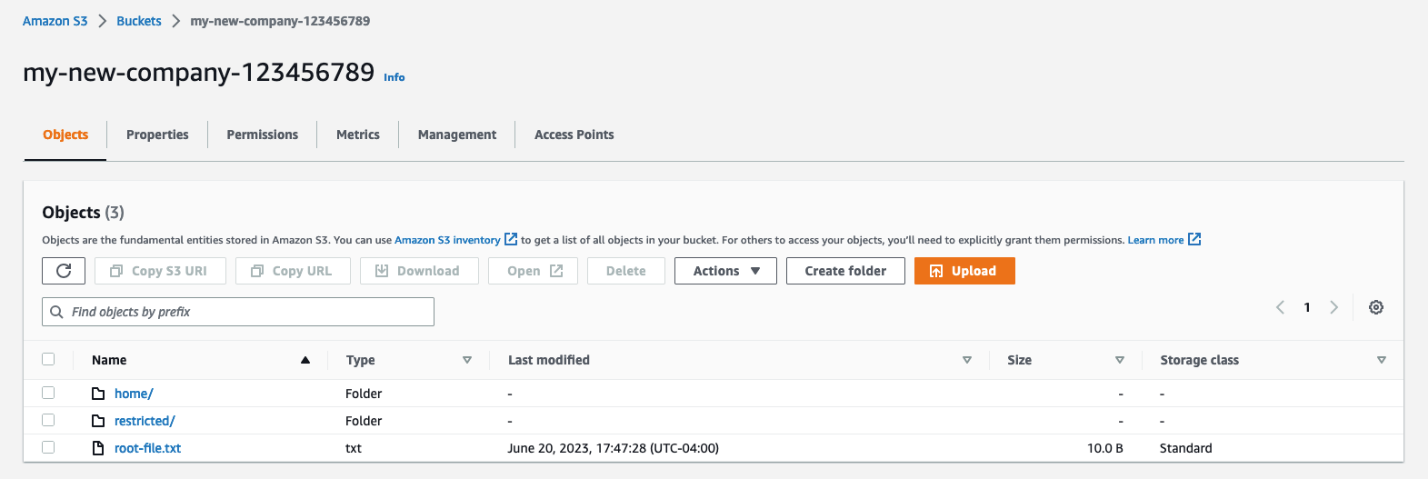
For this blog post, you will need an S3 bucket with the following structure (the example bucket name for the rest of the blog is “my-new-company-123456789”):
Figure 1: Screenshot of the root of the my-new-company-123456789 bucket
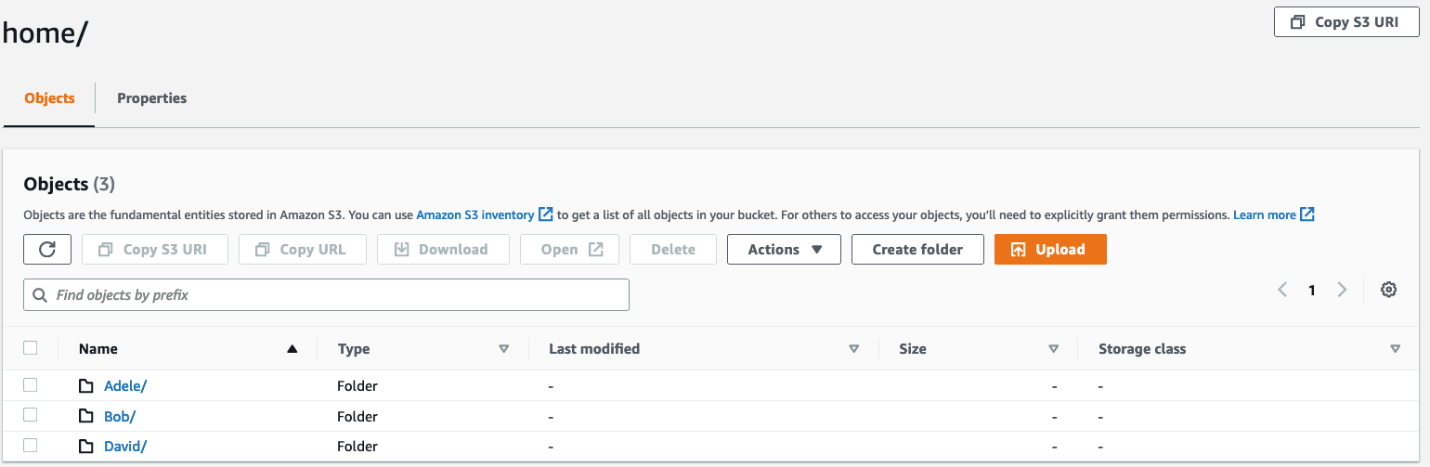
Your S3 bucket structure should have two folders, home and confidential, with a file root-file.txt in the main bucket directory. Inside confidential you will have no items or folders. Inside home there should be three sub-folders: Adele, Bob, and David.
Figure 2: Screenshot of the home/ directory of the my-new-company-123456789 bucket
A brief lesson about Amazon S3 objects
Before explaining the policy, it’s important to review how Amazon S3 objects are named. This brief description isn’t comprehensive, but will help you understand how the policy works. If you already know about Amazon S3 objects and prefixes, skip ahead to Creating David in Identity Center.
Amazon S3 stores data in a flat structure; you create a bucket, and the bucket stores objects. S3 doesn’t have a hierarchy of sub-buckets or folders; however, tools like the console can emulate a folder hierarchy to present folders in a bucket by using the names of objects (also known as keys). When you create a folder in S3, S3 creates a 0-byte object with a key that references the folder name that you provided. For example, if you create a folder named photos in your bucket, the S3 console creates a 0-byte object with the key photos/. The console creates this object to support the idea of folders. The S3 console treats all objects that have a forward slash (/) character as the last (trailing) character in the key name as a folder (for example, examplekeyname/)
To give you an example, for an object that’s named home/common/shared.txt, the console will show the shared.txt file in the common folder in the home folder. The names of these folders (such as home/ or home/common/) are called prefixes, and prefixes like these are what you use to specify David’s department folder in his policy. By the way, the slash (/) in a prefix like home/ isn’t a reserved character — you could name an object (using the Amazon S3 API) with prefixes such as home:common:shared.txt or home-common-shared.txt. However, the convention is to use a slash as the delimiter, and the Amazon S3 console (but not S3 itself) treats the slash as a special character for showing objects in folders. For more information on organizing objects in the S3 console using folders, see Organizing objects in the Amazon S3 console by using folders.
Creating David in Identity Center
IAM Identity Center helps you securely create or connect your workforce identities and manage their access centrally across AWS accounts and applications. Identity Center is the recommended approach for workforce authentication and authorization on AWS for organizations of any size and type. Using Identity Center, you can create and manage user identities in AWS, or connect your existing identity source, including Microsoft Active Directory, Okta, Ping Identity, JumpCloud, Google Workspace, and Azure Active Directory (Azure AD). For further reading on IAM Identity Center, see the Identity Center getting started page.
Begin by setting up David as an IAM Identity Center user. To start, open the AWS Management Console and go to IAM Identity Center and create a user.
Note: The following steps are for Identity Center without System for Cross-domain Identity Management (SCIM) turned on, the add user option won’t be available if SCIM is turned on.
From the left pane of the Identity Center console, select Users, and then choose Add user.
Figure 3: Screenshot of IAM Identity Center Users page.
Enter David as the Username, enter an email address that you have access to as you will need this later to confirm your user, and then enter a First name, Last name, and Display name.
Leave the rest as default and choose Add user.
Select Users from the left navigation pane and verify you’ve created the user David.
Figure 4: Screenshot of adding users to group in Identity Center.
Now that you’re verified the user David has been created, use the left pane to navigate to Permission sets, then choose Create permission set.
Figure 5: Screenshot of permission sets in Identity Center.
Select Custom permission set as your Permission set type, then choose Next.
Figure 6: Screenshot of permission set types in Identity Center.
David’s policy
This is David’s complete policy, which will be associated with an IAM Identity Center federated user named David by using the console. This policy grants David full console access to only his folder (/home/David) and no one else’s. While you could grant each user access to their own bucket, keep in mind that an AWS account can have up to 100 buckets by default. By creating home folders and granting the appropriate permissions, you can instead allow thousands of users to share a single bucket.
Now, copy and paste the preceding IAM Policy into the inline policy editor. In this case, you use the JSON editor. For information on creating policies, see Creating IAM policies.
Figure 7: Screenshot of the inline policy inside the permissions set in Identity Center.
Give your permission set a name and a description, then leave the rest at the default settings and choose Next.
Verify that you modify the policies to have the bucket name you created earlier.
After your permission set has been created, navigate to AWS accounts on the left navigation pane, then select Assign users or groups.
Figure 8: Screenshot of the AWS accounts in Identity Center.
Select the user David and choose Next.
Figure 9: Screenshot of the AWS accounts in Identity Center.
Select the permission set you created earlier, choose Next, leave the rest at the default settings and choose Submit.
Figure 10: Screenshot of the permission sets in Identity Center.
You’ve now created and attached the permissions required for David to view his S3 bucket folder, but not to view the objects in other users’ folders. You can verify this by signing in as David through the AWS access portal.
Figure 11: Screenshot of the settings summary in Identity Center.
Navigate to the dashboard in IAM Identity Center and go to the Settings summary, then choose the AWS access portal URL.
Figure 12: Screenshot of David signing into the console via the Identity Center dashboard URL.
Sign in as the user David with the one-time password you received earlier when creating David.
Figure 13: Second screenshot of David signing into the console through the Identity Center dashboard URL.
Open the Amazon S3 console.
Search for the bucket you created earlier.
Figure 14: Screenshot of my-new-company-123456789 bucket in the AWS console.
Navigate to David’s folder and verify that you have read and write access to the folder. If you navigate to other users’ folders, you’ll find that you don’t have access to the objects inside their folders.
David’s policy consists of four blocks; let’s look at each individually.
Before you begin identifying the specific folders David can have access to, you must give him two permissions that are required for Amazon S3 console access: ListAllMyBuckets and GetBucketLocation.
The ListAllMyBuckets action grants David permission to list all the buckets in the AWS account, which is required for navigating to buckets in the Amazon S3 console (and as an aside, you currently can’t selectively filter out certain buckets, so users must have permission to list all buckets for console access). The console also does a GetBucketLocation call when users initially navigate to the Amazon S3 console, which is why David also requires permission for that action. Without these two actions, David will get an access denied error in the console.
Block 2: Allow listing objects in root and home folders
Although David should have access to only his home folder, he requires additional permissions so that he can navigate to his folder in the Amazon S3 console. David needs permission to list objects at the root level of the my-new-company-123456789 bucket and to the home/ folder. The following policy grants these permissions to David:
Without the ListBucket permission, David can’t navigate to his folder because he won’t have permissions to view the contents of the root and home folders. When David tries to use the console to view the contents of the my-new-company-123456789 bucket, the console will return an access denied error. Although this policy grants David permission to list all objects in the root and home folders, he won’t be able to view the contents of any files or folders except his own (you specify these permissions in the next block).
This block includes conditions, which let you limit under what conditions a request to AWS is valid. In this case, David can list objects in the my-new-company-123456789 bucket only when he requests objects without a prefix (objects at the root level) and objects with the home/ prefix (objects in the home folder). If David tries to navigate to other folders, such as confidential/, David is denied access. Additionally, David needs permissions to list prefix home/David to be able to use the search functionality of the console instead of scrolling down the list of users’ folders.
To set these root and home folder permissions, I used two conditions: s3:prefix and s3:delimiter. The s3:prefix condition specifies the folders that David has ListBucket permissions for. For example, David can list the following files and folders in the my-new-company-123456789 bucket:
But David cannot list files or subfolders in the confidential/, home/Adele, or home/Bob folders.
Although the s3:delimiter condition isn’t required for console access, it’s still a good practice to include it in case David makes requests by using the API. As previously noted, the delimiter is a character—such as a slash (/)—that identifies the folder that an object is in. The delimiter is useful when you want to list objects as if they were in a file system. For example, let’s assume the my-new-company-123456789 bucket stored thousands of objects. If David includes the delimiter in his requests, he can limit the number of returned objects to just the names of files and subfolders in the folder he specified. Without the delimiter, in addition to every file in the folder he specified, David would get a list of all files in any subfolders.
Block 3: Allow listing objects in David’s folder
In addition to the root and home folders, David requires access to all objects in the home/David/ folder and any subfolders that he might create. Here’s a policy that allows this:
In the condition above, you use a StringLike expression in combination with the asterisk (*) to represent an object in David’s folder, where the asterisk acts as a wildcard. That way, David can list files and folders in his folder (home/David/). You couldn’t include this condition in the previous block (AllowRootAndHomeListingOfCompanyBucket) because it used the StringEquals expression, which would interpret the asterisk (*) as an asterisk, not as a wildcard.
In the next section, the AllowAllS3ActionsInUserFolder block, you’ll see that the Resource element specifies my-new-company/home/David/*, which looks like the condition that I specified in this section. You might think that you can similarly use the Resource element to specify David’s folder in this block. However, the ListBucket action is a bucket-level operation, meaning the Resource element for the ListBucket action applies only to bucket names and doesn’t take folder names into account. So, to limit actions at the object level (files and folders), you must use conditions.
Block 4: Allow all Amazon S3 actions in David’s folder
Finally, you specify David’s actions (such as read, write, and delete permissions) and limit them to just his home folder, as shown in the following policy:
For the Action element, you specified s3:*, which means David has permission to do all Amazon S3 actions. In the Resource element, you specified David’s folder with an asterisk (*) (a wildcard) so that David can perform actions on the folder and inside the folder. For example, David has permission to change his folder’s storage class. David also has permission to upload files, delete files, and create subfolders in his folder (perform actions in the folder).
An easier way to manage policies with policy variables
In David’s folder-level policy you specified David’s home folder. If you wanted a similar policy for users like Bob and Adele, you’d have to create separate policies that specify their home folders. Instead of creating individual policies for each IAM Identity Center user, you can use policy variables and create a single policy that applies to multiple users (a group policy). Policy variables act as placeholders. When you make a request to a service in AWS, the placeholder is replaced by a value from the request when the policy is evaluated.
For example, you can use the previous policy and replace David’s user name with a variable that uses the requester’s user name through attributes and PrincipalTag as shown in the following policy (copy this policy to use in the procedure that follows):
To implement this policy with variables, begin by opening the IAM Identity Center console using the main AWS admin account (ensuring you’re not signed in as David).
Select Settings on the left-hand side, then select the Attributes for access control tab.
Figure 15: Screenshot of Settings inside Identity Center.
Create a new attribute for access control, entering userName as the Key and ${path:userName} as the Value, then choose Save changes. This will add a session tag to your Identity Center user and allow you to use that tag in an IAM policy.
Figure 16: Screenshot of managing attributes inside Identity Center settings.
To edit David’s permissions, go back to the IAM Identity Center console and select Permission sets.
Figure 17: Screenshot of permission sets inside Identity Center with Davids-Permissions selected.
Select David’s permission set that you created previously.
Select Inline policy and then choose Edit to update David’s policy by replacing it with the modified policy that you copied at the beginning of this section, which will resolve to David’s username.
Figure 18: Screenshot of David’s policy inside his permission set inside Identity Center.
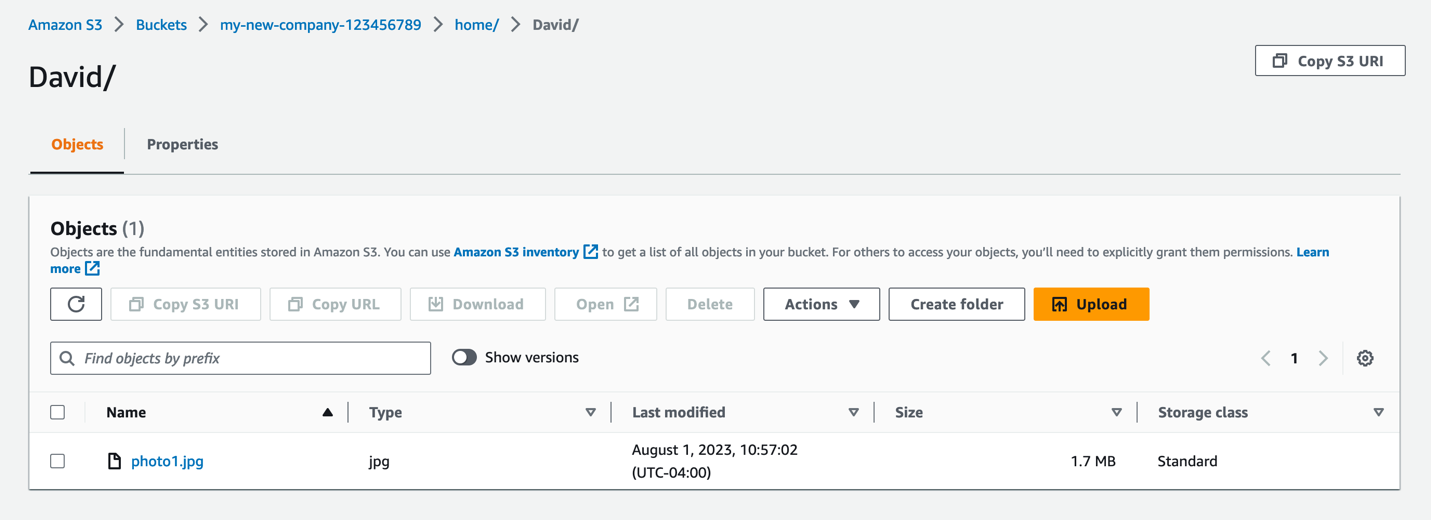
You can validate that this is set up correctly by signing in to David’s user through the Identity Center dashboard as you did before and verifying you have access to the David folder and not the Bob or Adele folder.
Figure 19: Screenshot of David’s S3 folder with access to a .jpg file inside.
Whenever a user makes a request to AWS, the variable is replaced by the user name of whoever made the request. For example, when David makes a request, ${aws:PrincipalTag/userName} resolves to David; when Adele makes the request, ${aws:PrincipalTag/userName} resolves to Adele.
It’s important to note that, if this is the route you use to grant access, you must control and limit who can set this username tag on an IAM principal. Anyone who can set this tag can effectively read/write to any of these bucket prefixes. It’s important that you limit access and protect the bucket prefixes and who can set the tags. For more information, see What is ABAC for AWS, and the Attribute-based access control User Guide.
Conclusion
By using Amazon S3 folders, you can follow the principle of least privilege and verify that the right users have access to what they need, and only to what they need.
See the following example policy that only allows API access to the buckets, and only allows for adding, deleting, restoring, and listing objects inside the folders:
Earlier in 2023, we announced Super Slurper, a data migration tool that makes it easy to copy large amounts of data to R2 from other cloud object storage providers. Since the announcement, developers have used Super Slurper to run thousands of successful migrations to R2!
While Super Slurper is perfect for cases where you want to move all of your data to R2 at once, there are scenarios where you may want to migrate your data incrementally over time. Maybe you want to avoid the one time upfront AWS data transfer bill? Or perhaps you have legacy data that may never be accessed, and you only want to migrate what’s required?
Today, we’re announcing the open beta of Sippy, an incremental migration service that copies data from S3 (other cloud providers coming soon!) to R2 as it’s requested, without paying unnecessary cloud egress fees typically associated with moving large amounts of data. On top of addressing vendor lock-in, Sippy makes stressful, time-consuming migrations a thing of the past. All you need to do is replace the S3 endpoint in your application or attach your domain to your new R2 bucket and data will start getting copied over.
How does it work?
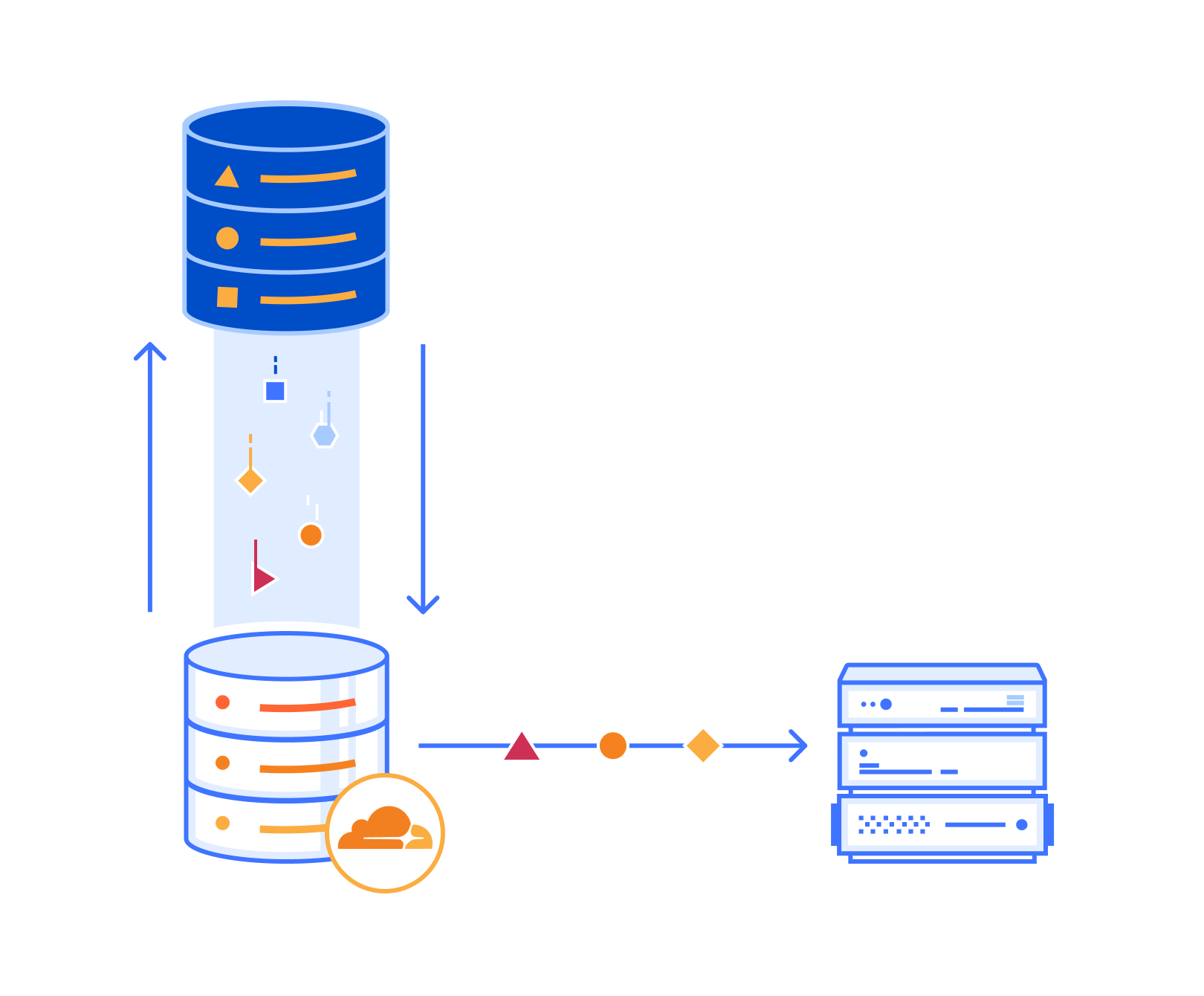
Sippy is an incremental migration service built directly into your R2 bucket. Migration-specific egress fees are reduced by leveraging requests within the flow of your application where you’d already be paying egress fees to simultaneously copy objects to R2. Here is how it works:
When an object is requested from Workers, S3 API, or public bucket, it is served from your R2 bucket if it is found.
If the object is not found in R2, it will simultaneously be returned from your S3 bucket and copied to R2.
Note: Some large objects may take multiple requests to copy.
That means after objects are copied, subsequent requests will be served from R2, and you’ll begin saving on egress fees immediately.
Start incrementally migrating data from S3 to R2
Create an R2 bucket
To get started with incremental migration, you’ll first need to create an R2 bucket if you don’t already have one. To create a new R2 bucket from the Cloudflare dashboard:
To learn more about other ways to create R2 buckets refer to the documentation on creating buckets.
Enable Sippy on your R2 bucket
Next, you’ll enable Sippy for the R2 bucket you created. During the beta, you can do this by using the API. Here’s an example of how to enable Sippy for an R2 bucket with cURL:
For more information on getting started, please refer to the documentation. Once enabled, requests to your bucket will now start copying data over from S3 if it’s not already present in your R2 bucket.
Finish your migration with Super Slurper
You can run your incremental migration for as long as you want, but eventually you may want to complete the migration to R2. To do this, you can pair Sippy with Super Slurper to easily migrate your remaining data that hasn’t been accessed to R2.
What’s next?
We’re excited about open beta, but it’s only the starting point. Next, we plan on making incremental migration configurable from the Cloudflare dashboard, complete with analytics that show you the progress of your migration and how much you are saving by not paying egress fees for objects that have been copied over so far.
If you are looking to start incrementally migrating your data to R2 and have any questions or feedback on what we should build next, we encourage you to join our Discord community to share!
Security groups are used to protect EC2 instances by controlling ingress and egress traffic. Once a security group is created and associated with an instance, customers can add ingress and egress rules to control data flow. Just like the default VPC in a region, there is a default security group on Snow devices. A default security group is applied when an instance is launched and no other security group is specified. This default security group in a region allows all inbound traffic from network interfaces and instances that are assigned to the same security group, and allows and all outbound traffic. On Snowball Edge, the default security group allows all inbound and outbound traffic.
In this post, we will review the tools and commands required to create, manage and use security groups on the Snowball Edge device.
Some things to keep in mind:
AWS Snowball Edge is limited to 50 security groups.
An instance will only have one security group, but each group can have a total of 120 rules. This is comprised of 60 inbound and 60 outbound rules.
Security groups can only have allow statements to allow network traffic.
Deny statements aren’t allowed.
Some commands in the Snowball Edge client (AWS CLI) don’t provide an output.
AWS CLI commands can use the name or the security group ID.
Prerequisites and tools
Customers must place an order for Snowball Edge from their AWS Console to be able to run the following AWS CLI commands and configure security groups to protect their EC2 instances.
The AWS Snowball Edge client is a standalone terminal application that customers can run on their local servers and workstations to manage and operate their Snowball Edge devices. It supports Windows, Mac, and Linux systems.
AWS OpsHub is a graphical user interface that you can use to manage your AWS Snowball devices. Furthermore, it’s the easiest tool to use to unlock Snowball Edge devices. It can also be used to configure the device, launch instances, manage storage, and provide monitoring.
Customers can download and install the Snowball Edge client and AWS OpsHub from AWS Snowball resources.
Getting Started
To get started, when a Snow device arrives at a customer site, the customer must unlock the device and launch an EC2 instance. This can be done via AWS OpsHub or the AWS Snowball Edge Client. AWS Snow Family of devices support both Virtual Network Interfaces (VNI) and Direct Network interfaces (DNI), customers should review the types of interfaces before deciding which one is best for their use case. Note that security groups are only supported with VNIs, so that is what was used in this post. A post explaining how to use these interfaces should be reviewed before proceeding.
Viewing security group information
Once the AWS Snowball Edge is unlocked, configured, and has an EC2 instance running, we can dig deeper into using security groups to act as a virtual firewall and control incoming and outgoing traffic.
Although the AWS OpsHub tool provides various functionalities for compute and storage operations, it can only be used to view the name of the security group associated to an instance in a Snowball Edge device:
Every other interaction with security groups must be through the AWS CLI.
The following command shows how to easily read the outputs describing the protocols, sources, and destinations. This particular command will show information about the default security group, which allows all inbound and outbound traffic on EC2 instances running on the Snowball Edge.
In the following sections we review the most common commands with examples and outputs.
Note that this command produces no output. We can verify that it worked with the “aws ec2 describe-instances” command. See the example as follows (command output simplified):
As an example, assume a single EC2 instance “A” running on a Snowball Edge device. By default, all traffic is allowed to EC2 instance “A”. As per the following diagram, we want to tighten security and allow only the management PC to SSH to the instance.
Note that for the above association, the instance ID is an output of the “aws ec2 describe-instances” command, while the security group ID is an output of the “describe-security-groups” command (or the “GroupId” returned by the console in Step 2 above).
Conclusion
This post addressed the most common commands used to create and manage security groups with the AWS Snowball Edge device. We explored the prerequisites, tools, and commands used to view, create, and modify security groups to ensure the EC2 instances deployed on AWS Snowball Edge are restricted to authorized users. We concluded with a simple walkthrough of how to restrict access to an EC2 instance over SSH from a single IP address. If you would like to learn more about the Snowball Edge product, there are several resources available on the AWS Snow Family site.
To provide the best experiences, we use technologies like cookies to store and/or access device information. Consenting to these technologies will allow us to process data such as browsing behavior or unique IDs on this site. Not consenting or withdrawing consent, may adversely affect certain features and functions.
Functional
Always active
The technical storage or access is strictly necessary for the legitimate purpose of enabling the use of a specific service explicitly requested by the subscriber or user, or for the sole purpose of carrying out the transmission of a communication over an electronic communications network.
Preferences
The technical storage or access is necessary for the legitimate purpose of storing preferences that are not requested by the subscriber or user.
Statistics
The technical storage or access that is used exclusively for statistical purposes.The technical storage or access that is used exclusively for anonymous statistical purposes. Without a subpoena, voluntary compliance on the part of your Internet Service Provider, or additional records from a third party, information stored or retrieved for this purpose alone cannot usually be used to identify you.
Marketing
The technical storage or access is required to create user profiles to send advertising, or to track the user on a website or across several websites for similar marketing purposes.