Tag Archives: storage

New – Amazon EBS gp3 Volume Lets You Provision Performance Apart From Capacity

Post Syndicated from Harunobu Kameda original https://aws.amazon.com/blogs/aws/new-amazon-ebs-gp3-volume-lets-you-provision-performance-separate-from-capacity-and-offers-20-lower-price/

Amazon Elastic Block Store (EBS) is an easy-to-use, high-performance block storage service designed for use with Amazon EC2 instances for both throughput and transaction-intensive workloads of all sizes. Using existing general purpose solid state drive (SSD) gp2 volumes, performance scales with storage capacity. By provisioning larger storage volume sizes, you can improve application input / output operations per second (IOPS) and throughput.

However some applications, such as MySQL, Cassandra, and Hadoop clusters, require high performance but not high storage capacity. Customers want to meet the performance requirements of these types of applications without paying for more storage volumes than they need.

Today I would like to tell you about gp3, a new type of SSD EBS volume that lets you provision performance independent of storage capacity, and offers a 20% lower price than existing gp2 volume types.

New gp3 Volume Type

With EBS, customers can choose from multiple volume types based on the unique needs of their applications. We introduced general purpose SSD gp2 volumes in 2014 to offer SSD performance at a very low price. gp2 provides an easy and cost-effective way to meet the performance and throughput requirements of many applications our customers use such as virtual desktops, medium-sized databases such as SQLServer and OracleDB, and development and testing environments.

That said, some customers need higher performance. Because the basic idea behind gp2 is that the larger the capacity, the faster the IOPS, customers may end up provisioning more storage capacity than desired. Even though gp2 offers a low price point, customers end up paying for storage they don’t need.

The new gp3 is the 7th variation of EBS volume types. It lets customers independently increase IOPS and throughput without having to provision additional block storage capacity, paying only for the resources they need.

gp3 is designed to provide predictable 3,000 IOPS baseline performance and 125 MiB/s regardless of volume size. It is ideal for applications that require high performance at a low cost such as MySQL, Cassandra, virtual desktops and Hadoop analytics. Customers looking for higher performance can scale up to 16,000 IOPS and 1,000 MiB/s for an additional fee. The top performance of gp3 is 4 times faster than max throughput of gp2 volumes.

How to Switch From gp2 to gp3

If you’re currently using gp2, you can easily migrate your EBS volumes to gp3 using Amazon EBS Elastic Volumes, an existing feature of Amazon EBS. Elastic Volumes allows you to modify the volume type, IOPS, and throughput of your existing EBS volumes without interrupting your Amazon EC2 instances. Also, when you create a new Amazon EBS volume, Amazon EC2 instance, or Amazon Machine Image (AMI), you can choose the gp3 volume type. New AWS customers receive 30GiB of gp3 storage with the baseline performance at no charge for 12 months.

Available Today

The gp3 volume type is available for all AWS Regions. You can access the AWS Management Console to launch your first gp3 volume.

For more information, see Amazon Elastic Block Store and get started with gp3 today.

– Kame


New – Amazon EC2 R5b Instances Provide 3x Higher EBS Performance

Post Syndicated from Harunobu Kameda original https://aws.amazon.com/blogs/aws/new-amazon-ec2-r5b-instances-providing-3x-higher-ebs-performance/

In July 2018, we announced memory-optimized R5 instances for the Amazon Elastic Compute Cloud (Amazon EC2). R5 instances are designed for memory-intensive applications such as high-performance databases, distributed web scale in-memory caches, in-memory databases, real time big data analytics, and other enterprise applications.

R5 instances offer two different block storage options. R5d instances offer up to 3.6TB of NMVe instance storage for applications that need access to high-speed, low latency local storage. In addition, all R5b instances work with Amazon Elastic Block Store. Amazon EBS is an easy-to-use, high-performance and highly available block storage service designed for use with Amazon EC2 for both throughput- and transaction-intensive workloads at any scale. A broad range of workloads, such as relational and non-relational databases, enterprise applications, containerized applications, big data analytics engines, file systems, and media workflows are widely deployed on Amazon EBS.

Today, we are happy to announce the availability of R5b, a new addition to the R5 instance family. The new R5b instance is powered by the AWS Nitro System to provide the best network-attached storage performance available on EC2. This new instance offers up to 60Gbps of EBS bandwidth and 260,000 I/O operations per second (IOPS).

Amazon EC2 R5b Instance
Many customers use R5 instances with EBS for large relational database workloads such as commerce platforms, ERP systems, and health record systems, and they rely on EBS to provide scalable, durable, and high availability block storage. These instances provide sufficient storage performance for many use cases, but some customers require higher EBS performance on EC2.

R5 instances provide bandwidth up to 19Gbps and maximum EBS performance of 80K IOPS, while the new R5b instances support bandwidth up to 60Gbps and EBS performance of 260K IOPS, providing 3x higher EBS-Optimized performance compared to R5 instances, enabling customers to lift and shift large relational databases applications to AWS. R5b and R5 vCPU to memory ratio and network performance are the same.

Instance Name vCPUs Memory EBS Optimized Bandwidth (Mbps) EBS Optimized IOPs@16KiB (IO/s)
r5b.large 2 16 GiB Up to 10,000 Up to 43,333
r5b.xlarge 4 32 GiB Up to 10,000 Up to 43,333
r5b.2xlarge 8 64 GiB Up to 10,000 Up to 43,333
r5b.4xlarge 16 128 GiB 10,000 43,333
r5b.8xlarge 32 256 GiB 20,000 86,667
r5b.12xlarge 48 384 GiB 30,000 130,000
r5b.16xlarge 64 512 GiB 40,000 173,333
r5b.24xlarge 96 768 GiB 60,000 260,000
r5b.metal 96 768 GiB 60,000 260,000

Customers operating storage performance sensitive workloads can migrate from R5 to R5b to consolidate their existing workloads into fewer or smaller instances. This can reduce the cost of both infrastructure and licensed commercial software working on those instances. R5b instances are supported by Amazon RDS for Oracle and Amazon RDS for SQL Server, simplifying the migration path for large commercial database applications and improving storage performance for current RDS customers by up to 3x.

All Nitro compatible AMIs support R5b instances, and the EBS-backed HVM AMI must have NVMe 1.0e and ENA drivers installed at R5b instance launch. R5b supports io1, io2 Block Express (in preview), gp2, gp3, sc1, st1 and standard volumes. R5b does not support io2 volumes and io1 volumes that have multi-attach enabled, which are coming soon.

Available Today

R5b instances are available in the following regions: US West (Oregon), Asia Pacific (Tokyo), US East (N. Virginia), US East (Ohio), Asia Pacific (Singapore), and Europe (Frankfurt). RDS on r5b is available in US East (Ohio), Asia Pacific (Singapore), and Europe (Frankfurt), and support in other regions is coming soon.

Learn more about EC2 R5 instances and get started with Amazon EC2 today.

– Kame;

re:Invent 2020 Liveblog: Andy Jassy Keynote

Post Syndicated from Jeff Barr original https://aws.amazon.com/blogs/aws/reinvent-2020-liveblog-andy-jassy-keynote/

I’m always ready to try something new! This year, I am going to liveblog Andy Jassy‘s AWS re:Invent keynote address, which takes place from 8 a.m. to 11 a.m. on Tuesday, December 1 (PST). I’ll be updating this post every couple of minutes as I watch Andy’s address from the comfort of my home office. Stay tuned!

— Jeff;


Introducing Amazon S3 Storage Lens – Organization-wide Visibility Into Object Storage

Post Syndicated from Martin Beeby original https://aws.amazon.com/blogs/aws/s3-storage-lens/

When starting out in the cloud, a customer’s storage requirements might consist of a handful of S3 buckets, but as they grow, migrate more applications and realize the power of the cloud, things can become more complicated. A customer may have tens or even hundreds of accounts and have multiple S3 buckets across numerous AWS Regions. Customers managing these sorts of environments have told us that they find it difficult to understand how storage is used across their organization, optimize their costs, and improve security posture.

Drawing from more than 14 years of experience helping customers optimize their storage, the S3 team has built a new feature called Amazon S3 Storage Lens. This is the first cloud storage analytics solution to give you organization-wide visibility into object storage, with point-in-time metrics and trend lines as well as actionable recommendations. All these things combined will help you discover anomalies, identify cost efficiencies and apply data protection best practices.

With S3 Storage Lens , you can understand, analyze, and optimize storage with 29+ usage and activity metrics and interactive dashboards to aggregate data for your entire organization, specific accounts, regions, buckets, or prefixes. All of this data is accessible in the S3 Management Console or as raw data in an S3 bucket.

Every Customer Gets a Default Dashboard

S3 Storage Lens includes an interactive dashboard which you can find in the S3 console. The dashboard gives you the ability to perform filtering and drill-down into your metrics to really understand how your storage is being used. The metrics are organized into categories like data protection and cost efficiency, to allow you to easily find relevant metrics.

For ease of use all customers receive a default dashboard. If you are like many customers, this maybe the only dashboard that you need, but if you want to, you can make changes. For example, you could configure the dashboard to export the data daily to an S3 bucket for analysis with another tool (Amazon QuickSight, Amazon Athena, Amazon Redshift, etc.) or you could upgrade to receive advanced metrics and recommendations.

Creating a Dashboard
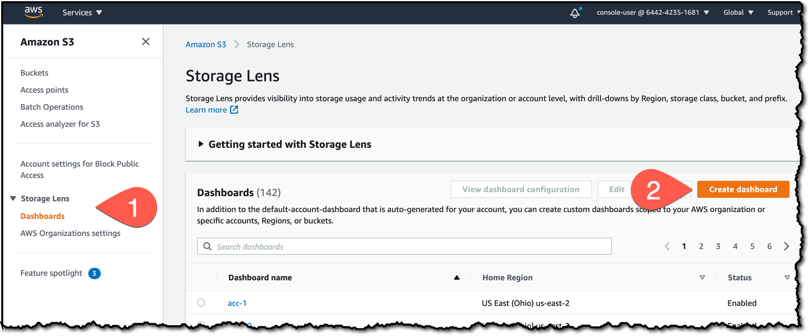
You can also create your own dashboards from scratch, to do this I head over to the S3 console and click on the Dashboards menu item inside the Storage Lens section. Secondly, I click the Create dashboard button.

Screenshot of the console

I give my dashboard the name s3-lens-demo and select a home Region. The home Region is where the metrics data for your dashboard will be stored. I choose to enable the dashboard, meaning that it will be updated daily with new metrics.

A dashboard can analyze storage across accounts, Regions, buckets, and prefix. I choose to include buckets from all accounts in my organization and across all regions in the Dashboard scope section.

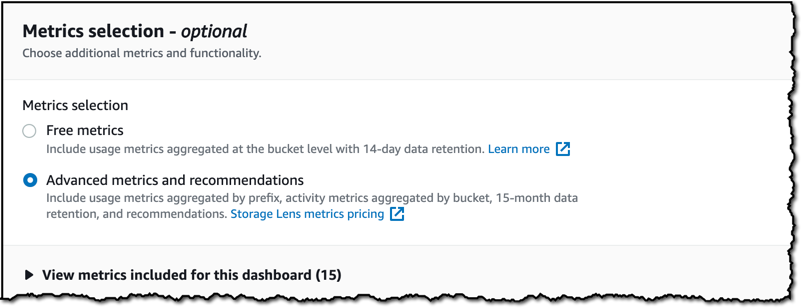
S3 Storage Lens has two tiers: Free Metrics, which is free of charge, automatically available for all S3 customers and contains 15 usage related metrics; and Advanced metrics and recommendations, which has an additional charge, but includes all 29 usage and activity metrics with 15-month data retention, and contextual recommendations. For this demo, I select Advanced metrics and recommendations.

Screenshot of Management Console

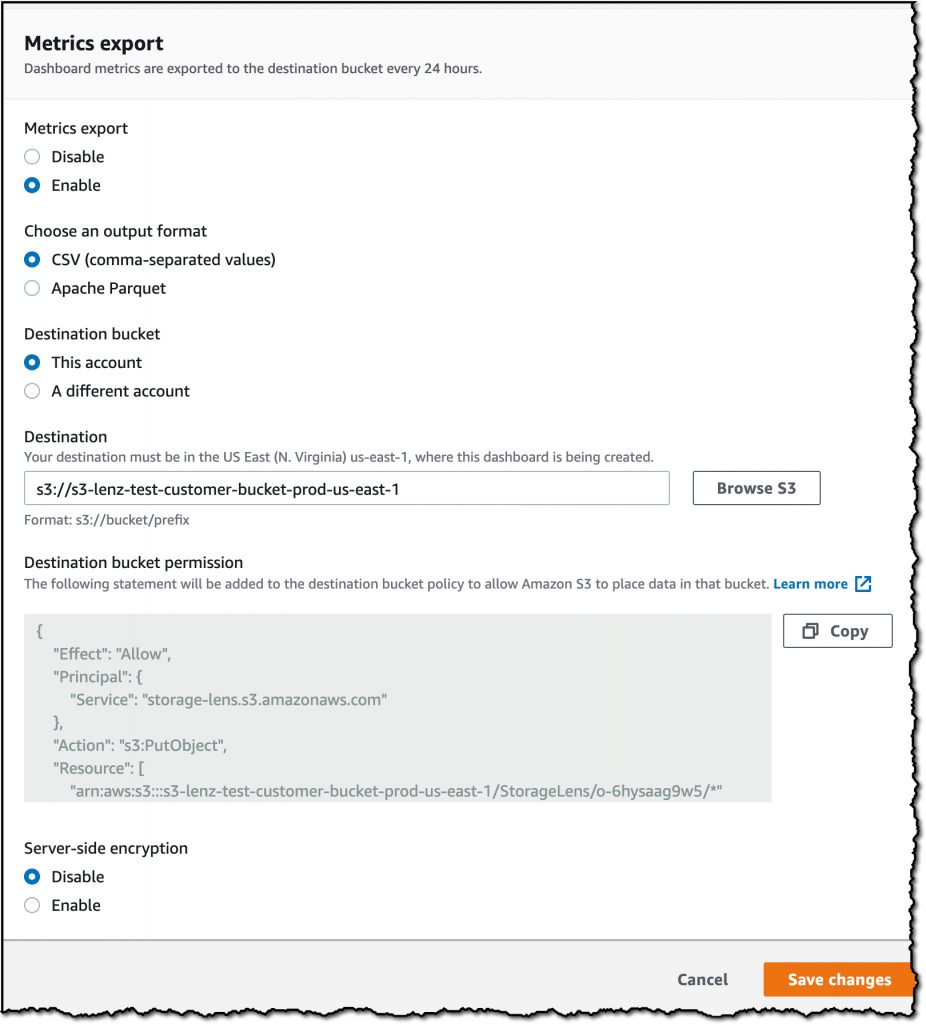
Finally, I can configure the dashboard metrics to be exported daily to a specific S3 bucket. The metrics can be exported to either CSV or Apache Parquet format for further analysis outside of the console.

An alert pops up to tell me that my dashboard has been created, but it can take up to 48 hours to generate my initial metrics.

What does a Dashboard Show?

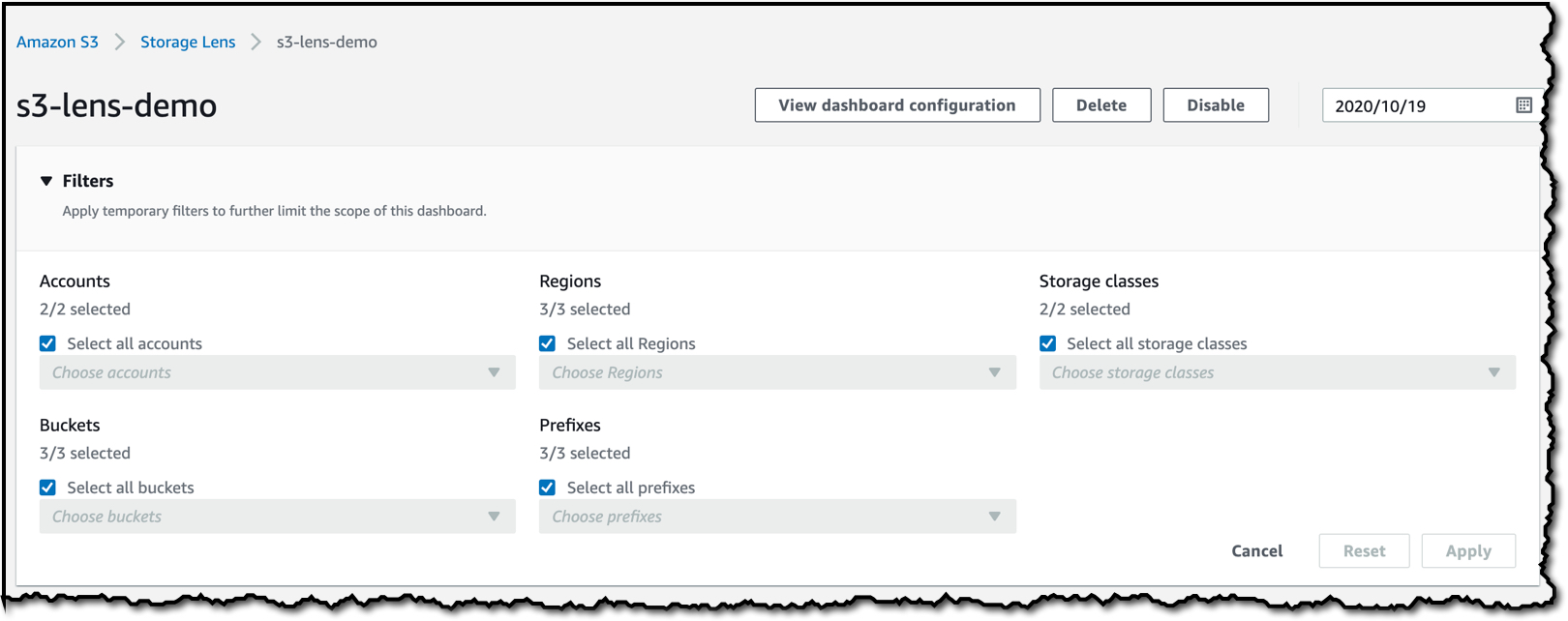
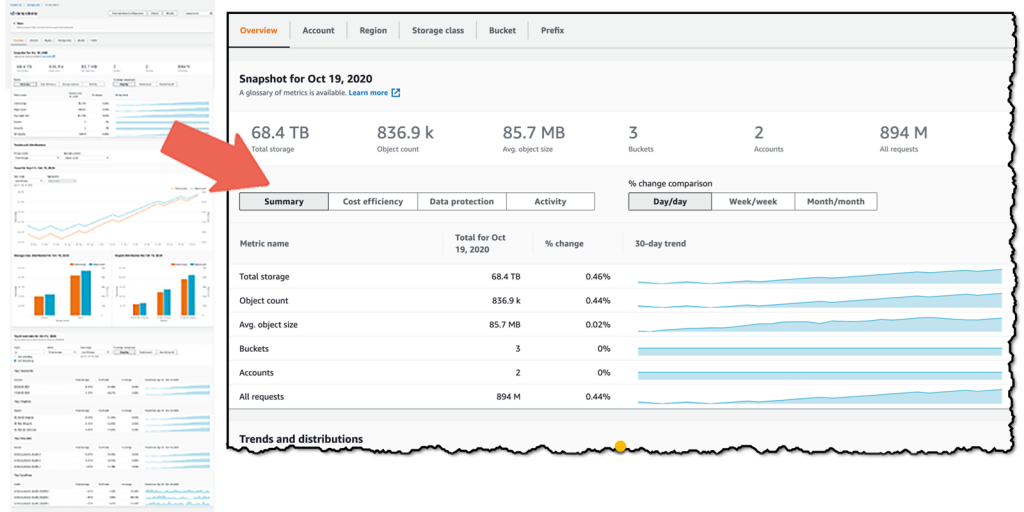
Once my dashboard has been created, I can start to explore the data. I can filter by Accounts, Regions, Storage classes, Buckets, and Prefixes at the top of the dashboard.

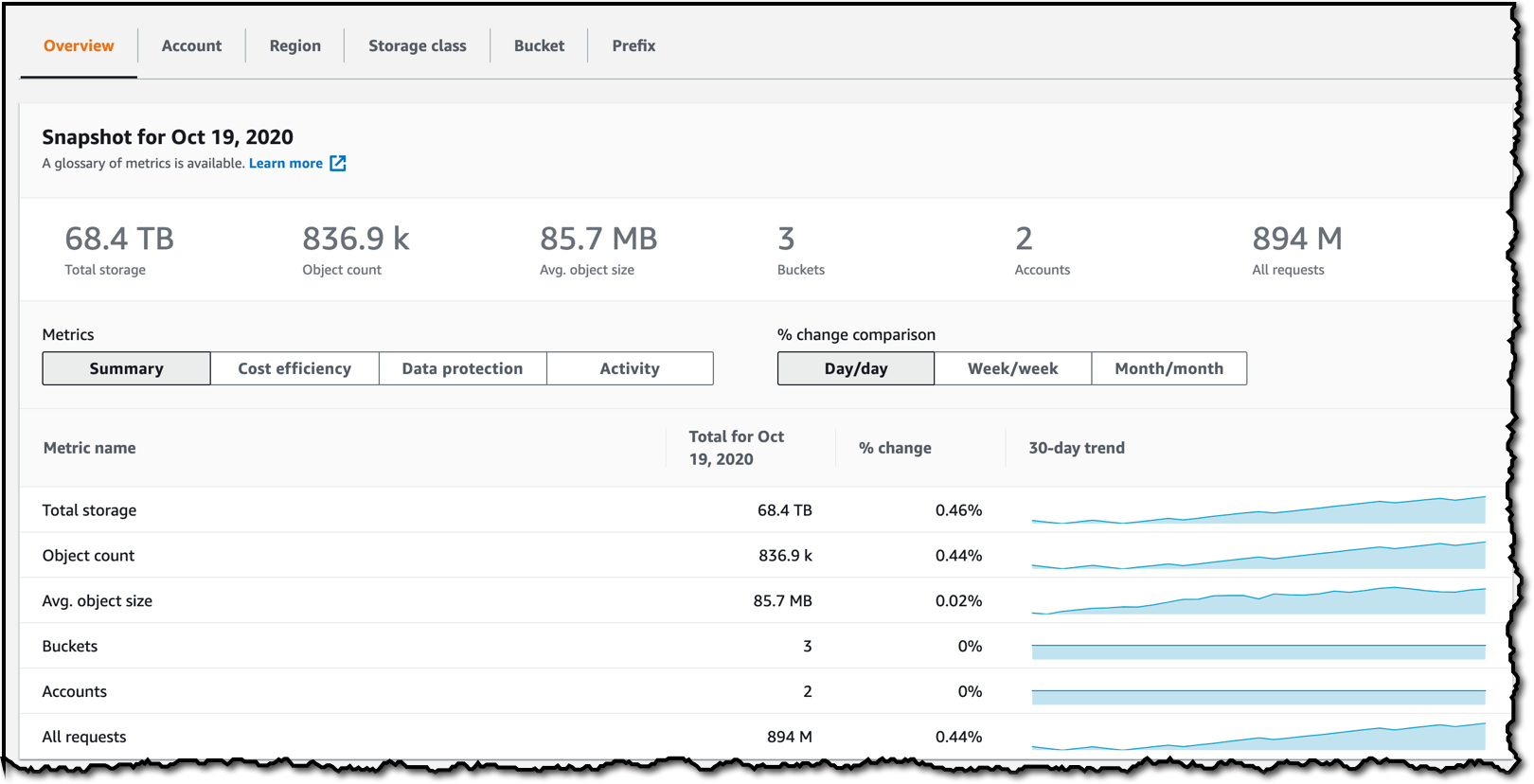
The next section is a snapshot of the metrics such as the Total storage and Object count, and I can see a trendline that shows the trend on each metric over the last 30 days and a percentage change. The number in the % change column shows by default the Day/day percentage change, but I can select to compare by Week/week or Month/month.

I can toggle between different Metric groups by selecting either Summary, Cost efficiency, Data protection, or Activity.

There are some metrics here that are pretty typical like total storage and object counts, and you can already receive these in a few places in the S3 console and in Amazon CloudWatch – but in S3 Storage Lens you can receive these metrics in aggregate across your organization or account, or at the prefix level, which was not previously possible.

There are some other metrics you might not expect, like metrics that pertain to S3 feature utilization. For example we can break out the % of objects that are using encryption, or the number of objects that are non-current versions. These metrics help you understand how your storage is configured, and allows you to identify discrepancies, and then drill in for details.

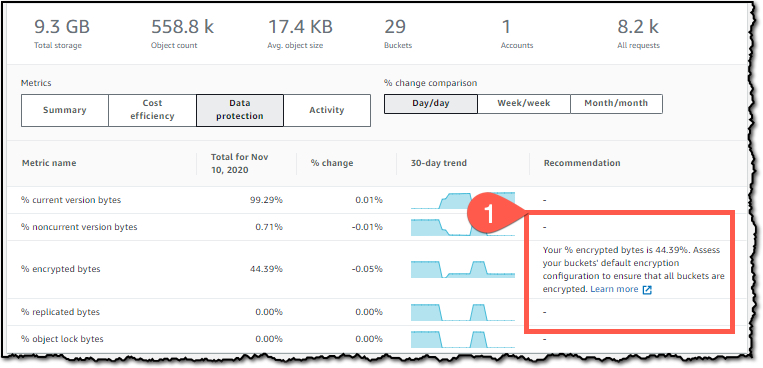
The dashboard provides contextual recommendations alongside your metrics to indicate actions you can take based on the metric, for example ways to improve cost efficiency, or apply data protection best practices. Any recommendations are shown in the Recommendation column. A few days ago I took the screenshot below which shows a recommendation on one of my dashboards that suggests I should check my buckets’ default encryption configuration.

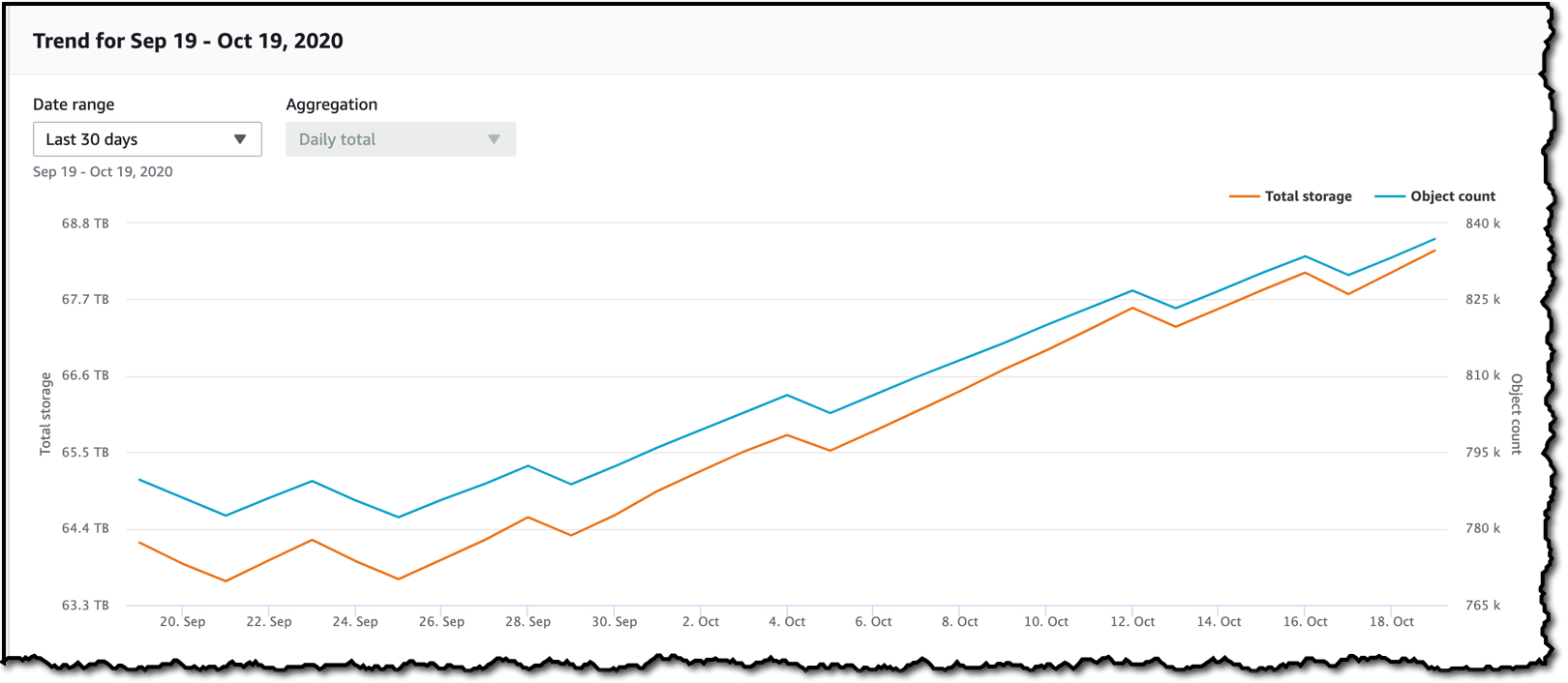
The dashboard trends and distribution section allows me to compare two metrics over time in more detail. Here I have selected Total storage as my Primary metric and Object Count as my Secondary metric.

These two metrics are now plotted on a graph, and I can select a date range to view the trend over time.

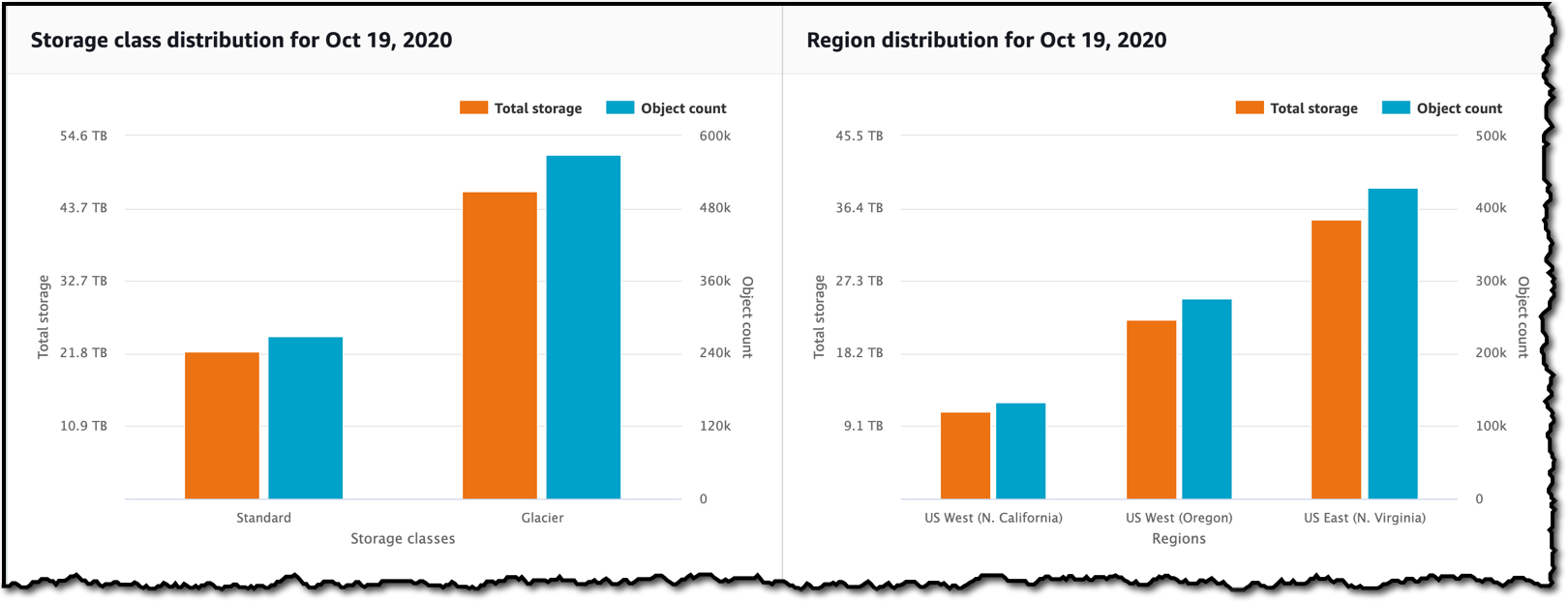
The dashboard also shows me those two metrics and how they are distributed across Storage class and Regions.

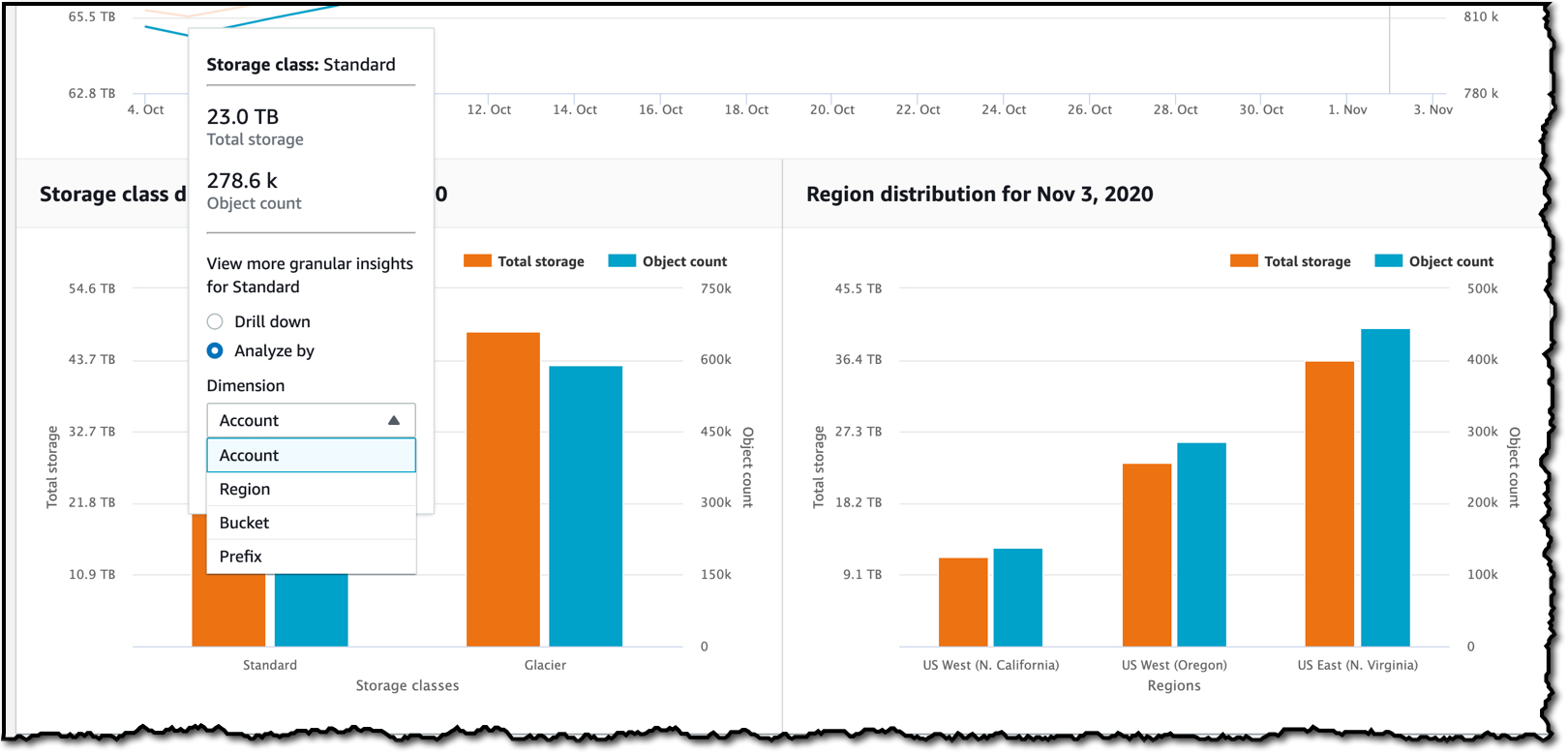
I can click on any value in this graph and Drill down to filter the entire dashboard on that value, or select Anayze by to navigate to a new dashboard view for that dimension.

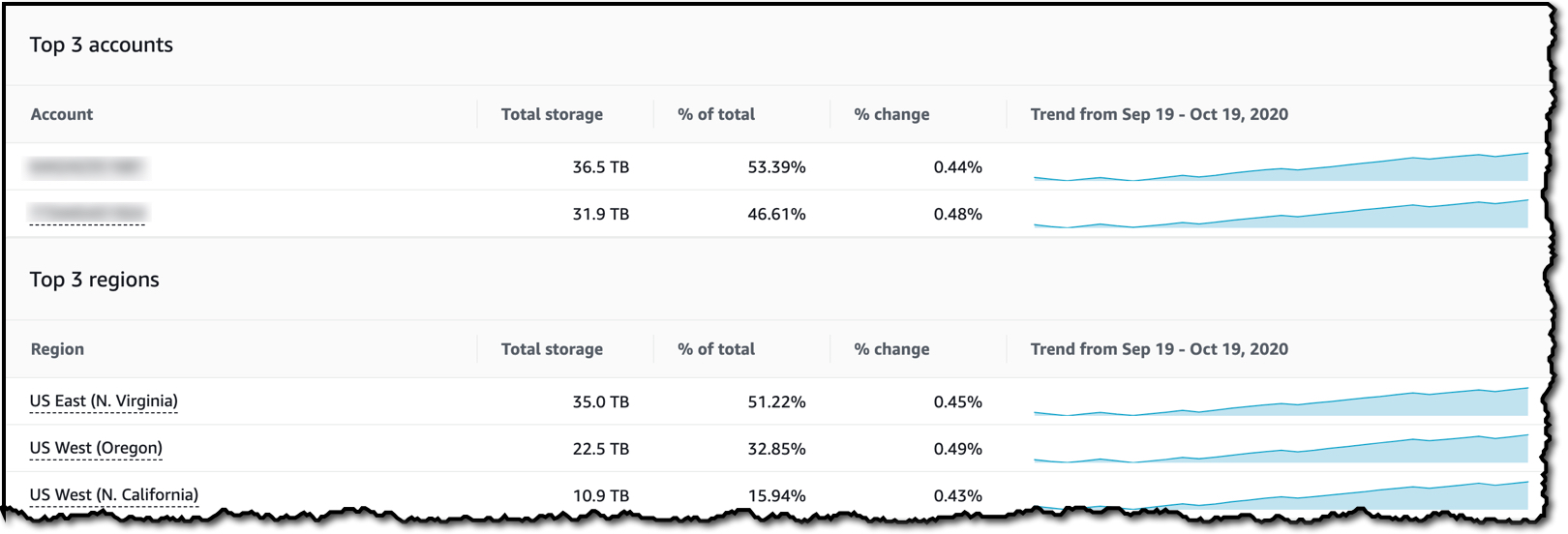
The last section of the dashboard allows me to perform a Top N analysis of a metric over a date range, where N is between 1 and 25. In the example below, I have selected the top 3 items in descending order for the Total storage metric.

I can then see the top three accounts (note: there are only two accounts in my organization) and the Total storage metric for each account.

It also shows the top 3 regions for the Total storage metric, and I can see that 51.15% of my data is stored in US East (N. Virginia)

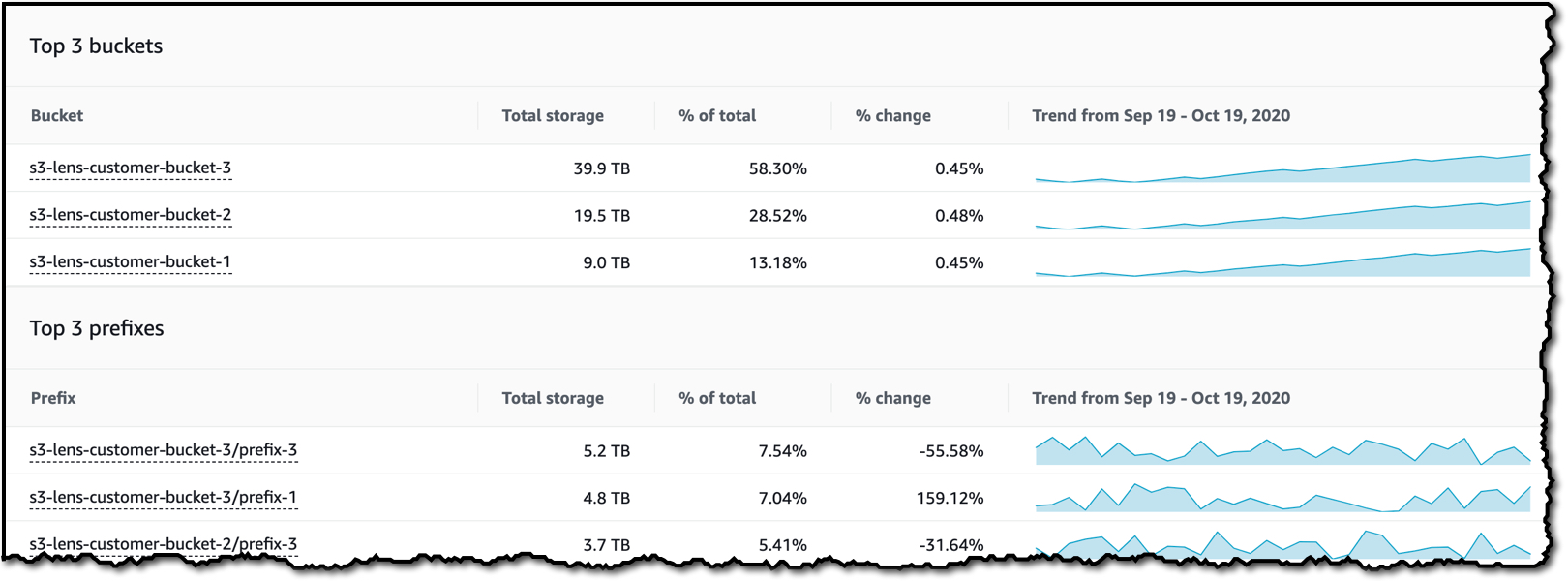
Lastly, the dashboard contains information about the top 3 buckets and prefixes and the associated trends.

As I have shown, S3 Storage Lens delivers more than 29 individual metrics on S3 storage usage and activity for all accounts in your organization. These metrics are available in the S3 console to visualize storage usage and activity trends in a dashboard, with contextual recommendations that make it easy to take immediate action. In addition to the dashboard in the S3 console, you can export metrics in CSV or Parquet format to an S3 bucket of your choice for further analysis with other tools including Amazon QuickSight, Amazon Athena, or Amazon Redshift to name a few.

Video Walkthrough

If you would like a more indepth look at S3 Storage Lens the team have recorded the following video to explain how this new feature works.

Available Now

S3 Storage Lens is available in all commercial AWS Regions. You can use S3 Storage Lens with the Amazon S3 API, CLI, or in the S3 Console. For pricing information, regarding S3 Storage Lens advanced metrics and recommendations, check out the Amazon S3 pricing page. If you’d like to dive a little deeper, then you should check out the documentation or the S3 Storage Lens webpage.

Happy Storing

— Martin


S3 Intelligent-Tiering Adds Archive Access Tiers

Post Syndicated from Marcia Villalba original https://aws.amazon.com/blogs/aws/s3-intelligent-tiering-adds-archive-access-tiers/

We launched S3 Intelligent-Tiering two years ago, which added the capability to take advantage of S3 without needing to have a deep understanding of your data access patterns. Today we are launching two new optimizations for S3 Intelligent-Tiering that will automatically archive objects that are rarely accessed. These new optimizations will reduce the amount of […]

Handling data erasure requests in your data lake with Amazon S3 Find and Forget

Post Syndicated from Chris Deigan original https://aws.amazon.com/blogs/big-data/handling-data-erasure-requests-in-your-data-lake-with-amazon-s3-find-and-forget/

Data lakes are a popular choice for organizations to store data around their business activities. Best practice design of data lakes impose that data is immutable once stored, but new regulations such as the European General Data Protection Regulation (GDPR), California Consumer Privacy Act (CCPA), and others have created new obligations that operators now need to be able to erase private data from their data lake when requested.

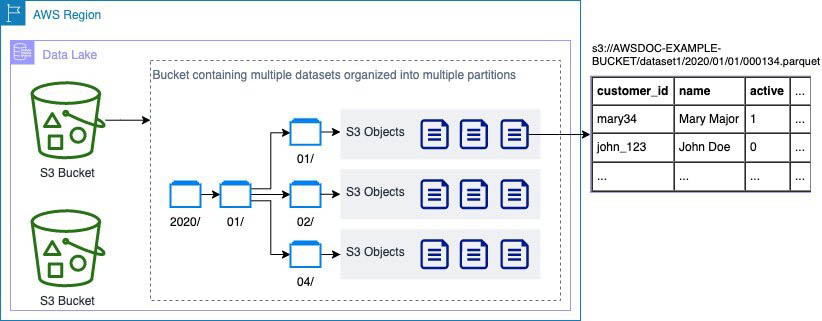
When asked to erase an individual’s private data, as a data lake operator you have to find all the objects in your Amazon Simple Storage Service (Amazon S3) buckets that contain data relating to that individual. This can be complex because data lakes contain many S3 objects (each of which may contain multiple rows), as shown in the following diagram. You often can’t predict which objects contain data relating to an individual, so you need to check each object. For example, if the user mary34 asks to be removed, you need to check each object to determine if it contains data relating to mary34. This is the first challenge operators face: identifying which objects contain data of interest.

After you identify objects containing data of interest, you face a second challenge: you need to retrieve the object from the S3 bucket, remove relevant rows from the file, put a new version of the object into S3, and make sure you delete any older versions.

Locating and removing data manually can be time-consuming and prone to mistakes, considering the large number of objects typically in data lakes.

Amazon S3 Find and Forget solves these challenges with ready-to-use automations. It allows you to remove records from data lakes of any size that are in AWS Glue Data Catalog. The solution includes a web user interface that you can use and an API that you can use to integrate with your own applications.

Solution overview

Amazon S3 Find and Forget enables you to find and delete records automatically in data lakes on Amazon S3. Using the solution, you can:

  • Define which tables from your AWS Glue Data Catalog contain data you want to erase
  • Manage a queue of identifiers (such as unique customer identifiers) to erase
  • Erase rows from your data lake matching the queued record identifiers
  • Access a log of all actions taken by the solution

You can use Amazon S3 Find and Forget to work with data lakes stored on Amazon S3 in a supported file format.

The solution is developed and distributed as open-source software that you deploy and run inside your own AWS account. When deploying this solution, you only pay for the AWS services consumed to run it. We recommend reviewing the Cost Estimate guide and creating Amazon CloudWatch Billing Alarms to monitor charges before deploying the solution in your own account.

When you handle requests to remove data, you add the identifiers through the web interface or API to a Deletion Queue. The identifiers remain in the queue until you start a Deletion Job. The Deletion Job processes the queue and removes matching rows from objects in your data lake.

Where your requirements allow it, batching deletions can provide significant cost savings by minimizing the number of times the data lake needs to be re-scanned and processed. For example, you could start a Deletion Job once a week to process all requests received in the preceding week.

Solution demonstration

This section provides a demonstration of using Amazon S3 Find and Forget’s main features. To deploy the solution in your own account, refer to the User Guide.

For this demonstration, I have prepared in advance:

The first step is to deploy the solution using AWS CloudFormation by following the instructions in the User Guide. The CloudFormation stack can take 20-30 minutes to deploy depending on the options chosen when deploying.

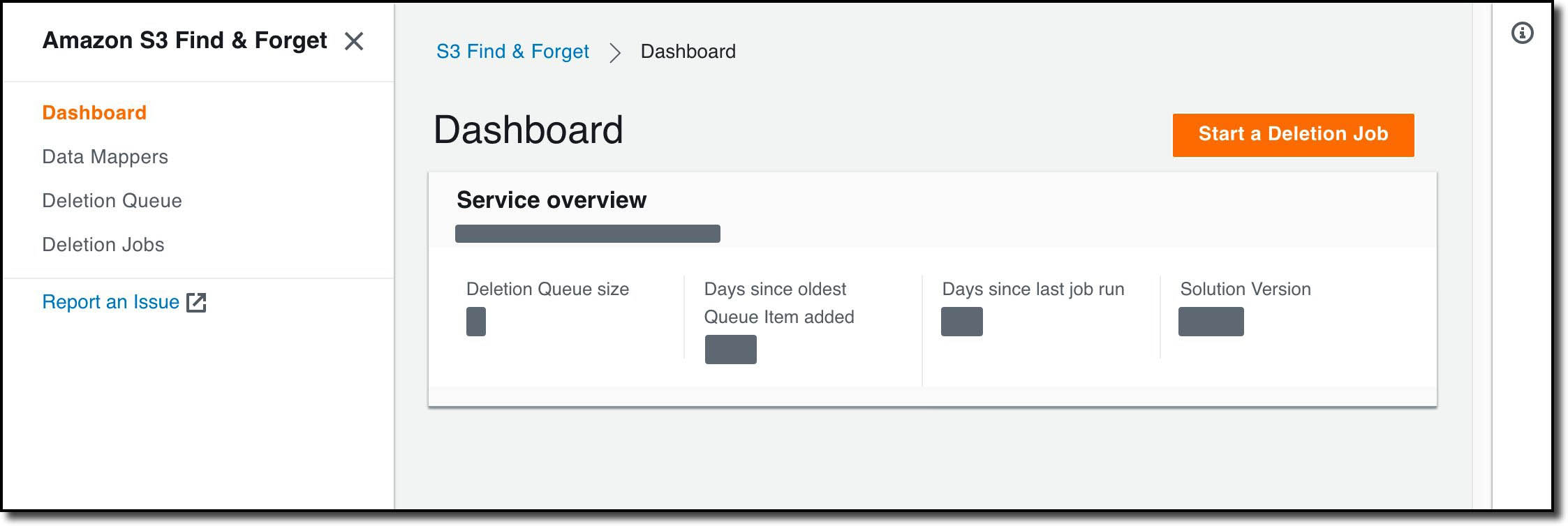
Once deployed, I visit the web user interface by going to the address in the WebUIUrl CloudFormation stack output. Using a temporary password emailed to the address I provided in my CloudFormation parameters, I login and set a password for future use. I then see a dashboard with some base metrics for my Amazon S3 Find and Forget deployment:

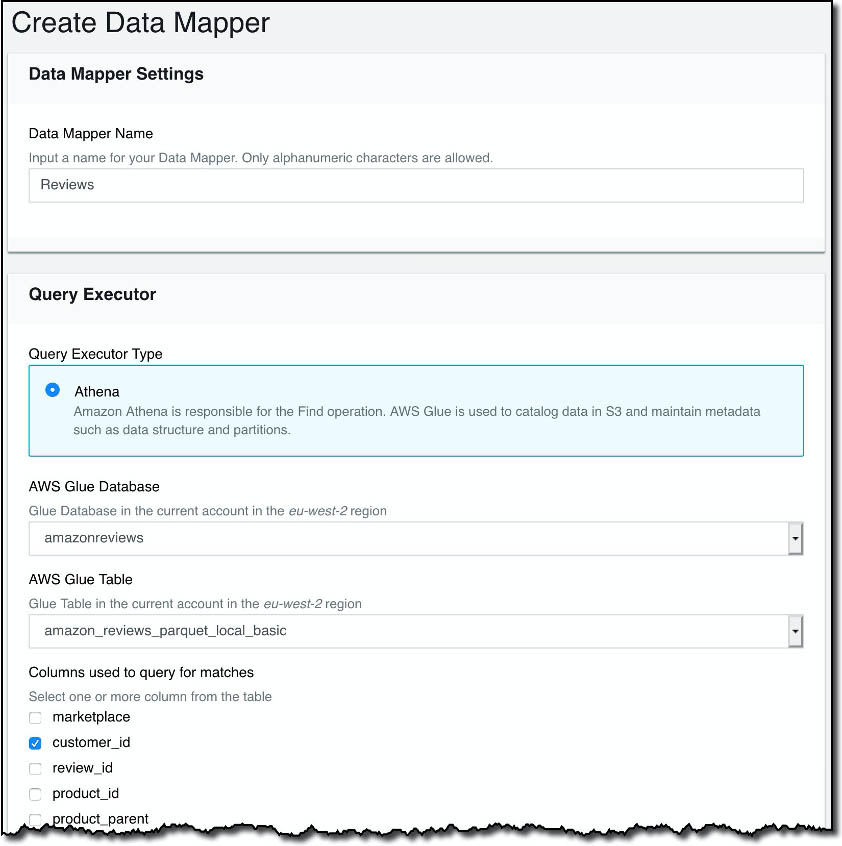
I now need to create a Data Mapper so that Amazon S3 Find and Forget can find my data lake. To do this, I select Data Mappers, then Create Data Mapper:

On this screen, I give my Data Mapper a name, choose the AWS Glue database and table in my account that I want to operate on, and the columns that I want my deletions to match. In this demonstration, I’m using a copy of the Amazon Customer Reviews Dataset that I copied to my own S3 bucket. I’ll be using the customer_id column to remove data. In the dataset, this field contains a unique identifier for each customer who has created a product review.

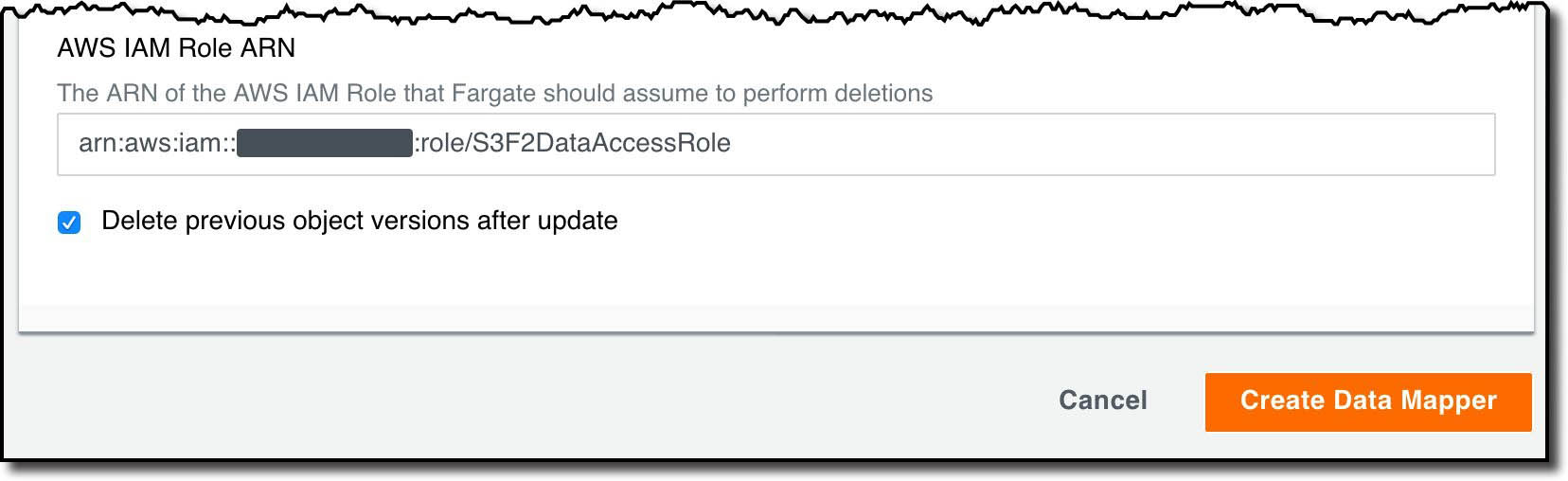
I then specify the IAM role to be used when modifying the objects in S3. I also choose whether I want the old S3 object versions to be deleted for me. I can turn this off if I want to implement my own strategy to manage deleting old object versions, such as by using S3 lifecycle policies.

After choosing Create Data Mapper the Data Mapper is created, and I am prompted to grant permissions for S3 Find and Forget to operate in my bucket. In the Data Mapper list, I select my new Data Mapper, then choose Generate Access Policies. The interface displays a sample bucket policy that I copy and paste into the bucket policy for my S3 bucket in the AWS Management Console.

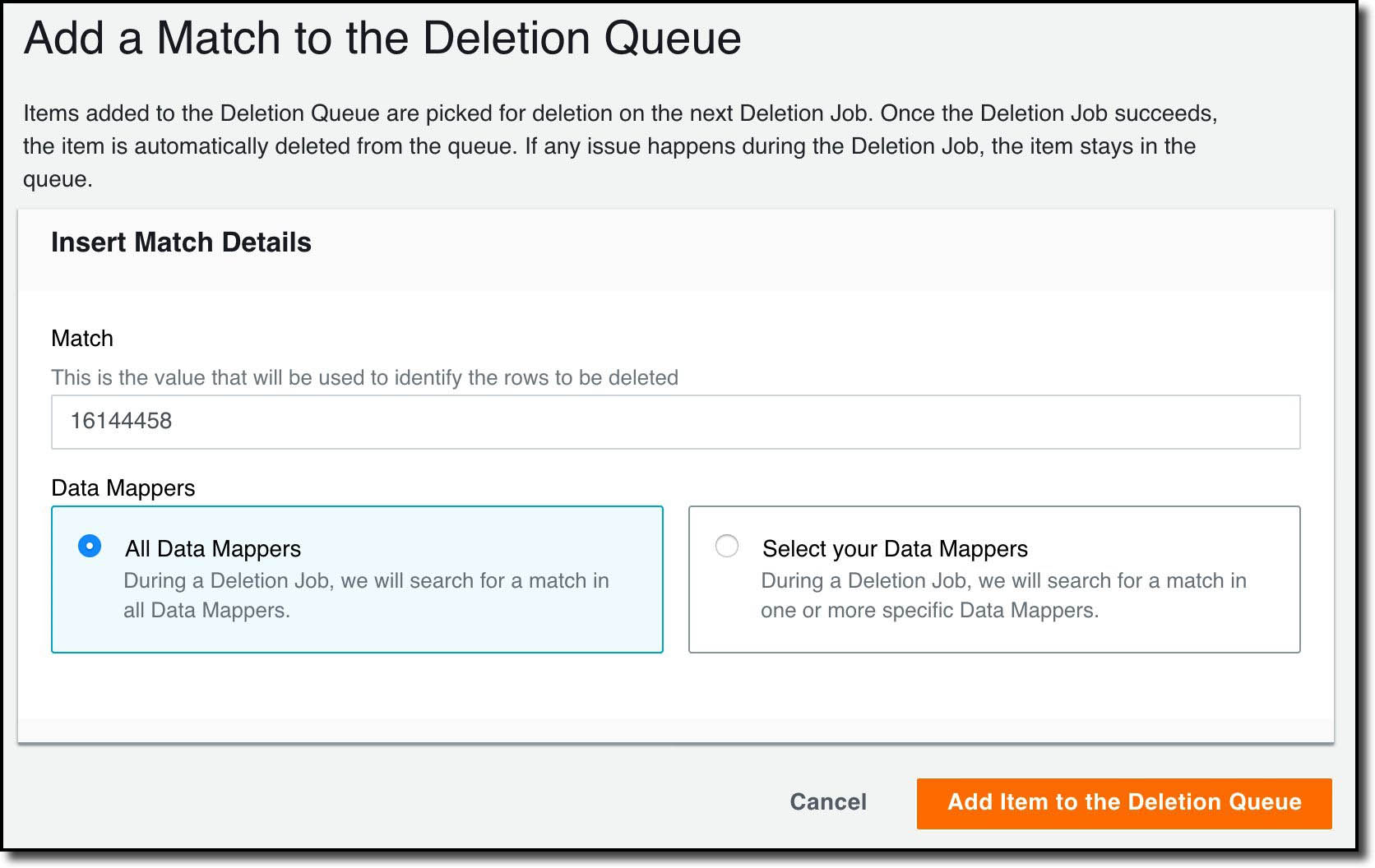
With the Data Mapper set up, I’m now able to add the customers who have requested to have their data deleted to the Deletion Queue. Using their Customer IDs, I go to the Deletion Queue section and select Add Match to the Deletion Queue.

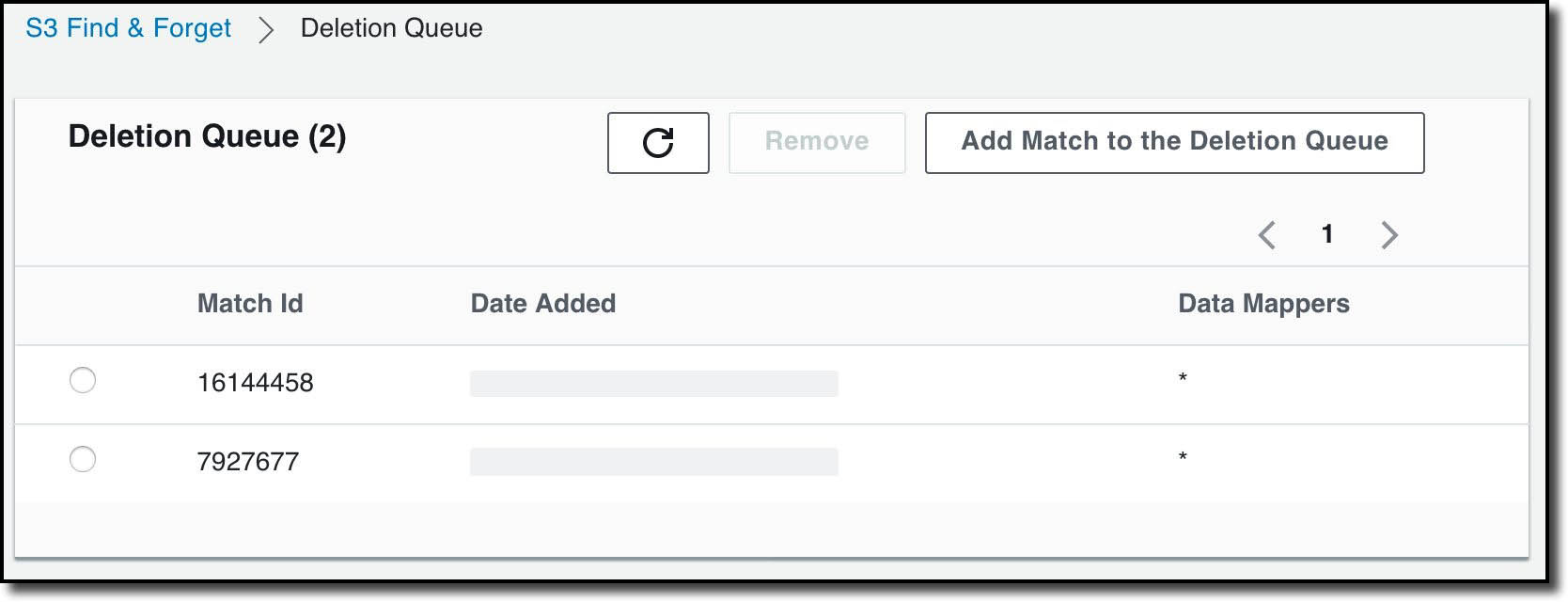
I’ve chosen to delete from all the available Data Mappers, but I can also choose specific ones. Once I’ve added my matches, I can see a list of them on Deletion Queue page:

I can now run a deletion job that will cause the matches to be deleted from the data lake. To do this, I select Deletion Jobs then Start a Deletion Job.

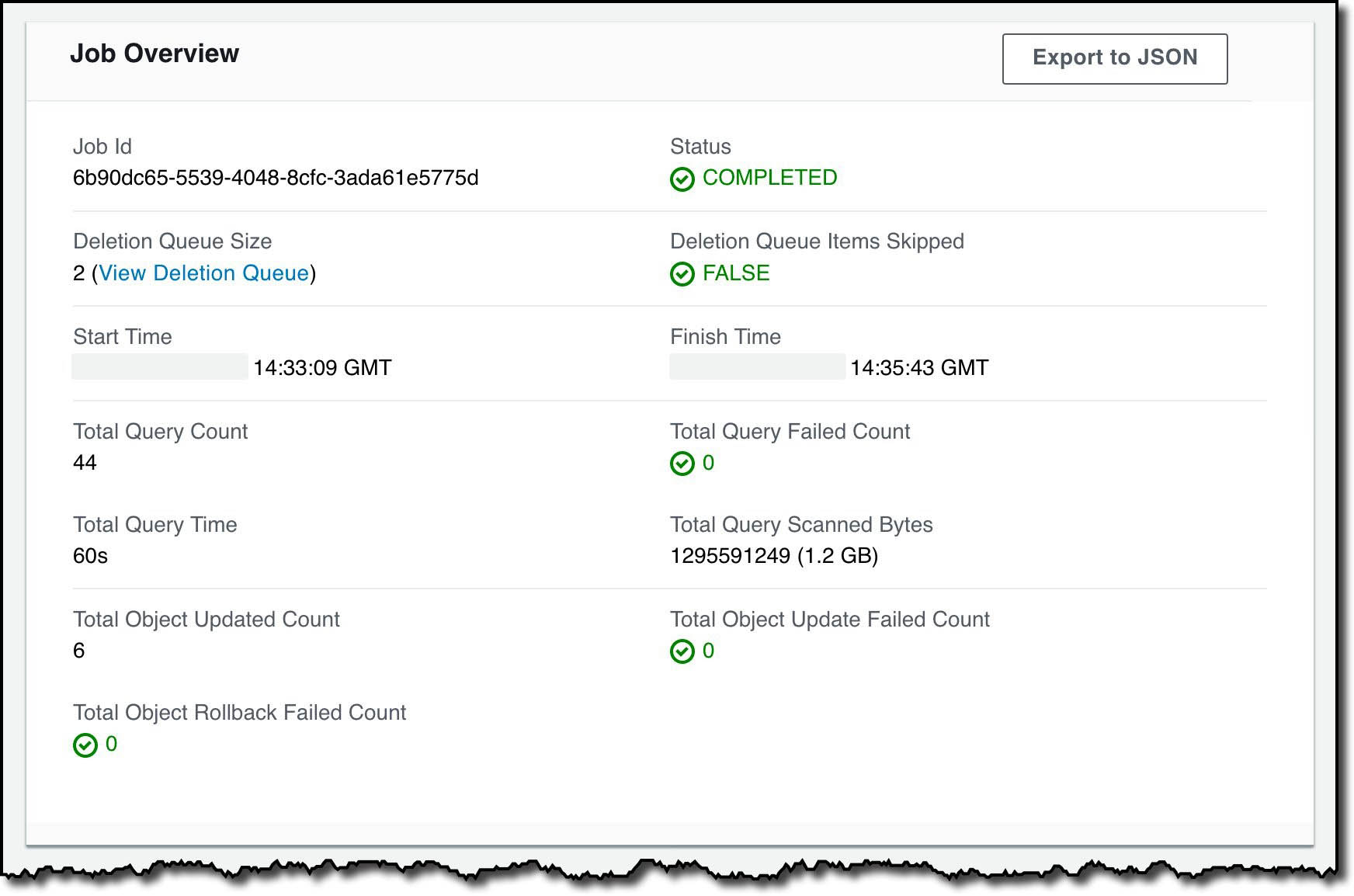
After a few minutes the Deletion Job completes, and I can see metrics collected during the job including that the job took just over two-and-a-half minutes:

There is an Export to JSON option that includes all the metrics shown, more granular information about the Deletion Job, and which S3 objects were modified.

At this point the Deletion Queue is empty, and ready for me to use for future requests.

Solution design

This section includes a brief introduction to how the solution works. More comprehensive design documentation is available in the Amazon S3 Find and Forget GitHub repository.

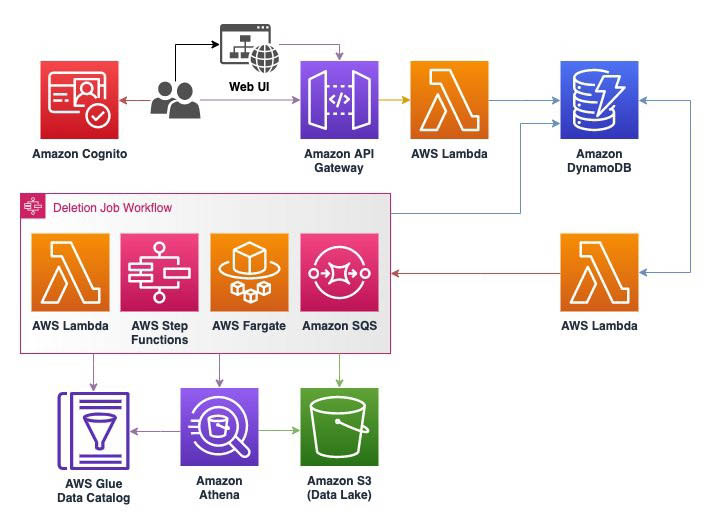
The following diagram illustrates the architecture of this solution.

Amazon S3 Find and Forget uses AWS Serverless services to optimize for cost and scalability. The user interface and API are built using Amazon S3, Amazon Cognito, AWS Lambda, Amazon DynamoDB, and Amazon API Gateway, which automatically scale down when not in use so that there is no expensive baseline cost just for having the solution installed. These AWS services are always available and scale in concert with when the solution is used with a pay-for-what-you-use price model.

The Deletion Job workflow is coordinated using AWS Step Functions, Lambda, and Amazon Simple Queue Service (Amazon SQS). The solution uses Step Functions for high-level coordination and state tracking in the workflow, Lambda functions for discrete computation tasks, and Amazon SQS to store queues of repetitive work.

A deletion job has two phases: Find and Forget. In the Find phase, the solution uses Amazon Athena to scan the data lake for objects containing rows matching the identifiers in the deletion queue. For this to work at scale, we built a query planner Lambda function that uses the partition list in the AWS Glue Data Catalog for each data mapper to run an Athena query on each partition, returning the path to S3 objects that contain matches with the identifiers in the Deletion Queue. The object keys are then added to an SQS queue that we refer to as the Object Deletion Queue.

In the Forget phase, deletion workers are started as a service running on AWS Fargate. These workers process each object in the Object Deletion Queue by downloading the objects from the S3 bucket into memory, deleting the rows that contain matched identifiers, then putting a new version of the object to the S3 bucket using the same key. By default, older versions of the object are then deleted from the S3 bucket to make the deletion irreversible. You can alternatively disable this feature to implement your own strategy for deleting old object versions, such as by using an S3 Lifecycle policy.

Note that during the Forget phase, affected S3 objects are replaced at the time they are processed and are subject to the Amazon S3 data consistency model. We recommend that you avoid running a Deletion Job in parallel to a workload that reads from the data lake unless it has been designed to handle temporary inconsistencies between objects.

When the object deletion queue is empty, the Forget phase is complete and a final status is determined for the Deletion Job based on whether any errors occurred (for example, due to missing permissions for S3 objects).

Logs are generated for all actions throughout the Deletion Job, which you can use for reporting or troubleshooting. These are stored in DynamoDB, along with other persistent data including the Data Mappers and Deletion Queue.

Conclusion

In this post, we introduced the Amazon S3 Find and Forget solution, which assists data lake operators to handle data erasure requests they may receive pursuant to regulations such as GDPR, CCPA, and others. We then described features of the solution and how to use it for a basic use case.

You can get started today by deploying the solution from the GitHub repository, where you can also find more documentation of how the solution works, its features, and limits. We are continuing to develop the solution and welcome you to send feedback, feature requests, or questions through GitHub Issues.


About the Authors

Chris Deigan is an AWS Solution Engineer in London, UK. Chris works with AWS Solution Architects to create standardized tools, code samples, demonstrations, and quick starts.


Matteo Figus is an AWS Solution Engineer based in the UK. Matteo works with the AWS Solution Architects to create standardized tools, code samples, demonstrations and quickstarts. He is passionate about open-source software and in his spare time he likes to cook and play the piano.


Nick Lee is an AWS Solution Engineer based in the UK. Nick works with the AWS Solution Architects to create standardized tools, code samples, demonstrations and quickstarts. In his spare time he enjoys playing football and squash, and binge-watching TV shows.


Adir Sharabi is a Solutions Architect with Amazon Web Services. He works with AWS customers to help them architect secure, resilient, scalable and high performance applications in the cloud. He is also passionate about Data and helping customers to get the most out of it.


Cristina Fuia is a Specialist Solutions Architect for Analytics at AWS. She works with customers across EMEA helping them to solve complex problems, design and build data architectures so that they can get business value from analyzing their data.
 

Analyzing Amazon S3 server access logs using Amazon ES

Post Syndicated from Mahesh Goyal original https://aws.amazon.com/blogs/big-data/analyzing-amazon-s3-server-access-logs-using-amazon-es/

When you use Amazon Simple Storage Service (Amazon S3) to store corporate data and host websites, you need additional logging to monitor access to your data and the performance of your application. An effective logging solution enhances security and improves the detection of security incidents. With the advent of increased data storage needs, you can rely on Amazon S3 for a range of use cases and simultaneously looking for ways to analyze your logs to ensure compliance, perform the audit, and discover risks.

Amazon S3 lets you monitor the traffic using the server access logging feature. With server access logging, you can capture and monitor the traffic to your S3 bucket at any time, with detailed information about the source of the request. The logs are stored in the S3 bucket you own in the same Region. This addresses the security and compliance requirements of most organizations. The logs are critical for establishing baselines, analyzing access patterns, and identifying trends. For example, the logs could answer a financial organization’s question about how many requests are made to a bucket and who is making what type of access requests to the objects.

You can discover insights from server access logs through several different methods. One common option is by using Amazon Athena or Amazon Redshift Spectrum and query the log files stored in Amazon S3. However, this solution poses high latency with an exponential growth in volume. It requires further integration with Amazon QuickSight to add visualization capabilities.

You can address this by using Amazon Elasticsearch Service (Amazon ES). Amazon ES is a managed service that makes it easier to deploy, operate, and scale Elasticsearch clusters in the AWS Cloud. Elasticsearch is a popular open-source search and analytics engine for use cases such as log analytics, real-time application monitoring, and clickstream analysis. The service provides support for open-source Elasticsearch APIs, managed Kibana, and integration with other AWS services such as Amazon S3 and Amazon Kinesis for loading streaming data into Amazon ES.

This post walks you through automating ingestion of server access logs from Amazon S3 into Amazon ES using AWS Lambda and visualizing the data in Kibana.

Architecture overview

Server access logging is enabled on source buckets, and logs are delivered to access log bucket. The access log bucket is configured to send an event to the Lambda function when a log file is created. On an event trigger, the Lambda function reads the file, processes the access log, and sends it to Amazon ES. When the logs are available, you can use Kibana to create interactive visuals and analyze the logs over a time period.

When designing a log analytics solution for high-frequency incoming data, you should consider buffering layers to avoid instability in the system. Buffering helps you streamline processes for unpredictable incoming log data. For such use cases, you can take advantage of managed services like Amazon Kinesis Data Streams, Amazon Kinesis Data Firehose, and Amazon Managed Streaming for Apache Kafka (Amazon MSK).

Streaming services buffer data before delivering it to Amazon ES. This helps you avoid overwhelming your cluster with spiky ingestion events. Kinesis Data Firehose can reliably load data into Amazon ES. Kinesis Data Firehose lets you choose a buffer size of 1–100 MiBs and a buffer interval of 60–900 seconds when Amazon ES is selected as the destination. Kinesis Data Firehose also scales automatically to match the throughput of your data and requires no ongoing administration. For more information, see Ingest streaming data into Amazon Elasticsearch Service within the privacy of your VPC with Amazon Kinesis Data Firehose.

The following diagram illustrates the solution architecture.

Prerequisites

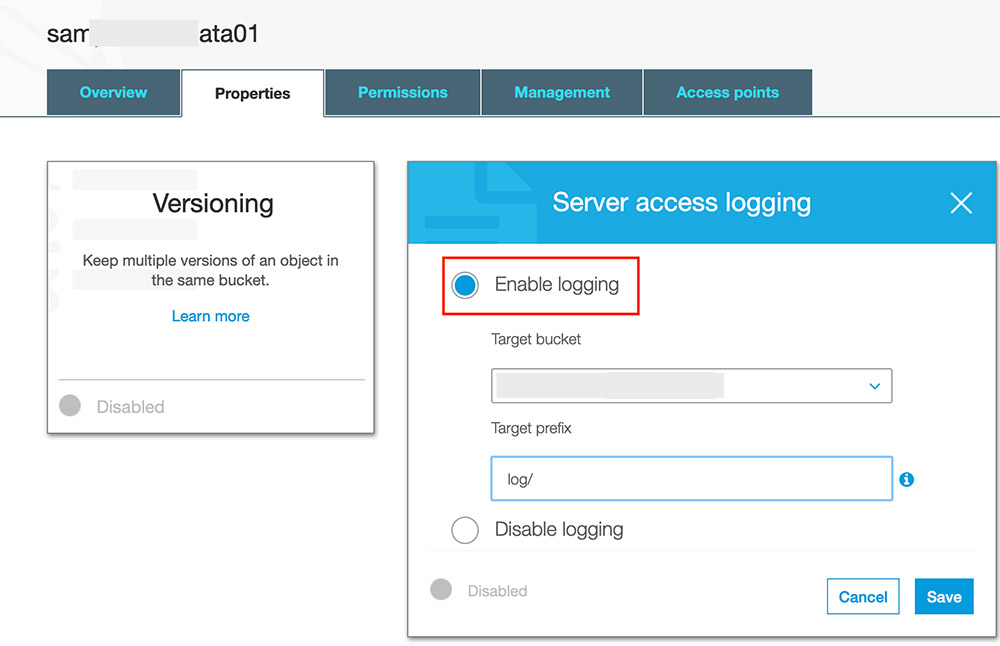
Before creating resources in AWS CloudFormation, you must enable server access logging on the source bucket. Open the S3 bucket properties and look for Amazon S3 access and delivery bucket. See the following screenshot.

You also need an AWS Identity and Access Management (IAM) user with sufficient permissions to interact with the AWS Management Console and related AWS services. The user must have access to create IAM roles and policies via the CloudFormation template.

Setting up the resources with AWS CloudFormation

First, deploy the CloudFormation template to create the core components of the architecture. AWS CloudFormation automates the deployment of technology and infrastructure in a safe and repeatable manner across multiple Regions and multiple accounts with the least amount of effort and time.

  1. Sign in to the console and choose the Region of the bucket storing the access log. For this post, I use us-east-1.
  2. Launch the stack:
  3. Choose Next.
  4. For Stack name, enter a name.
  5. On the Parameters page, enter the following parameters:
    1. VPC Configuration – Select any VPC that has at least two private subnets. The template deploys the Amazon ES service domain and Lambda within the VPC.
    2. Private subnets – Select two private subnets of the VPC. The route tables associated with subnets must have a NAT gateway configuration and VPC endpoint for Amazon S3 to privately connect the bucket from Lambda.
    3. Access log S3 bucket – Enter the S3 bucket where access logs are delivered. The template configures event notification on the bucket to trigger the Lambda function.
    4. Amazon ES domain name – Specify the Amazon ES domain name to be deployed through the template.
  6. Choose Next.
  7. On the next page, choose Next.
  8. Acknowledge resource creation under Capabilities and transforms and choose Create.

The stack takes about 10–15 minutes to complete. The CloudFormation stack does the following:

  • Creates an Amazon ES domain with fine-grained access control enabled on it. Fine-grained access control is configured with a primary user in the internal user database.
  • Creates IAM role for the Lambda function with required permission to read from S3 bucket and write to Amazon ES.
  • Creates Lambda within the same VPC of Amazon ES elastic network interfaces (ENI). Amazon ES places an ENI in the VPC for each of your data nodes. The communication from Lambda to the Amazon ES domain is via this ENI.
  • Configures file create event notification on Access log S3 bucket to trigger the Lambda function. The function code segments are discussed in detail in this GitHub project.

You must make several considerations before you proceed with a production-grade deployment. For this post, I use one primary shard with no replicas. As a best practice, we recommend deploying your domain into three Availability Zones with at least two replicas. This configuration lets Amazon ES distribute replica shards to different Availability Zones than their corresponding primary shards and improves the availability of your domain. For more information about sizing your Amazon ES, see Get started with Amazon Elasticsearch Service: T-shirt-size your domain.

We recommend setting the shard count based on your estimated index size, using 50 GB as a maximum target shard size. You should also define an index template to set the primary and replica shard counts before index creation. For more information about best practices, see Best practices for configuring your Amazon Elasticsearch Service domain.

For high-frequency incoming data, you can rotate indexes either per day or per week depending on the size of data being generated. You can use Index State Management to define custom management policies to automate routine tasks and apply them to indexes and index patterns.

Creating the Kibana user

With Amazon ES, you can configure fine-grained users to control access to your data. Fine-grained access control adds multiple capabilities to give you tighter control over your data. This feature includes the ability to use roles to define granular permissions for indexes, documents, or fields and to extend Kibana with read-only views and secure multi-tenant support. For more information on granular access control, see Fine-Grained Access Control in Amazon Elasticsearch Service.

For this post, you create a fine-grained role for Kibana access and map it to a user.

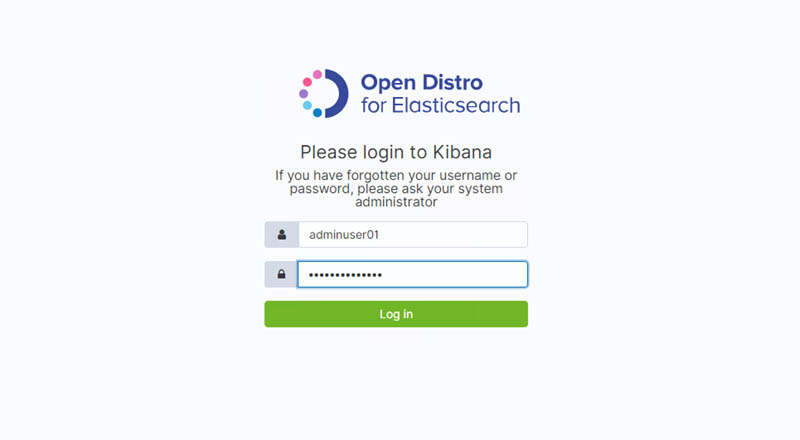
  1. Navigate to Kibana and enter the primary user credentials:
    1. User name – adminuser01
    2. Password – StrongP@ssw0rd

To access Kibana, you must have access to the VPC. For more information about accessing Kibana, see Controlling Access to Kibana.

  1. Choose Security, Roles.
  2. For Role name, enter kibana_only_role.
  3. For Cluster-wide permissions, choose cluster_composite_ops_ro.
  4. For Index patterns, enter access-log and kibana.
  5. For Permissions: Action Groups, choose read, delete, index, and manage.
  6. Choose Save Role Definition.
  7. Choose Security, Internal User Database, and Create a New User.
  8. For Open Distro Security Roles, choose Kibana_only_role (created earlier).
  9. Choose Submit.

The user kibanauser01 now has full access to Kibana and access-logs indexes. You can log in to Kibana with this user and create the visuals and dashboards.

Building dashboards

You can use Kibana to build interactive visuals and analyze the trends and combine the visuals for different use cases in a dashboard. For example, you may want to see the number of requests made to the buckets in the last two days.

  1. Log in to Kibana using kibanauser01.
  2. Create an index pattern and set the time range
  3. On the Visualize section of your Kibana dashboard, add a new visualization.
  4. Choose Vertical Bar.

You can select any time range and visual based on your requirements.

  1. Choose the index pattern and then configure your graph options.
  2. In the Metrics pane, expand Y-Axis.
  3. For Aggregation, choose Count.
  4. For Custom Label, enter Request Count.
  5. Expand the X-Axis
  6. For Aggregation, choose Terms.
  7. For Field, choose bucket.
  8. For Order By, choose metric: Request Count.
  9. Choose Apply changes.
  10. Choose Add sub-bucket and expand the Split Series
  11. For Sub Aggregation, choose Date Histogram.
  12. For Field, choose requestdatetime.
  13. For Interval, choose Daily.
  14. Apply the changes by choosing the play icon at the top of the page.

You should see the visual on the right side, similar to the following screenshot.

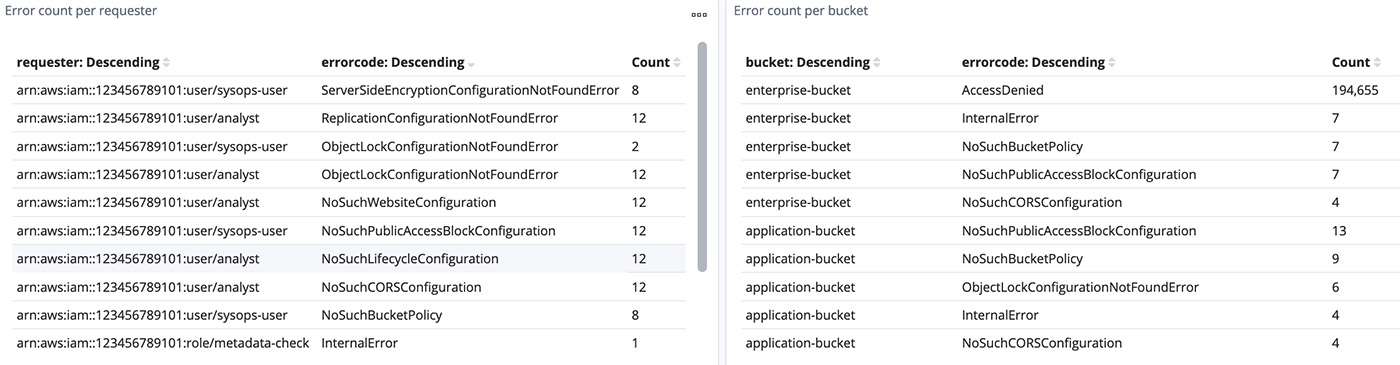
You can combine graphs of different use cases into a dashboard. I have built some example graphs for general use cases like the number of operations per bucket, user action breakdown for buckets, HTTPS status rate, top users, and tabular formatted error details. See the following screenshots.

Cleaning up

Delete all the resources deployed through the CloudFormation template to avoid any unintended costs.

  1. Disable the access log on source bucket.
  2. On to the CloudFormation console, identify the stacks appropriately, and delete

Summary

This post detailed a solution to visualize and monitor Amazon S3 access logs using Amazon ES to ensure compliance, perform security audits, and discover risks and patterns at scale with minimal latency. To learn about best practices of Amazon ES, see Amazon Elasticsearch Service Best Practices. To learn how to analyze and create a dashboard of data stored in Amazon ES, see the AWS Security Blog.


About the Authors

Mahesh Goyal is a Data Architect in Big Data at AWS. He works with customers in their journey to the cloud with a focus on big data and data warehouses. In his spare time, Mahesh likes to listen to music and explore new food places with his family.