Amazon FSx for Lustre provides fully managed shared storage with the scalability and high performance of the open-source Lustre file systems to support your Linux-based workloads. FSx for Lustre is for workloads where storage speed and throughput matter. This is because FSx for Lustre helps you avoid storage bottlenecks, increase utilization of compute resources, and decrease time to value for workloads that include artificial intelligence (AI) and machine learning (ML), high performance computing (HPC), financial modeling, and media processing. FSx for Lustre integrates natively with Amazon Simple Storage Service (Amazon S3), synchronizing changes in both directions with automatic import and export, so that you can access your Amazon S3 data lakes through a high-performance POSIX-compliant file system on demand.
Today, I’m excited to announce file release for FSx for Lustre. This feature helps you manage your data lifecycle by releasing file data that has been synchronized with Amazon S3. File release frees up storage space so that you can continue writing new data to the file system while retaining on-demand access to released files through the FSx for Lustre lazy loading from Amazon S3. You specify a directory to release from, and optionally a minimum amount of time since last access, so that only data from the specified directory, and the minimum amount of time since last access (if specified), is released. File release helps you with data lifecycle management by moving colder file data to S3 enabling you to take advantage of S3 tiering.
File release tasks are initiated using the AWS Management Console, or by making an API call using the AWS CLI, AWS SDK, or Amazon EventBridge Scheduler to schedule release tasks at regular intervals. You can choose to receive completion reports at the end of your release task if so desired.
Initiating a Release Task As an example, let’s look at how to use the console to initiate a release task. To specify criteria for files to release (for example, directories or time since last access), we define release data repository tasks (DRTs). DRTs release all files that are synchronized with Amazon S3 and that meet the specified criteria. It’s worth noting that release DRTs are processed in sequence. This means that if you submit a release DRT while another DRT (for example, import or export) is in progress, the release DRT will be queued but not processed until after the import or export DRT has completed.
Note: For the data repository association to work, automatic backups for the file system must be disabled (use the Backups tab to do this). Secondly, ensure that the file system and the associated S3 bucket are in the same AWS Region.
I already have an FSx for Lustre file system my-fsx-test.
I create a data repository association, which is a link between a directory on the file system and an S3 bucket or prefix.
I specify the name of the S3 bucket or an S3 prefix to be associated with the file system.
After the data repository association has been created, I select Create release task.
The release task will release directories or files that you want to release based on your specific criteria (again, important to remember that these files or directories must be synchronized with an S3 bucket in order for the release to work). If you specified the minimum last access for release (in addition to the directory), files that have not been accessed more recently than that will be released.
In my example, I chose to Disable completion reports. However, if you choose to Enable completion reports, the release task will produce a report at the end of the release task.
Files that have been released can still be accessed using existing FSx for Lustre functionality to automatically retrieve data from Amazon S3 back to the file system on demand. This is because, although released, their metadata stays on the file system.
File release won’t automatically prevent your file system from becoming full. It remains important to ensure that you don’t write more data than the available storage capacity before you run the next release task.
Now Available File release on FSx for Lustre is available today in all AWS Regions where FSx for Lustre is supported, on all new or existing S3-linked file systems running Lustre version 2.12 or later. With file release on FSx for Lustre, there is no additional cost. However, if you release files that you later access again from the file system, you will incur normal Amazon S3 request and data retrieval costs where applicable when those files are read back into the file system.
Welcome to the fifth annual AWS Storage Day! This virtual event is happening today starting at 9:00 AM Pacific Time (12:00 PM Eastern Time) and is available for you to watch on the AWS On Air Twitch channel. The first AWS Storage Day was hosted in 2019, and this event has grown into an innovation day that we look forward to delivering to you every year. In last year’s Storage Day post, I wrote about the constant innovations in AWS Storage aimed at helping you put your data to work while keeping it secure and protected. This year, Storage Day is focused on storage for AI/ML, data protection and resiliency, and the benefits of moving to the cloud.
AWS Storage Day Key Themes When it comes to storage for AI/ML, data volumes are increasing at an unprecedented rate, exploding from terabytes to petabytes and even to exabytes. With a modern data architecture on AWS, you can rapidly build scalable data lakes, use a broad and deep collection of purpose-built data services, scale your systems at a low cost without compromising performance, share data across organizational boundaries, and manage compliance, security, and governance, allowing you to make decisions with speed and agility at scale. To train machine learning models and build Generative AI applications, you must have the right data strategy in place. So, I’m happy to see that, among the list of sessions to look forward to at the live event, the Optimize generative AI and ML with AWS Infrastructure session will discuss how you can transform your data into meaningful insights.
Whether you’re just getting started with the cloud, planning to migrate applications to AWS, or already building applications on AWS, we have resources to help you protect your data and meet your business continuity objectives. Our data protection and resiliency features and solutions can help you meet your business continuity goals and deliver disaster recovery during data loss events, across recovery point and time objectives (RPO and RTO). With the unprecedented data growth happening in the world today, determining where your data is stored, how it’s secured, and who has access to it is a higher priority than ever. Be sure to join the Protect data in AWS amid a rapidly evolving cyber landscape session to learn more.
When moving data to the cloud, you need to understand where you’re moving it for different use cases, the types of data you’re moving, and the network resources available, among other considerations. There are many reasons to move to the cloud, recently, Enterprise Strategy Group (ESG) validated that organizations reduced compute, networking, and storage costs by up to 66 percent by migrating on-premises workloads to AWS Cloud infrastructure. ESG confirmed that migrating on-premises workloads to AWS provides organizations with reduced costs, increased performance, improved operational efficiency, faster time to value, and improved business agility. We have a number of sessions that discuss how to move to the cloud, based on your use case. I’m most looking forward to the Hybrid cloud storage and edge compute: AWS, where you need it session, which will discuss considerations for workloads that can’t fully move to the cloud.
Well, it’s been 15 years since the launch of Amazon EBS was announced, and today we celebrate 15 years of this service. If you were one of the original users who put Amazon EBS to good use and provided us with the very helpful feedback that helped us invent and simplify, iterate and improve, I’m sure you can’t believe how time flies. Today, Amazon EBS handles more than 100 trillion I/O operations daily, and over 390 million EBS volumes are created every day.
If you’re new to Amazon EBS, join us for a fireside chat with Matt Garman, Senior Vice President, Sales, Marketing, and Global Services at AWS, and learn the strategy and customer challenges behind the launch of the service in 2008. You’ll also hear from long-term EBS customer, Stripe, about its growth with EBS since Stripe was launched 12 years ago.
Amazon EBS has continuously improved its scalability and performance to support more customer workloads as the direct storage attachment for Amazon EC2 instances. With the launch of Amazon EC2 M7i instances, powered by custom 4th Generation Intel Xeon Scalable processors, on August 2, you can attach up to 128 Amazon EBS volumes, an increase from 28 on a previous generation M6i instance. The higher number of volume attachments means you can increase storage density per instance and improve resource utilization, reducing total compute cost.
You can host up to 127 containers per instance for larger database applications and scale them more cost effectively before needing to provision more instances and only pay for resources you need. With a higher number of volume attachments, you can fully utilize the memory and vCPU available on these powerful M7i instances as your database storage footprint grows. EBS is also increasing the number of multi-volume snapshots you can create, for up to 128 EBS volumes attached to an instance, enabling you to create crash-consistent backups of all volumes attached to an instance.
Join the 15 years of innovations with Amazon EBS session for a discussion about how the original vision for Amazon EBS has evolved to meet your growing demands for cloud infrastructure.
Mountpoint for Amazon S3 Now generally available, Mountpoint for Amazon S3 is a new open source file client that delivers high throughput access, lowering compute costs for data lakes on Amazon S3. Mountpoint for Amazon S3 is a file client that translates local file system API calls to S3 object API calls. Using Mountpoint for Amazon S3, you can mount an Amazon S3 bucket as a local file system on your compute instance, to access your objects through a file interface with the elastic storage and throughput of Amazon S3. Mountpoint for Amazon S3 supports sequential and random read operations on existing files, and sequential write operations for creating new files.
The Deep dive and demo of Mountpoint for Amazon S3 session demonstrates how to use the file client to access objects in Amazon S3 using file APIs, making it easier to store data at scale and maximize the value of your data with analytics and machine learning workloads. Read this blog post to learn more about Mountpoint for Amazon S3 and how to get started, including a demo.
Put Cold Storage to Work Faster with Amazon S3 Glacier Flexible Retrieval Amazon S3 Glacier Flexible Retrieval improves data restore time by up to 85 percent, at no additional cost. Faster data restores automatically apply to the Standard retrieval tier when using Amazon S3 Batch Operations. These restores begin to return objects within minutes, so you can process restored data faster. Processing restored data in parallel with ongoing restores helps you accelerate data workflows and quickly respond to business needs. Now, whether you’re transcoding media, restoring operational backups, training machine learning models, or analyzing historical data, you can speed up your data restores from archive.
Join the Maximize the value of cold data with Amazon S3 Glacier session to learn how Amazon S3 Glacier is helping organizations of all sizes and from all industries transform their data archiving to unlock business value, increase agility, and save on storage costs. Read this blog post to learn more about the Amazon S3 Glacier Flexible Retrieval performance improvements and follow step-by-step guidance on how to get started with faster standard retrievals from S3 Glacier Flexible Retrieval.
Supporting a Broad Spectrum of File Workloads To serve a broad spectrum of use cases that rely on file systems, we offer a portfolio of file system services, each targeting a different set of needs. Amazon EFS is a serverless file system built to deliver an elastic experience for sharing data across compute resources. Amazon FSx makes it easier and cost-effective for you to launch, run, and scale feature-rich, high-performance file systems in the cloud, enabling you to move to the cloud with no changes to your code, processes, or how you manage your data.
Power ML research and big data analytics with Amazon EFS Amazon EFS offers serverless and fully scalable file storage, designed for high scalability in both storage capacity and throughput performance. Just last week, we announced enhanced support for faster read and write IOPS, making it easier to power more demanding workloads. We’ve improved the performance capabilities of Amazon EFS by adding support for up to 55,000 read IOPS and up to 25,000 write IOPS per file system. These performance enhancements help you to run more demanding workflows, such as machine learning (ML) research with KubeFlow, financial simulations with IBM Symphony, and big data processing with Domino Data Lab, Hadoop, and Spark.
Join the Build and run analytics and SaaS applications at scale session to hear how recent Amazon EFS performance improvements can help power more workloads.
Multi-AZ file systems on Amazon FSx for OpenZFS You can now use a multi-AZ deployment option when creating file systems on Amazon FSx for OpenZFS, making it easier to deploy file storage that spans multiple AWS Availability Zones to provide multi-AZ resilience for business-critical workloads. With this launch, you can take advantage of the power, agility, and simplicity of Amazon FSx for OpenZFS for a broader set of workloads, including business-critical workloads like database, line-of-business, and web-serving applications that require highly available shared storage that spans multiple AZs.
The new multi-AZ file systems are designed to deliver high levels of performance to serve a broad variety of workloads, including performance-intensive workloads such as financial services analytics, media and entertainment workflows, semiconductor chip design, and game development and streaming, up to 21 GB per second of throughput and over 1 million IOPS for frequently accessed cached data, and up to 10 GB per second and 350,000 IOPS for data accessed from persistent disk storage.
Join the Migrate NAS to AWS to reduce TCO and gain agility session to learn more about multi-AZs with Amazon FSx for OpenZFS.
New, Higher Throughput Capacity Levels on Amazon FSx for Windows File Server Performance improvements for Amazon FSx for Windows File Server help you accelerate time-to-results for performance-intensive workloads such as SQL Server databases, media processing, cloud video editing, and virtual desktop infrastructure (VDI).
We’re adding four new, higher throughput capacity levels to increase the maximum I/O available up to 12 GB per second from the previous I/O of 2 GB per second. These throughput improvements come with correspondingly higher levels of disk IOPS, designed to deliver an increase up to 350,000 IOPS.
In addition, by using FSx for Windows File Server, you can provision IOPS higher than the default 3 IOPS per GiB for your SSD file system. This allows you to scale SSD IOPS independently from storage capacity, allowing you to optimize costs for performance-sensitive workloads.
Join the Migrate NAS to AWS to reduce TCO and gain agility session to learn more about the performance improvements for Amazon FSx for Windows File Server.
Logically Air-Gapped Vault for AWS Backup AWS Backup is a fully managed, policy-based data protection solution that enables customers to centralize and automate backup restores across 19 AWS services (spanning compute, storage, and databases) and third-party applications such as VMware Cloud on AWS and on-premises, as well as SAP HANA on Amazon EC2.
Today, we’re announcing the preview of logically air-gapped vault as a new type of AWS Backup Vault that acts as an additional layer of protection to mitigate against malware events. With logically air-gapped vault, customers can recover their application data through a different trusted account.
Join the Deep dive on data recovery for ransomware events session to learn more about logically air-gapped vault for AWS Backup.
Copy Data to and from Other Clouds with AWS DataSync AWS DataSync is an online data movement and discovery service that simplifies data migration and helps you quickly, easily, and securely transfer your file or object data to, from, and between AWS storage services. In addition to support of data migration to and from AWS storage services, DataSync supports copying to and from other clouds such as Google Cloud Storage, Azure Files, and Azure Blob Storage. Using DataSync, you can move your object data at scale between Amazon S3 compatible storage on other clouds and AWS storage services such as Amazon S3. We’re now expanding the support of DataSync for copying data to and from other clouds to include DigitalOcean Spaces, Wasabi Cloud Storage, Backblaze B2 Cloud Storage, Cloudflare R2 Storage, and Oracle Cloud Storage.
Join the Identify and accelerate data migrations at scale session to learn more about this expanded support for DataSync.
Join Us Online Join us today for the AWS Storage Day virtual event on the AWS On Air channel on Twitch. The event will be live starting at 9:00 AM Pacific Time (12:00 PM Eastern Time) on August 9. All sessions will be available on demand approximately two days after Storage Day.
The Amazon S3 Glacier storage classes provide you with long-term, secure, and durable storage options to optimally archive your data at the lowest cost. The Amazon S3 Glacier storage classes (Amazon S3 Glacier Instant Retrieval, Amazon S3 Glacier Flexible Retrieval, and Amazon S3 Glacier Deep Archive) are purpose-built for colder data, providing you with retrieval flexibility from milliseconds to days, in addition to the ability to store archive data for as low as $1 per terabyte per month.
Many customers tell us that they are keeping their data for longer periods of time because they recognize its future value potential, and that they are already monetizing subsets of their archival data, or plan to use large sets of their archive data in the future. Modern data archiving is not only about optimizing storage costs for cold data; it’s also about setting up mechanisms so that when you need to put that data to work for your business, you can access it as quickly as your business requirements demand.
In 2022, AWS customers restored over 32 billion objects from Amazon S3 Glacier. Customers need to retrieve archived objects quickly when transcoding media, restoring operational backups, training machine learning (ML) models, or analyzing historical data. While customers using S3 Glacier Instant Retrieval can access their data in just milliseconds, S3 Glacier Flexible Retrieval is lower cost and provides three retrieval options: expedited retrievals in 1–5 minutes, standard retrievals in 3–5 hours, and free bulk retrievals in 5–12 hours. S3 Glacier Deep Archive is our lowest cost storage class and provides data retrieval within 12 hours using the standard retrieval option or 48 hours using the bulk retrieval option.
In November 2022, Amazon S3 Glacier improved restore throughput by up to 10 times at no additional cost when retrieving large volumes of archived data in S3 Glacier Flexible Retrieval and S3 Glacier Deep Archive. With Amazon S3 Batch Operations, you can automatically initiate requests at a faster rate, allowing you to restore billions of objects containing petabytes of data.
To continue the decade-long trend of cold storage innovation, we are announcing today the general availability of faster Standard retrievals from S3 Glacier Flexible Retrieval by up to 85 percent, at no additional cost. Faster data restores automatically apply to the Standard retrieval tier when using S3 Batch Operations.
Using S3 Batch Operations, you can restore archived data at scale by providing a manifest of objects to be retrieved and specifying a retrieval tier. With S3 Batch Operations, restores in the Standard retrieval tier now typically begin to return objects to you within minutes, down from 3–5 hours, so you can easily speed up your data restores from archive.
Additionally, S3 Batch Operations improves overall restore throughput by applying new performance optimizations to your jobs. As a result, you can restore your data faster and process restored objects sooner. Processing restored data in parallel with ongoing restores helps you accelerate data workflows and quickly respond to business needs.
Getting Started with Faster Standard Retrievals from S3 Glacier Flexible Retrieval To restore archived data with this performance improvement, you can use S3 Batch Operations to perform both large- and small-scale batch operations on S3 objects. S3 Batch Operations can perform a single operation on lists of S3 objects that you specify. You can use S3 Batch Operations through the AWS Management Console, AWS Command Line Interface (AWS CLI), SDKs, or REST API.
To create a batch job, choose Batch Operations on the left navigation pane of the Amazon S3 console and choose Create job. You can select one of the manifest formats, a list of S3 objects that contains object keys that you want to retrieve. If your manifest format is a CSV file, each row in the file must include the bucket name, object key, and, optionally, the object version.
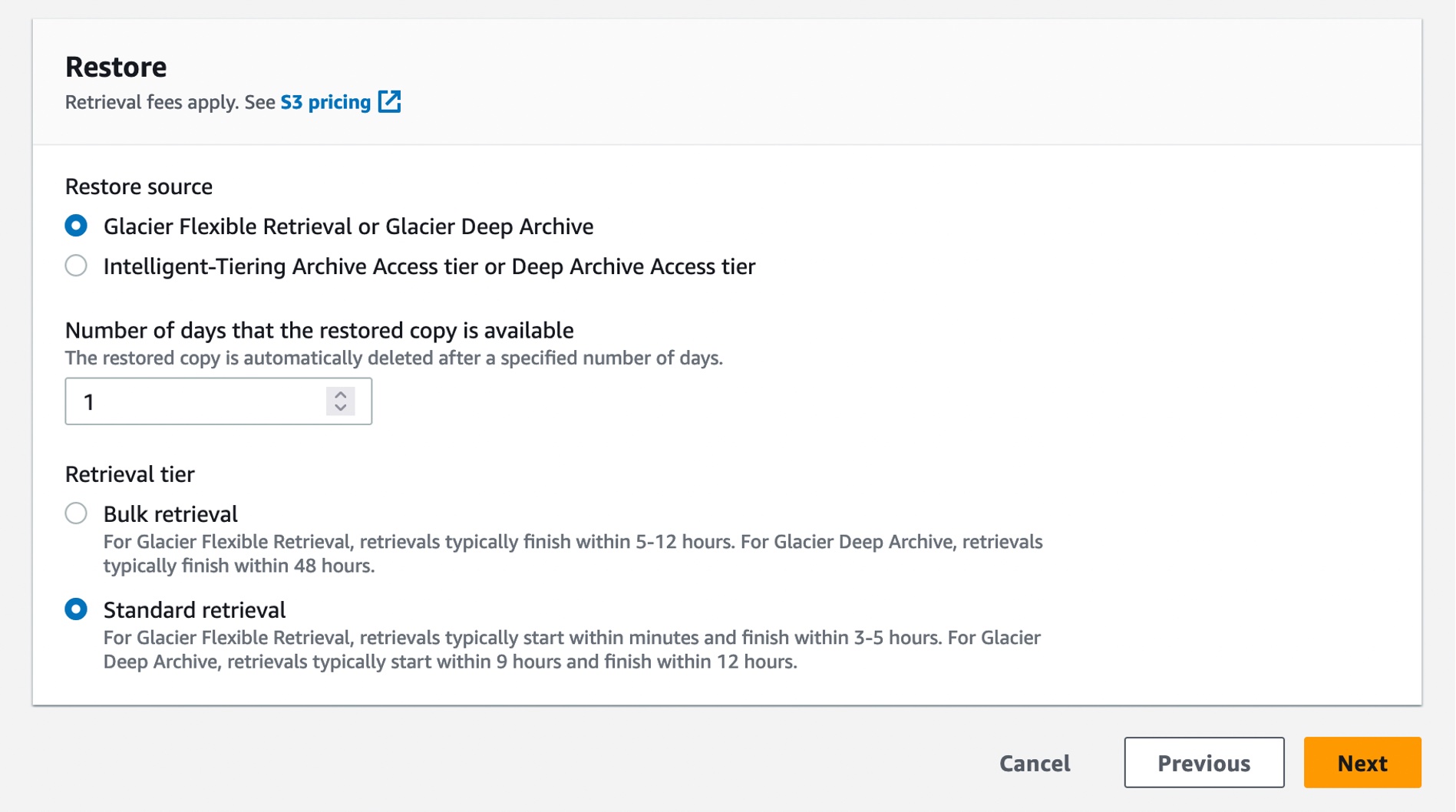
In the next step, choose the operation that you want to perform on all objects listed in the manifest. The Restore operation initiates restore requests for archived objects on a list of S3 objects that you specify. Using a restore operation results in a restore request for every object that is specified in the manifest.
When you restore with the Standard retrieval tier from the S3 Glacier Flexible Retrieval storage class, you automatically get faster retrievals.
You can also create a restore job with S3InitiateRestoreObject job using the AWS CLI:
You can view and update the job status, add notifications and logging, track job failures, and generate completion reports. S3 Batch Operations job activity is recorded as events in AWS CloudTrail. For tracking job events, you can create a custom rule in Amazon EventBridge and send these events to the target notification resource of your choice, such as Amazon Simple Notification Service (Amazon SNS).
When you create an S3 Batch Operations job, you can also request a completion report for all tasks or just for failed tasks. The completion report contains additional information for each task, including the object key name and version, status, error codes, and descriptions of any errors.
Here is the result of a sample retrieval job with 250 objects, each sized 100 MB. As you can see from the Previous restore performance line (blue line at the right), these restores would typically finish in 3–5 hours using Standard retrievals. Now, when you use Standard retrievals with S3 Batch Operations, your job typically starts within minutes, as shown in the Improved restore performance line (orange line at the left), improving data restore time by up to 85 percent.
Now Available Faster standard retrievals for Amazon S3 Glacier Flexible Retrieval are now available in all AWS Regions, including the AWS GovCloud (US) Regions and China Regions. This performance improvement is available to you at no additional cost. You are charged for S3 Batch Operations and data retrievals. For more information, see the S3 pricing page.
Lastly, we published a new ebook titled “Maximize the value of cold storage with Amazon S3 Glacier“. Read this ebook to learn how Amazon S3 Glacier is helping organizations of all sizes and from all industries transform their data archiving to unlock business value, increase agility, and save on storage costs.
I’m really excited for you to start using this new feature, and I look forward to hearing about even more ways you are reinventing your business with archive data.
(Editor’s note: Today, we are changing the title of this regular weekly post from AWS Week in Review to AWS Weekly Roundup to better reflect the mix of recent top news and announcements as well as upcoming events you won’t want to miss.)
It’s taken me some time to finally be comfortable with being in front of a camera, a strange thing for a Developer Advocate to say I know! Last week I joined a couple of my team-mates at the AWS London Studios to record a series of videos that will be published in our Build On AWS YouTube Channel. Build On AWS is for the hands-on, technical AWS cloud builder who wants to become more agile and innovate faster. In the channel, you’ll find dynamic, high-quality content that’s designed for developers, by developers!
This video tells you more about what you’ll find in the channel. Check it out and consider subscribing to not miss out when we publish new content.
Now on to the AWS updates. There was a lot of news related to AWS last week, and I’ve compiled a few announcements and upcoming events you need to know about. Let’s get started!
Last Week’s Launches Here are a few launches from last week that you might have missed:
Microsoft 365 Apps for enterprise now available on Amazon WorkSpaces services – Amazon WorkSpaces is a fully managed, secure, and reliable virtual desktop in the AWS Cloud. With Amazon WorkSpaces, you improve IT agility and maximize user experience, while only paying for the infrastructure that you use. We announced the availability of Microsoft 365 Apps for enterprise on Amazon WorkSpaces. You can bring your own Microsoft 365 licenses (if they meet Microsoft’s licensing requirements) and activate the applications at no additional cost to run Microsoft 365 Apps for enterprise on Amazon WorkSpaces services.
AWS Israel (Tel Aviv) Region is Now Open – You can now securely store data in Israel while serving users in the vicinity with even lower latency. This is because last week we launched the Tel Aviv Region to give customers an additional option for running applications and serving users from data centers located in Israel.
Other AWS News A few more news items and blog posts you might have missed:
Customizable thresholds for health events supported on Amazon CloudWatch Internet Monitor – Until this announcement, the default threshold for overall availability and performance scores to invoke a health event was 95 percent. Now, you can customize the thresholds for when to invoke a health event for internet-facing traffic between your end users and your applications hosted on AWS.
Improved AWS Backup performance for Amazon S3 buckets – Now you can speed up your initial Amazon S3 backup workflow and back up buckets with more than 3 billion objects due to improvements to the speed of backups by up to 10x for buckets with more than 300 million objects. This performance improvement is automatically enabled at no additional cost in all Regions where AWS Backup support for Amazon S3 is available.
For a full list of AWS announcements, be sure to keep an eye on the What’s New at AWS page.
Upcoming AWS Events We have the following upcoming events:
AWS Storage Day (August 9) – A one-day virtual event where you’ll learn how to prepare for AI/ML with the storage decisions you make now, how to do more with your budget by optimizing storage costs for on-premises and cloud data, and how to deliver holistic data protection for your organization, including recovery planning to help protect against ransomware. Learn more and register here.
AWS Summit Mexico City (August 30) – Sign up for the Summit to connect and collaborate with other like-minded folks while learning about AWS.
AWS Community Days (August 12, 19) – Join these community-led conferences where event logistics and content are planned, sourced, and delivered by community leaders: Colombia (August 12), and West Africa (August 19).
P.S. We’re focused on improving our content to provide a better customer experience, and we need your feedback to do so. Take this quick survey to share insights on your experience with the AWS Blog. Note that this survey is hosted by an external company, so the link doesn’t lead to our website. AWS handles your information as described in the AWS Privacy Notice.
Updated on July 6, 2023: This post has been updated to reflect the current guidance around the usage of S3 ACL and to include S3 Access Points and the Block Public Access for accounts and S3 buckets.
Updated on April 27, 2023: Amazon S3 now automatically enables S3 Block Public Access and disables S3 access control lists (ACLs) for all new S3 buckets in all AWS Regions.
Updated on January 8, 2019: Based on customer feedback, we updated the third paragraph in the “What about S3 ACLs?” section to clarify permission management.
In this post, we will discuss Amazon S3 Bucket Policies and IAM Policies and its different use cases. This post will assist you in distinguishing between the usage of IAM policies and S3 bucket policies. We will also discuss how these policies integrate with some default S3 bucket security settings like automatically enabling S3 Block Public Access and disabling S3 access control lists (ACLs).
IAM policies vs. S3 bucket policies
AWS access is managed by setting IAM policies and linking them to IAM identities (users, groups of users, or roles) or AWS resources. A policy is an object in AWS that when associated with an identity or resource, defines their permissions. IAM policies specify what actions are allowed or denied on what AWS resources (e.g. user Alice can read objects from the “Production” bucket but can’t write objects in the “Dev” bucket whereas user Bob can have full access to S3).
S3 bucket policies, on the other hand, are resource-based policies that you can use to grant access permissions to your Amazon S3 buckets and the objects in it. S3 bucket policies can allow or deny requests based on the elements in the policy.(e.g. allow user Alice to PUT but not DELETE objects in the bucket).
Note: You attach S3 bucket policies at the bucket level (i.e. you can’t attach a bucket policy to an S3 object), but the permissions specified in the bucket policy apply to all the objects in the bucket. You can also specify permissions at the object level by putting an object as the resource in the Bucket policy.
IAM policies and S3 bucket policies are both used for access control and they’re both written in JSON using the AWS access policy language. Let’s look at an example policy of each type:
Sample S3 Bucket Policy
This S3 bucket policy enables any IAM principal (user or role) in account 111122223333 to use the Amazon S3 GET Bucket (List Objects) operation.
Note that the S3 bucket policy includes a “Principal” element, which lists the principals that bucket policy controls access for. The “Principal” element is unnecessary in an IAM policy, because the principal is by default the entity that the IAM policy is attached to.
S3 bucket policies (as the name would imply) only control access to S3 resources for the bucket they’re attached to, whereas IAM policies can specify nearly any AWS action. One of the neat things about AWS is that you can actually apply both IAM policies and S3 bucket policies simultaneously, with the ultimate authorization being the least-privilege union of all the permissions (more on this in the section below titled “How does authorization work with multiple access control mechanisms?”).
When to use IAM policies vs. S3 policies
Use IAM policies if:
You need to control access to AWS services other than S3. IAM policies will be easier to manage since you can centrally manage all of your permissions in IAM, instead of spreading them between IAM and S3.
You have numerous S3 buckets each with different permissions requirements. IAM policies will be easier to manage since you don’t have to define a large number of S3 bucket policies and can instead rely on fewer, more detailed IAM policies.
You prefer to keep access control policies in the IAM environment.
Your IAM policies bump up against the size limit (up to 2 kb for users, 5 kb for groups, and 10 kb for roles). S3 supports bucket policies of up 20 kb.
You prefer to keep access control policies in the S3 environment.
You want to apply common security controls to all principals who interact with S3 buckets, such as restricting the IP addresses or VPC a bucket can be accessed from.
If you’re still unsure of which to use, consider which audit question is most important to you:
If you’re more interested in “What can this user do in AWS?” then IAM policies are probably the way to go. You can easily answer this by looking up an IAM user and then examining their IAM policies to see what rights they have.
If you’re more interested in “Who can access this S3 bucket?” then S3 bucket policies will likely suit you better. You can easily answer this by looking up a bucket and examining the bucket policy.
Whichever method you choose, we recommend staying as consistent as possible. Auditing permissions becomes more challenging as the number of IAM policies and S3 bucket policies grows.
What about S3 ACLs?
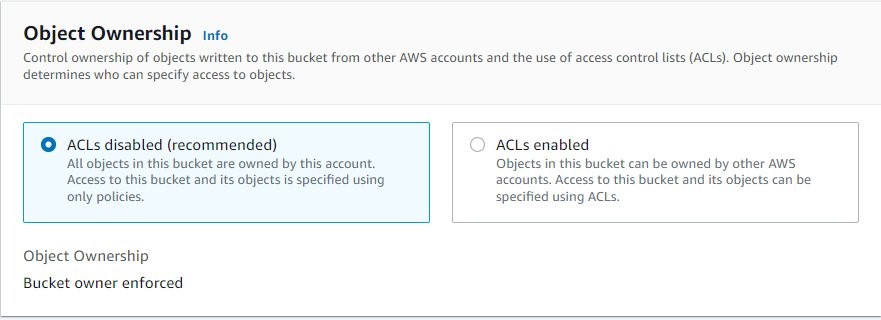
An S3 ACL is a sub-resource that’s attached to every S3 bucket and object. It defines which AWS accounts or groups are granted access and the type of access. You can attach S3 ACLs to both buckets and individual objects within a bucket to manage permissions for those objects. As a general rule, AWS recommends using S3 bucket policies or IAM policies for access control. S3 ACLs is a legacy access control mechanism that predates IAM. By default, Object Ownership is set to the Bucket owner enforced setting and all ACLs are disabled, as can be seen below.
A majority of modern use cases in Amazon S3 no longer require the use of ACLs, and we recommend that you keep ACLs disabled by applying the Bucket owner enforced setting. This approach simplifies permissions management: you can use policies to more easily control access to every object in your bucket, regardless of who uploaded the objects in your bucket. When ACLs are disabled, the bucket owner owns all the objects in the bucket and manages access to data exclusively using access management policies.
S3 bucket policies and IAM policies define object-level permissions by providing those objects in the Resource element in your policy statements. The statement will apply to those objects in the bucket. Consolidating object-specific permissions into one policy (as opposed to multiple S3 ACLs) makes it simpler for you to determine effective permissions for your users and roles.
You can disable ACLs on both newly created and already existing buckets. For newly created buckets, ACLs are disabled by default. In the case of an existing bucket that already has objects in it, after you disable ACLs, the object and bucket ACLs are no longer part of an access evaluation, and access is granted or denied on the basis of policies.
S3 Access Points and S3 Access
In some cases customers have use cases with complex entitlement: Amazon s3 is used to store shared datasets where data is aggregated and accessed by different applications, individuals or teams for different use cases. Managing access to this shared bucket requires a single bucket policy that controls access for dozens to hundreds of applications with different permission levels. As an application set grows, the bucket policy becomes more complex, time consuming to manage, and needs to be audited to make sure that changes don’t have an unexpected impact on another application.
These customers need additional policy space for access to their data, and that buckets. To support these use cases, Amazon S3 provides a feature called Amazon S3 Access Points. Amazon S3 access points simplify data access for any AWS service or customer application that stores data in S3.
Access points are named network endpoints that are attached to buckets that you can use to perform S3 object operations, such as GetObject and PutObject. Each access point has distinct permissions and network controls that S3 applies for any request that is made through that access point. Each access point enforces a customized access point policy that works in conjunction with the bucket policy that is attached to the underlying bucket.
Amazon S3 access points support AWS Identity and Access Management (IAM) resource policies that allow you to control the use of the access point by resource, user, or other conditions. For an application or user to be able to access objects through an access point, both the access point and the underlying bucket must permit the request.
Note that Adding an S3 access point to a bucket doesn’t change the bucket’s ehaviour when the bucket is accessed directly through the bucket’s name or Amazon Resource Name (ARN). All existing operations against the bucket will continue to work as before. Restrictions that you include in an access point policy apply only to requests made through that access point.
Sample Access point policy
This access point policy grants the IAM user Alice permissions to GET and PUT objects through the access point ‘my-access-point’ in account 111122223333.
Public access is granted to buckets and objects through access control lists (ACLs), bucket policies, access point policies, or all. In order to ensure that public access to this bucket and its objects is blocked, you can turn on Block all public on both the bucket level or the account level.
The Amazon S3 Block Public Access feature provides settings for access points, buckets, and accounts to help you manage public access to Amazon S3 resources. By default, new buckets, access points, and objects don’t allow public access. However, users can modify bucket policies, access point policies, or object permissions to allow public access. S3 Block Public Access settings override these policies and permissions so that you can limit public access to these resources.
With S3 Block Public Access, account administrators and bucket owners can easily set up centralized controls to limit public access to their Amazon S3 resources that are enforced regardless of how the resources are created.
If you apply a setting to an account, it applies to all buckets and access points that are owned by that account. Similarly, if you apply a setting to a bucket, it applies to all access points associated with that bucket.
Block Public Access for buckets
These settings apply only to this bucket and its access points. AWS recommends that you turn on Block all public access, but before applying any of these settings, ensure that your applications will work correctly without public access. If you require some level of public access to this bucket or objects within, you can customize the individual settings below to suit your specific storage use cases.
You can use the S3 console, AWS CLI, AWS SDKs, and REST API to grant public access to one or more buckets. This setting is on by default at the account creation, as can be seen below (using the S3 console).
Turning off this session will create a warning in the account, as AWS recommends this setting to be turned un unless public access is required for specific and verified use cases such as static website hosting.
This setting can also be turned on for existing buckets. In the AWS Management Console this is done by opening the Amazon S3 console at https://console.aws.amazon.com/s3/, choosing the name of the bucket you want, choosing the Permissions tab. And Choosing Edit to change the public access settings for the bucket.
Block Public Access for accounts
In order to ensure that public access to all your S3 buckets and objects is blocked, turn on Block all public access. These settings apply account-wide for all current and future buckets and access points. AWS recommends that you turn on Block all public access, but before applying any of these settings, ensure that your applications will work correctly without public access. If you require some level of public access to your buckets or objects, you can customize the individual settings below to suit your specific storage use cases.
You can use the S3 console, AWS CLI, AWS SDKs, and REST API to configure block public access settings for all the buckets in your account. This setting can be turned on in the AWS Management Console by opening the Amazon S3 console at https://console.aws.amazon.com/s3/, and clicking Block Public Access setting for this account on the left panel. And Choosing Edit to change the public access settings for the bucket.
When working with AWS organizations, you can prevent people from modifying the Block Public Access on the account level by adding a Service control policy (SCP) that denies editing this. An example of such a SCP can be seen below:
How does authorization work with multiple access control mechanisms?
Whenever an AWS principal issues a request to S3, the authorization decision depends on the union of all the IAM policies, S3 bucket policies, and S3 ACLs that apply as well as if Block Public Access is enabled on either the account, bucket or access point.
In accordance with the principle of least-privilege, decisions default to DENY and an explicit DENY always trumps an ALLOW. For example, if an IAM policy grants access to an object, the S3 bucket policies denies access to that object, and there is no S3 ACL, then access will be denied. Similarly, if no method specifies an ALLOW, then the request will be denied by default. Only if no method specifies a DENY and one or more methods specify an ALLOW will the request be allowed.
When Amazon S3 receives a request to access a bucket or an object, it determines whether the bucket or the bucket owner’s account has a block public access setting applied. If the request was made through an access point, Amazon S3 also checks for block public access settings for the access point. If there is an existing block public access setting that prohibits the requested access, Amazon S3 rejects the request.
This diagram illustrates the authorization process.
We hope that this post clarifies some of the confusion around the various ways you can control access to your S3 environment.
Using IAM Access Analyzer for S3 to review bucket access
Another interesting feature that can be used is IAM Access Analyzer for S3 to review bucket access. You can use IAM Access Analyzer for S3 to review buckets with bucket ACLs, bucket policies, or access point policies that grant public access. IAM Access Analyzer for S3 alerts you to buckets that are configured to allow access to anyone on the internet or other AWS accounts, including AWS accounts outside of your organization. For each public or shared bucket, you receive findings that report the source and level of public or shared access.
In IAM Access Analyzer for S3, you can block all public access to a bucket with a single click. You can also drill down into bucket-level permission settings to configure granular levels of access. For specific and verified use cases that require public or shared access, you can acknowledge and record your intent for the bucket to remain public or shared by archiving the findings for the bucket.
To provide the best experiences, we use technologies like cookies to store and/or access device information. Consenting to these technologies will allow us to process data such as browsing behavior or unique IDs on this site. Not consenting or withdrawing consent, may adversely affect certain features and functions.
Functional
Always active
The technical storage or access is strictly necessary for the legitimate purpose of enabling the use of a specific service explicitly requested by the subscriber or user, or for the sole purpose of carrying out the transmission of a communication over an electronic communications network.
Preferences
The technical storage or access is necessary for the legitimate purpose of storing preferences that are not requested by the subscriber or user.
Statistics
The technical storage or access that is used exclusively for statistical purposes.The technical storage or access that is used exclusively for anonymous statistical purposes. Without a subpoena, voluntary compliance on the part of your Internet Service Provider, or additional records from a third party, information stored or retrieved for this purpose alone cannot usually be used to identify you.
Marketing
The technical storage or access is required to create user profiles to send advertising, or to track the user on a website or across several websites for similar marketing purposes.



 Lastly, we published a new ebook titled “