Tag Archives: storage

Preview – AWS Backup Adds Support for Amazon S3

Post Syndicated from Sébastien Stormacq original https://aws.amazon.com/blogs/aws/preview-aws-backup-adds-support-for-amazon-s3/

Starting today, you can preview AWS Backup for Amazon Simple Storage Service (Amazon S3).

AWS Backup is a fully managed, policy-based service that lets you to centralize and automate the backup and restore of your applications spanning across 12 AWS services: Amazon Elastic Compute Cloud (Amazon EC2) instances, Amazon Elastic Block Store (EBS) volumes, Amazon Relational Database Service (RDS) databases (including Amazon Aurora clusters), Amazon DynamoDB tables, Amazon Neptune databases, Amazon DocumentDB (with MongoDB compatibility) databases, Amazon Elastic File System (Amazon EFS) file systems, Amazon FSx for Lustre file systems, Amazon FSx for Windows File Server file systems, AWS Storage Gateway volumes, and now Amazon S3 (in preview).

Modern workloads and systems are leveraging different storage options for different functionalities. In the 21st century, it is normal to build applications relying on non-relational and relational databases, shared file storage, and object storage, just to name of few. When operating and managing these applications, you told us that you wanted centralized protection and provable compliance for application data stored in S3 alongside other AWS services for storage, compute, and databases.

I can see three benefits when integrating Amazon Simple Storage Service (Amazon S3) with your data protection policies in AWS Backup.

First, it lets you centrally manage your applications backups: AWS Backup provides an automated solution to centrally configure backup policies, thereby helping you simplify backup lifecycle management. This also makes it easy to ensure that your application data across AWS services (including S3) is centrally backed up.

Second, it lets you easily restore your data: AWS Backup provides a single-click-restore experience for your S3 data. This lets you perform point-in-time restores of your S3 buckets and objects to a new or existing S3 bucket.

Finally, it improves backup compliance: AWS Backup provides built-in dashboards that let you to track backup and restore operations for S3.

AWS Backup for S3 (Preview) lets you create continuous point-in-time backups along with periodic backups of S3 buckets, including object data, object tags, access control lists (ACLs), and user-defined metadata. The first backup is a full snapshot, while subsequent backups are incremental. If there is a data disruption event, then you choose a backup from the backup vault, and restore an S3 bucket (or individual S3 objects) to a new or existing S3 bucket. AWS Backup is integrated with AWS Organizations, which let you use a single policy across AWS accounts (within your Organizations) to automate backup creation and backup access management.

Furthermore, you can turn on AWS Backup Vault Lock to enable delete protection of the data that you protect with AWS Backup, and thereby improving protection of your immutable backups from accidental deletion or malicious re-encryption.

How to Get Started
AWS Backup works with versioned S3 buckets. Before you get started, turn on S3 Versioning on your buckets to backup.

I must enable S3 in AWS Backup Settings when I use this feature for the first time. Using the AWS Management Console, I navigate to AWS Backup, then select Settings and Configure resources. I enable S3, and select Confirm. This is a one-time operation.
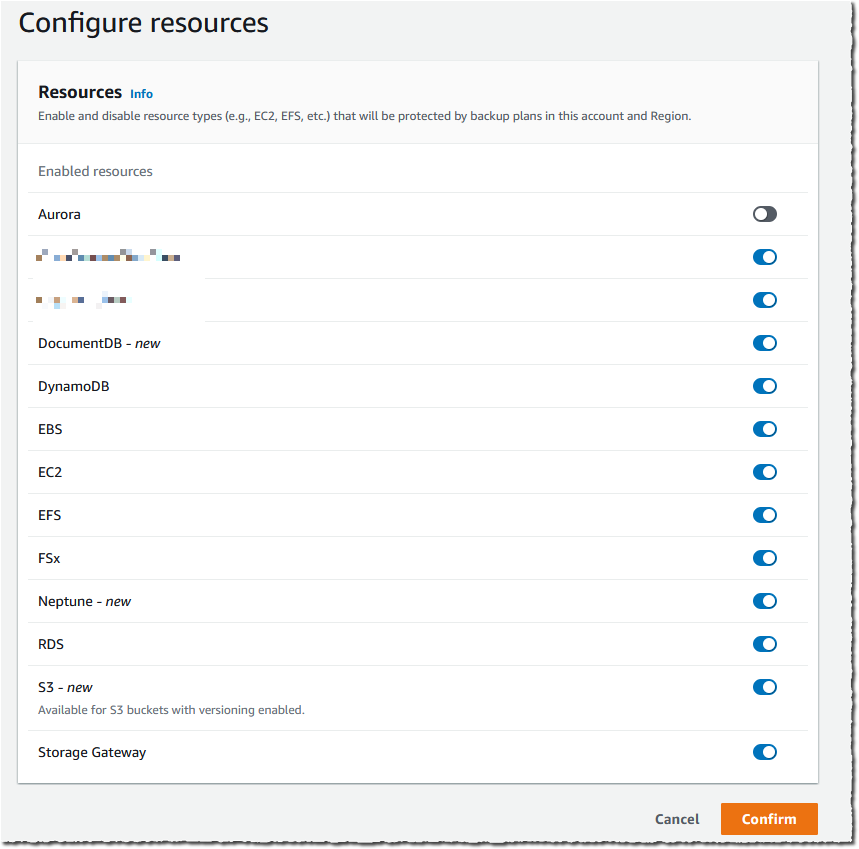
AWS Backup - optin S3

For this demo, I already have an existing backup plan, and I want to add an S3 bucket to this plan. If you want to create a new backup plan, then you can refer to AWS Backup‘s technical documentation.

To start including my S3 objects in my backup plan, I open the AWS Management Console, navigate to Backup plans, and select Assign resources.
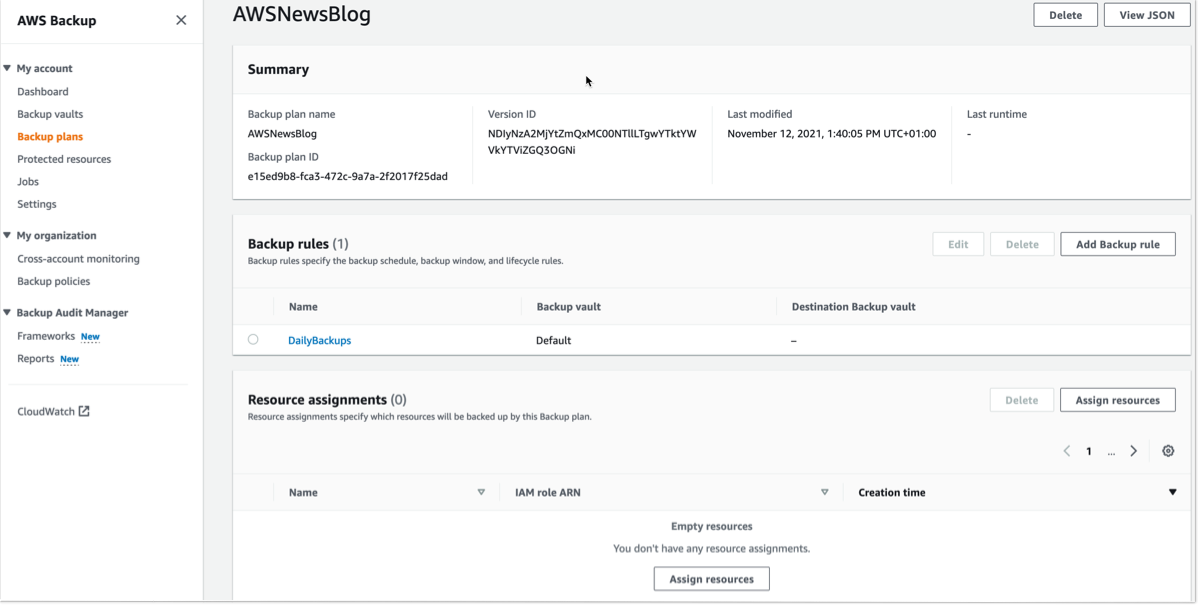
AWS Backup Add Resources

I give a name to my Resource assignment. I select Include specific resources types, then I select S3 as Resource type and one or several S3 Bucket names. When I am done, I select Assign resources.

Alternatively, I may use tags or resource IDs to assign S3 resources.

If you have thousands of S3 buckets, I recommend using tags to assign the S3 buckets to a backup plan. AWS Backup matches the tags in S3 buckets to the ones assigned to the backup plan, and it centrally backs up the S3 resources along with other AWS services that your application uses.

The other options are not different from what you know already.
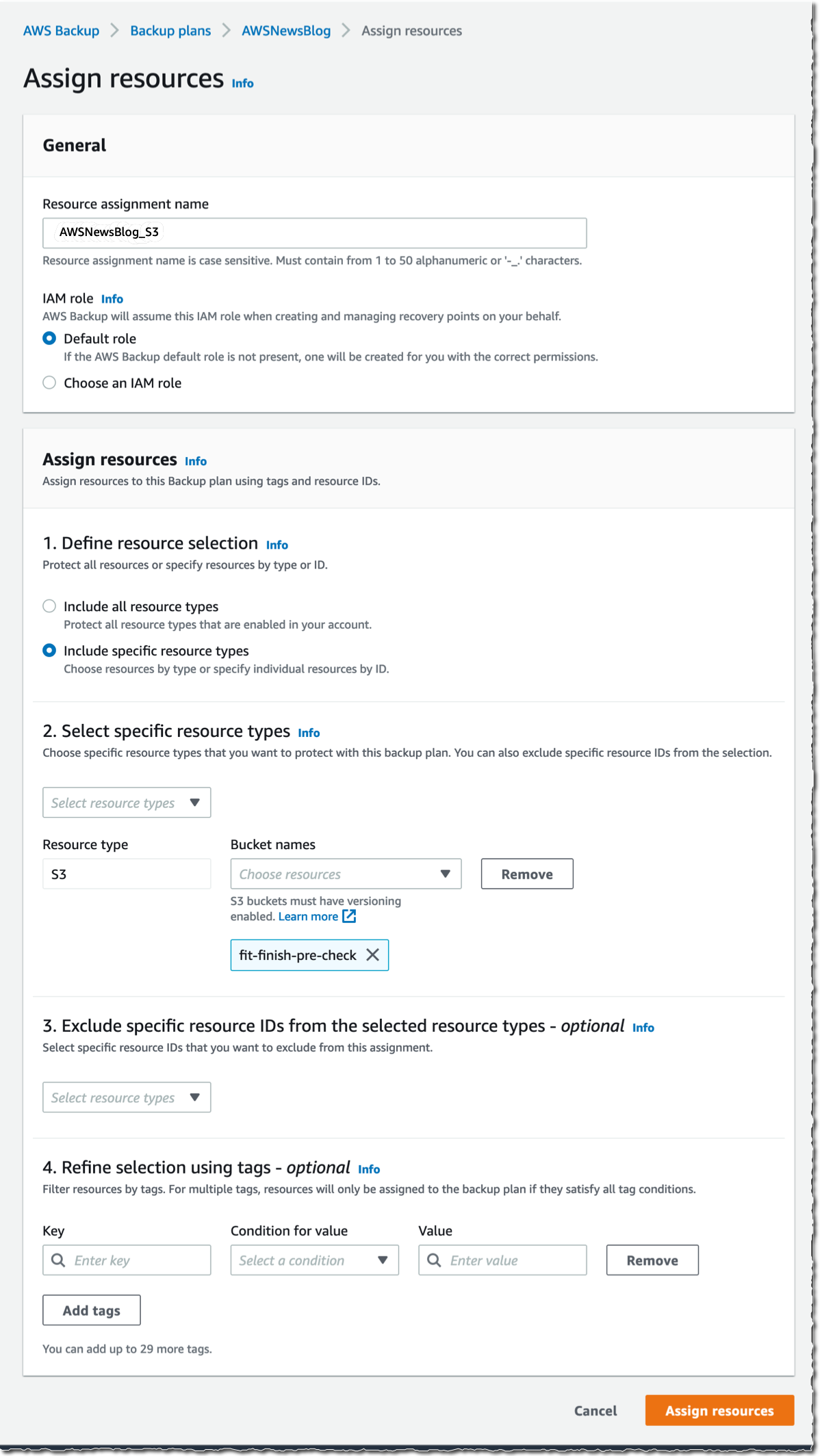
AWS Backup - backup plan for S3

The Bucket names list in the previous screenshot only shows the S3 buckets in the same Region.

Alternatively, I may also create on-demand backups. I navigate to the Protected resources section, and select Create on-demand backup.

I select S3 as the Resource type, and select the Bucket name. As per usual, I choose a Backup Window, a Retention period, a Backup vault, and an IAM role. Then, I select Create on-demand backup.

AWS Backup - on-demand backup for S3After a while, depending on the size of my bucket, the backup is ✅ Completed.

AWS Backup for S3 - Backup completed

All of the backups are encrypted and stored securely in a backup vault that I selected in the backup plan.

A backup vault (or backup storage vault) is an encrypted logical construct in my AWS account that stores and organizes my backups (recovery points). I may create new backup vaults in every AWS Region where AWS Backup is available. I may enable AWS Backup Vault Lock (delete-protection capability) on the backup vault to avoid accidental deletions and prevent malicious actors from re-encrypting my data. AWS Backup stores my continuous backups and periodic snapshots in the backup vault of my preference, and it lets me browse and restore as per my requirements.

How to Restore Objects
Let’s try to restore this backup.

The restore operation is very flexible. I may restore entire S3 buckets or individual S3 objects. I may restore the backups to the source S3 bucket, or to another existing bucket. Furthermore, I may create a new S3 bucket during restore. The S3 buckets must have Versioning enabled. Also, I may change the encryption key during restore.

I navigate to Backup vaults to restore the S3 bucket I just backed up. In the Backups section, I select the Recovery point ID that I want to restore, and I select Restore from the Actions menu.

AWS Backup for S3 - restore

Before starting the restore, I may select a few options:

  • The Restore time: I may restore my continuous backup to a point-in-time in the last 35 days, while I can restore my periodic backups to their original state.
  • The Restore type: I may choose to restore the entire bucket or a subset of objects within it.
  • The Restore destination: I may choose to restore on the same bucket, on another one, or create a new bucket during restore.
  • The Restored object encryption: this lets me select the key I want to use to encrypt the restored objects in the bucket.

I select Restore backup to start the restore.

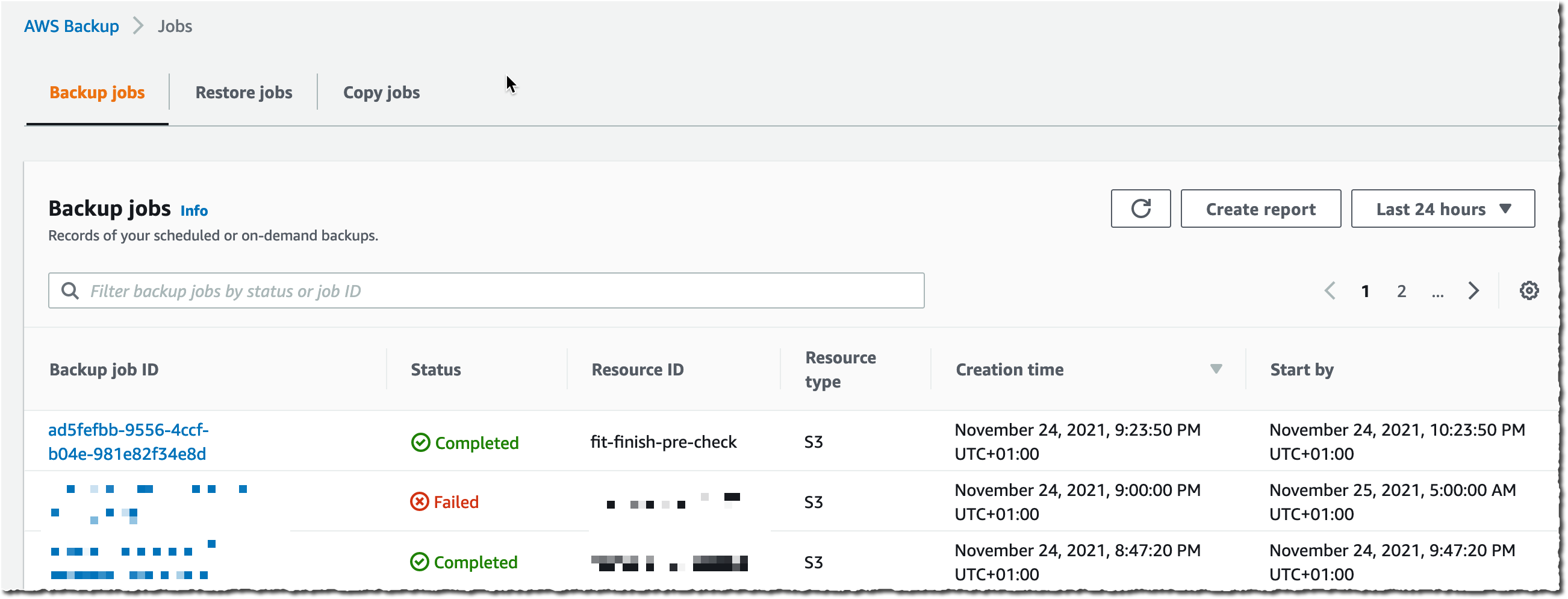
AWS Backup for S3 - restore optionsI can monitor the progress in the Jobs section, under the Restore jobs tab.

AWS Backup S3 - restore Jobs

When the status turns green to ✅ Completed, my objects are ready to use!

Generally, the most comprehensive data-protection strategies include regular testing and validation of your restore procedures before you need them. Testing your restores also helps to prepare and maintain recovery runbooks. In turn, that ensures operational readiness during a disaster recovery exercise, or an actual data loss scenario.

Availability and Pricing
The preview is available in the US West (Oregon) Region only.

During the preview, there are no charges for creating and storing backups. You will pay the AWS charges for underlying resources, such as S3 storage, API usage, and versioning.

Send us an email at [email protected] including your AWS account ID to register for the preview.

Go ahead and apply to the preview program today.

— seb

Amazon S3 Glacier is the Best Place to Archive Your Data – Introducing the S3 Glacier Instant Retrieval Storage Class

Post Syndicated from Marcia Villalba original https://aws.amazon.com/blogs/aws/amazon-s3-glacier-is-the-best-place-to-archive-your-data-introducing-the-s3-glacier-instant-retrieval-storage-class/

Today we are announcing the Amazon S3 Glacier Instant Retrieval storage class. This new archive storage class delivers the lowest cost storage for long-lived data that is rarely accessed and requires millisecond retrieval.

We are also excited to announce that S3 Intelligent-Tiering now automatically optimizes storage costs for rarely accessed data that needs immediate retrieval with the new Archive Instant Access tier, which is ideal for data with unknown or changing access patterns. For existing customers, this will provide an immediate savings of 68 percent for data that hasn’t been accessed for more than 90 days, with no action needed. The Frequent, Infrequent, and now Archive Instant Access tiers are designed for the same milliseconds access time and high-throughput performance.

In addition, we are announcing the new name for the existing Amazon S3 Glacier storage class and several price reductions.

Amazon S3 Glacier Instant Retrieval
The Amazon S3 Glacier storage classes are extremely low-cost and built for data archiving. They are secure and durable, and they are designed to provide the lowest cost for data that does not require immediate access, with retrieval options from minutes to hours.

Many customers need to store rarely accessed data for several years. However the data must be highly available and immediately accessible. Today, these customers use the S3 Standard-Infrequent Access (S3 Standard-IA) storage class. This storage class offers low cost for storage and allows customers to retrieve their data instantly.

S3 Glacier Instant Retrieval is a new storage class that delivers the fastest access to archive storage, with the same low latency and high-throughput performance as the S3 Standard and S3 Standard-IA storage classes. You can save up to 68 percent on storage costs as compared with using the S3 Standard-IA storage class when you use the S3 Glacier Instant Retrieval storage class and pay a low price to retrieve data. For example, in the US East (N. Virginia) Region, S3 Glacier Instant Retrieval storage pricing is $0.004 per GB-month and data retrieval is $0.03 per GB. Learn more about pricing for your Region.

Media archives, medical images, or user-generated content are just a few examples of ideal use cases for S3 Glacier Instant Retrieval. Once created, this content is rarely accessed, but when it is needed it must be available in milliseconds.

To get started using the new storage class from the Amazon S3 console, upload an object as you would normally, and select the S3 Glacier Instant Retrieval storage class.

Upload object with the new storage class

This feature is available programmatically from AWS SDKs, AWS Command Line Interface (CLI), and AWS CloudFormation.

In my opinion, the easiest way to store data in S3 Glacier Instant Retrieval is to use the S3 PUT API using the CLI. When using this API, set the storage class to GLACIER_IR.

aws s3api put-object --bucket <bucket-name> --key <object-key> --body <name-file> --storage-class GLACIER_IR

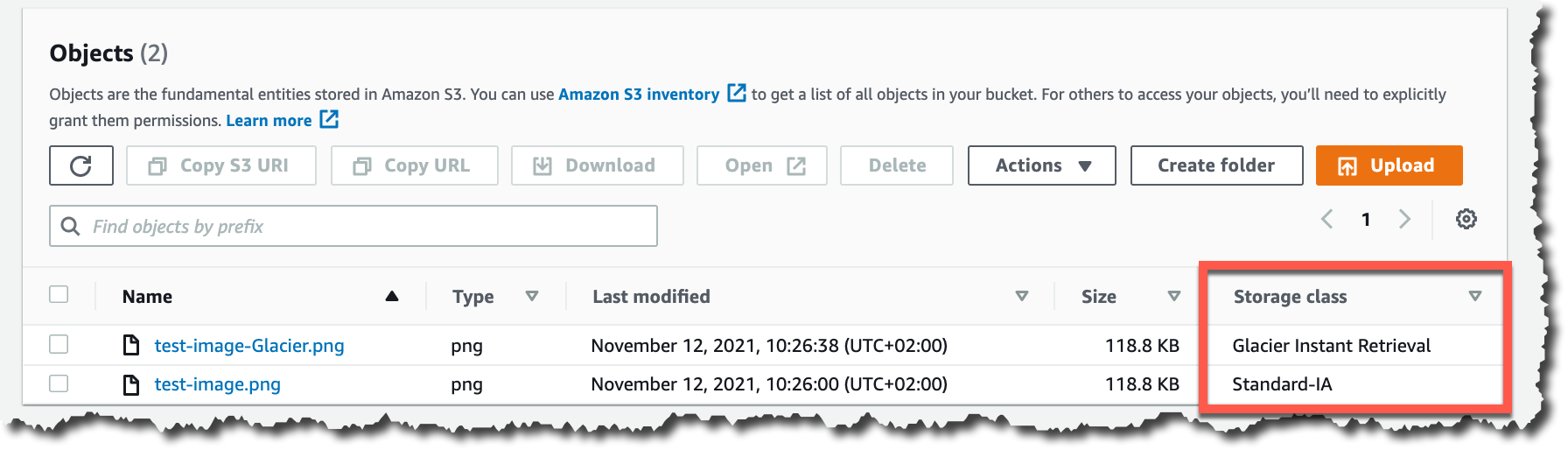
When the object is uploaded to Amazon S3, verify the storage class in the list of objects or on the object details page.

Storage classes

For data that already exists in Amazon S3, you can use S3 Lifecycle to transition data from the S3 Standard and S3 Standard-IA storage classes into S3 Glacier Instant Retrieval.

New Archive Instant Access Tier in S3 Intelligent-Tiering
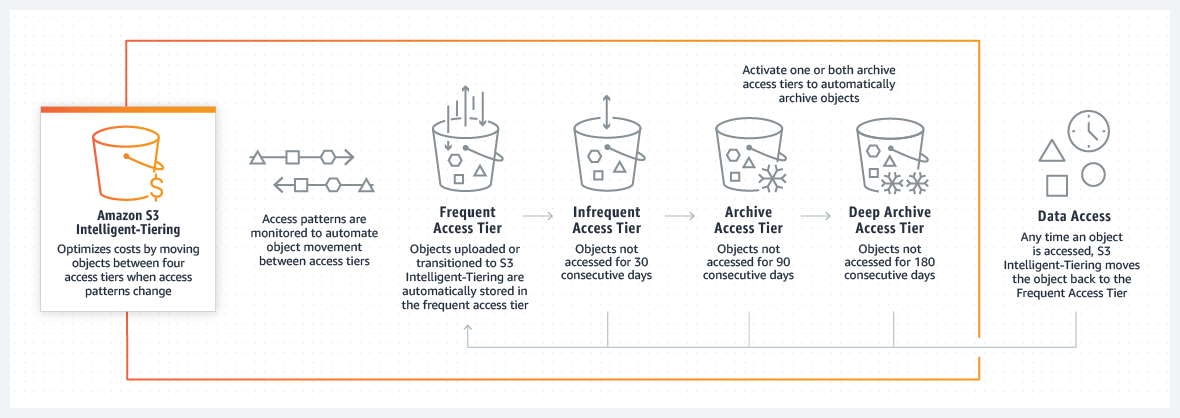
S3 Intelligent-Tiering is a storage class that automatically moves objects between access tiers to optimize costs. This is the recommended storage class for data with unpredictable or changing access patterns, such as in data lakes, analytics, or user-generated content.

Until today, there were two low latency access tiers optimized for frequent and infrequent access, and two optional archive access tiers designed for asynchronous access optimized for rare access at a low cost.

Beginning today, the Archive Instant Access tier is added as a new access tier in the S3 Intelligent-Tiering storage class. You will start seeing automatic costs savings for your storage in S3 Intelligent-Tiering for rarely accessed objects.

The Archive Instant Access tier joins the group of low latency access tiers. This new tier is optimized for data that is not accessed for months at a time but, when it is needed, is available within milliseconds.

S3 Intelligent-Tiering automatically stores objects in three access tiers that deliver the same performance as the S3 Standard storage class:

  • Frequent Access tier
  • Infrequent Access tier
  • Archive Instant Access (new)

For a small monitoring and automation charge, S3 Intelligent-Tiering monitors access patterns and moves objects between the different access tiers. Objects that have not been accessed for 30 consecutive days are moved from the Frequent Access tier to the Infrequent Access tier for savings of 40 percent. When an object hasn’t been accessed for 90 consecutive days, S3 Intelligent-Tiering will move the object from the Infrequent Access tier to the Archive Instant Access tier, with a savings of 68 percent. If the data is accessed later, it is automatically moved back to the Frequent Access tier. No tiering charges apply when objects are moved between access tiers within the S3 Intelligent-Tiering storage class.

S3 Intelligent-Tiering access tiers

To get started with this new access tier, select Intelligent-Tiering as the storage class for an object when uploading an object using the S3 console. After 90 days of inactivity (30 days in Frequent Access tier and 60 days in Infrequent Access tier), S3 Intelligent-Tiering will automatically move the object to the Archive Instant Access tier. The introduction of the new Archive Instant Access tier has no impact on performance when you retrieve objects.

New name for the Amazon S3 Glacier storage class – S3 Glacier Flexible Retrieval
The existing Amazon S3 Glacier storage class is now named S3 Glacier Flexible Retrieval. This storage class now has free bulk retrievals in 5 to 12 hours, and the storage price has been reduced by 10 percent in all Regions, effective December 1, 2021. S3 Glacier Flexible Retrieval is now even more cost-effective, and the free bulk retrievals make it ideal for retrieving large data volumes.

These are the Amazon S3 archive storage classes:

  • S3 Glacier Instant Retrieval: The newest storage class is optimized for long-lived data that is rarely accessed (typically once per quarter). However when data is needed, it is available within milliseconds. For example, medical images and news media assets are perfect for this storage class.
  • S3 Glacier Flexible Retrieval: This newly renamed storage class is optimized for archiving data that can be retrieved in minutes or with free bulk retrievals in 5 to 12 hours. This storage class is ideal for backups and disaster recovery use cases, where you have large amounts of long-term, rarely accessed data, and you don’t want to worry about retrieval costs when you need the data.
  • S3 Glacier Deep Archive: This storage class is the lowest-cost storage in the cloud and is optimized for archiving data that can be restored in at least 12 hours. It’s great for storing your compliance archives or for digital media preservation.

Amazon S3 has reduced storage prices!
We are excited to announce that Amazon S3 has reduced storage prices of up to 31 percent in the S3 Standard-IA and S3 One Zone-IA storage classes across 9 AWS Regions: US West (N. California), Asia Pacific (Hong Kong), Asia Pacific (Mumbai), Asia Pacific (Osaka), Asia Pacific (Seoul), Asia Pacific (Singapore), Asia Pacific (Sydney), Asia Pacific (Tokyo), and South America (São Paulo). These price reductions are effective December 1, 2021.

Learn more about price reduction details.

Available Now
The new storage class, S3 Glacier Instant Retrieval, and the new Archive Instant Access tier in S3 Intelligent-Tiering are available today (November 30, 2021) in all AWS Regions.

The price cut for S3 Glacier and free bulk retrievals in all AWS Regions, and the S3 Standard-Infrequent Access/One Zone-Infrequent storage class in nine Regions will be effective on December 1, 2021.

Learn more about the storage classes changes and all the storage classes.

— Marcia

New – Simplify Access Management for Data Stored in Amazon S3

Post Syndicated from Marcia Villalba original https://aws.amazon.com/blogs/aws/new-simplify-access-management-for-data-stored-in-amazon-s3/

Today, we are introducing a couple new features that simplify access management for data stored in Amazon Simple Storage Service (Amazon S3). First, we are introducing a new Amazon S3 Object Ownership setting that lets you disable access control lists (ACLs) to simplify access management for data stored in Amazon S3. Second, the Amazon S3 console policy editor now reports security warnings, errors, and suggestions powered by IAM Access Analyzer as you author your S3 policies.

Since launching 15 years ago, Amazon S3 buckets have been private by default. At first, the only way to grant access to objects was using ACLs. In 2011, AWS Identity and Access Management (IAM) was announced, which allowed the use of policies to define permissions and control access to buckets and objects in Amazon S3. Nowadays, you have several ways to control access to your data in Amazon S3, including IAM policies, S3 bucket policies, S3 Access Points policies, S3 Block Public Access, and ACLs.

ACLs are an access control mechanism in which each bucket and object has an ACL attached to it. ACLs define which AWS accounts or groups are granted access as well as the type of access. When an object is created, the ownership of it belongs to the creator.  This ownership information is embedded in the object ACL. When you upload an object to a bucket owned by another AWS account, and you want the bucket owner to access the object, then permissions need to be granted in the ACL. In many cases, ACLs and other kinds of policies are used within the same bucket.

The new Amazon S3 Object Ownership setting, Bucket owner enforced, lets you disable all of the ACLs associated with a bucket and the objects in it. When you apply this bucket-level setting, all of the objects in the bucket become owned by the AWS account that created the bucket, and ACLs are no longer used to grant access. Once applied, ownership changes automatically, and applications that write data to the bucket no longer need to specify any ACL. As a result, access to your data is based on policies. This simplifies access management for data stored in Amazon S3.

With this launch, when creating a new bucket in the Amazon S3 console, you can choose whether ACLs are enabled or disabled. In the Amazon S3 console, when you create a bucket, the default selection is that ACLs are disabled. If you wish to keep ACLs enabled, you can choose other configurations for Object Ownership, specifically:

  • Bucket owner preferred: All new objects written to this bucket with the bucket-owner-full-controlled canned ACL will be owned by the bucket owner. ACLs are still used for access control.
  • Object writer: The object writer remains the object owner. ACLs are still used for access control.

Options for object ownership

For existing buckets, you can view and manage this setting in the Permissions tab.

Before enabling the Bucket owner enforced setting for Object Ownership on an existing bucket, you must migrate access granted to other AWS accounts from the bucket ACL to the bucket policy. Otherwise, you will receive an error when enabling the setting. This helps you ensure applications writing data to your bucket are uninterrupted. Make sure to test your applications after you migrate the access.

Policy validation in the Amazon S3 console
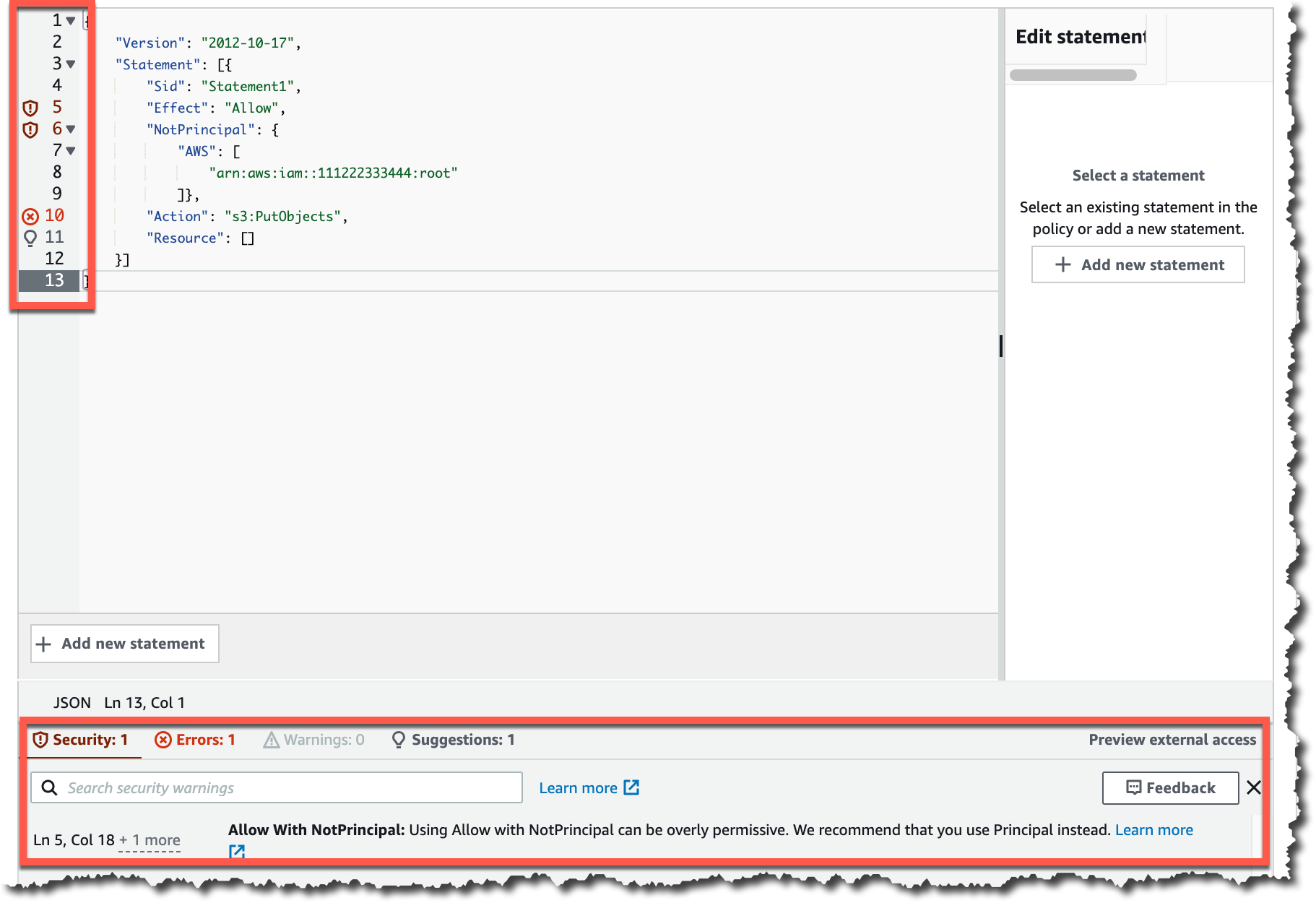
We are also introducing policy validation in the Amazon S3 console to help you out when writing resource-based policies for Amazon S3. This simplifies authoring access control policies for Amazon S3 buckets and access points with over 100 actionable policy checks powered by IAM Access Analyzer.

To access policy validation in the Amazon S3 console, first go to the detail page for a bucket. Then, go to the Permissions tab and edit the bucket policy.

Accessing the IAM Policy Validation in S3 consoleWhen you start writing your policy, you see that, as you type, different findings appear at the bottom of the screen. Policy checks from IAM Access Analyzer are designed to validate your policies and report security warnings, errors, and suggestions as findings based on their impact to help you make your policy more secure.

You can also perform these checks and validations using the IAM Access Analyzer’s ValidatePolicy API.

Example of policy suggestion

Availability
Amazon S3 Object Ownership is available at no additional cost in all AWS Regions, excluding the AWS China Regions and AWS GovCloud Regions. IAM Access Analyzer policy validation in the Amazon S3 console is available at no additional cost in all AWS Regions, including the AWS China Regions and AWS GovCloud Regions.

Get started with Amazon S3 Object Ownership through the Amazon S3 console, AWS Command Line Interface (CLI), Amazon S3 REST API, AWS SDKs, or AWS CloudFormation. Learn more about this feature on the documentation page.

And to learn more and get started with policy validation in the Amazon S3 console, see the Access Analyzer policy validation documentation.

— Marcia

New for AWS Backup – Support for VMware and VMware Cloud on AWS

Post Syndicated from Danilo Poccia original https://aws.amazon.com/blogs/aws/new-for-aws-backup-support-for-vmware-and-vmware-cloud-on-aws/

Today, I am happy to announce AWS Backup support for VMware, a new capability that enables you to centralize and automate data protection of virtual machines (VMs) running on VMware on premises and VMware CloudTM on AWS. You can now use a single, centrally managed policy in AWS Backup to protect these VMware environments together with 12 AWS compute, storage, and database services already supported by AWS Backup. You can then use AWS Backup to restore VMware workloads to on-premises data centers and VMware Cloud on AWS.

While doing so, AWS Backup Audit Manager lets you consistently demonstrate compliance by monitoring backup, copy, and restore operations and generating auditor-ready reports to satisfy your data governance and regulatory requirements.

Let’s see how this works in practice.

Using AWS Backup Support for VMware
There are three steps to back up VMware virtual machines (VMs) with AWS Backup:

  1. Create a gateway to connect AWS Backup to your hypervisor.
  2. Connect to your hypervisor through the gateway.
  3. Assign virtual machines managed by your hypervisor to a backup plan.

AWS Back Support for VMware diagram

On the left pane of the AWS Backup console, there is a new External resources section. There, I choose Gateways and then Create gateway. This AWS Backup gateway helps with discovery of the on-premises VMware environment and acts as a cloud gateway to send and receive data.

I download the Open Virtualization Format (OVF) file of the AWS Backup gateway and follow the instructions to deploy the gateway using the VMware vSphere client. I am using an internal test and development VMware environment for this walkthrough.

VMware vCenter screenshot.

After deploying the gateway in my VMware environment, I come back to the AWS Backup console. I write a name for the gateway (for simplicity, I use the same name of the gateway VM) and the IP address of the gateway VM. Optionally, I can add tags to help organize and track my setup. I go on and create the gateway.

Console screenshot.

Now, I choose Add hypervisor. I write a name for the hypervisor and the IP address of the VMware vCenter server host.

Console screenshot.

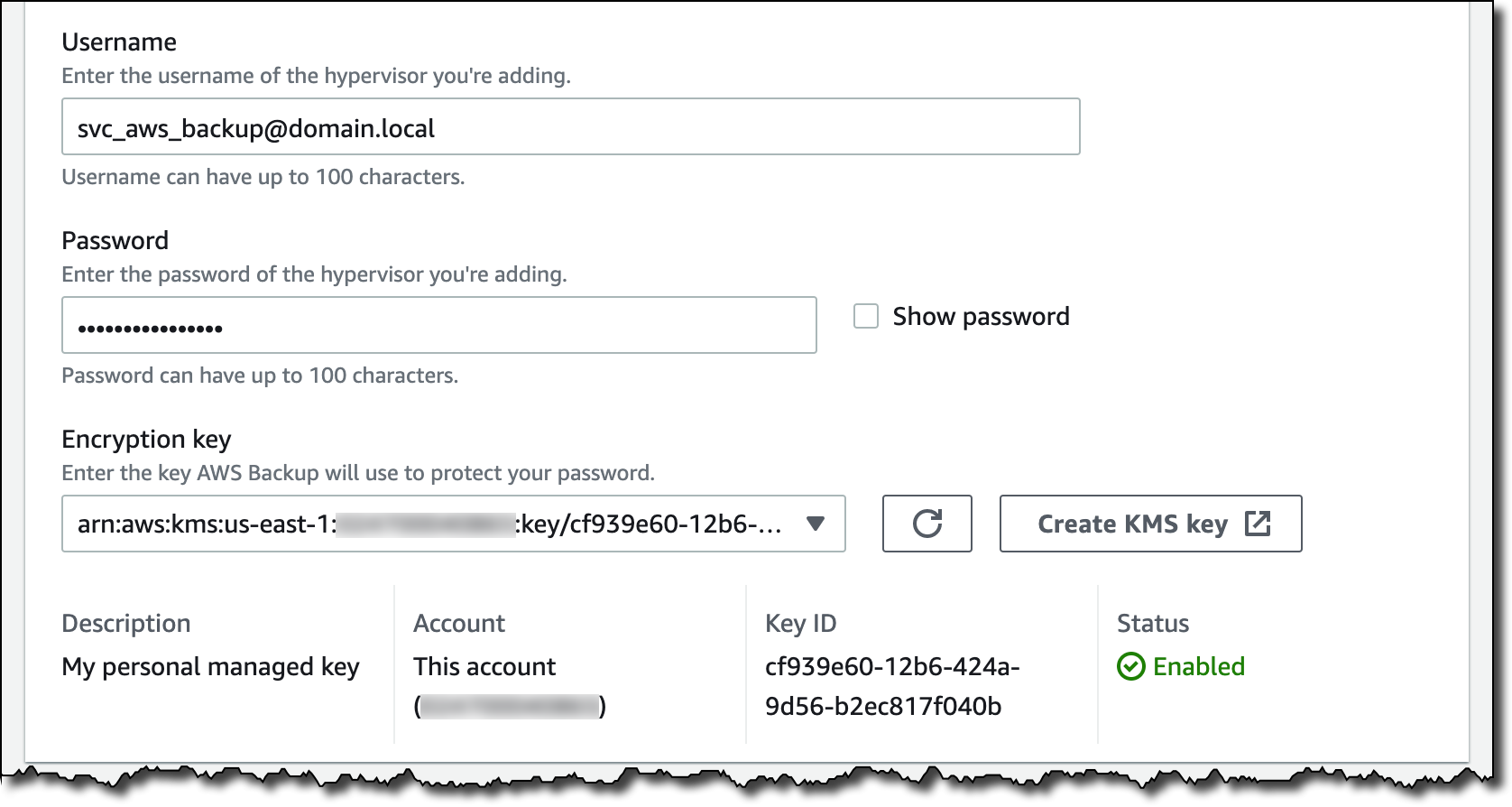
I enter the username and password of a service account that I created for AWS Backup on the Active Directory domain. The username should include the domain (for example, username@domain). Then, I choose the encryption key to protect the service account credentials. If I don’t choose my own AWS Key Management Service (KMS) key, AWS Backup encrypts the username and password using a key that AWS owns and manages.

Console screenshot.

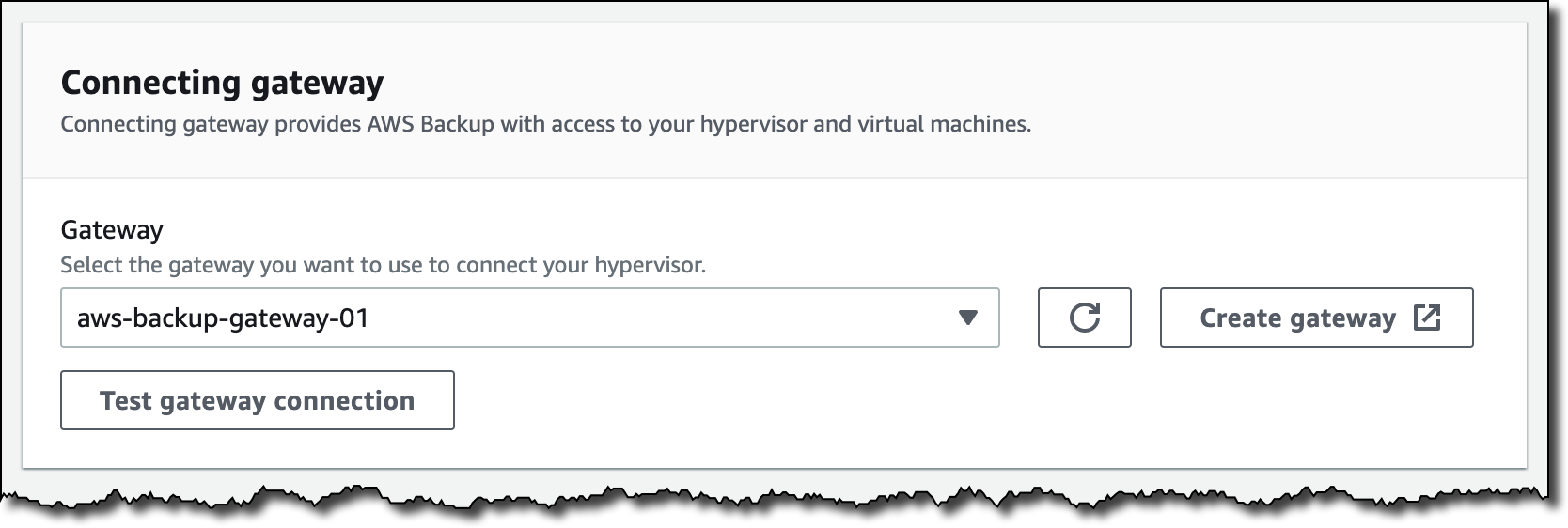
I select the gateway to connect to the hypervisor and choose Test gateway connection. This test helps ensure that the gateway can communicate with the hypervisor before I complete the configuration. Optionally, I can add tags to help organize and track my setup. I go on and add the hypervisor.

Console screenshot.

After a few minutes, the hypervisor is online, and I see the VMs managed by vCenter in the AWS Backup console. I can now use these virtual machines as resources in my backup plans in the same way as the other AWS compute, storage, and database resources supported by AWS Backup.

Console screenshot.

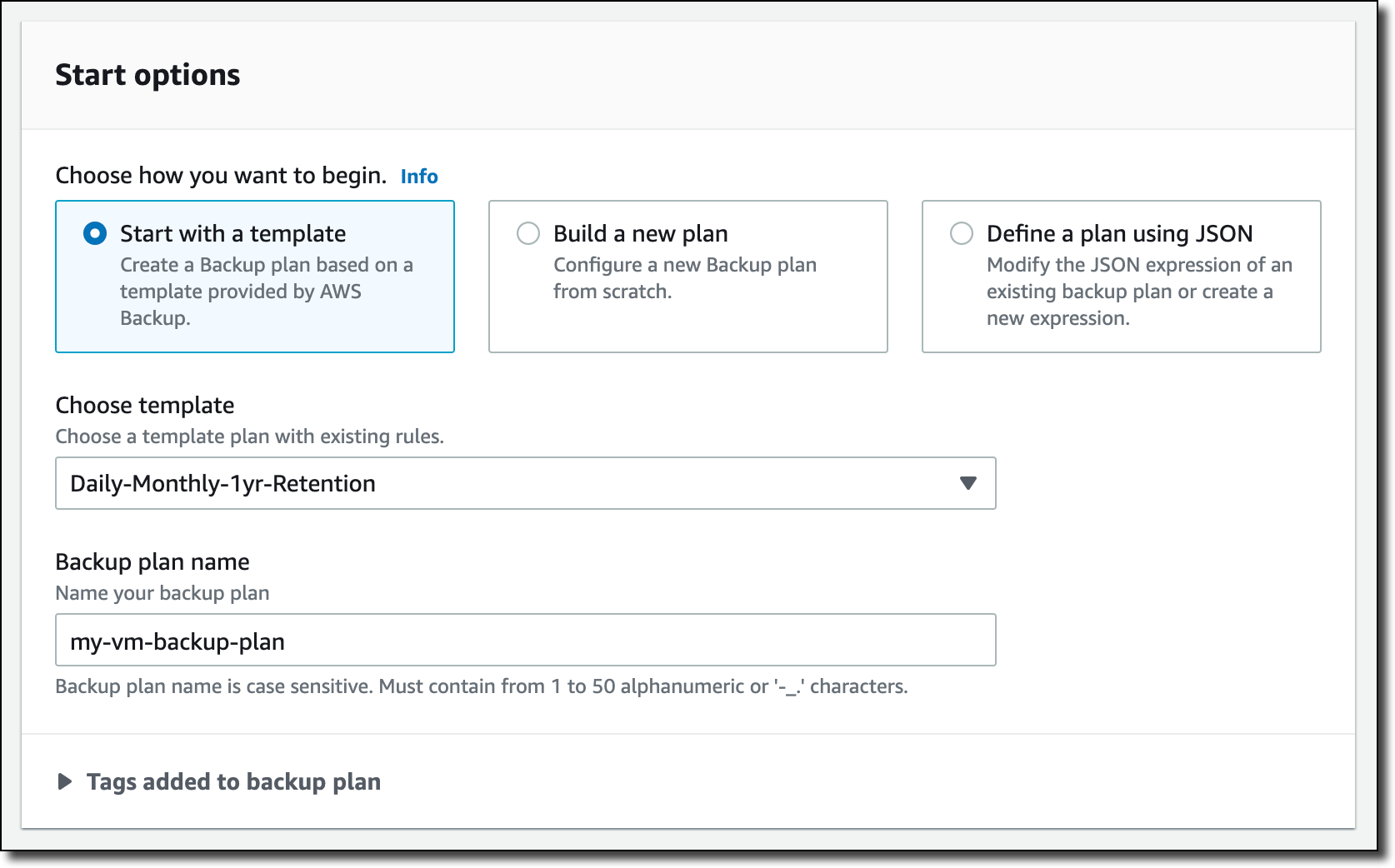
I create a new backup plan and start with a template. The rules of the template enforce daily backups with five weeks of retention and monthly backups with one year of retention. I can customize these rules based on my requirements.

Console screenshot.

Then, I choose to assign resources to the backup plan, and I select three VMs.

Console screenshot.

If you need, you can create an on-demand backup in the Protected resources section of the console. For example, here I am starting the on-demand backup for one of the VMs.

Console screenshot.

When a backup is complete, VMs are added to the list of the protected resources, and I can initiate a restore.

Console screenshot.

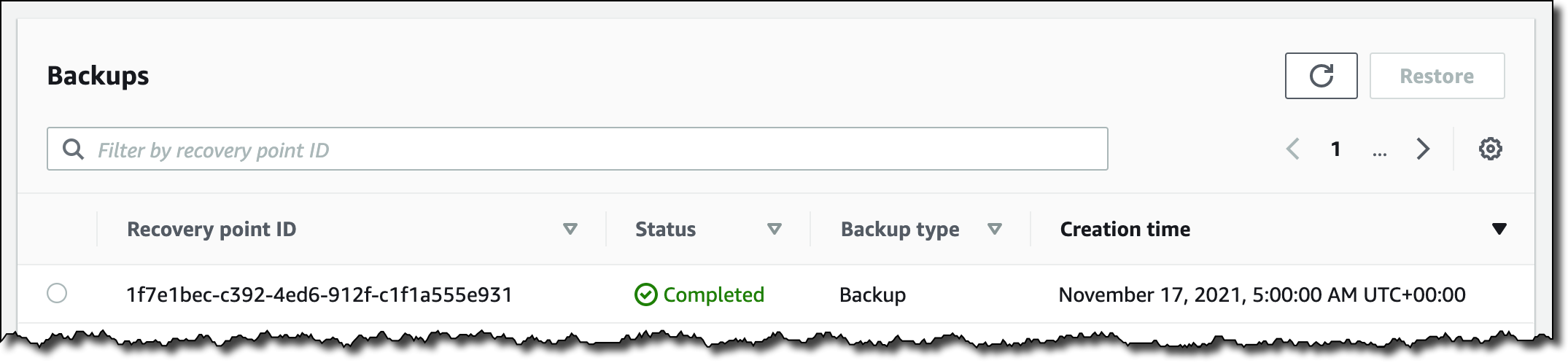
I select the backup and choose Restore. Then, I enter the restore location, which can be the same VMware environment I used for the backup or another (for example, on VMware Cloud on AWS). Below, I specify name, path, compute resource name, and datastore to use for the restore. Then, I choose Restore backup.

Console screenshot.

I monitor the status of my backup and restore jobs from the AWS Backup console. To monitor backup and restore metrics over a period of time, I can use Amazon CloudWatch metrics, logs, and alarms. I can also send events to Amazon EventBridge to receive notifications once a job completes or fails.

Availability and Pricing
AWS Backup support for VMware is available in the US East (N. Virginia, Ohio), US West (N. California, Oregon), GovCloud (US-East, US-West), Canada (Central), Europe (Frankfurt, Ireland, London, Milan, Paris, Stockholm), South America (São Paulo), Asia Pacific (Hong Kong, Mumbai, Seoul, Singapore, Sydney, Tokyo, Osaka), Middle East (Bahrain), and Africa (Cape Town) Regions. Please see the AWS Regional Services List for more information.

AWS Backup supports VMware ESXi 6.7.x and 7.0.x VMs running on NFS, VMFS, and VSAN data stores on premises and in VMware Cloud on AWS. In addition, AWS Backup supports both SCSI Hot-Add and Network Block Device (NBD) transport modes for copying data from source VMs to AWS.

With AWS Backup support for VMware, you pay using the same dimensions that AWS Backup uses today: backup storage, restore, and cross-region data transfer. For more information, see the AWS Backup pricing page.

Your VM backups are stored in a backup vault. All backups stored and managed by AWS Backup are replicated to 3 Availability Zones (AZs) in the Region and designed for 99.999999999 percent (11 9s) durability and 99.99 percent (4 9s) of service availability.

AWS Backup supports first full, then incremental-forever, backups of VMs that you can create on-demand or via a schedule configured in your backup plan. AWS Backup always does full restores even though backups are stored as incremental, enabling you to benefit from storage efficiency cost savings while easily performing restores.

Centrally protect your VMware environments and your AWS compute, storage, and database resources with AWS Backup.

— Danilo

New – Amazon EBS Snapshots Archive

Post Syndicated from Sébastien Stormacq original https://aws.amazon.com/blogs/aws/new-amazon-ebs-snapshots-archive/

I am pleased to announce the availability of Amazon EBS Snapshots Archive, a new storage tier for the long-term retention of Amazon Elastic Block Store (EBS) snapshots of your EBS volumes.

In a nutshell, EBS is an easy-to-use high-performance block storage service for your Amazon Elastic Compute Cloud (Amazon EC2) instances. An EBS volume mounted to your EC2 instances lets you boot an operating system and store data for your most performance-demanding workloads. You may use EBS snapshots to create point-in-time copies of your volume data. The first snapshot of a volume contains all of the data written into that volume. Subsequent snapshots are incremental. Snapshots are stored on Amazon Simple Storage Service (Amazon S3), and they may be shared between AWS accounts and AWS Regions.

The ability to take frequent snapshots and easily restore volumes makes EBS snapshots an obvious choice for your data management strategy, alongside other backup options. The incremental nature of snapshots makes them cost-effective for daily and weekly backups that need immediate restores. However, you were telling us that business compliance and regulatory needs have meant that you needed to retain EBS snapshots for longer periods of time (months or years). For example, snapshots taken at the end of a project, or snapshots for test and development preserved for future project releases. The vast majority of these snapshots are taken and never read. For these snapshots, you are looking to lower your storage costs. Today, to benefit from lower storage costs, you may have written complex scripts involving temporary EC2 instances to restore snapshots, mount the corresponding volumes, and transfer the data to lower-cost storage tiers, such as Amazon Glacier.

EBS Snapshots Archive provides a low-cost storage tier to archive full, point-in-time copies of EBS Snapshots that you must retain for 90 days or more for regulatory and compliance reasons, or for future project releases. Now, you can easily archive and manage EBS Snapshots, thereby eliminating the need for custom scripts and third-party tools to manage these snapshots. This lets you move your rarely accessed snapshots to EBS Snapshots Archive to achieve up to 75% lower storage costs, and avoid licensing costs for third-party tools. Furthermore, you can retrieve an archived snapshot within 24-72 hours, and, once restored, use the snapshot to recover an EBS volume.

As per usual, let me show you how it works.

How to Get Started
I have a snapshot available in the US East (N. Virginia) Region, and I want to archive this snapshot for compliance reasons. I open the AWS Management Console, navigate to EC2, then to Snapshots. I select the snapshot I want to archive, and select the Actions menu. I select the Archive snapshot menu option.

EBS Snapshot Archive - create snapshot

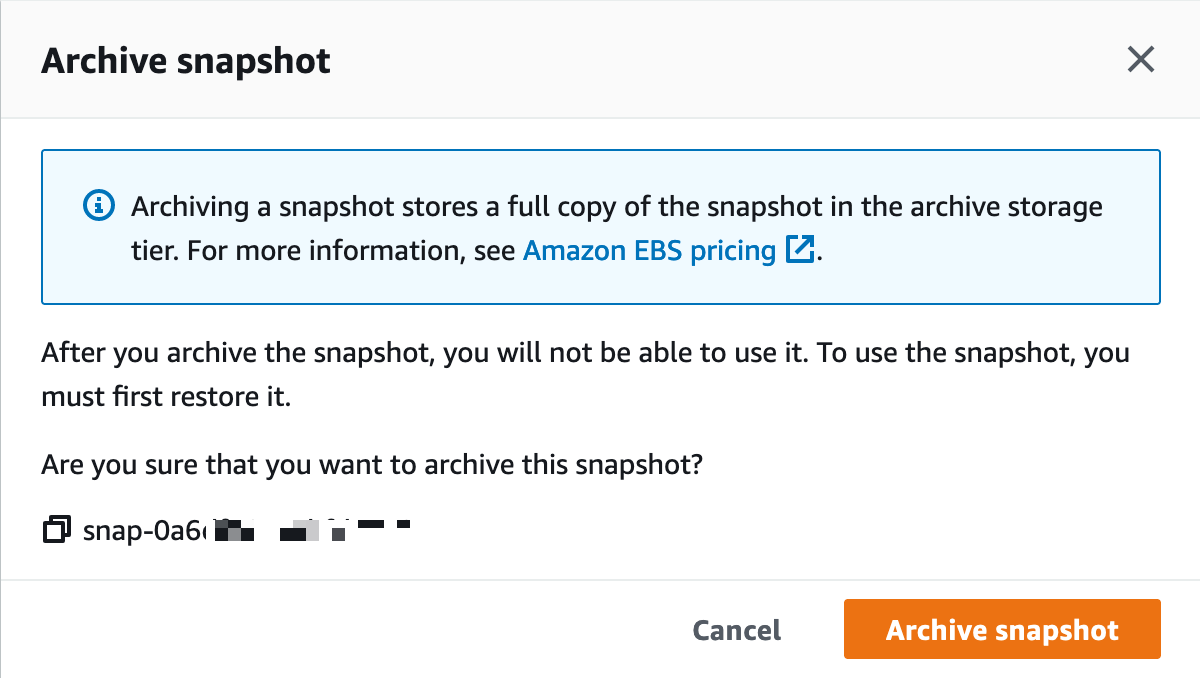
I carefully read the confirmation message :-), and I select Archive snapshot.

EBS Snapshot Archive - create snapshot - confirmation

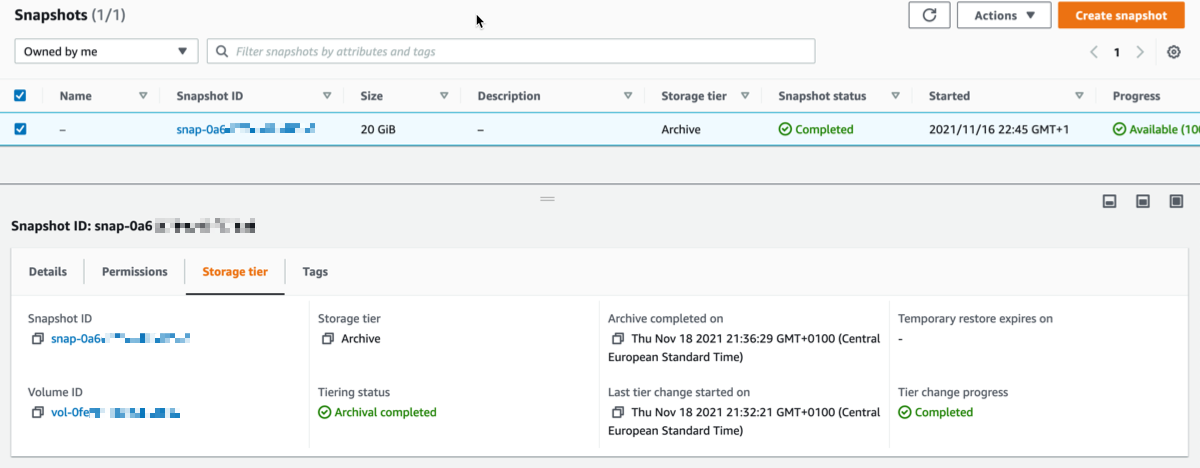
I may monitor the progress of the archive operation with the new Storage Tier tab at the bottom of the screen. After some time, depending on the size of the snapshot, the Tiering status becomes ✅ Archival completed.

EBS Snapshot Archive - create snapshot - archival completedArchived snapshots stay visible in the console. The new Storage tier column indicates the tier used for storage (Standard or Archive).

How do I Restore a Volume?
Restoring a volume from EBS Snapshots Archive is a two-step process. First, I retrieve the snapshot from EBS Snapshots Archive to its original snapshot ID, using RestoreSnapshotTier API call or the management console. It takes between 24-72 hours to retrieve the snapshot from the archive, depending on the snapshot size. Once retrieved, the snapshot appears as a regular snapshot on my account. At this stage, I hydrate the retrieved snapshot into an EBS volume using the default snapshot restore or Fast Snapshot Restore (FSR) for expedited restores, just like usual.

A CloudWatch event is generated when the snapshot is restored. You may listen to this event to avoid pulling the status with the API.

A CreateVolume API call on an archived snapshot will fail. You must restore a snapshot from archive before you use it to create a volume.

Using the AWS Management Console, I select the snapshot that I want to restore, I select the Actions menu, and then I select the Restore snapshot from archive menu option.

EBS Snapshot Archive - create snapshot - restore archive

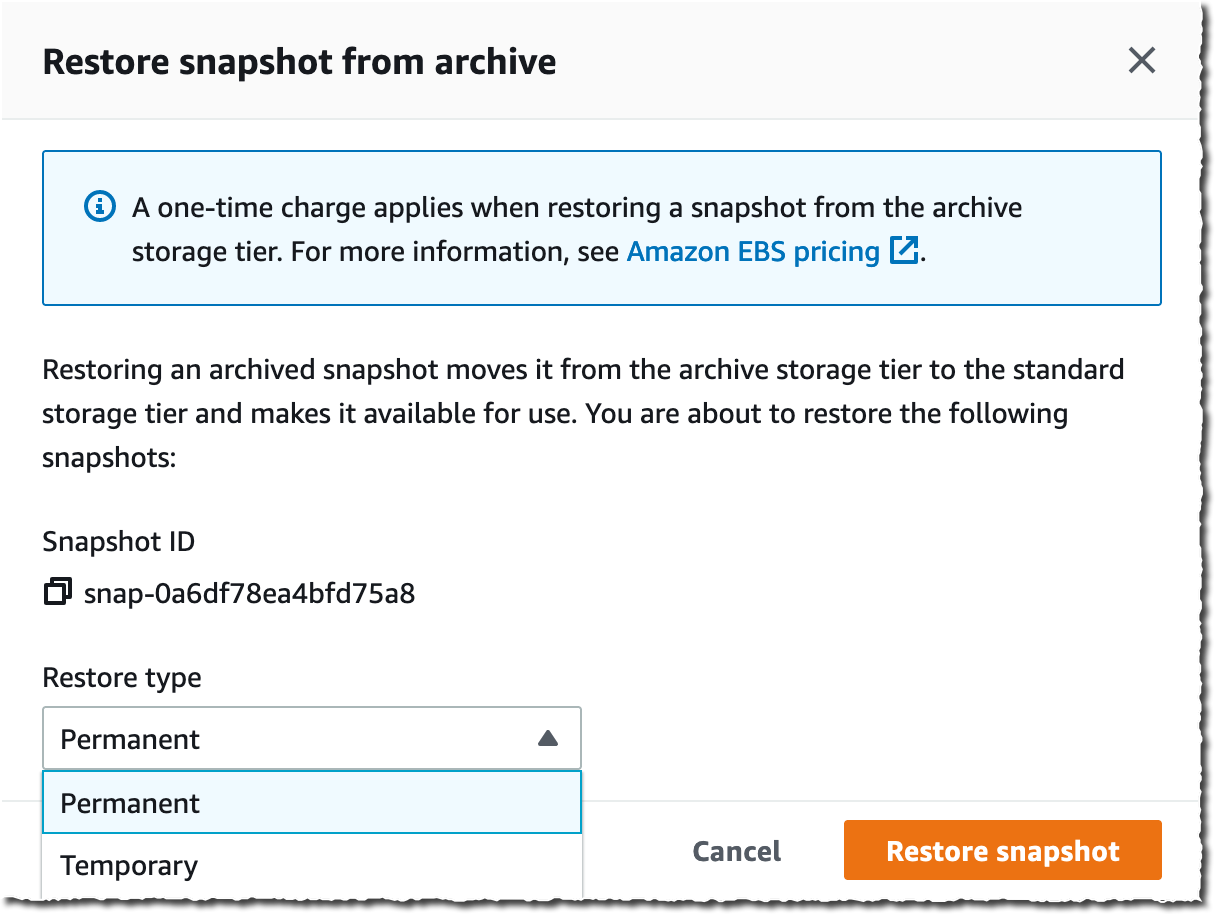
I have the choice to restore the snapshot permanently, or just temporarily. At the end of the temporary duration, the standard tier snapshot is deleted, and only the archive is preserved.

EBS Snapshot Archive - create snapshot - restore archive - confirmation

After a while, depending on the snapshot size, the archive is restored to standard storage and may be used to recreate a volume, just like usual. I may monitor the progress of the retrieval and the lifetime for temporarily restored archives in the new Storage tier tab in the bottom half of the screen. Temporary restored snapshots may be kept for up to 180 days.

Pricing and Availability
EBS Snapshots Archive is available for you today in 17 AWS Regions. At the time of launch, it is not available in the two Regions in China, Asia Pacific (Seoul), Asia Pacific (Osaka), Canada (Central), and South America (São Paulo).

As per usual, you pay as-you-go, with no minimum or fixed fees. There are two metrics that influence EBS Snapshots Archive billing: data storage and data retrieval. We charge you $0.0125 per GB-month of stored data and $0.03 per GB retrieved. You are charged for a 90-day period at minimum. This means that if you delete a snapshot archive or permanently restore it less than 90 days after creation, then we charge for the full 90-day period. The EBS pricing page has the details.

Go ahead and start to configure your long term storage for EBS snaphots today.

— seb

New for AWS Compute Optimizer – Resource Efficiency Metrics to Estimate Savings Opportunities and Performance Risks

Post Syndicated from Danilo Poccia original https://aws.amazon.com/blogs/aws/new-for-aws-compute-optimizer-resource-efficiency-metrics-to-estimate-savings-opportunities-and-performance-risks/

By applying the knowledge drawn from Amazon’s experience running diverse workloads in the cloud, AWS Compute Optimizer identifies workload patterns and recommends optimal AWS resources.

Today, I am happy to share that AWS Compute Optimizer now delivers resource efficiency metrics alongside its recommendations to help you assess how efficiently you are using AWS resources:

  • A dashboard shows you savings and performance improvement opportunities at the account level. You can dive into resource types and individual resources from the dashboard.
  • The Estimated monthly savings (On-Demand) and Savings opportunity (%) columns estimate the possible savings for over-provisioned resources. You can sort your recommendations using these two columns to quickly find the resources on which to focus your optimization efforts.
  • The Current performance risk column estimates the bottleneck risk with the current configuration for under-provisioned resources.

These efficiency metrics are available for Amazon Elastic Compute Cloud (Amazon EC2), AWS Lambda, and Amazon Elastic Block Store (EBS) at the resource and AWS account levels.

For multi-account environments, Compute Optimizer continuously calculates resource efficiency metrics at individual account level in an AWS organization to help identify teams with low cost-efficiency or possible performance risks. This lets you to create goals and track progress over time. You can quickly understand just how resource-efficient teams and applications are, easily prioritize recommendation evaluation and adoption by engineering team, and establish a mechanism that drives a cost-aware culture and accountability across engineering teams.

Using Resource Efficiency Metrics in AWS Compute Optimizer
You can opt in using the AWS Management Console or the AWS Command Line Interface (CLI) to start using Compute Optimizer. You can enroll the account that you’re currently signed in to or all of the accounts within your organization. Depending on your choice, Compute Optimizer analyzes resources that are in your individual account or for each account in your organization, and then generates optimization recommendations for those resources.

To see your savings opportunity in Compute Optimizer, you should also opt in to AWS Cost Explorer and enable the rightsizing recommendations in the AWS Cost Explorer preferences page. For more details, see Getting started with rightsizing recommendations.

I already enrolled some time ago, and in the Compute Optimizer console I see the overall savings opportunity for my account.

Console screenshot.

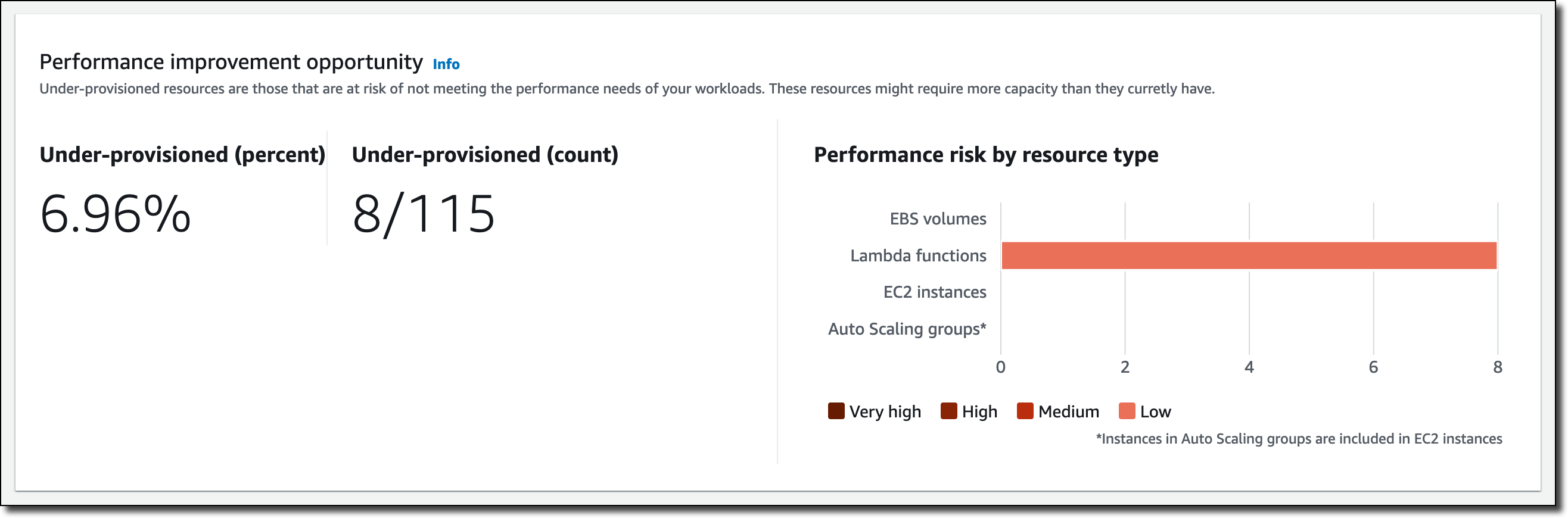
Below that, I have a recap of the performance improvement opportunity. This includes an overview of the under-provisioned resources, as well as the performance risks that they pose by resource type.

Console screenshot.

Let’s dive into some of those savings. In the EC2 instances section, Compute Optimizer found 37 over-provisioned instances.

Console screenshot.

I follow the 37 instances link to get recommendations for those resources, and then sort the table by Estimated monthly savings (On-Demand) descending.

Console screenshot.

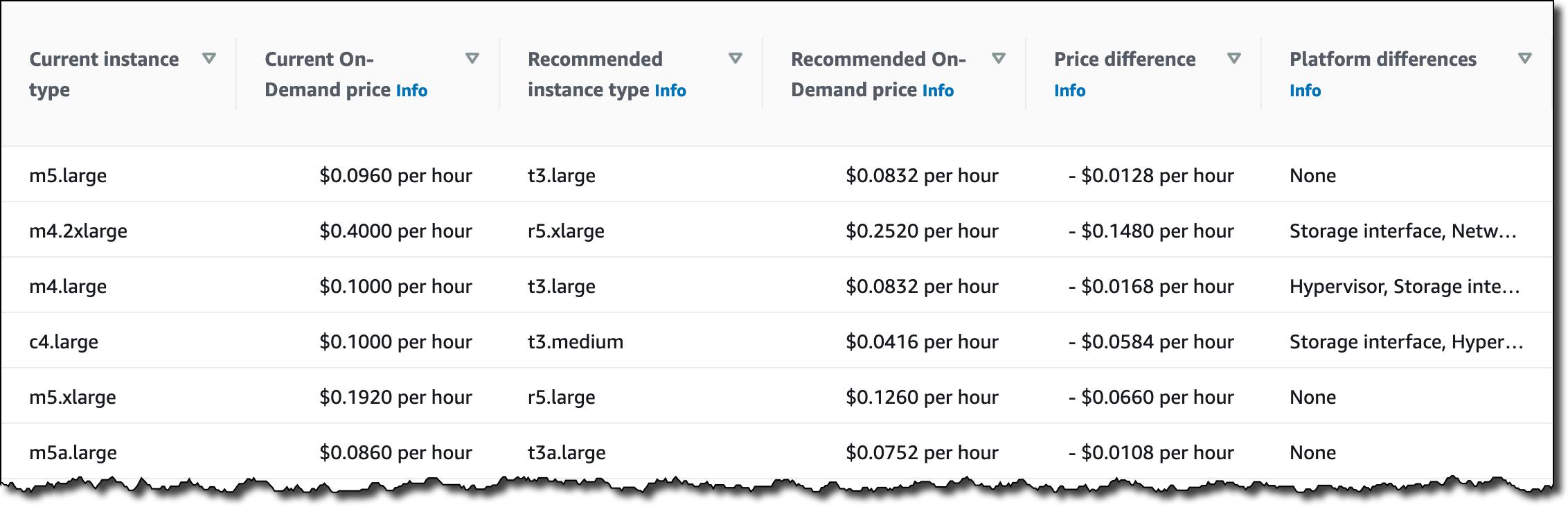
On the right, in the same table, I see which is the current instance type, the recommended instance type based on Computer Optimizer estimates, the difference in pricing, and if there are platform differences between the current and recommended instance types.

Console screenshot.

I can select each instance to further drill down into the metrics collected, as well as the other possible instance types suggested by Computer Optimizer.

Back to the Compute Optimizer Dashboard, in the Lambda functions section, I see that eight functions have under-provisioned memory.

Console screenshot.

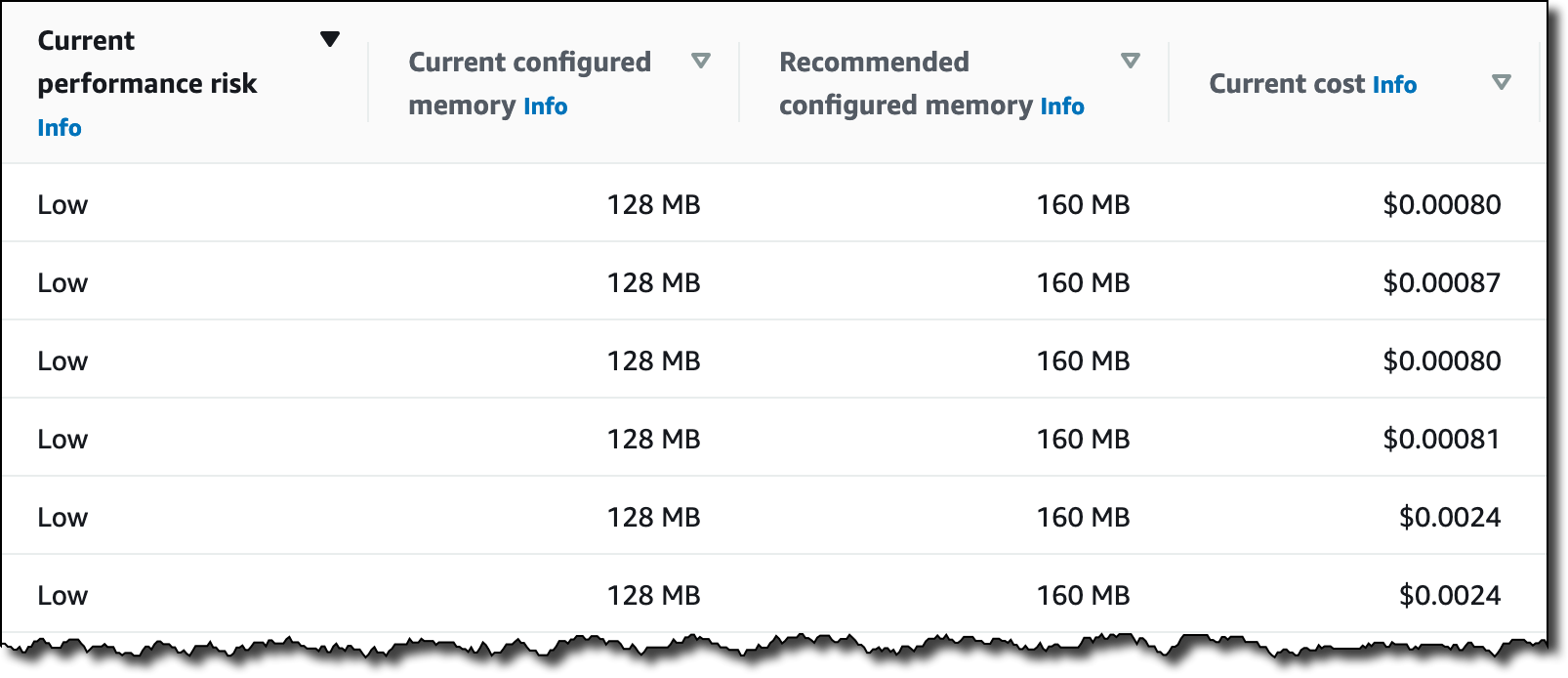
Again, I follow the 8 functions link to get recommendations for those resources, and then sort the table by Current performance risk. In my case, the risk is always low, but different values can help prioritize your activities.

Console screenshot.

Here, I see the current and recommended configured memory for those Lambda functions. I can select each function to get a view of the metrics collected. Choosing the memory allocated to Lambda functions is an optimization process that balances speed (duration) and cost. See Profiling functions with AWS Lambda Power Tuning in the documentation for more information.

Availability and Pricing
You can use resource efficiency metrics with AWS Compute Optimizer in any AWS Region where it is offered. For more information, see the AWS Regional Services List. There is no additional charge for this new capability. See the AWS Compute Optimizer pricing page for more information.

This new feature lets you implement a periodic workflow to optimize your costs:

  • You can start by reviewing savings opportunities for all of your accounts to identify which accounts have the highest savings opportunity.
  • Then, you can drill into those accounts with the highest savings opportunity. You can refer to the estimated monthly savings to see which recommendations can drive the largest absolute cost impact.
  • Finally, you can communicate optimization opportunities and priority order to the teams using those accounts.

Start using AWS Compute Optimizer today to find and prioritize savings opportunities in your AWS account or organization.

— Danilo

Scalable, Cost-Effective Disaster Recovery in the Cloud

Post Syndicated from Steve Roberts original https://aws.amazon.com/blogs/aws/scalable-cost-effective-disaster-recovery-in-the-cloud/

Should disaster strike, business continuity can require more than just periodic data backups. A full recovery that meets the business’s recovery time objectives (RTOs) must also include the infrastructure, operating systems, applications, and configurations used to process their data. The growing threats of ransomware highlight the need to be able to perform a full point-in-time recovery. For businesses affected by a ransomware attack, restoration of data from an old, possibly manual, backup will not be sufficient.

Previously, businesses have elected to provision separate, physical disaster recovery (DR) infrastructure. However, customers tell us this can be both space- and cost-prohibitive, involving capital expenditure on hardware and facilities that remain idle until called upon. The infrastructure also incurs overhead in terms of regular inspection and maintenance, typically manual, to ensure that should it ever be called upon, it’s ready and able to handle the current business load, which may have grown considerably since initial provisioning. This also makes testing difficult and expensive.

Today, I am happy to announce AWS Elastic Disaster Recovery (DRS) a fully scalable, cost-effective disaster recovery service for physical, virtual, and cloud servers, based on CloudEndure Disaster Recovery. DRS enables customers to use AWS as an elastic recovery site without needing to invest in on-premises DR infrastructure that lies idle until needed. Once enabled, DRS maintains a constant replication posture for your operating systems, applications, and databases. This helps businesses meet recovery point objectives (RPOs) of seconds, and RTOs of minutes, after disaster strikes. In cases of ransomware attacks, for example, DRS also allows recovery to a previous point in time.

DRS provides for recovery that scales as needed to match your current setup and does not need any time-consuming manual processes to maintain that readiness. It also offers the ability to perform disaster recovery readiness drills. Just as it’s important to test restoration of data from backups, being able to conduct recovery drills in a cost-effective manner without impacting ongoing replication or user activities can help give confidence that you can meet your objectives and customer expectations should you need to call on a recovery.

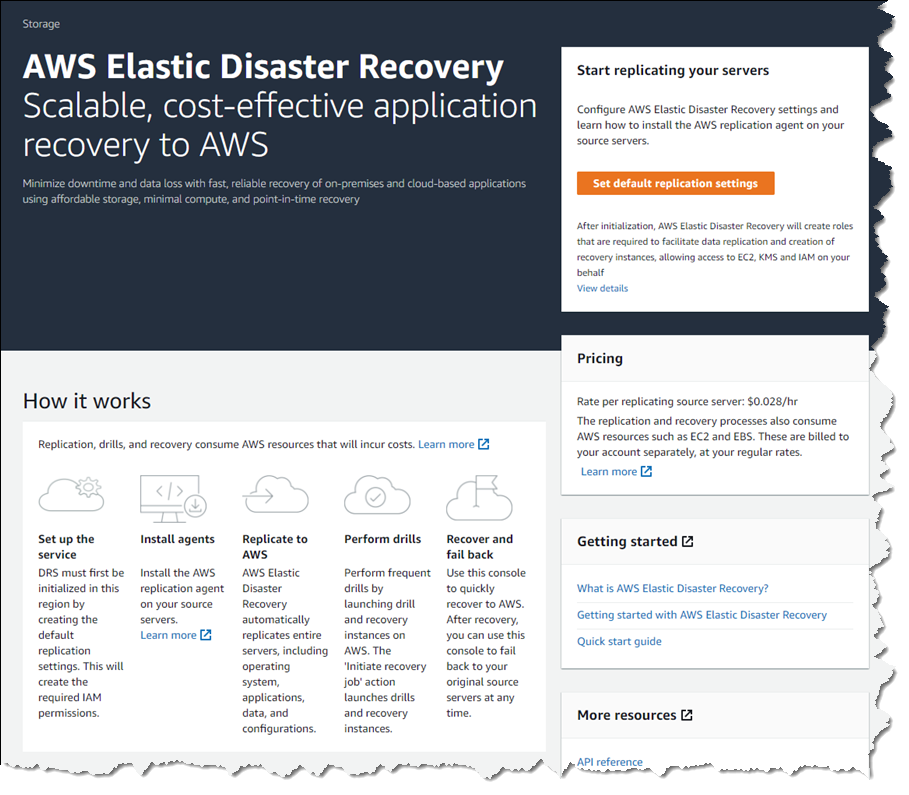
AWS Elastic Disaster Recovery console home

Elastic Disaster Recovery in Action
Once enabled, DRS continuously replicates block storage volumes from physical, virtual, or cloud-based servers, allowing it to support business RPOs measured in seconds. Recovery includes applications running on physical infrastructure, VMware vSphere, Microsoft Hyper-V, and cloud infrastructure to AWS. You’re able to recover all your applications and databases that run on supported Windows and Linux operating systems, with DRS orchestrating the recovery process for your servers on AWS to support an RTO measured in minutes.

Using an agent that you install on your servers, DRS securely replicates the data to a staging area subnet in a selected Region in your AWS account. The staging area subnet reduces costs to you, using affordable storage and minimal compute resources. Within the DRS console, you can recover Amazon Elastic Compute Cloud (Amazon EC2) instances in a different AWS Region if required. With DRS automating replication and recovery procedures, you can set up, test, and operate your disaster recovery capability using a single process without the need for specialized skill sets.

DRS gives you the flexibility to pay on an hourly basis, instead of needing to commit to a long-term contract or a set number of servers, a benefit over on-premises or data center recovery solutions. DRS charges hourly, on a pay-as-you-go basis. You can find specific details on pricing at the product page.

Exploring Elastic Disaster Recovery
To set up disaster recovery for my resources I first need to configure my default replication settings. As I mentioned earlier, DRS can be used with physical, virtual, and cloud servers. For this post, I’m going to use a collection of EC2 instances as my source servers for disaster recovery.

From the DRS console home, shown earlier, choosing Set default replication settings takes me to a short initialization wizard. In the wizard, I first need to select an Amazon Virtual Private Cloud (VPC) subnet that will be used for staging. This subnet does not need to be in the same VPC as my resources, but I need to select one that is not private or blocked to the world. Below, I’ve chosen a subnet from my default VPC in my Region. I can also change the instance type used for the replication instance. I chose to keep the suggested default and clicked Next to proceed.

Choosing the staging area subnet and replication instance type for DRS

I also left the default settings unchanged for the next two pages. In Volumes and security groups, the wizard suggests I use the general-purpose SSD (gp3) Amazon Elastic Block Store (EBS) storage type and to use a security group provided by DRS. On the Additional settings page I can elect to use a private IP for data replication instead of routing over the public internet, and set the snapshot retention period, which defaults to seven days. Clicking Next one final time, I arrive at the Review and create page of the wizard. Choosing Create default completes the process of configuring my default replication settings.

Finalizing default replication settings for DRS

With my replication settings finalized (I can edit them later if I wish, from the Actions menu on the Source servers console page) it’s time to set up my servers. I’m running a test fleet in EC2 that includes two Windows Server 2019 instances, and three Amazon Linux 2 instances. The DRS User Guide contains full instructions on how to obtain and set up the agent on each server type, so I won’t repeat them here. As I run and configure the agent on each of my server instances, the Source servers list automatically updates to include the new source server. The status of the initial sync, and future replication and recovery status of each source server, are summarized in this view.
Replication sync activity on servers

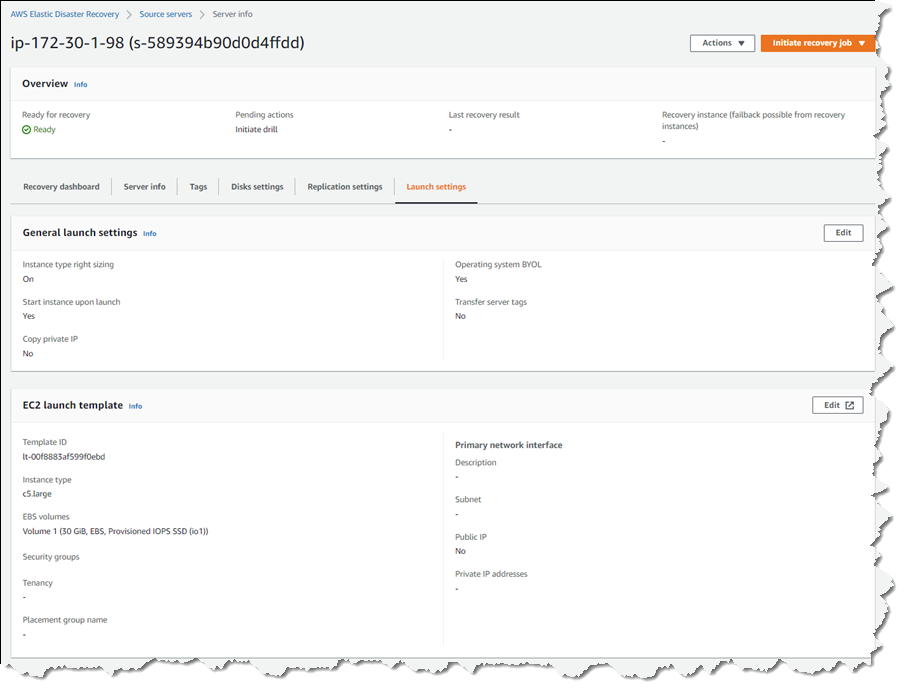
Selecting a hostname entry in the list takes me to a detail page. Here I can view a recovery dashboard, information on the underlying server, disk settings (including the ability to change the staging disk type from the default gp3 type selected by the initialization wizard, or whatever you choose during setup), and launch settings, shown below, that govern the recovery instance that will be created if I choose to initiate a drill or an actual recovery job.

DRS launch settings for a recovery server

Just like data backups, where established best practice is to periodically verify that the backups can actually be used to restore data, we recommend a similar best practice for disaster recovery. So, with my servers all configured and fully replicated, I decided to start a drill for a point-in-time (PIT) recovery for two of my servers. On these instances, following initial replication, I’d installed some additional software. In my scenario, perhaps this installation had gone badly wrong, or I’d fallen victim to a ransomware attack. Either way, I wanted to know and be confident that I could recover my servers if and when needed.

In the Source servers list I selected the two servers that I’d modified and from the Initiate recovery job drop-down menu, chose Initiate drill. Next, I can choose the recovery PIT I’m interested in. This view defaults to Any, meaning it lists all recovery PIT snapshots for the servers I selected. Or, I can choose to filter to All, meaning only PIT snapshots that apply to all the selected servers will be listed. Selecting All, I chose a time just after I’d completed installing additional software on the instances, and clicked Initiate drill.

Selecting a recovery point-in-time for multiple servers

I’m returned to the Source servers list, which shows status as the recovery proceeds. However, I switched to the Recovery job history view for more detail.

In-progress recovery drill

Clicking the job ID, I can drill down further to view a detail page of the source servers involved in the recovery (and can drill down further for each), as well as an overall recovery job log.

Viewing the recovery job log

Note – during a drill, or an actual recovery, if you go to the EC2 console you’ll notice one or more additional instances, started by DRS, running in your account (in addition to the replication server). These temporary instances, named AWS Elastic Disaster Recovery Conversion Server, are used to process the PIT snapshots onto the actual recovery instance(s) and will be terminated when the job is complete.

Once the recovery is complete, I can see two new instances in my EC2 environment. These are in the state matching the point-in-time recovery I selected, and are using the instance types I selected earlier in the DRS initialization wizard. I can now connect to them to verify that the recovery drill performed as expected before terminating them. Had this been a real recovery, I would have the option of terminating the original instances to replace them with the recovery versions, or handle whatever other tasks are needed to complete the disaster recovery for my business.

New instances matching my point-in-time recovery selection

Set Up Your Disaster Recovery Environment Today
AWS Elastic Disaster Recovery is generally available now in the US East (N. Virginia), US East (Ohio), US West (Oregon), Asia Pacific (Singapore), Asia Pacific (Sydney), Asia Pacific (Tokyo), Europe (Frankfurt), Europe (Ireland), and Europe (London) Regions. Review the AWS Elastic Disaster Recovery User Guide for more details on setup and operation, and get started today with DRS to eliminate idle recovery site resources, enjoy pay-as-you-go billing, and simplify your deployments to improve your disaster recovery objectives.

— Steve

Announcing Cloudflare R2 Storage: Rapid and Reliable Object Storage, minus the egress fees

Post Syndicated from Greg McKeon original https://blog.cloudflare.com/introducing-r2-object-storage/

Announcing Cloudflare R2 Storage: Rapid and Reliable Object Storage, minus the egress fees

Announcing Cloudflare R2 Storage: Rapid and Reliable Object Storage, minus the egress fees

We’re excited to announce Cloudflare R2 Storage! By giving developers the ability to store large amounts of unstructured data, we’re expanding what’s possible with Cloudflare while slashing the egress bandwidth fees associated with typical cloud storage services to zero.

Cloudflare R2 Storage includes full S3 API compatibility, working with existing tools and applications as built.

Let’s get into the R2 details.

R2 means “Really Requestable”

Object Storage, sometimes referred to as blob storage, stores arbitrarily large, unstructured files. Object storage is well suited to storing everything from media files or log files to application-specific metadata, all retrievable with consistent latency, high durability, and limitless capacity.

The most familiar API for Object Storage, and the API R2 implements, is Amazon’s Simple Storage Service (S3). When S3 launched in 2006, cloud storage services were a godsend for developers. It didn’t happen overnight, but over the last fifteen years, developers have embraced cloud storage and its promise of infinite storage space.

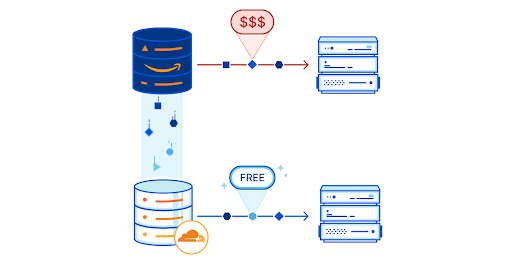
As transformative as cloud storage has been, a downside emerged: actually getting your data back. Over time, companies have amassed massive amounts of data on cloud provider networks. When they go to retrieve that data, they’re hit with massive egress fees that don’t correspond to any customer value — just a tax developers have grown accustomed to paying.

Enter R2.

Announcing Cloudflare R2 Storage: Rapid and Reliable Object Storage, minus the egress fees

Traditional object storage charges developers for three things: bandwidth, storage size and storage operations.

R2 builds on Cloudflare’s commitment to the Bandwidth Alliance, providing zero-cost egress for stored objects — no matter your request rate.  Egress bandwidth is often the largest charge for developers utilizing object storage and is also the hardest charge to predict.  Eliminating it is a huge win for open-access to data stored in the cloud.

That doesn’t mean we are shifting bandwidth costs elsewhere. Cloudflare R2 will be priced at $0.015 per GB of data stored per month — significantly cheaper than major incumbent providers.

Infrequent access to objects is often trivial for providers to support yet incurs the same per-operation charges. We don’t think it’s fair that typical object storage bills a developer making one request a second the same rate as an enterprise making thousands of requests a second — or frequently a higher rate when considering negotiated volume discounts.

On the flip side, providers designed for infrequent access typically can’t scale to heavy usage.

R2 will zero-rate infrequent storage operations under a threshold — currently planned to be in the single digit requests per second range. Above this range, R2 will charge significantly less per-operation than the major providers. Our object storage will be extremely inexpensive for infrequent access and yet capable of and cheaper than major incumbent providers at scale.

This cheaper price doesn’t come with reduced scalability. Behind the scenes, R2 automatically and intelligently manages the tiering of data to drive both performance at peak load and low-cost for infrequently requested objects.  We’ve gotten rid of complex, manual tiering policies in favor of what developers have always wanted out of object storage: limitless scale at the lowest possible cost.

R2 means “Repositioning Records”

Zero egress means you can get objects out easily, but what about putting objects in? Migrating data across cloud providers, even if they both support the complete S3 API, is error-prone and costly.

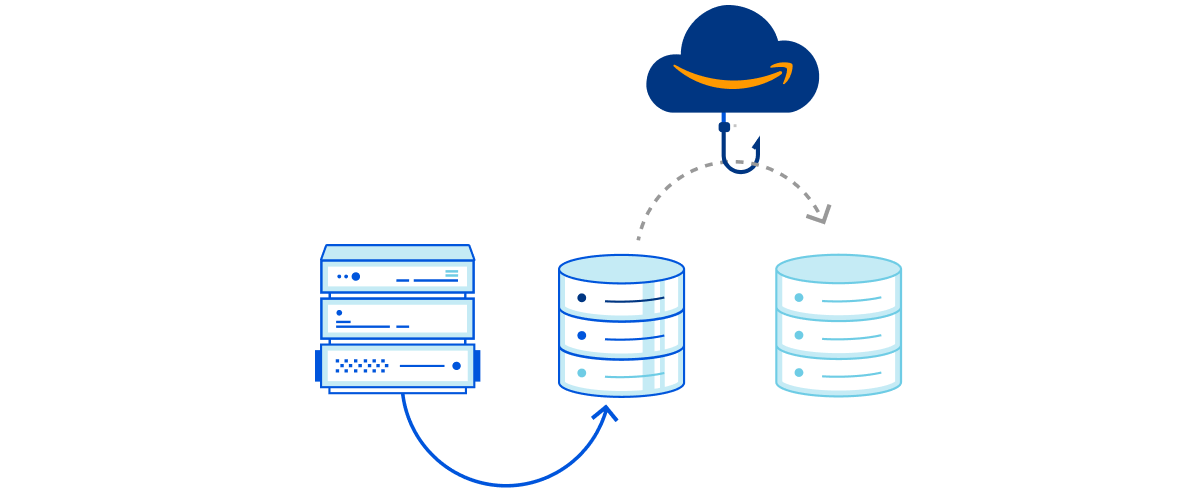
To make this easy for you, without requiring you to change any of your tooling, Cloudflare R2 will include automatic migration from other S3-compatible cloud storage services. Migrations are designed to be dead simple. After specifying an existing storage bucket, R2 will serve requests for objects from the existing bucket, egressing the object only once before copying and serving from R2. Our easy-to-use migrator will reduce egress costs from the second you turn it on in the Cloudflare dashboard.

Announcing Cloudflare R2 Storage: Rapid and Reliable Object Storage, minus the egress fees

Our vision for R2 includes multi-region storage that automatically replicates objects to the locations they’re frequently requested from. As with Durable Objects, we plan on introducing jurisdictional restrictions that allow developers to comply with complex data sovereignty requirements via a simple API.

R2 means “Ridiculously Reliable”

The core of what makes Object Storage great is reliability — we designed R2 for data durability and resilience at its core. R2 will provide 99.999999999% (eleven 9’s) of annual durability, which describes the likelihood of data loss. If you store 1,000,000 objects on R2, you can expect to lose one once every 100,000 years — the same level of durability as other major providers. R2 will be resistant to regional failures, replicating objects multiple times for high availability.

R2 is designed with redundancy across a large number of regions for reliability. We plan on starting from automatic global distribution and adding back region-specific controls for when data has to be stored locally, as described above.

R2 means “Radically Reprogrammable”

R2 is fully integrated with the Cloudflare Workers serverless runtime. You can bind a Worker to a specific bucket, dynamically transforming objects as they are written to or read from storage buckets. The deep integration between Workers and R2 makes building data pipelines and manipulating objects incredibly easy.

Cloudflare R2 is designed to easily integrate with the rest of Cloudflare’s products. As a few examples, our plan is to allow Durable Objects to be configured with R2 as a backup target, and provide automatic integration between R2 and Cloudflare cache to greatly extend cache lifetimes for infrequently changing objects.

What will you be able to build with Cloudflare R2?

There’s a lot you can do with long-term storage, especially with access to the Workers compute platform just alongside it.

For example, streaming data from a large number of IoT devices becomes a breeze with R2. Starting with a Worker to transform and manipulate the data, R2 can ingest large volumes of sensor data and store it at low cost. With no egress fees, it becomes simple to migrate volumes of data to multiple databases and analytics solutions as needed, dramatically reducing storage costs. With the ability to run a Worker on the outgoing data as well, the data pipeline itself is more flexible.

R2 is also a great place for CDN assets and large media files. For large files, R2 can significantly extend cache lifetimes while dramatically slashing egress bills. Combined with the Cache API and Workers, content can be dynamically cached for low-latency access around the globe.

More than anything, R2’s lack of egress bandwidth charges makes it ideal for storing content that’s accessed frequently. Today, R2 scales well to handle heavy request loads, dynamically tiering your objects to provide the best performance at the lowest cost. This dynamic tiering allows us to offer the lowest prices while supporting peak performance — with no user configuration required.

Accessing Cloudflare R2

R2 is currently under development — you can sign up here to join the waitlist for access. We’re excited to work with a number of earlier users to refine and test the product. We’ll be announcing an open beta where any user will be able to sign up for the service soon.

We’re excited to continue to build the product and push towards open beta, and we have big ideas for what the future of storage at Cloudflare’s edge could look like. If you’re a distributed systems engineer who wants to help us build the future of state at the edge, come work with us!

Enabling parallel file systems in the cloud with Amazon EC2 (Part I: BeeGFS)

Post Syndicated from Ben Peven original https://aws.amazon.com/blogs/compute/enabling-parallel-file-systems-in-the-cloud-with-amazon-ec2-part-i-beegfs/

This post was authored by AWS Solutions Architects Ray Zaman, David Desroches, and Ameer Hakme.

In this blog series, you will discover how to build and manage your own Parallel Virtual File System (PVFS) on AWS. In this post you will learn how to deploy the popular open source parallel file system, BeeGFS, using AWS D3en and I3en EC2 instances. We will also provide a CloudFormation template to automate this BeeGFS deployment.

A PVFS is a type of distributed file system that distributes file data across multiple servers and provides concurrent data access to multiple execution tasks of an application. PVFS focuses on high-performance access to large datasets. It consists of a server process and a client library, which allows the file system to be mounted and used with standard utilities. PVFS on the Linux OS originated in the 1990’s and today several projects are available including Lustre, GlusterFS, and BeeGFS. Workloads such as shared storage for video transcoding and export, batch processing jobs, high frequency online transaction processing (OLTP) systems, and scratch storage for high performance computing (HPC) benefit from the high throughput and performance provided by PVFS.

Implementation of a PVFS can be complex and expensive. There are many variables you will want to take into account when designing a PVFS cluster including the number of nodes, node size (CPU, memory), cluster size, storage characteristics (size, performance), and network bandwidth. Due to the difficulty in estimating the correct configuration, systems procured for on-premises data centers are typically oversized, resulting in additional costs, and underutilized resources. In addition, the hardware procurement process is lengthy and the installation and maintenance of the hardware adds additional overhead.

AWS makes it easy to run and fully manage your parallel file systems by allowing you to choose from a variety of Amazon Elastic Compute Cloud (EC2) instances. EC2 instances are available on-demand and allow you to scale your workload as needed. AWS storage-optimized EC2 instances offer up to 60 TB of NVMe SSD storage per instance and up to 336 TB of local HDD storage per instance. With storage-optimized instances, you can easily deploy PVFS to support workloads requiring high-performance access to large datasets. You can test and iterate on different instances to find the optimal size for your workloads.

D3en instances leverage 2nd-generation Intel Xeon Scalable Processors (Cascade Lake) and provide a sustained all core frequency up to 3.1 GHz. These instances provide up to 336 TB of local HDD storage (which is the highest local storage capacity in EC2), up to 6.2 GiBps of disk throughput, and up to 75 Gbps of network bandwidth.

I3en instances are powered by 1st or 2nd generation Intel® Xeon® Scalable (Skylake or Cascade Lake) processors with 3.1 GHz sustained all-core turbo performance. These instances provide up to 60 TB of NVMe storage, up to 16 GB/s of sequential disk throughput, and up to 100 Gbps of network bandwidth.

BeeGFS, originally released by ThinkParQ in 2014, is an open source, software defined PVFS that runs on Linux. You can scale the size and performance of the BeeGFS file-system by configuring the number of servers and disks in the clusters up to thousands of nodes.

BeeGFS architecture

D3en instances offer HDD storage while I3en instances offer NVMe SSD storage. This diversity allows you to create tiers of storage based on performance requirements. In the example presented in this post you will use four D3en.8xlarge (32 vCPU, 128 GB, 16x14TB HDD, 50 Gbit) and two I3en.12xlarge (48 vCPU, 384 GB, 4 x 7.5-TB NVMe) instances to create two storage tiers. You may choose different sizes and quantities to meet your needs. The I3en instances, with SSD, will be configured as tier 1 and the D3en instances, with HDD, will be configured as tier 2. One disk from each instance will be formatted as ext4 and used for metadata while the remaining disks will be formatted as XFS and used for storage. You may choose to separate metadata and storage on different hosts for workloads where these must scale independently. The array will be configured RAID 0, since it will provide maximum performance. Software replication or other RAID types can be employed for higher durability.

BeeGFS architecture

Figure 1: BeeGFS architecture

You will deploy all instances within a single VPC in the same Availability Zone and subnet to minimize latency. Security groups must be configured to allow the following ports:

  • Management service (beegfs-mgmtd): 8008
  • Metadata service (beegfs-meta): 8005
  • Storage service (beegfs-storage): 8003
  • Client service (beegfs-client): 8004

You will use the Debian Quick Start Amazon Machine Image (AMI) as it supports BeeGFS. You can enable Amazon CloudWatch to capture metrics.

How to deploy the BeeGFS architecture

Follow the steps below to create the PVFS described above. For automated deployment, use the CloudFormation template located at AWS Samples.

  1. Use the AWS Management Console or CLI to deploy one D3en.8xlarge instance into a VPC as described above.
  2. Log in to the instance and update the system:
    • sudo apt update
    • sudo apt upgrade
  3. Install the XFS utilities and load the kernel module:
    • sudo apt-get -y install xfsprogs
    • sudo modprobe -v xfs

Format the first disk ext4 as it is used for metadata, the rest are formatted xfs. The disks will appear as “nvme???” which actually represent the HDD drives on the D3en instances.

4. View a listing of available disks:

    • sudo lsblk

5. Format hard disks:

    • sudo mkfs -t ext4 /dev/nvme0n1
    • sudo mkfs -t xfs /dev/nvme1n1
    • Repeat this command for disks nvme2n1 through nvme15n1

6. Create file system mount points:

    • sudo mkdir /disk00
    • sudo mkdir /disk01
    • Repeat this command for disks disk02 through disk15

7. Mount the filesystems:

    • sudo mount /dev/nvme0n1 /disk00
    • sudo mount /dev/nvme0n1 /disk01
    • Repeat this command for disks disk02 through disk15

Repeat steps 1 through 7 on the remaining nodes. Remember to account for fewer disks for i3en.12xlarge instances or if you decide to use different instance sizes.

8. Add the BeeGFS Repo to each node:

    • sudo apt-get -y install gnupg
    • wget https://www.beegfs.io/release/beegfs_7.2.3/dists/beegfs-deb10.list
    • sudo cp beegfs-deb10.list /etc/apt/sources.list.d/
    • sudo wget -q https://www.beegfs.io/release/latest-stable/gpg/DEB-GPG-KEY-beegfs -O- | sudo apt-key add -
    • sudo apt update

9. Install BeeGFS management (node 1 only):

    • sudo apt-get -y install beegfs-mgmtd
    • sudo mkdir /beegfs-mgmt
    • sudo /opt/beegfs/sbin/beegfs-setup-mgmtd -p /beegfs-mgmt/beegfs/beegfs_mgmtd

10. Install BeeGFS metadata and storage (all nodes):

    • sudo apt-get -y install beegfs-meta beegfs-storage beegfs-meta beegfs-client beegfs-helperd beegfs-utils
    • # -s is unique ID based on node - change this!, -m is hostname of management server
    • sudo /opt/beegfs/sbin/beegfs-setup-meta -p /disk00/beegfs/beegfs_meta -s 1 -m ip-XXX-XXX-XXX-XXX
    • # Change -s to nodeID and -i to (nodeid)0(disk), -m is hostname of management server
    • sudo /opt/beegfs/sbin/beegfs-setup-storage -p /disk01/beegfs_storage -s 1 -i 101 -m ip-XXX-XXX-XXX-XXX
    • sudo /opt/beegfs/sbin/beegfs-setup-storage -p /disk02/beegfs_storage -s 1 -i 102 -m ip-XXX-XXX-XXX-XXX
    • Repeat this last command for the remaining disks disk03 through disk15

11. Start the services:

    • #Only on node1
    • sudo systemctl start beegfs-mgmtd
    • #All servers
    • sudo systemctl start beegfs-meta
    • sudo systemctl start beegfs-storage

At this point, your BeeGFS cluster is running and ready for use by a client system. The client system requires BeeGFS client software in order to mount the cluster.

12. Deploy an m5n.2xlarge instance into the same subnet as the PVFS cluster.

13. Log in to the instance, install, and configure the client:

    • sudo apt update
    • sudo apt upgrade
    • sudo apt-get -y install gnupg
    • #Need linux sources for client compilation
    • sudo apt-get -y install linux-source
    • sudo apt-get -y install linux-headers-4.19.0-14-all
    • wget https://www.beegfs.io/release/beegfs_7.2.3/dists/beegfs-deb10.list
    • sudo cp beegfs-deb10.list /etc/apt/sources.list.d/
    • sudo wget -q https://www.beegfs.io/release/latest-stable/gpg/DEB-GPG-KEY-beegfs -O- | sudo apt-key add -
    • sudo apt update
    • sudo apt-get -y install beegfs-client beegfs-helperd beegfs-utils
    • sudo /opt/beegfs/sbin/beegfs-setup-client -m ip-XXX-XXX-XXX-XX # use the ip address of the management node
    • sudo systemctl start beegfs-helperd
    • sudo systemctl start beegfs-client

14. Create the storage pools:

    • sudo beegfs-ctl --addstoragepool —desc="tier1" —targets=501,502,503,601,602,603
    • sudo beegfs-ctl --addstoragepool --desc="tier2" --targets=101,102,103,104,105,106,107,108,109,110,111,112,113,114,115,201,202,203,204,205,206,207,208,209,210,
      211,212,213,214,215,301,302,303,304,305,306,307,308,309,310,311,312,313,314,315,401,402,403,404,405,406,407,
      408,409,410,411,412,413,414,415
    • sudo beegfs-ctl --liststoragepools
    • Pool ID Pool Description                      Targets                 Buddy Groups
    • ======= ================== ============================ ============================
      • Default
      • tier1 501,502,503,601,602,603
      • tier2 101,102,103,104,105,106,107,
        • 108,109,110,111,112,113,114,
        • 115,201,202,203,204,205,206,
        • 207,208,209,210,211,212,213,
        • 214,215,301,302,303,304,305,
        • 306,307,308,309,310,311,312,
        • 313,314,315,401,402,403,404,
        • 405,406,407,408,409,410,411,
        • 412,413,414,415

15. Mount the pools to the file system:

    • sudo beegfs-ctl --setpattern --storagepoolid=2 /mnt/beegfs/tier1
    • sudo beegfs-ctl --setpattern --storagepoolid=3 /mnt/beegfs/tier2

The BeeGFS PVFS is now ready to be used by the client system.

How to test your new BeeGFS PVFS

BeeGFS provides StorageBench to evaluate the performance of BeeGFS on the storage targets. This benchmark measures the streaming throughput of the underlying file system and devices independent of the network performance. To simulate client I/O, this benchmark generates read/write locally on the servers without any client communication.

It is possible to benchmark specific targets or all targets together using the “servers” parameter. A “read” or “write” parameter sets the type pf test to perform. The “threads” parameter is set to the number of storage devices.

Try the following commands to test performance:

Write test (1x d3en):

sudo beegfs-ctl --storagebench --servers=1 --write --blocksize=512K —size=20G —threads=15

Write test (4x d3en):

sudo beegfs-ctl --storagebench --alltargets --write --blocksize=512K —size=20G —threads=15

Read test (4x d3en):

sudo beegfs-ctl --storagebench --servers=1,2,3,4 --read --blocksize=512K --size=20G --threads=15

Write test (1x i3en):

sudo beegfs-ctl --storagebench --servers=5 --write --blocksize=512K --size=20G --threads=3

Read test (2x i3en):

sudo beegfs-ctl --storagebench --servers=5,6 --read --blocksize=512K —size=20G —threads=3

StorageBench is a great way to test what the potential performance of a given environment looks like by reducing variables like network throughput and latency, but you may want to test in a more real-world fashion. For this, tools like ‘fio’ can generate mixed read/write workloads against files on the client BeeGFS mountpoint.

First, we need to define which directory goes to which Storage Pool (tier) by setting a pattern:

sudo beegfs-ctl --setpattern --storagepoolid=2 /mnt/beegfs/tier1 sudo beegfs-ctl --setpattern --storagepoolid=3 /mnt/beegfs/tier2

You can see how a file gets striped across the various disks in a pool by adding a file and running the command:

sudo beegfs-ctl —getentryinfo /mnt/beegfs/tier1/myfile.bin

Install fio:

sudo apt-get install -y fio

Now you can run a fio test against one of the tiers.  This example command runs eight threads running a 75/25 read/write workload against a 10-GB file:

sudo fio --numjobs=8 --randrepeat=1 --ioengine=libaio --direct=1 --gtod_reduce=1 --name=test --filename=/mnt/beegfs/tier1/test --bs=512k --iodepth=64 --size=10G --readwrite=randrw --rwmixread=75

Cleaning up

To avoid ongoing charges for resources you created, you should:

Conclusion

In this blog post we demonstrated how to build and manage your own BeeGFS Parallel Virtual File System on AWS. In this example, you created two storage tiers using the I3en and D3en. The I3en was used as the first tier for SSD storage and the D3en was used as a second tier for HDD storage. By using two different tiers, you can optimize performance to meet your application requirements.

Amazon EC2 storage-optimized instances make it easy to deploy the BeeGFS Parallel Virtual File System. Using combinations of SSD and HDD storage available on the I3en and D3en instance types, you can achieve the capacity and performance needed to run the most demanding workloads. Read more about the D3en and I3en instances.

Welcome to AWS Storage Day 2021

Post Syndicated from Marcia Villalba original https://aws.amazon.com/blogs/aws/welcome-to-aws-storage-day-2021/

Welcome to the third annual AWS Storage Day 2021! During Storage Day 2020 and the first-ever Storage Day 2019 we made many impactful announcements for our customers and this year will be no different. The one-day, free AWS Storage Day 2021 virtual event will be hosted on the AWS channel on Twitch. You’ll hear from experts about announcements, leadership insights, and educational content related to AWS Storage services.

AWS Storage DayThe first part of the day is the leadership track. Wayne Duso, VP of Storage, Edge, and Data Governance, will be presenting a live keynote. He’ll share information about what’s new in AWS Cloud Storage and how these services can help businesses increase agility and accelerate innovation. The keynote will be followed by live interviews with the AWS Storage leadership team, including Mai-Lan Tomsen Bukovec, VP of AWS Block and Object Storage.

The second part of the day is a technical track in which you’ll learn more about Amazon Simple Storage Service (Amazon S3), Amazon Elastic Block Store (EBS), Amazon Elastic File System (Amazon EFS), AWS Backup, Cloud Data Migration, AWS Transfer Family and Amazon FSx.

To register for the event, visit the AWS Storage Day 2021 event page.

Now as Jeff Barr likes to say, let’s get into the announcements.

Amazon FSx for NetApp ONTAP
Today, we are pleased to announce Amazon FSx for NetApp ONTAP, a new storage service that allows you to launch and run fully managed NetApp ONTAP file systems in the cloud. Amazon FSx for NetApp ONTAP joins Amazon FSx for Lustre and Amazon FSx for Windows File Server as the newest file system offered by Amazon FSx.

Amazon FSx for NetApp ONTAP provides the full ONTAP experience with capabilities and APIs that make it easy to run applications that rely on NetApp or network-attached storage (NAS) appliances on AWS without changing your application code or how you manage your data. To learn more, read New – Amazon FSx for NetApp ONTAP.

Amazon S3
Amazon S3 Multi-Region Access Points is a new S3 feature that allows you to define global endpoints that span buckets in multiple AWS Regions. Using this feature, you can now build multi-region applications without adding complexity to your applications, with the same system architecture as if you were using a single AWS Region.

S3 Multi-Region Access Points is built on top of AWS Global Accelerator and routes S3 requests over the global AWS network. S3 Multi-Region Access Points dynamically routes your requests to the lowest latency copy of your data, so the upload and download performance can increase by 60 percent. It’s a great solution for applications that rely on reading files from S3 and also for applications like autonomous vehicles that need to write a lot of data to S3. To learn more about this new launch, read How to Accelerate Performance and Availability of Multi-Region Applications with Amazon S3 Multi-Region Access Points.

Creating a multi-region access point

There’s also great news about the Amazon S3 Intelligent-Tiering storage class! The conditions of usage have been updated. There is no longer a minimum storage duration for all objects stored in S3 Intelligent-Tiering, and monitoring and automation charges for objects smaller than 128 KB have been removed. Smaller objects (128 KB or less) are not eligible for auto-tiering when stored in S3 Intelligent-Tiering. Now that there is no monitoring and automation charge for small objects and no minimum storage duration, you can use the S3 Intelligent-Tiering storage class by default for all your workloads with unknown or changing access patterns. To learn more about this announcement, read Amazon S3 Intelligent-Tiering – Improved Cost Optimizations for Short-Lived and Small Objects.

Amazon EFS
Amazon EFS Intelligent Tiering is a new capability that makes it easier to optimize costs for shared file storage when access patterns change. When you enable Amazon EFS Intelligent-Tiering, it will store the files in the appropriate storage class at the right time. For example, if you have a file that is not used for a period of time, EFS Intelligent-Tiering will move the file to the Infrequent Access (IA) storage class. If the file is accessed again, Intelligent-Tiering will automatically move it back to the Standard storage class.

To get started with Intelligent-Tiering, enable lifecycle management in a new or existing file system and choose a lifecycle policy to automatically transition files between different storage classes. Amazon EFS Intelligent-Tiering is perfect for workloads with changing or unknown access patterns, such as machine learning inference and training, analytics, content management and media assets. To learn more about this launch, read Amazon EFS Intelligent-Tiering Optimizes Costs for Workloads with Changing Access Patterns.

AWS Backup
AWS Backup Audit Manager allows you to simplify data governance and compliance management of your backups across supported AWS services. It provides customizable controls and parameters, like backup frequency or retention period. You can also audit your backups to see if they satisfy your organizational and regulatory requirements. If one of your monitored backups drifts from your predefined parameters, AWS Backup Audit Manager will let you know so you can take corrective action. This new feature also enables you to generate reports to share with auditors and regulators. To learn more, read How to Monitor, Evaluate, and Demonstrate Backup Compliance with AWS Backup Audit Manager.

Amazon EBS
Amazon EBS direct APIs now support creating 64 TB EBS Snapshots directly from any block storage data, including on-premises. This was increased from 16 TB to 64 TB, allowing customers to create the largest snapshots and recover them to Amazon EBS io2 Block Express Volumes. To learn more, read Amazon EBS direct API documentation.

AWS Transfer Family
AWS Transfer Family Managed Workflows is a new feature that allows you to reduce the manual tasks of preprocessing your data. Managed Workflows does a lot of the heavy lifting for you, like setting up the infrastructure to run your code upon file arrival, continuously monitoring for errors, and verifying that all the changes to the data are logged. Managed Workflows helps you handle error scenarios so that failsafe modes trigger when needed.

AWS Transfer Family Managed Workflows allows you to configure all the necessary tasks at once so that tasks can automatically run in the background. Managed Workflows is available today in the AWS Transfer Family Management Console. To learn more, read Transfer Family FAQ.

Storage Day 2021 Join us online for more!
Don’t forget to register and join us for the AWS Storage Day 2021 virtual event. The event will be live at 8:30 AM Pacific Time (11:30 AM Eastern Time) on September 2. The event will immediately re-stream for the Asia-Pacific audience with live Q&A moderators on Friday, September 3, at 8:30 AM Singapore Time. All sessions will be available on demand next week.

We look forward to seeing you there!

— Marcia

New – Amazon EFS Intelligent-Tiering Optimizes Costs for Workloads with Changing Access Patterns

Post Syndicated from Channy Yun original https://aws.amazon.com/blogs/aws/new-amazon-efs-intelligent-tiering-optimizes-costs-for-workloads-with-changing-access-patterns/

Amazon Elastic File System (Amazon EFS) offers four storage classes: two Standard storage classes, Amazon EFS Standard and Amazon EFS Standard-Infrequent Access (EFS Standard-IA), and two One Zone storage classes, Amazon EFS One Zone, and Amazon EFS One Zone-Infrequent Access (EFS One Zone-IA). Standard storage classes store data within and across multiple availability zones (AZ). One Zone storage classes store data redundantly within a single AZ, at 47 percent lower price compared to file systems using Standard storage classes, for workloads that don’t require multi-AZ resilience.

The EFS Standard and EFS One Zone storage classes are performance-optimized to deliver lower latency. The Infrequent Access (IA) storage classes are cost-optimized for files that are not accessed every day. With EFS lifecycle management, you can move files that have not been accessed for the duration of the lifecycle policy (7, 14, 30, 60, or 90 days) to the IA storage classes. This will reduce the cost of your storage by up to 92 percent compared to EFS Standard and EFS One Zone storage classes respectively.

Customers love the cost savings provided by the IA storage classes, but they also want to ensure that they won’t get unexpected data access charges if access patterns change and files that have transitioned to IA are accessed frequently. Reading from or writing data to the IA storage classes incurs a data access charge for every access.

Today, we are launching Amazon EFS Intelligent-Tiering, a new EFS lifecycle management feature that automatically optimizes costs for shared file storage when data access patterns change, without operational overhead.

With EFS Intelligent-Tiering, lifecycle management monitors the access patterns of your file system and moves files that have not been accessed for the duration of the lifecycle policy from EFS Standard or EFS One Zone to EFS Standard-IA or EFS One Zone-IA, depending on whether your file system uses EFS Standard or EFS One Zone storage classes. If the file is accessed again, it is moved back to EFS Standard or EFS One Zone storage classes.

EFS Intelligent-Tiering optimizes your costs even if your workload file data access patterns change. You’ll never have to worry about unbounded data access charges because you only pay for data access charges for transitions between storage classes.

Getting started with EFS Intelligent-Tiering
To get started with EFS Intelligent-Tiering, create a file system using the AWS Management Console, enable lifecyle management and set two lifecycle policies.

Choose a Transition into IA option to move infrequently accessed files to the IA storage classes. From the drop down list, you can choose lifecycle policies of 7, 14, 30, 60, or 90 days. Additionally, choose a Transition out of IA option and select On first access to move files back to EFS Standard or EFS One Zone storage classes on access.

For an existing file system, you can click the Edit button on your file system to enable or change lifecycle management and EFS Intelligent-Tiering.

Also, you can use the PutLifecycleConfiguration API action or put-lifecycle-configuration command specifying the file system ID of the file system for which you are enabling lifecycle management and the two policies for EFS Intelligent-Tiering.

$ aws efs put-lifecycle-configuration \
   --file-system-id File-System-ID \
   --lifecycle-policies "[{"TransitionToIA":"AFTER_30_DAYS"},
     {"TransitionToPrimaryStorageClass":"AFTER_1_ACCESS"}]"
   --region us-west-2 \
   --profile adminuser

You get the following response:

{
  "LifecyclePolicies": [
    {
        "TransitionToIA": "AFTER_30_DAYS"
    },
    {
        "TransitionToPrimaryStorageClass": "AFTER_1_ACCESS"
    }
  ]
}

To disable EFS Intelligent-Tiering, set both the Transition into IA and Transition out of IA options to None. This will disable lifecycle management, and your files will remain on the storage class they’re on.

Any files that have already started to move between storage classes at the time that you disabled EFS Intelligent-Tiering will complete moving to their new storage class. You can disable transition policies independently of each other.

For more information, see Amazon EFS lifecycle management in the Amazon EFS User Guide.

Now Available
Amazon EFS Intelligent-Tiering is available in all AWS Regions where Amazon EFS is available. To learn more, join us for the third annual and completely free-to-attend AWS Storage Day 2021 and tune in to our livestream on the AWS Twitch channel today.

You can send feedback to the AWS forum for Amazon EFS or through your usual AWS Support contacts.

– Channy

Amazon S3 Intelligent-Tiering – Improved Cost Optimizations for Short-Lived and Small Objects

Post Syndicated from Sean M. Tracey original https://aws.amazon.com/blogs/aws/amazon-s3-intelligent-tiering-further-automating-cost-savings-for-short-lived-and-small-objects/

In 2018, we first launched Amazon S3 Intelligent-Tiering (S3 Intelligent-Tiering). For customers managing data across business units, teams, and products, unpredictable access patterns are often the norm. With the S3 Intelligent-Tiering storage class, S3 automatically optimizes costs by moving data between access tiers as access patterns change.

Today, we’re pleased to announce two updates to further enhance savings.

  • S3 Intelligent-Tiering now has no minimum storage duration period for all objects.
  • Monitoring and automation charges are no longer collected for objects smaller than 128 KB.

How Does this Benefit Customers?
Amazon S3 Intelligent-Tiering can be used to store shared datasets, where data is aggregated and accessed by different applications, teams, and individuals, whether for analytics, machine learning, real-time monitoring, or other data lake use cases.

An image showing how S3 Intelligent-Tiering Optimises costs by moving objects between access tier

With these use cases, it’s common that many users within an organization will store data with a wide range of objects and delete subsets of data in less than 30 days.

To date, S3 Intelligent-Tiering was intended for objects larger than 128 KB stored for a minimum of 30 days. As of today, monitoring and automation charges will no longer be collected for objects smaller than 128 KB — this includes both new and already existing objects in the S3 Intelligent-Tiering storage class. Additionally, objects deleted, transitioned, or overwritten within 30 days will no longer accrue prorated charges.

With these changes, S3 Intelligent-Tiering is the ideal storage class for data with unknown, changing, or unpredictable access patterns, independent of object size or retention period.

How Can I Use This Now?
S3 Intelligent-Tiering can either be applied to objects individually, as they are written to S3 by adding the Intelligent-Tiering header to the PUT request for your object, or through the creation of a lifecycle rule.

One way you can explore the benefits of S3 Intelligent-Tiering is through the Amazon S3 Console.

Once there, select a bucket you wish to upload an object to and store with the S3 Intelligent-Tiering class, then select the Upload button on the object display view. This will take you to a page where you can upload files or folders to S3.
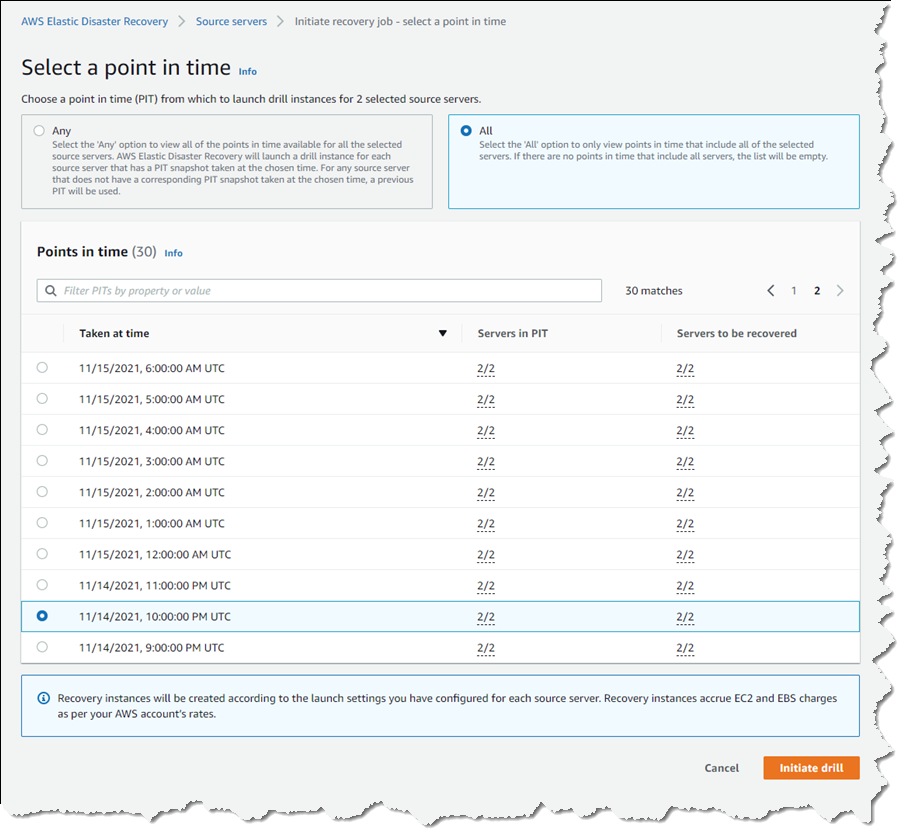
You can drag and drop or use either the Add Files or Add Folders button to upload objects to your bucket. Once selected, you will see a view like the following image.

A screenshot showing the upload of a file into an S3 bucket.

Next, scroll down the page and expand the Properties section. Here, we can select the storage class we wish for our object (or objects) to be stored in. Select Intelligent-Tiering from the storage class options list. Then select the Upload button at the bottom of the page.

Screenshot showing the properties section, choosing Intelligent-Tiering as the storage class

Your objects will now be stored in your S3 bucket utilizing the S3 Intelligent-Tiering storage class, further optimizing costs by moving data between access tiers as access patterns change.

S3 Intelligent-Tiering is available in all AWS Regions, including the AWS GovCloud (US) Regions, the AWS China (Beijing) Region, operated by Sinnet, and the AWS China (Ningxia) Region, operated by NWCD. To learn more, visit the S3 Intelligent-Tiering page.

Security is the top priority for Amazon S3

Post Syndicated from Maddie Bacon original https://aws.amazon.com/blogs/security/security-is-the-top-priority-for-amazon-s3/

Amazon Simple Storage Service (Amazon S3) launched 15 years ago in March 2006, and became the first generally available service from Amazon Web Services (AWS). AWS marked the fifteenth anniversary with AWS Pi Week—a week of in-depth streams and live events. During AWS Pi Week, AWS leaders and experts reviewed the history of AWS and Amazon S3, and some of the key decisions involved in building and evolving S3.

As part of this celebration, Werner Vogels, VP and CTO for Amazon.com, and Eric Brandwine, VP and Distinguished Engineer with AWS Security, had a conversation about the role of security in Amazon S3 and all AWS services. They touched on why customers come to AWS, and how AWS services grow with customers by providing built-in security that can progress to protections that are more complex, based on each customer’s specific needs. They also touched on how, starting with Amazon S3 over 15 years ago and continuing to this day, security is the top priority at AWS, and how nothing can proceed at AWS without security that customers can rely on.

“In security, there are constantly challenging tradeoffs,” Eric says. “The path that we’ve taken at AWS is that our services are usable, but secure by default.”

To learn more about how AWS helps secure its customers’ systems and information through a culture of security first, watch the video, and be sure to check out AWS Pi Week 2021: The Birth of the AWS Cloud.

If you have feedback about this post, submit comments in the Comments section below.

Want more AWS Security how-to content, news, and feature announcements? Follow us on Twitter.

Author

Maddie Bacon

Maddie (she/her) is a technical writer for AWS Security with a passion for creating meaningful, inclusive content. She previously worked as a security reporter and editor at TechTarget and has a BA in Mathematics. In her spare time, she enjoys reading, traveling, and all things Harry Potter.

File Access Auditing Is Now Available for Amazon FSx for Windows File Server

Post Syndicated from Martin Beeby original https://aws.amazon.com/blogs/aws/file-access-auditing-is-now-available-for-amazon-fsx-for-windows-file-server/

Amazon FSx for Windows File Server provides fully managed file storage that is accessible over the industry-standard Server Message Block (SMB) protocol. It is built on Windows Server and offers a rich set of enterprise storage capabilities with the scalability, reliability, and low cost that you have come to expect from AWS.

In addition to key features such as user quotas, end-user file restore, and Microsoft Active Directory integration, the team has now added support for the auditing of end-user access on files, folders, and file shares using Windows event logs.

Introducing File Access Auditing
File access auditing allows you to send logs to a rich set of other AWS services so that you can query, process, and store your logs. By using file access auditing, enterprise storage administrators and compliance auditors can meet security and compliance requirements while eliminating the need to manage storage as logs grow over time. File access auditing will be particularly important to regulated customers such as those in the financial services and healthcare industries.

You can choose a destination for publishing audit events in the Windows event log format. The destination options are logging to Amazon CloudWatch Logs or streaming to Amazon Kinesis Data Firehose. From there, you can view and query logs in CloudWatch Logs, archive logs to Amazon Simple Storage Service (Amazon S3), or use AWS Partner solutions, such as Splunk and Datadog, to monitor your logs.

You can also set up Lambda functions that are triggered by new audit events. For example, you can configure AWS Lambda and Amazon CloudWatch alarms to send a notification to data security personnel when unauthorized access occurs.

Using File Access Auditing on a New File System
To enable file access auditing on a new file system, I head over to the Amazon FSx console and choose Create file system. On the Select file system type page, I choose Amazon FSx for Windows File Server, and then configure other settings for the file system. To use the auditing feature, Throughput capacity must be at least 32 MB/s, as shown here:

Screenshot of creating a file system

In Auditing, I see that File access auditing is turned on by default. In Advanced, for Choose an event log destination, I can change the destination for publishing user access events. I choose CloudWatch Logs and then choose a CloudWatch Logs log group in my account.

Screenshot of the Auditing options

After my file system has been created, I launch a new Amazon Elastic Compute Cloud (Amazon EC2) Instance and join it to my Active directory. When the instance is available, I connect to it using a remote desktop client. I open File Explorer and follow the documentation to map my new file system.

Screenshot of the file system once mapped

I open the file system in Windows Explorer and then right-click and select Properties. I choose Security, Advanced, and Auditing and then choose Add to add a new auditing entry. On the page for the auditing entry, in Principal, I click Select a principal. This is who I will be auditing. I choose Everyone. Next, for Type, I select the type of auditing I want (Success/Fail/All). Under Basic permissions, I select Full control for the permissions I want to audit for.

Screenshot of auditing options on a file share

Now that auditing is set up, I create some folders and create and modify some files. All this activity is now being audited, and the logs are being sent to CloudWatch Logs.

Screenshot of a file share, where some files and folders have been created

In the CloudWatch Logs Insights console, I can start to query the audit logs. Below you can see how I ran a simple query that finds all the logs associated with a specific file.

Screenshot of AWS CloudWatch Logs Insights

Continued Momentum
File access auditing is one of many features the team has launched in recent years, including: Self-Managed Directories, Native Multi-AZ File Systems, Support for SQL Server, Fine-Grained File Restoration, On-Premises Access, a Remote Management CLI, Data Deduplication, Programmatic File Share Configuration, Enforcement of In-Transit Encryption, Storage Size and Throughput Capacity Scaling, and Storage Quotas.

Pricing
File access auditing is free on Amazon FSx for Windows File Server. Standard pricing applies for the use of Amazon CloudWatch Logs, Amazon Kinesis Data Firehose, any downstream AWS services such as Amazon Redshift, S3, or AWS Lambda, and any AWS Partner solutions like Splunk and Datadog.

Available Today
File access auditing is available today for all new file systems in all AWS Regions where Amazon FSx for Windows File Server is available. Check our documentation for more details.

— Martin

Forwarding emails automatically based on content with Amazon Simple Email Service

Post Syndicated from Murat Balkan original https://aws.amazon.com/blogs/messaging-and-targeting/forwarding-emails-automatically-based-on-content-with-amazon-simple-email-service/

Introduction

Email is one of the most popular channels consumers use to interact with support organizations. In its most basic form, consumers will send their email to a catch-all email address where it is further dispatched to the correct support group. Often, this requires a person to inspect content manually. Some IT organizations even have a dedicated support group that handles triaging the incoming emails before assigning them to specialized support teams. Triaging each email can be challenging, and delays in email routing and support processes can reduce customer satisfaction. By utilizing Amazon Simple Email Service’s deep integration with Amazon S3, AWS Lambda, and other AWS services, the task of categorizing and routing emails is automated. This automation results in increased operational efficiencies and reduced costs.

This blog post shows you how a serverless application will receive emails with Amazon SES and deliver them to an Amazon S3 bucket. The application uses Amazon Comprehend to identify the dominant language from the message body.  It then looks it up in an Amazon DynamoDB table to find the support group’s email address specializing in the email subject. As the last step, it forwards the email via Amazon SES to its destination. Archiving incoming emails to Amazon S3 also enables further processing or auditing.

Architecture

By completing the steps in this post, you will create a system that uses the architecture illustrated in the following image:

Architecture showing how to forward emails by content using Amazon SES

The flow of events starts when a customer sends an email to the generic support email address like [email protected]. This email is listened to by Amazon SES via a recipient rule. As per the rule, incoming messages are written to a specified Amazon S3 bucket with a given prefix.

This bucket and prefix are configured with S3 Events to trigger a Lambda function on object creation events. The Lambda function reads the email object, parses the contents, and sends them to Amazon Comprehend for language detection.

Amazon DynamoDB looks up the detected language code from an Amazon DynamoDB table, which includes the mappings between language codes and support group email addresses for these languages. One support group could answer English emails, while another support group answers French emails. The Lambda function determines the destination address and re-sends the same email address by performing an email forward operation. Suppose the lookup does not return any destination address, or the language was not be detected. In that case, the email is forwarded to a catch-all email address specified during the application deployment.

In this example, Amazon SES hosts the destination email addresses used for forwarding, but this is not a requirement. External email servers will also receive the forwarded emails.

Prerequisites

To use Amazon SES for receiving email messages, you need to verify a domain that you own. Refer to the documentation to verify your domain with Amazon SES console. If you do not have a domain name, you will register one from Amazon Route 53.

Deploying the Sample Application

Clone this GitHub repository to your local machine and install and configure AWS SAM with a test AWS Identity and Access Management (IAM) user.

You will use AWS SAM to deploy the remaining parts of this serverless architecture.

The AWS SAM template creates the following resources:

  • An Amazon DynamoDB mapping table (language-lookup) contains information about language codes and associates them with destination email addresses.
  • An AWS Lambda function (BlogEmailForwarder) that reads the email content parses it, detects the language, looks up the forwarding destination email address, and sends it.
  • An Amazon S3 bucket, which will store the incoming emails.
  • IAM roles and policies.

To start the AWS SAM deployment, navigate to the root directory of the repository you downloaded and where the template.yaml AWS SAM template resides. AWS SAM also requires you to specify an Amazon Simple Storage Service (Amazon S3) bucket to hold the deployment artifacts. If you haven’t already created a bucket for this purpose, create one now. You will refer to the documentation to learn how to create an Amazon S3 bucket. The bucket should have read and write access by an AWS Identity and Access Management (IAM) user.

At the command line, enter the following command to package the application:

sam package --template template.yaml --output-template-file output_template.yaml --s3-bucket BUCKET_NAME_HERE

In the preceding command, replace BUCKET_NAME_HERE with the name of the Amazon S3 bucket that should hold the deployment artifacts.

AWS SAM packages the application and copies it into this Amazon S3 bucket.

When the AWS SAM package command finishes running, enter the following command to deploy the package:

sam deploy --template-file output_template.yaml --stack-name blogstack --capabilities CAPABILITY_IAM --parameter-overrides FromEmailAddress=info@ YOUR_DOMAIN_NAME_HERE CatchAllEmailAddress=catchall@ YOUR_DOMAIN_NAME_HERE

In the preceding command, change the YOUR_DOMAIN_NAME_HERE with the domain name you validated with Amazon SES. This domain also applies to other commands and configurations that will be introduced later.

This example uses “blogstack” as the stack name, you will change this to any other name you want. When you run this command, AWS SAM shows the progress of the deployment.

Configure the Sample Application

Now that you have deployed the application, you will configure it.

Configuring Receipt Rules

To deliver incoming messages to Amazon S3 bucket, you need to create a Rule Set and a Receipt rule under it.

Note: This blog uses Amazon SES console to create the rule sets. To create the rule sets with AWS CloudFormation, refer to the documentation.

  1. Navigate to the Amazon SES console. From the left navigation choose Rule Sets.
  2. Choose Create a Receipt Rule button at the right pane.
  3. Add info@YOUR_DOMAIN_NAME_HERE as the first recipient addresses by entering it into the text box and choosing Add Recipient.


Choose the Next Step button to move on to the next step.

  1. On the Actions page, select S3 from the Add action drop-down to reveal S3 action’s details. Select the S3 bucket that was created by the AWS SAM template. It is in the format of your_stack_name-inboxbucket-randomstring. You will find the exact name in the outputs section of the AWS SAM deployment under the key name InboxBucket or by visiting the AWS CloudFormation console. Set the Object key prefix to info/. This tells Amazon SES to add this prefix to all messages destined to this recipient address. This way, you will re-use the same bucket for different recipients.

Choose the Next Step button to move on to the next step.

In the Rule Details page, give this rule a name at the Rule name field. This example uses the name info-recipient-rule. Leave the rest of the fields with their default values.

Choose the Next Step button to move on to the next step.

  1. Review your settings on the Review page and finalize rule creation by choosing Create Rule

  1. In this example, you will be hosting the destination email addresses in Amazon SES rather than forwarding the messages to an external email server. This way, you will be able to see the forwarded messages in your Amazon S3 bucket under different prefixes. To host the destination email addresses, you need to create different rules under the default rule set. Create three additional rules for catchall@YOUR_DOMAIN_NAME_HERE , english@ YOUR_DOMAIN_NAME_HERE and french@YOUR_DOMAIN_NAME_HERE email addresses by repeating the steps 2 to 5. For Amazon S3 prefixes, use catchall/, english/, and french/ respectively.


Configuring Amazon DynamoDB Table

To configure the Amazon DynamoDB table that is used by the sample application

  1. Navigate to Amazon DynamoDB console and reach the tables view. Inspect the table created by the AWS SAM application.

language-lookup table is the table where languages and their support group mappings are kept. You need to create an item for each language, and an item that will hold the default destination email address that will be used in case no language match is found. Amazon Comprehend supports more than 60 different languages. You will visit the documentation for the supported languages and add their language codes to this lookup table to enhance this application.

  1. To start inserting items, choose the language-lookup table to open table overview page.
  2. Select the Items tab and choose the Create item From the dropdown, select Text. Add the following JSON content and choose Save to create your first mapping object. While adding the following object, replace Destination attribute’s value with an email address you own. The email messages will be forwarded to that address.

{

  “language”: “en”,

  “destination”: “english@YOUR_DOMAIN_NAME_HERE”

}

Lastly, create an item for French language support.

{

  “language”: “fr”,

  “destination”: “french@YOUR_DOMAIN_NAME_HERE”

}

Testing

Now that the application is deployed and configured, you will test it.

  1. Use your favorite email client to send the following email to the domain name info@ email address.

Subject: I need help

Body:

Hello, I’d like to return the shoes I bought from your online store. How can I do this?

After the email is sent, navigate to the Amazon S3 console to inspect the contents of the Amazon S3 bucket that is backing the Amazon SES Rule Sets. You will also see the AWS Lambda logs from the Amazon CloudWatch console to confirm that the Lambda function is triggered and run successfully. You should receive an email with the same content at the address you defined for the English language.

  1. Next, send another email with the same content, this time in French language.

Subject: j’ai besoin d’aide

Body:

Bonjour, je souhaite retourner les chaussures que j’ai achetées dans votre boutique en ligne. Comment puis-je faire ceci?


Suppose a message is not matched to a language in the lookup table. In that case, the Lambda function will forward it to the catchall email address that you provided during the AWS SAM deployment.

You will inspect the new email objects under english/, french/ and catchall/ prefixes to observe the forwarding behavior.

Continue experimenting with the sample application by sending different email contents to info@ YOUR_DOMAIN_NAME_HERE address or adding other language codes and email address combinations into the mapping table. You will find the available languages and their codes in the documentation. When adding a new language support, don’t forget to associate a new email address and Amazon S3 bucket prefix by defining a new rule.

Cleanup

To clean up the resources you used in your account,

  1. Navigate to the Amazon S3 console and delete the inbox bucket’s contents. You will find the name of this bucket in the outputs section of the AWS SAM deployment under the key name InboxBucket or by visiting the AWS CloudFormation console.
  2. Navigate to AWS CloudFormation console and delete the stack named “blogstack”.
  3. After the stack is deleted, remove the domain from Amazon SES. To do this, navigate to the Amazon SES Console and choose Domains from the left navigation. Select the domain you want to remove and choose Remove button to remove it from Amazon SES.
  4. From the Amazon SES Console, navigate to the Rule Sets from the left navigation. On the Active Rule Set section, choose View Active Rule Set button and delete all the rules you have created, by selecting the rule and choosing Action, Delete.
  5. On the Rule Sets page choose Disable Active Rule Set button to disable listening for incoming email messages.
  6. On the Rule Sets page, Inactive Rule Sets section, delete the only rule set, by selecting the rule set and choosing Action, Delete.
  7. Navigate to CloudWatch console and from the left navigation choose Logs, Log groups. Find the log group that belongs to the BlogEmailForwarderFunction resource and delete it by selecting it and choosing Actions, Delete log group(s).
  8. You will also delete the Amazon S3 bucket you used for packaging and deploying the AWS SAM application.


Conclusion

This solution shows how to use Amazon SES to classify email messages by the dominant content language and forward them to respective support groups. You will use the same techniques to implement similar scenarios. You will forward emails based on custom key entities, like product codes, or you will remove PII information from emails before forwarding with Amazon Comprehend.

With its native integrations with AWS services, Amazon SES allows you to enhance your email applications with different AWS Cloud capabilities easily.

To learn more about email forwarding with Amazon SES, you will visit documentation and AWS blogs.

Netflix Drive

Post Syndicated from Netflix Technology Blog original https://netflixtechblog.com/netflix-drive-a607538c3055

A file and folder interface for Netflix Cloud Services

Written by Vikram Krishnamurthy, Kishore Kasi, Abhishek Kapatkar, Tejas Chopra, Prudhviraj Karumanchi, Kelsey Francis, Shailesh Birari

In this post, we are introducing Netflix Drive, a Cloud drive for media assets and providing a high level overview of some of its features and interfaces. We intend this to be a first post in a series of posts covering Netflix Drive. In the future posts, we will do an architectural deep dive into the several components of Netflix Drive.

Netflix, and particularly Studio applications (and Studio in the Cloud) produce petabytes of data backed by billions of media assets. Several artists and workflows that may be globally distributed, work on different projects, and each of these projects produce content that forms a part of the large corpus of assets.

Here is an example of globally distributed production where several artists and workflows work in conjunction to create and share assets for one or many projects.

Fig 1: Globally distributed production with artists working on different assets from different parts of the world

There are workflows in which these artists may want to view a subset of these assets from this large dataset, for example, pertaining to a specific project. These artists may want to create personal workspaces and work on generating intermediate assets. To support such use cases, access control at the user workspace and project workspace granularity is extremely important for presenting a globally consistent view of pertinent data to these artists.

Netflix Drive aims to solve this problem of exposing different namespaces and attaching appropriate access control to help build a scalable, performant, globally distributed platform for storing and retrieving pertinent assets.

Netflix Drive is envisioned to be a Cloud Drive for Studio and Media applications and lends itself to be a generic paved path solution for all content in Netflix.

It exposes a file/folder interface for applications to save their data and an API interface for control operations. Netflix Drive relies on a data store that will be the persistent storage layer for assets, and a metadata store which will provide a relevant mapping from the file system hierarchy to the data store entities. The major pieces, as shown in Fig. 2, are the file system interface, the API interface, and the metadata and data stores. We will delve into these in the following sections.

Fig 2: Netflix Drive components

File interface for Netflix Drive

Creative applications such as Nuke, Maya, Adobe Photoshop store and retrieve content using files and folders. Netflix Drive relies on FUSE (File System In User Space) to provide POSIX files and folders interface to such applications. A FUSE based POSIX interface provides feature customization elasticity, deployment configuration flexibility as well as a standard and seamless file/folder interface. A similar user space abstraction is available for Windows (WinFSP) and MacOS (MacFUSE)

The operations that originate from user, application and system actions on files and folders translate to a well defined set of function and system calls which are forwarded by the Linux Virtual File System Layer (or a pass-through/filter driver in Windows) to the FUSE layer in user space. The resulting metadata and data operations will be implemented by appropriate metadata and data adapters in Netflix Drive.

Fig 3: POSIX interface of Netflix Drive

The POSIX files and folders interface for Netflix Drive is designed as a layered system with the FUSE implementation hooks forming the top layer. This layer will provide entry points for all of the relevant VFS calls that will be implemented. Netflix Drive contains an abstraction layer below FUSE which allows different metadata and data stores to be plugged into the architecture by having their corresponding adapters implement the interface. We will discuss more about the layered architecture in the section below.
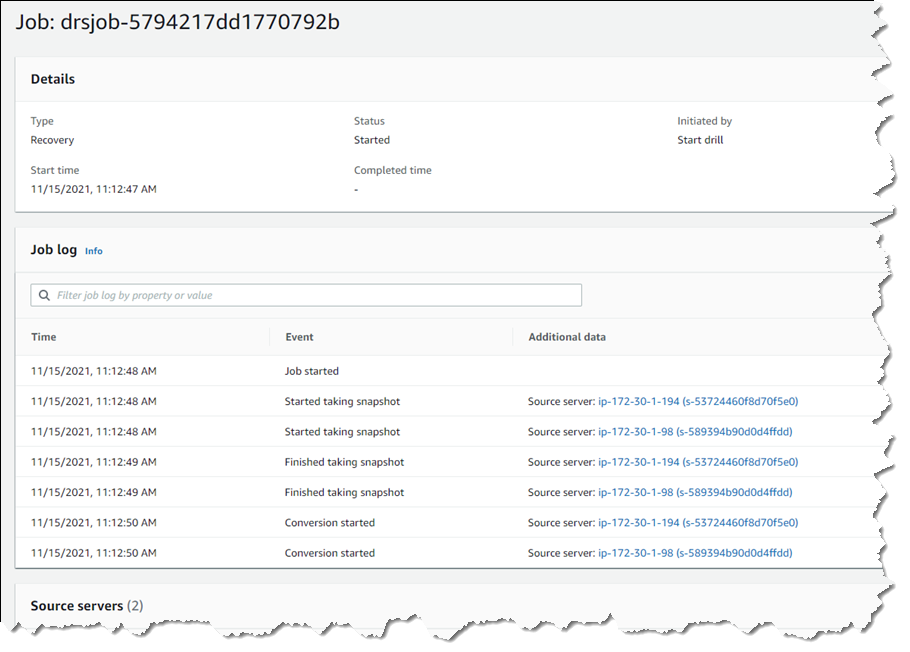
API Interface for Netflix Drive

Along with exposing a file interface which will be a hub of all abstractions, Netflix Drive also exposes API and Polled Task interfaces to allow applications and workflow tools to trigger control operations in Netflix Drive.
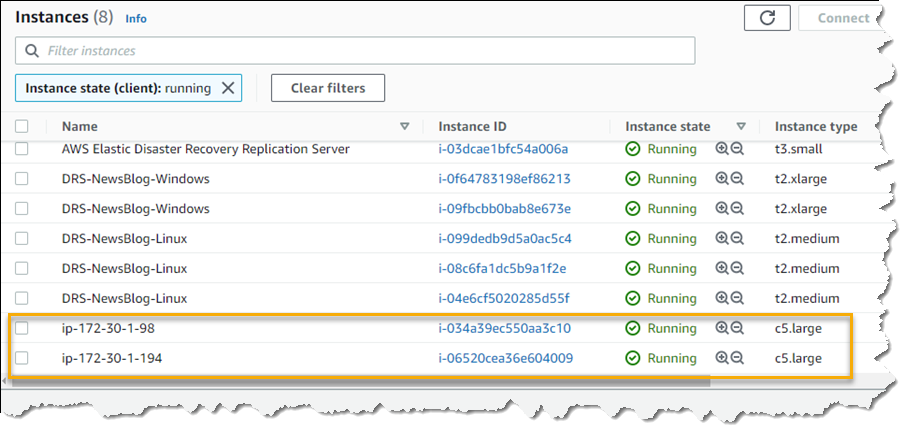
For example, applications can explicitly use REST endpoints to publish files stored in Netflix Drive to cloud, and later use a REST endpoint to retrieve a subset of the published files from cloud. The API interface can also be used to track the transfers of large files and allows other applications to be built on top of Netflix Drive.

Fig 4: Control interface of Netflix Drive

The Polled Task interface allows studio and media workflow orchestrators to post or dispatch tasks to Netflix Drive instances on disparate workstations or containers. This allows Netflix Drive to be bootstrapped with an empty namespace when the workstation comes up and dynamically project a specific set of assets relevant to the artists’ work sessions or workflow stages. Further these assets can be projected into a namespace of the artist’s or application’s choosing.

Alternatively, workstations/containers can be launched with the assets of interest prefetched at startup. These allow artists and applications to obtain a workstation which already contains relevant files and optionally add and delete asset trees during the work session. For example, artists perform transformative work on files, and use Netflix Drive to store/fetch intermediate results as well as the final copy which can be transformed back into a media asset.

Bootstrapping Netflix Drive

Given the two different modes in which applications can interact with Netflix Drive, now let us discuss how Netflix Drive is bootstrapped.

On startup, Netflix Drive expects a manifest that contains information about the data store, metadata store, and credentials (tied to a user login) to form an instance of namespace hierarchy. A Netflix Drive mount point may contain multiple Netflix Drive namespaces.

A dynamic instance allows Netflix Drive to show a user-selected and user-accessible subset of data from a large corpus of assets. A user instance allows it to act like a Cloud Drive, where users can work on content which is automatically synced in the background periodically to Cloud. On restart on a new machine, the same files and folders will be prefetched from the cloud. We will cover the different namespaces of Netflix Drive in more detail in a subsequent blog post.

Here is an example of a typical bootstrap manifest file.

This image shows a bootstrap manifest json which highlights how Netflix Drive can work with different metadata stores (such as Redis, CockroachDB), and data stores (such as Ceph, S3) and tie them together to provide persistence layer for assets
A sample manifest file.

The manifest is a persistent artifact which renders a user workstation its Netflix Drive personality. It survives instance failures and is able to recreate the same stateful interface on any newly deployed instance.

Metadata and Data Store Abstractions

In order to allow a variety of different metadata stores and data stores to be easily plugged into the architecture, Netflix Drive exposes abstract interfaces for both metadata and data stores. Here is a high level diagram explaining the different layers of abstractions in Netflix Drive

Fig 5: Layered architecture of Netflix Drive

Metadata Store Characteristics

Each file in Netflix Drive would have one or many corresponding metadata nodes, corresponding to different versions of the file. The file system hierarchy would be modeled as a tree in the metadata store where the root node is the top level folder for the application.

Each metadata node will contain several attributes, such as checksum of the file, location of the data, user permissions to access data, file metadata such as size, modification time, etc. A metadata node may also provide support for extended attributes which can be used to model ACLs, symbolic links, or other expressive file system constructs.

Metadata Store may also expose the concept of workspaces, where each user/application can have several workspaces, and can share workspaces with other users/applications. These are higher level constructs that are very useful to Studio applications.

Data Store Characteristics

Netflix Drive relies on a data store that allows streaming bytes into files/objects persisted on the storage media. The data store should expose APIs that allow Netflix Drive to perform I/O operations. The transfer mechanism for transport of bytes is a function of the data store.

In the first manifestation, Netflix Drive is using an object store (such as Amazon S3) as a data store. In order to expose file store-like properties, there were some changes needed in the object store. Each file can be stored as one or more objects. For Studio applications, file sizes may exceed the maximum object size for Cloud Storage, and so, the data store service should have the ability to store multiple parts of a file as separate objects. It is the responsibility of the data store service to tie these objects to a single file and inform the metadata store of the single unique Id for these several object parts. This Data store internally implements the chunking of file into several parts, encrypting of the content, and life cycle management of the data.

Multi-tiered architecture

Netflix Drive allows multiple data stores to be a part of the same installation via its bootstrap manifest.

Fig 6: Multiple data stores of Netflix Drive

Some studio applications such as encoding and transcoding have different I/O characteristics than a typical cloud drive.

Most of the data produced by these applications is ephemeral in nature, and is read often initially. The final encoded copy needs to be persisted and the ephemeral data can be deleted. To serve such applications, Netflix Drive can persist the ephemeral data in storage tiers which are closer to the application that allow lower read latencies and better economies for read request, since cloud storage reads incur an egress cost. Finally, once the encoded copy is prepared, this copy can be persisted by Netflix Drive to a persistent storage tier in the cloud. A single data store may also choose to archive some subset of content stored in cheaper alternatives.

Security

Studio applications require strict adherence to security models where only users or applications with specific permissions should be allowed to access specific assets. Security is one of the cornerstones of Netflix Drive design. Netflix Drive dynamic namespace design allows an artist or workflow to access only a small subset of the assets based on the workspace information and access control and is one of the benefits of using Netflix Drive in Studio workflows. Netflix Drive encapsulates the authentication and authorization models in its metadata store. These are translated into POSIX ACLs in Netflix Drive. In the future, Netflix Drive can allow more expressive ACLs by leveraging extended attributes associated with Metadata nodes corresponding to an asset.

Netflix Drive is currently being used by several Studio teams as the paved path solution for working with assets and is integrated with several media suite applications. As of today, Netflix Drive can be installed on CentOS, MacOS and Windows. In the future blog posts, we will cover implementation details, learnings, performance analysis of Netflix Drive, and some of the applications and workflows built on top of Netflix Drive.

If you are passionate about building Storage and Infrastructure solutions for Netflix Data Platform, we are always looking for talented engineers and managers. Please check out our job listings


Netflix Drive was originally published in Netflix TechBlog on Medium, where people are continuing the conversation by highlighting and responding to this story.

Automating AWS service logs table creation and querying them with Amazon Athena

Post Syndicated from Michael Hamilton original https://aws.amazon.com/blogs/big-data/automating-aws-service-logs-table-creation-and-querying-them-with-amazon-athena/

I was working with a customer who was just getting started using AWS, and they wanted to understand how to query their AWS service logs that were being delivered to Amazon Simple Storage Service (Amazon S3). I introduced them to Amazon Athena, a serverless, interactive query service that allows you to easily analyze data in Amazon S3 and other sources. Together, we used Athena to query service logs, and were able to create tables for AWS CloudTrail logs, Amazon S3 access logs, and VPC flow logs. As I was walking the customer through the documentation and creating tables and partitions for each service log in Athena, I thought there had to be an easier and faster way to allow customers to query their logs in Amazon S3, which is the focus of this post.

This post demonstrates how to use AWS CloudFormation to automatically create AWS service log tables, partitions, and example queries in Athena. We also use the SQL query editor in Athena to query the AWS service log tables that AWS CloudFormation created.

Athena best practices

This solution is appropriate for ad hoc use and queries the raw log files. These raw files can range from compressed JSON to uncompressed text formats, depending on how they were configured to be sent to Amazon S3. If you need to query over hundreds of GBs or TBs of data per day in Amazon S3, performing ETL on your raw files and transforming them to a columnar file format like Apache Parquet can lead to increased performance and cost savings. You can save on your Amazon S3 storage costs by using snappy compression for Parquet files stored in Amazon S3. To learn more about Athena best practices, see Top 10 Performance Tuning Tips for Amazon Athena.

Table partition strategies

There are a few important considerations when deciding how to define your table partitions. Mainly you should ask: what types of queries will I be writing against my data in Amazon S3? Do I only need to query data for that day and for a single account, or do I need to query across months of data and multiple accounts? In this post, we talk about how to query across a single, partitioned account.

By partitioning data, you can restrict the amount of data scanned per query, thereby improving performance and reducing cost. When creating a table schema in Athena, you set the location of where the files reside in Amazon S3, and you can also define how the table is partitioned. The location is a bucket path that leads to the desired files. If you query a partitioned table and specify the partition in the WHERE clause, Athena scans the data only for that partition. For more information, see Table Location in Amazon S3 and Partitioning Data. You can then define partitions in Athena that map to the data residing in Amazon S3.

Let’s look at an example to see how defining a location and partitioning our table can improve performance and reduce costs. In the following tree diagram, we’ve outlined what the bucket path may look like as logs are delivered to your S3 bucket, starting from the bucket name and going all the way down to the day.

In the following tree diagram, we’ve outlined what the bucket path may look like as logs are delivered to your S3 bucket

Outlined in red is where we set the location for our table schema, and Athena then scans everything after the CloudTrail folder. We then outlined our partitions in blue. This is where we can specify the granularity of our queries. In this case, we partition our table down to the day, which is very granular because we can tell Athena exactly where to look for our data. This is also the most performant and cost-effective option because it results in scanning only the required data and nothing else.

If you have to query multiple accounts and Regions, you should back off the location to AWSLogs and then create a non-partitioned CloudTrail table. This allows you to write queries across all your accounts and Regions, but the trade-off is that your queries take much longer and are more expensive due to Athena having to scan all the data that comes after AWSLogs every query. However, querying multiple accounts is beyond the scope of this post.

Prerequisites

Before you get started, you should have the following prerequisites:

  • Service logs already being delivered to Amazon S3
  • An AWS account with access to your service logs

Deploying the automated solution in your AWS account

The following steps walk you through deploying a CloudFormation template that creates saved queries for you to run (Create Table, Create Partition, and example queries for each service log).

  1. Choose Launch Stack:

  1. Choose Next.
  2. For Stack name, enter a name for your stack.

You don’t need to have every AWS service log that the template asks for. If you don’t have CloudFront logs for example, you can leave the PathParameter as is. If you need CloudFront logs in the future, you can simply update the Create Table statement with the correct Amazon S3 location in Athena.

  1. For each service log table you want to create, follow the steps below:
  • Replace <_BUCKET_NAME> with the name of your S3 bucket that holds each AWS service log. You can use the same bucket name if it’s used to hold more than one type of service log.
  • Replace <Prefix> with your own folder prefix in Amazon S3. If you don’t have a prefix, make sure to remove it from the path parameters.
  • Replace <ACCOUNT-ID> and <REGION> with desired account and region.

Choose Next.

  1. Choose Next.
  2. Enter any tags you wish to assign to the stack.
  3. Choose Next.
  4. Verify parameters are correct and choose Create stack at the bottom.

Verify the stack has been created successfully. The stack takes about 1 minute to create the resources.

Querying your tables

You’re now ready to start querying your service logs.

  1. On the Athena console, on the Saved queries tab, search for the service log you want to interact with.

On the Athena console, on the Saved queries tab, search for the service log you want to interact with.

  1. Choose Create Table – CloudTrail Logs to run the SQL statement in the Athena query editor.

Make sure the location for Amazon S3 is correct in your SQL statement and verify you have the correct database selected.

  1. Choose Run query or press Tab+Enter to run the query.

Choose Run query or press Tab+Enter to run the query.

The table cloudtrail_logs is created in the selected database. You can repeat this process to create other service log tables.

For partitioned tables like cloudtrail_logs, you must add partitions to your table before querying.

  1. On the Saved queries tab, choose Create Partition – CloudTrail.
  2. Update the Region, year, month, and day you want to partition. Choose Run query or press Tab+Enter to run the query.

Choose Run query or press Tab+Enter to run the query.

After you run the query, you have successfully added a partition to your cloudtrail_logs table. Let’s look at some of the example queries we can run now.

  1. On the Saved queries tab, choose Query – CloudTrail Logs.

This is a base template included to begin querying your CloudTrail logs.

  1. Highlight the query and choose Run query.

You can see the base query template uses the WHERE clause to leverage partitions that have been loaded.

You can see the base query template uses the WHERE clause to leverage partitions that have been loaded.

Let’s say we have a spike in API calls from AWS Lambda and we want to see the users that the calls were coming from in a specific time range as well as the count for each user. Our query looks like the following code:

SELECT useridentity.sessioncontext.sessionissuer.username as "User",
       count(eventname) as "Lambda API Calls"
FROM cloudtrail_logs
WHERE eventsource = 'lambda.amazonaws.com'
       AND eventtime BETWEEN '2020-11-24T18:00:00Z' AND '2020-11-24T21:00:00Z' 
group by useridentity.sessioncontext.sessionissuer.username
order by count(eventname) desc

Or if we wanted to check our S3 Access Logs to make sure only authorized users are accessing certain prefixes:

SELECT *
FROM s3_access_logs
WHERE key='prefix/images/example.jpg'
        AND requester != 'arn:aws:iam::accountid:user/username'

Cost of solution and cleaning up

Deploying the CloudFormation template doesn’t cost anything. You’re only charged for the amount of data scanned by Athena. Remember to use the best practices we discussed earlier when querying your data in Amazon S3. For more pricing information, see Amazon Athena pricing and Amazon S3 pricing.

To clean up the resources that were created, delete the CloudFormation stack you created earlier. This also deletes the saved queries in Athena.

Summary

In this post, we discussed how we can use AWS CloudFormation to easily create AWS service log tables, partitions, and starter queries in Athena by entering bucket paths as parameters. We used CloudTrail and Amazon S3 access logs as examples, but you can replicate these steps for other service logs that you may need to query by visiting the Saved queries tab in Athena. Feel free to check out the video as well, where I go over how we store logs in Amazon S3 and then give a quick demo on how to deploy the solution.

For more information about service logs, see Easily query AWS service logs using Amazon Athena.


About the Author

Michael Hamilton is a Solutions Architect at Amazon Web Services and is based out of Charlotte, NC. He has a focus in analytics and enjoys helping customers solve their unique use cases. When he’s not working, he loves going hiking with his wife, kids, and a 2-year-old German shepherd.
AWS PrivateLink for Amazon S3 is Now Generally Available

Post Syndicated from Martin Beeby original https://aws.amazon.com/blogs/aws/aws-privatelink-for-amazon-s3-now-available/

At AWS re:Invent, we pre-announced that AWS PrivateLink for Amazon S3 was coming soon, and soon has arrived — this new feature is now generally available. AWS PrivateLink provides private connectivity between Amazon Simple Storage Service (S3) and on-premises resources using private IPs from your virtual network.

Way back in 2015, S3 was the first service to add a VPC endpoint; these endpoints provide a secure connection to S3 that does not require a gateway or NAT instances. Our customers welcomed this new flexibility but also told us they needed to access S3 from on-premises applications privately over secure connections provided by AWS Direct Connect or AWS VPN.

Our customers are very resourceful and by setting up proxy servers with private IP addresses in their Amazon Virtual Private Clouds and using gateway endpoints for S3, they found a way to solve this problem. While this solution works, proxy servers typically constrain performance, add additional points of failure, and increase operational complexity.

We looked at how we could solve this problem for our customers without these drawbacks and PrivateLink for S3 is the result.

With this feature you can now access S3 directly as a private endpoint within your secure, virtual network using a new interface VPC endpoint in your Virtual Private Cloud. This extends the functionality of existing gateway endpoints by enabling you to access S3 using private IP addresses. API requests and HTTPS requests to S3 from your on-premises applications are automatically directed through interface endpoints, which connect to S3 securely and privately through PrivateLink.

Interface endpoints simplify your network architecture when connecting to S3 from on-premises applications by eliminating the need to configure firewall rules or an internet gateway. You can also gain additional visibility into network traffic with the ability to capture and monitor flow logs in your VPC. Additionally, you can set security groups and access control policies on your interface endpoints.

Available Now
PrivateLink for S3 is available in all AWS Regions. AWS PrivateLink is available at a low per-GB charge for data processed and a low hourly charge for interface VPC endpoints. We hope you enjoy using this new feature and look forward to receiving your feedback. To learn more, check out the PrivateLink for S3 documentation.

Try out AWS PrivateLink for Amazon S3 today, and happy storing.

— Martin

Ingesting Jira data into Amazon S3

Post Syndicated from Vishwa Gupta original https://aws.amazon.com/blogs/big-data/ingesting-jira-data-into-amazon-s3/

Consolidating data from a work management tool like Jira and integrating this data with other data sources like ServiceNow, GitHub, Jenkins, and Time Entry Systems enables end-to-end visibility of different aspects of the software development lifecycle and helps keep your projects on schedule and within budget.

Amazon Simple Storage Service (Amazon S3) is an object storage service that offers industry-leading scalability, performance, security, and data availability. Many of our customers choose to build their data lakes on Amazon S3. They find the flexible, pay-as-you-go, cloud model ideal when dealing with vast amounts of heterogeneous data.

This post discusses some of the use cases for ingesting Jira data into an Amazon S3 data lake, the ingestion data flow, and a conceptional approach to ingesting data. We also provide the relevant Python code.

Use cases

Business use cases for Jira data ingestion range from proactive project monitoring, detection and resolution of project effort and cost variances, and non-compliance of SDLC processes. In this section, we provide an inclusive but not exhaustive list of use cases and their benefits.

Cognitive project monitoring

Cognitive project monitoring use cases include the following:

  • Automated analytics – You can prevent and reduce project schedule and budget variances by proactively monitoring metrics by combining data from Jira, GitHub, Jenkins, and Time Entry Systems.
  • Automated status reporting – You can use Amazon SageMaker machine learning (ML) models to derive prescriptive metrics by looking at data across various sources. This could reduce a project manager’s time spent stitching data and generating reports, and provide a holistic view of project-tracking metrics.

Automated project compliance and governance

You can analyze user behavior to detect potentially suspicious patterns by building a baseline of user activity. You create this based on primary data from HR (such as role, location, and work hours) and IT infrastructure (such as an assigned asset’s IP address).

Possible business outcomes include the following:

  • Proactively identify user IDs and passwords being shared with other users
  • Detect insider threats, such as abnormal login times, unauthorized access to Jira, and incorrect access permissions in Jira, GitHub, Jenkins, or Time Entry Systems
  • Identify compromised accounts based on frequent logins from unassigned assets or unusual successive authentications
  • Identify theft of corporate IPs based on unusual printing volume, printing project-related documents, and emailing organization-related documents and code to external accounts

Accelerated migration from Jira to another project management product

You can also use AWS Glue and its Data Catalog metadata to map between two products. This could increase your data migration.

Overview of solution

One of the most common approaches to ingest data from Jira into AWS is to create a Python module, which is used in AWS Glue or AWS Lambda. The following diagram shows the high-level approach for an end-to-end solution. In this solution, Glue Development Endpoint and respective SageMaker Jupyter Notebook instance are used to create the Jira Python module to facilitate Jupyter notebook experience, interactive testing and debugging capability. The scope of this post is limited to the following steps:

  • Setting up access for Jira
  • Using the Python model with AWS Lambda or AWS Glue
  • Incrementally pulling changed data from Jira with JQL (Jira Query Language)
  • Ingesting data to the AWS serverless data lake

Ingesting data from Jira into Amazon S3

The Jira server exposes data using REST APIs and open authorization (OAuth) authentication methods. It uses a three-legged OAuth approach (also called the OAuth dance) to acquire access to the resources served by the APIs. For more information about the following steps, see OAuth for REST APIs.

Generating an RSA public/private key pair

Consumer key and consumer secret details are required for interacting with API endpoints. You store the details inside encrypted SSM parameters.

To use macOS or Linux, run the following OpenSSL commands in the terminal (anywhere in the file system):

openssl genrsa -out jira_privatekey.pem 1024
openssl req -newkey rsa:1024 -x509 -key jira_privatekey.pem -out jira_publickey.cer -days 365
openssl pkcs8 -topk8 -nocrypt -in jira_privatekey.pem -out jira_privatekey.pcks8
openssl x509 -pubkey -noout -in jira_publickey.cer > jira_publickey.pem

To use Windows, download OpenSSL and run it using the path to the bin folder. Create a new environment variable named OPENSSL_CONF and the value "path_to"\openssl.cnf. Run the command as admin:

"path_to_openssl"\bin\openssl genrsa -out jira_privatekey.pem 1024
"path_to_openssl"\bin\openssl req -newkey rsa:1024 -x509 -key jira_privatekey.pem -out jira_publickey.cer -days 365
"path_to_openssl"\bin\openssl pkcs8 -topk8 -nocrypt -in jira_privatekey.pem -out jira_privatekey.pcks8
"path_to_openssl"\bin\openssl x509 -pubkey -noout -in jira_publickey.cer > jira_publickey.pem

Configuring a REST API-based consumer in Jira

For full instructions on configuring your REST API-based consumer, see Step 2: Configure your client application as an OAuth consumer in OAuth for REST APIs. Be sure to complete the following steps:

  1. In the Link applications section, select Create incoming link.
  2. For Public key, enter the public key you created earlier.

Performing the OAuth dance

In this step, you go through the process of getting the access token from the resource so the consumer can access the resource.

  1. Create the following parameters in the AWS Systems Manager Parameter Store:
    1. jira_access_private_key – Stores the private key in AWS Systems Manager as a parameter.
    2. jira_access_urls – Stores URLs to access Jira. These URLs are constructed based on display URLs defined in JIRA by adding the additional tags:
      • request_token_url – https://jiratoawss3.atlassian.net/plugins/servlet/oauth/request-token
      • access_token_url – https://jiratoawss3.atlassian.net/plugins/servlet/oauth/access-token
      • authorize_url – https://jiratoawss3.atlassian.net/plugins/servlet/oauth/authorize
      • data_url – https://jiratoawss3.atlassian.net/rest/api/2/search
    3. jira_access_secrets – Stores secrets to access Jira. Initially, only two values are present in this SSM parameter; it’s updated later with access_token. You need the following two parameters to start:
      1. consumer_key
      2. consumer_secret
  2. Download the notebook file and upload it to SageMaker notebook instance of AWS Glue Development Endpoint.:
    1. Below are the steps to set-up AWS Glue Development Endpoint
      1. In the AWS Glue console, choose Dev endpoints. Choose Add endpoint.
      2. Specify an endpoint name, such as demo-endpoint.
      3. Choose an IAM role with permissions similar to the IAM role that you use to run AWS Glue ETL jobs. For more information, see Create an IAM Role for AWS Glue. Choose Next.
      4. In Networking, leave Skip networking information selected, and choose Next.
      5. In SSH Public Key, enter a public key generated by an SSH key generator program, such as ssh-keygen (do not use an Amazon EC2 key pair). The generated public key will be imported into your development endpoint. Save the corresponding private key to later connect to the development endpoint using SSH. Choose Next. For more information, see ssh-keygen in Wikipedia.b. Once status of AWS Glue Development Endpoint is ready follow steps to set-up SageMaker notebooks with in your development endpoint.
    2. Once status of AWS Glue Development Endpoint is ready follow
    3. Once status shows Ready, open the notebook and upload the downloaded notebook file.

You now run the following cells.

  1. Install and import dependent modules with the following code:
    !pip install tlslite
    !pip install oauth2
    
    import urllib
    import oauth2 as oauth
    from tlslite.utils import keyfactory
    import json
    import sys
    import os
    import base64
    import boto3
    from boto3.dynamodb.conditions import Key, Attr
    import datetime
    import logging
    import pprint
    import time
    from pytz import timezone
    
    logger = logging.getLogger()
    logger.setLevel(logging.INFO)
    

  2. Create an SSM client to connect parameters defined in Systems Manager (update the Region if it’s different than us-east-1):
    ssm = boto3.client("ssm", region_name='us-east-1')

  3. Define the signature class to sign the Jira REST API requests:
    class SignatureMethod_RSA_SHA1(oauth.SignatureMethod):
        name = 'RSA-SHA1'
    
        def signing_base(self, request, consumer, token):
            if not hasattr(request, 'normalized_url') or request.normalized_url is None:
                raise ValueError("Base URL for request is not set.")
    
            sig = (
                oauth.escape(request.method),
                oauth.escape(request.normalized_url),
                oauth.escape(request.get_normalized_parameters()),
            )
    
            key = '%s&' % oauth.escape(consumer.secret)
            if token:
                key += oauth.escape(token.secret)
            raw = '&'.join(sig)
            return key, raw
    
        def sign(self, request, consumer, token):
    
            key, raw = self.signing_base(request, consumer, token)
    
            # SSM support to fetch private key
            ssm_param = ssm.get_parameter(Name='jira_access_private_key', WithDecryption=True)
            jira_private_key_str = ssm_param['Parameter']['Value']
    
            privateKeyString = jira_private_key_str.strip()
    
            privatekey = keyfactory.parsePrivateKey(privateKeyString)
    
            # Used encode() to convert to bytes
            signature = privatekey.hashAndSign(raw.encode())
            return base64.b64encode(signature) 
    

  4. Get the consumer_key and consumer_secret from the SSM parameter that you defined earlier:
    jira_secrets = json.loads(ssm.get_parameter(Name='jira_access_secrets_1', WithDecryption=True)['Parameter']['Value'])
    jira_secrets
    
    consumer_key = jira_secrets["consumer_key"]
    consumer_key
    
    consumer_secret = jira_secrets["consumer_secret"]
    consumer_secret

  5. Define the URLs for request_token_url, access_token_url, and authorize_url:
    request_token_url = 'input_here'
    access_token_url = 'input_here'
    authorize_url = 'input_here'
    

    These URLs are defined while setting up the Rest API endpoint in Jira. It includes the following components:

    • request_token_url – https://jiratoawss3.atlassian.net/plugins/servlet/oauth/request-token
    • access_token_url – https://jiratoawss3.atlassian.net/plugins/servlet/oauth/access-token
    • authorize_url – https://jiratoawss3.atlassian.net/plugins/servlet/oauth/authorize
  6. Generate your request token:
    # Create Consumer using consumer_key and consumer_secret
    consumer = oauth.Consumer(consumer_key, consumer_secret)
    
    # Use Consumer to create oauth client
    client = oauth.Client(consumer)
    
    # Add Signature Method to the client
    client.set_signature_method(SignatureMethod_RSA_SHA1())
    
    # Get response from request token URL using the client
    resp, content = client.request(request_token_url, "POST")
    
    # Convert the content received from previous step into a Dictionary
    request_token = dict(urllib.parse.parse_qsl(content))
    
    # request token has two components oauth_token and oauth_token_secret
    request_token
    

You only need to do this one time every five years (the default setting in Jira).

The following is an example request token value:

b'oauth_token=oFUFV5cqOuoWycnaCXYrkcioHuRw2TbV&oauth_token_secret=CzhMoEsozCV3xFZ179YQoLzRu4DYQHlR'

The following are example values after the URL parse and converted to dict:

  • {b'oauth_token': b'oFUFV5cqOuoWycnaCXYrkcioHuRw2TbV ',
  • b'oauth_token_secret': b'CzhMoEsozCV3xFZ179YQoLzRu4DYQHlR'}
  1. Manually approve the request token by opening the following user in a browser:
    authorize_url + '?oauth_token=' + request_token[b'oauth_token'].decode()

An example value of the final authorized user is:

  • https://jiratoawss3.atlassian.net/plugins/servlet/oauth/authorize?oauth_token=wYLlIxmcsnZTHgTy2ZpUmBakqzmqSbww.

When you go to the URL in your output, you see the following screenshot.

  1. Use an approved request token to generate an access token:
    # Create an oauth token using components of request token
    token = oauth.Token(request_token[b'oauth_token'], request_token[b'oauth_token_secret'])
    
    # Use Consumer and token to create oauth client
    client = oauth.Client(consumer, token)
    
    # Add Signature Method to the client
    client.set_signature_method(SignatureMethod_RSA_SHA1())
    
    # Get response from access token URL using the client
    access_token_resp, access_token_content = client.request(access_token_url, "POST")
    
    access_token_content

An example access token is:

b'oauth_token=Ym3UDrs1iYnLUZ1t0TkT1PinfJNN3RLj&oauth_token_secret=FYQfGjLLhbCJg3DXZFaKsE6wsURVfebN&oauth_expires_in=157680000&oauth_session_handle=BulouCOypjssDS3GzeY7Ldi30h0ERWDo&oauth_authorization_expires_in=160272000'

The following are example access token values after URL parse and converted to dict:

  • {b'oauth_token': b'Ym3UDrs1iYnLUZ1t0TkT1PinfJNN3RLj',
  • b'oauth_token_secret': b'FYQfGjLLhbCJg3DXZFaKsE6wsURVfebN',
  • b'oauth_expires_in': b'157680000',
  • b'oauth_session_handle': b'BulouCOypjssDS3GzeY7Ldi30h0ERWDo',
  • b'oauth_authorization_expires_in': b'160272000'}

oauth_authorization_expires_in states when the token expires (in seconds), which is generally 5 years.

  1. Update the access_token key in the SSM parameter jira_access_secrets with the value for access_token_content.

This access token is valid for 5 years (the expires_in key of access_token_content states when the token expires in seconds). Rotating the access key depends on your organization’s security policy and is out of scope for this post.

Using the access token, querying data from Jira, and storing data in Amazon S3

The following are the important points in this step:

  • The Jira REST API returns 50 records at a time, but gives a total record count, which is used to paginate through the result set.
  • The Jira REST API endpoint needs to be updated with JQL filters. JQL allows you to only pick changed records.
  • Data returned from the REST API endpoint is serialized to Amazon S3. The Python code batches the records from Jira pages and commits after every four pages (which is configurable) have been fetched from Jira.
  • JQL is appended to the data_url (defined earlier). When pulling data from Jira, it’s good practice to do a one-time bulk load and get incremental loads by maintaining the last data pull date in an Amazon DynamoDB The following screenshot shows an example of tracking dates in DynamoDB by projects. Because it’s an hourly batch, last_ingest_date is rounded up to the hour.
  • The key attributes of JQL used for constructing JQL and pulling data from Jira are:
    • project – Loop through the projects from DynamoDB and pull data for one project at a time.
    • updated – Last update date for Jira story or task. Data pull from Jira is based on this date.
      • For bulk loads, updated is less than or equal to the batch run date, rounded up to the hour.
      • For incremental loads, updated is greater than or equal to last_ingest_date from DynamoDB, and less than or equal to the batch run date, rounded up to the hour.
      • To use date in JQL, we need to parse the date before we use it.
    • startAt – Jira generally paginates the results every 50 records. This attribute is used to loop through the complete data. For example, if a project has 500 records and page size is 50 records, this attribute is incremented by page size in every iteration, and it takes 10 iterations to get complete data.
    • maxResults – This is the page size set up in Jira (maximum number of records Jira returns in every API call).
  • Use the provided notebook to perform the OAuth dance. The sample code pulls data from Jira based on the approach you specified earlier. The purpose of this code is to accelerate implementing data ingestion from Jira.

Cleaning up

To avoid incurring future charges, delete the resources set up as part of this post:

  • AWS Glue Development Endpoint
  • DynamoDB table
  • Systems Manager parameters
  • S3 bucket

Next steps

To extend the usability scope of Jira data in S3 buckets, you can crawl the location to create AWS Glue Data Catalog database tables. Registering the locations with AWS Lake Formation helps simplify permission management and allows you to implement fine-grained access control. You can also use Amazon Athena, Amazon Redshift, Amazon SageMaker, and Amazon QuickSight for data analysis, ML, and reporting services.

Conclusion

This post aims to simplify and accelerate the steps to ingest Jira data into Amazon S3. The solution includes Jira configuration, performing the three-legged OAuth dance, JQL-based attributes for data selection, and Python-based data extraction into Amazon S3.

If you have feedback about this post, submit comments in the Comments section below. If you have questions about this post, start a new thread on the AWS Glue forum.


About the Authors

Vishwa Gupta is a Data and ML Engineer with AWS Professional Services Intelligence Practice. He helps customers implement big data and analytics platform and solutions. Outside of work, he enjoys spending time with family, traveling, and playing badminton.


Sreeram Thoom is a Data Architect at Amazon Web Services.


New – Amazon S3 Replication Adds Support for Multiple Destination Buckets

Post Syndicated from Marcia Villalba original https://aws.amazon.com/blogs/aws/new-amazon-s3-replication-adds-support-for-multiple-destination-buckets/

Amazon Simple Storage Service (S3) supports many types of replication, including S3 Same-Region Replication (SRR), which launched in 2019 and S3 Cross-Region Replication (CRR), which has been around since 2015. Today, we are happy to announce S3 Replication support for multiple destination buckets. S3 Replication now gives you the ability to replicate data from one source bucket to multiple destination buckets. With S3 Replication (multi-destination) you can replicate data in the same AWS Regions using S3 SRR or across different AWS Regions by using S3 CRR, or a combination of both.

Before this launch, if you needed to have multiple copies of your data in different S3 buckets, you had to build your own S3 replication service by monitoring S3 events, identifying created objects, and using AWS Lambda functions to copy objects to each destination bucket.

This launch removes the need for you to develop your own solutions to replicate the data across multiple destinations. You can use the flexibility of S3 Replication (multi-destination) to store multiple copies of your data in different storage classes, with different encryption types, or across different accounts depending on its intended use. Additionally, when replicating to multiple destinations, you can use CloudWatch metrics to track replication progress for each region pair.

S3 Replication (multi-destination) is an extension to S3 Replication, and it supports all existing S3 Replication features like Replication Time Control (RTC) and delete marker replication. If you need a predictable replication time backed by a Service Level Agreement, you can use RTC to replicate objects in less than 15 minutes.

How to Get Started With S3 Replication (multi-destination)
In order to get S3 Replication working, all the buckets involved in the replication (source and destinations) must have bucket versioning enabled.

To setup S3 Replication (multi-destination), you need to define replication rules. You can create a new rule in the bucket Management page, under Replication Rules.

Screenshot of adding a rule

When creating a new replication rule, one very important step is to set up permissions for replication, as S3 will need to replicate objects on your behalf. To do that, you can follow the instructions available in the S3 documentation page.

To create the replication rule, just follow the steps in the console. You can specify to which objects of the bucket this rule applies, the destination bucket, if you want to change the storage class of the replicated objects and many other preferences for your replicated objects.

Screenshot configuring the replication rule

One thing to have in mind when activating a rule is that the replication will start for all new objects added to the bucket from that moment. Objects uploaded to the bucket before the rule was created need to be copied using one time operations like S3 batch operations or S3 copy.

If you want to monitor the progress of your replication using CloudWatch metrics, don’t forget to click the Replication metrics and notifications checkbox.

Screenshot of configuring replication rules metrics

Now that we support multiple destinations for replication, rule priorities are used when there are two or more rules with the same destination. When that happens, the rule with the highest priority will be applied. For the same destination bucket, a lower priority rule will not be applied when the replication configuration has two or more rules with overlapping scope. If there are two or more rules with the same scope and different destinations, both rules will be applied.

You can see a summary of all your rules in the Replication rules listing under the bucket Management page.

Screenshot of replication rules listing

Monitoring Replication
When you have all the rules configured, you can start uploading objects to the source bucket and monitor how they get replicated in all the different destinations.

To know the replication status of an object in the source bucket, you can see the Replication status in the object Details. The status types are:

  • COMPLETED: The replication was successful in all the destinations.
  • PENDING: The replication is still in progress.
  • FAILED: The replication failed to replicate in at least one of the destinations. When there is a failure in replication, the only way to fix it is by uploading the object again.

screenshot of object metadata

For replicated objects, you will see the REPLICA status under the Replication status.

You can also use CloudWatch metrics to monitor the replication. First, you need to enable metrics for each of the rules. And then in the bucket Metrics, you can choose which rules you want to see the metrics of and see the charts for each of them; the metrics are also available in the CloudWatch console.

Screenshot of replication metrics

Availability
S3 Replication (multi-destination) is available today in all AWS Regions. To get started, you can use the AWS Management Console, SDKs, S3 API, or AWS CloudFormation to create replication rules from one source bucket to multiple destination buckets.

Pricing for S3 Replication (multi-destination) applies for each rule. For pricing information, please visit the Amazon S3 pricing page.

For more information about this new feature visit the S3 Replication page.

— Marcia