Tag Archives: Webhooks

How to write a webhook for Zabbix

Post Syndicated from Andrey Biba original https://blog.zabbix.com/how-to-write-a-webhook-for-zabbix/25298/

As you know, a picture is worth a thousand words. Therefore, I would like to share the process of creating a webhook from scratch. In this article, we will walk through the creation process step by step – starting with studying the target service with which Zabbix will integrate and finishing with tests for sending events from Zabbix. Although it may seem complicated, writing your own integrations is not so difficult.

Preparation

First, we need to decide what we want to see as a result of the webhook. In most cases, the services to which we will send events are divided into 2 types:

  • Messengers to which you can send messages. For example, Telegram, Slack, Discord, etc.
  • Service Desks where you can open, close, and update tickets. For example, Jira, Redmine, ServiceNow, etc.

In both cases, the principle of creating a webhook will not differ – the difference is only in the complexity of one type from the other.

In this article, I will describe the process of creating a webhook for messengers – and specifically for Line messenger.

After we have decided on the type, we need to find out whether this service supports the possibility of API requests and, if it does, what is required for this. Usually, all the services you want to integrate Zabbix with have somewhat detailed documentation about the API methods they support. By the way, Zabbix also has its own API, which is documented in detail.

After we are done studying the Line documentation, we find out that messages are sent using the POST method to the https://api.line.me/v2/bot/message/push endpoint, using the Line bot token in the request header for authorization and passing a specially formatted JSON in the request body with the content of the message. Confused? No problem. Let’s take a closer look.

HTTP requests

The operation of the API is based on HTTP requests, which are executed with parameters provided by the developers of this API.

Several types of HTTP requests are used more often than others:

  • GET – is perhaps the most common one that all of us encounter on a daily basis. This request only involves getting data. For example, the browser used a GET request from the web server to fetch the article you are currently reading.
  • POST – is a request that sends data to a resource. This is exactly the case when we want to pass something to the service using API requests.
  • PUT – is much less common than the previous 2, but no less important. This query replaces the values in a resource.

These are not all HTTP request methods, but these three will suffice for a general introduction.

We are done with methods. Let’s move on to the endpoint.

An endpoint is a permanent address of a resource via which we transfer, receive, or change data. In this case, https://api.line.me/v2/bot/message/push is the endpoint that accepts POST requests to send messages.

So, the method and the endpoint are defined. What’s next?

Generally, any HTTP request consists of:

  1. URL
  2. Method
  3. Headers
  4. Body
HTTP request structure

We have already dealt with the first two, but the headers and the request body remain.

Headers usually contain service information that allows you to process a request correctly. For example, the Content-Type: application/json header implies that our request body should be interpreted as a json object. Also, quite often, authorization information is passed in the headers. As in the case of Line, the Authorization: Bearer {channel access token} header contains the authorization token of the bot on behalf of which messages will be sent.

The request body usually contains the information we want to pass on to the service. In our case, this will be the subject and body of the event in Zabbix.

Checking the service API

The documentation is good, but it is necessary to check that everything we read works exactly how it is documented. It is not uncommon that a service can be developed faster than the documentation can keep up with it. So field testing never hurts. Excluding unexpected behavior will significantly reduce the time spent searching for problems.

I recommend using Postman to work with API requests – a handy tool that saves time. But for this article, we will use cURL due to its prevalence and ease of use.

I will not describe the process of creating the Line Bot API token because this is not directly related to the article. However, for those interested in this process, I will leave a link here.

As we have already found out, the request type will be POST, the access point URL is https://api.line.me/v2/bot/message/push, and additional headers must be passed: Content-Type: application/json which specifies the type of data to be sent (in our case it is JSON) and Authorization: Bearer {token value}. And the messages themselves are in JSON format. For example, I used 2 messages – “Hello, world1” and “Hello, world2”. As a result, I got the following query:

After executing the request, we got the expected result of 2 messages that came to the messenger, which were in the request body.

Excellent! So half of the work has already been done: there is a ready-made request that works in manual mode and successfully sends messages to Line. The only thing left is to put the necessary information in the right places and automate the process using JS and Zabbix.

Integration with Zabbix

After successfully completing the tests, go to Zabbix, create a new notification method in the Administration section, select the webhook type, and name it Line.

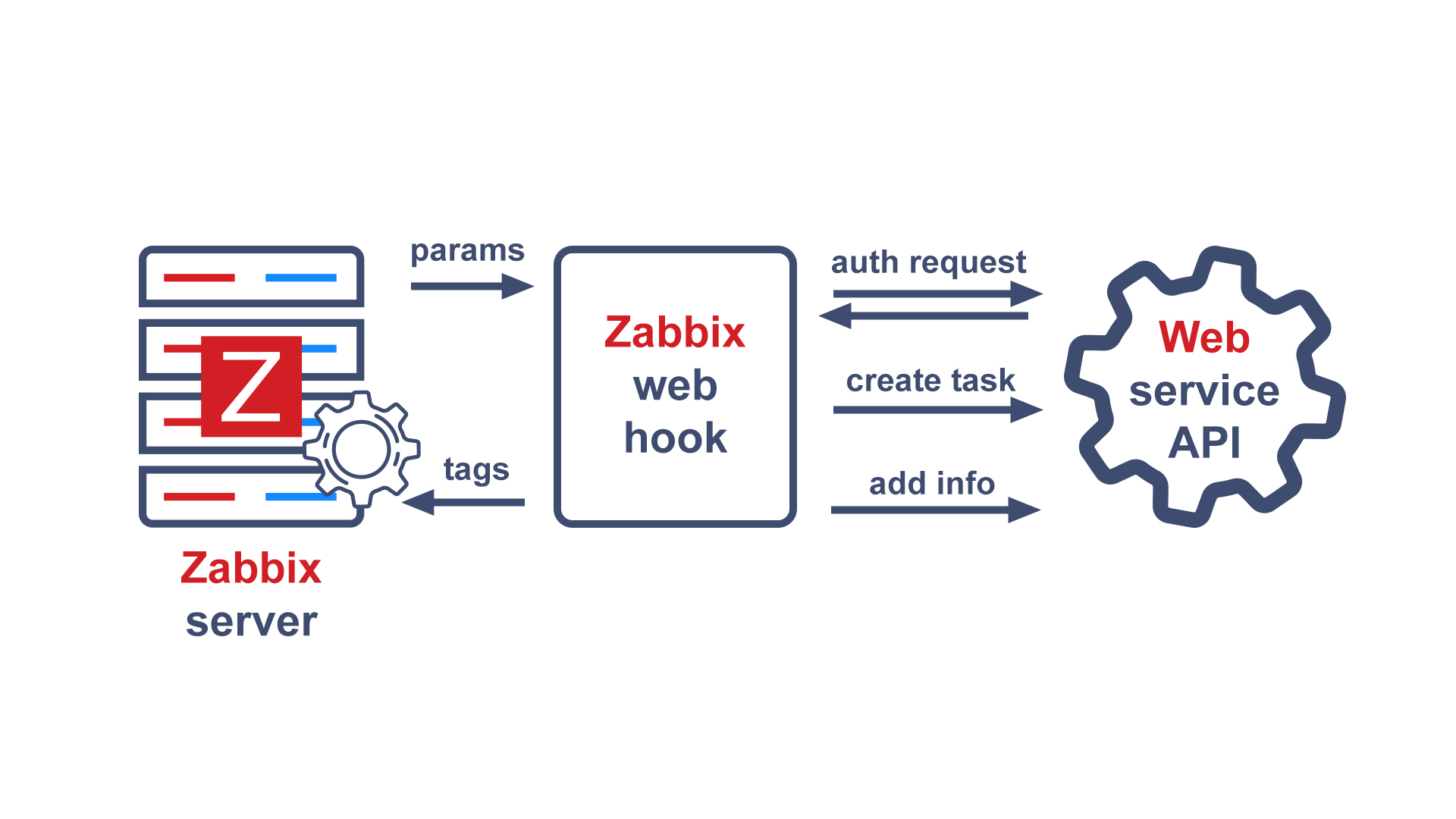
For webhook integrations with external services, Zabbix uses the built-in JavaScript engine on Duktape. Parameters are passed to the script, which is used to build the logic of the webhook. As a result of the script, tags can be returned that will be assigned to the event. This is usually necessary in case of integration with service desks in order to be able to update the status of tickets.

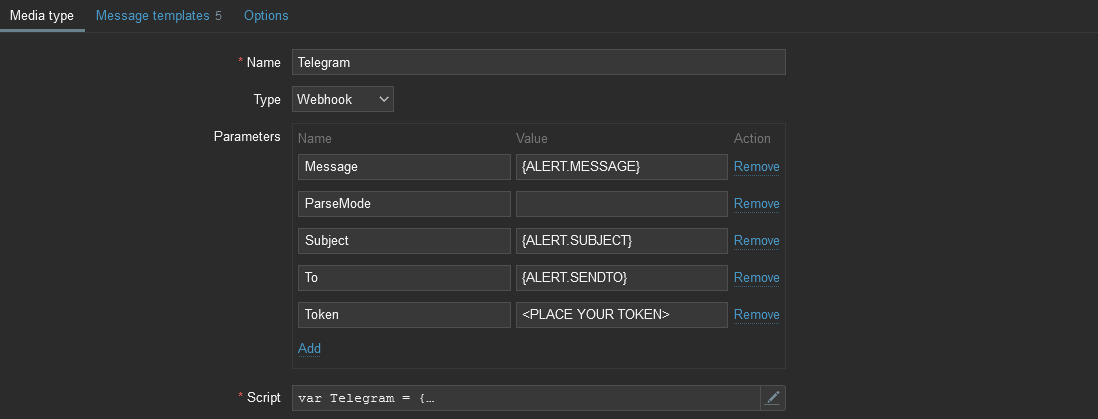
Let’s take a closer look at the webhook setup interface.

The Media type section contains the general settings for the new media type:

  • Name – Name of the media type.
  • Type – The type of media type. There are 4 types: email, SMS, webhook, and script.
  • Parameters – This is a list of variables passed to the code. All necessary data can be passed through parameters: event id, event type, trigger severity, event source, etc. You can specify macros and text values in parameters. The parameters are passed as a JSON string, accessible through the built-in variable value.
  • Script – JS script describing the logic of the webhook.
  • Timeout – The time after which the script will be terminated.
  • Process tags   – If this option is enabled, the webhook will support generating tags for events sent using this hook.
  • Include event menu entry – This option makes the Menu Entry Name and Menu Entry URL fields available for use.
  • Menu entry name – The text displayed in the event dropdown menu for the Menu entry URL submitted using this hook.
  • Menu entry URL – A link to an external resource in the event menu.
  • Description – A text field that contains a description of the notification method.
  • Enabled – an Option that allows enabling or disabling the media type.

The Message templates section contains templates that are used by webhook to send alerts. Each template contains:

  • Message type – The event type to which the message will apply. For example, Problem – when the trigger fires and Problem recovery – when the problem is resolved.
  • Subject  – The headline of the message.
  • Message – A message template that contains useful information about the event. For example, event time, date, event name, host name, etc.

The Options section contains additional options:

  • Concurrent sessions – The number of concurrent sessions to send an alert.
  • Attempts – The number of retries in case of send failure.
  • Attempt interval  – The frequency of attempts to send an alert.

When writing your own webhook, you can take an existing one as a basis – Zabbix has more than thirty ready-made webhook solutions of varying complexity. All basic functions are usually repeated from hook to hook with little or no change at all, as are the parameters passed to them.

Let’s set the following parameters:

It is convenient to set parameter values with macros. A macro is a variable in Zabbix that contains a specific value. Macros allow you to optimize and automate your work. They can be used in various places, such as triggers, filters, alerts, and so on.

A little more about each macro separately in order to understand why each of them is needed:

  • {ALERT.SUBJECT} – The subject of the event message. This value is taken from the Subject field of the corresponding Message template type.
  • {ALERT.MESSAGE} – The event message body. This value is taken from the Message field of the corresponding Message template type.
  • {EVENT.ID} – The event id in Zabbix. Could be used for generating a link to an event
  • {EVENT.NSEVERITY} – The numerical definition of the event’s severity from 0-5. We will use this to change the message in case of different severity.
  • {EVENT.SOURCE} – The event source. Needed to handle events correctly. In most cases, we are interested in triggers; this corresponds to source value 0.
  • {EVENT.UPDATE.STATUS} – Returns 1 if it is an update event. For example, in case of acknowledge operations or a change in severity.
  • {EVENT.VALUE} – The event state. 0 for recovery and 1 for the problem.
  • {ALERT.SENDTO} – The field from the media type assigned to the user. It returns the ID of the user or group in the Line, where it will be necessary to send a message
  • {TRIGGER.DESCRIPTION} – A macro that will be expanded if the event source is a trigger. Returns the description of the trigger
  • {TRIGGER.ID} – The trigger ID. Required to generate a link to an event in Zabbix

Webhooks can use other macros if needed. A list of all macros can be viewed on the documentation page. Be careful – not all macros can be used in webhooks.

Writing the script

Before writing the script, let’s define the main points that the webhook will need to be able to perform:

  • the script should describe the logic for sending messages
  • handle possible errors
  • logging for debugging

I will not describe the entire code in order not to repeat the same type of blocks and concentrate only on important aspects.

To send messages, let’s write a function that will accept messages and params variables. We got the following function:

function sendMessage(messages, params) {
    // Declaring variables
    var response,
        request = new HttpRequest();

    // Adding the required headers to the request
    request.addHeader('Content-Type: application/json');
    request.addHeader('Authorization: Bearer ' + params.bot_token);

    // Forming the request that will send the message
    response = request.post('https://api.line.me/v2/bot/message/push', JSON.stringify({
        "to": params.send_to,
        "messages": messages
    }));

    // If the response is different from 200 (OK), return an error with the content of the response
    if (request.getStatus() !== 200) {
        throw "API request failed: " + response;
    }
}

Of course, this is not a reference function, and depending on the requirements for the request may differ. There may be other required headers and a different request body. In some cases, it may be necessary to add an additional step to obtain authorization data through another API request.

In this case, the request to send a message returns an empty {} object, so it makes no sense to return it from the function. But for example, when sending a message to Telegram, an object with data about this message is returned. If you pass this data to tags, you can write logic that will change the already sent message – for example, in case of closing or updating the problem.

Now let’s describe a function that will accept webhook parameters and validate their values. In the example, we will not describe all the conditions because they are of the same type:

function validateParams(params) {
    // Checking that the bot_token parameter is a string and not empty
    if (typeof params.bot_token !== 'string' || params.bot_token.trim() === '') {
        throw 'Field "bot_token" cannot be empty';
    }

    // Checking that the event_source parameter is only a number from 0-3
    if ([0, 1, 2, 3].indexOf(parseInt(params.event_source)) === -1) {
        throw 'Incorrect "event_source" parameter given: "' + params.event_source + '".nMust be 0-3.';
    }

    // If an event of type "Discovery" or "Autoregistration" set event_value 1, 
    // which means "Problem", and we will process these events same as problems
    if (params.event_source === '1' || params.event_source === '2') {
        params.event_value = '1';
    }

    ...

    // Checking that trigger_id is a number and not equal to zero
    if (isNaN(params.trigger_id) && params.event_source === '0') {
        throw 'field "trigger_id" is not a number';
    }
}

As you can see from the code, in most cases these are simple checks that allow you to avoid errors associated with the input data. Validation is necessary because there is no guarantee that the expected value will be in the parameter.

The main block of code is placed inside the try…catch block in order to correctly handle errors:

try {
    // Declaring the params variable and writing the webhook parameters to it
    var params = JSON.parse(value);

    // Calling the validation function and passing parameters to it for verification
    validateParams(params);

    // If the event is a trigger and it is in the problem status, compose the message body
    if (params.event_source === '0' && params.event_value === '1') {
        var line_message = [
            {
                "type": "text",
                "text": params.alert_subject + 'nn' +
                    params.alert_message + 'n' + params.trigger_description
            }
        ];
    }

    ...

    // Sending a composed message
    sendMessage(line_message, params);

    // Returning OK so that the webhook understands that the script has completed with OK status
    return 'OK';
}
catch (err) {
    // Adding a log function so in case of problems you can see the error in the Zabbix server console
    Zabbix.log(4, '[ Line Webhook ] Line notification failed : ' + err);

    // In case of an error, return it from the webhook
    throw 'Line notification failed : ' + err;
}

Here we assign parameter values to the params variable, then validate them using the validateParams() function, describe the main conditions for generating a message, and send this message to the messenger. At the same time, the try…catch block allows you to catch all errors, log them to Zabbix and return them in a readable form to the user in the web interface.

For writing webhooks in Zabbix, there is a guideline dedicated to this topic. Please read this information because it will help you write better code and avoid common mistakes.

Testing

After we’ve finished with the webhook script, it’s time to test how our code works. To do this, Zabbix provides a function to send test messages. Go to the AdministrationMedia types, find Line, and click on the Test button opposite it. In the window that appears, fill in all the fields with the necessary data and press the Test button. Check the messenger and see that the message came with the data we specified in the test.

Ready-made Line integration can be found in the Zabbix git repository and in all recent Zabbix instance builds.

Troubleshooting

Of course, everything in the article looks like I did it on the first attempt and did not encounter a single error or problem. Naturally, this is not the case in practice. Work with each new product includes Research & Development. How can you catch errors and, most importantly, understand the problem?

Well, as I wrote earlier – read the documentation and test all requests before writing code. At this stage, it is easiest to catch all the problems. The response to the HTTP request will explicitly describe the error. For example, if you make a mistake in the request body and send an object with incorrect values, the service will return the body with an error description and the response status 400 (Bad request).

There are several options for debugging in case of errors that may occur when writing a webhook script:

  • Focus on the errors displayed when the notification method is executed. For example, if you mistyped or set the wrong name of the function and variable.
  • Include logging in the code for displaying service information. For example, while you are in the script development stage, the result of the function can be logged using the Zabbix.log() function. Zabbix supports 6 debug levels (0-5), which can be set in this function. Usually, webhooks use level 4, which contains information for debugging.
  • Use the zabbix_js utility. You can transfer a file with a script and parameters to it. You can read more about it here.

Conclusion

I hope this article has helped you better understand how webhooks work in Zabbix and highlighted the basic steps for creating, diagnosing, and preparing to write your integration. The Zabbix community is constantly adding custom templates and media types. I expect that after reading this article, more people will be interested in creating their own webhooks and sharing them with the community. We appreciate any contribution to the development and expansion of the base of integration solutions.

Questions

Q: I don’t know JS, but I know other languages. Is native support of other languages planned in Zabbix, such as Python?

A: For now, there are no such plans.

Q: Are there any restrictions with writing a JS script for a webhook?

A: Yes, there are. The built-in Duktape engine is used to execute the code, and it does not have all the functionality that is available in the latest JS releases. Therefore, I recommend that you read the documentation of this engine and the built-in objects to learn more about the available methods.
Webhooks in Zabbix

Post Syndicated from Andrey Biba original https://blog.zabbix.com/webhooks-in-zabbix/19935/

Zabbix is not only a flexible and versatile monitoring system but also a convenient tool for generating alerts and integrating with existing service desks. Among the various integration methods, webhooks have become the most popular. In this blog post, we will take a look at what are webhooks, how they can be used to integrate Zabbix with an external solution, and also take a look at some use case examples for webhook integrations.

What is a webhook?

Generally speaking, a webhook is a method of augmenting or altering the behavior of a web page or web application with custom callbacks. But to put it simply, a webhook is an automatic reaction to an event. If an event occurs (for example, a problem appears), then the webhook makes a call (via HTTP / HTTPS) to a third-party service to notify it about the event. Many existing solutions provide an API that allows you to interact with them via webhooks.

The webhook in Zabbix is implemented using JavaScript, so writing code does not require knowledge of a specific Zabbix syntax, and due to the prevalence of the JavaScript language, you can find many examples, tips, and guides on the Internet.

How does a webhook work?

Essentially, a webhook is code that makes a sequence of calls to achieve some result. In the case of Zabbix, a JavaScript code is executed that accesses the service API and transfers, updates, and retrieves data from there. For example, we need to open a ticket at the service desk and leave a comment on the ticket, which will contain information about the problem. For this we need:

  • Log in to the service and get a token
  • Make a request with the token to create a ticket
  • Create a comment on the newly created ticket using a token

In different services, the details may differ, but the general idea will be preserved from service to service.

How to use it?

Our integration team constantly communicates with the community and monitors the most popular services to develop official out-of-the-box integrations for them. At the moment, Zabbix provides a vast selection of out-of-the-box webhooks for the most popular services, and we review new ones and improve current ones every day.

In most cases, setting up a ready-made webhook comes down to 3-4 steps, which are described in the README file in the Zabbix repository. Usually, it is necessary to generate an API key in the service, set it in Zabbix, set the URL to the service endpoint URL, and specify a couple of parameters required for the webhook to work.

In addition to ready-made solutions, there is a Github community repository where custom templates and webhooks are laid out! If you are the author of a webhook or a template, please share it with the community by submitting it to this repository!

Example – Telegram webhook

The theory is good, but we are all interested in how it is implemented in practice. Let’s look at a Telegram webhook as an example. Now this messenger is very popular and it will be relevant to use it as an example.

First of all, let’s go to the Zabbix repository or navigate to the Zabbix website integrations section to read the setup instructions. In the repository, all templates and notification methods are located in the /templates folder, and for each of them, there is a README file with a detailed description.

From the Telegram side, we need to create a bot and get its token following the instructions and set it in the Token parameter.

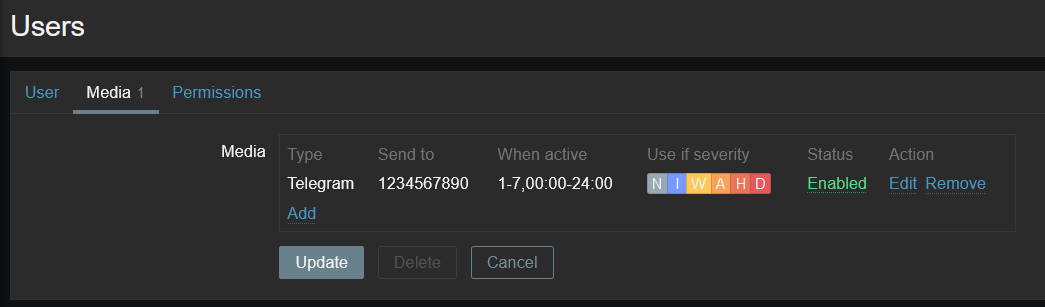
After that, we create a user, set up a Telegram media type for this user, and in the “Send to” field we write the id of the user or group chat.

Voila! Your webhook is set up and ready to send notifications or event information!

As you may have noticed, the setup did not take much time and did not require deep knowledge. Naturally, for finer tuning, it is possible to edit the content of messages, the type of problems, intervals, and other parameters. But even without additional changes, notifications are already ready to go.

Is it difficult to write a webhook on your own?

Of course, creating a webhook requires certain skills.

First of all, knowledge of JavaScript is required. The language itself is not difficult and can be mastered relatively quickly. The Zabbix documentation site has a guideline for writing webhooks with recommendations and best practices.

Secondly, understanding how Zabbix works. This does not require an in-depth understanding of Zabbix and the ability to follow basic instructions will be enough. You can read more about setting up notification methods in the official documentation. It is important to properly configure the webhook itself, grant rights to users, and set up a notification action for the necessary triggers.

And thirdly, study the documentation of the service for which the webhook will be written. Although all APIs work on the same principle, they can differ greatly from each other in methods and request structure. It is also necessary to understand the service itself to understand how it works. It is difficult to write an integration if it is not clear how Zabbix should properly interact with the service being integrated.

Summarizing

Webhook is a modern and flexible way of integration that allows Zabbix to be a universal solution. Since the realities of our world imply a large number of different systems, and as a result – many people working together – webhooks are becoming an indispensable tool in notification automation. A properly written and configured webhook is an effective solution for flexible notifications.

In the next article, together we will learn the basic methods and requests that are needed to send alerts, receive updates and assign tags. For this purpose, we will completely inspect some webhook in close detail.

Questions

Q: We have a ready-made notification system built on scripts. Does it make sense to rewrite it to a webhook?

A: Certainly. Firstly, the webhook is executed natively in Zabbix, which will be much more productive than in an external script. Secondly, the webhook is much more flexible, more functional, and much easier to make changes to.


Q: We have a service for which we would like to write an integration, but we do not have qualified specialists who could do it. Is it possible to request such integration from Zabbix?

A: Yes, if you are a Zabbix partner, you can leave a request to create such integration.


The post Webhooks in Zabbix appeared first on Zabbix Blog.

Get updates on the health of your origin where you need them

Post Syndicated from Darius Jankauskas original https://blog.cloudflare.com/get-updates-on-the-health-of-your-origin-where-you-need-them/

Get updates on the health of your origin where you need them

Get updates on the health of your origin where you need them

We are thrilled to announce the availability of Health Checks in the Cloudflare Dashboard’s Notifications tab, available to all Pro, Business, and Enterprise customers. Now, you can get critical alerts on the health of your origin without checking your inbox! Keep reading to learn more about how this update streamlines notification management and unlocks countless ways to stay informed on the health of your servers.

Keeping your site reliable

We first announced Health Checks when we realized some customers were setting up Load Balancers for their origins to monitor the origins’ availability and responsiveness. The Health Checks product provides a similarly powerful interface to Load Balancing, offering users the ability to ensure their origins meet criteria such as reachability, responsiveness, correct HTTP status codes, and correct HTTP body content. Customers can also receive email alerts when a Health Check finds their origin is unhealthy based on their custom criteria. In building a more focused product, we’ve added a slimmer, monitoring-based configuration, Health Check Analytics, and made it available for all paid customers. Health Checks run in multiple locations within Cloudflare’s edge network, meaning customers can monitor site performance across geographic locations.

What’s new with Health Checks Notifications

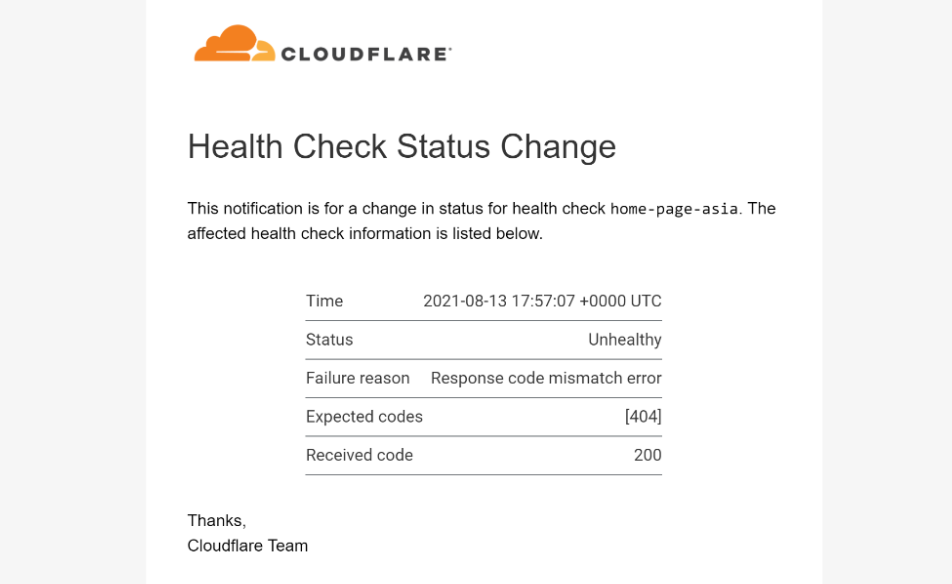
Health Checks email alerts have allowed customers to respond quickly to incidents and guarantee minimum disruption for their users. As before, Health Checks users can still select up to 20 email recipients to notify if a Health Check finds their site to be unhealthy. And if email is the right tool for your team, we’re excited to share that we have jazzed up our notification emails and added details on which Health Check triggered the notification, as well as the status of the Health Check:

Get updates on the health of your origin where you need them
New Health Checks email format with Time, Health Status, and Health Check details

That being said, monitoring an inbox is not ideal for many customers needing to stay proactively informed. If email is not the communication channel your team typically relies upon, checking emails can at best be inconvenient and, at worst, allow critical updates to be missed. That’s where the Notifications dashboard comes in.

Users can now create Health Checks notifications within the Cloudflare Notifications dashboard. By integrating Health Checks with Cloudflare’s powerful Notification platform, we have unlocked myriad new ways to ensure customers receive critical updates for their origin health. One of the key benefits of Cloudflare’s Notifications is webhooks, which give customers the flexibility to sync notifications with various external services. Webhook responses contain JSON-encoded information, allowing users to ingest them into their internal or third-party systems.

For real-time updates, users can now use webhooks to send Health Check alerts directly to their preferred instant messaging platforms such as Slack, Google Chat, or Microsoft Teams, to name a few. Beyond instant messaging, customers can also use webhooks to send Health Checks notifications to their internal APIs or their Security Information and Event Management (SIEM) platforms, such as DataDog or Splunk, giving customers a single pane of glass for all Cloudflare activity, including notifications and event logs. For more on how to configure popular webhooks, check out our developer docs. Below, we’ll walk you through a couple of powerful webhook applications. But first, let’s highlight a couple of other ways the update to Health Checks notifications improves user experience.

By including Health Checks in the Notifications tab, users need only to access one page for a single source of truth where they can manage their account notifications.  For added ease of use, users can also migrate to Notification setup directly from the Health Check creation page as well.  From within a Health Check, users will also be able to see what Notifications are tied to it.

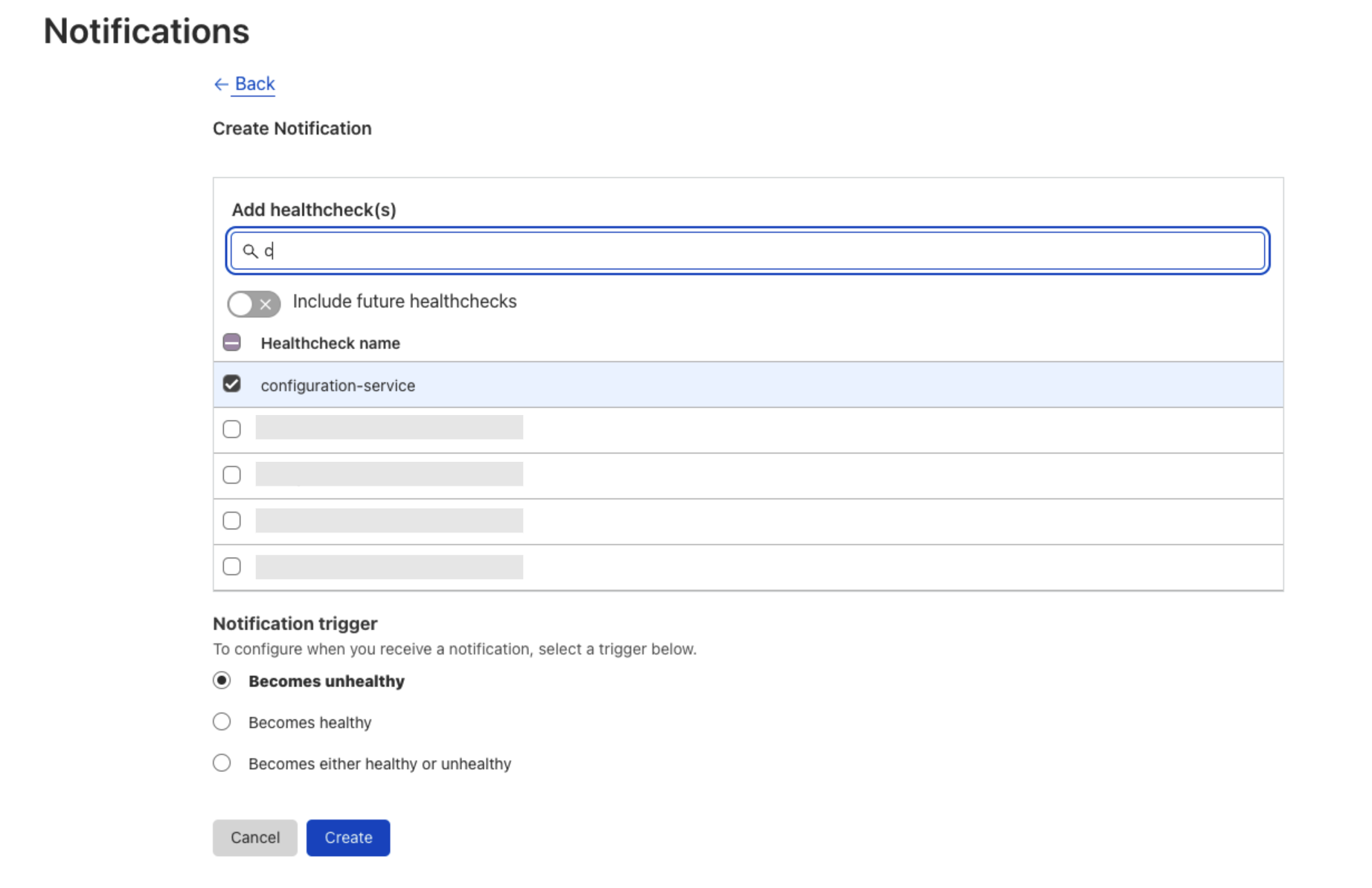
Additionally, configuring notifications for multiple Health Checks is now simplified. Instead of configuring notifications one Health Check at a time, users can now set up notifications for multiple or even all Health Checks from a single workflow.

Get updates on the health of your origin where you need them

Also, users can now access Health Checks notification history, and Enterprise customers can integrate Health Checks directly with PagerDuty. Last but certainly not least, as Cloudflare’s Notifications infrastructure grows in capabilities, Health Checks will be able to leverage all of these improvements. This guarantees Health Checks users the most timely and versatile notification capabilities that Cloudflare offers now and into the future.

Setting up a Health Checks webhook

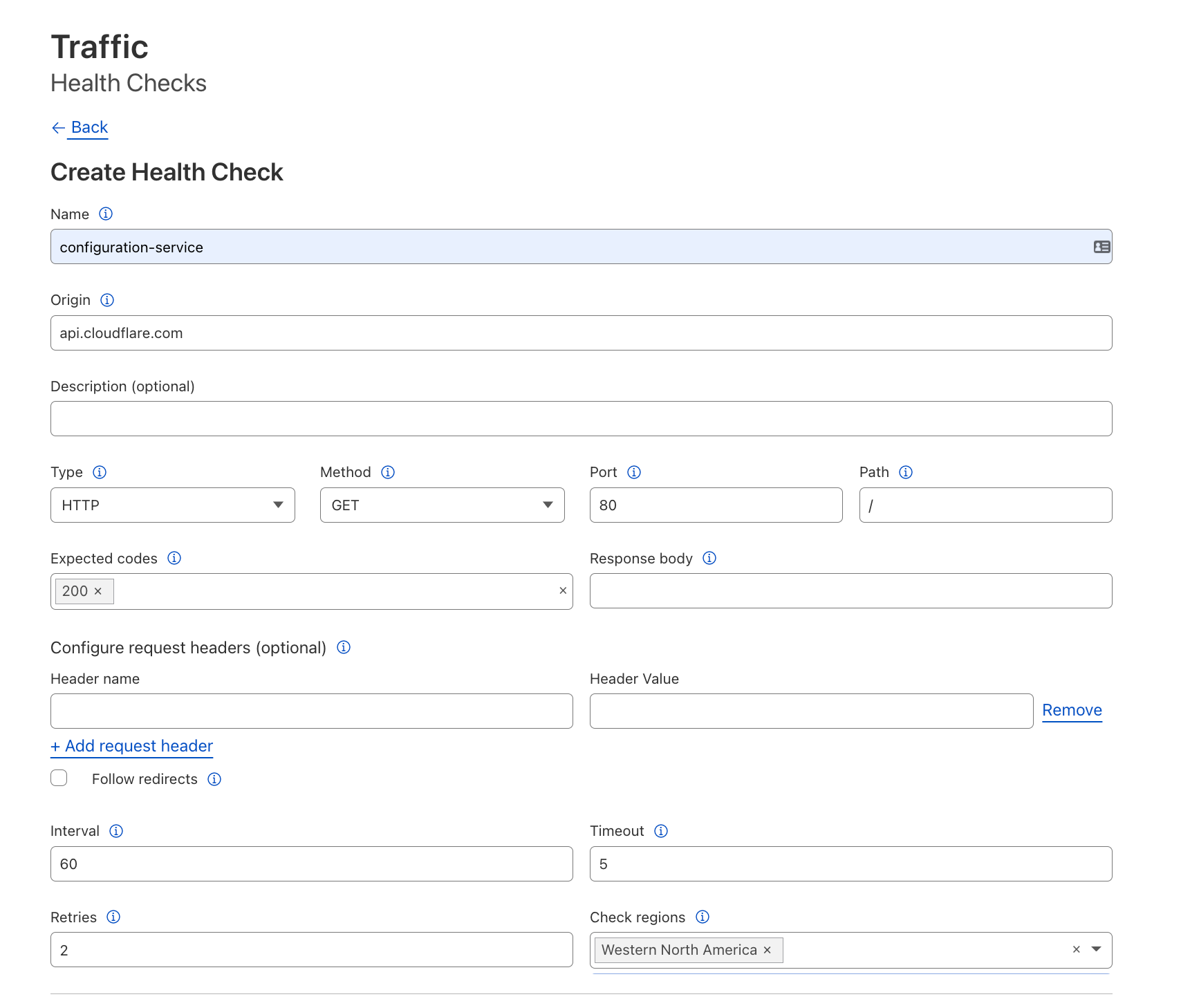
To get notifications for health changes at an origin, we first need to set up a Health Check for it. In this example, we’ll monitor HTTP responses: leave the Type and adjacent fields to their defaults. We will also monitor HTTP response codes: add `200` as an expected code, which will cause any other HTTP response code to trigger an unhealthy status.

Get updates on the health of your origin where you need them

Creating the webhook notification policy

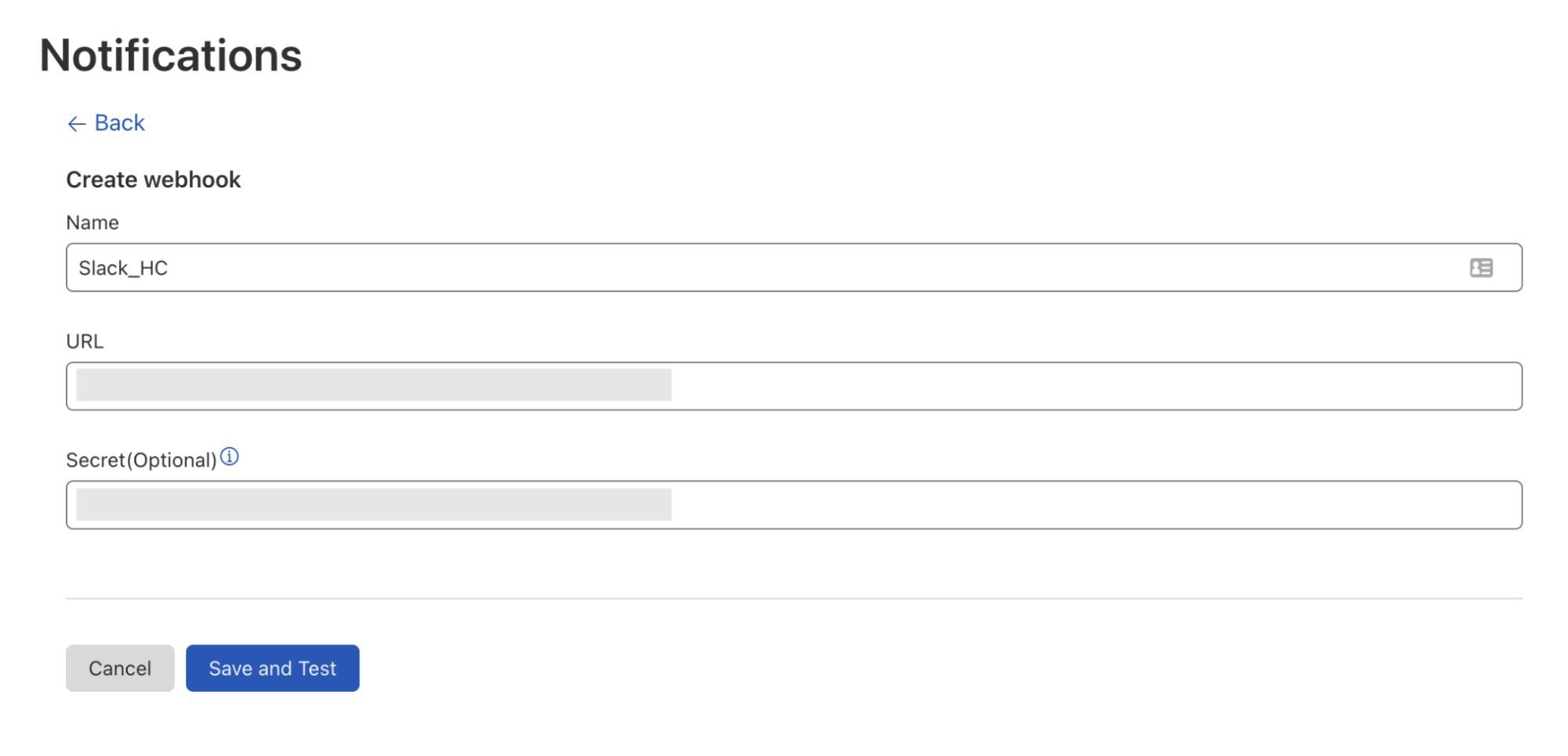
Once we’ve got our Health Check set up, we can create a webhook to link it to. Let’s start with a popular use case and send our Health Checks to a Slack channel. Before creating the webhook in the Cloudflare Notifications dashboard, we enable webhooks in our Slack workspace and retrieve the webhook URL of the Slack channel we want to send notifications to. Next, we navigate to our account’s Notifications tab to add the Slack webhook as a Destination, entering the name and URL of our webhook — the secret will populate automatically.

Get updates on the health of your origin where you need them
Webhook creation page with the following user input: Webhook name, Slack webhook url, and auto-populated Secret

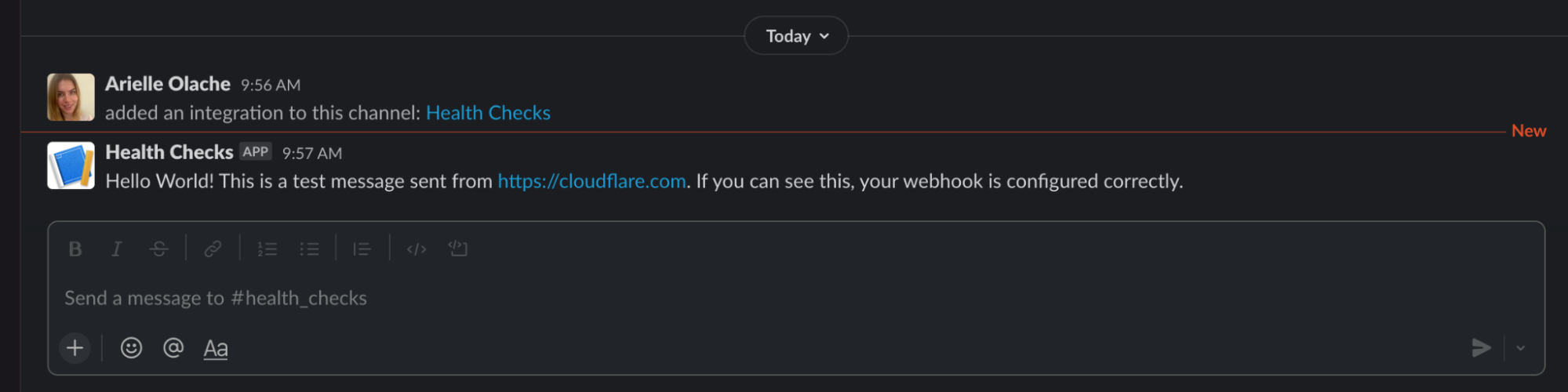
Once we hit Save and Test, we will receive a message in the designated Slack channel verifying that our webhook is working.

Get updates on the health of your origin where you need them
Message sent in Slack via the configured webhook, verifying the webhook is working

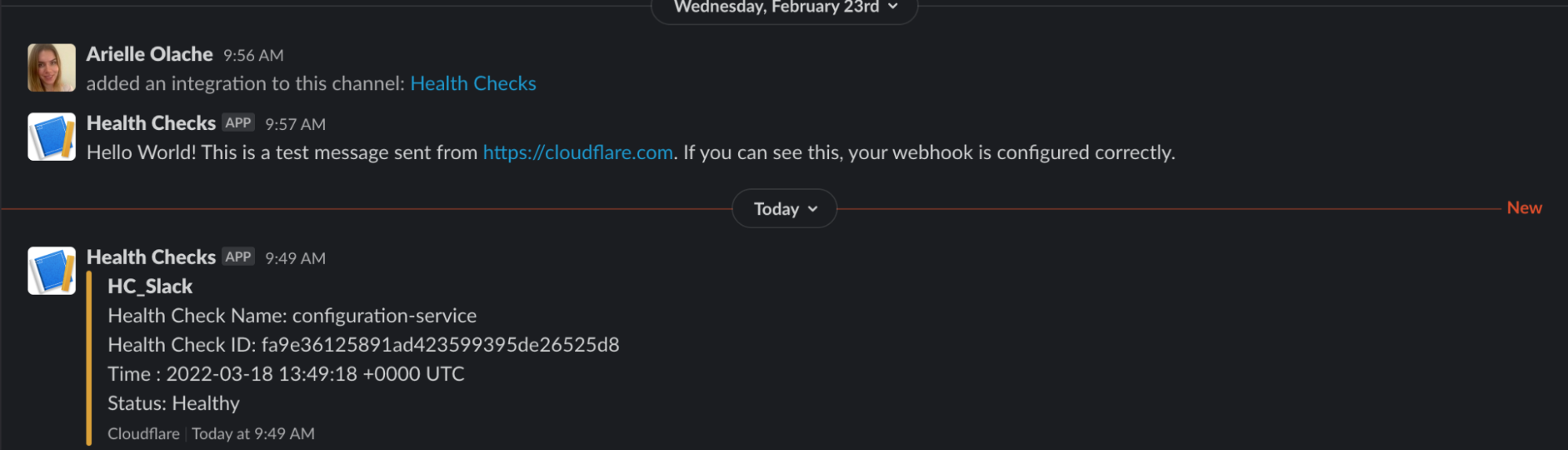
This webhook can now be used for any notification type available in the Notifications dashboard. To have a Health Check notification sent to this Slack channel, simply add a new Health Check notification from the Notifications dashboard, selecting the Health Check(s) to tie to this webhook and the Slack webhook we just created. And, voilà! Anytime our Health Check detects a response status code other than 200 or goes from unhealthy to healthy, this Slack channel will be notified.

Get updates on the health of your origin where you need them
Health Check notification sent to Slack, indicating our server is online and Healthy.

Create an Origin Health Status Page

Let’s walk through another powerful webhooks implementation with Health Checks. Using the Health Check we configured in our last example, let’s create a simple status page using Cloudflare Workers and Durable Objects that stores an origin’s health, updates it upon receiving a webhook request, and displays a status page to visitors.

Writing our worker
You can find the code for this example in this GitHub repository, if you want to clone it and try it out.

We’ve got our Health Check set up, and we’re ready to write our worker and durable object. To get started, we first need to install wrangler, our CLI tool for testing and deploying more complex worker setups.

$ wrangler -V
wrangler 1.19.8

The examples in this blog were tested in this wrangler version.

Then, to speed up writing our worker, we will use a template to generate a project:

$ wrangler generate status-page [https://github.com/cloudflare/durable-objects-template](https://github.com/cloudflare/durable-objects-template)
$ cd status-page

The template has a Durable Object with the name Counter. We’ll rename that to Status, as it will store and update the current state of the page.

For that, we update wrangler.toml to use the correct name and type, and rename the Counter class in index.mjs.

name = "status-page"
# type = "javascript" is required to use the `[build]` section
type = "javascript"
workers_dev = true
account_id = "<Cloudflare account-id>"
route = ""
zone_id = ""
compatibility_date = "2022-02-11"
 
[build.upload]
# Upload the code directly from the src directory.
dir = "src"
# The "modules" upload format is required for all projects that export a Durable Objects class
format = "modules"
main = "./index.mjs"
 
[durable_objects]
bindings = [{name = "status", class_name = "Status"}]

Now, we’re ready to fill in our logic. We want to serve two different kinds of requests: one at /webhook that we will pass to the Notification system for updating the status, and another at / for a rendered status page.

First, let’s write the /webhook logic. We will receive a JSON object with a data and a text field. The `data` object contains the following fields:

time - The time when the Health Check status changed.
status - The status of the Health Check.
reason - The reason why the Health Check failed.
name - The Health Check name.
expected_codes - The status code the Health Check is expecting.
actual_code - The actual code received from the origin.
health_check_id - The id of the Health Check pushing the webhook notification. 

For the status page we are using the Health Check name, status, and reason (the reason a Health Check became unhealthy, if any) fields. The text field contains a user-friendly version of this data, but it is more complex to parse.

 async handleWebhook(request) {
  const json = await request.json();
 
  // Ignore webhook test notification upon creation
  if ((json.text || "").includes("Hello World!")) return;
 
  let healthCheckName = json.data?.name || "Unknown"
  let details = {
    status: json.data?.status || "Unknown",
    failureReason: json.data?.reason || "Unknown"
  }
  await this.state.storage.put(healthCheckName, details)
 }

Now that we can store status changes, we can use our state to render a status page:

 async statusHTML() {
  const statuses = await this.state.storage.list()
  let statHTML = ""
 
  for(let[hcName, details] of statuses) {
   const status = details.status || ""
   const failureReason = details.failureReason || ""
   let hc = `<p>HealthCheckName: ${hcName} </p>
         <p>Status: ${status} </p>
         <p>FailureReason: ${failureReason}</p> 
         <br/>`
   statHTML = statHTML + hc
  }
 
  return statHTML
 }
 
 async handleRoot() {
  // Default of healthy for before any notifications have been triggered
  const statuses = await this.statusHTML()
 
  return new Response(`
     <!DOCTYPE html>
     <head>
      <title>Status Page</title>
      <style>
       body {
        font-family: Courier New;
        padding-left: 10vw;
        padding-right: 10vw;
        padding-top: 5vh;
       }
      </style>
     </head>
     <body>
       <h1>Status of Production Servers</h1>
       <p>${statuses}</p>
     </body>
     `,
   {
    headers: {
     'Content-Type': "text/html"
    }
   })
 }

Then, we can direct requests to our two paths while also returning an error for invalid paths within our durable object with a fetch method:

async fetch(request) {
  const url = new URL(request.url)
  switch (url.pathname) {
   case "/webhook":
    await this.handleWebhook(request);
    return new Response()
   case "/":
    return await this.handleRoot();
   default:
    return new Response('Path not found', { status: 404 })
  }
 }

Finally, we can call that fetch method from our worker, allowing the external world to access our durable object.

export default {
 async fetch(request, env) {
  return await handleRequest(request, env);
 }
}
async function handleRequest(request, env) {
 let id = env.status.idFromName("A");
 let obj = env.status.get(id);
 
 return await obj.fetch(request);
}

Testing and deploying our worker

When we’re ready to deploy, it’s as simple as running the following command:

$ wrangler publish --new-class Status

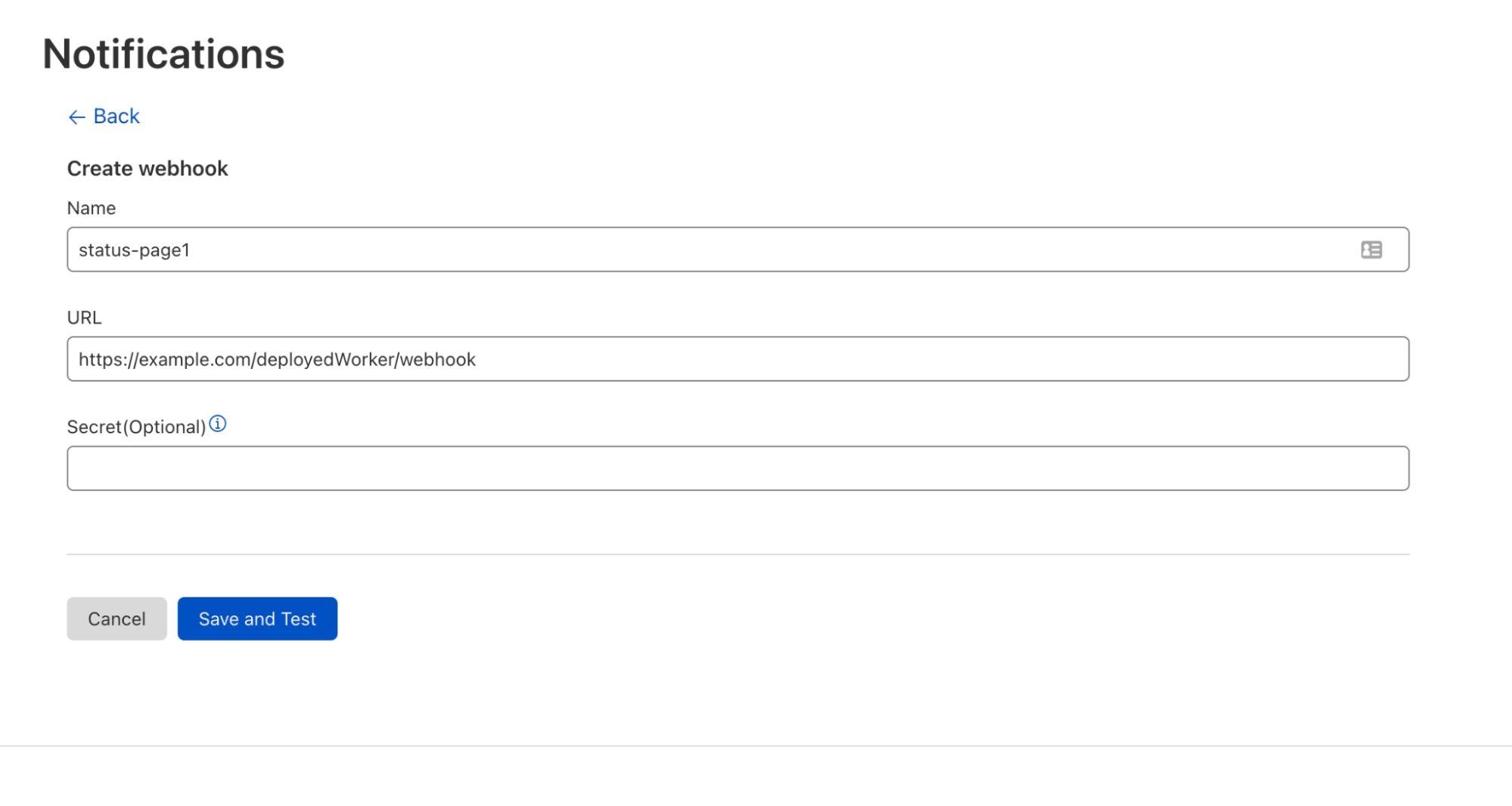
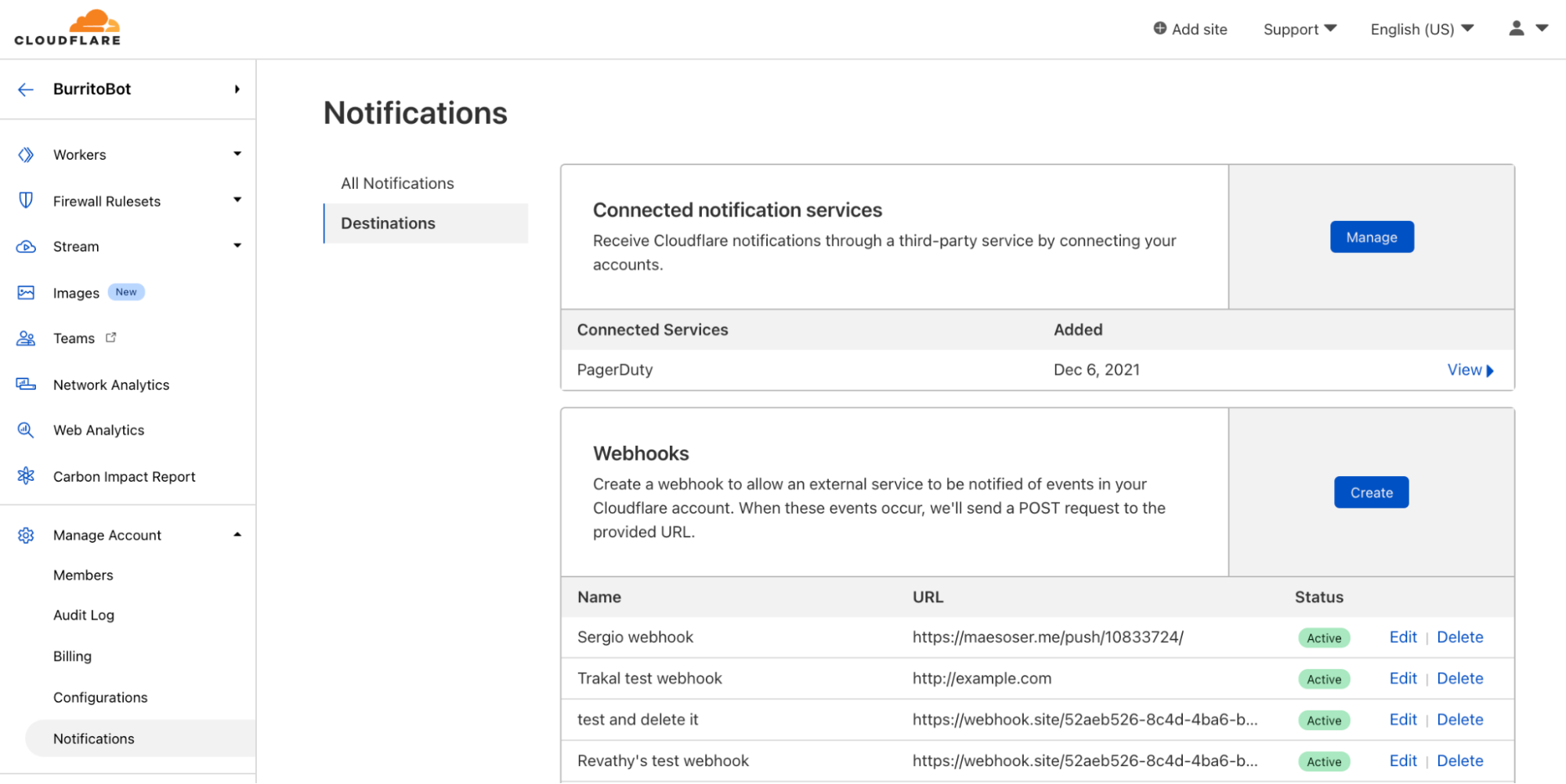
To test the change, we create a webhook pointing to the path the worker was deployed to. On the Cloudflare account dashboard, navigate to Notifications > Destinations, and create a webhook.

Get updates on the health of your origin where you need them
Webhook creation page, with the following user input: name of webhook, destination URL, and optional secret is left blank.

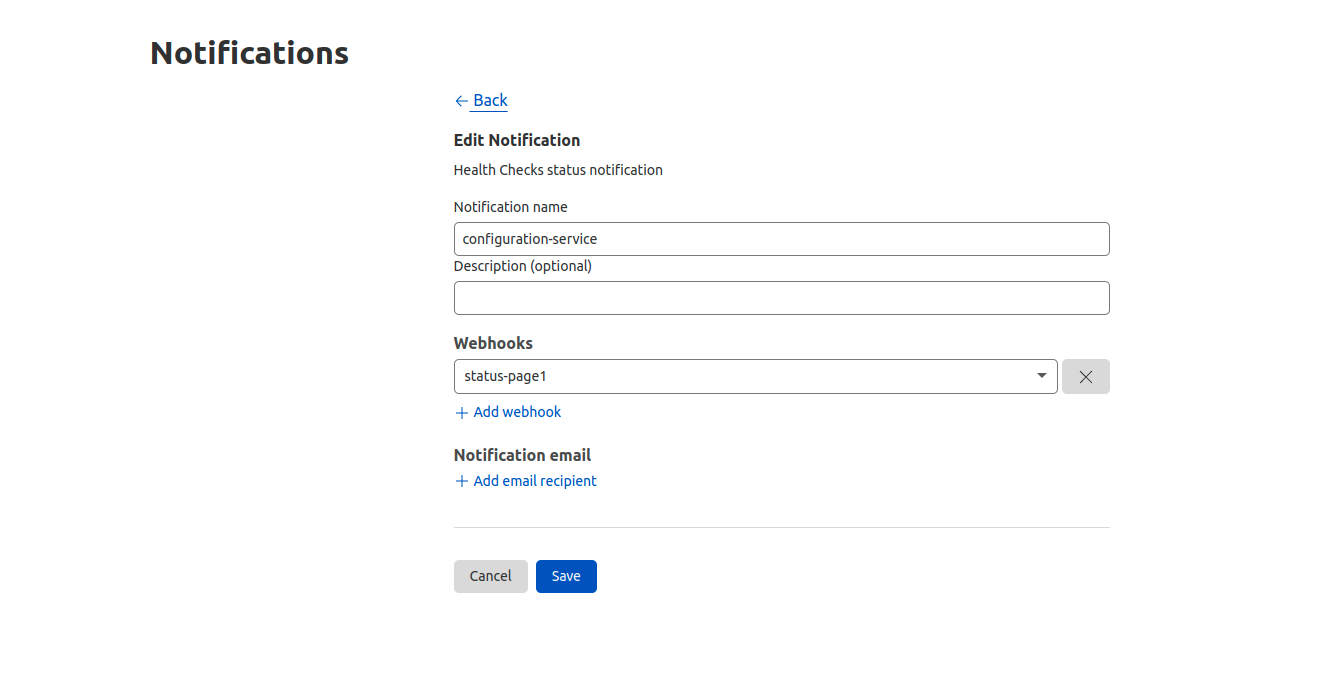
Then, while still in the Notifications dashboard, create a Health Check notification tied to the status page webhook and Health Check.

Get updates on the health of your origin where you need them
Notification creation page, with the following user input: Notification name and the Webhook created in the previous step added.

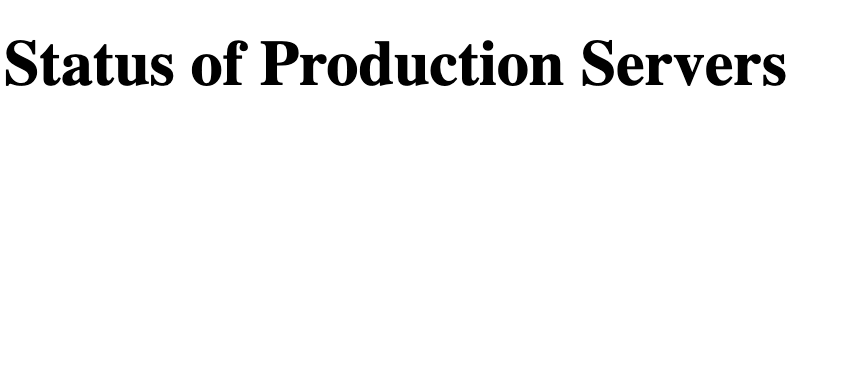
Before getting any updates the status-page worker should look like this:

Get updates on the health of your origin where you need them
Status page without updates reads: “Status of Production Servers”

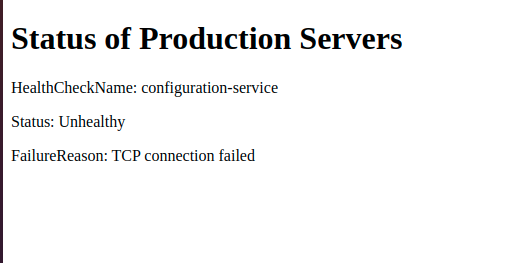
Webhooks get triggered when the Health Check status changes. To simulate the change of Health Check status we take the origin down, which will send an update to the worker through the webhook. This causes the status page to get updated.

Get updates on the health of your origin where you need them
Status page showing the name of the Health Check as “configuration-service”, Status as “Unhealthy”, and the failure reason as “TCP connection failed”. 

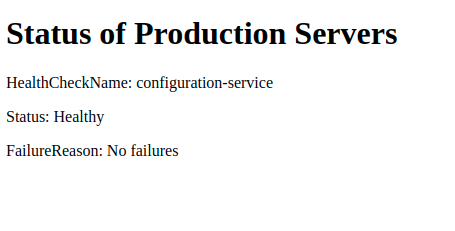
Next, we simulate a return to normal by changing the Health Check expected status back to 200. This will make the status page show the origin as healthy.

Get updates on the health of your origin where you need them
Status page showing the name of the Health Check as “configuration-service”, Status as “Healthy”, and the failure reason as “No failures”. 

If you add more Health Checks and tie them to the webhook durable object, you will see the data being added to your account.

Authenticating webhook requests

We already have a working status page! However, anyone possessing the webhook URL would be able to forge a request, pushing arbitrary data to an externally-visible dashboard. Obviously, that’s not ideal. Thankfully, webhooks provide the ability to authenticate these requests by supplying a secret. Let’s create a new webhook that will provide a secret on every request. We can generate a secret by generating a pseudo-random UUID with Python:

$ python3
>>> import uuid
>>> uuid.uuid4()
UUID('4de28cf2-4a1f-4abd-b62e-c8d69569a4d2')

Now we create a new webhook with the secret.

Get updates on the health of your origin where you need them
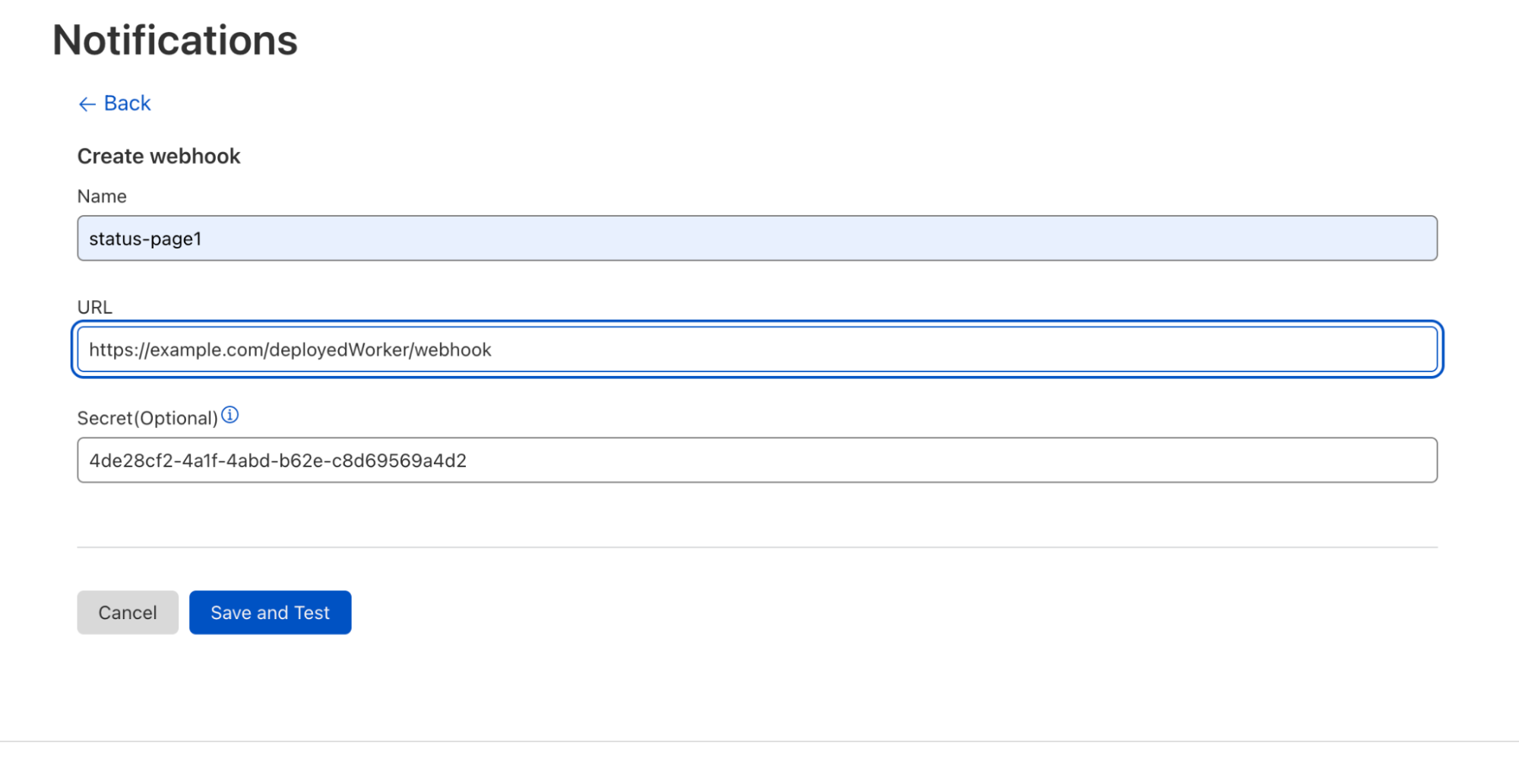
Webhook creation page, with the following user input: name of webhook, destination URL, and now with a secret added.

We also want to provide this secret to our worker. Wrangler has a command that lets us save the secret.

$ wrangler secret put WEBHOOK_SECRET
Enter the secret text you'd like assigned to the variable WEBHOOK_SECRET on the script named status-page:
4de28cf2-4a1f-4abd-b62e-c8d69569a4d2
🌀 Creating the secret for script name status-page
✨ Success! Uploaded secret WEBHOOK_SECRET.

Wrangler will prompt us for the secret, then provide it to our worker. Now we can check for the token upon every webhook notification, as the secret is provided by the header cf-webhook-auth. By checking the header’s value against our secret, we can authenticate incoming webhook notifications as genuine. To do that, we modify handleWebhook:

 async handleWebhook(request) {
  // ensure the request we receive is from the Webhook destination we created
  // by examining its secret value, and rejecting it if it's incorrect
  if((request.headers.get('cf-webhook-auth') != this.env.WEBHOOK_SECRET) {
    return
   }
  ...old code here
 }

This origin health status page is just one example of the versatility of webhooks, which allowed us to leverage Cloudflare Workers and Durable Objects to support a custom Health Checks application. From highly custom use cases such as this to more straightforward, out-of-the-box solutions, pairing webhooks and Health Checks empowers users to respond to critical origin health updates effectively by delivering that information where it will be most impactful.

Migrating to the Notifications Dashboard

The Notifications dashboard is now the centralized location for most Cloudflare services. In the interest of consistency and streamlined administration, we will soon be limiting Health Checks notification setup to the Notifications dashboard.  Many existing Health Checks customers have emails configured via our legacy alerting system. Over the next three months, we will support the legacy system, giving customers time to transition their Health Checks notifications to the Notifications dashboard. Customers can expect the following timeline for the phasing out of existing Health Checks notifications:

  • For now, customers subscribed to legacy emails will continue to receive them unchanged, so any parsing infrastructure will still work. From within a Health Check, you will see two options for configuring notifications–the legacy format and a deep link to the Notifications dashboard.
  • On May 24, 2022, we will disable the legacy method for the configuration of email notifications from the Health Checks dashboard.
  • On June 28, 2022, we will stop sending legacy emails, and adding new emails at the /healthchecks endpoint will no longer send email notifications.

We strongly encourage all our users to migrate existing Health Checks notifications to the Notifications dashboard within this timeframe to avoid lapses in alerts.

Integrating Zabbix with your existing IT solutions by Aleksandrs Larionovs / Zabbix Summit Online 2021

Post Syndicated from Alexandrs Larionovs original https://blog.zabbix.com/integrating-zabbix-with-your-existing-it-solutions-by-aleksandrs-larionovs-zabbix-summit-online-2021/18671/

Zabbix 6.0 LTS comes packed with many new integrations and templates. As the total number of templates and integrations grows, we plan to make major improvements to our template repository. This will greatly improve the workflow of developing a new community template, submitting template pull requests, following the development process of a template, and much more.

The full recording of the speech is available on the official Zabbix Youtube channel.

What are integrations?

By definition, integrations are connections between systems and applications that work together as a whole to share information and data. In Zabbix, we separate integrations into two types:

  • Out-of-the-box templates
    • Templates contain items, triggers, graphs, and other entities that allow you to monitor any device, service, application, and other monitoring endpoints.
  • Webhook integrations
    • Webhooks allow you to send the information from Zabbix to any sort of 3rd party system like ITSM or messaging applications.

Where to find the latest integrations?

If you’re installing a fresh Zabbix instance, it will come pre-packaged with the latest set of official templates and webhooks. If you wish to download and import the integrations manually, you can find them in:

How do you benefit from integrations?

What are the benefits of using the official Zabbix integrations for you as a Zabbix user?

  • Monitor your endpoints in a tested and optimized manner
  • Monitor a large variety of 3rd party systems
  • Official templates come with a guarantee of quality and official support
  • Official templates provide quick deployment of monitoring logic for your monitoring endpoints

Having supported integrations can also be important from the standpoint of a vendor. Having an official Zabbix integration can provide multiple benefits for vendors:

  • Supported vendors get the ability to engage the Zabbix community
  • Collaborate with Zabbix and receive additional recognition
  • Provide higher quality monitoring support by collaborating in the development of the integration
  • Set higher monitoring standards for your product
  • Improve your public image

What if I wish to request a new official integration?

There are multiple ways how you can approach a scenario when there is no official integration for a specific product:

  • Option 1:
    • Create a ZBXNEXT ticket with your request at support.zabbix.com
    • Ask your friends and colleagues to vote on a request
    • If there is community interest in the integration – we will develop it!
  • Option 2:
  • Option 3:
    • Look for an unofficial community template

How are the official Zabbix integrations made?

Our first step in developing a new template is prioritizing which template should we tackle first. This includes looking at the current IT landscape and deciding which of the components are vastly considered as Essential services. Then, we look at the community requests and the number of votes behind each request. We also continuously work on improving the existing templates and evaluating the priority of the requested improvements. There is also the option to sponsor an integration by contacting our Sales department.

After we prioritize our list, we proceed to development – we do research, talk to community experts, create focus groups and proceed with the development. Once the development is finished, we proceed with validation – this includes internal reviews from the Integrations team as well as giving our colleagues from the Support team the chance to take a look at the newly developed template. Community feedback is also important for us – the feedback regarding the template can be left either in the comments under the specific feature request or in our Suggestions and Feedback forum section.

Community templates

While we pride ourselves on the rapid growth of our integrations team and the pace at which we have been delivering new official templates and integrations, we, of course, can’t instantly develop a template for every vendor and device out there. This is where our community has been of great help to us.

Moving from share.zabbix.com

Previously, if you were to find Zabbix lacking a template or an integration that you require, you would visit share.zabbix.com and look for a community solution to your problem. At this point, we have decided to migrate away from share.zabbix.com since, over the years, we have found it lacking in multiple aspects:

  • The website was hard to navigate
  • The underlying platform was outdated
  • Once uploaded, the templates were rarely maintained
  • It was hard to collaborate on templates
  • Lacking standardization – each template could use different naming conventions or metric collection approaches
  • Zombie templates – templates developed for old versions but never updated along the way.

Community template repository

The new go-to place for community templates will be our Community template repository. The repository will serve as a platform for collaboration. Once uploaded, the templates can be maintained by either the original developer or other community members. The platform will be moderated by the Integrations team, who will also provide feedback on the community templates to ensure a higher quality of the templates and additional validation. The documentation will also be generated for the community templates, containing the contents of each template – this way, you can have a transparent look at the template before downloading it.

The process

Let’s go through the whole process of developing and maintaining a community template.

1. Collaborate

  • For existing templates – you can start a discussion on Github issues to discuss issues or potential improvements on the template.
  • You can create a new bug report related to the template
  • For older community templates – you will be able to take over the maintenance of this template and continue improving it down the line
  • Develop and publish a new template or an integration

When it comes to community development, Zabbix does provide an official set of guidelines that the developers can follow to ensure that the template uses the official best practice conventions and approaches:

  • Naming conventions for templates and template entities
  • A set of best practices helps the community developers to simplify the decision making regarding best template and integration development approaches
  • Practical and ethical framework for template and integration development
  • This enables the community developers to follow the same set of development guidelines as the official Zabbix Integrations team

2. Pull request

Once you have decided to make a new integration or modify an existing integration, create a pull request describing the proposed changes and be ready to participate in a discussion related to the proposed set of changes. We will review and moderate the discussion and assist you in ensuring a smooth template development process.

3. Validation

The validation process consists of two parts. First, we will review if the template is valid, can be imported in Zabbix, and is usable by our community members. Next, the Integrations team will check if the template is developed according to the Zabbix standard and suggest any necessary changes.

4. Merge

If the validation process has been passed, we will accept the pull request and merge the integration into the repository. Afterward, the readme file for the integration will be generated. Finally, the template will be added to the template directory, and it will be available for everyone to see and download.

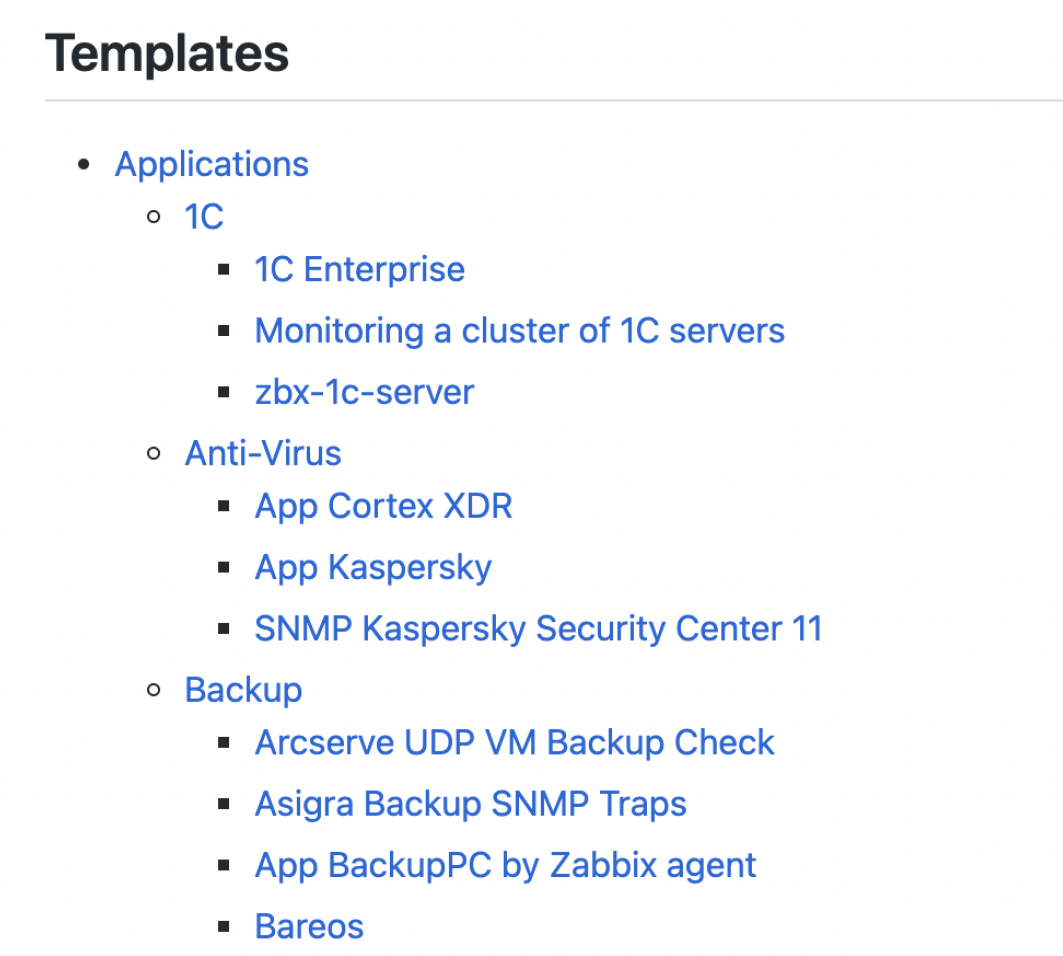
The Templates directory will have a similar structure to what you are used to in share.zabbix.com, so you should feel right at home here. We tried to check and migrate each and every valid template, but if you don’t find your template in the list – simply submit a pull request to us, and we will review it.

The generated Readme file will contain a list of entities included in the template – such as User macros, Template linkages, Discovery rules, Items, and more.

Where can I find the repository?

The Zabbix community template repository can be found in https://github.com/zabbix/community-templates. All you need to participate is a Github account and the willingness to participate in the integration development process.

To report an issue with the template repository or the official integrations, feel free to use our support portal: https://support.zabbix.com/

  • To report a bug – open a ZBX ticket
  • To suggest an improvement – open a ZBXNEXT ticket

For any discussions related to the Zabbix integrations, you can use (but are not limited to) the following channels:

Questions

Q: What is the workflow for our users that wish for Zabbix to develop new integration for a specific product?

A: We’re actively listening to our community. The best way to voice your request is to look for an existing feature request on https://support.zabbix.com/ and vote on it. If there is no such feature request – feel free to create it and vote on it. Thirdly, you can always contact our sales department and use our integration services to have the required template developed for you.


Q: Where can I see which integrations are currently developed or scheduled for the next release?

A: You can track the development process of a template by following the particular feature request in our support portal. You can also take a look at the official Zabbix roadmap and see what features, fixes, and integrations are currently scheduled for the upcoming Zabbix versions.


The post Integrating Zabbix with your existing IT solutions by Aleksandrs Larionovs / Zabbix Summit Online 2021 appeared first on Zabbix Blog.

What’s new with Notifications?

Post Syndicated from Natasha Wissmann original https://blog.cloudflare.com/whats-new-with-notifications/

What’s new with Notifications?

What’s new with Notifications?

Back in 2019, we blogged about our brand new Notification center as a centralized hub for configuring notifications on your account. Since then, we’ve talked a lot about new types of notifications you can set up, but not as much about updates to the notification platform itself. So what’s new with Notifications?

What’s new with Notifications?

Why we care about notifications

We know that notifications are incredibly important to our customers. Cloudflare sits in between your Internet property and the rest of the world. When something goes wrong, you want to know right away because it could have a huge impact on your end users. However, you don’t want to have to sit on the Cloudflare Dashboard all day, pressing refresh on analytics pages over and over just to make sure that you don’t miss anything important. This is where Notifications come in. Instead of requiring you to actively monitor your Internet properties, you want Cloudflare to be able to directly inform you when something might be going wrong.

Cloudflare has many different notification types to ensure that you don’t miss anything important. We have notifications to inform you that you’ve been DDoS’d, or that the Firewall is blocking more requests than normal, or that your origin is seeing high levels of 5xx errors, or even that your Workers script’s CPU usage is above average. We’re constantly adding new notifications, so make sure to check our Cloudflare Development Docs to see what’s new!

Emails are out, webhooks are in

So we have all of these super great notifications, but how do we actually inform you of an event? The classic answer is “we email you.” All of our customers have the ability to configure notifications to send to the email addresses of their choosing.

However, email isn’t always the optimal choice. What happens when an email gets sent to spam, or filtered out into another folder that you rarely check? What if you’re a person who never cleans out their inbox and has four thousand unread emails that can drown out new important emails that come in? You want a way for notifications to go directly to the messaging platform that you check the most, whether that’s Slack or Microsoft Teams or Discord or something else entirely. For customers on our Professional, Business, and Enterprise plans, this is where webhooks come in.

Webhooks are incredibly powerful! They’re a type of API with a simple, standardized behavior. They allow one service (Cloudflare) to send events directly to another service. This destination service can be nearly anything: messaging platforms, data management systems, workflow automation systems, or even your own internal APIs.

While Cloudflare has had first class support for webhooking into Slack, Microsoft Teams, Google Chat, and customer’s own APIs for a while, we’ve recently added support for DataDog, Discord, OpsGenie, and Splunk as well. You can read about how to set up each of those types of webhooks in our Cloudflare Development Docs.

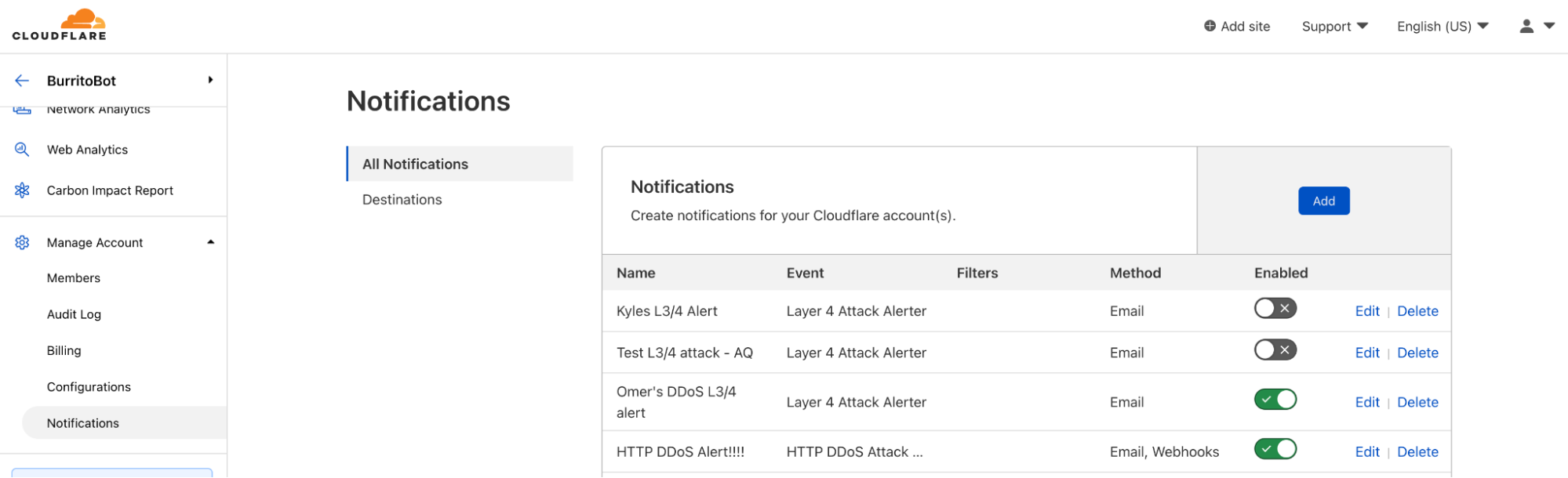
Because webhooks are so versatile, more and more customers are using them! The number of webhooks configured within Cloudflare’s notification system doubles, on average, every three months. Customers can configure webhooks in the Notifications tab in the dashboard.

What’s new with Notifications?

Those who forget history are doomed to repeat it

Webhooks are cool, but they still leave room for error. What happens when you receive a notification but accidentally delete it? Or when someone new starts at your company, but you forget to update the notification settings to send to the new employee?

Before now, Cloudflare notifications were entirely point in time. We sent you a notification via your preferred method, and we no longer had any visibility into that notification. If that notification gets lost on your end, we don’t have any way to help recover the information it contained.

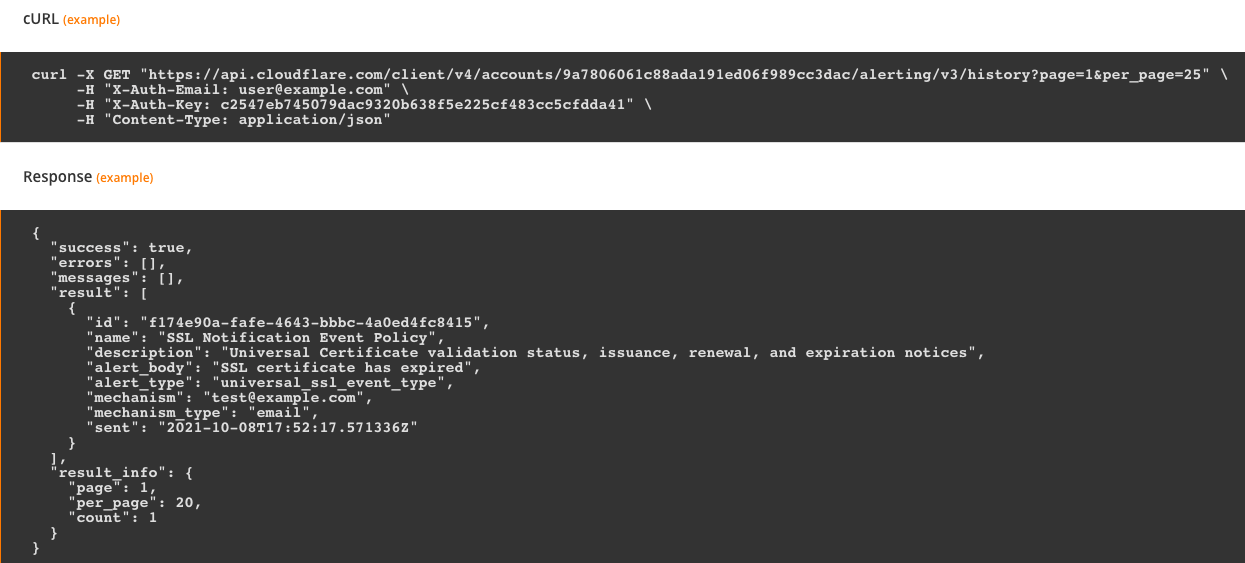
Notification history fixes that exact issue. Users are able to see a log of the notifications that were sent, when they were sent, and who they were sent to. Customers on Free, Professional, or Business plans are able to see notification history for the past 30 days. Customers on Enterprise plans are able to see notification history for the past 90 days.

What’s new with Notifications?

Right now, notification history is only available via API, but stay tuned for updates about viewing directly in the Cloudflare Dashboard!