Post Syndicated from LastWeekTonight original https://www.youtube.com/shorts/TOoXMATSNXE
Remote access to AWS: A guide for hybrid workforces
Post Syndicated from Itay Meller original https://aws.amazon.com/blogs/security/remote-access-to-aws-a-guide-for-hybrid-workforces/
Amazon Web Services (AWS) customers can enable secure remote access to their cloud resources, supporting business operations with both speed and agility. As organizations embrace flexible work environments, employees can safely connect to AWS resources from various locations using different devices. AWS provides comprehensive security solutions that help organizations maintain strong protection of corporate resources, manage appropriate access controls, and meet compliance requirements while enabling productive remote work environments.
Because there are different types of workloads—from Amazon Elastic Compute Cloud (Amazon EC2) instances to web applications—running in the AWS Cloud, there are correspondingly multiple remote access use cases for using or operating these workloads. For example, access to an EC2 instance and its operating system to perform operations such as troubleshooting, log analysis, and data retrieval. Other use cases require access to web applications such as Jenkins, Salesforce, or the Kubernetes UI deployed on AWS.
To support these use cases, AWS provides multiple services and features that help you address access patterns using different approaches. One of the key challenges that you might face when implementing remote access solutions is understanding the tradeoffs of the different approaches and solutions. This post is designed to help you decide which remote access approach is best for your use-case.
Use cases
In this post, we address the following use cases:
- User access to internal web applications deployed in a virtual private cloud (VPC).
- Internal operator access to EC2 and Amazon Relational Database Service (Amazon RDS) instances deployed in a VPC.
- Analyst access to sensitive data residing on Amazon Simple Storage Service (Amazon S3).
- User access to SAML 2.0 and OAuth 2.0 applications.
Challenges associated with remote access
- Cost: The cost of a remote access solution is a key factor for businesses.
- Increased exposure surface: Securing a VPC with several EC2 instances, S3 buckets, and a database is a different task than securing the identities, devices, and communications channels used for remote access to the infrastructure.
- Increased risk: Susceptibility to social engineering threats. Humans accessing workloads are the weakest link in any security program, introducing risks to data and infrastructure that otherwise wouldn’t have existed.
- User experience (UX): The UX is a key factor in remote access. Lacking a well-designed UX can introduce risks by making it difficult to conduct day-to-day operations or respond quickly to incidents that affect users at scale.
A solution to mitigate the risks associated with remote access is to not provide it at certain levels, and you might sometimes choose this approach. In these cases, access to workloads that must be secure is only possible from trusted locations (such as company offices) and managed devices (such as company-issued laptops). For the remainder of this post, we talk about approaches and solutions available for you when you need to provide remote access from various locations and devices.
The different approaches
Before diving deeper into the services and features, let’s explore the different approaches for providing remote access to your users (shown in Figure 1). The main differentiator among them is where the trust boundary lies.

Figure 1: The different approaches along with the corresponding solutions
- Network-based approach: Users are given access to your network through VPCs and are granted broad access to the actual target resource, web application, or EC2 instances. The trust boundary in this case is the VPC.
- Host-based approach: Users have access to the host running the application. This is commonly used for operator access. The trust boundary is the host.
- Application-based approach: Users access the application using their corporate credentials. This is commonly the case for software as a service (SaaS) applications. The trust boundary is the application.
- End-user computing approach: End-user computing (EUC) is a combination of technologies, policies, and processes that gives users secure, remote access to applications, desktops, and data that they need to get their work done. Desktops are operated centrally in the cloud and interacted with using streamed pixels to users’ devices. This approach shifts the trust boundary from the user device to desktops and data residing in the cloud.
These approaches aren’t mutually exclusive and occasionally overlap or can be combined in a zero trust model. Zero trust is centered on the idea that access to resources shouldn’t be based solely on the network location but on authentication and authorization of each request using multiple factors; including the user identity, device, and location, among others.
The trust boundary primarily depends on the criticality of the target resource, the risk tolerance of the organization, and the complexity of the implementation. Wider trust boundaries (such as in a network-based approach) increase the exposed surface area—because the whole network is exposed to trusted users and access to the network grants access to all the resources inside it—but are the simplest to implement. Tighter trust boundaries (such as a zero trust model) considerably reduce the exposed surface area but require implementing multiple factors that feed into the authorization context.
For example, organizations might provide network-based access from trusted devices to operators for a VPC with web-servers and databases, but only allow end-user computing based access for contractors or third-party users using non-corporate devices, also known as bring your own device (BYOD).
When selecting your remote access solution, you need to consider the desired trust boundary, authentication, authorization, user experience, access visibility and cost, which we explore in the following sections.
Network-based approach
The network-based approach is popular when users need access to multiple resources residing in specific networks in a straightforward manner, while keeping the networks disconnected from the public internet. When providing access at the network level, managing security configurations such as authorization, authentication, and auditing happens at the resource (application or machine) and client device, introducing challenges at scale.
AWS Client VPN is a fully managed service that you can use to securely connect users to VPCs from virtually any location using OpenVPN-based clients. Users can authenticate using your organization’s identity provider (IdP) in combination with certificate-based authentication. The service supports authorization rules that act as firewall rules to grant users access to specific CIDR blocks based on membership in an Active Directory group or a group defined in a SAML-based IdP. Additionally, you can use client connect handlers to run custom authorization logic based on device, user, and connection attributes.
After the required infrastructure is set up, users can connect to the target VPC and access EC2 instances or web applications at the network level inside their authorization scope. The UX is as straightforward as connecting using client software installed on the user’s device and authenticating using corporate authentication policies. A client VPN provides visibility into users’ connections to the VPN through connection logs, which are streamed to an Amazon CloudWatch log group. Connection logging provides visibility into each user’s initial VPN connection; getting visibility into what happened during the connection requires gathering the data from the target resource, network, or the user’s device.
After the user is authenticated and authorized, their device gains network access to the relevant VPC—and potentially other VPCs that are peered—or is connected through AWS Transit Gateway to that VPC. This can potentially provide network access to resources and networks outside the scope of the user.
A client VPN-based solution should be implemented when the network is the intended trust boundary around resources (for example, at the subnet or security group level) and group-level access control is sufficient. See Get started with AWS Client VPN.
Host-based approach
Providing access to hosts isn’t always necessary. One way to mitigate risks related to unauthorized host access is to not allow it and rely on fully automated operations instead. In practice, operators and developers still require access to hosts for visibility, tuning the operating system settings, applying patches, or manually restarting a service.
For access to EC2 instances, you can use features such as AWS Systems Manager Session Manager or EC2 Instance Connect Endpoint. Both of these features provide access to a host without exposing it to the internet, and because they use AWS Identity and Access Management (IAM), they authenticate, authorize, and log every session request made to AWS CloudTrail, and provide capabilities such as IAM Conditions (for example, aws:SourceIp) to apply conditional access, often minimizing the need for a network-based approach.
These two features mainly differ in the way they operate. Session Manager requires an agent, which is installed by default on several Amazon Machine Images (AMIs). The agent establishes an outbound connection—through the internet or a VPC endpoint—to the service endpoints, so you don’t have to modify the host’s inbound security group rules. It allows SSH connections tunneled over a proxy connection and provides in-session logging providing visibility into users’ commands within a session.
EC2 Instance Connect doesn’t require that you install an agent; it allows a secure native SSH connection, using short-lived SSH keys. As such, it requires that inbound connections from the EC2 Instance Connect service on port 22 be allowed on the host’s security group.
Most customers use Session Manager unless they don’t want to have an agent installed on the virtual machine or require a native SSH experience.
End-user computing approach
End-user computing services like the Amazon WorkSpaces Family or Amazon AppStream 2.0 stream desktops and applications as encrypted pixels to remote users while keeping data safely within your Amazon Virtual Private Cloud (Amazon VPC) and connected private networks. Unauthorized access to the client device is exposed only to encrypted pixels, which essentially moves the trust boundary from the device accessing the resources to the virtual desktop running in the cloud.
You can dive deeper into the differences between these different services in Unified access to AWS End User Computing services.
These services are particularly popular among customers who want to minimize the user’s device as the trust boundary. This can improve operational efficiency, especially when dealing with untrusted devices or highly sensitive data, because you significantly narrow the scope of what needs to be protected. This can also reduce the use (and costs) of expensive hardware.
The idea is that a user first authenticates using credentials provided by the corporate Active Directory or a SAML federation to the corporate identity provider. After the user is authenticated and authorized, an encrypted streaming session begins and the client is remotely operating a desktop or application that’s deployed in an Amazon VPC, with an elastic network interface (ENI) deployed to the customer’s managed VPC.
When adopting end-user computing for remote access, you can choose the UX and the cost structure that best fit your use case (for example, persistent access to a desktop or on-demand access to specific applications). You can also select different compute and storage options depending on the desired performance.
AWS End User Computing provides different machine types to accommodate different UX requirements and with different pricing models depending on the consumption model being used.
For more information, see Getting Started with Amazon Workspaces and Getting Started with AppStream 2.0.
Application-based approach
IAM Identity Center is primarily known for simplifying user access to AWS accounts within an organization at scale. It also provides single sign-on (SSO) access to supported web applications, giving users seamless access to these applications after they sign in using their directory credentials. Identity Center supports two application types:
- AWS managed applications, such as Amazon Q Developer and Amazon QuickSight.
- Customer managed applications, such as Salesforce, Microsoft365, and other commonly used applications.
If you use customer managed applications that support SAML 2.0 and OAuth 2.0, you can federate your IdP to IAM Identity Center through SAML 2.0 and use Identity Center to manage user access to those applications.
For organizations operating AWS environments at scale with multiple accounts, using IAM Identity Center is the recommended service to provide access to web applications and is provided at no additional cost.
Combining multiple approaches in a zero trust model
The zero trust model combines multiple factors including the user identity, device, location, and others, to evaluate and grant access requests. One way that you can implement this model to provide remote access to workloads deployed in a VPC is to use AWS Verified Access. With Verified Access, you can provide secure access to corporate applications without a client VPN and support TCP-based connections to a VPC, be it to web applications or EC2 or RDS instances. Authentication can be done using an existing IdP or AWS IAM Identity Center and a device management service that can provide additional information to improve authorization decisions based on context from the device. Those authorization decisions are expressed as Cedar policies that you author based on your access requirements. The service provides extensive logging for each web request, so you can investigate anomalies and view information about the access that was granted. For more information, see Get Started with Amazon Verified Access.
Understanding the tradeoffs
To select the right solution for your workforce, work backwards from the use case. Start by identifying and classifying the asset inventory and mapping the users accessing it and their access patterns.
Things to consider based on the classification:
- Visibility: Determine the level of visibility into remote access activities and the type of information that you’ll need to detect and recover from a security event or to comply with regulatory and compliance requirements.
- Authentication and authorization: Determine if your existing IAM mechanisms are sufficient. You might need to identify a temporary access management system or include information coming from user devices to address risks of compromised employees.
- Network access: Know your users and what type of network access, if any, they need. When considering network access, include the potential risks of overly permissive access.
- Cost: To determine costs, you need to know how many users and resources will be supported by remote access. Also, how many connections you expect and for how much time. Use that information to help determine the total cost of ownership of your solution.
- Endpoint security: For each resource, understand risks associated with providing access to it from a user’s device. Know what mechanisms you have (or can implement) to detect threats and unauthorized access or provide additional context for the authorization decision granting access to a resource.
- User experience: Compare the cost of a streamed user experience to one that’s locally installed to see if any additional cost is balanced by the improved security of the streamed UX.
The following provides an overview of the different solutions and the factors that can help you make an informed decision.
| Solution | Use cases | Trust Boundary | Provides access to | Protocol | User experience | Authentication | Authorization | Visibility | Cost |
| Client VPN |
|
Network | VPCs, subnets, security groups | IP | Client based,native |
|
|
Connection logging (CloudWatch) | Connection time and endpoint association |
| AWS Session Manager |
|
Host | EC2 Instances: Linux, Windows, or MacOS (EC2 only) | SSH or RDP | Native |
|
|
CloudTrail, or in-session logging using CloudWatch and Amazon S3) | No additional cost for accessing EC2 instances |
| EC2 Instance Connect Endpoint |
|
Host | EC2 Instances: Linux or Windows | SSH or RDP | Native |
|
|
CloudTrail | No additional cost |
| IAM Identity Center |
|
Application | Web applications | HTTP(S) | Native |
|
|
CloudTrail | No additional cost |
| Amazon Verified Access |
|
Amazon Verified Access |
|
HTTP(S) or TCP | Native |
|
|
Per request logging | Per application or bandwidth |
| Amazon Workspaces |
|
Cloud desktop | Persistent virtual desktop | WSP or PCoIP | Client based, or non-native |
|
|
CloudTrail | Per instance |
| Amazon AppStream 2.0 |
|
Cloud desktop | Non persistent virtual desktops and applications | NICE DCV | Client based or non-native |
|
|
CloudTrail | Per instance |
Conclusion
In this post, you learned about different approaches and solutions for providing remote access for your organization’s workforce. This included tactical recommendations on how to find the remote access solution that suits your needs best based on factors such as costs, user experience, and risk. By understanding those tradeoffs, you can now map out the different use-cases based on your infrastructure and threat model and build a remote access strategy to meet your needs. As you experiment and adopt the different tools, careful planning is required when designing and deploying the services. For example, which account to deploy the service to or how to provision access to the services. Use resources such as the AWS Security Reference Architecture (AWS SRA) and the individual service documentation pages to help guide your journey.
If you have feedback about this post, submit comments in the Comments section below.
Пламен Петров: Този свят не е за самотници
Post Syndicated from Ина Иванова original https://www.toest.bg/plamen-petrov-tozi-svyat-ne-e-za-samotnitsi/

Казва, че никога не се е притеснявал да споделя идеите си. Че нямаме авторско право върху тях. Определя се като човек, който обича да мечтае и обожава барокова музика. Намира за увлекателно да издирва кодове в средновековното изкуство. И да се скита анонимно из непознати градове. Търси точките на обединение. Чете много и е сред хората с кауза, които успяват не просто да създадат екип, а и да го вдъхновят да разширява непрестанно териториите, в които взаимодейства с други изкуства.
Пламен Петров е директор на Художествена галерия – Казанлък и идеен двигател на множество инициативи, в които среща публиката с музиканти, поети, писатели или предлага лектории по различни теми. По следите на любопитството си той работи стотици часове с архиви, но казва, че невинаги има търпението да пише, да вкарва в научно обращение фактите, изкопчени от тъканта на времето. Разпнат е между почтеността на изкуствоведа, който трябва да публикува откритото, и радостта на откривателя, който продължава по Пътя: „Щом съм го разбрал, щом съм го узнал, понякога ми стига.“
Преди да се установи в Казанлък през 2021 г. и да поеме управлението на Художествената галерия в града, да експонира картината на Иван Милев „Ахинора“ в нарочна самостоятелна сграда, да защити докторантурата си и да работи в Софийската градска художествена галерия, да пише за няколко култови през последните десетилетия медии, Пламен Петров получава строително образование. Впоследствие учи история на изкуството в Националната художествена академия и завършва две магистърски програми – „Старобългаристика“ в Софийския университет и „Сравнително изкуствознание“ в Нов български университет. Негови кураторски решения са показвани в Париж, Виена, Берлин, Атина, Варшава и др.
Пламен Петров споделя, че е прекарал детството си на село, работил е с ръцете си и не са му чужди връзките нито със земята, нито с труда. Тъгува, че днес селата ни са територии, които забравихме и те се обезлюдиха, че губим страхопочитанието и обичта си към природата, от която всъщност зависим. И до ден днешен д-р Пламен Петров, изкуствовед и гражданин на света, по лична карта е избрал да се води жител на село Присово, Великотърновско – там, където като дете се е занимавал с театър и е започнал да пише.
Чувствате ли се екипен играч?
Да, държа много на екипността, особено в работата, която върша. Струва ми се, че тя [работата – б.р.] изисква голяма доза лудост и ако човек намери съмишленици, нещата могат да се случат. Ако играеш самонадеяно сам, си обречен на неуспех. Музейната работа и създаването на изложба са процеси и голяма част от свършеното при тях остава абсолютно невидима за публиката. Видимостта е само върхът на айсберга и по нея те оценяват. И макар че може да прозвучи черногледо, не вярвам нашата работа да промени държавата – така че ни остава удоволствието. Него никой не може да ни отнеме. Аз съм щастливец в това отношение, получавам непосредствени и неочаквани реакции от публиката. Но подводната част от айсберга – там е истинското приключение и само заради него работя.
Да променяме хората, не държавата?
Вярвам, че им помагаме да стават личности. Онова, което ни липсва днес, са личности. Хора има – и с големи сърца, и с малки умове, и обратното. Но личности, които да разпръскват смисъл и да увличат останалите – те най-трудно се намират напоследък в разпокъсаното ни общество. Всички социални платформи и подкасти създават възможността всеки да е собствена медия и това абсолютно замъглява важните, големите теми.
Вие сте неконвенционален играч в полето на изкуствата. Как се заплаща тази смелост?
Не мисля, че плащам висока цена, не се чувствам ощетен или недооценен, не очаквам награди. То е като при титлите в академичната среда – не бива да са цел, те са част от пътя. Високите оценки за мен са именно случайните ми срещи с хората и техните реакции. Когато пишех за L’Europeo или A-specto, ми се е случвало да видя жена в трамвая да чете мой текст и сълзите ѝ капят. Това беше ситуация – подарък. Тя не знаеше кой седи срещу нея, аз не знам и до днес коя бе тя. Срещнахме се на територията на словото.
Оценките и наградите обаче са наистина важни за институциите, за които работим, защото легитимират създадените от нас продукти. Така че се чувствам благословен и благодарен за хората, с които съм се срещал и работил досега – наистина имам шанса да правя това, което обичам.
Какво у себе си се опитвате да опазите?
Една хубава наивност, която се грижа да поддържам. Да вярвам, че нещата могат да се преобърнат. Зрънцето надежда, че всеки от нас, с малкия си принос, може да доведе едно по-смислено бъдеще, защото изкуството свързва.
Ще се хвана за името на проекта „Глад“, който в рамките на почти половин година, на 22 различни места в Казанлък, представи изложби на 23-ма визуални артисти. За какво сте гладен Вие?
Не мога да кажа, че гладувам нещо да ми се случи. Понякога съм разочарован, но на мен бързо ми минава, защото имам толкова много идеи и планове какво да направя, че често се шегуваме с екипа, че целият китайски народ да дойде, съм готов да му раздам задачи. Никога не съм се притеснявал да споделям идеите си, дори някой да ги реализира – това са различни погледи върху дадена тема.
Мечтая много. Ще ми се да видя българската култура на друго поле – тя заслужава да бъде изведена извън тесния потребителски кръг в България. Ние имаме какво да покажем по света, и е въпрос на общи усилия да се обединим и разбира се, самата държавна машина да провиди каузата. Струва ми се, че напоследък литературата ни започва да става видима по света, художниците ни до известна степен – също, но това е тяхно лично усилие, а не работа на институциите, за съжаление.

Глобалността на света ми харесва. Идеите пътуват, няма значение къде са позиционирани авторите. Когато отидох да живея в Казанлък след повече от двайсет години в София, приятели и колеги ме питаха какво правя там. Днес, особено след COVID, мисля, че скъсахме с понятия като „провинция“ и „център“, защото видяхме, че може да си навсякъде по света и да работиш. Моята работа има смисъл в Казанлък, защото се намирам в една по-малко разорана нива.
Мисля, че големият проблем на големите институции е, че там не влизат хора с енергия. Такива, които още имат желание да тичат – защото има страшно много работа, за която трябва тичане. Особено пък ако трябва да реформираш подобна институция.
Вие самият не се щадите?
С годините ставам по-предпазлив, по-разумен. Затова споменах онази наивност, старая се да я съхраня – вярата, че това, което съм започнал, ще стане, ще намеря средствата да го реализирам и че ще има полза за другите.
Имам способността да заразявам хората, да ги провокирам, да ги убедя, че можем да направим нещо заедно. Животът ми е пълен с превратности, но никога не са ме напускали желанието и потребността да бъда с другите, да споделяме заедно общи вълнения. След УАСГ се занимавах със строителство, докато не реших един ден, че активно искам да се посветя на журналистиката, и съвсем наивно похлопах на вратата на списание L’Europeo, от което в България беше излязъл само първи брой тогава. Главната редакторка Калина Андролова ми даде възможност да опитам, видя първия ми текст и каза, че за нищо не става, но имам талант. Показа ми кое трябва да се оправи. И до ден днешен това поле, полето на словото, ме привлича. Заради него записах през 2010 г. история на изкуството.
А територията, по която все още мечтая, е медиевистиката. Там ме възбужда фактът, че артистът не е заявен по нашия модерен начин. Не бива да отричам и ролята на Янко Маринов в това мое увлечение. Той е първият, който ми разкри необятната вселена на изкуството. Реално аз исках да се занимавам с театрознание заради познанията ми в областта на театъра, а и пишех за него във вестник „Демокрация“. Исках да науча още, но тогава Юрий Дачев ми подхвърли да пристъпя в ново поле. Така станах изкуствовед.

И до ден днешен съм готов да си тръгна от това, с което се занимавам, и да опитам нещо съвършено различно – това е едновременно най-голямата ми сила и слабост. Не мога да ходя на работа, трябва да обичам това, което правя. И ако не го обичам, се научавам, за да ме радва. Винаги съм бил такъв. Това, че в момента съм директор, е средство, функция.
Моята баба ме научи да чета, и нещо по-значимо – научи ме, че не целите са най-важни. Не постигането им, а как вървим към тях. Особено в работата, която работя сега, това ми е много ценно. Ние обслужваме една институция, ние сме нейните стопани в момента, но тя е съществувала преди нас и съм сигурен, че ще бъде много след нас. Сега се обръщам назад и виждам всички онези, които са работили за Художествената галерия в Казанлък.
Имаме ли основания да говорим вече за процес на децентрализация в изкуството?
Да. Виждам, че извън София се случват все по-интересни и много по-смислени неща. Центърът сякаш се задуши от събития – театър, представяния на книги, изложби, а и изисква друго поведение. Да не забравяме и че в останалите градове също има хора, които се нуждаят от културни полета.
Моята най-голяма награда е, че нашата галерия започна да се превръща в територия на доверието. От Явор Гърдев съм чувал, че в България най-добрата реклама е от уста на уста. Аз обичам да се губя в различни градове, пътувам анонимно, като пътешественик, и спомена ли, че живея в Казанлък, се е случвало да чуя добри думи за галерията. Това се дължи на всички нас, които работим там заедно.
Създаването на музей „Ахинора“ е вдъхновяваща история. Ваша е идеята в музей за една картина да експонирате творбата на Иван Милев в пространство, каквото тя заслужава. Ще ни разкажете ли?
Картината, освен с качествата си, е ценна и с историята си, която никой до този момент не беше разказвал. Тази жена е символ на националното, тя е принесена в жертва, за да бъдат обединени племената и да бъде създадена българската държава. Да, фикция е, но разказът за Ахинора на Николай Райнов, вдъхновил и картината, излага много съвременни проблеми: за половете, за мястото на жената в обществото. Картината, разбира се, е свързана и с огромната митологема коя е тази жена.
Създаването на музея е приключение, което вероятно се случи и заради инженерното ми мислене. Когато имам идея, аз започвам да обмислям детайлите. В тази сграда се помещаваше видеонаблюдението на града. Аз отскоро бях пристигнал в Казанлък, пиех кафе в кафенето отсреща, на едно площадно пространство, което също беше недобре устроено. Картината „Ахинора“ на Иван Милев по това време беше в централната сграда на галерията и нямаше как да остане там, защото се нуждае от специални условия за съхранение. При един разговор с г-жа Галина Стоянова, кмет на община Казанлък, я попитах чия собственост е сградата, и от нея разбрах, че е общинска. Предложих ѝ да създадем музей конкретно за една картина, хвърлих ръкавицата и тя каза: „Да го направим.“ За това съм страшно благодарен – важно е властимащите да провиждат възможностите и се радвам, че госпожа Стоянова прие идеята, прие тази лудост и отне само година и четири месеца да я реализираме. Оказа се, че мястото не е случайно, че историята му е свързана с живота на Иван Милев, макар и опосредствано. В този дом се е съхранявала негова картина, подарена от художника на стопанката на къщата, която през 1917 г. е откликнала на молбата му да му даде безплатно лекарства.
Светът е направен от истории, това е начинът да разкажем човека. Вие като изкуствовед го правите и през разбирането си за визуалните изкуства. През изграждането на линия на напрежение между зрителя и картината. Как обаче селектирате?
Понякога си позволявам да отлагам, да прокрастинирам. При мен обаче натискът от липсата на време успява да извади наяве качествени неща – вероятно защото във фонов режим съм мислил върху работата си. Цялата натрупана информация, емоционалност, тревожности и страхове оплождат с енергията си писането ми, така че накрая да доведа до съзнанието на публиката един разказ – дали през изложба, или текст. Поведението на световните музеи и изложбени зали напоследък също е такова: те вече правят отделни микроразкази. Микроразказите ни помагат да видим нюансите, защото, когато говорим за колосите, те изглеждат недостижими, но за да се появят фигурите на Микеланджело или Леонардо, преди тях е наслагван опитът на десетки други артисти.

Съвременното изкуство предполага да разчиташ на познание у публиката, не единствено на образи. Между гледащия и картината стои знанието, то е медиаторът. Друг е въпросът доколко успяваме да провокираме това общуване с публиката. Подходът при мен е да генерираш реакция у гледащия, не просто да изложиш и подредиш картини, с които фондът разполага.
Когато съчетаеш разказа за времето и изкуството с разказа за човека, зрителят вече съотнася. И тогава започва да вижда по друг начин. Затова на изложбите, които правим с колегите ми, се опитваме да показваме по-малко картини. Публиката е преуморена от образите, които непрекъснато консумира от екраните си. Те затлачват сетивата ни.
Ако трябва да направим снимка на днешния ден, как бихме изглеждали ние от дистанцията на времето?
Склонни сме да драматизираме, да воюваме с настоящето. И това сигурно е нормално, но отблизо живеенето винаги ни изглежда катастрофално. Колко пъти обявявахме смъртта на изкуството?! А то все не умира. От дистанцията на времето днес сигурно би бил един прекрасен ден, в който сме имали възможност да общуваме.
Аз самият обичам да срещам различни хора, преживявал съм почти сюрреалистични неща, когато живеех в София и обичах да се „губя“ по улиците ѝ. Общувал съм с бездомници и съм научавал невероятни неща от тях, те имат нужда да говорят. След това с години ме преследва емоцията от подобни разговори.
В този живот сякаш всичко ми се дава като подарък, срещал съм хора, които са ми подавали ръка като ангели и са помагали да реша проблем, с който не съм знаел как да се справя. Чувствам се благословен и вярвам, че само заедно можем да правим големите крачки. Този свят не е за самотници. Не и в създаването.
Хората, които тихо и кротко променят средата, в която живеят, формират общности и задават посоки, в които има смисъл да тръгнем заедно. Тук ви срещаме с тях. Това са „Тези хора“.
Alfredo Garcia | Let’s Make It!: A Mexican-American Culinary Adventure | Talks at Google
Post Syndicated from Talks at Google original https://www.youtube.com/watch?v=esA0vZZe6wk
Goodbye Gigabit: My Under-$1k UniFi 10 Gb Home Network Build
Post Syndicated from Crosstalk Solutions original https://www.youtube.com/watch?v=bUOLJc8ABf0
E-Paper Magic! Customize Your Smart Home with Seeed Studio!
Post Syndicated from BeardedTinker original https://www.youtube.com/shorts/NNqs5GSdXVI
GNU Health Hospital Information System 5.0 released
Post Syndicated from corbet original https://lwn.net/Articles/1028010/
Version 5.0 of the
GNU Health Hospital Information System has been released. This project,
working to support medical offices, shows just how far the free-software
effort can reach. Changes in this release include improved reporting and
analytics, more comprehensive handling of many types of patient
information, a reworked medical-imaging subsystem, better insurance and
billing functionality, and more.
[$] Yet another way to configure transparent huge pages
Post Syndicated from daroc original https://lwn.net/Articles/1025629/
Transparent huge pages (THPs) are, theoretically, supposed to allow processes to
benefit from larger page sizes without changes to their code. This does work,
but the performance impacts from THPs are not always a benefit, so system
administrators with specific knowledge of their workloads may want the ability
to fine-tune THPs to the application. On May 15, Usama Arif
shared a patch set that would add a
prctl() option for setting THP defaults for a process; that patch
set has sparked discussion about whether such a setting is a good fit for
prctl(), and what alternative designs may work instead.
[$] Improved load balancing with machine learning
Post Syndicated from corbet original https://lwn.net/Articles/1027096/
The extensible scheduler class
(“sched_ext”) allows the loading of a custom CPU scheduler into the kernel
as a set of BPF functions; it was merged for the 6.12 kernel release.
Since then, sched_ext has enabled a wide range of experimentation with
scheduling algorithms. At the 2025 Open
Source Summit North America, Ching-Chun (“Jim”) Huang presented work
that has been done to apply (local) machine learning to the problem of
scheduling processes on complex systems.
15 Years of OsmAnd
Post Syndicated from corbet original https://lwn.net/Articles/1027973/
The OsmAnd map and navigation app project recently celebrated its 15th
anniversary.
All these 15 years can be roughly divided into three stages. For
the first five years, we built the very basic functionality—offline
maps and navigation that just worked. Over the next five years, we
transformed OsmAnd into a full-fledged application with plugins,
extensive settings, and professional tools. We dedicated the third
five-year period to deep internal work: completely rewriting and
improving key components like the rendering engine and routing
algorithms.Now, a new, fourth stage begins. We have reached functional
maturity, and our main goal for the near future is to polish what
we’ve already built. We will focus on stability, speed, and
consolidation. User expectations are growing, and what was once
considered normal must now be flawless.
(Thanks to Paul Wise).
Security updates for Tuesday
Post Syndicated from corbet original https://lwn.net/Articles/1027971/
Security updates have been issued by AlmaLinux (delve, emacs, gimp, gimp:2.8, glibc, idm:DL1, ipa, iputils, kernel, krb5, libarchive, libblockdev, libxml2, mod_proxy_cluster, osbuild-composer, pam, perl-File-Find-Rule, perl-YAML-LibYAML, qt5-qtbase, weldr-client, xorg-x11-server and xorg-x11-server-Xwayland, and xorg-x11-server-Xwayland), Debian (mbedtls and sudo), Oracle (.NET 8.0, delve, delve, golang, firefox, ghostscript, glibc, golang, grafana, iputils, kernel, krb5, libarchive, libblockdev, nodejs22, ruby, thunderbird, tomcat, tomcat9, unbound, and wireshark), Red Hat (glibc and mod_auth_openidc), Slackware (sudo), SUSE (gpg2, ImageMagick, iputils, jakarta-commons-fileupload, kernel, libblockdev, libsoup, open-vm-tools, pam, python-tornado6, screen, sudo, and xwayland), and Ubuntu (linux, linux-aws, linux-gcp, linux-gcp-6.11, linux-hwe-6.11, linux-oracle,
linux-raspi, linux-realtime, linux-gcp, linux-gcp-6.8, linux-hwe-5.4, linux-oem-6.11, and sudo).
Iranian Blackout Affected Misinformation Campaigns
Post Syndicated from Bruce Schneier original https://www.schneier.com/blog/archives/2025/07/iranian-blackout-affected-misinformation-campaigns.html
Dozens of accounts on X that promoted Scottish independence went dark during an internet blackout in Iran.
Well, that’s one way to identify fake accounts and misinformation campaigns.
Content Independence Day: no AI crawl without compensation!
Post Syndicated from Matthew Prince original https://blog.cloudflare.com/content-independence-day-no-ai-crawl-without-compensation/
Almost 30 years ago, two graduate students at Stanford University — Larry Page and Sergey Brin — began working on a research project they called Backrub. That, of course, was the project that resulted in Google. But also something more: it created the business model for the web.
The deal that Google made with content creators was simple: let us copy your content for search, and we’ll send you traffic. You, as a content creator, could then derive value from that traffic in one of three ways: running ads against it, selling subscriptions for it, or just getting the pleasure of knowing that someone was consuming your stuff.
Google facilitated all of this. Search generated traffic. They acquired DoubleClick and built AdSense to help content creators serve ads. And acquired Urchin to launch Google Analytics to let you measure just who was viewing your content at any given moment in time.
For nearly thirty years, that relationship was what defined the web and allowed it to flourish.
But that relationship is changing. For the first time in its history, the number of searches run on Google is declining. What’s taking its place? AI.
If you’re like me, you’ve been amazed at the new AI systems that have launched over the last two years and find yourself turning to them to answer questions that, in the past, you may have previously looked to Google. While it’s still early, it seems clear that the interface of the future of the web will look more like ChatGPT than a spartan search box and ten blue links.
Google itself has changed. While ten years ago they presented a list of links and said that success was getting you off their site as quickly as possible, today they’ve added an answer box and more recently AI Overviews which answer users’ questions without them having to leave Google.com. With the answer box they reported that 75 percent of queries were answered without users leaving Google. With the more recent launch of AI Overviews it’s even higher.
While Google’s users may like that, it’s hurting content creators. Google still copies creators’ content, but over the last 10 years, because of the changes to the UI of “search” it’s gotten almost 10 times more difficult for a content creator to get the same volume of traffic. That means it’s 10 times more difficult to generate value from ads, subscriptions, or the ego of knowing someone cares about what you created.
And that’s the good news. It’s even worse with today’s AI tools. With OpenAI, it’s 750 times more difficult to get traffic than it was with the Google of old. With Anthropic, it’s 30,000 times more difficult. The reason is simple: increasingly we aren’t consuming originals, we’re consuming derivatives.
The problem is whether you create content to sell ads, sell subscriptions, or just to know that people value what you’ve created, an AI-driven web doesn’t reward content creators the way that the old search-driven web did. And that means the deal that Google made to take content in exchange for sending you traffic just doesn’t make sense anymore.
Instead of being a fair trade, the web is being stripmined by AI crawlers with content creators seeing almost no traffic and therefore almost no value.
That changes today, July 1, what we’re calling Content Independence Day. Cloudflare, along with a majority of the world’s leading publishers and AI companies, is changing the default to block AI crawlers unless they pay creators for their content. That content is the fuel that powers AI engines, and so it’s only fair that content creators are compensated directly for it.

But that’s just the beginning. Next, we’ll work on a marketplace where content creators and AI companies, large and small, can come together. Traffic was always a poor proxy for value. We think we can do better. Let me explain.
Imagine an AI engine like a block of swiss cheese. New, original content that fills one of the holes in the AI engine’s block of cheese is more valuable than repetitive, low-value content that unfortunately dominates much of the web today.

We believe that if we can begin to score and value content not on how much traffic it generates, but on how much it furthers knowledge — measured by how much it fills the current holes in AI engines “swiss cheese” — we not only will help AI engines get better faster, but also potentially facilitate a new golden age of high-value content creation.
We don’t know all the answers yet, but we’re working with some of the leading economists and computer scientists to figure them out.

The web is changing. Its business model will change. And, in the process, we have an opportunity to learn from what was great about the web of the last 30 years and what we can make better for the web of the future.
Cloudflare’s mission is to help build a better Internet. I’m proud of the role we’re playing in doing exactly that as the web evolves. And I’m proud that we’re helping content creators stick up and demand value for the content they worked hard to create.
Happy Content Independence Day!

The crawl before the fall… of referrals: understanding AI’s impact on content providers
Post Syndicated from David Belson original https://blog.cloudflare.com/ai-search-crawl-refer-ratio-on-radar/
Content publishers welcomed crawlers and bots from search engines because they helped drive traffic to their sites. The crawlers would see what was published on the site and surface that material to users searching for it. Site owners could monetize their material because those users still needed to click through to the page to access anything beyond a short title.
Artificial Intelligence (AI) bots also crawl the content of a site, but with an entirely different delivery model. These Large Language Models (LLMs) do their best to read the web to train a system that can repackage that content for the user, without the user ever needing to visit the original publication.
The AI applications might still try to cite the content, but we’ve found that very few users actually click through relative to how often the AI bot scrapes a given website. We have discussed this challenge in smaller settings, and today we are excited to publish our findings as a new metric shown on the AI Insights page on Cloudflare Radar.
Visitors to Cloudflare Radar can now review how often a given AI model sends traffic to a site relative to how often it crawls that site. We are sharing this analysis with a broad audience so that site owners can have better information to help them make decisions about which AI bots to allow or block and so that users can understand how AI usage in aggregate impacts Internet traffic.
As HTML pages are arguably the most valuable content for these crawlers, the ratios displayed are calculated by dividing the total number of requests from relevant user agents associated with a given search or AI platform where the response was of Content-type: text/html by the total number of requests for HTML content where the Referer header contained a hostname associated with a given search or AI platform.
The diagrams below illustrate two common crawling scenarios, and show that companies may use different user agents depending on the purpose of the crawler. The top one represents a simple transaction where the example AI platform is requesting content for the purposes of training an LLM, representing itself as AIBot. The bottom one represents a scenario where the example AI platform is requesting content to service a user request — looking for flight information, for example. In this case, it is representing itself as AIBot-User. Request traffic from both of these user agents would be aggregated under a single platform name for the purposes of our analysis.
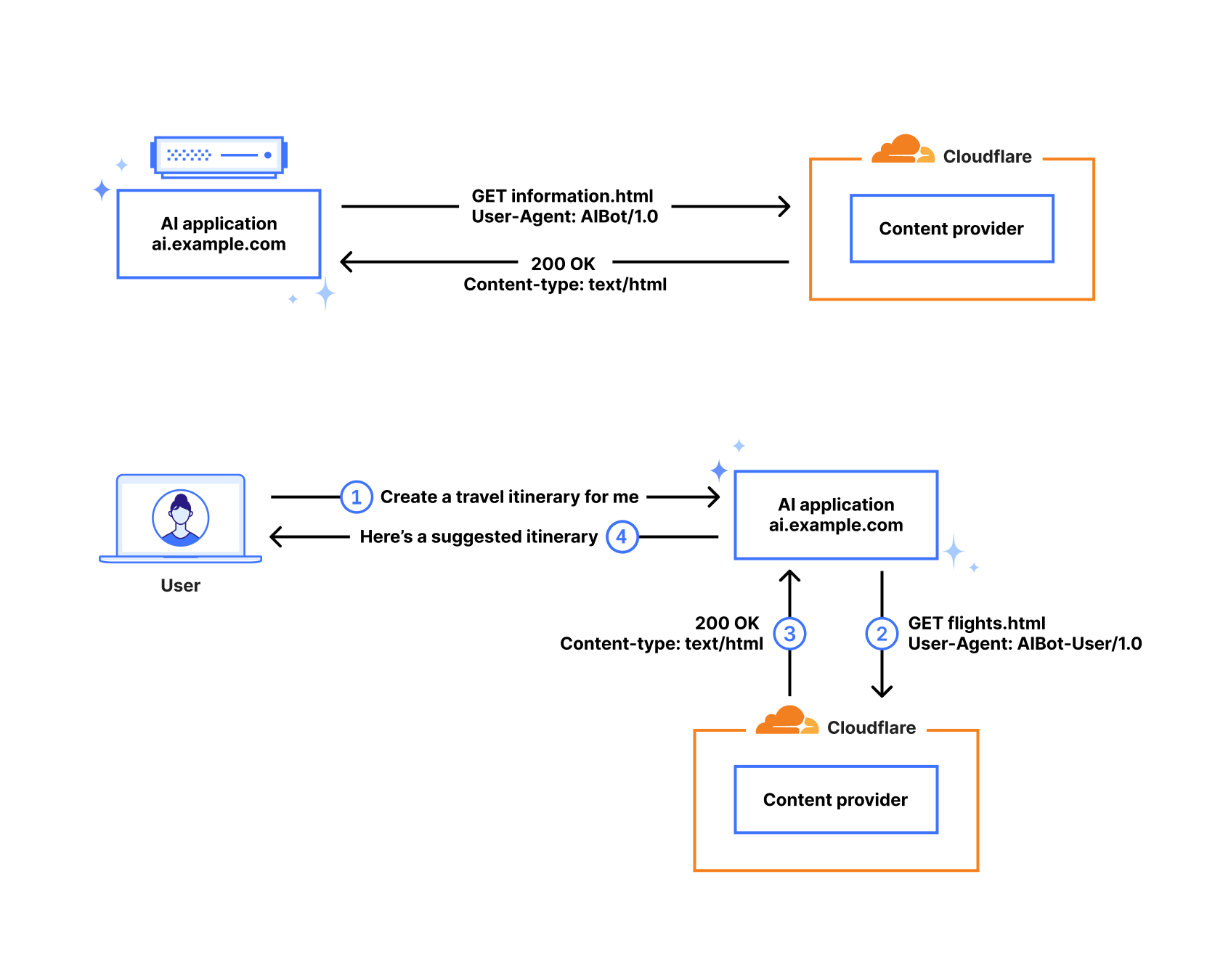
When a user clicks on a link on a website or application, the client will often send a Referer: header as part of the request to the target site. In the diagram below, the example AI platform has returned content that contains links to external sites in response to a user interaction. When the user clicks on a link, a request is made to the content provider that includes ai.example.com in the Referer: header, letting them know where that request traffic came from. Hostnames are associated with their respective platforms for the purpose of our analysis.

The new metric is presented as a simple table, comparing the number of aggregate HTML page requests from crawlers (user agents) associated with a given platform to the number of HTML page requests from clients referred by a hostname associated with a given platform. The calculated ratio is always normalized to a single referral request.
The table below shows that for the period June 19-26, 2025, as an example, the ratios range from Anthropic’s 70,900:1 down to Mistral’s 0.1:1. This means that Anthropic’s AI platform Claude made nearly 71,000 HTML page requests for every HTML page referral, while Mistral sent 10x as many referrals as crawl requests. (However, traffic referred by Claude’s native app does not include a Referer: header, and we believe that the same holds true for traffic generated from other native apps as well. As such, because the referral counts only include traffic from the Web-based tools from these providers, these calculations may overstate the respective ratios, but it is unclear by how much.)
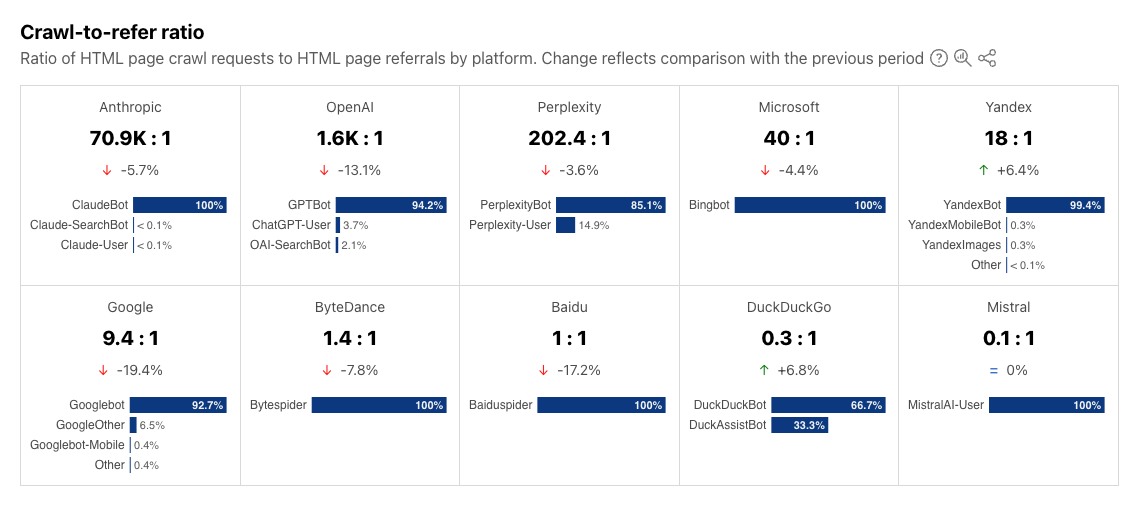
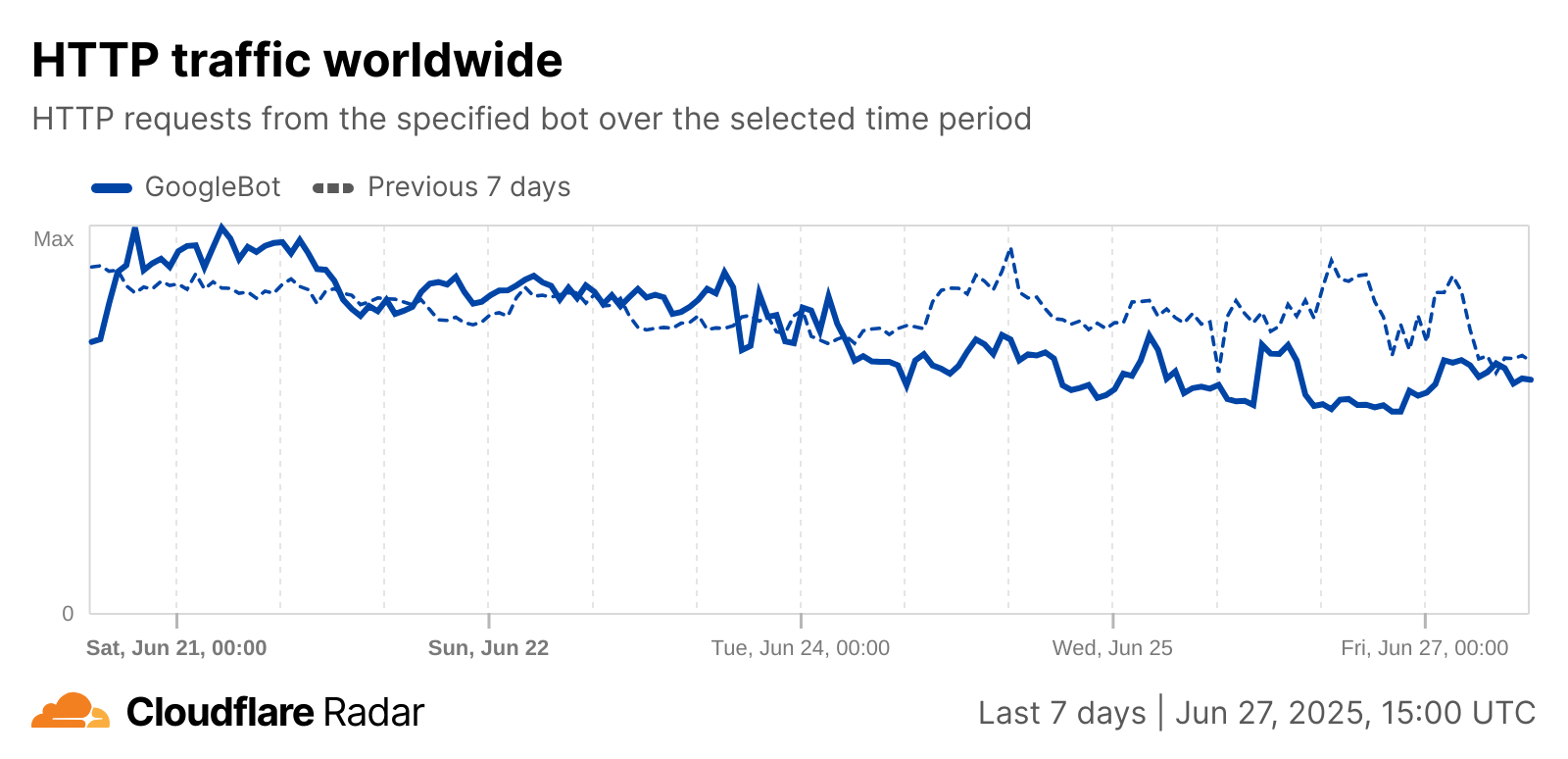
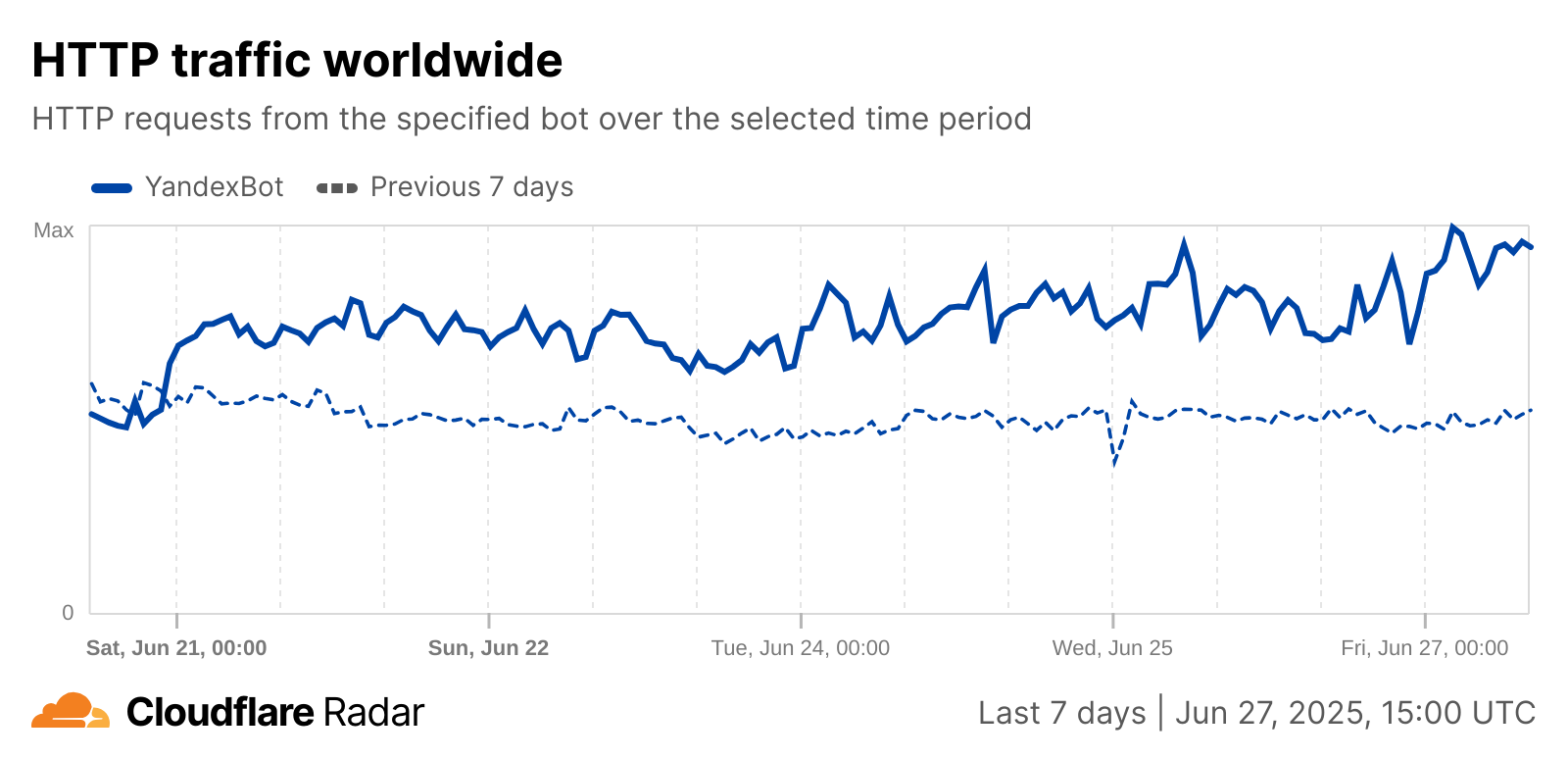
Of course, due in part to changes in crawling patterns, these ratios will change over time. The table above also displays the ratio changes as compared to the previous period, with changes ranging from increases of over 6% for DuckDuckGo and Yandex to Google’s 19.4% decrease. The week-over-week drop in Google’s ratio is related to an observed drop in crawling traffic from GoogleBot starting on June 24, while Yandex’s week-over-week growth is related to an observed increase in YandexBot crawling activity that started on June 21, as seen in the graphs below.
Radar’s Data Explorer includes a time series view of how these ratios change over time, such as in the Baidu example below. The time series data is also available through an API endpoint.
Changes and trends in the underlying activity can be seen in the associated Data Explorer view, as well as in the raw data available via API endpoints (timeseries, summary). Note that the shares of both referral and crawl traffic are relative to the sets of referrers and crawlers included in the graphs, and not Cloudflare traffic overall.
For example, in the referrer-centric view below, covering nearly the first four weeks of June 2025, we can see that referral traffic is dominated by search platform Google, with a fairly consistent diurnal pattern visible in the data. (The google.* entry covers referral traffic from the main google.com site, as well as local sites, such as google.es or google.com.tw.) Because of prefetching driven by the use of speculation rules, referral traffic coming from Google’s ASN (AS15169) is specifically excluded from analysis here, as it doesn’t represent active user consumption of content.
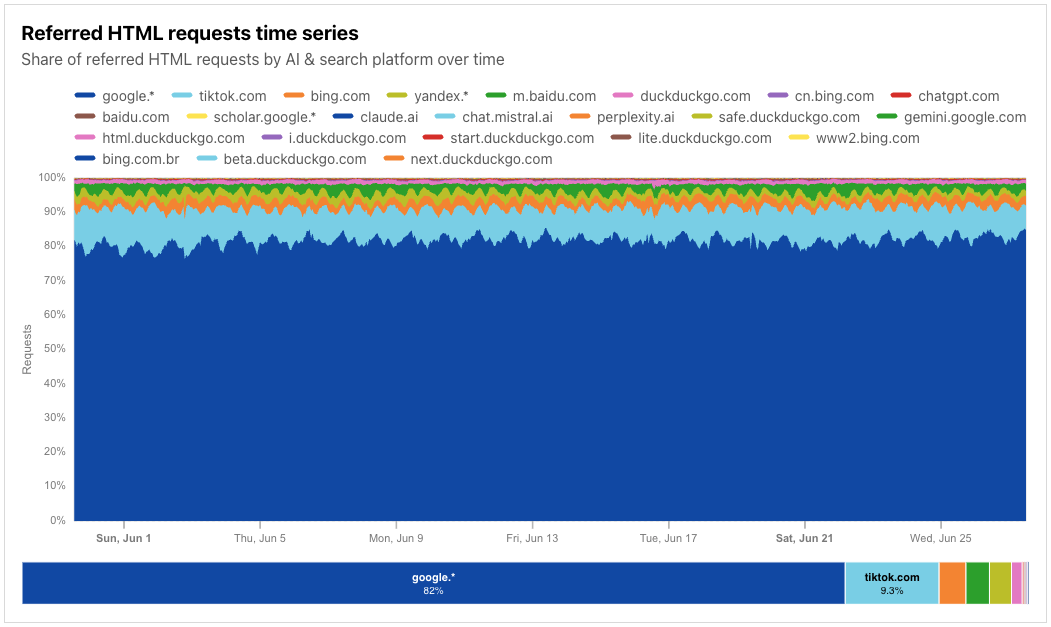
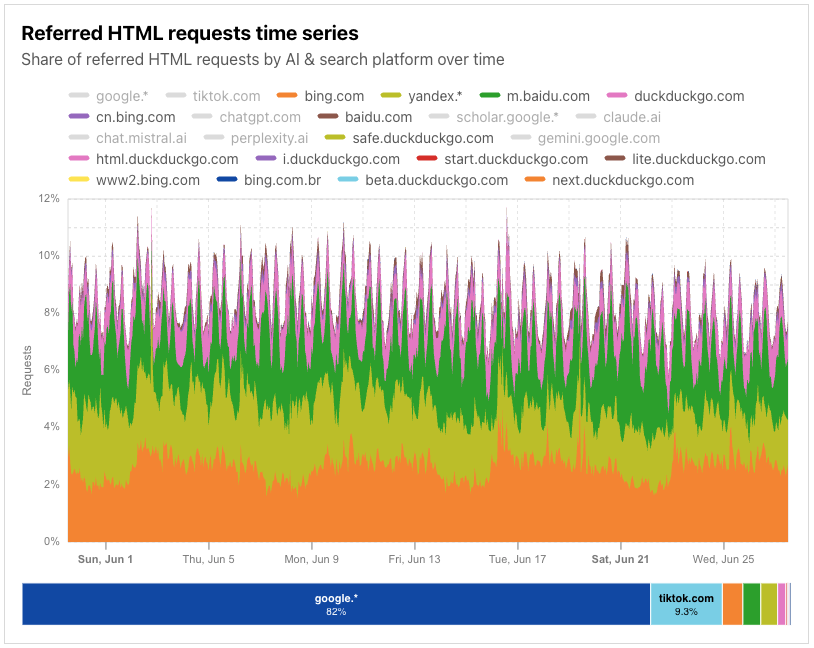
Clear diurnal patterns are also visible in the referral request shares of other search platforms, although the request shares are a fraction of what is seen from Google.
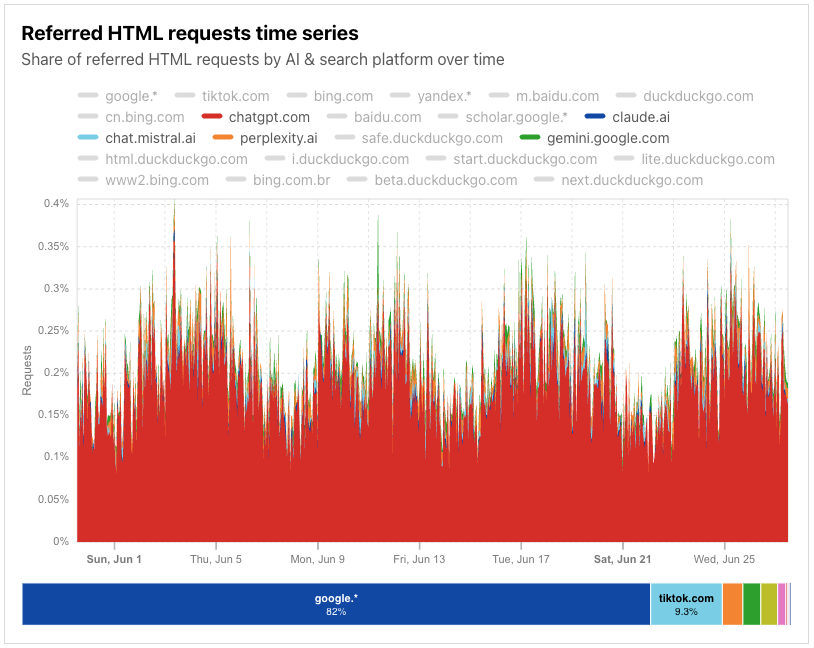
Throughout June, the share of traffic referred by AI platforms was significantly lower, even in aggregate, than the share of traffic referred by search platforms.
As noted above, the change in ratio values over time can be driven by shifts in crawling activity. These shifts are visible in the crawling traffic shares available in Data Explorer, as well as in the raw data available via API endpoints (timeseries, summary). In the crawler-centric view below, covering nearly the first four weeks of June 2025, we can see that the share of requests related to Google’s crawling activity for both their Googlebot and GoogleOther identifiers falls over the course of the month, with several peak/valley periods. A similar pattern observed in HTTP request traffic from Google’s AS15169 during that same time period loosely matches this observed drop in share.
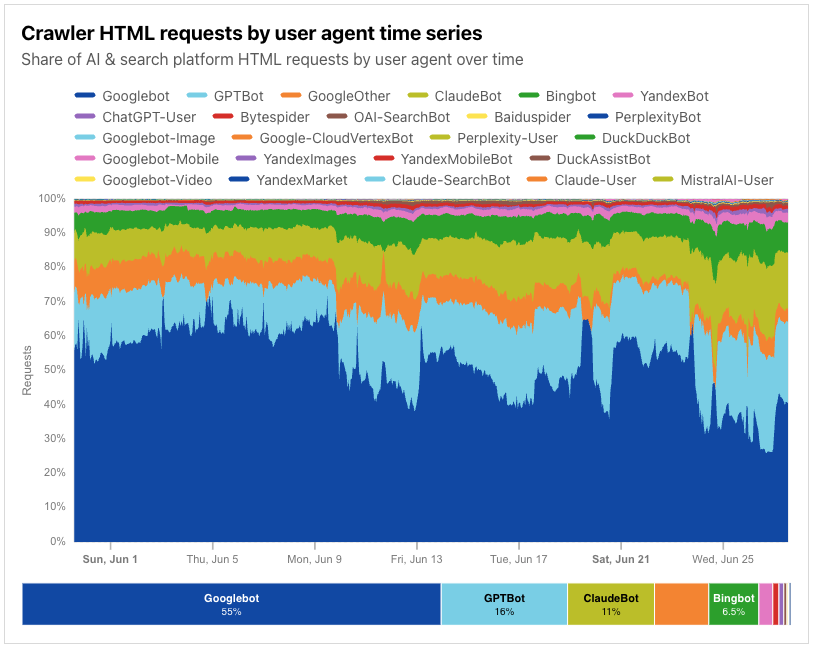
In addition, it appears that OpenAI’s GPTBot saw multiple periods where little-to-no crawling activity was observed throughout the month.
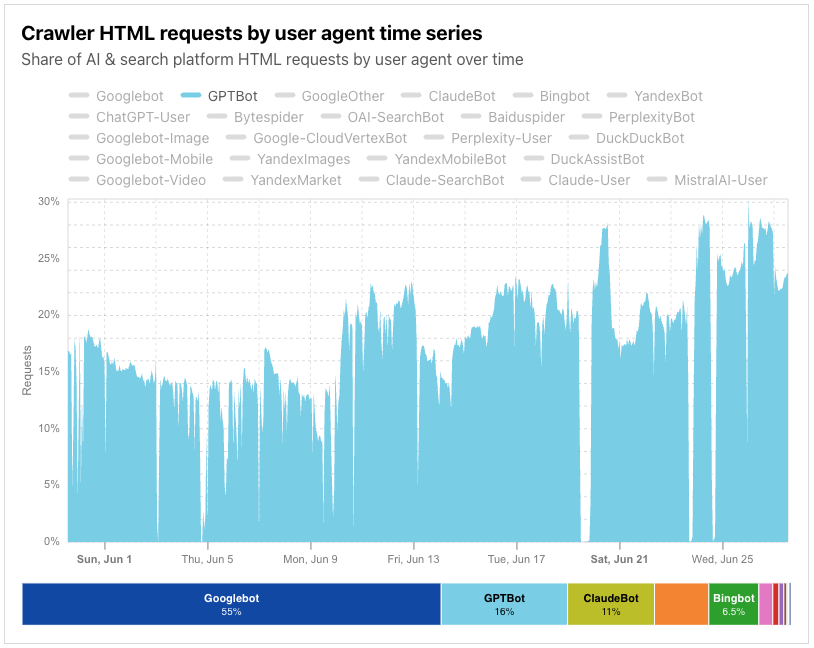
These ratios directly impact the viability of content publication on the Internet. While they will vary over time, the trend continues to be more crawls and fewer referrals when compared in relation to each other. Legacy search index crawlers would scan your content a couple of times, or less, for each visitor sent. A site’s availability to crawlers made their revenue model more viable, not less.
The new data we are observing suggests that is no longer the case. These models continue to consume more content, more frequently, despite sending the same or less traffic to the source of its content.
We have released new tools over the last year to help site owners take control back. With a single click, publishers can block the kinds of AI crawlers that train against their content. And today, we announced new ways to make the exchange of value fair for both sides of the equation. However, we continue to recommend that content creators audit and then enforce their preferred policies for AI crawlers.
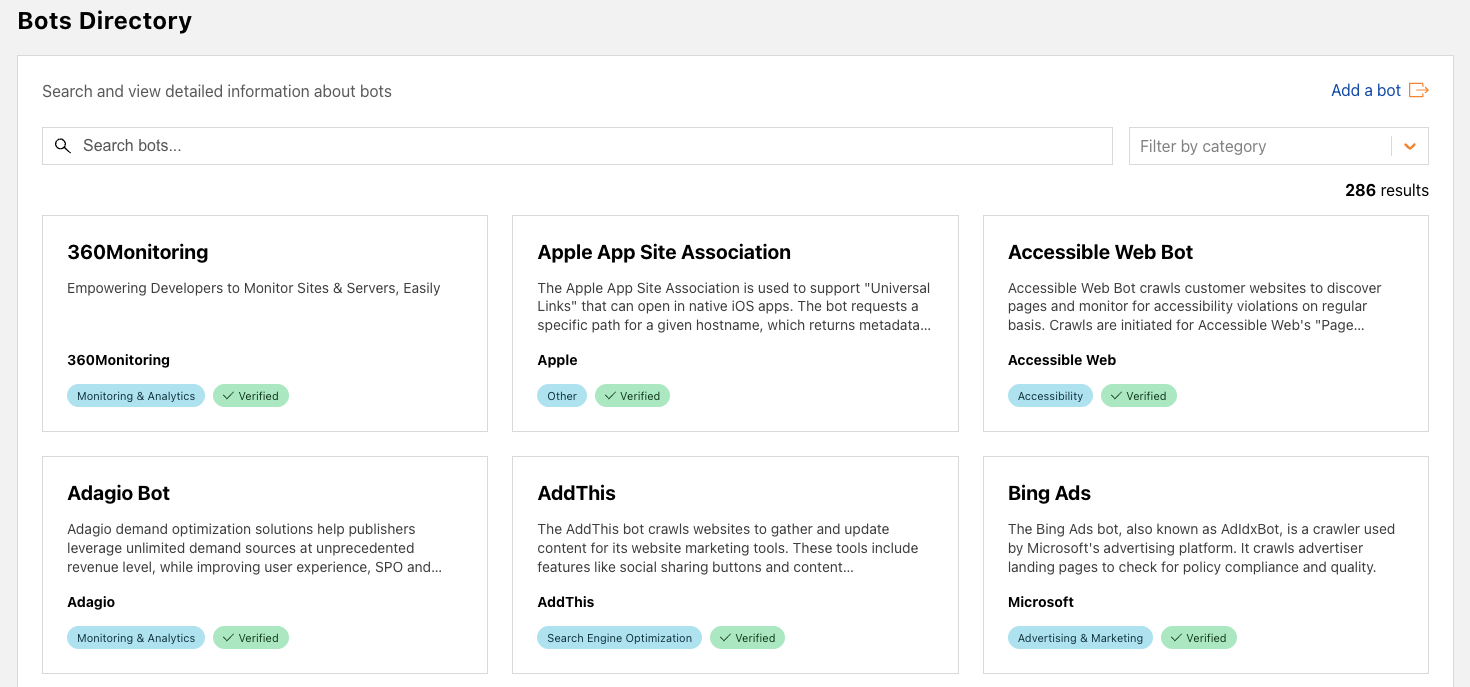
In addition to providing these new insights around crawling and referral traffic and associated trends, we’ve also taken the opportunity to launch expanded Verified Bots content. The Bots page on Cloudflare Radar includes a paginated list of Verified Bots, displaying the bot name, owner, category, and rank (based on request volume). This list has now been expanded into a standalone directory in a new Bots section. The directory, shown below, displays a card for each Verified Bot, showing the bot name, a description, the bot owner and category, and verification status. Users can search the directory by bot name, owner, or description, and can also filter by category (selecting just Monitoring & Analytics bots, for example).
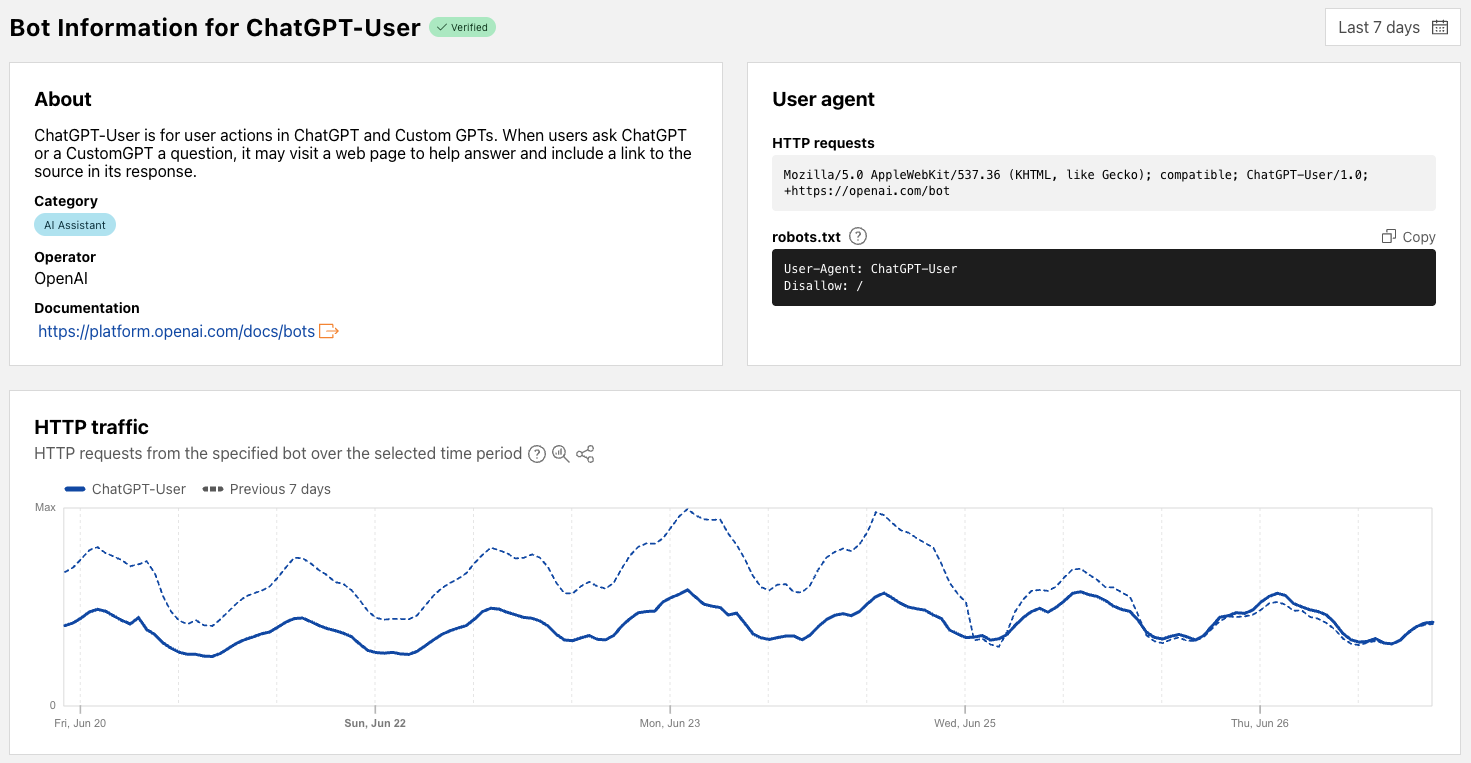
Clicking on a bot name within a card brings up a bot-specific page that includes metadata about the bot, information on how the bot’s user agent is represented in HTTP request headers and how it should be specified in robots.txt directives, and a traffic graph that shows associated HTTP request volume trends for the selected time period (with a default comparison to the previous period). Associated data is also available via the API. As we add additional information to these bot-specific pages in the future, we will document the updates in Changelog entries.
Control content use for AI training with Cloudflare’s managed robots.txt and blocking for monetized content
Post Syndicated from Jin-Hee Lee original https://blog.cloudflare.com/control-content-use-for-ai-training/
Cloudflare is giving all website owners two new tools to easily control whether AI bots are allowed to access their content for model training. First, customers can let Cloudflare create and manage a robots.txt file, creating the appropriate entries to let crawlers know not to access their site for AI training. Second, all customers can choose a new option to block AI bots only on portions of their site that are monetized through ads.
Creators that monetize their content by showing ads depend on traffic volume. Their livelihood is directly linked to the number of views their content receives. These creators have allowed crawlers on their sites for decades, for a simple reason: search crawlers such as Googlebot made their sites more discoverable, and drove more traffic to their content. Google benefitted from delivering better search results to their customers, and the site owners also benefitted through increased views, and therefore increased revenues.
But recently, a new generation of crawlers has appeared: bots that crawl sites to gather data for training AI models. While these crawlers operate in the same technical way as search crawlers, the relationship is no longer symbiotic. AI training crawlers use the data they ingest from content sites to answer questions for their own customers directly, within their own apps. They typically send much less traffic back to the site they crawled. Our Radar team did an analysis of crawls and referrals for sites behind Cloudflare. As HTML pages are arguably the most valuable content for these crawlers, we calculated crawl ratios by dividing the total number of requests from relevant user agents associated with a given search or AI platform where the response was of Content-type: text/html by the total number of requests for HTML content where the Referer: header contained a hostname associated with a given search or AI platform. As of June 2025, we find that Google crawls websites about 14 times for every referral. But for AI companies, the crawl-to-refer ratio is orders of magnitude greater. In June 2025, OpenAI’s crawl-to-referral ratio was 1,700:1, Anthropic’s 73,000:1. This clearly breaks the “crawl in exchange for traffic” relationship that previously existed between search crawlers and publishers. (Please note that this calculation reflects our best estimate, recognizing that traffic referred by native apps may not always be attributed to a provider due to a lack of a Referer: header, which may affect the ratio.)
And while sites can use robots.txt to tell these bots not to crawl their site, most don’t take this first step. We found that only about 37% of the top 10,000 domains currently have a robots.txt file, showing that robots.txt is underutilized in this age of evolving crawlers.
That’s where Cloudflare comes in. Our mission is to help build a better Internet, and a better Internet is one with a huge thriving ecosystem of independent publishers. So, we’re taking action to keep that ecosystem alive.
Protecting content creators isn’t new for Cloudflare. In July 2024, we gave everyone on the Cloudflare network a simple way to block all AI scrapers with a single click for free. We’ve already seen more than 1 million customers enable this feature, which has given us some interesting data.
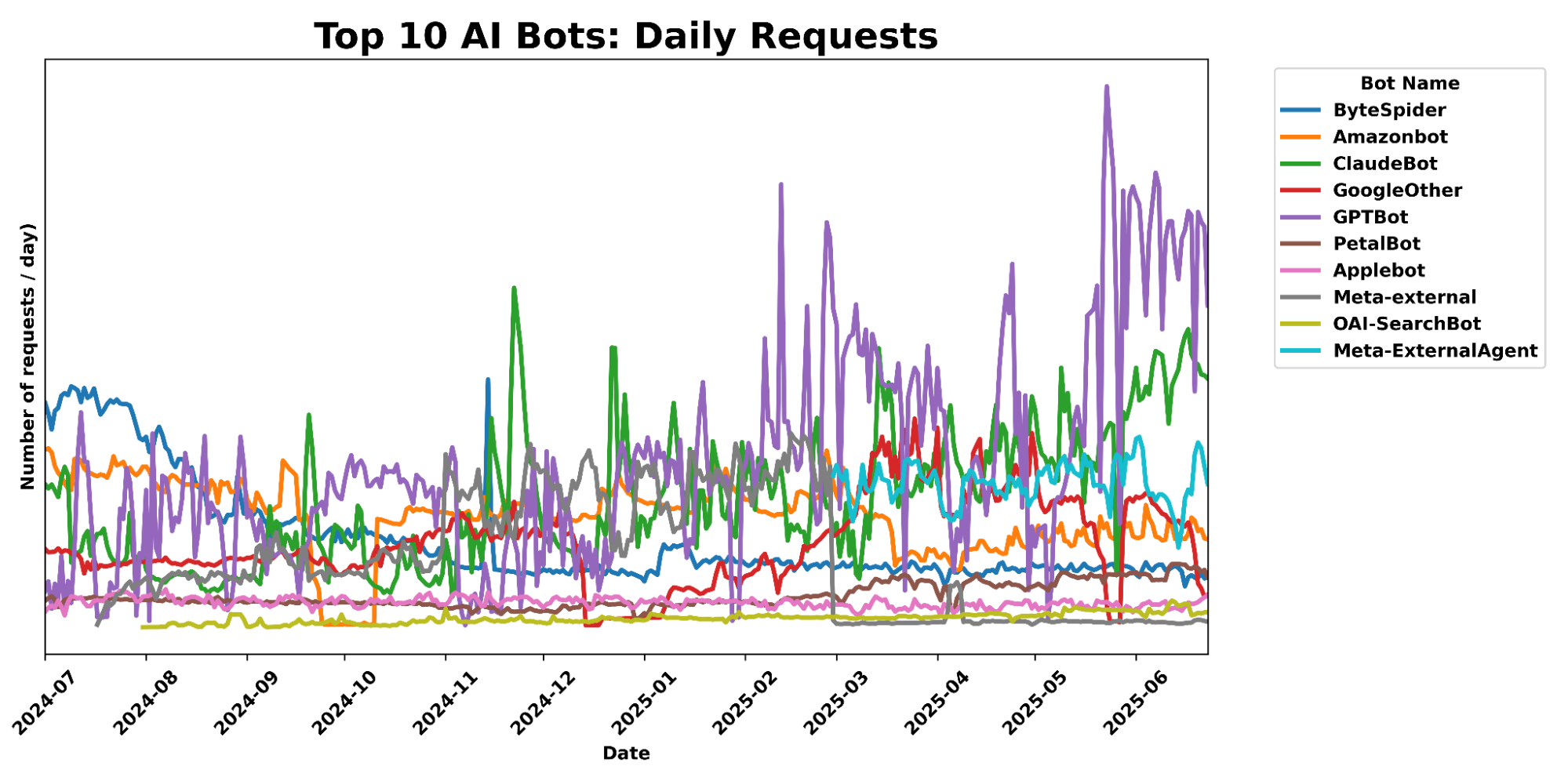
Since our last update, we can see that Bytespider, our previous top bot, has seen traffic volume decline 71.45% since the first week of July 2024. During the same time, we saw an increased number of Bytespider requests that customers chose to specifically block. In contrast, GPTBot traffic volume has grown significantly as it has become more popular, now even surpassing traffic we see from big traditional tech players like Amazon and ByteDance.
The share of sites accessed by particular crawlers has gone down across the board since our last update. Previously, Bytespider accessed >40% of websites protected by Cloudflare, but that number has dropped to only 9.37%. GPTBot has taken the top spot for most sites accessed, but while its request volume has grown significantly (noted above), the share of sites it crawls has actually decreased since last year from 35.46% to 28.97%, with an increase in customers blocking.
|
AI Bot |
Share of Websites Accessed |
|
GPTBot |
28.97% |
|
Meta-ExternalAgent |
22.16% |
|
ClaudeBot |
18.80% |
|
Amazonbot |
14.56% |
|
Bytespider |
9.37% |
|
GoogleOther |
9.31% |
|
ImageSiftBot |
4.45% |
|
Applebot |
3.77% |
|
OAI-SearchBot |
1.66% |
|
ChatGPT-User |
1.06% |
And while AI Search and AI Assistant crawling related activity has exploded in popularity in the last 6 months, we still see their total traffic pale in comparison to AI training crawl activity, which has seen a 65% increase in traffic over the past 6 months.
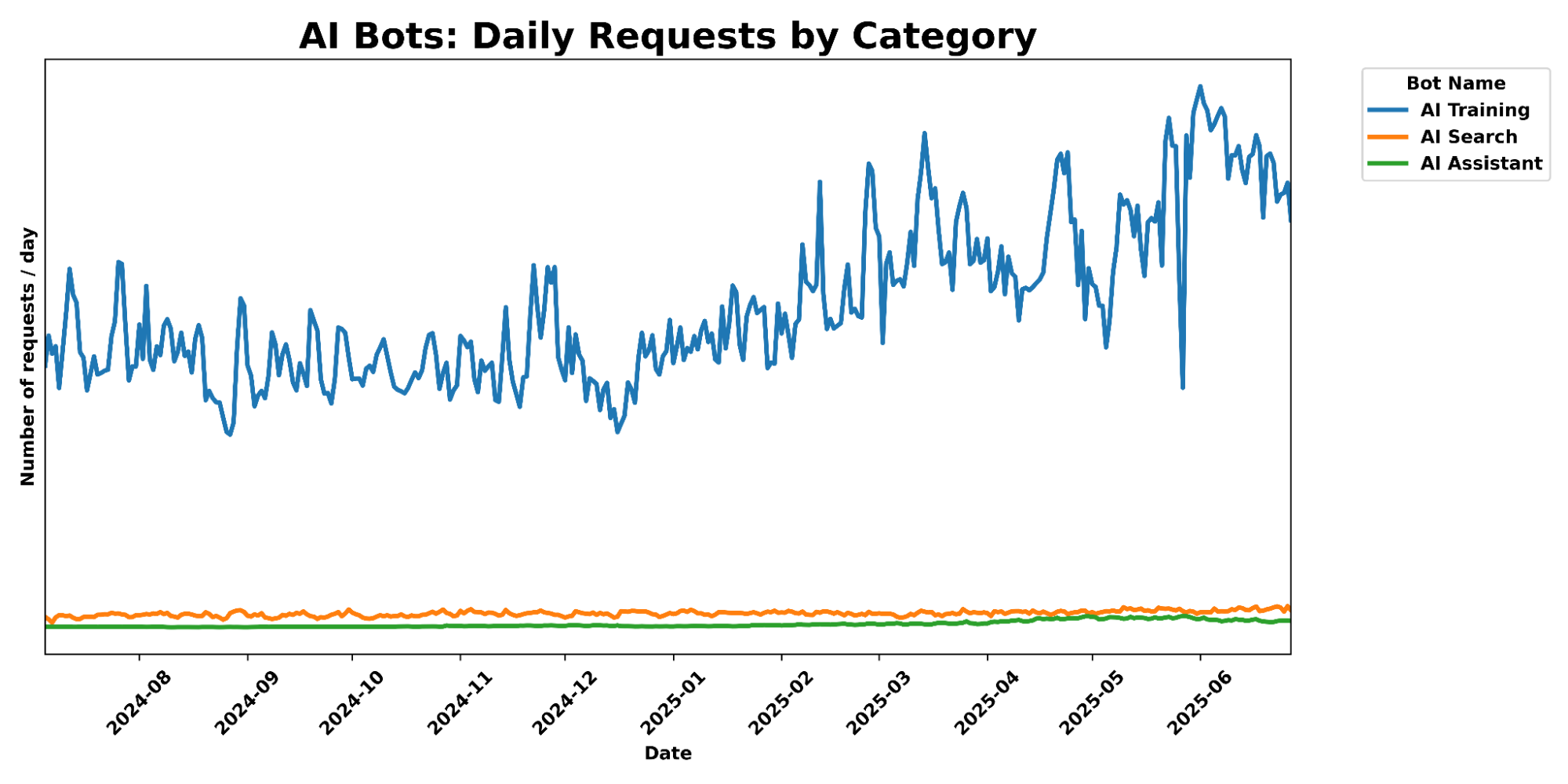
To this end, we launched free granular auditing in September 2024 to help customers understand which crawlers were accessing their content most often, and created simple templates to block all or specific crawlers. And in December 2024, we made it easy for publishers to automatically block crawlers that weren’t respecting robots.txt. But we realized many sites didn’t have the time to create or manage their own robots.txt file. Today, we’re going two steps further.
When it comes to managing your website’s visibility to search engine crawlers and other bots, the robots.txt file is a key player. This simple text file acts like a traffic controller, signaling to bots which parts of the website they should or should not access. We can think of robots.txt as a “Code of Conduct” sign posted at a community pool, listing general dos and don’ts, according to the pool owner’s wishes. While the sign itself does not enforce the listed directives, well-behaved visitors will still read the sign and follow the instructions they see. On the other hand, poorly-behaved visitors who break the rules risk getting themselves banned.

What do these files actually look like? Take Google’s as an example, visible to anyone at https://www.google.com/robots.txt. Parsing its contents, you’ll notice four directives in the set of instructions: User-agent, Disallow, Allow, and Sitemap. In a robots.txt file, the User-agent directive specifies which bots the rules apply to. The Disallow directive tells those bots which parts of the website they should avoid. In contrast, the Allow directive grants specific bots permission to access certain areas. Finally, the Sitemap directive shows a bot which pages it can reach, so that it won’t miss any important pages. The Internet Engineering Task Force (IETF) formalized the definition and language for the Robots Exclusion Protocol in RFC 9309, specifying the exact syntax and precedence of these directives. It also outlines how crawlers should handle errors or redirects while stressing that compliance is voluntary and does not constitute access control.

Website owners should have agency over AI bot activity on their websites. We mentioned that only 37% of the top 10,000 domains on Cloudflare even have a robots.txt file. Of those robots files that do exist, few include Disallow directives for the top AI Bots that we see on a daily basis. For instance, as of publication, GPTBot is only disallowed in 7.8% of the robots.txt files found for the top domains; Google-Extended only shows up in 5.6%; anthropic-ai, PerplexityBot, ClaudeBot, and Bytespider each show up in under 5%. Furthermore, the difference between the 7.8% of Disallow directives for GPTBot and the ~5% of Disallow directives for other major AI crawlers suggests a gap between the desire to prevent your content from being used for AI model training and the proper configuration that accomplishes this by calling out bots like Google-Extended. (After all, there’s more to stopping AI crawlers than disallowing GPTBot.)
Along with viewing the most active bots and crawlers, Cloudflare Radar also shares weekly updates on how websites are handling AI bots in their robots.txt files. We can examine two snapshots below, one from June 2025 and the other from January 2025:
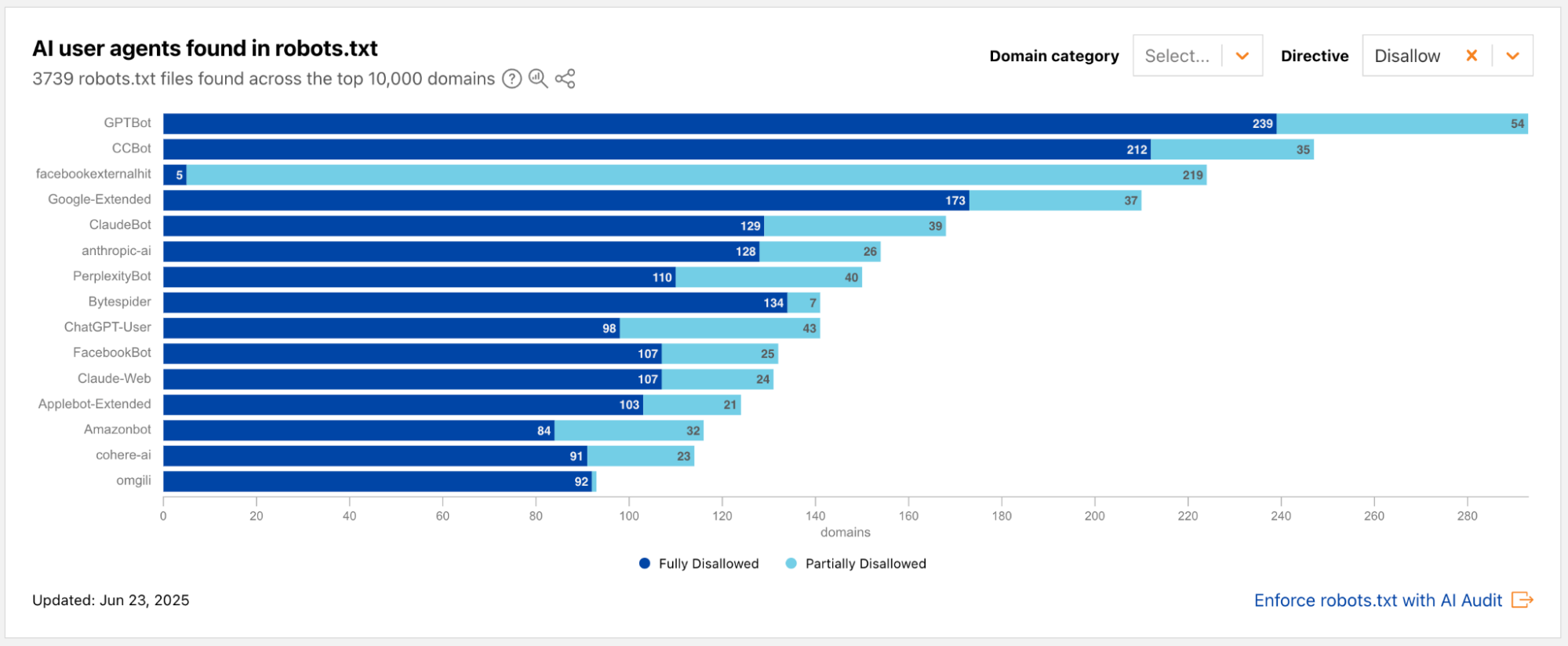
Radar snapshot from the week of June 23, 2025, showing the top AI user agents mentioned in the Disallow directive in robots.txt files across the top 10,000 domains. The 3 bots with the highest number of Disallows are GPTBot, CCBot, and facebookexternalhit.
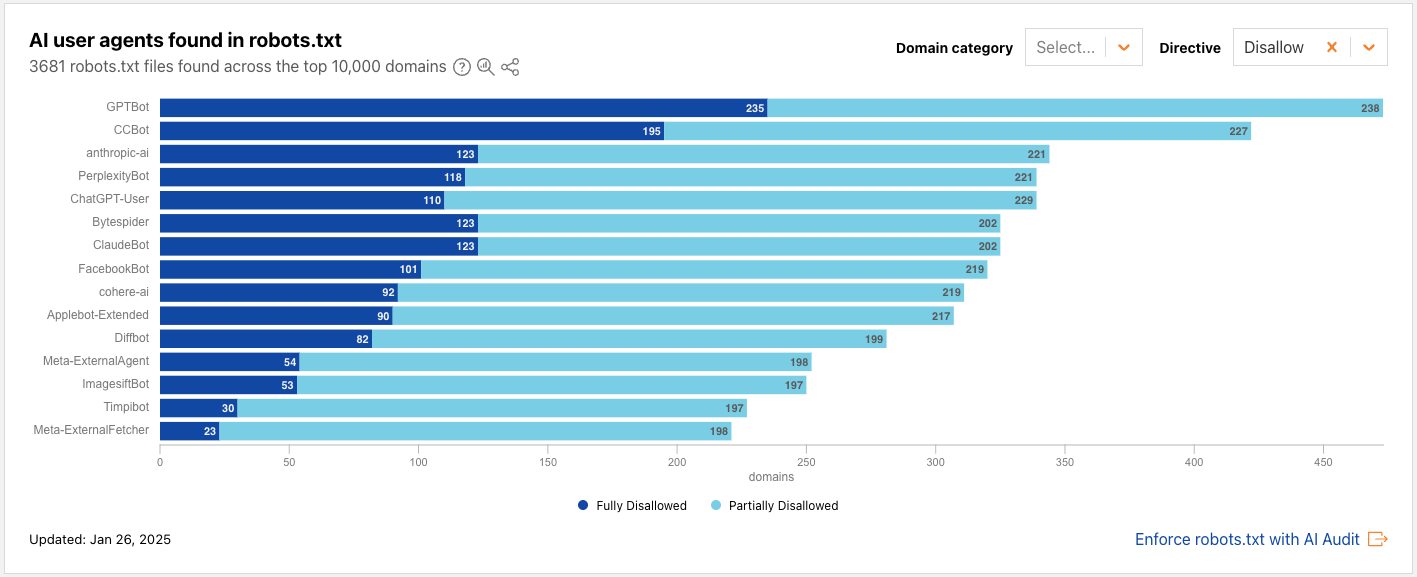
Radar snapshot from the week of January 26, 2025, showing the top AI user agents mentioned in the Disallow directive in robots.txt files across the top 10,000 domains. The 3 bots with the highest number of Disallows are GPTBot, CCBot, and anthropic-ai.
From the above data, we also observe that fewer than 100 new robots.txt files have been added among the top domains between January and June. One visually striking change is the ratio of dark blue to light blue: compared to January, there is a steep decrease in “Partially Disallowed” permissions; websites are now flat-out choosing “Fully Disallowed” for the top AI crawlers, including GPTBot, CCBot, and Google-Extended. This underscores the changing landscape of web crawling, particularly the relationship of trust between website owners and AI crawlers.
Many website owners have told us they’re in a tricky spot in this new era of AI crawlers. They’ve poured time and effort into creating original content, have published it on their own sites, and naturally want it to reach as many people as possible. To do that, website owners make their sites accessible to search engine crawlers, which index the content and make it discoverable in search results. But with the rise of AI-powered crawlers, that same content is now being scraped not just for indexing, but also to train AI models, often without the creator’s explicit consent. Take Googlebot, for example: it’s an absolute requirement for most website owners to allow for SEO. But Google crawls with user agent Googlebot for both SEO and AI training purposes. Specifically disallowing Google-Extended (but not Googlebot) in your robots.txt file is what communicates to Google that you do not want your content to be crawled to feed AI training.
So, what if you don’t want your content to serve as training data for the next AI model, but don’t have the time to manually maintain an up-to-date robots.txt file? Enter Cloudflare’s new managed robots.txt offering. Once enabled, Cloudflare will automatically update your existing robots.txt or create a robots.txt file on your site that includes directives asking popular AI bot operators to not use your content for AI model training. For instance, Cloudflare’s managed robots.txt signals your preference to Google-Extended and Applebot-Extended, amongst others, that they should not crawl your site for AI training, while keeping your domain(s) SEO-friendly.
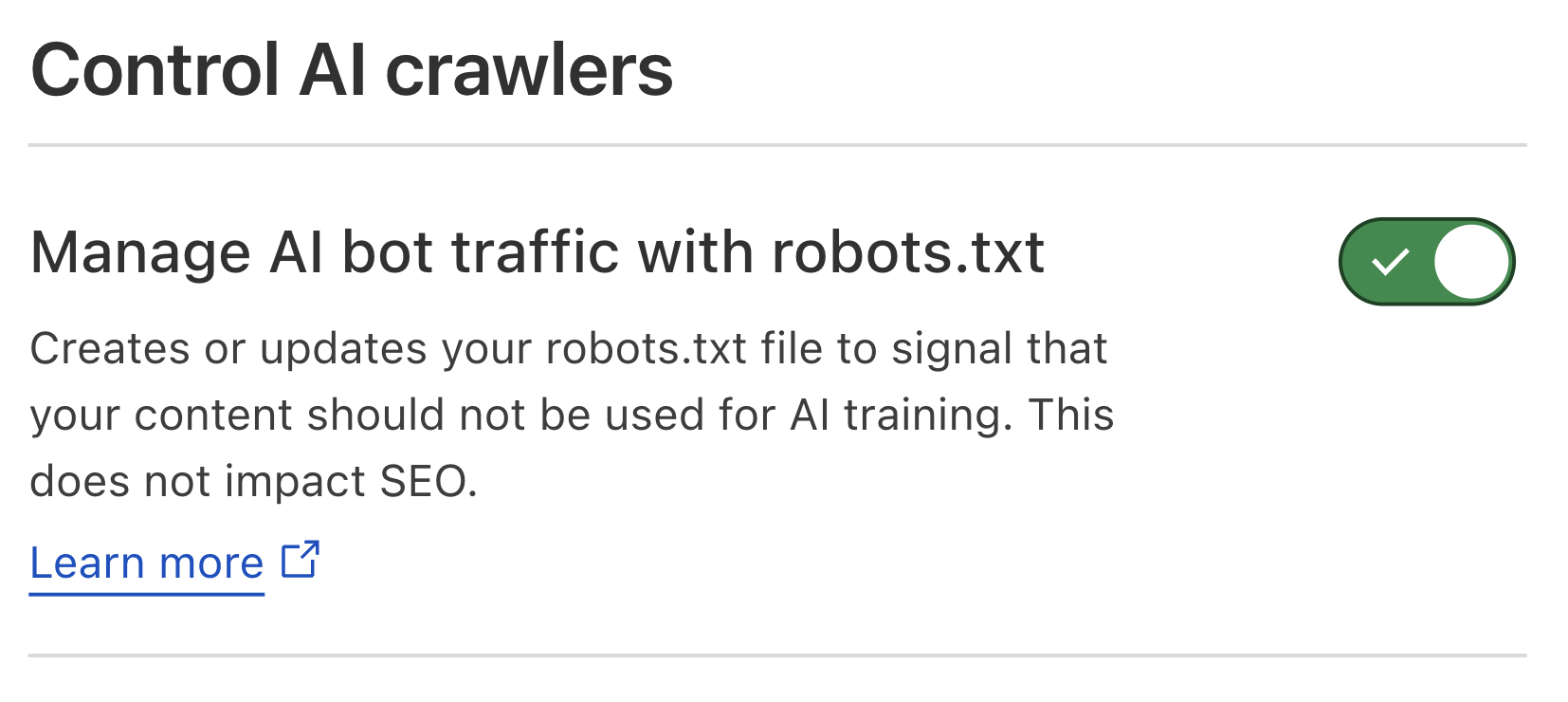
Cloudflare dashboard snapshot of the new managed robots.txt activation toggle
This feature is available to all customers, meaning anyone can enable this today from the Cloudflare dashboard. Once enabled, website owners who previously had no robots.txt file will now have Cloudflare’s managed bot directives live on their website. What about website owners who already have a robots.txt file? The contents of Cloudflare’s managed robots.txt will be prepended to site owners’ existing file. This way, their existing Block directives – and the time and rationale put into customizing this file – are honored, while still ensuring the website has AI crawler guardrails managed by Cloudflare.
As the AI bot landscape changes with new bots on the rise, Cloudflare will keep our customers a step ahead by updating the directives on our managed robots.txt, so they don’t have to worry about maintaining things on their own. Once enabled, customers won’t need to take any action in order for any updates of the managed robots.txt content to go live on their site.
We believe that managing crawling is key to protecting the open Internet, so we’ll also be encouraging every new site that onboards to Cloudflare to enable our managed robots.txt. When you onboard a new site, you’ll see the following options for managing AI crawlers:
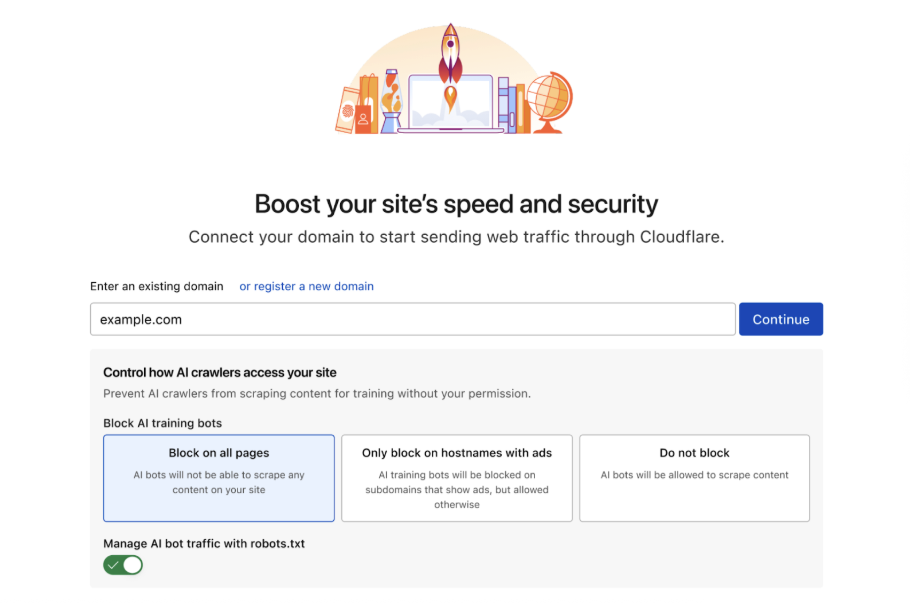
This makes it effortless to ensure that every new customer or domain onboarded to Cloudflare gives clear directives to how they want their content used.
To implement this feature, we developed a new module that intercepts all inbound HTTP requests for /robots.txt. For all such requests, we’ll check whether the zone has opted in to use Cloudflare’s managed robots.txt by reading a value from our distributed key-value store. If they have, the module then responds with the Cloudflare’s managed robots.txt directives, prepended to the origin’s robot.txt if there is an existing file. We prepend so we can add a generalized header that instructs all bots on the customers preferences for data use, as defined in the IETF AI preferences proposal. Note that in robots.txt, the most specific match must always be used, and since our disallow expressions are scoped to cover everything, we can ensure a directive we prepend will never conflict with a more targeted customer directive. If the customer has not enabled this feature, the request is forwarded to the origin server as usual, using whatever the customer has written in their own robots.txt file. (While caching origin’s robots.txt could reduce latency by eliminating a round trip to the origin, the impact on overall page load times would be minimal, as robots.txt requests comprise a small fraction of total traffic. Adding cache update/invalidation would introduce complexity with limited benefit, so we prioritized functionality and reliability in our implementation.)
Adding an entry to your robots.txt file is the first step to telling AI bots not to crawl you. But robots.txt is an honor system. Nothing forces bots to follow it. That’s why we introduced our one-click managed rule to block all AI bots across your zone. However, some customers want AI bots to visit certain pages, like developer or support documentation. For customers who are hesitant to block everywhere, we have a brand-new option: let us detect when ads are shown on a hostname, and we will block AI bots ONLY on that hostname. Here’s how we do it.
First, we use multiple techniques to identify if a request is coming from an AI bot. The easiest technique is to identify well-behaved crawlers that publicly declare their user agent, and use dedicated IP ranges. Often we work directly with these bot makers to add them to our Verified Bot list.
Many bot operators act in good faith by publicly publishing their user agents, or even cryptographically verifying their bot requests directly with Cloudflare. Unfortunately, some attempt to appear like a real browser by using a spoofed user agent. It’s not new for our global machine learning models to recognize this activity as a bot, even when operators lie about their user agent. When bad actors attempt to crawl websites at scale, they generally use tools and frameworks that we’re able to fingerprint, and we use Cloudflare’s network of over 57 million requests per second on average, to understand how much we should trust the fingerprint. We compute global aggregates across many signals, and based on these signals, our models are able to consistently and appropriately flag traffic from evasive AI bots.
When we see a request from an AI bot, our system checks if we have previously identified ads in the response served by the target page. To do this, we inspect the “response body” — the raw HTML code of the web page being sent back. After parsing the HTML document, we perform a comprehensive scan for code patterns commonly found in ad units, which signals to us that the page is serving an ad. Examples of such code would be:
<div class="ui-advert" data-role="advert-unit" data-testid="advert-unit" data-ad-format="takeover" data-type="" data-label="" style="">
<script>
....
</script>
</div>
Here, the div-container has the ui-advert class commonly used for advertising. Similarly, links to commonly used ad servers like Google Syndication are a good signal as well, such as the following:
<link rel="dns-prefetch" href="https://pagead2.googlesyndication.com/">

<script async src="https://pagead2.googlesyndication.com/pagead/js/adsbygoogle.js?client=ca-pub-1234567890123456" crossorigin="anonymous"></script>
By streaming and directly parsing small chunks of the response using our ultra-fast LOL HTML parser, we can perform scans without adding any latency to the inspected response.
So as not to reinvent the wheel, we are adopting techniques similar to those that ad blockers have been using for years. Ad blockers fundamentally perform two separate tasks to block advertisements in a browser. The first is to block the browser from fetching resources from ad servers, and the second is to suppress displaying HTML elements that contain ads. For this, ad blockers rely on large filter lists such as EasyList that contain both so-called URL block filters that match outgoing request URLs against a set of patterns, and block them if they match one of the filters, and CSS selectors that are designed to match HTML ad elements.
We can use both of these techniques to detect if an HTML response contains ads by checking external resources (e.g. content referenced by HREF or SCRIPT tags) against URL block filters, and the HTML elements themselves against CSS selectors. Because we do not actually need to block every single advertisement on a site, but rather detect the overall presence of ads on a site, we can achieve the same detection efficacy when shrinking the number of CSS and URL filters down from more than 40,000 in EasyList to the 400 most commonly seen ones to increase our computational efficiency.
Because some sites load ads dynamically rather than directly in the returned HTML (partially to avoid ad blocking), we enrich this first information source with data from Content Security Policy (CSP) reports. The Content Security Policy standard is a security mechanism that helps web developers control the resources (like scripts, stylesheets, and images) a browser is allowed to load for a specific web page, and browsers send reports about loaded resources to a CSP management system, which for many sites is Cloudflare’s Page Shield product. These reports allow us to relate scripts loaded from ad servers directly with page URLs. Both of these information sources are consumed by our endpoint management service, which then matches incoming requests against hostnames that we already know are serving ads.
We do all of this on every request for any customer who opts in, even free customers.
To enable this feature, simply navigate to the Security > Settings > Bots section of the Cloudflare dashboard, and choose either Block on pages with Ads or Block Everywhere.
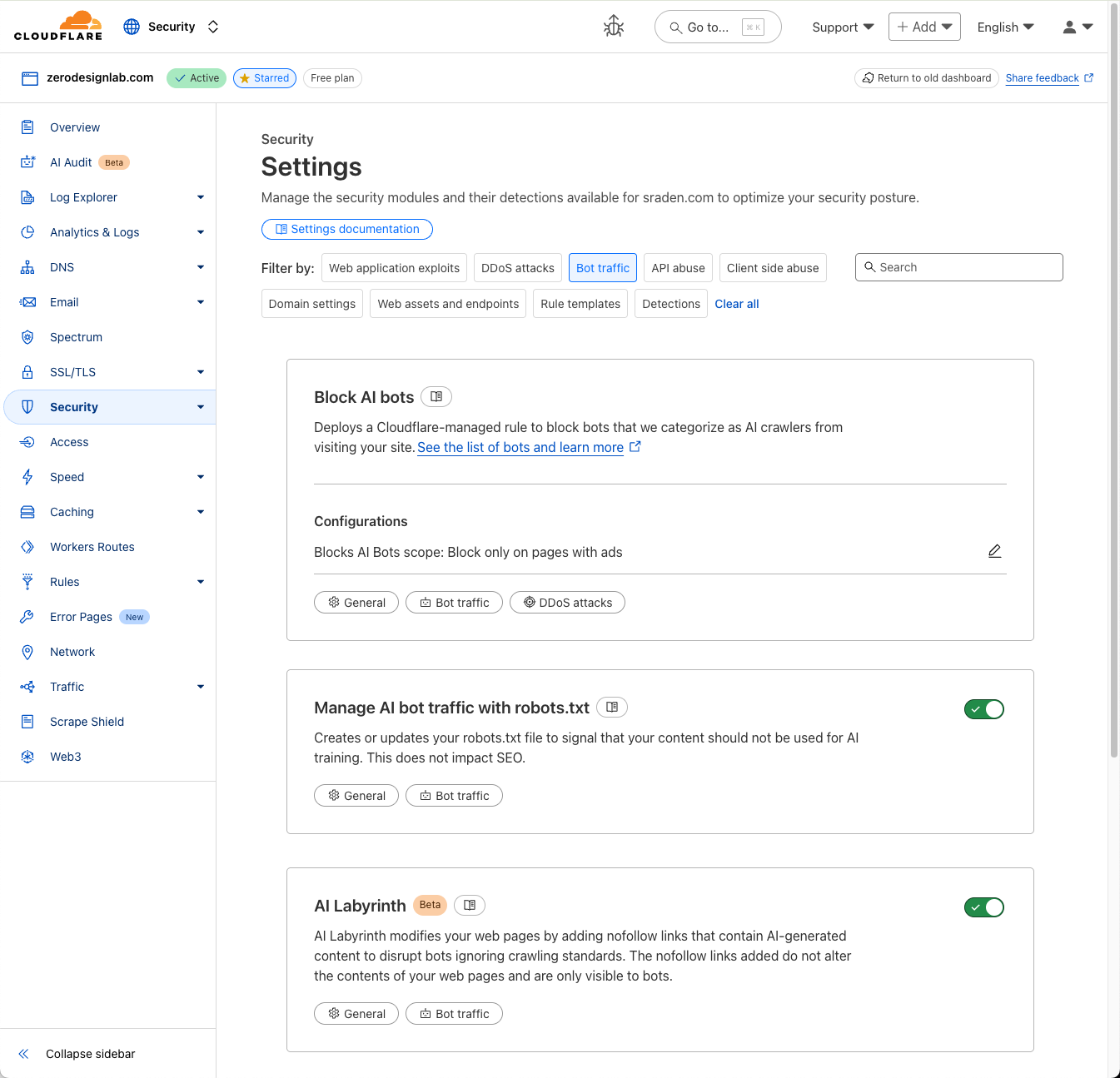
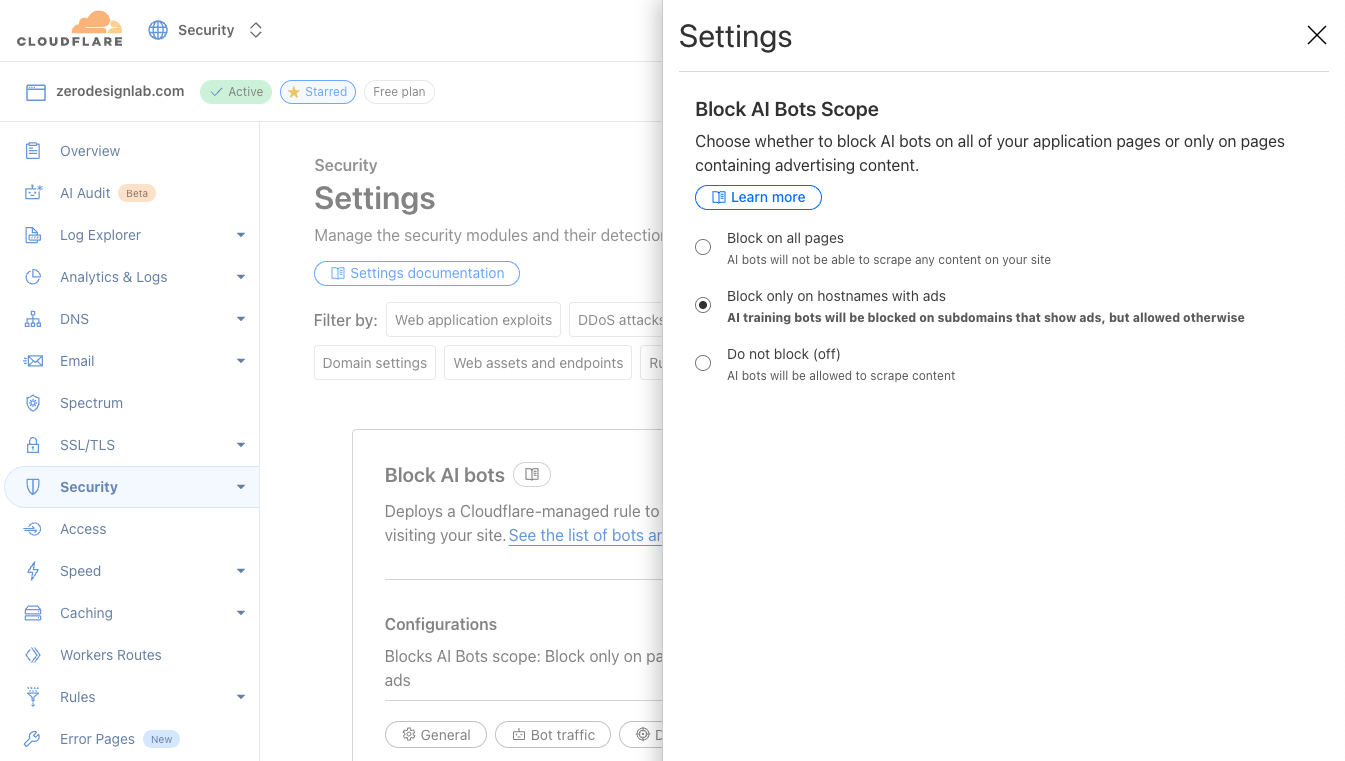
The AI bot landscape has exploded and continues to grow with an exponential trajectory as more and more operators come online. At Cloudflare, our team of security researchers are constantly identifying and classifying different AI-related crawlers and scrapers across our network.
There are two major ways in which we track AI bots and identify those that are poorly behaved:
1. Our customers play a crucial role by directly submitting reports of misbehaved AI bots that may not yet be classified by Cloudflare. (If you have an AI bot that comes to mind here, we’d love for you to let us know through our bots submission form today.) Once such a bot comes to our attention, our security analysts investigate to determine how it should be categorized.
2. We’re able to derive insights through analysis of the massive scale of our customers’ traffic that we observe. Specifically, we can see which AI agents visit which websites and when, drawing out trends or patterns that might make a website owner want to disallow a given AI bot. This bird’s-eye view on abusive AI bot behavior was paramount as we started to determine the content of a managed robots.txt.
Our new managed robots.txt and blocking AI bots on pages with ads features are available to all Cloudflare customers, including everyone on a Free plan. We encourage customers to start using them today – to take control over how the content on your website gets used. Looking ahead, Cloudflare will monitor the IETF’s pending proposal allowing website publishers to control how automated systems use their content and update our managed robots.txt accordingly. We will also continue to provide more granular control around AI bot management and investigate new distinguishing signals as AI bots become more and more precise. And if you’ve seen suspicious behavior from an AI scraper, contribute to the Internet ecosystem by letting us know!
Introducing pay per crawl: enabling content owners to charge AI crawlers for access
Post Syndicated from Will Allen original https://blog.cloudflare.com/introducing-pay-per-crawl/
Many publishers, content creators and website owners currently feel like they have a binary choice — either leave the front door wide open for AI to consume everything they create, or create their own walled garden. But what if there was another way?
At Cloudflare, we started from a simple principle: we wanted content creators to have control over who accesses their work. If a creator wants to block all AI crawlers from their content, they should be able to do so. If a creator wants to allow some or all AI crawlers full access to their content for free, they should be able to do that, too. Creators should be in the driver’s seat.
After hundreds of conversations with news organizations, publishers, and large-scale social media platforms, we heard a consistent desire for a third path: They’d like to allow AI crawlers to access their content, but they’d like to get compensated. Currently, that requires knowing the right individual and striking a one-off deal, which is an insurmountable challenge if you don’t have scale and leverage.
We believe your choice need not be binary — there should be a third, more nuanced option: You can charge for access. Instead of a blanket block or uncompensated open access, we want to empower content owners to monetize their content at Internet scale.
We’re excited to help dust off a mostly forgotten piece of the web: HTTP response code 402.
Pay per crawl, in private beta, is our first experiment in this area.
Pay per crawl integrates with existing web infrastructure, leveraging HTTP status codes and established authentication mechanisms to create a framework for paid content access.
Each time an AI crawler requests content, they either present payment intent via request headers for successful access (HTTP response code 200), or receive a 402 Payment Required response with pricing. Cloudflare acts as the Merchant of Record for pay per crawl and also provides the underlying technical infrastructure.
Pay per crawl grants domain owners full control over their monetization strategy. They can define a flat, per-request price across their entire site. Publishers will then have three distinct options for a crawler:
-
Allow: Grant the crawler free access to content.
-
Charge: Require payment at the configured, domain-wide price.
-
Block: Deny access entirely, with no option to pay.
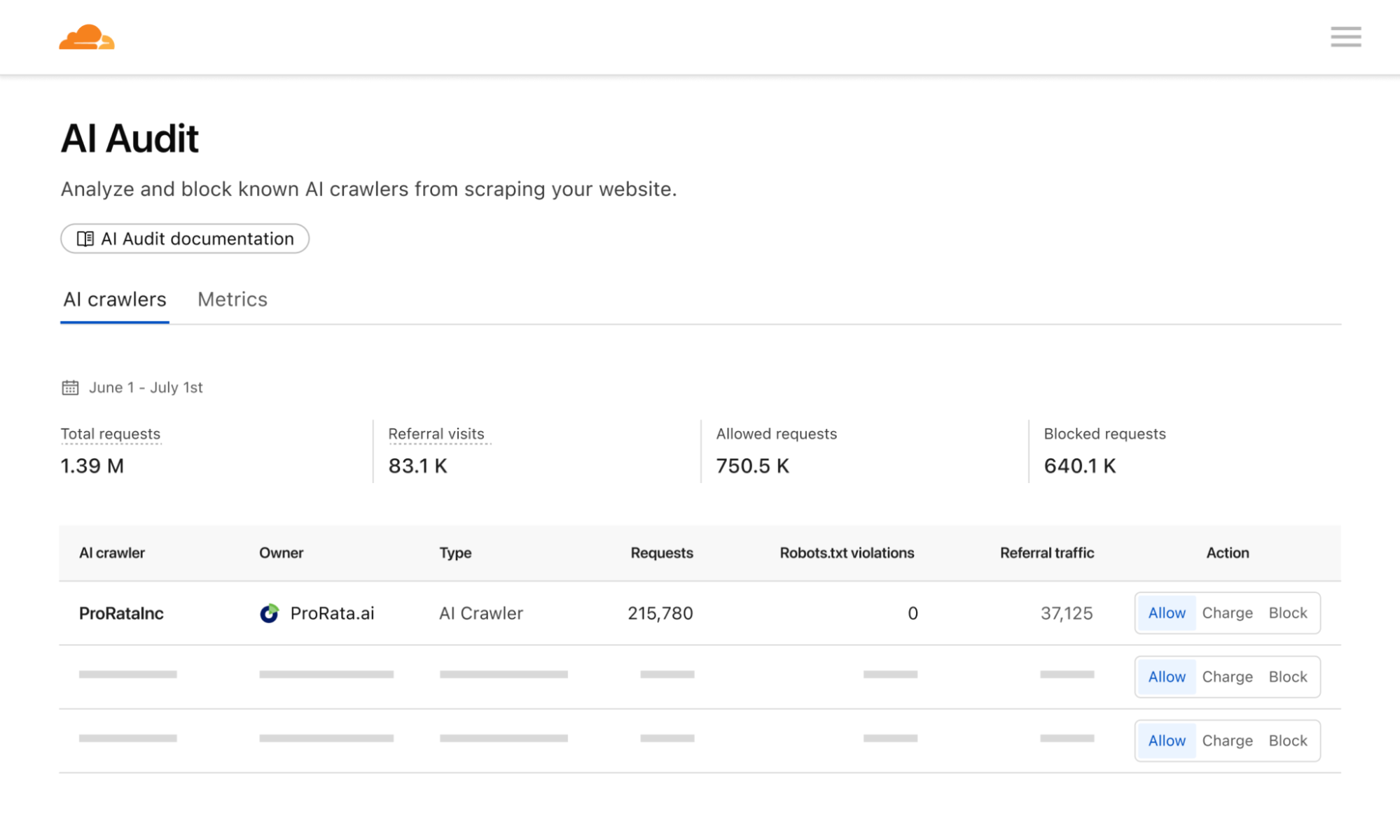
An important mechanism here is that even if a crawler doesn’t have a billing relationship with Cloudflare, and thus couldn’t be charged for access, a publisher can still choose to ‘charge’ them. This is the functional equivalent of a network level block (an HTTP 403 Forbidden response where no content is returned) — but with the added benefit of telling the crawler there could be a relationship in the future.
While publishers currently can define a flat price across their entire site, they retain the flexibility to bypass charges for specific crawlers as needed. This is particularly helpful if you want to allow a certain crawler through for free, or if you want to negotiate and execute a content partnership outside the pay per crawl feature.
To ensure integration with each publisher’s existing security posture, Cloudflare enforces Allow or Charge decisions via a rules engine that operates only after existing WAF policies and bot management or bot blocking features have been applied.
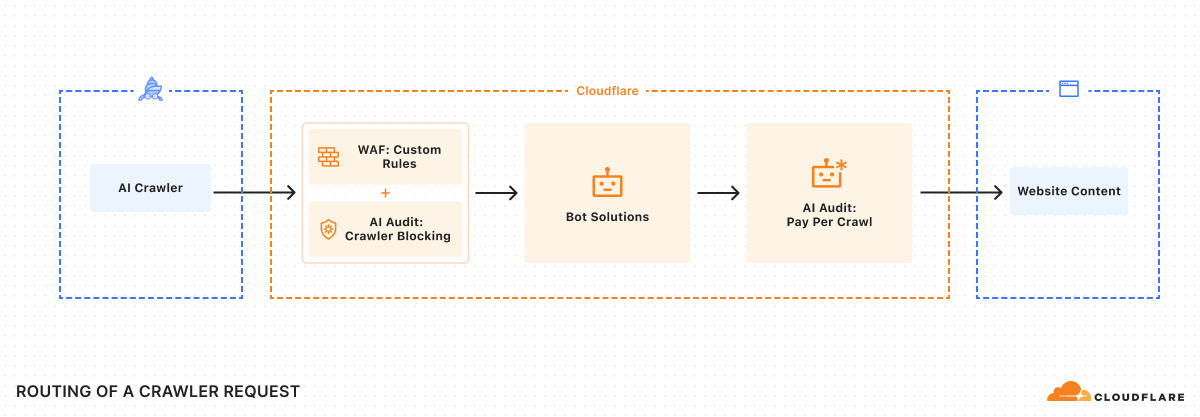
As we were building the system, we knew we had to solve an incredibly important technical challenge: ensuring we could charge a specific crawler, but prevent anyone from spoofing that crawler. Thankfully, there’s a way to do this using Web Bot Auth proposals.
For crawlers, this involves:
-
Generating an Ed25519 key pair, and making the JWK-formatted public key available in a hosted directory
-
Registering with Cloudflare to provide the URL of your key directory and user agent information.
-
Configuring your crawler to use HTTP Message Signatures with each request.
Once registration is accepted, crawler requests should always include signature-agent, signature-input, and signature headers to identify your crawler and discover paid resources.
GET /example.html
Signature-Agent: "https://signature-agent.example.com"
Signature-Input: sig2=("@authority" "signature-agent")
 ;created=1735689600
 ;keyid="poqkLGiymh_W0uP6PZFw-dvez3QJT5SolqXBCW38r0U"
 ;alg="ed25519"
 ;expires=1735693200
;nonce="e8N7S2MFd/qrd6T2R3tdfAuuANngKI7LFtKYI/vowzk4lAZYadIX6wW25MwG7DCT9RUKAJ0qVkU0mEeLElW1qg=="
 ;tag="web-bot-auth"
Signature: sig2=:jdq0SqOwHdyHr9+r5jw3iYZH6aNGKijYp/EstF4RQTQdi5N5YYKrD+mCT1HA1nZDsi6nJKuHxUi/5Syp3rLWBA==:Once a crawler is set up, determination of whether content requires payment can happen via two flows:
Reactive (discovery-first)
Should a crawler request a paid URL, Cloudflare returns an HTTP 402 Payment Required response, accompanied by a crawler-price header. This signals that payment is required for the requested resource.
HTTP 402 Payment Required
crawler-price: USD XX.XX
The crawler can then decide to retry the request, this time including a crawler-exact-price header to indicate agreement to pay the configured price.
GET /example.html
crawler-exact-price: USD XX.XX
Proactive (intent-first)
Alternatively, a crawler can preemptively include a crawler-max-price header in its initial request.
GET /example.html
crawler-max-price: USD XX.XX
If the price configured for a resource is equal to or below this specified limit, the request proceeds, and the content is served with a successful HTTP 200 OK response, confirming the charge:
HTTP 200 OK
crawler-charged: USD XX.XX
server: cloudflare
If the amount in a crawler-max-price request is greater than the content owner’s configured price, only the configured price is charged. However, if the resource’s configured price exceeds the maximum price offered by the crawler, an HTTP 402 Payment Required response is returned, indicating the specified cost. Only a single price declaration header, crawler-exact-price or crawler-max-price, may be used per request.
The crawler-exact-price or crawler-max-price headers explicitly declare the crawler’s willingness to pay. If all checks pass, the content is served, and the crawl event is logged. If any aspect of the request is invalid, the edge returns an HTTP 402 Payment Required response.
Crawler operators and content owners must configure pay per crawl payment details in their Cloudflare account. Billing events are recorded each time a crawler makes an authenticated request with payment intent and receives an HTTP 200-level response with a crawler-charged header. Cloudflare then aggregates all the events, charges the crawler, and distributes the earnings to the publisher.
At its core, pay per crawl begins a technical shift in how content is controlled online. By providing creators with a robust, programmatic mechanism for valuing and controlling their digital assets, we empower them to continue creating the rich, diverse content that makes the Internet invaluable.
We expect pay per crawl to evolve significantly. It’s very early: we believe many different types of interactions and marketplaces can and should develop simultaneously. We are excited to support these various efforts and open standards.
For example, a publisher or new organization might want to charge different rates for different paths or content types. How do you introduce dynamic pricing based not only upon demand, but also how many users your AI application has? How do you introduce granular licenses at internet scale, whether for training, inference, search, or something entirely new?
The true potential of pay per crawl may emerge in an agentic world. What if an agentic paywall could operate entirely programmatically? Imagine asking your favorite deep research program to help you synthesize the latest cancer research or a legal brief, or just help you find the best restaurant in Soho — and then giving that agent a budget to spend to acquire the best and most relevant content. By anchoring our first solution on HTTP response code 402, we enable a future where intelligent agents can programmatically negotiate access to digital resources.
Pay per crawl is currently in private beta. We’d love to hear from you if you’re either a crawler interested in paying to access content or a content creator interested in charging for access. You can reach out to us at http://www.cloudflare.com/paypercrawl-signup/ or contact your Account Executive if you’re an existing Enterprise customer.
From Googlebot to GPTBot: who’s crawling your site in 2025
Post Syndicated from João Tomé original https://blog.cloudflare.com/from-googlebot-to-gptbot-whos-crawling-your-site-in-2025/
Web crawlers are not new. The World Wide Web Wanderer debuted in 1993, though the first web search engines to truly use crawlers and indexers were JumpStation and WebCrawler. Crawlers are part of one of the backbones of the Internet’s success: search. Their main purpose has been to index the content of websites across the Internet so that those websites can appear in search engine results and direct users appropriately. In this blog post, we’re analyzing recent trends in web crawling, which now has a crucial and complex new role with the rise of AI.
Not all crawlers are the same. Bots, automated scripts that perform tasks across the Internet, come in many forms: those considered non-threatening or “good” (such as API clients, search indexing bots like Googlebot, or health checkers) and those considered malicious or “bad” (like those used for credential stuffing, spam, or scraping content without permission). In fact, around 30% of global web traffic today, according to Cloudflare Radar data, comes from bots, and even exceeds human Internet traffic in some locations.
A new category, AI crawlers, has emerged in recent years. These bots collect data from across the web to train AI models, improving tools and experiences, but also raising issues around content rights, unauthorized use, and infrastructure overload. We aimed to confirm the growth of both search and AI crawlers, examine specific AI crawlers, and understand broader crawler usage.
This is increasingly relevant with the rapid adoption of AI, growing content rights concerns, and data privacy discussions. Some sites and creators are looking to limit or block AI crawlers using tools like robots.txt or firewall rules. Others, like Dutch indie maker and entrepreneur Pieter Levels, have embraced them: “I’m 100% fine with AI crawlers… very important to rank in LLMs [large language models]”.
It’s important to note that crawlers serve different purposes. For example, the facebookexternalhit bot is not included in this analysis, as it is used by Facebook to fetch page content when generating previews for shared links. However, within this post, we are only focusing on AI and search crawlers that are indexing or scraping website content.
Let’s start with an AI-only crawler perspective that we currently have on Cloudflare Radar, focused only on crawlers advertised as AI-related. To identify them, we’re using here a list derived from an open-source project that helps website owners manage and control access to AI crawlers — especially those used to train large language models (LLMs). It also provides guidance on what to include in robots.txt files (more on that below). The data shown below is based on matching those crawler names with user-agent strings in HTTP requests. (Further details, including one exception, about this method can be found at the end of the blog post.)
The AI crawler landscape saw a significant shift between May 2024 and May 2025, with GPTBot (from OpenAI) emerging as the dominant force, surging from 5% to 30% share, and Meta-ExternalAgent (from Meta) making a strong new entry at 19%. This growth came at the expense of former leader Bytespider, which plummeted from 42% to 7%, as well as other AI crawlers like ClaudeBot and Amazonbot, which also saw declines. Our data clearly indicates a reordering of top AI crawlers, highlighting the increasing prominence of OpenAI and Meta in this category.
May 2024
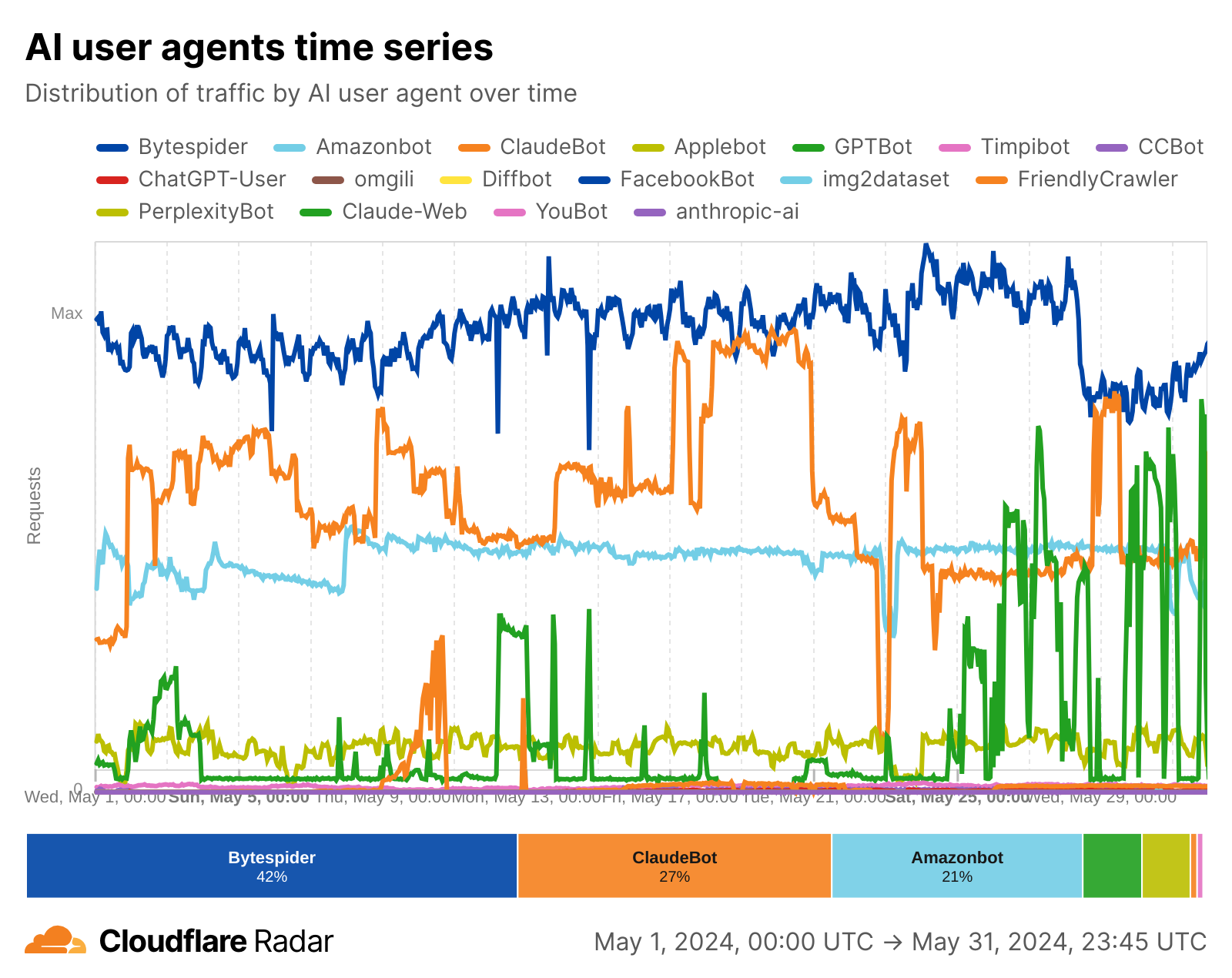
May 2025
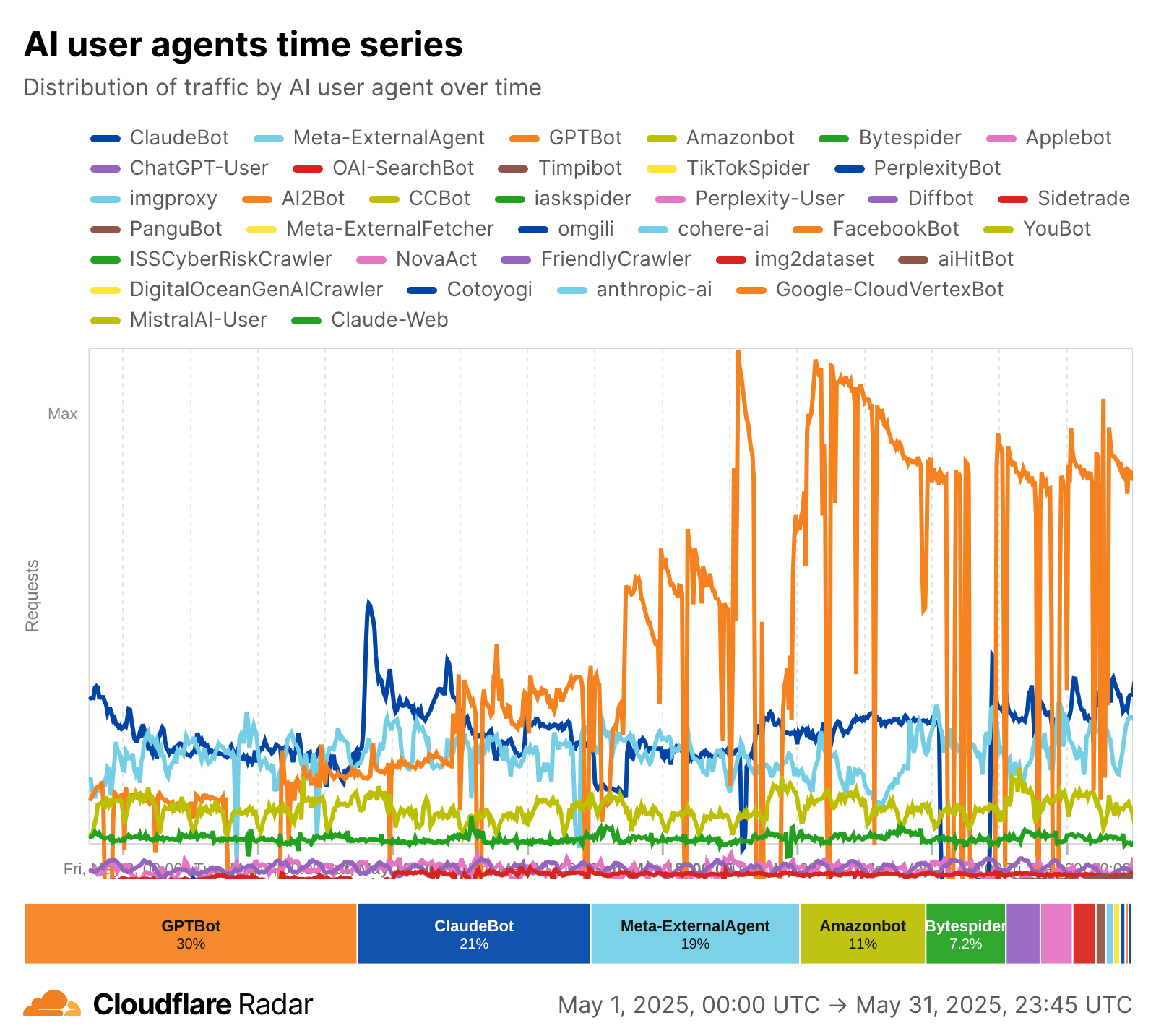
|
Rank |
Bot Name |
Share (May 2024) |
Rank |
Bot Name |
Share (May 2025) |
|
1 |
Bytespider |
42% |
1 |
GPTBot |
30% |
|
2 |
ClaudeBot |
27% |
2 |
ClaudeBot |
21% |
|
3 |
Amazonbot |
21% |
3 |
Meta-ExternalAgent |
19% |
|
4 |
GPTBot |
5% |
4 |
Amazonbot |
11% |
|
5 |
Applebot |
4.1% |
5 |
Bytespider |
7.2% |
| Rank | Bot Name | Share (May 2024) | Rank | Bot Name | Share (May 2025) |
|---|---|---|---|---|---|
| 1 | Bytespider | 42% | 1 | GPTBot | 30% |
| 2 | ClaudeBot | 27% | 2 | ClaudeBot | 21% |
| 3 | Amazonbot | 21% | 3 | Meta-ExternalAgent | 19% |
| 4 | GPTBot | 5% | 4 | Amazonbot | 11% |
| 5 | Applebot | 4.1% | 5 | Bytespider | 7.2% |
For additional context, the list below includes further information about the bots with higher crawling shares seen above. This information comes from the same open-source list mentioned above and from publications by companies like OpenAI, which explain how their crawlers are used.
-
GPTBot – OpenAI’s crawler used to improve and train large language models like ChatGPT.
-
ClaudeBot – Anthropic’s crawler for training and updating the Claude AI assistant.
-
Meta-ExternalAgent – Meta’s bot likely used for collecting data to train or fine-tune LLMs.
-
Amazonbot – Amazon’s crawler that gathers data for its search and AI applications.
-
Bytespider – ByteDance’s AI data collector, often linked to training models like Ernie or TikTok-related AI.
-
Applebot – Apple’s web crawler primarily for Siri and Spotlight search, possibly used in AI development.
-
OAI-SearchBot – OpenAI’s search-focused crawler, likely used for retrieving real-time web info for models.
-
ChatGPT-User – Represents API-based or browser usage of ChatGPT in connection with user interactions.
-
PerplexityBot – Crawler from Perplexity.ai, which powers their AI answer engine using real-time web data.
Webmasters can inform crawler operators of whether they want these bots and crawlers to access their content by setting out rules in a file called robots.txt, which tells crawlers what pages they should or shouldn’t access. As we’ve seen recently, crawlers honoring your robots.txt policies is voluntary, but Cloudflare announced tools like AI Audit to help content creators to enforce it.
Now, as we’ve seen, the landscape of web crawling is evolving rapidly, driven by the merging roles of search engines and AI. AI is now deeply integrated into search, seen in Google’s AI Overviews and AI Mode, but also in social media platforms, like Meta AI on Instagram. So, let’s broaden our analysis to include these wider AI-driven crawling activities.
A broader view reveals the growth of crawling traffic from both search and AI crawlers over the first few months of 2025. To remove customer growth bias, we’ll analyze trends using a fixed set of customers from specific weeks (a method we’ve used in our Cloudflare Radar Year in Review): the first week of May 2024, a week in November 2024, and the first week of April 2025.
Using that method, we found that AI and search crawler traffic grew by 18% from May 2024 to May 2025 (comparing full-month periods). The increase was even higher, at 48%, when including new Cloudflare customers added during that time. Peak AI and search crawling traffic occurred in April 2025, with a 32% increase compared to May 2024. This confirms that crawling traffic has clearly risen over the past year, but also that growth is not always constant. Google remains the dominant player, and its share is growing too, as we’ll see in the next section.
As the next chart shows, crawling traffic increased sharply in March and April 2025 and remained high, though slightly lower, in May.
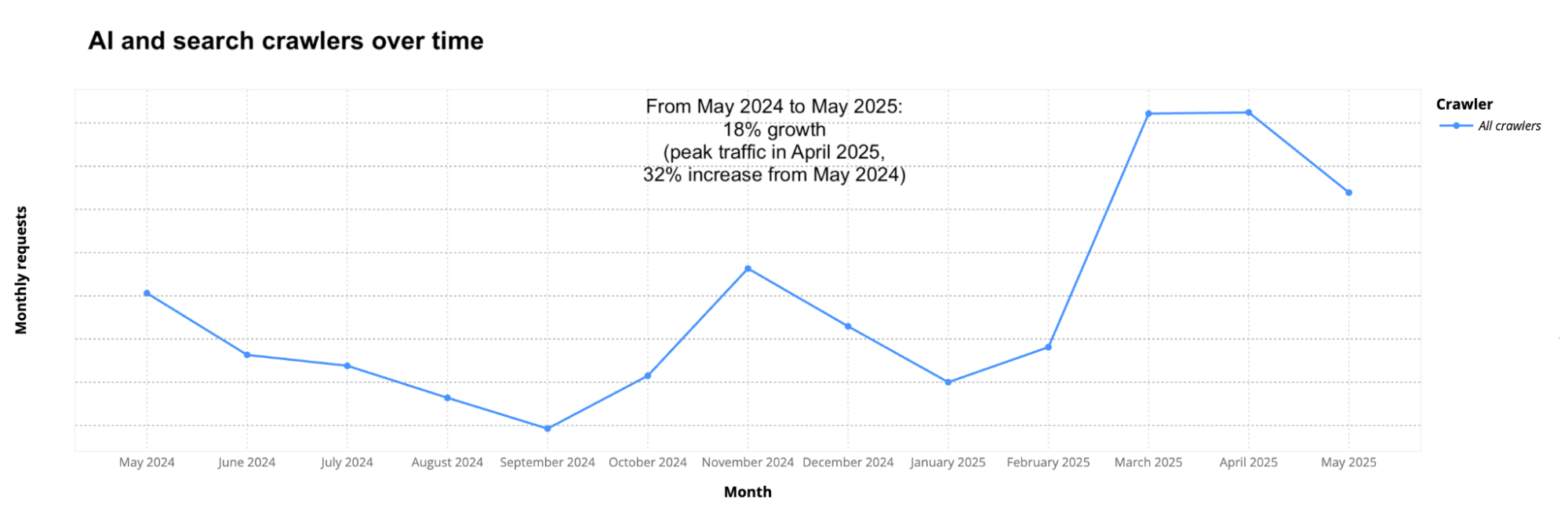
The patterns on the above crawling chart also seem to reflect broader seasonal patterns and general human Internet traffic patterns. In 2024, traffic dropped during the summer in the Northern Hemisphere, with August and September being the least active months. And like overall Internet traffic, it then rose in November, when people are typically more online due to shopping and seasonal habits, as we’ve seen in past analyses.
Googlebot, which indexes content for Google Search, was clearly the top crawler throughout the period and showed strong growth, up 96% from May 2024 to May 2025, reflecting increased crawling by Google. Crawling traffic peaked in April 2025, reaching 145% higher than in May 2024. It’s also important to mention that Google made changes to its search and launched AI Overviews in its search engine during this time — first in the US in May 2024, then in more countries later.
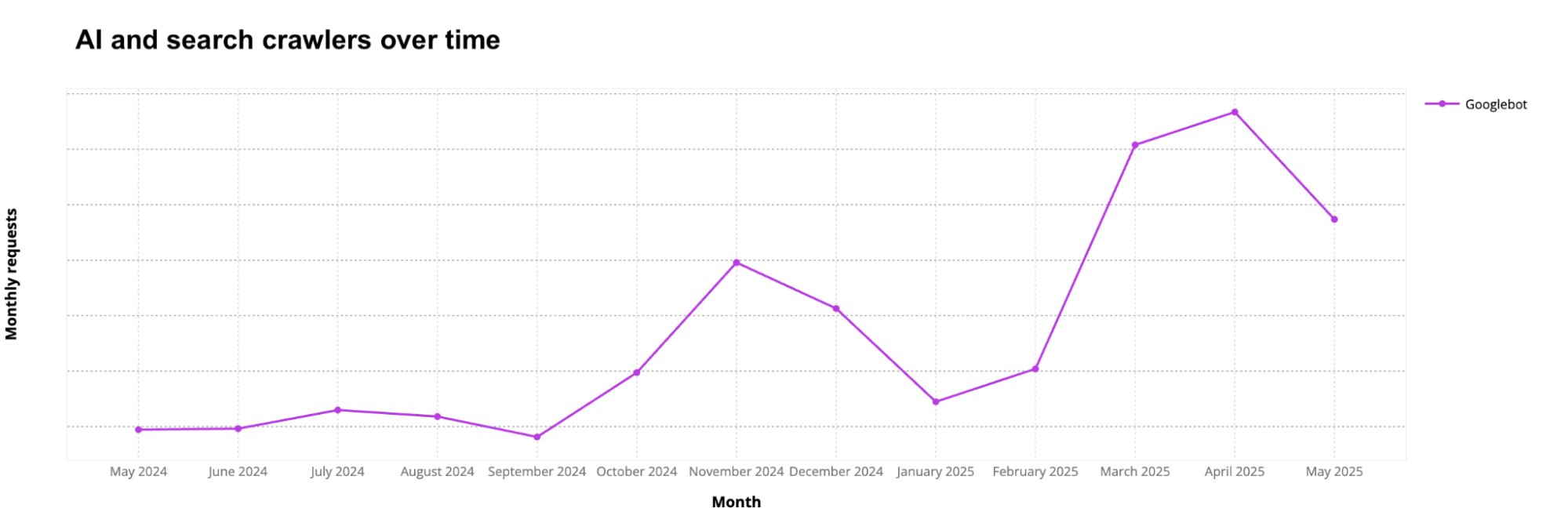
Two trends stand out when looking at daily data for Google-related crawlers, as shown in the graph below. First, Googlebot and the more recent GoogleOther (a web crawler from 2023 for “research and development”) account for most of Google’s crawling activity. Second, there were two visible drops in crawling traffic: one on December 14, 2024 (around a Google Search update), and another from May 20 to May 28, 2025. That May 20 drop occurred around the same time as the rollout of AI Mode on Google Search in the US, although the timing may be coincidental.
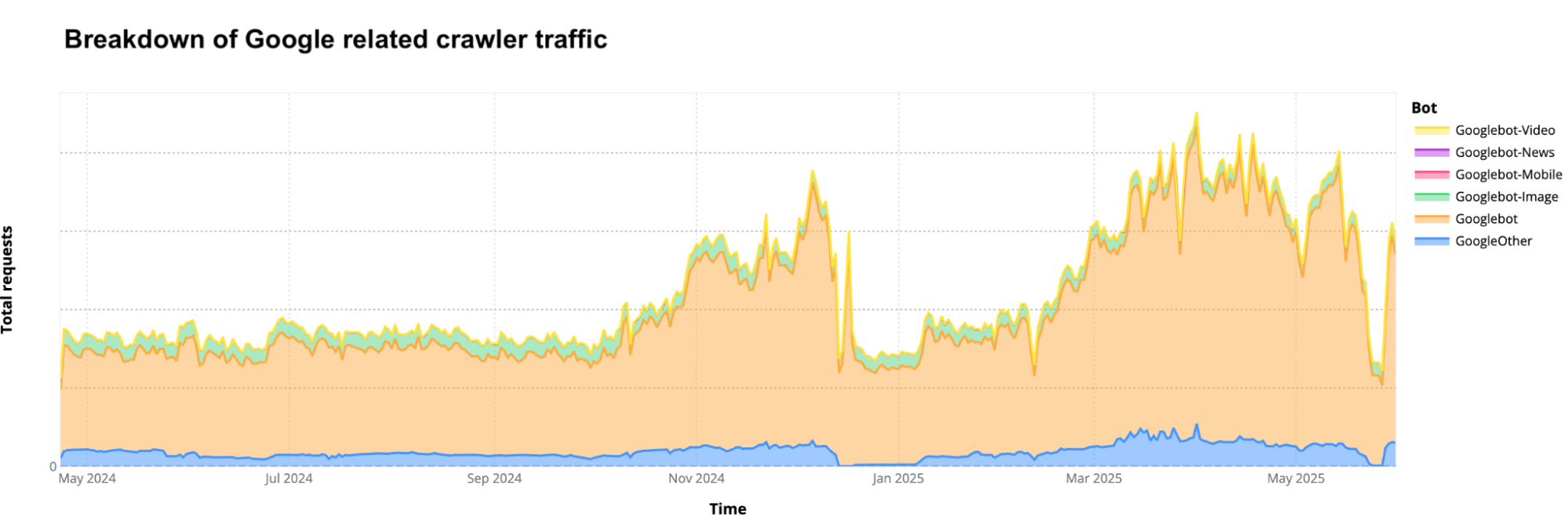
Ranking crawlers by their share of total requests gives a clearer picture of which bots are gaining or losing ground, especially among those focused on search and AI. The table below shows a clear trend: some AI bots have grown rapidly since last year (with growth beginning even earlier), while many traditional search crawlers have remained flat or lost share (as in the case of Bing and its Bingbot crawler). The main exception is Googlebot.
The next table shows the percentage share of each crawler out of all crawling traffic generated by this specific cohort of over 30 AI & search crawlers observed by Cloudflare in May 2024 and May 2025. The table below also includes the change in percentage points and the growth or decline in raw request volume. Crawlers are ranked by their share in May 2025. Key crawler shifts include GPTBot rising sharply (+305%), while Bytespider dropped dramatically (-85%).
|
Rank |
Bot name |
Share |
Share |
Δ percentage-point change |
Raw requests growth (May 2024 to May 2025) |
|
1 |
Googlebot |
30% |
50% |
+20 pp |
96% |
|
2 |
Bingbot |
10% |
8.7% |
-1.3 pp |
2% |
|
3 |
GPTBot |
2.2% |
7.7% |
+5.5 pp |
305% |
|
4 |
ClaudeBot |
11.7% |
5.4% |
-6.3 pp |
-46% |
|
5 |
GoogleOther |
4.4% |
4.3% |
-0.1 pp |
14% |
|
6 |
Amazonbot |
7.6% |
4.2% |
-3.4 pp |
-35% |
|
7 |
Googlebot-Image |
4.5% |
3.3% |
-1.2 pp |
-13% |
|
8 |
Bytespider |
22.8% |
2.9% |
-19.8 pp |
-85% |
|
9 |
Yandex |
2.8% |
2.2% |
-0.7 pp |
-10% |
|
10 |
ChatGPT-User |
0.1% |
1.3% |
+1.2 pp |
2,825% |
|
11 |
Applebot |
1.9% |
1.2% |
-0.7 pp |
-26% |
|
12 |
Timpibot |
0.3% |
0.6% |
+0.3 pp |
133% |
|
13 |
Baiduspider |
0.5% |
0.4% |
-0.1 pp |
7% |
|
14 |
PerplexityBot |
<0.01% |
0.2% |
+0.2 pp |
157,490% |
|
15 |
DuckDuckBot |
0.2% |
0.1% |
-0.1 pp |
-16% |
|
16 |
SeznamBot |
0.1% |
0.1% |
2% |
|
|
17 |
Yeti |
0.1% |
0.1% |
47% |
|
|
18 |
coccocbot |
0.1% |
0.1% |
-3% |
|
|
19 |
Sogou |
0.1% |
0.1% |
-22% |
|
|
20 |
Yahoo! Slurp |
0.1% |
0.0% |
-0.1 pp |
-8% |
| Rank | Bot name | Share May 2024 | Share May 2025 | Δ percentage-point change | Raw requests growth (May 2024 to May 2025) |
|---|---|---|---|---|---|
| 1 | Googlebot | 30% | 50% | +20 pp | 96% |
| 2 | Bingbot | 10% | 8.7% | -1.3 pp | 2% |
| 3 | GPTBot | 2.2% | 7.7% | +5.5 pp | 305% |
| 4 | ClaudeBot | 11.7% | 5.4% | -6.3 pp | -46% |
| 5 | GoogleOther | 4.4% | 4.3% | -0.1 pp | 14% |
| 6 | Amazonbot | 7.6% | 4.2% | -3.4 pp | -35% |
| 7 | Googlebot-Image | 4.5% | 3.3% | -1.2 pp | -13% |
| 8 | Bytespider | 22.8% | 2.9% | -19.8 pp | -85% |
| 9 | Yandex | 2.8% | 2.2% | -0.7 pp | -10% |
| 10 | ChatGPT-User | 0.1% | 1.3% | +1.2 pp | 2,825% |
| 11 | Applebot | 1.9% | 1.2% | -0.7 pp | -26% |
| 12 | Timpibot | 0.3% | 0.6% | +0.3 pp | 133% |
| 13 | Baiduspider | 0.5% | 0.4% | -0.1 pp | 7% |
| 14 | PerplexityBot | <0.01% | 0.2% | +0.2 pp | 157,490% |
| 15 | DuckDuckBot | 0.2% | 0.1% | -0.1 pp | -16% |
| 16 | SeznamBot | 0.1% | 0.1% | 2% | |
| 17 | Yeti | 0.1% | 0.1% | 47% | |
| 18 | coccocbot | 0.1% | 0.1% | -3% | |
| 19 | Sogou | 0.1% | 0.1% | -22% | |
| 20 | Yahoo! Slurp | 0.1% | 0.0% | -0.1 pp | -8% |
Based on this data, two major shifts in web crawling occurred between May 2024 and May 2025:
1. Some AI crawlers rose sharply.
GPTBot (from OpenAI) increased its share from 2.2% to 7.7% (+5.5 pp), with a 305% rise in requests. This underscores the data demand for training large language models like ChatGPT. GPTBot jumped from #9 in May 2024 to #3 in May 2025.
Another OpenAI crawler, ChatGPT-User, saw requests surge by 2,825%, reaching a 1.3% share. This reflects a large rise in ChatGPT user activity or API-based interactions that involve accessing web content. PerplexityBot (from Perplexity.ai), despite a small 0.2% share, recorded the highest growth rate: a staggering 157,490% increase in raw requests.
Meanwhile, some AI crawlers saw steep declines. ClaudeBot (Anthropic) fell from 11.7% to 5.4% of total traffic and dropped 46% in requests. Bytespider plummeted 85% in request volume, falling from #2 to #8 in crawler share (now at just 2.9%).
Both Amazonbot and Applebot, also considered AI crawlers, saw decreases in share and in raw requests (–35% and –26%, respectively).
2. Google’s dominance expanded.
Googlebot’s share rose from 30% to 50%, supporting search indexing, but potentially also having AI-related purposes (such as new AI Overviews in Google Search). And GoogleOther (the crawler introduced in 2023) also increased in crawling traffic, 14%. Other Google crawlers not in the top 20, like Googlebot-News, also grew significantly (+71% in requests). There’s a clear trend of growth in these Google-related web crawlers at a time when the company is investing heavily in combining AI with search.
Also in the search category, Bingbot’s share (from Microsoft) declined slightly from 10% to 8.7% (-1.3 pp), though its raw requests still grew modestly by 2%.
These trends show that web crawling is increasingly dominated by bots from Google and OpenAI, reflecting clear shifts over the course of a year. Google also appears to be adapting how it collects data to support both traditional search and AI-driven features.
Also worth noting is FriendlyCrawler, which no longer appears in the top 20 list as of May 2025 (now ranked #35). It was #14 in May 2024 with a 0.2% share, but saw a 100% drop in requests by May 2025. This bot is known to index and analyze website content, although its owner and purpose remain unclear. Typically, crawlers like this are used for improving search results, market research, or analytics.
Recent data from June 6, 2025, from Cloudflare Radar shows that out of 3,816 domains (from the top 10,000) where we were able to find a robots.txt file, 546 (about 14%) had “allow” or “disallow” (fully or partially) directives targeting AI bots in particular.
This leaves many site owners in a gray area because it’s not always clear how effective robots.txt is in managing AI crawlers. Some site owners may not think to use it specifically for AI bots, while others might be unsure whether these bots even respect robots.txt rules, especially newer or less transparent crawlers. In other cases, sites use partial rules to fine-tune access, trying to balance visibility and protection without fully opting in or out.
The “disallow” rules appear far more often than “allow” rules. The most frequently blocked bot was GPTBot, disallowed by 312 domains (250 fully, 62 partially), followed by CCBot and Google-Extended, as shown in the following graph.
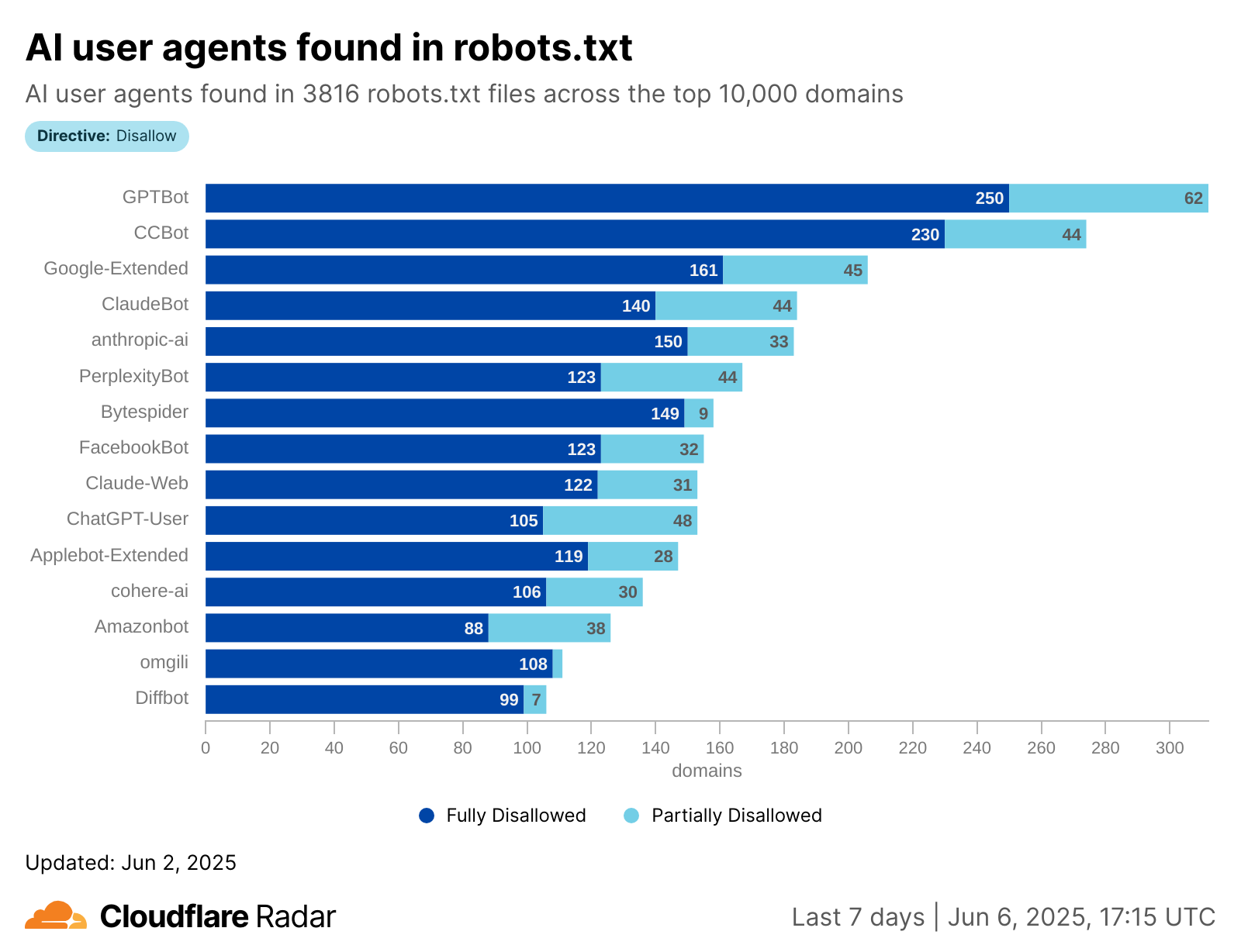
Although GPTBot was the most blocked, it was also the most explicitly allowed, with 61 domains granting access (18 fully, 43 partially). Still, very few sites openly and explicitly allow AI bots, and when they do, it’s usually for limited sections. Note that bots not listed in a site’s robots.txt are effectively allowed by default.
As AI crawling increases, more websites are moving from passive signals like robots.txt to active protections like Web Application Firewalls. The ecosystem is shifting, with a growing focus on enforceable controls.
Note: When we analyze crawler traffic, we compare user-agent tokens found in robots.txt files (like those for AI crawlers) with the actual user-agent strings in HTTP requests. It’s important to note that some robots.txt tokens, such as Google-Extended, aren’t user-agent substrings. As described in RFC 9309, one goal of these token may be to signal the purpose of the crawler. For instance, Google uses Google-Extended in robots.txt to see if your content can be used for AI training, but the traffic itself still comes from standard Google user-agents like Googlebot. Because of this, not every robots.txt entry will have a direct match in HTTP request logs.
As AI crawlers reshape the Internet, websites face both new challenges and new opportunities in managing their online presence.
This analysis highlights the growing impact of AI on web crawling, showing a clear shift from traditional search indexing to data collection for training AI models. The detailed statistics, such as Googlebot’s continued growth and the rapid rise of AI-specific crawlers, offer context for understanding how this space is evolving and what it means for the future of web content access.
The trend toward stronger, enforceable blocking methods, something Cloudflare has also been invested, signals a key shift in how websites may control their interactions with AI systems going forward.
Message Signatures are now part of our Verified Bots Program, simplifying bot authentication
Post Syndicated from Mari Galicer original https://blog.cloudflare.com/verified-bots-with-cryptography/
As a site owner, how do you know which bots to allow on your site, and which you’d like to block? Existing identification methods rely on a combination of IP address range (which may be shared by other services, or change over time) and user-agent header (easily spoofable). These have limitations and deficiencies. In our last blog post, we proposed using HTTP Message Signatures: a way for developers of bots, agents, and crawlers to clearly identify themselves by cryptographically signing requests originating from their service.
Since we published the blog post on Message Signatures and the IETF draft for Web Bot Auth in May 2025, we’ve seen significant interest around implementing and deploying Message Signatures at scale. It’s clear that well-intentioned bot owners want a clear way to identify their bots to site owners, and site owners want a clear way to identify and manage bot traffic. Both parties seem to agree that deploying cryptography for the purposes of authentication is the right solution.
Today, we’re announcing that we’re integrating HTTP Message Signatures directly into our Verified Bots Program. This announcement has two main parts: (1) for bots, crawlers, and agents, we’re simplifying enrollment into the Verified Bots program for those who sign requests using Message Signatures, and (2) we’re encouraging all bot operators moving forward to use Message Signatures over existing verification mechanisms. Because Verified Bots are considered authenticated, they do not face challenges from our Bot Management to identify as bots, given they’re already identified as such.
For site owners, no additional action is required – Cloudflare will automatically validate signatures on our edge, and if that validation is a success, that traffic will be marked as verified so that site owners can use the verified bot fields to create Bot Management and WAF rules based on it.
This isn’t just about simplifying things for bot operators — it’s about giving website owners unparalleled accuracy in identifying trusted bot traffic, cutting down on the overhead for cryptographic verification, and fundamentally transforming how we manage authentication across the Cloudflare network.
Cloudflare’s existing Verified Bots program is for bots that are transparent about who they are and what they do, like indexing sites for search or scanning for security vulnerabilities. You can see a list of these verified bots in Cloudflare Radar:
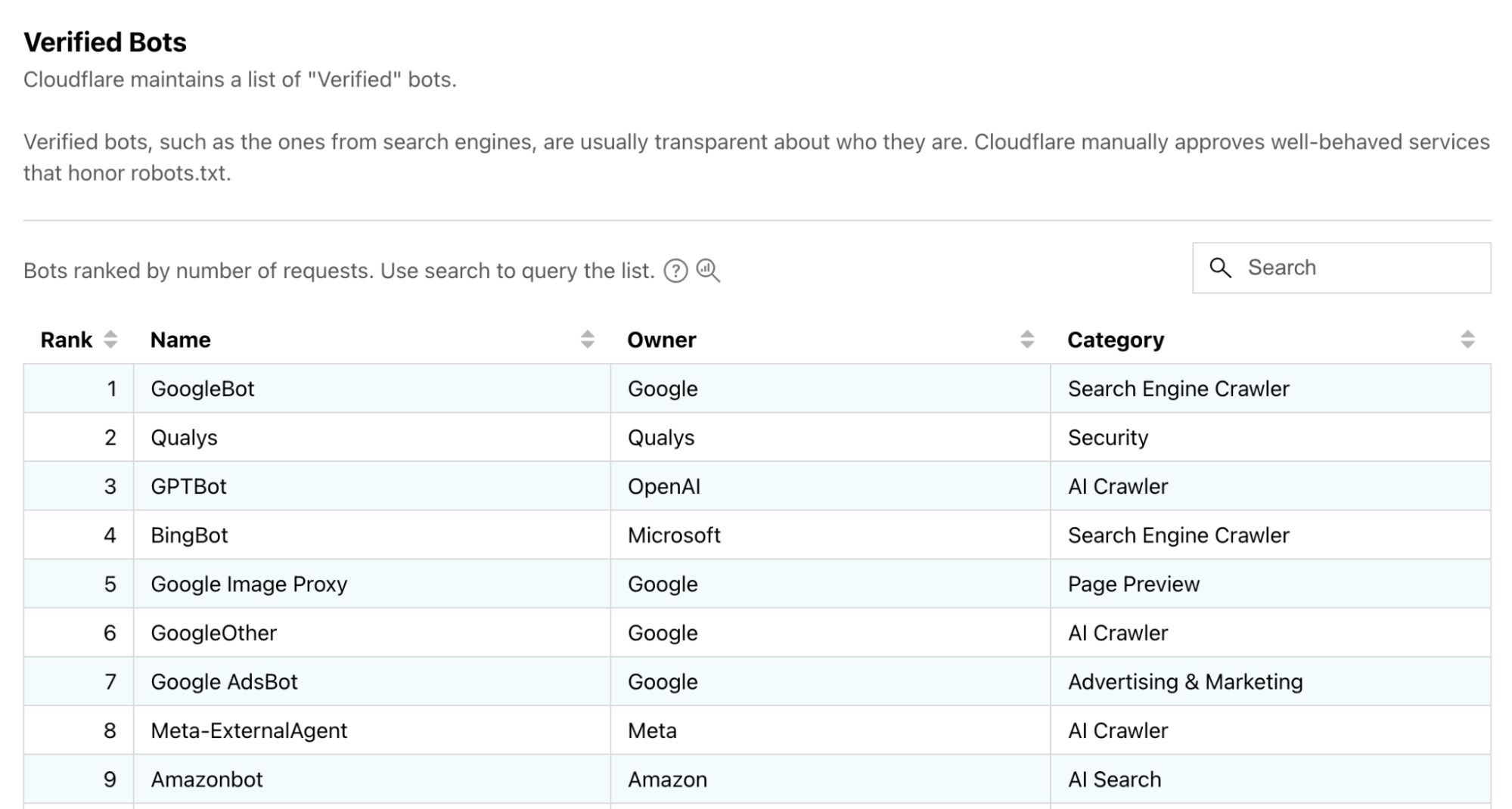
A preview of the Verified Bots page on Cloudflare Radar.
In the past, in order to apply to be a verified bot, we used to ask for IP address ranges or reverse DNS names so that we could verify your identity. This required some manual steps like checking that the IP address range is valid and is associated with the appropriate ASN.
With the integration of Message Signatures, we’re aiming to streamline applications into our Verified Bot program. Bots applying with well-formed Message Signatures will be prioritized, and approved more quickly!
In order to make generating Message Signatures as easy as possible, Cloudflare is providing two open source libraries: a web-bot-auth library in rust, and a web-bot-auth npm package in TypeScript. If you’re working on a different implementation, let us know – we’d love to add it to our developer docs!
At a high level, signing your requests with web bot auth consists of the following steps:
-
Generate a valid signing key. See Signing Key section for step-by-step instructions.
-
Host a JSON web key set containing your public key under
/.well-known/http-message-signature-directoryof your website. -
Sign responses for that URL using a Web Bot Auth library, one signature for each key contained in it, to prove you own it. See the Hosting section for step-by-step instructions.
-
Register that URL with us, using our Verified Bots form. This can be done directly in your Cloudflare account. See our documentation.
-
Sign requests using a Web Bot Auth library.
As an example, Cloudflare Radar’s URL Scanner lets you scan any URL and get a publicly shareable report with security, performance, technology, and network information. Here’s an example of what a well-formed signature looks like for requests coming from URL Scanner:
GET /path/to/resource HTTP/1.1
Host: www.example.com
User-Agent: Mozilla/5.0 (Windows NT 10.0; Win64; x64) AppleWebKit/537.36 (KHTML, like Gecko) Chrome/119.0.0.0 Safari/537.36
Signature-Agent: "https://web-bot-auth-directory.radar-cfdata-org.workers.dev"
Signature-Input: sig=("@authority" "signature-agent");\
             	 created=1700000000;\
             	 expires=1700011111;\
             	 keyid="poqkLGiymh_W0uP6PZFw-dvez3QJT5SolqXBCW38r0U";\
             	 tag="web-bot-auth"
Signature:sig=jdq0SqOwHdyHr9+r5jw3iYZH6aNGKijYp/EstF4RQTQdi5N5YYKrD+mCT1HA1nZDsi6nJKuHxUi/5Syp3rLWBA==:
Since we’ve already registered URLScanner as a Verified Bot, Cloudflare will now automatically verify that the signature in the Signature header matches the request — more on that later.
Access the Verified Bots submission form on your account. If that link does not immediately take you there, go to your Cloudflare account → Account Home → the three dots next to your account name → Configurations → Verified Bots.
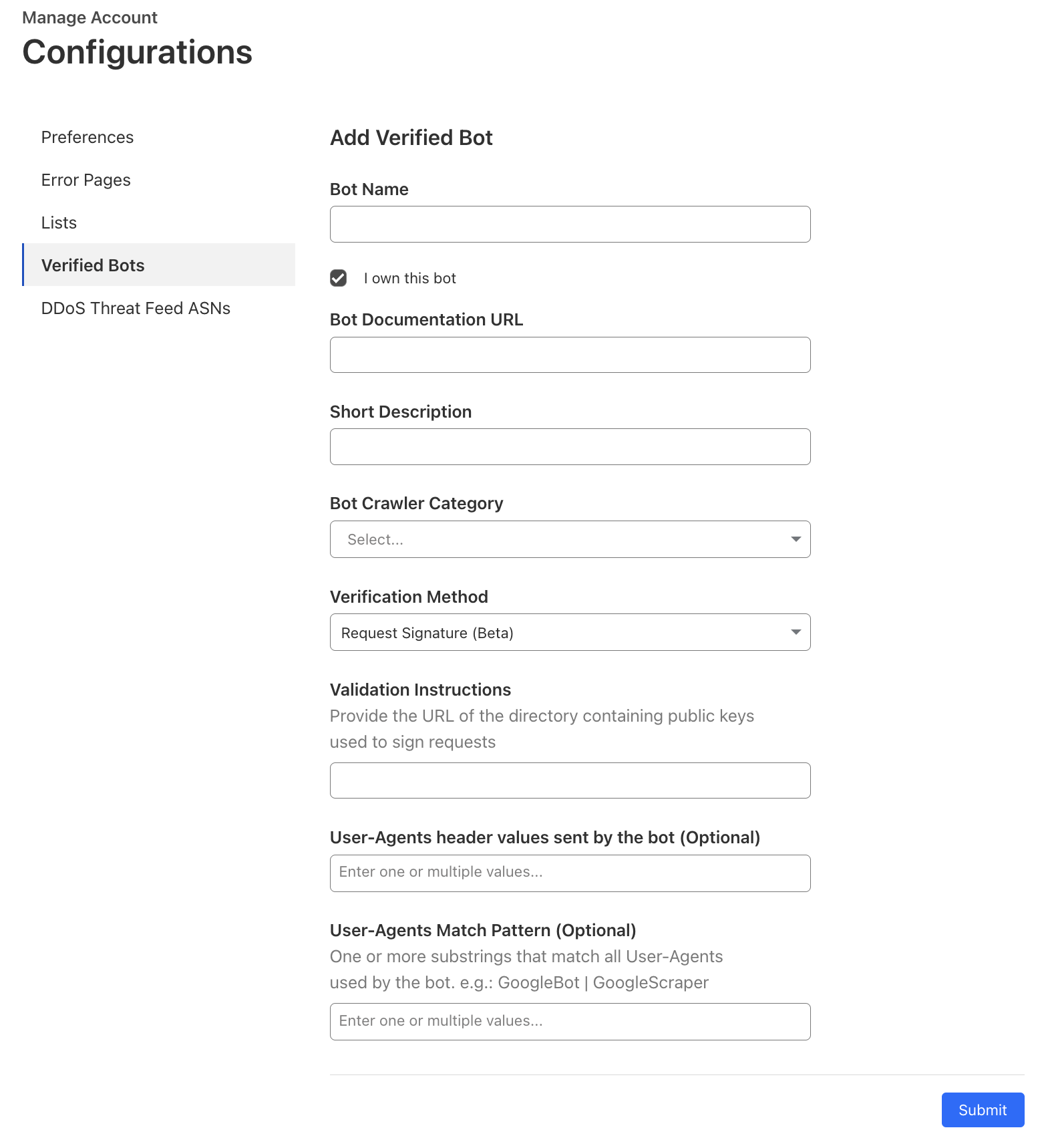
If you do not have a Cloudflare account, you can sign up for a free one.
For the verification method, select “Request Signature”, then enter the URL of your key directory in Validation Instructions. Specifying the User-Agent values is optional if you’re submitting a Request Signature bot.
Once your application has gone through our (now shortened) review process, you don’t need to take any further action.
Starting today, Cloudflare is ramping up verification of cryptographic signatures provided by automated crawlers and bots. This is currently available for all Free and Pro plans, and as we continue to test and validate at scale, will be released to all Business and Enterprise plans. This means that as time passes, the number of unauthenticated web crawlers should diminish, ensuring most bot traffic is authenticated before it reaches your website’s servers, helping to prevent spoofing attacks.
At a high level, signature verification works like this:
-
A bot or agent sends a request to a website behind Cloudflare.
-
Cloudflare’s Message Signature verification service checks for the
Signature,Signature-Input, andSignature-Agentheaders. -
It checks that the incoming request presents a
keyidparameter in your Signature-Input that points to a key we already know. -
It looks at the
expiresparameter in the incoming bot request. If the current time is after expiration, verification fails. This guards against replay attacks, preventing malicious agents from trying to pass as a bot by retrying messages they captured in the past. -
It checks that you’ve specified a
tagparameter indicatingweb-bot-auth, to indicate your intent that the message be handled using web bot authentication specifically -
It looks at all the components chosen in your
Signature-Inputheader, and constructs a signature base from it. -
If all pre-flight checks pass, Cloudflare attempts to verify the signature base against the value in Signature field using an ed25519 verification algorithm and the key supplied in
keyid. -
Verified Bots and other systems at Cloudflare use a successful verification as proof of your identity, and apply rules corresponding to that identity.
If any of the above steps fail, Cloudflare falls back to existing bot identification and mitigation mechanisms. As the system matures, we would strengthen these requirements, and limit the possibilities of a soft downgrade.
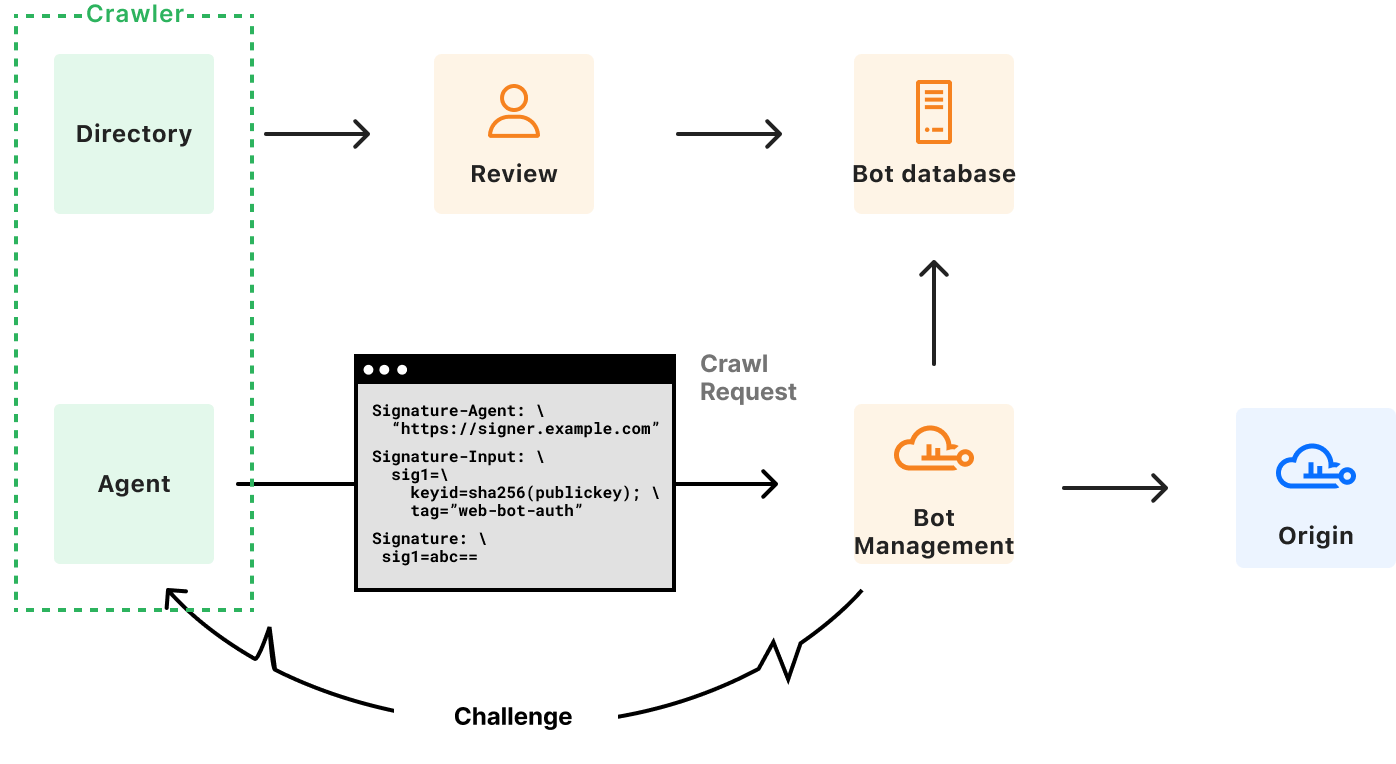
As a site owner, you can segment your Verified Bot traffic by its type and purpose by adding the Verified Bot Categories field cf.verified_bot_category as a filter criterion in WAF Custom rules, Advanced Rate Limiting, and Late Transform rules. For instance, to allow the Bibliothèque nationale de France and the Library of Congress, and institutions dedicated to academic research, you can add a rule that allows bots in the Academic Research category.
HTTP Message Signatures is a primitive that is useful beyond Cloudflare – the IETF standardized it as part of RFC 9421.
As discussed in our previous blog post, Cloudflare believes that making Message Signatures a core component of bot authentication on the web should follow the same path. The specifications for the protocol are being built in the open, and they have already evolved following feedback.
Moreover, due to widespread interest, the IETF is considering forming a working group around Web Bot Auth. Should you be a crawler, an origin, or even a CDN, we invite you to provide feedback to ensure the solution gets stronger, and suits your needs.
For bot, agent, and crawler operators that act transparently and provide vital services for the Internet, we’re providing a faster and more automated path to being recognized as a Verified Bot, reducing manual processes. We trust that this approach improves bot authentication from what were formerly brittle and unreliable authentication methods, to a secure and reliable alternative. It should reduce the overall volume of friction and hurdles genuinely useful bots face.
For site owners, Message Signatures provides better assurance that the bot traffic is legitimate — automatically recognized and allowed, minimizing disruption to essential services (e.g., search engine indexing, monitoring). In line with our commitments to making TLS/SSL and Post-Quantum certificates available for everyone, we’ll always offer the cryptographic verification of Message Signatures for all sites because we believe in a safer and more efficient Internet by fostering a trusted environment for both human and automated traffic.
If you have a feature request, feedback, or are interested in partnering with us, please reach out.
Изпращайте сигнали за държавните имоти планирани за разпродажба
Post Syndicated from Боян Юруков original https://yurukov.net/blog/2025/signali-4400/
Това, че от Министерски съвет все пак публикуваха списъка с онези над 4400 имота и сгради, които на 8-ми май обявиха, че ще продават, създаде доста вълни. Имаше, разбира се, много възмущение, особено заради фрапантни случаи като това, че се продава комина на Пирогов, части от язовири и защитени местности. Да се открият тези места помогна интерактивната карта, която направих преди четири дни.
Тази карта позволи да видим списъка по начин, по който съм убеден, че дори гласувалите в Министерски съвет не са осъзнавали. Въпреки това, самият обем информация не позволява да се открият конкретни проблеми, фрапантни случаи, спорни казуси и злоупотреби по места. Тази информация е локална и трябва да я съберем преди министерства, агенции и държавни компании са се разбързали. Затова направих прост формуляр, с който да подавате какво знаете за вашия район. Това е подобно на помощта, която търсех за 3D картата със застрояването в София. Това може да е дали имотът или сградата е наистина изоставена или наскоро ремонтирана, дали вече няма някой частен субект, който да я обитава или какъв ефект ще има продажба над града и околната среда.
Сигналите ще бъдат прегледани и ще бъдат отправени официални искания, включително в Народното събрание, към съответните министерства. Препоръчвам да оставите някаква форма на контакт, в случай, че е нужна допълнителна информация. Те няма да се публикуват никъде. Не оставяйте никаква лична информация, която да ви идентифицира в самия сигнал.
Формулярът за сигнали се отваря с линка „подай сигнал“ под всеки обект на картата. Вече е достъпна и извън предишната ми статия на този адрес. Надявам се да може да съберем достатъчно сигнали и да имаме възможност да ги прегледаме с всички, които се отзоваха да помагат, включително такива в парламента.
Междувременно, от МРРБ са обявили – без да споменават списъка или картата ми – че ще има тепърва анализ кои имоти действителност са с отпаднала нужда и кои да се продават. Дадоха индикация, че процесът на продажба е спрян докато това не се случи. Това е противоречи рязко на изказването преди два месеца на Желязков, че анализът е готов и незабавно ще започнат да се продават където има заявен (неясно как) частен интерес. Това говори само, че прозрачността и общественото внимание е помогнало и дава време да задаваме правилните въпроси за местата, които виждаме проблем.
Подобрения по картата
Междувременно, добавих няколко подобрения по картата. За по-малките имоти при увеличение на картата се показват пинчета, за да се забелязват по-лесно. Когато става въпрос за сгради и апартаменти се показва парцелът в лилаво и когато се отвори списъкът се виждат в червено конкретните обекти. Подобрих и групирането и представянето на имотите. Добавих и възможност да се линкват директно обекти. Т.е. като натиснете и извадите информация за даден обект, адреса на страницата се обновява автоматично, може да копирате и споделите точно какво гледате. Това ще позволи споделянето на конкретни случаи и притеснения. Това е например носът, който военните продават под Черноморец.
Когато е ясно точното местоположение съм добавил линк към картата в GovAlert, с която да търсите документи от градоустройството. Работи, за съжаление само за София, Пловдив и Благоевград, защото в останалите градове тези документи не са лесно достъпни или проследими. Работя сега да добавя и линк към картата с 3D сградите и застрояването в София.
Ако имате още предложения, притеснения или виждате проблем с картата или данните, моля споделете ги в коментарите тук.
The post Изпращайте сигнали за държавните имоти планирани за разпродажба first appeared on Блогът на Юруков.
A Code Club in every school and library
Post Syndicated from Philip Colligan, CBE original https://www.raspberrypi.org/blog/a-code-club-in-every-school-and-library/
Today we are starting a campaign to support every school and library in the UK to set up a free Code Club to make sure that all young people can develop the skills and knowledge they need to thrive in the age of AI.

Over the past decade, Code Club has provided more than 2 million young people with the opportunity to learn how to build their own apps, games, animations, websites, robots, and so much more.
We know that getting hands-on, practical experience of building real projects with technology works. Independent evaluations have shown that attending a Code Club not only helps young people develop their programming skills, but also builds wider life skills such as confidence, resilience, problem-solving, and communication. All of which we know are essential if they are going to thrive in a world where AI is ubiquitous.
Right now, there are over 2,000 Code Clubs meeting in schools and libraries all over the UK, organised by an amazing community of teachers, educators, and volunteers from all walks of life. We want to see that number grow.

You don’t need technical skills to mentor at a Code Club. The Raspberry Pi Foundation provides free, self-guided projects that help young people learn how to create with different technologies. We have over 200 Code Club Projects on our website, all of which are developed by expert educators, based on evidence of how young people learn, and rigorously tested; so we know that they are effective.
That includes a set of projects that support the safe exploration of AI technologies, helping young people understand how AI works, its possibilities and limitations.

We also provide training and support to help you set up and run your Code Club, all of which is available at no charge.
I can promise you that the hour you spend in a Code Club will be the highlight of your week. I always come away from Code Club inspired and optimistic about what young people can achieve if we give them a sense of agency over technology.

If you have been inspired to set up your own Code Club, you can find all the information you need to run your own club here.
You don’t have to take my word for it: here’s Janine, a Computer Science teacher and long-time Code Club mentor from Stoke-on-Trent sharing her experience.
Janine Kirk is a Computer Science Teacher at The King’s Church of England Academy in Stoke-on-Trent, UK, who has been running a Code Club for over ten years. She has been inspired by the campaign for a Code Club in every school and library in the UK, to set up clubs in six other schools in her multi-academy trust.

Setting up a Code Club is really easy as a teacher, as you can just tag it onto the end of your school day, or during lunch. The website is clear and easy to use — and once you have signed up, you have access to additional resources to promote your club. Code Club gives time and space to explore coding in a completely different way than in a classroom. For me, it’s about seeing what programs really inspire students: it gives an insight into how students like to code, ideas of preferred coding language, and tasks they keep coming back to. Running a Code Club has also allowed me to build relationships with students outside of the classroom environment, and all of this spills into my lessons and improves my teaching practice.

For students, Code Club is a great space where they can collaborate and work on their chosen tasks. Students often comment on how they look forward to Code Club and how they have continued their projects at home. It also allows students much more variety in enrichment activity, as Code Club is often popular with students who are neurodivergent. It’s amazing to see the children grow in confidence and friendship as they find likeminded students to support each other.
My students really love the certificates they can earn. We have been inspired by the excellent activities that revamp the old ways of teaching programming and give them a really nice spin. In fact, I have used the resources in computer science lessons too, as they are often much more visual and fun for the students to create.

Since joining Code Club I have felt part of a community. I receive regular updates, and attending events such as the Clubs Conference really helps inspire creative ways to teach coding. As a computing teacher in a secondary school, you are often part of a very small team — but Code Club has allowed me to feel part of something bigger, and I know that should I need support, they are always there with friendly advice. It really is the best thing that I have done in my career.
Are you inspired to set up your own Code Club? Then find more information on how to get started running a club today.
The post A Code Club in every school and library appeared first on Raspberry Pi Foundation.