Tag Archives: Web Identity Federation

Validate IAM policies by using IAM Policy Validator for AWS CloudFormation and GitHub Actions

Post Syndicated from Mitch Beaumont original https://aws.amazon.com/blogs/security/validate-iam-policies-by-using-iam-policy-validator-for-aws-cloudformation-and-github-actions/

In this blog post, I’ll show you how to automate the validation of AWS Identity and Access Management (IAM) policies by using a combination of the IAM Policy Validator for AWS CloudFormation (cfn-policy-validator) and GitHub Actions. Policy validation is an approach that is designed to minimize the deployment of unwanted IAM identity-based and resource-based policies to your Amazon Web Services (AWS) environments.

With GitHub Actions, you can automate, customize, and run software development workflows directly within a repository. Workflows are defined using YAML and are stored alongside your code. I’ll discuss the specifics of how you can set up and use GitHub actions within a repository in the sections that follow.

The cfn-policy-validator tool is a command-line tool that takes an AWS CloudFormation template, finds and parses the IAM policies that are attached to IAM roles, users, groups, and resources, and then runs the policies through IAM Access Analyzer policy checks. Implementing IAM policy validation checks at the time of code check-in helps shift security to the left (closer to the developer) and shortens the time between when developers commit code and when they get feedback on their work.

Let’s walk through an example that checks the policies that are attached to an IAM role in a CloudFormation template. In this example, the cfn-policy-validator tool will find that the trust policy attached to the IAM role allows the role to be assumed by external principals. This configuration could lead to unintended access to your resources and data, which is a security risk.

Prerequisites

To complete this example, you will need the following:

  1. A GitHub account
  2. An AWS account, and an identity within that account that has permissions to create the IAM roles and resources used in this example

Step 1: Create a repository that will host the CloudFormation template to be validated

To begin with, you need to create a GitHub repository to host the CloudFormation template that is going to be validated by the cfn-policy-validator tool.

To create a repository:

  1. Open a browser and go to https://github.com.
  2. In the upper-right corner of the page, in the drop-down menu, choose New repository. For Repository name, enter a short, memorable name for your repository.
  3. (Optional) Add a description of your repository.
  4. Choose either the option Public (the repository is accessible to everyone on the internet) or Private (the repository is accessible only to people access is explicitly shared with).
  5. Choose Initialize this repository with: Add a README file.
  6. Choose Create repository. Make a note of the repository’s name.

Step 2: Clone the repository locally

Now that the repository has been created, clone it locally and add a CloudFormation template.

To clone the repository locally and add a CloudFormation template:

  1. Open the command-line tool of your choice.
  2. Use the following command to clone the new repository locally. Make sure to replace <GitHubOrg> and <RepositoryName> with your own values.
    git clone [email protected]:<GitHubOrg>/<RepositoryName>.git

  3. Change in to the directory that contains the locally-cloned repository.
    cd <RepositoryName>

    Now that the repository is locally cloned, populate the locally-cloned repository with the following sample CloudFormation template. This template creates a single IAM role that allows a principal to assume the role to perform the S3:GetObject action.

  4. Use the following command to create the sample CloudFormation template file.

    WARNING: This sample role and policy should not be used in production. Using a wildcard in the principal element of a role’s trust policy would allow any IAM principal in any account to assume the role.

    cat << EOF > sample-role.yaml
    
    AWSTemplateFormatVersion: "2010-09-09"
    Description: Base stack to create a simple role
    Resources:
      SampleIamRole:
        Type: AWS::IAM::Role
        Properties:
          AssumeRolePolicyDocument:
            Statement:
              - Effect: Allow
                Principal:
                  AWS: "*"
                Action: ["sts:AssumeRole"]
          Path: /      
          Policies:
            - PolicyName: root
              PolicyDocument:
                Version: 2012-10-17
                Statement:
                  - Resource: "*"
                    Effect: Allow
                    Action:
                      - s3:GetObject
    EOF

Notice that AssumeRolePolicyDocument refers to a trust policy that includes a wildcard value in the principal element. This means that the role could potentially be assumed by an external identity, and that’s a risk you want to know about.

Step 3: Vend temporary AWS credentials for GitHub Actions workflows

In order for the cfn-policy-validator tool that’s running in the GitHub Actions workflow to use the IAM Access Analyzer API, the GitHub Actions workflow needs a set of temporary AWS credentials. The AWS Credentials for GitHub Actions action helps address this requirement. This action implements the AWS SDK credential resolution chain and exports environment variables for other actions to use in a workflow. Environment variable exports are detected by the cfn-policy-validator tool.

AWS Credentials for GitHub Actions supports four methods for fetching credentials from AWS, but the recommended approach is to use GitHub’s OpenID Connect (OIDC) provider in conjunction with a configured IAM identity provider endpoint.

To configure an IAM identity provider endpoint for use in conjunction with GitHub’s OIDC provider:

  1. Open the AWS Management Console and navigate to IAM.
  2. In the left-hand menu, choose Identity providers, and then choose Add provider.
  3. For Provider type, choose OpenID Connect.
  4. For Provider URL, enter
    https://token.actions.githubusercontent.com
  5. Choose Get thumbprint.
  6. For Audiences, enter sts.amazonaws.com
  7. Choose Add provider to complete the setup.

At this point, make a note of the OIDC provider name. You’ll need this information in the next step.

After it’s configured, the IAM identity provider endpoint should look similar to the following:
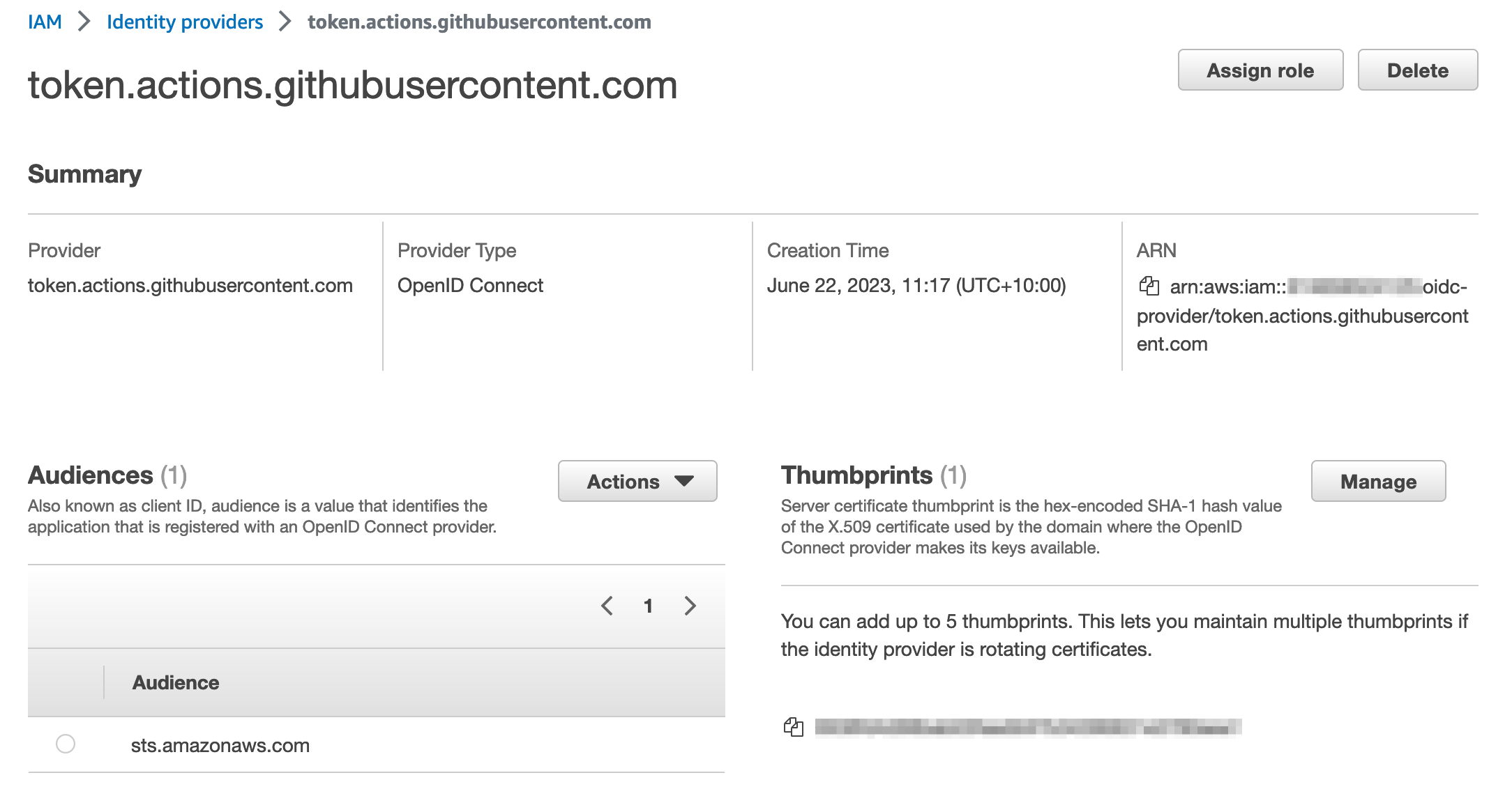
Figure 1: IAM Identity provider details

Figure 1: IAM Identity provider details

Step 4: Create an IAM role with permissions to call the IAM Access Analyzer API

In this step, you will create an IAM role that can be assumed by the GitHub Actions workflow and that provides the necessary permissions to run the cfn-policy-validator tool.

To create the IAM role:

  1. In the IAM console, in the left-hand menu, choose Roles, and then choose Create role.
  2. For Trust entity type, choose Web identity.
  3. In the Provider list, choose the new GitHub OIDC provider that you created in the earlier step. For Audience, select sts.amazonaws.com from the list.
  4. Choose Next.
  5. On the Add permission page, choose Create policy.
  6. Choose JSON, and enter the following policy:
    
        "Version": "2012-10-17",
        "Statement": [
            {
                "Effect": "Allow",
                "Action": [
                  "iam:GetPolicy",
                  "iam:GetPolicyVersion",
                  "access-analyzer:ListAnalyzers",
                  "access-analyzer:ValidatePolicy",
                  "access-analyzer:CreateAccessPreview",
                  "access-analyzer:GetAccessPreview",
                  "access-analyzer:ListAccessPreviewFindings",
                  "access-analyzer:CreateAnalyzer",
                  "s3:ListAllMyBuckets",
                  "cloudformation:ListExports",
                  "ssm:GetParameter"
                ],
                "Resource": "*"
            },
            {
              "Effect": "Allow",
              "Action": "iam:CreateServiceLinkedRole",
              "Resource": "*",
              "Condition": {
                "StringEquals": {
                  "iam:AWSServiceName": "access-analyzer.amazonaws.com"
                }
              }
            } 
        ]
    }

  7. After you’ve attached the new policy, choose Next.

    Note: For a full explanation of each of these actions and a CloudFormation template example that you can use to create this role, see the IAM Policy Validator for AWS CloudFormation GitHub project.

  8. Give the role a name, and scroll down to look at Step 1: Select trusted entities.

    The default policy you just created allows GitHub Actions from organizations or repositories outside of your control to assume the role. To align with the IAM best practice of granting least privilege, let’s scope it down further to only allow a specific GitHub organization and the repository that you created earlier to assume it.

  9. Replace the policy to look like the following, but don’t forget to replace {AWSAccountID}, {GitHubOrg} and {RepositoryName} with your own values.
    {
        "Version": "2012-10-17",
        "Statement": [
            {
                "Effect": "Allow",
                "Principal": {
                    "Federated": "arn:aws:iam::{AWSAccountID}:oidc-provider/token.actions.githubusercontent.com"
                },
                "Action": "sts:AssumeRoleWithWebIdentity",
                "Condition": {
                    "StringEquals": {
                        "token.actions.githubusercontent.com:aud": "sts.amazonaws.com"
                    },
                    "StringLike": {
                        "token.actions.githubusercontent.com:sub": "repo:${GitHubOrg}/${RepositoryName}:*"
                    }
                }
            }
        ]
    }

For information on best practices for configuring a role for the GitHub OIDC provider, see Creating a role for web identity or OpenID Connect Federation (console).

Checkpoint

At this point, you’ve created and configured the following resources:

  • A GitHub repository that has been locally cloned and filled with a sample CloudFormation template.
  • An IAM identity provider endpoint for use in conjunction with GitHub’s OIDC provider.
  • A role that can be assumed by GitHub actions, and a set of associated permissions that allow the role to make requests to IAM Access Analyzer to validate policies.

Step 5: Create a definition for the GitHub Actions workflow

The workflow runs steps on hosted runners. For this example, we are going to use Ubuntu as the operating system for the hosted runners. The workflow runs the following steps on the runner:

  1. The workflow checks out the CloudFormation template by using the community actions/checkout action.
  2. The workflow then uses the aws-actions/configure-aws-credentials GitHub action to request a set of credentials through the IAM identity provider endpoint and the IAM role that you created earlier.
  3. The workflow installs the cfn-policy-validator tool by using the python package manager, PIP.
  4. The workflow runs a validation against the CloudFormation template by using the cfn-policy-validator tool.

The workflow is defined in a YAML document. In order for GitHub Actions to pick up the workflow, you need to place the definition file in a specific location within the repository: .github/workflows/main.yml. Note the “.” prefix in the directory name, indicating that this is a hidden directory.

To create the workflow:

  1. Use the following command to create the folder structure within the locally cloned repository:
    mkdir -p .github/workflows

  2. Create the sample workflow definition file in the .github/workflows directory. Make sure to replace <AWSAccountID> and <AWSRegion> with your own information.
    cat << EOF > .github/workflows/main.yml
    name: cfn-policy-validator-workflow
    
    on: push
    
    permissions:
      id-token: write
      contents: read
    
    jobs: 
      cfn-iam-policy-validation: 
        name: iam-policy-validation
        runs-on: ubuntu-latest
        steps:
          - name: Checkout code
            uses: actions/checkout@v3
    
          - name: Configure AWS Credentials
            uses: aws-actions/configure-aws-credentials@v2
            with:
              role-to-assume: arn:aws:iam::<AWSAccountID>:role/github-actions-access-analyzer-role
              aws-region: <AWSRegion>
              role-session-name: GitHubSessionName
            
          - name: Install cfn-policy-validator
            run: pip install cfn-policy-validator
    
          - name: Validate templates
            run: cfn-policy-validator validate --template-path ./sample-role-test.yaml --region <AWSRegion>
    EOF
    

Step 6: Test the setup

Now that everything has been set up and configured, it’s time to test.

To test the workflow and validate the IAM policy:

  1. Add and commit the changes to the local repository.
    git add .
    git commit -m ‘added sample cloudformation template and workflow definition’

  2. Push the local changes to the remote GitHub repository.
    git push

    After the changes are pushed to the remote repository, go back to https://github.com and open the repository that you created earlier. In the top-right corner of the repository window, there is a small orange indicator, as shown in Figure 2. This shows that your GitHub Actions workflow is running.

    Figure 2: GitHub repository window with the orange workflow indicator

    Figure 2: GitHub repository window with the orange workflow indicator

    Because the sample CloudFormation template used a wildcard value “*” in the principal element of the policy as described in the section Step 2: Clone the repository locally, the orange indicator turns to a red x (shown in Figure 3), which signals that something failed in the workflow.

    Figure 3: GitHub repository window with the red cross workflow indicator

    Figure 3: GitHub repository window with the red cross workflow indicator

  3. Choose the red x to see more information about the workflow’s status, as shown in Figure 4.
    Figure 4: Pop-up displayed after choosing the workflow indicator

    Figure 4: Pop-up displayed after choosing the workflow indicator

  4. Choose Details to review the workflow logs.

    In this example, the Validate templates step in the workflow has failed. A closer inspection shows that there is a blocking finding with the CloudFormation template. As shown in Figure 5, the finding is labelled as EXTERNAL_PRINCIPAL and has a description of Trust policy allows access from external principals.

    Figure 5: Details logs from the workflow showing the blocking finding

    Figure 5: Details logs from the workflow showing the blocking finding

    To remediate this blocking finding, you need to update the principal element of the trust policy to include a principal from your AWS account (considered a zone of trust). The resources and principals within your account comprises of the zone of trust for the cfn-policy-validator tool. In the initial version of sample-role.yaml, the IAM roles trust policy used a wildcard in the Principal element. This allowed principals outside of your control to assume the associated role, which caused the cfn-policy-validator tool to generate a blocking finding.

    In this case, the intent is that principals within the current AWS account (zone of trust) should be able to assume this role. To achieve this result, replace the wildcard value with the account principal by following the remaining steps.

  5. Open sample-role.yaml by using your preferred text editor, such as nano.
    nano sample-role.yaml

    Replace the wildcard value in the principal element with the account principal arn:aws:iam::<AccountID>:root. Make sure to replace <AWSAccountID> with your own AWS account ID.

    AWSTemplateFormatVersion: "2010-09-09"
    Description: Base stack to create a simple role
    Resources:
      SampleIamRole:
        Type: AWS::IAM::Role
        Properties:
          AssumeRolePolicyDocument:
            Statement:
              - Effect: Allow
                Principal:
                  AWS: "arn:aws:iam::<AccountID>:root"
                Action: ["sts:AssumeRole"]
          Path: /      
          Policies:
            - PolicyName: root
              PolicyDocument:
                Version: 2012-10-17
                Statement:
                  - Resource: "*"
                    Effect: Allow
                    Action:
                      - s3:GetObject

  6. Add the updated file, commit the changes, and push the updates to the remote GitHub repository.
    git add sample-role.yaml
    git commit -m ‘replacing wildcard principal with account principal’
    git push

After the changes have been pushed to the remote repository, go back to https://github.com and open the repository. The orange indicator in the top right of the window should change to a green tick (check mark), as shown in Figure 6.
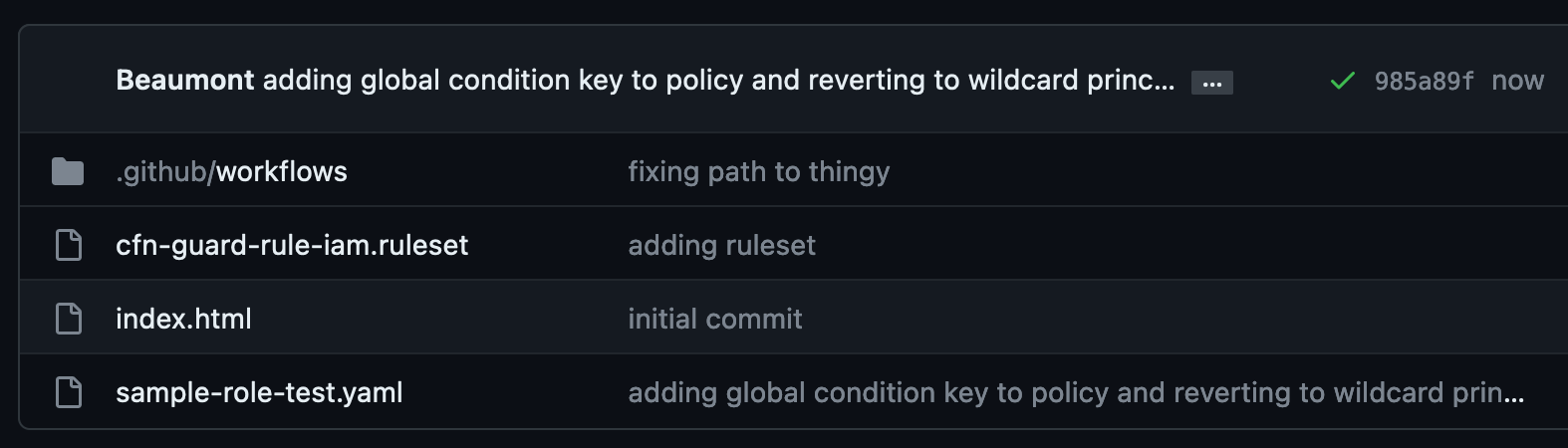
Figure 6: GitHub repository window with the green tick workflow indicator

Figure 6: GitHub repository window with the green tick workflow indicator

This indicates that no blocking findings were identified, as shown in Figure 7.
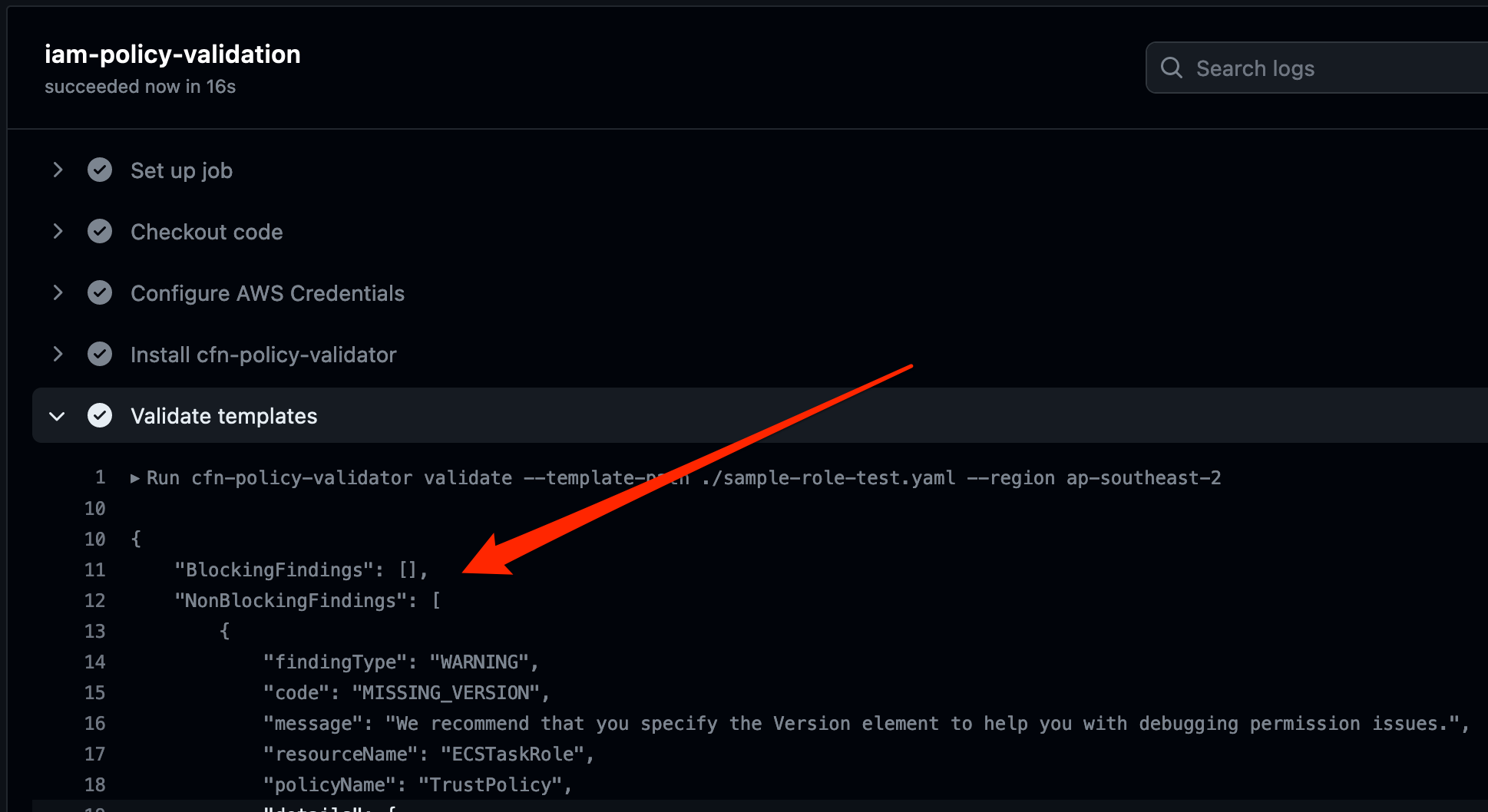
Figure 7: Detailed logs from the workflow showing no more blocking findings

Figure 7: Detailed logs from the workflow showing no more blocking findings

Conclusion

In this post, I showed you how to automate IAM policy validation by using GitHub Actions and the IAM Policy Validator for CloudFormation. Although the example was a simple one, it demonstrates the benefits of automating security testing at the start of the development lifecycle. This is often referred to as shifting security left. Identifying misconfigurations early and automatically supports an iterative, fail-fast model of continuous development and testing. Ultimately, this enables teams to make security an inherent part of a system’s design and architecture and can speed up product development workflows.

In addition to the example I covered today, IAM Policy Validator for CloudFormation can validate IAM policies by using a range of IAM Access Analyzer policy checks. For more information about these policy checks, see Access Analyzer reference policy checks.

 
If you have feedback about this post, submit comments in the Comments section below. If you have questions about this post, contact AWS Support.

Want more AWS Security news? Follow us on Twitter.
Mitch Beaumont

Mitch Beaumont

Mitch is a Principal Solutions Architect for Amazon Web Services, based in Sydney, Australia. Mitch works with some of Australia’s largest financial services customers, helping them to continually raise the security bar for the products and features that they build and ship. Outside of work, Mitch enjoys spending time with his family, photography, and surfing.

Integrating with GitHub Actions – CI/CD pipeline to deploy a Web App to Amazon EC2

Post Syndicated from Mahesh Biradar original https://aws.amazon.com/blogs/devops/integrating-with-github-actions-ci-cd-pipeline-to-deploy-a-web-app-to-amazon-ec2/

Many Organizations adopt DevOps Practices to innovate faster by automating and streamlining the software development and infrastructure management processes. Beyond cultural adoption, DevOps also suggests following certain best practices and Continuous Integration and Continuous Delivery (CI/CD) is among the important ones to start with. CI/CD practice reduces the time it takes to release new software updates by automating deployment activities. Many tools are available to implement this practice. Although AWS has a set of native tools to help achieve your CI/CD goals, it also offers flexibility and extensibility for integrating with numerous third party tools.

In this post, you will use GitHub Actions to create a CI/CD workflow and AWS CodeDeploy to deploy a sample Java SpringBoot application to Amazon Elastic Compute Cloud (Amazon EC2) instances in an Autoscaling group.

GitHub Actions is a feature on GitHub’s popular development platform that helps you automate your software development workflows in the same place that you store code and collaborate on pull requests and issues. You can write individual tasks called actions, and then combine them to create a custom workflow. Workflows are custom automated processes that you can set up in your repository to build, test, package, release, or deploy any code project on GitHub.

AWS CodeDeploy is a deployment service that automates application deployments to Amazon EC2 instances, on-premises instances, serverless AWS Lambda functions, or Amazon Elastic Container Service (Amazon ECS) services.

Solution Overview

The solution utilizes the following services:

  1. GitHub Actions – Workflow Orchestration tool that will host the Pipeline.
  2. AWS CodeDeploy – AWS service to manage deployment on Amazon EC2 Autoscaling Group.
  3. AWS Auto Scaling – AWS Service to help maintain application availability and elasticity by automatically adding or removing Amazon EC2 instances.
  4. Amazon EC2 – Destination Compute server for the application deployment.
  5. AWS CloudFormation – AWS infrastructure as code (IaC) service used to spin up the initial infrastructure on AWS side.
  6. IAM OIDC identity provider – Federated authentication service to establish trust between GitHub and AWS to allow GitHub Actions to deploy on AWS without maintaining AWS Secrets and credentials.
  7. Amazon Simple Storage Service (Amazon S3) – Amazon S3 to store the deployment artifacts.

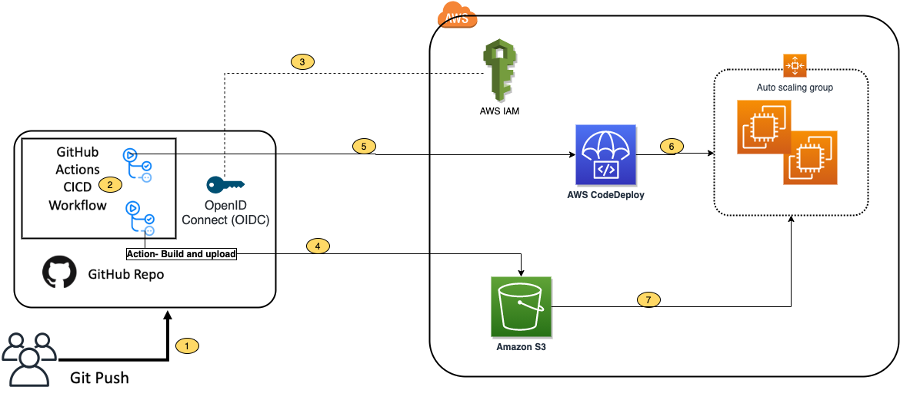
The following diagram illustrates the architecture for the solution:

Architecture Diagram

  1. Developer commits code changes from their local repo to the GitHub repository. In this post, the GitHub action is triggered manually, but this can be automated.
  2. GitHub action triggers the build stage.
  3. GitHub’s Open ID Connector (OIDC) uses the tokens to authenticate to AWS and access resources.
  4. GitHub action uploads the deployment artifacts to Amazon S3.
  5. GitHub action invokes CodeDeploy.
  6. CodeDeploy triggers the deployment to Amazon EC2 instances in an Autoscaling group.
  7. CodeDeploy downloads the artifacts from Amazon S3 and deploys to Amazon EC2 instances.

Prerequisites

Before you begin, you must complete the following prerequisites:

  • An AWS account with permissions to create the necessary resources.
  • A GitHub account with permissions to configure GitHub repositories, create workflows, and configure GitHub secrets.
  • A Git client to clone the provided source code.

Steps

The following steps provide a high-level overview of the walkthrough:

  1. Clone the project from the AWS code samples repository.
  2. Deploy the AWS CloudFormation template to create the required services.
  3. Update the source code.
  4. Setup GitHub secrets.
  5. Integrate CodeDeploy with GitHub.
  6. Trigger the GitHub Action to build and deploy the code.
  7. Verify the deployment.

Download the source code

  1. Clone the source code repository aws-codedeploy-github-actions-deployment.

git clone https://github.com/aws-samples/aws-codedeploy-github-actions-deployment.git

  1. Create an empty repository in your personal GitHub account. To create a GitHub repository, see Create a repo. Clone this repo to your computer. Furthermore, ignore the warning about cloning an empty repository.

git clone https://github.com/<username>/<repoName>.git

Figure2: Github Clone

  1. Copy the code. We need contents from the hidden .github folder for the GitHub actions to work.

cp -r aws-codedeploy-github-actions-deployment/. <new repository>

e.g. GitActionsDeploytoAWS

  1. Now you should have the following folder structure in your local repository.

Figure3: Directory Structure

Repository folder structure

  • The .github folder contains actions defined in the YAML file.
  • The aws/scripts folder contains code to run at the different deployment lifecycle events.
  • The cloudformation folder contains the template.yaml file to create the required AWS resources.
  • Spring-boot-hello-world-example is a sample application used by GitHub actions to build and deploy.
  • Root of the repo contains appspec.yml. This file is required by CodeDeploy to perform deployment on Amazon EC2. Find more details here.

The following commands will help make sure that your remote repository points to your personal GitHub repository.

git remote remove origin

git remote add origin <your repository url>

git branch -M main

git push -u origin main

Deploy the CloudFormation template

To deploy the CloudFormation template, complete the following steps:

  1. Open AWS CloudFormation console. Enter your account ID, user name, and Password.
  2. Check your region, as this solution uses us-east-1.
  3. If this is a new AWS CloudFormation account, select Create New Stack. Otherwise, select Create Stack.
  4. Select Template is Ready
  5. Select Upload a template file
  6. Select Choose File. Navigate to template.yml file in your cloned repository at “aws-codedeploy-github-actions-deployment/cloudformation/template.yaml”.
  7. Select the template.yml file, and select next.
  8. In Specify Stack Details, add or modify the values as needed.
    • Stack name = CodeDeployStack.
    • VPC and Subnets = (these are pre-populated for you) you can change these values if you prefer to use your own Subnets)
    • GitHubThumbprintList = 6938fd4d98bab03faadb97b34396831e3780aea1
    • GitHubRepoName – Name of your GitHub personal repository which you created.

Figure4: CloudFormation Parameters

  1. On the Options page, select Next.
  2. Select the acknowledgement box to allow for the creation of IAM resources, and then select Create. It will take CloudFormation approximately 10 minutes to create all of the resources. This stack would create the following resources.
    • Two Amazon EC2 Linux instances with Tomcat server and CodeDeploy agent are installed
    • Autoscaling group with Internet Application load balancer
    • CodeDeploy application name and deployment group
    • Amazon S3 bucket to store build artifacts
    • Identity and Access Management (IAM) OIDC identity provider
    • Instance profile for Amazon EC2
    • Service role for CodeDeploy
    • Security groups for ALB and Amazon EC2

Update the source code

  1.  On the AWS CloudFormation console, select the Outputs tab. Note that the Amazon S3 bucket name and the ARM of the GitHub IAM Role. We will use this in the next step.

Figure5: CloudFormation Output

  1. Update the Amazon S3 bucket in the workflow file deploy.yml. Navigate to /.github/workflows/deploy.yml from your Project root directory.

Replace ##s3-bucket## with the name of the Amazon S3 bucket created previously.

Replace ##region## with your AWS Region.

Figure6: Actions YML

  1. Update the Amazon S3 bucket name in after-install.sh. Navigate to aws/scripts/after-install.sh. This script would copy the deployment artifact from the Amazon S3 bucket to the tomcat webapps folder.

Figure7: CodeDeploy Instruction

Remember to save all of the files and push the code to your GitHub repo.

  1. Verify that you’re in your git repository folder by running the following command:

git remote -V

You should see your remote branch address, which is similar to the following:

username@3c22fb075f8a GitActionsDeploytoAWS % git remote -v

origin [email protected]:<username>/GitActionsDeploytoAWS.git (fetch)

origin [email protected]:<username>/GitActionsDeploytoAWS.git (push)

  1. Now run the following commands to push your changes:

git add .

git commit -m “Initial commit”

git push

Setup GitHub Secrets

The GitHub Actions workflows must access resources in your AWS account. Here we are using IAM OpenID Connect identity provider and IAM role with IAM policies to access CodeDeploy and Amazon S3 bucket. OIDC lets your GitHub Actions workflows access resources in AWS without needing to store the AWS credentials as long-lived GitHub secrets.

These credentials are stored as GitHub secrets within your GitHub repository, under Settings > Secrets. For more information, see “GitHub Actions secrets”.

  • Navigate to your github repository. Select the Settings tab.
  • Select Secrets on the left menu bar.
  • Select New repository secret.
  • Select Actions under Secrets.
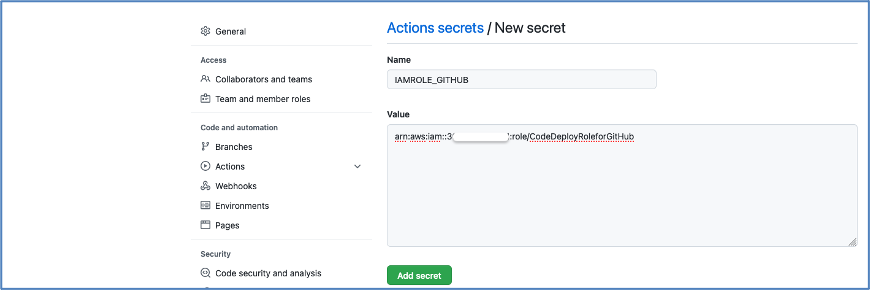
    • Enter the secret name as ‘IAMROLE_GITHUB’.
    • enter the value as ARN of GitHubIAMRole, which you copied from the CloudFormation output section.

Figure8: Adding Github Secrets

Figure9: Adding New Secret

Integrate CodeDeploy with GitHub

For CodeDeploy to be able to perform deployment steps using scripts in your repository, it must be integrated with GitHub.

CodeDeploy application and deployment group are already created for you. Please use these applications in the next step:

CodeDeploy Application =CodeDeployAppNameWithASG

Deployment group = CodeDeployGroupName

To link a GitHub account to an application in CodeDeploy, follow until step 10 from the instructions on this page.

You can cancel the process after completing step 10. You don’t need to create Deployment.

Trigger the GitHub Actions Workflow

Now you have the required AWS resources and configured GitHub to build and deploy the code to Amazon EC2 instances.

The GitHub actions as defined in the GITHUBREPO/.github/workflows/deploy.yml would let us run the workflow. The workflow is currently setup to be manually run.

Follow the following steps to run it manually.

Go to your GitHub Repo and select Actions tab

Figure10: See Actions Tab

Select Build and Deploy link, and select Run workflow as shown in the following image.

Figure11: Running Workflow Manually

After a few seconds, the workflow will be displayed. Then, select Build and Deploy.

Figure12: Observing Workflow

You will see two stages:

  1. Build and Package.
  2. Deploy.

Build and Package

The Build and Package stage builds the sample SpringBoot application, generates the war file, and then uploads it to the Amazon S3 bucket.

Figure13: Completed Workflow

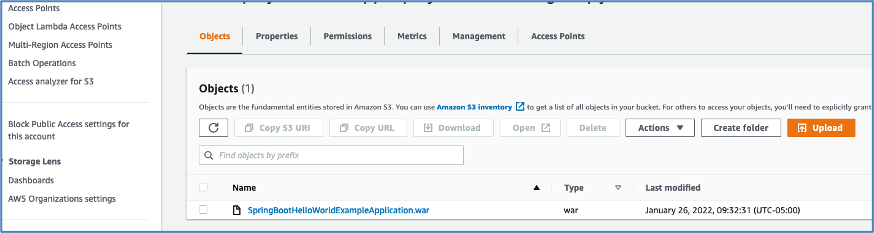
You should be able to see the war file in the Amazon S3 bucket.

Figure14: Artifacts saved in S3

Deploy

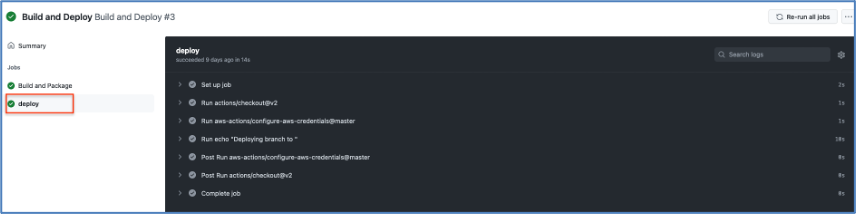
In this stage, workflow would invoke the CodeDeploy service and trigger the deployment.

Figure15: Deploy With Actions

Verify the deployment

Log in to the AWS Console and navigate to the CodeDeploy console.

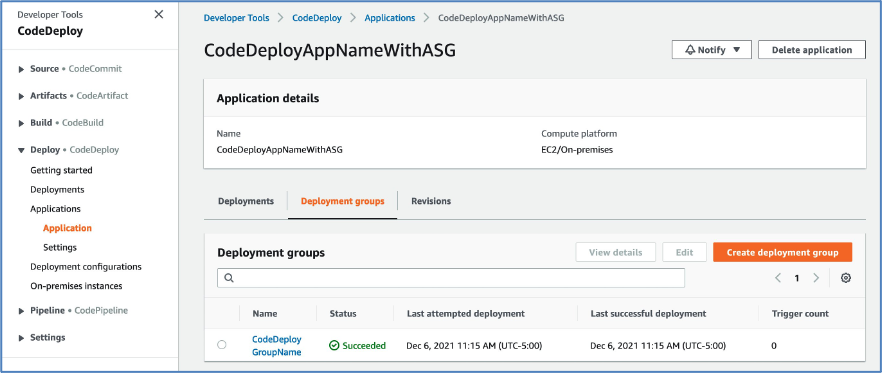
Select the Application name and deployment group. You will see the status as Succeeded if the deployment is successful.

Figure16: Verifying Deployment

Point your browsers to the URL of the Application Load balancer.

Note: You can get the URL from the output section of the CloudFormation stack or Amazon EC2 console Load Balancers.

Figure17: Verifying Application

Optional – Automate the deployment on Git Push

Workflow can be automated by changing the following line of code in your .github/workflow/deploy.yml file.

From

workflow_dispatch: {}

To


  #workflow_dispatch: {}
  push:
    branches: [ main ]
  pull_request:

This will be interpreted by GitHub actions to automaticaly run the workflows on every push or pull requests done on the main branch.

After testing end-to-end flow manually, you can enable the automated deployment.

Clean up

To avoid incurring future changes, you should clean up the resources that you created.

  1. Empty the Amazon S3 bucket:
  2. Delete the CloudFormation stack (CodeDeployStack) from the AWS console.
  3. Delete the GitHub Secret (‘IAMROLE_GITHUB’)
    1. Go to the repository settings on GitHub Page.
    2. Select Secrets under Actions.
    3. Select IAMROLE_GITHUB, and delete it.

Conclusion

In this post, you saw how to leverage GitHub Actions and CodeDeploy to securely deploy Java SpringBoot application to Amazon EC2 instances behind AWS Autoscaling Group. You can further add other stages to your pipeline, such as Test and security scanning.

Additionally, this solution can be used for other programming languages.

About the Authors

Mahesh Biradar is a Solutions Architect at AWS. He is a DevOps enthusiast and enjoys helping customers implement cost-effective architectures that scale.
Suresh Moolya is a Cloud Application Architect with Amazon Web Services. He works with customers to architect, design, and automate business software at scale on AWS cloud.