Tag Archives: data discovery

Enabling conversational data discovery with LLMs at Grab

Post Syndicated from Grab Tech original https://engineering.grab.com/hubble-data-discovery

Imagine a world where finding the right data is like searching for a needle in a haystack. In today’s data-driven landscape, companies are drowning in a sea of information, struggling to navigate through countless datasets to uncover valuable insights. At Grab, we faced a similar challenge. With over 200,000 tables in our data lake, along with numerous Kafka streams, production databases, and ML features, locating the most suitable dataset for our Grabber’s use cases promptly has historically been a significant hurdle.

Problem Space

Our internal data discovery tool, Hubble, built on top of the popular open-source platform Datahub, was primarily used as a reference tool. While it excelled at providing metadata for known datasets, it struggled with true data discovery due to its reliance on Elasticsearch, which performs well for keyword searches but cannot accept and use user-provided context (i.e., it can’t perform semantic search, at least in its vanilla form). The Elasticsearch parameters provided by Datahub out of the box also had limitations: our monthly average click-through rate was only 82%, meaning that in 18% of sessions, users abandoned their searches without clicking on any dataset. This suggested that the search results were not meeting their needs.

Another indispensable requirement for efficient data discovery that was missing at Grab was documentation. Documentation coverage for our data lake tables was low, with only 20% of the most frequently queried tables (colloquially referred to as P80 tables) having existing documentation. This made it difficult for users to understand the purpose and contents of different tables, even when browsing through them on the Hubble UI.

Consequently, data consumers heavily relied on tribal knowledge, often turning to their colleagues via Slack to find the datasets they needed. A survey conducted last year revealed that 51% of data consumers at Grab took multiple days to find the dataset they required, highlighting the inefficiencies in our data discovery process.

To address these challenges and align with Grab’s ongoing journey towards a data mesh architecture, the Hubble team recognised the importance of improving data discovery. We embarked on a journey to revolutionise the way our employees find and access the data they need, leveraging the power of AI and Large Language Models (LLMs).

Vision

Given the historical context, our vision was clear: to remove humans in the data discovery loop by automating the entire process using LLM-powered products. We aimed to reduce the time taken for data discovery from multiple days to mere seconds, eliminating the need for anyone to ask their colleagues data discovery questions ever again.


Goals

To achieve our vision, we set the following goals for ourselves for the first half of 2024:

  • Build HubbleIQ: An LLM-based chatbot that could serve as the equivalent of a Lead Data Analyst for data discovery. Just as a lead is an expert in their domain and can guide data consumers to the right dataset, we wanted HubbleIQ to do the same across all domains at Grab. We also wanted HubbleIQ to be accessible where data consumers hang out the most: Slack.
  • Improve documentation coverage: A new Lead Analyst joining the team would require extensive documentation coverage of very high quality. Without this, they wouldn’t know what data exists and where. Thus, it was important for us to improve documentation coverage.
  • Enhance Elasticsearch: We aimed to tune our Elasticsearch implementation to better meet the requirements of Grab’s data consumers.

A Systematic Path to Success

Step 1: Enhance Elasticsearch

Through clickstream analysis and user interviews, the Hubble team identified four categories of data search queries that were seen either on the Hubble UI or in Slack channels:

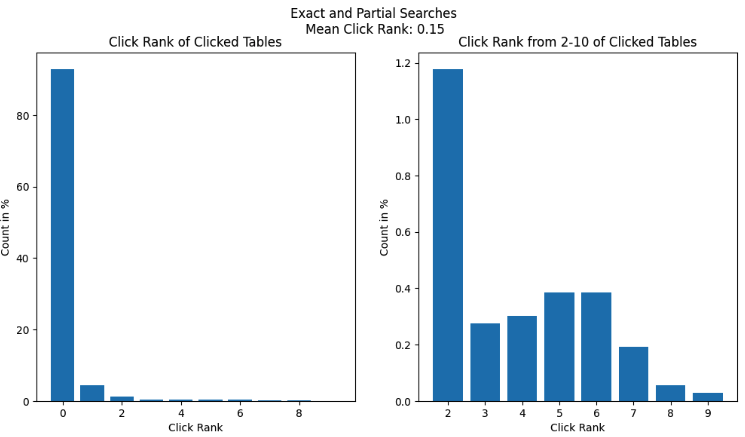
  • Exact search: Queries belonging to this category were a substring of an existing dataset’s name at Grab, with the query length being at least 40% of the dataset’s name.
  • Partial search: The Levenshtein distance between a query in this category and any existing dataset’s name was greater than 80. This category usually comprised queries that closely resembled an existing dataset name but likely contained spelling mistakes or were shorter than the actual name.

Exact and partial searches accounted for 75% of searches on Hubble (and were non-existent on Slack: as a human, receiving a message that just had the name of a dataset would feel rather odd). Given the effectiveness of vanilla Elasticsearch for these categories, the click rank was close to 0.

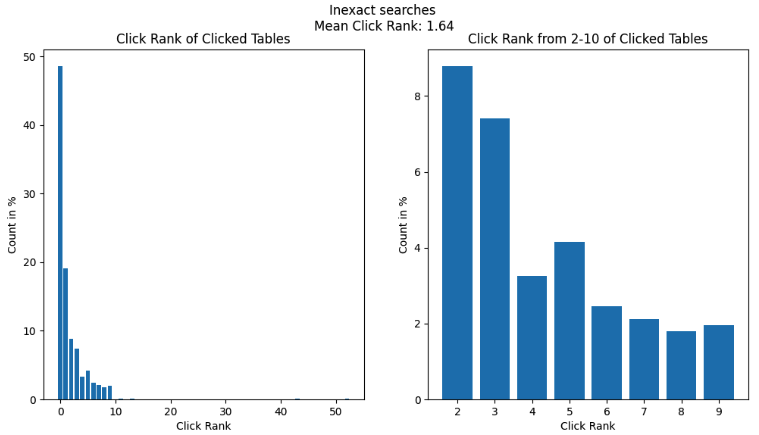
  • Inexact search: This category comprised queries that were usually colloquial keywords or phrases that may be semantically related to a given table, column, or piece of documentation (e.g., “city” or “taxi type”). Inexact searches accounted for the remaining 25% of searches on Hubble. Vanilla Elasticsearch did not perform well in this category since it relied on pure keyword matching and did not consider any additional context.
  • Semantic search: These were free text queries with abundant contextual information supplied by the user. Hubble did not see any such queries as users rightly expected that Hubble would not be able to fulfil their search needs. Instead, these queries were sent by data consumers to data producers via Slack. Such queries were numerous, but usually resulted in data hunting journeys that spanned multiple days – the root of frustration amongst data consumers.

The first two search types can be seen as “reference” queries, where the data consumer already knows what they are looking for. Inexact and contextual searches are considered “discovery” queries. The Hubble team noticed drop-offs in inexact searches because users learned that Hubble could not fulfil their discovery needs, forcing them to search for alternatives.

Through user interviews, the team discovered how Elasticsearch should be tuned to better fit the Grab context. They implemented the following optimisations:

  • Tagging and boosting P80 tables
  • Boosting the most relevant schemas
  • Hiding irrelevant datasets like PowerBI dataset tables
  • Deboosting deprecated tables
  • Improving the search UI by simplifying and reducing clutter
  • Adding relevant tags
  • Boosting certified tables

As a result of these enhancements, the click-through rate rose steadily over the course of the half to 94%, a 12 percentage point increase.

While this helped us make significant improvements to the first three search categories, we knew we had to build HubbleIQ to truly automate the last category – semantic search.

Step 2: Build a Context Store for HubbleIQ

To support HubbleIQ, we built a documentation generation engine that used GPT-4 to generate documentation based on table schemas and sample data. We refined the prompt through multiple iterations of feedback from data producers.

We added a “generate” button on the Hubble UI, allowing data producers to easily generate documentation for their tables. This feature also supported the ongoing Grab-wide initiative to certify tables.
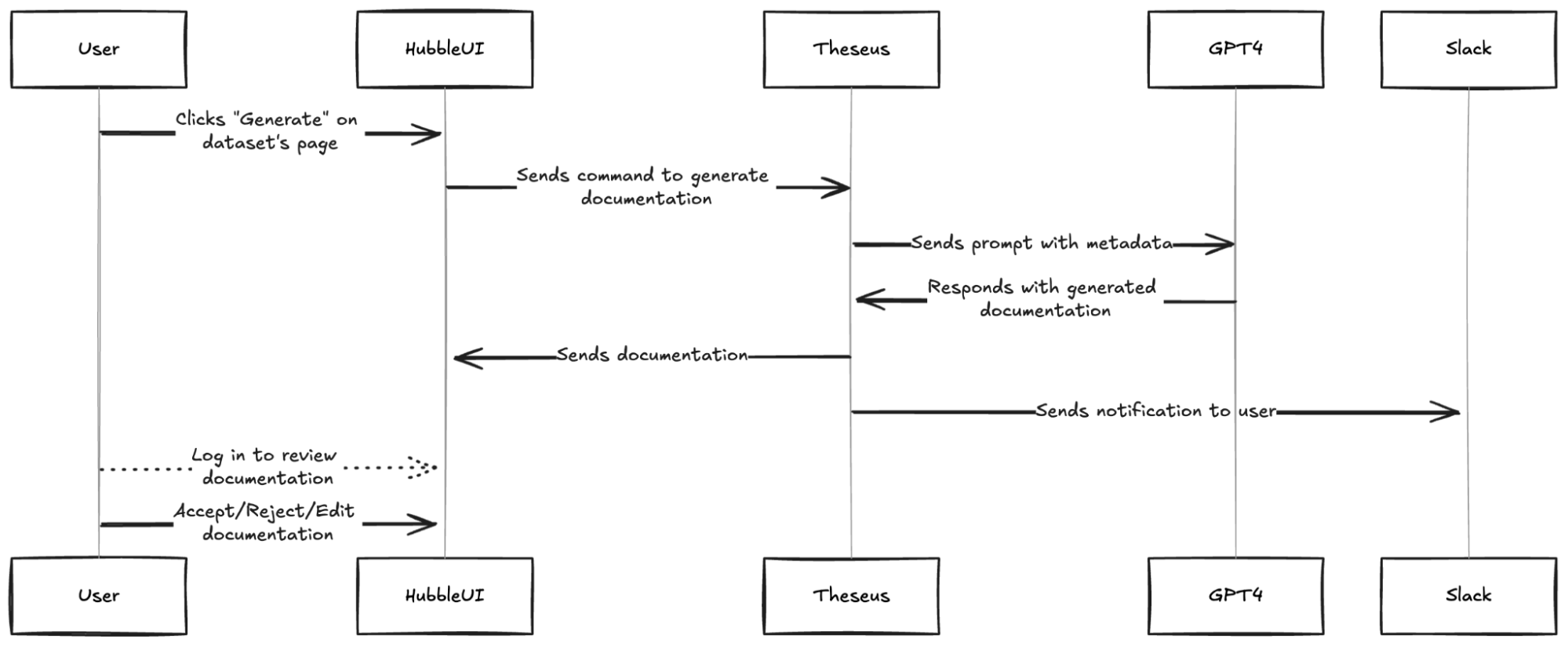

In conjunction, we took the initiative to pre-populate docs for the most critical tables, while notifying data producers to review the generated documentation. Such docs were visible to data consumers with an “AI-generated” tag as a precaution. When data producers accepted or edited the documentation, the tag was removed.
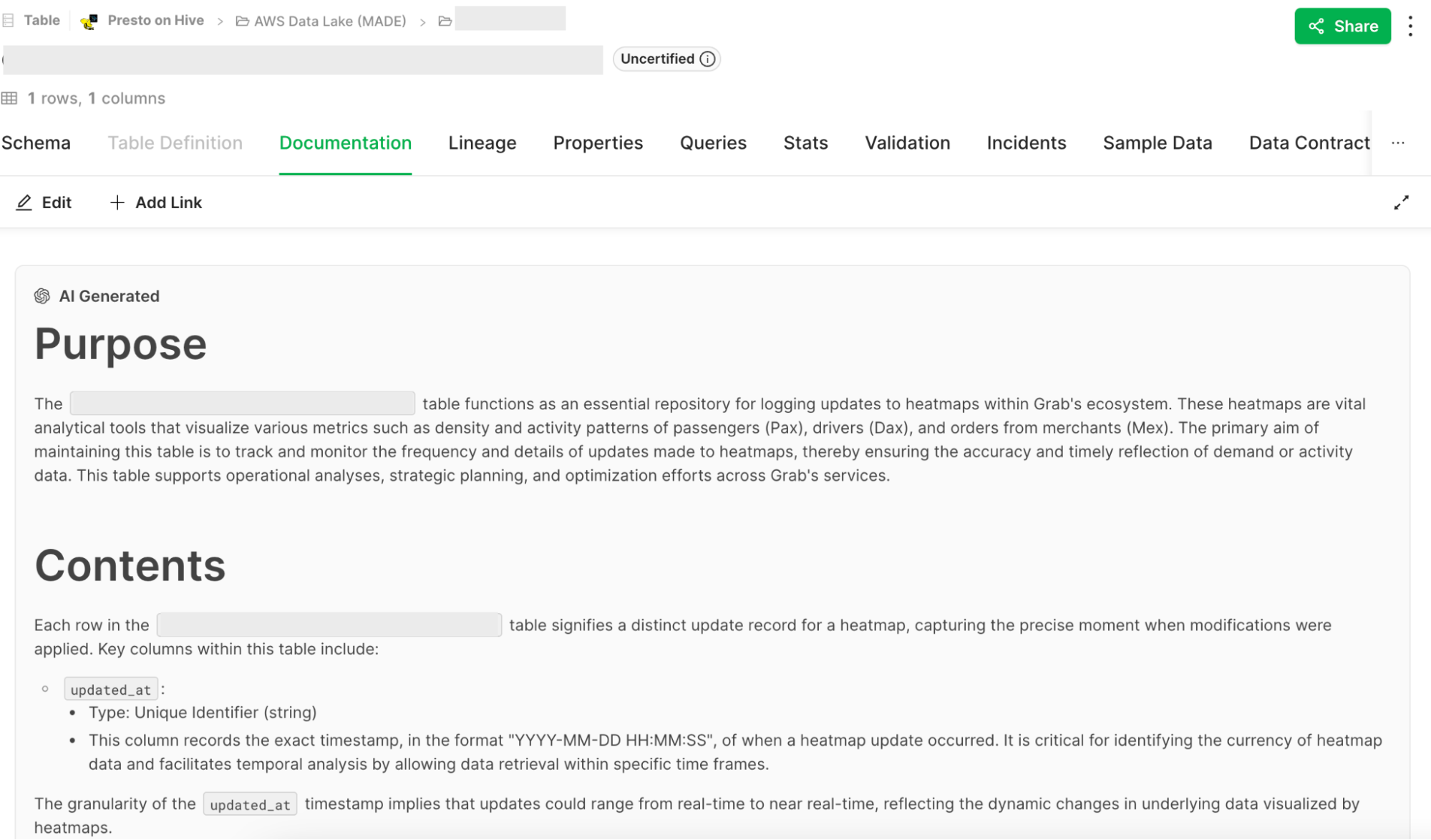

As a result, documentation coverage for P80 tables increased by 70 percentage points to ~90%. User feedback showed that ~95% of users found the generated docs useful.

Step 3: Build and Launch HubbleIQ

With high documentation coverage in place, we were ready to harness the power of LLMs for data discovery. To speed up go-to-market, we decided to leverage Glean, an enterprise search tool used by Grab.

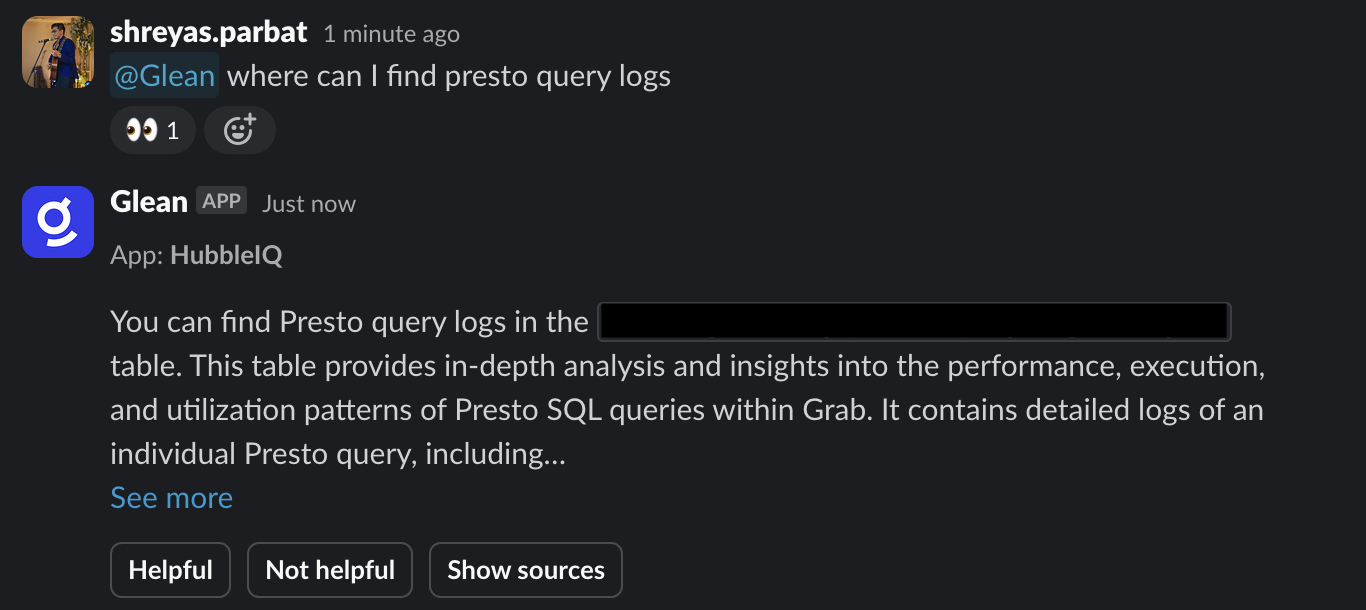
First, we integrated Hubble with Glean, making all data lake tables with documentation available on the Glean platform. Next, we used Glean Apps to create the HubbleIQ bot, which was essentially an LLM with a custom system prompt that could access all Hubble datasets that were catalogued on Glean. Finally, we integrated this bot into Hubble search, such that for any search that is likely to be a semantic search, HubbleIQ results are shown on top, followed by regular search results.
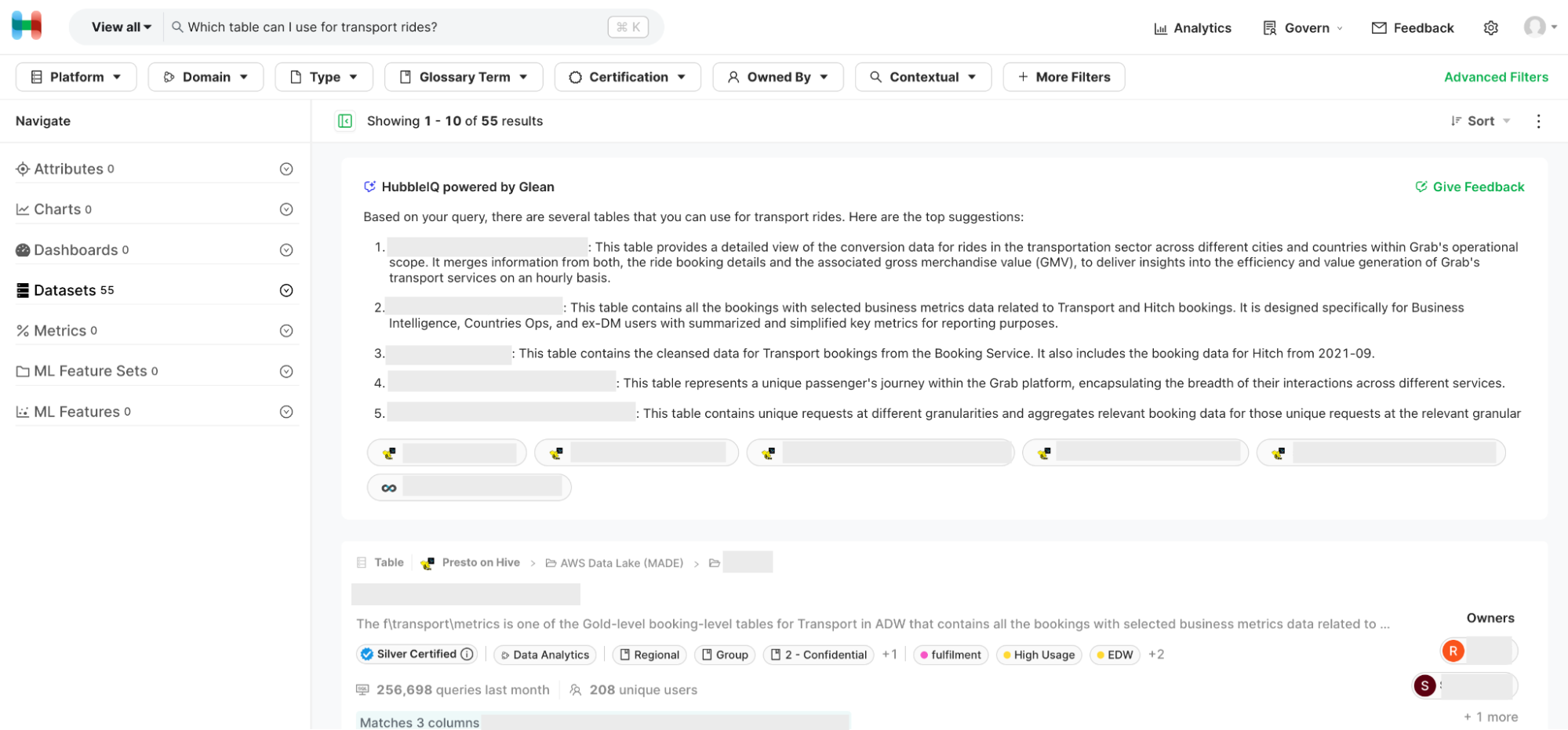

Recently, we integrated HubbleIQ with Slack, allowing data consumers to discover datasets without breaking their flow. Currently, we are working with analytics teams to add the bot to their “ask” channels (where data consumers come to ask contextual search queries for their domains). After integration, HubbleIQ will act as the first line of defence for answering questions in these channels, reducing the need for human intervention.

The impact of these improvements was significant. A follow-up survey revealed that 73% of respondents found it easy to discover datasets, marking a substantial 17 percentage point increase from the previous survey. Moreover, Hubble reached an all-time high in monthly active users, demonstrating the effectiveness of the enhancements made to the platform.

Next Steps

We’ve made significant progress towards our vision, but there’s still work to be done. Looking ahead, we have several exciting initiatives planned to further enhance data discovery at Grab.

On the documentation generation front, we aim to enrich the generator with more context, enabling it to produce even more accurate and relevant documentation. We also plan to streamline the process by allowing analysts to auto-update data docs based on Slack threads directly from Slack. To ensure the highest quality of documentation, we will develop an evaluator model that leverages LLMs to assess the quality of both human and AI-written docs. Additionally, we will implement Reflexion, an agentic workflow that utilises the outputs from the doc evaluator to iteratively regenerate docs until a quality benchmark is met or a maximum try-limit is reached.

As for HubbleIQ, our focus will be on continuous improvement. We’ve already added support for metric datasets and are actively working on incorporating other types of datasets as well. To provide a more seamless user experience, we will enable users to ask follow-up questions to HubbleIQ directly on the HubbleUI, with the system intelligently pulling additional metadata when a user mentions a specific dataset.

Conclusion

By harnessing the power of AI and LLMs, the Hubble team has made significant strides in improving documentation coverage, enhancing search capabilities, and drastically reducing the time taken for data discovery. While our efforts so far have been successful, there are still steps to be taken before we fully achieve our vision of completely replacing the reliance on data producers for data discovery. Nonetheless, with our upcoming initiatives and the groundwork we have laid, we are confident that we will continue to make substantial progress in the right direction over the next few production cycles.

As we forge ahead, we remain dedicated to refining and expanding our AI-powered data discovery tools, ensuring that Grabbers have every dataset they need to drive Grab’s success at their fingertips. The future of data discovery at Grab is brimming with possibilities, and the Hubble team is thrilled to be at the forefront of this exciting journey.

To our readers, we hope that our journey has inspired you to explore how you can leverage the power of AI to transform data discovery within your own organisations. The challenges you face may be unique, but the principles and strategies we have shared can serve as a foundation for your own data discovery revolution. By embracing innovation, focusing on user needs, and harnessing the potential of cutting-edge technologies, you too can unlock the full potential of your data and propel your organisation to new heights. The future of data-driven innovation is here, and we invite you to join us on this exhilarating journey.

Join us

Grab is the leading superapp platform in Southeast Asia, providing everyday services that matter to consumers. More than just a ride-hailing and food delivery app, Grab offers a wide range of on-demand services in the region, including mobility, food, package and grocery delivery services, mobile payments, and financial services across 700 cities in eight countries.

Powered by technology and driven by heart, our mission is to drive Southeast Asia forward by creating economic empowerment for everyone. If this mission speaks to you, join our team today!
Use Macie to discover sensitive data as part of automated data pipelines

Post Syndicated from Brandon Wu original https://aws.amazon.com/blogs/security/use-macie-to-discover-sensitive-data-as-part-of-automated-data-pipelines/

Data is a crucial part of every business and is used for strategic decision making at all levels of an organization. To extract value from their data more quickly, Amazon Web Services (AWS) customers are building automated data pipelines—from data ingestion to transformation and analytics. As part of this process, my customers often ask how to prevent sensitive data, such as personally identifiable information, from being ingested into data lakes when it’s not needed. They highlight that this challenge is compounded when ingesting unstructured data—such as files from process reporting, text files from chat transcripts, and emails. They also mention that identifying sensitive data inadvertently stored in structured data fields—such as in a comment field stored in a database—is also a challenge.

In this post, I show you how to integrate Amazon Macie as part of the data ingestion step in your data pipeline. This solution provides an additional checkpoint that sensitive data has been appropriately redacted or tokenized prior to ingestion. Macie is a fully managed data security and privacy service that uses machine learning and pattern matching to discover sensitive data in AWS.

When Macie discovers sensitive data, the solution notifies an administrator to review the data and decide whether to allow the data pipeline to continue ingesting the objects. If allowed, the objects will be tagged with an Amazon Simple Storage Service (Amazon S3) object tag to identify that sensitive data was found in the object before progressing to the next stage of the pipeline.

This combination of automation and manual review helps reduce the risk that sensitive data—such as personally identifiable information—will be ingested into a data lake. This solution can be extended to fit your use case and workflows. For example, you can define custom data identifiers as part of your scans, add additional validation steps, create Macie suppression rules to archive findings automatically, or only request manual approvals for findings that meet certain criteria (such as high severity findings).

Solution overview

Many of my customers are building serverless data lakes with Amazon S3 as the primary data store. Their data pipelines commonly use different S3 buckets at each stage of the pipeline. I refer to the S3 bucket for the first stage of ingestion as the raw data bucket. A typical pipeline might have separate buckets for raw, curated, and processed data representing different stages as part of their data analytics pipeline.

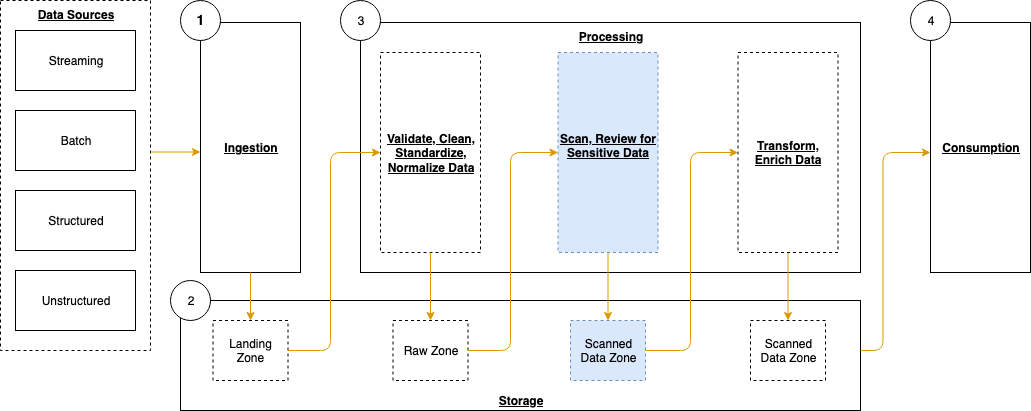
Typically, customers will perform validation and clean their data before moving it to a raw data zone. This solution adds validation steps to that pipeline after preliminary quality checks and data cleaning is performed, noted in blue (in layer 3) of Figure 1. The layers outlined in the pipeline are:

  1. Ingestion – Brings data into the data lake.
  2. Storage – Provides durable, scalable, and secure components to store the data—typically using S3 buckets.
  3. Processing – Transforms data into a consumable state through data validation, cleanup, normalization, transformation, and enrichment. This processing layer is where the additional validation steps are added to identify instances of sensitive data that haven’t been appropriately redacted or tokenized prior to consumption.
  4. Consumption – Provides tools to gain insights from the data in the data lake.


Figure 1: Data pipeline with sensitive data scan

Figure 1: Data pipeline with sensitive data scan

The application runs on a scheduled basis (four times a day, every 6 hours by default) to process data that is added to the raw data S3 bucket. You can customize the application to perform a sensitive data discovery scan during any stage of the pipeline. Because most customers do their extract, transform, and load (ETL) daily, the application scans for sensitive data on a scheduled basis before any crawler jobs run to catalog the data and after typical validation and data redaction or tokenization processes complete.

You can expect that this additional validation will add 5–10 minutes to your pipeline execution at a minimum. The validation processing time will scale linearly based on object size, but there is a start-up time per job that is constant.

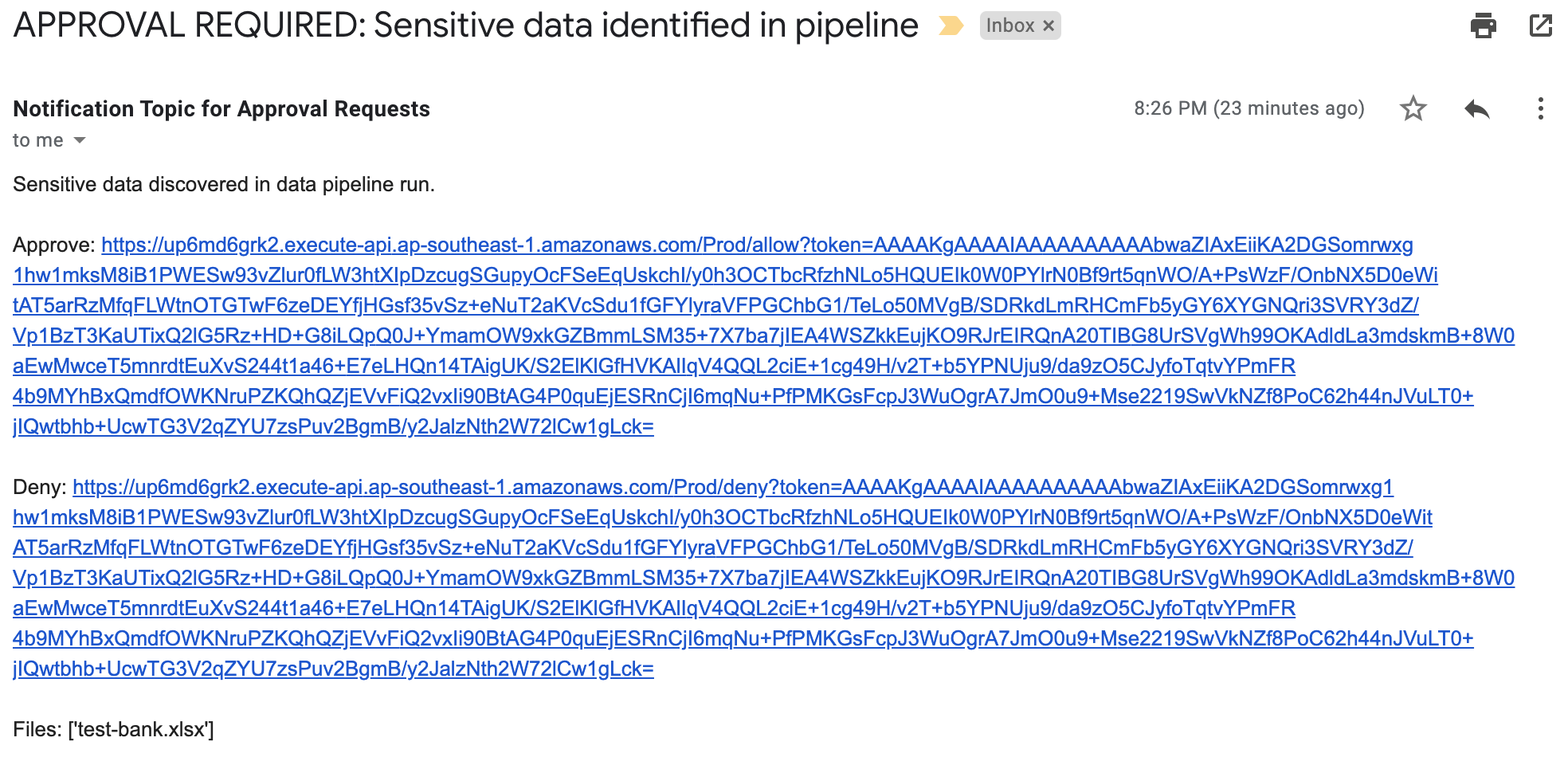
If sensitive data is found in the objects, an email is sent to the designated administrator requesting an approval decision, which they indicate by selecting the link corresponding to their decision to approve or deny the next step. In most cases, the reviewer will choose to adjust the sensitive data cleanup processes to remove the sensitive data, deny the progression of the files, and re-ingest the files in the pipeline.

Additional considerations for deploying this application for regular use are discussed at the end of the blog post.

Application components

The following resources are created as part of the application:

Note: the application uses various AWS services, and there are costs associated with these resources after the Free Tier usage. See AWS Pricing for details. The primary drivers of the solution cost will be the amount of data ingested through the pipeline, both for Amazon S3 storage and data processed for sensitive data discovery with Macie.

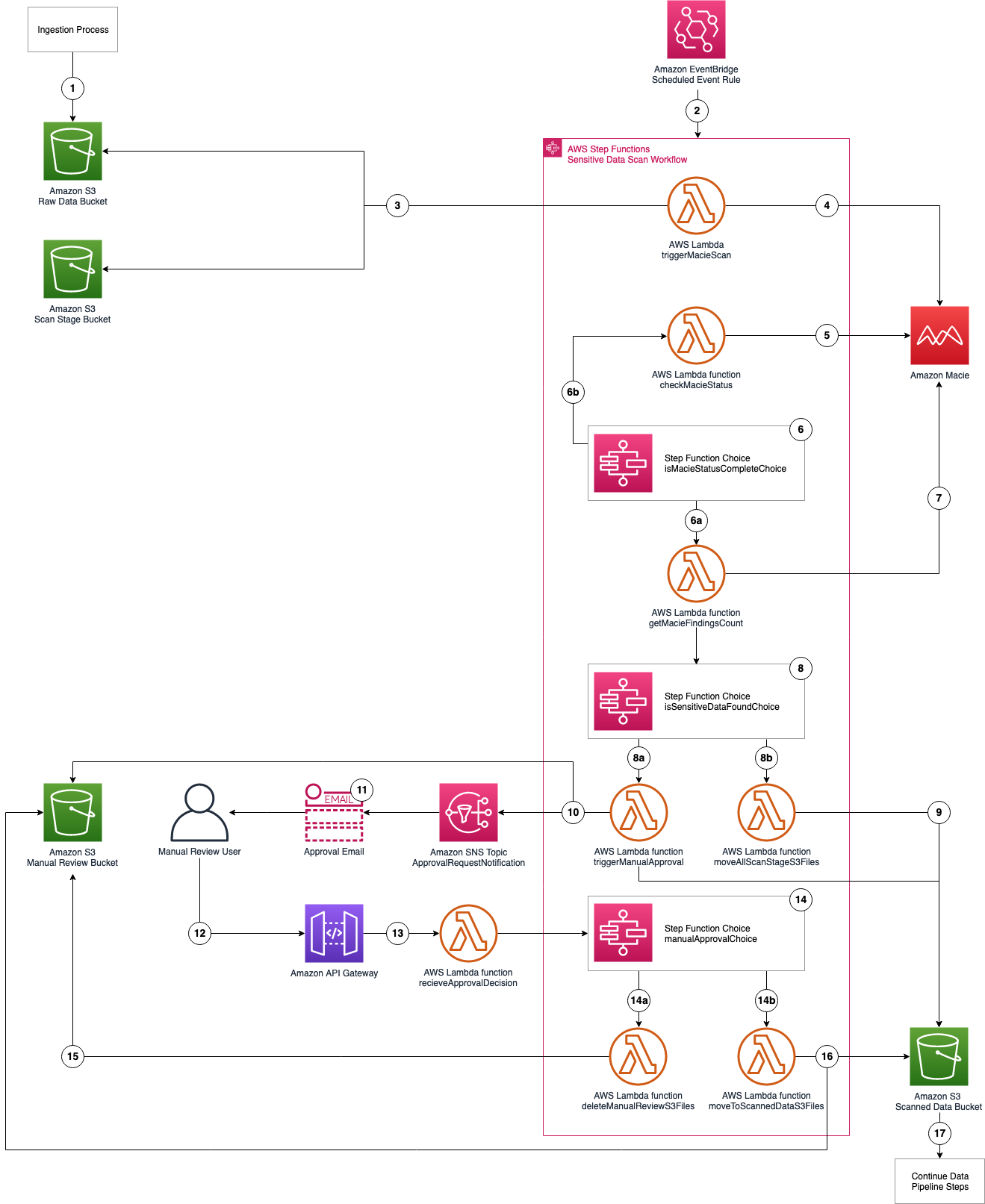
The architecture of the application is shown in Figure 2 and described in the text that follows.
 

Figure 2: Application architecture and logic

Figure 2: Application architecture and logic

Application logic

  1. Objects are uploaded to the raw data S3 bucket as part of the data ingestion process.
  2. A scheduled EventBridge rule runs the sensitive data scan Step Functions workflow.
  3. triggerMacieScan Lambda function moves objects from the raw data S3 bucket to the scan stage S3 bucket.
  4. triggerMacieScan Lambda function creates a Macie sensitive data discovery job on the scan stage S3 bucket.
  5. checkMacieStatus Lambda function checks the status of the Macie sensitive data discovery job.
  6. isMacieStatusCompleteChoice Step Functions Choice state checks whether the Macie sensitive data discovery job is complete.
    1. If yes, the getMacieFindingsCount Lambda function runs.
    2. If no, the Step Functions Wait state waits 60 seconds and then restarts Step 5.
  7. getMacieFindingsCount Lambda function counts all of the findings from the Macie sensitive data discovery job.
  8. isSensitiveDataFound Step Functions Choice state checks whether sensitive data was found in the Macie sensitive data discovery job.
    1. If there was sensitive data discovered, run the triggerManualApproval Lambda function.
    2. If there was no sensitive data discovered, run the moveAllScanStageS3Files Lambda function.
  9. moveAllScanStageS3Files Lambda function moves all of the objects from the scan stage S3 bucket to the scanned data S3 bucket.
  10. triggerManualApproval Lambda function tags and moves objects with sensitive data discovered to the manual review S3 bucket, and moves objects with no sensitive data discovered to the scanned data S3 bucket. The function then sends a notification to the ApprovalRequestNotification Amazon SNS topic as a notification that manual review is required.
  11. Email is sent to the email address that’s subscribed to the ApprovalRequestNotification Amazon SNS topic (from the application deployment template) for the manual review user with the option to Approve or Deny pipeline ingestion for these objects.
  12. Manual review user assesses the objects with sensitive data in the manual review S3 bucket and selects the Approve or Deny links in the email.
  13. The decision request is sent from the Amazon API Gateway to the receiveApprovalDecision Lambda function.
  14. manualApprovalChoice Step Functions Choice state checks the decision from the manual review user.
    1. If denied, run the deleteManualReviewS3Files Lambda function.
    2. If approved, run the moveToScannedDataS3Files Lambda function.
  15. deleteManualReviewS3Files Lambda function deletes the objects from the manual review S3 bucket.
  16. moveToScannedDataS3Files Lambda function moves the objects from the manual review S3 bucket to the scanned data S3 bucket.
  17. The next step of the automated data pipeline will begin with the objects in the scanned data S3 bucket.

Prerequisites

For this application, you need the following prerequisites:

You can use AWS Cloud9 to deploy the application. AWS Cloud9 includes the AWS CLI and AWS SAM CLI to simplify setting up your development environment.

Deploy the application with AWS SAM CLI

You can deploy this application using the AWS SAM CLI. AWS SAM uses AWS CloudFormation as the underlying deployment mechanism. AWS SAM is an open-source framework that you can use to build serverless applications on AWS.

To deploy the application

  1. Initialize the serverless application using the AWS SAM CLI from the GitHub project in the aws-samples repository. This will clone the project locally which includes the source code for the Lambda functions, Step Functions state machine definition file, and the AWS SAM template. On the command line, run the following:
    sam init --location gh: aws-samples/amazonmacie-datapipeline-scan
    

    Alternatively, you can clone the Github project directly.

  2. Deploy your application to your AWS account. On the command line, run the following:
    sam deploy --guided
    

    Complete the prompts during the guided interactive deployment. The first deployment prompt is shown in the following example.

    Configuring SAM deploy
    ======================
    
            Looking for config file [samconfig.toml] :  Found
            Reading default arguments  :  Success
    
            Setting default arguments for 'sam deploy'
            =========================================
            Stack Name [maciepipelinescan]:
    

  3. Settings:
    • Stack Name – Name of the CloudFormation stack to be created.
    • AWS RegionRegion—for example, us-west-2, eu-west-1, ap-southeast-1—to deploy the application to. This application was tested in the us-west-2 and ap-southeast-1 Regions. Before selecting a Region, verify that the services you need are available in those Regions (for example, Macie and Step Functions).
    • Parameter StepFunctionName – Name of the Step Functions state machine to be created—for example, maciepipelinescanstatemachine).
    • Parameter BucketNamePrefix – Prefix to apply to the S3 buckets to be created (S3 bucket names are globally unique, so choosing a random prefix helps ensure uniqueness).
    • Parameter ApprovalEmailDestination – Email address to receive the manual review notification.
    • Parameter EnableMacie – Whether you need Macie enabled in your account or Region. You can select yes or no; select yes if you need Macie to be enabled for you as part of this template, select no, if you already have Macie enabled.
  4. Confirm changes and provide approval for AWS SAM CLI to deploy the resources to your AWS account by responding y to prompts, as shown in the following example. You can accept the defaults for the SAM configuration file and SAM configuration environment prompts.
    #Shows you resources changes to be deployed and require a 'Y' to initiate deploy
    Confirm changes before deploy [y/N]: y
    #SAM needs permission to be able to create roles to connect to the resources in your template
    Allow SAM CLI IAM role creation [Y/n]: y
    ReceiveApprovalDecisionAPI may not have authorization defined, Is this okay? [y/N]: y
    ReceiveApprovalDecisionAPI may not have authorization defined, Is this okay? [y/N]: y
    Save arguments to configuration file [Y/n]: y
    SAM configuration file [samconfig.toml]: 
    SAM configuration environment [default]:
    

    Note: This application deploys an Amazon API Gateway with two REST API resources without authorization defined to receive the decision from the manual review step. You will be prompted to accept each resource without authorization. A token (Step Functions taskToken) is used to authenticate the requests.

  5. This creates an AWS CloudFormation changeset. Once the changeset creation is complete, you must provide a final confirmation of y to Deploy the changeset? [y/N] when prompted as shown in the following example.
    Changeset created successfully. arn:aws:cloudformation:ap-southeast-1:XXXXXXXXXXXX:changeSet/samcli-deploy1605213119/db681961-3635-4305-b1c7-dcc754c7XXXX
    
    
    Previewing CloudFormation changeset before deployment
    ======================================================
    Deploy this changeset? [y/N]:
    

Your application is deployed to your account using AWS CloudFormation. You can track the deployment events in the command prompt or via the AWS CloudFormation console.

After the application deployment is complete, you must confirm the subscription to the Amazon SNS topic. An email will be sent to the email address entered in Step 3 with a link that you need to select to confirm the subscription. This confirmation provides opt-in consent for AWS to send emails to you via the specified Amazon SNS topic. The emails will be notifications of potentially sensitive data that need to be approved. If you don’t see the verification email, be sure to check your spam folder.

Test the application

The application uses an EventBridge scheduled rule to start the sensitive data scan workflow, which runs every 6 hours. You can manually start an execution of the workflow to verify that it’s working. To test the function, you will need a file that contains data that matches your rules for sensitive data. For example, it is easy to create a spreadsheet, document, or text file that contains names, addresses, and numbers formatted like credit card numbers. You can also use this generated sample data to test Macie.

We will test by uploading a file to our S3 bucket via the AWS web console. If you know how to copy objects from the command line, that also works.

Upload test objects to the S3 bucket

  1. Navigate to the Amazon S3 console and upload one or more test objects to the <BucketNamePrefix>-data-pipeline-raw bucket. <BucketNamePrefix> is the prefix you entered when deploying the application in the AWS SAM CLI prompts. You can use any objects as long as they’re a supported file type for Amazon Macie. I suggest uploading multiple objects, some with and some without sensitive data, in order to see how the workflow processes each.

Start the Scan State Machine

  1. Navigate to the Step Functions state machines console. If you don’t see your state machine, make sure you’re connected to the same region that you deployed your application to.
  2. Choose the state machine you created using the AWS SAM CLI as seen in Figure 3. The example state machine is maciepipelinescanstatemachine, but you might have used a different name in your deployment.
     
    Figure 3: AWS Step Functions state machines console

    Figure 3: AWS Step Functions state machines console

  3. Select the Start execution button and copy the value from the Enter an execution name – optional box. Change the Input – optional value replacing <execution id> with the value just copied as follows:
    {
        “id”: “<execution id>”
    }
    

    In my example, the <execution id> is fa985a4f-866b-b58b-d91b-8a47d068aa0c from the Enter an execution name – optional box as shown in Figure 4. You can choose a different ID value if you prefer. This ID is used by the workflow to tag the objects being processed to ensure that only objects that are scanned continue through the pipeline. When the EventBridge scheduled event starts the workflow as scheduled, an ID is included in the input to the Step Functions workflow. Then select Start execution again.
     

    Figure 4: New execution dialog box

    Figure 4: New execution dialog box

  4. You can see the status of your workflow execution in the Graph inspector as shown in Figure 5. In the figure, the workflow is at the pollForCompletionWait step.
     
    Figure 5: AWS Step Functions graph inspector

    Figure 5: AWS Step Functions graph inspector

The sensitive discovery job should run for about five to ten minutes. The jobs scale linearly based on object size, but there is a start-up time per job that is constant. If sensitive data is found in the objects uploaded to the <BucketNamePrefix>-data-pipeline-upload S3 bucket, an email is sent to the address provided during the AWS SAM deployment step, notifying the recipient requesting of the need for an approval decision, which they indicate by selecting the link corresponding to their decision to approve or deny the next step as shown in Figure 6.
 

Figure 6: Sensitive data identified email

Figure 6: Sensitive data identified email

When you receive this notification, you can investigate the findings by reviewing the objects in the <BucketNamePrefix>-data-pipeline-manual-review S3 bucket. Based on your review, you can either apply remediation steps to remove any sensitive data or allow the data to proceed to the next step of the data ingestion pipeline. You should define a standard response process to address discovery of sensitive data in the data pipeline. Common remediation steps include review of the files for sensitive data, deleting the files that you do not want to progress, and updating the ETL process to redact or tokenize sensitive data when re-ingesting into the pipeline. When you re-ingest the files into the pipeline without sensitive data, the files will not be flagged by Macie.

The workflow performs the following:

  • If you select Approve, the files are moved to the <BucketNamePrefix>-data-pipeline-scanned-data S3 bucket with an Amazon S3 SensitiveDataFound object tag with a value of true.
  • If you select Deny, the files are deleted from the <BucketNamePrefix>-data-pipeline-manual-review S3 bucket.
  • If no action is taken, the Step Functions workflow execution times out after five days and the file will automatically be deleted from the <BucketNamePrefix>-data-pipeline-manual-review S3 bucket after 10 days.

Clean up the application

You’ve successfully deployed and tested the sensitive data pipeline scan workflow. To avoid ongoing charges for resources you created, you should delete all associated resources by deleting the CloudFormation stack. In order to delete the CloudFormation stack, you must first delete all objects that are stored in the S3 buckets that you created for the application.

To delete the application

  1. Empty the S3 buckets created in this application (<BucketNamePrefix>-data-pipeline-raw S3 bucket, <BucketNamePrefix>-data-pipeline-scan-stage, <BucketNamePrefix>-data-pipeline-manual-review, and <BucketNamePrefix>-data-pipeline-scanned-data).
  2. Delete the CloudFormation stack used to deploy the application.

Considerations for regular use

Before using this application in a production data pipeline, you will need to stop and consider some practical matters. First, the notification mechanism used when sensitive data is identified in the objects is email. Email doesn’t scale: you should expand this solution to integrate with your ticketing or workflow management system. If you choose to use email, subscribe a mailing list so that the work of reviewing and responding to alerts is shared across a team.

Second, the application is run on a scheduled basis (every 6 hours by default). You should consider starting the application when your preliminary validations have completed and are ready to perform a sensitive data scan on the data as part of your pipeline. You can modify the EventBridge Event Rule to run in response to an Amazon EventBridge event instead of a scheduled basis.

Third, the application currently uses a 60 second Step Functions Wait state when polling for the Macie discovery job completion. In real world scenarios, the discovery scan will take 10 minutes at a minimum, likely several orders of magnitude longer. You should evaluate the typical execution times for your application execution and tune the polling period accordingly. This will help reduce costs related to running Lambda functions and log storage within CloudWatch Logs. The polling period is defined in the Step Functions state machine definition file (macie_pipeline_scan.asl.json) under the pollForCompletionWait state.

Fourth, the application currently doesn’t account for false positives in the sensitive data discovery job results. Also, the application will progress or delete all objects identified based on the decision by the reviewer. You should consider expanding the application to handle false positives through automation rather than manual review / intervention (such as deleting the files from the manual review bucket or removing the sensitive data tags applied).

Last, the solution will stop the ingestion of a subset of objects into your pipeline. This behavior is similar to other validation and data quality checks that most customers perform as part of the data pipeline. However, you should test to ensure that this will not cause unexpected outcomes and address them in your downstream application logic accordingly.

Conclusion

In this post, I showed you how to integrate sensitive data discovery using Macie as an additional validation step in an automated data pipeline. You’ve reviewed the components of the application, deployed it using the AWS SAM CLI, tested to validate that the application functions as expected, and cleaned up by removing deployed resources.

You now know how to integrate sensitive data scanning into your ETL pipeline. You can use automation and—where required—manual review to help reduce the risk of sensitive data, such as personally identifiable information, being inadvertently ingested into a data lake. You can take this application and customize it to fit your use case and workflows, such as using custom data identifiers as part of your scans, adding additional validation steps, creating Macie suppression rules to define cases to archive findings automatically, or only request manual approvals for findings that meet certain criteria (such as high severity findings).

If you have feedback about this post, submit comments in the Comments section below. If you have questions about this post, start a new thread on the Amazon Macie forum.

Want more AWS Security how-to content, news, and feature announcements? Follow us on Twitter.

Author

Brandon Wu

Brandon is a security solutions architect helping financial services organizations secure their critical workloads on AWS. In his spare time, he enjoys exploring outdoors and experimenting in the kitchen.