All posts by Brian Beach

Your Guide to the Developer Tools Track at AWS re:Invent 2025

Post Syndicated from Brian Beach original https://aws.amazon.com/blogs/devops/your-guide-to-the-developer-tools-track-at-aws-reinvent-2025/

AWS re:Invent 2025 is just around the corner, and if you’re a developer looking to level up your skills, the Developer Tool (DVT) track has an incredible lineup waiting for you. From CI/CD pipelines and full-stack development to Infrastructure as Code and AI-powered coding agents, this year’s sessions will help you build faster, smarter, and more efficiently. Here’s your essential guide to navigating the week.

Must-Attend Sessions

AWS re:Invent is a learning focused conference and the best place for developer to learn is in one of the roughly 75 sessions on the Developer Tools track. With breakout sessions, lightening talks, chalk talks, code talks, workshops, builder sessions, and meetups, you are sure to find a something that appeals the developer in you. Check you the event catalog, or start with these stand out sessions.

  • DVT202: Continuous integration and continuous delivery (CI/CD) on AWS – Learn about creating complete CI/CD pipelines using infrastructure as code on AWS, with hands-on insights into planning work, collaborating on code, and deploying applications. Mandalay Bay – Monday 10:00 AM
  • DVT203: AWS infrastructure as code: A year in review – Discover the latest features and improvements for AWS CloudFormation and AWS CDK, and learn how these tools can bring rigor, clarity, and reliability to your application development. MGM Grand – Monday 10:30 AM
  • DVT204: What’s new in full-stack AWS app development – Find out how AWS is evolving to help web developers deliver differentiating experiences at 10x speed with solutions that empower you to get started easily, ship quickly, and iterate rapidly. Mandalay Bay – Monday 12:00 PM
  • DVT209: Kiro: Your agentic IDE for spec-driven development – Explore how Kiro is revolutionizing development with spec-driven workflows, agent hooks, multimodal agent chat, and MCP support to help you go from idea to production faster. MGM Grand – Wednesday 11:30 AM
  • DVT405: From Code completion to autonomous agents: The evolution of software development – Journey through the evolution of AI-powered coding agents from inline code completion to sophisticated autonomous tools, grounded in empirical evidence and real-world applications. MGM Grand – Wednesday 3:00 PM
  • DVT207: Developer experience economics: moving past productivity metrics – Learn Amazon’s approach to understanding the impact of developer experience and tooling, and discover how to bring strategic thinking to your team’s developer experience improvements. Mandalay Bay – Tuesday 5:30 PM

House of Kiro

Start your journey at the House of Kiro in the Venetian. Walk through Kiro’s haunted house filled with developer nightmares and horrors, and explore how Kiro brings structure to coding chaos through spec-driven development, vibe coding, and agent hooks. If you survive the haunted house, you will be rewarded with Kiro swag.

Rustic wooden cabin structure with "KIRO" branding and ghost logo on the roof, featuring boarded-up windows with glowing purple light emanating from behind, creating a haunted house aesthetic with a front porch and chimney.

AWS Village

Visit the AWS Village in the Expo at the Venetian Level 2 Hall B to speak with me and other experts at either the Kiro kiosk or the Developer Tools kiosk, covering CodePipeline, CodeBuild, CloudFormation, CDK, and all the essential developer tools.

  • The Venetian, Monday, Dec 1: 4:00 PM – 7:00 PM
  • Tuesday, Dec 2: 10:00 AM – 6:00 PM
  • Wednesday, Dec 3: 10:00 AM – 6:00 PM
  • Thursday, Dec 4: 10:00 AM – 4:00 PM

AWS booth at a conference or trade show featuring the iconic AWS logo and smile design suspended above a multi-level exhibition space with purple and blue gradient lighting, surrounded by attendees exploring various demo stations.

Builders Loft

Located at the south end of the strip in Mandalay Bay, the Builders Loft offers a collaborative workspace with dedicated co-working spaces and meetup zones. Enjoy coffee, snacks, SWAG, and daily tech challenges for a chance to win AWS credits. Kiro experts will be at the builders loft Monday-Thursday:

  • 8:00 AM – 12:00 PM: Co-working space for one-on-one consultations
  • 12:00 PM – 1:00 PM: Daily meetup in the meetup space
  • 4:50 PM – 5:00 PM: Q&A in the whiteboard section

Isometric 3D rendering of an AWS re:Invent expo floor layout featuring purple and pink branded kiosks, blue seating areas with round tables, interactive display stations, and workspace zones in a modern conference environment.

Hands-On Challenges

Kiro’s Labyrinth

Stop by the Kiro kiosk in the Venetian Expo to participate in Kiro’s Labyrinth, a coding challenge where you’ll help Kiro escape from a spooky Halloween maze and win prizes. The Kiro code champions will be crowned in DVT221 at Mandalay Bay on Thursday at 11:30 AM.

Atmospheric 3D render of a medieval dungeon or castle interior with dramatic red and orange lighting from wall-mounted torches, featuring stone archways, staircases, cobblestone floors, and blue accent lighting creating a moody gaming environment.

Kiroween Hackathon

Build something wicked for Kiroween, the annual hackathon that started on Halloween and ends on Friday, December 5th—the last day of re:Invent. Need help? Visit us at in the Builder Loft in Mandalay Bay: Monday-Friday, 8:30 AM – 12:00 PM or the Developer Pavilion in Venetian whenever the Expo is open.

Purple banner with "KIROWEEN" text in white, flanked by three ghost characters including the Kiro ghost mascot, a mummy ghost, and a skeleton ghost, creating aHalloween-themed branding element.

Conclusion

Make the most of your re:Invent experience by attending these sessions, connecting with experts at the AWS Village and Builders Loft, and participating in hands-on challenges. Whether you’re interested in CI/CD, infrastructure as code, AI-powered development, or just want to network with fellow builders, the Developer Tools track has something for everyone. See you in Vegas!
AWS named as a Leader in the 2025 Gartner Magic Quadrant for AI Code Assistants

Post Syndicated from Brian Beach original https://aws.amazon.com/blogs/devops/aws-named-as-a-leader-in-the-2025-gartner-magic-quadrant-for-ai-code-assistants/

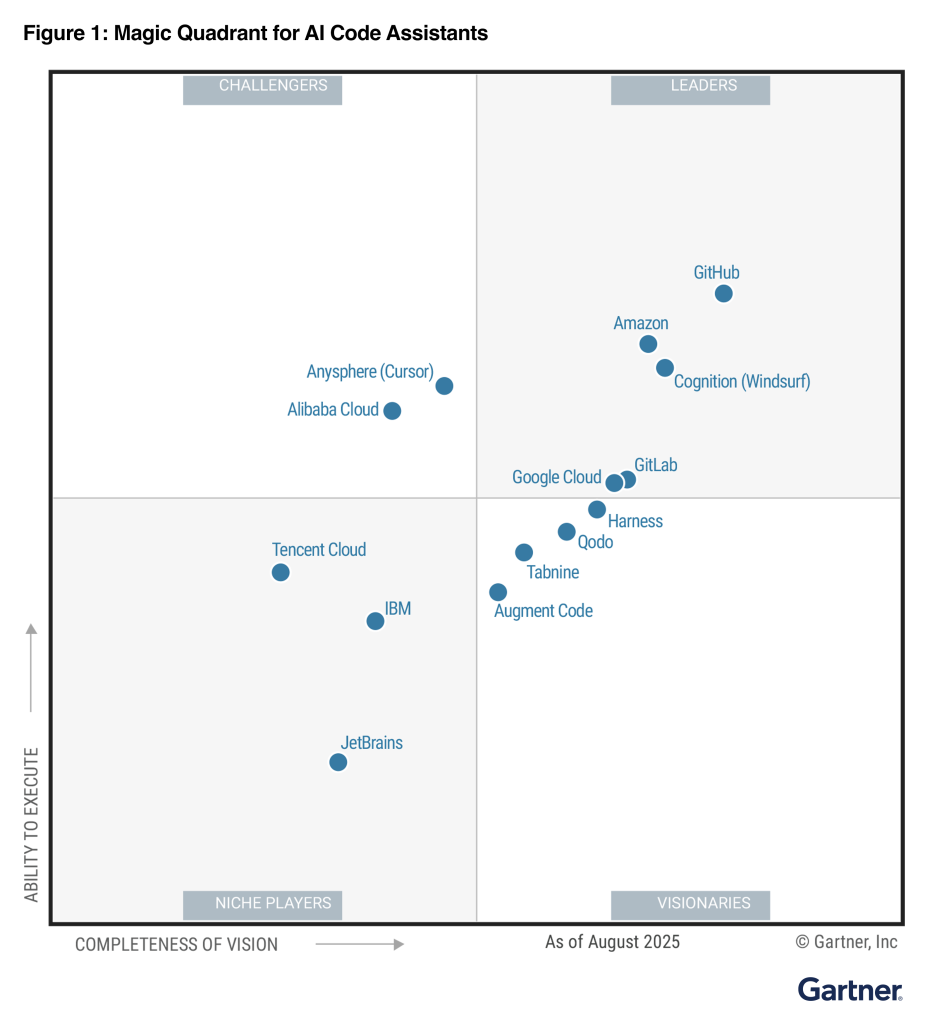
We are excited to share that AWS has been named a Leader in the 2025 Gartner Magic Quadrant for AI Code Assistants for the second year in row. This recognition highlights for us Amazon Q Developer’s commitment to innovation and delivering exceptional customer experiences. We believe this Leader placement showcases our rapid pace of innovation, which makes the whole software development lifecycle easier and increases developer productivity with enterprise-grade access controls and security. We are honored to be recognized by Gartner and are committed to continuing to innovate on behalf of our customers.

A Gartner Magic Quadrant chart titled 'Magic Quadrant for AI Code Assistants' showing the positioning of various companies across four quadrants: Leaders, Challengers, Visionaries, and Niche Players. Companies like GitHub, Amazon, and Google Cloud are prominently positioned in the Leaders quadrant, while others like JetBrains appear in the Visionaries section. The chart plots vendors based on their 'Ability to Execute' (y-axis) and 'Completeness of Vision' (x-axis). Dated August 2025.

The Gartner Magic Quadrant evaluated AI code assistant providers based on their Ability to Execute and Completeness of Vision. Our innovations throughout the software life cycle (SDLC) include code generation, troubleshooting, transformation, cost optimization, and vulnerability scanning.

Leaders in this Magic Quadrant for AI Code Assistants continue to set the benchmark for end-to-end developer enablement through advanced AI capabilities. They consistently integrate cutting-edge models into robust, agentic workflows that enhance productivity, code quality, and security across the SDLC. These vendors exhibit a sharp understanding of enterprise needs, translating customer feedback into iterative improvements and differentiated innovation — such as long-context reasoning, hybrid deployment flexibility, and seamless integration across IDEs and DevSecOps platforms. Leaders also stand out through their operational maturity, supporting global enterprises with scalable infrastructure, regulatory compliance, and strong service-level reliability. Their growing ecosystems, deepening product integration, and strategic clarity ensure sustained influence across diverse developer and enterprise environments.

Access the complete 2025 Gartner Magic Quadrant for AI Code Assistants report to learn more and get started with Amazon Q Developer today.

Overcome development disarray with Amazon Q Developer CLI custom agents

Post Syndicated from Brian Beach original https://aws.amazon.com/blogs/devops/overcome-development-disarray-with-amazon-q-developer-cli-custom-agents/

As a developer who has embraced the power of the Model Context Protocol (MCP)to enhance my workflows, I’m thrilled to see the addition of custom agents in the Amazon Q Developer CLI. This new feature takes the capabilities I’ve come to rely on to a whole new level, allowing me to seamlessly manage different development contexts and easily switch between them.

In my previous post, I discussed how MCP servers have revolutionized the way I interact with AWS services, databases, and other essential tools. MCP integration in Amazon Q Developer allows me to query my database schemas, automate infrastructure deployments, and so much more. However, as I started juggling multiple projects, each with their own unique tech stacks and requirements, I found myself needing a more structured approach to managing these diverse development environments.

Enter custom agents. With this new feature, I can now create and use a custom agent by bringing together specific tools, prompt, context and tool permissions for tasks appropriate for the stage of development. In this post I will explain how to configure a cusom agent for front-end and back-end development. Allowing me to easily optimize Amazon Q Developer for each task.

Background

Imagine that I am working on a multi-tier web application. The application has a React front-end written in Typescript and a FastAPI back-end written in Python. In addition to me, the team includes a designer that uses Figma, and the database administrator that manages a PostgreSQL database. There are subtle differences in how I communicate with the designer and the database administrator. For example, when I discuss a “table” with the designer, I’m likely referring to an HTML table and how the page is structured. However, when I discuss a table with the database administrator, I’m likely talking about a SQL table and how data is stored.

In the past, I had both the Figma Dev Mode MCP server and Amazon Aurora PostgreSQL MCP server configured in my environment. While this allowed me to easily work on either the front-end or back-end code, it introduced some challenges. If I asked Amazon Q Developer “how many tables do I have?” Amazon Q Developer would have to guess if I was talking about HTML tables or SQL tables. If the question is about HTML, it should use the Figma server. If the question is about SQL, it should use the Aurora server. This is not a technical limitation, it’s a language limitation. Just as I have to adjust my assumptions to talk with the designer and database administrator, Amazon Q Developer has to make the same adjustments.

Enter Amazon Q Developer CLI custom agents. Custom agents allow me to optimize Q Developer’s configuration for each scenario. Let’s walk through my front-end and back-end configuration to understand the impact.

Front-end agent

My front-end custom agent is optimized for front-end web development using React and Figma. The following code example is the configuration for my front-end agent stored in ~/.aws/amazonq/agents/front-end.json. Let’s discuss the major sections of the configuration.

  • mcpServers – Here I have configured the Figma Dev Mode MCP Server. This simply communicates with the Figma Web Design App installed locally. Note that this replaces the MCP configuration that was stored in ~/.aws/amazonq/mcp.json
  • tools and allowedTools – These two sections are related, so I will discuss them together. tools defines the tools are available to Amazon Q Developer while allowedTools defines which tools are trusted. In other words, Q Developer is able to use all configured tools, and it does not have to ask my permission to use fs_read, fs_write, and @Figma. @Figma allows Amazon Q Developer to use all Figma tools without asking for permission. More on this in the next section.
  • resources – Here I have configured the files that should be added to the context. I have included the README.md (stored in the project folder) and my own preferences for React (stored in my profile). You can read more in the context management section of the user guide.
  • hooks – In addition to the resources, I have also included a hook. This hook will run a command and inject it into the context at runtime. In the example, I am adding the current git status. You can read more in the context hooks section of the user guide.
{
  "description": "Optimized for front-end web development using React and Figma",
  "mcpServers": {
    "Figma": {
      "command": "npx",
      "args": [
        "mcp-remote",
        "http://127.0.0.1:3845/sse"
      ]
    }
  },
  "tools": ["*"],
  "allowedTools": [
    "fs_read",
    "fs_write",
    "report_issues",
    "@Figma"
  ],
  "resources": [
    "file://README.md",
    "file://~/.aws/amazonq/react-preferences.md"
  ],
  "hooks": {
    "agentSpawn": [
      {
        "command": "git status"
      }
    ]
  }
}

Back-end agent

My back-end custom agent is optimized for back-end development with Python and PostgreSQL. The following code example is the configuration for my back-end agent stored in ~/.aws/amazonq/agents/back-end.json. Rather than describing the sections, as I did earlier, I will focus on the differences between the front-end and back-end.

  • mcpServers – Here I have configured the Amazon Aurora PostgreSQL MCP Server. This allows Amazon Q Developer to query my dev database to learn about the schema. Notice that I have configured a read-only connection to ensure that I don’t accidentally update the database.
  • tools and allowedTools – Once again, I have enabled Amazon Q Developer to use all tools. However, notice that I am more restrictive about what tools are trusted. Amazon Q Developer will need to ask permission to use fs_write or @PostgreSQL/run_query. Notice that I can allow the entire MCP server as I did with Figma or specific tools as I did here.
  • resources – Again, I have included the README.md (stored in the project folder) and my own preferences for Python and SQL (both stored in my profile). Note that I can also use glob patterns here. For example, file://.amazonq/rules/**/*.md would include the rules created by the Amazon Q Developer IDE plugins.
  • hooks – Finally, I have also included the hook for the front-end and back-end. However, I could have included project specific options such as npm run for the front-end and pip freeze for the back-end.
{
  "description": "Optimized for back-end development with Python and PostgreSQL",
  "mcpServers": {
    "PostgreSQL": {
      "command": "uvx",
      "args": [
        "awslabs.postgres-mcp-server@latest",
        "--resource_arn", "arn:aws:rds:us-east-1:xxxxxxxxxxxx:cluster:xxxxxx",
        "--secret_arn", "arn:aws:secretsmanager:us-east-1:xxxxxxxxxxxx:secret:rds!cluster-xxxxxxxx-xxxx-xxxx-xxxx-xxxxxxxx-xxxxxx",
        "--database", "dev",
        "--region", "us-east-1",
        "--readonly", "True"
      ]
    }
  },
  "tools": ["*"],
  "allowedTools": [
    "fs_read",
    "report_issues",
    "@PostgreSQL/get_table_schema"
  ],
  "resources": [
    "file://README.md",
    "file://~/.aws/amazonq/python-preferences.md",
    "file://~/.aws/amazonq/sql-preferences.md"
  ],
  "hooks": {
    "agentSpawn": [
      {
        "command": "git status"
      }
    ]
  }
}

Using custom agents

The real power of agents becomes evident when I need to switch between these different development contexts. I can now simply run q chat --agent front-end when I am working on React and Figma or q chat --agent back-end when I am working with Python and SQL. Amazon Q Developer will configure the correct agent with all my preferences.

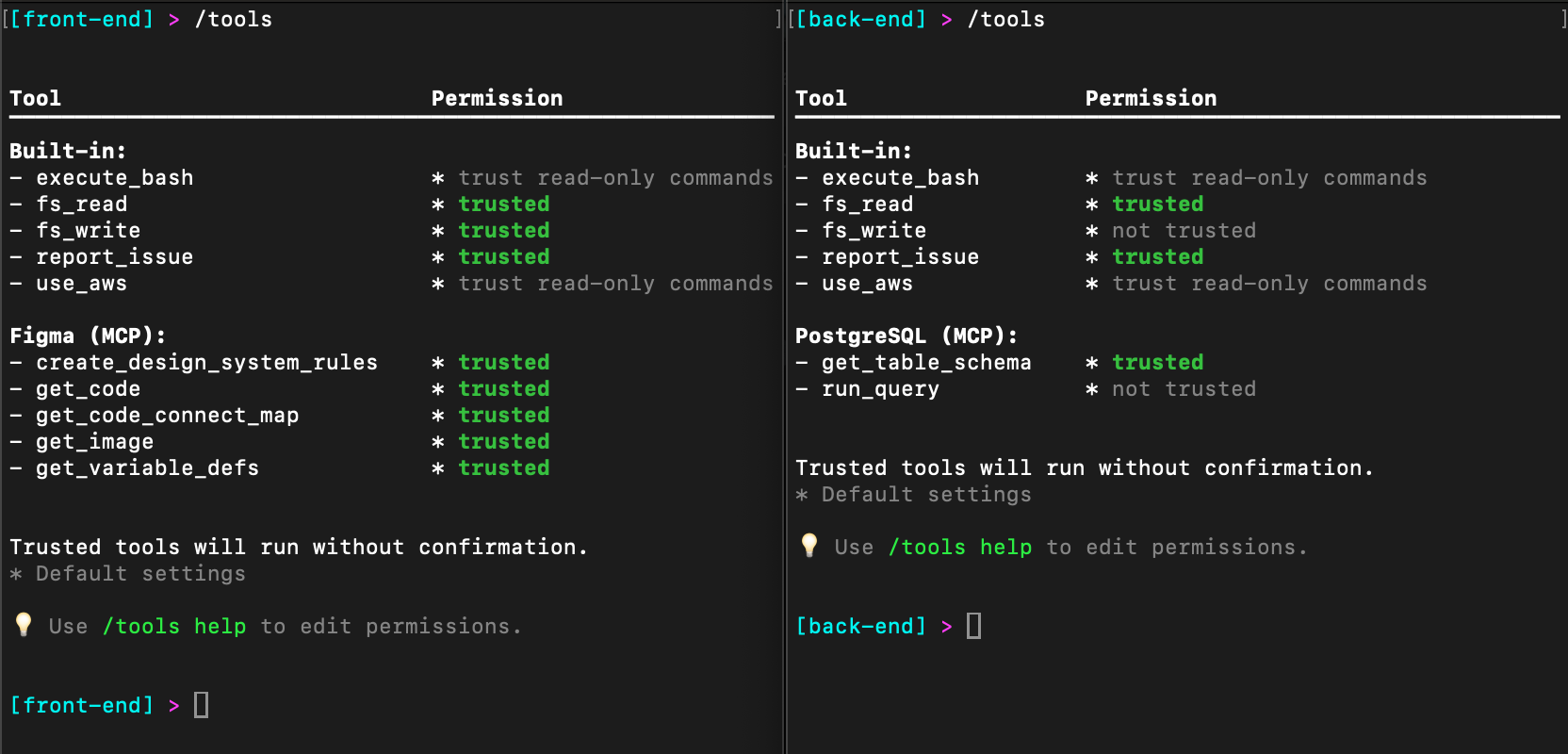
In the following image, you can see the configuration in the Amazon Q Developer CLI. Notice that the front-end agent has an additional tool called Figma while the back-end agent has an additional tool called PostgreSQL. In addition, the front-end agent trusts fs_write and all of the Figma tools while the back-end agent will ask permission to use fs_write and only trusts one of the two PostgreSQL tools.

A split terminal view showing tool permissions for front-end and back-end environments. Both displays list built-in commands like execute_bash, fs_read, fs_write, report_issue, and use_aws, along with their permission status (trusted, not trusted, or trust read-only commands). The front-end environment also shows Figma (MCP) related permissions, while the back-end shows PostgreSQL (MCP) permissions. At the bottom of each view is a note that trusted tools will run without confirmation and instructions to use "/tools help" to edit permissions.

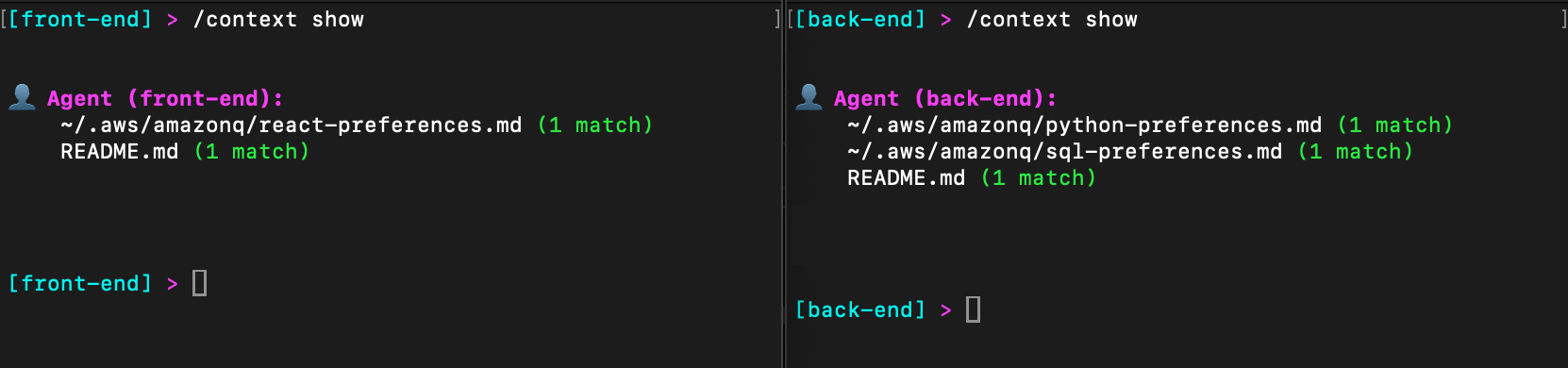
Similarly, let’s look at the context configuration in both the front-end and back-end agents. In the following image, I have included my React preferences for front-end development, and both Python and SQL preferences for back-end development.

A split terminal view showing the output of "/context show" command for both front-end and back-end environments. The front-end agent shows matches for "~/.aws/amazonq/react-preferences.md" and "README.md", while the back-end agent shows matches for "~/.aws/amazonq/python-preferences.md", "~/.aws/amazonq/sql-preferences.md", and "README.md". Each file is marked with "(1 match)" in green text.

As you can see, custom agents allow me to optimize the Amazon Q Developer CLI for each task. Of course, front-end and back-end agents are just an example. You might have a developer and testing agents, data science and analytics agents, etc. Custom agents allow you to tailor the configuration to most any task.

Conclusion

Amazon Q Developer CLI custom agents represent a significant improvement in managing complex development environments. By allowing developers to seamlessly switch between different contexts, they eliminate the cognitive overhead of manually reconfiguring tools and permissions for different tasks. Ready to streamline your development workflow? Get started with Amazon Q Developer today.

Exploring the latest features of the Amazon Q Developer CLI

Post Syndicated from Brian Beach original https://aws.amazon.com/blogs/devops/exploring-the-latest-features-of-the-amazon-q-developer-cli/

It’s been a few weeks since my last post about the Amazon Q Developer Command Line Interface (CLI), and I’m excited to share all the great new features and improvements the team has been working on. The CLI has been evolving rapidly with a focus on enhancing user experience, improving context management, and adding powerful new capabilities. In this post, I’ll walk you through the most significant changes that make the Amazon Q Developer CLI even more powerful and user-friendly.

Conversation Persistence

One of the most requested features has been the ability to persist conversations, and I’m thrilled to share that this is now available. With the new q chat --resume command, your conversations are now automatically saved by a working directory. This means you can pick up right where you left off when you return to a project, without having to rebuild context or repeat information.

Q Developer has also added two new commands to give you more control over your conversation state:

  • /save allows you to explicitly save the current conversation state
  • /load lets you restore a previously saved conversation

These commands make it easier to manage multiple conversation threads related to different aspects of your project. You can save a conversation about one feature, switch to working on something else, and then load the previous conversation when you’re ready to continue.

A terminal interface showing the Amazon Q logo in dotted cyan text. Below it displays a 'Did you know?' tip explaining that users can resume the last conversation from their current directory using 'q chat --resume'. The bottom shows command shortcuts including '/help' for all commands, 'ctrl + j' for new lines, and 'ctrl + s' for fuzzy search. The terminal shows a successful import of conversation state from 'order-service.json'.

MCP and Tool Use Enhancements

The Model Context Protocol (MCP) is a key part of the Amazon Q Developer CLI, allowing for extensibility through additional tools and servers. Q Developer has made several improvements to how MCP servers are loaded and managed:

First, Q Developer has implemented background MCP server loading, which significantly improves startup time for q chat. Instead of waiting for all MCP servers to initialize before you can start interacting with Q Developer, the CLI now loads servers in the background while you begin your conversation. This means you can start working immediately, with tools becoming available as their servers finish loading.

The team has also added a new subcommand, q mcp, which provides a dedicated interface for updating and managing your MCP server configuration. This makes it easier to add, remove, or modify the MCP servers that extend your CLI’s capabilities.

For more granular control over which tools can be used, Q Developer has added the /tools command in q chat. This allows you to manage permissions for individual tools, giving you more control over what Q Developer can do in your environment. You can also reset permissions for a specific tool if you change your mind.

A terminal window showing a tools permission list with two main sections. The first section shows SQLite (MCP) commands, all marked as 'not trusted' including operations like list_tables, read_query, create_table, etc. The second 'Built-in' section lists system commands with varying trust levels: fs_read and report_issue are marked as 'trusted', while fs_write is 'not trusted', and use_aws and execute_bash are marked for 'trust read-only commands'. At the bottom, there's a note stating 'Trusted tools can be run without confirmation'.

Improved Context Control

Context is crucial for getting the most out of Q Developer, and the team has made several improvements to how you can manage and view context:

The file selection in q chat‘s fuzzy finder is now git-aware, making it easier to include relevant files from your repository. This is particularly useful when working with large codebases, as it helps you focus on the files that matter for your current task.

Q Developer has added fuzzy search for slash commands with Ctrl + s, allowing you to quickly find and execute commands without remembering their exact syntax. This makes the CLI more accessible, especially for new users or those who don’t use certain commands frequently.

The /context show --expand command has been improved to provide more detailed information about the current context, helping you understand what Q Developer knows about your environment. The team has also enhanced the context file display in q chat to make it more informative and easier to read.

One of the most exciting additions is the new capability for dynamically adding context to messages with context hooks. This allows the CLI to automatically include relevant context based on your conversation, improving the quality of responses without requiring manual context management.

A terminal window showing an expanded context view with two main sections. The 'global' section (marked with a globe icon) lists three markdown files: amazonq/rules/**/*.md, README.md, and AmazonQ.md. It includes hooks for 'On Session Start' and 'Per User Message', both showing '<none>‘. Below that, a ‘profile (default)’ section (marked with a user icon) shows ~/python-coding-standards.md and has the same hook structure, also with ‘<none>‘ values. The command shown at the top is ‘/context show –expand’.” width=”1140″ height=”624″></p>
<h2>Context Window Awareness and Optimization</h2>
<p>As conversations grow longer, managing the context window becomes increasingly important. Q Developer has added two new commands to help with this:</p>
<ul>
<li><code>/usage</code> displays an estimate of the context window usage, helping you understand how much of the available context space you’re using</li>
<li><code>/compact</code> summarizes the conversation history, allowing you to reduce the size of the context while preserving the important information</li>
</ul>
<p>These tools help you make the most of the available context window, ensuring that Q Developer has access to the most relevant information without running into token limits.</p>
<p><img decoding=

Image Support

I’m particularly excited to announce that q chat now supports images! This opens up a whole new dimension of interaction, allowing you to share screenshots, diagrams, or other visual information with Q Developer. This can be incredibly useful for debugging UI issues, discussing design concepts, or explaining complex ideas that are difficult to convey through text alone.

A text explanation of a UML sequence diagram for a Sales Transaction process. The text describes three main components: 1) Participants including an Actor (represented by a stick figure) and a System (represented by a rectangle), 2) Interaction Flow showing message exchanges and lifelines represented by vertical dashed lines, and 3) Loop Structure with a box labeled 'for as many items as needed' representing an iteration where the Actor scans items with product ID and amount parameters.

Editor for Long Prompts

For complex queries or detailed instructions, you may want multiple paragraphs. Q Developer supports Ctrl + j, allowing you to add a newline character to the prompt. In addition, the team has added the /editor command, which opens your configured text editor for composing prompts. This makes it much easier to craft detailed, multi-paragraph prompts or to edit and refine your questions before sending them to Q Developer.

A screenshot showing instructions for performing a threat model analysis using the STRIDE framework. The text requests threat analysis details in markdown format, including threat source, prerequisites, actions, impacts, and affected assets. It asks for severity ratings (low/medium/high) and AWS-based mitigation suggestions with documentation links. The image includes a template structure showing how to format the markdown response, with sections for "Threat Model Analysis," "Spoofing," and individual threat entries.

Expanded Region Support

I’m happy to announce that Q Developer has expanded its regional availability. Professional tier users can now access Q Developer in the Frankfurt region (eu-central-1). This expansion is part of Q Developer’s ongoing effort to provide lower latency and better service to customers across the globe. By adding support for the Frankfurt region, Amazon Q Developer is more accessible to European customers, allowing them to benefit from reduced latency and improved performance.

A terminal screenshot showing a prompt to select an IAM Identity Center profile. Two options are displayed: "q-dev-america" with an ARN in the us-east-1 region, and "q-dev-emea" with an ARN in the eu-central-1 region. The command being executed is "% q profile".

Ability to Manage Issues in CLI

Amazon Q Developer has made it easier to report issues directly from the CLI with two new features:

  • The /issue command in q chat allows you to create new GitHub issues
  • The report_issue tool provides a programmatic way for Q Developer to help you create detailed issue reports

These features streamline the feedback process, making it easier for you to report bugs or request features, and for the team to improve the CLI based on your input.

A terminal screenshot showing an issue reporting interface. The prompt explains how to submit feedback or feature requests to a GitHub repository, listing required information including: 1) a title and 2) optional details about actual behavior, expected behavior, and reproduction steps. At the bottom is a user comment stating "I just wanted you to know that all these new features are awesome!"

Keeping Up with Future Changes

To help you stay informed about new features and improvements, Q Developer has added a --changelog flag to the q version command. This displays the change log directly from the CLI, making it easy to see what’s new without having to visit the GitHub repository or read blog posts like this one.

Conclusion

The Amazon Q Developer CLI continues to evolve rapidly, with new features and improvements that make it an even more powerful tool for developers. From conversation persistence to image support, these updates reflect Q Developer’s commitment to building a CLI that helps you be more productive and effective in your daily work. I encourage you to try out these new features by installing the Amazon Q Developer CLI. Thank you for your continued support and feedback, which helps make Amazon Q Developer better every day.

Intelligent coding at your fingertips: Introducing an agentic coding experience in your IDE

Post Syndicated from Brian Beach original https://aws.amazon.com/blogs/devops/amazon-q-developer-agentic-coding-experience/

Back in March, I wrote about the new agentic coding experience within the Amazon Q Developer CLI. Recently, Amazon Q Developer announced that it has added a similar experience to the integrated development environement (IDE). Agentic coding in the IDE allows you to work with Amazon Q Developer to read and write files locally, run bash commands, build code, and more in near real-time through natural language conversations. The new experience redefines how you write, modify, and maintain code by leveraging natural language understanding to seamlessly execute complex workflows. The new agentic coding experience is now available in VS Code with support in other IDEs coming soon.

Background

Before I explain the new agentic coding experience, let’s take a minute to review the existing chat capabilities within the Amazon Q Developer IDE. As the name implies, the traditional chat allows me to have a conversation with Q Developer. This is a great option when I’m learning and planning. It provides a natural back-and-forth dialogue. Personally, I like the traditional chat during the planning phase of the Software Development Lifecycle (SDLC). I can chat with Q Developer to discuss my architecture and the various tradeoffs of different designs before I start working.

However, once I move into the build phase of the SDLC, I prefer the new agentic coding experience. In this new experience, Q Developer can do so much more than just have a conversation. It can directly interact with the development environment, reading and writing files, using various development tools, and even querying AWS resources. This allows for a far more dynamic, hands-on coding workflow compared to the traditional chat interface.

Rather than just discussing requirements, the agentic agent can take direct action to implement them. It can scaffold new projects, update existing code, and provide step-by-step summaries of its progress – all through a seamless, conversational interface right within the IDE. The great news is that I now have both options available to me. I can simply toggle between a traditional chat in the planning phase, and the new agentic coding in the build phase.

Walkthrough

Let’s walk through a simple example using the AWS Cloud Development Kit (CDK). I love CDK, and I use it all the time in my role. However, let’s assume that I don’t have a lot of experience, and want to learn more about CDK before I start using it. Since I just want to learn, I’ll start in the traditional chat experience, and ask Q Developer “How do I create an new CDK app?” As you can see in the following image, Q Developer starts to teach me about CDK. Along with the instructions, Q provides commands that I could copy and paste into my shell to get started.

A screenshot of an Amazon Q Developer chat interface showing instructions for creating a new AWS CDK app. The interface displays a dark theme with a conversation about CDK app creation. The response includes step-by-step instructions: installing the AWS CDK toolkit via npm, creating a new directory for the CDK project, and beginning to explain initialization commands. Command examples are shown in code blocks with copy buttons. The bottom of the screen shows an input field and a notice about Amazon Q's AI capabilities.

While this is a great, I am already familiar with CDK. I don’t need to learn how to create a new application. I am ready to start building! Therefore, I will toggle from traditional chat to agentic coding by clicking on the angle bracket pair in the bottom left corner of the chat window. Then, I will ask Q Developer to “Create a new CDK app in this folder using TypeScript.” First, notice that I am not asking a question like I did previously, but I am giving a command. In the following image, you can see that Q Developer is acting on my command rather that teaching me what to do.

A screenshot of an Amazon Q Developer chat interface with a dark theme. The image shows a conversation about creating a new AWS CDK app using TypeScript. The assistant provides instructions to initialize a CDK project in the current directory. A command prompt is displayed with the command "npx aws-cdk init app --language typescript" to create a new CDK TypeScript application. The interface includes "Reject" and "Run" options for the command. At the bottom, there's an input field for asking questions and a note about Amazon Q's use of generative AI.

This is the power of the new agentic coding. It is not simply teaching me how to create a CDK app. Amazon Q Developer is creating the app for me. There are a few important things that I want to call out here. First, Amazon Q Developer can use tools when it is running agentic coding mode. In this example, Q is using a series of shell commands — mkdir, cd, npx, npm, etc. — to create the CDK app. I will discuss other tools later in this post. Second, Q Developer is asking my permission before it runs these commands. This allows me to retain control over the development process. I’ll click the Run button and allow Q to create the new application resulting in the following project structure.

A screenshot of a directory view showing the structure of a TypeScript-based AWS CDK project. The project root folder "IDE-BLOG-POST" displays a typical CDK project structure, containing four main directories (bin, lib, node_modules, and test) along with several configuration and documentation files: .gitignore, .npmignore, cdk.json, jest.config.js, package-lock.json, package.json, README.md, and tsconfig.json. The interface uses a dark theme with distinctive icons indicating different file types and folder structures.

It’s easy to overlook the power of allowing Q Developer to use tools. By using shell commands, it was able to generate the project using the latest template, and install dependencies for me. Running shell commands is just one of many changes with the agentic coding experience. Next, let’s look at how code generation works in agentic coding.

Code Generation

Amazon Q Developer has been generating code since it first launched in June of 2022. Since then, Amazon Q Developer has evolved, adding new features over time. Code generation began with inline suggestions, followed by chat, and the agent for software development. The new agentic coding, reinvents the code generation experience again. In the following example, I am going to add a Lambda function to the CDK stack that Q Developer created earlier. I ask Q Developer to “Add a new Lambda function that is triggered from the arrival of a file in an existing S3 bucket.”

A screenshot of an Amazon Q Developer chat interface showing instructions for adding an S3-triggered Lambda function to an existing CDK stack. The interface displays several steps being executed: modifying the stack file (ide-blog-post-stack.ts with +41/-6 changes), creating a lambda directory using the "mkdir -p lambda" command (marked as completed), creating a Lambda function in index.js (+25/-0 changes), and updating the README.md file (+26/-4 changes). Each modification shows an "Undo" option, and there's an "Undo all changes" button at the bottom. The interface features a dark theme and includes the standard input field and AI disclosure notice at the bottom.

Multiple important things happened in this example that I want to explain. First, notice that Q Developer edited the CDK Stack to add the new AWS Lambda function. Second, Q Developer used a shell command to create a new folder. Third, Q created a new file for the Lambda function. Forth, it updated the README file. Q took all four of these actions in response to a single prompt. In addition, note that Q Developer is providing a diff for each change, making it easy for me to review the changes. You can see an example of the changes it make to the README.md in the following image. Finally, note that I can undo any of the changes that Q Developer made along the way.

A screenshot of a README.md file in a code editor with a dark theme. The file shows both removed content (in red) and new content (in green). The removed content is the default CDK TypeScript project introduction, while the new content describes an S3-triggered Lambda function CDK project. The new documentation includes an architecture section detailing the Lambda function, S3 bucket, and event notification components, followed by deployment instructions that include steps for building the project with 'npm run build' and deploying the stack with CDK using parameters for an existing bucket name.

This is a big improvement over the traditional chat experience. Now let’s look at how Q Developer can describe my AWS resources.

Describing AWS resources

Remember that I am building an application that is triggered by the arrival of a file in an existing Amazon Simple Storage Service (Amazon S3) bucket. In the prior example, you can see that I need to pass the name of the bucket in the ExistingBucketName parameter when deploying the stack.

Let’s assume that I have forgotten the name of the bucket I want to use. The new agentic coding experience can help me with this too. In the following example, I ask Q to “List my S3 buckets in the ca-central-1 region?” Once again, Q Developer asks for permission to use the shell. After I accept, Q Developer uses the AWS CLI and lists the buckets I have available in Canada (ca-central-1).

A screenshot of Amazon Q Developer displaying an AWS CLI command and its output showing S3 bucket listing for the ca-central-1 region. The command uses aws s3api list-buckets with jq filtering to show only buckets in the Canada Central region. The output displays one bucket named "blog-post-demo-bucket" with explanatory text about using it with Lambda functions and CDK stack deployment.

With the name of the bucket, I am ready to deploy my stack. Of course, there still more work to do, but I’ll leave that for another post.

Conclusion

The new agentic coding experience within the Amazon Q Developer IDE represents a significant step forward in integrating powerful AI-driven capabilities directly into the developer’s workflow. By enabling the coding agent to read, write, and execute code locally, access tools, and interact with AWS resources, Q Developer promises to dramatically streamline and enhance the coding process. You can visit the Amazon Q Developer User Guide to install the IDE and start leveraging the new agent chat for free. Give it a try and let me know what you think!

April 2025: A month of innovation for Amazon Q Developer

Post Syndicated from Brian Beach original https://aws.amazon.com/blogs/devops/april-2025-amazon-q-developer/

As April 2025 comes to a close, I’m amazed by the innovations that Amazon Q Developer has launched in the past few weeks. Generative AI is evolving fast, enabling developer experiences that were just not possible a few months ago. Each new launch helps make Q Developer the most capable generative AI–powered assistant for software development. Let’s explore the announcements from April.

C# and C++ customization – April 1

Amazon Q Developer expanded its customization capabilities to include C# and C++ support, enabling developers to tailor AI suggestions based on their company’s proprietary codebase. This enhancement allows for more accurate inline suggestions and contextual code understanding across C# and C++ projects, while maintaining support for existing languages like Python, Java, JavaScript, and TypeScript. You can read more in Customizing C# and C++ with Amazon Q Developer

Amazon’s internal journey with Q Developer – April 2

In 2024, Amazon integrated its internal knowledge repository of millions of documents into Amazon Q Business, resulting in over 450,000 hours saved in technical query time. Using AI for software transformations integrated with internal development tools saved 4,500 developer years of effort and more than $260M. Perhaps most importantly, the technology is changing how developers approach problem-solving itself, enabling more creative and experimental development practices. You can read more in How generative AI is transforming developer workflows at Amazon.

Conversation persistence, search, and export – April 3rd

Amazon Q Developer now gives you more control over your conversation history. Your conversation is preserved between sessions, letting you pick up where you left off. In addition, you can search the conversation history and export the conversation as markdown. Conversation history features are now available in VS Code and will be added to other IDEs soon.

Context control enhancements – April 3rd

Back in March, I wrote a post about taking control of your code with Amazon Q Developer’s new context features. This allowed you to specify files and folders to add to the context. You can now include classes, functions, and global variables into the input context. In addition, the context size was increased to 100k characters in chat. These features are now available in VS Code and will be added to other IDEs soon.

Expanded language support – April 9

Amazon Q Developer now supports multiple languages across its IDE and CLI interfaces, enabling developers to discuss architecture, create documentation, and build applications in your preferred language. This enhancement creates a more inclusive and accessible development environment. You can read more in Speaking Your Language: Expanded language support in Amazon Q Developer.

Eclipse inline chat (preview) – April 10

The new inline chat feature in Eclipse allows developers to edit code in place using natural language commands. This powerful capability streamlines tasks like refactoring, optimization, and code maintenance without breaking development flow. You can read more in Announcing inline chat in Eclipse with Amazon Q Developer.

European region launch – April 14

Amazon Q Developer Pro Tier is now available in the Frankfurt (eu-central-1) region, addressing data residency requirements for European customers while improving performance through reduced latency. The launch includes cross-region inferencing optimization across Frankfurt, Ireland, Paris and Stockholm. You can read more in Announcing the European region for Amazon Q Developer.

GitLab Duo with Amazon Q (GA) – April 17

GitLab Duo with Amazon Q brings Amazon Q’s generative AI capabilities directly into GitLab’s DevSecOps platform and is now generally available. This integration enables AI-assisted development throughout your entire workflow—from idea conception to deployment—all within the familiar GitLab environment. You can read more in Announcing General Availability of GitLab Duo with Amazon Q.

Updated software development agent – April 21

Amazon Q Developer updated the software development agent. This new agent achieves state-of-the-art performance on industry benchmark SWTBench Verified (49%) and sits among the top ranking models on SWEBench Verified (66%). The agent has access to tools for planning and reasoning that use the capacity of advanced models to their fullest. You can read more in Amazon Q Developer releases state of the art agent for feature development

Amazon introduces SWE-PolyBench – April 23

Amazon has introduced SWE-PolyBench, a new industry benchmark to evaluate the performance of AI coding agents across multiple programming languages and real-world coding scenarios. Unlike previous benchmarks that focused mainly on Python and bug fixes, SWE-PolyBench contains over 2,000 curated coding tasks spanning Java, JavaScript, TypeScript, and Python, covering a variety of challenges including feature requests and refactoring. You can read more in Amazon introduces SWE-PolyBench, a multilingual benchmark for AI Coding Agents

Model context protocol support – April 30

The addition of model context protocol (MCP) support in the Amazon Q Developer CLI standardizes how applications provide context to Large Language Models, allowing developers to seamlessly integrate additional tools and data sources into their AI-assisted workflow. You can read more in Extend the Amazon Q Developer CLI with Model Context Protocol (MCP) for Richer Context.

Expanded support in customization – April 30

Less that one month after adding support for C# and C++, the Q Developer customizations team was hard at work adding support for: Dart, Go, Kotlin, PHP, Ruby, Rust, Scala, Bash, PowerShell, CloudFormation, and Terraform. This is, of course, in addition to the existing supported languages: Python, Java, JavaScript, TypeScript, Markdown, reStructuredText, and Text. Wow!

Conclusion

April 2025 has been a transformative month for Amazon Q Developer, with launches spanning global expansion, IDE enhancements, and deeper integrations. From bringing the service to European customers to enabling multilingual support and introducing powerful new capabilities like inline chat in Eclipse and GitLab integration, Amazon Q Developer significantly expanded how developers can leverage AI assistance in their daily workflows. These launches reflect a commitment to making AI-assisted development more accessible, powerful, and integrated into existing tools and processes. I encourage you to try these new features and share your feedback as we continue to enhance Amazon Q Developer.

Extend the Amazon Q Developer CLI with Model Context Protocol (MCP) for Richer Context

Post Syndicated from Brian Beach original https://aws.amazon.com/blogs/devops/extend-the-amazon-q-developer-cli-with-mcp/

Earlier today, Amazon Q Developer announced Model Context Protocol (MCP) support in the command line interface (CLI). Developers can connect external data sources to Amazon Q Developer CLI with MCP support for more context-aware responses. By integrating MCP tools and prompts into Q Developer CLI, you get access to an expansive list of pre-built integrations or any MCP Servers that support stdio. This extra context helps Q Developer write more accurate code, understand your data structures, generate appropriate unit tests, create database documentation, and execute precise queries, all without needing to develop custom integration code. By extending Q Developer with MCP tools and prompts, developers can execute development tasks faster, streamlining the developer experience. At AWS, we’re committed to supporting popular open source protocols for agents like Model Context Protocol (MCP) proposed by Anthropic. We’ll continue to support this effort by extending this functionality within the Amazon Q Developer IDE plugins in the coming weeks.

Introduction

I’m always on the lookout for tools and technologies that can streamline my workflow and unlock new capabilities. That’s why I was excited about the recent addition of Model Context Protocol (MCP) support in the Amazon Q Developer command line interface (CLI). MCP is an open protocol that standardizes how applications can seamlessly integrate with LLMs, providing a common way to share context, access data sources, and enable powerful AI-driven functionality. You can read more about MCP in this introduction.

Q Developer has had the ability to use tools for a while. I previously discussed the ability to run CLI commands and describe AWS resources. With the Q Developer CLI’s support for MCP tools and prompts, I now have the ability to add additional tools. For example, while I have had the ability to describe my AWS resources, I also need to describe database schemas, message formats, etc. to build an application. Let’s see how I can configure MCP to provide this additional context.

In this post, I will configure an MCP server to provide Q Developer with my database schema for a simple Learning Management System (LMS) that I am working on. While Q Developer is great at writing SQL, it does not know the schema of my database. The table structure and relationships are stored in the database and are not part of the source code of my project. Therefore, I am going to use an MCP server that can query the database schema. Specifically, I am using the official PostgreSQL reference implementation to connect to my Amazon Relational Database Service (RDS). Let’s get started.

Before Model Context Protocol

Prior to the introduction of MCP support, the Q Developer CLI provided a set of native tools, including the ability to execute bash commands, interact with files and the file system, and even make calls to AWS services. However, when it came to querying a database, the CLI was limited in its capabilities.

For example, prior to configuring the MCP server, I asked Q Developer to “Write a query that lists the students and the number of credits each student is taking.” In the following image you can see that Q Developer could only provide a generic SQL query, as it lacked the specific knowledge of the database schema for my LMS.

Screenshot of Amazon Q Developer CLI showing a response to a query request. The response includes explanatory text acknowledging the lack of schema information, followed by a generic SQL query written in green text. The query joins students, student_courses, and courses tables to calculate total credit hours per student, demonstrating Q's limited ability without MCP configuration.

While this is a great start, I know that Q developer could do so much more if it knew the database schema.

Configuring Model Context Protocol

The introduction of MCP support in the Q Developer CLI allows me to easily configure MCP servers. I configure one or more MCP servers in a file called mcp.json. I can store the configuration in my home directory (e.g. ~/.aws/amazonq/mcp.json) and it is applied to all projects on my machine. Alternatively, I can store the configuration in the workspace root (e.g. .amazonq/mcp.json) so it is shared among project members. Here is an example of the configuration for the PostgreSQL MCP server.

{
  "mcpServers": {
    "postgres": {
      "command": "npx",
      "args": [
        "-y",
        "@modelcontextprotocol/server-postgres",
        "postgresql://USERNAME:PASSWORD@HOST:5432/DBNAME"
      ]
    }
  }
}

With the MCP server configured, let’s see how Amazon Q Developer enhances my experience.

After Model Context Protocol

First, I start a new Q Developer session and immediately see the benefits. In addition to the existing tools, Q Developer now has access to PostgreSQL as shown in the following image. This means I can easily explore the schema of my database, understand the structure of the tables, and even execute complex SQL queries, all without having to write any additional integration code.

Screenshot of Amazon Q Developer CLI displaying a list of available tools. The tools are categorized into file system tools, bash execution, AWS tools, PostgreSQL database tools, and issue reporting. The PostgreSQL category is highlighted, showing the integration of MCP for database access.

Let’s test the MCP server by asking Q Developer to “List the database tables.” As you can see in the following example, Q Developer now understands that I am asking about the PostgreSQL database, and uses the MCP server to list my three tables: students, courses, and enrollment.

Screenshot of Amazon Q Developer CLI showing a database table listing request and response. The response shows a tool request using list_objects command with JSON parameters, followed by execution status and a list of three tables in the public schema: courses, enrollment, and students.

Let’s go back to the example from earlier in this post. Now, when I ask Q Developer to “Write a query that lists the students and the number of credits each student is taking,” it no longer responds with a generic query. Instead, Q Developer first describes the relevant tables in my database, generates the appropriate SQL query, and then executes it, providing me with the desired results.

Screenshot of Amazon Q Developer CLI showing a complete SQL query workflow. The image displays a precise SQL query in green syntax highlighting, followed by a results table showing student credit information, and an explanation of how the query works through five numbered steps. This demonstrates Q's ability to generate, execute, and explain database queries with schema knowledge.

Of course, Q Developer can do a lot more than just write queries. Q Developer can use the MCP server to write Java code that accesses the database, create unit tests for the data layer, document the database, and much more. For example, I asked Q Developer to “Create an entity-relationship (ER) diagram using Mermaid syntax.” Q Developer was able to generate a visual representation of the database schema, helping me better understand the relationships between the various entities.

Entity-Relationship (ER) diagram generated by Amazon Q Developer. The diagram shows three tables: STUDENTS, COURSES, and ENROLLMENT. Each table is represented by a box containing column names and data types. The ENROLLMENT table links STUDENTS and COURSES with 'enrolls in' and 'has enrolled' relationships. Primary and foreign keys are indicated. This visualizes the database schema structure for the Learning Management System.

The integration of MCP into the Q Developer CLI has significantly streamlined my workflow by allowing me to add additional tools as needed.

Conclusion

The addition of MCP support in the Amazon Q Developer CLI provides a standardized way to share context and access data sources. In this post, I’ve demonstrated how I can use the Q Developer CLI’s MCP integration to quickly set up a connection to a PostgreSQL database, explore the schema, and generate complex SQL queries without having to write any additional integration code. Moving forward, I’m excited to see how you can leverage MCP to further enhance your development workflow. I encourage you to explore the MCP capabilities and the AWS MCP Servers repository on GitHub.

Announcing the European region for Amazon Q Developer

Post Syndicated from Brian Beach original https://aws.amazon.com/blogs/devops/amazon-q-developer-european-region/

As I sat down to write this post, my daughter called from the top of the Eiffel Tower on a trip with her high school class. While she excitedly pointed her camera toward the Parisian skyline, I was struck by how technology has transformed our concept of distance. Her world, at eighteen, is infinitely more connected than the one I knew at her age. I couldn’t help but smile at the timing of this call, because today Amazon Q Developer is expanding to Europe.

The launch of Amazon Q Developer Pro Tier in the Frankfurt (eu-central-1) region marks a significant milestone for our European customers, addressing two critical needs: data residency and performance optimization. For organizations that need to meet EU data residency requirements, the ability to store customer content within EU boundaries can help provide the assurances they require. Beyond compliance, this regional presence brings performance benefits. European customers will experience reduced latency in their interactions with Amazon Q Developer, as requests are processed closer to home. This proximity not only improves response times but also enhances the overall development experience, making real-time interactions with Amazon Q Developer more fluid and natural.

Amazon Q Developer Pro tier users now have the choice of creating a profile in N. Virginia (us-east-1) or Frankfurt (eu-central-1). Associated data – including customizations – is stored in this region. While data is stored in Frankfurt, Amazon Q utilizes cross-region inferencing to optimize request processing. At launch, this includes Frankfurt, Ireland, Paris and Stockholm, as shown in the following image.

A map of Western Europe showing connections between four cities: Frankfurt (shown as a central hub with concentric circles) connected by curved orange lines to Stockholm (Sweden), Ireland, and Paris (France). The map has a dark background with countries shown in gray.

Finally, it is important to note that certain operations, such as querying AWS resources in other regions (e.g. “List my S3 buckets in Tokyo”), will naturally involve cross-region calls regardless of your Q Developer profile’s location.

The Frankfurt region includes all GA features except the command line and the ability to chat with Support. You can read more in the Amazon Q Developer User Guide. We invite you to experience these new capabilities by upgrading to the Pro tier and selecting Frankfurt as your region during profile creation. Get started with Amazon Q Developer, and share your feedback with us as we continue to expand our global presence.

Announcing inline chat in Eclipse with Amazon Q Developer

Post Syndicated from Brian Beach original https://aws.amazon.com/blogs/devops/announcing-inline-chat-in-eclipse-with-amazon-q-developer/

Earlier today Amazon Q Developer launched inline chat in the Eclipse IDE (in preview). In this post, I’ll walk you through how I’ve been using this powerful new capability to streamline my Java development workflow, from refactoring existing code to optimizing performance-critical methods. Whether you’re a seasoned Eclipse veteran or just getting started, you’ll see how Amazon Q Developer’s advanced AI-driven tools can supercharge your productivity across the entire software development lifecycle.

Background

As a long-time Java developer, I was thrilled when Amazon Q Developer was integrated in Eclipse last year. I’ve been using Amazon Q Developer for a while now, and it has completely transformed my development workflow. When Amazon Q Developer first launched its inline suggestions feature back in 2022, I was blown away by how much it could accelerate my coding tasks. But the addition of a full chat interface in 2023 took things to the next level. Then in 2024 the new inline chat capability allowed me to edit and refactor my code in place. However, inline chat was not available in Eclipse, until today!

The chat interfacein Amazon Q Developer is where I turn when I’m not quite sure how to accomplish a particular task. I love being able to explain the problem I’m trying to solve, or the concept I’m trying to understand, and getting detailed, contextual responses that help point me in the right direction. The AI-generated code snippets and explanations are invaluable when I’m learning something new or tackling a complex challenge. However, when I know how to accomplish a task, I don’t need the explanation I just want the code.

On the other hand, when I’m workingon a well-understood task, I much prefer to use Amazon Q Developer’s inline suggestions. The way it analyzes my existing code and comments to provide relevant, customized completions is just incredible. It lets me work at faster, creating new functionality without having to constantly switch context or hunt for the right syntax. However, while inline suggestions are great for generating new code, I cannot use it to edit existing code.

Now, with the new inline chat feature in Eclipse (in preview), I can easily edit my code in place using Amazon Q Developer. Instead of having to copy/paste code from a separate chat window, I can describe the changes I want to make right in the editor, and Amazon Q Developer will seamlessly integrate the suggested updates into my code base as a diff. It’s great for for refactoring, bug fixing, and maintaining well-documented, easily-readable code. Let’s look at a couple of examples to see how inline chat works in Eclipse.

Refactoring

Imagine that I am the newest member of a development team, and I was tasked with adding unit tests to the OrderProcessor class. However, as I dug into the code base, I realized that the OrderProcessor was tightly coupled to the OrderRepository implementation. Notice the instantiation of the OrderRepository on line 2 in the following image. This made it difficult to write unit tests, as I couldn’t easily swap in a mock repository. I knew I needed to refactor the code to use dependency injection, but the thought of making all of those changes manually was daunting.

Java code showing complete OrderProcessor class implementation with order processing logic, including order validation and persistence methods using IOrderRepository interface.

Fortunately, with Amazon Q Developer’s inline chat in my Eclipse IDE, I didn’t have to tackle this refactor alone. I selected the OrderProcessor class, invoked the inline chat using the keyboard shortcut (CMD + SHIFT + I for macOS, and CTRL + SHIFT + I for Windows). Then I described the change I want: “Refactor this class to use dependency injection so I can mock the OrderRepository in unit tests.” Note that I could have also asked Amazon Q Developer to leverage a specific DI framework, like Hibernate. However, I am going to keep this simple for the blog post.

Java code displaying OrderProcessor class with a prompt to refactor using dependency injection. Shows current implementation with direct instantiation of OrderRepository and validation methods.

Amazon Q Developer quickly analyzed the code and presented me with a suggested change shown in the following image. The change is presented as a diff so I can see what Amazon Q Developer is removing (in red) and adding (in green). After reviewing the changes, I was pleased to see that Amazon Q Developer had introduced a constructor that took an IOrderRepository interface, allowing me to pass in either the concrete implementation or a test double. This would make it a breeze to write comprehensive unit tests for the OrderProcessor. With a quick click to accept the changes, Amazon Q Developer updated my code, saving me valuable time and ensuring the new feature would be built on a solid, testable foundation.

Java code showing OrderProcessor class with dependency injection prompt. Contains processOrder method that validates and saves orders using an IOrderRepository interface. The code includes validation logic and database operations.

In this example, I selected the entire class. However, I can also ask Q Developer to work on a specific portion of the code.

Optimization

While working on the Order class, I noticed that the containsItem method seemed to be running slowly, especially on orders with a large number of line items. I decided to profile the code and sure enough, that method was a hot spot, consuming a disproportionate amount of CPU cycles. I selected the containsItem method, brought up the inline chat, and asked Amazon Q Developer: “This code is running slow, please optimize it.”

Java code displaying Order class with a popup message suggesting optimization. Shows class fields for id, customer, and items, with a containsItem method implementation using a for loop that could be optimized.

Amazon Q Developer quickly analyzed the existing code, which was using a simple for loop to iterate through the list of items, and provided an improved implementation. As shown in the diff, Amazon Q Developer suggested replacing the for loop with a more efficient stream-based approach, using the anyMatch method to determine if the item is present in the order. This change has improved performance, especially for orders with a large number of line items. I reviewed the changes and accepted Amazon Q Developer’s suggestions.

Java code showing Order class with highlighted section suggesting replacement of traditional for loop with Java 8 Stream API. Contains an implementation of containsItem method with both the original loop and a commented stream-based solution.

Amazon Q Developer’s optimization not only improved the performance of the containsItem method, but also made the code more readable and maintainable going forward.

Conclusion

The integration of Amazon Q Developer into the Eclipse IDE (in-preview) has improved my Java development workflow. Whether I’m learning a new concept, generating boilerplate code, or optimizing a performance bottleneck, Amazon Q Developer’s suite of AI-powered tools has become an indispensable part of my development process. The addition of inline chat, in particular, has streamlined my ability to directly interact with the assistant, seamlessly updating my code base without breaking my concentration. If you’re an Eclipse user looking to supercharge your productivity, I highly recommend installing the Amazon Q Developer plugin today.

Speaking Your Language: Expanded language support in Amazon Q Developer

Post Syndicated from Brian Beach original https://aws.amazon.com/blogs/devops/amazon-q-developer-global-capabilities/

As the world of software development becomes increasingly global, the need for tools that support multiple languages has become paramount. Today, I am excited to announce expanded language support in Amazon Q Developer. In this post, I explore the recent expansion of language support in Amazon Q Developer, a powerful platform used by developers worldwide to discuss architecture, create documentation, design interfaces, and build applications.

While English remains the lingua franca of programming, the reality of modern software development extends far beyond code. Developers worldwide use Amazon Q Developer to discuss architecture decisions, create documentation, design user interfaces, and build applications that serve global audiences. By expanding language support, Amazon Q Developer now enables developers to have more natural, fluid conversations about complex technical concepts in their preferred language, whether they’re designing system architecture, generating documentation, or planning application localization strategies.

The power of this expanded language support is demonstrated in the following image, where I asked the same container hosting question in English, Chinese, Hindi, and Spanish. Not only does Amazon Q Developer now provide complete responses in these languages, but it also maintains technical accuracy while adapting to linguistic nuances. Furthermore, Q Developer now suggests follow-up questions and responses in the user’s chosen language, creating a more intuitive and seamless experience for developers worldwide. This natural flow of conversation in any language helps maintain the developer’s focus and flow, eliminating the mental overhead of constant translation.

Four screenshots of Amazon Q chat interface showing the same conversation about hosting containers on AWS in different languages - English, Chinese, Hindi, and Spanish. Each screenshot displays Q&A format with detailed explanations about AWS container hosting options, focusing on Amazon Elastic Container Service (ECS) and including code snippets for container deployment.

Expanded language is available in the integrated development environment (IDE) and command line interface (CLI) with support coming to the AWS Management Console soon. In my IDE, chat, inline chat, inline suggestions, agents, etc. now support additional spoken languages. In the following example, I used inline chat to ask, in French, that Q Developer add TSDocs comments to my code. As you can see, Q Developer added comments, in French, documenting the method.

Code snippet showing error handling in JavaScript/TypeScript. The code includes JSDoc comments in French explaining fatal error management in the main function, followed by a catch block that logs the error and exits the process with code 1.

Whether you’re a developer in Seoul writing documentation in Korean, a startup in Madrid brainstorming architecture in Spanish, or a team in Brazil collaborating in Portuguese, Amazon Q Developer is now ready to support your journey and your preferred language. Expanded language support is available to users of both the Free and Pro Tier starting today. Get started with Amazon Q Developer, and share your feedback. Together, we’re building a more inclusive and accessible future for software development.

Customizing C# and C++ with Amazon Q Developer

Post Syndicated from Brian Beach original https://aws.amazon.com/blogs/devops/customizing-c-and-c-with-amazon-q-developer/

Amazon Q Developer recently added support for customizing C# and C++ suggestions based on your company’s codebase. This blog post explores how developers can tailor the AI assistant to provide accurate inline suggestions and contextual code understanding for their C# and C++ projects. You will learn how to leverage customizations to boost productivity, streamline development workflows, and unlock the full potential of Amazon Q Developer across your codebase.

Overview

Like many developers, I learned to code in C. Thirty years later, C# and C++ are both still among the top 10 most used programming languages. However, much of that code is proprietary and stored in private repositories, while Python, JavaScript, and Java dominate public repositories. Therefore, it is critical that I can customize my AI assistant with my private, proprietary code examples. Amazon Q Developer expanded its customization capabilities to include support for C# and C++, in addition to Python, Java, JavaScript, and TypeScript that it already supports.

If you caught my session at re:Invent 2024, Best practices for customizing Amazon Q Developer, you might remember me showcasing how to customize Amazon Q Developer using a Python-based MovieRepository example. With positive feedback from the Python developers, I want to bring that same level of customization to my C# and C++ developers. So, without further delay, let’s dive in and see how you can get the most out of Amazon Q Developer in your C# and C++ projects.

Inline suggestions

Let’s start by looking at how Amazon Q Developer can provide inline suggestions. I’ll use C# for this example. Take a look at Insert method of the MovieRepository class. The MovieRepository class supports basic create, read, update, and delete (CRUD) operations. Notice that the Insert method expects four fields for each movie: title, year, plot, and rating.

/// <summary>
/// Adds a movie to the table.
/// </summary>
/// <param name="title">The title of the movie.</param>
/// <param name="year">The release year of the movie.</param>
/// <param name="plot">The plot summary of the movie.</param>
/// <param name="rating">The quality rating of the movie.</param>
public async Task Insert(string title, int year, string plot, decimal rating)
{ ... }

When I use the default, non-customized, version of Amazon Q Developer, it does its best to help me out. However, you might notice a few errors in the suggestion on line 17 of the screenshot below. First, Amazon Q Developer has suggested a reference to a method named AddMovie, but the actual method in the MovieRepository class is named Insert. Second, Amazon Q Developer guessed three of the four parameters correctly – title, year, and rating, but suggested a director rather than plot. Third, the order of the parameters is not correct.

C# code showing a MovieDatabase namespace containing a Program class with a Main method. The code creates a MovieRepository instance and adds the movie "Titanic" to the database with director James Cameron, year 1997, and rating 7.8 using an async method.

Of course, I cannot fault Amazon Q Developer for these mistakes. It has never seen the MovieRepository, which is stored in a private repository. Now, let’s switch over to my customized version of Amazon Q Developer. Note that I have created a customization following the instructions in the Amazon Q Developer User Guide and the best practices discussed in my re:Invent talk. I simply activate the customization in my IDE.

A dialog box titled "Select a Customization" showing two options: "Amazon Q foundation (Default)" with the description "Receive suggestions from Amazon Q base model" and "amazon-q-developer-customization-demo" marked as "Connected" with "No description provided". The dialog has a back arrow, title, help icon, and close button in the header.

With the customization selected, Amazon Q Developer now understands the exact structure of my MovieRepository class. Look at the suggestion on line 17 of the following image. With the customization enabled, Amazon Q Developer has correctly suggested the method name, parameter names, and parameter order. In addition, it understands that MovieRepository is using Amazon DynamoDB behind the scenes. Finally, notice that this suggestion spans multiple lines, while the prior example was all on one line. Amazon Q Developer is formatting the code to match my team’s preferred style, with each parameter on a separate line, based on the examples it saw in my customization.

C# code showing a MovieDatabase namespace containing a Program class with a Main method. The code creates a MovieRepository instance and uses InsertAsync to add the movie "Titanic" to DynamoDB with details including the title, year 1997, a partial plot description, and rating of 7.8.

This is the power of customization: Amazon Q Developer is tailoring its suggestions to fit my codebase and preferences. The customization benefits don’t stop at inline suggestions. Let’s take a look at how Amazon Q Developer can assist me in chat, this time using a C++ example.

Chatting about code

In addition to inline suggestions, my customization is also available in the chat. Personally, I use a combination of inline suggestions and chat. I prefer the inline suggestions when I know the codebase and want to work faster. I prefer chat when I do not know the codebase well and I want Amazon Q Developer to provide additional context.

In the following example, I ask Amazon Q Developer – “How to I add movies to the C++ MovieRepository.” I should note that the customization is still enabled and that the single customization supports C# and C++ in addition to Python, Java, JavaScript, and TypeScript. I do not need to enable a different customization for each language.

Once again, Amazon Q Developer provides accurate information about the MovieRepository structure. In addition, the response includes additional instructions and multiple examples (though I only included one in the screenshot). Also, you may have noticed that Amazon Q Developer is a sci-fi fan. I’m not surprised.

A code snippet in C++ showing how to add a movie to the MovieRepository using the Insert method. The example adds "The Matrix" with its release year (1999), a brief plot description, and rating (8.7). The code includes error handling that outputs success or failure messages. The snippet appears to be part of a larger response explaining different ways to add movies to a repository.

But wait, there’s more! Amazon Q Developer has also read my README files. Therefore, it can answer questions about usage, installation, troubleshooting, and more. In this final example, I will ask Amazon Q Developer for help troubleshooting. Amazon Q Developer makes multiple suggestions (though I only included one in the screenshot) about potential issues and how to fix them.

Code example showing two methods for configuring AWS credentials in a C++ MovieRepository. The first option uses environment variables with export commands for AWS access keys. The second option shows the format for storing credentials in a ~/.aws/credentials file. This appears to be part of a troubleshooting guide addressing common AWS authentication issues.

The impact of customization on the inline suggestions and chat combine to keep me focused and in a state of flow.

Conclusion

I’m thrilled to have the ability to customize Amazon Q Developer for my C# and C++ projects. Whether I’m looking for inline suggestions or need help understanding my codebase through the chat feature, this tool has become an invaluable part of my development workflow. If you haven’t already, I’d highly encourage you to check out the Amazon Q Developer documentation and start leveraging the power of customization for your own projects.

Watch the recordings from AWS Developer Day 2025

Post Syndicated from Brian Beach original https://aws.amazon.com/blogs/devops/watch-the-recordings-from-aws-developer-day-2025/

Software development is undergoing a seismic shift, driven by the transformative impact of generative AI. This powerful technology is redefining how developers work, what they build, and who can become a developer. At the AWS Developer Day 2025, we discussed how AWS is empowering developers to embrace this evolution through their generative AI developer tools. Developers got a first-hand look at exciting product launches, updates, and insights from AWS leaders on the future of software development. See the session list below.

Behind the scenes photo of Eva Knight, Artur Rodrigues, Farrah Campbell and AM Grobelny rehursing their session. Camera equipment in the foreground with speakers at a desk in the background.

This free, virtual event inspired developers of all backgrounds about the possibilities of generative AI for their work. Through use case demos, leadership insights, and community spotlights, attendees learned how AWS is making it faster and easier to build and scale quality software in the cloud.

If you could not attend AWS Developer Day 2025, you can still watch the recordings on YouTube:

The AWS Developer Day 2025 showcased the transformative power of generative AI for software development. Developers learned how AWS is empowering them to embrace this evolution through their generative AI developer tools, making it faster and easier to build and scale quality software in the cloud. From boosting productivity across the SDLC to accelerating application modernization, the event highlighted the exciting possibilities that generative AI offers for the future of software development. As the industry continues to evolve, AWS is committed to equipping developers with the tools and insights they need to thrive in this changing landscape.

Announcing support for upgrades to Java 21 in Amazon Q Developer

Post Syndicated from Brian Beach original https://aws.amazon.com/blogs/devops/announcing-support-for-upgrades-to-java-21-in-amazon-q-developer/

On February 14, Amazon Q Developer announced support for upgrades to Java 21. As a Java developer, I’m excited about this new capability, which will make it easier for me to keep my applications up-to-date and take advantage of the latest language features and performance improvements. In addition, the latest version of Amazon Q Developer includes improved summarization and recommendations that simplify the upgrade process and increase confidence in the results.

Amazon Q Developer is a generative AI-powered assistant that helps accelerate the modernization of enterprise applications. It can perform complex tasks like analyzing legacy code, mapping dependencies, and executing migration and modernization workflows. Amazon Q Developer frees up your team to focus on more strategic initiatives rather than getting bogged down in the undifferentiated heavy lifting of upgrading Java applications.

Staying current on Java versions is crucial, as each new release brings important security fixes, performance enhancements, and support for emerging frameworks and libraries. However, the effort required to manually migrate large Java codebases can be daunting. That’s where Amazon Q Developer has been invaluable. By offloading the tedious, labor-intensive parts of the upgrade process, your team can deliver important updates to users much faster while minimizing disruption.

The Benefits of Java 21

With the addition of Java 21 upgrade capabilities, Amazon Q Developer now supports upgrading applications from Java 8, 11, and 17 to Java 17 or 21. Some of the key benefits of Java 21 that I’m looking forward to include:

Virtual Threads: Virtual Threads are a new concurrency primitive introduced in Java 19 that reduce the effort of writing, maintaining, and debugging high-throughput concurrent applications. This unlocks significant performance improvements for your applications.

Improved Performance: Java 21 includes a variety of other language enhancements like Sequenced Collections, Record Patterns, and Pattern Matching that deliver tangible speed and efficiency gains.

Better Memory Management: Enhancements to the Z Garbage Collector in Java 21 result in more predictable garbage collection pauses and reduced memory footprint, leading to more stable and responsive applications.

Upgrading your team’s Java applications to Java 21 with Amazon Q Developer is a game-changer. It saves countless hours of manual effort that would otherwise be required to migrate all of your Java components.

Simplifying the Upgrade Process with Amazon Q Developer

Upgrading Java applications to Java 21 with Amazon Q Developer is easy. After configuring your project and ensuring it meets the prerequisites, you can simply invoke the /transform command in the Amazon Q Developer chat window of your integrated development environment (IDE). The following screenshot is from VS Code; however, Q Developer also supports JetBrain’s IDEs including IntelliJ IDEA and the qct command line.

Q Code Transformation dialog showing Java 17 selected as the source version and Java 21 selected as the target version.

Amazon Q Developer will then analyze your codebase, determine the necessary changes to upgrade to Java 21, and provide a detailed diff so you can review and accept the transformations. This not only saves you time, but also helps ensure a consistent, high-quality upgrade across all of your Java applications.

In addition to adding support for upgrading to Java 21, the latest version of Amazon Q Developer also enhances the summarization and recommendations it provides after completing the transformation. Once the upgrade to Java 21 is complete, Q Developer generates a detailed summary of the changes made, such as deprecated APIs removed and code refactored to leverage new Java features. It also includes tailored recommendations to further improve the application, taking advantage of the capabilities introduced in Java 21. For example, Q Developer suggested upgrading the logging framework and implementing pattern matching to make the code more concise. These summary and recommendation capabilities help ensure a smooth and comprehensive upgrade process.

A summary screen showing five key changes made during a transformation process, including Maven compiler updates to Java 21, POM file modifications, and retained dependencies. The text appears in white against a dark background and details technical configurations involving Maven, JUnit, and Surefire plugin settings.

Finally, Q includes recommendations to further improve the application beyond the upgrade to Java 21. For example, Q provided the following recommendations.

A recommendations screen with three items for improving a software upgrade. The text is white on a dark background and includes advice on reviewing code changes, re-enabling Maven plugins, and using Amazon Q chat in the IDE for further code transformation assistance.

The summary and recommendation capabilities help ensure a smooth and comprehensive upgrade experience. Developers can review the detailed changes, understand the rationale behind them, and then selectively apply the suggested optimizations to fully unlock the benefits of Java 21. This level of transparency and guidance from Q Developer greatly simplifies the upgrade process and increases confidence in the resulting codebase.

Conclusion

In summary, the new Amazon Q Developer transformation capabilities for upgrades to Java 21 offload the labor-intensive task of keeping your Java applications up-to-date. The detailed summaries and tailored recommendations provided by Q Developer ensure a smooth and comprehensive upgrade process, and significantly streamline the upgrade process. I’m excited to start rolling this out and freeing up the team’s time to focus on higher-value work. If you’re a fellow Java developer, I’d highly encourage you to try out Amazon Q Developer for yourself. To get started, visit the Amazon Q Developer getting started page.

Take control of your code with Amazon Q Developer’s new context features

Post Syndicated from Brian Beach original https://aws.amazon.com/blogs/devops/amazon-q-developers-new-context-features/

In this blog post, I dive into the powerful new features of Amazon Q Developer that empower developers to take full control of their development workflow. These features, currently available in Visual Studio Code, allow you to leverage workspace context, explicit context, prompt libraries, and project rules to streamline your software projects, maintain coding standards, and boost your overall productivity. Developers working in other IDEs can expect support for these capabilities to come soon as well. Whether you’re an experienced developer or just starting out, these features will transform the way you approach your development tasks.

Background

For the past year, Amazon Q Developer has supported workspace context in the integrated development environment (IDE). This powerful feature allows Amazon Q Developer to automatically ingest and index all your code files, configurations, and project structure, giving the AI-powered assistant comprehensive context across your entire application.

By adding the @workspace modifier to your question, Amazon Q Developer can automatically include the most relevant chunks of your workspace code as additional context. This allows the assistant to provide more thorough and accurate responses, even for questions that require understanding the broader codebase, rather than just the current file.

To illustrate this, I will use code from the AWS CDK Immersion Day Workshop. In the following example, I ask Amazon Q Developer, “Which resources are deployed by the workshop stack?” Typically, the assistant would only have the current file open in the IDE as context to answer this question. However, by adding @workspace, Amazon Q Developer can include additional files to provide a more complete response, describing all the resources in the project, such as AWS Lambda functions, an Amazon API Gateway, and an Amazon DynamoDB table.

A screenshot of Q responding to the prompt “@workspace Which resources are deployed by the workshop stack?” The resources are organized in three main categories: 1) AWS Lambda Functions, including a HelloHandler function and a HitCounter function, 2) Amazon API Gateway with a REST API endpoint integrated with the HitCounter Lambda function, and 3) Amazon DynamoDB with a table for storing hit counts for each path.

With this additional context, Amazon Q Developer can provide a more comprehensive answer, explaining the various resources that make up the workshop stack.

Context Transparency

Amazon Q Developer can’t review every file in a large project–that would take too long. The assistant determines relevance based on an index that is updated periodically. While this works great in most cases, there are times when I want to know which files Amazon Q picked. The new context transparency feature, gives me the insight I need.

Amazon Q Developer now includes the context information directly in the response, listing each file that was added. The context transparency feature allows me to see exactly which files the assistant used to formulate its answer. In the following example, you can see that Q Developer included four files from my project.

A screenshot of Q responding to the prompt “@workspace Which resources are deployed by the workshop stack?” This is the same as the prior image but the context section is expanded showing four files, cdk-workshop-stack.ts, package.json, README.md, and cdk.json.

By expanding the context section, you can easily see the files that Amazon Q Developer used to provide the previous response, giving you greater insight into the assistant’s decision-making process.

Explicit Context

While Amazon Q Developer typically does a great job of picking the best files to augment the context, there are times when I want more control. The new explicit context feature allows me to choose individual files and folders that I want to add to the context.

By typing @ in the chat, Amazon Q Developer displays a user interface that lets you select the specific files and folders you want to include. This provides the assistant with access to the exact information that you know it needs to answer your question.

Let’s return to the prior example. While Q Developer properly identified all the resources in the stack, it did not include lib/hitcounter.ts where the DynamoDB table is defined. While the answer is correct, I want Q. Developer to see the source of the HitCounter. In the following example, I explicitly add the lib folder to the context because I know that is where the resources are defined.

A screenshot of Q with the prompt “Which resources are deployed by the workshop stack? @” Q is also showing the picker to complete the modifier. The picker lists the folders in the project and lib is currently selected.

Rather than allowing Q to choose the files, I can explicitly identify files and folders that I want to add to the context. In the following image you see that Q again answered my question correctly. However, with the source code to both files, Q was able to include additional information missing from the prior example. Notice that the HitCounterHandler now includes additional information about the runtime and version.

A screenshot of Q with the prompt “Which resources are deployed by the workshop stack? @lib” This is the same as the prior image but the context section is expanded showing two files, cdk-workshop-stack.ts, amd hitcounter.ts.

With the ability to explicitly define the context, I can tailor the information Amazon Q Developer uses to provide the most relevant and accurate response for my specific needs.

Prompt Library

In addition to controlling the context, Amazon Q Developer now allows you to build a library of common prompts. These prompts are stored as Markdown files in my ~/.aws/amazonq/prompts folder, making it easy to reuse them across multiple conversations and projects.

For example, let’s say you want to add a diagram to the README file for your project. While Amazon Q Developer’s /doc feature can already generate an infrastructure diagram, you may have other types of diagrams, like an Entity-Relationship (ER) diagram or a sequence diagram, that you use frequently. By storing these prompts in your library, you can easily add them to the context without having to retype the prompt each time. In the following example, I will create a sequence diagram.

A screenshot of Q with the prompt “lib @” Q is also showing the picker to complete the modifier. The picker lists prompts from the library and “Create Sequence Diagram” is currently selected.

In the prior image, you can see that I have again added the lib folder to the context in addition to a saved prompt named “Create Sequence Diagram”. Note that I can combine multiple modifiers adding additional context and prompts as needed. The stored prompt for “Create Sequence Diagram” is shown below.

Create a sequence diagram using Mermaid that shows the sequence of calls between resources. 
Ignore supporting resources like IAM policies and security group rules. 

Amazon Q Developer uses the prompt, and the two source code files in the lib folder to create the following sequence diagram.

A sequence diagram showing the flow of a web request through AWS services. The flow starts with a Client making an HTTP Request to API Gateway, which triggers a HitCounter Lambda function. The HitCounter Lambda then updates a hit count in DynamoDB and invokes a Hello Lambda function. The response flows back through the chain: Hello Lambda responds, DynamoDB confirms, and the combined response returns to the client via API Gateway as an HTTP Response.

The prompt library saves me time and reduces the chances of making mistakes when generating common artifacts, allowing me to focus on more complex and creative aspects of my development workflow.

Project Rules

The last feature we’ll explore is “Project Rules.” Similar to the prompt library, these rules are stored as Markdown files. Unlike the prompt library, which is specific to your user profile, project rules are stored in the .amazonq/rules folder of your project. Therfore, they are applied to all developers that share the project source code.

These rules allow you to enforce coding standards and best practices across your team. For example, you could have a rule that all Python code uses type hints, or that all Java code uses Javadocs comments. By storing these rules in your project, you can drive consistency across developers, regardless of their experience level.

To illustrate this, imagine that a junior developer asks Q to “Add an S3 bucket to the stack” as shown in the following image. This prompt is too simple and does not include our best practices This prompt is too simple and does not describe our best practices.

A screenshot of Q with the prompt “Add an S3 Bucket to the stack.” The context is expanded and lists a single file cdk.md. The response includes coed but the code is not important in this context.

Despite the vague prompt, you might notice that Q Developer’s response mentions the “best practices” stored in “the rules file”. You might also notice that Q has added cdk.md to the context even though I did not include any modifiers in my prompt. This is the power of the project rule. It adds additional context to the prompt, even when the developer forgets to add it manually. .amazonq/rules/cdk.md includes the following text. In addition, context transparency makes it clear that the rule was included so the developer is aware.

All S3 Buckets must have encryption enabled, enforce SSL, and block public access. 
All DynamoDB Tables must have encryption enabled.
All SNS Topics must have encryption enabled and enforce SSL.
All SQS Queues must enforce SSL.

Project rules empower you to maintain consistency and best practices across your entire development team, helping to improve the overall quality and maintainability of your codebase.

Conclusion

The new features in Amazon Q Developer give you powerful tools to simplify your software development workflow. By leveraging workspace context, explicit context, prompt libraries, and project rules, you can ensure your AI assistant has the information it needs to provide accurate and helpful responses, while also enforcing best practices and standards across your team.

To get started with these features, visit the Amazon Q Developer Getting Started guide and explore the full range of capabilities that can help you create impressive software more efficiently.

Introducing the enhanced command line interface in Amazon Q Developer

Post Syndicated from Brian Beach original https://aws.amazon.com/blogs/devops/introducing-the-enhanced-command-line-interface-in-amazon-q-developer/

Earlier today, Amazon Q Developer announced an enhanced CLI agent within the Amazon Q command line interface (CLI). With this announcement, Q Developer brings the latest agentic experience to the CLI that provide a more dynamic, interactive coding experience that works with you, and iteratively makes changes based on your feedback. Amazon Q Developer can now use the information in your CLI environment to help you read and write files locally, query AWS resources write code, or automatically debug issues.

Introduction

As a developer, I appreciate my Integrated Development Environment (IDE) along with the integrated linters and auto-completion features that help streamline my workflow. The addition of AI assistants, like Amazon Q Developer, have changed the way I work in profound ways. I can discuss best practices with Q Developer in chat, or ask it to refactor a complex method in seconds. I am increasingly using the Amazon Q Developer agents to develop new features, write documentation, generate unit tests, and automate code reviews. These powerful agent capabilities have further transformed how I approach my daily development tasks.

However, as a developer, I spend as much time at the command-line interface (CLI) as I do in the IDE, maybe even more. Tools like the Amazon Web Services (AWS) CLI, Git, package managers, and linters have revolutionized the way I manage infrastructure, automate repetitive tasks, and collaborate with my team. Tools like Docker and Kubernetes have transformed the way I develop and deploy my applications. Looking at the extensions tab in my IDE, I have extensions installed for Maven, Docker, and Vue, but I rarely use them, preferring the flexibility and power of the CLI.

Amazon Q Developer has been available in the CLI for over a year now, and it has become an indispensable part of my daily development routine. The assistant’s ability to provide intelligent command completions that can list my Git branches, Amazon S3 buckets, etc. has saved me countless hours. The chat feature allows me to engage in natural language conversations with Amazon Q Developer, asking it to help me learn how to accomplish specific tasks, while the translate capability seamlessly converts my plain-language prompts into the corresponding shell commands.

While Amazon Q Developer’s CLI capabilities are helpful, I miss the power of the agents I have access to in my IDE. Earlier today, Amazon Q Developer announced an enhanced CLI agent within the Amazon Q CLI. Amazon Q Developer, and the new agent is powered by Amazon Bedrock, as a result, the CLI has the power of Claude 3.7 Sonnet step-by-step reasoning. In addition, the new CLI agent can make use of tools installed on my system including compilers, package managers, and the AWS CLI. Finally, the enhanced CLI supports multi-turn conversations allowing dynamic, back-and-forth conversations with the agent. This enables me to get more work done, faster, without ever leaving the comfort of my preferred command-line environment.

Rather than being constrained by the features and workflows of an IDE, the CLI agent gives me direct access to the underlying tools and commands I need to get my work done. Let’s look at an example.

Walkthrough

To see how the CLI agent capabilities work, I’ll walk you through an example. I’m preparing for an internal developer community summit happening in April. I need an application to manage the call for content. The Call for Content application allows community members to propose topics for the summit. I’m going to use the Amazon Q Developer CLI to build the application.

I already have the CLI installed, so I’ll run q chat to begin a new conversation with the agent. Then I will ask Q Developer to “scaffold a new application named call-for-content using React and Vite, and then commit it to Git.” As you can see in the following video, the agent understands my intent, and carries out the work needed to build the application. In the past, the Q Developer CLI would provide instructions for me to execute. In this new enhanced version, the CLI agent uses the tools installed on my laptop to complete each step for me. I should note that I have disabled confirmations, but Q Developer can prompt me before each action so I can verify it.

Animated screen recording of a terminal window showing Amazon Q Developer CLI in action. The terminal displays a welcome message 'Hi, I'm Amazon Q. Ask me anything.' The flow of events in the recording is captured in the next image.

The agent is working quickly in that video. So quickly that is hard to keep up. So I broke it down, step-by-step in the following image. The agent begins by calling npm create to create the new app, followed by npm install to add all the dependencies. It then runs a series of git commands to create a new repository, add my files, and commit the changes including a descriptive commit message.

Terminal screenshot showing a sequence of commands executed by Amazon Q Developer to create a new React application. The sequence includes: creating a new Vite React project called 'call-for-content', installing dependencies with npm install, initializing a Git repository, adding files to Git, and making an initial commit. Each command is preceded by 'Execute shell command' and shows the exact command to be run in green text.

Notice that agent is not simply generating files. It is running the same commands that I would have run on my own. However, the CLI agent is doing it much faster, and more accurately than I could have done. The enhanced Amazon Q Developer CLI can use tools, including other command line tools installed on my system, to complete its work. Once Q Developer is done, it provides me a summary of the work it has completed, and suggests next steps. In the following image, you can see that Q Developer is suggesting I run the development server to preview the changes. That is a great suggestion, so I ask Q Developer to start the server and confirm that everything is working.

Split screen view showing two panels. On the left, a terminal displays a summary of completed actions including project creation, dependency installation, and Git initialization, along with instructions for starting the development server. On the right, the default Vite+React application page showing the Vite and React logos, a counter set to 0, and instructions to edit src/App.jsx to test Hot Module Replacement.

With the application template running, I’m ready to start building the Call for Content application. The CLI agent supports multi-turn conversations, so I can pick up where we left off. I simply explain my requirements at the command line, and agent begins to generate code. This is what Amazon Q Developer does best. In this example, it needs to update the App.jsx and App.css files.

Terminal screenshot showing Amazon Q Developer processing a request to create a form application. The sequence shows: a prompt requesting a form with specific fields, followed by status messages indicating updates to App.jsx (completed in 0.1s) and App.css (completed in 0.2s), and ending with a Vite server startup message showing the local development server running at http://localhost:5173.

Notice that the agent can read and write files on my local system in addition to running commands as we saw in the prior example. So, as Q Developer generates code, the agent can put it in the correct place in my local file system. Once it is done, the agent starts the development server using npm run dev. I asked it to start the server last time, so it correctly guesses that I will want to check the progress. Just like last time, the agent provides another summary of the changes it made. Personally, I appreciate these periodic summaries. They help me build confidence in the work that Q Developer is doing. I’m not happy with the color of the title. I could ask Q Developer to update it, but I will simply update the file myself. Note that I can edit files on my own while using the CLI. the agent will read files before editing them to check if I have made any changes manually.

Split screen view showing development results. Left panel contains terminal output describing the form's features including field validations and counters. Right panel shows the rendered web form with fields for Name, Email, Talk Title (with 0/100 character counter), Abstract (with 0/100 word counter), Talk Level dropdown defaulted to '100 - Introductory', and a blue 'Submit Talk Proposal' button at the bottom.

The application is looking great! However, it is currently writing it’s output to the console. I never told the agent what to do with the data. I would like the application to write to a DynamoDB table. In fact, I created one already. However, I cannot remember which region the table is in. In the following image, I ask the agent to figure it out for me. Let’s see how it responds.

Terminal window showing a sequence of AWS DynamoDB commands. The initial prompt asks to update an app to write to a DynamoDB table named 'call-for-content'. The sequence shows three 'Execute shell command' operations: first checking the table in us-east-1 region, then in us-west-2 region, followed by installing AWS SDK dependencies. The final line shows successful creation of a new DynamoDB service file.

As you can see in the prior image, the agent is able to think about my vague request, and figure out what to do. It starts by looking in us-east-1. When it can not find the table, it moves to us-west-2 and tries again. The table was in us-west-2, but if it were not, the agent would have continued searching. Q Developer understands how to list and describe AWS resources. Once the agent found the table, it uses npm to install the DynamoDB SDK, and then updates the application files. Note that the agent actually updated multiple files, but I kept the image simple.

With just a few simple prompts, I was able to use the enhanced CLI agent to collaborate with Q Developer throughout the entire development process. I’ll keep working on the application to add authentication, etc. However, I assume you have a good understanding of how the Q Developer CLI works and are eager to get started. So, let’s stop here.

Conclusion

Amazon Q Developer’s new CLI agent has completely transformed the way I approach software development. By bringing the power of an advanced AI assistant directly into my preferred command-line environment, I can now accomplish complex tasks faster than ever before. Q Developer’s natural language understanding and contextual awareness, combined with the CLI agent’s ability to reason and use a wide range of development tools, make it an indispensable part of my daily workflow. Finally, support for multi-turn conversations, enable me to collaborate with, and work along side the agent to get more work done, faster.

If you’re a developer who spends a significant amount of time in the CLI, I highly recommend trying out the Amazon Q Developer’s CLI agent. You can follow the Amazon Q Developer User Guide to install the CLI and start leveraging the new agent capabilities right away, for free. I’m confident it will change the way you work, just as it has for me. Give it a try and let me know what you think!

The most visited DevOps and Developer Productivity blog posts in 2024

Post Syndicated from Brian Beach original https://aws.amazon.com/blogs/devops/the-most-visited-devops-and-developer-productivity-blog-posts-in-2024-copy/

As we kick off 2025, I wanted to take a moment to highlight the top posts from 2024. Without further ado, here are the top 10 DevOps and developer productivity blog posts of 2024.

Announcing CDK Migrate A single command to migrate to the AWS CDK – This blog post announces the general availability of CDK Migrate, a new feature of the AWS Cloud Development Kit (CDK). CDK Migrate allows users to easily convert existing AWS CloudFormation templates, deployed CloudFormation stacks, or resources created outside of Infrastructure as Code (IaC) into a CDK application. The post explains the benefits of using IaC and compares CDK Migrate to the CloudFormation IaC Generator and CDK Import. It then provides a detailed walkthrough of how to use CDK Migrate to convert a CloudFormation template into a CDK application, including the migration process, code generation, and deployment steps.

Import entire applications into AWS CloudFormation – This blog post introduces AWS CloudFormation’s new IaC generator feature, which allows users to import entire applications and their related resources into Infrastructure as Code (IaC) management. The feature scans an AWS account, identifies relationships between resources, and generates a CloudFormation template based on existing infrastructure. This solves the challenge of manually creating templates for non-IaC resources and enables a more holistic approach to managing resource groups. The post demonstrates the feature’s use in importing a complex VPC setup into CloudFormation, highlighting its ability to simplify the process of bringing existing resources under IaC management, thus extending benefits like repeatability, reliability, and auditability to previously unmanaged resources.

Terraform CI CD and testing on AWS with the new Terraform Test Framework – This blog post discusses the use of Terraform Test, a new framework for validating Terraform modules on AWS. It explains how to create and run various test scenarios, including basic resource creation validation, input variable validation, and testing with supporting resources like KMS keys. The post also outlines how to integrate Terraform Test into a CI/CD pipeline using AWS services such as CodeCommit, CodeBuild, CodePipeline, and S3. It compares Terraform Test with other testing strategies and provides guidance on when to use each approach. The article concludes by recommending further resources for learning about Terraform testing and CI/CD on AWS.

AWS CodePipeline adds support for Branch based development and Monorepos – This AWS blog post announces new features for CodePipeline, including triggers and execution modes, which support branch-based development and monorepo strategies. The post outlines three pipeline examples: a GitFlow release pipeline using queued execution mode, a pull request validation pipeline using parallel execution mode, and a monorepo pipeline that triggers only for specific folder changes. These new capabilities allow teams to create more flexible and efficient continuous delivery pipelines. The post explains how to set up each pipeline type using the AWS Management Console, detailing the configuration of triggers, branch filters, and execution modes. These enhancements aim to simplify pipeline management for various development workflows.

Best practices for managing Terraform State files in AWS CI CD Pipeline – This blog post discusses best practices for managing Terraform state files in AWS CI/CD pipelines. It highlights the challenges of handling state files locally and recommends using remote backends, particularly Amazon S3 with DynamoDB for state locking. The post outlines steps to create and secure S3 buckets and DynamoDB tables for state management. It then provides an example architecture and implementation guide for integrating Terraform state management into an AWS CI pipeline using CodeCommit, CodeBuild, and Lambda. The post includes code snippets and instructions for setting up the infrastructure, deploying an application, and verifying the state file storage in S3 and DynamoDB.

How we sped up AWS CloudFormation deployments with optimistic stabilization – This AWS blog post discusses how CloudFormation improved its resource provisioning process, introducing an optimistic stabilization strategy that can reduce stack deployment times by up to 40%. The post explains the concept of resource stabilization in CloudFormation, contrasting it with direct AWS CLI deployments. It details the evolution from a sequential deployment approach to the new optimistic strategy, which allows for parallel resource creation while maintaining dependency checks. The update also includes a new CONFIGURATION_COMPLETE status, providing better visibility into the deployment process. These improvements aim to enhance deployment speed and efficiency for CloudFormation users.

Best practices working with self hosted GitHub Action runners at scale on AWS – This AWS blog post discusses best practices for using self-hosted GitHub Action runners on AWS at scale. It covers key aspects such as security, performance, and cost optimization. The post recommends using ephemeral runners and short-lived AWS credentials to enhance security, utilizing runner groups for isolation, and implementing warm pools to reduce startup times. It also suggests using optimized AMIs, considering Spot instances for cost savings, and leveraging Amazon CloudWatch for metrics and observability. The blog emphasizes the importance of understanding security responsibilities and provides strategies for efficient scaling and management of GitHub Action runners in AWS environments.

Amazon Q Developer just reached a 260 million dollar milestone – This blog post, dated August 1, 2024, highlights a significant milestone achieved by Amazon Q Developer, an AI-powered assistant for software development. Amazon CEO Andy Jassy announced that the tool’s code transformation agent helped migrate thousands of production applications from Java 8 or 11 to Java 17. This effort saved an estimated 4,500 years of development work for over a thousand developers and resulted in performance improvements worth $260 million in annual cost savings. The post also mentions that Amazon Q Developer offers various agents to assist with tasks like feature implementation, code refactoring, and documentation, potentially increasing developer productivity by up to 40%.

A new and improved AWS CDK construct for Amazon DynamoDB tables – This blog post introduces TableV2, a new AWS Cloud Development Kit (CDK) construct for Amazon DynamoDB tables. TableV2 offers several improvements over the original construct, including native support for global tables, simplified configuration of global secondary indexes and auto scaling, and CloudFormation drift detection across all replicas. It eliminates the need for a separate Lambda function to manage replicas and provides more granular control over replica properties. The post discusses the background, features, and benefits of TableV2, highlighting its capabilities in managing replicas, billing, and encryption. Overall, TableV2 is presented as a more powerful and flexible tool for building and managing DynamoDB tables at scale.

Introducing the next level of AI powered workflows with Amazon Q Developer inline chat – This blog post announces the introduction of inline chat for Amazon Q Developer, a new feature that combines in-IDE chat with direct code updates. Powered by Anthropic’s latest Claude 3.5 Sonnet model, this capability allows developers to describe issues or ideas within the code editor and receive AI-generated responses seamlessly integrated into their codebase. The post highlights how inline chat improves upon existing features like inline suggestions and separate chat windows, making it ideal for tasks such as editing existing files, fixing bugs, optimizing code, refactoring, and adding comments. Two examples demonstrate its effectiveness in refactoring code and adding documentation, showcasing the feature’s potential to enhance developer productivity.

re:Invent 2024 DevOps and Developer Productivity Playlist

Post Syndicated from Brian Beach original https://aws.amazon.com/blogs/devops/reinvent-2024-devops-and-developer-productivity-playlist/

The dust has settled after another re:Invent. I once again had the privilege of organizing the DevOps and Developer Productivity (DOP) track along with Jessie VanderVeen, Krishna Dalal, Megan Sattler and countless others. For 2024, the DOP track included 60 sessions. If you weren’t able to attend, I have compiled a list of the on-demand sessions for you below.

DOP220 Reimagining the Developer Experience at AWS – Software development is undergoing a seismic shift driven by generative AI, transforming how developers work, what they build, and who can become a developer. AWS empowers developers to fearlessly embrace this evolution, integrating cutting-edge yet responsible generative AI solutions across the development lifecycle. Explore real-world use cases accelerating legacy modernization, elevating cloud-native innovation, and unlocking remarkable results. Gain insights into AWS’s pragmatic approach, fueling creativity and customer impact. Join the vibrant community on this transformative journey, where generative AI is redefining software development, opening new frontiers for innovation, and democratizing access to coding for diverse creators shaping technology’s future.

DOP201 AWS infrastructure as code: A year in review – AWS provides services that enable the creation, deployment and maintenance of application infrastructure in a programmatic, descriptive, and declarative way. These services provide rigor, clarity, and reliability to application development. Join this session to learn about the new features and improvements for AWS infrastructure as code with AWS CloudFormation and AWS Cloud Development Kit (AWS CDK) and discover how they can benefit your team.

DOP202 Continuous integration and continuous delivery (CI/CD) for AWS – AWS provides one place where you can plan work, collaborate on code, and build, test, and deploy applications with continuous integration and continuous delivery (CI/CD) tools. In this session, learn about creating complete CI/CD pipelines using infrastructure as code on AWS.

DOP203 Governance and security with infrastructure as code – In this session, learn how to use AWS CloudFormation and the AWS CDK to deploy cloud applications in regulated environments while enforcing security controls. Find out how to catch issues early with cdk-nag, validate your pipelines with cfn-guard, and protect your accounts from unintended changes with CloudFormation Hooks.

DOP204 Amazon Q Developer: Your gen AI assistant for software development In this session, learn how Amazon Q Developer is transforming the developer experience by speeding up a range of tasks that support you as you research how to get started, evaluate system design, build secure and scalable applications, upgrade existing applications, and optimize application performance. Learn firsthand how Amazon Q capabilities for building, troubleshooting, and transforming applications faster and more easily frees you up to focus on experimentation and innovation.

DOP208 Accelerate .NET porting from Windows to Linux with Amazon Q Developer – Are you dreading the complexity and costs of migrating legacy .NET applications from Windows to Linux? Generative AI can help. In this session, learn how Amazon Q Developer transformation capabilities now automate .NET modernization tasks like dependency analysis and version upgrades, reducing costs by up to 40%. Explore how to rapidly port .NET applications to Linux, transition away from Windows, and break free of the security issues, rising license costs, and challenges with scaling—all while freeing your teams to focus on high-impact features that deliver business value.

DOP209 Accelerate application maintenance and upgrades with generative AI Developers spend significant time completing the undifferentiated work of maintaining and upgrading legacy applications. Teams need to balance investments in building new features with mandatory patching and update work. Now, using the power of generative AI, the Amazon Q Developer agent for code transformation can expedite these critical upgrade tasks, transforming applications to use the latest language features and versions in hours or days and saving significant costs. Join the session to learn what’s new and how your team can automate Java application upgrades.

DOP210 Accelerate multi-step SDLC tasks with Amazon Q Developer Agents While existing AI assistants focus on code generation with close human guidance, Amazon Q Developer has a unique capability called agents that can use reasoning and planning capabilities to perform multi-step tasks beyond code generation with minimal human intervention. Its agent for software development can solve complex tasks that go beyond code suggestions, such as building entire application features, refactoring code, or generating documentation. Join this session to discover new agent capabilities that help developers go from planning to getting new features in front of customers even faster.

DOP211 Optimize your AWS operations with generative AI and Amazon Q Developer Unlock the power of Amazon Q Developer to streamline your AWS operations. In this session, discover how to use this innovative tool within the AWS console to accelerate deployment, configuration, troubleshooting, and more across AWS Lambda, Amazon ECS, Amazon EC2, Amazon S3, and beyond. Harness first-party skills for Amazon Redshift, AWS Glue, and Amazon VPC, and explore third-party integrations with Wiz and Datadog. Gain insights into optimizing your AWS environments and supercharging operational tasks, empowering you to work smarter, not harder.

DOP213 Amazon Q Developer, Amazon Inspector & AI remediation for secure SDLCElevate your security posture with AWS offerings across the software development lifecycle (SDLC). Use Amazon Q Developer in the IDE to scan code before committing, Amazon CodeGuru in the CI/CD pipeline to block insecure deployments, and Amazon Inspector at runtime for continuous scanning. Harness the power of generative AI to automate remediation of security findings. This session demonstrates how to seamlessly integrate these services, empowering you to proactively identify and mitigate vulnerabilities throughout the SDLC, ensuring robust security from code to production.

DOP214 Unleashing generative AI: Amazon’s journey with Amazon Q Developer Join us to discover how Amazon rolled out Amazon Q Developer to thousands of developers, trained them in prompt engineering, and measured its transformative impact on productivity. In this session, learn best practices for effectively adopting generative AI in your organization. Gain insights into training strategies, productivity metrics, and real-world use cases to empower your developers to harness the full potential of this game-changing technology. Don’t miss this opportunity to stay ahead of the curve and drive innovation within your team.

DOP215 Next-generation CDK development with Amazon Q DeveloperThe AWS Cloud Development Kit (AWS CDK) has emerged as a powerful infrastructure as code tool, but building custom high-level constructs can be challenging. This session demonstrates how to leverage Amazon Q Developer, an AI-powered assistant for software development, to create tailored CDK constructs that encapsulate cloud architecture patterns. Learn to design effective constructs, utilize Amazon Q’s features for automated documentation and testing, and explore customization options to optimize the developer experience with infrastructure as code using AWS CDK and Amazon Q Developer.

DOP216 Customize Amazon Q Developer to speed up enterprise development Significantly accelerate development by customizing Amazon Q Developer. Generate even more relevant inline code recommendations and chat responses (in preview) by making it aware of your internal libraries, APIs, best practices, and architectural patterns. Save time building new features, refactoring code, improving application performance, or onboarding to a new codebase. In this session, learn how you can take advantage of Amazon Q Developer and your internal codebases to improve your developer experience and productivity. Also learn how National Australia Bank is using Amazon Q Developer to enable their development teams to ship faster and innovate more for their customers.

DOP217 Best practices for customizing Amazon Q DeveloperWith Amazon Q Developer, you can securely connect to your private repositories to generate even more relevant code recommendations based on your internal code repositories, ask questions about your company code, and understand your internal code bases faster. In this session, learn how to set up customizations and generate code based on your internal repos. Use the Amazon Q Developer chat in your IDE to ask questions about how your internal code base is structured, where and how certain functions or libraries are used, and how to use specific functions, methods, or APIs.

DOP218 Ship faster with Amazon Q Developer agent for software development With Amazon Q Developer, you can securely connect to your private repositories to generate even more relevant code recommendations based on your internal code repositories, ask questions about your company code, and understand your internal code bases faster. In this lightning session, you’ll learn how to set up customizations and generate code based on your internal repos. We’ll also use the Amazon Q Developer chat in the IDE to ask questions about how your internal code base is structured, where and how certain functions or libraries are used, or how to use specific functions, methods, or APIs.

DOP221 Modernize mainframe applications faster using Amazon Q Developer – Modernizing and migrating mainframe applications to cloud can require prolonged efforts including assessment, planning, and project execution. Generative AI can simplify and accelerate the journey. This session provides an overview of how Amazon Q Developer transformation capabilities can intelligently automate many of the burdensome steps involved in code base analysis, code documentation, code decomposition, modernization planning, and code refactoring, and can assist modernization consultants and mainframe teams with intelligent guidance rooted in mainframe and cloud expertise. Learn how modernization teams can focus on higher-value tasks with less undifferentiated heavy lifting and deliver modernized cloud-based applications fueling agility and innovation.

DOP223 What’s new with Amazon Q Developer agents Amazon Q Developer– agent capabilities can perform a range of tasks with minimal input—from implementing features and documenting and refactoring code to performing software upgrades. In this session, learn about the newly launched capabilities of the Amazon Q Developer agents. With a deep understanding of your code base, the agents can now help you generate in-depth documentation from source code, iteratively create unit tests across your code base, automatically perform code reviews, and assess the deployment risk of your code updates. See how these new capabilities can help you significantly speed up your entire software development lifecycle and ship higher-quality code to your customers.

DOP224 Accelerate modernization of VMware workloads using Amazon Q Developer – Ready to learn about how the new Amazon Q Developer transformation capabilities can simplify and automate the modernization and migration of VMware environments to AWS? This session shows you how Amazon Q Developer accelerates transformation projects from discovery, planning, and replatforming to deploying your VMware environments in Amazon EC2. Learn how the generative AI–powered capabilities help you scale and innovate by streamlining VMware migrations to AWS in a matter of months. Gain insights into how modernization teams can reduce undifferentiated heavy lifting, be more productive, and deliver business value faster.

Introducing the new Amazon Q Developer experience in AWS Lambda

Post Syndicated from Brian Beach original https://aws.amazon.com/blogs/devops/introducing-the-new-amazon-q-developer-experience-in-aws-lambda/

AWS Lambda recently announced a new code editor based on Code-OSS. Like the previous version, the new editor includes Amazon Q Developer. Amazon Q Developer is a generative AI-powered assistant for software development that can help you build and debug Lambda functions more quickly. In this post, I provide an overview of Amazon Q Developer’s integration into the new built-in code editor.

Introduction

AWS Lambda first supported Amazon Q Developer in 2022 (previously known as Amazon CodeWhisperer). While Q Developer has added many features since 2022, the experience in the Lambda editor has remained mostly unchanged until recently. For example, the quality and length of recommendations has increased significantly over the past two years. The original blog post announcing support for Q Developer in the Lambda editor (then called CodeWhisperer) used a series of prompts such as “upload a file to an S3 bucket” or “send a notification using SNS” to incrementally build a Lambda function. While that was impressive at the time, Q Developer can now accept much longer and more complex prompts. For example, I asked Q Developer to create an image moderation function with the following comment. This comment will result in about seventy lines of Python code, including whitespace.

This function moderates images uploaded to S3. It is invoked by an S3 event notification when a new image is uploaded. First, it calls Rekognition image moderation. It also uses Rekognition to extract text from the image, and uses Comprehend to check for toxic content. Finally, it sends a message to the SQS queue identified in the env var QUEUE_URL if the image was moderated or if it contained toxic content. The env var MIN_SCORE allows configuration of the confidence score used as the threshold for both moderation and toxicity.

While I can use this comment in both the old and new editor, the experience in the new editor has significantly improved. Note that in the following image of the old editor, I can only see the first eight lines of the suggestion in a popup. I have to scroll to review the remaining 62 lines of code. The old editor experience did not anticipate that Q Developer would someday return 70 lines, or more, in a single response.

Screenshot of the AWS Lambda code editor showing a Python function for image moderation. The code includes comments describing the function's purpose and a popup with initial import statements and AWS service client initializations.

The experience in the new editor is much improved as shown in the following image. I can preview the entire suggestion in-line with my code, up to the size of my screen. This makes it much easier to evaluate the suggestion before deciding to accept or decline it.

Screenshot of the AWS Lambda code editor showing a Python function for image moderation. The code includes comments describing the function's purpose and a popup with initial import statements and AWS service client initializations.

Now that you have seen the new editor in action, let’s discuss how to configure and use it.

Inline completions in Lambda

Q Developer can provide you with code recommendations in real time. As you write code, Q Developer automatically generates suggestions based on your existing code and comments. Before I can use Q Developer in the Lambda console, I must first configure it as described in Using Amazon Q Developer with AWS Lambda. With that done, I am ready to start with a simple example.

While I love Python, I often find myself working with a dictionary object without knowledge of its structure. As a result, I waste time reading the documentation searching for the names of various keys. In Lambda, the event object is passed as a dictionary. In addition, each event type has a different structure. Q Developer can save me countless hours of reading documentation to find the structure of each event.

As an example, imagine that I have created a function that can be triggered by Amazon API Gateway, Application Load Balancer, and AWS AppSync. I need to get the IP address of the client that invoked my function. While this is available in the X-Forwarded-For header, the location and format of the header in the dictionary is subtly different in each event type. Q Developer can save me a trip to the documentation.

In the example below, Q Developer is making the correct suggestion for API Gateway based on the contextual clues in my file. Specifically, the comments on lines one and three. When I hit enter at the end of line three, Q Developer uses the context to recommend the code on line four. Note that it correctly recommends X-Forwarded-For with capitals for an API Gateway event.

Screenshot of the AWS Lambda code editor showing a Python function. Q is suggesting code to extract the x-forwarded-for header.

However, in the next example, the comment on line one now mentions an Application Load Balancer. Note that Q Developer correctly recommends x-forwarded-for in lower-case for an Application Load Balancer event.

Screenshot of the AWS Lambda code editor showing a Python function. Q is suggesting code to extract the x-forwarded-for header.

That trivial example just saved me a trip to the documentation that would have taken three to five minutes. If I can do that a few times every hour, it has a huge impact on my productivity and focus due to less context switching.

While the in-line completion experience is greatly improved in the new editor, Q Developer supports other capabilities in the Lambda console that I do not want to overlook. Let’s take a moment to review chat and troubleshooting, which are unchanged with the release of the new editor.

Chat in the Lambda console

Q Developer supports chat in the Lambda console. I can use this to ask questions rather than reading through the documentation. Returning to my original example, the image moderation function, remember that my function expects two environment variables, QUEUE_URL andMIN_SCORE.Imagine that I do not know how to configure an environment variable in the Lambda console. In the following example, I chat with Q Developer to ask for help.

Screenshot of the AWS Lambda code showing the chat pane. Q is providing instructoins for creating an env var in Lambda.

Note that the response is aware of my position in the console. Q Developer says “It looks like you’re already in the function design.” Q Developer not only saves me a trip to the documentation, but it tailors the suggestion to my current position so I do not have to read unnecessary instructions. I will follow Q Developer’s instructions to configure the two required environment variables as shown below.

Screenshot of the AWS Lambda env var with the two variables created.

You can see how chat is able to help keep me on task and in a state of flow. Next, I will show you how Q Developer can help you troubleshoot issues in the console.

Troubleshooting in the Lambda console

With the environment variables configured, I am ready to test my function. However, when I run a test, I get an error message as shown in the following image. Note the “Diagnose with Amazon Q” button. Q Developer noticed that I am having issues, and is offering to help.

A Lambda error with the “Diagnose with Amazon Q” button shown

If I select the “Diagnose with Amazon Q” button, Q Developer will analyze the error. In the example below, you can see that it has identified that “the Lambda function is unable to access an object in S3.” Of course! I never granted the Lambda function permission to access the Amazon Simple Storage Service (Amazon S3) bucket.

Amazon Q troubleshooting providing Analysis and resolution of the issue.

I could go back to the chat pane I used earlier and ask Q Developer how to add permissions. However, notice that it already provides set-by-step instructions to fix the issue. So, I don’t even need to use the chat. Once I fix the permissions, my function is working as expected. Q Developer has saved me time and made me much more productive.

Cleanup

If you have been following along and deployed a Lambda function, please remember to delete it.

Conclusion

The new AWS Lambda built-in editor experience greatly improves the Q Developer inline suggestion experience for Lamba. This new editor, combined with the existing chat and troubleshooting capabilities can significantly improve your productivity. To learn more read Getting started with Amazon Q Developer and Using Amazon Q Developer with AWS Lambda.

How to identify inactive users of Amazon Q Developer

Post Syndicated from Brian Beach original https://aws.amazon.com/blogs/devops/how-to-identify-inactive-users-of-amazon-q-developer/

Generative AI is leading to many new features and capabilities. As a result, your employees may not know about all the new tools you are deploying. I was recently working with a customer that had deployed Amazon Q Developer for all their software developers. However, many developers didn’t know they had access to the productivity companion. In this post, I will show you how to retrieve the list of users that have not yet activated their subscription, so you can reach out to them individually and remind them of the value using a tool like Q can bring to their daily work.

Amazon Q recently launched a feature that provides administrators more details about user subscriptions and usage. This capability provides insight into which users are adopting the service, their subscription status (e.g., active, pending, under free trial, canceled), and their corresponding associations. To get started, I will navigate to the Amazon Q console.

Note: I am navigating to the Amazon Q console, rather than Amazon Q Developer console. The Amazon Q console is used to manage subscriptions for both Amazon Q Business and Amazon Q Developer. The Amazon Q Developer console is used to configure features unique to Q Developer, such as customizations.

Once in the Amazon Q console, I select Subscriptions from the navigation options on the left. Then I select the Users tab. This view lists all the users that have access to Amazon Q. In the following example, I am viewing the organization instance. Therefore, the report includes users from all the accounts in my organization. Notice that the subscription status column tells me if a user is active, pending, or canceled. A pending user is one that has been invited, but has not yet activated a subscription. A user is active if they have configured the Amazon Q Developer extension or plugin in their integrated development environment (IDE).

Screenshot of the Amazon Q console showing the "Subscribed groups and users" page. The page displays a table of 120 users with columns for User name, Identity provider user ID, Subscription, and Subscription status. The table shows 10 users, some with "Active" status and others with "Pending" status for Amazon Q Developer Pro subscriptions. Options to download a total users report and search are visible above the table.

While I could filter the view using the search box, I prefer to click the Download the total users report button. This creates a comma-separated value (CSV) file that I will use in a mail merge. With the CSV file downloaded, I next create an email template used to send an email to all the pending users. Of course, I’ll use Generative AI to write the email. Amazon Q Business helped me create the following template that articulates the value proposition and includes a link to the Amazon Q Developer documentation to help the developer get started. You might prefer to include links to your internal wiki rather than the public documentation.

Subject: Activate Your Amazon Q Developer Subscription Today!

Dear Developer,

We hope this email finds you well. We noticed that you have an Amazon Q Developer subscription that hasn’t been activated yet. We wanted to remind you about this powerful tool and encourage you to start using it today!

Why Use Amazon Q Developer? Amazon Q Developer offers numerous benefits to streamline your development process:

  • AI-Powered Coding Assistance: Get real-time code suggestions and completions.
  • Intelligent Code Reviews: Receive automated feedback on your code quality and security.
  • Natural Language Query: Ask questions about your codebase in plain English.
  • Seamless Integration: Works with popular IDEs and the command line.

To get started, check out Installing the Amazon Q Developer extension. You will need the following AWS IAM Identity Center start URL and region.

  • Start URL: <insert start URL>.
  • Region: <insert region>.

Don’t miss out on the opportunity to enhance your development workflow and increase your productivity. Activate your Amazon Q Developer subscription today and experience the future of AI-assisted coding!

If you have any questions or need assistance, please don’t hesitate to reach out to our support team at <insert email address>.

Happy coding!

Best regards, The Cloud Center of Excellence Team

Now, I can run a simple mail merge to inform users that they have access to an Amazon Q Developer subscription. Before I close, I want to note that this post only briefly describes the reporting available in Amazon Q Developer. If you would like to learn more, you can read about the developer dashboard, Amazon CloudWatch Metrics and AWS CloudTrail telemetry events provided by Amazon Q Developer.

Conclusion

Your employees may not know about all the new tools you are deploying. Amazon Q gives you the power you to discover which users have activated their subscription. In this post, I showed you how to download the list of users who are not actively using the productivity tool, so you can contact the users to increase subscription activation. To learn how to activate Amazon Q Developer for your developers, read managing subscriptions in the user guide.

re:Invent 2023 DevOps and Developer Productivity Playlist

Post Syndicated from Brian Beach original https://aws.amazon.com/blogs/devops/reinvent-2023-devops-and-developer-productivity-playlist/

The dust has settled after another re:Invent. I once again had the privilege of organizing the DevOps and Developer Productivity (DOP) track along with Jessie VanderVeen, Anubhav Rao and countless others. For 2022, the DOP track included 59 sessions.  If you weren’t able to attend, I have compiled a list of the on-demand sessions for you below.

DOP225 – Build without limits: The next-generation developer experience at AWS – Join this talk to explore the next-generation AWS developer experience. Adam Seligman, Vice President of AWS Generative Builders, provides updates on the latest AWS developer tools and services, including capabilities powered by generative AI, low-code abstractions, cloud development, and operations. See demos of key developer services and how they integrate to help enhance productivity and innovation. Discover how AWS is empowering builders of virtually all skill levels to build, deploy, and scale resilient cloud applications quickly. Learn how the continuous evolution of AWS developer tools and integration and cloud capabilities creates new opportunities to innovate and accomplish more.

DOP201 – Best practices for Amazon CodeWhisperer – Generative AI can create new content and ideas, including conversations, stories, images, videos, and music. Learning how to interact with generative AI effectively and proficiently is a skill worth developing. Join this session to learn about best practices for engaging with Amazon CodeWhisperer, which uses an underlying foundation model to radically improve developer productivity by generating code suggestions in real time.

DOP202 – Realizing the developer productivity benefits of Amazon CodeWhisperer – Developers spend a significant amount of their time writing undifferentiated code. Amazon CodeWhisperer radically improves productivity by generating code suggestions in real time to alleviate this burden. In this session, learn how CodeWhisperer can “write” much of this undifferentiated code, allowing developers to focus on business logic and accelerate the pace of their innovation.

DOP205 – Accelerate DevOps with generative AI and Amazon CodeCatalyst – In this session, see a demo of the newest generative AI features in Amazon CodeCatalyst. Learn how you can input simple instructions to produce ready-to-use code, automatically adjust infrastructure, and update CI/CD workflows. Explore how you can generate concise summaries of intricate pull requests. Join this session to see firsthand how these practical additions to CodeCatalyst simplify application delivery, improve team collaboration, and speed up the software development lifecycle from concept to deployment. Discover the groundbreaking impact that AI can have on DevOps through the lens of CodeCatalyst.

DOP206 – AWS infrastructure as code: A year in review – AWS provides services that help with the creation, deployment, and maintenance of application infrastructure in a programmatic, descriptive, and declarative way. These services help provide rigor, clarity, and reliability to application development. Join this session to learn about the new features and improvements for AWS infrastructure as code with AWS CloudFormation and AWS Cloud Development Kit (AWS CDK) and how they can benefit your team.

DOP207 – Build and run it: Streamline DevOps with machine learning on AWS – While organizations have improved how they deliver and operate software, development teams still run into issues when performing manual code reviews, looking for hard-to-find defects, and uncovering security-related problems. Developers have to keep up with multiple programming languages and frameworks, and their productivity can be impaired when they have to search online for code snippets. Additionally, they require expertise in observability to successfully operate the applications they build. In this session, learn how companies like Fidelity Investments use machine learning–powered tools like Amazon CodeWhisperer and Amazon DevOps Guru to boost application availability and write software faster and more reliably.

DOP208 – Continuous integration and delivery for AWS – AWS provides one place where you can plan work, collaborate on code, build, test, and deploy applications with continuous integration/continuous delivery (CI/CD) tools. In this session, learn about how to create end-to-end CI/CD pipelines using infrastructure as code on AWS.

DOP209 – Governance and security with infrastructure as code – In this session, learn how to use AWS CloudFormation and the AWS CDK to deploy cloud applications in regulated environments while enforcing security controls. Find out how to catch issues early with cdk-nag, validate your pipelines with cfn-guard, and protect your accounts from unintended changes with CloudFormation hooks.

DOP210 – Introducing Amazon CodeCatalyst Enterprise – Amazon CodeCatalyst brings together the things you need to build, deploy, and collaborate on software on AWS into one integrated software development service. With CodeCatalyst Enterprise, organizations can now deliver a pre-paved path to production that complies with IT and security policies and integrates with existing infrastructure investments such as identity and access management (IAM), virtual private cloud (VPC), and custom blueprints. This helps platform engineers and IT to deliver a flexible yet compliant way for developers to start building and collaborating on new software projects in minutes. Join this session to discover the new ways that CodeCatalyst helps enterprise developers build and ship code faster while spending more time doing the work they love.

DOP211 – Boost developer productivity with Amazon CodeWhisperer – Generative AI is transforming the way that developers work. Writing code is already getting disrupted by tools like Amazon CodeWhisperer, which enhances developer productivity by providing real-time code completions based on natural language prompts. In this session, get insights into how to evaluate and measure productivity with the adoption of generative AI–powered tools. Learn from the AWS Disaster Recovery team who uses CodeWhisperer to solve complex engineering problems by gaining efficiency through longer productivity cycles and increasing velocity to market for ongoing fixes. Hear how integrating tools like CodeWhisperer into your workflows can boost productivity.

DOP212 – New AWS generative AI features and tools for developers – Explore how generative AI coding tools are changing the way developers and companies build software. Generative AI–powered tools are boosting developer and business productivity by automating tasks, improving communication and collaboration, and providing insights that can inform better decision-making. In this session, see the newest AWS tools and features that make it easier for builders to solve problems with minimal technical expertise and that help technical teams boost productivity. Walk through how organizations like FINRA are exploring generative AI and beginning their journey using these tools to accelerate their pace of innovation.

DOP220 – Simplify building applications with AWS SDKs – AWS SDKs play a vital role in using AWS services in your organization’s applications and services. In this session, learn about the current state and the future of AWS SDKs. Explore how they can simplify your developer experience and unlock new capabilities. Discover how SDKs are evolving, providing a consistent experience in multiple languages and empowering you to do more with high-level abstractions to make it easier to build on AWS. Learn how AWS SDKs are built using open source tools like Smithy, and how you can use these tools to build your own SDKs to serve your customers’ needs.

DOP228 – Amazon Q: Your new assistant and expert guide for building with AWS – In this session, learn how Amazon Q is transforming the developer experience by speeding up a range of tasks as you research how to get started, evaluate system design, build secure and scalable applications, upgrade existing applications, and optimize application performance. Learn firsthand how Amazon Q capabilities for building, troubleshooting, and transforming applications faster and more easily frees you up to focus on experimentation and innovation.

DOP229 – Automate app upgrades & maintenance using Amazon Q Code Transformation – Developers spend significant time completing the undifferentiated work of maintaining and upgrading legacy applications. Teams need to balance investments in building new features with mandatory patching and update work. Now, using the power of generative AI, Amazon Q can expedite these critical upgrade tasks, transforming applications to use the latest language features and versions. Join the session to learn how your team can automate Java application upgrades and soon port .NET framework applications to cross-platform .NET.