Tag Archives: java

Continuously building and delivering Maven artifacts to AWS CodeArtifact

Post Syndicated from Vinay Selvaraj original https://aws.amazon.com/blogs/devops/continuously-building-and-delivering-maven-artifacts-to-aws-codeartifact/

Artifact repositories are often used to share software packages for use in builds and deployments. Java developers using Apache Maven use artifact repositories to share and reuse Maven packages. For example, one team might own a web service framework that is used by multiple other teams to build their own services. The framework team can publish the framework as a Maven package to an artifact repository, where new versions can be picked up by the service teams as they become available. This post explains how you can set up a continuous integration pipeline with AWS CodePipeline and AWS CodeBuild to deploy Maven artifacts to AWS CodeArtifact. CodeArtifact is a fully managed pay-as-you-go artifact repository service with support for software package managers and build tools like Maven, Gradle, npm, yarn, twine, and pip.

Solution overview

The pipeline we build is triggered each time a code change is pushed to the AWS CodeCommit repository. The code is compiled using the Java compiler, unit tested, and deployed to CodeArtifact. After the artifact is published, it can be consumed by developers working in applications that have a dependency on the artifact or by builds running in other pipelines. The following diagram illustrates this architecture.

Architecture diagram of the solution


All the components in this pipeline are fully managed and you don’t pay for idle capacity or have to manage any servers.


Prerequisites

This post assumes you have the following tools installed and configured:


Creating your resources

To create the CodeArtifact domain, CodeArtifact repository, CodeCommit, CodePipeline, CodeBuild, and associated resources, we use AWS CloudFormation. Save the provided CloudFormation template below as codeartifact-cicd-pipeline.yaml and create a stack:


---
Description: Code Artifact CI/CD Pipeline

Parameters:
  GitRepoBranchName:
    Type: String
    Default: main

Resources:

  ArtifactBucket:
    Type: AWS::S3::Bucket
  
  CodeArtifactDomain:
    Type: AWS::CodeArtifact::Domain
    Properties:
      DomainName: !Sub "${AWS::StackName}-domain"
  
  CodeArtifactRepository:
    Type: AWS::CodeArtifact::Repository
    Properties:
      DomainName: !GetAtt CodeArtifactDomain.Name
      RepositoryName: !Sub "${AWS::StackName}-repo"

  CodeRepository:
    Type: AWS::CodeCommit::Repository
    Properties:
      RepositoryDescription: Maven artifact code repository
      RepositoryName: !Sub "${AWS::StackName}-maven-artifact-repo"
  
  CodeBuildProject:
    Type: AWS::CodeBuild::Project
    Properties:
      Name: !Sub "${AWS::StackName}-CodeBuild"
      Artifacts:
        Type: CODEPIPELINE
      Environment:
        EnvironmentVariables:
          - Name: CODEARTIFACT_DOMAIN
            Type: PLAINTEXT
            Value: !GetAtt CodeArtifactDomain.Name
          - Name: CODEARTIFACT_REPO
            Type: PLAINTEXT
            Value: !GetAtt CodeArtifactRepository.Name
        Type: LINUX_CONTAINER
        ComputeType: BUILD_GENERAL1_SMALL
        Image: aws/codebuild/amazonlinux2-x86_64-standard:3.0
      ServiceRole: !GetAtt CodeBuildServiceRole.Arn
      Source:
        Type: CODEPIPELINE
        BuildSpec: buildspec.yaml
  
  Pipeline:
    Type: AWS::CodePipeline::Pipeline
    Properties:
      ArtifactStore:
        Type: S3
        Location: !Ref ArtifactBucket
      RoleArn: !GetAtt CodePipelineServiceRole.Arn
      Stages:
      - Name: Source
        Actions:
        - Name: SourceAction
          ActionTypeId:
            Category: Source
            Owner: AWS
            Version: '1'
            Provider: CodeCommit
          OutputArtifacts:
          - Name: SourceBundle
          Configuration:
            BranchName: !Ref GitRepoBranchName
            RepositoryName: !GetAtt CodeRepository.Name
          RunOrder: '1'

      - Name: Deliver
        Actions:
        - Name: CodeBuild
          InputArtifacts:
          - Name: SourceBundle
          ActionTypeId:
            Category: Build
            Owner: AWS
            Version: '1'
            Provider: CodeBuild
          Configuration:
            ProjectName: !Ref CodeBuildProject
          RunOrder: '1'

  CodeBuildServiceRole:
    Type: AWS::IAM::Role
    Properties:
      AssumeRolePolicyDocument:
        Version: '2012-10-17'
        Statement:
        - Sid: ''
          Effect: Allow
          Principal:
            Service:
            - codebuild.amazonaws.com
          Action: sts:AssumeRole
      Policies:
      - PolicyName: CodePipelinePolicy
        PolicyDocument:
          Version: '2012-10-17'
          Statement:
          - Sid: CloudWatchLogsPolicy
            Effect: Allow
            Action:
            - logs:CreateLogGroup
            - logs:CreateLogStream
            - logs:PutLogEvents
            Resource:
            - "*"
          - Sid: CodeCommitPolicy
            Effect: Allow
            Action:
            - codecommit:GitPull
            Resource:
            - !GetAtt CodeRepository.Arn
          - Sid: S3GetObjectPolicy
            Effect: Allow
            Action:
            - s3:GetObject
            - s3:GetObjectVersion
            Resource:
            - !Sub "arn:aws:s3:::${ArtifactBucket}/*"
          - Sid: S3PutObjectPolicy
            Effect: Allow
            Action:
            - s3:PutObject
            Resource:
            - !Sub "arn:aws:s3:::${ArtifactBucket}/*"
          - Sid: BearerTokenPolicy
            Effect: Allow
            Action:
            - sts:GetServiceBearerToken
            Resource: "*"
            Condition:
              StringEquals:
                sts:AWSServiceName: codeartifact.amazonaws.com
          - Sid: CodeArtifactPolicy
            Effect: Allow
            Action:
            - codeartifact:GetAuthorizationToken
            Resource:
            - !Sub "arn:aws:codeartifact:${AWS::Region}:${AWS::AccountId}:domain/${CodeArtifactDomain.Name}"
          - Sid: CodeArtifactPackage
            Effect: Allow
            Action:
            - codeartifact:PublishPackageVersion
            - codeartifact:PutPackageMetadata
            - codeartifact:ReadFromRepository
            Resource:
            - !Sub "arn:aws:codeartifact:${AWS::Region}:${AWS::AccountId}:package/${CodeArtifactDomain.Name}/${CodeArtifactRepository.Name}/*"
          - Sid: CodeArtifactRepository
            Effect: Allow
            Action:
            - codeartifact:ReadFromRepository
            - codeartifact:GetRepositoryEndpoint
            Resource:
            - !Sub "arn:aws:codeartifact:${AWS::Region}:${AWS::AccountId}:repository/${CodeArtifactDomain.Name}/${CodeArtifactRepository.Name}"          

  CodePipelineServiceRole:
    Type: AWS::IAM::Role
    Properties:
      AssumeRolePolicyDocument:
        Version: '2012-10-17'
        Statement:
        - Sid: ''
          Effect: Allow
          Principal:
            Service:
            - codepipeline.amazonaws.com
          Action: sts:AssumeRole
      Policies:
      - PolicyName: CodePipelinePolicy
        PolicyDocument:
          Version: '2012-10-17'
          Statement:
          - Action:
            - s3:GetObject
            - s3:GetObjectVersion
            - s3:GetBucketVersioning
            Resource: !Sub "arn:aws:s3:::${ArtifactBucket}/*"
            Effect: Allow
          - Action:
            - s3:PutObject
            Resource:
            - !Sub "arn:aws:s3:::${ArtifactBucket}/*"
            Effect: Allow
          - Action:
            - codecommit:GetBranch
            - codecommit:GetCommit
            - codecommit:UploadArchive
            - codecommit:GetUploadArchiveStatus
            - codecommit:CancelUploadArchive
            Resource:
              - !GetAtt CodeRepository.Arn
            Effect: Allow
          - Action:
            - codebuild:StartBuild
            - codebuild:BatchGetBuilds
            Resource: 
              - !GetAtt CodeBuildProject.Arn
            Effect: Allow
          - Action:
            - iam:PassRole
            Resource: "*"
            Effect: Allow
Outputs:
  CodePipelineArtifactBucket:
    Value: !Ref ArtifactBucket
  CodeRepositoryHttpCloneUrl:
    Value: !GetAtt CodeRepository.CloneUrlHttp
  CodeRepositorySshCloneUrl:
    Value: !GetAtt CodeRepository.CloneUrlSsh

aws cloudformation deploy                         \
  --stack-name codeartifact-pipeline               \
  --template-file codeartifact-cicd-pipeline.yaml  \
  --capabilities CAPABILITY_IAM


If you have a Maven project you want to use, you can use that. Otherwise, create a new one:


mvn archetype:generate        \
  -DgroupId=com.mycompany.app \
  -DartifactId=my-app         \
  -DarchetypeArtifactId=maven-archetype-quickstart \
  -DarchetypeVersion=1.4 -DinteractiveMode=false


Initialize a Git repository for the Maven project and add the CodeCommit repository that was created in the CloudFormation stack as a remote repository:


cd my-app
git init
CODECOMMIT_URL=$(aws cloudformation describe-stacks --stack-name codeartifact-pipeline --query "Stacks[0].Outputs[?OutputKey=='CodeRepositoryHttpCloneUrl'].OutputValue" --output text)
git remote add origin $CODECOMMIT_URL


Updating the POM file

The Maven project’s POM file needs to be updated with the distribution management section. This lets Maven know where to publish artifacts. Add the distributionManagement section inside the project element of the POM. Be sure to update the URL with the correct URL for the CodeArtifact repository you created earlier. You can find the CodeArtifact repository URL with the get-repository-endpoint CLI command:


aws codeartifact get-repository-endpoint --domain codeartifact-pipeline-domain  --repository codeartifact-pipeline-repo --format maven


Add the following to the Maven project’s pom.xml:


<distributionManagement>
  <repository>
    <id>codeartifact</id>
    <name>codeartifact</name>
    <url>Replace with the URL from the get-repository-endpoint command</url>
  </repository>
</distributionManagement>

Creating a settings.xml file

Maven needs credentials to use to authenticate with CodeArtifact when it performs the deployment. CodeArtifact uses temporary authorization tokens. To pass the token to Maven, a settings.xml file is created in the top level of the Maven project. During the deployment stage, Maven is instructed to use the settings.xml in the top level of the project instead of the settings.xml that normally resides in $HOME/.m2. Create a settings.xml in the top level of the Maven project with the following contents:


<settings>
  <servers>
    <server>
      <id>codeartifact</id>
      <username>aws</username>
      <password>${env.CODEARTIFACT_TOKEN}</password>
    </server>
  </servers>
</settings>

Creating the buildspec.yaml file

CodeBuild uses a build specification file with commands and related settings that are used during the build, test, and delivery of the artifact. In the build specification file, we specify the CodeBuild runtime to use pre-build actions (update AWS CLI), and build actions (Maven build, test, and deploy). When Maven is invoked, it is provided the path to the settings.xml created in the previous step, instead of the default in $HOME/.m2/settings.xml. Create the buildspec.yaml as shown in the following code:


version: 0.2

phases:
  install:
    runtime-versions:
      java: corretto11

  pre_build:
    commands:
      - pip3 install awscli --upgrade --user

  build:
    commands:
      - export CODEARTIFACT_TOKEN=`aws codeartifact get-authorization-token --domain ${CODEARTIFACT_DOMAIN} --query authorizationToken --output text`
      - mvn -s settings.xml clean package deploy


Running the pipeline

The final step is to add the files in the Maven project to the Git repository and push the changes to CodeCommit. This triggers the pipeline to run. See the following code:


git checkout -b main
git add settings.xml buildspec.yaml pom.xml src
git commit -a -m "Initial commit"
git push --set-upstream origin main


Checking the pipeline

At this point, the pipeline starts to run. To check its progress, sign in to the AWS Management Console and choose the Region where you created the pipeline. On the CodePipeline console, open the pipeline that the CloudFormation stack created. The pipeline’s name is prefixed with the stack name. If you open the CodePipeline console before the pipeline is complete, you can watch each stage run (see the following screenshot).

CodePipeline Screenshot

If you see that the pipeline failed, you can choose the details in the action that failed for more information.

Checking for new artifacts published in CodeArtifact

When the pipeline is complete, you should be able to see the artifact in the CodeArtifact repository you created earlier. The artifact we published for this post is a Maven snapshot. CodeArtifact handles snapshots differently than release versions. For more information, see Use Maven snapshots. To find the artifact in CodeArtifact, complete the following steps:

  1. On the CodeArtifact console, choose Repositories.
  2. Choose the repository we created earlier named myrepo.
  3. Search for the package named my-app.
  4. Choose the my-app package from the search results.
    CodeArtifact Assets
  5. Choose the Dependencies tab to bring up a list of Maven dependencies that the Maven project depends on.CodeArtifact Dependencies


Cleaning up

To clean up the resources you created in this post, you need to remove them in the following order:


# Empty the CodePipeline S3 artifact bucket
CODEPIPELINE_BUCKET=$(aws cloudformation describe-stacks --stack-name codeartifact-pipeline --query "Stacks[0].Outputs[?OutputKey=='CodePipelineArtifactBucket'].OutputValue" --output text)
aws s3 rm s3://$CODEPIPELINE_BUCKET --recursive

# Delete the CloudFormation stack
aws cloudformation delete-stack --stack-name codeartifact-pipeline

Conclusion

This post covered how to build a continuous integration pipeline to deliver Maven artifacts to AWS CodeArtifact. You can modify this solution for your specific needs. For more information about CodeArtifact or the other services used, see the following:


Syntactic Sugar Is Not Always Good

Post Syndicated from Bozho original https://techblog.bozho.net/syntactic-sugar-is-not-always-good/

This write-up is partly inspired by a recent post by Vlad Mihalcea on LinkedIn about the recently introduced text blocks in Java. More about them can be read here.

Now, that’s a nice feature. I’ve used it in Scala several years ago, and other languages also have it, so it seems like a no-brainer to introduce it in Java.

But, syntactic sugar (please don’t argue whether that’s precisely syntactic sugar or not) can be problematic and lead to “syntactic diabetes”. It has two possible issues.

The less important one is consistency – if you can do one thing in multiple, equally valid ways, that introduces inconsistency in the code and pointless arguments of “the right way to do things”. In this context – for 2-line strings do you use a text block or not? Should you do multi-line formatting for simple strings or not? Should you configure checkstyle rules to reject one or the other option and in what circumstances?

The second, and bigger problem, is code readability. I know it sounds counter-intuitive, but bear with me. The example that Vlad gave illustrates that – do you want to have a 20-line SQL query in your Java code? I’d say no – you’d better extract that to a separate file, and using some form of templating, populate the right values. This is certainly readable when you browse the code:

String query = QueryUtils.loadQuery("age-query.sql", timestamp, diff, other);
// or
String query = QueryUtils.loadQuery("age-query.sql", 
       Arrays.asList("param1Name", "param2Name"), 
      Arrays.asList(param1Value, param2Value);

Queries can be placed in /src/main/resources and loaded as templates (and cached) by the QueryUtils. And because of the previous lack of text blocks, you would not prefer ugly string concatenated queries inside your code.

But now, with this feature, you are tempted to do that, because, well, it looks good. Same goes for Elasticsearch queries, for JSON templates and whatnot. With this “sugar” you have more incentive to just put them in the code, where they, arguably, make the code less readable. If you really have to debug the query, as opposed to assuming its semantics by its name and relying on a proper implementation, you can easily go to age-query.sql and work with it. Just like when you extract a private method with some implementation details so that it makes the calling method more readable and easy to follow.

Both problems have manifested themselves in my Scala experience, which I’ve summed up in my talk “Scala – the good, the bad and the very ugly” (only slides available). Scala allows you to express things nicely and in multiple ways, which leads to inconsistencies and horrible code readability in some cases.

Counter intuitively, sometimes the syntactic improvements may be worse for code readability. Because they introduce complexity and because they make it easier to do the wrong thing.

That’s not a universal complaint, and certainly syntactic sugar is needed – you don’t have to write List<String> list = new ArrayList<String>() if you can use the diamond operator. But each such feature should be well thought not just for how easy it makes to write the code, but also how easy it is to read it, and more importantly - what type of code it incentivizes.

The post Syntactic Sugar Is Not Always Good appeared first on Bozho's tech blog.

Complete CI/CD with AWS CodeCommit, AWS CodeBuild, AWS CodeDeploy, and AWS CodePipeline

Post Syndicated from Nitin Verma original https://aws.amazon.com/blogs/devops/complete-ci-cd-with-aws-codecommit-aws-codebuild-aws-codedeploy-and-aws-codepipeline/

Many organizations have been shifting to DevOps practices, which is the combination of cultural philosophies, practices, and tools that increases your organization’s ability to deliver applications and services at high velocity; for example, evolving and improving products at a faster pace than organizations using traditional software development and infrastructure management processes.

DevOps-Feedback-Flow

An integral part of DevOps is adopting the culture of continuous integration and continuous delivery/deployment (CI/CD), where a commit or change to code passes through various automated stage gates, all the way from building and testing to deploying applications, from development to production environments.

This post uses the AWS suite of CI/CD services to compile, build, and install a version-controlled Java application onto a set of Amazon Elastic Compute Cloud (Amazon EC2) Linux instances via a fully automated and secure pipeline. The goal is to promote a code commit or change to pass through various automated stage gates all the way from development to production environments, across AWS accounts.

AWS services

This solution uses the following AWS services:

  • AWS CodeCommit – A fully-managed source control service that hosts secure Git-based repositories. CodeCommit makes it easy for teams to collaborate on code in a secure and highly scalable ecosystem. This solution uses CodeCommit to create a repository to store the application and deployment codes.
  • AWS CodeBuild – A fully managed continuous integration service that compiles source code, runs tests, and produces software packages that are ready to deploy, on a dynamically created build server. This solution uses CodeBuild to build and test the code, which we deploy later.
  • AWS CodeDeploy – A fully managed deployment service that automates software deployments to a variety of compute services such as Amazon EC2, AWS Fargate, AWS Lambda, and your on-premises servers. This solution uses CodeDeploy to deploy the code or application onto a set of EC2 instances running CodeDeploy agents.
  • AWS CodePipeline – A fully managed continuous delivery service that helps you automate your release pipelines for fast and reliable application and infrastructure updates. This solution uses CodePipeline to create an end-to-end pipeline that fetches the application code from CodeCommit, builds and tests using CodeBuild, and finally deploys using CodeDeploy.
  • AWS CloudWatch Events – An AWS CloudWatch Events rule is created to trigger the CodePipeline on a Git commit to the CodeCommit repository.
  • Amazon Simple Storage Service (Amazon S3) – An object storage service that offers industry-leading scalability, data availability, security, and performance. This solution uses an S3 bucket to store the build and deployment artifacts created during the pipeline run.
  • AWS Key Management Service (AWS KMS) – AWS KMS makes it easy for you to create and manage cryptographic keys and control their use across a wide range of AWS services and in your applications. This solution uses AWS KMS to make sure that the build and deployment artifacts stored on the S3 bucket are encrypted at rest.

Overview of solution

This solution uses two separate AWS accounts: a dev account (111111111111) and a prod account (222222222222) in Region us-east-1.

We use the dev account to deploy and set up the CI/CD pipeline, along with the source code repo. It also builds and tests the code locally and performs a test deploy.

The prod account is any other account where the application is required to be deployed from the pipeline in the dev account.

In summary, the solution has the following workflow:

  • A change or commit to the code in the CodeCommit application repository triggers CodePipeline with the help of a CloudWatch event.
  • The pipeline downloads the code from the CodeCommit repository, initiates the Build and Test action using CodeBuild, and securely saves the built artifact on the S3 bucket.
  • If the preceding step is successful, the pipeline triggers the Deploy in Dev action using CodeDeploy and deploys the app in dev account.
  • If successful, the pipeline triggers the Deploy in Prod action using CodeDeploy and deploys the app in the prod account.

The following diagram illustrates the workflow:

cicd-overall-flow


Failsafe deployments

This example of CodeDeploy uses the IN_PLACE type of deployment. However, to minimize the downtime, CodeDeploy inherently supports multiple deployment strategies. This example makes use of following features: rolling deployments and automatic rollback.

CodeDeploy provides the following three predefined deployment configurations, to minimize the impact during application upgrades:

  • CodeDeployDefault.OneAtATime – Deploys the application revision to only one instance at a time
  • CodeDeployDefault.HalfAtATime – Deploys to up to half of the instances at a time (with fractions rounded down)
  • CodeDeployDefault.AllAtOnce – Attempts to deploy an application revision to as many instances as possible at once

For OneAtATime and HalfAtATime, CodeDeploy monitors and evaluates instance health during the deployment and only proceeds to the next instance or next half if the previous deployment is healthy. For more information, see Working with deployment configurations in CodeDeploy.

You can also configure a deployment group or deployment to automatically roll back when a deployment fails or when a monitoring threshold you specify is met. In this case, the last known good version of an application revision is automatically redeployed after a failure with the new application version.

How CodePipeline in the dev account deploys apps in the prod account

In this post, the deployment pipeline using CodePipeline is set up in the dev account, but it has permissions to deploy the application in the prod account. We create a special cross-account role in the prod account, which has the following:

  • Permission to use fetch artifacts (app) rom Amazon S3 and deploy it locally in the account using CodeDeploy
  • Trust with the dev account where the pipeline runs

CodePipeline in the dev account assumes this cross-account role in the prod account to deploy the app.

Do I need multiple accounts?
If you answer “yes” to any of the following questions you should consider creating more AWS accounts:

  • Does your business require administrative isolation between workloads? Administrative isolation by account is the most straightforward way to grant independent administrative groups different levels of administrative control over AWS resources based on workload, development lifecycle, business unit (BU), or data sensitivity.
  • Does your business require limited visibility and discoverability of workloads? Accounts provide a natural boundary for visibility and discoverability. Workloads cannot be accessed or viewed unless an administrator of the account enables access to users managed in another account.
  • Does your business require isolation to minimize blast radius? Separate accounts help define boundaries and provide natural blast-radius isolation to limit the impact of a critical event such as a security breach, an unavailable AWS Region or Availability Zone, account suspensions, and so on.
  • Does your business require a particular workload to operate within AWS service limits without impacting the limits of another workload? You can use AWS account service limits to impose restrictions on a business unit, development team, or project. For example, if you create an AWS account for a project group, you can limit the number of Amazon Elastic Compute Cloud (Amazon EC2) or high performance computing (HPC) instances that can be launched by the account.
  • Does your business require strong isolation of recovery or auditing data? If regulatory requirements require you to control access and visibility to auditing data, you can isolate the data in an account separate from the one where you run your workloads (for example, by writing AWS CloudTrail logs to a different account).

Prerequisites

For this walkthrough, you should complete the following prerequisites:

  1. Have access to at least two AWS accounts. For this post, the dev and prod accounts are in us-east-1. You can search and replace the Region and account IDs in all the steps and sample AWS Identity and Access Management (IAM) policies in this post.
  2. Ensure you have EC2 Linux instances with the CodeDeploy agent installed in all the accounts or VPCs where the sample Java application is to be installed (dev and prod accounts).
    • To manually create EC2 instances with CodeDeploy agent, refer Create an Amazon EC2 instance for CodeDeploy (AWS CLI or Amazon EC2 console). Keep in mind the following:
      • CodeDeploy uses EC2 instance tags to identify instances to use to deploy the application, so it’s important to set tags appropriately. For this post, we use the tag name Application with the value MyWebApp to identify instances where the sample app is installed.
      • Make sure to use an EC2 instance profile (AWS Service Role for EC2 instance) with permissions to read the S3 bucket containing artifacts built by CodeBuild. Refer to the IAM role cicd_ec2_instance_profile in the table Roles-1 below for the set of permissions required. You must update this role later with the actual KMS key and S3 bucket name created as part of the deployment process.
    • To create EC2 Linux instances via AWS Cloudformation, download and launch the AWS CloudFormation template from the GitHub repo: cicd-ec2-instance-with-codedeploy.json
      • This deploys an EC2 instance with AWS CodeDeploy agent.
      • Inputs required:
        • AMI : Enter name of the Linux AMI in your region. (This template has been tested with latest Amazon Linux 2 AMI)
        • Ec2SshKeyPairName: Name of an existing SSH KeyPair
        • Ec2IamInstanceProfile: Name of an existing EC2 instance profile. Note: Use the permissions in the template cicd_ec2_instance_profile_policy.json to create the policy for this EC2 Instance Profile role. You must update this role later with the actual KMS key and S3 bucket name created as part of the deployment process.
        • Update the EC2 instance Tags per your need.
  3. Ensure required IAM permissions. Have an IAM user with an IAM Group or Role that has the following access levels or permissions:

    AWS Service / Components  Access Level Accounts Comments
    AWS CodeCommit Full (admin) Dev Use AWS managed policy AWSCodeCommitFullAccess.
    AWS CodePipeline Full (admin) Dev Use AWS managed policy AWSCodePipelineFullAccess.
    AWS CodeBuild Full (admin) Dev Use AWS managed policy AWSCodeBuildAdminAccess.
    AWS CodeDeploy Full (admin) All

    Use AWS managed policy

    AWSCodeDeployFullAccess.

    Create S3 bucket and bucket policies Full (admin) Dev IAM policies can be restricted to specific bucket.
    Create KMS key and policies Full (admin) Dev IAM policies can be restricted to specific KMS key.
    AWS CloudFormation Full (admin) Dev

    Use AWS managed policy

    AWSCloudFormationFullAccess.

    Create and pass IAM roles Full (admin) All Ability to create IAM roles and policies can be restricted to specific IAM roles or actions. Also, an admin team with IAM privileges could create all the required roles. Refer to the IAM table Roles-1 below.
    AWS Management Console and AWS CLI As per IAM User permissions All To access suite of Code services.


  4. Create Git credentials for CodeCommit in the pipeline account (dev account). AWS allows you to either use Git credentials or associate SSH public keys with your IAM user. For this post, use Git credentials associated with your IAM user (created in the previous step). For instructions on creating a Git user, see Create Git credentials for HTTPS connections to CodeCommit. Download and save the Git credentials to use later for deploying the application.
  5. Create all AWS IAM roles as per the following tables (Roles-1). Make sure to update the following references in all the given IAM roles and policies:
    • Replace the sample dev account (111111111111) and prod account (222222222222) with actual account IDs
    • Replace the S3 bucket mywebapp-codepipeline-bucket-us-east-1-111111111111 with your preferred bucket name.
    • Replace the KMS key ID key/82215457-e360-47fc-87dc-a04681c91ce1 with your KMS key ID.

Table: Roles-1

Service IAM Role Type Account IAM Role Name (used for this post) IAM Role Policy (required for this post) IAM Role Permissions
AWS CodePipeline Service role Dev (111111111111)

cicd_codepipeline_service_role

Select Another AWS Account and use this account as the account ID to create the role.

Later update the trust as follows:
“Principal”: {“Service”: “codepipeline.amazonaws.com”},

Use the permissions in the template cicd_codepipeline_service_policy.json to create the policy for this role. This CodePipeline service role has appropriate permissions to the following services in a local account:

  • Manage CodeCommit repos
  • Initiate build via CodeBuild
  • Create deployments via CodeDeploy
  • Assume cross-account CodeDeploy role in prod account to deploy the application
AWS CodePipeline IAM role Dev (111111111111)

cicd_codepipeline_trigger_cwe_role

Select Another AWS Account and use this account as the account ID to create the role.

Later update the trust as follows:
“Principal”: {“Service”: “events.amazonaws.com”},

Use the permissions in the template cicd_codepipeline_trigger_cwe_policy.json to create the policy for this role. CodePipeline uses this role to set a CloudWatch event to trigger the pipeline when there is a change or commit made to the code repository.
AWS CodePipeline IAM role Prod (222222222222)

cicd_codepipeline_cross_ac_role

Choose Another AWS Account and use the dev account as the trusted account ID to create the role.

Use the permissions in the template cicd_codepipeline_cross_ac_policy.json to create the policy for this role. This role is created in the prod account and has permissions to use CodeDeploy and fetch from Amazon S3. The role is assumed by CodePipeline from the dev account to deploy the app in the prod account. Make sure to set up trust with the dev account for this IAM role on the Trust relationships tab.
AWS CodeBuild Service role Dev (111111111111)

cicd_codebuild_service_role

Choose CodeBuild as the use case to create the role.

Use the permissions in the template cicd_codebuild_service_policy.json to create the policy for this role. This CodeBuild service role has appropriate permissions to:

  • The S3 bucket to store artefacts
  • Stream logs to CloudWatch Logs
  • Pull code from CodeCommit
  • Get the SSM parameter for CodeBuild
  • Miscellaneous Amazon EC2 permissions
AWS CodeDeploy Service role Dev (111111111111) and Prod (222222222222)

cicd_codedeploy_service_role

Choose CodeDeploy as the use case to create the role.

Use the built-in AWS managed policy AWSCodeDeployRole for this role. This CodeDeploy service role has appropriate permissions to:

  • Miscellaneous Amazon EC2 Auto Scaling
  • Miscellaneous Amazon EC2
  • Publish Amazon SNS topic
  • AWS CloudWatch metrics
  • Elastic Load Balancing
EC2 Instance Service role for EC2 instance profile Dev (111111111111) and Prod (222222222222)

cicd_ec2_instance_profile

Choose EC2 as the use case to create the role.

Use the permissions in the template cicd_ec2_instance_profile_policy.json to create the policy for this role.

This is set as the EC2 instance profile for the EC2 instances where the app is deployed. It has appropriate permissions to fetch artefacts from Amazon S3 and decrypt contents using the KMS key.


You must update this role later with the actual KMS key and S3 bucket name created as part of the deployment process.


Setting up the prod account

To set up the prod account, complete the following steps:

  1. Download and launch the AWS CloudFormation template from the GitHub repo: cicd-codedeploy-prod.json
    • This deploys the CodeDeploy app and deployment group.
    • Make sure that you already have a set of EC2 Linux instances with the CodeDeploy agent installed in all the accounts where the sample Java application is to be installed (dev and prod accounts). If not, refer back to the Prerequisites section.
  2. Update the existing EC2 IAM instance profile (cicd_ec2_instance_profile):
    • Replace the S3 bucket name mywebapp-codepipeline-bucket-us-east-1-111111111111 with your S3 bucket name (the one used for the CodePipelineArtifactS3Bucket variable when you launched the CloudFormation template in the dev account).
    • Replace the KMS key ARN arn:aws:kms:us-east-1:111111111111:key/82215457-e360-47fc-87dc-a04681c91ce1 with your KMS key ARN (the one created as part of the CloudFormation template launch in the dev account).

Setting up the dev account

To set up your dev account, complete the following steps:

  1. Download and launch the CloudFormation template from the GitHub repo: cicd-aws-code-suite-dev.json
    The stack deploys the following services in the dev account:

    • CodeCommit repository
    • CodePipeline
    • CodeBuild environment
    • CodeDeploy app and deployment group
    • CloudWatch event rule
    • KMS key (used to encrypt the S3 bucket)
    • S3 bucket and bucket policy
  2. Use following values as inputs to the CloudFormation template. You should have created all the existing resources and roles beforehand as part of the prerequisites.

    Key Example Value Comments
    CodeCommitWebAppRepo MyWebAppRepo Name of the new CodeCommit repository for your web app.
    CodeCommitMainBranchName master Main branch name on your CodeCommit repository. Default is master (which is pushed to the prod environment).
    CodeBuildProjectName MyCBWebAppProject Name of the new CodeBuild environment.
    CodeBuildServiceRole arn:aws:iam::111111111111:role/cicd_codebuild_service_role ARN of an existing IAM service role to be associated with CodeBuild to build web app code.
    CodeDeployApp MyCDWebApp Name of the new CodeDeploy app to be created for your web app. We assume that the CodeDeploy app name is the same in all accounts where deployment needs to occur (in this case, the prod account).
    CodeDeployGroupDev MyCICD-Deployment-Group-Dev Name of the new CodeDeploy deployment group to be created in the dev account.
    CodeDeployGroupProd MyCICD-Deployment-Group-Prod Name of the existing CodeDeploy deployment group in prod account. Created as part of the prod account setup.

    CodeDeployGroupTagKey


    Application Name of the tag key that CodeDeploy uses to identify the existing EC2 fleet for the deployment group to use.

    CodeDeployGroupTagValue


    MyWebApp Value of the tag that CodeDeploy uses to identify the existing EC2 fleet for the deployment group to use.
    CodeDeployConfigName CodeDeployDefault.OneAtATime

    Desired Code Deploy config name. Valid options are:

    CodeDeployDefault.OneAtATime

    CodeDeployDefault.HalfAtATime

    CodeDeployDefault.AllAtOnce

    For more information, see Deployment configurations on an EC2/on-premises compute platform.

    CodeDeployServiceRole arn:aws:iam::111111111111:role/cicd_codedeploy_service_role

    ARN of an existing IAM service role to be associated with CodeDeploy to deploy web app.


    CodePipelineName MyWebAppPipeline Name of the new CodePipeline to be created for your web app.
    CodePipelineArtifactS3Bucket mywebapp-codepipeline-bucket-us-east-1-111111111111 Name of the new S3 bucket to be created where artifacts for the pipeline are stored for this web app.
    CodePipelineServiceRole arn:aws:iam::111111111111:role/cicd_codepipeline_service_role ARN of an existing IAM service role to be associated with CodePipeline to deploy web app.
    CodePipelineCWEventTriggerRole arn:aws:iam::111111111111:role/cicd_codepipeline_trigger_cwe_role ARN of an existing IAM role used to trigger the pipeline you named earlier upon a code push to the CodeCommit repository.
    CodeDeployRoleXAProd arn:aws:iam::222222222222:role/cicd_codepipeline_cross_ac_role ARN of an existing IAM role in the cross-account for CodePipeline to assume to deploy the app.

    It should take 5–10 minutes for the CloudFormation stack to complete. When the stack is complete, you can see that CodePipeline has built the pipeline (MyWebAppPipeline) with the CodeCommit repository and CodeBuild environment, along with actions for CodeDeploy in local (dev) and cross-account (prod). CodePipeline should be in a failed state because your CodeCommit repository is empty initially.

  3. Update the existing Amazon EC2 IAM instance profile (cicd_ec2_instance_profile):
    • Replace the S3 bucket name mywebapp-codepipeline-bucket-us-east-1-111111111111 with your S3 bucket name (the one used for the CodePipelineArtifactS3Bucket parameter when launching the CloudFormation template in the dev account).
    • Replace the KMS key ARN arn:aws:kms:us-east-1:111111111111:key/82215457-e360-47fc-87dc-a04681c91ce1 with your KMS key ARN (the one created as part of the CloudFormation template launch in the dev account).

Deploying the application

You’re now ready to deploy the application via your desktop or PC.

  1. Assuming you have the required HTTPS Git credentials for CodeCommit as part of the prerequisites, clone the CodeCommit repo that was created earlier as part of the dev account setup. Obtain the name of the CodeCommit repo to clone, from the CodeCommit console. Enter the Git user name and password when prompted. For example:
    $ git clone https://git-codecommit.us-east-1.amazonaws.com/v1/repos/MyWebAppRepo my-web-app-repo
    Cloning into 'my-web-app-repo'...
    Username for 'https://git-codecommit.us-east-1.amazonaws.com/v1/repos/MyWebAppRepo': xxxx
    Password for 'https://[email protected]/v1/repos/MyWebAppRepo': xxxx

  2. Download the MyWebAppRepo.zip file containing a sample Java application, CodeBuild configuration to build the app, and CodeDeploy config file to deploy the app.
  3. Copy and unzip the file into the my-web-app-repo Git repository folder created earlier.
  4. Assuming this is the sample app to be deployed, commit these changes to the Git repo. For example:
    $ cd my-web-app-repo 
    $ git add -A 
    $ git commit -m "initial commit" 
    $ git push

For more information, see Tutorial: Create a simple pipeline (CodeCommit repository).

After you commit the code, the CodePipeline will be triggered and all the stages and your application should be built, tested, and deployed all the way to the production environment!

The following screenshot shows the entire pipeline and its latest run:


Troubleshooting

To troubleshoot any service-related issues, see the following:

Cleaning up

To avoid incurring future charges or to remove any unwanted resources, delete the following:

  • EC2 instance used to deploy the application
  • CloudFormation template to remove all AWS resources created through this post
  •  IAM users or roles

Conclusion

Using this solution, you can easily set up and manage an entire CI/CD pipeline in AWS accounts using the native AWS suite of CI/CD services, where a commit or change to code passes through various automated stage gates all the way from building and testing to deploying applications, from development to production environments.

FAQs

In this section, we answer some frequently asked questions:

  1. Can I expand this deployment to more than two accounts?
    • Yes. You can deploy a pipeline in a tooling account and use dev, non-prod, and prod accounts to deploy code on EC2 instances via CodeDeploy. Changes are required to the templates and policies accordingly.
  2. Can I ensure the application isn’t automatically deployed in the prod account via CodePipeline and needs manual approval?
  3. Can I use a CodeDeploy group with an Auto Scaling group?
    • Yes. Minor changes required to the CodeDeploy group creation process. Refer to the following Solution Variations section for more information.
  4. Can I use this pattern for EC2 Windows instances?

Solution variations

In this section, we provide a few variations to our solution:

Author bio

author-pic

 Nitin Verma

Nitin is currently a Sr. Cloud Architect in the AWS Managed Services(AMS). He has many years of experience with DevOps-related tools and technologies. Speak to your AWS Managed Services representative to deploy this solution in AMS!


Bullet Updates – Windowing, Apache Pulsar PubSub, Configuration-based Data Ingestion, and More

Post Syndicated from rosaliebeevm original https://yahooeng.tumblr.com/post/183315480351

yahoodevelopers:

By Akshay Sarma, Principal Engineer, Verizon Media & Brian Xiao, Software Engineer, Verizon Media

This is the first of an ongoing series of blog posts sharing releases and announcements for Bullet, an open-sourced lightweight, scalable, pluggable, multi-tenant query system.

Bullet allows you to query any data flowing through a streaming system without having to store it first through its UI or API. The queries are injected into the running system and have minimal overhead. Running hundreds of queries generally fit into the overhead of just reading the streaming data. Bullet requires running an instance of its backend on your data. This backend runs on common stream processing frameworks (Storm and Spark Streaming currently supported).

The data on which Bullet sits determines what it is used for. For example, our team runs an instance of Bullet on user engagement data (~1M events/sec) to let developers find their own events to validate their code that produces this data. We also use this instance to interactively explore data, throw up quick dashboards to monitor live releases, count unique users, debug issues, and more.

Since open sourcing Bullet in 2017, we’ve been hard at work adding many new features! We’ll highlight some of these here and continue sharing update posts for future releases.

Windowing

Bullet used to operate in a request-response fashion – you would submit a query and wait for the query to meet its termination conditions (usually duration) before receiving results. For short-lived queries, say, a few seconds, this was fine. But as we started fielding more interactive and iterative queries, waiting even a minute for results became too cumbersome.

Enter windowing! Bullet now supports time and record-based windowing. With time windowing, you can break up your query into chunks of time over its duration and retrieve results for each chunk.  For example, you can calculate the average of a field, and stream back results every second:

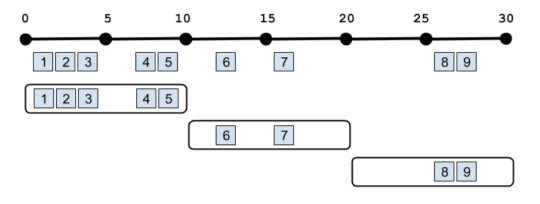
In the above example, the aggregation is operating on all the data since the beginning of the query, but you can also do aggregations on just the windows themselves. This is often called a Tumbling window:

image

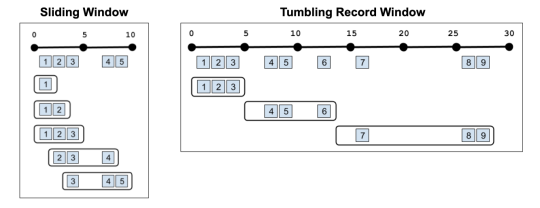
With record windowing, you can get the intermediate aggregation for each record that matches your query (a Sliding window). Or you can do a Tumbling window on records rather than time. For example, you could get results back every three records:

image

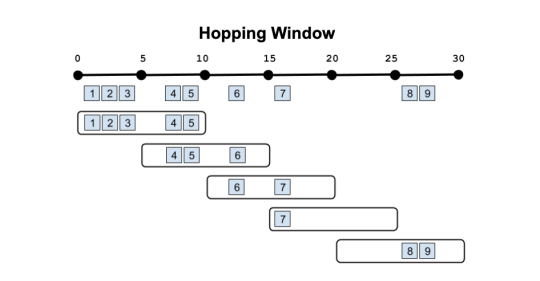
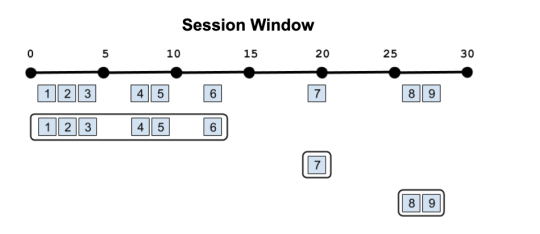
Overlapping windows in other ways (Hopping windows) or windows that reset based on different criteria (Session windows, Cascading windows) are currently being worked on. Stay tuned!

image
image

Apache Pulsar support as a native PubSub

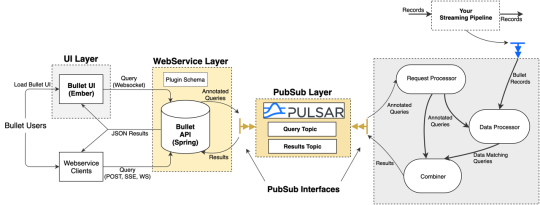
Bullet uses a PubSub (publish-subscribe) message queue to send queries and results between the Web Service and Backend. As with everything else in Bullet, the PubSub is pluggable. You can use your favorite pubsub by implementing a few interfaces if you don’t want to use the ones we provide. Until now, we’ve maintained and supported a REST-based PubSub and an Apache Kafka PubSub. Now we are excited to announce supporting Apache Pulsar as well! Bullet Pulsar will be useful to those users who want to use Pulsar as their underlying messaging service.

If you aren’t familiar with Pulsar, setting up a local standalone is very simple, and by default, any Pulsar topics written to will automatically be created. Setting up an instance of Bullet with Pulsar instead of REST or Kafka is just as easy. You can refer to our documentation for more details.

image

Plug your data into Bullet without code

While Bullet worked on any data source located in any persistence layer, you still had to implement an interface to connect your data source to the Backend and convert it into a record container format that Bullet understands. For instance, your data might be located in Kafka and be in the Avro format. If you were using Bullet on Storm, you would perhaps write a Storm Spout to read from Kafka, deserialize, and convert the Avro data into the Bullet record format. This was the only interface in Bullet that required our customers to write their own code. Not anymore! Bullet DSL is a text/configuration-based format for users to plug in their data to the Bullet Backend without having to write a single line of code.

Bullet DSL abstracts away the two major components for plugging data into the Bullet Backend. A Connector piece to read from arbitrary data-sources and a Converter piece to convert that read data into the Bullet record container. We currently support and maintain a few of these – Kafka and Pulsar for Connectors and Avro, Maps and arbitrary Java POJOs for Converters. The Converters understand typed data and can even do a bit of minor ETL (Extract, Transform and Load) if you need to change your data around before feeding it into Bullet. As always, the DSL components are pluggable and you can write your own (and contribute it back!) if you need one that we don’t support.

We appreciate your feedback and contributions! Explore Bullet on GitHub, use and help contribute to the project, and chat with us on Google Groups. To get started, try our Quickstarts on Spark or Storm to set up an instance of Bullet on some fake data and play around with it.