AWS IAM Identity Center is the preferred way to provide workforce access to Amazon Web Services (AWS) accounts, and enables you to provide workforce access to many AWS managed applications, such as Amazon Q Developer (Formerly known as Code Whisperer).
As we continue to release more AWS managed applications, customers have told us they want to onboard to IAM Identity Center to use AWS managed applications, but some aren’t ready to migrate their existing IAM federation for AWS account management to Identity Center.
In this blog post, I’ll show you how you can enable Identity Center and use AWS managed applications—such as Amazon Q Developer—without migrating existing IAM federation flows to Identity Center.
A recap on AWS managed applications and trusted identity propagation
Just before re:Invent 2023, AWS launched trusted identity propagation, a technology that allows you to use a user’s identity and groups when accessing AWS services. This allows you to assign permissions directly to users or groups, rather than model entitlements in AWS Identity and Access Management (IAM). This makes permissions management simpler for users. For example, with trusted identity propagation, you can grant users and groups access to specific Amazon Redshift clusters without modeling all possible unique combinations of permissions in IAM. Trusted identity propagation is available today for Redshift and Amazon Simple Storage Service (Amazon S3), with more services and features coming over time.
In 2023, we released Amazon Q Developer, which is integrated with IAM Identity Center, generally available as an AWS managed application. When you’re using Amazon Q Developer outside of AWS in integrated development environments (IDEs) such as Microsoft Visual Studio Code, Identity Center is used to sign in to Amazon Q Developer.
Amazon Q Developer is one of many AWS managed applications that are integrated with the OAuth 2.0 functionality of IAM Identity Center, and it doesn’t use IAM credentials to access the Q Developer service from within your IDEs. AWS managed applications and trusted identity propagation don’t require you to use the permission sets feature of Identity Center and instead use OpenID Connect to grant your workforce access to AWS applications and features.
IAM Identity Center for AWS application access only
In the following section, we use IAM Identity Center to sign in to Amazon Q Developer as an example of an AWS managed application.
Prerequisites
The steps in this post require that you have administrative level access to an organization in AWS Organizations.
Step 1: Enable an organization instance of IAM Identity Center
To begin, you must enable an organization instance of IAM Identity Center. While it’s possible to use IAM Identity Center without an AWS Organizations organization, we generally recommend that customers operate with such an organization.
The IAM Identity Center documentation provides the steps to enable an organizational instance of IAM Identity Center, as well as prerequisites and considerations. One consideration I would emphasize here is the identity source. We recommend, wherever possible, that you integrate with an external identity provider (IdP), because this provides the most flexibility and allows you to take advantage of the advanced security features of modern identity platforms.
IAM Identity Center is available at no additional cost.
Note: In late 2023, AWS launched account instances for IAM Identity Center. Account instances allow you to create additional Identity Center instances within member accounts of your organization. Wherever possible, we recommend that customers use an organization instance of IAM Identity Center to give them a centralized place to manage their identities and permissions. AWS recommends account instances when you want to perform a proof of concept using Identity Center, when there isn’t a central IdP or directory that contains all the identities you want to use on AWS and you want to use AWS managed applications with distinct directories, or when your AWS account is a member of an organization in AWS Organizations that is managed by another party and you don’t have access to set up an organization instance.
Step 2: Set up your IdP and synchronize identities and groups
After you’ve enabled your IAM Identity Center instance, you need to set up your instance to work with your chosen IdP and synchronize your identities and groups. The IAM Identity Center documentation includes examples of how to do this with many popular IdPs.
After your identity source is connected, IAM Identity Center can act as the single source of identity and authentication for AWS managed applications, bridging your external identity source and AWS managed applications. You don’t have to create a bespoke relationship between each AWS application and your IdP, and you have a single place to manage user permissions.
Step 3: Set up delegated administration for IAM Identity Center
As a best practice, we recommend that you only access the management account of your AWS Organizations organization when absolutely necessary. IAM Identity Center supports delegated administration, which allows you to manage Identity Center from a member account of your organization.
To set up delegated administration
Go to the AWS Management Console and navigate to IAM Identity Center.
In the left navigation pane, select Settings. Then select the Management tab and choose Register account.
From the menu that follows, select the AWS account that will be used for delegated administration for IAM Identity Center. Ideally, this member account is dedicated solely to the purpose of administrating IAM Identity Center and is only accessible to users who are responsible for maintaining IAM Identity Center.
Figure 1: Set up delegated administration
Step 4: Configure Amazon Q Developer
You now have IAM Identity Center set up with the users and groups from your directory, and you’re ready to configure AWS managed applications with IAM Identity Center. From a member account within your organization, you can now enable Amazon Q Developer. This can be any member account in your organization and should not be the one where you set up delegated administration of IAM Identity Center, or the management account.
Note: If you’re doing this step immediately after configuring IAM Identity Center with an external IdP with SCIM synchronization, be aware that the users and groups from your external IdP might not yet be synchronized to Identity Center by your external IdP. Identity Center updates user information and group membership as soon as the data is received from your external IdP. How long it takes to finish synchronizing after the data is received depends on the number of users and groups being synchronized to Identity Center.
To enable Amazon Q Developer
Open the Amazon Q Developer console. This will take you to the setup for Amazon Q Developer.
Figure 2: Open the Amazon Q Developer console
Choose Subscribe to Amazon Q.
Figure 3: The Amazon Q developer console
You’ll be taken to the Amazon Q console. Choose Subscribe to subscribe to Amazon Q Developer Pro.
Figure 4: Subscribe to Amazon Q Developer Pro
After choosing Subscribe, you will be prompted to select users and groups you want to enroll for Amazon Q Developer. Select the users and groups you want and then choose Assign.
Figure 5: Assign user and group access to Amazon Q Developer
After you perform these steps, the setup of Amazon Q Developer as an AWS managed application is complete, and you can now use Amazon Q Developer. No additional configuration is required within your external IdP or on-premises Microsoft Active Directory, and no additional user profiles have to be created or synchronized to Amazon Q Developer.
Note: There are charges associated with using the Amazon Q Developer service.
In their IDE, a user can sign in to Amazon Q Developer by entering the start URL and AWS Region and choosing Sign in. Figure 6 shows what this looks like in Visual Studio Code. The Amazon Q extension for Visual Studio Code is available to download within Visual Studio Code.
Figure 6: Signing in to the Amazon Q Developer extension in Visual Studio Code
After choosing Use with Pro license, and entering their Identity Center’s start URL and Region, the user will be directed to authenticate with IAM Identity Center and grant the Amazon Q Developer application access to use the Amazon Q Developer service.
When this is successful, the user will have the Amazon Q Developer functionality available in their IDE. This was achieved without migrating existing federation or AWS account access patterns to IAM Identity Center.
Clean up
If you don’t wish to continue using IAM Identity Center or Amazon Q Developer, you can delete the Amazon Q Developer Profile and Identity Center instance within their respective consoles, within the AWS account they are deployed into. Deleting your Identity Center instance won’t make changes to existing federation or AWS account access that is not done through IAM Identity Center.
Conclusion
In this post, we talked about some recent significant launches of AWS managed applications and features that integrate with IAM Identity Center and discussed how you can use these features without migrating your AWS account management to permission sets. We also showed how you can set up Amazon Q Developer with IAM Identity Center. While the example in this post uses Amazon Q Developer, the same approach and guidance applies to Amazon Q Business and other AWS managed applications integrated with Identity Center.
To enable your workforce users for analytics with fine-grained data access controls and audit data access, you might have to create multiple AWS Identity and Access Management (IAM) roles with different data permissions and map the workforce users to one of those roles. Multiple users are often mapped to the same role where they need similar privileges to enable data access controls at the corporate user or group level and audit data access.
AWS IAM Identity Center enables centralized management of workforce user access to AWS accounts and applications using a local identity store or by connecting corporate directories via identity providers (IdPs). IAM Identity Center now supports trusted identity propagation, a streamlined experience for users who require access to data with AWS analytics services.
Amazon EMR Studio is an integrated development environment (IDE) that makes it straightforward for data scientists and data engineers to build data engineering and data science applications. With trusted identity propagation, data access management can be based on a user’s corporate identity and can be propagated seamlessly as they access data with single sign-on to build analytics applications with Amazon EMR (EMR Studio and Amazon EMR on EC2).
AWS Lake Formation allows data administrators to centrally govern, secure, and share data for analytics and machine learning (ML). With trusted identity propagation, data administrators can directly provide granular access to corporate users using their identity attributes and simplify the traceability of end-to-end data access across AWS services. Because access is managed based on a user’s corporate identity, they don’t need to use database local user credentials or assume an IAM role to access data.
In this post, we show how to bring your workforce identity to EMR Studio for analytics use cases, directly manage fine-grained permissions for the corporate users and groups using Lake Formation, and audit their data access.
Solution overview
For our use case, we want to enable a data analyst user named analyst1 to use their own enterprise credentials to query data they have been granted permissions to and audit their data access. We use Okta as the IdP for this demonstration. The following diagram illustrates the solution architecture.
This architecture is based on the following components:
Okta is responsible for maintaining the corporate user identities, related groups, and user authentication.
IAM Identity Center connects Okta users and centrally manages their access across AWS accounts and applications.
Lake Formation provides fine-grained access controls on data directly to corporate users using trusted identity propagation.
EMR Studio is an IDE for users to build and run applications. It allows users to log in directly with their corporate credentials without signing in to the AWS Management Console.
For this setup, we have created two users, analyst1 and engineer1, and assigned them to the corresponding Okta application. You can validate the integration is working by navigating to the Users page on the IAM Identity Center console, as shown in the following screenshot. Both enterprise users from Okta are provisioned in IAM Identity Center.
The following exact users will not be listed in your account. You can either create similar users or use an existing user.
Each provisioned user in IAM Identity Center has a unique user ID. This ID does not originate from Okta; it’s created in IAM Identity Center to uniquely identify this user. With trusted identity propagation, this user ID will be propagated across services and also used for traceability purposes in CloudTrail. The following screenshot shows the IAM Identity Center user matching the provisioned Okta user analyst1.
Choose the link under AWS access portal URL and log in with the analyst1 Okta user credentials that are already assigned to this application.
If you are able to log in and see the landing page, then all your configurations up to this step are set correctly. You will not see any applications on this page yet.
Set up EMR Studio
In this step, we demonstrate the actions needed from the data lake administrator to set up EMR Studio enabled for trusted identity propagation and with IAM Identity Center integration. This allows users to directly access EMR Studio with their enterprise credentials.
Note: All Amazon S3 buckets (created after January 5, 2023) have encryption configured by default (Amazon S3 managed keys (SSE-S3)), and all new objects that are uploaded to an S3 bucket are automatically encrypted at rest. To use a different type of encryption, to meet your security needs, please update the default encryption configuration for the bucket. See Protecting data for server-side encryption for further details.
On the Amazon EMR console, choose Studios in the navigation pane under EMR Studio.
Choose Create Studio.
For Setup options¸ select Custom.
For Studio name, enter a name (for this post, emr-studio-with-tip).
For S3 location for Workspace storage, select Select existing location and enter an existing S3 bucket (if you have one). Otherwise, select Create new bucket.
For Service role to let Studio access your AWS resources, choose View permissions details to get the trust and IAM policy information that is needed and create a role with those specific policies in IAM. In this case, we create a new role called emr_tip_role.
For Service role to let Studio access your AWS resources, choose the IAM role you created.
For Workspace name, enter a name (for this post, studio-workspace-with-tip).
For Authentication, select IAM Identity Center.
For User role¸ you can create a new role or choose an existing role. For this post, we choose the role we created (emr_tip_role).
To use the same role, add the following statement to the trust policy of the service role:
Select Enable trusted identity propagation to allow you to control and log user access across connected applications.
For Choose who can access your application, select All users and groups.
Later, we restrict access to resources using Lake Formation. However, there is an option here to restrict access to only assigned users and groups.
In the Networking and security section, you can provide optional details for your VPC, subnets, and security group settings.
Choose Create Studio.
On the Studios page of the Amazon EMR console, locate your Studio enabled with IAM Identity Center.
Copy the link for Studio Access URL.
Enter the URL into a web browser and log in using Okta credentials.
You should be able to successfully sign in to the EMR Studio console.
Create an AWS Identity Center enabled security configuration for EMR clusters
EMR security configurations allow you to configure data encryption, Kerberos authentication, and Amazon S3 authorization for the EMR File System (EMRFS) on the clusters. The security configuration is available to use and reuse when you create clusters.
To integrate Amazon EMR with IAM Identity Center, you need to first create an IAM role that authenticates with IAM Identity Center from the EMR cluster. Amazon EMR uses IAM credentials to relay the IAM Identity Center identity to downstream services such as Lake Formation. The IAM role should also have the respective permissions to invoke the downstream services.
Create a role (for this post, called emr-idc-application) with the following trust and permission policy. The role referenced in the trust policy is the InstanceProfile role for EMR clusters. This allows the EC2 instance profile to assume this role and act as an identity broker on behalf of the federated users.
Upload my-certs.zip to an S3 location that will be used to create the security configuration.
The EMR service role should have access to the S3 location. The key allows access to the issuer’s EMR cluster instances in the us-west-2 Region as specified by the *.us-west-2.compute.internal domain name as the common name. You can change this to the Region your cluster is in.
You can view the security configuration on the Amazon EMR console.
Create a Service Catalog product template to create EMR clusters
EMR Studio with trusted identity propagation enabled can only work with clusters created from a template. Complete the following steps to create a product template in Service Catalog:
On the Service Catalog console, choose Portfolios under Administration in the navigation pane.
Choose Create portfolio.
Enter a name for your portfolio (for this post, EMR Clusters Template) and an optional description.
Choose Create.
On the Portfolios page, choose the portfolio you just created to view its details.
On the Products tab, choose Create product.
For Product type, select CloudFormation.
For Product name, enter a name (for this post, EMR-7.0.0).
Use the security configuration IdentityCenterConfiguration-with-lf-tip you created in previous steps with the appropriate Amazon EMR service roles.
Choose Create product.
The following is an example CloudFormation template. Update the account-specific values for SecurityConfiguration, JobFlowRole, ServiceRole, LogUri, Ec2KeyName, and Ec2SubnetId. We provide a sample Amazon EMR service role and trust policy in Appendix A at the end of this post.
Trusted identity propagation is supported from Amazon EMR 6.15 onwards. For Amazon EMR 6.15, add the following bootstrap action to the CloudFormation script:
The portfolio now should have the EMR cluster creation product added.
Grant the EMR Studio role emr_tip_role access to the portfolio.
Grant Lake Formation permissions to users to access data
In this step, we enable Lake Formation integration with IAM Identity Center and grant permissions to the Identity Center user analyst1. If Lake Formation is not already enabled, refer to Getting started with Lake Formation.
To use Lake Formation with Amazon EMR, create a custom role to register S3 locations. You need to create a new custom role with Amazon S3 access and not use the default role AWSServiceRoleForLakeFormationDataAccess. Additionally, enable external data filtering in Lake Formation. For more details, refer to Enable Lake Formation with Amazon EMR.
Complete the following steps to manage access permissions in Lake Formation:
On the Lake Formation console, choose IAM Identity Center integration under Administration in the navigation pane.
Lake Formation will automatically specify the correct IAM Identity Center instance.
Choose Create.
You can now view the IAM Identity Center integration details.
For this post, we have a Marketing database and a customer table on which we grant access to our enterprise user analyst1. You can use an existing database and table in your account or create a new one. For more examples, refer to Tutorials.
The following screenshot shows the details of our customer table.
On the Lake Formation console, choose Data lake permissions under Permissions in the navigation pane.
Choose Grant.
Select Named Data Catalog resources.
For Databases, choose your database (marketing).
For Tables, choose your table (customer).
For Table permissions, select Select and Describe.
For Data permissions, select All data access.
Choose Grant.
The following screenshot shows a summary of permissions that user analyst1 has. They have Select access on the table and Describe permissions on the databases.
Test the solution
To test the solution, we log in to EMR Studio as enterprise user analyst1, create a new Workspace, create an EMR cluster using a template, and use that cluster to perform an analysis. You could also use the Workspace that was created during the Studio setup. In this demonstration, we create a new Workspace.
You need additional permissions in the EMR Studio role to create and list Workspaces, use a template, and create EMR clusters. For more details, refer to Configure EMR Studio user permissions for Amazon EC2 or Amazon EKS. Appendix B at the end of this post contains a sample policy.
When the cluster is available, we attach the cluster to the Workspace and run queries on the customer table, which the user has access to.
User analyst1 is now able to run queries for business use cases using their corporate identity. To open a PySpark notebook, we choose PySpark under Notebook.
When the notebook is open, we run a Spark SQL query to list the databases:
%%sql
show databases
In this case, we query the customer table in the marketing database. We should be able to access the data.
%%sql
select * from marketing.customer
Audit data access
Lake Formation API actions are logged by CloudTrail. The GetDataAccess action is logged whenever a principal or integrated AWS service requests temporary credentials to access data in a data lake location that is registered with Lake Formation. With trusted identity propagation, CloudTrail also logs the IAM Identity Center user ID of the corporate identity who requested access to the data.
The following screenshot shows the details for the analyst1 user.
Choose View event to view the event logs.
The following is an example of the GetDataAccess event log. We can trace that user analyst1, Identity Center user ID c8c11390-00a1-706e-0c7a-bbcc5a1c9a7f, has accessed the customer table.
In this post, we demonstrated how to set up and use trusted identity propagation using IAM Identity Center, EMR Studio, and Lake Formation for analytics. With trusted identity propagation, a user’s corporate identity is seamlessly propagated as they access data using single sign-on across AWS analytics services to build analytics applications. Data administrators can provide fine-grained data access directly to corporate users and groups and audit usage. To learn more, see Integrate Amazon EMR with AWS IAM Identity Center.
About the Authors
Pradeep Misra is a Principal Analytics Solutions Architect at AWS. He works across Amazon to architect and design modern distributed analytics and AI/ML platform solutions. He is passionate about solving customer challenges using data, analytics, and AI/ML. Outside of work, Pradeep likes exploring new places, trying new cuisines, and playing board games with his family. He also likes doing science experiments with his daughters.
Deepmala Agarwal works as an AWS Data Specialist Solutions Architect. She is passionate about helping customers build out scalable, distributed, and data-driven solutions on AWS. When not at work, Deepmala likes spending time with family, walking, listening to music, watching movies, and cooking!
Abhilash Nagilla is a Senior Specialist Solutions Architect at Amazon Web Services (AWS), helping public sector customers on their cloud journey with a focus on AWS analytics services. Outside of work, Abhilash enjoys learning new technologies, watching movies, and visiting new places.
Appendix A
Sample Amazon EMR service role and trust policy:
Note: This is a sample service role. Fine grained access control is done using Lake Formation. Modify the permissions as per your enterprise guidance and to comply with your security team.
Note: This is a sample service role. Fine grained access control is done using Lake Formation. Modify the permissions as per your enterprise guidance and to comply with your security team.
Many organizations use identity providers (IdPs) to authenticate users, manage their attributes, and group memberships for secure, efficient, and centralized identity management. You might be modernizing your data architecture using Amazon Redshift to enable access to your data lake and data in your data warehouse, and are looking for a centralized and scalable way to define and manage the data access based on IdP identities. AWS Lake Formation makes it straightforward to centrally govern, secure, and globally share data for analytics and machine learning (ML). Currently, you may have to map user identities and groups to AWS Identity and Access Management (IAM) roles, and data access permissions are defined at the IAM role level within Lake Formation. This setup is not efficient because setting up and maintaining IdP groups with IAM role mapping as new groups are created is time consuming and it makes it difficult to derive what data was accessed from which service at that time.
Amazon Redshift, Amazon QuickSight, and Lake Formation now integrate with the new trusted identity propagation capability in AWS IAM Identity Center to authenticate users seamlessly across services. In this post, we discuss two use cases to configure trusted identity propagation with Amazon Redshift and Lake Formation.
Solution overview
Trusted identity propagation provides a new authentication option for organizations that want to centralize data permissions management and authorize requests based on their IdP identity across service boundaries. With IAM Identity Center, you can configure an existing IdP to manage users and groups and use Lake Formation to define fine-grained access control permissions on catalog resources for these IdP identities. Amazon Redshift supports identity propagation when querying data with Amazon Redshift Spectrum and with Amazon Redshift Data Sharing, and you can use AWS CloudTrail to audit data access by IdP identities to help your organization meet their regulatory and compliance requirements.
With this new capability, users can connect to Amazon Redshift from QuickSight with a single sign-on experience and create direct query datasets. This is enabled by using IAM Identity Center as a shared identity source. With trusted identity propagation, when QuickSight assets like dashboards are shared with other users, the database permissions of each QuickSight user are applied by propagating their end-user identity from QuickSight to Amazon Redshift and enforcing their individual data permissions. Depending on the use case, the author can apply additional row-level and column-level security in QuickSight.
The following diagram illustrates an example of the solution architecture.
In this post, we walk through how to configure trusted identity propagation with Amazon Redshift and Lake Formation. We cover the following use cases:
Redshift Spectrum with Lake Formation
Redshift data sharing with Lake Formation
Prerequisites
This walkthrough assumes you have set up a Lake Formation administrator role or a similar role to follow along with the instructions in this post. To learn more about setting up permissions for a data lake administrator, see Create a data lake administrator.
In this post, we use an AWS Glue crawler to create the external table ny_pub stored in Apache Parquet format in the Amazon S3 location s3://<bucketname>/data/NY-Pub/. In the next step, we create the solution resources using AWS CloudFormation to create a stack named CrawlS3Source-NYTaxiData in us-east-1.
The crawler NYTaxiCrawler along with the new IAM role AWSGlueServiceRole-RedshiftAutoMount
The AWS Glue database automountdb
When the stack is complete, continue with the following steps to finish setting up your resources:
On the AWS Glue console, under Data Catalog in the navigation pane, choose Crawlers.
Open NYTaxiCrawler and choose Edit.
Under Choose data sources and classifiers, choose Edit.
For Data source, choose S3.
For S3 path, enter s3://<bucketname>/data/NY-Pub/.
Choose Update S3 data source.
Choose Next and choose Update.
Choose Run crawler.
After the crawler is complete, you can see a new table called ny_pub in the Data Catalog under the automountdb database.
After you create the resources, complete the steps in the next sections to set up Lake Formation permissions on the AWS Glue table ny_pub for the sales IdP group and access them via Redshift Spectrum.
Enable Lake Formation propagation for the Redshift managed application
Set up Redshift Spectrum table access for the IAM Identity Center group
Complete the following steps to set up Redshift Spectrum table access:
Sign in to the Amazon Redshift console using the admin role.
Navigate to Query Editor v2.
Choose the options menu (three dots) next to the cluster and choose Create connection.
Connect as the admin user and run the following commands to make the ny_pub data in the S3 data lake available to the sales group:
create external schema if not exists nyc_external_schema from DATA CATALOG database 'automountdb' catalog_id '<accountid>';
grant usage on schema nyc_external_schema to role "awsidc:awssso-sales";
grant select on all tables in schema nyc_external_schema to role "awsidc:awssso- sales";
Validate Redshift Spectrum access as an IAM Identity Center user
Complete the following steps to validate access:
On the Amazon Redshift console, navigate to Query Editor v2.
Choose the options menu (three dots) next to the cluster and choose Create connection
Choose select IAM Identity Center option for Connect option. Provide Okta user name and password in the browser pop-up.
Once connected as a federated user, run the following SQL commands to query the ny_pub data lake table:
select * from nyc_external_schema.ny_pub;
Use Case 2: Redshift data sharing with Lake Formation
This use case assumes you have IAM Identity Center integration with Amazon Redshift set up, with Lake Formation propagation enabled as per the instructions provided in the previous section.
Create a data share with objects and share it with the Data Catalog
Complete the following steps to create a data share:
Sign in to the Amazon Redshift console using the admin role.
Navigate to Query Editor v2.
Choose the options menu (three dots) next to the Redshift source cluster and choose Create connection.
Connect as admin user using Temporarily credentials using a database user name option and run the following SQL commands to create a data share:
CREATE DATASHARE salesds;
ALTER DATASHARE salesds ADD SCHEMA sales_schema;
ALTER DATASHARE salesds ADD TABLE store_sales;
GRANT USAGE ON DATASHARE salesds TO ACCOUNT ‘<accountid>’ via DATA CATALOG;
Authorize the data share by choosing Data shares in the navigation page and selecting the data share salesdb.
Select the data share and choose Authorize.
Now you can register the data share in Lake Formation as an AWS Glue database.
Sign in to the Lake Formation console as the data lake administrator IAM user or role.
Under Data catalog in the navigation pane, choose Data sharing and view the Redshift data share invitations on the Configuration tab.
Select the datashare salesds and choose Review Invitation.
Once you review the details choose Accept.
Provide a name for the AWS Glue database (for example, salesds) and choose Skip to Review and create.
After the AWS Glue database is created on the Redshift data share, you can view it under Shared databases.
Grant the IAM Identity Center user group permission on the AWS Glue database and table
Complete the following steps to grant database permissions to the IAM Identity Center group:
On the Lake Formation console, under Data catalog in the navigation pane, choose Databases.
Select the database salesds and on the Actions menu, choose Grant.
Choose Grant database.
Under Principals, select IAM Identity Center and choose Add.
In the pop-up window, enter the IAM Identity Center group awssso in the search bar and choose the awssso-sales group.
Choose Assign.
Under LF-Tags or catalog resources, salesds is already selected for Databases.
Select Describe for Database permissions.
Choose Grant to apply the permissions.
Next, grant table permissions to the IAM Identity Center group.
Under Data catalog in the navigation pane, choose Databases.
Select the database salesds and on the Actions menu, choose Grant.
Under Principals, select IAM Identity Center and choose Add.
In the pop-up window, enter the IAM Identity Center group awssso in the search bar and choose the awssso-sales group.
Choose Assign.
Under LF-Tags or catalog resources, salesds is already selected for Databases.
For Tables, choose sales_schema.store_sales.
Select Describe and Select for Table permissions.
Choose Grant to apply the permissions.
Mount the external schema in the target Redshift cluster and enable access for the IAM Identity Center user
Complete the following steps:
Sign in to the Amazon Redshift console using the admin role.
Navigate to Query Editor v2.
Connect as an admin user and run the following SQL commands to mount the AWS Glue database customerds as an external schema and enable access to the sales group:
create external schema if not exists sales_datashare_schema from DATA CATALOG database salesds catalog_id '<accountid>';
create role "awsidc:awssso-sales"; # If the role was not already created
grant usage on schema sales_datashare_schema to role "awsidc:awssso-sales";
grant select on all tables in schema sales_datashare_schema to role "awsidc:awssso- sales";
Access Redshift data shares as an IAM Identity Center user
Complete the following steps to access the data shares:
On the Amazon Redshift console, navigate to Query Editor v2.
Choose the options menu (three dots) next to the cluster and choose Create connection.
Connect with IAM Identity Center and the provide IAM Identity Center user and password in the browser login.
Run the following SQL commands to query the data lake table:
SELECT * FROM "dev"."sales_datashare_schema"."sales_schema.store_sales";
With Transitive Identity Propagation we can now audit user access to dataset from Lake Formation dashboard and service used for accessing the dataset providing complete trackability. For federated user Ethan whose Identity Center User ID is ‘459e10f6-a3d0-47ae-bc8d-a66f8b054014’ you can see the below event log.
Complete the following steps to clean up your resources:
Delete the data from the S3 bucket.
Delete the Lake Formation application and the Redshift provisioned cluster that you created for testing.
Sign in to the CloudFormation console as the IAM admin used for creating the CloudFormation stack, and delete the stack you created.
Conclusion
In this post, we covered how to simplify access management for analytics by propagating user identity across Amazon Redshift and Lake Formation using IAM Identity Center. We learned how to get started with trusted identity propagation by connecting to Amazon Redshift and Lake Formation. We also learned how to configure Redshift Spectrum and data sharing to support trusted identity propagation.
Learn more about IAM Identity Center with Amazon Redshift and AWS Lake Formation. Leave your questions and feedback in the comments section.
About the Authors
Harshida Patel is a Analytics Specialist Principal Solutions Architect, with AWS.
Srividya Parthasarathy is a Senior Big Data Architect on the AWS Lake Formation team. She enjoys building data mesh solutions and sharing them with the community.
Maneesh Sharma is a Senior Database Engineer at AWS with more than a decade of experience designing and implementing large-scale data warehouse and analytics solutions. He collaborates with various Amazon Redshift Partners and customers to drive better integration.
Poulomi Dasgupta is a Senior Analytics Solutions Architect with AWS. She is passionate about helping customers build cloud-based analytics solutions to solve their business problems. Outside of work, she likes travelling and spending time with her family.
Amazon OpenSearch Service is a fully managed search and analytics service powered by the Apache Lucene search library that can be operated within a virtual private cloud (VPC). A VPC is a virtual network that’s dedicated to your AWS account. It’s logically isolated from other virtual networks in the AWS Cloud. Placing an OpenSearch Service domain within a VPC enables a secure communication between OpenSearch Service and other services within the VPC without the need for an internet gateway, NAT device, or a VPN connection. All traffic remains securely within the AWS Cloud, providing a safe environment for your data. To connect to an OpenSearch Service domain running inside a private VPC, enterprise customers use one of two available options: either integrate their VPC with their enterprise network through VPN or AWS Direct Connect, or make the cluster endpoint publicly accessible through a reverse proxy. Refer to How can I access OpenSearch Dashboards from outside of a VPC using Amazon Cognito authentication for a detailed evaluation of the available options and the corresponding pros and cons.
For managing access to OpenSearch Dashboards in enterprise customers’ environments, OpenSearch Service supports Security Assertion Markup Language (SAML) integration with the customer’s existing identity providers (IdPs) to offer single sign-on (SSO). Although SAML integration for publicly accessible OpenSearch Dashboards works out of the box, enabling SAML for OpenSearch Dashboards within a VPC requires careful design with various configurations.
This post outlines an end-to-end solution for integrating SAML authentication for OpenSearch Service domains running in a VPC. It provides a step-by-step deployment guideline and is accompanied by AWS Cloud Development Kit (AWS CDK) applications, which automate all the necessary configurations.
Overview of solution
The following diagram describes the step-by-step authentication flow for accessing a private OpenSearch Service domain through SSO using SAML identity federation. The access is enabled over public internet through private NGINX reverse proxy servers running on Amazon Elastic Container Service (Amazon ECS) for high availability.
The workflow consists of the following steps:
The user navigates to the OpenSearch Dashboards URL in their browser.
The browser resolves the domain IP address and sends the request.
AWS WAF rules make sure that only allow listed IP address ranges are allowed.
Application Load Balancer forwards the request to NGINX reverse proxy.
NGINX adds the necessary headers and forwards the request to OpenSearch Dashboards.
OpenSearch Dashboards detects that the request is not authenticated. It replies with a redirect to the integrated SAML IdP for authentication.
The user is redirected to the SSO login page.
The IdP verifies the user’s identity and generates a SAML assertion token.
The user is redirected back to the OpenSearch Dashboards URL.
The request goes through the Steps 1–5 again until it reaches OpenSearch. This time, OpenSearch Dashboards detects the accompanying SAML assertion and allows the request.
In the following sections, we set up a NGINX reverse proxy in private subnets to provide access to OpenSearch Dashboards for a domain deployed inside VPC private subnets. We then enable SAML authentication for OpenSearch Dashboards using a SAML 2.0 application and use a custom domain endpoint to access OpenSearch Dashboards to see the SAML authentication in action.
Prerequisites
Before you get started, complete the prerequisite steps in this section.
Create an Amazon Route 53 public hosted zone such as mydomain.com to be used for routing internet traffic to your domain. For instructions, refer to Creating a public hosted zone.
This post is accompanied with a standalone AWS CDK application (opensearch-domain) that deploys a sample OpenSearch Service domain in private VPC subnets. The deployed domain is for demonstration purposes only, and is optional.
If you have an existing OpenSearch Service domain in VPC that you want to use for SAML integration, apply the following configurations:
On the Cluster configuration tab, choose Edit and select Enable custom endpoint in the Custom endpoint section.
For Custom hostname, enter a fully qualified domain name (FQDN) such as opensearch.mydomain.com, which you want to use to access your cluster. Note that the domain name of the provided FQDN (for example, mydomain.com) must be the same as the public hosted zone you created earlier.
For AWS certificate, choose the SSL certificate you created earlier.
In the Summary section, optionally enable dry run analysis and select Dry run or deselect it and choose Save changes.
Otherwise, download the accompanied opensearch-domain AWS CDK application and unzip it. Then, edit the cdk.json file on the root of the unzipped folder and configure the required parameters:
vpc_cidr – The CIDR block in which to create the VPC. You may leave the default of 10.0.0.0/16.
opensearch_cluster_name – The name of the OpenSearch Service cluster. You may leave the default value of opensearch. It will also be used, together with the hosted_zone_name parameter, to build the FQDN of the custom domain URL.
hosted_zone_id – The Route 53 public hosted zone ID.
hosted_zone_name – The Route 53 public hosted zone name (for example, mydomain.com). The result FQDN with the default example values will then be opensearch.mydomain.com.
Finally, run the following commands to deploy the AWS CDK application:
cd opensearch-domain

# Create a Python environment and install the reuired dependencies
python3 -m venv .venv
source .venv/bin/activate
pip install -r requirements-dev.txt
pip install -r requirements.txt

# Deploy the CDK application
cdk deploy
With the prerequisites in place, refer to the following sections for a step-by-step guide to deploy this solution.
Create a SAML 2.0 application
We use IAM Identity Center as the source of identity for our SAML integration. The same configuration should apply to other SAML 2.0-compliant IdPs. Consult your IdP documentation.
On the IAM Identity Center console, choose Groups in the navigation pane.
Create a new group called Opensearch Admin, and add users to it. This will be the SAML group that receives full permissions in OpenSearch Dashboards. Take note of the group ID.
Choose Applications in the navigation pane.
Create a new custom SAML 2.0 application.
Download the IAM Identity Center SAML metadata file to use in a later step.
For Application start URL, enter [Custom Domain URL]/_dashboards/. The custom domain URL is composed of communication protocol (https://) followed by the FQDN, which you used for your OpenSearch Service cluster in the prerequisites (for example, https://opensearch.mydomain.com). Look under your OpenSearch Service cluster configurations, if in doubt.
For Application ACS URL, enter [Custom Domain URL]/_dashboards/_opendistro/_security/saml/acs.
For Application SAML audience, enter [Custom Domain URL] (without any trailing slash).
Choose Submit.
In the Assigned users section, select Opensearch Admin and choose Assign Users.
On the Actions menu, choose Edit attribute mappings.
Define attribute mappings as shown in the following screenshot and choose Save changes.
Deploy the AWS CDK application
Complete the following steps to deploy the AWS CDK application:
Edit the cdk.json file and set the required parameters inside the nested config object:
aws_region – The target AWS Region for your deployment (for example, eu-central-1).
vpc_id – The ID of the VPC into which the OpenSearch Service domain has been deployed.
opensearch_cluster_security_group_id – The ID of the security group used by the OpenSearch Service domain or any other security group that allows inbound connections to that domain on port 80 and 443. This group ID will be used by the Application Load Balancer to forward traffic to your OpenSearch Service domain.
hosted_zone_id – The Route 53 public hosted zone ID.
hosted_zone – The Route 53 public hosted zone name (for example, mydomain.com).
opensearch_custom_domain_name – An FQDN such as opensearch.mydomain.com, which you want to use to access your cluster. Note that the domain name of the provided FQDN (mydomain.com) must be the same as the hosted_zone parameter.
opensearch_custom_domain_certificate_arn – The ARN of the certificate stored in ACM.
opensearch_domain_endpoint – The OpenSearch Service VPC domain endpoint (for example, vpc-opensearch-abc123.eu-central-1.es.amazonaws.com).
vpc_dns_resolver – This must be 10.0.0. if your VPC CIDR is 10.0.0.0/16. See Amazon DNS server for further details.
alb_waf_ip_whitelist_cidrs – This is an optional list of zero or more IP CIDR ranges that will be automatically allow listed in AWS WAF to permit access to the OpenSearch Service domain. If not specified, after the deployment you will need to manually add relevant IP CIDR ranges to the AWS WAF IP set to allow access. For example, ["1.2.3.4/32", "5.6.7.0/24"].
Deploy the OpenSearch Service domain SAML integration AWS CDK application:
cd opensearch-domain-saml-integration

# Create a Python environment and install the required dependencies
python3 -m venv .venv
source .venv/bin/activate
pip install -r requirements-dev.txt
pip install -r requirements.txt

# Deploy the CDK application
cdk deploy
Enable SAML authentication for your OpenSearch Service cluster
When the application deployment is complete, enable SAML authentication for your cluster:
On the OpenSearch Service console, navigate to your domain.
On the Security configuration tab, choose Edit.
Select Enable SAML authentication.
Choose Import from XML file and import the IAM Identity Center SAML metadata file that you downloaded in an earlier step.
For SAML master backend role, use the group ID you saved earlier.
Expand the Additional settings section and for Roles, enter the SAML 2.0 attribute name you mapped earlier when you created the SAML 2.0 application in AWS Identity Center.
Submit changes and wait for OpenSearch Service to apply the configurations before proceeding to the next section.
Test the solution
Complete the following steps to see the solution in action:
On the IAM Identity Center console, choose Dashboard in the navigation pane.
In the Settings summary section, choose the link under AWS access portal URL.
Sign in with your user name and password (register your password if this is your first login). If your account was successfully added to the admin group, a SAML application logo is visible.
Choose Custom SAML 2.0 application to be redirected to the OpenSearch Service dashboards through SSO without any additional login attempts. Alternatively, you could skip logging in to the access portal and directly point your browser to the OpenSearch Dashboards URL. In that case, OpenSearch Dashboards would first redirect you to the access portal to log in, which would redirect you back to the OpenSearch Dashboards UI after a successful login, resulting in the same outcome as shown in the following screenshot.
Troubleshooting
Your public-facing IP must be allow listed by the AWS WAF rule, otherwise a 403 Forbidden error will be returned. Allow list your IP CIDR range via the AWS CDK alb_waf_ip_whitelist_cidrs property as described in the installation guide and redeploy the AWS CDK application for changes to take effect.
Clean up
When you’re finished with this configuration, clean up the resources to avoid future charges.
On the OpenSearch Service console, navigate to the Security configuration tab of your OpenSearch Service domain and choose Edit.
Deselect Enable SAML authentication and choose Save changes.
After the Amazon SAML integration is disabled, delete the opensearch-domain-saml-integration stack using cdk destroy.
Optionally, if you used the provided OpenSearch Service sample AWS CDK stack (opensearch-domain), delete it using cdk destroy.
Conclusion
OpenSearch Service allows enterprise customers to use their preferred federated IdPs such as SAML using IAM Identity Center for clusters running inside private VPC subnets following AWS best practices.
In this post, we showed you how to integrate an OpenSearch Service domain within a VPC with an existing SAML IdP for SSO access to OpenSearch Dashboards using IAM Identity Center. The provided solution securely manages network access to the resources using AWS WAF to restrict access only to authorized network segments or specific IP addresses.
Mahdi Ebrahimi is a Senior Cloud Infrastructure Architect with Amazon Web Services. He excels in designing distributed, highly-available software systems. Mahdi is dedicated to delivering cutting-edge solutions that empower his customers to innovate in the rapidly evolving landscape in the automotive industry.
Dmytro Protsiv is a Cloud Applications Architect for with Amazon Web Services. He is passionate about helping customers to solve their business challenges around application modernization.
Luca Menichetti is a Big Data Architect with Amazon Web Services. He helps customers develop performant and reusable solutions to process data at scale. Luca is passioned about managing organisation’s data architecture, enabling data analytics and machine learning. Having worked around the Hadoop ecosystem for a decade, he really enjoys tackling problems in NoSQL environments.
Krithivasan Balasubramaniyan is a Principal Consultant with Amazon Web Services. He enables global enterprise customers in their digital transformation journey and helps architect cloud native solutions.
Muthu Pitchaimani is a Search Specialist with Amazon OpenSearch Service. He builds large-scale search applications and solutions. Muthu is interested in the topics of networking and security, and is based out of Austin, Texas.
AWS Identity and Access Management (IAM) roles are a powerful way to manage permissions to resources in the Amazon Web Services (AWS) Cloud. IAM roles are useful when granting permissions to users whose workloads are static. However, for users whose access patterns are more dynamic, relying on roles can add complexity for administrators who are faced with provisioning roles and making sure the right people have the right access to the right roles.
The typical solution to handle dynamic workforce access is the OAuth 2.0 framework, which you can use to propagate an authenticated user’s identity to resource services. Resource services can then manage permissions based on the user—their attributes or permissions—rather than building a complex role management system. AWS IAM Identity Center recently introduced trusted identity propagation based on OAuth 2.0 to support dynamic access patterns.
With trusted identity propagation, your requesting application obtains OAuth tokens from IAM Identity Center and passes them to an AWS resource service. The AWS resource service trusts tokens that Identity Center generates and grants permissions based on the Identity Center tokens.
What happens if the application you want to deploy uses an external OAuth authorization server, such as Okta Universal Directory or Microsoft Entra ID, but the AWS service uses IAM Identity Center? How can you use the tokens from those applications with your applications that AWS hosts?
In this blog post, we show you how you can use IAM Identity Center trusted token issuers to help address these challenges. You also review the basics of Identity Center and OAuth and how Identity Center enables the use of external OAuth authorization servers.
IAM Identity Center and OAuth
IAM Identity Center acts as a central identity service for your AWS Cloud environment. You can bring your workforce users to AWS and authenticate them from an identity provider (IdP) that’s external to AWS (such as Okta or Microsoft Entra), or you can create and authenticate the users on AWS.
Trusted identity propagation in IAM Identity Center lets AWS workforce identities use OAuth 2.0, helping applications that need to share who’s using them with AWS services. In OAuth, a client application and a resource service both trust the same authorization server. The client application gets an OAuth token for the user and sends it to the resource service. Because both services trust the OAuth server, the resource service can identify the user from the token and set permissions based on their identity.
AWS supports two OAuth patterns:
AWS applications authenticate directly with IAM Identity Center: Identity Center redirects authentication to your identity source, which generates OAuth tokens that the AWS managed application uses to access AWS services. This is the default pattern because the AWS services that support trusted identity propagation use Identity Center as their OAuth authorization server.
Third-party, non-AWS applications authenticate outside of AWS (typically to your IdP) and access AWS resources: During authentication, these third-party applications obtain an OAuth token from an OAuth authorization server outside of AWS. In this pattern, the AWS services aren’t connected to the same OAuth authorization server as the client application. To enable this pattern, AWS introduced a model called the trusted token issuer.
Trusted token issuer
When AWS services use IAM Identity Center as their authentication service, directory, and OAuth authorization server, the AWS services that use OAuth tokens require that Identity Center issues the tokens. However, most third-party applications federate with an external IdP and obtain OAuth tokens from an external authorization server. Although the identities in Identity Center and the external authorization server might be for the same person, the identities exist in separate domains, one in Identity Center, the other in the external authorization server. This is required to manage authorization of workforce identities with AWS services.
The trusted token issuer (TTI) feature provides a way to securely associate one identity from the external IdP with the other identity in IAM Identity Center.
When using third-party applications to access AWS services, there’s an external OAuth authorization server for the third-party application, and IAM Identity Center is the OAuth authorization server for AWS services; each has its own domain of users. The Identity Center TTI feature connects these two systems so that tokens from the external OAuth authorization server can be exchanged for tokens from Identity Center that AWS services can use to identify the user in the AWS domain of users. A TTI is the external OAuth authorization server that Identity Center trusts to provide tokens that third-party applications use to call AWS services, as shown in Figure 1.
Figure 1: Conceptual model using a trusted token issuer and token exchange
How the trust model and token exchange work
There are two levels of trust involved with TTIs. First, the IAM Identity Center administrator must add the TTI, which makes it possible to exchange tokens. This involves connecting Identity Center to the Open ID Connect (OIDC) discovery URL of the external OAuth authorization server and defining an attribute-based mapping between the user from the external OAuth authorization server and a corresponding user in Identity Center. Second, the applications that exchange externally generated tokens must be configured to use the TTI. There are two models for how tokens are exchanged:
Managed AWS service-driven token exchange: A third-party application uses an AWS driver or API to access a managed AWS service, such as accessing Amazon Redshift by using Amazon Redshift drivers. This works only if the managed AWS service has been designed to accept and exchange tokens. The application passes the external token to the AWS service through an API call. The AWS service then makes a call to IAM Identity Center to exchange the external token for an Identity Center token. The service uses the Identity Center token to determine who the corresponding Identity Center user is and authorizes resource access based on that identity.
Third-party application-driven token exchange: A third-party application not managed by AWS exchanges the external token for an IAM Identity Center token before calling AWS services. This is different from the first model, where the application that exchanges the token is the managed AWS service. An example is a third-party application that uses Amazon Simple Storage Service (Amazon S3) Access Grants to access S3. In this model, the third-party application obtains a token from the external OAuth authorization server and then calls Identity Center to exchange the external token for an Identity Center token. The application can then use the Identity Center token to call AWS services that use Identity Center as their OAuth authorization server. In this case, the Identity Center administrator must register the third-party application and authorize it to exchange tokens from the TTI.
TTI trust details
When using a TTI, IAM Identity Center trusts that the TTI authenticated the user and authorized them to use the AWS service. This is expressed in an identity token or access token from the external OAuth authorization server (the TTI).
These are the requirements for the external OAuth authorization server (the TTI) and the token it creates:
The token must be a signed JSON Web Token (JWT). The JWT must contain a subject (sub) claim, an audience (aud) claim, an issuer (iss), a user attribute claim, and a JWT ID (JTI) claim.
The subject in the JWT is the authenticated user and the audience is a value that represents the AWS service that the application will use.
The audience claim value must match the value that is configured in the application that exchanges the token.
The issuer claim value must match the value configured in the issuer URL in the TTI.
There must be a claim in the token that specifies a user attribute that IAM Identity Center can use to find the corresponding user in the Identity Center directory.
The JWT token must contain the JWT ID claim. This claim is used to help prevent replay attacks. If a new token exchange is attempted after the initial exchange is complete, IAM Identity Center rejects the new exchange request.
The TTI must have an OIDC discovery URL that IAM Identity Center can use to obtain keys that it can use to verify the signature on JWTs created by your TTI. Identity Center appends the suffix /.well-known/openid-configuration to the provider URL that you configure to identify where to fetch the signature keys.
Note: Typically, the IdP that you use as your identity source for IAM Identity Center is your TTI. However, your TTI doesn’t have to be the IdP that Identity Center uses as an identity source. If the users from a TTI can be mapped to users in Identity Center, the tokens can be exchanged. You can have as many as 10 TTIs configured for a single Identity Center instance.
Details for applications that exchange tokens
Your OAuth authorization server service (the TTI) provides a way to authorize a user to access an AWS service. When a user signs in to the client application, the OAuth authorization server generates an ID token or an access token that contains the subject (the user) and an audience (the AWS services the user can access). When a third-party application accesses an AWS service, the audience must include an identifier of the AWS service. The third-party client application then passes this token to an AWS driver or an AWS service.
To use IAM Identity Center and exchange an external token from the TTI for an Identity Center token, you must configure the application that will exchange the token with Identity Center to use one or more of the TTIs. Additionally, as part of the configuration process, you specify the audience values that are expected to be used with the external OAuth token.
If the applications are managed AWS services, AWS performs most of the configuration process. For example, the Amazon Redshift administrator connects Amazon Redshift to IAM Identity Center, and then connects a specific Amazon Redshift cluster to Identity Center. The Amazon Redshift cluster exchanges the token and must be configured to do so, which is done through the Amazon Redshift administrative console or APIs and doesn’t require additional configuration.
If the applications are third-party and not managed by AWS, your IAM Identity Center administrator must register the application and configure it for token exchange. For example, suppose you create an application that obtains an OAuth token from Okta Universal Directory and calls S3 Access Grants. The Identity Center administrator must add this application as a customer managed application and must grant the application permissions to exchange tokens.
How to set up TTIs
To create new TTIs, open the IAM Identity Center console, choose Settings, and then choose Create trusted token issuer, as shown in Figure 2. In this section, I show an example of how to use the console to create a new TTI to exchange tokens with my Okta IdP, where I already created my OIDC application to use with my new IAM Identity Center application.
Figure 2: Configure the TTI in the IAM Identity Center console
TTI uses the issuer URL to discover the OpenID configuration. Because I use Okta, I can verify that my IdP discovery URL is accessible at https://{my-okta-domain}.okta.com/.well-known/openid-configuration. I can also verify that the OpenID configuration URL responds with a JSON that contains the jwks_uri attribute, which contains a URL that lists the keys that are used by my IdP to sign the JWT tokens. Trusted token issuer requires that both URLs are publicly accessible.
I then configure the attributes I want to use to map the identity of the Okta user with the user in IAM Identity Center in the Map attributes section. I can get the attributes from an OIDC identity token issued by Okta:
I’m requesting a token with an additional email scope, because I want to use this attribute to match against the email of my IAM Identity Center users. In most cases, your Identity Center users are synchronized with your central identity provider by using automatic provisioning with the SCIM protocol. In this case, you can use the Identity Center external ID attribute to match with oid or sub attributes. The only requirement for TTI is that those attributes create a one-to-one mapping between the two IdPs.
Now that I have created my TTI, I can associate it with my IAM Identity Center applications. As explained previously, there are two use cases. For the managed AWS service-driven token exchange use case, use the service-specific interface to do so. For example, I can use my TTI with Amazon Redshift, as shown in Figure 3:
Figure 3: Configure the TTI with Amazon Redshift
I selected Okta as the TTI to use for this integration, and I now need to configure the audclaim value that the application will use to accept the token. I can find it when creating the application from the IdP side–in this example, the value is 123456nqqVBTdtk7890, and I can obtain it by using the preceding example OIDC identity token.
I can also use the AWS Command Line Interface (AWS CLI) to configure the IAM Identity Center application with the appropriate application grants:
For AWS service-driven use cases, the token exchange between your IdP and IAM Identity Center is performed automatically by the service itself. For third-party application-driven token exchange, such as when building your own Identity Center application with S3 Access Grants, your application performs the token exchange by using the Identity Center OIDC API action CreateTokenWithIAM:
The value of the scope attribute varies depending on the IAM Identity Center application that you’re interacting with, because it defines the permissions associated with the application.
You can also inspect the idToken attribute because it’s JWT-encoded:
The AWS account and the IAM Identity Center instance and application that accepted the token exchange
The unique user ID of the user that was matched in IAM Identity Center (attribute sub)
AWS services can now use the STS Audit Context token (found in the attribute sts:audit_context) to create identity-aware sessions with the STS API. You can audit the API calls performed by the identity-aware sessions in AWS CloudTrail, by inspecting the attribute onBehalfOf within the field userIdentity. In this example, you can see an API call that was performed with an identity-aware session:
You can thus quickly filter actions that an AWS principal performs on behalf of your IAM Identity Center user.
Troubleshooting TTI
You can troubleshoot token exchange errors by verifying that:
The OpenID discovery URL is publicly accessible.
The OpenID discovery URL response conforms with the OpenID standard.
The OpenID keys URL referenced in the discovery response is publicly accessible.
The issuer URL that you configure in the TTI exactly matches the value of the iss scope that your IdP returns.
The user attribute that you configure in the TTI exists in the JWT that your IdP returns.
The user attribute value that you configure in the TTI matches exactly one existing IAM Identity Center user on the target attribute.
The aud scope exists in the token returned from your IdP and exactly matches what is configured in the requested IAM Identity Center application.
The jti claim exists in the token returned from your IdP.
If you use an IAM Identity Center application that requires user or group assignments, the matched Identity Center user is already assigned to the application or belongs to a group assigned to the application.
Note: When an IAM Identity Center application doesn’t require user or group assignments, the token exchange will succeed if the preceding conditions are met. This configuration implies that the connected AWS service requires additional security assignments. For example, Amazon Redshift administrators need to configure access to the data within Amazon Redshift. The token exchange doesn’t grant implicit access to the AWS services.
Conclusion
In this blog post, we introduced the trust token issuer feature of IAM Identity Center and what it offers, how it’s configured, and how you can use it to integrate your IdP with AWS services. You learned how to use TTI with AWS-managed applications and third-party applications by configuring the appropriate parameters. You also learned how to troubleshoot token-exchange issues and audit access through CloudTrail.
If you have feedback about this post, submit comments in the Comments section below. If you have questions about this post, start a new thread on the AWS IAM Identity Center re:Post or contact AWS Support.
AWS IAM Identity Center (IdC) allows you to manage single sign-on (SSO) access to all your AWS accounts and applications from a single location. We are pleased to announce that Amazon Redshift now integrates with AWS IAM Identity Center, and supports trusted identity propagation, allowing you to use third-party Identity Providers (IdP) such as Microsoft Entra ID (Azure AD), Okta, Ping, and OneLogin. This integration simplifies the authentication and authorization process for Amazon Redshift users using Query Editor V2 or Amazon Quicksight, making it easier for them to securely access your data warehouse. Additionally, this integration positions Amazon Redshift as an IdC-managed application, enabling you to use database role-based access control on your data warehouse for enhanced security.
AWS IAM Identity Center offers automatic user and group provisioning from Okta to itself by utilizing the System for Cross-domain Identity Management (SCIM) 2.0 protocol. This integration allows for seamless synchronization of information between two services, ensuring accurate and up-to-date information in AWS IAM Identity Center.
In this post, we’ll outline a comprehensive guide for setting up SSO to Amazon Redshift using integration with IdC and Okta as the Identity Provider. This guide shows how you can SSO onto Amazon Redshift for Amazon Redshift Query Editor V2 (QEV2).
Solution overview
Using IAM IdC with Amazon Redshift can benefit your organization in the following ways:
Users can connect to Amazon Redshift without requiring an administrator to set up AWS IAM roles with complex permissions.
IAM IdC integration allows mapping of IdC groups with Amazon Redshift database roles. Administrators can then assign different privileges to different roles and assigning these roles to different users, giving organizations granular control for user access.
IdC provides a central location for your users in AWS. You can create users and groups directly in IdC or connect your existing users and groups that you manage in a standards-based identity provider like Okta, Ping Identity, or Microsoft Entra ID (i.e., Azure Active Directory [AD]).
IdC directs authentication to your chosen source of truth for users and groups, and it maintains a directory of users and groups for access by Amazon Redshift.
You can share one IdC instance with multiple Amazon Redshift data warehouses with a simple auto-discovery and connect capability. This makes it fast to add clusters without the extra effort of configuring the IdC connection for each, and it ensures that all clusters and workgroups have a consistent view of users, their attributes, and groups. Note: Your organization’s IdC instance must be in the same region as the Amazon Redshift data warehouse you’re connecting to.
Because user identities are known and logged along with data access, it’s easier for you to meet compliance regulations through auditing user access in AWS CloudTrail authorizes access to data.
Amazon Redshift Query Editor V2 workflow:
End user initiates the flow using AWS access portal URL (this URL would be available on IdC dashboard console). A browser pop-up triggers and takes you to the Okta Login page where you enter Okta credentials. After successful authentication, you’ll be logged into the AWS Console as a federated user. Click on your AWS Account and choose the Amazon Redshift Query Editor V2 application. Once you federate to Query Editor V2, select the IdC authentication method.
QEv2 invokes browser flow where you re-authenticate, this time with their AWS IdC credentials. Since Okta is the IdP, you enter Okta credentials, which are already cached in browser. At this step, federation flow with IdC initiates and at the end of this flow, the Session token and Access token is available to the QEv2 console in browser as cookies.
Amazon Redshift retrieves your authorization details based on session token retrieved and fetches user’s group membership.
Upon a successful authentication, you’ll be redirected back to QEV2, but logged in as an IdC authenticated user.
This solution covers following steps:
Integrate Okta with AWS IdC to sync user and groups.
Setting up IdC integration with Amazon Redshift
Assign Users or Groups from IdC to Amazon Redshift Application.
Enable IdC integration for a new Amazon Redshift provisioned or Amazon Redshift Serverless endpoint.
Associate an IdC application with an existing provisioned or serverless data warehouse.
Configure Amazon Redshift role-based access.
Create a permission set.
Assign permission set to AWS accounts.
Federate to Redshift Query Editor V2 using IdC.
Troubleshooting
Prerequisites
An AWS account. If you don’t have one, you can sign up for one.
An Okta account that has an active subscription. You need an administrator role to set up the application on Okta. If you’re new to Okta, then you can sign up for a free trial or sign up for a developer account.
Walkthrough
Integrate Okta with AWS IdC to sync user and groups
Enable group and user provisioning from Okta with AWS IdC by following this documentation here.
Setting up IAM IdC integration with Amazon Redshift
Amazon Redshift cluster administrator or Amazon Redshift Serverless administrator must perform steps to configure Redshift as an IdC-enabled application. This enables Amazon Redshift to discover and connect to the IdC automatically to receive sign-in and user directory services.
After this, when the Amazon Redshift administrator creates a cluster or workgroup, they can enable the new data warehouse to use IdC and its identity-management capabilities. The point of enabling Amazon Redshift as an IdC-managed application is so you can control user and group permissions from within the IdC, or from a source third-party identity provider that’s integrated with it.
When your database users sign in to an Amazon Redshift database, for example an analyst or a data scientist, it checks their groups in IdC and these are mapped to roles in Amazon Redshift. In this manner, a group can map to an Amazon Redshift database role that allows read access to a set of tables.
The following steps show how to make Amazon Redshift an AWS-managed application with IdC:
Select IAM Identity Center connection from Amazon Redshift console menu.
Choose Create application
The IAM Identity Center connection opens. Choose Next.
In IAM Identity Center integration setup section, for:
IAM Identity Center display name – Enter a unique name for Amazon Redshift’s IdC-managed application.
Managed application name – You can enter the managed Amazon Redshift application name or use the assigned value as it is.
In Connection with third-party identity providers section, for:
Identity Provider Namespace – Specify the unique namespace for your organization. This is typically an abbreviated version of your organization’s name. It’s added as a prefix for your IdC-managed users and roles in the Amazon Redshift database.
In IAM role for IAM Identity Center access – Select an IAM role to use. You can create a new IAM role if you don’t have an existing one. The specific policy permissions required are the following:
sso:DescribeApplication – Required to create an identity provider (IdP) entry in the catalog.
sso:DescribeInstance – Used to manually create IdP federated roles or users.
redshift:DescribeQev2IdcApplications – Used to detect capability for IDC authentication from Redshift Query Editor V2.
The following screenshot is from the IAM role:
We won’t enable Trusted identity propagation because we are not integrating with AWS Lake Formation in this post.
Choose Next.
In Configure client connections that use third-party IdPs section, choose Yes if you want to connect Amazon Redshift with a third-party application. Otherwise, choose No. For this post we chose No because we’ll be integrating only with Amazon Redshift Query Editor V2.
Choose Next.
In the Review and create application section, review all the details you have entered before and choose Create application.
After the Amazon Redshift administrator finishes the steps and saves the configuration, the IdC properties appear in the Redshift Console. Completing these tasks makes Redshift an IdC-enabled application.
After you select the managed application name, the properties in the console includes the integration status. It says Success when it’s completed. This status indicates if IdC configuration is completed.
Assigning users or groups from IdC to Amazon Redshift application
In this step, Users or groups synced to your IdC directory are available to assign to your application where the Amazon Redshift administrator can decide which users or groups from IDC need to be included as part of Amazon Redshift application.
For example, if you have total 20 groups from your IdC and you don’t want all the groups to include as part of Amazon Redshift application, then you have options to choose which IdC groups to include as part of Amazon Redshift-enabled IdC application. Later, you can create two Redshift database roles as part of IDC integration in Amazon Redshift.
The following steps assign groups to Amazon Redshift-enabled IdC application:
On IAM Identity Center properties in the Amazon Redshift Console, select Assign under Groups tab.
If this is the first time you’re assigning groups, then you’ll see a notification. Select Get started.
Enter which groups you want to synchronize in the application. In this example, we chose the groups wssso-sales and awssso-finance.
Choose Done.
Enabling IdC integration for a new Amazon Redshift provisioned cluster or Amazon Redshift Serverless
After completing steps under section (Setting up IAM Identity Center integration with Amazon Redshift) — Amazon Redshift database administrator needs to configure new Redshift resources to work in alignment with IdC to make sign-in and data access easier. This is performed as part of the steps to create a provisioned cluster or a Serverless workgroup. Anyone with permissions to create Amazon Redshift resources can perform these IdC integration tasks. When you create a provisioned cluster, you start by choosing Create Cluster in the Amazon Redshift Console.
Choose Enable for the cluster (recommended) in the section for IAM Identity Center connection in the create-cluster steps.
From the drop down, choose the redshift application which you created in above steps.
Note that when a new data warehouse is created, the IAM role specified for IdC integration is automatically attached to the provisioned cluster or Serverless Namespace. After you finish entering the required cluster metadata and create the resource, you can check the status for IdC integration in the properties.
Associating an IdC application with an existing provisioned cluster or Serverless endpoint
If you have an existing provisioned cluster or serverless workgroup that you would like to enable for IdC integration, then you can do that by running a SQL command. You run the following command to enable integration. It’s required that a database administrator run the query.
CREATE IDENTITY PROVIDER "<idc_application_name>" TYPE AWSIDC
NAMESPACE '<idc_namespace_name>'
APPLICATION_ARN '<idc_application_arn>'
IAM_ROLE '<IAM role for IAM Identity Center access>';
ALTER IDENTITY PROVIDER "redshift-idc-app"
NAMESPACE 'awsidctest';

ALTER IDENTITY PROVIDER "redshift-idc-app"
IAM_ROLE 'arn:aws:iam::123456789012:role/administratoraccess';
Note: If you update the idc-namespace value, then all the new cluster created afterwards will be using the updated namespace.
For existing clusters or serverless workgroups, you need to update the namespace manually on each Amazon Redshift cluster using the previous command. Also, all the database roles associated with identity provider will be updated with new namespace value.
You can disable or enable the identity provider using the following command:
ALTER IDENTITY PROVIDER <provider_name> disable|enable;
Example:
ALTER IDENTITY PROVIDER <provider_name> disable;
You can drop an existing identity provider. The following example shows how CASCADE deletes users and roles attached to the identity provider.
DROP IDENTITY PROVIDER <provider_name> [ CASCADE ]
Configure Amazon Redshift role-based access
In this step, we pre-create the database roles in Amazon Redshift based on the groups that you synced in IdC. Make sure the role name matches with the IdC Group name.
Amazon Redshift roles simplify managing privileges required for your end-users. In this post, we create two database roles, sales and finance, and grant them access to query tables with sales and finance data, respectively. You can download this sample SQL Notebook and import into Redshift Query Editor v2 to run all cells in the notebook used in this example. Alternatively, you can copy and enter the SQL into your SQL client.
Below is the syntax to create role in Amazon Redshift:
create role "<IDC_Namespace>:<IdP groupname>;
For example:
create role "awsidc:awssso-sales";
create role "awsidc:awssso-finance";
CREATE TABLE IF NOT EXISTS finance_schema.revenue
(
account INTEGER   ENCODE az64
,customer VARCHAR(20)   ENCODE lzo
,salesamt NUMERIC(18,0)   ENCODE az64
)
DISTSTYLE AUTO
;

insert into finance_schema.revenue values (10001, 'ABC Company', 12000);
insert into finance_schema.revenue values (10002, 'Tech Logistics', 175400);
insert into finance_schema.revenue values (10003, 'XYZ Industry', 24355);
insert into finance_schema.revenue values (10004, 'The tax experts', 186577);

CREATE TABLE IF NOT EXISTS sales_schema.store_sales
(
ID INTEGER   ENCODE az64,
Product varchar(20),
Sales_Amount INTEGER   ENCODE az64
)
DISTSTYLE AUTO
;

Insert into sales_schema.store_sales values (1,'product1',1000);
Insert into sales_schema.store_sales values (2,'product2',2000);
Insert into sales_schema.store_sales values (3,'product3',3000);
Insert into sales_schema.store_sales values (4,'product4',4000);
Below is the syntax to grant permission to the Amazon Redshift Serverless role:
GRANT { { SELECT | INSERT | UPDATE | DELETE | DROP | REFERENCES } [,...]| ALL [ PRIVILEGES ] } ON { [ TABLE ] table_name [, ...] | ALL TABLES IN SCHEMA schema_name [, ...] } TO role <IdP groupname>;
Grant relevant permission to the role as per your requirement. In following example, we grant full permission to role sales on sales_schema and only select permission on finance_schema to role finance.
For example:
grant usage on schema sales_schema to role "awsidc:awssso-sales";
grant select on all tables in schema sales_schema to role "awsidc:awssso-sales";

grant usage on schema finance_schema to role "awsidc:awssso-finance";
grant select on all tables in schema finance_schema to role "awsidc:awssso-finance";
Create a permission set
A permission set is a template that you create and maintain that defines a collection of one or more IAM policies. Permission sets simplify the assignment of AWS account access for users and groups in your organization. We’ll create a permission set to allow federated user to access Query Editor V
In the navigation pane, under Multi-Account permissions, choose Permission sets.
Choose Create permission set.
Choose Custom permission set and then choose Next.
Under AWS managed policies, choose AmazonRedshiftQueryEditorV2ReadSharing.
Under Customer managed policies, provide the policy name which you created in step 4 under section – Setting up IAM Identity Center integration with Amazon Redshift.
Choose Next.
Enter permission set name. For example, Amazon Redshift-Query-Editor-V2.
Under Relay state – optional – set default relay state to the Query Editor V2 URL, using the format : https://<region>.console.aws.amazon.com/sqlworkbench/home. For this post, we use: https://us-east-1.console.aws.amazon.com/sqlworkbench/home.
Choose Next.
On the Review and create screen, choose Create. The console displays the following message: The permission set Redshift-Query-Editor-V2was successfully created.
In the navigation pane, under Multi-account permissions, choose AWS accounts.
On the AWS accounts page, select one or more AWS accounts that you want to assign single sign-on access to.
Choose Assign users or groups.
On the Assign users and groups to AWS-account-name, choose the groups that you want to create the permission set for. Then, choose Next.
On the Assign permission sets toAWS-account-name, choose the permission set you created in the section – Create a permission set. Then, choose Next.
On the Review and submit assignments to AWS-account-name page, for Review and submit, choose Submit. The console displays the following message: We reprovisioned your AWS account successfully and applied the updated permission set to the account.
Federate to Amazon Redshift using Query Editor V2 using IdC
Now you’re ready to connect to Amazon Redshift Query Editor V2 and federated login using IdC authentication:
Go to dashboard and select the AWS access portal URL.
A browser pop-up triggers and takes you to the Okta Login page where you enter your Okta credentials.
After successful authentication, you’ll be logged into the AWS console as a federated user.
Select your AWS Account and choose the Amazon Redshift Query Editor V2 application.
Once you federate to Query Editor V2, choose your Redshift instance (i.e., right-click) and choose Create connection.
To authenticate using IdC, choose the authentication method IAM Identity Center.
It will show a pop-up and since your Okta credentials is already cached, it utilizes the same credentials and connects to Amazon Redshift Query Editor V2 using IdC authentication.
The following demonstration shows a federated user (Ethan) used the AWS access portal URL to access Amazon Redshift using IdC authentication. User Ethan accesses the sales_schema tables. If User Ethan tries to access the tables in finance_schema, then the user gets a permission denied error.
Troubleshooting
If you get the following error:
ERROR: registered identity provider does not exist for "<idc-namespace:redshift_database_role_name"
This means that you are trying to create a role with a wrong namespace. Please check current namespace using the command select * from identity_providers;
If you get below error:
ERROR: (arn:aws:iam::123456789012:role/<iam_role_name>) Insufficient privileges to access AWS IdC. [ErrorId: 1-1234cf25-1f23ea1234c447fb12aa123e]
This means that an IAM role doesn’t have sufficient privileges to access to the IdC. Your IAM role should contain a policy with following permissions:
FATAL: Invalid scope. User's credentials are not authorized to connect to Redshift. [SQL State=28000]
Please make sure that the user and group are added to the Amazon Redshift IdC application.
Clean up
Complete the following steps to clean up your resources:
Delete the Okta Applications which you have created to integrate with IdC.
Delete IAM Identity Center configuration.
Delete the Redshift application and the Redshift provisioned cluster which you have created for testing.
Delete the IAM role which you have created for IdC and Redshift integration.
Conclusion
In this post, we showed you a detailed walkthrough of how you can integrate Okta with the IdC and Amazon Redshift Query Editor version 2 to simplify your SSO setup. This integration allows you to use role-based access control with Amazon Redshift. We encourage you to try out this integration.
To learn more about IdC with Amazon Redshift, visit the documentation.
About the Authors
Debu Panda is a Senior Manager, Product Management at AWS. He is an industry leader in analytics, application platform, and database technologies, and has more than 25 years of experience in the IT world.
Maneesh Sharma is a Senior Database Engineer at AWS with more than a decade of experience designing and implementing large-scale data warehouse and analytics solutions. He collaborates with various Amazon Redshift Partners and customers to drive better integration.
Harshida Patel is a Principal Solutions Architect, Analytics with AWS.
Praveen Kumar Ramakrishnan is a Senior Software Engineer at AWS. He has nearly 20 years of experience spanning various domains including filesystems, storage virtualization and network security. At AWS, he focuses on enhancing the Redshift data security.
Karthik Ramanathan is a Sr. Software Engineer with AWS Redshift and is based in San Francisco. He brings close to two decades of development experience across the networking, data storage and IoT verticals prior to Redshift. When not at work, he is also a writer and loves to be in the water.
You can now use AWS IAM Identity Center application assignment APIs to programmatically manage and audit user and group access to AWS managed applications. Previously, you had to use the IAM Identity Center console to manually assign users and groups to an application. Now, you can automate this task so that you scale more effectively as your organization grows.
In this post, we will show you how to use IAM Identity Center APIs to programmatically manage and audit user and group access to applications. The procedures that we share apply to both organization instances and account instances of IAM Identity Center.
Automate management of user and group assignment to applications
IAM Identity Center is where you create, or connect, your workforce users one time and centrally manage their access to multiple AWS accounts and applications. You configure AWS managed applications to work with IAM Identity Center directly from within the relevant application console, and then manage which users or groups need permissions to the application.
AWS managed applications access user and group information directly from IAM Identity Center. One example of an AWS managed application is Amazon Redshift. When you configure Amazon Redshift as an AWS managed application with IAM Identity Center, and a user from your organization accesses the database, their group memberships defined in IAM Identity Center can map to Amazon Redshift database roles that grant them specific permissions. This makes it simpler for you to manage users because you don’t have to set database-object permissions for each individual. For more information, see The benefits of Redshift integration with AWS IAM Identity Center.
After you configure the integration between IAM Identity Center and Amazon Redshift, you can automate the assignment or removal of users and groups by using the DeleteApplicationAssignment and CreateApplicationAssignment APIs, as shown in Figure 1.
Figure 1: Use the CreateApplicationAssignment API to assign users and groups to Amazon Redshift
In this section, you will learn how to use Identity Center APIs to assign a group to your Amazon Redshift application. You will also learn how to delete the group assignment.
Prerequisites
To follow along with this walkthrough, make sure that you’ve completed the following prerequisites:
Configure Amazon Redshift to use IAM Identity Center as its identity source. When you configure Amazon Redshift to use IAM Identity Center as its identity source, the application requires explicit assignment by default. This means that you must explicitly assign users to the application in the Identity Center console or APIs.
Take note of the IdentityStoreId and the InstanceArn — you will use both in the following steps.
Step 2: Create user and group in your Identity Store
The next step is to create a user and group in your Identity Store.
Note: If you already have a group in your Identity Center instance, get its GroupId and then proceed to Step 3. To get your GroupId, run the following command:
If you have more than one application in your environment, use the filter flag to specify the application account or the application provider. To learn more about the filter option, see the ListApplications API documentation.
In this case, we have only one application: Amazon Redshift. The response should look similar to the following. Take note of the ApplicationArn — you will need it in the next step.
Step 4: Add your group to the Amazon Redshift application
Now you can add your new group to the Amazon Redshift application managed by IAM Identity Center. The principal-id is the GroupId that you created in Step 2.
The group now has access to Amazon Redshift, but with the default permissions in Amazon Redshift. To grant access to databases, you can create roles that control the permissions available on a set of tables or views.
To create these roles in Amazon Redshift, you need to connect to your cluster and run SQL commands. To connect to your cluster, use one of the following options:
Figure 2 shows a connection to Amazon Redshift through the query editor v2.
Figure 2: Query editor v2
By default, all users have CREATE and USAGE permissions on the PUBLIC schema of a database. To disallow users from creating objects in the PUBLIC schema of a database, use the REVOKE command to remove that permission. For more information, see Default database user permissions.
As the Amazon Redshift database administrator, you can create roles where the role name contains the identity provider namespace prefix and the group or user name. To do this, use the following syntax:
CREATE ROLE <identitycenternamespace:rolename>;
The rolename needs to match the group name in IAM Identity Center. Amazon Redshift automatically maps the IAM Identity Center group or user to the role created previously. To expand the permissions of a user, use the GRANT command.
The identityprovidernamespace is assigned when you create the integration between Amazon Redshift and IAM Identity Center. It represents your organization’s name and is added as a prefix to your IAM Identity Center managed users and roles in the Redshift database.
Your syntax should look like the following:
CREATE ROLE <AWSIdentityCenter:MyGroup>;
Step 5: Remove application assignment
If you decide that the new group no longer needs access to the Amazon Redshift application but should remain within the IAM Identity Center instance, run the following command:
Note: Removing an application assignment for a group doesn’t remove the group from your Identity Center instance.
When you remove or add user assignments, we recommend that you review the application’s documentation because you might need to take additional steps to completely onboard or offboard a given user or group. For example, when you remove a user or group assignment, you must also remove the corresponding roles in Amazon Redshift. You can do this by using the DROP ROLE command. For more information, see Managing database security.
Audit user and group access to applications
Let’s consider how you can use the new APIs to help you audit application assignments. In the preceding example, you used the AWS CLI to create and delete assignments to Amazon Redshift. Now, we will show you how to use the new ListApplicationAssignments API to list the groups that are currently assigned to your Amazon Redshift application.
To see the group membership, use the PrincipalId information to query Identity Store and get information on the users assigned to the group with a combination of the ListGroupMemberships and DescribeGroupMembership APIs.
If you have several applications that IAM Identity Center manages, you can also create a script to automatically audit those applications. You can run this script periodically in an AWS Lambda function in your environment to maintain oversight of the members that are added to each application.
To get the script for this use case, see the multiple-instance-management-iam-identity-center GitHub repository. The repository includes instructions to deploy the script using Lambda within the AWS Organizations delegated administrator account. After deployment, you can invoke the Lambda function to get .csv files of every IAM Identity Center instance in your organization, the applications assigned to each instance, and the users that have access to those applications.
Conclusion
In this post, you learned how to use the IAM Identity Center application assignment APIs to assign users to Amazon Redshift and remove them from the application when they are no longer part of the organization. You also learned to list which applications are deployed in each account, and which users are assigned to each of those applications.
If you have feedback about this post, submit comments in the Comments section below. If you have questions about this post, start a new thread on AWS IAM Identity Center re:Post or contact AWS Support.
Want more AWS Security news? Follow us on Twitter.
Recently, AWS launched a new feature that allows deployment of account instances of AWS IAM Identity Center . With this launch, you can now have two types of IAM Identity Center instances: organization instances and account instances. An organization instance is the IAM Identity Center instance that’s enabled in the management account of your organization created with AWS Organizations. This instance is used to manage access to AWS accounts and applications across your entire organization. Organization instances are the best practice when deploying IAM Identity Center. Many customers have requested a way to enable AWS applications using test or sandbox identities. The new account instances are intended to support sand-boxed deployments of AWS managed applications such as Amazon CodeCatalyst and are only usable from within the account and AWS Region in which they were created. They can exist in a standalone account or in a member account within AWS Organizations.
In this blog post, we show you when to use each instance type, how to control the deployment of account instances, and how you can monitor, manage, and audit these instances at scale using the enhanced IAM Identity Center APIs.
IAM Identity Center instance types
IAM Identity Center now offers two deployment types, the traditional organization instance and an account instance, shown in Figure 1. In this section, we show you the differences between the two.
Figure 1: IAM Identity Center instance types
Organization instance of IAM Identity Center
An organization instance of IAM Identity Center is the fully featured version that’s available with AWS Organizations. This type of instance helps you securely create or connect your workforce identities and manage their access centrally across AWS accounts and applications in your organization. The recommended use of an organization instance of Identity Center is for workforce authentication and authorization on AWS for organizations of any size and type.
Using the organization instance of IAM Identity Center, your identity center administrator can create and manage user identities in the Identity Center directory, or connect your existing identity source, including Microsoft Active Directory, Okta, Ping Identity, JumpCloud, Google Workspace, and Azure Active Directory (Entra ID). There is only one organization instance of IAM Identity Center at the organization level. If you have enabled IAM Identity Center before November 15, 2023, you have an organization instance.
Account instances of IAM Identity Center
Account instances of IAM Identity Center provide a subset of the features of the organization instance. Specifically, account instances support user and group assignments initially only to Amazon CodeCatalyst. They are bound to a single AWS account, and you can deploy them in either member accounts of an organization or in standalone AWS accounts. You can only deploy one account instance per AWS account regardless of Region.
You can use account instances of IAM Identity Center to provide access to supported Identity Center enabled application if the application is in the same account and Region.
When should I use account instances of IAM Identity Center?
Account instances are intended for use in specific situations where organization instances are unavailable or impractical, including:
You want to run a temporary trial of a supported AWS managed application to determine if it suits your business needs. See Additional Considerations.
You are unable to deploy IAM Identity Center across your organization, but still want to experiment with one or more AWS managed applications. See Additional Considerations.
You have an organization instance of IAM Identity Center, but you want to deploy a supported AWS managed application to an isolated set of users that are distinct from those in your organization instance.
Additional considerations
When working with multiple instances of IAM Identity Center, you want to keep a number of things in mind:
Each instance of IAM Identity Center is separate and distinct from other Identity Center instances. That is, users and assignments are managed separately in each instance without a means to keep them in sync.
Migration between instances isn’t possible. This means that migrating an application between instances requires setting up that application from scratch in the new instance.
Account instances have the same considerations when changing your identity source as an organization instance. In general, you want to set up with the right identity source before adding assignments.
Automating assigning users to applications through the IAM Identity Center public APIs also requires using the applications APIs to ensure that those users and groups have the right permissions within the application. For example, if you assign groups to CodeCatalyst using Identity Center, you still have to assign the groups to the CodeCatalyst space from the Amazon CodeCatalyst page in the AWS Management Console. See the Setting up a space that supports identity federation documentation.
By default, account instances require newly added users to register a multi-factor authentication (MFA) device when they first sign in. This can be altered in the AWS Management Console for Identity Center for a specific instance.
Controlling IAM Identity Center instance deployments
If you’ve enabled IAM Identity Center prior to November 15, 2023 then account instance creation is off by default. If you want to allow account instance creation, you must enable this feature from the Identity Center console in your organization’s management account. This includes scenarios where you’re using IAM Identity Center centrally and want to allow deployment and management of account instances. See Enable account instances in the AWS Management Console documentation.
If you enable IAM Identity Center after November 15, 2023 or if you haven’t enabled Identity Center at all, you can control the creation of account instances of Identity Center through a service control policy (SCP). We recommend applying the following sample policy to restrict the use of account instances to all but a select set of AWS accounts. The sample SCP that follows will help you deny creation of account instances of Identity Center to accounts in the organization unless the account ID matches the one you specified in the policy. Replace <ALLOWED-ACCOUNT_ID> with the ID of the account that is allowed to create account instances of Identity Center:
If your organization has an existing log ingestion pipeline solution to collect logs and generate reports through AWS CloudTrail, then IAM Identity Center supported CloudTrail operations will automatically be present in your pipeline, including additional account instances of IAM Identity Center actions such as sso:CreateInstance.
To create a monitoring solution for IAM Identity Center events in your organization, you should set up monitoring through AWS CloudTrail. CloudTrail is a service that records events from AWS services to facilitate monitoring activity from those services in your accounts. You can create a CloudTrail trail that captures events across all accounts and all Regions in your organization and persists them to Amazon Simple Storage Service (Amazon S3).
After creating a trail for your organization, you can use it in several ways. You can send events to Amazon CloudWatch Logs and set up monitoring and alarms for Identity Center events, which enables immediate notification of supported IAM Identity Center CloudTrail operations. With multiple instances of Identity Center deployed within your organization, you can also enable notification of instance activity, including new instance creation, deletion, application registration, user authentication, or other supported actions.
The following is an example of a simple query that shows you a list of the Identity Center instances created and deleted, the account where they were created, and the user that created them. Replace <Event_data_store_ID> with your store ID.
SELECT
    userIdentity.arn AS userARN, eventName, userIdentity.accountId
FROM
    <Event_data_store_ID>
WHERE
    userIdentity.arn IS NOT NULL
    AND eventName = 'DeleteInstance'
    OR eventName = 'CreateInstance'
You can save your query result to an S3 bucket and download a copy of the results in CSV format. To learn more, follow the steps in Download your CloudTrail Lake saved query results. Figure 2 shows the CloudTrail Lake query results.
Figure 2: AWS CloudTrail Lake query results
If you want to automate the sourcing, aggregation, normalization, and data management of security data across your organization using the Open Cyber Security Framework (OCSF) standard, you will benefit from using Amazon Security Lake. This service helps make your organization’s security data broadly accessible to your preferred security analytics solutions to power use cases such like threat detection, investigation, and incident response. Learn more in What is Amazon Security Lake?
Instance management and discovery within an organization
You can create account instances of IAM Identity Center in a standalone account or in an account that belongs to your organization. Creation can happen from an API call (CreateInstance) from the Identity Center console in a member account or from the setup experience of a supported AWS managed application. Learn more about Supported AWS managed applications.
If you decide to apply the DenyCreateAccountInstances SCP shown earlier to accounts in your organization, you will no longer be able to create account instances of IAM Identity Center in those accounts. However, you should also consider that when you invite a standalone AWS account to join your organization, the account might have an existing account instance of Identity Center.
To identify existing instances, who’s using them, and what they’re using them for, you can audit your organization to search for new instances. The following script shows how to discover all IAM Identity Center instances in your organization and export a .csv summary to an S3 bucket. This script is designed to run on the account where Identity Center was enabled. Click here to see instructions on how to use this script.
. . .
. . .
accounts_and_instances_dict={}
duplicated_users ={}

main_session = boto3.session.Session()
sso_admin_client = main_session.client('sso-admin')
identity_store_client = main_session.client('identitystore')
organizations_client = main_session.client('organizations')
s3_client = boto3.client('s3')
logger = logging.getLogger()
logger.setLevel(logging.INFO)

#create function to list all Identity Center instances in your organization
def lambda_handler(event, context):
    application_assignment = []
    user_dict={}

    current_account = os.environ['CurrentAccountId']

    logger.info("Current account %s", current_account)

    paginator = organizations_client.get_paginator('list_accounts')
    page_iterator = paginator.paginate()
    for page in page_iterator:
        for account in page['Accounts']:
            get_credentials(account['Id'],current_account)
            #get all instances per account - returns dictionary of instance id and instances ARN per account
            accounts_and_instances_dict = get_accounts_and_instances(account['Id'], current_account)

def get_accounts_and_instances(account_id, current_account):
    global accounts_and_instances_dict

    instance_paginator = sso_admin_client.get_paginator('list_instances')
    instance_page_iterator = instance_paginator.paginate()
    for page in instance_page_iterator:
        for instance in page['Instances']:
            #send back all instances and identity centers
            if account_id == current_account:
                accounts_and_instances_dict = {current_account:[instance['IdentityStoreId'],instance['InstanceArn']]}
            elif instance['OwnerAccountId'] != current_account:
                accounts_and_instances_dict[account_id]= ([instance['IdentityStoreId'],instance['InstanceArn']])
    return accounts_and_instances_dict
  . . .
  . . .
  . . .
The following table shows the resulting IAM Identity Center instance summary report with all of the accounts in your organization and their corresponding Identity Center instances.
AccountId
IdentityCenterInstance
111122223333
d-111122223333
111122224444
d-111122223333
111122221111
d-111111111111
Duplicate user detection across multiple instances
A consideration of having multiple IAM Identity Center instances is the possibility of having the same person existing in two or more instances. In this situation, each instance creates a unique identifier for the same person and the identifier associates application-related data to the user. Create a user management process for incoming and outgoing users that is similar to the process you use at the organization level. For example, if a user leaves your organization, you need to revoke access in all Identity Center instances where that user exists.
The code that follows can be added to the previous script to help detect where duplicates might exist so you can take appropriate action. If you find a lot of duplication across account instances, you should consider adopting an organization instance to reduce your management overhead.
...
#determine if the member in IdentityStore have duplicate
def get_users(identityStoreId, user_dict):
    global duplicated_users
    paginator = identity_store_client.get_paginator('list_users')
    page_iterator = paginator.paginate(IdentityStoreId=identityStoreId)
    for page in page_iterator:
        for user in page['Users']:
            if ( 'Emails' not in user ):
                print("user has no email")
            else:
                for email in user['Emails']:
                    if email['Value'] not in user_dict:
                        user_dict[email['Value']] = identityStoreId
                    else:
                        print("Duplicate user found " + user['UserName'])
                        user_dict[email['Value']] = user_dict[email['Value']] + "," + identityStoreId
                        duplicated_users[email['Value']] = user_dict[email['Value']]
    return user_dict
...
The following table shows the resulting report with duplicated users in your organization and their corresponding IAM identity Center instances.
The full script for all of the above use cases is available in the multiple-instance-management-iam-identity-center GitHub repository. The repository includes instructions to deploy the script using AWS Lambda within the management account. After deployment, you can invoke the Lambda function to get .csv files of every IAM Identity center instance in your organization, the applications assigned to each instance, and the users that have access to those applications. With this function, you also get a report of users that exist in more than one local instance.
Conclusion
In this post, you learned the differences between an IAM Identity Center organization instance and an account instance, considerations for when to use an account instance, and how to use Identity Center APIs to automate discovery of Identity Center account instances in your organization.
If you have feedback about this post, submit comments in the Comments section below. If you have questions about this post, start a new thread on AWS IAM Identity Center re:Post or contact AWS Support.
Want more AWS Security news? Follow us on Twitter.
November 14, 2023: We’ve updated this post to use IAM Identity Center and follow updated IAM best practices.
In this post, we discuss the concept of folders in Amazon Simple Storage Service (Amazon S3) and how to use policies to restrict access to these folders. The idea is that by properly managing permissions, you can allow federated users to have full access to their respective folders and no access to the rest of the folders.
Overview
Imagine you have a team of developers named Adele, Bob, and David. Each of them has a dedicated folder in a shared S3 bucket, and they should only have access to their respective folders. These users are authenticated through AWS IAM Identity Center (successor to AWS Single Sign-On).
In this post, you’ll focus on David. You’ll walk through the process of setting up these permissions for David using IAM Identity Center and Amazon S3. Before you get started, let’s first discuss what is meant by folders in Amazon S3, because it’s not as straightforward as it might seem. To learn how to create a policy with folder-level permissions, you’ll walk through a scenario similar to what many people have done on existing files shares, where every IAM Identity Center user has access to only their own home folder. With folder-level permissions, you can granularly control who has access to which objects in a specific bucket.
You’ll be shown a policy that grants IAM Identity Center users access to the same Amazon S3 bucket so that they can use the AWS Management Console to store their information. The policy allows users in the company to upload or download files from their department’s folder, but not to access any other department’s folder in the bucket.
After the policy is explained, you’ll see how to create an individual policy for each IAM Identity Center user.
Throughout the rest of this post, you will use a policy, which will be associated with an IAM Identity Center user named David. Also, you must have already created an S3 bucket.
Note: S3 buckets have a global namespace and you must change the bucket name to a unique name.
For this blog post, you will need an S3 bucket with the following structure (the example bucket name for the rest of the blog is “my-new-company-123456789”):
Figure 1: Screenshot of the root of the my-new-company-123456789 bucket
Your S3 bucket structure should have two folders, home and confidential, with a file root-file.txt in the main bucket directory. Inside confidential you will have no items or folders. Inside home there should be three sub-folders: Adele, Bob, and David.
Figure 2: Screenshot of the home/ directory of the my-new-company-123456789 bucket
A brief lesson about Amazon S3 objects
Before explaining the policy, it’s important to review how Amazon S3 objects are named. This brief description isn’t comprehensive, but will help you understand how the policy works. If you already know about Amazon S3 objects and prefixes, skip ahead to Creating David in Identity Center.
Amazon S3 stores data in a flat structure; you create a bucket, and the bucket stores objects. S3 doesn’t have a hierarchy of sub-buckets or folders; however, tools like the console can emulate a folder hierarchy to present folders in a bucket by using the names of objects (also known as keys). When you create a folder in S3, S3 creates a 0-byte object with a key that references the folder name that you provided. For example, if you create a folder named photos in your bucket, the S3 console creates a 0-byte object with the key photos/. The console creates this object to support the idea of folders. The S3 console treats all objects that have a forward slash (/) character as the last (trailing) character in the key name as a folder (for example, examplekeyname/)
To give you an example, for an object that’s named home/common/shared.txt, the console will show the shared.txt file in the common folder in the home folder. The names of these folders (such as home/ or home/common/) are called prefixes, and prefixes like these are what you use to specify David’s department folder in his policy. By the way, the slash (/) in a prefix like home/ isn’t a reserved character — you could name an object (using the Amazon S3 API) with prefixes such as home:common:shared.txt or home-common-shared.txt. However, the convention is to use a slash as the delimiter, and the Amazon S3 console (but not S3 itself) treats the slash as a special character for showing objects in folders. For more information on organizing objects in the S3 console using folders, see Organizing objects in the Amazon S3 console by using folders.
Creating David in Identity Center
IAM Identity Center helps you securely create or connect your workforce identities and manage their access centrally across AWS accounts and applications. Identity Center is the recommended approach for workforce authentication and authorization on AWS for organizations of any size and type. Using Identity Center, you can create and manage user identities in AWS, or connect your existing identity source, including Microsoft Active Directory, Okta, Ping Identity, JumpCloud, Google Workspace, and Azure Active Directory (Azure AD). For further reading on IAM Identity Center, see the Identity Center getting started page.
Begin by setting up David as an IAM Identity Center user. To start, open the AWS Management Console and go to IAM Identity Center and create a user.
Note: The following steps are for Identity Center without System for Cross-domain Identity Management (SCIM) turned on, the add user option won’t be available if SCIM is turned on.
From the left pane of the Identity Center console, select Users, and then choose Add user.
Figure 3: Screenshot of IAM Identity Center Users page.
Enter David as the Username, enter an email address that you have access to as you will need this later to confirm your user, and then enter a First name, Last name, and Display name.
Leave the rest as default and choose Add user.
Select Users from the left navigation pane and verify you’ve created the user David.
Figure 4: Screenshot of adding users to group in Identity Center.
Now that you’re verified the user David has been created, use the left pane to navigate to Permission sets, then choose Create permission set.
Figure 5: Screenshot of permission sets in Identity Center.
Select Custom permission set as your Permission set type, then choose Next.
Figure 6: Screenshot of permission set types in Identity Center.
David’s policy
This is David’s complete policy, which will be associated with an IAM Identity Center federated user named David by using the console. This policy grants David full console access to only his folder (/home/David) and no one else’s. While you could grant each user access to their own bucket, keep in mind that an AWS account can have up to 100 buckets by default. By creating home folders and granting the appropriate permissions, you can instead allow thousands of users to share a single bucket.
Now, copy and paste the preceding IAM Policy into the inline policy editor. In this case, you use the JSON editor. For information on creating policies, see Creating IAM policies.
Figure 7: Screenshot of the inline policy inside the permissions set in Identity Center.
Give your permission set a name and a description, then leave the rest at the default settings and choose Next.
Verify that you modify the policies to have the bucket name you created earlier.
After your permission set has been created, navigate to AWS accounts on the left navigation pane, then select Assign users or groups.
Figure 8: Screenshot of the AWS accounts in Identity Center.
Select the user David and choose Next.
Figure 9: Screenshot of the AWS accounts in Identity Center.
Select the permission set you created earlier, choose Next, leave the rest at the default settings and choose Submit.
Figure 10: Screenshot of the permission sets in Identity Center.
You’ve now created and attached the permissions required for David to view his S3 bucket folder, but not to view the objects in other users’ folders. You can verify this by signing in as David through the AWS access portal.
Figure 11: Screenshot of the settings summary in Identity Center.
Navigate to the dashboard in IAM Identity Center and go to the Settings summary, then choose the AWS access portal URL.
Figure 12: Screenshot of David signing into the console via the Identity Center dashboard URL.
Sign in as the user David with the one-time password you received earlier when creating David.
Figure 13: Second screenshot of David signing into the console through the Identity Center dashboard URL.
Open the Amazon S3 console.
Search for the bucket you created earlier.
Figure 14: Screenshot of my-new-company-123456789 bucket in the AWS console.
Navigate to David’s folder and verify that you have read and write access to the folder. If you navigate to other users’ folders, you’ll find that you don’t have access to the objects inside their folders.
David’s policy consists of four blocks; let’s look at each individually.
Before you begin identifying the specific folders David can have access to, you must give him two permissions that are required for Amazon S3 console access: ListAllMyBuckets and GetBucketLocation.
The ListAllMyBuckets action grants David permission to list all the buckets in the AWS account, which is required for navigating to buckets in the Amazon S3 console (and as an aside, you currently can’t selectively filter out certain buckets, so users must have permission to list all buckets for console access). The console also does a GetBucketLocation call when users initially navigate to the Amazon S3 console, which is why David also requires permission for that action. Without these two actions, David will get an access denied error in the console.
Block 2: Allow listing objects in root and home folders
Although David should have access to only his home folder, he requires additional permissions so that he can navigate to his folder in the Amazon S3 console. David needs permission to list objects at the root level of the my-new-company-123456789 bucket and to the home/ folder. The following policy grants these permissions to David:
Without the ListBucket permission, David can’t navigate to his folder because he won’t have permissions to view the contents of the root and home folders. When David tries to use the console to view the contents of the my-new-company-123456789 bucket, the console will return an access denied error. Although this policy grants David permission to list all objects in the root and home folders, he won’t be able to view the contents of any files or folders except his own (you specify these permissions in the next block).
This block includes conditions, which let you limit under what conditions a request to AWS is valid. In this case, David can list objects in the my-new-company-123456789 bucket only when he requests objects without a prefix (objects at the root level) and objects with the home/ prefix (objects in the home folder). If David tries to navigate to other folders, such as confidential/, David is denied access. Additionally, David needs permissions to list prefix home/David to be able to use the search functionality of the console instead of scrolling down the list of users’ folders.
To set these root and home folder permissions, I used two conditions: s3:prefix and s3:delimiter. The s3:prefix condition specifies the folders that David has ListBucket permissions for. For example, David can list the following files and folders in the my-new-company-123456789 bucket:
But David cannot list files or subfolders in the confidential/, home/Adele, or home/Bob folders.
Although the s3:delimiter condition isn’t required for console access, it’s still a good practice to include it in case David makes requests by using the API. As previously noted, the delimiter is a character—such as a slash (/)—that identifies the folder that an object is in. The delimiter is useful when you want to list objects as if they were in a file system. For example, let’s assume the my-new-company-123456789 bucket stored thousands of objects. If David includes the delimiter in his requests, he can limit the number of returned objects to just the names of files and subfolders in the folder he specified. Without the delimiter, in addition to every file in the folder he specified, David would get a list of all files in any subfolders.
Block 3: Allow listing objects in David’s folder
In addition to the root and home folders, David requires access to all objects in the home/David/ folder and any subfolders that he might create. Here’s a policy that allows this:
In the condition above, you use a StringLike expression in combination with the asterisk (*) to represent an object in David’s folder, where the asterisk acts as a wildcard. That way, David can list files and folders in his folder (home/David/). You couldn’t include this condition in the previous block (AllowRootAndHomeListingOfCompanyBucket) because it used the StringEquals expression, which would interpret the asterisk (*) as an asterisk, not as a wildcard.
In the next section, the AllowAllS3ActionsInUserFolder block, you’ll see that the Resource element specifies my-new-company/home/David/*, which looks like the condition that I specified in this section. You might think that you can similarly use the Resource element to specify David’s folder in this block. However, the ListBucket action is a bucket-level operation, meaning the Resource element for the ListBucket action applies only to bucket names and doesn’t take folder names into account. So, to limit actions at the object level (files and folders), you must use conditions.
Block 4: Allow all Amazon S3 actions in David’s folder
Finally, you specify David’s actions (such as read, write, and delete permissions) and limit them to just his home folder, as shown in the following policy:
For the Action element, you specified s3:*, which means David has permission to do all Amazon S3 actions. In the Resource element, you specified David’s folder with an asterisk (*) (a wildcard) so that David can perform actions on the folder and inside the folder. For example, David has permission to change his folder’s storage class. David also has permission to upload files, delete files, and create subfolders in his folder (perform actions in the folder).
An easier way to manage policies with policy variables
In David’s folder-level policy you specified David’s home folder. If you wanted a similar policy for users like Bob and Adele, you’d have to create separate policies that specify their home folders. Instead of creating individual policies for each IAM Identity Center user, you can use policy variables and create a single policy that applies to multiple users (a group policy). Policy variables act as placeholders. When you make a request to a service in AWS, the placeholder is replaced by a value from the request when the policy is evaluated.
For example, you can use the previous policy and replace David’s user name with a variable that uses the requester’s user name through attributes and PrincipalTag as shown in the following policy (copy this policy to use in the procedure that follows):
To implement this policy with variables, begin by opening the IAM Identity Center console using the main AWS admin account (ensuring you’re not signed in as David).
Select Settings on the left-hand side, then select the Attributes for access control tab.
Figure 15: Screenshot of Settings inside Identity Center.
Create a new attribute for access control, entering userName as the Key and ${path:userName} as the Value, then choose Save changes. This will add a session tag to your Identity Center user and allow you to use that tag in an IAM policy.
Figure 16: Screenshot of managing attributes inside Identity Center settings.
To edit David’s permissions, go back to the IAM Identity Center console and select Permission sets.
Figure 17: Screenshot of permission sets inside Identity Center with Davids-Permissions selected.
Select David’s permission set that you created previously.
Select Inline policy and then choose Edit to update David’s policy by replacing it with the modified policy that you copied at the beginning of this section, which will resolve to David’s username.
Figure 18: Screenshot of David’s policy inside his permission set inside Identity Center.
You can validate that this is set up correctly by signing in to David’s user through the Identity Center dashboard as you did before and verifying you have access to the David folder and not the Bob or Adele folder.
Figure 19: Screenshot of David’s S3 folder with access to a .jpg file inside.
Whenever a user makes a request to AWS, the variable is replaced by the user name of whoever made the request. For example, when David makes a request, ${aws:PrincipalTag/userName} resolves to David; when Adele makes the request, ${aws:PrincipalTag/userName} resolves to Adele.
It’s important to note that, if this is the route you use to grant access, you must control and limit who can set this username tag on an IAM principal. Anyone who can set this tag can effectively read/write to any of these bucket prefixes. It’s important that you limit access and protect the bucket prefixes and who can set the tags. For more information, see What is ABAC for AWS, and the Attribute-based access control User Guide.
Conclusion
By using Amazon S3 folders, you can follow the principle of least privilege and verify that the right users have access to what they need, and only to what they need.
See the following example policy that only allows API access to the buckets, and only allows for adding, deleting, restoring, and listing objects inside the folders:
Customers using Amazon CodeWhisperer often want to enable their developers to sign in using existing identity providers (IdP), such as Okta. CodeWhisperer provides support for authentication either through AWS Builder Id or AWS IAM Identity Center. AWS Builder ID is a personal profile for builders. It is designed for individual developers, particularly when working on personal projects or in cases when organization does not authenticate to AWS using the IAM Identity Center. IAM Identity Center is better suited for enterprise developers who use CodeWhisperer as employees of organizations that have an AWS account. The IAM Identity Center authentication method expands the capabilities of IAM by centralizing user administration and access control. Many customers prefer using Okta as their external IdP for Single Sign-On (SSO). They aim to leverage their existing Okta credentials to seamlessly access CodeWhisperer. To achieve this, customers utilize the IAM Identity Center authentication method.
Trained on billions of lines of Amazon and open-source code, CodeWhisperer is an AI coding companion that helps developers write code by generating real-time whole-line and full-function code suggestions in their Integrated Development Environments (IDEs). CodeWhisperer comes in two tiers—the Individual Tier is free for individual use, and the Professional Tier offers administrative features, like SSO and IAM Identity Center integration, policy control for referenced code suggestions, and higher limits on security scanning. Customers enable the professional tier of CodeWhisperer for their developers for a business use. When using CodeWhisperer with the professional tier, developers should authenticate with the IAM Identity Center. We will also soon introduce the Enterprise Tier, offering the additional capability to customize CodeWhisperer to generate more relevant recommendations by making it aware of your internal libraries, APIs, best practices, and architectural patterns.
In this blog, we will show you how to set up Okta as an external IdP for IAM Identity Center and enable access to CodeWhisperer using existing Okta credentials.
How it works
The flow for accessing CodeWhisperer through the IAM Identity Center involves the authentication of Okta users using Security Assertion Markup Language (SAML) 2.0 authentication.
Figure 1: Architecture diagram for sign-in process
The sign-in process follows these steps:
IAM Identity Center synchronizes users and groups information from Okta into IAM Identity Center using the System for Cross-domain Identity Management (SCIM) v2.0 protocol.
Developer with an Okta account connects to CodeWhisperer through IAM Identity Center.
If the developer isn’t already authenticated, they will be redirected to the Okta account login. The developer will sign in using their Okta credentials.
If the sign-in is successful, Okta processes the request and sends a SAML response containing the developer’s identity and authentication status to IAM Identity Center.
If the SAML response is valid and the developer is authenticated, IAM Identity Center grants access to CodeWhisperer.
The developer can now securely access and use CodeWhisperer.
Prerequisites
For this walkthrough, you should have the following prerequisites:
Under Identity source, select Change identity source from the Actions drop-down menu
On the next page, select External identity provider, then click Next.
Configure the external identity provider:
IdP SAML metadata: Click Choose file to upload Okta’s IdP SAML metadata you saved in the previous section Step 6.
Make a copy of the AWS access portal sign-in URL, IAM Identity Center ACS URL, and IAM Identity Center issuer URL values. You’ll need these values later on.
Click Next.
Review the list of changes. Once you are ready to proceed, type ACCEPT, then click Change identity source.
Step 3: Configure Okta with IAM Identity Center Sign On details
In Okta, select the Sign On tab IAM Identity Center SAML app, then click Edit:
Enter AWS IAM Identity Center SSO ACS URL and AWS IAM Identity Center SSO issuer URL values that you copied in previous section step 5b into the corresponding fields.
Application username format: Select one of the options from the drop-down menu.
Click Save.
Step 4: Enable provisioning in IAM Identity Center
On the Settings page, locate the Automatic provisioning information box, and then choose Enable. This immediately enables automatic provisioning in IAM Identity Center and displays the necessary SCIM endpoint and access token information.
Figure 5: IAM Identity Center Settings for Automatic provisioning
In the Inbound automatic provisioning dialog box, copy each of the values for the following options. You will need to paste these in later when you configure provisioning in Okta.
SCIM endpoint
Access token
Choose Close.
Step 5: Configure provisioning in Okta
In a separate browser window, log in to the Okta admin portal and navigate to the IAM Identity Center app.
On the IAM Identity Center app page, choose the Provisioning tab, and then choose Integration.
Choose Configure API Integration and then select the check box next to Enable API integration to enable provisioning.
Paste SCIM endpoint copied in previous step into the Base URL field. Make sure that you remove the trailing forward slash at the end of the URL.
Paste Access token copied in previous step into the API Token field.
Choose Test API Credentials to verify the credentials entered are valid.
Choose Save.
Under Settings, choose To App, choose Edit, and then select the Enable check box for each of the Provisioning Features you want to enable.
Choose Save.
Step 6: Assign access for groups in Okta
In the Okta admin console, navigate to the IAM Identity Center app page, choose the Assignments tab.
In the Assignments page, choose Assign, and then choose Assign to Groups.
Choose the Okta group or groups that you want to assign access to the IAM Identity Center app. Choose Assign, choose Save and Go Back, and then choose Done. This starts provisioning the users in the group into the IAM Identity Center.
Repeat step 3 for all groups that you want to provide access.
Choose the Push Groups tab. Choose the Okta group or groups that you chose in the previous step.
Then choose Save. The group status changes to Active after the group and its members have successfully been pushed to IAM Identity Center.
Figure 7: Amazon CodeWhisperer Settings Page
Step 7: Provide access to CodeWhisperer
In the CodeWhisperer Console, under Settings add the groups which require access to CodeWhisperer.
Figure 7: Amazon CodeWhisperer Settings Page
Set up AWS Toolkit with IAM Identity Center
To use CodeWhisperer, you will now set up the AWS Toolkit within integrated development environments (IDE) to establish authentication with the IAM Identity Center.
Figure 8: Set up AWS Toolkit with IAM Identity Center
In the IDE, open the AWS extension panel and click Start button under Developer Tools > CodeWhisperer.
In the resulting pane, expand the section titled Have a Professional Tier subscription? Sign in with IAM Identity Center.
Enter the IAM Identity Center URL you previously copied into the Start URL field.
Set the region to us-east-1 and click Sign in button.
Click Copy Code and Proceed to copy the code from the resulting pop-up.
When prompted by the Do you want Code to open the external website? pop-up, click Open.
Paste the code copied in Step 5 and click Next.
Enter your Okta credentials and click Sign in.
Click Allow to grant AWS Toolkit to access your data.
When the connection is complete, a notification indicates that it is safe to close your browser. Close the browser tab and return to IDE.
Depending on your preference, select Yes if you wish to continue using IAM Identity Center with CodeWhisperer while using current AWS profile, else select No.
You are now all set to use CodeWhisperer from within IDE, authenticated with your Okta credentials.
Test Configuration
If you have successfully completed the previous step, you will see the code suggested by CodeWhisperer.
Figure 9: Test Step Configurations
Conclusion
In this post, you learned how to leverage existing Okta credential to access Amazon CodeWhisperer via the IAM Identity Center integration. The post walked through the steps detailing the process of setting up Okta as an external IdP with the IAM Identity Center. You then configured the AWS Toolkit to establish an authenticated connection to AWS using Okta credentials, enabling you to access the CodeWhisperer Professional Tier.
In this blog post, we look at how you can use AWS IAM Identity Center (successor to AWS Single Sign-On) to delegate the management of permission sets and account assignments. Delegating the day-to-day administration of user identities and entitlements allows teams to move faster and reduces the burden on your central identity administrators.
Delegated administration is different from the delegation of permission sets and account assignments, which this blog covers. For more information on delegated administration, see Getting started with AWS IAM Identity Center delegated administration. The patterns in this blog post work whether Identity Center is delegated to a member account or remains in the management account.
As your organization grows, you might want to start delegating permissions management and account assignment to give your teams more autonomy and reduce the burden on your identity team. Alternatively, you might have different business units or customers, operating out of their own organizational units (OUs), that want more control over their own identity management.
In this scenario, an example organization has three developer teams: Red, Blue, and Yellow. Each of the teams operate out of its own OU. IAM Identity Center has been delegated from the management account to the Identity Account. Figure 1 shows the structure of the example organization.
Figure 1: The structure of the organization in the example scenario
The organization in this scenario has an existing collection of permission sets. They want to delegate the management of permission sets and account assignments away from their central identity management team.
The Red team wants to be able to assign the existing permission sets to accounts in its OU. This is an accounts-based model.
The Blue team wants to edit and use a single permission set and then assign that set to the team’s single account. This is a permission-based model.
The Yellow team wants to create, edit, and use a permission set tagged with Team: Yellow and then assign that set to all of the accounts in its OU. This is a tag-based model.
We’ll look at the permission sets needed for these three use cases.
In this use case, the Red team is given permission to assign existing permission sets to the three accounts in its OU. This will also include permissions to remove account assignments.
Using this model, an organization can create generic permission sets that can be assigned to its AWS accounts. It helps reduce complexity for the delegated administrators and verifies that they are using permission sets that follow the organization’s best practices. These permission sets restrict access based on services and features within those services, rather than specific resources.
In the preceding policy, the principal can assign existing permission sets to the three AWS accounts with the IDs 112233445566, 223344556677 and 334455667788. This includes administration permission sets, so carefully consider which accounts you allow the permission sets to be assigned to.
Use the Management Console to navigate to the IAM Identity Center in your AWS Region and then select Choose your identity source on the dashboard.
Figure 2: The IAM Identity Center instance ID ARN in the console
Use case 2: Permission-based model
For this example, the Blue team is given permission to edit one or more specific permission sets and then assign those permission sets to a single account. The following permissions allow the team to use managed and inline policies.
This model allows the delegated administrator to use fine-grained permissions on a specific AWS account. It’s useful when the team wants total control over the permissions in its AWS account, including the ability to create additional roles with administrative permissions. In these cases, the permissions are often better managed by the team that operates the account because it has a better understanding of the services and workloads.
Here, the principal can edit the permission set arn:aws:sso:::permissionSet/ssoins-<sso-ins-id>/ps-1122334455667788 and assign it to the AWS account 445566778899. The editing rights include customer managed policies, AWS managed policies, and inline policies.
If you want to use the preceding policy, replace the missing and example resource values with your own IAM Identity Center instance ID and account numbers.
In the preceding policy, the arn:aws:sso:::permissionSet/ssoins-<sso-ins-id>/ps-1122334455667788 is the permission set ARN. You can find this ARN through the console, or by using the AWS CLI command to list all of the permission sets:
aws sso-admin list-permission-sets --instance-arn <instance arn from above>
This permission set can also be applied to multiple accounts—similar to the first use case—by adding additional account IDs to the list of resources. Likewise, additional permission sets can be added so that the user can edit multiple permission sets and assign them to a set of accounts.
Use case 3: Tag-based model
For this example, the Yellow team is given permission to create, edit, and use permission sets tagged with Team: Yellow. Then they can assign those tagged permission sets to all of their accounts.
This example can be used by an organization to allow a team to freely create and edit permission sets and then assign them to the team’s accounts. It uses tagging as a mechanism to control which permission sets can be created and edited. Permission sets without the correct tag cannot be altered.
In the preceding policy, the principal is allowed to create new permission sets only with the tag Team: Yellow, and assign only permission sets tagged with Team: Yellow to the AWS accounts with ID 556677889900, 667788990011, and 778899001122.
The principal can only edit the inline policies of the permission sets tagged with Team: Yellow and cannot change the tags of the permission sets that are already tagged for another team.
If you want to use this policy, replace the missing and example resource values with your own IAM Identity Center instance ID, tags, and account numbers.
Note: The policy above assumes that there are no additional statements applying to the principal. If you require additional allow statements, verify that the resulting policy doesn’t create a risk of privilege escalation. You can review Controlling access to AWS resources using tags for additional information.
This policy only allows the delegation of permission sets using inline policies. Customer managed policies are IAM policies that are deployed to and are unique to each AWS account. When you create a permission set with a customer managed policy, you must create an IAM policy with the same name and path in each AWS account where IAM Identity Center assigns the permission set. If the IAM policy doesn’t exist, Identity Center won’t make the account assignment. For more information on how to use customer managed policies with Identity Center, see How to use customer managed policies in AWS IAM Identity Center for advanced use cases.
You can extend the policy to allow the delegation of customer managed policies with these two statements:
Note: Both statements are required, as only the resource type PermissionSet supports the condition key aws:ResourceTag/${TagKey}, and the actions listed require access to both the Instance and PermissionSet resource type. See Actions, resources, and condition keys for AWS IAM Identity Center for more information.
Best practices
Here are some best practices to consider when delegating management of permission sets and account assignments:
Assign permissions to edit specific permission sets. Allowing roles to edit every permission set could allow that role to edit their own permission set.
Only allow administrators to manage groups. Users with rights to edit group membership could add themselves to any group, including a group reserved for organization administrators.
Organizations can empower teams by delegating the management of permission sets and account assignments in IAM Identity Center. Delegating these actions can allow teams to move faster and reduce the burden on the central identity management team.
The scenario and examples share delegation concepts that can be combined and scaled up within your organization. If you have feedback about this blog post, submit comments in the Comments section. If you have questions, start a new thread on AWS Re:Post with the Identity Center tag.
Want more AWS Security news? Follow us on Twitter.
AWS IAM Identity Center (successor to AWS Single Sign-On) is widely used by organizations to centrally manage federated access to their Amazon Web Services (AWS) environment. As organizations grow, it’s crucial that they maintain control of access to their environment and conduct regular reviews of existing granted permissions to maintain a good security posture. With continuous movement of users among projects and teams within an organization, there are constant updates in groups and permission sets. Given the frequency of updates, it’s important for organizations to maintain the integrity of the identity entities and promote visibility into their associated permissions within IAM Identity Center.
Performing an audit of permissions assignment through the IAM Identity Center Management Console can be an arduous and time-consuming task, especially for customers managing a significant number of AWS accounts. This blog post addresses the following concerns faced by security administrators:
How to maintain control over permissions and efficiently conduct thorough audits.
How to regularly review granted permissions to uphold the principle of least privilege.
In this blog post, we show you how to automate your IAM Identity Center users and groups permission review process with AWS SDK and AWS serverless services. The solution also includes how to schedule the review process based on preferred frequency and generating a business-specific access and permission review report.
By using AWS serverless services and AWS SDK, you can create an automated workflow to retrieve the latest permission sets of your identities in IAM Identity Center and extract them as a report. Amazon EventBridge scheduling allows you to set customized schedules to launch the automation process. AWS Lambda functions are used in data retrieval, data transformation, and report generation, and Amazon DynamoDB tables are used for storing raw unstructured data.
The IAM Identity Center instance identityStoreId – example: d-xxxxxxxxxx
The IAM Identity Center instance instanceArn – example: arn:aws:sso:::instance/ssoins-xxxxxxxxxx
Access and permission to deploy the related AWS services mentioned previously in AWS CloudFormation.
Note: This solution is expected to deploy in the account where your IAM Identity Center instance is being set up. If you want to deploy in other accounts, you need to establish cross-account access for the IAM roles of the relevant services mentioned previously.
In this section, we discuss the steps to set up solution. We provide a CloudFormation template that you can use to set up the required services and Lambda functions. Figure 1 illustrates the architecture of the solution.
Figure 1: Architecture of the solution
The solution is deployed using AWS SAM, which is an open-sourced framework for building serverless applications. AWS SAM helps to organize related components and operate on a single stack. When used together with the SAM CLI, it’s a useful tool for developing, testing, and building serverless applications on AWS.
To generate the report, the solution uses the following steps:
The EventBridge Scheduler is configured to launch the Step Functions based on the frequency of the cron job stated. The user can also manually launch the review as needed.
After the Step Functions are launched, the dataExtractionFunction Lambda function retrieves data from IAM Identity Center and stores it in two separate DynamoDB tables, fullPermissionSetsWithGroupTable and userWithGroupTable.
Step Functions will then launch the dataTransformLoadFunction Lambda function, which retrieves the data from both DynamoDB tables to perform data transformation for report generation.
The permission review report is stored in an S3 bucket and notification of completion is sent to the stakeholders.
Clone the GitHub repository. Open a CLI window and run git clone https://github.com/aws-samples/aws-iam-identity-center-permission-policies-analyzer.git
Navigate to root directory of the GitHub repository by running cd aws-iam-identity-center-permission-policies-analyzer
Run sam deploy ‐‐guided and follow the step-by-step instructions to indicate the deployment details such as the desired CloudFormation stack name, AWS Region and other details as shown in Figure 2.
Figure 2: Configure SAM deploy
As shown in Figure 2, you receive confirmation that the required resources have been created. AWS SAM creates a default S3 bucket to store the necessary resources and then proceeds to the deployment prompt. Enter y to deploy and wait for deployment to complete.
After deployment is complete, you should see the following output: Successfully created/updated stack – {StackName} in {AWSRegion}. You can review the resources and stack in your CloudFormation console as shown in Figure 3.
Figure 3: CloudFormation console view of deployed stack
The CloudFormation template specifies the cron schedule on the first day of each month at 0800 UTC +8 by default. You can update the schedule based on your preference by following steps 7 and 8.
Open the EventBridge console. In the navigation pane, under Scheduler, choose Schedules. Check the box next to {StackName}-monthlySchedule-{RandomID} and choose Edit.
Figure 4: EventBridge schedule console
At Step 1, under the Schedule pattern segment, enter your preferred scheduling. To learn about the different types of EventBridge scheduling, see Schedule types on EventBridge Scheduler. For this example, you use a recurring type of schedule using cron expression. Update to your preferred schedule and time zone and choose Next.
Check the email address you entered during the deployment stage of this solution for an email sent by [email protected], similar to what you see in Figure 6. Follow the steps in the email to confirm the Amazon SNS topic subscription.
Figure 6: Example email from Amazon SNS for subscription confirmation
Manually launch the review
After you’ve updated the schedule, the review process runs on the specified timing and frequency. You can manually launch the review immediately after you’ve deployed the solution, or at a time outside of the schedule on an as-needed basis.
Note: The format and keyword format are important to run the Step Functions successfully.
Figure 8: Example input to start state machine execution
When the process starts, the execution page opens and you can follow the process. The flow turns green when each step has been completed successfully. You can also review Events and check the Lambda functions or logs if you need to troubleshoot or refer to the details.
Figure 9: State machine successful execution example
Notification from each successful review
After each successful execution, you should receive an email notification at the email you specified in the Amazon SNS topic. You can then retrieve the report from the S3 bucket with the bucket name {StackName}-monthlyre-{AccountID}. Your report is stored according to the object key name specified in the email. An example of the email notification is shown in Figure 10.
Figure 10: Example email notification
You can download the report in CSV format from the S3 bucket. The headers of the report are:
User:
Username
PrincipalId:
An identifier for an object in IAM Identity Center, such as a user or group
PrincipalType:
USER or GROUP
GroupName:
Group’s display name value (if PrincipalType is GROUP)
AccountIdAssignment:
Identifier of the AWS account assigned with the specified permission set
PermissionSetARN:
ARN of the permission set
PermissionSetName:
Name of the permission set
Inline Policy:
Inline policy that is attached to the permission set
Customer Managed Policy:
Specifies the names and paths of the customer managed policies that you have attached to your permission set
From the report, you can determine whether a user is assigned to an account individually or as part of a group, along with the corresponding permission sets. The report also includes details on inline policy, AWS managed policy, customer managed policy, and the permission boundaries attached to the permission set. Inline policies and AWS managed policies are presented in JSON format. However, for customer managed policies and permission boundaries, to keep the solution simple, the generated report provides only basic information on the policies that you’ve attached to the permission set. You can log in to the respective accounts to view the policies in full JSON format through the AWS IAM console.
[Optional] Customize the user notification email
If you want to customize the email notification subject and content, you can do so by editing the Lambda function {StackName}-dataTransformLoadFunction-{RandomID}. Scroll down to the bottom of the source code and edit the sns_message and Subject accordingly.
Figure 11: Customizing the notification email in dataTransformLoadFunction source code
Clean up the resources
To clean up the resources that you created for this example:
Empty your S3 bucket. Open the Amazon S3 console, search for the bucket name and choose Empty. Follow the instructions on screen to empty it.
Delete the CloudFormation stack by either:
Using the CloudFormation console to delete the stack, or
Using the AWS SAM CLI to run sam delete in your terminal. Follow the instructions and enter y when prompted to delete the stack.
Conclusion
In this post, you learned how to deploy a solution that simplifies the review and analysis of IAM permissions granted to IAM Identity Center with an automated flow. You also learned about customization that you can set up to fit your team’s needs and preferences.
This week, I’ll meet you at AWS partner’s Jamf Nation Live in Amsterdam where we’re showing how to use Amazon EC2 Mac to deploy your remote developer workstations or configure your iOS CI/CD pipelines in the cloud.
Last Week’s Launches While I was traveling last week, I kept an eye on the AWS News. Here are some launches that got my attention.
Amazon Verified Permissions is generally available. If you’re designing or developing business applications that need to enforce user-based permissions, you have a new option to centrally manage application permissions. Verified Permissions is a fine-grained permissions management and authorization service for your applications that can be used at any scale. Verified Permissions centralizes permissions in a policy store and helps developers use those permissions to authorize user actions within their applications. Similarly to the way an identity provider simplifies authentication, a policy store lets you manage authorization in a consistent and scalable way. Read Danilo’s post to discover the details.
Amazon S3 Dual-Layer Server-Side Encryption with keys stored in AWS Key Management Service (DSSE-KMS). Some heavily regulated industries require double encryption to store some type of data at rest. Amazon Simple Storage Service (Amazon S3) offers DSSE-KMS, a new free encryption option that provides two layers of data encryption, using different keys and different implementation of the 256-bit Advanced Encryption Standard with Galois Counter Mode (AES-GCM) algorithm. My colleague Irshad’s post has all the details.
AWS CloudTrail Lake Dashboards provide out-of-the-box visibility and top insights from your audit and security data directly within the CloudTrail Lake console. CloudTrail Lake features a number of AWS curated dashboards so you can get started right away – with no required detailed dashboard setup or SQL experience.
AWS IAM Identity Center now supports automated user provisioning from Google Workspace. You can now connect your Google Workspace to AWS IAM Identity Center (successor to AWS Single Sign-On) once and manage access to AWS accounts and applications centrally in IAM Identity Center.
Other AWS News Here are some other updates and news that you might have missed:
AWS Extension for Stable Diffusion WebUI. WebUI is a popular open-source web interface that allows you to easily interact with Stable Diffusion generative AI. We built this extension to help you to migrate existing workloads (such as inference, train, and ckpt merge) from your local or standalone servers to the AWS Cloud.
GoDaddy developed a multi-Region, event-driven system. Their system handles 400 millions events per day. They plan to scale it to process 2 billion messages per day in a near future. My colleague Marcia explains the detail of their architecture in her post.
The Official AWS Podcast – Listen each week for updates on the latest AWS news and deep dives into exciting use cases. There are also official AWS podcasts in several languages. Check out the podcasts in French, German, Italian, and Spanish.
AWS Open Source News and Updates – This is a newsletter curated by my colleague Ricardo to bring you the latest open source projects, posts, events, and more.
Upcoming AWS Events Check your calendars and sign up for these AWS events:
AWS Global Summits – There are many AWS Summits going on right now around the world: Milano (June 22), Hong Kong (July 20), New York (July 26), Taiwan (Aug 2 & 3), and Sao Paulo (Aug 3).
AWS Community Day – Join a community-led conference run by AWS user group leaders in your region: Manila (June 29–30), Chile (July 1), and Munich (September 14).
AWS User Group Perú Conf 2023 (September 2023). Some of the AWS News blog writer team will be present: Marcia, Jeff, myself, and our colleague Startup Developer Advocate Mark. Save the date and register today.
CDK Day – CDK Day is happening again this year on September 29. The call for papers for this event is open, and this year we’re also accepting talks in Spanish. Submit your talk here.
That’s all for this week. Check back next Monday for another Week in Review!
AWS recommends using automation where possible to keep people away from systems—yet not every action can be automated in practice, and some operations might require access by human users. Depending on their scope and potential impact, some human operations might require special treatment.
One such treatment is temporary elevated access, also known as just-in-time access. This is a way to request access for a specified time period, validate whether there is a legitimate need, and grant time-bound access. It also allows you to monitor activities performed, and revoke access if conditions change. Temporary elevated access can help you to reduce risks associated with human access without hindering operational capabilities.
In this post, we introduce a temporary elevated access management solution (TEAM) that integrates with AWS IAM Identity Center (successor to AWS Single Sign-On) and allows you to manage temporary elevated access to your multi-account AWS environment. You can download the TEAM solution from AWS Samples, deploy it to your AWS environment, and customize it to meet your needs.
The TEAM solution provides the following features:
Workflow and approval — TEAM provides a workflow that allows authorized users to request, review, and approve or reject temporary access. If a request is approved, TEAM activates access for the requester with the scope and duration specified in the request.
View request details and session activity — Authorized users can view request details and session activity related to current and historical requests from within the application’s web interface.
Ability to use managed identities and group memberships — You can either sync your existing managed identities and group memberships from an external identity provider into IAM Identity Center, or manage them directly in IAM Identity Center, in order to control user authorization in TEAM. Similarly, users can authenticate directly in IAM Identity Center, or they can federate from an external identity provider into IAM Identity Center, to access TEAM.
A rich authorization model — TEAM uses group memberships to manage eligibility (authorization to request temporary elevated access with a given scope) and approval (authorization to approve temporary elevated access with a given scope). It also uses group memberships to determine whether users can view historical and current requests and session activity, and whether they can administer the solution. You can manage both eligibility and approval policies at different levels of granularity within your organization in AWS Organizations.
TEAM overview
You can download the TEAM solution and deploy it into the same organization where you enable IAM Identity Center. TEAM consists of a web interface that you access from the IAM Identity Center access portal, a workflow component that manages requests and approvals, an orchestration component that activates temporary elevated access, and additional components involved in security and monitoring.
Figure 1 shows an organization with TEAM deployed alongside IAM Identity Center.
Figure 1: An organization using TEAM alongside IAM Identity Center
Figure 1 shows three main components:
TEAM — a self-hosted solution that allows users to create, approve, monitor and manage temporary elevated access with a few clicks in a web interface.
IAM Identity Center — an AWS service which helps you to securely connect your workforce identities and manage their access centrally across accounts.
AWS target environment — the accounts where you run your workloads, and for which you want to securely manage both persistent access and temporary elevated access.
There are four personas who can use TEAM:
Requesters — users who request temporary elevated access to perform operational tasks within your AWS target environment.
Approvers — users who review and approve or reject requests for temporary elevated access.
Auditors — users with read-only access who can view request details and session activity relating to current and historical requests.
Admins — users who can manage global settings and define policies for eligibility and approval.
TEAM determines a user’s persona from their group memberships, which can either be managed directly in IAM Identity Center or synced from an external identity provider into IAM Identity Center. This allows you to use your existing access governance processes and tools to manage the groups and thereby control which actions users can perform within TEAM.
The following steps describe how you use TEAM during normal operations to request, approve, and invoke temporary elevated access. The steps correspond to the numbered items in Figure 1:
Access the AWS access portal in IAM Identity Center (all personas)
Access the TEAM application (all personas)
Request elevated access (requester persona)
Approve elevated access (approver persona)
Activate elevated access (automatic)
Invoke elevated access (requester persona)
Log session activity (automatic)
End elevated access (automatic; or requester or approver persona)
View request details and session activity (requester, approver, or auditor persona)
In the TEAM walkthrough section later in this post, we provide details on each of these steps.
Deploy and set up TEAM
Before you can use TEAM, you need to deploy and set up the solution.
Prerequisites
To use TEAM, you first need to have an organization set up in AWS Organizations with IAM Identity Center enabled. If you haven’t done so already, create an organization, and then follow the Getting started steps in the IAM Identity Center User Guide.
Before you deploy TEAM, you need to nominate a member account for delegated administration in IAM Identity Center. This has the additional benefit of reducing the need to use your organization’s management account. We strongly recommend that you use this account only for IAM Identity Center delegated administration, TEAM, and associated services; that you do not deploy any other workloads into this account, and that you carefully manage access to this account using the principle of least privilege.
We recommend that you enforce multi-factor authentication (MFA) for users, either in IAM Identity Center or in your external identity provider. If you want to statically assign access to users or groups (persistent access), you can do that in IAM Identity Center, independently of TEAM, as described in Multi-account permissions.
Deploy TEAM
To deploy TEAM, follow the solution deployment steps in the TEAM documentation. You need to deploy TEAM in the same account that you nominate for IAM Identity Center delegated administration.
Access TEAM
After you deploy TEAM, you can access it through the IAM Identity Center web interface, known as the AWS access portal. You do this using the AWS access portal URL, which is configured when you enable IAM Identity Center. Depending on how you set up IAM Identity Center, you are either prompted to authenticate directly in IAM Identity Center, or you are redirected to an external identity provider to authenticate. After you authenticate, the AWS access portal appears, as shown in Figure 2.
Figure 2: TEAM application icon in the AWS access portal of IAM Identity Center
You configure TEAM as an IAM Identity Center Custom SAML 2.0 application, which means it appears as an icon in the AWS access portal. To access TEAM, choose TEAM IDC APP.
When you first access TEAM, it automatically retrieves your identity and group membership information from IAM Identity Center. It uses this information to determine what actions you can perform and which navigation links are visible.
Set up TEAM
Before users can request temporary elevated access in TEAM, a user with the admin persona needs to set up the application. This includes defining policies for eligibility and approval. A user takes on the admin persona if they are a member of a named IAM Identity Center group that is specified during TEAM deployment.
Manage eligibility policies
Eligibility policies determine who can request temporary elevated access with a given scope. You can define eligibility policies to ensure that people in specific teams can only request the access that you anticipate they’ll need as part of their job function.
To manage eligibility policies, in the left navigation pane, under Administration, select Eligibility policy. Figure 3 shows this view with three eligibility policies already defined.
Figure 3: Manage eligibility policies
An eligibility policy has four main parts:
Name and Type — An IAM Identity Center user or group
Accounts or OUs — One or more accounts, organizational units (OUs), or both, which belong to your organization
Each eligibility policy allows the specified IAM Identity Center user, or a member of the specified group, to log in to TEAM and request temporary elevated access using the specified permission sets in the specified accounts. When you choose a permission set, you can either use a predefined permission set provided by IAM Identity Center, or you can create your own permission set using custom permissions to provide least-privilege access for particular tasks.
Note: If you specify an OU in an eligibility or approval policy, TEAM includes the accounts directly under that OU, but not those under its child OUs.
Manage approval policies
Approval policies work in a similar way as eligibility policies, except that they authorize users to approve temporary elevated access requests, rather than create them. If a specific account is referenced in an eligibility policy that is configured to require approval, then you need to create a corresponding approval policy for the same account. If there is no corresponding approval policy—or if one exists but its groups have no members — then TEAM won’t allow users to create temporary elevated access requests for that account, because no one would be able to approve them.
To manage approval policies, in the left navigation pane, under Administration, select Approval policy. Figure 4 shows this view with three approval policies already defined.
Approver groups — One or more IAM Identity Center groups
Each approval policy allows a member of a specified group to log in to TEAM and approve temporary elevated access requests for the specified account, or all accounts under the specified OU, regardless of permission set.
Note: If you specify the same group for both eligibility and approval in the same account, this means approvers can be in the same team as requesters for that account. This is a valid approach, sometimes known as peer approval. Nevertheless, TEAM does not allow an individual to approve their own request. If you prefer requesters and approvers to be in different teams, specify different groups for eligibility and approval.
TEAM walkthrough
Now that the admin persona has defined eligibility and approval policies, you are ready to use TEAM.
To begin this walkthrough, imagine that you are a requester, and you need to perform an operational task that requires temporary elevated access to your AWS target environment. For example, you might need to fix a broken deployment pipeline or make some changes as part of a deployment. As a requester, you must belong to a group specified in at least one eligibility policy that was defined by the admin persona.
Step 1: Access the AWS access portal in IAM Identity Center
To access the AWS access portal in IAM Identity Center, use the AWS access portal URL, as described in the Access TEAM section earlier in this post.
Step 2: Access the TEAM application
To access the TEAM application, select the TEAM IDC APP icon, as described in the Access TEAM section earlier.
Step 3: Request elevated access
The next step is to create a new elevated access request as follows:
Under Requests, in the left navigation pane, choose Create request.
In the Elevated access request section, do the following, as shown in Figure 5:
Select the account where you need to perform your task.
For Role, select a permission set that will give you sufficient permissions to perform the task.
Enter a start date and time, duration, ticket ID (typically representing a change ticket or incident ticket related to your task), and business justification.
Choose Submit.
Figure 5: Create a new request
When creating a request, consider the following:
In each request, you can specify exactly one account and one permission set.
You can only select an account and permission set combination for which you are eligible based on the eligibility policies defined by the admin persona.
As a requester, you should apply the principle of least privilege by selecting a permission set with the least privilege, and a time window with the least duration, that will allow you to complete your task safely.
TEAM captures a ticket identifier for audit purposes only; it does not try to validate it.
The duration specified in a request determines the time window for which elevated access is active, if your request is approved. During this time window, you can invoke sessions to access the AWS target environment. It doesn’t affect the duration of each session.
Session duration is configured independently for each permission set by an IAM Identity Center administrator, and determines the time period for which IAM temporary credentials are valid for sessions using that permission set.
Sessions invoked just before elevated access ends might remain valid beyond the end of the approved elevated access period. If this is a concern, consider minimizing the session duration configured in your permission sets, for example by setting them to 1 hour.
Step 4: Approve elevated access
After you submit your request, approvers are notified by email. Approvers are notified when there are new requests that fall within the scope of what they are authorized to approve, based on the approval policies defined earlier.
For this walkthrough, imagine that you are now the approver. You will perform the following steps to approve the request. As an approver, you must belong to a group specified in an approval policy that the admin persona configured.
Access the TEAM application in exactly the same way as for the other personas.
In the left navigation pane, under Approvals, choose Approve requests. TEAM displays requests awaiting your review, as shown in Figure 6.
To view the information provided by the requester, select a request and then choose View details.
Figure 6: Requests awaiting review
Select a pending request, and then do one of the following:
To approve the request, select Actions and then choose Approve.
To reject the request, select Actions and then choose Reject.
Figure 7 shows what TEAM displays when you approve a request.
Figure 7: Approve a request
After you approve or reject a request, the original requester is notified by email.
A requester can view the status of their requests in the TEAM application.
To see the status of your open requests in the TEAM application, in the left navigation pane, under Requests, select My requests. Figure 8 shows this view with one approved request.
Figure 8: Approved request
Step 5: Automatic activation of elevated access
After a request is approved, the TEAM application waits until the start date and time specified in the request and then automatically activates elevated access. To activate access, a TEAM orchestration workflow creates a temporary account assignment, which links the requester’s user identity in IAM Identity Center with the permission set and account in their request. Then TEAM notifies the requester by email that their request is active.
A requester can now view their active request in the TEAM application.
To see active requests, in the left navigation pane under Elevated access, choose Active access. Figure 9 shows this view with one active request.
Figure 9: Active request
To see further details for an active request, select a request and then choose View details. Figure 10 shows an example of these details.
Figure 10: Details of an active request
Step 6: Invoke elevated access
During the time period in which elevated access is active, the requester can invoke sessions to access the AWS target environment to complete their task. Each session has the scope (permission set and account) approved in their request. There are three ways to invoke access.
The first two methods involve accessing IAM Identity Center using the AWS access portal URL. Figure 11 shows the AWS access portal while a request is active.
Figure 11: Invoke access from the AWS access portal
From the AWS access portal, you can select an account and permission set that is currently active. You’ll also see the accounts and permission sets that have been statically assigned to you using IAM Identity Center, independently of TEAM. From here, you can do one of the following:
Choose Command line or programmatic access to copy and paste temporary credentials.
The third method is to initiate access directly from the command line using AWS CLI. To use this method, you first need to configure AWS CLI to integrate with IAM Identity Center. This method provides a smooth user experience for AWS CLI users, since you don’t need to copy and paste temporary credentials to your command line.
Regardless of how you invoke access, IAM Identity Center provides temporary credentials for the IAM role and account specified in your request, which allow you to assume that role in that account. The temporary credentials are valid for the duration specified in the role’s permission set, defined by an IAM Identity Center administrator.
When you invoke access, you can now complete the operational tasks that you need to perform in the AWS target environment. During the period in which your elevated access is active, you can invoke multiple sessions if necessary.
Step 7: Log session activity
When you access the AWS target environment, your activity is logged to AWS CloudTrail. Actions you perform in the AWS control plane are recorded as CloudTrail events.
Note: Each CloudTrail event contains the unique identifier of the user who performed the action, which gives you traceability back to the human individual who requested and invoked temporary elevated access.
Step 8: End elevated access
Elevated access ends when either the requested duration elapses or it is explicitly revoked in the TEAM application. The requester or an approver can revoke elevated access whenever they choose.
When elevated access ends, or is revoked, the TEAM orchestration workflow automatically deletes the temporary account assignment for this request. This unlinks the permission set, the account, and the user in IAM Identity Center. The requester is then notified by email that their elevated access has ended.
Step 9: View request details and session activity
You can view request details and session activity for current and historical requests from within the TEAM application. Each persona can see the following information:
Requesters can inspect elevated access requested by them.
Approvers can inspect elevated access that falls within the scope of what they are authorized to approve.
Auditors can inspect elevated access for all TEAM requests.
Session activity is recorded based on the log delivery times provided by AWS CloudTrail, and you can view session activity while elevated access is in progress or after it has ended. Figure 12 shows activity logs for a session displayed in the TEAM application.
Figure 12: Session activity logs
Security and resiliency considerations
The TEAM application controls access to your AWS environment, and you must manage it with great care to prevent unauthorized access. This solution is built using AWS Amplify to ease the reference deployment. Before operationalizing this solution, consider how to align it with your existing development and security practices.
AWS Security Partners provide temporary elevated access solutions that integrate with IAM Identity Center, and AWS has validated the integration of these partner offerings and assessed their capabilities against a common set of customer requirements. For further information, see temporary elevated access in the IAM Identity Center User Guide.
The blog post Managing temporary elevated access to your AWS environment describes an alternative self-hosted solution for temporary elevated access which integrates directly with an external identity provider using OpenID Connect, and federates users directly into AWS Identity and Access Management (IAM) roles in your accounts. The TEAM solution described in this blog post, on the other hand, integrates with IAM Identity Center, which provides a way to centrally manage user access to accounts across your organization and optionally integrates with an external identity provider.
Conclusion
In this blog post, you learned that your first priority should be to use automation to avoid the need to give human users persistent access to your accounts. You also learned that in the rare cases in which people need access to your accounts, not all access is equal; there are times when you need a process to verify that access is needed, and to provide temporary elevated access.
We introduced you to a temporary elevated access management solution (TEAM) that you can download from AWS Samples and use alongside IAM Identity Center to give your users temporary elevated access. We showed you the TEAM workflow, described the TEAM architecture, and provided links where you can get started by downloading and deploying TEAM.
If you have feedback about this post, submit comments in the Comments section below. If you have questions about this post, start a new thread on AWS IAM Identity Center re:Post or contact AWS Support.
Want more AWS Security news? Follow us on Twitter.
Amazon OpenSearch Serverless is a serverless option of Amazon OpenSearch Service that makes it easy for you to run large-scale search and analytics workloads without having to configure, manage, or scale OpenSearch clusters. It automatically provisions and scales the underlying resources to deliver fast data ingestion and query responses for even the most demanding and unpredictable workloads. With OpenSearch Serverless, you can configure SAML to enable users to access data through OpenSearch Dashboards using an external SAML identity provider (IdP).
AWS IAM Identity Center (Successor to AWS Single Sign-On) helps you securely create or connect your workforce identities and manage their access centrally across AWS accounts and applications, OpenSearch Dashboards being one of them.
In this post, we show you how to configure SAML authentication for OpenSearch Dashboards using IAM Identity Center as its IdP.
Solution overview
The following diagram illustrates how the solution allows users or groups to authenticate into OpenSearch Dashboards using single sign-on (SSO) with IAM Identity Center using its built-in directory as the identity source.
The workflow steps are as follows:
A user accesses the OpenSearch Dashboard URL in their browser and chooses the SAML provider.
OpenSearch Serverless redirects the login to the specified IdP.
The IdP provides a login form for the user to specify the credentials for authentication.
After the user is authenticated successfully, a SAML assertion is sent back to OpenSearch Serverless.
OpenSearch Serverless validates the SAML assertion, and the user logs in to OpenSearch Dashboards.
IAM Identity Center should be enabled, and you should have the relevant IAM permissions to create an application in IAM Identity Center and create and manage users and groups.
Create and configure the application in IAM Identity Center
To set up your application in IAM Identity Center, complete the following steps:
On the IAM Identity Center dashboard, choose Applications in the navigation pane.
Choose Add application
For Custom application, select Add custom SAML 2.0 application.
Choose Next.
Under Configure application, enter a name and description for the application.
Under IAM Identity Center metadata, choose Download under IAM Identity Center SAML metadata file.
We use this metadata file to create a SAML provider under OpenSearch Serverless. It contains the public certificate used to verify the signature of the IAM Identity Center SAML assertions.
Under Application properties, leave Application start URL and Relay state blank.
For Session duration, choose 1 hour (the default value).
Note that the session duration you configure in this step takes precedence over the OpenSearch Dashboards timeout setting specified in the configuration of the SAML provider details on the OpenSearch Serverless end.
Under Application metadata, select Manually type your metadata values.
For Application ACS URL, enter your URL using the format https://collection.<REGION>.aoss.amazonaws.com/_saml/acs. For example, we enter https://collection.us-east-1.aoss.amazonaws.com/_saml/acs for this post.
For Application SAML audience, enter your service provider in the format aws:opensearch:<aws account id>.
Choose Submit.
Now you modify the attribute settings. The attribute mappings you configure here become part of the SAML assertion that is sent to the application.
On the Actions menu, choose Edit attribute mappings.
Configure Subject to map to ${user:email}, with the format unspecified.
Using ${user:email} here ensures that the email address for the user in IAM Identity Center is passed in the <NameId> tag of the SAML response.
Choose Save changes.
Now we assign a user to the application.
Create a user in IAM Identity Center to use to log in to OpenSearch Dashboards.
Alternatively, you can use an existing user.
On the IAM Identity Center console, navigate to your application and choose Assign Users and select the user(s) you would like to assign.
You have now created a custom SAML application. Next, you will configure the SAML provider in OpenSearch Serverless.
Create a SAML provider
The SAML provider you create in this step can be assigned to any collection in the same Region. Complete the following steps:
On the OpenSearch Service console, under Serverless in the navigation pane, choose SAML authentication under Security.
Choose Create SAML provider.
Enter a name and description for your SAML provider.
Enter the metadata from your IdP that you downloaded earlier.
Under Additional settings, you can optionally add custom user ID and group attributes. We leave these settings blank for now.
Choose Create a SAML provider.
You have now configured a SAML provider for OpenSearch Serverless. Next, we walk you through configuring the data access policy for accessing collections.
Create the data access policy
In this section, you set up data access policies for OpenSearch Serverless and allow access to the users. Complete the following steps:
On the OpenSearch Service console, under Serverless in the navigation pane, choose Data access policies under Security.
Choose Create access policy.
Enter a name and description for your access policy.
For Policy definition method, select Visual Editor.
In the Rules section, enter a rule name.
Under Select principals, for Add principals, choose SAML users and groups.
For SAML provider name, choose the SAML provider you created earlier.
Specify the user in the format user/<email> (for example, user/[email protected]).
The value of the email address should match the email address in IAM Identity Center.
Choose Save.
Choose Grant and specify the permissions.
You can configure what access you want to provide for the specific user at the collection level and specific indexes at the index pattern level.
Choose Save and configure any additional rules, if required.
You can now review and edit your configuration if needed.
Choose Create to create the data access policy.
Now you have the data access policy that will allow the users to perform the allowed actions on OpenSearch Dashboards.
Access OpenSearch Dashboards
To sign in to OpenSearch Dashboards, complete the following steps:
On the OpenSearch Service dashboard, under Serverless in the navigation pane, choose Dashboard.
Locate your dashboard and copy the OpenSearch Dashboards URL (in the format <collection-endpoint>/_dashboards).
Enter this URL into a new browser tab.
On the OpenSearch login page, choose your IdP and specify your SSO credentials.
Choose Login.
Configure SAML authentication using groups in IAM Identity Center
Groups can help you organize your users and permissions in a coherent way. With groups, you can add multiple users from the IdP, and then use groupid as the identifier in the data access policy. For more information, refer to Add groups and Add users to groups.
To configure group access to OpenSearch Dashboards, complete the following steps:
On the IAM Identity Center console, navigate to your application.
In the Attribute mappings section, add an additional user as group and map it to ${user:groups}, with the format unspecified.
Choose Save changes.
For the SAML provider in OpenSearch Serverless, under Additional settings, for Group attribute, enter group.
For the data access policy, create a new rule or add an additional principal in the previous rule.
Choose the SAML provider name and enter group/<GroupId>.
You can fetch the value for the group ID by navigating to the Group section on the IAM Identity Center console.
Clean up
If you don’t want to continue using the solution, be sure to delete the resources you created:
In this post, you learned how to set up IAM Identity Center as an IdP to access OpenSearch Dashboards using SAML as SSO. You also learned on how to set up users and groups within IAM Identity Center and control the access of users and groups for OpenSearch Dashboards. For more details, refer to SAML authentication for Amazon OpenSearch Serverless.
Stay tuned for a series of posts focusing on the various options available for you to build effective log analytics and search solutions using OpenSearch Serverless. You can also refer to the Getting started with Amazon OpenSearch Serverless workshop to know more about OpenSearch Serverless.
If you have feedback about this post, submit it in the comments section. If you have questions about this post, start a new thread on the OpenSearch Service forum or contact AWS Support.
About the Authors
Utkarsh Agarwal is a Cloud Support Engineer in the Support Engineering team at Amazon Web Services. He specializes in Amazon OpenSearch Service. He provides guidance and technical assistance to customers thus enabling them to build scalable, highly available and secure solutions in AWS Cloud. In his free time, he enjoys watching movies, TV series and of course cricket! Lately, he his also attempting to master the art of cooking in his free time – The taste buds are excited, but the kitchen might disagree.
Ravi Bhatane is a software engineer with Amazon OpenSearch Serverless Service. He is passionate about security, distributed systems, and building scalable services. When he’s not coding, Ravi enjoys photography and exploring new hiking trails with his friends.
Prashant Agrawal is a Sr. Search Specialist Solutions Architect with Amazon OpenSearch Service. He works closely with customers to help them migrate their workloads to the cloud and helps existing customers fine-tune their clusters to achieve better performance and save on cost. Before joining AWS, he helped various customers use OpenSearch and Elasticsearch for their search and log analytics use cases. When not working, you can find him traveling and exploring new places. In short, he likes doing Eat → Travel → Repeat.
With AWS Secrets Manager, you can securely store, manage, retrieve, and rotate the secrets required for your applications and services running on AWS. A secret can be a password, API key, OAuth token, or other type of credential used for authentication purposes. You can control access to secrets in Secrets Manager by using AWS Identity and Access Management (IAM) permission policies. In this blog post, I will show you how to use principles of attribute-based access control (ABAC) to define dynamic IAM permission policies in AWS IAM Identity Center (successor to AWS Single Sign-On) by using user attributes from an external identity provider (IdP) and resource tags in Secrets Manager.
What is ABAC and why use it?
Attribute-based access control (ABAC) is an authorization strategy that defines permissions based on attributes or characteristics of the user, the data, or the environment, such as the department, business unit, or other factors that could affect the authorization outcome. In the AWS Cloud, these attributes are called tags. By assigning user attributes as principal tags, you can simplify the process of creating fine-grained permissions on AWS.
With ABAC, you can use attributes to build more dynamic policies that provide access based on matching attribute conditions. ABAC rules are evaluated dynamically at runtime, which means that the users’ access to applications and data and the type of allowed operations automatically change based on the contextual factors in the policy. For example, if a user changes department, access is automatically adjusted without the need to update permissions or request new roles. You can use ABAC in conjunction with role-based access control (RBAC) to combine the ease of policy administration with flexible policy specification and dynamic decision-making capability to enforce least privilege.
AWS IAM Identity Center (successor to AWS Single Sign-On) expands the capabilities of IAM to provide a central place that brings together the administration of users and their access to AWS accounts and cloud applications. With IAM Identity Center, you can define user permissions and manage access to accounts and applications in your AWS Organizations organization centrally. You can also create ABAC permission policies in a central place. ABAC will work with attributes from a supported identity source in IAM Identity Center. For a list of supported external IdPs for identity synchronization through the System for Cross-domain Identity Management (SCIM) and Security Assertion Markup Language (SAML) 2.0, see Supported identity providers.
The following are key benefits of using ABAC with IAM Identity Center and Secrets Manager:
Fewer permission sets — With ABAC, multiple users who use the same IAM Identity Center permission set and the same IAM role can still get unique permissions, because permissions are now based on user attributes. Administrators can author IAM policies that grant users access only to secrets that have matching attributes. This helps reduce the number of distinct permissions that you need to create and manage in IAM Identity Center and, in turn, reduces your permission management complexity.
Teams can change and grow quickly — When you create new secrets, you can apply the appropriate tags, which will automatically grant access without requiring you to update the permission policies.
Use employee attributes from your corporate directory to define access — You can use existing employee attributes from a supported identity source configured in IAM Identity Center to make access control decisions on AWS.
Figure 1 shows a framework to control access to Secrets Manager secrets using IAM Identity Center and ABAC principles.
Figure 1: ABAC framework to control access to secrets using IAM Identity Center
The following is a brief introduction to the basic components of the framework:
User attribute source or identity source — This is where your users and groups are administered. You can configure a supported identity source with IAM Identity Center. You can then define and manage supported user attributes in the identity source.
Policy management — You can create and maintain policy definitions (permission sets) centrally in IAM Identity Center. You can assign access to a user or group to one or more accounts in IAM Identity Center with these permission sets. You can then use attributes defined in your identity source to build ABAC policies for managing access to secrets.
Policy evaluation — When you assign a permission set, IAM Identity Center creates corresponding IAM Identity Center-controlled IAM roles in each account, and attaches the policies specified in the permission set to those roles. IAM Identity Center manages the role, and allows the authorized users that you’ve defined to assume the role. When users try to access a secret, IAM dynamically evaluates ABAC policies on the target account to determine access based on the attributes assigned to the user and resource tags assigned to that secret.
How to configure ABAC with IAM Identity Center
To configure ABAC with IAM Identity Center, you need to complete the following high-level steps. I will walk you through these steps in detail later in this post.
Identify and set up identities that are created and managed in the identity source with user attributes, such as project, team, AppID or department.
In IAM Identity Center, enable Attributes for access control and configure select attributes (such as department) to use for access control. For a list of supported attributes, see Supported external identity provider attributes.
If you are using an external IdP and choose to use custom attributes from your IdP for access controls, configure your IdP to send the attributes through SAML assertions to IAM Identity Center.
Assign appropriate tags to secrets in Secrets Manager.
Create permission sets based on attributes added to identities and resource tags.
Define guardrails to enforce access using ABAC.
ABAC enforcement and governance
Because an ABAC authorization model is based on tags, you must have a tagging strategy for your resources. To help prevent unintended access, you need to make sure that tagging is enforced and that a governance model is in place to protect the tags from unauthorized updates. By using service control policies (SCPs) and AWS Organizations tag policies, you can enforce tagging and tag governance on resources.
When you implement ABAC for your secrets, consider the following guidance for establishing a tagging strategy:
During secret creation, secrets must have an ABAC tag applied (tag-on-create).
During secret creation, the provided ABAC tag key must be the same case as the principal’s ABAC tag key.
After secret creation, the ABAC tag cannot be modified or deleted.
Only authorized principals can do tagging operations on secrets.
You enforce the permissions that give access to secrets through tags.
For more information on tag strategy, enforcement, and governance, see the following resources:
In this post, I will walk you through the steps to enable the IdP that is supported by IAM Identity Center.
Figure 2: Sample solution implementation
In the sample architecture shown in Figure 2, Arnav and Ana are users who each have the attributes department and AppID. These attributes are created and updated in the external directory—Okta in this case. The attribute department is automatically synchronized between IAM Identity Center and Okta using SCIM. The attribute AppID is a custom attribute configured on Okta, and is passed to AWS as a SAML assertion. Both users are configured to use the same IAM Identity Center permission set that allows them to retrieve the value of secrets stored in Secrets Manager. However, access is granted based on the tags associated with the secret and the attributes assigned to the user.
For example, user Arnav can only retrieve the value of the RDS_Master_Secret_AppAlpha secret. Although both users work in the same department, Arnav can’t retrieve the value of the RDS_Master_Secret_AppBeta secret in this sample architecture.
Prerequisites
Before you implement the solution in this blog post, make sure that you have the following prerequisites in place:
You have IAM Identity Center enabled for your organization and connected to an external IdP using SAML 2.0 identity federation.
You have IAM Identity Center configured for automatic provisioning with an external IdP using the SCIM v2.0 standard. SCIM keeps your IAM Identity Center identities in sync with identities from the external IdP.
Solution implementation
In this section, you will learn how to enable access to Secrets Manager using ABAC by completing the following steps:
Configure ABAC in IAM Identity Center
Define custom attributes in Okta
Update configuration for the IAM Identity Center application on Okta
Make sure that required tags are assigned to secrets in Secrets Manager
Create and assign a permission set with an ABAC policy in IAM Identity Center
Define guardrails to enforce access using ABAC
Step 1: Configure ABAC in IAM Identity Center
The first step is to set up attributes for your ABAC configuration in IAM Identity Center. This is where you will be mapping the attribute coming from your identity source to an attribute that IAM Identity Center passes as a session tag. The Key represents the name that you are giving to the attribute for use in the permission set policies. You need to specify the exact name in the policies that you author for access control. For the example in this post, you will create a new attribute with Key of department and Value of ${path:enterprise.department}. For supported external IdP attributes, see Attribute mappings.
To configure ABAC in IAM Identity Center (console)
Open the IAM Identity Center console.
In the Settings menu, enable Attributes for access control.
Choose the Attributes for access control tab, select Add attribute, and then enter the Key and Value details as follows.
The sample architecture in this post uses a custom attribute (AppID) on an external IdP for access control. In this step, you will create a custom attribute in Okta.
To define custom attributes in Okta (console)
Open the Okta console.
Navigate to Directory and then select Profile Editor.
On the Profile Editor page, choose Okta User (default).
Select Add Attribute and create a new custom attribute with the following parameters.
For Data type, enter string
For Display name, enter AppID
For Variable name, enter user.AppID
For Attribute length, select Less Than from the dropdown and enter a value.
For User permission, enter Read Only
Navigate to Directory, select People, choose in-scope users, and enter a value for Department and AppID attributes. The following shows these values for the users in our example.
Step 3: Update SAML configuration for IAM Identity Center application on Okta
Automatic provisioning (through the SCIM v2.0 standard) of user and group information from Okta into IAM Identity Center supports a set of defined attributes. A custom attribute that you create on Okta won’t be automatically synchronized to IAM Identity Center through SCIM. You can, however, define the attribute in the SAML configuration so that it is inserted into the SAML assertions.
To update the SAML configuration in Okta (console)
Open the Okta console and navigate to Applications.
On the Applications page, select the app that you defined for IAM Identity Center.
Under the Sign On tab, choose Edit.
Under SAML 2.0, expand the Attributes (Optional) section, and add an attribute statement with the following values, as shown in Figure 3:
Figure 3: Sample SAML configuration with custom attributes
To check that the newly added attribute is reflected in the SAML assertion, choose Preview SAML, review the information, and then choose Save.
Step 4: Make sure that required tags are assigned to secrets in Secrets Manager
The next step is to make sure that the required tags are assigned to secrets in Secrets Manager. You will review the required tags from the Secrets Manager console.
To verify required tags on secrets (console)
Open the Secrets Manager console in the target AWS account and then choose Secrets.
Verify that the required tags are assigned to the secrets in scope for this solution, as shown in Figure 4. In our example, the tags are as follows:
Key: department
Value: Digital
Key: AppID
Value: Alpha or Beta
Figure 4: Sample secret configuration with required tags
Step 5a: Create a permission set in IAM Identity Center using ABAC policy
In this step, you will create a new permission set that allows access to secrets based on the principal attributes and resource tags.
When you enable ABAC and specify attributes, IAM Identity Center passes the attribute value of the authenticated user to AWS Security Token Service (AWS STS) as session tags when an IAM role is assumed. You can use access control attributes in your permission sets by using the aws:PrincipalTag condition key to create access control rules.
To create a permission set (console)
Open the IAM Identity Center console and navigate to Multi-account permissions.
Choose Permission sets, and then select Create permission set.
On the Specify policies and permissions boundary page, choose Inline policy.
For Inline policy, paste the following sample policy document and then choose Next. This policy allows users to retrieve the value of only those secrets that have resource tags that match the required user attributes (department and AppID in our example).
Configure the session duration, and optionally provide a description and tags for the permission set.
Review and create the permission set.
Step 5b: Assign permission set to users in IAM Identity Center
Now that you have created a permission set with ABAC policy, complete the configuration by assigning the permission set to users to grant them access to secrets in one or more accounts in your organization.
To assign a permission set (console)
Open the IAM Identity Center console and navigate to Multi-account permissions.
Choose AWS accounts and select one or more accounts to which you want to assign access.
Choose Assign users or groups.
On the Assign users and groups page, select the users, groups, or both to which you want to assign access. For this example, I select both Arnav and Ana.
On the Assign permission sets page, select the permission set that you created in the previous section.
Review your changes, as shown in Figure 5, and then select Submit.
Figure 5: Sample permission set assignment
Step 6: Define guardrails to enforce access using ABAC
To govern access to secrets to your workforce users only through ABAC and to help prevent unauthorized access, you can define guardrails. In this section, I will show you some sample service control policies (SCPs) that you can use in your organization.
Note: Before you use these sample SCPs, you should carefully review, customize, and test them for your unique requirements. For additional instructions on how to attach an SCP, see Attaching and detaching service control policies.
Guardrail 1 – Enforce ABAC to access secrets
The following sample SCP requires the use of ABAC to access secrets in Secrets Manager. In this example, users and secrets must have matching values for the attributes department and AppID. Access is denied if those attributes don’t exist or if they don’t have matching values. Also, this example SCP allows only the admin role to access secrets without matching tags. Replace <arn:aws:iam::*:role/secrets-manager-admin-role> with your own information.
The following sample SCP denies the creation of new secrets that don’t have the required tag key-value pairs. In this example, the SCP denies creation of a new secret if it doesn’t include department and AppID tag keys. It also denies access if the tag department doesn’t have the value Digital and the tag AppID doesn’t have either Alpha or Beta assigned to it. Also, this example SCP allows only the admin role to create secrets without matching tags. Replace <arn:aws:iam::*:role/secrets-manager-admin-role> with your own information.
The following sample SCP denies the ability to delete the tags used for ABAC. In this example, only the admin role can delete the tags department and AppID after they are attached to a secret. Replace <arn:aws:iam::*:role/secrets-manager-admin-role> with your own information.
Guardrail 4 – Restrict modification of ABAC tags
The following sample SCP denies the ability to modify required tags for ABAC after they are attached to a secret. In this example, only the admin role can modify the tags department and AppID after they are attached to a secret. Replace <arn:aws:iam::*:role/secrets-manager-admin-role> with your own information.
In this section, you will test the solution by retrieving a secret using the Secrets Manager console. Your attempt to retrieve the secret value will be successful only when the required resource and principal tags exist, and have matching values (AppID and department in our example).
Test scenario 1: Retrieve and view the value of an authorized secret
In this test, you will verify whether you can successfully retrieve the value of a secret that belongs to your application.
To test the scenario
Sign in to IAM Identity Center and log in with your external IdP user. For this example, I log in as Arnav.
On the IAM Identity Center dashboard, select the target account.
From the list of available roles that the user has access to, choose the role that you created in Step 5a and select Management console, as shown in Figure 6. For this example, I select the SecretsManagerABACTest permission set.
Figure 6: Sample IAM Identity Center dashboard
Open the Secrets Manager console and select a secret that belongs to your application. For this example, I select RDS_Master_Secret_AppAlpha.
Because the AppID and department tags exist on both the secret and the user, the ABAC policy allowed the user to describe the secret, as shown in Figure 7.
Figure 7: Sample secret that was described successfully
In the Secret value section, select Retrieve secret value.
Because the value of the resource tags, AppID and department, matches the value of the corresponding user attributes (in other words, the principal tags), the ABAC policy allows the user to retrieve the secret value, as shown in Figure 8.
Figure 8: Sample secret value that was retrieved successfully
Test scenario 2: Retrieve and view the value of an unauthorized secret
In this test, you will verify whether you can retrieve the value of a secret that belongs to a different application.
Open the Secrets Manager console and select a secret that belongs to a different application. For this example, I select RDS_Master_Secret_AppBeta.
Because the value of the resource tag AppID doesn’t match the value of the corresponding user attribute (principal tag), the ABAC policy denies access to describe the secret, as shown in Figure 9.
Figure 9: Sample error when describing an unauthorized secret
Conclusion
In this post, you learned how to implement an ABAC strategy using attributes and to build dynamic policies that can simplify access management to Secrets Manager using IAM Identity Center configured with an external IdP. You also learned how to govern resource tags used for ABAC and establish guardrails to enforce access to secrets using ABAC. To learn more about ABAC and Secrets Manager, see Attribute-Based Access Control (ABAC) for AWS and the Secrets Manager documentation.
If you have feedback about this blog post, submit comments in the Comments section below. If you have questions about this blog post, start a new thread on AWS Secrets Manager re:Post.
Want more AWS Security news? Follow us on Twitter.
Amazon OpenSearch Service is a managed service that makes it simple to secure, deploy, and operate OpenSearch clusters at scale in the AWS Cloud. AWS IAM Identity Center (successor to AWS Single Sign-On) helps you securely create or connect your workforce identities and manage their access centrally across AWS accounts and applications. To build a strong least-privilege security posture, customers also wanted fine-grained access control to manage dashboard permission by user role. In this post, we demonstrate a step-by-step procedure to implement IAM Identity Center to OpenSearch Service via native SAML integration, and configure role-based access control in OpenSearch Dashboards by using group attributes in IAM Identity Center. You can follow the steps in this post to achieve both authentication and authorization for OpenSearch Service based on the groups configured in IAM Identity Center.
Solution overview
Let’s review how to map users and groups in IAM Identity Center to OpenSearch Service security roles. Backend roles in OpenSearch Service are used to map external identities or attributes of workgroups to pre-defined OpenSearch Service security roles.
The following diagram shows the solution architecture. Create two groups, assign a user to each group and edit attribute mappings in IAM Identity Center. If you have integrated IAM Identity Center with your Identity Provider (IdP), you can use existing users and groups mapped to your IdP for this test. The solution uses two roles: all_access for administrators, and alerting_full_access for developers who are only allowed to manage OpenSearch Service alerts. You can set up backend role mapping in OpenSearch Dashboards by group ID. Based on the following diagram, you can map the role all_access to the group Admin, and alerting_full_access to Developer. User janedoe is in the group Admin, and user johnstiles is in the group Developer.
Then you will log in as each user to verify the access control by looking at the different dashboard views.
Let’s get started!
Prerequisites
Complete the following prerequisite steps:
Have an AWS account.
Have an Amazon OpenSearch Service domain.
Enable IAM Identity Center in the same Region as the OpenSearch Service domain.
Test your users in IAM Identity Center (to create users, refer to Add users).
Enable SAML in Amazon OpenSearch Service and copy SAML parameters
To configure SAML in OpenSearch Service, complete the following steps:
On the OpenSearch Service console, choose Domains in the navigation pane.
Choose your domain.
On the Security configuration tab, confirm that Fine-grained access control is enabled.
On the Actions menu, choose Edit security configuration.
Copy the values for Service provider entity ID and IdP-Initiated SSO URL.
Create a SAML application in IAM Identity Center
To create a SAML application in IAM Identity Center, complete the following steps:
On the IAM Identity Center console, choose Applications in the navigation pane.
Choose Add application.
Select Add customer SAML 2.0 application, then choose Next.
Enter your application name for Display name.
Under IAM Identity Center metadata, choose Download to download the SAML metadata file.
Under Application metadata, select Manually type your metadata values.
For Application ACS URL, enter the IdP-initiated URL you copied earlier.
For Application SAML audience, enter the service provider entity ID you copied earlier.
Choose Submit.
On the Actions menu, choose Edit attribute mappings.
Create attributes and map the following values:
Subject map to ${user:email}, the format is emailAddress.
Role map to ${user:groups}, the format is unspecified.
Choose Save changes.
On the IAM Identity Center console, choose Groups in the navigation pane.
Create two groups: Developer and Admin.
Assign user janedoe to the group Admin.
Assign user johnstiles to the group Developer.
Open the Admin group and copy the group ID.
Finish SAML configuration and map the SAML primary backend role
To complete your SAML configuration and map the SAML primary backend role, complete the following steps:
On the OpenSearch Service console, choose Domains in the navigation pane.
Open your domain and choose Edit security configuration.
Under SAML authentication for OpenSearch Dashboards/Kibana, for Import IdP metadata, choose Import from XML file.
Upload the IdP metadata downloaded from the IAM Identity Center metadata file.
The IdP entity ID will be auto populated.
Under SAML master backend role, enter the group ID of the Admin group you copied earlier.
For Roles key, enter Role for the SAML assertion.
This is because we defined and mapped Role to ${user:groups} as a SAML attribute in IAM Identity Center.
Choose Save changes.
Configure backend role mapping for the Developer group
You have completely integrated IAM Identity Center with OpenSearch Service and mapped the Admin group as the primary role (all_access) in OpenSearch Service. Now you will log in to OpenSearch Dashboards as Admin and configure mapping for the Developer group.
There are two ways to log in to OpenSearch Dashboards:
OpenSearch Dashboards URL – On the OpenSearch Service console, navigate to your domain and choose the Dashboards URL under General Information. (For example, https://opensearch-domain-name-random-keys.us-west-2.es.amazonaws.com/_dashboards)
AWS access portal URL – On the IAM Identity Center console, choose Dashboard in the navigation pane and choose the access portal URL under Settings summary. (For example, https://d-1234567abc.awsapps.com/start)
Complete the following steps:
Log in as the user in the Admin group (janedoe).
Choose the tile for your OpenSearch Service application to be redirected to OpenSearch Dashboards.
Choose the menu icon, then choose Security, Roles.
Choose the alerting_full_access role and on the Mapped users tab, choose Manage mapping.
For Backend roles, enter the group ID of Developer.
Choose Map to apply the change.
Now you have successfully mapped the Developer group to the alerting_full_access role in OpenSearch Service.
Verify permissions
To verify permissions, complete the following steps:
Log out of the Admin account in OpenSearch Service as log in as a Developer user.
Choose the OpenSearch Service application tile to be redirected to OpenSearch Dashboards.
You can see there are only alerting related features available on the drop-down menu. This Developer user can’t see all of the Admin features, such as Security.
Clean up
After you test the solution, remember to delete all of the resources you created to avoid incurring future charges:
Delete your Amazon OpenSearch Service domain.
Delete the SAML application, users, and groups in IAM Identity Center.
Conclusion
In the post, we walked through a solution of how to map roles in Amazon OpenSearch Service to groups in IAM Identity Center by using SAML attributes to achieve role-based access control for accessing OpenSearch Dashboards. We connected IAM Identity Center users to OpenSearch Dashboards, and also mapped predefined OpenSearch Service security roles to IAM Identity Center groups based on group attributes. This makes it easier to manage permissions without updating the mapping when new users belonging to the same workgroup want to log in to OpenSearch Dashboards. You can follow the same procedure to provide fine-grained access to workgroups based on team functions or compliance requirements.
About the Authors
Scott Chang is a Solution Architecture at AWS based in San Francisco. He has over 14 years of hands-on experience in Networking also familiar with Security and Site Reliability Engineering. He works with one of major strategic customers in west region to design highly scalable, innovative and secure cloud solutions.
Muthu Pitchaimani is a Search Specialist with Amazon OpenSearch service. He builds large scale search applications and solutions. Muthu is interested in the topics of networking and security and is based out of Austin, Texas
Managing access to accounts and applications requires a balance between delivering simple, convenient access and managing the risks associated with active user sessions. Based on your organization’s needs, you might want to make it simple for end users to sign in and to operate long enough to get their work done, without the disruptions associated with requiring re-authentication. You might also consider shortening the session to help meet your compliance or security requirements. At the same time, you might want to terminate active sessions that your users don’t need, such as sessions for former employees, sessions for which the user failed to sign out on a second device, or sessions with suspicious activity.
With AWS IAM Identity Center (successor to AWS Single Sign-On), you now have the option to configure the appropriate session duration for your organization’s needs while using new session management capabilities to look up active user sessions and revoke unwanted sessions.
In this blog post, I show you how to use these new features in IAM Identity Center. First, I walk you through how to configure the session duration for your IAM Identity Center users. Then I show you how to identify existing active sessions and terminate them.
What is IAM Identity Center?
IAM Identity Center helps you securely create or connect your workforce identities and manage their access centrally across AWS accounts and applications. IAM Identity Center is the recommended approach for workforce identities to access AWS resources. In IAM Identity Center, you can integrate with an external identity provider (IdP), such as Okta Universal Directory, Microsoft Azure Active Directory, or Microsoft Active Directory Domain Services, as an identity source or you can create users directly in IAM Identity Center. The service is built on the capabilities of AWS Identity and Access Management (IAM) and is offered at no additional cost.
IAM Identity Center sign-in and sessions
You can use IAM Identity Center to access applications and accounts and to get credentials for the AWS Management Console, AWS Command Line Interface (AWS CLI), and AWS SDK sessions. When you log in to IAM Identity Center through a browser or the AWS CLI, an AWS access portal session is created. When you federate into the console, IAM Identity Center uses the session duration setting on the permission set to control the duration of the session.
Note: The access portal session duration for IAM Identity Center differs from the IAM permission set session duration, which defines how long a user can access their account through the IAM Identity Center console.
Before the release of the new session management feature, the AWS access portal session duration was fixed at 8 hours. Now you can configure the session duration for the AWS access portal in IAM Identity Center from 15 minutes to 7 days. The access portal session duration determines how long the user can access the portal, applications, and accounts, and run CLI commands without re-authenticating. If you have an external IdP connected to IAM Identity Center, the access portal session duration will be the lesser of either the session duration that you set in your IdP or the session duration defined in IAM Identity Center. Users can access accounts and applications until the access portal session expires and initiates re-authentication.
When users access accounts or applications through IAM Identity Center, it creates an additional session that is separate but related to the AWS access portal session. AWS CLI sessions use the AWS access portal session to access roles. The duration of console sessions is defined as part of the permission set that the user accessed. When a console session starts, it continues until the duration expires or the user ends the session. IAM Identity Center-enabled application sessions re-verify the AWS access portal session approximately every 60 minutes. These sessions continue until the AWS access portal session terminates, until another application-specific condition terminates the session, or until the user terminates the session.
To summarize:
After a user signs in to IAM Identity Center, they can access their assigned roles and applications for a fixed period, after which they must re-authenticate.
If a user accesses an assigned permission set, the user has access to the corresponding role for the duration defined in the permission set (or by the user terminating the session).
The AWS CLI uses the AWS access portal session to access roles. The AWS CLI refreshes the IAM permission set in the background. The CLI job continues to run until the access portal session expires.
If users access an IAM Identity Center-enabled application, the user can retain access to an application for up to an hour after the access portal session has expired.
For more information about session management features, see Authentication sessions in the documentation.
Configure session duration
In this section, I show you how to configure the session duration for the AWS access portal in IAM Identity Center. You can choose a session duration between 15 minutes and 7 days.
Session duration is a global setting in IAM Identity Center. After you set the session duration, the maximum session duration applies to IAM Identity Center users.
To configure session duration for the AWS access portal:
On the Settings page, choose the Authentication tab.
Under Authentication, next to Session settings, choose Configure.
For Configure session settings, choose a maximum session duration from the list of pre-defined session durations in the dropdown. To set a custom session duration, select Custom duration, enter the length for the session in minutes, and then choose Save.
Figure 1: Set access portal session duration
Congratulations! You have just modified the session duration for your users. This new duration will take effect on each user’s next sign-in.
Find and terminate AWS access portal sessions
With this new release, you can find active portal sessions for your IAM Identity Center users, and if needed, you can terminate the sessions. This can be useful in situations such as the following:
A user no longer works for your organization or was removed from projects that gave them access to applications or permission sets that they should no longer use.
If a device is lost or stolen, the user can contact you to end the session. This reduces the risk that someone will access the device and use the open session.
In these cases, you can find a user’s active sessions in the AWS access portal, select the session that you’re interested in, and terminate it. Depending on the situation, you might also want to deactivate sign-in for the user from the system before revoking the user’s session. You can deactivate sign-in for users in the IAM Identity Center console or in your third-party IdP.
If you first deactivate the user’s sign-in in your IdP, and then deactivate the user’s sign-in in IAM Identity Center, deactivation will take effect in IAM Identity Center without synchronization latency. However, if you deactivate the user in IAM Identity Center first, then it is possible that the IdP could activate the user again. By first deactivating the user’s sign-in in your IdP, you can prevent the user from signing in again when you revoke their session. This action is advisable when a user has left your organization and should no longer have access, or if you suspect a valid user’s credentials were stolen and you want to block access until you reset the user’s passwords.
Termination of the access portal session does not affect the active permission set session started from the access portal. IAM role session duration when assumed from the access portal will last as long as the duration specified in the permission set. For AWS CLI sessions, it can take up to an hour for the CLI to terminate after the access portal session is terminated.
Tip: Activate multi-factor authentication (MFA) wherever possible. MFA offers an additional layer of protection to help prevent unauthorized individuals from gaining access to systems or data.
To manage active access portal sessions in the AWS access portal:
On the Users page, choose the username of the user whose sessions you want to manage. This takes you to a page with the user’s information.
On the user’s page, choose the Active sessions tab. The number in parentheses next to Active sessions indicates the number of current active sessions for this user.
Figure 2: View active access portal sessions
Select the sessions that you want to delete, and then choose Delete session. A dialog box appears that confirms you’re deleting active sessions for this user.
Figure 3: Delete selected active sessions
Review the information in the dialog box, and if you want to continue, choose Delete session.
Conclusion
In this blog post, you learned how IAM Identity Center manages sessions, how to modify the session duration for the AWS access portal, and how to view, search, and terminate active access portal sessions. I also shared some tips on how to think about the appropriate session duration for your use case and related steps that you should take when terminating sessions for users who shouldn’t have permission to sign in again after their session has ended.
With this new feature, you now have more control over user session management. You can use the console to set configurable session lengths based on your organization’s security requirements and desired end-user experience, and you can also terminate sessions, enabling you to manage sessions that are no longer needed or potentially suspicious.
When you use a centralized identity provider (IdP) for human user access, changes that an identity administrator makes to a user within the IdP won’t invalidate the user’s existing active Amazon Web Services (AWS) sessions. This is due to the nature of session durations that are configured on assumed roles. This situation presents a challenge for identity administrators.
When you configure IAM roles, you have the option of configuring a maximum session duration that specifies how long a session is valid. By default, the temporary credentials provided to the user will last for one hour, but you can change this to a value of up to 12 hours.
When a user assumes a role in AWS by using their IdP credentials, that role’s credentials will remain valid for the length of their session duration. It’s convenient for end users to have a maximum session duration set to 12 hours, because this prevents their sessions from frequently timing out and then requiring re-login. However, a longer session duration also poses a challenge if you, as an identity administrator, attempt to revoke or modify a user’s access to AWS from your IdP.
For example, user John Doe is leaving the company and you want to verify that John has his privileges within AWS revoked. If John has access to IAM roles with long-session durations, then he might have residual access to AWS despite having his session revoked or his user identity deleted within the IdP. Perhaps John assumed a role for his daily work at 8 AM and then you revoked his credentials within the IdP at 9 AM. Because John had already assumed an AWS role, he would still have access to AWS through that role for the duration of the configured session, 8 PM if the session was configured for 12 hours. Therefore, as a security best practice, AWS recommends that you do not set the session duration length longer than is needed. This example is displayed in Figure 1.
Figure 1: Session duration overview
In order to restrict access despite the session duration being active, you could update the roles that are assumable from an IdP with a deny-all policy or delete the role entirely. However, this is a disruptive action for the users that have access to this role. If the role was deleted or the policy was updated to deny all, then users would no longer be able to assume the role or access their AWS environment. Instead, the recommended approach is to revoke access based on the specific user’s principalId or sourceIdentity values.
The principalId is the unique identifier for the entity that made the API call. When requests are made with temporary credentials, such as assumed roles through IdPs, this value also includes the session name, such as [email protected]. The sourceIdentity identifies the original user identity that is making the request, such as a user who is authenticated through SAML federation from an IdP. As a best practice, AWS recommends that you configure this value within the IdP, because this improves traceability for user sessions within AWS. You can find more information on this functionality in the blog post, How to integrate AWS STS SourceIdentity with your identity provider.
Identify the principalId and sourceIdentity by using CloudTrail
You can use AWS CloudTrail to review the actions taken by a user, role, or AWS service that are recorded as events. In the following procedure, you will use CloudTrail to identify the principalId and sourceIdentity contained in the CloudTrail record contents for your IdP assumed role.
To identify the principalId and sourceIdentity by using CloudTrail
Assume a role in AWS by signing in through your IdP.
In this event record, you can see that principalId is “AROATVGBKRLCHXEXAMPLE:[email protected]” and sourceIdentity was specified as “[email protected]”. Now that you have these values, let’s explore how you can revoke access by using SCP and IAM policies.
Use an SCP to deny users based on IdP user name or revoke session token
First, you will create an SCP, a policy that can be applied to an organization to offer central control of the maximum available permissions across the accounts in the organization. More information on SCPs, including steps to create and apply them, can be found in the AWS Organizations User Guide.
The SCP will have a deny-all statement with a condition for aws:userid, which will evaluate the principalId field; and a condition for aws:SourceIdentity, which will evaluate the sourceIdentity field. In the following example SCP, the users John Doe and Mary Major are prevented from accessing AWS, in member accounts, regardless of their session duration, because each action will check against their aws:userid and aws:SourceIdentity values and be denied accordingly.
Use an IAM policy to revoke access in the AWS Organizations management account
SCPs do not affect users or roles in the AWS Organizations management account and instead only affect the member accounts in the organization. Therefore, using an SCP alone to deny access may not be sufficient. However, identity administrators can revoke access in a similar way within their management account by using the following procedure.
To create an IAM policy in the management account
Sign in to the AWS Management Console by using your AWS Organizations management account credentials.
At this point, the user actions on the IdP assumable roles within the AWS organization have been blocked. However, there is still an edge case if the target users use role chaining (use an IdP assumedRole credential to assume a second role) that uses a different RoleSessionName than the one assigned by the IdP. In a role chaining situation, the users will still have access by using the cached credentials for the second role.
This is where the sourceIdentity field is valuable. After a source identity is set, it is present in requests for AWS actions that are taken during the role session. The value that is set persists when a role is used to assume another role (role chaining). The value that is set cannot be changed during the role session. Therefore, it’s recommended that you configure the sourceIdentity field within the IdP as explained previously. This concept is shown in Figure 3.
Figure 3: Role chaining with sourceIdentity configured
A user assumes an IAM role via their IdP (#1), and the CloudTrail record displays sourceIdentity: [email protected] (#2). When the user assumes a new role within AWS (#3), that CloudTrail record continues to display sourceIdentity: [email protected] despite the principalId changing (#4).
However, if a second role is assumed in the account through role chaining and the sourceIdentity is not set, then it’s recommended that you revoke the issued session tokens for the second role. In order to do this, you can use the SCP policy at the end of this section, SCP to revoke active sessions for assumed roles. When you use this policy, the issued credentials related to the roles specified will be revoked for the users currently using them, and only users who were not denied through the previous SCP or IAM policies restricting their aws:userid will be able to reassume the target roles to obtain a new temporary credential.
If you take this approach, you will need to use an SCP to apply across the organization’s member accounts. The SCP must have the human-assumable roles for role chaining listed and a token issue time set to a specific time when you want users’ access revoked. (Normally, this time window would be set to the present time to immediately revoke access, but there might be circumstances in which you wish to revoke the access at a future date, such as when a user moves to a new project or team and therefore requires different access levels.) In addition, you will need to follow the same procedures in your management account by creating a customer-managed policy by using the same JSON with the condition statement for aws:PrincipalArn removed. Then attach the customer managed policy to the individual roles that are human-assumable through role chaining.
In this blog post, I demonstrated how you can revoke a federated user’s active AWS sessions by using SCPs and IAM policies that restrict the use of the aws:userid and aws:SourceIdentity condition keys. I also shared how you can handle a role chaining situation with the aws:TokenIssueTime condition key.
This exercise demonstrates the importance of configuring the session duration parameter on IdP assumed roles. As a security best practice, you should set the session duration to no longer than what is needed to perform the role. In some situations, that could mean an hour or less in a production environment and a longer session in a development environment. Regardless, it’s important to understand the impact of configuring the maximum session duration in the user’s environment and also to have proper procedures in place for revoking a federated user’s access.
This post also covered the recommendation to set the sourceIdentity for assumed roles through the IdP. This value cannot be changed during role sessions and therefore persists when a user conducts role chaining. Following this recommendation minimizes the risk that a user might have assumed another role with a different session name than the one assigned by the IdP and helps prevent the edge case scenario of revoking active sessions based on TokenIssueTime.
You should also consider other security best practices, described in the Security Pillar of the AWS Well-Architected Framework, when you revoke users’ AWS access. For example, rotating credentials such as IAM access keys in situations in which IAM access keys are regularly used and shared among users. The example solutions in this post would not have prevented a user from performing AWS actions if that user had IAM access keys configured for a separate IAM user in the environment. Organizations should limit long-lived security credentials such as IAM keys and instead rotate them regularly or avoid their use altogether. Also, the concept of least privilege is highly important to limit the access that users have and scope it solely to the requirements that are needed to perform their job functions. Lastly, you should adopt a centralized identity provider coupled with the AWS IAM Identity Center (successor to AWS Single Sign-On) service in order to centralize identity management and avoid the need for multiple credentials for users.
Organizations are working towards centralizing their identity and access strategy across all their applications, including on-premises, third-party, and applications on AWS. Many organizations use identity providers (IdPs) based on OIDC or SAML-based protocols like Microsoft Azure Active Directory (Azure AD) and manage user authentication along with authorization centrally. This authorizes users to access Amazon QuickSight assets-analyses, dashboards, folders, and datasets-through centrally managed Azure AD and AWS IAM Identity Center (successor to AWS Single Sign-On).
IAM Identity Center is an authentication process that allows users to sign into multiple applications with a single set of usernames and passwords. IAM Identity Center makes it easy to centrally manage access to multiple AWS accounts and business applications. It provides your workforce with single sign-on (SSO) access to all assigned accounts and applications from one place.
In this post, we walk you through the steps required to configure federated SSO along with automated email sync between QuickSight and Azure AD via IAM Identity Center. We also demonstrate ways System for Cross-domain Identity Management (SCIM) keeps your IAM Identity Center identities in sync with identities from your IdP.
Solution overview
The following is the reference architecture for configuring IAM Identity Center with Azure AD for automated federation to QuickSight and the AWS Management Console.
The following are the steps involved to set up federated SSO from Azure to QuickSight:
Configure Azure as an IdP in IAM Identity Center.
Register an IAM Identity Center application in Azure AD.
Configure the application in Azure AD.
Enable automatic provisioning of users and groups.
Enable email syncing for federated users in QuickSight console.
Create a QuickSight application in IAM Identity Center.
Add the IAM Identity Center application as a SAML IdP.
Configure attribute mappings in IAM Identity Center.
Validate federation to QuickSight from IAM Identity Center.
Prerequisites
To complete this walkthrough, you must have the following prerequisites:
An Azure AD subscription with Administrator permission.
QuickSight account subscription with Administrator permission.
IAM Administrator account.
IAM Identity Center Administrator account.
Configure Azure as IdP in IAM Identity Center
To configure Azure as an IdP, complete the following steps:
On the IAM Identity Center console, choose Enable.
Choose Choose your identity source.
Select External identity provider to manage all users and groups.
Choose Next.
In the Configure external identity provider section, download the service provider metadata file.
Save the AWS access portal sign-in URL, IAM Identity Center Assertion Consumer Service (ACS) URL, and IAM Identity Center issuer URL. These are used later in this post.
Leave this tab open in your browser while proceeding to the next steps.
Register an IAM Identity Center application in Azure AD
To register an IAM Identity Center application in Azure AD, complete the following steps:
Sign in to your Azure portal using an administrator account.
Under Azure Services, choose Azure AD and under Manage, choose Enterprise applications.
Choose New application.
Choose Create your own application.
Enter a name for the application.
Select the option Integrate any other application you don’t find in the gallery (Non-gallery).
Choose Create.
Configure the application in Azure AD
To configure your application, complete the following steps:
Under Enterprise applications, choose All applications and select the application created in the previous step.
Under Manage, choose Single Sign-on.
Choose SAML.
Choose Single Sign-on to set up SSO with SAML.
Choose Upload metadata file, and upload the file you downloaded from IAM Identity Center.
Choose Edit to edit the Basic SAML Configuration section.
For Identifier (Entity ID), enter the IAM Identity Center issuer URL.
For Reply URL (Assertion Consumer Service URL), enter the IAM Identity Center ACS URL.
Under SAML Signing Certificate, choose Download next to Federation Metadata XML.
We use this XML document in later steps when setting up the SAML provider in IAM and in IAM Identity Center.
Leave this tab open in your browser while moving to the next steps.
Switch to the IAM Identity Center tab to complete its setup.
Under Identity provider metadata, choose IdP SAML metadata and upload the federation metadata XML file you downloaded.
Review and confirm the changes.
Enable automatic provisioning of users and groups
IAM Identity Center supports System for Cross-domain Identity Management (SCIM) v2.0 standard. SCIM keeps your IAM Identity Center identities in sync with external IdPs. This includes any provisioning, updates, and deprovisioning of users between IdP and IAM Identity Center. To enable SCIM, complete the following steps:
On the IAM Identity Center console, choose Settings in the navigation pane.
Next to Automatic provisioning, choose Enable.
Copy the SCIM endpoint and Accesstoken.
Switch to the Azure AD tab.
On the Default Directory Overview page, under Manage, choose Users.
Choose New user and Create new user(s). Make sure the user profile has valid information under First name, Last name, and Email attribute.
Under Enterprise applications, choose All applications and select the application you created earlier.
Under Manage, choose Users and groups.
Choose Add user/group, and select the users you created earlier.
Choose Assign.
Under Manage, choose Provisioning and Get started.
Choose Provisioning Mode as Automatic.
For Tenant URL, enter the SCIM endpoint.
For Secret Token, enter the Access token.
Choose Test Connection and Save.
Under Provisioning, choose Start provisioning.
Make sure the user profile has valid information under First name, Last name, and Email attribute. This is the key value for email sync with QuickSight.
On the IAM Identity Center console, under Users, you can now see all the users provisioned from Azure AD.
Enable email syncing for federated users in QuickSight console
Complete the following steps to enable email syncing for federated users:
Sign in as an admin user to the QuickSight console and choose Manage QuickSight from the user name menu.
Choose Single sign-on (SSO) in the navigation pane.
Under Email Syncing for FederatedUsers, select ON.
Create a QuickSight application in IAM Identity Center
Complete the following steps to create a custom SAML 2.0 application in IAM Identity Center.
On the IAM Identity Center console, choose Applications in the navigation pane.
Choose Add application.
Under Preintegrated applications, search for and choose Amazon QuickSight.
Choose Next.
For Display name, enter a name, such as Amazon QuickSight.
For Description, enter a description.
Download the IAM Identity Center SAML metadata file to use later in this post.
For ApplicationstartURL, leave as is.
For Relaystate, enter https://quicksight.aws.amazon.com.
For Sessionduration, choose your session duration. The recommended value is 8 hours.
For ApplicationACSURL, enter https://signin.aws.amazon.com/saml.
For Application SAML audience, enter urn:amazon:webservices.
Choose Submit After your settings are saved, your application configuration should look similar to the following screenshot.
You can now assign your users to this application, so that the application appears in their IAM Identity Center portal after login.
On the application page, under Assigned users, choose AssignUsers.
Select your users.
Optionally, if you want to enable multiple users in your organization to use QuickSight, the fastest and easiest way is to use IAM Identity Center groups.
Choose Assign Users.
Add the IAM Identity Center application as a SAML IdP
Complete the following steps to configure IAM Identity Center as your SAML IdP:
Open a new tab in your browser.
Sign in to the IAM console in your AWS account with admin permissions.
Choose Identity providers in the navigation pane.
Choose Add provider.
Select SAML for Provider type.
For Provider name, enter IAM_Identity_Center.
Choose Choose File to upload the metadata document you downloaded earlier from the Amazon QuickSight application.
Choose Add Provider.
On the summary page, record the value for the provider ARN (arn:aws:iam::<AccountID>:saml-provider/IAM_Identity_Center).
You will use this ARN while configuring claims rules later in this post.
Configure IAM policies
In this step, you create three IAM policies for different role permissions in QuickSight:
QuickSight-Federated-Admin
QuickSight-Federated-Author
QuickSight-Federated-Reader
Use the following steps to set up QuickSight-Federated-Admin policy. This policy grants admin privileges in QuickSight to the federated user:
On the IAM console, choose Policies in the navigation pane
Choose Create policy.
Choose JSON and replace the existing text with the following code:
Ignore the “Missing ARN Region: Add a Region to the quicksight resource ARN” error and continue. Optionally, you could also add a specific AWS region in the ARN.
Choose Review policy
For Name enter QuickSight-Federated-Admin.
Choose Create policy.
Repeat these steps to create the QuickSight-Federated-Author policy using the following JSON code to grant author privileges in QuickSight to the federated user:
Ignore the “Missing ARN Region: Add a Region to the quicksight resource ARN” error and continue. Optionally, you could also add a specific AWS region in the ARN.
Repeat these steps to create the QuickSight-Federated-Reader policy using the following JSON code to grant reader privileges in QuickSight to the federated user:
Ignore the “Missing ARN Region: Add a Region to the quicksight resource ARN” error and continue. Optionally, you could also add a specific AWS region in the ARN.
Configure IAM roles
Next, create roles that your Azure AD and IAM Identity Center users assume when federating into QuickSight. The following steps set up the admin role:
On the IAM console, choose Roles in the navigation pane.
Choose Create role.
For Select type of trusted entity, choose SAML 2.0 federation.
For SAML provider, choose the provider you created earlier (IAM_Identity_Center).
Select Allow programmatic and AWS Management Console access.
For Attribute, make sure SAML:aud is selected.
For Value, make sure https://signin.aws.amazon.com/saml is selected.
Choose Next.
Choose the QuickSight-Federated-Admin IAM policy you created earlier.
Choose Next: Tags.
Choose Next: Review.
For Role name, enter QuickSight-Admin-Role.
For Role description, enter a description.
Choose Create role.
On the IAM console, in the navigation pane, choose Roles.
Choose the QuickSight-Admin-Role role you created to open the role’s properties.
Record the role ARN to use later.
On the Trust relationships tab, choose Edit trust policy.
Repeat these steps to create the roles QuickSight-Author-Role and QuickSight-Reader-Role. Attach the QuickSight-Federated-Author and QuickSight-Federated-Reader policies to their respectively roles.
Configure attribute mappings in IAM Identity Center
The final step is to configure the attribute mappings in IAM Identity Center. The attributes you map here become part of the SAML assertion that is sent to the QuickSight application. You can choose which user attributes in your application map to corresponding user attributes in your connected directory. For more information, refer to Attribute mappings.
On IAM Identity Center console, choose Applications in the navigation pane.
Select the Amazon QuickSight application you created earlier.
On the Actions menu, choose Edit attribute mappings.
Configure the following mappings:
User attribute in the application
Maps to this string value or user attribute in IAM Identity Center
Validate federation to QuickSight from IAM Identity Center
On the IAM Identity Center console, note down the user portal URL available on the Settings page. We suggest you log out of your AWS account first, or open an incognito browser window. Navigate to the user portal URL, sign in with the credentials of an AD user, and choose your QuickSight application.
You’re automatically redirected to the QuickSight console.
Summary
This post provided step-by-step instructions to configure federated SSO with Azure AD as IdP through IAM Identity Center. We also discussed how SCIM keeps your IAM Identity Center identities in sync with identities from your IdP. This includes any provisioning, updating, and deprovisioning of users between your IdP and IAM Identity Center.
If you have any questions or feedback, please leave a comment.
For additional discussions and help getting answers to your questions, check out the QuickSight Community.
About the author
Aditya Ravikumar is a Solutions Architect at Amazon Web Services. He is based in Seattle, USA. Aditya’s core interests include software development, databases, data analytics and machine learning. He works with AWS customers/partners to provide guidance and technical assistance to transform their business through innovative use of cloud technologies.
Srikanth Baheti is a Specialized World Wide Sr. Solution Architect for Amazon QuickSight. He started his career as a consultant and worked for multiple private and government organizations. Later he worked for PerkinElmer Health and Sciences & eResearch Technology Inc, where he was responsible for designing and developing high traffic web applications, highly scalable and maintainable data pipelines for reporting platforms using AWS services and Serverless computing.
Raji Sivasubramaniam is a Sr. Solutions Architect at AWS, focusing on Analytics. Raji is specialized in architecting end-to-end Enterprise Data Management, Business Intelligence and Analytics solutions for Fortune 500 and Fortune 100 companies across the globe. She has in-depth experience in integrated healthcare data and analytics with wide variety of healthcare datasets including managed market, physician targeting and patient analytics.
The collective thoughts of the interwebz
Manage Consent
To provide the best experiences, we use technologies like cookies to store and/or access device information. Consenting to these technologies will allow us to process data such as browsing behavior or unique IDs on this site. Not consenting or withdrawing consent, may adversely affect certain features and functions.
Functional
Always active
The technical storage or access is strictly necessary for the legitimate purpose of enabling the use of a specific service explicitly requested by the subscriber or user, or for the sole purpose of carrying out the transmission of a communication over an electronic communications network.
Preferences
The technical storage or access is necessary for the legitimate purpose of storing preferences that are not requested by the subscriber or user.
Statistics
The technical storage or access that is used exclusively for statistical purposes.The technical storage or access that is used exclusively for anonymous statistical purposes. Without a subpoena, voluntary compliance on the part of your Internet Service Provider, or additional records from a third party, information stored or retrieved for this purpose alone cannot usually be used to identify you.
Marketing
The technical storage or access is required to create user profiles to send advertising, or to track the user on a website or across several websites for similar marketing purposes.
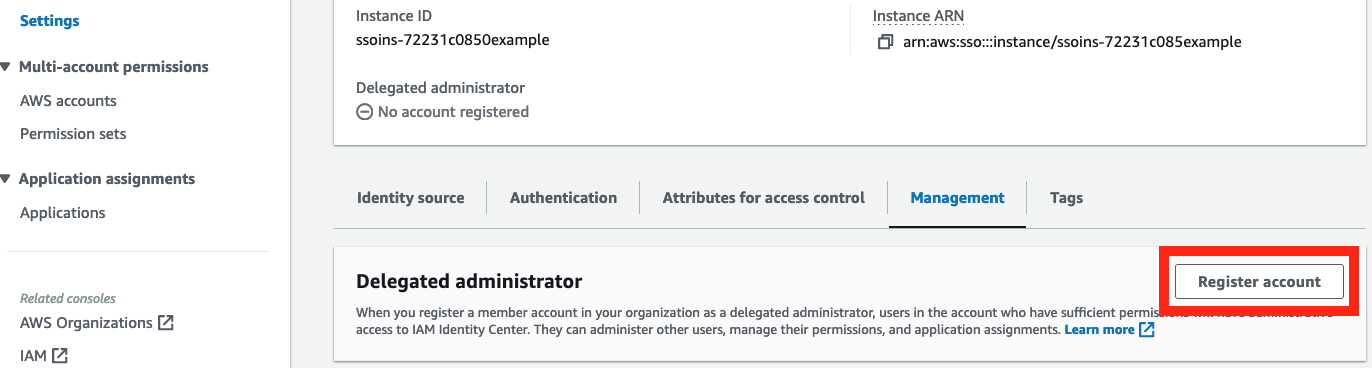


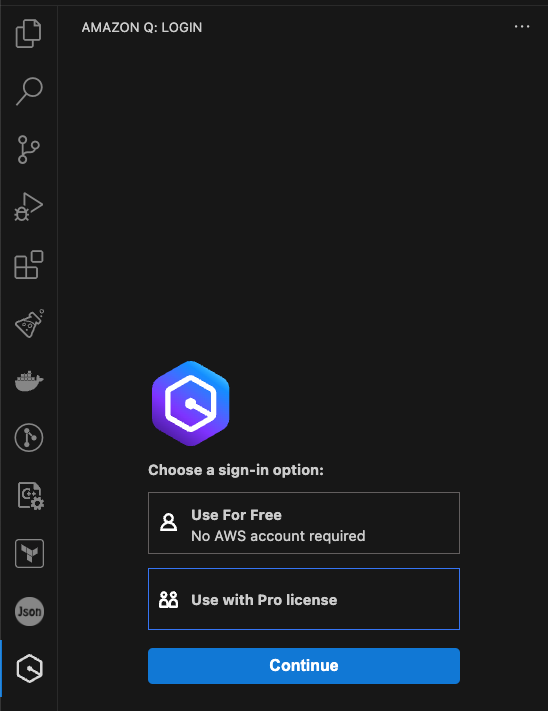


 Pradeep Misra is a Principal Analytics Solutions Architect at AWS. He works across Amazon to architect and design modern distributed analytics and AI/ML platform solutions. He is passionate about solving customer challenges using data, analytics, and AI/ML. Outside of work, Pradeep likes exploring new places, trying new cuisines, and playing board games with his family. He also likes doing science experiments with his daughters.
 Deepmala Agarwal works as an AWS Data Specialist Solutions Architect. She is passionate about helping customers build out scalable, distributed, and data-driven solutions on AWS. When not at work, Deepmala likes spending time with family, walking, listening to music, watching movies, and cooking!
 Abhilash Nagilla is a Senior Specialist Solutions Architect at Amazon Web Services (AWS), helping public sector customers on their cloud journey with a focus on AWS analytics services. Outside of work, Abhilash enjoys learning new technologies, watching movies, and visiting new places.


 Alternatively, you can run the following command:


 Harshida Patel is a Analytics Specialist Principal Solutions Architect, with AWS.
 Srividya Parthasarathy is a Senior Big Data Architect on the AWS Lake Formation team. She enjoys building data mesh solutions and sharing them with the community.
 Maneesh Sharma is a Senior Database Engineer at AWS with more than a decade of experience designing and implementing large-scale data warehouse and analytics solutions. He collaborates with various Amazon Redshift Partners and customers to drive better integration.
 Poulomi Dasgupta is a Senior Analytics Solutions Architect with AWS. She is passionate about helping customers build cloud-based analytics solutions to solve their business problems. Outside of work, she likes travelling and spending time with her family.


 Mahdi Ebrahimi is a Senior Cloud Infrastructure Architect with Amazon Web Services. He excels in designing distributed, highly-available software systems. Mahdi is dedicated to delivering cutting-edge solutions that empower his customers to innovate in the rapidly evolving landscape in the automotive industry.
 Dmytro Protsiv is a Cloud Applications Architect for with Amazon Web Services. He is passionate about helping customers to solve their business challenges around application modernization.
 Luca Menichetti is a Big Data Architect with Amazon Web Services. He helps customers develop performant and reusable solutions to process data at scale. Luca is passioned about managing organisation’s data architecture, enabling data analytics and machine learning. Having worked around the Hadoop ecosystem for a decade, he really enjoys tackling problems in NoSQL environments.
 Krithivasan Balasubramaniyan is a Principal Consultant with Amazon Web Services. He enables global enterprise customers in their digital transformation journey and helps architect cloud native solutions.
 Muthu Pitchaimani is a Search Specialist with Amazon OpenSearch Service. He builds large-scale search applications and solutions. Muthu is interested in the topics of networking and security, and is based out of Austin, Texas.







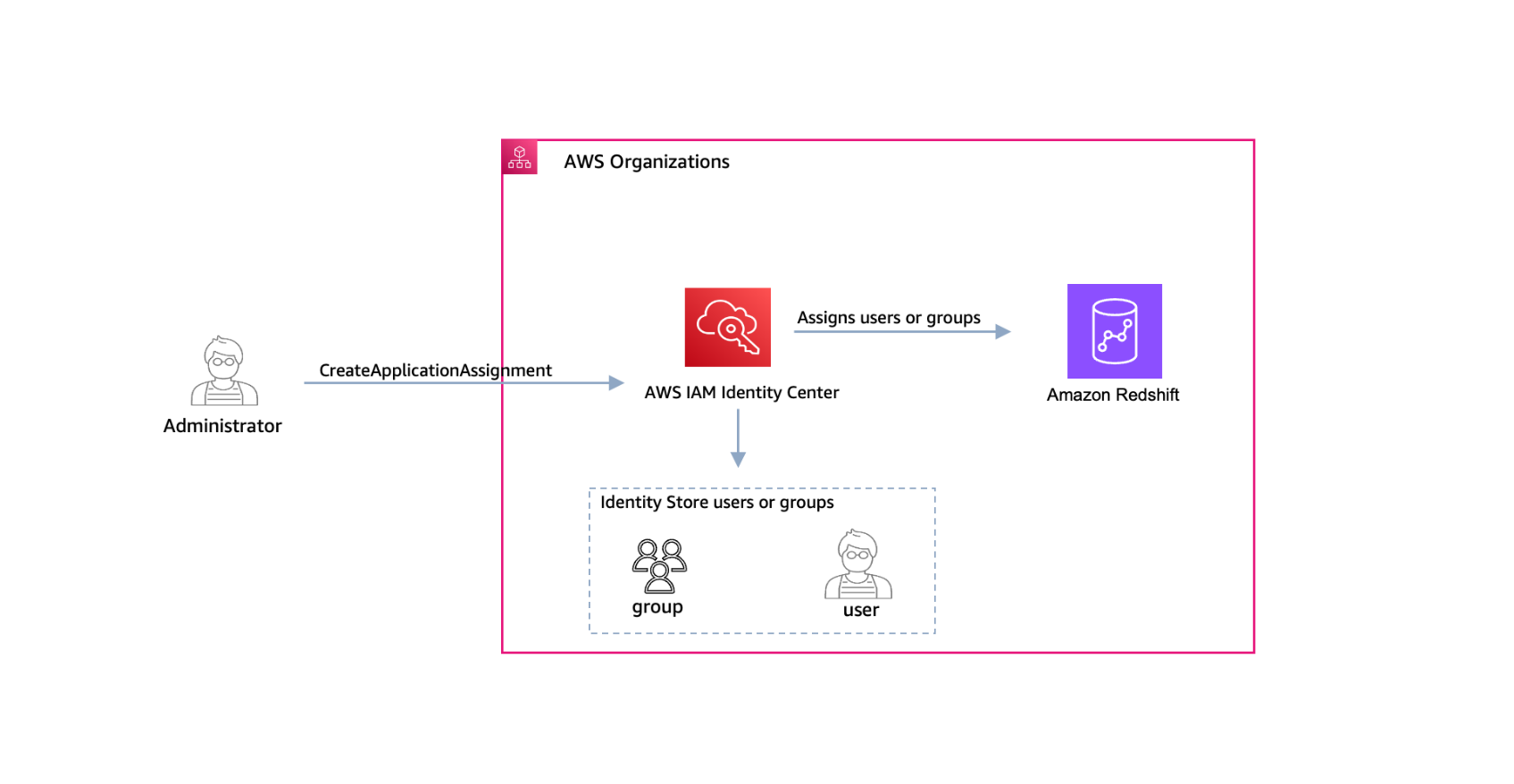
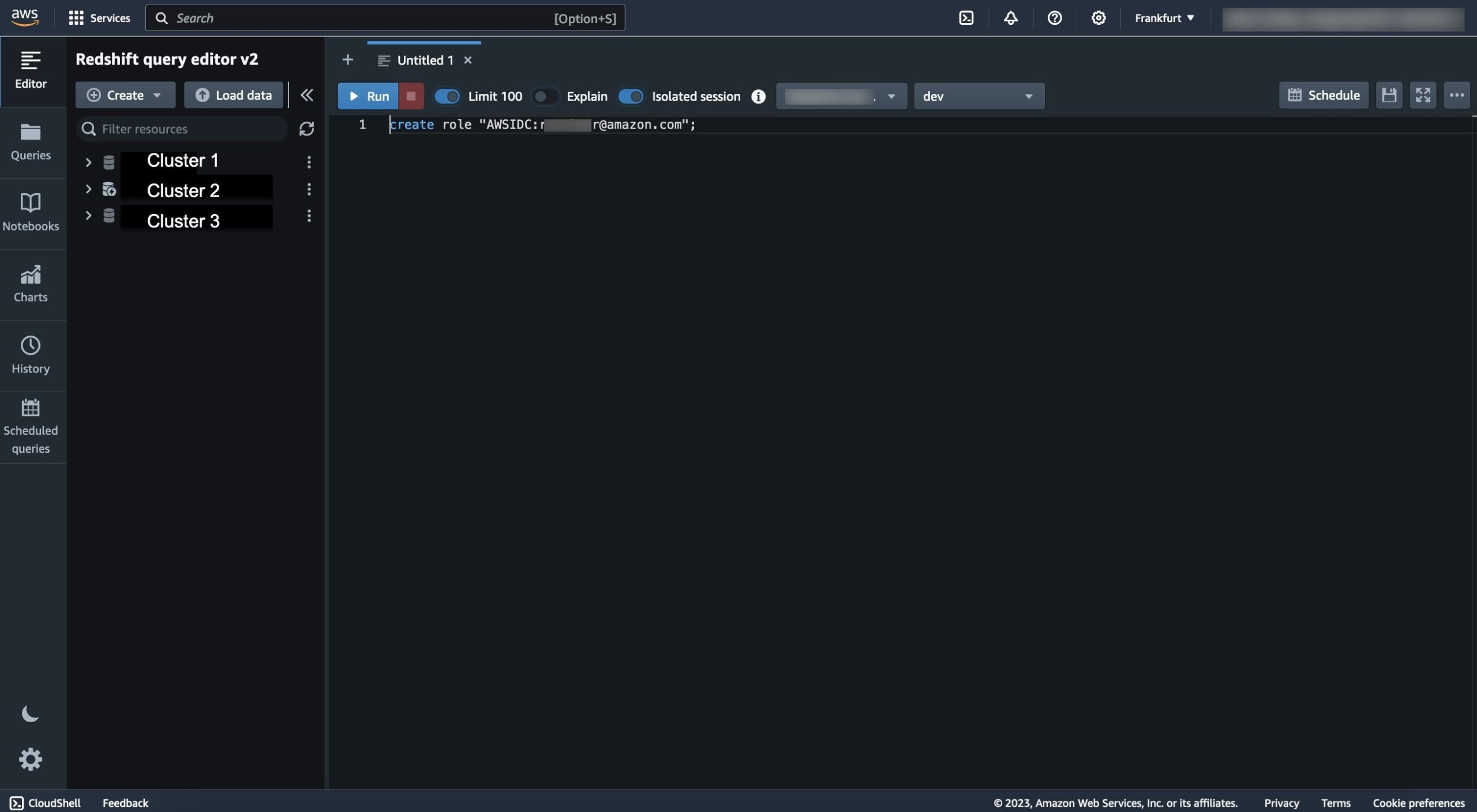




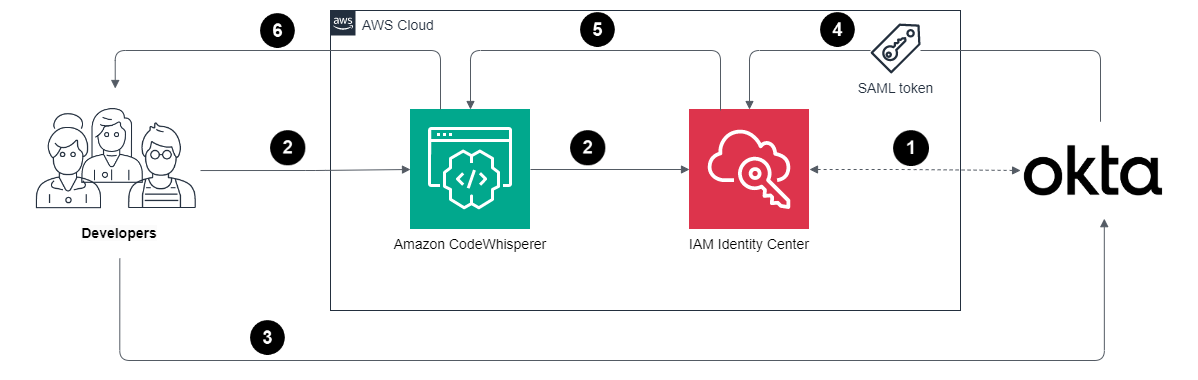
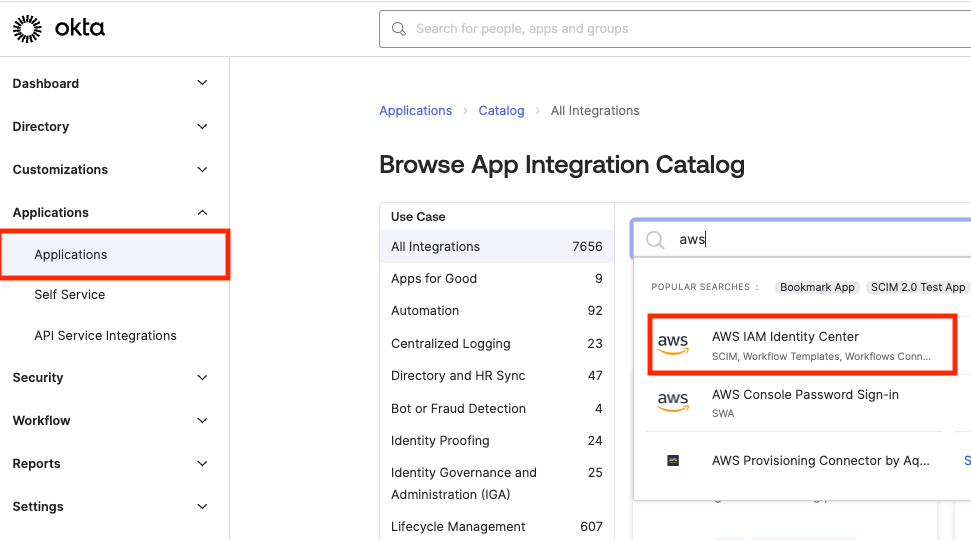
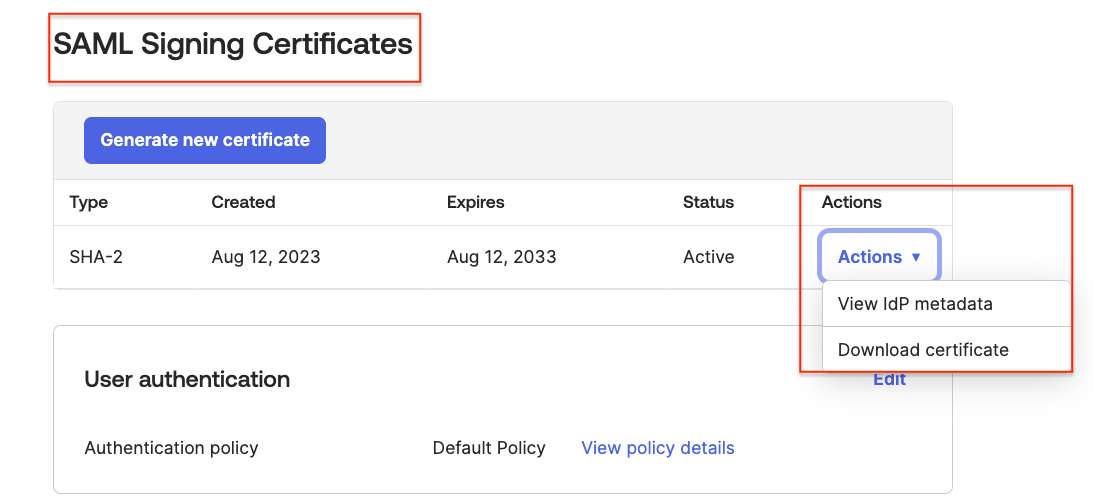
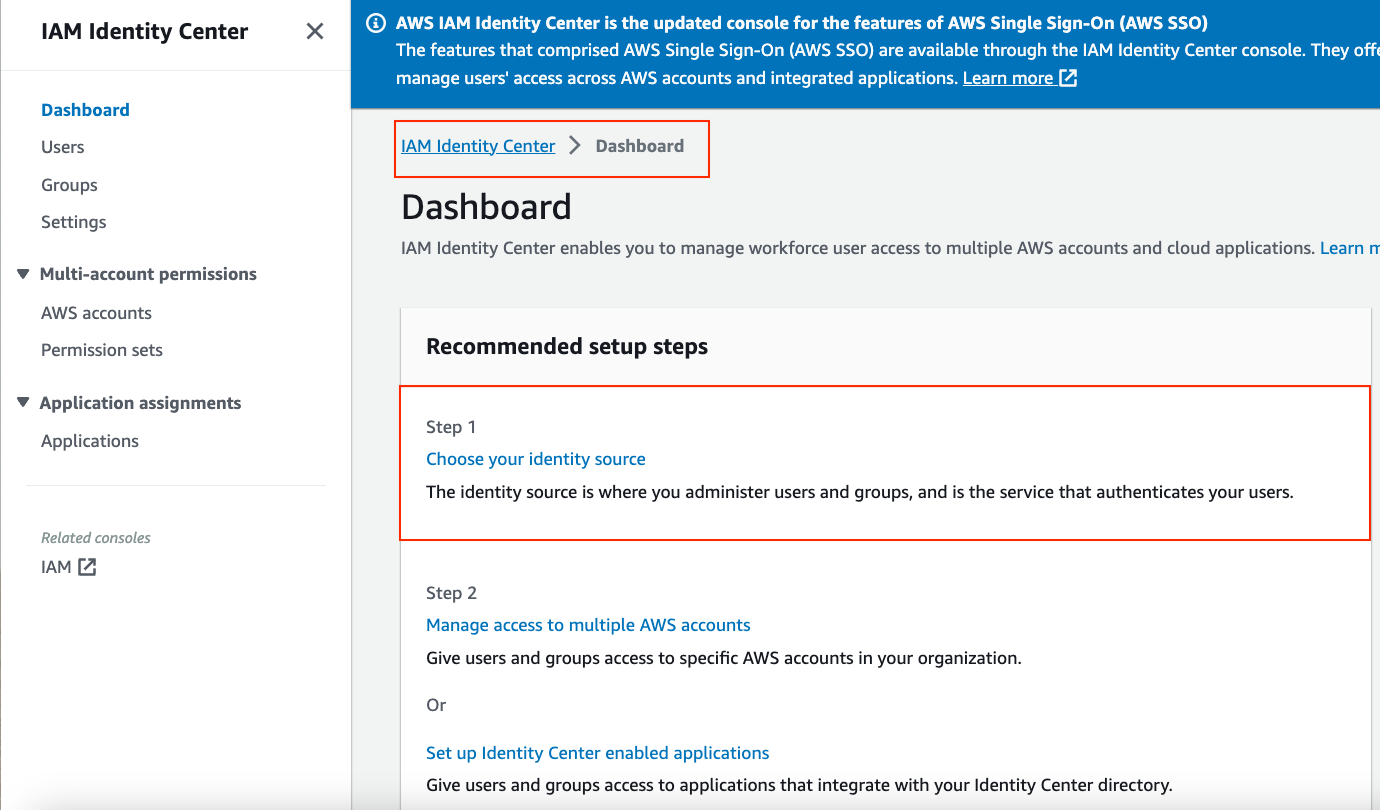
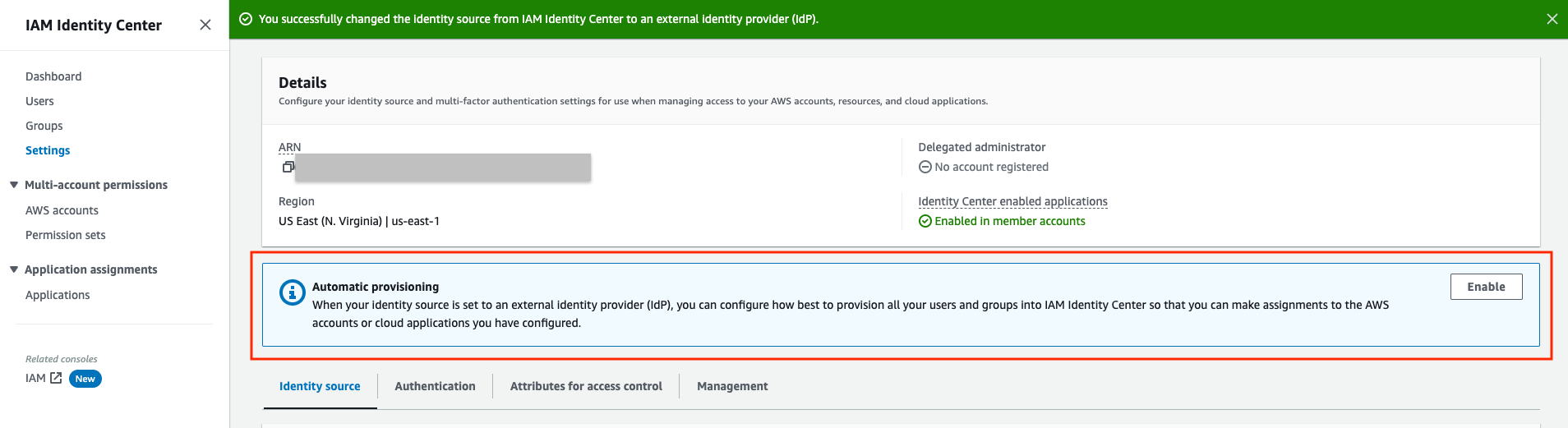

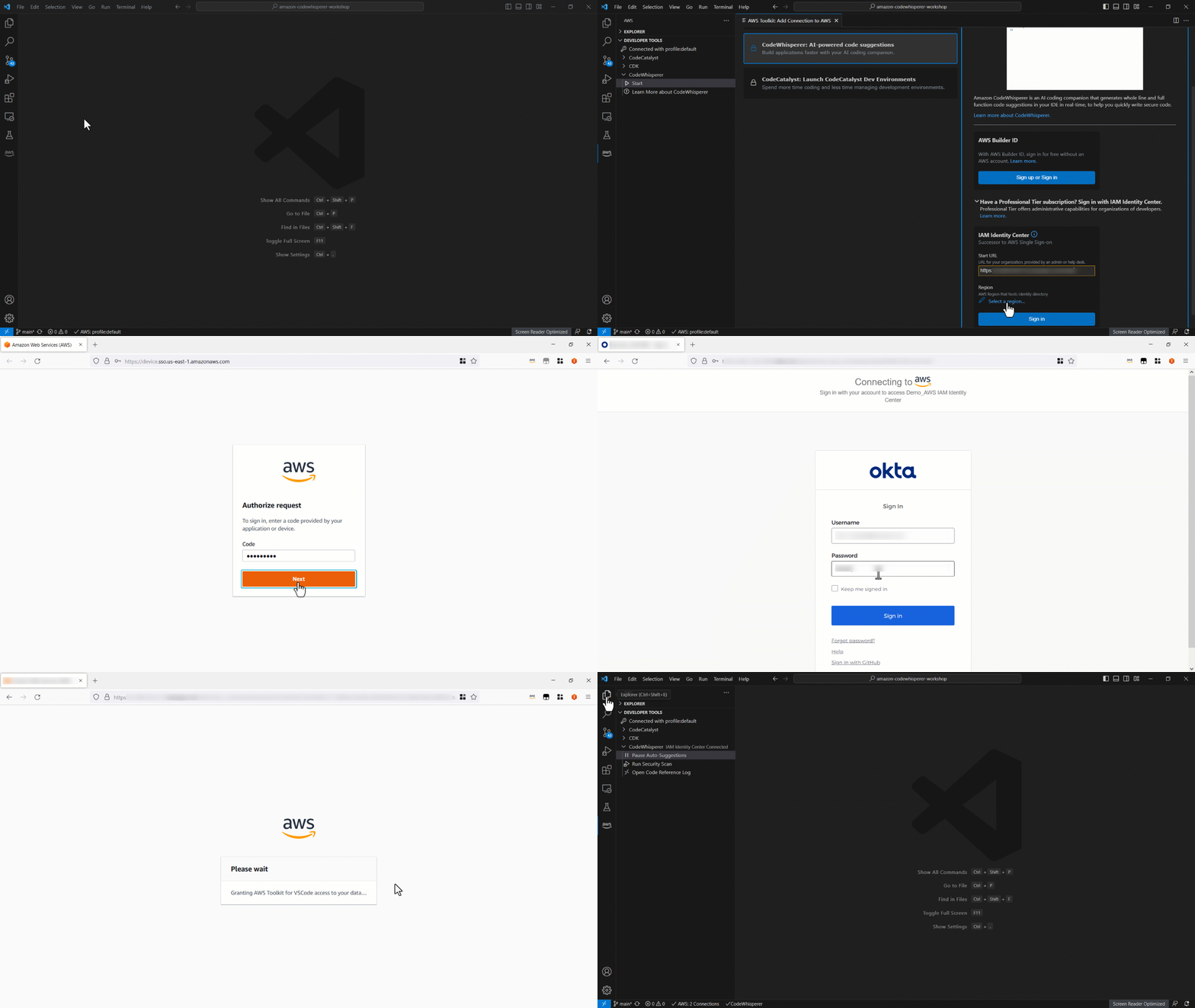
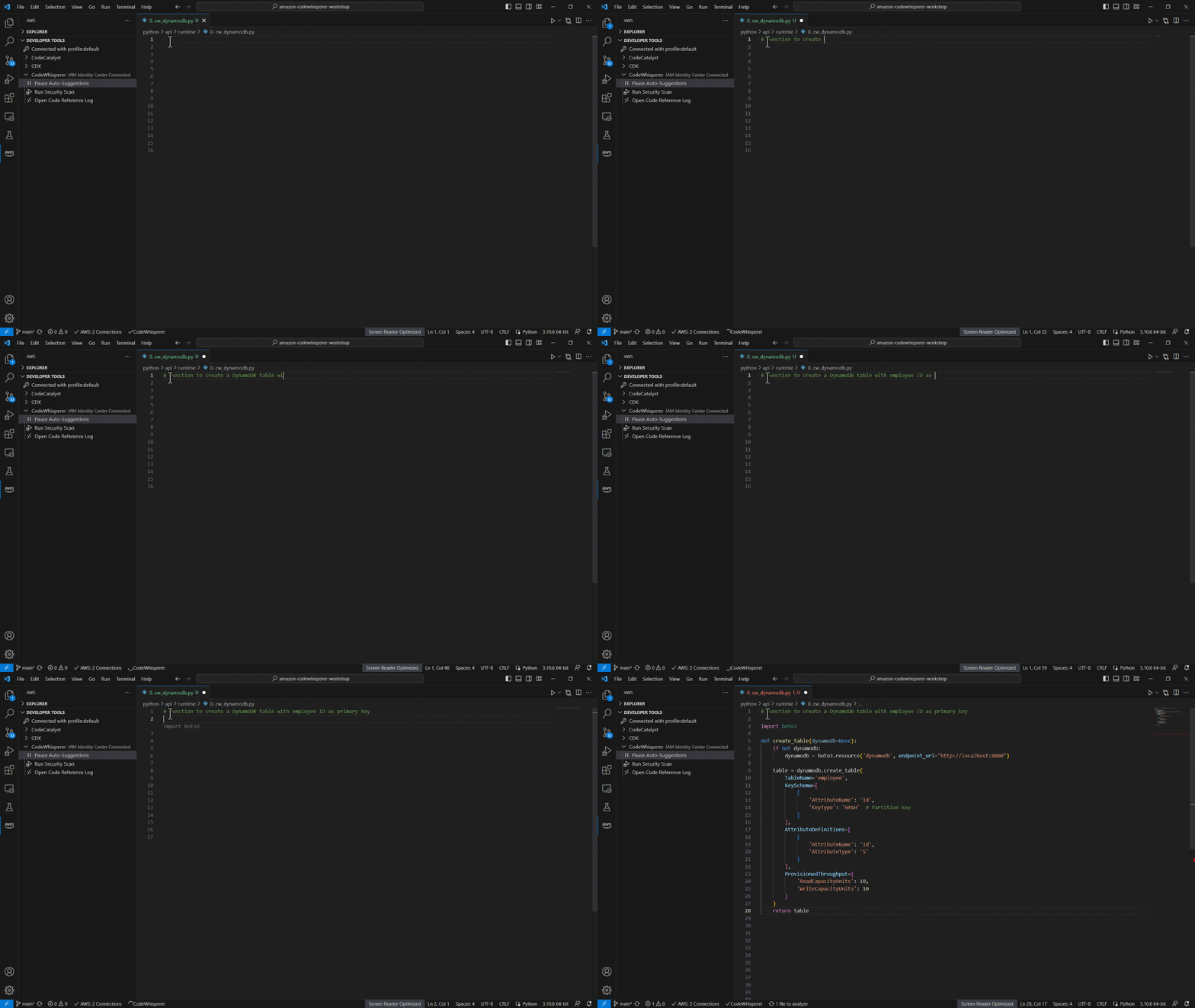


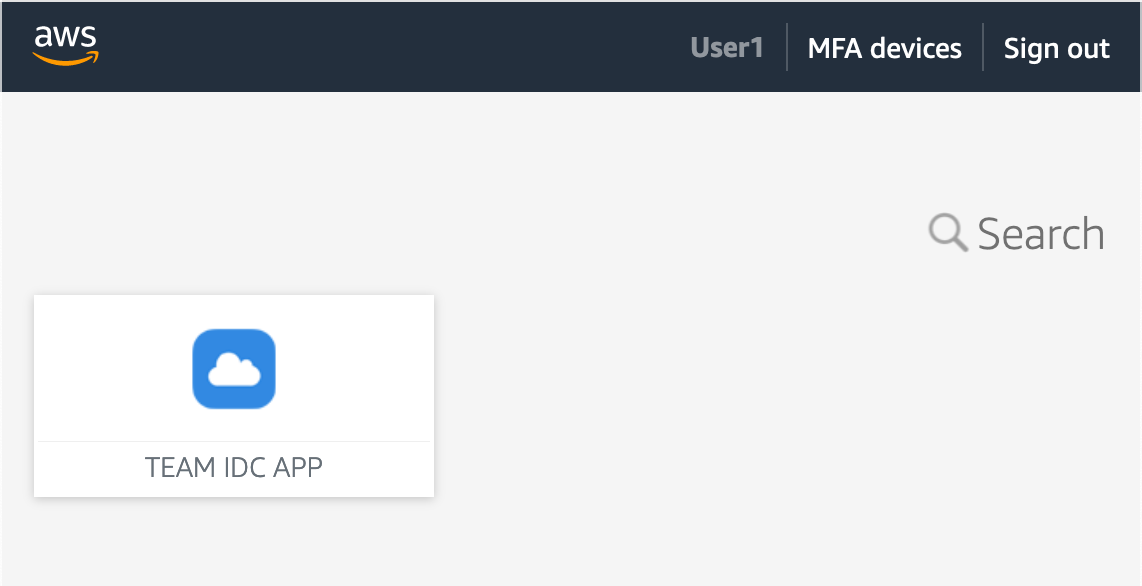
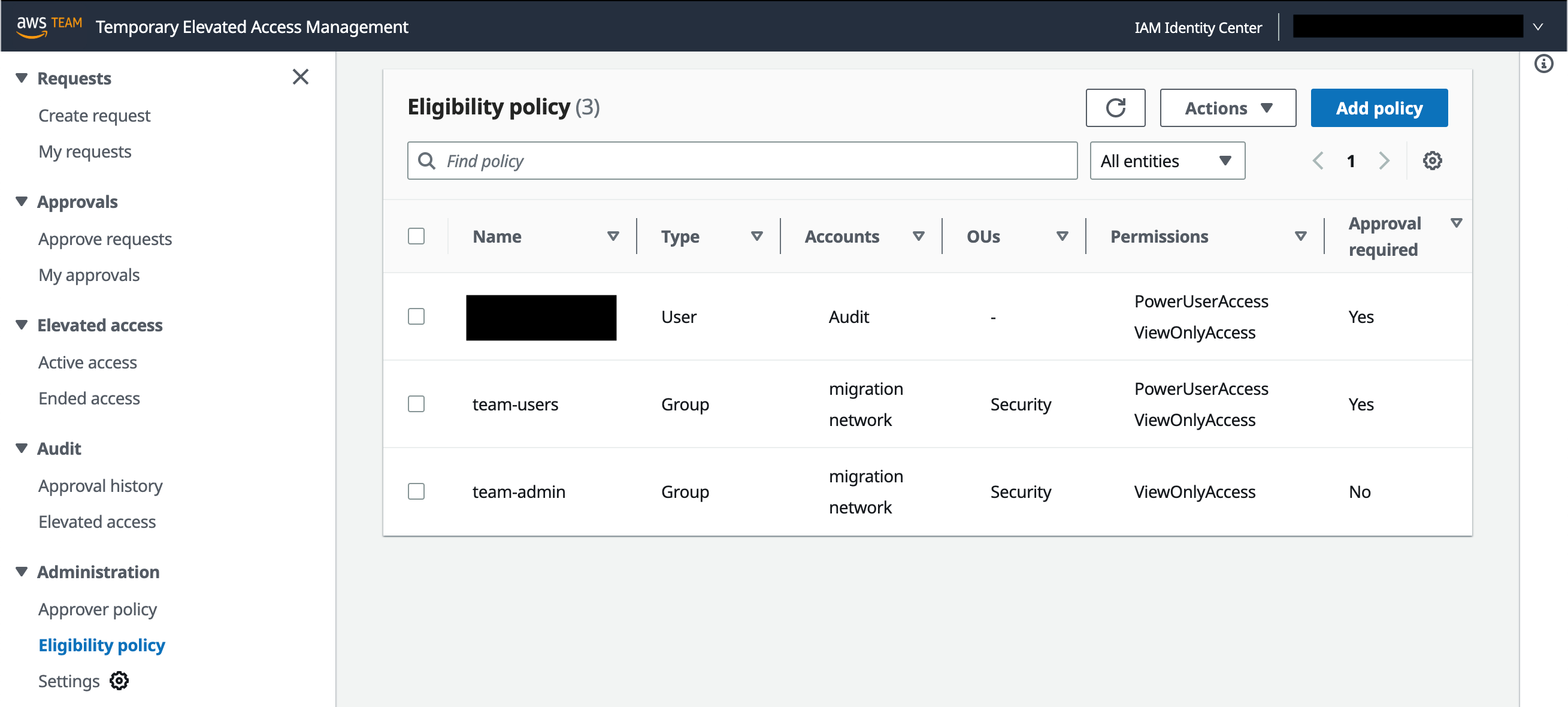






 Utkarsh Agarwal is a Cloud Support Engineer in the Support Engineering team at Amazon Web Services. He specializes in Amazon OpenSearch Service. He provides guidance and technical assistance to customers thus enabling them to build scalable, highly available and secure solutions in AWS Cloud. In his free time, he enjoys watching movies, TV series and of course cricket! Lately, he his also attempting to master the art of cooking in his free time – The taste buds are excited, but the kitchen might disagree.
 Ravi Bhatane is a software engineer with Amazon OpenSearch Serverless Service. He is passionate about security, distributed systems, and building scalable services. When he’s not coding, Ravi enjoys photography and exploring new hiking trails with his friends.
 Prashant Agrawal is a Sr. Search Specialist Solutions Architect with Amazon OpenSearch Service. He works closely with customers to help them migrate their workloads to the cloud and helps existing customers fine-tune their clusters to achieve better performance and save on cost. Before joining AWS, he helped various customers use OpenSearch and Elasticsearch for their search and log analytics use cases. When not working, you can find him traveling and exploring new places. In short, he likes doing Eat → Travel → Repeat.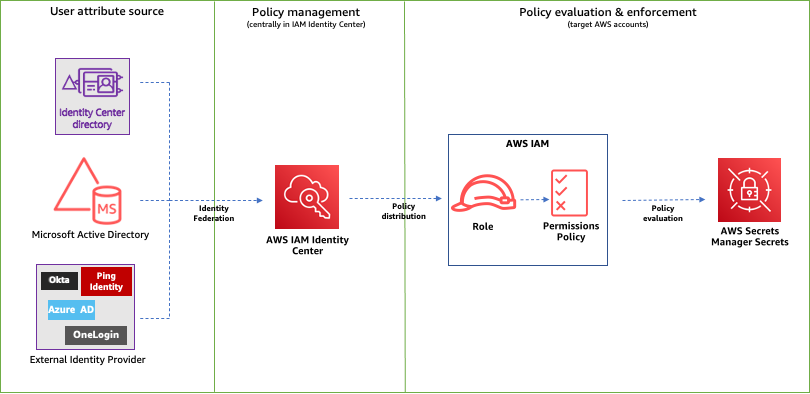
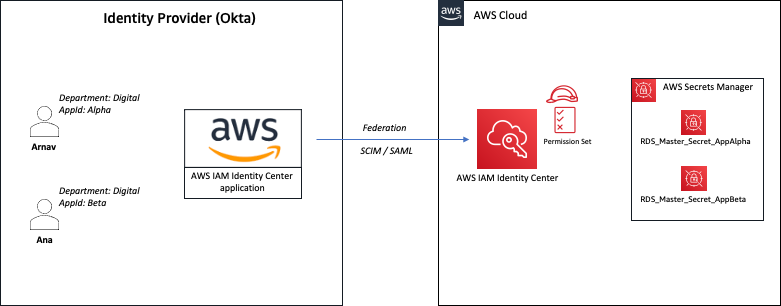


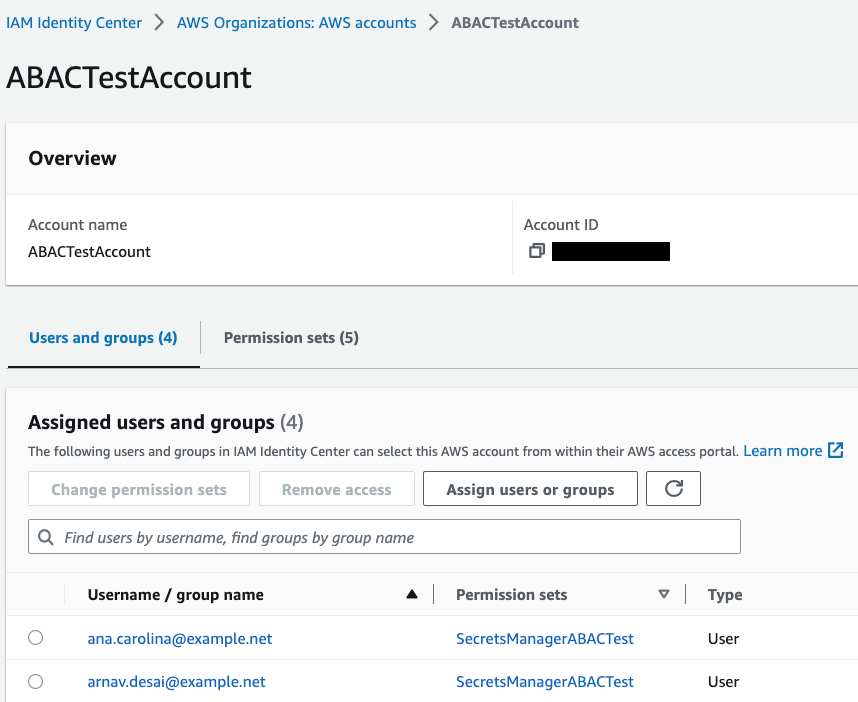


 Scott Chang is a Solution Architecture at AWS based in San Francisco. He has over 14 years of hands-on experience in Networking also familiar with Security and Site Reliability Engineering. He works with one of major strategic customers in west region to design highly scalable, innovative and secure cloud solutions.
 Muthu Pitchaimani is a Search Specialist with Amazon OpenSearch service. He builds large scale search applications and solutions. Muthu is interested in the topics of networking and security and is based out of Austin, Texas


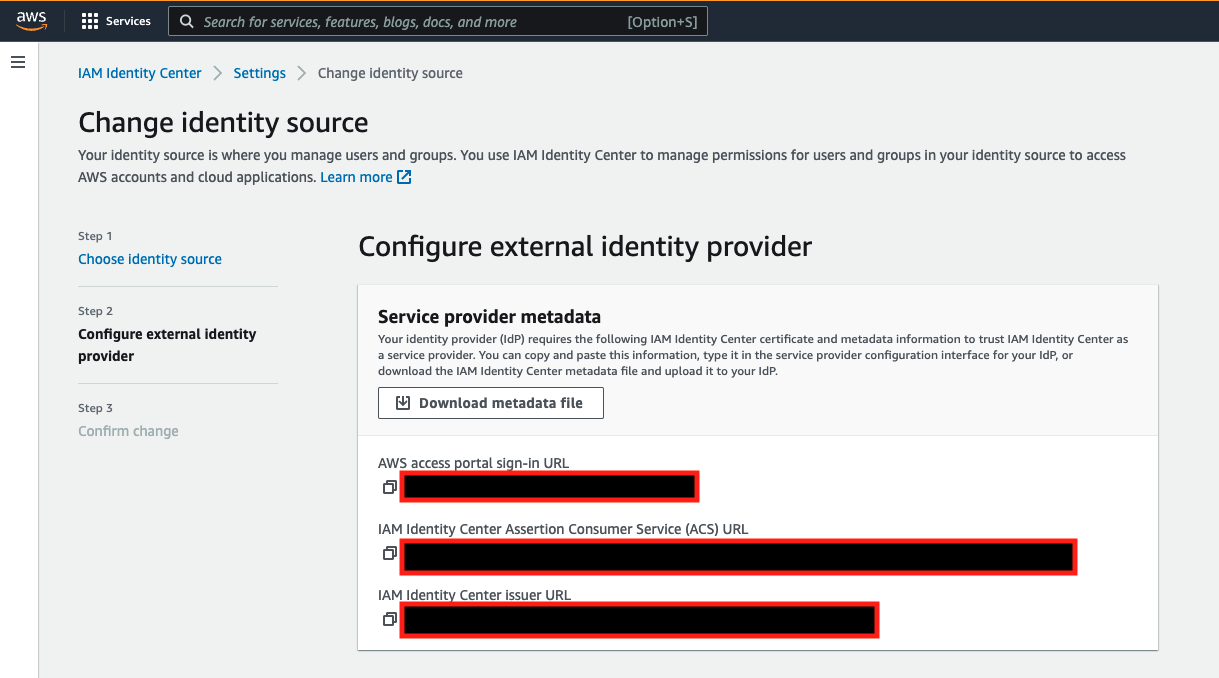


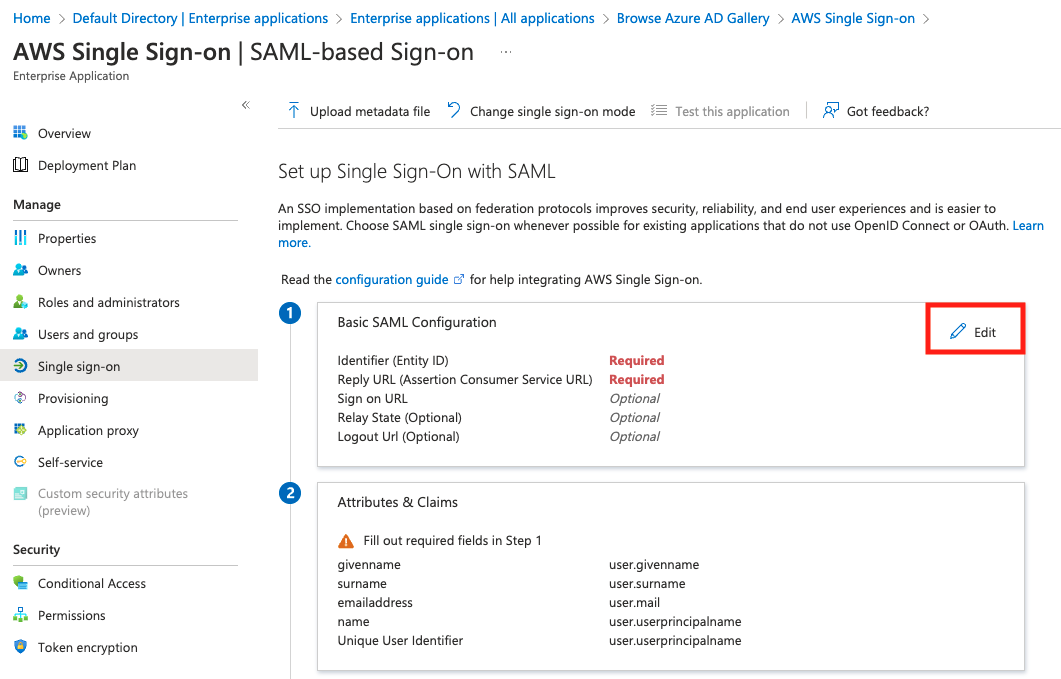


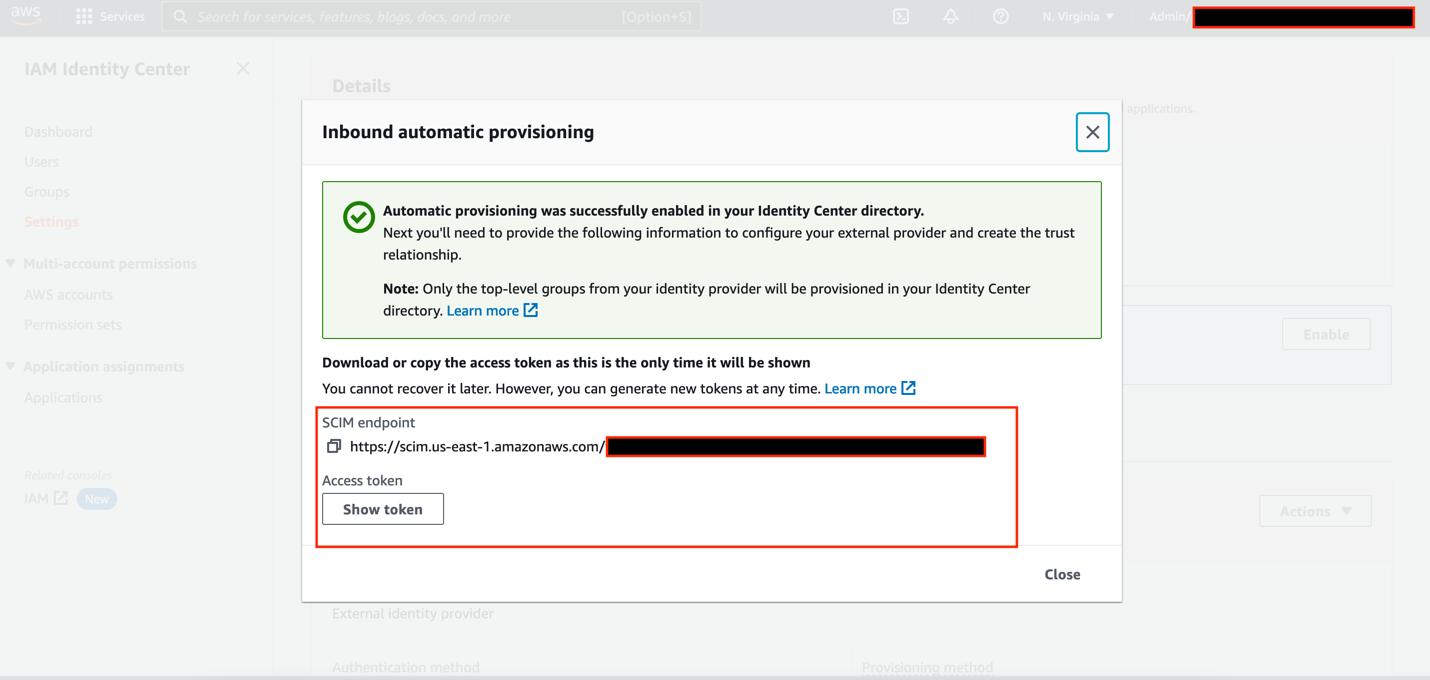

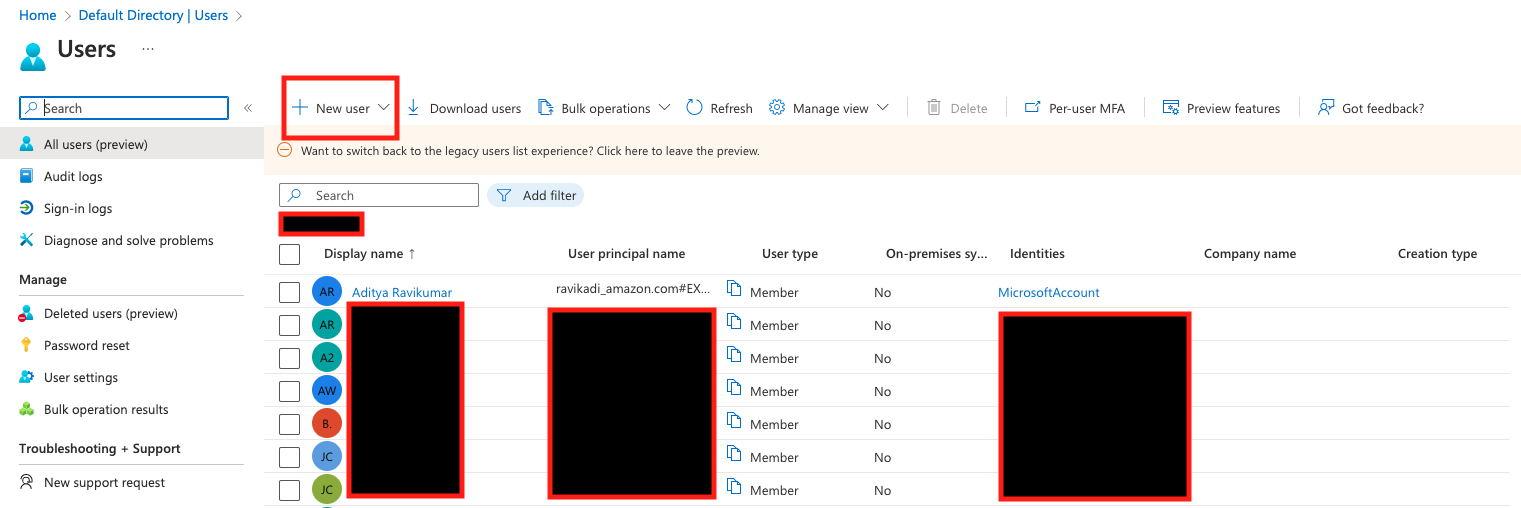
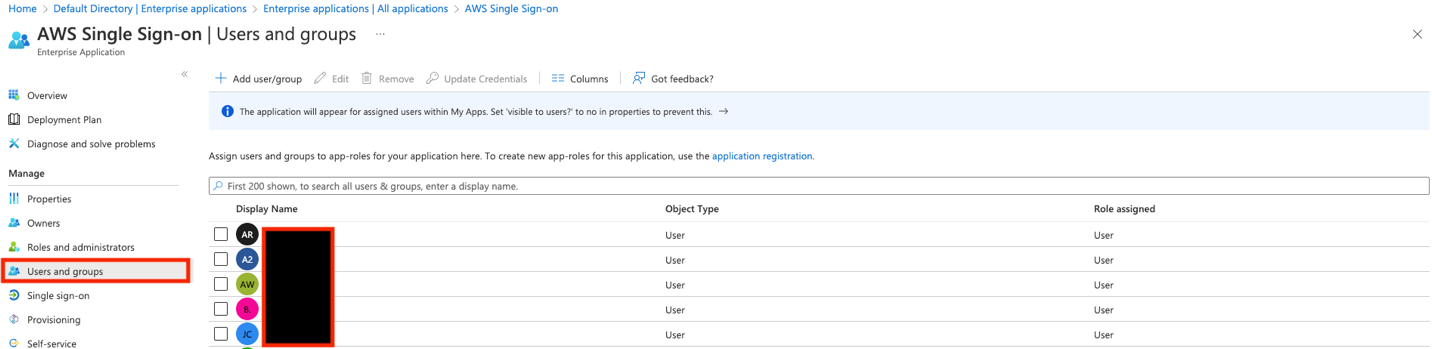
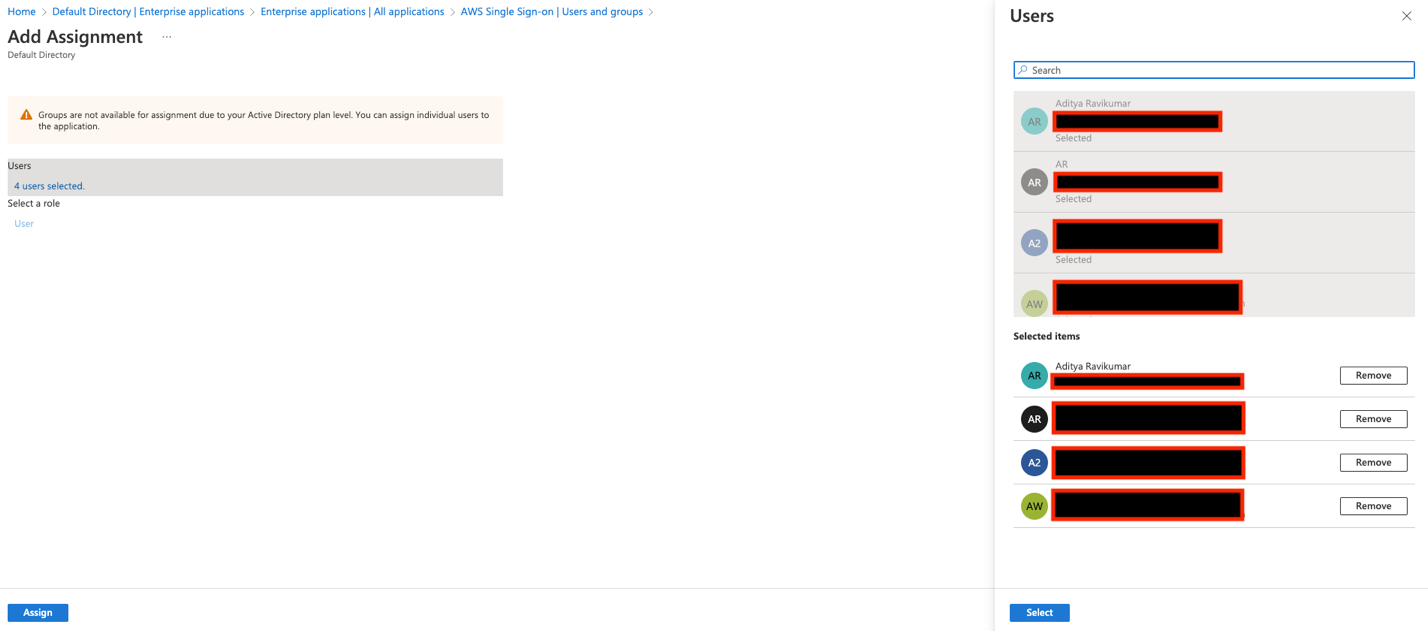
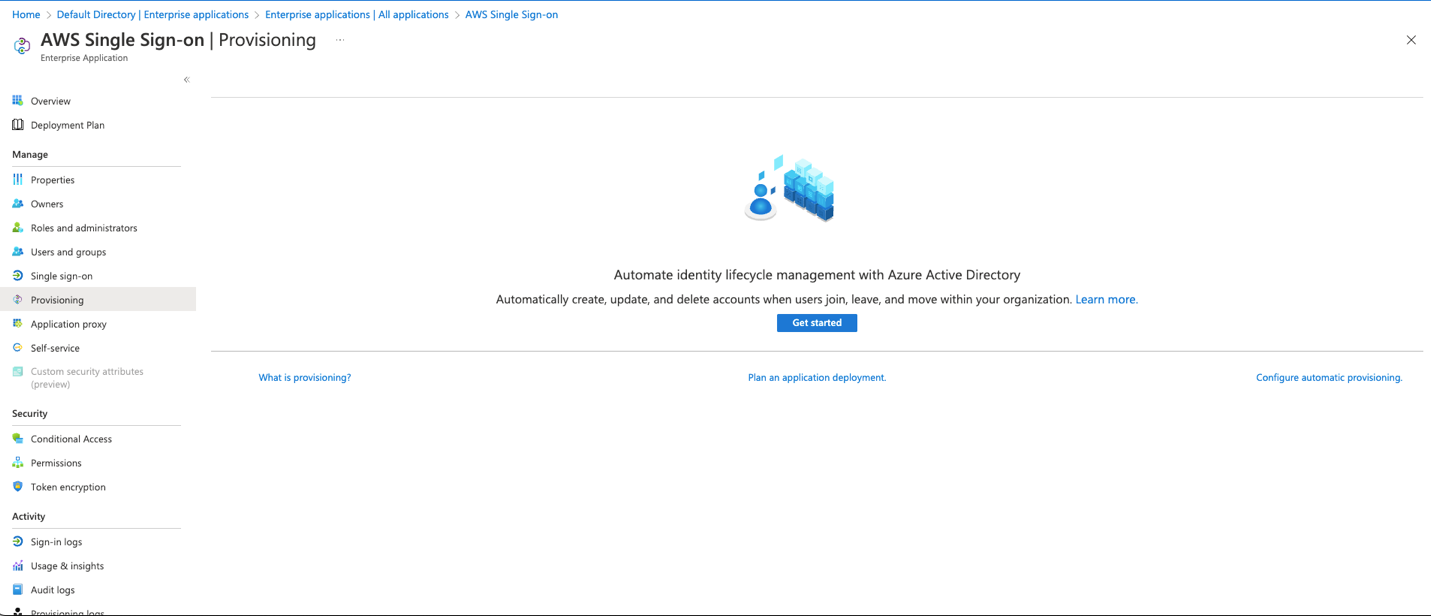


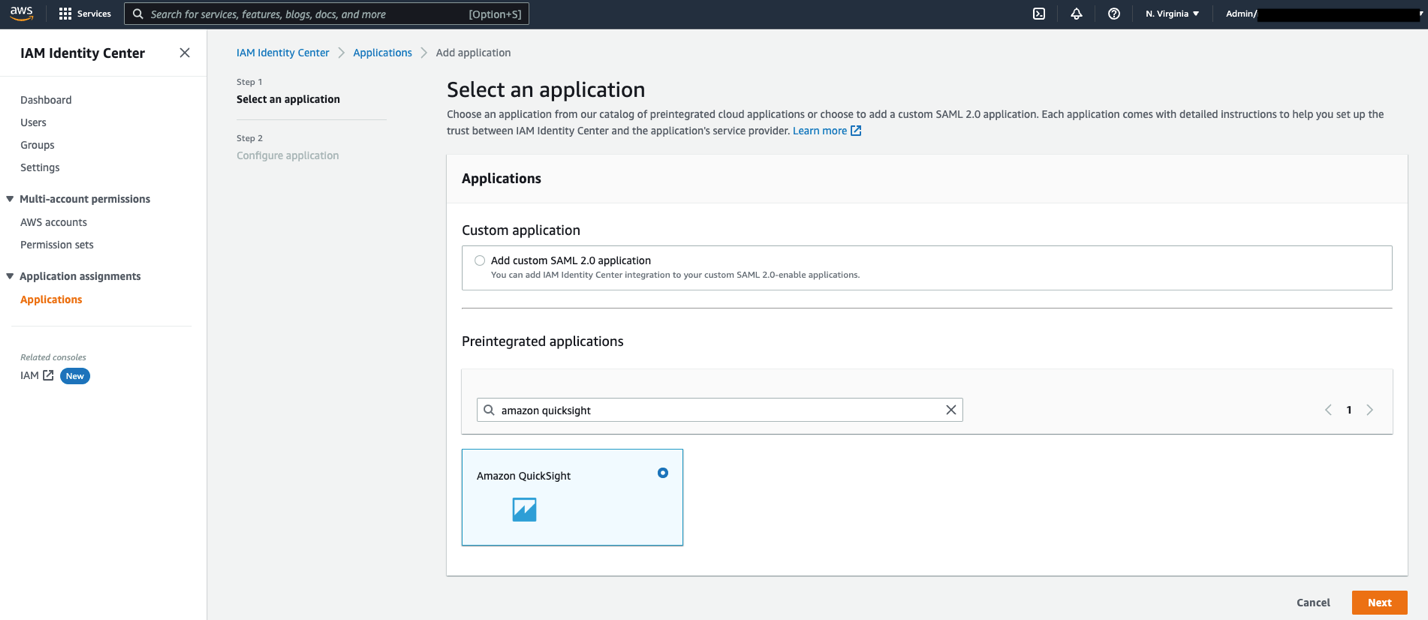


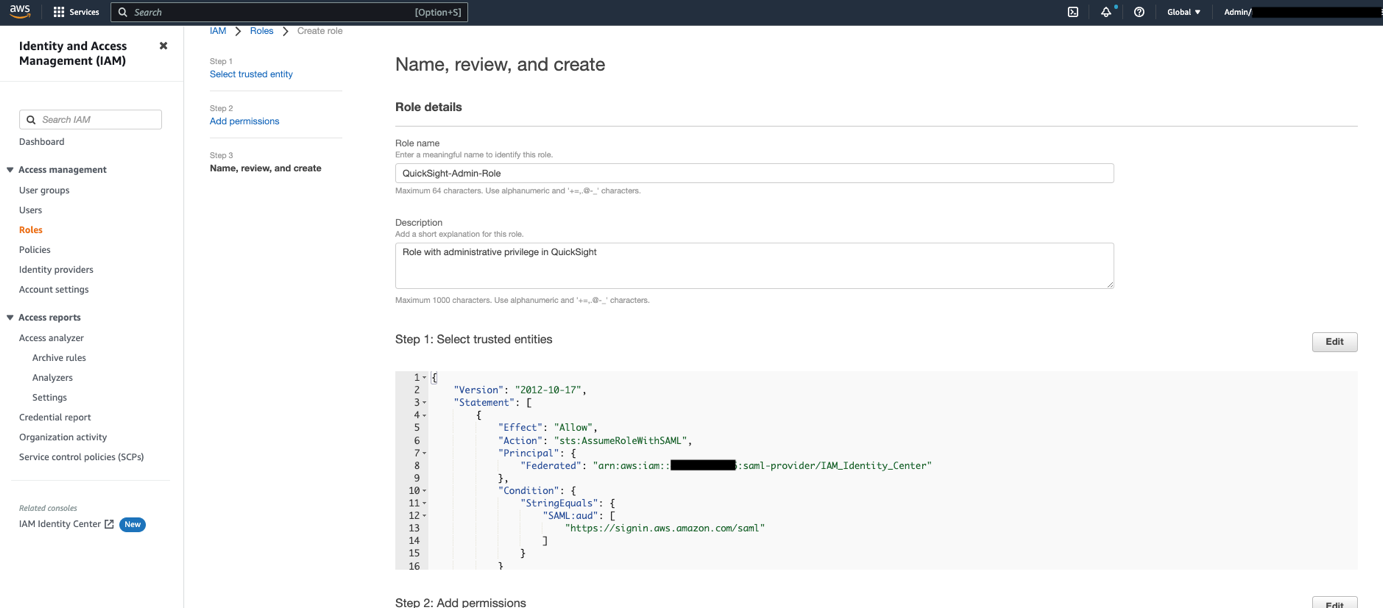


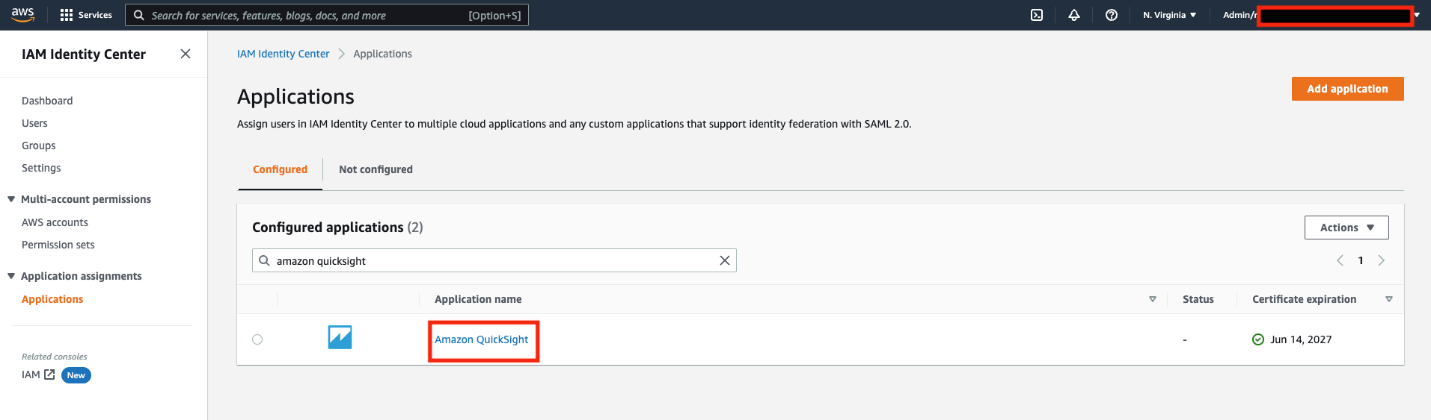
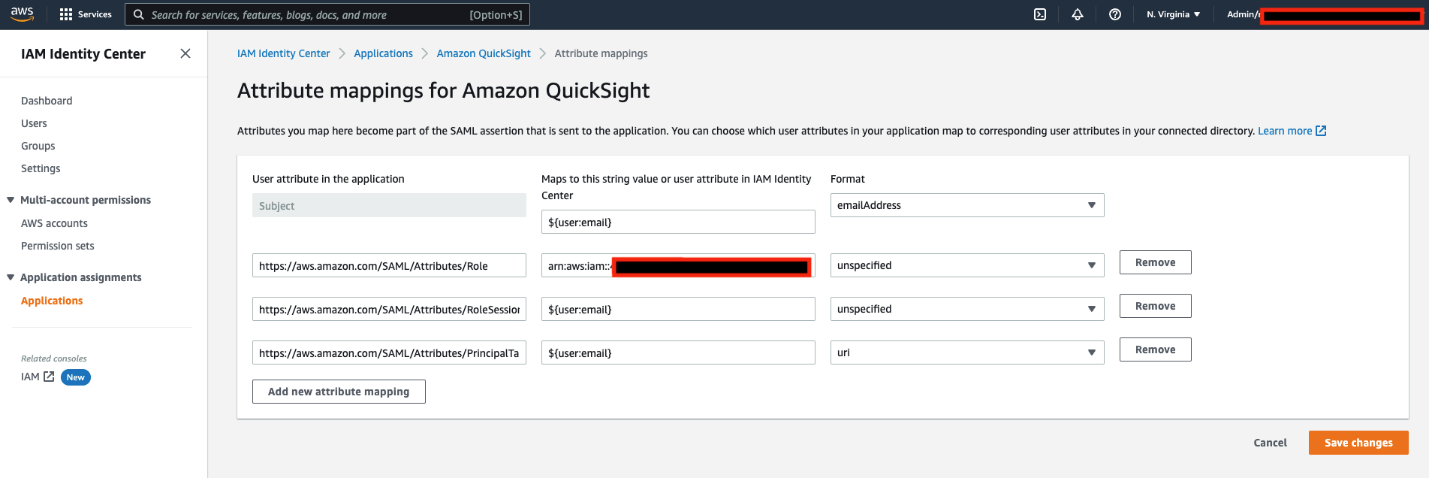


 Aditya Ravikumar is a Solutions Architect at Amazon Web Services. He is based in Seattle, USA. Aditya’s core interests include software development, databases, data analytics and machine learning. He works with AWS customers/partners to provide guidance and technical assistance to transform their business through innovative use of cloud technologies.
 Srikanth Baheti is a Specialized World Wide Sr. Solution Architect for Amazon QuickSight. He started his career as a consultant and worked for multiple private and government organizations. Later he worked for PerkinElmer Health and Sciences & eResearch Technology Inc, where he was responsible for designing and developing high traffic web applications, highly scalable and maintainable data pipelines for reporting platforms using AWS services and Serverless computing.
 Raji Sivasubramaniam is a Sr. Solutions Architect at AWS, focusing on Analytics. Raji is specialized in architecting end-to-end Enterprise Data Management, Business Intelligence and Analytics solutions for Fortune 500 and Fortune 100 companies across the globe. She has in-depth experience in integrated healthcare data and analytics with wide variety of healthcare datasets including managed market, physician targeting and patient analytics.