Customers often ask for guidance on permissions boundaries in AWS Identity and Access Management (IAM) and when, where, and how to use them. A permissions boundary is an IAM feature that helps your centralized cloud IAM teams to safely empower your application developers to create new IAM roles and policies in Amazon Web Services (AWS). In this blog post, we cover this common use case for permissions boundaries, some best practices to consider, and a few things to avoid.
Background
Developers often need to create new IAM roles and policies for their applications because these applications need permissions to interact with AWS resources. For example, a developer will likely need to create an IAM role with the correct permissions for an Amazon Elastic Compute Cloud (Amazon EC2) instance to report logs and metrics to Amazon CloudWatch. Similarly, a role with accompanying permissions is required for an AWS Glue job to extract, transform, and load data to an Amazon Simple Storage Service (Amazon S3) bucket, or for an AWS Lambda function to perform actions on the data loaded to Amazon S3.
Before the launch of IAM permissions boundaries, central admin teams, such as identity and access management or cloud security teams, were often responsible for creating new roles and policies. But using a centralized team to create and manage all IAM roles and policies creates a bottleneck that doesn’t scale, especially as your organization grows and your centralized team receives an increasing number of requests to create and manage new downstream roles and policies. Imagine having teams of developers deploying or migrating hundreds of applications to the cloud—a centralized team won’t have the necessary context to manually create the permissions for each application themselves.
Because the use case and required permissions can vary significantly between applications and workloads, customers asked for a way to empower their developers to safely create and manage IAM roles and policies, while having security guardrails in place to set maximum permissions. IAM permissions boundaries are designed to provide these guardrails so that even if your developers created the most permissive policy that you can imagine, such broad permissions wouldn’t be functional.
By setting up permissions boundaries, you allow your developers to focus on tasks that add value to your business, while simultaneously freeing your centralized security and IAM teams to work on other critical tasks, such as governance and support. In the following sections, you will learn more about permissions boundaries and how to use them.
Permissions boundaries
A permissions boundary is designed to restrict permissions on IAM principals, such as roles, such that permissions don’t exceed what was originally intended. The permissions boundary uses an AWS or customer managed policy to restrict access, and it’s similar to other IAM policies you’re familiar with because it has resource, action, and effect statements. A permissions boundary alone doesn’t grant access to anything. Rather, it enforces a boundary that can’t be exceeded, even if broader permissions are granted by some other policy attached to the role. Permissions boundaries are a preventative guardrail, rather than something that detects and corrects an issue. To grant permissions, you use resource-based policies (such as S3 bucket policies) or identity-based policies (such as managed or in-line permissions policies).
The predominant use case for permissions boundaries is to limit privileges available to IAM roles created by developers (referred to as delegated administrators in the IAM documentation) who have permissions to create and manage these roles. Consider the example of a developer who creates an IAM role that can access all Amazon S3 buckets and Amazon DynamoDB tables in their accounts. If there are sensitive S3 buckets in these accounts, then these overly broad permissions might present a risk.
To limit access, the central administrator can attach a condition to the developer’s identity policy that helps ensure that the developer can only create a role if the role has a permissions boundary policy attached to it. The permissions boundary, which AWS enforces during authorization, defines the maximum permissions that the IAM role is allowed. The developer can still create IAM roles with permissions that are limited to specific use cases (for example, allowing specific actions on non-sensitive Amazon S3 buckets and DynamoDB tables), but the attached permissions boundary prevents access to sensitive AWS resources even if the developer includes these elevated permissions in the role’s IAM policy. Figure 1 illustrates this use of permissions boundaries.
Figure 1: Implementing permissions boundaries
The central IAM team adds a condition to the developer’s IAM policy that allows the developer to create a role only if a permissions boundary is attached to the role.
The developer creates a role with accompanying permissions to allow access to an application’s Amazon S3 bucket and DynamoDB table. As part of this step, the developer also attaches a permissions boundary that defines the maximum permissions for the role.
Resource access is granted to the application’s resources.
Resource access is denied to the sensitive S3 bucket.
You can use the following policy sample for your developers to allow the creation of roles only if a permissions boundary is attached to them. Make sure to replace <YourAccount_ID> with an appropriate AWS account ID; and the <DevelopersPermissionsBoundary>, with your permissions boundary policy.
Put together, you can use the following permissions policy for your developers to get started with permissions boundaries. This policy allows your developers to create downstream roles with an attached permissions boundary. The policy further denies permissions to detach, delete, or modify the attached permissions boundary policy. Remember, nothing is implicitly allowed in IAM, so you need to allow access permissions for any other actions that your developers require. To learn about allowing access permissions for various scenarios, see Example IAM identity-based policies in the documentation.
You can build on these concepts and apply permissions boundaries to different organizational structures and functional units. In the example shown in Figure 2, the developer can only create IAM roles if a permissions boundary associated to the business function is attached to the IAM roles. In the example, IAM roles in function A can only perform Amazon EC2 actions and Amazon DynamoDB actions, and they don’t have access to the Amazon S3 or Amazon Relational Database Service (Amazon RDS) resources of function B, which serve a different use case. In this way, you can make sure that roles created by your developers don’t exceed permissions outside of their business function requirements.
Figure 2: Implementing permissions boundaries in multiple organizational functions
Best practices
You might consider restricting your developers by directly applying permissions boundaries to them, but this presents the risk of you running out of policy space. Permissions boundaries use a managed IAM policy to restrict access, so permissions boundaries can only be up to 6,144 characters long. You can have up to 10 managed policies and 1 permissions boundary attached to an IAM role. Developers often need larger policy spaces because they perform so many functions. However, the individual roles that developers create—such as a role for an AWS service to access other AWS services, or a role for an application to interact with AWS resources—don’t need those same broad permissions. Therefore, it is generally a best practice to apply permissions boundaries to the IAM roles created by developers, rather than to the developers themselves.
There are better mechanisms to restrict developers, and we recommend that you use IAM identity policies and AWS Organizations service control policies (SCPs) to restrict access. In particular, the Organizations SCPs are a better solution here because they can restrict every principal in the account through one policy, rather than separately restricting individual principals, as permissions boundaries and IAM identity policies are confined to do.
You should also avoid replicating the developer policy space to a permissions boundary for a downstream IAM role. This, too, can cause you to run out of policy space. IAM roles that developers create have specific functions, and the permissions boundary can be tailored to common business functions to preserve policy space. Therefore, you can begin to group your permissions boundaries into categories that fit the scope of similar application functions or use cases (such as system automation and analytics), and allow your developers to choose from multiple options for permissions boundaries, as shown in the following policy sample.
Finally, it is important to understand the differences between the various IAM resources available. The following table lists these IAM resources, their primary use cases and managing entities, and when they apply. Even if your organization uses different titles to refer to the personas in the table, you should have separation of duties defined as part of your security strategy.
IAM resource
Purpose
Owner/maintainer
Applies to
Federated roles and policies
Grant permissions to federated users for experimentation in lower environments
Central team
People represented by users in the enterprise identity provider
IAM workload roles and policies
Grant permissions to resources used by applications, services
Developer
IAM roles representing specific tasks performed by applications
Permissions boundaries
Limit permissions available to workload roles and policies
Central team
Workload roles and policies created by developers
IAM users and policies
Allowed only by exception when there is no alternative that satisfies the use case
Central team plus senior leadership approval
Break-glass access; legacy workloads unable to use IAM roles
Conclusion
This blog post covered how you can use IAM permissions boundaries to allow your developers to create the roles that they need and to define the maximum permissions that can be given to the roles that they create. Remember, you can use AWS Organizations SCPs or deny statements in identity policies for scenarios where permissions boundaries are not appropriate. As your organization grows and you need to create and manage more roles, you can use permissions boundaries and follow AWS best practices to set security guard rails and decentralize role creation and management. Get started using permissions boundaries in IAM.
If you have feedback about this post, submit comments in the Comments section below. If you have questions about this post, contact AWS Support.
Want more AWS Security news? Follow us on Twitter.
This blog post outlines how to use your existing Microsoft Active Directory (AD) to reliably authenticate access to your Amazon Web Services (AWS) accounts, infrastructure running on AWS, and third-party applications. The architecture we describe is designed to be highly available and extends access to your existing AD to AWS, enabling your users to use their existing credentials to access authorized AWS resources and applications.
Many customers rely on AD as their single source of truth for IT identity management. HR automation processes are often already in place to automatically add, update, and remove employee access within an organization’s AD as staffing changes occur. Using a single source of truth as the basis for all authentication and authorization, both on-premises and in the cloud, makes it easier to manage access across multiple applications and services, because you are creating, managing, and revoking access from a single location. For example, if someone leaves your organization, you can revoke access for all applications and services (including AWS accounts) from one location. Additionally, this reduces risks associated with stranded or forgotten credentials, or users needing to remember multiple different sets of credentials.
Microsoft Active Directory (AD) is deployed on Microsoft Windows Server servers called domain controllers, which replicate the contents of the directory between the domain controllers that are hosting the AD domain. Multiple domain controllers are deployed within a domain to improve the availability and performance of the directory. The AD infrastructure should be designed to provide sufficiently high levels of availability and performance, because it governs access to your organization’s IT resources. This typically requires the placement of at least one domain controller in every customer hosting location, because the lack of availability of your identity store is likely to cause authentication and authorization failures, which in turn prevent access to resources.
These design principles align with the Security Pillar of the AWS Well-Architected Framework, which is focused on implementing a strong identity foundation. The Security Pillar guidance states that you should centralize identity management and aim to eliminate reliance on long-term static credentials. By using your existing AD, you can benefit from centralized identity management and your existing group-based permissions for access to your AWS accounts. Applications that are running on domain-joined servers can use their AD service account credentials when they access other domain-joined resources, which removes the need for those credentials to be stored in application configuration files. As your AWS usage grows, it is important to give serious consideration to effective identity management, both for access to AWS and AWS resources, and for your instances that are running on AWS.
By extending your existing Active Directory to AWS, you can continue to use your existing Active Directory user credentials and group policies to manage your Microsoft Windows Server servers, whether those servers are running on-premises or on AWS, and extend these capabilities to authenticate and authorize access to the AWS Management Console and third-party applications.
This post covers networking requirements and connectivity setup to enable network connectivity to your on-premises AD; the approach to extending your AD to AWS; integrating AWS Single Sign-On with your AD; and joining Amazon Elastic Compute Cloud (Amazon EC2) instances to AD. As part of the setup, you will add additional domain controllers running on Amazon EC2 instances to your existing AD, for availability and latency reasons. You will also build a resource forest to enable your existing AD identities to access AD-integrated AWS services and resources. This enables you to have a highly available single identity source as the source of truth for your user authentication.
Networking prerequisites to extend your Active Directory to AWS
To enable Active Directory–related network communication, network connectivity needs to be established between your on-premises network and your AWS environment. You need to ensure there is connectivity between the on-premises network that is hosting your existing domain controllers and the Amazon Virtual Private Cloud (Amazon VPC) VPC that will host your AD infrastructure on AWS. Typically, hybrid network connectivity is configured within a network account within your organization, where the multiple AWS accounts within your organization are managed by using AWS Organizations. This network account effectively sits between your on-premises network and the resources, including the AD infrastructure, that are deployed in AWS.
You can provide connectivity between your on-premises network and your network account by using AWS Site-to-Site VPN or AWS Direct Connect connections. For an overview of the options to connect your on-premises network to AWS, refer to Amazon Virtual Private Cloud Connectivity Options. The necessary routing and firewall rules need to be configured to allow connectivity between these subnets and the on-premises network that is hosting your existing domain controllers. AWS recommends that you have highly resilient, fault-tolerant connectivity with dynamic routing between your on-premises network and your AWS network. You can achieve high resiliency through the use of redundant AWS Direct Connect connections, or, for less critical workloads, a VPN connection might offer sufficient resilience.
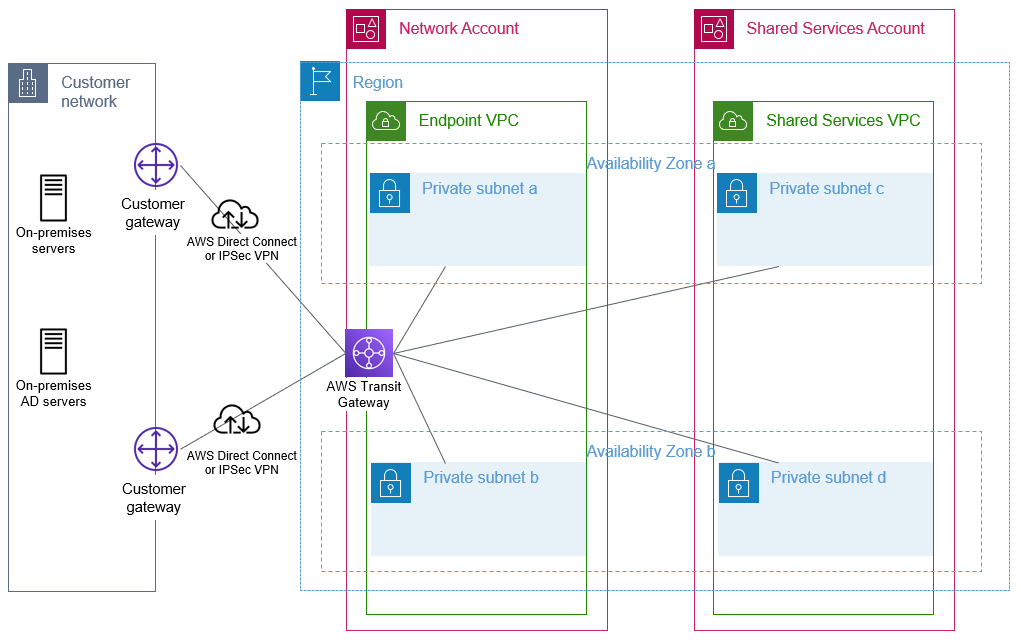
We recommend AWS Transit Gateway to provide connectivity between your AWS accounts. A transit gateway will be in your network account and then shared with your other AWS accounts that have VPCs that require access to on-premises networks or other VPCs. This enables a hub and spoke network architecture, which is used to provide connectivity both between your VPCs as needed and between your VPCs and your on-premises network. You will create a VPC, which we will refer to within this blog as the endpoint VPC, with subnets across two Availability Zones, within the network account. This endpoint VPC will be used later by Amazon Route 53 outbound endpoints for DNS resolution of AD-hosted DNS zones. Other documentation might refer to this endpoint VPC by alternative names, such as outbound VPC or egress VPC.
Your AD infrastructure that is running on AWS is typically deployed within a shared services account, sometimes referred to as an operations account. Within this shared services account, you will create a shared services VPC with at least two subnets within different Availability Zones to host your domain controller infrastructure on AWS. Your domain controller availability is increased when your architecture is configured to use multiple Availability Zones. You will attach this shared services VPC to the transit gateway that is shared from your network account. This VPC attachment provides connectivity between this VPC and your on-premises network through the transit gateway and network account. You will need to configure the subnet route table(s) and transit gateway route table(s) appropriately to provide IP connectivity between the shared services VPC and your on-premises network.
The sample architecture shown in Figure 1 illustrates the use of a transit gateway with two AWS Direct Connect connections to provide resilient connectivity between an on-premises network, the network account, and a VPC within the shared services account.
Figure 1: Foundational network connectivity between on-premises and AWS VPCs
Active Directory relies heavily on Domain Name System (DNS) services and typically hosts its own DNS services on domain controllers. To establish name resolution of your AD-hosted DNS domains from within your VPCs, you should use Route 53 Resolver with outbound resolver endpoints and forwarding rules. Forwarding rules specify the domain name queries to forward from your VPCs to DNS servers that are authoritative for your AD DNS names. The queries will be forwarded through the outbound endpoints. The outbound endpoints will be configured in the network account on the endpoint VPC, and use the previously configured network connectivity to communicate with your existing DNS servers. You will configure your existing DNS servers as targets in the forwarding rules. Configuring Route 53 Resolver with the appropriate forwarding rules will help to enable seamless DNS resolution between your on-premises and AWS hosted resources. You need to share the Route 53 Resolver rules with your organization so that they can be used by your other AWS accounts. These shared rules are then associated with your VPCs, which need to be able to resolve names within AD-hosted DNS domains. Refer to the AWS Hybrid DNS with Active Directory technical guide for detailed step-by-step configuration guidance.
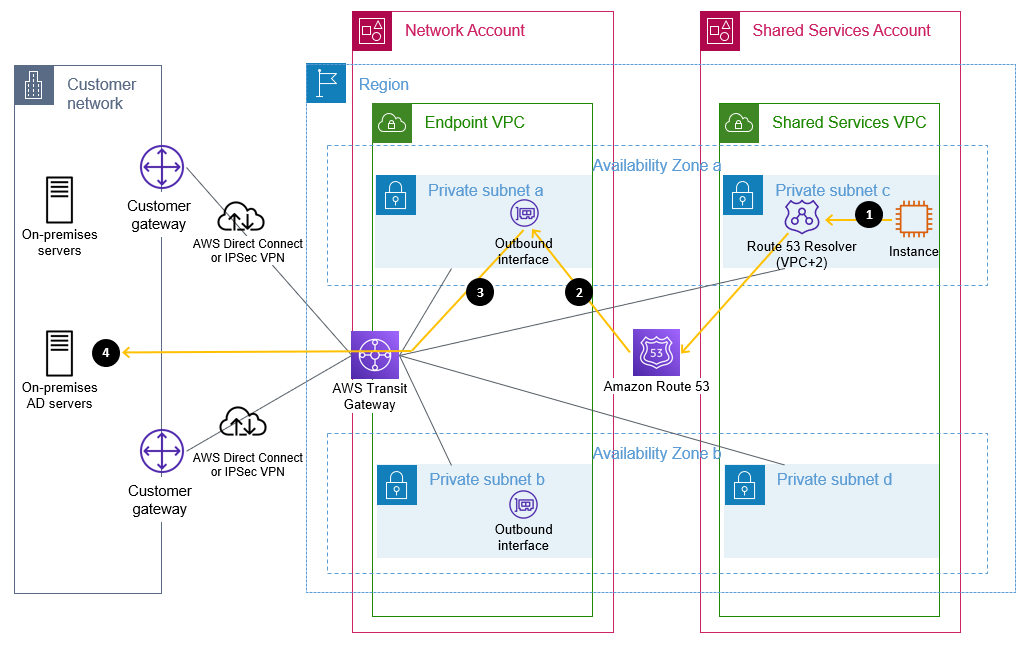
Figure 2 shows a sample flow of a DNS query from an Amazon Elastic Compute Cloud (Amazon EC2) instance through Route 53 Resolver and an outbound interface when resolving an on-premises domain name that matches a forwarding rule. In this example, the domain controllers are also the DNS servers, but splitting the DNS and AD servers is also fully supported.
Figure 2: Flow of a DNS query matching a forwarding rule through a Route 53 outbound endpoint
The flow is as follows:
An Amazon EC2 instance sends a DNS request for an internal name, such as ad.example.com, to the Route 53 Resolver address within the VPC.
Route 53 matches this query against a forwarding rule and directs the query through the configured outbound interface.
The query is sent from the outbound interface towards the target IP address, configured in the forwarding rule, of a server that is authoritative for the domain name.
This target DNS server receives the query and responds.
To extend your existing AD to AWS, domain controllers on Amazon EC2 instances are required, because AWS Managed Microsoft AD does not support being added to an existing forest. An AWS Managed Microsoft AD resource forest is required to enable integration with AWS services that offer AD integration. This is discussed in more detail in the following sections.
Extend your on-premises AD to AWS
Your first step is to build additional AD domain controllers for your existing AD domain(s) on Amazon EC2 instances that are running Microsoft Windows Server. You would then manage these domain controllers along with your existing domain controllers. By running additional domain controllers within AWS, you remove dependencies on network links and improve reliability and performance of your directory for infrastructure that is running within AWS. Communication between the domain controllers and other domain-joined resources within AWS is designed to remain within the AWS Region. AWS recommends that a minimum of two domain controllers, spread across multiple Availability Zones for resilience, are deployed. You should deploy the domain controllers into the subnets within the shared services VPC.
Depending on your capacity planning considerations and availability goals, you may choose to deploy more than two domain controllers. The number of users, servers, and applications that access your directory will influence the required number of domain controllers. Security considerations, including the required TCP/IP ports, and management options are discussed in the blog post Securely extend and access on-premises Active Directory domain controllers in AWS.
These new domain controllers will be in a new AD site, which includes all your VPC CIDR blocks within your chosen AWS Region. In Active Directory, a site represents a group of IP subnets that are connected with fast and highly reliable network connectivity. Site information is used to locate domain controllers closest to the client, to reduce latency and unnecessary network traffic. AWS recommends that your VPCs within an AWS Region belong to the same new Active Directory site, consisting only of your IP ranges within the chosen AWS Region, and that consistent site names are used in all AD forests that are connected by trusts. Further details are available in the section Designing Active Directory sites and services topology in Active Directory Domain Services on AWS and in Designing the Site Topology.
Update targets in Route 53 Resolver rules
After you have deployed AD-integrated DNS servers to these domain controllers and opened the required TCP/IP ports on the associated security groups, you can update the targets in your Route 53 Resolver forwarding rules to use the IP addresses of these servers. This will improve performance and reliability of DNS resolution, by removing the need for DNS resolution traffic to flow between AWS and on-premises infrastructure.
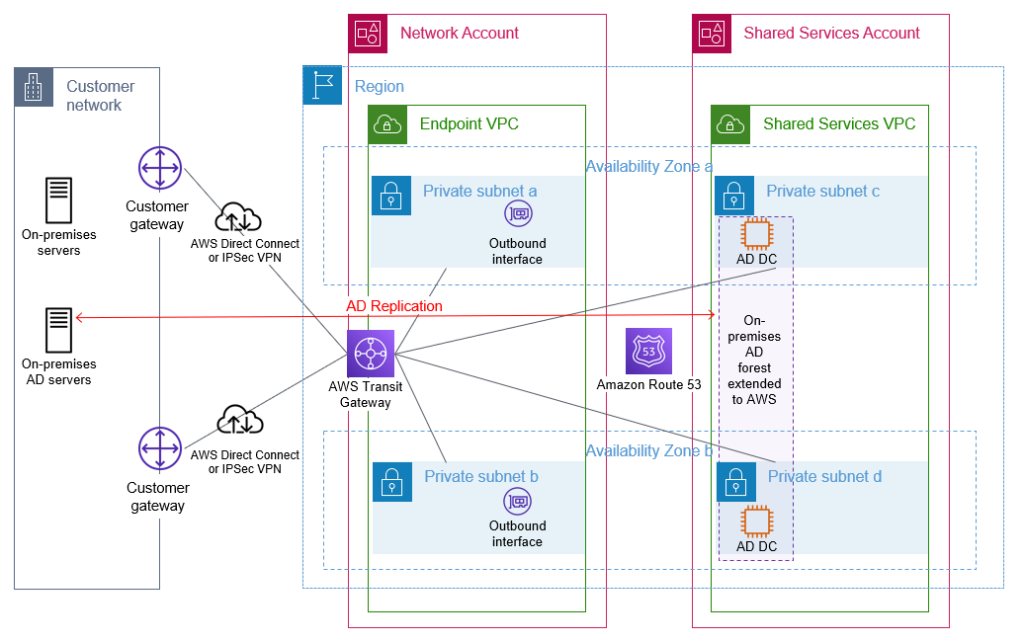
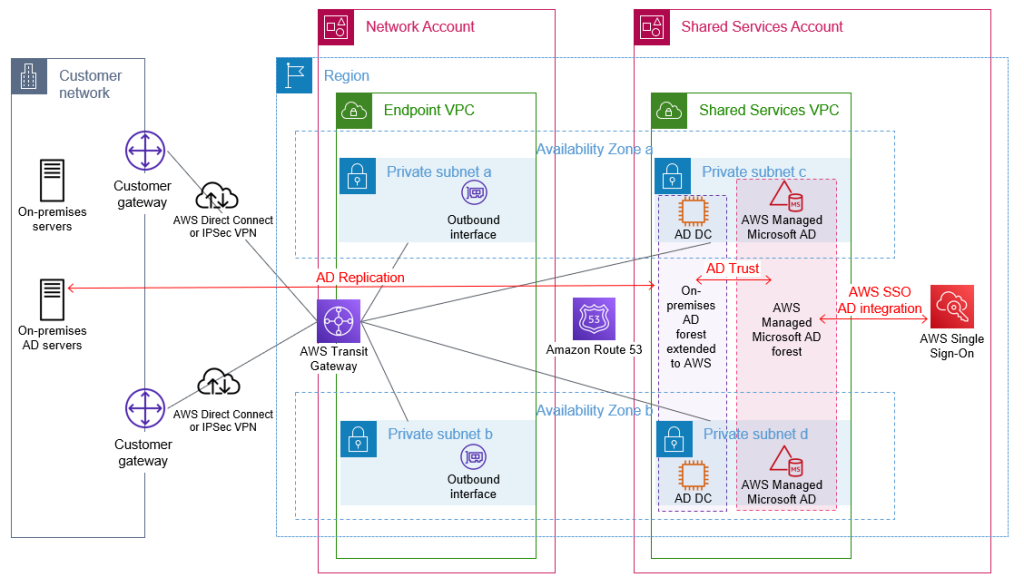
Figure 3 shows Amazon EC2 instances that are configured as AD domain controllers within a shared services VPC. After they are configured, these domain controllers will replicate with the on-premises domain controllers, using the connectivity that is provided through the transit gateway.
Figure 3: On-premises AD extended to AWS by deploying additional domain controllers
Build a resource forest for AWS hosted infrastructure and applications
When you select and launch this directory type, it is created as a highly available pair of domain controllers that are connected to your virtual private cloud (VPC). The domain controllers run in different Availability Zones in your choice of AWS Region. Host monitoring and recovery, data replication, snapshots, and software updates are automatically configured and managed for you. AWS Managed Microsoft AD is available in Standard and Enterprise Editions.
The AWS Managed Microsoft AD will be shared with your accounts within your organization to enable your other AWS accounts to access this directory and benefit from the features and services outlined previously.
With correct AD site configuration in both forests, communication between the AWS Managed Microsoft AD domain controllers and other domain-joined resources within AWS, and your existing domain’s domain controllers, remains within the chosen AWS Region. This is designed to keep your data within AWS in the country of your chosen AWS Region, to help to address possible data residency concerns.
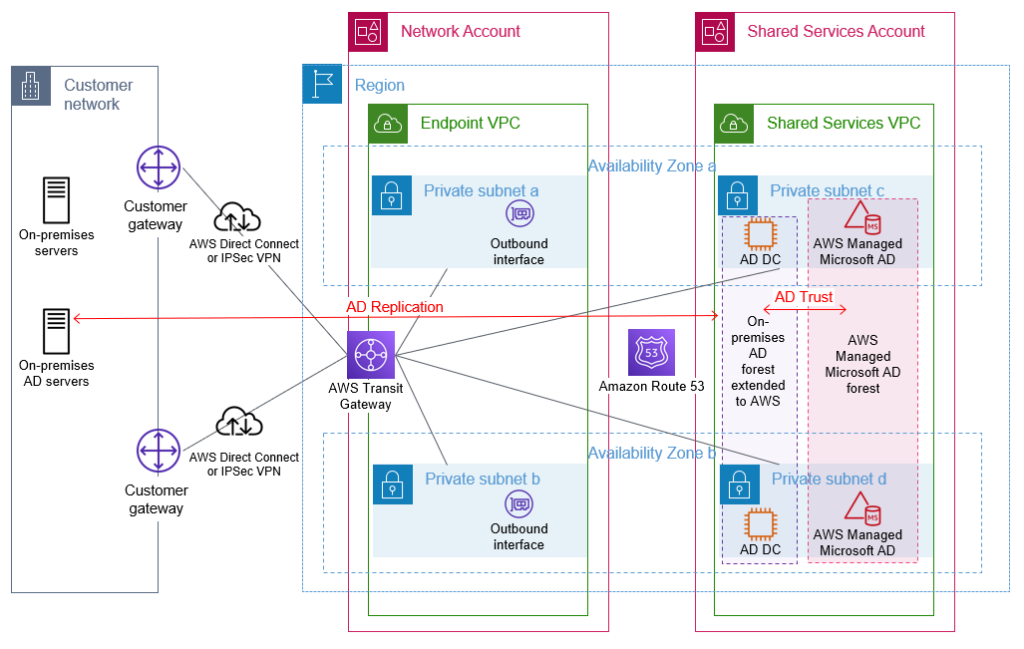
An example of this architecture is depicted in Figure 4.
Figure 4: AWS Managed Microsoft AD resource forest with trust to on-premises AD
Manage access to your AWS accounts
AWS Single Sign-On (AWS SSO) enables you to centrally manage access across your AWS organization. You can choose to manage access just to your AWS accounts, or to your cloud applications as well. You can create user identities directly in AWS SSO, access your existing identifies by connecting AWS SSO to your existing Active Directory domain, or you can federate them from your Active Directory Federation Services (AD FS) or a standards-based identity provider, such as Okta Universal Directory or Azure AD. Your workforce users get a user portal to access all of their assigned AWS accounts or cloud applications. AWS SSO can be flexibly configured to run alongside or replace AWS account access management through AWS Identity and Access Management (IAM).
Identity federation is a system of trust between two parties for the purpose of authenticating third parties, such as users, and conveying information that is needed to authorize their access to resources. In this system, an identity provider (IdP) is responsible for user authentication, and a service provider (SP), such as a service or an application, controls access to resources. AWS SSO automates the setup of the identity federation that is used to provide authorized users access to your AWS accounts. AWS SSO is acting as an IdP when AWS SSO is connected to your AD and used to give access to your AWS accounts.
Although you can create users and groups directly within AWS SSO, a best practice is to use your existing identity single source of truth to simplify user and permission management. Connecting AWS SSO through to your Active Directory, which has been extended to AWS, will allow authentication of users for access to your AWS accounts to take place entirely within the AWS Region. This practice is designed to reduce dependencies on hybrid networking and resources located on-premises or in other hosting locations.
You should enforce secure access to the user portal, AWS SSO integrated apps, and the AWS CLI by enabling multi-factor authentication (MFA). AWS SSO MFA supports various MFA types, including client-side authenticator apps, security keys, and built-in authenticators. Using MFA is recommended as part of configuring strong sign-in mechanisms.
Connect AWS SSO to your Active Directory
You can connect AWS SSO to your Active Directory on AWS by using AD Connector, or through an AWS Managed Microsoft AD. Using AD Connector is often the primary mechanism considered by customers, but given the lack of support for multi-domain environments as used in this post, this blog post recommends using AWS Managed Microsoft AD.
When you use AWS Managed Microsoft AD with AWS SSO, AWS SSO requires two-way trusts to be in place between this AWS Managed Microsoft AD forest and any other forest that contains the user identities that will authenticate through AWS SSO.
Before AWS SSO supported delegated administration, AWS SSO had to be configured within the management account of your AWS organization, and required the connected AWS Managed Microsoft AD directory to also be within your organization’s management account.
With the announcement of AWS SSO delegated administration support, AWS SSO and the connected AWS Managed Microsoft AD can be configured in an account other than your management account. This post recommends using your shared services account as the AWS SSO delegated administration account. Doing so will enable AWS SSO to use the AWS Managed Microsoft AD that you configured within the shared services account in the preceding Build a resource forest for AWS hosted infrastructure and applications section.
This follows the AWS guidance to avoid deploying workloads to the organization’s management account and to limit access to the management account. Using a delegated administration account for AWS SSO reduces the need for regular access to the management account.
From within your management account, your shared services account needs to be registered as the AWS SSO delegated administration account. You can then configure and manage AWS SSO from within your shared services account. The AWS SSO delegated administration account can manage permissions across your organization, apart from assigning permissions to access the management account. Assignment of permissions to access the management account through AWS SSO needs to be configured from within the management account itself.
Permission sets are a way to define permissions centrally in AWS SSO so that they can be applied to all your AWS accounts. After you have created your permission sets, you will assign them to your Active Directory groups to grant access to the respective AWS accounts, using the defined permission set persona. Your users will then use the AWS SSO user portal to authenticate with their AD credentials and can choose which of the assigned AWS accounts and personas they wish to access. Users can configure AWS CLI to use AWS SSO to access the roles they have been assigned.
Figure 5 shows the complete architecture covered in this blog post. The diagram includes AWS SSO within the shared services account connected to the AWS Managed Microsoft AD that is used to provide access to the forests that contain your user identities.
Figure 5: Complete AD architecture with trusts and AWS SSO using AD as the identity source
Access domain-joined infrastructure resources
By joining your Windows Server servers to your Active Directory resource domain, you can centralize the management of your servers by using native Microsoft tooling. Joining your Amazon EC2 Windows instances to your domain enables you to continue using existing tools, such as group policies, to manage your server estate both on-premises and in AWS.
VPCs with workloads that need to be domain joined, to access on-premises networks, or to access other VPCs will need appropriate network connectivity and DNS configuration in place. You can enable network connectivity between workload VPCs and the shared services VPC and other on-premises networks by attaching your VPCs to the transit gateway shared from the networking account. You can enable DNS resolution of your AD domains by attaching the Route 53 Resolver rules, shared from the networking account, to your workload VPCs.
Join instances to your AD domain
Amazon EC2 Windows instances can be manually or seamlessly joined to your resource domain. Manually joining an instance involves the same steps that you would follow on-premises. Seamlessly joining instances requires the AWS Systems Manager agent, which is installed by default in AWS provided Windows AMIs, on the Amazon EC2 instance and an attached instance profile with sufficient permissions. This instance profile should include the AmazonSSMManagedInstanceCore and AmazonSSMDirectoryServiceAccess policies.
In order to join the domain, either manually or seamlessly, the Amazon EC2 instance must be able to resolve the DNS name for your AD domain. This DNS resolution was enabled by the attachment of the correctly configured shared Route 53 Resolver rules to the workload VPCs. Seamlessly joining instances to the domain also requires that your shared services account AWS Managed Microsoft AD directory be shared with the workload account that contains the Amazon EC2 instances.
After your instances are joined to the domain, applications running on the servers will be able to access other domain-joined resources, if authorized by AD, through the connectivity that is provided by the transit gateway attachment on the workload VPC.
Applications that need to access AWS resources that are not domain joined, such as objects in Amazon Simple Storage Service (Amazon S3), should make use of temporary credentials associated with the attached instance profile to access AWS resources. By using these IAM temporary credentials, you can avoid using static long-term credentials. When an application requires access to credentials or other secrets, and cannot use AD or IAM temporary credentials, such as for database logins or for third-party API tokens, use a service designed to handle management of secrets, such as AWS Secrets Manager. See the AWS Well-Architected Security Pillar Identity Management documentation for further guidance.
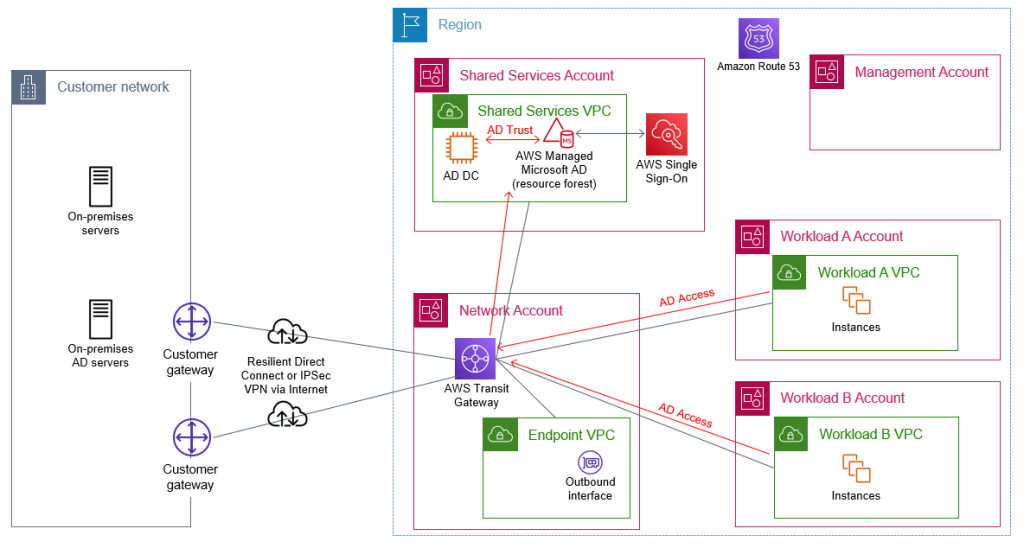
Figure 6 shows Active Directory access through the transit gateway. The Route 53 forwarding rules, which are shared from the shared services account, are associated with the workload VPCs to enable DNS resolution of Active Directory–integrated DNS domains. Not shown in the diagram is the sharing of the AWS Managed Microsoft AD for the resource forest with the workload accounts.
Figure 6: Flow of AD network traffic through the transit gateway within the network account
Access applications and third-party services
You might have existing applications that rely on Active Directory or LDAP for user authentication. When you extend your Active Directory environment to AWS, these existing applications can be deployed to your AWS environment, and they will be able to authenticate the users of the application against your AD.
You might already be using a third-party identity provider, such as Azure AD or Okta, to provide your users with access to AWS services such as AWS Client VPN or to third-party business applications such as those on the AWS SSO Cloud applications page. These third-party identity providers will typically offer an agent to replicate or synchronize necessary user information from your Active Directory to their service, in order to offer federated authentication for your users. Using these agents to replicate from your existing Active Directory means that you are still using your Active Directory as the single source of truth. To ensure reliable authentication, you should follow the vendor’s recommendations for the high-availability setup of their agent.
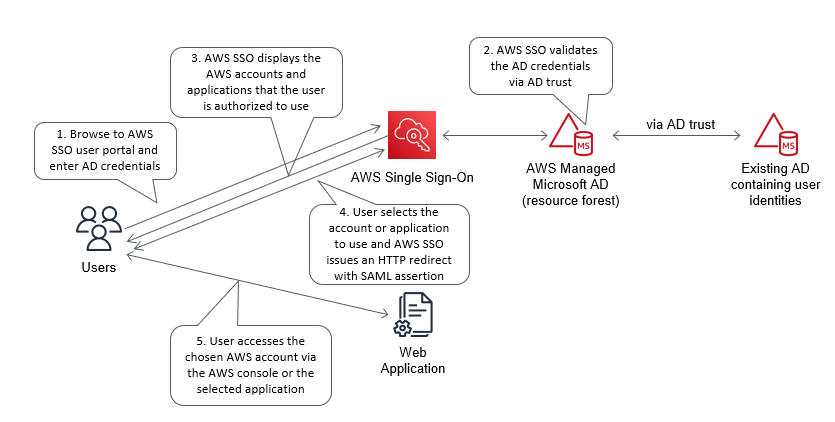
Figure 7 shows the steps that occur when you use AWS SSO to provide identity federation to a web application.
Figure 7: Example flow for identify federation that uses AWS SSO
Conclusion
This post highlights the importance of implementing a cloud authentication and authorization architecture that addresses the variety of requirements for an organization’s AWS Cloud environment. In addition to console access, this post highlights the importance of considering how you will:
Perform authentication to AWS based Windows and Linux instances
Integrate AWS services that need Windows-based authentication capabilities
Integrate authentication for internal user applications
Provide a single identity source as the source of truth for all AWS user authentication
Enable MFA for user authentication
The proposed approach provides a highly available Active Directory (AD) infrastructure, running on AWS and integrated with your existing AD, which addresses these considerations. The approach helps you to attain reduced latencies and higher levels of availability by removing dependencies on on-premises resources, other hosting locations, and external network links. This design stores the identity information that is contained within your existing AD in your chosen AWS Region and country, across multiple Availability Zones, which can also help you meet your data residency requirements.
If you have feedback about this post, submit comments in the Comments section below. If you have questions about this post, contact AWS Support.
Want more AWS Security news? Follow us on Twitter.
Many organizations restrict permissions to create and manage AWS Identity and Access Management (IAM) resources to a group of privileged users or a central team. This post explains how you can safely grant these permissions to builders – the people who are developing, testing, launching, and managing cloud infrastructure – to speed up your development, increase your agility, and improve your application security. In addition, you will use an example application stack to see how IAM permissions boundaries can help establish a secure, yet agile work environment for builders.
An example application stack
Defining and creating IAM resources within the application stack allows your builders to craft policies and roles that grant least privilege to application resources. When builders are entitled to create IAM resources, it is straightforward for them to scope policies by referencing the application resources directly in the IAM policies in the same template.
To illustrate this point you will build a simple “hello world” serverless application. The application includes an AWS Step Functions state machine that, once executed, will invoke an AWS Lambda function. You will use this example application along with some IAM policies and IAM roles to illustrate how you can use permissions boundaries to safely grant IAM privileges to builders.
In this example AWS CloudFormation template, the Resource element in MyStateMachineExecutionRole, which is specified as the role for MyStateMachine, includes a reference to the Amazon Resource Name (ARN) of MyLambdaFunction. This is a great example of the principle of least privilege as MyStateMachine will only have permissions to invoke MyLambdaFunction. Making this association is straightforward because the IAM, Step Functions, and Lambda resources are defined together in the same template.
In an organization that uses a centralized approach to IAM management, a builder would not be able to deploy this example application because the roles the builders are granted prohibit IAM actions related to creating and managing roles and policies. This creates three key challenges for the organization:
Builders often rely on a security or cloud team to create IAM resources. This approach adds an additional burden to that team which slows down development while builders wait for the roles and policies to be created, and encourages the team to grant overly-broad permissions so that they don’t have to be involved in the precise details of changes on a daily basis.
IAM resources must be created before the rest of the stack, which makes it much more difficult to create least-privilege policies and roles.
The code for IAM and application infrastructure is maintained separately, which requires extra coordination when creating and updating workloads.
Removing these challenges can simplify your cloud development, lower the amount of overhead and coordination required across your organization, and improve your security posture. Further, reducing the burden on your security team can free up time for them to focus on enforcing additional data perimeters and implementing best practices from the security pillar of the AWS Well-Architected Framework.
Use permissions boundaries on application roles created by builders
So how can your organization shift to a decentralized approach to IAM management and allow builders to safely create application IAM policies and roles, as well as prevent builders from being able to escalate their own privileges? This is a scenario where permissions boundaries should be used.
Permissions boundaries allow an IAM policy to be attached to an IAM role to enforce limits on the permissions that role can be granted. The permissions boundary itself does not grant any permissions – it’s just a guardrail that defines the maximum entitlements. You can create a builder policy that requires a specified permissions boundary be attached to any application roles that a builder creates, effectively setting the maximum permissions on any role that a builder can generate. The permissions for any application roles created will be the intersection of the application policies and the permissions boundary associated with the application role. Said another way, a permission granted in the application policy must also be granted in the permissions boundary, or else it will be implicitly denied according to the policy evaluation logic.
The set of permissions required for builder roles (assumed by actual people or CI/CD pipelines) to deploy infrastructure and develop applications are different than those required for application roles (assumed by workloads/applications) to execute within applications and workflows. If you think of permissions in terms of control plane actions involved in creating, deleting, and modifying resources, versus data plane actions needed to execute the daily business of those resources, builder and application roles typically operate more on the control plane and data plane, respectively. While permissions policies attached to application roles should be tightly scoped to include only those actions needed to perform a specific task, policies for permissions boundaries should be highly reusable and include a broad set of permissions across a suite of services that a variety of applications might need. In addition, it is a best practice to not share roles between humans and services. To summarize, policies for builder and application roles should be designed with the following criteria in mind:
Policy
Role
Permissions
Scope
Reusability
User
builder
builder
control plane
broad
high
human
application
application
data plane
specific
low
service
application-boundary
application
data plane
broad
high
application role
Following the steps in this section, you will create:
A builder policy that grants builders permissions for services needed to deploy and manage applications, and to create and manage IAM policies and roles for those applications.
An application-boundary policy that defines the extent of the permissions any application role created by a builder can have.
A builder role with the builder policy attached as the permissions policy, the application-boundary policy attached as a permissions boundary, and a trust policy that allows anyone in the account to assume the builder role.
Create the builder IAM resources
In this first procedure, you will use CloudFormation to create the builder and application-boundary IAM policies, and the builder IAM role.
To launch the builder IAM stack
Open a Linux terminal with the AWS Command Line Interface (CLI) installed and AWS credentials configured for a user or role that has permissions to create IAM resources.
Launch the builder IAM stack by using the following command:
The builder policy you created uses paths to organize IAM policies and roles into isolated “spaces” that can be specified as resource constraints. It also requires roles to have a permissions boundary attached. This approach helps manage role delegation and prevents builders from escalating their privileges or modifying roles that may be used by other teams.
Note that paths can only be added to IAM resources using the AWS CLI or APIs – not via the console. If this is an issue, another option is to specify that policies and roles start with a specific phrase, for example “application-roles-*”. Just be sure to use different phrases for the builder, application, and permissions boundaries resources to maintain isolation and prevent builders from being able to escalate their privileges.
The builder policy also includes some basic control plane permissions, while the application-boundary policy you created includes permissions used across a suite of services that a typical serverless application might need. However, both policies are only meant to demonstrate the concepts in this blog post. In practice, you will need to create policies that more accurately reflect the permissions needed by builder and application roles in your organization. See the example-permissions-boundaries repository on the AWS Samples GitHub site for more ideas.
Use the builder role to launch an application stack
In this section you will assume the builder role and verify that you can launch the application stack, including the application roles, but only if the required permissions boundary and path are specified.
To test launching a stack that creates application roles
Assume the builder role by using the following set of commands (copy and paste into the terminal as a single block). This step uses the jq program, which is available in most operating system package repositories.
You will use this role for all of the following procedures up until the “Clean up” section. If, during the course of this exercise, you get an error that “The security token included in the request is expired”, create a new terminal and repeat this step to get a fresh set of credentials.
The trust policy for the builder role allows any principal in the account to assume it. You can use a combination of the Principal and Condition attributes to further reduce its scope. Normally builder roles are assumed directly via federation or AWS SSO.
Check that the you have now assumed the builder role by using the following command:
aws sts get-caller-identity
Launch the example application stack by using the following command:
If things are set up correctly, the stack will fail. To confirm, check the StackStatus by using the following command – it should show ROLLBACK_IN_PROGRESS or ROLLBACK_COMPLETE.
The stack failed to create because the builder role you assumed does not have permissions to create the two application roles without specifying the /application_roles/ path and attaching a permissions boundary with /permissions_boundaries/ in the path. To see the details, use the following command:
If the original stack did not create successfully, you will not be able to update it, so you will need to delete it instead by using the following command:
Start an execution of the state machine and verify the application is working by using the following commands. Run them one at a time to allow the execution to finish.
If the output is “\”Hello Builder!\””, then the application is working.
Test that a builder can’t escalate their privileges
In this section, you will test scenarios where a builder attempts, intentionally or not, to escalate their privileges by first modifying the policies attached to the builder role and then extending the permissions of an application role beyond the permissions boundary.
To test updating a builder policy attached to the builder role
Create an environment variable for your AWS account number, which will be used in several of the steps below, using the following command:
You should not get an error in this step because you are creating a new policy that complies with the resource constraint for the statement that includes the iam:CreatePolicy permission in the builder policy. But, it’s just a policy for now – it can’t have any effect unless attached to a role.
Now try to attach this new policy to the builder role by using the following command:
aws iam attach-role-policy \
--role-name builder \
--policy-arn arn:aws:iam::$AWS_ACCOUNT:policy/application_policies/sneaky-policy
You should get an error because you’re attempting to attach a policy to a role that’s not in the /application-roles/ space, in this case the builder role.
To test modifying an application role with actions outside the permissions boundary
In this procedure, you will attempt to escalate the privileges of the MyLambdaFunctionExecutionRole by adding an action (s3:CreateBucket) that is outside of the permissions boundary attached to the role and then attempting to execute that action when MyLambdaFunction is invoked.
Update the builder-application stack by using the following command:
Start an execution of the state machine and verify the result by using the following commands. Run them one at a time to allow the execution to finish.
The status should be FAILED. Remember – the effective permissions for any application roles will be the intersection of the attached permissions policies and the permissions boundary. Thus, this execution failed because even though you were able to modify the inline policy of the Lambda function to add s3:CreateBucket, since that action is not allowed in the application-boundary policy attached to the Lambda as a permissions boundary, the request to create an S3 bucket was denied.
Get the name of the latest log stream by using the following commands:
To verify the actual error was due to a lack of permissions, get the event message by using the following command, replacing <value> with the value of the log stream copied in the step above. If using a bash terminal, you will need to escape any dollar signs in <value> with a backslash character:
The error should read [ERROR] ClientError: An error occurred (AccessDenied) when calling the CreateBucket operation: Access Denied, which confirms that the permissions boundary prevented you from escalating your privileges as a builder via an application role.
You have now verified that you can safely allow builders to create IAM policies and roles!
Clean up
After you have finished testing, clean up the resources created in this example. Because the builder role does not have permissions to delete builder policies and roles, you will need to assume a different role that can manage IAM resources to complete step 3 below. If you create a new terminal session, make sure the AWS_ACCOUNT environment variable is set.
To clean up
Delete the builder-application stack by using the following command:
Permissions boundaries are applied to individual IAM users or roles within an account. If your organization has multiple accounts, you must create and maintain these boundaries in each account for each individual user or role. But what if you’d like to apply a subset of these rules or others across some or all of your accounts? In this case, you could use service control policies (SCPs), which are a feature of AWS Organizations, to provide central control over the maximum available permissions for multiple accounts in your organization. By organizing accounts into organizational units (OUs), which are groups of accounts that serve an application or service, you can apply service control policies (SCPs) to create targeted governance boundaries for your OUs. To learn more about creating SCPs, see Get more out of service control policies in a multi-account environment in the AWS Security Blog.
Additional tools
Creating and managing tightly scoped policies and roles is an ongoing process that requires a lot of thought and attention to detail. AWS IAM enables fine-grained access control to AWS services, and permissions boundaries are an advanced feature. There is no substitute for actual testing like you performed in the “Test that a builder can’t escalate their privileges” section above, however you can also use the IAM Policy Simulator as a tool to test policies and determine whether or not specific actions are allowed for a given user, group, or role. Additional tools you can use to create, audit, and update IAM policies include:
Access Advisor – to review when services and actions were last accessed.
Access Analyzer – to help identify resources in your organization and accounts that are shared with an external identity, validate IAM policies against policy grammar and best practices, and generate IAM policies based on access activity in your AWS CloudTrail logs.
AWS Cloud Development Kit (CDK) – has built-in convenience methods to help you follow best practices, including the ability to generate least-privilege policies for cloud applications with a single line of code.
Open Source tools like cfn-nag and cdk-nag – to inspect CloudFormation templates and CDK applications for patterns that may indicate insecure infrastructure, for example IAM policies that are too permissive.
Conclusion
In this post, you learned how to put policies and guardrails in place that will allow your organization to grant IAM permissions to builders. These changes will enable your builders to develop and deploy cloud infrastructure and applications more rapidly, and will help strengthen your organization’s security culture by extending the responsibility to a broader group. To learn more about creating, testing, and refining IAM policies and permissions boundaries, see Creating IAM policies, Testing IAM policies, and Refining permissions using access information in the IAM User Guide, and IAM policy types: How and when to use them in the AWS Security Blog.
Google Workspace offers a single sign-on service based off of the Security Assertion Markup Language (SAML) 2.0. Users can use this service to access to your AWS resources by using their existing Google credentials. For users to whom you grant access, they will see an additional SAML app in their Google Workspace console. When your users choose this SAML app, they will be redirected to www.google.com the AWS Management Console.
Solution Overview
In this solution, you will create a SAML identity provider in IAM to establish a trusted communication channel across which user authentication information may be securely passed with your Google IdP in order to permit your Google Workspace users to access the AWS Management Console. You, as the AWS administrator, delegate responsibility for user authentication to a trusted IdP, in this case Google Workspace. Google Workspace leverages SAML 2.0 messages to communicate user authentication information between Google and your AWS account. The information contained within the SAML 2.0 messages allows an IAM role to grant the federated user permissions to sign in to the AWS Management Console and access your AWS resources. The IAM policy attached to the role they select determines which permissions the federated user has in the console.
Figure 1: Login process for IAM federation
Figure 1 illustrates the login process for IAM federation. From the federated user’s perspective, this process happens transparently: the user starts at the Google Workspace portal and ends up at the AWS Management Console, without having to supply yet another user name and password.
The portal verifies the user’s identity in your organization. The user begins by browsing to your organization’s portal and selects the option to go to the AWS Management Console. In your organization, the portal is typically a function of your IdP that handles the exchange of trust between your organization and AWS. In Google Workspace, you navigate to https://myaccount.google.com/ and select the nine dots icon on the top right corner. This will show you a list of apps, one of which will log you in to AWS. This blog post will show you how to configure this custom app.
Figure 2: Google Account page
The portal verifies the user’s identity in your organization.
The portal generates a SAML authentication response that includes assertions that identify the user and include attributes about the user. The portal sends this response to the client browser. Although not discussed here, you can also configure your IdP to include a SAML assertion attribute called SessionDuration that specifies how long the console session is valid. You can also configure the IdP to pass attributes as session tags.
The client browser is redirected to the AWS single sign-on endpoint and posts the SAML assertion.
The endpoint requests temporary security credentials on behalf of the user, and creates a console sign-in URL that uses those credentials.
AWS sends the sign-in URL back to the client as a redirect.
The client browser is redirected to the AWS Management Console. If the SAML authentication response includes attributes that map to multiple IAM roles, the user is first prompted to select the role for accessing the console.
The list below is a high-level view of the specific step-by-step procedures needed to set up federated single sign-on access via Google Workspace.
The setup
Follow these top-level steps to set up federated single sign-on to your AWS resources by using Google Apps:
Download the Google identity provider (IdP) information.
Create the IAM SAML identity provider in your AWS account.
Create roles for your third-party identity provider.
Assign the user’s role in Google Workspace.
Set up Google Workspace as a SAML identity provider (IdP) for AWS.
Test the integration between Google Workspace and AWS IAM.
Roll out to a wider user base.
Detailed procedures for each of these steps compose the remainder of this blog post.
Step 1. Download the Google identity provider (IdP) information
First, let’s get the SAML metadata that contains essential information to enable your AWS account to authenticate the IdP and locate the necessary communication endpoint locations:
From the Admin console Home page, select Security > Settings > Set up single sign-on (SSO) with Google as SAML Identity Provider (IdP).
Figure 3: Accessing the “single sign-on for SAML applications” setting
Choose Download Metadata under IdP metadata.
Figure 4: The “SSO with Google as SAML IdP” page
Step 2. Create the IAM SAML identity provider in your account
Now, create an IAM IdP for Google Workspace in order to establish the trust relationship between Google Workspace and your AWS account. The IAM IdP you create is an entity within your AWS account that describes the external IdP service whose users you will configure to assume IAM roles.
Step 3. Create roles for your third-party Identity Provider
For users accessing the AWS Management Console, the IAM role that the user assumes allows access to resources within your AWS account. The role is where you define what you allow a federated user to do after they sign in.
To create an IAM role, go to the AWS IAM console. Select Roles > Create role.
Choose the SAML 2.0 federation role type.
For SAML Provider, select the provider which you created in Step 2.
Choose Allow programmatic and AWS Management Console access to create a role that can be assumed programmatically and from the AWS Management Console.
Review your SAML 2.0 trust information and then choose Next: Permissions.
Figure 6: Reviewing your SAML 2.0 trust information
GoogleSAMLPowerUserRole:
For this walkthrough, you are going to create two roles that can be assumed by SAML 2.0 federation. For GoogleSAMLPowerUserRole, you will attach the PowerUserAccess AWS managed policy. This policy provides full access to AWS services and resources, but does not allow management of users and groups. Choose Filter policies, then select AWS managed – job function from the dropdown. This will show a list of AWS managed policies designed around specific job functions.
Figure 7: Selecting the AWS managed job function
To attach the policy, select PowerUserAccess. Then choose Next: Tags, then Next: Review.
Figure 8: Attaching the PowerUserAccess policy to your role
Finally, choose Create role to finalize creation of your role.
Figure 9: Creating your role
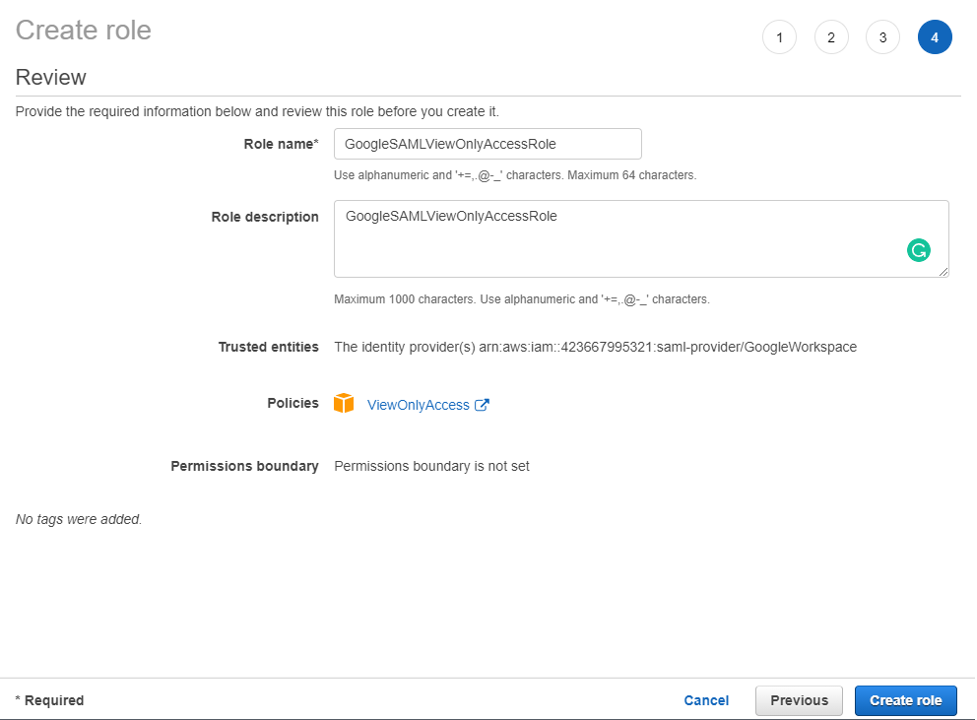
GoogleSAMLViewOnlyRole
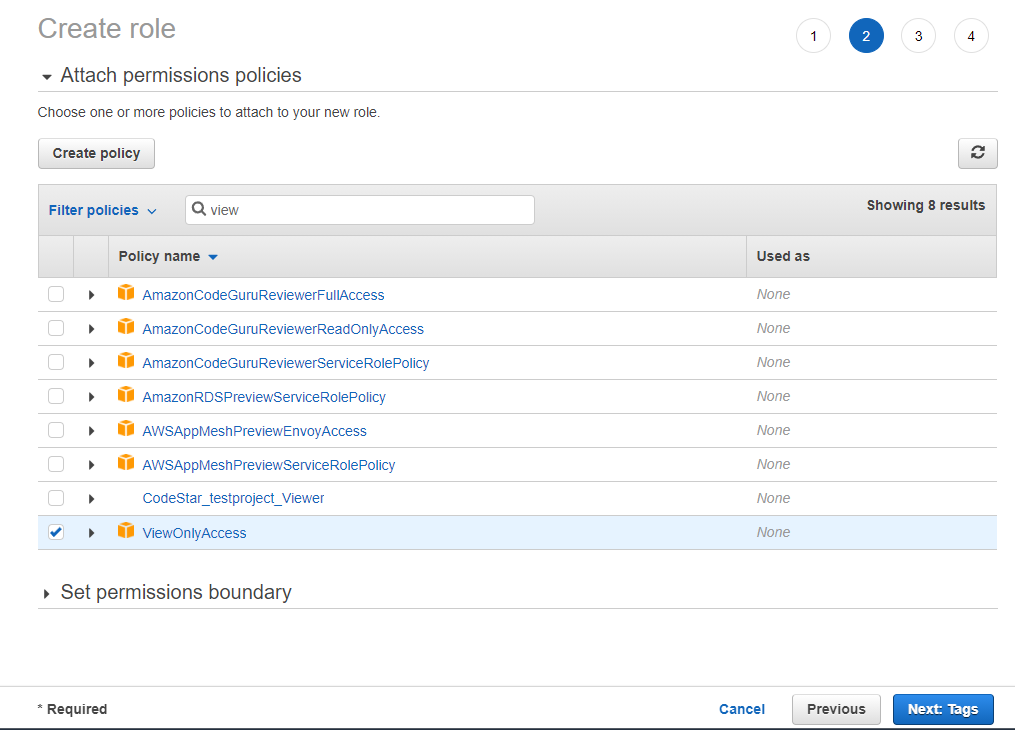
Repeat steps a to g for the GoogleSAMLViewOnlyRole, attaching the ViewOnlyAccess AWS managed policy.
Figure 10: Creating the GoogleSAMLViewOnlyRole
Figure 11: Attaching the ViewOnlyAccess permissions policy
Document the ARN of both roles. The ARN should be similar to
arn:aws:iam::123456789012:role/GoogleSAMLPowerUserRole and
From the Admin console Home page, go to Directory > Users and select Manage custom attributes from the More dropdown, and choose Add Custom Attribute.
Configure the custom attribute as follows:
Category:
AWS
Description:
Amazon Web Services Role Mapping
For Custom fields, enter the following values:
Name:
AssumeRoleWithSaml
Info type:
Text
Visibility:
Visible to user and admin
InNo. of values:
Multi-value
Choose Add. The new category should appear in the Manage user attributes page.
Figure12: Adding the custom attribute
Navigate to Users, and find the user you want to allow to federate into AWS. Select the user’s name to open their account page, then choose User Information.
Select on the custom attribute you recently created, named AWS. Add two rows, each of which will include the values you recorded earlier, using the format below for each AssumeRoleWithSaml row.
The format of the AssumeRoleWithSaml is constructed by using the RoleARN(from Step 3-h) + “,”+ Identity provider ARN (from Step 2-g), this value will be passed as SAML attribute value for attribute with name https://aws.amazon.com/SAML/Attributes/Role. The final result will look similar to below:
Figure 13: Adding the roles that the user can assume
Step 5. Set up Google Workspace as a SAML identity provider (IdP) for AWS
Now you’ll set up the SAML app in your Google Workspace account. This includes adding the SAML attributes that the AWS Management Console expects in order to allow a SAML-based authentication to take place.
From the Admin console Home page, go to Apps > Web and mobile apps.
Choose Add custom SAML app from the Add App dropdown.
Enter AWS Single-Account Access for App name and upload an optional App icon to identify your SAML application, and select Continue.
Figure 14: Naming the custom SAML app and setting the icon
Fill in the following values:
ACS URL:
https://signin.aws.amazon.com/saml
Entity ID:
urn:amazon:webservices
Name ID format:
EMAIL
Name ID:
Basic Information > Primary email
Note: Your primary email will become your role’s AWS session name
Choose CONTINUE.
Figure 15: Adding the custom SAML app
AWS requires the IdP to issue a SAML assertion with some mandatory attributes (known as claims). The AWS documentation explains how to configure the SAML assertion. In short, you need to create an assertion with the following:
An attribute of name https://aws.amazon.com/SAML/Attributes/Role. This element contains one or more AttributeValue elements that list the IAM identity provider and role to which the user is mapped by your IdP. The IAM role and IAM identity provider are specified as a comma-delimited pair of ARNs in the same format as the RoleArn and PrincipalArn parameters that are passed to AssumeRoleWithSAML.
An attribute of name https://aws.amazon.com/SAML/Attributes/RoleSessionName (again, this is just a definition of type, not an actual URL) with a string value. This is the federated user’s role session name in AWS.
A name identifier (NameId) that is used to identify the subject of a SAML assertion.
At the top left, select TEST SAML LOGIN, then choose ALLOW ACCESS within the popup box.
Figure 18: Testing the SAML login
Select ON for everyone in the Service status section, and choose SAVE. This will allow every user in Google Workspace to see the new SAML custom app.
Figure 19: Saving the custom app settings
Now navigate to Web and mobile apps and choose TEST SAML LOGIN again. Amazon Web Services should open in a separate tab and display two roles for users to choose from:
FIgure 20: Testing SAML login again
Figure 21: Selecting the IAM role you wish to assume for console access
Select the desired role and select Sign in.
You should now be redirected to AWS Management Console home page.
Google workspace users should now be able to access the AWS application from their workspace:
Figure 22: Viewing the AWS custom app
Conclusion
By following the steps in this blog post, you’ve configured your Google Workspace directory and AWS accounts to allow SAML-based federated sign-on for selected Google Workspace users. Using this over IAM users helps centralize identity management, making it easier to adopt a multi-account strategy.
If you have feedback about this post, submit comments in the Comments section below. If you have questions about this post, contact AWS Support.
Want more AWS Security news? Follow us on Twitter.
This blog post demonstrates how you can secure Amazon API Gateway HTTP endpoints with JSON web token (JWT) authorizers. Amazon API Gateway helps developers create, publish, and maintain secure APIs at any scale, helping manage thousands of API calls. There are no minimum fees, and you only pay for the API calls you receive.
This post includes step-by-step guidance for setting up JWT authorizers using Amazon Cognito as the identity provider, configuring HTTP APIs to use JWT authorizers, and examples to test the entire setup. If you want to protect HTTP APIs using Lambda and IAM authorizers, you can refer to Introducing IAM and Lambda authorizers for Amazon API Gateway HTTP APIs.
Prerequisites
Before you can set up a JWT authorizer using Cognito, you first need to create three Lambda functions. You should create each Lambda function using the following configuration settings, permissions, and code:
The first Lambda function (Pre-tokenAuthLambda) is invoked before the token generation, allowing you to customize the claims in the identity token.
The second Lambda function (LambdaForAdminUser) acts as the HTTP API Gateway integration target for /AdminUser HTTP API resource route.
The third Lambda function (LambdaForRegularUser) acts as the HTTP API Gateway integration target for /RegularUser HTTP API resource route.
IAM policy for Lambda function
You first need to create an IAM role using the following IAM policy for each of the three Lambda functions:
For the three Lambda functions, use these settings:
Function name
Enter an appropriate name for the Lambda function, for example:
Pre-tokenAuthLambda for the first Lambda
LambdaForAdminUser for the second
LambdaForRegularUser for the third
Runtime
Choose Node.js 12.x
Permissions
Choose Use an existing role and select the role you created with the IAM policy in the Prerequisites section above.
Pre-tokenAuthLambda code
This first Lambda code, Pre-tokenAuthLambda, converts the authenticated user’s Cognito group details to be returned as the scope claim in the id_token returned by Cognito.
This Lambda code, LambdaForAdminUser, acts as the HTTP API Gateway integration target and sends back the response Hello from Admin User when the /AdminUser resource path is invoked in API Gateway.
This Lambda code, LambdaForRegularUser , acts as the HTTP API Gateway integration target and sends back the response Hello from Regular User when the /RegularUser resource path is invoked within API Gateway.
Choose Manage User Pools, then choose Create a user pool.
Figure 1: Create a user pool
Enter a Pool name, then choose Review defaults.
Figure 2: Review defaults while creating the user pool
Choose Add app client.
Figure 3: Add an app client for the user pool
Enter an app client name. For this example, keep the default options. Choose Create app client to finish.
Figure 4: Review the app client configuration and create it
Choose Return to pool details, and then choose Create pool.
Figure 5: Complete the creation of user pool setup
To configure Cognito user pool settings
Now you can configure app client settings:
On the left pane, choose App client settings. In Enabled Identity Providers, select the identity providers you want for the apps you configured in the App Clients tab.
Enter the Callback URLs you want, separated by commas. These URLs apply to all selected identity providers.
Under OAuth 2.0, select the from the following options.
For Allowed OAuth Flows, select Authorization code grant.
For Allowed OAuth Scopes, select phone, email, openID, and profile.
Choose Save changes.
Figure 6: Configure app client settings
Now add the domain prefix to use for the sign-in pages hosted by Amazon Cognito. On the left pane, choose Domain name and enter the appropriate domain prefix, then Save changes.
Figure 7: Choose a domain name prefix for the Amazon Cognito domain
Next, create the pre-token generation trigger. On the left pane, choose Triggers and under Pre Token Generation, select the Pre-tokenAuthLambda Lambda function you created in the Prerequisites procedure above, then choose Save changes.
Figure 8: Configure Pre Token Generation trigger Lambda for user pool
Finally, create two Cognito groups named admin and regular. Create two Cognito users named adminuser and regularuser. Assign adminuser to both admin and regular group. Assign regularuser to regular group.
Figure 9: Create groups and users for user pool
Configuring HTTP endpoints with JWT authorizer
The first step to configure HTTP endpoints is to create the API in the API Gateway management console.
Figure 10: Create an API in API Gateway management console
Choose HTTP API and select Build.
Figure 11: Choose Build option for HTTP API
Under Create and configure integrations, enter JWTAuth for the API name and choose Review and Create.
Figure 12: Create Integrations for HTTP API
Once you’ve created the API JWTAuth, choose Routes on the left pane.
Figure 13: Navigate to Routes tab
Choose Create a route and select GET method. Then, enter /AdminUser for the path.
Figure 14: Create the first route for HTTP API
Repeat step 5 and create a second route using the GET method and /RegularUser for the path.
Figure 15: Create the second route for HTTP API
To create API integrations
Now that the two routes are created, select Integrations from the left pane.
Figure 16: Navigate to Integrations tab
Select GET for the /AdminUser resource path, and choose Create and attach an integration.
Figure 17: Attach an integration to first route
To create an integration, select the following values
Integration type: Lambda function Integration target: LambdaForAdminUser
Choose Create. NOTE: LambdaForAdminUser is the Lambda function you previously created as part of the Prerequisites procedure LambdaForAdminUser code.
Figure 18: Create an integration for first route
Next, select GET for the /RegularUser resource path and choose Create and attach an integration.
Figure 19: Attach an integration to second route
To create an integration, select the following values
Integration type: Lambda function Integration target: LambdaForRegularUser
Choose Create. NOTE: LambdaForRegularUser is the Lambda function you previously created as part of the Prerequisites procedure LambdaForRegularUser code.
Figure 20: Create an integration for the second route
To configure API authorization
Select Authorization from the left pane, select /AdminUser path and choose Create and attach an authorizer.
Figure 21: Navigate to Authorization left pane option to create an authorizer
For Authorizer type select JWT and under Authorizer settings enter the following details:
Figure 22: Create and attach an authorizer to HTTP API first route
In the Authorizer for route GET /AdminUser screen, choose Add scope in the Authorization Scope section and enter scope name as admin-<app_client_id> and choose Save.
Figure 23: Add authorization scopes to first route of HTTP API
Now select the /RegularUser path and from the dropdown, select the JWTAuth authorizer you created in step 3. Choose Attach authorizer.
Figure 24: Attach an authorizer to HTTP API second route
Choose Add scope and enter the scope name as regular-<app_client_id> and choose Save.
Figure 25: Add authorization scopes to second route of HTTP API
Enter Test as the Name and then choose Create.
Figure 26: Create a stage for HTTP API
Under Select a stage, enter Test, and then choose Deploy to stage.
Figure 27: Deploy HTTP API to stage
Test the JWT authorizer
You can use the following examples to test the API authentication. We use Curl in this example, but you can use any HTTP client.
To test the API authentication
Send a GET request to the /RegularUser HTTP API resource without specifying any authorization header.
curl -s -X GET https://a1b2c3d4e5.execute-api.us-east-1.amazonaws.com/RegularUser
API Gateway returns a 401 Unauthorized response, as expected.
{“message”:”Unauthorized”}
The required $request.header.Authorization identity source is not provided, so the JWT authorizer is not called. Supply a valid Authorization header key and value. You authenticate as the regularuser, using the aws cognito-idp initiate-auth AWS CLI command.
aws cognito-idp initiate-auth --auth-flow USER_PASSWORD_AUTH --client-id <Cognito User Pool App Client ID> --auth-parameters USERNAME=regularuser,PASSWORD=<Password for regularuser>
The command response contains a JWT (IdToken) that contains information about the authenticated user. This information can be used as the Authorization header value.
curl -H "Authorization: aaabbbcccddd1234567890" -s -X GET https://a1b2c3d4e5.execute-api.us-east-1.amazonaws.com/RegularUser
API Gateway returns the response Hello from Regular User. Now test access for the /AdminUser HTTP API resource with the JWT token for the regularuser.
curl -H "Authorization: aaabbbcccddd1234567890" -s -X GET "https://a1b2c3d4e5.execute-api.us-east-1.amazonaws.com/AdminUser"
API Gateway returns a 403 – Forbidden response. {“message”:”Forbidden”} The JWT token for the regularuser does not have the authorization scope defined for the /AdminUser resource, so API Gateway returns a 403 – Forbidden response.
Next, log in as adminuser and validate that you can successfully access both /RegularUser and /AdminUser resource. You use the cognito-idp initiate-auth AWS CLI command.
aws cognito-idp initiate-auth --auth-flow USER_PASSWORD_AUTH --client-id <Cognito User Pool App Client ID> --auth-parameters USERNAME=adminuser,PASSWORD==<Password for adminuser>
Using Curl, you can validate that the adminuser JWT token now has access to both the /RegularUser resource and the /AdminUser resource. This is possible when adminuser is part of both Cognito groups, so the JWT token contains both authorization scopes.
curl -H "Authorization: a1b2c3d4e5c6aabbbcccddd" -s -X GET https://a1b2c3d4e5.execute-api.us-east-1.amazonaws.com/RegularUser
API Gateway returns the response Hello from Regular User
curl -H "Authorization: a1b2c3d4e5c6aabbbcccddd" -s -X GET https://a1b2c3d4e5.execute-api.us-east-1.amazonaws.com/AdminUser
API Gateway returns the following response Hello from Admin User
Conclusion
AWS enabled the ability to manage access to an HTTP API in API Gateway in multiple ways: with Lambda authorizers, IAM roles and policies, and JWT authorizers. This post demonstrated how you can secure API Gateway HTTP API endpoints with JWT authorizers. We configured a JWT authorizer using Amazon Cognito as the identity provider (IdP). You can achieve the same results with any IdP that supports OAuth 2.0 standards. API Gateway validates the JWT that the client submits with API requests. API Gateway allows or denies requests based on token validation along with the scope of the token. You can configure distinct authorizers for each route of an API, or use the same authorizer for multiple routes.
Securing software-as-a-service (SaaS) applications is a top priority for all application architects and developers. Doing so in an environment shared by multiple tenants can be even more challenging. Identity frameworks and concepts can take time to understand, and forming tenant isolation in these environments requires deep understanding of different tools and services.
While security is a foundational element of any software application, specific considerations apply to SaaS applications. This post dives into the challenges, opportunities and best practices for securing multi-tenant SaaS environments on Amazon Web Services (AWS).
SaaS application security considerations
Single tenant applications are often deployed for a specific customer, and typically only deal with this single entity. While security is important in these environments, the threat profile does not include potential access by other customers. Multi-tenant SaaS applications have unique security considerations when compared to single tenant applications.
In particular, multi-tenant SaaS applications must pay special attention to identity and tenant isolation. These considerations are in addition to the security measures all applications must take. This blog post reviews concepts related to identity and tenant isolation, and how AWS can help SaaS providers build secure applications.
Identity
SaaS applications are accessed by individual principals (often referred to as users). These principals may be interactive (for example, through a web application) or machine-based (for example, through an API). Each principal is uniquely identified, and is usually associated with information about the principal, including email address, name, role and other metadata.
In addition to the unique identification of each individual principal, a SaaS application has another construct: a tenant. A paper on multi-tenancy defines a tenant as a group of one or more users sharing the same view on an application they use. This view may differ for different tenants. Each individual principal is associated with a tenant, even if it is only a 1:1 mapping. A tenant is uniquely identified, and contains information about the tenant administrator, billing information and other metadata.
When a principal makes a request to a SaaS application, the principal provides their tenant and user identifier along with the request. The SaaS application validates this information and makes an authorization decision. In well-designed SaaS applications, this authorization step should not rely on a centralized authorization service. A centralized authorization service is a single point of failure in an application. If it fails, or is overwhelmed with requests, the application will no longer be able to process requests.
There are two key techniques to providing this type of experience in a SaaS application: using an identity provider (IdP) and representing identity or authorization in a token.
Using an Identity Provider (IdP)
In the past, some web applications often stored user information in a relational database table. When a principal authenticated successfully, the application issued a session ID. For subsequent requests, the principal passed the session ID to the application. The application made authorization decisions based on this session ID. Figure 1 provides an example of how this setup worked.
Figure 1 – An example of legacy application authentication.
In applications larger than a simple web application, this pattern is suboptimal. Each request usually results in at least one database query or cache look up, creating a bottleneck on the data store holding the user or session information. Further, because of the tight coupling between the application and its user management, federation with external identity providers becomes difficult.
When designing your SaaS application, you should consider the use of an identity provider like Amazon Cognito, Auth0, or Okta. Using an identity provider offloads the heavy lifting required for managing identity by having user authentication, including federation, handled by external identity providers. Figure 2 provides an example of how a SaaS provider can use an identity provider in place of the self-managed solution shown in Figure 1.
Figure 2 – An example of an authentication flow that involves an identity provider.
Once a user authenticates with an identity provider, the identity provider issues a standardized token. This token is the same regardless of how a user authenticates, which means your application does not need to build in support for multiple different authentication methods tenants might use.
Identity providers also commonly support federated access. Federated access means that a third party maintains the identities, but the identity provider has a trust relationship with this third party. When a customer tries to log in with an identity managed by the third party, the SaaS application’s identity provider handles the authentication transaction with the third-party identity provider.
This authentication transaction commonly uses a protocol like Security Assertion Markup Language (SAML) 2.0. The SaaS application’s identity provider manages the interaction with the tenant’s identity provider. The SaaS application’s identity provider issues a token in a format understood by the SaaS application. Figure 3 provides an example of how a SaaS application can provide support for federation using an identity provider.
Figure 3 – An example of authentication that involves a tenant-provided identity provider
Identity is usually represented by signed tokens. JSON Web Signatures (JWS), often referred to as JSON Web Tokens (JWT), are signed JSON objects used in web applications to demonstrate that the bearer is authorized to access a particular resource. These JSON objects are signed by the identity provider, and can be validated without querying a centralized database or service.
The token contains several key-value pairs, called claims, which are issued by the identity provider. Besides several claims relating to the issuance and expiration of the token, the token can also contain information about the individual principal and tenant.
Sample access token claims
The example below shows the claims section of a typical access token issued by Amazon Cognito in JWT format.
The principal, and the tenant the principal is associated with, are represented in this token by the combination of the user identifier (the sub claim) and the tenant ID in the cognito:groups claim. In this example, the SaaS application represents a tenant by creating a Cognito group per tenant. Other identity providers may allow you to add a custom attribute to a user that is reflected in the access token.
When a SaaS application receives a JWT as part of a request, the application validates the token and unpacks its contents to make authorization decisions. The claims within the token set what is known as the tenant context. Much like the way environment variables can influence a command line application, the tenant context influences how the SaaS application processes the request.
By using a JWT, the SaaS application can process a request without frequent reference to an external identity provider or other centralized service.
Tenant isolation
Tenant isolation is foundational to every SaaS application. Each SaaS application must ensure that one tenant cannot access another tenant’s resources. The SaaS application must create boundaries that adequately isolate one tenant from another.
Determining what constitutes sufficient isolation depends on your domain, deployment model and any applicable compliance frameworks. The techniques for isolating tenants from each other depend on the isolation model and the applications you use. This section provides an overview of tenant isolation strategies.
Your deployment model influences isolation
How an application is deployed influences how tenants are isolated. SaaS applications can use three types of isolation: silo, pool, and bridge.
Silo deployment model
The silo deployment model involves customers deploying one set of infrastructure per tenant. Depending on the application, this may mean a VPC-per-tenant, a set of containers per tenant, or some other resource that is deployed for each tenant. In this model, there is one deployment per tenant, though there may be some shared infrastructure for cross-tenant administration. Figure 4 shows an example of a siloed deployment that uses a VPC-per-tenant model.
Figure 4 – An example of a siloed deployment that provisions a VPC-per-tenant
Pool deployment model
The pool deployment model involves a shared set of infrastructure for all tenants. Tenant isolation is implemented logically in the application through application-level constructs. Rather than having separate resources per tenant, isolation enforcement occurs within the application. Figure 5 shows an example of a pooled deployment model that uses serverless technologies.
Figure 5 – An example of a pooled deployment model using serverless technologies
In Figure 5, an AWS Lambda function that retrieves an item from an Amazon DynamoDB table shared by all tenants needs temporary credentials issued by the AWS Security Token Service. These credentials only allow the requester to access items in the table that belong to the tenant making the request. A requester gets these credentials by assuming an AWS Identity and Access Management (IAM) role. This allows a SaaS application to share the underlying infrastructure, while still isolating tenants from one another. See Isolation enforcement depends on service below for more details on this pattern.
Bridge deployment model
The bridge model combines elements of both the silo and pool models. Some resources may be separate, others may be shared. For example, suppose your application has a shared application layer and an Amazon Relational Database Service (RDS) instance per tenant. The application layer evaluates each request and connects to the database for the tenant that made the request.
This model is useful in a situation where each tenant may require a certain response time and one set of resources acts as a bottleneck. In the RDS example, the application layer could handle the requests imposed by the tenants, but a single RDS instance could not.
The decision on which isolation model to implement depends on your customer’s requirements, compliance needs or industry needs. You may find that some customers can be deployed onto a pool model, while larger customers may require their own silo deployment.
Your tiering strategy may also influence the type of isolation model you use. For example, a basic tier customer might be deployed onto pooled infrastructure, while an enterprise tier customer is deployed onto siloed infrastructure.
Most SaaS applications will need somewhere to store state information. This could be a relational database, a NoSQL database, or some other storage medium which persists state. SaaS applications built on AWS use various mechanisms to enforce tenant isolation when accessing a persistent storage medium.
IAM provides fine grain access controls access for the AWS API. Some services, like Amazon Simple Storage Service (Amazon S3) and DynamoDB, provide the ability to control access to individual objects or items with IAM policies. When possible, your application should use IAM’s built-in functionality to limit access to tenant resources. See Isolating SaaS Tenants with Dynamically Generated IAM Policies for more information about using IAM to implement tenant isolation.
AWS IAM also offers the ability to restrict access to resources based on tags. This is known as attribute-based access control (ABAC). This technique allows you to apply tags to supported resources, and make access control decisions based on which tags are applied. This is a more scalable access control mechanism than role-based access control (RBAC), because you do not need to modify an IAM policy each time a resource is added or removed. See How to implement SaaS tenant isolation with ABAC and AWS IAM for more information about how this can be applied to a SaaS application.
Some relational databases offer features that can enforce tenant isolation. For example, PostgreSQL offers a feature called row level security (RLS). Depending on the context in which the query is sent to the database, only tenant-specific items are returned in the results. See Multi-tenant data isolation with PostgreSQL Row Level Security for more information about row level security in PostgreSQL.
Other persistent storage mediums do not have fine grain permission models. They may, however, offer some kind of state container per tenant. For example, when using MongoDB, each tenant is assigned a MongoDB user and a MongoDB database. The secret associated with the user can be stored in AWS Secrets Manager. When retrieving a tenant’s data, the SaaS application first retrieves the secret, then authenticates with MongoDB. This creates tenant isolation because the associated credentials only have permission to access collections in a tenant-specific database.
Generally, if the persistent storage medium you’re using offers its own permission model that can enforce tenant isolation, you should use it, since this keeps you from having to implement isolation in your application. However, there may be cases where your data store does not offer this level of isolation. In this situation, you would need to write application-level tenant isolation enforcement. Application-level tenant isolation means that the SaaS application, rather than the persistent storage medium, makes sure that one tenant cannot access another tenant’s data.
Conclusion
This post reviews the challenges, opportunities and best practices for the unique security considerations associated with a multi-tenant SaaS application, and describes specific identity considerations, as well as tenant isolation methods.
If you’d like to know more about the topics above, the AWS Well-Architected SaaS Lens Security pillar dives deep on performance management in SaaS environments. It also provides best practices and resources to help you design and improve performance efficiency in your SaaS application.
Get Started with the AWS Well-Architected SaaS Lens
The AWS Well-Architected SaaS Lens focuses on SaaS workloads, and is intended to drive critical thinking for developing and operating SaaS workloads. Each question in the lens has a list of best practices, and each best practice has a list of improvement plans to help guide you in implementing them.
The lens can be applied to existing workloads, or used for new workloads you define in the tool. You can use it to improve the application you’re working on, or to get visibility into multiple workloads used by the department or area you’re working with.
If you have feedback about this post, submit comments in the Comments section below. If you have questions about this post, start a new thread on the Security Hub forum. To start your 30-day free trial of Security Hub, visit AWS Security Hub.
Want more AWS Security how-to content, news, and feature announcements? Follow us on Twitter.
Amazon API Gateway HTTP APIs enable you to create RESTful APIs with lower latency and lower cost than API Gateway REST APIs.
The API Gateway team is continuing work to improve and migrate popular REST API features to HTTP APIs. We are adding two of the most requested features, AWS Identity and Access Management (IAM) authorizers and AWS Lambda authorizers.
AWS IAM roles and policies offer flexible, robust, and fully managed access controls, without writing any code. You can use IAM roles and policies to control who can create and manage your APIs, in addition to who can invoke them. IAM authorization for HTTP API routes is the best choice for internal or private APIs called by other AWS services like AWS Lambda.
IAM authorization for HTTP API APIs is similar to that for REST APIs. IAM access is determined by identity policies, which are attached to IAM users, groups, or roles. These policies define what identity can access which HTTP APIs routes. See “AWS Services That Work with IAM.”
Lambda authorization
A Lambda authorizer is a Lambda function which API Gateway calls for an authorization check when a client makes a request to an HTTP API route. You can use Lambda authorizers to implement custom authorization schemes to comply with your security requirements.
New authorizer features
HTTP API Lambda authorizers have some new features compared to REST APIs. There is a new payload and response format, including a simple Boolean authorization option.
New payload versions and response format
Lambda authorizers for HTTP APIs introduce a new payload format, version 2.0. If you need compatibility to use the same Lambda authorizers for both REST and HTTP APIs, you can continue to use version 1.0.
The payload format version also determines the request format and response structure that you must send to and return from your Lambda authorizer function. The version 2.0 payload context now allows non-string values. With version 1.0, your Lambda authorizer must return an IAM policy that allows or denies access to your API route. This is the same existing functionality as REST APIs. You can use standard IAM policy syntax in the policy. For examples of IAM policies, see “Control access for invoking an API.”
If you choose the new 2.0 format version when configuring the authorizer, you can now return either a Boolean value, or an IAM policy. The Boolean value enables simple responses from the authorizer without having to construct an IAM policy, and is in the format:
The context object is optional. You can pass context properties on to Lambda integrations or access logs by using $context.authorizer.property. To learn more, see “Customizing HTTP API access logs.”
Caching authorizer responses
You can enable caching for a Lambda authorizer for up to one hour. To enable caching, your authorizer must have at least one identity source. API Gateway calls the Lambda authorizer function only when all of the specified identity sources are present. API Gateway uses the identity sources as the cache key. If a client specifies the same identity source parameters within the cache TTL, API Gateway uses the cached authorizer result. The Lambda authorizer function is not invoked.
Caching is enabled at the API Gateway level per authorizer. It is important to understand the effect of caching, particularly with simple responses and multiple routes. When using a simple response, the authorizer fully allows or denies all API requests that match the cached identity source values.
For example, you have two different routes using the same Lambda authorizer with a simple response. Both routes have different access requirements. The first route allows access to GET /list-users with an Authorization header with the value SecretTokenUsers. The second route denies access using the same header to GET /list-admins.
The Lambda authorizer has a single identity source, $request.header.Authorization, with the following code:
As both routes share the same identity source parameter, a cache result from successfully accessing /list-users with the Authorization header could allow access to /list-admins which is not intended. To cache responses differently per route, add $context.routeKey as an additional identity source. This creates a cache key that is unique for each route.
If more granular permissions are required, disable simple responses and return an IAM policy instead.
Testing Lambda authorizers
You have an existing Lambda function behind an HTTP API and want to add a Lambda authorizer using the new Boolean simple response. Create a new Lambda authorizer function with the following code.
The authorizer returns true if a header called Authorization has the value secretToken.
To create an authorizer, browse to the API Gateway console. Navigate to your HTTP API, choose Authorization under Develop, select the Attach authorizers to routes tab, and choose Create and attach an authorizer.
Create and attach HTTP API authorizer
Create the Lambda authorizer, pointing to your Lambda authorizer function. Select Payload format version2.0 with a Simple response.
Create Lambda simple authorizer settings
Enable caching and add two identity sources, $request.header.Authorization and $context.routeKey, to ensure that your cache key is unique when adding multiple routes.
Add caching and identity sources to Lambda authorizer
Choose Create and attach. The route is now using a Lambda authorizer.
HTTP API route includes Lambda authorizer
The following examples to test the API authentication use Postman but you can use any HTTP client.
Send a GET request to the HTTP APIs URL without specifying any authorization header.
Postman unauthorized GET request
API Gateway returns a 401 Unauthorized response, as expected. The required $request.header.Authorization identity source is not provided, so the Lambda authorizer is not called.
Enter a valid Authorization header key, but an invalid value.
Postman Forbidden GET request
API Gateway returns a 403 Forbidden response as the request is now passed to the Lambda authorizer, which has evaluated the value, and returned "isAuthorized": false.
Supply a valid Authorization header key and value.
Postman successful authorized GET request
API Gateway authorizes the request using the Lambda authorizer and sends the request to the Lambda function integration which returns a successful 200 response.
Lambda authorizers for HTTP APIs are configured as AWS::ApiGatewayV2::AuthorizerCloudFormation resources. Today, they are imported into AWS Serverless Application Model (AWS SAM) applications as native CloudFormation resources.
IAM and Lambda authorizers are two of the most requested features for Amazon API Gateway HTTP APIs. You can now use IAM authorization in a similar way to API Gateway REST APIs. Lambda authorizers for HTTP APIs offer the option of a simpler Boolean response with the new version 2.0 payload and response format. You configure identity sources to specify the location of data that’s required to authorize a request, which are also used as the cache key.
These authorizers are generally available in all AWS Regions where API Gateway is available. To learn more about options for protecting your APIs, you can read the documentation. For more information about Amazon API Gateway, visit the product page.
To provide the best experiences, we use technologies like cookies to store and/or access device information. Consenting to these technologies will allow us to process data such as browsing behavior or unique IDs on this site. Not consenting or withdrawing consent, may adversely affect certain features and functions.
Functional
Always active
The technical storage or access is strictly necessary for the legitimate purpose of enabling the use of a specific service explicitly requested by the subscriber or user, or for the sole purpose of carrying out the transmission of a communication over an electronic communications network.
Preferences
The technical storage or access is necessary for the legitimate purpose of storing preferences that are not requested by the subscriber or user.
Statistics
The technical storage or access that is used exclusively for statistical purposes.The technical storage or access that is used exclusively for anonymous statistical purposes. Without a subpoena, voluntary compliance on the part of your Internet Service Provider, or additional records from a third party, information stored or retrieved for this purpose alone cannot usually be used to identify you.
Marketing
The technical storage or access is required to create user profiles to send advertising, or to track the user on a website or across several websites for similar marketing purposes.