Tag Archives: Logs

Store your Cloudflare logs on R2

Post Syndicated from Tanushree Sharma original https://blog.cloudflare.com/store-your-cloudflare-logs-on-r2/

Store your Cloudflare logs on R2

Store your Cloudflare logs on R2

We’re excited to announce that customers will soon be able to store their Cloudflare logs on Cloudflare R2 storage. Storing your logs on Cloudflare will give CIOs and Security Teams an opportunity to consolidate their infrastructure; creating simplicity, savings and additional security.

Cloudflare protects your applications from malicious traffic, speeds up connections, and keeps bad actors out of your network. The logs we produce from our products help customers answer questions like:

  • Why are requests being blocked by the Firewall rules I’ve set up?
  • Why are my users seeing disconnects from my applications that use Spectrum?
  • Why am I seeing a spike in Cloudflare Gateway requests to a specific application?

Storage on R2 adds to our existing suite of logging products. Storing logs on R2 fills in gaps that our customers have been asking for: a cost-effective solution to store logs for any of our products for any period of time.

Goodbye to old school logging

Let’s rewind to the early 2000s. Most organizations were running their own self-managed infrastructure: network devices, firewalls, servers and all the associated software. Each company has to manage logs coming from hundreds of sources in the IT stack. With dedicated storage needed for retaining an endless volume of logs, specialized teams are required to build an ETL pipeline and make the data actionable.

Fast-forward to the 2010s. Organizations are transitioning to using managed services for their IT functions. As a result of this shift, the way that customers collect logs for all their services have changed too. With managed services, much of the logging load is shifted off of the customer.

The challenge now: collecting logs from a combination of managed services, each of which has its own quirks. Logs can be sent at varying latencies, in different formats and some are too detailed while others not detailed enough. To gain a single pane view of their IT infrastructure, companies need to build or buy a SIEM solution.

Cloudflare replaces these sets of managed services. When a customer onboards to Cloudflare, we make it super easy to gain visibility to their traffic that hits our network. We’ve built analytics for many of our products, such as CDN, Firewall, Magic Transit and Spectrum to both view high level trends and dig into patterns by slicing and dicing data.

Analytics are a great way to see data at an aggregate level, but we know that raw logs are important to our customers as well, so we’ve built out a set of logging products.

Logging today

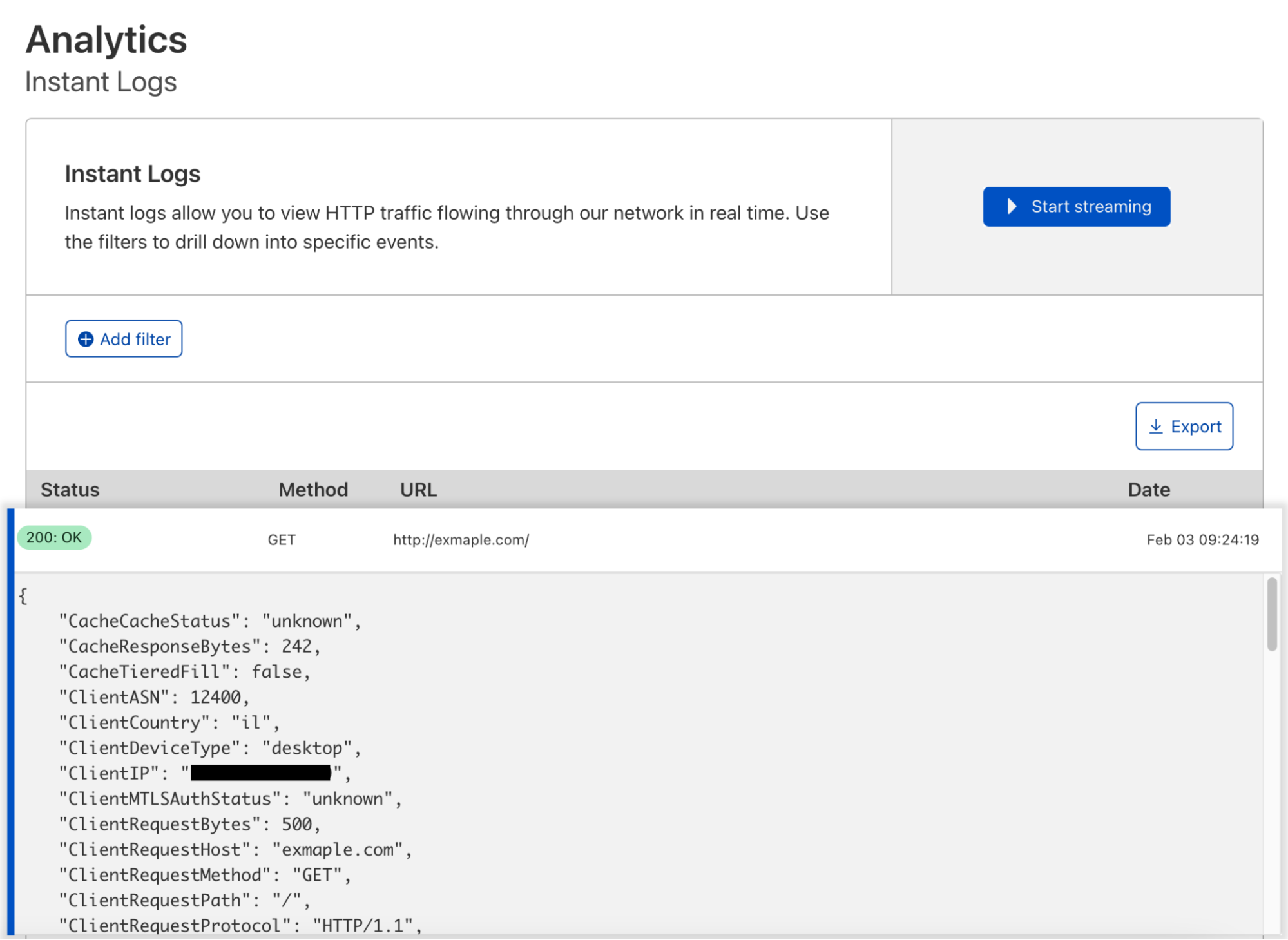
During Speed Week we announced Instant Logs to show customers traffic as it hits their domain. Instant Logs is perfect for live debugging and triaging use cases. Monitor your traffic, make a config change and instantly view its impacts. In cases where you need to retroactively inspect your logs, we have Logpush.

We’ve built an impressive logging pipeline to get data from the 250+ cities that house our data centers to our customers in under a minute using Logpush. If your organization has existing practices for getting data across your stack into one place, we support Logpush to a variety of cloud storage or SIEM destinations. We also have partnerships in place with major SIEM platforms to surface Cloudflare data in ways that are meaningful to our customers.

Last but not least is Logpull. Using Logpull, customers can access HTTP request logs using our REST API. Our customers like Logpull because it’s easy to configure, they don’t have to worry about storing logs on a third party, and you can pull data ad hoc for up to seven days.

Why Cloudflare storage?

The top four requests we’ve heard from customers when it comes to logs are:

  • I have tight budgets and need low cost log storage.
  • They should be low effort to set up and maintain.
  • I should be able to store logs for as long as I need to.
  • I want to access my logs on Cloudflare for any product.

For many of our customers, Cloudflare is one of the most important data sources, and it also generates more data than other applications on their IT stack. R2 is significantly cheaper than other cloud providers, so our customers don’t need to compromise by sampling or leaving out logs from products all together in order to cut down on costs.

Just like the simplicity of Logpull, log storage on R2 will be quick and easy. With a one click setup, we’ll store your logs, and you don’t have to worry about any configuration details. Retention is totally in our customer’s control to match the security and compliance needs of their business. With R2, you can also store your logs for any products we have logging for today (and we’re always adding more as our product line expands).

Log storage; we’re just getting started

With log storage on Cloudflare, we’re creating the building blocks to allow customers to perform log analysis and forensics capabilities directly on Cloudflare. Whether conducting an investigation, responding to a support request or addressing an incident, using analytics for a birds eye view and inspecting logs to determine the root cause is a powerful combination.

If you’re interested in getting notified when you can store your logs on Cloudflare, sign up through this form.

We’re always looking for talented engineers to take on the challenges of working with data at an incredible scale. If you’re interested apply here.

PII and Selective Logging controls for Cloudflare’s Zero Trust platform

Post Syndicated from Ankur Aggarwal original https://blog.cloudflare.com/pii-and-selective-logging-controls-for-cloudflares-zero-trust-platform/

PII and Selective Logging controls for Cloudflare’s Zero Trust platform

PII and Selective Logging controls for Cloudflare’s Zero Trust platform

At Cloudflare, we believe that you shouldn’t have to compromise privacy for security. Last year, we launched Cloudflare Gateway — a comprehensive, Secure Web Gateway with built-in Zero Trust browsing controls for your organization. Today, we’re excited to share the latest set of privacy features available to administrators to log and audit events based on your team’s needs.

Protecting your organization

Cloudflare Gateway helps organizations replace legacy firewalls while also implementing Zero Trust controls for their users. Gateway meets you wherever your users are and allows them to connect to the Internet or even your private network running on Cloudflare. This extends your security perimeter without having to purchase or maintain any additional boxes.

Organizations also benefit from improvements to user performance beyond just removing the backhaul of traffic to an office or data center. Cloudflare’s network delivers security filters closer to the user in over 250 cities around the world. Customers start their connection by using the world’s fastest DNS resolver. Once connected, Cloudflare intelligently routes their traffic through our network with layer 4 network and layer 7 HTTP filters.

To get started, administrators deploy Cloudflare’s client (WARP) on user devices, whether those devices are macOS, Windows, iOS, Android, ChromeOS or Linux. The client then sends all outbound layer 4 traffic to Cloudflare, along with the identity of the user on the device.

With proxy and TLS decryption turned on, Cloudflare will log all traffic sent through Gateway and surface this in Cloudflare’s dashboard in the form of raw logs and aggregate analytics. However, in some instances, administrators may not want to retain logs or allow access to all members of their security team.

The reasons may vary, but the end result is the same: administrators need the ability to control how their users’ data is collected and who can audit those records.

Legacy solutions typically give administrators an all-or-nothing blunt hammer. Organizations could either enable or disable all logging. Without any logging, those services did not capture any personally identifiable information (PII). By avoiding PII, administrators did not have to worry about control or access permissions, but they lost all visibility to investigate security events.

That lack of visibility adds even more complications when teams need to address tickets from their users to answer questions like “why was I blocked?”, “why did that request fail?”, or “shouldn’t that have been blocked?”. Without logs related to any of these events, your team can’t help end users diagnose these types of issues.

Protecting your data

Starting today, your team has more options to decide the type of information Cloudflare Gateway logs and who in your organization can review it. We are releasing role-based dashboard access for the logging and analytics pages, as well as selective logging of events. With role-based access, those with access to your account will have PII information redacted from their dashboard view by default.

We’re excited to help organizations build least-privilege controls into how they manage the deployment of Cloudflare Gateway. Security team members can continue to manage policies or investigate aggregate attacks. However, some events call for further investigation. With today’s release, your team can delegate the ability to review and search using PII to specific team members.

We still know that some customers want to reduce the logs stored altogether, and we’re excited to help solve that too. Now, administrators can now select what level of logging they want Cloudflare to store on their behalf. They can control this for each component, DNS, Network, or HTTP and can even choose to only log block events.

That setting does not mean you lose all logs — just that Cloudflare never stores them. Selective logging combined with our previously released Logpush service allows users to stop storage of logs on Cloudflare and turn on a Logpush job to their destination of choice in their location of choice as well.

How to Get Started

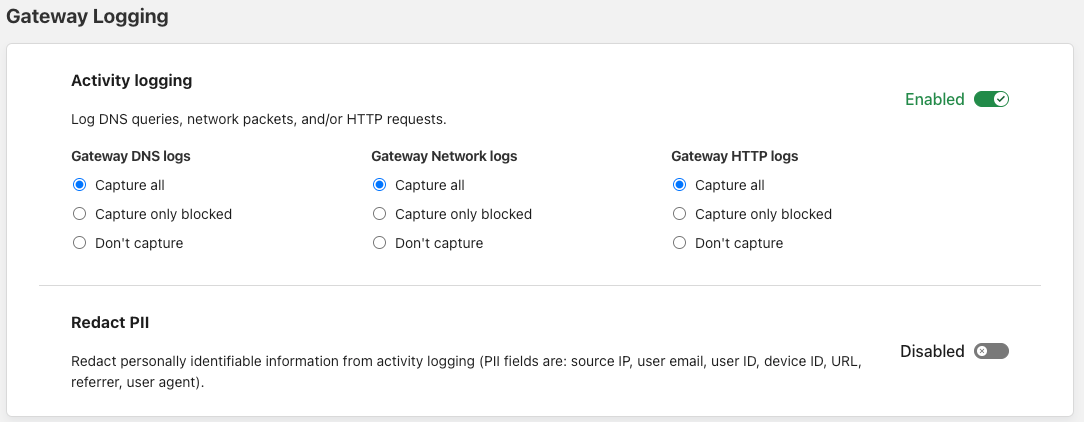
To get started, any Cloudflare Gateway customer can visit the Cloudflare for Teams dashboard and navigate to Settings > Network. The first option on this page will be to specify your preference for activity logging. By default, Gateway will log all events, including DNS queries, HTTP requests and Network sessions. In the network settings page, you can then refine what type of events you wish to be logged. For each component of Gateway you will find three options:

  1. Capture all
  2. Capture only blocked
  3. Don’t capture
PII and Selective Logging controls for Cloudflare’s Zero Trust platform

Additionally, you’ll find an option to redact all PII from logs by default. This will redact any information that can be used to potentially identify a user including User Name, User Email, User ID, Device ID, source IP, URL, referrer and user agent.

We’ve also included new roles within the Cloudflare dashboard, which provide better granularity when partitioning Administrator access to Access or Gateway components. These new roles will go live in January 2022 and can be modified on enterprise accounts by visiting Account Home → Members.

If you’re not yet ready to create an account, but would like to explore our Zero Trust services, check out our interactive demo where you can take a self-guided tour of the platform with narrated walkthroughs of key use cases, including setting up DNS and HTTP filtering with Cloudflare Gateway.

What’s Next

Moving forward, we’re excited to continue adding more and more privacy features that will give you and your team more granular control over your environment. The features announced today are available to users on any plan; your team can follow this link to get started today.

How we built Instant Logs

Post Syndicated from Ben Yule original https://blog.cloudflare.com/how-we-built-instant-logs/

How we built Instant Logs

How we built Instant Logs

As a developer, you may be all too familiar with the stress of responding to a major service outage, becoming aware of an ongoing security breach, or simply dealing with the frustration of setting up a new service for the first time. When confronted with these situations, you want a real-time view into the events flowing through your network, so you can receive, process, and act on information as quickly as possible.

If you have a UNIX mindset, you’ll be familiar with tailing web service logs and searching for patterns using grep. With distributed systems like Cloudflare’s edge network, this task becomes much more complex because you’ll either need to log in to thousands of servers, or ship all the logs to a single place.

This is why we built Instant Logs. Instant Logs removes all barriers to accessing your Cloudflare logs, giving you a complete platform to view your HTTP logs in real time, with just a single click, right from within Cloudflare’s dashboard. Powerful filters then let you drill into specific events or search for patterns, and act on them instantly.

The Challenge

Today, Cloudflare’s Logpush product already gives customers the ability to ship their logs to a third-party analytics or storage provider of their choosing. While this system is already exceptionally fast, delivering logs in about 15s on average, it is optimized for completeness and the utmost certainty that your data is reliably making it to its destination. It is the ideal solution for after things have settled down, and you want to perform a forensic deep dive or retrospective.

We originally aimed to extend this system to provide our real-time logging capabilities, but we soon realized the objectives were inherently at odds with each other. In order to get all of your data, to a single place, all the time, the laws of the universe require that latencies be introduced into the system. We needed a complementary solution, with its own unique set of objectives.

This ultimately boiled down to the following

  1. It has to be extremely fast, in human terms. This means average latencies between an event occurring at the edge and being received by the client should be under three seconds.
  2. We wanted the system design to be simple, and communication to be as direct to the client as possible. This meant operating the dataplane entirely at the edge, eliminating unnecessary round trips to a core data center.
  3. The pipeline needs to provide sensible results on properties of all sizes, ranging from a few requests per day to hundreds of thousands of requests per second.
  4. The pipeline must support a broad set of user-definable filters that are applied before any sampling occurs, such that a user can target and receive exactly what they want.

Workers and Durable Objects

Our existing Logpush pipeline relies heavily on Kafka to provide sharding, buffering, and aggregation at a single, central location. While we’ve had excellent results using Kafka for these pipelines, the clusters are optimized to run only within our core data centers. Using Kafka would require extra hops to far away data centers, adding a latency penalty we were not willing to incur.

In order to keep the data plane running on the edge, we needed primitives that would allow us to perform some of the same key functions we needed out of Kafka. This is where Workers and the recently released Durable Objects come in. Workers provide an incredibly simple to use, highly elastic, edge-native, compute platform we can use to receive events, and perform transformations. Durable Objects, through their global uniqueness, allow us to coordinate messages streaming from thousands of servers and route them to a singular object. This is where aggregation and buffering are performed, before finally pushing to a client over a thin WebSocket. We get all of this, without ever having to leave the edge!

Let’s walk through what this looks like in practice.

A Simple Start

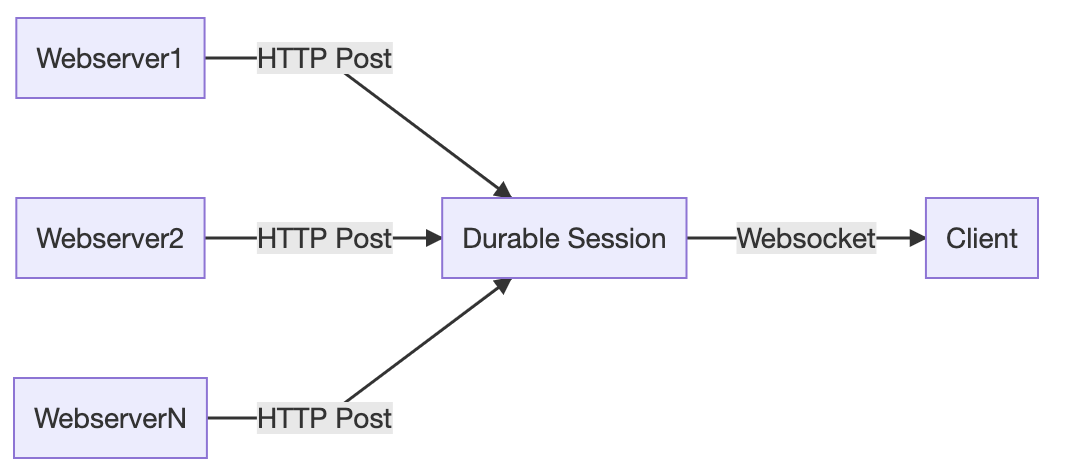
Imagine a simple scenario in which we have a single web server which produces log messages, and a single client which wants to consume them. This can be implemented by creating a Durable Object, which we will refer to as a Durable Session, that serves as the point of coordination between the server and client. In this case, the client initiates a WebSocket connection with the Durable Object, and the server sends messages to the Durable Object over HTTP, which are then forwarded directly to the client.

How we built Instant Logs

This model is quite quick and introduces very little additional latency other than what would be required to send a payload directly from the web server to the client. This is thanks to the fact that Durable Objects are generally located at or near the data center where they are first requested. At least in human terms, it’s instant. Adding more servers to our model is also trivial. As the additional servers produce events, they will all be routed to the same Durable Object, which merges them into a single stream, and sends them to the client over the same WebSocket.

How we built Instant Logs

Durable Objects are inherently single threaded. As the number of servers in our simple example increases, the Durable Object will eventually saturate its CPU time and will eventually start to reject incoming requests. And even if it didn’t, as data volumes increase, we risk overwhelming a client’s ability to download and render log lines. We’ll handle this in a few different ways.

Honing in on specific events

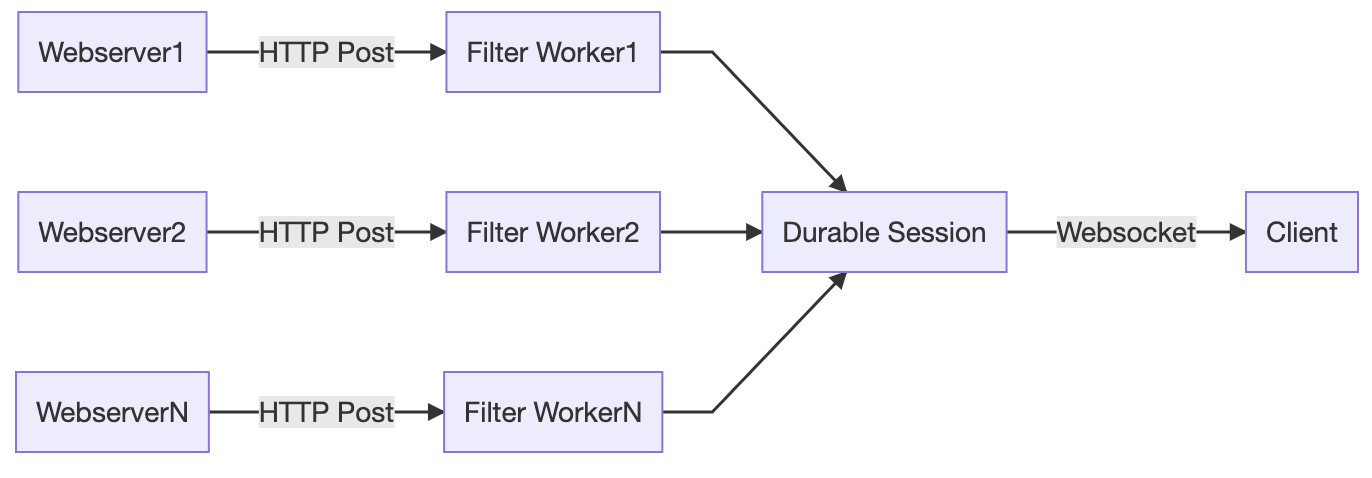
Filtering is the most simple and obvious way to reduce data volume before it reaches the client. If we can filter out the noise, and stream only the events of interest, we can substantially reduce volume. Performing this transformation in the Durable Object itself will provide no relief from CPU saturation concerns. Instead, we can push this filtering out to an invoking Worker, which will run many filter operations in parallel, as it elastically scales to process all the incoming requests to the Durable Object. At this point, our architecture starts to look a lot like the MapReduce pattern!

How we built Instant Logs

Scaling up with shards

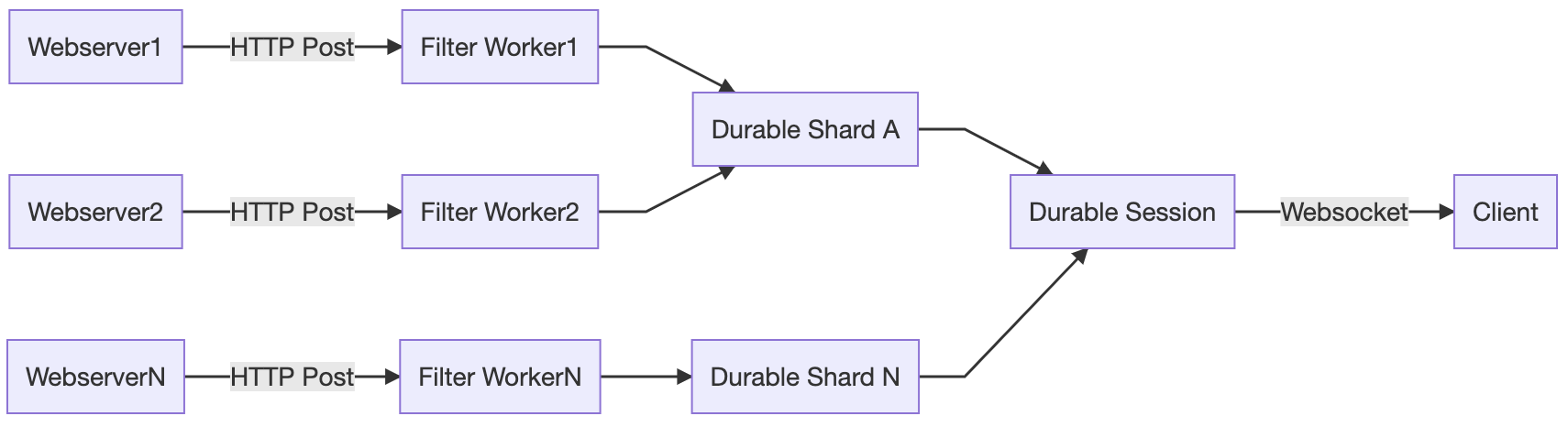
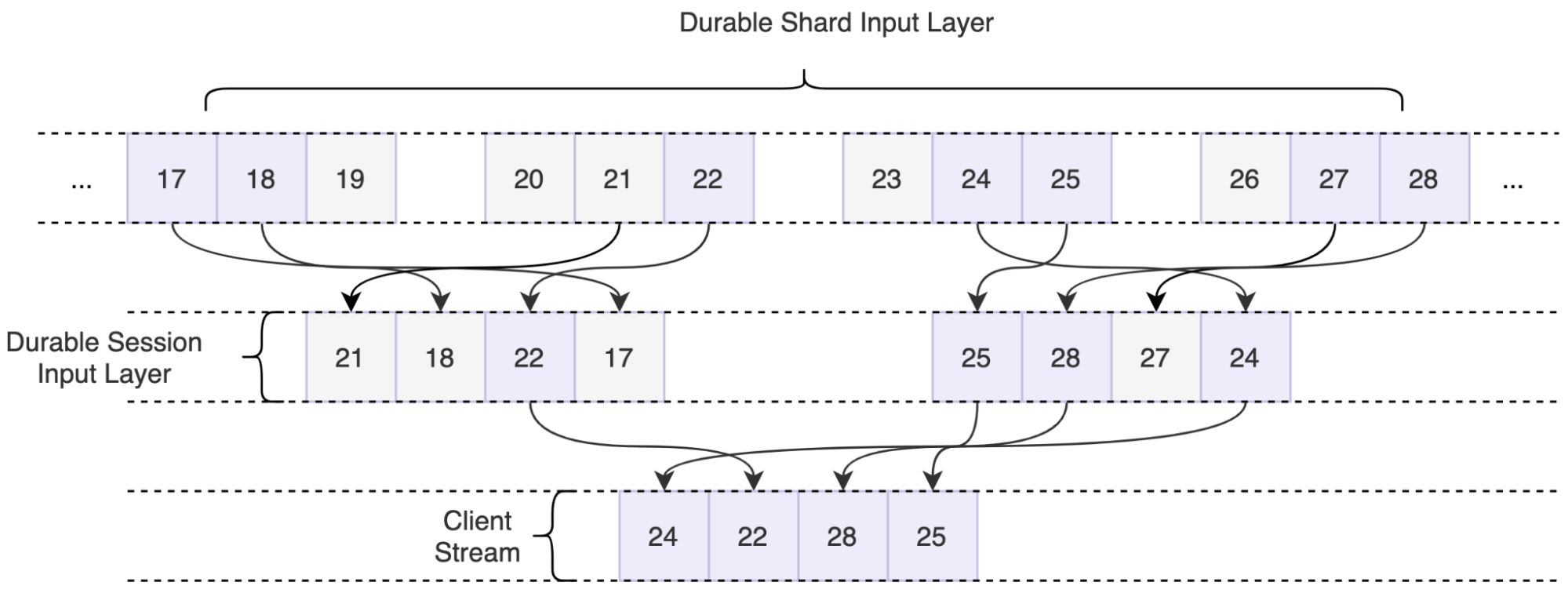
Ok, so filtering may be great in some situations, but it’s not going to save us under all scenarios. We still need a solution to help us coordinate between potentially thousands of servers that are sending events every single second. Durable Objects will come to the rescue, yet again. We can implement a sharding layer consisting of Durable Objects, we will call them Durable Shards, that effectively allow us to reduce the number of requests being sent to our primary object.

How we built Instant Logs

But how do we implement this layer if Durable Objects are globally unique? We first need to decide on a shard key, which is used to determine which Durable Object a given message should first be routed to. When the Worker processes a message, the key will be added to the name of the downstream Durable Object. Assuming our keys are well-balanced, this should effectively reduce the load on the primary Durable Object by approximately 1/N.

Reaching the moon by sampling

But wait, there’s more to do. Going back to our original product requirements, “The pipeline needs to provide sensible results on properties of all sizes, ranging from a few requests per day to hundreds of thousands of requests per second.” With the system as designed so far, we have the technical headroom to process an almost arbitrary number of logs. However, we’ve done nothing to reduce the absolute volume of messages that need to be processed and sent to the client, and at high log volumes, clients would quickly be overwhelmed. To deliver the interactive, instant user experience customers expect, we need to roll up our sleeves one more time.

This is where our final trick, sampling, comes into play.

Up to this point, when our pipeline saturates, it still makes forward progress by dropping excess data as the Durable Object starts to refuse connections. However, this form of ‘uncontrolled shedding’ is dangerous because it causes us to lose information. When we drop data in this way, we can’t keep a record of the data we dropped, and we cannot infer things about the original shape of the traffic from the messages that we do receive. Instead, we implement a form of ‘controlled’ sampling, which still preserves the statistics, and information about the original traffic.

For Instant Logs, we implement a sampling technique called Reservoir Sampling. Reservoir sampling is a form of dynamic sampling that has this amazing property of letting us pick a specific k number of items from a stream of unknown length n, with a single pass through the data. By buffering data in the reservoir, and flushing it on a short (sub second) time interval, we can output random samples to the client at the maximum data rate of our choosing. Sampling is implemented in both layers of Durable Objects.

How we built Instant Logs

Information about the original traffic shape is preserved by assigning a sample interval to each line, which is equivalent to the number of samples that were dropped for this given sample to make it through, or 1/probability. The actual number of requests can then be calculated by taking the sum of all sample intervals within a time window. This technique adds a slight amount of latency to the pipeline to account for buffering, but enables us to point an event source of nearly any size at the pipeline, and we can expect it will be handled in a sensible, controlled way.

Putting it all together

What we are left with is a pipeline that sensibly handles wildly different volumes of traffic, from single digits to hundreds of thousands of requests a second. It allows the user to pinpoint an exact event in a sea of millions, or calculate summaries over every single one. It delivers insight within seconds, all without ever having to do more than click a button.

Best of all? Workers and Durable Objects handle this workload with aplomb and no tuning, and the available developer tooling allowed me to be productive from my first day writing code targeting the Workers ecosystem.

How to get involved?

We’ll be starting our Beta for Instant Logs in a couple of weeks. Join the waitlist to get notified about when you can get access!

If you want to be part of building the future of data at Cloudflare, we’re hiring engineers for our data team in Lisbon, London, Austin, and San Francisco!

Data at Cloudflare just got a lot faster: Announcing Live-updating Analytics and Instant Logs

Post Syndicated from Jon Levine original https://blog.cloudflare.com/instant-logs/

Data at Cloudflare just got a lot faster: Announcing Live-updating Analytics and Instant Logs

Data at Cloudflare just got a lot faster: Announcing Live-updating Analytics and Instant Logs

Today, we’re excited to introduce Live-updating Analytics and Instant Logs. For Pro, Business, and Enterprise customers, our analytics dashboards now update live to show you data as it arrives. In addition to this, Enterprise customers can now view their HTTP request logs instantly in the Cloudflare dashboard.

Cloudflare’s data products are essential for our customers’ visibility into their network and applications. Having this data in real time makes it even more powerful — could you imagine trying to navigate using a GPS that showed your location a minute ago? That’s the power of real time data!

Real time data unlocks entirely new use cases for our customers. They can respond to threats and resolve errors as soon as possible, keeping their applications secure and minimising disruption to their end users.

Lightning fast, in-depth analytics

Cloudflare products generate petabytes of log data daily and are designed for scale. To make sense of all this data, we summarize it using analytics — the ability to see time series data, tops Ns, and slices and dices of the data generated by Cloudflare products. This allows customers to identify trends and anomalies and drill deep into problems.

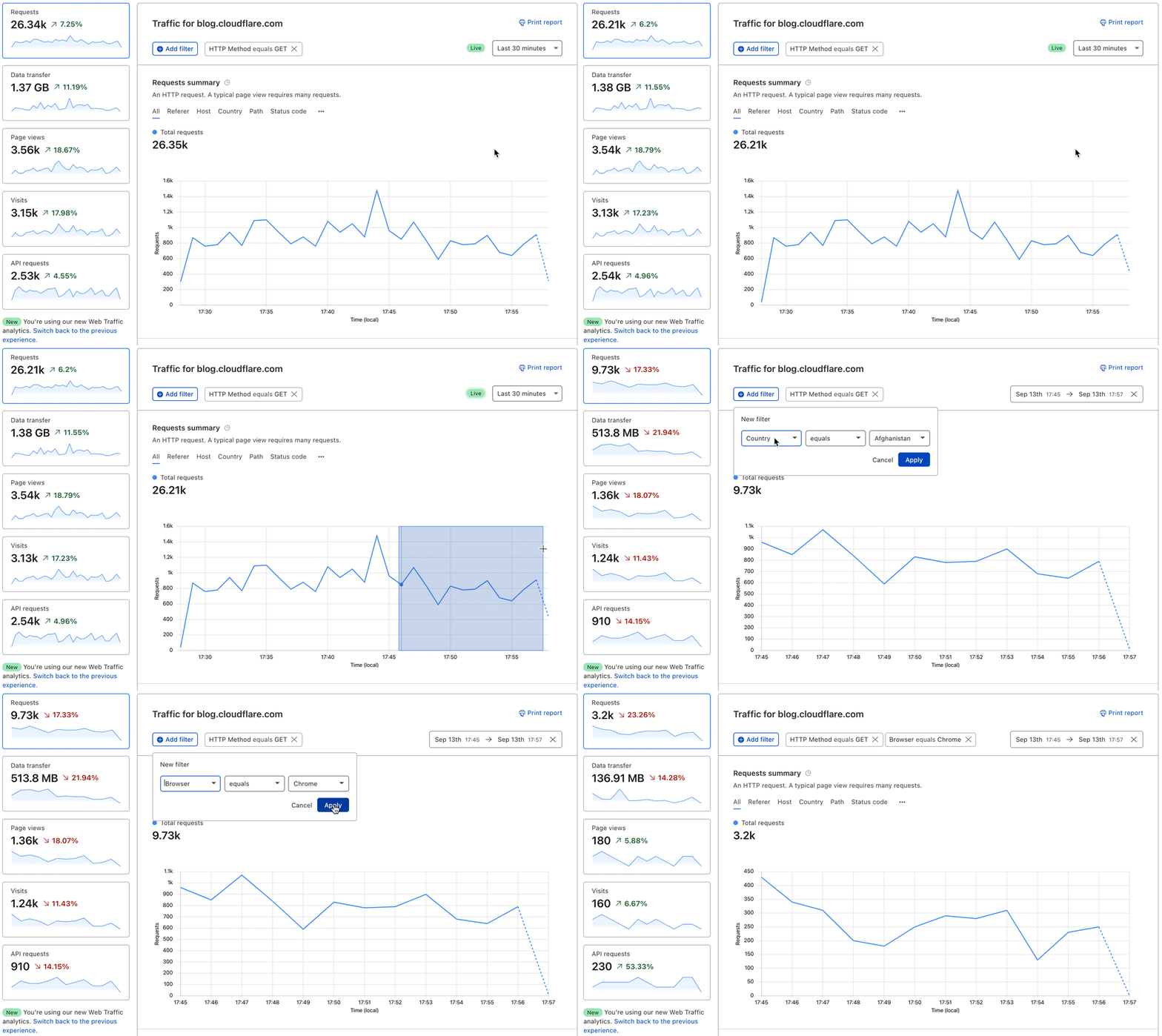
We take it a step further from just showing you high-level metrics. With Cloudflare Analytics you have the ability to quickly drill down into the most important data — narrow in on a specific time period and add a chain of filters to slice your data further and see all the reflecting analytics.

Data at Cloudflare just got a lot faster: Announcing Live-updating Analytics and Instant Logs
Video of Cloudflare analytics showing live updating and drill down capabilities

Let’s say you’re a developer who’s made some recent changes to your website, you’ve deleted some old content and created new web pages. You want to know as soon as possible if these changes have led to any broken links, so you can quickly identify them and make fixes. With live-updating analytics, you can monitor your traffic by status code. If you notice an uptick in 404 errors add a filter to get details on all 404s and view the top referrers causing the errors. From there, take steps to resolve the problem whether by creating a redirect page rule or fixing broken links on your own site.

Instant Logs at your fingertips

While Analytics are a great way to see data at an aggregate level, sometimes you need event level information, too. Logs are powerful because they record every single event that flows through a network, so you can figure out what occurred on a granular level.

Our Logpush system is already able to get logs from our global edge network to a customer’s storage destination or analytics provider within seconds. However, setting this up has a lot of overhead and often customers incur long processing times at their destination. We wanted logs to be instant — instant to set up, deliver and take action on.

It’s that easy.

With Instant Logs, customers can actively monitor the traffic that’s flowing through their network and make key decisions that affect their applications now. Real time data unlocks totally new use cases:

  • For Security Engineers: Stop an attack as it’s developing. For example, apply a Firewall rule and see it’s impact — get answers within seconds. If it’s not what you were intending, try another rule and check again.
  • For Developers: Roll out a config change — to Cloudflare, or to your origin — and have piece of mind to watch as your error rates stay flat (we hope!).

(By the way, if you’re a fan of Workers and want to see real time Workers logging, check out the recently released dashboard for Workers logs.)

Logs at the speed of sight

“Real time” or “instant” can mean different things to different people in different contexts. At Cloudflare, we’re striving to make it as close to the speed of sight as possible. For us, this means we wanted the “glass-to-glass” time — from when you hit “enter” in your browser until when the logs appear — to be under one second.

How did we do?

Today, Cloudflare’s Instant Logs have an average delay of two seconds, and we’re continuing to make improvements to drive that down.

“Real-time” is a very fuzzy term. Looking at other services we see Akamai talking about real-time data as “within minutes” or “latency of 10 minutes”, Amazon talks about “near real-time” for CloudWatch, Google Cloud Logging provides log tailing with a configurable buffer “up to 60 seconds” to deal with potential out-of-order log delivery, and we benchmarked Fastly logs at 25 seconds.

Our goal is to drive down the delay as much as possible (within the laws of physics). We’re happy to have shipped Instant Logs that arrive in two seconds, but we’re not satisfied and will continue to bring that number down.

In time sensitive scenarios such as an attack or an outage, a few minutes or even 30 seconds of delay can have a big impact on customers. At Cloudflare, our goal is to get our customer’s data into their hands as fast as possible  — and we’re just getting started.

How to get access?

Live-updating Analytics is available now on all Pro, Business, and Enterprise plans. Select the “Last 30 minutes” view of your traffic in the Analytics tab to start monitoring your analytics live.

We’ll be starting our Beta for Instant Logs in a couple of weeks. Join the waitlist to get notified about when you can get access!

If you’re eager for details on the inner workings of Instant Logs, check out our blog post about how we built Instant Logs.

What’s next

We’re hard at work to make Instant Logs available for all Enterprise customers — stay tuned after joining our waitlist. We’re also planning to bring all of our datasets to Instant Logs, including Firewall Events. In addition, we’re working on the next set of features like the ability to download logs from your session and compute running aggregates from logs.

For a peek into what we have our sights on next, we know how important it is to perform analysis on not only up-to-date data, but also historical data. We want to give customers the ability to analyze logs, draw insights and perform forensics straight from the Cloudflare platform.

If this sounds cool, we’re hiring engineers for our data team in Lisbon, London and San Francisco — would love to have you help us build the future of data at Cloudflare.

Introducing logs from the dashboard for Cloudflare Workers

Post Syndicated from Ashcon Partovi original https://blog.cloudflare.com/workers-dashboard-logs/

Introducing logs from the dashboard for Cloudflare Workers

Introducing logs from the dashboard for Cloudflare Workers

If you’re writing code: what can go wrong, will go wrong.

Many developers know the feeling: “It worked in the local testing suite, it worked in our staging environment, but… it’s broken in production?” Testing can reduce mistakes and debugging can help find them, but logs give us the tools to understand and improve what we are creating.

if (this === undefined) {
  console.log("there’s no way… right?") // Narrator: there was.
}

While logging can help you understand when the seemingly impossible is actually possible, it’s something that no developer really wants to set up or maintain on their own. That’s why we’re excited to launch a new addition to the Cloudflare Workers platform: logs and exceptions from the dashboard.

Starting today, you can view and filter the console.log output and exceptions from a Worker… at no additional cost with no configuration needed!

View logs, just a click away

When you view a Worker in the dashboard, you’ll now see a “Logs” tab which you can click on to view a detailed stream of logs and exceptions. Here’s what it looks like in action:

Each log entry contains an event with a list of logs, exceptions, and request headers if it was triggered by an HTTP request. We also automatically redact sensitive URLs and headers such as Authorization, Cookie, or anything else that appears to have a sensitive name.

If you are in the Durable Objects open beta, you will also be able to view the logs and requests sent to each Durable Object. This is a great tool to help you understand and debug the interactions between your Worker and a Durable Object.

For now, we support filtering by event status and type. Though, you can expect more filters to be added to the dashboard very soon! Today, we support advanced filtering with the wrangler CLI, which will be discussed later in this blog.

console.log(), and you’re all set

It’s really simple to get started with logging for Workers. Simply invoke one of the standard console APIs, such as console.log(), and we handle the rest. That’s it! There’s no extra setup, no configuration needed, and no hidden logging fees.

function logRequest (request) {
  const { cf, headers } = request
  const { city, region, country, colo, clientTcpRtt  } = cf
  
  console.log("Detected location:", [city, region, country].filter(Boolean).join(", "))
  if (clientTcpRtt) {
     console.debug("Round-trip time from client to", colo, "is", clientTcpRtt, "ms")
  }

  // You can also pass an object, which will be interpreted as JSON.
  // This is great if you want to define your own structured log schema.
  console.log({ headers })
}

In fact, you don’t even need to use console.log to view an event from the dashboard. If your Worker doesn’t generate any logs or exceptions, you will still be able to see the request headers from the event.

Advanced filters, from your terminal

If you need more advanced filters you can use wrangler, our command-line tool for deploying Workers. We’ve updated the wrangler tail command to support sampling and a new set of advanced filters. You also no longer need to install or configure cloudflared to use the command. Not to mention it’s much faster, no more waiting around for logs to appear. Here are a few examples:

# Filter by your own IP address, and if there was an uncaught exception.
wrangler tail --format=pretty --ip-address=self --status=error

# Filter by HTTP method, then apply a 10% sampling rate.
wrangler tail --format=pretty --method=GET --sampling-rate=0.1

# Filter using a generic search query.
wrangler tail --format=pretty --search="TypeError"

We recommend using the “pretty” format, since wrangler will output your logs in a colored, human-readable format. (We’re also working on a similar display for the dashboard.)

However, if you want to access structured logs, you can use the “json” format. This is great if you want to pipe your logs to another tool, such as jq, or save them to a file. Here are a few more examples:

# Parses each log event, but only outputs the url.
wrangler tail --format=json | jq .event.request?.url

# You can also specify --once to disconnect the tail after receiving the first log.
# This is useful if you want to run tests in a CI/CD environment.
wrangler tail --format=json --once > event.json

Try it out!

Both logs from the dashboard and wrangler tail are available and free for existing Workers customers. If you would like more information or a step-by-step guide, check out any of the resources below.

More products, more partners, and a new look for Cloudflare Logs

Post Syndicated from Bharat Nallan Chakravarthy original https://blog.cloudflare.com/logpush-ui-update/

More products, more partners, and a new look for Cloudflare Logs

We are excited to announce a new look and new capabilities for Cloudflare Logs! Customers on our Enterprise plan can now configure Logpush for Firewall Events and Network Error Logs Reports directly from the dashboard. Additionally, it’s easier to send Logs directly to our analytics partners Microsoft Azure Sentinel, Splunk, Sumo Logic, and Datadog. This blog post discusses how customers use Cloudflare Logs, how we’ve made it easier to consume logs, and tours the new user interface.

New data sets for insight into more products

Cloudflare Logs are almost as old as Cloudflare itself, but we have a few big improvements: new datasets and new destinations.

Cloudflare has a large number of products, and nearly all of them can generate Logs in different data sets. We have “HTTP Request” Logs, or one log line for every L7 HTTP request that we handle (whether cached or not). We also provide connection Logs for Spectrum, our proxy for any TCP or UDP based application. Gateway, part of our Cloudflare for Teams suite, can provide Logs for HTTP and DNS traffic.

Today, we are introducing two new data sets:

Firewall Events gives insight into malicious traffic handled by Cloudflare. It provides detailed information about everything our WAF does. For example, Firewall Events shows whether a request was blocked outright or whether we issued a CAPTCHA challenge.  About a year ago we introduced the ability to send Firewall Events directly to your SIEM; starting today, I’m thrilled to share that you can enable this directly from the dashboard!

Network Error Logging (NEL) Reports provides information about clients that can’t reach our network. To enable NEL Reports for your zone and start seeing where clients are having issues reaching our network, reach out to your account manager.

Take your Logs anywhere with an S3-compatible API

To start using logs, you need to store them first. Cloudflare has long supported AWS, Azure, and Google Cloud as storage destinations. But we know that customers use a huge variety of storage infrastructure, which could be hosted on-premise or with one of our Bandwidth Alliance partners.

Starting today, we support any storage destination with an S3-compatible API. This includes:

And best of all, it’s super easy to get data into these locations using our new UI!

“As always, we love that our partnership with Cloudflare allows us to seamlessly offer customers our easy, plug and play storage solution, Backblaze B2 Cloud Storage. Even better is that, as founding members of the Bandwidth Alliance, we can do it all with free egress.”
Nilay Patel, Co-founder and VP of Solutions Engineering and Sales, Backblaze.

Push Cloudflare Logs directly to our analytics partners

While many customers like to store Logs themselves, we’ve also heard that many customers want to get Logs into their analytics provider directly — without going through another layer. Getting high volume log data out of object storage and into an analytics provider can require building and maintaining a costly, time-consuming, and fragile integration.

Because of this, we now provide direct integrations with four analytics platforms: Microsoft Azure Sentinel, Sumo Logic, Splunk, and Datadog. And starting today, you can push Logs directly into Sumo Logic, Splunk and Datadog from the UI! Customers can add Cloudflare to Azure Sentinel using the Azure Marketplace.

“Organizations are in a state of digital transformation on a journey to the cloud. Most of our customers deploy services in multiple clouds and have legacy systems on premise. Splunk provides visibility across all of this, and more importantly, with SOAR we can automate remediation. We are excited about the Cloudflare partnership, and adding their data into Splunk drives the outcomes customers need to modernize their security operations.”
Jane Wong, Vice President, Product Management, Security at Splunk

“Securing enterprise IT environments can be challenging – from devices, to users, to apps, to data centers on-premises or in the cloud. In today’s environment of increasingly sophisticated cyber-attacks, our mutual customers rely on Microsoft Azure Sentinel for a comprehensive view of their enterprise.  Azure Sentinel enables SecOps teams to collect data at cloud scale and empowers them with AI and ML to find the real threats in those signals, reducing alert fatigue by as much as 90%. By integrating directly with Cloudflare Logs we are making it easier and faster for customers to get complete visibility across their entire stack.”
Sarah Fender, Partner Group Program Manager, Azure Sentinel at Microsoft

“As a long time Cloudflare partner we’ve worked together to help joint customers analyze events and trends from their websites and applications to provide end-to-end visibility to improve digital experiences. We’re excited to expand our partnership as part of the Cloudflare Analytics Ecosystem to provide comprehensive real-time insights for both observability and the security of mission-critical applications and services with our Cloud SIEM solution.”
John Coyle, Vice President of Business Development for Sumo Logic

“Knowing that applications perform as well in the real world as they do in the datacenter is critical to ensuring great digital experiences. Combining Cloudflare Logs with Datadog telemetry about application performance in a single pane of glass ensures teams will have a holistic view of their application delivery.”
Michael Gerstenhaber, Sr. Director of Product, Datadog

Why Cloudflare Logs?

Cloudflare’s mission is to help build a better Internet. We do that by providing a massive global network that protects and accelerates our customers’ infrastructure. Because traffic flows across our network before reaching our customers, it means we have a unique vantage point into that traffic. In many cases, we have visibility that our customers don’t have — whether we’re telling them about the performance of our cache, the malicious HTTP requests we drop at our edge, a spike in L3 data flows, the performance of their origin, or the CPU used by their serverless applications.

To provide this ability, we have analytics throughout our dashboard to help customers understand their network traffic, firewall, cache, load balancer, and much more. We also provide alerts that can tell customers when they see an increase in errors or spike in DDoS activity.

But some customers want more than what we currently provide with our analytics products. Many of our enterprise customers use SIEMs like Splunk and Sumo Logic or cloud monitoring tools like Datadog. These products can extend the capabilities of Cloudflare by showcasing Cloudflare data in the context of customers’ other infrastructure and providing advanced functionality on this data.

To understand how this works, consider a typical L7 DDoS attack against one of our customers.  Very commonly, an attack like this might originate from a small number of IP addresses and a customer might choose to block the source IPs completely. After blocking the IP addresses, customers may want to:

  • Search through their Logs to see all the past instances of activity from those IP addresses.
  • Search through Logs from all their other applications and infrastructure to see all activity from those IP addresses
  • Understand exactly what that attacker was trying to do by looking at the request payload blocked in our WAF (securely encrypted thanks to HPKE!)
  • Set an alert for similar activity, to be notified if something similar happens again

All these are made possible using SIEMs and infrastructure monitoring tools. For example, our customer NOV uses Splunk to “monitor our network and applications by alerting us to various anomalies and high-fidelity incidents”.

“One of the most valuable sources of data is Cloudflare,” said John McLeod, Chief Information Security Officer at NOV. “It provides visibility into network and application attacks. With this integration, it will be easier to get Cloudflare Logs into Splunk, saving my team time and money.”

A new UI for our growing product base

With so many new data sets and new destinations, we realized that our existing user interface was not good enough. We went back to the drawing board to design a more intuitive user experience to help you quickly and easily set up Logpush.

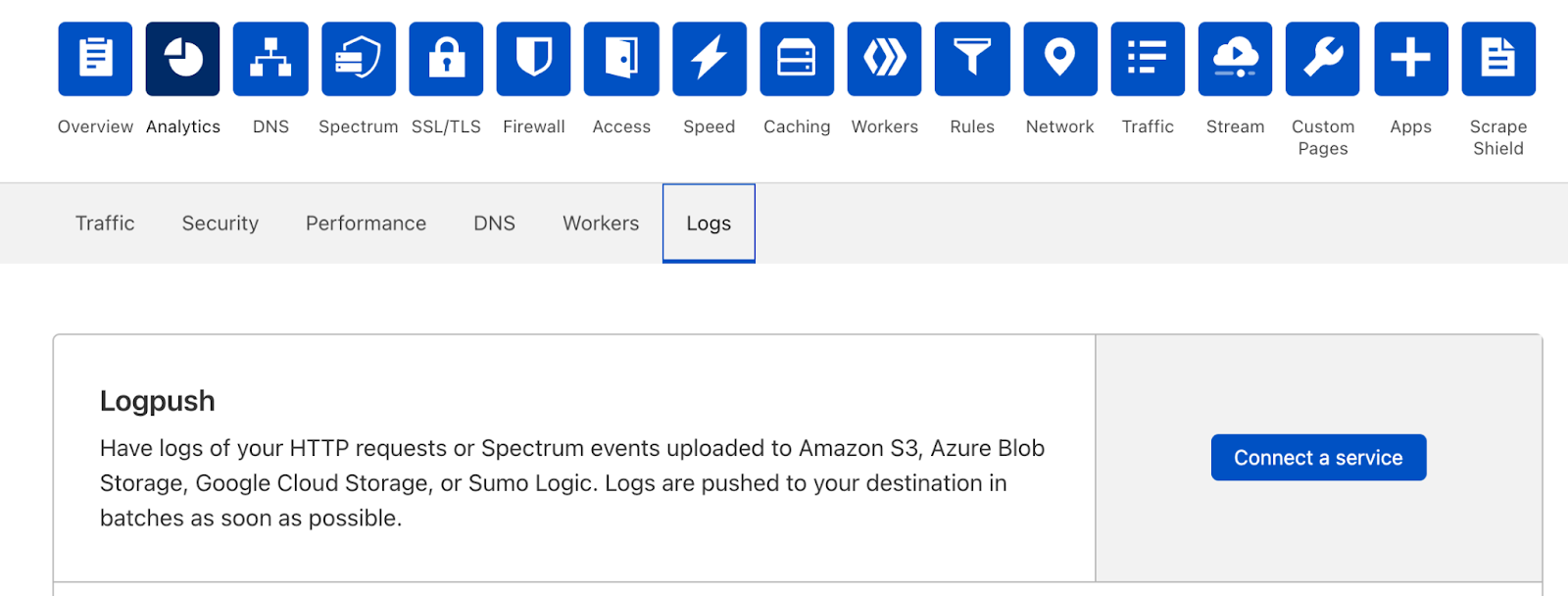
You can still set up Logpush in the same place in the dashboard, in the Analytics > Logs tab:

More products, more partners, and a new look for Cloudflare Logs

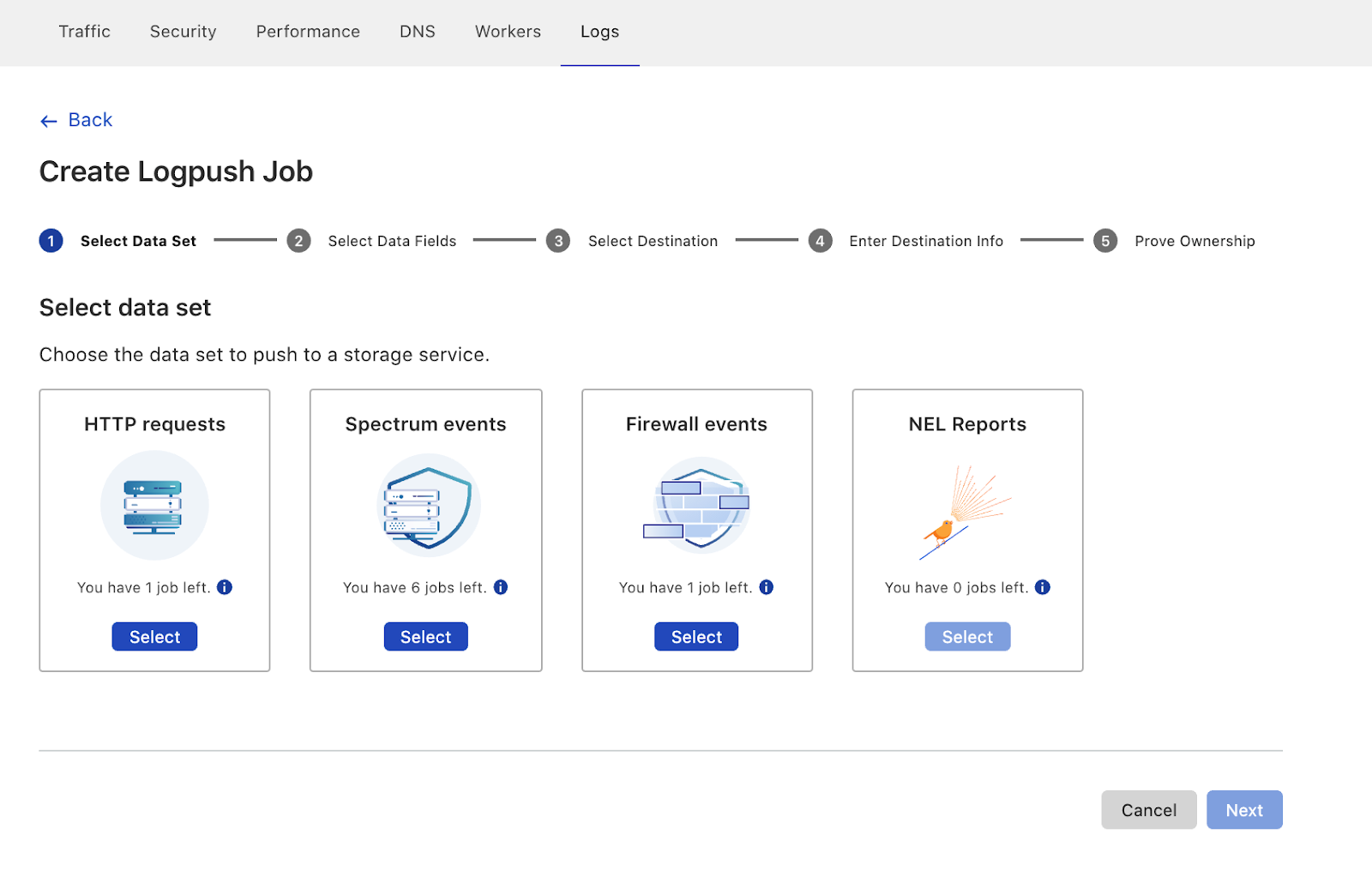
The new UI first prompts users to select the data set to push. Here you’ll also notice that we’ve added support for Firewall Events and NEL Reports!

More products, more partners, and a new look for Cloudflare Logs

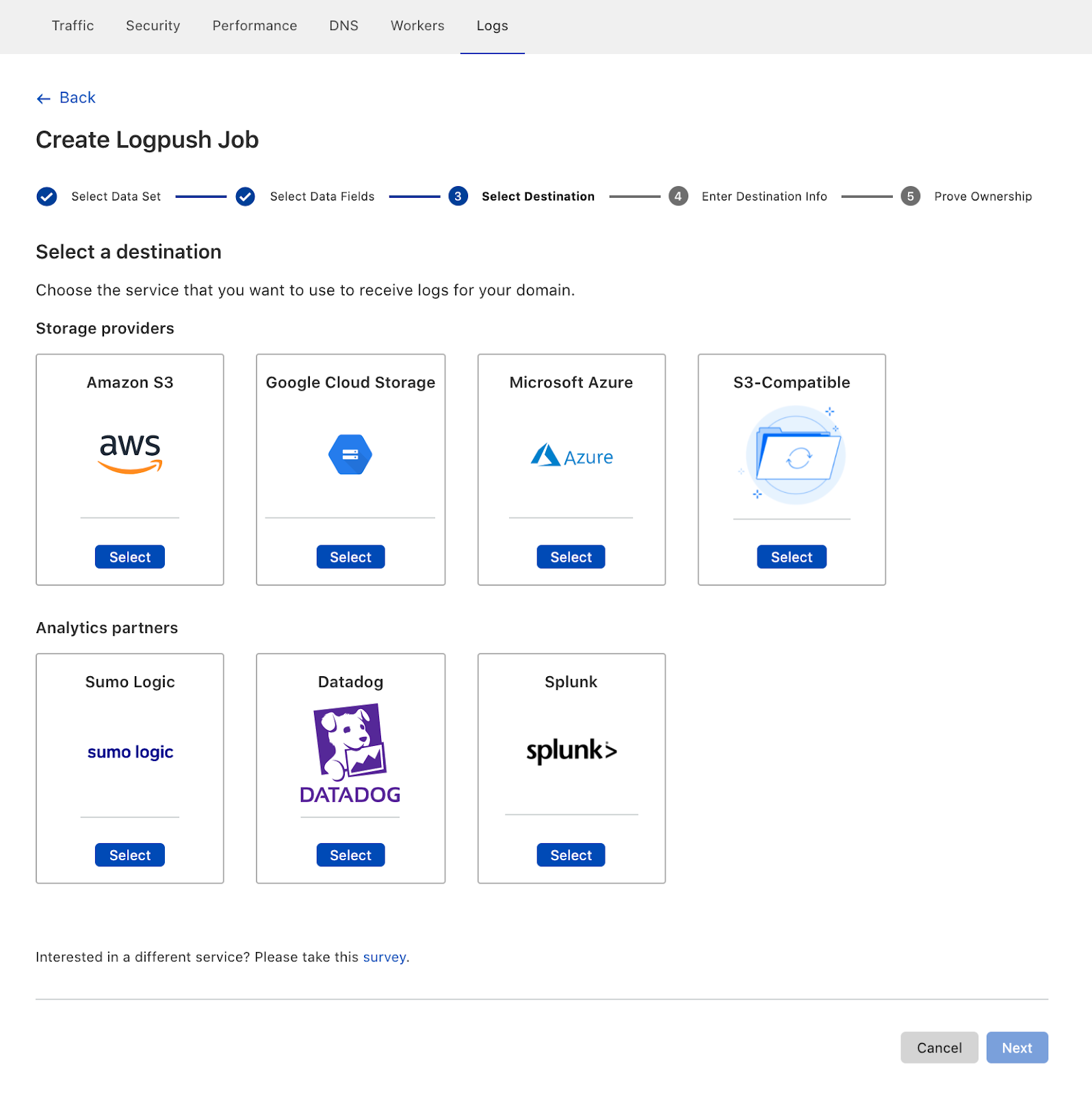
After configuring details like which fields to push, customers can then select where the Logs are going. Here you can see our three new destinations, S3-compatible storage, Sumo Logic, Datadog and Splunk:

More products, more partners, and a new look for Cloudflare Logs

Coming soon

Of course, we’re not done yet! We have more Cloudflare products in the pipeline and more destinations planned where customers can send their Logs. Additionally, we’re working on adding more flexibility to our logging pipeline so that customers can configure to send Logs for the entire account, plus filter Logs to just send error codes, for example.

Ultimately, we want to make working with Cloudflare Logs as useful as possible — on Cloudflare itself! We’re working to help customers solve their performance and security challenges with data at massive scale. If that sounds interesting, please join us! We’re hiring Systems Engineers for the Data team.

Investigate VPC flow with Amazon Detective

Post Syndicated from Ross Warren original https://aws.amazon.com/blogs/security/investigate-vpc-flow-with-amazon-detective/

Many Amazon Web Services (AWS) customers need enhanced insight into IP network flow. Traditionally, cost, the complexity of collection, and the time required for analysis has led to incomplete investigations of network flows. Having good telemetry is paramount, and VPC Flow Logs are a very important part of a robust centralized logging architecture. The information that VPC Flow Logs provide is frequently used by security analysts to determine the scope of security issues, to validate that network access rules are working as expected, and to help analysts investigate issues and diagnose network behaviors. Flow logs capture information about the IP traffic going to and from EC2 interfaces in a VPC. Each record describes aspects of the traffic flow, such as where it originated and where it was sent to, what network ports were used, and how many bytes were sent.

Amazon Detective now enables you to interactively examine the details of the virtual private cloud (VPC) network flows of your Amazon Elastic Compute Cloud (Amazon EC2) instances. Amazon Detective makes it easy to analyze, investigate, and quickly identify the root cause of potential security issues or suspicious activities. Detective automatically collects VPC flow logs from your monitored accounts, aggregates them by EC2 instance, and presents visual summaries and analytics about these network flows. Detective doesn’t require VPC Flow Logs to be configured and doesn’t impact existing flow log collection.

In this blog post, I describe how to use the new VPC flow feature in Detective to investigate an UnauthorizedAccess:EC2/TorClient finding from Amazon GuardDuty. Amazon GuardDuty is a threat detection service that continuously monitors for malicious activity and unauthorized behavior to protect your AWS accounts, workloads, and data stored in Amazon S3. GuardDuty documentation states that this alert can indicate unauthorized access to your AWS resources with the intent of hiding the unauthorized user’s true identity. I’ll demonstrate how to use Amazon Detective to investigate an instance that was flagged by Amazon GuardDuty to determine whether it is compromised or not.

Starting the investigation in GuardDuty

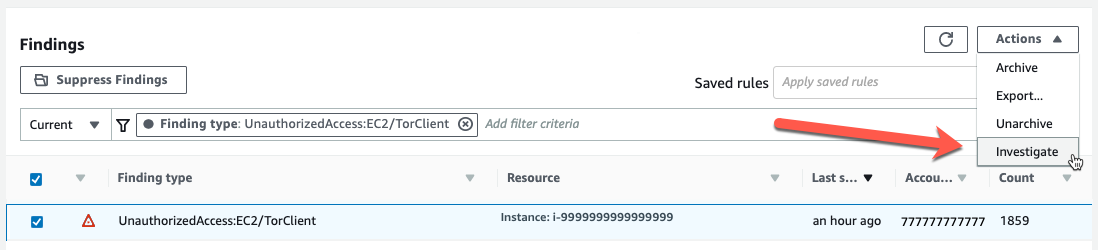
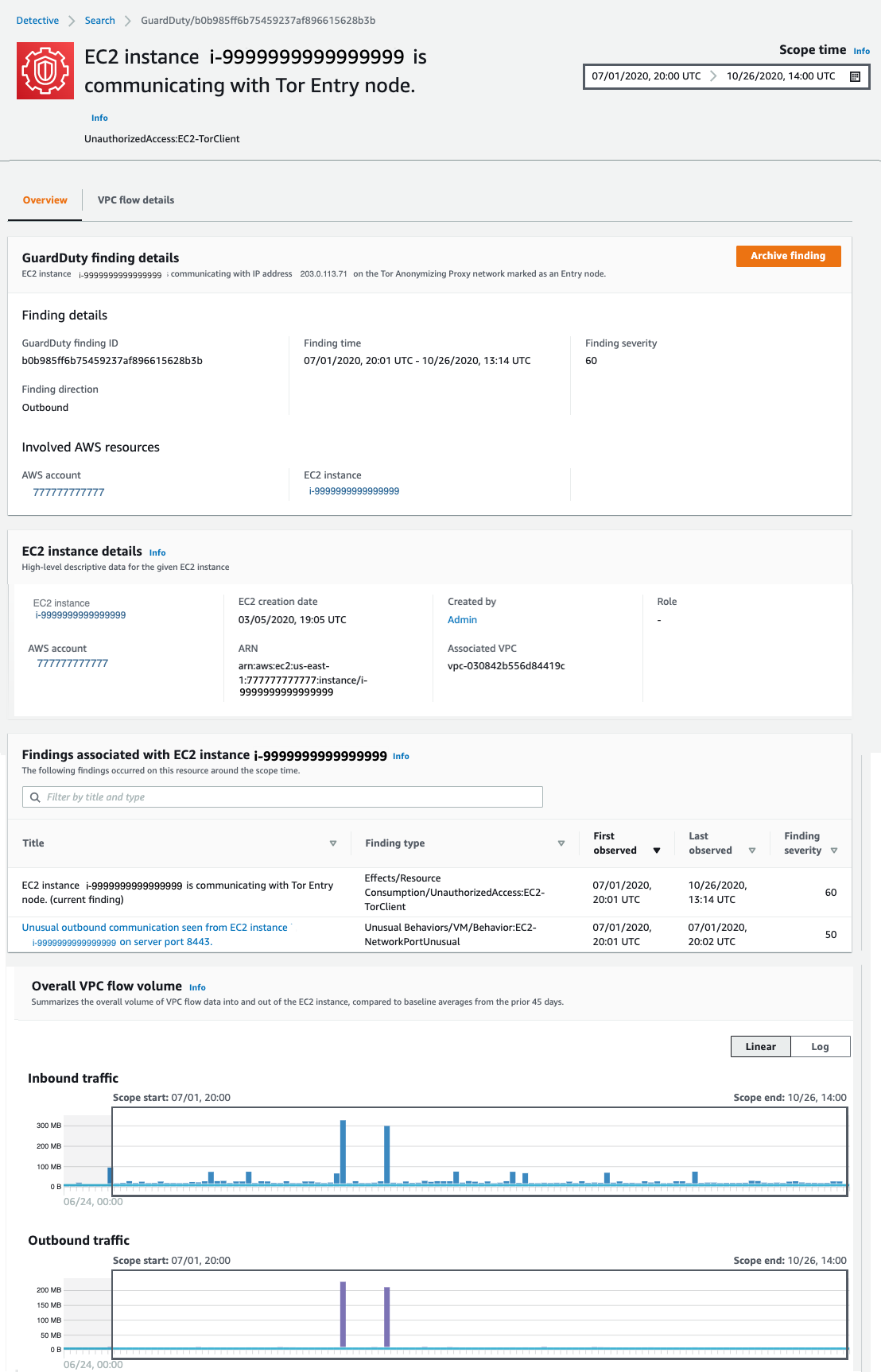
In my GuardDuty console, I’m going to select the UnauthorizedAccess:EC2/TorClient finding shown in Figure 1, choose the Actions menu, and select Investigate.
 

Figure 1: Investigating from the GuardDuty console

Figure 1: Investigating from the GuardDuty console

This opens a new browser tab and launches the Amazon Detective console, where I’m presented with the profile page for this finding, shown in Figure 2. You must have Detective enabled to pivot between a GuardDuty finding and Detective. Detective provides profile pages for supported GuardDuty findings and AWS resources (for example, IP address, EC2 instance, user, and role) that include information and data visualizations that summarize observed behaviors and give guidance for interpreting them. Profiles help analysts to determine whether the finding is of genuine concern or a false positive. For resources, profiles provide supporting details for an investigation into a finding or for a general hunt for suspicious activity.
 

Figure 2: Finding profile panel

Figure 2: Finding profile panel

In this case, the profile page for this GuardDuty UnauthorizedAccess:EC2/TorClient finding provides contextual and behavioral data about the EC2 instance on which GuardDuty has noted the issue. As I dive into this finding, I’m going to be asking questions that help assess whether the instance was in fact accessed unintentionally, such as, “What IP port or network service was in use at that time?,” “Were any large data transfers involved?,” “Was the traffic allowed by my security groups?” Profile pages in Detective organize content that helps security analysts investigate GuardDuty findings, examine unexpected network behavior, and identify other AWS resources that might be affected by a potential security issue.

I begin scrolling down the page and notice the Findings associated with EC2 instance i-9999999999999999 panel. Detective displays related findings to provide analysts with additional evidence and context about potentially related issues. The finding I’m investigating is listed there, as well as an Unusual Behaviors/VM/Behavior:EC2-NetworkPortUnusual finding. GuardDuty builds a baseline on your network traffic and will generate findings where there is traffic outside the calculated normal. While we might not investigate every instance of anomalous traffic, having these alerts correlated by Detective provides context for validating the issue. Keeping this in mind as I scroll down, at the bottom of this profile page, I find the Overall VPC flow volume panel. If you choose the Info link next to the panel title, you can see helpful tips that describe how to use the visualizations and provide ideas for questions to ask within your investigation. These info links are available throughout Detective. Check them out!

Investigating VPC flow in Detective

In this investigation, I’m very curious about the two large spikes in inbound traffic that I see in the Overall VPC flow volume panel, which seem to be visually associated with some unusual outbound traffic spikes. It’s most likely that these outbound spikes are related to the Unusual Behaviors/VM/Behavior:EC2-NetworkPortUnusual finding I mentioned earlier. To start the investigation, I choose the display details for scope time button, shown circled at the bottom of Figure 2. This expands the VPC Flow Details, shown in Figure 3.
 

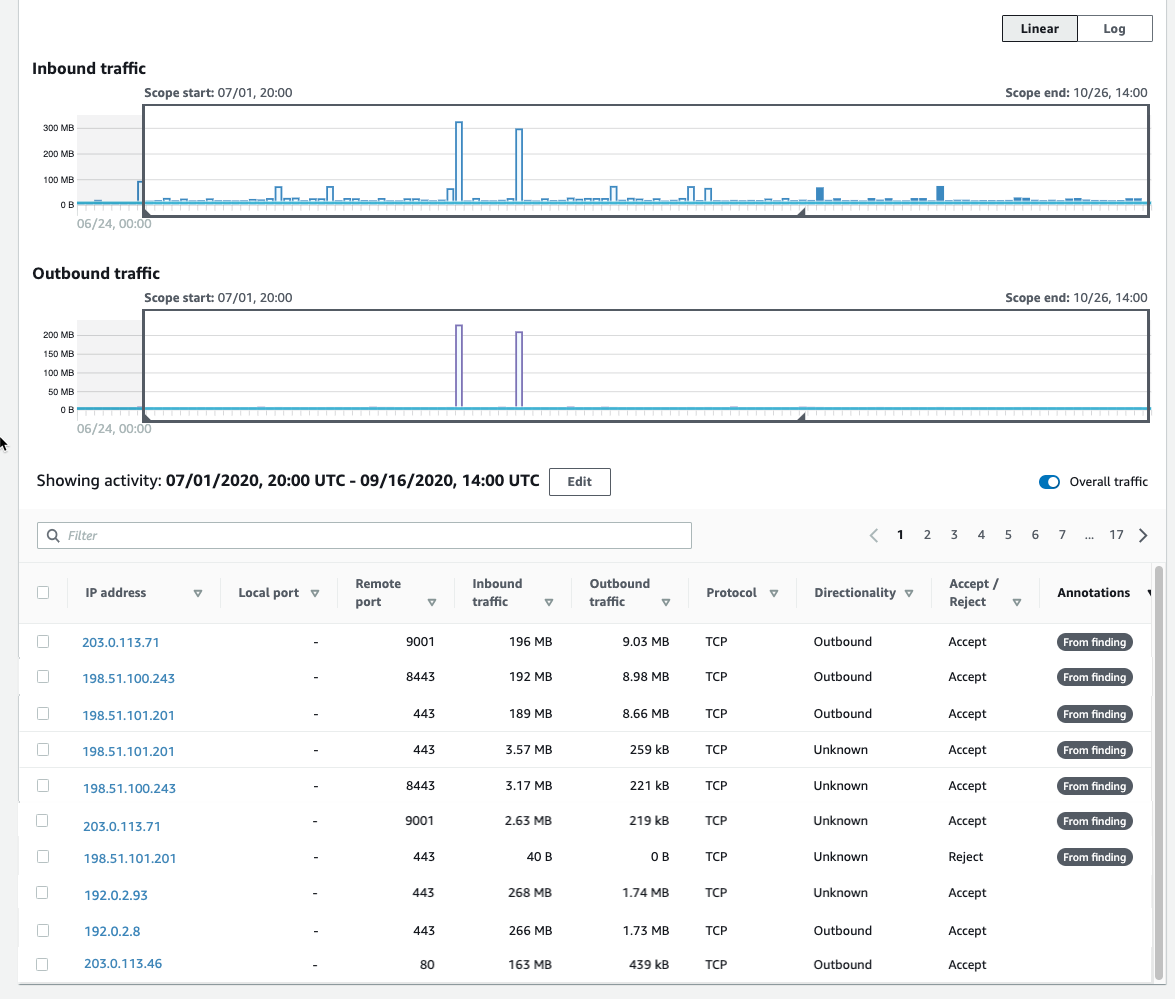
Figure 3: Our first look at VPC Flow Details

Figure 3: Our first look at VPC Flow Details

We now can see that each entry displays the volume of inbound traffic, the volume of outbound traffic, and whether the access request was accepted or rejected. Detective provides annotations on the VPC flows to help guide your investigation. These From finding annotations make it clear which flows and resources were involved in the finding. In this case, we can easily see (in Figure 3) the three IP addresses at the top of the list that triggered this GuardDuty finding.

I’m first going to focus on the spikes in traffic that are above the baseline. When I click on one of the spikes in the graph, the time window for the VPC flow activity now matches the dates of these spikes I’m investigating.

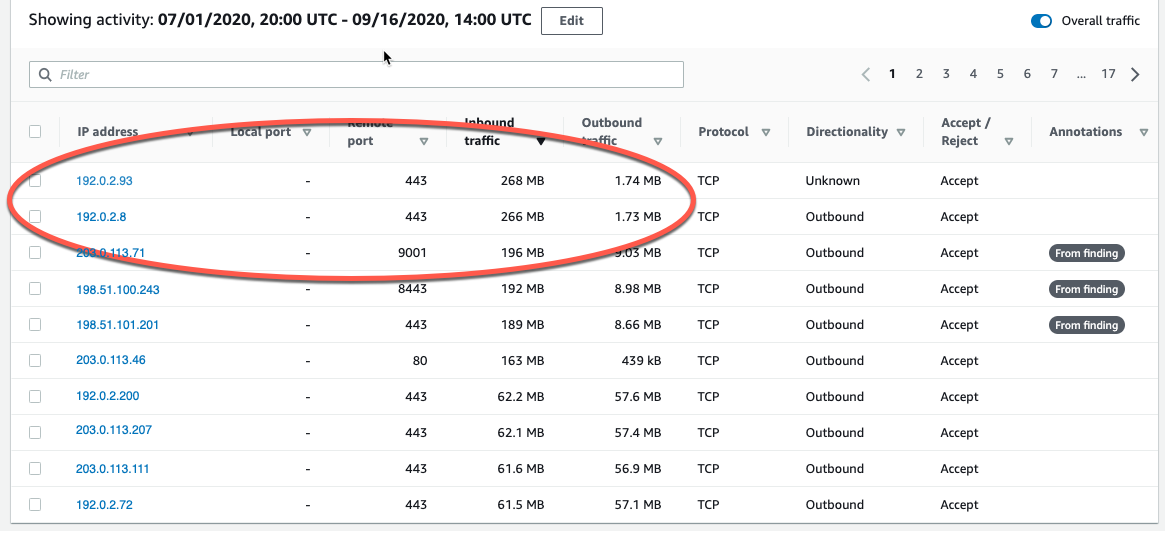
If I choose the Inbound Traffic column header, shown in Figure 4, I can find the flows that contributed to the spike during this time window.
 

Figure 4: Inbound traffic spikes

Figure 4: Inbound traffic spikes

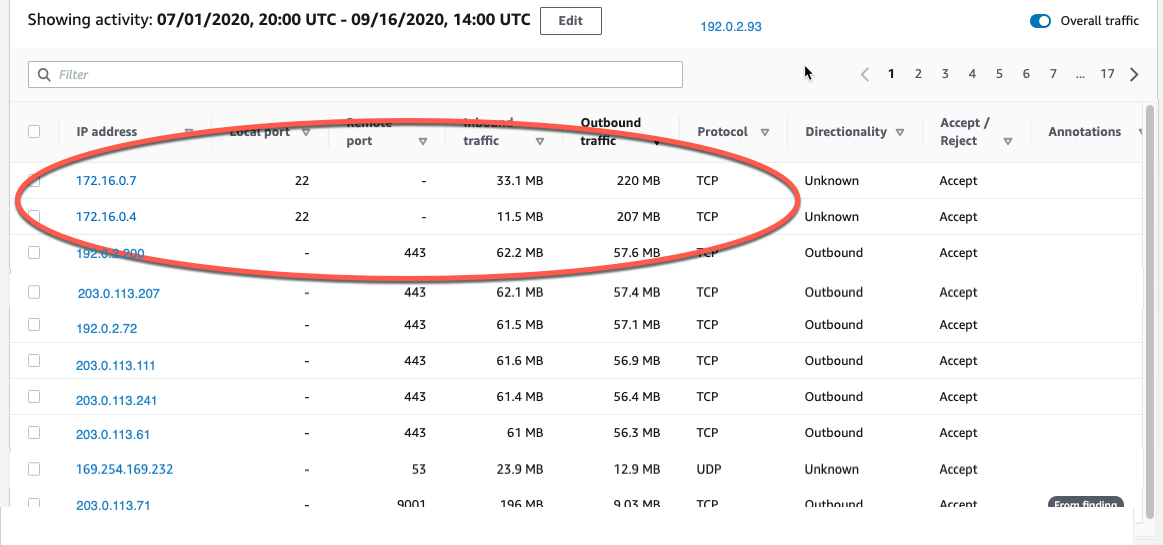
Note that the two large inbound spikes aren’t associated with the IP address from the UnauthorizedAccess:EC2/TorClient finding, based on the Detective annotation From finding. Let’s check the outbound traffic. If I do a quick sort of the table based on the outbound traffic column, as shown in Figure 5, we can also see the outbound spikes, and it isn’t immediately evident whether the spikes are associated with this finding. I could continue to investigate the spikes (because they are a visual anomaly), or focus just on the VPC flow traffic that GuardDuty and Detective have labeled as associated with this TOR finding.
 

Figure 5: Outbound traffic spikes

Figure 5: Outbound traffic spikes

Let’s focus on the outbound and inbound spikes and see if we can determine what’s happening. The inbound spikes are on port 443, typically an HTTPS port, or a secure web connection. The outbound spikes are on port 22 (ssh), but go to IP addresses that look to be internal based on their addresses of 172.16.x.x. The port 443 traffic might indicate a web server that’s open to the internet and receiving traffic. With further investigation, we can determine if this idea is valid, and continue hunting for potentially malicious traffic.

A good next step would be to investigate the two specific IP addresses to rule out their involvement in the finding. I can do this by right-clicking on either of the external IP addresses and opening a new tab, where I can focus on investigating these two specific IP addresses. I would take this line of investigation to possibly rule out the involvement of these IP addresses in this finding, determine if they regularly communicate with my resources, find out what instance(s) they’re related to, and see if there are other findings associated with these instances or IP addresses. This deeper investigation is outside the scope of this blog post, but it’s something you should be doing in your own environment.

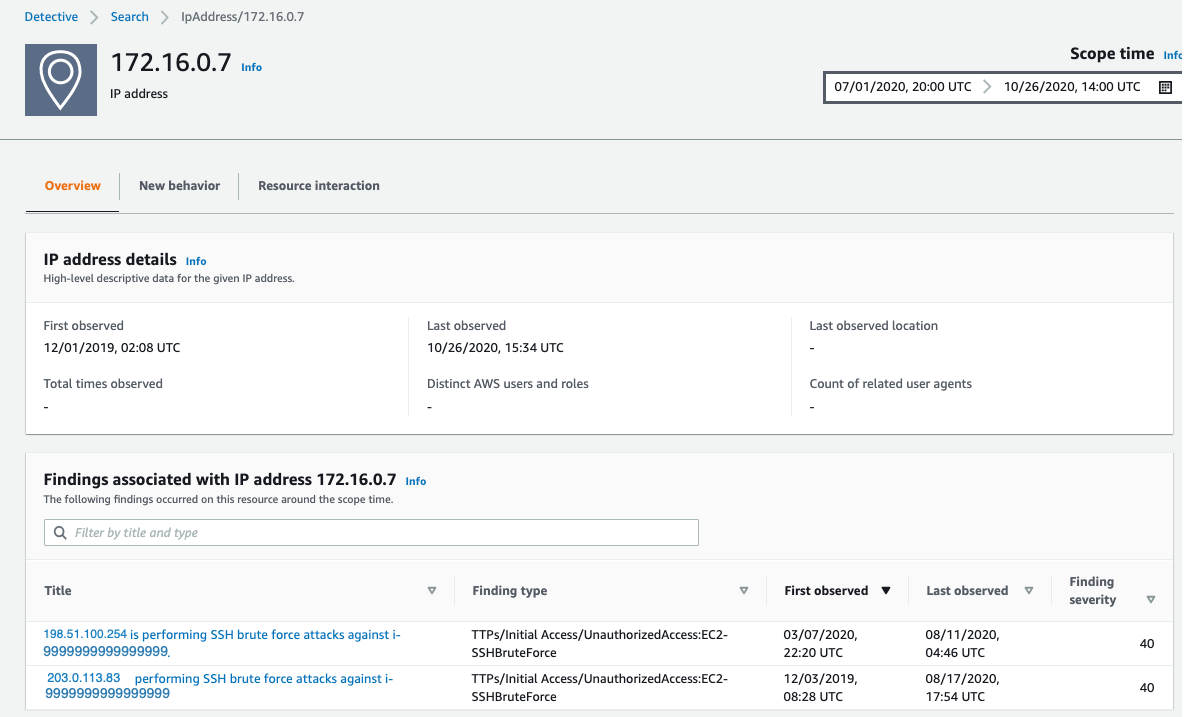
IP addresses in AWS are ephemeral in nature. The unique identifier in VPC flow logs is the Instance ID. At the time of this investigation, 172.16.0.7 is assigned to the instance related to this finding, so let’s continue to take a look at the internal 172.16.0.7 IP address with 218 MB outbound traffic on port 22. I choose 172.16.0.7, and Detective opens up the profile page for this specific IP address, as shown in Figure 6. Here we see some interesting correlations: two other GuardDuty findings related to SSH brute-force attacks. These could be related to our outbound port 22 spikes, because they’re certainly in the window of time we’re investigating.
 

Figure 6: IP address profile panel

Figure 6: IP address profile panel

As part of a deeper investigation, you would investigate the SSH brute-force findings for 198.51.100.254 and 203.0.113.83 but for now I’m interested what this IP is involved in. Detective easily associates this 172.16.0.7 IP address with the instance that was assigned the IP during the scope time. I scroll down to the bottom of the profile page for 172.16.0.7 and investigate the i-9999999999999999 instance by choosing the instance name.

Filtering VPC flow activity

In Detective, as the investigator we are looking at an instance profile panel, similar to the one in Figure 2, and since we’re interested in VPC flow details, I’m going to scroll down and select display details for scope time.

To focus on specific activity, I can filter the activity details by the following values:

  • IP address
  • Local or remote port
  • Direction
  • Protocol
  • Whether the request was accepted or rejected

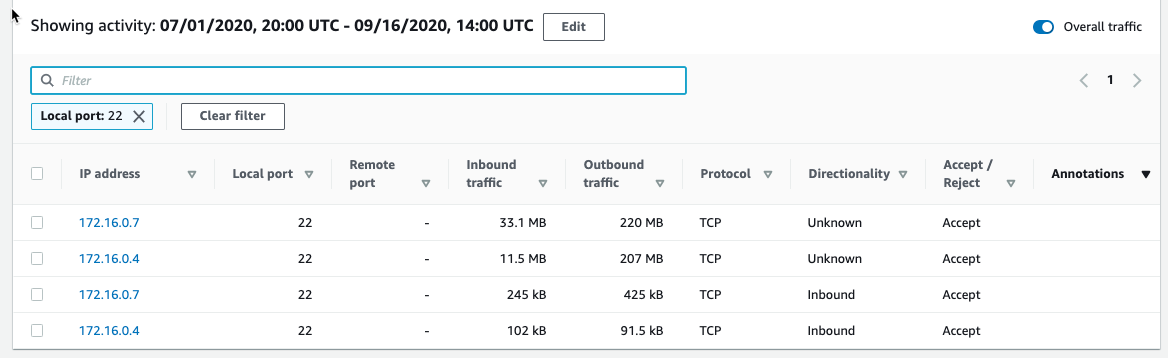
I’m going to filter these VPC flow details and just look at port 22 (sshd) inbound traffic. I select the Filter check box and select Local Port and 22, as shown in Figure 7. Detective fills in all the available ports for you, making it easy to complete this filter.
 

Figure 7: Port 22 traffic

Figure 7: Port 22 traffic

The activity details show a few IP addresses related to port 22, and we’re still following the large outbound spikes of traffic. It’s outside the scope of this blog post, but now it would be time to start looking at your security groups and network access control lists (ACLs) and determine why port 22 is open to the internet and sending all this traffic.

Understanding traffic behavior

As an investigator, I now have a good picture of the traffic related to the initial finding, and by diving deeper we’re able to discover other interesting traffic during the same timeframe. While we may not always determine “who has done it,” the goal should be to improve our understanding of the behavior of our environment and gather important technical evidence. Detective helps you identify and investigate anomalies to give you insight into your environment. If we were to continue our investigation into the finding, here are some actions we can take within Detective.

Investigate VPC findings with Detective:

  • Perform ports and utilization analysis
    • Identify service and ephemeral ports
    • Determine whether traffic was accepted or rejected based on security groups and NACL configurations
    • Investigate possible reconnaissance traffic by exploring the significant amount of rejected traffic
  • Correlate EC2 instances to TCP/IP ports and IPs
  • Analyze traffic spikes and anomalies
  • Discover traffic patterns and make behavioral correlations

Explore EC2 instance behavior with Detective:

  • Directional Traffic Analysis
  • Investigate possible data exfiltration events by digging into large transfers
  • Enumerate distinct IP connections and sort and filter by protocol, amount of traffic, and traffic direction
  • Gather data related to a spike in port count from a single IP address (potential brute force) or multiple IP addresses (distributed denial of service (DDoS))

Additional forensics steps to consider

  • Snapshot EC2 Volumes
  • Memory dump of EC2 instance
  • Isolate EC2 instance
  • Review your authentication strategy and assess whether the chosen authentication method is sufficient to protect your asset

Summary

Without requiring you to set up infrastructure or spend time configuring log ingestion, Detective collects, organizes, and presents relevant data for your threat analysis and investigations. Security and operations teams will find this new capability helpful for simplifying EC2 traffic analysis, validating security group permissions, and diagnosing EC2 instance behavior. Detective does the heavy lifting of storing, and analyzing VPC flow data so you can focus on quickly answering your investigative questions. VPC network flow details are available now in all Detective supported Regions and are included as part of your service subscription.

To get started, you can enable a 30-day free trial of Amazon Detective. See the AWS Regional Services page for all the regions where Detective is available. To learn more, visit the Amazon Detective product page.

Are you a visual learner? Check out Amazon Detective Overview and Demonstration. This video helps you learn how and when to use Amazon Detective to improve the security of your AWS resources.

If you have feedback about this post, submit comments in the Comments section below.

Want more AWS Security how-to content, news, and feature announcements? Follow us on Twitter.
Author

Ross Warren

Ross Warren is a Solution Architect at AWS based in Northern Virginia. Prior to his work at AWS, Ross’ areas of focus included cyber threat hunting and security operations. Ross has worked at a handful of startups and has enjoyed the transition to AWS because he can continue to build solutions for customers on today’s most innovative platform.

Author

Jim Miller

Jim is a Solution Architect at AWS based in Connecticut. Jim has worked within cyber security his entire career with areas of focus including cyber security architecture and incident response. At AWS he loves building secure solutions for customers to enable teams to build and innovate with confidence.

Explaining Cloudflare’s ABR Analytics

Post Syndicated from Jamie Herre original https://blog.cloudflare.com/explaining-cloudflares-abr-analytics/

Explaining Cloudflare's ABR Analytics

Cloudflare’s analytics products help customers answer questions about their traffic by analyzing the mind-boggling, ever-increasing number of events (HTTP requests, Workers requests, Spectrum events) logged by Cloudflare products every day.  The answers to these questions depend on the point of view of the question being asked, and we’ve come up with a way to exploit this fact to improve the quality and responsiveness of our analytics.

Useful Accuracy

Consider the following questions and answers:

What is the length of the coastline of Great Britain? 12.4K km
What is the total world population? 7.8B
How many stars are in the Milky Way? 250B
What is the total volume of the Antarctic ice shelf? 25.4M km3
What is the worldwide production of lentils? 6.3M tonnes
How many HTTP requests hit my site in the last week? 22.6M

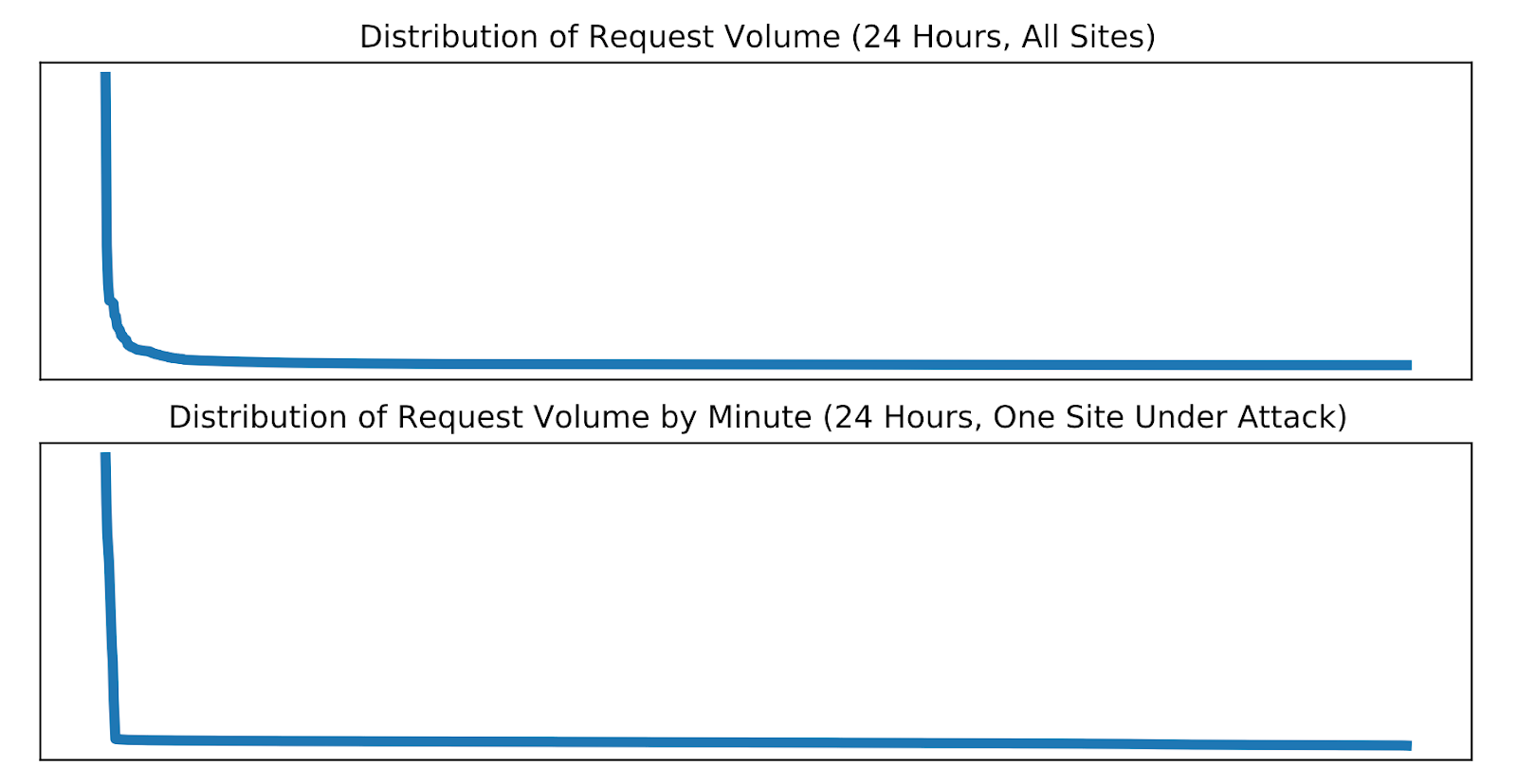
Useful answers do not benefit from being overly exact.  For large quantities, knowing the correct order of magnitude and a few significant digits gives the most useful answer.  At Cloudflare, the difference in traffic between different sites or when a single site is under attack can cross nine orders of magnitude and, in general, all our traffic follows a Pareto distribution, meaning that what’s appropriate for one site or one moment in time might not work for another.

Explaining Cloudflare's ABR Analytics

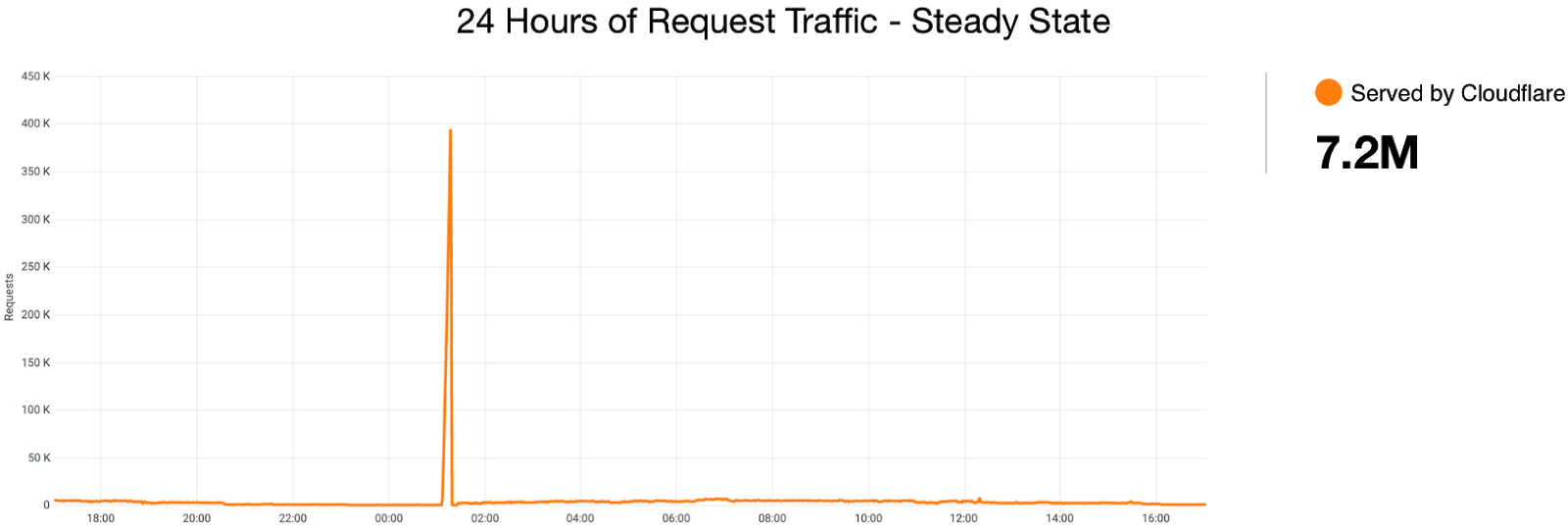
Because of this distribution, a query that scans a few hundred records for one customer will need to scan billions for another.  A report that needs to load a handful of rows under normal operation might need to load millions when a site is under attack.

To get a sense of the relative difference of each of these numbers, remember “Powers of Ten”, an amazing visualization that Ray and Charles Eames produced in 1977.  Notice that the scale of an image determines what resolution is practical for recording and displaying it.

Explaining Cloudflare's ABR Analytics

Using ABR to determine resolution

This basic fact informed our design and implementation of ABR for Cloudflare analytics.  ABR stands for “Adaptive Bit Rate”.  It’s essentially an eponym for the term as used in video streaming such as Cloudflare’s own Stream Delivery.  In those cases, the server will select the best resolution for a video stream to match your client and network connection.

In our case, every analytics query that supports ABR will be calculated at a resolution matching the query.  For example, if you’re interested to know from which country the most firewall events were generated in the past week, the system might opt to use a lower resolution version of the firewall data than if you had opted to look at the last hour. The lower resolution version will provide the same answer but take less time and fewer resources.  By using multiple, different resolutions of the same data, our analytics can provide consistent response times and a better user experience.

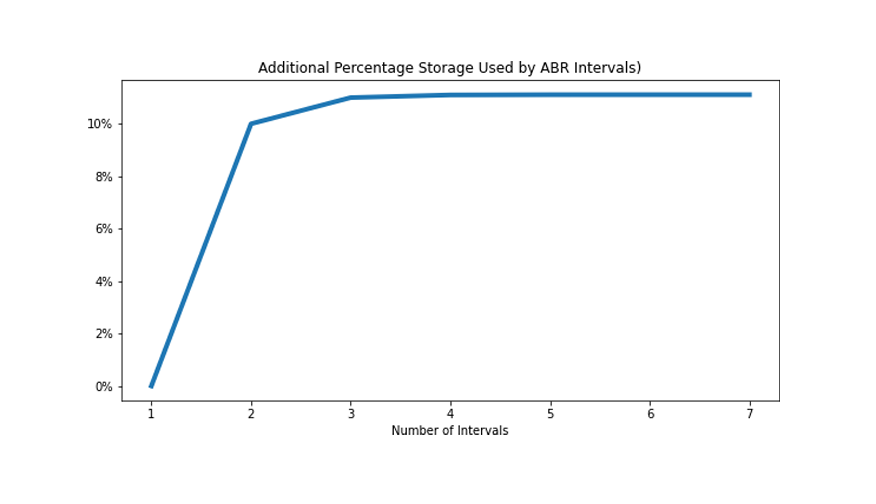
You might be aware that we use a columnar store called ClickHouse to store and process our analytics data.  When using ABR with ClickHouse, we write the same data at multiple resolutions into separate tables.  Usually, we cover seven orders of magnitude – from 100% to 0.0001% of the original events.  We wind up using an additional 12% of disk storage but enable very fast ad hoc queries on the reduced resolution tables.

Explaining Cloudflare's ABR Analytics

Aggregations and Rollups

The ABR technique facilitates aggregations by making compact estimates of every dimension.  Another way to achieve the same ends is with a system that computes “rollups”.  Rollups save space by computing either complete or partial aggregations of the data as it arrives.  

For example, suppose we wanted to count a total number of lentils. (Lentils are legumes and among the oldest and most widely cultivated crops.  They are a staple food in many parts of the world.)  We could just count each lentil as it passed through the processing system. Of course because there a lot of lentils, that system is distributed – meaning that there are hundreds of separate machines.  Therefore we’ll actually have hundreds of separate counters.

Also, we’ll want to include more information than just the count, so we’ll also include the weight of each lentil and maybe 10 or 20 other attributes. And of course, we don’t want just a total for each attribute, but we’ll want to be able to break it down by color, origin, distributor and many other things, and also we’ll want to break these down by slices of time.

In the end, we’ll have tens of thousands or possibly millions of aggregations to be tabulated and saved every minute.  These aggregations are expensive to compute, especially when using aggregations more complicated than simple counters and sums.  They also destroy some information.  For example, once we’ve processed all the lentils through the rollups, we can’t say for sure that we’ve counted them all, and most importantly, whichever attributes we neglected to aggregate are unavailable.

The number we’re counting, 6.3M tonnes, only includes two significant digits which can easily be achieved by counting a sample.  Most of the rollup computations used on each lentil (on the order 1013 to account for 6.3M tonnes) are wasted.

Other forms of aggregations

So far, we’ve discussed ABR and its application to aggregations, but we’ve only given examples involving “counts” and “sums”.  There are other, more complex forms of aggregations we use quite heavily.  Two examples are “topK” and “count-distinct”.

A “topK” aggregation attempts to show the K most frequent items in a set.  For example, the most frequent IP address, or country.  To compute topK, just count the frequency of each item in the set and return the K items with the highest frequencies. Under ABR, we compute topK based on the set found in the matching resolution sample. Using a sample makes this computation a lot faster and less complex, but there are problems.

The estimate of topK derived from a sample is biased and dependent on the distribution of the underlying data. This can result in overestimating the significance of elements in the set as compared to their frequency in the full set. In practice this effect can only be noticed when the cardinality of the set is very high and you’re not going to notice this effect on a Cloudflare dashboard.  If your site has a lot of traffic and you’re looking at the Top K URLs or browser types, there will be no difference visible at different resolutions.  Also keep in mind that as long as we’re estimating the “proportion” of the element in the set and the set is large, the results will be quite accurate.

The other fascinating aggregation we support is known as “count-distinct”, or number of uniques.  In this case we want to know the number of unique values in a set.  For example, how many unique cache keys have been used.  We can safely say that a uniform random sample of the set cannot be used to estimate this number.  However, we do have a solution.

We can generate another, alternate sample based on the value in question.  For example, instead of taking a random sample of all requests, we take a random sample of IP addresses.  This is sometimes called distinct reservoir sampling, and it allows us to estimate the true number of distinct IPs based on the cardinality of the sampled set. Again, there are techniques available to improve these estimates, and we’ll be implementing some of those.

ABR improves resilience and scalability

Using ABR saves us resources.  Even better, it allows us to query all the attributes in the original data, not just those included in rollups.  And even better, it allows us to check our assumptions against different sample intervals in separate tables as a check that the system is working correctly, because the original events are preserved.

However, the greatest benefits of employing ABR are the ones that aren’t directly visible. Even under ideal conditions, a large distributed system such as Cloudflare’s data pipeline is subject to high tail latency.  This occurs when any single part of the system takes longer than usual for any number of a long list of reasons.  In these cases, the ABR system will adapt to provide the best results available at that moment in time.

For example, compare this chart showing Cache Performance for a site under attack with the same chart generated a moment later while we simulate a failure of some of the servers in our cluster.  In the days before ABR, your Cloudflare dashboard would fail to load in this scenario.  Now, with ABR analytics, you won’t see significant degradation.

Explaining Cloudflare's ABR Analytics

Stretching the analogy to ABR in video streaming, we want you to be able to enjoy your analytics dashboard without being bothered by issues related to faulty servers, or network latency, or long running queries.  With ABR you can get appropriate answers to your questions reliably and within a predictable amount of time.

In the coming months, we’re going to be releasing a variety of new dashboards and analytics products based on this simple but profound technology.  Watch your Cloudflare dashboard for increasingly useful and interactive analytics.